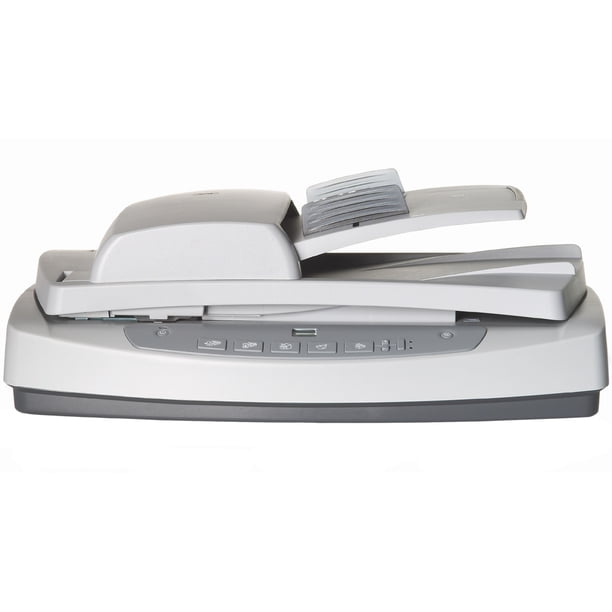
HP Scanjet 5590 Digital Flatbed Scanner
Ask AI
— answers from the official manualAnswers from the official manual.
Common questions
Common Questions
9 totalHow do I clean the scanner glass?
To clean the scanner glass, disconnect both the USB and power cables. Use a soft, lint-free cloth sprayed with mild glass cleaner to wipe the glass, followed by a dry cloth. Avoid using abrasives or harmful chemicals like acetone and benzene (Page 13)
How do I factory reset my HP Scanjet 5590 scanner?
Press and hold the Power button for 10 seconds until the LED flashes red. This clears settings and returns to factory defaults, requiring a re-pair of all connected devices afterward (Page 23)
How do I properly set up my Transparent Materials Adapter?
To connect the TMA cable to its port on the scanner without damaging internal pins, disconnect power cables first. Align connector so arrow is at top side gently insert and reconnect the power cable (Page 13)
How do I troubleshoot a scanner initialization failure?
Close HP Scanning software, disconnect USB & power cables. Turn off both computer and scanner for at least one minute before restarting in that order (Page 23)
How do I perform routine maintenance on the ADF?
Routine maintenance for the ADF includes cleaning it with an HP ADF cleaning cloth up to five times. Clean the feed-roller assembly manually if streaks appear and follow steps in clean and maintain the ADF (Page 16)
What should I do when a USB cable connection error occurs?
A '00' LCD display on the front panel indicates a USB connection error. Ensure the USB cable is securely connected and correctly oriented—USB symbol should face upward (Page 23)
Full Manual
32 pages
hp scanjet 5590 digital flatbed scanner

user‘s manual
hp scanjet 5590 digital flatbed scanner
user’s manual
copyright and license © 2004 Copyright Hewlett-Packard Development Company, L.P. Reproduction, adaptation or translation without prior written permission is prohibited, except as allowed under the copyright laws. The information contained herein is subject to change without notice. The only warranties for HP products and services are set forth in the express warranty statements accompanying such products and services. Nothing herein should be construed as constituting an additional warranty. HP shall not be liable for technical or editorial errors or omissions contained herein. trademark credits
Adobe and the Acrobat logo are registered trademarks or trademarks of Adobe Systems Incorporated in the United States and other countries and regions.
ENERGY STAR is a U.S. registered service mark of the United States Environmental Protection Agency. Microsoft and Windows are registered trademarks of Microsoft Corporation. All other product names mentioned herein may be trademarks of their respective companies.
contents
how to use the scanner. . . . . . . . . . . . . . . . . . . . . . . . . . . . . . 1 install the scanning software . . . . . . . . . . . . . . . . . . . . . . . . . . . . . . .1 front panel and accessories overview . . . . . . . . . . . . . . . . . . . . . . . . .2 scanning overview . . . . . . . . . . . . . . . . . . . . . . . . . . . . . . . . . . . . . .2 select original types . . . . . . . . . . . . . . . . . . . . . . . . . . . . . . . . . . . . .3 scan documents . . . . . . . . . . . . . . . . . . . . . . . . . . . . . . . . . . . . . . .3 scan pictures . . . . . . . . . . . . . . . . . . . . . . . . . . . . . . . . . . . . . . . . . .4 preview a scanned image. . . . . . . . . . . . . . . . . . . . . . . . . . . . . . . . .4
save a document to a disk or CD . . . . . . . . . . . . . . . . . . . . . . . . . . .5 e-mail a scanned document or picture . . . . . . . . . . . . . . . . . . . . . . . .5 print copies. . . . . . . . . . . . . . . . . . . . . . . . . . . . . . . . . . . . . . . . . . .5 cancel a scan . . . . . . . . . . . . . . . . . . . . . . . . . . . . . . . . . . . . . . . . .6 use the Power Save button. . . . . . . . . . . . . . . . . . . . . . . . . . . . . . . . .6 change settings . . . . . . . . . . . . . . . . . . . . . . . . . . . . . . . . . . . . . . . .6 scan text for editing . . . . . . . . . . . . . . . . . . . . . . . . . . . . . . . . . . . . .6
how to scan from the automatic document feeder . . . . . . . . . . 7 choose acceptable media for the ADF . . . . . . . . . . . . . . . . . . . . . . . .7 load originals in the ADF . . . . . . . . . . . . . . . . . . . . . . . . . . . . . . . . .7 scan two-sided documents from the ADF . . . . . . . . . . . . . . . . . . . . . . .8 make copies from the ADF . . . . . . . . . . . . . . . . . . . . . . . . . . . . . . . .8
how to scan slides and negatives . . . . . . . . . . . . . . . . . . . . . . 9 set up the TMA . . . . . . . . . . . . . . . . . . . . . . . . . . . . . . . . . . . . . . . .9 scan slides or negatives . . . . . . . . . . . . . . . . . . . . . . . . . . . . . . . . .10

care and maintenance . . . . . . . . . . . . . . . . . . . . . . . . . . . . . 13 clean the scanner glass. . . . . . . . . . . . . . . . . . . . . . . . . . . . . . . . . .13 clean the TMA . . . . . . . . . . . . . . . . . . . . . . . . . . . . . . . . . . . . . . .13 clean and maintain the ADF . . . . . . . . . . . . . . . . . . . . . . . . . . . . . .13 maintain the ADF. . . . . . . . . . . . . . . . . . . . . . . . . . . . . . . . . . . . . .16 order maintenance supplies. . . . . . . . . . . . . . . . . . . . . . . . . . . . . . .16
troubleshooting . . . . . . . . . . . . . . . . . . . . . . . . . . . . . . . . . . 17 scanner installation or setup problems . . . . . . . . . . . . . . . . . . . . . . .17 scanner initialization or hardware problems . . . . . . . . . . . . . . . . . . .18 scanner has stopped working properly . . . . . . . . . . . . . . . . . . . . . .19 additional troubleshooting information . . . . . . . . . . . . . . . . . . . . . . .19
product support . . . . . . . . . . . . . . . . . . . . . . . . . . . . . . . . . 20 accessibility website . . . . . . . . . . . . . . . . . . . . . . . . . . . . . . . . . . .20 hp scanjet website . . . . . . . . . . . . . . . . . . . . . . . . . . . . . . . . . . . . .20 support process . . . . . . . . . . . . . . . . . . . . . . . . . . . . . . . . . . . . . . .20
regulatory information and product specifications . . . . . . . . . 24 scanner specifications (with ADF where indicated) . . . . . . . . . . . . . . . 24 transparent materials adapter (TMA) specifications. . . . . . . . . . . . . . . 24 automatic document feeder (ADF) specifications. . . . . . . . . . . . . . . . . 25 environmental specifications for the scanner, ADF, and TMA . . . . . . . . 25 purchase accessories . . . . . . . . . . . . . . . . . . . . . . . . . . . . . . . . . . . 25
iii
how to use the scanner
1
This manual describes how to use the hp scanjet 5590 digital flatbed scanner and its accessories, resolve installation problems, and reach customer support.
For installation and setup procedures, see the setup poster. For scanningsoftware procedures, see the HP Photo & Imaging software Help.
#### install the scanning software
Choose from the following three options when installing the scanner software.
|Software options|Description| |---|---| |HP Photo & Imaging Software (most users choose this option)|• Requires 160 megabytes (MB) of disk space
• Offers a complete software solution for document and photo management and enhancement
• Can scan slides and negatives
• Enables front-panel scanner buttons
• Includes TWAIN connectivity to the most popular imaging software programs
| |HP Commercial Scanjet 5590 TWAIN|• Requires 20 MB of disk space
• Can be used with document management or customized business software
• Offers TWAIN contrast and brightness capabilities
• Offers improved two-sided scanning performance
• Does not offer front panel scanner button functionality
• Cannot scan slides and negatives
|

|HP Photo & Imaging Software and HP Commercial Scanjet 5590 TWAIN (both software programs can be installed)|• Requires 180 MB of disk space
• Can scan slides and negatives
• Enables front-panel scanner buttons
• Includes TWAIN connectivity to most popular imaging software programs
• Includes commercial TWAIN for document management and customized business software
|
See the Readme file on your CD for more information about the TWAIN drivers. To learn more about TWAIN, you can also visit http://www.twain.org.
1
#### front panel and accessories overview
This section presents an overview of the scanner front panel, the transparent materials adapter (TMA), and the automatic document feeder (ADF).
|Feature|Feature|Description| |---|---|---| | |SCAN DOCUMENT button|Scans an original document to a software program where it can be edited or reformatted.| | |SCAN PICTURE button|Scans the picture to the HP Photo & Imaging Gallery.| | |FILE DOCUMENTS button|Scans the original document to be saved on a disk or CD in a designated file format (for example, .PDF, .TIF, or .HTML).| | |E-MAIL button|Scans the item by using settings that are optimized for e-mail, and sends the scan to your e-mail software (if the software is supported).| | |COPY button|Scans the item and sends it to a printer to make copies.| | |NUMBER OF COPIES button|Selects the number of copies to be printed with the COPY button.| | |COLOR/BLACK & WHITE copy button|Determines whether items will be scanned in color or in black and white when you press the COPY button.| | |POWER SAVE button|Turns off the scanner lamp, the LEDs, and the LCD.| | |CANCEL button|Cancels a scan while the scanner is scanning, or cancels a series of scans from the automatic document feeder (ADF).| | |2-digit LCD|Indicates the number of copies that will be printed when you press the COPY button. Also shows error codes that identify scanner problems.|
###### automatic document feeder (ADF)
The hp scanjet 5590 digital flatbed scanner has an automatic document feeder (ADF) that you can use to scan multiple documents quickly and easily. For more information about the ADF, see how to scan from the automatic document
feeder on page 7.
###### transparent materials adapter (TMA)
You can use the transparent materials adapter (TMA) to scan 35 mm slides or negatives. For more information about the TMA, see how to scan slides and negatives on page 9.
#### scanning overview
You can start scanning in one of three ways: from the front-panel buttons, from the HP Director, or from other software programs.
Macintosh users: See the HP Photo & Imaging software Help for information about scanning procedures.
###### scan from the scanner front-panel buttons
The front-panel buttons on the scanner provide shortcuts to frequently used scanning functions, such as scanning documents and pictures. Instructions for using the front-panel buttons are located in this manual.
Note: The HP Photo & Imaging software must be installed to use the frontpanel buttons and the TMA.
###### scan from the HP Director
Scan from the HP Director when you want more control over your scan, such as when you want to preview the image before the final scan.
To start the HP Photo & Imaging software, double-click the HP Director icon on the desktop. The HP Director window appears. From this window you can scan, view, or print images; use online Help; and more.
If the HP Director icon is not on the desktop, on the Start menu, point to Programs or All Programs, point to Hewlett-Packard, point to the name of your scanner or to Scanners, and then click Photo & Imaging Director.
Note: The HP Director is available only when the HP Photo & Imaging software is installed.
###### scan from other software programs
You can scan an image directly from an open file in one of your software programs if the program is TWAIN-compliant. Generally, the program is compliant if it has an option such as Acquire, Scan, or Import New Object. If you are unsure whether the program is compliant or what the option is, see the documentation for that program.
#### select original types
You have two choices for original type: Document or Picture. The scanner optimizes settings based on your choice. Use the following guidelines to determine the best original type for your needs.
|If your original consists of|Select this original type| |---|---| |Text, or both text and graphics|Document| |A printed photograph or graphic|Picture|
#### scan documents
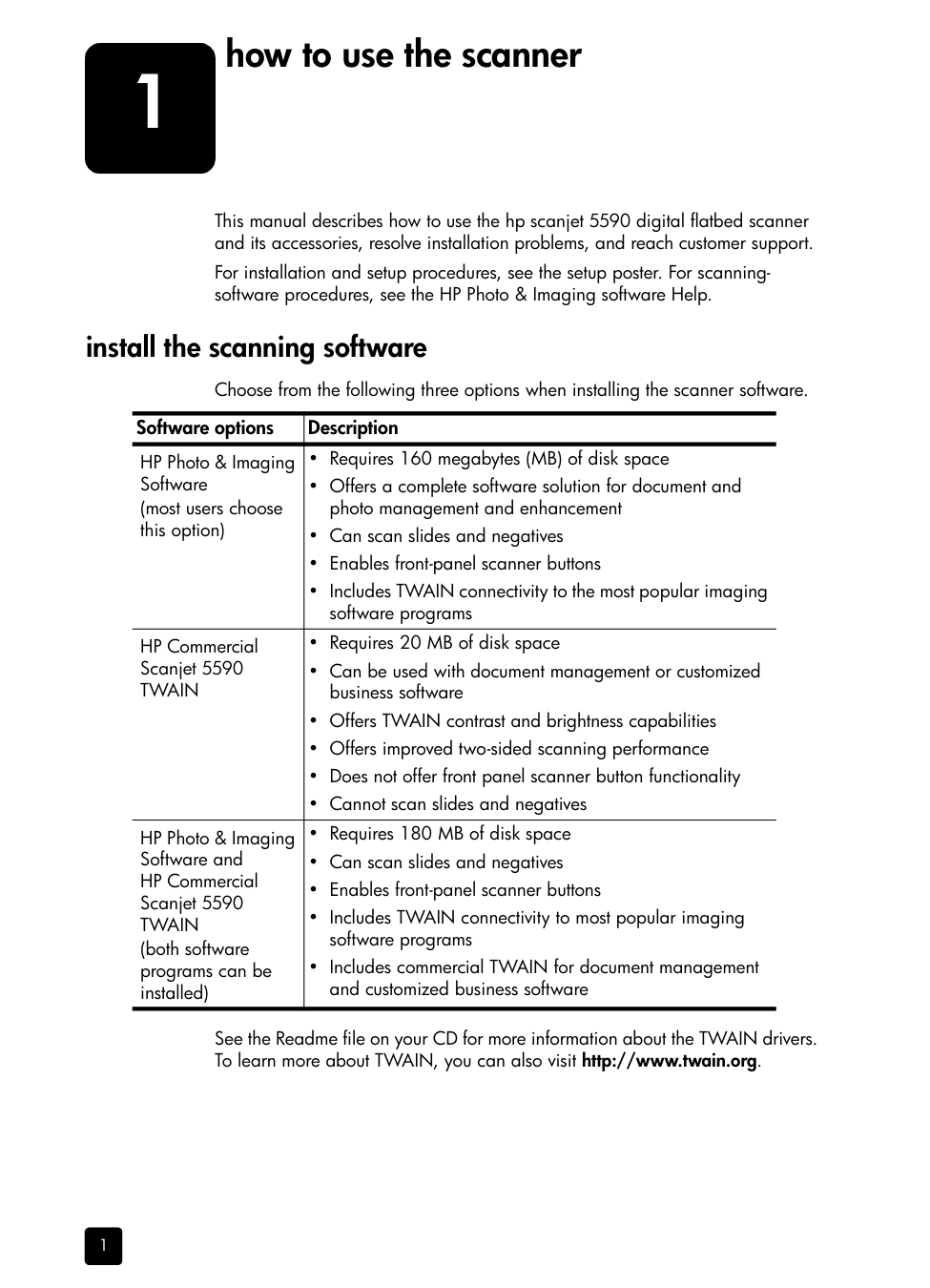
Use the SCAN DOCUMENT button ( ) to scan documents.
| | | |---|---|
Note: If you want to preview scans before they are sent to their destination, see preview a scanned image.
Note: To create a searchable PDF from your scan, select the Scan for editable text (OCR)? option in the What are you scanning? dialog box. When you are done scanning your document, save it as a PDF. For more information about OCR scanning, see scan text for editing on page 6.
#### scan pictures
Use the SCAN PICTURE button ( ) to scan printed photos, graphics, slides, or negatives.
Note: If you want to preview scans before they are sent to their destination, see preview a scanned image.
Tip: The HP Scanning software can automatically correct your
pictures or restore faded colors in old pictures. To turn picture correction on or off, select Auto Correct Photos from the Basic menu of the HP Director, and then choose the options you want.
#### preview a scanned image
By default, the software does not prompt you to preview the scan when you use any of the front-panel buttons on the scanner.
If you want to preview the scanned file, either begin the scan from the HP Director instead of using the buttons on the front of the scanner, or change the button settings in the HP Director to allow previews.
For more information about changing button settings to preview scans, see preview a scanned image in the online Help.
Note: There is no preview image for the copy function.
#### save a document to a disk or CD
Use the FILE DOCUMENTS button ( ) to save scanned documents to a disk, such as a hard disk or a CD.
Note: If you want to preview scans before they are sent to their destination, see preview a scanned image on page 4.
#### e-mail a scanned document or picture
Use the E-MAIL button ( ) to scan documents or pictures and insert them in an e-mail message as an attachment. You must have an Internet connection and a supported e-mail software program.
Note: To view the scanned image before you e-mail it, double-click the attachment in your e-mail software.
To change the e-mail program, open the HP Director, and then select E-mail Settings in the Settings drop-down list. The Email Settings dialog box appears. Select the e-mail program that you want to use, and then click OK.
#### print copies
Use the COPY button ( ) to scan an original and send it to a printer.
Note: To change any copy settings, such as size, darkness, or the printer, click Cancel during processing. The hp copying dialog box appears and allows you to change settings.
Note: There is no preview image for the copy function.
#### cancel a scan
Press the CANCEL button ( ) to cancel a scan in progress, or to cancel a series of scans when you are scanning from the ADF.
#### use the Power Save button
Use the POWER SAVE button ( ) to turn off the lamp when you are not using the scanner. When you press the POWER SAVE button ( ), the scanner lamp, the small indicator lights, and the front-panel display turn off.
To use the scanner again, press any button on the front panel or start a scan from the HP Director. After a short warm-up cycle, the scan begins.
Your scanner automatically goes into Power Save mode after 15 minutes of nonuse. To change this to one hour, open the HP Director, and click Settings. Click Scan Preferences, and then click the Quality vs. Speed tab. Select the Extend lamp timeout check box. The scanner stays on for one hour before going into Power Save mode.
#### change settings
You can change many scan settings from the HP Photo & Imaging software. These include button settings, preferences for automatic exposure, and file destination. Open the HP Director, make sure that the hp scanjet 5590 digital flatbed scanner is selected, and then click Settings.
#### scan text for editing
The scanner uses optical character recognition (OCR) to convert text on a page to text that you can edit on your computer. The OCR software is installed automatically when you install the HP Photo & Imaging software.
For information about using the OCR software, see scan text for editing in the online Help.
how to scan from the automatic document feeder
2
This section explains how to use the automatic document feeder (ADF) for the HP Scanjet 5590 scanner.
#### choose acceptable media for the ADF
The ADF works best when the originals meet the following specifications. If the originals do not meet these criteria, scan from the scanner glass.
Tip: To scan both sides of a legal-size document, 216 mm by 356 mm (8.5 by 14 inches), scan one side in the ADF, turn the document over, and then scan the other side in the ADF.
Note: Avoid putting multipart forms, transparencies, magazine pages, gum-backed pages, and lightweight paper in the ADF.
Before placing an original in the ADF, check for and remove curls, wrinkles, staples, paperclips, and any other attached material.
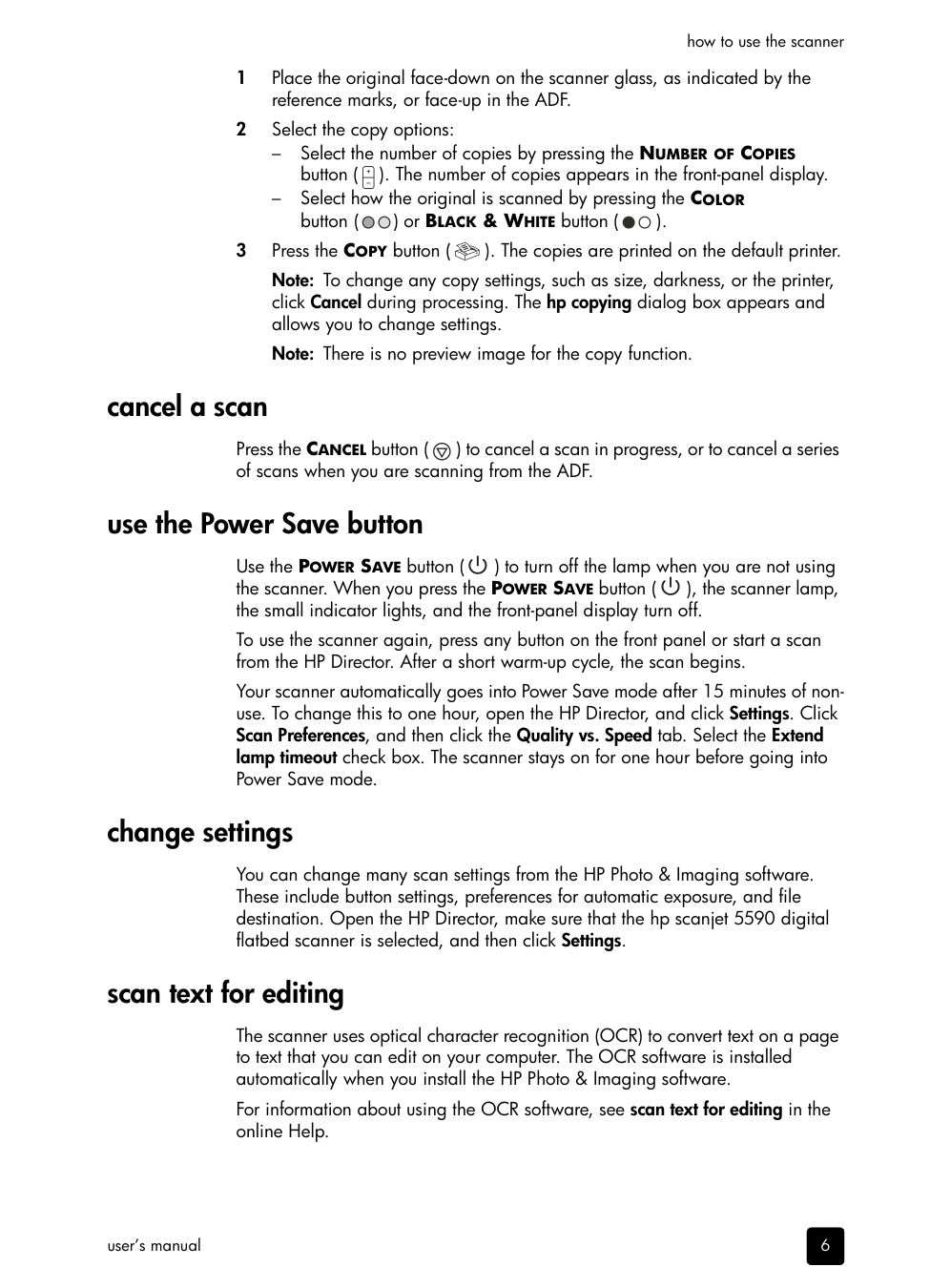
#### load originals in the ADF
Load a document and center it in the ADF tray
how to scan from the automatic document feeder
#### scan two-sided documents from the ADF
When you scan documents from the ADF, the What are you scanning? dialog box appears. Select Yes, scan both sides for two-sided scanning.
The ADF is unable to scan both sides of documents longer than 12 inches. To scan longer two-sided documents, you must set the ADF to scan only one side at a time. To change this setting, clear the Yes, scan both sides option in the What are you scanning? dialog box.
One-sided scanning is the default method for the ADF. To change this default to two-sided scanning, open the HP Director, click Settings and then click Scan Preferences. Click the Automatic tab, and then select the setting that you want to assign as the default.
Note: Use A4- or letter-size media for two-sided scanning. The ADF cannot scan both sides of a document smaller than 127 mm by 127 mm (5 by 5 inches) or larger than 210 mm by 304.8 mm (8.5 by 12 inches).
If you are acquiring your scan from an imaging software program using TWAIN, the Commercial Scanjet 5590 TWAIN software offers additional capabilities for brightness and contrast, and improved performance and control for two-sided scanning. For more information about installing the Commercial Scanjet 5590 TWAIN software, see install the scanning software on page 1.
#### make copies from the ADF
You can use the Copy button ( ) to scan multiple originals from the ADF and send them to a printer. The copy function defaults to the setting used the last time you made copies. For two-sided copies, open the HP Director, and then click
Make Copies. Select the Duplex option in the hp copying dialog box. For more information, see print copies on page 5.
how to scan slides and negatives
3
This section contains information about setting up and using the transparent materials adapter (TMA) to scan slides and negatives. You can use the TMA to scan 35 mm slides or negatives.
###### tips for scanning transparent items
#### set up the TMA
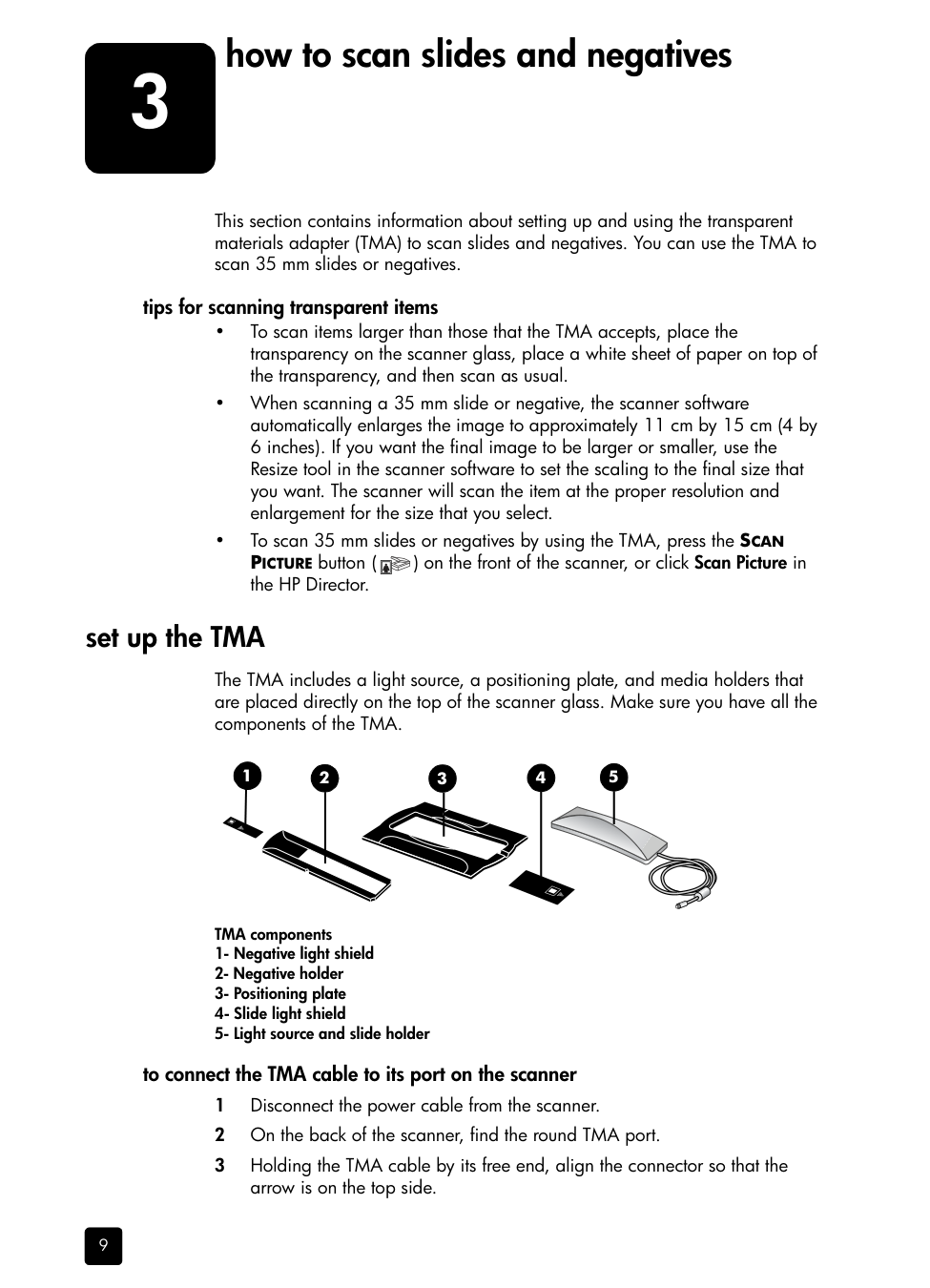
The TMA includes a light source, a positioning plate, and media holders that are placed directly on the top of the scanner glass. Make sure you have all the components of the TMA.
1 2 3 4 5
TMA components
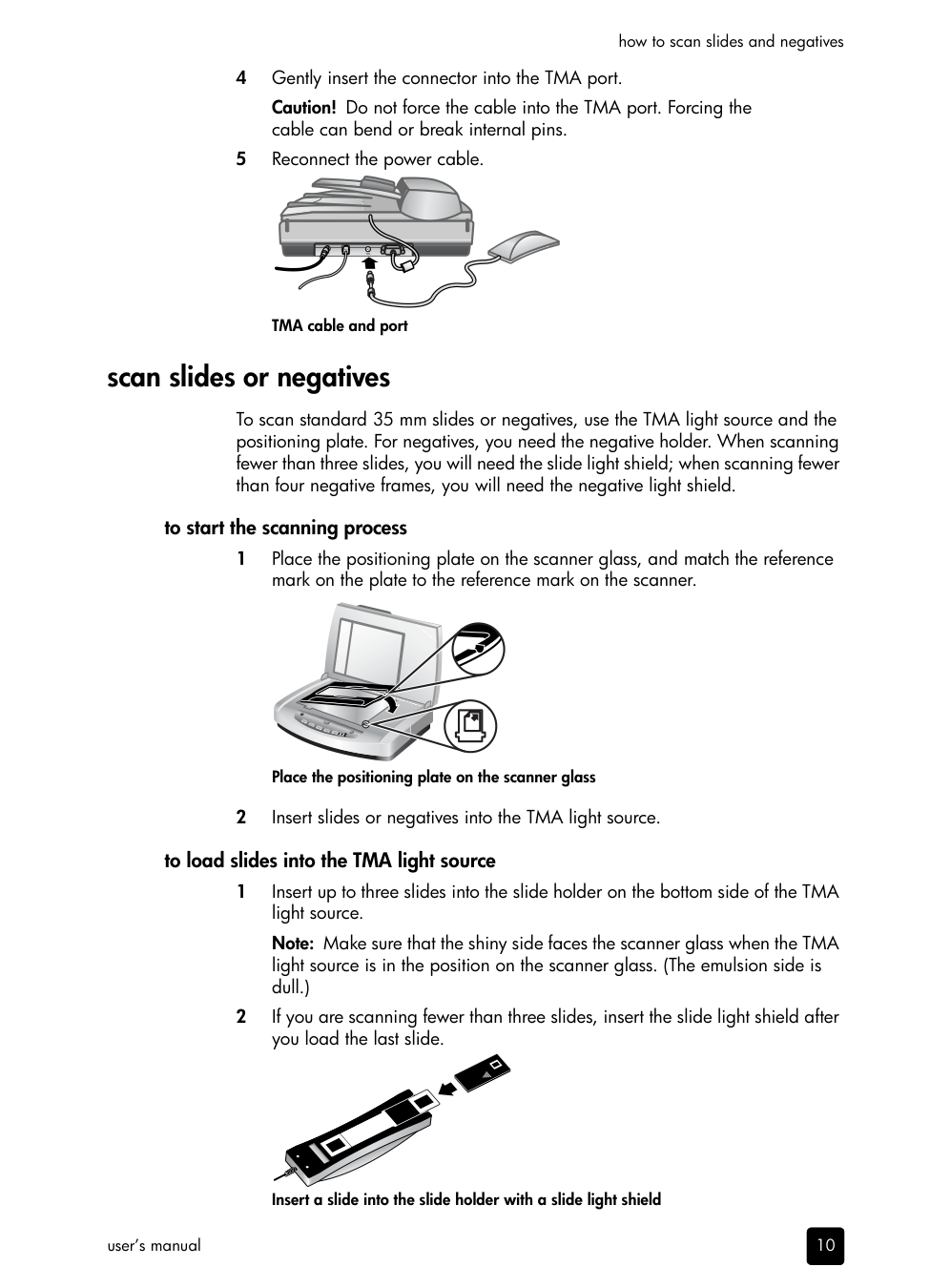
###### to connect the TMA cable to its port on the scanner
Caution! Do not force the cable into the TMA port. Forcing the cable can bend or break internal pins.
| | | | |---|---|---| | | | |
TMA cable and port
#### scan slides or negatives
To scan standard 35 mm slides or negatives, use the TMA light source and the positioning plate. For negatives, you need the negative holder. When scanning fewer than three slides, you will need the slide light shield; when scanning fewer than four negative frames, you will need the negative light shield.
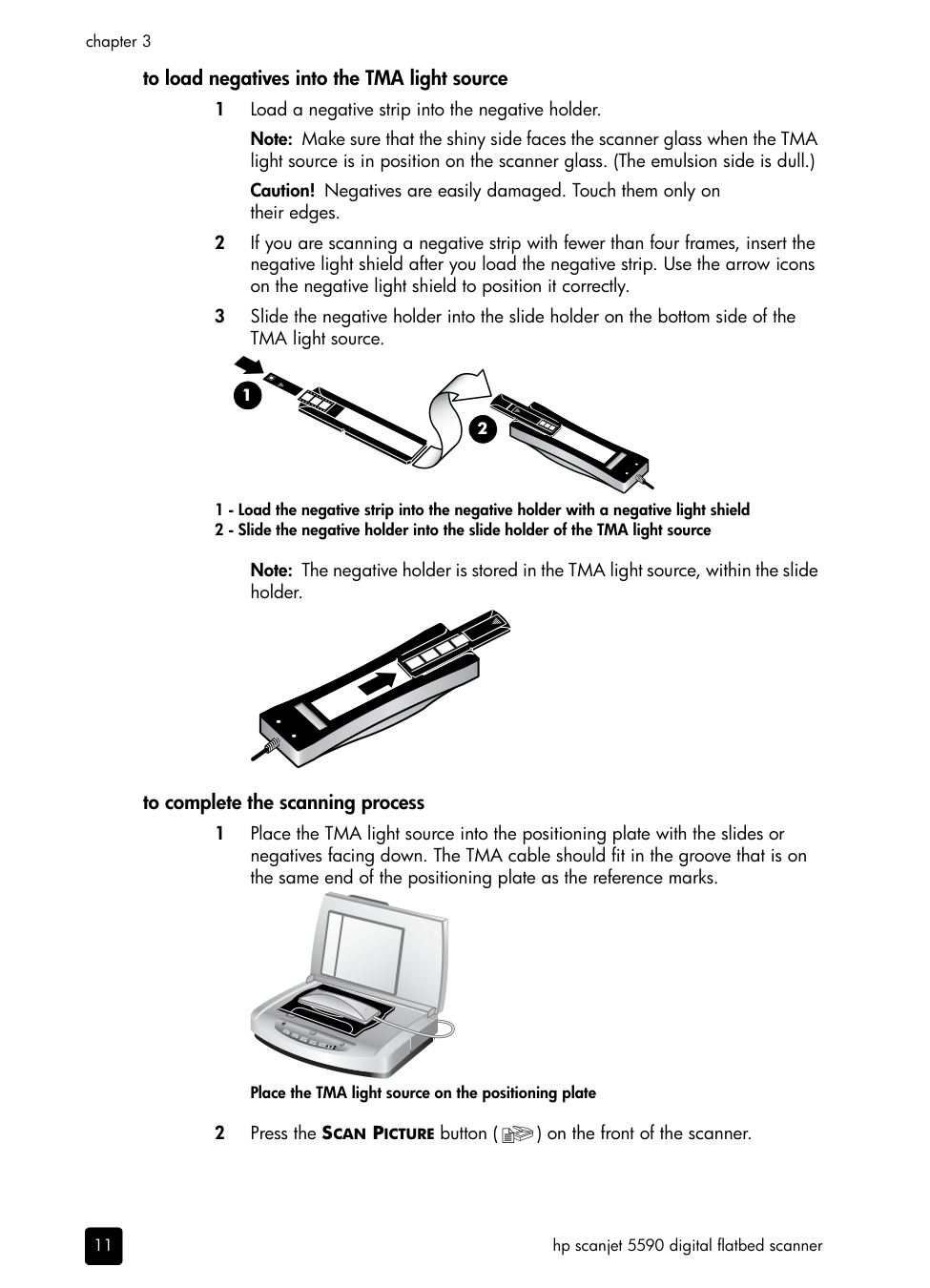
###### to start the scanning process
Place the positioning plate on the scanner glass
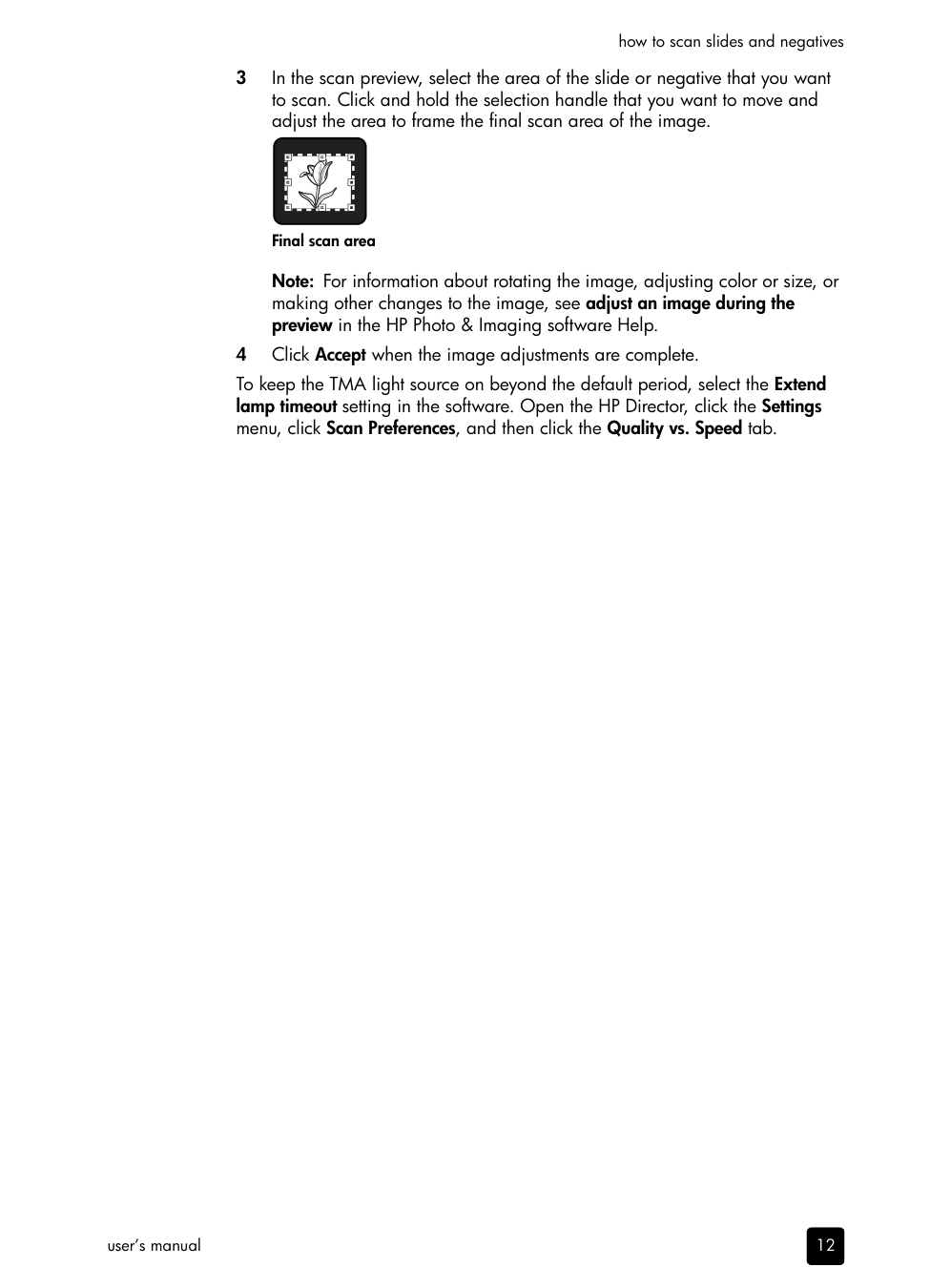
###### to load slides into the TMA light source
Note: Make sure that the shiny side faces the scanner glass when the TMA light source is in the position on the scanner glass. (The emulsion side is dull.)
Insert a slide into the slide holder with a slide light shield
###### to load negatives into the TMA light source
Note: Make sure that the shiny side faces the scanner glass when the TMA light source is in position on the scanner glass. (The emulsion side is dull.)
Caution! Negatives are easily damaged. Touch them only on their edges.
1
2
Note: The negative holder is stored in the TMA light source, within the slide holder.
###### to complete the scanning process
Place the TMA light source on the positioning plate
11
hp scanjet 5590 digital flatbed scanner
Final scan area Note: For information about rotating the image, adjusting color or size, or making other changes to the image, see adjust an image during the preview in the HP Photo & Imaging software Help.
To keep the TMA light source on beyond the default period, select the Extend lamp timeout setting in the software. Open the HP Director, click the Settings menu, click Scan Preferences, and then click the Quality vs. Speed tab.
care and maintenance
4
This section presents information about how to care for and maintain the scanner. Occasional cleaning of your scanner helps ensure optimal performance. The amount of care necessary depends upon several factors, including the amount of use, the type of media that is fed through the ADF, and the environment. You should perform routine cleaning as necessary. Routine cleaning and maintenance should include cleaning the scanner glass, the TMA, and the ADF.
Caution! Avoid placing items that have sharp edges in the scanner. Doing so can damage the scanner. Before placing an item on the scanner glass, make sure that the item does not contain wet glue, correction fluid, or other substances that can be transferred to the glass.
#### clean the scanner glass
Caution! Use only glass cleaner. Avoid abrasives, acetone, benzene, and carbon tetrachloride, all of which can damage the scanner glass. Avoid isopropyl alcohol because it can leave streaks on the glass.
Do not spray the glass cleaner directly on the glass. If too much glass cleaner is applied, the cleaner could run to the edges and damage the scanner.
Note: For instructions about how to clean the underside of the scanner glass, visit www.hp.com/support.
#### clean the TMA
Clean the TMA with a dry, soft cloth. If necessary, lightly spray the cloth with glass cleaner and wipe the TMA.
#### clean and maintain the ADF
The ADF requires periodic cleaning depending on the amount of use and the type of media that is fed through it. Use an HP ADF cleaning cloth to clean the ADF when vertical streaks appear in images scanned by using the ADF, when
13
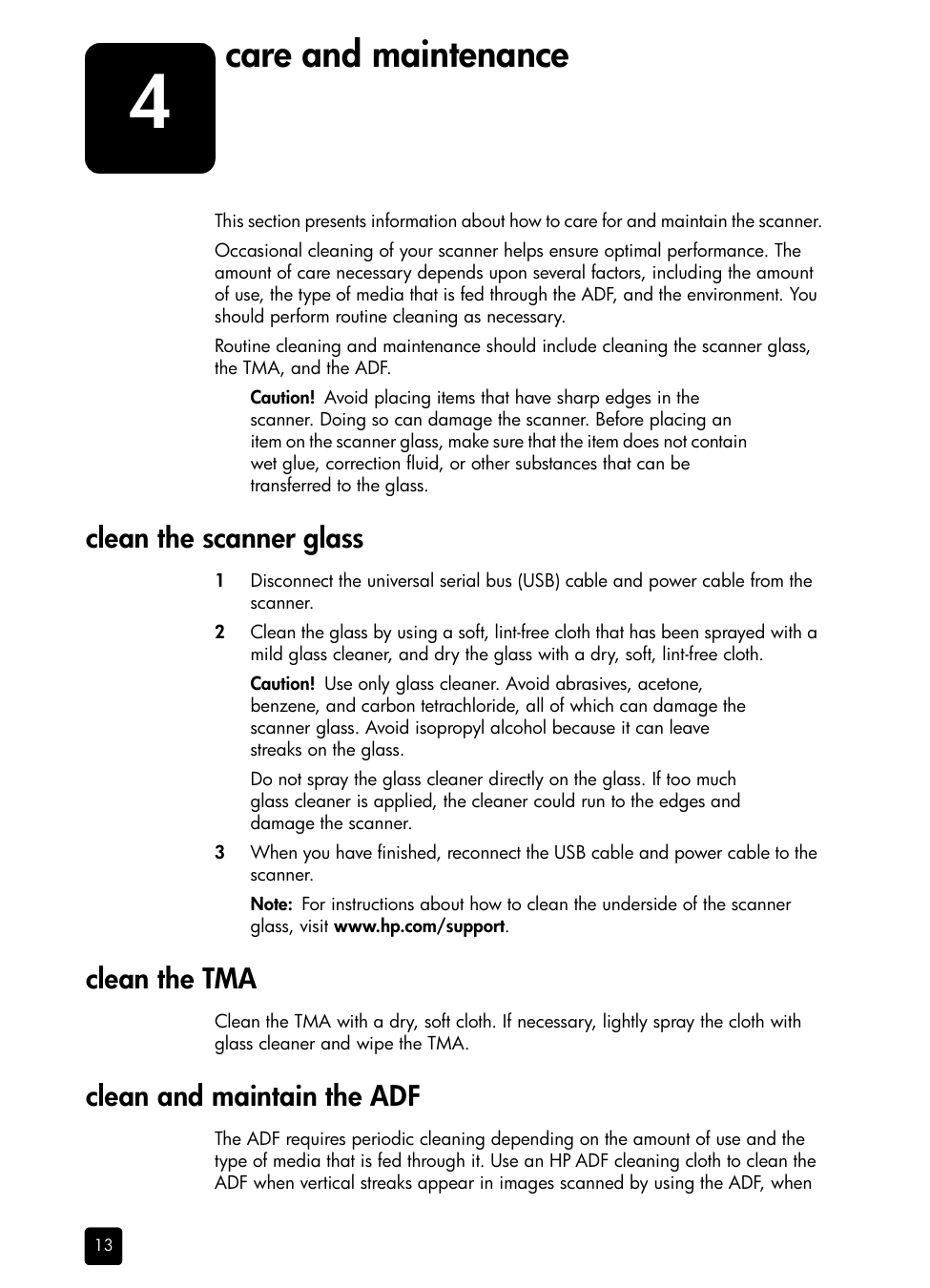
media running through the ADF is dusty or dirty, or when the environment is dusty. If you use the ADF several times per week, monthly cleaning is recommended. Set up a cleaning routine that is appropriate for your scanner.
Use the following methods to clean the ADF:
###### run the cleaning cloth through the ADF
Caution! Wait two minutes to allow the components to dry before proceeding to the next step.
Note: If you still have streaks in your scanned image after running the cleaning cloth through the ADF, you might need to clean the ADF window.
###### clean the ADF window
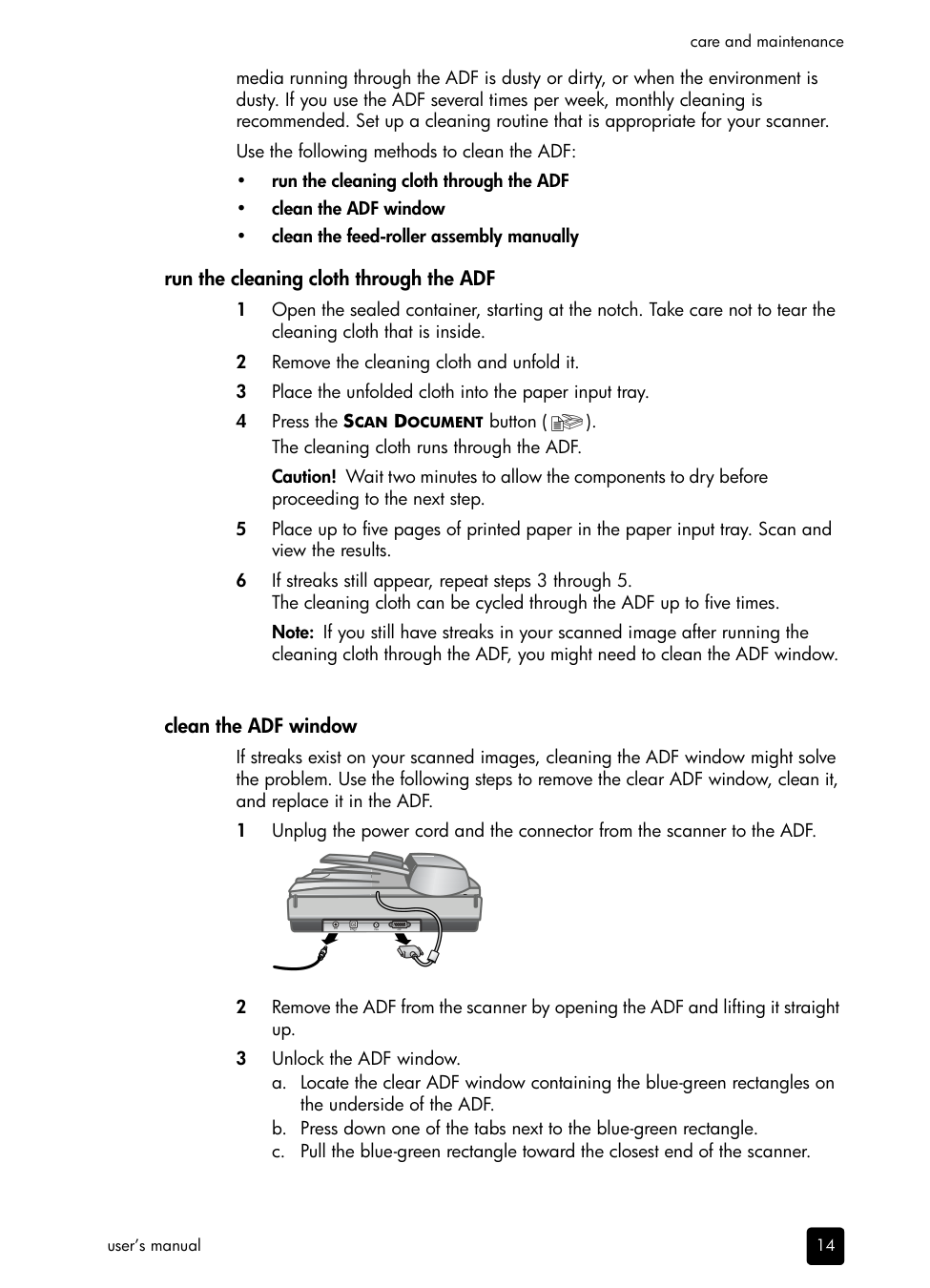
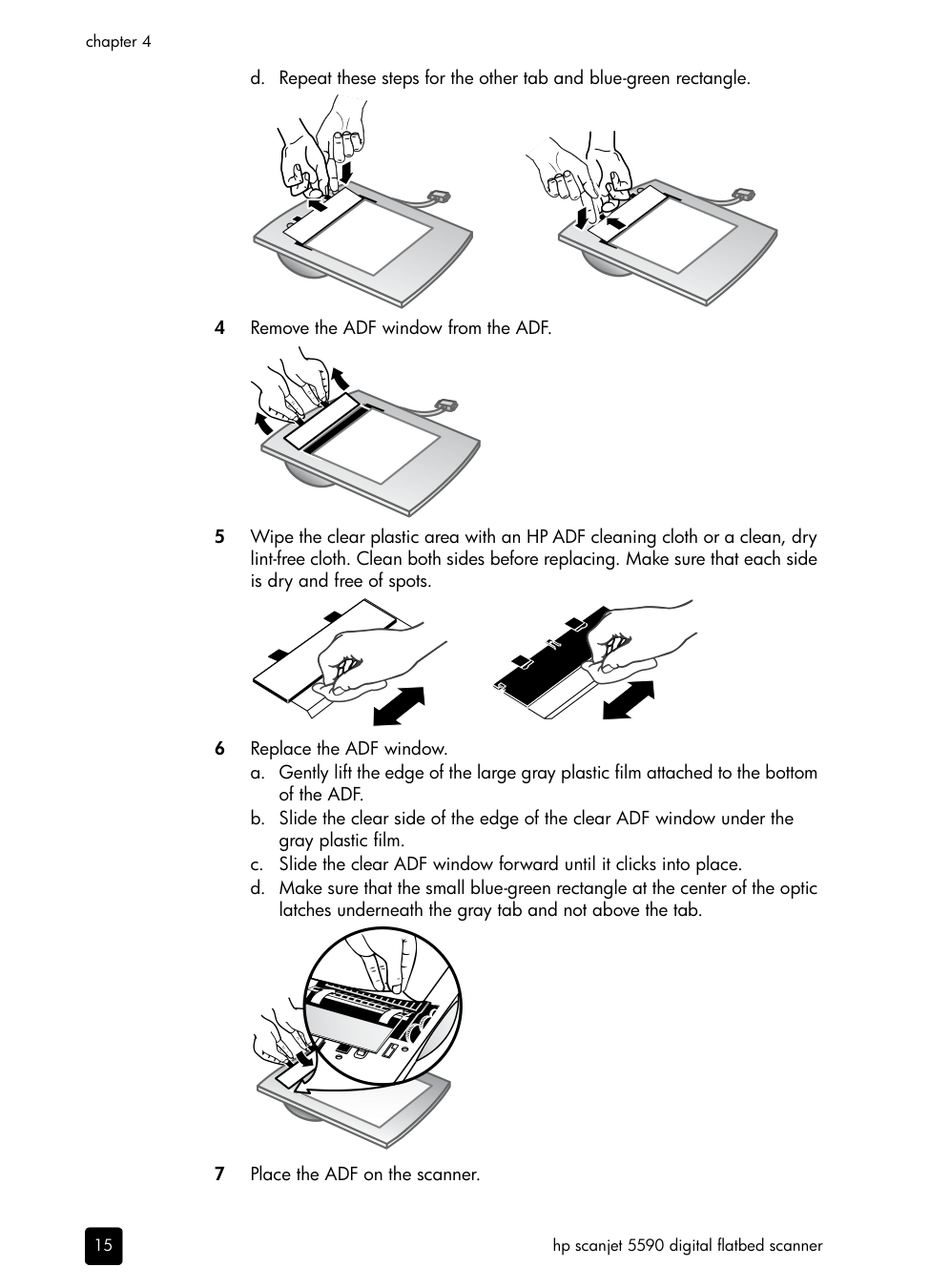
If streaks exist on your scanned images, cleaning the ADF window might solve the problem. Use the following steps to remove the clear ADF window, clean it, and replace it in the ADF.
| | | | |---|---|---| | | | |
d. Repeat these steps for the other tab and blue-green rectangle.
15
hp scanjet 5590 digital flatbed scanner
###### clean the feed-roller assembly manually
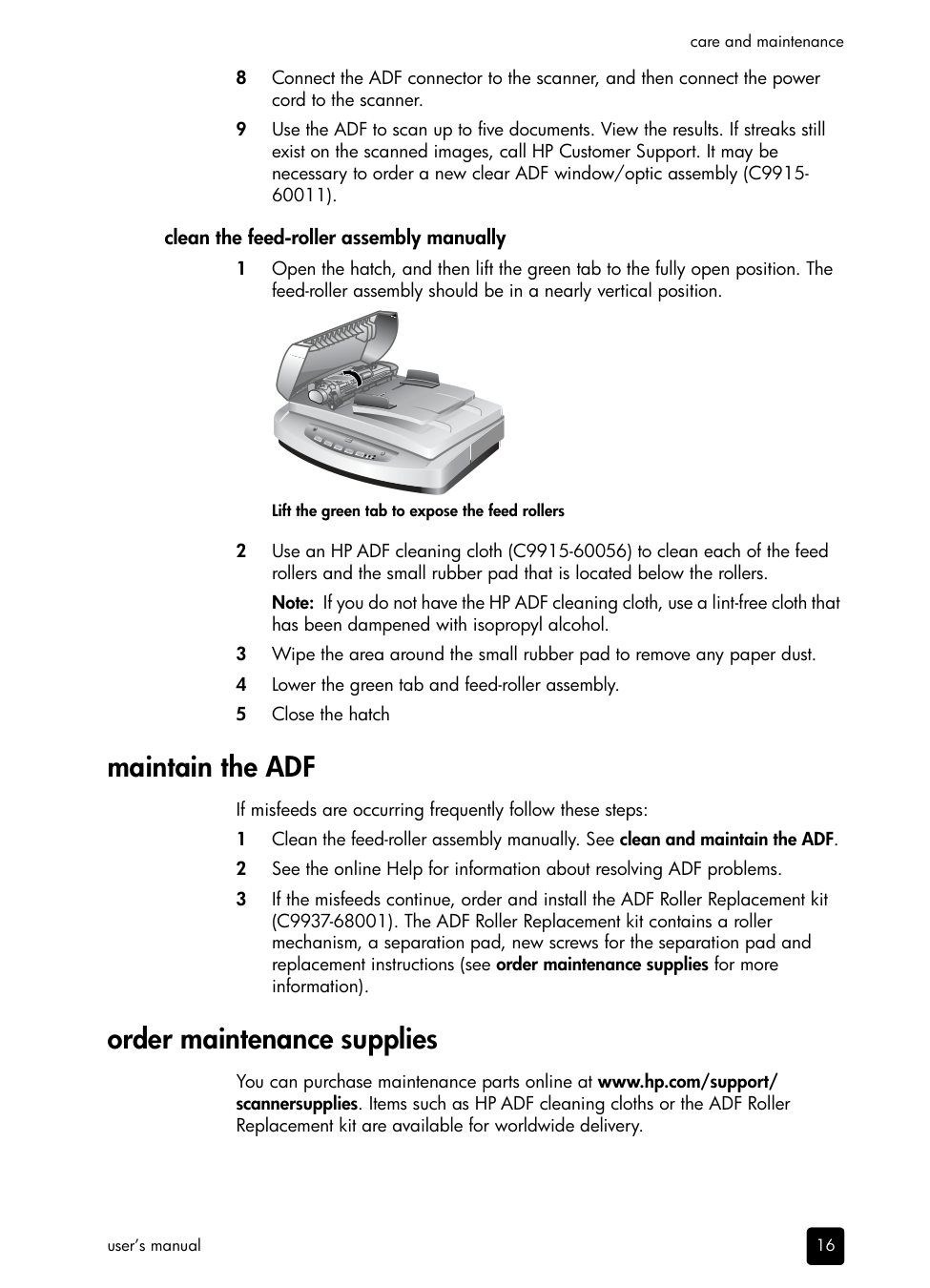
Lift the green tab to expose the feed rollers
Note: If you do not have the HP ADF cleaning cloth, use a lint-free cloth that has been dampened with isopropyl alcohol.
#### maintain the ADF
If misfeeds are occurring frequently follow these steps:
#### order maintenance supplies
You can purchase maintenance parts online at www.hp.com/support/ scannersupplies. Items such as HP ADF cleaning cloths or the ADF Roller Replacement kit are available for worldwide delivery.
troubleshooting
5
This section contains solutions for common problems with the scanner, the automatic document feeder (ADF), and the transparent materials adapter (TMA).
#### scanner installation or setup problems
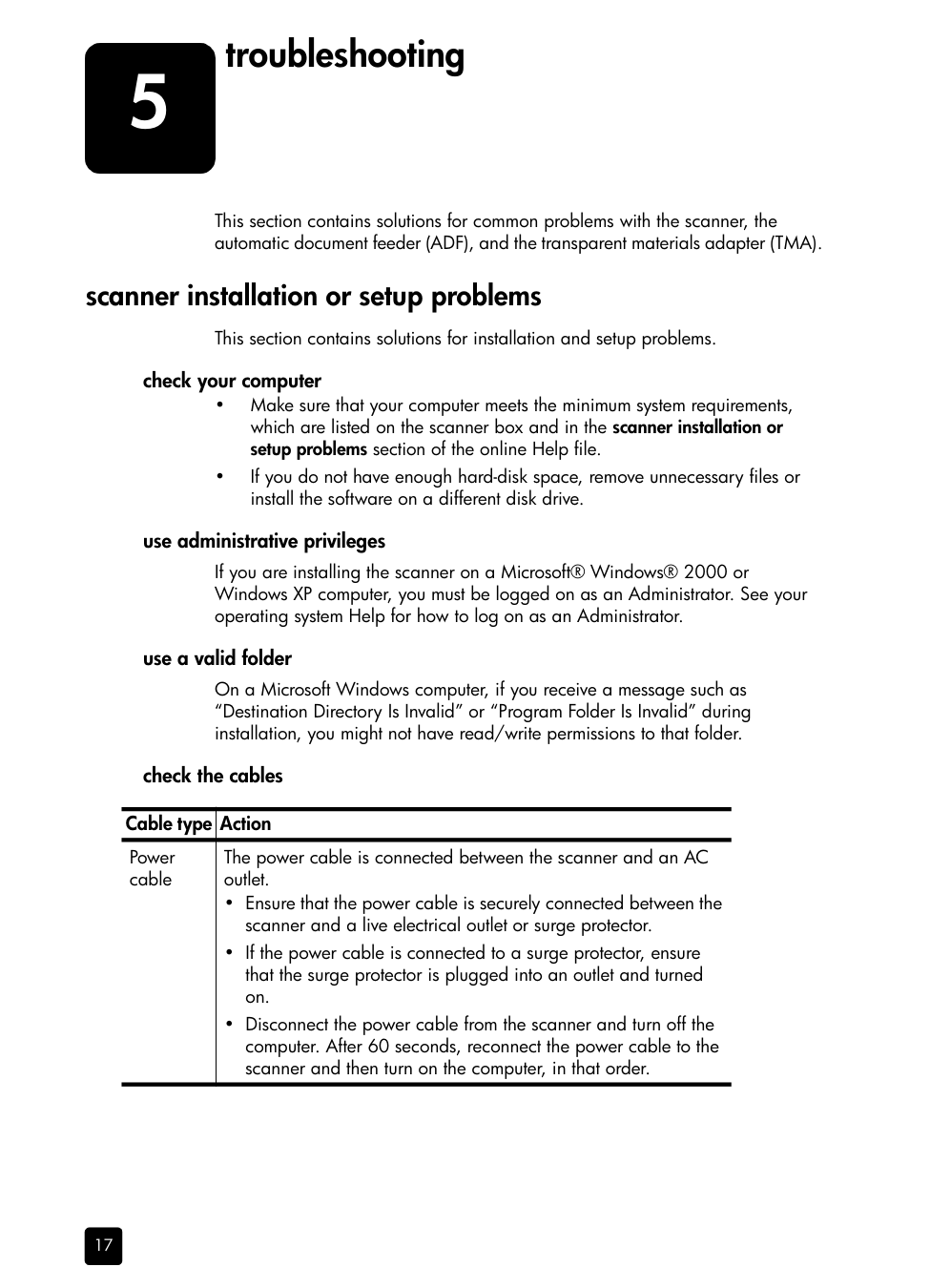
This section contains solutions for installation and setup problems. check your computer
###### use administrative privileges
If you are installing the scanner on a Microsoft® Windows® 2000 or Windows XP computer, you must be logged on as an Administrator. See your operating system Help for how to log on as an Administrator.
###### use a valid folder
On a Microsoft Windows computer, if you receive a message such as “Destination Directory Is Invalid” or “Program Folder Is Invalid” during installation, you might not have read/write permissions to that folder.
check the cables
|Cable type|Action| |---|---| |Power cable|The power cable is connected between the scanner and an AC outlet.
• Ensure that the power cable is securely connected between the scanner and a live electrical outlet or surge protector.
• If the power cable is connected to a surge protector, ensure that the surge protector is plugged into an outlet and turned on.
• Disconnect the power cable from the scanner and turn off the computer. After 60 seconds, reconnect the power cable to the scanner and then turn on the computer, in that order.
|
17
troubleshooting
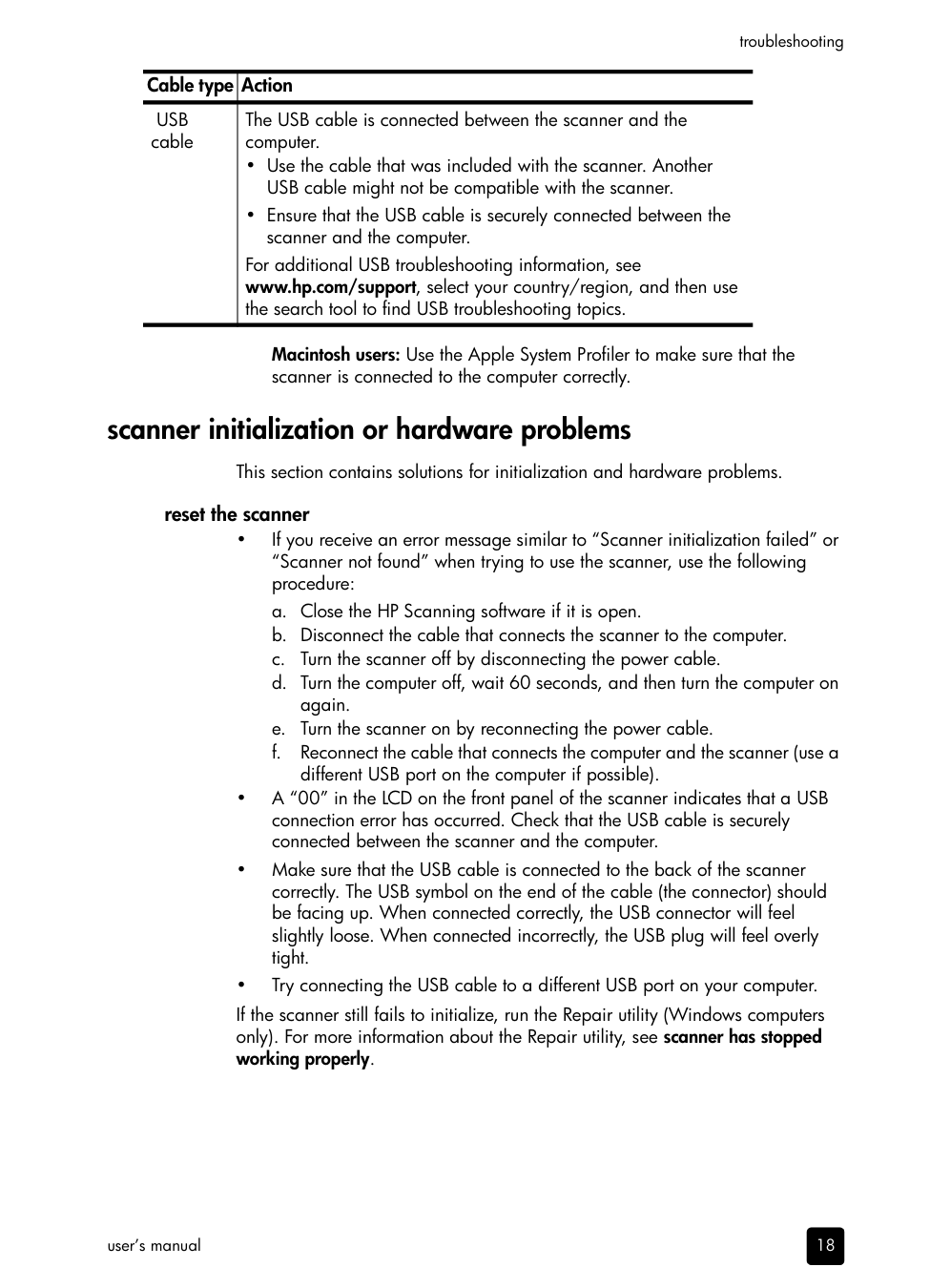
|Cable type|Action| |---|---| |USB cable|The USB cable is connected between the scanner and the computer.
• Use the cable that was included with the scanner. Another USB cable might not be compatible with the scanner.
• Ensure that the USB cable is securely connected between the scanner and the computer.
For additional USB troubleshooting information, see www.hp.com/support, select your country/region, and then use the search tool to find USB troubleshooting topics.|
Macintosh users: Use the Apple System Profiler to make sure that the scanner is connected to the computer correctly.
#### scanner initialization or hardware problems
This section contains solutions for initialization and hardware problems. reset the scanner
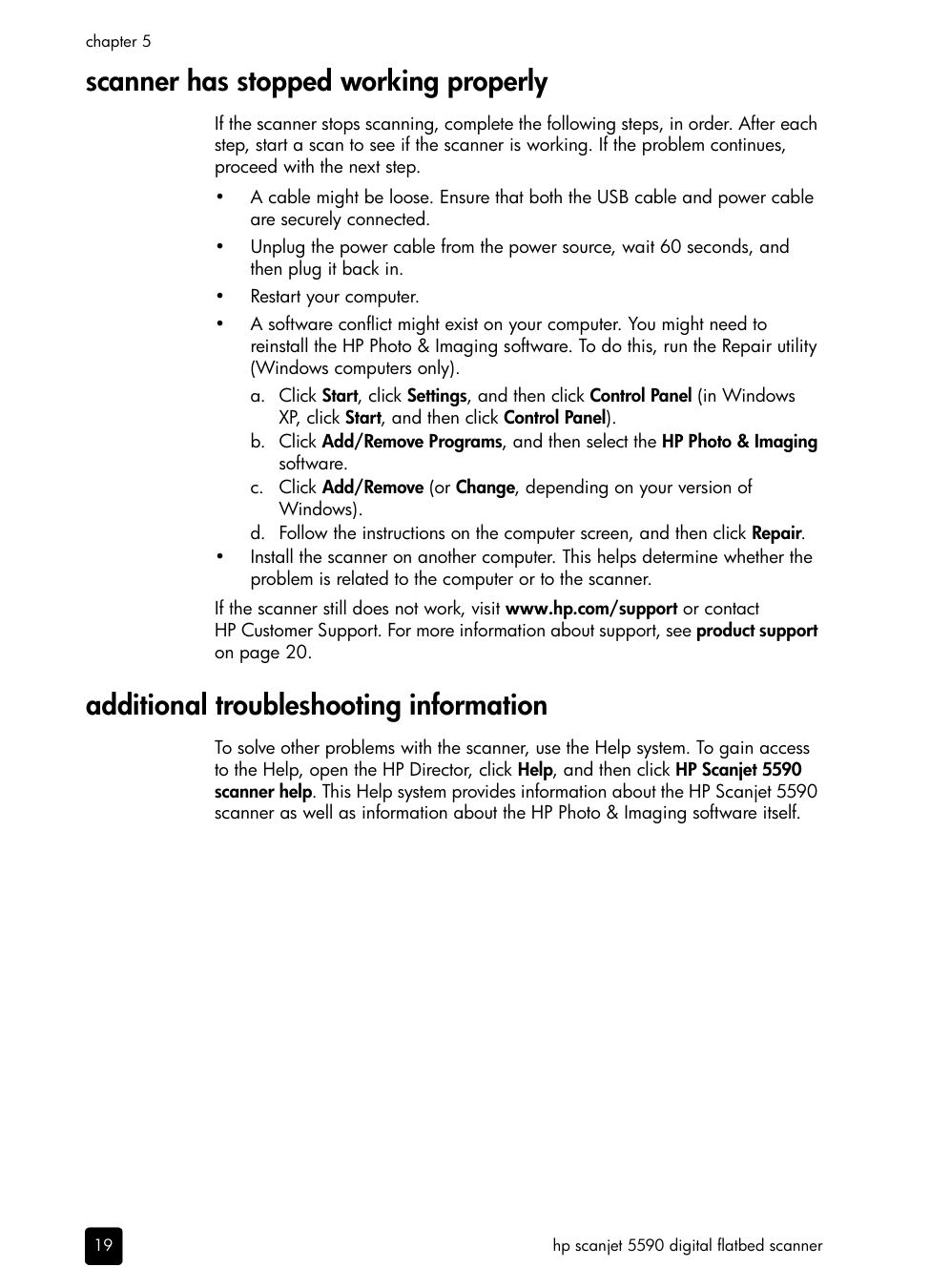
If the scanner still fails to initialize, run the Repair utility (Windows computers only). For more information about the Repair utility, see scanner has stopped working properly.
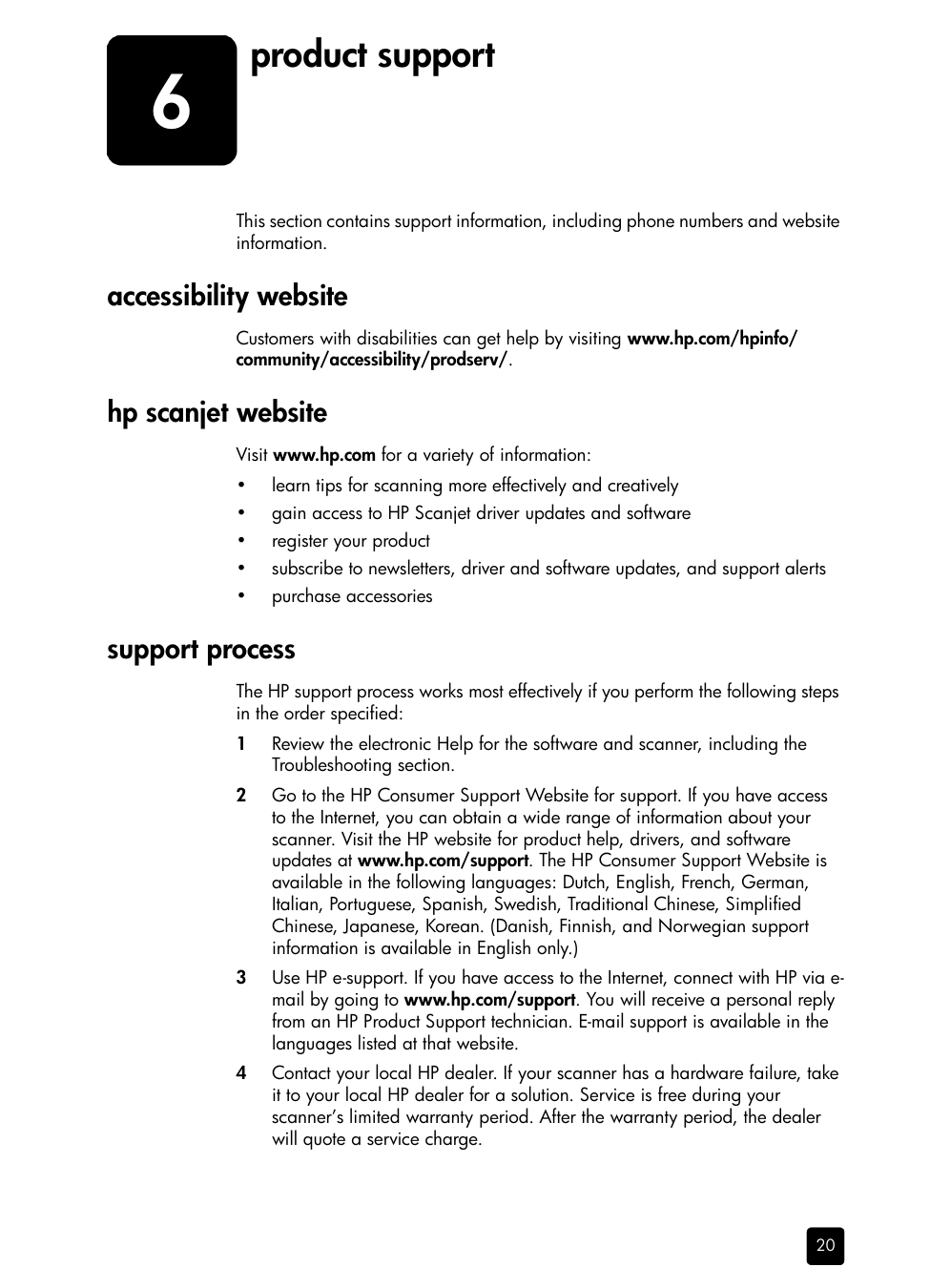
#### scanner has stopped working properly
If the scanner stops scanning, complete the following steps, in order. After each step, start a scan to see if the scanner is working. If the problem continues, proceed with the next step.
If the scanner still does not work, visit www.hp.com/support or contact HP Customer Support. For more information about support, see product support on page 20.
#### additional troubleshooting information
To solve other problems with the scanner, use the Help system. To gain access to the Help, open the HP Director, click Help, and then click HP Scanjet 5590 scanner help. This Help system provides information about the HP Scanjet 5590 scanner as well as information about the HP Photo & Imaging software itself.
6
product support
This section contains support information, including phone numbers and website information.
#### accessibility website
Customers with disabilities can get help by visiting www.hp.com/hpinfo/ community/accessibility/prodserv/.
#### hp scanjet website
Visit www.hp.com for a variety of information:
#### support process
The HP support process works most effectively if you perform the following steps in the order specified:
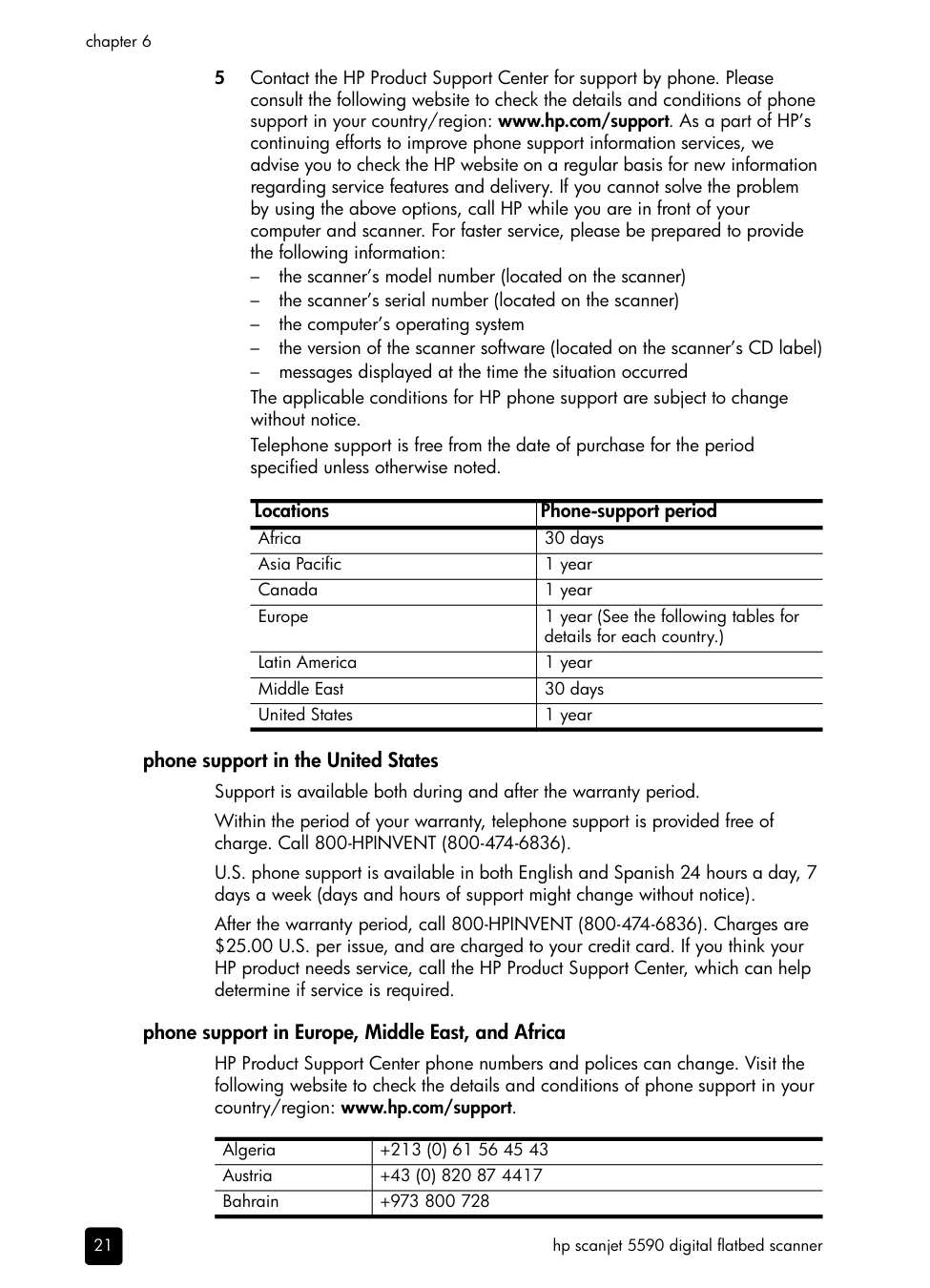
5 Contact the HP Product Support Center for support by phone. Please consult the following website to check the details and conditions of phone support in your country/region: www.hp.com/support. As a part of HP’s continuing efforts to improve phone support information services, we advise you to check the HP website on a regular basis for new information regarding service features and delivery. If you cannot solve the problem by using the above options, call HP while you are in front of your computer and scanner. For faster service, please be prepared to provide the following information:
|Locations|Phone-support period| |---|---| |Africa|30 days| |Asia Pacific|1 year| |Canada|1 year| |Europe|1 year (See the following tables for details for each country.)| |Latin America|1 year| |Middle East|30 days| |United States|1 year|
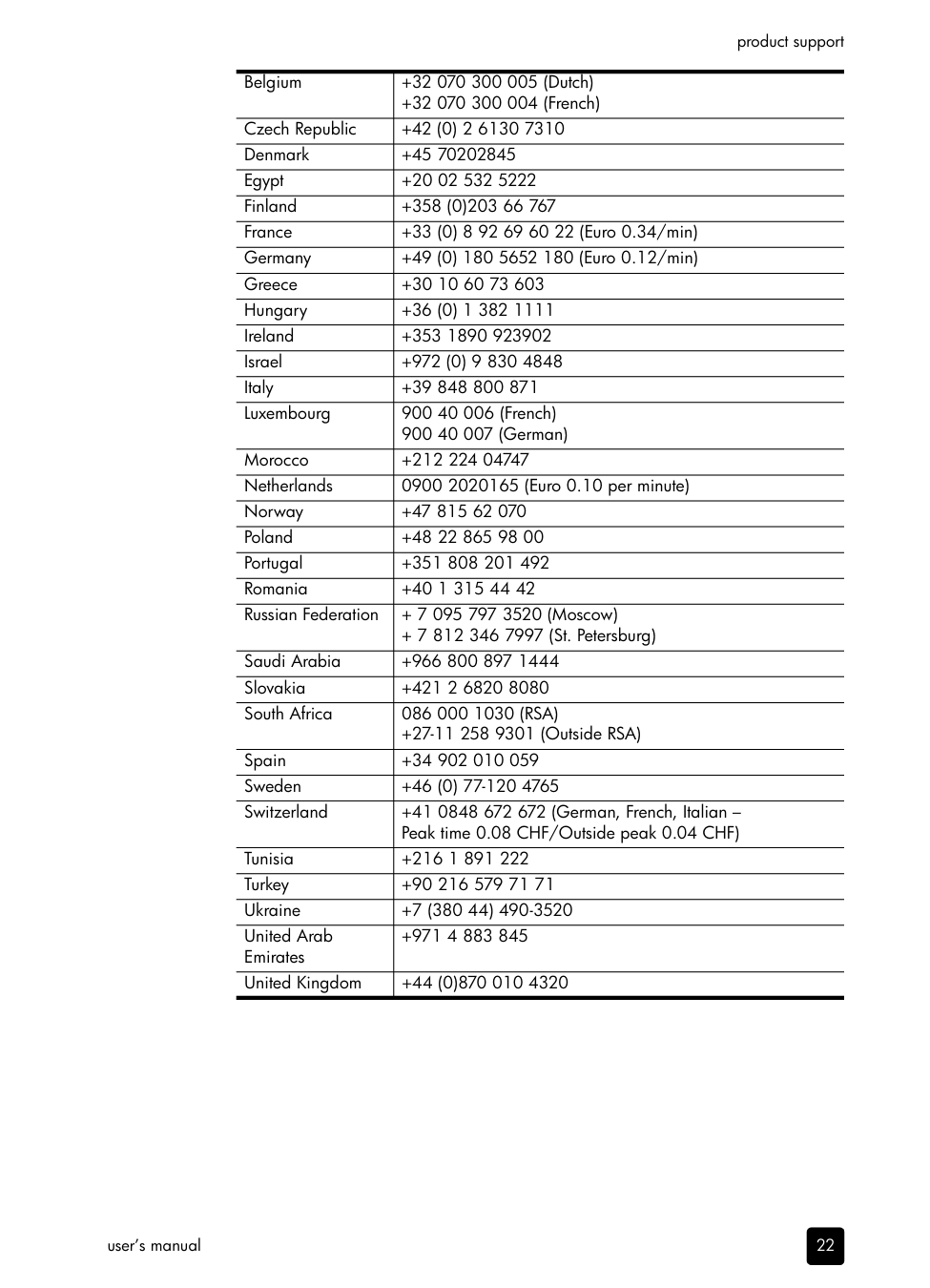
phone support in the United States Support is available both during and after the warranty period. Within the period of your warranty, telephone support is provided free of charge. Call 800-HPINVENT (800-474-6836). U.S. phone support is available in both English and Spanish 24 hours a day, 7 days a week (days and hours of support might change without notice). After the warranty period, call 800-HPINVENT (800-474-6836). Charges are $25.00 U.S. per issue, and are charged to your credit card. If you think your HP product needs service, call the HP Product Support Center, which can help determine if service is required.
###### phone support in Europe, Middle East, and Africa
HP Product Support Center phone numbers and polices can change. Visit the following website to check the details and conditions of phone support in your country/region: www.hp.com/support.
|Algeria|+213 (0) 61 56 45 43| |---|---| |Austria|+43 (0) 820 87 4417| |Bahrain|+973 800 728|
product support
|Belgium|+32 070 300 005 (Dutch)
+32 070 300 004 (French)| |---|---| |Czech Republic|+42 (0) 2 6130 7310| |Denmark|+45 70202845| |Egypt|+20 02 532 5222| |Finland|+358 (0)203 66 767| |France|+33 (0) 8 92 69 60 22 (Euro 0.34/min)| |Germany|+49 (0) 180 5652 180 (Euro 0.12/min)| |Greece|+30 10 60 73 603| |Hungary|+36 (0) 1 382 1111|
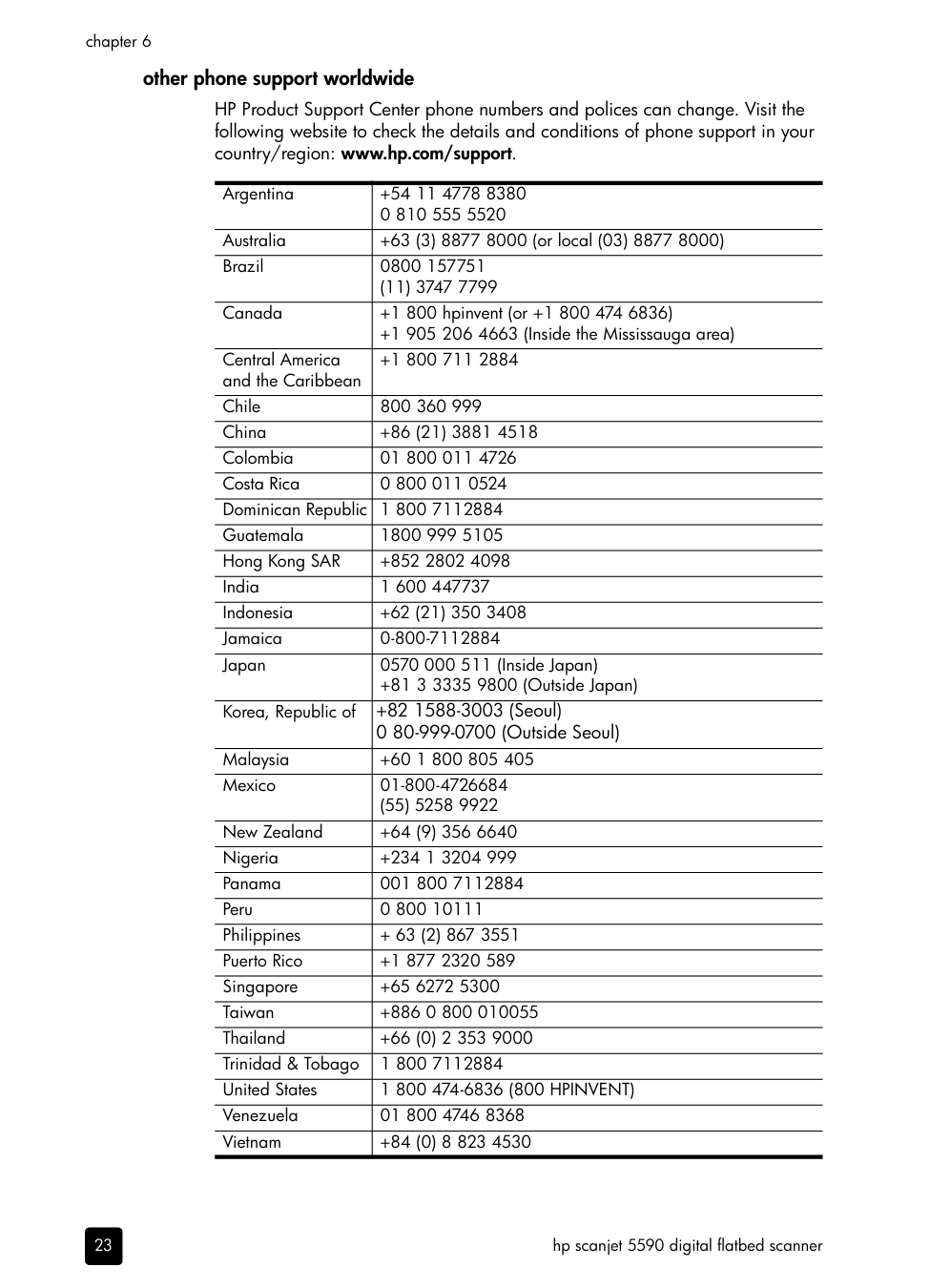
|Ireland|+353 1890 923902| |Israel|+972 (0) 9 830 4848| |Italy|+39 848 800 871| |Luxembourg|900 40 006 (French)
900 40 007 (German)
| |Morocco|+212 224 04747| |Netherlands|0900 2020165 (Euro 0.10 per minute)| |Norway|+47 815 62 070| |Poland|+48 22 865 98 00| |Portugal|+351 808 201 492| |Romania|+40 1 315 44 42| |Russian Federation|+ 7 095 797 3520 (Moscow)
+ 7 812 346 7997 (St. Petersburg)| |Saudi Arabia|+966 800 897 1444| |Slovakia|+421 2 6820 8080| |South Africa|086 000 1030 (RSA)
+27-11 258 9301 (Outside RSA)| |Spain|+34 902 010 059| |Sweden|+46 (0) 77-120 4765| |Switzerland|+41 0848 672 672 (German, French, Italian – Peak time 0.08 CHF/Outside peak 0.04 CHF)| |Tunisia|+216 1 891 222| |Turkey|+90 216 579 71 71| |Ukraine|+7 (380 44) 490-3520| |United Arab Emirates|+971 4 883 845| |United Kingdom|+44 (0)870 010 4320|
user’s manual
###### other phone support worldwide
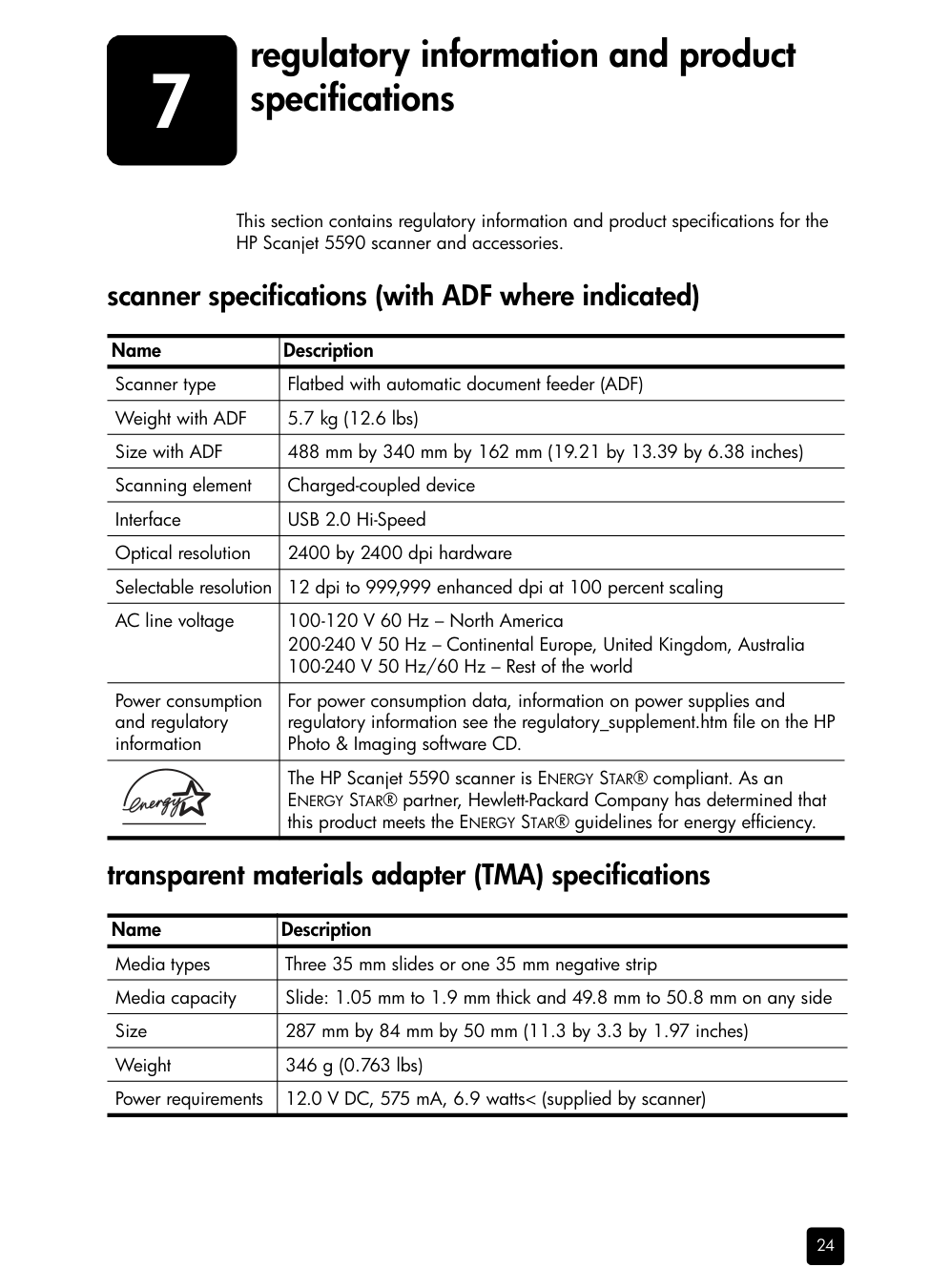
HP Product Support Center phone numbers and polices can change. Visit the following website to check the details and conditions of phone support in your country/region: www.hp.com/support.
|Argentina|+54 11 4778 8380 0 810 555 5520| |---|---| |Australia|+63 (3) 8877 8000 (or local (03) 8877 8000)| |Brazil|0800 157751
(11) 3747 7799| |Canada|+1 800 hpinvent (or +1 800 474 6836)
+1 905 206 4663 (Inside the Mississauga area)| |Central America and the Caribbean|+1 800 711 2884| |Chile|800 360 999| |China|+86 (21) 3881 4518| |Colombia|01 800 011 4726| |Costa Rica|0 800 011 0524| |Dominican Republic|1 800 7112884| |Guatemala|1800 999 5105| |Hong Kong SAR|+852 2802 4098| |India|1 600 447737| |Indonesia|+62 (21) 350 3408| |Jamaica|0-800-7112884| |Japan|0570 000 511 (Inside Japan)
+81 3 3335 9800 (Outside Japan)| |Korea, Republic of|+82 1588-3003 (Seoul) 0 80-999-0700 (Outside Seoul)| |Malaysia|+60 1 800 805 405| |Mexico|01-800-4726684
(55) 5258 9922| |New Zealand|+64 (9) 356 6640| |Nigeria|+234 1 3204 999|
|Panama|001 800 7112884| |Peru|0 800 10111| |Philippines|+ 63 (2) 867 3551| |Puerto Rico|+1 877 2320 589| |Singapore|+65 6272 5300| |Taiwan|+886 0 800 010055| |Thailand|+66 (0) 2 353 9000| |Trinidad & Tobago|1 800 7112884| |United States|1 800 474-6836 (800 HPINVENT)| |Venezuela|01 800 4746 8368| |Vietnam|+84 (0) 8 823 4530|
7
regulatory information and product specifications
This section contains regulatory information and product specifications for the HP Scanjet 5590 scanner and accessories.
scanner specifications (with ADF where indicated)
|Name|Description| |---|---| |Scanner type|Flatbed with automatic document feeder (ADF)| |Weight with ADF|5.7 kg (12.6 lbs)| |Size with ADF|488 mm by 340 mm by 162 mm (19.21 by 13.39 by 6.38 inches)|

|Scanning element|Charged-coupled device| |Interface|USB 2.0 Hi-Speed| |Optical resolution|2400 by 2400 dpi hardware| |Selectable resolution|12 dpi to 999,999 enhanced dpi at 100 percent scaling| |AC line voltage|100-120 V 60 Hz – North America 200-240 V 50 Hz – Continental Europe, United Kingdom, Australia 100-240 V 50 Hz/60 Hz – Rest of the world| |Power consumption and regulatory information|For power consumption data, information on power supplies and regulatory information see the regulatory_supplement.htm file on the HP Photo & Imaging software CD.| | |The HP Scanjet 5590 scanner is ENERGY STAR® compliant. As an ENERGY STAR® partner, Hewlett-Packard Company has determined that this product meets the ENERGY STAR® guidelines for energy efficiency.|
transparent materials adapter (TMA) specifications
|Name|Description| |---|---| |Media types|Three 35 mm slides or one 35 mm negative strip| |Media capacity|Slide: 1.05 mm to 1.9 mm thick and 49.8 mm to 50.8 mm on any side| |Size|287 mm by 84 mm by 50 mm (11.3 by 3.3 by 1.97 inches)| |Weight|346 g (0.763 lbs)| |Power requirements|12.0 V DC, 575 mA, 6.9 watts< (supplied by scanner)|
chapter 7
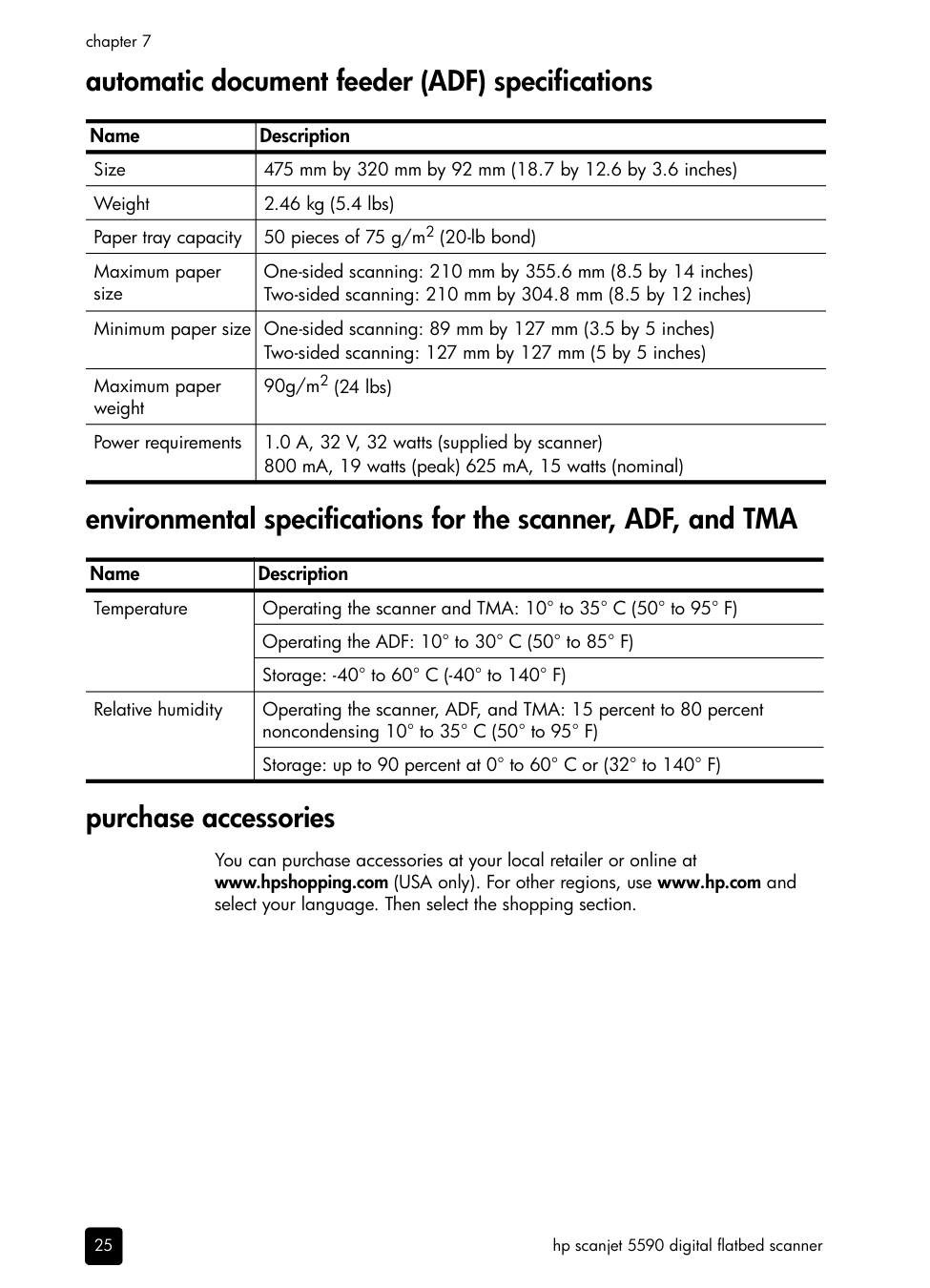
#### automatic document feeder (ADF) specifications
|Name|Description| |---|---|

|Size|475 mm by 320 mm by 92 mm (18.7 by 12.6 by 3.6 inches)| |Weight|2.46 kg (5.4 lbs)| |Paper tray capacity|50 pieces of 75 g/m2 (20-lb bond)| |Maximum paper size|One-sided scanning: 210 mm by 355.6 mm (8.5 by 14 inches) Two-sided scanning: 210 mm by 304.8 mm (8.5 by 12 inches)| |Minimum paper size|One-sided scanning: 89 mm by 127 mm (3.5 by 5 inches) Two-sided scanning: 127 mm by 127 mm (5 by 5 inches)| |Maximum paper weight|90g/m2 (24 lbs)| |Power requirements|1.0 A, 32 V, 32 watts (supplied by scanner) 800 mA, 19 watts (peak) 625 mA, 15 watts (nominal)|
#### environmental specifications for the scanner, ADF, and TMA
|Name|Description| |---|---| |Temperature|Operating the scanner and TMA: 10° to 35° C (50° to 95° F)| |Temperature|Operating the ADF: 10° to 30° C (50° to 85° F)| |Temperature|Storage: -40° to 60° C (-40° to 140° F)| |Relative humidity|Operating the scanner, ADF, and TMA: 15 percent to 80 percent noncondensing 10° to 35° C (50° to 95° F)| |Relative humidity|Storage: up to 90 percent at 0° to 60° C or (32° to 140° F)|
#### purchase accessories
You can purchase accessories at your local retailer or online at www.hpshopping.com (USA only). For other regions, use www.hp.com and select your language. Then select the shopping section.
##### www.hp.com
Printed in U.S.A. 2004
*L1910−90109*
L1910-90109