HP Universal Scan Software
Unknown · 8 Q&As

HP Universal Scan Software

Ask AI

— answers from the official manual

Answers from the official manual.

Common questions

Common Questions

8 total
1

What are the minimum system requirements for running HP Scan on a Windows PC?

The minimum system requirements to install and run the HP Scan application include: A 2 GHz processor, at least 2 GB of RAM, 170 MB hard disk space for TWAIN drivers, USB 2.0 support, and a monitor resolution of 1024x768 SVGA.

2

Where can I download the HP Scan app on my computer?

To download the driver for the HP Scan app, go to http://www.support.hp.com. Under the Support tab, select Software & Drivers and then click Let HP detect your product or enter your scanner model name and click Submit to display available downloads.

3

How can I scan a document into PDF format?

To save a scanned document as a PDF on your local destination, open the HP Scan app, select 'Scan a Document or Photo', then choose either of the following shortcuts in left pane: Save as PDF or Email as PDF.

4

What are some file types supported by the HP Scan application?

Supported file types include JPEG, BMP, TIFF, PNG for image files and Text, Rich text, Word, Excel CSV formats in addition to searchable PDF (.pdf) and non-searchable PDF/A (.pdf).

5

How do I add a printer or scanner via the HP Scan app?

To add a device from within the HP Scan application, open the main menu by clicking on Settings gear icon. Select 'Add' under available options which will guide you through selecting and adding your desired printer or scanning equipment.

6

How do I create a custom scan shortcut for my specific needs?

To create a new Scan Shortcut, go to Home screen > left pane, click 'Create New Scan Shortcut', give it a unique name up to 128 characters long. Choose existing settings or base them on currently active shortcut options before clicking Create.

Show 2 more questions

Full Manual

80 pages
Page 1

![image 1](HpScan_User_Guide_v1-1_images/imageFile1.png)

HP Enterprise, HP Managed - HP Universal Scan Solution User Guide

SUMMARY Learn how to install, set up, and use the HP Scan application (app).

#### Copyright and License

© Copyright 2021 HP Development Company, L.P.

Reproduction, adaptation, or translation without prior written permission is prohibited, except as allowed under the copyright laws.

The information contained herein is subject to change without notice.

The only warranties for HP products and services are set forth in the express warranty statements accompanying such products and services. Nothing herein should be construed as constituting an additional warranty. HP shall not be liable for technical or editorial errors or omissions contained herein.

Edition 1.0, 03/2021

######## Trademark Credits

Page 2

Microsoft®, Windows®, and Windows Server® are U.S. registered trademarks of Microsoft Corporation.

Table of contents

  • 1 Introduction .................................................................................................................................................................................................1 Requirements .........................................................................................................................................................................................1 Supported file types...............................................................................................................................................................................2 Supported devices..................................................................................................................................................................................2
  • 2 Install the HP Scan app..............................................................................................................................................................................3 Install the HP Scan app..........................................................................................................................................................................3
  • Download the driver......................................................................................................................................................................3 Install the software using the install wizard.............................................................................................................................5

    Launch the set up wizard....................................................................................................................................................5 Connect using a USB cable..................................................................................................................................................7 Connect using a wired network....................................................................................................................................... 10 Connect wirelessly............................................................................................................................................................. 13

    Install the plug-ins for the basic web pack............................................................................................................................. 16 Install the basic driver using a command prompt................................................................................................................. 16

    Add a printer or scanner to the app ................................................................................................................................................. 18
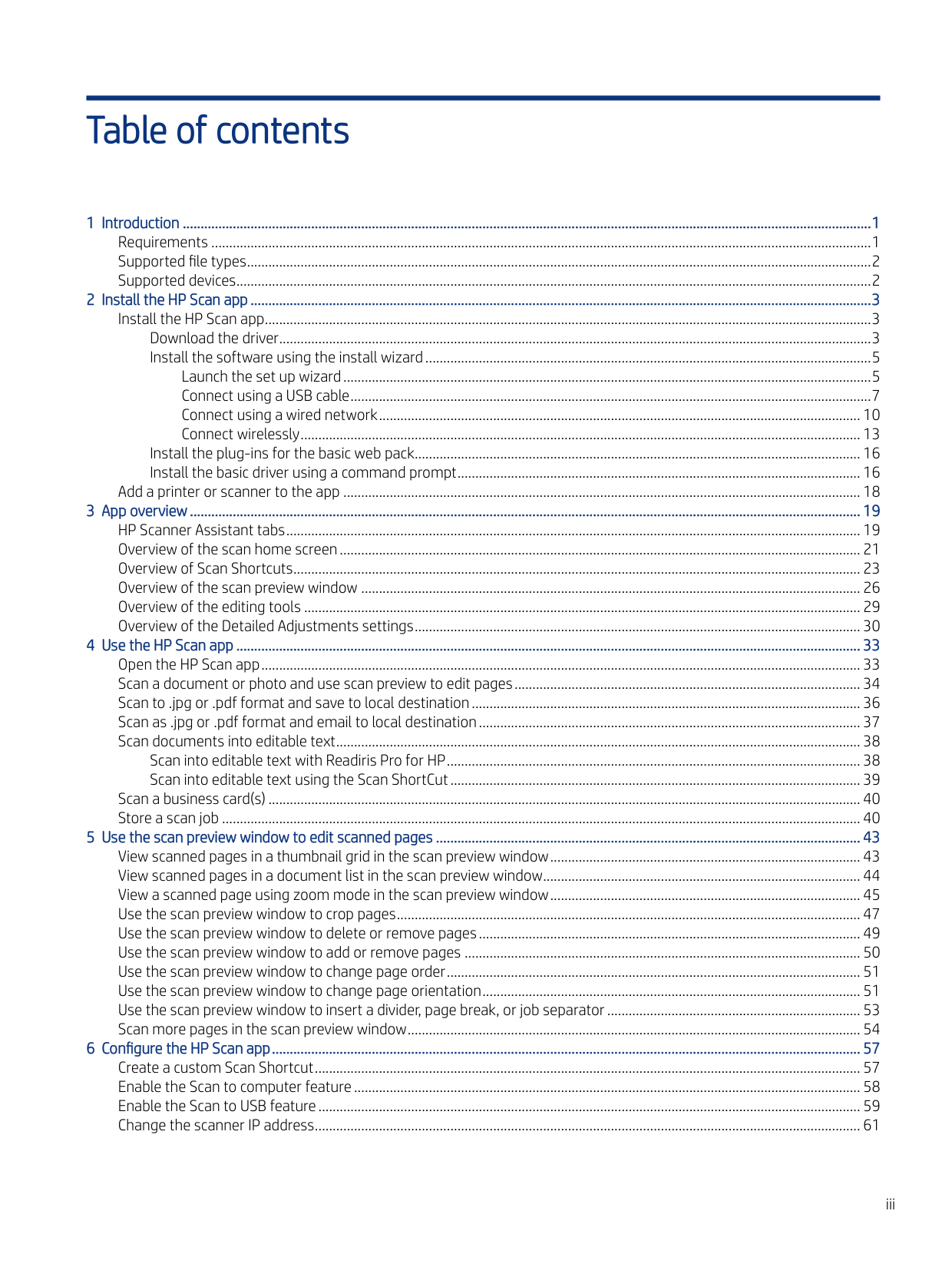
  • 3 App overview............................................................................................................................................................................................ 19 HP Scanner Assistant tabs................................................................................................................................................................. 19 Overview of the scan home screen.................................................................................................................................................. 21 Overview of Scan Shortcuts............................................................................................................................................................... 23 Overview of the scan preview window ............................................................................................................................................ 26 Overview of the editing tools ............................................................................................................................................................ 29 Overview of the Detailed Adjustments settings............................................................................................................................. 30
  • 4 Use the HP Scan app............................................................................................................................................................................... 33 Open the HP Scan app........................................................................................................................................................................ 33 Scan a document or photo and use scan preview to edit pages................................................................................................. 34 Scan to .jpg or .pdf format and save to local destination............................................................................................................. 36 Scan as .jpg or .pdf format and email to local destination........................................................................................................... 37 Scan documents into editable text................................................................................................................................................... 38
  • Page 3

    Scan into editable text with Readiris Pro for HP.................................................................................................................... 38 Scan into editable text using the Scan ShortCut................................................................................................................... 39

    Scan a business card(s)...................................................................................................................................................................... 40 Store a scan job ................................................................................................................................................................................... 40

  • 5 Use the scan preview window to edit scanned pages ....................................................................................................................... 43 View scanned pages in a thumbnail grid in the scan preview window....................................................................................... 43 View scanned pages in a document list in the scan preview window......................................................................................... 44 View a scanned page using zoom mode in the scan preview window....................................................................................... 45 Use the scan preview window to crop pages.................................................................................................................................. 47 Use the scan preview window to delete or remove pages........................................................................................................... 49 Use the scan preview window to add or remove pages ............................................................................................................... 50 Use the scan preview window to change page order.................................................................................................................... 51 Use the scan preview window to change page orientation.......................................................................................................... 51 Use the scan preview window to insert a divider, page break, or job separator....................................................................... 53 Scan more pages in the scan preview window............................................................................................................................... 54
  • 6 Configure the HP Scan app..................................................................................................................................................................... 57 Create a custom Scan Shortcut......................................................................................................................................................... 57 Enable the Scan to computer feature.............................................................................................................................................. 58 Enable the Scan to USB feature........................................................................................................................................................ 59 Change the scanner IP address......................................................................................................................................................... 61
  • iii

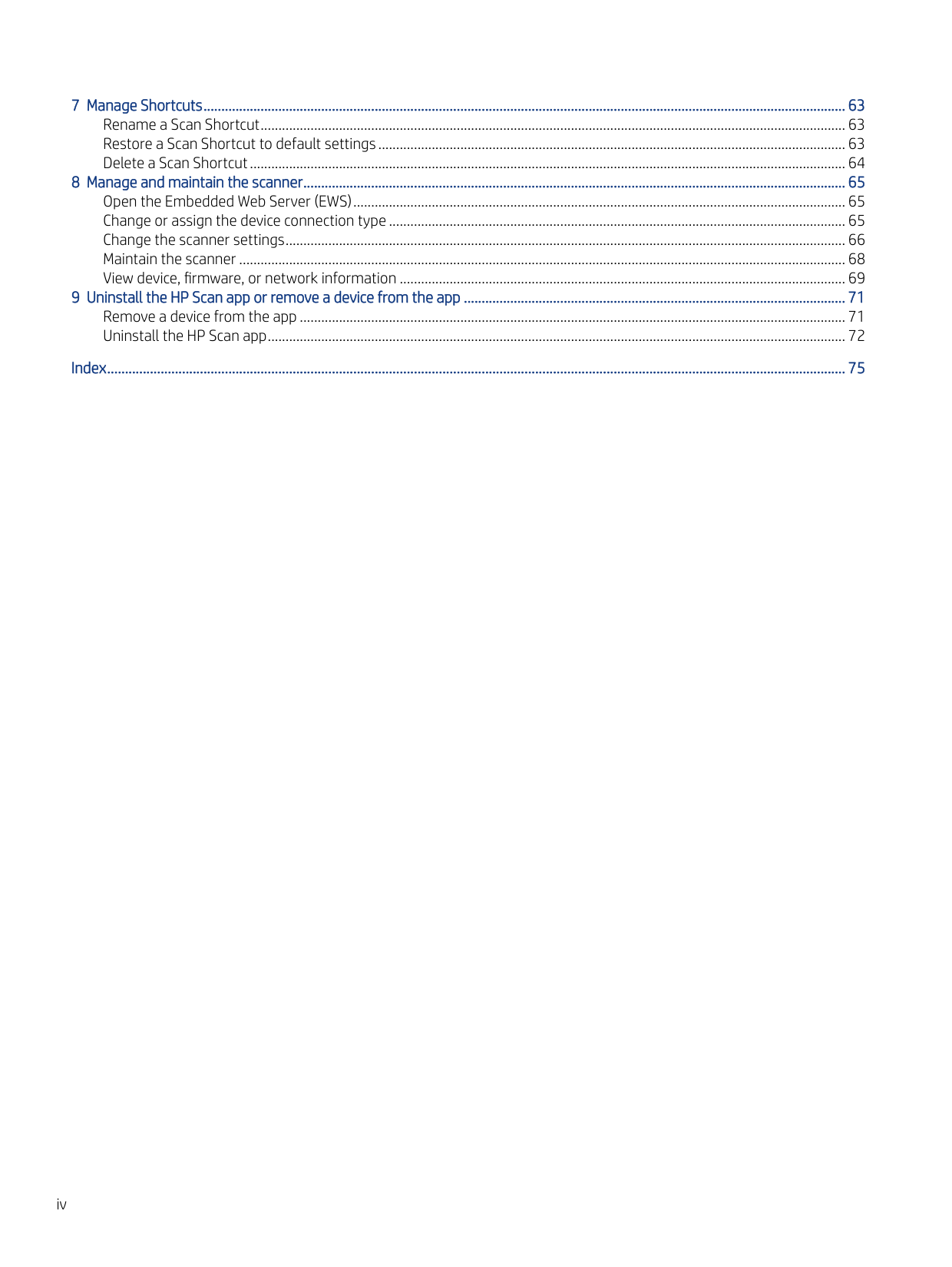
  • 7 Manage Shortcuts.................................................................................................................................................................................... 63 Rename a Scan Shortcut.................................................................................................................................................................... 63 Restore a Scan Shortcut to default settings................................................................................................................................... 63 Delete a Scan Shortcut....................................................................................................................................................................... 64
  • 8 Manage and maintain the scanner........................................................................................................................................................ 65 Open the Embedded Web Server (EWS).......................................................................................................................................... 65 Change or assign the device connection type................................................................................................................................ 65 Change the scanner settings............................................................................................................................................................. 66 Maintain the scanner .......................................................................................................................................................................... 68 View device, firmware, or network information ............................................................................................................................. 69
  • 9 Uninstall the HP Scan app or remove a device from the app ........................................................................................................... 71 Remove a device from the app ......................................................................................................................................................... 71 Uninstall the HP Scan app.................................................................................................................................................................. 72
  • ###### Index............................................................................................................................................................................................................... 75

    iv
    Page 4

    Introduction1

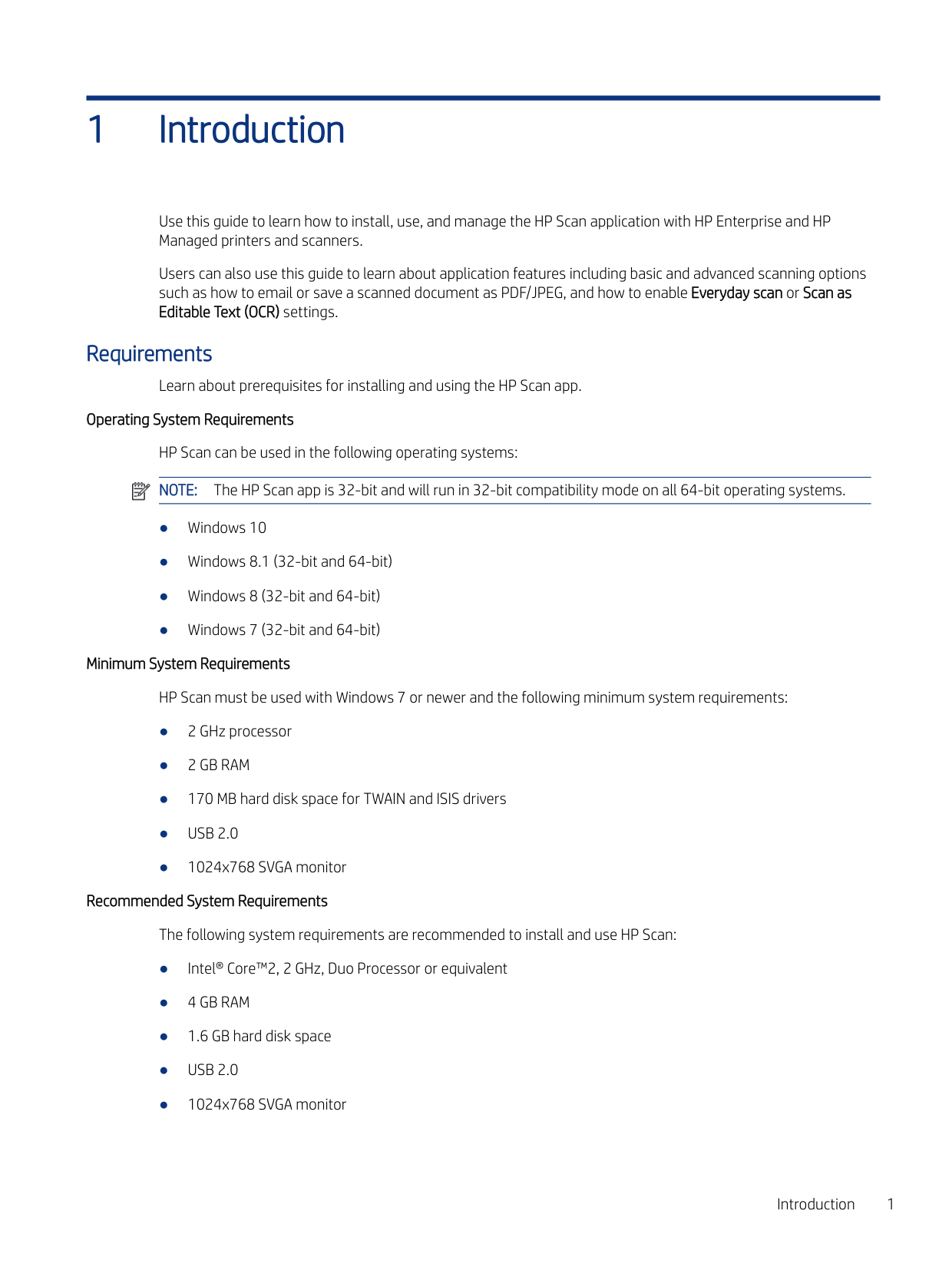
    Use this guide to learn how to install, use, and manage the HP Scan application with HP Enterprise and HP Managed printers and scanners.

    Users can also use this guide to learn about application features including basic and advanced scanning options such as how to email or save a scanned document as PDF/JPEG, and how to enable Everyday scan or Scan as Editable Text (OCR) settings.

    #### Requirements

    Learn about prerequisites for installing and using the HP Scan app.

    Operating System Requirements HP Scan can be used in the following operating systems: NOTE: The HP Scan app is 32-bit and will run in 32-bit compatibility mode on all 64-bit operating systems.

    ![image 2](HpScan_User_Guide_v1-1_images/imageFile2.png)

  • ● Windows 10
  • ● Windows 8.1 (32-bit and 64-bit)
  • ● Windows 8 (32-bit and 64-bit)
  • ● Windows 7 (32-bit and 64-bit)
  • Page 5

    ###### Minimum System Requirements

    HP Scan must be used with Windows 7 or newer and the following minimum system requirements:

  • ● 2 GHz processor
  • ● 2 GB RAM
  • ● 170 MB hard disk space for TWAIN and ISIS drivers
  • ● USB 2.0
  • ● 1024x768 SVGA monitor
  • ###### Recommended System Requirements

    The following system requirements are recommended to install and use HP Scan:
  • ● Intel® Core™2, 2 GHz, Duo Processor or equivalent
  • ● 4 GB RAM
  • ● 1.6 GB hard disk space
  • Page 6

  • ● USB 2.0
  • ● 1024x768 SVGA monitor
  • Introduction 1

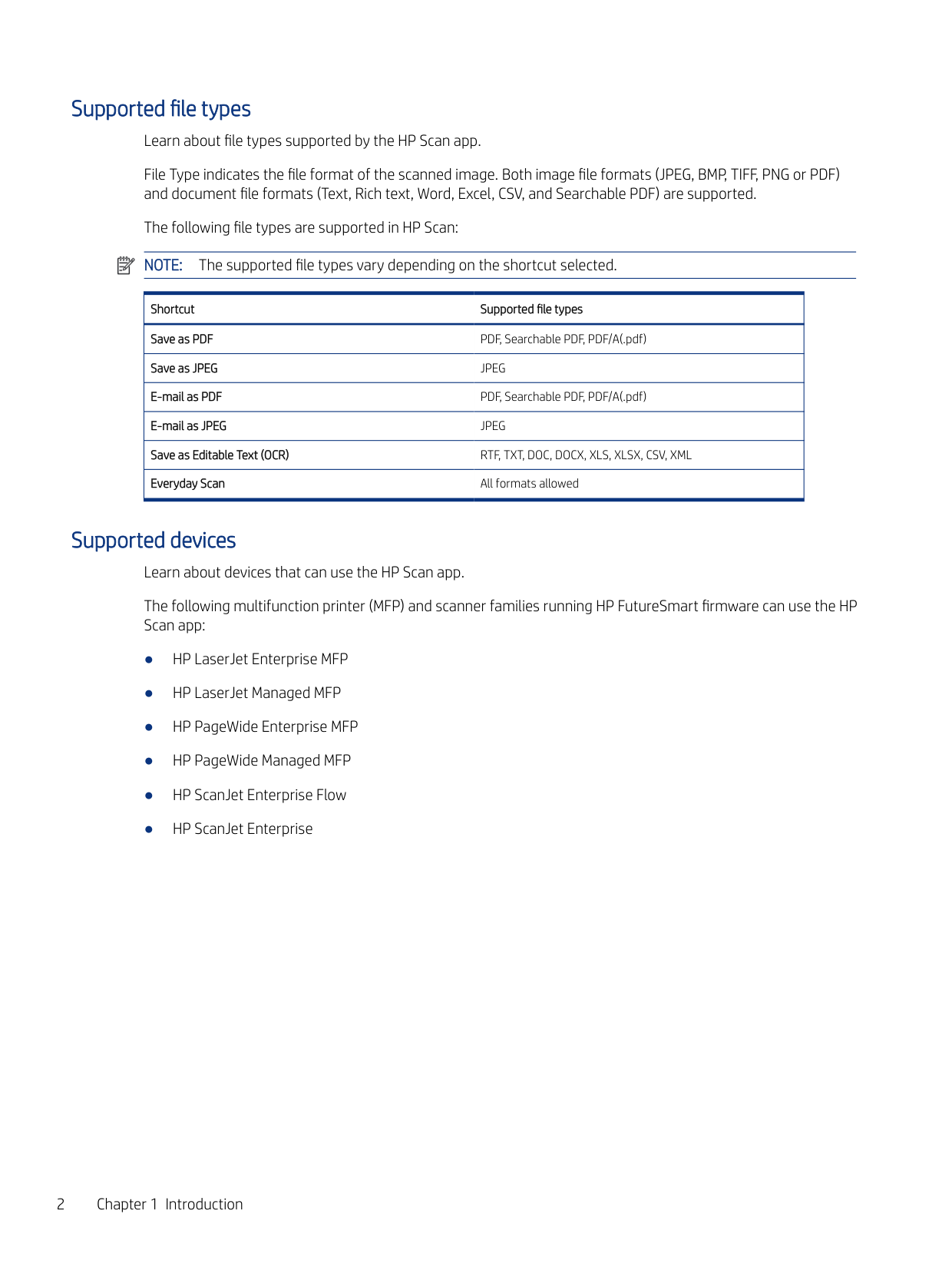
    Supported file types Learn about file types supported by the HP Scan app. File Type indicates the file format of the scanned image. Both image file formats (JPEG, BMP, TIFF, PNG or PDF) and document file formats (Text, Rich text, Word, Excel, CSV, and Searchable PDF) are supported. The following file types are supported in HP Scan: NOTE: The supported file types vary depending on the shortcut selected.

    ![image 3](HpScan_User_Guide_v1-1_images/imageFile3.png)

    |Shortcut Supported file types

    | |---| |Save as PDF PDF, Searchable PDF, PDF/A(.pdf)

    | |Save as JPEG JPEG

    | |E-mail as PDF PDF, Searchable PDF, PDF/A(.pdf)

    | |E-mail as JPEG JPEG

    | |Save as Editable Text (OCR) RTF, TXT, DOC, DOCX, XLS, XLSX, CSV, XML

    | |Everyday Scan All formats allowed

    |
    Page 7

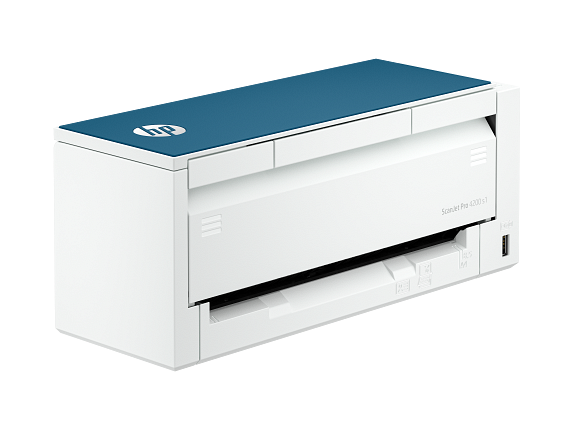
    Supported devices Learn about devices that can use the HP Scan app. The following multifunction printer (MFP) and scanner families running HP FutureSmart firmware can use the HP Scan app:

  • ● HP LaserJet Enterprise MFP
  • ● HP LaserJet Managed MFP
  • ● HP PageWide Enterprise MFP
  • ● HP PageWide Managed MFP
  • ● HP ScanJet Enterprise Flow
  • ● HP ScanJet Enterprise
  • 2 Chapter 1 Introduction

    Install the HP Scan app2

    This chapter provides information on how to install the HP Scan app.

    Install the HP Scan app Use the steps in this chapter to set up and install HP Scan. There are three methods that can be used to set up and install HP Scan.
    Page 8

  • ● Install the Full software including the basic driver and recommended plug-ins using the install wizard
  • ● Install the Basic driver .exe and recommended plug-ins separately one by one
  • ● Install the Basic driver .msi using a command prompt and manually associate the connection type
  • Download the driver The latest driver or full software build is available for download on HP.com. There are two types of web packs: Full software and a Basic driver.

  • ● Full software includes the HP Scan Device Software and all of the associated Plug-ins.
  • ● Basic driver includes only HP Scan Basic Device Software. The Plug-ins must be installed separately. To download the web pack, follow these steps:
  • 1. Go to http://www.support.hp.com.
  • 2. Under the Support tab, select Software & Drivers.
  • 3. Select Other.
  • Install the HP Scan app 3

    Page 9

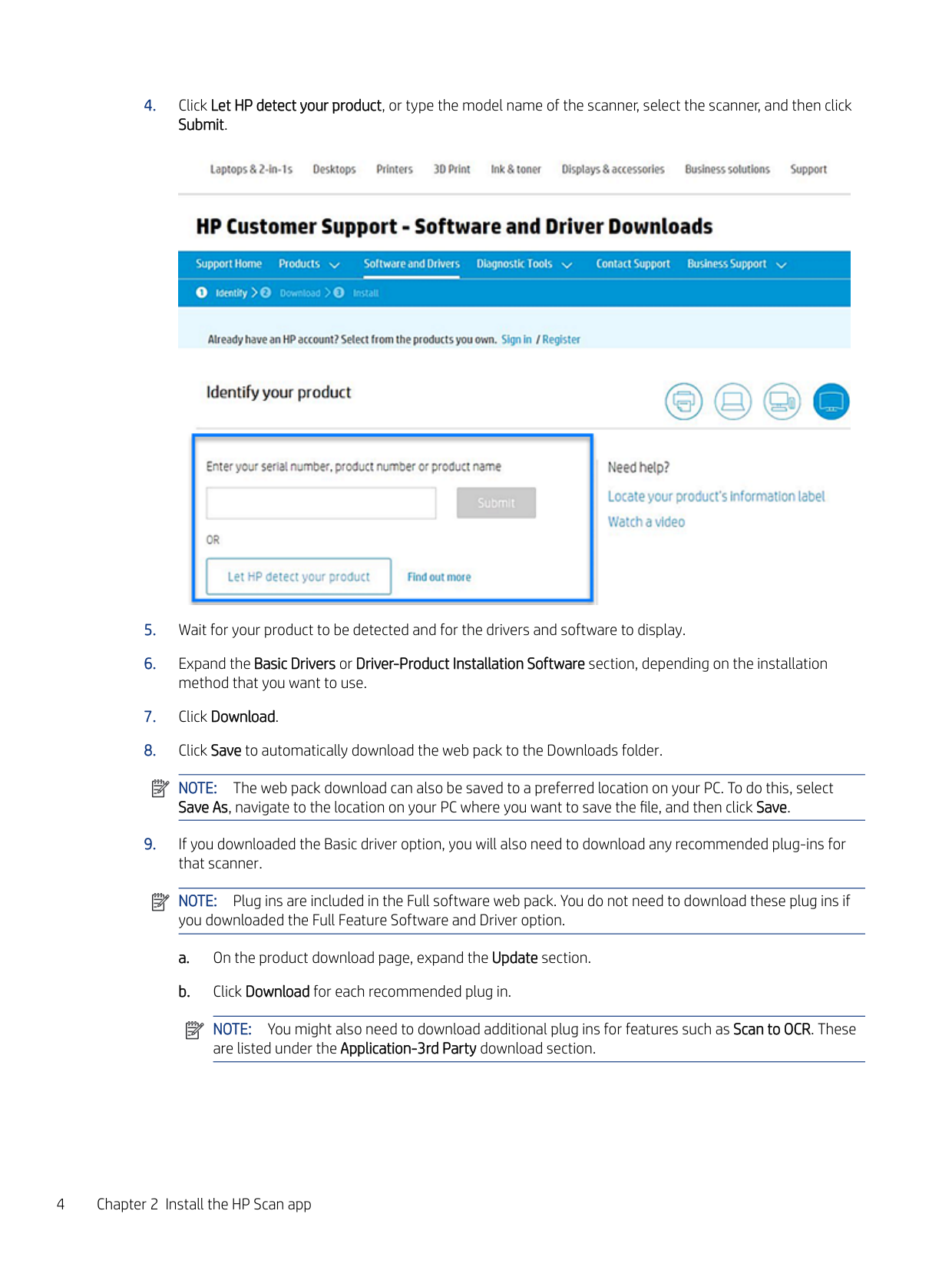
  • 4. Click Let HP detect your product, or type the model name of the scanner, select the scanner, and then click Submit.
  • ![image 4](HpScan_User_Guide_v1-1_images/imageFile4.png)

  • 5. Wait for your product to be detected and for the drivers and software to display.
  • 6. Expand the Basic Drivers or Driver-Product Installation Software section, depending on the installation method that you want to use.
  • 7. Click Download.
  • 8. Click Save to automatically download the web pack to the Downloads folder.
  • NOTE: The web pack download can also be saved to a preferred location on your PC. To do this, select Save As, navigate to the location on your PC where you want to save the file, and then click Save.

  • 9. If you downloaded the Basic driver option, you will also need to download any recommended plug-ins for that scanner.
  • ![image 5](HpScan_User_Guide_v1-1_images/imageFile5.png)

    ![image 6](HpScan_User_Guide_v1-1_images/imageFile6.png)

    NOTE: Plug ins are included in the Full software web pack. You do not need to download these plug ins if you downloaded the Full Feature Software and Driver option.
    Page 10

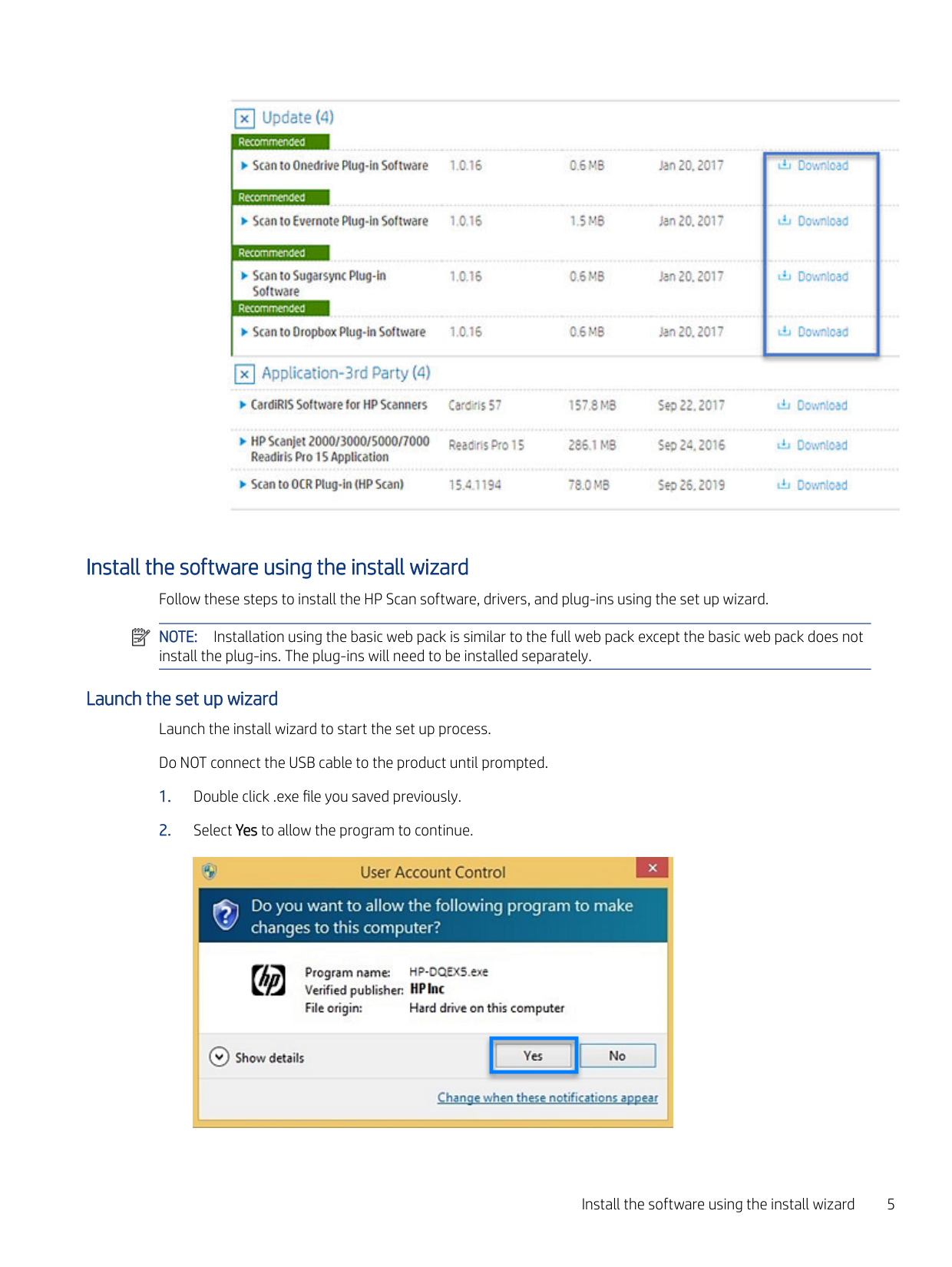
  • a. On the product download page, expand the Update section.
  • b. Click Download for each recommended plug in.
  • ![image 7](HpScan_User_Guide_v1-1_images/imageFile7.png)

    NOTE: You might also need to download additional plug ins for features such as Scan to OCR. These are listed under the Application-3rd Party download section.

    ![image 8](HpScan_User_Guide_v1-1_images/imageFile8.png)

    Install the software using the install wizard Follow these steps to install the HP Scan software, drivers, and plug-ins using the set up wizard. NOTE: Installation using the basic web pack is similar to the full web pack except the basic web pack does not install the plug-ins. The plug-ins will need to be installed separately.

    ![image 9](HpScan_User_Guide_v1-1_images/imageFile9.png)

    Launch the set up wizard Launch the install wizard to start the set up process. Do NOT connect the USB cable to the product until prompted.
  • 1. Double click .exe file you saved previously.
  • 2. Select Yes to allow the program to continue.
  • Page 11

    ![image 10](HpScan_User_Guide_v1-1_images/imageFile10.png)

    Install the software using the install wizard 5

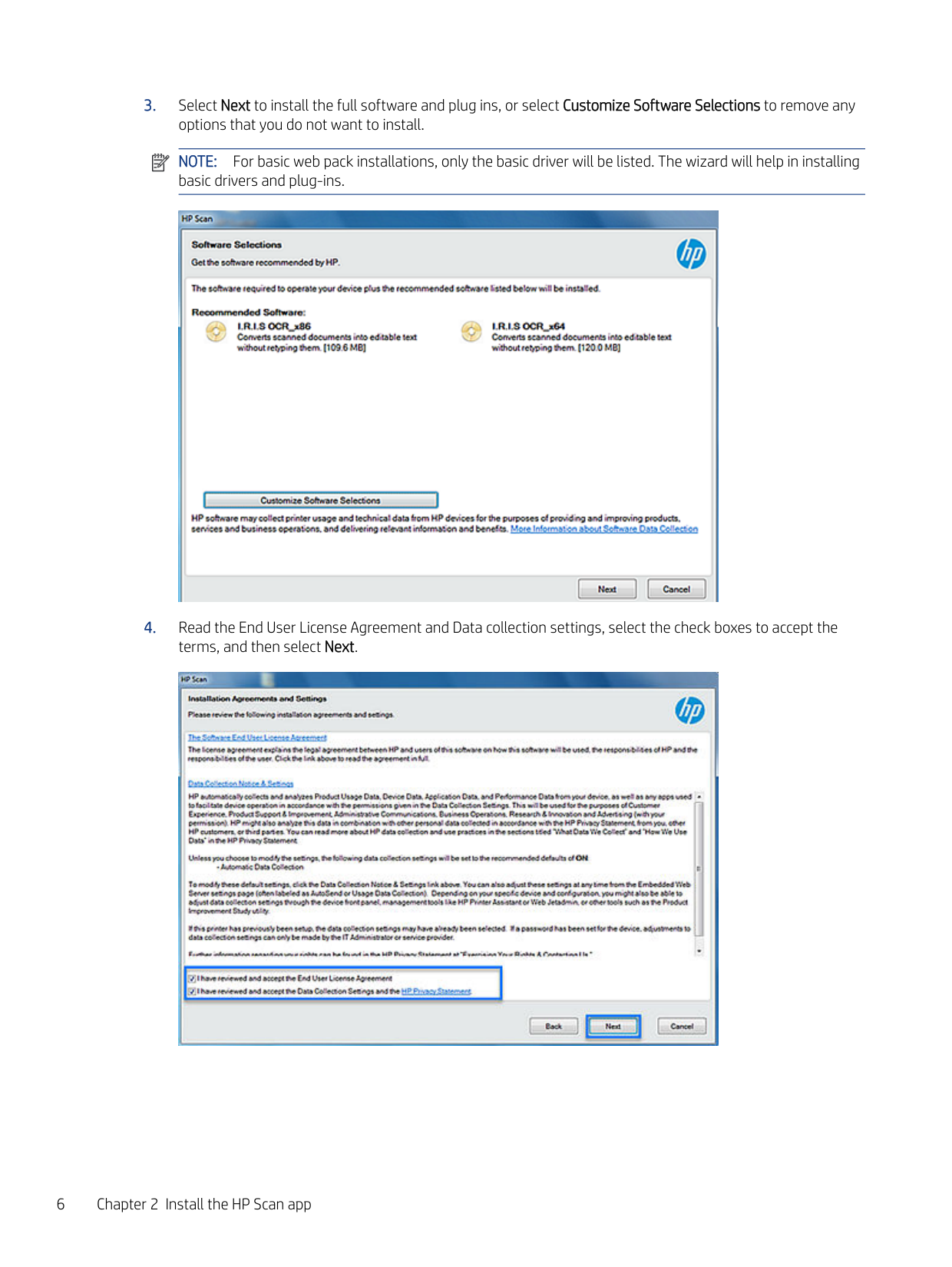
    ####### 3. Select Next to install the full software and plug ins, or select Customize Software Selections to remove anyoptions that you do not want to install.

    ![image 11](HpScan_User_Guide_v1-1_images/imageFile11.png)

    NOTE: For basic web pack installations, only the basic driver will be listed. The wizard will help in installing basic drivers and plug-ins.

    ![image 12](HpScan_User_Guide_v1-1_images/imageFile12.png)

    ####### 4. Read the End User License Agreement and Data collection settings, select the check boxes to accept theterms, and then select Next.

    ![image 13](HpScan_User_Guide_v1-1_images/imageFile13.png)

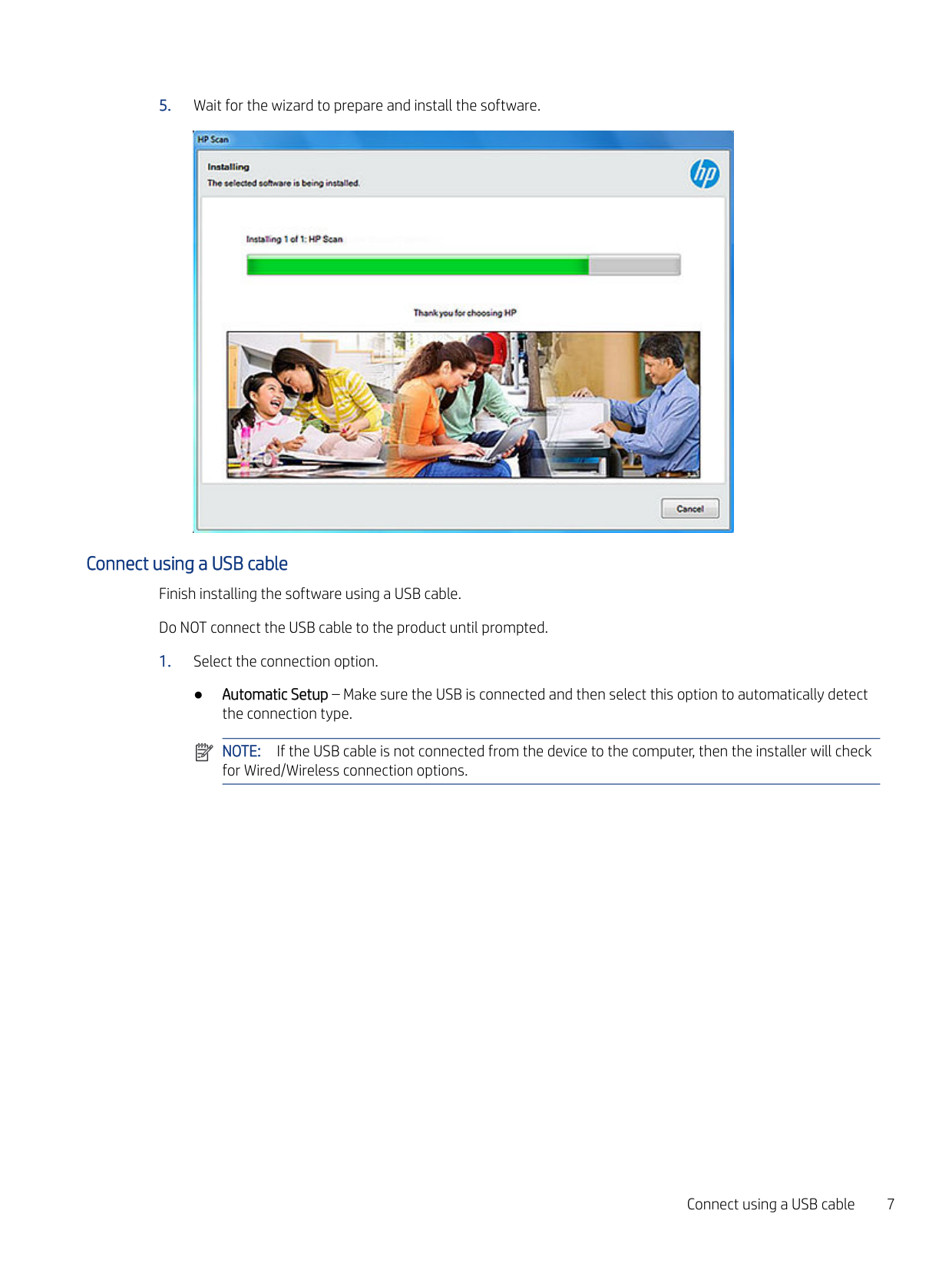
  • 5. Wait for the wizard to prepare and install the software.
  • Page 12

    ![image 14](HpScan_User_Guide_v1-1_images/imageFile14.png)

    Connect using a USB cable Finish installing the software using a USB cable. Do NOT connect the USB cable to the product until prompted.

  • 1. Select the connection option.
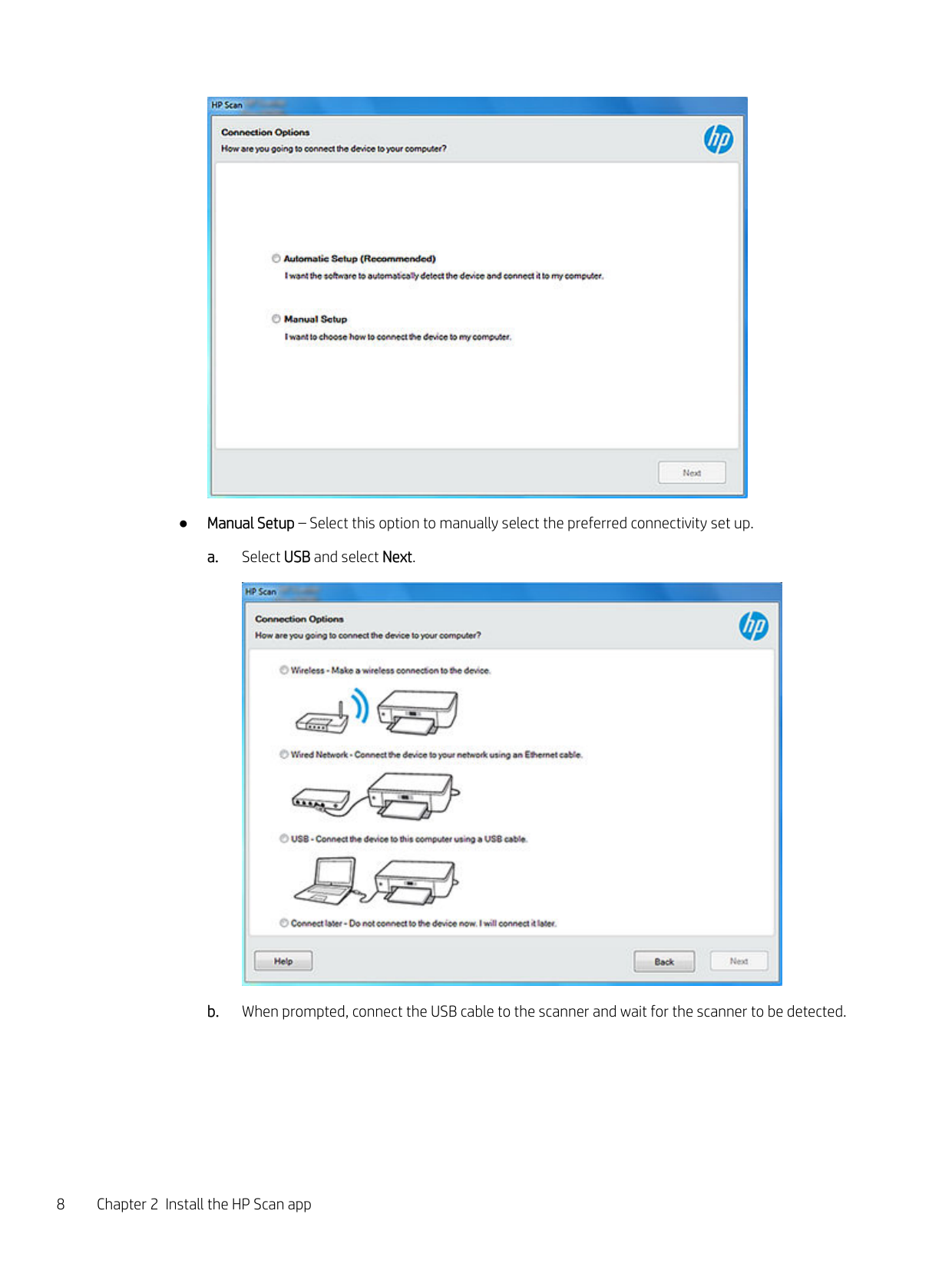
  • ● Automatic Setup – Make sure the USB is connected and then select this option to automatically detect the connection type.
  • ![image 15](HpScan_User_Guide_v1-1_images/imageFile15.png)

    NOTE: If the USB cable is not connected from the device to the computer, then the installer will check for Wired/Wireless connection options.

    ![image 16](HpScan_User_Guide_v1-1_images/imageFile16.png)

  • ● Manual Setup – Select this option to manually select the preferred connectivity set up.
  • Page 13

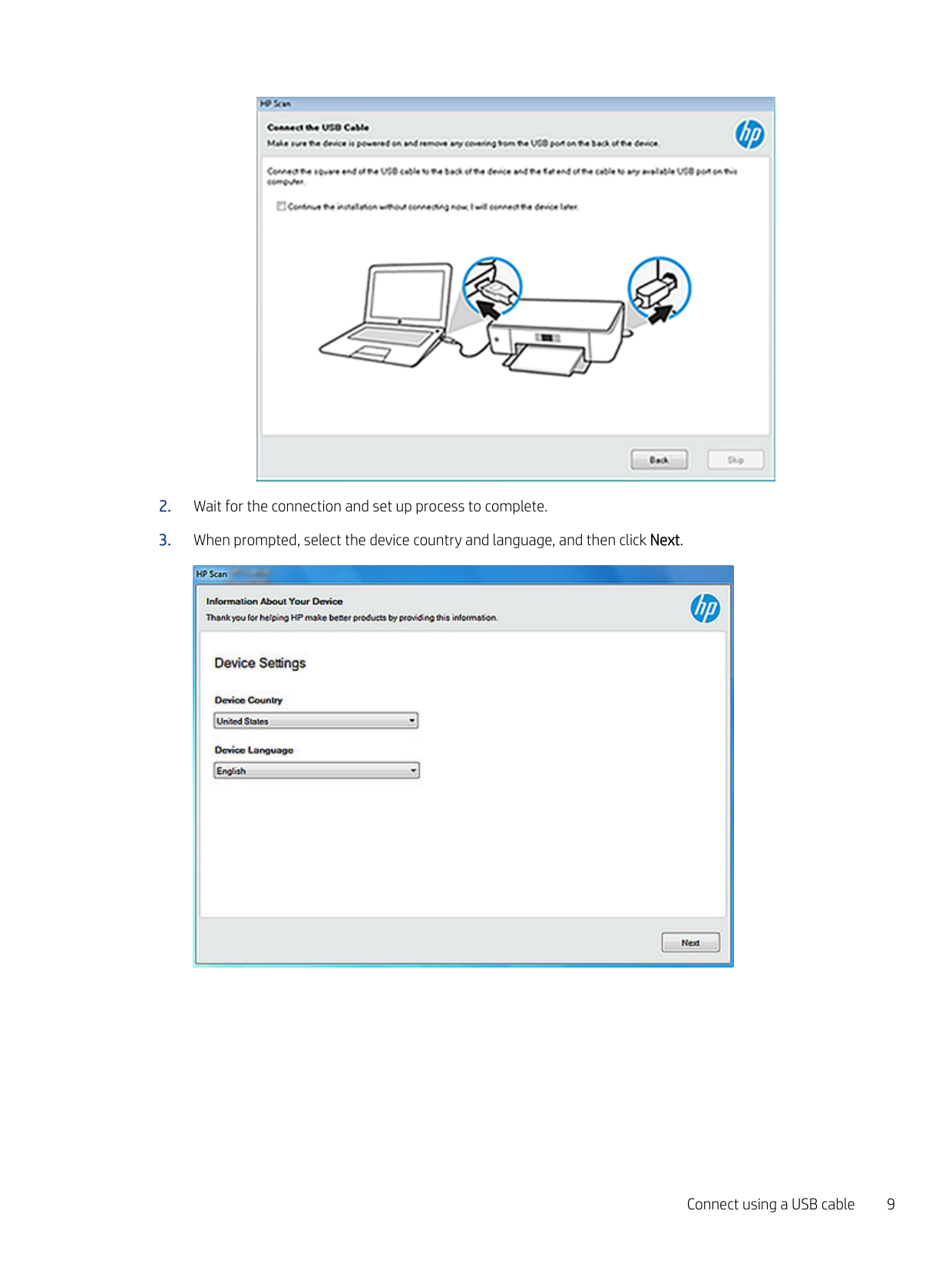
  • a. Select USB and select Next.
  • ![image 17](HpScan_User_Guide_v1-1_images/imageFile17.png)

  • b. When prompted, connect the USB cable to the scanner and wait for the scanner to be detected.
  • ![image 18](HpScan_User_Guide_v1-1_images/imageFile18.png)

  • 2. Wait for the connection and set up process to complete.
  • 3. When prompted, select the device country and language, and then click Next.
  • ![image 19](HpScan_User_Guide_v1-1_images/imageFile19.png)

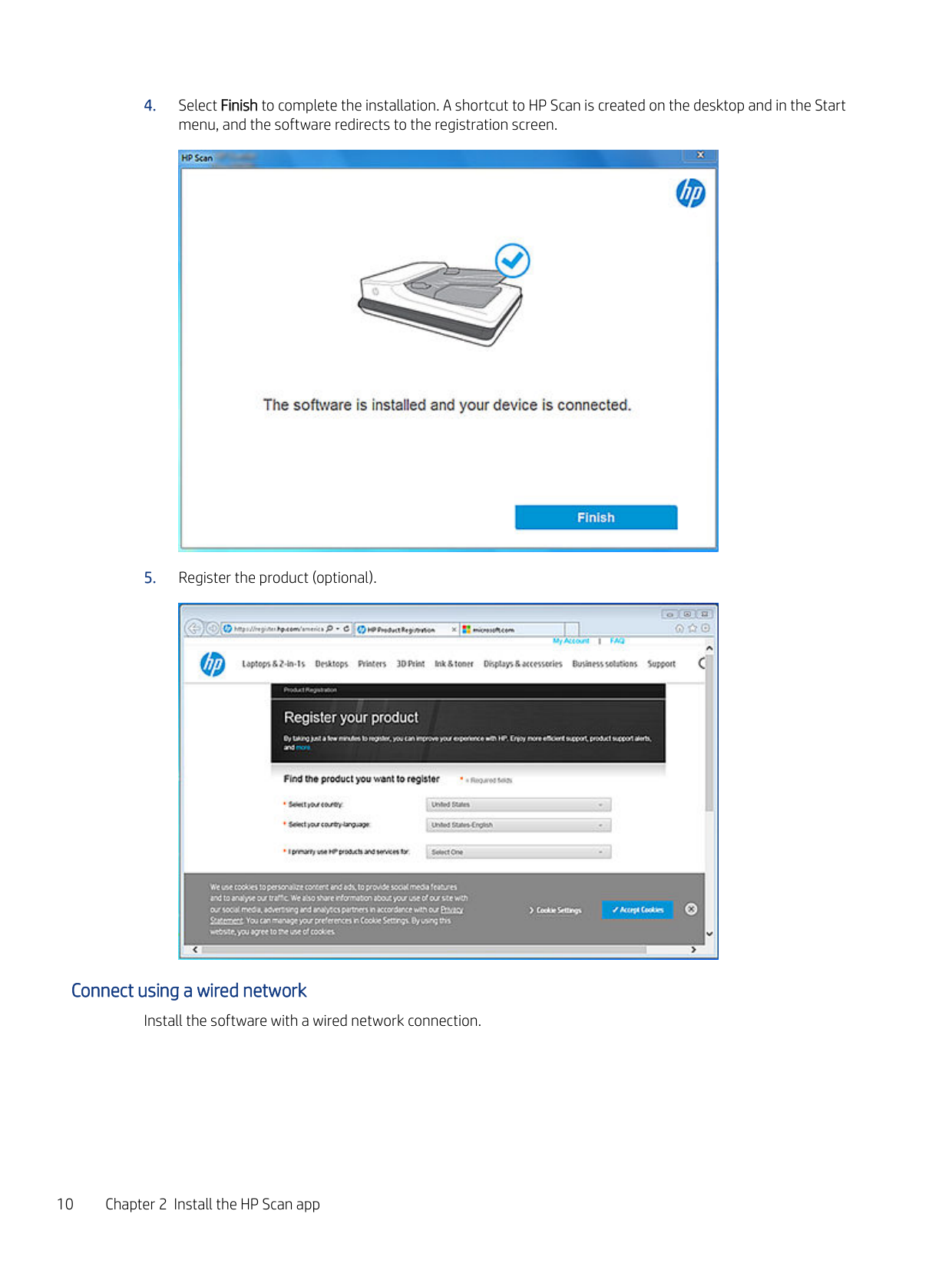
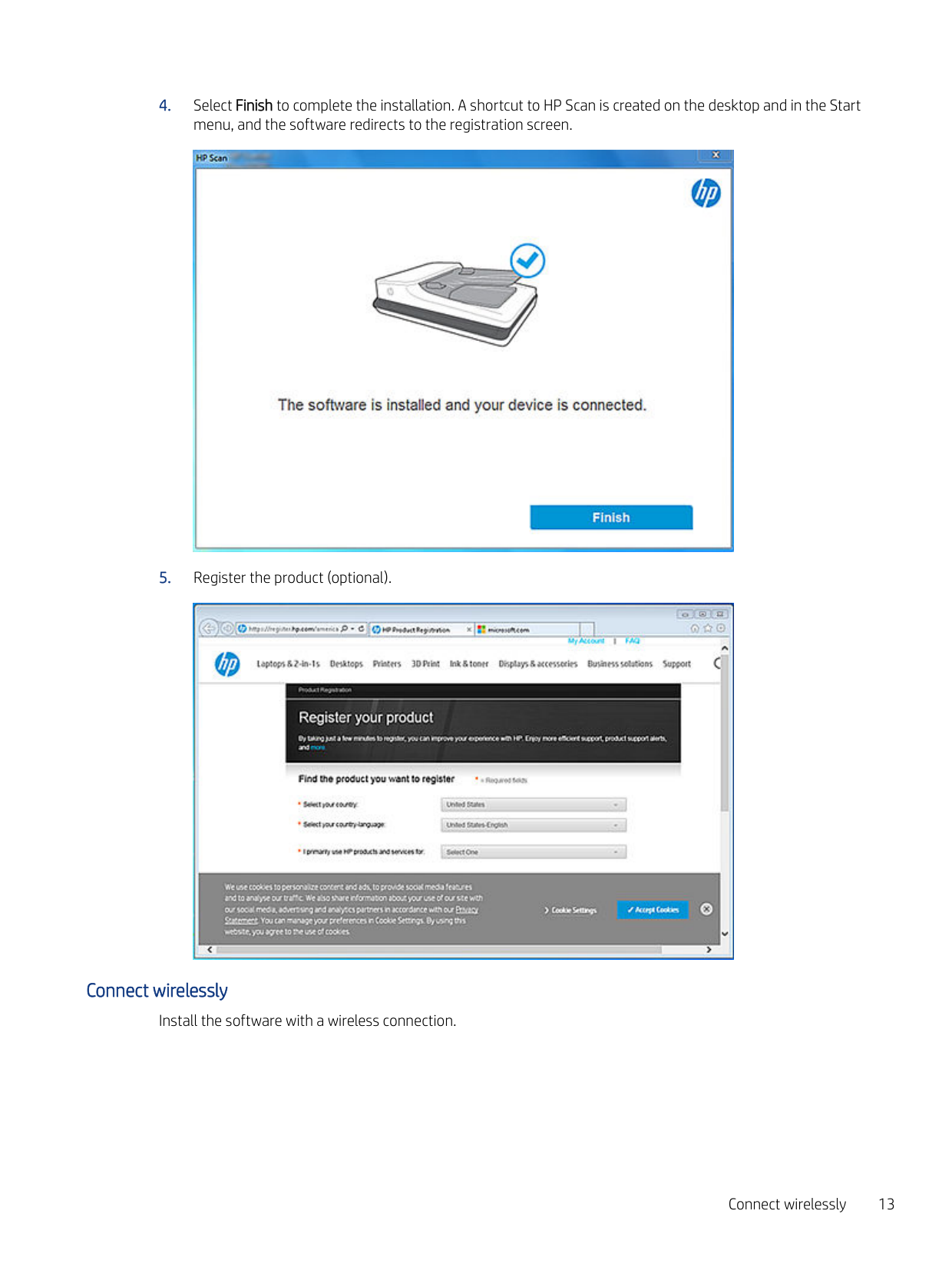
  • 4. Select Finish to complete the installation. A shortcut to HP Scan is created on the desktop and in the Start menu, and the software redirects to the registration screen.
  • Page 14

    ![image 20](HpScan_User_Guide_v1-1_images/imageFile20.png)

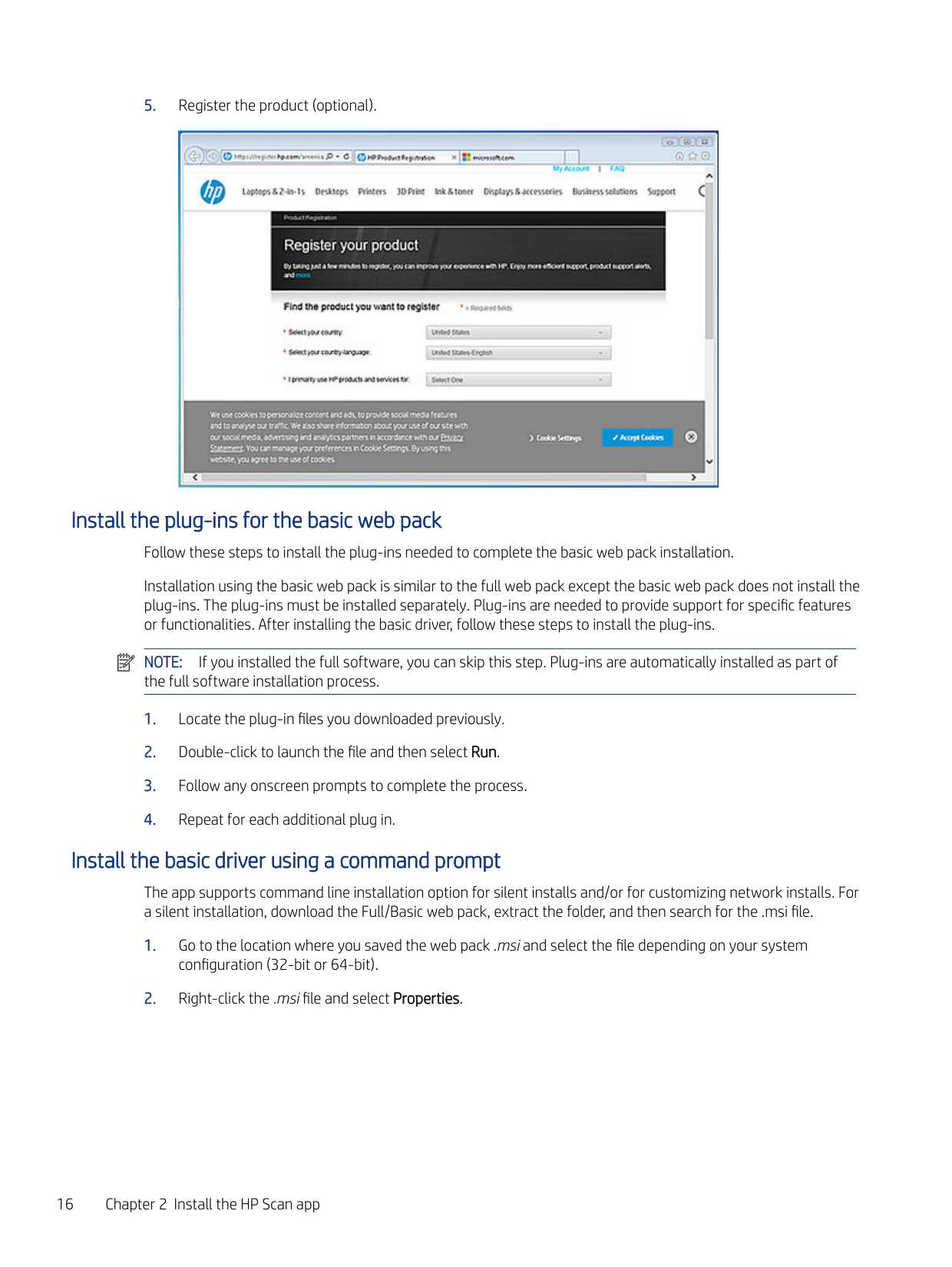
  • 5. Register the product (optional).
  • ![image 21](HpScan_User_Guide_v1-1_images/imageFile21.png)

    ##### Connect using a wired network

    Install the software with a wired network connection.

  • 1. Select the connection option.
  • ● Automatic Setup – Select this option to automatically detect the connection type.
  • NOTE: If the device is connected to the computer using USB cable, then the installation will continue with USB connectivity. If USB connectivity is not detected, it will check for Wired/Wireless options.
  • ● Manual Setup – Select this option to manually select the preferred connectivity set up.
  • Page 15

    ![image 22](HpScan_User_Guide_v1-1_images/imageFile22.png)

    ![image 23](HpScan_User_Guide_v1-1_images/imageFile23.png)

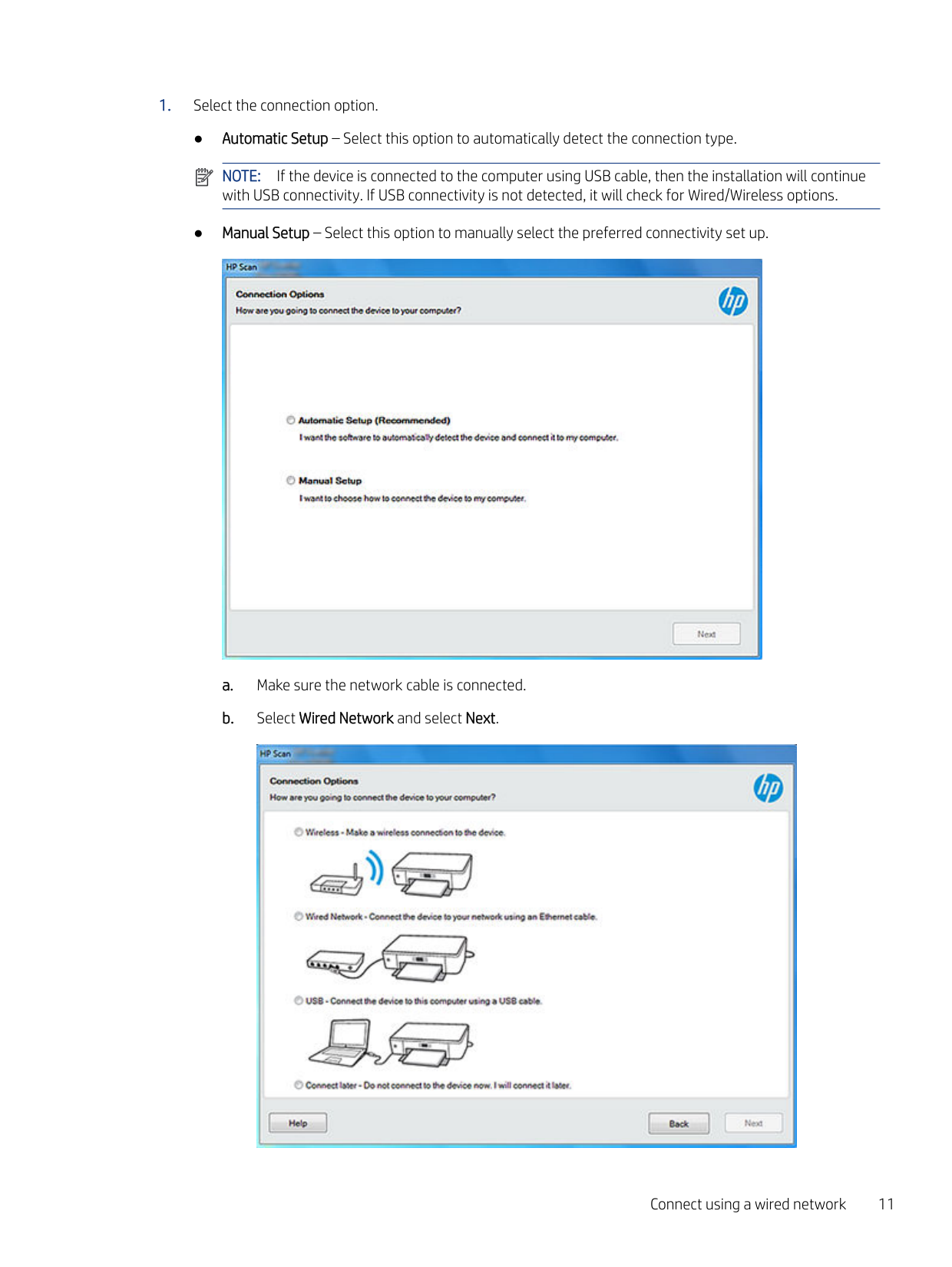
  • a. Make sure the network cable is connected.
  • b. Select Wired Network and select Next.
  • ![image 24](HpScan_User_Guide_v1-1_images/imageFile24.png)

    Connect using a wired network 11

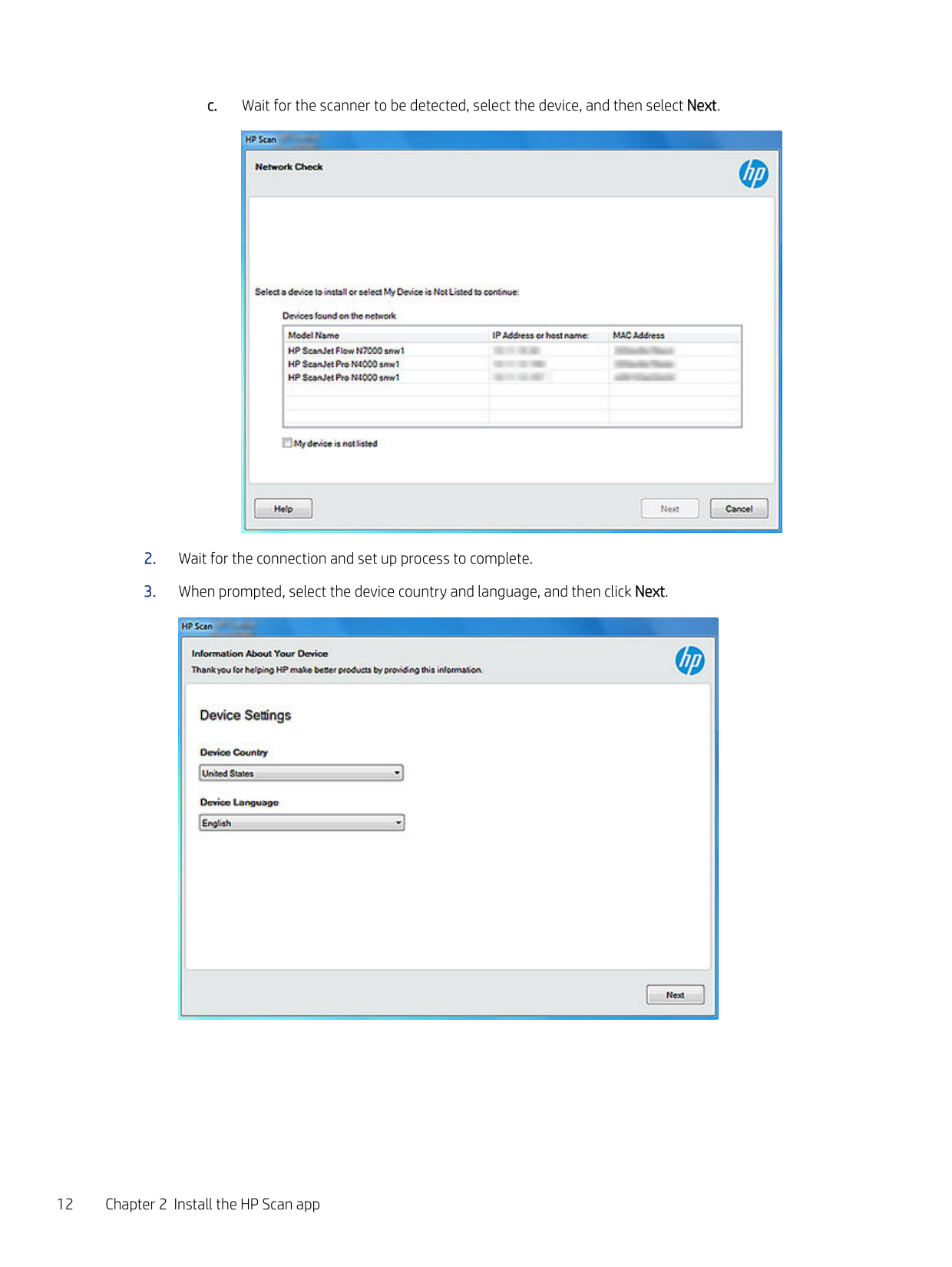
  • c. Wait for the scanner to be detected, select the device, and then select Next.
  • ![image 25](HpScan_User_Guide_v1-1_images/imageFile25.png)

    Page 16

  • 2. Wait for the connection and set up process to complete.
  • 3. When prompted, select the device country and language, and then click Next.
  • ![image 26](HpScan_User_Guide_v1-1_images/imageFile26.png)

  • 4. Select Finish to complete the installation. A shortcut to HP Scan is created on the desktop and in the Start menu, and the software redirects to the registration screen.
  • ![image 27](HpScan_User_Guide_v1-1_images/imageFile27.png)

  • 5. Register the product (optional).
  • ![image 28](HpScan_User_Guide_v1-1_images/imageFile28.png)

    ##### Connect wirelessly

    Install the software with a wireless connection.

    Page 17

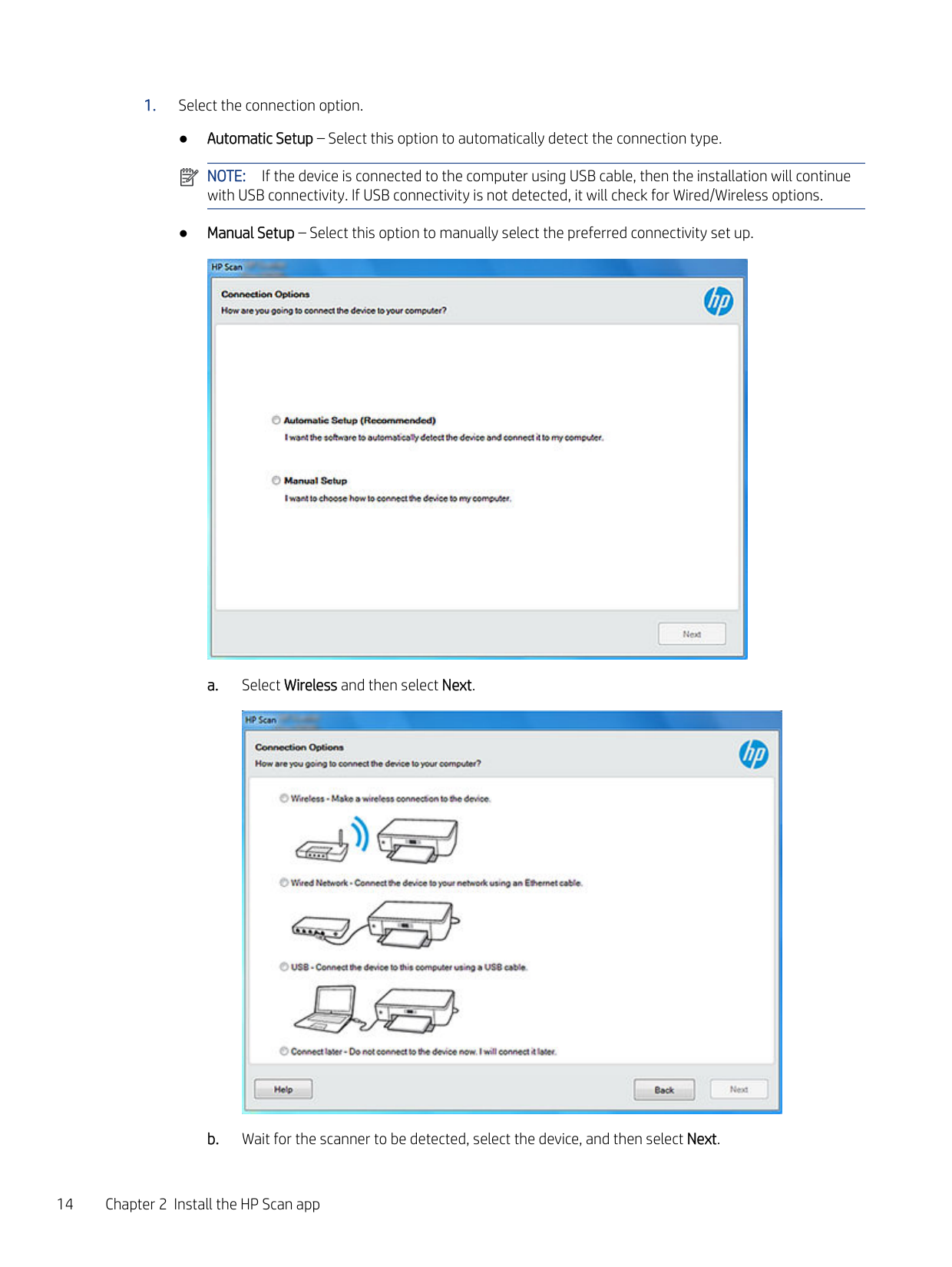
  • 1. Select the connection option.
  • ● Automatic Setup – Select this option to automatically detect the connection type.

    ![image 29](HpScan_User_Guide_v1-1_images/imageFile29.png)

    NOTE: If the device is connected to the computer using USB cable, then the installation will continue with USB connectivity. If USB connectivity is not detected, it will check for Wired/Wireless options.

    ● Manual Setup – Select this option to manually select the preferred connectivity set up.

    ![image 30](HpScan_User_Guide_v1-1_images/imageFile30.png)

  • a. Select Wireless and then select Next.
  • ![image 31](HpScan_User_Guide_v1-1_images/imageFile31.png)

  • b. Wait for the scanner to be detected, select the device, and then select Next.
  • Page 18

  • 2. Wait for the connection and set up process to complete.
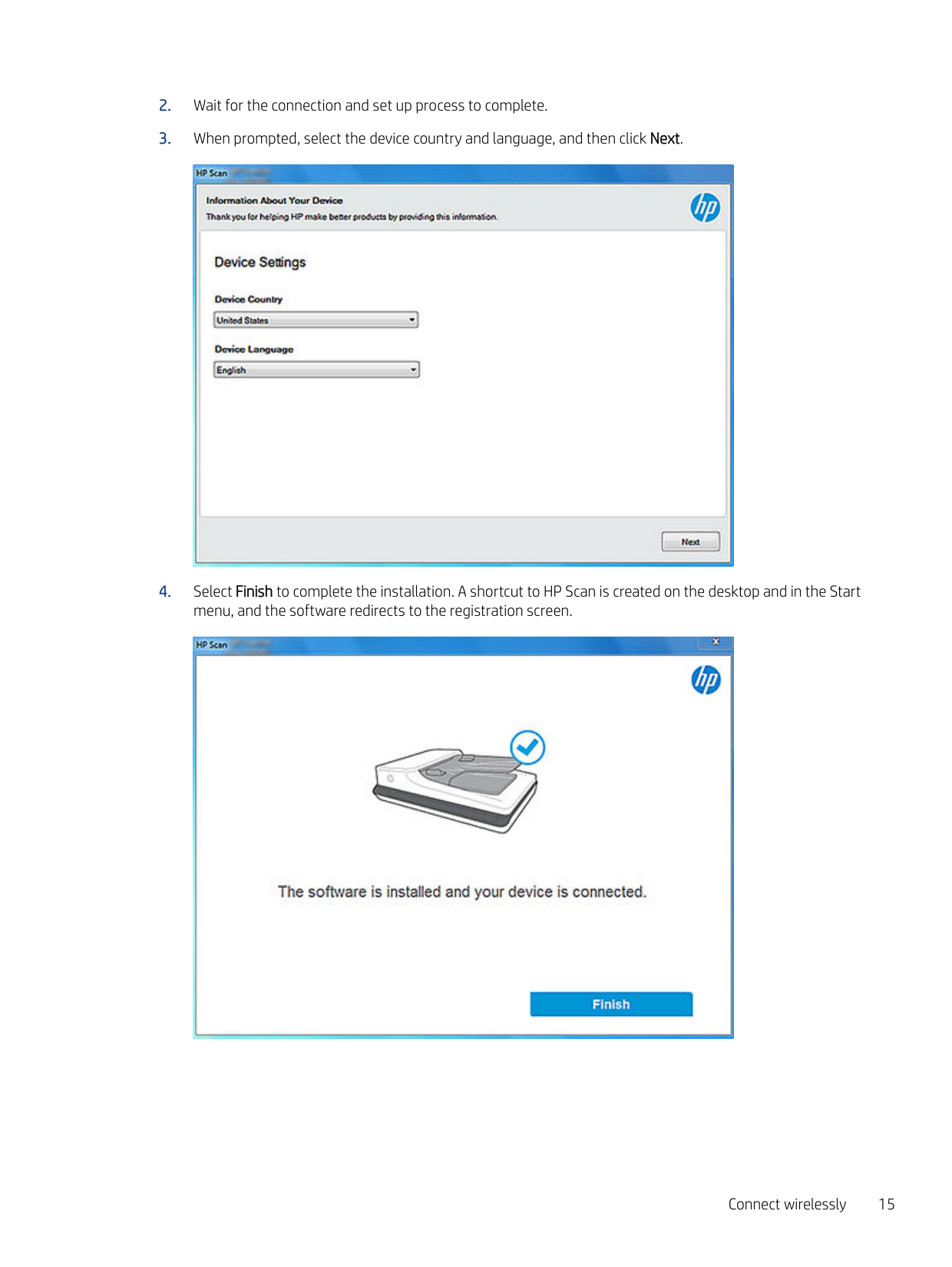
  • 3. When prompted, select the device country and language, and then click Next.
  • ![image 32](HpScan_User_Guide_v1-1_images/imageFile32.png)

  • 4. Select Finish to complete the installation. A shortcut to HP Scan is created on the desktop and in the Start menu, and the software redirects to the registration screen.
  • ![image 33](HpScan_User_Guide_v1-1_images/imageFile33.png)

  • 5. Register the product (optional).
  • ![image 34](HpScan_User_Guide_v1-1_images/imageFile34.png)

    Install the plug-ins for the basic web pack Follow these steps to install the plug-ins needed to complete the basic web pack installation. Installation using the basic web pack is similar to the full web pack except the basic web pack does not install the plug-ins. The plug-ins must be installed separately. Plug-ins are needed to provide support for specific features or functionalities. After installing the basic driver, follow these steps to install the plug-ins. NOTE: If you installed the full software, you can skip this step. Plug-ins are automatically installed as part of the full software installation process.

    ![image 35](HpScan_User_Guide_v1-1_images/imageFile35.png)

    Page 19

  • 1. Locate the plug-in files you downloaded previously.
  • 2. Double-click to launch the file and then select Run.
  • 3. Follow any onscreen prompts to complete the process.
  • 4. Repeat for each additional plug in.
  • #### Install the basic driver using a command prompt

    The app supports command line installation option for silent installs and/or for customizing network installs. For a silent installation, download the Full/Basic web pack, extract the folder, and then search for the .msi file.

  • 1. Go to the location where you saved the web pack .msi and select the file depending on your system configuration (32-bit or 64-bit).
  • 2. Right-click the .msi file and select Properties.
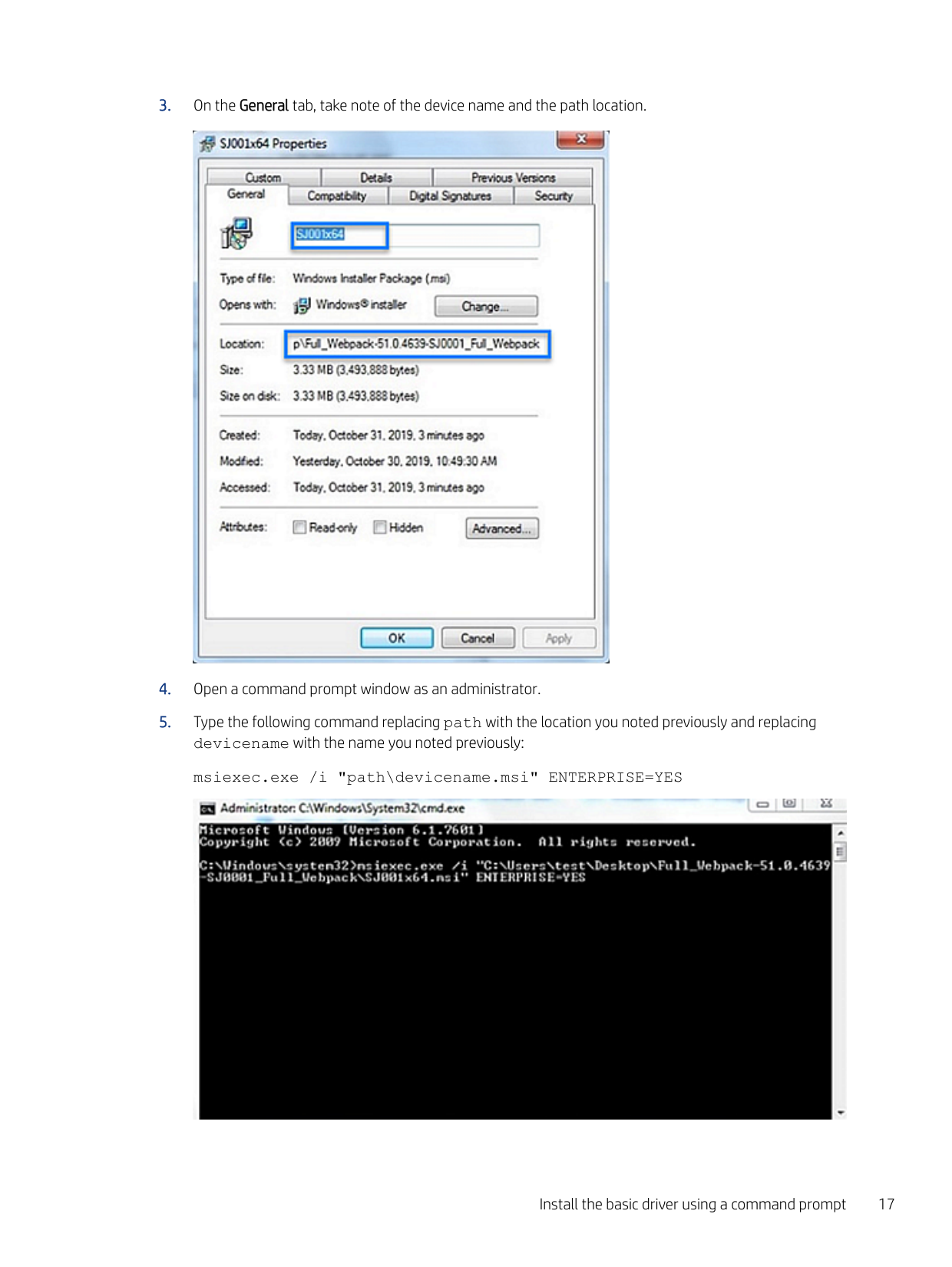
  • 3. On the General tab, take note of the device name and the path location.
  • ![image 36](HpScan_User_Guide_v1-1_images/imageFile36.png)

    Page 20

  • 4. Open a command prompt window as an administrator.
  • 5. Type the following command replacing path with the location you noted previously and replacing devicename with the name you noted previously: msiexec.exe /i "path\devicename.msi" ENTERPRISE=YES
  • ![image 37](HpScan_User_Guide_v1-1_images/imageFile37.png)

    Install the basic driver using a command prompt 17

  • 6. Wait for the installation to complete.
  • 7. After running the command to install the software, go to devicesetuplauncher to provide the connection type.
  • Add a printer or scanner to the app

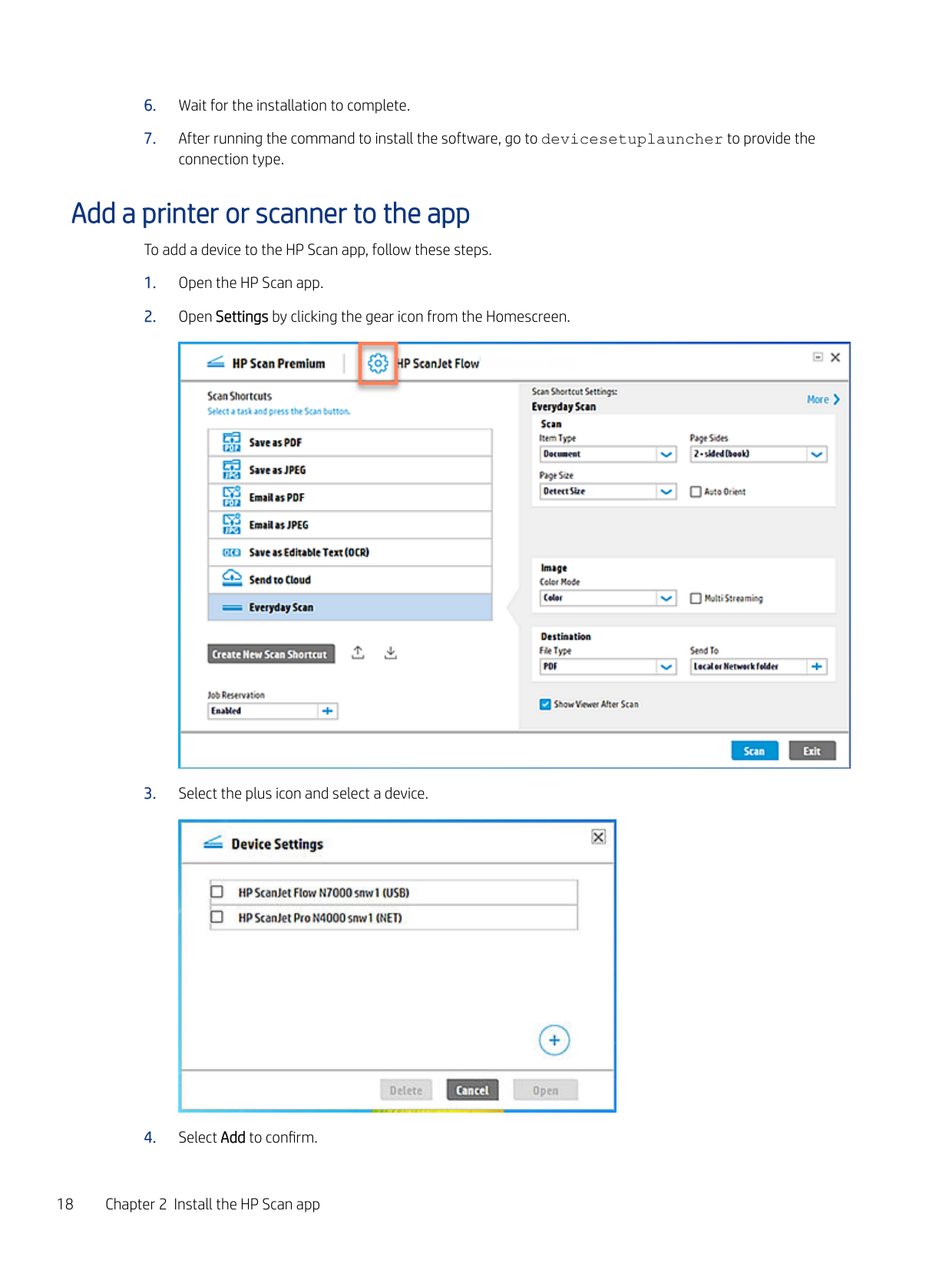
    To add a device to the HP Scan app, follow these steps.
  • 1. Open the HP Scan app.
  • 2. Open Settings by clicking the gear icon from the Homescreen.
  • Page 21

    ![image 38](HpScan_User_Guide_v1-1_images/imageFile38.png)

  • 3. Select the plus icon and select a device.
  • ![image 39](HpScan_User_Guide_v1-1_images/imageFile39.png)

  • 4. Select Add to confirm.
  • App overview3

    Use the steps in this chapter to get acquainted with the HP Scan app.

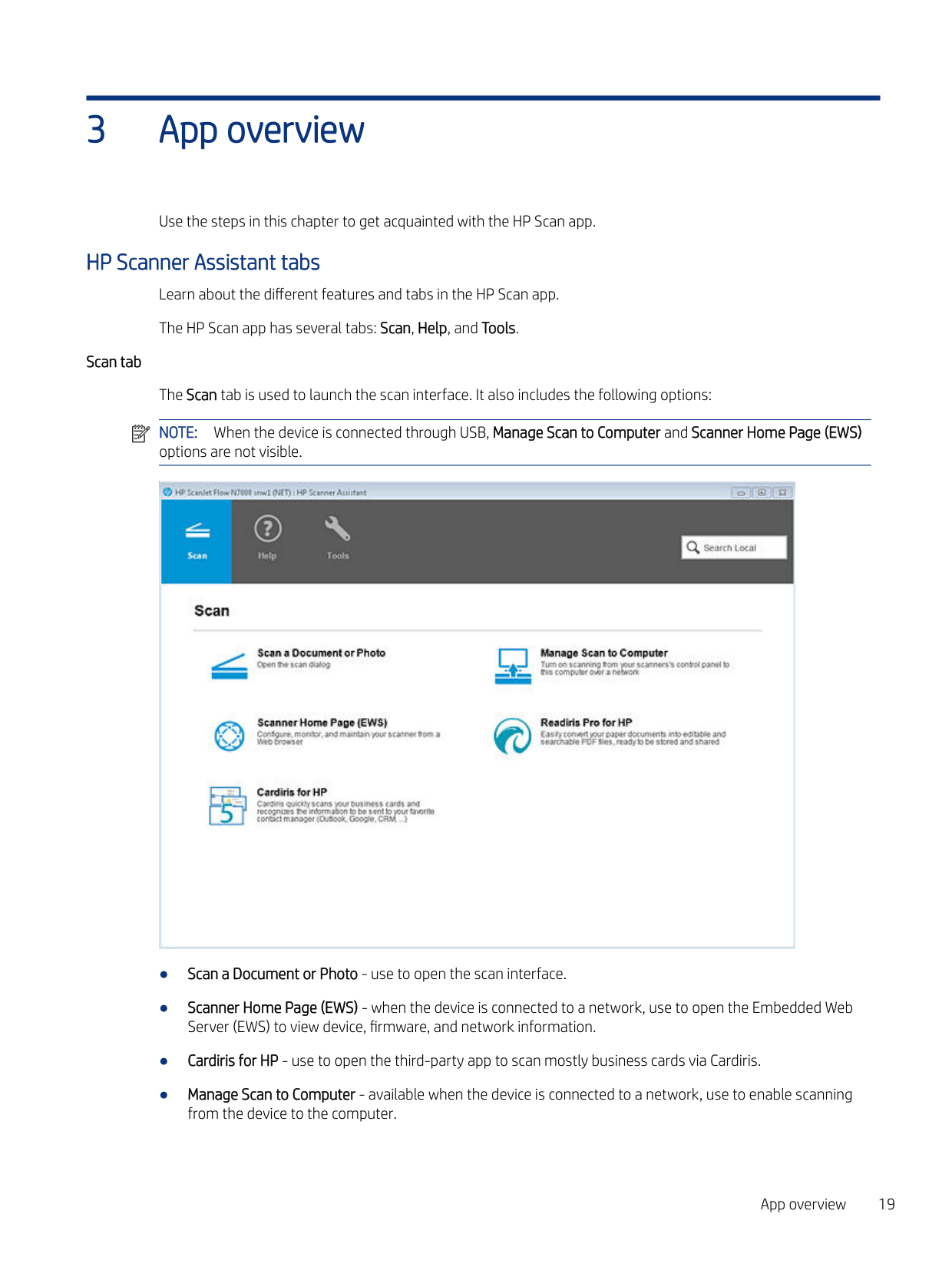
    HP Scanner Assistant tabs Learn about the different features and tabs in the HP Scan app. The HP Scan app has several tabs: Scan, Help, and Tools.

    ###### Scan tab

    ![image 40](HpScan_User_Guide_v1-1_images/imageFile40.png)

    Page 22

    The Scan tab is used to launch the scan interface. It also includes the following options: NOTE: When the device is connected through USB, Manage Scan to Computer and Scanner Home Page (EWS) options are not visible.

    ![image 41](HpScan_User_Guide_v1-1_images/imageFile41.png)

  • ● Scan a Document or Photo - use to open the scan interface.
  • ● Scanner Home Page (EWS) - when the device is connected to a network, use to open the Embedded Web Server (EWS) to view device, firmware, and network information.
  • ● Cardiris for HP - use to open the third-party app to scan mostly business cards via Cardiris.
  • ● Manage Scan to Computer - available when the device is connected to a network, use to enable scanning from the device to the computer.
  • App overview 19

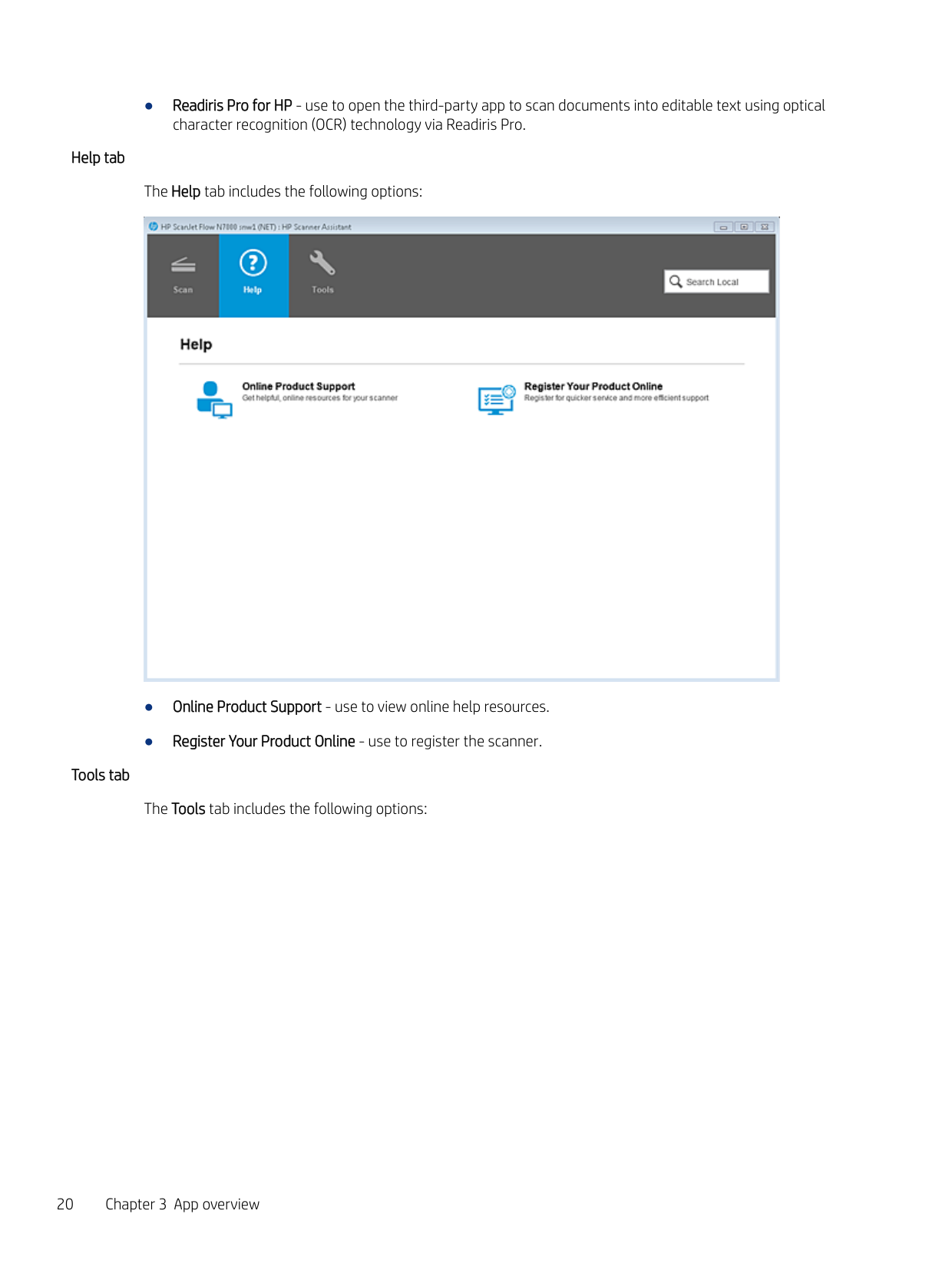
    ###### Help tab

  • ● Readiris Pro for HP - use to open the third-party app to scan documents into editable text using optical character recognition (OCR) technology via Readiris Pro.
  • The Help tab includes the following options:

    Page 23

    ![image 42](HpScan_User_Guide_v1-1_images/imageFile42.png)

    ###### Tools tab

  • ● Online Product Support - use to view online help resources.
  • ● Register Your Product Online - use to register the scanner.
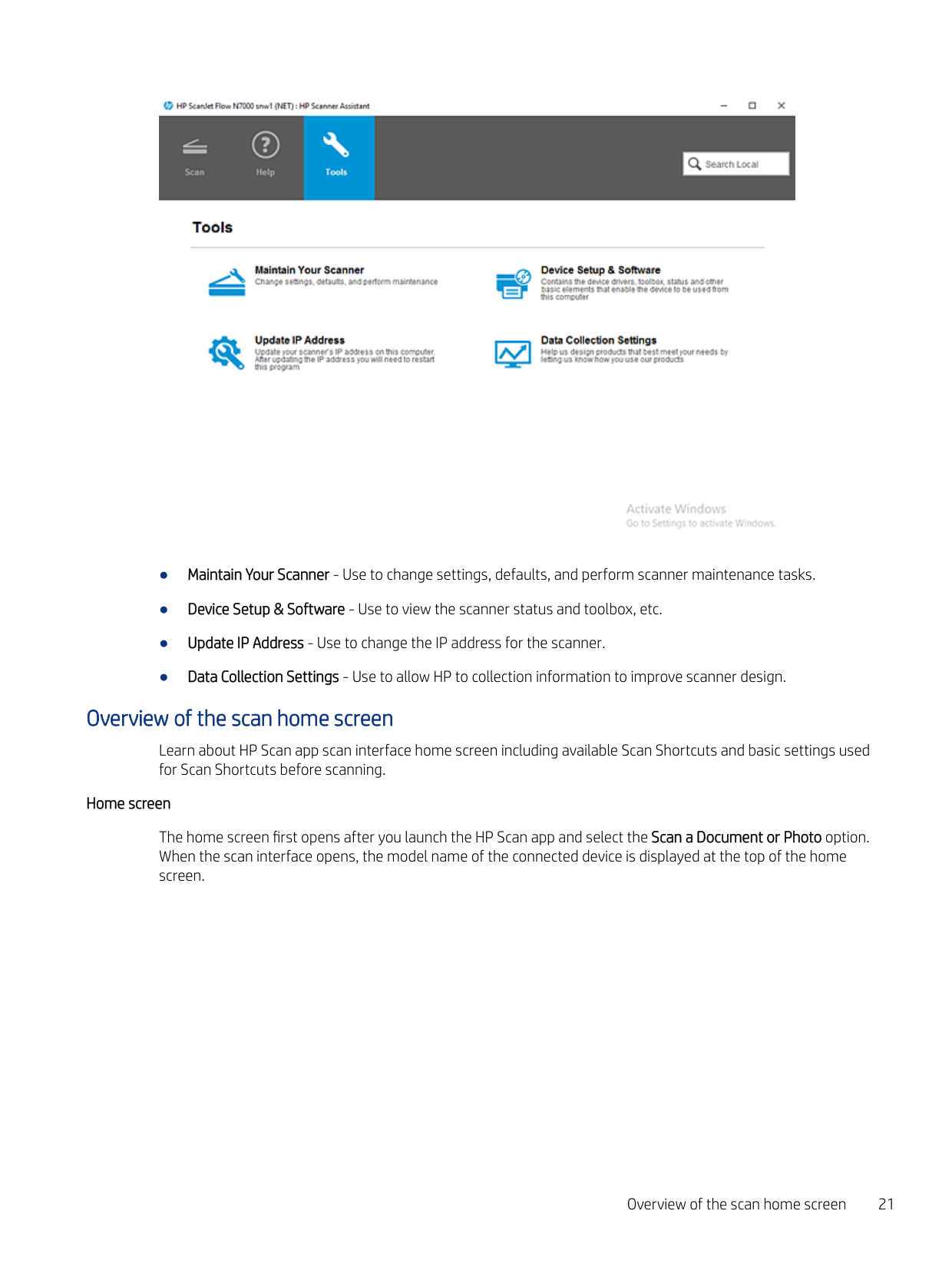
  • The Tools tab includes the following options:

    ![image 43](HpScan_User_Guide_v1-1_images/imageFile43.png)

  • ● Maintain Your Scanner - Use to change settings, defaults, and perform scanner maintenance tasks.
  • ● Device Setup & Software - Use to view the scanner status and toolbox, etc.
  • ● Update IP Address - Use to change the IP address for the scanner.
  • ● Data Collection Settings - Use to allow HP to collection information to improve scanner design.
  • #### Overview of the scan home screen

    Page 24

    Learn about HP Scan app scan interface home screen including available Scan Shortcuts and basic settings used for Scan Shortcuts before scanning.

    ###### Home screen

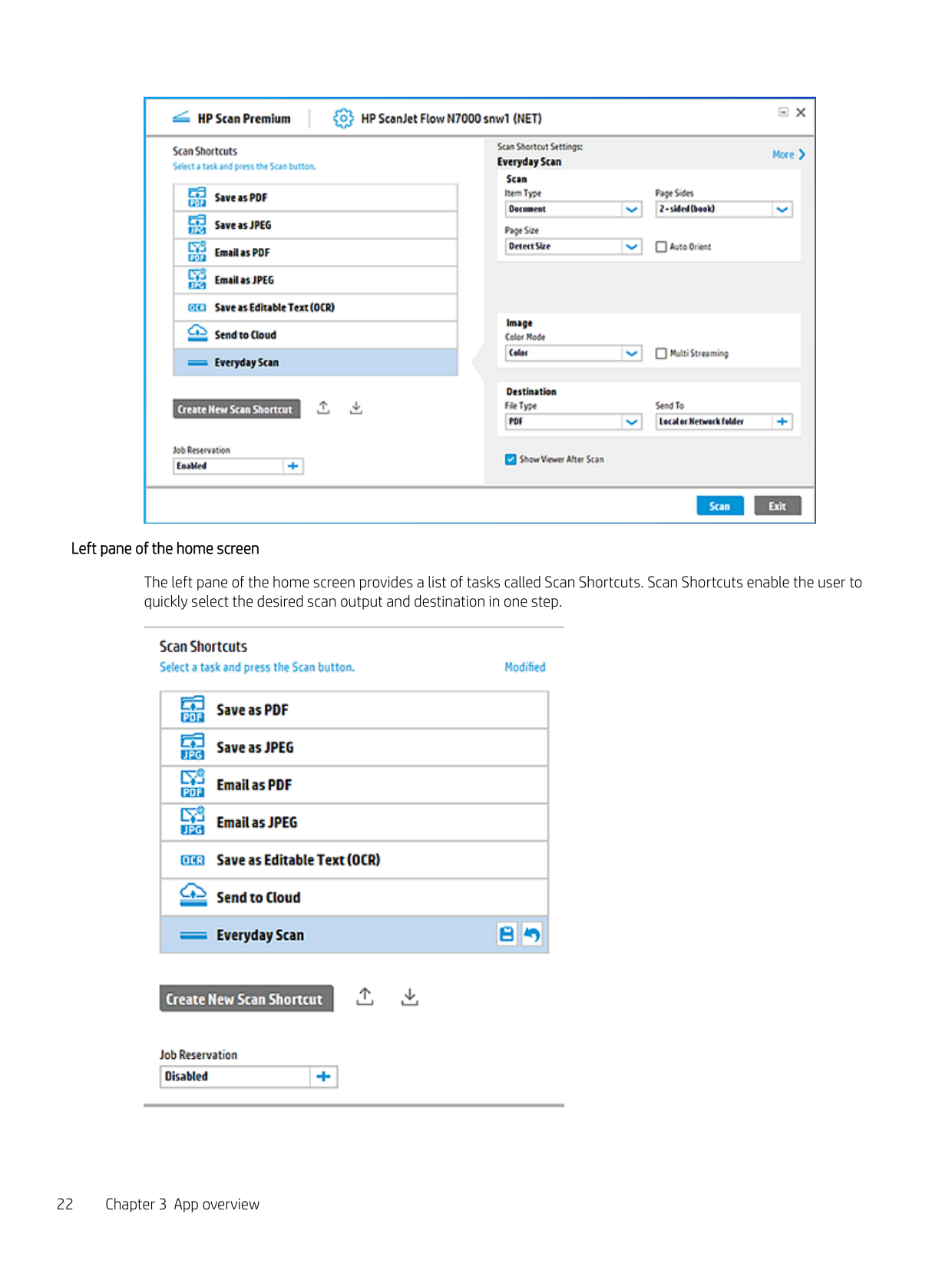
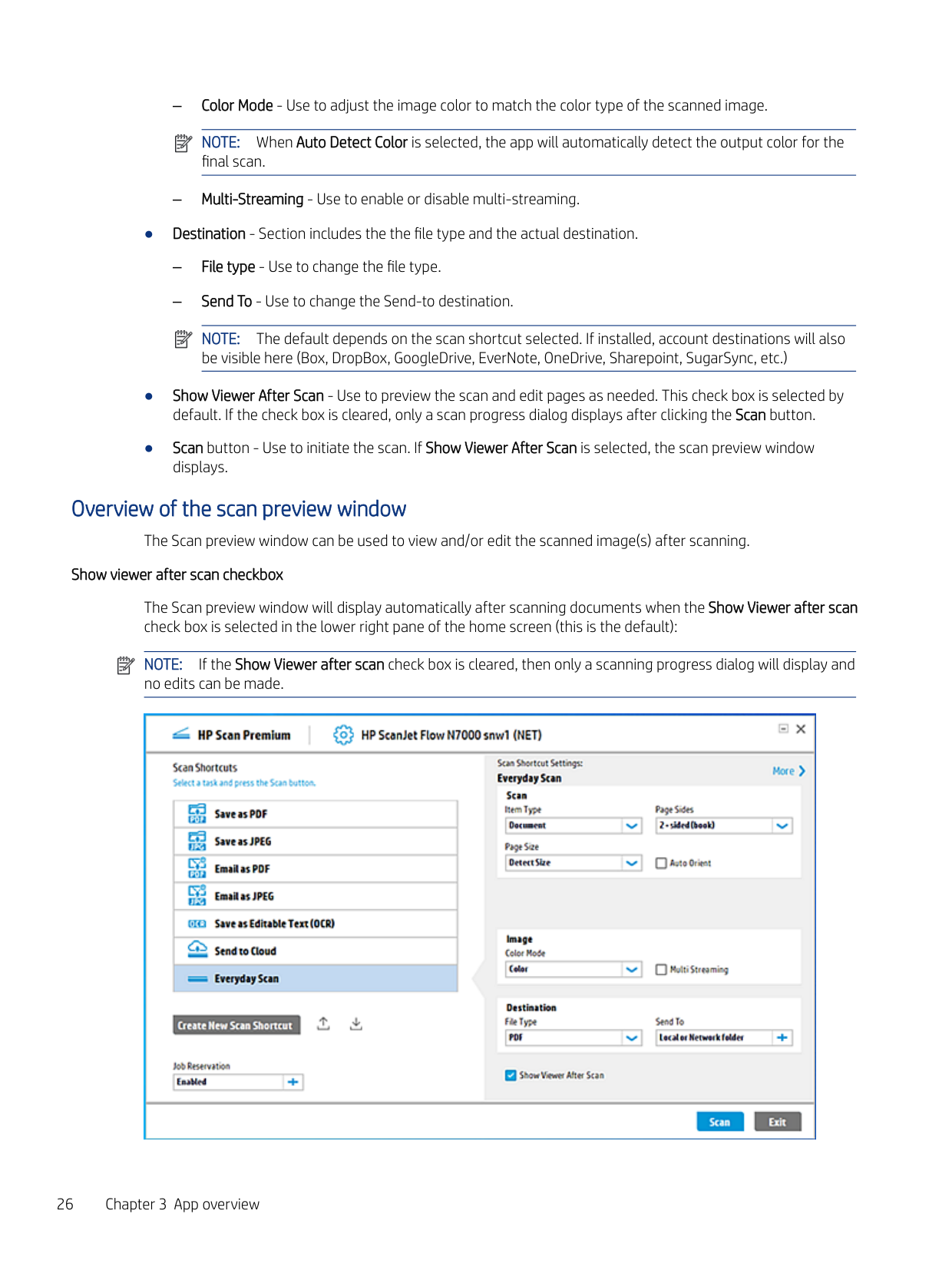
    The home screen first opens after you launch the HP Scan app and select the Scan a Document or Photo option. When the scan interface opens, the model name of the connected device is displayed at the top of the home screen.

    Overview of the scan home screen 21

    ![image 44](HpScan_User_Guide_v1-1_images/imageFile44.png)

    ###### Left pane of the home screen

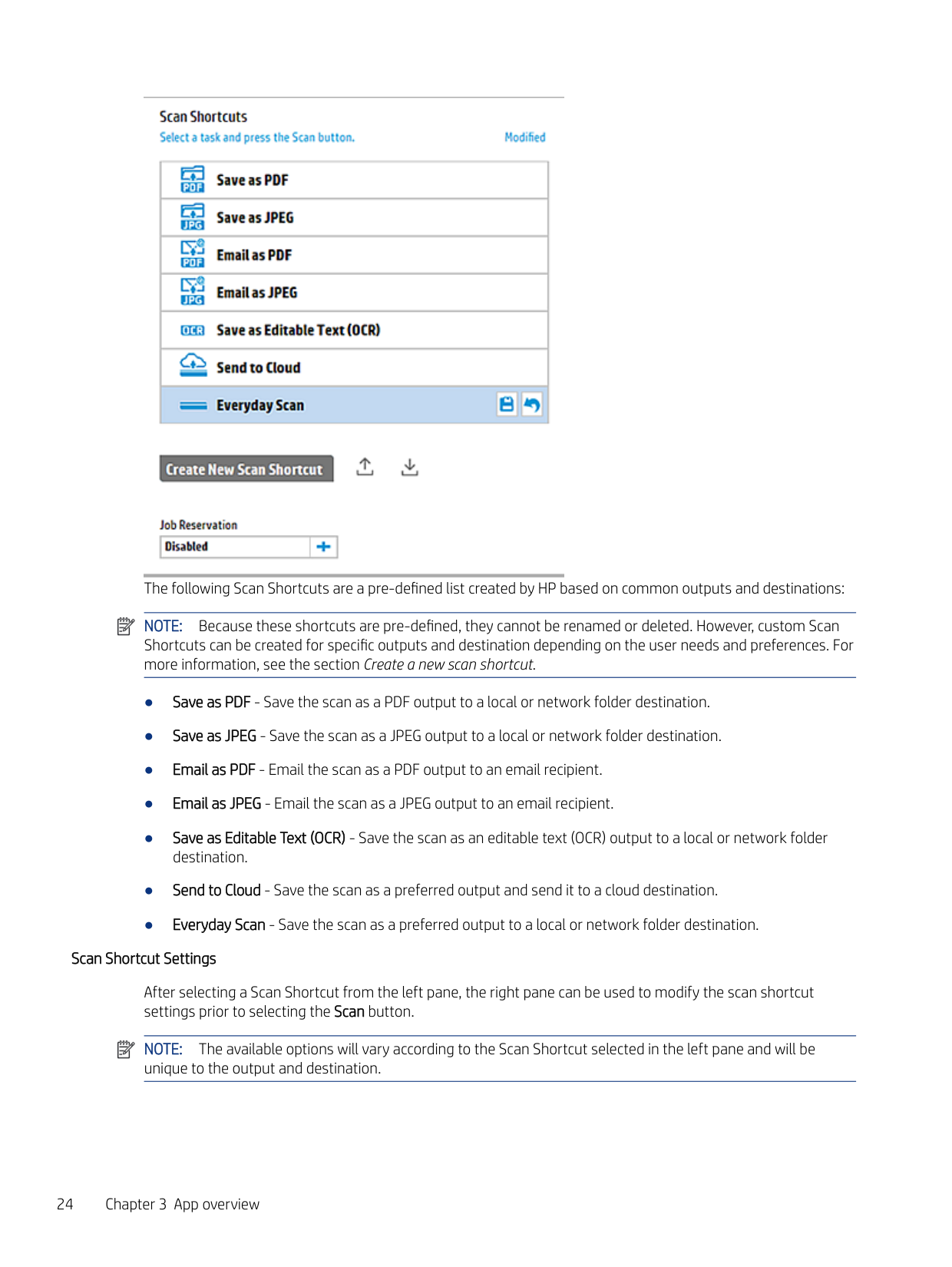
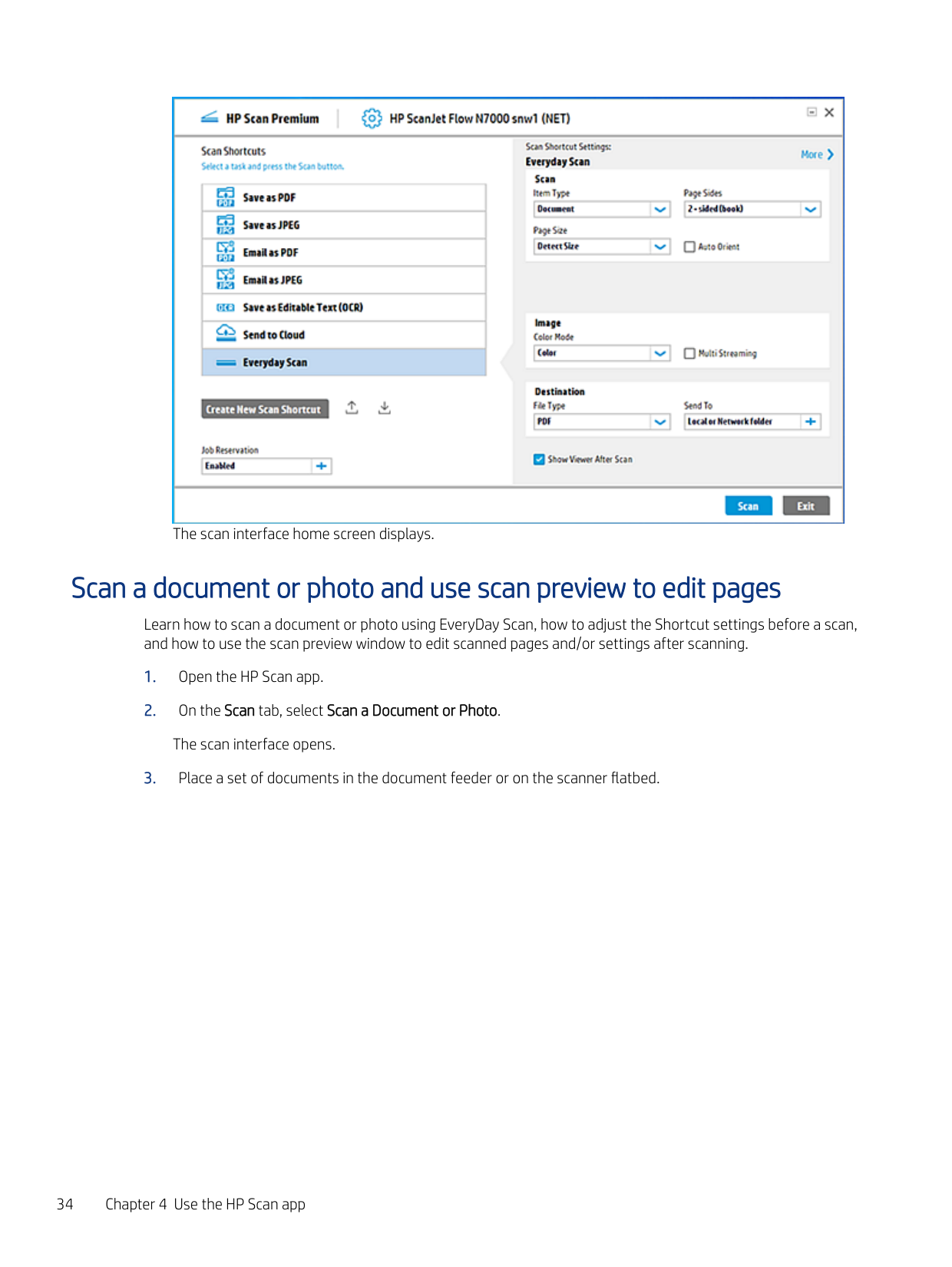
    The left pane of the home screen provides a list of tasks called Scan Shortcuts. Scan Shortcuts enable the user to quickly select the desired scan output and destination in one step.

    ![image 45](HpScan_User_Guide_v1-1_images/imageFile45.png)

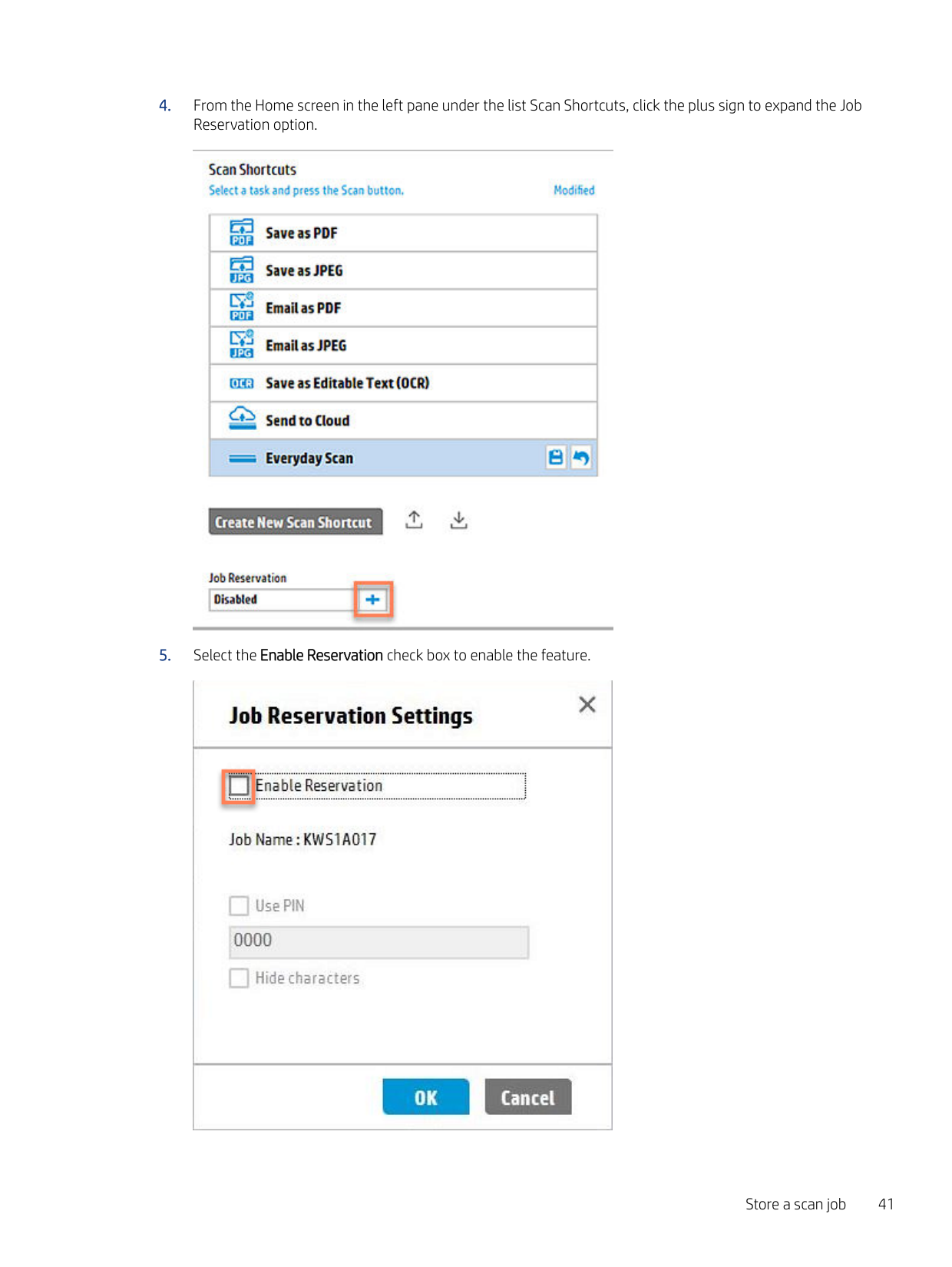
    This left pane can also be used to create a new Scan Shortcut with a custom scan output and destination using the Create New Scan Shortcut option, or to enable job storage and assign the scan a PIN using the Job Reservation option.

    Page 25

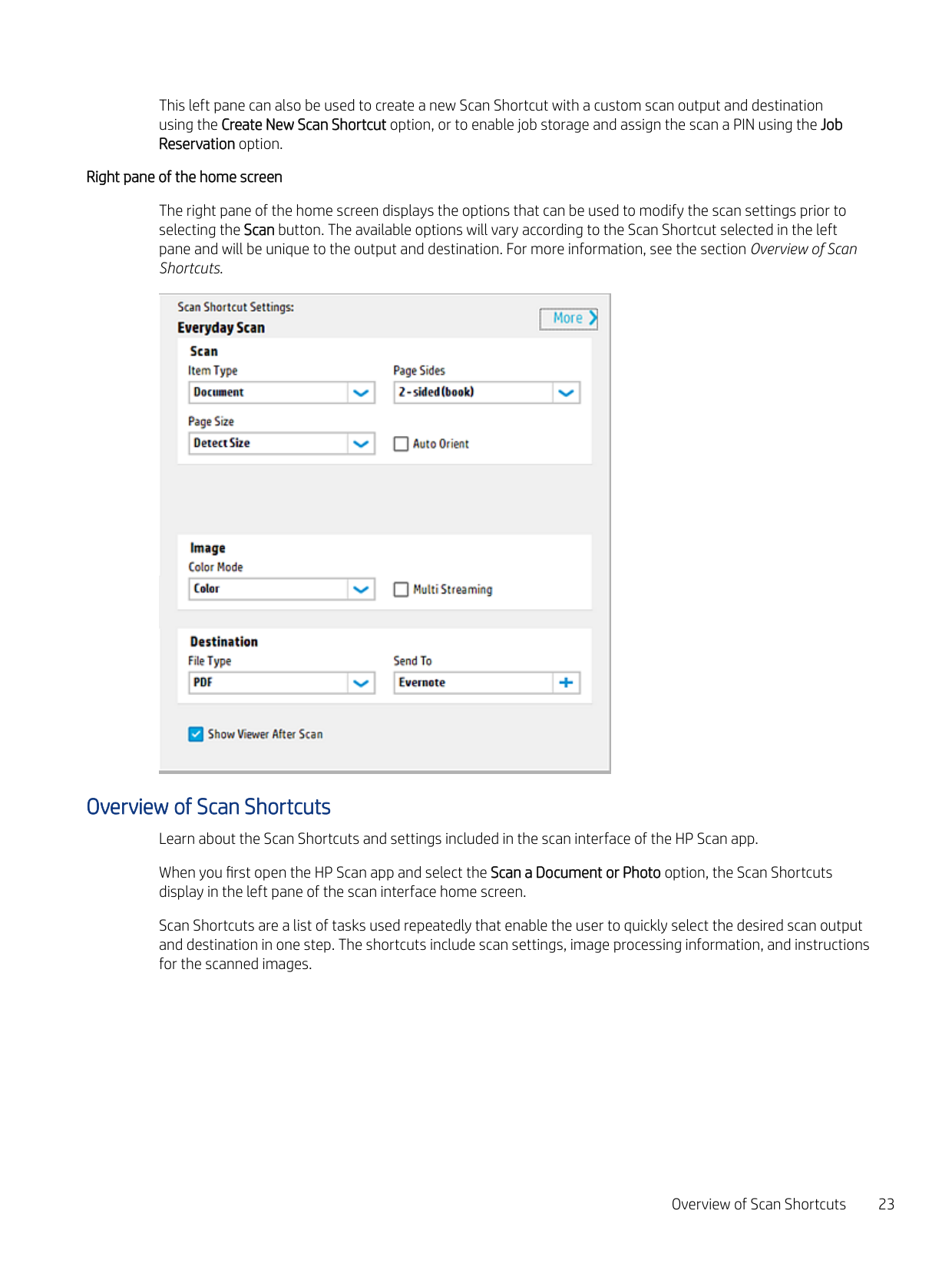
    ###### Right pane of the home screen

    The right pane of the home screen displays the options that can be used to modify the scan settings prior to selecting the Scan button. The available options will vary according to the Scan Shortcut selected in the left pane and will be unique to the output and destination. For more information, see the section Overview of Scan Shortcuts.

    ![image 46](HpScan_User_Guide_v1-1_images/imageFile46.png)

    Overview of Scan Shortcuts Learn about the Scan Shortcuts and settings included in the scan interface of the HP Scan app. When you first open the HP Scan app and select the Scan a Document or Photo option, the Scan Shortcuts display in the left pane of the scan interface home screen. Scan Shortcuts are a list of tasks used repeatedly that enable the user to quickly select the desired scan output and destination in one step. The shortcuts include scan settings, image processing information, and instructions for the scanned images.

    ![image 47](HpScan_User_Guide_v1-1_images/imageFile47.png)

    ![image 48](HpScan_User_Guide_v1-1_images/imageFile48.png)

    The following Scan Shortcuts are a pre-defined list created by HP based on common outputs and destinations: NOTE: Because these shortcuts are pre-defined, they cannot be renamed or deleted. However, custom Scan Shortcuts can be created for specific outputs and destination depending on the user needs and preferences. For more information, see the section Create a new scan shortcut.

  • ● Save as PDF - Save the scan as a PDF output to a local or network folder destination.
  • ● Save as JPEG - Save the scan as a JPEG output to a local or network folder destination.
  • ● Email as PDF - Email the scan as a PDF output to an email recipient.
  • ● Email as JPEG - Email the scan as a JPEG output to an email recipient.
  • ● Save as Editable Text (OCR) - Save the scan as an editable text (OCR) output to a local or network folder destination.
  • Page 26

  • ● Send to Cloud - Save the scan as a preferred output and send it to a cloud destination.
  • ● Everyday Scan - Save the scan as a preferred output to a local or network folder destination.
  • ###### Scan Shortcut Settings

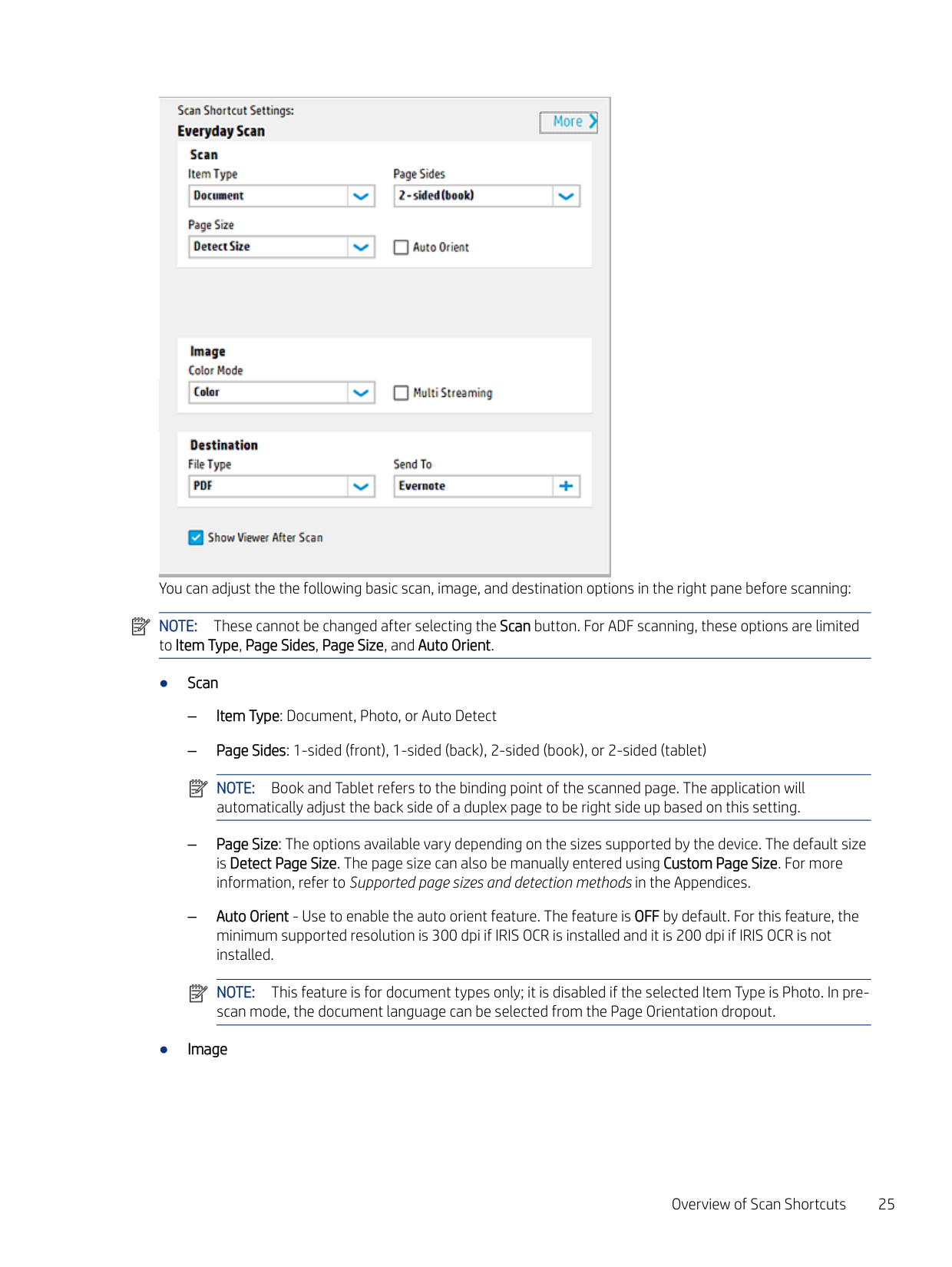
    After selecting a Scan Shortcut from the left pane, the right pane can be used to modify the scan shortcut settings prior to selecting the Scan button.

    ![image 49](HpScan_User_Guide_v1-1_images/imageFile49.png)

    NOTE: The available options will vary according to the Scan Shortcut selected in the left pane and will be unique to the output and destination.

    ![image 50](HpScan_User_Guide_v1-1_images/imageFile50.png)

    ![image 51](HpScan_User_Guide_v1-1_images/imageFile51.png)

    You can adjust the the following basic scan, image, and destination options in the right pane before scanning: NOTE: These cannot be changed after selecting the Scan button. For ADF scanning, these options are limited to Item Type, Page Sides, Page Size, and Auto Orient.

    ###### ● Scan

    Page 27

  • – Item Type: Document, Photo, or Auto Detect
  • – Page Sides: 1-sided (front), 1-sided (back), 2-sided (book), or 2-sided (tablet)
  • NOTE: Book and Tablet refers to the binding point of the scanned page. The application will automatically adjust the back side of a duplex page to be right side up based on this setting.

  • – Page Size: The options available vary depending on the sizes supported by the device. The default size is Detect Page Size. The page size can also be manually entered using Custom Page Size. For more information, refer to Supported page sizes and detection methods in the Appendices.
  • – Auto Orient - Use to enable the auto orient feature. The feature is OFF by default. For this feature, the minimum supported resolution is 300 dpi if IRIS OCR is installed and it is 200 dpi if IRIS OCR is not installed.
  • ![image 52](HpScan_User_Guide_v1-1_images/imageFile52.png)

    ![image 53](HpScan_User_Guide_v1-1_images/imageFile53.png)

    NOTE: This feature is for document types only; it is disabled if the selected Item Type is Photo. In prescan mode, the document language can be selected from the Page Orientation dropout.

    ###### ● Image

  • – Color Mode - Use to adjust the image color to match the color type of the scanned image.
  • Page 28

    NOTE: When Auto Detect Color is selected, the app will automatically detect the output color for the final scan.

  • – Multi-Streaming - Use to enable or disable multi-streaming.
  • ![image 54](HpScan_User_Guide_v1-1_images/imageFile54.png)

  • ● Destination - Section includes the the file type and the actual destination.
  • – File type - Use to change the file type.
  • – Send To - Use to change the Send-to destination.
  • NOTE: The default depends on the scan shortcut selected. If installed, account destinations will also be visible here (Box, DropBox, GoogleDrive, EverNote, OneDrive, Sharepoint, SugarSync, etc.)

  • ● Show Viewer After Scan - Use to preview the scan and edit pages as needed. This check box is selected by default. If the check box is cleared, only a scan progress dialog displays after clicking the Scan button.
  • ● Scan button - Use to initiate the scan. If Show Viewer After Scan is selected, the scan preview window displays.
  • Page 29

    ![image 55](HpScan_User_Guide_v1-1_images/imageFile55.png)

    #### Overview of the scan preview window

    The Scan preview window can be used to view and/or edit the scanned image(s) after scanning. Show viewer after scan checkbox

    The Scan preview window will display automatically after scanning documents when the Show Viewer after scan check box is selected in the lower right pane of the home screen (this is the default):

    ![image 56](HpScan_User_Guide_v1-1_images/imageFile56.png)

    NOTE: If the Show Viewer after scan check box is cleared, then only a scanning progress dialog will display and no edits can be made.

    ![image 57](HpScan_User_Guide_v1-1_images/imageFile57.png)

    ###### Scan preview window

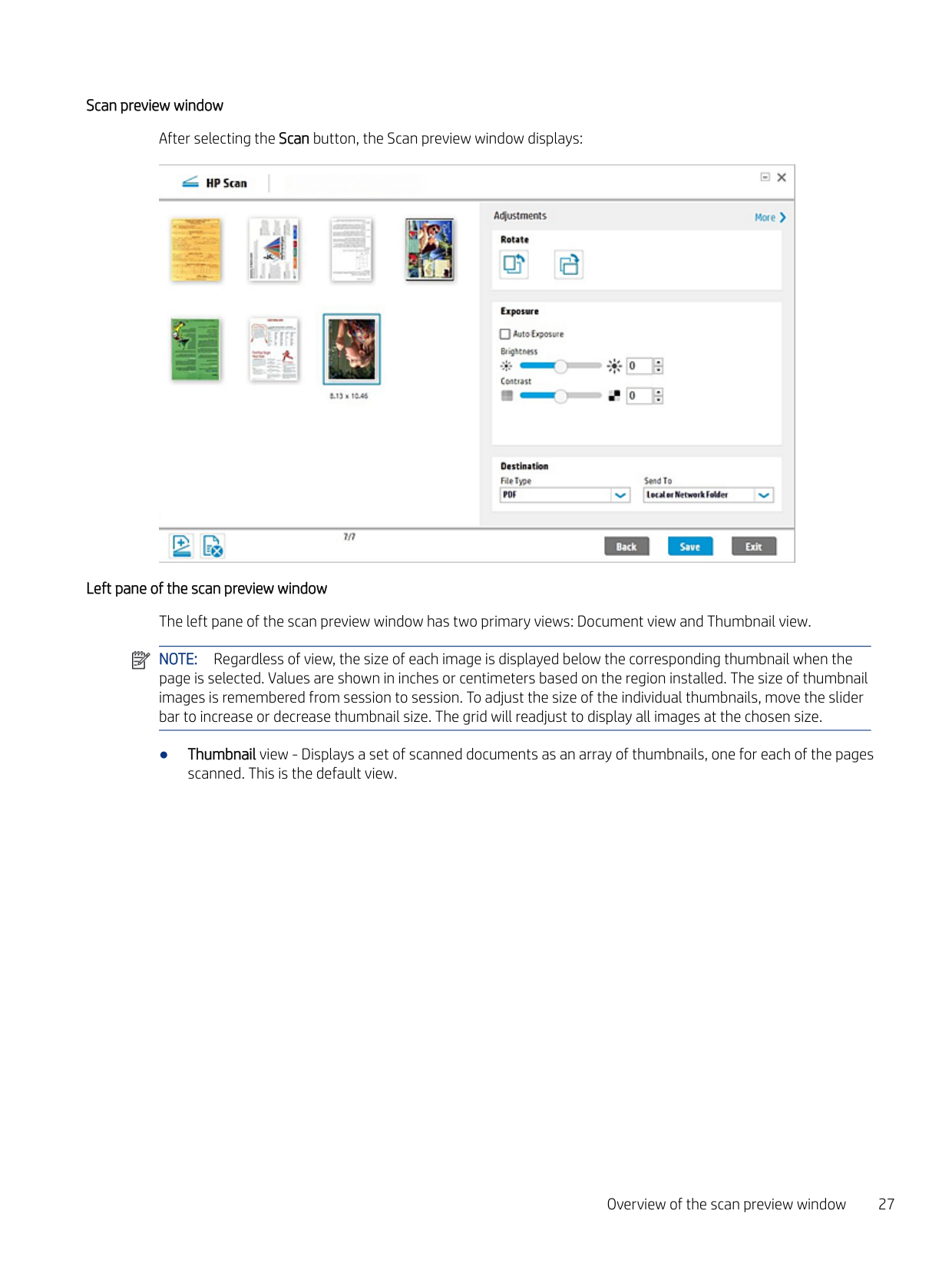
    After selecting the Scan button, the Scan preview window displays:

    Page 30

    ![image 58](HpScan_User_Guide_v1-1_images/imageFile58.png)

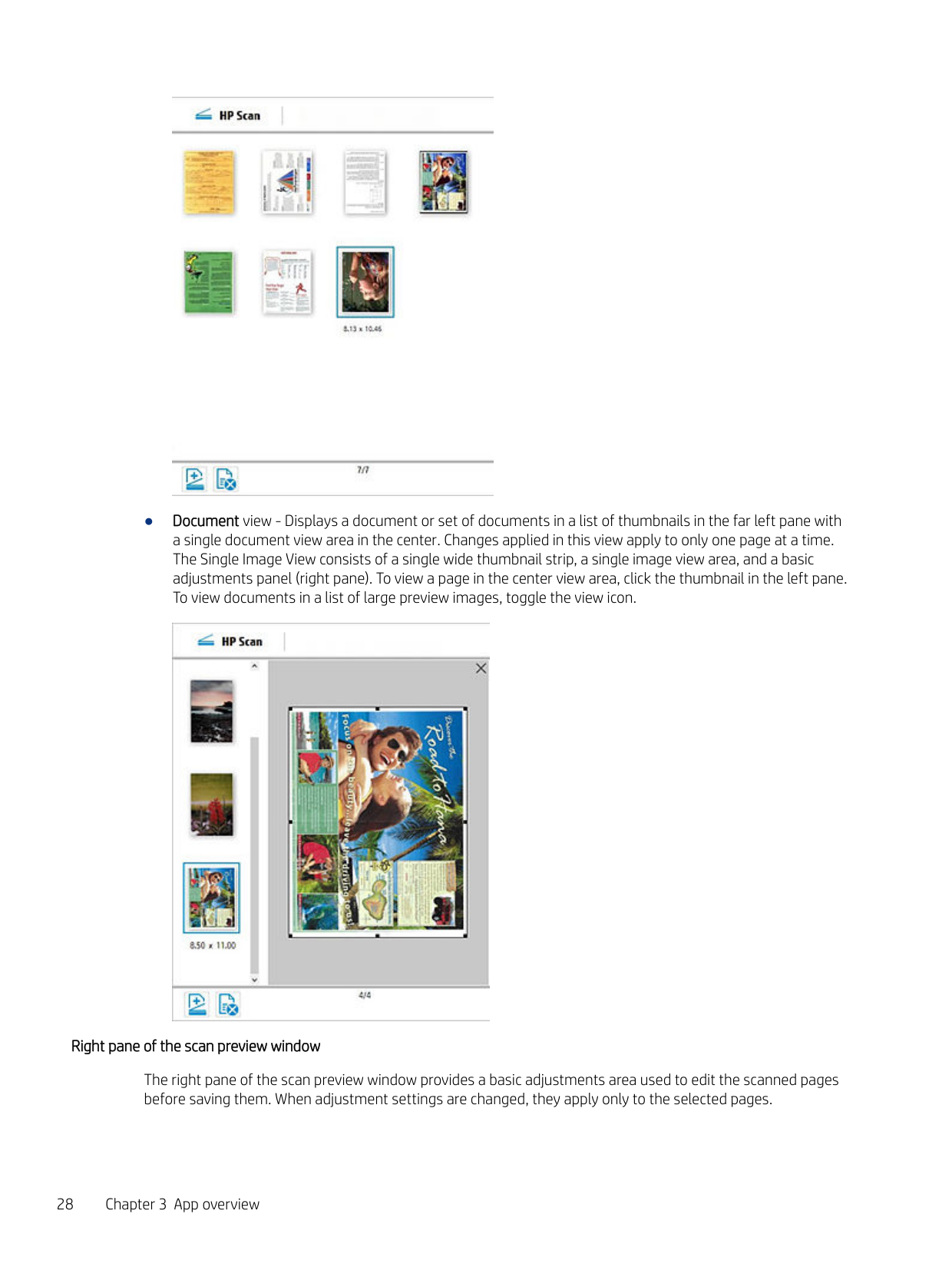
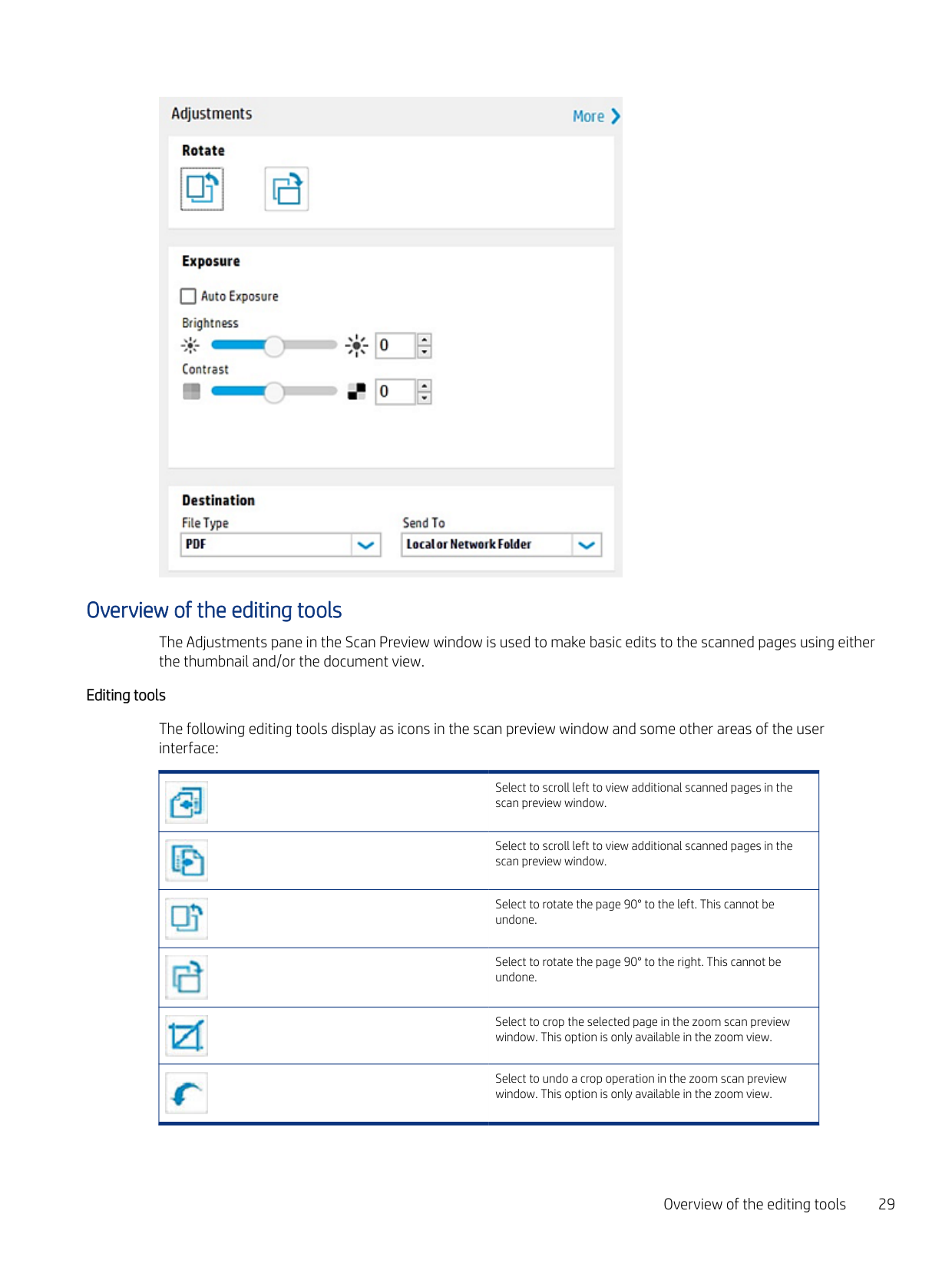
    Left pane of the scan preview window The left pane of the scan preview window has two primary views: Document view and Thumbnail view. NOTE: Regardless of view, the size of each image is displayed below the corresponding thumbnail when the page is selected. Values are shown in inches or centimeters based on the region installed. The size of thumbnail images is remembered from session to session. To adjust the size of the individual thumbnails, move the slider bar to increase or decrease thumbnail size. The grid will readjust to display all images at the chosen size.

    ![image 59](HpScan_User_Guide_v1-1_images/imageFile59.png)

  • ● Thumbnail view - Displays a set of scanned documents as an array of thumbnails, one for each of the pages scanned. This is the default view.
  • Overview of the scan preview window 27

    ![image 60](HpScan_User_Guide_v1-1_images/imageFile60.png)

  • ● Document view - Displays a document or set of documents in a list of thumbnails in the far left pane with a single document view area in the center. Changes applied in this view apply to only one page at a time. The Single Image View consists of a single wide thumbnail strip, a single image view area, and a basic adjustments panel (right pane). To view a page in the center view area, click the thumbnail in the left pane. To view documents in a list of large preview images, toggle the view icon.
  • ![image 61](HpScan_User_Guide_v1-1_images/imageFile61.png)

    ###### Right pane of the scan preview window

    Page 31

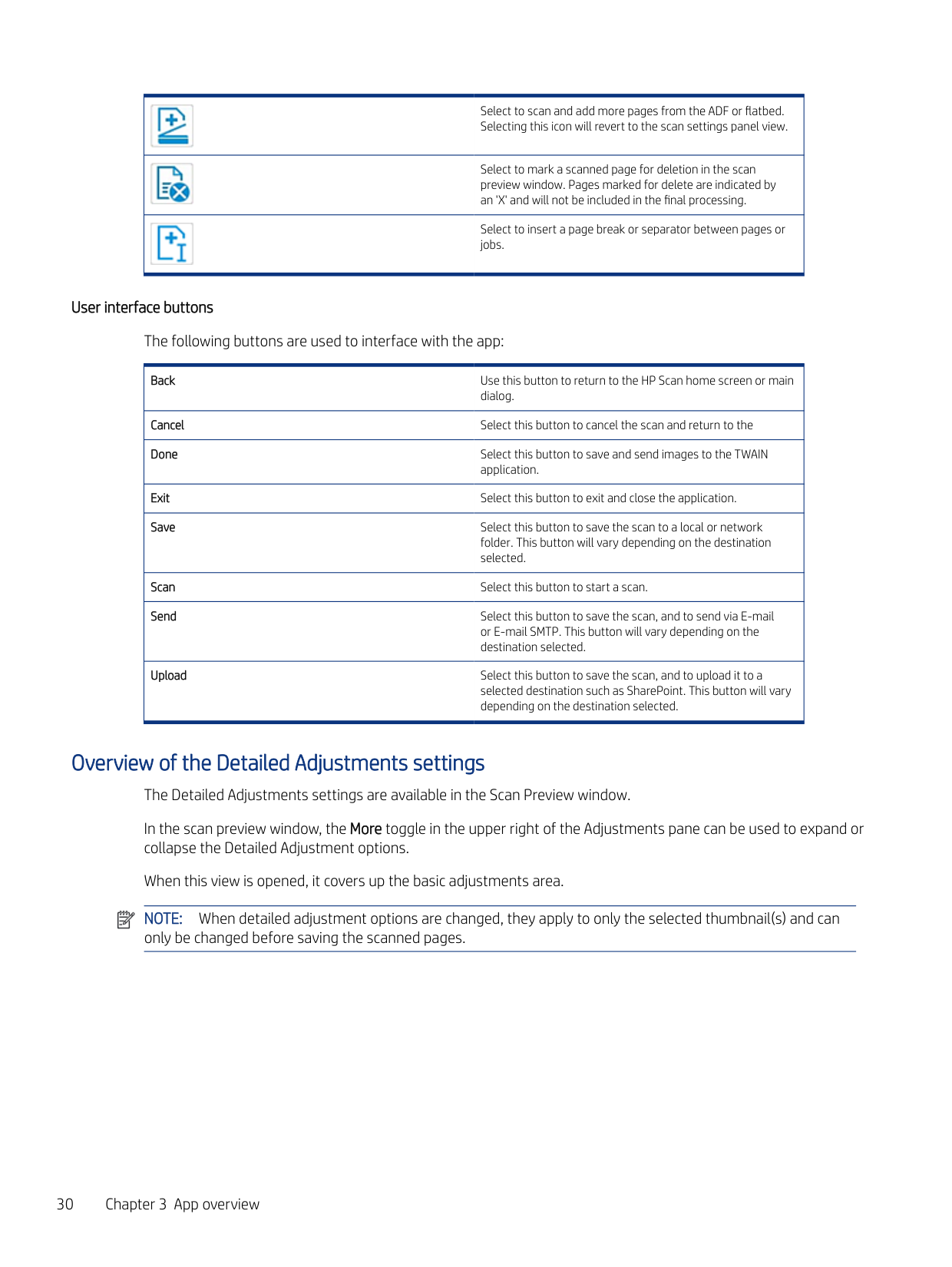
    The right pane of the scan preview window provides a basic adjustments area used to edit the scanned pages before saving them. When adjustment settings are changed, they apply only to the selected pages.

    ![image 62](HpScan_User_Guide_v1-1_images/imageFile62.png)

    #### Overview of the editing tools

    The Adjustments pane in the Scan Preview window is used to make basic edits to the scanned pages using either the thumbnail and/or the document view.

    ###### Editing tools

    The following editing tools display as icons in the scan preview window and some other areas of the user interface:

    |![image 63](HpScan_User_Guide_v1-1_images/imageFile63.png)

    Select to scroll left to view additional scanned pages in the scan preview window.

    | |---| |![image 64](HpScan_User_Guide_v1-1_images/imageFile64.png)

    Select to scroll left to view additional scanned pages in the scan preview window.

    | |![image 65](HpScan_User_Guide_v1-1_images/imageFile65.png)

    Select to rotate the page 90° to the left. This cannot be undone.

    | |![image 66](HpScan_User_Guide_v1-1_images/imageFile66.png)

    Select to rotate the page 90° to the right. This cannot be undone.

    | |![image 67](HpScan_User_Guide_v1-1_images/imageFile67.png)

    Select to crop the selected page in the zoom scan preview window. This option is only available in the zoom view.

    |

    Page 32

    |![image 68](HpScan_User_Guide_v1-1_images/imageFile68.png)

    Select to undo a crop operation in the zoom scan preview window. This option is only available in the zoom view.

    |

    Overview of the editing tools 29

    |![image 69](HpScan_User_Guide_v1-1_images/imageFile69.png)

    Select to scan and add more pages from the ADF or flatbed. Selecting this icon will revert to the scan settings panel view.

    | |---| |![image 70](HpScan_User_Guide_v1-1_images/imageFile70.png)

    Select to mark a scanned page for deletion in the scan preview window. Pages marked for delete are indicated by an 'X' and will not be included in the final processing.

    | |![image 71](HpScan_User_Guide_v1-1_images/imageFile71.png)

    Select to insert a page break or separator between pages or jobs.

    |

    ###### User interface buttons

    The following buttons are used to interface with the app:

    |Back Use this button to return to the HP Scan home screen or main

    dialog.

    | |---| |Cancel Select this button to cancel the scan and return to the

    | |Done Select this button to save and send images to the TWAIN

    application.

    |

    Page 33

    |Exit Select this button to exit and close the application.

    | |Save Select this button to save the scan to a local or network folder. This button will vary depending on the destination selected.

    | |Scan Select this button to start a scan.

    | |Send Select this button to save the scan, and to send via E-mail or E-mail SMTP. This button will vary depending on the destination selected.

    | |Upload Select this button to save the scan, and to upload it to a selected destination such as SharePoint. This button will vary depending on the destination selected.

    |

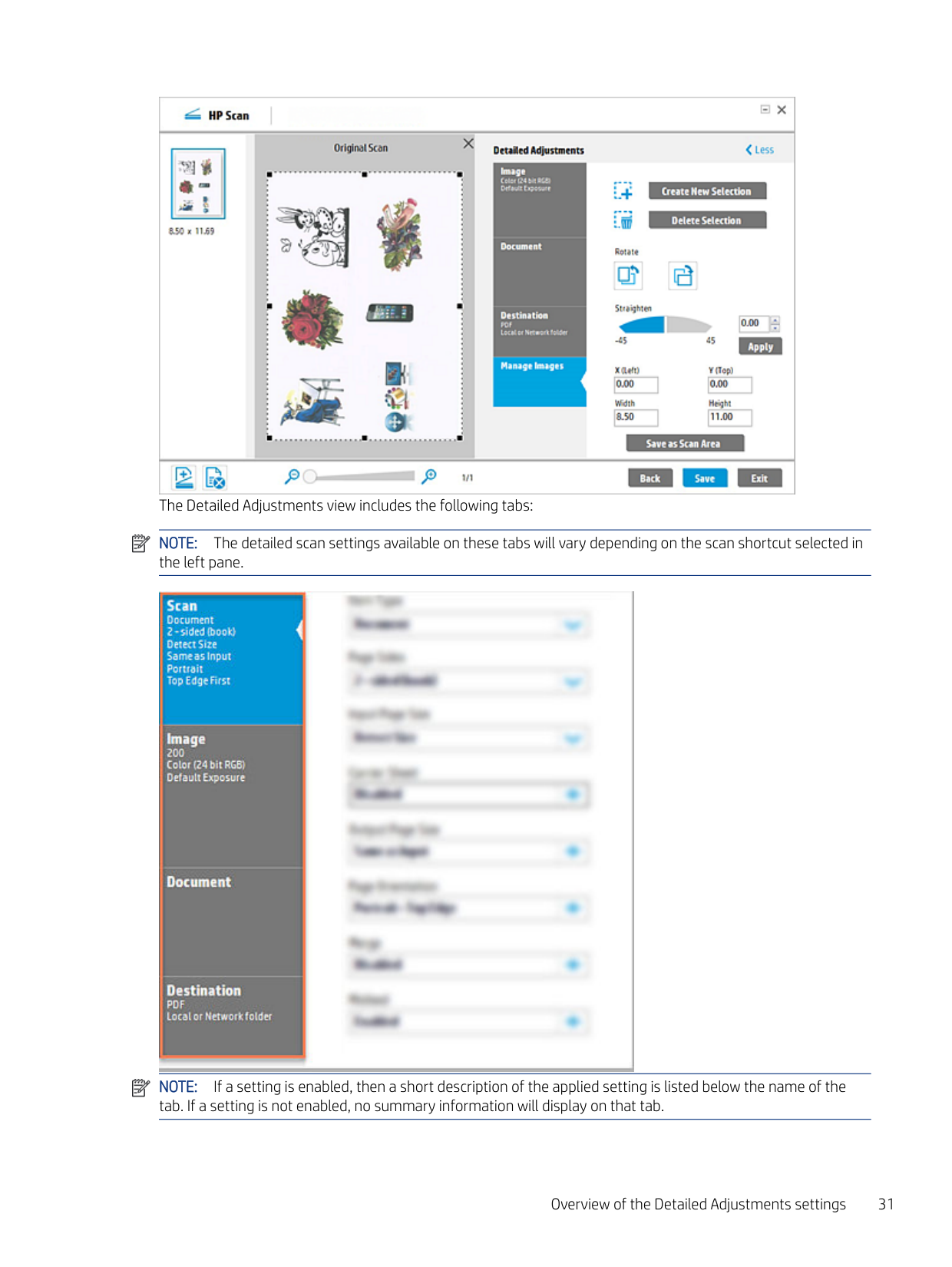
    Overview of the Detailed Adjustments settings The Detailed Adjustments settings are available in the Scan Preview window. In the scan preview window, the More toggle in the upper right of the Adjustments pane can be used to expand or collapse the Detailed Adjustment options. When this view is opened, it covers up the basic adjustments area. NOTE: When detailed adjustment options are changed, they apply to only the selected thumbnail(s) and can only be changed before saving the scanned pages.

    ![image 72](HpScan_User_Guide_v1-1_images/imageFile72.png)

    ![image 73](HpScan_User_Guide_v1-1_images/imageFile73.png)

    ![image 74](HpScan_User_Guide_v1-1_images/imageFile74.png)

    The Detailed Adjustments view includes the following tabs: NOTE: The detailed scan settings available on these tabs will vary depending on the scan shortcut selected in the left pane.

    ![image 75](HpScan_User_Guide_v1-1_images/imageFile75.png)

    Page 34

    ![image 76](HpScan_User_Guide_v1-1_images/imageFile76.png)

    NOTE: If a setting is enabled, then a short description of the applied setting is listed below the name of the tab. If a setting is not enabled, no summary information will display on that tab.

    Overview of the Detailed Adjustments settings 31

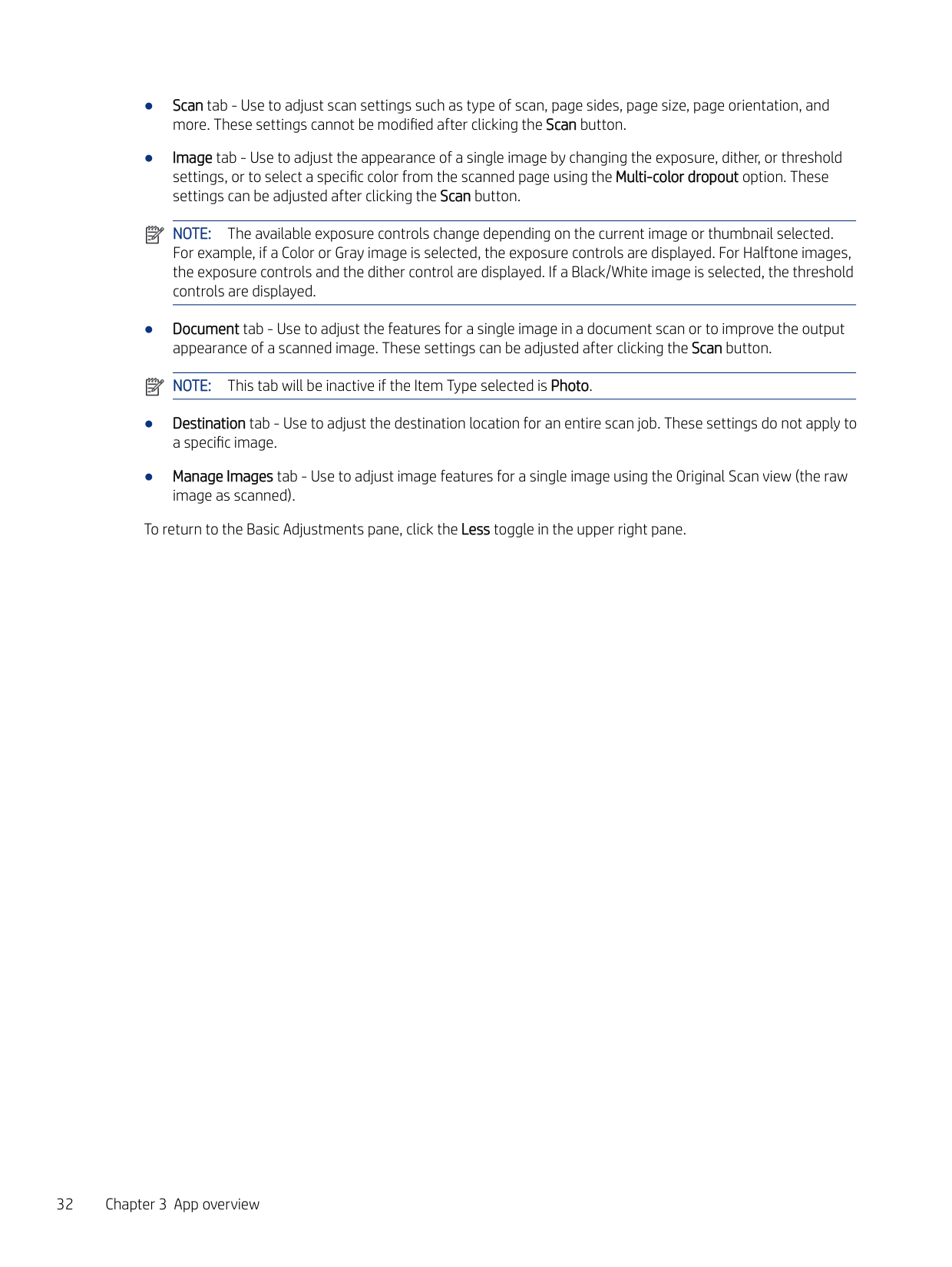
  • ● Scan tab - Use to adjust scan settings such as type of scan, page sides, page size, page orientation, and more. These settings cannot be modified after clicking the Scan button.
  • ● Image tab - Use to adjust the appearance of a single image by changing the exposure, dither, or threshold settings, or to select a specific color from the scanned page using the Multi-color dropout option. These settings can be adjusted after clicking the Scan button.
  • NOTE: The available exposure controls change depending on the current image or thumbnail selected.

    For example, if a Color or Gray image is selected, the exposure controls are displayed. For Halftone images, the exposure controls and the dither control are displayed. If a Black/White image is selected, the threshold controls are displayed.

  • ● Document tab - Use to adjust the features for a single image in a document scan or to improve the output appearance of a scanned image. These settings can be adjusted after clicking the Scan button. NOTE: This tab will be inactive if the Item Type selected is Photo.
  • ● Destination tab - Use to adjust the destination location for an entire scan job. These settings do not apply to a specific image.
  • ● Manage Images tab - Use to adjust image features for a single image using the Original Scan view (the raw image as scanned).
  • Page 35

    ![image 77](HpScan_User_Guide_v1-1_images/imageFile77.png)

    ![image 78](HpScan_User_Guide_v1-1_images/imageFile78.png)

    To return to the Basic Adjustments pane, click the Less toggle in the upper right pane.

    Use the HP Scan app4

    Use the steps in this chapter to learn how to use the HP Scan app.

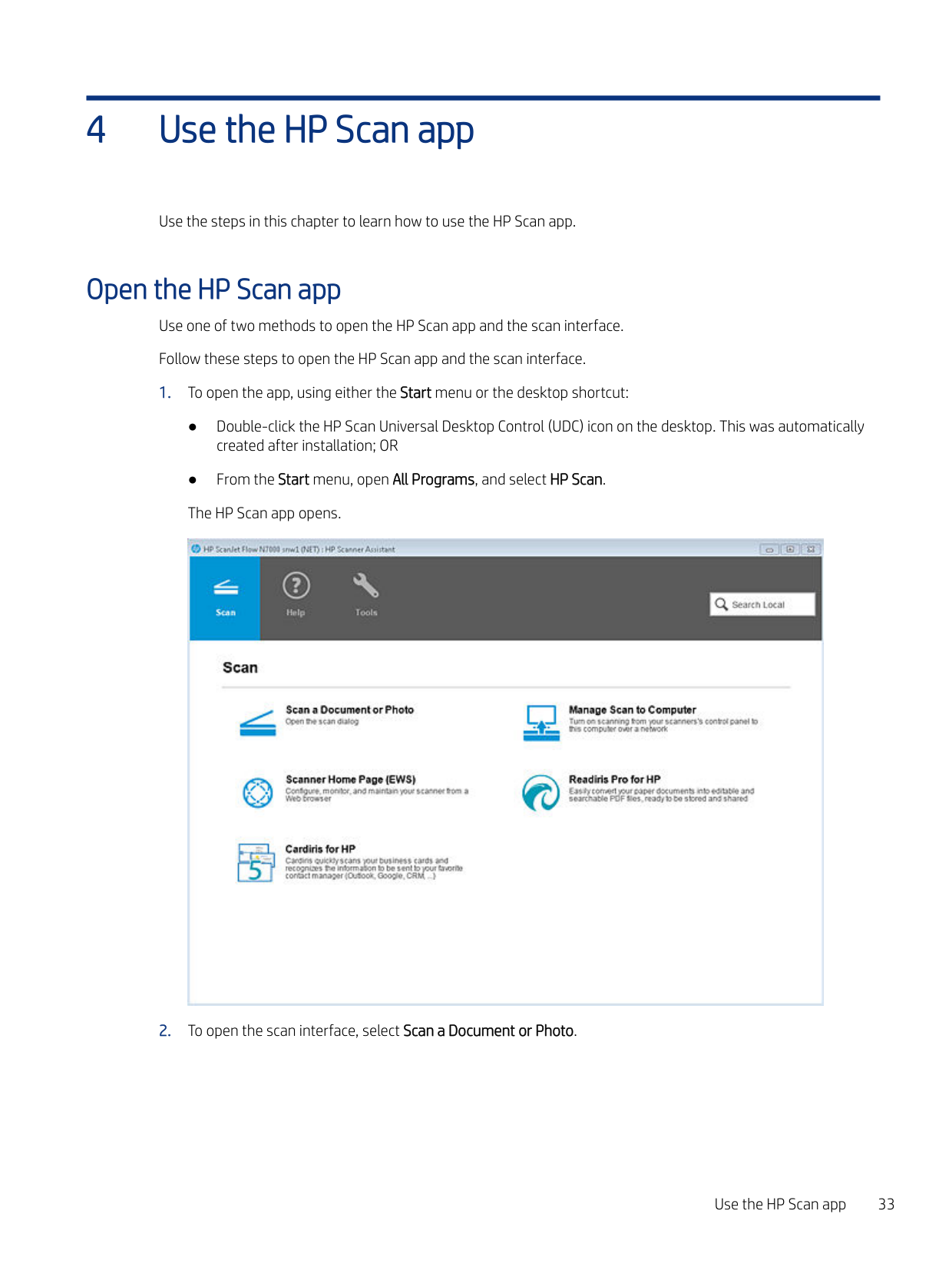
    Open the HP Scan app Use one of two methods to open the HP Scan app and the scan interface. Follow these steps to open the HP Scan app and the scan interface.

  • 1. To open the app, using either the Start menu or the desktop shortcut:
  • ● Double-click the HP Scan Universal Desktop Control (UDC) icon on the desktop. This was automatically created after installation; OR
  • ● From the Start menu, open All Programs, and select HP Scan. The HP Scan app opens.
  • ![image 79](HpScan_User_Guide_v1-1_images/imageFile79.png)

    Page 36

  • 2. To open the scan interface, select Scan a Document or Photo.
  • Use the HP Scan app 33

    ![image 80](HpScan_User_Guide_v1-1_images/imageFile80.png)

    The scan interface home screen displays.

    Scan a document or photo and use scan preview to edit pages

    Learn how to scan a document or photo using EveryDay Scan, how to adjust the Shortcut settings before a scan, and how to use the scan preview window to edit scanned pages and/or settings after scanning.

  • 1. Open the HP Scan app.
  • 2. On the Scan tab, select Scan a Document or Photo. The scan interface opens.
  • 3. Place a set of documents in the document feeder or on the scanner flatbed.
  • Page 37

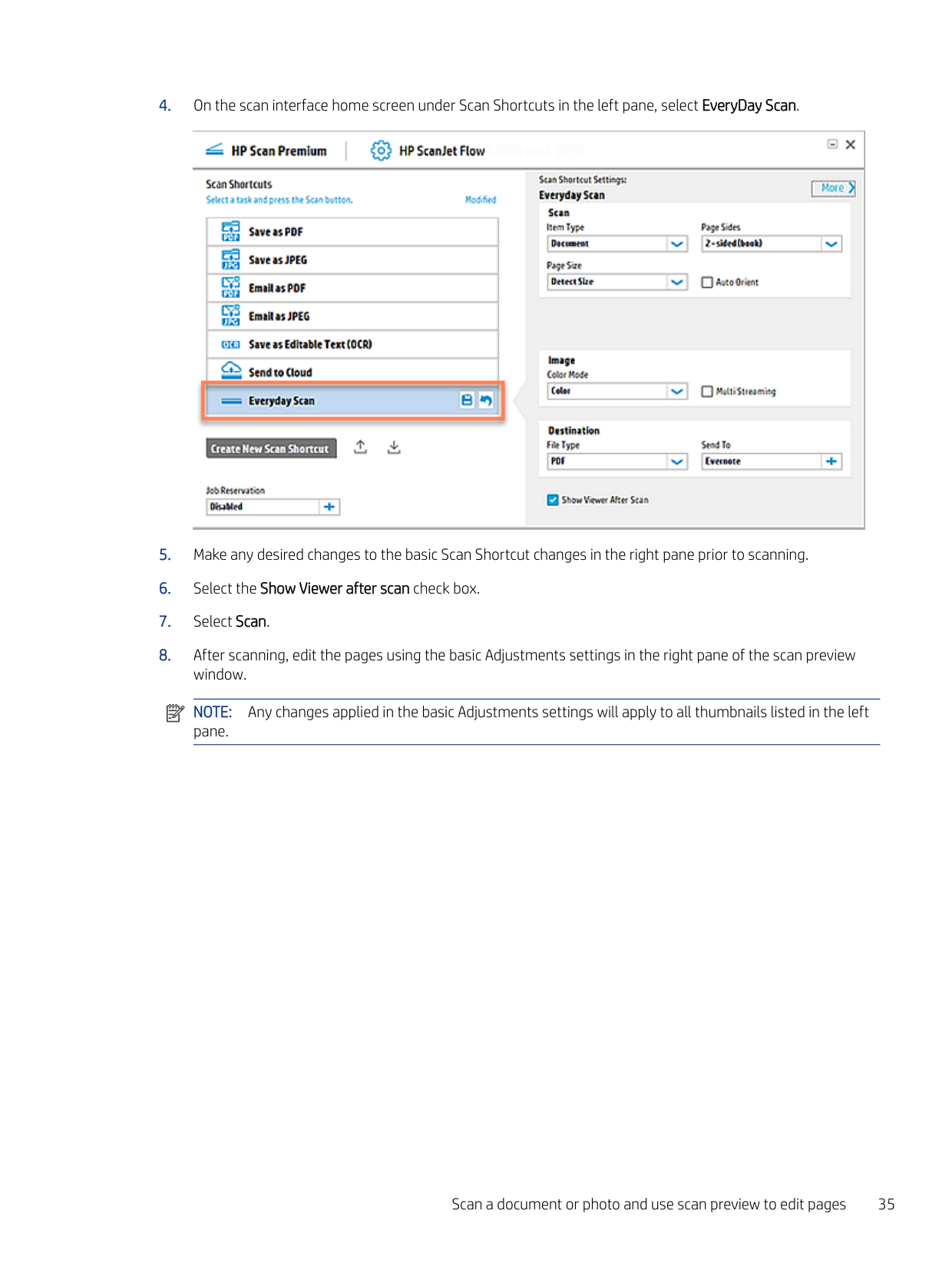
  • 4. On the scan interface home screen under Scan Shortcuts in the left pane, select EveryDay Scan.
  • ![image 81](HpScan_User_Guide_v1-1_images/imageFile81.png)

  • 5. Make any desired changes to the basic Scan Shortcut changes in the right pane prior to scanning.
  • 6. Select the Show Viewer after scan check box.
  • 7. Select Scan.
  • 8. After scanning, edit the pages using the basic Adjustments settings in the right pane of the scan preview window.
  • ![image 82](HpScan_User_Guide_v1-1_images/imageFile82.png)

    NOTE: Any changes applied in the basic Adjustments settings will apply to all thumbnails listed in the left pane.

    Scan a document or photo and use scan preview to edit pages 35

    ![image 83](HpScan_User_Guide_v1-1_images/imageFile83.png)

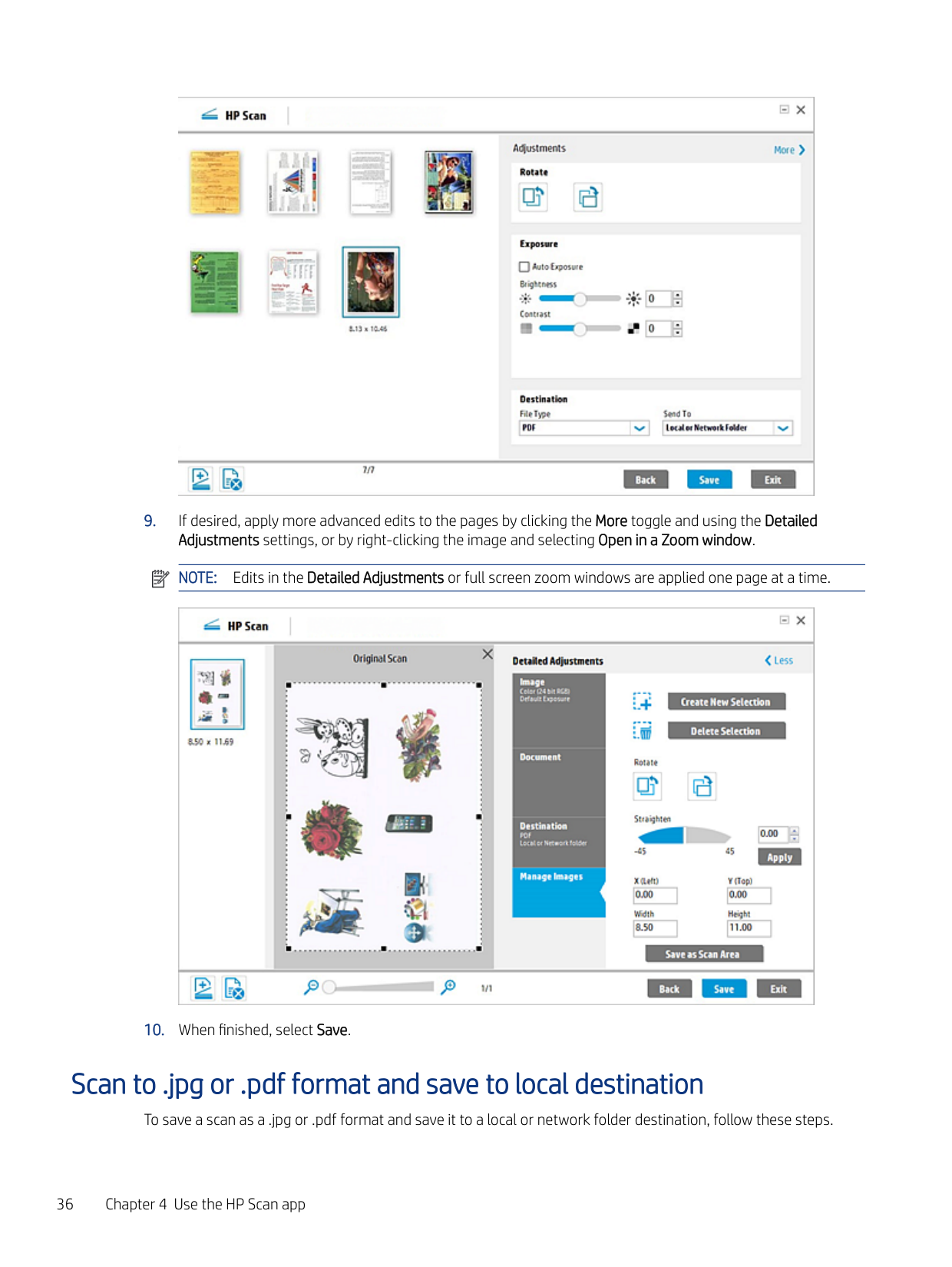
  • 9. If desired, apply more advanced edits to the pages by clicking the More toggle and using the Detailed Adjustments settings, or by right-clicking the image and selecting Open in a Zoom window. NOTE: Edits in the Detailed Adjustments or full screen zoom windows are applied one page at a time.
  • Page 38

    ![image 84](HpScan_User_Guide_v1-1_images/imageFile84.png)

  • 10. When finished, select Save.
  • ![image 85](HpScan_User_Guide_v1-1_images/imageFile85.png)

    Scan to .jpg or .pdf format and save to local destination

    To save a scan as a .jpg or .pdf format and save it to a local or network folder destination, follow these steps.

  • 1. Open the HP Scan app.
  • 2. On the Scan tab, select Scan a Document or Photo. The scan interface opens.
  • 3. Place a set of documents in the document feeder or on the scanner flatbed.
  • 4. On the scan interface home screen under Scan Shortcuts in the left pane, select either the Save as PDF or Save as JPEG.
  • ![image 86](HpScan_User_Guide_v1-1_images/imageFile86.png)

    Page 39

  • 5. Make any desired changes to the basic Scan Shortcut changes in the right pane prior to scanning.
  • 6. Select Scan.
  • 7. If prompted, type a name for the .jpeg or .pdf output.
  • Scan as .jpg or .pdf format and email to local destination

    To save a scan as a .jpg or .pdf format and email it to an email recipient, follow these steps.

  • 1. Open the HP Scan app.
  • 2. On the Scan tab, select Scan a Document or Photo. The scan interface opens.
  • 3. Place a set of documents in the document feeder or on the scanner flatbed.
  • Scan as .jpg or .pdf format and email to local destination 37

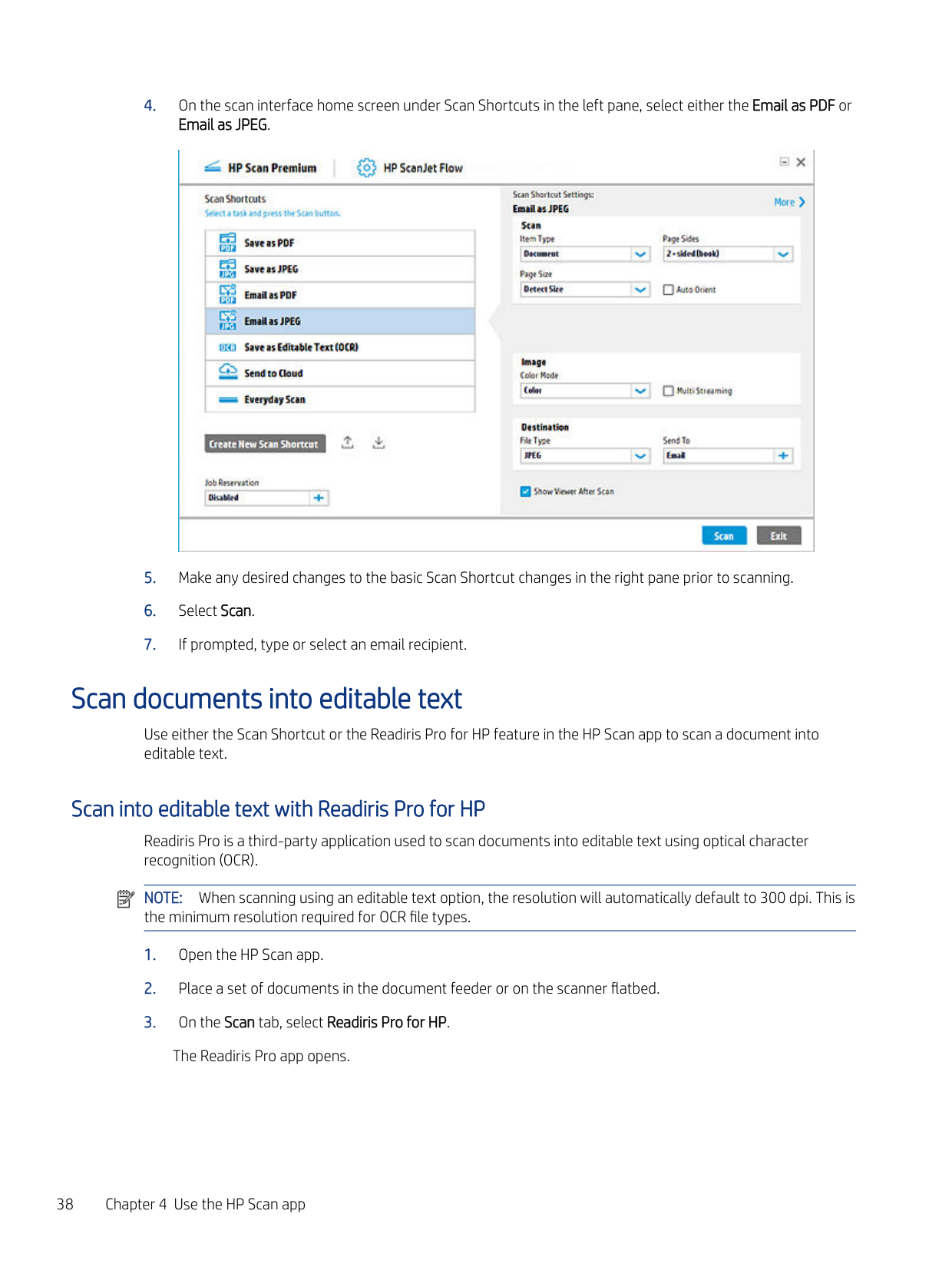
  • 4. On the scan interface home screen under Scan Shortcuts in the left pane, select either the Email as PDF or Email as JPEG.
  • ![image 87](HpScan_User_Guide_v1-1_images/imageFile87.png)

    Page 40

  • 5. Make any desired changes to the basic Scan Shortcut changes in the right pane prior to scanning.
  • 6. Select Scan.
  • 7. If prompted, type or select an email recipient.
  • Scan documents into editable text

    Use either the Scan Shortcut or the Readiris Pro for HP feature in the HP Scan app to scan a document into editable text.

    #### Scan into editable text with Readiris Pro for HP

    Readiris Pro is a third-party application used to scan documents into editable text using optical character recognition (OCR).

    ![image 88](HpScan_User_Guide_v1-1_images/imageFile88.png)

    NOTE: When scanning using an editable text option, the resolution will automatically default to 300 dpi. This is the minimum resolution required for OCR file types.

  • 1. Open the HP Scan app.
  • Page 41

  • 2. Place a set of documents in the document feeder or on the scanner flatbed.
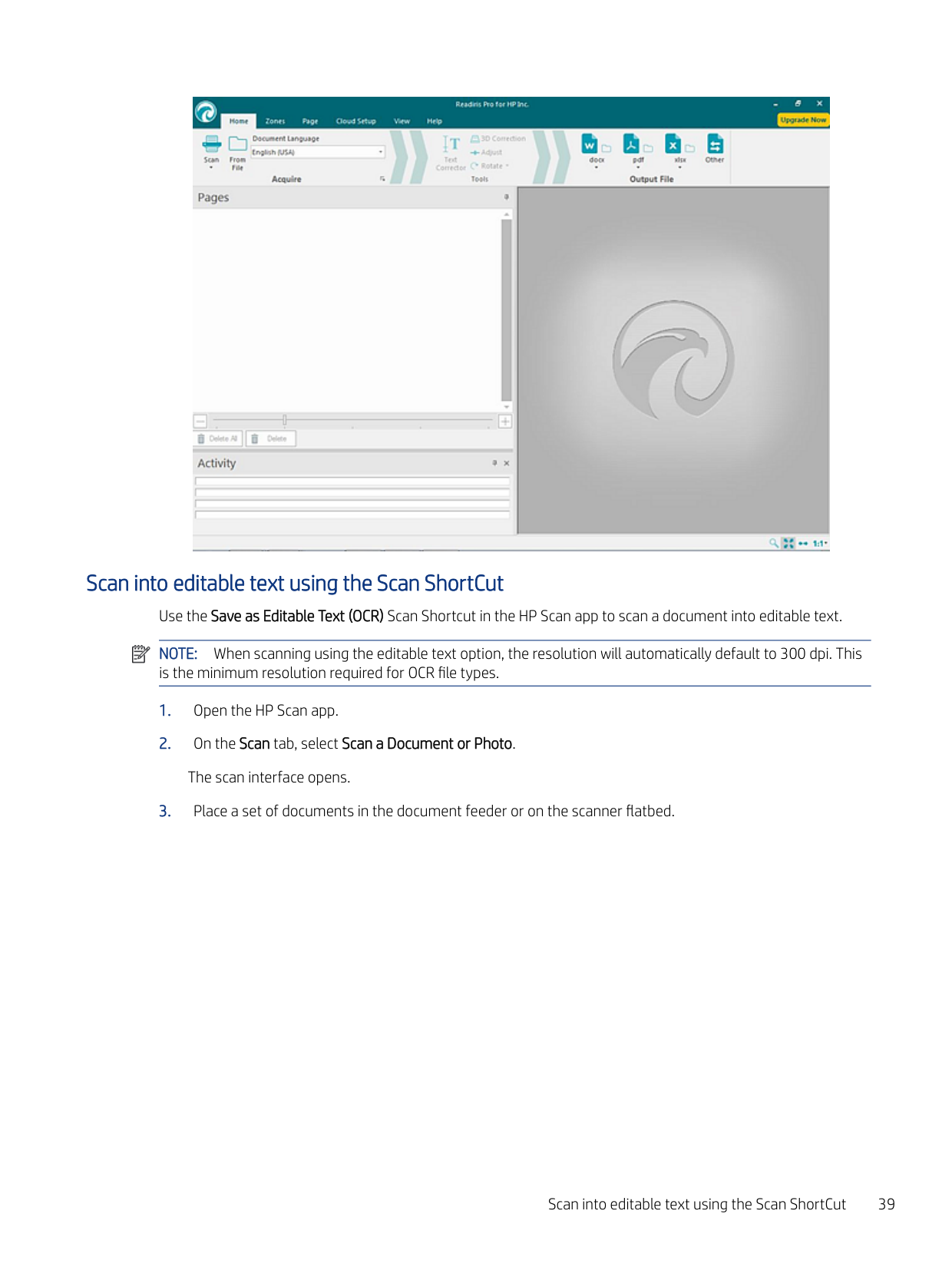
  • 3. On the Scan tab, select Readiris Pro for HP. The Readiris Pro app opens.
  • ![image 89](HpScan_User_Guide_v1-1_images/imageFile89.png)

    Scan into editable text using the Scan ShortCut Use the Save as Editable Text (OCR) Scan Shortcut in the HP Scan app to scan a document into editable text. NOTE: When scanning using the editable text option, the resolution will automatically default to 300 dpi. This is the minimum resolution required for OCR file types.

    ![image 90](HpScan_User_Guide_v1-1_images/imageFile90.png)

  • 1. Open the HP Scan app.
  • 2. On the Scan tab, select Scan a Document or Photo. The scan interface opens.
  • 3. Place a set of documents in the document feeder or on the scanner flatbed.
  • Scan into editable text using the Scan ShortCut 39

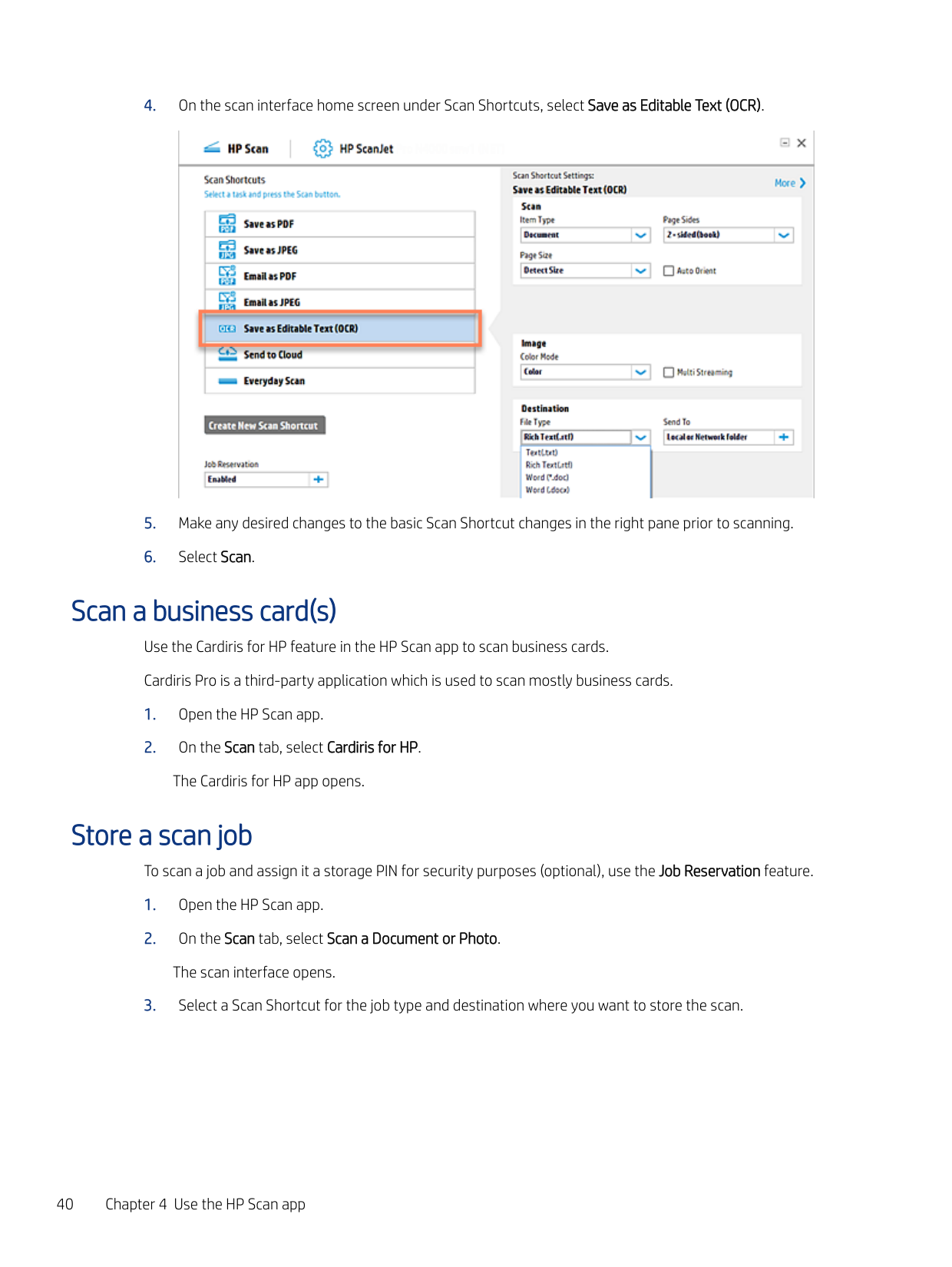
  • 4. On the scan interface home screen under Scan Shortcuts, select Save as Editable Text (OCR).
  • Page 42

    ![image 91](HpScan_User_Guide_v1-1_images/imageFile91.png)

  • 5. Make any desired changes to the basic Scan Shortcut changes in the right pane prior to scanning.
  • 6. Select Scan.
  • Scan a business card(s) Use the Cardiris for HP feature in the HP Scan app to scan business cards. Cardiris Pro is a third-party application which is used to scan mostly business cards.

  • 1. Open the HP Scan app.
  • 2. On the Scan tab, select Cardiris for HP. The Cardiris for HP app opens.
  • Store a scan job

    To scan a job and assign it a storage PIN for security purposes (optional), use the Job Reservation feature.

  • 1. Open the HP Scan app.
  • 2. On the Scan tab, select Scan a Document or Photo. The scan interface opens.
  • 3. Select a Scan Shortcut for the job type and destination where you want to store the scan.
  • Page 43

  • 4. From the Home screen in the left pane under the list Scan Shortcuts, click the plus sign to expand the Job Reservation option.
  • ![image 92](HpScan_User_Guide_v1-1_images/imageFile92.png)

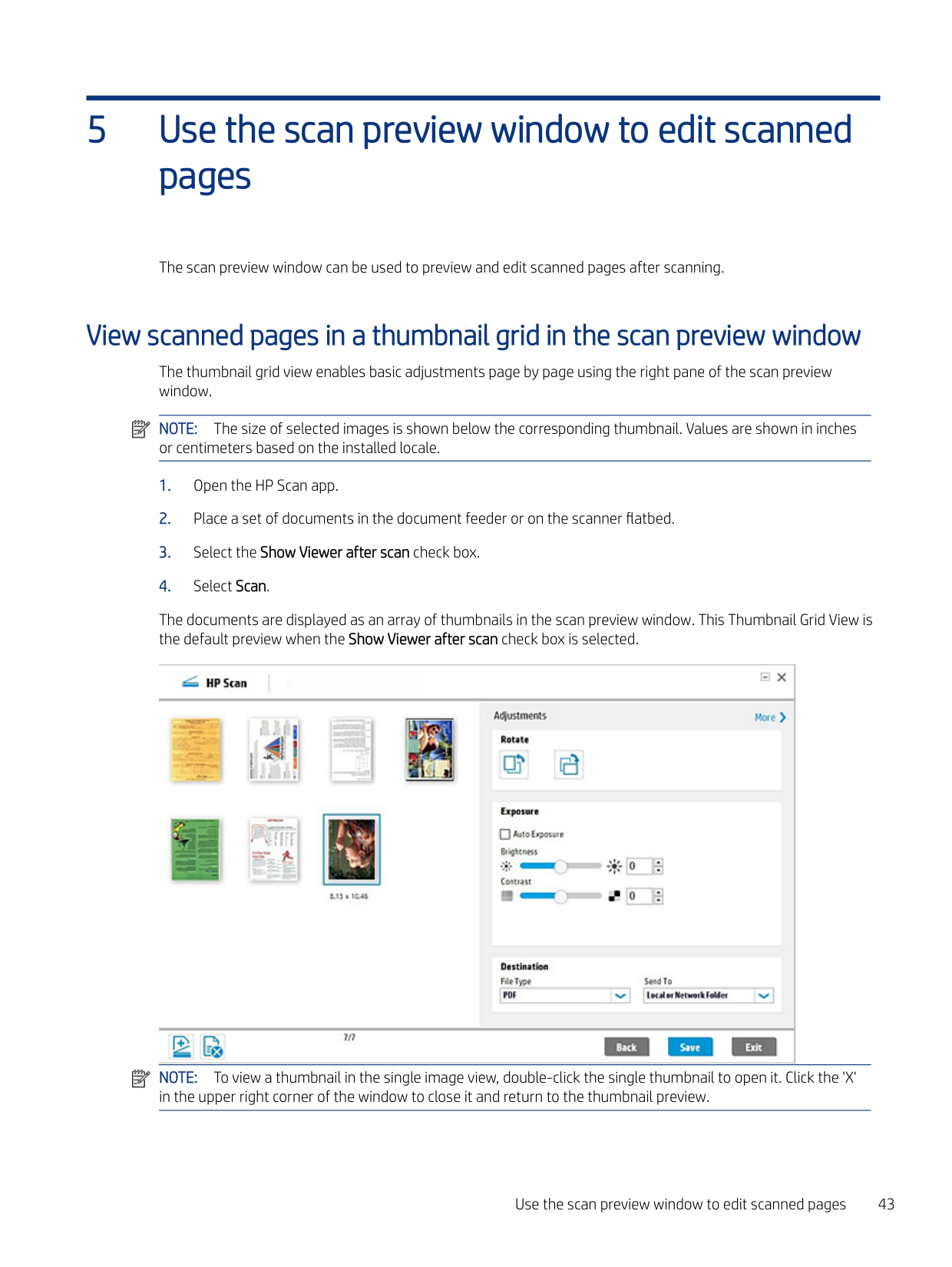
  • 5. Select the Enable Reservation check box to enable the feature.
  • ![image 93](HpScan_User_Guide_v1-1_images/imageFile93.png)

    Store a scan job 41

  • 6. To assign a PIN for security purpose, select the Use PIN check box, type a numeric PIN (up to four digits). This step is optional.
  • 7. When finished, select OK. A Job Name is automatically assigned and notification displays.
  • 8. Adjust the Scan Shortcut settings in the right pane and when finished, select Scan.
  • 9. To release the reserved job scan from the front panel of the scanner, select the Job Name, and then type the PIN (if you created one).
  • Page 44

    5

    Use the scan preview window to edit scanned pages

    The scan preview window can be used to preview and edit scanned pages after scanning.

    View scanned pages in a thumbnail grid in the scan preview window

    The thumbnail grid view enables basic adjustments page by page using the right pane of the scan preview window.

    ![image 94](HpScan_User_Guide_v1-1_images/imageFile94.png)

    NOTE: The size of selected images is shown below the corresponding thumbnail. Values are shown in inches or centimeters based on the installed locale.

  • 1. Open the HP Scan app.
  • 2. Place a set of documents in the document feeder or on the scanner flatbed.
  • 3. Select the Show Viewer after scan check box.
  • 4. Select Scan.
  • Page 45

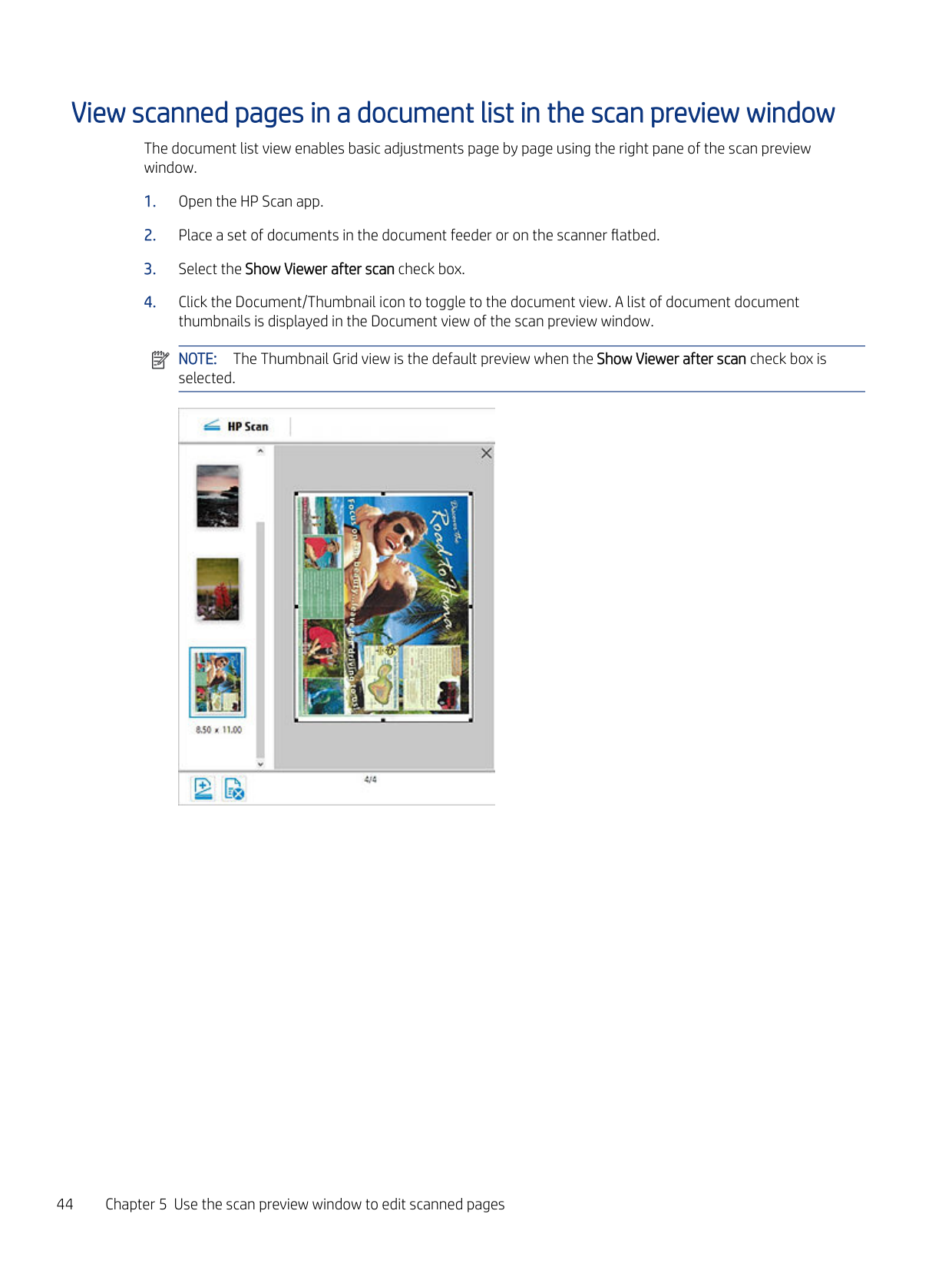
    The documents are displayed as an array of thumbnails in the scan preview window. This Thumbnail Grid View is the default preview when the Show Viewer after scan check box is selected.

    ![image 95](HpScan_User_Guide_v1-1_images/imageFile95.png)

    ![image 96](HpScan_User_Guide_v1-1_images/imageFile96.png)

    NOTE: To view a thumbnail in the single image view, double-click the single thumbnail to open it. Click the 'X' in the upper right corner of the window to close it and return to the thumbnail preview.

    Use the scan preview window to edit scanned pages 43

    View scanned pages in a document list in the scan preview window

    The document list view enables basic adjustments page by page using the right pane of the scan preview window.

  • 1. Open the HP Scan app.
  • 2. Place a set of documents in the document feeder or on the scanner flatbed.
  • 3. Select the Show Viewer after scan check box.
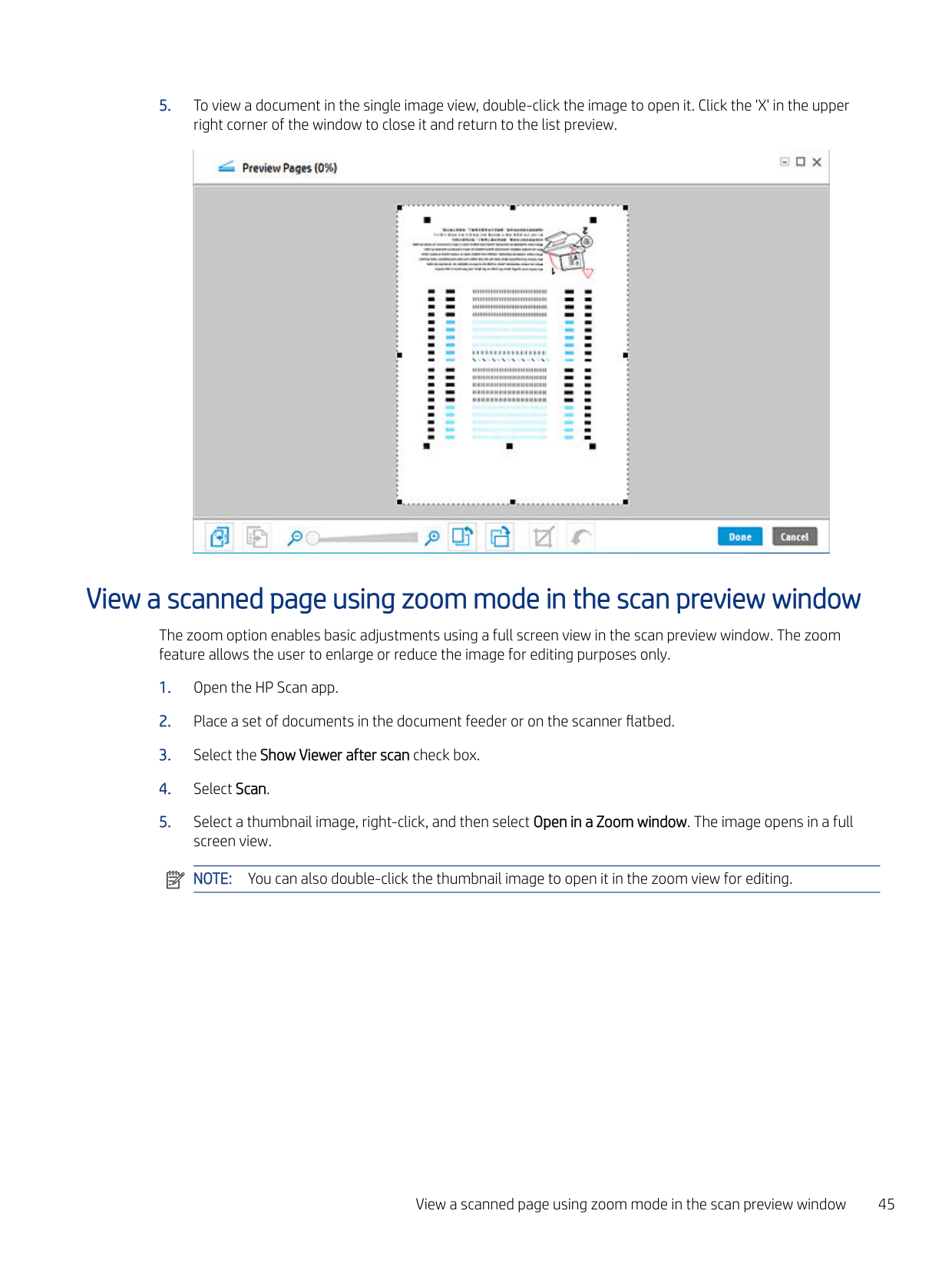
  • 4. Click the Document/Thumbnail icon to toggle to the document view. A list of document document thumbnails is displayed in the Document view of the scan preview window.
  • Page 46

    ![image 97](HpScan_User_Guide_v1-1_images/imageFile97.png)

    NOTE: The Thumbnail Grid view is the default preview when the Show Viewer after scan check box is selected.

    ![image 98](HpScan_User_Guide_v1-1_images/imageFile98.png)

  • 5. To view a document in the single image view, double-click the image to open it. Click the 'X' in the upper right corner of the window to close it and return to the list preview.
  • ![image 99](HpScan_User_Guide_v1-1_images/imageFile99.png)

    View a scanned page using zoom mode in the scan preview window

    The zoom option enables basic adjustments using a full screen view in the scan preview window. The zoom feature allows the user to enlarge or reduce the image for editing purposes only.

  • 1. Open the HP Scan app.
  • 2. Place a set of documents in the document feeder or on the scanner flatbed.
  • Page 47

  • 3. Select the Show Viewer after scan check box.
  • 4. Select Scan.
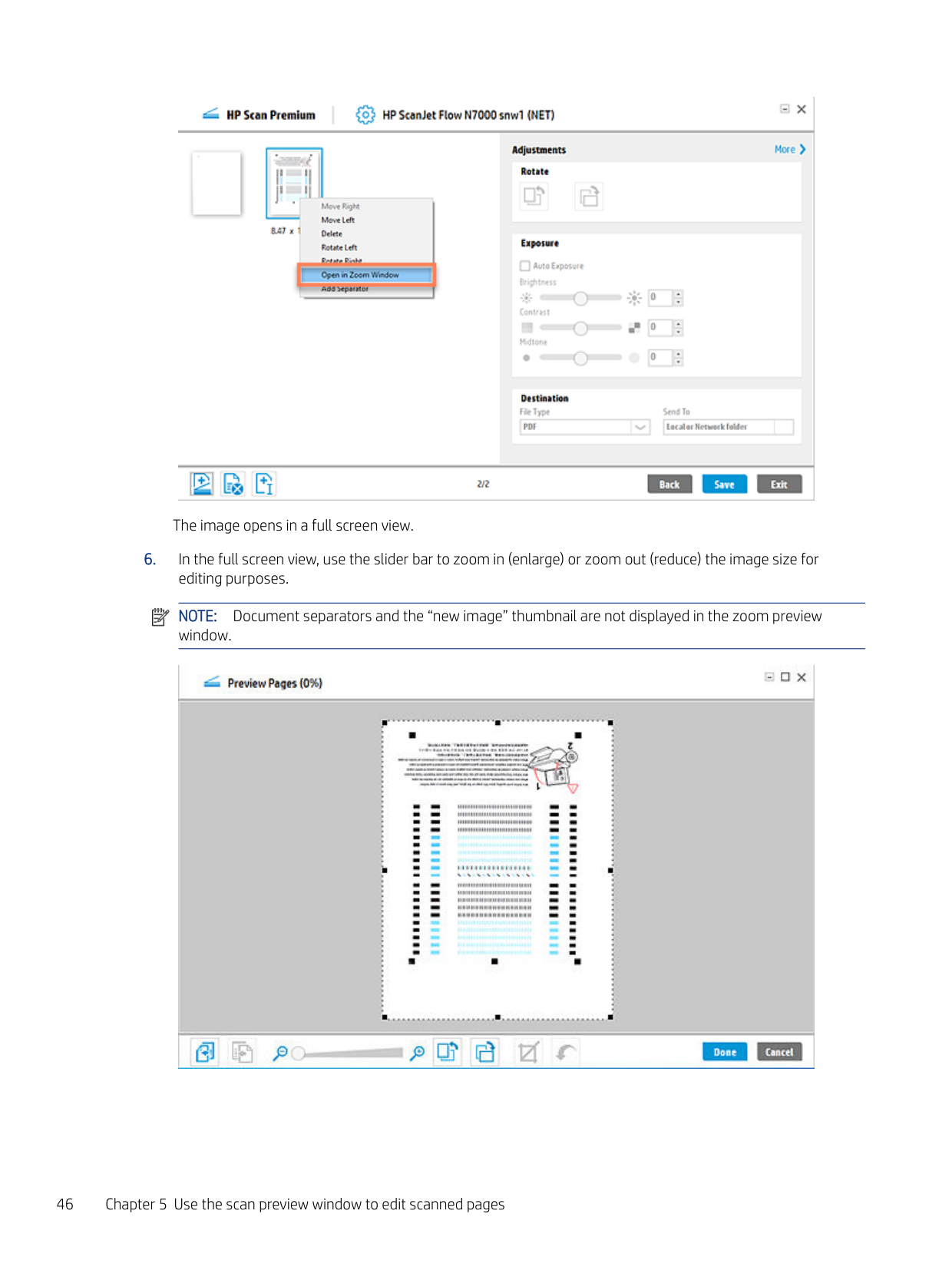
  • 5. Select a thumbnail image, right-click, and then select Open in a Zoom window. The image opens in a full screen view. NOTE: You can also double-click the thumbnail image to open it in the zoom view for editing.
  • ![image 100](HpScan_User_Guide_v1-1_images/imageFile100.png)

    View a scanned page using zoom mode in the scan preview window 45

    ![image 101](HpScan_User_Guide_v1-1_images/imageFile101.png)

    The image opens in a full screen view.

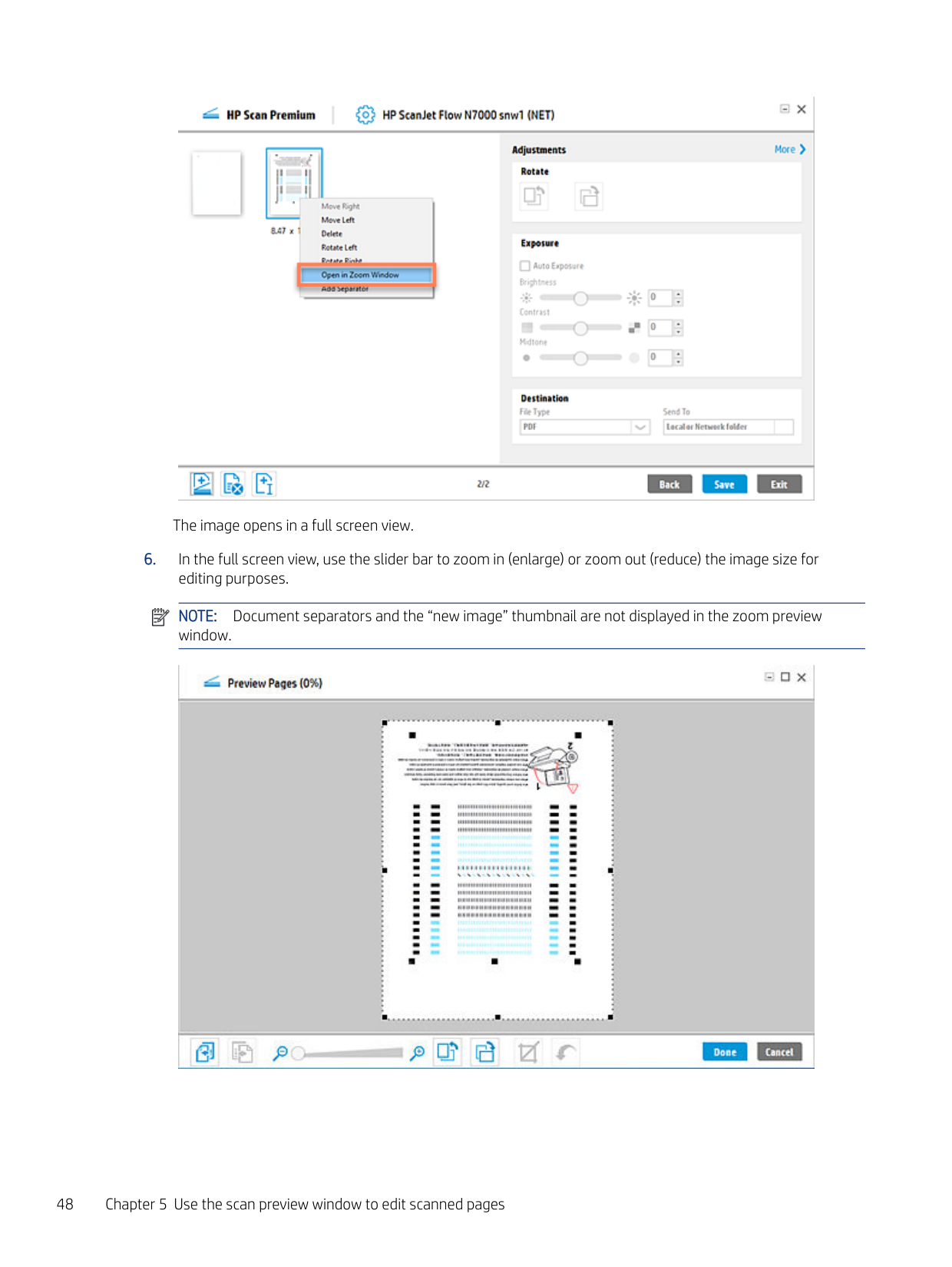
  • 6. In the full screen view, use the slider bar to zoom in (enlarge) or zoom out (reduce) the image size for editing purposes.
  • ![image 102](HpScan_User_Guide_v1-1_images/imageFile102.png)

    NOTE: Document separators and the “new image” thumbnail are not displayed in the zoom preview window.

    Page 48

    ![image 103](HpScan_User_Guide_v1-1_images/imageFile103.png)

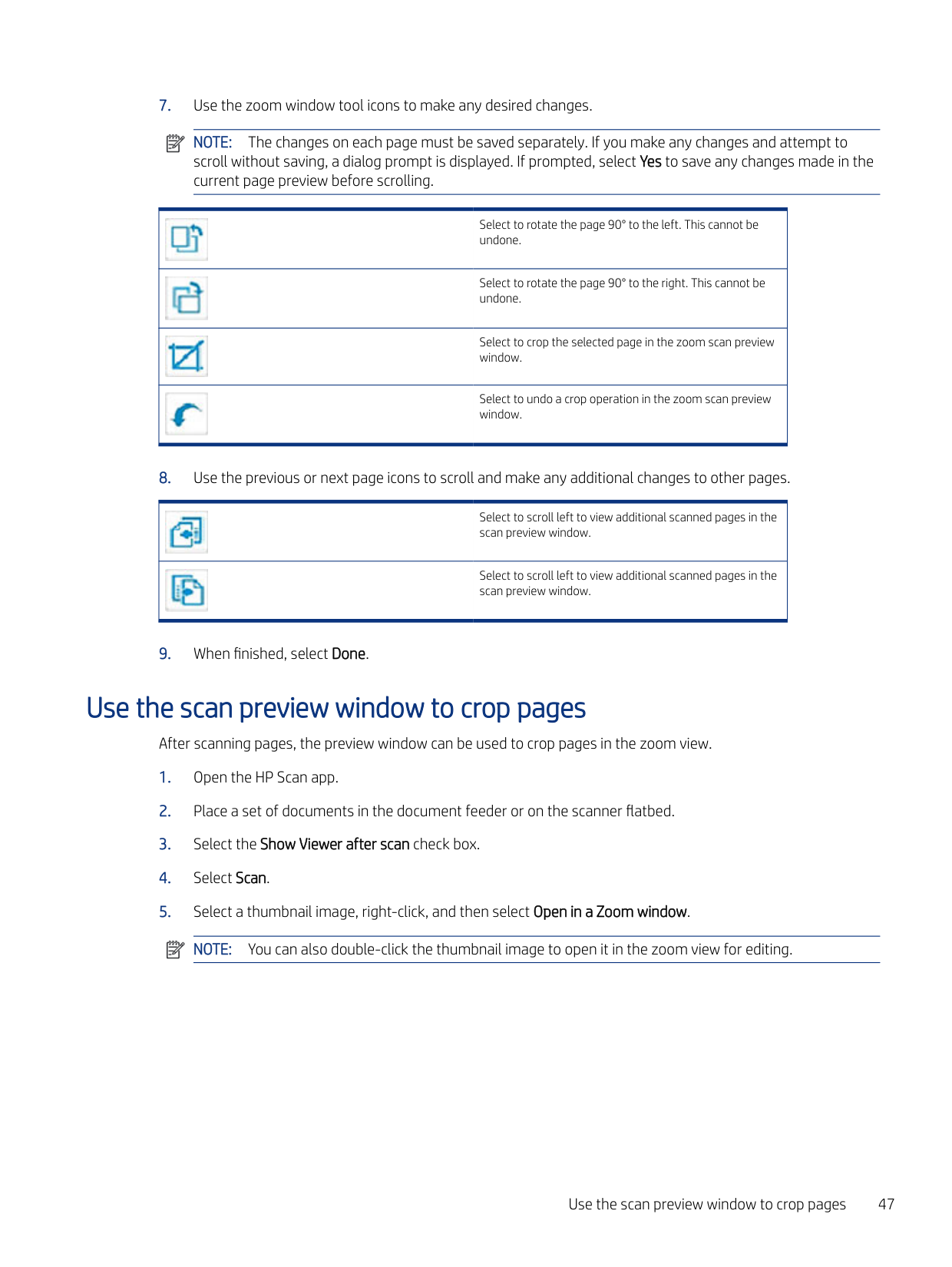
  • 7. Use the zoom window tool icons to make any desired changes.
  • NOTE: The changes on each page must be saved separately. If you make any changes and attempt to scroll without saving, a dialog prompt is displayed. If prompted, select Yes to save any changes made in the current page preview before scrolling.

    |![image 104](HpScan_User_Guide_v1-1_images/imageFile104.png)

    Select to rotate the page 90° to the left. This cannot be undone.

    | |---| |![image 105](HpScan_User_Guide_v1-1_images/imageFile105.png)

    Select to rotate the page 90° to the right. This cannot be undone.

    | |![image 106](HpScan_User_Guide_v1-1_images/imageFile106.png)

    Select to crop the selected page in the zoom scan preview window.

    | |![image 107](HpScan_User_Guide_v1-1_images/imageFile107.png)

    Select to undo a crop operation in the zoom scan preview window.

    |

  • 8. Use the previous or next page icons to scroll and make any additional changes to other pages.
  • |![image 108](HpScan_User_Guide_v1-1_images/imageFile108.png)

    Select to scroll left to view additional scanned pages in the scan preview window.

    | |---| |![image 109](HpScan_User_Guide_v1-1_images/imageFile109.png)

    Select to scroll left to view additional scanned pages in the scan preview window.

    |

    Page 49

  • 9. When finished, select Done.
  • ![image 110](HpScan_User_Guide_v1-1_images/imageFile110.png)

    Use the scan preview window to crop pages

    After scanning pages, the preview window can be used to crop pages in the zoom view.

  • 1. Open the HP Scan app.
  • 2. Place a set of documents in the document feeder or on the scanner flatbed.
  • 3. Select the Show Viewer after scan check box.
  • 4. Select Scan.
  • 5. Select a thumbnail image, right-click, and then select Open in a Zoom window. NOTE: You can also double-click the thumbnail image to open it in the zoom view for editing.
  • ![image 111](HpScan_User_Guide_v1-1_images/imageFile111.png)

    Page 50

    Use the scan preview window to crop pages 47

    ![image 112](HpScan_User_Guide_v1-1_images/imageFile112.png)

    The image opens in a full screen view.

  • 6. In the full screen view, use the slider bar to zoom in (enlarge) or zoom out (reduce) the image size for editing purposes.
  • ![image 113](HpScan_User_Guide_v1-1_images/imageFile113.png)

    NOTE: Document separators and the “new image” thumbnail are not displayed in the zoom preview window.

    ![image 114](HpScan_User_Guide_v1-1_images/imageFile114.png)

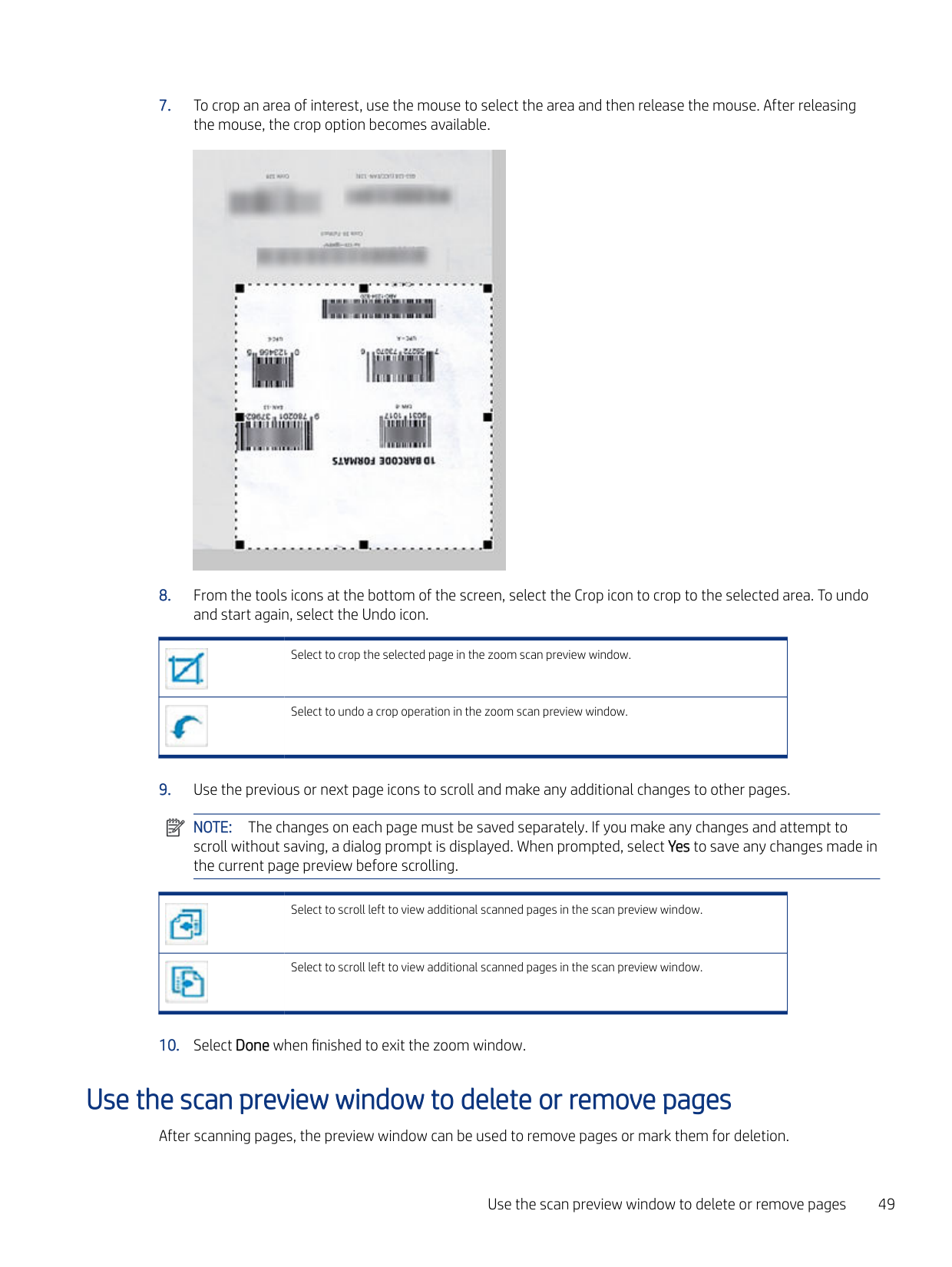
  • 7. To crop an area of interest, use the mouse to select the area and then release the mouse. After releasing the mouse, the crop option becomes available.
  • ![image 115](HpScan_User_Guide_v1-1_images/imageFile115.png)

    Page 51

  • 8. From the tools icons at the bottom of the screen, select the Crop icon to crop to the selected area. To undo and start again, select the Undo icon.
  • |![image 116](HpScan_User_Guide_v1-1_images/imageFile116.png)

    Select to crop the selected page in the zoom scan preview window.

    | |---| |![image 117](HpScan_User_Guide_v1-1_images/imageFile117.png)

    Select to undo a crop operation in the zoom scan preview window.

    |

  • 9. Use the previous or next page icons to scroll and make any additional changes to other pages.
  • NOTE: The changes on each page must be saved separately. If you make any changes and attempt to scroll without saving, a dialog prompt is displayed. When prompted, select Yes to save any changes made in the current page preview before scrolling.

    |![image 118](HpScan_User_Guide_v1-1_images/imageFile118.png)

    Select to scroll left to view additional scanned pages in the scan preview window.

    | |---| |![image 119](HpScan_User_Guide_v1-1_images/imageFile119.png)

    Select to scroll left to view additional scanned pages in the scan preview window.

    |

  • 10. Select Done when finished to exit the zoom window.
  • Page 52

    ![image 120](HpScan_User_Guide_v1-1_images/imageFile120.png)

    Use the scan preview window to delete or remove pages

    After scanning pages, the preview window can be used to remove pages or mark them for deletion.

    Use the scan preview window to delete or remove pages 49

    After scanning pages, the preview window has an icons that enable the user to remove pages, or options to mark them for deletion.

  • 1. Open the HP Scan app.
  • 2. Place a set of documents in the document feeder or on the scanner flatbed.
  • 3. Select the Show Viewer after scan check box.
  • 4. Select Scan.
  • 5. In the preview window, use the icon in the lower left of the window to mark an image or page for delete. Pages marked for delete are indicated by an 'X' and will not be included in the final processing.
  • ● Delete icon - Select the page and then click the icon to remove the page. OR
  • ● Right-click the page and select Delete to mark the page for deletion. OR
  • Page 53

    NOTE: To unmark a page for delete, right-click the image, and then select the option to remove the flag.

  • ● Select the page and then select Delete on the keyboard.
  • 6. When finished making adjustments, click Save.
  • ![image 121](HpScan_User_Guide_v1-1_images/imageFile121.png)

    Use the scan preview window to add or remove pages After scanning pages, the preview window can be used to blank or existing pages. After scanning pages, the preview window has icons that enable the user to insert pages. It will determine where additional pages are placed in the array of scanned pages. This icon is always initially shown at the end.

  • 1. Open the HP Scan app.
  • 2. Place a set of documents in the document feeder or on the scanner flatbed.
  • 3. Select the Show Viewer after scan check box.
  • 4. Select Scan.
  • 5. Use the icons in the lower left of the window to add a blank page, add an existing image, or remove a page/image.
  • Page 54

  • ● Add blank page icon - Click the icon and click Save. A blank page is appended to the end of document set.
  • NOTE: If the blank page is moved to a different location within the document set, any newly added blank pages will be appended after that blank page.

  • ● Add existing image icon - Click the icon and select the existing image.
  • ● Remove page or image icon - Select the page and then click the icon to remove the page. NOTE: You can also right-click the page and select Delete to mark the page for deletion.
  • 6. When finished making adjustments, click Save.
  • ![image 122](HpScan_User_Guide_v1-1_images/imageFile122.png)

    ![image 123](HpScan_User_Guide_v1-1_images/imageFile123.png)

    Use the scan preview window to change page order After scanning pages, the preview window can be used to re-order pages. After scanning pages, the preview window can be used to change the order of pages.

  • 1. Open the HP Scan app.
  • 2. Place a set of documents in the document feeder or on the scanner flatbed.
  • Page 55

  • 3. Select the Show Viewer after scan check box.
  • 4. Select Scan.
  • 5. Right-click the thumbnail image for the page you want to move. The selected image is outlined with a blue border.
  • 6. From the drop-down menu, select either Move Right, Move Left. NOTE: To move a page, you can also drag-and-drop the image to a new location in the document set.
  • 7. When finished making adjustments, click Save.
  • ![image 124](HpScan_User_Guide_v1-1_images/imageFile124.png)

    Use the scan preview window to change page orientation

    After scanning pages, the preview window can be used to change the orientation of pages.

  • 1. Open the HP Scan app.
  • 2. Place a set of documents in the document feeder or on the scanner flatbed.
  • 3. Select the Show Viewer after scan check box.
  • 4. Select Scan.
  • 5. Right-click the thumbnail image for the page you want to change. The selected image is outlined with a blue border.
  • Page 56

  • 6. From the drop-down menu, select either Rotate Left (clockwise 90 degrees) or Rotate Right (clockwise 90 degrees), or select Open in a Zoom window and then follow the steps below. NOTE: You can also double-click the thumbnail image to open it in the full screen zoom view for editing.
  • ![image 125](HpScan_User_Guide_v1-1_images/imageFile125.png)

    Use the scan preview window to change page order 51

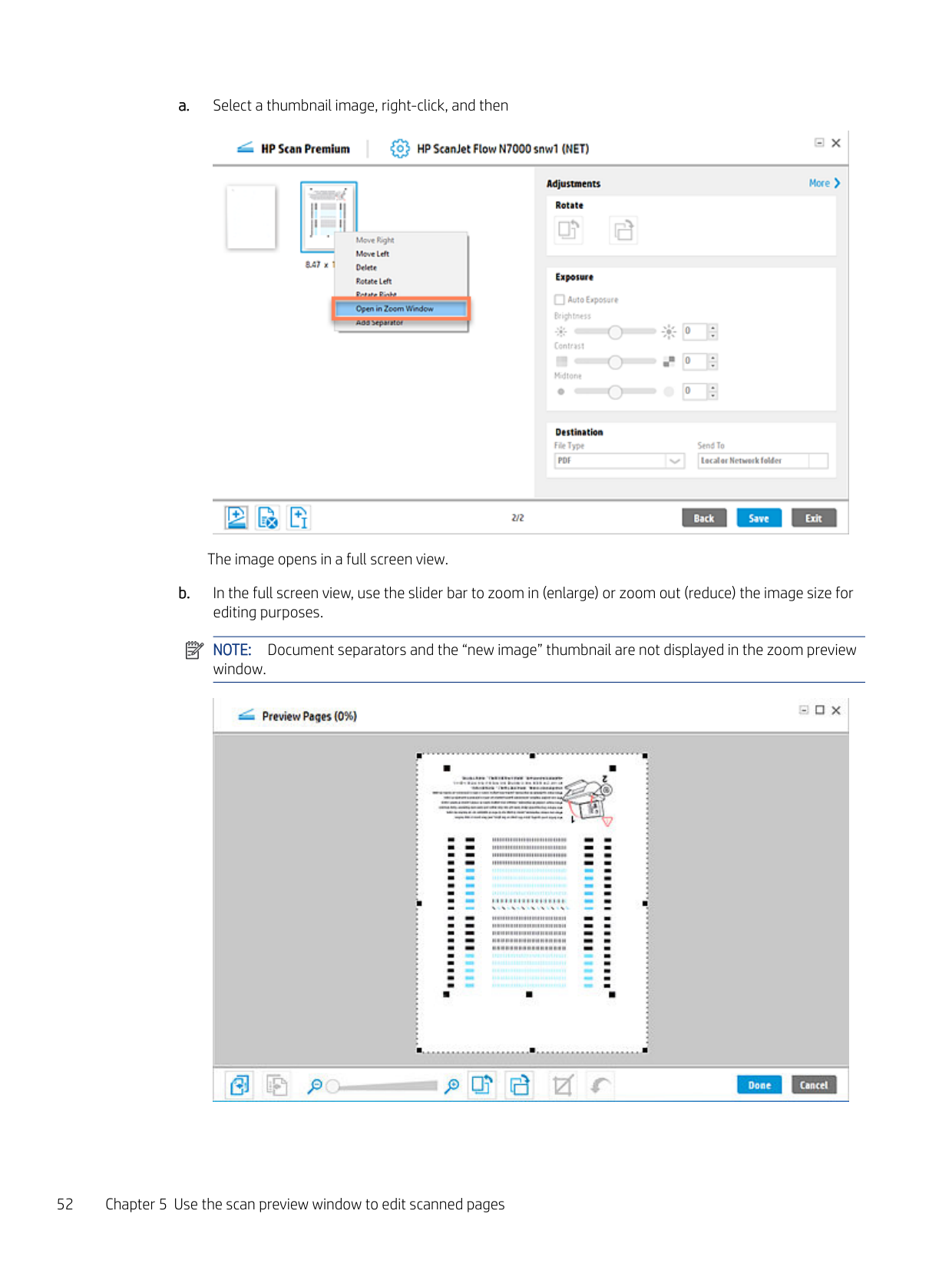
  • a. Select a thumbnail image, right-click, and then
  • ![image 126](HpScan_User_Guide_v1-1_images/imageFile126.png)

    The image opens in a full screen view.

  • b. In the full screen view, use the slider bar to zoom in (enlarge) or zoom out (reduce) the image size for editing purposes.
  • ![image 127](HpScan_User_Guide_v1-1_images/imageFile127.png)

    NOTE: Document separators and the “new image” thumbnail are not displayed in the zoom preview window.

    Page 57

    ![image 128](HpScan_User_Guide_v1-1_images/imageFile128.png)

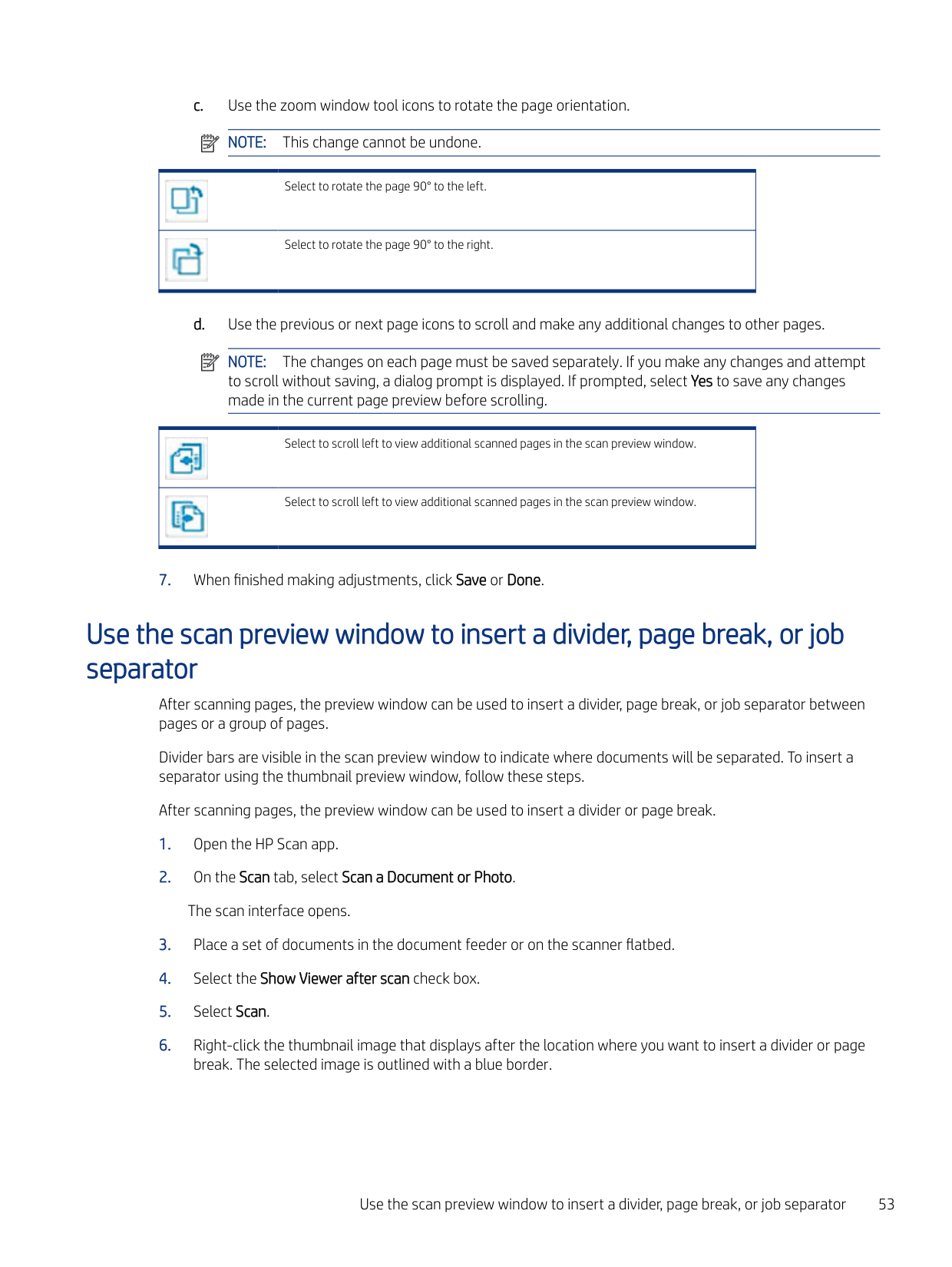
  • c. Use the zoom window tool icons to rotate the page orientation. NOTE: This change cannot be undone.
  • |![image 129](HpScan_User_Guide_v1-1_images/imageFile129.png)

    Select to rotate the page 90° to the left.

    | |---| |![image 130](HpScan_User_Guide_v1-1_images/imageFile130.png)

    Select to rotate the page 90° to the right.

    |

  • d. Use the previous or next page icons to scroll and make any additional changes to other pages.
  • ![image 131](HpScan_User_Guide_v1-1_images/imageFile131.png)

    ![image 132](HpScan_User_Guide_v1-1_images/imageFile132.png)

    NOTE: The changes on each page must be saved separately. If you make any changes and attempt to scroll without saving, a dialog prompt is displayed. If prompted, select Yes to save any changes made in the current page preview before scrolling.

    Page 58

    |![image 133](HpScan_User_Guide_v1-1_images/imageFile133.png)

    Select to scroll left to view additional scanned pages in the scan preview window.

    | |---| |![image 134](HpScan_User_Guide_v1-1_images/imageFile134.png)

    Select to scroll left to view additional scanned pages in the scan preview window.

    |

  • 7. When finished making adjustments, click Save or Done.
  • Use the scan preview window to insert a divider, page break, or job separator

    After scanning pages, the preview window can be used to insert a divider, page break, or job separator between pages or a group of pages.

    Divider bars are visible in the scan preview window to indicate where documents will be separated. To insert a separator using the thumbnail preview window, follow these steps.

    After scanning pages, the preview window can be used to insert a divider or page break.

  • 1. Open the HP Scan app.
  • 2. On the Scan tab, select Scan a Document or Photo. The scan interface opens.
  • 3. Place a set of documents in the document feeder or on the scanner flatbed.
  • Page 59

  • 4. Select the Show Viewer after scan check box.
  • 5. Select Scan.
  • 6. Right-click the thumbnail image that displays after the location where you want to insert a divider or page break. The selected image is outlined with a blue border.
  • Use the scan preview window to insert a divider, page break, or job separator 53

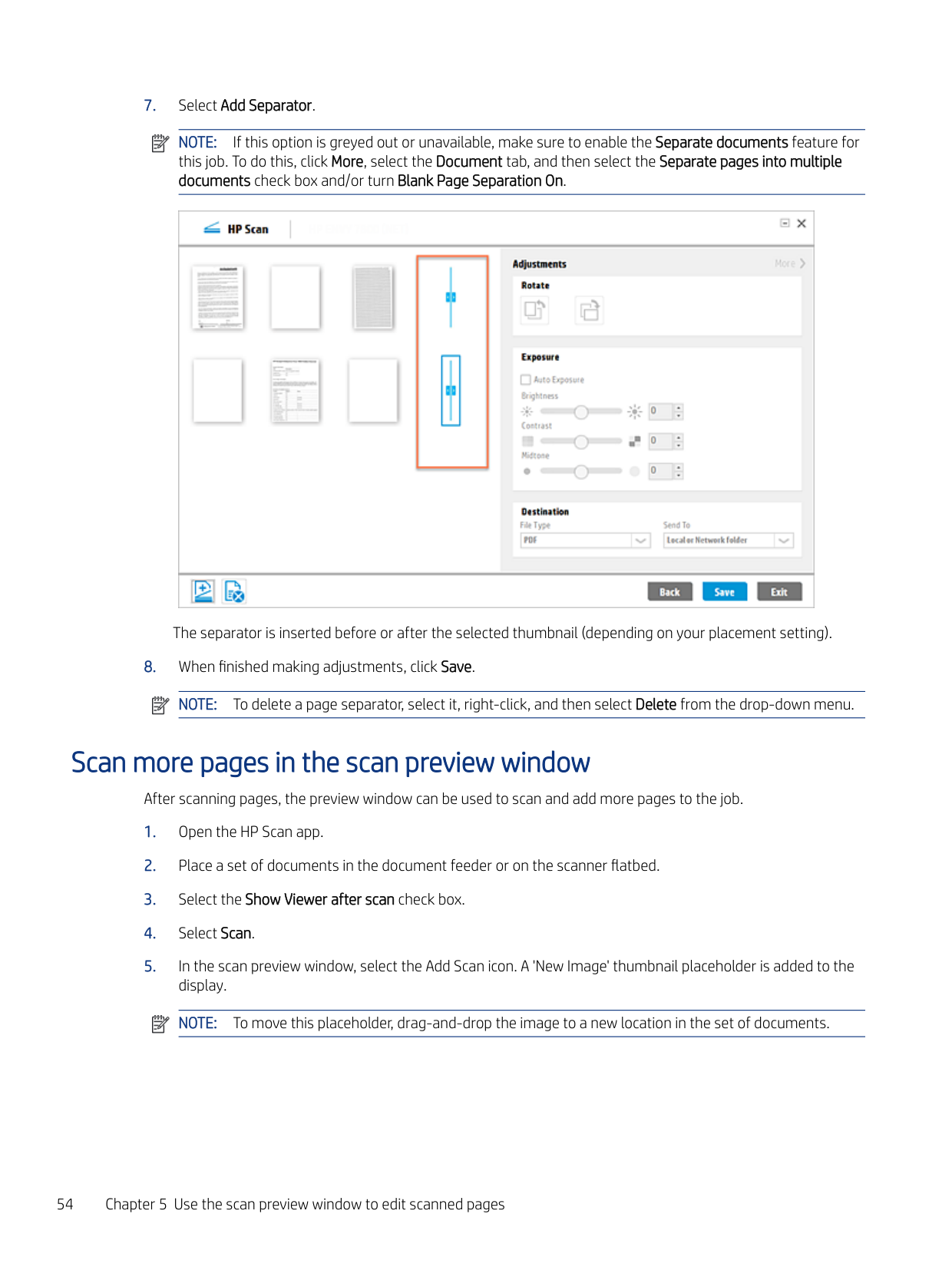
  • 7. Select Add Separator.
  • NOTE: If this option is greyed out or unavailable, make sure to enable the Separate documents feature for this job. To do this, click More, select the Document tab, and then select the Separate pages into multiple documents check box and/or turn Blank Page Separation On.

    ![image 135](HpScan_User_Guide_v1-1_images/imageFile135.png)

    The separator is inserted before or after the selected thumbnail (depending on your placement setting).

  • 8. When finished making adjustments, click Save. NOTE: To delete a page separator, select it, right-click, and then select Delete from the drop-down menu.
  • ![image 136](HpScan_User_Guide_v1-1_images/imageFile136.png)

    Page 60

    ![image 137](HpScan_User_Guide_v1-1_images/imageFile137.png)

    Scan more pages in the scan preview window

    After scanning pages, the preview window can be used to scan and add more pages to the job.

  • 1. Open the HP Scan app.
  • 2. Place a set of documents in the document feeder or on the scanner flatbed.
  • 3. Select the Show Viewer after scan check box.
  • 4. Select Scan.
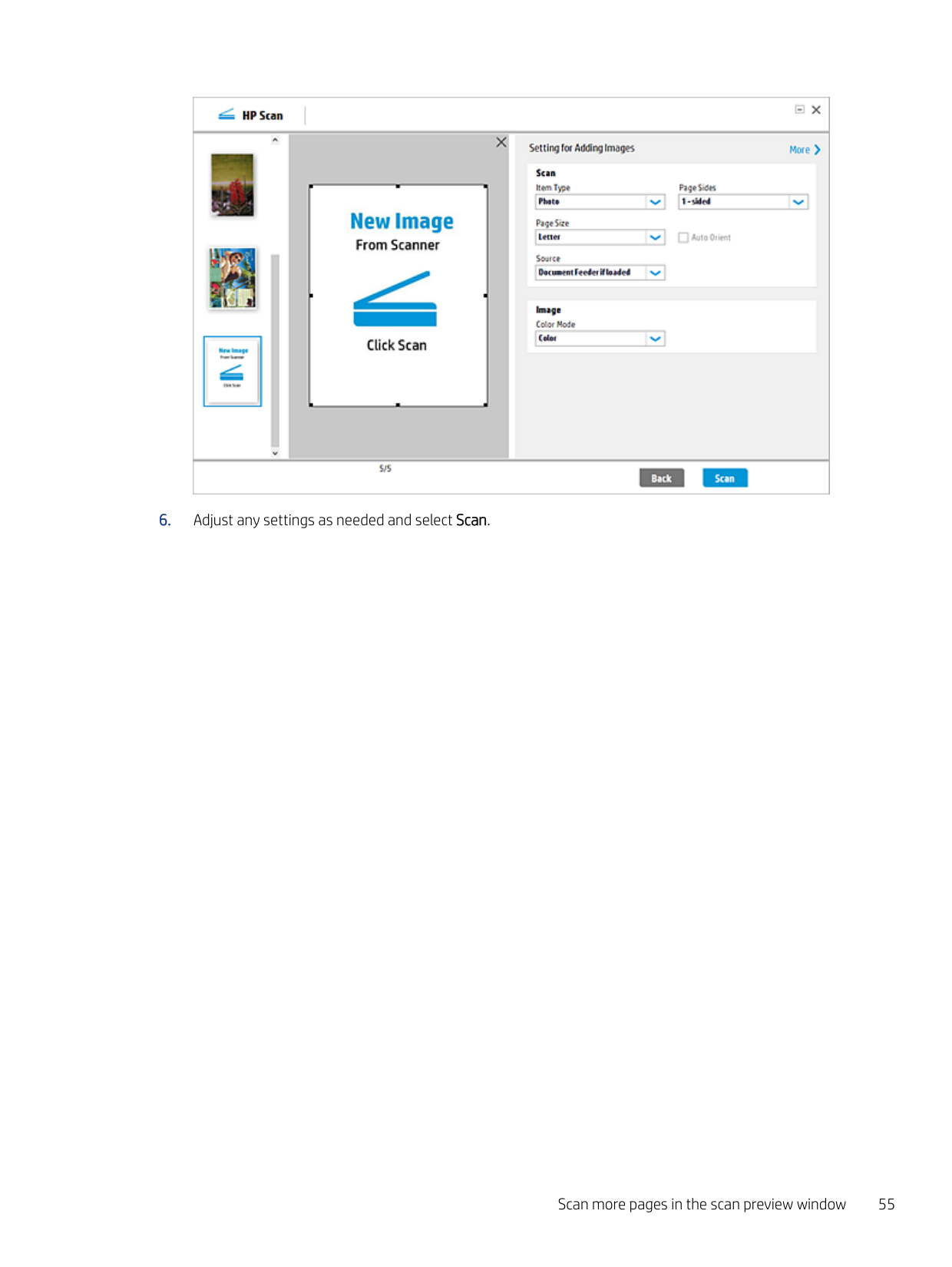
  • 5. In the scan preview window, select the Add Scan icon. A 'New Image' thumbnail placeholder is added to the display. NOTE: To move this placeholder, drag-and-drop the image to a new location in the set of documents.
  • ![image 138](HpScan_User_Guide_v1-1_images/imageFile138.png)

    ![image 139](HpScan_User_Guide_v1-1_images/imageFile139.png)

  • 6. Adjust any settings as needed and select Scan.
  • Page 61

    Scan more pages in the scan preview window 55

    Configure the HP Scan app6

    Use the steps in this chapter to set up and configure the HP Scan app.

    Create a custom Scan Shortcut To add a new custom Scan Shortcut to the left pane of the home screen, follow these steps. A custom Scan Shortcut can be created including the shortcut name, an associated icon, and a set of scan settings. The shortcut will be associated with the specific scanner. NOTE: A maximum of 100 shortcuts including default shortcuts can be displayed in the left side of the HP Scan home screen under Scan Shortcuts.

    ![image 140](HpScan_User_Guide_v1-1_images/imageFile140.png)

  • 1. Open the HP Scan app.
  • 2. From the Home screen in the lower left pane, click Create New Scan Shortcut.
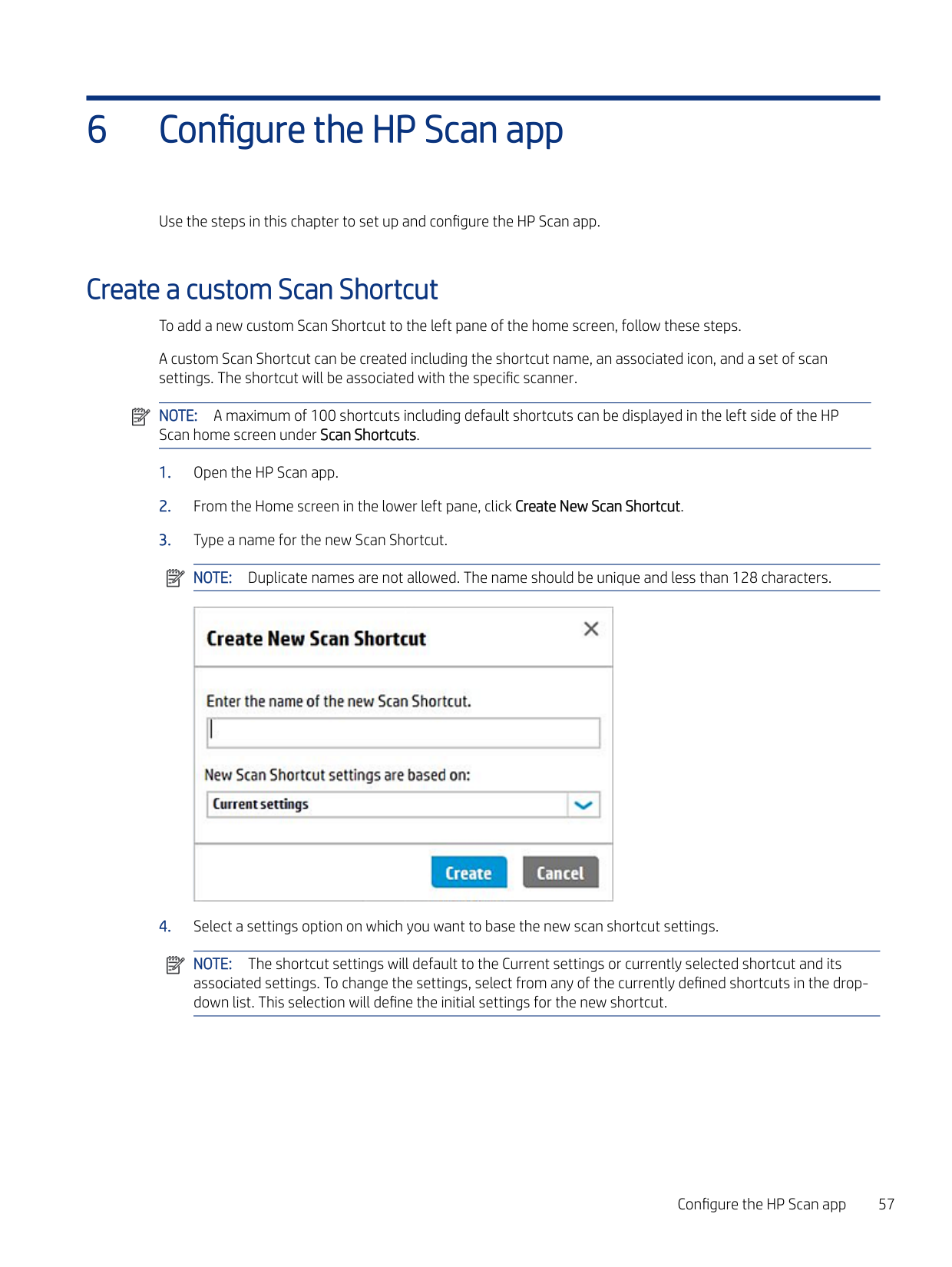
  • 3. Type a name for the new Scan Shortcut. NOTE: Duplicate names are not allowed. The name should be unique and less than 128 characters.
  • ![image 141](HpScan_User_Guide_v1-1_images/imageFile141.png)

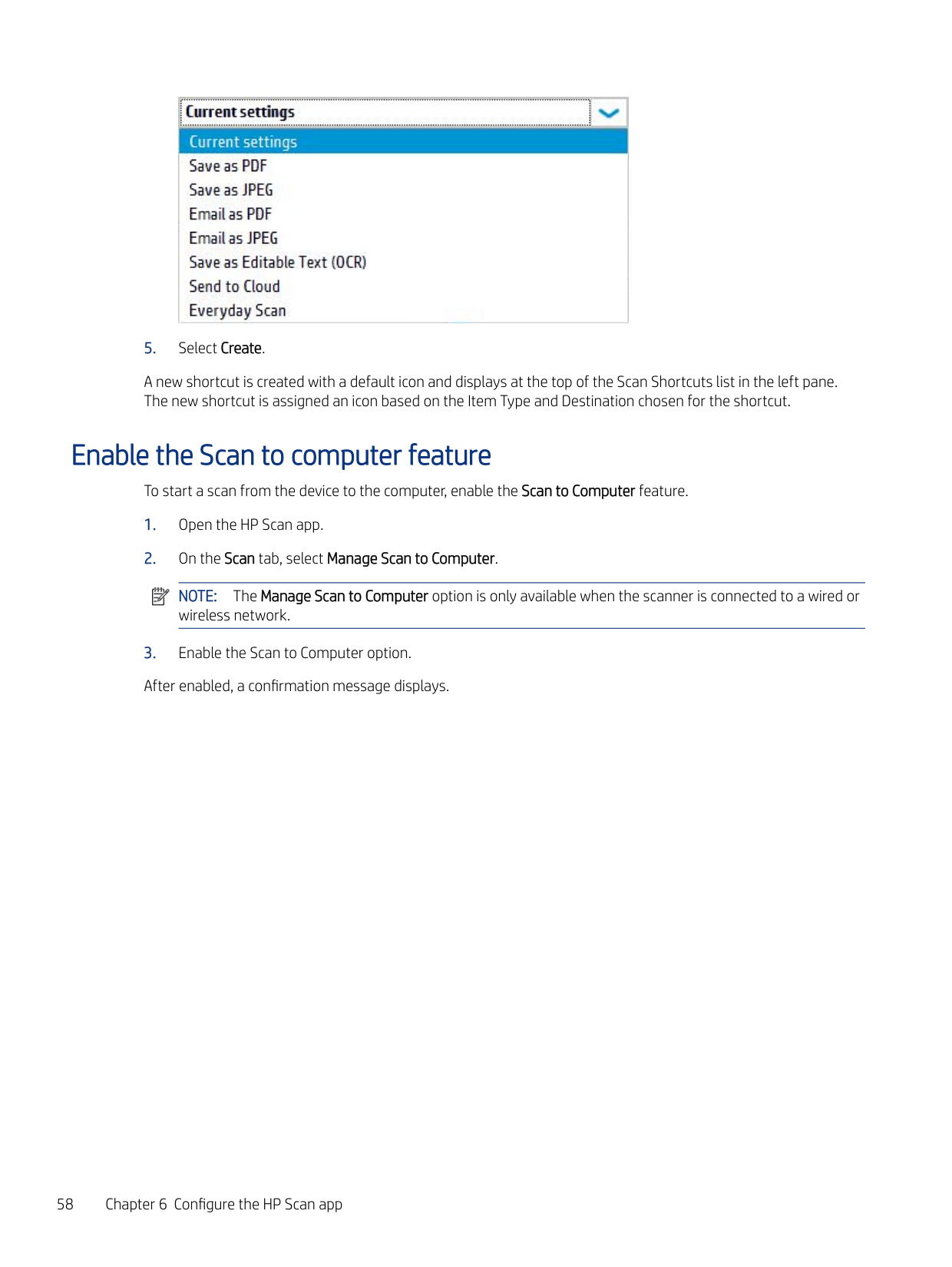
  • 4. Select a settings option on which you want to base the new scan shortcut settings.
  • Page 62

    ![image 142](HpScan_User_Guide_v1-1_images/imageFile142.png)

    ![image 143](HpScan_User_Guide_v1-1_images/imageFile143.png)

    NOTE: The shortcut settings will default to the Current settings or currently selected shortcut and its associated settings. To change the settings, select from any of the currently defined shortcuts in the dropdown list. This selection will define the initial settings for the new shortcut.

    Configure the HP Scan app 57

    ![image 144](HpScan_User_Guide_v1-1_images/imageFile144.png)

    ###### 5. Select Create.

    A new shortcut is created with a default icon and displays at the top of the Scan Shortcuts list in the left pane. The new shortcut is assigned an icon based on the Item Type and Destination chosen for the shortcut.

    Enable the Scan to computer feature

    To start a scan from the device to the computer, enable the Scan to Computer feature.

    Page 63

  • 1. Open the HP Scan app.
  • 2. On the Scan tab, select Manage Scan to Computer.
  • NOTE: The Manage Scan to Computer option is only available when the scanner is connected to a wired or wireless network.

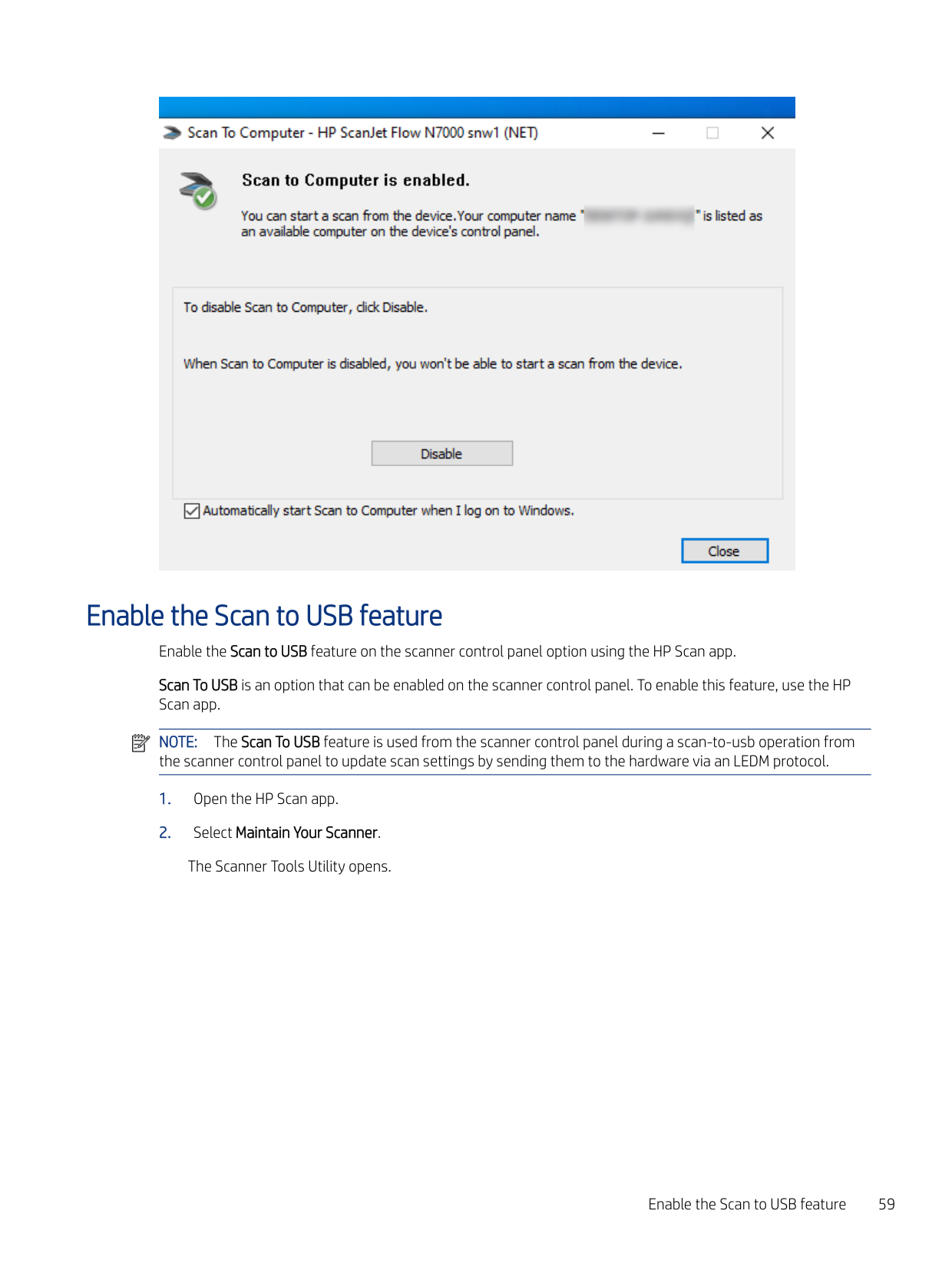
  • 3. Enable the Scan to Computer option. After enabled, a confirmation message displays.
  • ![image 145](HpScan_User_Guide_v1-1_images/imageFile145.png)

    ![image 146](HpScan_User_Guide_v1-1_images/imageFile146.png)

    Enable the Scan to USB feature Enable the Scan to USB feature on the scanner control panel option using the HP Scan app. Scan To USB is an option that can be enabled on the scanner control panel. To enable this feature, use the HP Scan app. NOTE: The Scan To USB feature is used from the scanner control panel during a scan-to-usb operation from the scanner control panel to update scan settings by sending them to the hardware via an LEDM protocol.

    ![image 147](HpScan_User_Guide_v1-1_images/imageFile147.png)

  • 1. Open the HP Scan app.
  • 2. Select Maintain Your Scanner. The Scanner Tools Utility opens.
  • Page 64

    Enable the Scan to USB feature 59

    ![image 148](HpScan_User_Guide_v1-1_images/imageFile148.png)

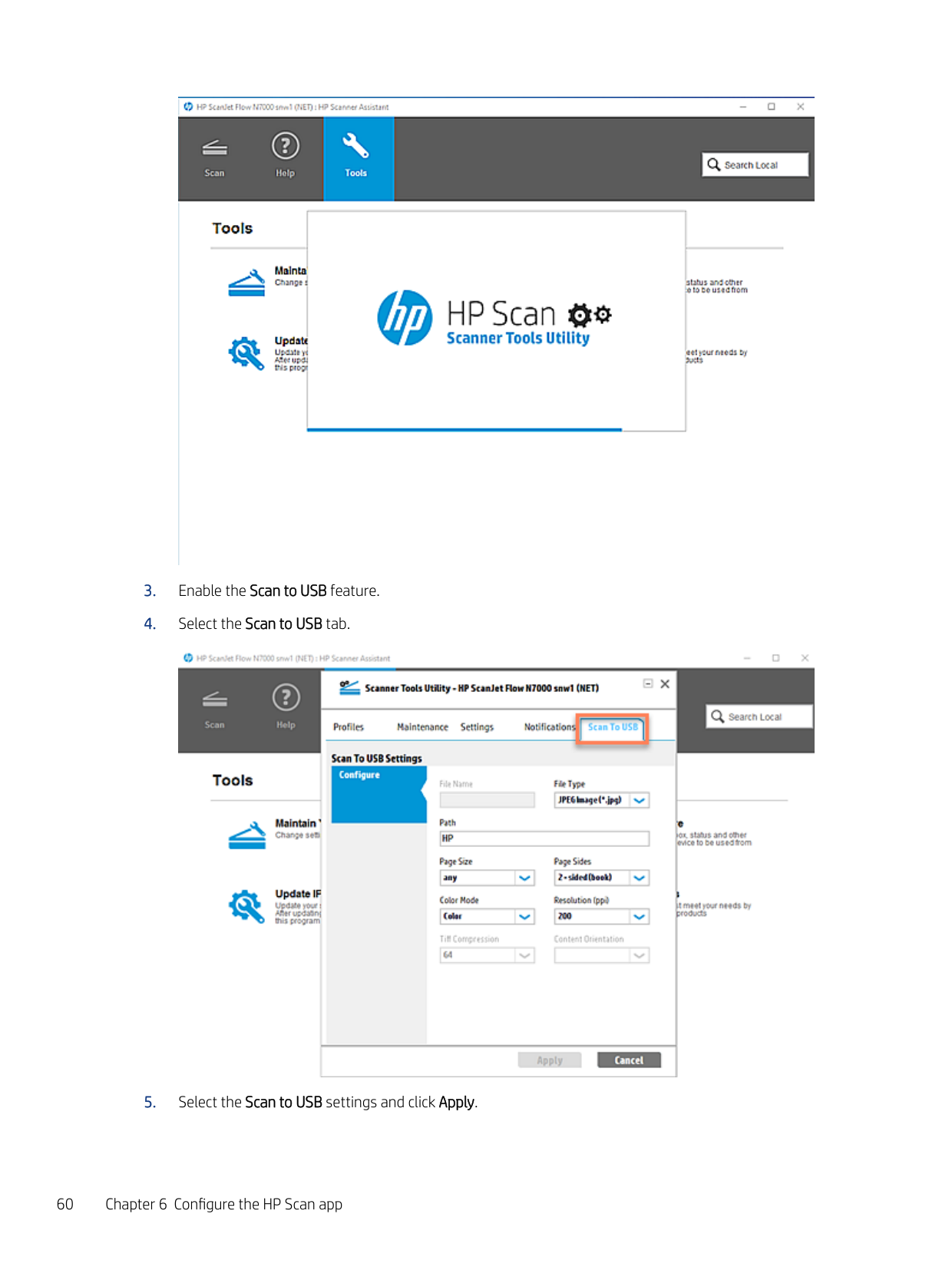
  • 3. Enable the Scan to USB feature.
  • 4. Select the Scan to USB tab.
  • ![image 149](HpScan_User_Guide_v1-1_images/imageFile149.png)

  • 5. Select the Scan to USB settings and click Apply.
  • Change the scanner IP address

    Update the device IP address using the HP Scan app.

  • 1. Open the HP Scan app.
  • Page 65

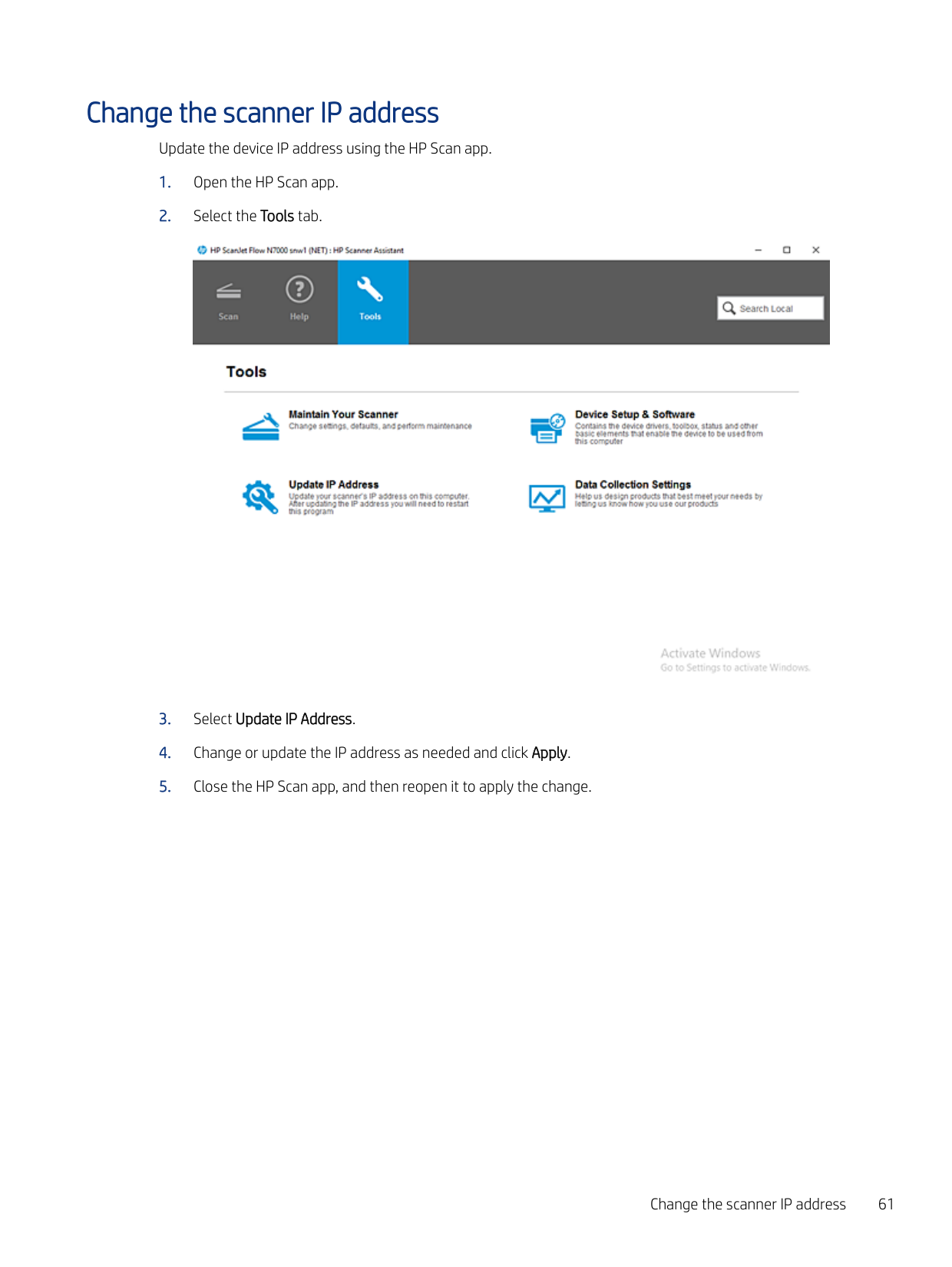
  • 2. Select the Tools tab.
  • ![image 150](HpScan_User_Guide_v1-1_images/imageFile150.png)

  • 3. Select Update IP Address.
  • 4. Change or update the IP address as needed and click Apply.
  • 5. Close the HP Scan app, and then reopen it to apply the change.
  • Change the scanner IP address 61

    Manage Shortcuts7

    ![image 151](HpScan_User_Guide_v1-1_images/imageFile151.png)

    Learn how to rename, delete, or restore modified shortcuts to default settings in the HP Scan app. NOTE: Shortcuts included with the app cannot be renamed or deleted. Only custom created shortcuts can be renamed or deleted.

    Rename a Scan Shortcut

    Page 66

    To change the name of a custom Scan Shortcut you created in the HP Scan app, follow these steps.

  • 1. Open the HP Scan app.
  • 2. On the Scan tab, select Scan a Document or Photo. The scan interface opens.
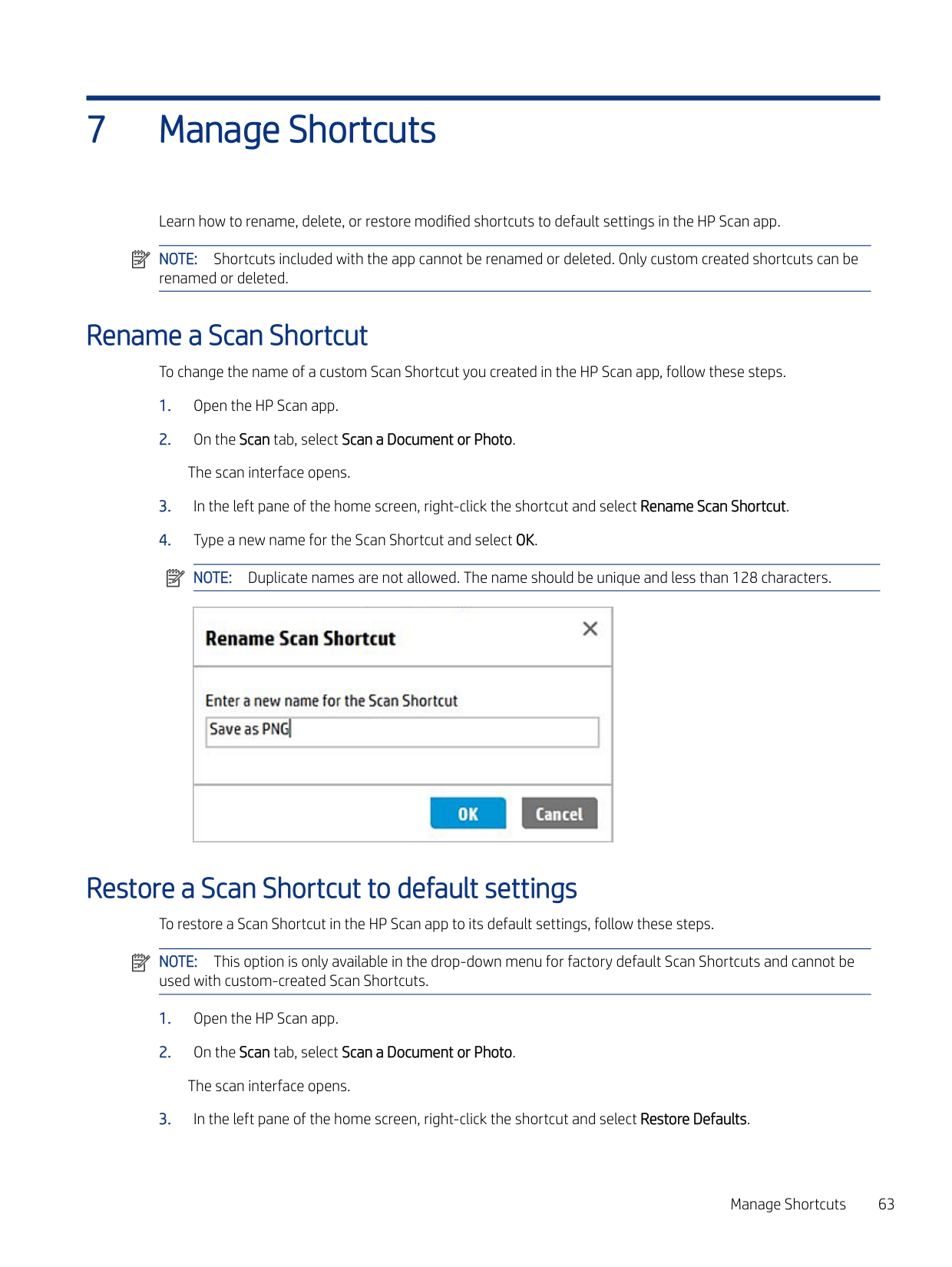
  • 3. In the left pane of the home screen, right-click the shortcut and select Rename Scan Shortcut.
  • 4. Type a new name for the Scan Shortcut and select OK. NOTE: Duplicate names are not allowed. The name should be unique and less than 128 characters.
  • ![image 152](HpScan_User_Guide_v1-1_images/imageFile152.png)

    ![image 153](HpScan_User_Guide_v1-1_images/imageFile153.png)

    Restore a Scan Shortcut to default settings To restore a Scan Shortcut in the HP Scan app to its default settings, follow these steps. NOTE: This option is only available in the drop-down menu for factory default Scan Shortcuts and cannot be used with custom-created Scan Shortcuts.

    ![image 154](HpScan_User_Guide_v1-1_images/imageFile154.png)

  • 1. Open the HP Scan app.
  • 2. On the Scan tab, select Scan a Document or Photo. The scan interface opens.
  • 3. In the left pane of the home screen, right-click the shortcut and select Restore Defaults.
  • Page 67

    Manage Shortcuts 63

  • 4. Select Yes to confirm. This cannot be undone. The Scan Shortcut settings are resets to the factory default values.
  • Delete a Scan Shortcut To delete a custom Scan Shortcut you created in the HP Scan app, follow these steps. NOTE: Factory default Scan Shortcuts cannot be deleted.

    ![image 155](HpScan_User_Guide_v1-1_images/imageFile155.png)

  • 1. Open the HP Scan app.
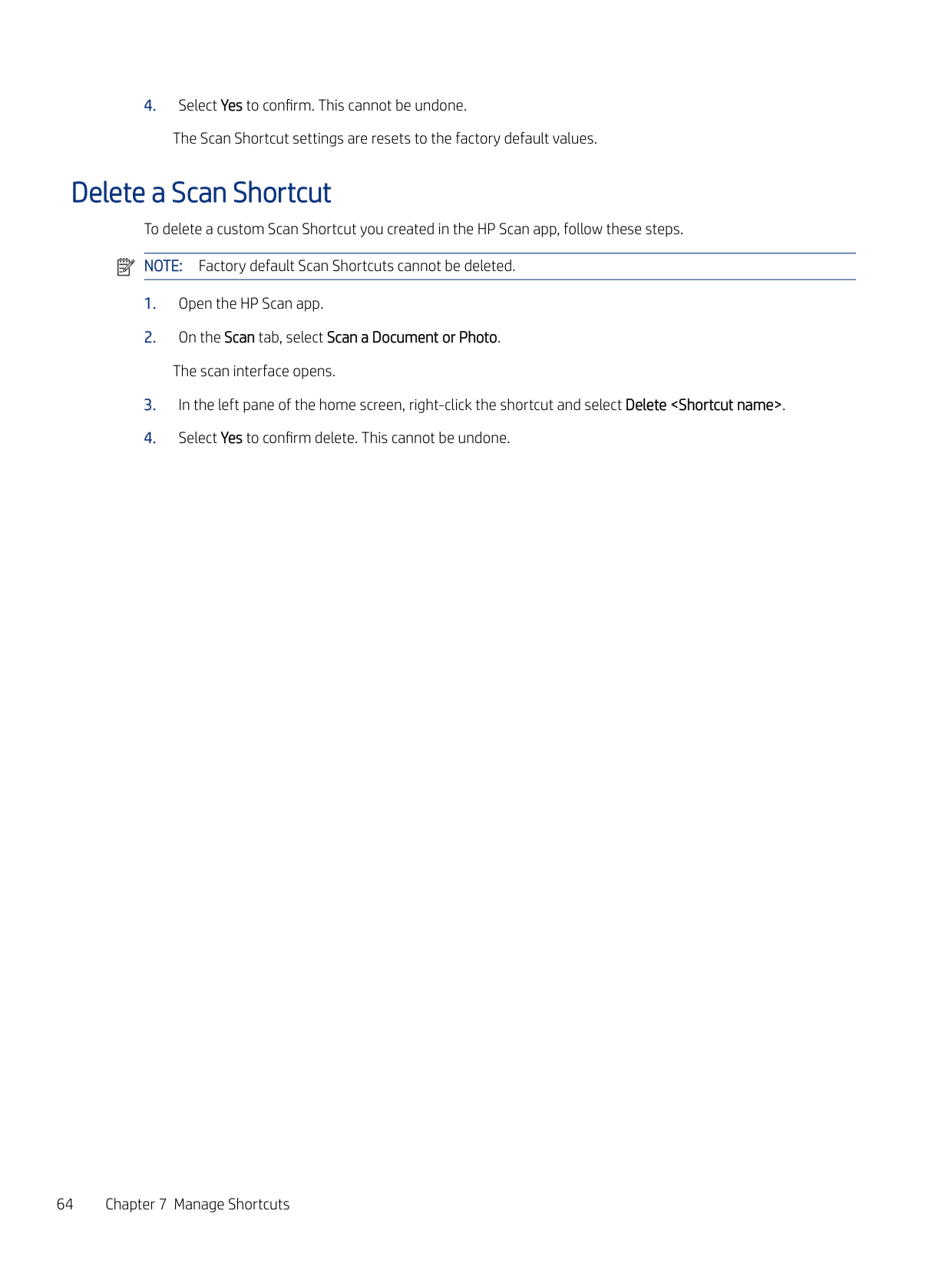
  • 2. On the Scan tab, select Scan a Document or Photo. The scan interface opens.
  • 3. In the left pane of the home screen, right-click the shortcut and select Delete .
  • 4. Select Yes to confirm delete. This cannot be undone.
  • 64 Chapter 7 Manage Shortcuts

    Page 68

    Manage and maintain the scanner8

    Use the steps in this chapter to manage and maintain the scanner on a device using the HP Scan app.

    Open the Embedded Web Server (EWS)

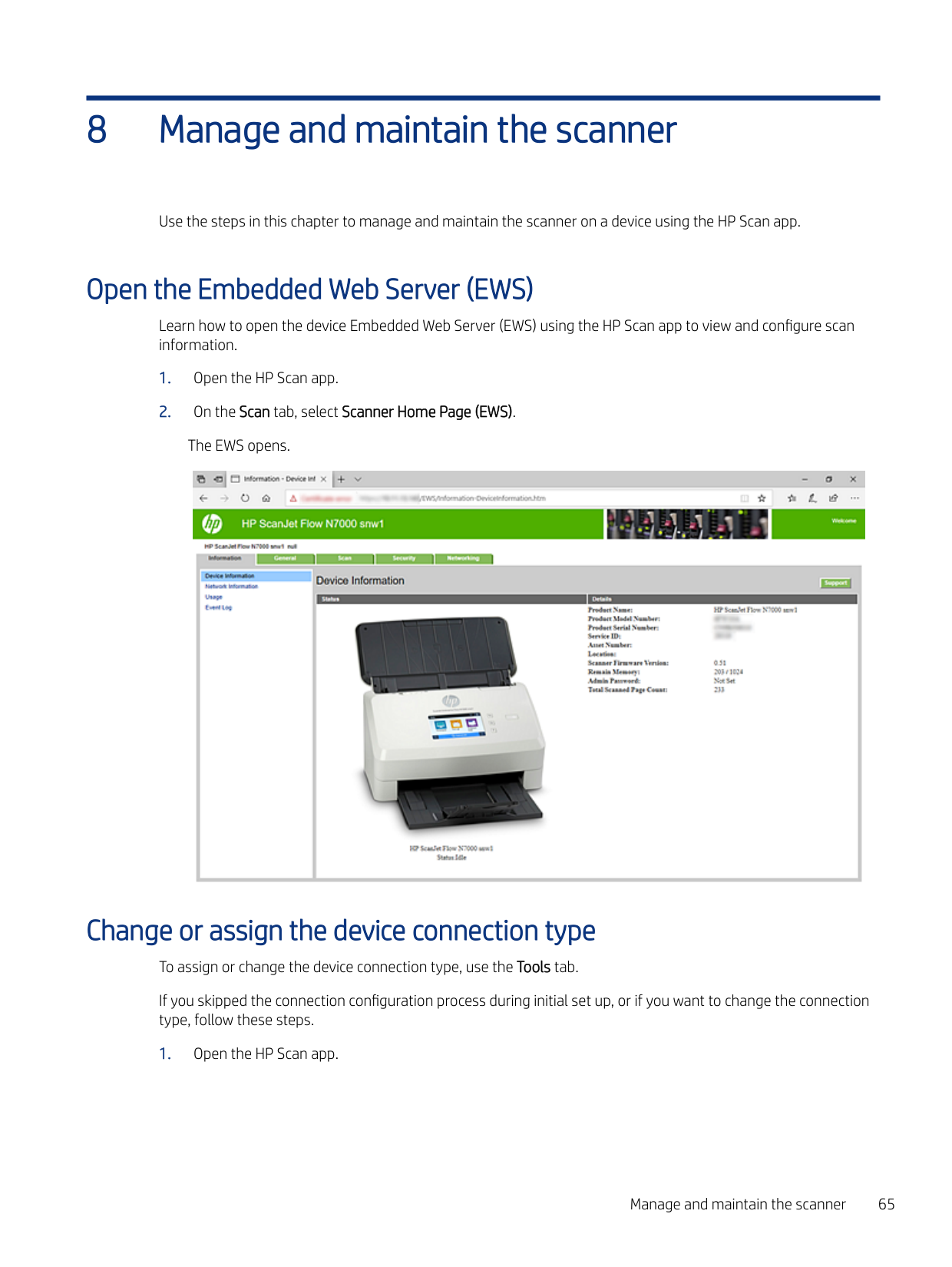
    Learn how to open the device Embedded Web Server (EWS) using the HP Scan app to view and configure scan information.

  • 1. Open the HP Scan app.
  • 2. On the Scan tab, select Scanner Home Page (EWS).
  • The EWS opens.

    ![image 156](HpScan_User_Guide_v1-1_images/imageFile156.png)

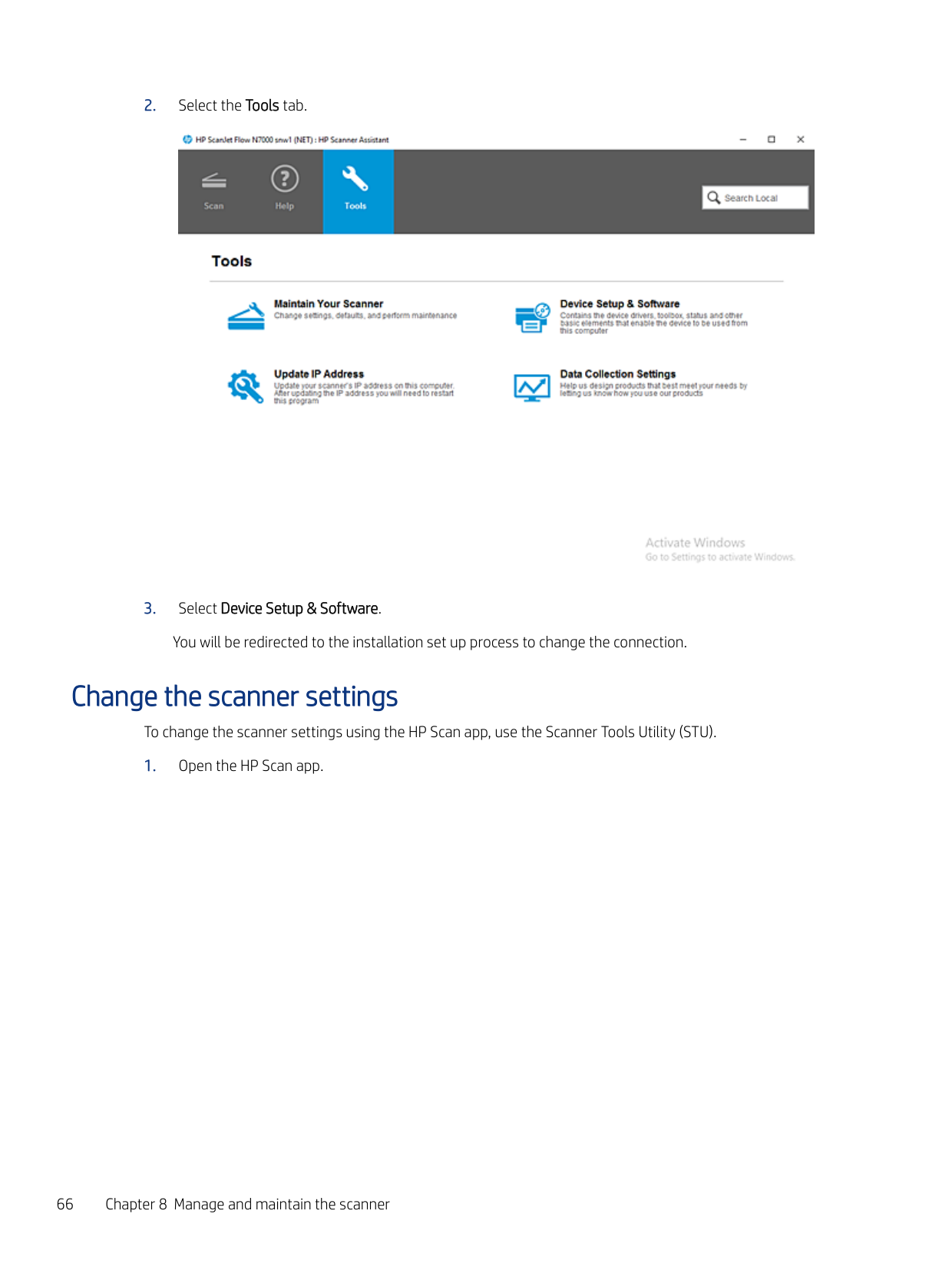
    Change or assign the device connection type To assign or change the device connection type, use the Tools tab. If you skipped the connection configuration process during initial set up, or if you want to change the connection type, follow these steps.
  • Open the HP Scan app.
  • Page 69

    Manage and maintain the scanner 65

    ![image 157](HpScan_User_Guide_v1-1_images/imageFile157.png)

    ###### 3. Select Device Setup & Software.

    You will be redirected to the installation set up process to change the connection.

    Change the scanner settings

    To change the scanner settings using the HP Scan app, use the Scanner Tools Utility (STU).

  • Open the HP Scan app.
  • ![image 158](HpScan_User_Guide_v1-1_images/imageFile158.png)

    ###### 3. Select Maintain Your Scanner.
    Page 70

    The Scanner Tools Utility opens.

    ![image 159](HpScan_User_Guide_v1-1_images/imageFile159.png)

    Change the scanner settings 67

    Maintain the scanner

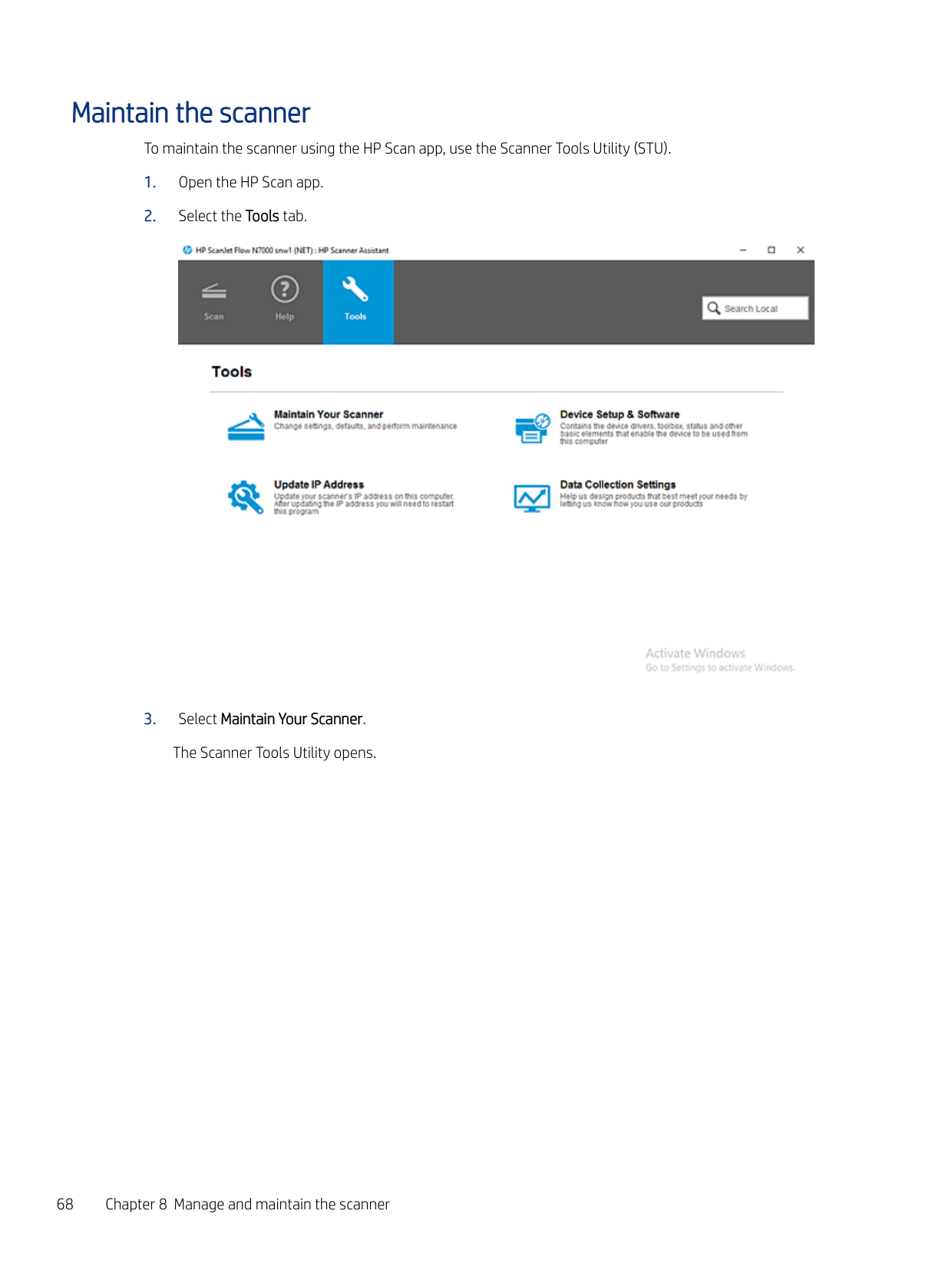
    To maintain the scanner using the HP Scan app, use the Scanner Tools Utility (STU).

  • 1. Open the HP Scan app.
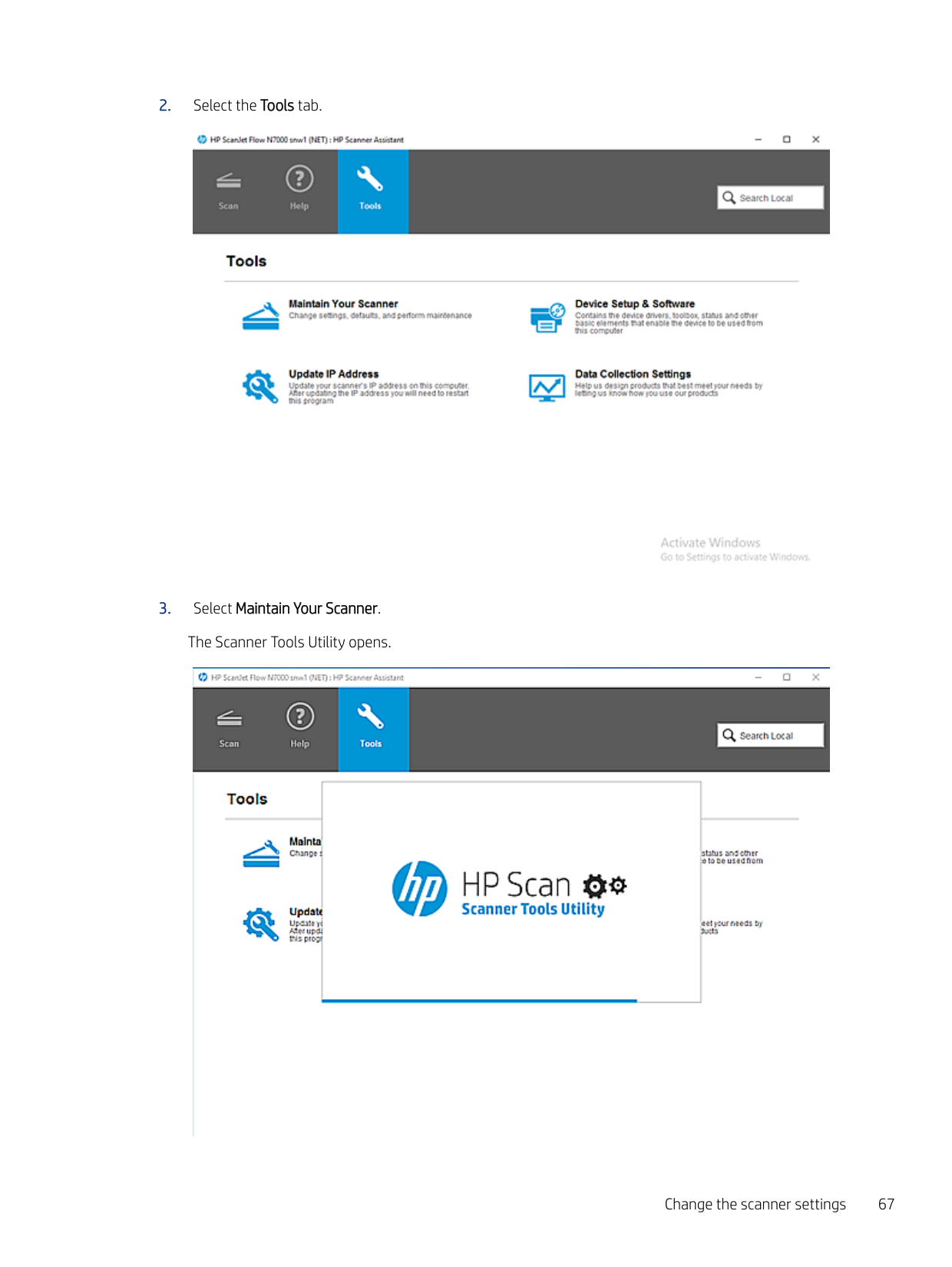
  • 2. Select the Tools tab.
  • ![image 160](HpScan_User_Guide_v1-1_images/imageFile160.png)

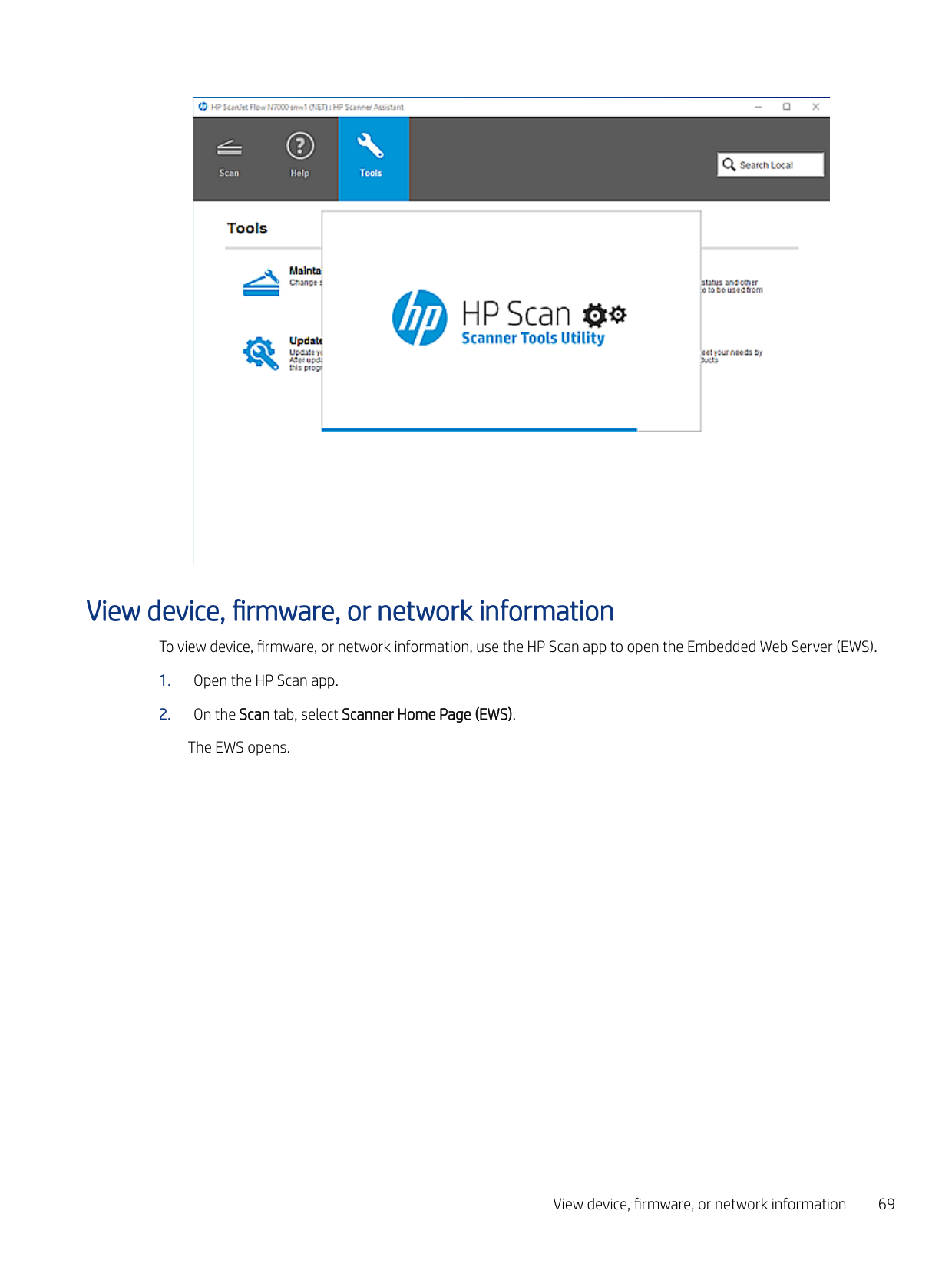
  • 3. Select Maintain Your Scanner. The Scanner Tools Utility opens.
  • ![image 161](HpScan_User_Guide_v1-1_images/imageFile161.png)

    Page 71

    View device, firmware, or network information

    To view device, firmware, or network information, use the HP Scan app to open the Embedded Web Server (EWS).

  • 1. Open the HP Scan app.
  • 2. On the Scan tab, select Scanner Home Page (EWS). The EWS opens.
  • View device, firmware, or network information 69

    ![image 162](HpScan_User_Guide_v1-1_images/imageFile162.png)

    ####### 3. Select the Information tab.

    9

    Uninstall the HP Scan app or remove a device from the app
    Page 72

    To remove a device from the app and/or uninstall the app, follow these steps.

    Remove a device from the app

    Remove a device from the HP Scan application.

  • 1. Open the HP Scan app.
  • 2. Open Settings by clicking the gear icon from the Homescreen.
  • ![image 163](HpScan_User_Guide_v1-1_images/imageFile163.png)

    Uninstall the HP Scan app or remove a device from the app 71

  • 3. Select a device and then click Delete.
  • ![image 164](HpScan_User_Guide_v1-1_images/imageFile164.png)

  • 4. Select Delete to confirm.
  • Page 73

    ![image 165](HpScan_User_Guide_v1-1_images/imageFile165.png)

    Uninstall the HP Scan app

    Learn how to uninstall the HP Scan application.

  • 1. From the Start menu, select Control Panel.
  • 2. Select Programs and Features.
  • 3. Select HP Scan+ Basic Device Software, right-click the option, and then select Uninstall.
  • 4. Select OK to confirm.
  • 5. Under Devices and Printers, make sure the device has been removed.
  • 72 Chapter 9 Uninstall the HP Scan app or remove a device from the app

    Revision history View a list of document revisions. The information contained herein is subject to change without notice. HP shall not be liable for technical or editorial errors or omissions contained herein. Table Revision history
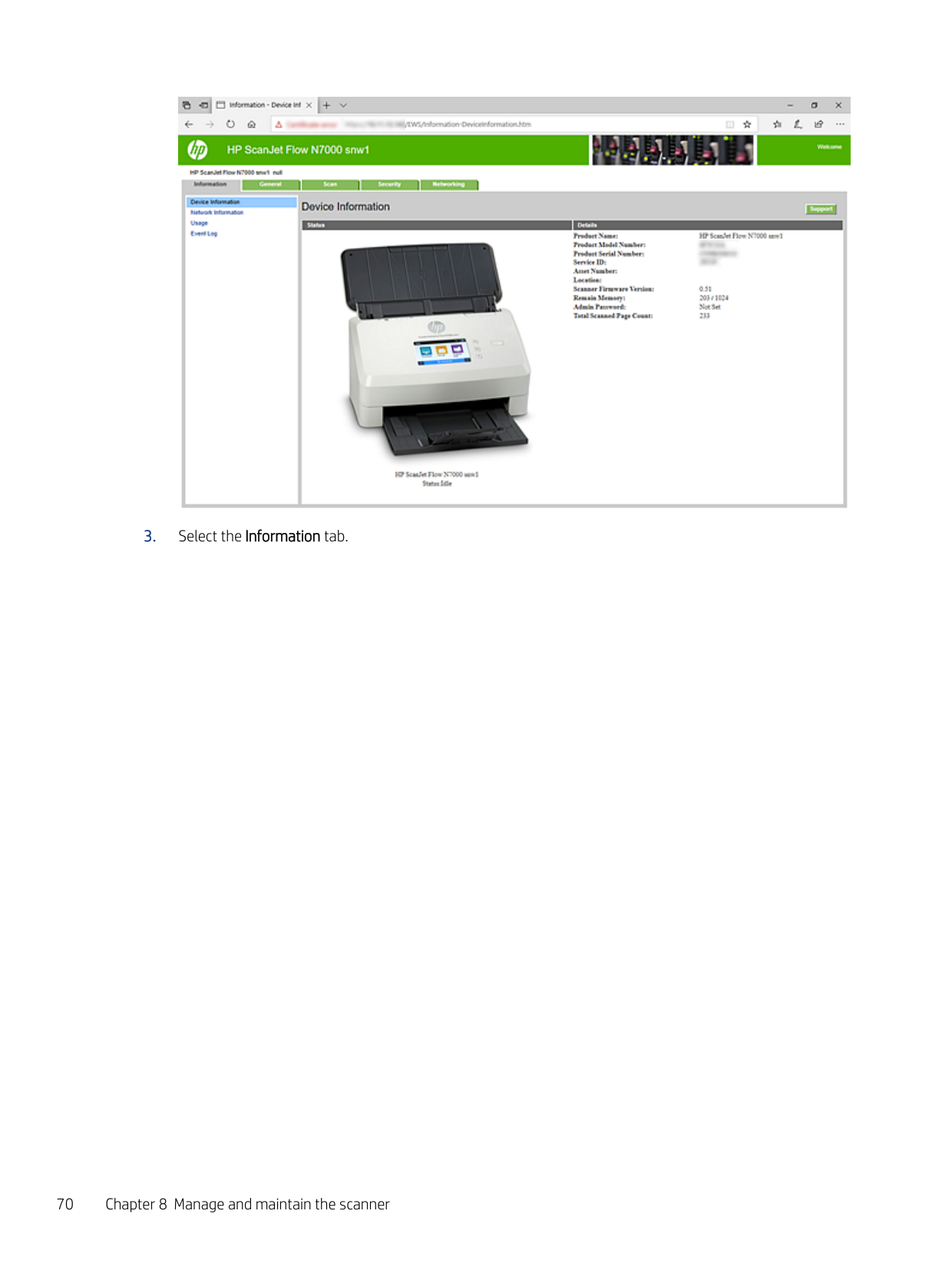
    Page 74

    |Revision number|Revision date|Revision notes| |---|---|---| |1.0|03/2021|New release User Guide for the HP Scan app.|

    Revision history 73

    ####### 74 Chapter 1 Revision history

    Index

    ###### A

    add

    device..............................................18 divider.............................................53 page break.....................................53 scanner...........................................18 separator........................................53

    add pages
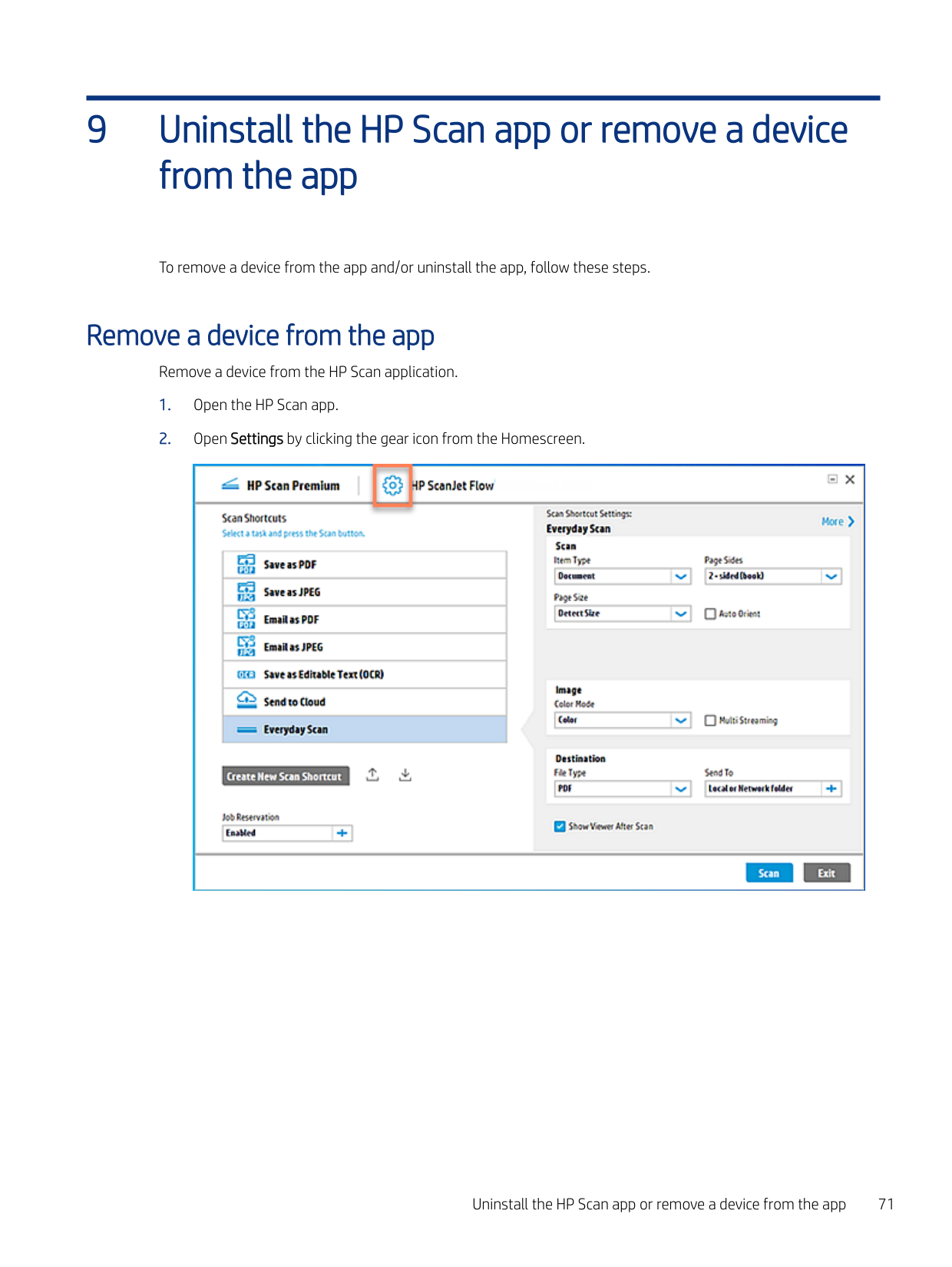
    Page 75

    blank............................................... 50 scan preview window...................54

    adjust

    page settings after scan..............34 scanned pages after scan............34 ShortCut settings before scan....34

    Adjustments area............................... 29 Adjustments window......................... 26 app, overview, menus........................19 assign

    connection type............................ 65 assign PIN............................................ 40

    ###### B

    business cards.....................................40 buttons

    user interface.................................29

    ###### C

    Cardiris for HP..................................... 40 change
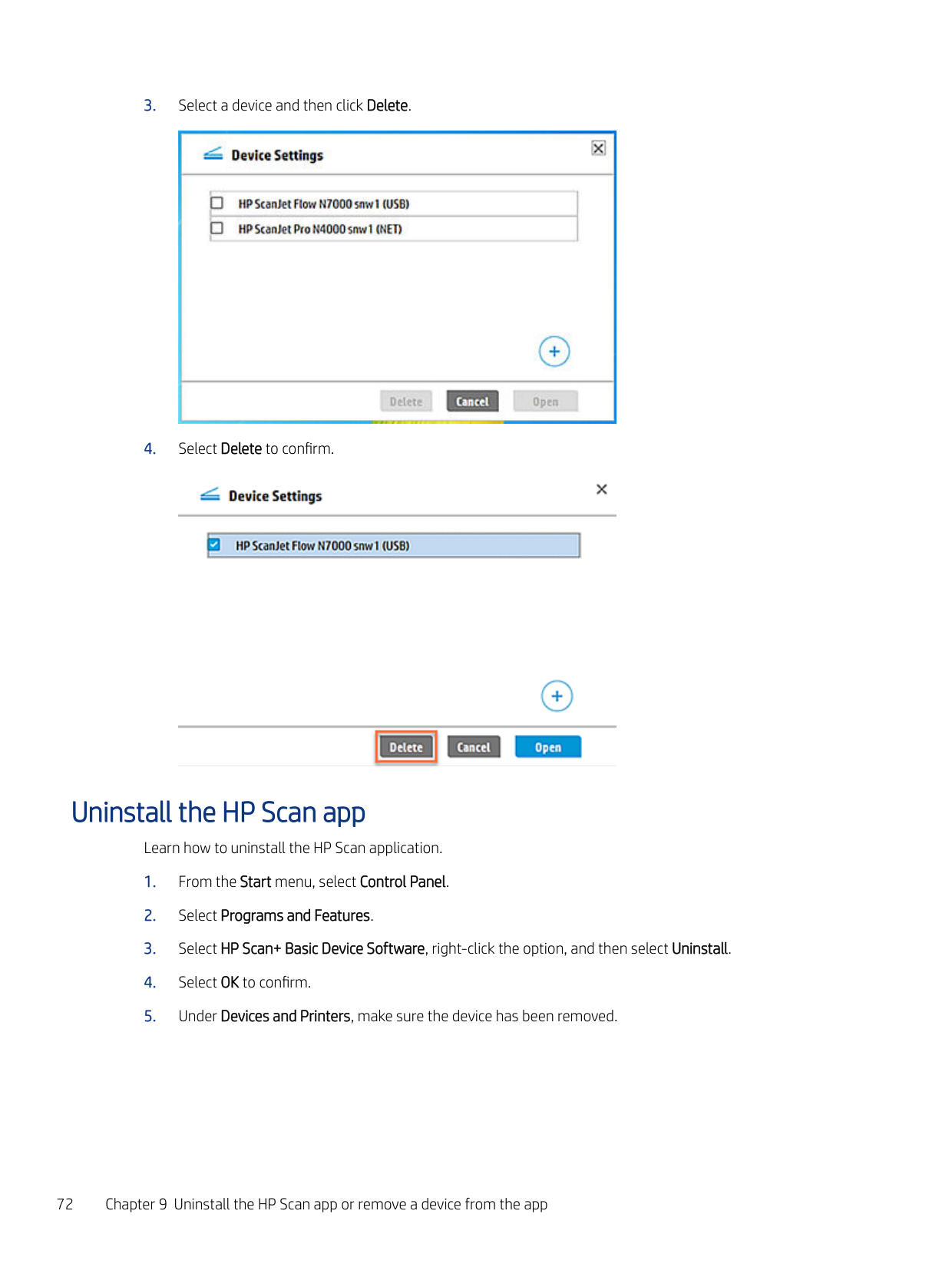
    Page 76

    connection type............................ 65 default settings.............................66 ip address.......................................61 scanner settings............................66

    change page order............................. 51 change page orientation................... 51 configure

    Scan To USB...................................59 configure, set up.................................57 connection

    change to network........................65 change to usb................................65 change to wireless........................65

    create

    job reservation.............................. 40 scan shortcuts...............................57 stored job.......................................40

    crop pages........................................... 47

    ###### D

    default settings...................................66 delete
    Page 77

    scan shortcuts...............................64 delete pages........................................49 delete, scanner, device.......................71 Detailed Adjustment settings...........30 Document view...................................26 Download

    driver.................................................3 full software.....................................3 web pack...........................................3

    ###### E

    edit pages............................................ 43 editable text..................................38, 39 editing tools.........................................29 email scan

    jpeg................................................. 37 pdf...................................................37

    Embedded Web Server............... 65, 69 enable

    scan to computer..........................58 Scan To USB...................................59

    EveryDay Scan.....................................34

  • H home screen........................................21
  • I
  • Page 78

    icons

    add scan.........................................29 crop................................................. 29 delete page....................................29 insert separator.............................29

    next.................................................29 previous..........................................29 rotate.............................................. 29 undo................................................29

    information

    device..............................................69 firmware.........................................69 network..........................................69

    insert

    divider.............................................53 page break.....................................53 separator........................................53

    install.......................................................5 administrator.................................16 basic web pack..............................16 command prompt.........................16 HP Scan.............................................3 plug-ins.......................................... 16 silent............................................... 16 usb cable connection......................7 wired network connection...........10 wireless connection......................13

    install, app..............................................3 Introduction, Scope...............................1 ip address

    Page 79

    change............................................61 J

    job separator.......................................53 job storage...........................................40

  • L Less link................................................30
  • M maintain
  • scanner...........................................65 Maintain Your Scanner.......................66 maintainenance.................................. 68 manage

    app.................................................. 65 shortcuts........................................63

    Index 75

    More link...............................................30

    ###### O

    open
    Page 80

    app.................................................. 33 Embedded Web Server................65 home screen..................................33

    Open in a Zoom window...... 45, 47, 51 overview

    home screen..................................21 scan shortcuts...............................23 Scan Shortcuts.............................. 21 settings...........................................23 tabs................................................. 19

    ###### P

    password protect................................40 perform maintainenance...................68 preview scan........................................43 preview window............................49-51

    ###### R

    re-order pages....................................51 Readiris Pro for HP............................. 38 remove pages...............................49, 50 remove scanner..................................71 rename

    scan shortcuts...............................63 restore defaults

    scan shortcuts...............................63 revision history....................................73

    ###### S

    Save as Editable Text (OCR)........38, 39 save scan

    jpeg...........................................36, 37 local folder..................................... 36 network folder...............................36 pdf............................................ 36, 37

    scan

    business card.................................40 Scan a document or photo................34 Scan a Document or Photo...............33 scan preview.................................43, 54

    crop................................................. 47 document list view........................44 full screen.......................................45 thumbnail view..............................43 zoom...............................................45

    scan preview window.........................53 Scan preview window

    Detailed Adjustment settings..... 30 Document view............................. 26

    Thumbnail view.............................26 scan shortcuts

    create..............................................57 delete..............................................64 rename........................................... 63 restore defaults.............................63

    Scan Shortcuts

    about........................................21, 23 Email as JPEG................................ 23 Email as PDF..................................23 Everyday Scan...............................23 Save as Editable Text (OCR).........23 Save as JPEG..................................23 Save as PDF................................... 23 Send to Cloud................................ 23 settings...........................................23

    scan to

    computer........................................58 editable text............................38, 39

    Scan To USB

    control panel option.....................59 enable.............................................59

    scanner maintainenance...................68 scanner tools utility............................68 Scanner Tools Utility (STU).........66, 68 set up wizard

    start...................................................5 shortcuts

    delete..............................................63 rename........................................... 63 restore defaults.............................63

    Show Viewer after scan...............43-45 store scan job......................................40 supported

    devices.............................................. 2 file types........................................... 2 printers..............................................2 scanners........................................... 2

    system requirements

    minimum.......................................... 1 operating..........................................1 recommended................................. 1

    T tabs

    Help.................................................19 Scan.................................................19 Tools................................................19

    thumbnail view....................................43 Thumbnail view...................................26 toggle

    More Less...........................................30

    ###### U

    UDC icon...............................................33 uninstall................................................72 uninstall app........................................71 use, open, other..................................33

    ###### V

    view

    device information........................69 document.......................................44 firmware information...................69 full screen................................47, 51 list....................................................44 network information.................... 69 thumbnails.....................................43 zoom........................................47, 51

    Z zoom.....................................................45

    76 Index

    More from HP

    Similar Unknown