Ask AI
— answers from the official manualAnswers from the official manual.
Common questions
Common Questions
18 totalHow do I connect a USB device to the computer?
Connect one end of the USB cable for the device into an available USB port on the computer. You may hear a sound indicating that the device has been detected. (Page 2)
How many USB ports does the computer have?
The computer has 4 USB ports, which support USB 1.0, USB 1.1, and USB 2.0 devices. An optional docking device or USB hub can provide additional USB ports for use with the computer. (Page 5)
How do I safely remove a USB device?
Double-click the Safely Remove Hardware icon in the notification area at the far right of the taskbar, click the name of the device in the list, click Stop, then click OK, and finally remove the device. It is important to stop a USB device before removing it to prevent loss of information or an unresponsive system. Do not pull on the cable to remove the device, as this can damage the USB connector. (Page 6)
What types of devices can be connected via USB?
USB ports can be used to connect optional external devices such as a USB keyboard, mouse, drive, printer, scanner, or hub. Devices can be connected to the computer or an optional docking device. (Page 5)
What is USB legacy support and what does it allow?
USB legacy support allows the use of a USB keyboard, mouse, or hub connected to a USB port during startup or in an MS-DOS-based program or utility. It also permits starting or restarting from an optional external MultiBay or an optional USB bootable device. USB legacy support is enabled by default at the factory. (Page 7)
How do I disable or enable USB legacy support?
Open Computer Setup by turning on or restarting the computer and pressing f10 when the 'F10 = ROM Based Setup' message appears, then navigate using arrow keys to System Configuration > Device Configurations and enable or disable USB legacy support, then press f10. Save your preferences by selecting File > Save changes and exit. Your preferences will take effect when the computer restarts. (Page 7)
Show 12 more questions
What happens when I connect a USB device to the computer for the first time?
How do I safely remove a USB device from my computer?
Can I use a USB keyboard or mouse during startup?
What should I do to prevent damage to a USB connector?
Can an optional docking station provide more USB ports?
Will I be notified when a USB device is recognized by the computer?
What precautions should I take when connecting a USB device?
Do USB devices require additional software to work?
What should I do if the USB device is not listed in the Safely Remove Hardware dialog?
How do I access the ROM-Based Setup Utility?
How do I enable USB legacy support?
How many USB ports does my computer have?
Full Manual
7 pages

External Devices User Guide
© Copyright 2009 Hewlett-Packard Development Company, L.P. The information contained herein is subject to change without notice. The only warranties for HP products and services are set forth in the express warranty statements accompanying such products and services. Nothing herein should be construed as constituting an additional warranty. HP shall not be liable for technical or editorial errors or omissions contained herein. First Edition: April 2009 Document Part Number: 516610-001 Product notice This user guide describes features that are common to most models. Some features may not be available on your computer.
Table of contents Using a USB device Connecting a USB device .................................................................................................................... 2 Stopping and removing a USB device .................................................................................................. 2 Using USB legacy support ................................................................................................................... 3 Index ..................................................................................................................................................................... 4 iii
Using a USB device Universal Serial Bus (USB) is a hardware interface that can be used to connect an optional external device, such as a USB keyboard, mouse, drive, printer, scanner, or hub. Devices can be connected to the computer or an optional docking device. Some USB devices may require additional support software, which is usually included with the device. For more information about device-specific software, refer to the manufacturer's instructions. The computer has 4 USB ports, which support USB 1.0, USB 1.1, and USB 2.0 devices. An optional docking device or USB hub provides additional USB ports that can be used with the computer. 1
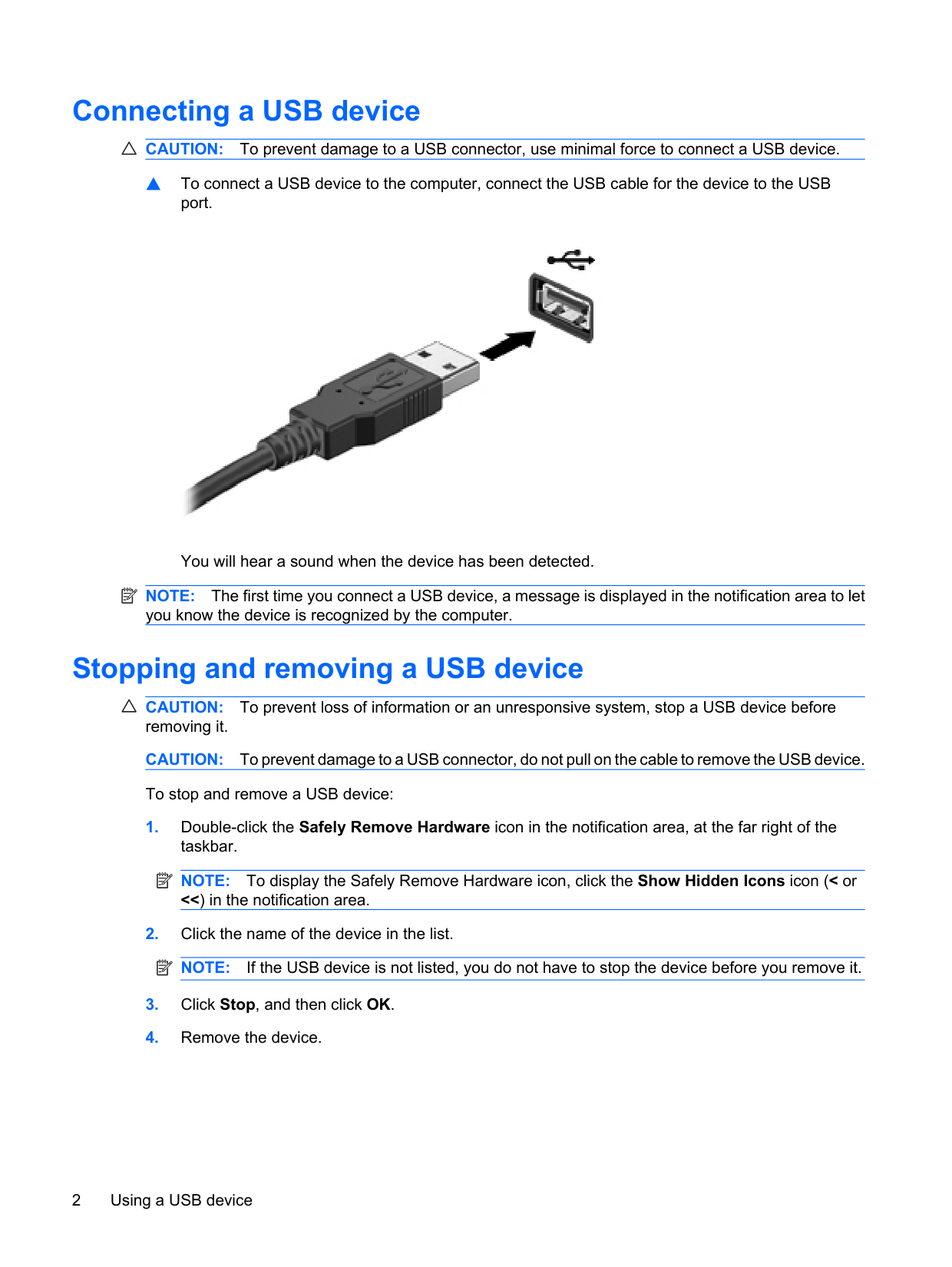
Connecting a USB device
Caution:
To prevent damage to a USB connector, use minimal force to connect a USB device. ▲ To connect a USB device to the computer, connect the USB cable for the device to the USB port. You will hear a sound when the device has been detected.Note:
The first time you connect a USB device, a message is displayed in the notification area to let you know the device is recognized by the computer. Stopping and removing a USB deviceCaution:
To prevent loss of information or an unresponsive system, stop a USB device before removing it.Caution:
To prevent damage to a USB connector, do not pull on the cable to remove the USB device. To stop and remove a USB device:Note:
To display the Safely Remove Hardware icon, click the Show Hidden Icons icon (< or <<) in the notification area.Note:
If the USB device is not listed, you do not have to stop the device before you remove it.
Using USB legacy support USB legacy support (enabled by default) permits the following actions: ● Using a USB keyboard, mouse, or hub connected to a USB port on the computer during startup or in an MS-DOS-based program or utility ● Starting or restarting from an optional external MultiBay or an optional USB bootable device USB legacy support is enabled at the factory. To disable or enable USB legacy support:
Index