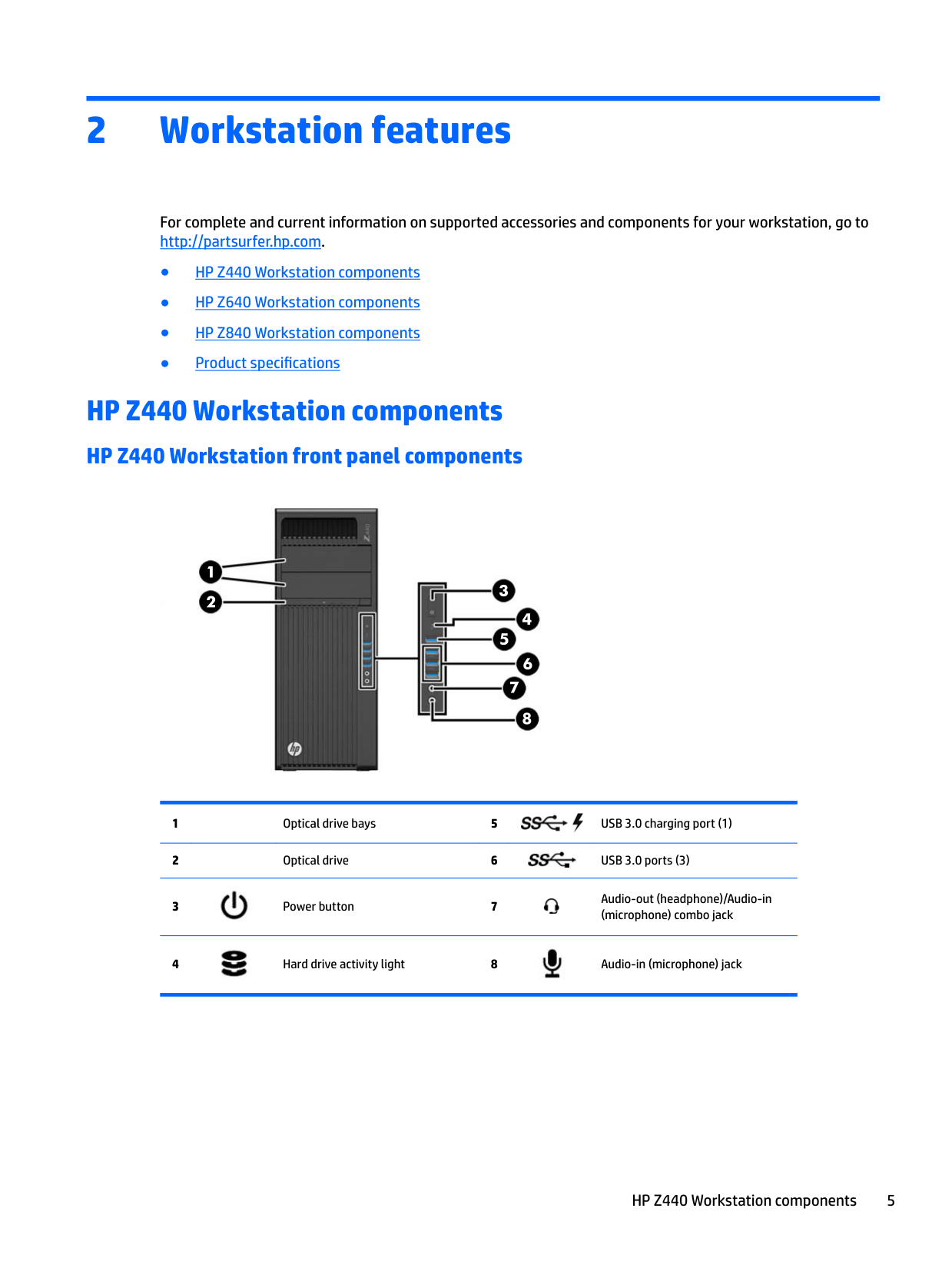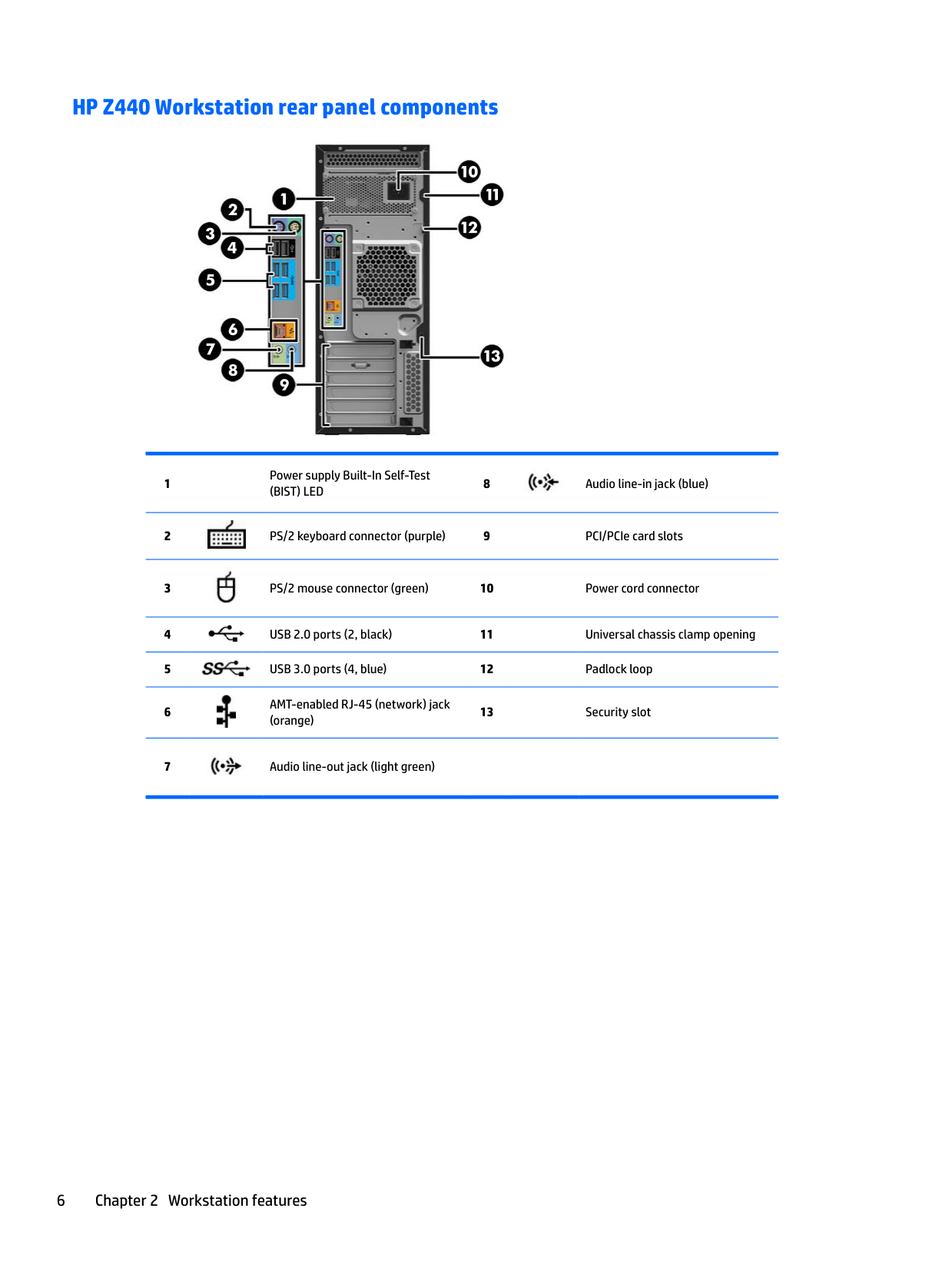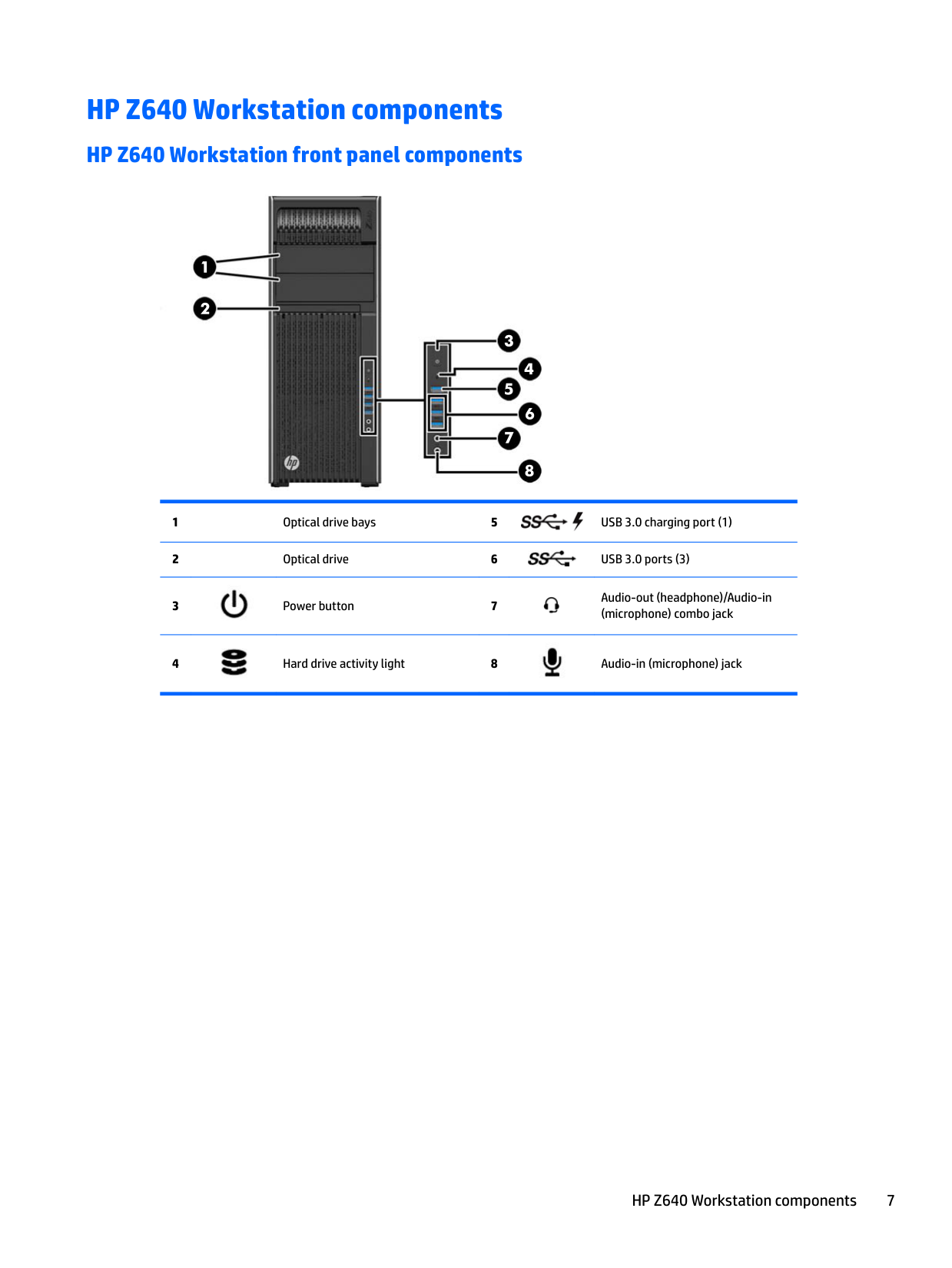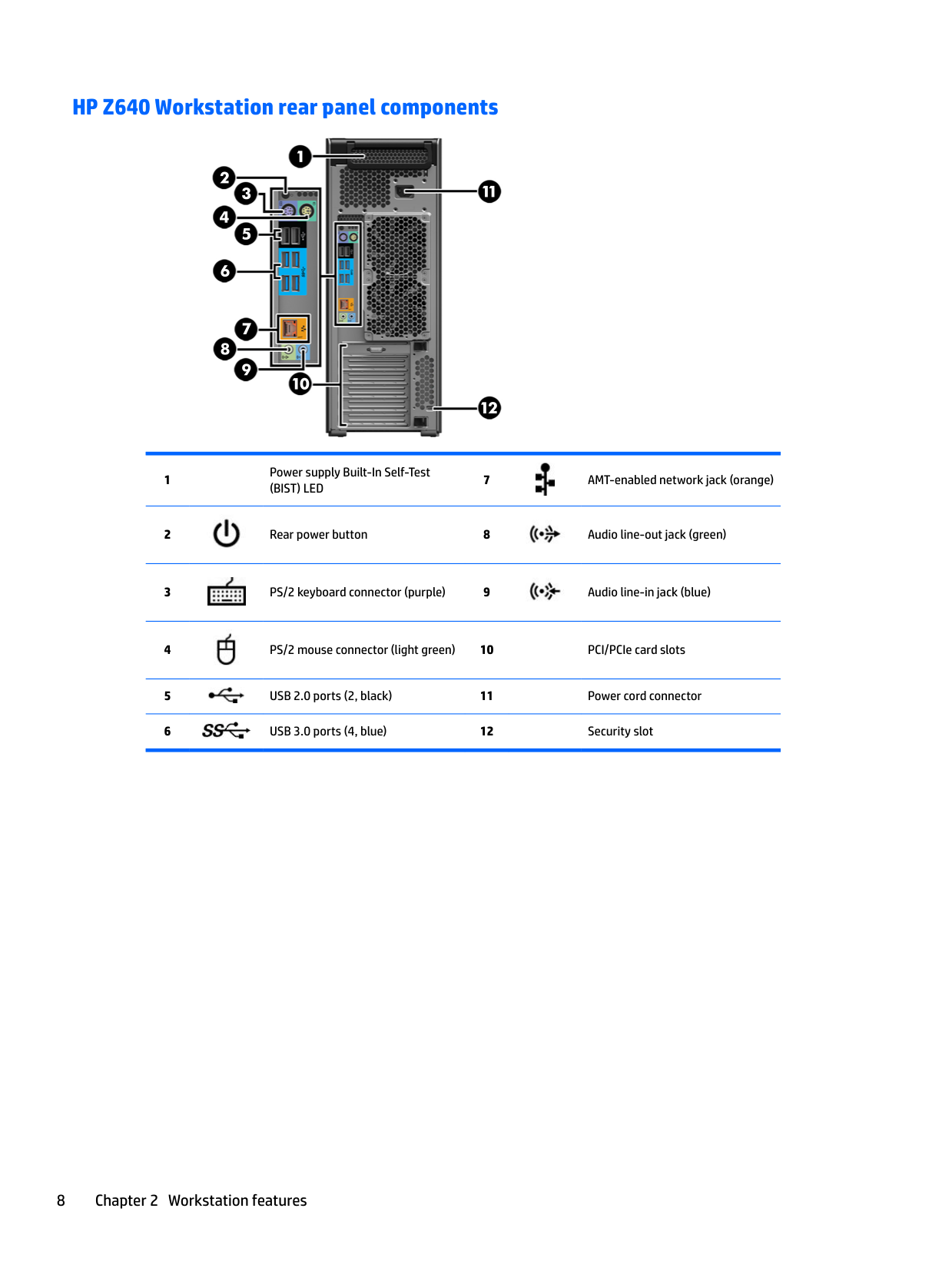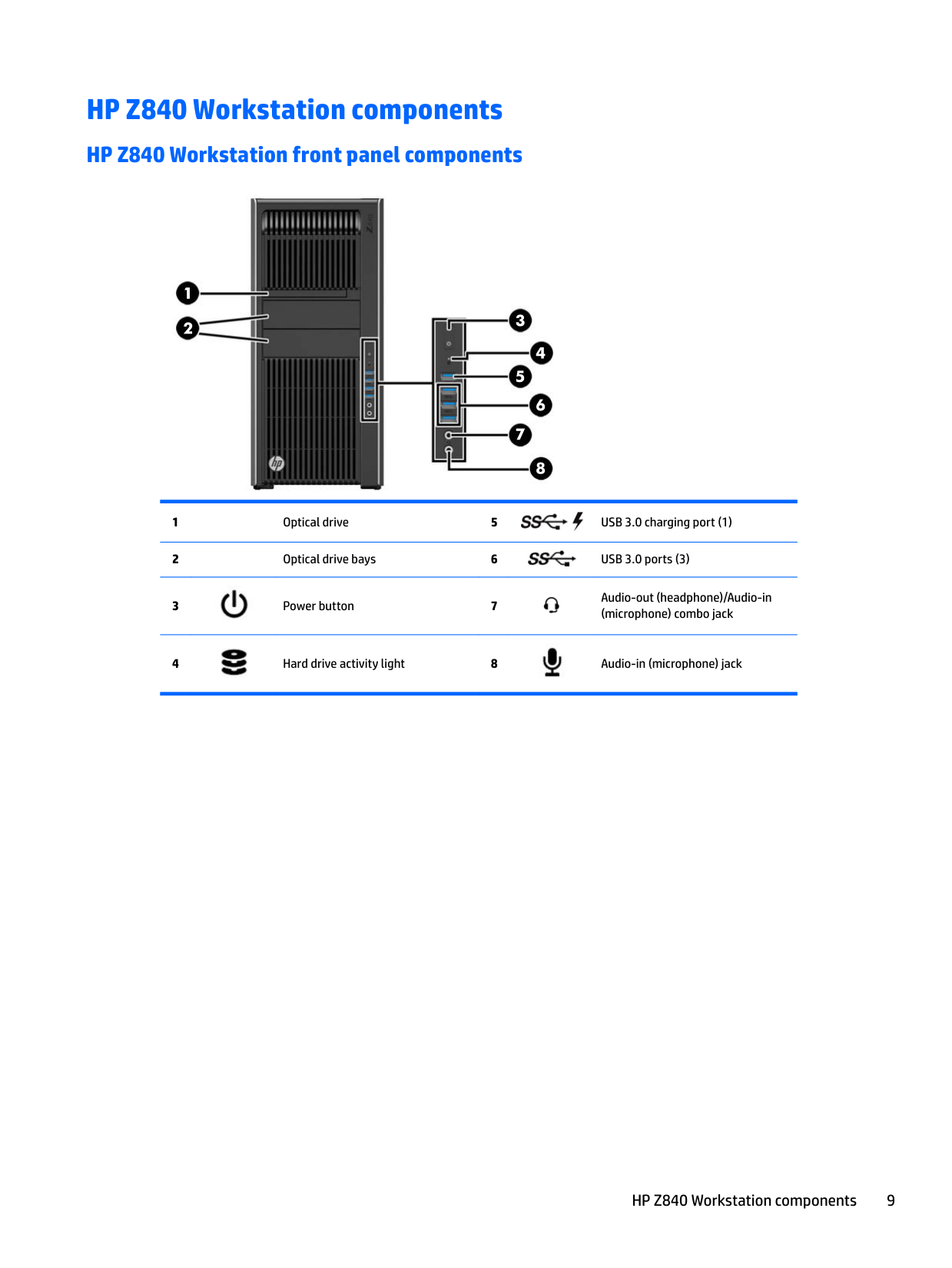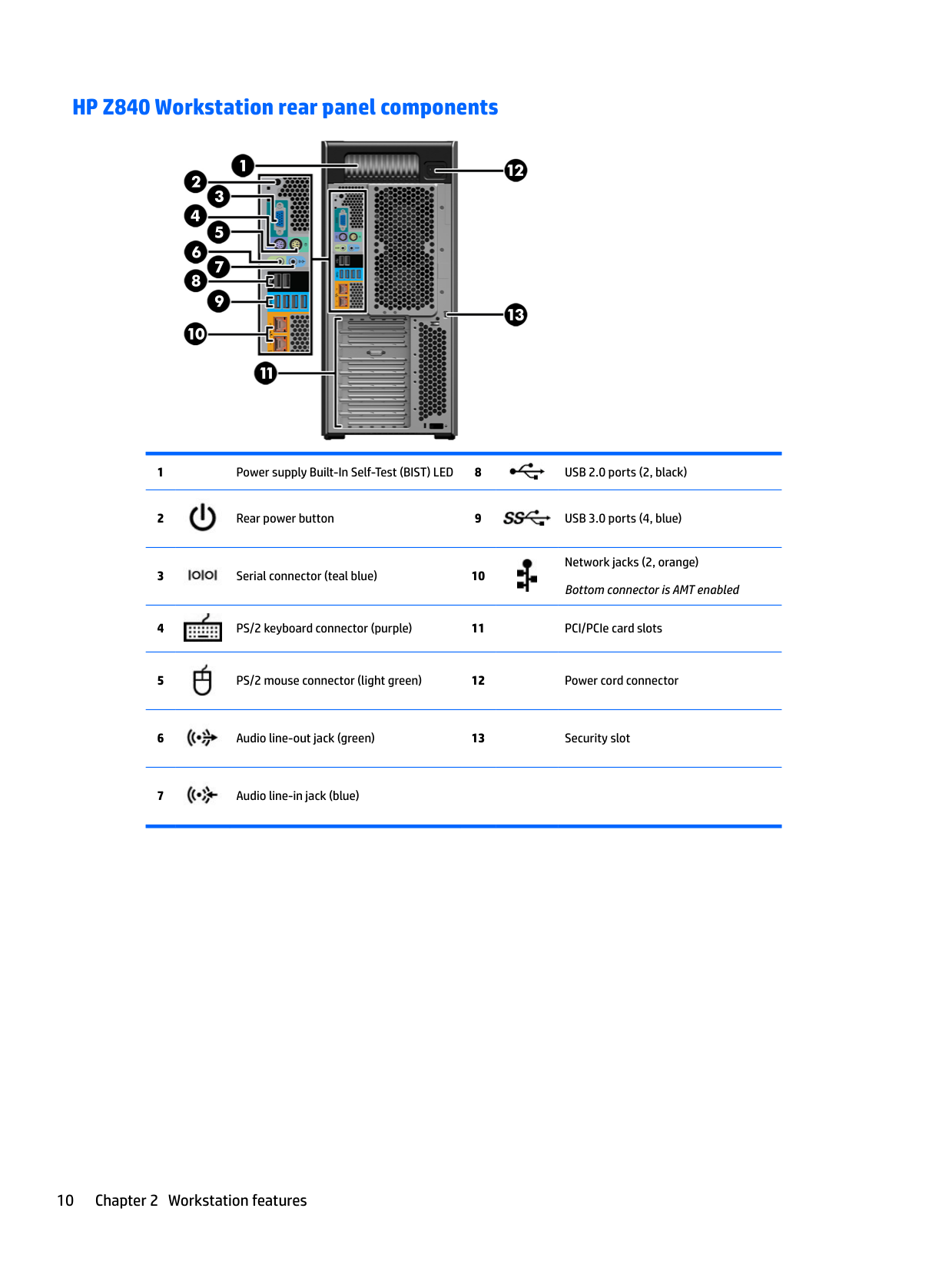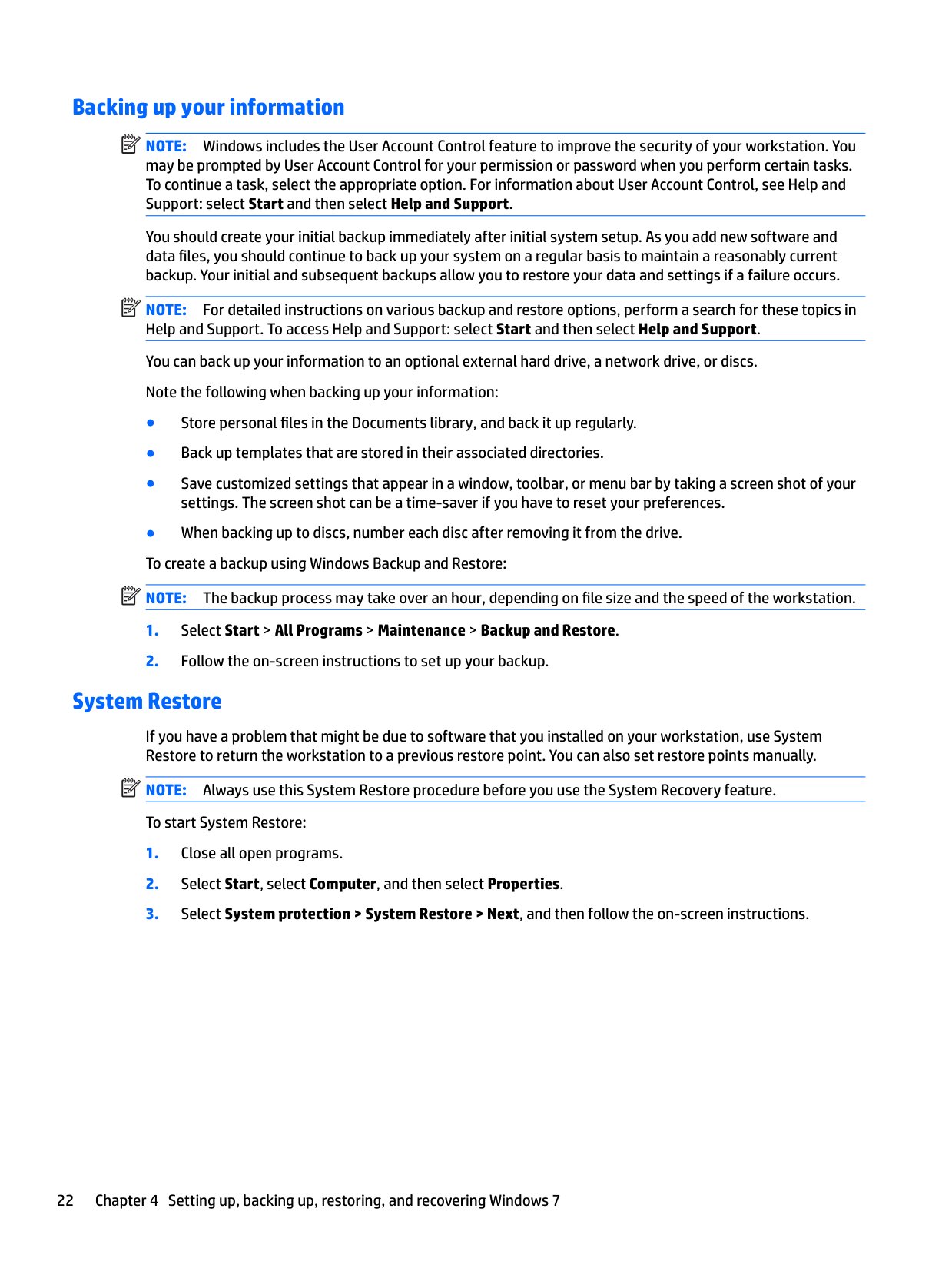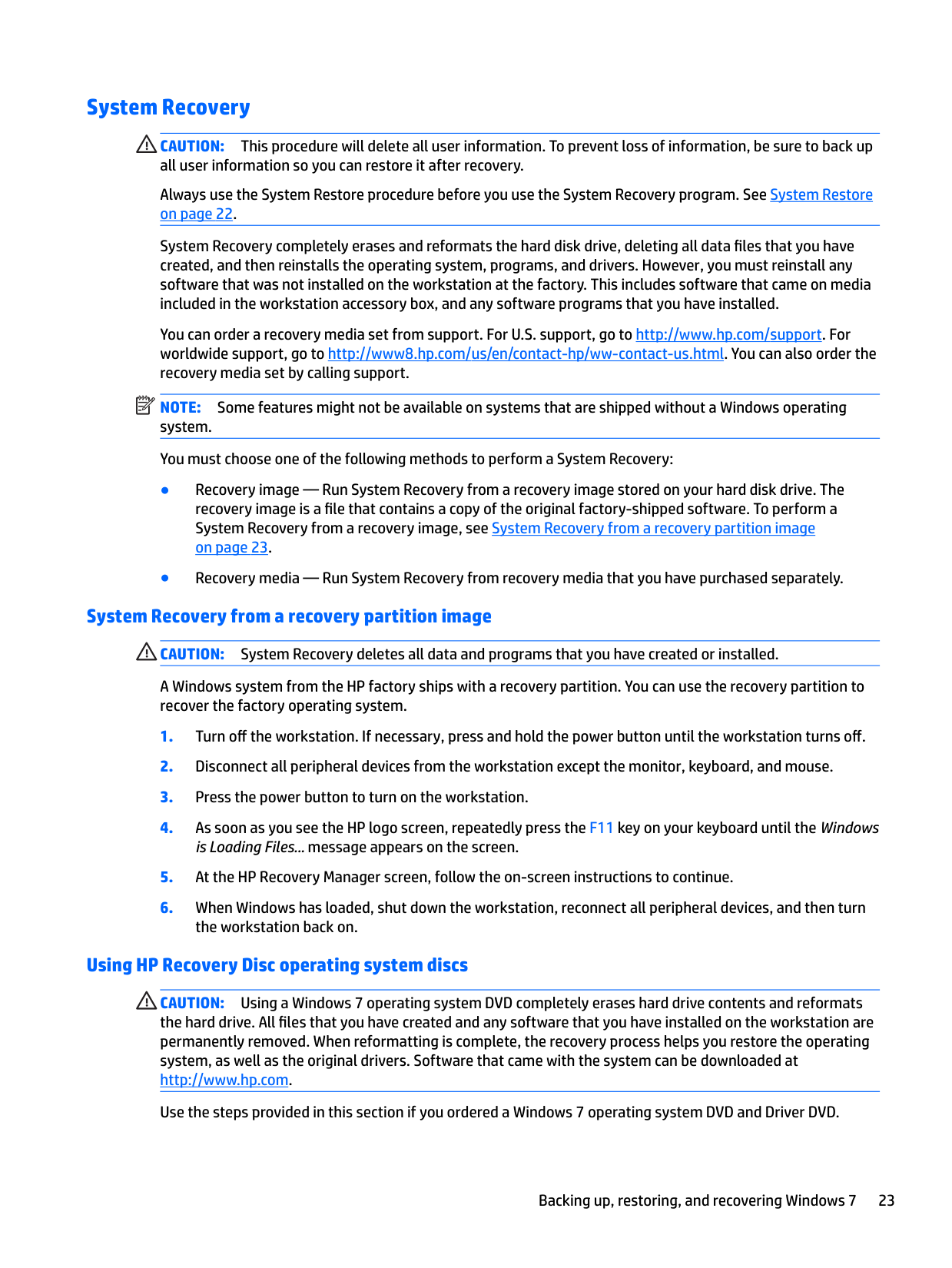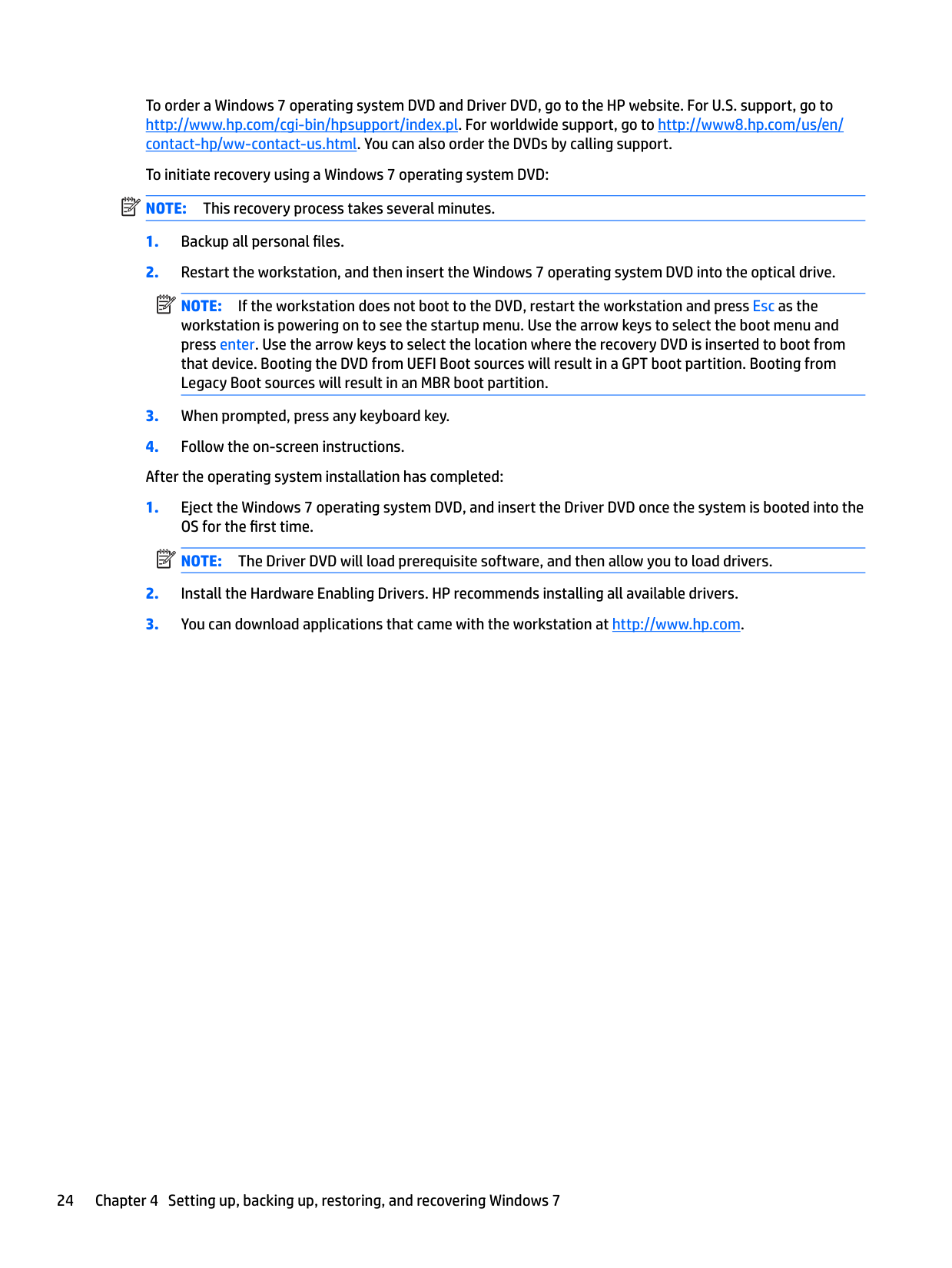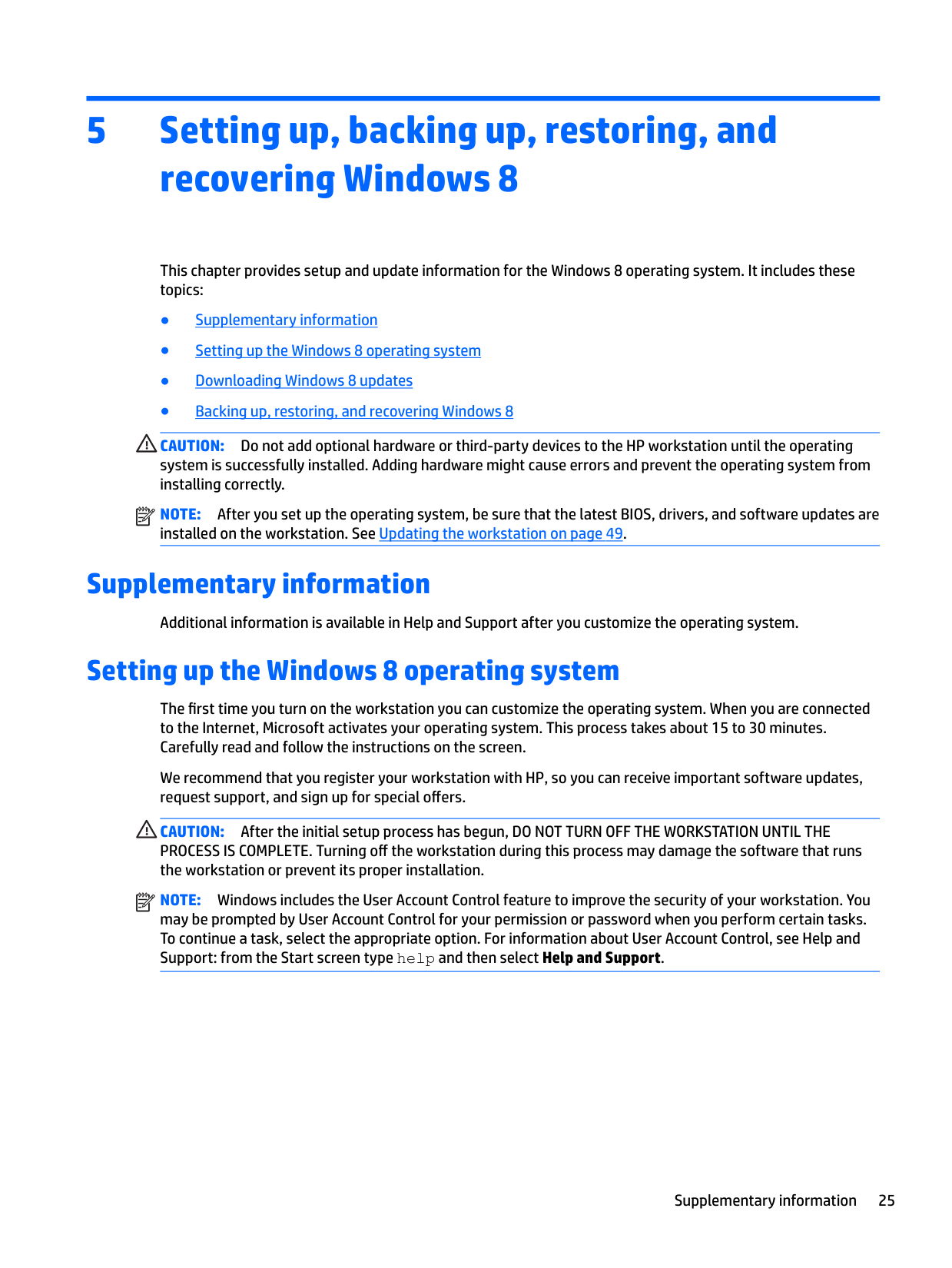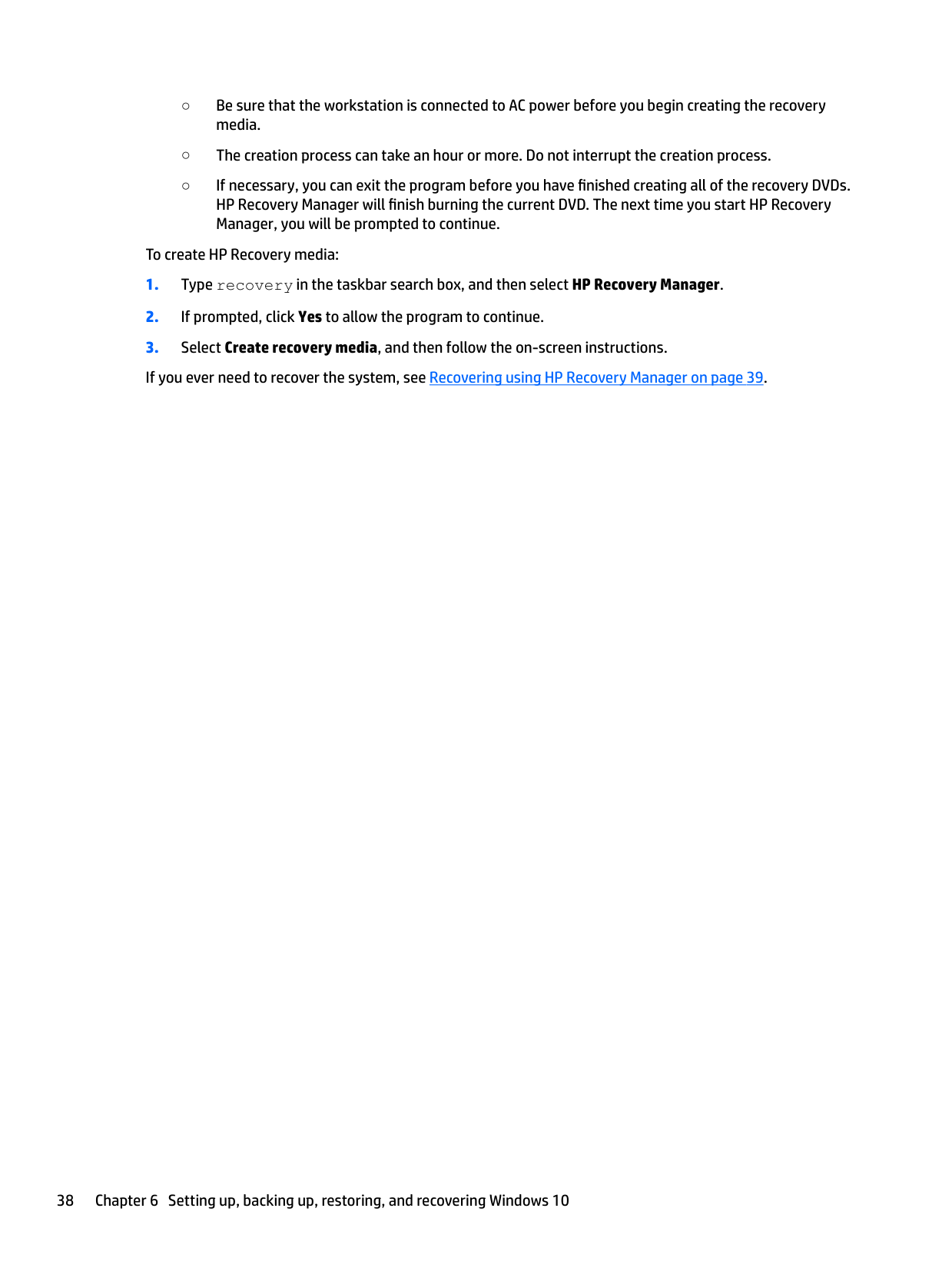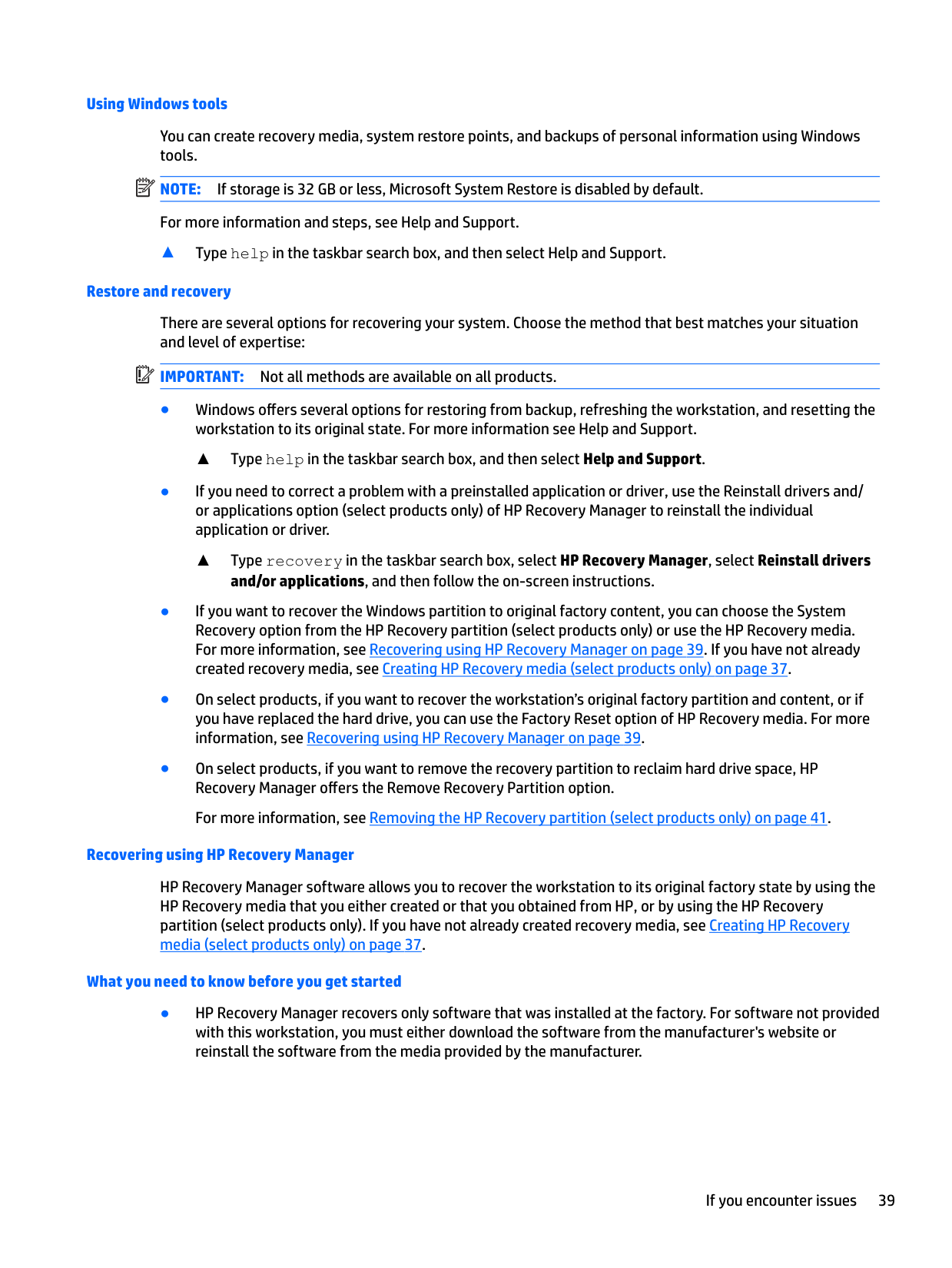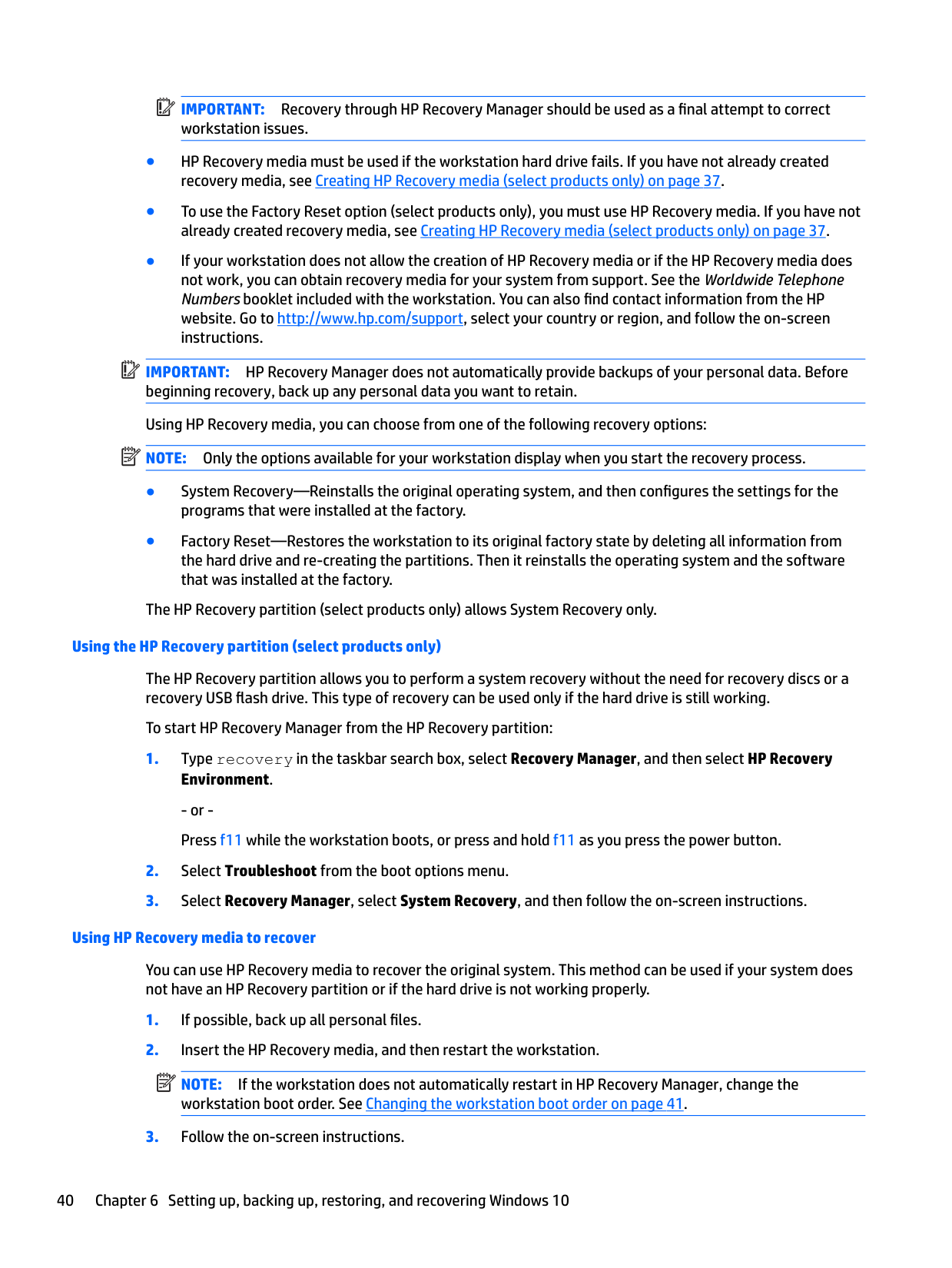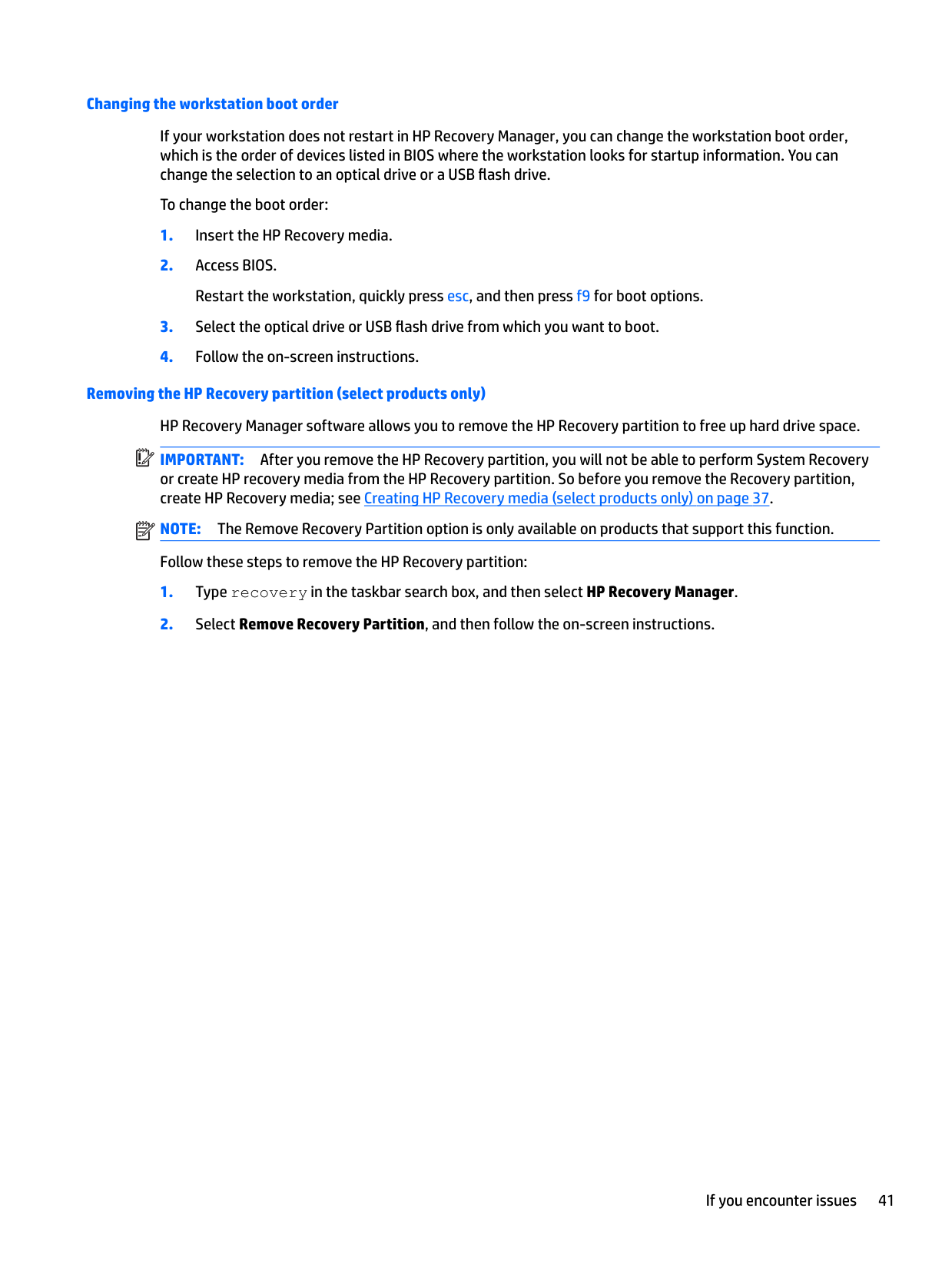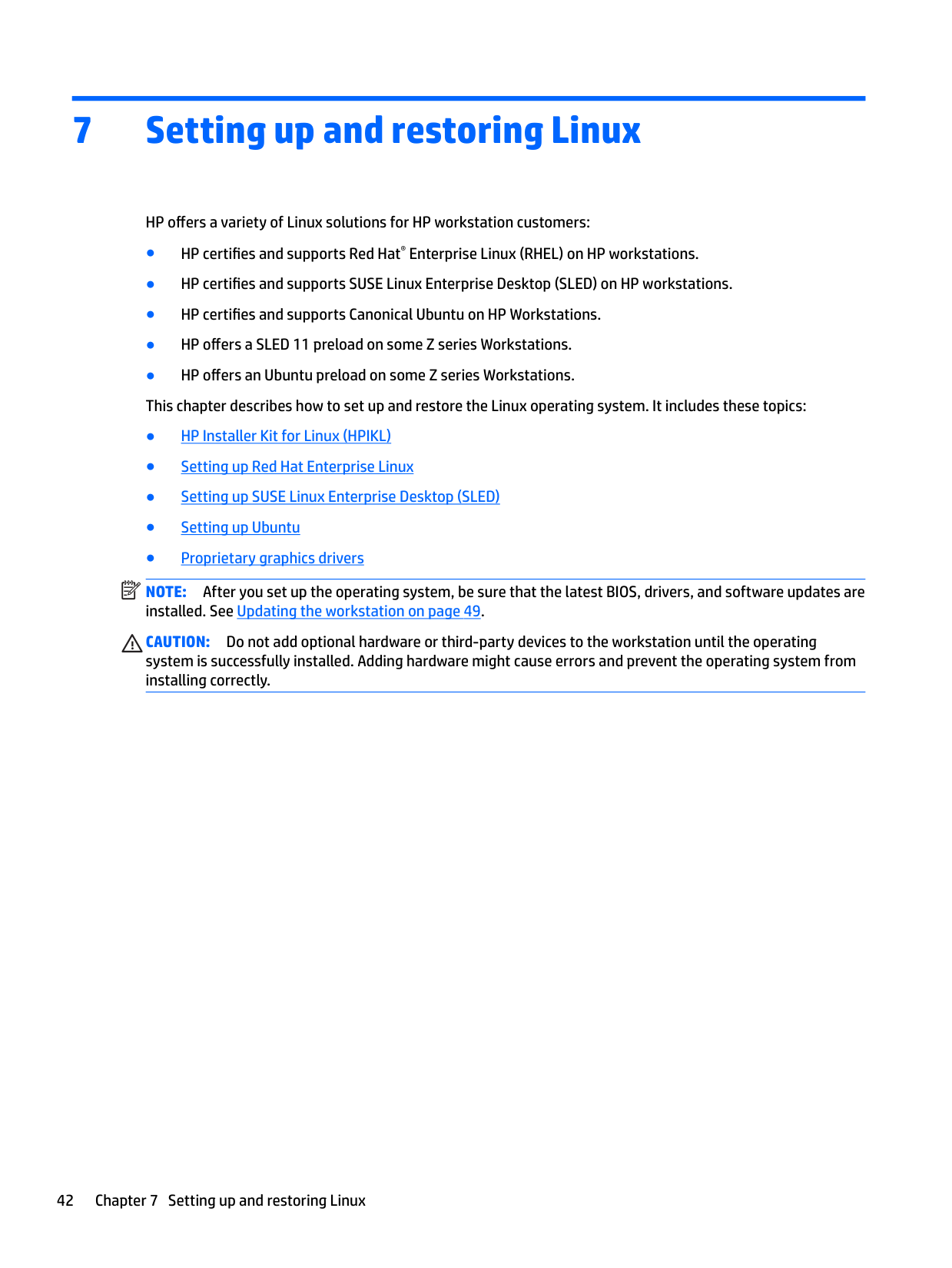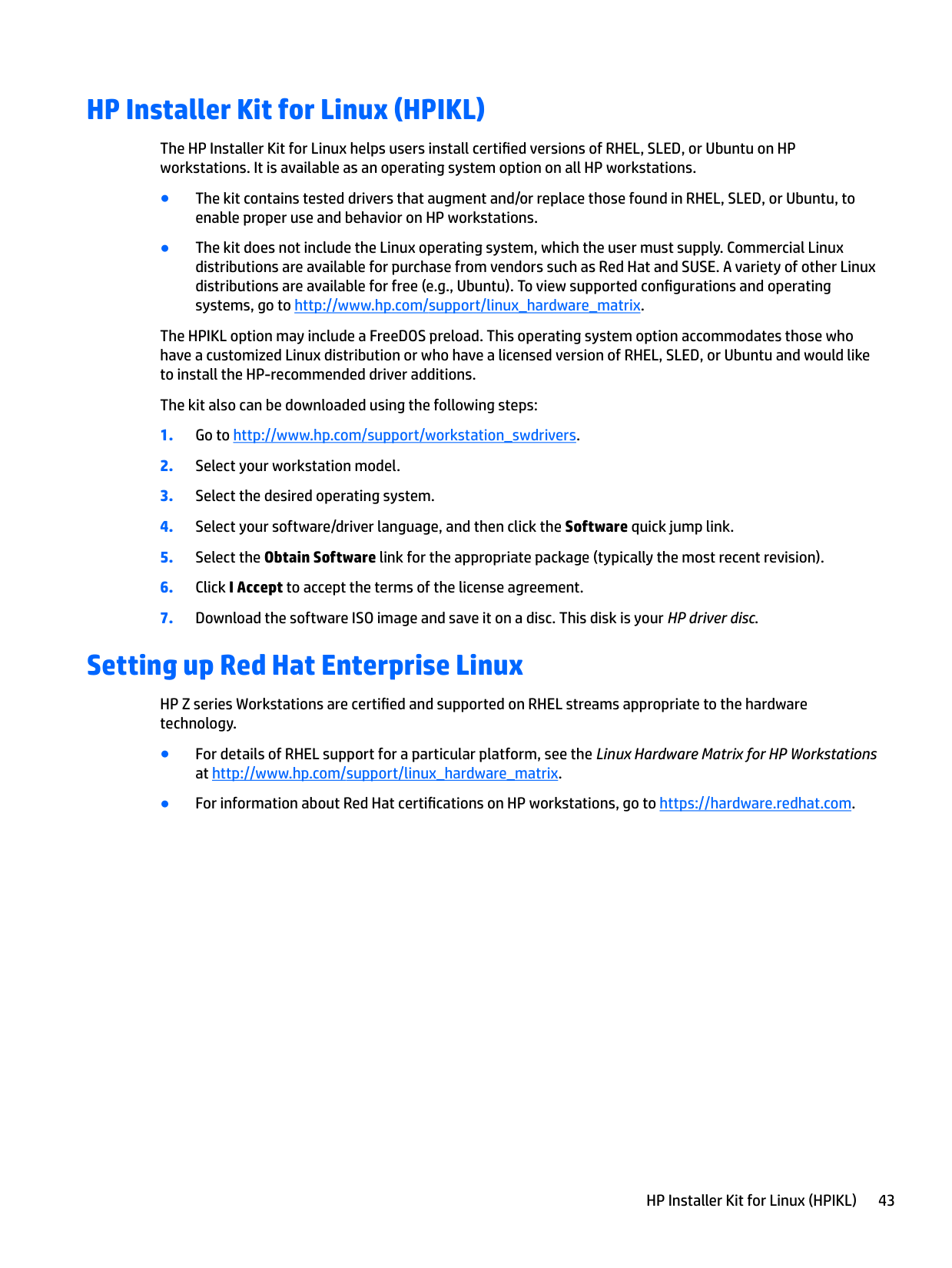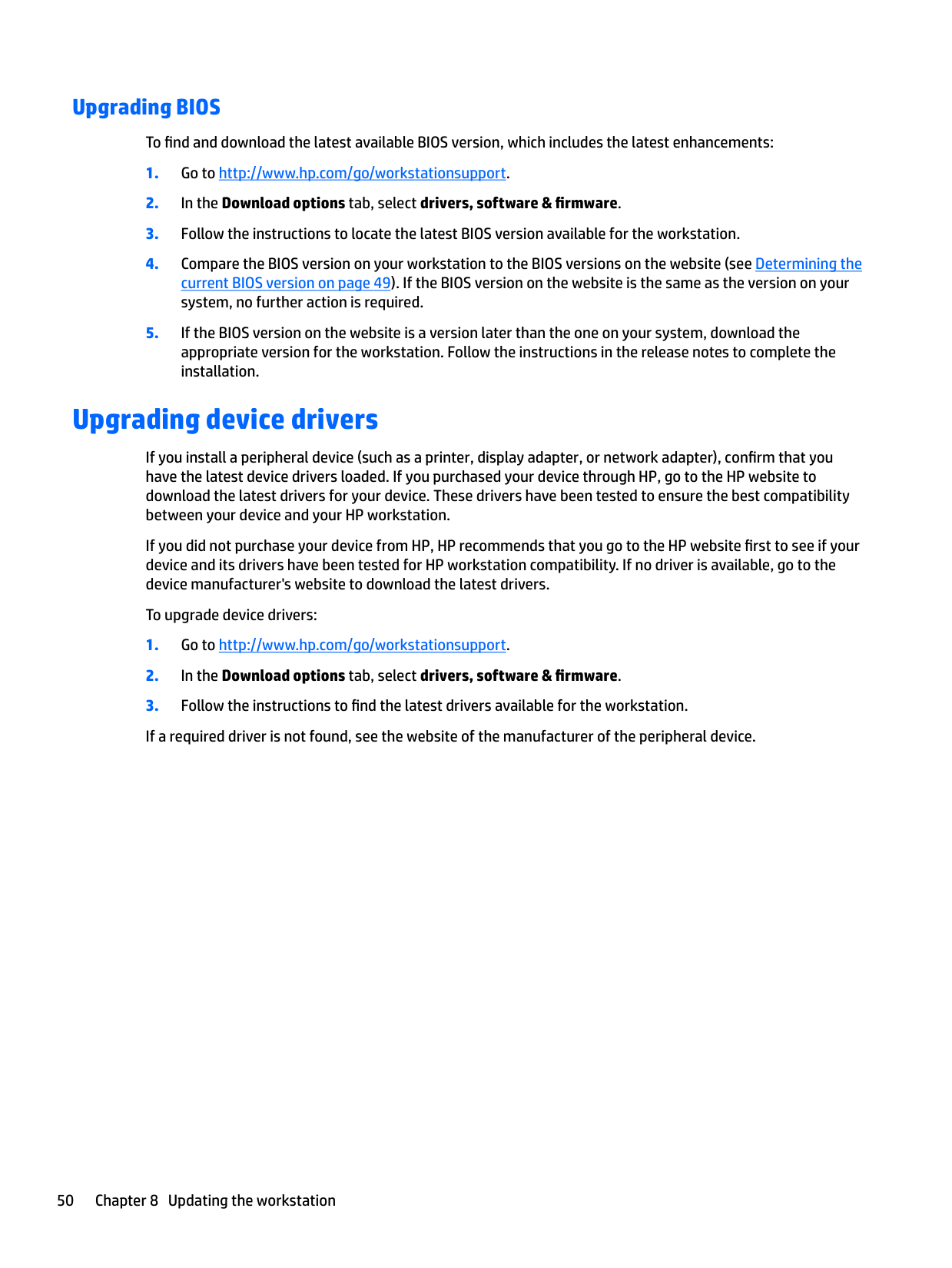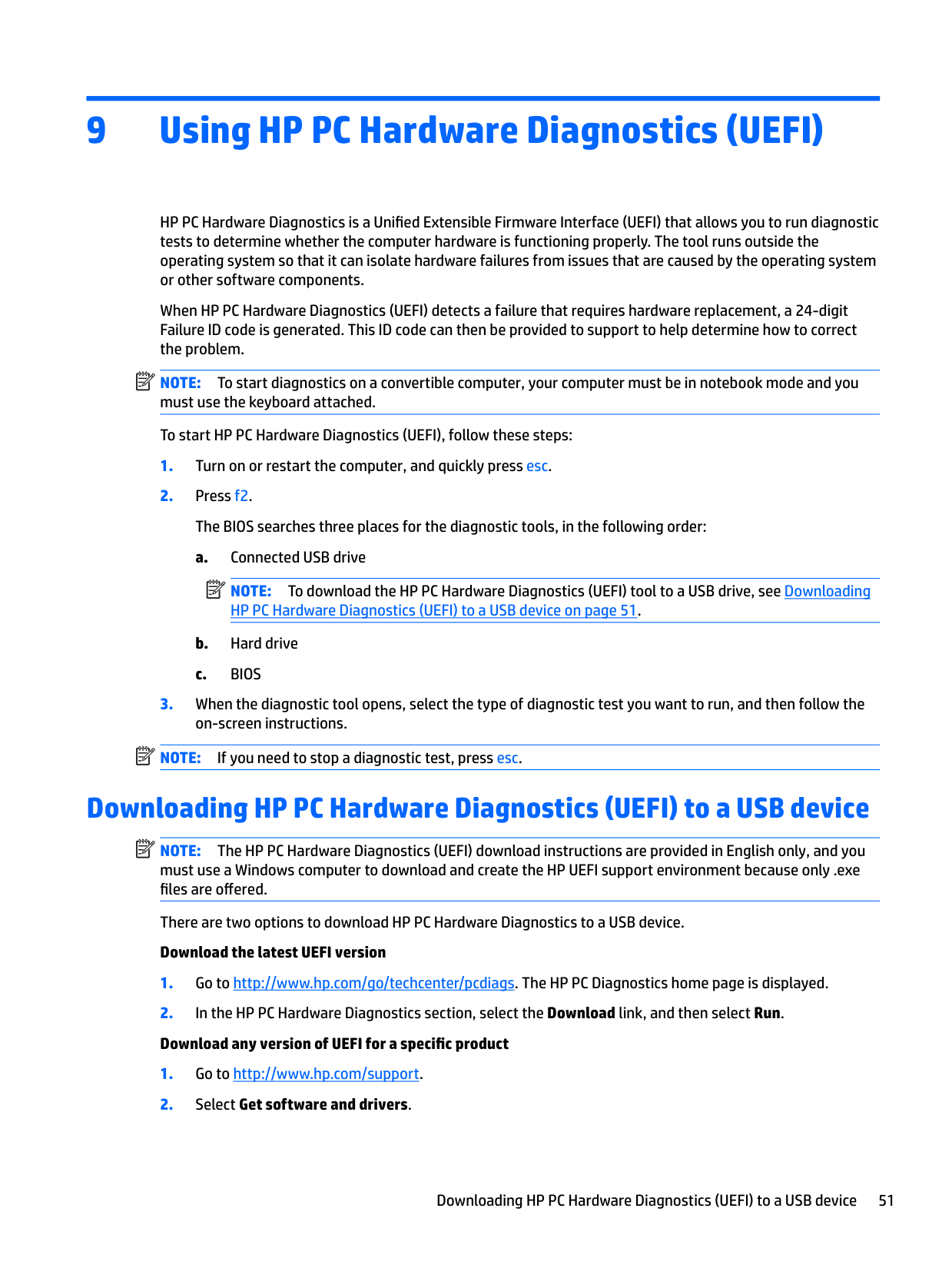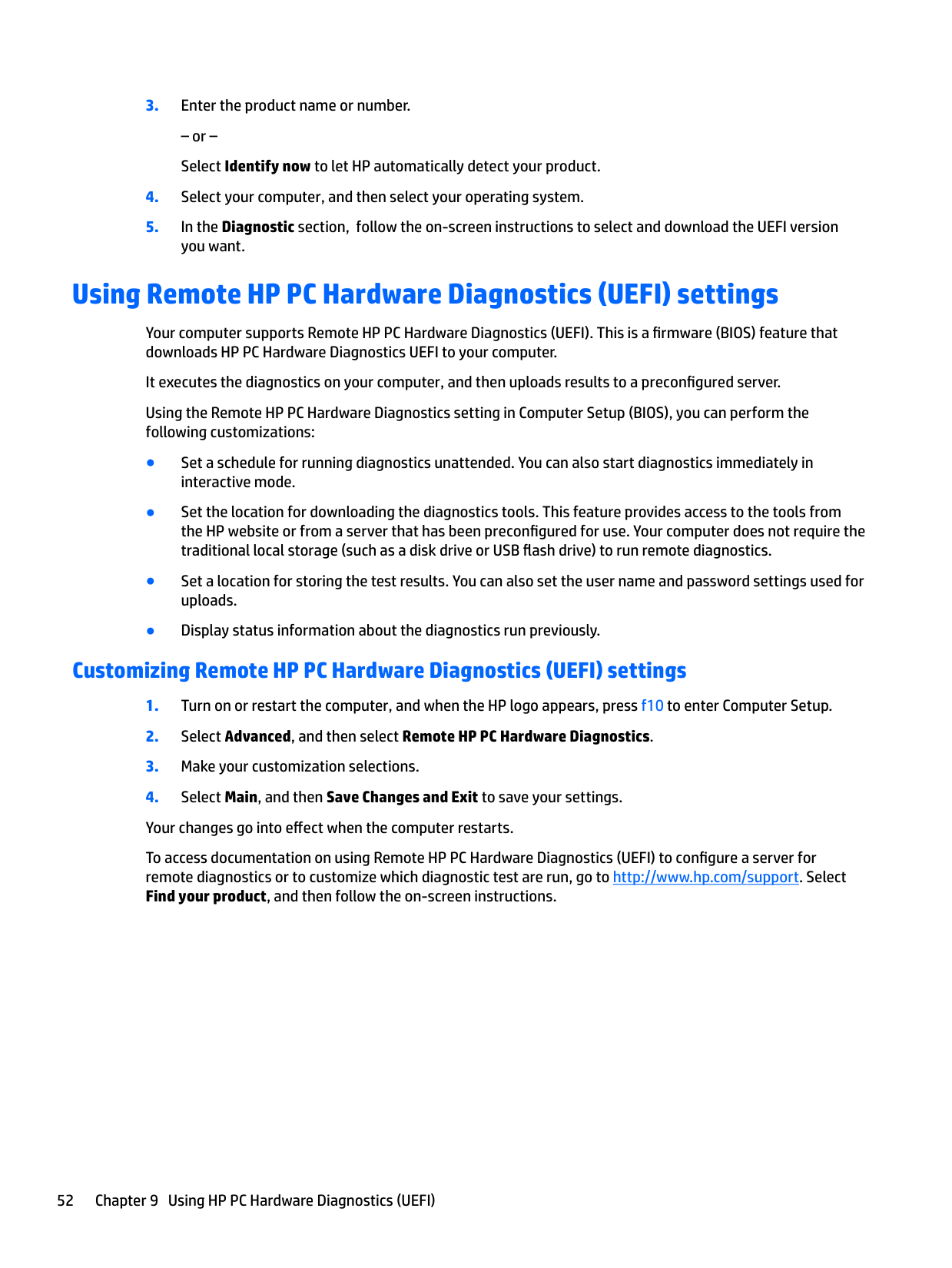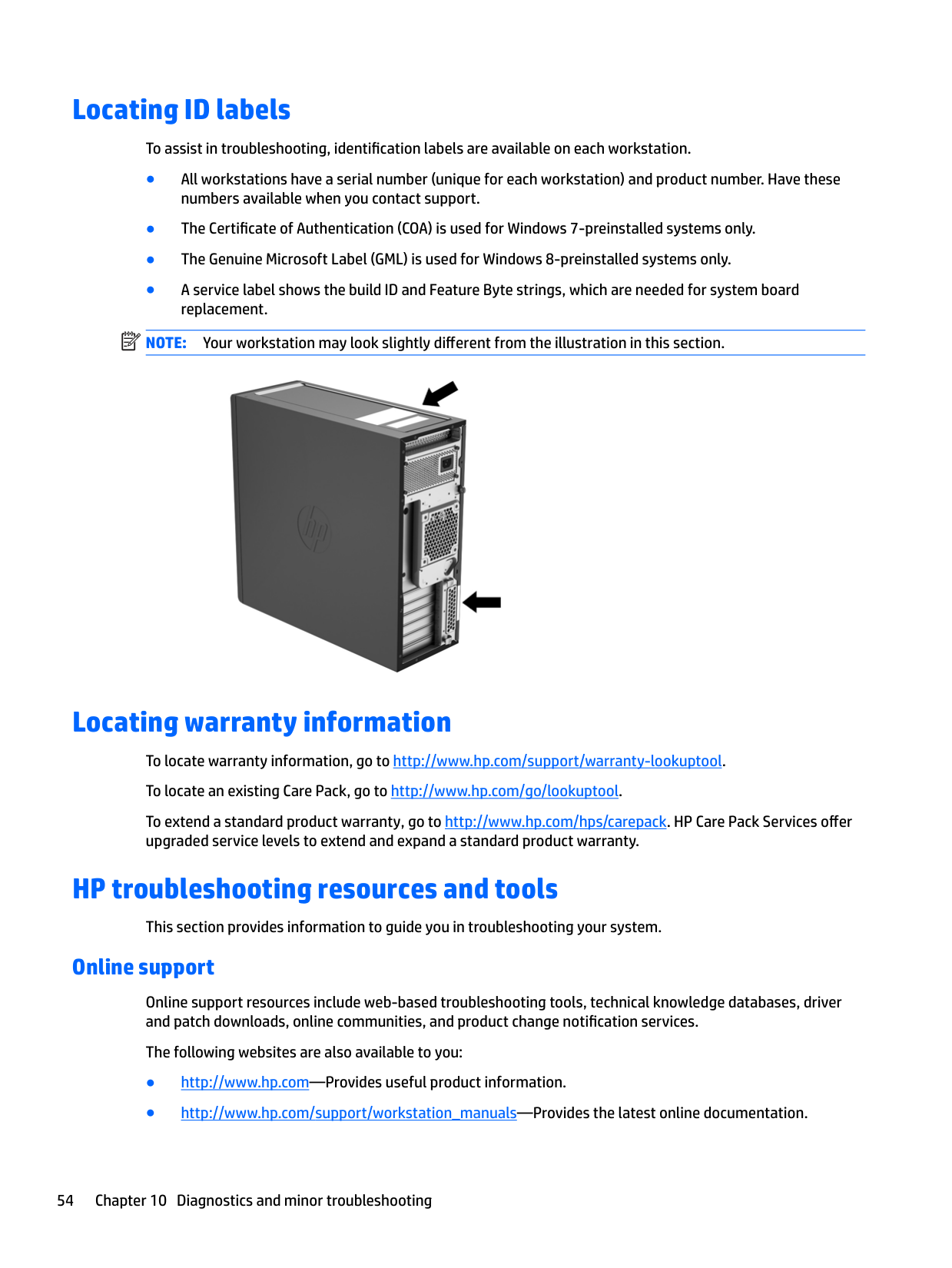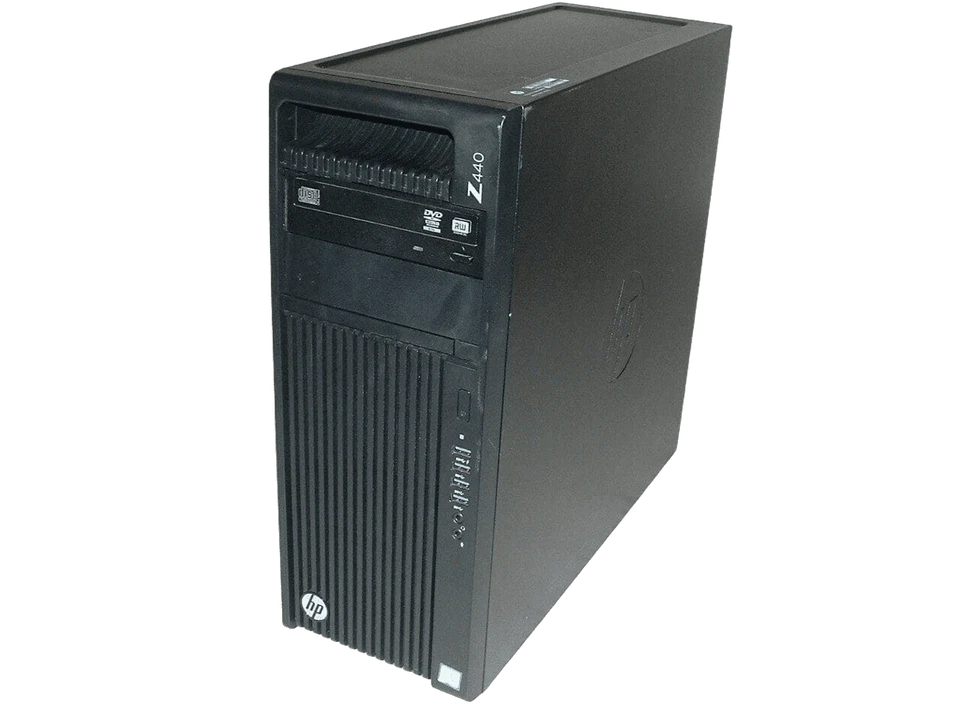
The Z440 is the entry workstation of the Z440 / Z640 / Z840 line that HP announced in September 2014, refreshed with Broadwell Xeons in April 2016, and kept in the catalog through the late 2010s. Same chassis design across the three, scaled for one socket (Z440), two sockets with more drives (Z640), or full dual-socket pro tower (Z840). This page is about the Z440 specifically, but the chassis tricks below apply to all three.
The reason 2,000 people search for this every month, ten years after launch, is that these were sold to engineering and post-production departments by the thousand and most of them are still being used. The chassis is overbuilt, the manual treats every component as serviceable, and the parts market is healthy.
If you're keeping one alive, the most important detail in this entire document is in the next section.
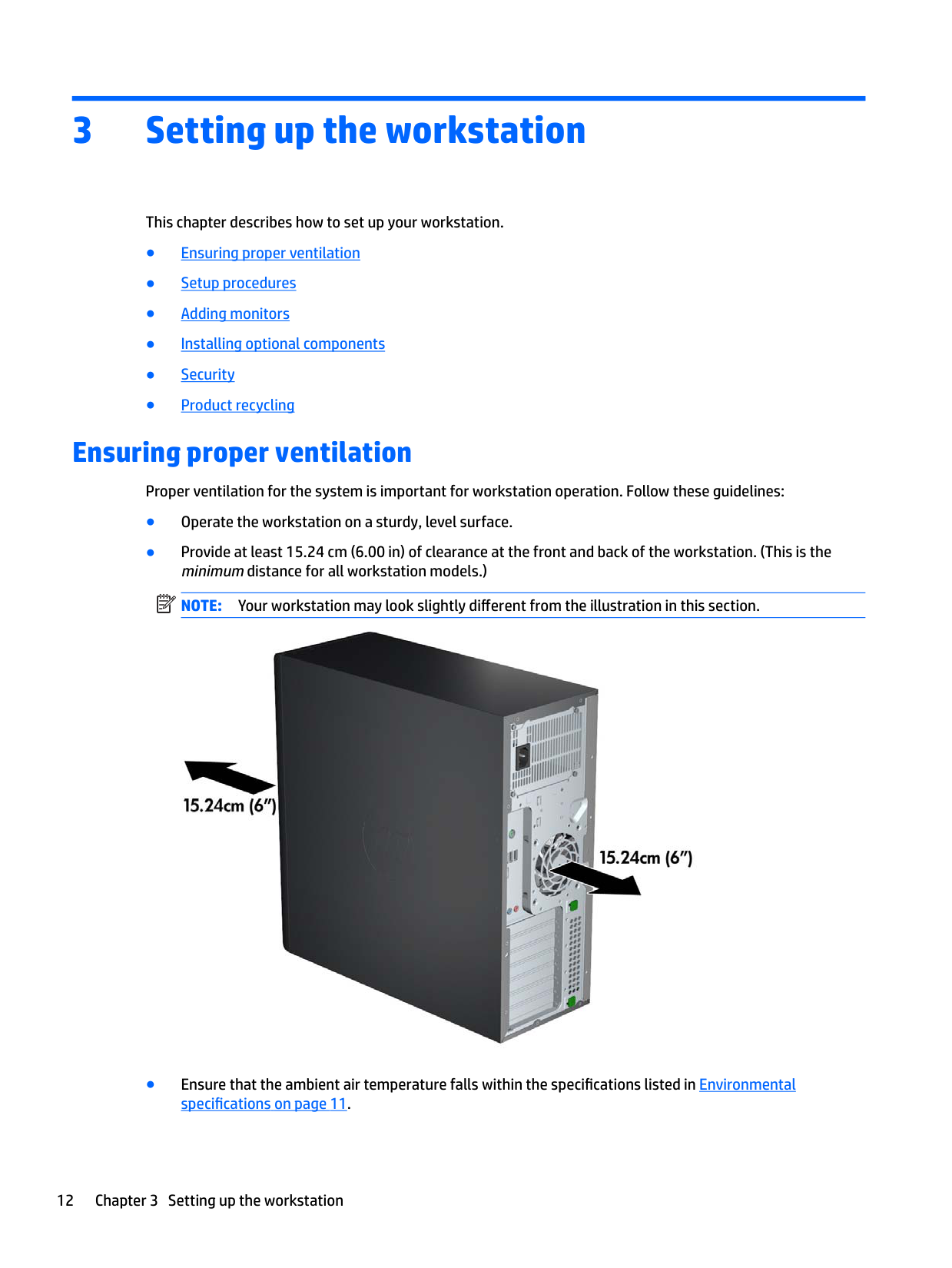
The clearance spec is not a suggestion
The manual says 15.24 cm (6 inches) of clearance at the front and rear of the chassis. People read that, ignore it, and shove the workstation under a desk against a wall. Then they call about thermal throttling, fan noise, and bearing failures three years in.
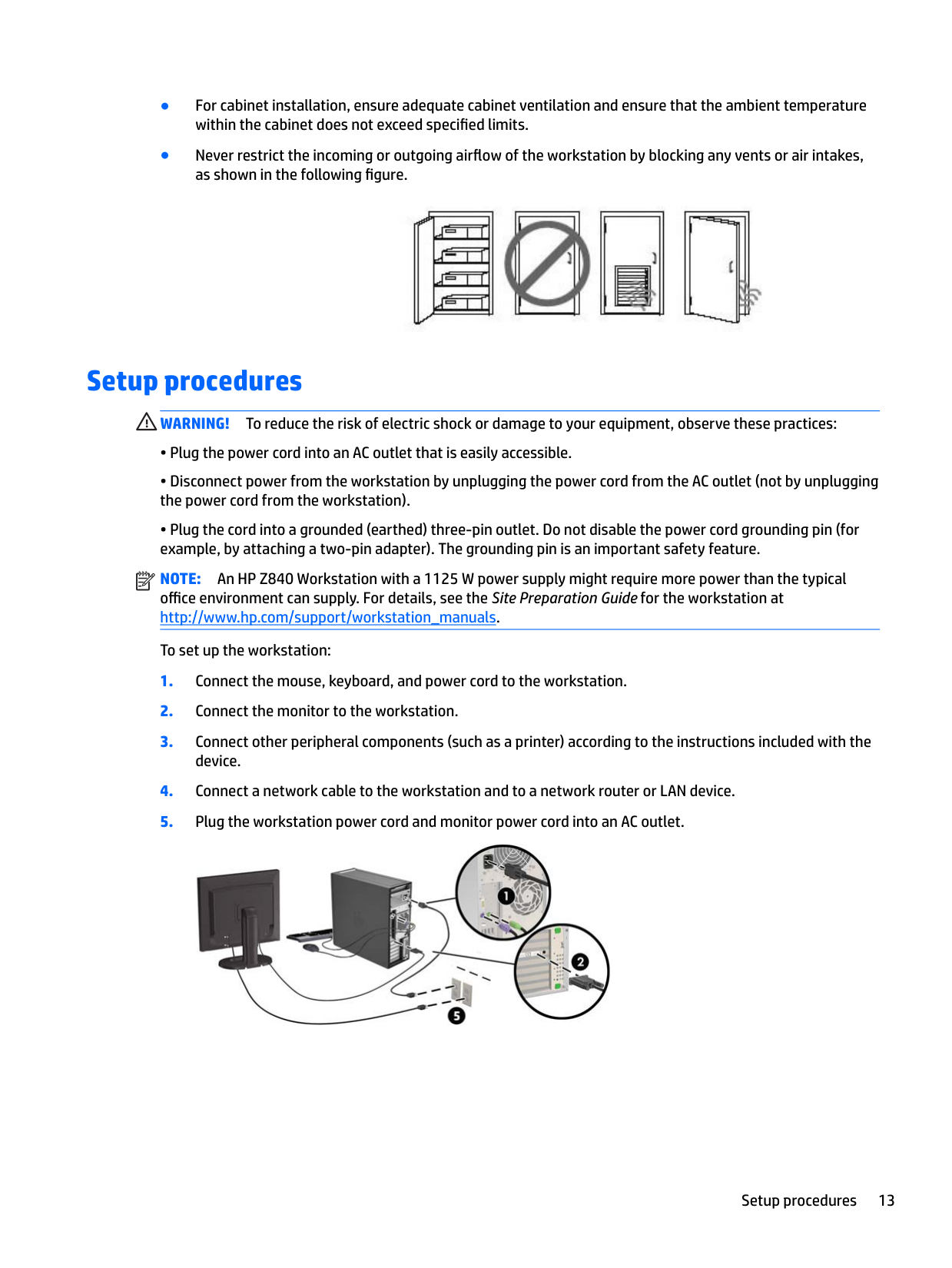
The Z440's intake is the entire front face of the chassis. Air pulls through a felt filter behind the front bezel, across the drives, over the CPU heatsink, and exhausts out the back. Block either side of that path and the fans ramp to compensate. The fans on this generation are good, but they aren't infinite. Run them at 80% for two years and the bearings start to whine.
If your Z440 is loud, check those six inches first. Then check the filter behind the bezel — pop the bezel (clip release on the right side), pull the felt, vacuum it out, replace. Felt filters clog steadily in a typical office; if you can't remember when you last cleaned it, that's the answer.
If neither of those quiets it down, the thermal paste on the CPU is the next suspect. Stock paste degrades over years of use, and re-pasting with a quality compound (Arctic MX-4, Noctua NT-H1, and Thermal Grizzly Kryonaut are all well-regarded options) typically drops idle temps measurably. The procedure is straightforward — the heatsink is held by four spring-loaded screws, comes off cleanly, and the IHS cleans up with isopropyl alcohol.
Quick specs
- Years shipped: 2014-2020
- Socket: LGA 2011-3 (Intel Xeon E5-1600 / E5-2600, v3 or v4)
- RAM: 8 DIMM slots, 128GB max, ECC DDR4 only
- Drive bays: 2 × 5.25" (one usually optical), 2 × 3.5" internal
- PSU: 525W or 700W (configurable)
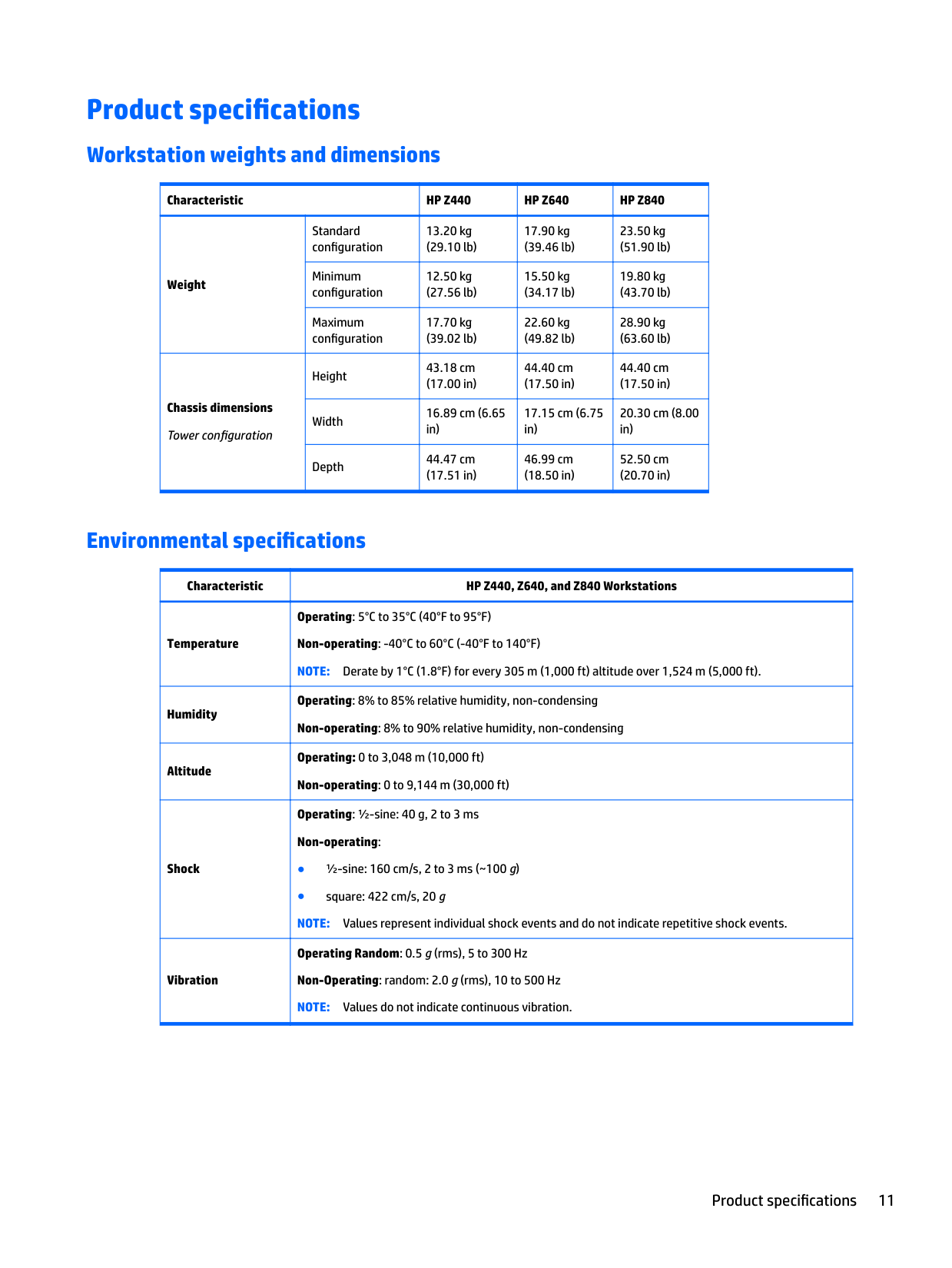
- Standard config weight: 13.20 kg (29.10 lb)
- Operating range: 5°C to 35°C, derate 1°C per 305m above 1,524m altitude
Hardware swaps
RAM. Side panel pops off after sliding the rear latch — no tools. The 8 DIMM slots are exposed on the right side of the motherboard, organized in two channels. For best performance, install matched pairs in same-color slots first. Use ECC DDR4 only. Non-ECC may post but throws errors under load, and the Z440 specifically validates ECC during memory training. If you're seeing ECC errors in the event log, re-seat the suspect DIMM before declaring it dead — a loose seat in this chassis can produce ECC errors that look identical to a failing module.
GPU. Pull the bracket. Slide the card out. Slide the new one in. The PSU has the right power connectors (8-pin and 6-pin available). Where people get tripped up: the Z440 is rated for 24/7 operation but a consumer GeForce often isn't. A workstation Quadro will run hot 24/7 without complaint. A 3090 or 4090 used for overnight training jobs will need temp monitoring the first week — not because the chassis can't handle it, but because the GPU itself can't.
Drives. The 5.25" cage pulls out as a unit. Pull the lever, slide the cage forward, replace, slide back. People unscrew the cage and disconnect cables one at a time. Don't.
CPU. LGA 2011-3 socket. Heatsink off (four spring screws), CPU release lever, swap, lever down, paste, heatsink back on. Don't move the workstation immediately after a CPU swap — let the paste set for an hour at idle.
BIOS check
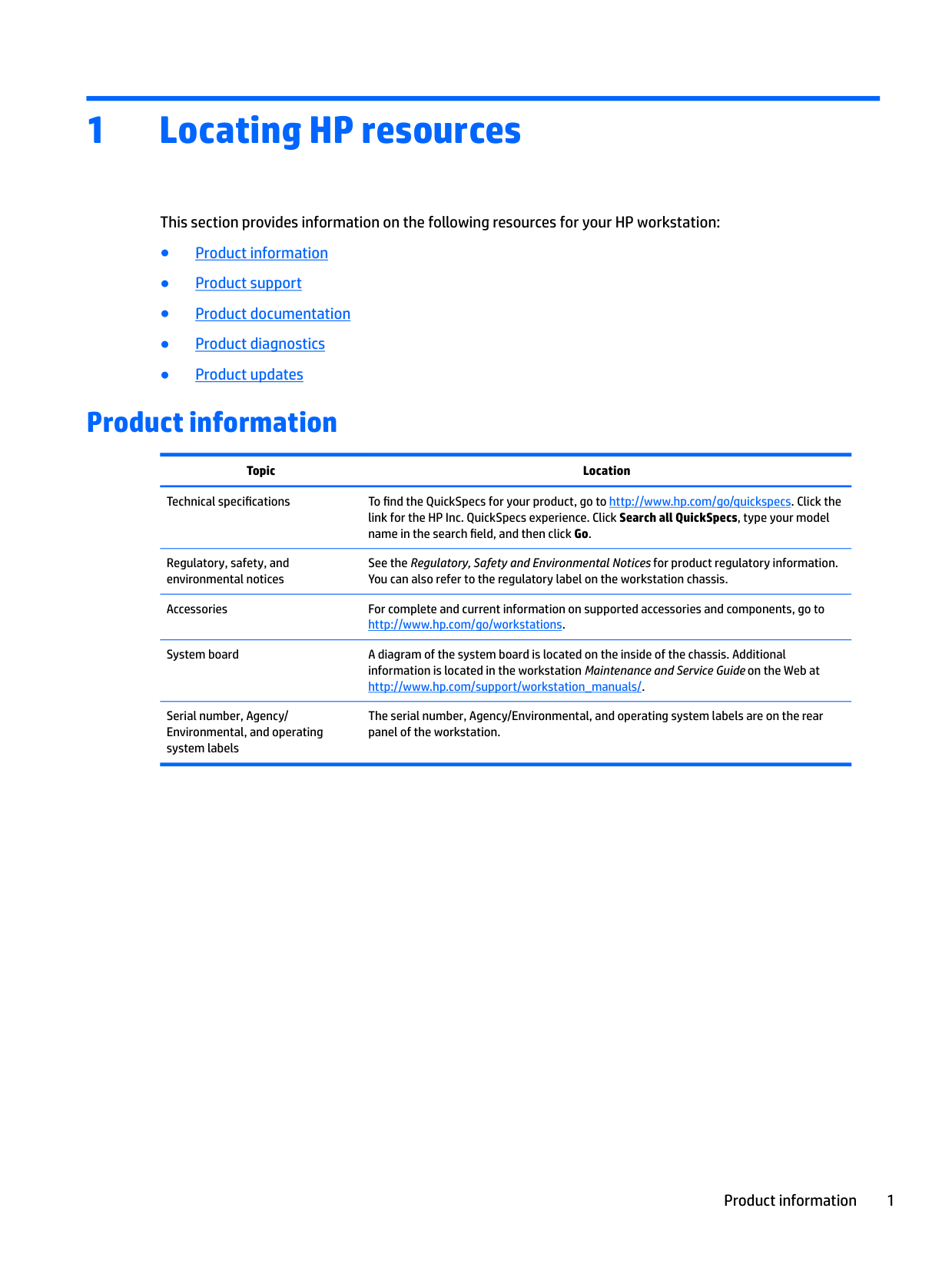
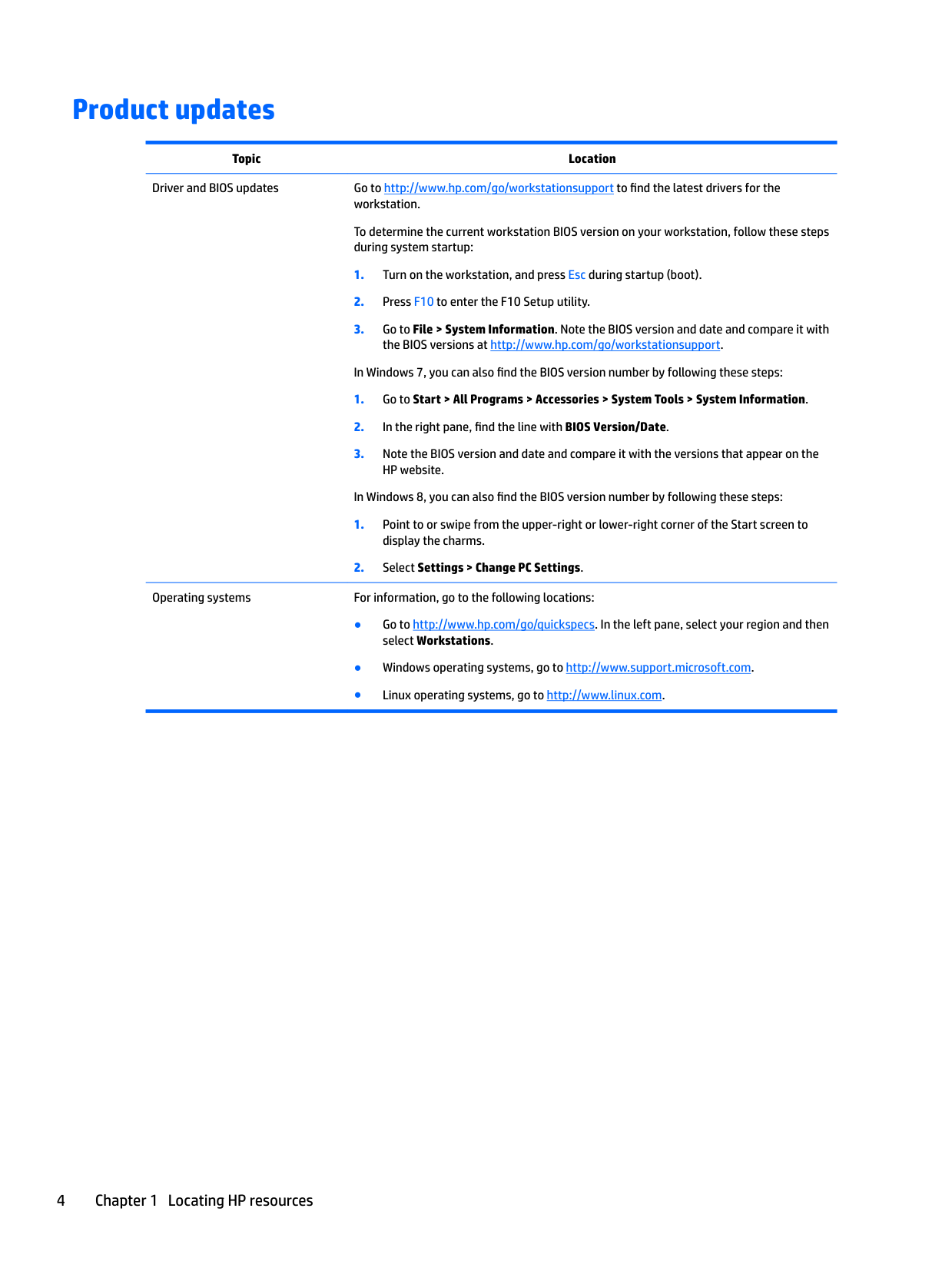
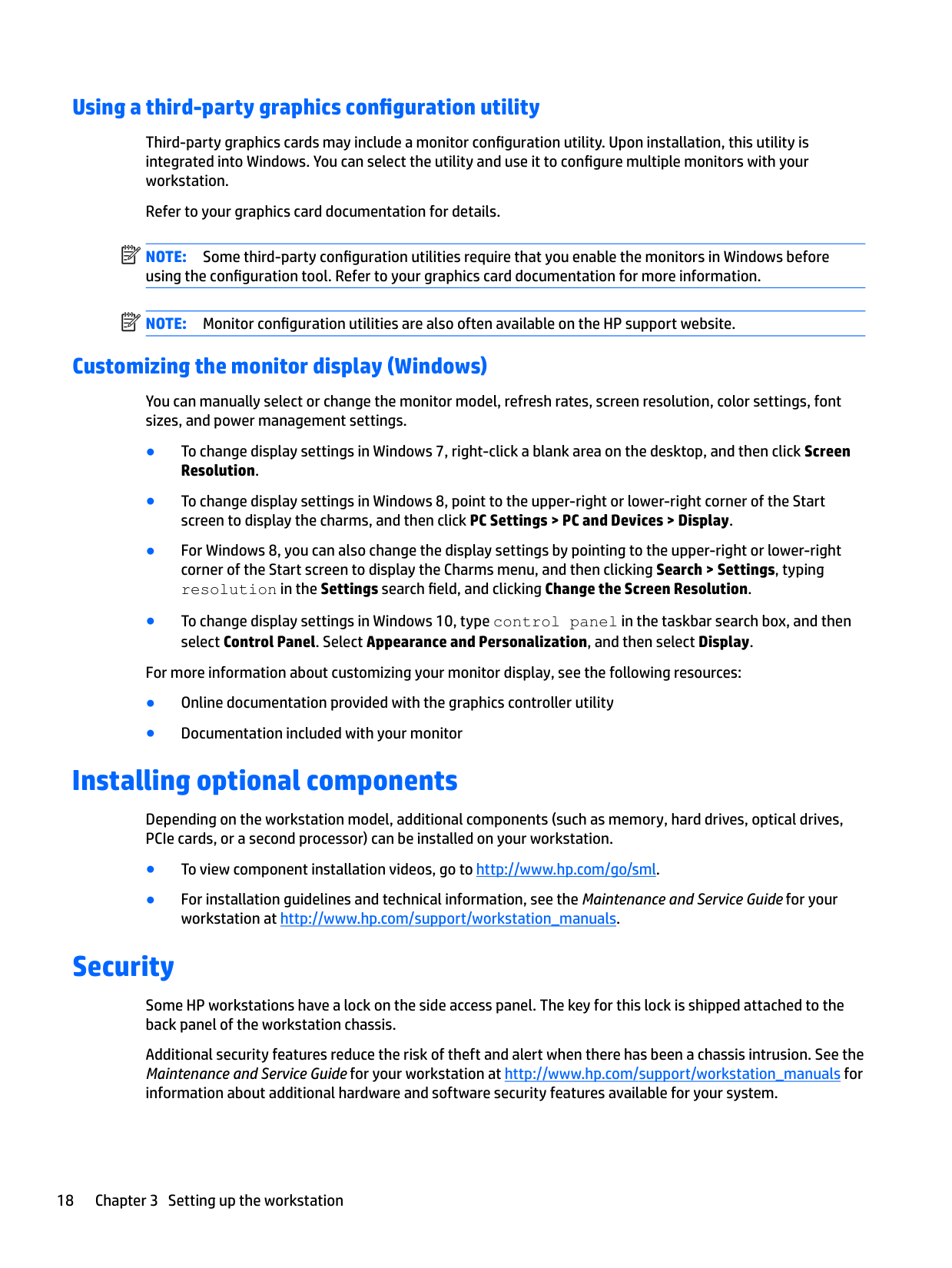
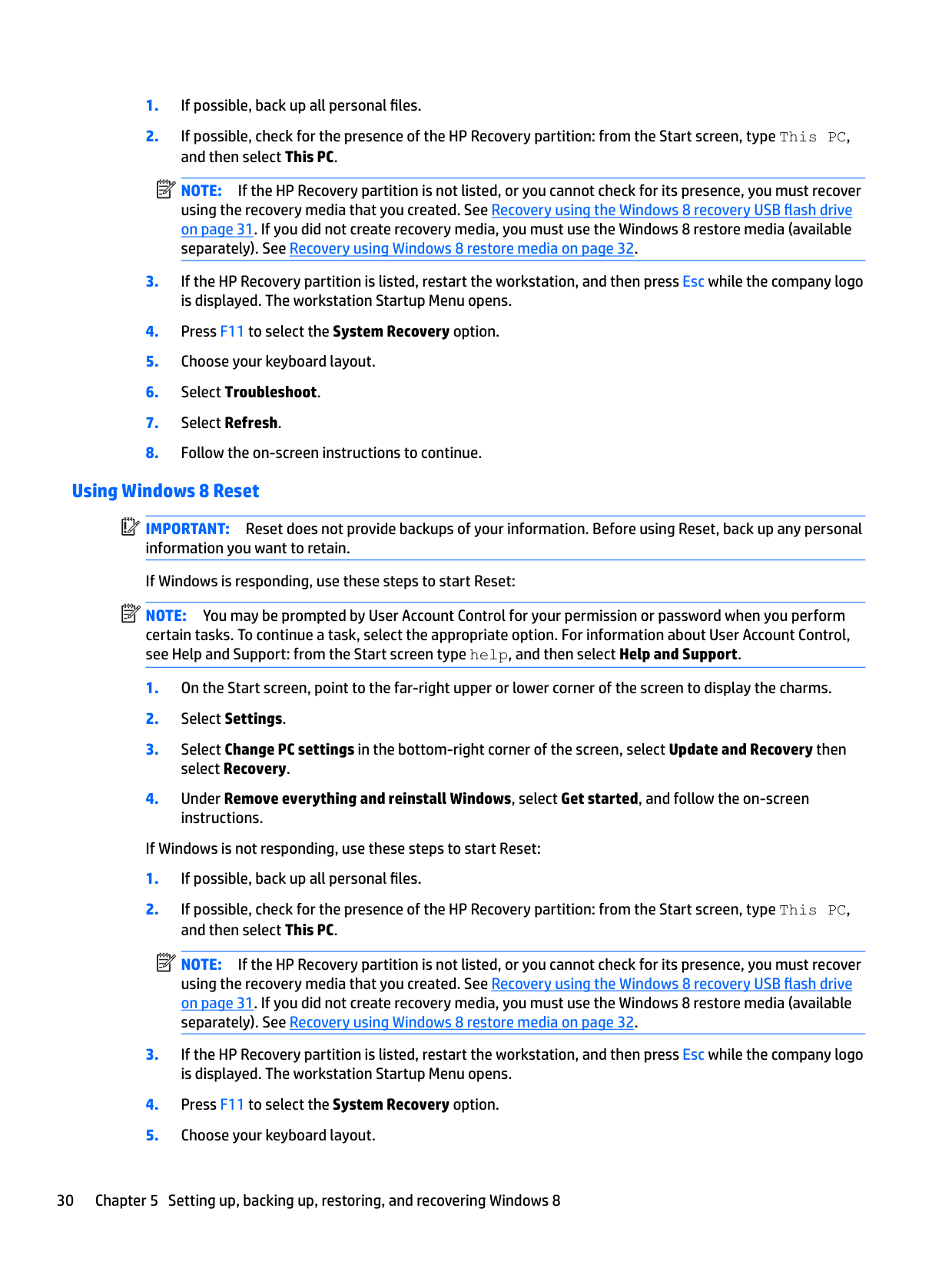
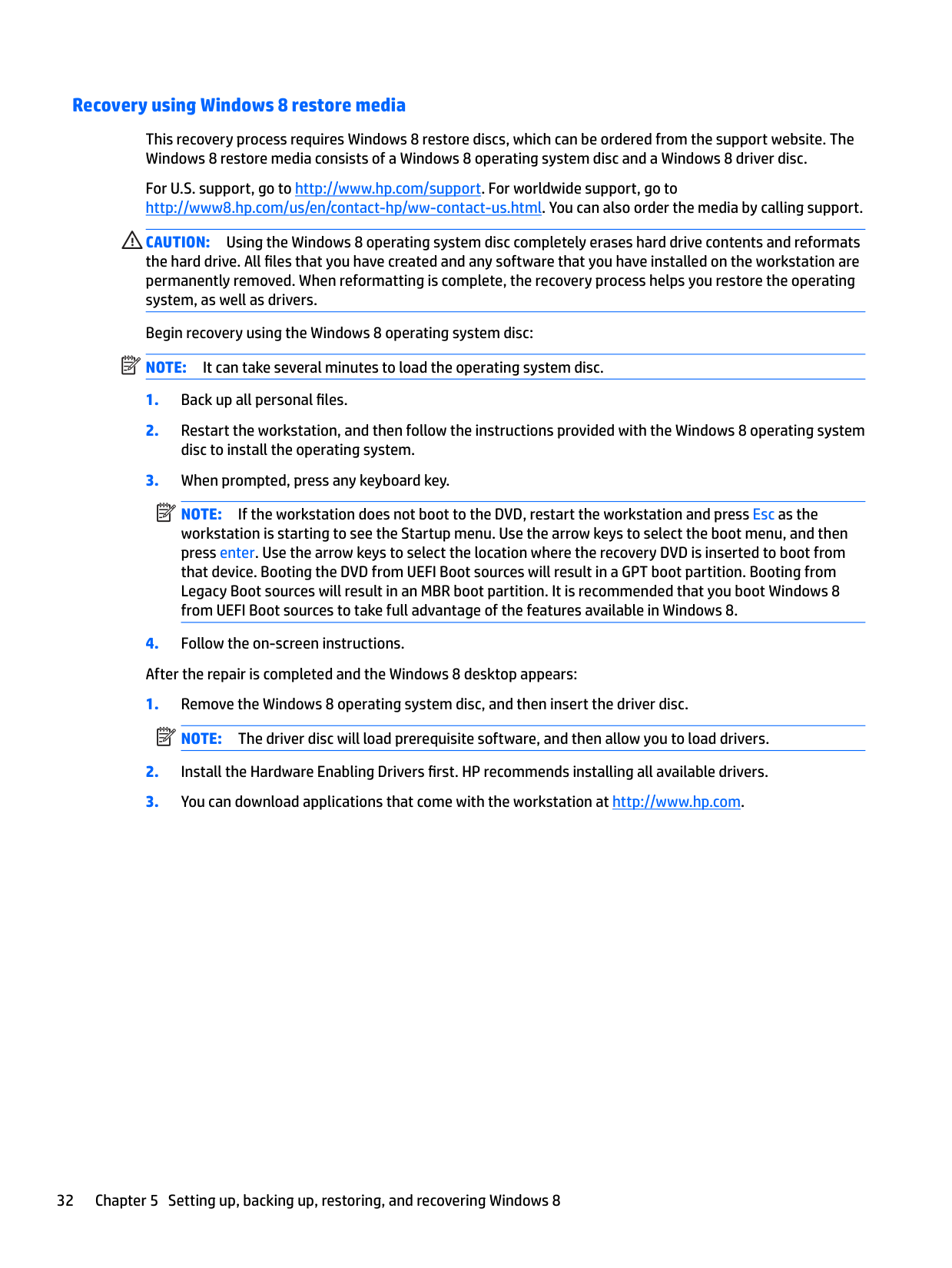
Press Esc immediately after powering on, then F10 for the Setup utility. Navigate File → System Information. BIOS version, build date, and Management Engine firmware are all listed there. The Z440 went through several BIOS revisions that fixed memory training and NVMe boot — worth checking before any major hardware swap or Windows feature update.
Source: page 4 of the user guide
Things that will save you a service call
- ECC errors don't always mean bad RAM. Re-seat first.
- Don't move the workstation with optical media in the drive. The drive mechanisms on this generation are less robust than later models, and a CD/DVD spinning during a bump can scratch.
- Generic under-desk slide rails sold for "office PCs" often have weight limits well below the Z440's 13.2 kg minimum. Verify the rail's rated capacity before mounting — undersized rails flex over time.
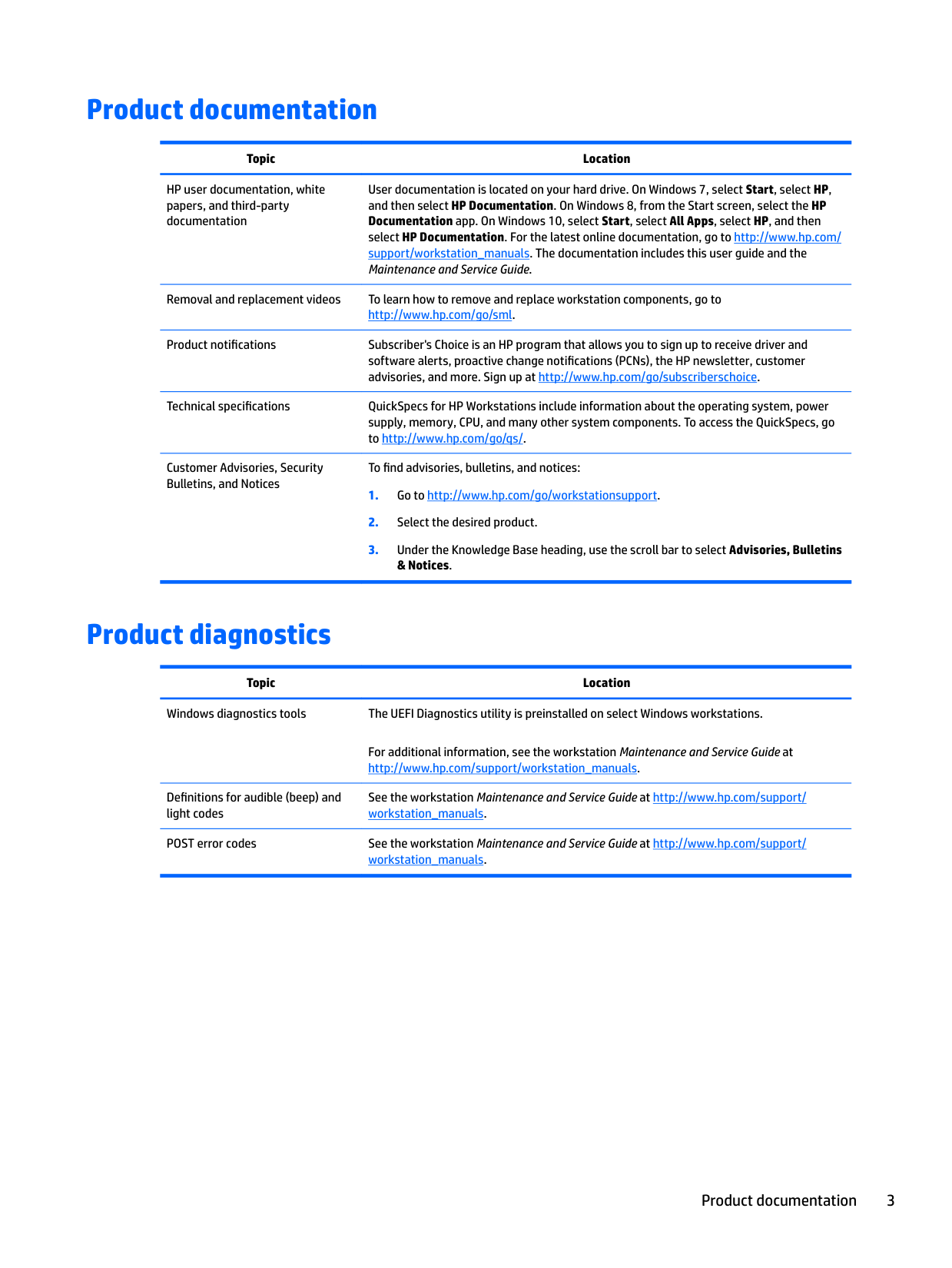
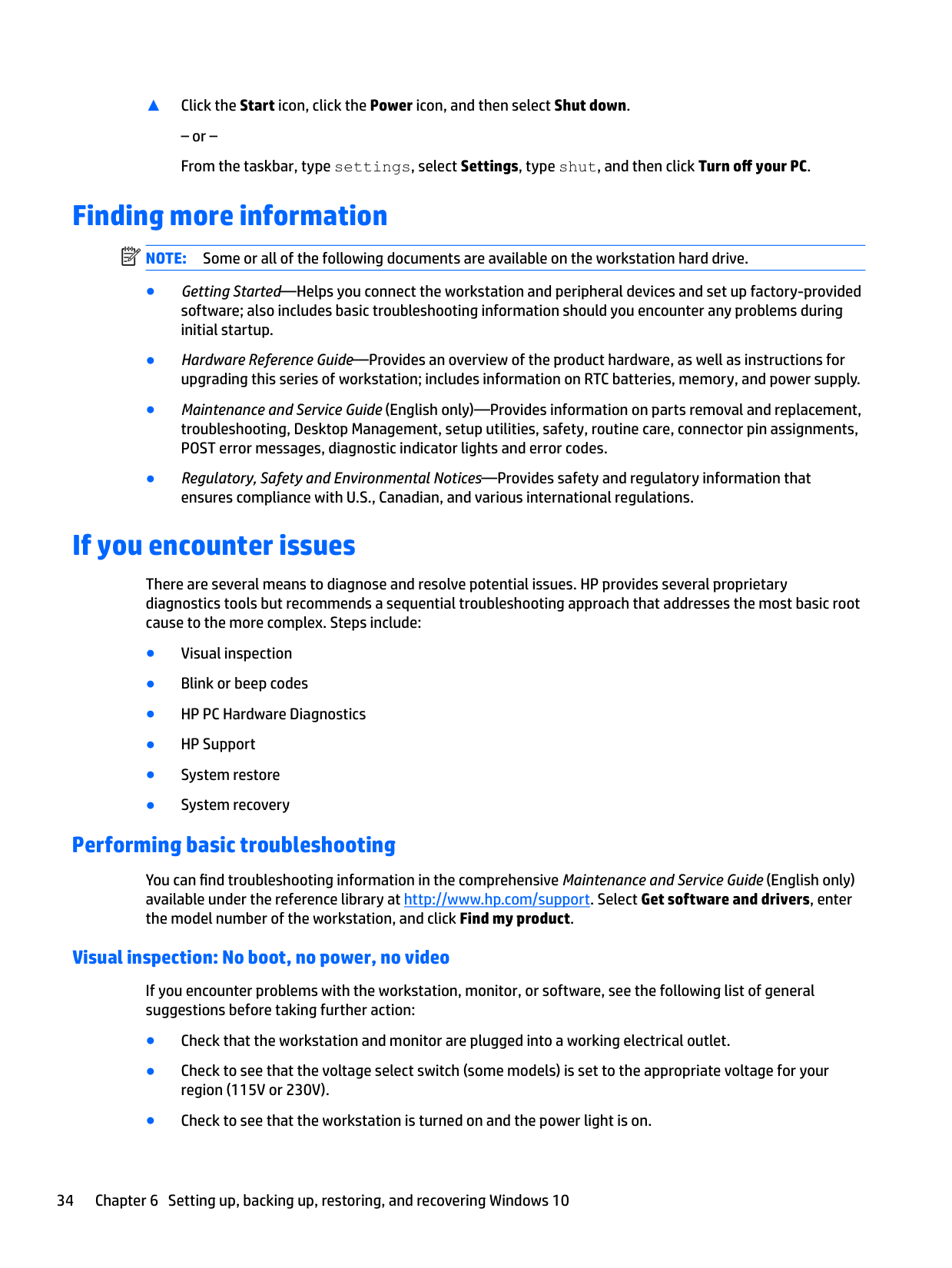
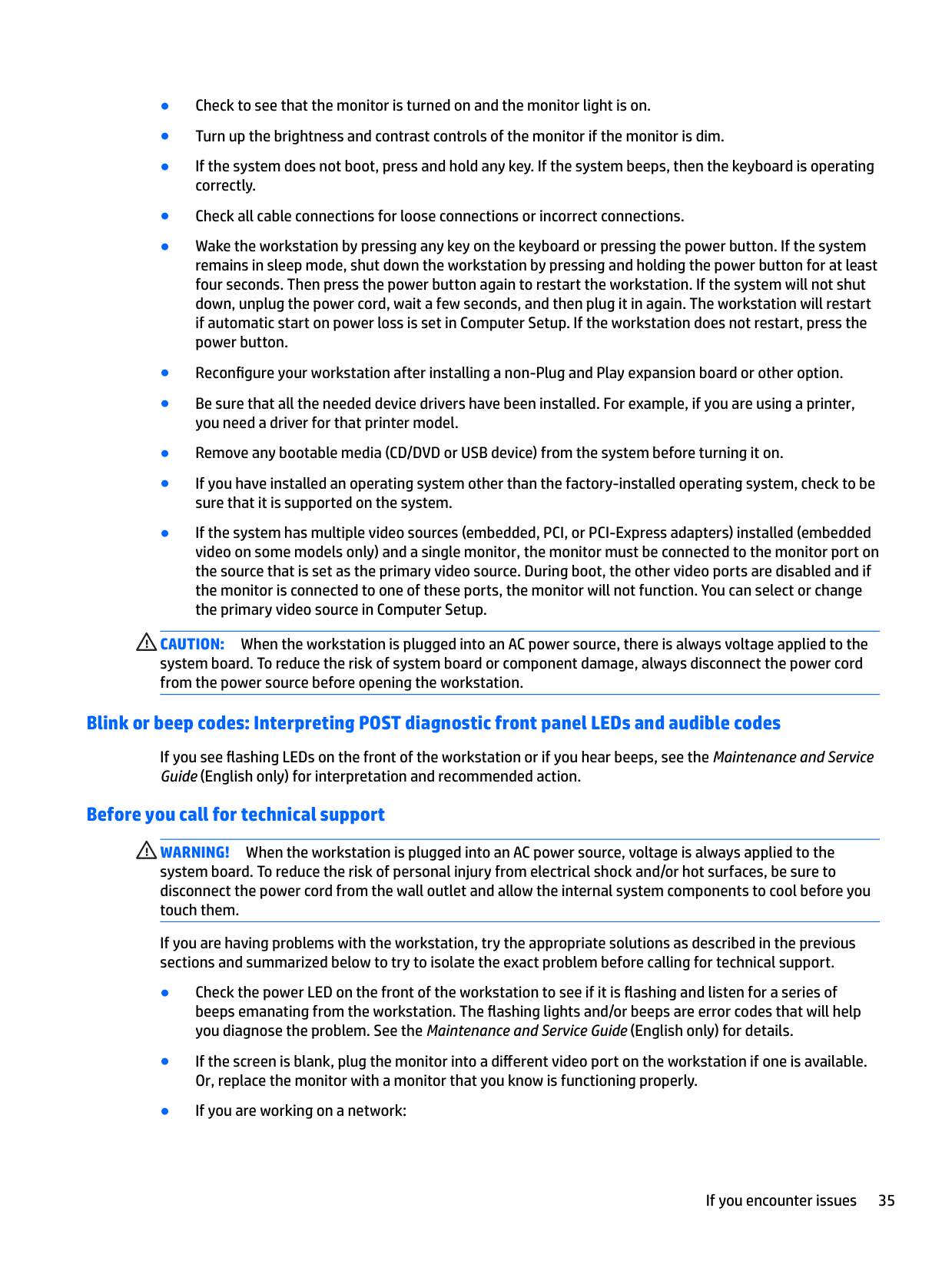
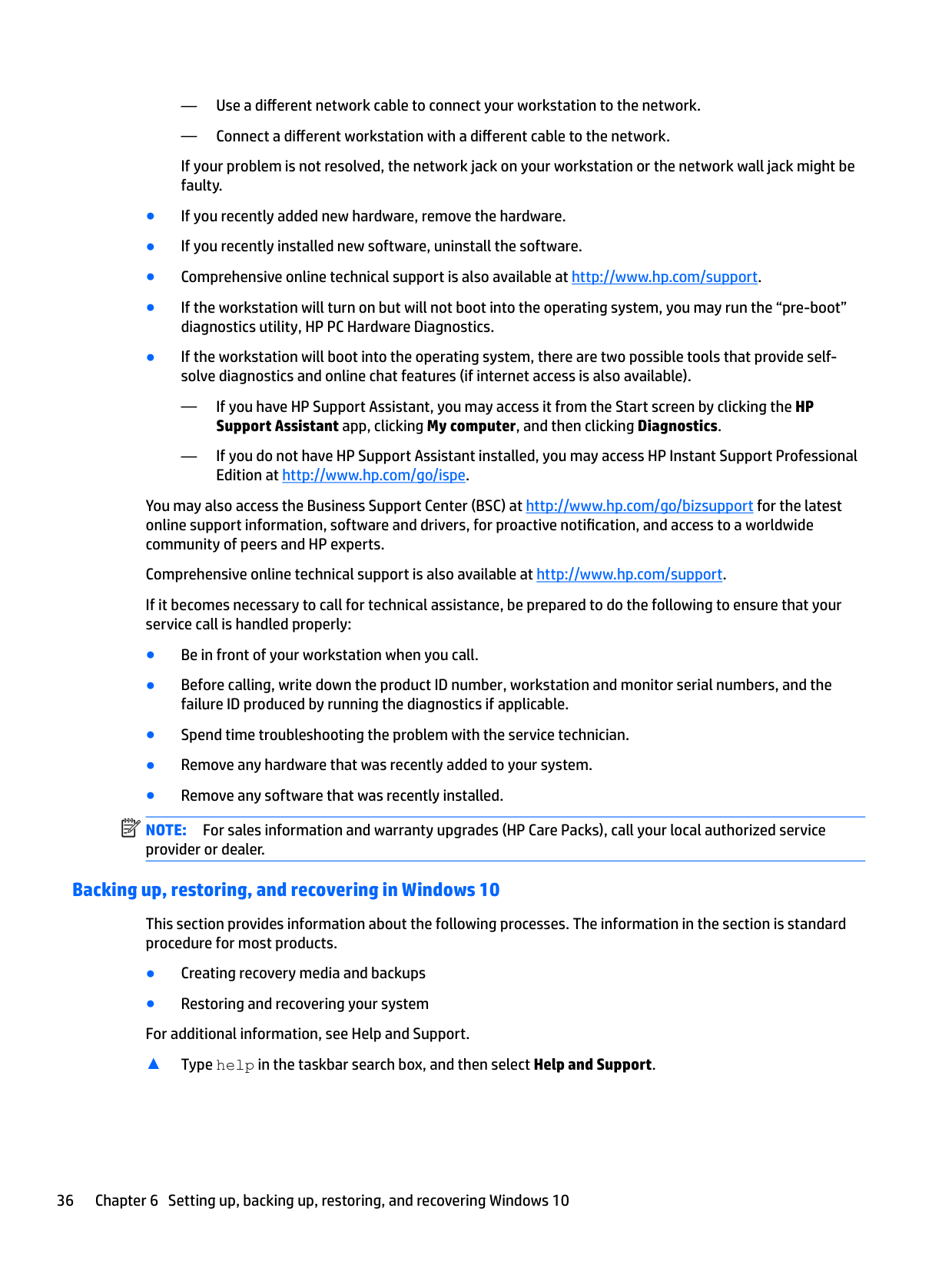
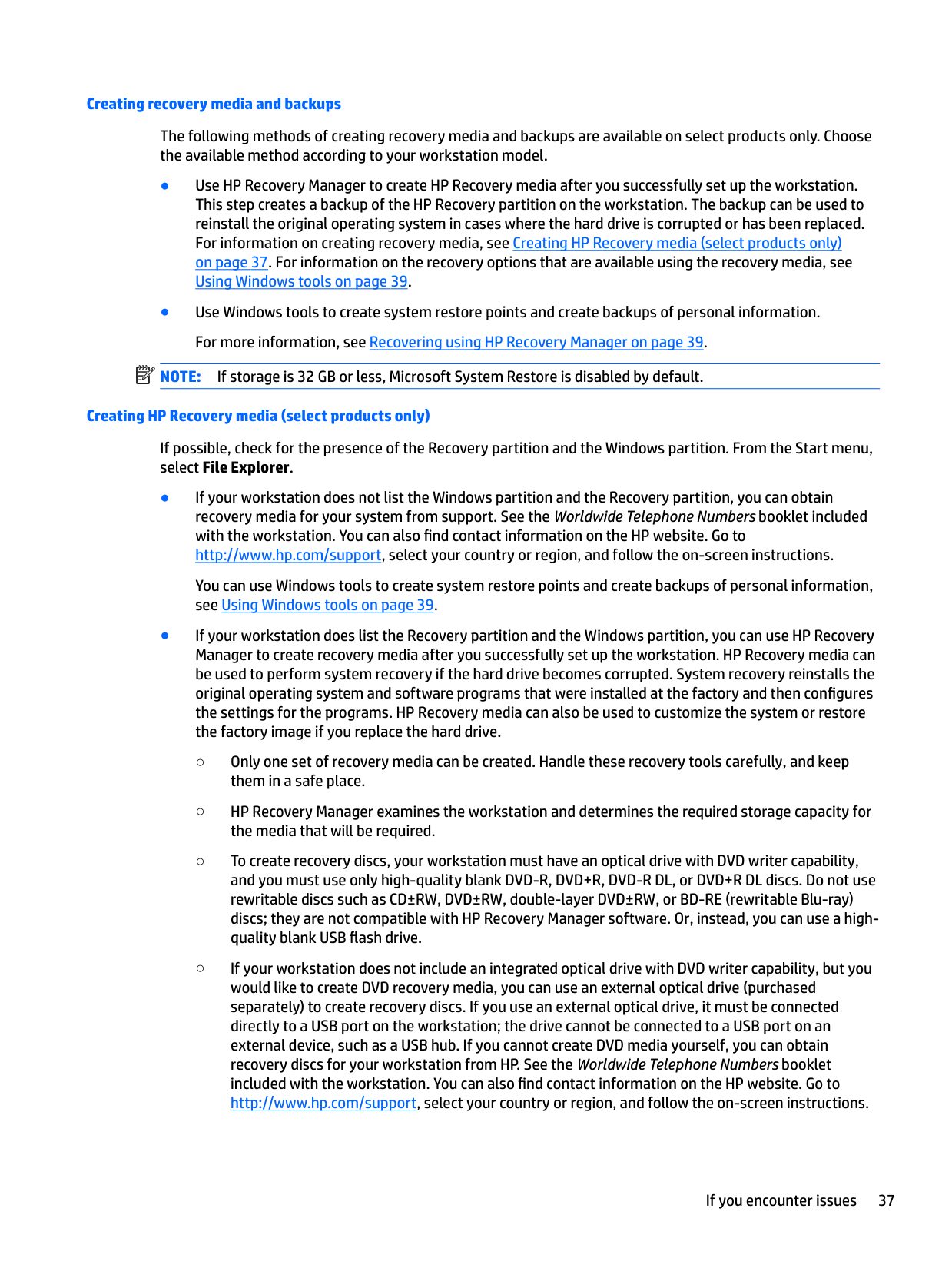
- Run HP Diagnostics (F2 at boot) before assuming anything is bad. The diagnostics are good and they save service calls.
When to call HP
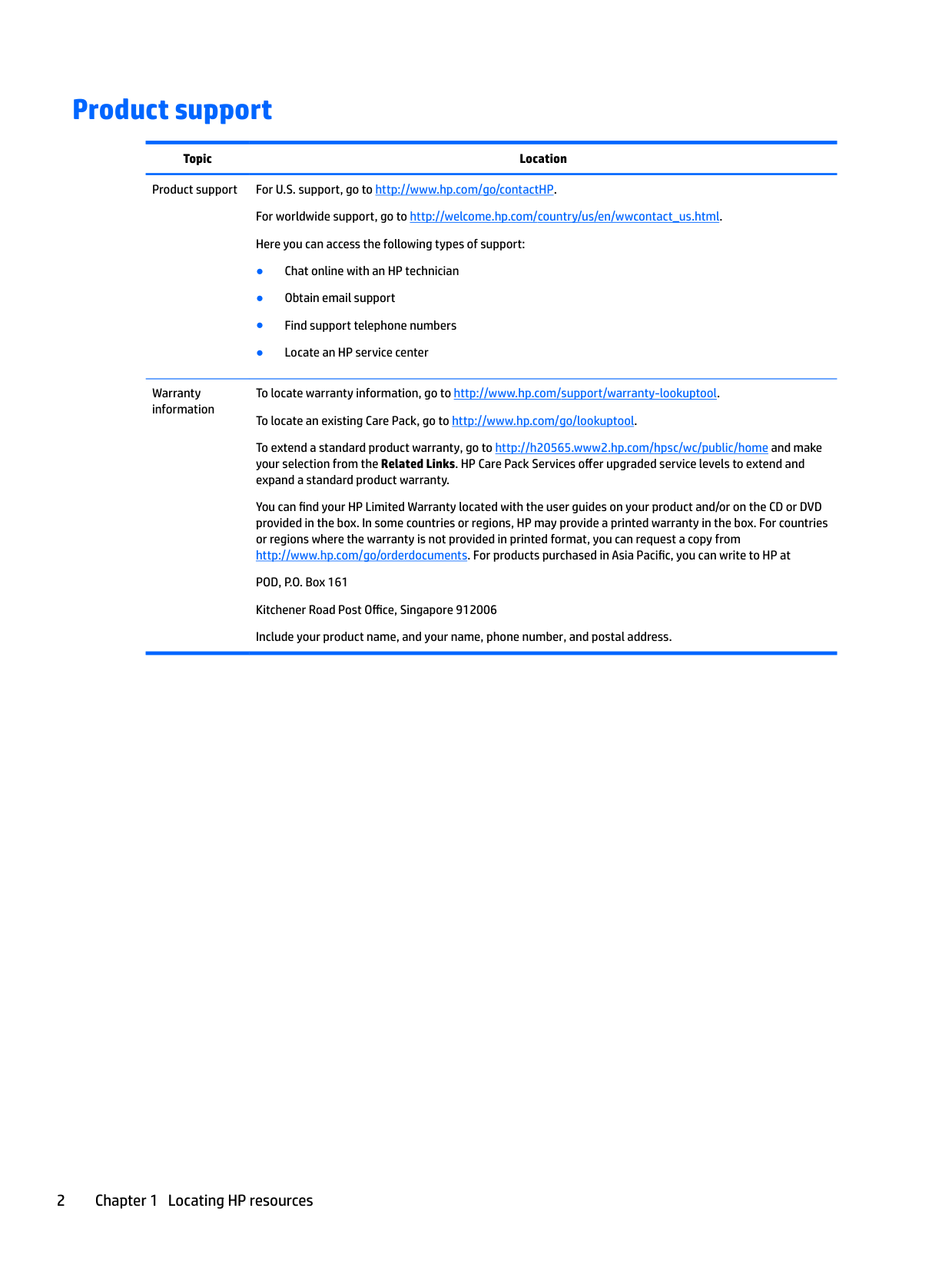
Repeated Hardware error event log entries pointing at the system board or a specific DIMM slot, after re-seat and BIOS update. PSU smell or intermittent fans. CPU throttling at idle on a freshly-pasted heatsink. These are the failures that benefit from real diagnosis.
https://support.hp.com/us-en/product/details/hp-z440-workstation
Up and down the line
- Z420 Workstation — predecessor (Sandy/Ivy Bridge era), similar serviceability
- Z640 Workstation — dual-socket sibling, same chassis design
- Z840 Workstation — top-of-line dual-socket high-end