Ask AI
— answers from the official manualAnswers from the official manual.
Common questions
Common Questions
9 totalHow do I enable or disable Intel Turbo Boost Technology?
In Computer Setup (F10) Utility, navigate to Performance settings for Intel Turbo Boost and choose Enable or Disable based on needs.
What steps should I follow to access the BIOS setup utility?
On startup press F10 until you enter Computer Setup (F10) Utility. If necessary, press Enter to bypass the title screen.
How do I set up and change an administrator BIOS password?
Access Computer Setup (F10) Utility, navigate to Security settings, select ‘Set up Bios Administrator Password’ and follow on-screen instructions.
What is the procedure for setting a power-on password using the BIOS?
In Computer Setup (F10) Utility, navigate to Security settings, select ‘Set up Bios Power-On Password’ and follow on-screen instructions.
How do I configure the boot order of installed storage devices?
In Computer Setup (F10) Utility, navigate to Boot Menu options to physically reorder menu entries according to preference and F10 to apply.
How do I enable SATA Power Management on my Z640 workstation?
Go into Computer Setup (F10) Utility, navigate to Power Options and then select SATA Power Management. Choose Enable or Disable according to preference.
Full Manual
133 pages

HP Z440, Z640, and Z840 Workstation Series
Maintenance and Service Guide
######## Copyright Information
© Copyright 2014, 2016 HP Development Company, L.P.
Third Edition: November 2016 First Edition: October 2014 Part Number: 748721-004
######## Warranty
The information contained herein is subject to change without notice. The only warranties for HP products and services are set forth in the express warranty statements accompanying such products and services. Nothing herein should be construed as constituting an additional warranty. HP shall not be liable for technical or editorial errors or omissions contained herein.
Windows 8: Not all features are available in all editions of Windows 8. This workstation may require upgraded and/or separately purchased hardware, drivers, and/or software to take full advantage of Windows 8 functionality. Go to http://www.microsoft.com for details.
Windows 7: This workstation may require upgraded and/or separately purchased hardware and/or a DVD drive to install the Windows 7 software and take full advantage of Windows 7 functionality. Go to http://www.microsoft.com for details.
######## Trademark Credits
Microsoft and Windows are U.S. registered trademarks of the Microsoft group of companies.
Intel, Intel Xeon, and Thunderbolt are trademarks of Intel Corporation in the U.S. and other countries.
Bluetooth is a trademark owned by its proprietor and used by Hewlett-Packard Company under license.
ENERGY STAR is a registered trademark owned by the U.S. Environmental Protection Agency (EPA).
Red Hat is a registered trademark of Red Hat, Inc. in the United States and other countries.
#### About this guide
This guide provides service and maintenance information, technical details and configuration guidance for the HP Z440, Z640, and Z840 Workstations.
| | |---|
IMPORTANT: Removal and replacement procedures are now available in videos on the HP website. Go to the HP Customer Self-Repair Services Media Library at http://www.hp.com/go/sml.
Guide topics
Hardware overview on page 1 System management on page 23 Component replacement information and guidelines on page 45 Diagnostics and troubleshooting on page 76 Configuring password security and resetting CMOS on page 99 Linux technical notes on page 103 Configuring RAID devices on page 106 System board designators on page 116
| | |---|
NOTE: View the HP Z440, Z640, and Z840 Workstation Series User Guide at http://www.hp.com/support/ workstation_manuals.
iii
####### iv About this guide
Table of contents
###### 1 Hardware overview ........................................................................................................................................ 1HP Z440 Workstation components ....................................................................................................................... 1
HP Z440 Workstation front panel components .................................................................................. 2 HP Z440 Workstation rear panel components .................................................................................... 3 HP Z440 Workstation chassis components ........................................................................................ 4 HP Z440 Workstation system board components .............................................................................. 5 HP Z440 Workstation system board architecture .............................................................................. 6 HP Z440 Workstation specifications ................................................................................................... 6
HP Z640 Workstation components ....................................................................................................................... 8 HP Z640 Workstation front panel components .................................................................................. 8 HP Z640 Workstation rear panel components .................................................................................... 9 HP Z640 Workstation chassis components ...................................................................................... 10 HP Z640 Workstation system board components ............................................................................ 11 HP Z640 Workstation system board architecture ............................................................................ 12 HP Z640 Workstation system board riser architecture .................................................................... 13 HP Z640 Workstation specifications ................................................................................................. 13
HP Z840 Workstation components ..................................................................................................................... 15 HP Z840 Workstation front panel components ................................................................................ 15 HP Z840 Workstation rear panel components ................................................................................. 16 HP Z840 Workstation chassis components ...................................................................................... 17 HP Z840 Workstation system board components ............................................................................ 18 HP Z840 Workstation system board architecture ............................................................................ 19 HP Z840 Workstation specifications ................................................................................................. 20
Environmental specifications .............................................................................................................................. 21 Ensuring proper ventilation ................................................................................................................................. 22
###### 2 System management ................................................................................................................................... 23Power management features .............................................................................................................................. 23
ERP compliance mode ....................................................................................................................... 23 Hyper-Threading Technology (HTT) .................................................................................................. 24 SATA Power Management ................................................................................................................. 24 Intel Turbo Boost Technology ........................................................................................................... 24
BIOS ROM ............................................................................................................................................................. 24 Computer Setup (F10) Utility ............................................................................................................................... 25
Computer Setup (F10) Utility functions ............................................................................................ 25 Accessing Computer Setup (F10) Utility ........................................................................................... 26
v
Computer Setup (F10) Utility menu .................................................................................................. 27
Desktop management ......................................................................................................................................... 32 Initial computer configuration and deployment ............................................................................... 33 Installing a remote system ............................................................................................................... 33 Copying a setup configuration to another computer ....................................................................... 33 Updating and managing software .................................................................................................... 34 LANDesk Software ............................................................................................................................. 34 HP Driver Pack ................................................................................................................................... 34 HP SoftPaq Download Manager ........................................................................................................ 34 HP System Software Manager .......................................................................................................... 35 ROM Flash .......................................................................................................................................... 35
Remote ROM Flash .......................................................................................................... 35 HPQFlash ......................................................................................................................... 35
FailSafe Boot Block ............................................................................................................................ 35 Recovering the computer from Boot Block Recovery mode .......................................... 36
Workstation security ......................................................................................................................... 36 Asset tracking ................................................................................................................. 36 SATA hard drive security ................................................................................................. 37
DriveLock applications ................................................................................. 37 Using DriveLock ............................................................................................ 38
Password security ........................................................................................................... 39 Establishing a setup password using Computer Setup (F10) Utility ........... 39 Establishing a power-on password using computer setup ......................... 39 Entering a power-on password .................................................................... 40 Entering a setup password ........................................................................... 40 Changing a power-on or setup password .................................................... 40 Deleting a power-on or setup password ...................................................... 41 National keyboard delimiter characters ...................................................... 42 Clearing passwords ...................................................................................... 42
Chassis security .............................................................................................................. 42 Smart Cover Sensor ...................................................................................... 42 Cable lock (optional) ..................................................................................... 43
Fault notification and recovery ......................................................................................................... 43 ECC fault prediction ......................................................................................................... 43 Thermal sensors ............................................................................................................. 43
Dual-state power button ................................................................................................................... 43 Changing the power button configuration (Windows only) ........................................... 44
vi
Tools and software requirements ..................................................................................................... 46 Electrostatic discharge (ESD) information ........................................................................................ 46
Product recycling ................................................................................................................................................. 48 Component replacement guidelines ................................................................................................................... 48
Battery ............................................................................................................................................... 48 Cable management ........................................................................................................................... 49 Processor and processor heatsink .................................................................................................... 50 Expansion slots ................................................................................................................................. 51

Card configuration restrictions for power supplies ........................................................ 51 Choosing an expansion card slot .................................................................................... 51 HP Z440 Workstation slot identification and description .............................................. 52 HP Z440 Workstation installation sequence recommendations ................................... 53 HP Z640 Workstation slot identification and description .............................................. 54 HP Z640 Workstation installation sequence recommendations ................................... 54 HP Z840 Workstation slot identification and description .............................................. 56 HP Z840 Workstation installation sequence recommendations ................................... 57
Hard drives and optical drives ........................................................................................................... 59 Handling hard drives ....................................................................................................... 59 Removal and replacement tips ....................................................................................... 59 Drive installation and cabling scenarios ......................................................................... 59
HP Z440 Workstations — Intel AHCI SATA controller guidelines ................. 60 HP Z440 Workstations — LSI 9217-4i4e RAID controller guidelines .......... 61 HP Z640 Workstations — Intel AHCI SATA controller guidelines ................. 62 HP Z640 Workstations — LSI 9217-4i4e RAID controller guidelines .......... 63 HP Z840 Workstation cabling guidelines ..................................................... 64
Memory .............................................................................................................................................. 65 Supported DIMM configurations ..................................................................................... 65 BIOS errors and warnings ............................................................................................... 65 DIMM installation guidelines .......................................................................................... 65 HP Z440 Workstation DIMM installation order ............................................................... 66 HP Z640 Workstation DIMM installation order ............................................................... 67 HP Z840 Workstation DIMM installation order ............................................................... 68
Power supply ..................................................................................................................................... 69
Power supply specifications ........................................................................................... 69 HP Z440 power supply specifications .......................................................... 69 HP Z640 power supply specifications .......................................................... 70 HP Z840 power supply specifications .......................................................... 71
Power consumption and heat dissipation ...................................................................... 72 Resetting the power supply ............................................................................................ 72
System board .................................................................................................................................... 72 System cabling ................................................................................................................ 73
vii
HP Z440 Workstation system cabling .......................................................... 73 HP Z640 Workstation system cabling .......................................................... 74 HP Z840 Workstation system cabling .......................................................... 75
Diagnosis at startup .......................................................................................................................... 78 Diagnosis during operation ............................................................................................................... 78
Troubleshooting checklist ................................................................................................................................... 78 HP troubleshooting resources and tools ............................................................................................................. 79
Online support ................................................................................................................................... 79 Troubleshooting a problem ............................................................................................ 79 Instant Support and Active Chat ..................................................................................... 79 Customer Advisories, Customer and Security Bulletins, and Customer Notices ........... 80 Product Change Notifications ......................................................................................... 80
Helpful hints ...................................................................................................................................... 80 At startup ........................................................................................................................ 80 During operation ............................................................................................................. 81 Customer Self-Repair program ....................................................................................... 81
Troubleshooting scenarios and solutions ........................................................................................................... 82 Solving minor problems .................................................................................................................... 82 Solving hard drive problems ............................................................................................................. 84 Solving display problems .................................................................................................................. 85 Solving audio problems ..................................................................................................................... 87 Solving printer problems ................................................................................................................... 88 Solving power supply problems ........................................................................................................ 88
Testing power supply ...................................................................................................... 88
Diagnostic codes and errors ................................................................................................................................ 90 Diagnostic LED and audible (beep) codes ......................................................................................... 90 LED color definitions ......................................................................................................................... 92 POST error messages ........................................................................................................................ 92
Customizing Remote HP PC Hardware Diagnostics (UEFI) settings ................................................. 98
viii
6 Configuring password security and resetting CMOS ........................................................................................ 99 Preparing to configure passwords ...................................................................................................................... 99 Resetting the password jumper ........................................................................................................................ 100 Clearing and resetting the CMOS ....................................................................................................................... 101
Using the CMOS button to reset CMOS ............................................................................................ 101 Using Computer Setup (F10) Utility to reset CMOS ........................................................................ 102
Configuring system BIOS ................................................................................................................. 108 Configuring RAID with the Intel utility ............................................................................................ 109
Configuring RAID on an LSI 2308 or LSI 9217-4i4e controller .......................................................................... 110
Configuring RAID on an LSI 9270-8i MegaRAID controller ................................................................................ 113 RAID 0 .............................................................................................................................................. 113
Software RAID solution ..................................................................................................................................... 114 Software RAID considerations ........................................................................................................ 114 Performance considerations ........................................................................................................... 114 Configuring software RAID .............................................................................................................. 115
ix
###### Index ........................................................................................................................................................... 123
x
1 Hardware overview
This chapter presents an overview of workstation hardware components.
HP Z440 Workstation components
For complete and current information on supported accessories and components for the computer, see http://partsurfer.hp.com.
#### HP Z440 Workstation front panel components



Audio-out (headphone)/Audio-in (microphone) combo jack


#### HP Z440 Workstation rear panel components

######## 1
Power supply Built-In Self-Test (BIST) LED

8 Audio line-out jack (light green)


######### 2 Rear power button and LED 9 Audio line-in jack (blue)

######### 3 PS/2 keyboard connector (purple) 10 PCI/PCIe card slots

######### 4 PS/2 mouse connector (green) 11 Power cord connector

######### 5 USB 2.0 ports (2, black) 12 Universal chassis clamp opening

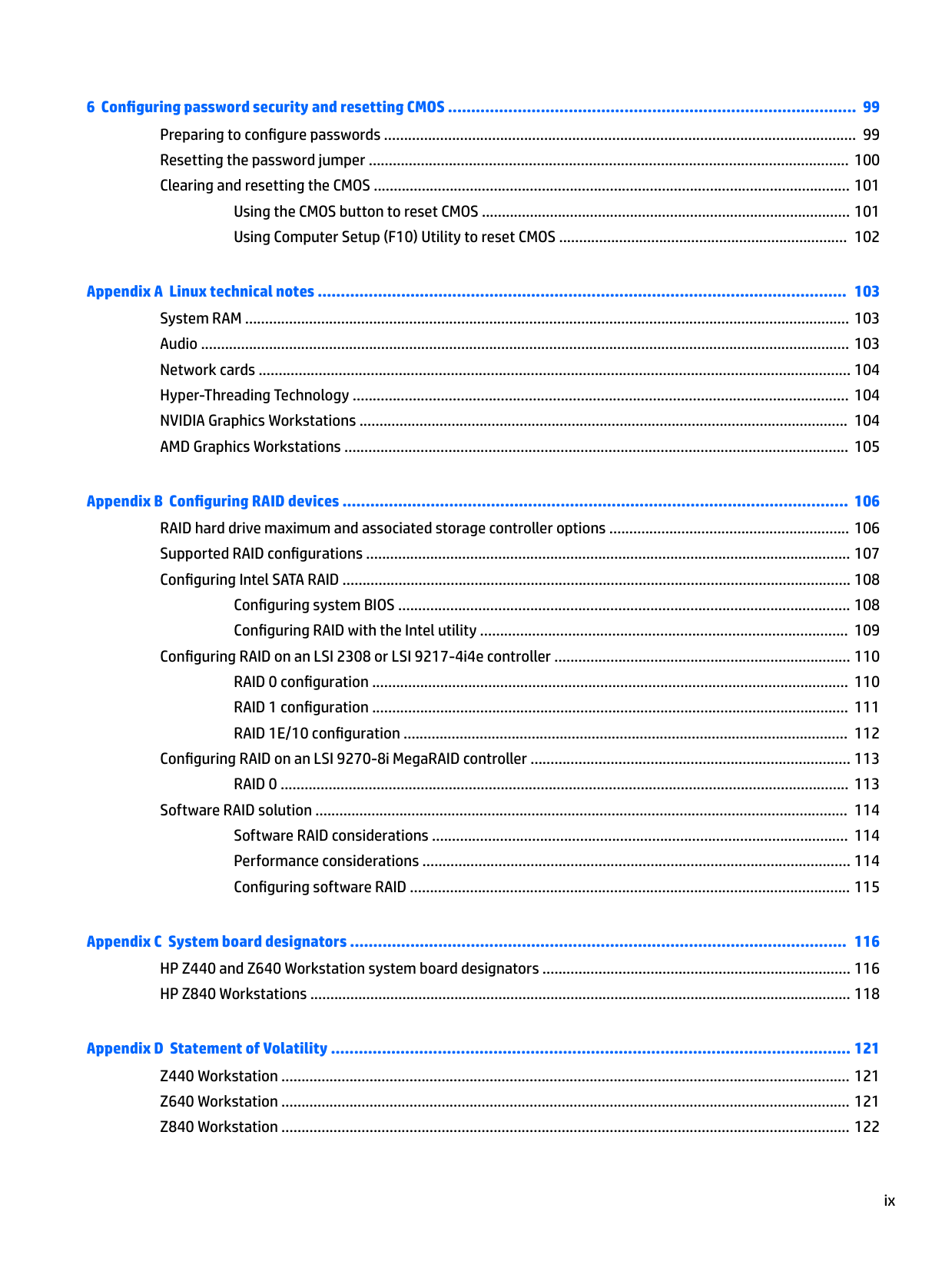
######### 6 USB 3.0 ports (4, blue) 13 Padlock loop
######## 7

AMT-enabled RJ-45 (network) jack (orange)
14 Security slot
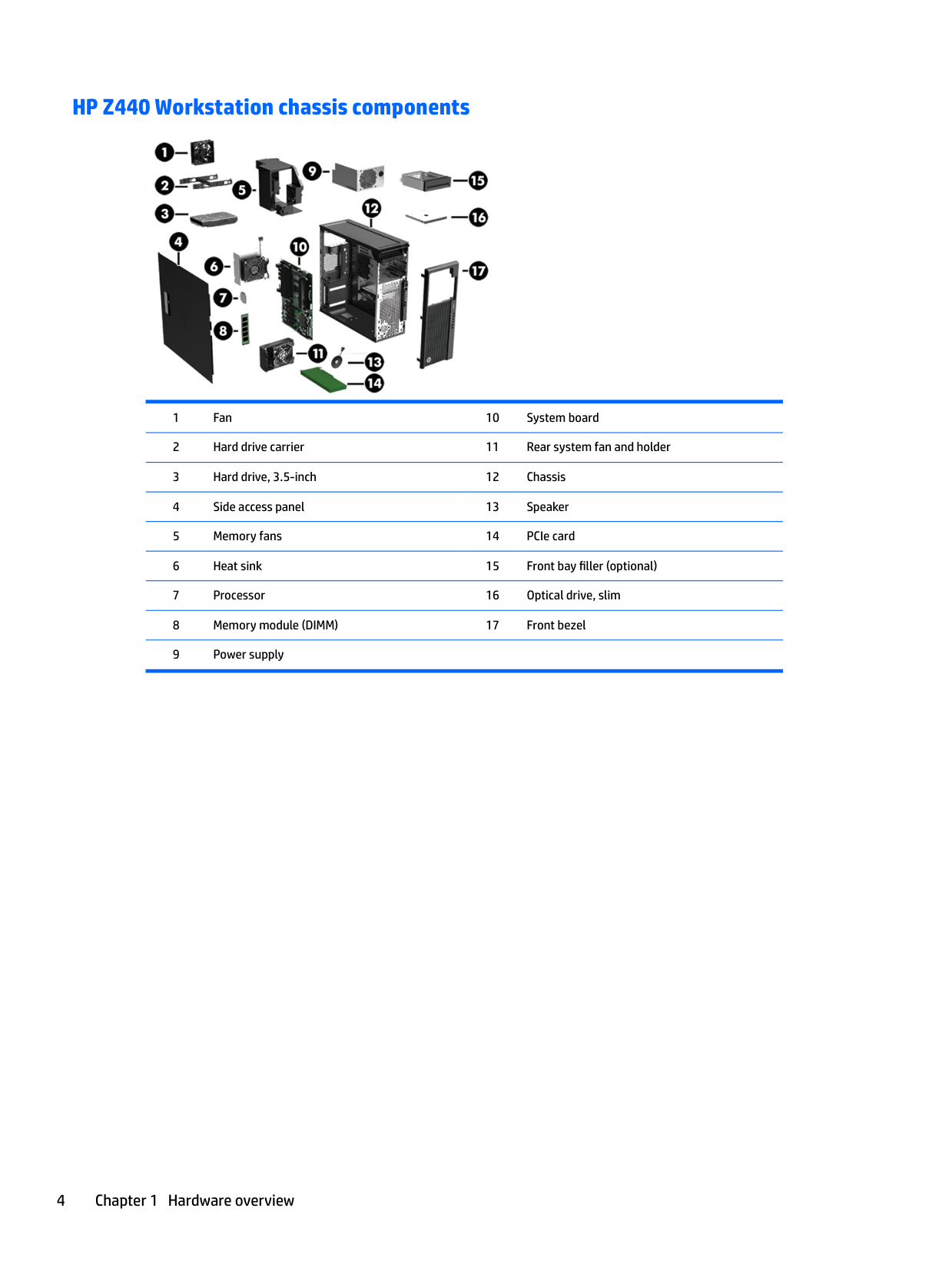
#### HP Z440 Workstation chassis components

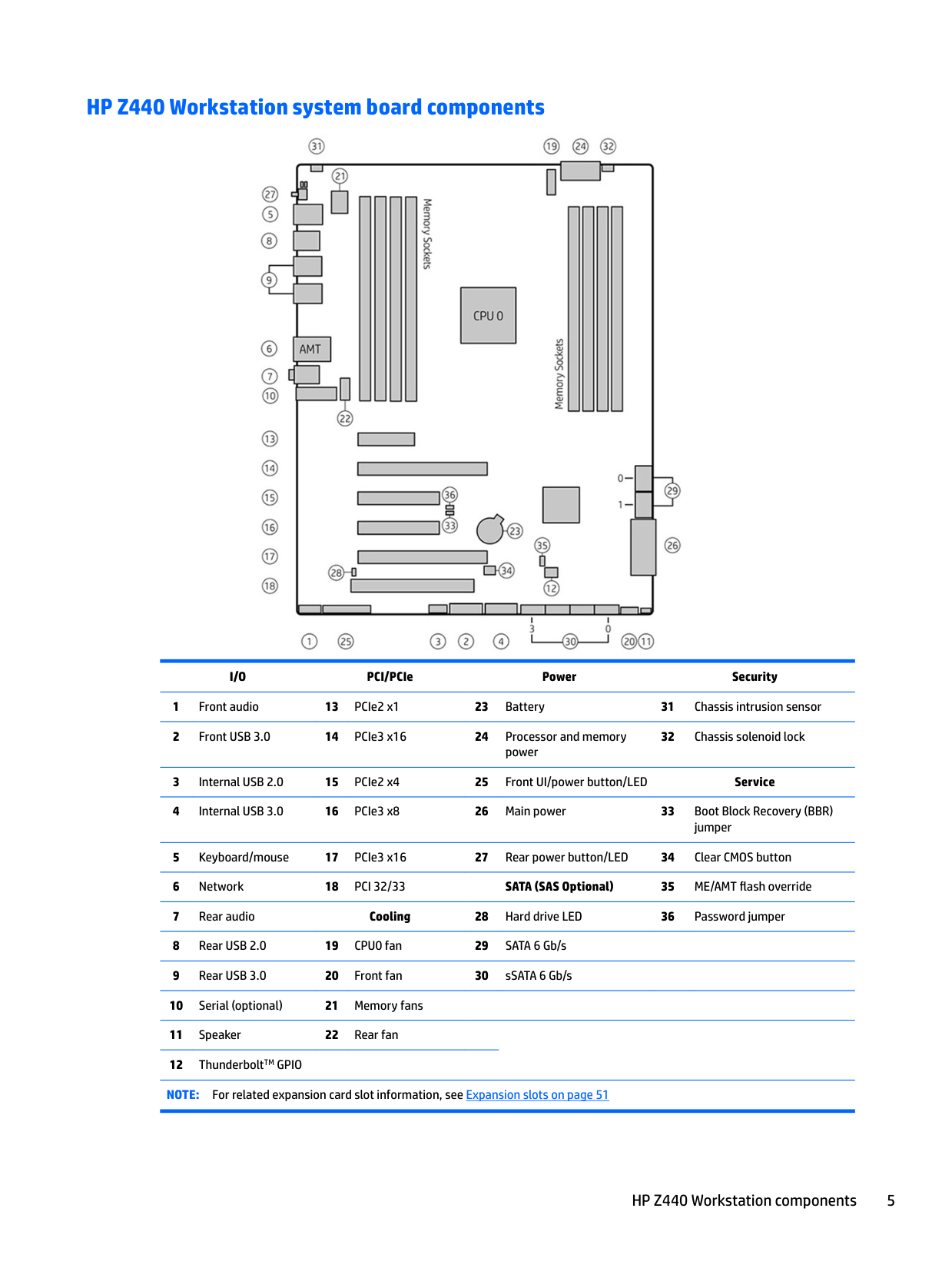
#### HP Z440 Workstation system board components

######## I/O PCI/PCIe Power Security
32 Chassis solenoid lock

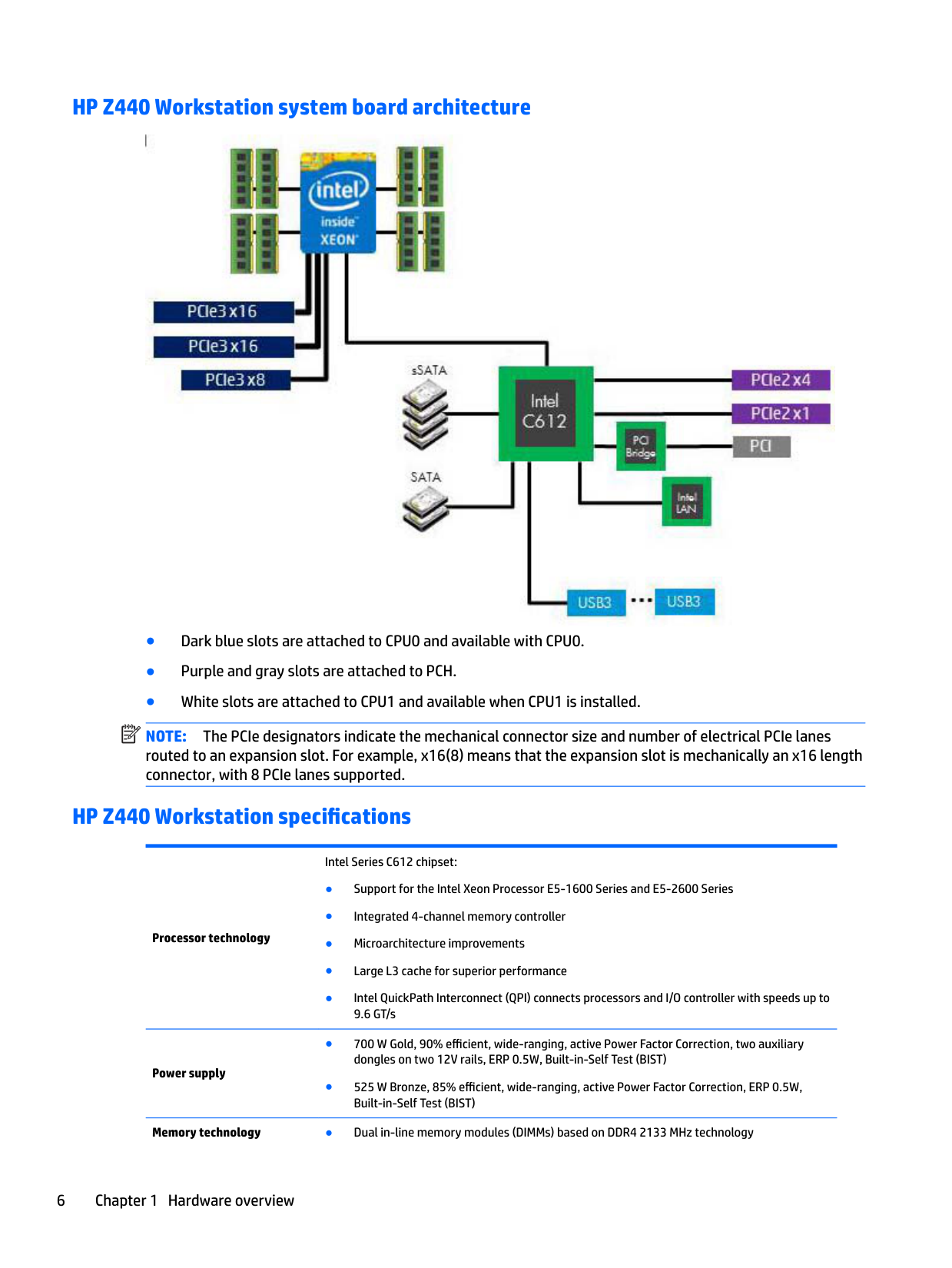
#### HP Z440 Workstation system board architecture

| | |---|
NOTE: The PCIe designators indicate the mechanical connector size and number of electrical PCIe lanes routed to an expansion slot. For example, x16(8) means that the expansion slot is mechanically an x16 length connector, with 8 PCIe lanes supported.
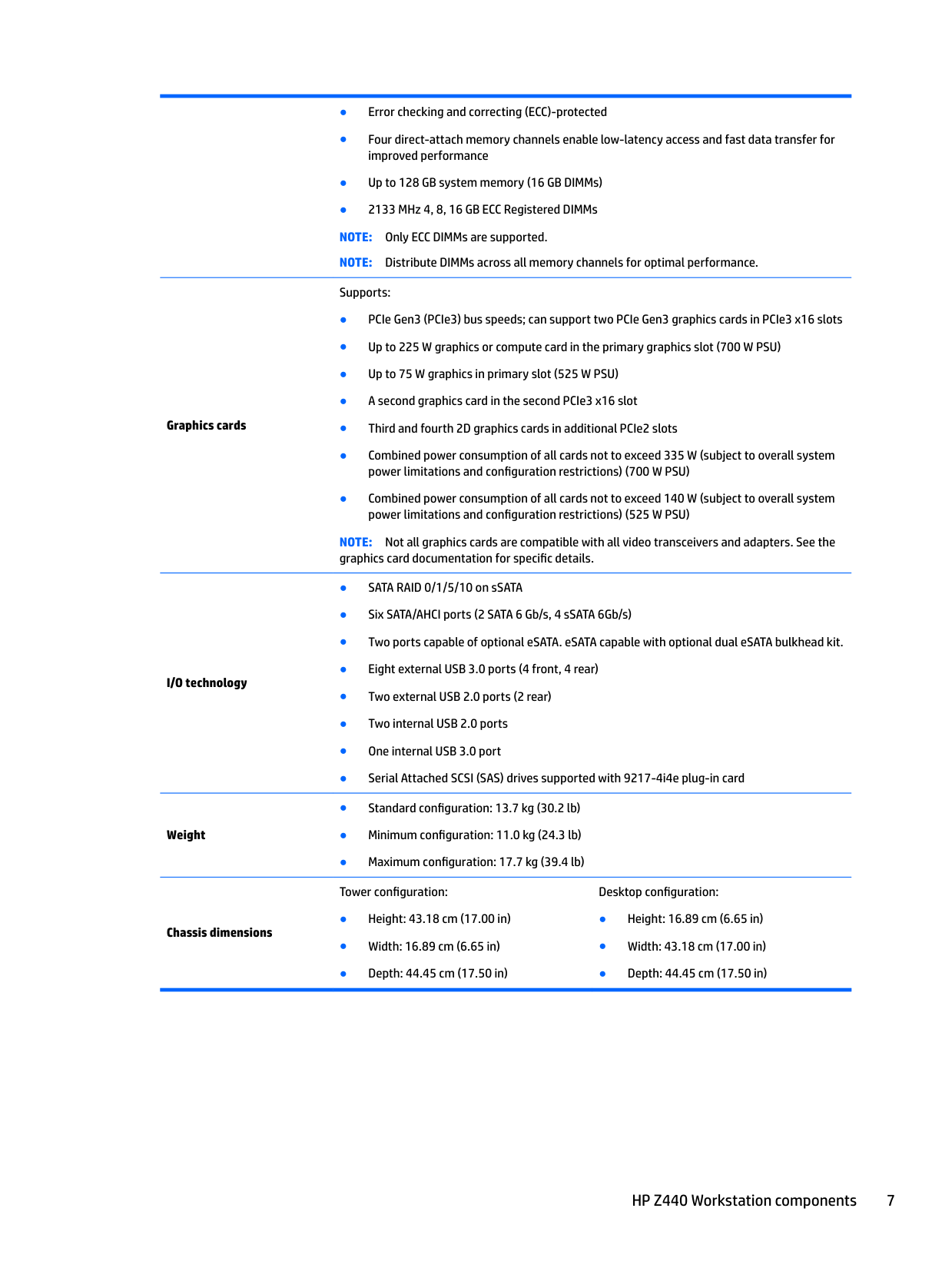
#### HP Z440 Workstation specifications
Processor technology
Power supply
Intel Series C612 chipset:
Memory technology ● Dual in-line memory modules (DIMMs) based on DDR4 2133 MHz technology
Graphics cards
I/O technology
Weight
Chassis dimensions
Supports:
NOTE: Not all graphics cards are compatible with all video transceivers and adapters. See the graphics card documentation for specific details.
Tower configuration:
HP Z640 Workstation components
For complete and current information on supported accessories and components for the computer, see http://partsurfer.hp.com.
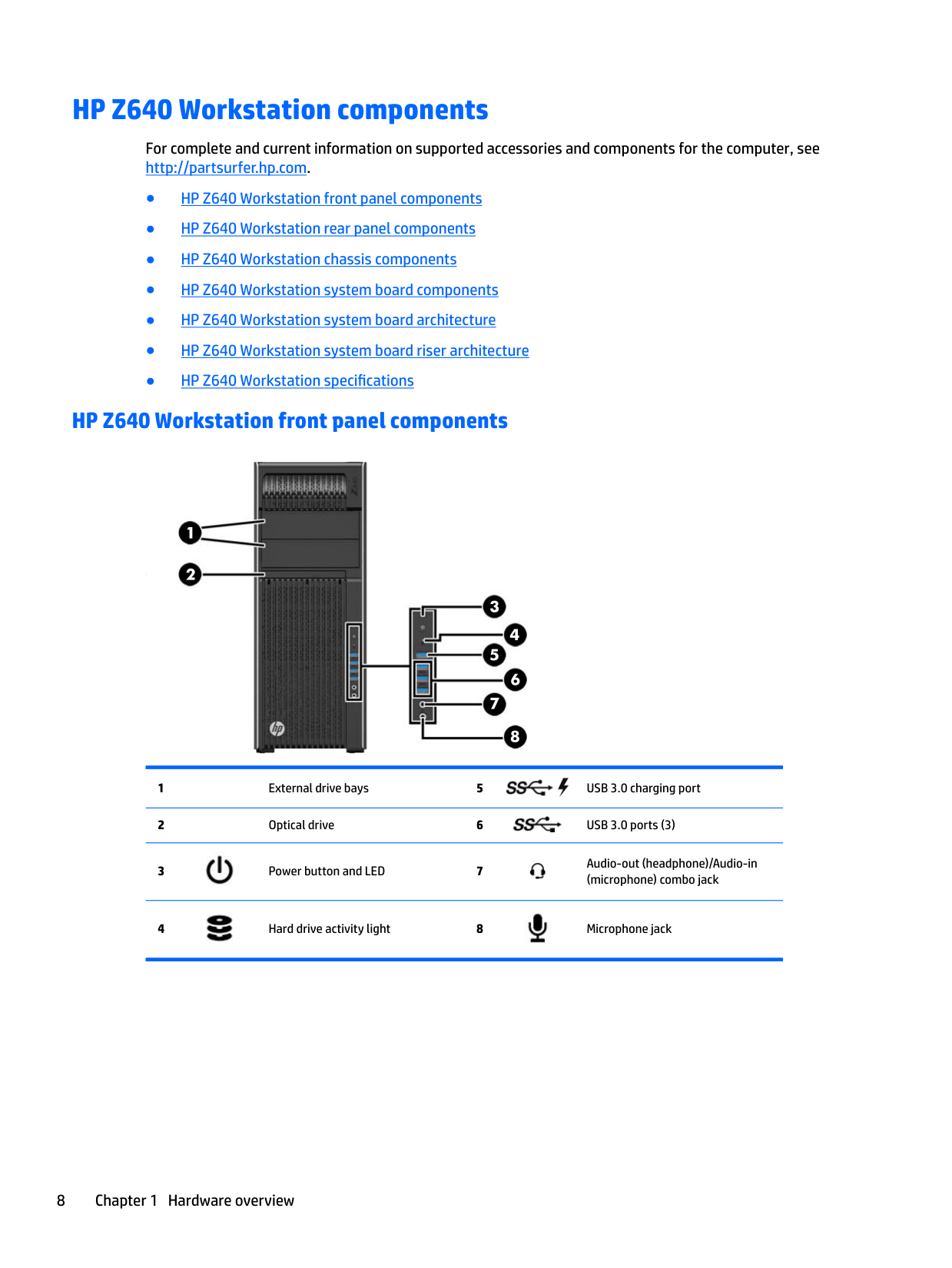
#### HP Z640 Workstation front panel components




Audio-out (headphone)/Audio-in (microphone) combo jack


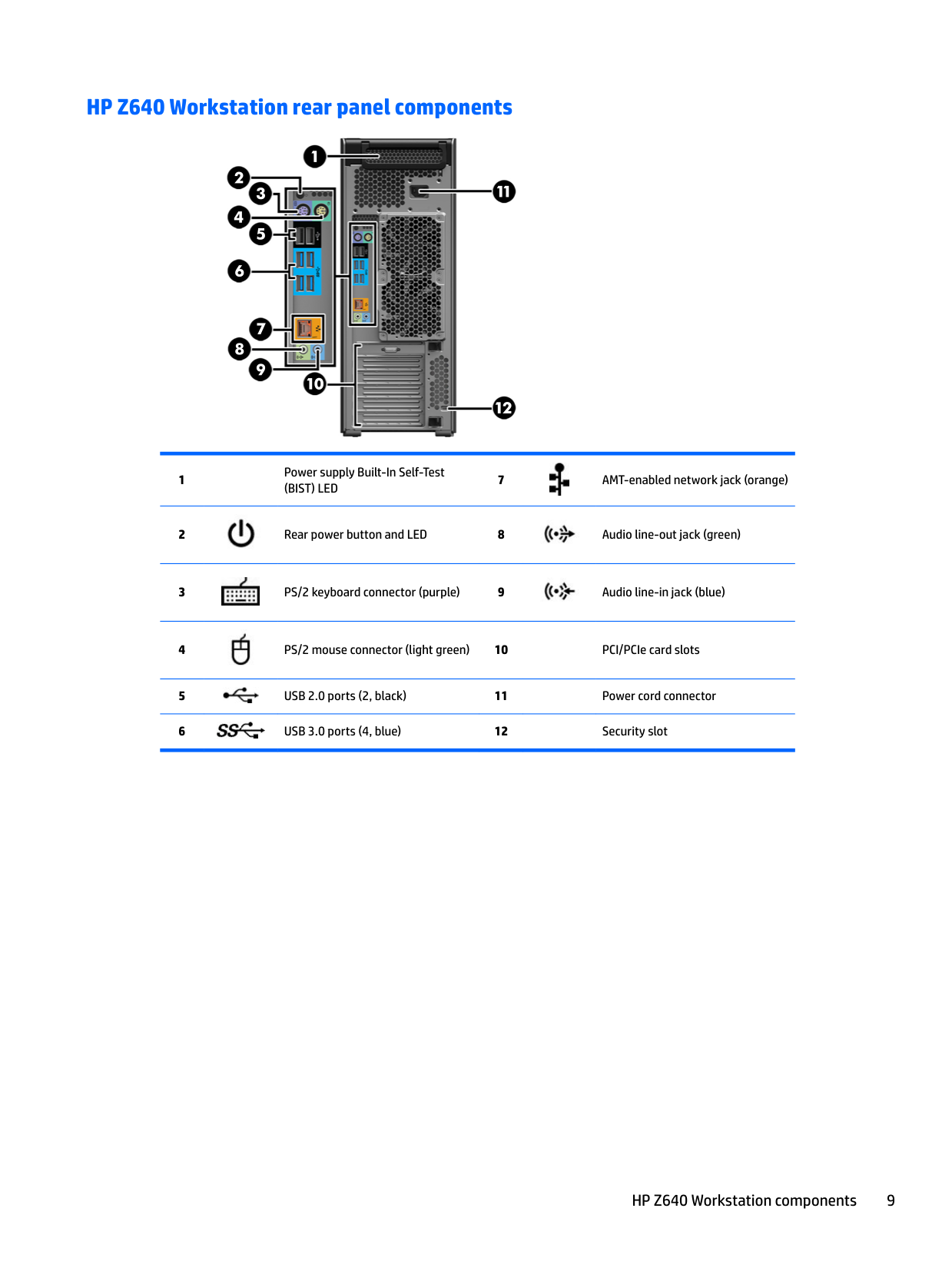
#### HP Z640 Workstation rear panel components




Power supply Built-In Self-Test (BIST) LED
7 AMT-enabled network jack (orange)




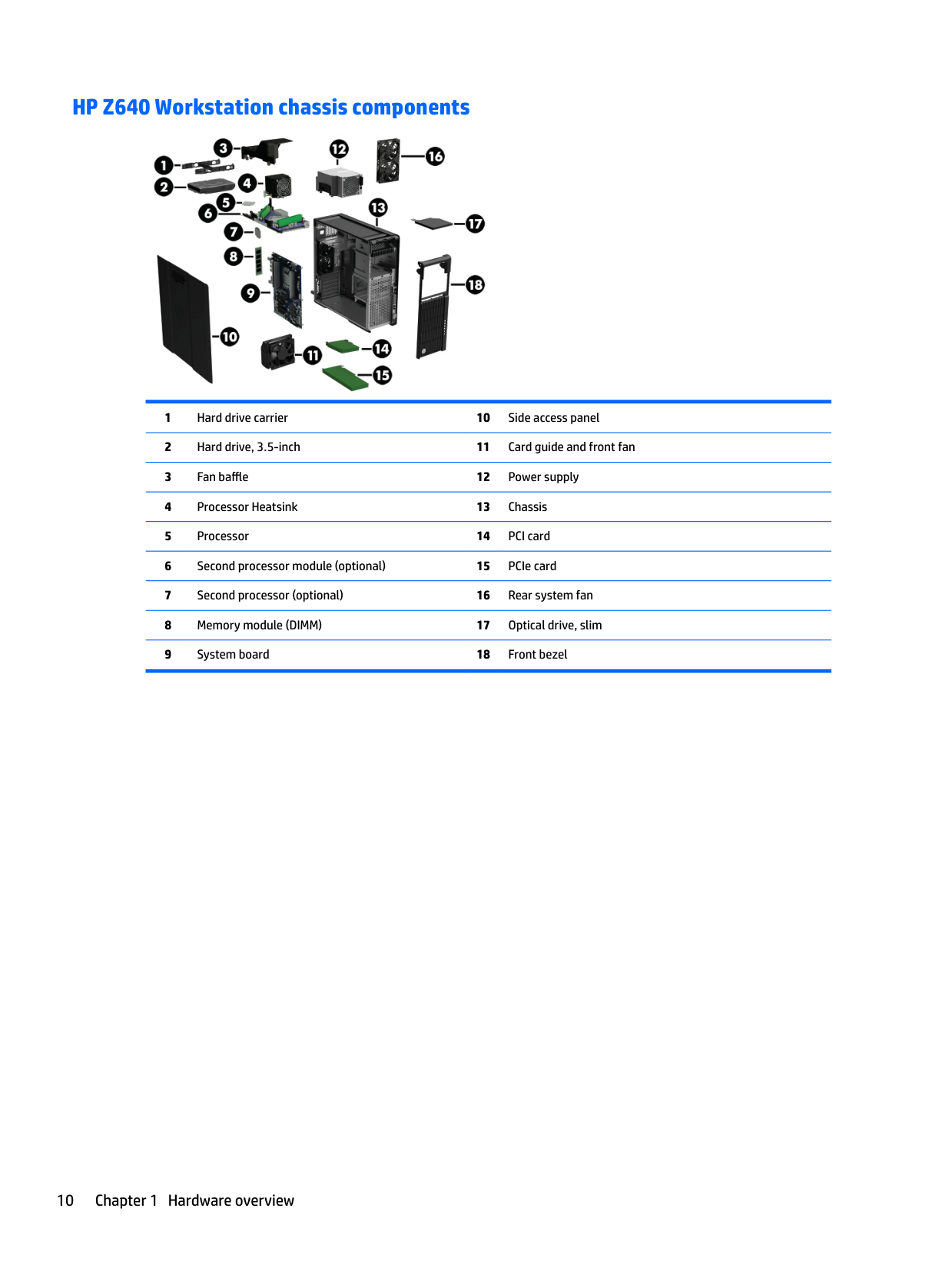
#### HP Z640 Workstation chassis components

1 Hard drive carrier 10 Side access panel 2 Hard drive, 3.5-inch 11 Card guide and front fan 3 Fan baffle 12 Power supply 4 Processor Heatsink 13 Chassis 5 Processor 14 PCI card 6 Second processor module (optional) 15 PCIe card 7 Second processor (optional) 16 Rear system fan 8 Memory module (DIMM) 17 Optical drive, slim 9 System board 18 Front bezel
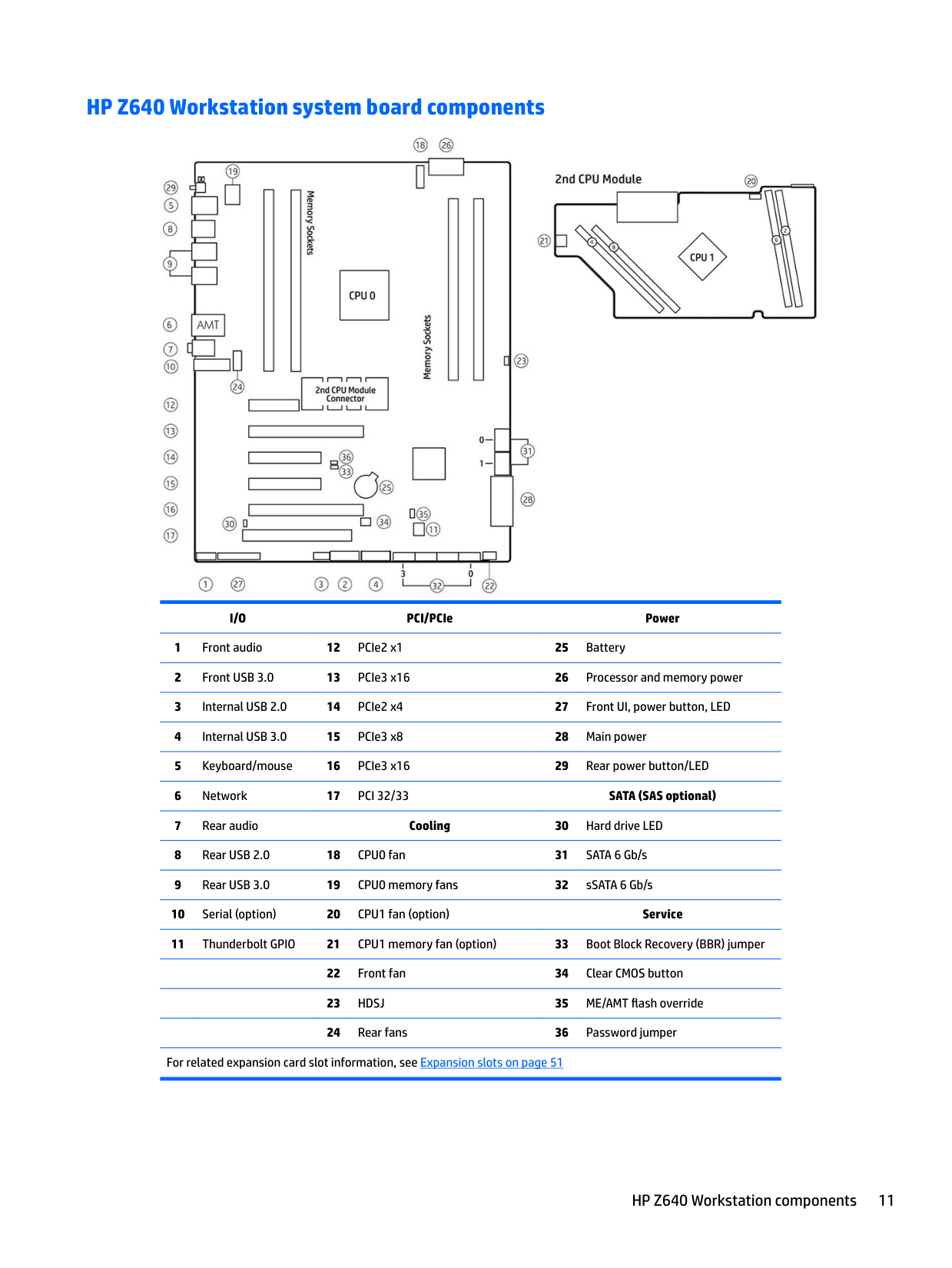
#### HP Z640 Workstation system board components

######## I/O PCI/PCIe Power
For related expansion card slot information, see Expansion slots on page 51
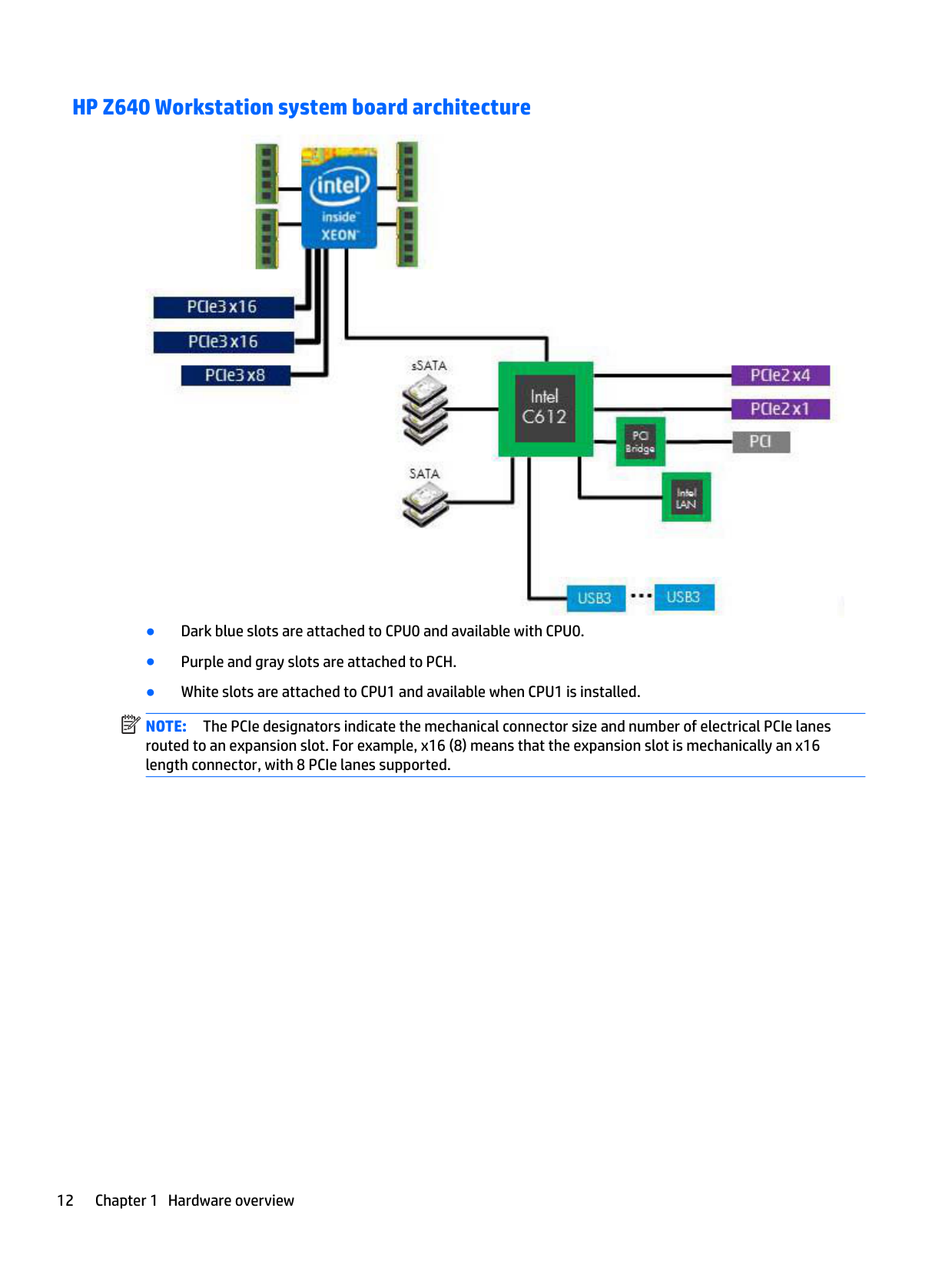
#### HP Z640 Workstation system board architecture
| | |---|

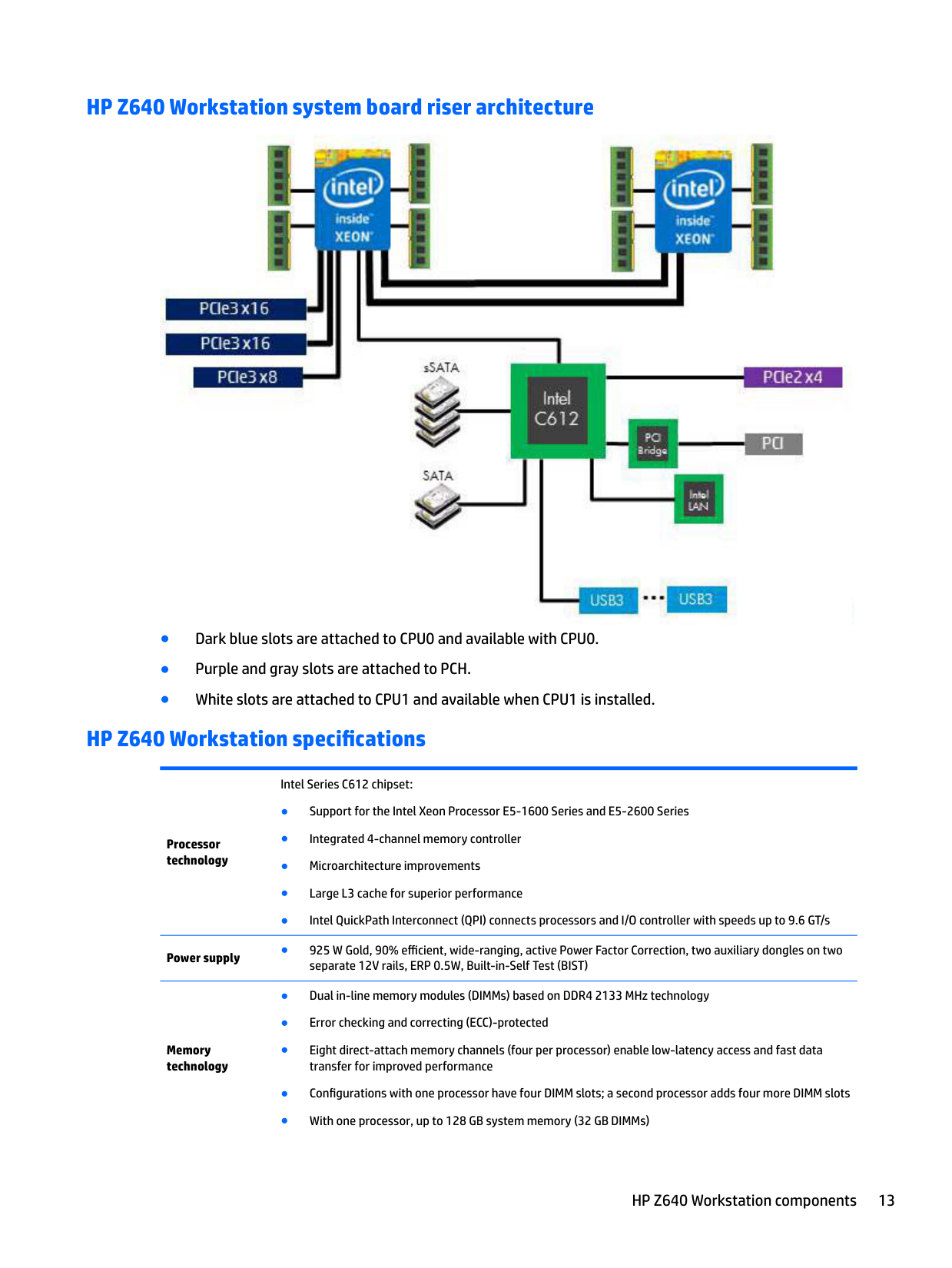
#### HP Z640 Workstation system board riser architecture

#### HP Z640 Workstation specifications
Processor technology
Power supply
Memory technology
Intel Series C612 chipset:
● 925 W Gold, 90% efficient, wide-ranging, active Power Factor Correction, two auxiliary dongles on two separate 12V rails, ERP 0.5W, Built-in-Self Test (BIST)
Graphics cards
I/O technology
Weight
Chassis dimensions
Do not mix any of the different types (RDIMM [Registered] and LR DIMM [Load Reduction]) of memory. The system will not boot and will produce a memory error.
For maximum performance, on workstations with two processors, install the same number of DIMMs per processor and install them in pairs of the same size.
Distribute DIMMs across all memory channels for optimal performance. Do not install memory modules into memory slots if corresponding processor is not installed.
NOTE: Not all graphics cards are compatible with all video transceivers and adapters. See the graphics card documentation for specific details.
● Standard configuration: 17.0 kg (37.5 lb) ● Minimum configuration: 15.0 kg (33.1 lb) ● Maximum configuration: 21.8 kg (48.1 lb)
HP Z840 Workstation components
For information on supported accessories and components, see http://partsurfer.hp.com.
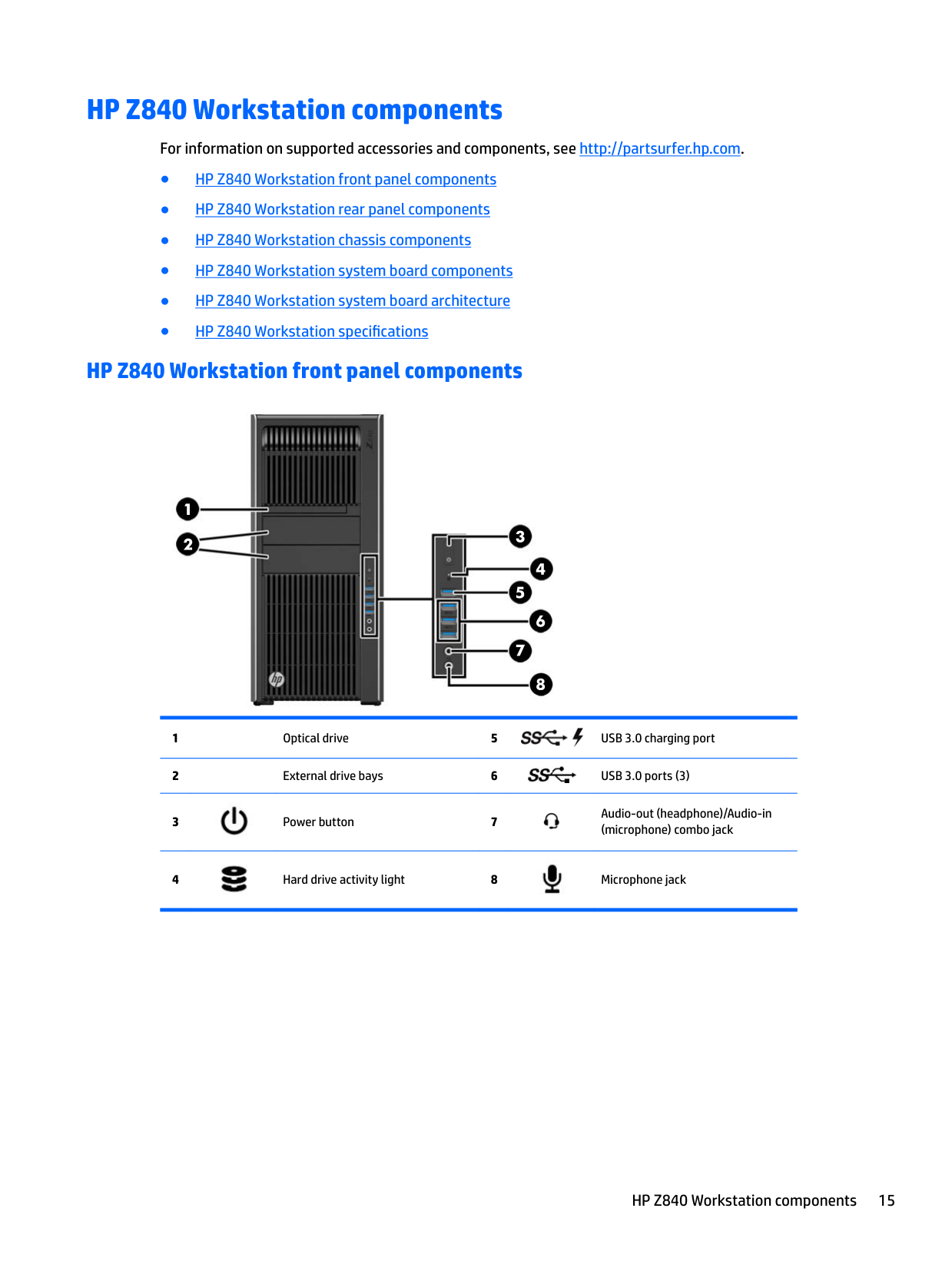
#### HP Z840 Workstation front panel components




Audio-out (headphone)/Audio-in (microphone) combo jack


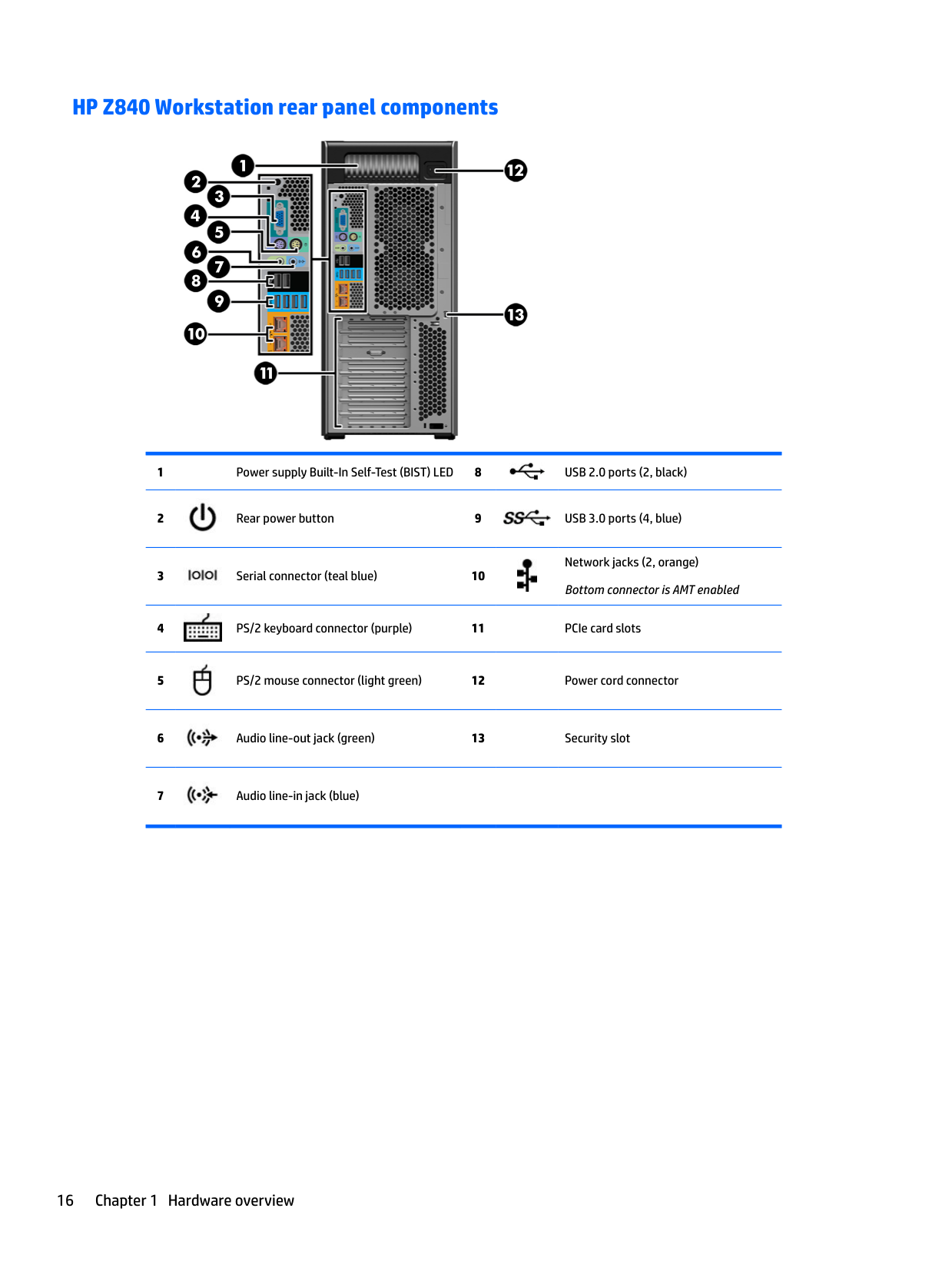
#### HP Z840 Workstation rear panel components




Network jacks (2, orange) Bottom connector is AMT enabled




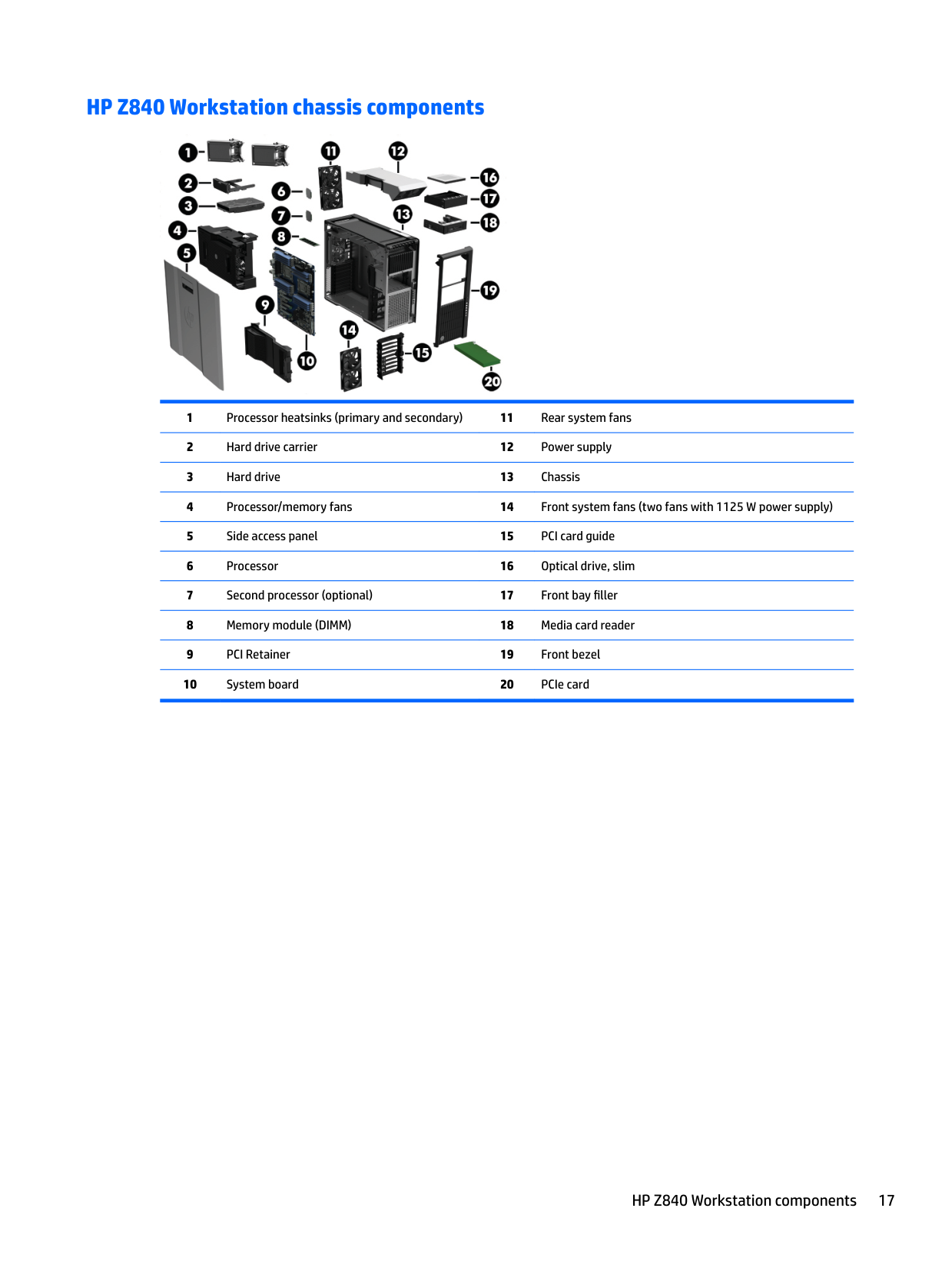
#### HP Z840 Workstation chassis components

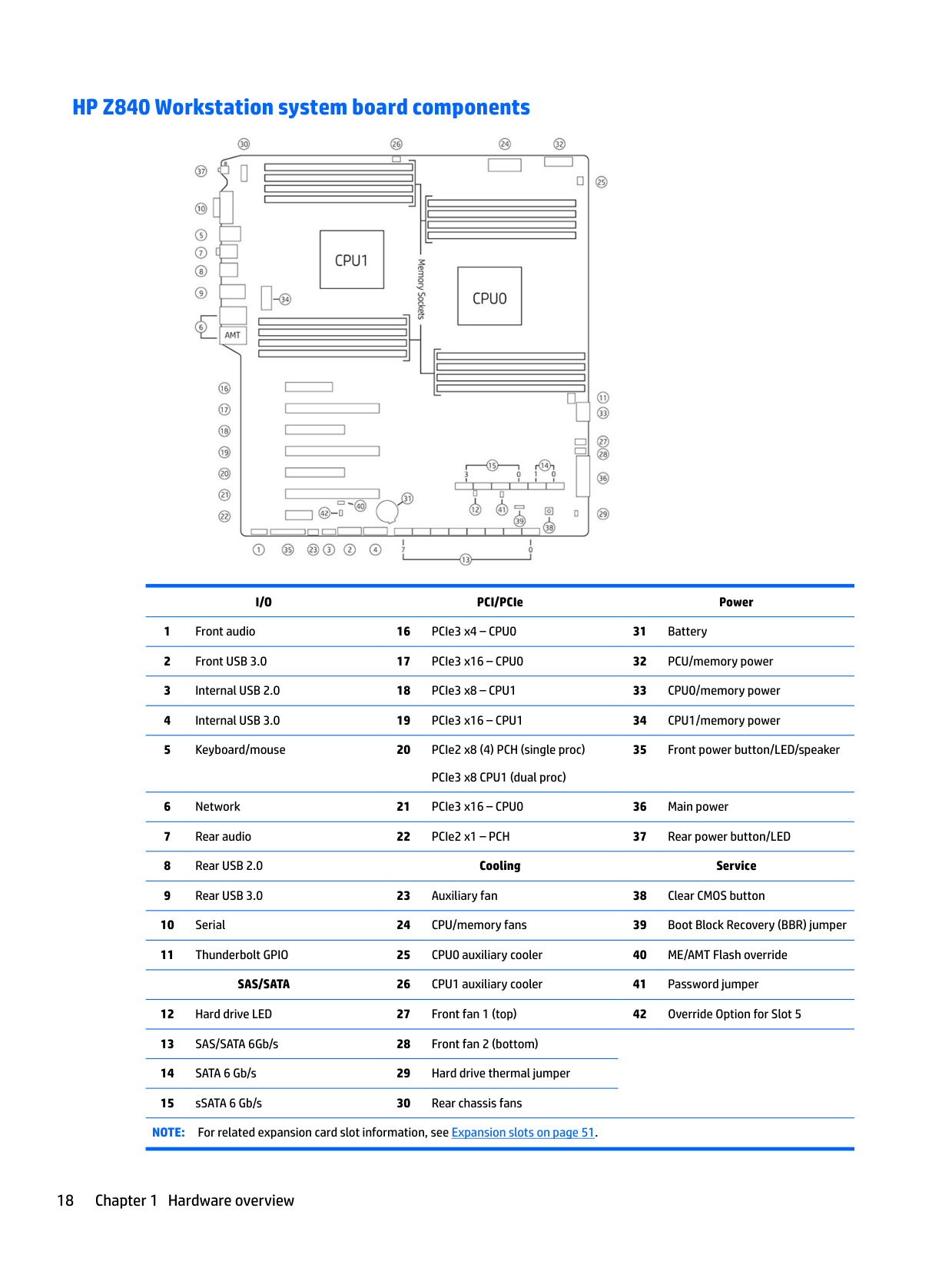
#### HP Z840 Workstation system board components

######## I/O PCI/PCIe Power
35 Front power button/LED/speaker
NOTE: For related expansion card slot information, see Expansion slots on page 51.
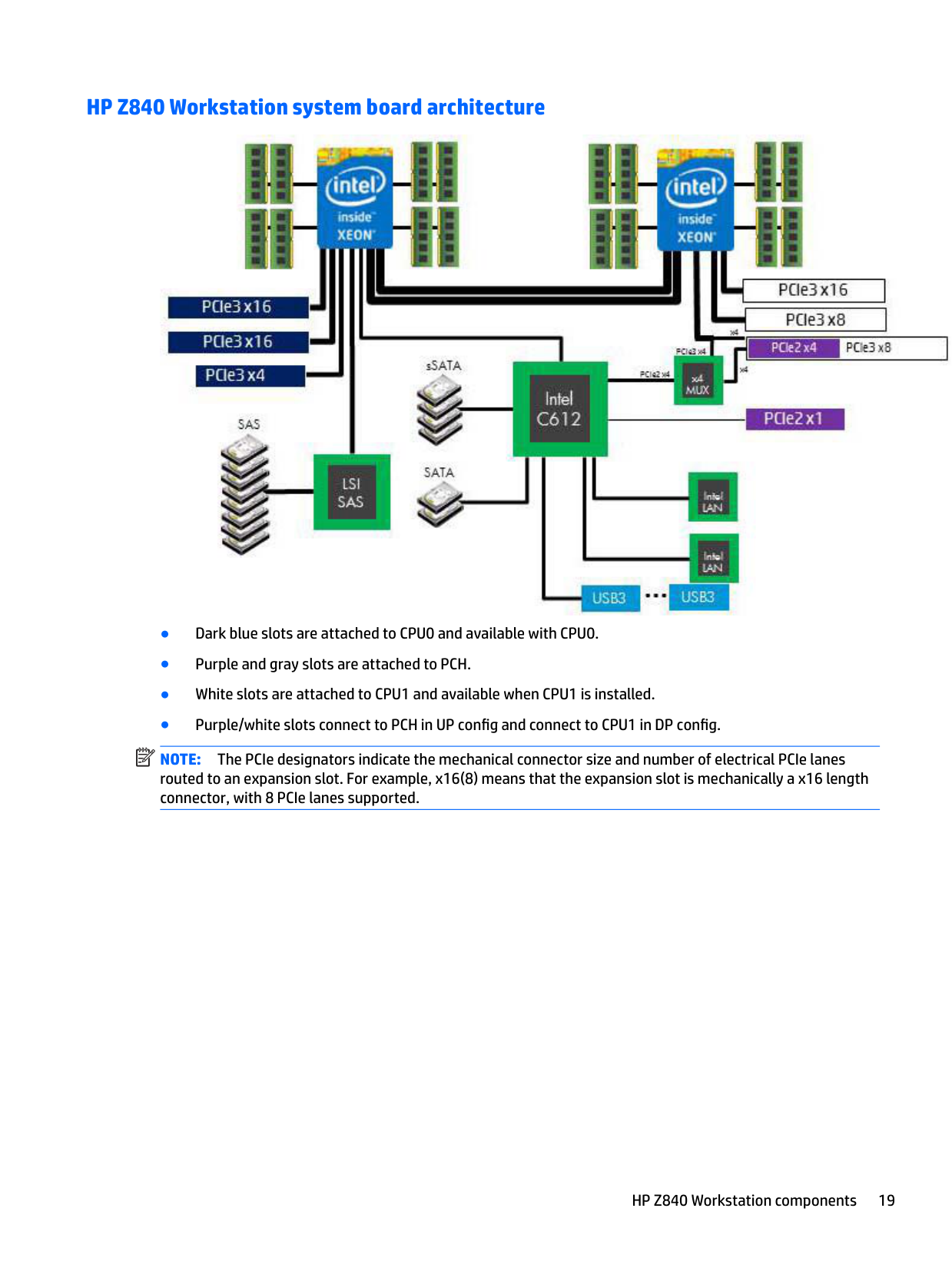
#### HP Z840 Workstation system board architecture

| | |---|
NOTE: The PCIe designators indicate the mechanical connector size and number of electrical PCIe lanes routed to an expansion slot. For example, x16(8) means that the expansion slot is mechanically a x16 length connector, with 8 PCIe lanes supported.
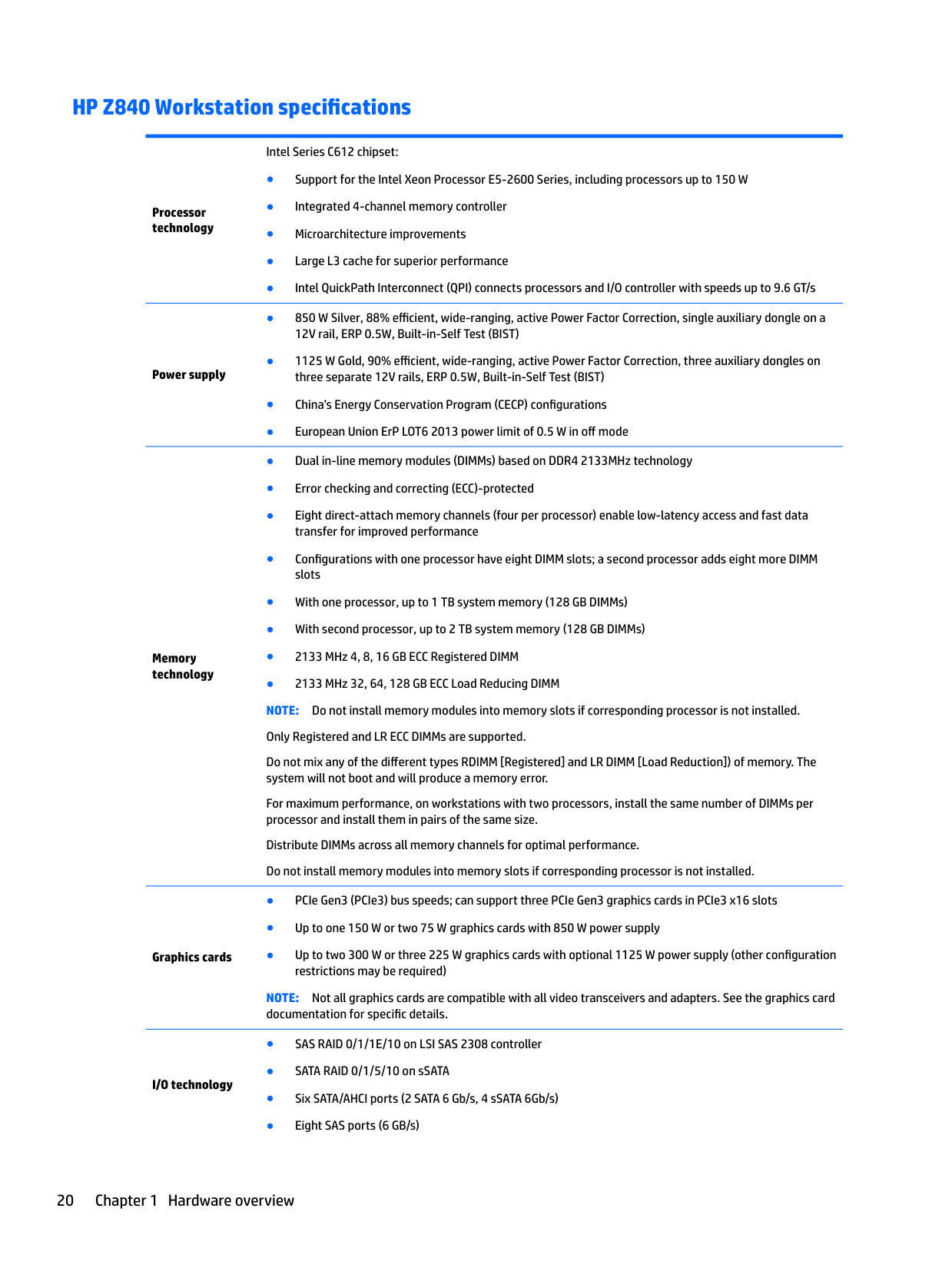
#### HP Z840 Workstation specifications
Processor technology
Power supply
Memory technology
Graphics cards
I/O technology
Intel Series C612 chipset:
Do not mix any of the different types RDIMM [Registered] and LR DIMM [Load Reduction]) of memory. The system will not boot and will produce a memory error.
For maximum performance, on workstations with two processors, install the same number of DIMMs per processor and install them in pairs of the same size.
Distribute DIMMs across all memory channels for optimal performance. Do not install memory modules into memory slots if corresponding processor is not installed.
NOTE: Not all graphics cards are compatible with all video transceivers and adapters. See the graphics card documentation for specific details.
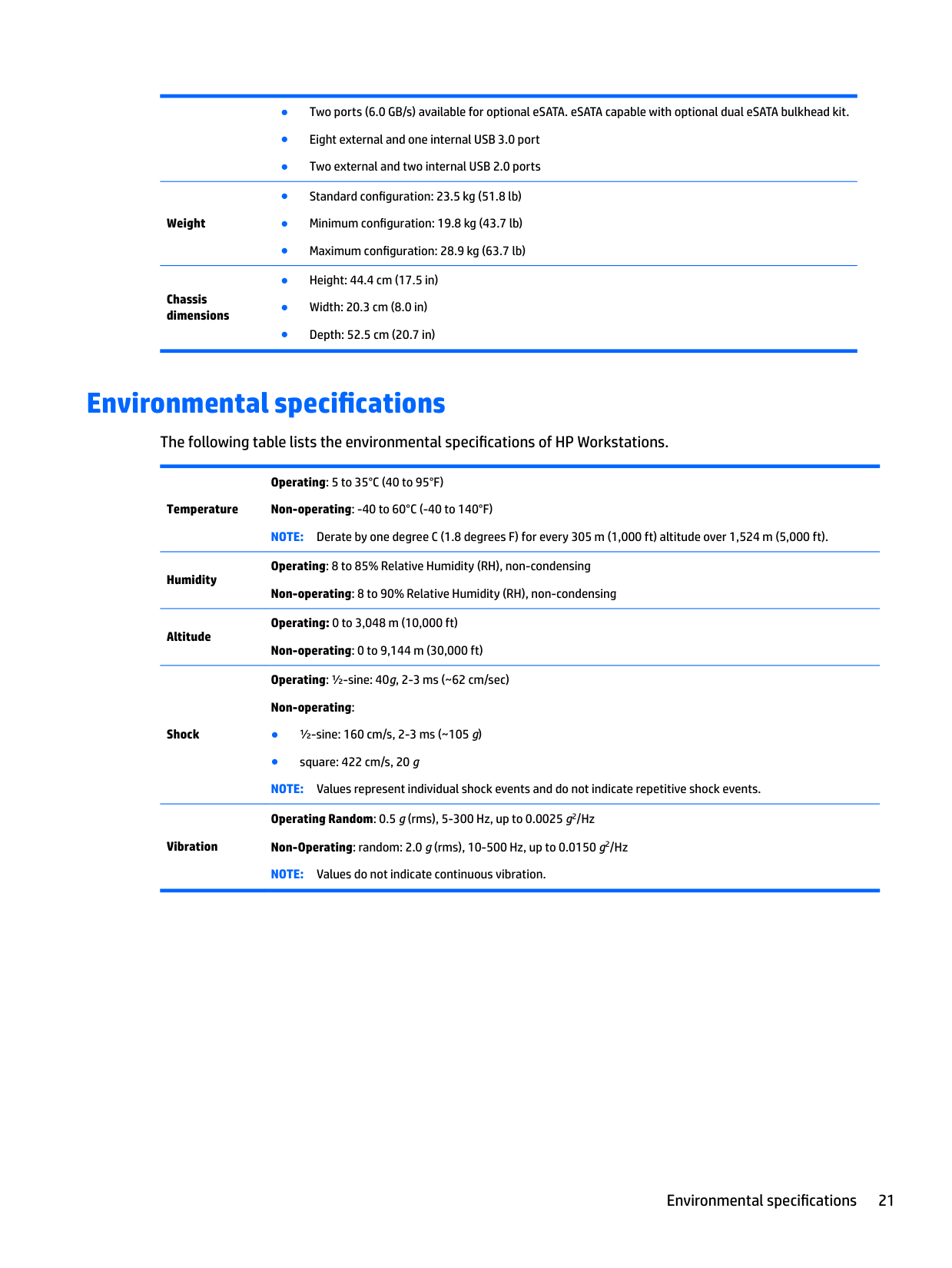
Weight
Chassis dimensions
Environmental specifications
The following table lists the environmental specifications of HP Workstations.
Temperature
Humidity
Altitude
Shock
Vibration
Operating: 5 to 35°C (40 to 95°F) Non-operating: -40 to 60°C (-40 to 140°F) NOTE: Derate by one degree C (1.8 degrees F) for every 305 m (1,000 ft) altitude over 1,524 m (5,000 ft).
Operating: 8 to 85% Relative Humidity (RH), non-condensing Non-operating: 8 to 90% Relative Humidity (RH), non-condensing
Operating: 0 to 3,048 m (10,000 ft) Non-operating: 0 to 9,144 m (30,000 ft)
Operating: ½-sine: 40g, 2-3 ms (~62 cm/sec) Non-operating:
Operating Random: 0.5 g (rms), 5-300 Hz, up to 0.0025 g2/Hz Non-Operating: random: 2.0 g (rms), 10-500 Hz, up to 0.0150 g2/Hz NOTE: Values do not indicate continuous vibration.
Environmental specifications 21
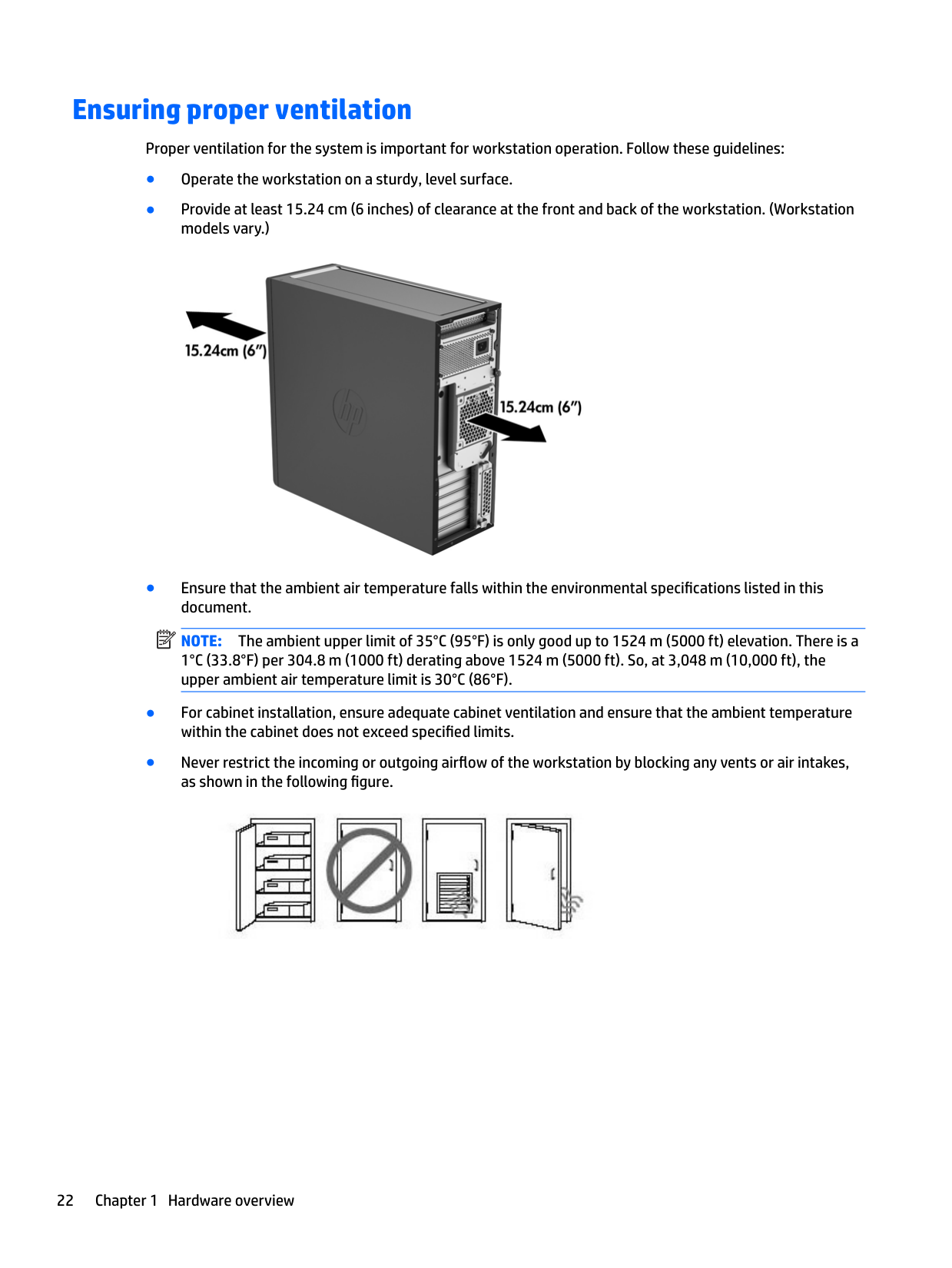
Ensuring proper ventilation
Proper ventilation for the system is important for workstation operation. Follow these guidelines:

NOTE: The ambient upper limit of 35°C (95°F) is only good up to 1524 m (5000 ft) elevation. There is a 1°C (33.8°F) per 304.8 m (1000 ft) derating above 1524 m (5000 ft). So, at 3,048 m (10,000 ft), the upper ambient air temperature limit is 30°C (86°F).
| | |---|

2 System management
####### This section describes the tools and utilities that provide system management for the workstation.
Topics Power management features on page 23 BIOS ROM on page 24 Computer Setup (F10) Utility on page 25 Desktop management on page 32
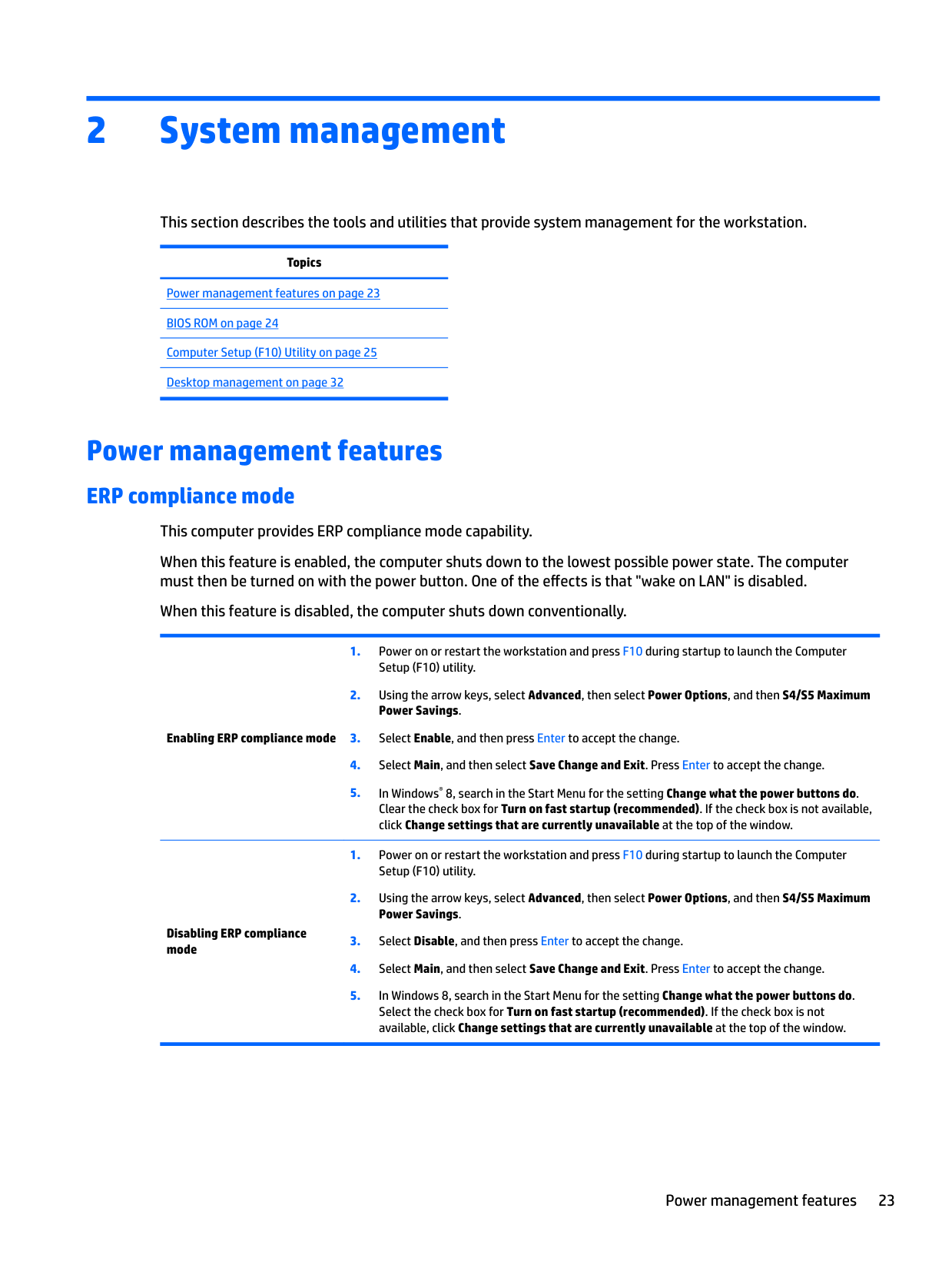
Power management features
ERP compliance mode This computer provides ERP compliance mode capability. When this feature is enabled, the computer shuts down to the lowest possible power state. The computer must then be turned on with the power button. One of the effects is that "wake on LAN" is disabled. When this feature is disabled, the computer shuts down conventionally.
Enabling ERP compliance mode
Disabling ERP compliance mode
Power management features 23
#### Hyper-Threading Technology (HTT)
This computer supports HTT, an Intel-proprietary technology that improves processor performance through parallelization of computations (doing multiple tasks at once).
The operating system treats an HTT-enabled processor as two virtual processors and shares the workload between them when possible. This feature requires that the operating system support multiple processors and be specifically optimized for HTT.
Use the Computer Setup (F10) Utility to enable HTT. Go to http://www.hp.com/go/quickspecs to determine if your processor supports HTT.
#### SATA Power Management
SATA Power Management enables or disables SATA bus and/or device power management.
#### Intel Turbo Boost Technology
The HP Z Workstation series supports Intel® Turbo Boost Technology.
This feature enables the processor to run at frequencies above the normal frequency. When all processor cores are not necessary for the workload, inactive cores are turned off and power is diverted to the active cores to increase their performance.
Turbo Boost is enabled and disabled with the Computer Setup (F10) Utility. Go to http://www.hp.com/go/quickspecs to determine if your processor supports Turbo Boost.
BIOS ROM
The BIOS ROM is a collection of machine language applications stored as firmware in ROM. It includes functions such as Power-On Self-Test (POST), PCI device initialization, Plug and Play support, power management, and Computer Setup (F10) Utility.
Go to http://www.hp.com/go/quickspecs to review the latest BIOS ROM specifications.
Computer Setup (F10) Utility
######## Topics
Computer Setup (F10) Utility functions on page 25 Accessing Computer Setup (F10) Utility on page 26 Computer Setup (F10) Utility menu on page 27
#### Computer Setup (F10) Utility functions
This section presents the Computer Setup (F10) Utility functions. In most cases, OS-specific information is described for a Windows-based computer, however much of this information applies to all operating systems. Occasional notes about non-Windows operating systems are included.
Computer Setup (F10) Utility enables you to perform the following tasks:
#### Accessing Computer Setup (F10) Utility
Accessing Computer Setup (F10) Utility requires a keyboard. To access Computer Setup (F10) Utility:
If you do not press F10 or Esc at the appropriate time, try again. Turn the workstation off, then on, and press F10 again to access the utility. You can also press Ctrl+Alt+Del before starting if you do not press F10 before the message disappears.
In the Computer Setup (F10) Utility menu, the following headings are displayed: Main, Security, Advanced, and UEFI Drivers.
NOTE: The option for selecting the language is available on first boot only. To reset the selection, press Esc during POST and from the Startup menu, select Change Language to switch between languages.
| | |---|
CAUTION: Do not turn off the workstation while saving Computer Setup (F10) Utility changes, because the Complementary Metal-Oxide Semiconductor (CMOS) nonvolatile storage could become corrupted. Turn off after you exit the F10 Setup screen.
Computer Setup (F10) Utility menu The following table describes the functions available in the Computer Setup (F10) Utility menu. NOTE: With new BIOS releases, the following content is subject to change, so the menu might be different than shown.
| | |---|
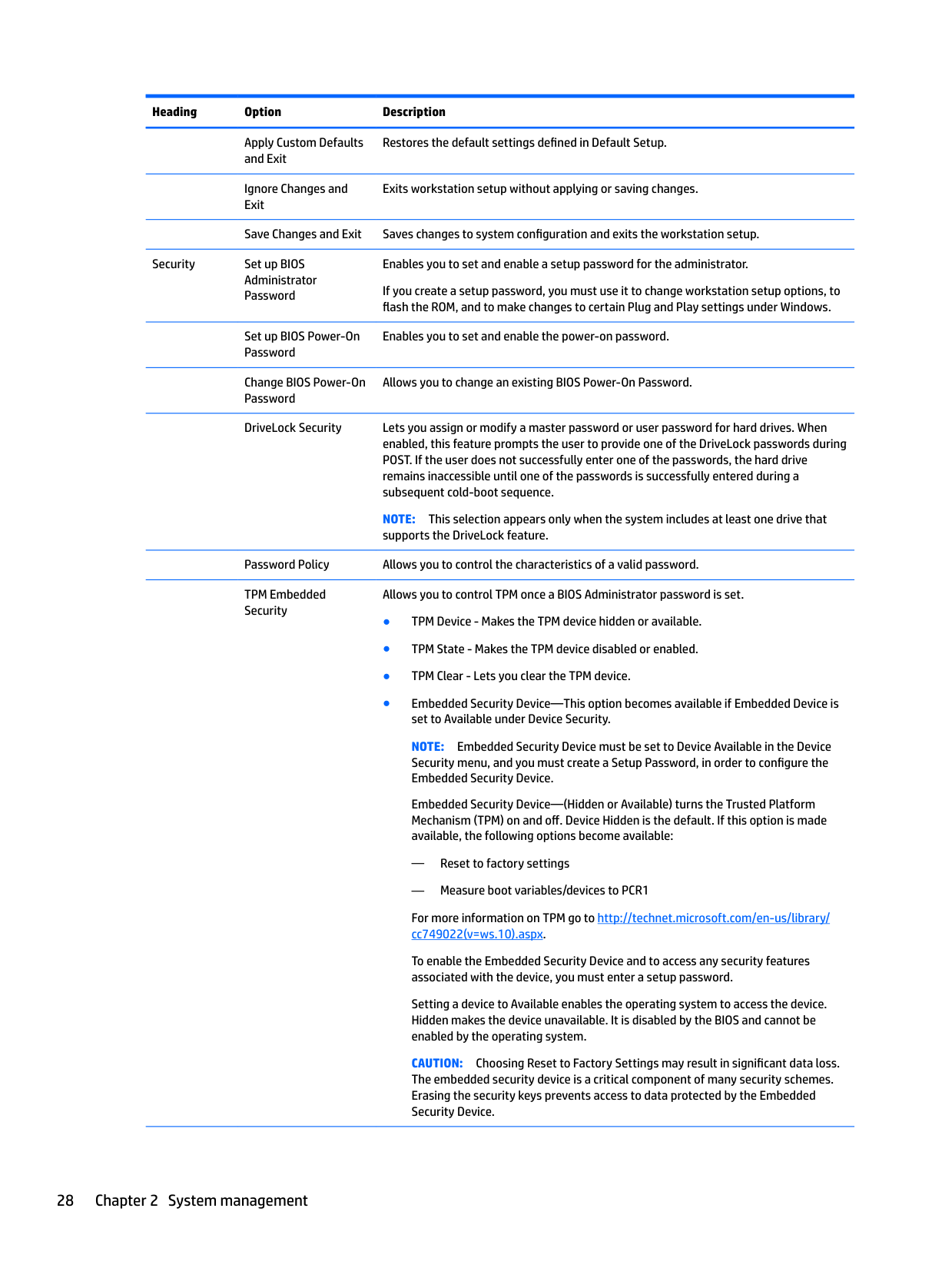
Heading Option Description Main System Information Displays the following information:
Update System BIOS Enables you to upgrade the BIOS from a ROM image on a CD, USB flash drive, or hard drive or network.
Set Machine Unique Data
Provides these options:
Replicated Setup Provides these options:
Save Custom Defaults Saves the current settings as default settings for the next operation. Apply Factory Defaults and Exit
Restores the factory settings as the default settings for the next operation.
Apply Custom Defaults and Exit
Restores the default settings defined in Default Setup.
Ignore Changes and Exit
Exits workstation setup without applying or saving changes.
Save Changes and Exit Saves changes to system configuration and exits the workstation setup.
Security Set up BIOS Administrator Password
Enables you to set and enable a setup password for the administrator. If you create a setup password, you must use it to change workstation setup options, to flash the ROM, and to make changes to certain Plug and Play settings under Windows.
Set up BIOS Power-On Password
Enables you to set and enable the power-on password.
Change BIOS Power-On Password
Allows you to change an existing BIOS Power-On Password.
DriveLock Security Lets you assign or modify a master password or user password for hard drives. When enabled, this feature prompts the user to provide one of the DriveLock passwords during POST. If the user does not successfully enter one of the passwords, the hard drive remains inaccessible until one of the passwords is successfully entered during a subsequent cold-boot sequence.
NOTE: This selection appears only when the system includes at least one drive that supports the DriveLock feature.
Password Policy Allows you to control the characteristics of a valid password. TPM Embedded Security
Allows you to control TPM once a BIOS Administrator password is set.
NOTE: Embedded Security Device must be set to Device Available in the Device Security menu, and you must create a Setup Password, in order to configure the Embedded Security Device.
Embedded Security Device—(Hidden or Available) turns the Trusted Platform Mechanism (TPM) on and off. Device Hidden is the default. If this option is made available, the following options become available:
— Reset to factory settings
— Measure boot variables/devices to PCR1 For more information on TPM go to http://technet.microsoft.com/en-us/library/ cc749022(v=ws.10).aspx.
To enable the Embedded Security Device and to access any security features associated with the device, you must enter a setup password.
Setting a device to Available enables the operating system to access the device. Hidden makes the device unavailable. It is disabled by the BIOS and cannot be enabled by the operating system.
CAUTION: Choosing Reset to Factory Settings may result in significant data loss. The embedded security device is a critical component of many security schemes. Erasing the security keys prevents access to data protected by the Embedded Security Device.
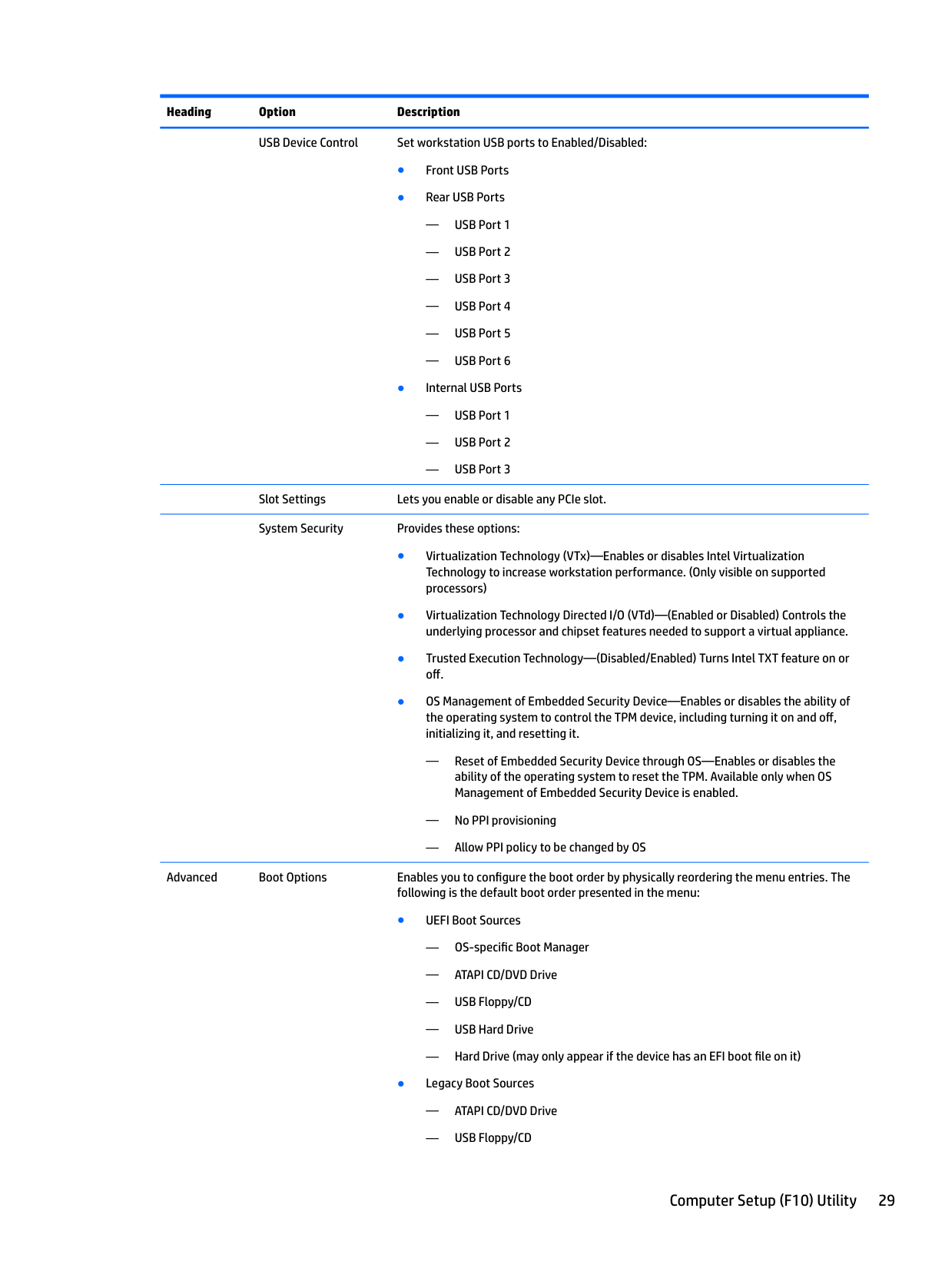
USB Device Control Set workstation USB ports to Enabled/Disabled:
Slot Settings Lets you enable or disable any PCIe slot. System Security Provides these options:
— Reset of Embedded Security Device through OS—Enables or disables the ability of the operating system to reset the TPM. Available only when OS Management of Embedded Security Device is enabled.
— No PPI provisioning
— Allow PPI policy to be changed by OS Advanced Boot Options Enables you to configure the boot order by physically reordering the menu entries. The following is the default boot order presented in the menu:
— OS-specific Boot Manager
— ATAPI CD/DVD Drive
— USB Floppy/CD — USB Hard Drive — Hard Drive (may only appear if the device has an EFI boot file on it)
— ATAPI CD/DVD Drive
— USB Floppy/CD
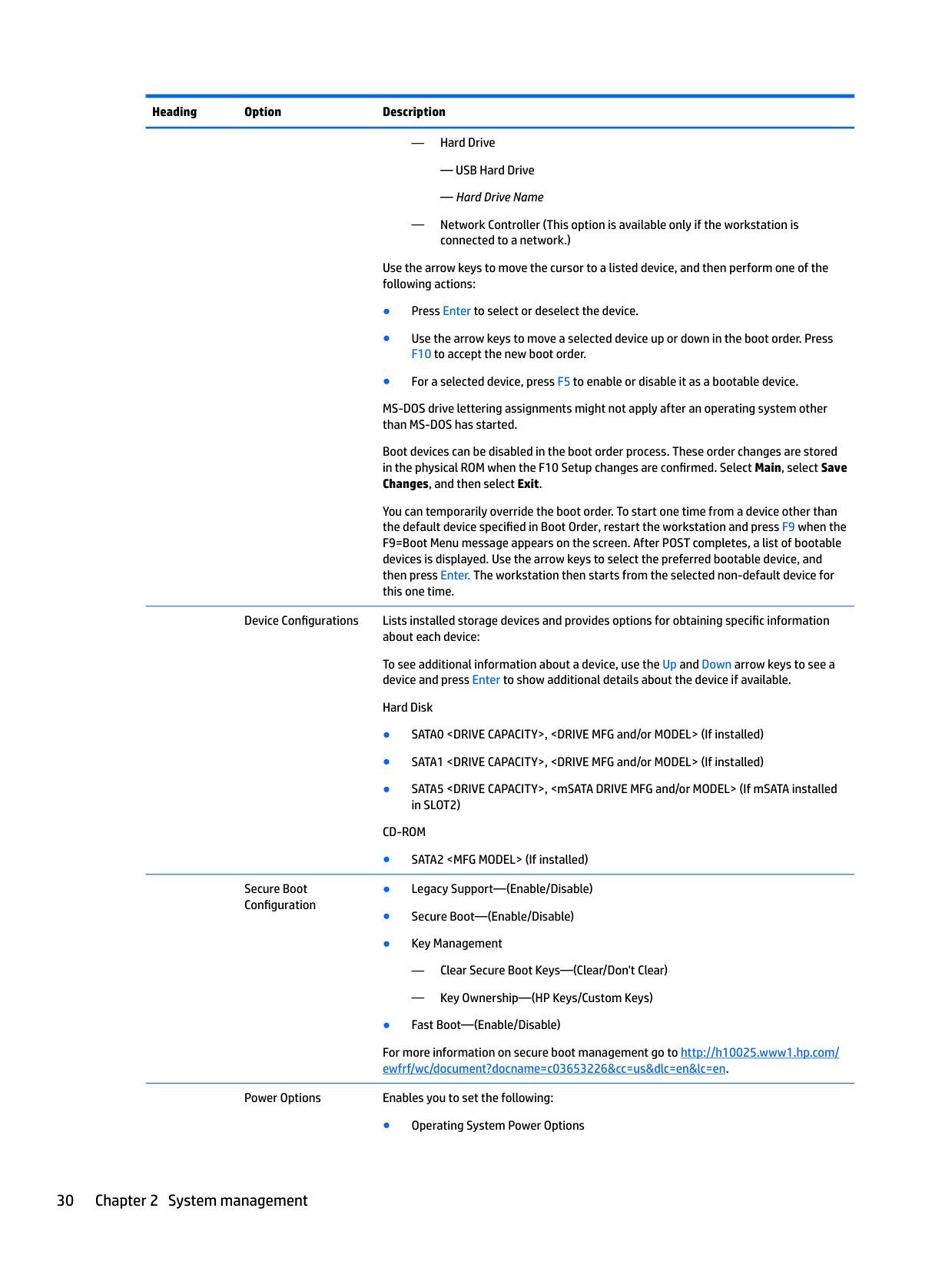
— Hard Drive
— USB Hard Drive
— Hard Drive Name
— Network Controller (This option is available only if the workstation is connected to a network.)
Use the arrow keys to move the cursor to a listed device, and then perform one of the following actions:
MS-DOS drive lettering assignments might not apply after an operating system other than MS-DOS has started.
Boot devices can be disabled in the boot order process. These order changes are stored in the physical ROM when the F10 Setup changes are confirmed. Select Main, select Save Changes, and then select Exit.
You can temporarily override the boot order. To start one time from a device other than the default device specified in Boot Order, restart the workstation and press F9 when the F9=Boot Menu message appears on the screen. After POST completes, a list of bootable devices is displayed. Use the arrow keys to select the preferred bootable device, and then press Enter. The workstation then starts from the selected non-default device for this one time.
Device Configurations Lists installed storage devices and provides options for obtaining specific information about each device: To see additional information about a device, use the Up and Down arrow keys to see a device and press Enter to show additional details about the device if available. Hard Disk
CD-ROM
● SATA2
Secure Boot Configuration
— Clear Secure Boot Keys—(Clear/Don't Clear)
— Key Ownership—(HP Keys/Custom Keys)
For more information on secure boot management go to http://h10025.www1.hp.com/ ewfrf/wc/document?docname=c03653226&cc=us&dlc=en&lc=en.
Power Options Enables you to set the following:
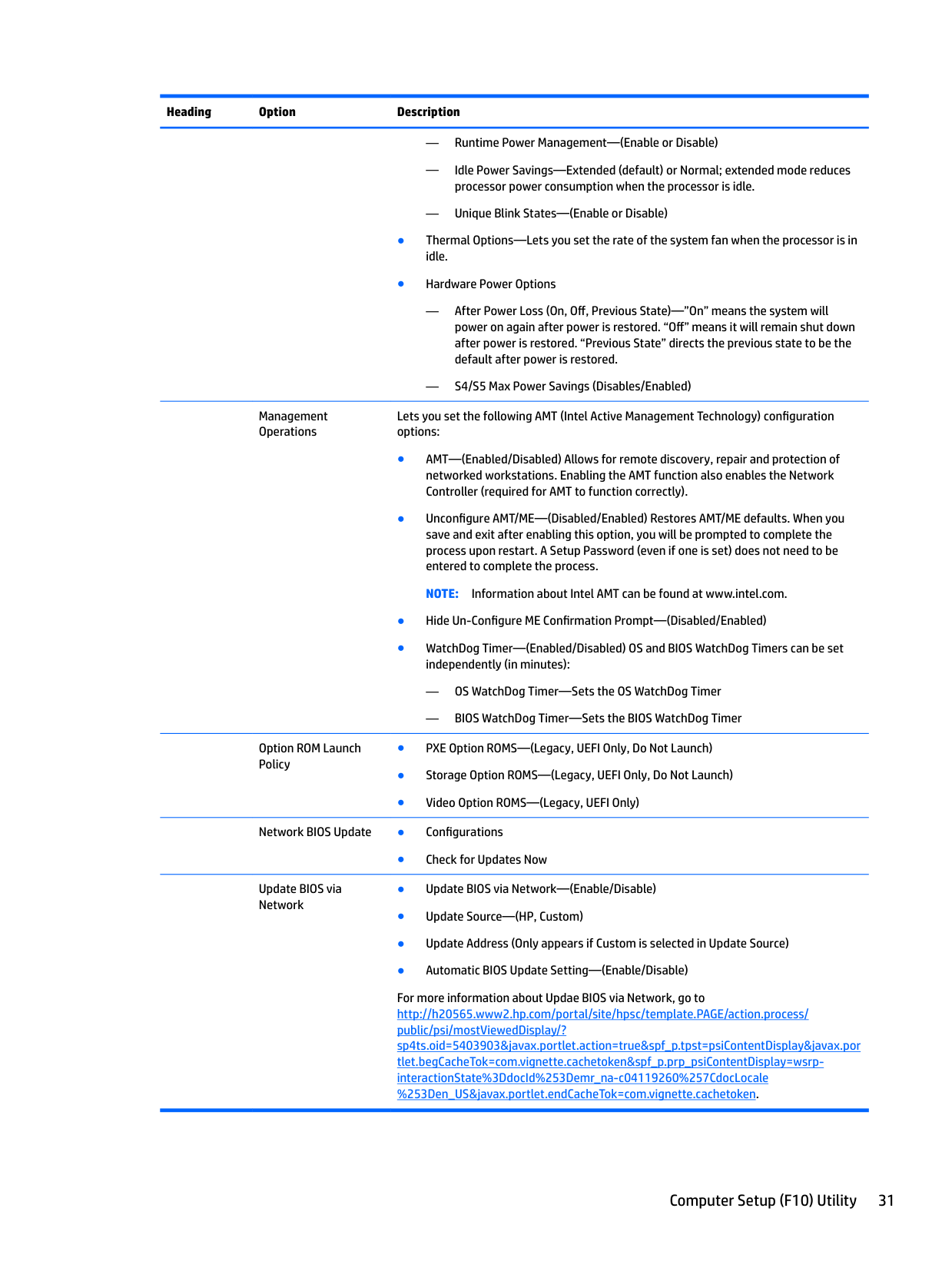
— Runtime Power Management—(Enable or Disable)
— Idle Power Savings—Extended (default) or Normal; extended mode reduces processor power consumption when the processor is idle.
— Unique Blink States—(Enable or Disable)
— After Power Loss (On, Off, Previous State)—”On” means the system will power on again after power is restored. “Off” means it will remain shut down after power is restored. “Previous State” directs the previous state to be the default after power is restored.
— S4/S5 Max Power Savings (Disables/Enabled)
Management Operations
Lets you set the following AMT (Intel Active Management Technology) configuration options:
— OS WatchDog Timer—Sets the OS WatchDog Timer
— BIOS WatchDog Timer—Sets the BIOS WatchDog Timer
Option ROM Launch Policy
Network BIOS Update ● Configurations
● Check for Updates Now
Update BIOS via Network
For more information about Updae BIOS via Network, go to http://h20565.www2.hp.com/portal/site/hpsc/template.PAGE/action.process/ public/psi/mostViewedDisplay/? sp4ts.oid=5403903&javax.portlet.action=true&spf_p.tpst=psiContentDisplay&javax.por tlet.begCacheTok=com.vignette.cachetoken&spf_p.prp_psiContentDisplay=wsrpinteractionState%3DdocId%253Demr_na-c04119260%257CdocLocale %253Den_US&javax.portlet.endCacheTok=com.vignette.cachetoken.
Desktop management
####### This section summarizes capabilities, features, and key components of computer management.
Topics Initial computer configuration and deployment on page 33 Installing a remote system on page 33 Copying a setup configuration to another computer on page 33 Updating and managing software on page 34 LANDesk Software on page 34 HP Driver Pack on page 34 HP SoftPaq Download Manager on page 34 HP System Software Manager on page 35 ROM Flash on page 35 FailSafe Boot Block on page 35 Workstation security on page 36 Fault notification and recovery on page 43 Dual-state power button on page 43
| | |---|
####### NOTE: Support for specific features described in this guide can vary by model and software version.
#### Initial computer configuration and deployment
The computer includes a preinstalled system software image. After a brief software unbundling process, the computer is ready to use.
If you prefer to replace the preinstalled software image with a customized set of system and application software, you can deploy a customized software image using either of the following methods:
The ROM-based setup and Advanced Configuration and Power Interface (ACPI) hardware provide further assistance with recovery of system software, configuration management and troubleshooting, and power management.
Support for specific features described in this guide can vary by model and software version. The best deployment method depends on the information technology environment and processes.
#### Installing a remote system
When the computer has been configured as a remote system, you can start it and set it up by using software and configuration information on a network server. This feature is usually used for system setup and configuration and can be used to perform the following functions:
To initiate a remote system installation, press F12 when F12=Network Service Boot appears in the lower right corner of the HP logo screen. Follow the onscreen instructions to continue the installation process. The default boot order can be changed in the BIOS so that the system always attempts to boot from the network.
Copying a setup configuration to another computer This section provides information about replicating the computer setup. CAUTION: Setup configuration is model specific. File system corruption can result if source and target computers are not the same model. To copy a setup configuration:
NOTE: If you do not press F10 at the appropriate time, you must restart the computer, and then press and hold F10 to access the utility.
| | |---|
#### Updating and managing software
HP provides several tools for managing and updating software on desktops and computers:
#### LANDesk Software
LANDesk and HP have partnered to help HP customers increase control over IT resources, reduce risks associated with owning them, and boost productivity within the IT environment.
Centrally leverage and manage the power of HP Professional Innovation tools with these features:
Go to http://www.landesk.com/partners/hp/client-management/ for more information about LANDesk Client Management Solutions for HP.
#### HP Driver Pack
The HP Driver Pack contains the Microsoft® Windows drivers in an .INF-based installation format. This .INF installation method can be used alone or with bare-metal operating system deployment tools that require .INF based drivers. Select 32bit or 64bit to see a list of platforms (notebooks and tablets, workstations, and desktops) and the respective driver packs under the operating system. For more information, go to http://www8.hp.com/us/en/ads/clientmanagement/drivers-pack.html.
#### HP SoftPaq Download Manager
HP SoftPaq Download Manager is a free, easy-to-use interface for locating and downloading software updates for the HP client PC models in your environment. By specifying your models, operating system, and language, you can quickly locate, sort, and select the SoftPaqs you need. For more information, go to http://www8.hp.com/us/en/ads/clientmanagement/drivers-bios.html#softpaq-download-mng.
#### HP System Software Manager
HP System Software Manager (SSM) is a utility that is available on Windows computers. It enables you to update system-level software on multiple systems simultaneously. When executed on a PC client system, SSM detects hardware and software versions and then updates the software from a central repository, known as a file store. Driver versions supported by SSM are noted with a special icon in the software, on the driver download website, and on the Support Software CD.
To download the utility or to obtain more information about SSM, go to http://www8.hp.com/us/en/ads/ clientmanagement/drivers-bios.html#system-sw-mng.
#### ROM Flash
BIOS settings are stored on a programmable flash ROM. By establishing a setup password in Computer Setup (F10) Utility, you can protect unauthorized users from modifying the BIOS settings. This function is important to be sure that the operating integrity of the computer.
To upgrade the BIOS, download the latest SoftPaq images from http://www.hp.com/support/ workstation_swdrivers.
##### Remote ROM Flash
Remote ROM Flash allows system administrators to safely upgrade the ROM on remote HP computers from a centralized network management console, resulting in a consistent deployment of, and greater control over, HP PC ROM images over the network.
To use Remote ROM Flash, the computer must be turned on, or turned on using Remote Wakeup. For more information about Remote ROM Flash and HPQFlash, see the HP Client Manager Software or System Software Manager sections at http://www.hp.com/go/ssm.
##### HPQFlash
The HPQFlash utility is used to locally update or restore the system ROM on PCs using a Windows operating system. For more information about HPQFlash, go to http://www.hp.com/go/ssm, and enter the name of the computer.
FailSafe Boot Block FailSafe Boot Block enables BIOS recovery in the unlikely event of a ROM flash failure. For example, if a power failure occurs during a ROM upgrade, Boot Block uses a flash-protected section of the ROM to verify a valid system ROM flash when power is restored to the computer.
If the system ROM is valid, the computer starts normally. If the system ROM fails the validation check, FailSafe Boot Block provides enough support to start the computer from a BIOS image CD that has been created from a SoftPaq. The BIOS image CD programs the system ROM with a valid image.
When Boot Block detects an invalid system ROM, the computer power LED blinks red eight times and the computer beeps eight times; then the computer pauses for two seconds. On some models, a Boot Block recovery mode message appears.
In preparation for system recovery, use the BIOS CD media file in the SoftPaq to create a BIOS image CD or USB flash drive.
##### Recovering the computer from Boot Block Recovery mode
To recover the computer after it enters Boot Block recovery mode:
If a setup password has been established, the Caps Lock light turns on and you are prompted for the password.
If the computer starts from the boot media and successfully reprograms the ROM, three keyboard lights turn on and a rising-tone series of beeps signals successful recovery.
#### Workstation security
This section provides information about providing system security through asset tracking, password security, hard drive locking, and chassis locks.
##### Asset tracking
Asset tracking features provide data that can be managed using HP Systems Insight Manager (HP SIM), HP Console Management Controller (CMC), or other systems-management applications.
Seamless, automatic integration between asset tracking features and these products enables you to choose the management tool that is best suited to the environment and to leverage investments in existing tools.
HP also offers several solutions for controlling access to valuable components and information:
The Smart Cover Sensor and cable lock are available as options on select systems. You can manage security settings as follows:
For more information about Computer Setup (F10) Utility, see Computer Setup (F10) Utility menu on page 27. The following Computer Setup (F10) Utility features let you manage computer security.
Feature Purpose Removable Media Boot Control Prevents booting from removable media drives USB Interface Control Prevents transfer of data through the integrated USB interface Power-On Password
Prevents use of the computer until the password is entered (applies to initial system startup and restarts)
Setup Password
Prevents reconfiguration of the computer (through Computer Setup (F10) Utility) until the password is entered
SATA hard drive security HP computers include the HP DriveLock facility for SATA hard drives to prevent unauthorized access to data. WARNING! Enabling DriveLock can render a SATA hard drive permanently inaccessible if the master password is lost or forgotten. No method exists to recover the password or access the data. DriveLock has been implemented as an extension to Computer Setup (F10) Utility functions. It is only available when hard drives that support the ATA security command set are detected. On HP computers, it is not available when the SATA emulation mode is RAID. DriveLock is for HP customers for whom data security is the paramount concern. For such customers, the cost of a hard drive and the loss of the data stored on it is inconsequential when compared to the damage that could result from unauthorized access to its contents. To balance this level of security with the need to address the issue of a forgotten password, the HP implementation of DriveLock employs a two-password security scheme. One password is intended to be set and used by a system administrator, while the other is typically set and used by the user. No "back door" can be used to unlock the drive if both passwords are lost. Therefore, DriveLock is most safely used when the data contained on the hard drive is replicated on a corporate information system or is regularly backed up. If both DriveLock passwords are lost, the hard drive is inaccessible. For users who do not fit the previously defined customer profile, this outcome might not be acceptable. For users who fit this profile, the outcome might be a tolerable risk, given the nature of the data stored on the hard drive.
###### DriveLock applications
The most practical use of DriveLock is in a corporate environment. The system administrator would be responsible for configuring the hard drive, which involves setting the DriveLock master password and a temporary user password. If the system administrator forgets the user password or if the equipment is passed on to another employee, the master password can be used to reset the user password and restore access to the hard drive.
HP recommends that corporate system administrators who enable DriveLock also establish a corporate policy for setting and maintaining master passwords. This precaution will prevent loss of information if an employee sets both DriveLock passwords before leaving the company. In such a scenario, the hard drive is inaccessible and must be replaced. Likewise, by not setting a master password, system administrators might find themselves locked out of a hard drive and unable to perform routine checks for unauthorized software, other asset control functions, and support.
For users with less stringent security requirements, HP does not recommend enabling DriveLock. Users in this category include personal users, or users who do not maintain sensitive data on their hard drives as a common practice. For these users, the potential loss of a hard drive resulting from forgetting both passwords is much greater than the value of the data DriveLock protects.
Access to Computer Setup (F10) Utility and DriveLock can be restricted through the setup password. By specifying a setup password and not giving it to users, system administrators can restrict users from enabling DriveLock.
###### Using DriveLock
When hard drives that support the ATA security command set are detected, DriveLock appears under the Security menu in the Computer Setup (F10) Utility menu. You are presented with options to set the master password and to enable DriveLock. You must provide a user password to enable DriveLock. Because the initial configuration of DriveLock is typically performed by a system administrator, a master password should be set first.
HP encourages system administrators to set a master password whether they plan to enable DriveLock or not. This gives the administrator the ability to modify DriveLock settings if the drive is locked in the future. After the master password is set, the system administrator can enable DriveLock or leave it disabled.
If a locked hard drive is present, POST requires a password to unlock the device. If a power-on password is set and it matches the device’s user password, POST does not prompt the user to re-enter the password. Otherwise, the user is prompted to enter a DriveLock password.
For a cold start, use the master or user password. For a warm start, enter the same password used to unlock the drive during the preceding cold start.
Users have two attempts to enter a correct password. During cold start, if neither attempt succeeds, POST continues but the drive remains inaccessible. During a warm-start or restart from Windows, if neither attempt succeeds, POST halts and the user is instructed to cycle power.
###### Enabling DriveLock
To enable and set the DriveLock user password:
If you do not press F10 at the appropriate time, you must restart the computer, and then repeatedly press F10 to access the utility.
| | |---|
When the computer starts, you are prompted to enter the DriveLock password for each DriveLockcapable drive for which you have set a password. You have two attempts to enter the password correctly. If the password is not entered correctly, the computer attempts to start anyway. However, the boot process most likely fails because data from a locked drive cannot be accessed.
In a single-drive computer, when DriveLock is enabled, the computer might not be able to boot to the operating system, and might try to boot from the network or from another storage device (depending on the boot ordering options). Regardless of the outcome of the start attempts, the locked drive remains inaccessible without the DriveLock password.
In a two-drive computer that has a boot drive and a data drive, you can apply the DriveLock feature to the data drive only. In this case, the computer can always start, but the data drive is accessible only when the DriveLock password is entered.
Cold starts require that you enter DriveLock passwords. However, DriveLock passwords are also required for warm starts. For example, if you boot to DOS and press Ctrl+Alt+Del, you must enter the DriveLock password before the computer completes the next start cycle. This warm-start behavior is consistent with the DriveLock feature.
##### Password security
The power-on password prevents unauthorized access to applications or data when the computer is turned on or restarted. The setup password specifically prevents unauthorized access to the Computer Setup (F10) Utility and can also be used as an override to the power-on password. An administrator can enter the setup password at the prompt for the power-on password and gain access to the computer.
You can establish a network-wide setup password to enable the system administrator to log in to all network systems to perform maintenance without needing to know the power-on password.
###### Establishing a setup password using Computer Setup (F10) Utility
Establishing a setup password through the Computer Setup (F10) Utility prevents reconfiguration of the computer (through the use of Computer Setup (F10) Utility) until the password is entered.
To establish a setup password using the Computer Setup (F10) Utility menu:
If you do not press F10 at the appropriate time, you must restart the computer, and then repeatedly press F10 to access the utility.
###### Establishing a power-on password using computer setup
Establishing a power-on password through Computer Setup (F10) Utility prevents access to the computer when power is connected, unless you specify the password. When a power-on password is set, Computer Setup (F10) Utility presents Password Options in the Security menu. The password options include Network Server Mode and Password Prompt on Warm Boot.
When Network Server Mode is disabled, you must enter the password when the computer is turned on and the key icon appears on the monitor. When Password Prompt on Warm Boot is enabled, you must enter the password. The password must also be entered each time the computer is restarted. When Network Server Mode is enabled, the password prompt is not presented during POST.
To enable Network Server Mode, you must set a power-on password under Advanced > Password Options. This option enables the computer to start without requiring the power-on password, but the keyboard and mouse are locked until you enter the password.
To establish a power-on password through the Computer (F10) menu:
If you do not press F10 at the appropriate time, you must restart the computer, and then repeatedly press F10 to access the utility.
###### Entering a power-on password
To enter a power-on password:
If you enter the password incorrectly, a broken key icon appears. Try again. After three unsuccessful tries, you will enter the F10 setup screen with read-only permission. (See the Setup Browse Mode option under the Power-On options.)
###### Entering a setup password
If a setup password has been established on the computer, you will be prompted to enter it each time you run Computer Setup (F10) Utility.
To enter a setup password:
If you do not press F10 at the appropriate time, you must restart the computer, and then repeatedly press F10 to access the utility.
If you enter the password incorrectly, a broken key icon appears. Try again. After three unsuccessful tries, you must restart the computer before you can continue.
###### Changing a power-on or setup password
To change a power-on or setup password:
If you do not press F10 at the appropriate time, you must restart the computer, and then repeatedly press F10 to access the utility.
The power-on and setup passwords can also be changed using the Security options in Computer Setup (F10) Utility.
###### Deleting a power-on or setup password
To delete a power-on or setup password:
If you do not press F10 at the appropriate time, you must restart the computer and then press and hold F10 again to access the utility.
Use the appropriate operating system shutdown process.
###### National keyboard delimiter characters
Each keyboard meets country-specific requirements. The syntax and keys you use for changing or deleting passwords depend on the keyboard included with the computer.
Language Delimiter Language Delimiter Language Delimiter
Arabic / Greek - Russian / Belgian = Hebrew . Slovakian BHCSY* - Hungarian - Spanish -
Brazilian / Italian - Swedish/Finnish / Chinese / Japanese / Swiss -
Czech - Korean / Taiwanese / Danish - Latin American - Thai / French ! Norwegian - Turkish .
French Canadian é Polish - U.K. English / German - Portuguese - U.S. English /
Clearing passwords If you forget the password, you cannot access the computer. For instructions about clearing passwords, see Resetting the password jumper on page 100.
##### Chassis security Smart Cover Sensor
The Smart Cover Sensor, an optional feature, is a combination of hardware and software technology that alerts you if the interior or the computer is accessed (provided the sensor has been configured in Computer Setup (F10) Utility). The sensor alerts you when the side panel is removed (desktop and tower models) or when the computer is opened (all-in-one models). When the Smart Cover Sensor is installed, Smart Cover appears under the Security menu in the Computer Setup (F10) Utility menu.
Three levels of protection are available:
Level Setting Description
When the computer restarts, a message indicates that the computer has been opened or the access panel has been removed.
When the computer restarts, a message indicates that the computer has been opened or the access panel has been removed. You must enter the setup password to continue.
###### Setting the protection level
To set the Smart Cover Sensor protection level:
NOTE: If you do not press the F10 key at the appropriate time, you must restart the computer, and then press and hold the F10 key again to access Computer Setup (F10) Utility. If you are using a PS/2 keyboard, you might see a keyboard error message. Disregard it.
| | |---|
###### Cable lock (optional)
To prevent theft, you can attach a keyed cable lock to the bottom-left corner of the chassis. This cable lock attaches to the chassis and secures it to the work area.
#### Fault notification and recovery
Fault notification and recovery features combine innovative hardware and software technology to prevent the loss of critical data and minimize unplanned downtime.
If the computer is connected to a network that is managed by HP CMS, the computer sends a fault notice to the network management application. With HP CMS, you can also remotely schedule diagnostics to run on managed PCs and create a summary report of failed tests.
##### ECC fault prediction
When the computer encounters an excessive number of error checking and correcting (ECC) memory errors, it displays a local alert message. This message contains information about the errant DIMM, enabling you to take action before you experience noncorrectable memory errors. ECC DIMMs are standard on this computer.
##### Thermal sensors
Several thermal sensors in the HP Workstation regulate computer fans to maintain an acceptable, efficient chassis temperature.
#### Dual-state power button
With ACPI enabled, the power button can function as an on/off switch or as a button. This feature does not completely turn off power, but instead causes the computer to enter a low-power standby state. This enables you to go to standby without closing applications, and to return to the same operational state without any data loss.
##### Changing the power button configuration (Windows only)
CAUTION: To reduce the risk of data loss, do not use the power button to turn off the computer unless the system is unresponsive.
| | |---|
NOTE: If the computer is unresponsive, press and hold the power button for four seconds to completely turn off power to the computer.
###### Windows 7
If you choose Sleep or Hibernate, you can press the power button to initiate standby, and then press it again to exit standby and return to your work. To completely turn off the workstation, select Start > Shut Down.
###### Windows 8
3 Component replacement information andguidelines
This chapter provides warnings, cautions, information, and guidelines for removal and replacement procedures. It does not document the step-by-step procedures.
| | |---|
IMPORTANT: Removal and replacement procedures are now available in videos on the HP website. Go to the HP Customer Self Repair Services Media Library at http://www.hp.com/go/sml. This chapter includes these topics:
Warnings and cautions
WARNING! These symbols on any surface or area of the equipment indicate the following:
Presence of a hot surface or hot component. If this surface is contacted, the potential for injury exists. To reduce the risk of injury from a hot component, let the surface cool before touching.
Presence of an electrical shock hazard. To reduce the risk of injury from electrical shock, do not open any enclosed area marked with this symbol.

Product must always be lifted by two persons to avoid personal injury due to product weight.
WARNING! To reduce the risk of electric shock or damage to your equipment:
— Do not disable the power cord grounding plug. The grounding plug is an important safety feature.
— Plug the power cord in a grounded (earthed) outlet that is easily accessible at all times.
— Disconnect power from the equipment by unplugging the power cord from the electrical outlet. WARNING! To reduce the risk of serious injury, read the Safety & Comfort Guide. It describes proper computer setup, posture, health, and work habits for computer users, and provides important electrical and mechanical safety information. This guide is located at http://www.hp.com/ergo. WARNING! Do not use the front bezel as a handle or lifting point when lifting or moving the computer. Lifting the computer from the front bezel, or lifting it incorrectly, could cause the computer to fall, causing possible injury to you and damage to the computer. To properly and safely lift the computer, lift from the bottom of the computer.
Warnings and cautions 45
CAUTION: Static electricity can damage the electronic components of the computer. To prevent damage to the computer, observe the following Electrostatic Discharge (ESD) precautions while servicing the computer:
— Discharge static electricity by briefly touching a grounded metal object before you begin.
— Work on a static-free mat.
— Wear a static strap to ensure that any accumulated electrostatic charge is discharged from your body to the ground.
— Create a common ground for the equipment you are working on by connecting the static-free mat, static strap, and peripheral units to that piece of equipment.
| | |---|
NOTE: HP accessories are for use in HP products. They have been extensively tested for reliability and are manufactured to high quality standards.
Service considerations
#### Tools and software requirements
The tools necessary for computer component removal and installation are:
#### Electrostatic discharge (ESD) information
Generating static Different activities generate different amounts of static electricity through electrostatic discharge (ESD). Static electricity increases as humidity decreases. CAUTION: Static electricity in the amount of 700 volts might degrade a product.
Preventing ESD equipment damage
Relative humidity
Event
55% 40% 10% Walking across carpet Walking across vinyl floor Motions of bench worker
7,500V 3,000V 400V
15,000V 5,000V 800V
35,000V 12,000V 6,000V
Removing bubble pack from PCB Packing PCBs in foam-lined box
7,000V 5,000V
20,000V 11,000V
26,500V 21,000V
Many electronic components are sensitive to ESD. Circuitry design and structure determine the degree of sensitivity. The following packaging and grounding precautions are necessary to prevent damage to electric components and accessories:
Personal grounding methods and equipment
Use the following items to help prevent ESD damage:
Static shielding materials
Static shielding materials provide the following levels of protection.
Method Antistatic plastic Carbon-loaded plastic Metalized laminate
Voltage 1,500V 7,500V 15,000V
Grounding the work area to prevent static damage
Recommended ESD prevention materials and equipment
Service considerations 47
Product recycling
HP encourages customers to recycle used electronic hardware, HP original print cartridges, and rechargeable batteries.
For information about recycling HP components or products, see http://www.hp.com/go/recycle.
Component replacement guidelines
This section provides information and guidelines for removal and replacement procedures. It does not document the step-by-step procedures.
| | |---|
###### IMPORTANT: Removal and replacement procedures are now available in videos on the HP website.
Go to the HP Customer Self Repair Services Media Library at http://www.hp.com/go/sml. In Media Selection, choose the Desktops & Workstations product category and the Personal Workstations product family, then choose your platform
This chapter provides guidelines for removal and replacement procedures.
Battery on page 48 Cable management on page 49 Processor and processor heatsink on page 50 Expansion slots on page 51 Hard drives and optical drives on page 59 Memory on page 65 Power supply specifications on page 69 System board on page 72
#### Battery
The battery that comes with the computer provides power to the real-time clock and has a minimum lifetime of about three years. Observe the following warning and caution when replacing the battery.
WARNING! HP Z Series Workstations use lithium batteries. There is a risk of fire and chemical burn if the battery is handled improperly. Do not disassemble, crush, puncture, short external contacts, dispose of in water or fire, or expose battery to temperatures higher than 60°C (140°F).
CAUTION: Before removing the battery, back up the CMOS settings in case they are lost when the battery is removed. Use Computer Setup (F10) Utility to back up the settings.
| | |---|
NOTE: Do not dispose of batteries, battery packs, and accumulators with general household waste.
#### Cable management
Proper routing of the internal cables is critical to the operation of the workstation. Follow good cable management practices when removing and installing components.
When removing the power supply power cable from the connector on the system board, always follow these steps:
CAUTION: Always pull the connector — NEVER pull on the cable. Pulling on the cable could damage the cable and result in a failed power supply.
#### Processor and processor heatsink
CAUTION: Observe the following cautions when removing or replacing the heatsink.
— When removing the heatsink, loosen all screws a little at a time to ensure the processor remains level. Do not fully loosen one screw, and then move on to the next.
— After you remove the processor heatsink from the chassis, use alcohol and a soft cloth to clean the thermal compound residue from the processor and the heatsink, allowing the alcohol on the processor and processor heatsink to dry completely.
— If you are reusing the original heatsink, apply thermal compound to the center of the processor top surface.
— If you are using a new processor heatsink, do not apply thermal compound to the processor because the new heatsink already has thermal compound applied to the heatsink surface. Instead, remove the thermal compound protective liner from the bottom of the new heatsink.
— Do not overtighten the heatsink screws. Overtightening can strip the threads in the chassis.
— Do not fully tighten one screw and then move on to the next. Instead, tighten all screws a little at a time, ensuring that the processor remains level.
CAUTION: Observe the following cautions when removing or replacing the processor.
— If you are installing a second processor, it must be of the same type as the first processor.
— Internal components might be powered even when the computer is off. To prevent damage, disconnect the computer power cord before you remove or install a component.
— The processor socket contacts and pads are extremely fragile. Do not touch the processor socket contacts or the gold pads underneath the processor. Use extreme care and handle the processor only by the edges.
— The processor socket contacts are delicate and bend easily. To avoid bending the contacts, use extreme care when installing the processor in the socket.
— Installing a processor incorrectly can damage the system board. Contact an HP authorized reseller or service provider to install the processor. If you plan to install the processor yourself, view the entire remove and replace video before you begin.
— Failure to follow the computer preparation instructions can result in an improperly installed processor, causing extensive computer damage.
#### Expansion slots
This section identifies and describes computer expansion card slots, and presents card configuration information.
Go to http://www.hp.com/go/quickspecs to learn which graphics cards are supported in the workstation, how much memory each graphics card includes, and graphics card power requirements.
##### Card configuration restrictions for power supplies
CAUTION: To prevent damage, the overall power consumption of the computer (including I/O cards, processor, and memory) must not exceed the maximum rating of the computer power supply. For power supply information, see Power supply specifications on page 69.
##### Choosing an expansion card slot
Whenever possible, use the following tips to help you select the proper slot for an expansion card:
— Install a PCIe Gen1 x16 or a PCIe Gen1 x8 card in the PCIe Gen2 x16 slot.
— Install a PCIe Gen1 x4 card in the PCIe Gen1 x4 slot. — Install a PCIe Gen1 x1 card in the PCIe Gen1 x1 slot. — Install a PCI card in the PCI slot.
— Whenever possible, install a PCIe x1 card in an x1 slot.
— Electrically matches the number of PCIe card lanes (for example, x1 in an x1 slot).
— Has more lanes electrically.
— Has fewer lanes, but is closer to your needs. For example, place an x16 card in an x4 slot, and an x4 card in a an x1 slot.
##### HP Z440 Workstation slot identification and description
Maximum power used by all slots must not exceed total system power and is subject to configuration limitations.

Slot Type Mechanical compatibility Electrical compatibility
| | |---|
NOTE: The PCIe designators indicate the mechanical connector size and number of electrical PCIe lanes routed to an expansion slot. For example, x16 (8) means that the expansion slot is mechanically a x16 length connector, with 8 PCIe lanes supported.
Slot two is the primary graphics slot; slot five is the secondary graphics slot. Slots one, three, and four use open-ended PCIe connectors, so a PCIe x16 card can be inserted. Graphics cards greater than 75 watts require the use of an auxiliary power cable adapter.
##### HP Z440 Workstation installation sequence recommendations
Load order
Card description Slot 1 Slot 2 Slot 3 Slot 4 Slot 5 Slot 6
Second PCIe graphic card or Tesla C2075
Only
NOTE: Slot sequenced from the rear I/O aperture to the board edge.
##### HP Z640 Workstation slot identification and description
Maximum power used by all slots must not exceed total system power and is subject to configuration limitations.
| | |---|

NOTE: Slot 1 is not available in dual processor configurations.
Slot Type Mechanical compatibility Electrical compatibility
| | |---|
NOTE: The PCIe designators indicate the mechanical connector size and number of electrical PCIe lanes routed to an expansion slot. For example, x16 (8) means that the expansion slot is mechanically an x16 length connector, with 8 PCIe lanes supported.
| | |---|
NOTE: Slots two, four, and five are PCIe GEN3 slots. Slot two is the primary graphics slot; slot five is the secondary graphics slot. Slots three and four use open-ended PCIe connectors, so a PCIe x16 card can be inserted. This allows the workstation to support more PCIe x16 expansion cards. A x16 card typically trains and runs at the maximum lane width available by the expansion slot. The card runs at the reduced lane width, with a corresponding performance decrease. Graphics cards greater than 75 watts require the use of an auxiliary power cable adapter.
##### HP Z640 Workstation installation sequence recommendations
Load order
Card description Slot 1 Slot 2 Slot 3 Slot 4 Slot 5 Slot 6
Second System Board (Riser)
Only
Load order
Card description Slot 1 Slot 2 Slot 3 Slot 4 Slot 5 Slot 6
Second PCIe graphic card or High Performance GPU Compute card
Only
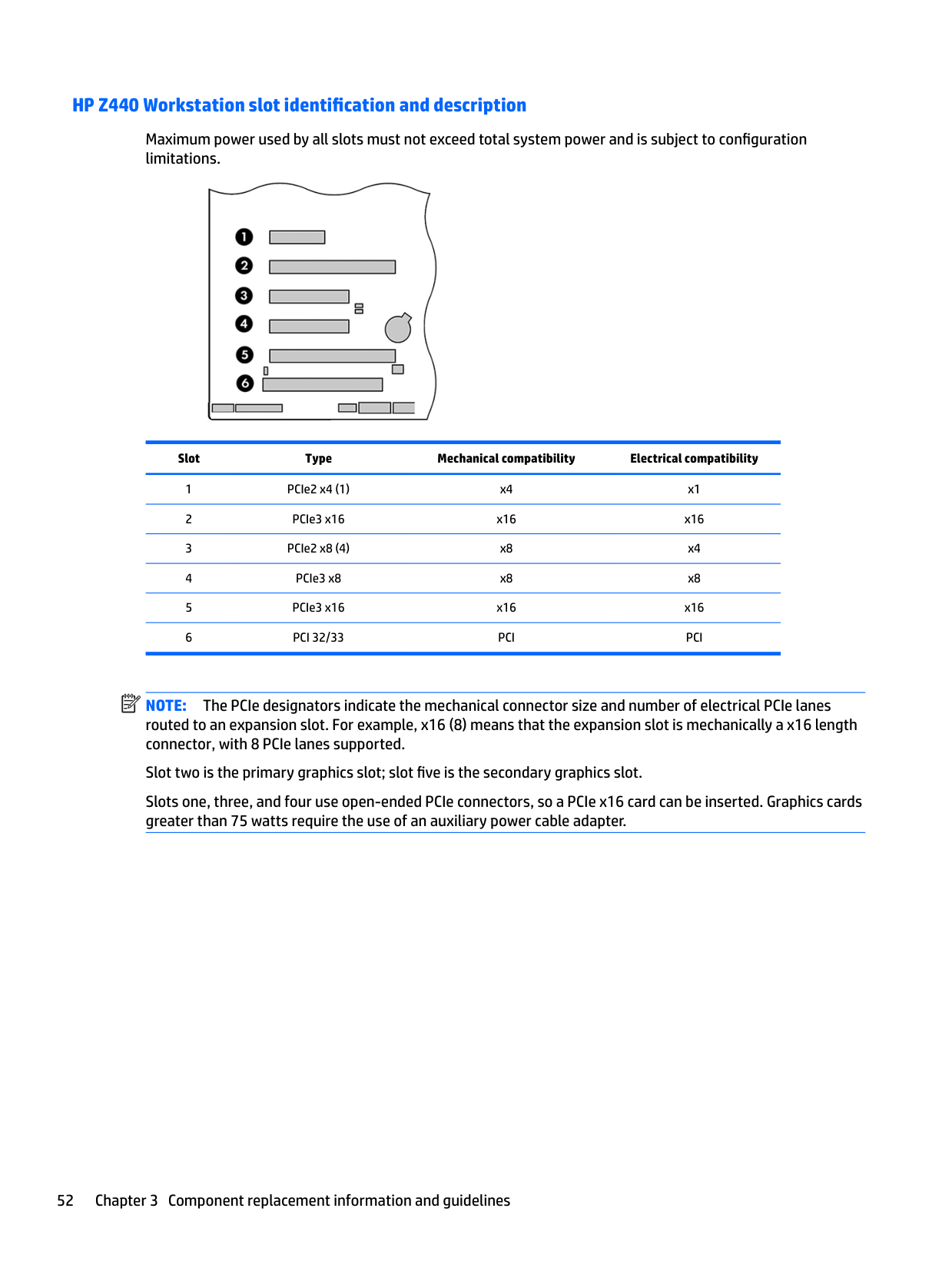
NOTE: Slot sequenced from the rear I/O aperture to the board edge.
##### HP Z840 Workstation slot identification and description
Maximum power used by all slots must not exceed total system power and is subject to configuration limitations.

Slot Type Mechanical compatibility Electrical compatibility
| | |---|
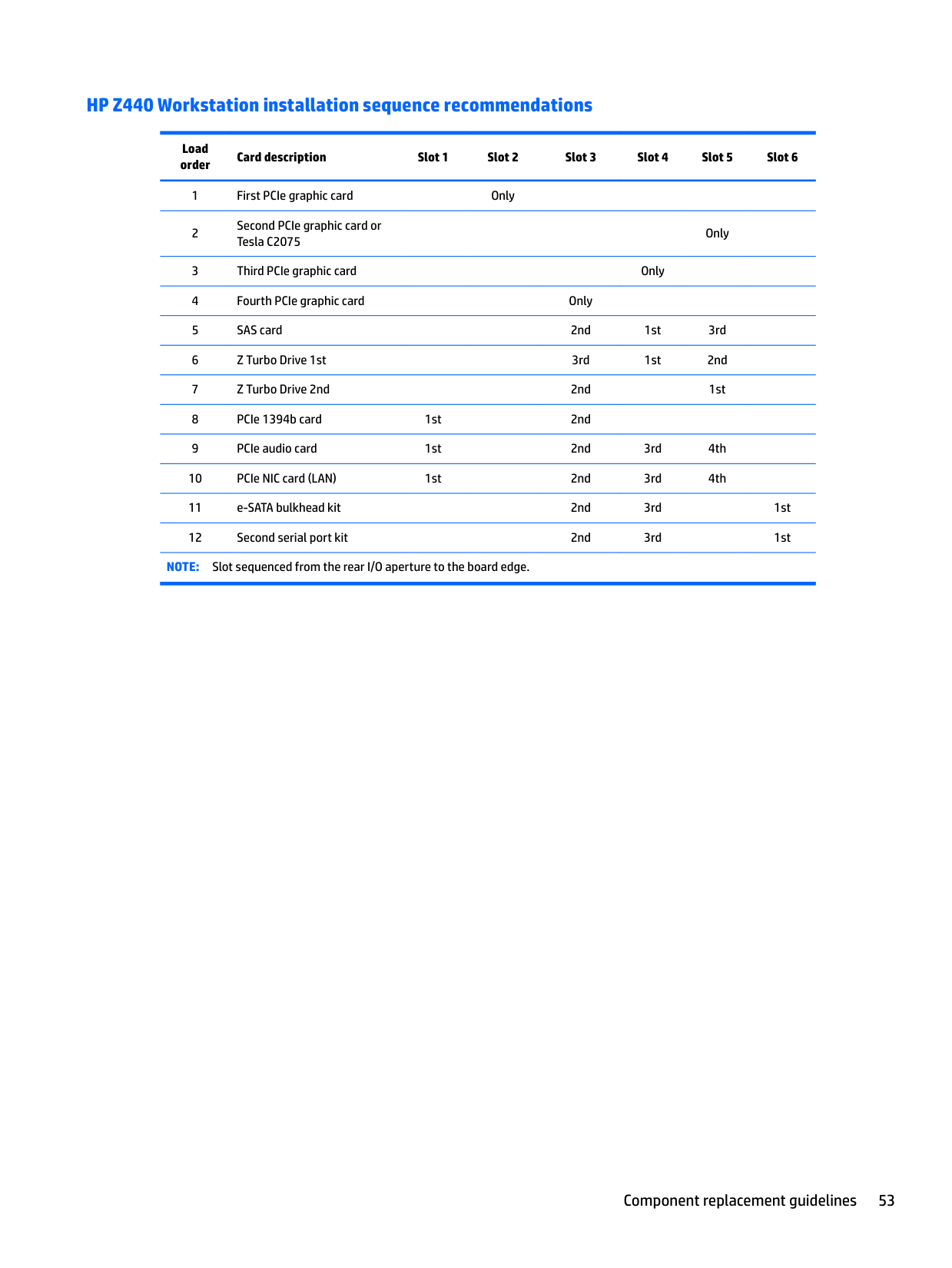
NOTE: The PCIe designators indicate the mechanical connector size and number of electrical PCIe lanes routed to an expansion slot. For example, x16(8) means that the expansion slot is mechanically an x16 length connector, with 8 PCIe lanes supported.
| | |---|
NOTE: Slots one and five use open-ended PCIe connectors, so a PCIe x16 card can be inserted. This allows the workstation to support more PCIe x16 expansion cards. An x16 card typically trains and runs at the maximum lane width available by the expansion slot. The card runs at the reduced lane width, with a corresponding performance decrease.
| | |---|
NOTE: A eighth slot opening in the chassis has no corresponding expansion connector on the system board. This slot opening is provided for devices that do not require system board plug-in capability.
| | |---|
NOTE: It is normal for the expansion card retention clamp to have a slight (5-10 degree) angle when closed. If the angle is greater than this, open the clamp and ensure that all cards are properly seated and all the brackets are mated to the chassis, and then re-close the clamp.
##### HP Z840 Workstation installation sequence recommendations

Load order
Card description Type
Slot 0(Mech only)
Slot 1(PCI e3 x8)
Slot 2(PCI e3 x16)
Requires 2nd processor
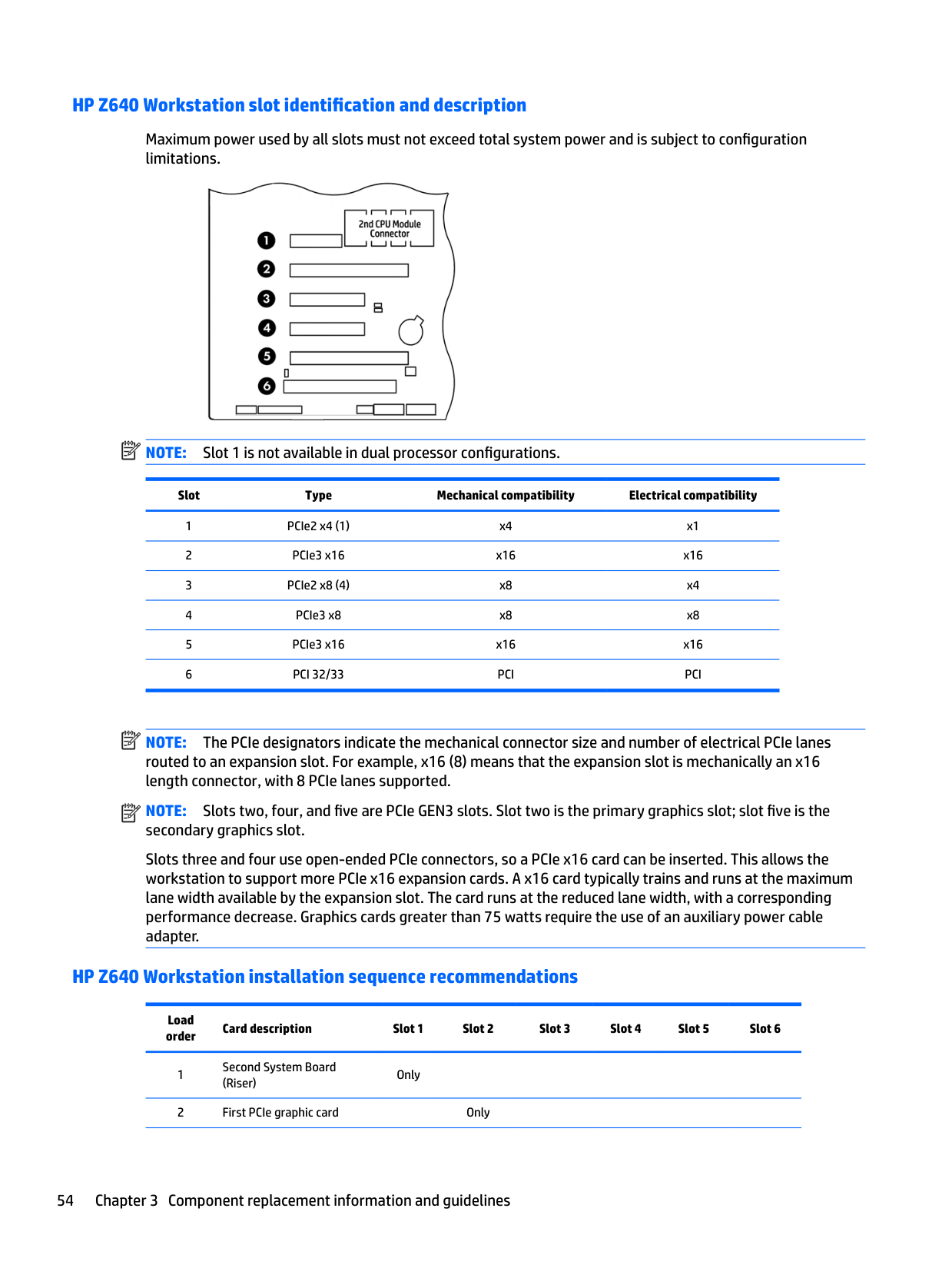
Slot 3(PCIe 3 x8)
Slot 4(PCIe 3 x16)
Slot 5(PCIe2 x8) (PCIe3 x8 [2nd CPU])
Slot 6 (PCIe3 x16)
Slot 7 (PCIe 2 x1)
1st high performance GPU Compute card
PCIe-x16 Only
2nd high performance GPU Compute card (requires 2nd CPU and 1125w PSU)
PCIe-x16 Only
1st PCIe graphics card
PCIe-x16 1st 1 3rd 2nd
2nd PCIe graphics card
PCIe-x16 2nd 1st 2
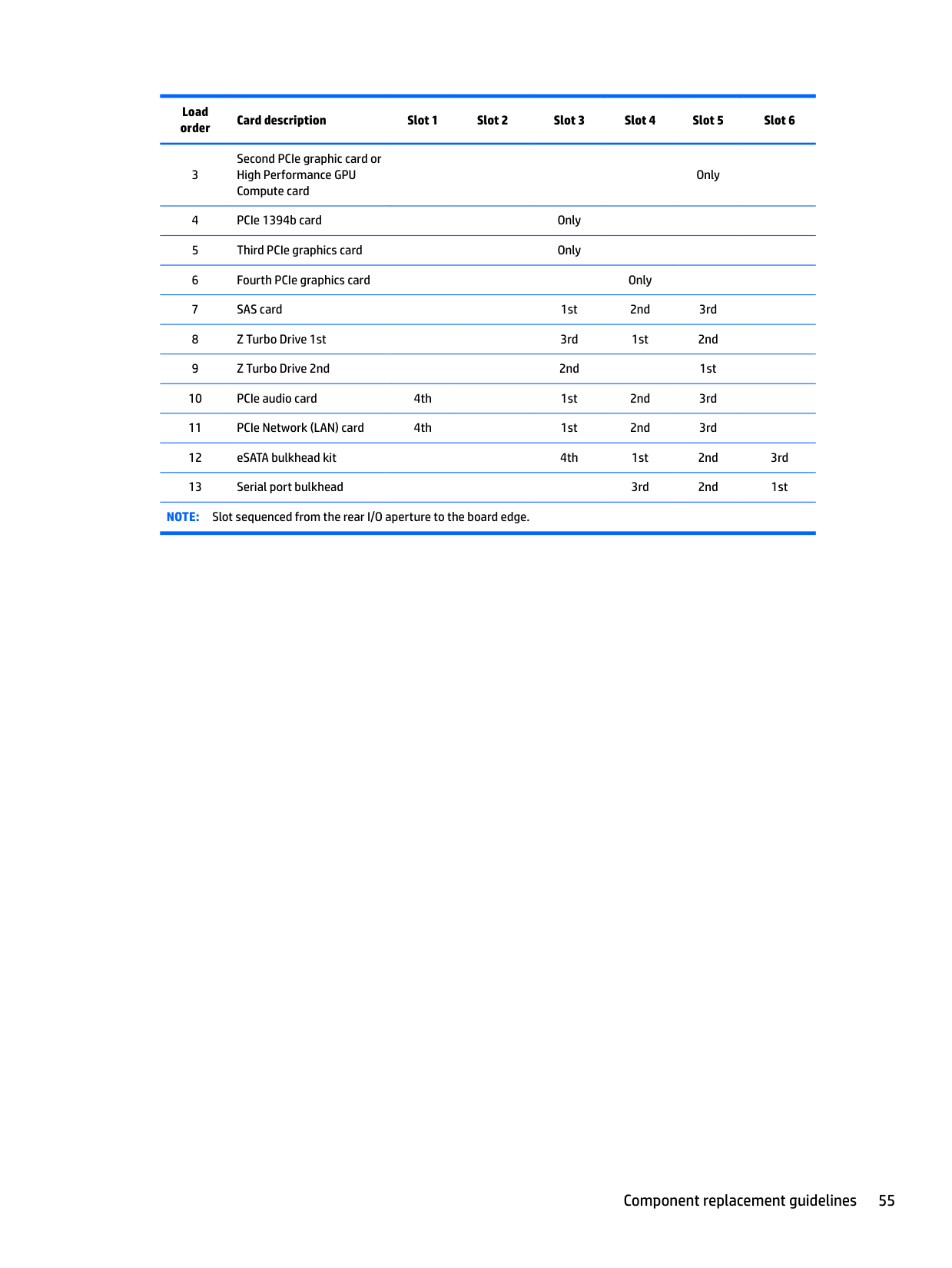
3rd PCIe graphics (requires 2nd processor)
PCIe-x16 2nd 1st
4th PCIe graphics (requires 2nd processor and 1125w PSU)
PCIe-x16 Only
8 port RAID LSI 9270-8i SAS 6Gb/s
PCIe-x8 2nd 5th 4th 3rd 1st 3
Z Turbo Drive 1st card (M.2)
PCIe-x4 1st 3rd 2nd
Load order
Card description Type
Slot 0(Mech only)
Slot 1(PCI e3 x8)
Slot 2(PCI e3 x16)
Requires 2nd processor
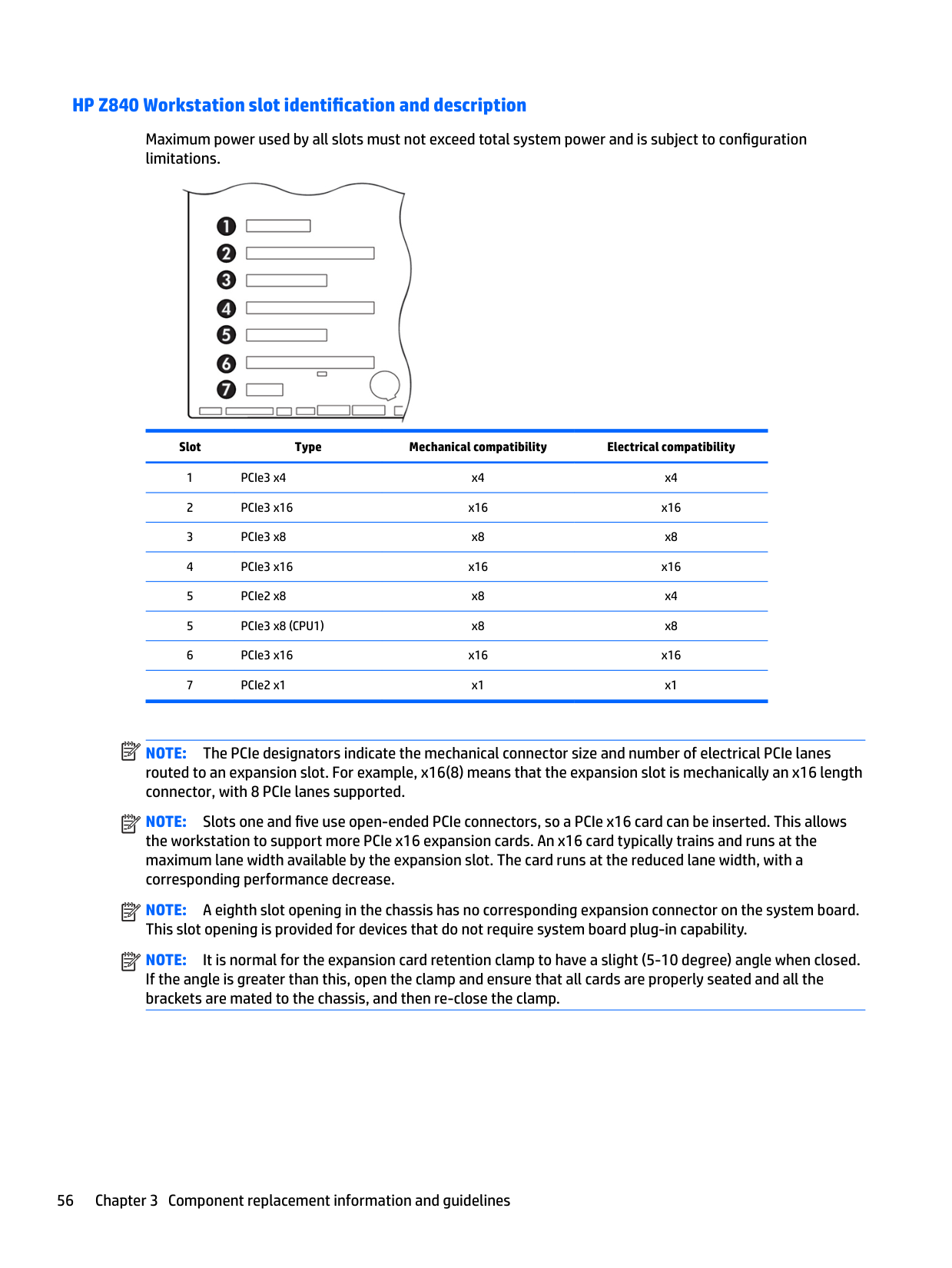
Slot 3(PCIe 3 x8)
Slot 4(PCIe 3 x16)
Slot 5(PCIe2 x8) (PCIe3 x8 [2nd CPU])
Slot 6 (PCIe3 x16)
Slot 7 (PCIe 2 x1)
Z Turbo Drive 2nd card (M.2)
PCIe-x4 2nd 1st
PCIe Network (LAN)
PCIe-x1; x4;x8
1st 4th 5th 2nd 3rd
MiniSAS-4x Cable (PCI Bulkhead)
N/A Only
MiniSAS- 4x Cable (Chassis Panel Opening)
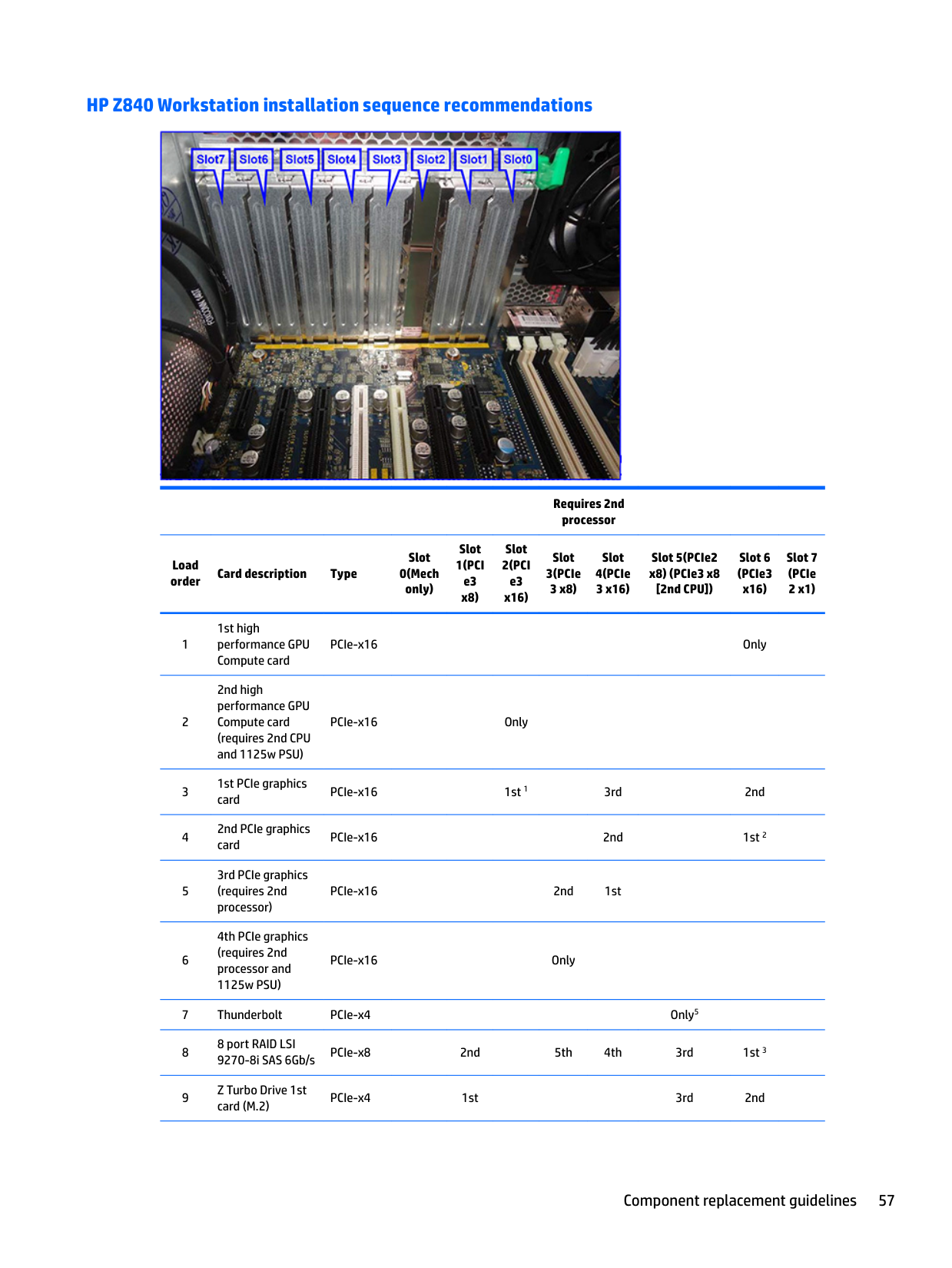
N/A See
note 4
#### Hard drives and optical drives Handling hard drives
CAUTION: Take proper precautions when handling hard drives to prevent loss of work and damage to the computer or drive.
##### Removal and replacement tips
— The primary Serial ATA (SATA) hard drive must be connected to the dark blue primary SATA connector on the system board labeled SATA0.
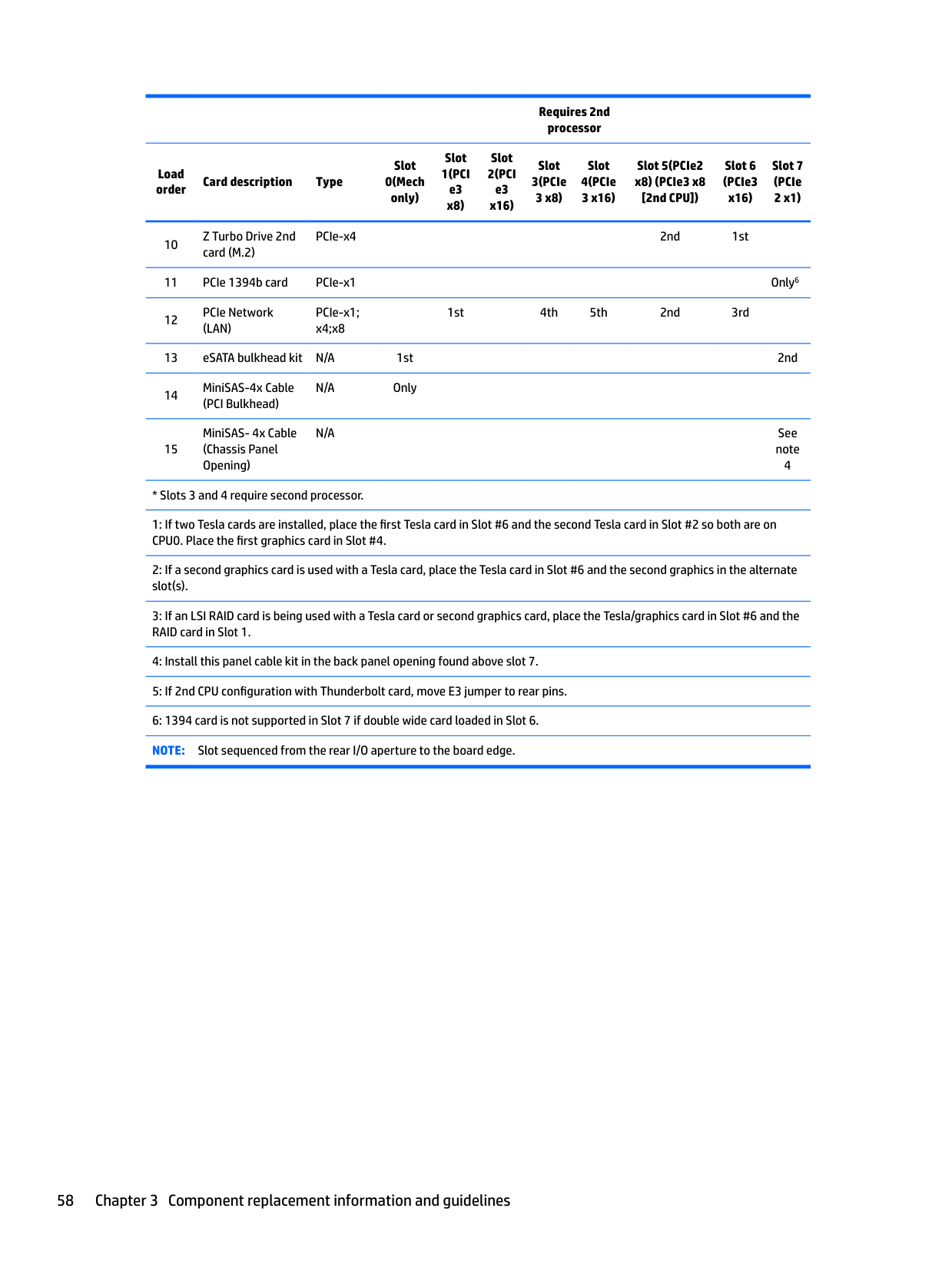
— Connect a secondary hard drive to SATA.
— Connect SATA optical drives to the black SATA2 connector.
— Connect an optional eSATA adapter cable to the black ESATA connector on the system board.
— Connect a media card reader USB cable to the USB connector on the system board labeled MEDIA. If
the media card reader has a 1394 port, connect the 1394 cable to the 1394 PCI card. Drive installation and cabling scenarios
This section presents cabling guidelines for the most common maximum storage configurations. If you add or remove drives, HP recommends you follow these guidelines for highest drive performance and efficient cable routing.
###### HP Z440 Workstations — Intel AHCI SATA controller guidelines
See HP Z440 Workstation system board components on page 5 to determine the location of system board connectors.
| | |---|
NOTE: Port 0 is the default port for the boot drive (the default port can be changed manually in the BIOS).
RAID card (RC) or system board (SB) connector
Drive installation scenarios 1 2 3
RC J8 SAS HDD 1 SAS HDD 1-B SATA HDD 1-B RC J7 SAS HDD 2 SATA HDD 2-D SAS HDD 2-D RC J6 SAS HDD 3 SATA HDD 3-D SAS HDD 3-D RC J5 SAS HDD 4 SATA HDD 4-D SAS HDD 4-D
eSATA = external SATA (2 ports per cable assembly) HDD = hard drive ODD = optical drive NOTE: Only the most common configurations are shown here.
###### HP Z440 Workstations — LSI 9217-4i4e RAID controller guidelines
See HP Z440 Workstation system board components on page 5 to determine the location of system board connectors.
| | |---|
NOTE: Hard drives attached to RC J8 are designated by the 9217-4i4e BIOS to be boot devices. If the hard drive connected to RC J8 is a member of a RAID array, the RAID array is the boot device.
System board connector
Drive installation scenarios 1 2 3
eSATA = external SATA (2 ports per cable assembly) If eSATA is installed, the ODD is attached to sSATA 3. If 4 SATA HDDs are installed on sSATA and eSATA is installed, there will be no ODD. HDD = hard drive ODD = optical drive NOTE: Only the most common configurations are shown here.
###### HP Z640 Workstations — Intel AHCI SATA controller guidelines
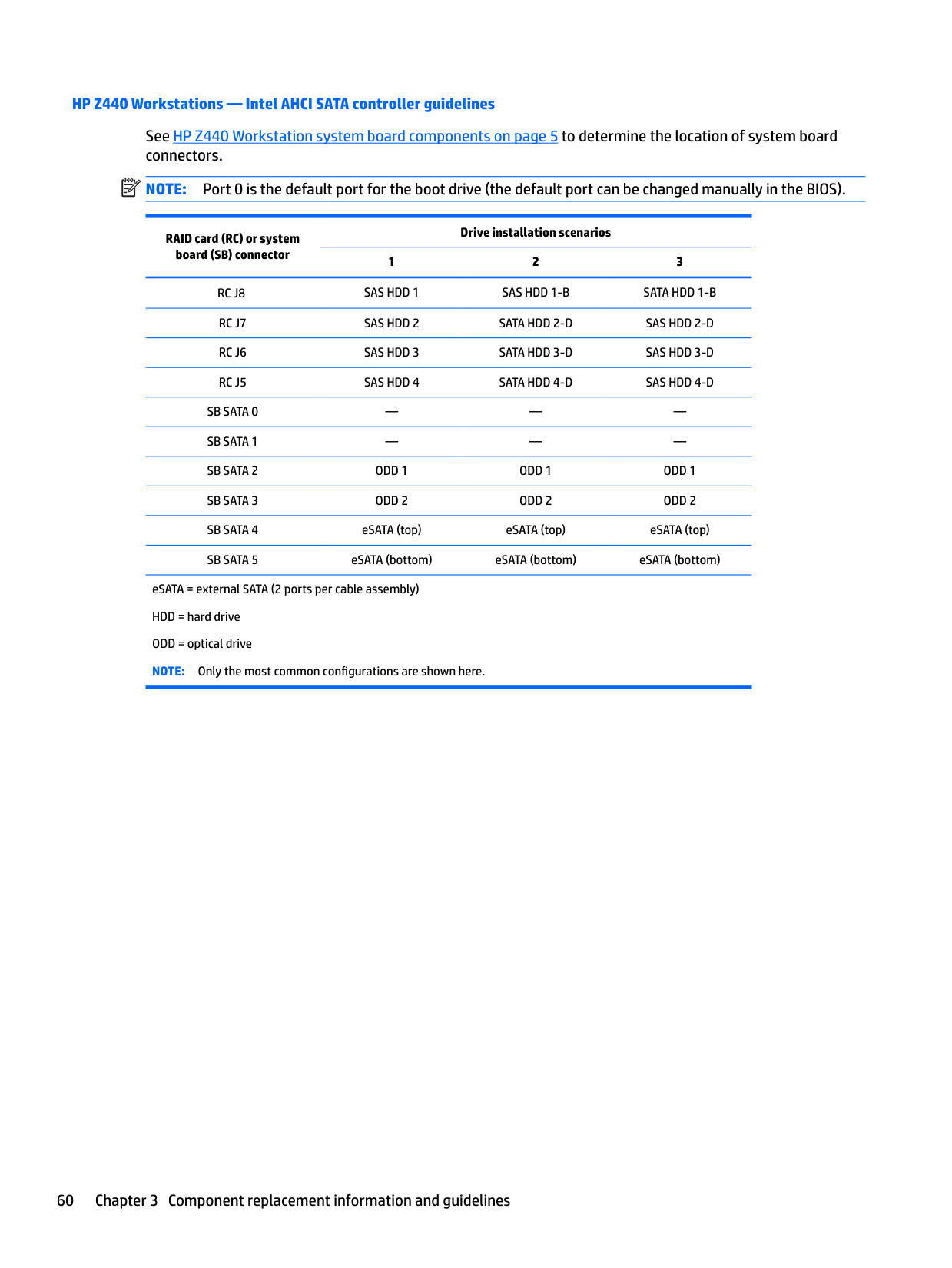
See HP Z640 Workstation system board components on page 11 to determine the location of system board connectors.
| | |---|
NOTE: sSATA port 0 is the default port for the boot drive (the default port can be changed manually in the BIOS).
RAID card (RC) or system board (SB) connector
Drive installation scenarios 1 2 3
RC J8 SAS HDD 1 SAS HDD 1-B SATA HDD 1-B RC J7 SAS HDD 2 SATA HDD 2-D SAS HDD 2-D RC J6 SAS HDD 3 SATA HDD 3-D SAS HDD 3-D RC J5 SAS HDD 4 SATA HDD 4-D SAS HDD 4-D
eSATA = external SATA (2 ports per cable assembly) HDD = hard drive ODD = optical drive NOTE: Only the most common configurations are shown here.
###### HP Z640 Workstations — LSI 9217-4i4e RAID controller guidelines
See HP Z640 Workstation system board components on page 11to determine the location of system board connectors.
| | |---|
NOTE: Hard drives attached to RC J8 are designated by the 9217-4i4e BIOS to be boot devices. If the hard drive connected to RC J8 is a member of a RAID array, the RAID array is the boot device.
System board connector
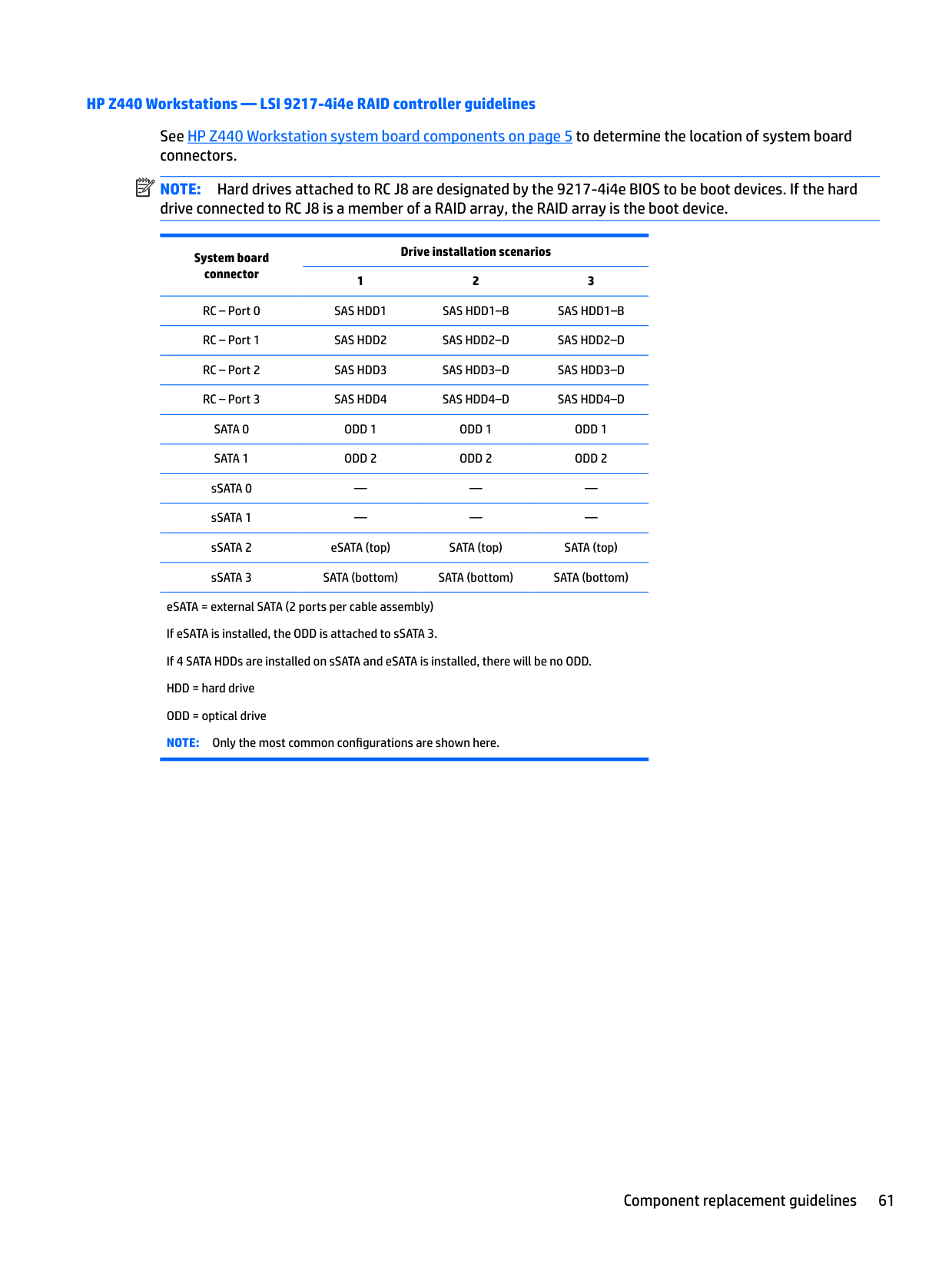
Drive installation scenarios 1 2 3
eSATA = external SATA (2 ports per cable assembly) HDD = hard drive ODD = optical drive NOTE: If there are fewer than three hard drives in the configuration, the cables from HDD bays 1 and 2 are preplugged to the RAID card adapter ports. NOTE: Only the most common configurations are shown here.
###### HP Z840 Workstation cabling guidelines
See HP Z840 Workstation system board components on page 18 to determine the location of system board connectors.
| | |---|
NOTE: Port 0 is the default port for the boot drive (the default port can be changed manually in the BIOS).
System board connector
Drive configuration scenarios
1 2 3 4
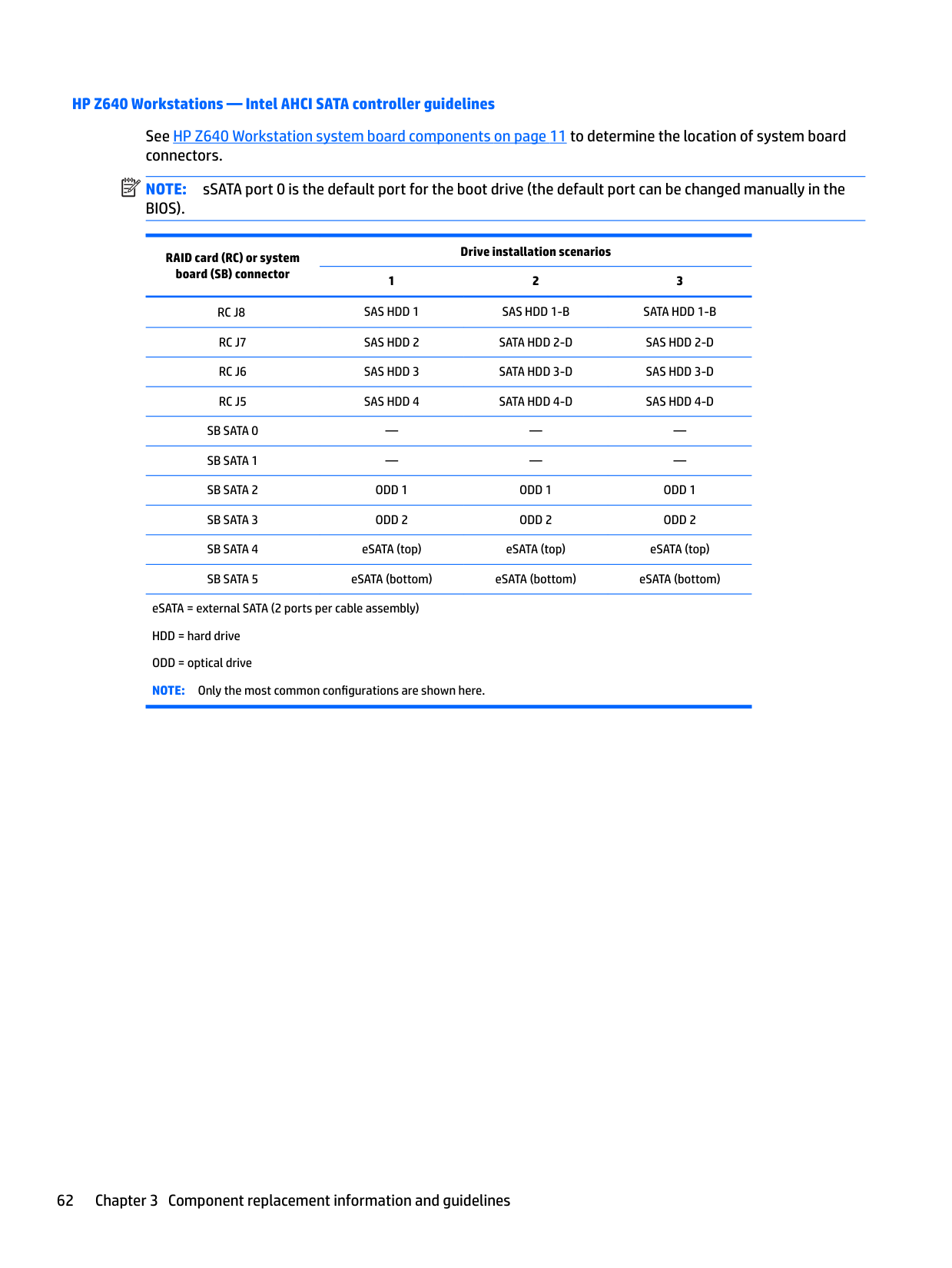
5 SATA RAID 5 Only
6 SATA RAID 5 Only
eSATA = external SATA (2 ports per cable assembly) HDD = SATA or SSD hard drive ODD = optical drive NOTE: Only the most common configurations are shown here.
#### Memory Supported DIMM configurations
| | |---|
NOTE: Mirroring and DIMM sparing are not supported.
Platform Configuration
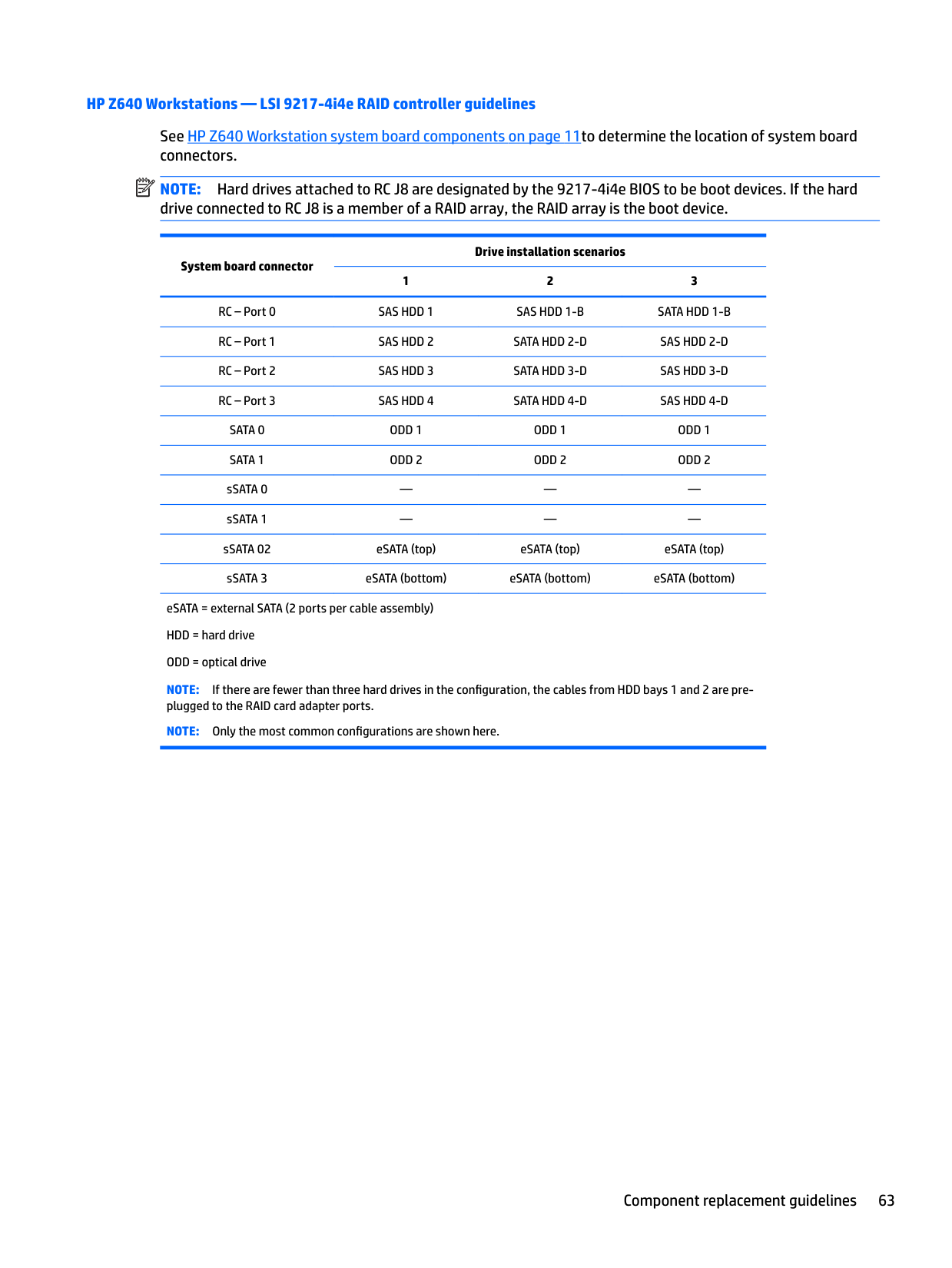
HP Z440
HP Z640
HP Z840
— RDIMMs: 64 GB for single processor and 128 GB for dual processor
— LRDIMMs: 128 GB for single processor and 256 GB for dual processor.
— RDIMMs: 128 GB for single processor and 256 GB for dual processor
— LRDIMMs: 1024 GB for single processor and and 2048 GB for dual processor
##### BIOS errors and warnings
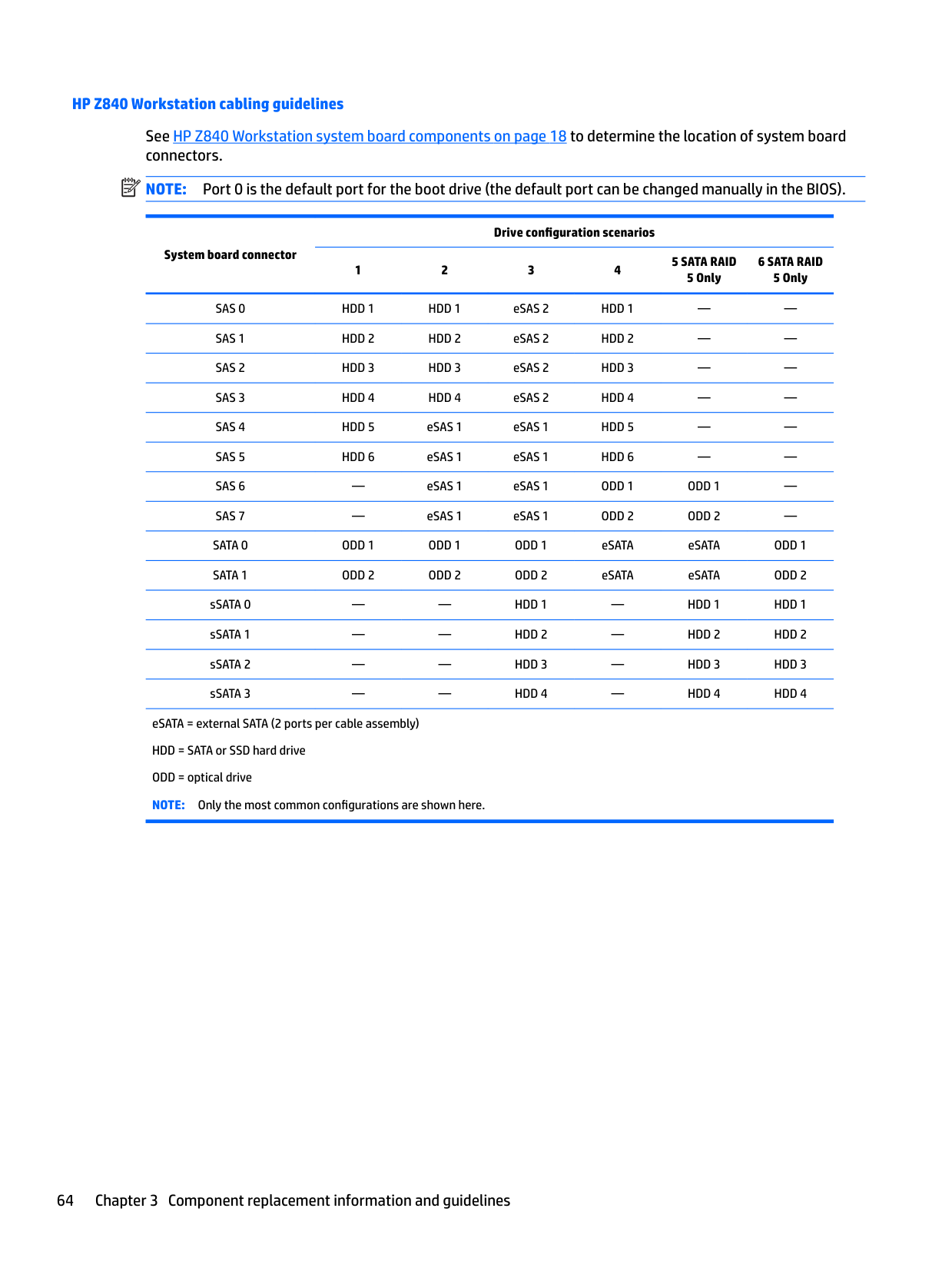
The BIOS generates warnings/errors on invalid memory configurations:
##### DIMM installation guidelines
CAUTION: HP ships only DIMMs that are electrically and thermally compatible with this workstation. Because third-party DIMMs might not be electrically or thermally compatible, they are not supported by HP.
CAUTION: DIMMs and their sockets are keyed for proper installation. To prevent socket or DIMM damage, align these guides properly when installing DIMMs.
HP Z440 Workstation DIMM installation order Install DIMMs in this order. NOTE: If you install DIMMs of different sizes, load them in order of size, starting with largest and finishing with the smallest (largest in DIMM 1, smallest in last loaded DIMM slot).
| | |---|

HP Z640 Workstation DIMM installation order Install DIMMs in this order. NOTE: If you install DIMMs of different sizes, load them in order of size, starting with largest and finishing with the smallest (largest in DIMM 1, smallest in last loaded DIMM slot).
| | |---|


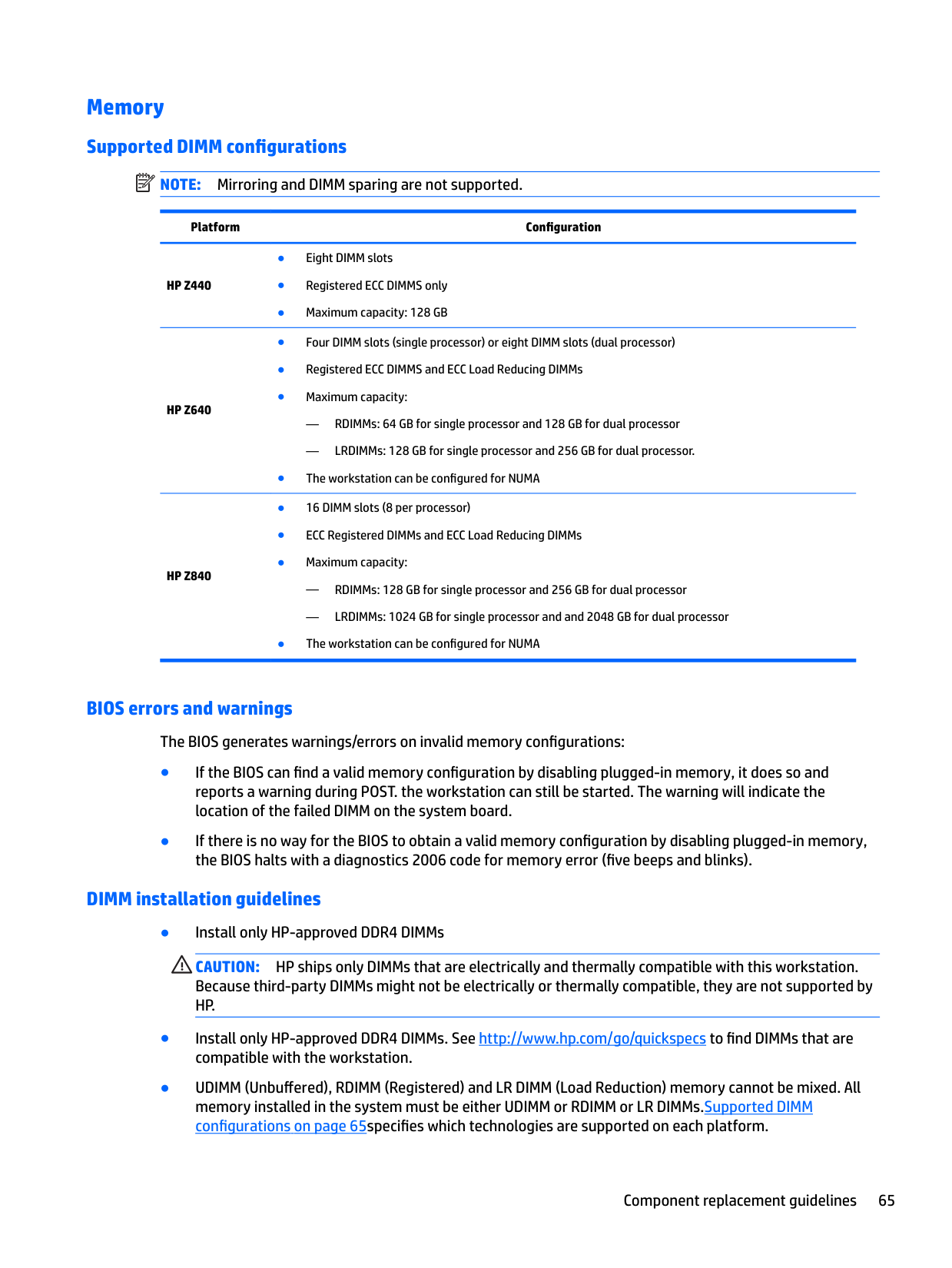
HP Z840 Workstation DIMM installation order Install DIMMs in this order. NOTE: If you install DIMMs of different sizes, load them in order of size, starting with largest and finishing with the smallest (largest in DIMM 1, smallest in last loaded DIMM slot).
| | |---|

#### Power supply Power supply specifications
All power supplies have these specifications:
###### HP Z440 power supply specifications
| |700W 90% Efficient, Custom PSU (Wide-Ranging, Active PFC)|700W 90% Efficient, Custom PSU (Wide-Ranging, Active PFC)|525W 85% Efficient, Custom PSU (Wide-Ranging, Active PFC)|525W 85% Efficient, Custom PSU (Wide-Ranging, Active PFC)| |---|---|---|---|---| |Operating voltage range|90–269 VAC|90–269 VAC|90–269 VAC|90–269 VAC| |Rated voltage range|100–240 VAC|118 VAC|100–240 VAC|118 VAC| |Rated line frequency|50–60 Hz|400 Hz|50–60 Hz|400 Hz| |Operating line frequency range|47–66 Hz|393–407 Hz|47–66 Hz|393–407 Hz| |Rated input current|100–240V @ 9.5A|118V @ 9.5A|100–240V @ 9.5A|118V @ 9.5A| |Heat dissipation (configuration and software dependent)|Typical: 1648 btu/hr (415 kg cal/hr) Max: 2746 btu/hr (692 kg cal/hr)|Typical: 1648 btu/hr (415 kg cal/hr) Max: 2746 btu/hr (692 kg cal/hr)|Typical: 1311 btu/hr (330 kg cal/hr) Max: 2185 btu/hr (551 kg cal/hr)|Typical: 1311 btu/hr (330 kg cal/hr) Max: 2185 btu/hr (551 kg cal/hr)| |Power supply fan (All fans are variable speed)|92x25mm|92x25mm|92x25mm|92x25mm| |ENERGY STAR Qualified (Configuration dependent)|Yes|Yes|Yes|Yes| |Power supply efficiency|90% efficient|90% efficient|85% efficient|85% efficient| |FEMP Standby Power Compliant @115V (<1W in S5
– Power Off)|Yes|Yes|Yes|Yes| |ErP Compliant @ 230V (<0.5 W in S5 – Power Off)|Yes|Yes|Yes|Yes|
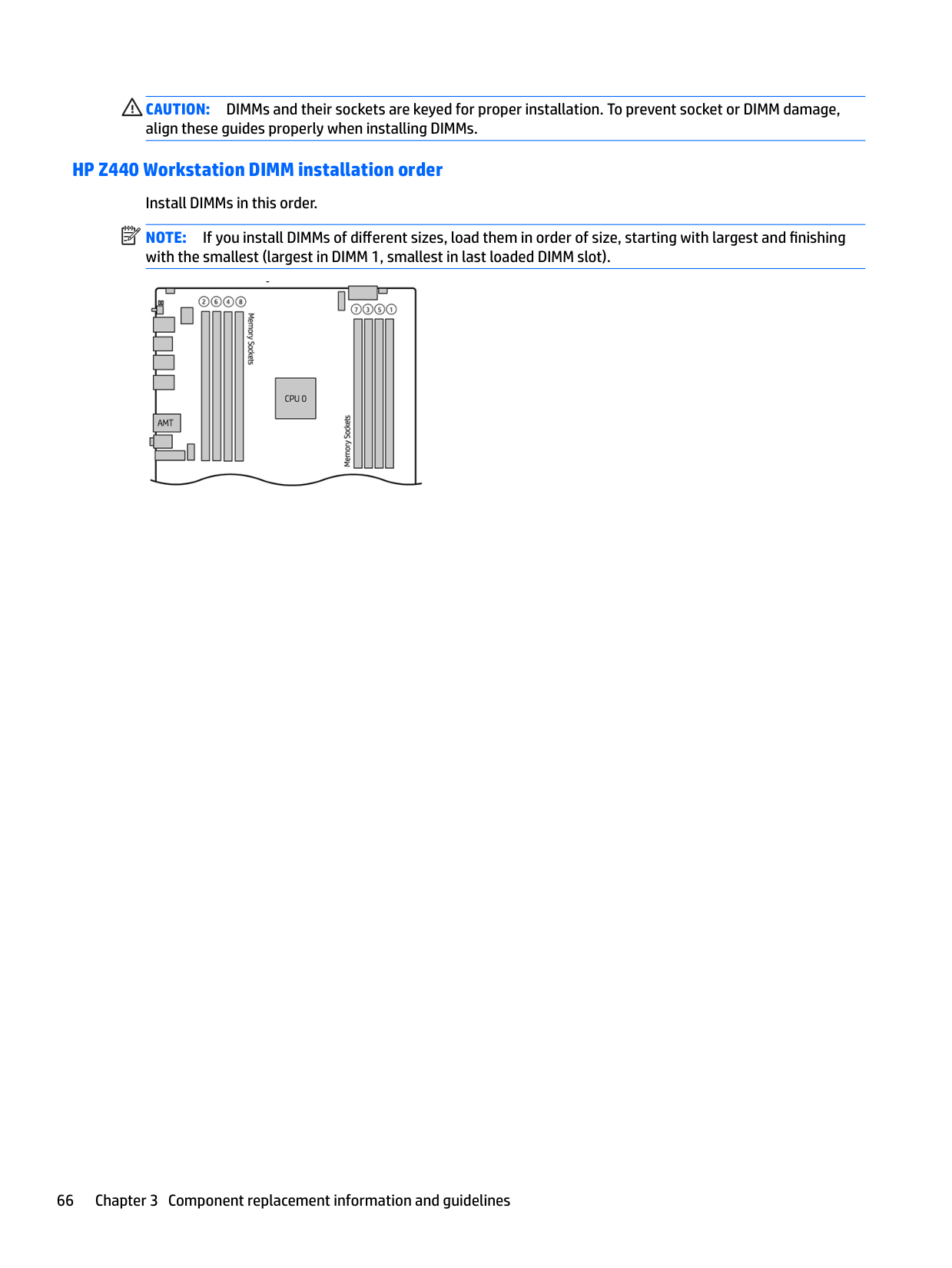
|CECP Compliant @ 220V (<4W in S3 – Suspend to RAM)|Yes; Configuration dependent|Yes; Configuration dependent|Yes; Configuration dependent|Yes; Configuration dependent| |Power consumption in sleep mode (as defined by ENERGY STAR)|<15 W|<15 W|<15 W|<15 W| |Built-in Self Test LED|Yes|Yes|Yes|Yes| |Surge Tolerant Full Ranging Power Supply (withstands power surges up to 2000V)|Yes|Yes|Yes|Yes|
###### HP Z640 power supply specifications
| |925w 90% Efficient, Custom PSU (Wide-Ranging, Active PFC)|925w 90% Efficient, Custom PSU (Wide-Ranging, Active PFC)| |---|---|---| |Operating voltage range|90–269 VAC|90–269 VAC| |Rated voltage range|100–127 V 200–240 V|118 V| |Rated line frequency|50–60 Hz|400 Hz| |Operating line frequency range|47–66 Hz|393–407 Hz| |Rated input current|11.3A @ 100–127 VAC 5.5A @ 200–240 VAC|11.3A @ 400 V| |Heat dissipation (configuration and software dependent)|Typical: 2105 btu/hr (530 kg cal/hr) Max: 3629 btu/hr (914 kg cal/hr)|Typical: 2105 btu/hr (530 kg cal/hr) Max: 3629 btu/hr (914 kg cal/hr)| |Power supply fan (All fans are variable speed)|92x25mm|92x25mm| |ENERGY STAR Qualified (Configuration dependent)|Yes|Yes| |Power supply efficiency|90% efficient|90% efficient| |FEMP Standby Power Compliant @115V (<1W in S5 – Power Off)|Yes|Yes| |ErP Compliant @ 230V (<0.5 W in S5 – Power Off)|Yes|Yes| |CECP Compliant @ 220V (<4W in S3 – Suspend to RAM)|Yes; Configuration dependent|Yes; Configuration dependent| |Power consumption in sleep mode (as defined by ENERGY STAR)|<20 W|<20 W| |Built-in Self Test LED|Yes|Yes| |Surge Tolerant Full Ranging Power Supply (withstands power surges up to 2000V)|Yes|Yes|
###### HP Z840 power supply specifications
| |850W 88% Efficient, Custom PSU (Wide-Ranging, Active PFC)|850W 88% Efficient, Custom PSU (Wide-Ranging, Active PFC)|1125W/1275W*/1450W* 90% Efficient, Custom PSU (Wide-Ranging, Active PFC)|1125W/1275W*/1450W* 90% Efficient, Custom PSU (Wide-Ranging, Active PFC)| |---|---|---|---|---| |Operating voltage range|90–269 VAC|90–269 VAC|90–269 VAC|90–269 VAC| |Rated voltage range|100–127 VAC 200–240 VAC|118 VAC|100 VAC 115–127 VAC 200–240 VAC|118 VAC| |Rated line frequency|50–60 Hz|400 Hz|50–60 Hz|400 Hz| |Operating line frequency range|47–66 Hz|393–407 Hz|47–66 Hz|393–407 Hz| |Rated input current|11.5 @ 100–127V 5.5a @ 200–240V|11A @ 118 VAC|12A @ 100 VAC 12A @ 115–127 VAC 10A @ 200–240 VAC|12A @ 118 VAC|
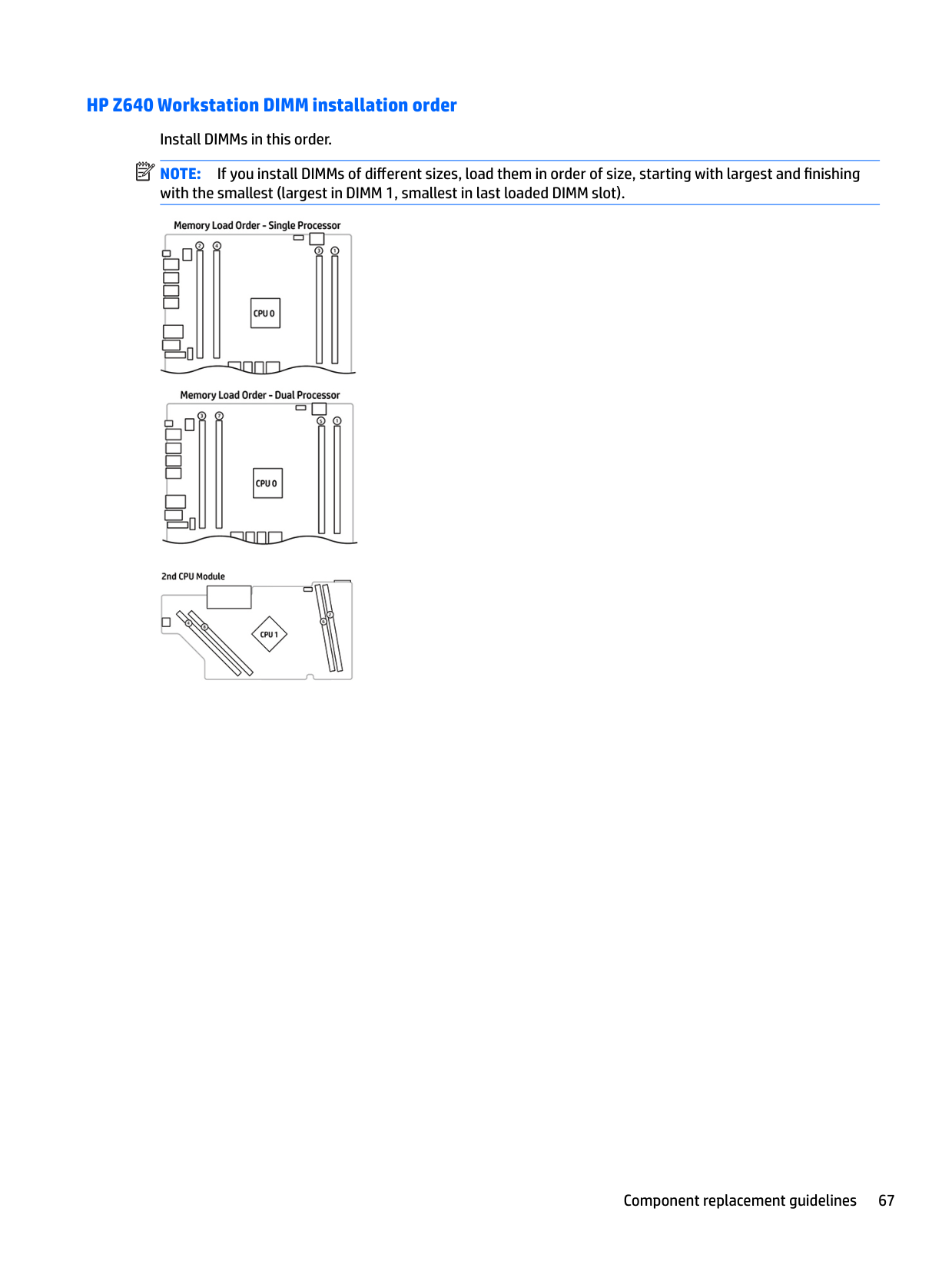
|Heat dissipation (configuration and software dependent)|Typical: 2142 btu/hr (540 kg cal/hr) Max: 3335 btu/hr (840 kg cal/hr)|Typical: 2142 btu/hr (540 kg cal/hr) Max: 3335 btu/hr (840 kg cal/hr)|Typical: 2773 btu/hr (699 kg cal/hr)
Max 1: 3878 btu/hr (977 kg cal/hr)
Max 2: 5002 btu/hr (1260 kg cal/hr)
Max 3: 5624 btu/hr (1417 kg cal/hr)
|Typical: 2773 btu/hr (699 kg cal/hr)
Max 1: 3878 btu/hr (977 kg cal/hr)
Max 2: 5002 btu/hr (1260 kg cal/hr)
Max 3: 5624 btu/hr (1417 kg cal/hr)
| |Power supply fan (All fans are variable speed)|(2) 80x25mm|(2) 80x25mm|(2) 80x25mm|(2) 80x25mm| |ENERGY STAR Qualified (Configuration dependent)|Yes|Yes|Yes|Yes| |Power supply efficiency|88% efficient|88% efficient|90% efficient|90% efficient| |FEMP Standby Power Compliant @115V (<1W in S5
– Power Off)|Yes|Yes|Yes|Yes| |ErP Compliant @ 230V (<0.5 W in S5 – Power Off)|Yes|Yes|Yes|Yes| |CECP Compliant @ 220V (<4W in S3 – Suspend to RAM)|Yes; Configuration dependent|Yes; Configuration dependent|Yes; Configuration dependent|Yes; Configuration dependent| |Power consumption in sleep mode (as defined by ENERGY STAR)|<23 W|<23 W|<30 W|<30 W| |Built-in Self Test LED|Yes|Yes|Yes|Yes| |Surge Tolerant Full Ranging Power Supply (withstands power surges up to 2000V)|Yes|Yes|Yes|Yes|
*The 1125 W power supply can also supply 1275W of output power when the input voltage is greater than 105V. If the input voltage is less than 105V, the maximum power that can be drawn is 900W. An uninterruptible power supply (UPS) is highly recommended if 1275W output power is desired. The 1125W Power Supply can also supply 1450W of output power when the input voltage is greater than 180V under all conditions.
##### Power consumption and heat dissipation
Power consumption and heat dissipation specifications are available for multiple configurations. To review available specifications, see http://www.hp.com/go/quickspecs.
To reach zero power consumption, unplug the workstation from the power outlet or use a power strip with an on/off switch. For additional information about power-saving features, see the operating system installation instructions.
This product is in compliance with U.S. Executive Order 13221.
Resetting the power supply If an overload triggers the power supply overload protection, power is immediately disconnected. To reset the power supply:
When you power off the workstation through the operating system, power consumption falls below what is considered low power consumption but does not reach zero. This low power consumption feature extends the life of the power supply.
#### System board
If you replace the system board:
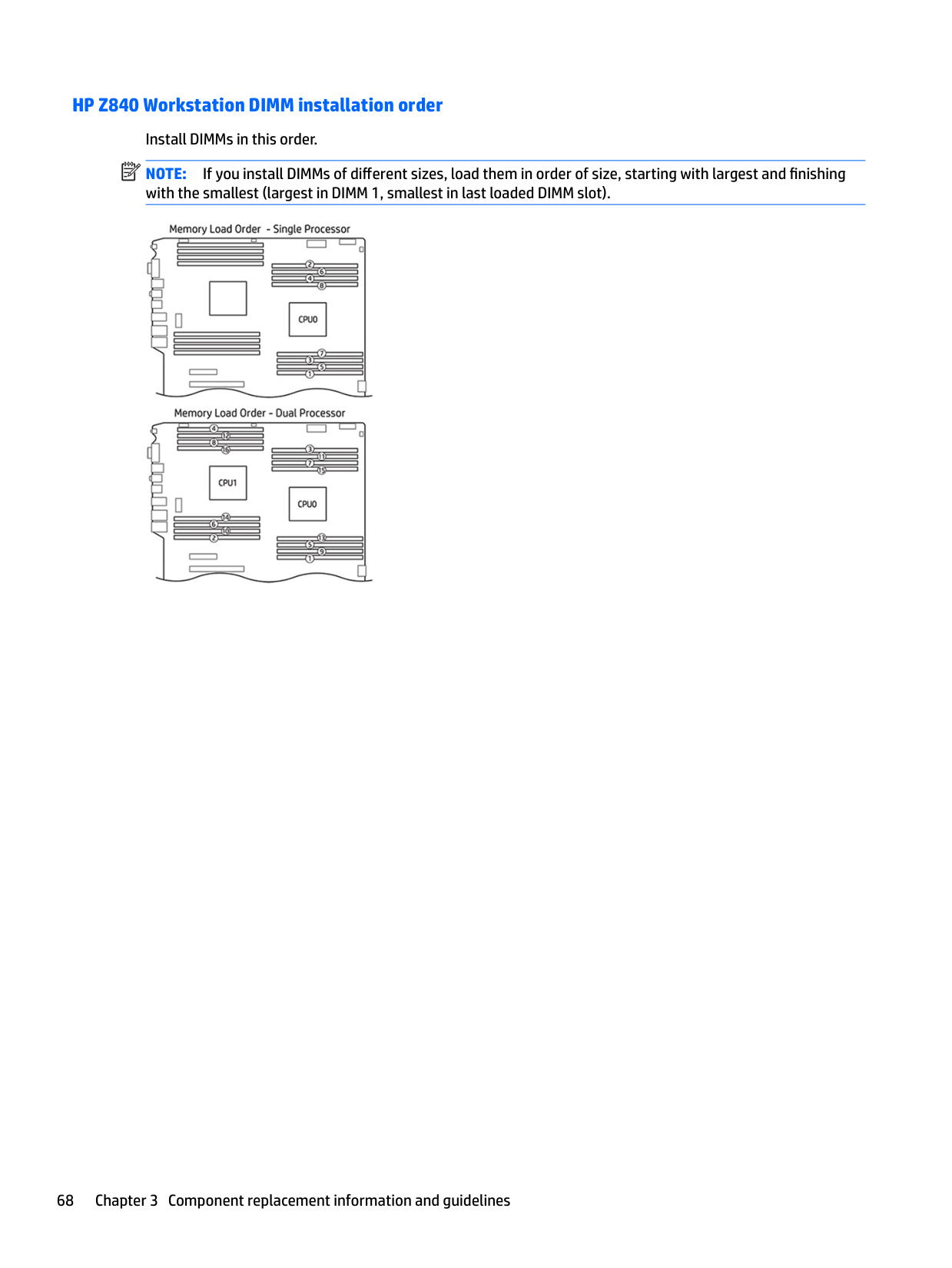
System cabling HP Z440 Workstation system cabling
See HP Z440 Workstation system board components on page 5 to determine the location of system board connectors.
######## Cable To Cable designator on system board
PSU cable PCA (Main PWR) P1 PSU cable PCA (PWR MEM) P2 PSU cable First hard drive (Bay 6) D1 PSU cable Second hard drive (Bay 5) D2 PSU cable Third hard drive (Bay 4) D3 PSU cable First optical drive (Bay 1) D4 PSU cable Second optical drive (Bay 2) D5 PSU cable Other drive (Bay 3) D6 PSU cable First graphics card G1 (600 W PSU only)
Speaker PCA P6 (SPKR) white
Cooler fan cable PCA P8 (CPU0 FAN) white System fan cable PCA P95 (REAR FAN) white Memory fan cable PCAx P92 (MEM FAN) white Front audio cable * PCA P28 (FRONT AUD) black
Front 1394 cable PCA J12 1394,White
LED/Power button cable PCA P5 (PB/LED) black Front USB 3.0 cable PCA P29 (USB 3.0) blue Front USB 2.0 cable PCA P27 (FRONT USB 2.0) yellow
Media card reader PCA P24 (USB2) blue
Front fan cable PCA P9 (FRNTFAN) white Second serial port PCA P52 (COM) black
Chassis solenoid lock PCA P124 (SOL_LOCK) black Chassis Intrusion Sender PCA P125 (I_SENSE) white
###### HP Z640 Workstation system cabling
See HP Z640 Workstation system board components on page 11 to determine the location of system board connectors.
######## Cable To Cable/system board designator
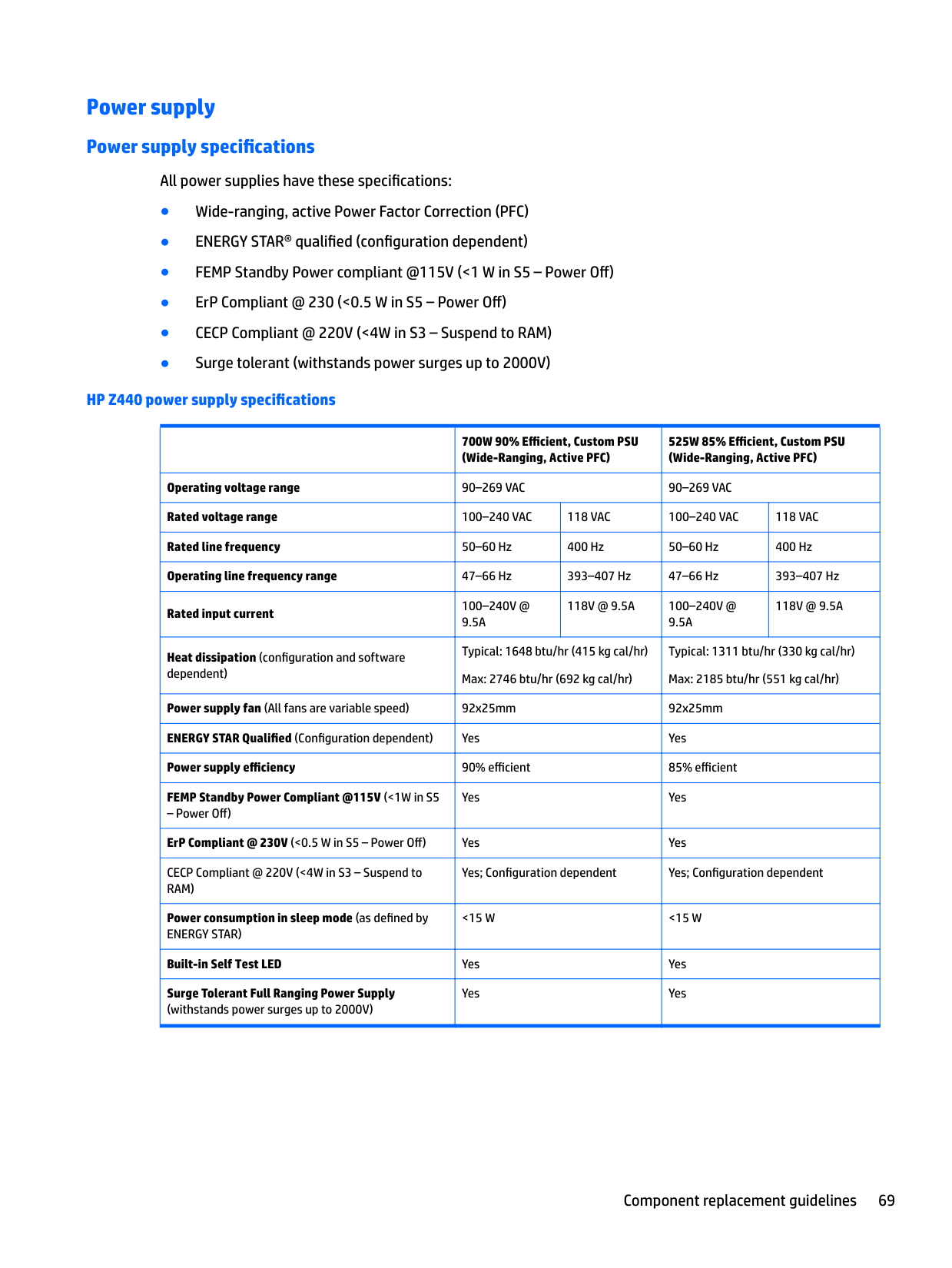
Speaker PCA Pre-connected to FUI cable CPU 0 HS fan cable PCA P8 (CPU 0 FAN) white
Rear fans cable PCA P11 (REAR FANS) white MB memory fan cable PCA P91(MEM FAN) black blind-mate
Front fan cable PCA P9 (FRNTFAN) white Front audio cable * PCA P28 (FRONT AUDIO) black Front USB3.0 cable PCA P29 (FRNT USB3) blue Front USB2.0 cable PCA P27 (FRNT USB2) yellow Front UI cable PCA P5(PB/LED) black Front 1394 cable PCA J12 (1394) white Media card reader PCA P24 (I-USB2.0) blue
SAS card LED cable PCA P127 black
eSATA external connection PCA P64 (SATA4) black, P65 (SATA5) black Hood lock cable PCA P124 (HOOD_LOCK) black Hood sensor cable PCA P2 on FUI Cable, white Serial option cable PCA P52 (COM) black
Second processor memory fan cable
Riser PCA P9 (MEM_FAN) black blind-mate
###### HP Z840 Workstation system cabling
####### See HP Z840 Workstation system board components on page 18 to determine the location of system board connectors.
Cable To Cable/system board designator PSU cable (C1) PCA (P1) P1 PSU cable (C3) PCA (P2) P2 PSU cable (C3) PCA (P3) P3 PSU cable (C3) PCA (P4) P4 PSU cable (C2) Graphics card G1 PSU cable (C2) Graphics card G2 PSU cable (C2) Graphics card G3 PSU cable (C1) Hard drive cable H1 PSU cable (C1) Slimline optical drive / hard drive D1 (Slim SATA power) PSU cable (C1) Optical drive / hard drive D2 (SATA power) PSU cable (C1) Optical drive / hard drive D3 (SATA power) PSU cable (C1) Optical drive D4 (IDE power) PSU cable (C1) Optical drive D5 (IDE power)
Front fan cable (top) PCA P157 (FRONT FAN 1) white Front fan cable (bottom) PCA P158 (FRONT FAN 2) white
Rear fan cable PCA P159 (REAR FAN) white Front audio cable * PCA P23 (FRONT AUD) black Front UI cable cable PCA P5 (FRONT PANEL) black Front USB 3.0 cable PCA P26 (FRONT USB 3.0) blue
4 Diagnostics and troubleshooting
This chapter describes the tools available for diagnosing and troubleshooting system issues.
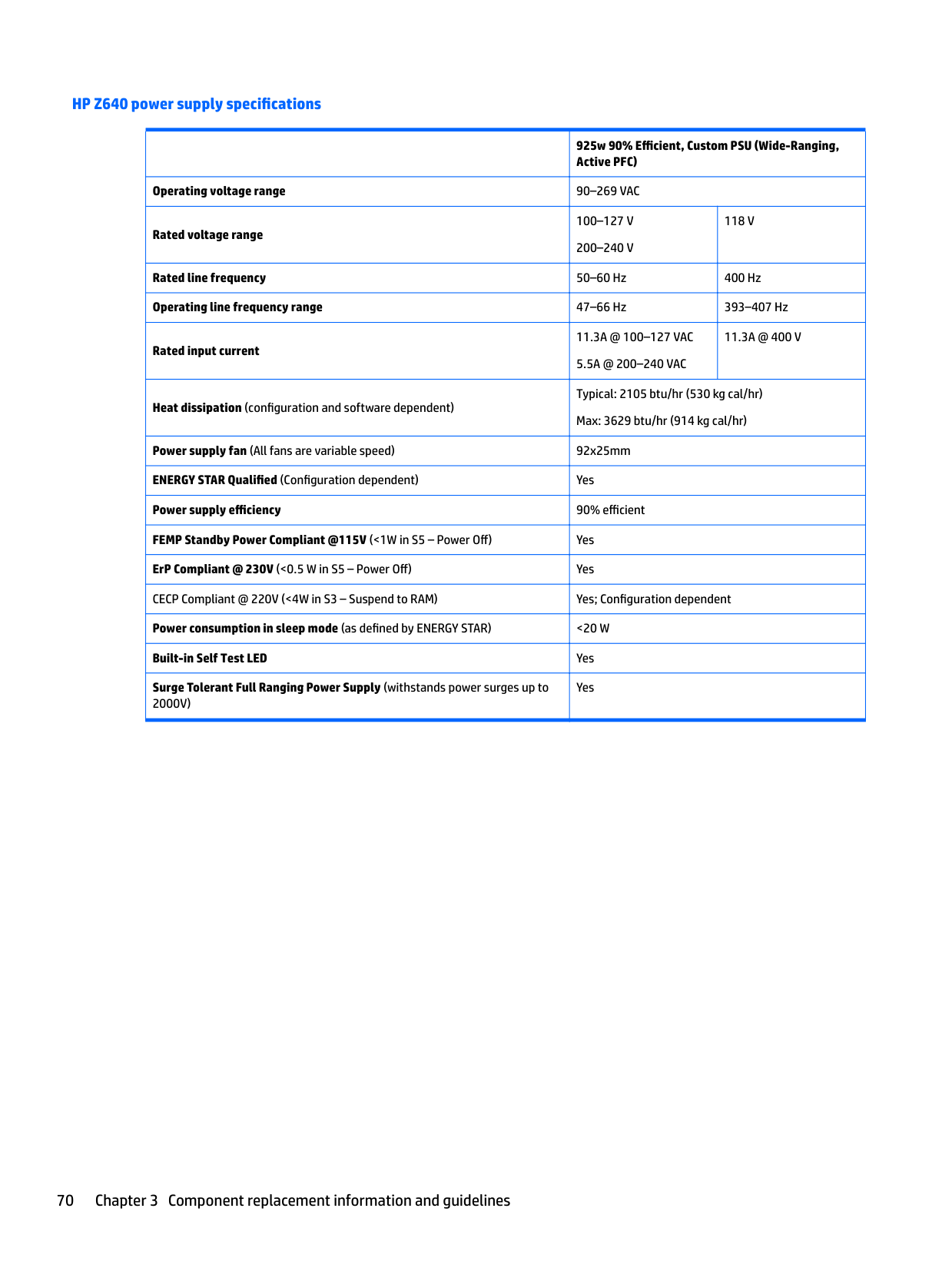
Calling support
At times you might encounter an issue that requires support. When you call support:
| | |---|
NOTE: When calling in for service or support, you might be asked for the product number (example: PS988AV) of the computer. If the computer has a product number, it is generally located next to the 10- or 12digit serial number of the computer.
| |
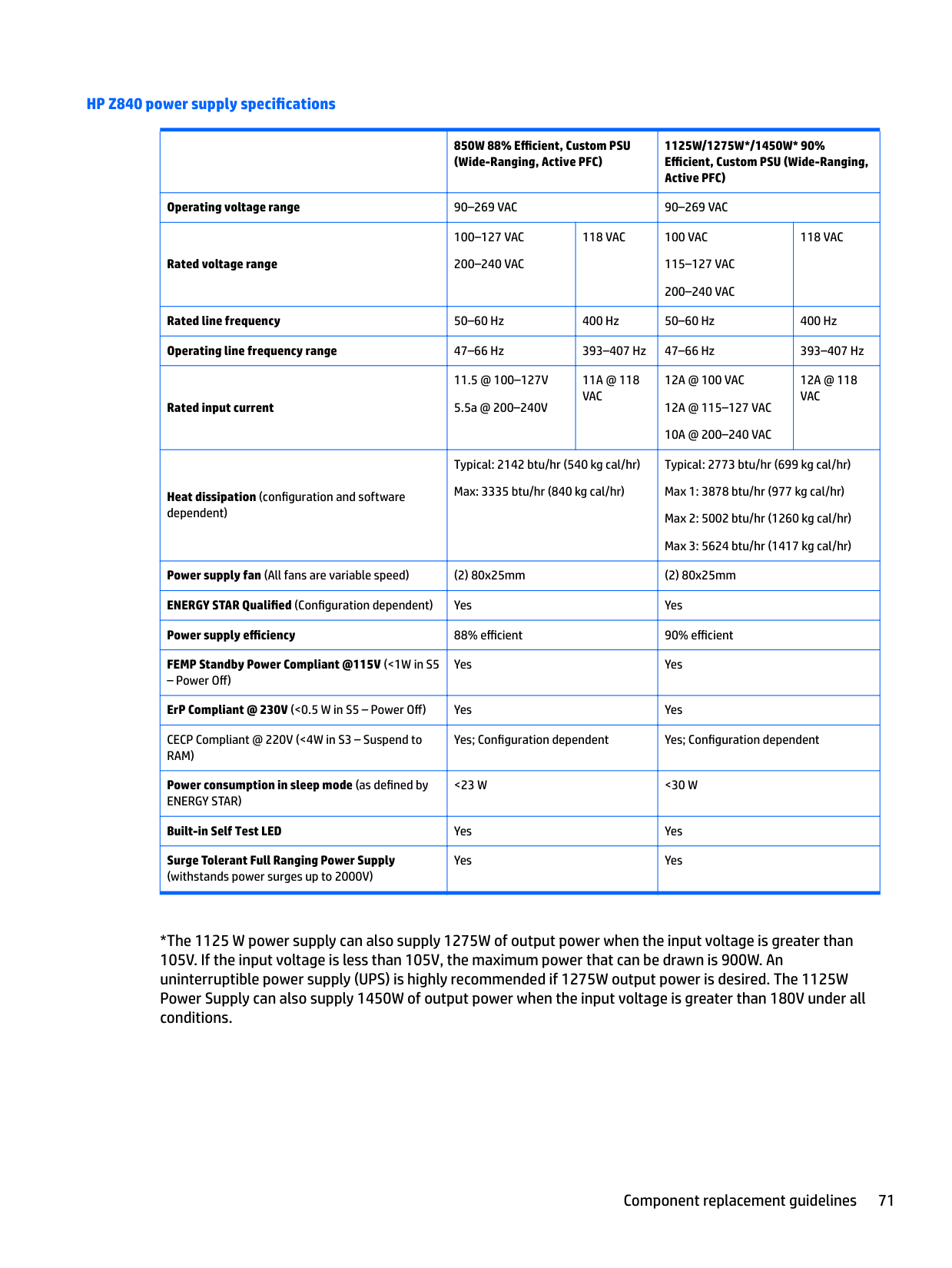
|---|
NOTE: On most models, the serial number and product number labels can be found on the top or side panel and at the rear of the computer (tower and desktop configurations) or on a pull-out card on the side of the display (all-in-one configurations).
For a listing of all worldwide support phone numbers, go to http://www.hp.com/support, select your region, and click Connect with HP in the upper-right corner.
Locating ID labels
To assist in troubleshooting, product, serial, and authentication numbers are available on each computer.
| | |---|
In general, these labels can be found on the top, rear, or bottom of the chassis (tower and desktop configuration). Your computer might look different from the illustration.

Locating warranty information To locate base warranty information, see http://www.hp.com/support/warranty-lookuptool. To locate an existing Care Pack, see http://www.hp.com/go/lookuptool. To extend a standard product warranty, visit http://www.hp.com/hps/carepack. HP Care Pack Services offer upgraded service levels to extend and expand a standard product warranty.
Locating ID labels 77
Diagnosis guidelines
If you encounter a problem with the computer, monitor, or software, the following sections provide a list of general suggestions that help you isolate and focus on the problem before taking further action.
#### Diagnosis at startup
#### Diagnosis during operation
Troubleshooting checklist
Before running diagnostic utilities, make sure that.
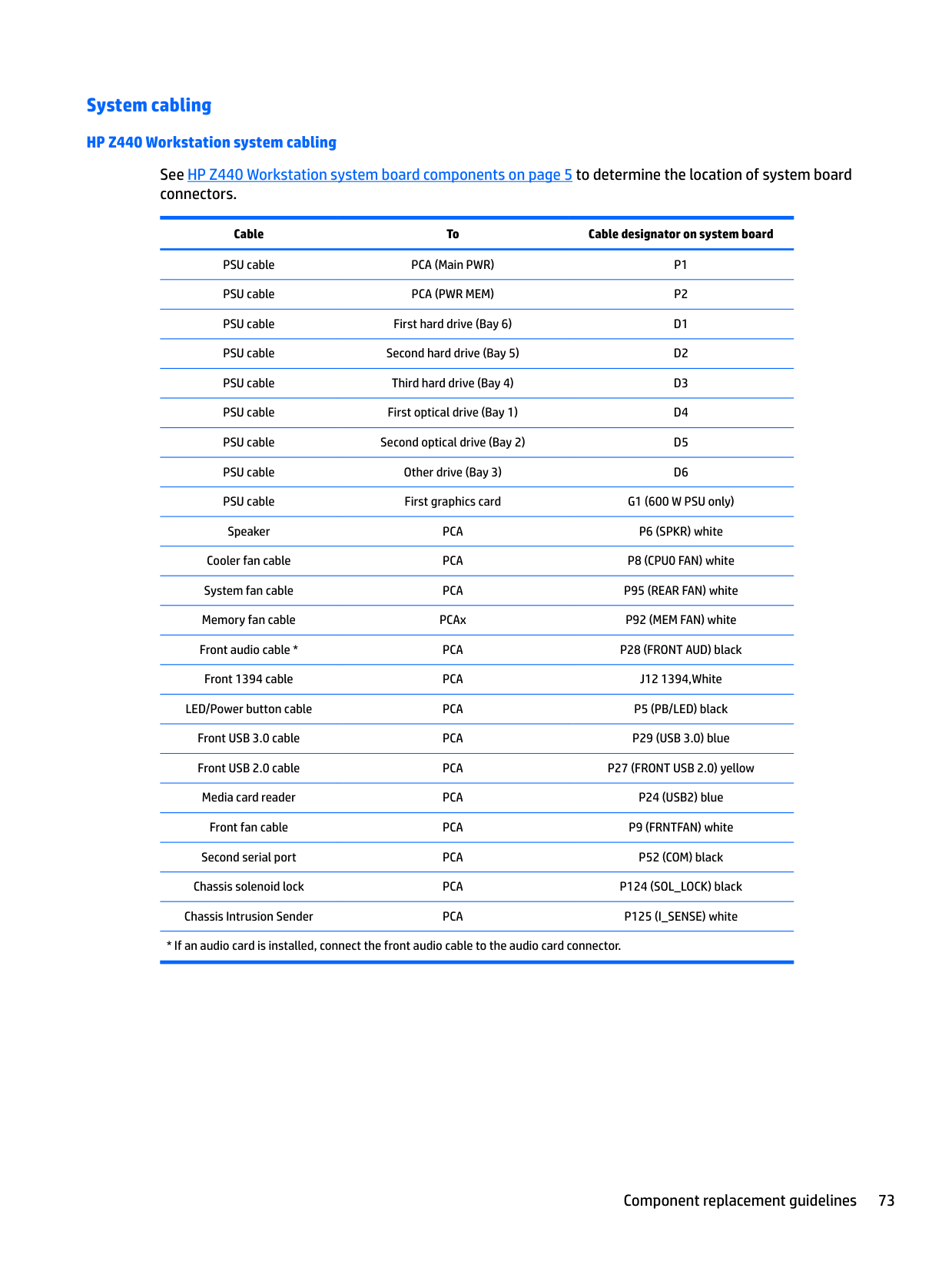
HP troubleshooting resources and tools
This section provides information on the HP Help and Support Center, Online support, and Helpful Hints for troubleshooting.
#### Online support
Online access and support resources include web-based troubleshooting tools, technical knowledge databases, driver and patch downloads, online communities, and product change notification services.
The following websites are also available to you:
##### Troubleshooting a problem
To help you troubleshoot problems with your system, HP provides the Business Support Center (BSC). The BSC is a portal to an extensive selection of online tools. To access BSC and troubleshoot a problem with the workstation, complete the following:
##### Instant Support and Active Chat
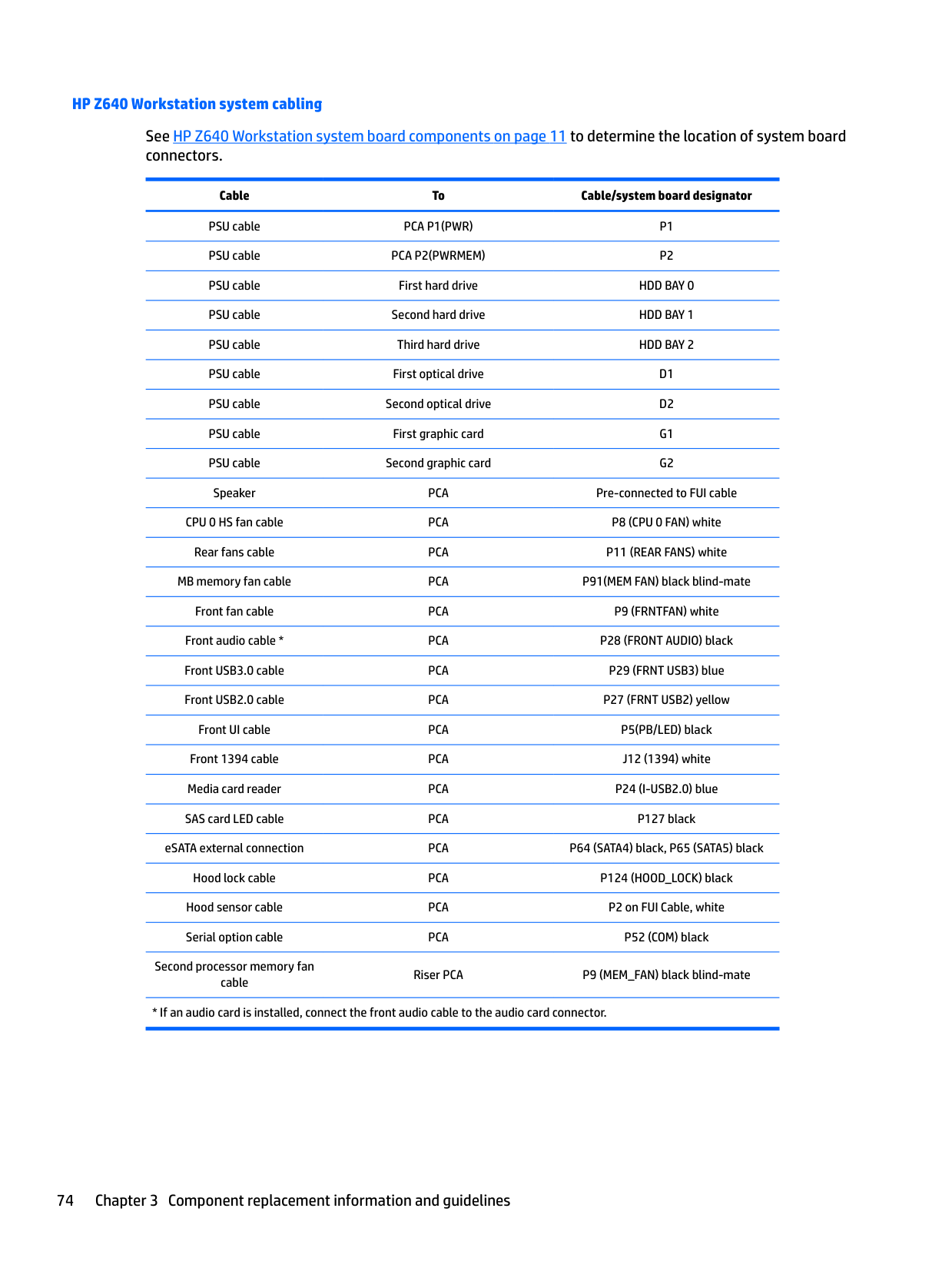
HP Instant Support is a set of web-based support tools that automate and speed up the resolution of desktop computing, tape storage, and printing problems.
Active Chat enables you to electronically submit a support ticket to HP over the web. When you submit a support ticket, Active Chat collects information about the computer and pass it to an online support specialist. The collection of information might take up to 30 seconds depending on the computer configuration. When you submit a support ticket, you receive a confirmation message containing your case ID, the support hours for your location, and the estimated time of response.
For more information about HP Instant Support and Active Chat and how to use them, go to http://instantsupport.hp.com/.
| | |---|
NOTE: This feature is not available on Linux.
##### Customer Advisories, Customer and Security Bulletins, and Customer Notices
To find advisories, bulletins, and notices:
##### Product Change Notifications
Product Change Notifications (PCNs) are proactive notifications for product changes occurring within a 30-60 day window of the effective date of the change in the manufacturing process. PCNs give customers advanced notice of changes to their product, such as an updated BIOS version that they may need to qualify prior to the change taking place. The latest PCNs are located at: http://www.hp.com/go/workstationsupport.
#### Helpful hints
If you encounter a problem with the workstation, monitor, or software, the following general suggestions might help you isolate and focus on the problem before taking further action.
##### At startup
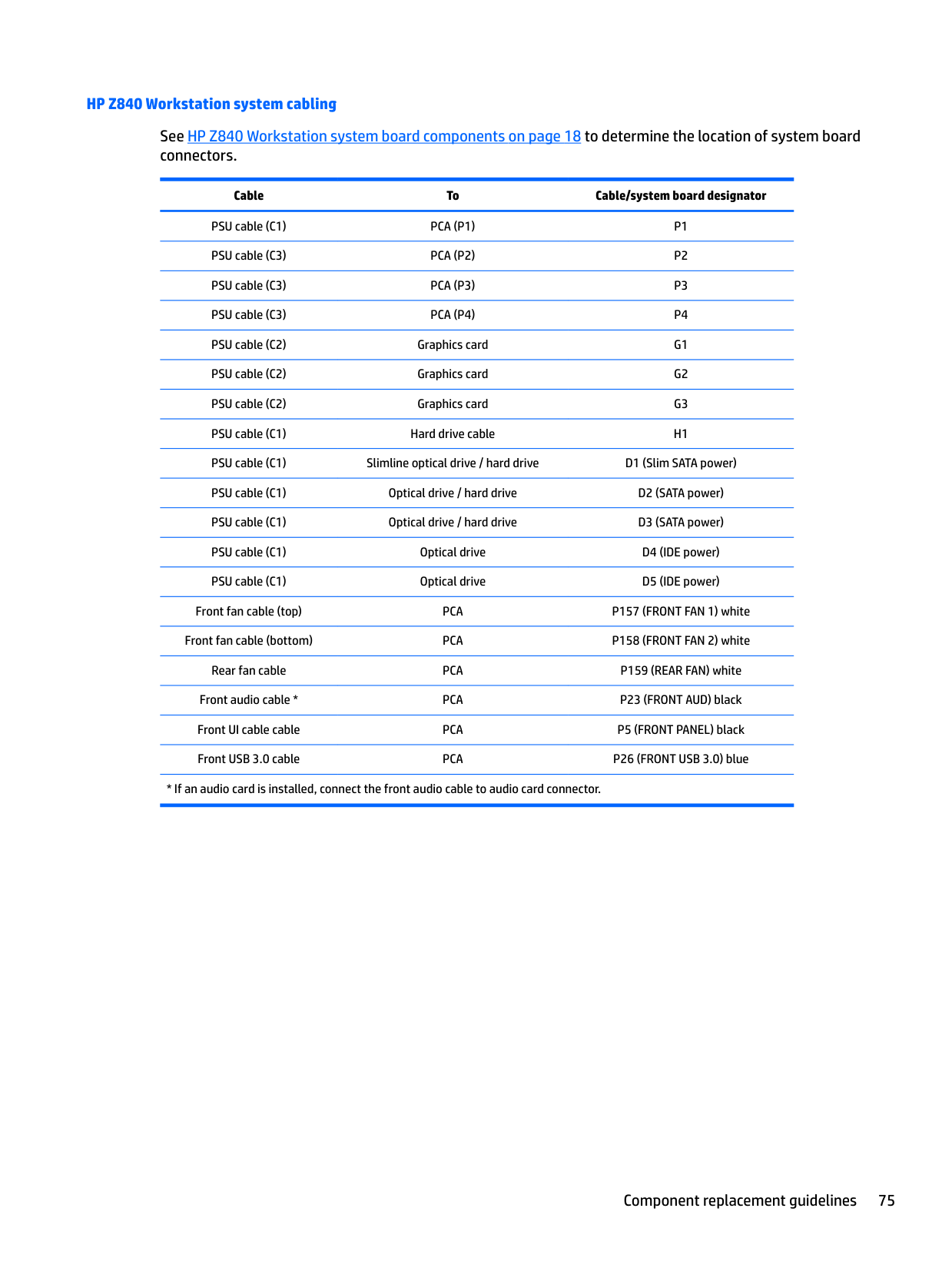
##### During operation
— Plug the monitor into a different video port on the computer if one is available. Alternatively, replace the monitor with a monitor that you know is working properly.
— Verify that the computer and monitor are plugged into a working electrical outlet.
— Verify that the monitor is turned on and the green monitor light is on.
— Turn up the brightness and contrast controls of the monitor if the monitor is dim.
##### Customer Self-Repair program
Under the Customer Self-Repair program, you can order a replacement part and install the part without onsite HP technical assistance. Customer self-repair may be required for some components. See http://www.hp.com/go/selfrepair for information on the program.
| | |---|
NOTE: Some components are not eligible for customer self-repair and must be returned to HP for service. Call HP Support for further instructions before attempting to remove or repair these components.
Troubleshooting scenarios and solutions
This section presents troubleshooting scenarios and possible solutions for a Windows-based system.
#### Solving minor problems
######## Problem Cause Possible Solution
Workstation appears frozen and does not shut down when the power button is pressed.
Software control of the power switch is not functional.
Workstation seems to be frozen. Program in use has stopped responding to commands.
Workstation date and time display is incorrect.
Workstation appears to pause periodically.
Cursor does not move using the arrow keys on the keypad.
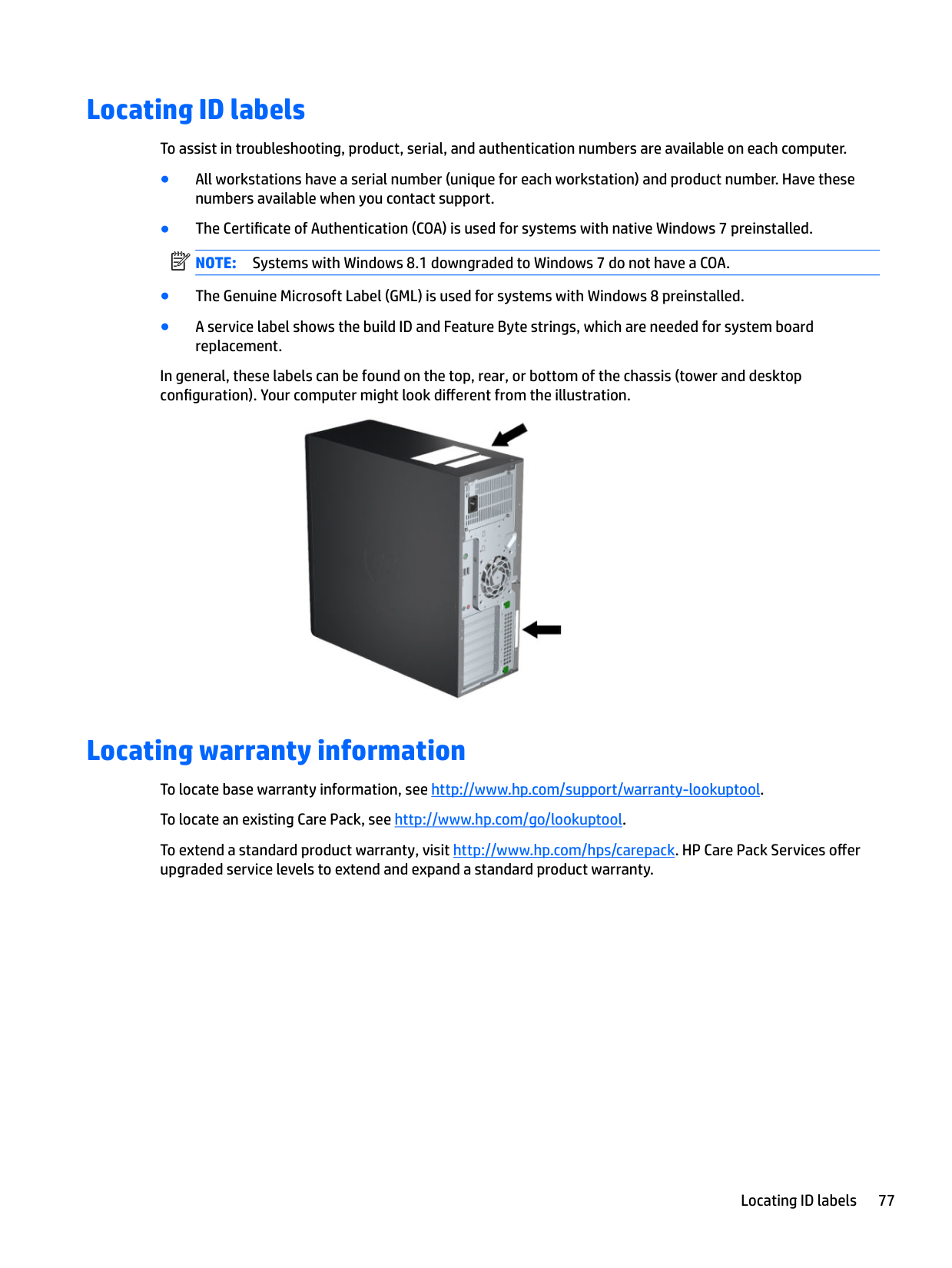
Poor performance is experienced.
Workstation powered off automatically and the Power LED flashes red 2 times (once every second), followed by a 2second pause, and then two simultaneous beeps sounded.
System does not power on, and the LEDs on the front of the computer are not flashing.
Real-time clock (RTC) battery might need replacement.
Network driver is loaded and no network connection is established.
Establish a network connection, or use Computer Setup (F10) Utility or the Microsoft Windows Device Manager to disable the network controller.
The Num Lock key might be on. Press Num Lock. The Num Lock key can be disabled or enabled in Computer Setup (F10) Utility.
Processor is hot. 1. Verify that airflow to the computer is not blocked.
Hard drive is full. Transfer data from the hard drive to create more space on the hard drive.
Processor thermal protection is activated.
A fan might be blocked or not turning.
OR The processor heatsink is not properly attached to the processor.
System cannot power on. Press and hold the power button for less than four seconds. If the hard drive LED turns white:
######## Problem Cause Possible Solution
#### Solving hard drive problems
Problem Cause Solution Hard drive error Hard disk has bad sectors or has
Locate and block the usage of bad sectors. If necessary, reformat the hard disk.
failed.
If the drive is detected by the BIOS, run DPS Self-test. Disk transaction problem The directory structure is bad, or
there is a problem with a file.
Drive not found (identified) Improper cable connection On computers with discrete data and power cables, ensure that the data and power cables are securely connected to the hard drive. (See the Hard drive section of this guide for connection details.)
Improperly seated hard drive On systems with blind-mate drive connections, check for connector damage on the drive and in the chassis. Reseat the hard drive and its carrier in the chassis to ensure a proper connection. (See the Hard drive section of this guide for connection details.)
The system might not have automatically recognized a newly installed device.
If it is listed, the probable cause is a driver problem. If it is not listed, the probable cause is a hardware problem.
Drive responds slowly immediately after power-up.
Run Computer Setup (F10) utility and increase the POST Delay in Advanced > Power-On Options.
Non-system disk or NTLDR missing message
System is trying to start from nonbootable media.
Remove the optical disc or USB drive.
System is trying to start from a damaged hard drive.
Insert a bootable system optical disc or USB drive and restart the computer.
System files missing or not properly installed.
Hard drive boot disabled in Computer Setup.
Run Computer Setup (F10) Utility and enable the hard drive entry in the Advanced > Boot Order list.
Workstation will not start. Hard drive is damaged. Replace the hard drive.
#### Solving display problems
These suggestions apply to monitors connected to desktop and tower configurations, and to external monitors connected to all-in-one configurations.
Problem Cause Solution Blank screen (no video). The cable connections are not
Verify the cable connections from the monitor to the computer and to a working electrical outlet.
correct.
The monitor is off. Turn the monitor on (LED is on). You might need to refer to the monitor manual for an explanation of LED signals.
Screen blanking utility installed or energy saver features enabled.
Press a key or the mouse button and, if set, enter your password.
System ROM is bad; system is running in FailSafe Boot Block mode (indicated by 8 beeps).
Reflash the ROM using a SoftPaq.
Fixed-sync monitor does not sync at the resolution specified.
Verify that the monitor can accept the same horizontal scan rate as the resolution specified.
Computer is in Hibernate mode. Press the power button to resume from Hibernate mode. Workstation monitor settings are not compatible with the monitor.
The display works properly during the POST but goes blank when the operating system starts.
The display settings in the operating system are incompatible with your graphics card and monitor.
Power LED flashes red 6 times (once every second), followed by a twosecond pause, and then the computer beeps 6 times.
Pre-video graphics error. For systems with a graphics card:
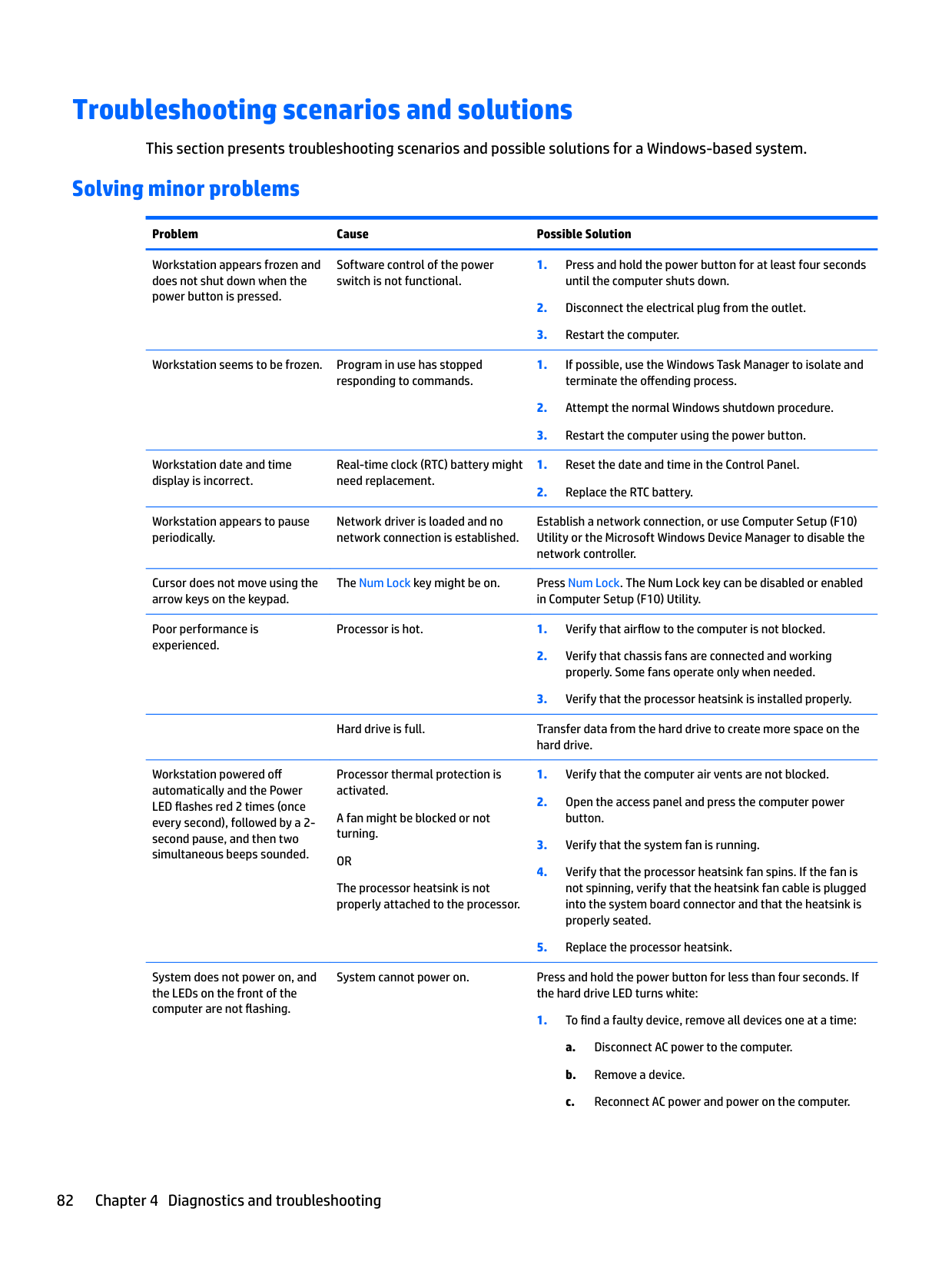
For systems with no graphics card installed, the processor may have no integrated graphics capability.
Monitor does not function when used with Energy Saver features.
Monitor without Energy Saver capabilities is being used with Energy Saver features enabled.
Disable the monitor Energy Saver feature.
Dim characters The brightness and contrast controls are not set properly.
Adjust the monitor brightness and contrast controls.
######## Problem Cause Solution
Cables are not properly connected.
Verify that the graphics cable is connected to the graphics card and the monitor.
Blurry video or requested resolution cannot be set.
If the graphics controller was upgraded, the correct video drivers might not be loaded.
Install the video drivers included in the upgrade kit, or download and install the latest drivers for your graphics card from http://welcome.hp.com/country/us/en/support.html.
Monitor cannot display requested resolution.
Change the requested resolution.
The picture is broken up, rolls, jitters, or flashes.
The monitor connections might be faulty, or the monitor might be incorrectly adjusted.
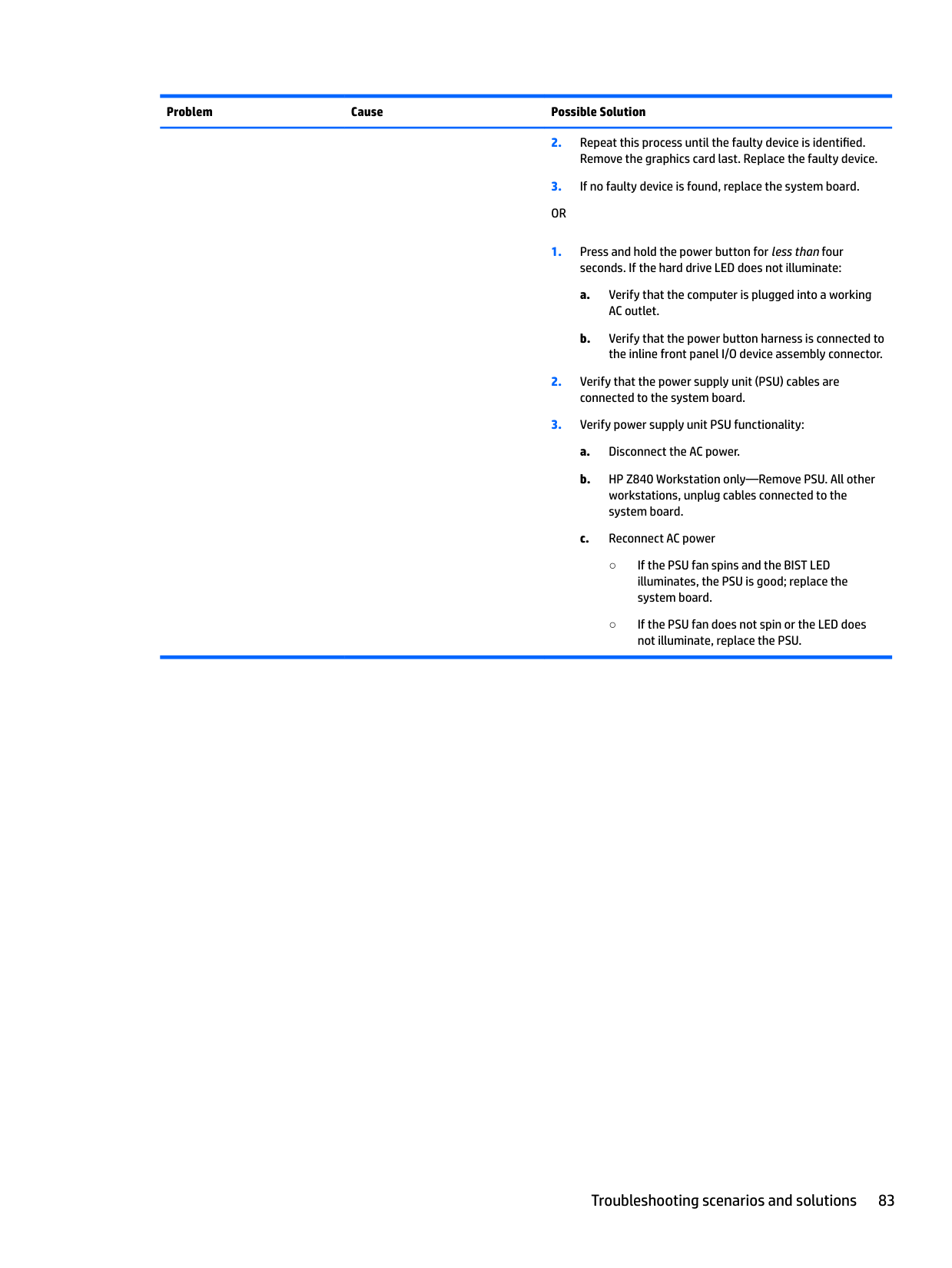
Vibrating or rattling noise coming from inside a CRT monitor when powered on.
Clicking noise coming from inside a CRT monitor.
High pitched noise coming from inside a flat-panel monitor.
Fuzzy focus; streaking, ghosting, or shadowing effects; horizontal scrolling lines; faint vertical bars; or unable to center the picture on the screen (flat-panel monitors using an analog VGA input connection only.)
Some typed symbols do not appear correctly.
Monitor must be degaussed. Degauss the monitor.
Monitor degaussing coil has been activated.
None. It is normal for the degaussing coil to be activated when the monitor is powered on.
Electronic relays have been activated inside the monitor.
None. It is normal for some monitors to make a clicking noise when turned on and off, when going in and out of Standby mode, and when changing resolutions.
Brightness and contrast settings are too high.
Lower brightness and contrast settings.
Flat-panel monitor’s internal digital conversion circuits might be unable to correctly interpret the output synchronization of the graphics card.
The font you are using does not support that symbol.
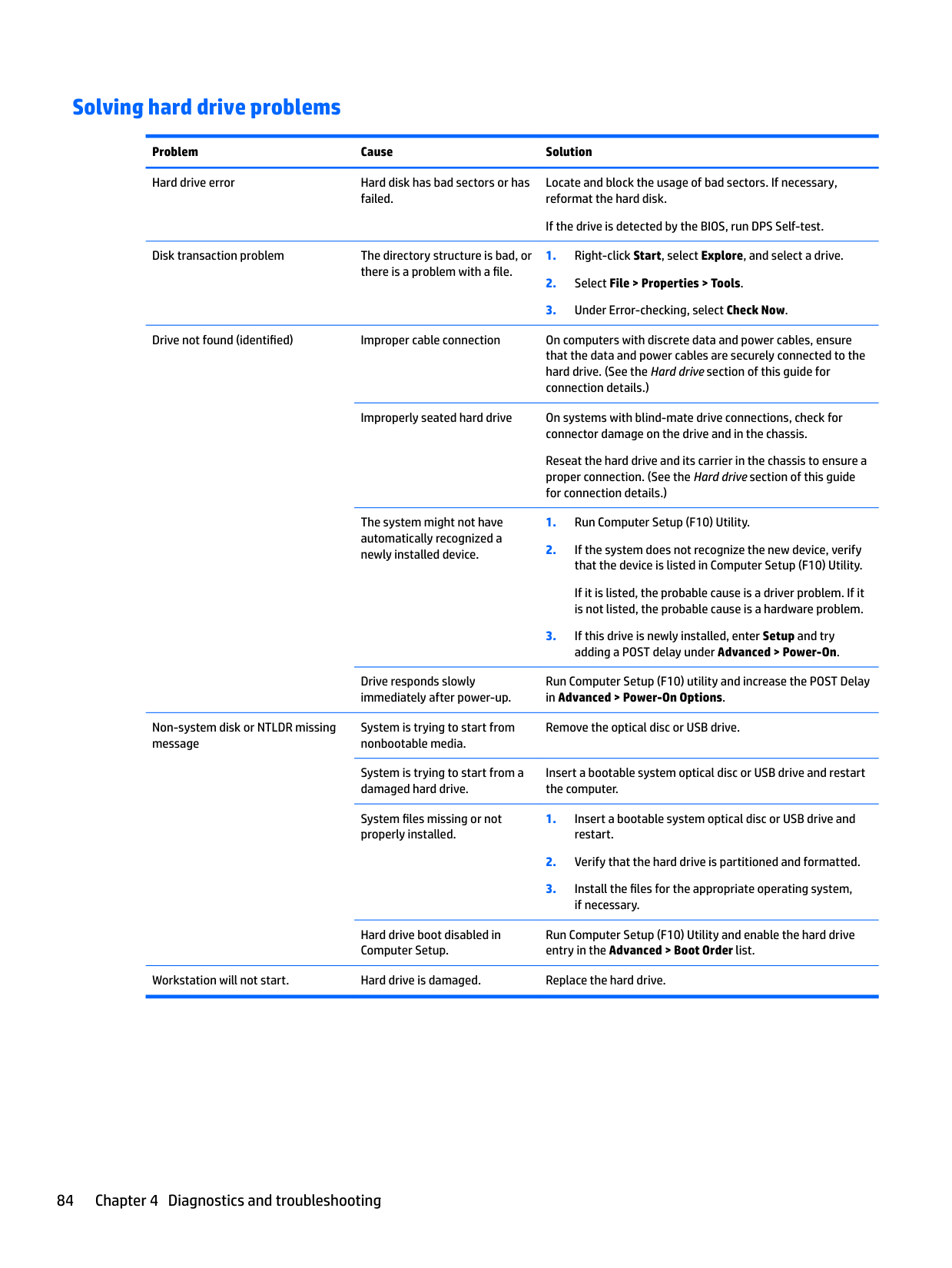
Use the Character Map to locate and select the appropriate symbol.
Select Start>All Programs> Accessories>System Tools>Character Map. You can copy the symbol from the Character Map into a document.
#### Solving audio problems
######## Problem Cause Solution
Sound does not come out of the speaker or headphones.
Software volume control is turned down.
Double-click the Speaker icon on the taskbar and use the volume slider to adjust the volume.
The external speakers are not turned on.
Turn on the external speakers.
External speakers plugged into the wrong audio jack.
See your sound card documentation for proper speaker connection.
Digital CD audio is not enabled. Enable digital CD audio:
Headphones or devices connected to the line-out connector have muted the internal speaker.
Turn on and use headphones or external speakers, if connected, or disconnect headphones or external speakers.
Volume is muted. 1. From the Control Panel, select Sound, Speech and Audio
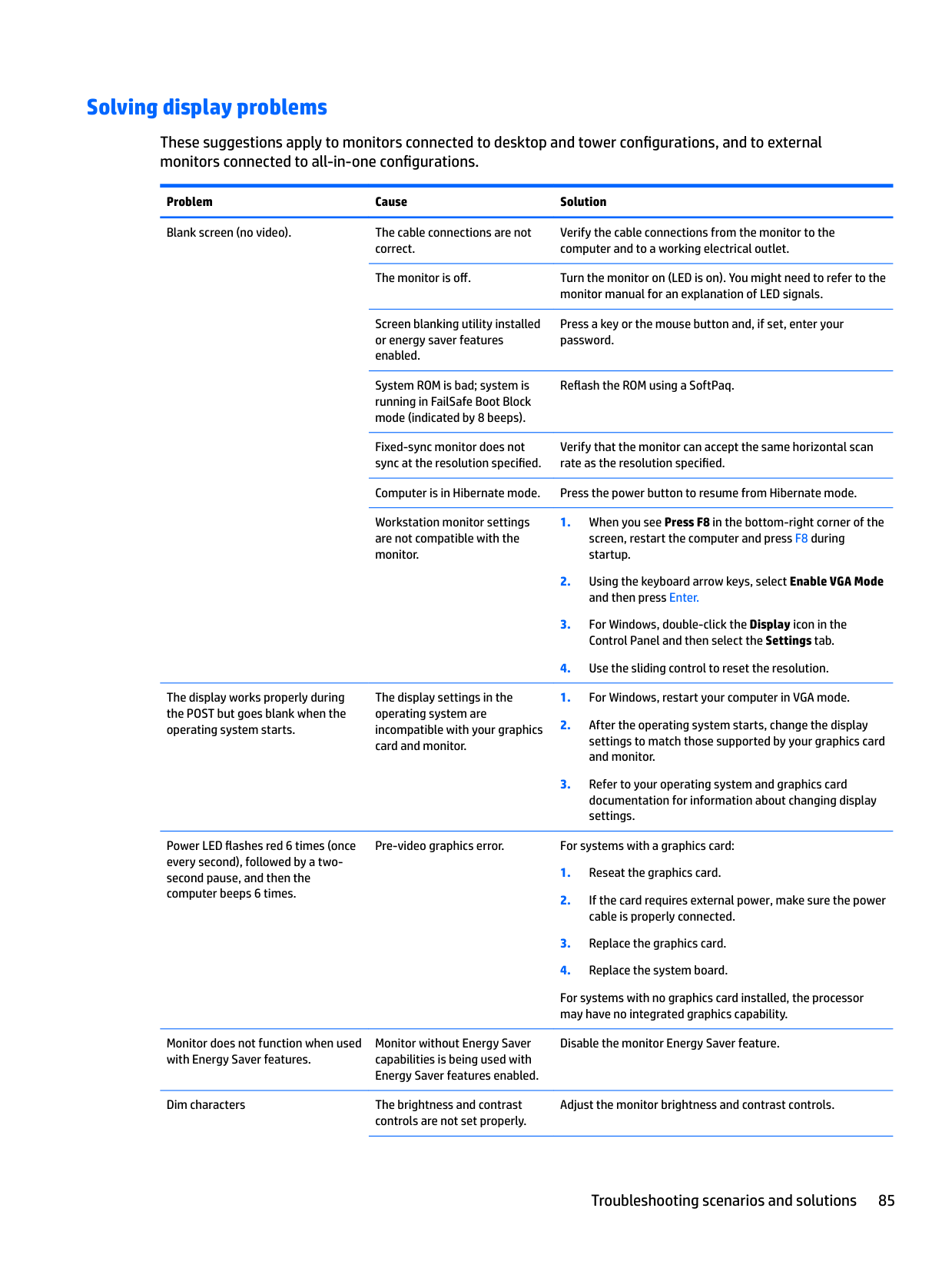
######## Devices, and then select Sounds and Audio Devices.
Computer is in Standby mode. Press the power button to resume from Standby mode.
Noise or no sound comes out of the speakers or headphones.
NOTE: If you set digital as the Output Mode, the internal speaker and external analog speakers no longer output audio until you switch back to an auto sense or analog mode.
If you set analog as the Output Mode, external digital speakers do not function until you change the output mode back to an auto-sense or digital mode.
Sound occurs intermittently. Processor resources are being used by other open applications.
Shut down all open processor-intensive applications.
Workstation appears to be locked up while recording audio.
The hard disk might be full. 1. Before recording, be sure there is enough free space on the hard disk.
#### Solving printer problems
Problem Cause Solution Printer does not print. Printer is not turned on and
Turn the printer on and be sure it is online.
online.
The correct printer driver for the application is not installed.
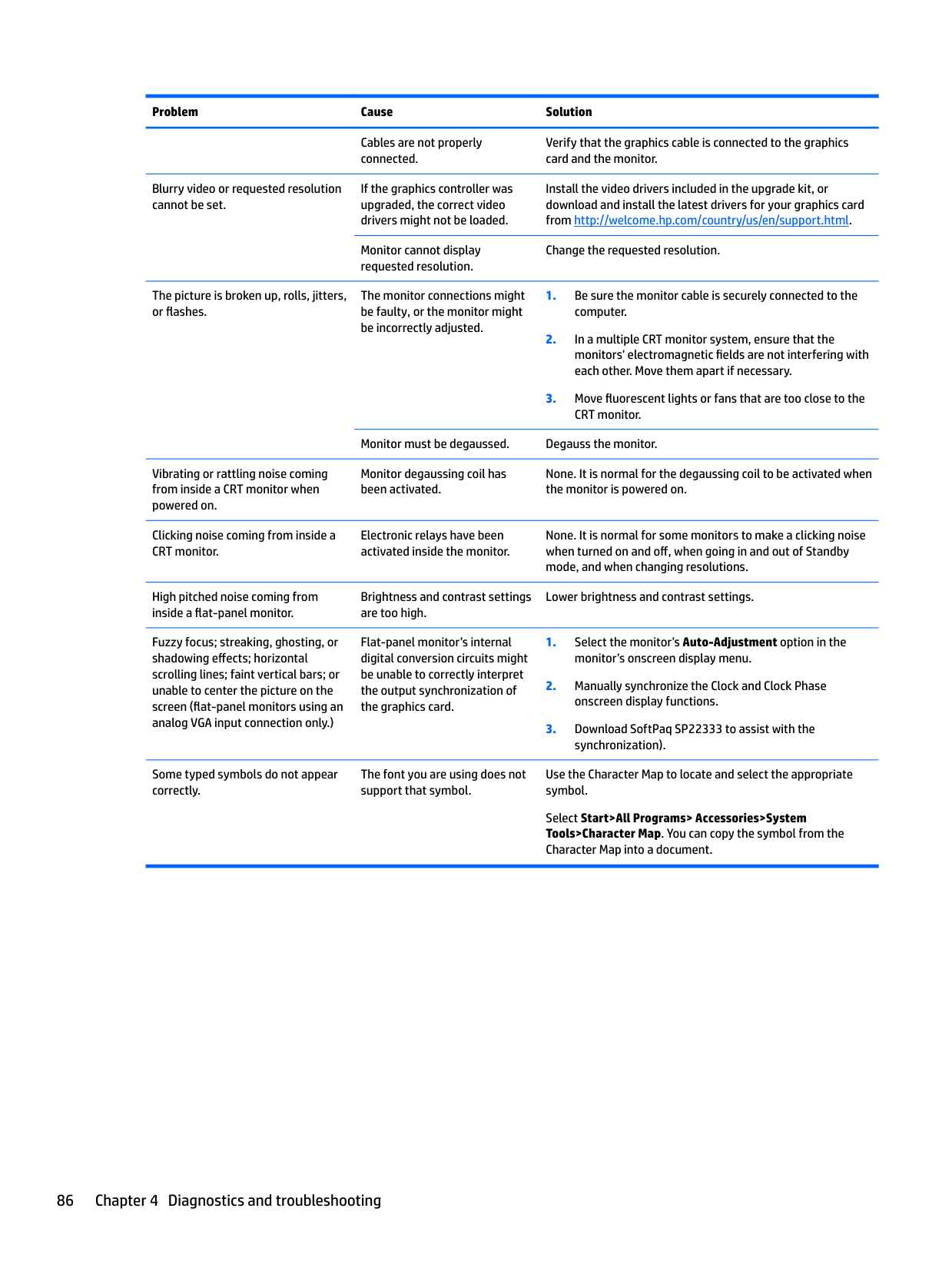
Replace printer port with the address of the printer used. If the printer works, reload the printer driver.
If you are on a network, you might not have made a connection to the printer.
Make the proper network connection to the printer.
Printer might have failed. Run printer self-test. Printer does not turn on. The cables might not be
connected properly.
#### Solving power supply problems
This section presents power supply troubleshooting scenarios. Testing power supply
Before replacing the power supply unit (PSU), use the Built-In Self-Test (BIST) feature to learn if the power supply still works.
| | |---|
NOTE: Not all PSUs have the BIST functionality. Refer to the Rear panel components section of this document to determine BIST availability for your workstation. To test the power supply:
| | |---|
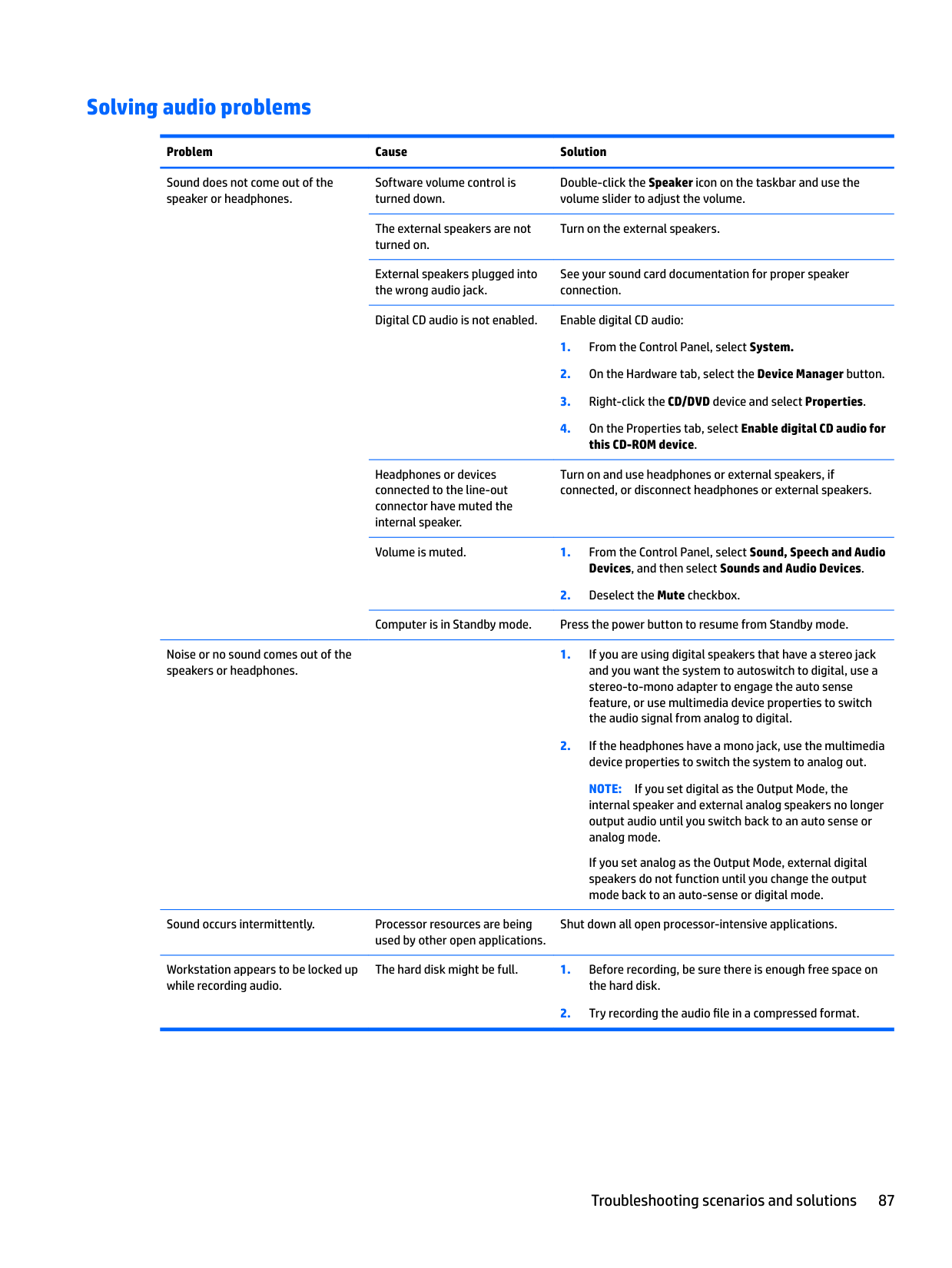
See the Rear panel components section of this document to locate the BIST LED on your workstation.
Problem Cause Solution PSU shuts down intermittently. Power supply fault. Replace the PSU. Workstation powers off and the Power LED flashes red 2 times (once
Processor thermal protection is activated.
######## Problem Cause Solution
every second), followed by a twosecond pause.
A fan might be blocked or not turning.
OR The processor heatsink fan assembly is not properly attached to the processor.
Power LED flashes red (once every 2 seconds).
Power failure (power supply is overloaded).
If the heatsink fan is not spinning, verify that the fan cable is plugged into the system board connector. Verify that the fan is properly seated.
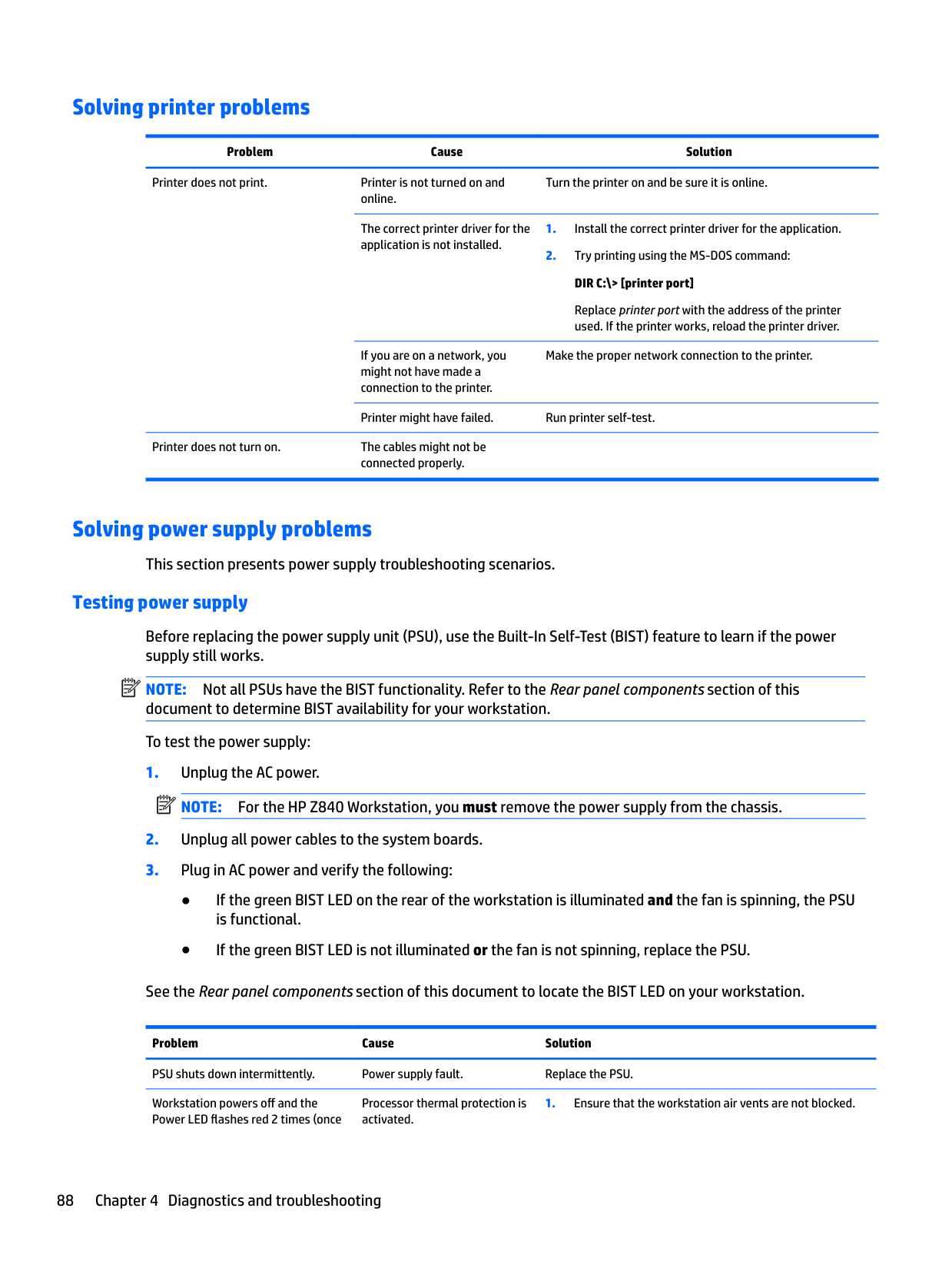
Diagnostic codes and errors
This section presents information about diagnostic LED codes, LED color definitions, and POST error messages to help you troubleshoot problems.
#### Diagnostic LED and audible (beep) codes
This section describes the front panel LED error and operation codes as well as the audible codes that might occur before or during the POST.
Activity Possible cause Recommended action
White Power LED* on. No beeps.
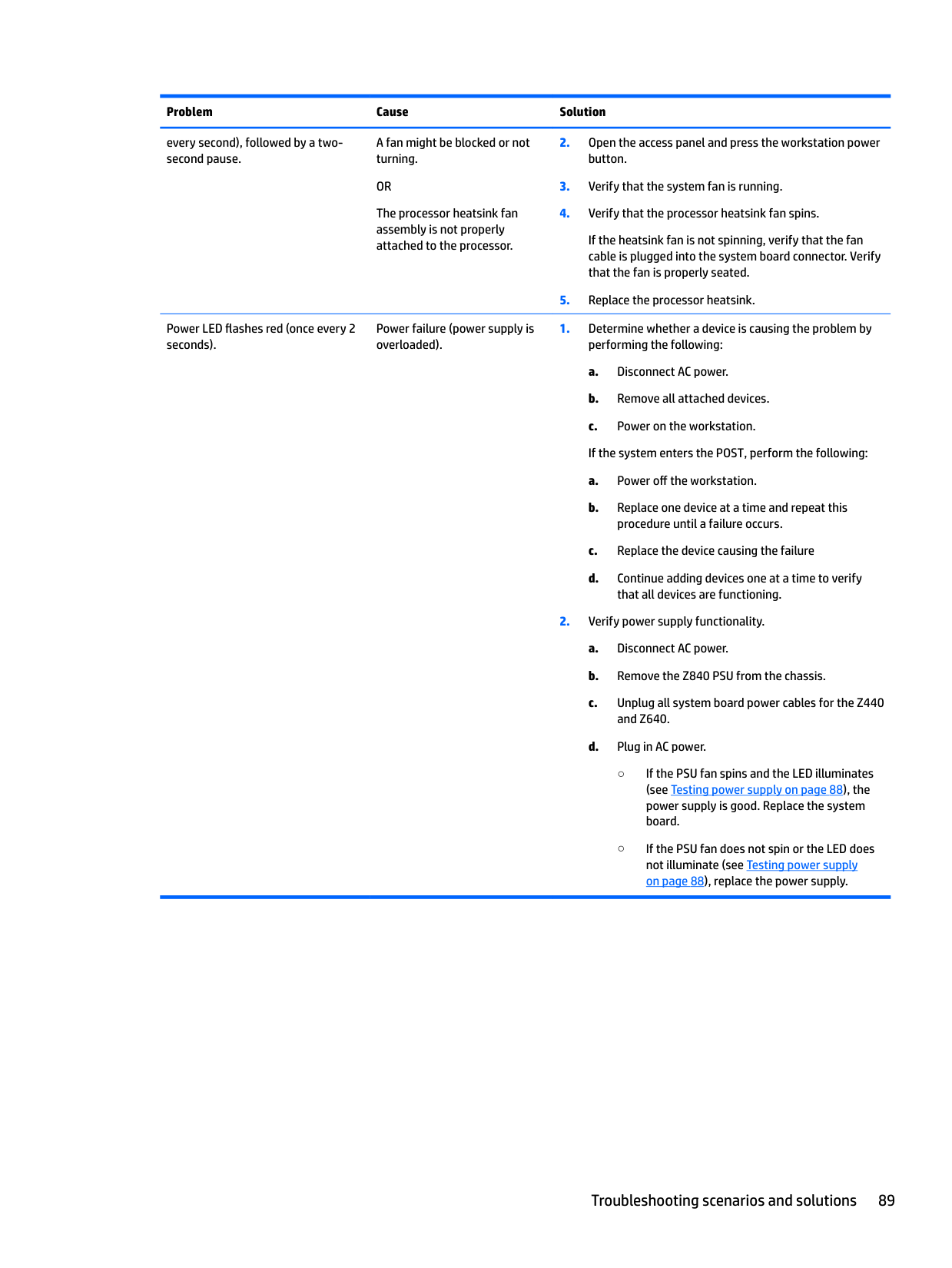
White Power LED* blinks every two seconds.* No beeps.
Computer on.
Computer in Sleep mode (S3-Suspend to RAM). Select models only.
White Power LED* is off.* No beeps.
Computer in Hibernate mode (S4-Suspend to disk) or system is off (S5).
N/A
White Power LED* blinks three times*, once per second.* No beeps.
Computer in Sleep mode (S3-Suspend to RAM). Select models only.
White Power LED* blinks four times*, once per second.* No beeps.
Computer in Hibernate mode (S4-Suspend to disk).
For the following LED activity and beeps, the beeps are heard through the chassis speaker. Blinks and beeps repeat for five cycles, after which, only the blinks continue to repeat.
Red Power LED blinks two times, once every second, followed by a two-second pause. Two beeps.
Processor thermal protection activated by either of the following methods:
Red Power LED blinks three times, once every second, followed by a two-second pause. Three beeps.
Red Power LED blinks four times, once every second, followed by a two-second pause. Four beeps.
Processor not installed (not an indicator of bad processor).
Power failure (power supply is overloaded).
CAUTION: Internal components might be powered even when the computer is off. To prevent damage, disconnect the computer power cord before you remove a component.
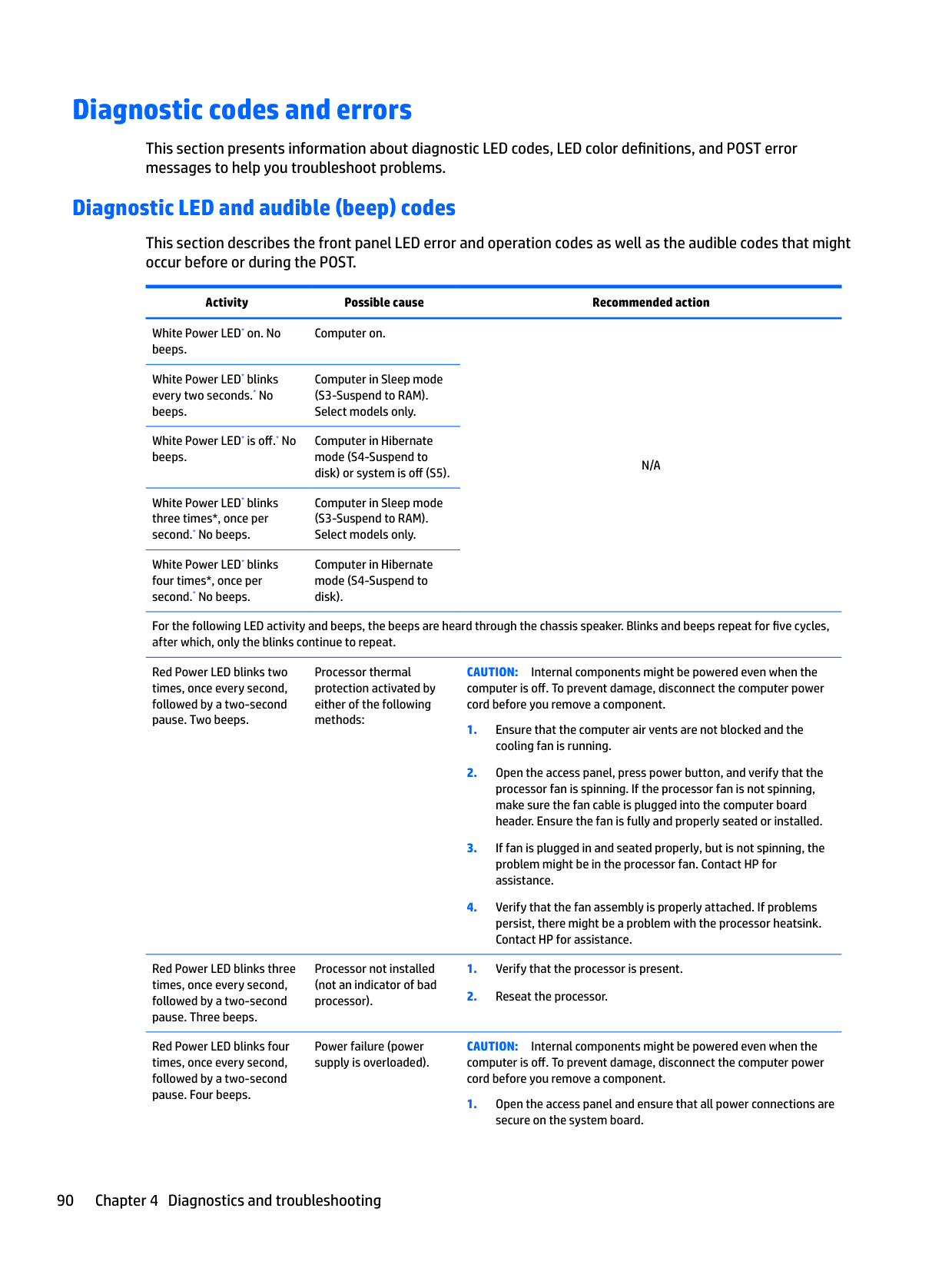
CAUTION: Internal components might be powered even when the computer is off. To prevent damage, disconnect the computer power cord before you remove a component.
Red Power LED blinks five times, once every second, followed by a two-second pause. Five beeps.
Red Power LED blinks six times, once every second, followed by a two-second pause. Six beeps.
Red Power LED blinks eight times, once every second, then stops blinking.
System does not power-on and LEDs are not blinking. No beeps.
— If the power supply fan spins and the LED lights, then the power supply is good. Replace the system board.
— If the power supply fan does not spin or the LED does not light, replace the power supply.
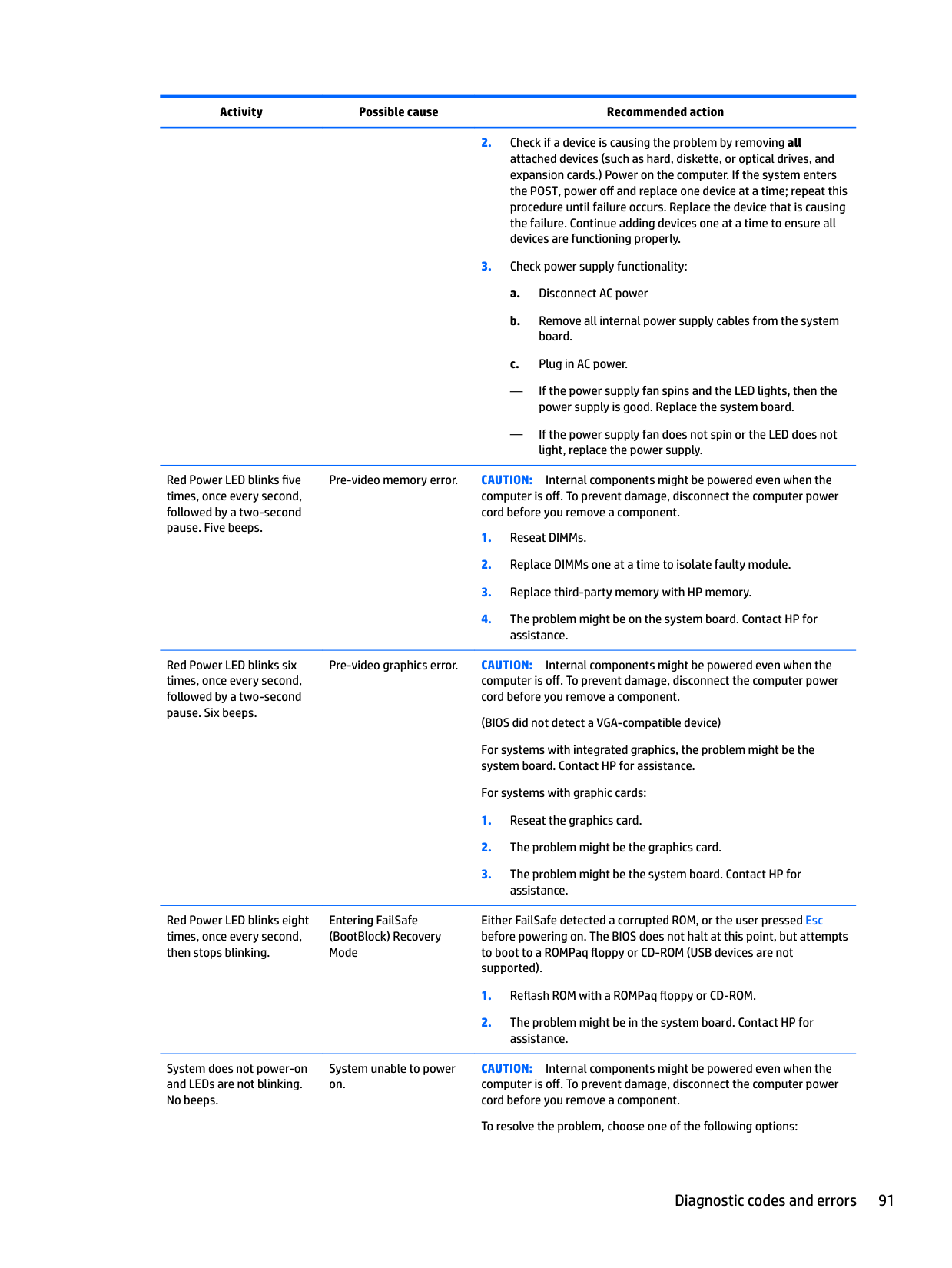
Pre-video memory error. CAUTION: Internal components might be powered even when the computer is off. To prevent damage, disconnect the computer power cord before you remove a component.
Pre-video graphics error. CAUTION: Internal components might be powered even when the computer is off. To prevent damage, disconnect the computer power cord before you remove a component.
(BIOS did not detect a VGA-compatible device) For systems with integrated graphics, the problem might be the system board. Contact HP for assistance. For systems with graphic cards:
Entering FailSafe (BootBlock) Recovery Mode
System unable to power on.
Either FailSafe detected a corrupted ROM, or the user pressed Esc before powering on. The BIOS does not halt at this point, but attempts to boot to a ROMPaq floppy or CD-ROM (USB devices are not supported).
CAUTION: Internal components might be powered even when the computer is off. To prevent damage, disconnect the computer power cord before you remove a component.
To resolve the problem, choose one of the following options:
Press and hold the power button for less than four seconds. If the hard drive LED turns white, then:
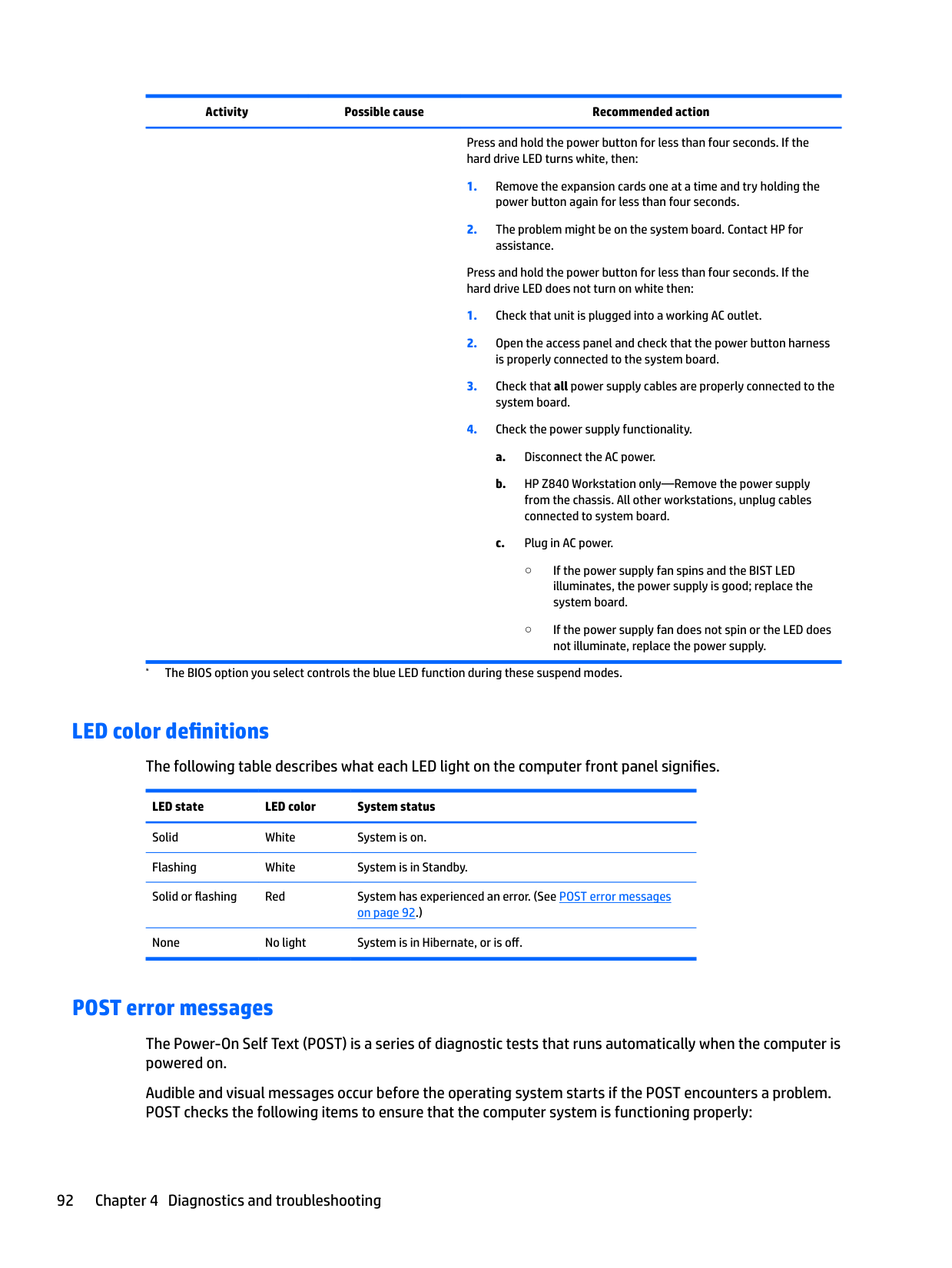
Press and hold the power button for less than four seconds. If the hard drive LED does not turn on white then:
#### LED color definitions
The following table describes what each LED light on the computer front panel signifies. LED state LED color System status Solid White System is on. Flashing White System is in Standby. Solid or flashing Red System has experienced an error. (See POST error messages
on page 92.) None No light System is in Hibernate, or is off.
#### POST error messages
The Power-On Self Text (POST) is a series of diagnostic tests that runs automatically when the computer is powered on.
Audible and visual messages occur before the operating system starts if the POST encounters a problem. POST checks the following items to ensure that the computer system is functioning properly:
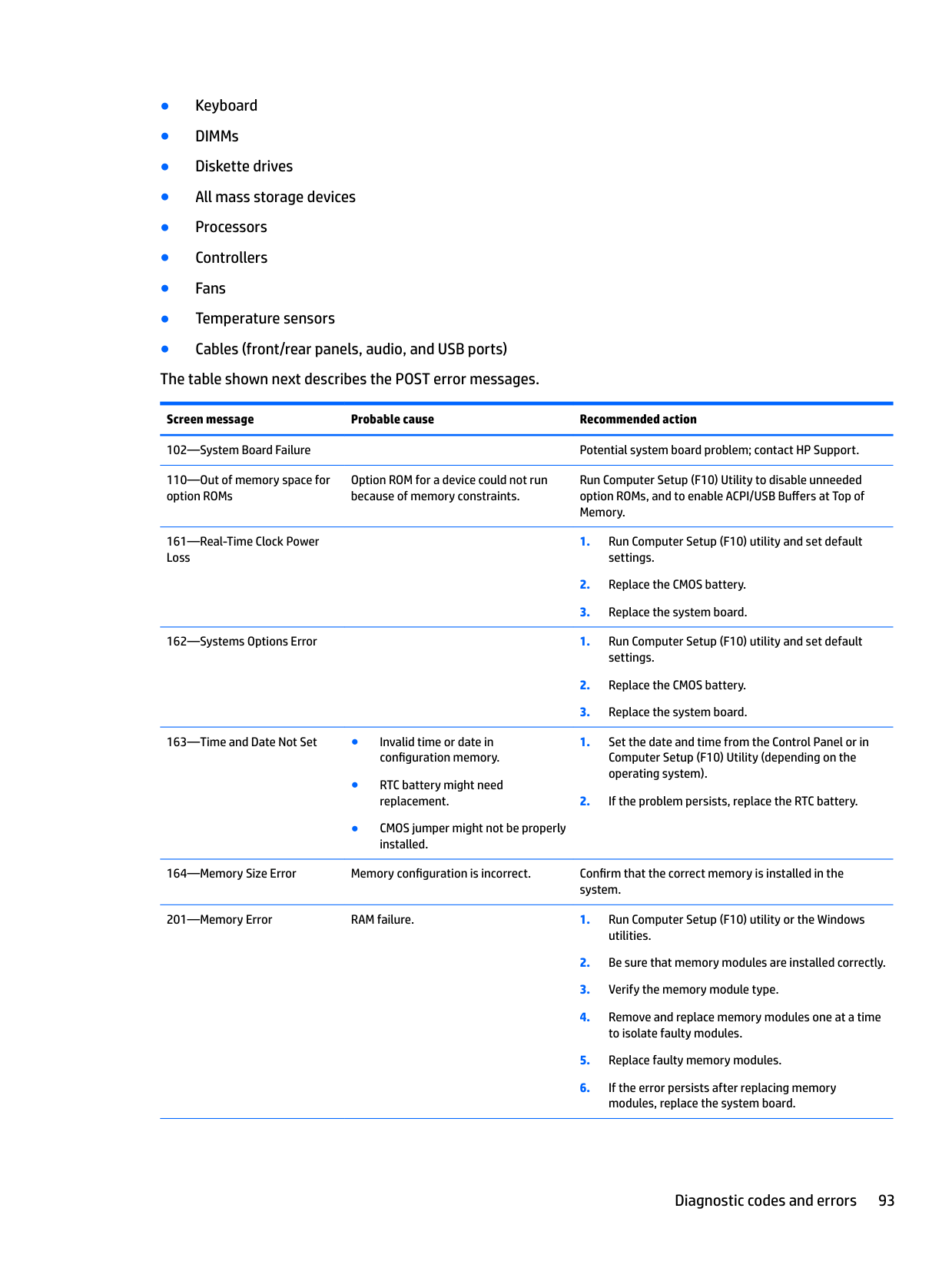
Screen message Probable cause Recommended action 102—System Board Failure Potential system board problem; contact HP Support. 110—Out of memory space for option ROMs
Option ROM for a device could not run because of memory constraints.
Run Computer Setup (F10) Utility to disable unneeded option ROMs, and to enable ACPI/USB Buffers at Top of Memory.
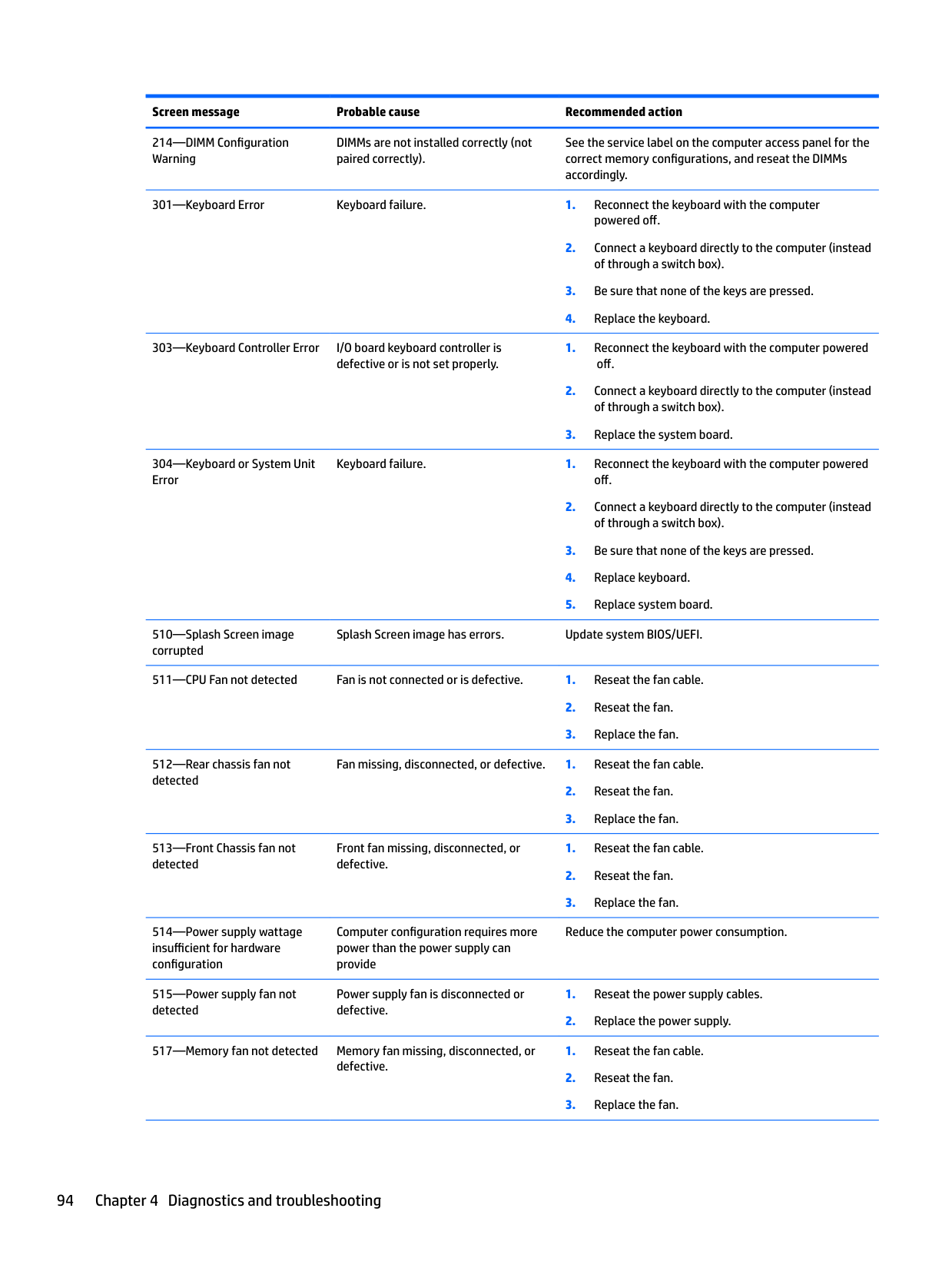
201—Memory Error RAM failure. 1. Run Computer Setup (F10) utility or the Windows utilities.
214—DIMM Configuration Warning
DIMMs are not installed correctly (not paired correctly).
See the service label on the computer access panel for the correct memory configurations, and reseat the DIMMs accordingly.
301—Keyboard Error Keyboard failure. 1. Reconnect the keyboard with the computer powered off.
Keyboard failure. 1. Reconnect the keyboard with the computer powered off.
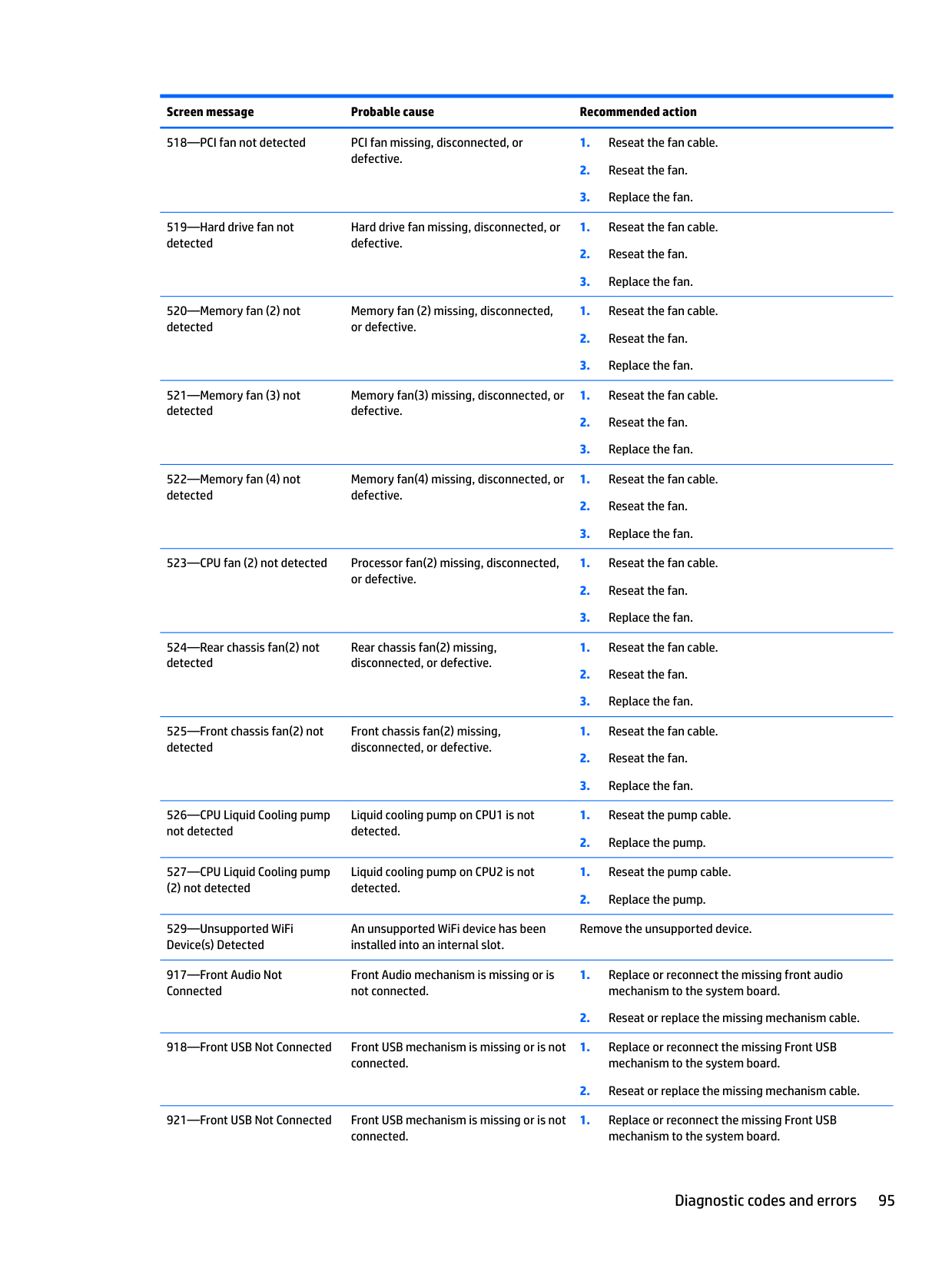
Splash Screen image has errors. Update system BIOS/UEFI.
Fan missing, disconnected, or defective. 1. Reseat the fan cable.
Front fan missing, disconnected, or defective.
Computer configuration requires more power than the power supply can provide
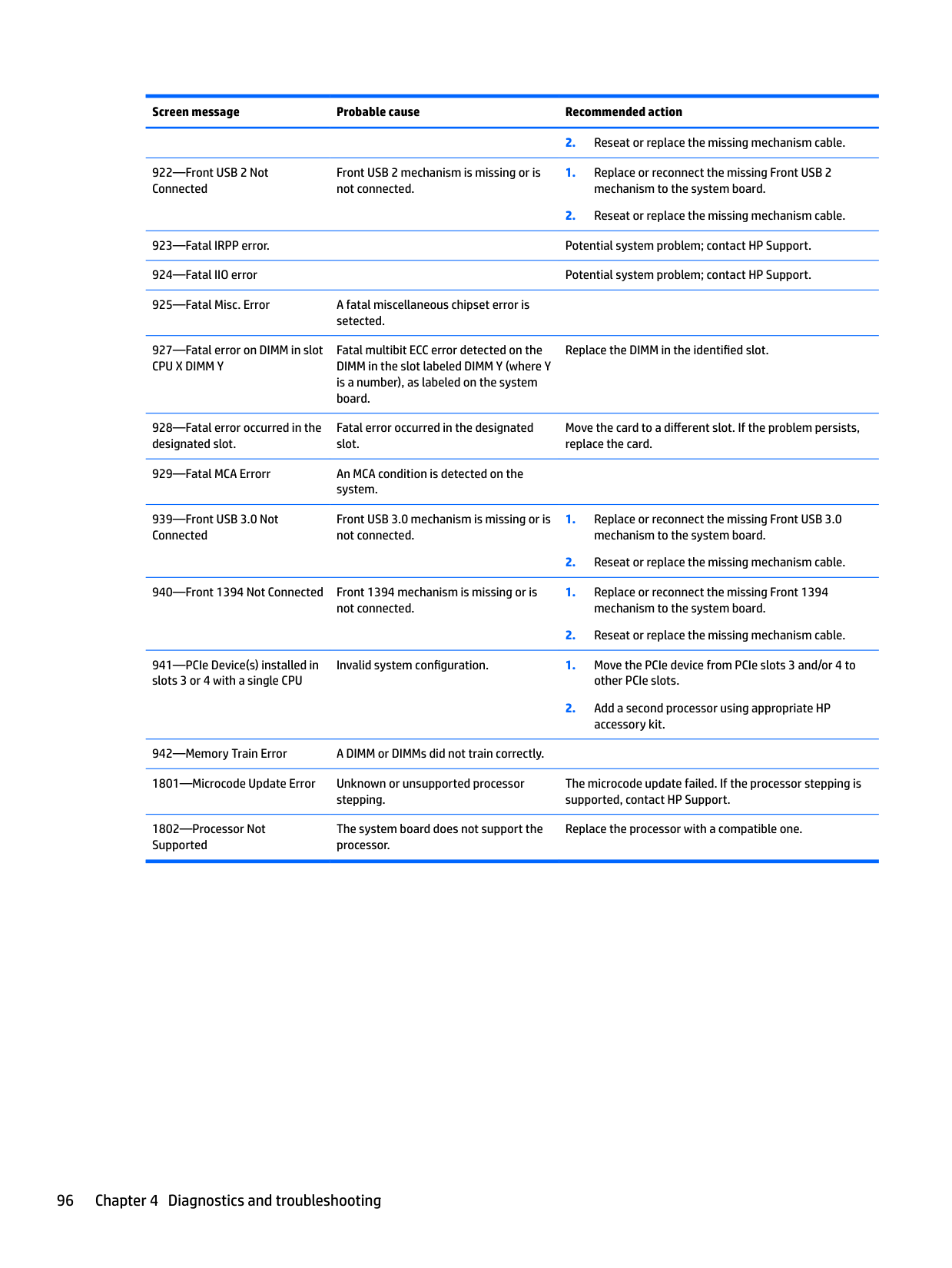
Reduce the computer power consumption.
Power supply fan is disconnected or defective.
Hard drive fan missing, disconnected, or defective.
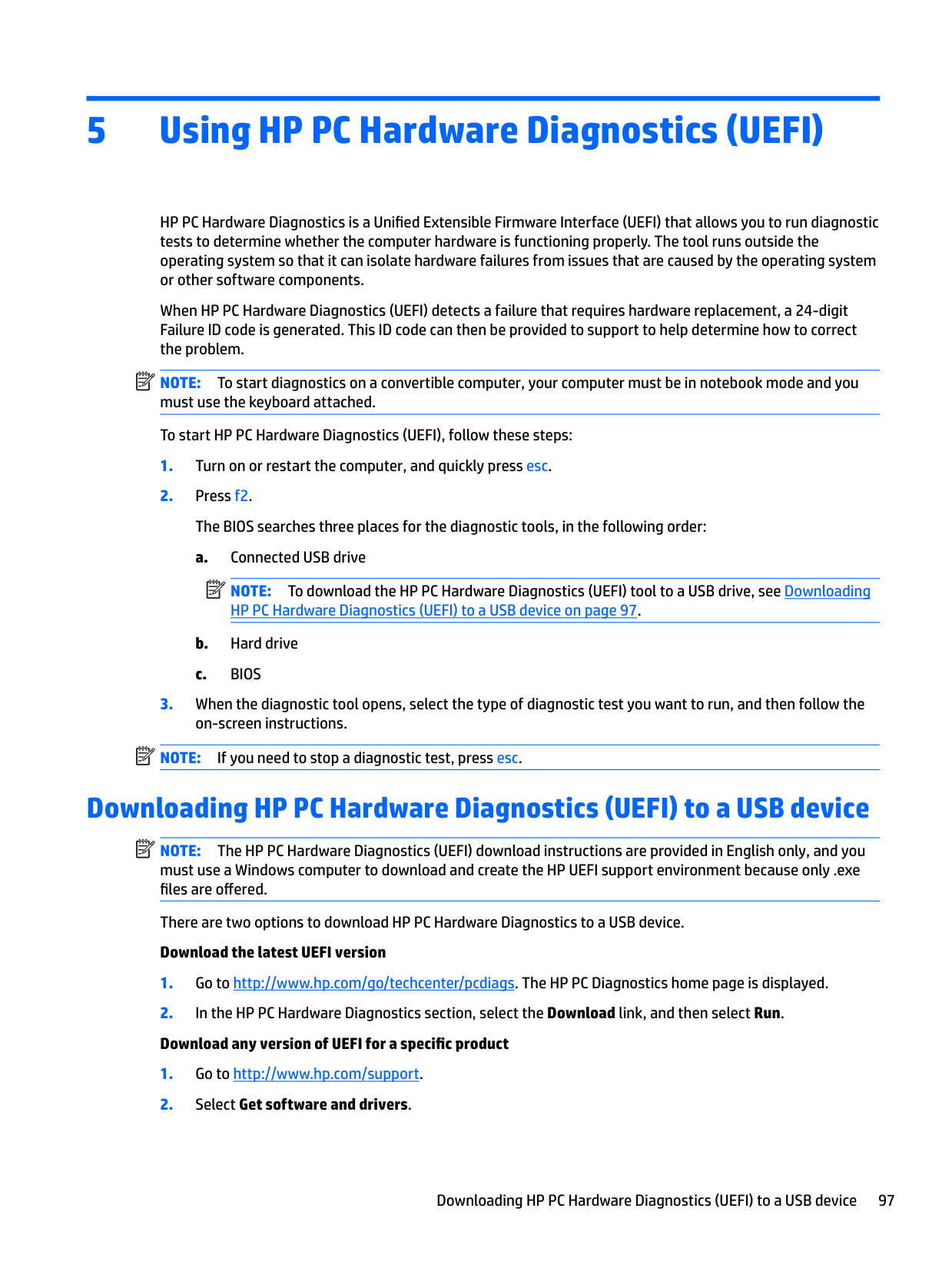
Memory fan (2) missing, disconnected, or defective.
Memory fan(3) missing, disconnected, or defective.
Memory fan(4) missing, disconnected, or defective.
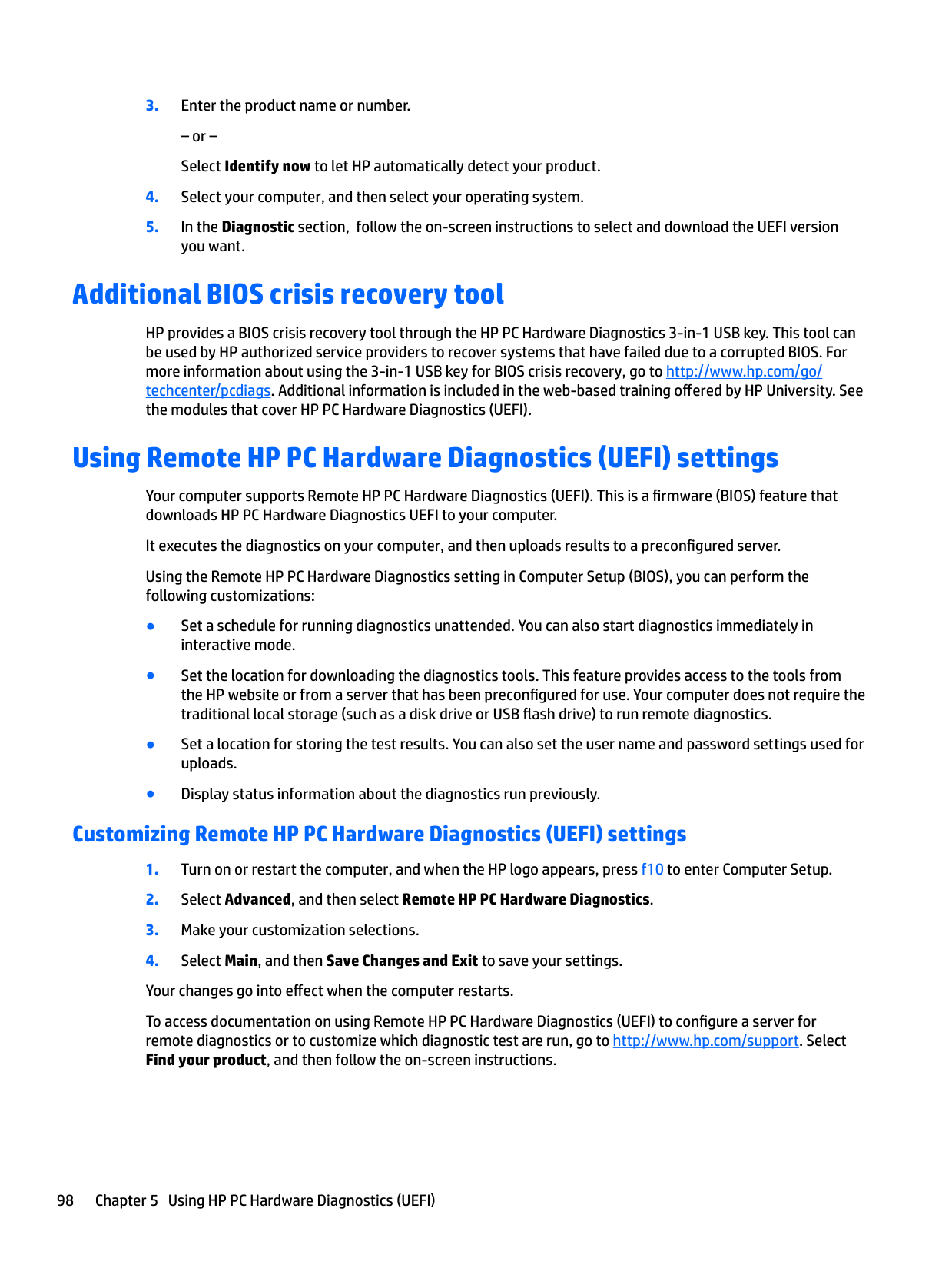
Rear chassis fan(2) missing, disconnected, or defective.
Front chassis fan(2) missing, disconnected, or defective.
Liquid cooling pump on CPU1 is not detected.
Liquid cooling pump on CPU2 is not detected.
(2) not detected
529—Unsupported WiFi Device(s) Detected
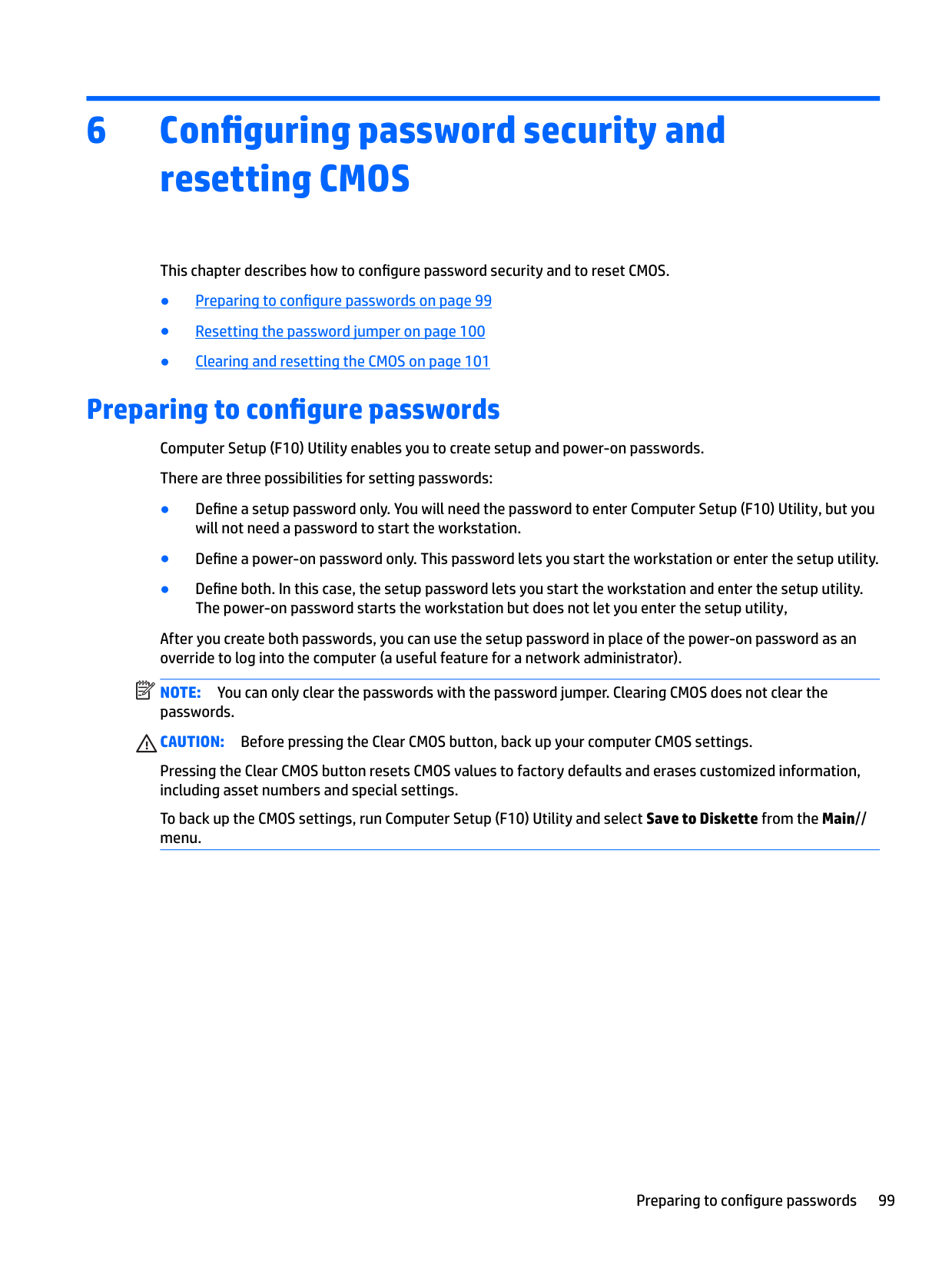
An unsupported WiFi device has been installed into an internal slot.
Remove the unsupported device.
Front Audio mechanism is missing or is not connected.
Front USB 2 mechanism is missing or is not connected.
Fatal multibit ECC error detected on the DIMM in the slot labeled DIMM Y (where Y is a number), as labeled on the system board.
Replace the DIMM in the identified slot.
Fatal error occurred in the designated slot.
Move the card to a different slot. If the problem persists, replace the card.
Front USB 3.0 mechanism is missing or is not connected.
Invalid system configuration. 1. Move the PCIe device from PCIe slots 3 and/or 4 to other PCIe slots.
accessory kit.
The microcode update failed. If the processor stepping is supported, contact HP Support.
The system board does not support the processor.
Replace the processor with a compatible one.
5 Using HP PC Hardware Diagnostics (UEFI)
HP PC Hardware Diagnostics is a Unified Extensible Firmware Interface (UEFI) that allows you to run diagnostic tests to determine whether the computer hardware is functioning properly. The tool runs outside the operating system so that it can isolate hardware failures from issues that are caused by the operating system or other software components.
When HP PC Hardware Diagnostics (UEFI) detects a failure that requires hardware replacement, a 24-digit Failure ID code is generated. This ID code can then be provided to support to help determine how to correct the problem.
| | |---|
NOTE: To start diagnostics on a convertible computer, your computer must be in notebook mode and you must use the keyboard attached. To start HP PC Hardware Diagnostics (UEFI), follow these steps:
| | |---|
| | |---|
NOTE: If you need to stop a diagnostic test, press esc.
Downloading HP PC Hardware Diagnostics (UEFI) to a USB device
| | |---|
NOTE: The HP PC Hardware Diagnostics (UEFI) download instructions are provided in English only, and you must use a Windows computer to download and create the HP UEFI support environment because only .exe files are offered.
There are two options to download HP PC Hardware Diagnostics to a USB device. Download the latest UEFI version
Downloading HP PC Hardware Diagnostics (UEFI) to a USB device 97
– or – Select Identify now to let HP automatically detect your product.
Additional BIOS crisis recovery tool
HP provides a BIOS crisis recovery tool through the HP PC Hardware Diagnostics 3-in-1 USB key. This tool can be used by HP authorized service providers to recover systems that have failed due to a corrupted BIOS. For more information about using the 3-in-1 USB key for BIOS crisis recovery, go to http://www.hp.com/go/ techcenter/pcdiags. Additional information is included in the web-based training offered by HP University. See the modules that cover HP PC Hardware Diagnostics (UEFI).
Using Remote HP PC Hardware Diagnostics (UEFI) settings
Your computer supports Remote HP PC Hardware Diagnostics (UEFI). This is a firmware (BIOS) feature that downloads HP PC Hardware Diagnostics UEFI to your computer.
It executes the diagnostics on your computer, and then uploads results to a preconfigured server. Using the Remote HP PC Hardware Diagnostics setting in Computer Setup (BIOS), you can perform the following customizations:
#### Customizing Remote HP PC Hardware Diagnostics (UEFI) settings
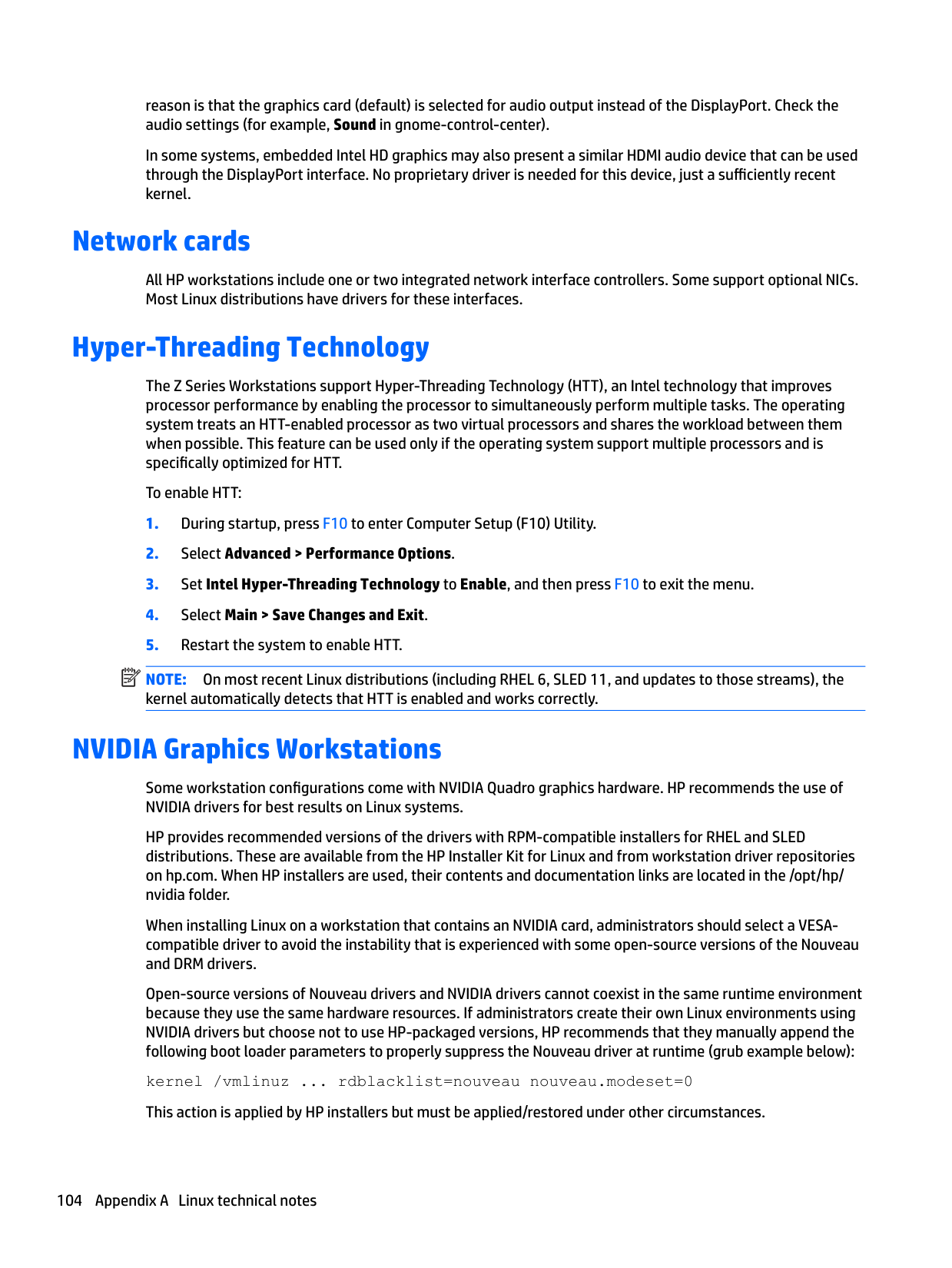
To access documentation on using Remote HP PC Hardware Diagnostics (UEFI) to configure a server for remote diagnostics or to customize which diagnostic test are run, go to http://www.hp.com/support. Select Find your product, and then follow the on-screen instructions.
98 Chapter 5 Using HP PC Hardware Diagnostics (UEFI)
6 Configuring password security and resetting CMOS
This chapter describes how to configure password security and to reset CMOS.
Preparing to configure passwords Computer Setup (F10) Utility enables you to create setup and power-on passwords. There are three possibilities for setting passwords:
After you create both passwords, you can use the setup password in place of the power-on password as an override to log into the computer (a useful feature for a network administrator).
| | |---|
NOTE: You can only clear the passwords with the password jumper. Clearing CMOS does not clear the passwords.
CAUTION: Before pressing the Clear CMOS button, back up your computer CMOS settings.
Pressing the Clear CMOS button resets CMOS values to factory defaults and erases customized information, including asset numbers and special settings.
To back up the CMOS settings, run Computer Setup (F10) Utility and select Save to Diskette from the Main// menu.
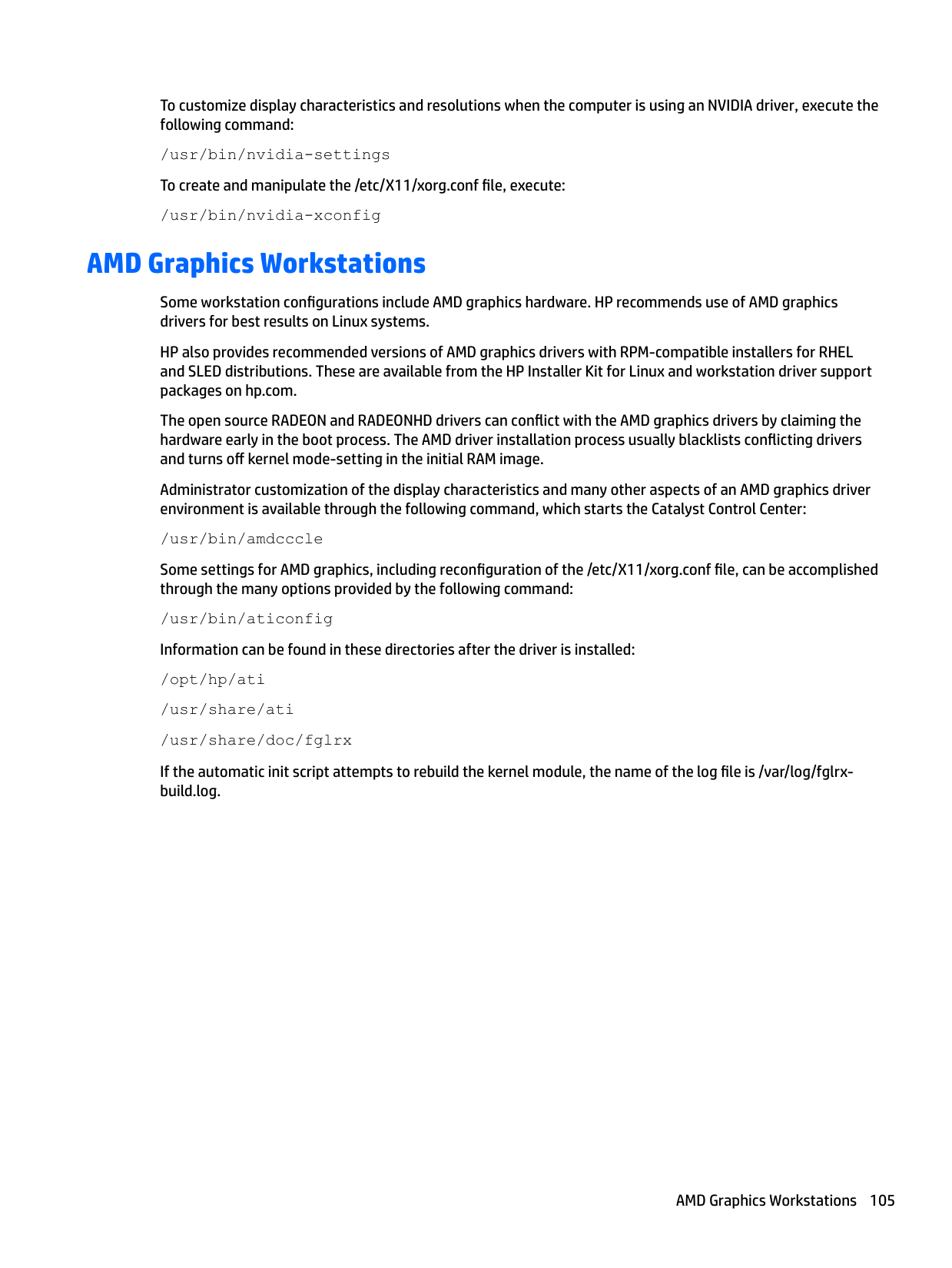
Preparing to configure passwords 99
Resetting the password jumper
Use the following procedure to disable the power-on or setup password features and clear the power-on and setup passwords.
WARNING! To reduce the risk of personal injury from electrical shock and hot surfaces, be sure to disconnect the power cord from the wall outlet and allow the internal system components to cool before touching.
CAUTION: When the computer is plugged in, the power supply has voltage applied to the system board, even when the computer is turned off. Failure to disconnect the power cord can result in damage to the system.
CAUTION: Static electricity can damage the electronic components of the computer or optional equipment. Before beginning these procedures, be sure that you are discharged of static electricity by briefly touching a grounded metal object.
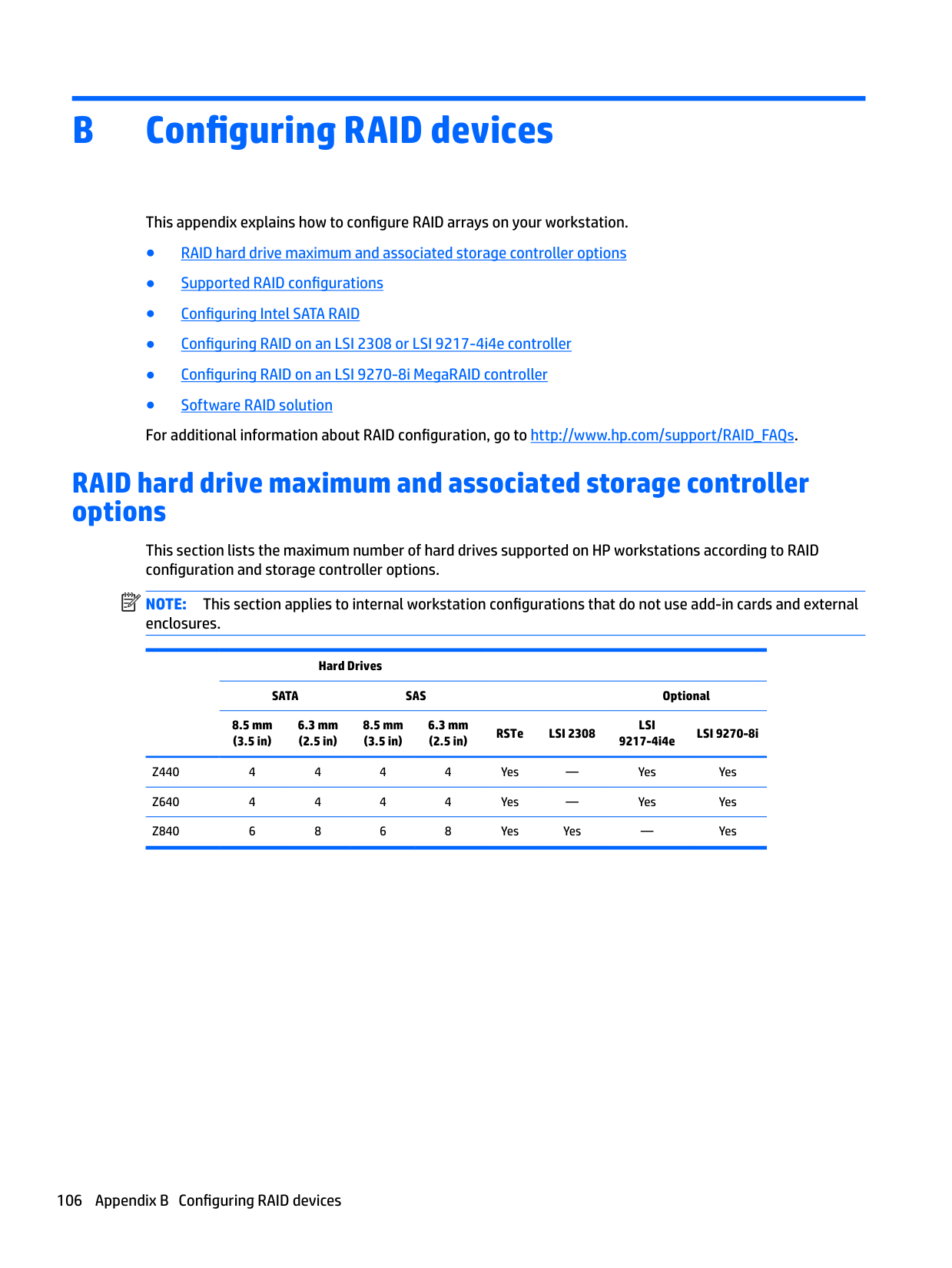
Clearing and resetting the CMOS
This section describes the steps necessary to successfully clear and reset the CMOS. The CMOS of the computer stores password information and information about the computer configuration.
Using the CMOS button to reset CMOS To clear CMOS using the Clear CMOS button, use the following procedure: WARNING! To reduce the risk of personal injury from electrical shock and hot surfaces, disconnect the power cord from the wall outlet and allow the internal system components to cool before touching.
CAUTION: When the computer is plugged in, the power supply has voltage applied to the system board, even when the computer is powered off. Failure to disconnect the power cord can result in damage to the system.
Static electricity can damage the electronic components of the computer or optional equipment. Before beginning these procedures, be sure that you are discharged of static electricity by briefly touching a grounded metal object.
CAUTION: Pressing the Clear CMOS button resets CMOS values to factory defaults and erases customized information, including asset numbers and special settings.
For assistance locating the CMOS button and other system board components, see the system board layout in HP Z840 Workstation system board components on page 18.
| | |---|
Clearing and resetting the CMOS 101
#### Using Computer Setup (F10) Utility to reset CMOS
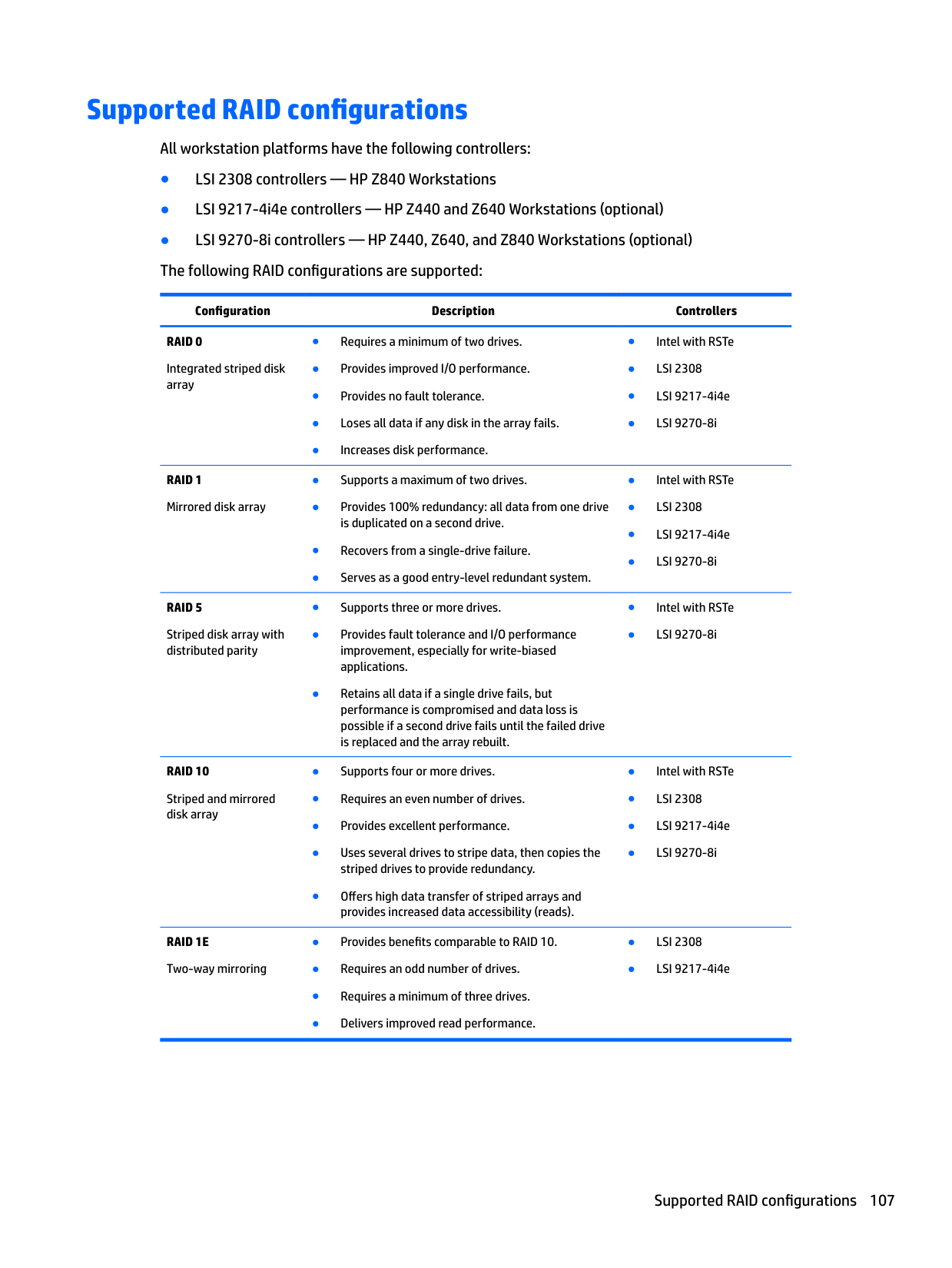
If you do not press F10 while the message is displayed, the computer must be rebooted to access this utility.
This restores the settings that include boot sequence order and other factory settings. However, it does not force hardware rediscovery.
| | |---|
A Linux technical notes
HP offers a variety of Linux solutions for HP workstation customers:
| | |---|
NOTE: After you set up the operating system, make sure that the latest BIOS, drivers, and software updates are installed.
CAUTION: Do not add optional hardware or third-party devices to the workstation until the operating system is successfully installed. Adding hardware might cause errors and prevent the operating system from installing correctly.
System RAM
HP supports different amounts of total RAM in various HP workstations, based on the number of hardware DIMM slots and the capabilities of the system. The total memory supported for each configuration is listed in the Hardware Support Matrix for HP Linux Workstations at http://www.hp.com/support/ linux_hardware_matrix.
Audio
All HP workstations come with built-in audio hardware. The audio hardware is supported by the Advanced Linux Sound Architecture (ALSA) drivers included with all modern Linux distributions.
The audio hardware provides basic playback and recording features. The ability to simultaneously play audio from multiple sources, such as applications and CDs, is provided in the ALSA driver that provides audio mixing. The performance of software audio mixing and playback is greatly improved in ALSA version 1.0.13 and later.
After the driver is installed, the optional NVIDIA and AMD graphics cards that are supported in HP workstations also provide audio functionality over HDMI. The signal can be passed through the DisplayPort connector to a monitor with audio capabilities. The vendor driver must be installed. Such a configuration might present two audio hardware choices. If you do not hear sound through the speakers, one possible
System RAM 103
reason is that the graphics card (default) is selected for audio output instead of the DisplayPort. Check the audio settings (for example, Sound in gnome-control-center).
In some systems, embedded Intel HD graphics may also present a similar HDMI audio device that can be used through the DisplayPort interface. No proprietary driver is needed for this device, just a sufficiently recent kernel.
Network cards
All HP workstations include one or two integrated network interface controllers. Some support optional NICs. Most Linux distributions have drivers for these interfaces.
Hyper-Threading Technology
The Z Series Workstations support Hyper-Threading Technology (HTT), an Intel technology that improves processor performance by enabling the processor to simultaneously perform multiple tasks. The operating system treats an HTT-enabled processor as two virtual processors and shares the workload between them when possible. This feature can be used only if the operating system support multiple processors and is specifically optimized for HTT.
To enable HTT:
| | |---|
NOTE: On most recent Linux distributions (including RHEL 6, SLED 11, and updates to those streams), the kernel automatically detects that HTT is enabled and works correctly.
NVIDIA Graphics Workstations
Some workstation configurations come with NVIDIA Quadro graphics hardware. HP recommends the use of NVIDIA drivers for best results on Linux systems.
HP provides recommended versions of the drivers with RPM-compatible installers for RHEL and SLED distributions. These are available from the HP Installer Kit for Linux and from workstation driver repositories on hp.com. When HP installers are used, their contents and documentation links are located in the /opt/hp/ nvidia folder.
When installing Linux on a workstation that contains an NVIDIA card, administrators should select a VESAcompatible driver to avoid the instability that is experienced with some open-source versions of the Nouveau and DRM drivers.
Open-source versions of Nouveau drivers and NVIDIA drivers cannot coexist in the same runtime environment because they use the same hardware resources. If administrators create their own Linux environments using NVIDIA drivers but choose not to use HP-packaged versions, HP recommends that they manually append the following boot loader parameters to properly suppress the Nouveau driver at runtime (grub example below):
kernel /vmlinuz ... rdblacklist=nouveau nouveau.modeset=0 This action is applied by HP installers but must be applied/restored under other circumstances.
104 Appendix A Linux technical notes
To customize display characteristics and resolutions when the computer is using an NVIDIA driver, execute the following command:
/usr/bin/nvidia-settings To create and manipulate the /etc/X11/xorg.conf file, execute: /usr/bin/nvidia-xconfig
AMD Graphics Workstations
Some workstation configurations include AMD graphics hardware. HP recommends use of AMD graphics drivers for best results on Linux systems.
HP also provides recommended versions of AMD graphics drivers with RPM-compatible installers for RHEL and SLED distributions. These are available from the HP Installer Kit for Linux and workstation driver support packages on hp.com.
The open source RADEON and RADEONHD drivers can conflict with the AMD graphics drivers by claiming the hardware early in the boot process. The AMD driver installation process usually blacklists conflicting drivers and turns off kernel mode-setting in the initial RAM image.
Administrator customization of the display characteristics and many other aspects of an AMD graphics driver environment is available through the following command, which starts the Catalyst Control Center:
/usr/bin/amdcccle
Some settings for AMD graphics, including reconfiguration of the /etc/X11/xorg.conf file, can be accomplished through the many options provided by the following command:
/usr/bin/aticonfig Information can be found in these directories after the driver is installed: /opt/hp/ati /usr/share/ati /usr/share/doc/fglrx
If the automatic init script attempts to rebuild the kernel module, the name of the log file is /var/log/fglrxbuild.log.
AMD Graphics Workstations 105
B Configuring RAID devices
This appendix explains how to configure RAID arrays on your workstation.
RAID hard drive maximum and associated storage controller options
This section lists the maximum number of hard drives supported on HP workstations according to RAID configuration and storage controller options.
| | |---|
NOTE: This section applies to internal workstation configurations that do not use add-in cards and external enclosures.
Hard Drives SATA SAS Optional
8.5 mm (3.5 in)
6.3 mm (2.5 in)
8.5 mm (3.5 in)
6.3 mm (2.5 in)
RSTe LSI 2308
LSI 9217-4i4e
LSI 9270-8i
Z440 4 4 4 4 Yes — Yes Yes Z640 4 4 4 4 Yes — Yes Yes Z840 6 8 6 8 Yes Yes — Yes
Supported RAID configurations
All workstation platforms have the following controllers:
Configuration Description Controllers
Integrated striped disk array
######## RAID 5
Striped disk array with distributed parity
######## RAID 10
Striped and mirrored disk array
RAID 1E Two-way mirroring
Supported RAID configurations 107
Configuring Intel SATA RAID
This section describes how to use Intel® Rapid Storage Technology enterprise (Intel® RSTe) to set up and manage SATA RAID volumes.
| | |---|
NOTE: These instructions apply to Windows-based systems. They also apply to Linux distributions that include the isci kernel driver support for the RSTe technology. This driver is included on recent releases of most upstream and enterprise distributions, and may be available for addition to some previous releases. If this driver is not available in the distribution, or is not applicable to the platform (e.g., the RST controller), the Software RAID solution is recommended.
You can create a SATA RAID array that contains up to the maximum number of internal SATA hard drives and eSATA drives (if you use an optional eSATA bulkhead cable) supported on your workstation.
Two or more hard drives must be attached to a controller (sSATA) for that controller's option ROM to run. If two or more drives are on each controller, a unique option ROM executes for each controller.
The Intel SATA AHCI option ROM configuration utilities run when you select RAID+AHCI for the SATA emulation mode.
#### Configuring system BIOS
To set up a RAID configuration, the emulation mode must be set to RAID+AHCI in Computer Setup (F10) Utility. This is the default setting. If the mode has been changed, follow these steps to reinstate it.
Configuring RAID with the Intel utility Follow these steps to create RAID volumes. NOTE: The option ROM displays once for each controller. To expand the mini option ROM screen to full screen, press the Space Bar as soon as the mini option ROM screen displays. As soon as the desired option ROM first displays, immediately press Ctrl+I to enter the option ROM configuration.
| | |---|
NOTE: The default Capacity is about 95% of the maximum capacity to allow for replacement of failed drives with a drive of the same capacity.
| | |---|
| | |---|
Configuring Intel SATA RAID 109
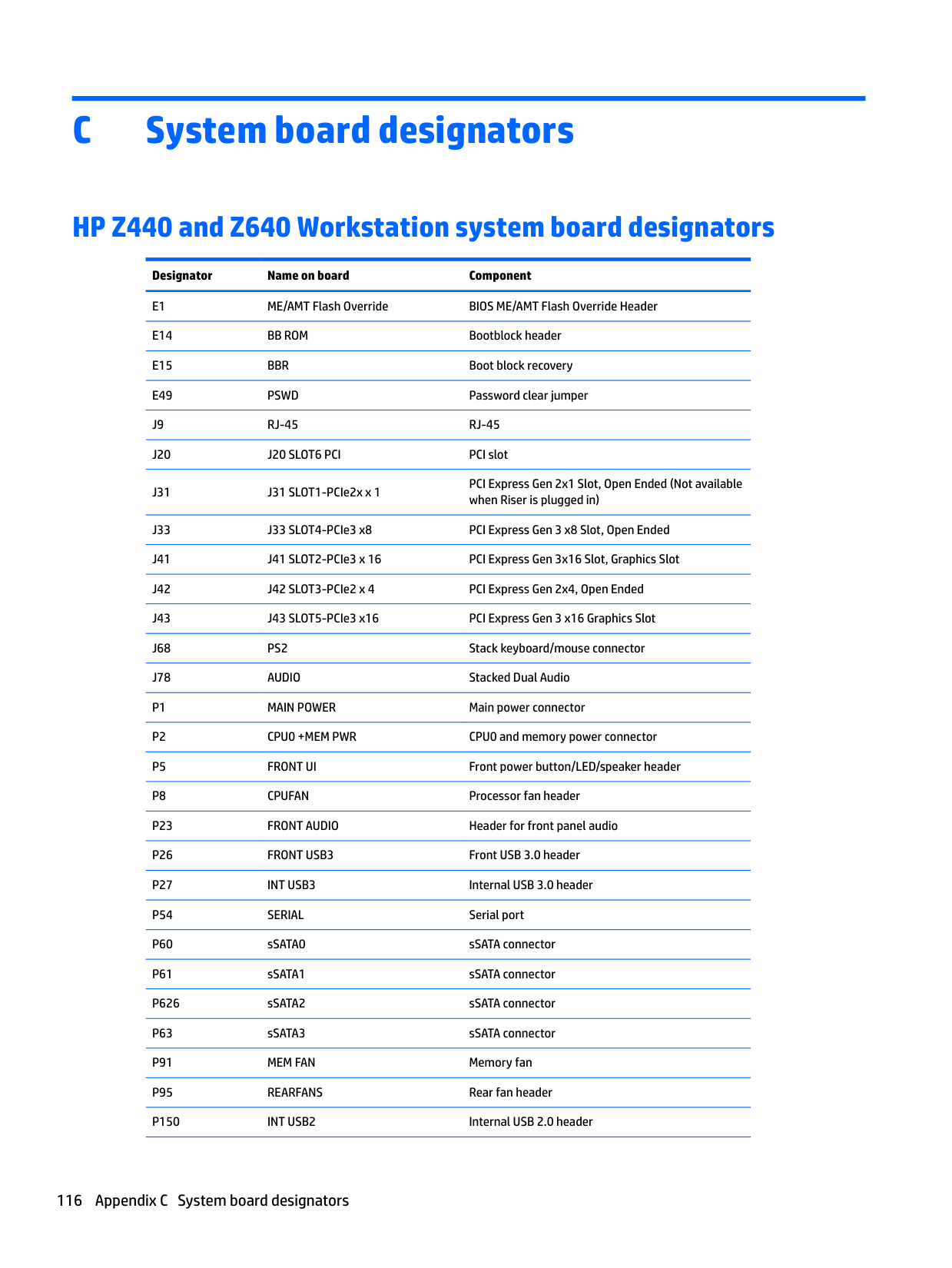
Configuring RAID on an LSI 2308 or LSI 9217-4i4e controller
This section explains how to use the LSI Logic Configuration Utility to set up a SATA or SAS RAID array on the LSI 2308 or LSI 9217-4i4e controllers.
| | |---|
NOTE: These instructions apply to both Windows-based systems and Linux-based systems.
#### RAID 0 configuration
Follow these steps to configure an Integrated Striped (IS) volume with the BIOS-based configuration utility. The procedure assumes that the system has the required disk and disk controllers.
WARNING! If partitions have ben defined on the selected disk, data on the disk will be lost when the striped volume is created.
#### RAID 1 configuration
Follow these steps to configure an Integrated Mirroring (IM) volume with the BIOS-based configuration utility. The procedure assumes that the system has the required drives and drive controllers.
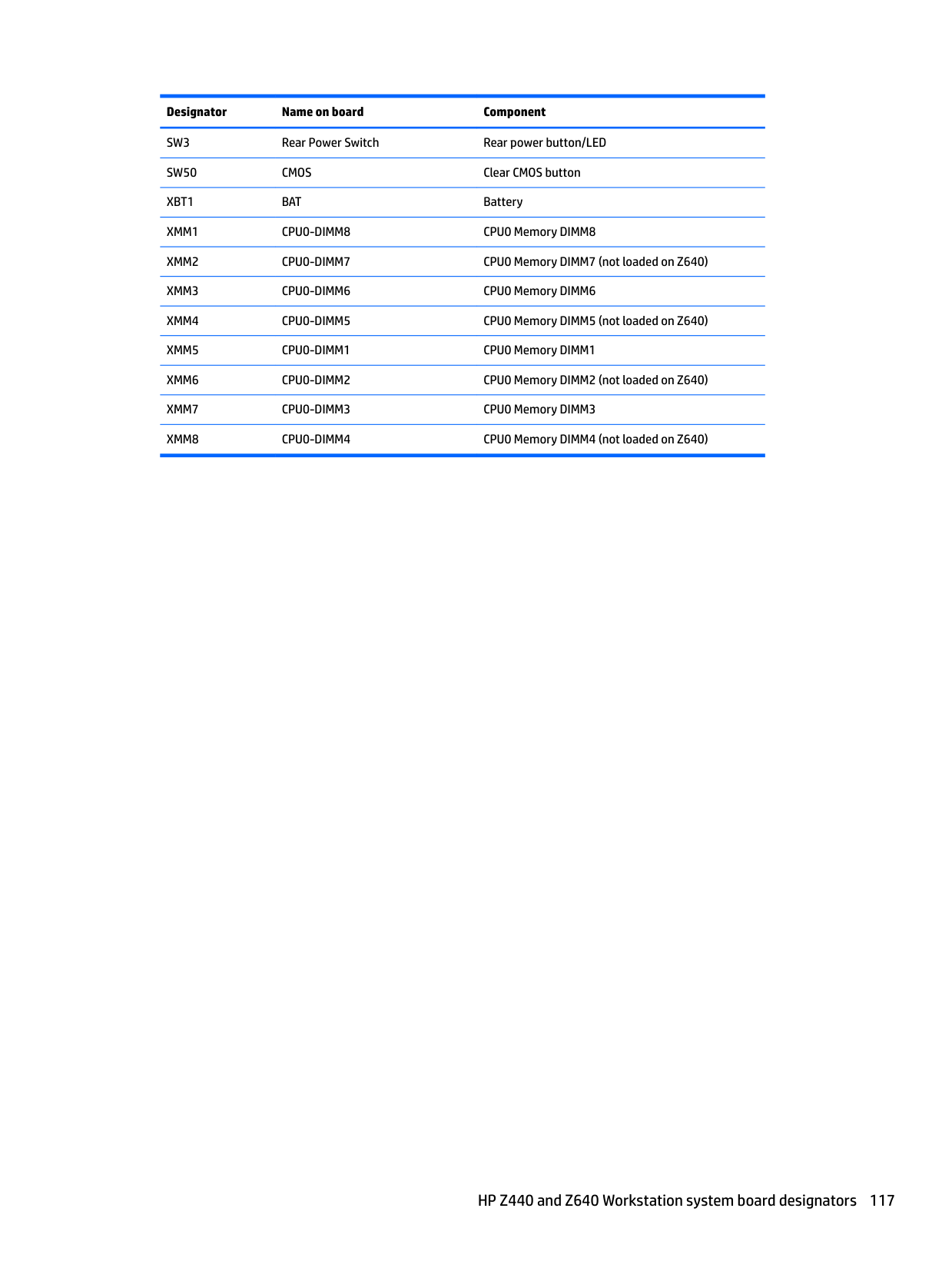
WARNING! If partitions have been defined on the selected disk, data on the disk will be lost when the mirrored volume is created.
Configuring RAID on an LSI 2308 or LSI 9217-4i4e controller 111
#### RAID 1E/10 configuration
Follow these steps to configure an Integrated Mirroring Extended (IME) volume. The procedure assumes the system has the required disk and disk controllers.
| | |---|
NOTE: If an odd number of drives is used, a RAID 1E array is created. If an even number of drives is used, a RAID 10 array is created.
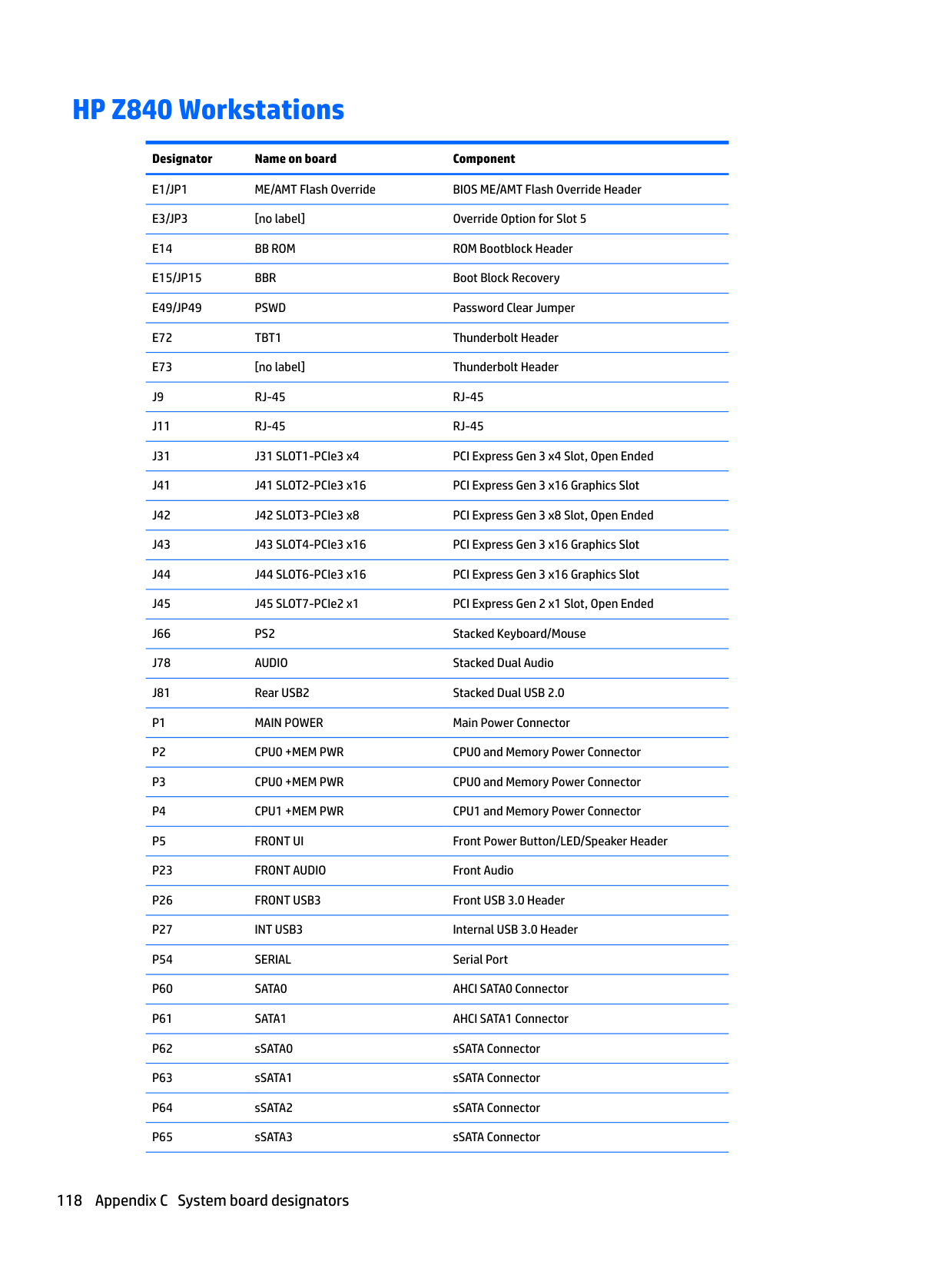
WARNING! If partitions have been defined on the selected disk, data on the disk will be lost when the mirrored volume is created.
Configuring RAID on an LSI 9270-8i MegaRAID controller
This section explains how to use the LSI Logic Configuration Utility to set up SATA or SAS RAID arrays on the LSI 9270-8i MegaRAID controller.
| | |---|
NOTE: These instructions apply to both Windows-based systems and Linux-based systems.
#### RAID 0
Follow these steps to configure a RAID 0 volume with the BIOS-based configuration utility. The procedure assumes that the system has the required disk and disk controllers.
| | |---|
NOTE: For more information about the 9270-8i RAID controller, see the MegaRAID SAS Software User Guide at http://www.lsi.com/downloads/Public/RAID%20Controllers/RAID%20Controllers%20Common%20Files/ 51530-00_RevO.zip, particularly the “Introduction to RAID” and “WebBIOS Configuration Utility” sections.
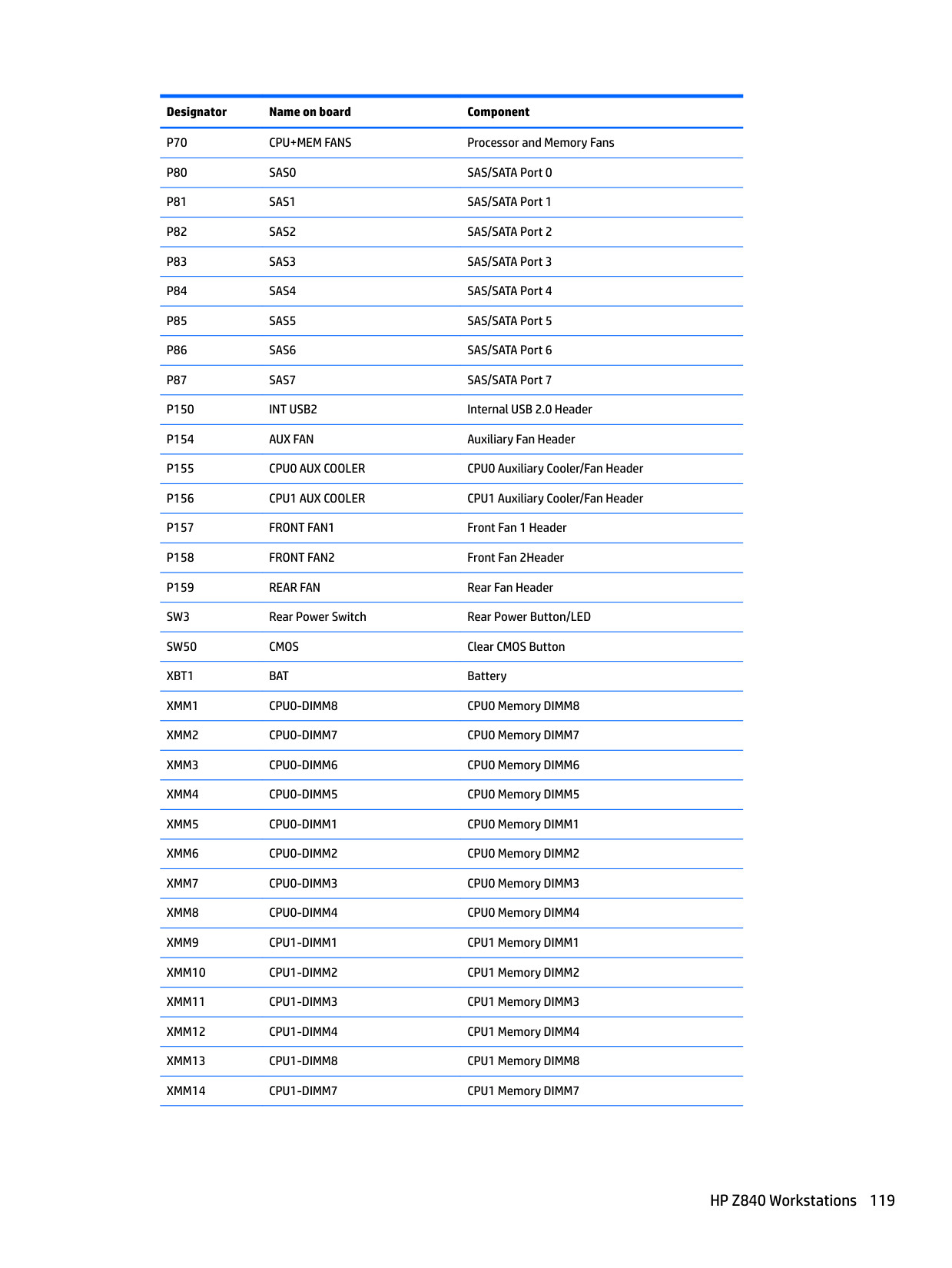
Configuring RAID on an LSI 9270-8i MegaRAID controller 113

Software RAID solution
This section summarizes software RAID considerations that are specific to the Linux environment, and provides links to additional configuration resources.
#### Software RAID considerations
The Linux kernel software RAID driver (called md, for multiple device) offers integrated software RAID without the need for additional hardware disk controllers or kernel patches. Unlike most hardware RAID solutions, software RAID can be used with all types of disk technologies, including SATA, SAS, SCSI, and solid-state drives. This software solution requires only minimal setup of the disks themselves.
However, when compared to hardware-based RAID, software RAID has disadvantages in managing the disks, breaking up data as necessary, and managing parity data. The processor must assume some extra loading: disk-intensive workloads result in roughly double the processor overhead (for example, from 15% to 30%). For most applications, this overhead is easily handled by excess headroom in the processors. But for some applications where disk and processor performance are very well balanced and already near bottleneck levels, this additional processor overhead can become troublesome.
Hardware RAID offers advantages because of its large hardware cache and the capability for better scheduling of operations in parallel. However, software RAID offers more flexibility for disk and disk controller setup. Additionally, hardware RAID requires that a failed RAID controller must be replaced with an identical model to avoid data loss, whereas software RAID imposes no such requirements.
Some software RAID schemes offer data protection through mirroring (copying the data to multiple disks in case one disk fails) or parity data (checksums that allow error detection and limited rebuilding of data in case of a failure). For all software RAID solutions on HP workstations, redundancy can be restored only after the system is shut down so that the failed drive can be replaced. This replacement requires only a minimum amount of work.
#### Performance considerations
Disk I/O bandwidth is typically limited by the system bus speeds, the disk controller, and the disks themselves. The balance of these hardware limitations, as affected by the software configuration, determines the location of the any bottleneck is in the system.
Several RAID levels offer improved performance relative to stand-alone disk performance. If disk throughput is restricted because of a single disk controller, RAID can probably do little to improve performance until another controller is added. Conversely, if raw disk performance is the bottleneck, a tuned software RAID solution can dramatically improve the throughput. The slower disk performance is, relative to the rest of the system, the better RAID performance will scale, because the slowest piece of the performance pipeline is being directly addressed by moving to RAID.
#### Configuring software RAID
See the following sites for additional information about configuring software RAID on Red Hat Enterprise Linux (RHEL) or SUSE Linux Enterprise Desktop (SLED):
For more information about Open Source and Linux at HP, go to http://h10018.www1.hp.com/wwsolutions/ linux/index.html.
Software RAID solution 115
C System board designators
HP Z440 and Z640 Workstation system board designators Designator Name on board Component E1 ME/AMT Flash Override BIOS ME/AMT Flash Override Header E14 BB ROM Bootblock header E15 BBR Boot block recovery E49 PSWD Password clear jumper J9 RJ-45 RJ-45 J20 J20 SLOT6 PCI PCI slot J31 J31 SLOT1-PCIe2x x 1
PCI Express Gen 2x1 Slot, Open Ended (Not available when Riser is plugged in)
J33 J33 SLOT4-PCIe3 x8 PCI Express Gen 3 x8 Slot, Open Ended J41 J41 SLOT2-PCIe3 x 16 PCI Express Gen 3x16 Slot, Graphics Slot J42 J42 SLOT3-PCIe2 x 4 PCI Express Gen 2x4, Open Ended J43 J43 SLOT5-PCIe3 x16 PCI Express Gen 3 x16 Graphics Slot J68 PS2 Stack keyboard/mouse connector J78 AUDIO Stacked Dual Audio
SW3 Rear Power Switch Rear power button/LED SW50 CMOS Clear CMOS button XBT1 BAT Battery XMM1 CPU0-DIMM8 CPU0 Memory DIMM8 XMM2 CPU0-DIMM7 CPU0 Memory DIMM7 (not loaded on Z640) XMM3 CPU0-DIMM6 CPU0 Memory DIMM6 XMM4 CPU0-DIMM5 CPU0 Memory DIMM5 (not loaded on Z640) XMM5 CPU0-DIMM1 CPU0 Memory DIMM1 XMM6 CPU0-DIMM2 CPU0 Memory DIMM2 (not loaded on Z640) XMM7 CPU0-DIMM3 CPU0 Memory DIMM3 XMM8 CPU0-DIMM4 CPU0 Memory DIMM4 (not loaded on Z640)
HP Z440 and Z640 Workstation system board designators 117
HP Z840 Workstations
Designator Name on board Component E1/JP1 ME/AMT Flash Override BIOS ME/AMT Flash Override Header E3/JP3 [no label] Override Option for Slot 5 E14 BB ROM ROM Bootblock Header E15/JP15 BBR Boot Block Recovery E49/JP49 PSWD Password Clear Jumper E72 TBT1 Thunderbolt Header E73 [no label] Thunderbolt Header J9 RJ-45 RJ-45 J11 RJ-45 RJ-45 J31 J31 SLOT1-PCIe3 x4 PCI Express Gen 3 x4 Slot, Open Ended J41 J41 SLOT2-PCIe3 x16 PCI Express Gen 3 x16 Graphics Slot J42 J42 SLOT3-PCIe3 x8 PCI Express Gen 3 x8 Slot, Open Ended J43 J43 SLOT4-PCIe3 x16 PCI Express Gen 3 x16 Graphics Slot J44 J44 SLOT6-PCIe3 x16 PCI Express Gen 3 x16 Graphics Slot J45 J45 SLOT7-PCIe2 x1 PCI Express Gen 2 x1 Slot, Open Ended J66 PS2 Stacked Keyboard/Mouse J78 AUDIO Stacked Dual Audio J81 Rear USB2 Stacked Dual USB 2.0
P70 CPU+MEM FANS Processor and Memory Fans
HP Z840 Workstations 119
D Statement of Volatility
Z440 Workstation
HP confirms that Intel-based Z440 personal workstation contains DDR RAM volatile memory (memory amount depends on the customer configuration). In addition, the motherboard in the condition originally shipped without subsequent modification or the addition or installation of any applications, features, or functionality, contain the following nonvolatile memory: PCH Real Time Clock (RTC) battery backed-up configuration memory (256 Bytes), Super I/O battery backed-up configuration memory (16 Bytes), masked keyboard ROM (2K Bytes), DIMM Serial Presence Detect (SPD) configuration data (256 Bytes per module, 128 Bytes programmable), TPM module (2.35 kB), and Serial Flash IC for System BIOS (128M Bits).
The volatile memory is cleared by removing power from the system for greater than 30 seconds. The nonvolatile memory on the motherboard is restored by following the steps below:
The DIMM SPD EEPROM is not readily available to the user, however there appear to be tools publicly available to read and write this part. To eliminate the possibility that it could contain sensitive information, remove the DIMMs or use one of these tools.
Z640 Workstation
HP confirms that Intel-based Z640 personal workstation contains DDR RAM volatile memory (memory amount depends on the customer configuration). In addition, the motherboard in the condition originally shipped without subsequent modification or the addition or installation of any applications, features, or functionality, contain the following nonvolatile memory: PCH Real Time Clock (RTC) battery backed-up configuration memory (256 Bytes), Super I/O battery backed-up configuration memory (16 Bytes), masked keyboard ROM (2K Bytes), DIMM Serial Presence Detect (SPD) configuration data (256 Bytes per module, 128 Bytes programmable), TPM module (2.35 kB), and Serial Flash IC for System BIOS (128M Bits).
The volatile memory is cleared by removing power from the system for greater than 30 seconds. The nonvolatile memory on the motherboard is restored by following the steps below:
Z440 Workstation 121
The DIMM SPD EEPROM is not readily available to the user, however there appear to be tools publicly available to read and write this part. To eliminate the possibility that it could contain sensitive information, remove the DIMMs or use one of these tools.
Z840 Workstation
HP confirms that Intel-based Z840 personal workstation contains DDR RAM volatile memory (memory amount depends on the customer configuration). In addition, the motherboard in the condition originally shipped without subsequent modification or the addition or installation of any applications, features, or functionality, contain the following nonvolatile memory: PCH Real Time Clock (RTC) battery backed-up configuration memory (256 Bytes), Super I/O battery backed-up configuration memory (16 Bytes), SAS FLASH memory (32Mbits) and an EEPROM (64K Bits), masked keyboard ROM (2K Bytes), secondary LOM Flash (4 Mbits), DIMM Serial Presence Detect (SPD) configuration data (256 Bytes per module, 128 Bytes programmable), TPM module (2.35 kB), and Serial Flash IC for System BIOS (128M Bits).
The volatile memory is cleared by removing power from the system for greater than 30 seconds. The nonvolatile memory on the motherboard is restored by following the steps below:
The secondary LOM Flash is inaccessible to the user via any publicly available tools. There are programs used by HP in manufacturing and R&D that allow access, but these are not available outside of HP. The embedded LSI 2308 SAS controller flash ROM can be read, written, and erased via a firmware and BIOS utility SASFLASH.exe available in the latest soft pack release on the HP website. The embedded LSI 2308 SAS controller battery backed memory can be erased following the instructions stated above in step 8. The DIMM SPD EEPROM is not readily available to the user, however there appear to be tools publicly available to read and write this part. To eliminate the possibility that it could contain sensitive information, remove the DIMMs or use one of these tools.
122 Appendix D Statement of Volatility
Index
C Cable management 49 CMOS 99
clearing and resetting 101 Computer Setup (F10) Utility 25 menu 27 Configuring RAID devices 106 maximum hard drives allowed 106 SAS RAID on LSI 2308 or LSI
9217-4i controllers 110 SAS RAID on LSI 9270-8i
MegaRAID controller 113 SATA RAID 108
D Desktop management 32
Dual-state power button 43 FailSafe Boot Block ROM 35 Fault notification and recovery
43 HP SoftPaq Download Manager
HP System Software Manager
HPQFlash 35 Initial configuration 33 Remote ROM Flash 35 Remote system install 33 ROM Flash 35 Updating software 34 Workstation security 36 Diagnostic codes and errors 90 LED and beep codes 90 LED colors 92 POST errors 92
Diagnostics 76 Diagnostics and troubleshooting Diagnosis guidelines 78 Locating ID labels 77 Locating warranty info 77
DIMM configurations, supported 65 DIMM installation order
HP Z440 Workstation 66
HP Z640 Workstation 67 HP Z840 Workstation 68
E Expansion card slot identification HP Z440 Workstation 52 HP Z640 Workstation 54 HP Z840 Workstation 56
H HP PC Hardware Diagnostics (UEFI)
using 97
M Memory
DIMM installation guidelines 65
security 39 Password configuration 99 Password jumper
resetting 100 Power supply
Expansion card configuration
restrictions 51 power consumption 72 resetting 72 specifications 69
Product features ERP compliance mode 23 Hyper-threading 24 Physical characteristics 6, 13,
20 SATA Power Management 24 System board architecture 6, 12 Turbo Boost 24
Product overview 1
R Replacing components
Battery 48
cable management 49 Component locations 5, 11, 18 expansion slots 51 guidelines 48 hard drive 59 information and guidelines 45 Memory 65 power supply 69 processor and processor
heatsink 50
Service considerations 46 warnings and cautions 45
W Workstation components
HP Z440 Workstation 1 HP Z440 Workstation front
panel 2 HP Z440 Workstation rear panel
3 HP Z640 Workstation 8 HP Z640 Workstation chassis 10 HP Z640 Workstation front
panel 8 HP Z640 Workstation rear panel
9 HP Z840 Workstation 15 HP Z840 Workstation chassis 17 HP Z840 Workstation front
panel 15 HP Z840 Workstation rear panel 16 Workstation setup Ensuring proper ventilation 22
Index 123