Ask AI
— answers from the official manualAnswers from the official manual.
Common questions
Common Questions
10 totalHow do I set up the Netgear AC1200 WiFi Range Extender EX6200 using WPS?
To connect using WPS, place the extender close to your WiFi router, plug it in, and press the WPS button on the rear panel. Both Link Rate LEDs and the Device to Extender LED will blink green for two minutes. Within two minutes, press the WPS button on your WiFi router. After a few seconds, the extender will connect to your existing WiFi network. If you want to extend the 5 GHz band, repeat the process and check that the 5 GHz Link Rate LED lights green.
What do the LED lights on the AC1200 extender mean?
The 2.4 GHz and 5 GHz Link Rate LEDs show connection quality: green indicates optimum connection, amber indicates good connection, red indicates poor connection, and off means no connection. The Device to Extender LED shows green when connected to a device, amber during startup or WiFi settings application, and off when not connected. The LAN LEDs light green when an Ethernet device is connected to a port. The USB LED lights solid green when a USB device is connected.
How do I change the WiFi password on my AC1200 extender?
Log in to the extender at www.mywifiext.net with username 'admin' and your current password. Select Maintenance > Set Password, enter your old password, type your new password twice, and click Apply. NETGEAR strongly recommends setting a more secure password after initial setup.
How do I factory reset the AC1200 extender?
You can reset the extender to factory default settings by pressing and holding the Restore Factory Settings button on the rear panel until the extender restarts and all settings are cleared. Alternatively, you can access the web interface and select Maintenance > Restore Factory Settings to erase the configuration. After a factory reset, all settings return to their default values.
Where should I place the AC1200 extender for the best WiFi coverage?
Place the extender halfway between your WiFi router and WiFi device for the best performance. Ensure there is a clear line of sight between the extender and both the router and your WiFi device. Although the extender works in both horizontal and vertical positions, a horizontal position might give better performance. During initial setup, place it close to the router, then move it to its permanent location after establishing a connection.
How do I connect the AC1200 extender to a hidden WiFi network?
Log in to the extender at www.mywifiext.net, select Settings > Connect to Existing Network, and choose 'Manually input my wireless SSID.' Enter the name of your hidden 2.4 GHz network, select the security type from the dropdown menu, and enter your network key or passphrase. Repeat the process for your 5 GHz network if applicable. Wait about two minutes for the extender to establish the connection.
Show 4 more questions
Full Manual
124 pages
350 East Plumeria Drive San Jose, CA 95134
Usa
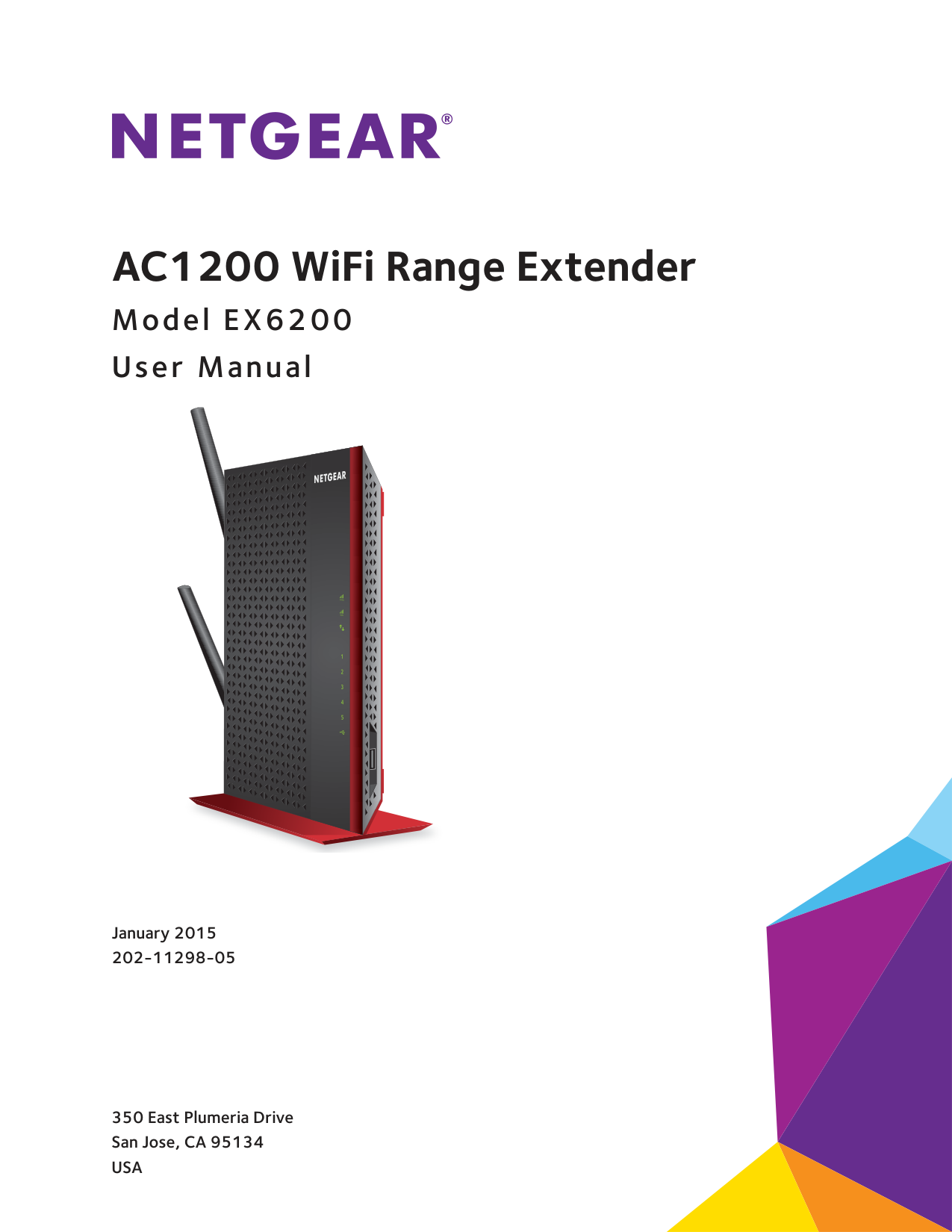
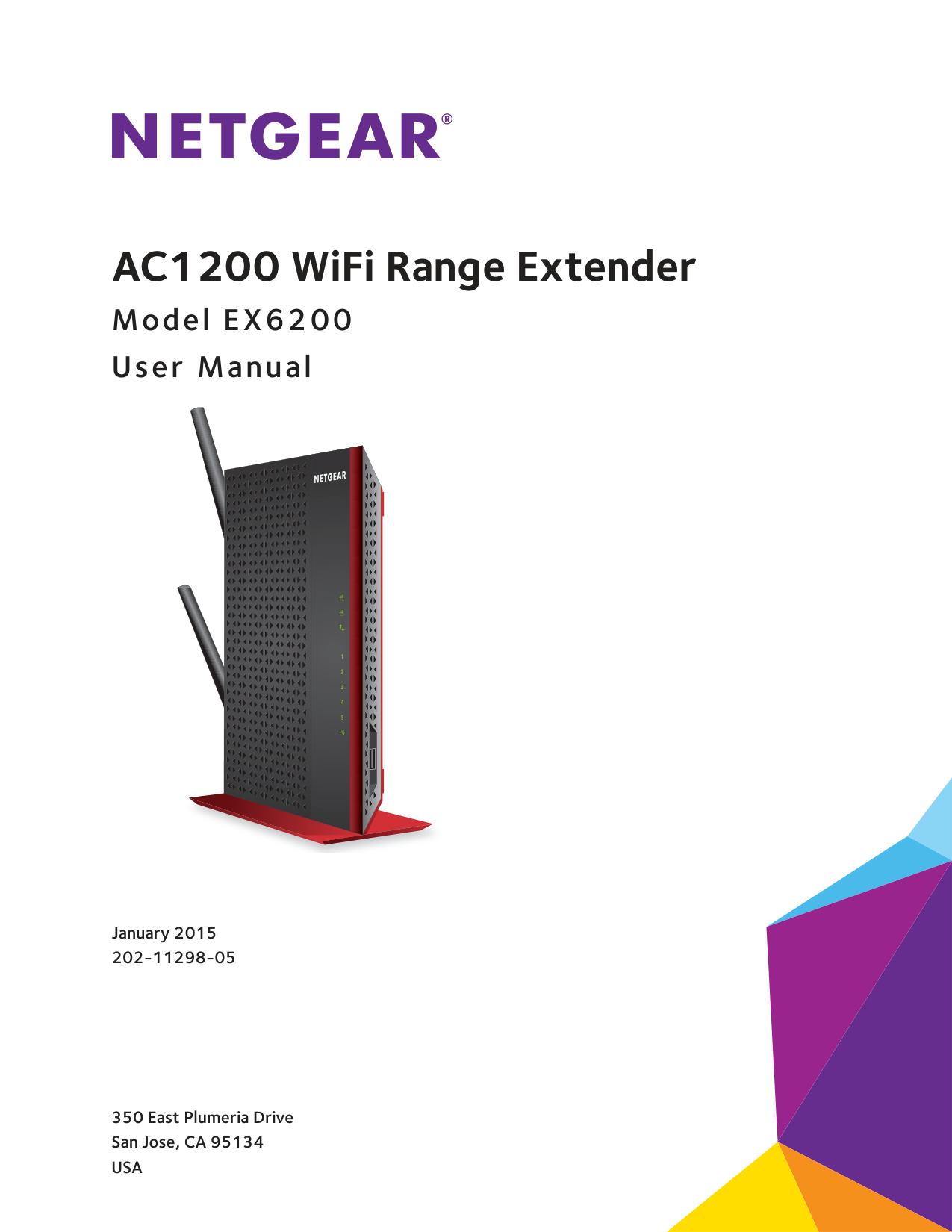
January 2015 202-11298-05 AC1200 WiFi Range Extender Model EX6200 User Manual
2 AC1200 WiFi Range Extender Support Thank you for selecting NETGEAR products. After installing your device, locate the serial number on the label of your product and use it to register your product at https://my.netgear.com. You must register your product before you can use NETGEAR telephone support. NETGEAR recommends registering your product through the NETGEAR website. For product updates and web support, visit http://support.netgear.com. Phone (US & Canada only): 1-888-NETGEAR. Phone (Other Countries): Check the list of phone numbers at http://support.netgear.com/general/contact/default.aspx. Compliance For regulatory compliance information, visit http://www.netgear.com/about/regulatory. See the regulatory compliance document before connecting the power supply. Trademarks © NETGEAR, Inc. NETGEAR and the NETGEAR Logo are trademarks of NETGEAR, Inc. Any non-NETGEAR trademarks are used for reference purposes only.
3 Table of Contents Chapter 1
Overview Unpack Your Extender . . . . . . . . . . . . . . . . . . . . . . . . . . . . . . . . . . . . . . . . . . . . . . . . 7 Top Panel LEDs and Front Panel USB Port . . . . . . . . . . . . . . . . . . . . . . . . . . . . . . . . 7 Rear Panel Ports, Buttons, Antennas, and Connector . . . . . . . . . . . . . . . . . . . . . . 9 Attach the Stand . . . . . . . . . . . . . . . . . . . . . . . . . . . . . . . . . . . . . . . . . . . . . . . . . . . . 10 Attach the Rubber Feet . . . . . . . . . . . . . . . . . . . . . . . . . . . . . . . . . . . . . . . . . . . . . . 11 Retrieve and Display the Product Label . . . . . . . . . . . . . . . . . . . . . . . . . . . . . . . . . 12 When to Use Your Extender. . . . . . . . . . . . . . . . . . . . . . . . . . . . . . . . . . . . . . . . . . . 13 How the Extender Works . . . . . . . . . . . . . . . . . . . . . . . . . . . . . . . . . . . . . . . . . . . . . 13 Support for the 801.11ac Networking Standard. . . . . . . . . . . . . . . . . . . . . . . . . 14 Chapter 2
Get Started How to Position the Extender . . . . . . . . . . . . . . . . . . . . . . . . . . . . . . . . . . . . . . . . . 16 Connect the Extender to Your WiFi Router . . . . . . . . . . . . . . . . . . . . . . . . . . . . . . 16 Connect the Extender with WPS to a WiFi Network . . . . . . . . . . . . . . . . . . . . . . 17 Access the Extender over WiFi and Use Smart Setup . . . . . . . . . . . . . . . . . . . . . 19 Access the Extender over Ethernet and Use Smart Setup . . . . . . . . . . . . . . . . . 27 Chapter 3
Manage the Extender Network and Security Settings Log In to the Extender After Initial Setup . . . . . . . . . . . . . . . . . . . . . . . . . . . . . . . 36 Change the Password . . . . . . . . . . . . . . . . . . . . . . . . . . . . . . . . . . . . . . . . . . . . . . . . 38 Set Up Password Recovery . . . . . . . . . . . . . . . . . . . . . . . . . . . . . . . . . . . . . . . . . . . 38 Connect the Extender to a WiFi Network Without Using Smart Setup. . . . . . . 39 Connect the Extender to a Hidden WiFi Network . . . . . . . . . . . . . . . . . . . . . . . . 43 Use WPS to Add a Computer to the Extender’s WiFi Network. . . . . . . . . . . . . . 46 Use WPS with the Push Button Method . . . . . . . . . . . . . . . . . . . . . . . . . . . . . . 47 Use WPS with the PIN Method . . . . . . . . . . . . . . . . . . . . . . . . . . . . . . . . . . . . . . 48 Manage the Extender WiFi Settings . . . . . . . . . . . . . . . . . . . . . . . . . . . . . . . . . . . . 49 Configure WPA, WPA2, or WPA + WPA2 . . . . . . . . . . . . . . . . . . . . . . . . . . . . . 54 Configure WEP . . . . . . . . . . . . . . . . . . . . . . . . . . . . . . . . . . . . . . . . . . . . . . . . . . . 55 Change the Extender IP Address and Device Name. . . . . . . . . . . . . . . . . . . . . . . 57 Manage Advanced WiFi and WPS Settings . . . . . . . . . . . . . . . . . . . . . . . . . . . . . . 58 Manage a WiFi Access List . . . . . . . . . . . . . . . . . . . . . . . . . . . . . . . . . . . . . . . . . . . . 60 Set Up and Enable the Access List . . . . . . . . . . . . . . . . . . . . . . . . . . . . . . . . . . . 61 Disable the Access List. . . . . . . . . . . . . . . . . . . . . . . . . . . . . . . . . . . . . . . . . . . . . 63 Change a Device on the Access List. . . . . . . . . . . . . . . . . . . . . . . . . . . . . . . . . . 64 Remove a Device from the Access List . . . . . . . . . . . . . . . . . . . . . . . . . . . . . . . 66 Set the Operating Mode to FastLane Technology . . . . . . . . . . . . . . . . . . . . . . . . 67 Run Smart Setup Again After Initial Setup. . . . . . . . . . . . . . . . . . . . . . . . . . . . . . . 69
4 AC1200 WiFi Range Extender Connect Ethernet-Enabled Devices . . . . . . . . . . . . . . . . . . . . . . . . . . . . . . . . . . . . 73 Chapter 4
Maintain and Monitor the Extender Recover the admin Password. . . . . . . . . . . . . . . . . . . . . . . . . . . . . . . . . . . . . . . . . . 76 Back Up and Manage the Extender Configuration . . . . . . . . . . . . . . . . . . . . . . . . 76 Back Up the Configuration Settings. . . . . . . . . . . . . . . . . . . . . . . . . . . . . . . . . . 77 Restore the Configuration Settings . . . . . . . . . . . . . . . . . . . . . . . . . . . . . . . . . . 77 Return the Extender to Its Factory Default Settings . . . . . . . . . . . . . . . . . . . . . . 78 Use the Restore Factory Settings Button . . . . . . . . . . . . . . . . . . . . . . . . . . . . . 79 Erase the Extender Configuration Settings. . . . . . . . . . . . . . . . . . . . . . . . . . . . 79 Update the Firmware . . . . . . . . . . . . . . . . . . . . . . . . . . . . . . . . . . . . . . . . . . . . . . . . 80 View the Status and Traffic Statistics of the Extender . . . . . . . . . . . . . . . . . . . . 81 View the Wired and WiFi Network Devices . . . . . . . . . . . . . . . . . . . . . . . . . . . . . . 85 Chapter 5
Share a USB Drive That Is Attached to the Extender USB Drive Requirements . . . . . . . . . . . . . . . . . . . . . . . . . . . . . . . . . . . . . . . . . . . . . 88 Access a USB Drive on the Network. . . . . . . . . . . . . . . . . . . . . . . . . . . . . . . . . . . . 88 Back Up Windows Computers with ReadySHARE Vault. . . . . . . . . . . . . . . . . . . . 89 Back Up Mac Computers with Time Machine . . . . . . . . . . . . . . . . . . . . . . . . . . . . 90 Set Up a USB Hard Drive on a Mac. . . . . . . . . . . . . . . . . . . . . . . . . . . . . . . . . . . 90 Prepare to Back Up a Large Amount of Data . . . . . . . . . . . . . . . . . . . . . . . . . . 91 Use Time Machine to Back Up onto a USB Hard Drive . . . . . . . . . . . . . . . . . . 91 Control Access to the USB Drive. . . . . . . . . . . . . . . . . . . . . . . . . . . . . . . . . . . . . . . 92 Use FTP Within the Network . . . . . . . . . . . . . . . . . . . . . . . . . . . . . . . . . . . . . . . . . . 94 View Network Folders on a USB Drive . . . . . . . . . . . . . . . . . . . . . . . . . . . . . . . . . . 95 Add a Network Folder on a USB Drive . . . . . . . . . . . . . . . . . . . . . . . . . . . . . . . . . . 96 Change a Network Folder on a USB Drive . . . . . . . . . . . . . . . . . . . . . . . . . . . . . . . 98 Approve USB Devices . . . . . . . . . . . . . . . . . . . . . . . . . . . . . . . . . . . . . . . . . . . . . . . 100 Safely Remove a USB Drive . . . . . . . . . . . . . . . . . . . . . . . . . . . . . . . . . . . . . . . . . . 101 Chapter 6
Use the Extender as a Media Server Specify ReadyDLNA Media Server Settings . . . . . . . . . . . . . . . . . . . . . . . . . . . . 103 Play Media from a USB Drive on TiVo . . . . . . . . . . . . . . . . . . . . . . . . . . . . . . . . . 104 Chapter 7
Share a USB Printer Through the Extender Install the Printer Driver and Cable the Printer. . . . . . . . . . . . . . . . . . . . . . . . . . 108 Download the ReadySHARE Printer Utility . . . . . . . . . . . . . . . . . . . . . . . . . . . . . 108 Install the ReadySHARE Printer Utility . . . . . . . . . . . . . . . . . . . . . . . . . . . . . . . . . 108 Use the Shared Printer . . . . . . . . . . . . . . . . . . . . . . . . . . . . . . . . . . . . . . . . . . . . . . 110 View or Change the Status of a Printer . . . . . . . . . . . . . . . . . . . . . . . . . . . . . . . . 111 Use the Scan Feature of a Multifunction USB Printer . . . . . . . . . . . . . . . . . . . . 112 Change NETGEAR USB Control Center Settings . . . . . . . . . . . . . . . . . . . . . . . . . 113
5 AC1200 WiFi Range Extender Chapter 8
FAQs and Troubleshooting FAQs. . . . . . . . . . . . . . . . . . . . . . . . . . . . . . . . . . . . . . . . . . . . . . . . . . . . . . . . . . . . . . 115 You Cannot Connect to the Extender. . . . . . . . . . . . . . . . . . . . . . . . . . . . . . . . . . 118 You Cannot Join a WiFi Network and Receive an Error Message . . . . . . . . . . . 120 Improve the Connection Between the Extender and the WiFi Router. . . . . . . 121 Appendix A
Factory Settings and Technical Specifications Factory Default Settings . . . . . . . . . . . . . . . . . . . . . . . . . . . . . . . . . . . . . . . . . . . . 123 Technical and Environmental Specifications . . . . . . . . . . . . . . . . . . . . . . . . . . . . 124
6 1
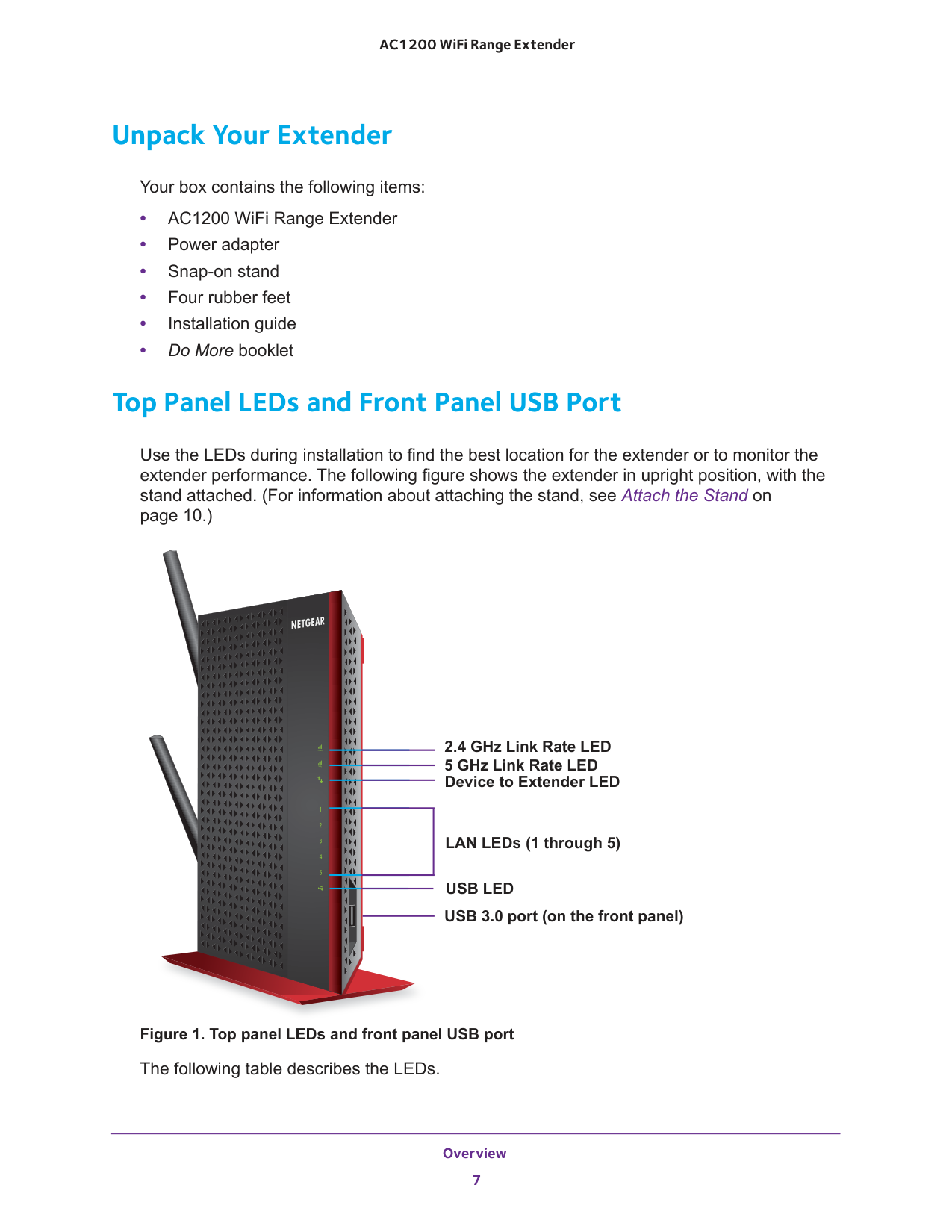
Overview 7 AC1200 WiFi Range Extender Unpack Your Extender Your box contains the following items: • AC1200 WiFi Range Extender • Power adapter • Snap-on stand • Four rubber feet • Installation guide • Do More booklet Top Panel LEDs and Front Panel USB Port Use the LEDs during installation to find the best location for the extender or to monitor the extender performance. The following figure shows the extender in upright position, with the stand attached. (For information about attaching the stand, see Attach the Stand on page
10.) 2.4 GHz Link Rate LED 5 GHz Link Rate LED Device to Extender LED LAN LEDs (1 through 5)
Usb Led
USB 3.0 port (on the front panel) Figure 1. Top panel LEDs and front panel USB port The following table describes the LEDs.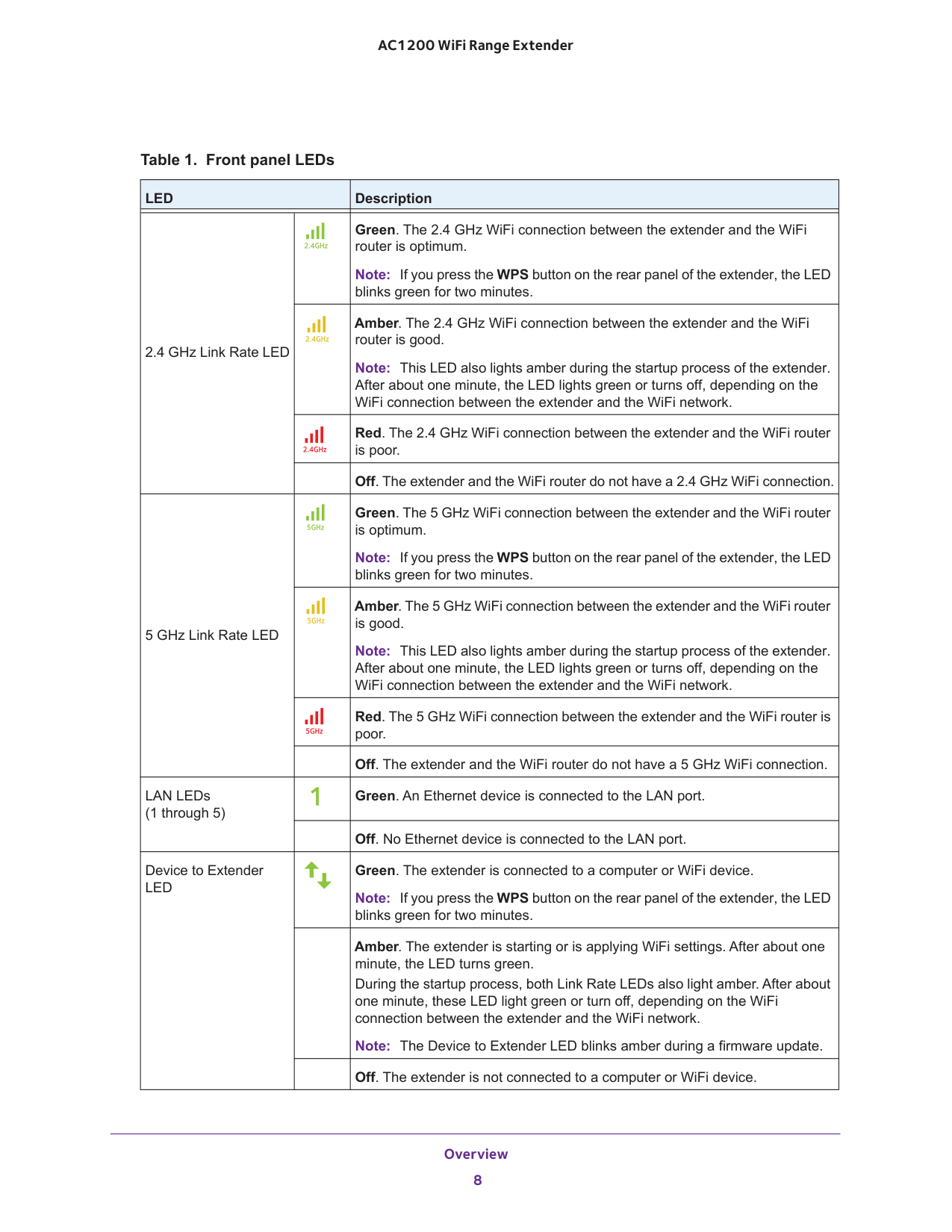
Overview 8 AC1200 WiFi Range Extender Table 1. Front panel LEDs
Led
Description 2.4 GHz Link Rate LED Green. The 2.4 GHz WiFi connection between the extender and the WiFi router is optimum. Note: If you press the WPS button on the rear panel of the extender, the LED blinks green for two minutes. Amber. The 2.4 GHz WiFi connection between the extender and the WiFi router is good. Note: This LED also lights amber during the startup process of the extender. After about one minute, the LED lights green or turns off, depending on the WiFi connection between the extender and the WiFi network. Red. The 2.4 GHz WiFi connection between the extender and the WiFi router is poor.Off. The extender and the WiFi router do not have a 2.4 GHz WiFi connection. 5 GHz Link Rate LED Green. The 5 GHz WiFi connection between the extender and the WiFi router is optimum. Note: If you press the WPS button on the rear panel of the extender, the LED blinks green for two minutes. Amber. The 5 GHz WiFi connection between the extender and the WiFi router is good. Note: This LED also lights amber during the startup process of the extender. After about one minute, the LED lights green or turns off, depending on the WiFi connection between the extender and the WiFi network. Red. The 5 GHz WiFi connection between the extender and the WiFi router is poor.
Off. The extender and the WiFi router do not have a 5 GHz WiFi connection. LAN LEDs (1 through 5) Green. An Ethernet device is connected to the LAN port.
Off. No Ethernet device is connected to the LAN port. Device to Extender
Led
Green. The extender is connected to a computer or WiFi device. Note: If you press the WPS button on the rear panel of the extender, the LED blinks green for two minutes.Amber. The extender is starting or is applying WiFi settings. After about one minute, the LED turns green. During the startup process, both Link Rate LEDs also light amber. After about one minute, these LED light green or turn off, depending on the WiFi connection between the extender and the WiFi network. Note: The Device to Extender LED blinks amber during a firmware update.
Off. The extender is not connected to a computer or WiFi device.
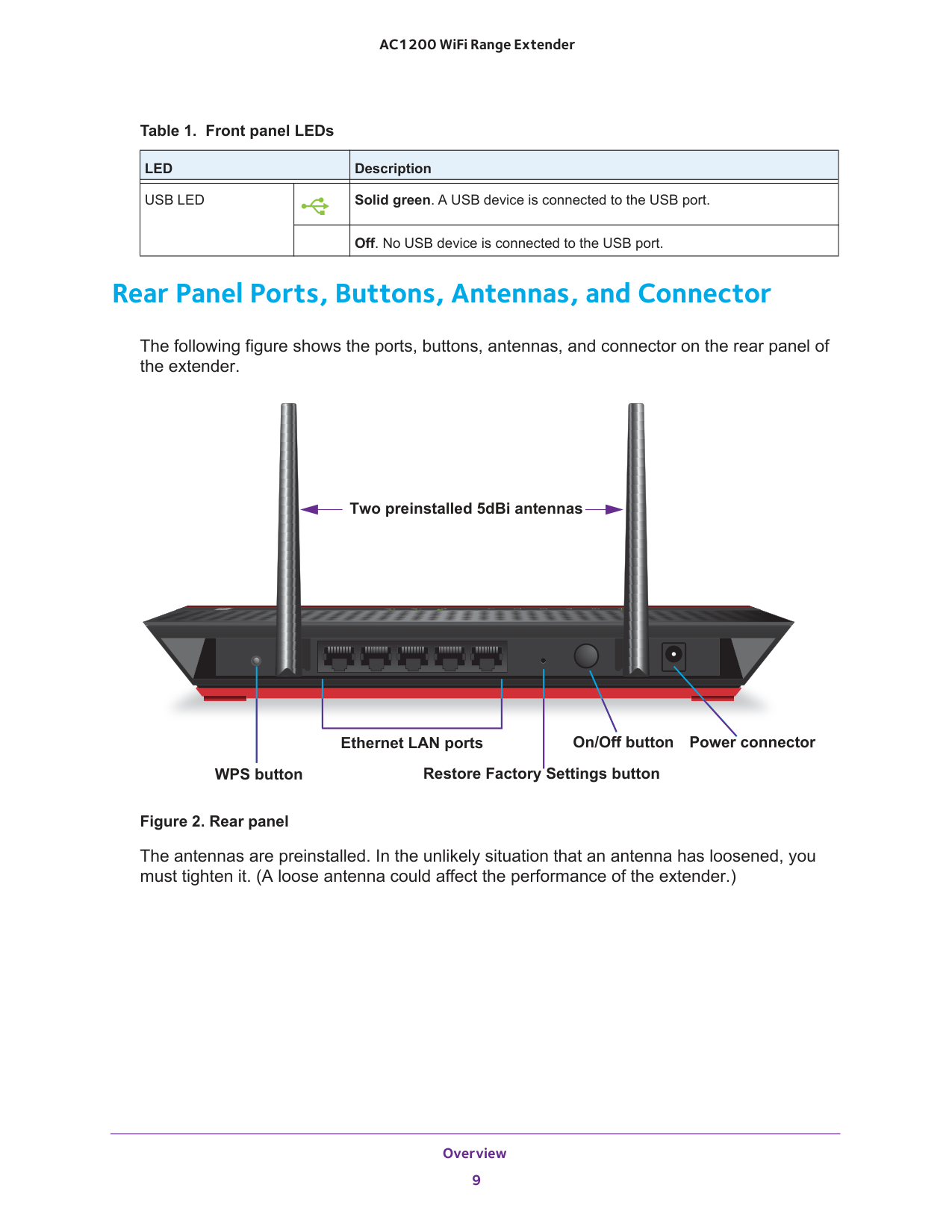
Overview 9 AC1200 WiFi Range Extender Rear Panel Ports, Buttons, Antennas, and Connector The following figure shows the ports, buttons, antennas, and connector on the rear panel of the extender. Restore Factory Settings button Ethernet LAN ports Power connector On/Off button WPS button Two preinstalled 5dBi antennas Figure 2. Rear panel The antennas are preinstalled. In the unlikely situation that an antenna has loosened, you must tighten it. (A loose antenna could affect the performance of the extender.)
Usb Led
Solid green. A USB device is connected to the USB port.Off. No USB device is connected to the USB port. Table 1. Front panel LEDs
Led
Description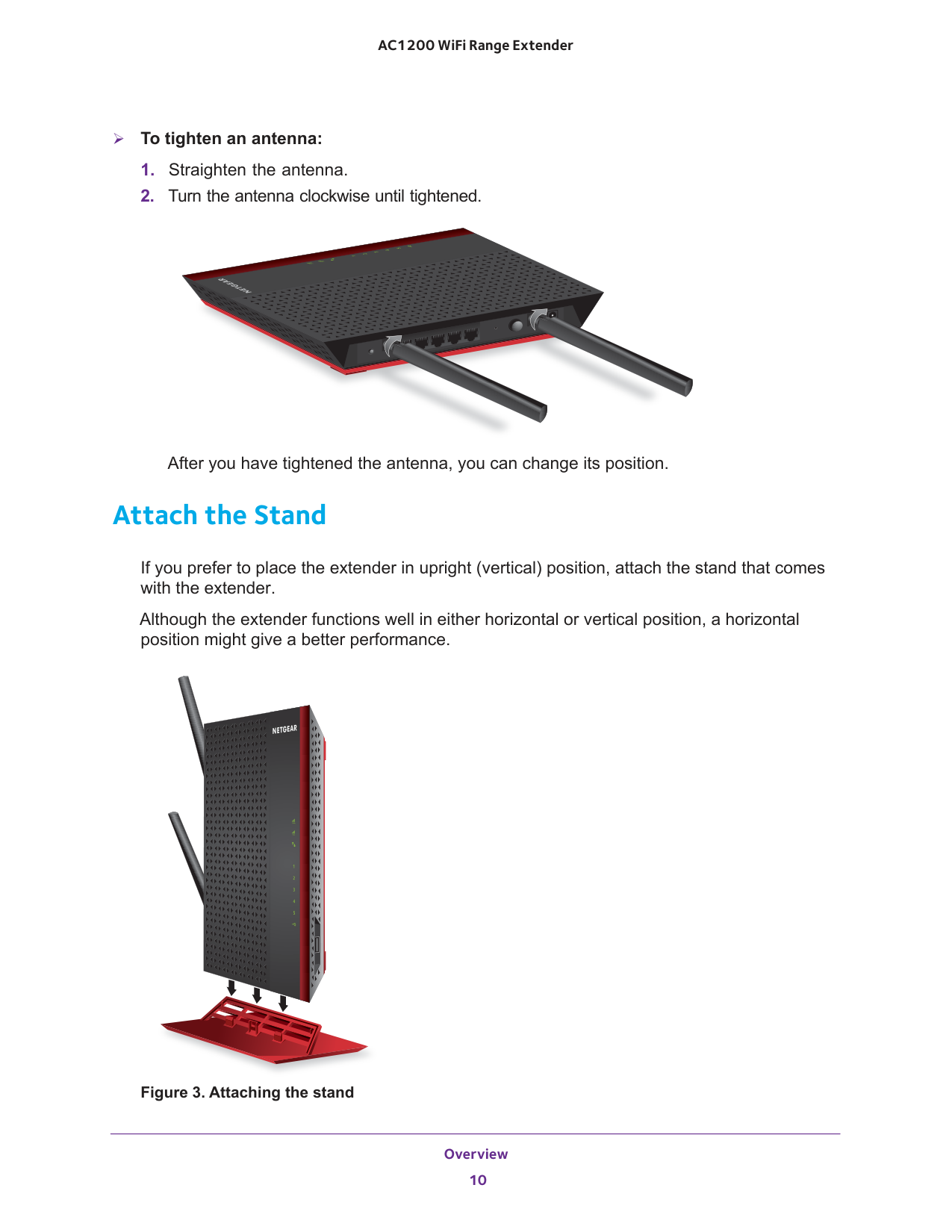
Overview 10 AC1200 WiFi Range Extender To tighten an antenna:
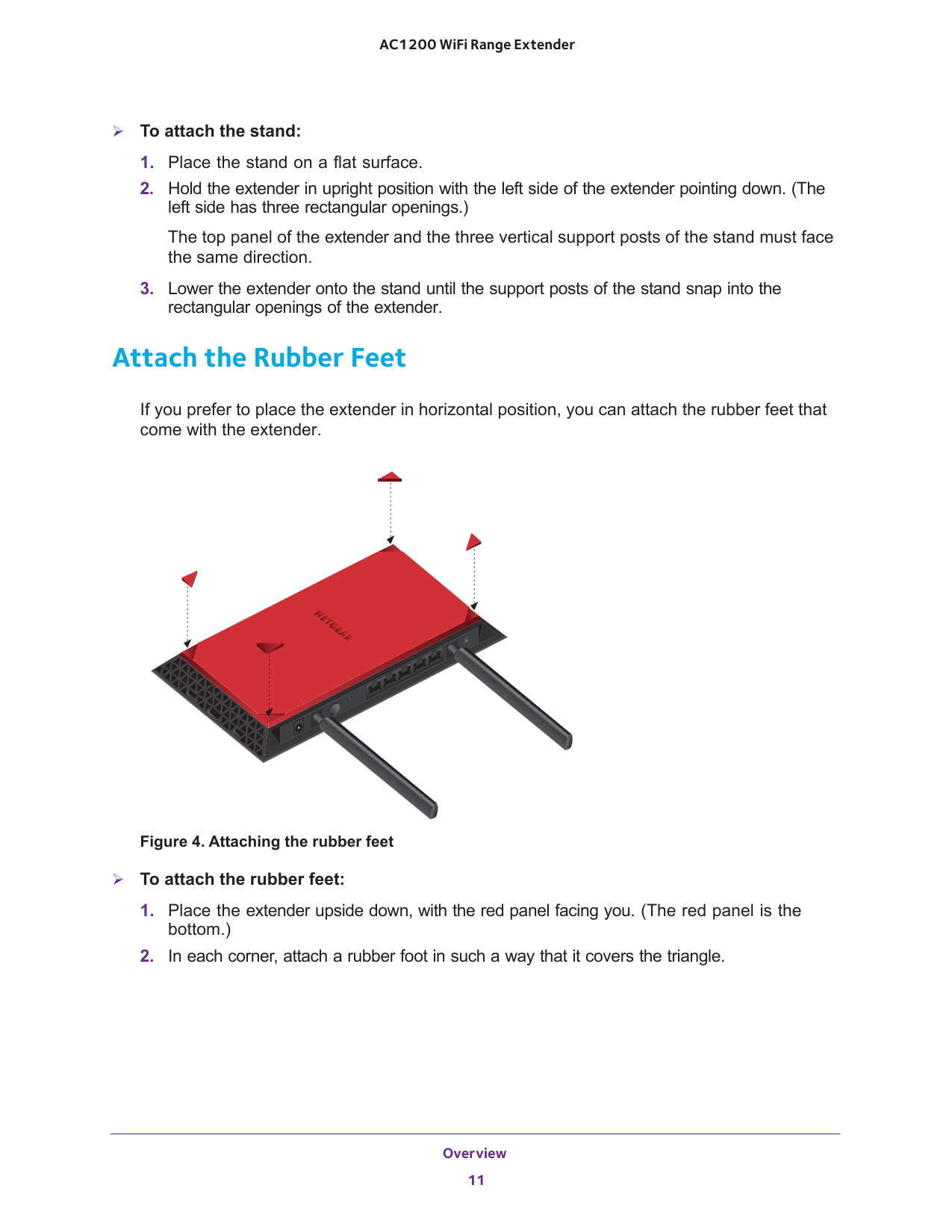
Overview 11 AC1200 WiFi Range Extender To attach the stand:
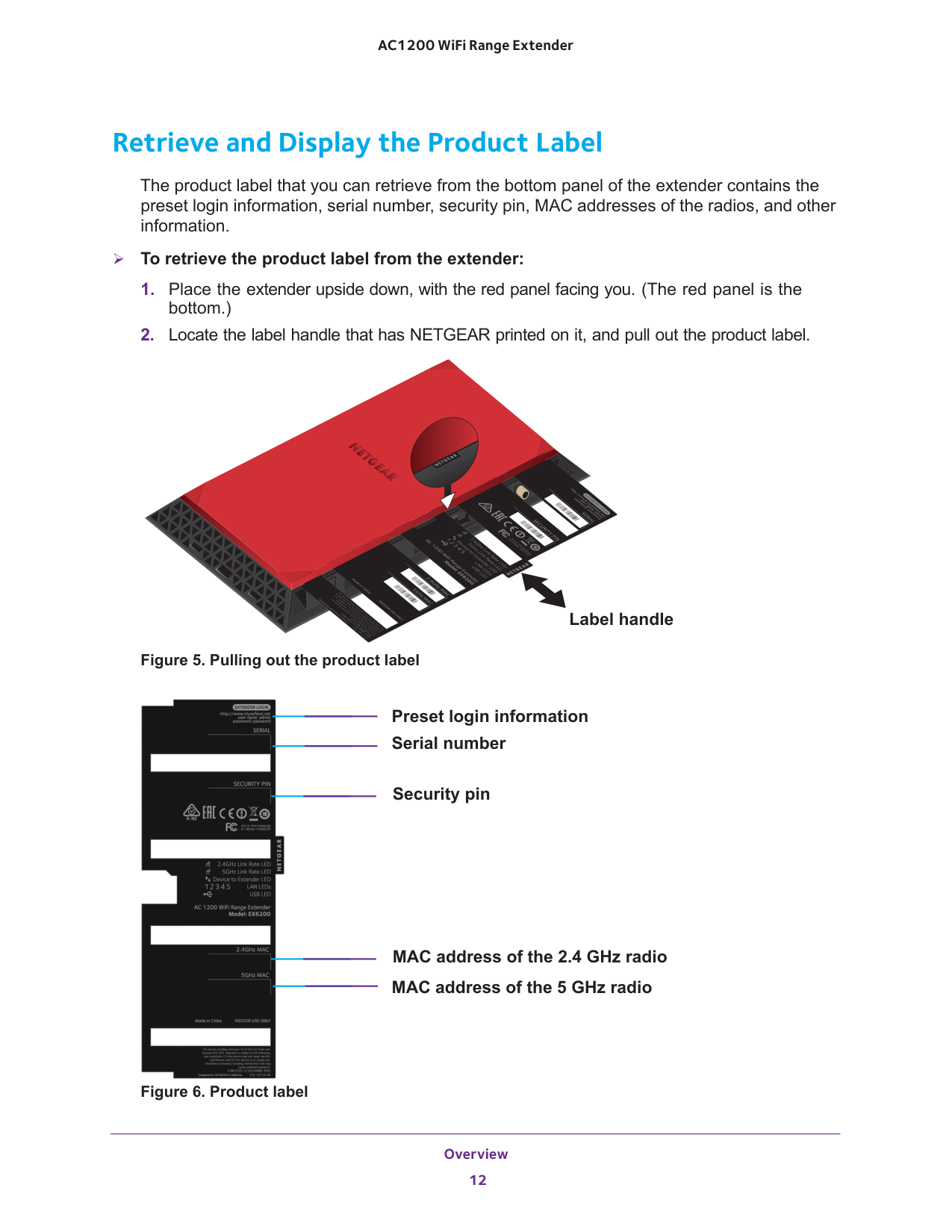
Overview 12 AC1200 WiFi Range Extender Retrieve and Display the Product Label The product label that you can retrieve from the bottom panel of the extender contains the preset login information, serial number, security pin, MAC addresses of the radios, and other information. To retrieve the product label from the extender:
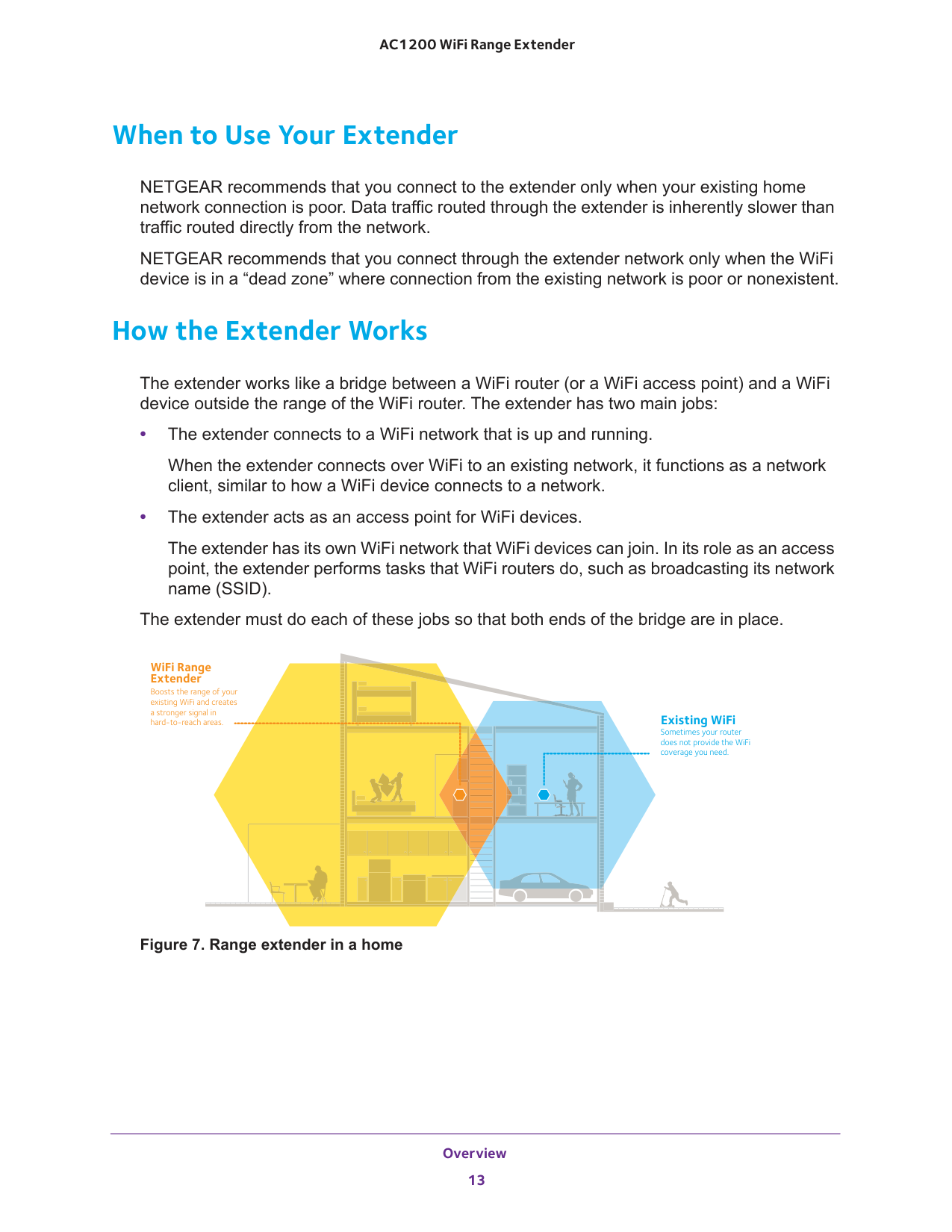
Overview 13 AC1200 WiFi Range Extender When to Use Your Extender NETGEAR recommends that you connect to the extender only when your existing home network connection is poor. Data traffic routed through the extender is inherently slower than traffic routed directly from the network. NETGEAR recommends that you connect through the extender network only when the WiFi device is in a “dead zone” where connection from the existing network is poor or nonexistent. How the Extender Works The extender works like a bridge between a WiFi router (or a WiFi access point) and a WiFi device outside the range of the WiFi router. The extender has two main jobs: • The extender connects to a WiFi network that is up and running. When the extender connects over WiFi to an existing network, it functions as a network client, similar to how a WiFi device connects to a network. • The extender acts as an access point for WiFi devices. The extender has its own WiFi network that WiFi devices can join. In its role as an access point, the extender performs tasks that WiFi routers do, such as broadcasting its network name (SSID). The extender must do each of these jobs so that both ends of the bridge are in place. Existing WiFi Sometimes your router does not provide the WiFi coverage you need. WiFi Range Extender Boosts the range of your existing WiFi and creates a stronger signal in hard-to-reach areas. Figure 7. Range extender in a home
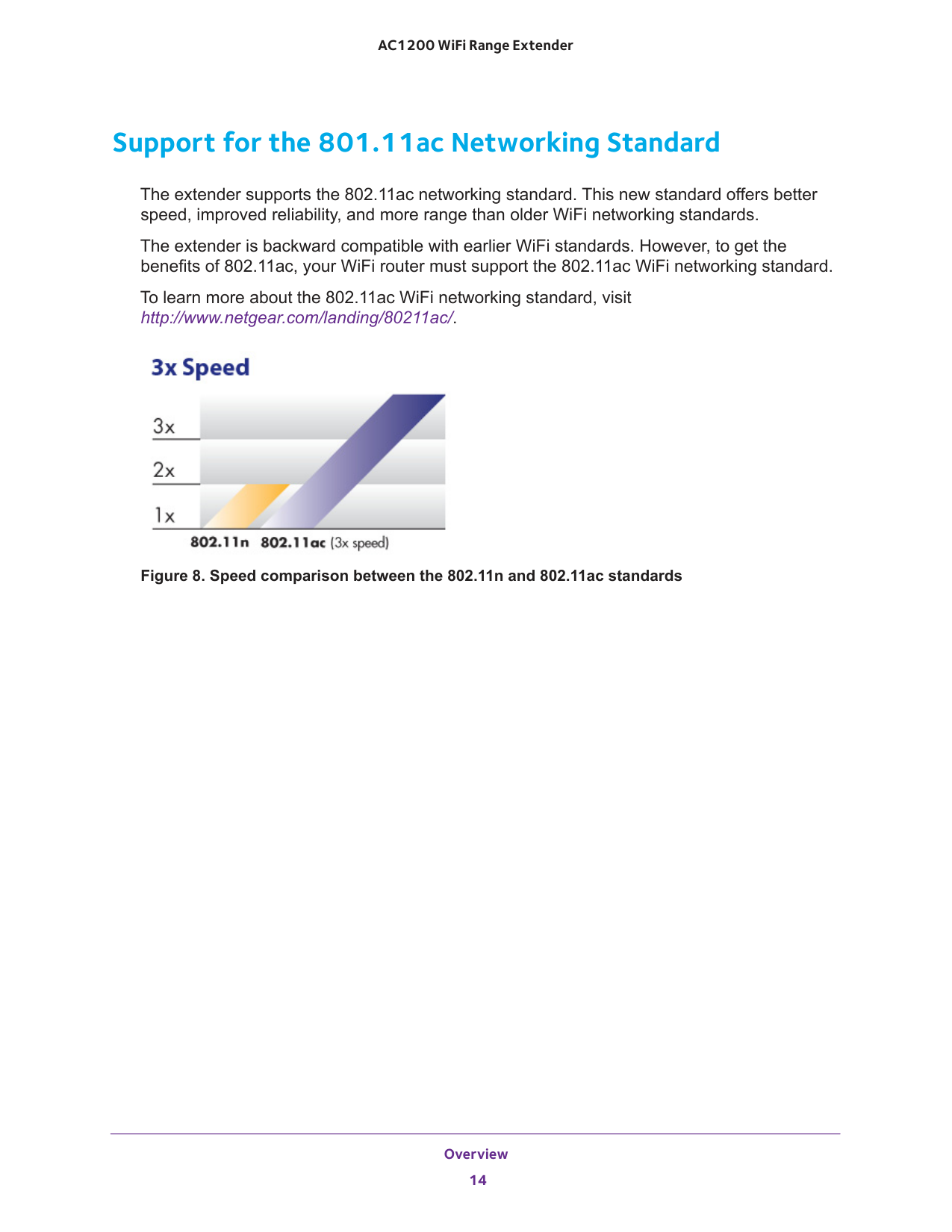
Overview 14 AC1200 WiFi Range Extender Support for the 801.11ac Networking Standard The extender supports the 802.11ac networking standard. This new standard offers better speed, improved reliability, and more range than older WiFi networking standards. The extender is backward compatible with earlier WiFi standards. However, to get the benefits of 802.11ac, your WiFi router must support the 802.11ac WiFi networking standard. To learn more about the 802.11ac WiFi networking standard, visit http://www.netgear.com/landing/80211ac/. Figure 8. Speed comparison between the 802.11n and 802.11ac standards
15 2
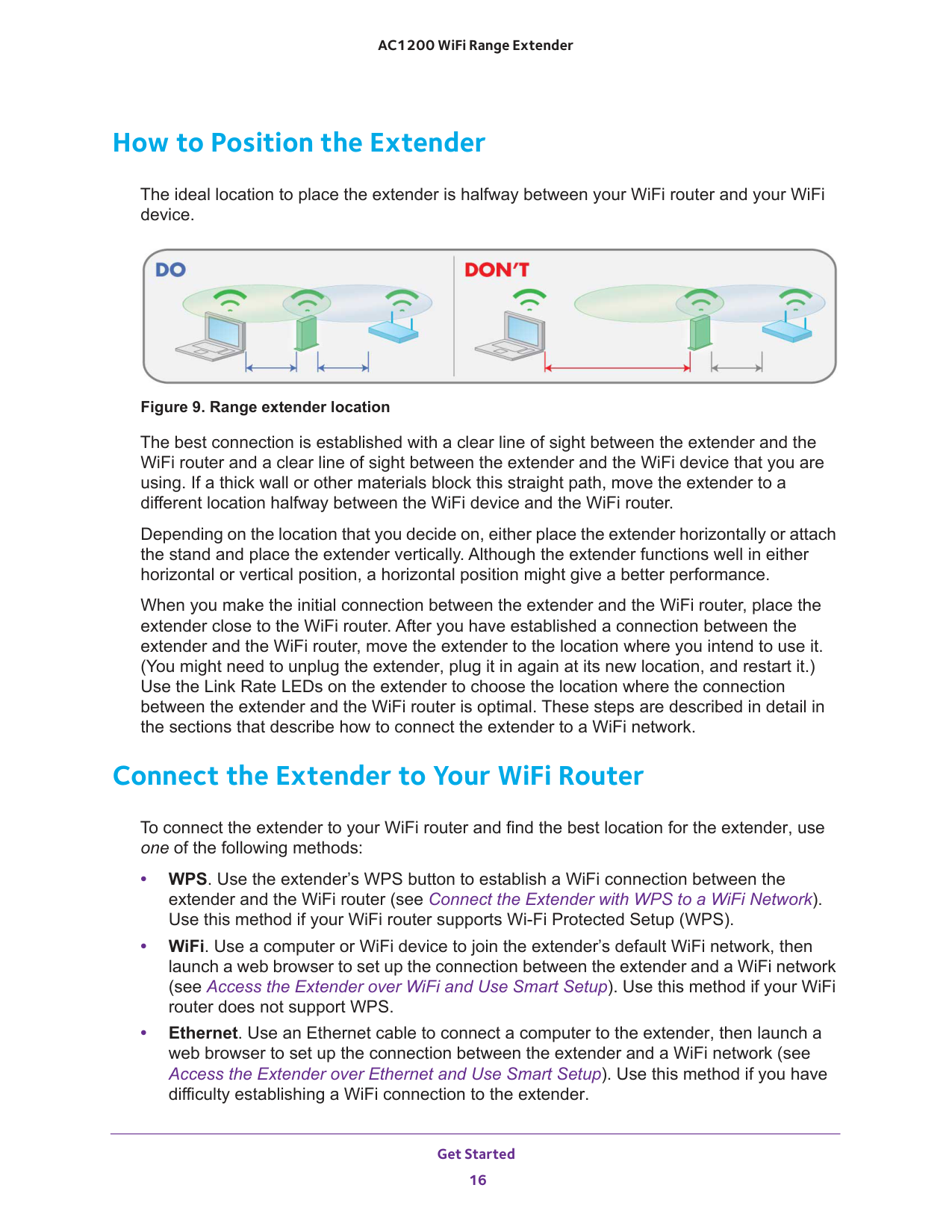
Get Started 16 AC1200 WiFi Range Extender How to Position the Extender The ideal location to place the extender is halfway between your WiFi router and your WiFi device. Figure 9. Range extender location The best connection is established with a clear line of sight between the extender and the WiFi router and a clear line of sight between the extender and the WiFi device that you are using. If a thick wall or other materials block this straight path, move the extender to a different location halfway between the WiFi device and the WiFi router. Depending on the location that you decide on, either place the extender horizontally or attach the stand and place the extender vertically. Although the extender functions well in either horizontal or vertical position, a horizontal position might give a better performance. When you make the initial connection between the extender and the WiFi router, place the extender close to the WiFi router. After you have established a connection between the extender and the WiFi router, move the extender to the location where you intend to use it. (You might need to unplug the extender, plug it in again at its new location, and restart it.) Use the Link Rate LEDs on the extender to choose the location where the connection between the extender and the WiFi router is optimal. These steps are described in detail in the sections that describe how to connect the extender to a WiFi network. Connect the Extender to Your WiFi Router To connect the extender to your WiFi router and find the best location for the extender, use one of the following methods: • WPS. Use the extender’s WPS button to establish a WiFi connection between the extender and the WiFi router (see Connect the Extender with WPS to a WiFi Network). Use this method if your WiFi router supports Wi-Fi Protected Setup (WPS). • WiFi. Use a computer or WiFi device to join the extender’s default WiFi network, then launch a web browser to set up the connection between the extender and a WiFi network (see Access the Extender over WiFi and Use Smart Setup). Use this method if your WiFi router does not support WPS. • Ethernet. Use an Ethernet cable to connect a computer to the extender, then launch a web browser to set up the connection between the extender and a WiFi network (see Access the Extender over Ethernet and Use Smart Setup). Use this method if you have difficulty establishing a WiFi connection to the extender.
Get Started 17 AC1200 WiFi Range Extender Connect the Extender with WPS to a WiFi Network The easiest way to connect the extender to a WiFi network is by using Wi-Fi Protected Setup (WPS). For this method to be successful, your WiFi router must support WPS. If your WiFi router does not support WPS, see one of the following sections: • Access the Extender over WiFi and Use Smart Setup on page
19 • Access the Extender over Ethernet and Use Smart Setup on page
27 WPS lets you join a secure WiFi network without typing the network name and password. The WPS button is a physical button on the rear panel of the extender. Your WiFi router might have a physical WPS button, a software WPS button, or both. WPS does not support WEP network security. If you are using WEP security, follow the instructions in Access the Extender over WiFi and Use Smart Setup on page
and the Device to Extender LED blink green for two minutes.
4 and Step
5 again. If it still does not light green, see Access the Extender over WiFi and Use Smart Setup.
4 and Step
5 and check that the 5 GHz Link Rate LED lights green to confirm the connection.
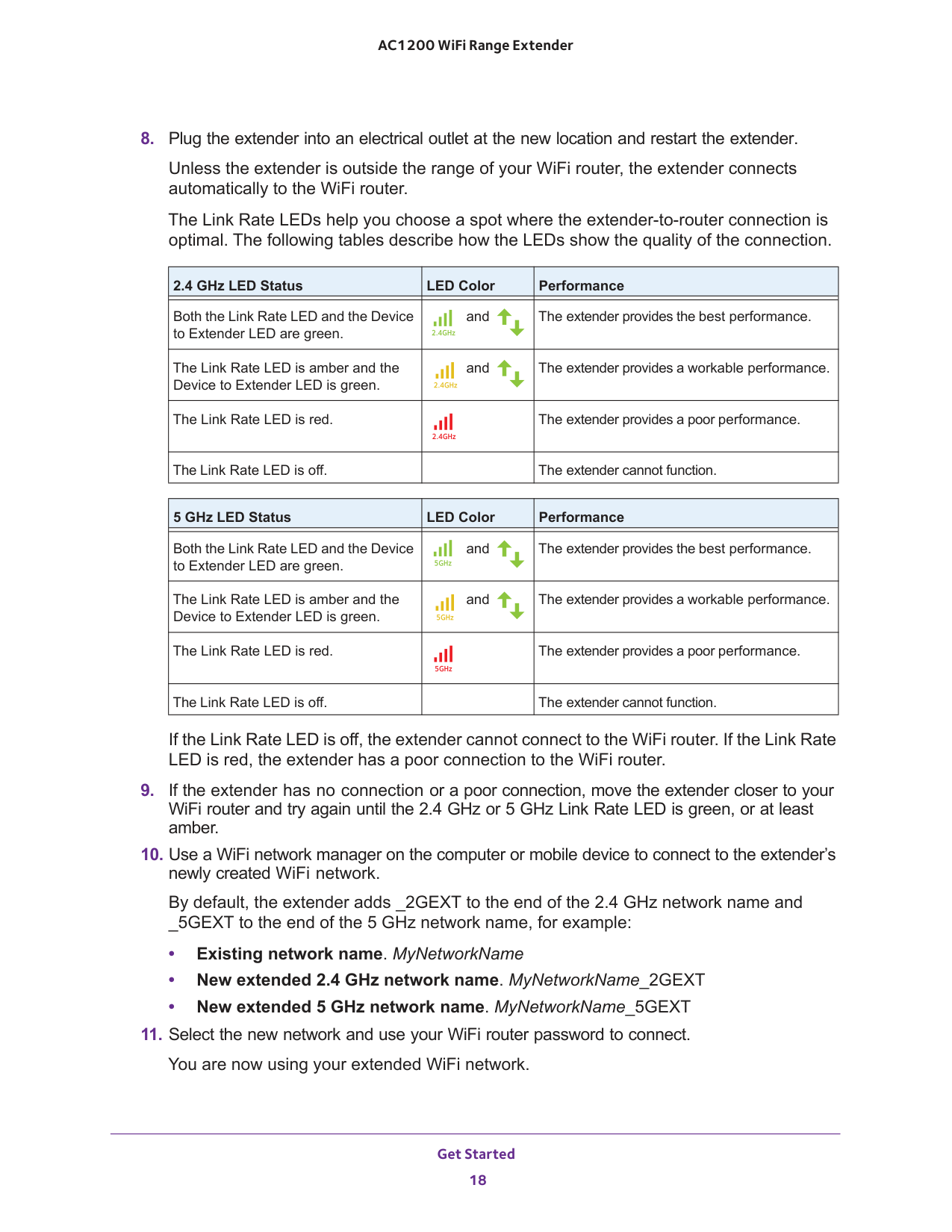
Get Started 18 AC1200 WiFi Range Extender
The extender provides a poor performance. The Link Rate LED is off.
The extender cannot function. 5 GHz LED Status LED Color Performance Both the Link Rate LED and the Device to Extender LED are green. and The extender provides the best performance. The Link Rate LED is amber and the Device to Extender LED is green. and The extender provides a workable performance. The Link Rate LED is red.
The extender provides a poor performance. The Link Rate LED is off.
The extender cannot function. If the Link Rate LED is off, the extender cannot connect to the WiFi router. If the Link Rate LED is red, the extender has a poor connection to the WiFi router.
Get Started 19 AC1200 WiFi Range Extender Note: If your computer or mobile device cannot join the new WiFi network of the extender, see Improve the Connection Between the Extender and the WiFi Router on page
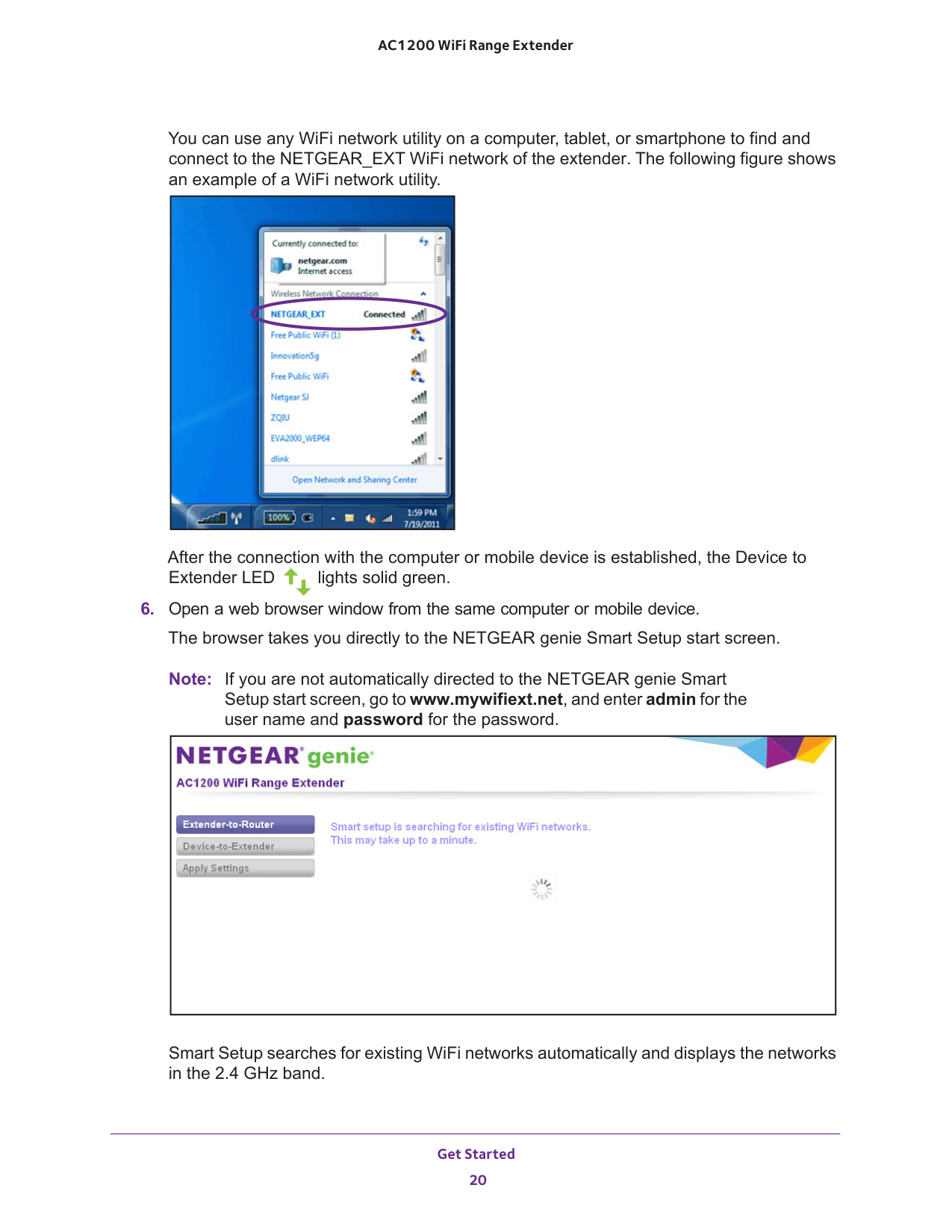
Get Started 20 AC1200 WiFi Range Extender You can use any WiFi network utility on a computer, tablet, or smartphone to find and connect to the NETGEAR_EXT WiFi network of the extender. The following figure shows an example of a WiFi network utility. After the connection with the computer or mobile device is established, the Device to Extender LED lights solid green.
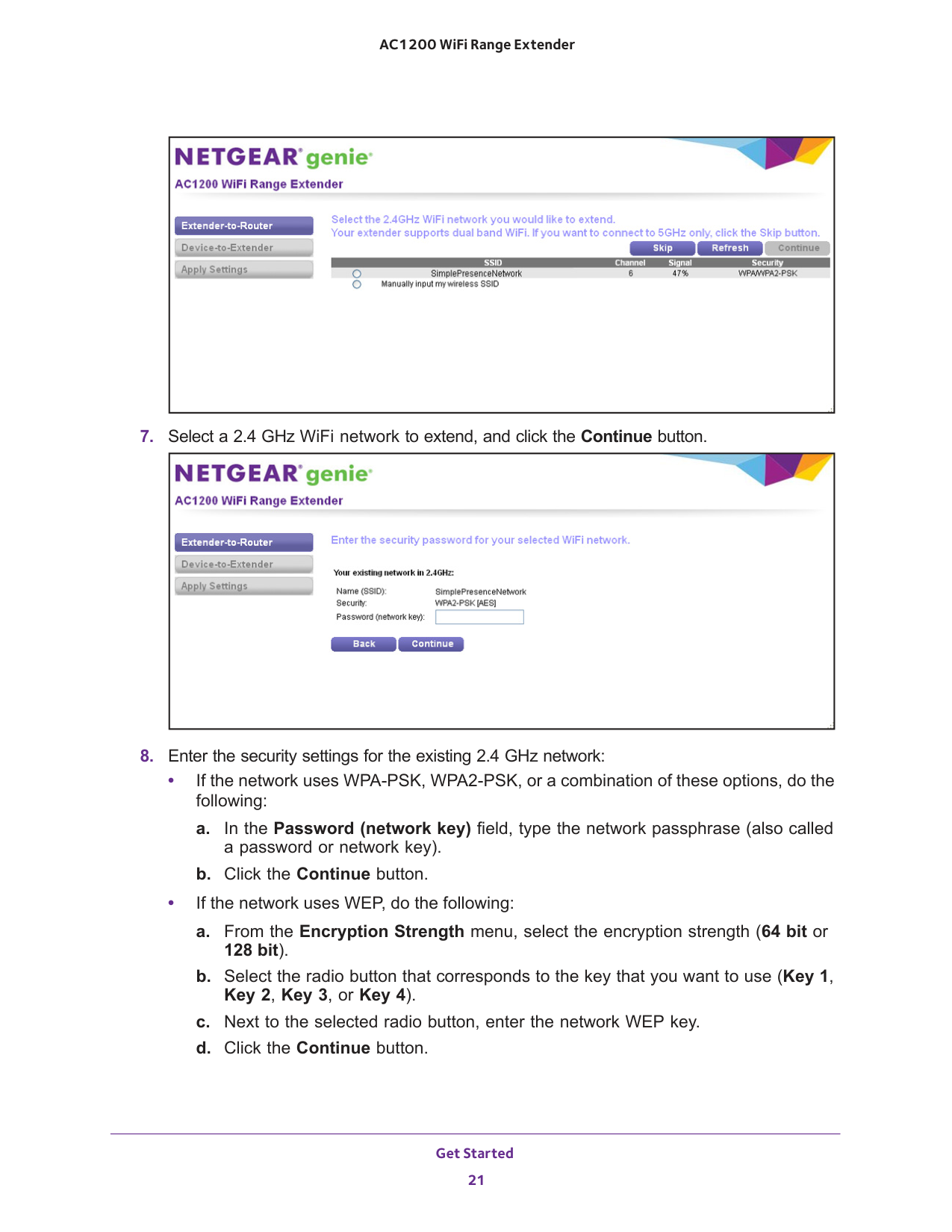
Get Started 21 AC1200 WiFi Range Extender
bit). b. Select the radio button that corresponds to the key that you want to use (Key 1, Key 2, Key 3, or Key 4). c. Next to the selected radio button, enter the network WEP key. d. Click the Continue button.
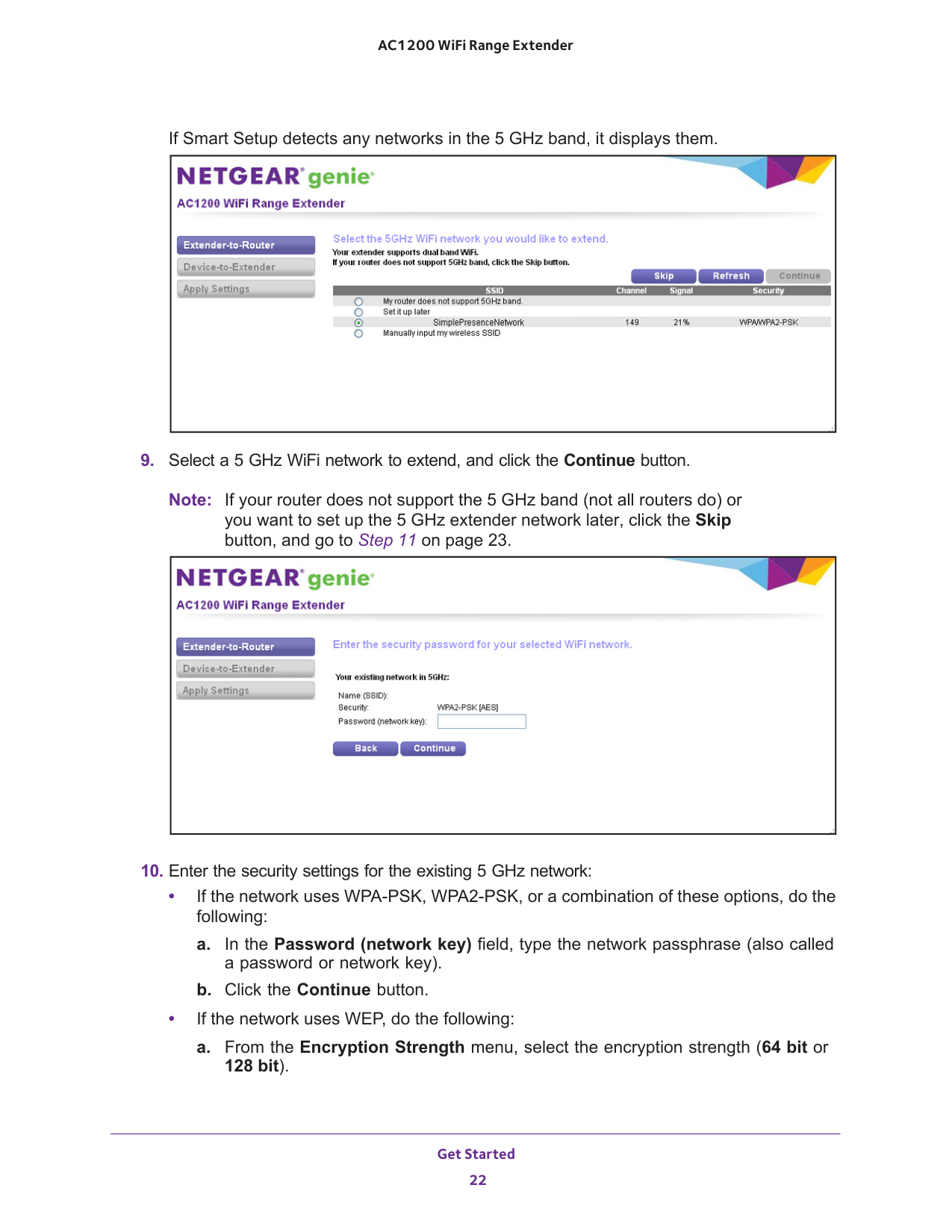
Get Started 22 AC1200 WiFi Range Extender If Smart Setup detects any networks in the 5 GHz band, it displays them.
11 on page
bit).
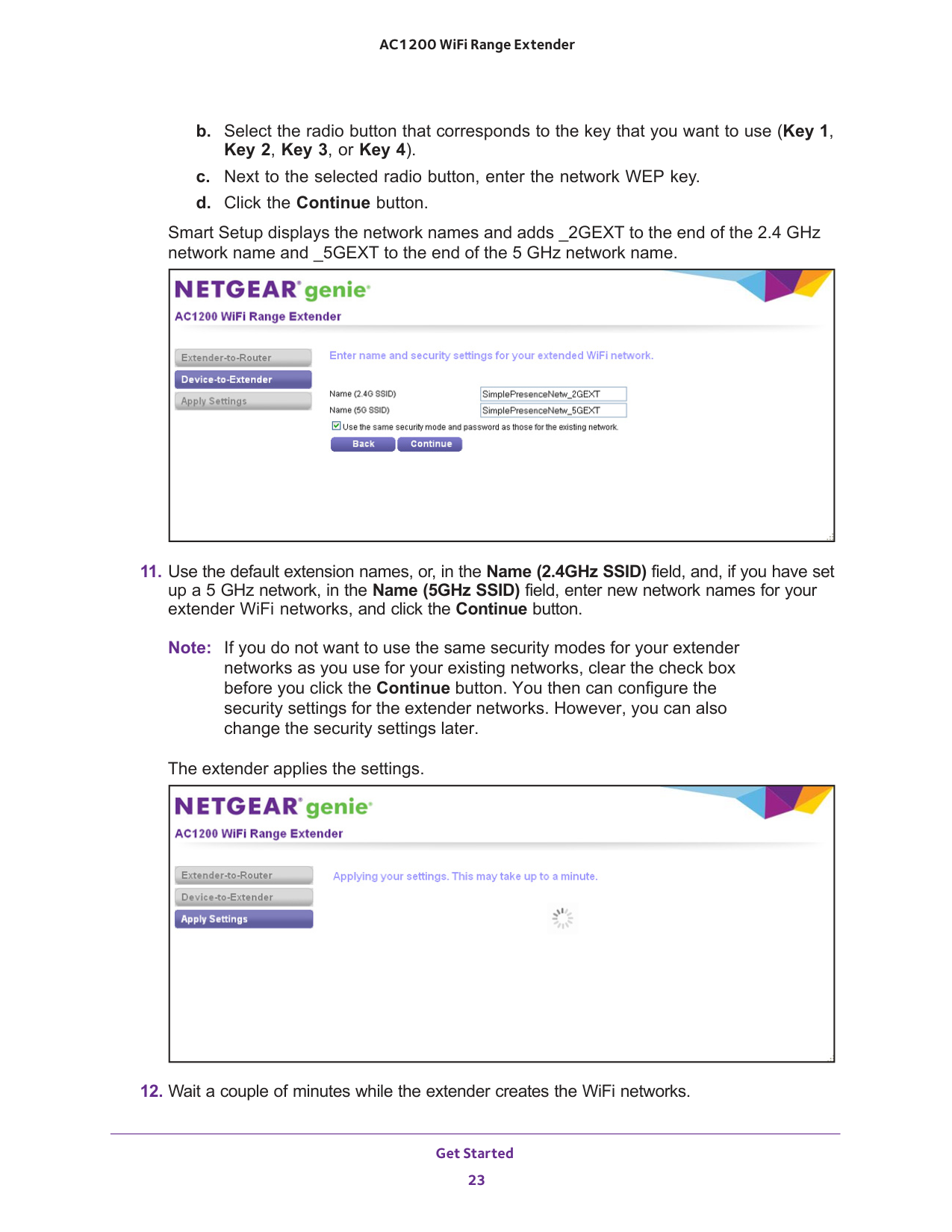
Get Started 23 AC1200 WiFi Range Extender b. Select the radio button that corresponds to the key that you want to use (Key 1, Key 2, Key 3, or Key 4). c. Next to the selected radio button, enter the network WEP key. d. Click the Continue button. Smart Setup displays the network names and adds _2GEXT to the end of the 2.4
GHz network name and _5GEXT to the end of the 5 GHz network name.
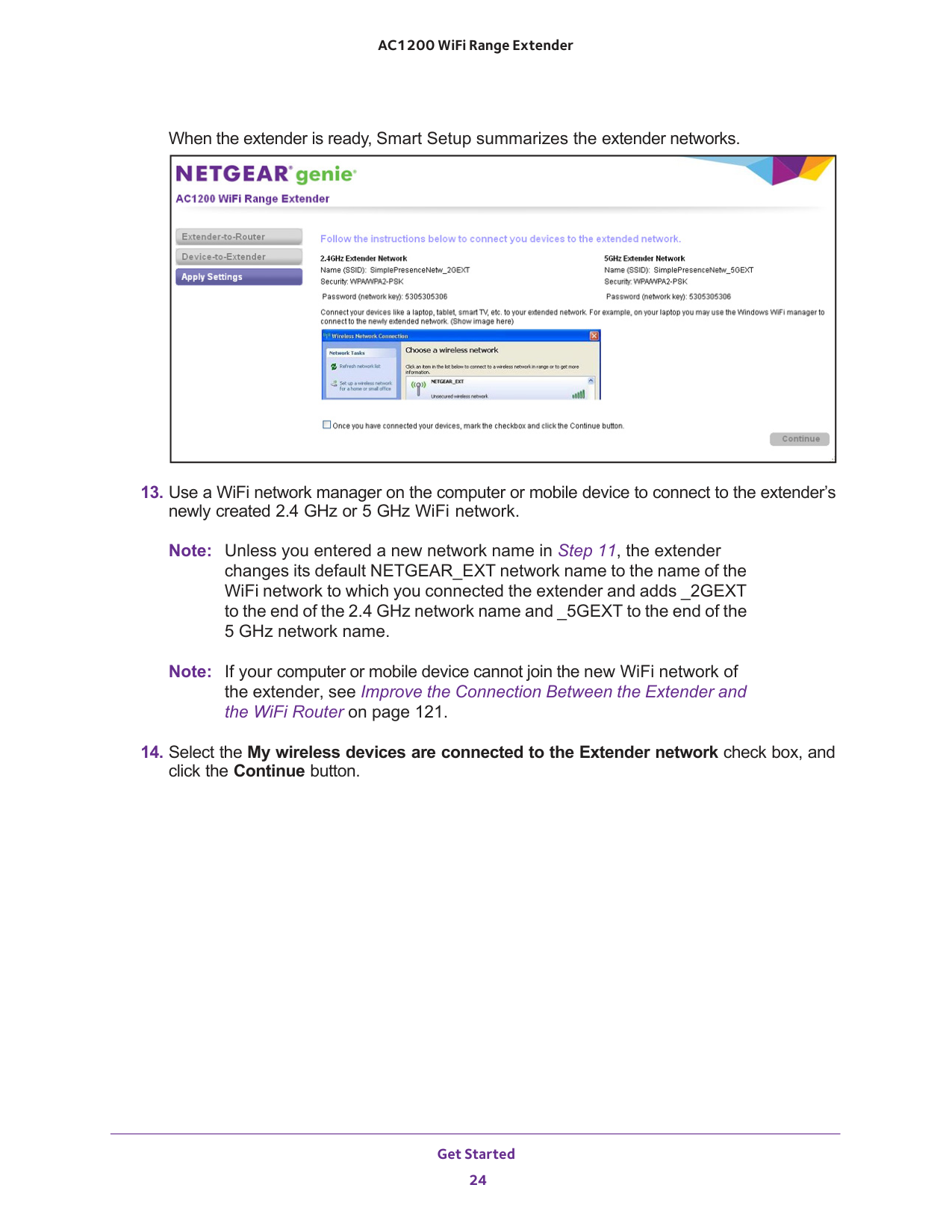
Get Started 24 AC1200 WiFi Range Extender When the extender is ready, Smart Setup summarizes the extender networks.
11, the extender changes its default NETGEAR_EXT network name to the name of the WiFi network to which you connected the extender and adds _2GEXT to the end of the 2.4 GHz network name and _5GEXT to the end of the 5 GHz network name. Note: If your computer or mobile device cannot join the new WiFi network of the extender, see Improve the Connection Between the Extender and the WiFi Router on page
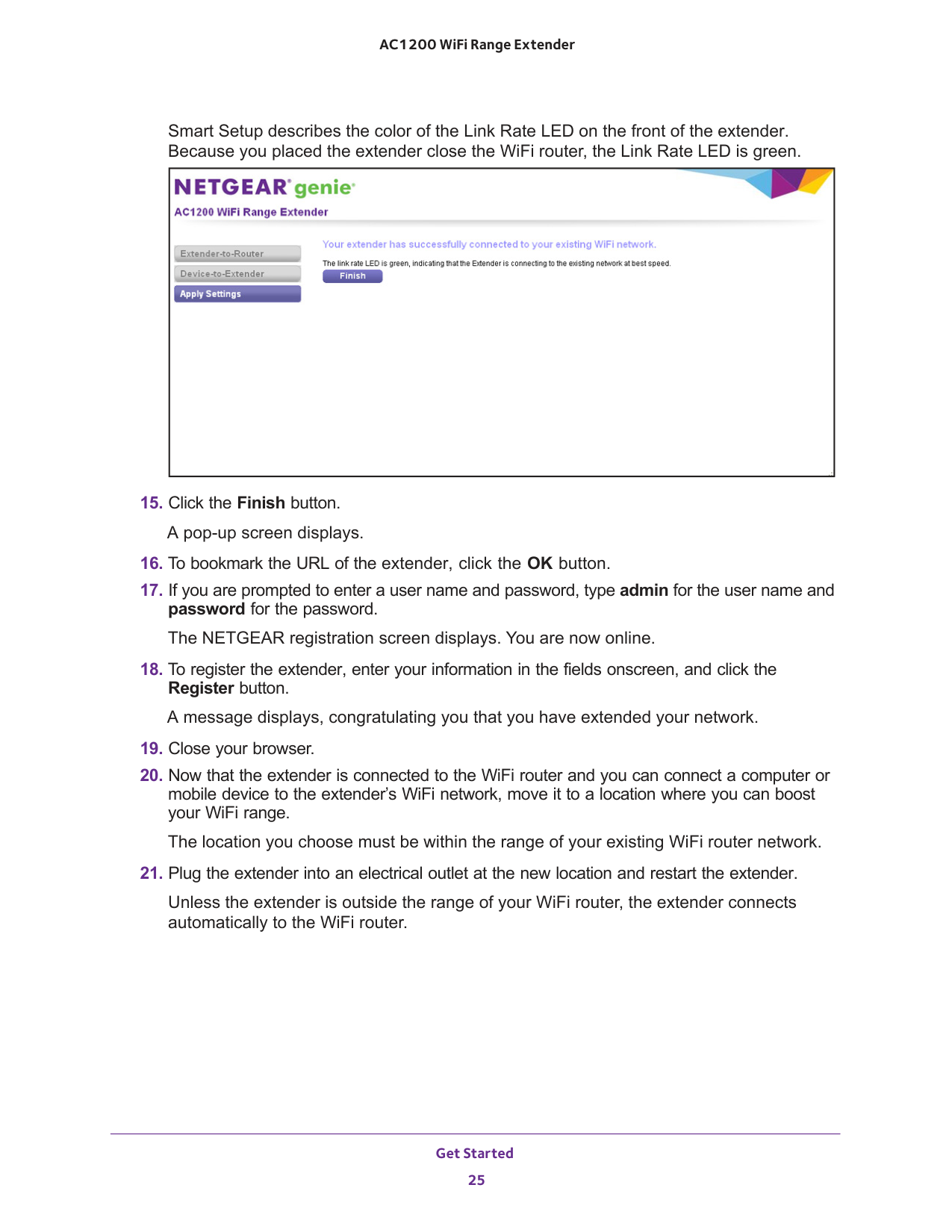
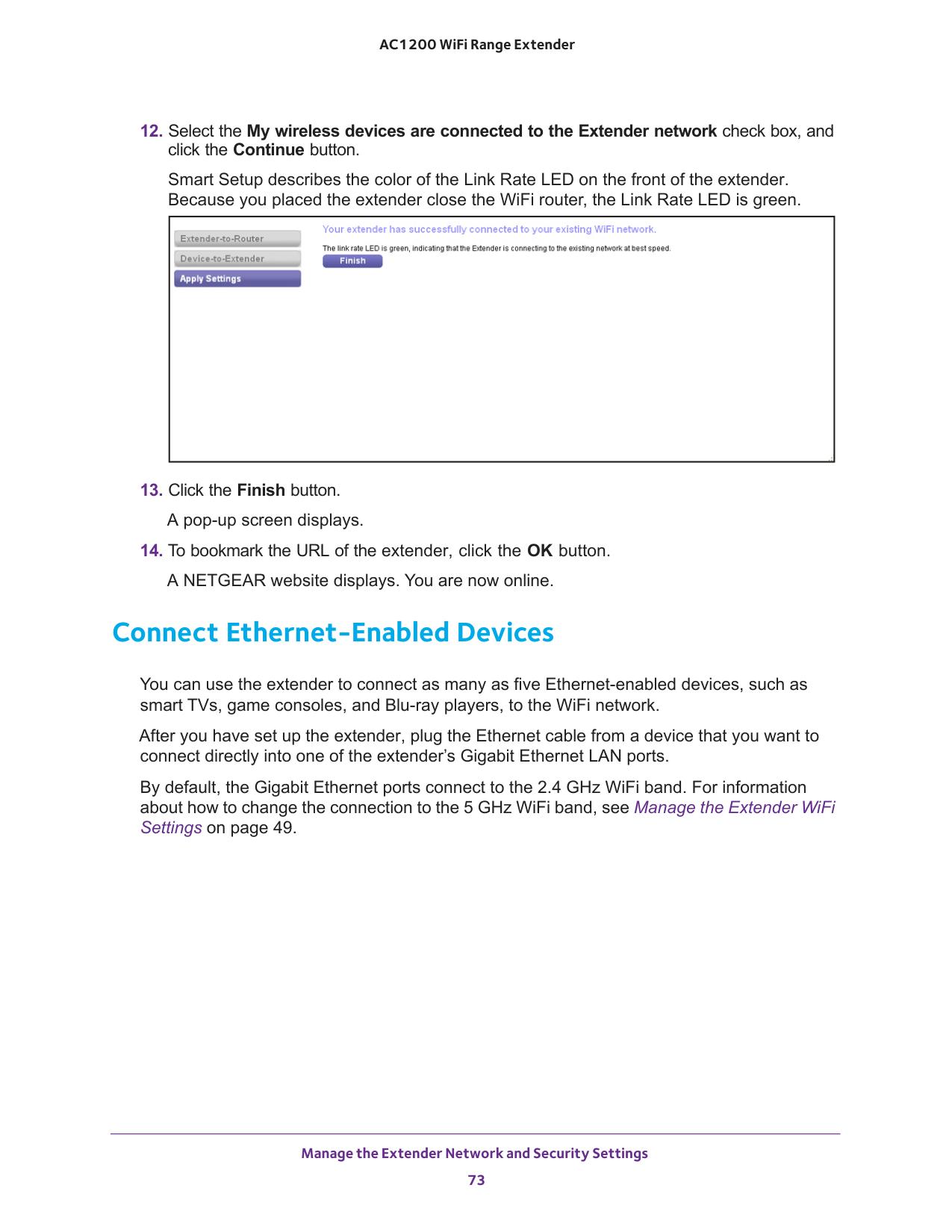
Get Started 25 AC1200 WiFi Range Extender Smart Setup describes the color of the Link Rate LED on the front of the extender. Because you placed the extender close the WiFi router, the Link Rate LED is green.
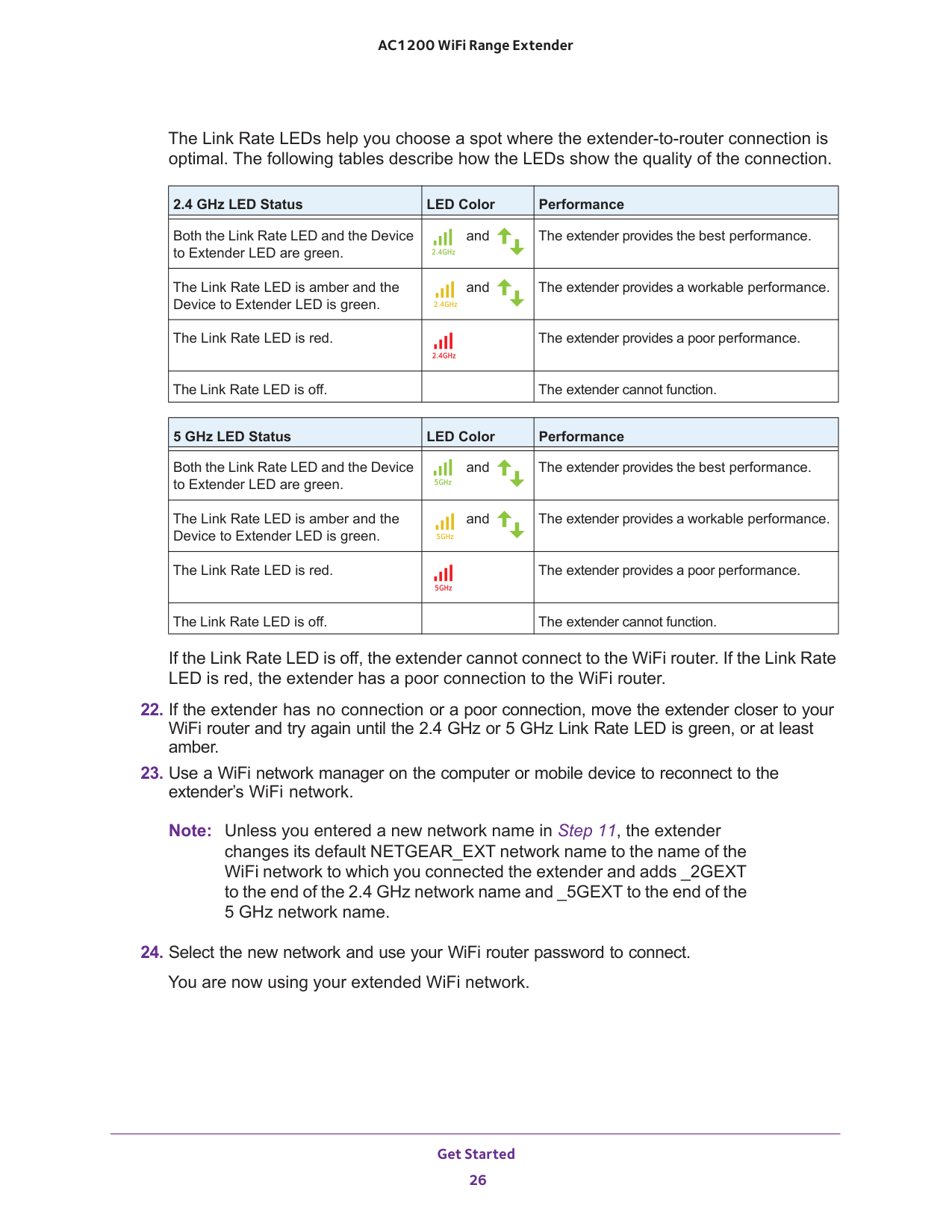
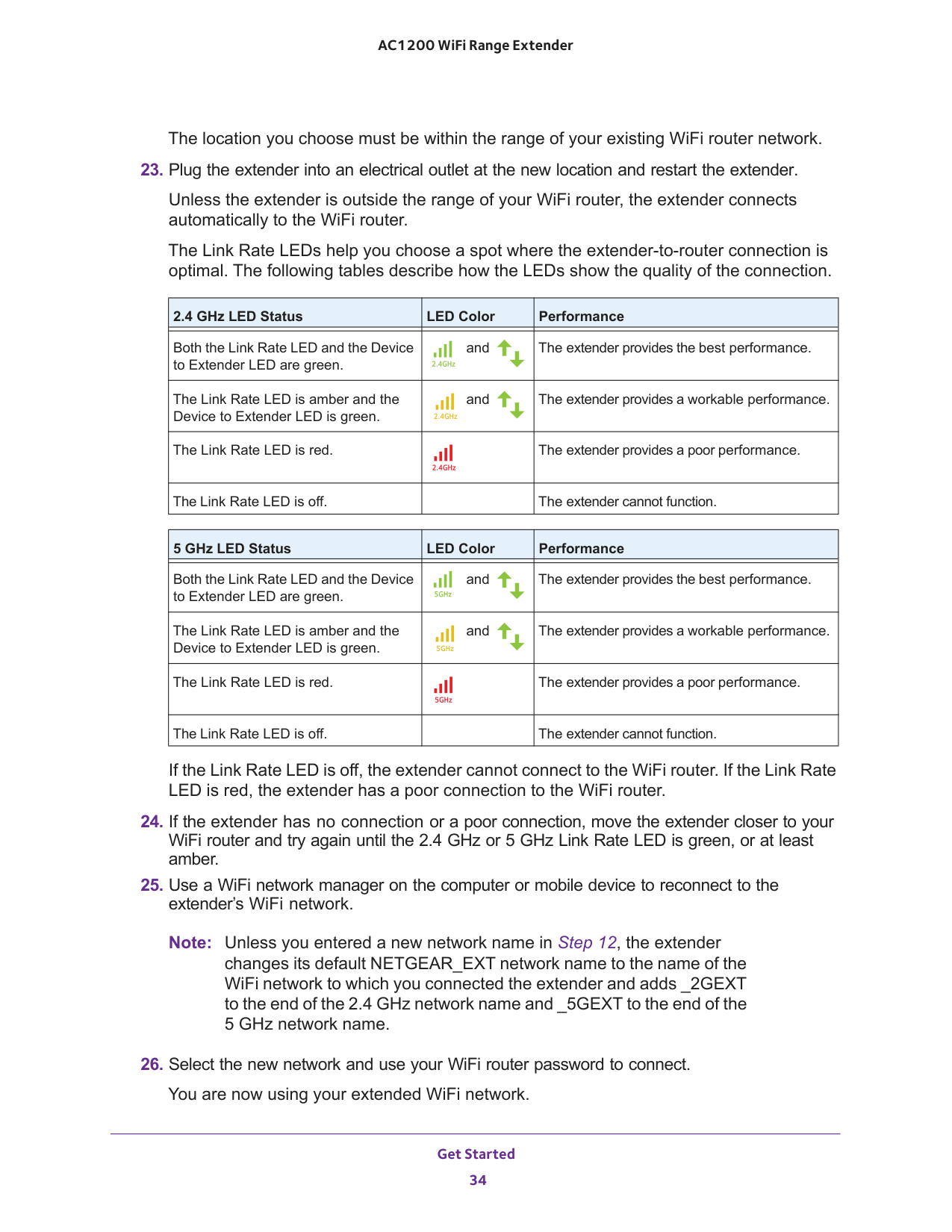
Get Started 26 AC1200 WiFi Range Extender The Link Rate LEDs help you choose a spot where the extender-to-router connection is optimal. The following tables describe how the LEDs show the quality of the connection. 2.4 GHz LED Status LED Color Performance Both the Link Rate LED and the Device to Extender LED are green. and The extender provides the best performance. The Link Rate LED is amber and the Device to Extender LED is green. and The extender provides a workable performance. The Link Rate LED is red.
The extender provides a poor performance. The Link Rate LED is off.
The extender cannot function. 5 GHz LED Status LED Color Performance Both the Link Rate LED and the Device to Extender LED are green. and The extender provides the best performance. The Link Rate LED is amber and the Device to Extender LED is green. and The extender provides a workable performance. The Link Rate LED is red.
The extender provides a poor performance. The Link Rate LED is off.
The extender cannot function. If the Link Rate LED is off, the extender cannot connect to the WiFi router. If the Link Rate LED is red, the extender has a poor connection to the WiFi router.
11, the extender changes its default NETGEAR_EXT network name to the name of the WiFi network to which you connected the extender and adds _2GEXT to the end of the 2.4 GHz network name and _5GEXT to the end of the 5 GHz network name.
Get Started 27 AC1200 WiFi Range Extender Access the Extender over Ethernet and Use Smart Setup If your WiFi router does not support WPS, you can use an Ethernet cable to connect your computer to one of the LAN ports of the extender. Then use the browser-based NETGEAR genie Smart Setup to connect the extender to an existing WiFi network. After you have used Smart Setup to connect the extender to an existing WiFi network, the extender changes its default NETGEAR_EXT WiFi network name (SSID) in the 2.4 GHz band to the name of the existing WiFi network and adds _2GEXT to the end of the 2.4 GHz network name and _5GEXT to the end of the 5 GHz network name, for example: • Existing network name. MyNetworkName • New extended 2.4 GHz network name. MyNetworkName_2GEXT • New extended 5 GHz network name. MyNetworkName_5GEXT Note: After you have set up the extender, you can also connect Ethernet-enabled devices such as gaming consoles and printers to the Ethernet LAN ports of the extender. For more information, see Connect Ethernet-Enabled Devices on page
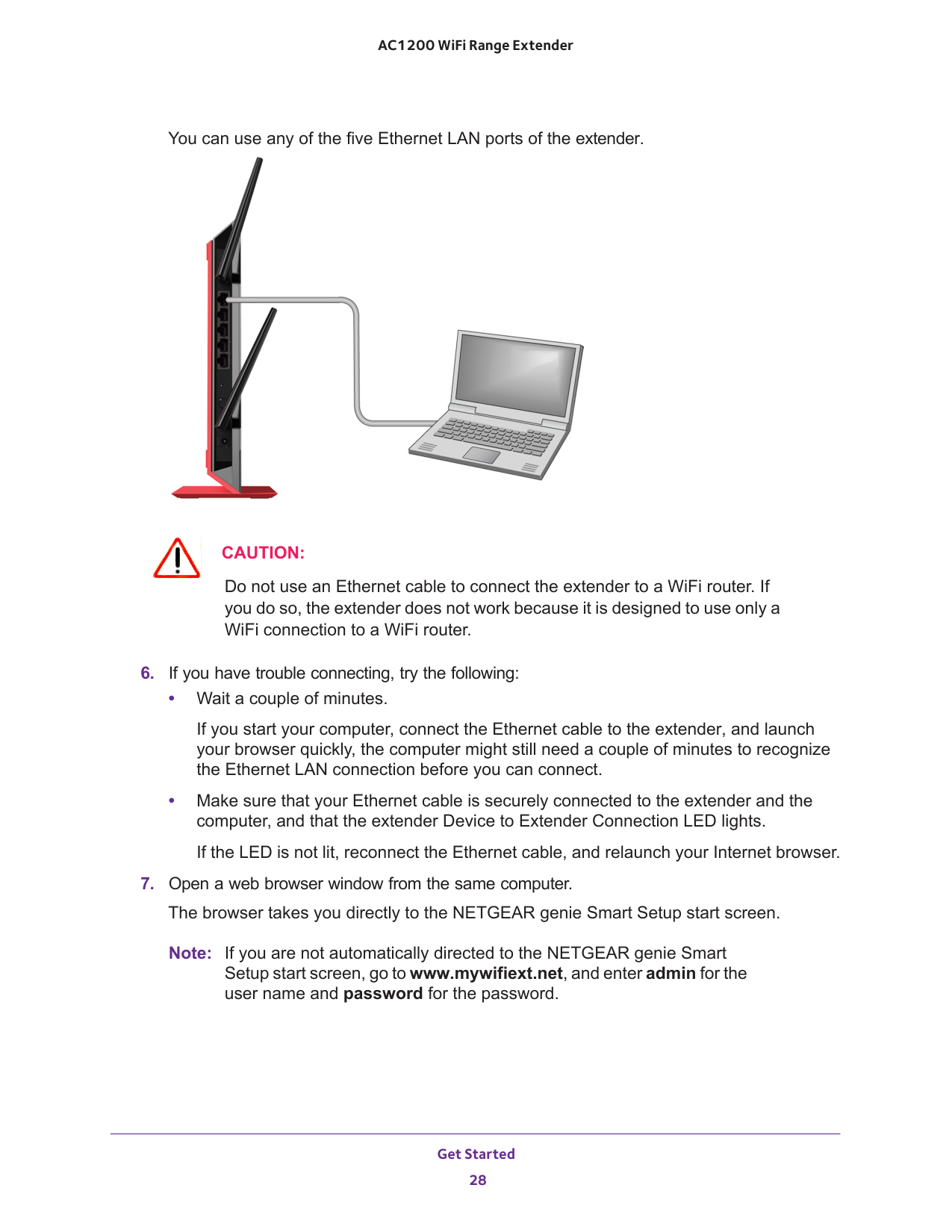
Get Started 28 AC1200 WiFi Range Extender You can use any of the five Ethernet LAN ports of the extender.
Caution:
Do not use an Ethernet cable to connect the extender to a WiFi router. If you do so, the extender does not work because it is designed to use only a WiFi connection to a WiFi router.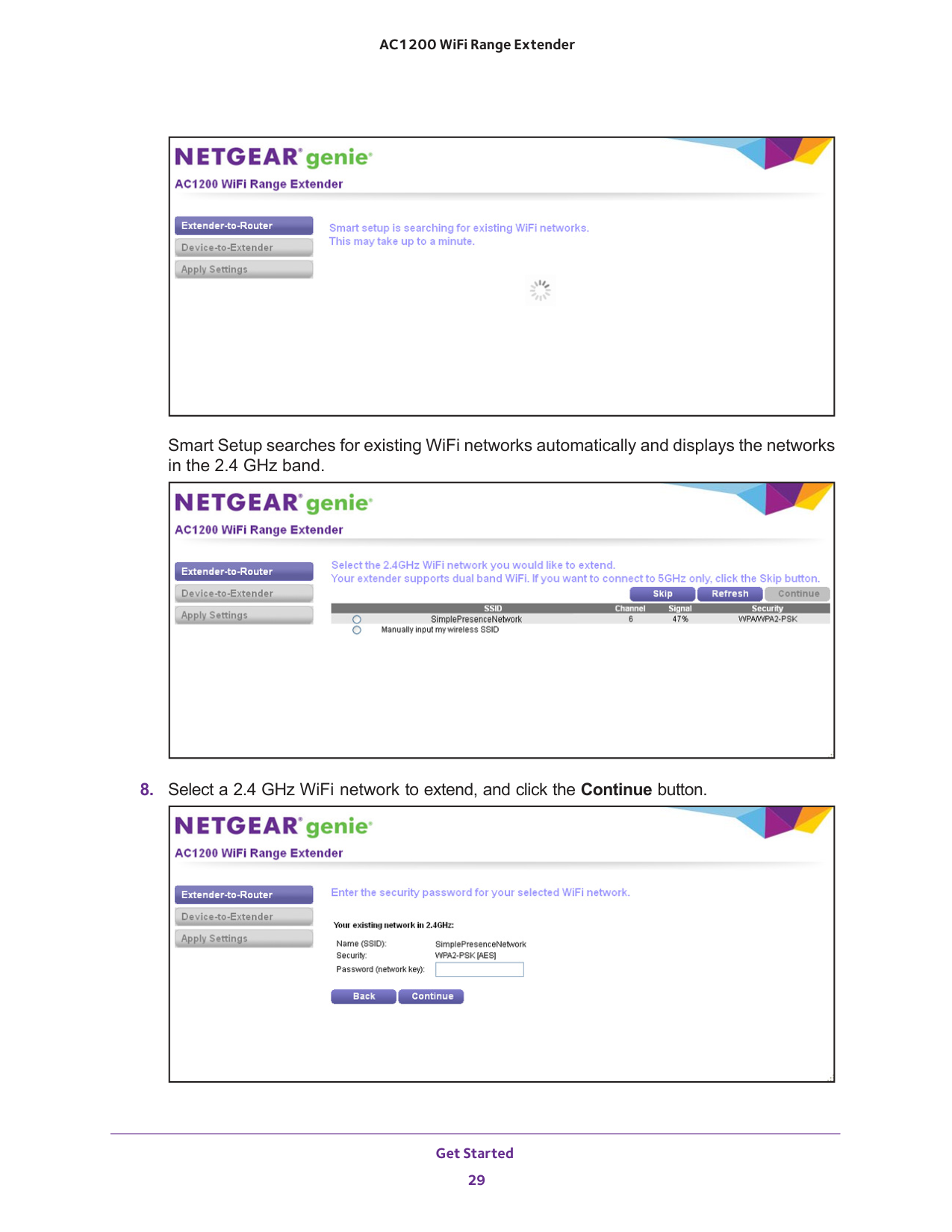
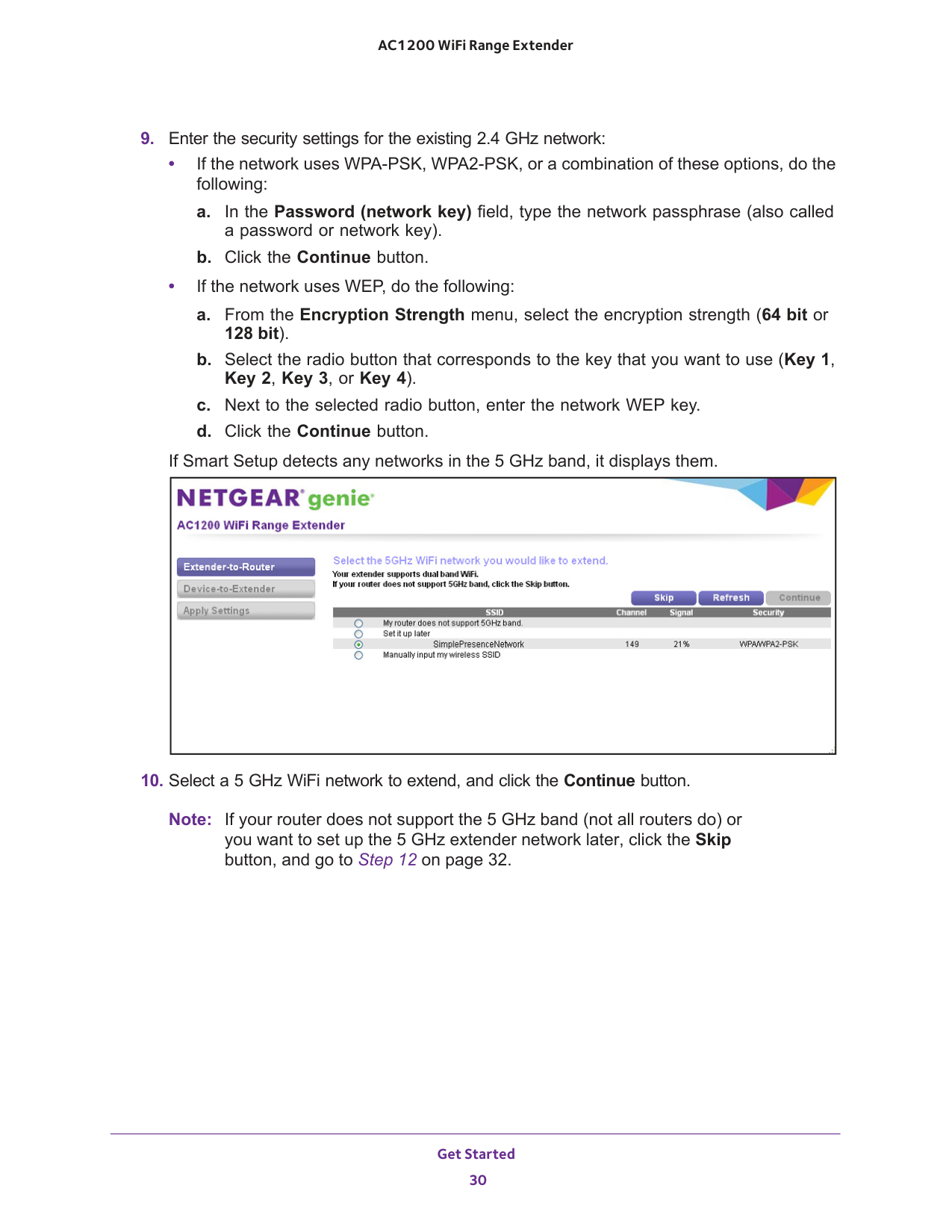
Get Started 29 AC1200 WiFi Range Extender Smart Setup searches for existing WiFi networks automatically and displays the networks in the 2.4 GHz band.
Get Started 30 AC1200 WiFi Range Extender
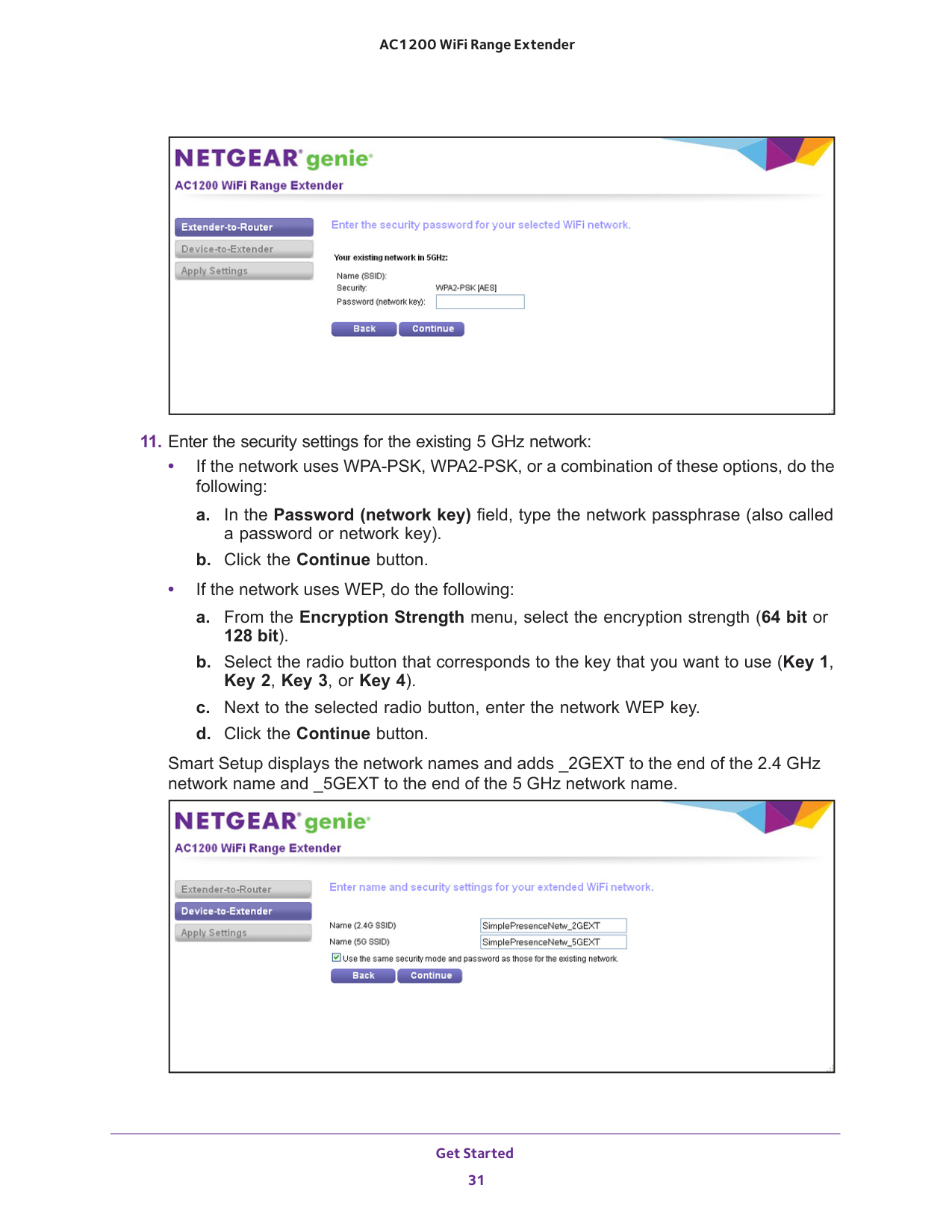
bit). b. Select the radio button that corresponds to the key that you want to use (Key 1, Key 2, Key 3, or Key 4). c. Next to the selected radio button, enter the network WEP key. d. Click the Continue button. If Smart Setup detects any networks in the 5 GHz band, it displays them.
12 on page
32.
Get Started 31 AC1200 WiFi Range Extender
bit). b. Select the radio button that corresponds to the key that you want to use (Key 1, Key 2, Key 3, or Key 4). c. Next to the selected radio button, enter the network WEP key. d. Click the Continue button. Smart Setup displays the network names and adds _2GEXT to the end of the 2.4
GHz network name and _5GEXT to the end of the 5 GHz network name.
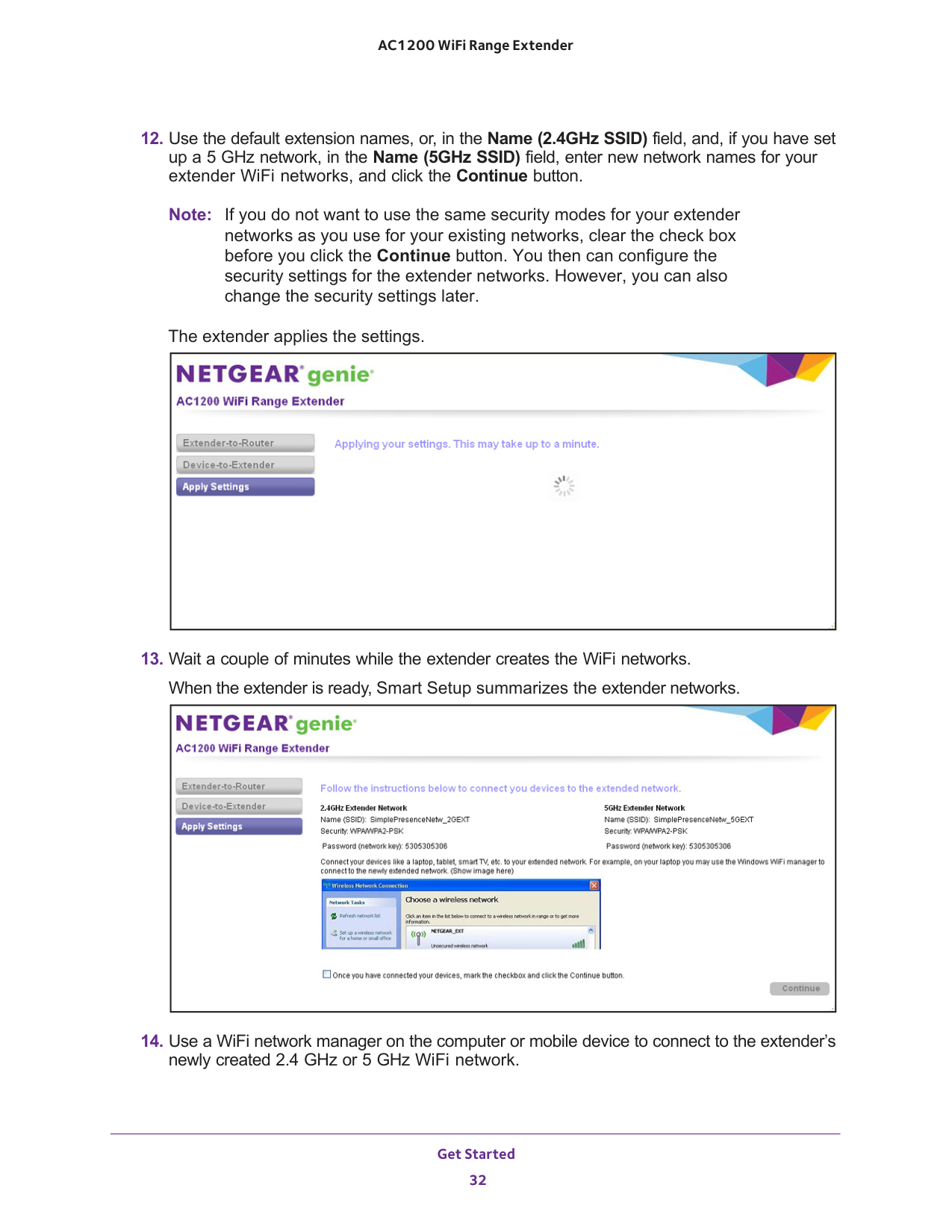
Get Started 32 AC1200 WiFi Range Extender
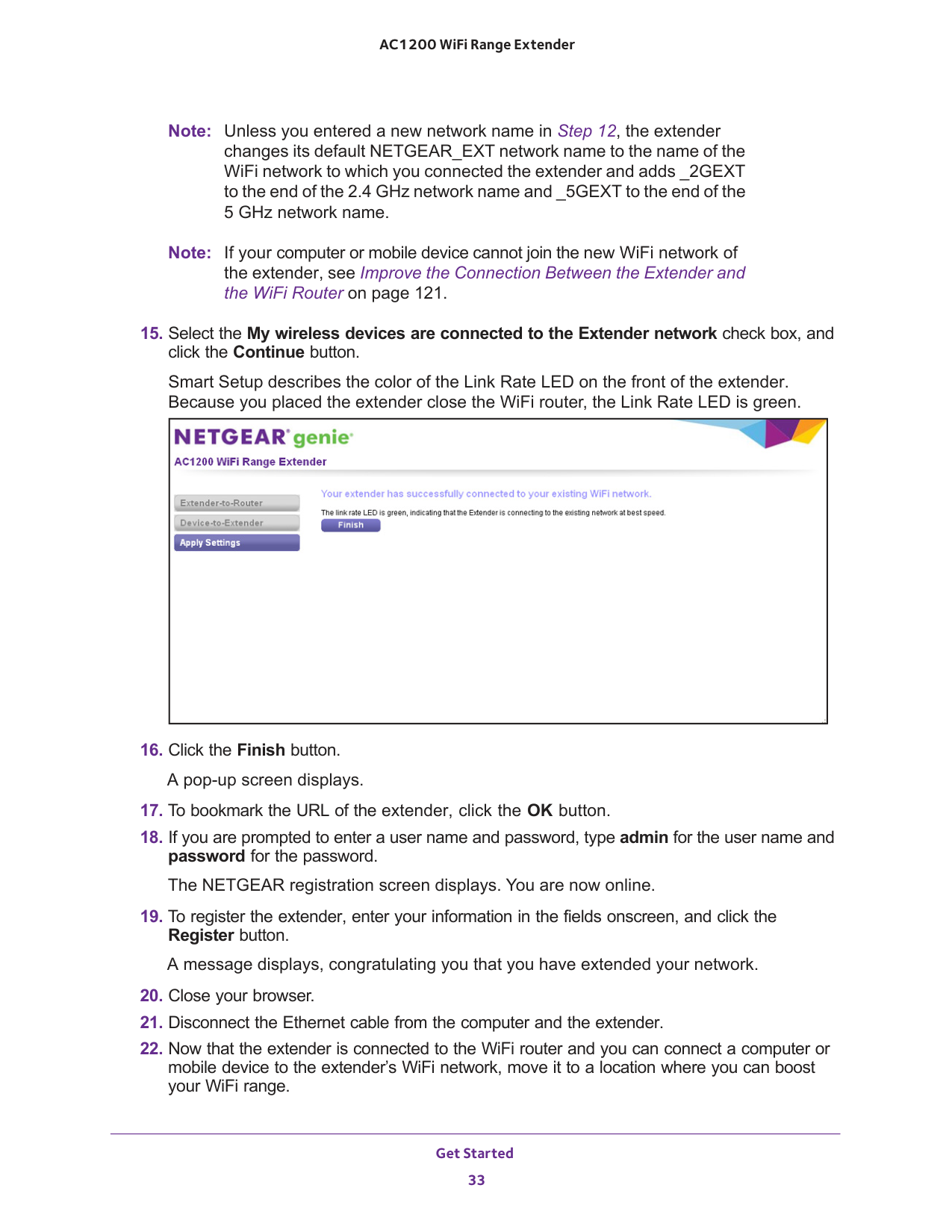
Get Started 33 AC1200 WiFi Range Extender Note: Unless you entered a new network name in Step
12, the extender changes its default NETGEAR_EXT network name to the name of the WiFi network to which you connected the extender and adds _2GEXT to the end of the 2.4 GHz network name and _5GEXT to the end of the 5 GHz network name. Note: If your computer or mobile device cannot join the new WiFi network of the extender, see Improve the Connection Between the Extender and the WiFi Router on page
Get Started 34 AC1200 WiFi Range Extender The location you choose must be within the range of your existing WiFi router network.
The extender provides a poor performance. The Link Rate LED is off.
The extender cannot function. 5 GHz LED Status LED Color Performance Both the Link Rate LED and the Device to Extender LED are green. and The extender provides the best performance. The Link Rate LED is amber and the Device to Extender LED is green. and The extender provides a workable performance. The Link Rate LED is red.
The extender provides a poor performance. The Link Rate LED is off.
The extender cannot function. If the Link Rate LED is off, the extender cannot connect to the WiFi router. If the Link Rate LED is red, the extender has a poor connection to the WiFi router.
12, the extender changes its default NETGEAR_EXT network name to the name of the WiFi network to which you connected the extender and adds _2GEXT to the end of the 2.4 GHz network name and _5GEXT to the end of the 5 GHz network name.
35 3
Manage the Extender Network and Security Settings 36 AC1200 WiFi Range Extender Log In to the Extender After Initial Setup You can log in to the extender to view or change the extender’s settings. If you connect to the extender before it has been set up, the browser automatically goes to http://www.mywifiext.net and displays the NETGEAR genie Smart Setup screens, which step you through the setup process. For more information, see Access the Extender over WiFi and Use Smart Setup on page
19 or Access the Extender over Ethernet and Use Smart Setup on page
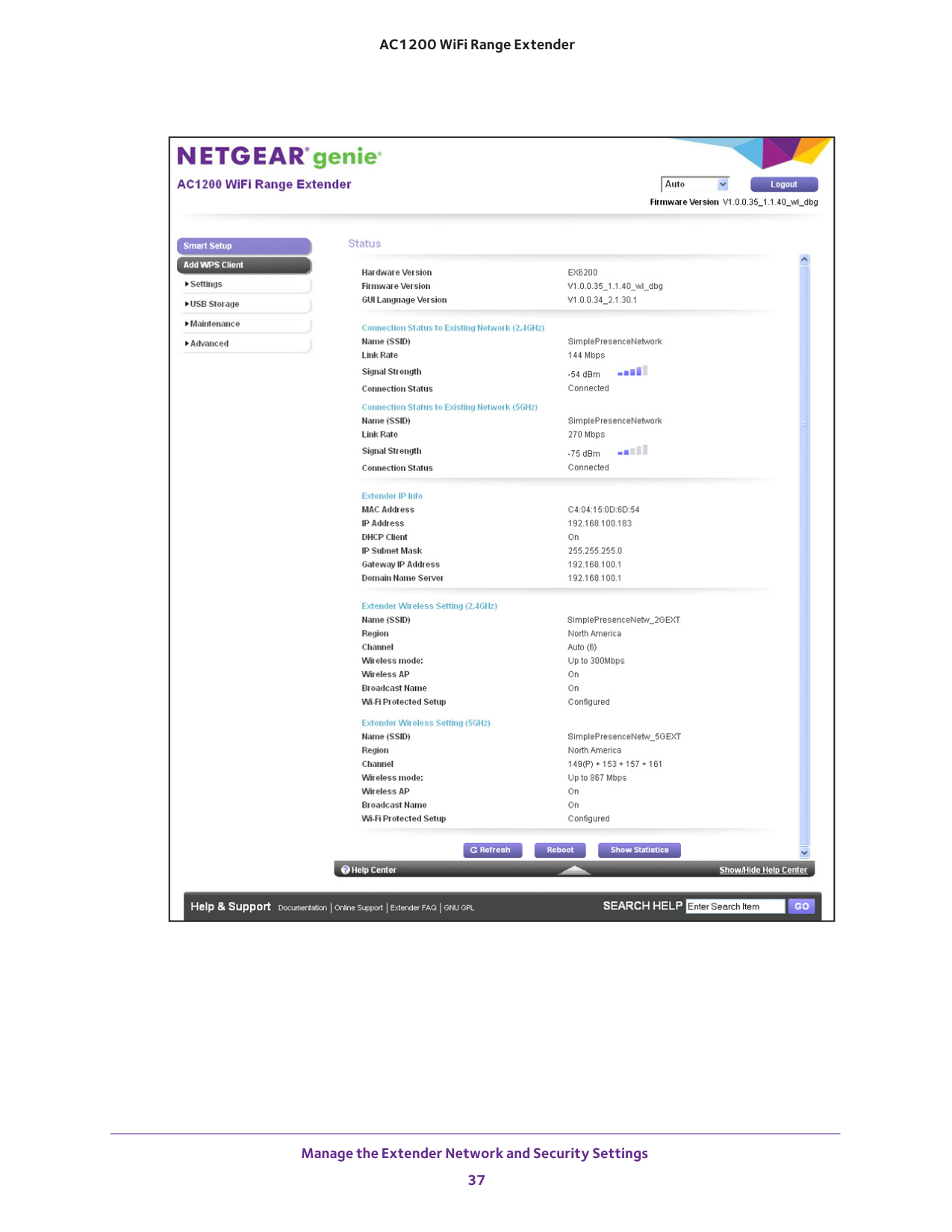
Manage the Extender Network and Security Settings 37 AC1200 WiFi Range Extender
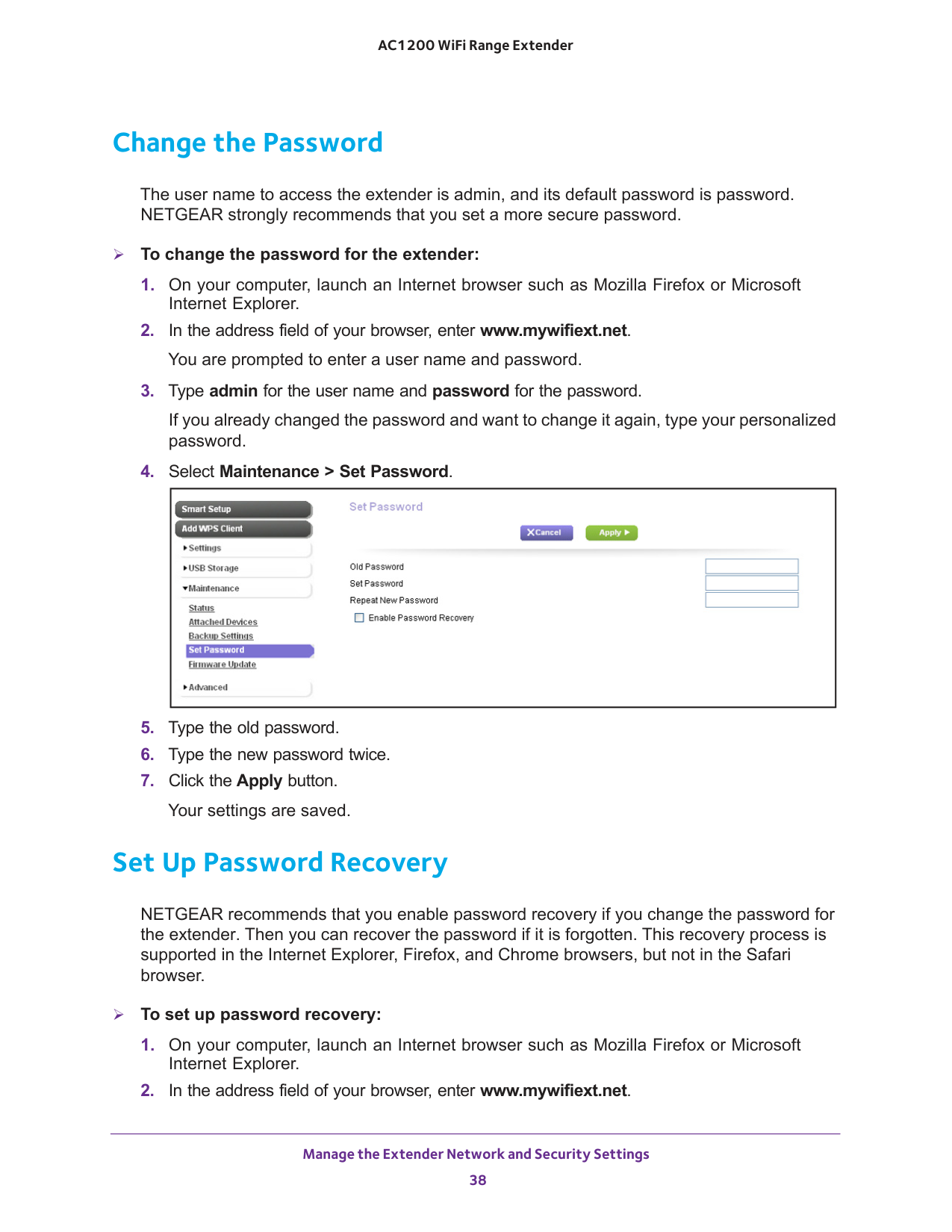
Manage the Extender Network and Security Settings 38 AC1200 WiFi Range Extender Change the Password The user name to access the extender is admin, and its default password is password. NETGEAR strongly recommends that you set a more secure password. To change the password for the extender:
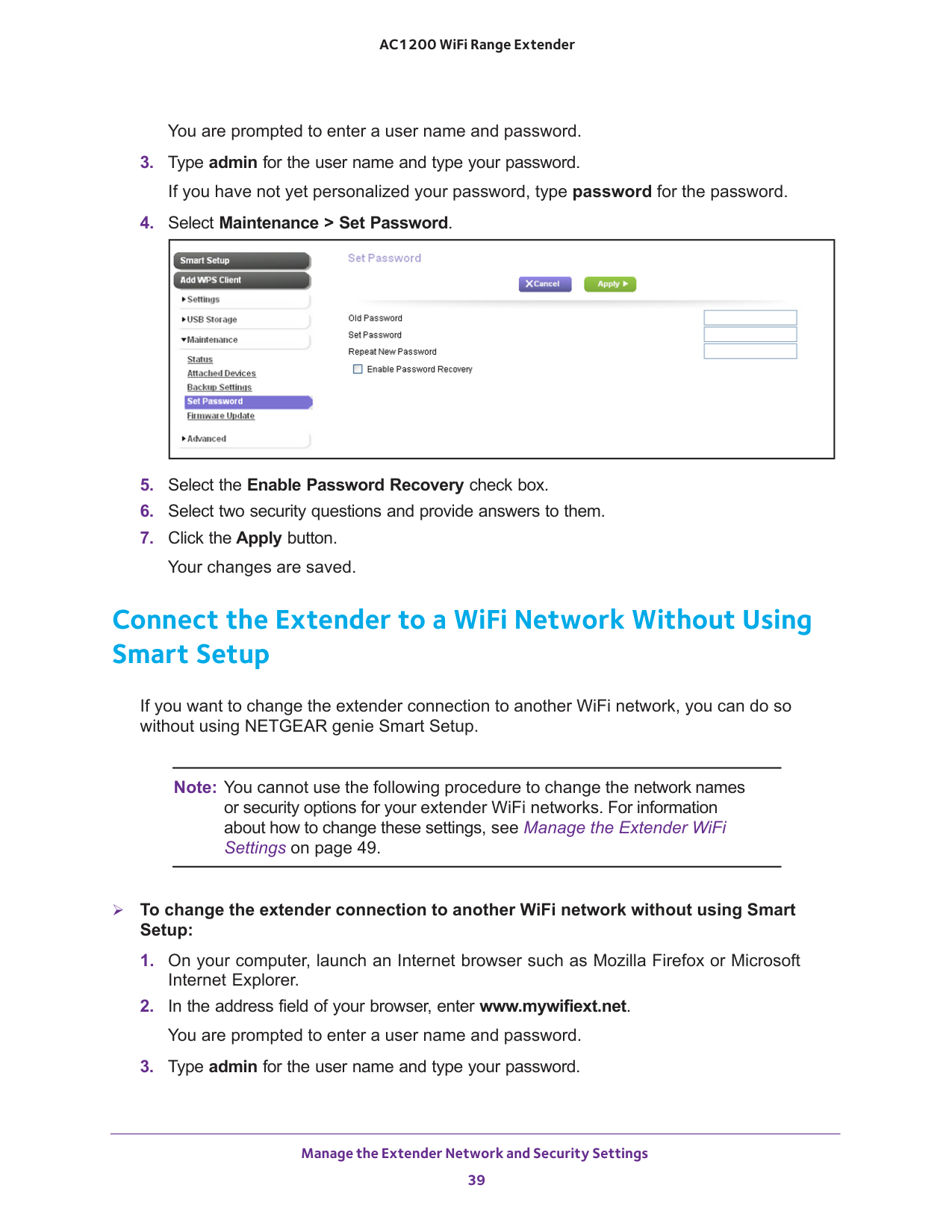
Manage the Extender Network and Security Settings 39 AC1200 WiFi Range Extender You are prompted to enter a user name and password.
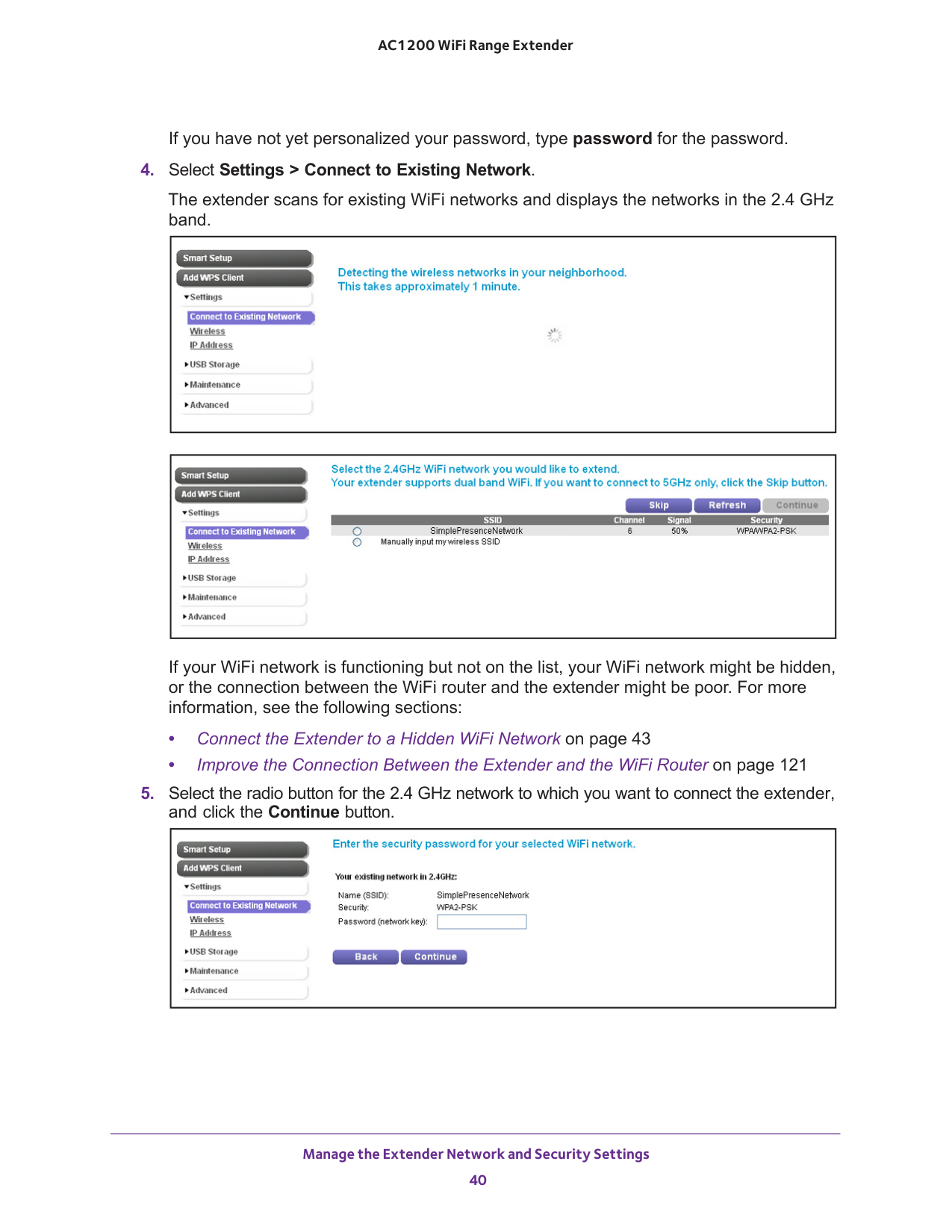
Manage the Extender Network and Security Settings 40 AC1200 WiFi Range Extender If you have not yet personalized your password, type password for the password.
43 • Improve the Connection Between the Extender and the WiFi Router on page
121
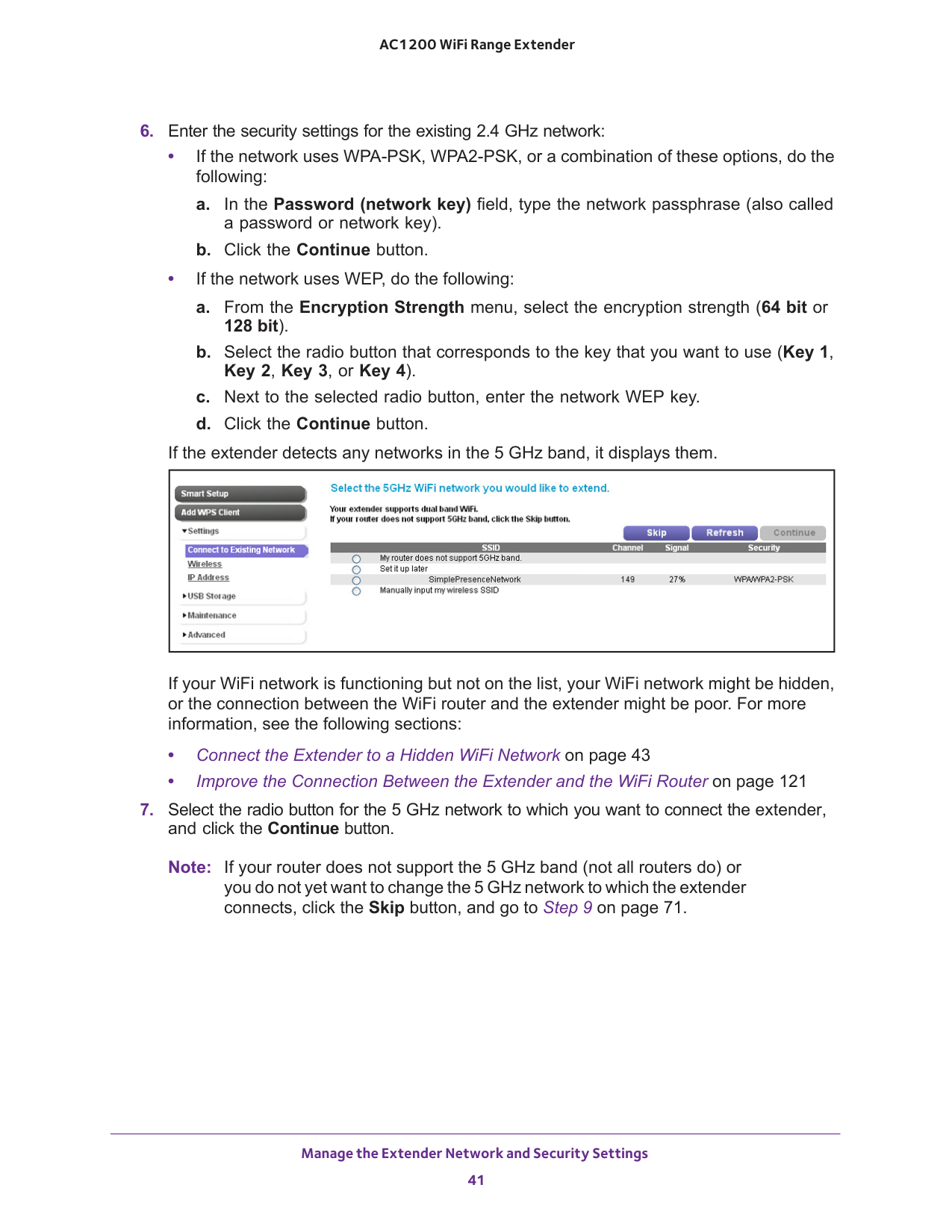
Manage the Extender Network and Security Settings 41 AC1200 WiFi Range Extender
bit). b. Select the radio button that corresponds to the key that you want to use (Key 1, Key 2, Key 3, or Key 4). c. Next to the selected radio button, enter the network WEP key. d. Click the Continue button. If the extender detects any networks in the 5 GHz band, it displays them. If your WiFi network is functioning but not on the list, your WiFi network might be hidden, or the connection between the WiFi router and the extender might be poor. For more information, see the following sections: • Connect the Extender to a Hidden WiFi Network on page
43 • Improve the Connection Between the Extender and the WiFi Router on page
121
9 on page
71.
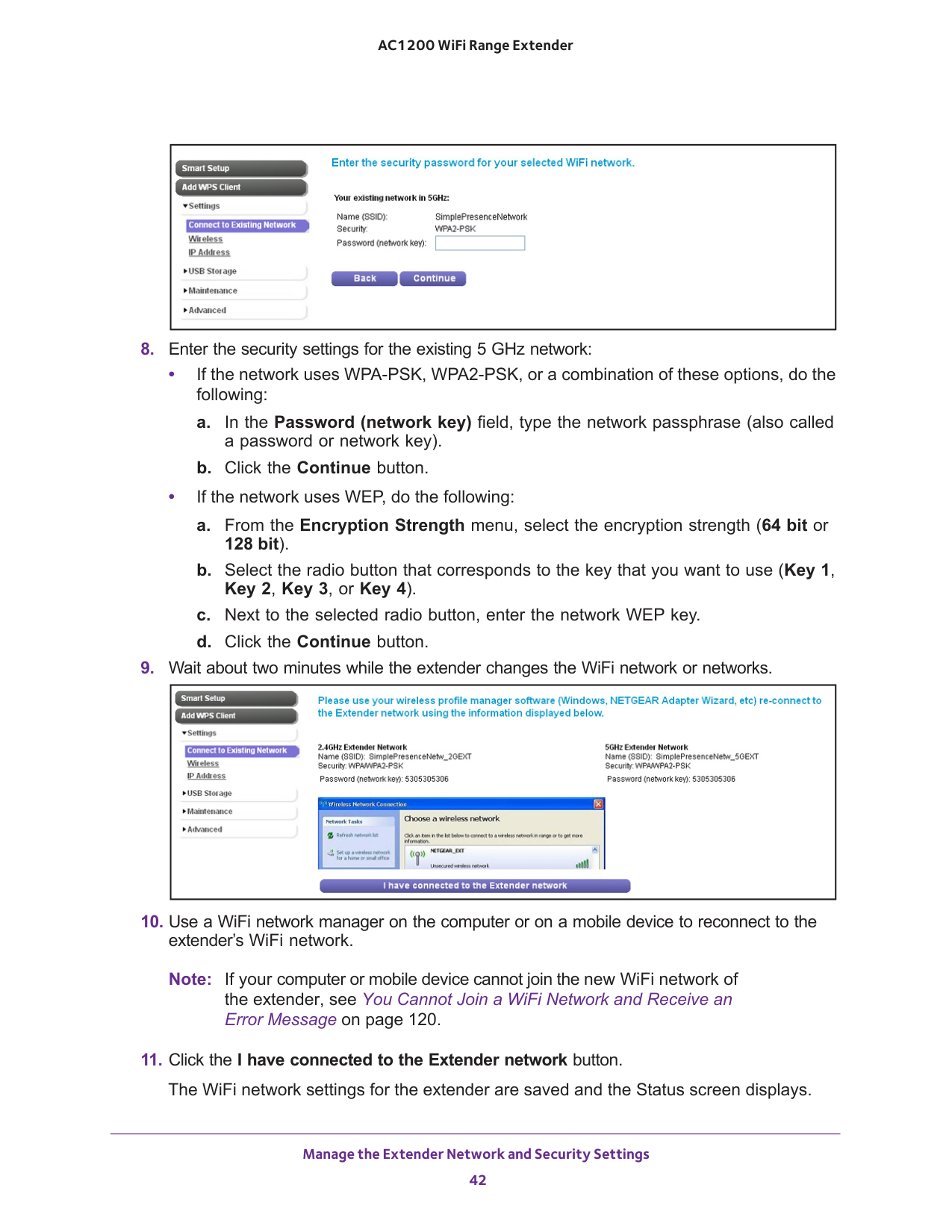
Manage the Extender Network and Security Settings 42 AC1200 WiFi Range Extender
bit). b. Select the radio button that corresponds to the key that you want to use (Key 1, Key 2, Key 3, or Key 4). c. Next to the selected radio button, enter the network WEP key. d. Click the Continue button.
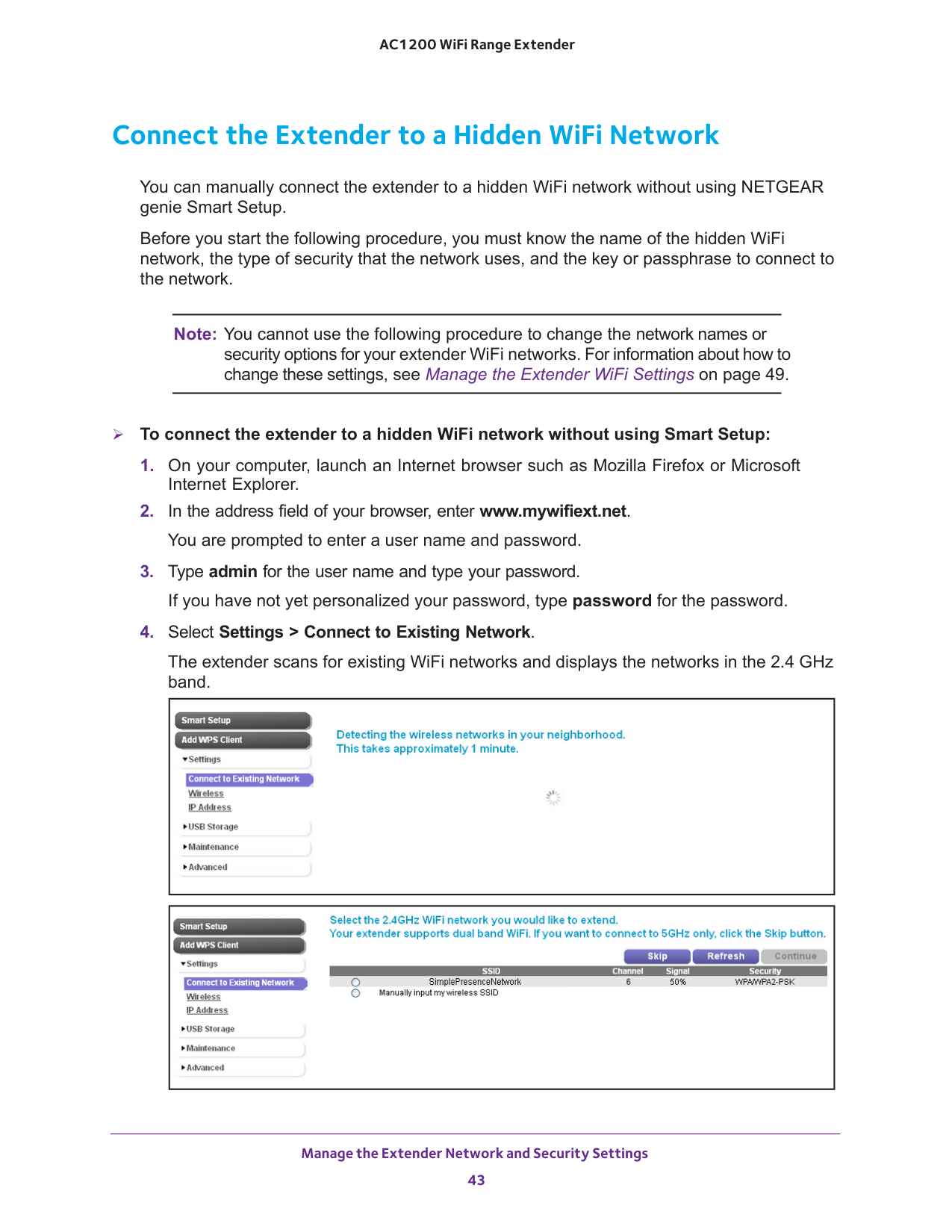
Manage the Extender Network and Security Settings 43 AC1200 WiFi Range Extender Connect the Extender to a Hidden WiFi Network You can manually connect the extender to a hidden WiFi network without using NETGEAR genie Smart Setup. Before you start the following procedure, you must know the name of the hidden WiFi network, the type of security that the network uses, and the key or passphrase to connect to the network. Note: You cannot use the following procedure to change the network names or security options for your extender WiFi networks. For information about how to change these settings, see Manage the Extender WiFi Settings on page
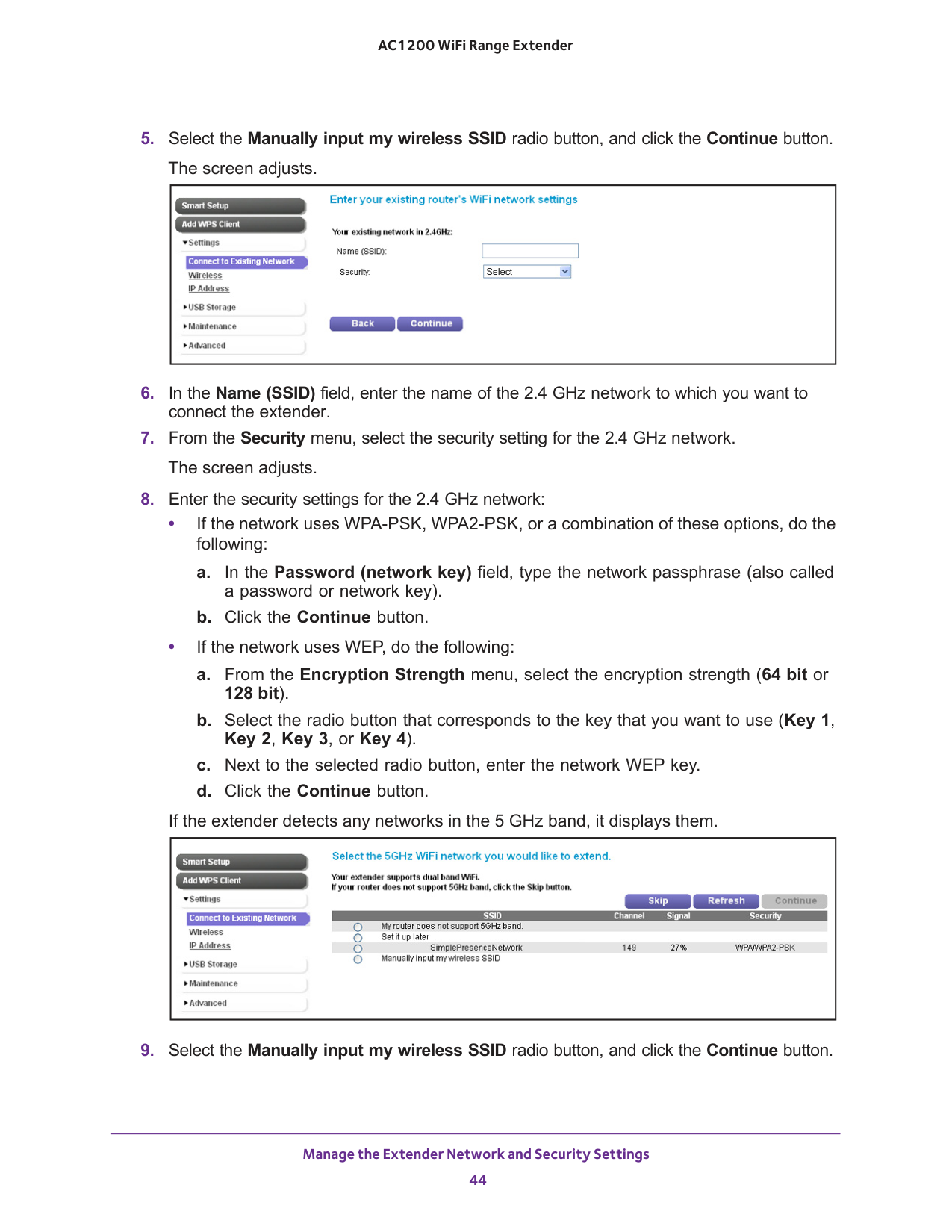
Manage the Extender Network and Security Settings 44 AC1200 WiFi Range Extender
bit). b. Select the radio button that corresponds to the key that you want to use (Key 1, Key 2, Key 3, or Key 4). c. Next to the selected radio button, enter the network WEP key. d. Click the Continue button. If the extender detects any networks in the 5 GHz band, it displays them.
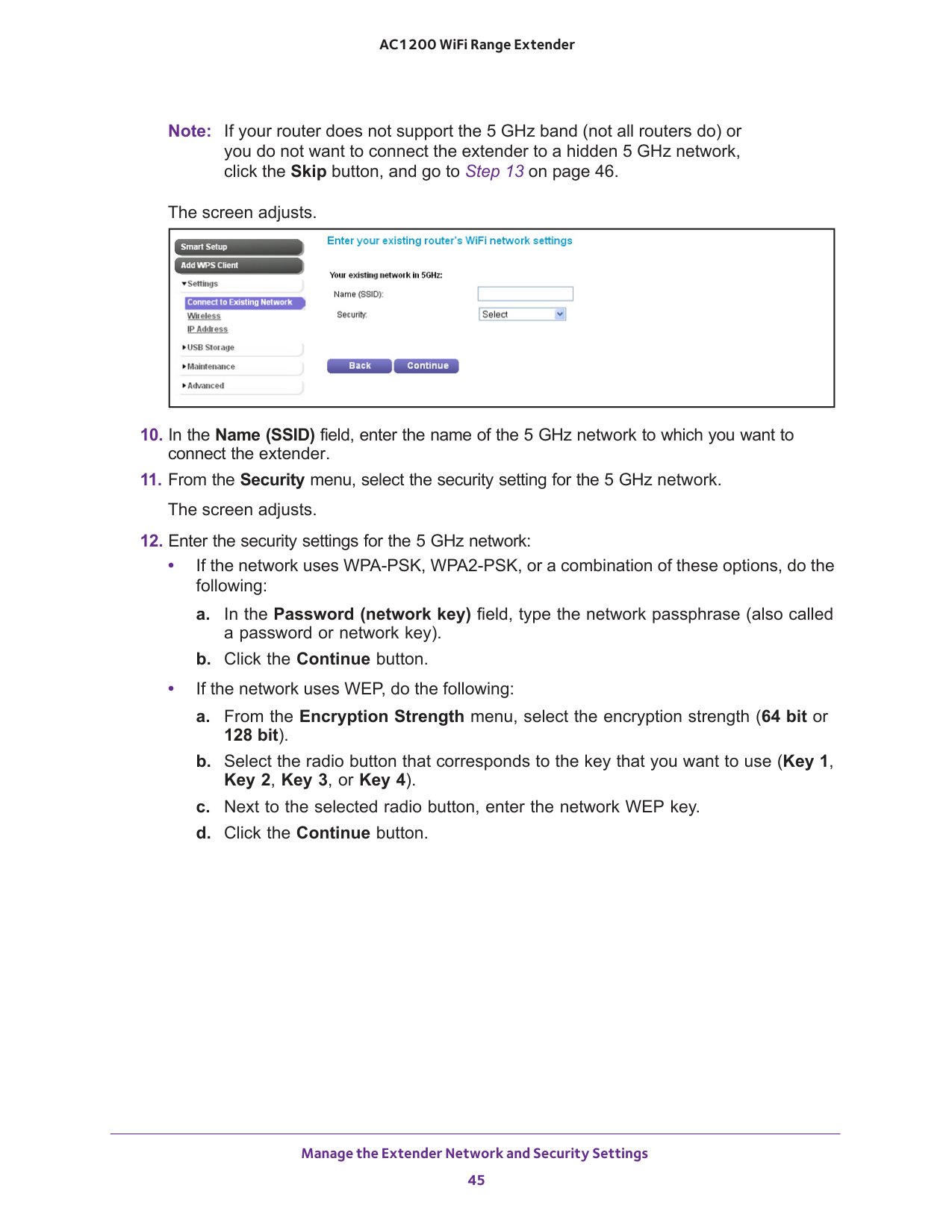
Manage the Extender Network and Security Settings 45 AC1200 WiFi Range Extender Note: If your router does not support the 5 GHz band (not all routers do) or you do not want to connect the extender to a hidden 5 GHz network, click the Skip button, and go to Step
13 on page
bit). b. Select the radio button that corresponds to the key that you want to use (Key 1, Key 2, Key 3, or Key 4). c. Next to the selected radio button, enter the network WEP key. d. Click the Continue button.
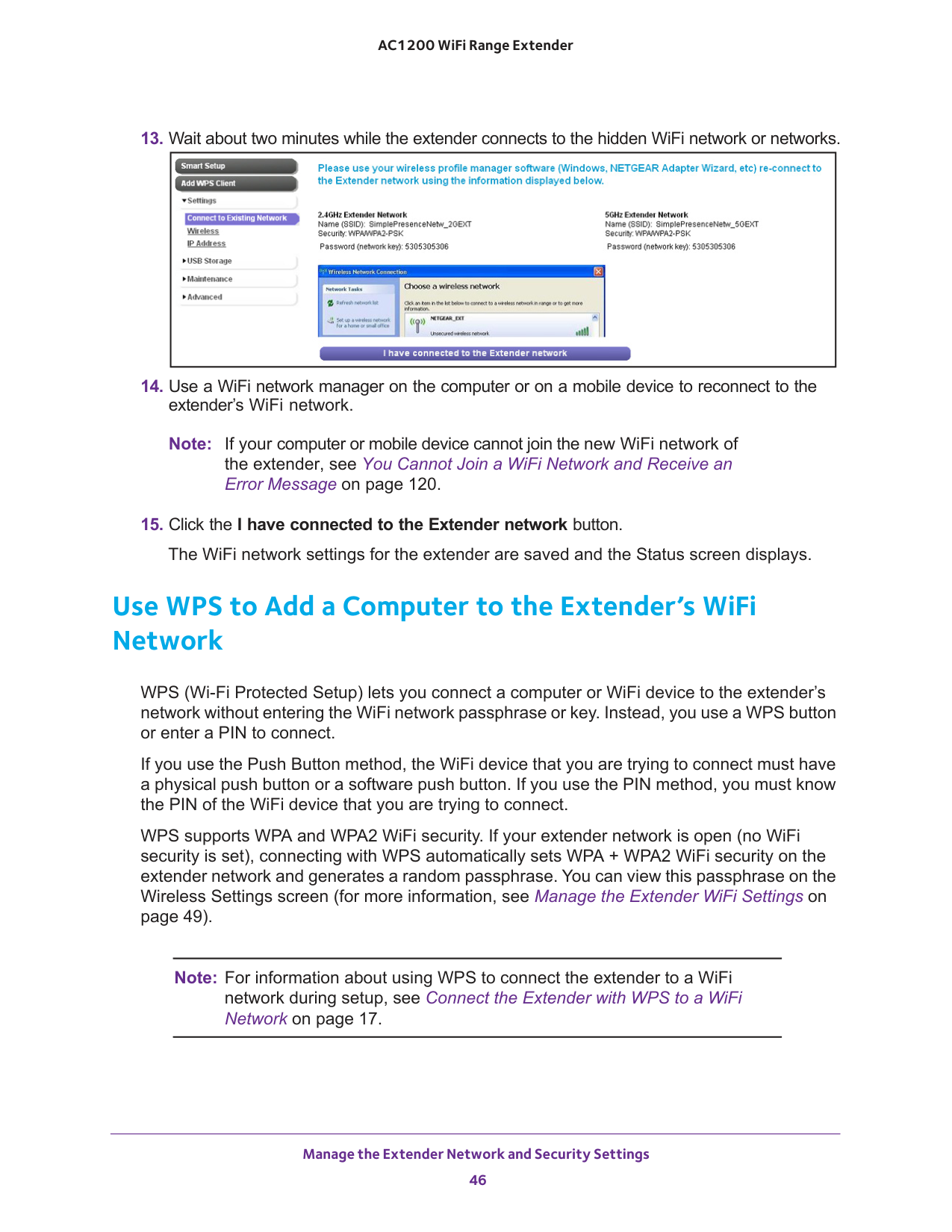
Manage the Extender Network and Security Settings 46 AC1200 WiFi Range Extender
49). Note: For information about using WPS to connect the extender to a WiFi network during setup, see Connect the Extender with WPS to a WiFi Network on page
17.
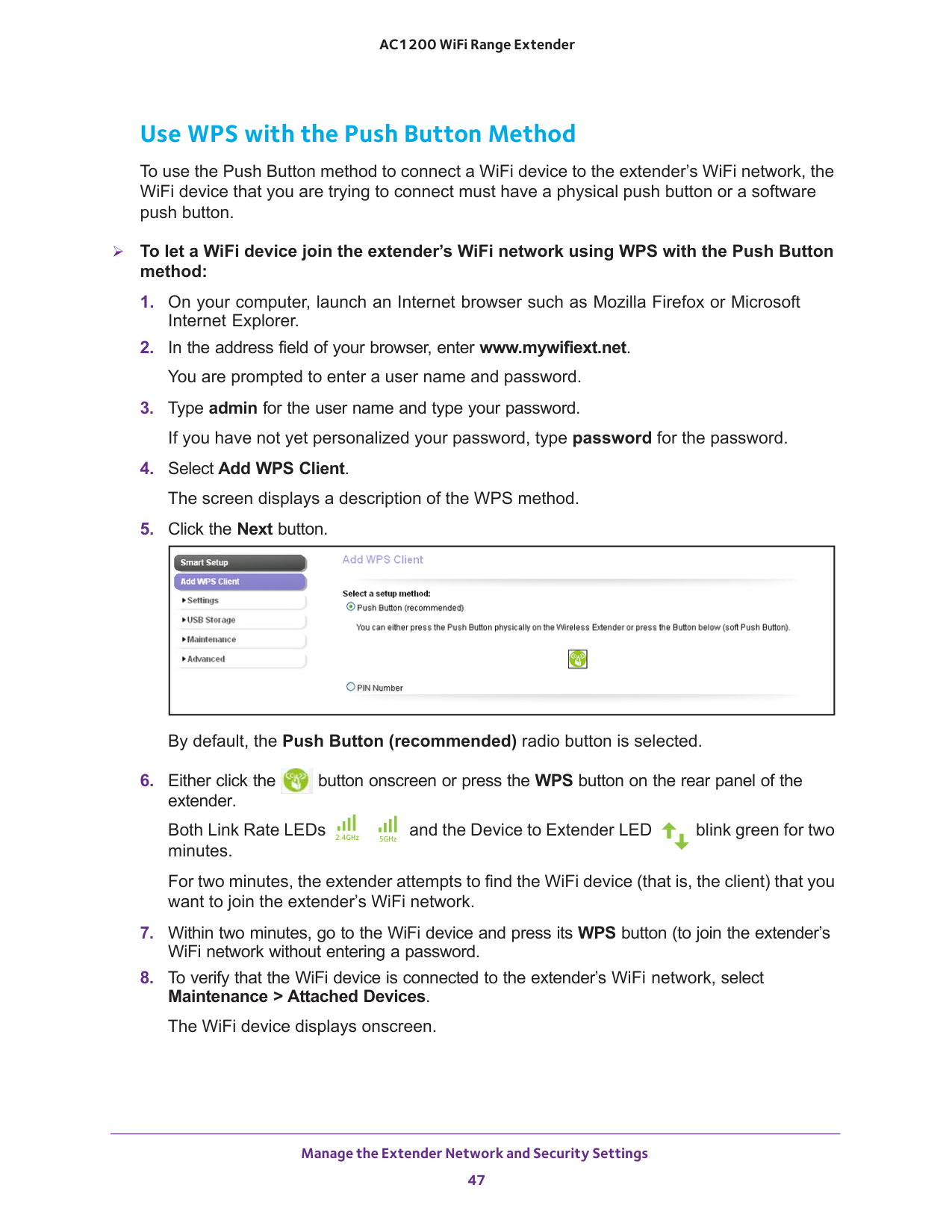
Manage the Extender Network and Security Settings 47 AC1200 WiFi Range Extender Use WPS with the Push Button Method To use the Push Button method to connect a WiFi device to the extender’s WiFi network, the WiFi device that you are trying to connect must have a physical push button or a software push button. To let a WiFi device join the extender’s WiFi network using WPS with the Push Button method:
and the Device to Extender LED blink green for two minutes. For two minutes, the extender attempts to find the WiFi device (that is, the client) that you want to join the extender’s WiFi network.
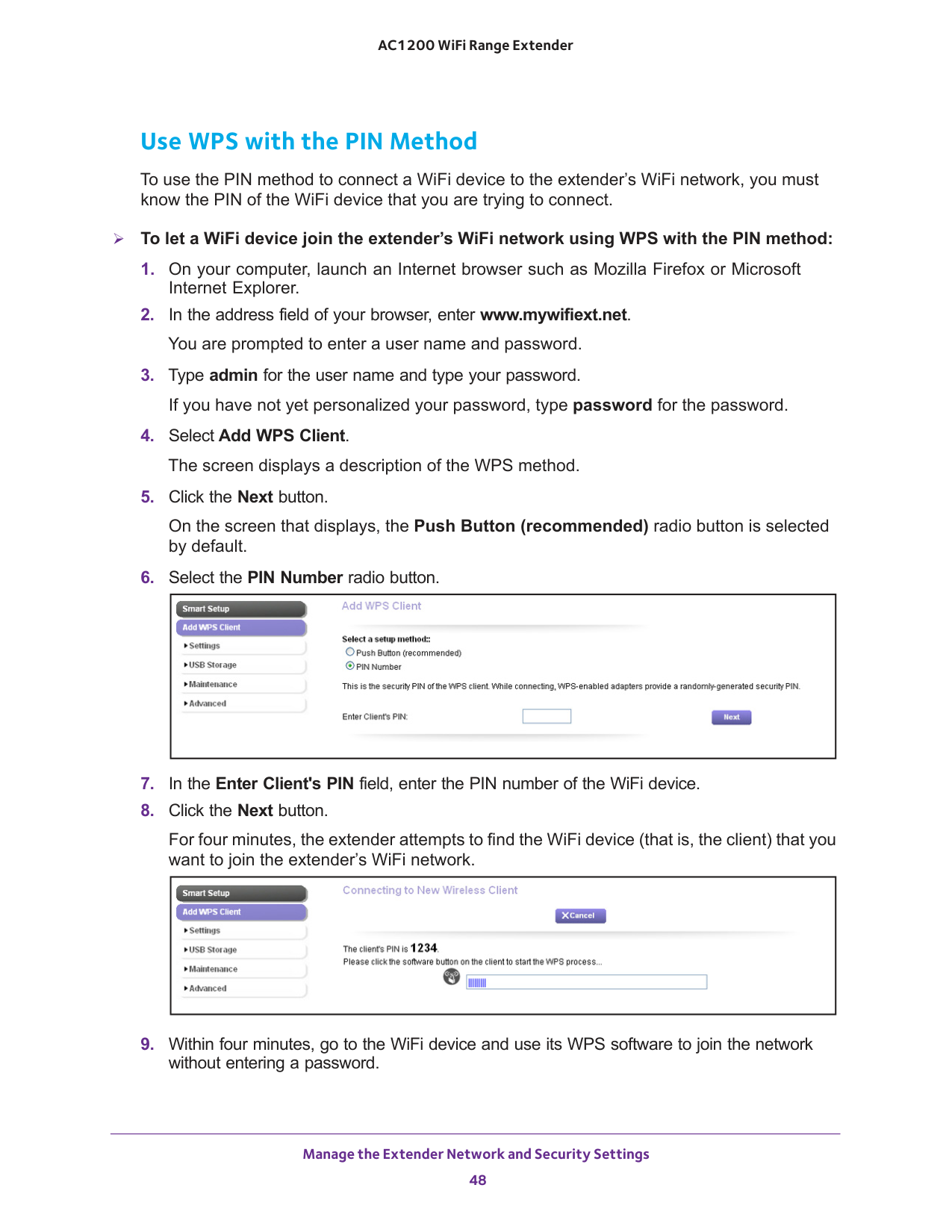
Manage the Extender Network and Security Settings 48 AC1200 WiFi Range Extender Use WPS with the PIN Method To use the PIN method to connect a WiFi device to the extender’s WiFi network, you must know the PIN of the WiFi device that you are trying to connect. To let a WiFi device join the extender’s WiFi network using WPS with the PIN method:
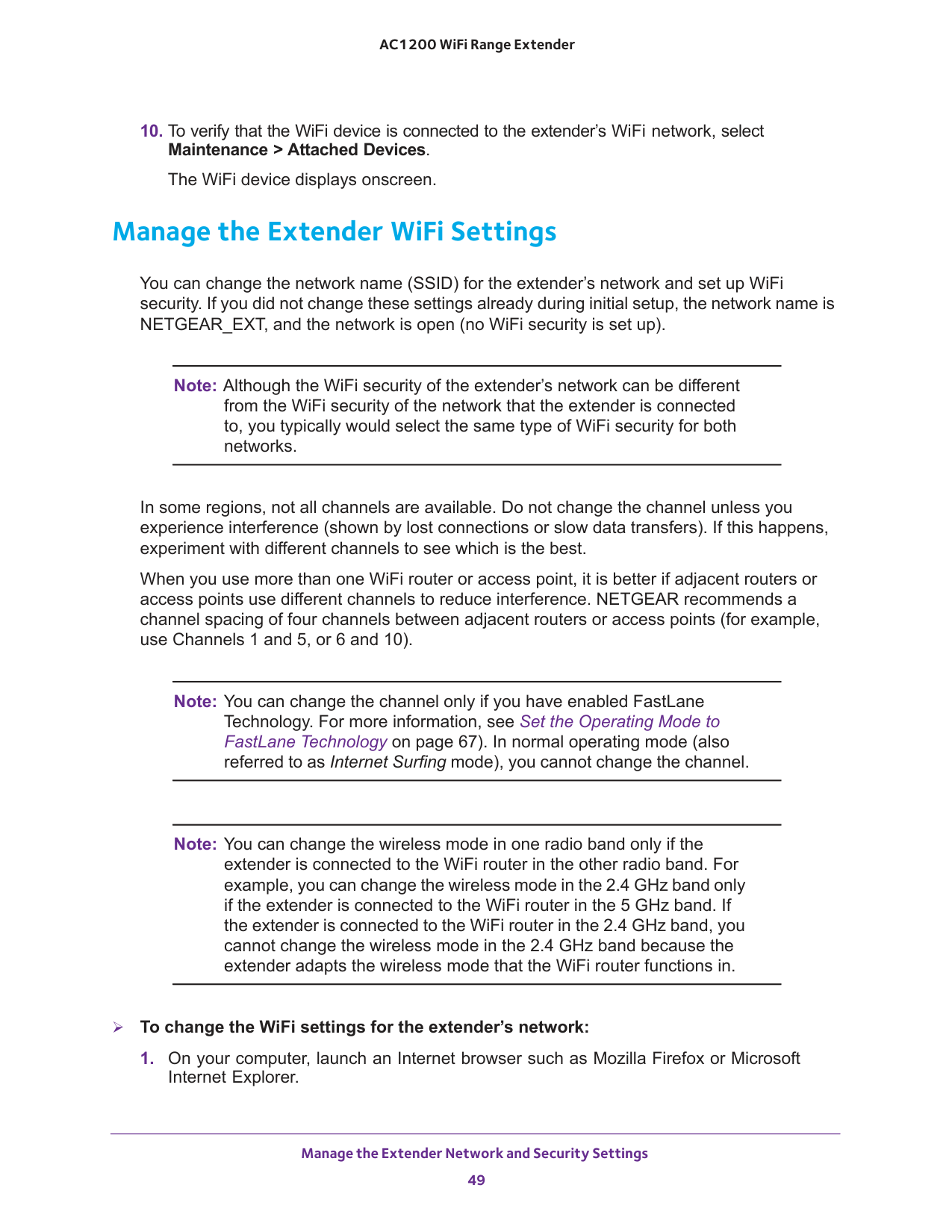
Manage the Extender Network and Security Settings 49 AC1200 WiFi Range Extender
67). In normal operating mode (also referred to as Internet Surfing mode), you cannot change the channel. Note: You can change the wireless mode in one radio band only if the extender is connected to the WiFi router in the other radio band. For example, you can change the wireless mode in the 2.4 GHz band only if the extender is connected to the WiFi router in the 5 GHz band. If the extender is connected to the WiFi router in the 2.4 GHz band, you cannot change the wireless mode in the 2.4 GHz band because the extender adapts the wireless mode that the WiFi router functions in. To change the WiFi settings for the extender’s network:
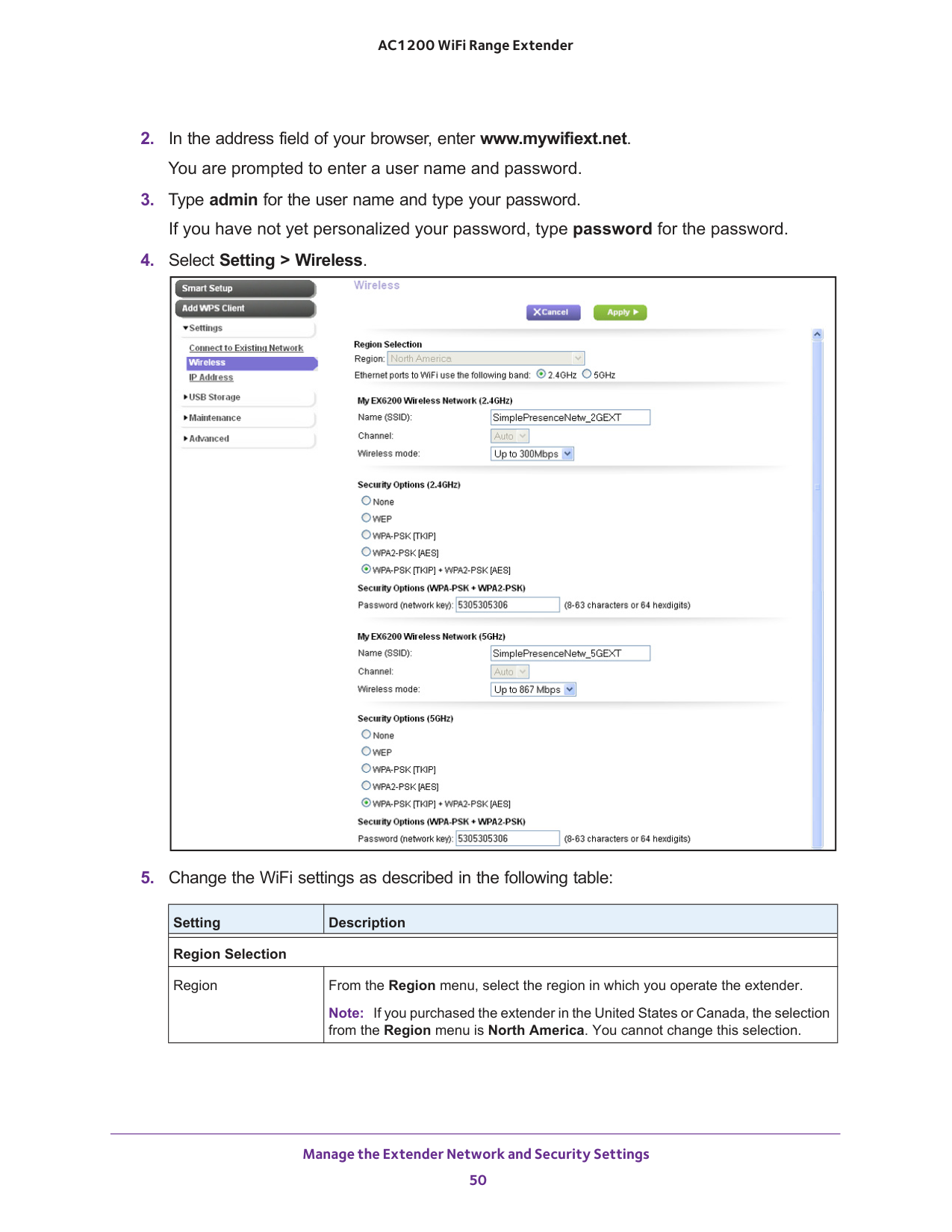
Manage the Extender Network and Security Settings 50 AC1200 WiFi Range Extender
Manage the Extender Network and Security Settings 51 AC1200 WiFi Range Extender Ethernet ports to WiFi use the following band Specify if the Gigabit Ethernet ports on the rear panel of the extender connect to the 2.4
GHz band or the 5 GHz band by selecting one of the following radio buttons: • 2.4GHz. The Gigabit Ethernet ports connect to the 2.4 GHz WiFi band. This is the default setting. • 5GHz. The Gigabit Ethernet ports connect to the 5 GHz WiFi band. My EX6200 wireless network (2.4GHz) Name (SSID) In the Name (SSID) field, type a new name or use the name that the extender assigns by default: • Existing network name. MyNetworkName • New extended 2.4 GHz network name. MyNetworkName_2GEXT If more than one extender operates in your neighborhood, changing the SSID makes it easier to identify the extenders. Channel From the Channel menu, select Auto for automatic channel selection, or select an individual channel. Note: You can change the channel only if you have enabled FastLane Technology. For more information, see Set the Operating Mode to FastLane Technology on page
Mbps. If your network security is WEP, you must use the Up to 54
Mbps mode. • Up to 145 Mbps. Neighbor friendly mode for reduced interference with neighboring wireless networks. This mode allows 802.11n, 802.11g, and 802.11b devices to join the network, but limits 802.11n devices to function at up to 145
Mbps. This mode is the default mode in the 2.4 GHz band. • Up to 300 Mbps. Performance mode. This mode allows 802.11n, 802.11g, and 802.11b devices to join the network, and allows 802.11n devices to function at up to 300
Mbps. Note: You can change the wireless mode in the 2.4 GHz band only if the extender is connected to the WiFi router in the 5 GHz band. If the extender is connected to the WiFi router in the 2.4 GHz band, the extender adapts the wireless mode that the WiFi router functions in and the Wireless mode menu is disabled. Note: WPA-PSK security supports speeds of up to 54 Mbps. Even if your devices are capable of a higher speed, WPA-PSK security limits their speed to 54 Mbps. Setting Description
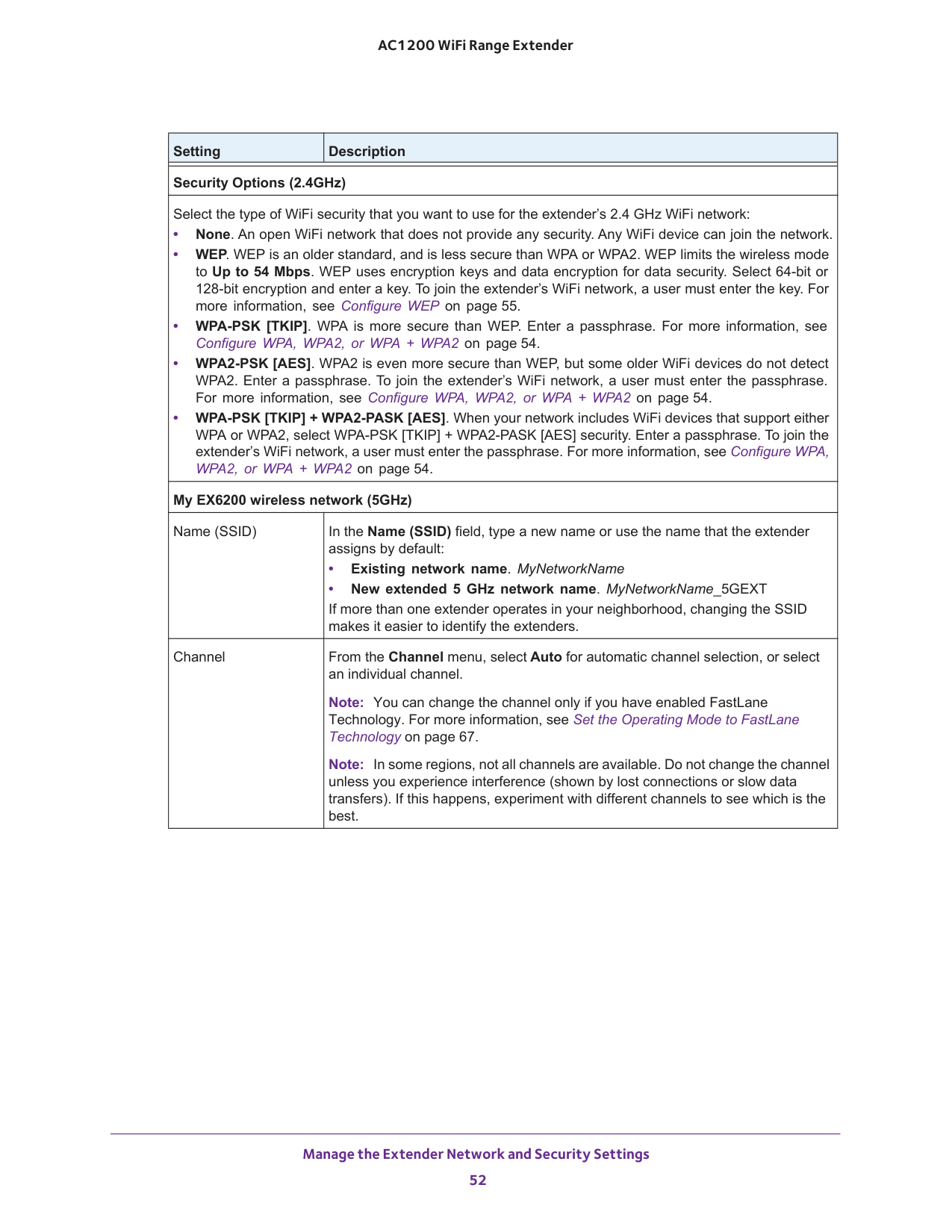
Manage the Extender Network and Security Settings 52 AC1200 WiFi Range Extender Security Options (2.4GHz) Select the type of WiFi security that you want to use for the extender’s 2.4 GHz WiFi network: • None. An open WiFi network that does not provide any security. Any WiFi device can join the network. • WEP. WEP is an older standard, and is less secure than WPA or WPA2. WEP limits the wireless mode to Up to 54 Mbps. WEP uses encryption keys and data encryption for data security. Select 64-bit or 128-bit encryption and enter a key. To join the extender’s WiFi network, a user must enter the key. For more information, see Configure WEP on page
Manage the Extender Network and Security Settings 53 AC1200 WiFi Range Extender
Caution:
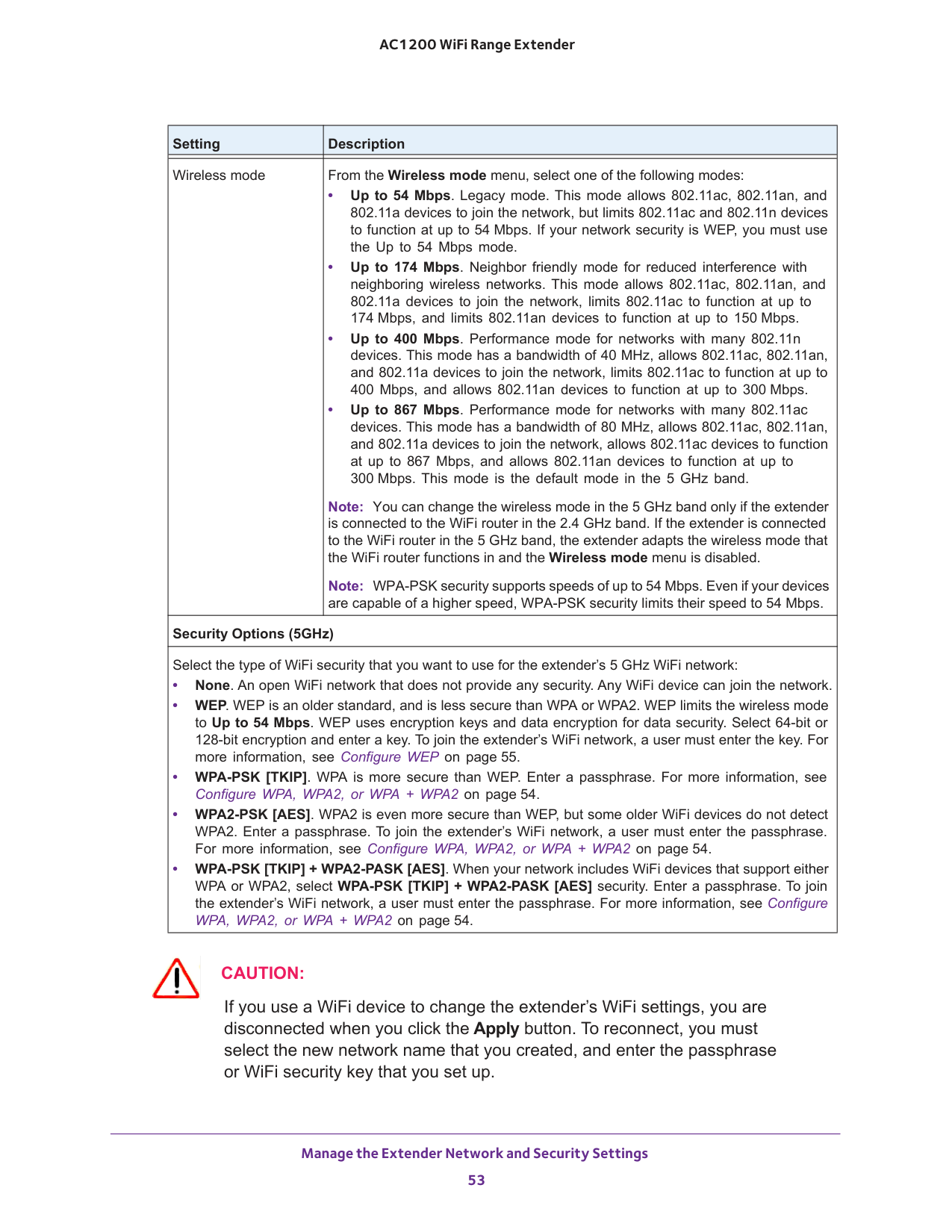
If you use a WiFi device to change the extender’s WiFi settings, you are disconnected when you click the Apply button. To reconnect, you must select the new network name that you created, and enter the passphrase or WiFi security key that you set up. Wireless mode From the Wireless mode menu, select one of the following modes: • Up to 54 Mbps. Legacy mode. This mode allows 802.11ac, 802.11an, and 802.11a devices to join the network, but limits 802.11ac and 802.11n devices to function at up to 54Mbps. If your network security is WEP, you must use the Up to 54 Mbps mode. • Up to 174 Mbps. Neighbor friendly mode for reduced interference with neighboring wireless networks. This mode allows 802.11ac, 802.11an, and 802.11a devices to join the network, limits 802.11ac to function at up to 174
Mbps, and limits 802.11an devices to function at up to 150
Mbps. • Up to 400 Mbps. Performance mode for networks with many 802.11n devices. This mode has a bandwidth of 40 MHz, allows 802.11ac, 802.11an, and 802.11a devices to join the network, limits 802.11ac to function at up to 400 Mbps, and allows 802.11an devices to function at up to 300
Mbps. • Up to 867 Mbps. Performance mode for networks with many 802.11ac devices. This mode has a bandwidth of 80 MHz, allows 802.11ac, 802.11an, and 802.11a devices to join the network, allows 802.11ac devices to function at up to 867 Mbps, and allows 802.11an devices to function at up to 300
Mbps. This mode is the default mode in the 5 GHz band. Note: You can change the wireless mode in the 5 GHz band only if the extender is connected to the WiFi router in the 2.4 GHz band. If the extender is connected to the WiFi router in the 5 GHz band, the extender adapts the wireless mode that the WiFi router functions in and the Wireless mode menu is disabled. Note: WPA-PSK security supports speeds of up to 54 Mbps. Even if your devices are capable of a higher speed, WPA-PSK security limits their speed to 54 Mbps. Security Options (5GHz) Select the type of WiFi security that you want to use for the extender’s 5 GHz WiFi network: • None. An open WiFi network that does not provide any security. Any WiFi device can join the network. • WEP. WEP is an older standard, and is less secure than WPA or WPA2. WEP limits the wireless mode to Up to 54 Mbps. WEP uses encryption keys and data encryption for data security. Select 64-bit or 128-bit encryption and enter a key. To join the extender’s WiFi network, a user must enter the key. For more information, see Configure WEP on page
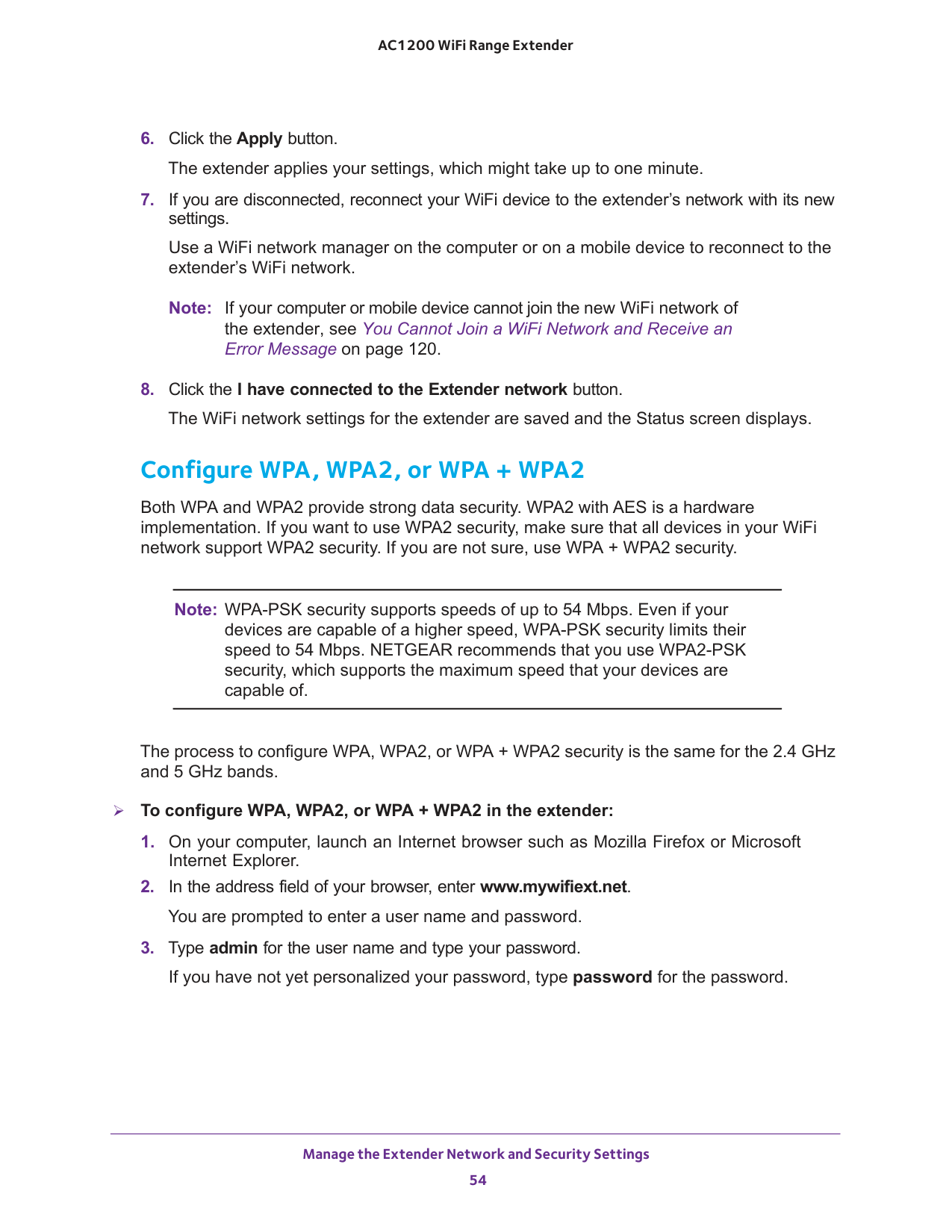
Manage the Extender Network and Security Settings 54 AC1200 WiFi Range Extender
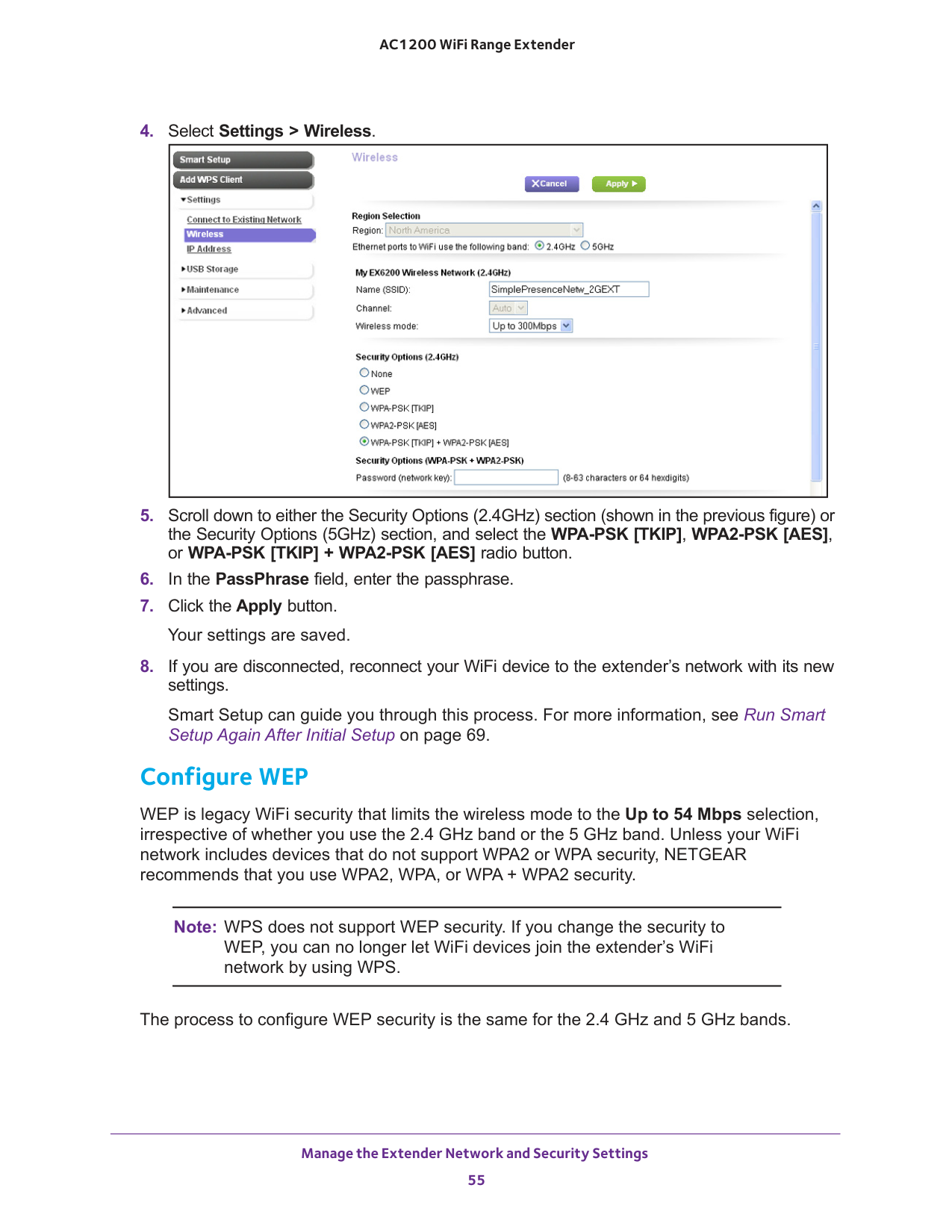
Manage the Extender Network and Security Settings 55 AC1200 WiFi Range Extender
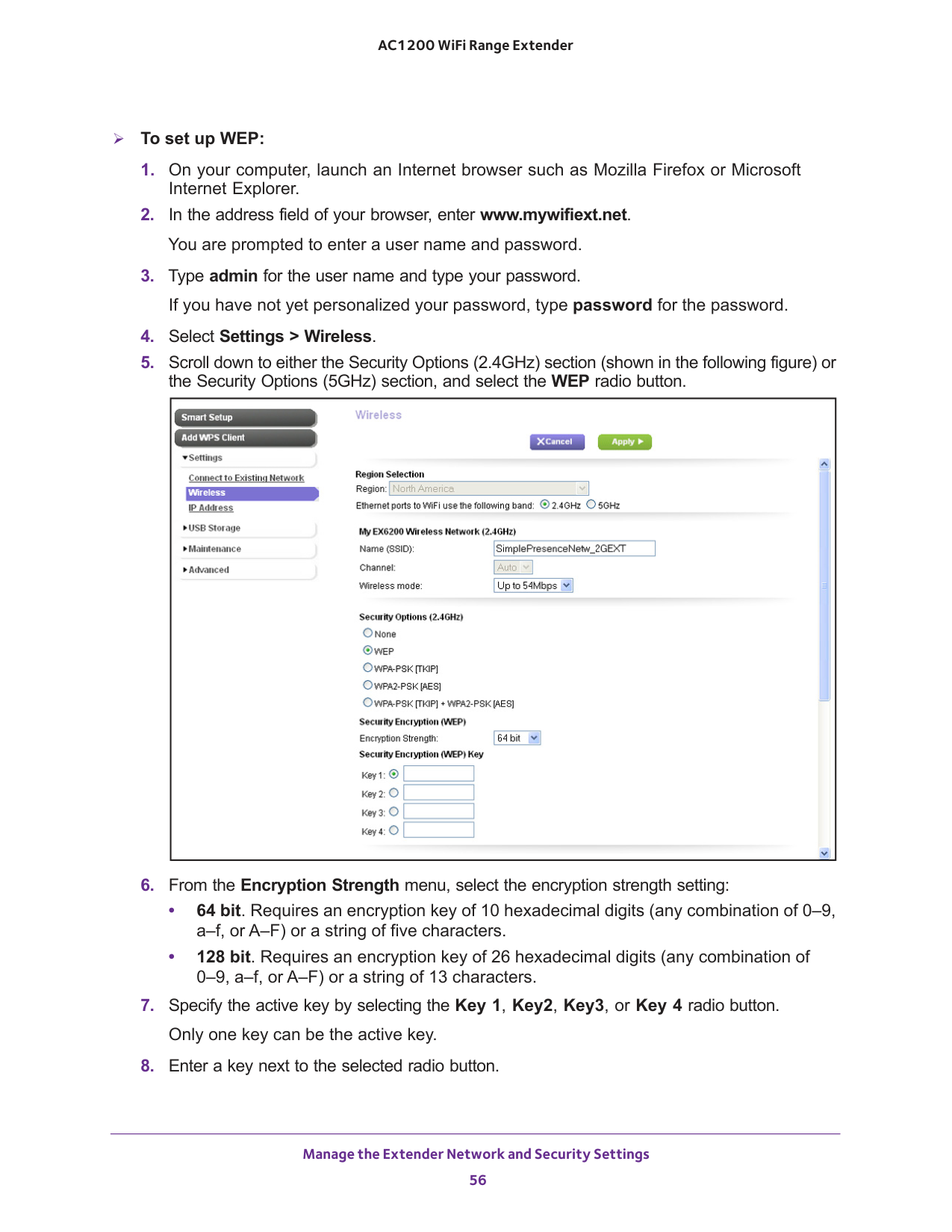
Manage the Extender Network and Security Settings 56 AC1200 WiFi Range Extender To set up WEP:
Manage the Extender Network and Security Settings 57 AC1200 WiFi Range Extender The size of the key depends on your selection from the Encryption Strength menu (64
bit or 128 bit). The key values are not case-sensitive.
Caution:
NETGEAR recommends that you change the IP address of the extender only if you are technically experienced or have a technically experienced person to help you. Incorrect configuration can prevent you from connecting to the extender and might require you to reset the extender to factory default settings. You can also change the extender device name, which is the name by which the extender is known in the network. To change the IP address of the extender to a static IP address and specify a new device name: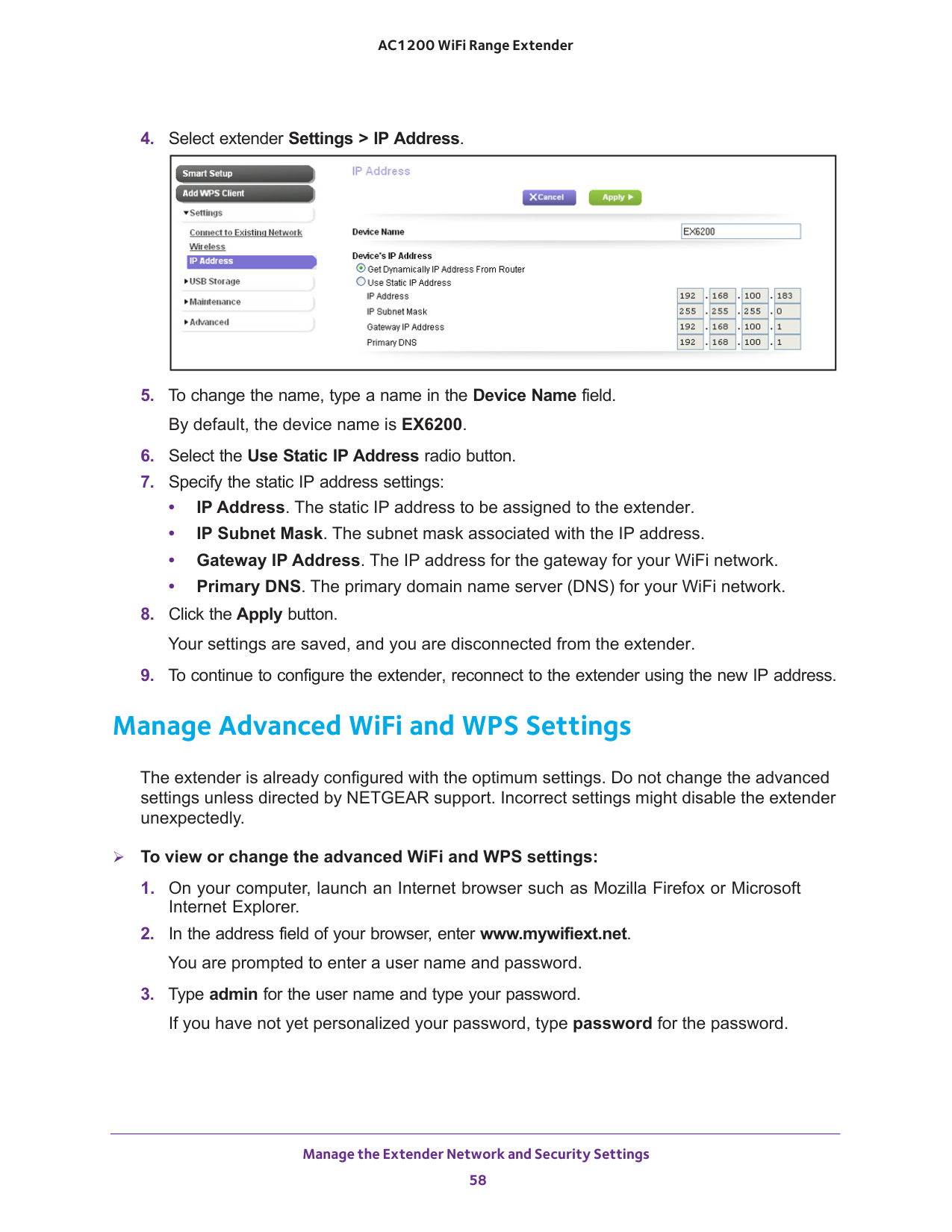
Manage the Extender Network and Security Settings 58 AC1200 WiFi Range Extender
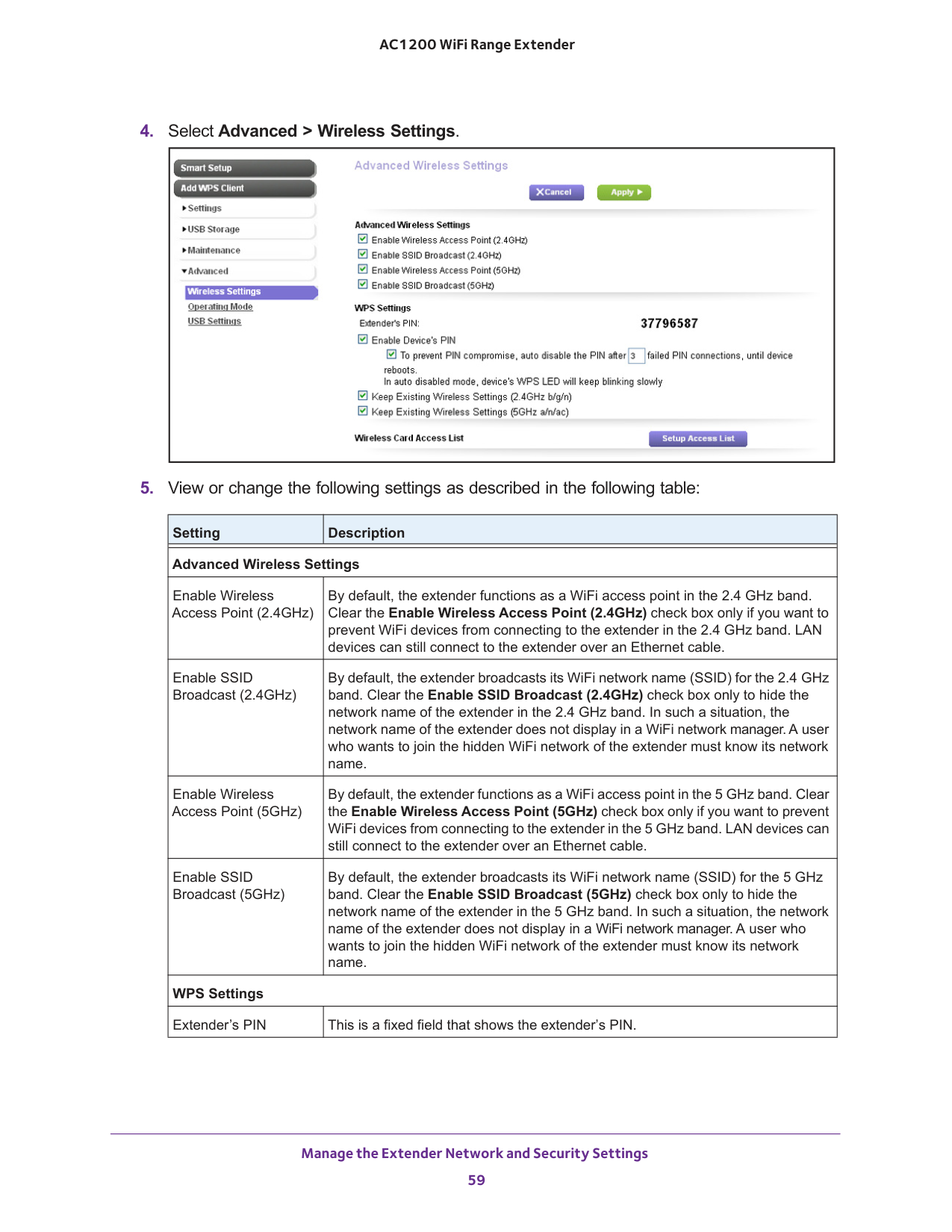
Manage the Extender Network and Security Settings 59 AC1200 WiFi Range Extender
GHz band. Clear the Enable SSID Broadcast (2.4GHz) check box only to hide the network name of the extender in the 2.4 GHz band. In such a situation, the network name of the extender does not display in a WiFi network manager. A user who wants to join the hidden WiFi network of the extender must know its network name. Enable Wireless Access Point (5GHz) By default, the extender functions as a WiFi access point in the 5 GHz band. Clear the Enable Wireless Access Point (5GHz) check box only if you want to prevent WiFi devices from connecting to the extender in the 5 GHz band. LAN devices can still connect to the extender over an Ethernet cable. Enable SSID Broadcast (5GHz) By default, the extender broadcasts its WiFi network name (SSID) for the 5
GHz band. Clear the Enable SSID Broadcast (5GHz) check box only to hide the network name of the extender in the 5 GHz band. In such a situation, the network name of the extender does not display in a WiFi network manager. A user who wants to join the hidden WiFi network of the extender must know its network name. WPS Settings Extender’s PIN This is a fixed field that shows the extender’s PIN.
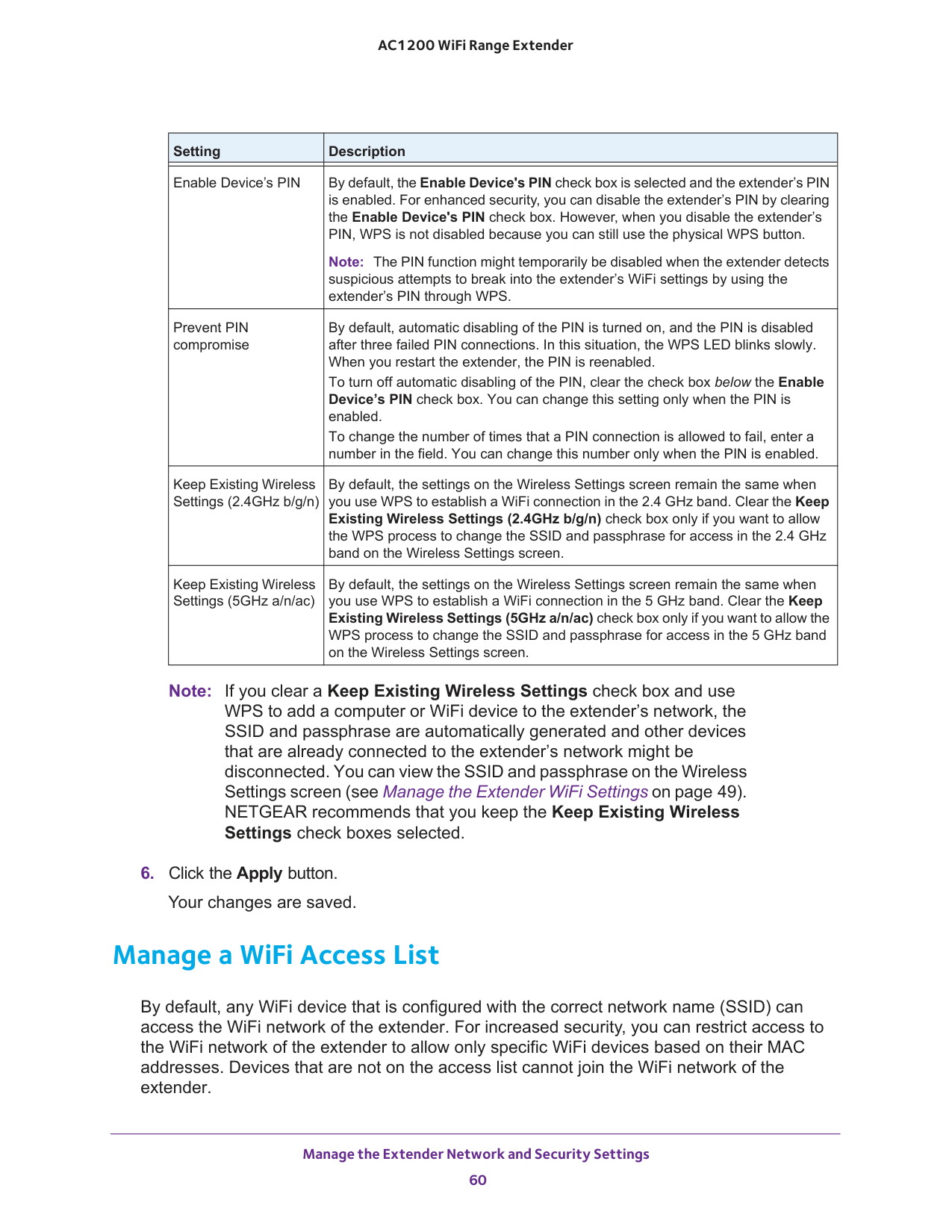
Manage the Extender Network and Security Settings 60 AC1200 WiFi Range Extender Note: If you clear a Keep Existing Wireless Settings check box and use WPS to add a computer or WiFi device to the extender’s network, the SSID and passphrase are automatically generated and other devices that are already connected to the extender’s network might be disconnected. You can view the SSID and passphrase on the Wireless Settings screen (see Manage the Extender WiFi Settings on page
49). NETGEAR recommends that you keep the Keep Existing Wireless Settings check boxes selected.
GHz band on the Wireless Settings screen. Keep Existing Wireless Settings (5GHz a/n/ac) By default, the settings on the Wireless Settings screen remain the same when you use WPS to establish a WiFi connection in the 5 GHz band. Clear the Keep Existing Wireless Settings (5GHz a/n/ac) check box only if you want to allow the WPS process to change the SSID and passphrase for access in the 5
GHz band on the Wireless Settings screen. Setting Description
Manage the Extender Network and Security Settings 61 AC1200 WiFi Range Extender Each network device has a MAC address, which is a unique 12-character physical address, containing the hexadecimal characters 0–9, a–f, or A–F only, and separated by colons (for example, 00:09:AB:CD:EF:01). Typically, the MAC address is on the label of the WiFi device. If you do not have access to the label, you can display the MAC address using the network configuration utilities of the computer. You might also find the MAC addresses on the Network Devices screen (see View the Wired and WiFi Network Devices on page
85).
Caution:
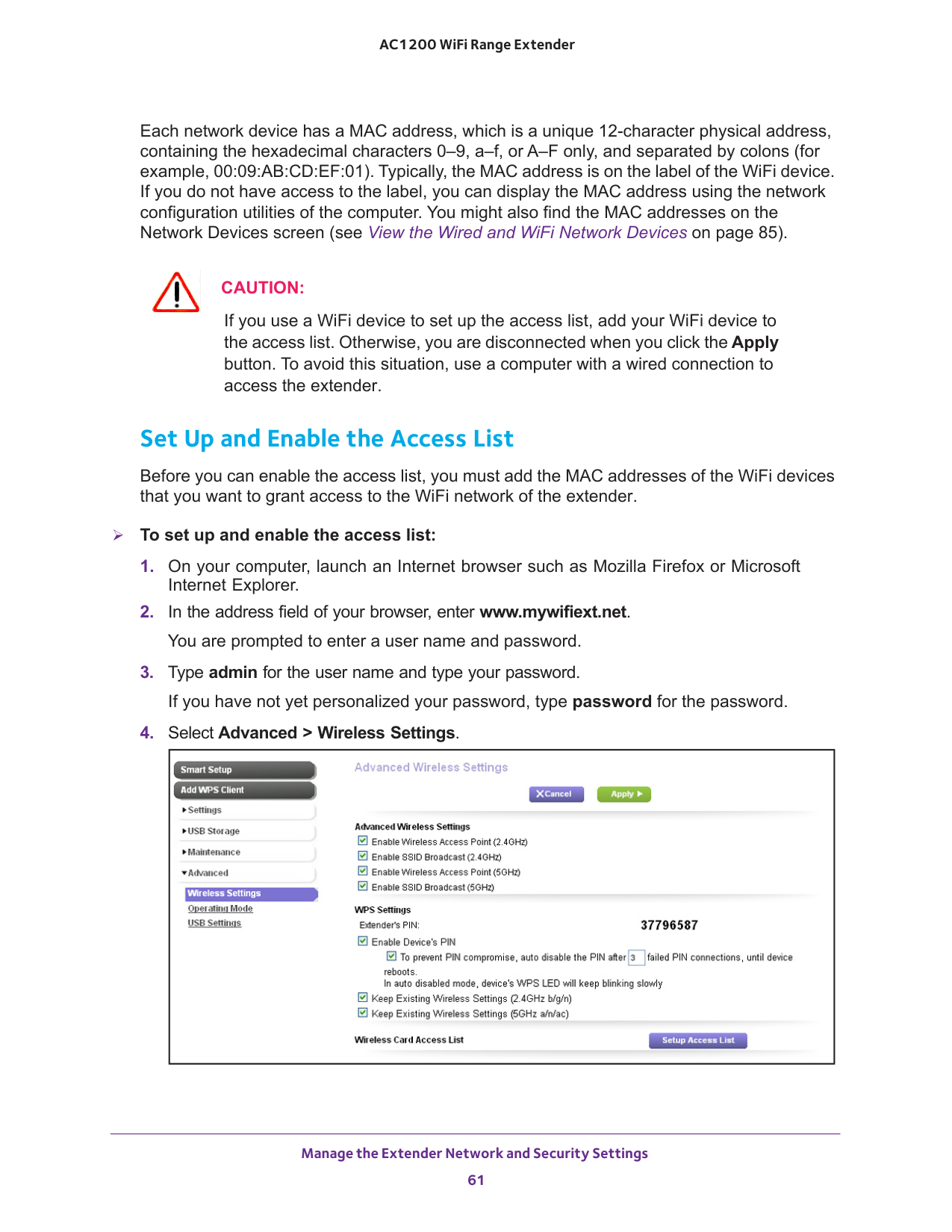
If you use a WiFi device to set up the access list, add your WiFi device to the access list. Otherwise, you are disconnected when you click the Apply button. To avoid this situation, use a computer with a wired connection to access the extender. Set Up and Enable the Access List Before you can enable the access list, you must add the MAC addresses of the WiFi devices that you want to grant access to the WiFi network of the extender. To set up and enable the access list: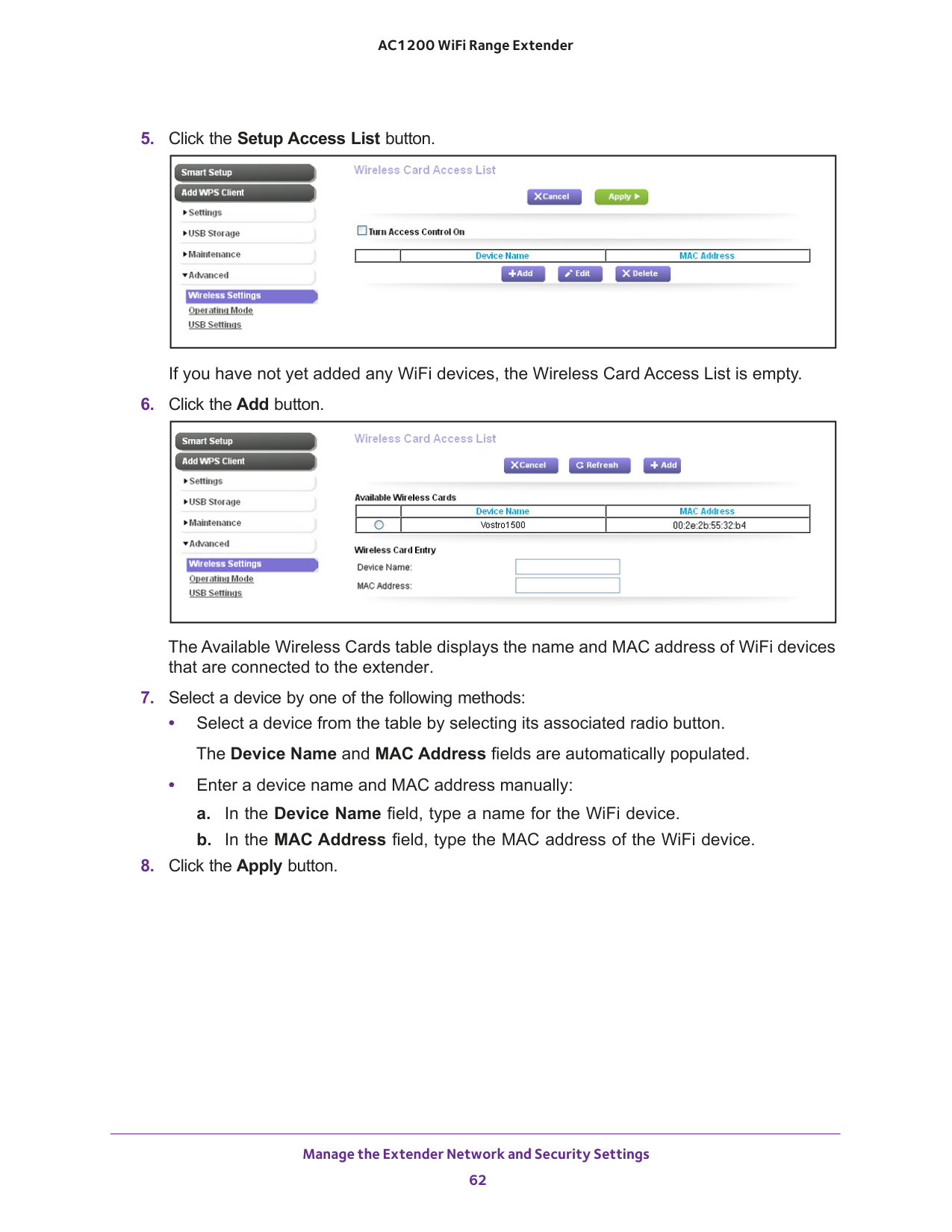
Manage the Extender Network and Security Settings 62 AC1200 WiFi Range Extender
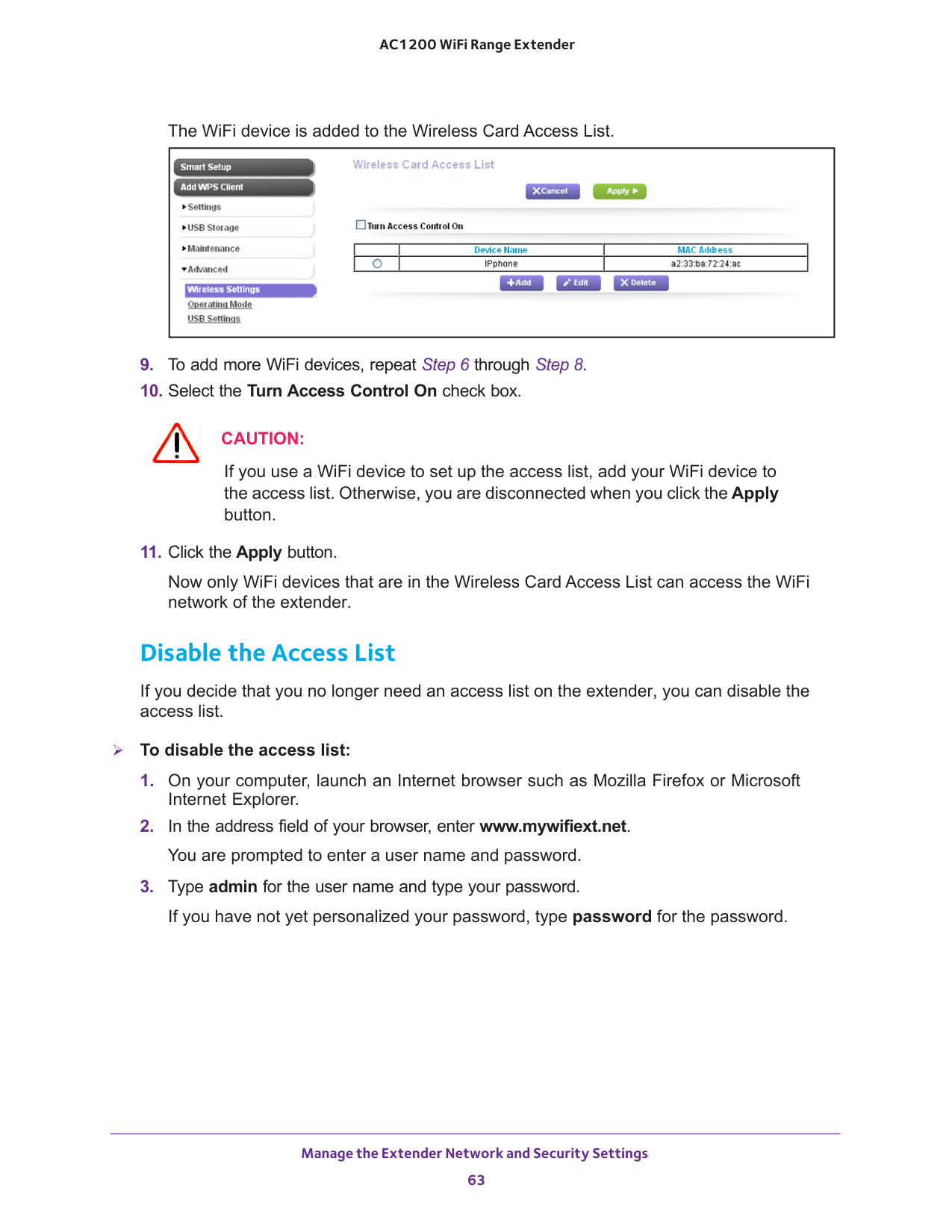
Manage the Extender Network and Security Settings 63 AC1200 WiFi Range Extender The WiFi device is added to the Wireless Card Access List.
6 through Step
Caution:
If you use a WiFi device to set up the access list, add your WiFi device to the access list. Otherwise, you are disconnected when you click the Apply button.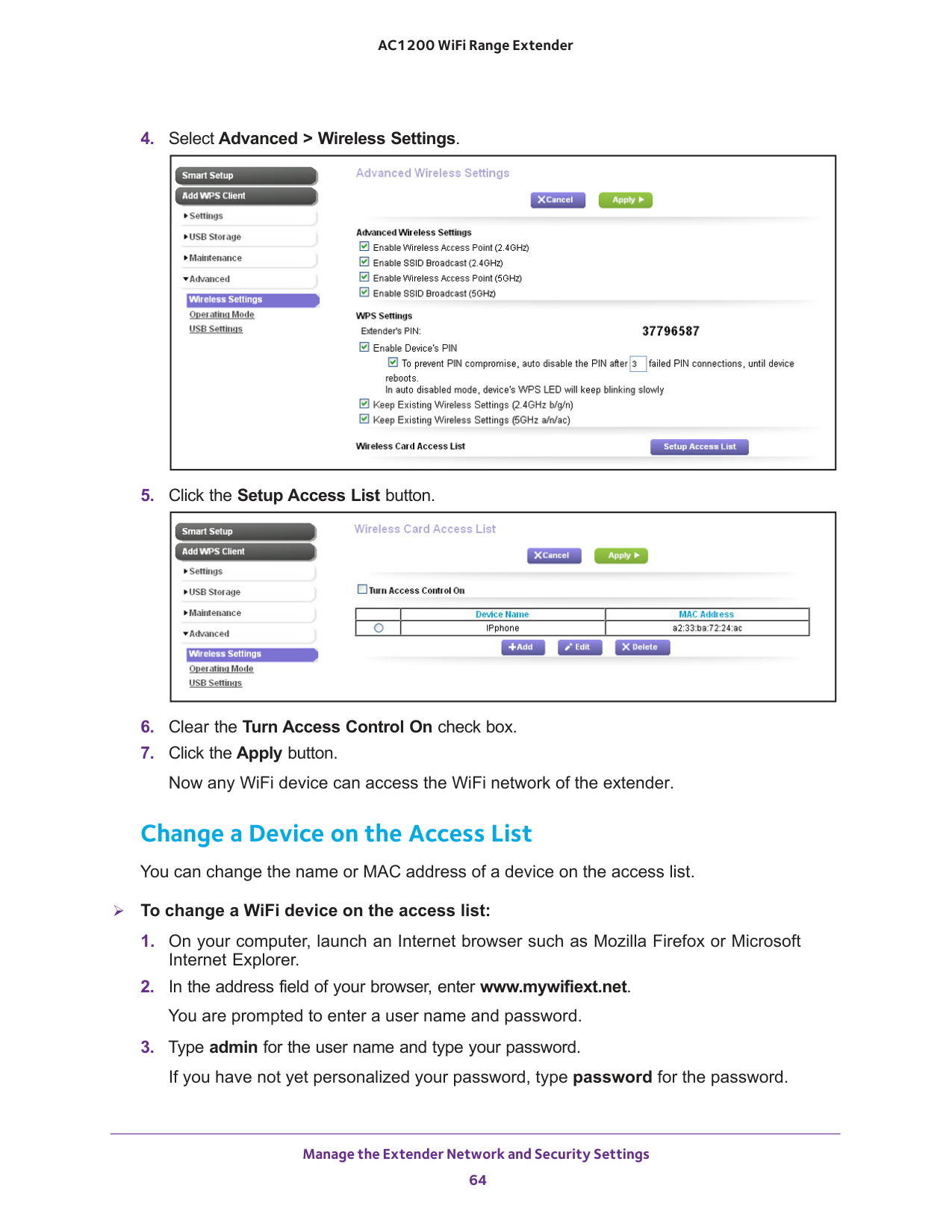
Manage the Extender Network and Security Settings 64 AC1200 WiFi Range Extender
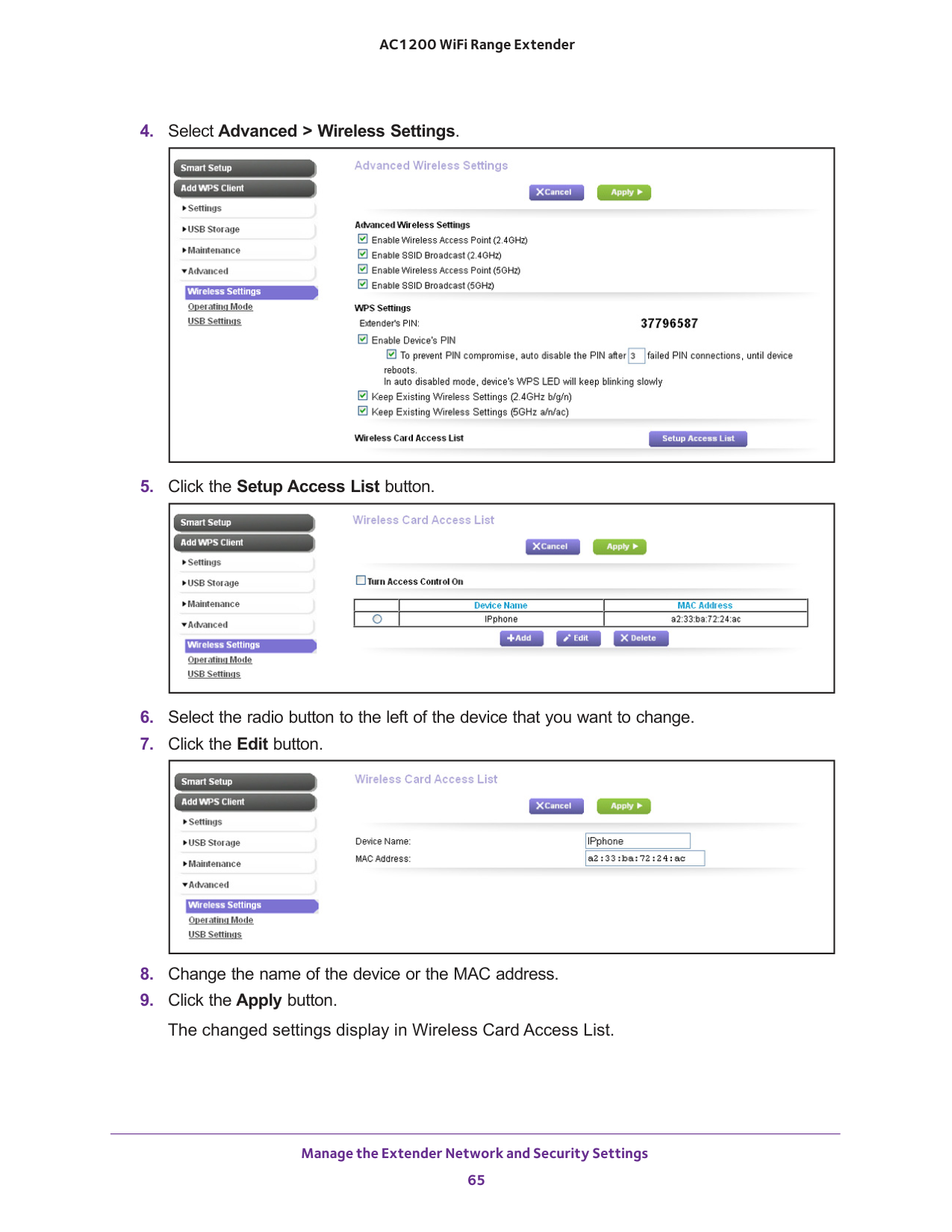
Manage the Extender Network and Security Settings 65 AC1200 WiFi Range Extender
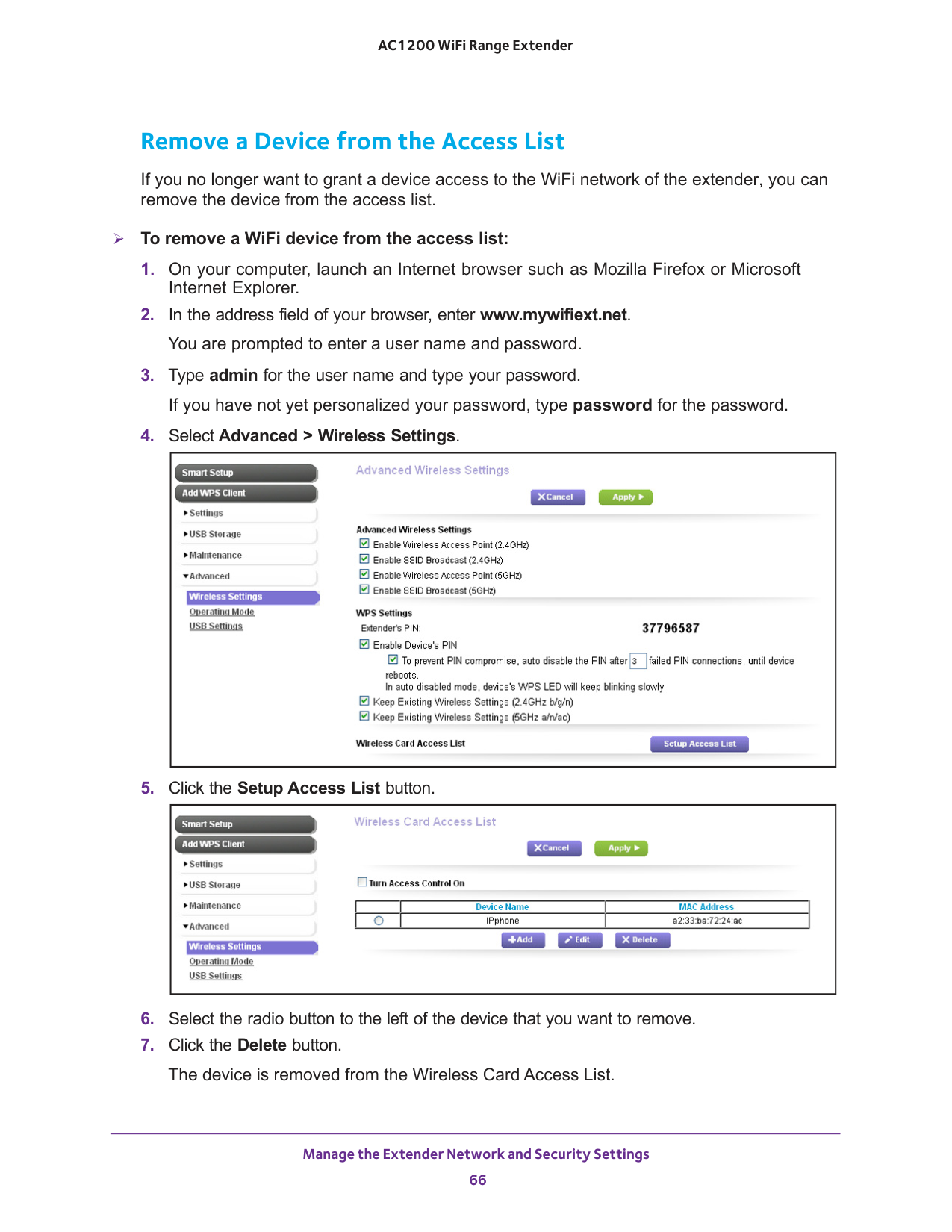
Manage the Extender Network and Security Settings 66 AC1200 WiFi Range Extender Remove a Device from the Access List If you no longer want to grant a device access to the WiFi network of the extender, you can remove the device from the access list. To remove a WiFi device from the access list:
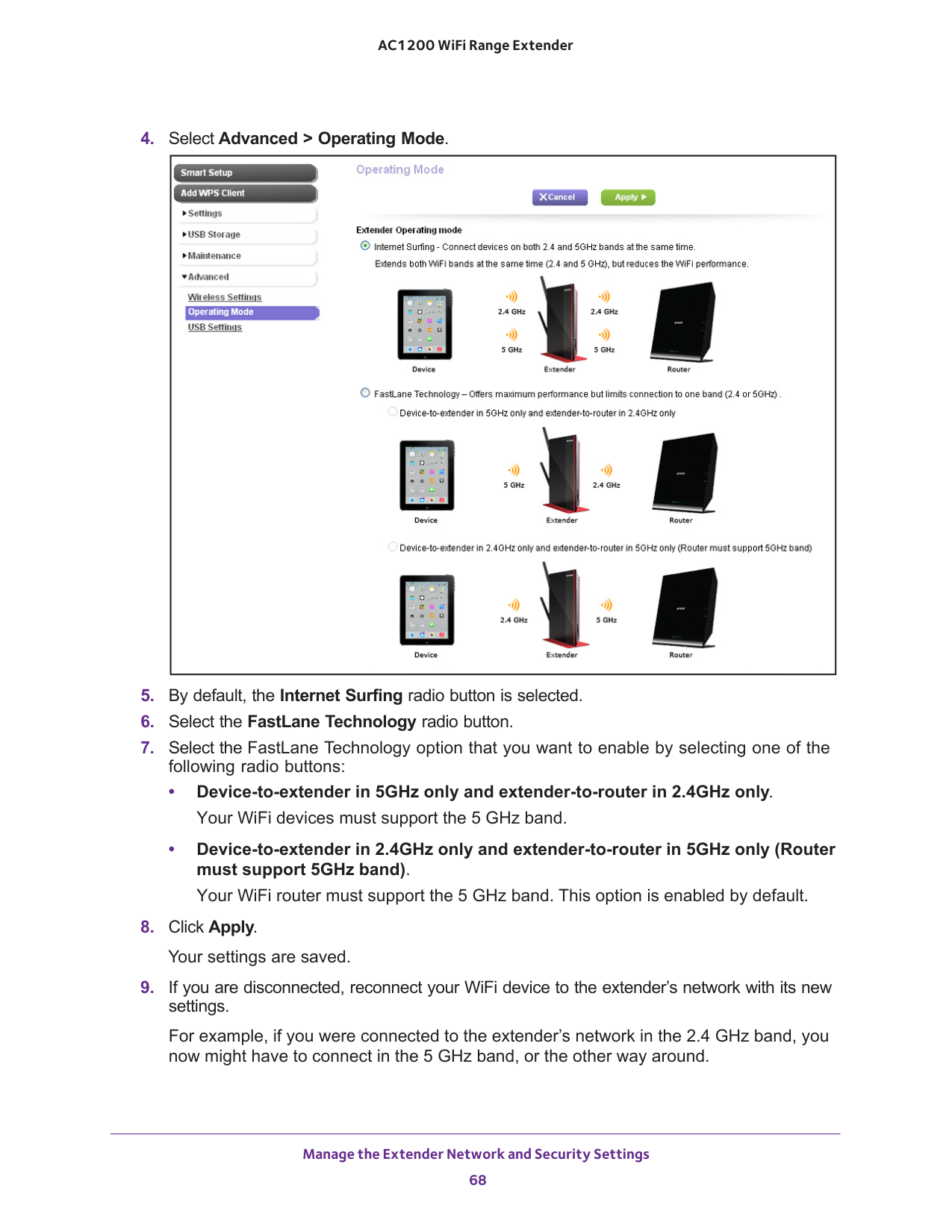
Manage the Extender Network and Security Settings 67 AC1200 WiFi Range Extender Set the Operating Mode to FastLane Technology The normal operating mode of the extender (also referred to as Internet Surfing mode) is to allow devices on both 2.4 GHz and 5 GHz bands to connect at the same time. This mode extends both WiFi bands at the same time, but reduces the WiFi performance. FastLane Technology offers maximum WiFi performance. It provides high-speed WiFi with a dedicated band connecting the extender and the WiFi device, and a second band connecting the extender and the WiFi router. FastLane Technology is ideal for HD gaming and HD video streaming. Note: If all your devices and your WiFi router support only the 2.4 GHz band, or all your devices and your WiFi router support only the 5 GHz band, do not enable FastLane Technology. When you enable FastLane Technology, you have two options: • Use the 2.4 GHz band to connect the extender to the WiFi devices and use the 5 GHz band to connect the extender to the WiFi router. Use this mode if your WiFi router supports the 5 GHz
band but the devices that you want to use for gaming and streaming support the 2.4 GHz band. • Use the 5 GHz band to connect the extender to the WiFi devices and use the 2.4 GHz band to connect the extender to the WiFi router. Use this mode if the devices that you want to use for gaming and streaming support the 5 GHz band but your WiFi router supports the 2.4
GHz
band. To enable FastLane Technology:
Manage the Extender Network and Security Settings 68 AC1200 WiFi Range Extender
GHz band. • Device-to-extender in 2.4GHz only and extender-to-router in 5GHz only (Router must support 5GHz band). Your WiFi router must support the 5
GHz
band. This option is enabled by default.
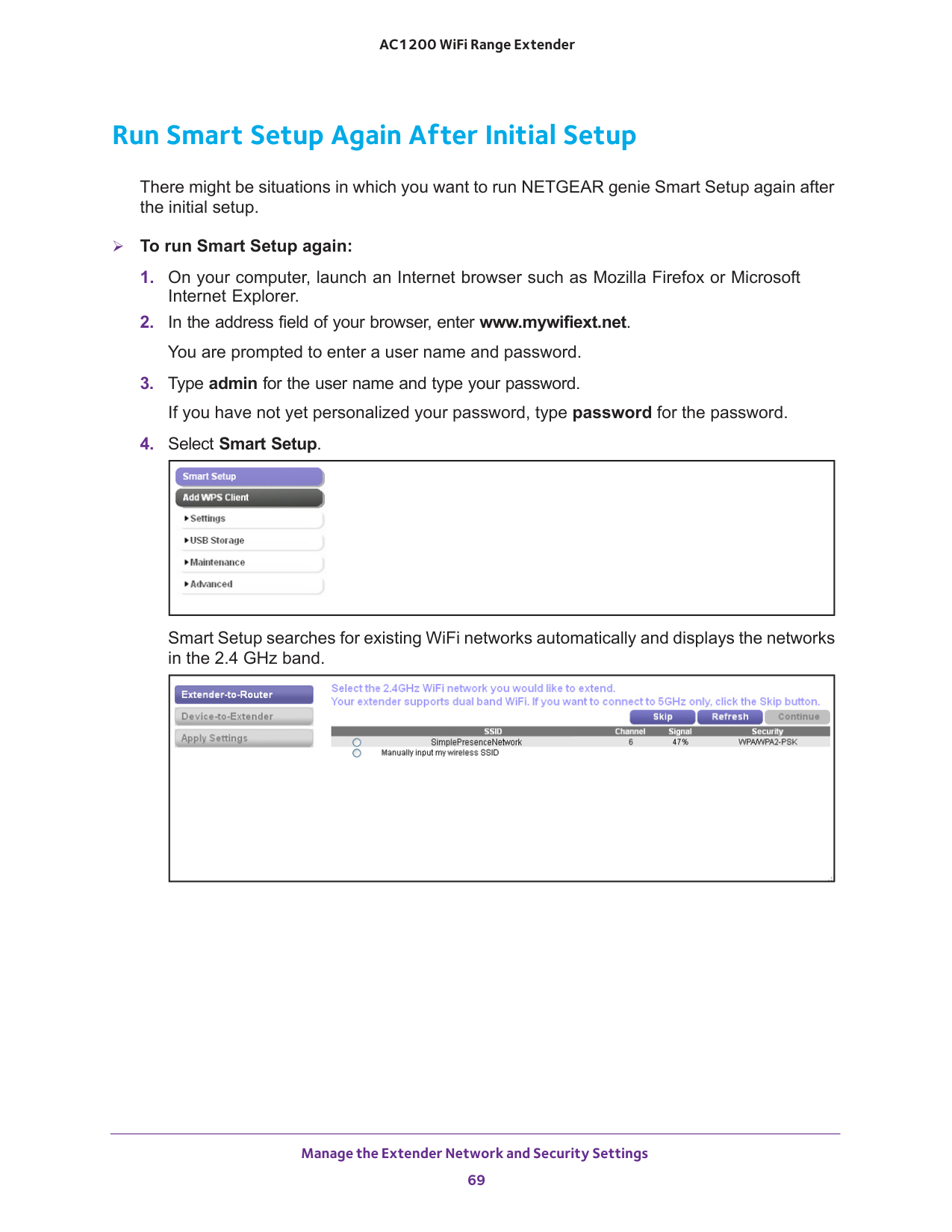
Manage the Extender Network and Security Settings 69 AC1200 WiFi Range Extender Run Smart Setup Again After Initial Setup There might be situations in which you want to run NETGEAR genie Smart Setup again after the initial setup. To run Smart Setup again:
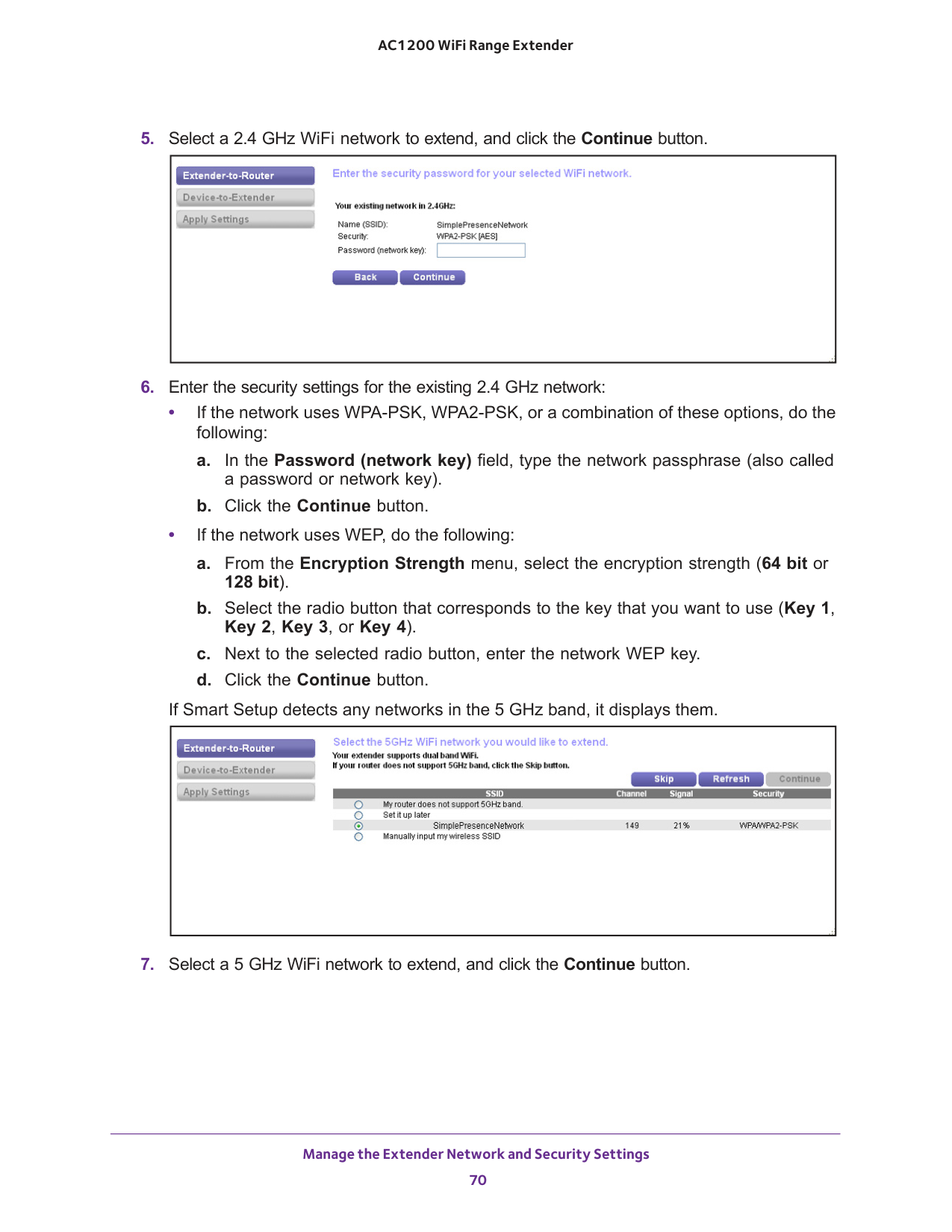
Manage the Extender Network and Security Settings 70 AC1200 WiFi Range Extender
bit). b. Select the radio button that corresponds to the key that you want to use (Key 1, Key 2, Key 3, or Key 4). c. Next to the selected radio button, enter the network WEP key. d. Click the Continue button. If Smart Setup detects any networks in the 5 GHz band, it displays them.
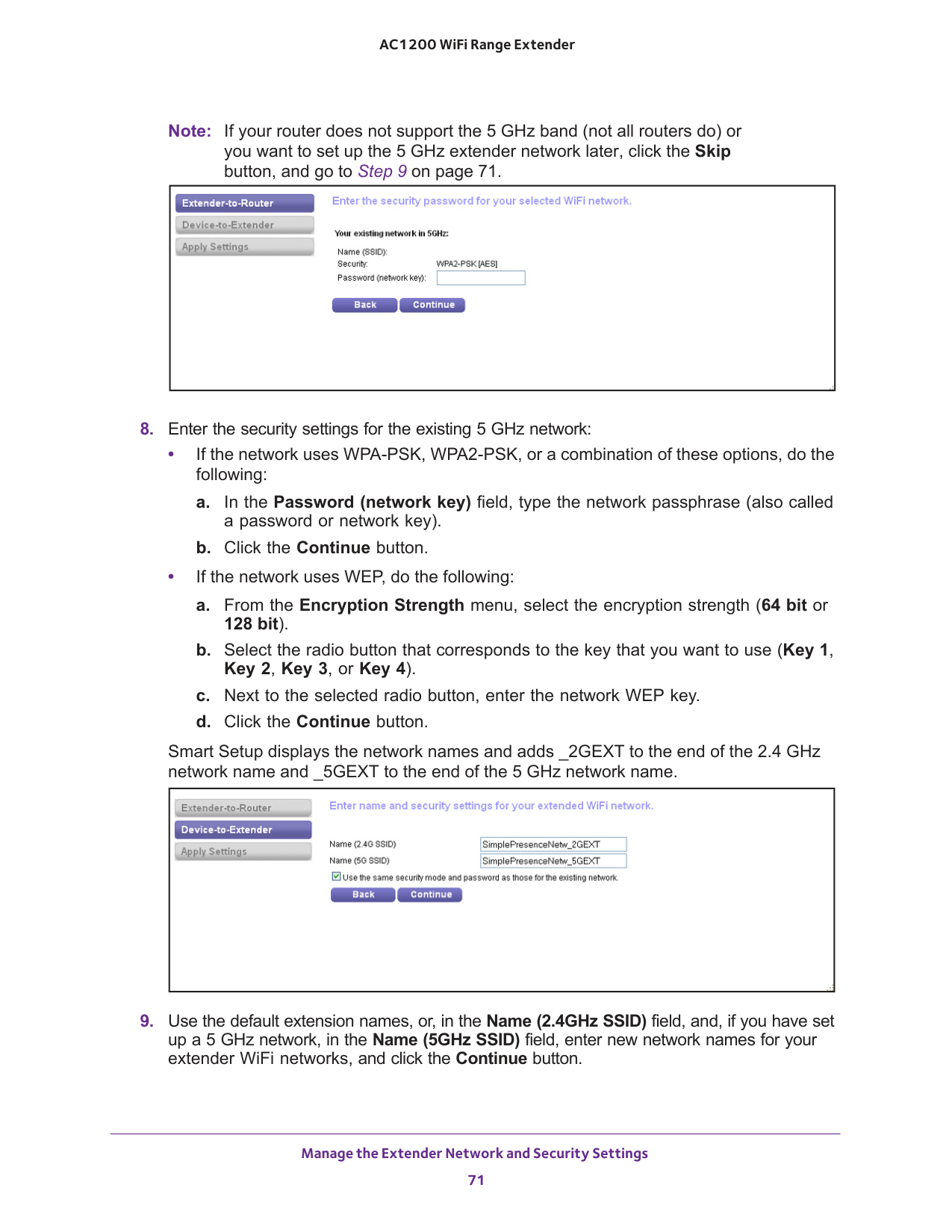
Manage the Extender Network and Security Settings 71 AC1200 WiFi Range Extender Note: If your router does not support the 5 GHz band (not all routers do) or you want to set up the 5 GHz extender network later, click the Skip button, and go to Step
9 on page
bit). b. Select the radio button that corresponds to the key that you want to use (Key 1, Key 2, Key 3, or Key 4). c. Next to the selected radio button, enter the network WEP key. d. Click the Continue button. Smart Setup displays the network names and adds _2GEXT to the end of the 2.4
GHz network name and _5GEXT to the end of the 5 GHz network name.
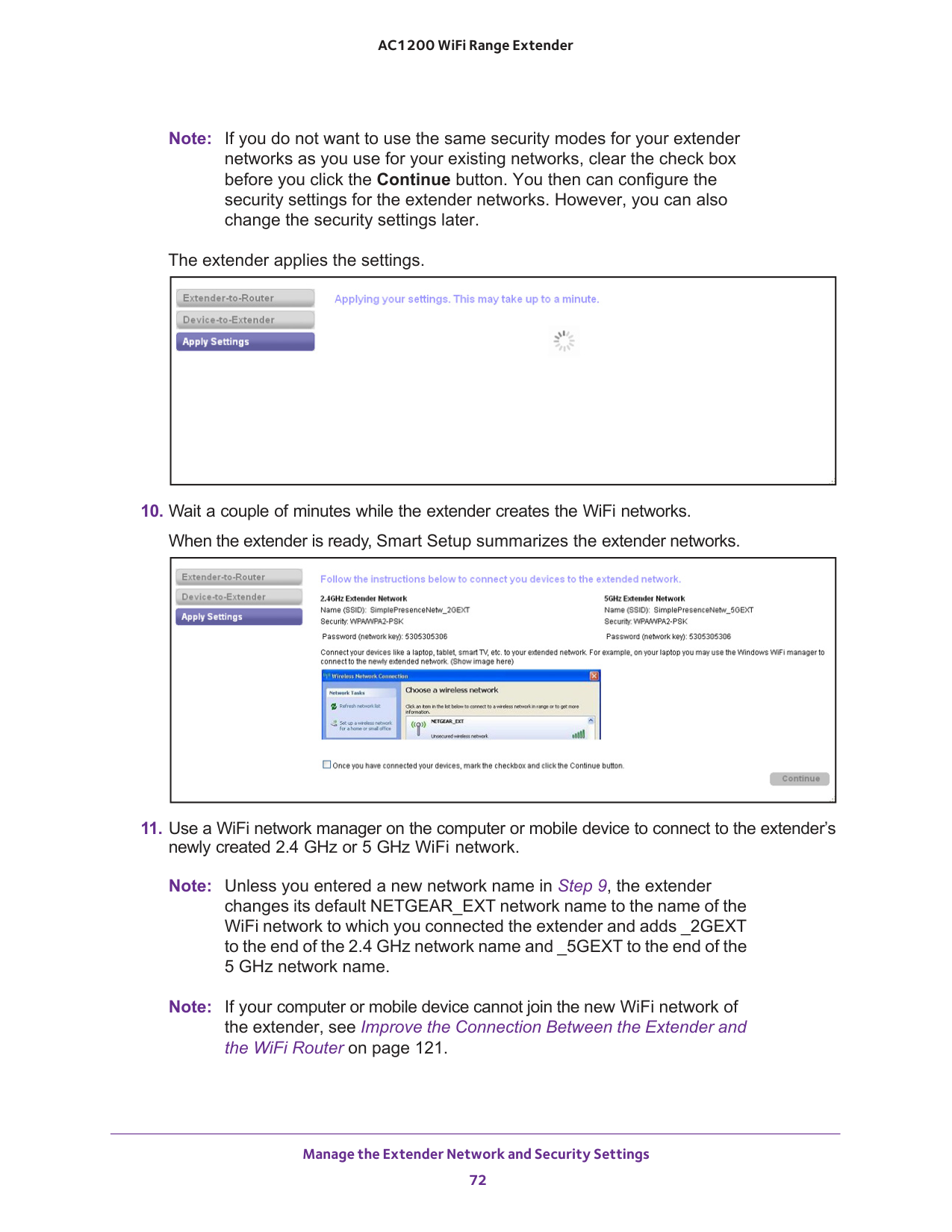
Manage the Extender Network and Security Settings 72 AC1200 WiFi Range Extender Note: If you do not want to use the same security modes for your extender networks as you use for your existing networks, clear the check box before you click the Continue button. You then can configure the security settings for the extender networks. However, you can also change the security settings later. The extender applies the settings.
9, the extender changes its default NETGEAR_EXT network name to the name of the WiFi network to which you connected the extender and adds _2GEXT to the end of the 2.4 GHz network name and _5GEXT to the end of the 5 GHz network name. Note: If your computer or mobile device cannot join the new WiFi network of the extender, see Improve the Connection Between the Extender and the WiFi Router on page
121.
Manage the Extender Network and Security Settings 73 AC1200 WiFi Range Extender
49.
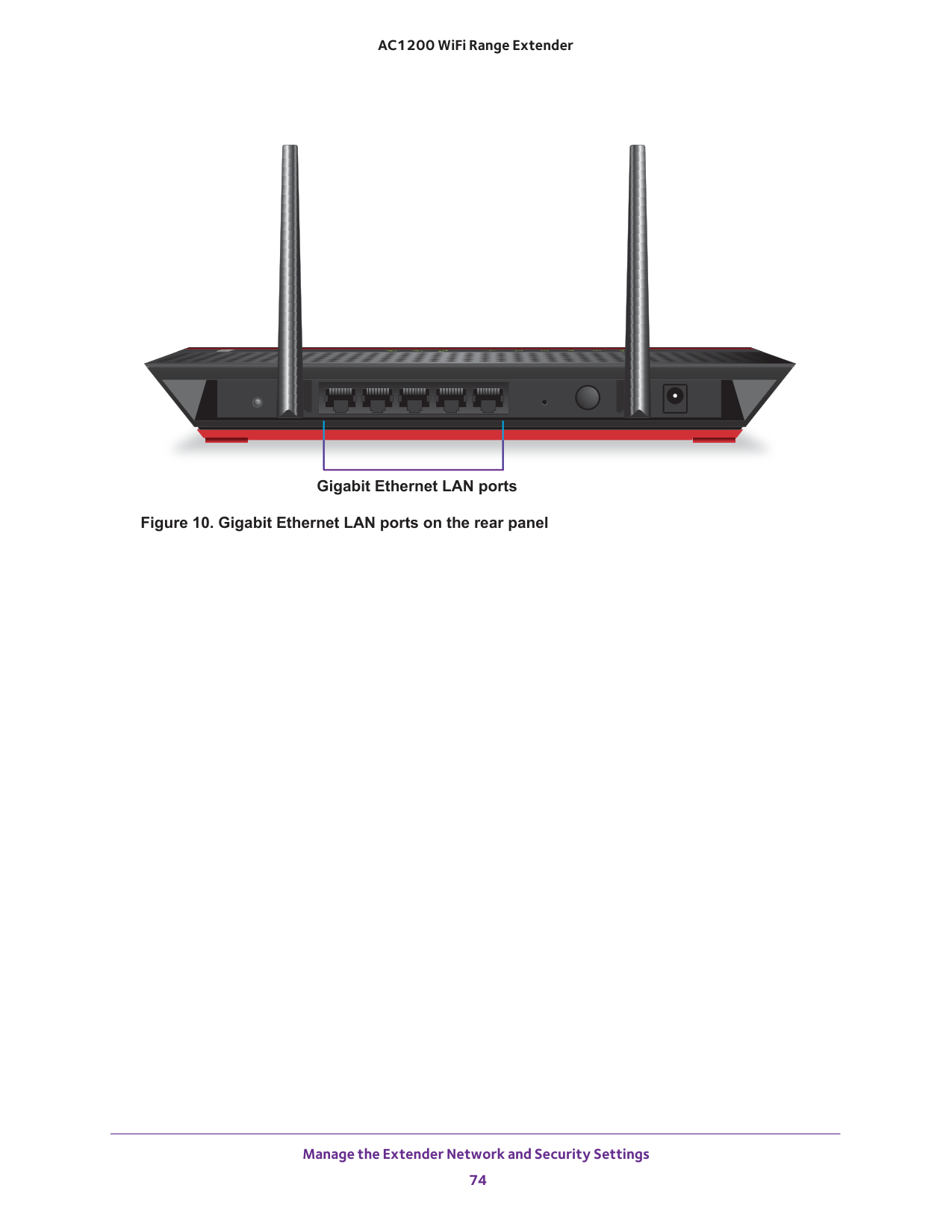
Gigabit Ethernet LAN ports Manage the Extender Network and Security Settings 74 AC1200 WiFi Range Extender Figure 10. Gigabit Ethernet LAN ports on the rear panel
75 4
Maintain and Monitor the Extender 76 AC1200 WiFi Range Extender Recover the admin Password If you have changed the password to access the extender and have set up password recovery, you can recover your password if you have lost it. For information about setting up password recovery, see Set Up Password Recovery on page
79). To recover your password to access the extender:
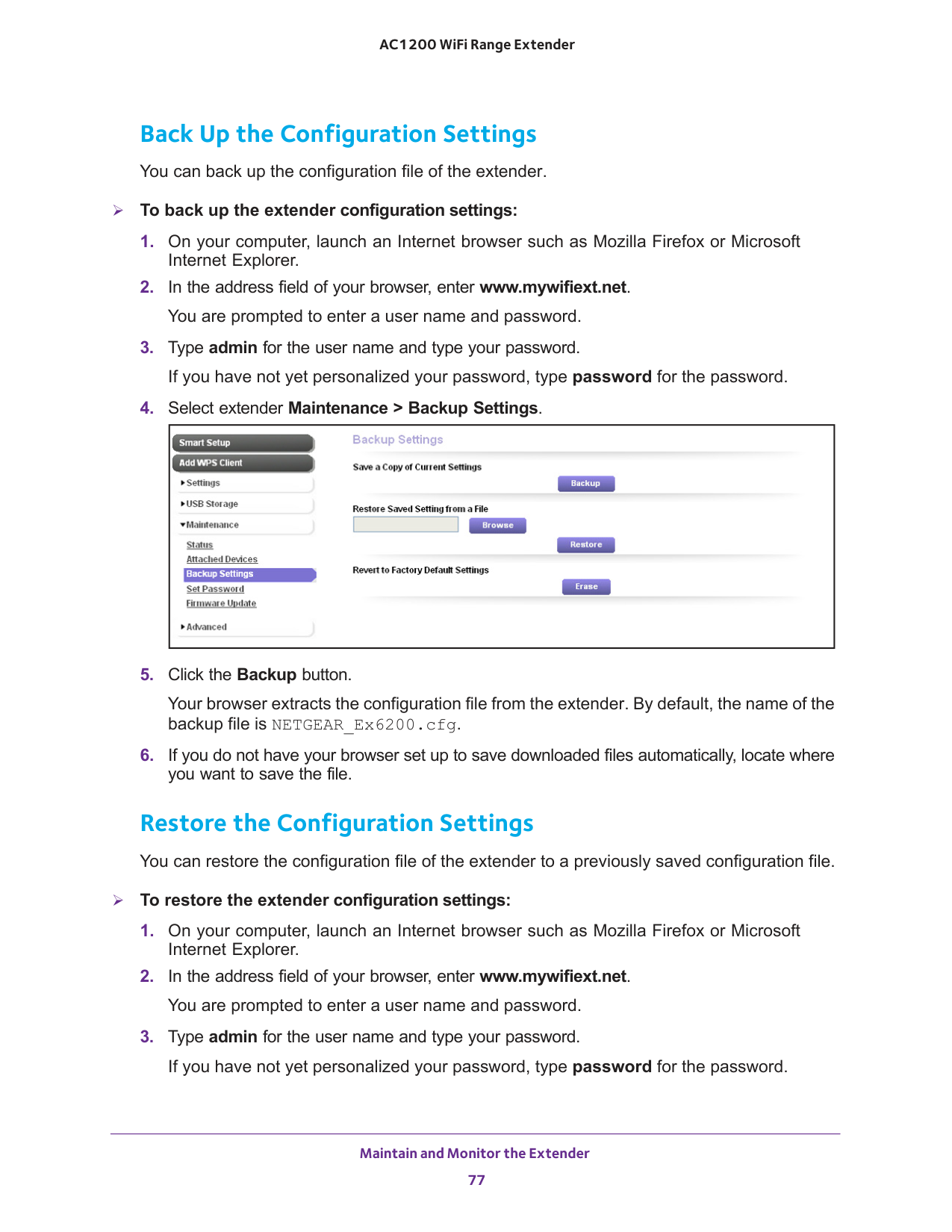
Maintain and Monitor the Extender 77 AC1200 WiFi Range Extender Back Up the Configuration Settings You can back up the configuration file of the extender. To back up the extender configuration settings:
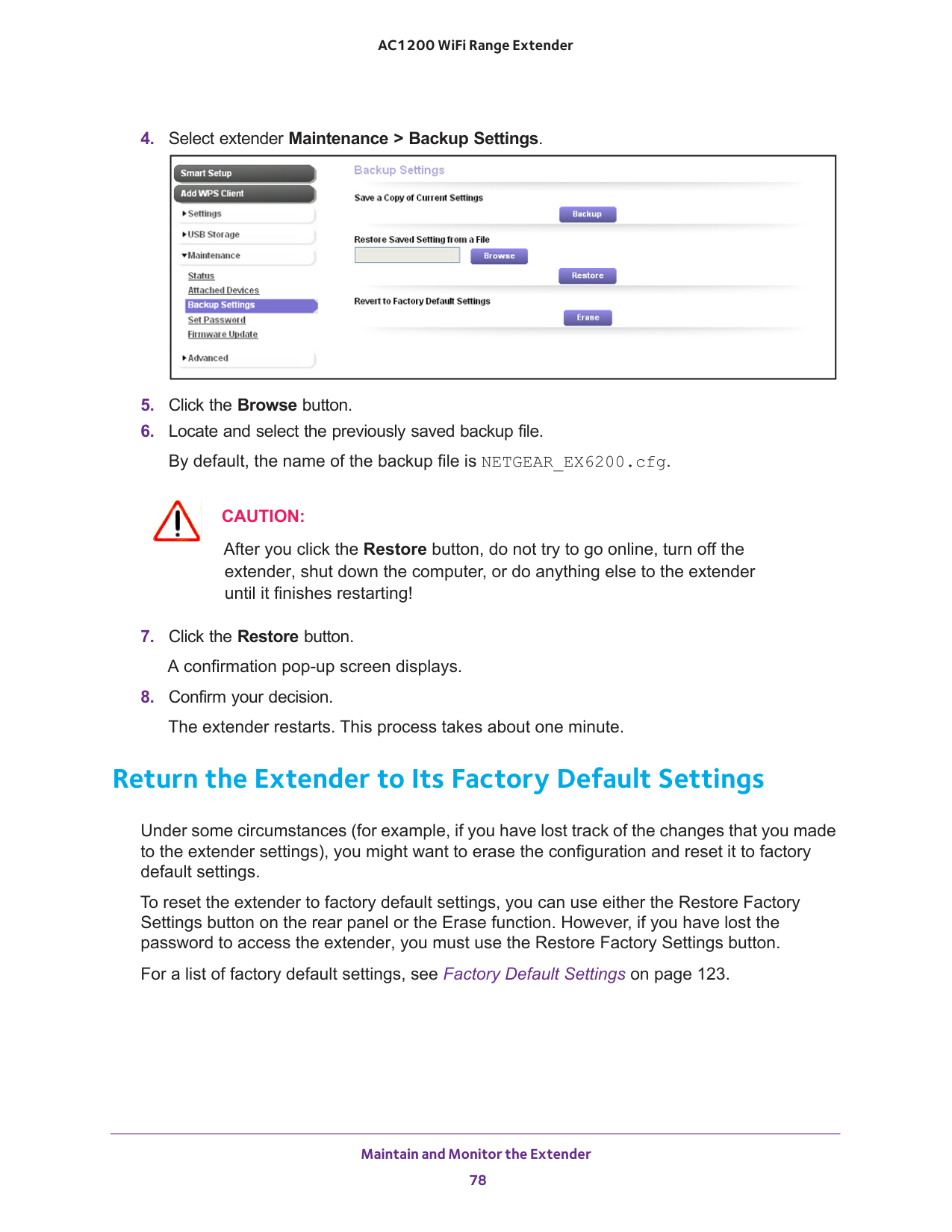
Maintain and Monitor the Extender 78 AC1200 WiFi Range Extender
Caution:
After you click the Restore button, do not try to go online, turn off the extender, shut down the computer, or do anything else to the extender until it finishes restarting!123.
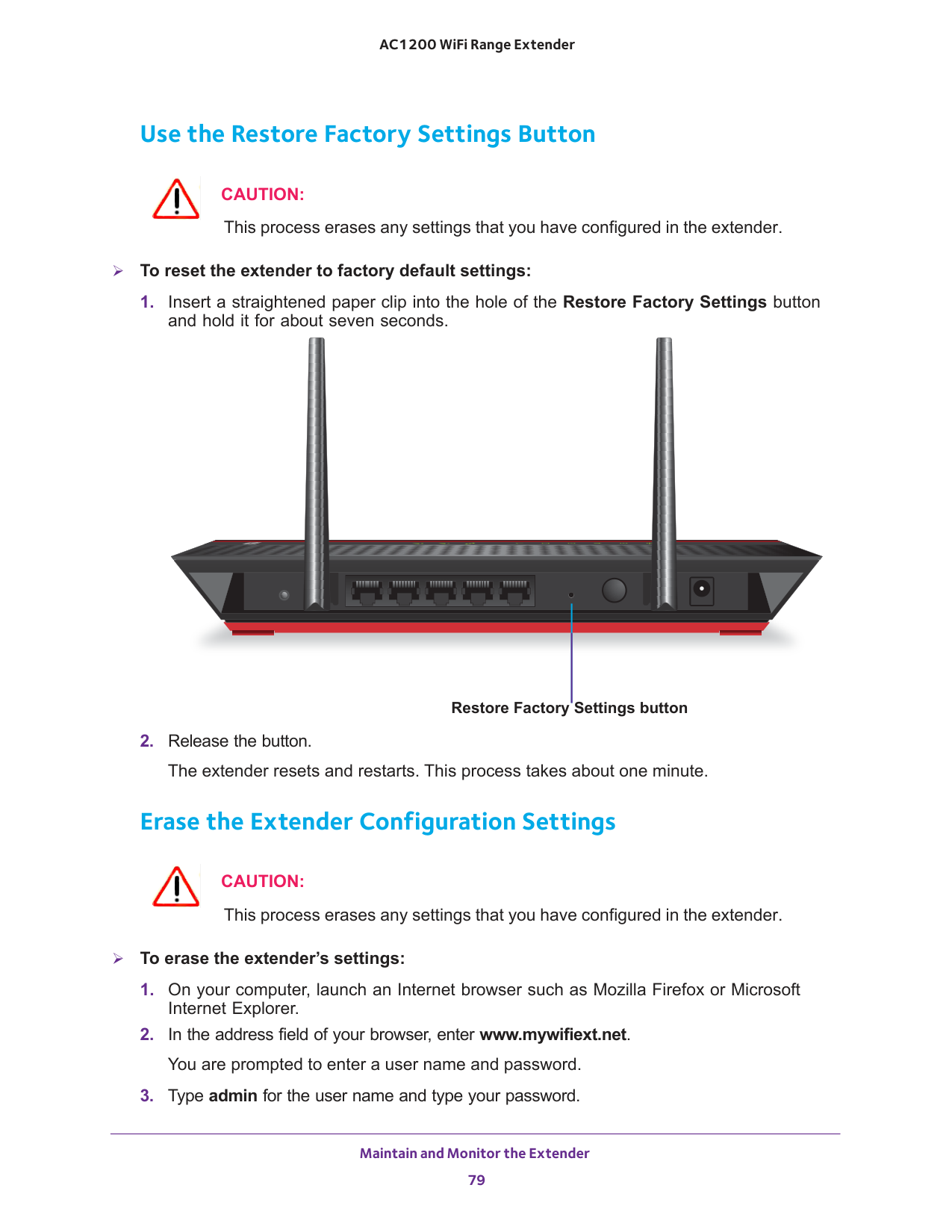
Maintain and Monitor the Extender 79 AC1200 WiFi Range Extender Use the Restore Factory Settings Button
Caution:
This process erases any settings that you have configured in the extender. To reset the extender to factory default settings:Caution:
This process erases any settings that you have configured in the extender. To erase the extender’s settings: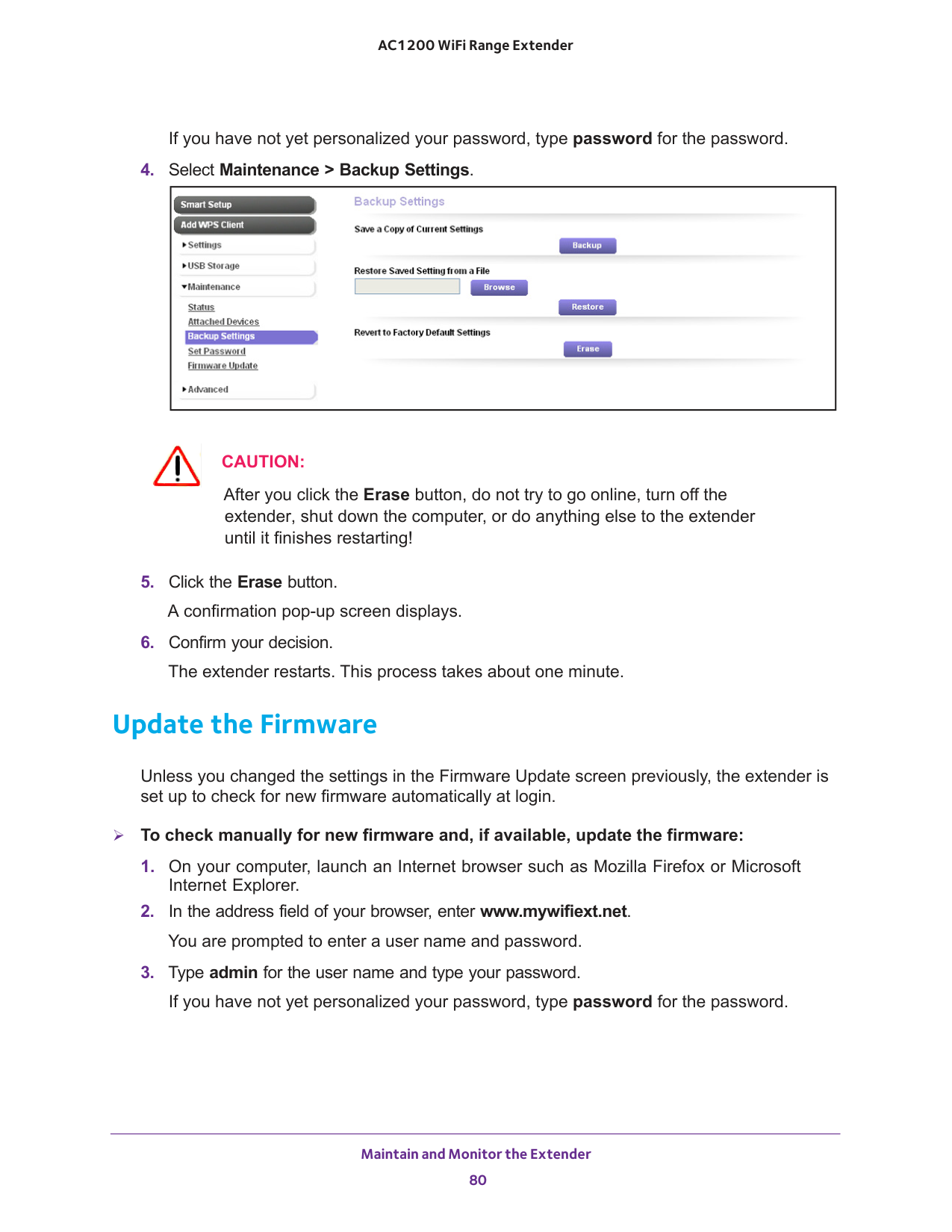
Maintain and Monitor the Extender 80 AC1200 WiFi Range Extender If you have not yet personalized your password, type password for the password.
Caution:
After you click the Erase button, do not try to go online, turn off the extender, shut down the computer, or do anything else to the extender until it finishes restarting!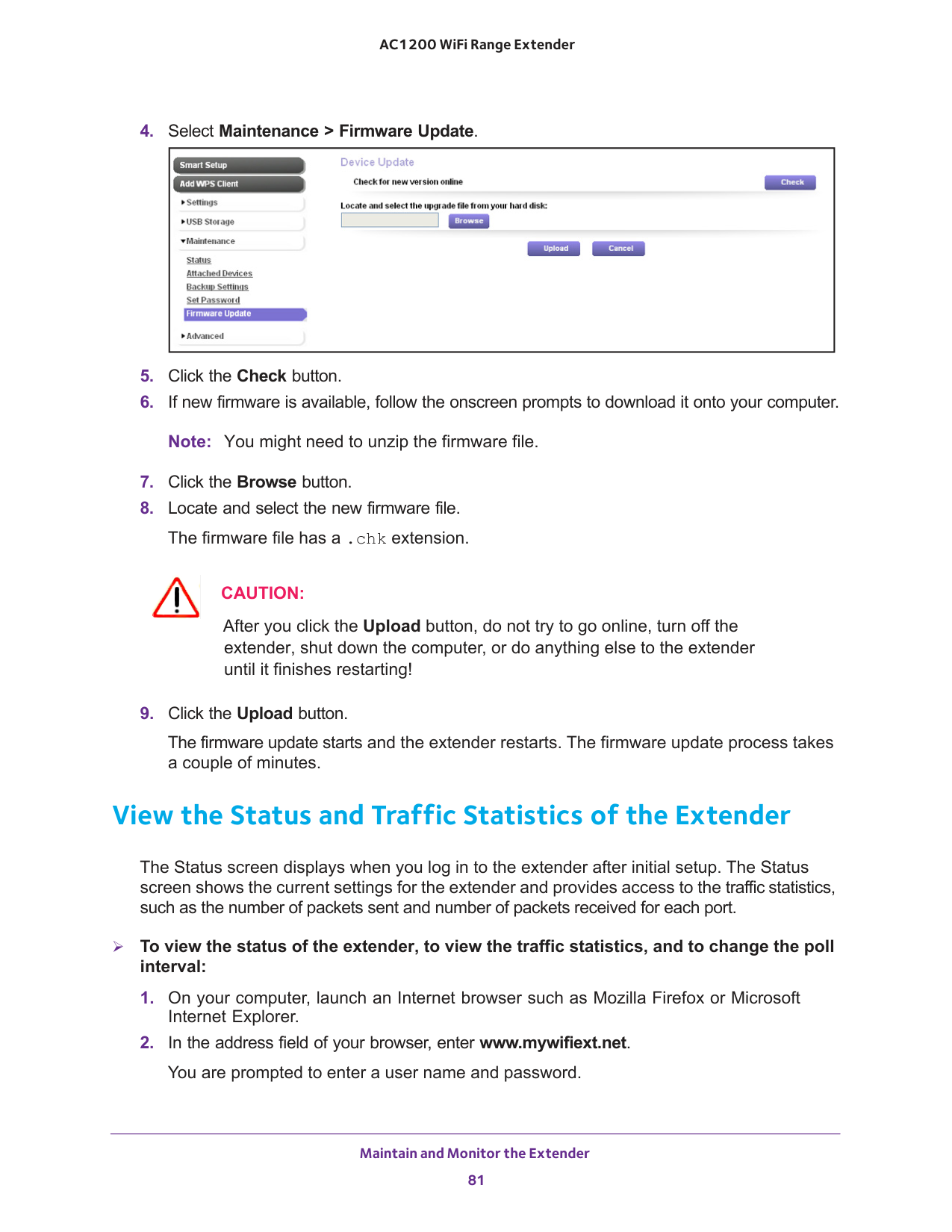
Maintain and Monitor the Extender 81 AC1200 WiFi Range Extender
Caution:
After you click the Upload button, do not try to go online, turn off the extender, shut down the computer, or do anything else to the extender until it finishes restarting!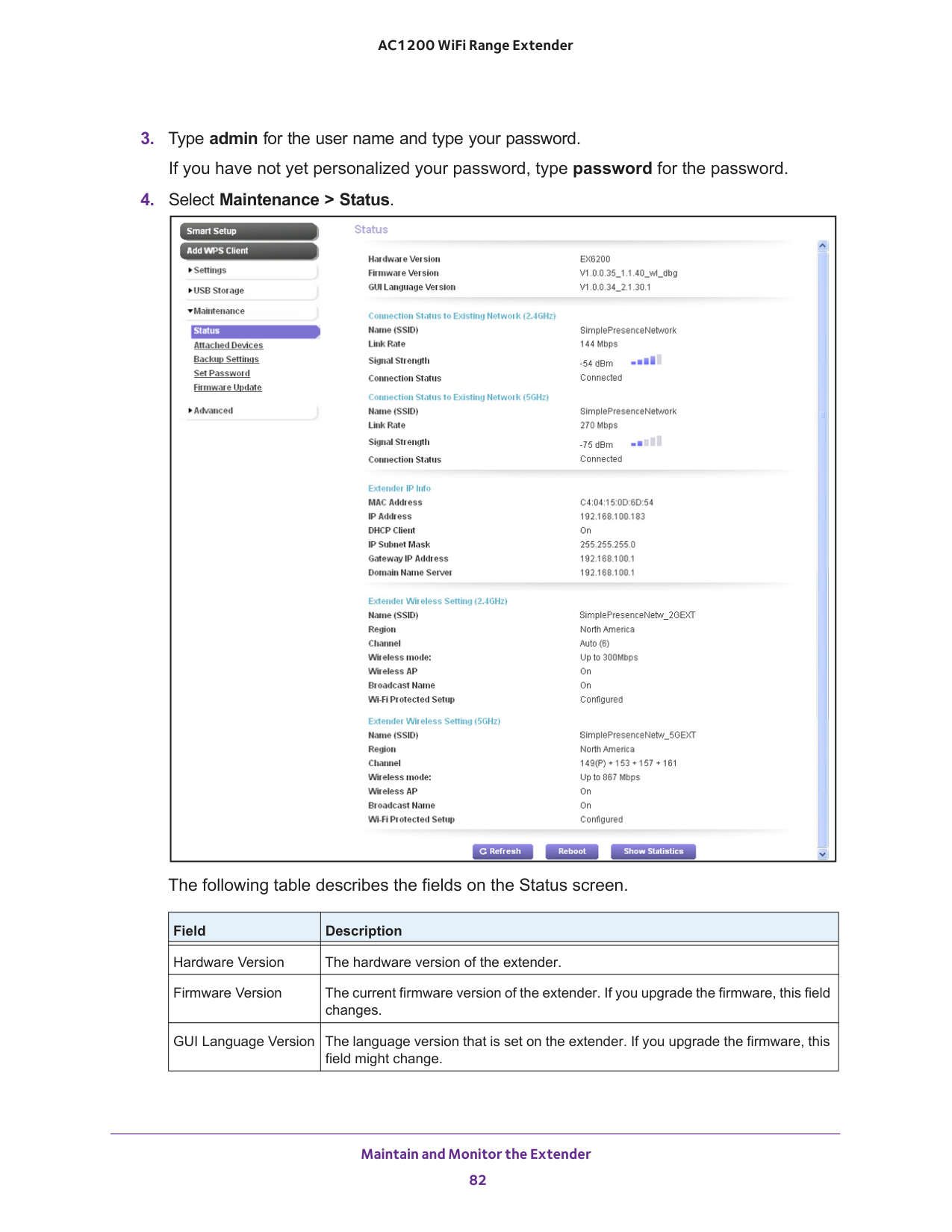
Maintain and Monitor the Extender 82 AC1200 WiFi Range Extender
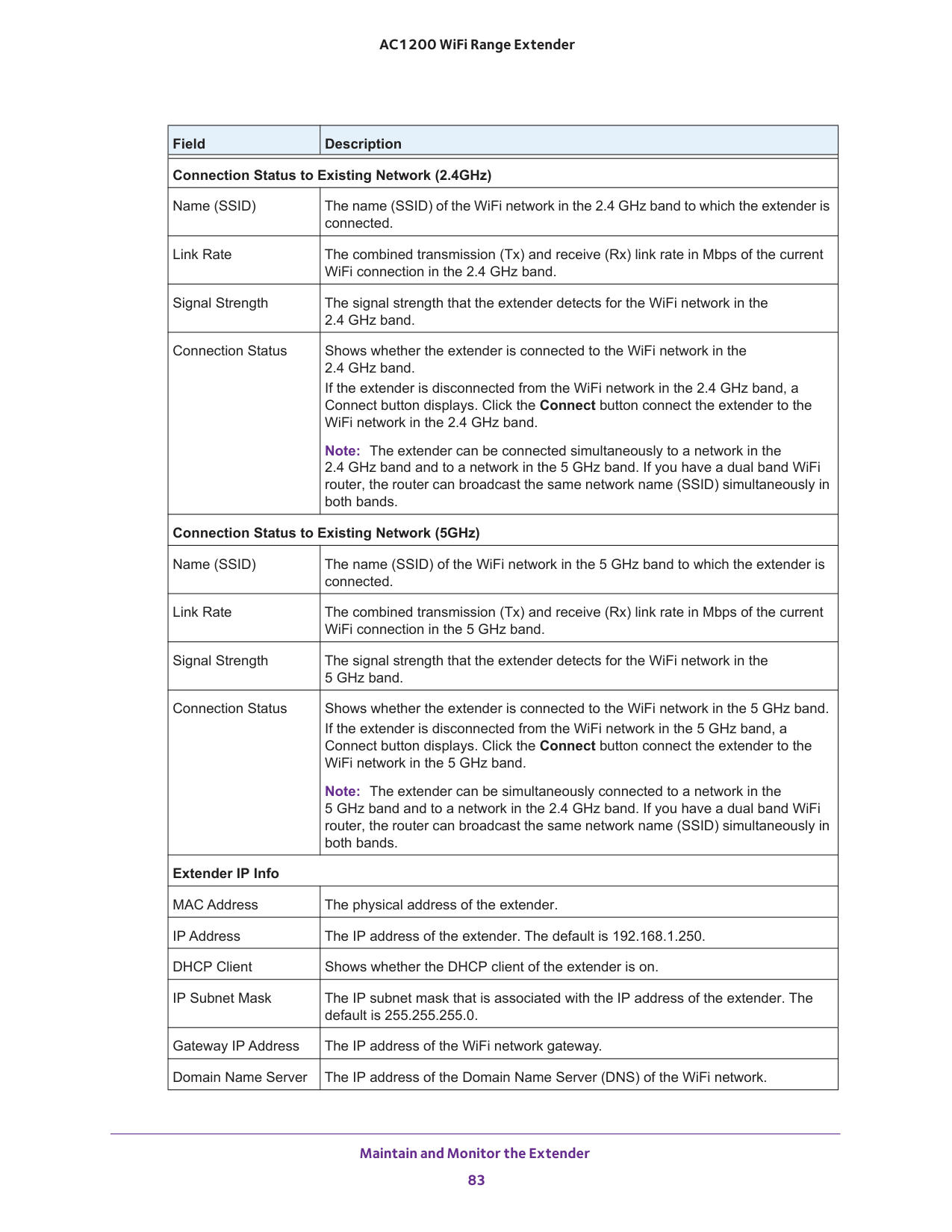
Maintain and Monitor the Extender 83 AC1200 WiFi Range Extender Connection Status to Existing Network (2.4GHz) Name (SSID) The name (SSID) of the WiFi network in the 2.4 GHz band to which the extender is connected. Link Rate The combined transmission (Tx) and receive (Rx) link rate in Mbps of the current WiFi connection in the 2.4 GHz band. Signal Strength The signal strength that the extender detects for the WiFi network in the 2.4
GHz
band. Connection Status Shows whether the extender is connected to the WiFi network in the 2.4
GHz
band. If the extender is disconnected from the WiFi network in the 2.4
GHz
band, a Connect button displays. Click the Connect button connect the extender to the WiFi network in the 2.4
GHz
band. Note: The extender can be connected simultaneously to a network in the 2.4
GHz
band and to a network in the 5
GHz
band. If you have a dual band WiFi router, the router can broadcast the same network name (SSID) simultaneously in both bands. Connection Status to Existing Network (5GHz) Name (SSID) The name (SSID) of the WiFi network in the 5 GHz band to which the extender is connected. Link Rate The combined transmission (Tx) and receive (Rx) link rate in Mbps of the current WiFi connection in the 5 GHz band. Signal Strength The signal strength that the extender detects for the WiFi network in the 5 GHz
band. Connection Status Shows whether the extender is connected to the WiFi network in the 5
GHz
band. If the extender is disconnected from the WiFi network in the 5
GHz
band, a Connect button displays. Click the Connect button connect the extender to the WiFi network in the 5
GHz
band. Note: The extender can be simultaneously connected to a network in the 5 GHz
band and to a network in the 2.4
GHz
band. If you have a dual band WiFi router, the router can broadcast the same network name (SSID) simultaneously in both bands. Extender IP Info MAC Address The physical address of the extender. IP Address The IP address of the extender. The default is 192.168.1.250. DHCP Client Shows whether the DHCP client of the extender is on. IP Subnet Mask The IP subnet mask that is associated with the IP address of the extender. The default is 255.255.255.0. Gateway IP Address The IP address of the WiFi network gateway. Domain Name Server The IP address of the Domain Name Server (DNS) of the WiFi network. Field Description
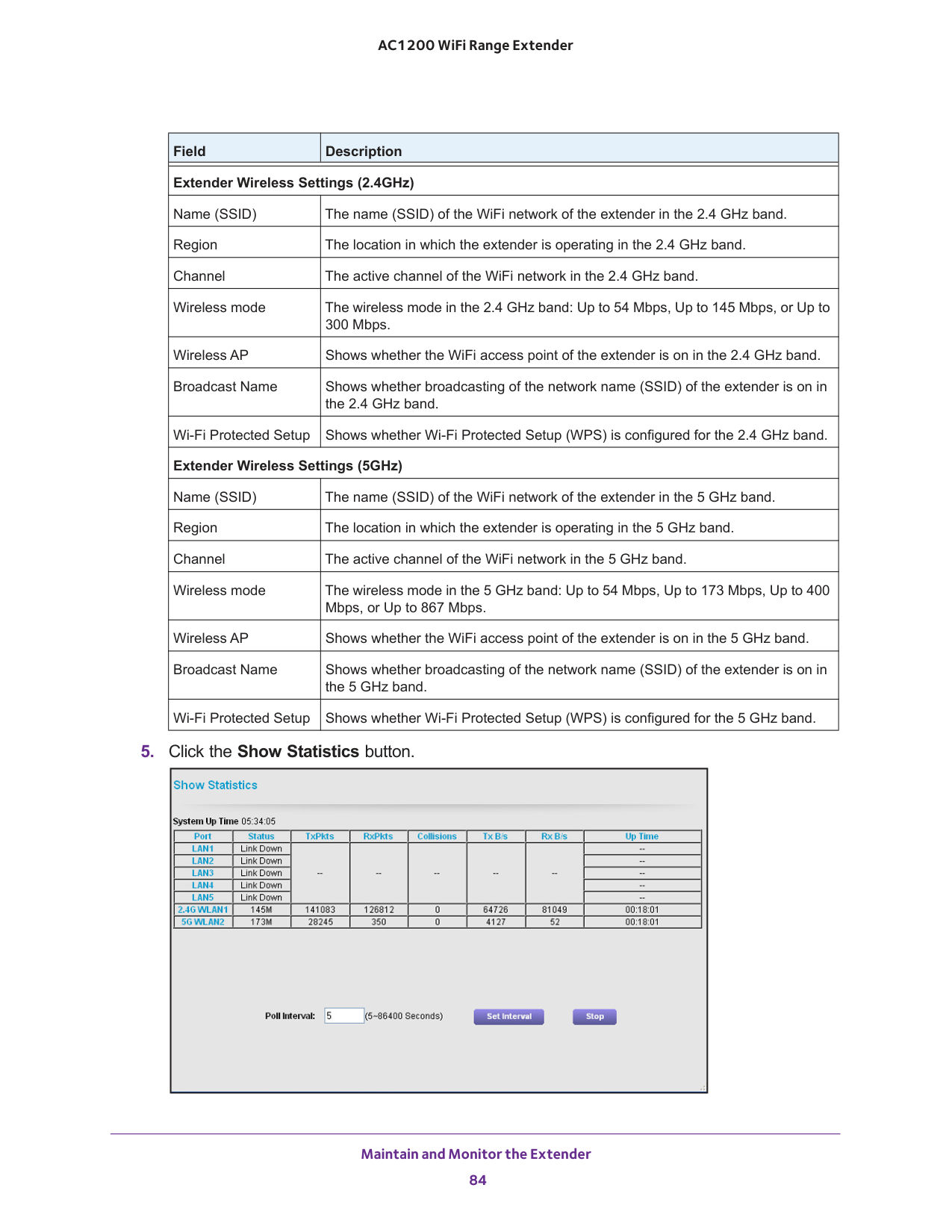
Maintain and Monitor the Extender 84 AC1200 WiFi Range Extender
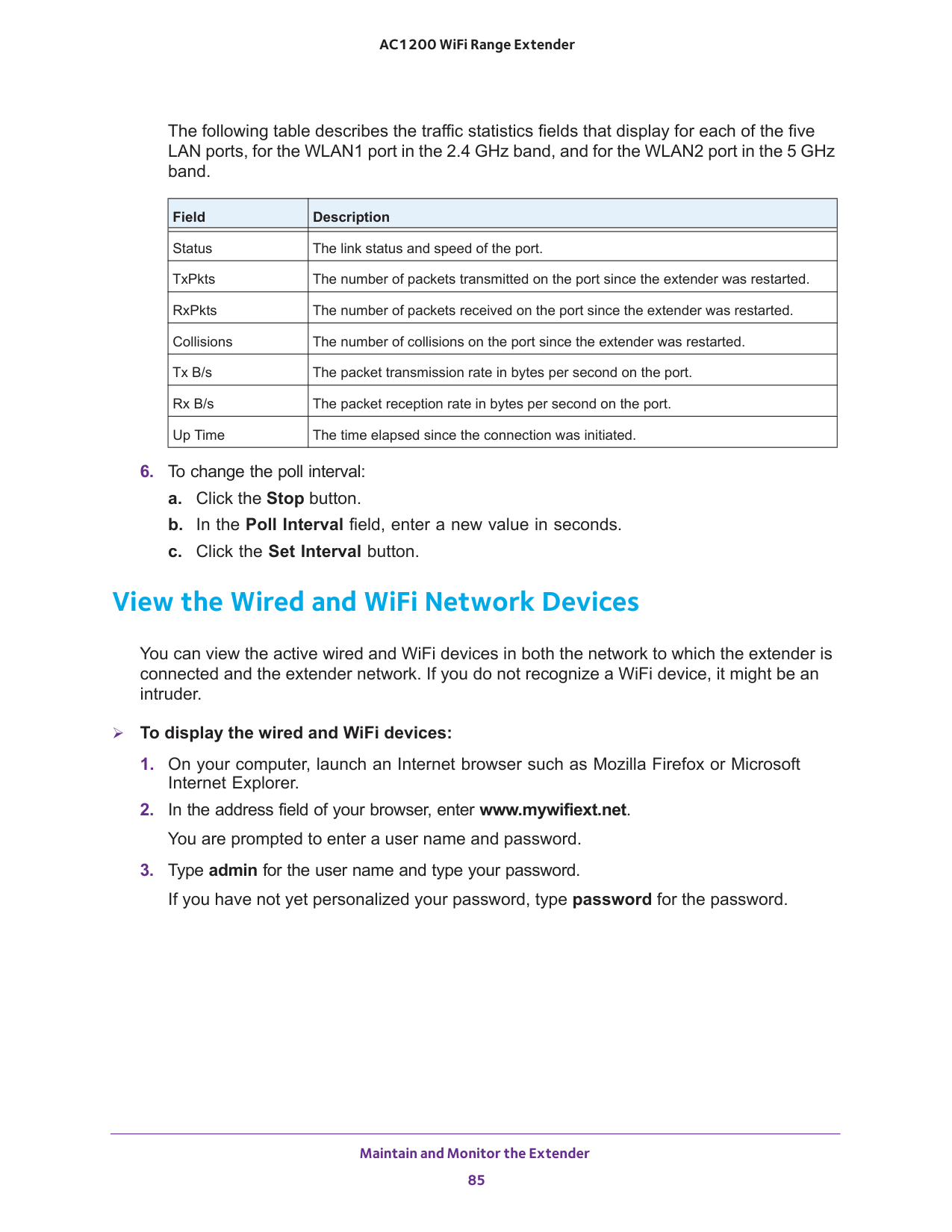
Maintain and Monitor the Extender 85 AC1200 WiFi Range Extender The following table describes the traffic statistics fields that display for each of the five LAN ports, for the WLAN1 port in the 2.4 GHz band, and for the WLAN2 port in the 5 GHz band. Field Description Status The link status and speed of the port. TxPkts The number of packets transmitted on the port since the extender was restarted. RxPkts The number of packets received on the port since the extender was restarted. Collisions The number of collisions on the port since the extender was restarted. Tx B/s The packet transmission rate in bytes per second on the port. Rx B/s The packet reception rate in bytes per second on the port. Up Time The time elapsed since the connection was initiated.
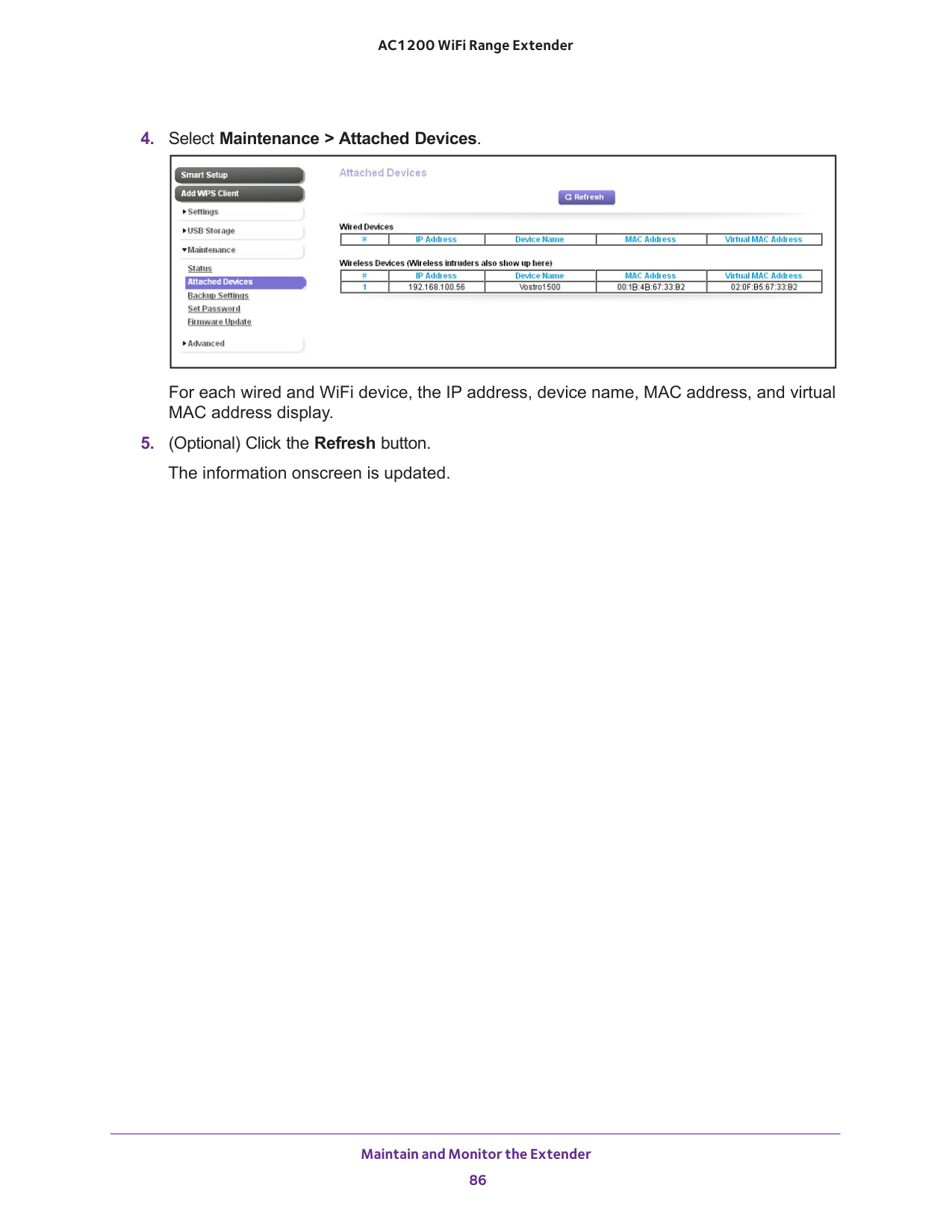
Maintain and Monitor the Extender 86 AC1200 WiFi Range Extender
87 5
Share a USB Drive That Is Attached to the Extender 88 AC1200 WiFi Range Extender USB Drive Requirements The extender works with most USB-compliant external flash and hard drives. For the most up-to-date list of USB drives that the extender supports, visit http://kbserver.netgear.com/readyshare. Some USB external hard drives and flash drives require you to load the drivers onto the computer before the computer can access the USB device. Such USB devices do not work with the extender. The extender supports the following file system types for full read and write access: •
Fat16, Fat32
•Ntfs
• NTFS with compression format enabled • Ext2, Ext3, and Ext4 •Hfs
•Hfs+
Note: Do not connect computers, USB modems, CD drives, or DVD drives to the extender USB port. Access a USB Drive on the Network ReadySHARE lets you access and share a USB drive connected to the extender USB port. (If your USB drive has special drivers, it is not compatible.) To connect a USB drive: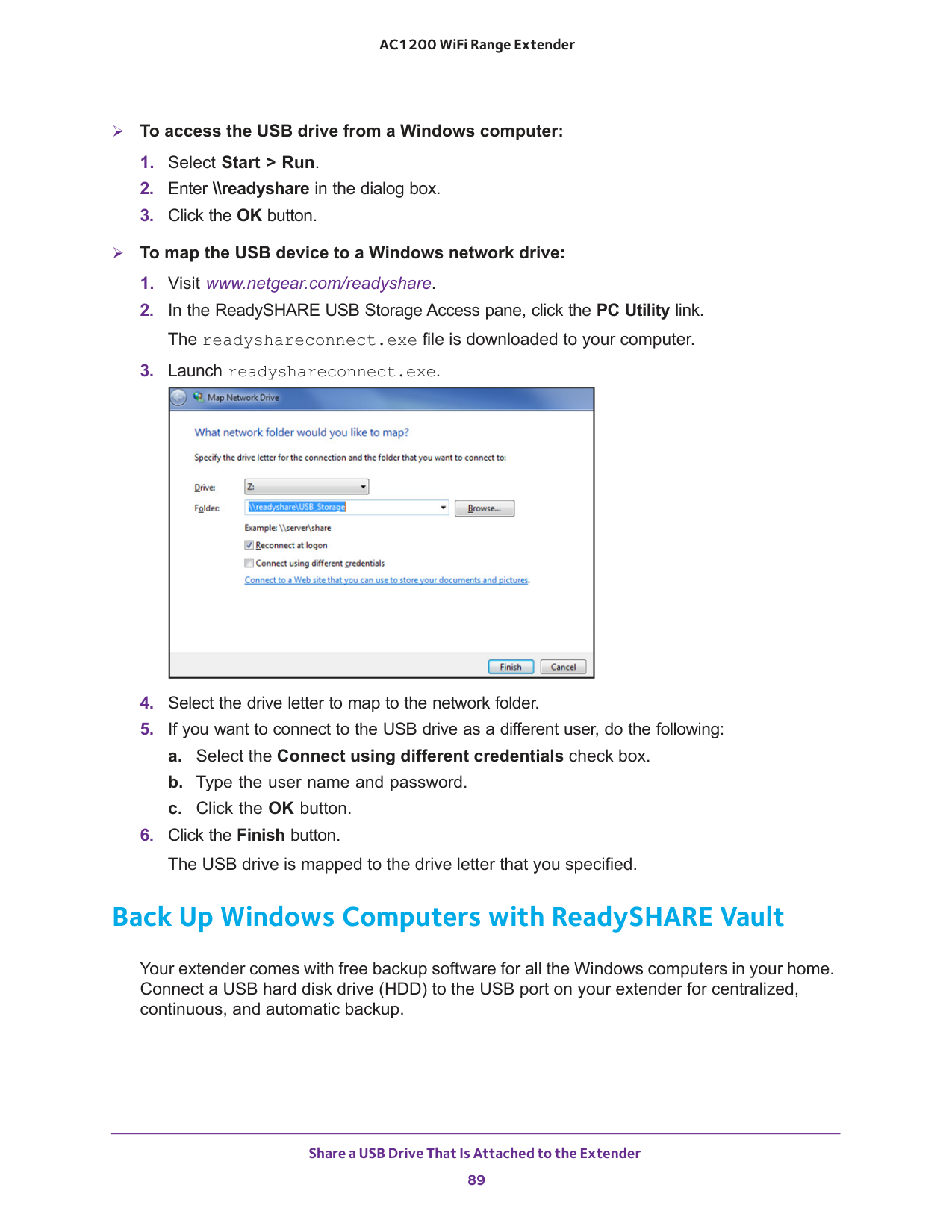
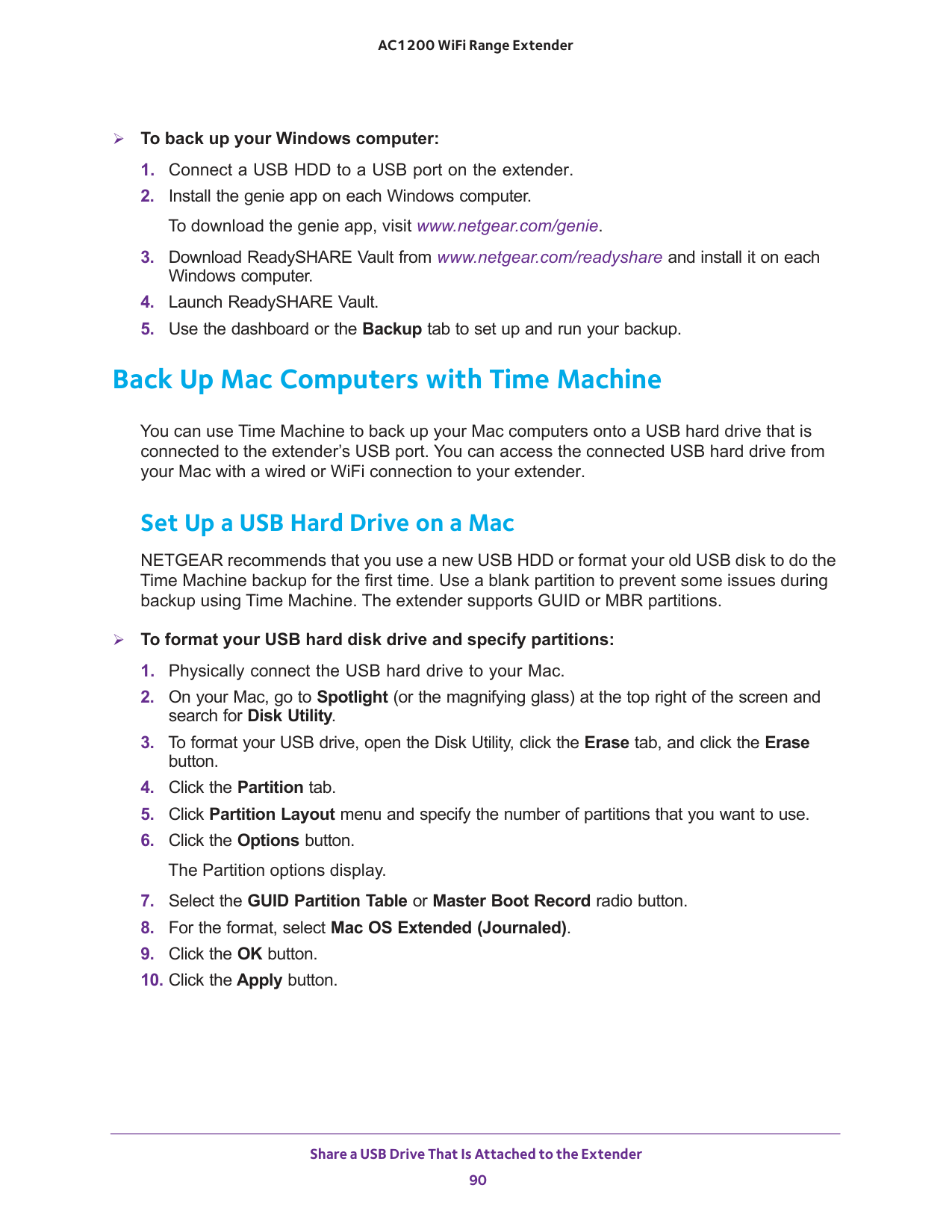
Share a USB Drive That Is Attached to the Extender 89 AC1200 WiFi Range Extender To access the USB drive from a Windows computer:
Share a USB Drive That Is Attached to the Extender 90 AC1200 WiFi Range Extender To back up your Windows computer:
Share a USB Drive That Is Attached to the Extender 91 AC1200 WiFi Range Extender Prepare to Back Up a Large Amount of Data Before you back up a large amount of data with Time Machine, NETGEAR recommends that you follow this procedure. To prepare to back up a large amount of data:
90).
Share a USB Drive That Is Attached to the Extender 92 AC1200 WiFi Range Extender
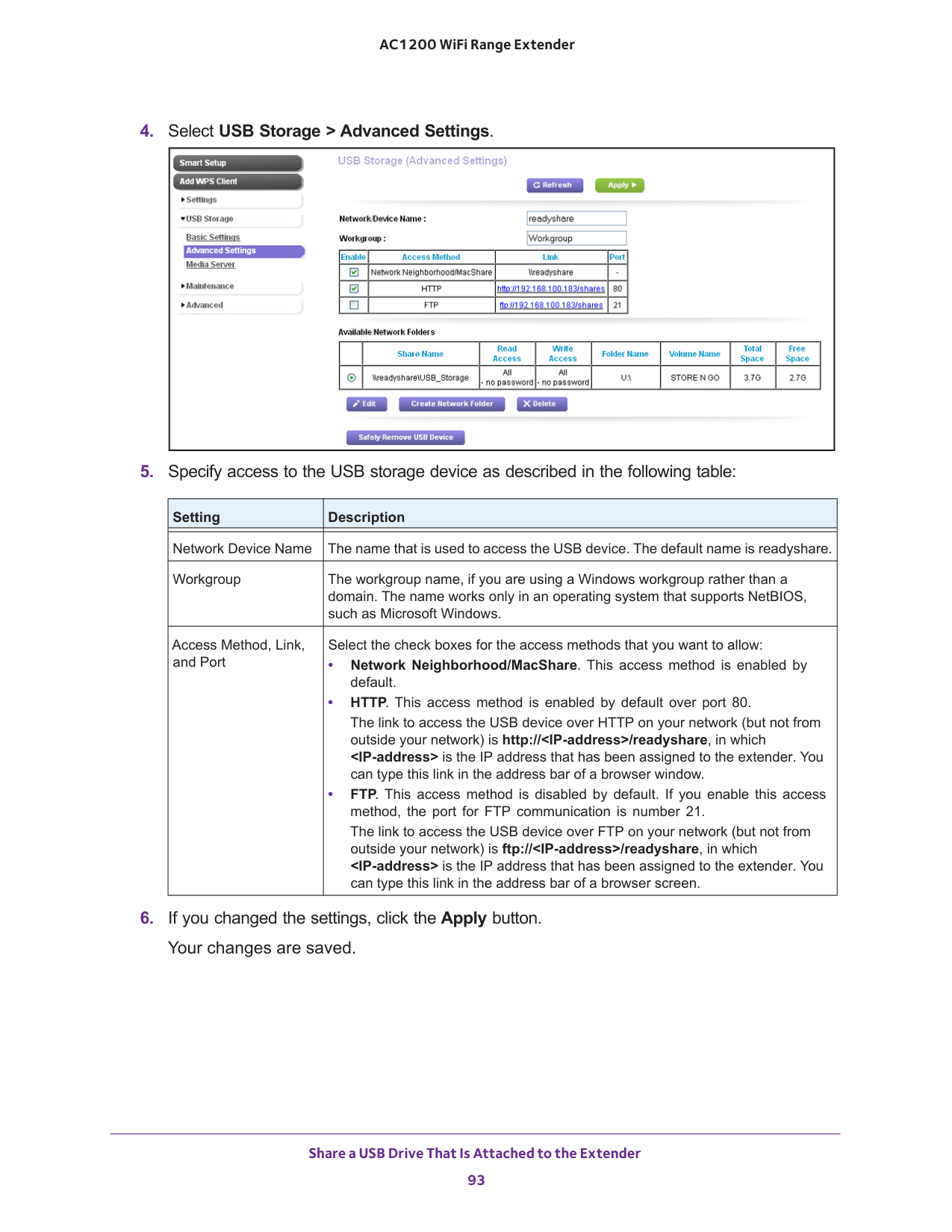
Share a USB Drive That Is Attached to the Extender 93 AC1200 WiFi Range Extender
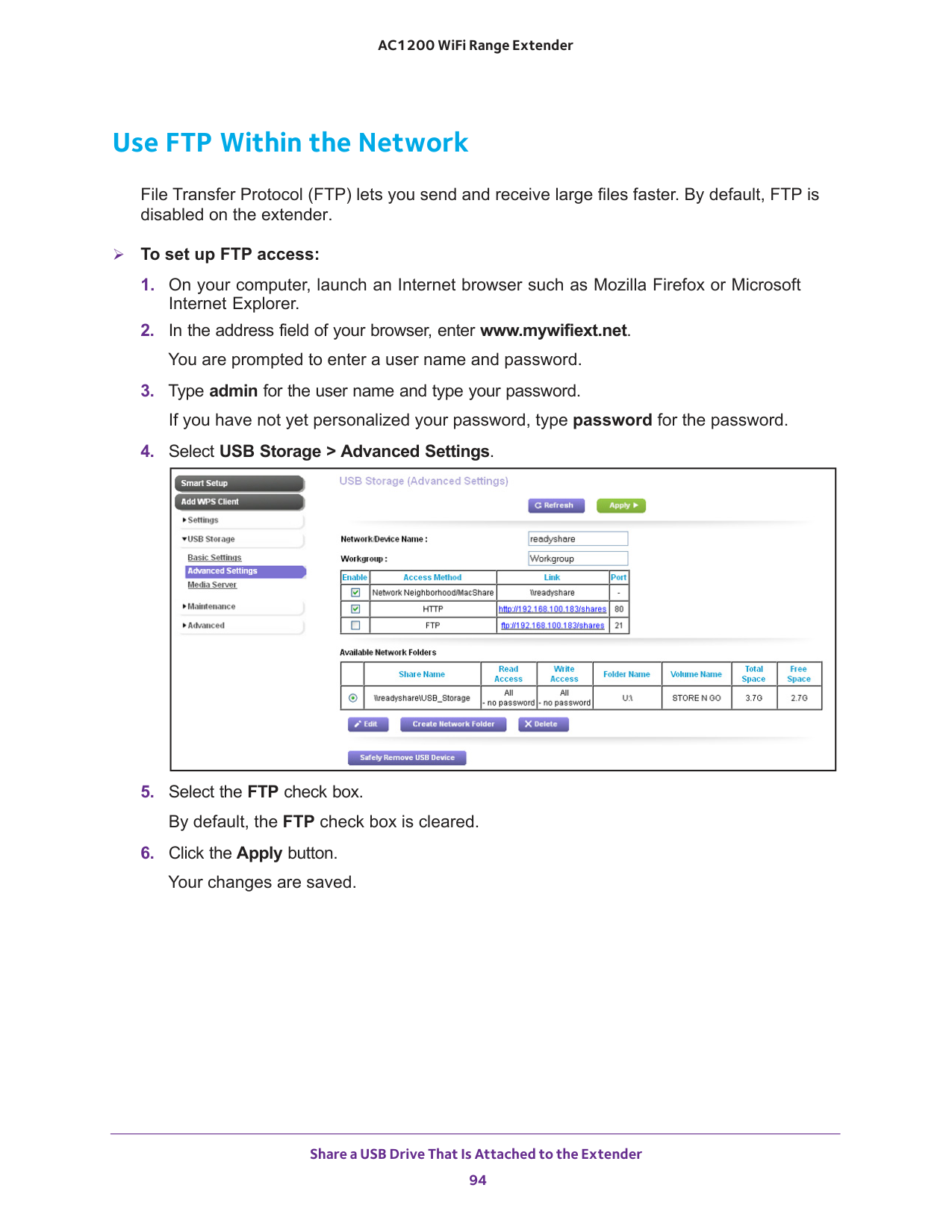
Share a USB Drive That Is Attached to the Extender 94 AC1200 WiFi Range Extender Use FTP Within the Network File Transfer Protocol (FTP) lets you send and receive large files faster. By default, FTP is disabled on the extender. To set up FTP access:
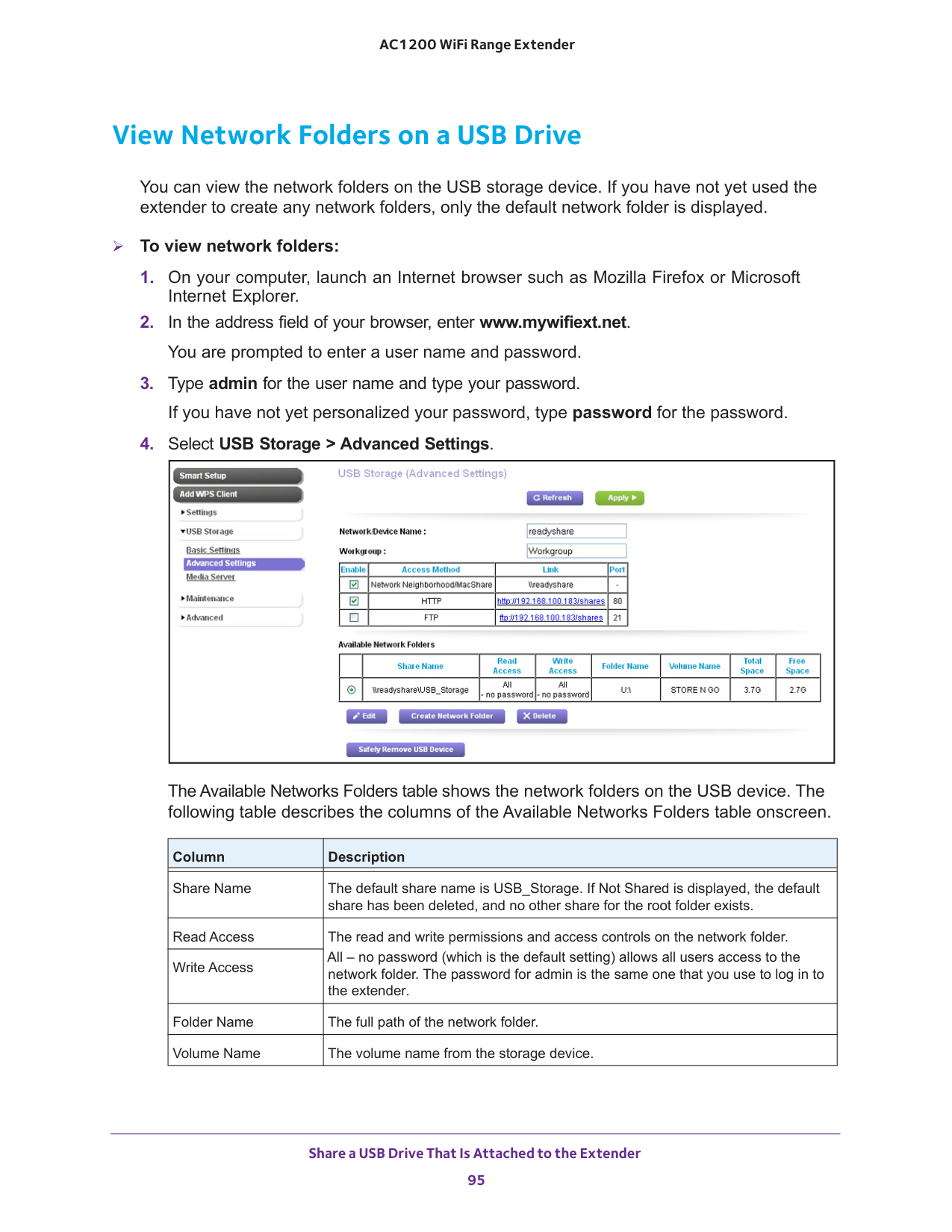
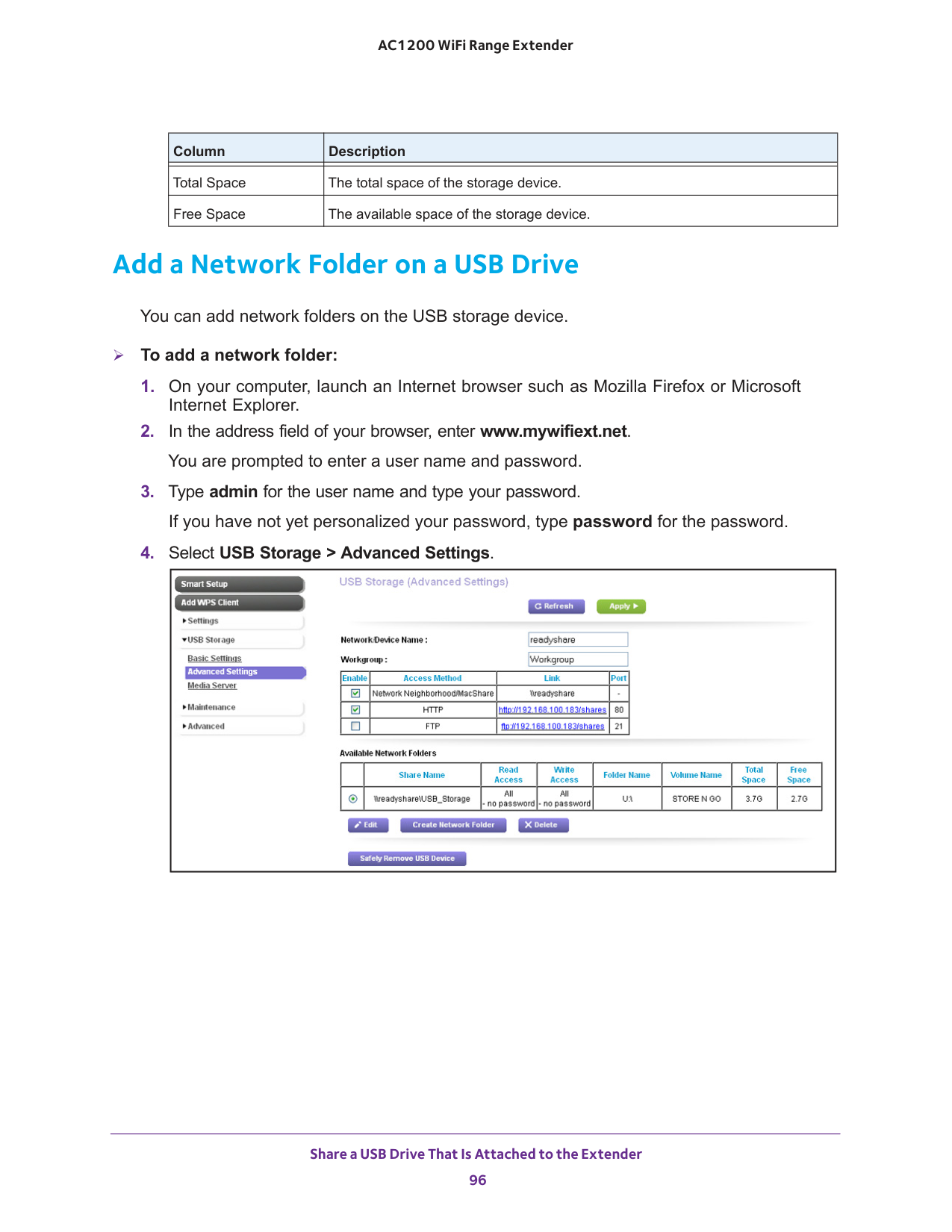
Share a USB Drive That Is Attached to the Extender 95 AC1200 WiFi Range Extender View Network Folders on a USB Drive You can view the network folders on the USB storage device. If you have not yet used the extender to create any network folders, only the default network folder is displayed. To view network folders:
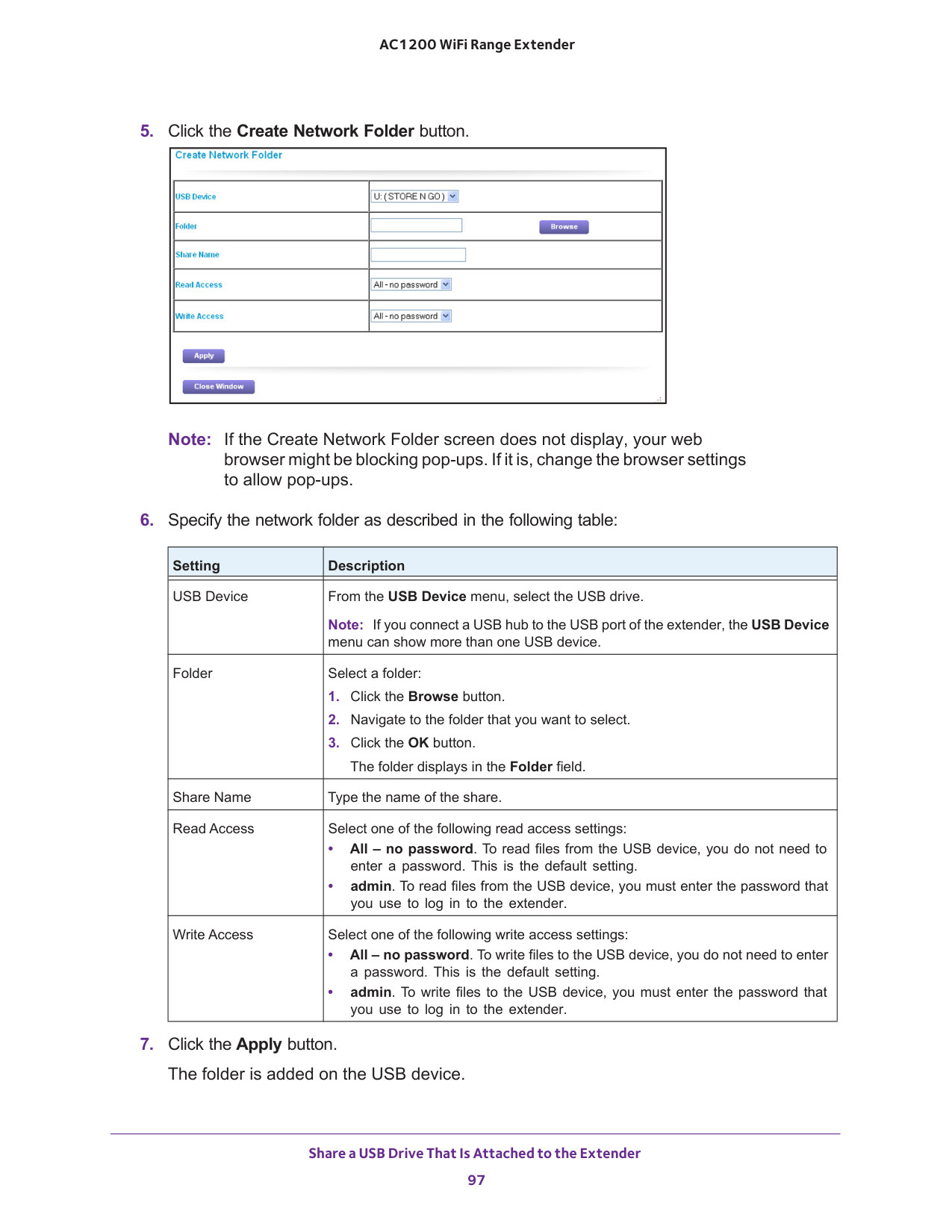
Share a USB Drive That Is Attached to the Extender 96 AC1200 WiFi Range Extender Add a Network Folder on a USB Drive You can add network folders on the USB storage device. To add a network folder:
Share a USB Drive That Is Attached to the Extender 97 AC1200 WiFi Range Extender
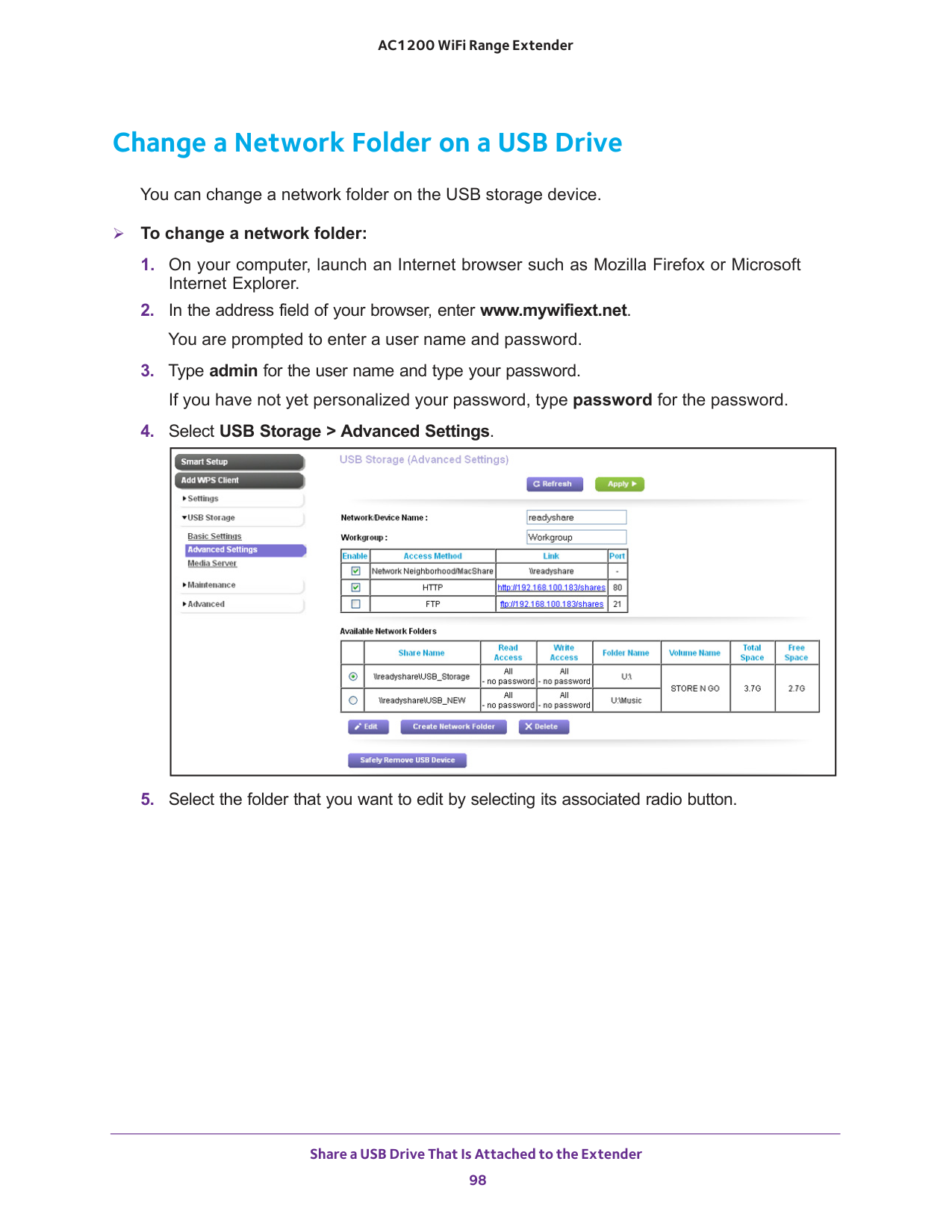
Share a USB Drive That Is Attached to the Extender 98 AC1200 WiFi Range Extender Change a Network Folder on a USB Drive You can change a network folder on the USB storage device. To change a network folder:
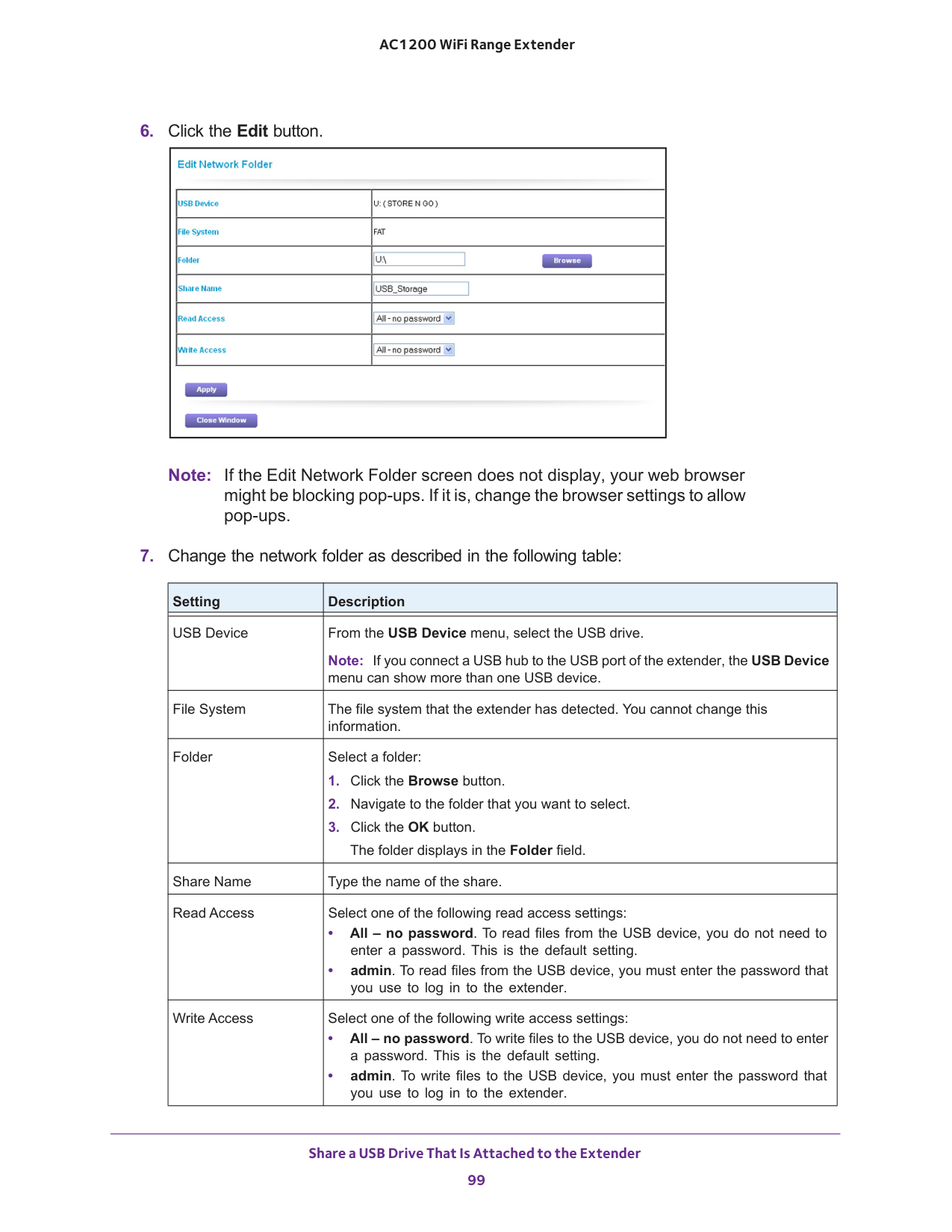
Share a USB Drive That Is Attached to the Extender 99 AC1200 WiFi Range Extender
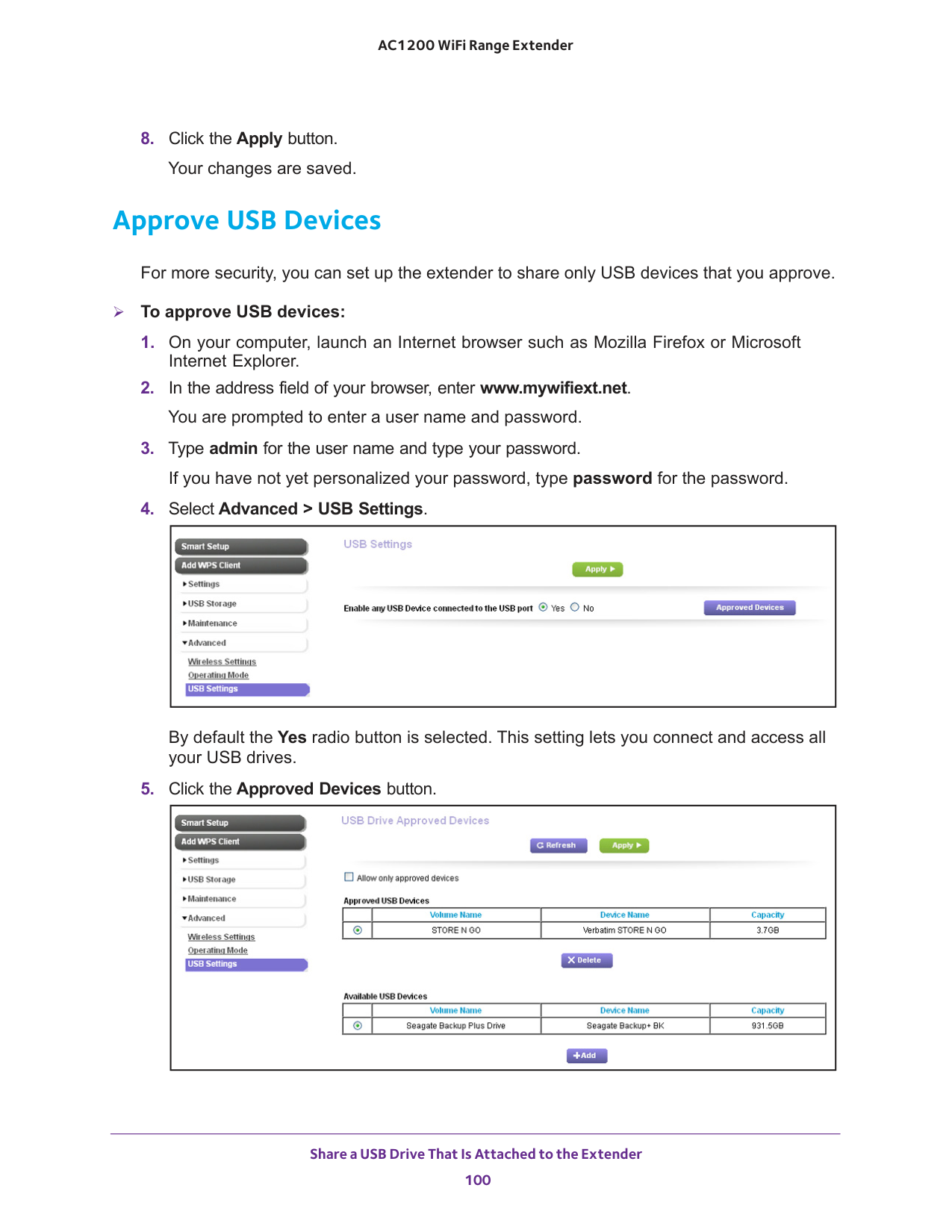
Share a USB Drive That Is Attached to the Extender 100 AC1200 WiFi Range Extender
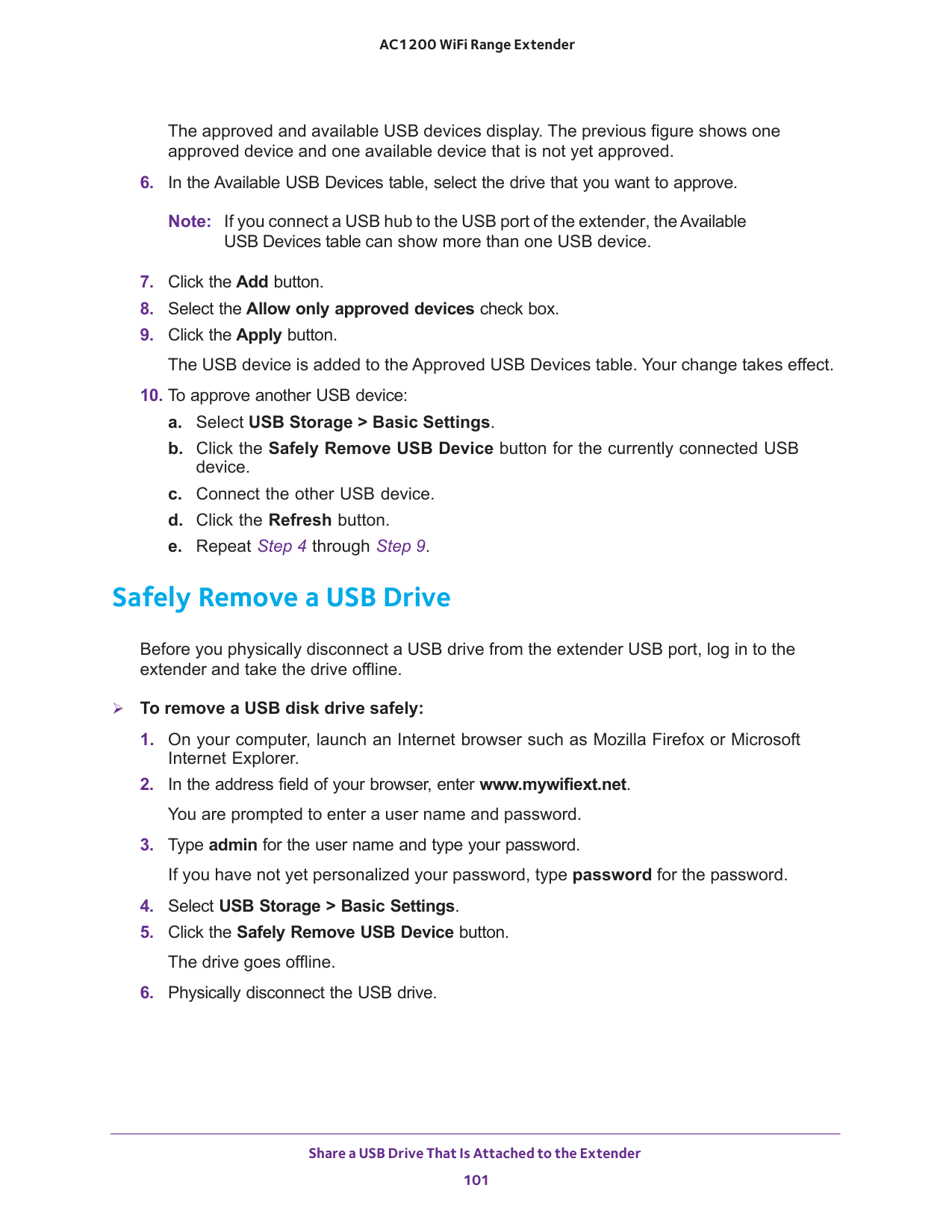
Share a USB Drive That Is Attached to the Extender 101 AC1200 WiFi Range Extender The approved and available USB devices display. The previous figure shows one approved device and one available device that is not yet approved.
4 through Step
102 6
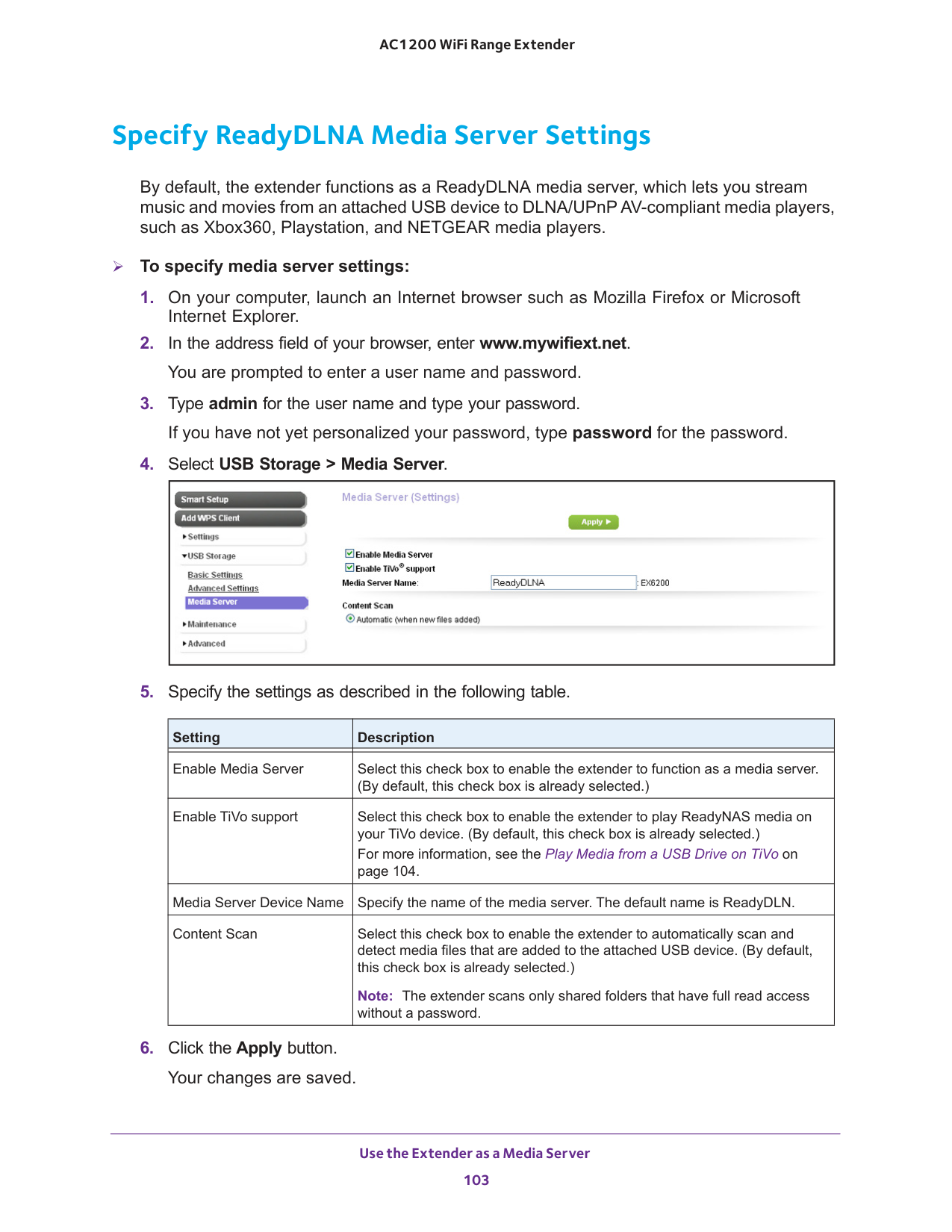
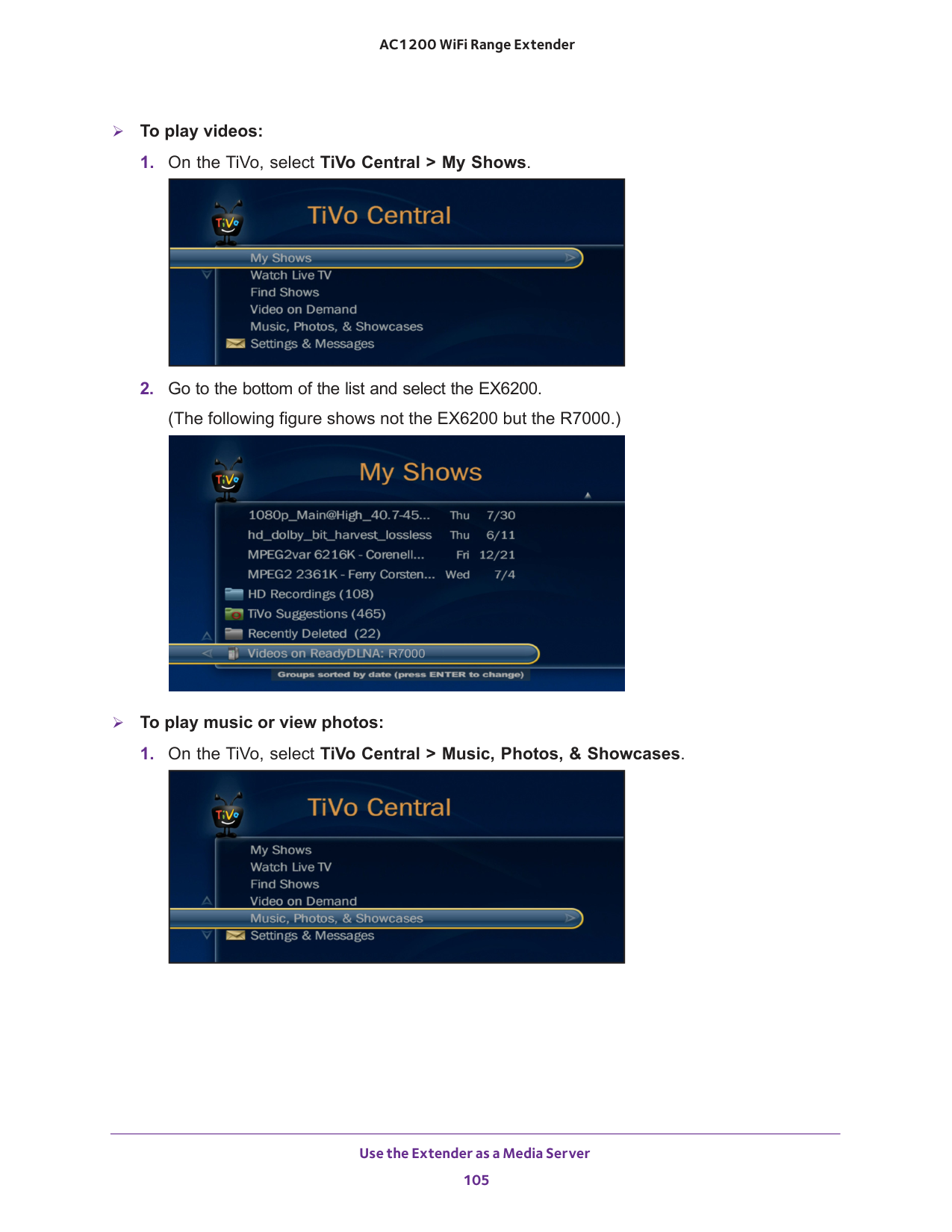
Use the Extender as a Media Server 103 AC1200 WiFi Range Extender Specify ReadyDLNA Media Server Settings By default, the extender functions as a ReadyDLNA media server, which lets you stream music and movies from an attached USB device to DLNA/UPnP AV-compliant media players, such as Xbox360, Playstation, and NETGEAR media players. To specify media server settings:
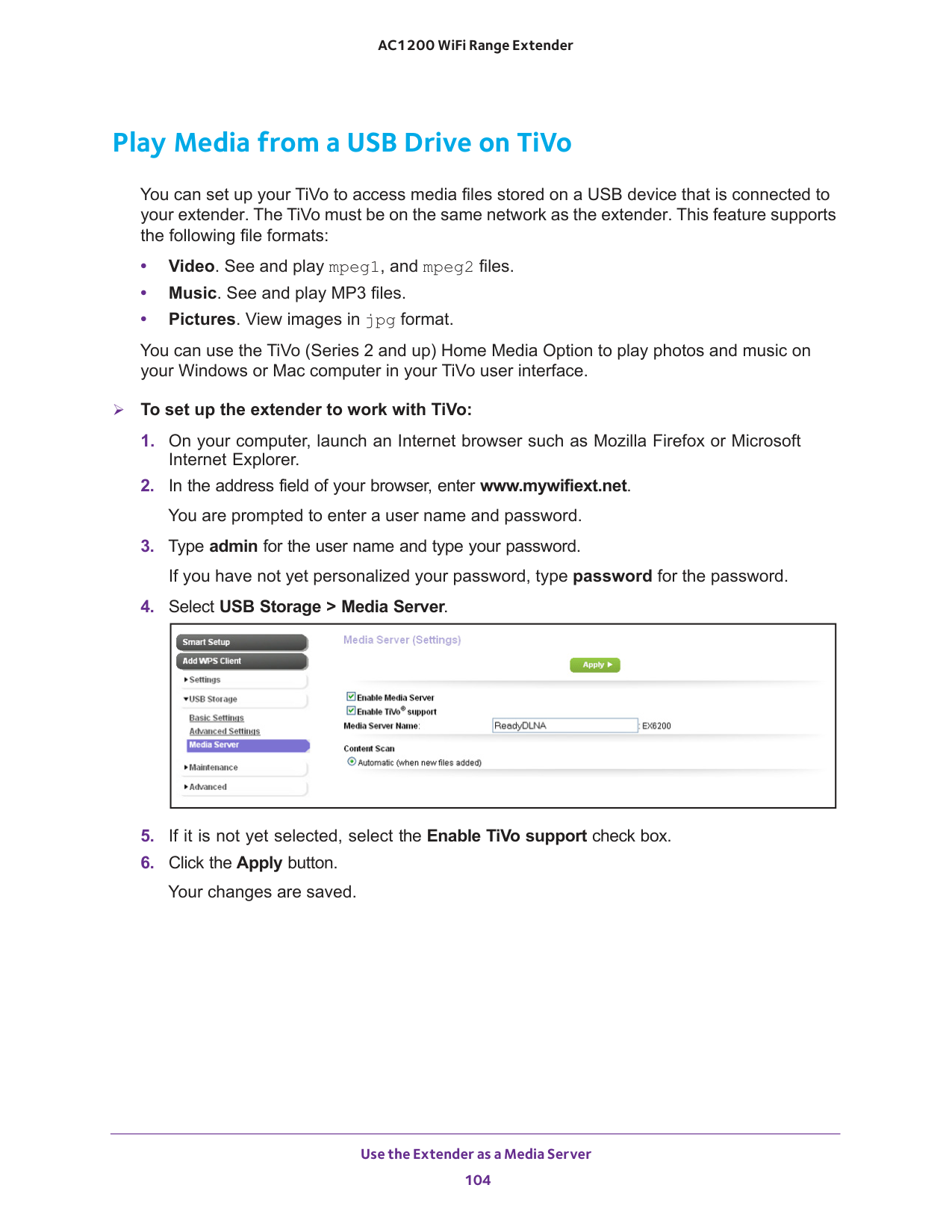
Use the Extender as a Media Server 104 AC1200 WiFi Range Extender Play Media from a USB Drive on TiVo You can set up your TiVo to access media files stored on a USB device that is connected to your extender. The TiVo must be on the same network as the extender. This feature supports the following file formats: • Video. See and play mpeg1, and mpeg2 files. • Music. See and play MP3 files. • Pictures. View images in jpg format. You can use the TiVo (Series 2 and up) Home Media Option to play photos and music on your Windows or Mac computer in your TiVo user interface. To set up the extender to work with TiVo:
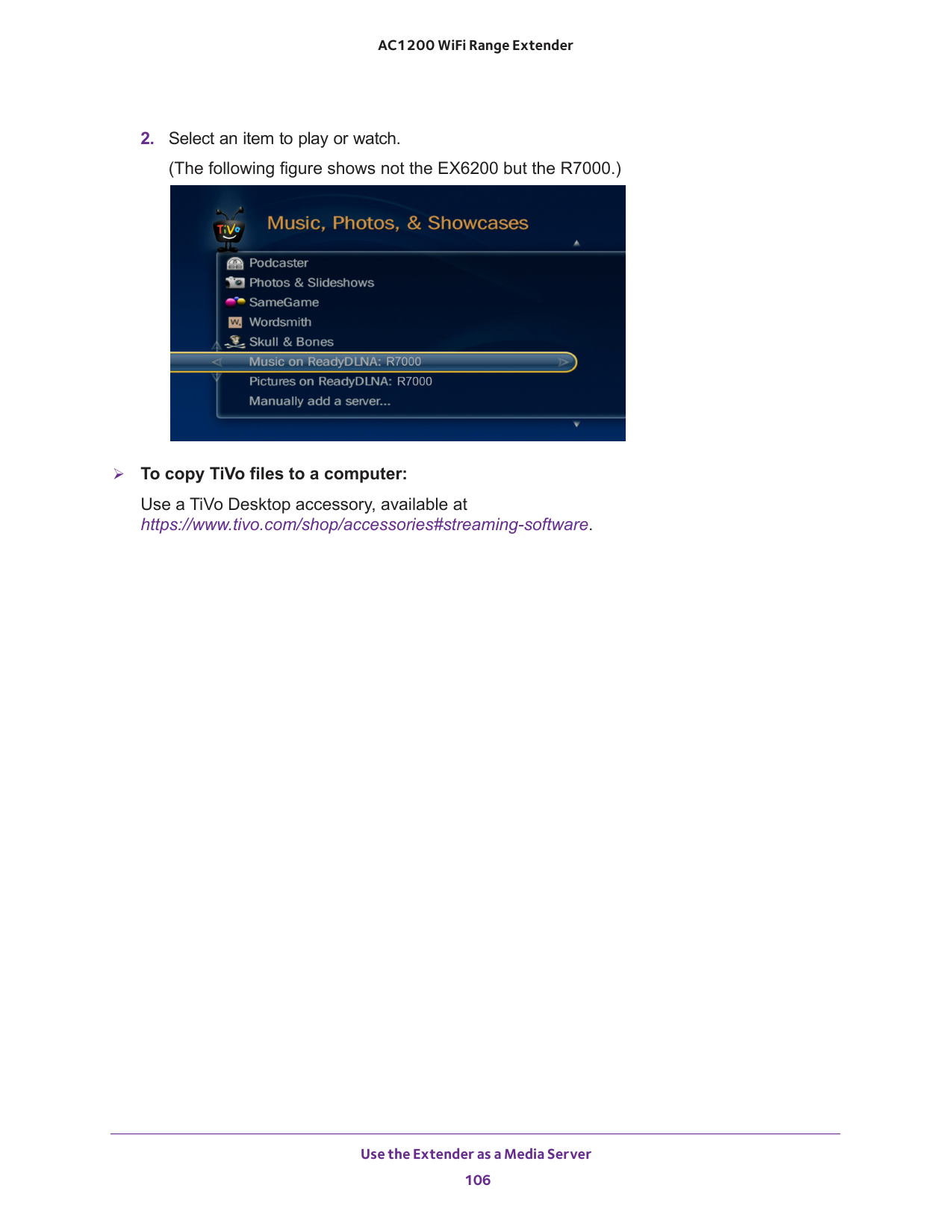
Use the Extender as a Media Server 105 AC1200 WiFi Range Extender To play videos:
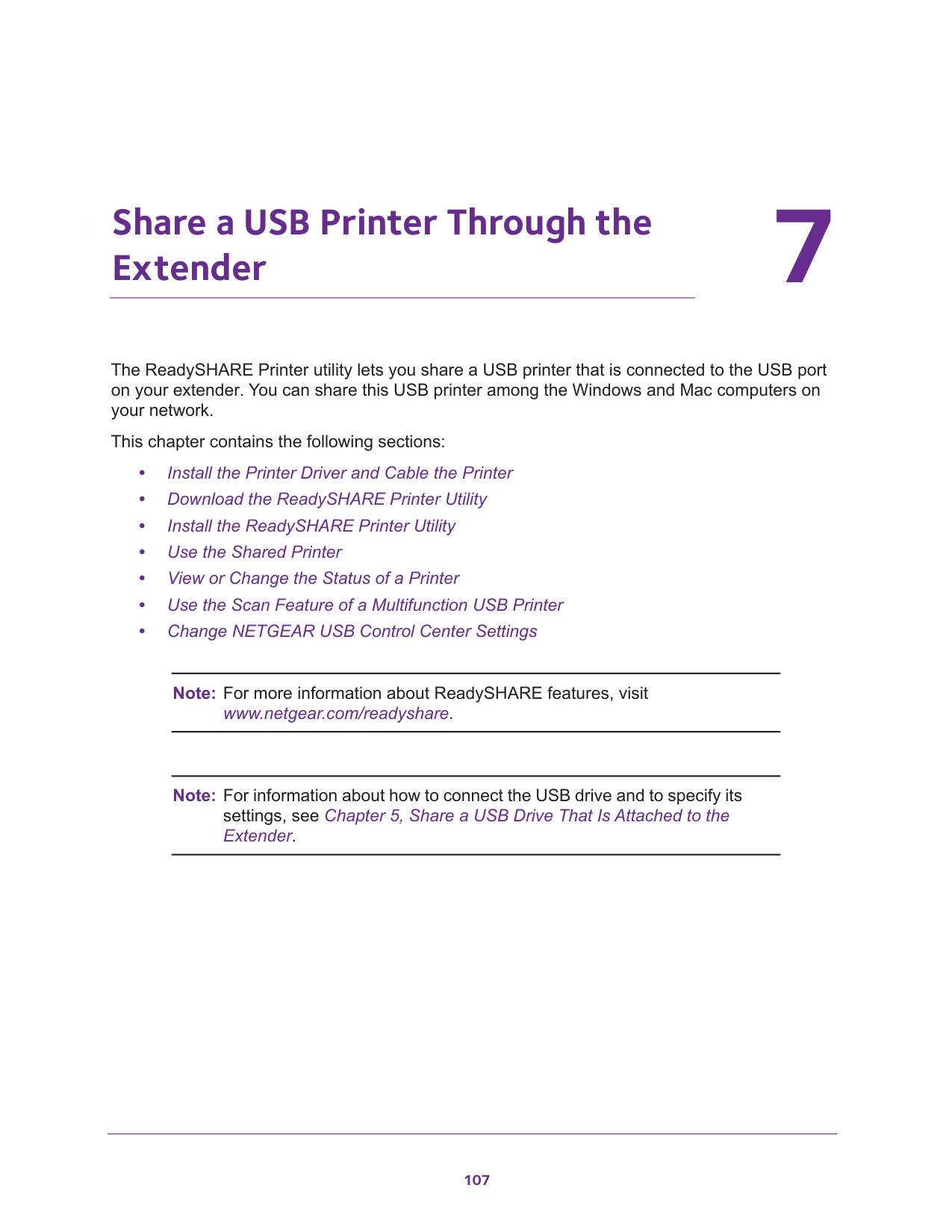
Use the Extender as a Media Server 106 AC1200 WiFi Range Extender
107 7
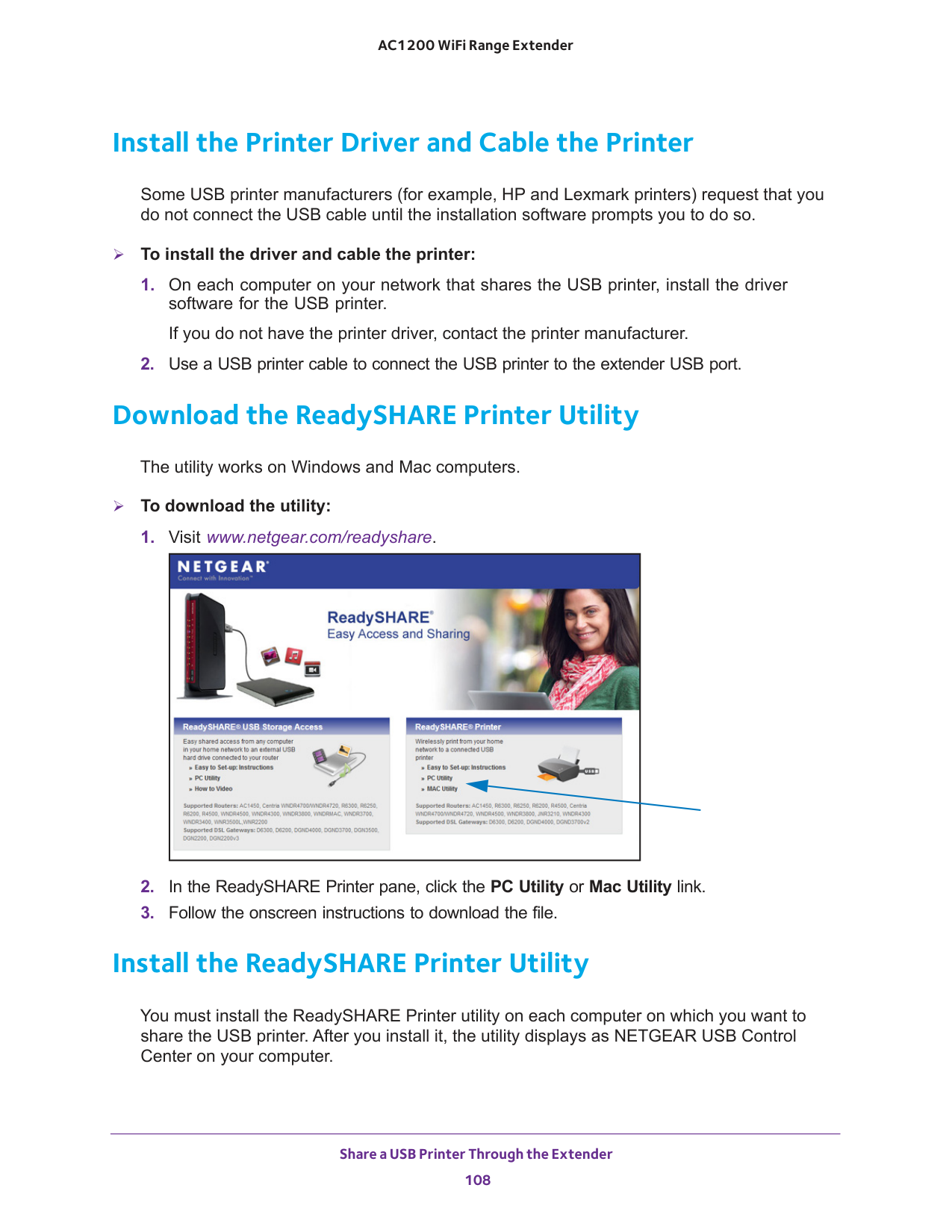
Share a USB Printer Through the Extender 108 AC1200 WiFi Range Extender Install the Printer Driver and Cable the Printer Some USB printer manufacturers (for example, HP and Lexmark printers) request that you do not connect the USB cable until the installation software prompts you to do so. To install the driver and cable the printer:
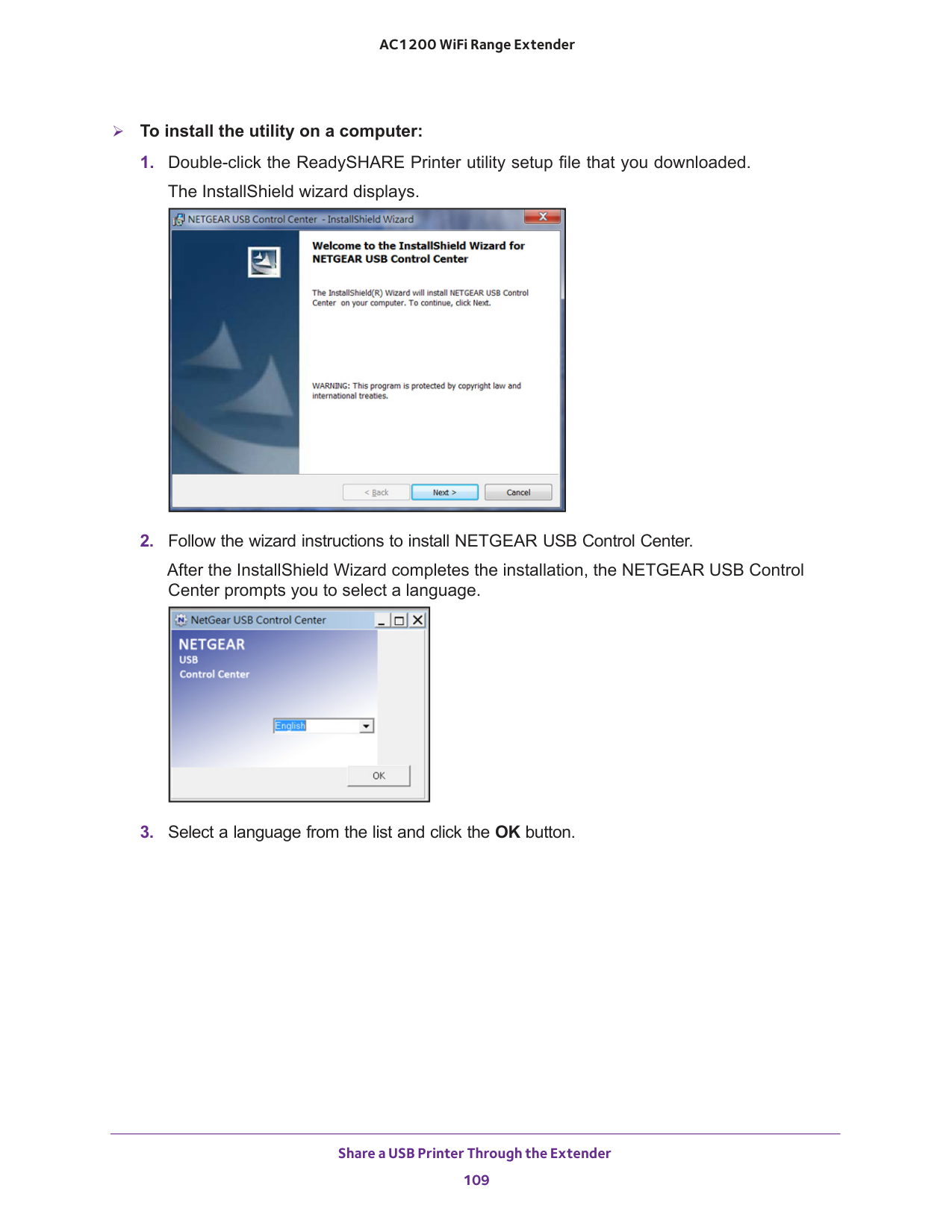
Share a USB Printer Through the Extender 109 AC1200 WiFi Range Extender To install the utility on a computer:
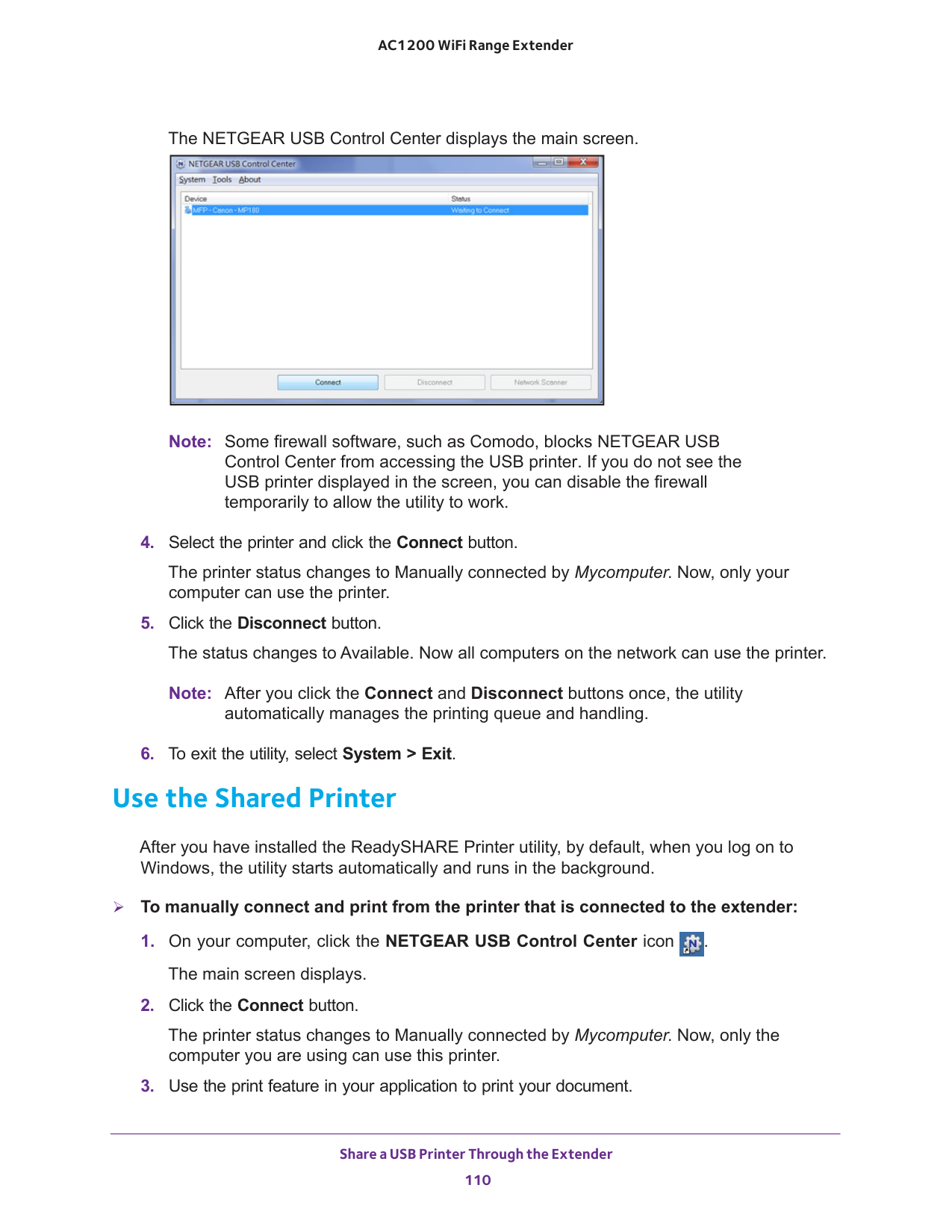
Share a USB Printer Through the Extender 110 AC1200 WiFi Range Extender The NETGEAR USB Control Center displays the main screen. Note: Some firewall software, such as Comodo, blocks NETGEAR USB Control Center from accessing the USB printer. If you do not see the USB printer displayed in the screen, you can disable the firewall temporarily to allow the utility to work.
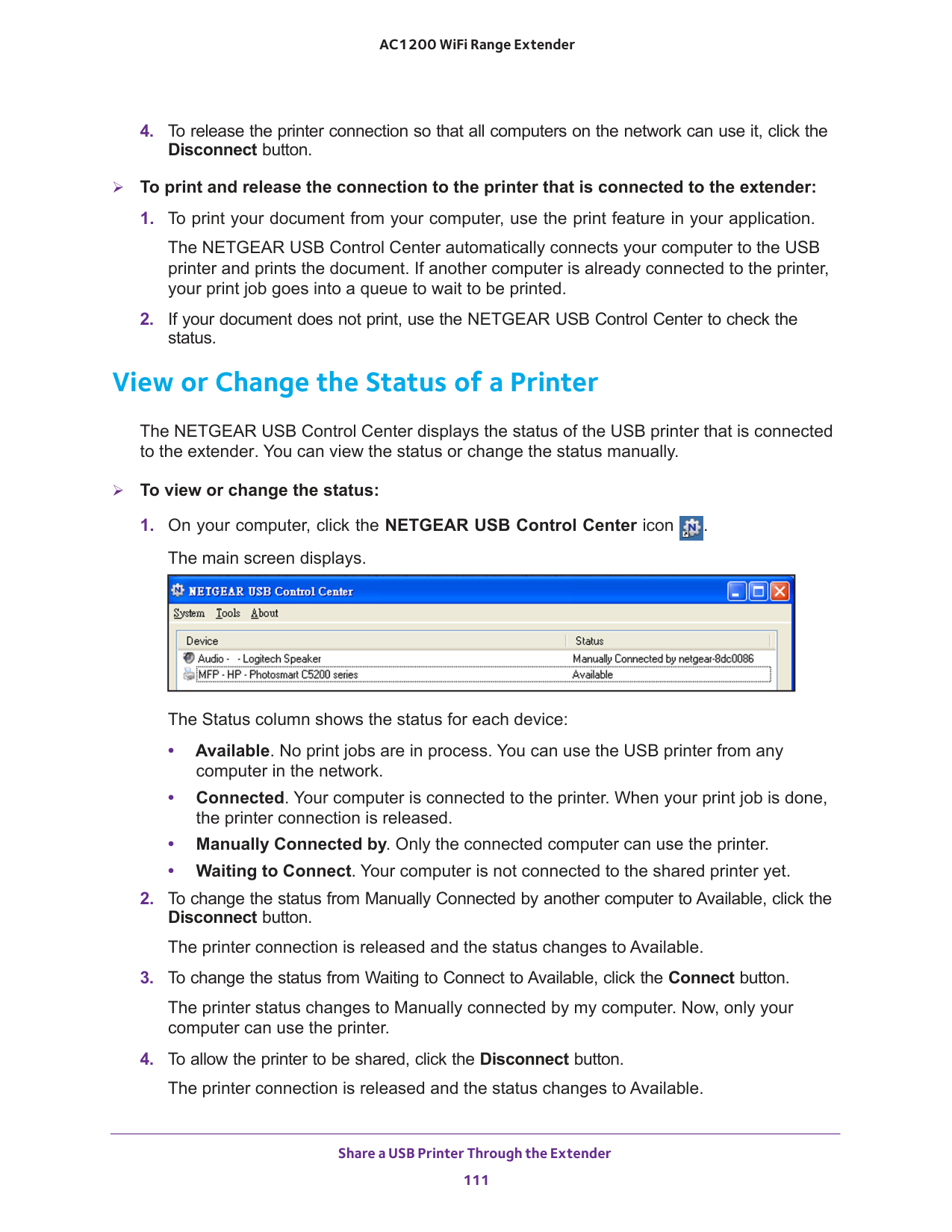
Share a USB Printer Through the Extender 111 AC1200 WiFi Range Extender
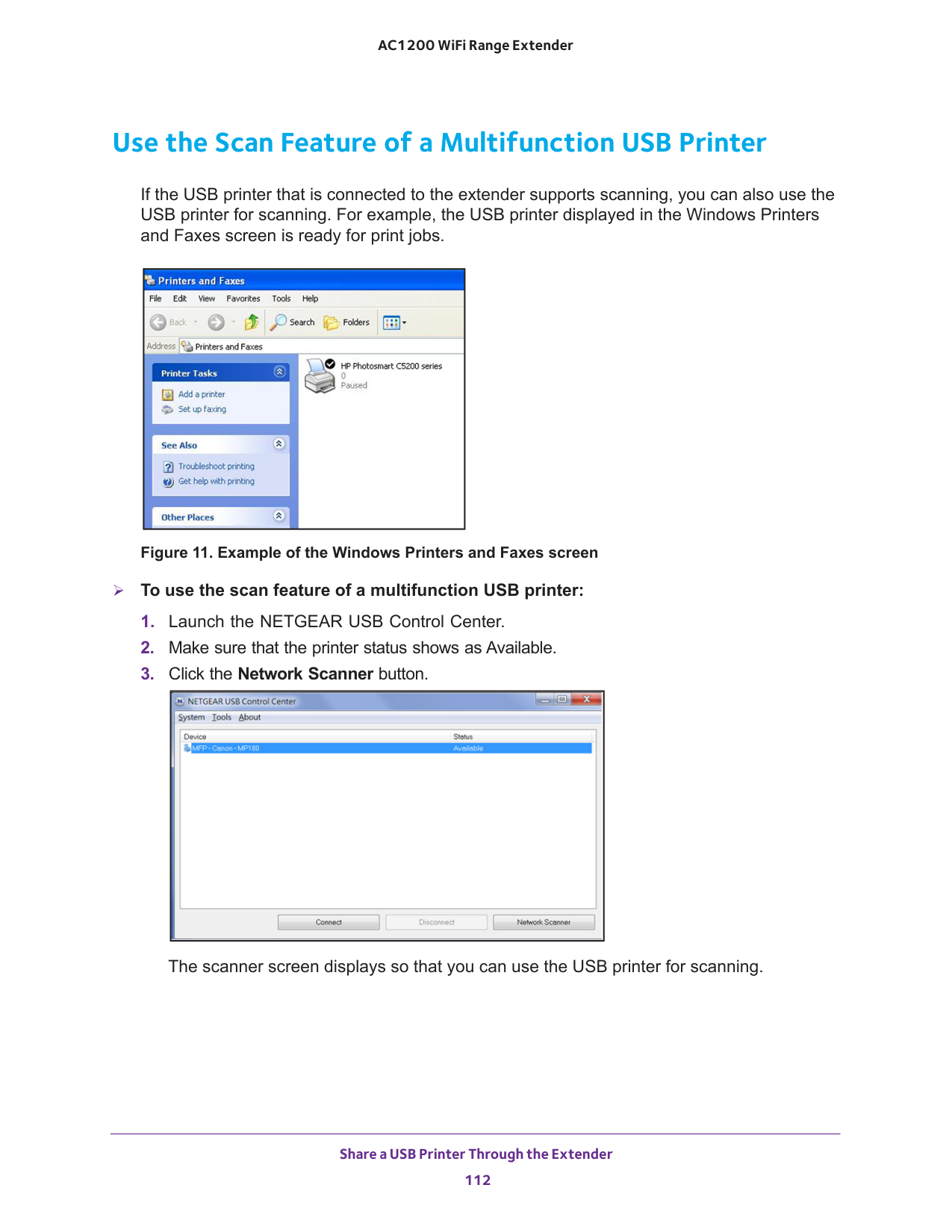
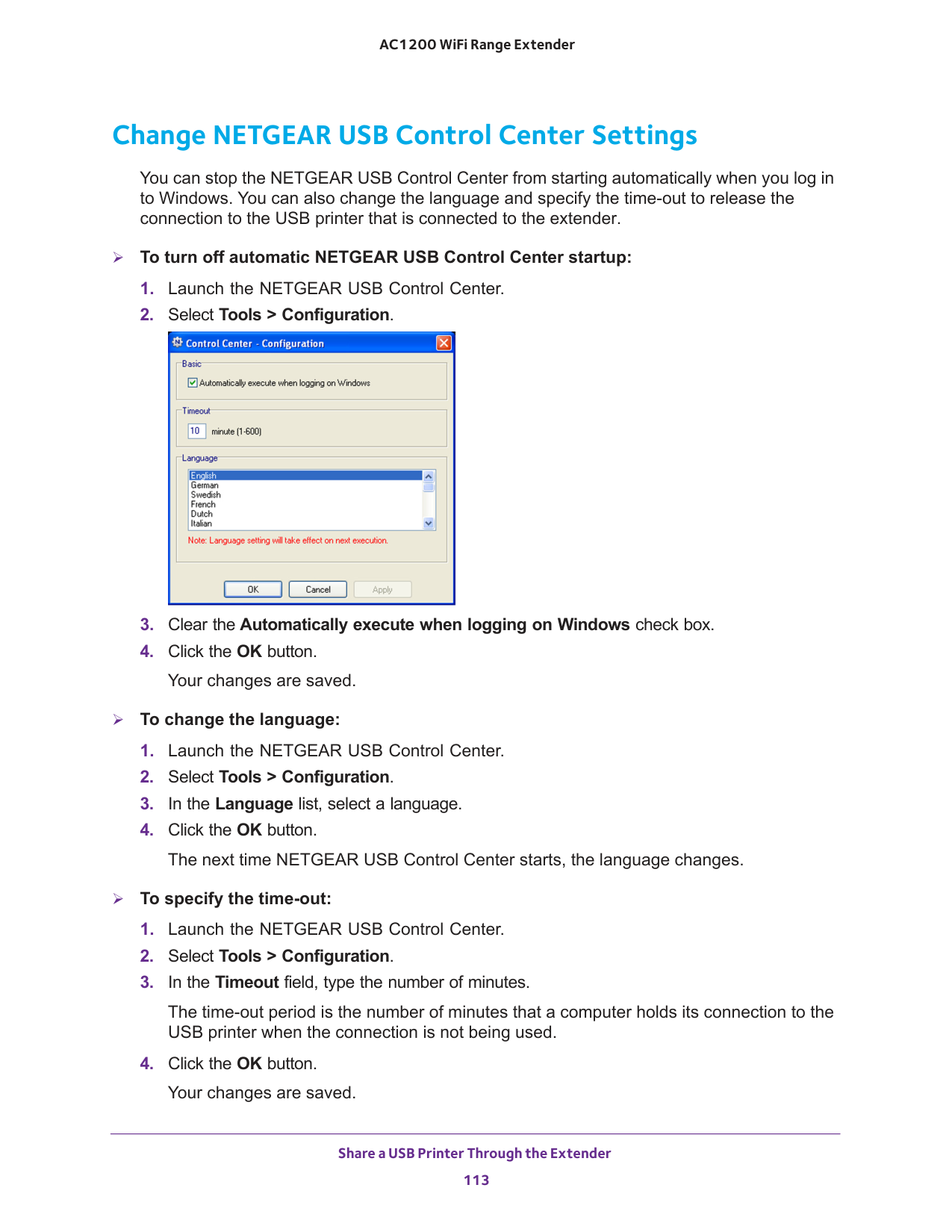
Share a USB Printer Through the Extender 112 AC1200 WiFi Range Extender Use the Scan Feature of a Multifunction USB Printer If the USB printer that is connected to the extender supports scanning, you can also use the USB printer for scanning. For example, the USB printer displayed in the Windows Printers and Faxes screen is ready for print jobs. Figure 11. Example of the Windows Printers and Faxes screen To use the scan feature of a multifunction USB printer:
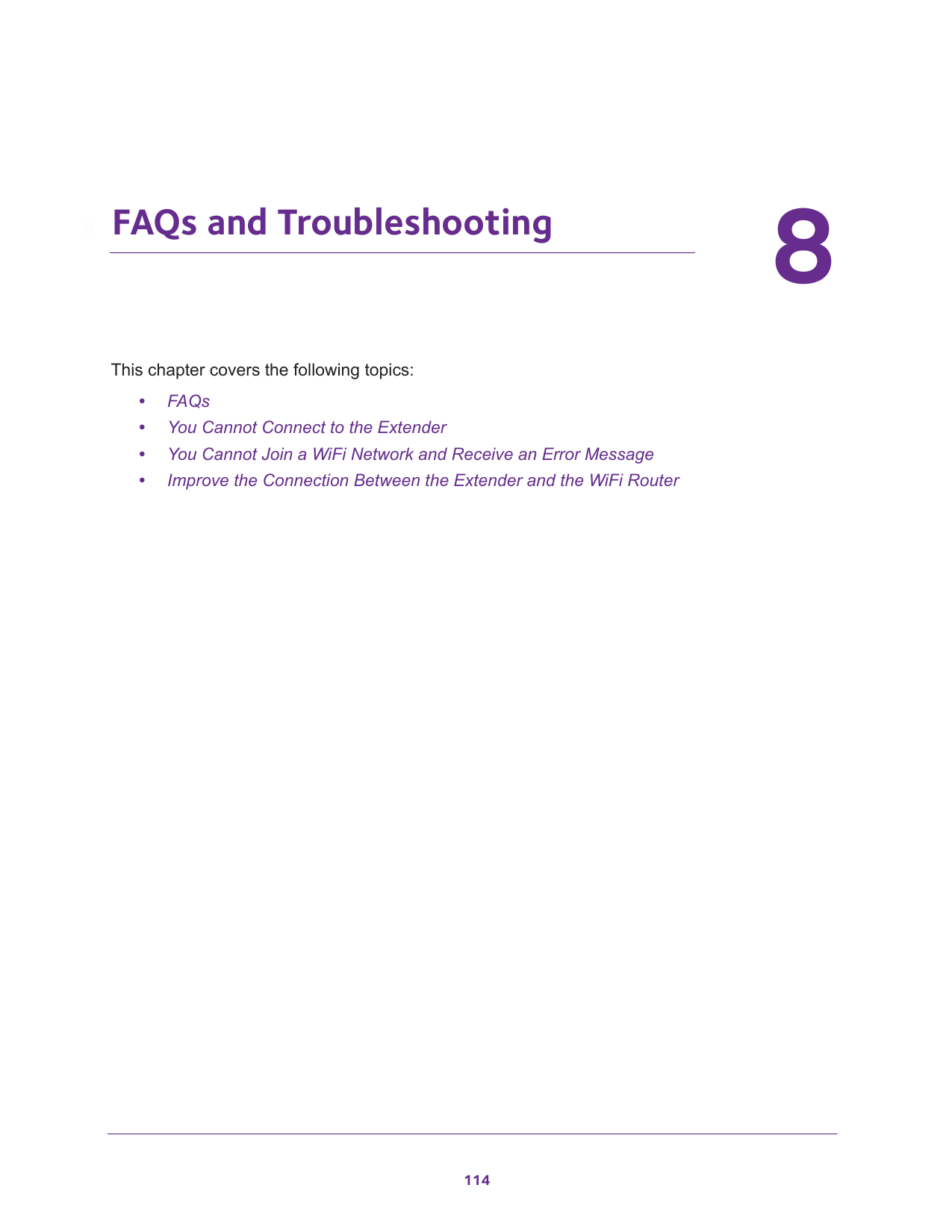
Share a USB Printer Through the Extender 113 AC1200 WiFi Range Extender Change NETGEAR USB Control Center Settings You can stop the NETGEAR USB Control Center from starting automatically when you log in to Windows. You can also change the language and specify the time-out to release the connection to the USB printer that is connected to the extender. To turn off automatic NETGEAR USB Control Center startup:
114 8
FAQs and Troubleshooting 115 AC1200 WiFi Range Extender FAQs This section provides answers for difficulties you might experience with the extender.
16 and Improve the Connection Between the Extender and the WiFi Router on page
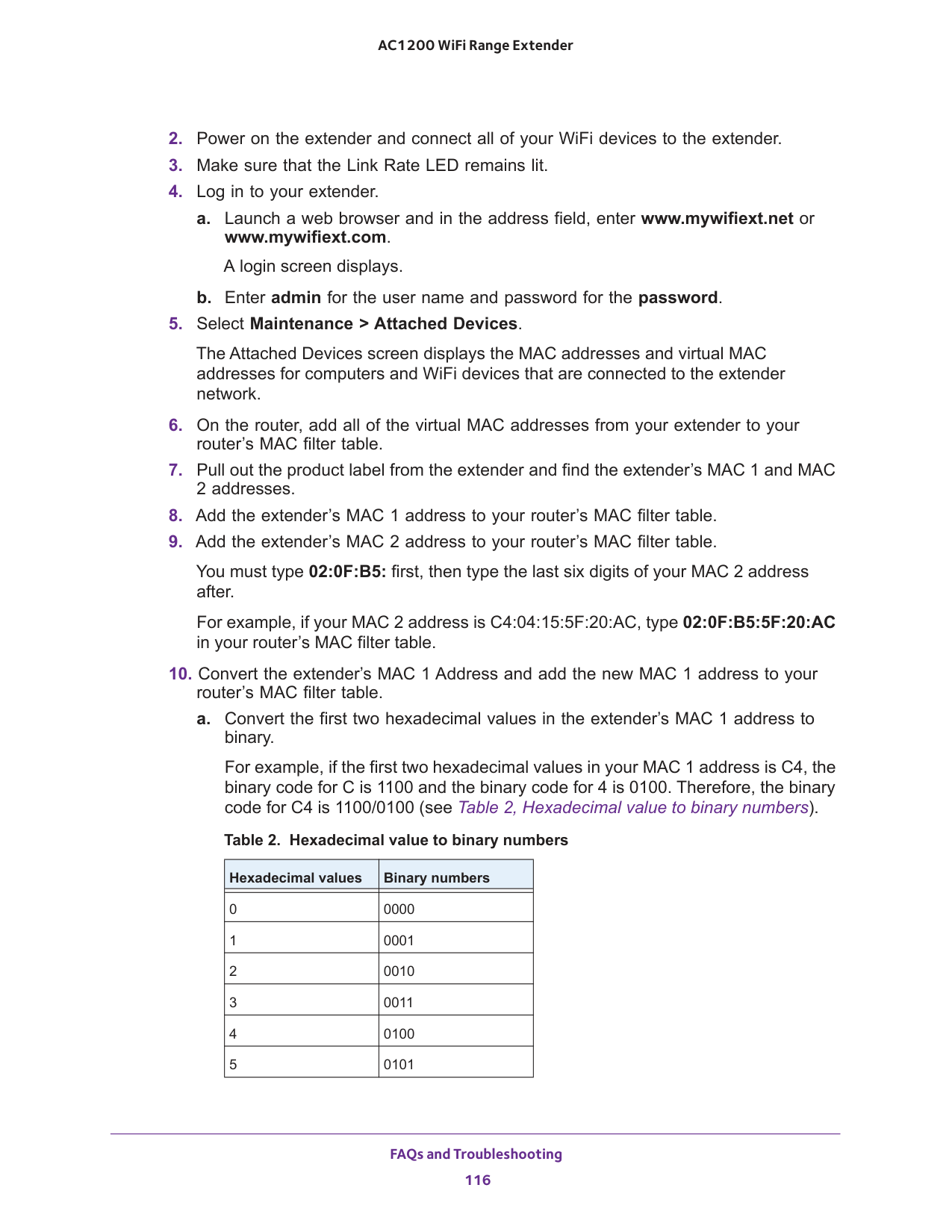
FAQs and Troubleshooting 116 AC1200 WiFi Range Extender
2, Hexadecimal value to binary numbers). Table 2. Hexadecimal value to binary numbers Hexadecimal values Binary numbers 0 0000 1 0001 2 0010 3 0011 4 0100 5 0101
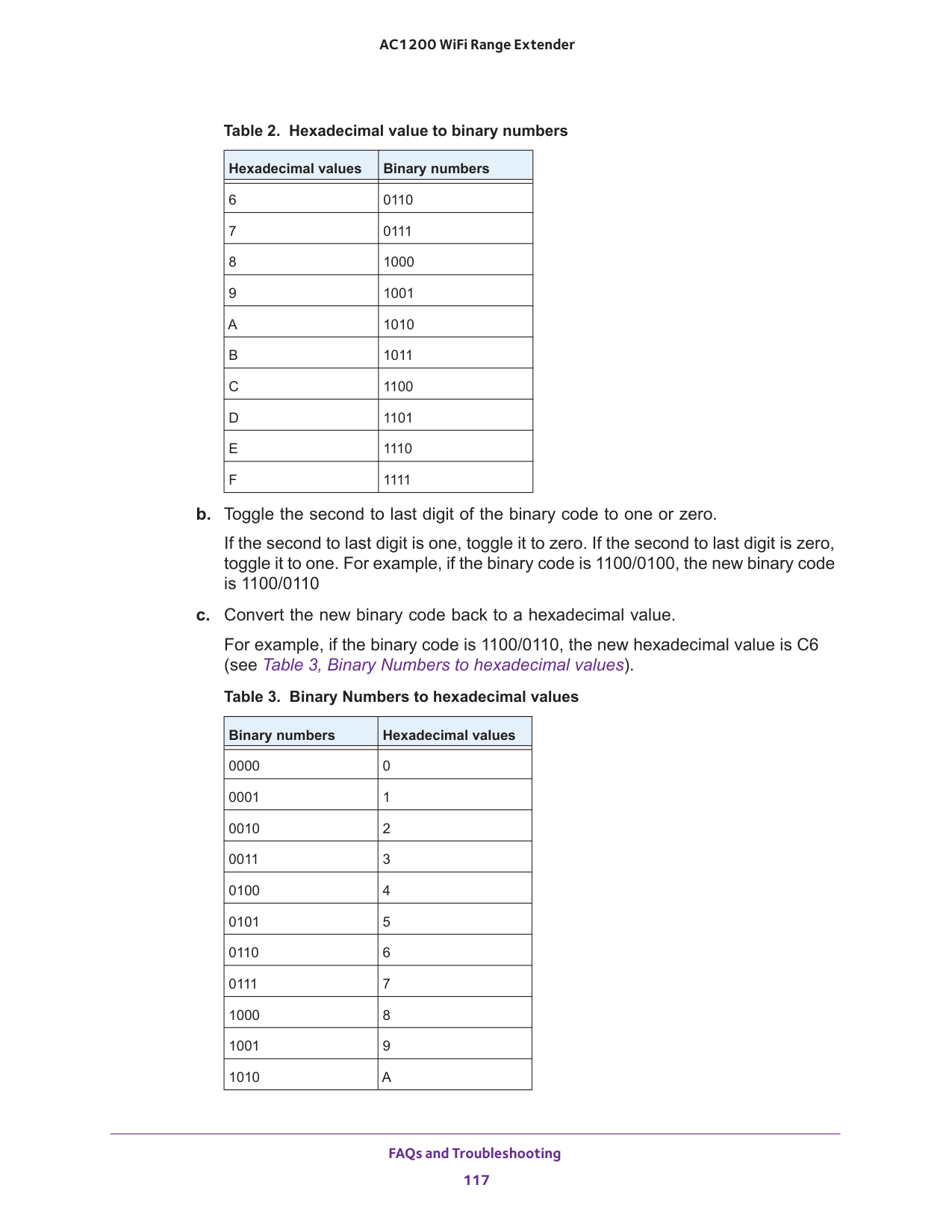
FAQs and Troubleshooting 117 AC1200 WiFi Range Extender b. Toggle the second to last digit of the binary code to one or zero. If the second to last digit is one, toggle it to zero. If the second to last digit is zero, toggle it to one. For example, if the binary code is 1100/0100, the new binary code is 1100/0110 c. Convert the new binary code back to a hexadecimal value. For example, if the binary code is 1100/0110, the new hexadecimal value is C6 (see Table
3, Binary Numbers to hexadecimal values). 6 0110 7 0111 8 1000 9 1001
A
1010B
1011C
1100D
1101E
1110F
1111 Table 3. Binary Numbers to hexadecimal values Binary numbers Hexadecimal values 0000 0 0001 1 0010 2 0011 3 0100 4 0101 5 0110 6 0111 7 1000 8 1001 9 1010A
Table 2. Hexadecimal value to binary numbers Hexadecimal values Binary numbers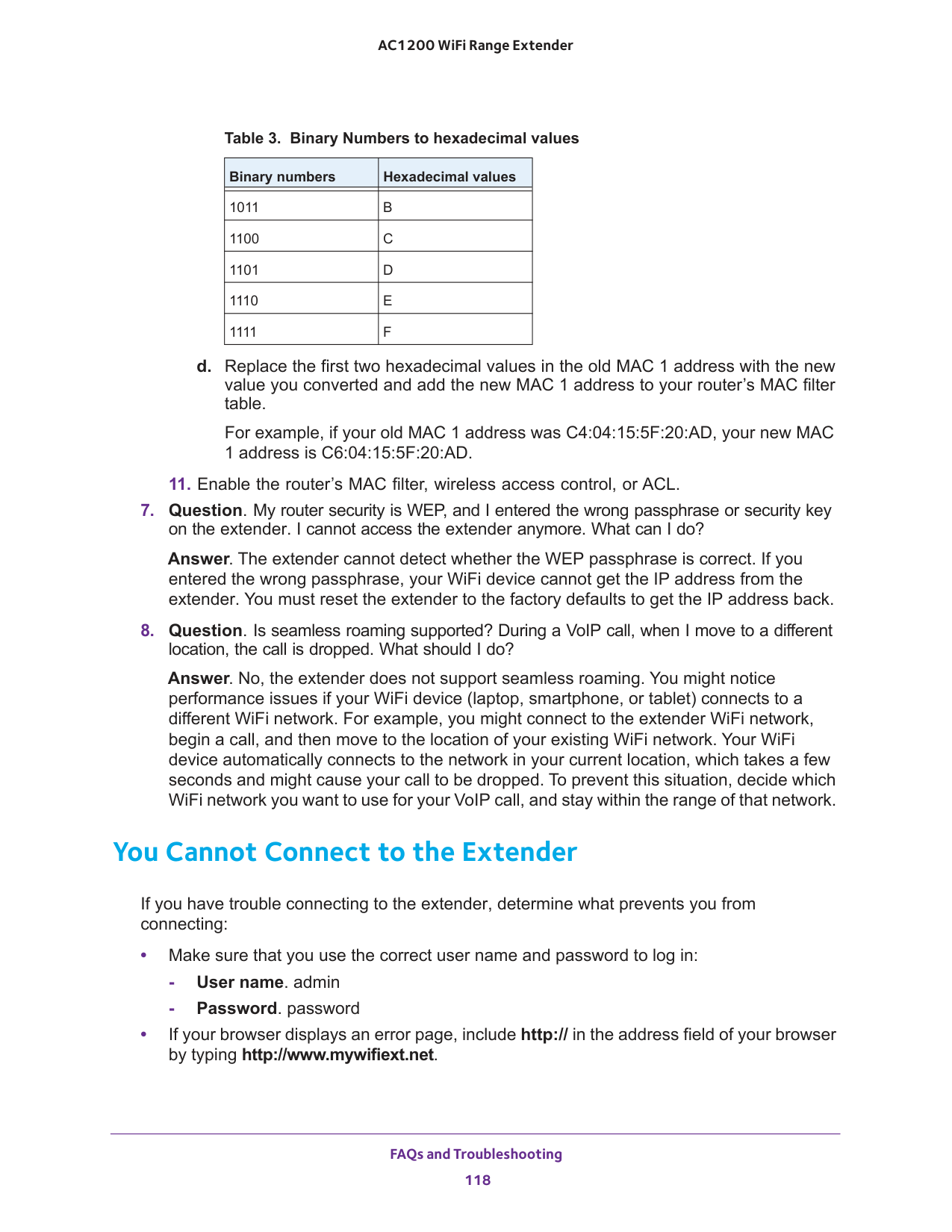
FAQs and Troubleshooting 118 AC1200 WiFi Range Extender d. Replace the first two hexadecimal values in the old MAC 1 address with the new value you converted and add the new MAC 1 address to your router’s MAC filter table. For example, if your old MAC 1 address was C4:04:15:5F:20:AD, your new MAC 1 address is C6:04:15:5F:20:AD.
B
1100C
1101D
1110E
1111F
Table 3. Binary Numbers to hexadecimal values Binary numbers Hexadecimal values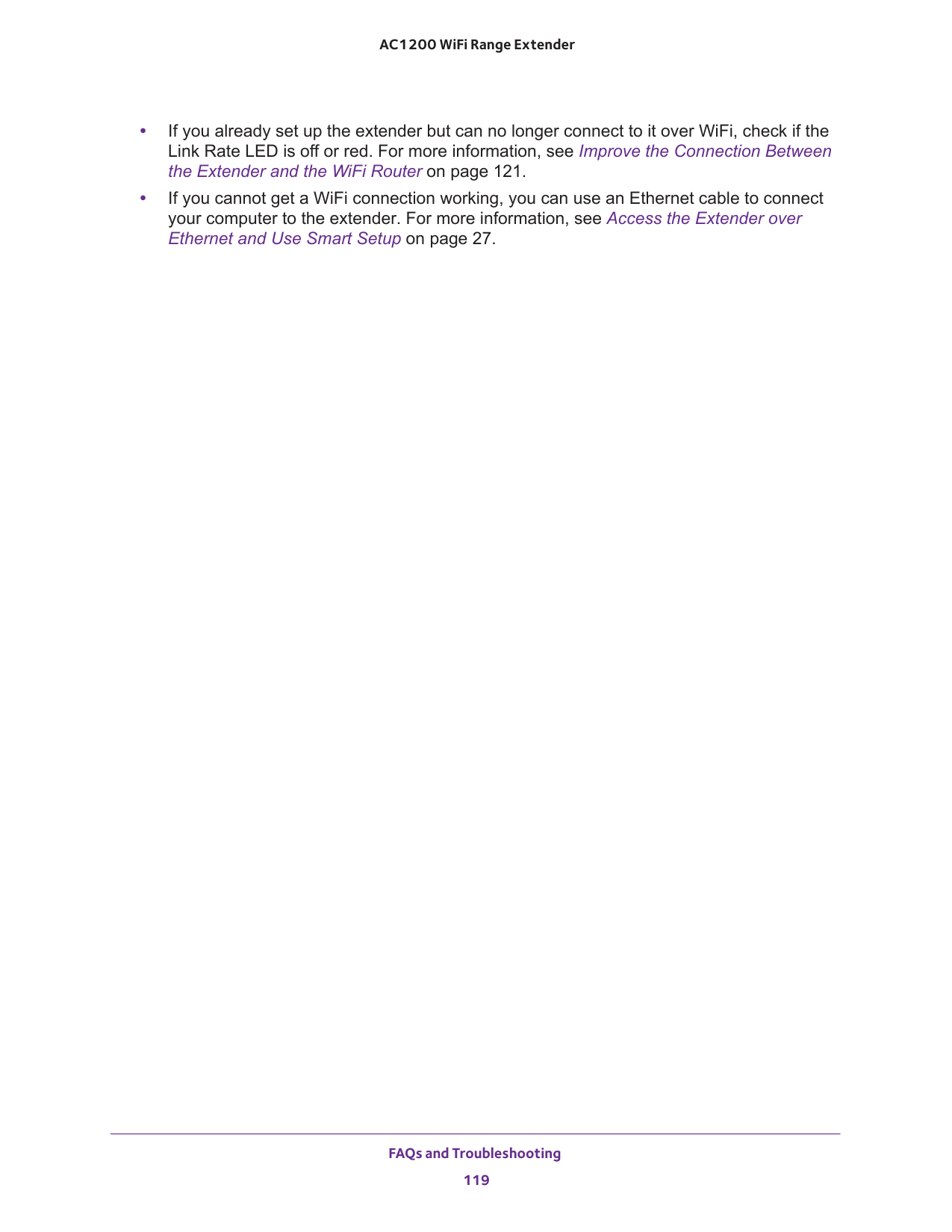
FAQs and Troubleshooting 119 AC1200 WiFi Range Extender • If you already set up the extender but can no longer connect to it over WiFi, check if the Link Rate LED is off or red. For more information, see Improve the Connection Between the Extender and the WiFi Router on page
27.
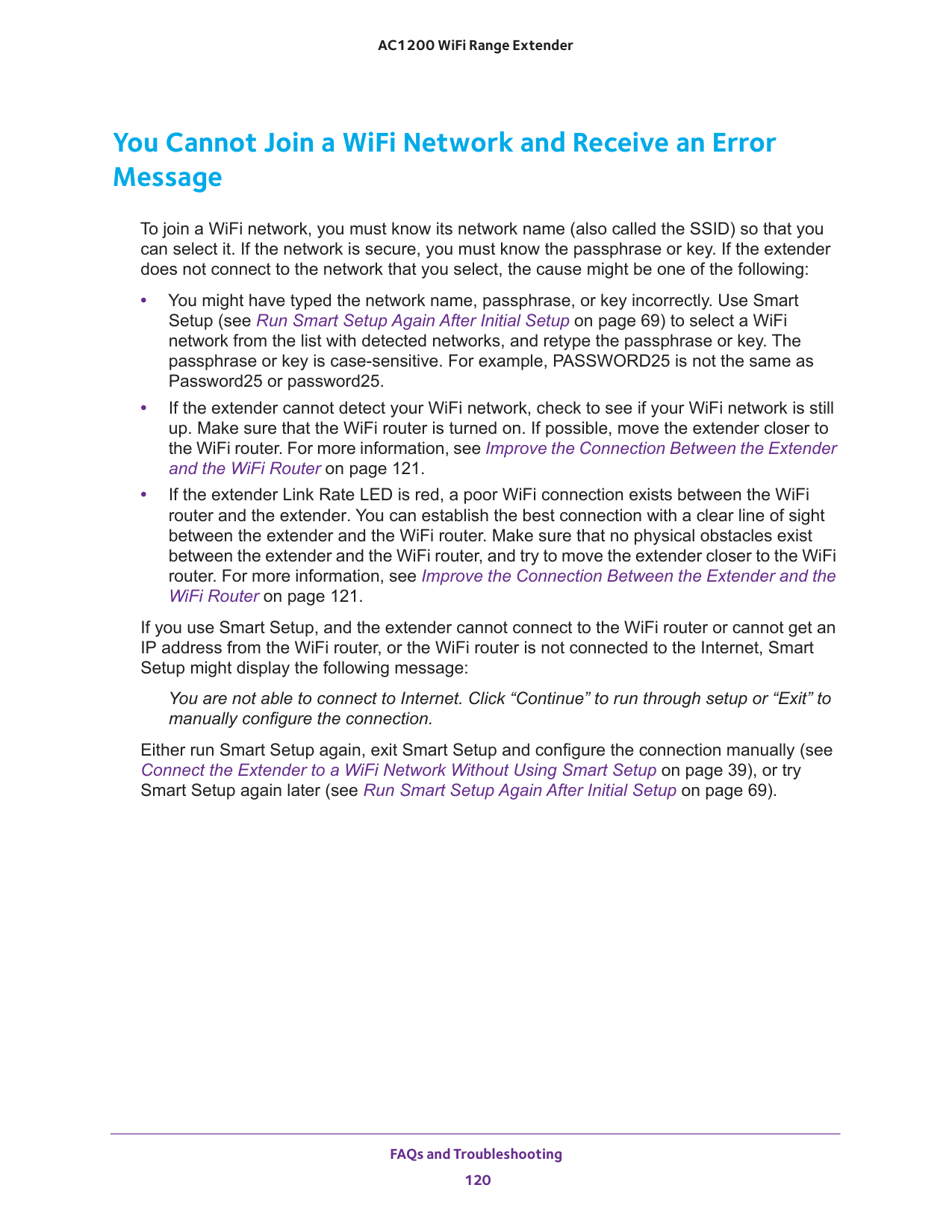
FAQs and Troubleshooting 120 AC1200 WiFi Range Extender You Cannot Join a WiFi Network and Receive an Error Message To join a WiFi network, you must know its network name (also called the SSID) so that you can select it. If the network is secure, you must know the passphrase or key. If the extender does not connect to the network that you select, the cause might be one of the following: • You might have typed the network name, passphrase, or key incorrectly. Use Smart Setup (see Run Smart Setup Again After Initial Setup on page
69) to select a WiFi network from the list with detected networks, and retype the passphrase or key. The passphrase or key is case-sensitive. For example, PASSWORD25 is not the same as Password25 or password25. • If the extender cannot detect your WiFi network, check to see if your WiFi network is still up. Make sure that the WiFi router is turned on. If possible, move the extender closer to the WiFi router. For more information, see Improve the Connection Between the Extender and the WiFi Router on page
39), or try Smart Setup again later (see Run Smart Setup Again After Initial Setup on page
69).
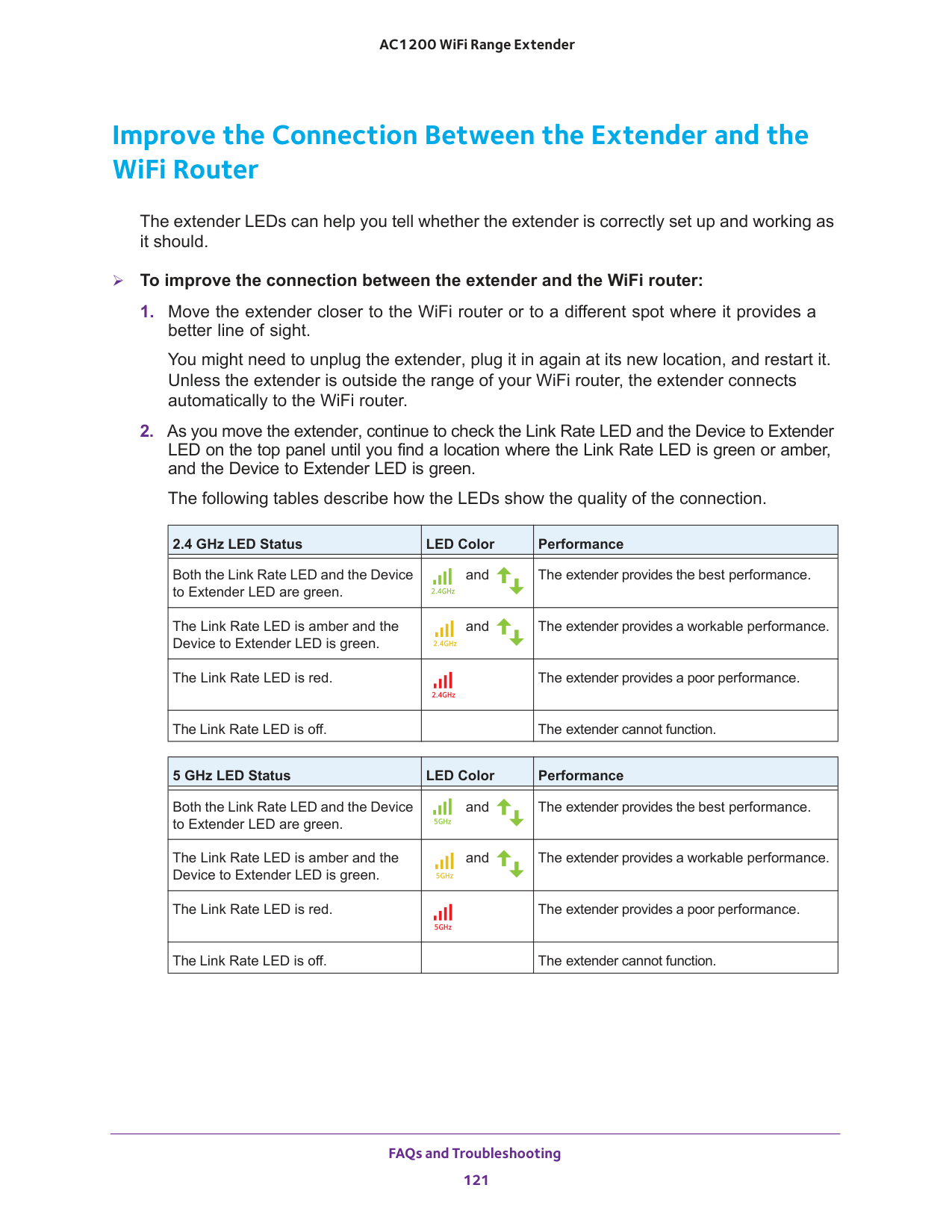
FAQs and Troubleshooting 121 AC1200 WiFi Range Extender Improve the Connection Between the Extender and the WiFi Router The extender LEDs can help you tell whether the extender is correctly set up and working as it should. To improve the connection between the extender and the WiFi router:
The extender provides a poor performance. The Link Rate LED is off.
The extender cannot function. 5 GHz LED Status LED Color Performance Both the Link Rate LED and the Device to Extender LED are green. and The extender provides the best performance. The Link Rate LED is amber and the Device to Extender LED is green. and The extender provides a workable performance. The Link Rate LED is red.
The extender provides a poor performance. The Link Rate LED is off.
The extender cannot function.
122
A
A. Factory Settings and Technical Specifications This appendix covers the following topics: • Factory Default Settings • Technical and Environmental Specifications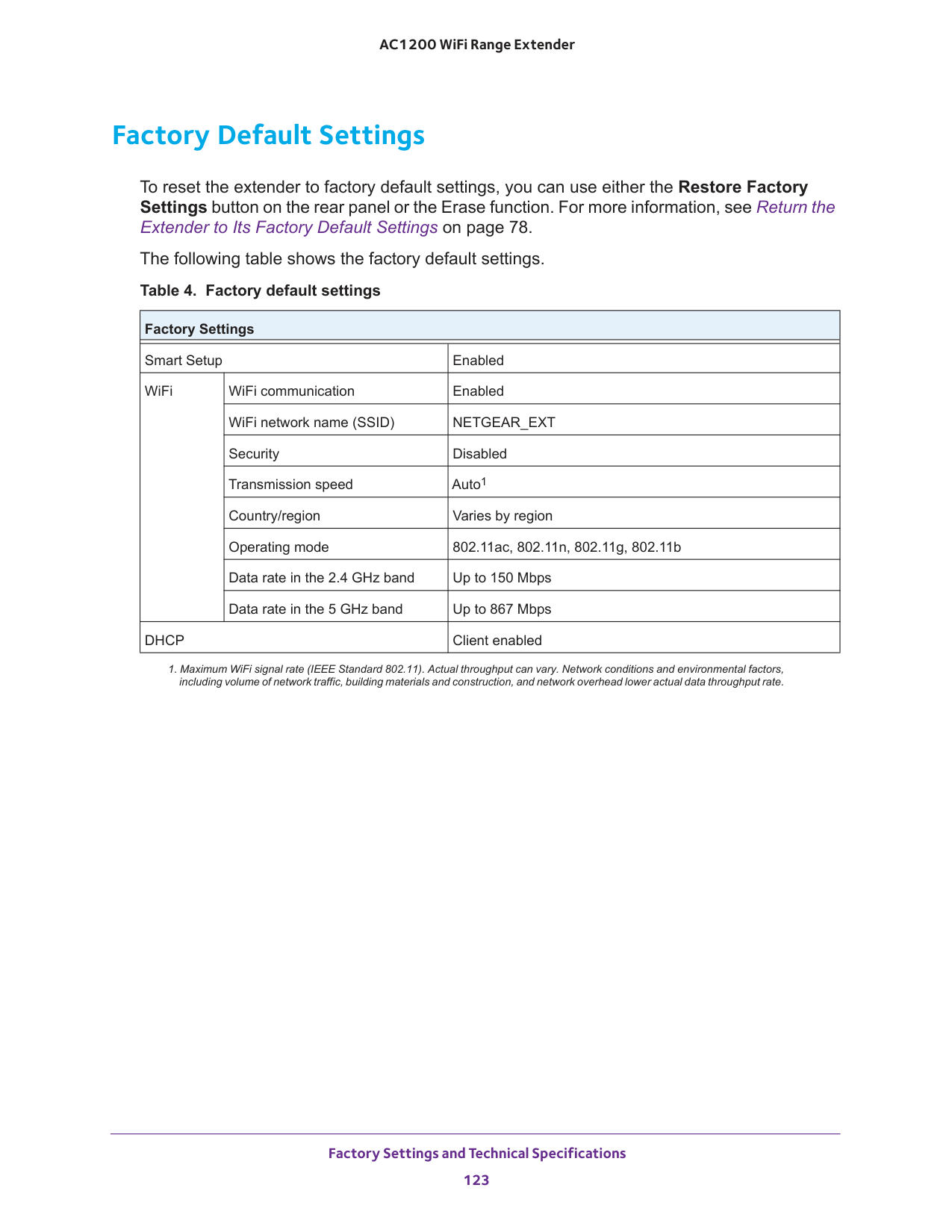
Factory Settings and Technical Specifications 123 AC1200 WiFi Range Extender Factory Default Settings To reset the extender to factory default settings, you can use either the Restore Factory Settings button on the rear panel or the Erase function. For more information, see Return the Extender to Its Factory Default Settings on page
Factory Settings Smart Setup Enabled WiFi WiFi communication Enabled WiFi network name (SSID)
Netgear_Ext
Security Disabled Transmission speed Auto1Dhcp
Client enabled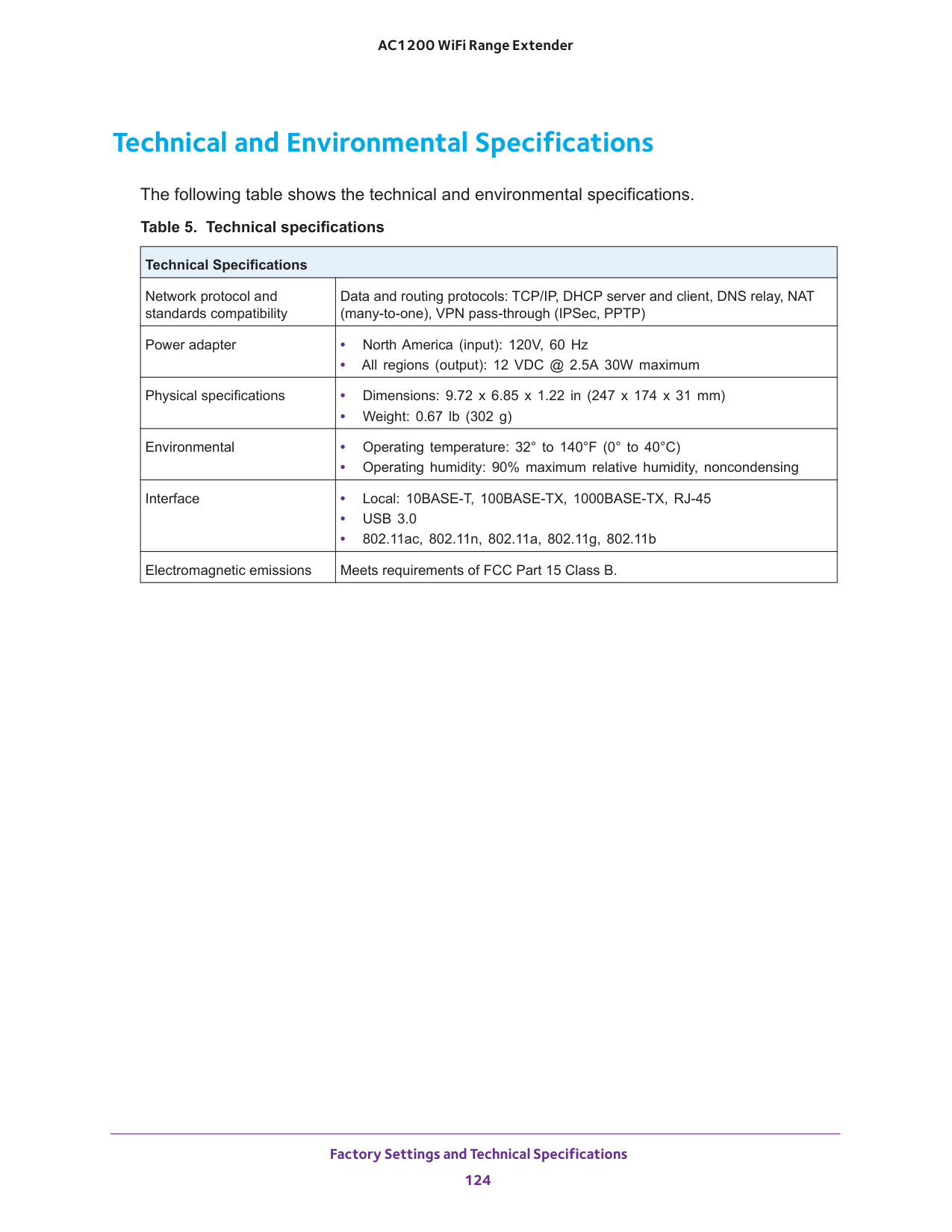
Factory Settings and Technical Specifications 124 AC1200 WiFi Range Extender Technical and Environmental Specifications The following table shows the technical and environmental specifications. Table 5. Technical specifications
Technical Specifications
Network protocol and standards compatibility Data and routing protocols: TCP/IP, DHCP server and client, DNS relay, NAT (many-to-one), VPN pass-through (IPSec, PPTP) Power adapter • North America (input): 120V, 60 Hz • All regions (output): 12 VDC @ 2.5A 30W maximum Physical specifications • Dimensions: 9.72 x 6.85 x 1.22 in (247 x 174 x 31 mm) • Weight: 0.67 lb (302 g) Environmental • Operating temperature: 32° to 140°F (0° to 40°C) • Operating humidity: 90% maximum relative humidity, noncondensing Interface • Local: 10BASE-T, 100BASE-TX, 1000BASE-TX, RJ-45 •