
Ask AI
— answers from the official manualAnswers from the official manual.
Common questions
Common Questions
22 totalHow do I set the alarm on the Digital Photo Frame?
Open the Setup Menu while in Clock mode and choose Set Alarm. Use the Left and Right arrows to move through the selection fields, and the Up and Down arrows to scroll through values such as time, alarm type, and alarm tone or music. You can set the alarm to sound with a built-in tone or an MP3 file stored in the built-in memory, and choose whether it alerts once or daily. (Page 18)
How do I restore the Digital Photo Frame to its factory default settings?
Open the Setup Menu and select the Factory Default option. This will immediately return all settings to the factory defaults with no warning message displayed beforehand. Be aware that there is no confirmation prompt, so the reset happens as soon as the option is selected. (Page 23)
What memory card types are compatible with the Digital Photo Frame?
Compatible memory cards include Secure Digital, MultiMedia Card, Compact Flash, Memory Stick, MemoryStick Pro, Memory Stick Duo, Memory Stick Pro Duo, and XD Card. Note that the Memory Stick Pro Duo requires a MemoryStick adapter. (Page 24)
Why can't I view photos even though a memory card is inserted?
First, confirm the memory card is a supported format and that the files are JPEG images. Second, turn the frame off, ensure the card is fully inserted in the correct direction, then turn it back on. If photos still do not appear, press Exit to open the Card Selection screen, select the card, then select Photos to reach the Thumbnails screen — if no photos appear, try another card. Note that some cameras save images in formats other than JPEG. (Page 24)
How do I clean the LCD screen safely?
Use a soft, non-abrasive cloth such as a camera lens cloth to clean fingerprints or dust from the LCD screen. If using a commercial LCD Cleaning Kit, do not apply the cleaning liquid directly to the screen — instead, apply it to the cloth first. Clean the outer surface of the frame (excluding the screen) with a soft cloth dampened with water. (Page 4)
Why won't my Digital Photo Frame turn on?
Check that the AC Adapter is securely connected to the Photo Frame and plugged into a wall outlet. Also ensure that the Power Switch on the left side of the frame is turned to the ON position. (Page 24)
Show 16 more questions
How do I clean the Digital Photo Frame screen?
What safety precautions should I follow when using the Digital Photo Frame?
How do I clean the LCD screen on my Digital Photo Frame?
Why can't I view my photos even though a memory card is inserted?
How do I delete photos from the built-in memory?
How do I play music during a slideshow?
How do I set up the Digital Photo Frame for the first time?
How do I safely disconnect the Digital Photo Frame from my computer?
How do I copy photos from a memory card to the built-in memory?
How do I set up my Digital Photo Frame for the first time?
What types of memory cards are compatible with this Digital Photo Frame?
I have a memory card inserted but can't view my photos. What should I do?
How do I install or replace the remote control battery?
How do I connect external speakers to play audio through the Digital Photo Frame?
How do I safely disconnect the Digital Photo Frame from my computer after copying files?
How do I set up the internal clock and use the alarm function?
Full Manual
31 pages
r:aaNLJIGI1raL Digital Photo Frame User Guide
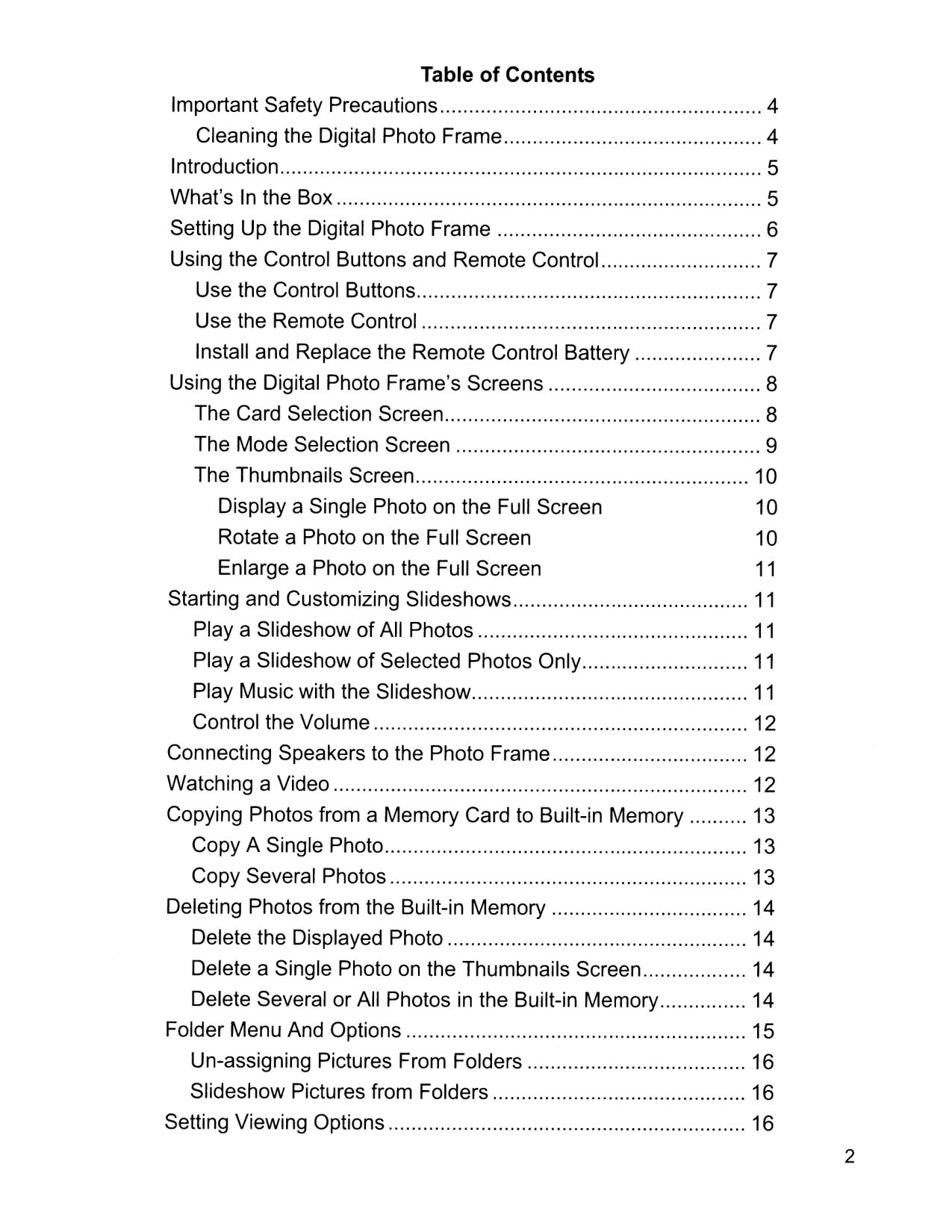
Table of Contents Important Safety Precautions 4 Cleaning the Digital Photo Frame 4 Introduction 5 What's In the Box 5 Setting Up the Digital Photo Frame 6 Using the Control Buttons and Remote Control 7 Use the Control Buttons 7 Use the Remote Control 7 Install and Replace the Remote Control Battery 7 Using the Digital Photo Frame's Screens 8 The Card Selection Screen 8 The Mode Selection Screen 9 The Thumbnails Screen 10 Display a Single Photo on the Full Screen 10 Rotate a Photo on the Full Screen 10 Enlarge a Photo on the Full Screen 11 Starting and Customizing Slideshows 11 Playa Slideshow of All Photos 11 Playa Slideshow of Selected Photos Only 11 Play Music with the Slideshow 11 Control the Volume 12 Connecting Speakers to the Photo Frame 12 Watching a Video 12 Copying Photos from a Memory Card to Built-in Memory 13 Copy A Single Photo 13 Copy Several Photos 13 Deleting Photos from the Built-in Memory 14 Delete the Displayed Photo 14 Delete a Single Photo on the Thumbnails Screen 14 Delete Several or All Photos in the Built-in Memory 14 Folder Menu And Options 15 Un-assigning Pictures From Folders 16 Slideshow Pictures from Folders 16 Setting Viewing Options 16 2
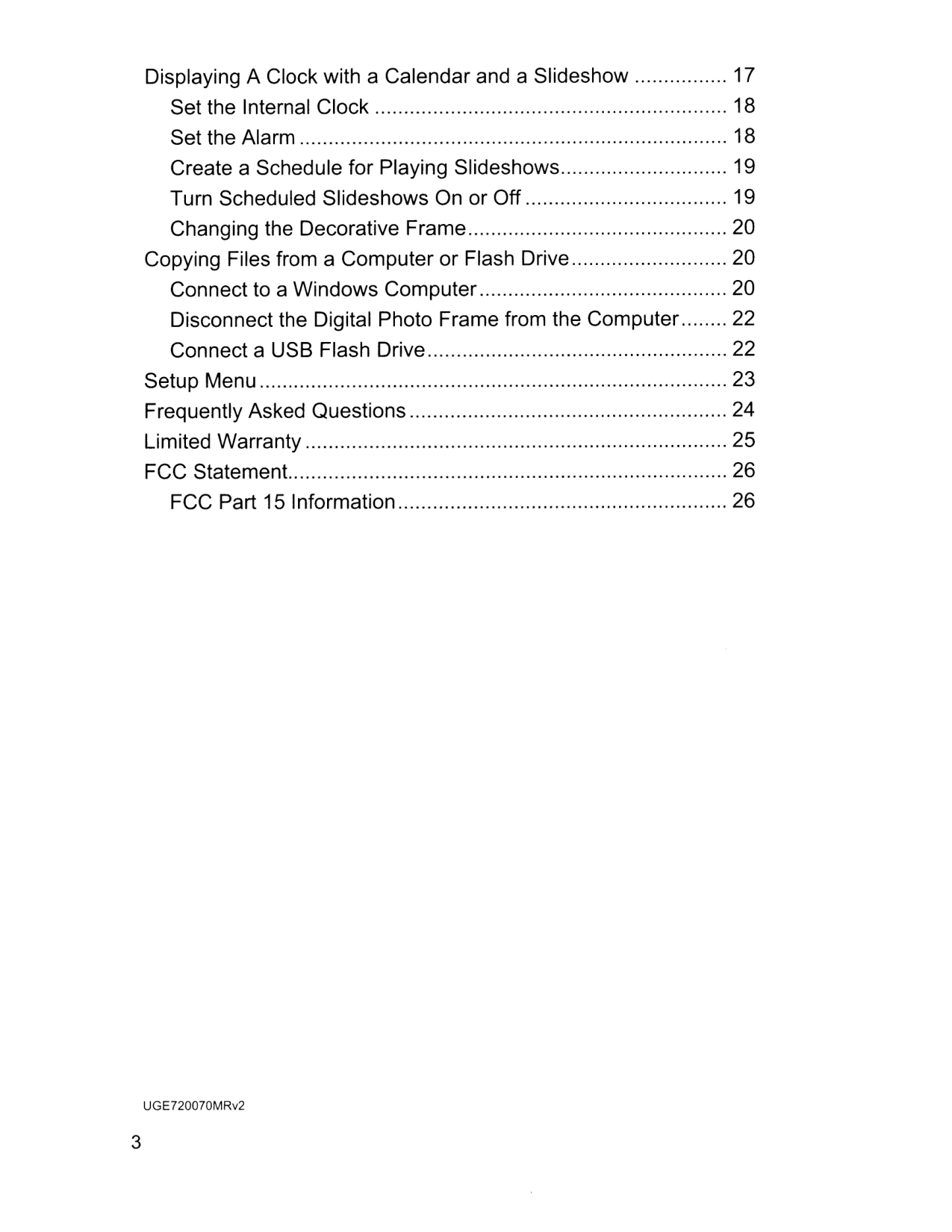
3 Displaying A Clock with a Calendar and a Slideshow 17 Set the Internal Clock 18 Set the Alarm 18 Create a Schedule for Playing Slideshows 19 Turn Scheduled Slideshows On or Off 19 Changing the Decorative Frame 20 Copying Files from a Computer or Flash Drive 20 Connect to a Windows Computer 20 Disconnect the Digital Photo Frame from the Computer 22 Connect a USB Flash Drive 22 Setup Menu 23 Frequently Asked Questions 24 Limited Warranty 25 FCC Statement. 26 FCC Part 15 Information 26 UGE720070MRv2
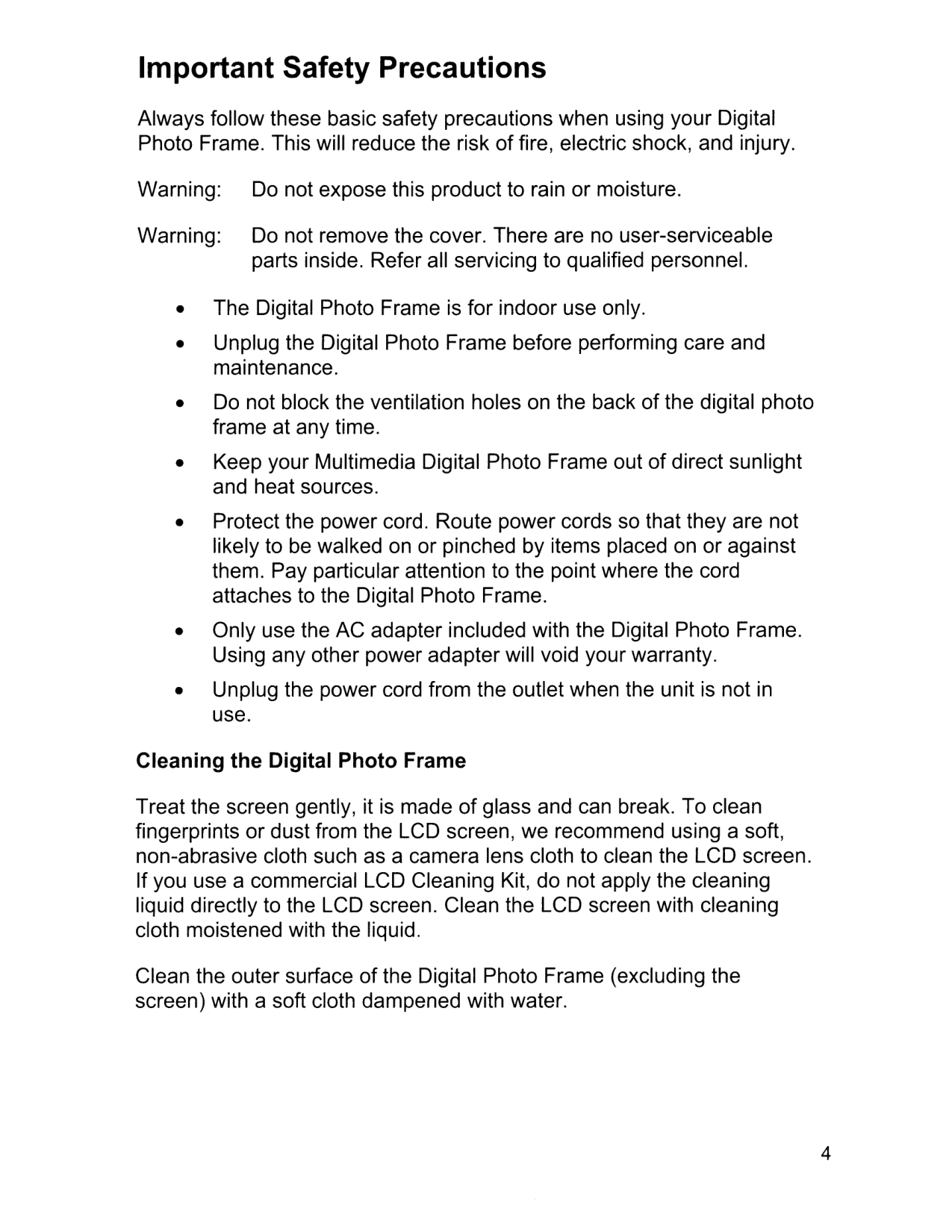
Important Safety Precautions Always follow these basic safety precautions when using your Digital Photo Frame. This will reduce the risk of fire, electric shock, and injury. Warning: Do not expose this product to rain or moisture. Warning: Do not remove the cover. There are no user-serviceable parts inside. Refer all servicing to qualified personnel. • The Digital Photo Frame is for indoor use only. • Unplug the Digital Photo Frame before performing care and maintenance. • Do not block the ventilation holes on the back of the digital photo frame at any time. • Keep your Multimedia Digital Photo Frame out of direct sunlight and heat sources. • Protect the power cord. Route power cords so that they are not likely to be walked on or pinched by items placed on or against them. Pay particular attention to the point where the cord attaches to the Digital Photo Frame. • Only use the AC adapter included with the Digital Photo Frame. Using any other power adapter will void your warranty. • Unplug the power cord from the outlet when the unit is not in use. Cleaning the Digital Photo Frame Treat the screen gently, it is made of glass and can break. To clean fingerprints or dust from the LCD screen, we recommend using a soft, non-abrasive cloth such as a camera lens cloth to clean the LCD screen. If you use a commercial LCD Cleaning Kit, do not apply the cleaning liquid directly to the LCD screen. Clean the LCD screen with cleaning cloth moistened with the liquid. Clean the outer surface of the Digital Photo Frame (excluding the screen) with a soft cloth dampened with water. 4
5 Introduction Welcome to the Pandigital Multimedia Photo Frame! Now you can display your digital photos directly from your memory card, no computer is necessary. Simply insert a memory card into the Digital Photo Frame, and turn on the power. You'll be treated to a slideshow of your photos. It's as easy as that. You can also display individual photos, play video clips, and play background music with your slide show. The Digital Photo Frame includes these key features: • Displays digital photos, plays music files and digital videos without a computer; simply insert a compatible memory card into the digital frame. Memory card is not included and supported file types are described below. • Displays Slideshows of Digital Photos with background music. • Compatible memory cards include Secure Digital™, MultiMedia Card TM, xD Card, Memory Stick TM, MemoryStick Pro TM, and Memory Stick Pro Duo™(required adapter). • Supported file types: JPEG images (up to 16 Mega Pixels), most video, and MP3 music formats. • Control the main functions with buttons on the frame or with the included infrared remote control. • Bright TFT active matrix LCD screen. • USB2.0 high-speed connection to connect to your PC. • USB2.0 (Host) for connecting to your digital camera. • Built-In Flash Memory. To learn more about your new Digital Photo Frame's features and take full advantage of them, please take a few minutes to read this Guide. What's In the Box • Digital Photo Frame • AC Power Adapter • This User's Guide • Remote Control • USB Cable • Decorative Frame
Setting Up the Digital Photo Frame The Digital Photo Frame is easy to set up. Just follow these steps:
-- Sdi
Ci S
0 ($lot2):----- Cf 1111(50 1)
Mini USB Brl htneLi
OutP
rS ichOc9V
Adj table S nd Note: The card will only fit in one direction; do not force it. The card should fit snugly when properly inserted.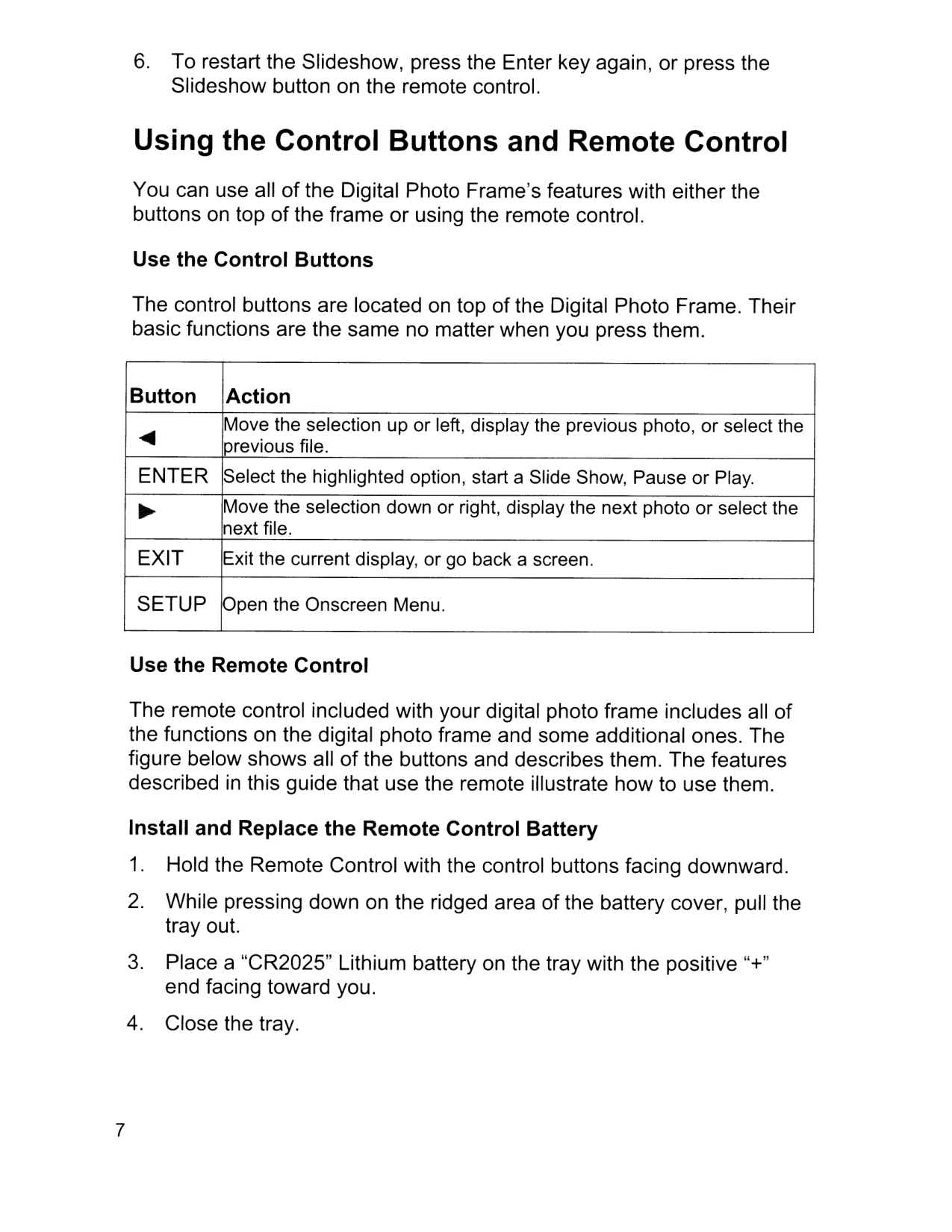
Enter
Select the highlighted option, start a Slide Show, Pause or Play. ~ Move the selection down or right, display the next photo or select the next file.Exit
Exit the current display, or go back a screen.Setup
Open the Onscreen Menu. Use the Remote Control The remote control included with your digital photo frame includes all of the functions on the digital photo frame and some additional ones. The figure below shows all of the buttons and describes them. The features described in this guide that use the remote illustrate how to use them. Install and Replace the Remote Control Battery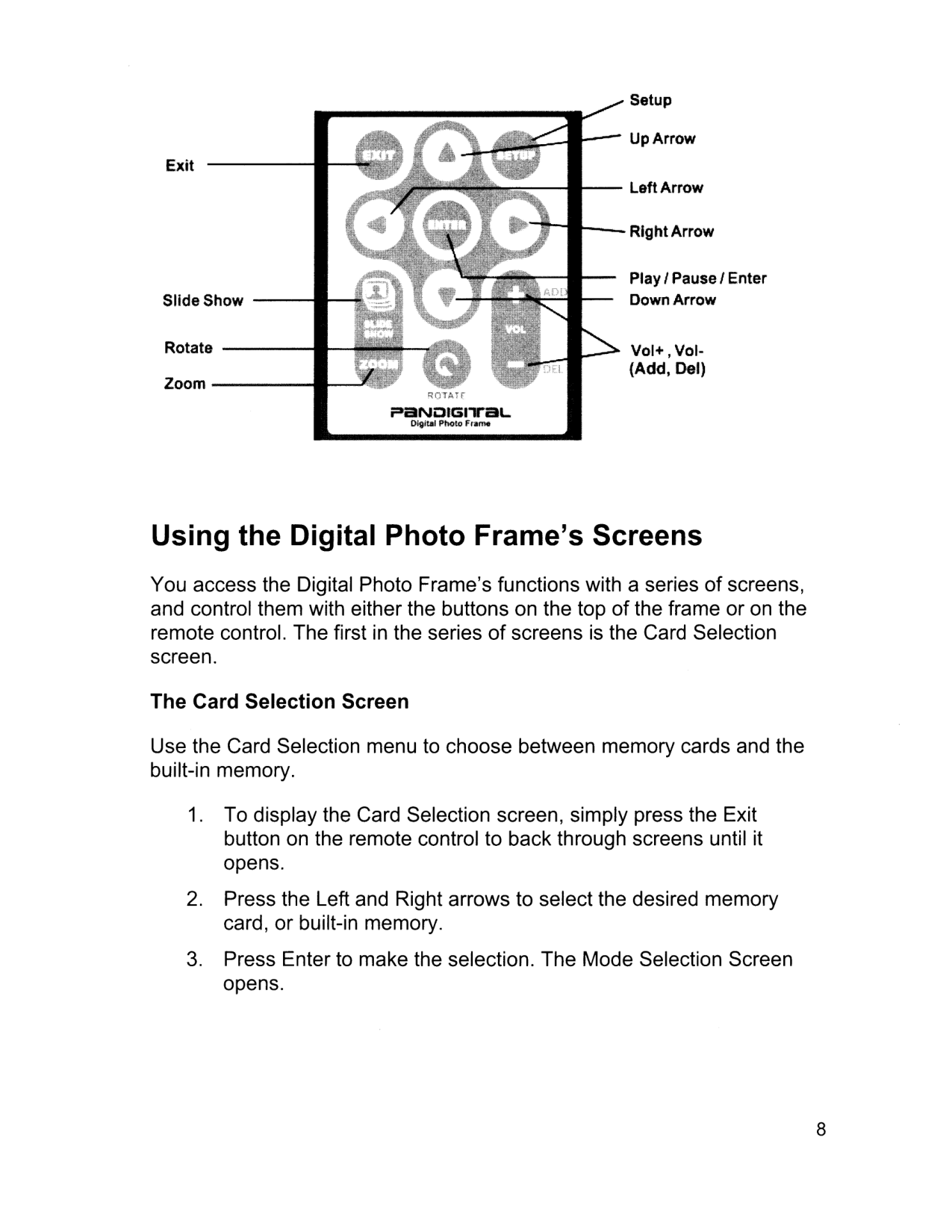
Exit Slide Show -- Rotate ---- Zoom----
Rqtah
rtSNOIGI"II"'ilIL. 019i18ll'hoto Fr._ Setup UpArrow Left Arrow Right Arrow Play I Pause I Enter Down Arrow Vol+, Vol- (Add, Del) Using the Digital Photo Frame's Screens You access the Digital Photo Frame's functions with a series of screens, and control them with either the buttons on the top of the frame or on the remote control. The first in the series of screens is the Card Selection screen. The Card Selection Screen Use the Card Selection menu to choose between memory cards and the built-in memory.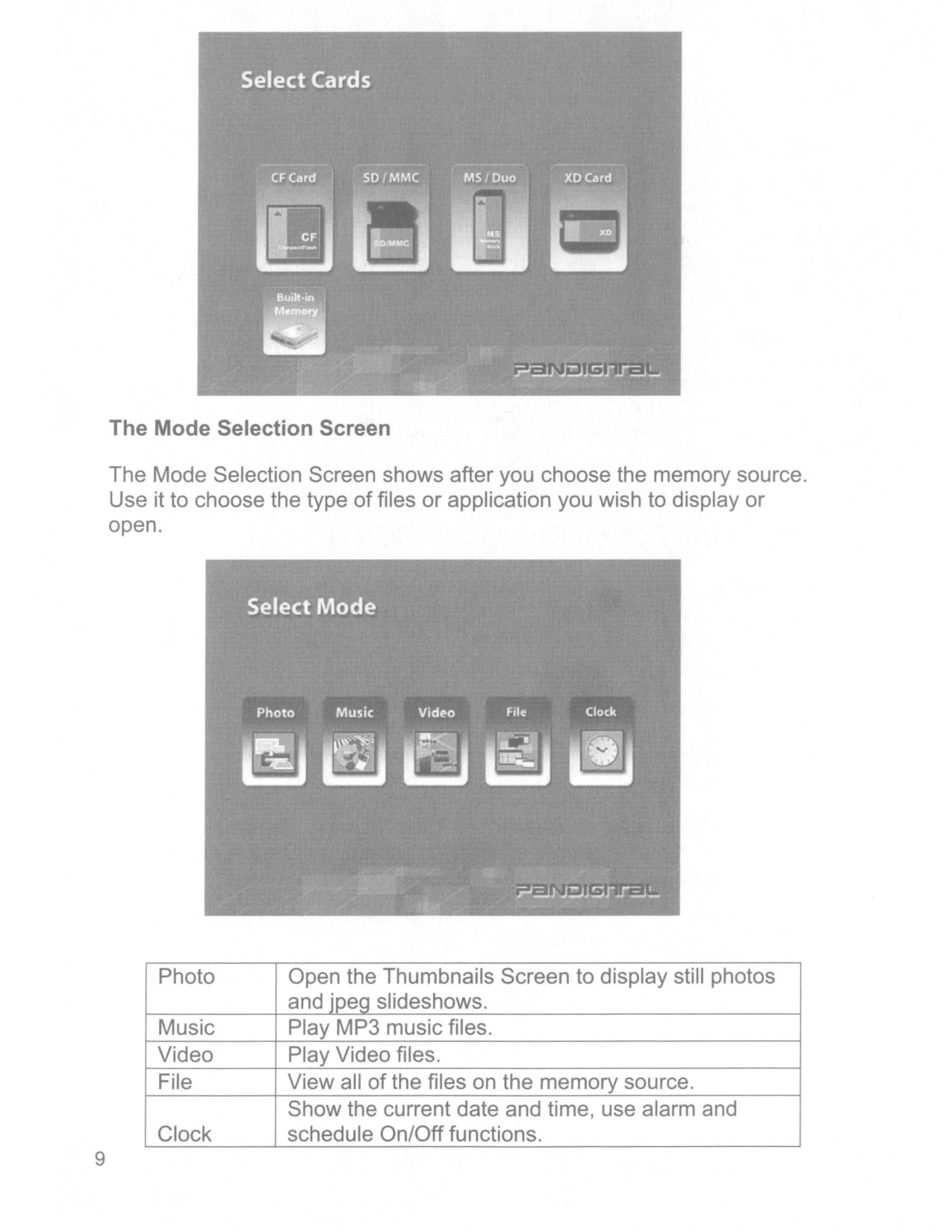
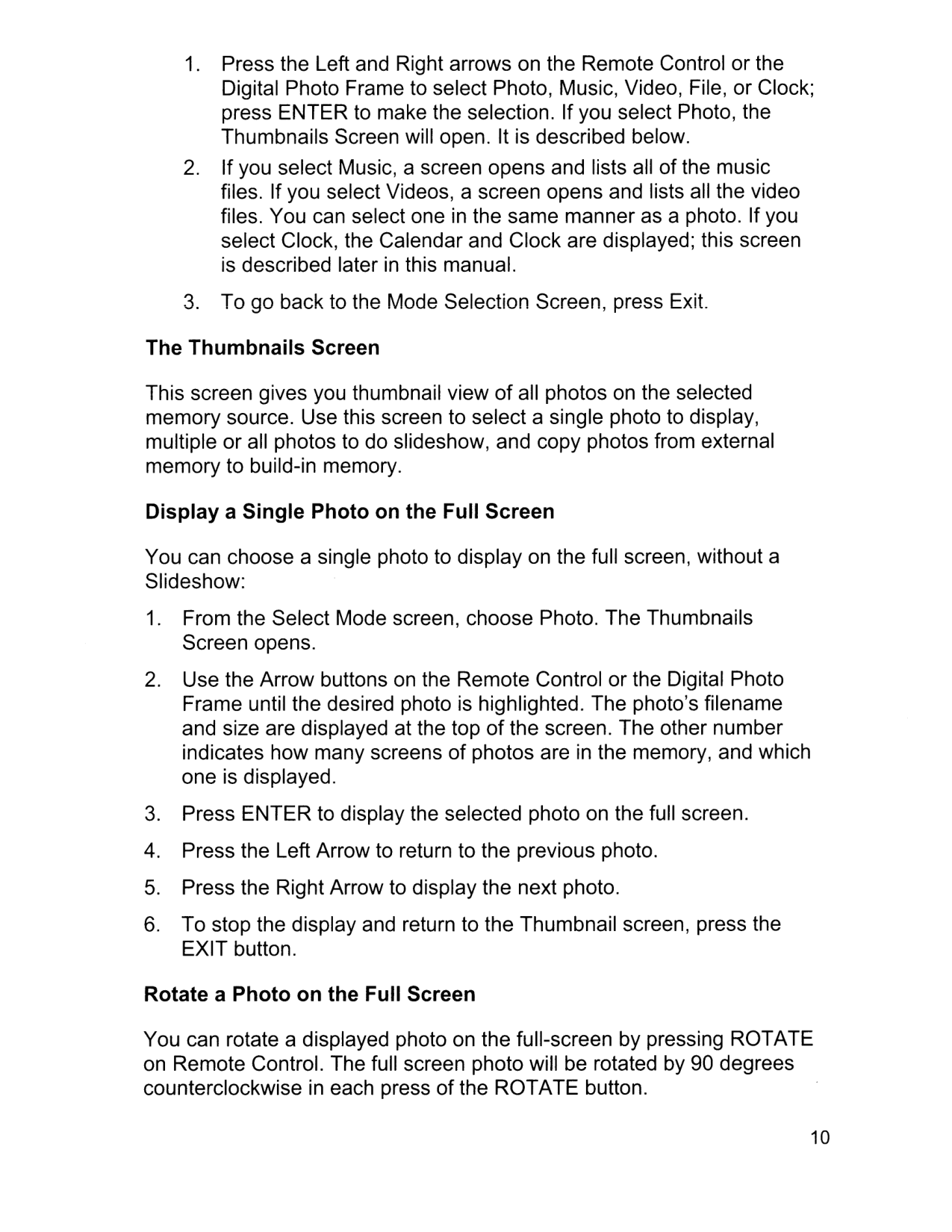
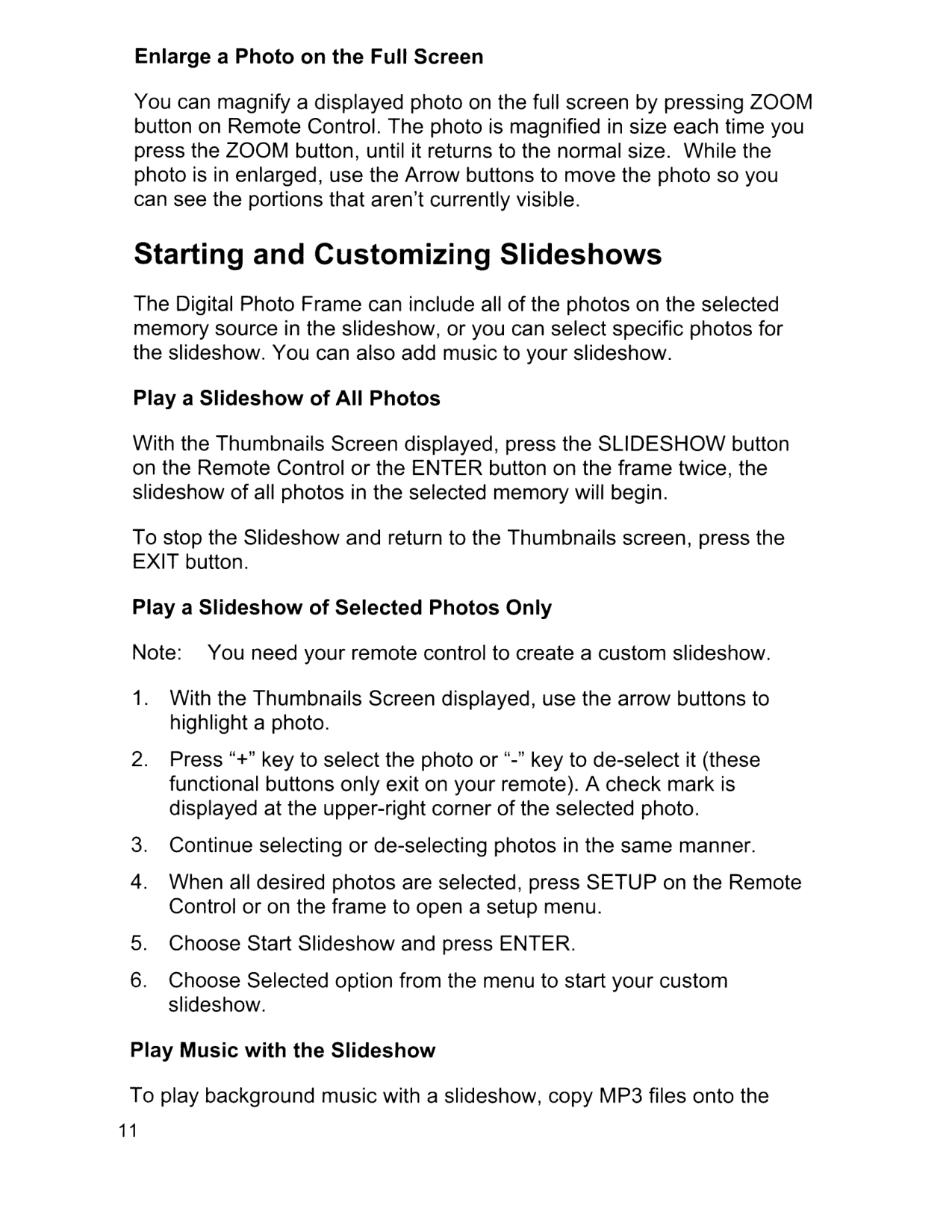
9 The Mode Selection Screen The Mode Selection Screen shows after you choose the memory source. Use it to choose the type of files or application you wish to display or open. Photo Open the Thumbnails Screen to display still photos and jpeg slideshows. Music Play MP3 music files. Video Play Video files. File View all of the files on the memory source. Show the current date and time, use alarm and Clock schedule On/Off functions.
Enlarge a Photo on the Full Screen You can magnify a displayed photo on the full screen by pressing ZOOM button on Remote Control. The photo is magnified in size each time you press the ZOOM button, until it returns to the normal size. While the photo is in enlarged, use the Arrow buttons to move the photo so you can see the portions that aren't currently visible. Starting and Customizing Slideshows The Digital Photo Frame can include all of the photos on the selected memory source in the slideshow, or you can select specific photos for the slideshow. You can also add music to your slideshow. Playa Slideshow of All Photos With the Thumbnails Screen displayed, press the SLiDESHOW button on the Remote Control or the ENTER button on the frame twice, the slideshow of all photos in the selected memory will begin. To stop the Slideshow and return to the Thumbnails screen, press the EXIT button. Playa Slideshow of Selected Photos Only Note: You need your remote control to create a custom slideshow.
same memory card as your photos. The music will playas the slideshow runs. See Copying Files from a Computer section for details on copying files. You can also choose a music file to play without a slideshow. Just select it from the Music screen. Note: Music files must be standard MP3 format and not from licensed music download services. To stop the music and return to the Music screen, press the EXIT button. Control the Volume Use the Remote Control to adjust the volume on the Digital Photo Frame or when playing MP3 files. Press the "." and "+" buttons to adjust the volume down and up. Connecting Speakers to the Photo Frame The Digital Photo Frame has built-in speakers, but you can also connect external speakers and an external amplifier. Plug the speaker plug into the earphone jack located on the right side of Digital Photo Frame (Cable not included). Watching a Video You can watch video files on your Digital Photo Frame as well. It supports the Motion JPEG (AVI) video formats used by most digital cameras. To watch a video, there need to be video files on the memory card.
Enter.
Enter.
Note: The pictures are assigned to the folder, not copied. Deleting the picture from internal memory will also delete the link to the assigned folder. . 15
Enter.
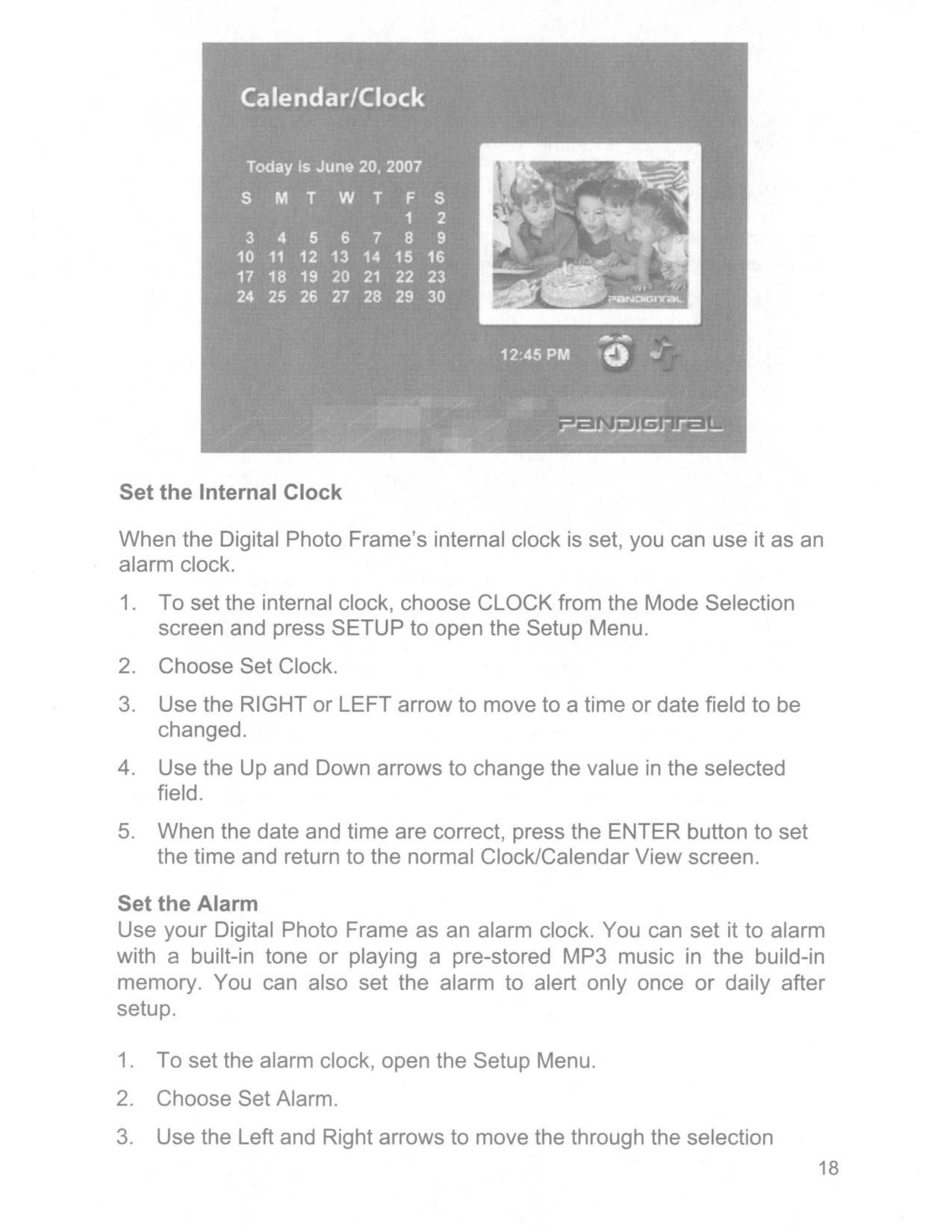
Set the Internal Clock When the Digital Photo Frame's internal clock is set, you can use it as an alarm clock.
fields and the Up and Down arrows to scroll through the values (time, alarm type or alarm tone/music etc).
turned on during the slideshow by pressing Setup, select Start Scheduled ON/OFF menu item and press Enter key. Changing the Decorative Frame Depending on the model, your Digital Photo Frame may come with interchangeable decorative frames.
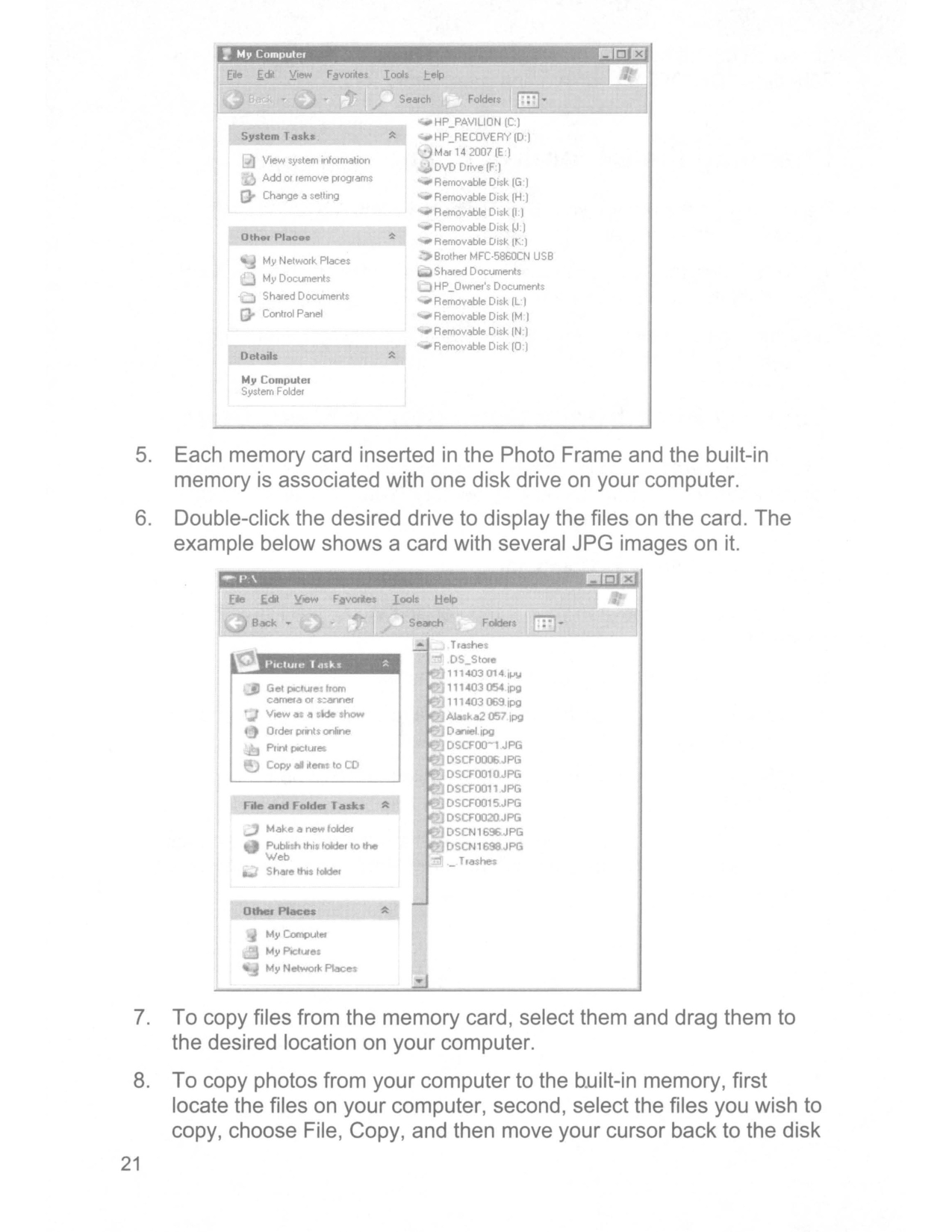
Other Placeo View ~wstem Intormation Add or remove programs Change a set.tlng HP_PAVIUmJ (C.)
Hp_Recovery (D')
~ Mar 14 2007(E ) DVD Dnve(F) Removable DIs' (G ) Removable Disk (H ) Removable Disk (I ) Removable Disi' (J.) Removable Disk (t- :) Brother MFC·5860CN USB Shared Documents HP_Owner's Documents Removable Disk IL I Removable Disk 1M I Removable Disk IN:) Removable Disk (0') M,Y Network Places M,Y Documents Shared Documents Control Panel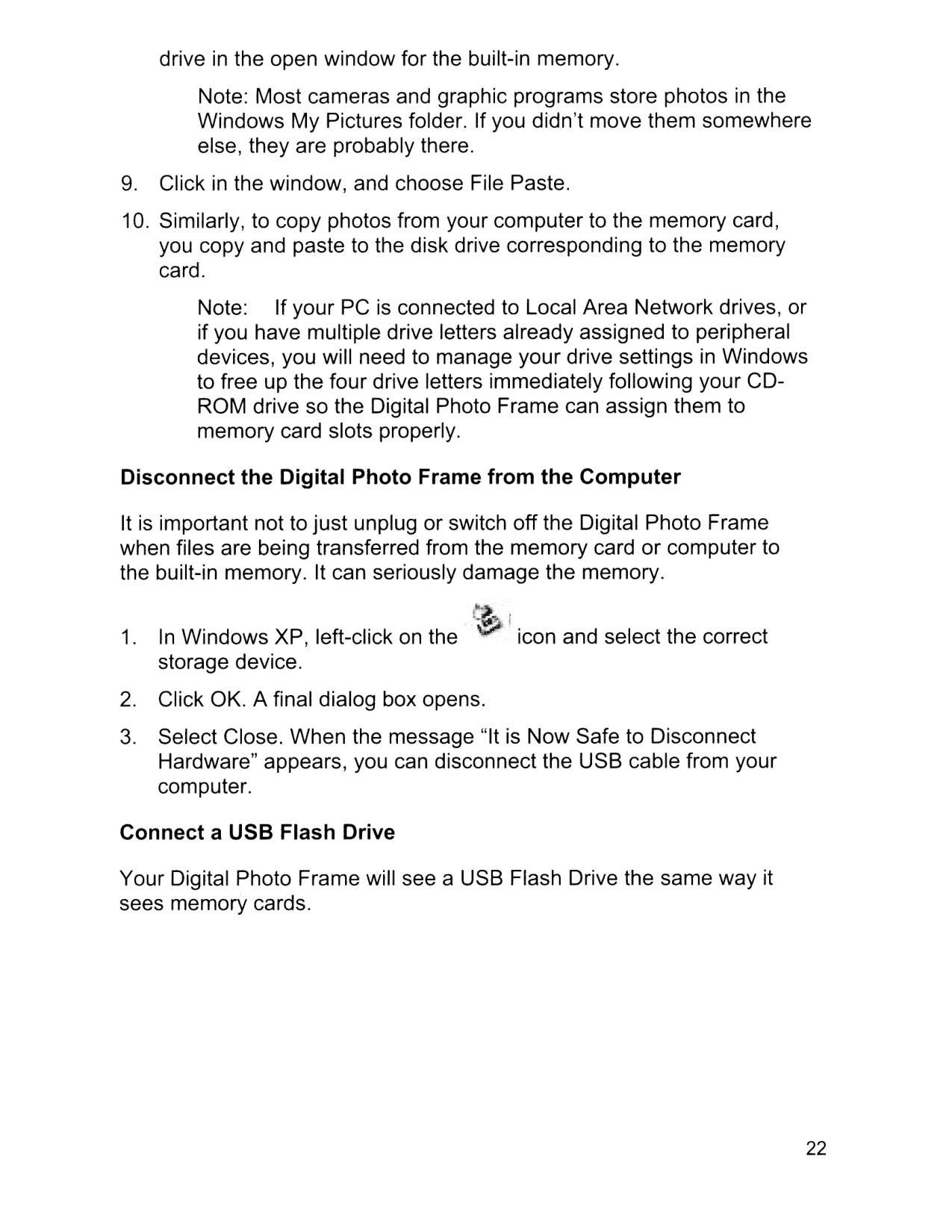
icon and select the correct drive in the open window for the built-in memory. Note: Most cameras and graphic programs store photos in the Windows My Pictures folder. If you didn't move them somewhere else, they are probably there.
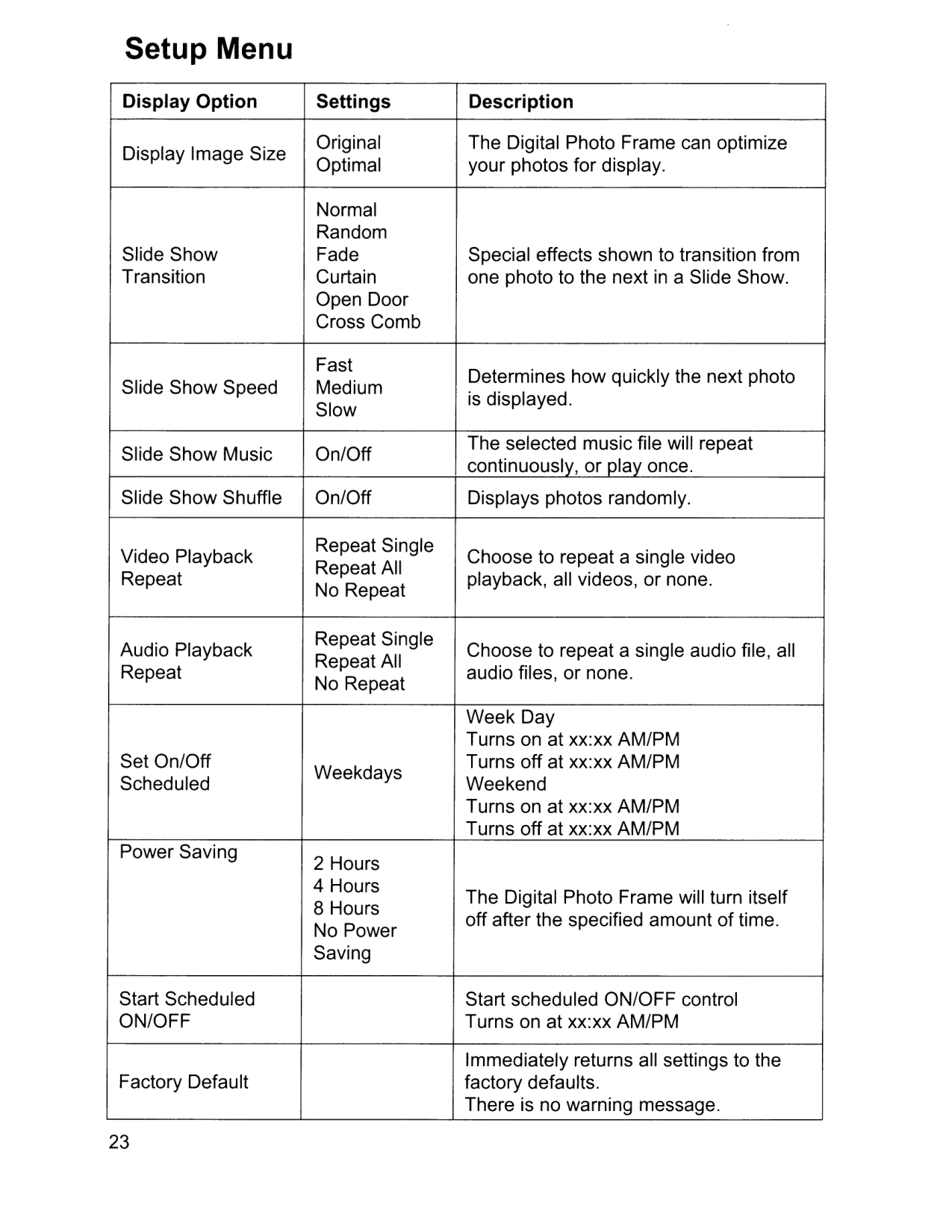
Setup Menu Display Option Settings Description Display Image Size Original The Digital Photo Frame can optimize Optimal your photos for display. Normal Random Slide Show Fade Special effects shown to transition from Transition Curtain one photo to the next in a Slide Show. Open Door Cross Comb Fast Determines how quickly the next photo Slide Show Speed Medium Slow is displayed. Slide Show Music On/Off The selected music file will repeat continuously, or play once. Slide Show Shuffle On/Off Displays photos randomly. Video Playback Repeat Single Choose to repeat a single video Repeat Repeat All playback, all videos, or none. No Repeat Audio Playback Repeat Single Choose to repeat a single audio file, all Repeat Repeat All audio files, or none. No Repeat Week Day Turns on at xx:xx AM/PM Set On/Off Weekdays Turns off at xx:xx AM/PM Scheduled Weekend Turns on at xx:xx AM/PM Turns off at xx:xx AM/PM Power Saving 2 Hours 4 Hours The Digital Photo Frame will turn itself 8 Hours No Power off after the specified amount of time. Saving Start Scheduled Start scheduled ON/OFF control
On/Off
Turns on at xx:xx AM/PM Immediately returns all settings to the Factory Default factory defaults. There is no warning message. 23
Frequently Asked Questions
Q:
How do I set up my Digital Photo Frame?A:
It is very simple to get your Digital Photo Frame out of the box and running in just a few minutes. Just plug the power adapter into the Digital Photo Frame and into a standard Wall Socket. Insert a memory card into the appropriate card slot on the side of the Digital Photo Frame, and turn it on. Your first slide show will automatically start to play.Q:
What memory cards can the Digital Photo Frame Read?A:
Compatible memory cards include Secure Digital, MultiMedia Card, Compact Flash, Memory Stick, MemoryStick Pro, Memory Stick Duo, Memory Stick Pro Duo, and XD card.Q:
I set up the Digital Photo Frame; why won't it turn on?A:
The Adapter is not securely connected to the Photo Frame or the Power Switch is not on.Q:
I have a memory card in the Digital Photo Frame; why can't I view my photos?A:
First, make sure that the memory card is one of the formats listed above and that the files on the card are JPEG images files. Second, turn the Digital Photo Frame Off and make sure that the memory card is inserted all the way into the card slot and is facing the right direction. Third, turn the Frame On. After a couple of seconds, you should see your first photo. Press Exit to open the Card Selection screen and select the card. Then select Photos. You should see the Thumbnails screen listing all photos on the card. If you don't, you may want to try another card. Note: Some digital cameras save images in other formats. Please refer to your camera's manual if your photos are not JPEG files.Q:
Why is the picture display slower with some pictures and faster with others?A:
Higher resolution pictures load more slowly. Try using lower resolution pictures or down sampling your images. See your camera's operating manual for details on down sampling your photos.Q:
Can I insert multiple memory cards? 24
A:
Yes. Turn on the unit before inserting any card. The Select Card Screen lets you choose between all available memory cards and built-in memory.Q:
Does the Digital Photo Frame have built-in memory?A:
Yes. It has built-in of memory. The memory size depends on your model.Q:
Does the Digital Photo Frame support all JPEG and Motion JPEG files?A:
No, it supports JPEG and Motion JPEG files taken from a digital camera. The Digital Photo Frame may not read all images files applications. Limited Warranty The limited warranty set forth below is given by Pandigital with respect to Pandigital brand electronics products purchased and used in the United States of America. Pandigital warrants this product against defects in material or workmanship as follows: LABOR: For a period of ninety (90) days from the date of purchase, if this product is found to be defective, Pandigital will repair or replace the product, at its option, at no charge. After this ninety (90) day period, labor charges will be charged on a case by case basis. PARTS: For a period of ninety (90) days from the date of purchase, if this product is found to be defective, Pandigital will supply at no cost, new or rebuilt replacement parts, at its option, at no charge. After this ninety (90) day period, parts will be charged for on a case by case basis. This warranty does not cover: (1) customer instruction, installation or setup; (2) cosmetic damage or damage due to accident, misuse, abuse or negligence; (3) commercial use of the product; (4) modification of any part of the product; (5) damage due to improper operation, improper maintenance, or connection to an improper power supply; (6) damage due to an attempted repair of the product by anyone other than a facility authorized by Pandigital to service the product; (7) consumables (such as fuses and batteries). This warranty is valid only in the United States. The product must be accompanies by a copy of the original retail purchase receipt. If no proof of purchase is attached, the warranty will not be honored and repair costs will be charged. This warranty is valid 25
with attached written documentation detailing the complaint to the outside or inside of the carton. This warranty is invalid if the factory applied serial number has been altered and or removed from the product. Pandigital reserves the right to modify and design of this product without prior notice, written or otherwise. To obtain warranty service, you must deliver the product freight prepaid in either its original packaging or packaging affording an equal degree of protection, plus proof of purchase. Technical support telephone number: 1-800-715-5354. Repair or replacement as provided under this warranty is the exclusive remedy of the consumer. Pandigital, its parent company, affiliates or subsidiaries, shall not be liable for any incidental or consequential damages for breach of any expressed or implied warranty on this product. Except to the extent prohibited by applicable law, any implied warranty of merchantability or fitness for a particular purpose on this product is limited in duration to the duration of this warranty. Some states do not allow the exclusion or limitation of incidental or consequential damages, or allow limitation on how long an implied warranty lasts, so the above limitations or exclusions may not apply. This warranty gives you specific legal rights, and you may have other rights, which vary from state to state. FCC Statement FCC Part 15 Information This equipment has been tested and found to comply with the limits for a Class B digital device, pursuant to Part 15 of the Federal Communication Commission
(Fcc)
Rules. These limits are designed to provide reasonable protection against harmful interference in a residential installation. This equipment generates, uses, and can radiate radio frequency energy and if not installed and used in accordance with the instructions, may cause harmful interference to radio communications. However, there is no guarantee that interference will not occur in a particular installation. If this equipment does cause harmful interference to radio or television reception, which can be determined by turning the equipment off and on, the user is encouraged to try to correct the interference by one or more of the following measures: 26
• Reorient or relocate the receiving antenna. • Increase the separation between the equipment and receiver. • Connect the equipment to an outlet on a circuit different from that to which the receiver is connected. • Consult the dealer or an experienced radio/TV technician for help. "WARNING: Changes or modification to this unit not expressly approved by the party responsible for compliance could void the user's authority to operate the equipment" 27
Quick-Start Guide
'Iieiii Seqieice
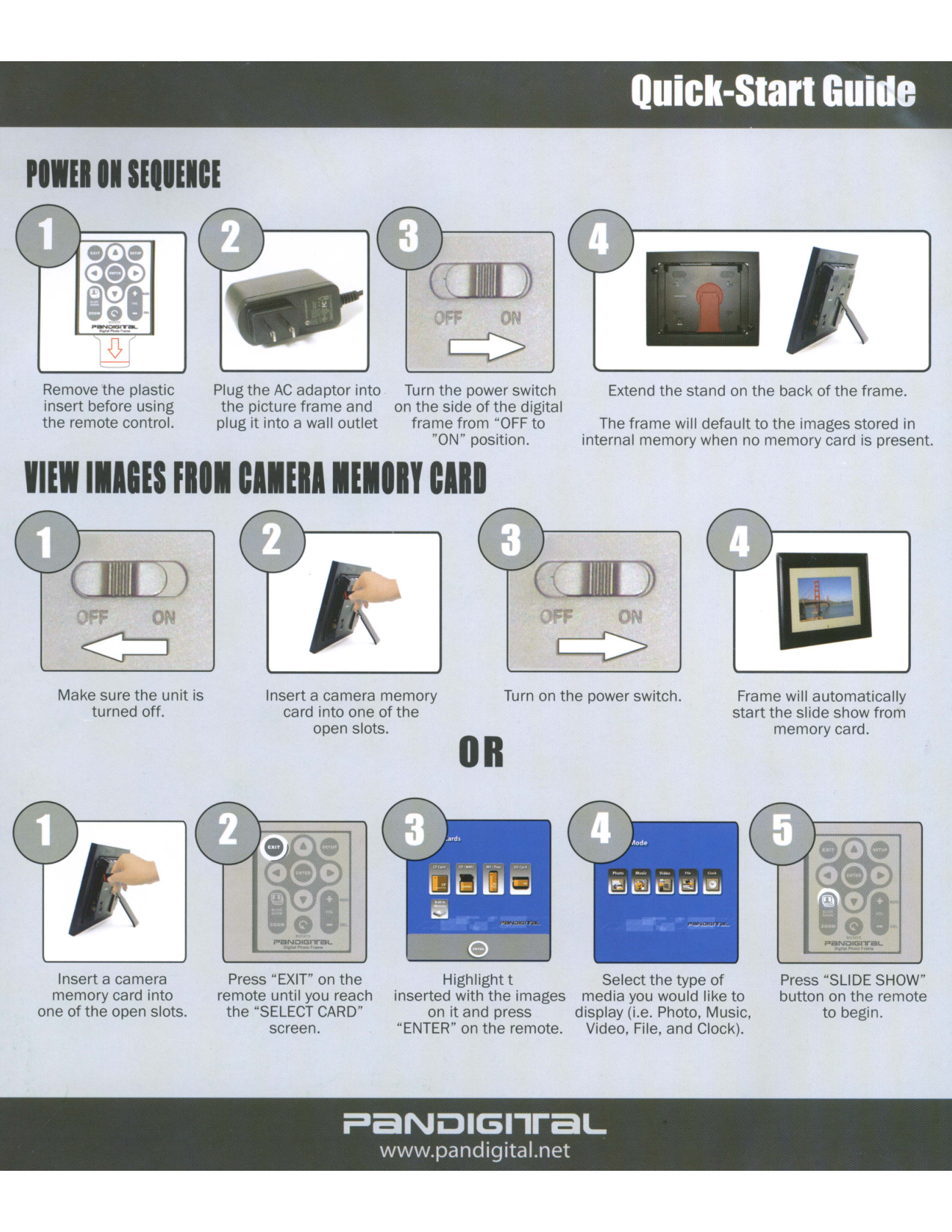
IIEIIIAIES FRII CAIERAIEIIRY CARl Remove the plastic insert before using the remote control. Plug the AC adaptor into the picture frame and plug it into a wall outlet Turn the power switch on the side of the digital frame from "OFF to "ON" position. Extend the stand on the back of the frame. The frame will default to the images stored in internal memory when no memory card is present. Make sure the unit is turned off. Insert a camera memory card into one of the open slots.Or
Turn on the power switch. Frame will automatically start the slide show from memory card. Insert a camera memory card into one of the open slots. Press "EXIT" on the remote until you reach the "SELECT CARD" screen. Highlight t Select the type of inserted with the images media you would like to on it and press display (i.e. Photo, Music, "ENTER" on the remote. Video, File, and Clock). Press "SLIDE SHOW" button on the remote to begin. r:aaNLJIGI,raL www.pandigital.net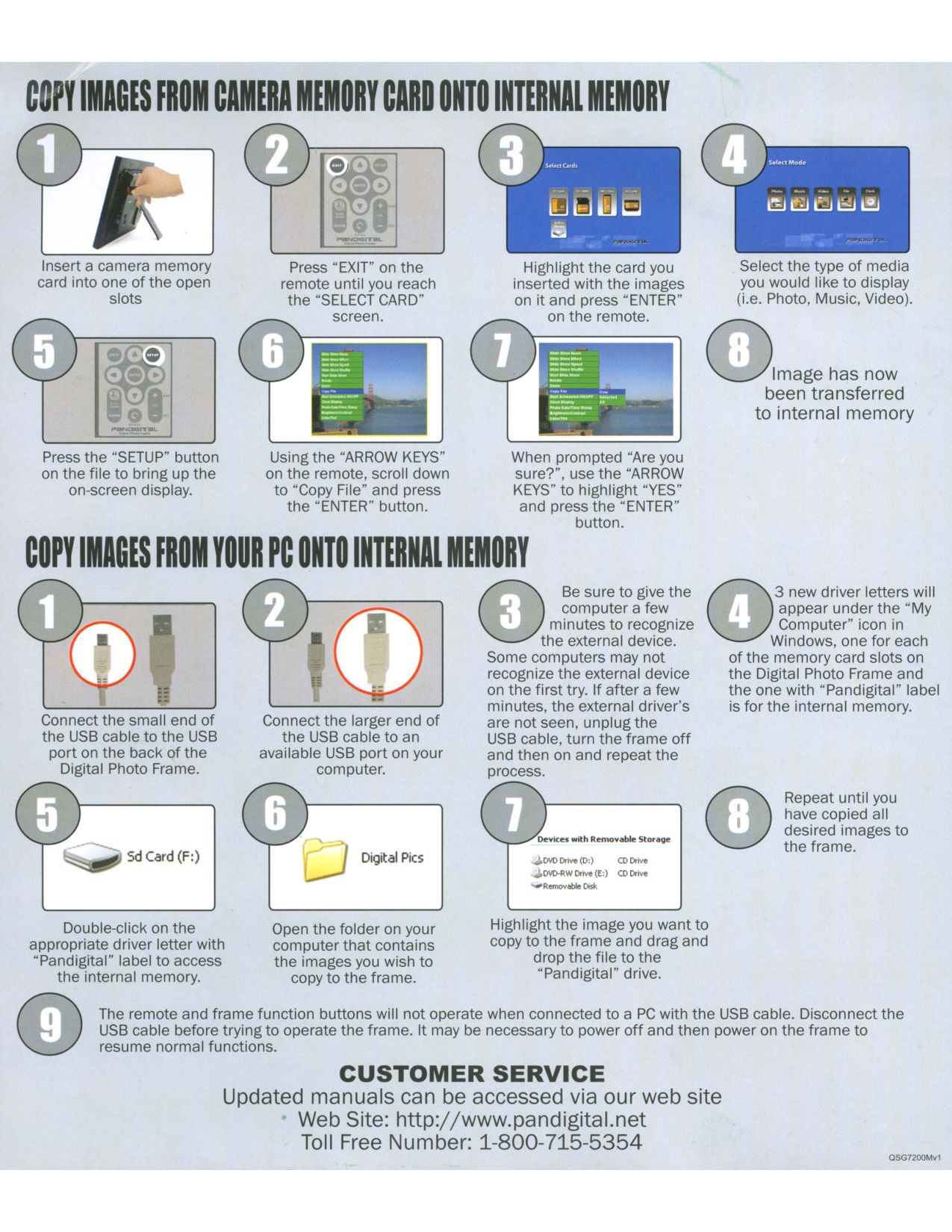
C YIMAGES FROM CAMERA MEMORY CARD ONTO INTERNAl MEMORY . Select the type of media you would like to display (i.e. Photo, Music, Video). @Image has now been transferred to internal memory Highlight the card you inserted with the images on it and press "ENTER" on the remote. Press "EXIT" on the remote until you reach the "SELECT CARD" screen. Insert a camera memory card into one of the open slots Press the "SETUP" button on the file to bring up the on-screen display. Using the "ARROW KEYS" on the remote, scroll down to "Copy File" and press the "ENTER" button. When prompted "Are you sure?", use the "ARROW KEYS" to highlight "YES" and press the "ENTER" button. COpy IMAGES FROM YOUR PC ONTO INTERNAl MEMORY Connect the small end of the USB cable to the USB port on the back of the Digital Photo Frame. Connect the larger end of the USB cable to an available USB port on your computer. ® Be sure to give the computer a few minutes to recognize the external device. Some computers may not recognize the external device on the first try. If after a few minutes, the external driver's are not seen, unplug the USB cable, turn the frame off and then on and repeat the process. @ 3 new driver letters will
J
appear under the "My Computer" icon in Windows, one for each of the memory card slots on the Digital Photo Frame and the one with "Pandigital" label is for the internal memory. Repeat until you have copied all desired images to the frame. Devices with Removable Storage I DVD Drive (0:) CD DriveCustomer Service
Updated manuals can be accessed via our web site Web Site: http://www.pandigital.net Toll Free Number: 1-800-715-5354 QSG7200Mv1
r=aaNOIGI,raL P.O. Box 2969 Dublin, CA 94568-2969 Place First Class Stamp Here
?aNOIGI,raL Product Registration First Name: Last Name: -------- ---------- Address 1:---------------------- Address 2:---------------------- City: _ State:-- Zip Code: _ Tel:-------- Email:------------- Model Number: ----- Serial Number:--------- Date Purchased: Purchased At: --------- D I would like to receive email information from Pandigital in ,the future.