
Ask AI
— answers from the official manualAnswers from the official manual.
Common questions
Common Questions
30 totalHow do I sign out of my Google account on my Sony Android TV?
Select [Personal] in [Settings] of the Home Menu, then delete your account from the TV. (Page 2)
How do I download apps and games on my Sony Android TV?
Select [Google Play Store] in [Apps] of the Home Menu, then select the app or game you want and install it. After downloading, the app is automatically installed and its icon appears in the Home Menu. Note that only apps and games compatible with TVs can be downloaded.
How do I purchase paid apps on my Sony Android TV?
To purchase a paid app from the Google Play store, a prepaid Google Play gift card code or credit card information is required. Google Play gift cards can be purchased from various retailers.
How do I create and sign in to a SEN account to use Sony Internet services on my TV?
A SEN account cannot be created using the TV — visit https://account.sonyentertainmentnetwork.com on a computer or smartphone and follow the on-screen instructions to create an account. To sign in on the TV, select the Sony Internet service icon on the Home Menu and follow the on-screen instructions. The SEN account sign-in screen also appears when connecting to the Internet during initial setup.
How do I check the network status and MAC address on my Sony Android TV?
Select [Help] at the bottom of the Home Menu, then select [View network status] to check Internet connection status and network settings such as MAC address. (Page 1)
Can I create a Google account directly on my Sony Android TV?
No, a Google account cannot be created using the TV. You must use a computer or smartphone to visit http://accounts.google.com/signup and follow the on-screen instructions to create one. Alternatively, you can create a Google account during the TV's initial setup by visiting g.co/AndroidTV on a computer or smartphone. (Page 2)
Show 24 more questions
How do I sign in to my Google account on my Sony Android TV?
How do I download apps and games from the Google Play Store on my Sony Android TV?
How do I purchase paid apps from the Google Play Store on my Sony Android TV?
How do I create and use a SEN account for Sony Internet services on my Android TV?
How do I sign in to my Google account on the Sony TV?
How do I download apps and games from the Google Play store on my TV?
How do I delete an app from my Sony TV?
How do I sign out of my Google account on the Sony TV?
What is required to use the Sony Internet service on my TV?
How do I sign in to the Sony Internet service on my TV?
What should I do if my TV doesn't automatically connect to the Internet with a LAN cable?
Can I create a Google account directly on my TV?
How do I sign in to my Google account on the TV?
How do I connect my Sony Android TV to the Internet wirelessly via Wi-Fi?
How do I connect my Sony Android TV to the Internet using a wired LAN cable?
How do I delete an app from my Sony Android TV?
How do I create and use a SEN account to access the Sony Internet service on my TV?
How do I connect my TV to the Internet wirelessly using Wi-Fi?
How do I download apps and games to my TV?
What do I need to purchase paid apps from the Google Play store?
How do I delete an app from my TV?
How do I sign out of my Google account on the TV?
What is required to use Sony Internet services on my TV?
How do I create and sign in to a SEN account for Sony Internet services?
Full Manual
2 pages
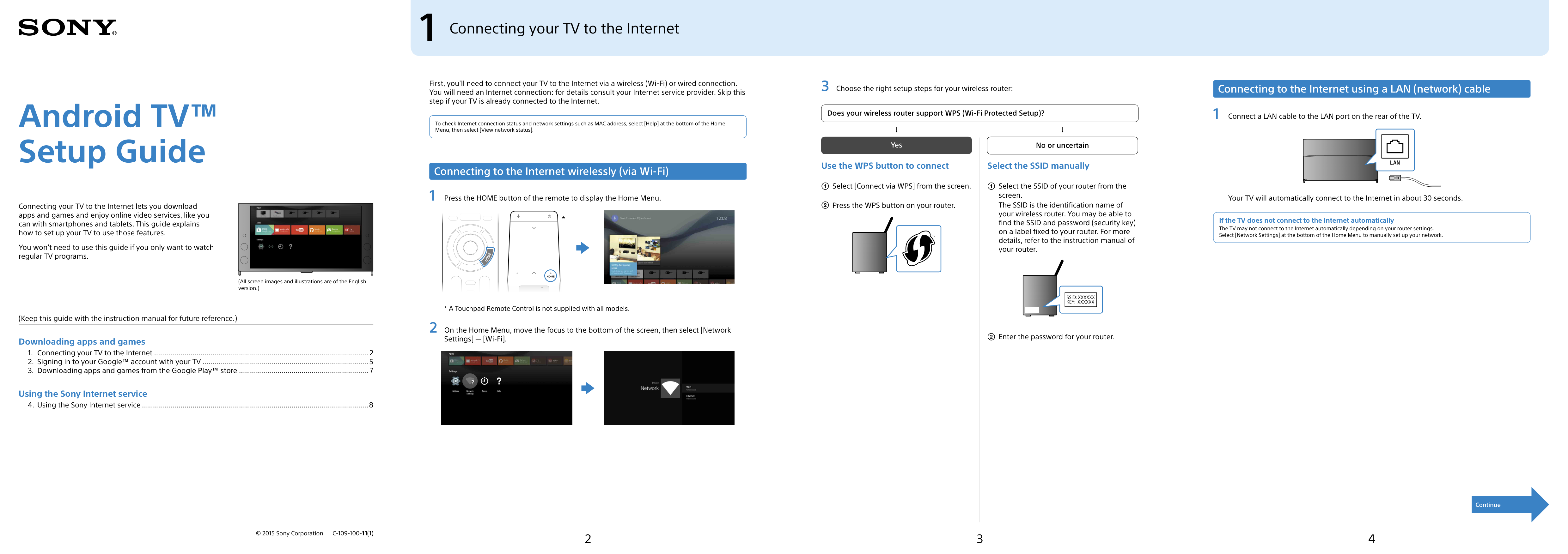
2 3 4 Continue Android TV™ Setup Guide Connecting your TV to the Internet lets you download apps and games and enjoy online video services, like you can with smartphones and tablets. This guide explains how to set up your TV to use those features. You won't need to use this guide if you only want to watch regular TV programs. (All screen images and illustrations are of the English version.) (Keep this guide with the instruction manual for future reference.) Downloading apps and games
C-109-100-11(1)
1 Connecting your TV to the Internet First, you'll need to connect your TV to the Internet via a wireless (Wi-Fi) or wired connection. You will need an Internet connection: for details consult your Internet service provider. Skip this step if your TV is already connected to the Internet. To check Internet connection status and network settings such as MAC address, select [Help] at the bottom of the Home Menu, then select [View network status]. Connecting to the Internet wirelessly (via Wi-Fi) 1 Press the HOME button of the remote to display the Home Menu.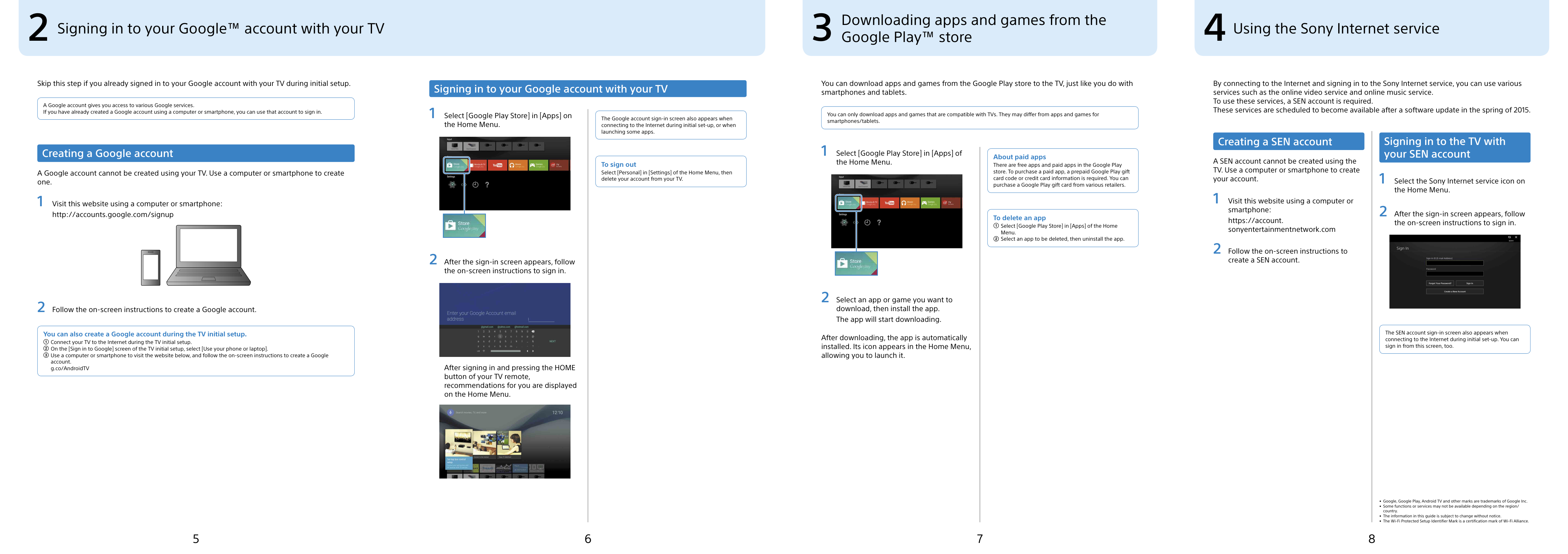
6 5 7 8