
Uniden Igo Cam 445 Dash Cam Vehicle Recorder
Ask AI
— answers from the official manualAnswers from the official manual.
Common questions
Common Questions
10 totalHow do I format the SD card for my iGO CAM 445?
Press and hold the WiFi (Smart One Touch) button for 8 seconds to format the micro SD Card, which is necessary before first-time use. The camera will issue a voice prompt during the formatting process.
What should I do when my iGO CAM 445 starts beeping with an SD card error?
Please format the SD card and ensure you are using a recommended micro SD card, specifically one rated for dash cam recording. Only use good quality MLC/SLC Endurance micro SD cards (min Class U3)
How do I reset my iGO CAM 445 to factory settings?
Press and hold the WiFi button for 8 seconds until you hear 'OK!' in a voice prompt, followed by an extended period of beeping. This process will format the SD card and return the device to its factory default state.
What are the minimum requirements for inserting an SD card?
The iGO CAM 445 supports micro SDXC cards up to 128GB in capacity and recommends a micro SD card of at least 32GB with a minimum speed rating of Class U3.
What is the camera's viewing angle?
The viewing angle for the iGO CAM 445 is 140 degrees, providing a wide-angle view for recording purposes. (Page 23)
How do I ensure my camera records audio?
Go to 'Device Settings', find the option labeled “Movie Audio”, and set it accordingly to enable or disable the audio recording function.
Full Manual
24 pages
iGO CAM 445
Dash Cam Vehicle Recorder
For more exciting new products please visit our website: Australia: www.uniden.com.au
Important Safety Instructions
NOTE
Uniden does not represent this product to be waterproof. Do not expose this product to Rain or Moisture.
This product is intended for use in a motor vehicle. Don’t install the device where it will block the driver’s view of the road (including the mirrors!) or the deployment of the airbag.
NOTE
Keep your attention on the road! Don’t try to operate or focus on any device while driving. If you have to concentrate on a device, pull off the road for a few minutes.

NOTE
NOTE
Ensure that the camera lens is kept clean and there is nothing blocking the lens.
NOTE
Don’t leave the device in direct sunlight for a long period of time or where the temperature could go above 60°C.
You should examine, check and/or verify the device at least once a month including the associated SD card, to ensure the recording are working properly.
NOTE
Never attempt to disassemble, repair or make any modifications to your device.
NOTE
Contents
Important Safety Instructions ............................................. 2 What’s In The Box...................................................................4
Make Sure These Items Arrived in the Box .................................................4 Controls & Indicators ............................................................ 5 Installation ............................................................................ 7
Location .................................................................................................................. 7 Installing the Camera ........................................................................................ 7 Installing the Optional Hardwiring Kit .........................................................8
Operation .............................................................................. 9 Micro SD Card ....................................................................................................... 9 Power On ............................................................................................................. 10 Power Off ............................................................................................................. 10 Recording .............................................................................................................11 Using the App .................................................................................................... 12 Device Settings ................................................................................................. 16 Troubleshooting ................................................................................................18 Specification .......................................................................................................19 Warranty ............................................................................ 20
What’s In The Box
##### Make Sure These Items Arrived in the Box

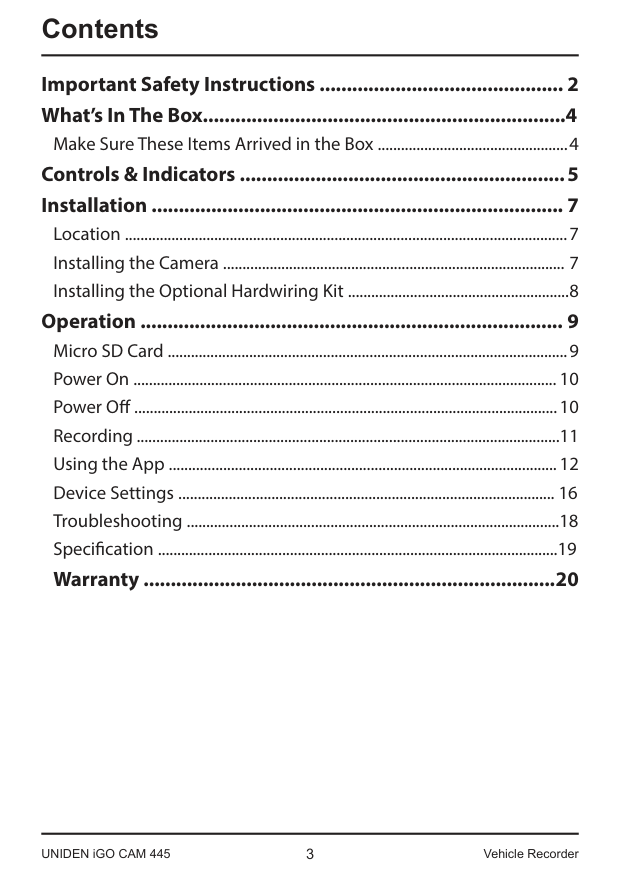
Uniden Camera with sticker mount bracket attached

Cigarette Charger
Controls & Indicators
##### Uniden iGOCAM 445
3
4
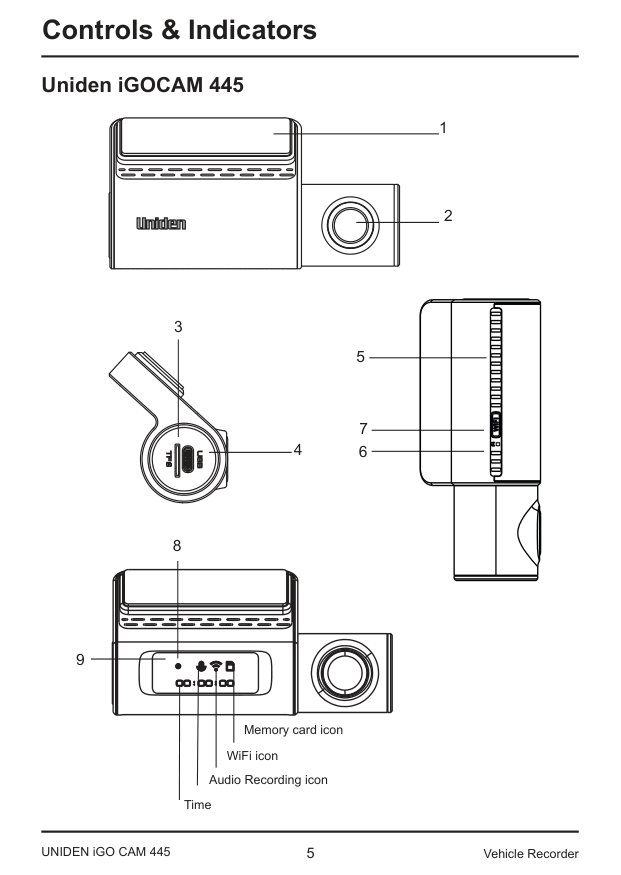
8
9
Memory card icon
WiFi icon
Audio Recording icon Time
UNIDEN iGO CAM 445 5 Vehicle Recorder
|Ref|Component|Description| |---|---|---| |1|Sticker Mount|Sticker Mount| |2|Lens|Lens| |3|Micro SD Card Slot|Insert micro SD Card (up to 128GB min Class 10/U1 above, recommend U3).|
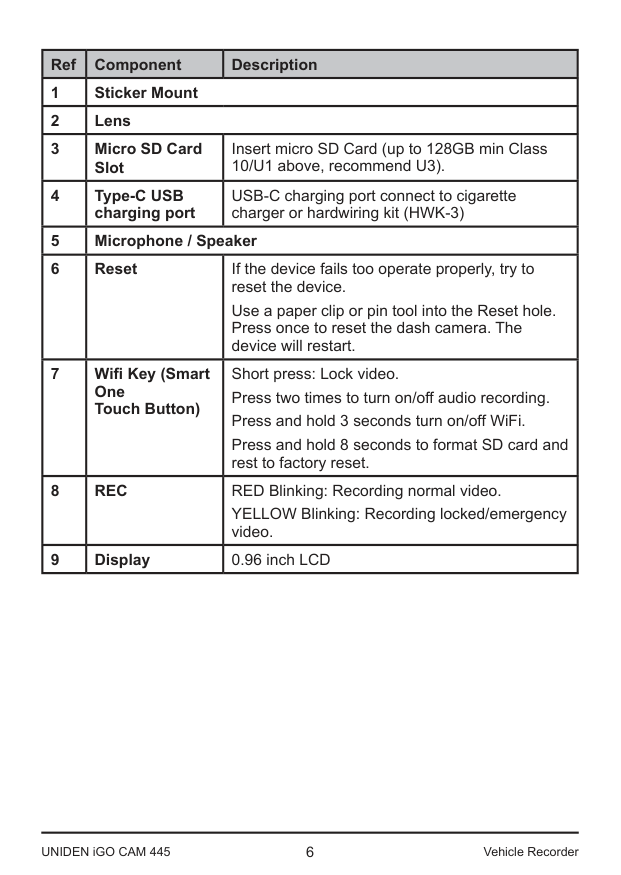
|4|Type-C USB charging port|USB-C charging port connect to cigarette charger or hardwiring kit (HWK-3)| |5|Microphone / Speaker|Microphone / Speaker| |6|Reset|If the device fails too operate properly, try to reset the device.
Use a paper clip or pin tool into the Reset hole. Press once to reset the dash camera. The device will restart.| |7|Wifi Key (Smart One Touch Button)|Short press: Lock video. Press two times to turn on/off audio recording. Press and hold 3 seconds turn on/off WiFi. Press and hold 8 seconds to format SD card and rest to factory reset.| |8|REC|RED Blinking: Recording normal video. YELLOW Blinking: Recording locked/emergency video.| |9|Display|0.96 inch LCD|
Installation Location
To have a better view, try to install the camera at the center of the windshield. Make sure the lens is located in a place where the windshield is clean to ensure the view is clear.
Make sure the device is not installed in a place where it will interfere with the airbag.
##### Installing the Camera
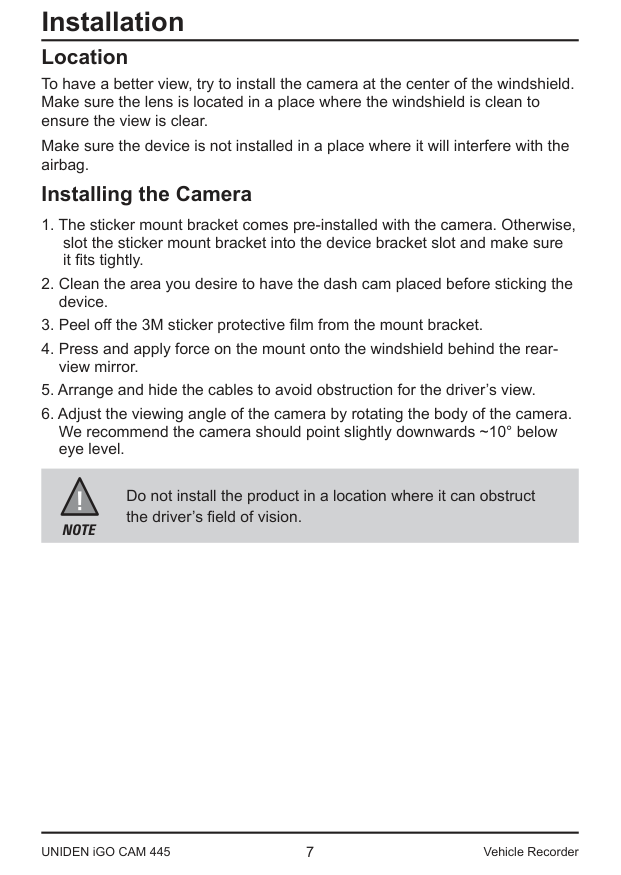
Do not install the product in a location where it can obstruct the driver’s field of vision.
NOTE
7UNIDEN iGO CAM 445 Vehicle Recorder
##### Installing the Optional Hardwiring Kit
If you wish to use the parking mode on the camera, you will need to install the hardwiring kit provided.
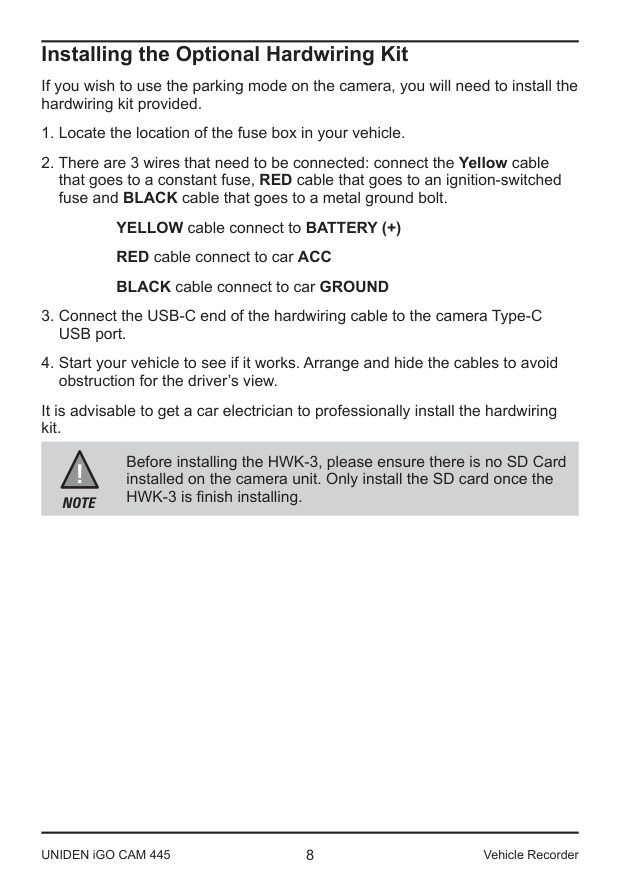
YELLOW cable connect to BATTERY (+) RED cable connect to car ACC BLACK cable connect to car GROUND
It is advisable to get a car electrician to professionally install the hardwiring kit.
Before installing the HWK-3, please ensure there is no SD Card installed on the camera unit. Only install the SD card once the HWK-3 is finish installing.
NOTE
Operation
##### Micro SD Card
The device support micro SDXC cards (Extended Capacity SD) up to 128GB in capacity. A micro SD card of at least 32GB capacity and minimum speed of Class U3 is recommended.
Insert the micro SD card gently in the slot at the side of the unit and press and hold the WIFI (Smart One Touch) button for 8 seconds for the voice prompt to format the micro SD Card for first use. To remove the card from the slot, please ensure the unit is powered off and press the edge of the micro SD card inwards for it to pop out and then pull it out of the slot. It is important to format the micro SD card before using it, so as to avoid any damage to the files created on iGOCAM 445 Uniden only recommends using good quality MLC/SLC Endurance micro SD cards for dash cam recording. Please check with SD card manufacturer to ensure that the SD card used is rated for Dash Cam recording. Video Storage Capacity
Refer to the table below for reference for the recording time for different card capacity and some of the recording resolution.
|Resolution|32GB|64GB|128GB| |---|---|---|---| |1440P|120 mins|240 mins|480 mins| |1080P|120 mins|240 mins|480 mins|
A compatible micro SD card has to be inserted before you start using the unit. Ensure that the unit is switched off before inserting or removing the micro SD card.
NOTE
Sticker mount is difficult to remove after it is installed and will not stick well on a curved/textured or wet surface.
NOTE
#### Power On
When connected to a car charger with power, the camera will automatically power on and start recording.
NOTE
Be sure insert the SD card before powering up the device. Format the SD card before you start recording for the first time.
NOTE
#### Power Off
When the car’s engine is turned off, the device will automatically turn off in a few seconds.
##### Power Information
The device is designed mainly for in-vehicle use, drawing on vehicle power or the vehicle battery when using the hardwiring kit (HWK-3).
The iGOCAM 445 has an in-built high quality, long life supercapacitor. It provides enough backup power to ensure any recording in progress is stored safely before shutting the camera off.
For the first time use, it is advisable to format the SD Card. Press and hold the WiFi (Smart One Touch) button for 8 seconds to format the SD Card.
NOTE
#### Recording
When connected to a car charger with power, the unit automatically goes into the record mode and starts recording.
To record a video, ensure that a valid micro SD card is inserted in the given slot. Also note, that inserting/removing the SD card when the device is recording causes the device to shutdown and in worst case missing recording files.
NOTE
###### Protect the Current Recording
While recording, if you want to protect the current recordings, then SHORT PRESS the Smart One Touch button ONCE. Those recordings have been locked and will not be overwritten by normal video recordings.
This also applies when the G-Sensor registers an impact while recording.
##### Using the App
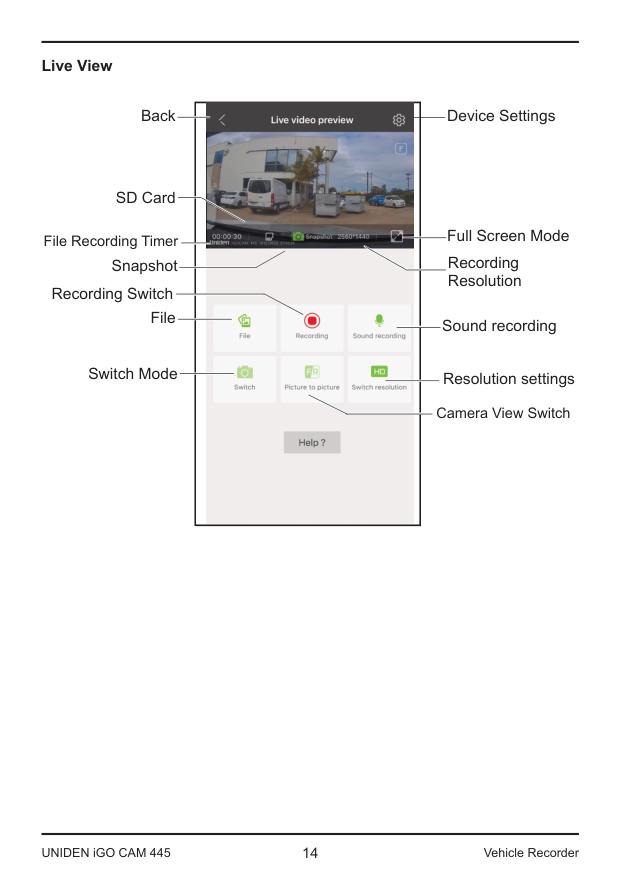
The “iGOCAM” App allows you to control the iGOCAM445 camera via WiFi. You can easily preview, browsing files, playback and download the files in the SD card into your mobile phone. The App also allows you to make changes to the device setting.
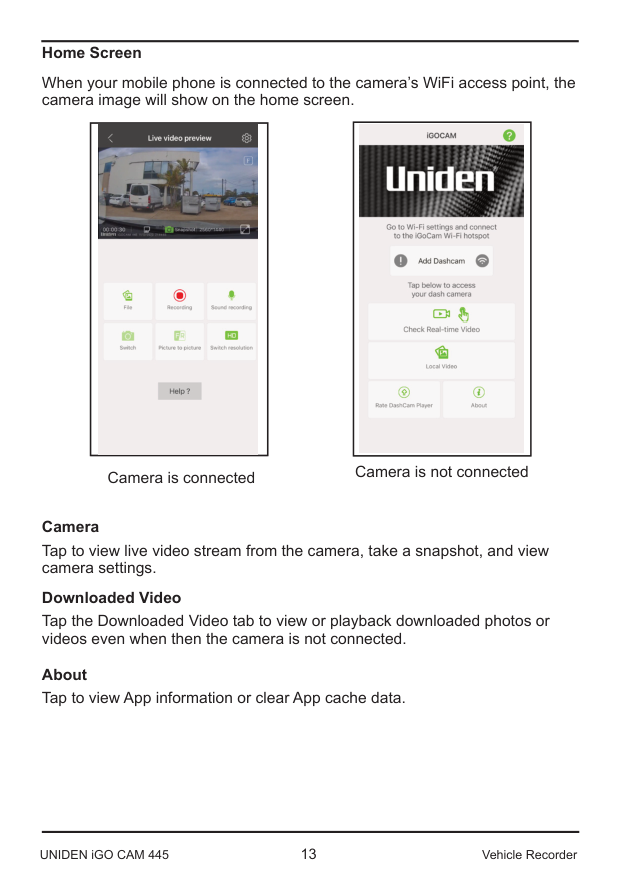
The iGOCAM445 camera WiFi access point is On by default. You can confirm this with the WiFi (Smart One Touch Button).
Connect your mobile phone to your iGOCAM within a line of sight range of 5m.
NOTE
Press and hold the WiFi button for 3 seconds to turn on/off the WiFi access point.
NOTE
If issue arrises from accessing the camera via APP for the first time, please format the SD Card by press and hold the Smart One Touch button for 8 seconds.
NOTE
######## Home Screen
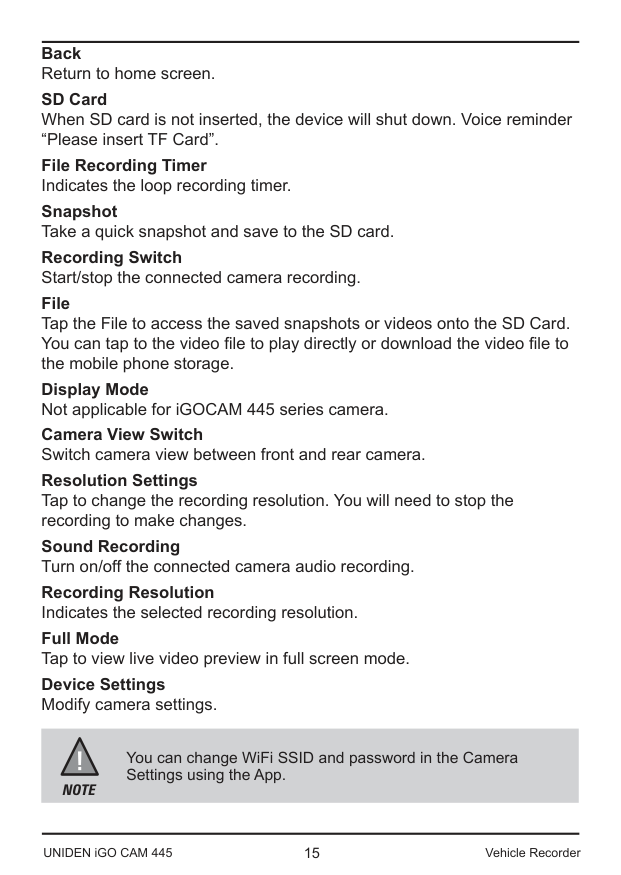
When your mobile phone is connected to the camera’s WiFi access point, the camera image will show on the home screen.
|| |---|
|| |---|
Camera is connected Camera is not connected
######## Camera
Tap to view live video stream from the camera, take a snapshot, and view camera settings.
######## Downloaded Video
Tap the Downloaded Video tab to view or playback downloaded photos or videos even when then the camera is not connected.
About Tap to view App information or clear App cache data.
######## Live View

Device Settings
Back
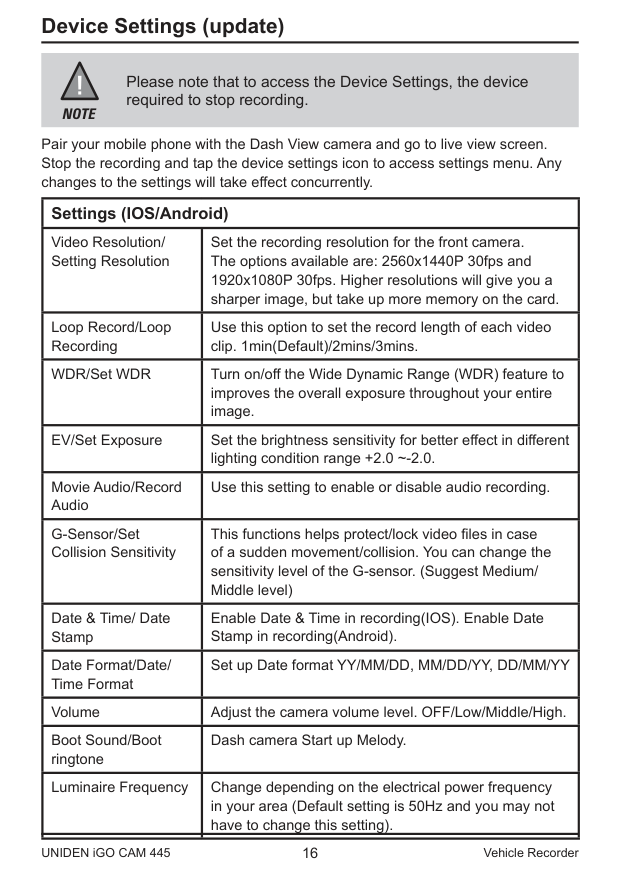
SD Card
Full Screen Mode
File Recording Timer
Recording Resolution
Snapshot Recording Switch
File
Sound recording
Switch Mode
Resolution settings
Camera View Switch
Back Return to home screen. SD Card When SD card is not inserted, the device will shut down. Voice reminder “Please insert TF Card”. File Recording Timer Indicates the loop recording timer. Snapshot Take a quick snapshot and save to the SD card. Recording Switch Start/stop the connected camera recording. File
Tap the File to access the saved snapshots or videos onto the SD Card. You can tap to the video file to play directly or download the video file to the mobile phone storage.
Display Mode Not applicable for iGOCAM 445 series camera. Camera View Switch Switch camera view between front and rear camera. Resolution Settings Tap to change the recording resolution. You will need to stop the recording to make changes. Sound Recording Turn on/off the connected camera audio recording. Recording Resolution Indicates the selected recording resolution. Full Mode Tap to view live video preview in full screen mode. Device Settings Modify camera settings.
You can change WiFi SSID and password in the Camera Settings using the App.
NOTE
Device Settings (update)
Please note that to access the Device Settings, the device required to stop recording.
NOTE
Pair your mobile phone with the Dash View camera and go to live view screen. Stop the recording and tap the device settings icon to access settings menu. Any changes to the settings will take effect concurrently.
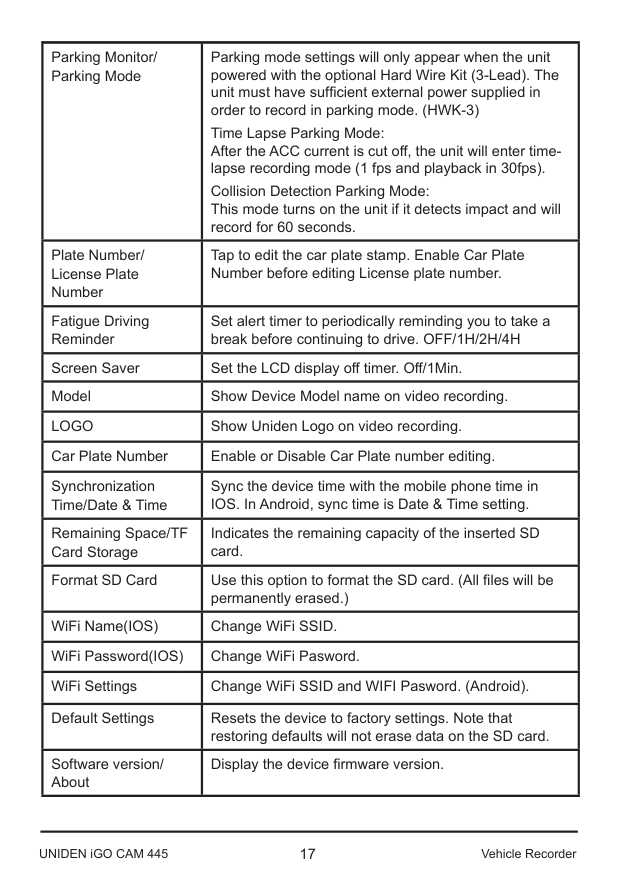
|Settings (IOS/Android)|Settings (IOS/Android)| |---|---| |Video Resolution/ Setting Resolution|Set the recording resolution for the front camera. The options available are: 2560x1440P 30fps and 1920x1080P 30fps. Higher resolutions will give you a sharper image, but take up more memory on the card.| |Loop Record/Loop Recording|Use this option to set the record length of each video clip. 1min(Default)/2mins/3mins.| |WDR/Set WDR|Turn on/off the Wide Dynamic Range (WDR) feature to improves the overall exposure throughout your entire image.| |EV/Set Exposure|Set the brightness sensitivity for better effect in different lighting condition range +2.0 ~-2.0.| |Movie Audio/Record Audio|Use this setting to enable or disable audio recording.| |G-Sensor/Set Collision Sensitivity|This functions helps protect/lock video files in case of a sudden movement/collision. You can change the sensitivity level of the G-sensor. (Suggest Medium/ Middle level)| |Date & Time/ Date Stamp|Enable Date & Time in recording(IOS). Enable Date Stamp in recording(Android).| |Date Format/Date/ Time Format|Set up Date format YY/MM/DD, MM/DD/YY, DD/MM/YY| |Volume|Adjust the camera volume level. OFF/Low/Middle/High.| |Boot Sound/Boot ringtone|Dash camera Start up Melody.|
|Luminaire Frequency|Change depending on the electrical power frequency in your area (Default setting is 50Hz and you may not have to change this setting).|
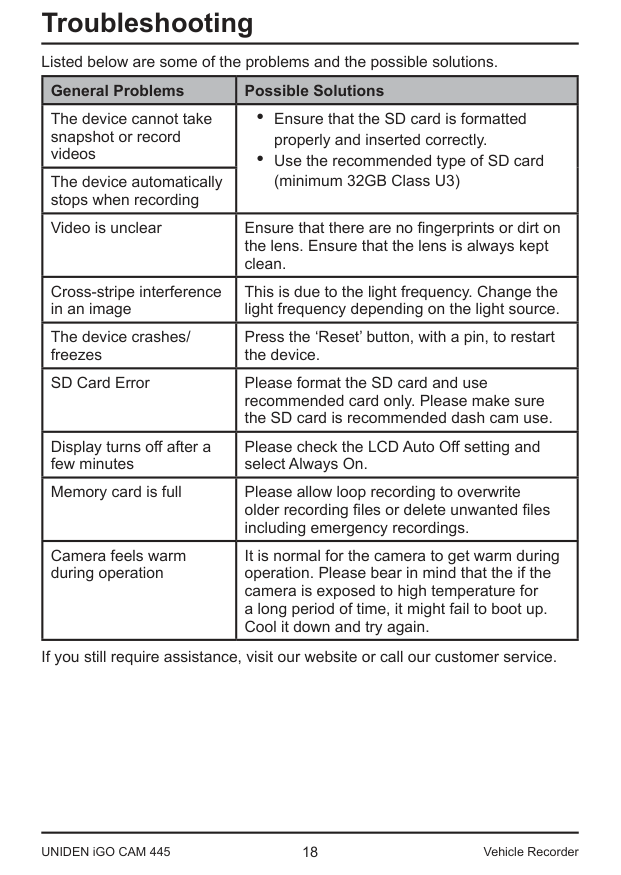
|Parking Monitor/ Parking Mode|Parking mode settings will only appear when the unit powered with the optional Hard Wire Kit (3-Lead). The unit must have sufficient external power supplied in order to record in parking mode. (HWK-3) Time Lapse Parking Mode: After the ACC current is cut off, the unit will enter timelapse recording mode (1 fps and playback in 30fps). Collision Detection Parking Mode: This mode turns on the unit if it detects impact and will record for 60 seconds.| |---|---| |Plate Number/ License Plate Number|Tap to edit the car plate stamp. Enable Car Plate Number before editing License plate number.| |Fatigue Driving Reminder|Set alert timer to periodically reminding you to take a break before continuing to drive. OFF/1H/2H/4H| |Screen Saver|Set the LCD display off timer. Off/1Min.| |Model|Show Device Model name on video recording.| |LOGO|Show Uniden Logo on video recording.| |Car Plate Number|Enable or Disable Car Plate number editing.| |Synchronization Time/Date & Time|Sync the device time with the mobile phone time in IOS. In Android, sync time is Date & Time setting.| |Remaining Space/TF Card Storage|Indicates the remaining capacity of the inserted SD card.| |Format SD Card|Use this option to format the SD card. (All files will be permanently erased.)| |WiFi Name(IOS)|Change WiFi SSID.| |WiFi Password(IOS)|Change WiFi Pasword.| |WiFi Settings|Change WiFi SSID and WIFI Pasword. (Android).|
|Default Settings|Resets the device to factory settings. Note that restoring defaults will not erase data on the SD card.| |Software version/ About|Display the device firmware version.|
Troubleshooting
Listed below are some of the problems and the possible solutions.
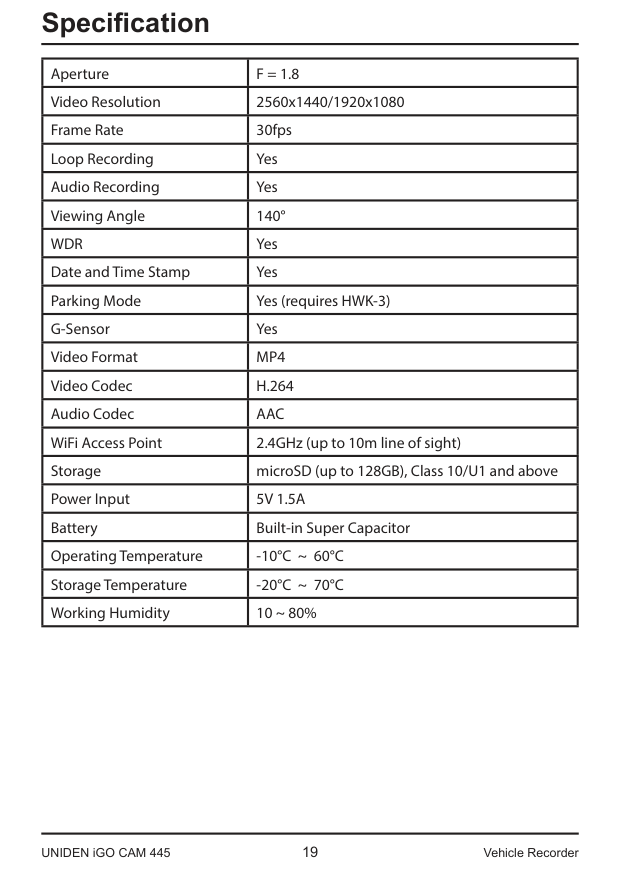
|General Problems|Possible Solutions| |---|---| |The device cannot take snapshot or record videos|• Ensure that the SD card is formatted properly and inserted correctly.
• Use the recommended type of SD card (minimum 32GB Class U3)
| |The device automatically stops when recording|• Ensure that the SD card is formatted properly and inserted correctly.
• Use the recommended type of SD card (minimum 32GB Class U3)
| |Video is unclear|Ensure that there are no fingerprints or dirt on the lens. Ensure that the lens is always kept clean.| |Cross-stripe interference in an image|This is due to the light frequency. Change the light frequency depending on the light source.| |The device crashes/ freezes|Press the ‘Reset’ button, with a pin, to restart the device.| |SD Card Error|Please format the SD card and use recommended card only. Please make sure the SD card is recommended dash cam use.| |Display turns off after a few minutes|Please check the LCD Auto Off setting and select Always On.|
|Memory card is full|Please allow loop recording to overwrite older recording files or delete unwanted files including emergency recordings.| |Camera feels warm during operation|It is normal for the camera to get warm during operation. Please bear in mind that the if the camera is exposed to high temperature for a long period of time, it might fail to boot up. Cool it down and try again.|
If you still require assistance, visit our website or call our customer service.
Specification
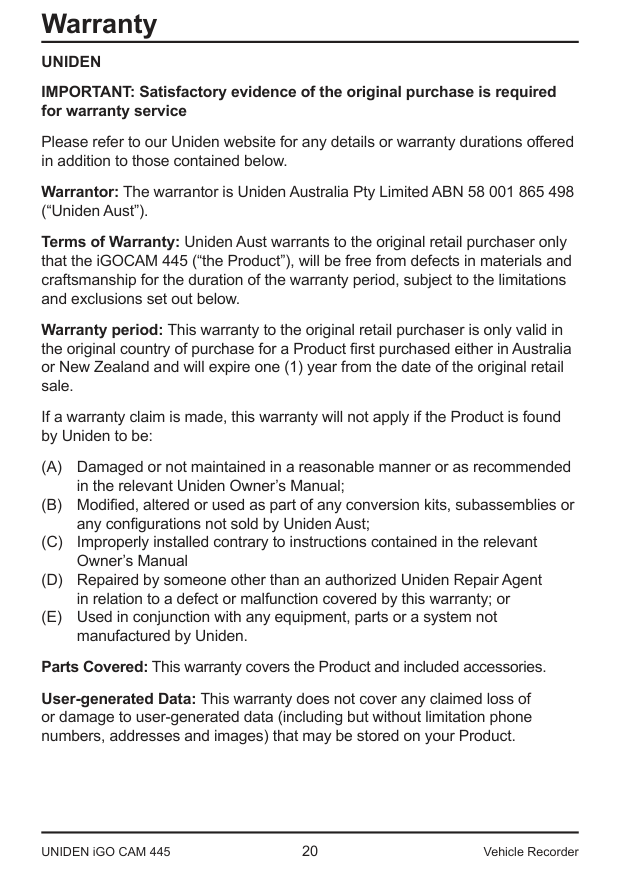
|Aperture|F = 1.8| |---|---| |Video Resolution|2560x1440/1920x1080| |Frame Rate|30fps| |Loop Recording|Yes| |Audio Recording|Yes| |Viewing Angle|140°| |WDR|Yes| |Date and Time Stamp|Yes|

|Parking Mode|Yes (requires HWK-3)| |G-Sensor|Yes| |Video Format|MP4| |Video Codec|H.264| |Audio Codec|AAC| |WiFi Access Point|2.4GHz (up to 10m line of sight)| |Storage|microSD (up to 128GB), Class 10/U1 and above| |Power Input|5V 1.5A| |Battery|Built-in Super Capacitor| |Operating Temperature|-10°C ~ 60°C| |Storage Temperature|-20°C ~ 70°C| |Working Humidity|10 ~ 80%|
Warranty UNIDEN IMPORTANT: Satisfactory evidence of the original purchase is required for warranty service
Please refer to our Uniden website for any details or warranty durations offered in addition to those contained below.

Warrantor: The warrantor is Uniden Australia Pty Limited ABN 58 001 865 498 (“Uniden Aust”).
Terms of Warranty: Uniden Aust warrants to the original retail purchaser only that the iGOCAM 445 (“the Product”), will be free from defects in materials and craftsmanship for the duration of the warranty period, subject to the limitations and exclusions set out below.
Warranty period: This warranty to the original retail purchaser is only valid in the original country of purchase for a Product first purchased either in Australia or New Zealand and will expire one (1) year from the date of the original retail sale.
If a warranty claim is made, this warranty will not apply if the Product is found by Uniden to be:
Parts Covered: This warranty covers the Product and included accessories.
User-generated Data: This warranty does not cover any claimed loss of or damage to user-generated data (including but without limitation phone numbers, addresses and images) that may be stored on your Product.
Statement of Remedy: If the Product is found not to conform to this warranty as stated above, the Warrantor, at its discretion, will either repair the defect or replace the Product without any charge for parts or service. This warranty does not include any reimbursement or payment of any consequential damages claimed to arise from a Product’s failure to comply with the warranty.
Our goods come with guarantees that cannot be excluded under the Australian Consumer Law. You are entitled to a replacement or refund for a major failure and for compensation for any other reasonably foreseeable loss or damage. You are also entitled to have the goods repaired or replaced if the goods fail to be of acceptable quality and the failure does not amount to a major failure.
This warranty is in addition to and sits alongside your rights under either the COMPETITION AND CONSUMER ACT 2010 (Australia) or the CONSUMER GUARANTEES ACT (New Zealand) as the case may be, none of which can be excluded.
Procedure for obtaining warranty service: Depending on the country in which the Product was first purchased, if you believe that your Product does not conform with this warranty, you should deliver the Product, together with satisfactory evidence of your original purchase (such as a legible copy of the sales docket) to Uniden. Please refer to the Uniden website for address details. You should contact Uniden regarding any compensation that may be payable for your expenses incurred in making a warranty claim. Prior to delivery, we recommend that you make a backup copy of any phone numbers, images or other data stored on your Product, in case it is lost or damaged during warranty service.
UNIDEN AUSTRALIA PTY LTD Phone: 1300 366 895 Email: custservice@uniden.com.au
####### © 2024 Uniden Australia Pty Limited. Printed in China V1.1