Ask AI
— answers from the official manualAnswers from the official manual.
Common questions
Common Questions
15 totalWhat should I do if I experience connectivity issues?
Verify that the phone is within the coverage area of your network provider and restart the phone to reset network connections. You should also check for software updates that may address connectivity issues. This addresses Error Code 3 (Network connectivity issue).
How do I use the camera to take photos and videos?
Access the camera interface to take photos and record videos, then use two fingers to zoom in or out on the screen. You can tap the screen to set the focus position and lock the focus on desired objects.
What is the EasyShare feature and how do I use it?
EasyShare allows you to send and receive files without consuming data or requiring a Wi-Fi connection. This feature provides a convenient way to transfer files between devices.
How do I use vivoCloud for data backup and restoration?
Register or log into a vivo account to use vivoCloud services for data backup and restoration. This service provides cloud-based storage for protecting and restoring your phone data.
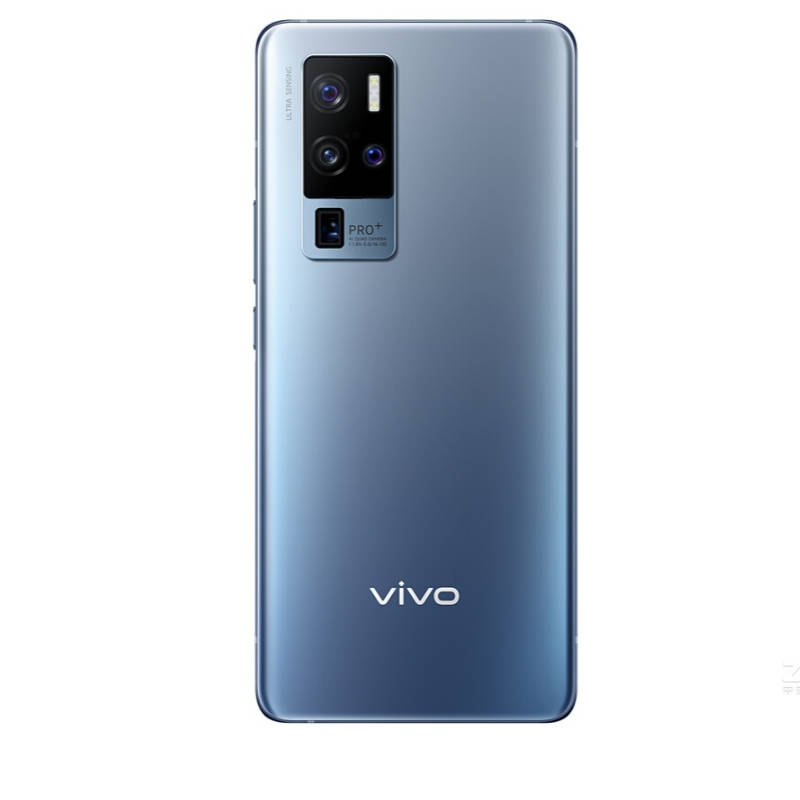
How do I charge the Vivo X50 Pro?
Connect one end of the data cable to the USB port on the phone and the other end to a charger or compatible device. After charging is complete, disconnect the phone from the charger.
What should I do if my phone is not charging?
Check if the charging cable and adapter are functioning correctly, and ensure the USB port on the phone is clean and free from debris. If the phone does not charge, try using a different charger or cable. This addresses Error Code 2 (Charging error).
Show 9 more questions
How do I add a new email account?
How do I properly clean the USB port on my Vivo X50 Pro?
Can I use the EasyShare feature to send files without using data?
My SIM card is not being recognized. What can I do?
I'm experiencing connectivity issues. How can I fix them?
What should I do to keep my phone's USB port in good condition?
How do I charge my Vivo X50 Pro?
Can I use the camera to zoom in and out?
What is the vivoCloud service and how do I use it?