
Ask AI
— answers from the official manualAnswers from the official manual.
Common questions
Common Questions
10 totalHow do I set up repeater mode?
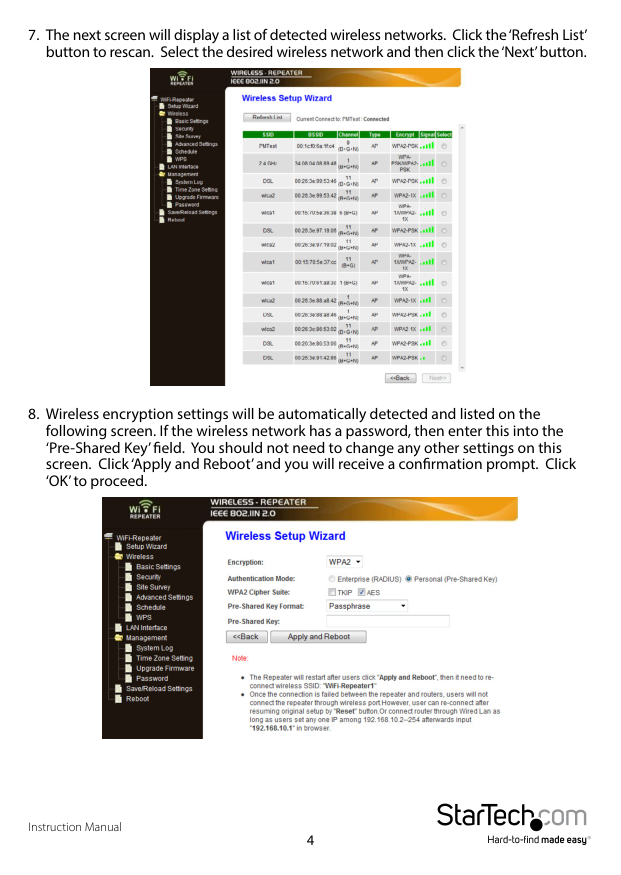
To configure the device in Repeater mode, plug it into power and connect a wired Ethernet cable to your computer OR wireless ‘WiFi-Repeater’ network. Access the web interface at IP address 192.168.10.1 with 'admin' credentials. Follow Setup Wizard > Wireless Repeater Mode steps.
What should I do if setup encounters an error code?
If any errors or warning codes are displayed during the configuration process, such as issues detecting wireless networks, double-check all settings and refer to the Detailed Explanation of Errors section for assistance on troubleshooting.
How can I factory reset the device?
Press and hold the reset button near the RJ45 port for 10 seconds until the device reboots. Alternatively, through the web interface go to Advanced Configuration > Save/Reload settings and click 'Reset'.
How do I change my WiFi network’s WPA key?
While in Repeater mode, connect via Ethernet or Wi-Fi, open the configuration interface at 192.168.10.1 with admin/admin login, and navigate to Wireless > Basic Settings > Security for WPA/WPA2 PSK configuration.
What is wireless encryption?
The supported wireless security protocols are WEP, WPA, and WPA2 which help prevent unauthorized access to your network. Make sure these settings match those of the primary router’s SSID.
How do I reboot my device?
From within the web interface under Management settings, navigate to Reboot section and click Reboot button for a soft restart. A full hardware reset is possible by holding reset switch 10 seconds.
Full Manual
18 pages
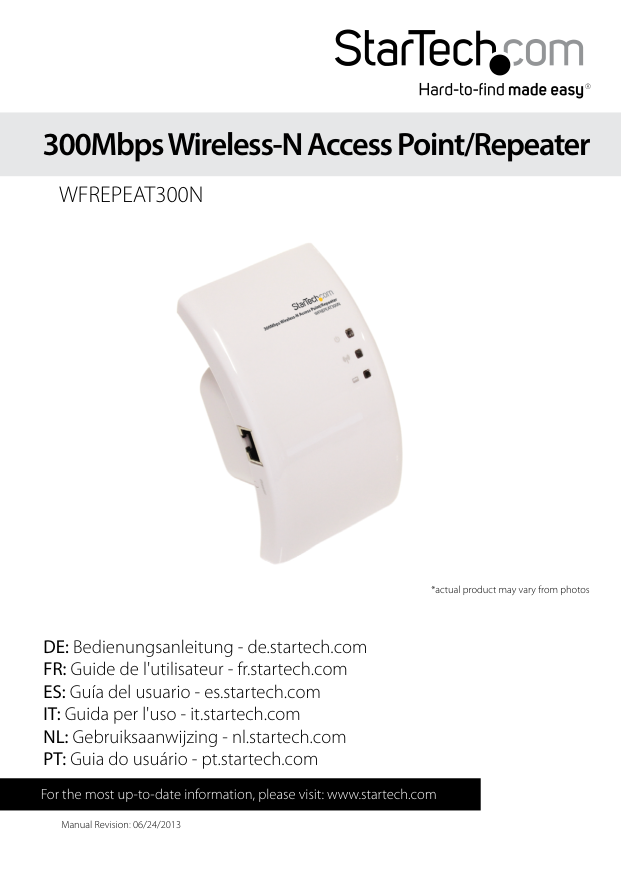
300Mbps Wireless-N Access Point/Repeater
WFREPEAT300N

*actual product may vary from photos
DE: Bedienungsanleitung - de.startech.com FR: Guide de l'utilisateur - fr.startech.com ES: Guía del usuario - es.startech.com IT: Guida per l'uso - it.startech.com NL: Gebruiksaanwijzing - nl.startech.com PT: Guia do usuário - pt.startech.com
For the most up-to-date information, please visit: www.startech.com
Manual Revision: 06/24/2013
###### FCC Compliance Statement
This equipment has been tested and found to comply with the limits for a Class B digital device, pursuant to part 15 of the FCC Rules. These limits are designed to provide reasonable protection against harmful interference in a residential installation. This equipment generates, uses and can radiate radio frequency energy and, if not installed and used in accordance with the instructions, may cause harmful interference to radio communications. However, there is no guarantee that interference will not occur in a particular installation. If this equipment does cause harmful interference to radio or television reception, which can be determined by turning the equipment off and on, the user is encouraged to try to correct the interference by one or more of the following measures:
######## Use of Trademarks, Registered Trademarks, and other Protected Names and Symbols
This manual may make reference to trademarks, registered trademarks, and other protected names and/or symbols of third-party companies not related in any way to StarTech.com. Where they occur these references are for illustrative purposes only and do not represent an endorsement of a product or service by StarTech.com, or an endorsement of the product(s) to which this manual applies by the third-party company in question. Regardless of any direct acknowledgement elsewhere in the body of this document, StarTech.com hereby acknowledges that all trademarks, registered trademarks, service marks, and other protected names and/or symbols contained in this manual and related documents are the property of their respective holders.
Instruction Manual
Table of Contents
Introduction ............................................................................................1 Packaging Contents .................................................................................................................................1 System Requirements ..............................................................................................................................1
Diagram ...................................................................................................2 Front ...............................................................................................................................................................2 Back ................................................................................................................................................................2
Installation ..............................................................................................3 Repeater Mode Setup: .............................................................................................................................3 Access Point Mode Setup: ......................................................................................................................6
Advanced Configuration .......................................................................8 Wireless .........................................................................................................................................................9 Wireless Cont’d ...........................................................................................................................................10 LAN Interface ..............................................................................................................................................11 Management ..............................................................................................................................................11 Save/Reload Settings ...............................................................................................................................12 Reboot ...........................................................................................................................................................12
##### Specifications ..........................................................................................13 Technical Support ..................................................................................14 Warranty Information ............................................................................14
Instruction Manual
i
Introduction
The WFREPEAT300N 300Mbps Wireless-N WiFi Access Point and Repeater has two selectable modes for extending the range of existing wireless networks or adding wireless capabilities to a non-wireless network. Using a wall plug design, this allows for convenient or hidden placement anywhere there is an available AC outlet. As a wireless repeater, the effective range of any 802.11n WiFi network can be increased, while still providing up to 300Mbps of data bandwidth. This WiFi signal booster can help eliminate dead spots and provide a stronger signal in areas with obstructions that can reduce the range of a wireless signal. The WiFi range extender is also backward compatible with 802.11b/802.11g networks. As a wireless access point (AP), any nonwireless router can be given wireless-N capabilities. Built in wireless security (WEP/ WPA/WPA2) will help to keep the network private. Backed by a StarTech.com 2-year warranty and free lifetime technical support.
#### Packaging Contents
Diagram
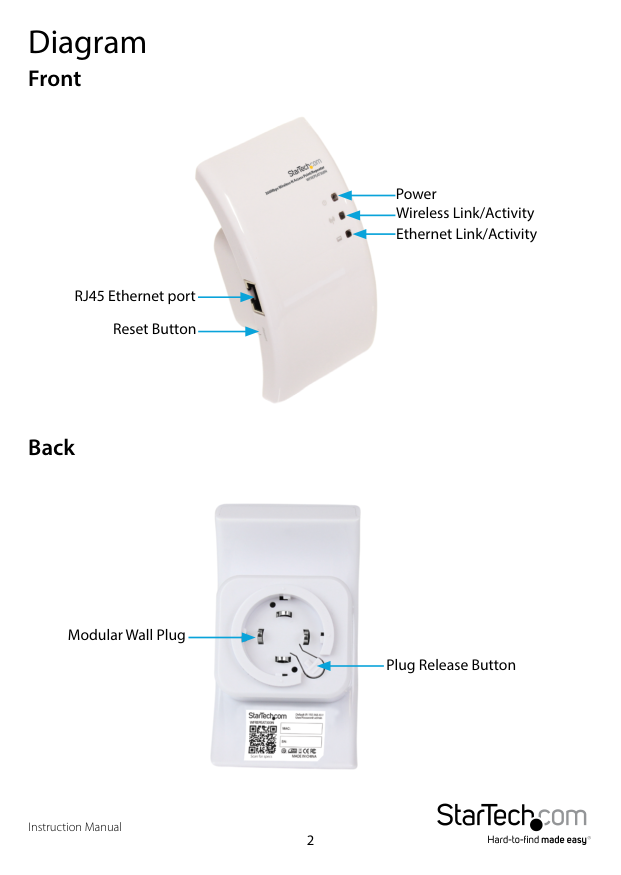
Front

Power Wireless Link/Activity
Ethernet Link/Activity
RJ45 Ethernet port Reset Button
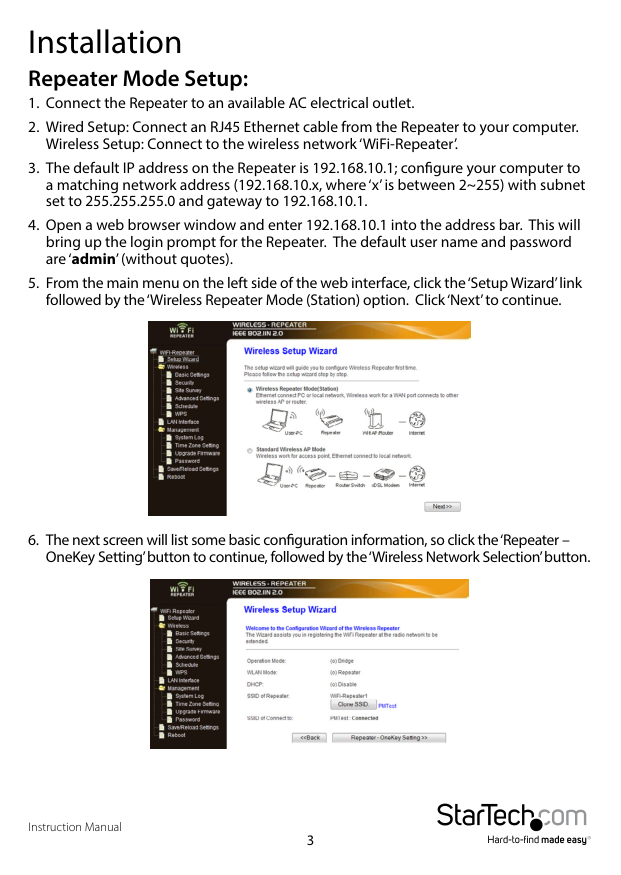
Back

Modular Wall Plug
Plug Release Button
Installation
#### Repeater Mode Setup:
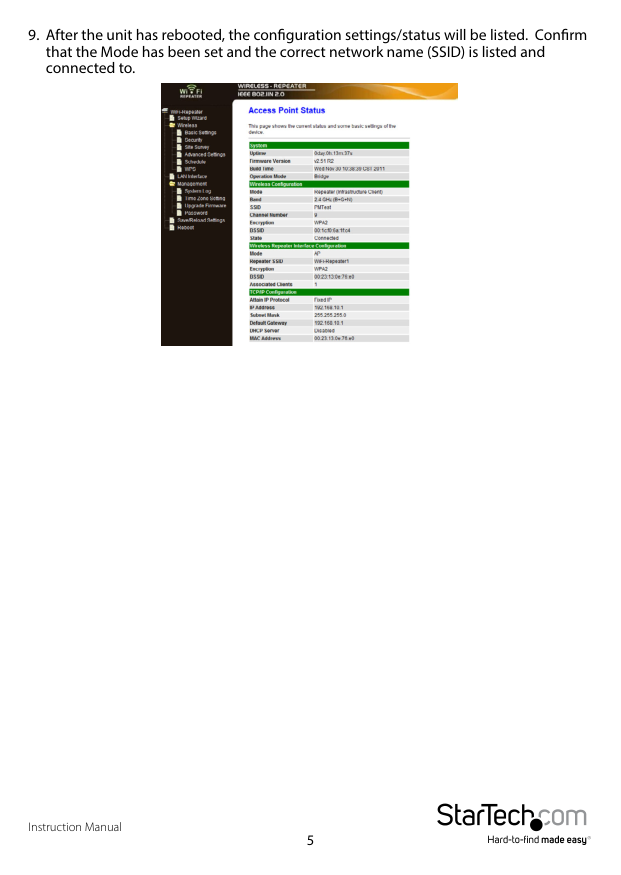



######### 9. After the unit has rebooted, the configuration settings/status will be listed. Confirmthat the Mode has been set and the correct network name (SSID) is listed andconnected to.

#### Access Point Mode Setup:
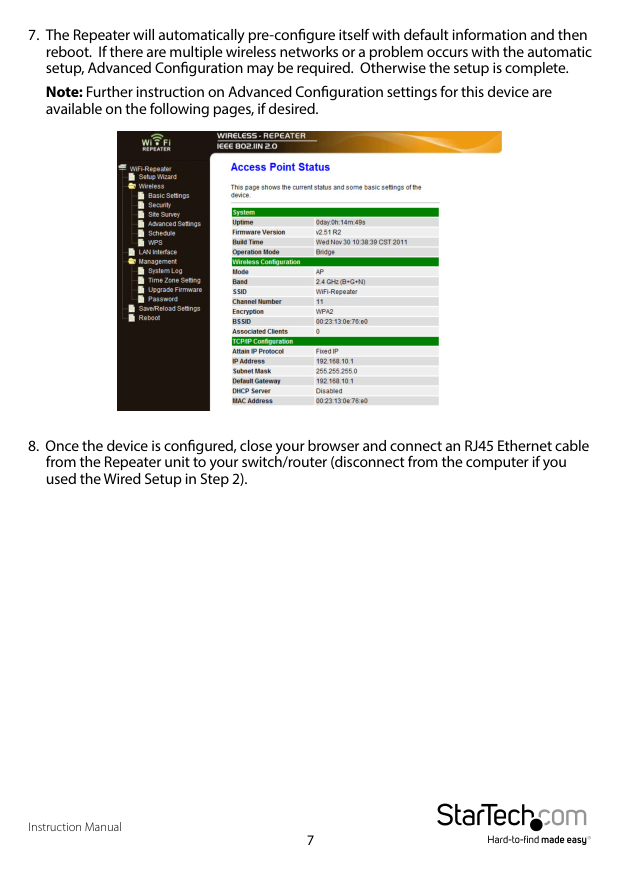


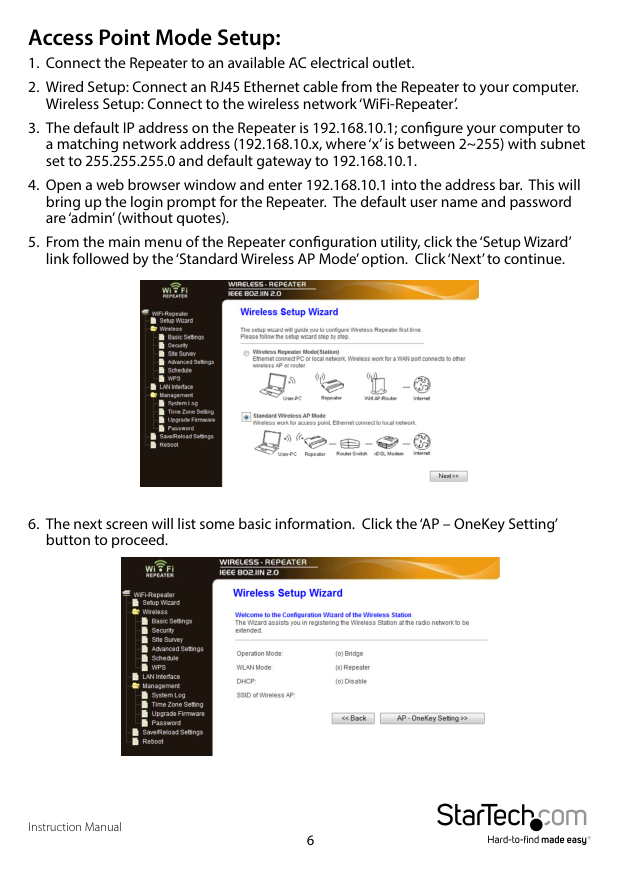
######### 7. The Repeater will automatically pre-configure itself with default information and thenreboot. If there are multiple wireless networks or a problem occurs with the automaticsetup, Advanced Configuration may be required. Otherwise the setup is complete.
Note: Further instruction on Advanced Configuration settings for this device are available on the following pages, if desired.

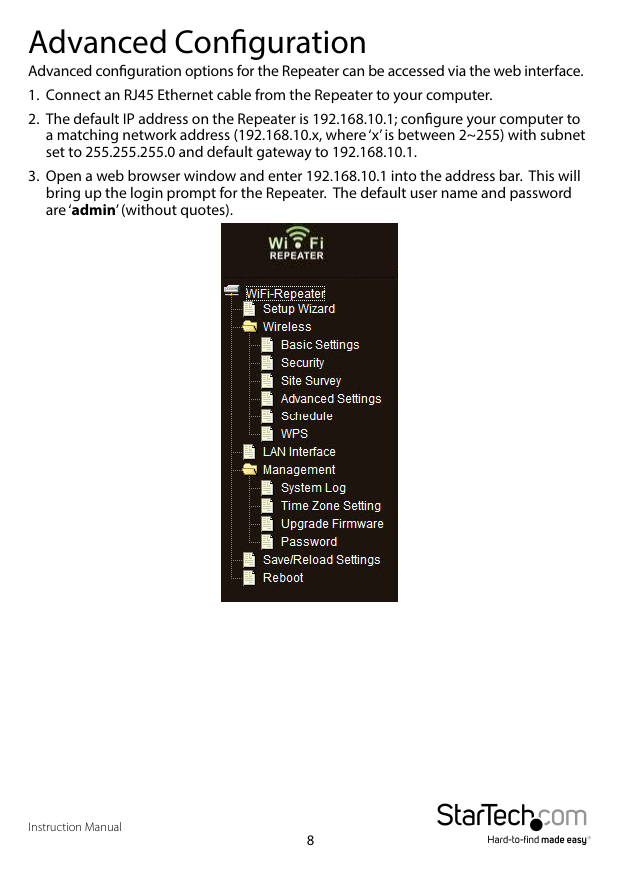
######### 8. Once the device is configured, close your browser and connect an RJ45 Ethernet cablefrom the Repeater unit to your switch/router (disconnect from the computer if youused the Wired Setup in Step 2).
Advanced Configuration
Advanced configuration options for the Repeater can be accessed via the web interface.

#### Wireless
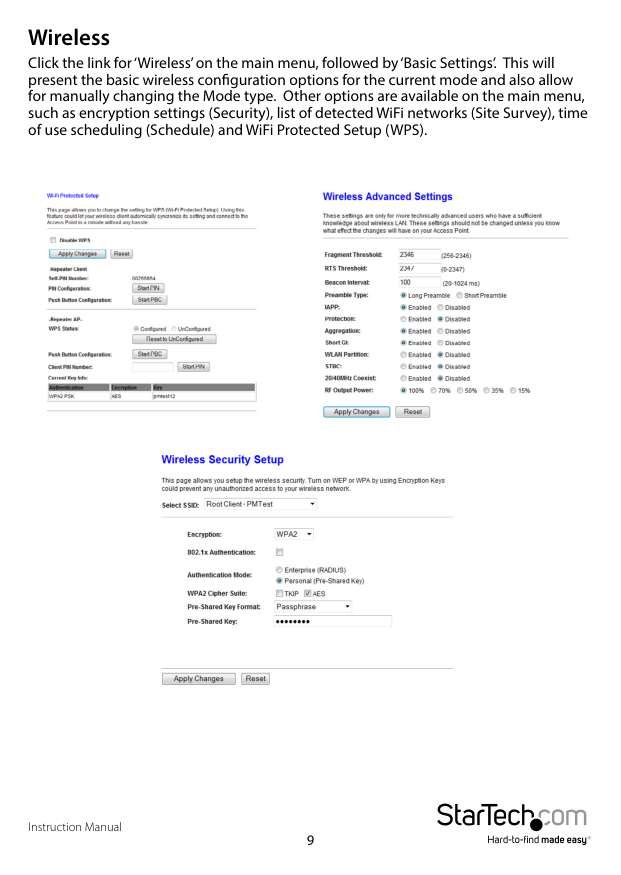
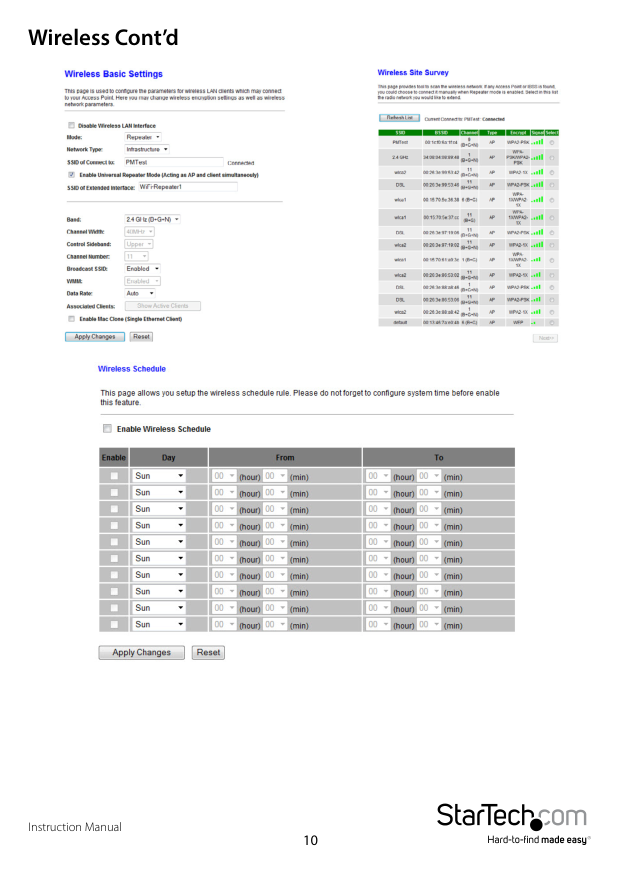
Click the link for ‘Wireless’ on the main menu, followed by ‘Basic Settings’. This will present the basic wireless configuration options for the current mode and also allow for manually changing the Mode type. Other options are available on the main menu, such as encryption settings (Security), list of detected WiFi networks (Site Survey), time of use scheduling (Schedule) and WiFi Protected Setup (WPS).


#### Wireless Cont’d



#### LAN Interface
The ‘LAN Interface’ options allow for configuration of settings for the LAN port (RJ45), when used in Access Point mode. The Unit’s IP address, DHCP settings and other related settings can be customized to match your needs.

#### Management
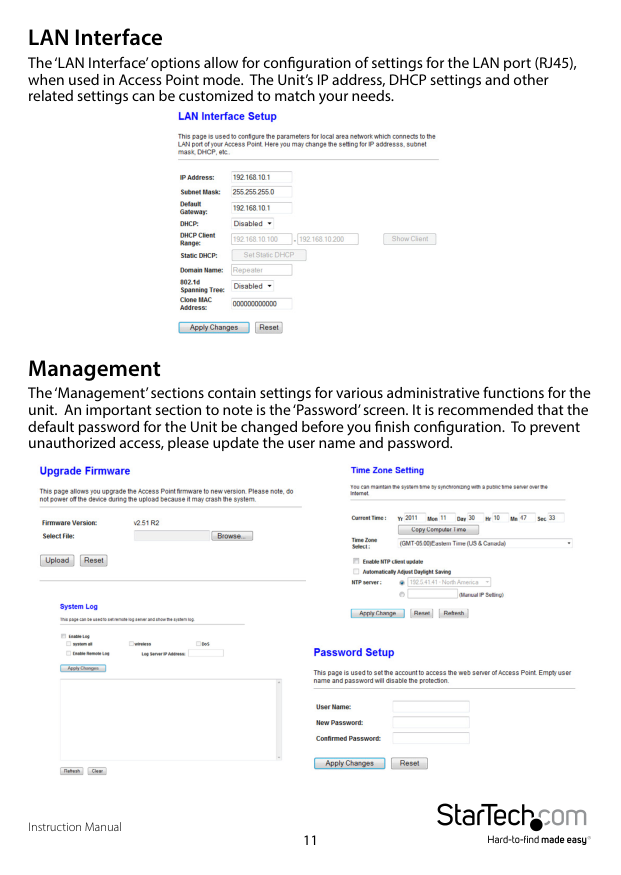
The ‘Management’ sections contain settings for various administrative functions for the unit. An important section to note is the ‘Password’ screen. It is recommended that the default password for the Unit be changed before you finish configuration. To prevent unauthorized access, please update the user name and password.


#### Save/Reload Settings
The current settings for the unit can be saved to a file on your computer and reloaded onto the Repeater at any time. The Repeater can be reset to factory defaults from this screen, by clicking the ‘Reset’ button. The Repeater can also be reset to factory defaults by pressing and holding the ‘Reset’ button, located next to the RJ45 port, for
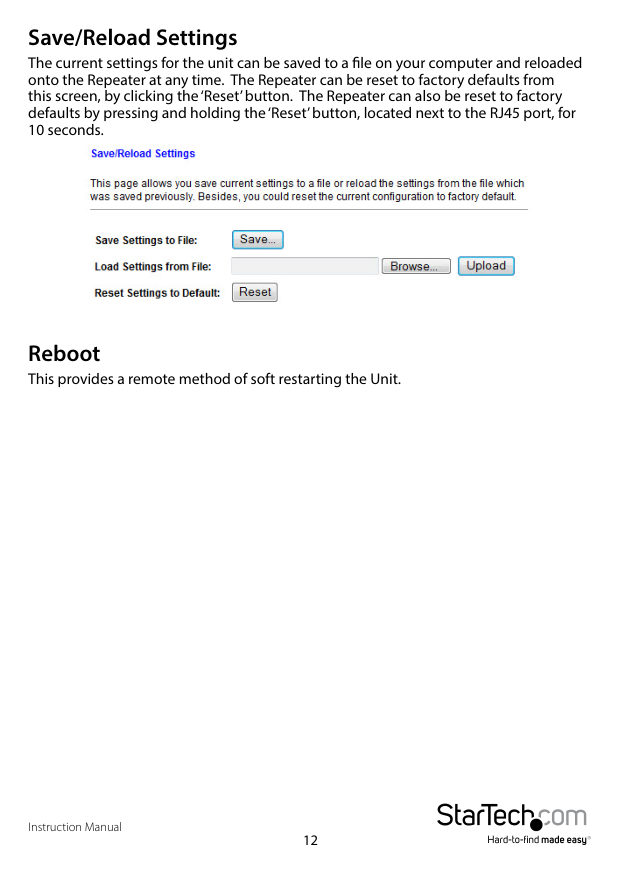

Reboot This provides a remote method of soft restarting the Unit.
Specifications
######## Supported Wireless Standards
IEEE 802.11b/g/n Chipset ID Realtek RTL8196C
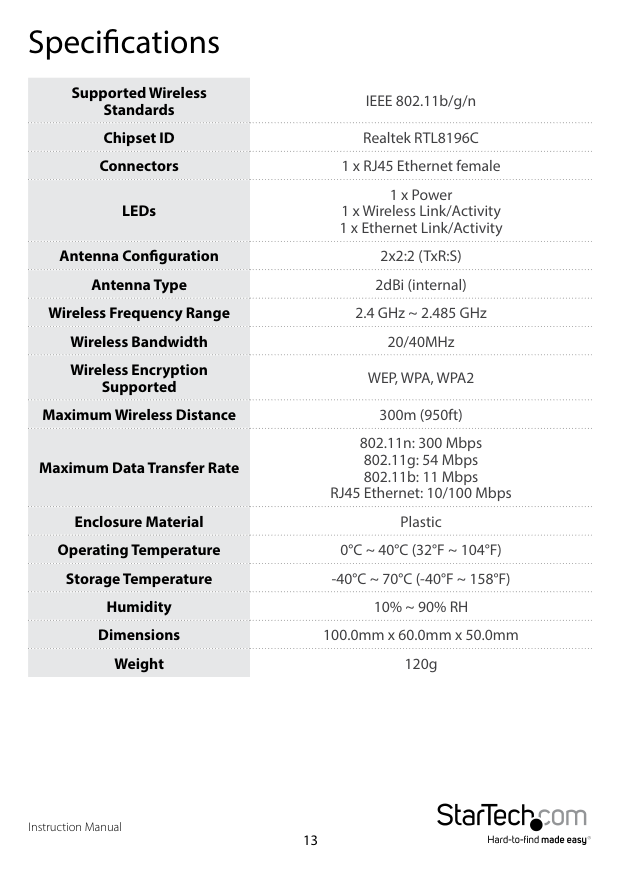
Connectors 1 x RJ45 Ethernet female
1 x Power 1 x Wireless Link/Activity 1 x Ethernet Link/Activity
LEDs
Antenna Configuration 2x2:2 (TxR:S) Antenna Type 2dBi (internal)
Wireless Frequency Range 2.4 GHz ~ 2.485 GHz Wireless Bandwidth 20/40MHz Wireless Encryption Supported
WEP, WPA, WPA2 Maximum Wireless Distance 300m (950ft)
802.11n: 300 Mbps 802.11g: 54 Mbps 802.11b: 11 Mbps RJ45 Ethernet: 10/100 Mbps Enclosure Material Plastic
Maximum Data Transfer Rate
######## Operating Temperature 0°C ~ 40°C (32°F ~ 104°F)
Storage Temperature -40°C ~ 70°C (-40°F ~ 158°F) Humidity 10% ~ 90% RH
Dimensions 100.0mm x 60.0mm x 50.0mm Weight 120g
Technical Support
StarTech.com’s lifetime technical support is an integral part of our commitment to provide industry-leading solutions. If you ever need help with your product, visit www.startech.com/support and access our comprehensive selection of online tools, documentation, and downloads.

For the latest drivers/software, please visit www.startech.com/downloads
Warranty Information
This product is backed by a two year warranty.
In addition, StarTech.com warrants its products against defects in materials and workmanship for the periods noted, following the initial date of purchase. During this period, the products may be returned for repair, or replacement with equivalent products at our discretion. The warranty covers parts and labor costs only. StarTech.com does not warrant its products from defects or damages arising from misuse, abuse, alteration, or normal wear and tear.
####### Limitation of Liability
In no event shall the liability of StarTech.com Ltd. and StarTech.com USA LLP (or their officers, directors, employees or agents) for any damages (whether direct or indirect, special, punitive, incidental, consequential, or otherwise), loss of profits, loss of business, or any pecuniary loss, arising out of or related to the use of the product exceed the actual price paid for the product. Some states do not allow the exclusion or limitation of incidental or consequential damages. If such laws apply, the limitations or exclusions contained in this statement may not apply to you.
Hard-to-find made easy. At StarTech.com, that isn’t a slogan. It’s a promise.
StarTech.com is your one-stop source for every connectivity part you need. From the latest technology to legacy products — and all the parts that bridge the old and new — we can help you find the parts that connect your solutions.
We make it easy to locate the parts, and we quickly deliver them wherever they need to go. Just talk to one of our tech advisors or visit our website. You’ll be connected to the products you need in no time.
Visit www.startech.com for complete information on all StarTech.com products and to access exclusive resources and time-saving tools.
StarTech.com is an ISO 9001 Registered manufacturer of connectivity and technology parts. StarTech.com was founded in 1985 and has operations in the United States, Canada, the United Kingdom and Taiwan servicing a worldwide market.