
Ask AI
— answers from the official manualAnswers from the official manual.
Common questions
Common Questions
10 totalHow do I perform a factory reset on the ZD220 Series Desktop Printer?
Press and hold the FEED (Advance) button for two seconds until the STATUS indicator flashes three times. This resets the printer to its factory defaults, clearing all settings and requiring re-pairing of connected devices (Page 24).
What steps should I follow to load media in my ZD220 Series Desktop Printer?
1. Open the printer by pulling the release latches towards you and lifting the cover. 2. Place the media roll into the holders and extend the material out of the front of the printer. 3. Adjust the movable sensor for black marks or notches if needed. (For detailed instructions, go to Loading Media on page 32).
How do I load a thermal transfer roll ribbon on my ZD220 printer?
1. Place an empty core on the take-up spindles. 2. Place a new ribbon roll on the supply spindle. 3. Attach the ribbon to the take-up core and remove slack by rotating the hub (For detailed steps, see Thermal Transfer Roll Ribbon Loading on page 39).
How do I recover when my ZD220 Series Printer runs out of media?
1. Open the printer and remove or replace the empty roll of used media with a new one. 2. Press FEED (Advance) once to resume printing if using the same type of media or recalibrate for different media types before resuming (Refer to Recovering from a Media-Out Condition on page 51).
What should I do when my printer status indicator flashes red?
Flashing red indicates either a media-out or ribbon-out condition. Open the printer, check and replace the used roll with new media or ribbon as required (For full troubleshooting steps, visit Troubleshooting on page 115).
How can I initialize setup mode via FEED button for my ZD220 printer?
To enter configuration mode, with the printer turned ON and ready (STATUS light green), press and hold the FEED button until the STATUS indicator blinks once. Release the button to print a Configuration Report that checks basic operation (For more information see FEED Button Modes – Power ON on page 24).
Full Manual
151 pages
ZD200 Series
Thermal Transfer Desktop Printer
User Guide
P1129638-03EN Rev A
####### Copyright
2025/09/30 ZEBRA and the stylized Zebra head are trademarks of Zebra Technologies Corporation, registered in many jurisdictions worldwide. All other trademarks are the property of their respective owners. ©2025 Zebra Technologies Corporation and/or its affiliates. All rights reserved.
Information in this document is subject to change without notice. The software described in this document is furnished under a license agreement or nondisclosure agreement. The software may be used or copied only in accordance with the terms of those agreements.
For further information regarding legal and proprietary statements, please go to: SOFTWARE: zebra.com/informationpolicy. COPYRIGHTS: zebra.com/copyright. PATENTS: ip.zebra.com. WARRANTY: zebra.com/warranty. END USER LICENSE AGREEMENT: zebra.com/eula.
#### Terms of Use
##### Proprietary Statement
This manual contains proprietary information of Zebra Technologies Corporation and its subsidiaries (“Zebra Technologies”). It is intended solely for the information and use of parties operating and maintaining the equipment described herein. Such proprietary information may not be used, reproduced, or disclosed to any other parties for any other purpose without the express, written permission of Zebra Technologies.
##### Product Improvements
Continuous improvement of products is a policy of Zebra Technologies. All specifications and designs are subject to change without notice.
##### Liability Disclaimer
Zebra Technologies takes steps to ensure that its published Engineering specifications and manuals are correct; however, errors do occur. Zebra Technologies reserves the right to correct any such errors and disclaims liability resulting therefrom.
##### Limitation of Liability
In no event shall Zebra Technologies or anyone else involved in the creation, production, or delivery of the accompanying product (including hardware and software) be liable for any damages whatsoever (including, without limitation, consequential damages including loss of business profits, business interruption, or loss of business information) arising out of the use of, the results of use of, or inability to use such product, even if Zebra Technologies has been advised of the possibility of such damages. Some jurisdictions do not allow the exclusion or limitation of incidental or consequential damages, so the above limitation or exclusion may not apply to you.
Contents
About This Guide............................................................................................................................................. 8 Notational Conventions......................................................................................................................... 8 Icon Conventions.....................................................................................................................................8
###### Introduction..................................................................................................................................................... 10
4-inch Desktop Thermal Transfer Printers......................................................................................10 Common Desktop Printer Features..........................................................................................10 4-inch Desktop Printer Options.................................................................................................. 11
Zebra Label Printing Solution.............................................................................................................12
Modes of Printing...........................................................................................................................12 Unpacking and Inspecting the Printer.............................................................................................13 What’s in the Box?.................................................................................................................................14 Opening and Closing the Printer...................................................................................................... 14
Printer Features.............................................................................................................................................. 16 Inside the Dual-Capacity Ribbon-Roll Printer.................................................................................17 Label Dispenser Option.......................................................................................................................19 Cutter Option.......................................................................................................................................... 19
###### Controls and Indicators................................................................................................................................. 21
User Interface..........................................................................................................................................21 POWER Button...............................................................................................................................22 Status Indicator..............................................................................................................................23 FEED (Advance) Button...............................................................................................................24
Setup................................................................................................................................................................28 Modifying or Viewing Secured Features....................................................................................... 28 Setting Up the Printer (Process Overview)....................................................................................28 Select a Location for the Printer......................................................................................................29 Attaching Power....................................................................................................................................30 Media Preparation for Printing...........................................................................................................31
Preparing and Handling Media..................................................................................................31 Media Storage Guidelines...........................................................................................................31
Media Types and Sensing...................................................................................................................31 Setting Media Sensing by Media Type...................................................................................32 Loading Media............................................................................................................................... 32 Adjusting the Movable Sensor for Black Marks or Notches............................................. 35 Loading Roll Media for Cutter Models....................................................................................37
Thermal Transfer Roll Ribbon Loading...........................................................................................38 Loading Zebra Transfer Roll Ribbon....................................................................................... 39 Loading Non-Zebra 300-Meter Transfer Ribbon................................................................. 42
Running a SmartCal Media Calibration...........................................................................................48 Test Printing with the Configuration Report..................................................................................49 Detecting a Media-Out Condition.....................................................................................................51
Recovering from a Media-Out Condition................................................................................ 51 Detecting a Ribbon-Out Condition.................................................................................................. 52 Recovering from a Ribbon-Out Condition............................................................................. 52
Connecting Your Printer to a Device (Process Overview).........................................................53 Interface Cable Requirements...................................................................................................54 USB Interface................................................................................................................................. 55 Ethernet (LAN, RJ-45).................................................................................................................. 56 Wi-Fi and Bluetooth Classic Wireless Connectivity Option...............................................58
What To Do If You Forget to Install the Printer Drivers First....................................................58
Setup for Windows OS................................................................................................................................. 65 Windows to Printer Communication Setup (Process Overview)..............................................65 Installing the Windows Printer Drivers............................................................................................66 Running the Printer Installation Wizard..........................................................................................68 Setting Up the Wi-Fi Print Server Option.......................................................................................72
Configuring the Printer Using ZebraNet Bridge’s Connectivity Wizard................................. 73
Sending a ZPL Configuration Script to the Printer.............................................................. 82 Configuring the Printer Using Bluetooth........................................................................................83
Connecting the Printer to a Windows 10 OS........................................................................85
After Your Printer is Connected.......................................................................................................90 Test Printing with Zebra Setup Utilities..................................................................................90 Test-Printing with the Windows Printer and Faxes Menu..................................................90 Test-Printing with an Ethernet Printer Connected to a Network..................................... 90 Test-Printing with a Copied ZPL Command File for Non-Windows Operating
Systems........................................................................................................................................91
Print Operations.............................................................................................................................................92 Thermal Printing....................................................................................................................................92 Replacing Supplies while Using the Printer..................................................................................92 Sending Files to the Printer...............................................................................................................92 Determining Your Printer’s Configuration Settings.....................................................................93 Selecting a Print Mode........................................................................................................................93 Adjusting Print Quality.........................................................................................................................93 Adjusting Print Width...........................................................................................................................94 Printing on Fanfold Media..................................................................................................................94 Printing with Externally-Mounted Roll Media................................................................................96 Using the Label Dispenser Option.................................................................................................. 97 Printer Fonts......................................................................................................................................... 100
Identifying Fonts in Your Printer..............................................................................................101 Localizing the Printer with Code Pages.................................................................................101 Asian Fonts and Other Large Font Sets................................................................................101
Media Roll Adapters...........................................................................................................................102 Installing a Media Roll Adapter...............................................................................................102
###### Maintenance..................................................................................................................................................104
Cleaning................................................................................................................................................. 104 Cleaning Supplies........................................................................................................................104 Recommended Cleaning Schedule........................................................................................105
Cleaning the Printhead..............................................................................................................106 Cleaning the Media Path...........................................................................................................107 Cleaning the Cutter.................................................................................................................... 108 Cleaning the Label Dispenser.................................................................................................108 Cleaning the Sensor...................................................................................................................109 Cleaning and Replacing the Platen (Driver Roller)..............................................................110
Updating Printer Firmware.................................................................................................................113 Other Printer Maintenance................................................................................................................ 114 Fuses........................................................................................................................................................114
Troubleshooting............................................................................................................................................ 115 Resolving Alerts and Errors...............................................................................................................115 Resolving Print Issues.........................................................................................................................115 Printer Connectivity Issues.................................................................................................................117 Resolving Communication Issues....................................................................................................118 Resolving Miscellaneous Issues.......................................................................................................119 General Printer Diagnostics............................................................................................................. 120
Printer Network (and Bluetooth) Configuration Report......................................................121 Manually Calibrating the Printer......................................................................................................122 Diagnosing Communication Issues................................................................................................123
###### Interface Connector Wiring........................................................................................................................ 125 Universal Serial Bus (USB) Interface..............................................................................................125
Dimensions....................................................................................................................................................126 Dimensions – Standard Printer........................................................................................................126 Printer with Label Dispenser – Dimensions................................................................................ 128 Dimensions – Printer with Cutter Option..................................................................................... 130
Media..............................................................................................................................................................133 Thermal Media Types and Procurement...................................................................................... 133
Determining Thermal Media Types........................................................................................133 Media and Print Specifications........................................................................................................134
Label Dispenser (Peeler) Specifications................................................................................135 Cutter Option Specifications.................................................................................................... 135
ZPL Configuration........................................................................................................................................ 136 Managing the ZPL Printer Configuration......................................................................................136
ZPL Printer Configuration Format...........................................................................................136 Configuration Setting to Command Cross-Reference...............................................................138 Printer Memory Management and Related Status Reports.....................................................140
ZPL Programming for Memory Management....................................................................... 141
###### Glossary..........................................................................................................................................................142
About This Guide
This document is intended for use by any person who needs to perform routine maintenance, upgrade, or troubleshoot problems with the printer.
#### Notational Conventions
The following notational conventions make the content of this document easy to navigate.
#### Icon Conventions
The documentation set is designed to give the reader more visual clues. The following graphic icons are used throughout the documentation set. These icons and their associated meanings are described below.
NOTE: The text here indicates information that is supplemental for the user to know and that is not required to complete a task.
IMPORTANT: The text here indicates information that is important for the user to know.
CAUTION—EYE INJURY: Wear protective eyewear when performing certain tasks such as cleaning the inside of a printer.
####### About This Guide
CAUTION—EYE INJURY: Wear protective eyewear when performing certain tasks such as installing or removing E-rings, C-clips, snap rings, springs, and mounting buttons. These parts are under tension and could fly off.
CAUTION—PRODUCT DAMAGE: If the precaution is not taken, the product could be damaged.
CAUTION: If the precaution is not heeded, the user could receive a minor or moderate injury.
CAUTION—HOT SURFACE: Touching this area could result in burns.
CAUTION—ESD: Observe proper electrostatic safety precautions when handling static-sensitive components such as circuit boards and printheads.
CAUTION—ELECTRIC SHOCK: Turn off (O) the device and disconnect it from the power source before performing this task or task step to avoid the risk of electric shock.
WARNING: If danger is not avoided, the user CAN be seriously injured or killed.
DANGER: If danger is not avoided, the user WILL be seriously injured or killed.
Introduction
The Zebra 4-inch Desktop printers are compact label printers with essential features and options. This document covers the ZD220 and ZD230 desktop thermal-transfer printer models. For information on these models, see zebra.com/zd200t-info.
#### 4-inch Desktop Thermal Transfer Printers
The ZD200 Series thermal transfer printer supports printing speeds of up to 152 mm/s (6 ips or inches per second) at 203 dpi (dots per inch) print density.
The printer supports both ZPL and EPL Zebra printer programming languages.
##### Common Desktop Printer Features
|OpenAccess design|To simplify media loading.| |---|---| |Color-coded touch points (for operator controls and media guides)|For ease of using the printer.| |Single control (FEED) button and a single, multicolor status indicator|For ease of using the printer.| |Zebra’s printer operating system (OS)|An open platform with software tools needed to integrate, manage, and maintain the printer.| |Media roll support|• Outer Diameter (O.D.): Up to 127 mm (5 in.)
• Inner Diameter (I.D.) roll cores:12.7 mm (0.5 in.), 25.4 mm (1 in.), and an optional 38.1 mm (1.5 in.) media-core adapter set
|
|Half-width movable media sensor|Compatibility with a wide range of media types:
• Full and partial width black mark media and notched/slotted mediathe printer can be set to center to the left side of media for printing.
• Label gap/web media—the printer features a center-position transmissivity sensor.
| |---|---| |Font support|• On-the-fly OpenType and TrueType font scaling and import
• Unicode
• Selection of resident bitmap fonts
| |Backwards-compatibility focused technology|Eases printer replacement.
• Drop-in replacement of legacy Zebra desktop printers.
• Accepts both EPL and ZPL programming language instructions.
| |Universal Serial Bus (USB) 2.0 interface|For convenient connectivity.| |Factory-installed network models|Support printer configuration using a setup utility running on mobile devices.|
|XML-enabled printing|Used for barcode label printing to lower license fees and print server hardware requirements (thereby lowering customization and programming costs).| |Zebra global printing solution|Supports the following:
• Microsoft Windows keyboard encoding (and ANSI), Unicode UTF-8 and UTF-16 (Unicode Transformation Formats)
• XML
• ASCII (7-bit and 8-bit used by legacy programs and systems), basic singleand double-byte font encoding
• JIS and Shift-JIS (Japanese International Standards)
• Hexadecimal encoding
• Custom character mapping (DAT table creation, font linking, and character remapping)
• For China only: Printers have the Simplified Chinese SimSun font preinstalled.
| |Minimum of 50 MB of internal (E:\) printer memory|To store forms, fonts, and graphics.|
##### 4-inch Desktop Printer Options
These features are specific to 4-inch desktop printers.
|Factory-installed wired and wireless options|Wi-Fi (802.11ac – includes a/b/g/n), Bluetooth Classic 4.x (3.x compatible)| |---|---|
| |Internal Ethernet print server (with external LAN RJ-45 connector)
Supports 10Base-T, 100Base-TX, and fast Ethernet 10/100 auto-switching networks for wired connectivity.| |---|---| |Media core adapter kit|Includes adapters for media rolls with Outer Diameters (O.D.) up to 127 mm (5 in.), and 38.1 mm (1.5 in.) I.D. media cores.| |Asian language support|Features printer configuration options for the large Simplified and Traditional Chinese, Japanese, or Korean character sets.|
#### Zebra Label Printing Solution
Your printer is only one of three parts of your printing solution. To print, you will also need print media and software.
The printer can operate in standalone mode. It does not have to be connected to other devices or systems to print.
|Compatible media|You can use thermal transfer ribbon rolls along with thermal transfer media, or direct thermal media, with this printer.
Media may be labels, tags, tickets, receipt paper, fanfold stacks, tamper-proof labels, etc. depending on your printing needs.
Use information from zebra.com/supplies or from your reseller to identify and procure media for your specific use cases.
| |---|---| |Software
• Printer drivers
• Printer programming utilities
• Applications (such as for label design)
|Use these drivers and applications to configure and manage your printer and your print jobs from a central device such as a PC or laptop.
For information on installing the drivers, see Installing the Windows Printer Drivers on page 66.
You can use ZebraDesigner—a free application for Windows PC operating systems—to design simple labels and forms. It is available to download from zebra.com.
|
##### Modes of Printing
Your printer supports several modes and media configurations.
|Mode|Description| |---|---|
|Direct Thermal printing|Uses heat-sensitive media to print. (When setting this mode, use media that supports this mode of printing. See Determining Thermal Media Types on page 133.)| |Thermal Transfer printing|Requires ribbon rolls to print. While printing, heat and pressure transfer ink from the ribbon to the media. (When setting this mode, use media that supports this mode of printing. See Determining Thermal Media Types on page 133.)|
|Mode|Description| |---|---| |Standard tear-off mode|Allows you to tear off each label or to batch-print a strip of labels and tear them off after the printer has printed.| |Label dispense mode|If your printer has the optional label dispenser factory-installed, the dispenser can peel away the backing material from the label as it is being printed, and then print the next label.| |Media cutting mode|If your printer has the optional media cutter factory-installed, the printer can cut the label liner between the labels, the receipt paper, or the tag stock.| |Standalone operation|The printer can print an auto-running label format or form (programming based) without being directly connected to another device (such as a computer).| |Shared network printing mode|Printers configured with factory-installed Ethernet (LAN) and WiFi interface options include an internal print server.|
#### Unpacking and Inspecting the Printer
When you receive the printer, immediately unpack it and inspect for shipping damage. Also make sure the package includes all the parts.
See the Zebra ZD200 Series printer support resources page at zebra.com/zd200t-info for videos on how to pack and unpack your printer.
NOTE: Zebra Technologies Corporation is not responsible for any damage to the printer incurred during shipment, and will not cover the repair of this damage under its warranty policy.
To make sure your package includes all the standard parts, see What’s in the Box? on page 14.
#### What’s in the Box?
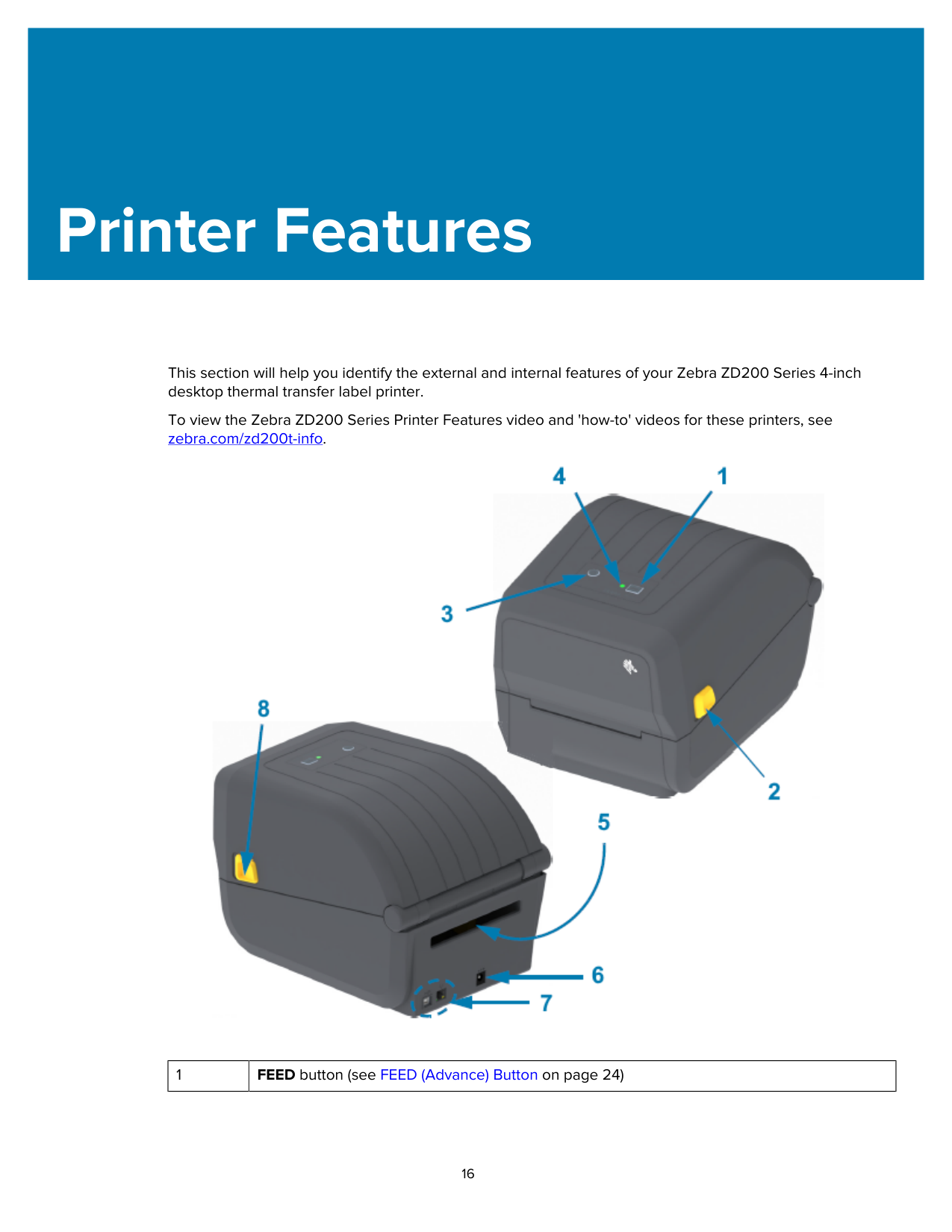
After unpacking and inspecting the printer, make sure you have all parts listed here. Familiarize yourself with the printer hardware so you can follow the instructions in this guide.
|
Printer|
Power cord (varies by region or locale)|
Printer documentation|
USB cable| |---|---|---|---| |
Power supply|
Empty 74-meter starter ribbon core|
Empty 300-meter ribbon core*|
Non-Zebra 300-meter ribbon adapters*| |
Power supply|
Empty 74-meter starter ribbon core|* Included with the ZD230 Thermal Transfer Printer|* Included with the ZD230 Thermal Transfer Printer|
Not included in the box are:
|
Print media|
Transfer ribbon| |---|---| |Media and ribbon can be ordered from zebra.com/supplies.
|Media and ribbon can be ordered from zebra.com/supplies.
|
#### Opening and Closing the Printer
Follow these instructions to open the printer and access the media compartment.
CAUTION—ESD: The discharge of electrostatic energy—which tends to accumulate on the surface of the human body or other surfaces—can damage or destroy the printhead and other
electronic components used in this device. You MUST observe static-safe procedures when working with the printhead and the electronic components located under the top cover.


Printer Features
This section will help you identify the external and internal features of your Zebra ZD200 Series 4-inch desktop thermal transfer label printer.
To view the Zebra ZD200 Series Printer Features video and 'how-to' videos for these printers, see zebra.com/zd200t-info.

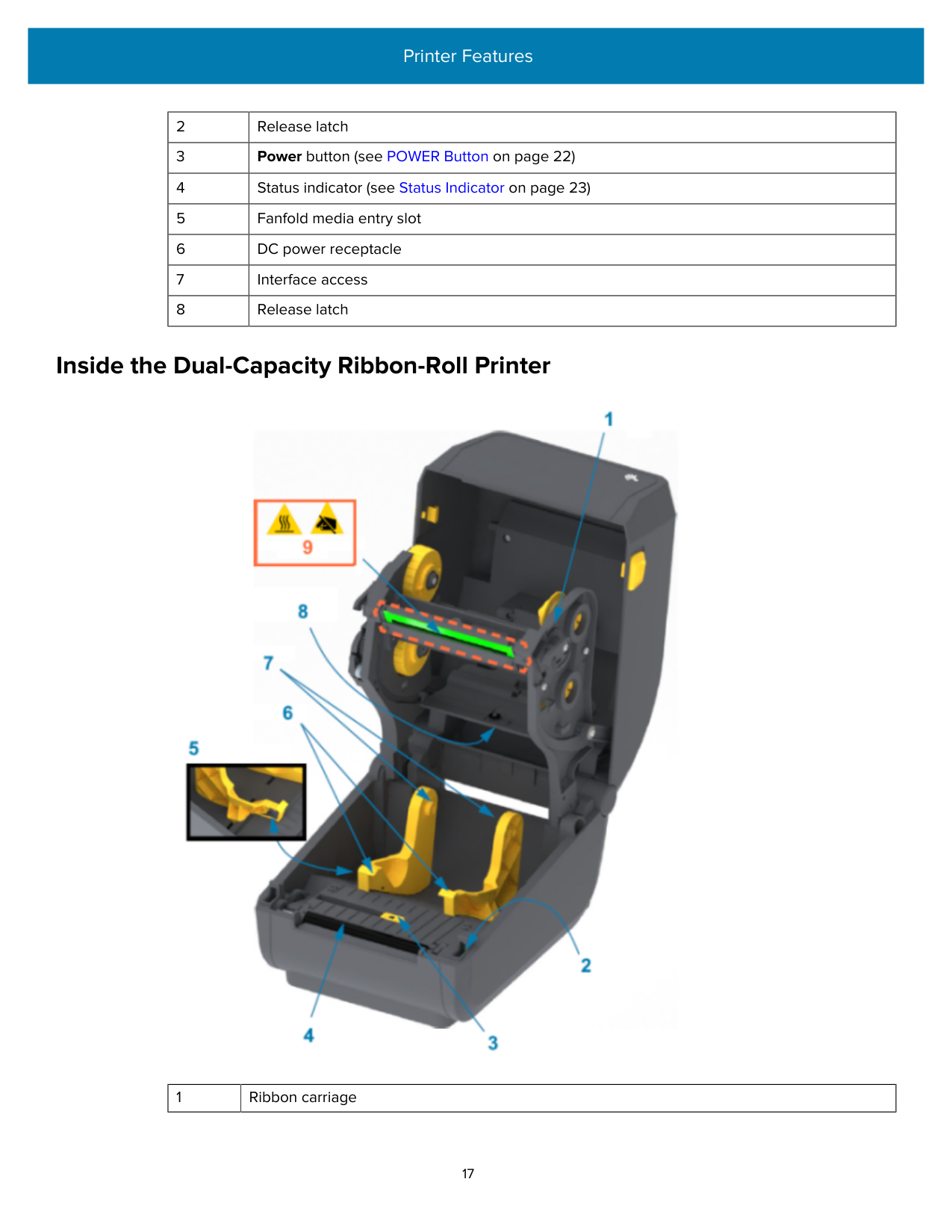
|1|FEED button (see FEED (Advance) Button on page 24)| |---|---|
|2|Release latch| |---|---| |3|Power button (see POWER Button on page 22)| |4|Status indicator (see Status Indicator on page 23)| |5|Fanfold media entry slot| |6|DC power receptacle| |7|Interface access| |8|Release latch|
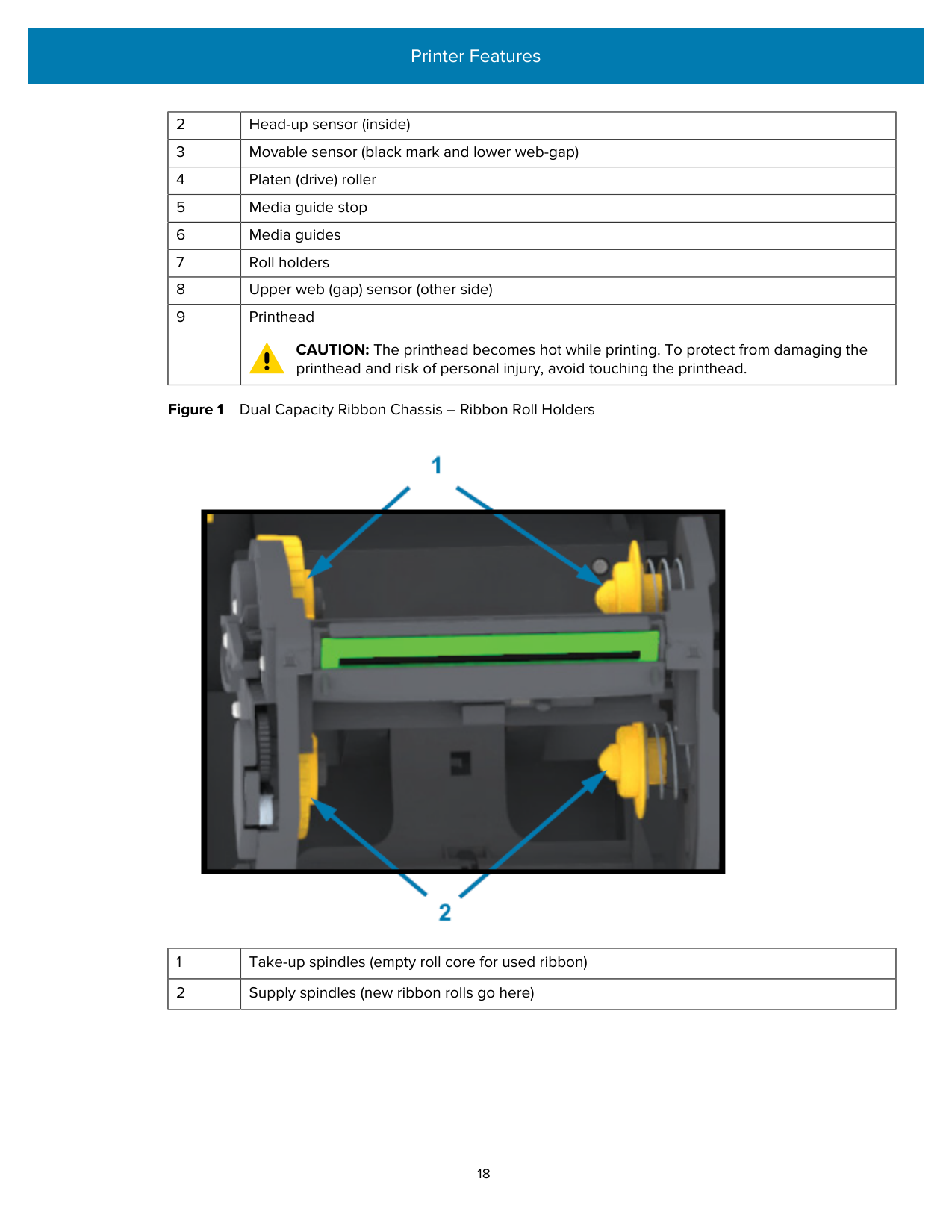
#### Inside the Dual-Capacity Ribbon-Roll Printer

|1|Ribbon carriage| |---|---|
|2|Head-up sensor (inside)| |---|---| |3|Movable sensor (black mark and lower web-gap)| |4|Platen (drive) roller| |5|Media guide stop| |6|Media guides| |7|Roll holders| |8|Upper web (gap) sensor (other side)|
|9|Printhead
CAUTION: The printhead becomes hot while printing. To protect from damaging the printhead and risk of personal injury, avoid touching the printhead.|
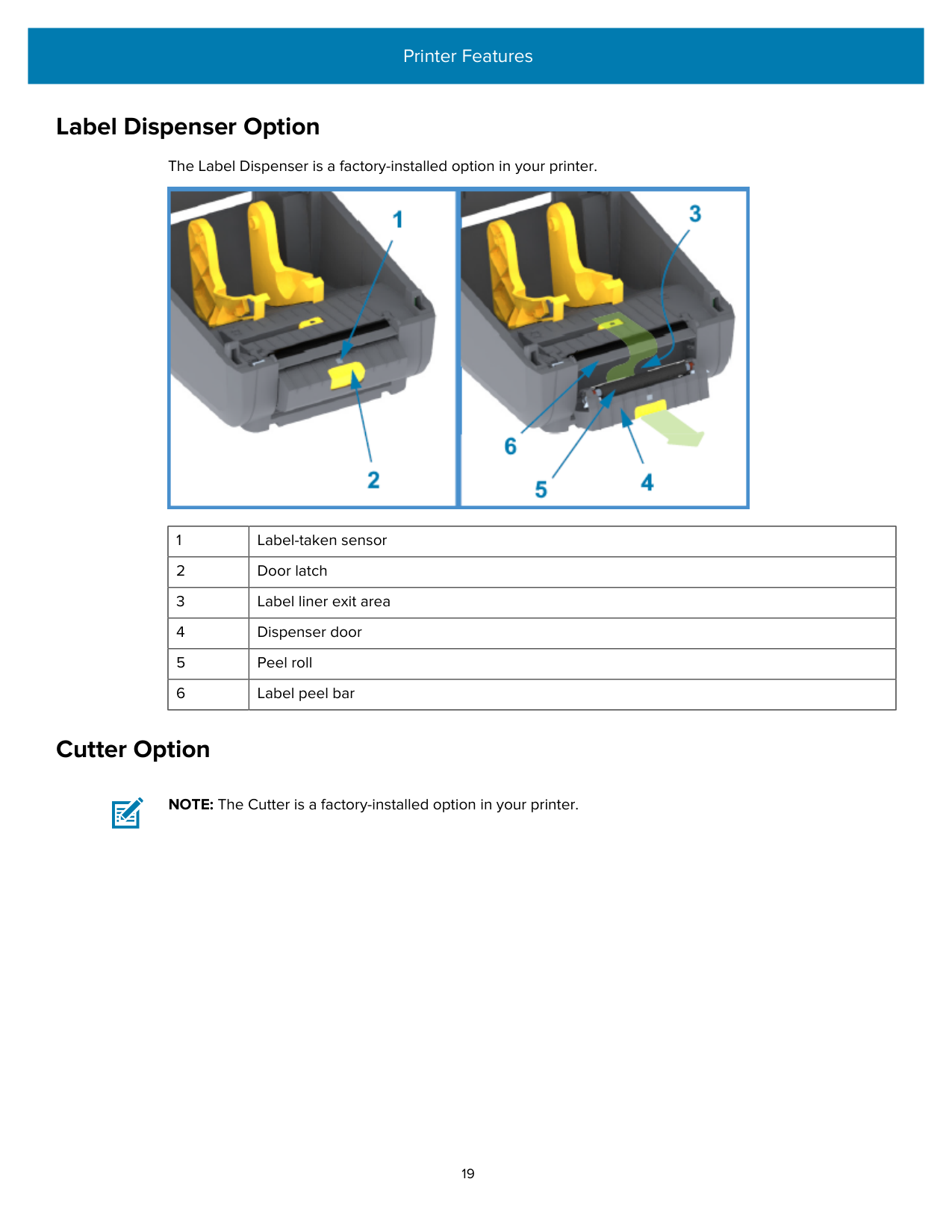
Figure 1 Dual Capacity Ribbon Chassis – Ribbon Roll Holders

|1|Take-up spindles (empty roll core for used ribbon)| |---|---| |2|Supply spindles (new ribbon rolls go here)|
18
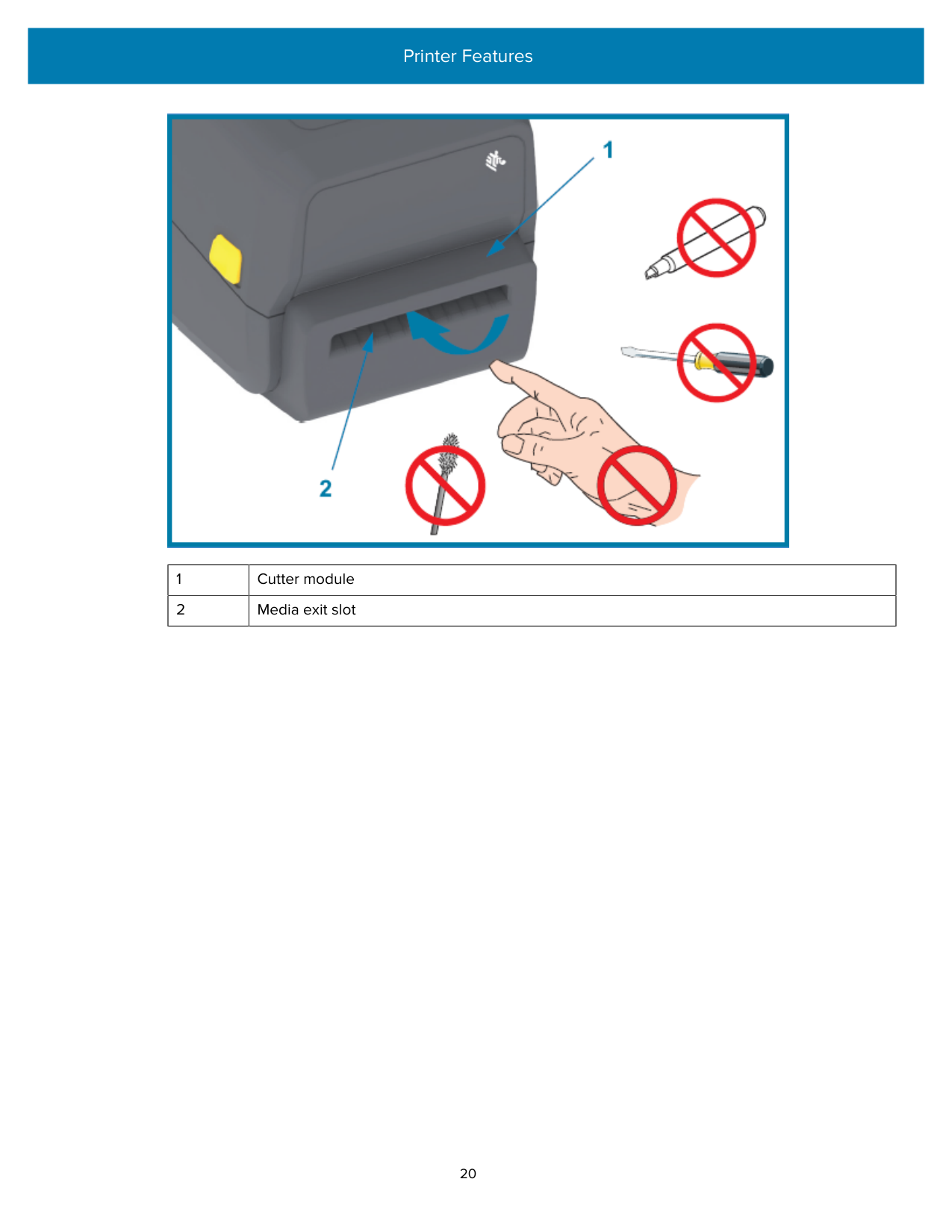
#### Label Dispenser Option
The Label Dispenser is a factory-installed option in your printer.

|1|Label-taken sensor| |---|---| |2|Door latch| |3|Label liner exit area| |4|Dispenser door| |5|Peel roll| |6|Label peel bar|
#### Cutter Option
NOTE: The Cutter is a factory-installed option in your printer.

|1|Cutter module|
|---|---| |2|Media exit slot|
Controls and Indicators
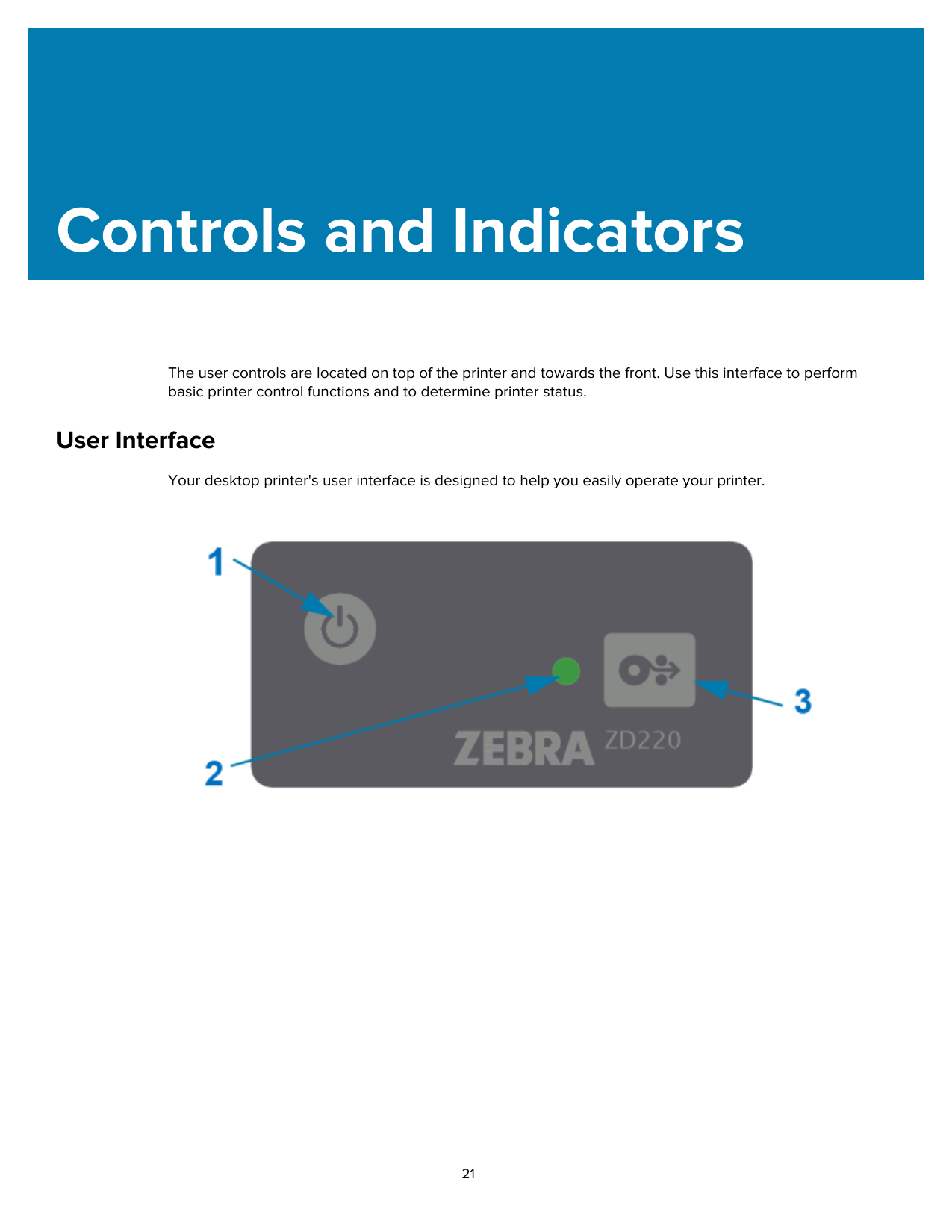
The user controls are located on top of the printer and towards the front. Use this interface to perform basic printer control functions and to determine printer status.
#### User Interface
Your desktop printer's user interface is designed to help you easily operate your printer.

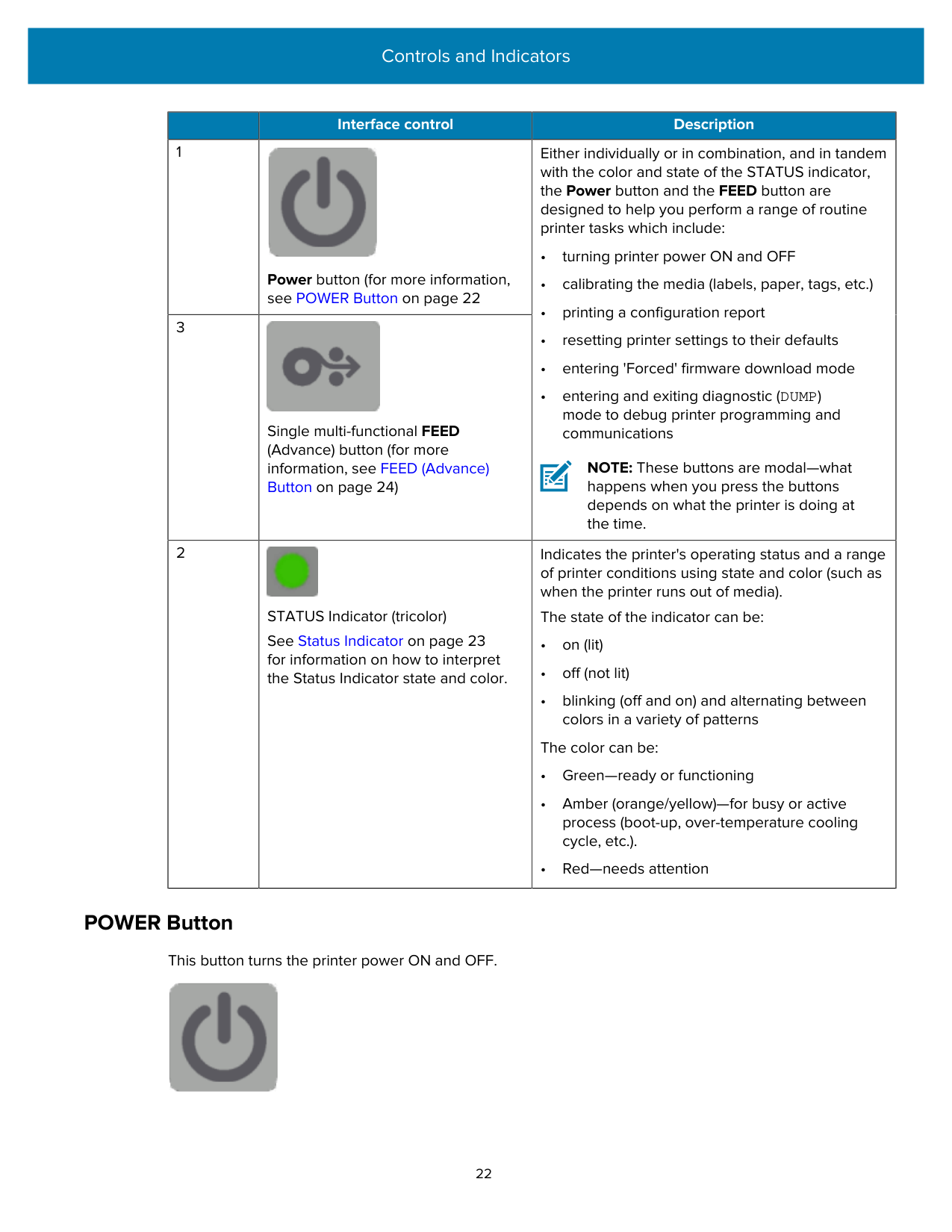
| |Interface control|Description| |---|---|---| |1|
Power button (for more information, see POWER Button on page 22|Either individually or in combination, and in tandem with the color and state of the STATUS indicator, the Power button and the FEED button are designed to help you perform a range of routine printer tasks which include:
• turning printer power ON and OFF
• calibrating the media (labels, paper, tags, etc.)
• printing a configuration report
• resetting printer settings to their defaults
• entering 'Forced' firmware download mode
• entering and exiting diagnostic (DUMP) mode to debug printer programming and communications
NOTE: These buttons are modal—what happens when you press the buttons depends on what the printer is doing at the time.| |3|
Single multi-functional FEED (Advance) button (for more information, see FEED (Advance) Button on page 24)|Either individually or in combination, and in tandem with the color and state of the STATUS indicator, the Power button and the FEED button are designed to help you perform a range of routine printer tasks which include:
• turning printer power ON and OFF
• calibrating the media (labels, paper, tags, etc.)
• printing a configuration report
• resetting printer settings to their defaults
• entering 'Forced' firmware download mode
• entering and exiting diagnostic (DUMP) mode to debug printer programming and communications
NOTE: These buttons are modal—what happens when you press the buttons depends on what the printer is doing at the time.|
|2|
STATUS Indicator (tricolor) See Status Indicator on page 23 for information on how to interpret the Status Indicator state and color.|Indicates the printer's operating status and a range of printer conditions using state and color (such as when the printer runs out of media).
The state of the indicator can be:
• on (lit)
• off (not lit)
• blinking (off and on) and alternating between colors in a variety of patterns
The color can be:
• Green—ready or functioning
• Amber (orange/yellow)—for busy or active process (boot-up, over-temperature cooling cycle, etc.).
• Red—needs attention
|
##### POWER Button
This button turns the printer power ON and OFF.

|Power ON|Press the POWER button one time for less than two seconds.
• The printer will power up.
• The STATUS Indicator light turns amber when the printer performs selfdiagnostics, configuration checks, and integration of optional components. This process will take several seconds to complete.
• The STATUS Indicator will turn solid green—or flashing green— indicating the printer is ready for normal print operations.
| |---|---| |Power OFF / Shutdown|Press and hold the POWER button for 4 to 9 seconds. The printer will turn OFF.|
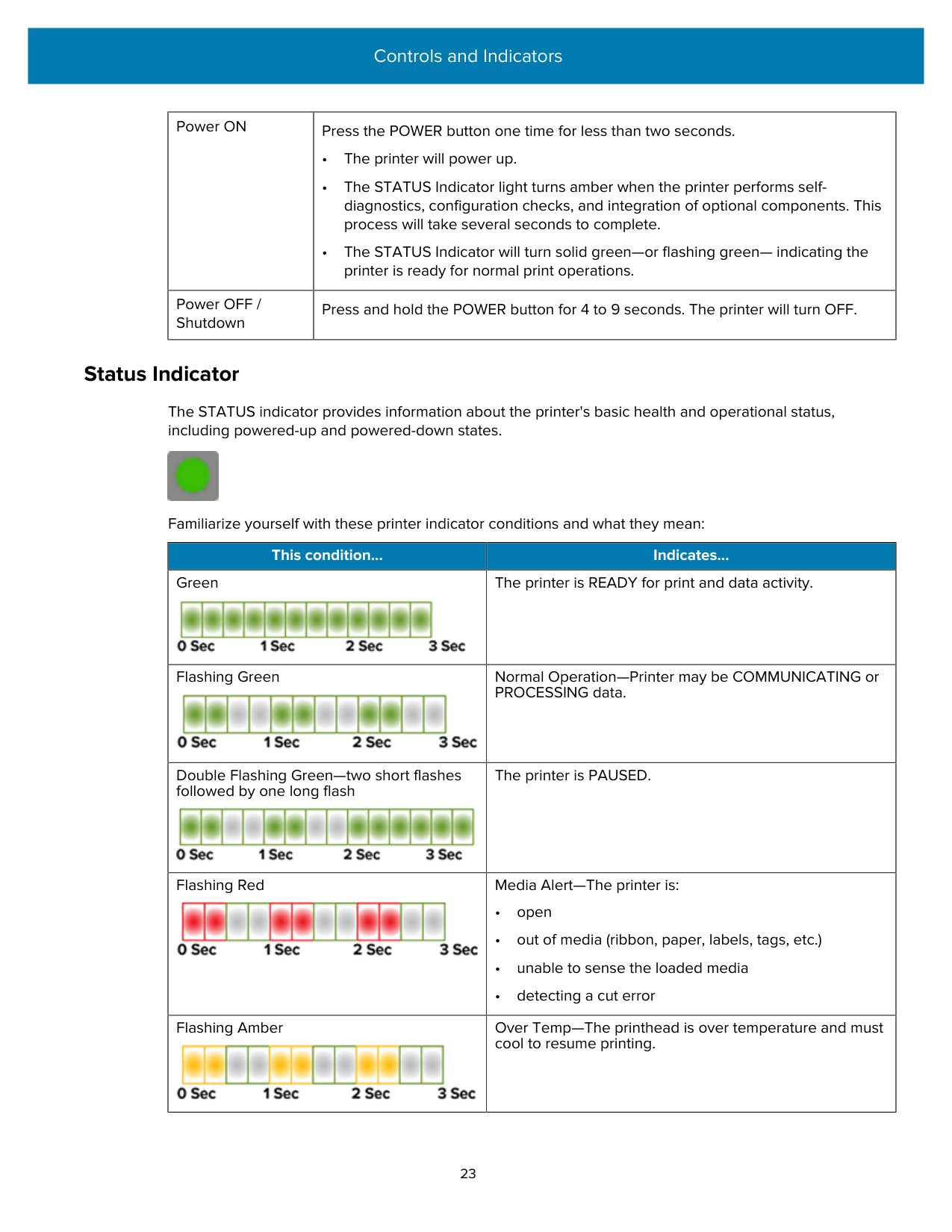
##### Status Indicator
The STATUS indicator provides information about the printer's basic health and operational status, including powered-up and powered-down states.

Familiarize yourself with these printer indicator conditions and what they mean:
|This condition...|Indicates...| |---|---| |Green
|The printer is READY for print and data activity.| |Flashing Green
|Normal Operation—Printer may be COMMUNICATING or PROCESSING data.| |Double Flashing Green—two short flashes followed by one long flash
|The printer is PAUSED.| |Flashing Red
|Media Alert—The printer is:
• open
• out of media (ribbon, paper, labels, tags, etc.)
• unable to sense the loaded media
• detecting a cut error
| |Flashing Amber
|Over Temp—The printhead is over temperature and must cool to resume printing.|
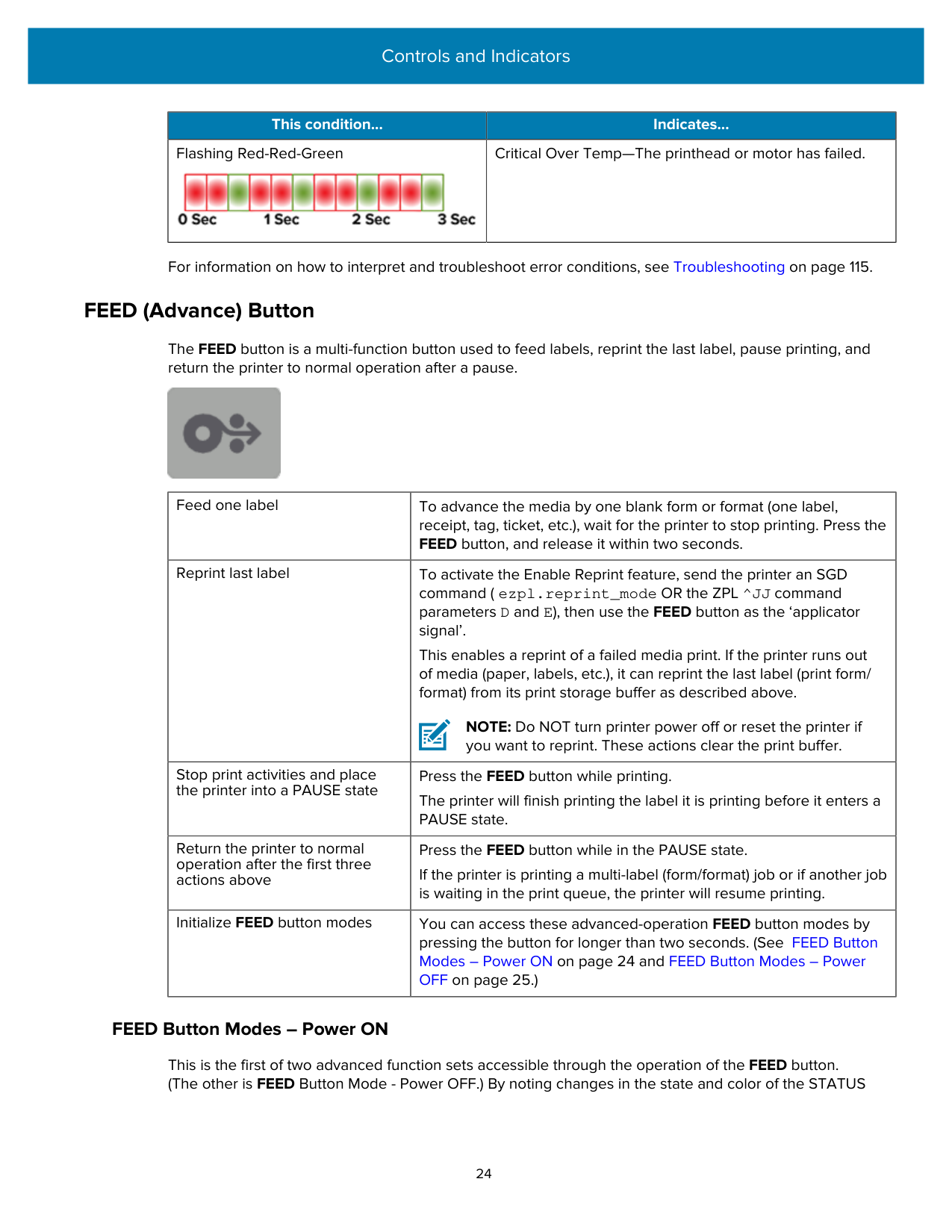
|This condition...|Indicates...| |---|---| |Flashing Red-Red-Green
|Critical Over Temp—The printhead or motor has failed.|
For information on how to interpret and troubleshoot error conditions, see Troubleshooting on page 115.
##### FEED (Advance) Button
The FEED button is a multi-function button used to feed labels, reprint the last label, pause printing, and return the printer to normal operation after a pause.

|Feed one label|To advance the media by one blank form or format (one label, receipt, tag, ticket, etc.), wait for the printer to stop printing. Press the FEED button, and release it within two seconds.| |---|---| |Reprint last label|To activate the Enable Reprint feature, send the printer an SGD command ( ezpl.reprint_mode OR the ZPL ^JJ command parameters D and E), then use the FEED button as the ‘applicator signal’.
This enables a reprint of a failed media print. If the printer runs out of media (paper, labels, etc.), it can reprint the last label (print form/ format) from its print storage buffer as described above.
NOTE: Do NOT turn printer power off or reset the printer if you want to reprint. These actions clear the print buffer.| |Stop print activities and place the printer into a PAUSE state|Press the FEED button while printing. The printer will finish printing the label it is printing before it enters a PAUSE state.| |Return the printer to normal operation after the first three actions above|Press the FEED button while in the PAUSE state. If the printer is printing a multi-label (form/format) job or if another job is waiting in the print queue, the printer will resume printing.| |Initialize FEED button modes|You can access these advanced-operation FEED button modes by pressing the button for longer than two seconds. (See FEED Button Modes – Power ON on page 24 and FEED Button Modes – Power OFF on page 25.)|
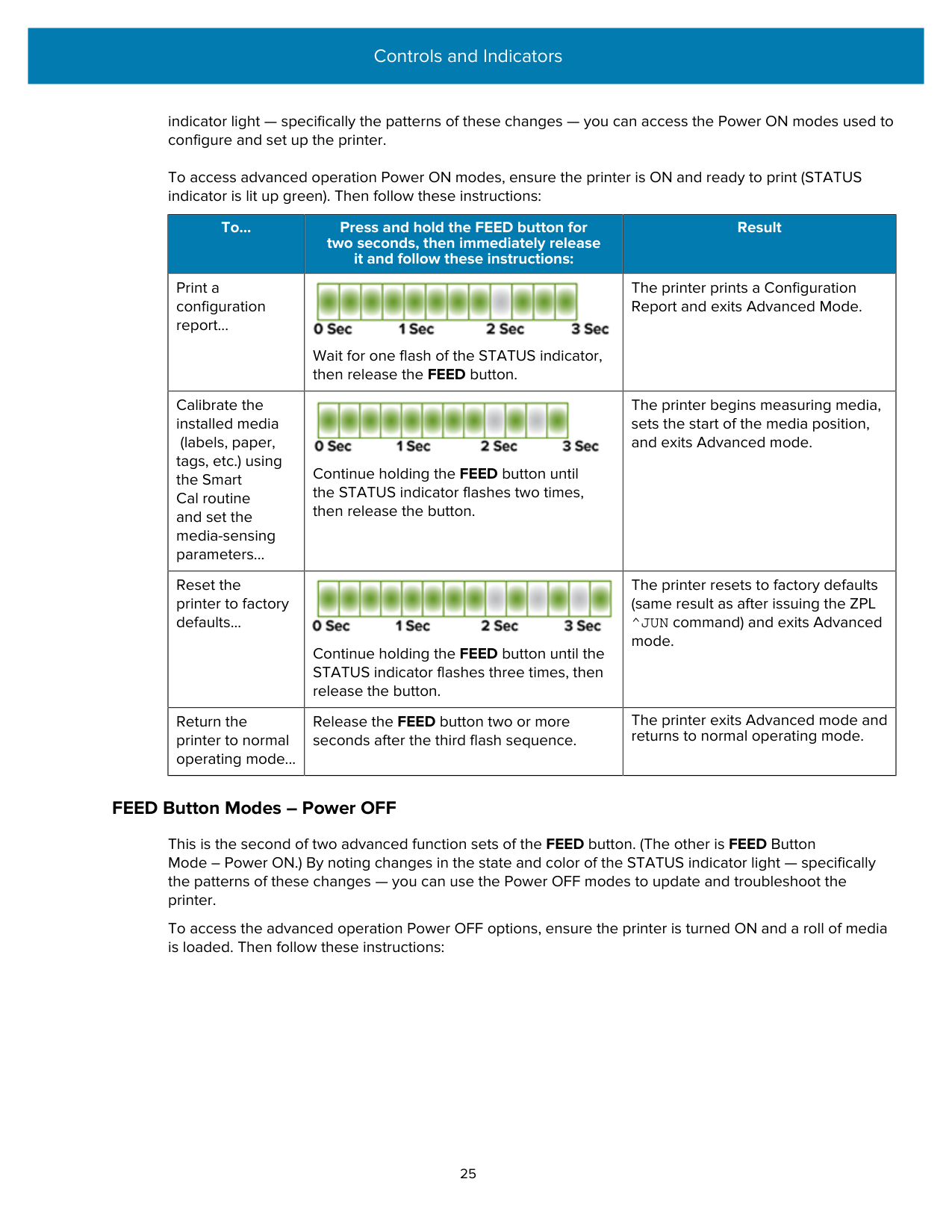
###### FEED Button Modes – Power ON
This is the first of two advanced function sets accessible through the operation of the FEED button. (The other is FEED Button Mode - Power OFF.) By noting changes in the state and color of the STATUS
indicator light — specifically the patterns of these changes — you can access the Power ON modes used to configure and set up the printer.
To access advanced operation Power ON modes, ensure the printer is ON and ready to print (STATUS indicator is lit up green). Then follow these instructions:
|To...|Press and hold the FEED button for two seconds, then immediately release it and follow these instructions:|Result| |---|---|---| |Print a configuration report...|
Wait for one flash of the STATUS indicator, then release the FEED button.|The printer prints a Configuration Report and exits Advanced Mode.| |Calibrate the installed media (labels, paper, tags, etc.) using the Smart Cal routine and set the media-sensing parameters...|
Continue holding the FEED button until the STATUS indicator flashes two times, then release the button.|The printer begins measuring media, sets the start of the media position, and exits Advanced mode.| |Reset the printer to factory defaults...|
Continue holding the FEED button until the STATUS indicator flashes three times, then release the button.|The printer resets to factory defaults (same result as after issuing the ZPL ^JUN command) and exits Advanced
mode.| |Return the printer to normal operating mode...|Release the FEED button two or more seconds after the third flash sequence.|The printer exits Advanced mode and returns to normal operating mode.|
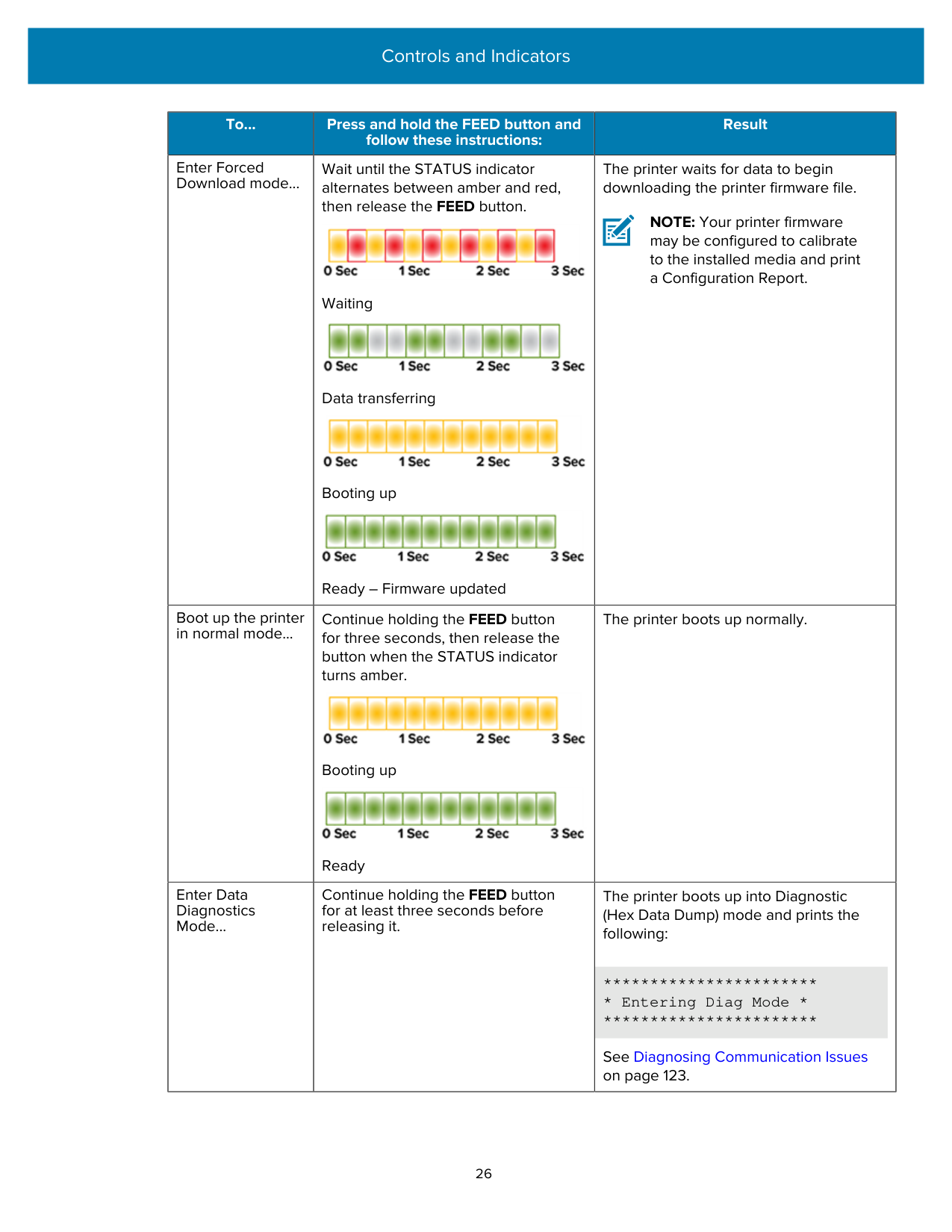
###### FEED Button Modes – Power OFF
This is the second of two advanced function sets of the FEED button. (The other is FEED Button Mode – Power ON.) By noting changes in the state and color of the STATUS indicator light — specifically the patterns of these changes — you can use the Power OFF modes to update and troubleshoot the printer.
To access the advanced operation Power OFF options, ensure the printer is turned ON and a roll of media is loaded. Then follow these instructions:
|To...|Press and hold the FEED button and follow these instructions:|Result| |---|---|---| |Enter Forced Download mode...|Wait until the STATUS indicator alternates between amber and red, then release the FEED button.

Waiting

Data transferring

Booting up

Ready – Firmware updated|The printer waits for data to begin downloading the printer firmware file.
NOTE: Your printer firmware
may be configured to calibrate to the installed media and print a Configuration Report.| |Boot up the printer in normal mode...|Continue holding the FEED button for three seconds, then release the button when the STATUS indicator turns amber.

Booting up

Ready|The printer boots up normally.| |Enter Data Diagnostics Mode...|Continue holding the FEED button for at least three seconds before releasing it.|The printer boots up into Diagnostic (Hex Data Dump) mode and prints the following:
*****
* Entering Diag Mode *
*****
See Diagnosing Communication Issues on page 123.|
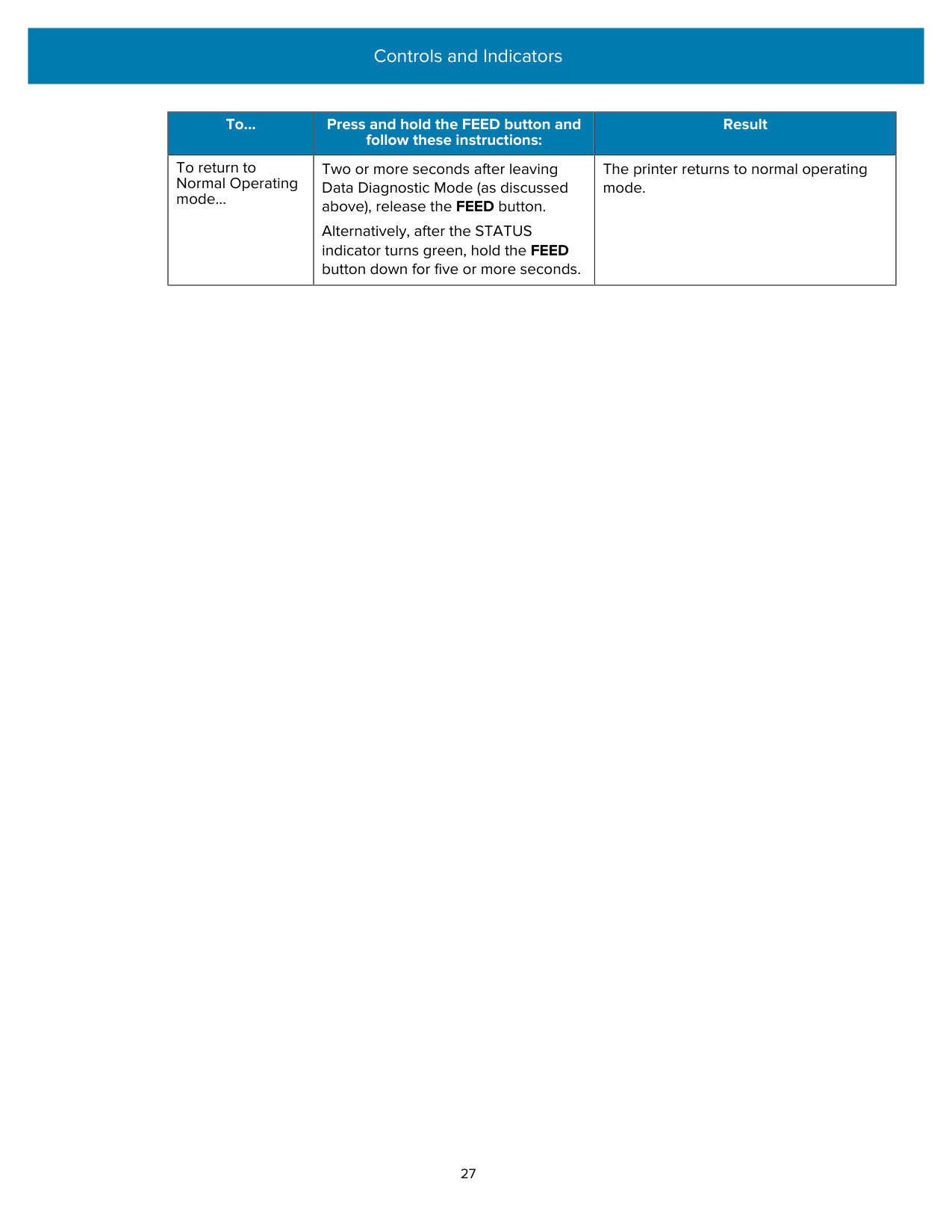
|To...|Press and hold the FEED button and follow these instructions:|Result| |---|---|---| |To return to Normal Operating mode...|Two or more seconds after leaving Data Diagnostic Mode (as discussed above), release the FEED button.
Alternatively, after the STATUS indicator turns green, hold the FEED button down for five or more seconds.|The printer returns to normal operating mode.|
Setup
The printer setup process is comprised of two phases: hardware setup and host system (software/driver) setup. This section covers how to set up the physical hardware setup to print your first label.
#### Modifying or Viewing Secured Features
######## EU RED
If you purchased your printer within Europe, Middle Eastern, or African (EMEA) countries on or after August 1, 2025, the printer comes with specific security features to meet the EU Radio Equipment Directive (RED) requirements. As part of the setup process, you must set a Protected Mode password and configure Protected Mode before you can modify certain settings.
For more information, go to zebra.com/asr or refer to the Zebra Link-OS PrintSecure Printer Administration Guide.
######## Protected Mode
For printers that already have Protected Mode set up, you need to enter the Protected Mode (admin) password to change certain settings on the printer. For more information, refer to the Zebra Link-OS PrintSecure Printer Administration Guide.
#### Setting Up the Printer (Process Overview)
NOTE: Wait to turn printer power ON. Install the drivers first using the Zebra Setup Utilities (see Setup for Windows OS on page 65 for details). The setup utility will prompt you to turn printer power ON at the appropriate juncture in the setup process. If you connected the central device to the printer and turned printer power ON before installing the drivers, see What To Do If You Forget to Install the Printer Drivers First on page 58.
#### Select a Location for the Printer
For optimal print operations, ensure that the printer and media location is clean with moderate temperatures.
Select a location for the printer that meets these conditions.
|Condition|Description| |---|---| |Surface|Must be solid, level, and of sufficient size and strength to hold the printer with media.| |Space|The operating location for the printer must include enough space to open the printer (for media access and cleaning) and enable access to connectivity and power cords. Leave open space on all sides of the printer to allow for proper ventilation and cooling.
IMPORTANT: Do not place any padding or cushioning material under or around the base of the printer, as this will restrict airflow and could cause the printer to overheat.| |Power|Situate the printer within easy access of a power outlet.| |Data communication interfaces|Ensure that cabling and WiFi or Bluetooth radios do NOT exceed the maximum distance specified by the communication protocol standard or product data sheet for this printer. Radio signal strength can be reduced by physical barriers (objects, walls, etc.).| |Data cables|Cables should not be routed with or near power cords or conduits, fluorescent lighting, transformers, microwave ovens, motors or other sources of electrical noise and interference. These interference sources may cause problems with communications, host system operation, and printer functionality.| |Operating conditions|Your printer is designed to function in a wide range of environments.
• Operational temperature: 5°C to 41°C (40°F to 105°F)
• Operational humidity: 10% to 90% non-condensing
• Non-operational temperature: -40°C to 60°C ( -40°F to 140°F)
• Non-operational humidity: 5% to 85% non-condensing
|
#### Attaching Power
Use this procedure to connect power to the printer.
CAUTION: NEVER operate the printer and power supply in an area where they can get wet. Serious personal injury could result!
IMPORTANT: Use ONLY the appropriate power cord with a three-prong plug and an IEC 60320C13 connector at all times. The power cords MUST bear the relevant certification mark of the country in which the product is being used.
NOTE: Set up your printer so that you can handle the power cord easily if needed. Some setup
or troubleshooting tasks may instruct you to switch printer power OFF. Separate the power cord from the power supply receptacle or AC electrical outlet to make certain the printer cannot carry electrical current.
The active power light will turn on green if power is on at the AC outlet.

#### Media Preparation for Printing
Purchase media that will suit your printing needs. Media does not ship with the printer.
You can use labels, tags, tickets, receipt paper, fanfold stacks, tamper-proof labels or other print media formats. Use the Zebra website, or your reseller may be able to help you select the right media for your intended printing application.
To procure media that is specifically designed for use with your Zebra printer, go to zebra.com/supplies. During setup, use the same media that you would use for normal printer operation. This will help you identify any setup or real-life application issues so you can address them right at the start.
##### Preparing and Handling Media
Careful handling and storage of your media are important to maximize print quality. If the media becomes contaminated or dirty, it can damage the printer and cause defects in the printed image, such as voids, streaks, discoloration, and compromised adhesive.
IMPORTANT: . To reduce the possibility of contaminants transferring from the media onto the printhead while printing, remove the outside layer of the media roll or stack.

##### Media Storage Guidelines
Follow these media storage guidelines for optimal print output.
NOTE: Direct thermal media is chemically treated to be heat-sensitive. Exposure to direct sunlight or heat sources may damage the media.
#### Media Types and Sensing
Use the information in this section to understand various print media options and media sensing types. Your printer supports three basic types of media:
|Continuous media|Used for items like receipts. It has no marks to define print length.| |---|---|
|Marked media|Includes black lines, black marks, notches, or holes to define the print length for each printed item.| |---|---|
|Label media|Uses the sensor to look through the media backing (liner) to detect the beginning and end of labels on the roll.|
The printer uses two sensing methods to accommodate the range of media it supports:
|Center area transmissive sensing|For continuous media and gap/web label media.| |---|---| |Half-width movable (reflective) sensing|Used to determine print format (length) using the black marks, black lines, notches, or holes present on the media.|
##### Setting Media Sensing by Media Type
Your printer's media-sensing settings must match the type of media you use. For certain media types, sensing occurs automatically. For others, the sensor can be manually aligned.
##### Loading Media
This procedure works for Tear-Off (standard bezel), Label Dispense and Media Cutting printer options.

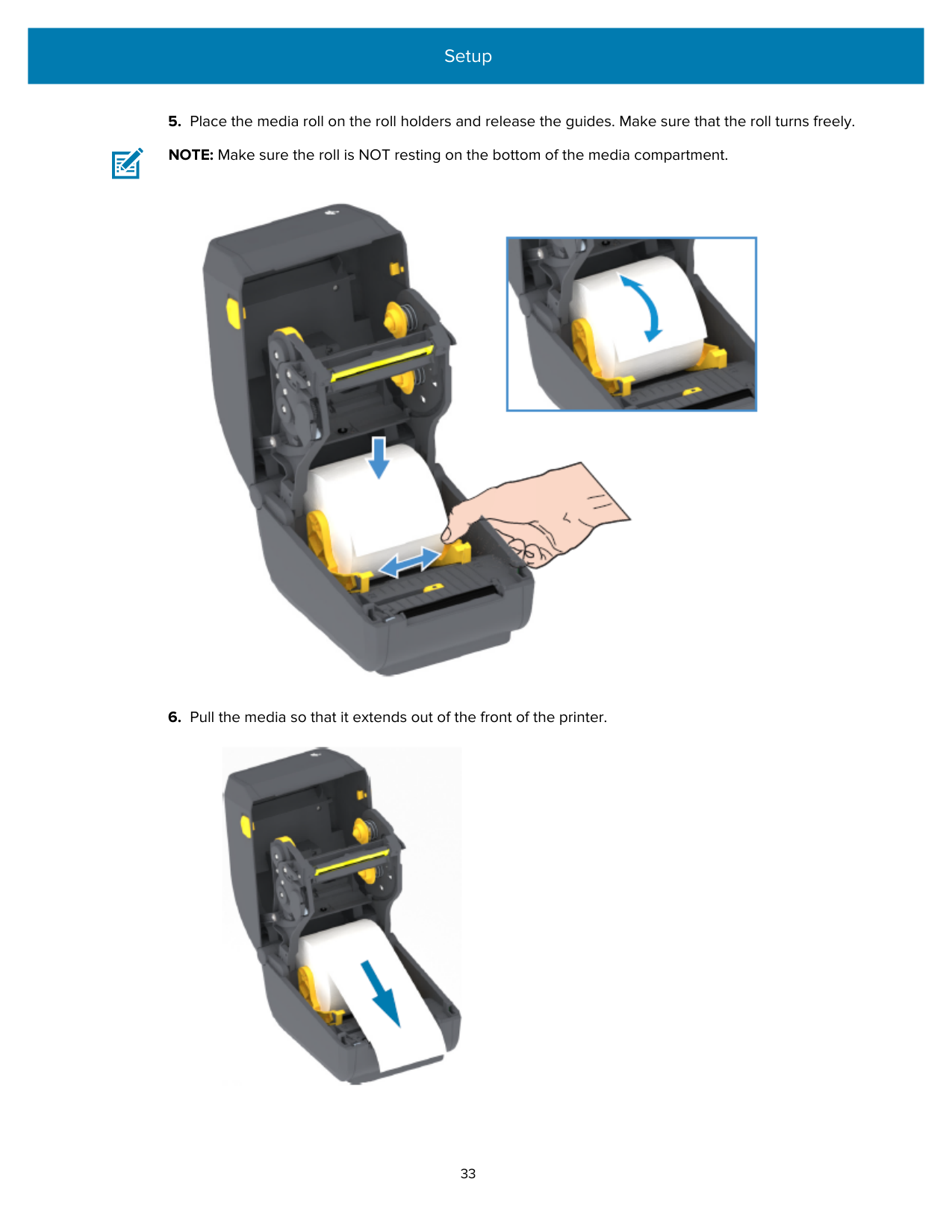
######### 5. Place the media roll on the roll holders and release the guides. Make sure that the roll turns freely.
NOTE: Make sure the roll is NOT resting on the bottom of the media compartment.

######### 6. Pull the media so that it extends out of the front of the printer.

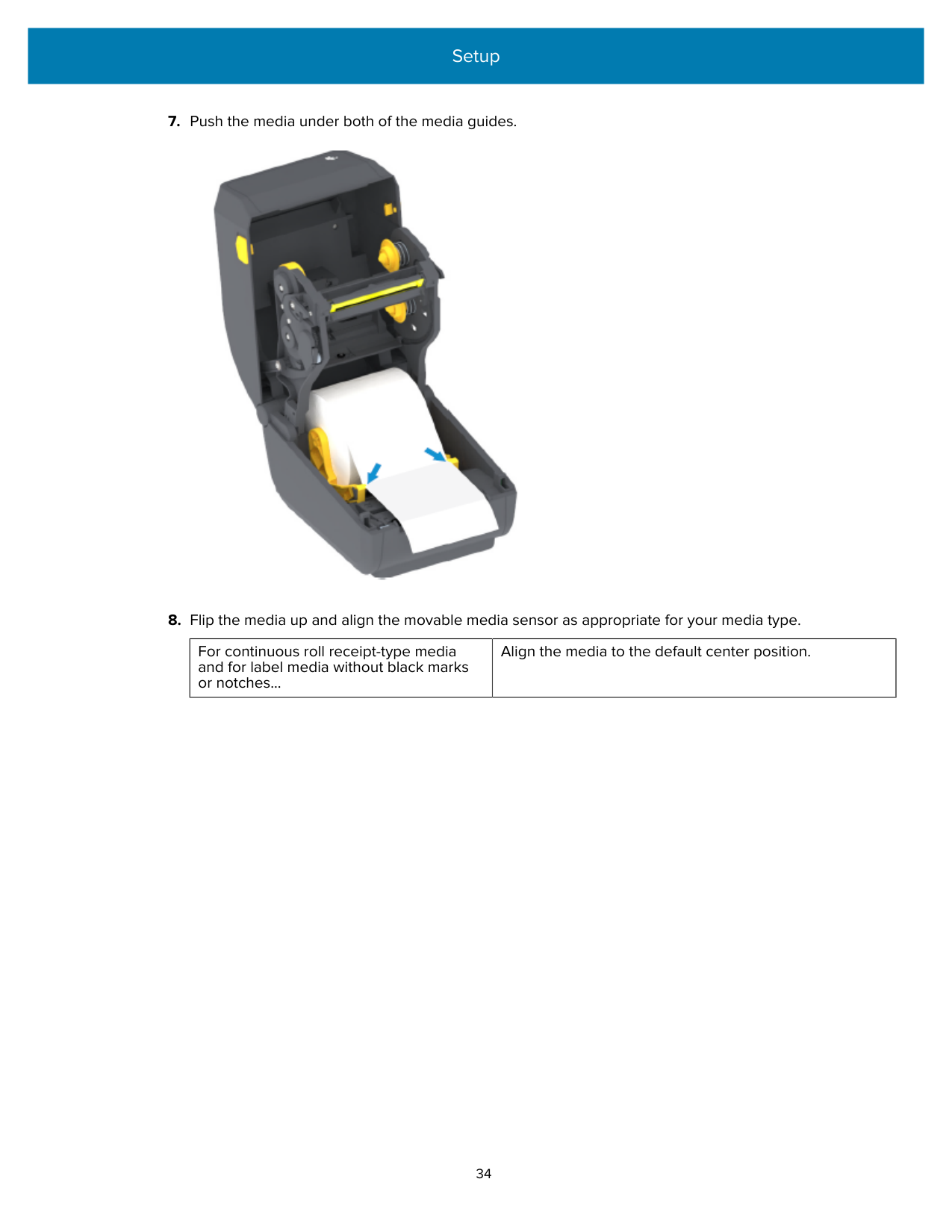
######### 7. Push the media under both of the media guides.

######### 8. Flip the media up and align the movable media sensor as appropriate for your media type.
|For continuous roll receipt-type media and for label media without black marks or notches...|Align the media to the default center position.| |---|---|
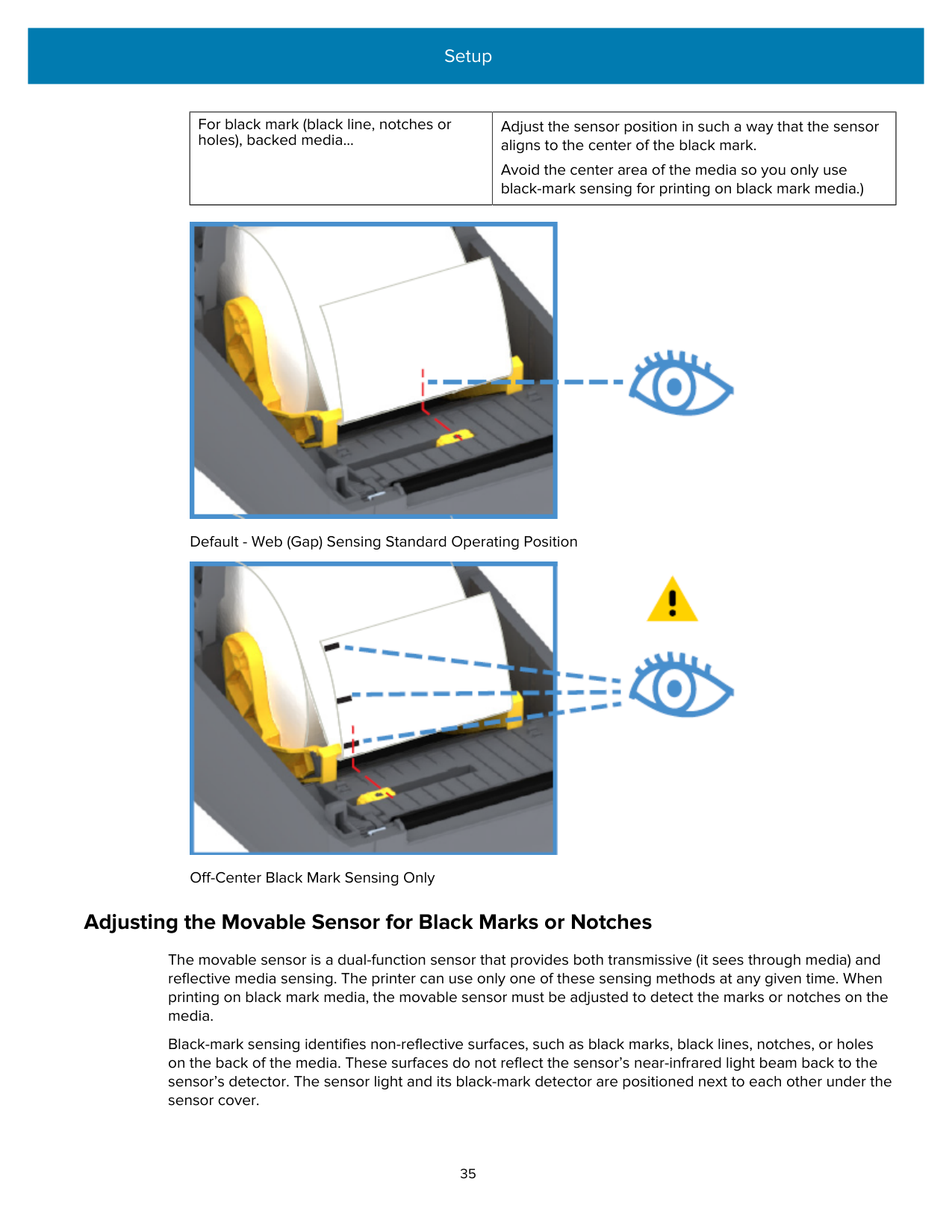
|For black mark (black line, notches or holes), backed media...|Adjust the sensor position in such a way that the sensor aligns to the center of the black mark.
Avoid the center area of the media so you only use black-mark sensing for printing on black mark media.)| |---|---|

Default - Web (Gap) Sensing Standard Operating Position

Off-Center Black Mark Sensing Only
##### Adjusting the Movable Sensor for Black Marks or Notches
The movable sensor is a dual-function sensor that provides both transmissive (it sees through media) and reflective media sensing. The printer can use only one of these sensing methods at any given time. When printing on black mark media, the movable sensor must be adjusted to detect the marks or notches on the media.
Black-mark sensing identifies non-reflective surfaces, such as black marks, black lines, notches, or holes on the back of the media. These surfaces do not reflect the sensor’s near-infrared light beam back to the sensor’s detector. The sensor light and its black-mark detector are positioned next to each other under the sensor cover.
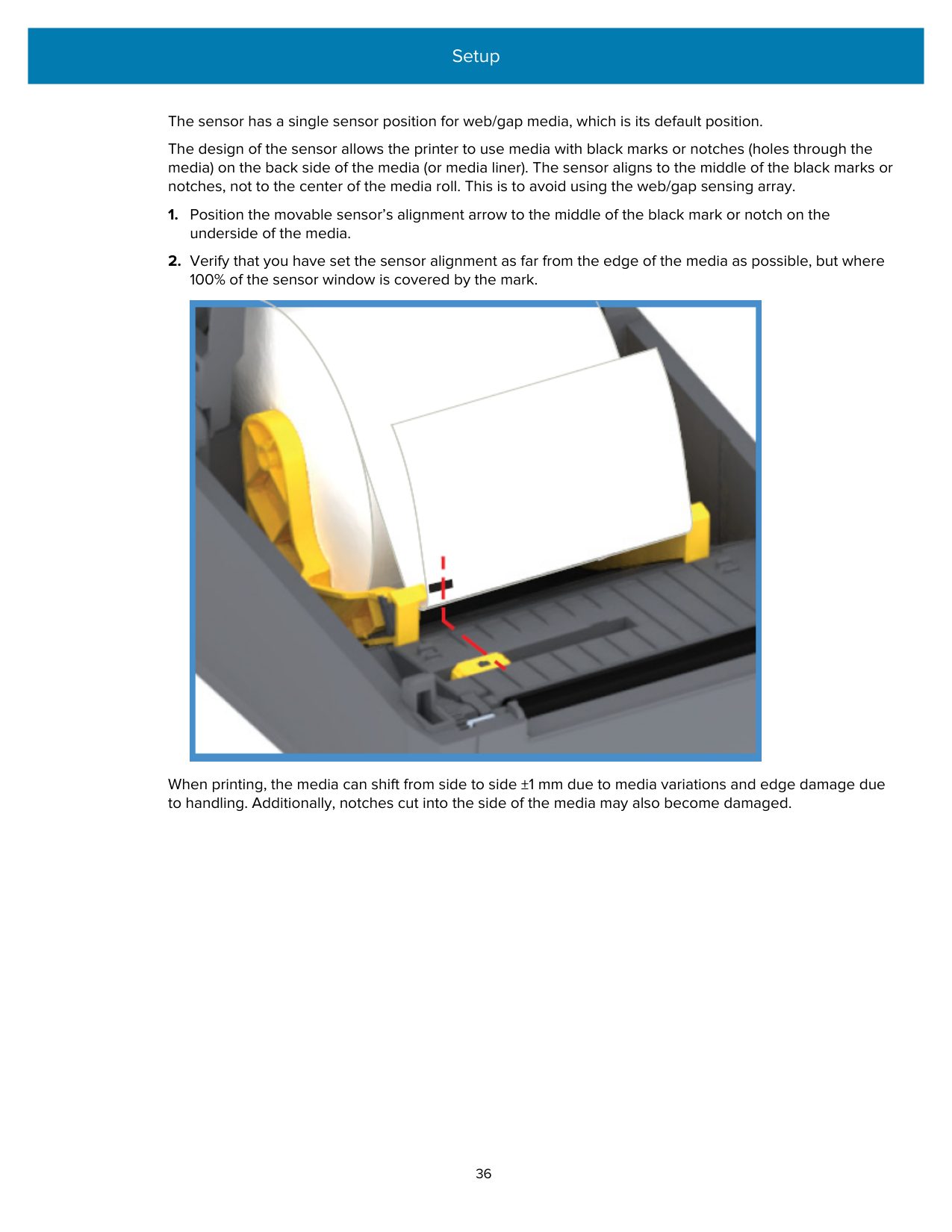
The sensor has a single sensor position for web/gap media, which is its default position. The design of the sensor allows the printer to use media with black marks or notches (holes through the media) on the back side of the media (or media liner). The sensor aligns to the middle of the black marks or notches, not to the center of the media roll. This is to avoid using the web/gap sensing array.

When printing, the media can shift from side to side ±1 mm due to media variations and edge damage due to handling. Additionally, notches cut into the side of the media may also become damaged.
##### Loading Roll Media for Cutter Models
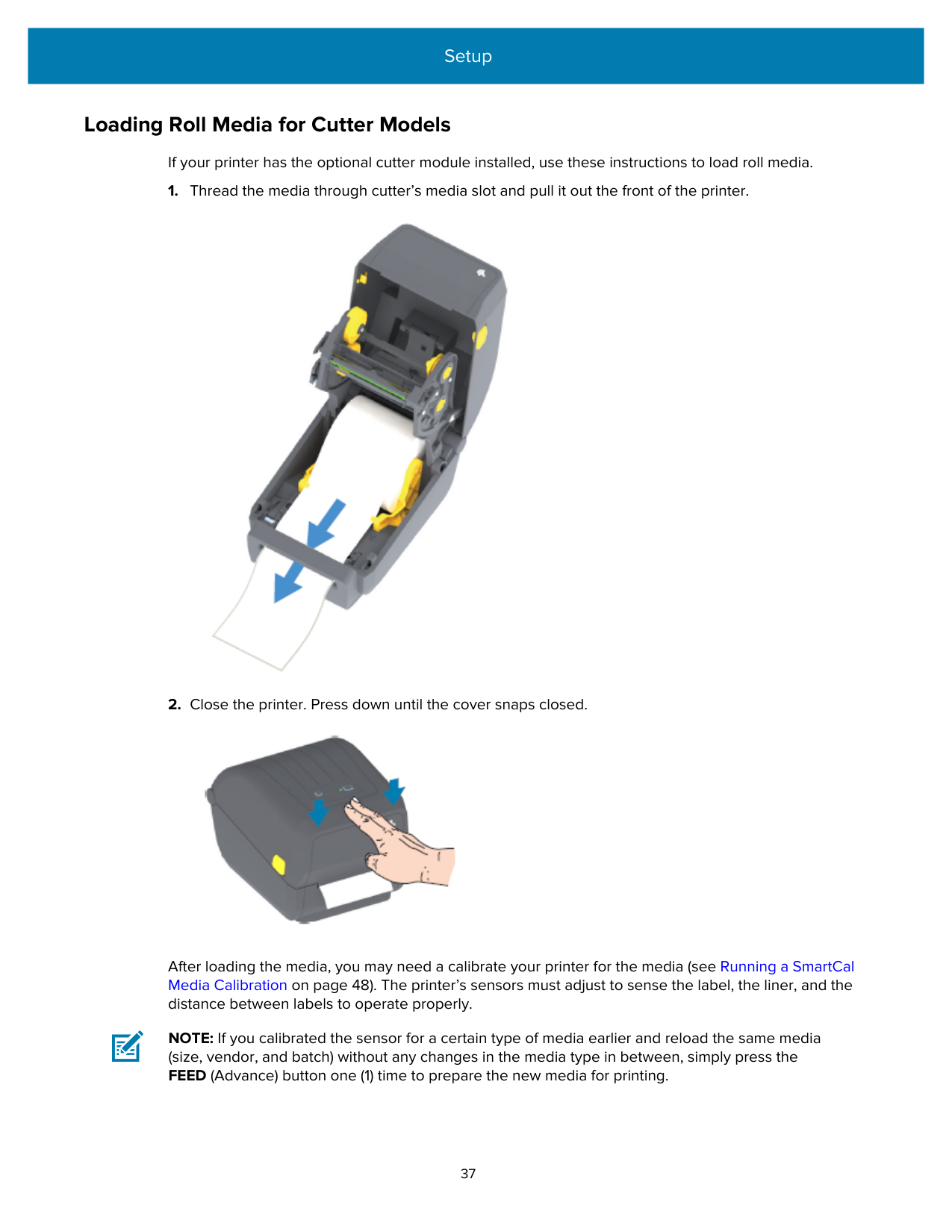
If your printer has the optional cutter module installed, use these instructions to load roll media.


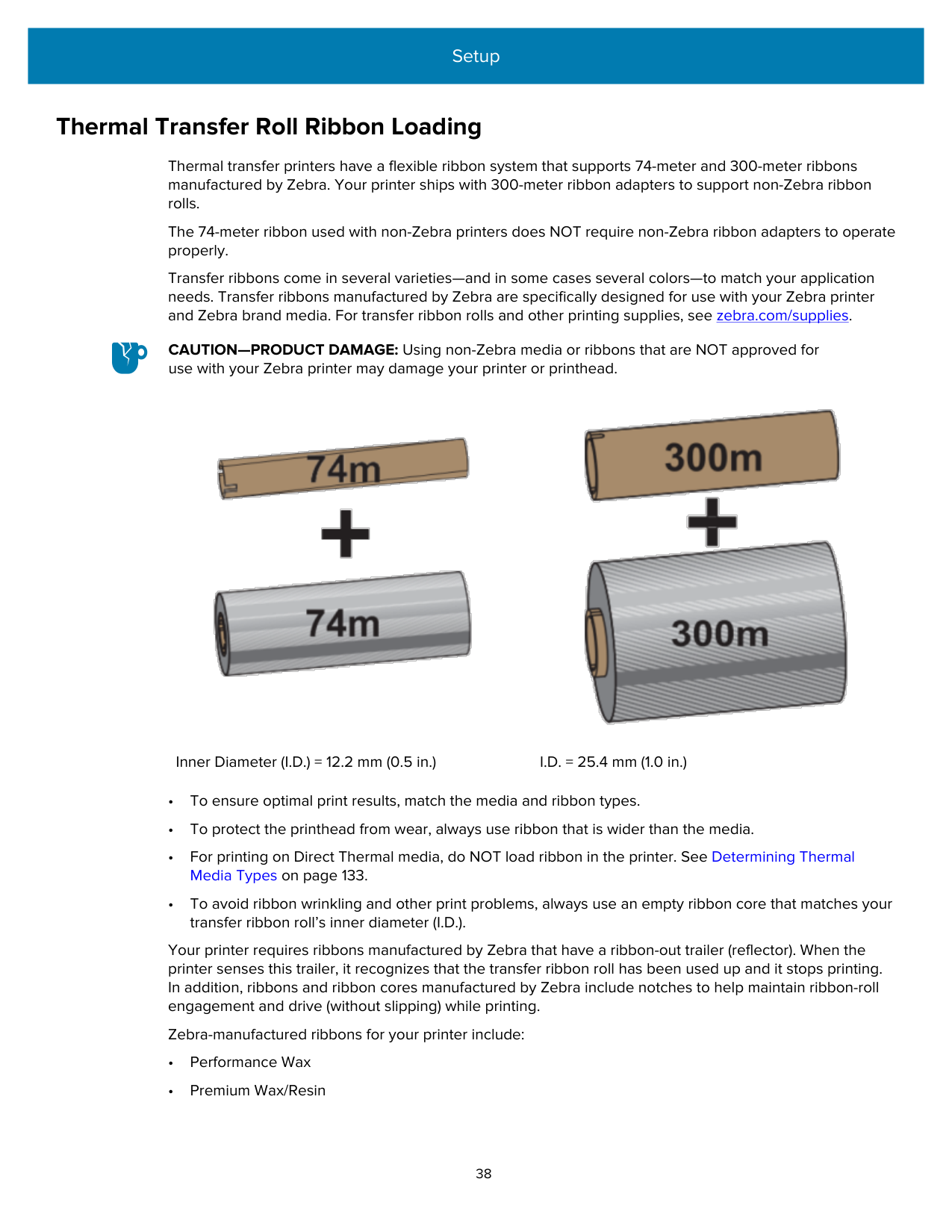
After loading the media, you may need a calibrate your printer for the media (see Running a SmartCal Media Calibration on page 48). The printer’s sensors must adjust to sense the label, the liner, and the distance between labels to operate properly.
NOTE: If you calibrated the sensor for a certain type of media earlier and reload the same media (size, vendor, and batch) without any changes in the media type in between, simply press the FEED (Advance) button one (1) time to prepare the new media for printing.
#### Thermal Transfer Roll Ribbon Loading
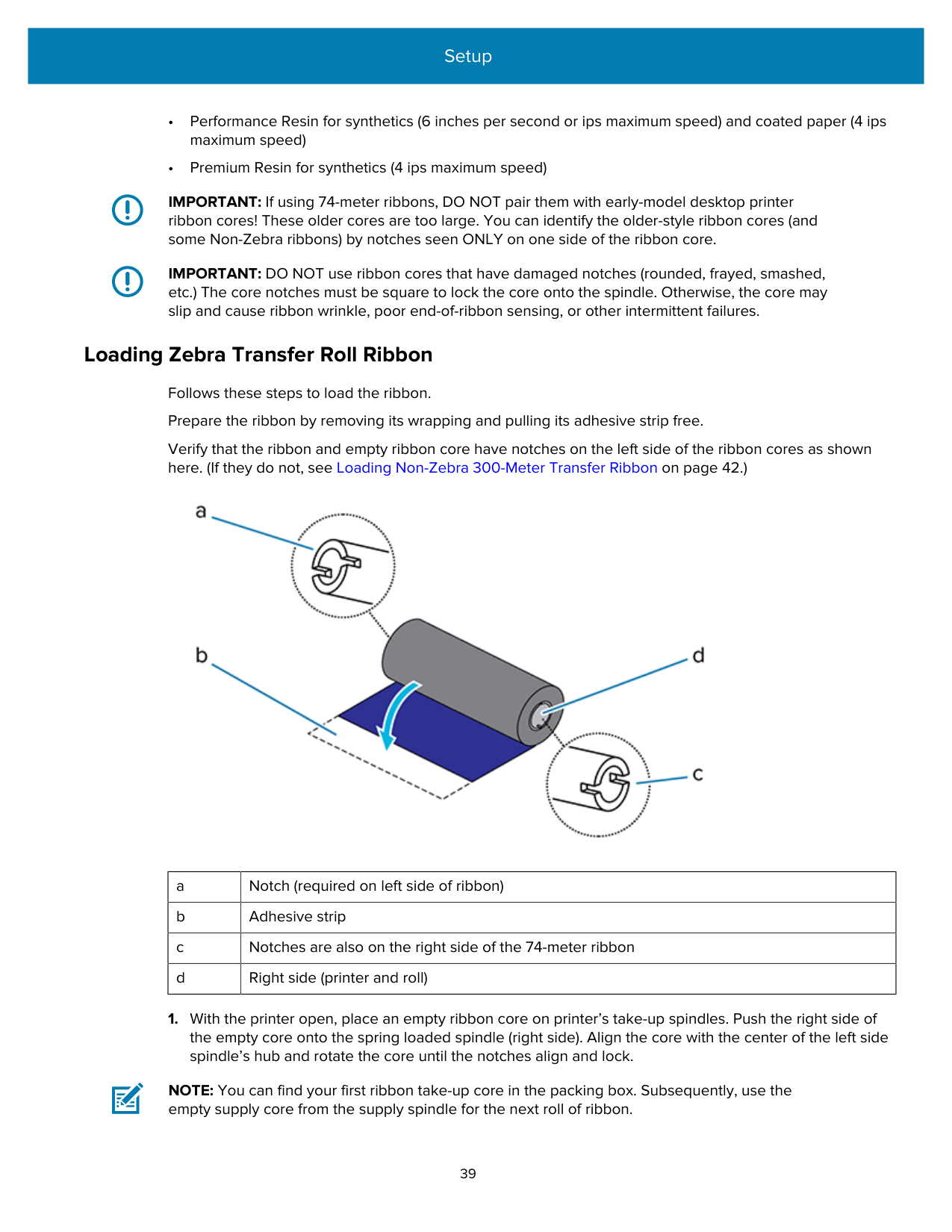
Thermal transfer printers have a flexible ribbon system that supports 74-meter and 300-meter ribbons manufactured by Zebra. Your printer ships with 300-meter ribbon adapters to support non-Zebra ribbon rolls.
The 74-meter ribbon used with non-Zebra printers does NOT require non-Zebra ribbon adapters to operate properly.
Transfer ribbons come in several varieties—and in some cases several colors—to match your application needs. Transfer ribbons manufactured by Zebra are specifically designed for use with your Zebra printer and Zebra brand media. For transfer ribbon rolls and other printing supplies, see zebra.com/supplies.
CAUTION—PRODUCT DAMAGE: Using non-Zebra media or ribbons that are NOT approved for use with your Zebra printer may damage your printer or printhead.


Inner Diameter (I.D.) = 12.2 mm (0.5 in.) I.D. = 25.4 mm (1.0 in.)
Your printer requires ribbons manufactured by Zebra that have a ribbon-out trailer (reflector). When the printer senses this trailer, it recognizes that the transfer ribbon roll has been used up and it stops printing. In addition, ribbons and ribbon cores manufactured by Zebra include notches to help maintain ribbon-roll engagement and drive (without slipping) while printing.
Zebra-manufactured ribbons for your printer include:
IMPORTANT: If using 74-meter ribbons, DO NOT pair them with early-model desktop printer ribbon cores! These older cores are too large. You can identify the older-style ribbon cores (and some Non-Zebra ribbons) by notches seen ONLY on one side of the ribbon core.
IMPORTANT: DO NOT use ribbon cores that have damaged notches (rounded, frayed, smashed, etc.) The core notches must be square to lock the core onto the spindle. Otherwise, the core may slip and cause ribbon wrinkle, poor end-of-ribbon sensing, or other intermittent failures.
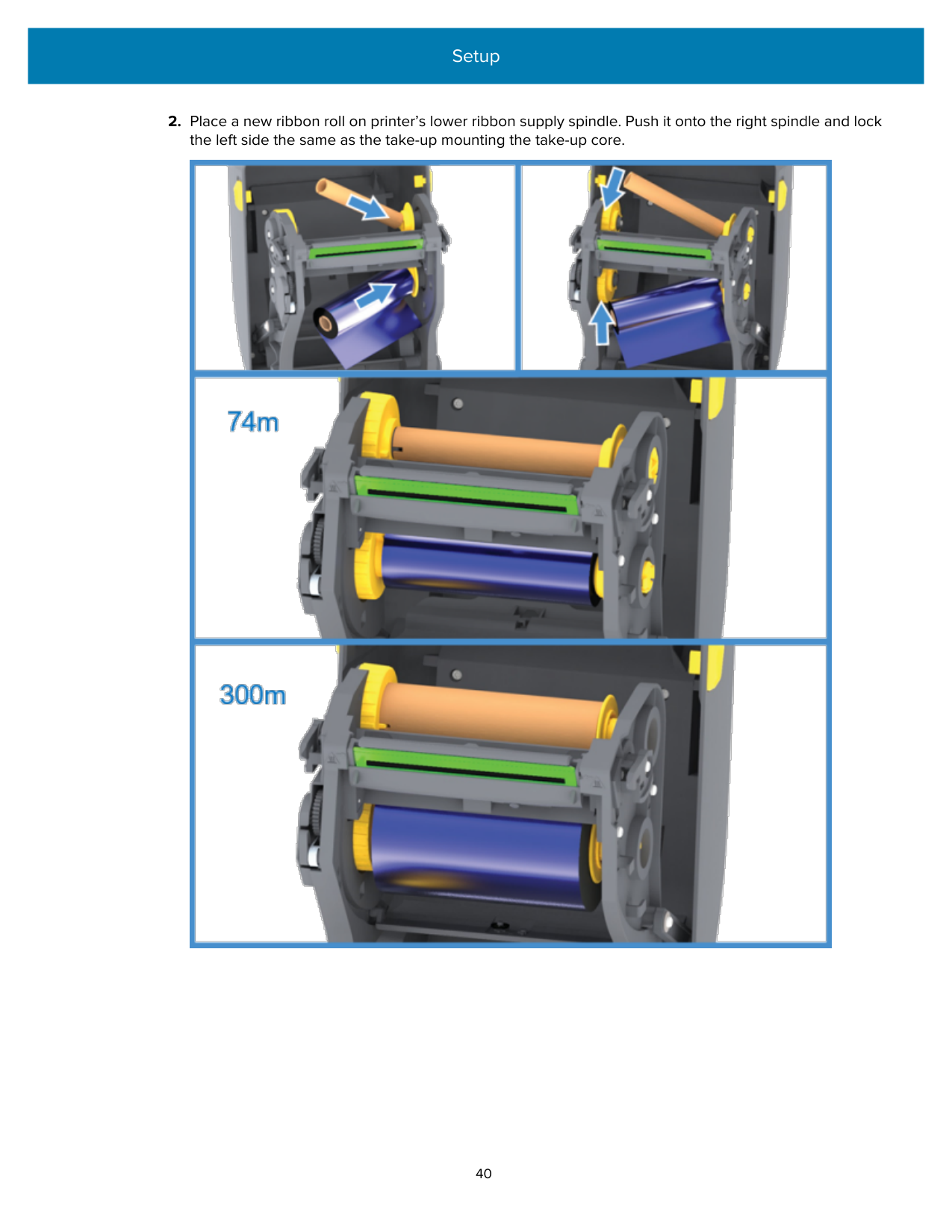
Loading Zebra Transfer Roll Ribbon Follows these steps to load the ribbon. Prepare the ribbon by removing its wrapping and pulling its adhesive strip free. Verify that the ribbon and empty ribbon core have notches on the left side of the ribbon cores as shown here. (If they do not, see Loading Non-Zebra 300-Meter Transfer Ribbon on page 42.)

|a|Notch (required on left side of ribbon)| |---|---| |b|Adhesive strip| |c|Notches are also on the right side of the 74-meter ribbon| |d|Right side (printer and roll)|
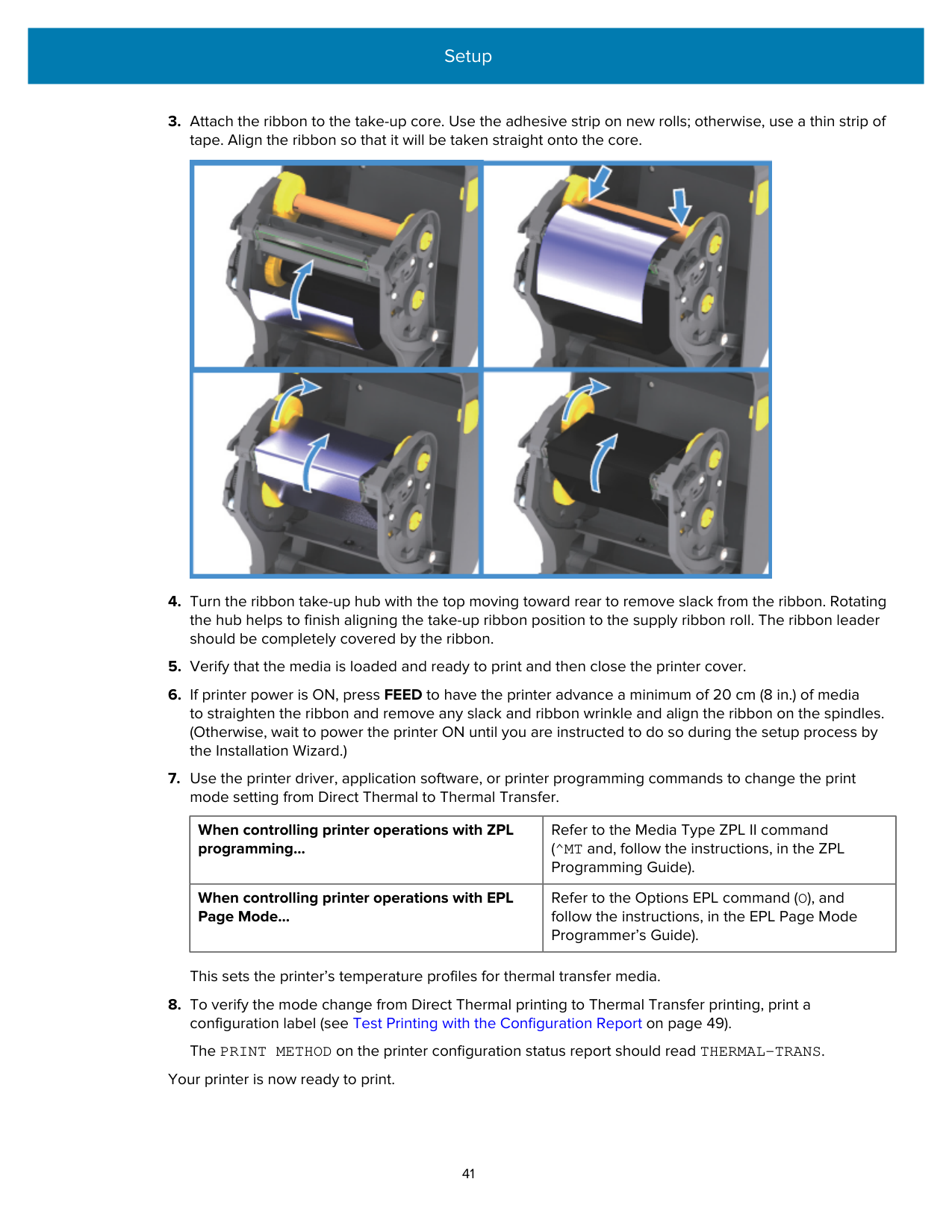
NOTE: You can find your first ribbon take-up core in the packing box. Subsequently, use the empty supply core from the supply spindle for the next roll of ribbon.
######### 2. Place a new ribbon roll on printer’s lower ribbon supply spindle. Push it onto the right spindle and lockthe left side the same as the take-up mounting the take-up core.


|When controlling printer operations with ZPL programming...|Refer to the Media Type ZPL II command (^MT and, follow the instructions, in the ZPL Programming Guide).| |---|---| |When controlling printer operations with EPL Page Mode...|Refer to the Options EPL command (O), and follow the instructions, in the EPL Page Mode Programmer’s Guide).|
This sets the printer’s temperature profiles for thermal transfer media.
Your printer is now ready to print.
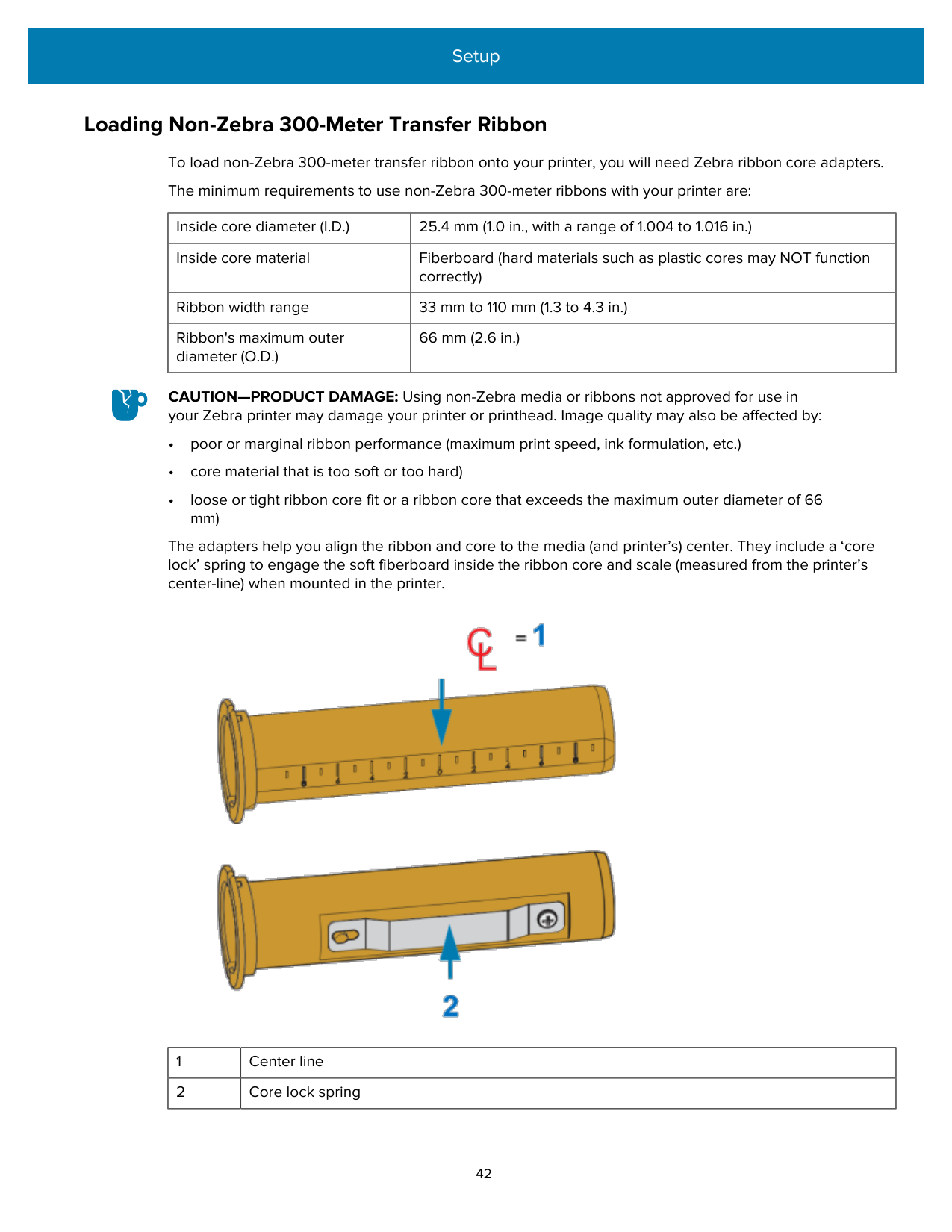
Loading Non-Zebra 300-Meter Transfer Ribbon To load non-Zebra 300-meter transfer ribbon onto your printer, you will need Zebra ribbon core adapters. The minimum requirements to use non-Zebra 300-meter ribbons with your printer are:
|Inside core diameter (I.D.)|25.4 mm (1.0 in., with a range of 1.004 to 1.016 in.)| |---|---| |Inside core material|Fiberboard (hard materials such as plastic cores may NOT function correctly)| |Ribbon width range|33 mm to 110 mm (1.3 to 4.3 in.)| |Ribbon's maximum outer diameter (O.D.)|66 mm (2.6 in.)|
CAUTION—PRODUCT DAMAGE: Using non-Zebra media or ribbons not approved for use in your Zebra printer may damage your printer or printhead. Image quality may also be affected by:
The adapters help you align the ribbon and core to the media (and printer’s) center. They include a ‘core lock’ spring to engage the soft fiberboard inside the ribbon core and scale (measured from the printer’s center-line) when mounted in the printer.

|1|Center line| |---|---| |2|Core lock spring|
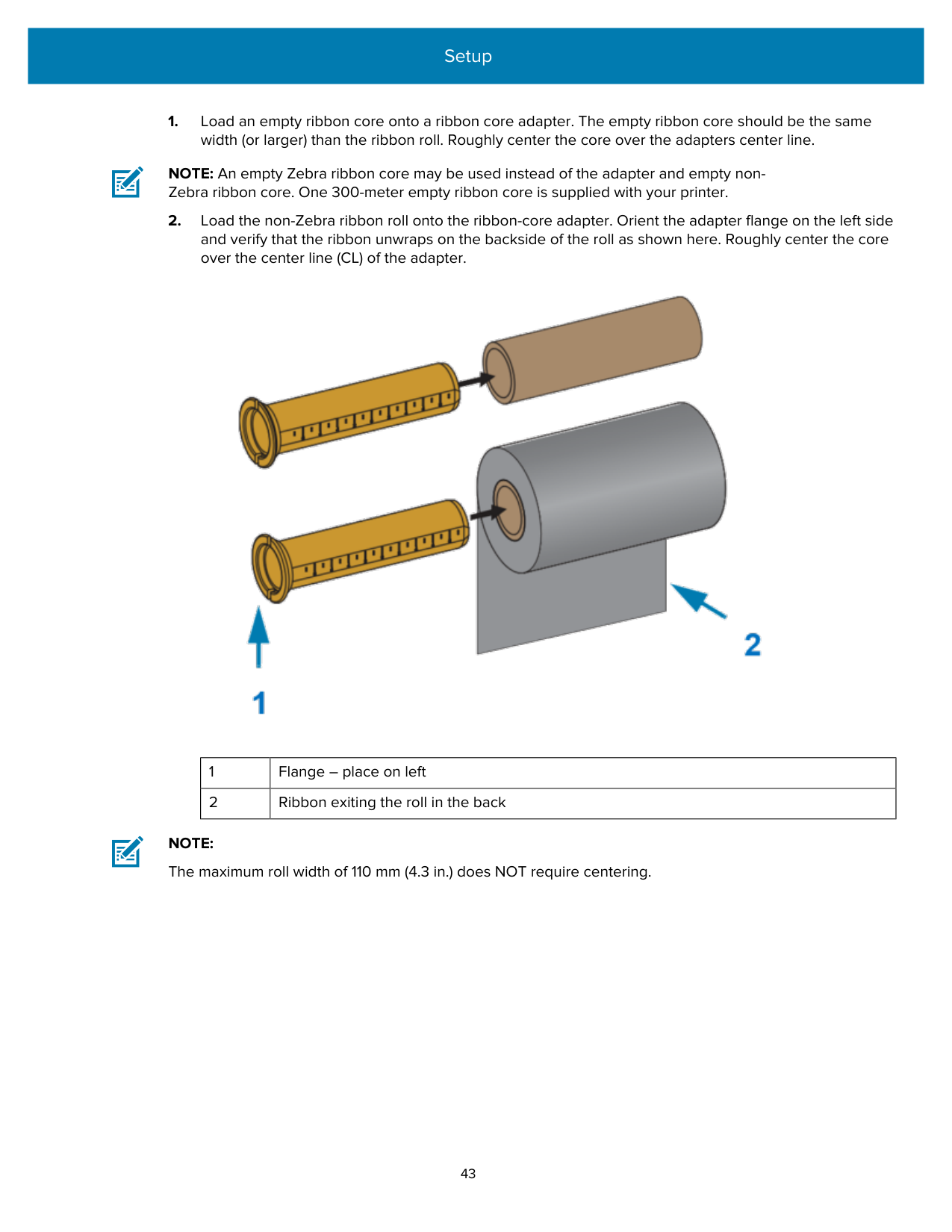
NOTE: An empty Zebra ribbon core may be used instead of the adapter and empty nonZebra ribbon core. One 300-meter empty ribbon core is supplied with your printer.

|1|Flange – place on left| |---|---| |2|Ribbon exiting the roll in the back|
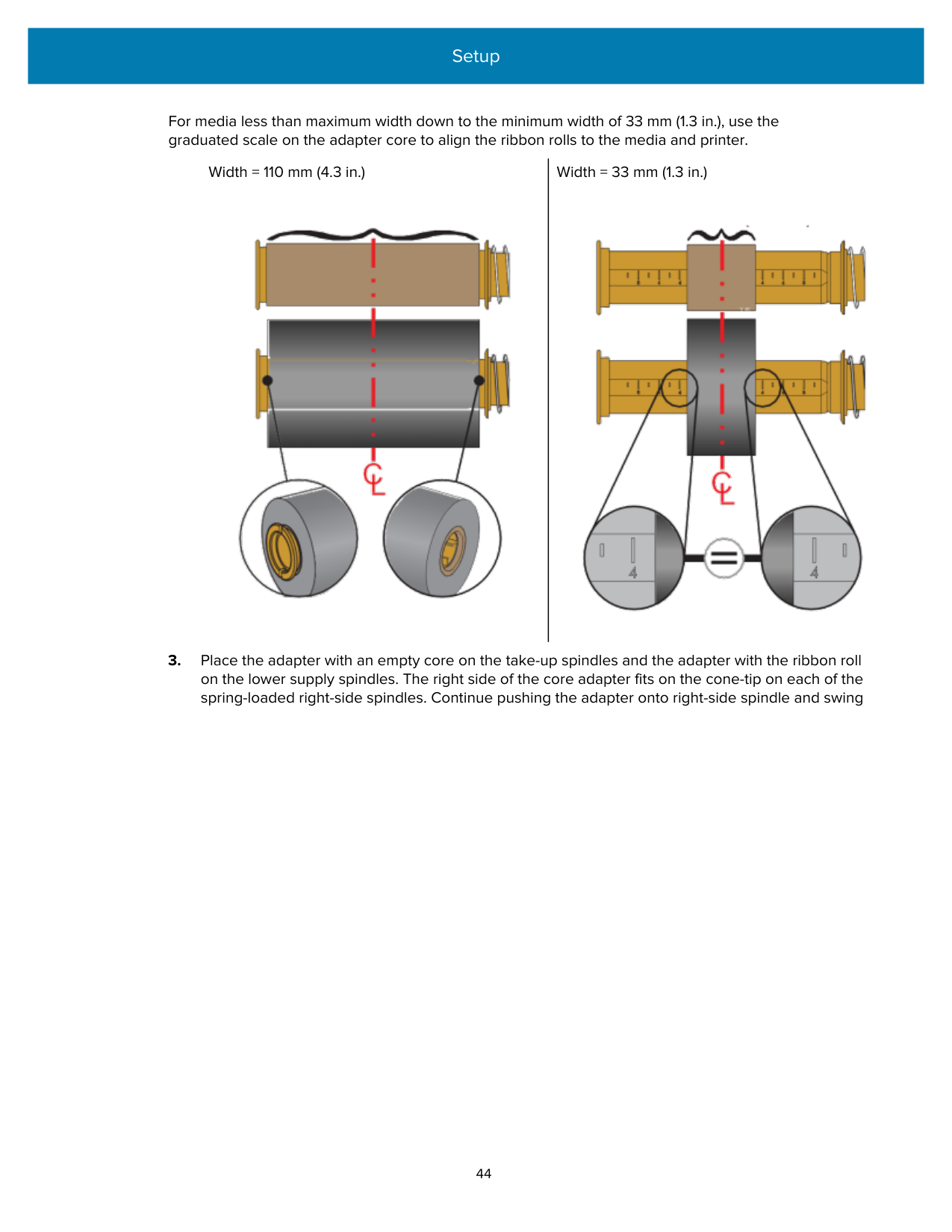
NOTE: The maximum roll width of 110 mm (4.3 in.) does NOT require centering.
For media less than maximum width down to the minimum width of 33 mm (1.3 in.), use the graduated scale on the adapter core to align the ribbon rolls to the media and printer.
Width = 110 mm (4.3 in.) Width = 33 mm (1.3 in.)


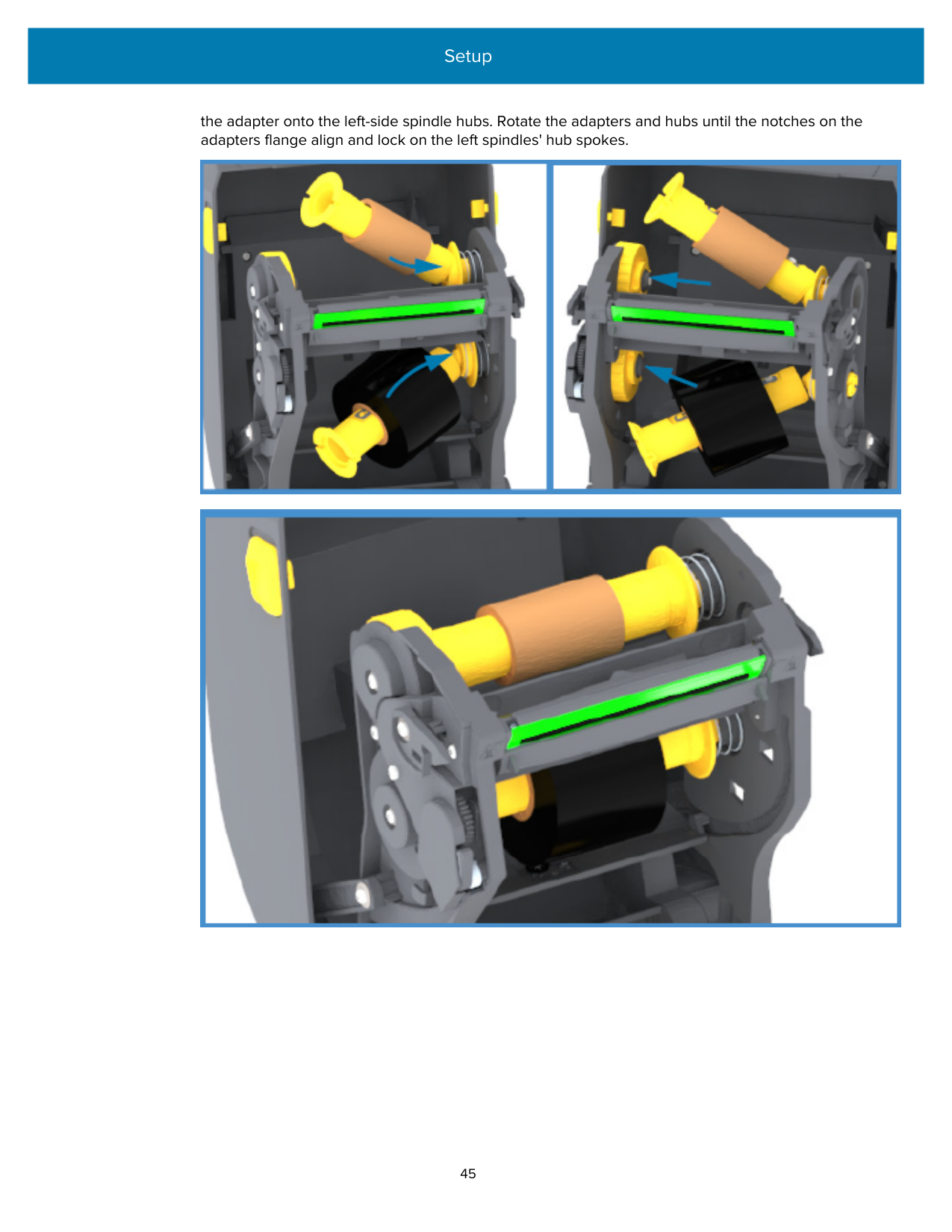
######### the adapter onto the left-side spindle hubs. Rotate the adapters and hubs until the notches on the adapters flange align and lock on the left spindles' hub spokes.


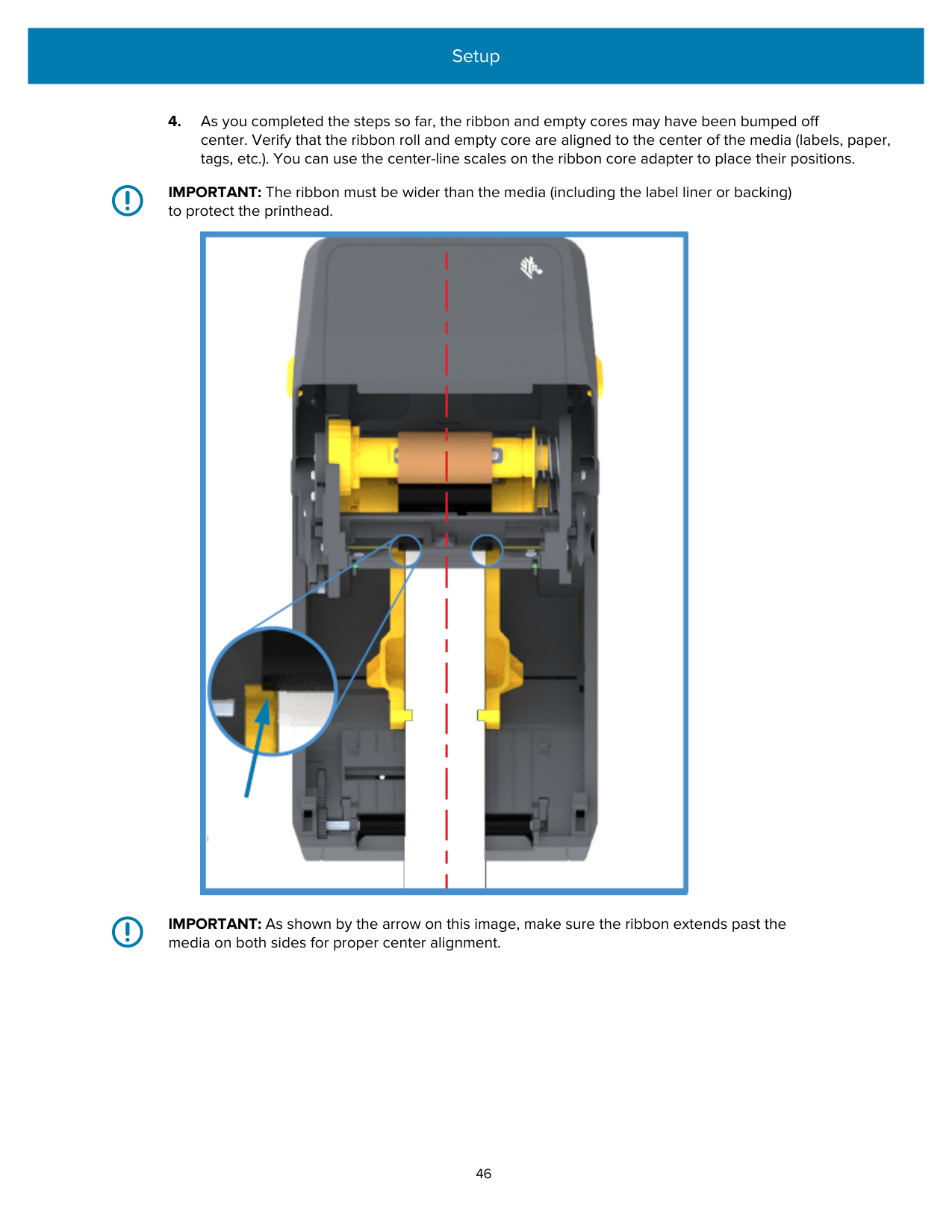
IMPORTANT: The ribbon must be wider than the media (including the label liner or backing) to protect the printhead.

IMPORTANT: As shown by the arrow on this image, make sure the ribbon extends past the media on both sides for proper center alignment.


|When controlling printer operations with ZPL programming...|Refer to the Media Type ZPL II command (^MT), and follow the instructions, in the ZPL Programming Guide).| |---|---| |When controlling printer operations with EPL Page Mode...|Refer to the Options EPL command (O), and follow the instructions, in the EPL Page Mode Programmer’s Guide).|
This sets the printer’s temperature profiles for Thermal Transfer media.
Your printer is now ready to print.
#### Running a SmartCal Media Calibration
The printer must set media parameters for optimal operation prior to printing. To do this, it automatically determines the media type (web/gap, black mark/notch, or continuous) and the measure media characteristics.
NOTE: After initial calibration to a specific media is complete, additional calibrations are not necessary after you load a new batch as long as the newly-loaded media is of the same type as the prior media. The printer will automatically measure the new batch and adjust for any small changes in its characteristics when printing.
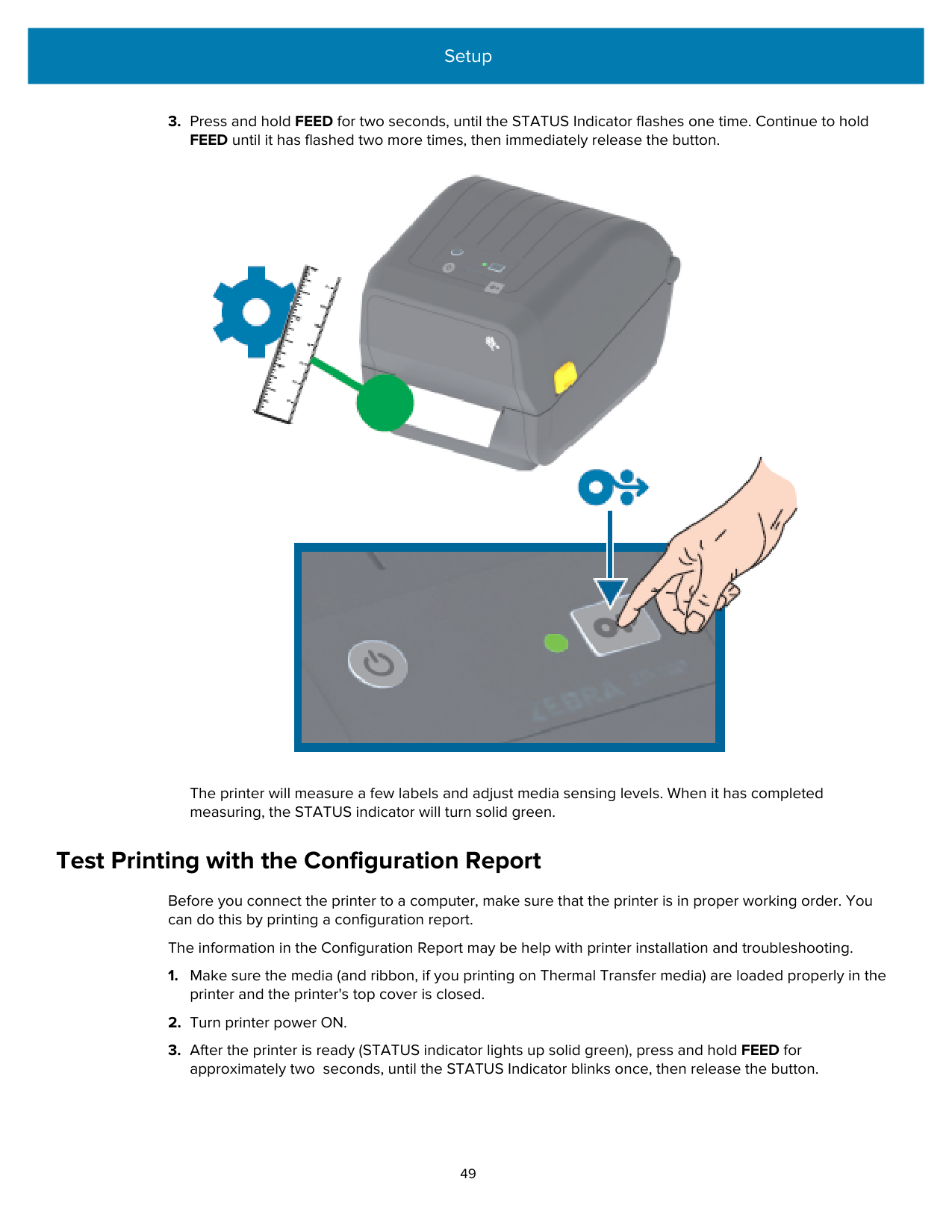
After you load a roll of new media from the same batch, press the FEED (Advance) once or twice to synchronize the labels. This readies the printer to continue printing using the new batch of media.

The printer will measure a few labels and adjust media sensing levels. When it has completed measuring, the STATUS indicator will turn solid green.
#### Test Printing with the Configuration Report
Before you connect the printer to a computer, make sure that the printer is in proper working order. You can do this by printing a configuration report.
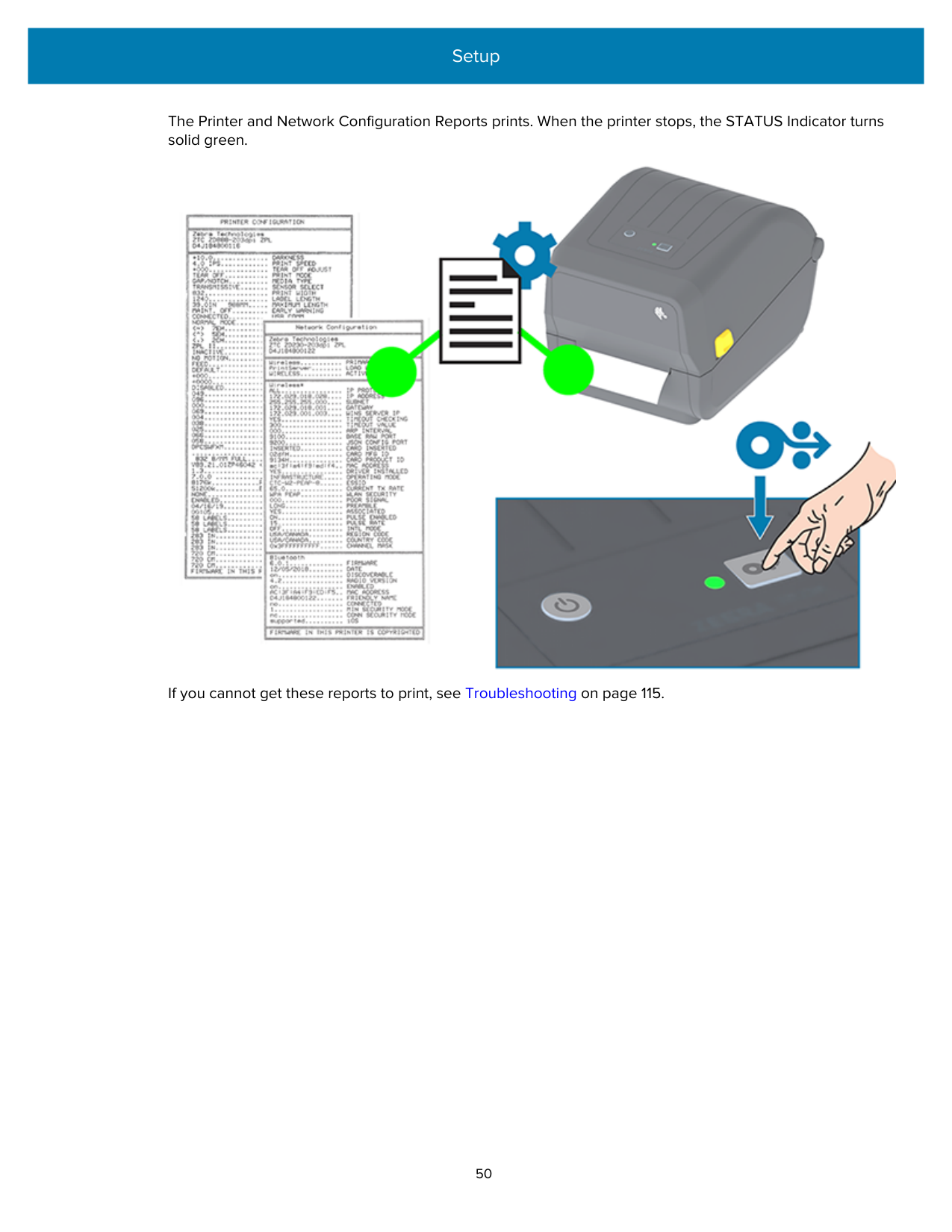
The information in the Configuration Report may be help with printer installation and troubleshooting.
The Printer and Network Configuration Reports prints. When the printer stops, the STATUS Indicator turns solid green.

If you cannot get these reports to print, see Troubleshooting on page 115.
#### Detecting a Media-Out Condition
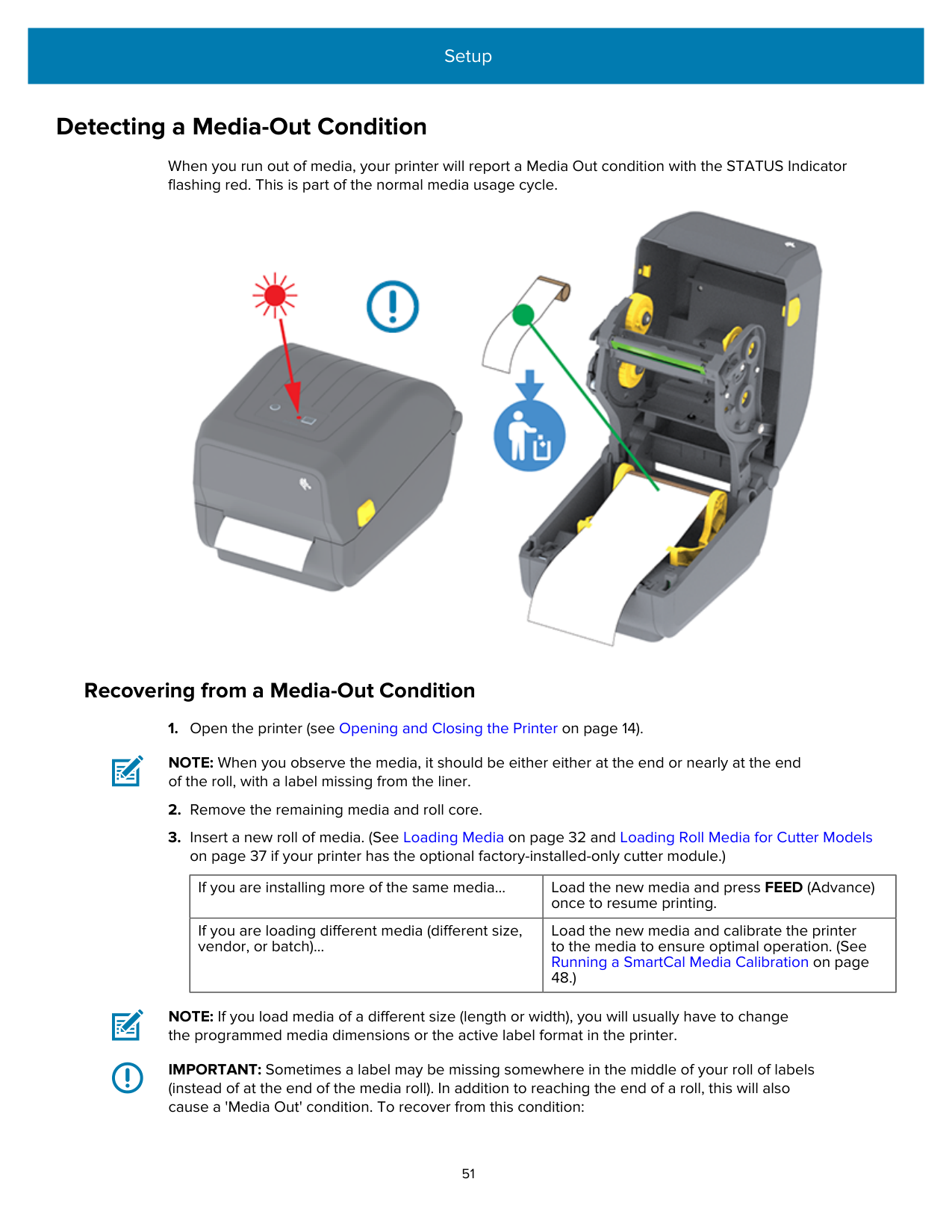
When you run out of media, your printer will report a Media Out condition with the STATUS Indicator flashing red. This is part of the normal media usage cycle.

##### Recovering from a Media-Out Condition
NOTE: When you observe the media, it should be either either at the end or nearly at the end of the roll, with a label missing from the liner.
|If you are installing more of the same media...|Load the new media and press FEED (Advance) once to resume printing.| |---|---| |If you are loading different media (different size, vendor, or batch)...|Load the new media and calibrate the printer to the media to ensure optimal operation. (See Running a SmartCal Media Calibration on page 48.)|
NOTE: If you load media of a different size (length or width), you will usually have to change the programmed media dimensions or the active label format in the printer.
IMPORTANT: Sometimes a label may be missing somewhere in the middle of your roll of labels (instead of at the end of the media roll). In addition to reaching the end of a roll, this will also cause a 'Media Out' condition. To recover from this condition:
#### Detecting a Ribbon-Out Condition
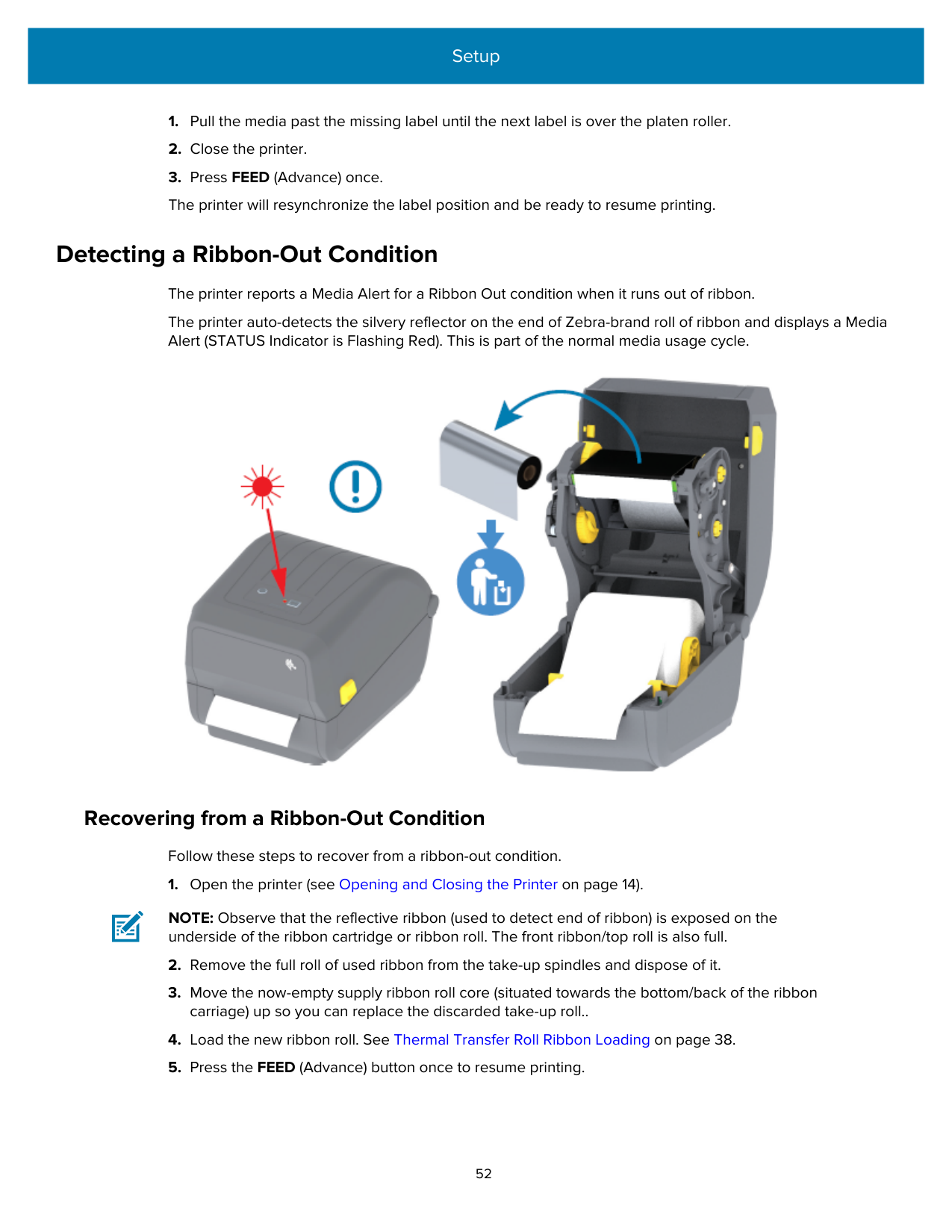
The printer reports a Media Alert for a Ribbon Out condition when it runs out of ribbon. The printer auto-detects the silvery reflector on the end of Zebra-brand roll of ribbon and displays a Media Alert (STATUS Indicator is Flashing Red). This is part of the normal media usage cycle.

##### Recovering from a Ribbon-Out Condition
Follow these steps to recover from a ribbon-out condition.
NOTE: Observe that the reflective ribbon (used to detect end of ribbon) is exposed on the underside of the ribbon cartridge or ribbon roll. The front ribbon/top roll is also full.
#### Connecting Your Printer to a Device (Process Overview)
Zebra printers support a variety of interface options and configurations to enable network and physical cable connections.
NOTE: If you purchased your printer in the EMEA region on or after August 1, 2025, go to Modifying or Viewing Secured Features on page 28.
NOTE: Zebra ZD Series printers equipped with the Wi-Fi connectivity option support Bluetooth Low Energy (low-speed connection). You can configure them using software running on an Android or iOS device.
Be sure to review the cabling and unique parameters for each physical printer communication interface. This will help you set up the printer with the correct settings. For detailed instructions on configuring network (Ethernet/Wi-Fi) and Bluetooth communication, see the Wired and Wireless Print Server User Guide and the Bluetooth Wireless Guide available from zebra.com.
The central device may be a Windows PC or laptop running the operating systems listed in Setup for Windows OS on page 65, an Android device, or an Apple device. Supported printer connection options are Wired/Ethernet, USB, and Wireless, Bluetooth Classic, and Bluetooth Low Energy (Bluetooth LE).
Zebra Setup Utilities (ZSU) are designed to assist you with installing these interfaces. (For ZSU user guides, go to zebra.com/setup.)
IMPORTANT: Wait to turn printer power ON until you are instructed to do so by the Installation Wizard. Keep the power switch in the OFF position when attaching the interface cable. The power cord must be inserted into the power supply and the power receptacle on the back of the printer before you connect or disconnect the communications cables.
The ZSU wizard installs the Zebra Windows drivers.
##### Interface Cable Requirements
Data cables must be fully shielded and fitted with metal or metalized connector shells. Shielded cables and connectors are required to prevent the radiation and reception of electrical noise.
To minimize electrical noise pickup in the cable:
IMPORTANT: This printer complies with FCC Rules and Regulations, Part 15, for Class A Equipment, using fully-shielded data cables. Use of unshielded cables may increase radiated emissions above the Class A limits.
##### USB Interface
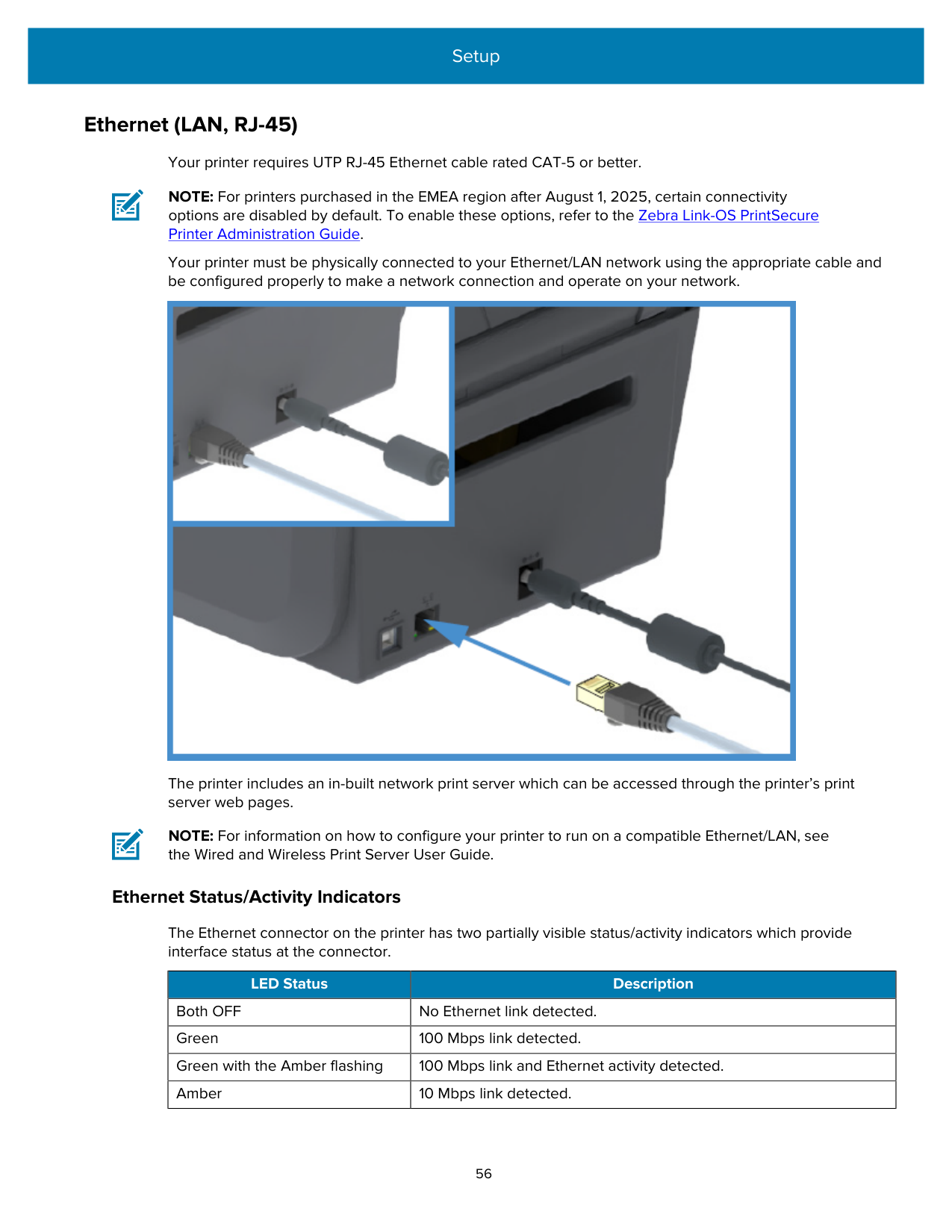
Universal Serial Bus (version 2.0 compliant) provides a fast interface that is compatible with your existing PC hardware. The USB plug-and-play design eases the installation process, and multiple printers can share a single USB port/hub.

When selecting a USB cable for use with your printer, verify that the cable or cable packaging bears the Certified USB mark to guarantee USB 2.0 compliance.
##### Ethernet (LAN, RJ-45)
Your printer requires UTP RJ-45 Ethernet cable rated CAT-5 or better.
NOTE: For printers purchased in the EMEA region after August 1, 2025, certain connectivity options are disabled by default. To enable these options, refer to the Zebra Link-OS PrintSecure Printer Administration Guide.
Your printer must be physically connected to your Ethernet/LAN network using the appropriate cable and be configured properly to make a network connection and operate on your network.

The printer includes an in-built network print server which can be accessed through the printer’s print server web pages.
NOTE: For information on how to configure your printer to run on a compatible Ethernet/LAN, see the Wired and Wireless Print Server User Guide.
###### Ethernet Status/Activity Indicators
The Ethernet connector on the printer has two partially visible status/activity indicators which provide interface status at the connector.
|LED Status|Description| |---|---| |Both OFF|No Ethernet link detected.| |Green|100 Mbps link detected.| |Green with the Amber flashing|100 Mbps link and Ethernet activity detected.| |Amber|10 Mbps link detected.|
|LED Status|Description| |---|---|
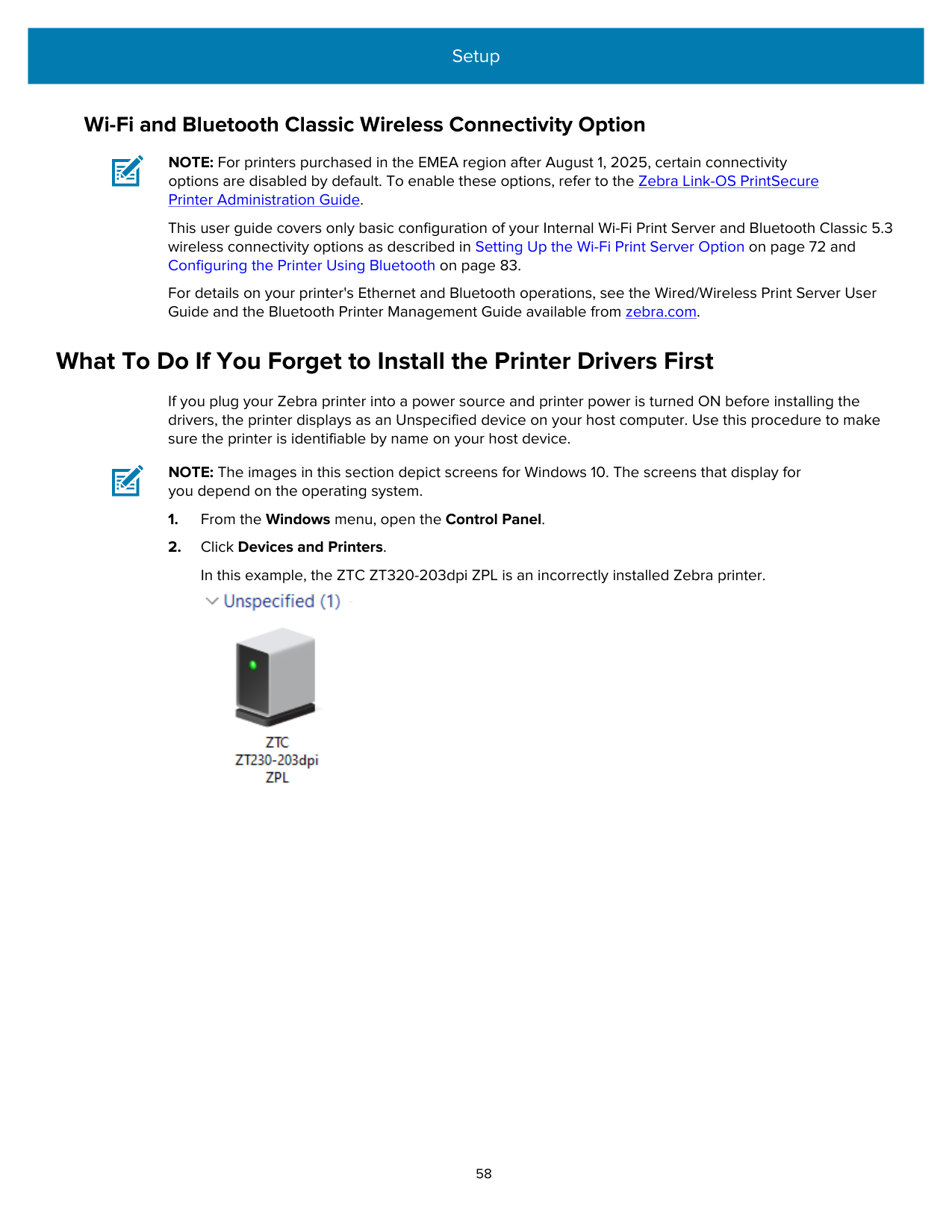
|Amber with the Green flashing|10 Mbps link and Ethernet activity detected.|
###### Assigning an IP Address for Network Access
All devices on an Ethernet network (LAN and WLAN) including your printer require a network IP (Internet Protocol) address.
You will need the printer’s IP address to access the device for printer configuration and for printing. There are five ways to assign an IP address:
DHCP for Personal Networks Your printer is set to operate on an Ethernet LAN or Wi-Fi network with DHCP by default. This setting is intended primarily for personal networks. The network automatically provides a new network IP address each time printer power is turned ON. The Windows printer driver uses a Static IP address to connect to the printer. You must change the IP address set in the printer driver to access the printer if its assigned IP address has changed after initial printer installation.
###### Using Your Printer on a Managed Network
Using the printer in a structured network (LAN or Wi-Fi) requires a network administrator to assign the printer a Static IP address and establish other settings that your printer needs to operate on the network.
###### Print Server User ID and Password Defaults
You will need the default User ID and/or default password for the printer's in-built print server to access some printer's features and its WiFi option.
Factory default User ID: admin Factory default Password: 1234
##### Wi-Fi and Bluetooth Classic Wireless Connectivity Option
NOTE: For printers purchased in the EMEA region after August 1, 2025, certain connectivity options are disabled by default. To enable these options, refer to the Zebra Link-OS PrintSecure Printer Administration Guide.
This user guide covers only basic configuration of your Internal Wi-Fi Print Server and Bluetooth Classic 5.3 wireless connectivity options as described in Setting Up the Wi-Fi Print Server Option on page 72 and Configuring the Printer Using Bluetooth on page 83.
For details on your printer's Ethernet and Bluetooth operations, see the Wired/Wireless Print Server User Guide and the Bluetooth Printer Management Guide available from zebra.com.
#### What To Do If You Forget to Install the Printer Drivers First
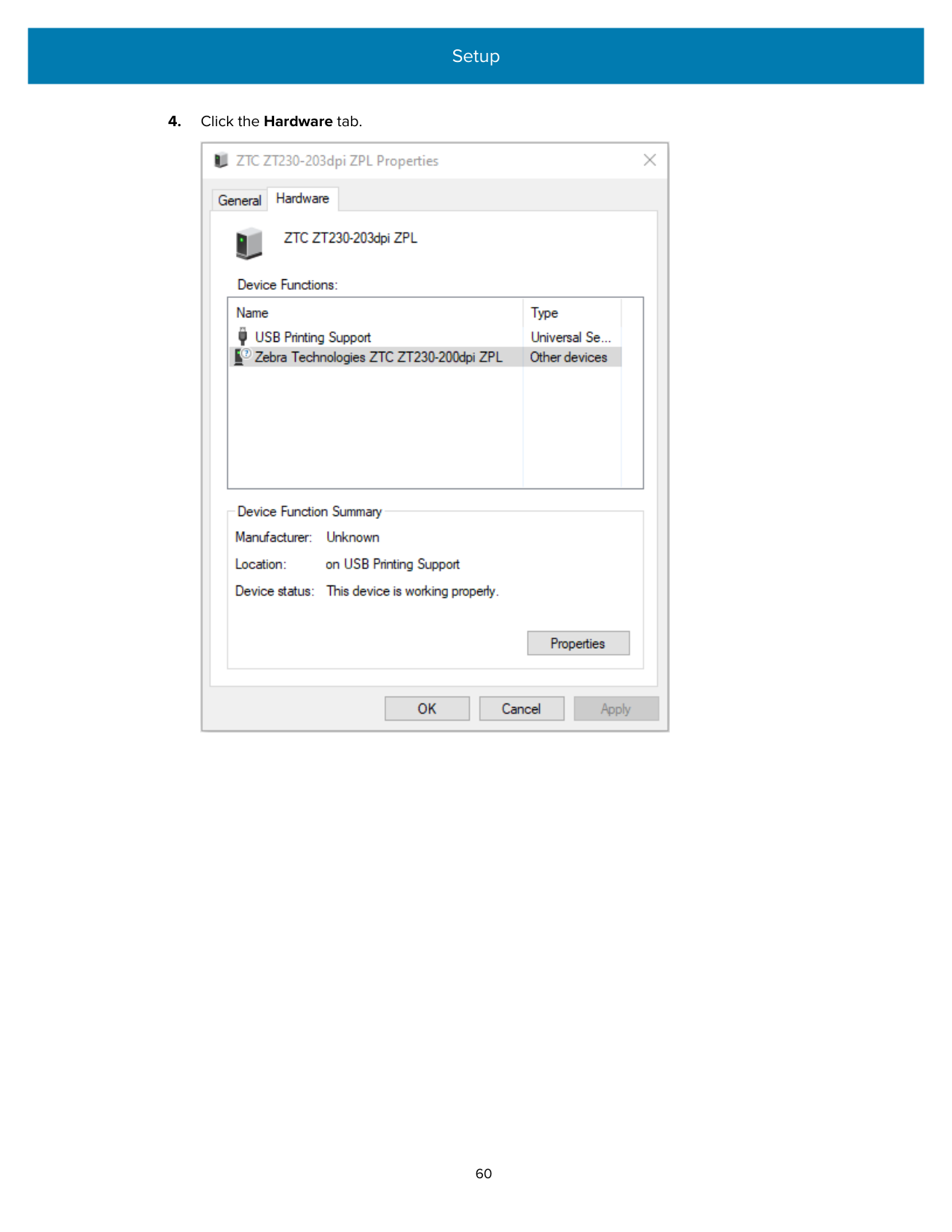
If you plug your Zebra printer into a power source and printer power is turned ON before installing the drivers, the printer displays as an Unspecified device on your host computer. Use this procedure to make sure the printer is identifiable by name on your host device.
NOTE: The images in this section depict screens for Windows 10. The screens that display for you depend on the operating system.

######### 3. Right-click on the icon representing the device, then select Properties.The properties for the device display.

######### 4. Click the Hardware tab.
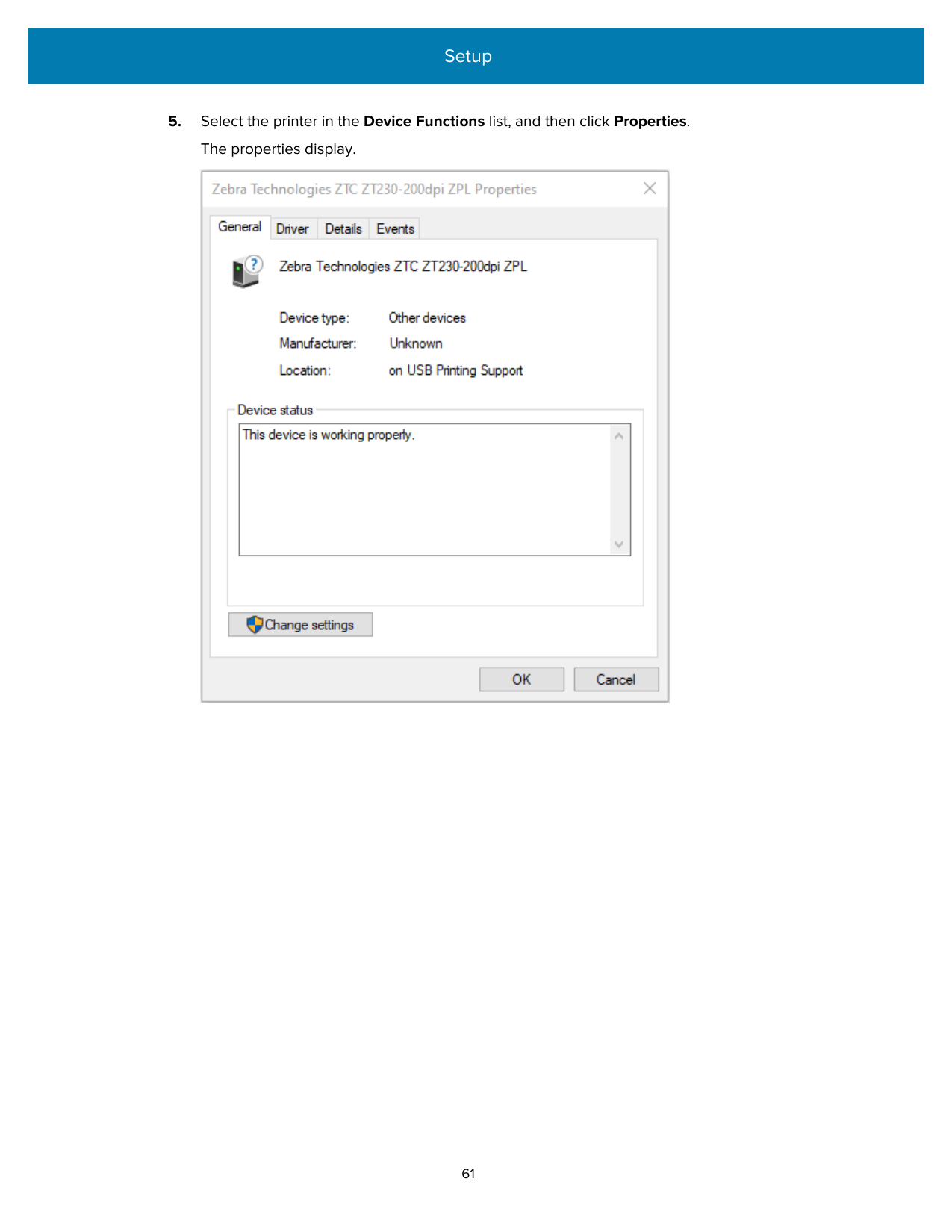

######### 5. Select the printer in the Device Functions list, and then click Properties.The properties display.

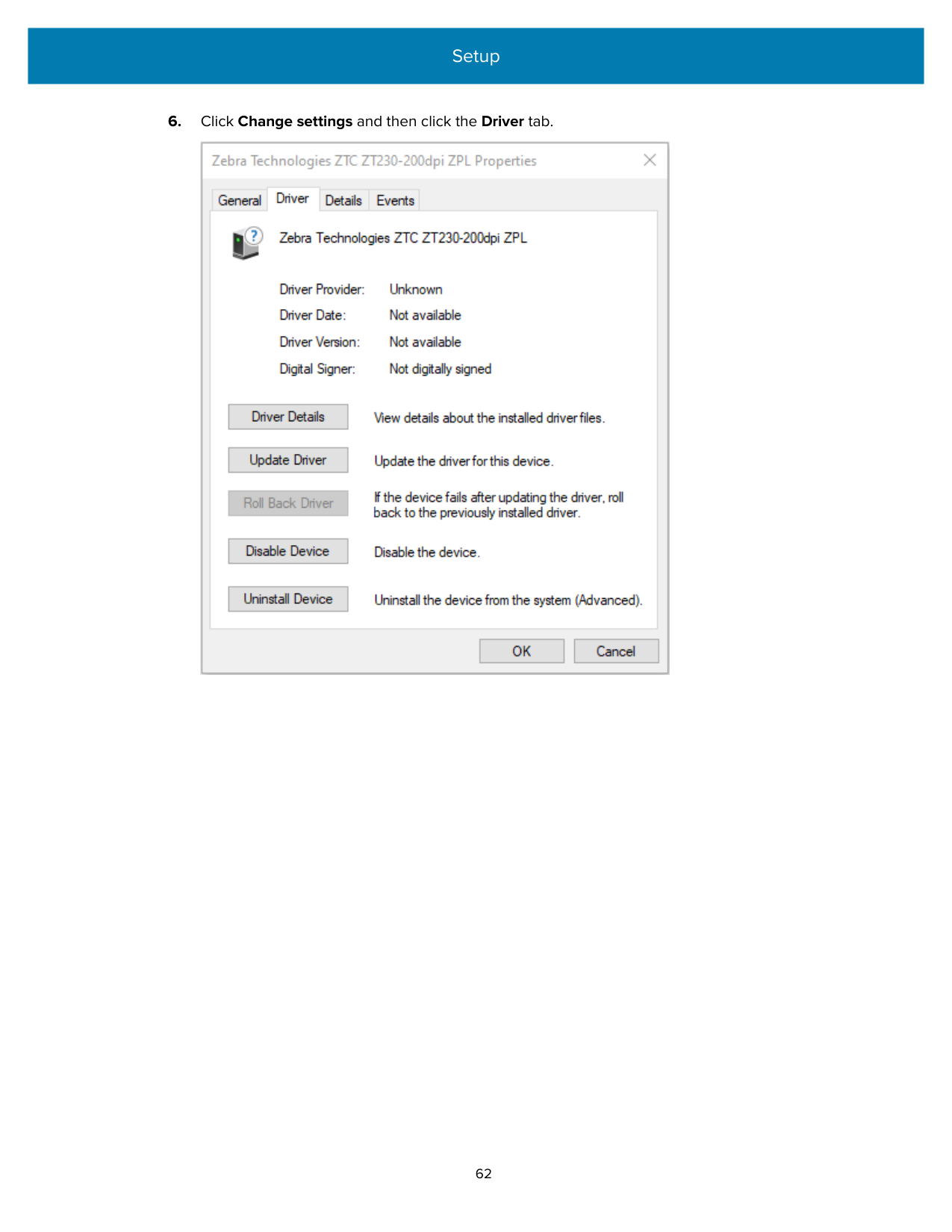
######### 6. Click Change settings and then click the Driver tab.


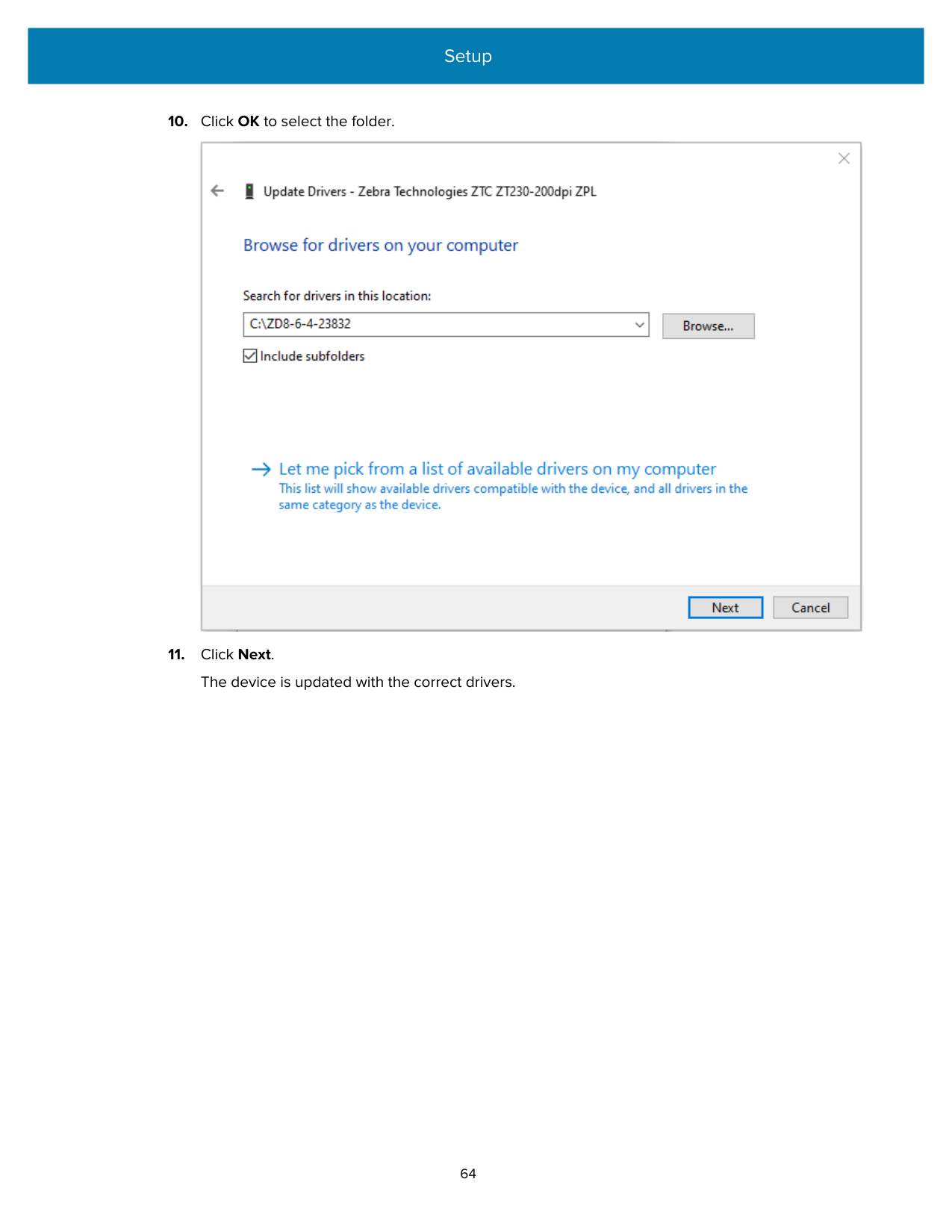
######### 10. Click OK to select the folder.

######### 11. Click Next.The device is updated with the correct drivers.
Setup for Windows OS
The section helps you set up communications between your printer and the Windows operating system environment.
NOTE: For printers purchased in the EMEA region after August 1, 2025, you must configure a Protected Mode password and front panel password for the printer before you can perform wired or wireless setup. For additional information, go to zebra.com/asr or refer to the Zebra Link-OS PrintSecure Printer Administration Guide.
For other printers with Protected Mode enabled, depending on the configuration, you may need to enter the Protected Mode password to change certain settings on the printer. For more information, refer to the Zebra Link-OS PrintSecure Printer Administration Guide.
#### Windows to Printer Communication Setup (Process Overview)
Use this overview to understand how to set up your printer using the most common (supported) Windows operating systems and a local (wired) connection.
You may also set up your printer using factory-installed Wi-Fi or Bluetooth as described in Setting Up the Wi-Fi Print Server Option on page 72 and Configuring the Printer Using Bluetooth on page 83.
You can use the USB interface for a wizard-guided installation of networked devices or Bluetooth Classic (4.0) devices.
IMPORTANT: If you did not install the printer drivers before connecting to the printer when it was powered ON, see What To Do If You Forget to Install the Printer Drivers First on page 58.
#### Installing the Windows Printer Drivers
To use your printer with a Microsoft Windows-based computer, you must first install the correct drivers. Use the Zebra Setup Utilities to install the printer drivers on your central device and ensure the printer power is switched off when you run the Utilities. These drivers enable you to set up and manage your printer conveniently from your central device.
NOTE: You may connect your printer to your computer using any of the supported connections that are available to you. However, do NOT connect any cables from your computer to the printer UNTIL you are instructed to do so by the installation wizard. If you connect the cables at the wrong time, your printer will not install the correct printer drivers. To recover from incorrect driver installation, see What To Do If You Forget to Install the Printer Drivers First on page 58.
NOTE: If using a PC, it must run a Zebra-driver-supported Windows OS. (See the Zebra Setup Utilities release notes for a list of supported Windows operating systems.)
If you are using a physical cable to connect your computer to the printer, be sure to review the cabling specifications and the parameters specific to the physical communication interface you plan to use. This information will help you make the appropriate configuration setup choices both before and immediately after you apply power to the printer.
The driver executable file (such as zddriver-v10-6-12-28213-installer.exe) is added to your Download folder.
IMPORTANT: Do NOT turn printer power on until you are instructed to do so by the Setup Wizard.
######### 7. From your PC, run the Zebra Setup Utilities (ZSU) executable and follow the prompts.The setup wizard installs the printer drivers and prompts you to turn printer power ON.
NOTE: When THE setup is complete, you may select to add the drivers to your system (Configure System) or elect to add specific printers in a later step.

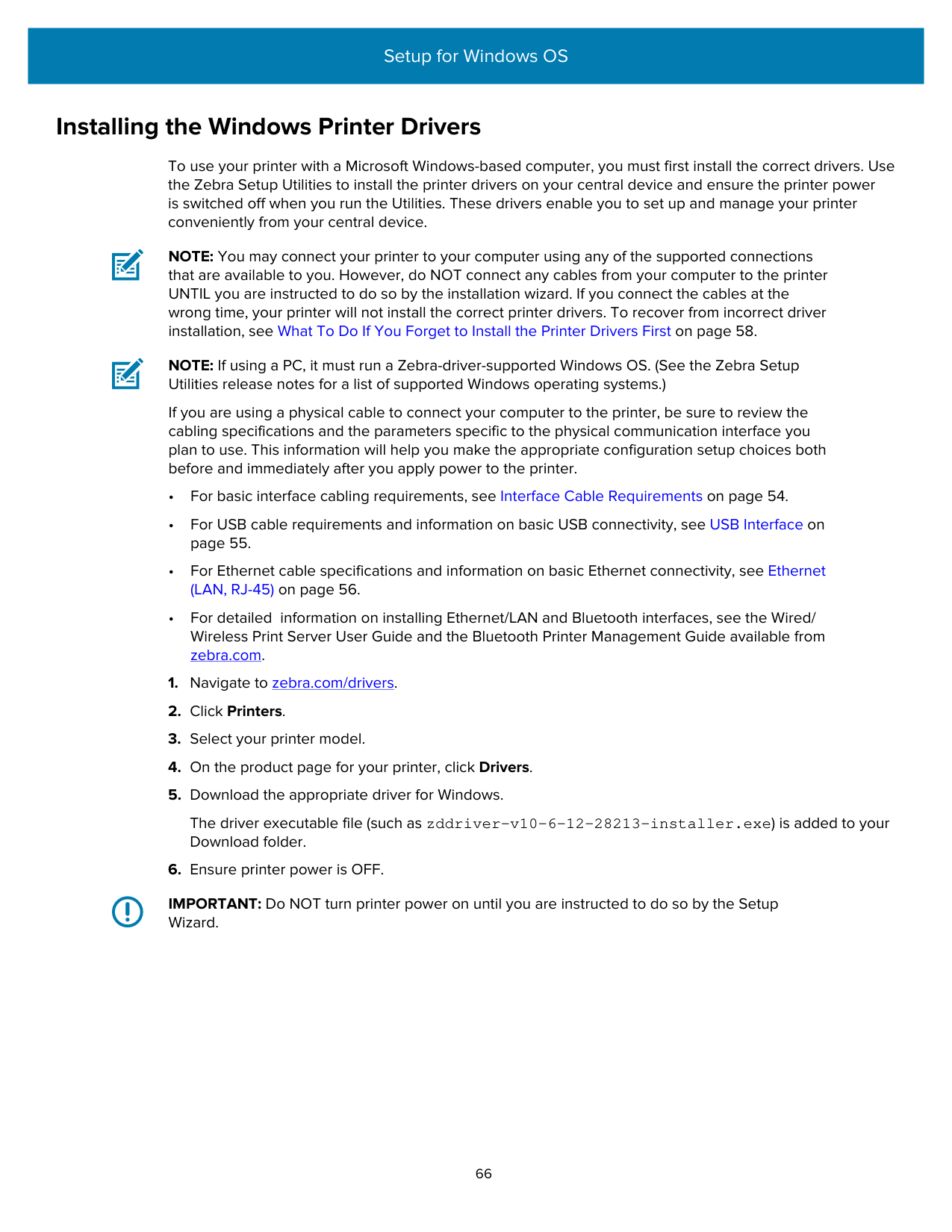
######### 8. Select Configure System, then click Finish.The Printer Installation Wizard installs the drivers.

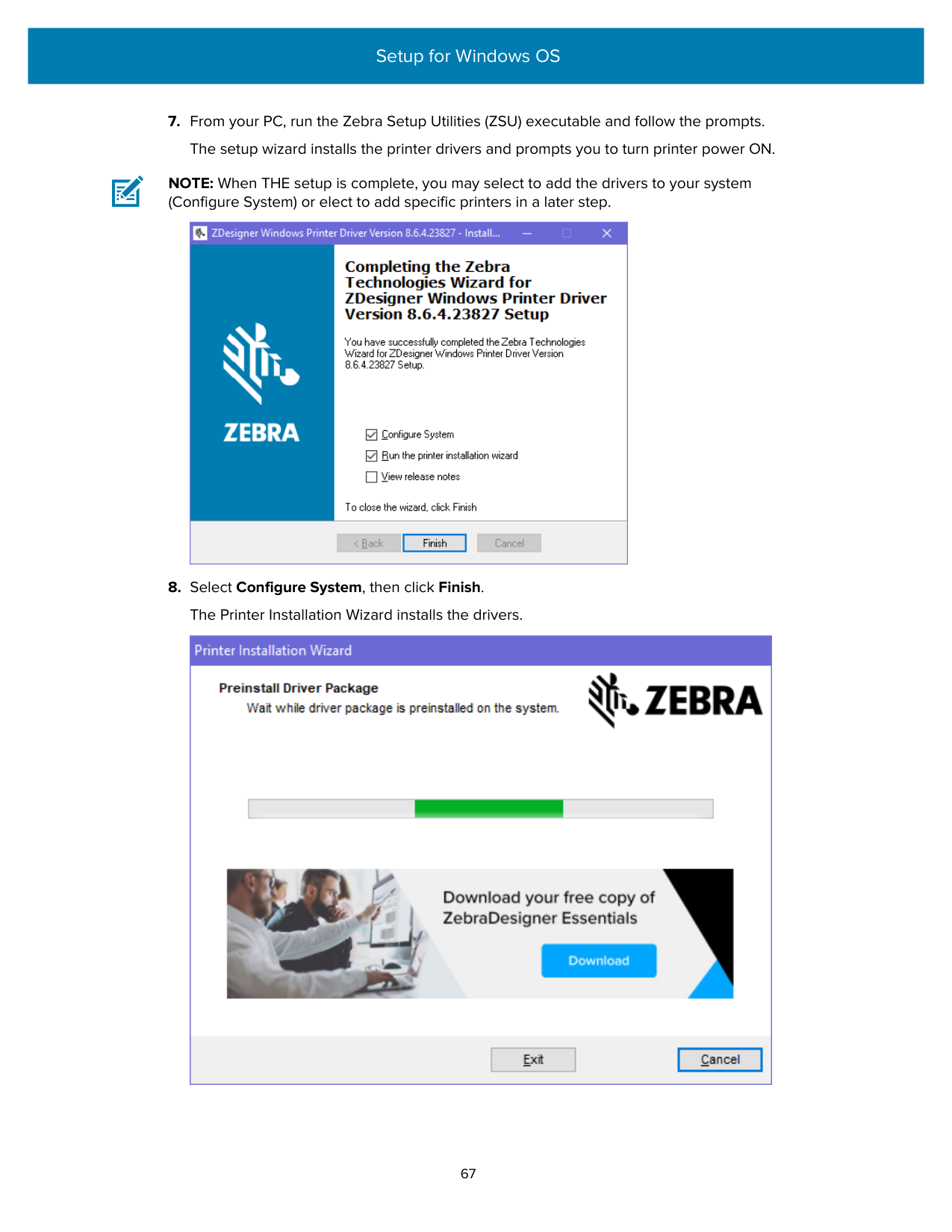
#### Running the Printer Installation Wizard
NOTE: For printers with Protected Mode enabled, you need to provide the Protected Mode password to change certain settings. For more information, refer to the Zebra Link-OS PrintSecure Printer Administration Guide.

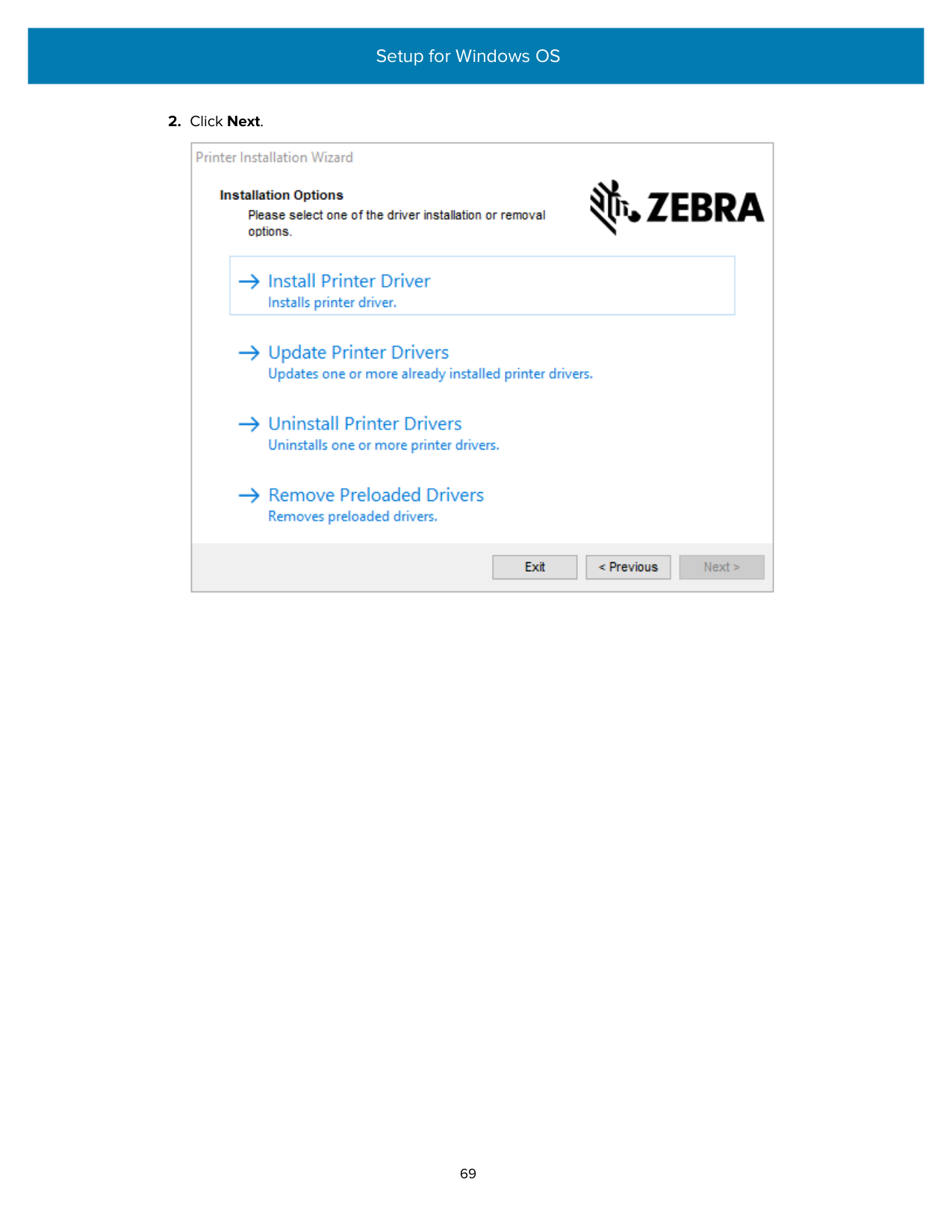
######## 2. Click Next.

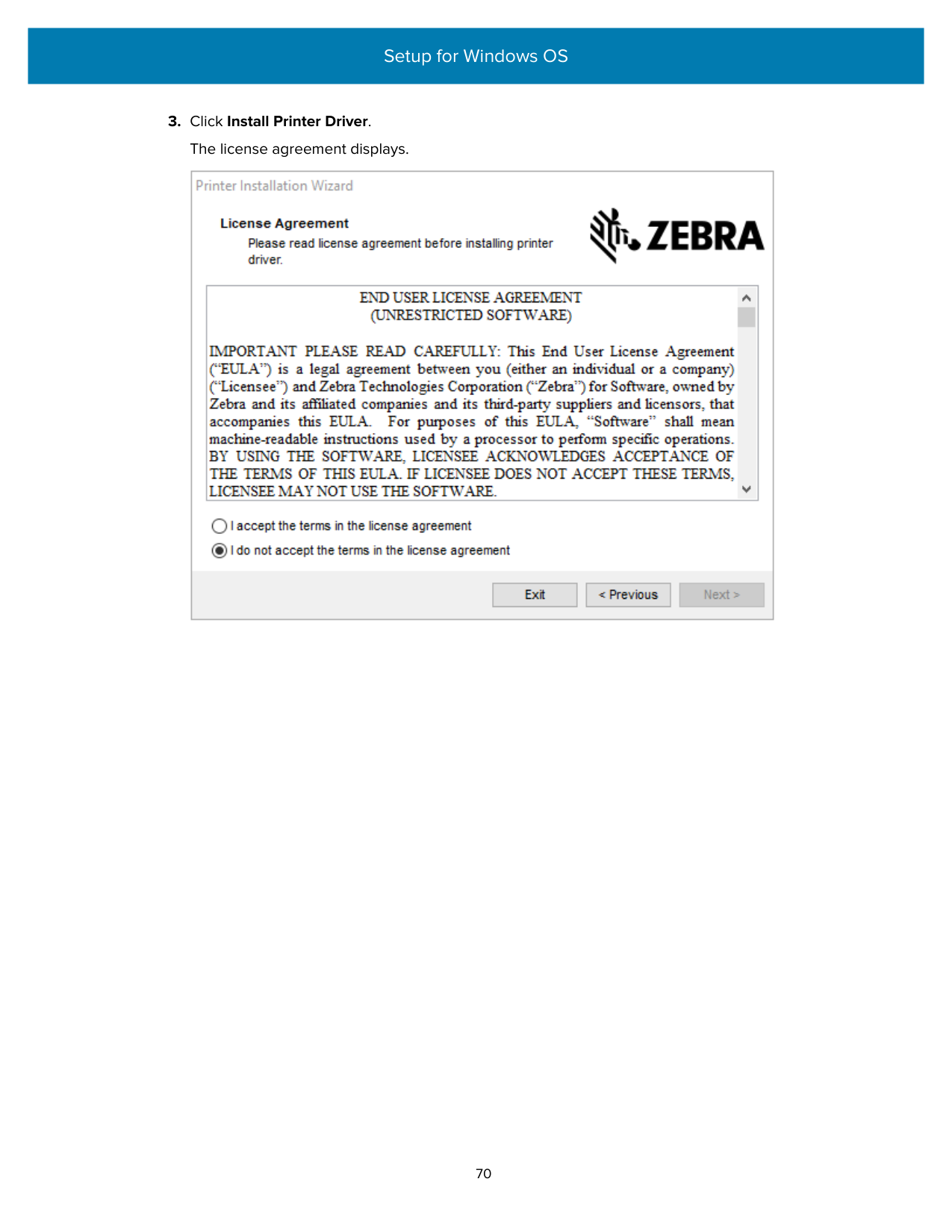
######### 3. Click Install Printer Driver.The license agreement displays.


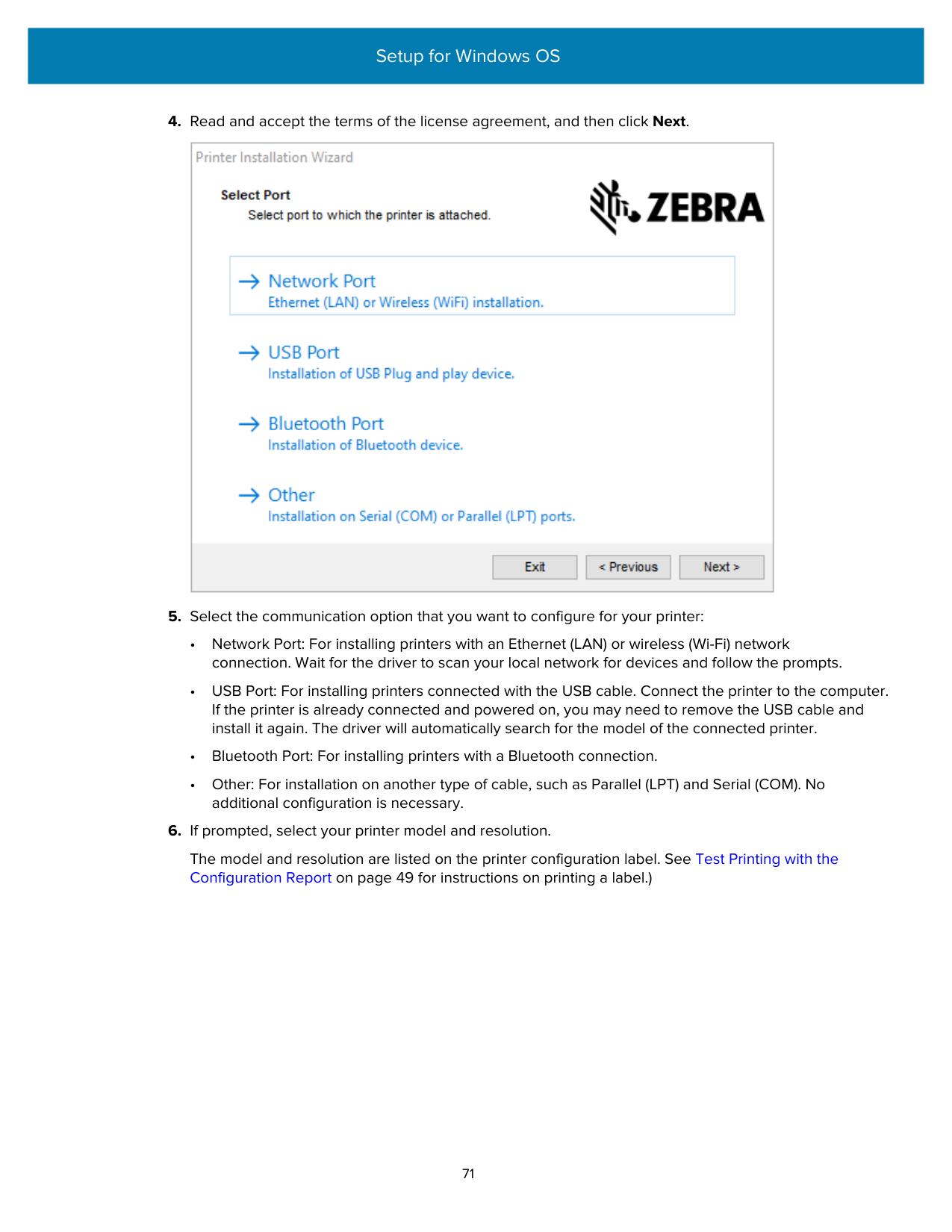
The model and resolution are listed on the printer configuration label. See Test Printing with the Configuration Report on page 49 for instructions on printing a label.)
#### Setting Up the Wi-Fi Print Server Option
The wireless radio option (which includes Wi-Fi, Bluetooth Classic and Bluetooth Low Energy) is available ONLY as a factory-installed configuration. These instructions guide you through basic configuration of your internal Wi-Fi Print Server option using the Connectivity Wizard.
NOTE: For printers purchased in the EMEA region after August 1, 2025, you must configure a Protected Mode password and front panel password for the printer before you can perform wired or wireless setup. For additional information, go to zebra.com/asr or refer to the Zebra Link-OS PrintSecure Printer Administration Guide.
For other printers with Protected Mode enabled, depending on the configuration, you may need to enter the Protected Mode password to change certain settings on the printer. For more information, refer to the Zebra Link-OS PrintSecure Printer Administration Guide.
You may configure your printer for wireless operation using one of these methods:
|Using the Connectivity Wizard (covered in this guide)|When run, the wizard writes a ZPL script to enable your PC to communicate with your printer over Wi-Fi.
Towards the end of the process, the wizard prompts you to either send the command directly to your printer, or save the ZPL script to a file. If you elect to save this ZPL file:
• You can send the file to one or more printers that will use the same network settings, using any available connection (serial, parallel, USB, or wired print server).
• You can resend the file to the printer at a future time if the printer's network settings were restored to their factory defaults.
| |---|---| |Using a ZPL script that you write yourself*|Use the ^WX command to set the basic parameters for Security Type.| |Using Set/Get/Do (SGD) commands that you send to the printer|Begin with wlan.security to set the Wireless Security type. Then add other SGD commands (which will be necessary based on the security type you select) to specify the other required parameters.| |NOTE: * Refer to the ZPL Programming Guide for more information on these options. You can send these commands through any available connection (serial, parallel, USB, or wired print server).|NOTE: * Refer to the ZPL Programming Guide for more information on these options. You can send these commands through any available connection (serial, parallel, USB, or wired print server).|
The following settings must be configured correctly for your printer to connect through Wi-Fi:
If you make changes to any of these settings, reset the network to allow changes to the network settings to take effect. (See Connection > Networks > Reset Network.)
#### Configuring the Printer Using ZebraNet Bridge’s Connectivity Wizard
While you have several options to connect to and configure your printer for cloud, WLAN and LAN operations, the recommended tool to use is Link-OS Profile Manager. Link-OS Profile Manager is provided with the ZebraNet Bridge Enterprise (for local and LAN configurations), a configuration utility that is available for download from zebra.com/software.
NOTE: For printers with Protected Mode enabled, you need to provide the Protected Mode password to change certain settings. For more information, refer to the Zebra Link-OS PrintSecure Printer Administration Guide.
The Connectivity Wizard (which is part of this software) allows you to easily configure your printer for wireless operation by authoring the appropriate ZPL script for your printer. Use this utility to configure your printer's wireless print server either for the first time or after you reset the printer's network options to their factory defaults.
NOTE: You will need ZebraNet Bridge Enterprise version 1.2.5 or later to configure the printer.
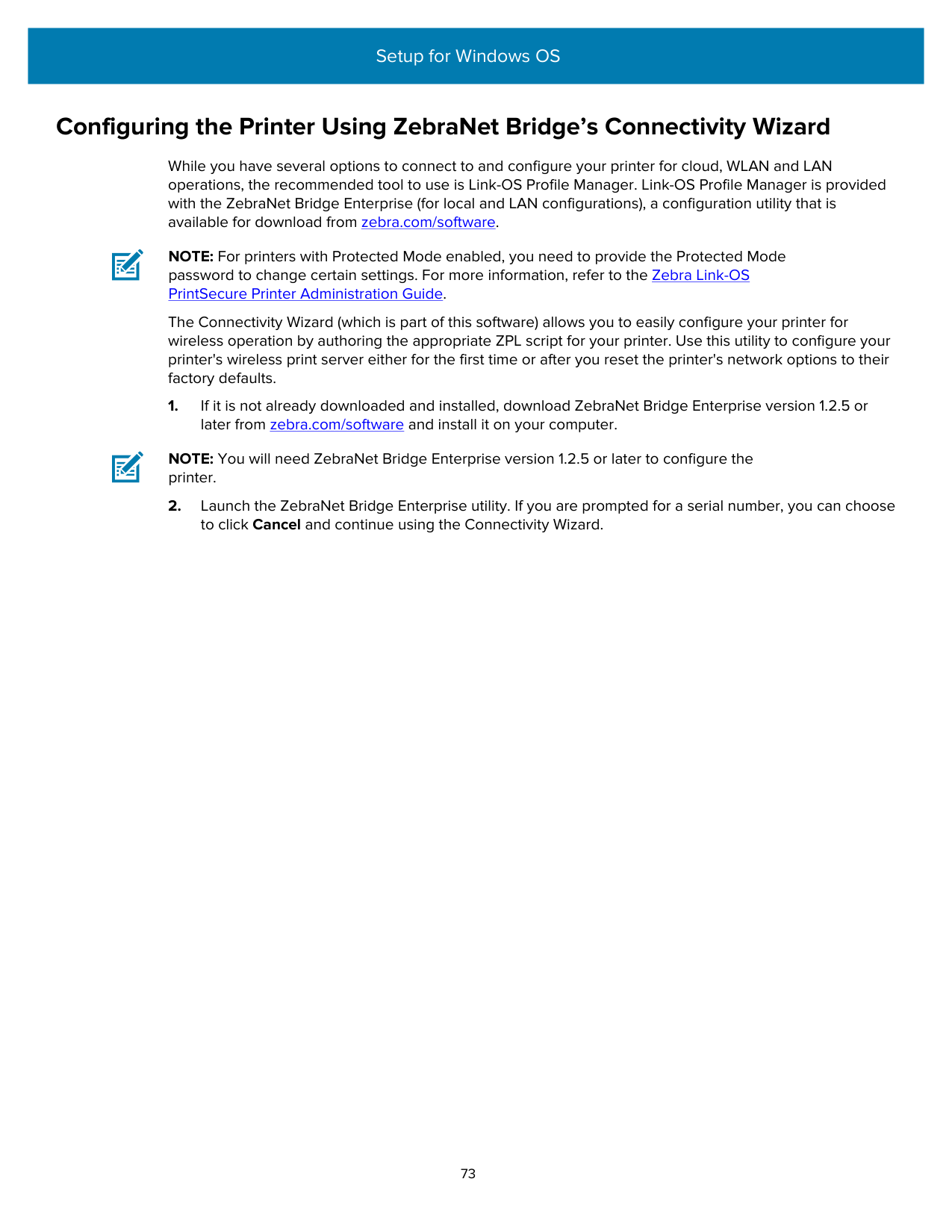
######### 3. From the Windows Menu bar, select Tools > Connectivity Wizard.The Connectivity Wizard opens.

######### 4. From the Choose Port list, select the port to which your printer is connected.
|If you want to save the file without sending it to a printer...|Select any available port.| |---|---| |If you decide to select File...|Browse to the location of the file.| |If you select a serial port...|Serial port configuration information appears below the Choose Port list. If necessary, change the serial communication settings to match your printer’s settings.
NOTE: If a port is in use by another device, it will NOT appear in the dropdown list.|
######### 5. Click Next.The wizard prompts you to select the print server device to configure.

######### 6. Select Wireless, then click Next.The wizard prompts you for the type of printer you are using.

######### 7. Select the type of printer you are using, then click Next.The wizard prompts asks you to enter the wireless IP details.

######### 8. Enable the DHCP (dynamic) option or the Static IP option.
|If you chose DHCP...|Click Next and proceed to the next step in this procedure.| |---|---|
|If you chose Static...|Enter the IP Address, Default Gateway, and Subnet Mask for the wireless print server and click Next. Contact your network administrator for the correct values to use.| |---|---|
The Wireless Settings window opens.

NOTE: You must set the ESSID (and passphrase, if you use one) at your access point before completing these steps.
|If you select...|Perform these additional steps for the option you selected, then proceed to the next step.|
|---|---| |None (no security protocol)|Skip this step.
.|
|If you select...|Perform these additional steps for the option you selected, then proceed to the next step.| |---|---| |EAP-TLS, EAP-TTLS, EAPFAST, or WPA-EAP-TLS|In the EAP section, if necessary, enter an Optional Private Key.| |PEAP, LEAP, WPA-EAP-TTLS, WPA-PEAP, or WPA-LEAP|In the General Security section, enter the Security Username and Password.| |WPA-PSK|In the WPA section, select the PSK Type, and enter the PSK Name.| |WPA-EAP-FAST|In the General Security section, enter the Security Username and Password.
In the EAP section, if needed, enter an Optional Private Key.| |KERBEROS|Under Kerberos Settings, enter values for Kerberos User, Kerberos Password, Kerberos Realm, and Kerberos KDC.
NOTE: KERBEROS is NOT supported on Internal Wireless Plus print servers or radio cards.|
######## 11. Click Next.

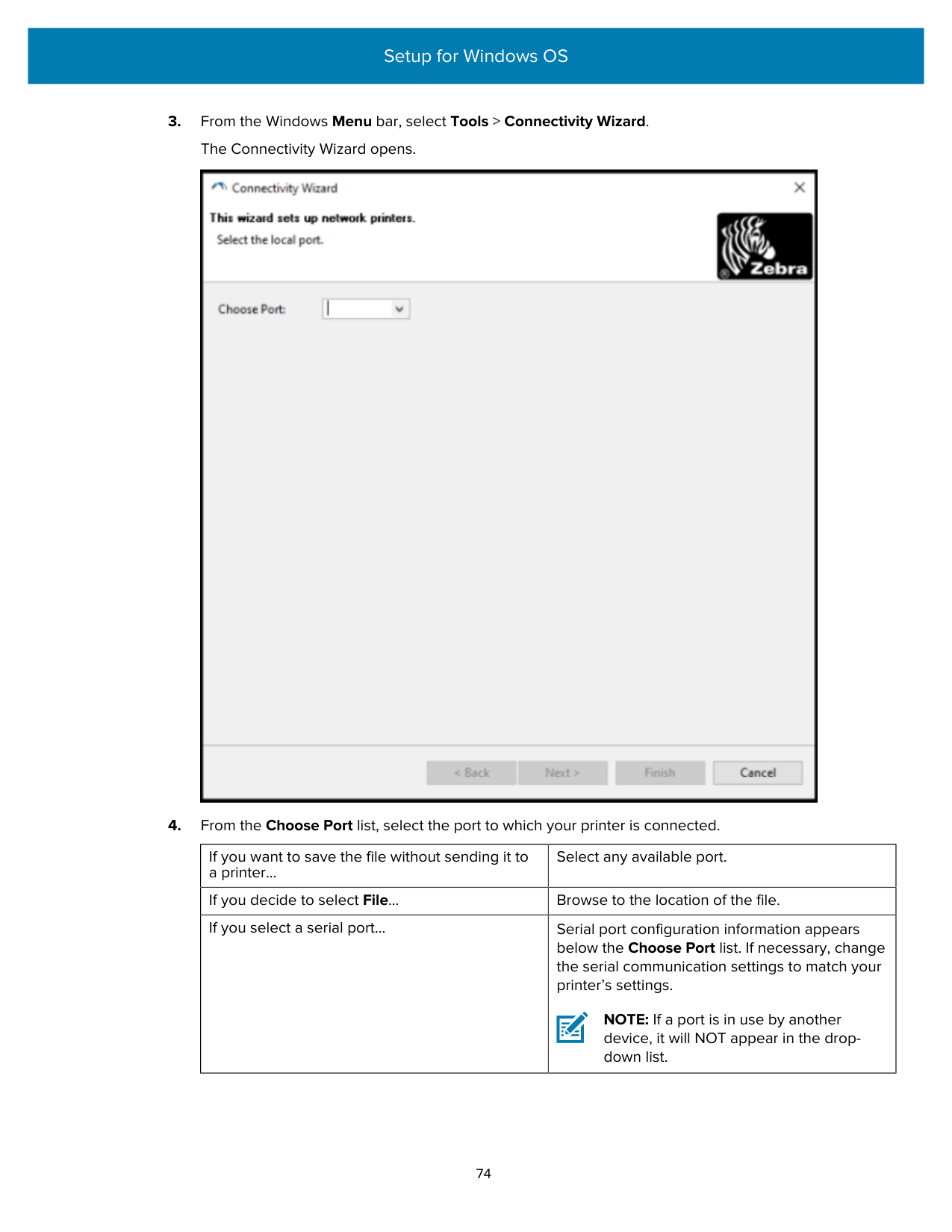
######## 15. Click Next.
Based on the selections you made in the preceding steps, the wizard creates a script file with the appropriate ZPL commands and displays them for your review.
If you selected Tabletop/Desktop, a dialog box similar to this one displays:

######### 16. Decide if you will send the script immediately, or save it for use at a later time.
##### Sending a ZPL Configuration Script to the Printer
Complete printer Wi-Fi server setup by sending the ZPL script to the printer through the port you selected in Configuring the Printer Using ZebraNet Bridge’s Connectivity Wizard on page 73. You may want to save the ZPL script and use it to restore the printer network configuration if the printer is reset to its factory defaults in the future. Saving the script will also allow you to quickly configure multiple printers if they need the same settings.
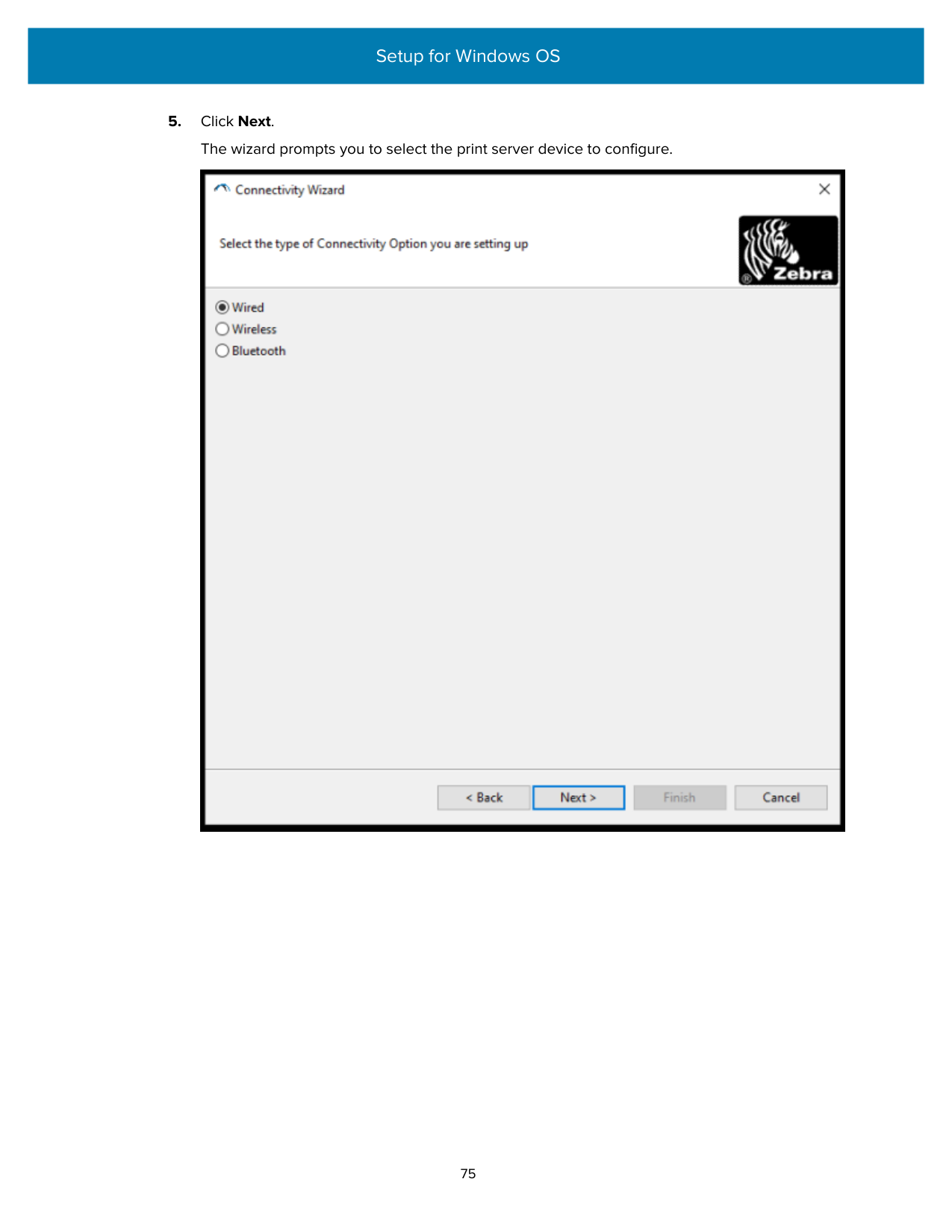
The computer sends the ZPL script to the printer through the interface port. The Wireless Setup Wizard screen closes.
To configure either the same printer again (in case it was reset to its factory defaults) or to configure other printers with the same settings, send the saved ZPL script file to the printer through the connection of your choice as detailed in the prior steps in this procedure.
#### Configuring the Printer Using Bluetooth
The Zebra Setup Utilities provides a quick and easy way to configure a Bluetooth wireless connection with your printer.
NOTE: For printers with Protected Mode enabled, you need to provide the Protected Mode password to change this setting. For more information, refer to the Zebra Link-OS PrintSecure Printer Administration Guide.

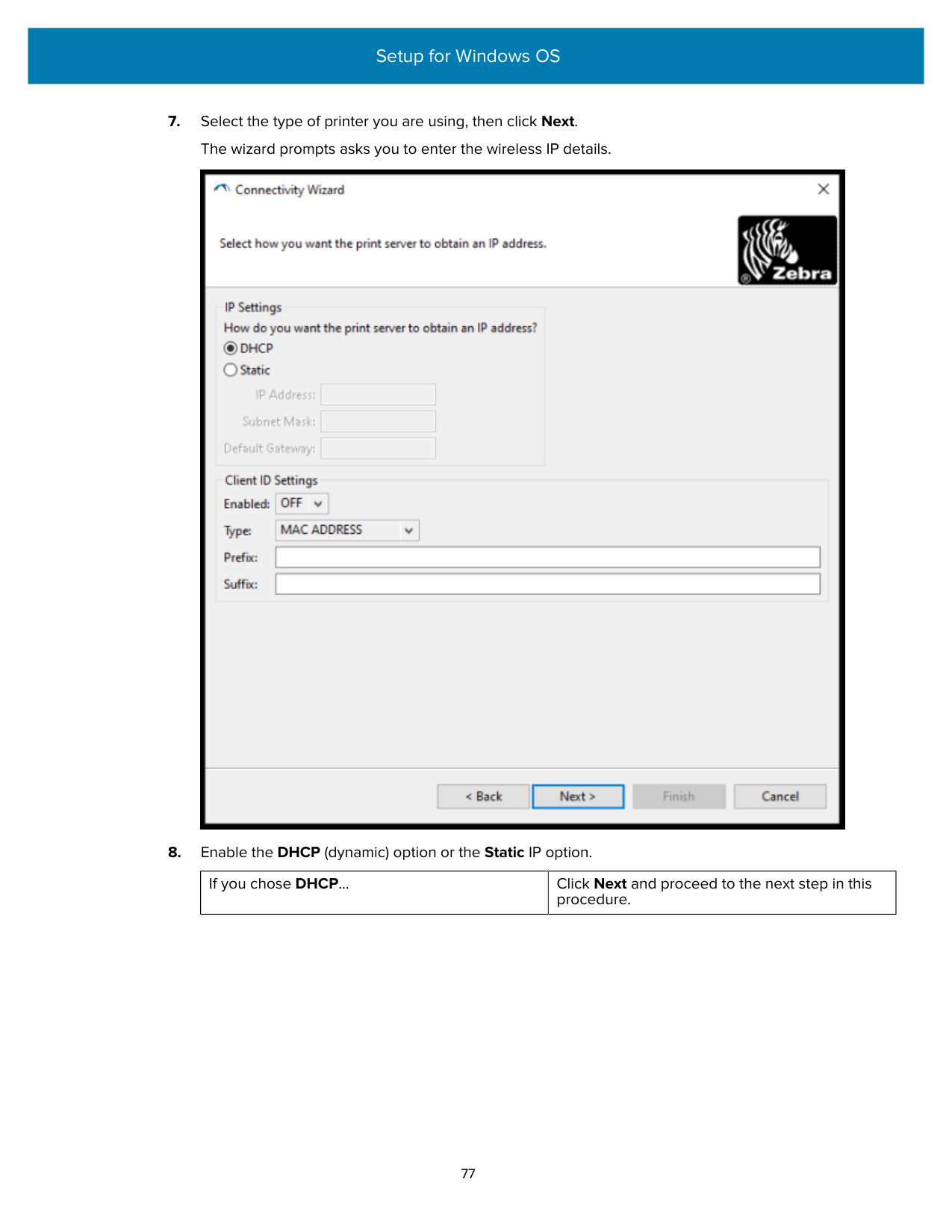
NOTE: This setting does not exist in Link-OS Profile Manager, but you must set it to On if you want to enter a PIN in the Zebra Setup Utilities. The actual authentication setting on the printer is set by accessing Advanced Settings > Security Mode.
device to verify Bluetooth pairing. For PIN pairing, also select Security Mode 2 or Security Mode 3 in Advanced Settings .

NOTE: If the central device uses BT v2.1 or newer, this setting has no effect. BT v2.1 and newer versions use Secure Simple Paring (SSP) which does not require the use of a PIN.
NOTE: For more information on Advanced Settings, refer to the Wired and Wireless Print Server Guide. This guide is available to download from zebra.com/manuals.
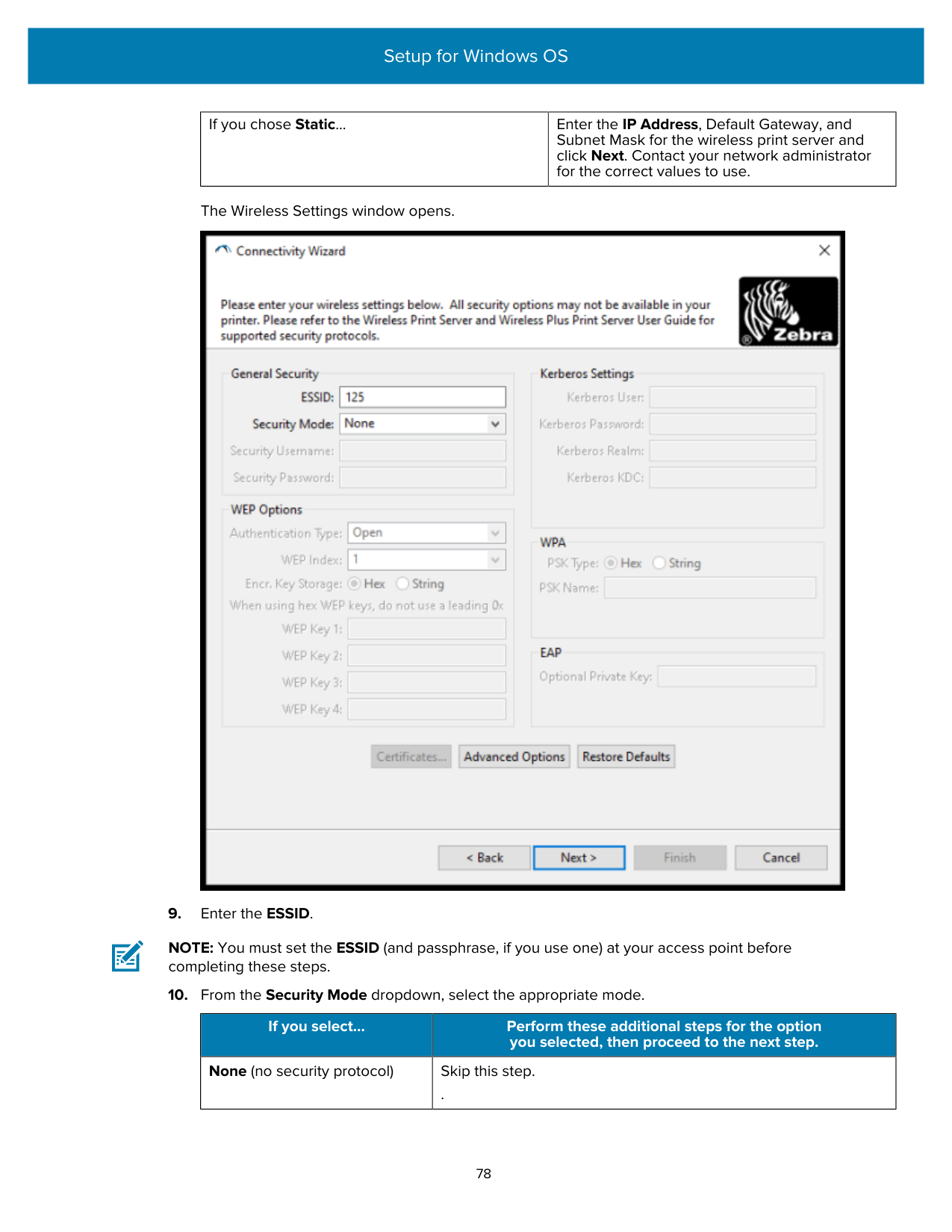
The specific SGD commands you need to configure your printer from your central device are displayed.
##### Connecting the Printer to a Windows 10 OS
Before adding (also called pairing) a Bluetooth-enabled device to your central device, make sure the device to be paired is turned on and discoverable.
NOTE: Your Windows device may need a Bluetooth adapter to connect to a Bluetooth device. Check with your Windows device user guide for details. Some non-Microsoft Bluetooth dongles and built-in Bluetooth devices in the host PCs have ONLY marginal driver support for Secure Simple Paring (SSP) printing and may not complete the Add printer wizard normally.
You may need to access Bluetooth Devices under Windows Settings and activate SPP for the 'device' (the Bluetooth-capable printer you are setting up).
Install the printer to a local printer (USB, for your printer), and then change the Port after the completing the installation to SPP (virtual serial port) COM port.


######## 2. Click Devices.

######## 3. Click Bluetooth.
NOTE: If your PC does not have Bluetooth installed, the Bluetooth category is NOT displayed in the list of device categories.
The printer is identified by its serial number as shown here.
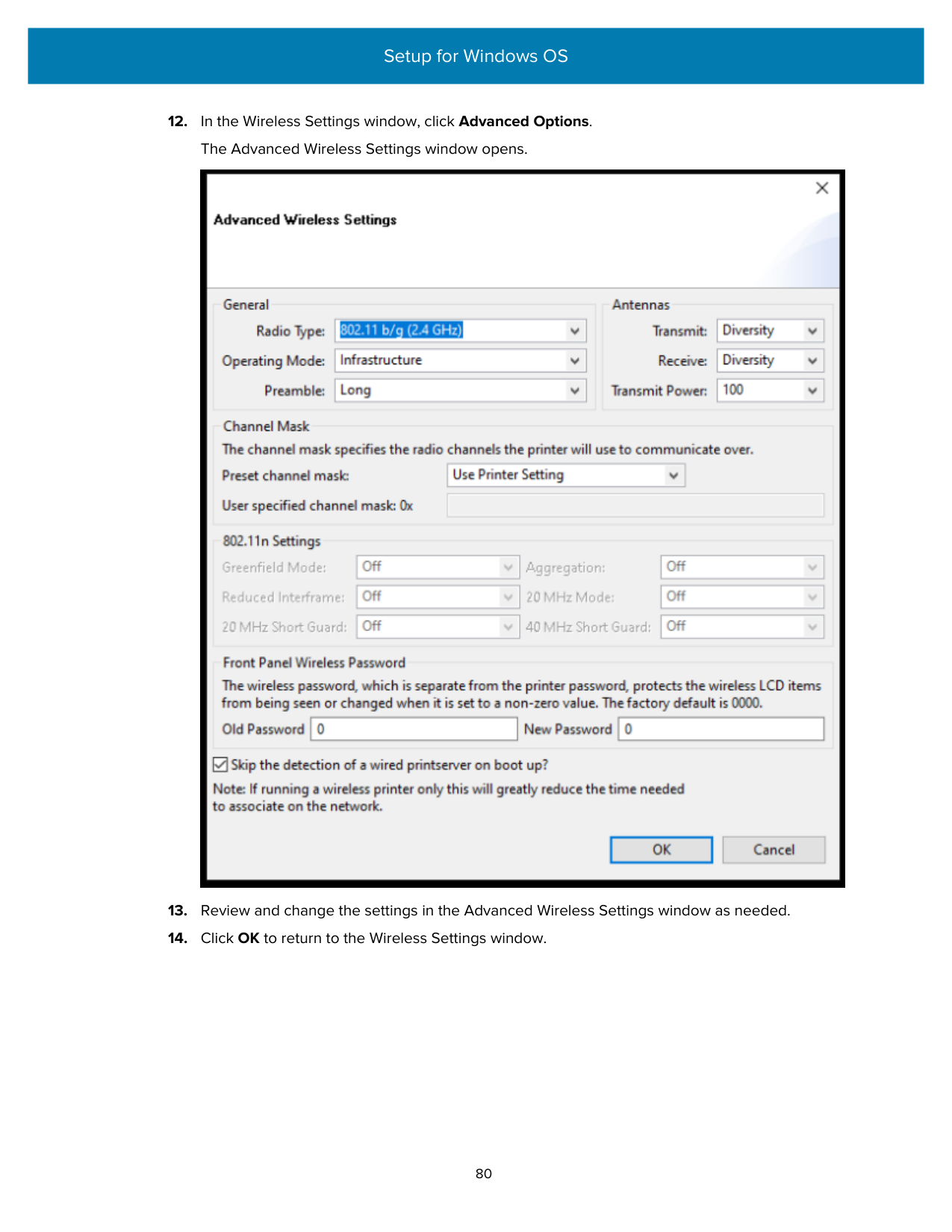


The printer prints a passcode.

The printer status changes to Connected when pairing is complete.

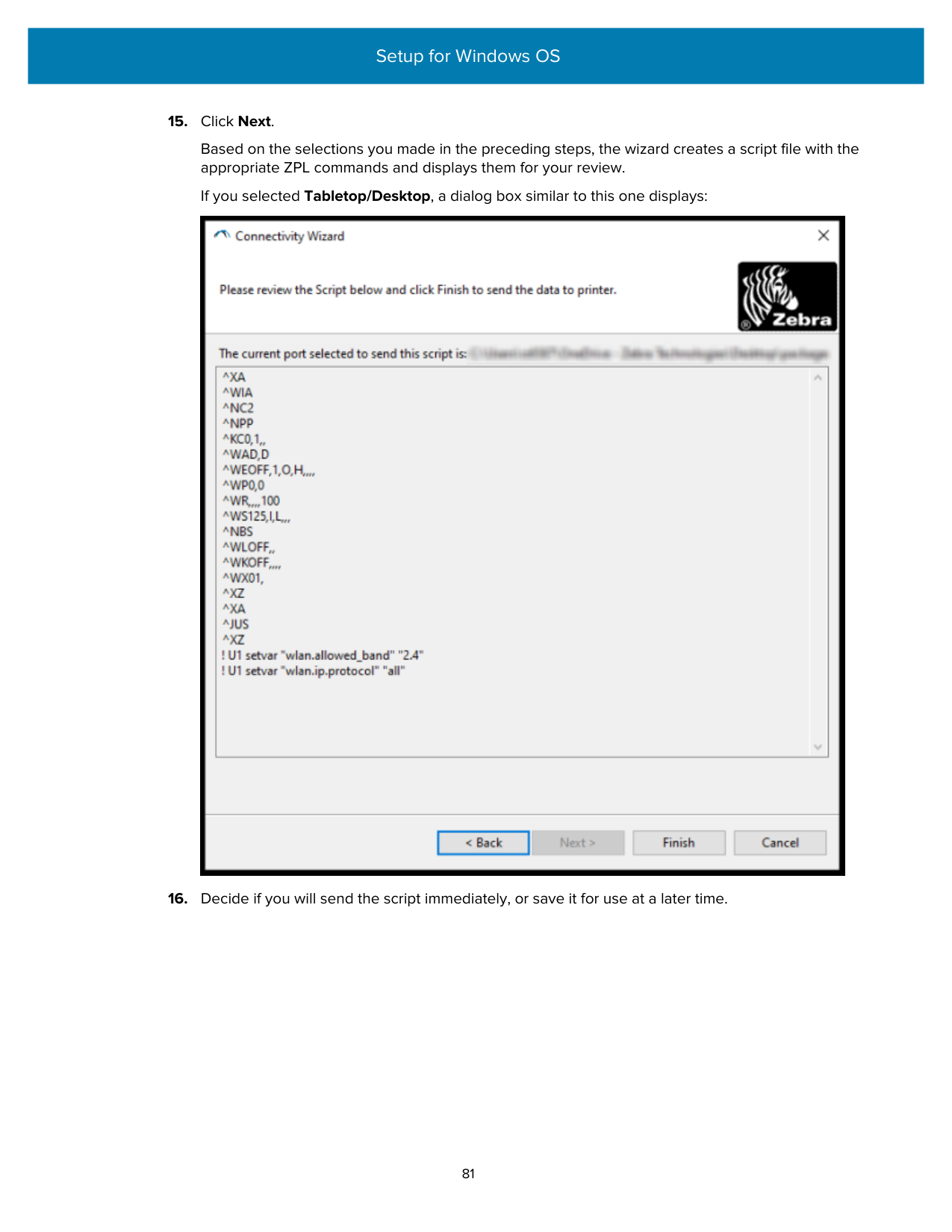
#### After Your Printer is Connected
When you have established basic communication with your printer, you may want to test printer communications and then install other printer-related applications, drivers, or utilities.
Verifying printer operation is a relatively simple process:
• For Windows operating systems, you can use the Zebra Setup Utility or the Windows Printers and
Faxes feature in the Control Panel to access and print a test label.
• For non-Windows operating systems, you can send an ASCII text file to the printer with a single command (~WC) instructing it to print a printer configuration report.
##### Test Printing with Zebra Setup Utilities
Print a configuration report to test the printer.
The printer should print a configuration report. If it doesn't, make sure the printer is set up according to the instructions in this guide and use the information in the Troubleshooting section to resolve any issues.
##### Test-Printing with the Windows Printer and Faxes Menu
Print a test page to test the printer.
##### Test-Printing with an Ethernet Printer Connected to a Network
You can test-print on an printer connected to Ethernet (LAN or WLAN) in one of two ways: use an MS-DOS command from the command prompt, or select Run from the Windows Start menu.
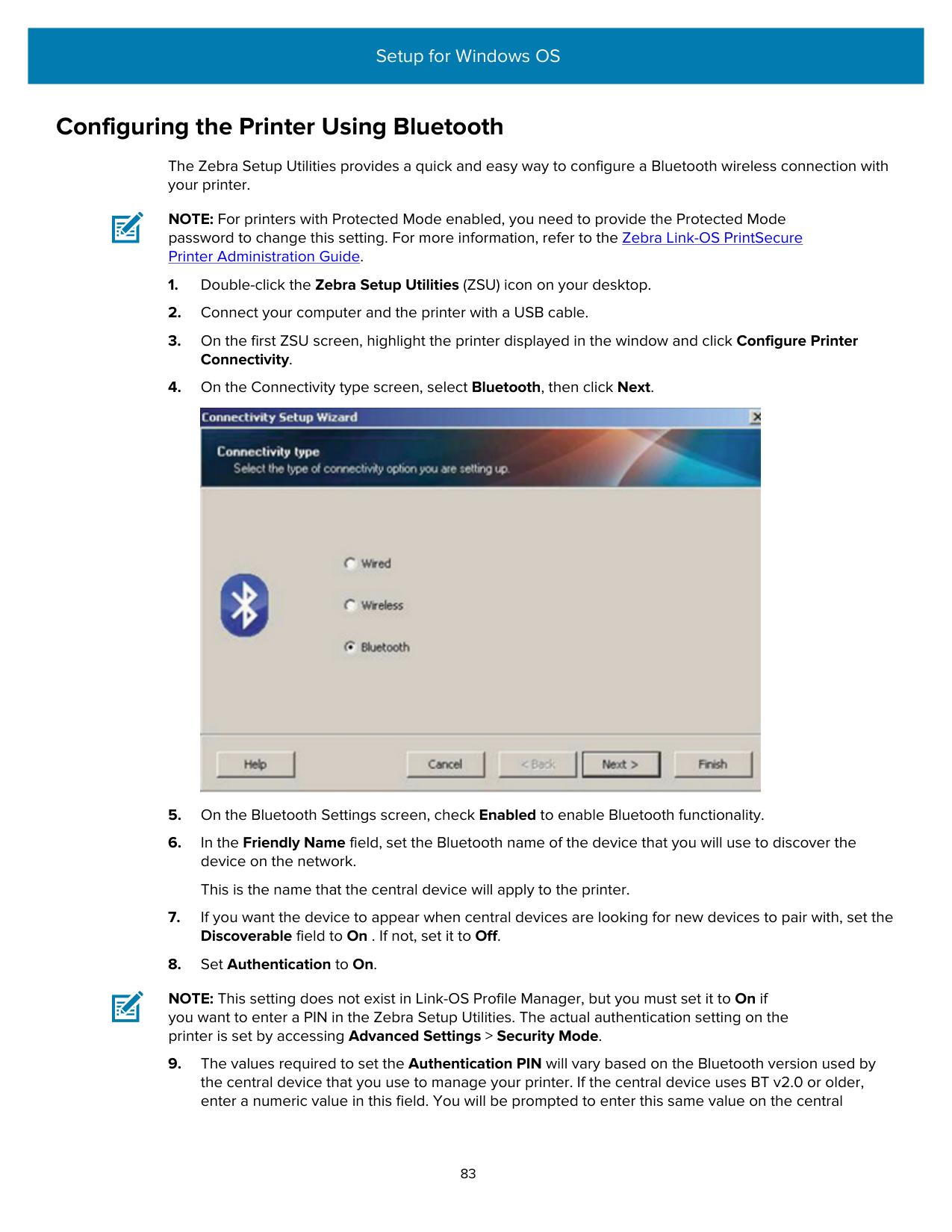
The printer prints a printer configuration report.
##### Test-Printing with a Copied ZPL Command File for Non-Windows Operating Systems
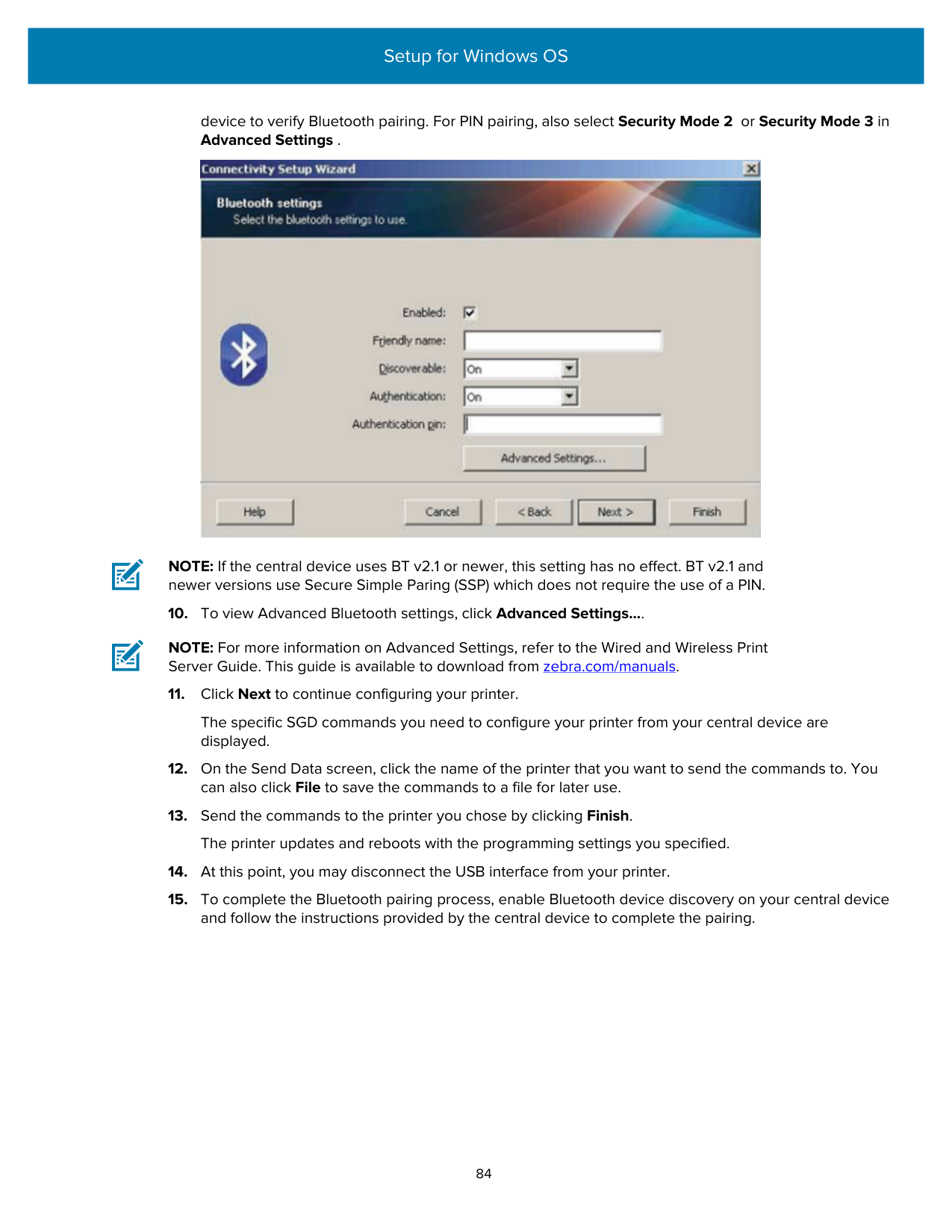
NOTE: Other interface connection types and operating systems will require different command strings. See your OS documentation for detailed instructions on how to copy to the appropriate printer interface for this test.
Print Operations
This section provides general information on media and print handling, font and language support, and the setup of less common printer configurations.
#### Thermal Printing
Zebra ZD Series printers use heat to expose direct thermal media or use heat and pressure to melt and transfer ‘ink’ to the media. Extra care should be taken to avoid touching the printhead which gets hot and is sensitive to electrostatic discharge.
CAUTION—HOT SURFACE: The printhead may be hot and could cause severe burns. Allow the printhead to cool.
CAUTION: To protect from damaging the printhead and risk of personal injury, AVOID touching the printhead. Use ONLY the cleaning pen to perform printhead maintenance.
CAUTION—ESD: The discharge of electrostatic energy that accumulates on the surface of the human body or other surfaces can damage or destroy the printhead and other electronic components used in this device. You must observe static-safe procedures when working with the printhead or the electronic components under the top cover.
#### Replacing Supplies while Using the Printer
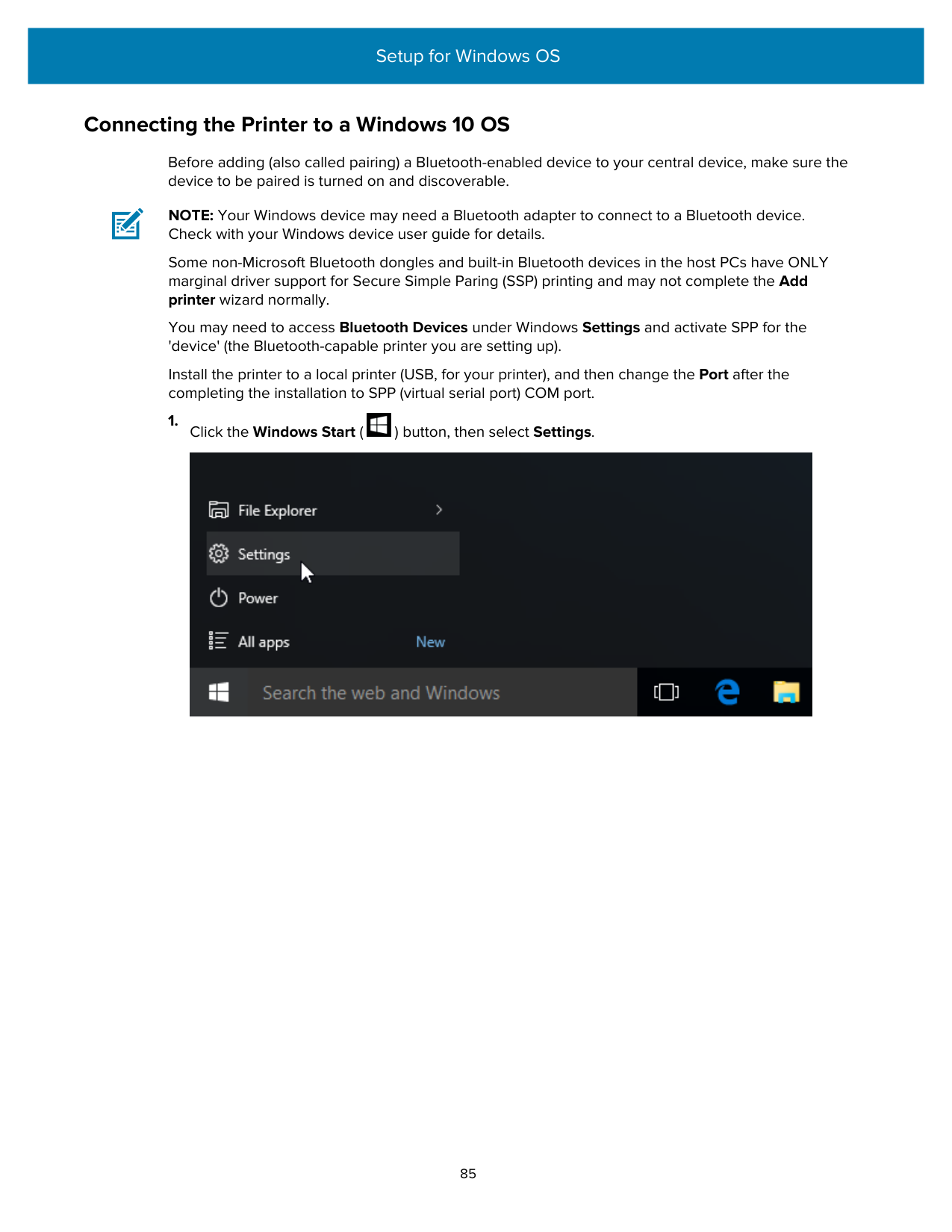
If the media supply (ribbon, labels, receipts, tags, tickets, etc.) runs out while printing, leave the printer power ON while reloading. (Data loss occurs if you turn off the printer). After loading a new roll of media or ribbon, simply press FEED to resume printing.
#### Sending Files to the Printer
Graphics, fonts and programming files can be sent to the printer from supported Microsoft Windows operating systems using Link-OS Profile Manager, Zebra Setup Utilities (and driver), ZebraNet Bridge or Zebra ZDownloader available from the Zebra website at zebra.com/software.
#### Determining Your Printer’s Configuration Settings
The ZD Series printer is capable of printing a configuration report listing printer settings and hardware details.
Included in this report are:
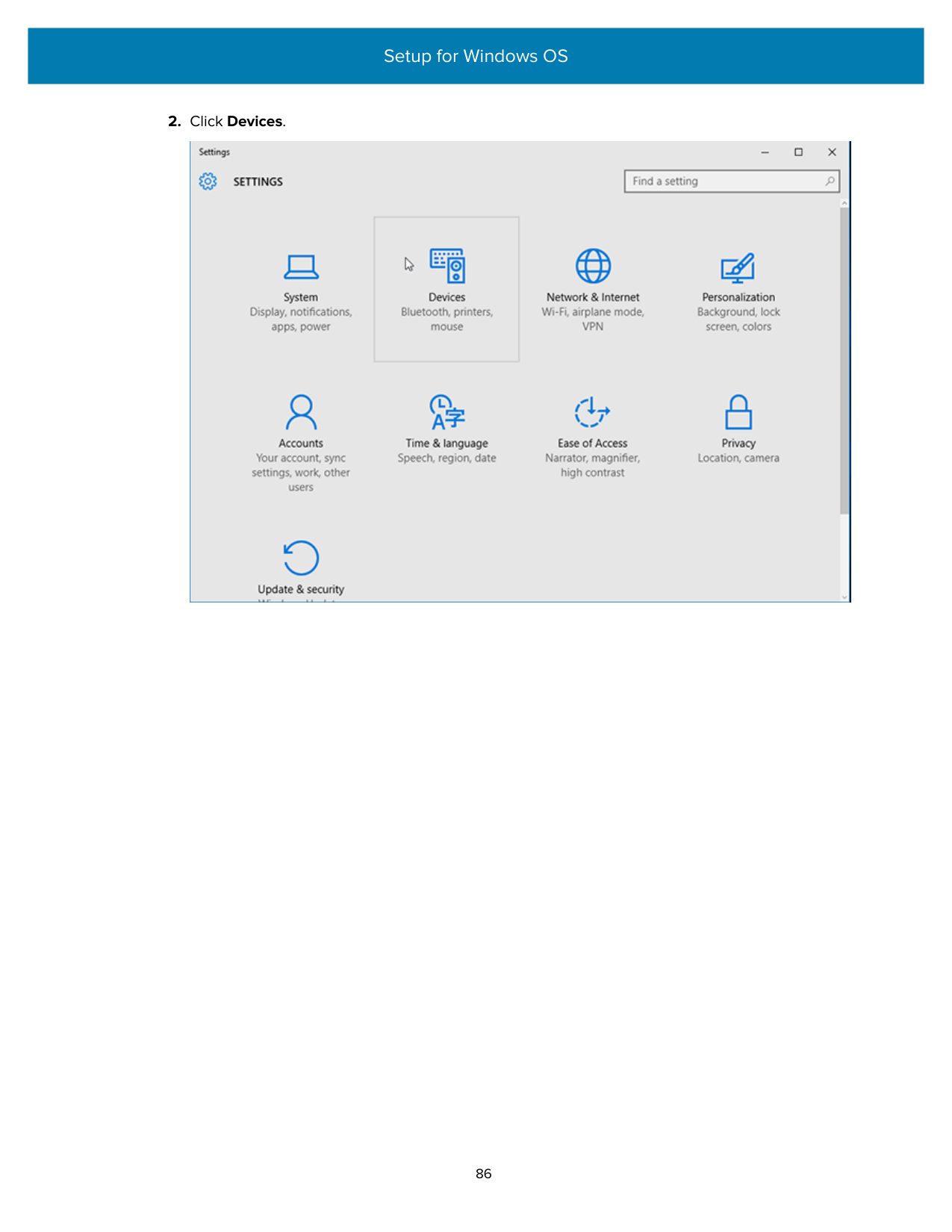
|For instructions on printing this label...|See Test Printing with the Configuration Report on page 49.| |---|---| |For information on interpreting the configuration report and the associated programming command and command states identified in the report.|See Managing the ZPL Printer Configuration on page 136 to learn how to interpret the configuration report and the associated programming command and command states listed in the report.|
#### Selecting a Print Mode
Use a print mode that matches the media being used and the printer options available. The media path is the same for roll and fanfold media.
To set the printer to use a specific print mode, see instructions on using the ^MM command in the ZPL Programming Guide. To download this manual, go to one of the printer information links listed in zebra.com/support.
These print modes are available with your printer:
|Tear Off (default; available with any printer option and with most media types)|The printer prints the labels as it receives them. The labels can be torn off after they print.| |---|---| |Peel (available with the Label Dispenser option)|The printer peels the label from the liner while printing. It pauses to print the next label until the current one is removed.| |Cutter (available with the factoryinstalled-only Cutter option)|The printer cuts each label after it is printed.|
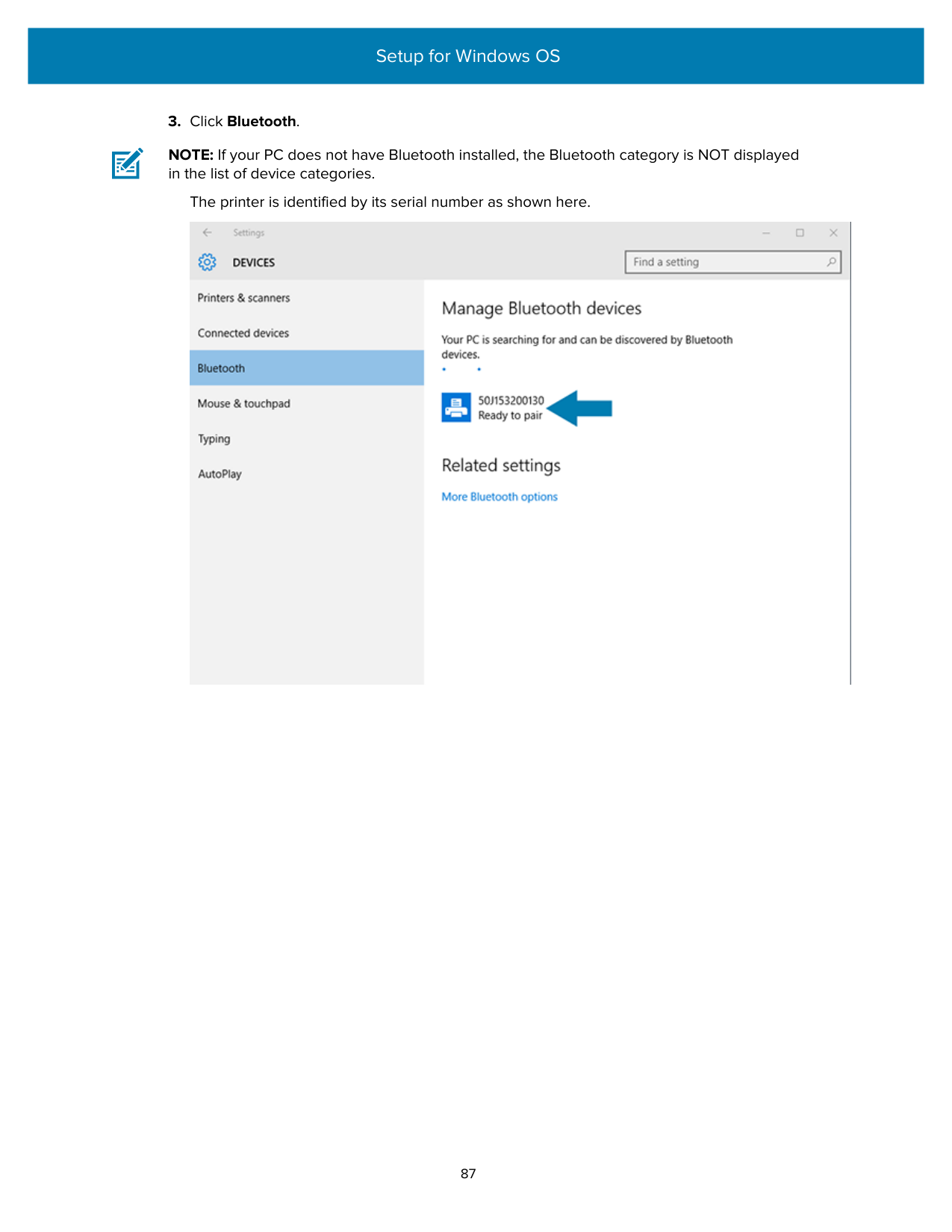
#### Adjusting Print Quality
Print quality is affected by a combination of the heat (or density) setting of the printhead, print speed, and the media loaded. Experiment with these settings to find the optimal mix for your application.
Print quality can be configured using the Zebra Setup Utility’s Configure Print Quality routine. NOTE: Media manufacturers may recommend specific speed settings when using your printer with their media. The recommended speed may be lower than your printer’s maximum speed setting! You can control the print darkness (or density) setting using one of the following:
After adjusting these settings, you can verify them by printing a Printer Configuration label (see Test Printing with the Configuration Report on page 49).
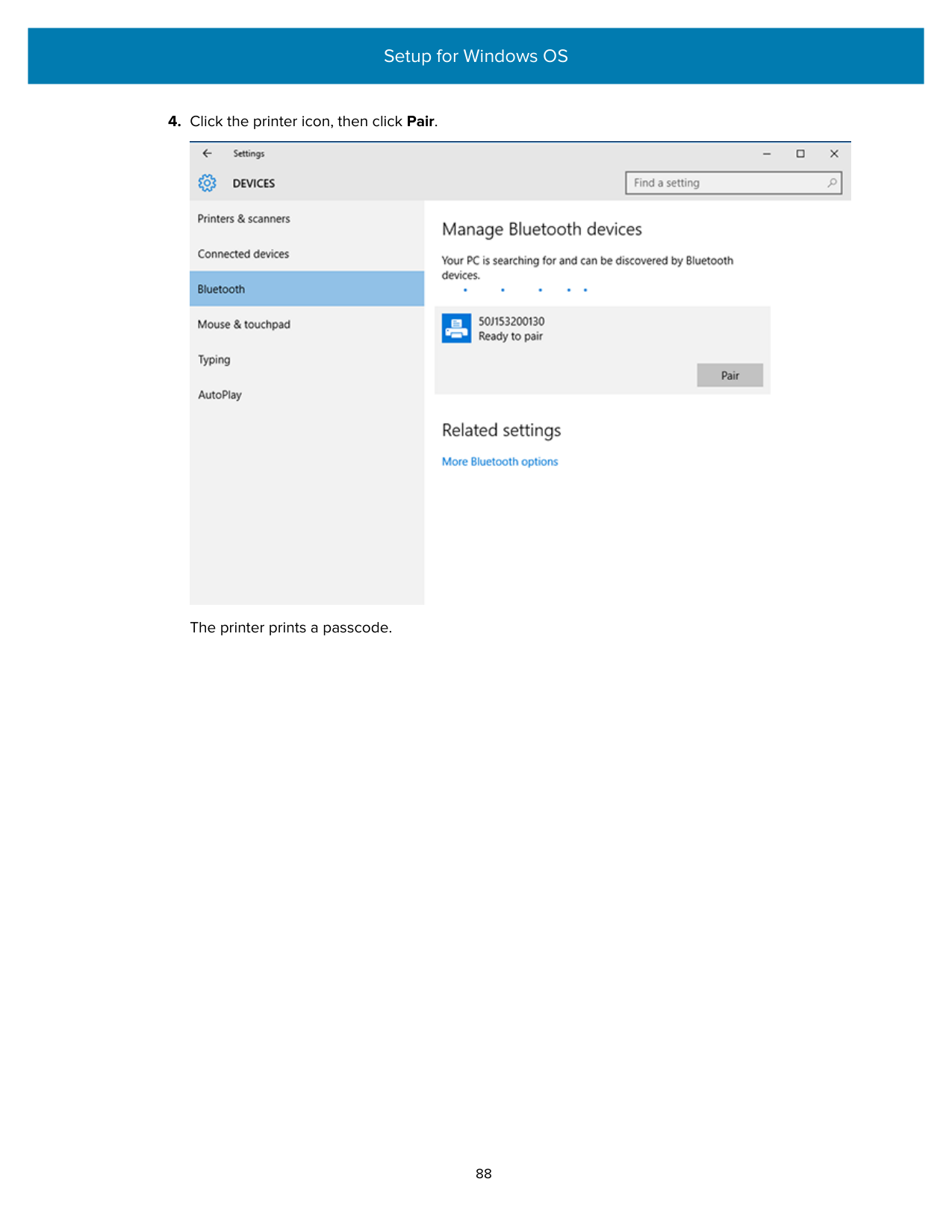
#### Adjusting Print Width
You must set the print width before using the printer for the first time. You must also set it when you load media into the printer that is of a different width from the one used in the previous batch of printing.
To set the print width, you can use one of the following methods:
#### Printing on Fanfold Media
You will need to adjust the media guides' stop position when printing on fanfold media.
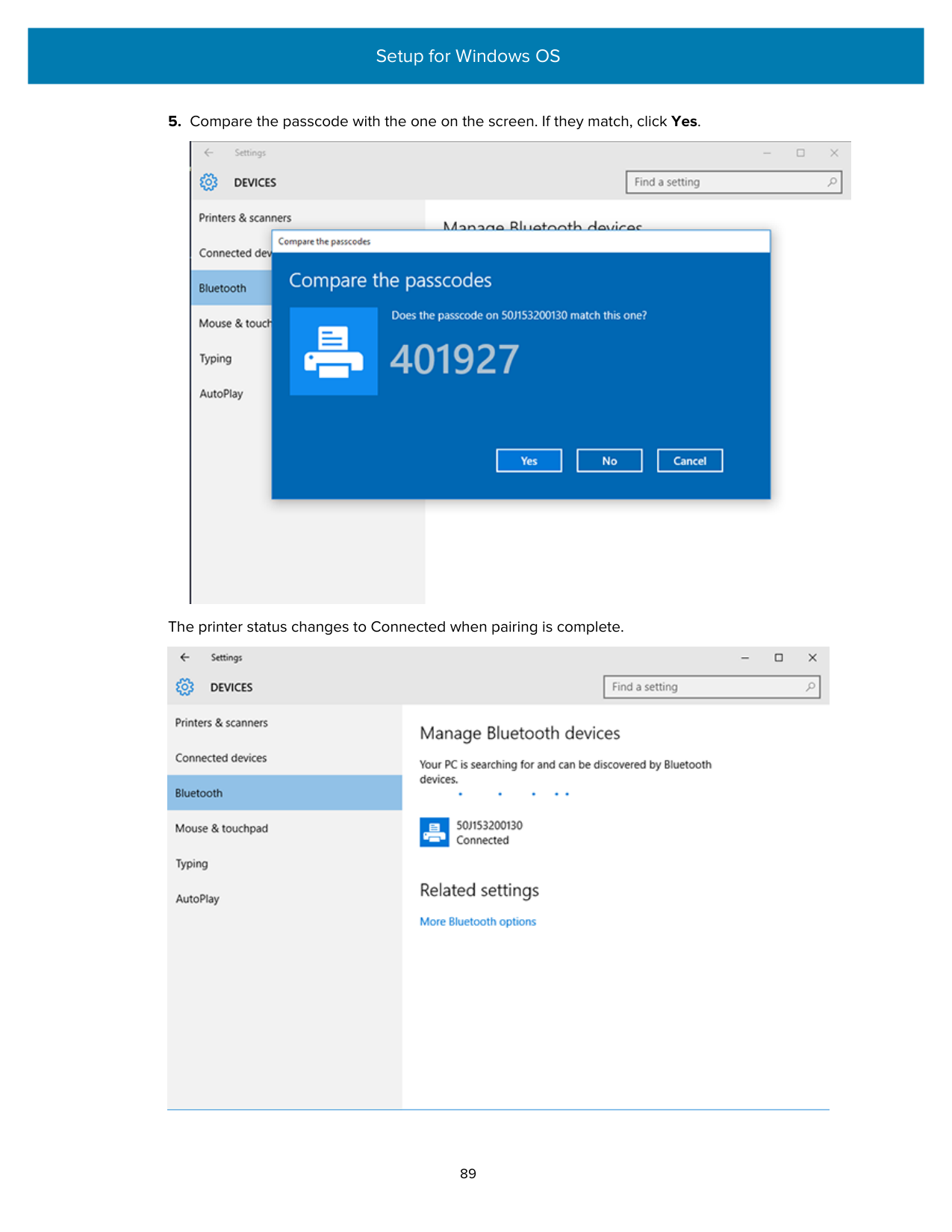

This image shows the fanfold media path.


NOTE: The media guide stop position may need further adjustment if, after printing or after using the FEED button to advance several labels:
If additional adjustment does not correct the problem, route the media over the two (2) rollholding pins on the media guide.
You can also provide additional support for thin media by placing an empty roll core—of the same width as the fanfold media stack—between the roll holders.
#### Printing with Externally-Mounted Roll Media
Your printer accommodates externally-mounted roll media (as it does for fanfold media). It requires a media-roll-and-stand combination to ensure low (initial) inertia when pulling the media off the roll.
Make note of these considerations when using externally-mounted roll media:
#### Using the Label Dispenser Option
If you printer has the label dispenser option, it will automatically remove the label backing material (liner/ web) when printing. When the printer is printing multiple labels, it will print the next label in queue after you remove an already dispensed or peeled label.
To set the printer to use Label Dispense mode, you (or an administrator) must do one of the following:

######### 3. Lift the liner over the top of the printer, then pull the gold latch in the center of dispenser door awayfrom the printer.The dispenser door opens.

######### 4. Insert the label liner between the dispenser door and the printer body.

######### 5. Close the dispenser door while pulling the end of the label liner tight.


When you print the next time, the printer will peel off the backing and present a single label. Take the label from the printer to allow the printer to print the next label.
NOTE: If you did not activate the label-taken sensor to detect the removal of the dispensed (peeled) label using software commands prior to printing, the printed labels will stack and may bind the mechanism.
#### Printer Fonts
The ZD Series printer supports multiple languages and fonts. You can take advantage of the advanced font mapping and scaling technology available with your printer using the ZPL programming language. ZPL commands support the following:
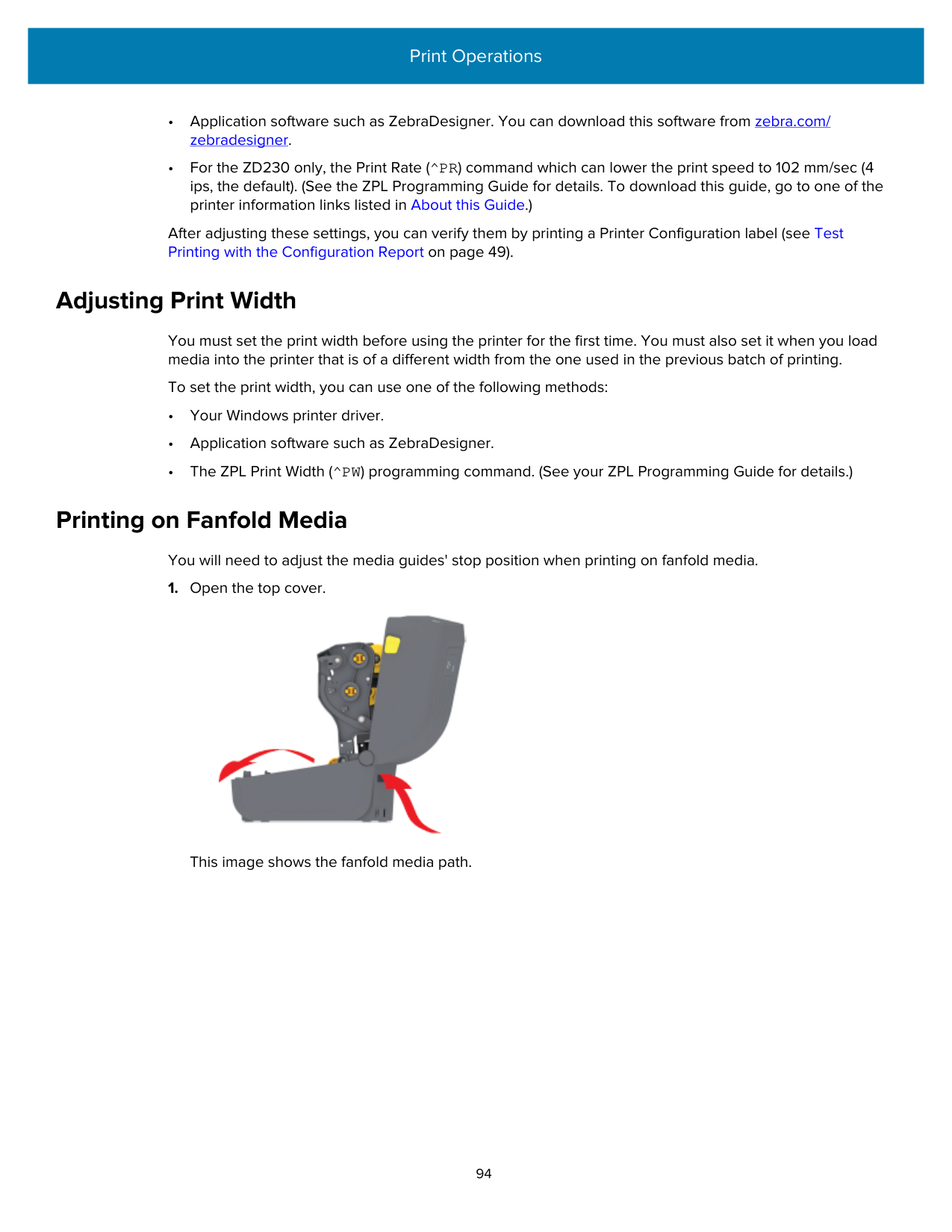
Zebra has a variety of utilities and application software to enable font downloads to the printer for the ZPL and EPL printer programming languages.
IMPORTANT: Some ZPL fonts that are factory-installed in your printer are license-restricted. They CANNOT be copied, cloned, or restored to your printer by reloading or updating the firmware. If these license-restricted ZPL fonts are removed using an explicit ZPL object delete command, you will need to repurchase and reinstall them using a font activation and installation utility.
EPL fonts do not have this restriction.
##### Identifying Fonts in Your Printer
Fonts can be loaded into various storage locations in the printer. Fonts and memory are shared by the programming languages in the printer.
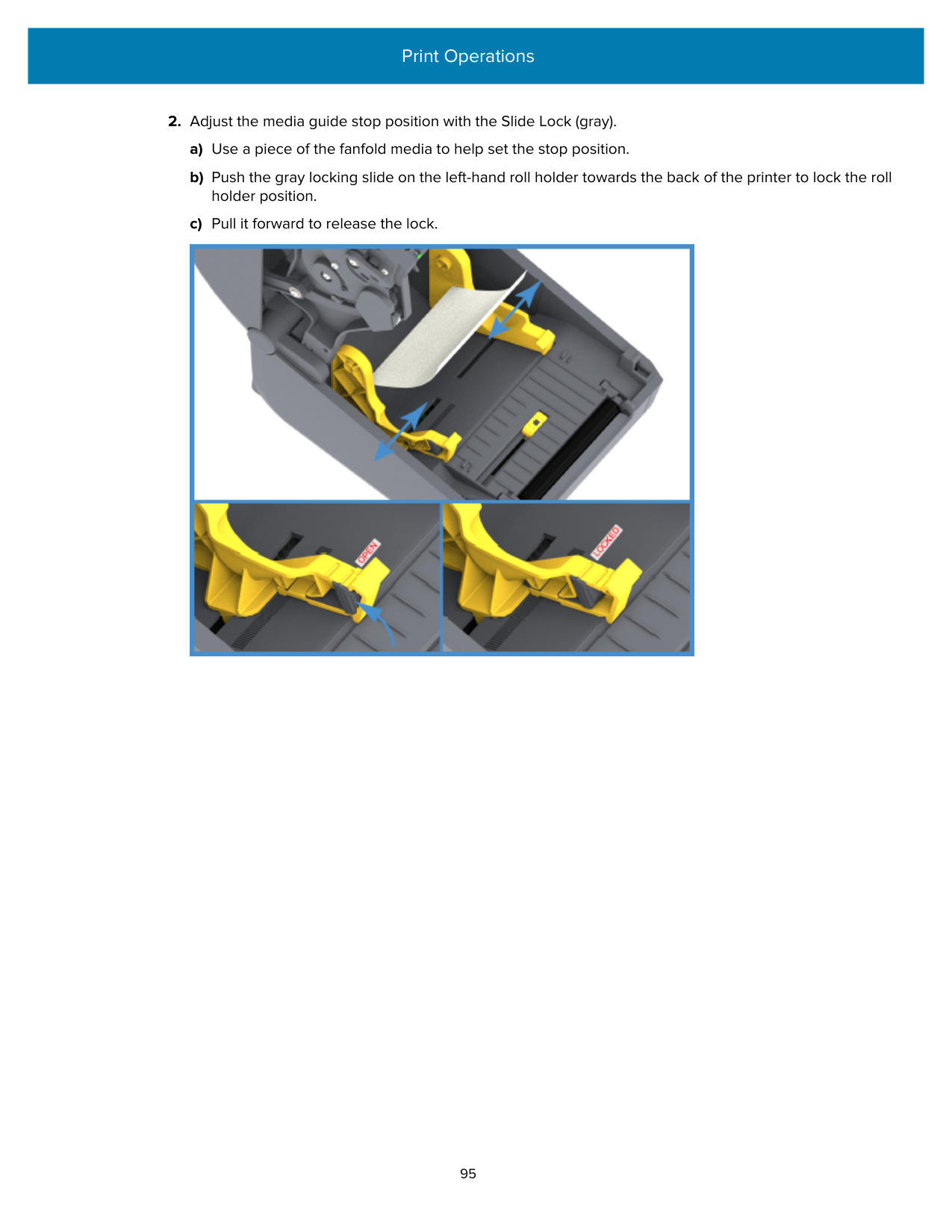
The ZPL programming language can recognize EPL and ZPL fonts. However, EPL programming can only recognize EPL fonts. See the respective programming guides for more information on fonts and printer memory.
Specific to ZPL fonts:
|To manage and download fonts for ZPL print operation|Use the Zebra Setup Utility or ZebraNet Bridge Utilities.| |---|---| |To display all fonts loaded onto your printer|Send the ^WD ZPL command to the printer. See the ZPL Programming Guide for details.
In ZPL:
• The bitmap fonts in the various printer memory areas are identifiable by the .FNT file extension.
• The scalable fonts are identified with the .TTF, .TTE, or .OTF file extensions. (EPL does not support these fonts.)
|
##### Localizing the Printer with Code Pages
For each printer programming language, ZPL and EPL, your printer supports two sets of language, region, and character sets for the permanent fonts loaded onto the printer.
Your printer supports localization with common international character map code pages. For ZPL code page support, including Unicode, see the ^CI command in the ZPL Programming Guide.
##### Asian Fonts and Other Large Font Sets
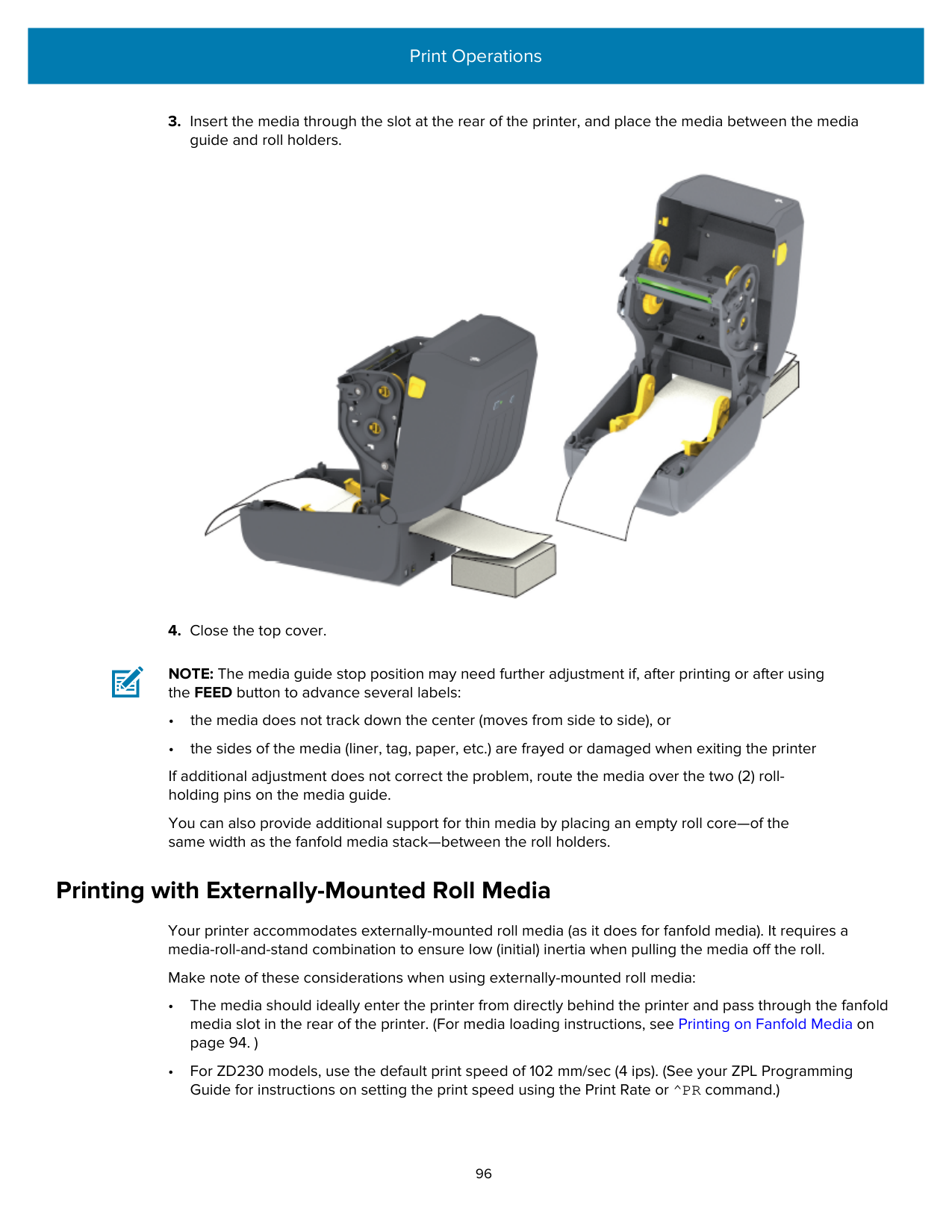
Both of the printer’s programming languages, ZPL and EPL, support the large pictographic double-byte character Asian font sets. The ZPL programming language supports Unicode.
Asian language ideographic and pictographic fonts have large character sets with thousands of characters that support single language code page. To support for these large character sets, printer manufacturers adopted a double-byte (67840 maximum) character system (instead of the single-byte, 256maximum character system used by Latin-based language characters to address this issue).
With the invention of Unicode came the ability to support multiple languages using a single font set. A Unicode font supports one or more code points (relate these to code page character maps) accessed in a standard method that resolves character mapping conflicts.
The number of fonts that can be downloaded to your printer is dependent upon the amount of available Flash memory not already in use and the size of the font to be downloaded.
NOTE: Some Unicode fonts are large-sized. These include MS (Microsoft) Arial Unicode font (23 MB) available from Microsoft and the Andale font (22 MB) offered by Zebra. These large font sets typically support a large number of languages.
Procuring and Installing Asian Fonts Asian bitmap font sets are typically downloaded into the printer either by the printer user or an integrator. ZPL fonts are purchased separately from the printer. The following EPL Asian Fonts are available as free downloads from zebra.com:
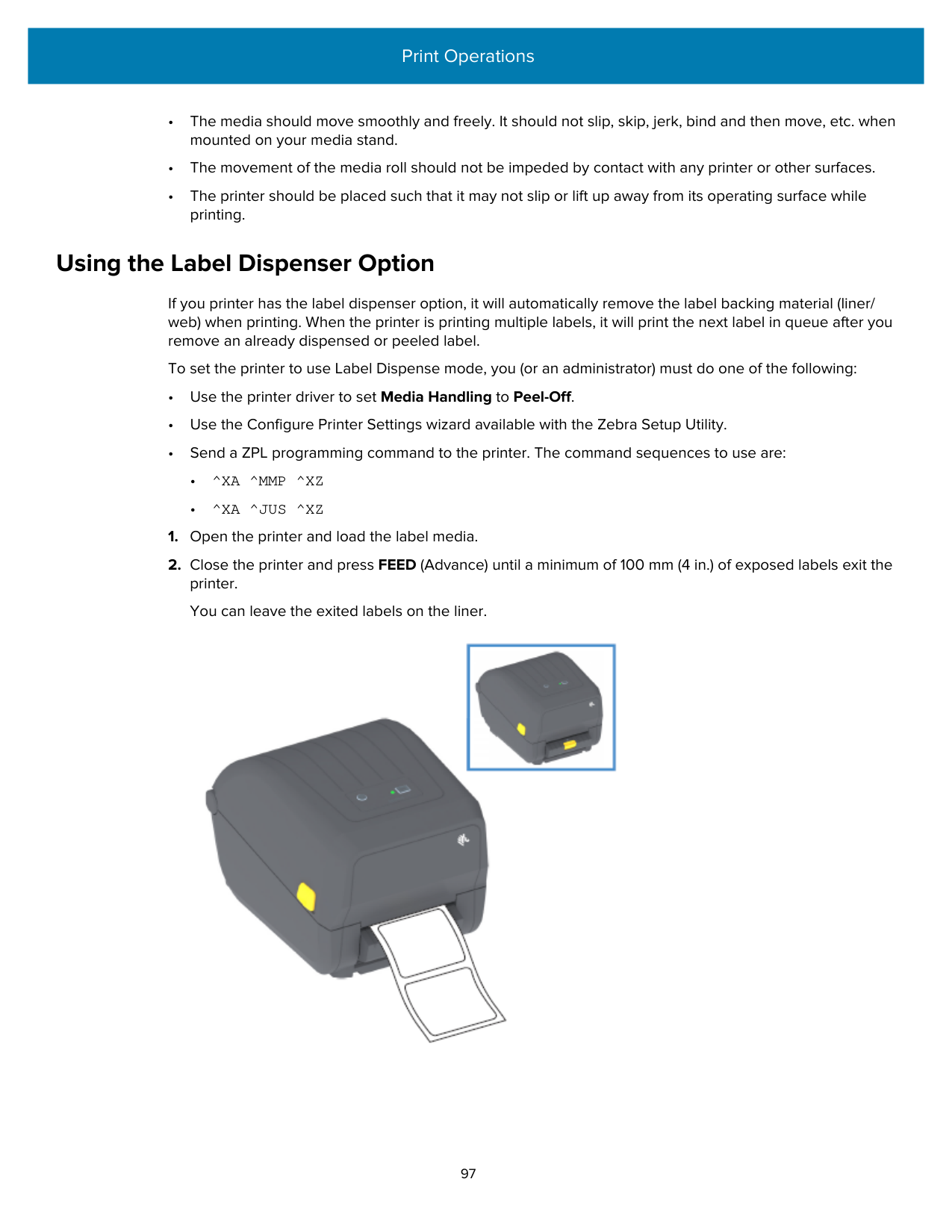
#### Media Roll Adapters
The media roll adapters kit includes a pair of 38.1 mm (1.5 in.) inner diameter (I.D.) media roll adapters and two mounting screws.
While the media roll adapters are intended to be permanently installed in the printer, they can be changed as necessary to support various media roll sizes.
IMPORTANT: The adapters may wear out if they are changed too frequently.
Removing the media adapters to print on standard roll cores may leave plastic pieces in the media roll holder's side areas that rub against the roll. These attached pieces can be pushed back into the side of the media roll holder.
##### Installing a Media Roll Adapter
The media roll adapters may wear out if changed too frequently. If possible, try to minimize the number of times you change them.
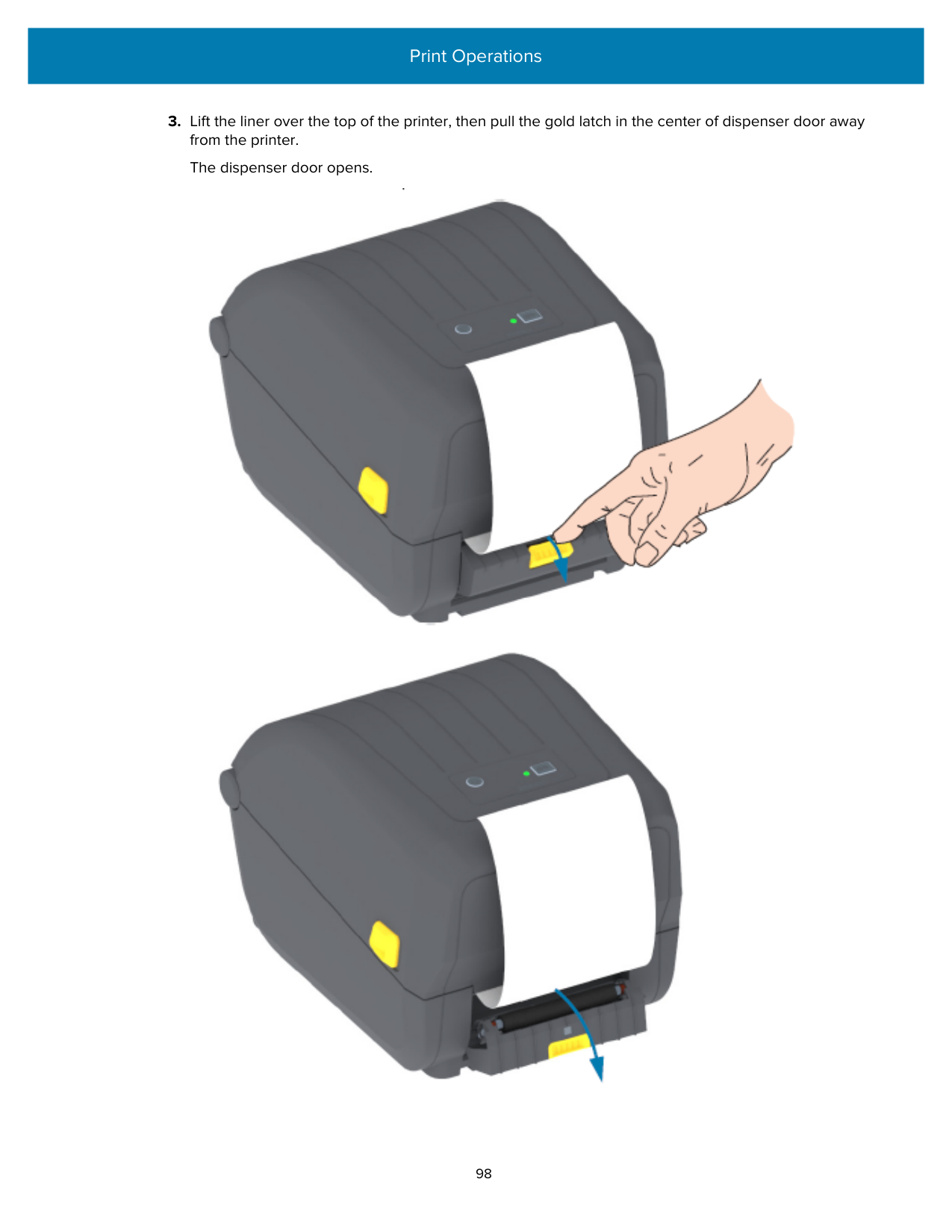

NOTE: Do NOT tighten beyond this point. Over-tightening will strip the thread.
NOTE: Do NOT tighten beyond this point. Over-tightening will strip the thread.
When you remove the media adapter to print on standard roll cores, plastic pieces may be left behind in the media roll holder's side areas and rub against the roll. Push these attached pieces back into the side of the media roll holder.
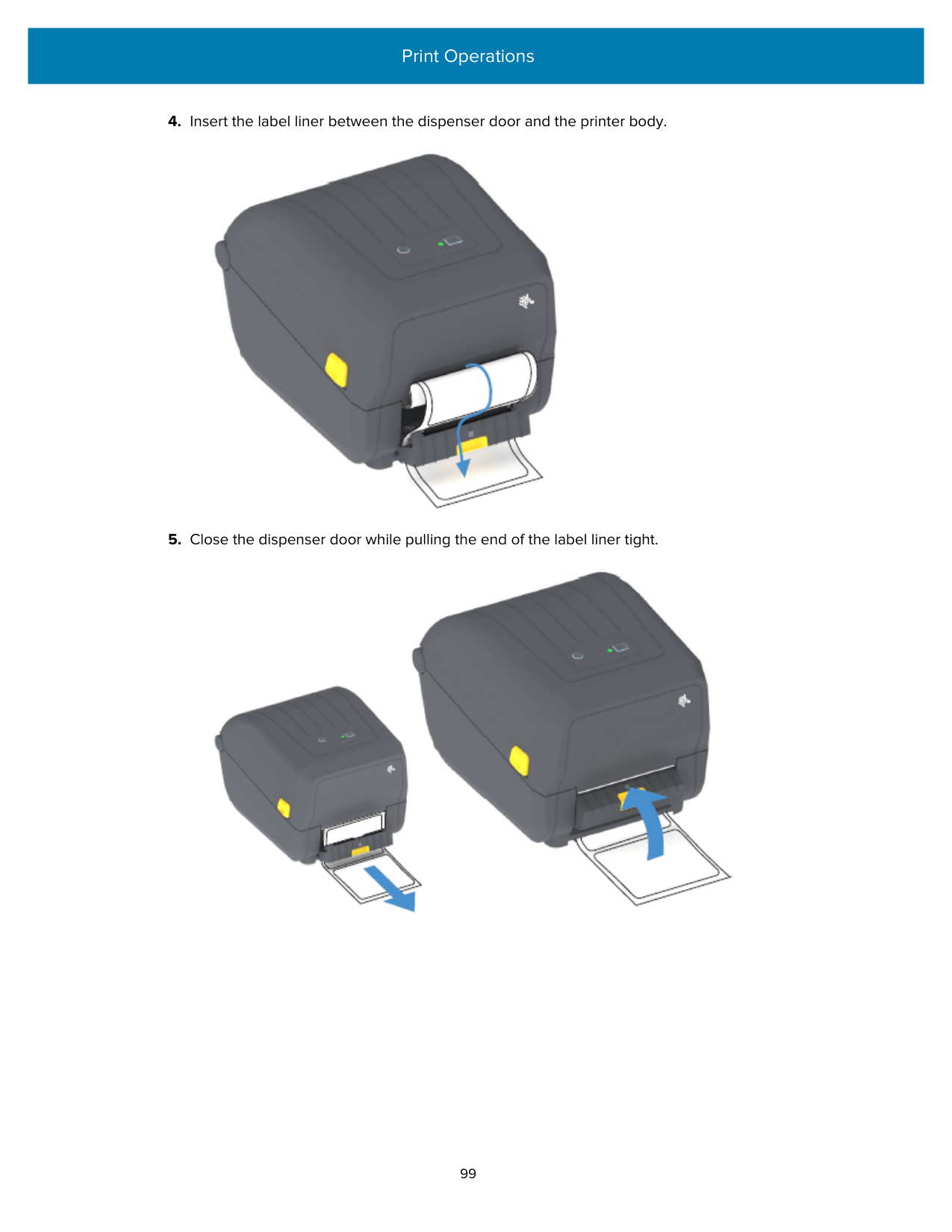
Maintenance
Perform the routine cleaning and maintenance procedures in this section for optimal printer operation.
#### Cleaning
Your Zebra printer may require periodic maintenance to keep it functional and printing high-quality labels, receipts, and tags.
IMPORTANT: The cutter mechanism does NOT require maintenance cleaning. DO NOT clean the blade or mechanism. The blade has a special coating to resist adhesives and wear. Using too much alcohol can result in contamination of the electronic components requiring a much longer drying time before the printer will function properly.
CAUTION—PRODUCT DAMAGE: DO NOT use an air compressor in place of the can of compressed air. Air compressors have micro-contaminants and particles that can enter the air system and damage your printer.
CAUTION—EYE INJURY: When using compressed air to clean the sensors, wear eye protection to shield your eyes from flying particles and objects.
Cleaning Supplies The following printer cleaning supplies are recommended for use with your printer: These and other printer supplies and cleaning accessories are available from zebra.com/supplies.
|Printhead cleaning pens|For routine printhead cleaning.| |---|---|
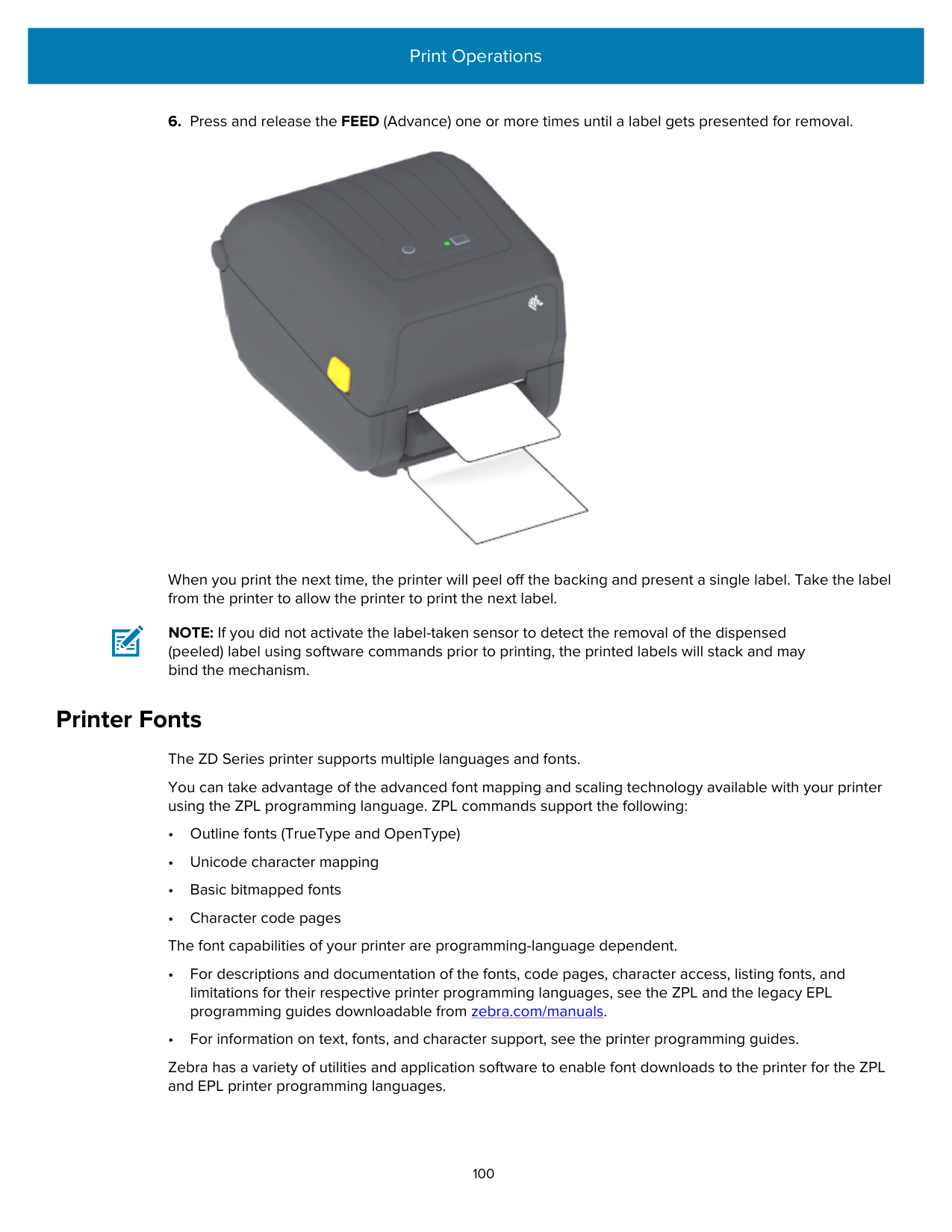
|99.7% min. pure isopropyl alcohol|Use a labeled alcohol dispenser.
NOTE: Never re-moisten cleaning materials used to clean the printer. Always use clean supplies.| |Fiber-free cleaning swabs|To clean the media path, guides, and sensors.| |Cleaning wipes|To clean the media path and interior (for example, Kimberly-Clark Kimwipes)|
|Can of compressed air|CAUTION—PRODUCT DAMAGE: DO NOT use an air compressor in place of the can of compressed air. Air compressors have micro-contaminants and particles that can enter the air system and damage your printer.| |---|---|
IMPORTANT: To avoid product damage and risk of personal injury, follow the precautions included in each cleaning procedure when cleaning the printer.
##### Recommended Cleaning Schedule
|Printer part|Cleaning Interval|Cleaning Procedure| |---|---|---| |Printhead|After every five rolls printed.|See Cleaning the Printhead on page 106.| |Platen (drive) roller|As needed to improve print quality. (Platen rollers can slip, causing print image distortion, and in worstcase scenarios not move the loaded print media.)|See Cleaning and Replacing the Platen (Driver Roller) on page 110.| |Media path|As needed.|Clean it thoroughly with fiber-free cleaning swabs and cloths moistened with 90% isopropyl alcohol. Let the alcohol evaporate completely. See Cleaning the Media Path on page 107.|
|Interior|As needed.|Use a soft cloth, brush, or compressed air to wipe or blow dust and particles out of the printer. Use 90% isopropyl alcohol and a fiber-free cleaning cloth to dissolve contaminants like oils and grime.| |Exterior|As needed.|Use a soft cloth, brush, or compressed air to wipe or blow dust and particles out of the printer. The exterior of the printer can be cleaned using plain soap and water solutions to moisten the cloth. Only use the minimum amount of cleaning solution to avoid getting it in the printer or other areas. Do not clean connectors or interior of the printer with this method.| |Label dispenser option|As needed to improve label dispensing operations.|See Cleaning the Label Dispenser on page 108.| |Cutter option|Call a service technician. The cutter is NOT an operator-serviceable component. There are no user-serviceable parts in the cutter unit.
You may however use the Exterior cleaning procedure to clean the cutter bezel (housing).
CAUTION: CUT WARNING! Never remove the cutter cover (bezel). Never attempt to insert objects or fingers in to the cutter mechanism.
CAUTION—PRODUCT DAMAGE: Do NOT clean inside the cutter opening or blade mechanism. The blade has a special coating to resist adhesives and wear. Cleaning it may ruin the blade.
CAUTION—PRODUCT DAMAGE: Using unapproved tools, cotton swabs, solvents (including alcohol), etc. to clean the cutter may damage or shorten the cutter’s usable life or cause the cutter to bind.|Call a service technician. The cutter is NOT an operator-serviceable component. There are no user-serviceable parts in the cutter unit.
You may however use the Exterior cleaning procedure to clean the cutter bezel (housing).
CAUTION: CUT WARNING! Never remove the cutter cover (bezel). Never attempt to insert objects or fingers in to the cutter mechanism.
CAUTION—PRODUCT DAMAGE: Do NOT clean inside the cutter opening or blade mechanism. The blade has a special coating to resist adhesives and wear. Cleaning it may ruin the blade.
CAUTION—PRODUCT DAMAGE: Using unapproved tools, cotton swabs, solvents (including alcohol), etc. to clean the cutter may damage or shorten the cutter’s usable life or cause the cutter to bind.|
##### Cleaning the Printhead
Always use a new cleaning pen on the printhead (an old pen carries contaminants from its previous use that may damage the printhead).
When you load new media, you should also clean the printhead for optimal print operations.
CAUTION: The printhead becomes hot while printing. To protect from damaging the printhead and risking personal injury, AVOID touching the printhead. Use ONLY the cleaning pen to perform printhead maintenance.
CAUTION—ESD: The discharge of electrostatic energy that accumulates on the surface of the human body or other surfaces can damage or destroy the printhead and other electronic components used in this device. You must observe static-safe procedures when working with the printhead or the electronic components under the top cover.

##### Cleaning the Media Path
Use this procedure to keep the media path clean and free of debris and adhesives.
NOTE: For hard-to-clean areas, use extra alcohol on a cleaning swab to soak the debris and break up any adhesive that may have accumulated on surfaces in the media compartment.
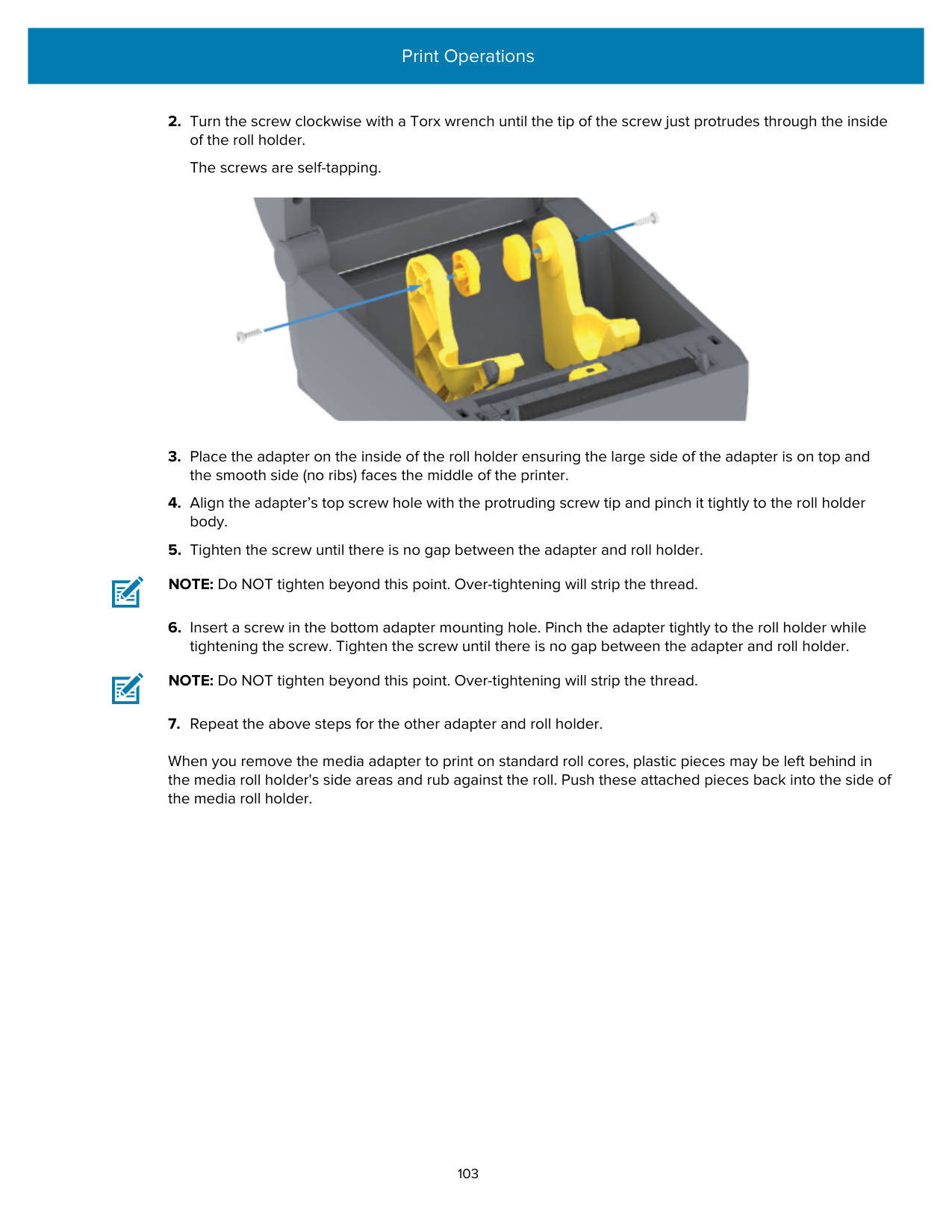

IMPORTANT: DO NOT clean the sensor window (1). Clean only the sensor channel, the groove along which it moves.
|1|Sensor window| |---|---| |2|Media guides| |3|Media roll holders|
##### Cleaning the Cutter
This procedure is a continuation of cleaning the media path for printers that have the cutter option installed. The plastic media path surfaces can be cleaned but NOT the internal cutter blades or mechanism.
IMPORTANT: The cutter blade mechanism does not require maintenance cleaning. Do NOT clean the blade. This blade has a special coating to resist adhesives and wear.
IMPORTANT: CUT WARNING! There are no operator serviceable parts in the cutter unit. NEVER remove the cutter cover (bezel). NEVER attempt to insert objects or fingers in to the cutter mechanism.
CAUTION—PRODUCT DAMAGE: Using unapproved tools, cotton swabs, solvents (including alcohol), etc. may damage or shorten the cutter’s usable life or cause the cutter to jam.

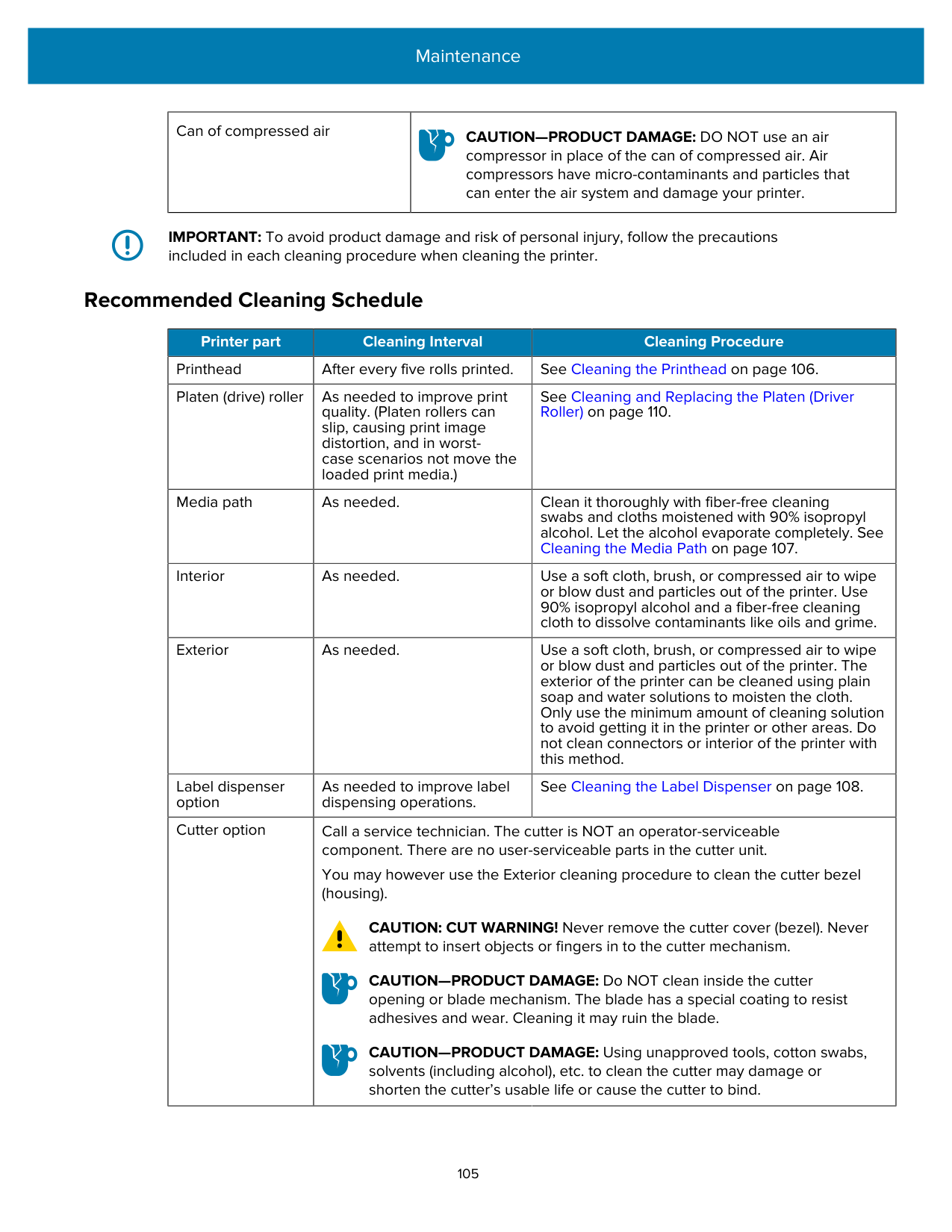
##### Cleaning the Label Dispenser
NOTE: The label dispenser is a factory-installed option.

|1|Inside wall| |---|---| |2|Label-taken sensor| |3|Ridges| |4|Pinch roller|
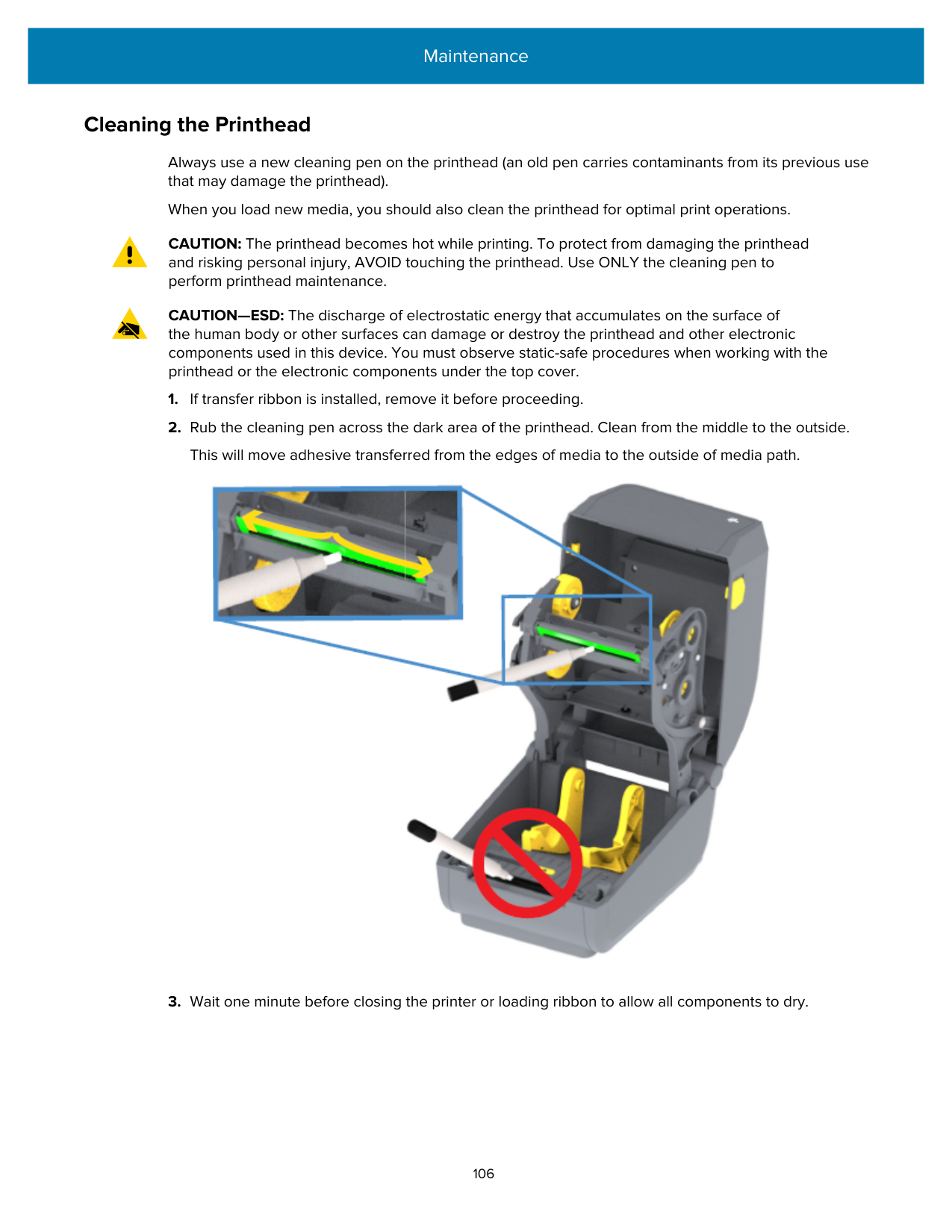
|5|Peel bar|
Cleaning the Sensor Dust can accumulate on the media sensors. Use only a can of compressed air to clean the sensors. This image shows the location of the Movable Sensor for black mark and lower web/gap media.

IMPORTANT: Do NOT use an air compressor to remove dust from the sensor or the inside of the printer. Compressors tend to add moisture, fine grit, and lubricant which can contaminate your printer components and interior.
##### Cleaning and Replacing the Platen (Driver Roller)
The platen is the print surface and drive roller for your media. It normally does not require cleaning. Print operations tolerate some accumulation of paper and liner dust on the platen roller.
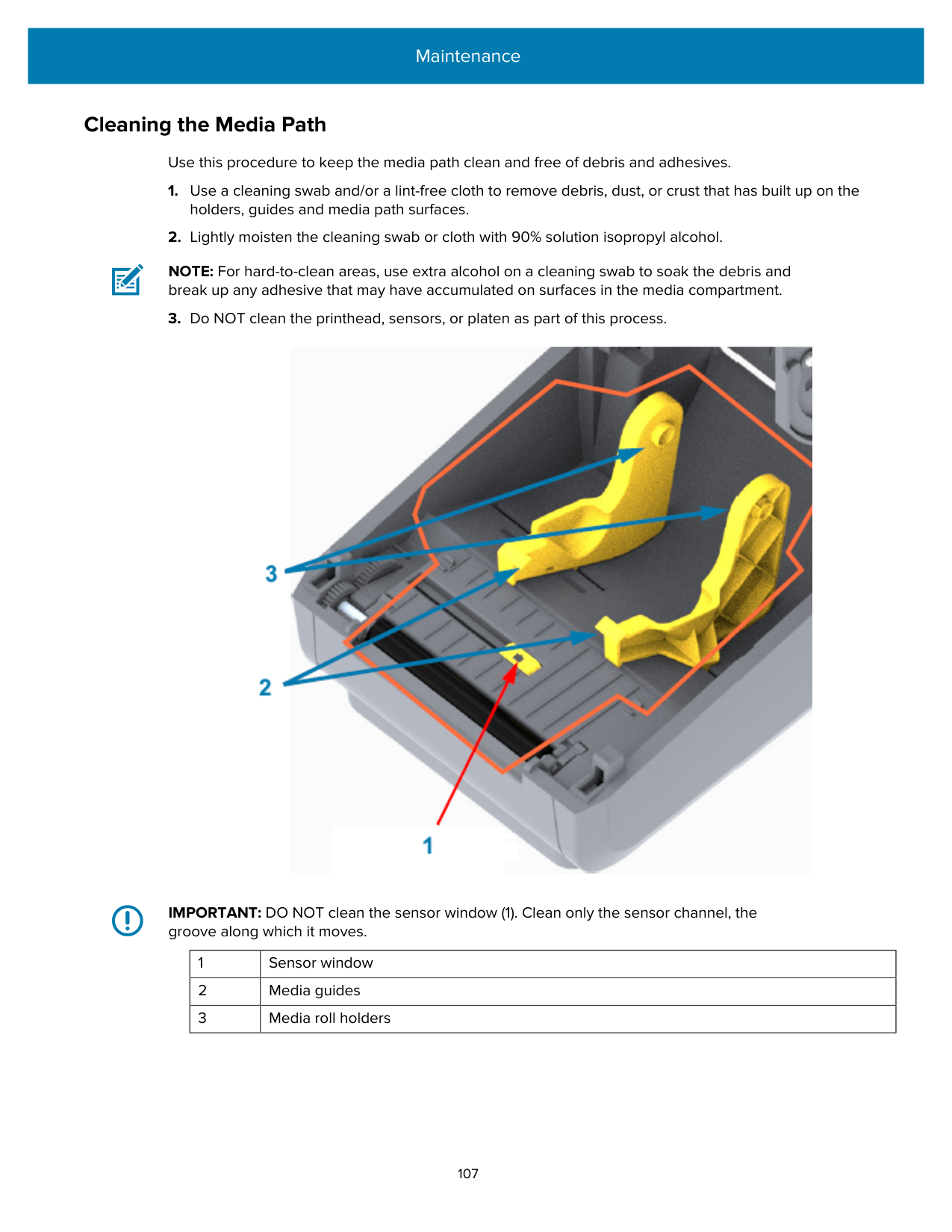
CAUTION—PRODUCT DAMAGE: Contaminants on the platen roller can damage the printhead or cause the media to slip or stick when printing. Adhesive, dirt, general dust, oils, and other contaminants should be cleaned off the platen immediately.
Clean the platen (and the media path) whenever the printer exhibits significantly poorer performance, print quality, or media handling. If sticking or jamming continues even after cleaning, you must replace the platen.
The platen can be cleaned with a fiber-free swab (such as a Texpad swab) or a lint-free, clean, damp cloth very lightly moistened with medical-grade alcohol (90% pure or better) as described in this procedure.

######### 2. Lift the platen out of the printer’s bottom frame. (The arrows in this image point to the platen bearings.)
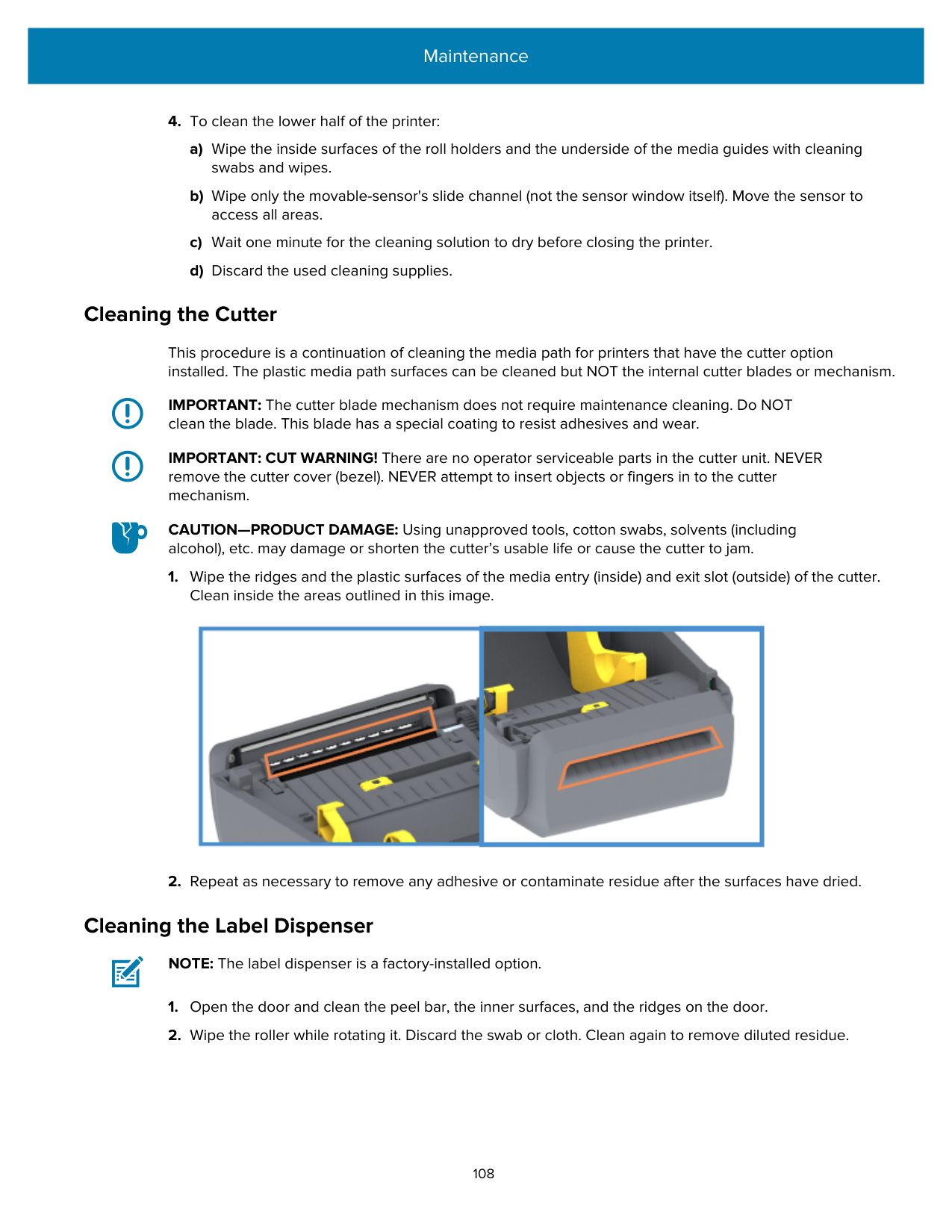

######### 3. Slide the gear and the two bearings off the shaft of the platen roller.

######### 4. Perform this step for cleaning only:
######### 5. Discard the cleaning swabs after use. Do not reuse them.
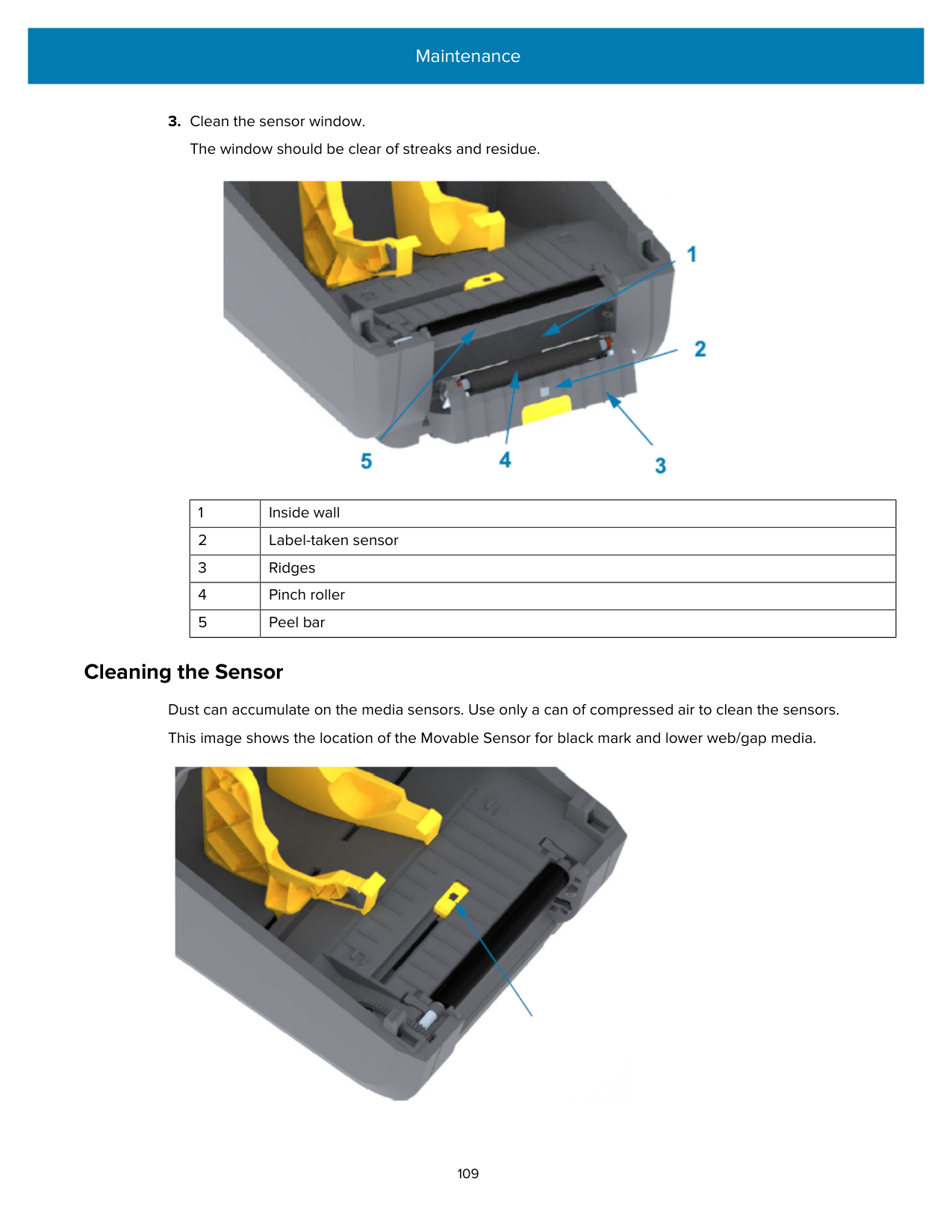

#### Updating Printer Firmware
Updating the printer's firmware periodically allows you to benefit from new features, improvements, and printer upgrades related to media handling and printer communications. Use Zebra Setup Utilities (ZSU) to load new firmware.
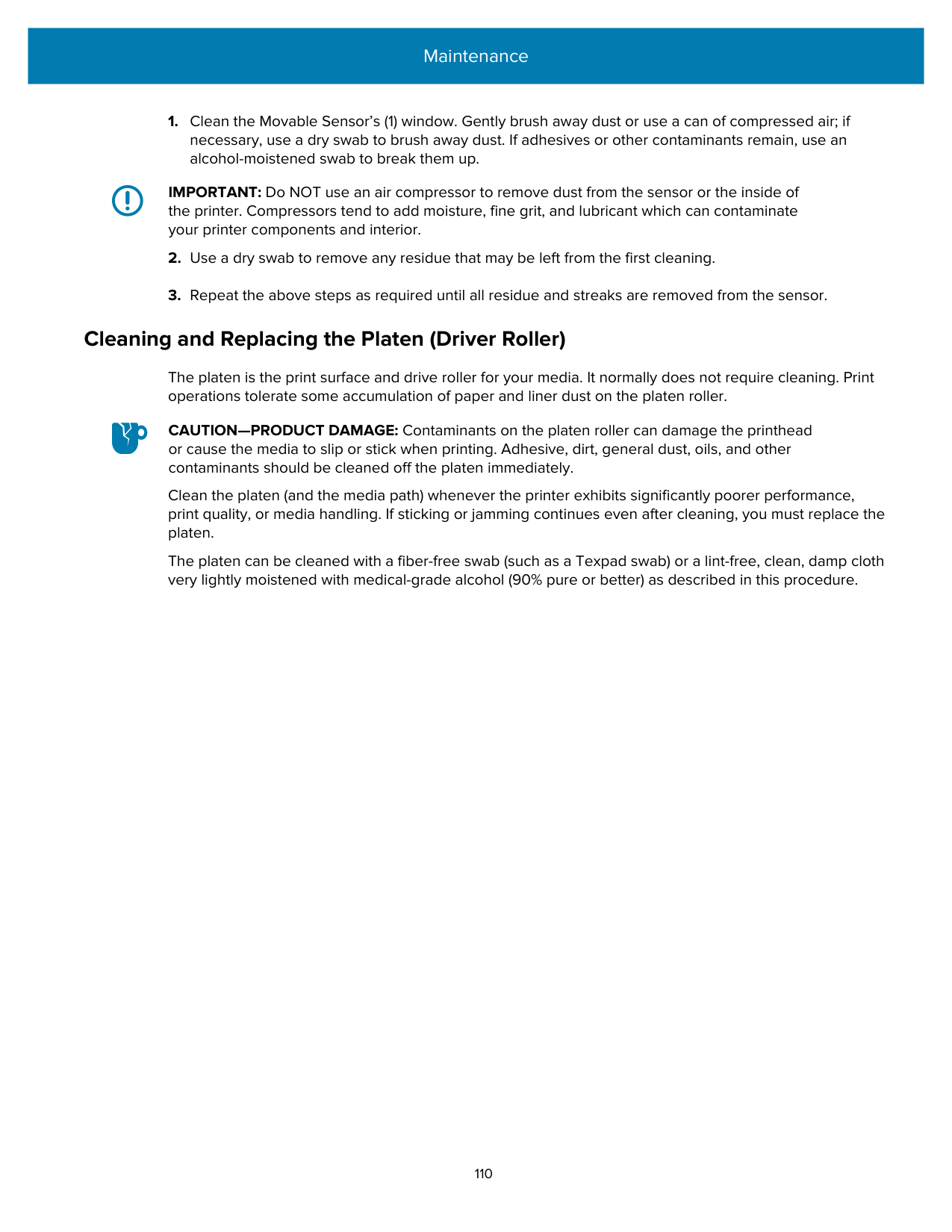
The lower half of the window shows a filename and path with a Browse... button to select the latest firmware file you downloaded from the Zebra website.
The firmware update is complete.
#### Other Printer Maintenance
There are no user-level maintenance procedures beyond those detailed in this section.
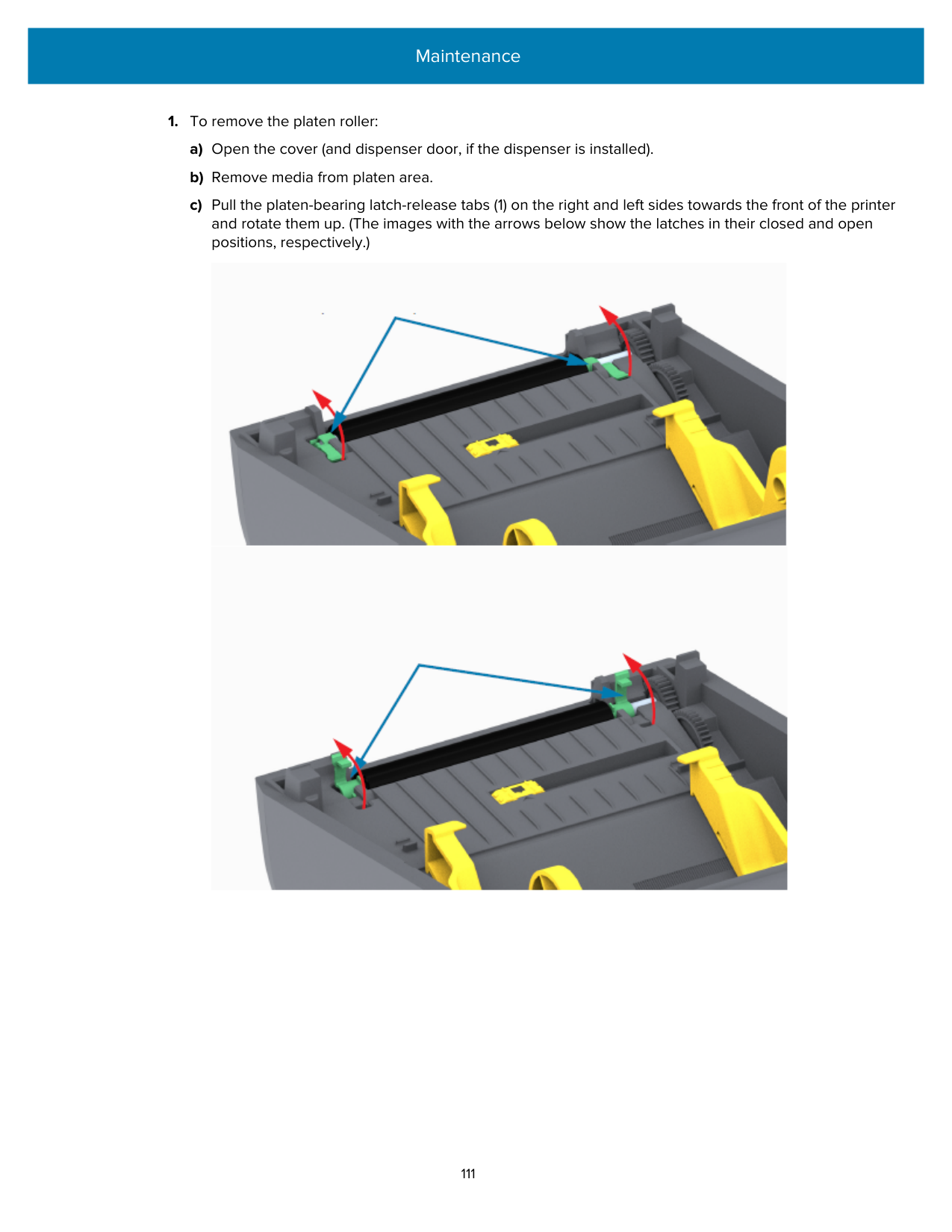
#### Fuses
There are no replaceable fuses in the ZD Series printers or power supplies.
Troubleshooting
Use the information in this section to troubleshoot printer issues.
#### Resolving Alerts and Errors
#### Resolving Print Issues
This section helps you identify issues with printing or print quality, the possible causes, and the recommended solutions.
|Alert|Possible Cause|Recommended Solution| |---|---|---| |General Print Quality Issues|General Print Quality Issues|General Print Quality Issues|
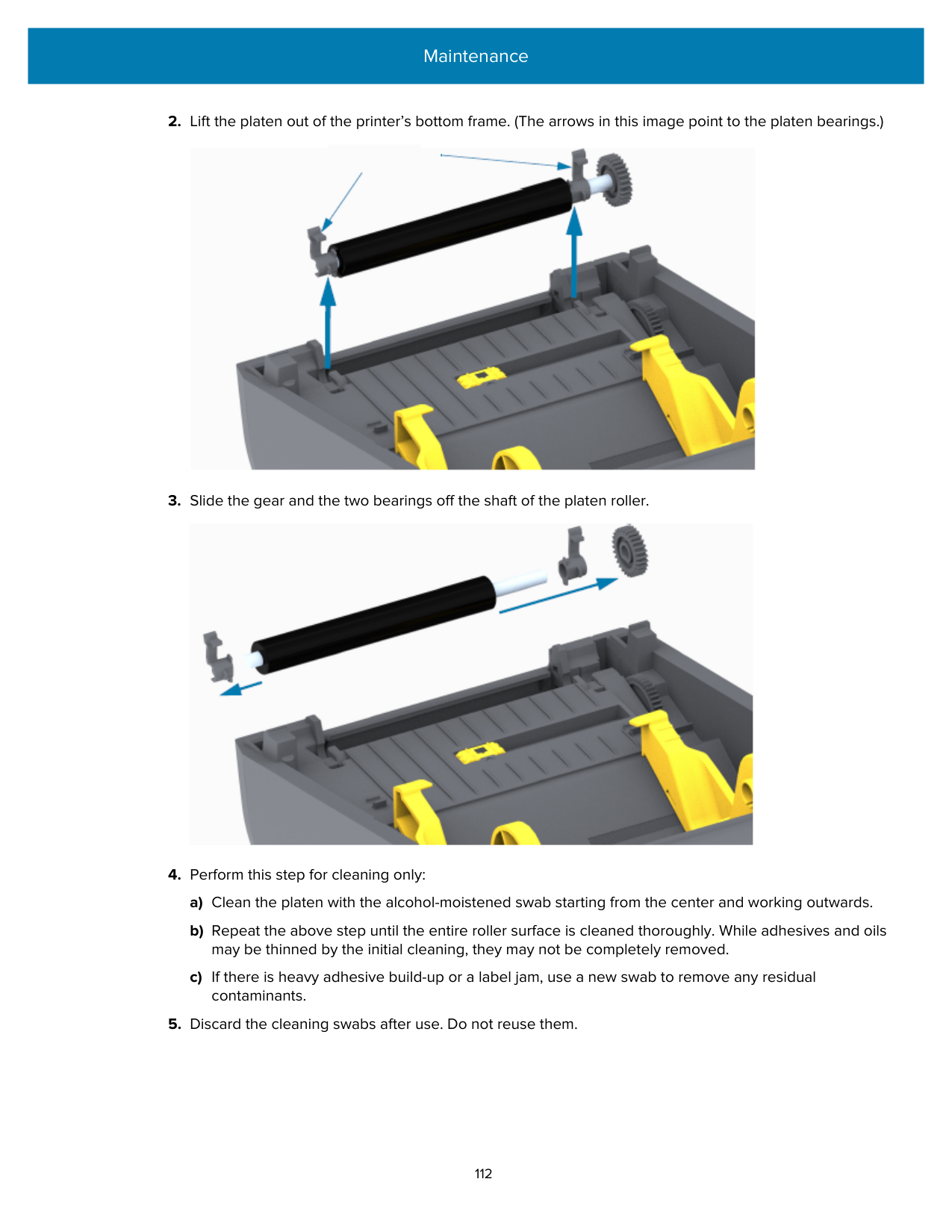
|The printed image does not look right.|The printer is set at an incorrect darkness level and/or print speed.|Adjust the printers Darkness setting. (See Adjusting Print Quality on page 93.)| |The printed image does not look right.|The printhead is dirty.|Clean the printhead. (See Cleaning the Printhead on page 106.)| |The printed image does not look right.|The platen roller is dirty or damaged.|Clean or replace the platen. Platens can wear out or get damaged. (See Cleaning and Replacing the Platen (Driver Roller) on page 110.)| |The printed image does not look right.|Thermal Transfer printingPrinting looks fuzzy, has smudge marks, or has voids or holes in print with no particular pattern.|The print material (wax, wax resin, or resin) may not match the material (paper, media coating, or synthetics) in use.
NOTE: Avoid setting the print speed higher than the maximumrated speed for your media (ribbon or label material combination).| |The printed image does not look right.|You may be using the wrong power supply.|Verify you are using the power supply that came with your printer.| |The printed image does not look right.|The printhead has worn out.|Contact your Zebra partner or Zebra Tech Support for assistance.|
|Alert|Possible Cause|Recommended Solution| |---|---|---| |No Print on the Label|No Print on the Label|No Print on the Label| |The printed image does not look right.|The media may not be direct thermal media and is made for the Thermal Transfer mode of printing.|See Determining Thermal Media Types on page 133 to ensure you are using the right type of media and the right printer settings for the media you are using.| |The printed image does not look right.|Media has been loaded incorrectly.|The media printable surface must face up towards the printhead. (See Media Preparation for Printing on page 31 and Media Types and Sensing on page 31.)| |Labels Are Distorted in Size or Print Area Start Position Varies|Labels Are Distorted in Size or Print Area Start Position Varies|Labels Are Distorted in Size or Print Area Start Position Varies| |The printed image or a part of it skips between labels (misregistration).|Media is loaded incorrectly. OR The movable media sensor is not set properly.|Verify that the sensor is positioned correctly for your media type and its sensing location. See the following:
• Media Types and Sensing on page 31
• Setting Media Sensing by Media Type on page 32
• Adjusting the Movable Sensor for Black Marks or Notches on page 35
| |The printed image or a part of it skips between labels (misregistration).|The media sensors are not calibrated for your media length, the media's physical properties, or sensing type (gap/notch, continuous, or mark).|See Running a SmartCal Media Calibration on page 48.| |The printed image or a part of it skips between labels (misregistration).|The platen (drive) roller is slipping or damaged.|Clean or replace the platen. Platens can wear out or get damaged. (See Cleaning and Replacing the Platen (Driver Roller) on page 110.| |The printed image or a part of it skips between labels (misregistration).|The printer has communication issues with cables or communication settings.|See Resolving Communication Issues on page 118.|
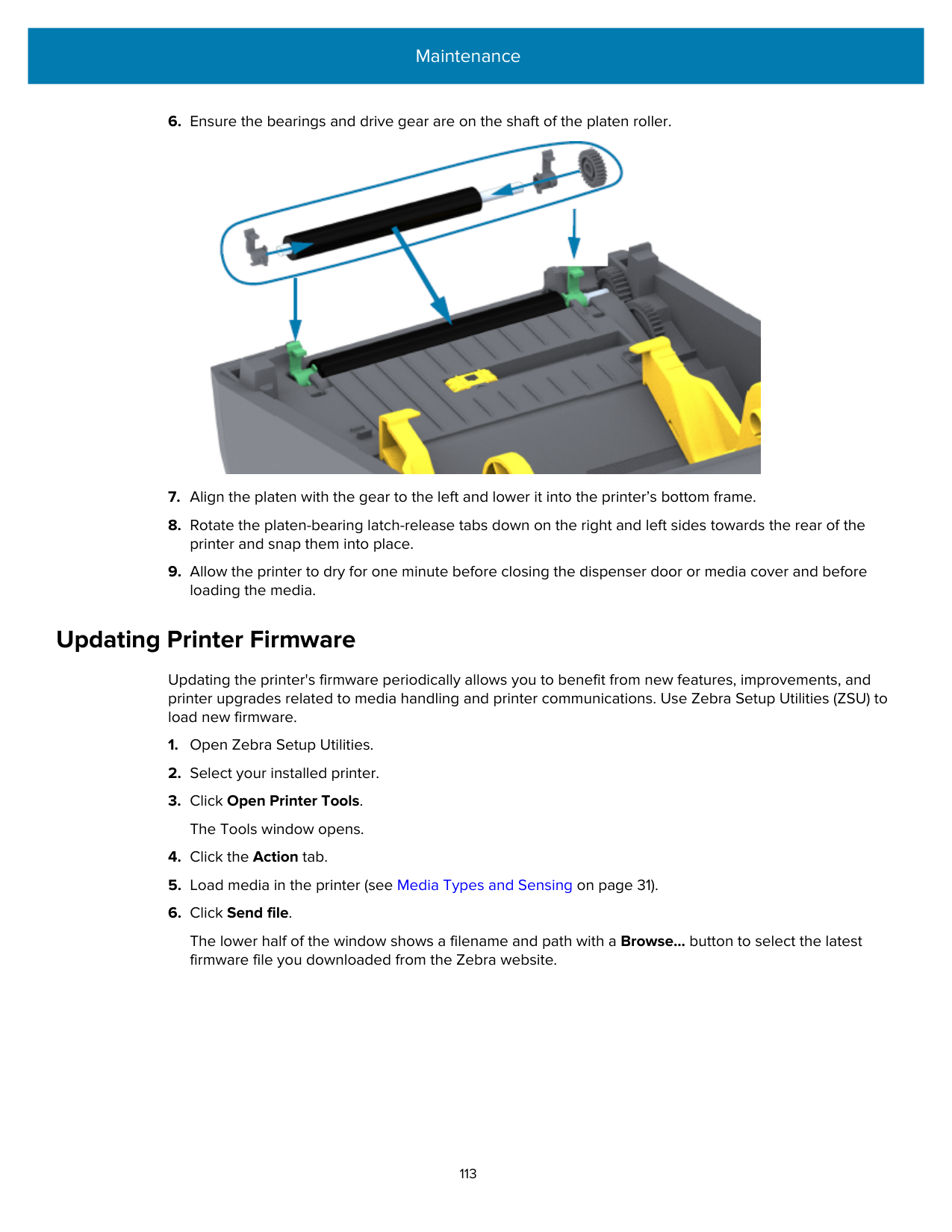
#### Printer Connectivity Issues
|Issue|Possible Cause|Recommended Solution| |---|---|---| |My printer reassigns a new IP address to the print server after the printer has been off for a while.|The settings for your network are causing the network to reassign a new IP address.|If the changing IP addresses cause issues for you, follow these steps to assign a static IP address to the printer:
1. Find out what values need to be assigned to the IP address, subnet mask, and gateway for your print server (wired, wireless, or both).
2. Change the appropriate IP protocol value to PERMANENT.
3. Change the values for the IP address, subnet mask, and gateway for the appropriate print server to what you want them to remain.
4. Reset the network.
| |My printer does not obtain an IP address while trying to connect via LAN/ Ethernet.|The cable is not plugged in correctly.|Check that both ends of the cable are connected properly.| |My printer does not obtain an IP address while trying to connect via LAN/ Ethernet.|The printer is not configured correctly (usually for DHCP).|Check the Wired IP Protocol setting. It should match your network environment.| |I cannot change the wired, wireless, or Bluetooth settings on my printer.|The printer is in Protected Mode, which prevents these settings from being updated without the Protected Mode password. You cannot change these settings through the front panel.|You will need the Protected Mode password to change the settings via JSON commands. For more information, refer to the Zebra Link-
OS PrintSecure Printer Administration Guide.
| |I cannot change the wired, wireless, or Bluetooth settings on my printer.|For printers purchased in the EMEA region after August 1, 2025, many connectivity options are disabled by default.|For additional information and a configuration wizard, go to zebra.com/asr.
|
|Issue|Possible Cause|Recommended Solution| |---|---|---| |I manually entered a wireless IP address, subnet, and gateway on my printer, but it won’t connect to my wireless network. Protected Mode is not enabled.|The printer’s network must be reset after values are changed.|Reset the network.| |I manually entered a wireless IP address, subnet, and gateway on my printer, but it won’t connect to my wireless network. Protected Mode is not enabled.|An ESSID value was not specified.|1. For a wireless connection, specify the ESSID value that matches the value used by your wireless router using the following Set/Get/Do command: ! U1 setvar "wlan.essid" "value"
where "value" is the ESSID (sometimes called a network SSID) for your router. You can look on the back of your router for a sticker with the router’s default information.
NOTE: If the information has been changed from the default, check with your network administrator for the ESSID value to use.
2. Reset the network.
| |I manually entered a wireless IP address, subnet, and gateway on my printer, but it won’t connect to my wireless network. Protected Mode is not enabled.|The ESSID or another value was incorrect.|1. Print a network configuration label and verify that your values are correct.
2. Make corrections as necessary.
3. Reset the network.
|
#### Resolving Communication Issues
This section identifies problems with communications, the possible causes, and the recommended solutions.
|Alert|Possible Cause|Recommended Solution| |---|---|---| |Label Job Sent, Data Transfers, But Labels Don't Print|Label Job Sent, Data Transfers, But Labels Don't Print|Label Job Sent, Data Transfers, But Labels Don't Print| |A label format was sent to the printer but was not recognized.
Data was transferred to the printer but the printer does not print.|The prefix and delimiter characters set in the printer do not match the characters in the label format.|Verify the ZPL programming prefix (COMMAND CHAR) and delimiter (DELIM./CHAR) characters. (See Configuration Setting to Command Cross-Reference on page 138.)| |A label format was sent to the printer but was not recognized.
Data was transferred to the printer but the printer does not print.|Incorrect data is being sent to the printer.|Check the label format. (See the ZPL Programming Guide for details on printer programming.)|
#### Resolving Miscellaneous Issues
This section identifies miscellaneous issues with the printer, possible causes and solutions.
|Alert|Possible Cause|Recommended Solution|
|---|---|---| |Settings are Lost or Ignored|Settings are Lost or Ignored|Settings are Lost or Ignored| |Some parameters are set incorrectly.|Printer settings were changed without saving them. (The ZPL ^JU command was not used to
save the printer configuration before printer power was turned OFF.)|Cycle printer power OFF and then back ON to verify the settings were saved.| |Some parameters are set incorrectly.|The label format/form commands or commands sent directly to the printer have syntax errors or have been used incorrectly.
• A firmware command turned off the ability to change the parameter.
• A firmware command changed the parameter back to its default setting.
|See the ZPL Programming Guide to verify command usage and syntax. (This guide and other online printer support resources are available from zebra.com/support.)
| |Some parameters are set incorrectly.|The prefix and delimiter characters set in the printer do not match the ones in the label format.|Verify the ZPL programming settings of the Control, Command and Delimiter communication character settings are correct for your system software environment. (See ZPL Configuration on page 136.)
Print a Configuration Report (see Test Printing with the Configuration Report on page 49) to ensure these are correct. Compare them to the commands in the label format/form you are trying to print.| | |The Main Logic board may not be working properly. Firmware is corrupted or the Main Logic board failed.|1. Do one of the following
a. Reset the printer to its factory defaults (see FEED Button Modes – Power ON on page 24).
b. Use the Zebra Setup Utility and open Printer Tools > Action > Load printer defaults .
2. Reload printer firmware. (See Updating Printer Firmware on page 113.)
If the printer does not recover from this error, contact your Zebra partner or Zebra Tech Support for assistance.|
|Alert|Possible Cause|Recommended Solution| |---|---|---| |Non-continuous Labels Act as Continuous labels|Non-continuous Labels Act as Continuous labels|Non-continuous Labels Act as Continuous labels| |A non-continuous label format with matching media (loaded in the printer) was sent to the printer, but prints like it is continuous media.|The printer was not calibrated for the media being used.|• Set the printer for the correct media type (gap/notch, continuous, or mark).
• Run a SmartCal Media Calibration. (See Running a SmartCal Media Calibration on page 48.)
| |A non-continuous label format with matching media (loaded in the printer) was sent to the printer, but prints like it is continuous media.|The printer is configured for continuous media.|• Set the printer for the correct media type (gap/notch, continuous, or mark).
• Run a SmartCal Media Calibration. (See Running a SmartCal Media Calibration on page 48.)
| |Printer Locks Up|Printer Locks Up|Printer Locks Up| |All indicator lights are on and the printer locks up or the printer locks up while restarting.|The printer memory has been corrupted by an unknown event.|Use one of these options to reset the printer to its factory defaults:
• Follow the instructions in FEED Button Modes – Power ON on page 24.
• Open the Zebra Setup Utility in your central device, then go toPrinter Tools > Action > Load printer defaults.
• Reload printer firmware. (See Updating Printer Firmware on page 113.)
If the printer does not recover from this error, contact your Zebra partner or Zebra Tech Support for assistance.|
#### General Printer Diagnostics
You can diagnose printer issues and get insights into the operating condition of your printer using diagnostic reports, calibration procedures, and other tests.
IMPORTANT: Use full-width media when performing self-tests. If your media is not wide enough, the test labels may print on the platen (drive) roller. Keep these tips in mind when testing:
Diagnostic self-tests are enabled by pressing a specific user interface button or combination of buttons while turning printer power ON. Keep the button(s) pressed until the first indicator light turns off. The selected self test automatically starts at the end of the printer's power-on self-test.
##### Printer Network (and Bluetooth) Configuration Report
ZD Series printers with (factory-installed) Wired or Wireless connectivity options will print an additional printer configuration report. You will need this information to establish and troubleshoot printing on Ethernet (LAN/WLAN) and Bluetooth 4.1 networks.
This printout is printed with the ZPL ~WL command.

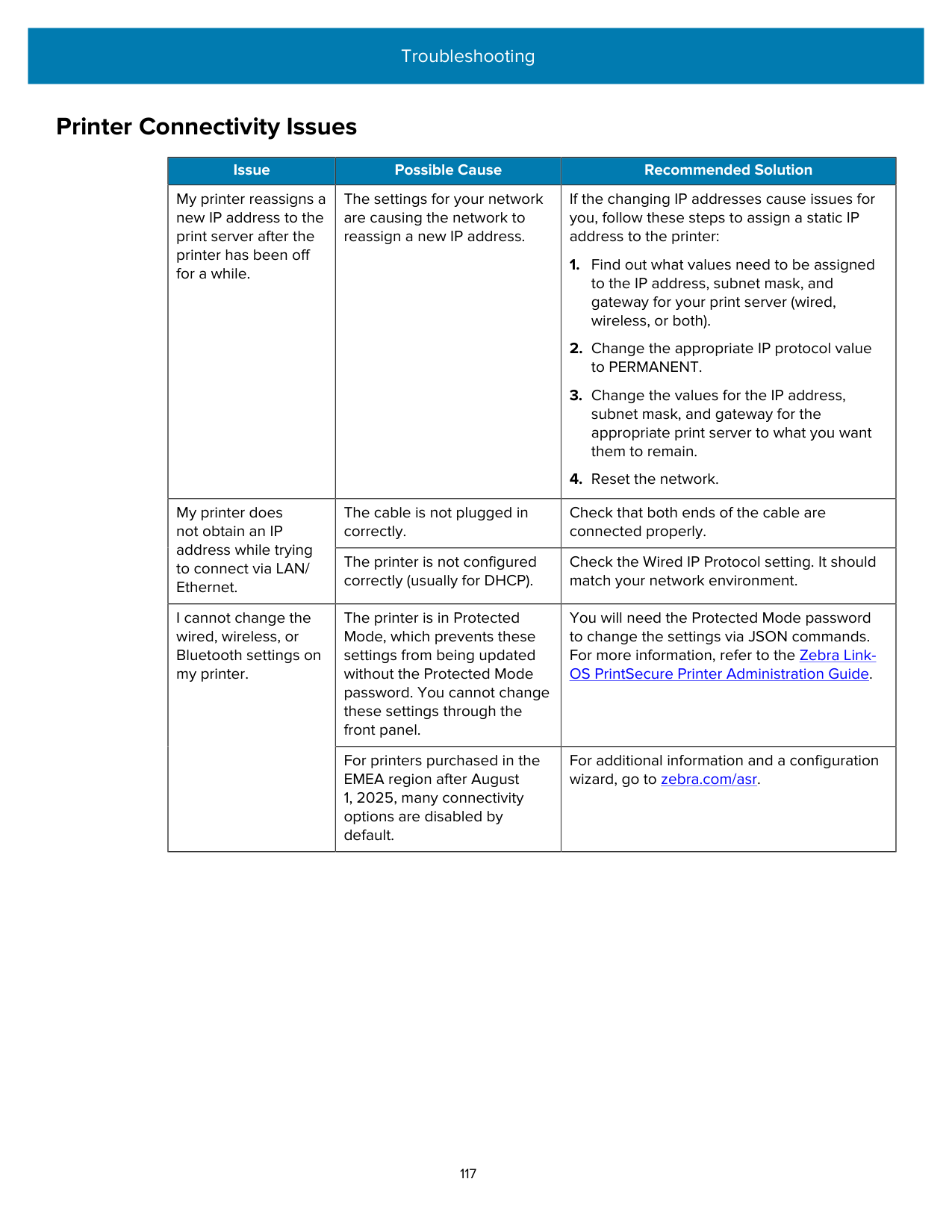
NOTE: Printers with factory-installed wireless connectivity options indicate support foriOS in the lower part of this report.
#### Manually Calibrating the Printer
It is recommended that you calibrate the printer manually when using pre-printed media or if the printer will not correctly auto-calibrate when you run a SmartCal procedure.
Make sure media is loaded. A good common label size is 4 by 6 inches.
The printer will set the media sensor for the label backing in use. When this adjustment is complete, the printer will auto-feed the media roll until a label is positioned at the printhead. It will then print a profile of the media sensor settings (similar to the one shown here). When done, the printer will save the new settings in memory. It is now ready for normal operation. This image shows the start of several labels (at the right).

This image shows the end of several labels (at the left).
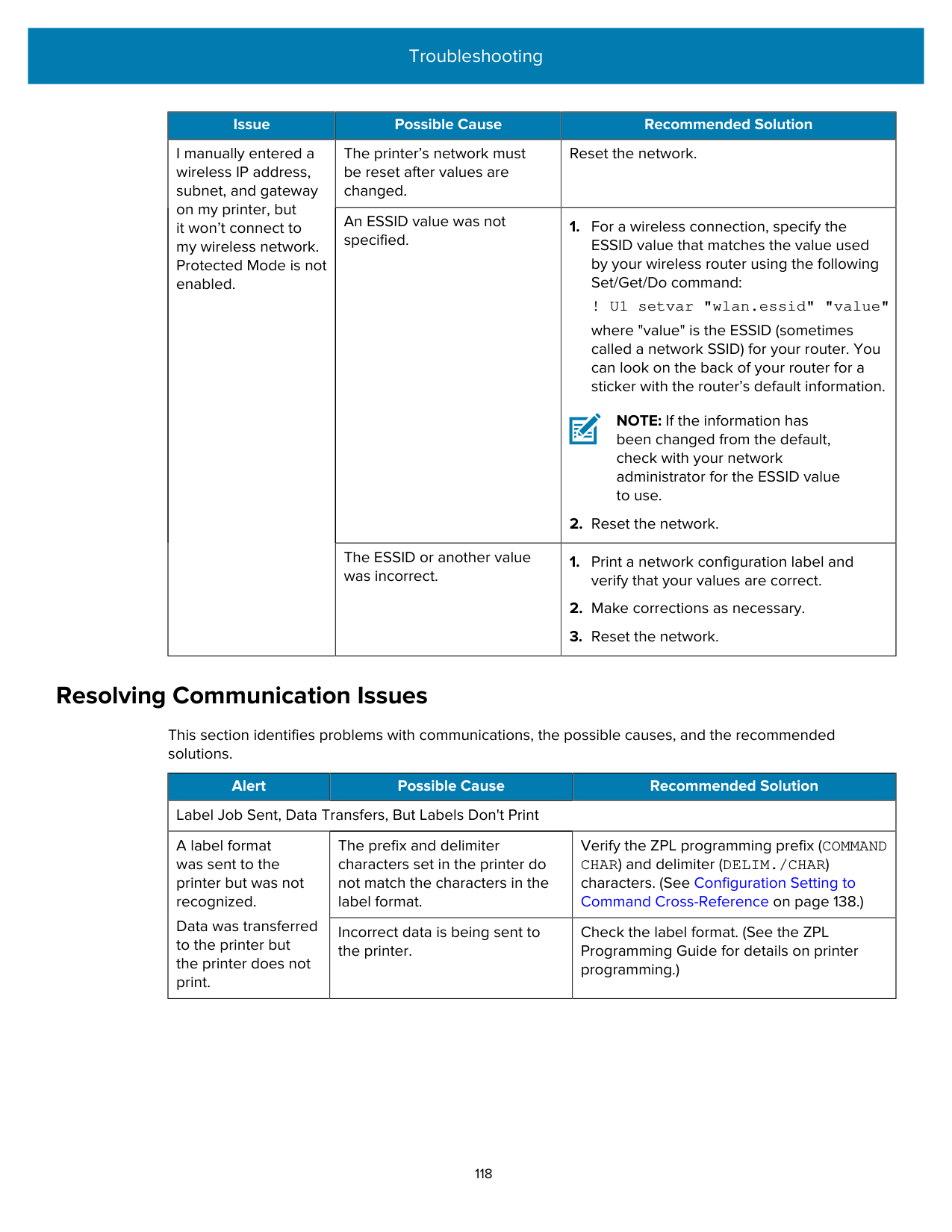

#### Diagnosing Communication Issues
If there is a problem transferring data between the computer and the printer, try placing the printer in Communications Diagnostics mode. The printer will print the ASCII characters and their respective hexadecimal values for any data received from the host computer:
The printer prints the following:

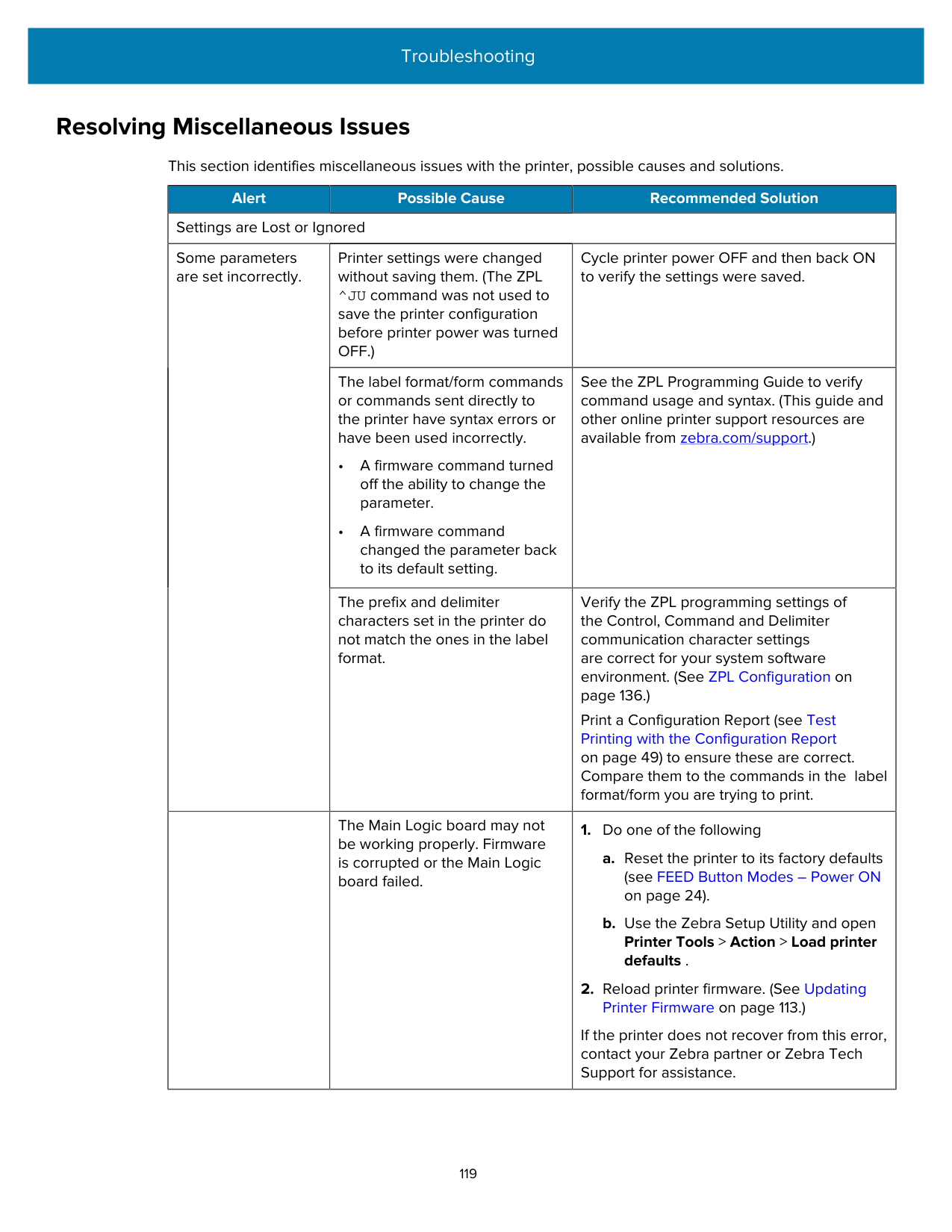
The Communications Diagnostic printout displays hexadecimal data (00h-FFh which is 0-255 decimal) with a specific character for each hexadecimal value displayed above the hexadecimal data.

######### To exit diagnostic mode and resume printing, turn printer power OFF and then back ON. Alternately, press the FEED button as many times as it takes to clear the printer’s command buffer and print Out of Diagnostic mode on the label.

Interface Connector Wiring
This section details the connector wiring for the printer connector interface.
#### Universal Serial Bus (USB) Interface
This figure shows the cable wiring required to use the printer’s USB two interfaces.
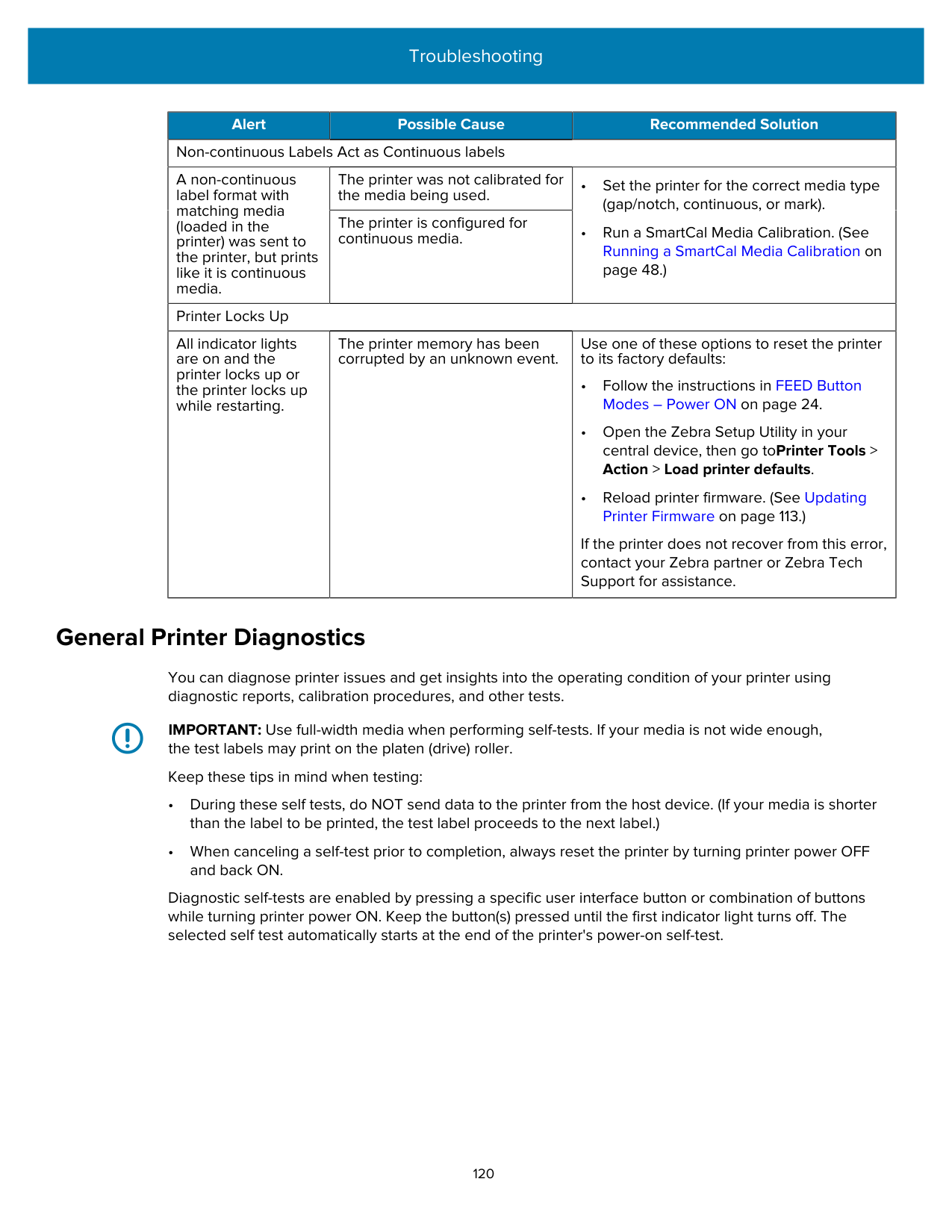

IMPORTANT: When used with third-party cables, your printer requires USB cables—or USB cable packaging—that bears the Certified USB mark to guarantee USB 2.0 compliance. Visit usb.org for details.
Type A and Type B connectors require different pinouts.
|USB A style connector pinouts (A in the image shown)|Pin 1 — Vbus (+5 VDC). (Pin 2 — D- (Data Signal, Negative Side)
Pin 3 — D+ (Data Signal, Positive Side)
Pin 4 — Shell (Shield/Drain Wire)
| |---|---| |USB B style connector pinouts (B in the image shown)|Pin 1 — Vbus (Not Connected)
Pin 2 — D- (Data Signal, Negative Side)
Pin 3 — D+ (Data Signal, Positive Side)
Pin 4 — Shell (Shield/Drain Wire)
|
IMPORTANT: USB Host +5 VDC power source is shared with serial-port phantom power. It is limited to 0.5mA per USB Specification and with on-board current limiting. The maximum current available through the serial port and USB port should not exceed a total of 0.75 Amps.
Dimensions
This section lists external printer dimensions.
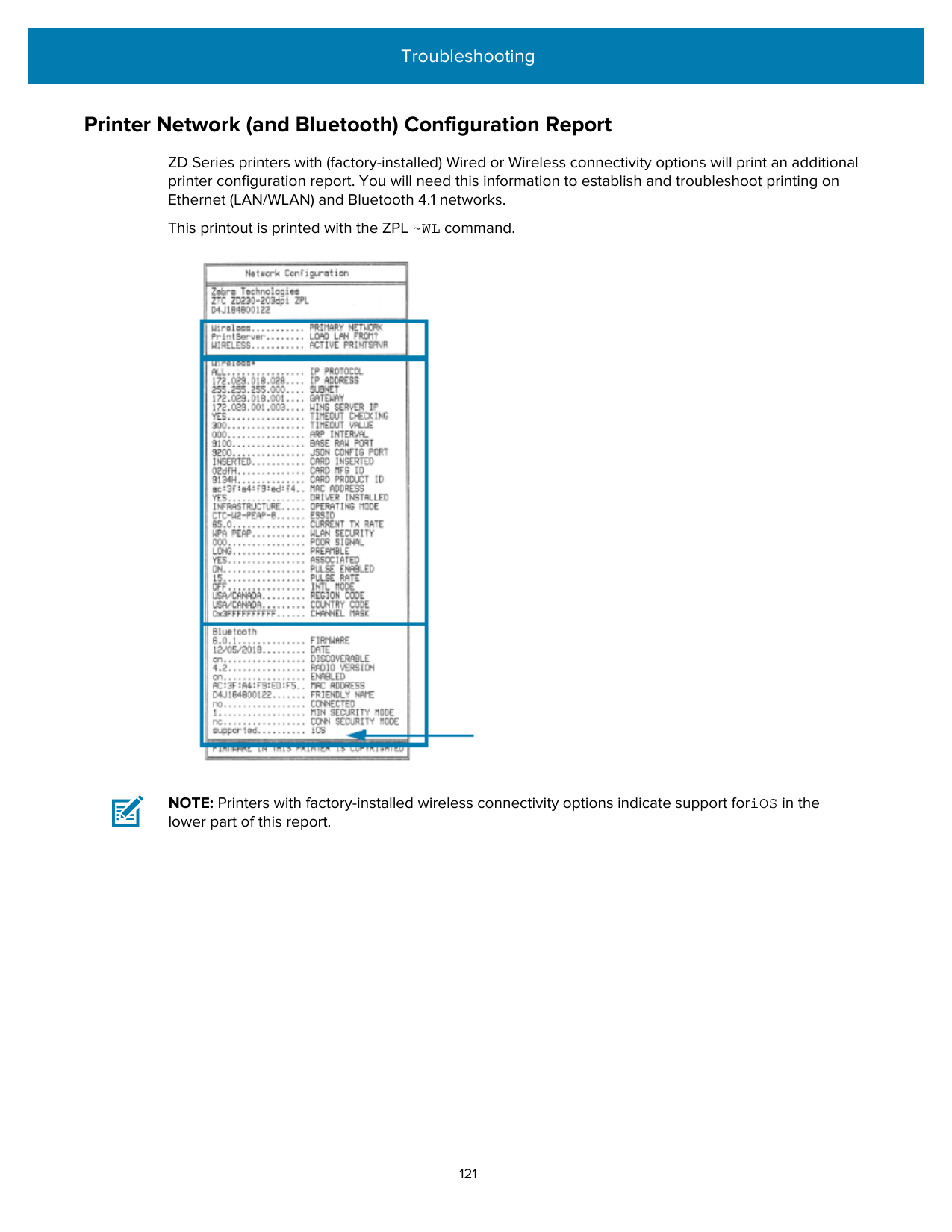
#### Dimensions – Standard Printer
Standard Printer Dimensions All dimensions are in millimeters.


######### All dimensions are in millimeters.


All dimensions are in millimeters.
#### Printer with Label Dispenser – Dimensions
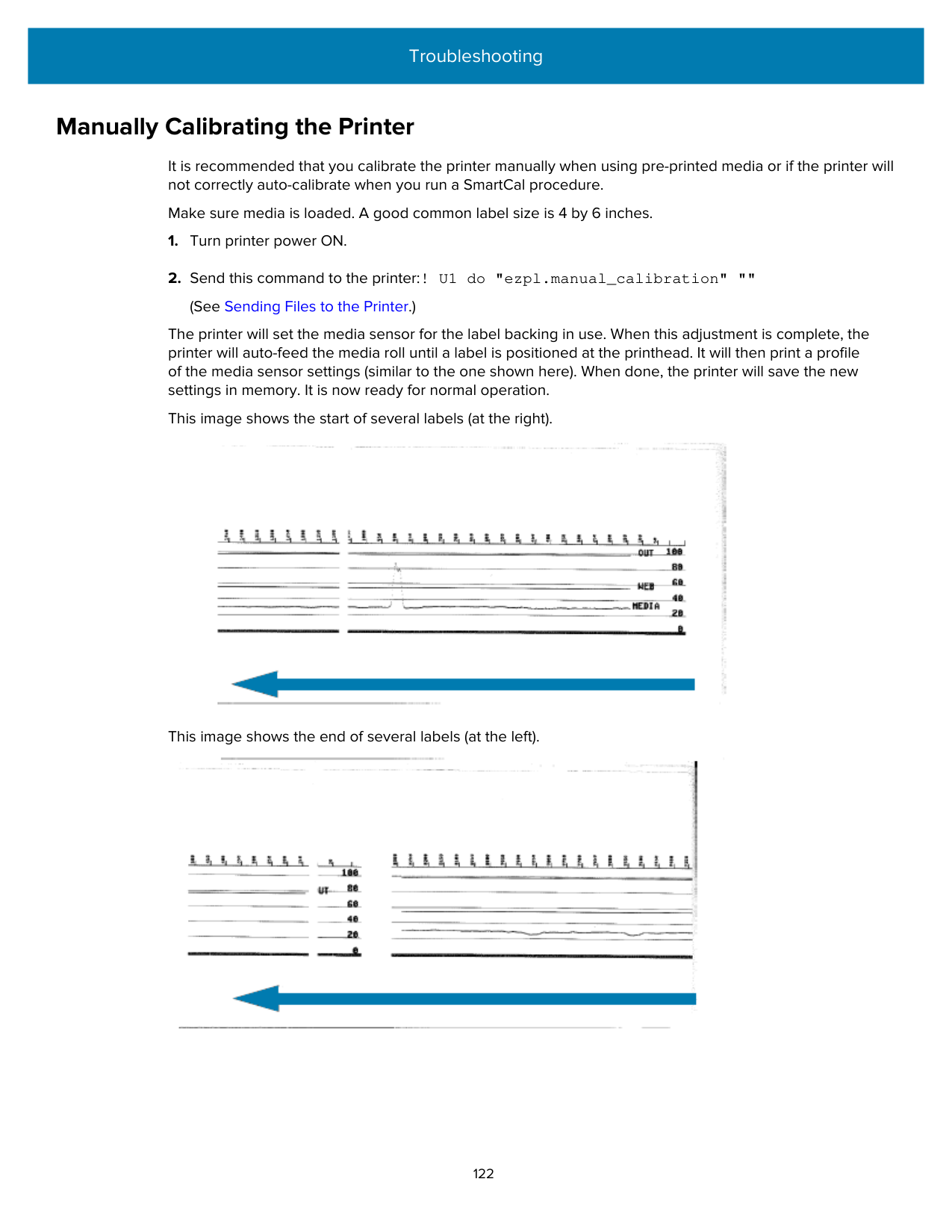
NOTE: The label dispenser is a factory-installed option.
All dimensions are in millimeters.

######### All dimensions are in millimeters.


All dimensions are in millimeters.

#### Dimensions – Printer with Cutter Option
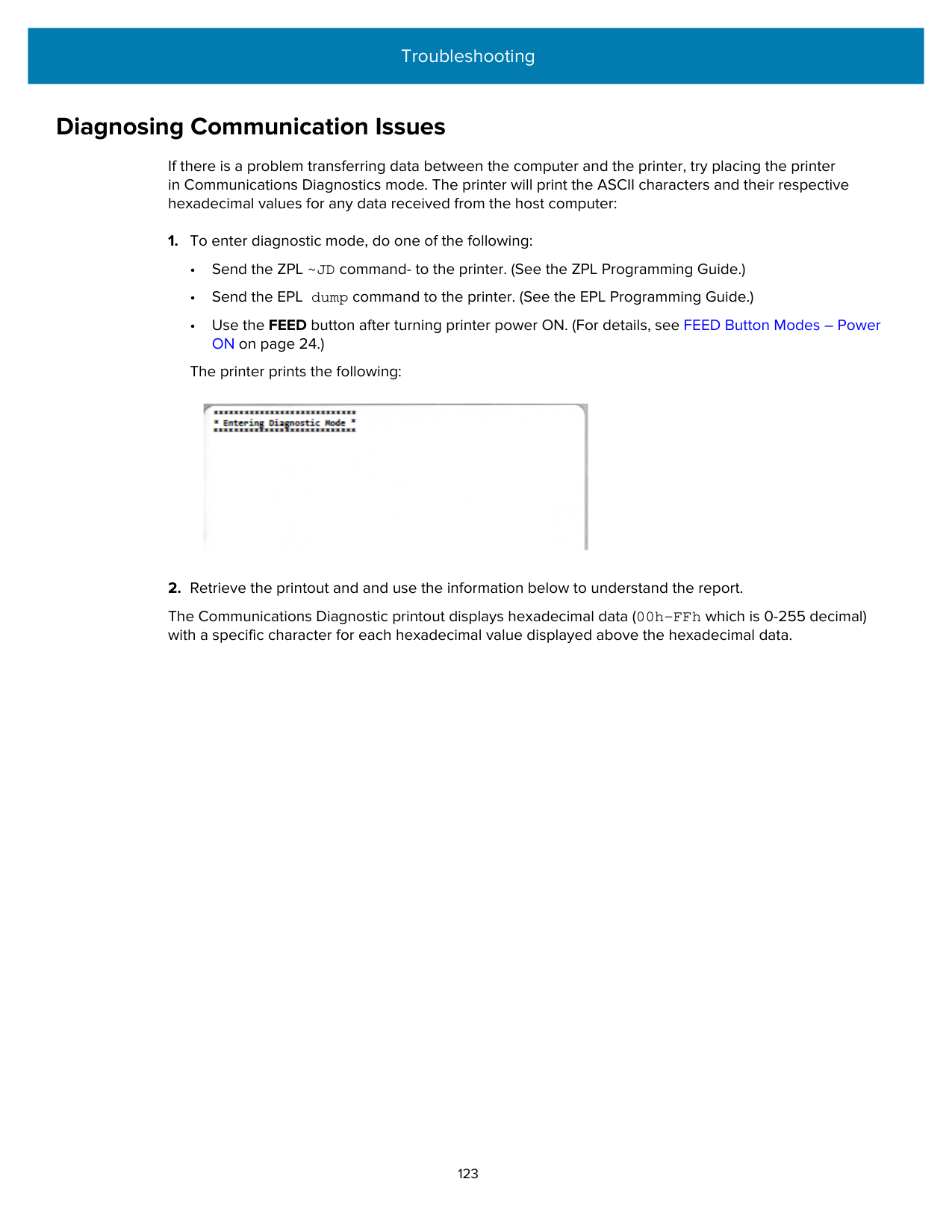
NOTE: The cutter is a factory-installed option.
All dimensions are in millimeters.

All dimensions are in millimeters.


######### All dimensions are in millimeters.

Media
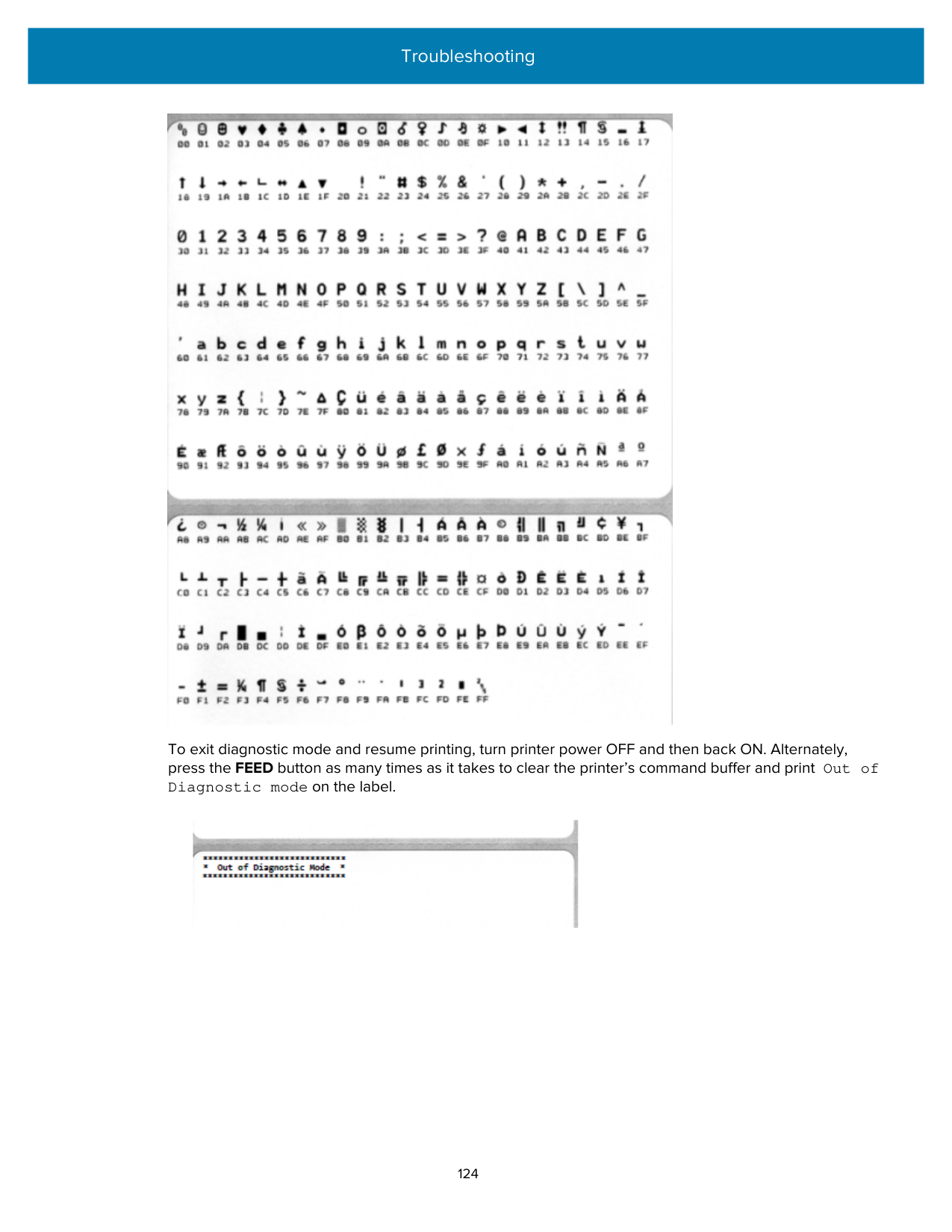
This section provides a simple media overview for your printer.
#### Thermal Media Types and Procurement
Zebra strongly recommends the use of Zebra-brand supplies in order to ensure consistent high-quality printing.
IMPORTANT: A wide range of Zebra paper, polypropylene, polyester, and vinyl stock has been specifically engineered for Zebra-brand printers to enhance the printing capabilities of your device and prevent premature printhead wear.
To purchase supplies, go to zebra.com/supplies. Your printer can use the following types of media:
|Standard (noncontinuous) media|Most standard (noncontinuous) media uses an adhesive backing that has individual labels or a continuous length of labels affixed onto a liner.| |---|---| |Continuous roll media|Most continuous roll media is direct thermal media (similar to fax paper) and is used for receipt or ticket-style printing.| |Tag stock|Tags are usually made from a heavy paper (up to 0.19 mm or 0.0075 in. thick). Tag stock does not have adhesive or a liner, and it is typically perforated between tags.|
Types of media rolls and fanfold media include standard or noncontinuous roll media, noncontinuous fanfold media, and continuous roll media.
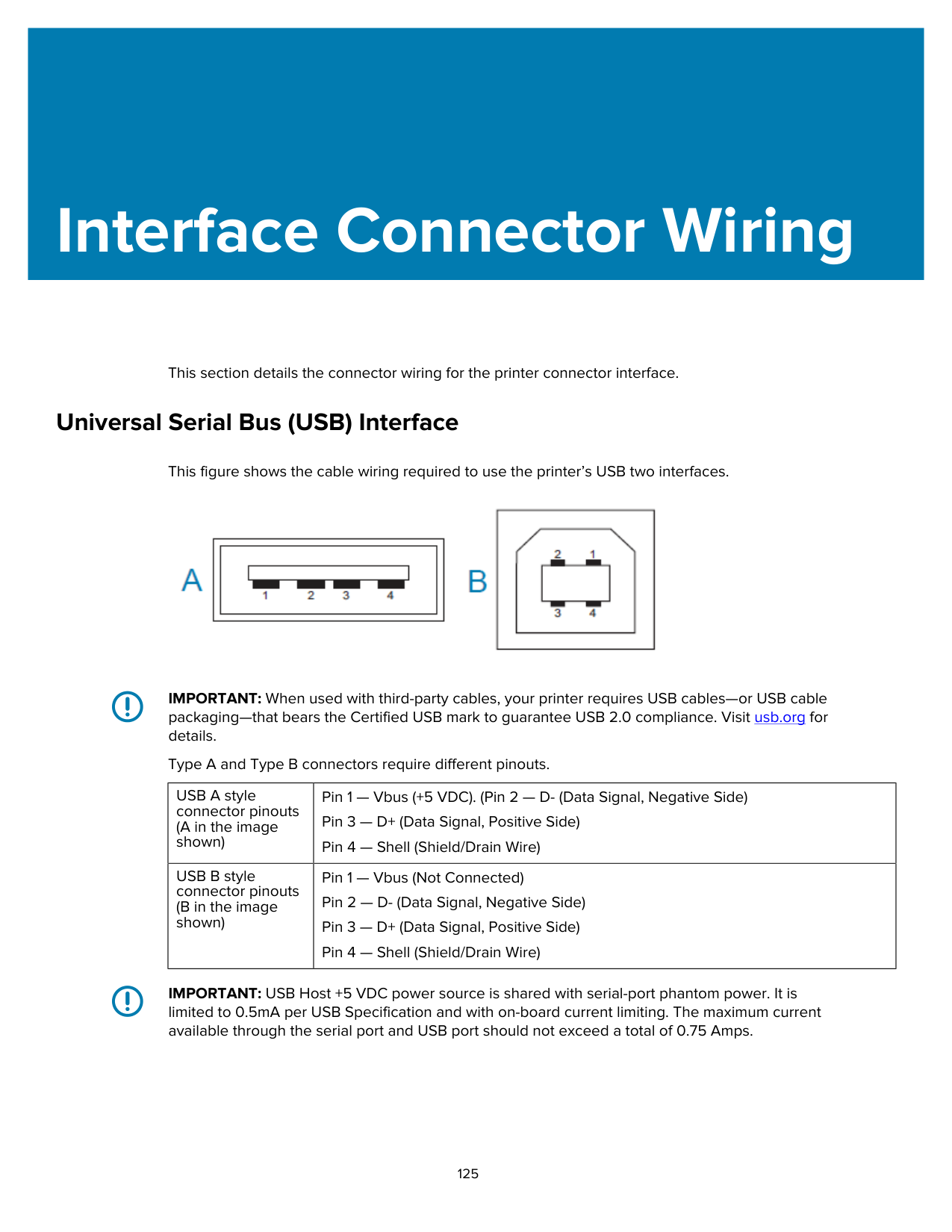
Your printer typically uses roll media, but also supports fanfold or other continuous media.
##### Determining Thermal Media Types
Thermal transfer media requires ribbon for printing while direct thermal media does not. To determine if ribbon must be used with a particular media, perform a media scratch test.
To perform a media scratch test, scratch the print surface of the media with a fingernail or pen cap. Press firmly and quickly while dragging it across the media surface.
NOTE: Direct thermal media is chemically treated to print (expose) when heat is applied. This method of testing the media uses friction heat to help identify the media. Did a black mark appear on the media?
|If a black mark...|The media print mode is...| |---|---| |appears...|Direct Thermal. Your printer supports this media. You do NOT have to load ribbon.| |does not appear...|Thermal Transfer. A ribbon is required. You will need to load ribbon.|
#### Media and Print Specifications
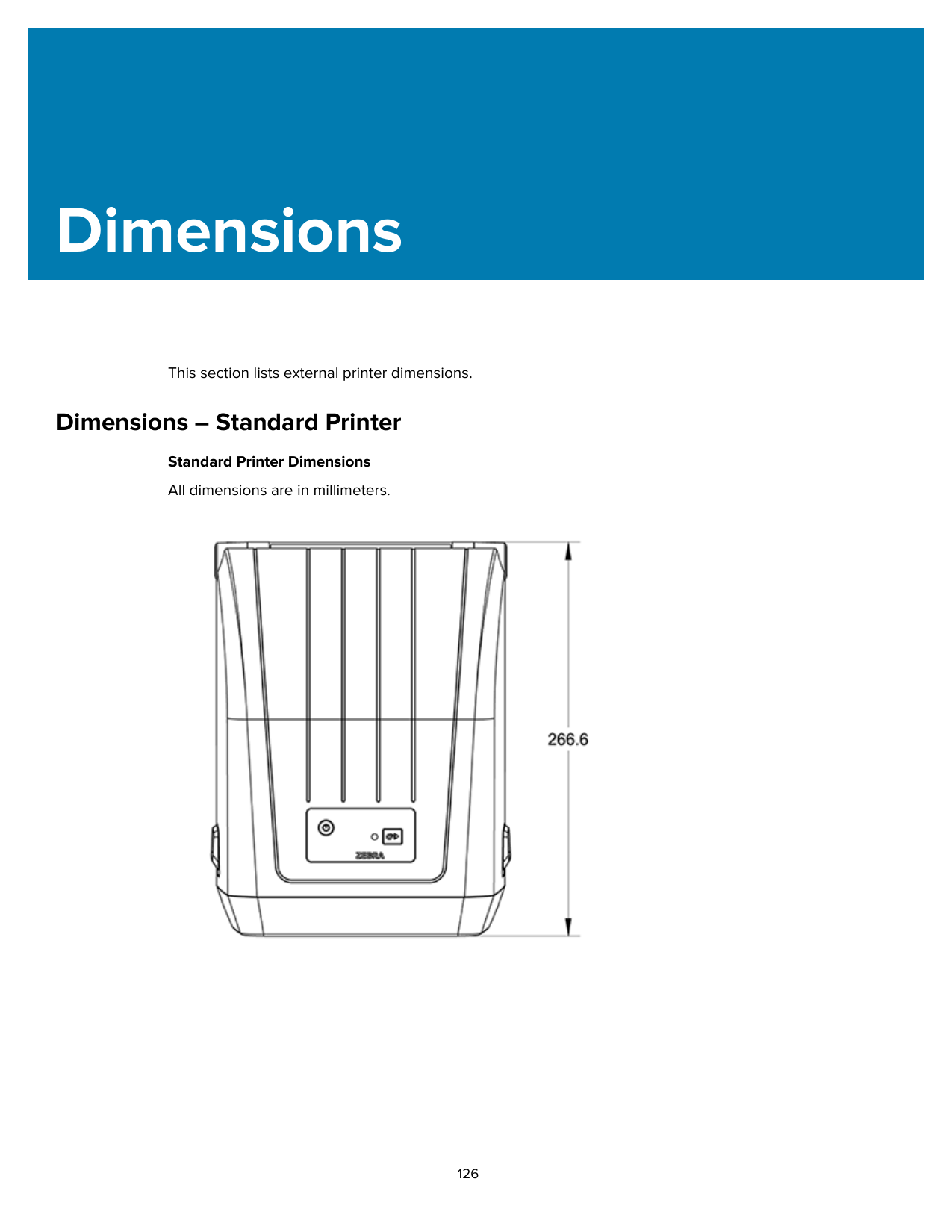
|Media widths|• Direct Thermal mode maximum: 108 mm (4.25 in.)
• Thermal Transfer mode maximum: 112 mm (4.41 in.)
• Minimum for all printers: 25.4mm (1 in.)
| |---|---| |Media length|• Maximum: 990 mm (39 in.)
• Minimum (for Tear-Off, Peel, or Cutter): 25.4 mm (1.0 in.)
| |Media thickness|• Maximum: 0.1905 mm (0.0075 in.)
• Minimum: 0.06 mm (0.0024 in.)
| |Media Roll Outer Diameter (O.D.)|127 mm (5.0 in.)| |Media Roll Core Inner Diameter (I.D.)|• Standard roll configuration:
• 12.7 mm (0.5 in.) I.D.
• 25.4 mm (1 in.) I.D.
• With optional media roll adapter: 38.1 mm (1.5 in.) I.D.
| |Ribbon rolls (74meter)|• Ribbon length: 74 m (243 ft.)
• Ribbon width maximum: 110 mm (4.33 in.)
• Ribbon width minimum: 33 mm (1.3 in.)
IMPORTANT: Transfer ribbon should always cover the entire width of the media and liner to prevent damaging the printhead.
• Ribbon core I.D: 12.7 mm (0.5 in.)
• Wax, wax/resin, and resin transfer materials
| |Ribbon rolls (300meter)|• Ribbon length: 300 m (984 ft.)
• Ribbon width maximum: 110 mm (4.33 in.)
• Ribbon width minimum: 33 mm (1.3 in.)
IMPORTANT: Transfer ribbon should always cover the entire width of the media and liner to prevent damaging the printhead.
• Wax, wax/resin, and resin transfer materials
| |Dot pitch|203 dpi: 0.125 mm (0.0049 in.)|
|Barcode modulus x-dim|203 dpi: 0.005-0.050 in.| |---|---|
##### Label Dispenser (Peeler) Specifications
These specifications apply to the field-installed label-dispenser option and the label-taken sensor used to process labels in batches.
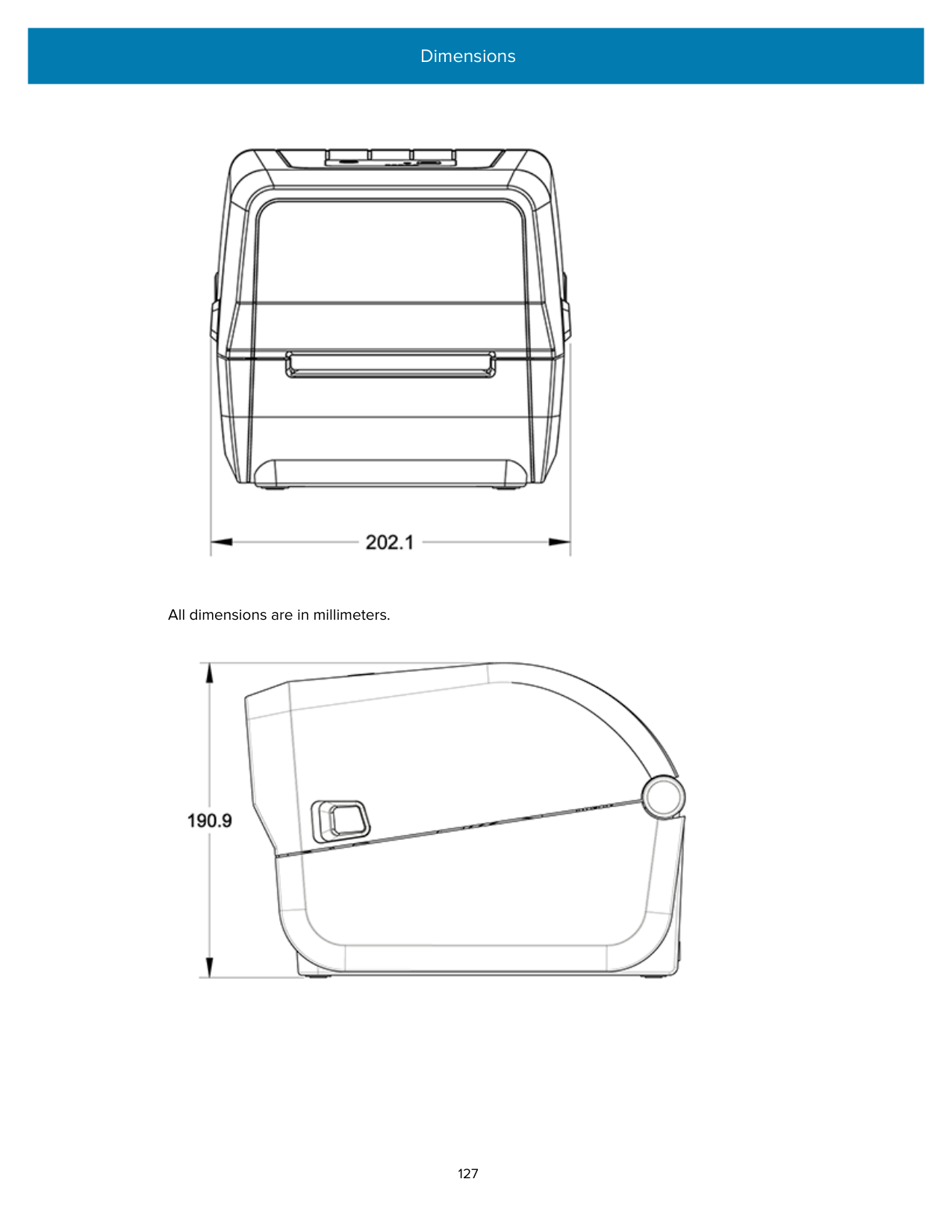
|Paper thickness|• Maximum: 0.1905 mm (0.0075 in.)
• Minimum: 0.06 mm (0.0024 in.)
| |---|---| |Media width|• Direct Thermal printers maximum: 108 mm (4.25 in.)
• Thermal Transfer printers maximum: 112 mm (4.41 in.)
• Minimum: 25.4 mm (1 in.)
| |Label length|• All printers maximum (theoretical): 990 mm (39 in.)
• Direct Thermal printers maximum: 330 mm (13 in.)
• Thermal Transfer printers maximum (tested): 279.4 mm (11 in.)
• All printers minimum: 12.7 mm (0.5 in.)
|
##### Cutter Option Specifications
These specifications apply to printers with the media-cutter option which enables full-width cutting of label liner, tag, or receipt media.
|Cutter|A medium-duty cutter for cutting label liner and light tag media (LINER/TAG).
IMPORTANT: Do NOT cut through labels, adhesive or embedded circuitry.| |---|---| |Paper thickness|• Maximum: 0.1905 mm (0.0075 in.)
• Minimum: 0.06 mm (0.0024 in.)
| |Cut width|• Direct thermal printers maximum: 108 mm (4.25 in.)
• Thermal transfer printers maximum: 112 mm (4.41 in.)
• Minimum: 25.4 mm (1 in.)
| |Distance between labels (label length)|Minimum: 25.4 mm (1 in.)
NOTE: The cutter may jam or error if shorter media lengths are used between cuts.|
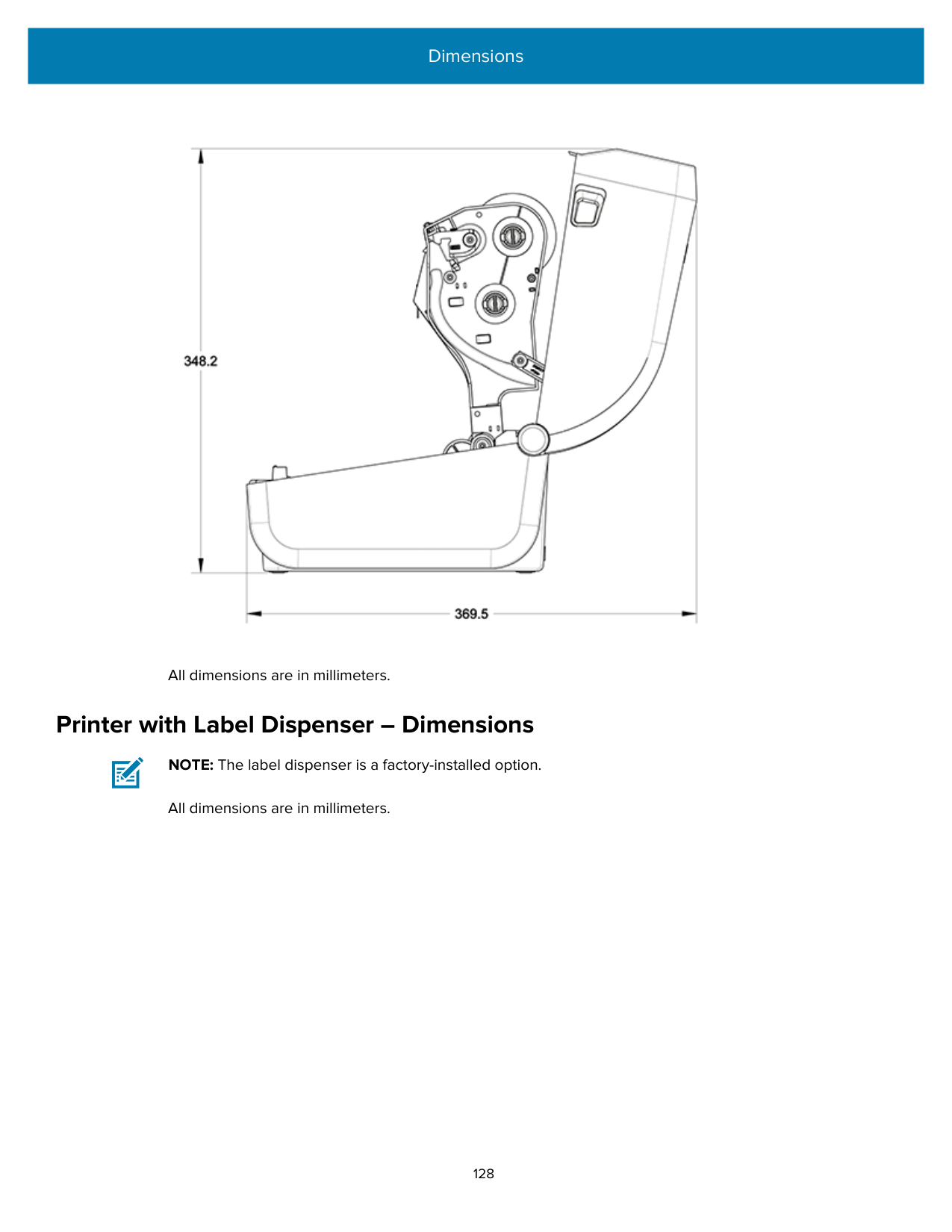
NOTE: By design, the cutter is self-cleaning. The internal cutter mechanism does NOT require preventive maintenance.
ZPL Configuration
This section provides an overview of managing printer configuration, the Configuration Status report, and printer and memory printouts.
#### Managing the ZPL Printer Configuration
Printers that support ZPL allow you to change printer settings dynamically for fast first-label-out printing. Printer parameters that are persistent will be retained for future formats to use.
These settings will remain in effect until:
You can save and restore printer configurations using the ZPL Configuration Update command (^JUS). This command initializes (or re-initializes) the printer with pre-configured settings.
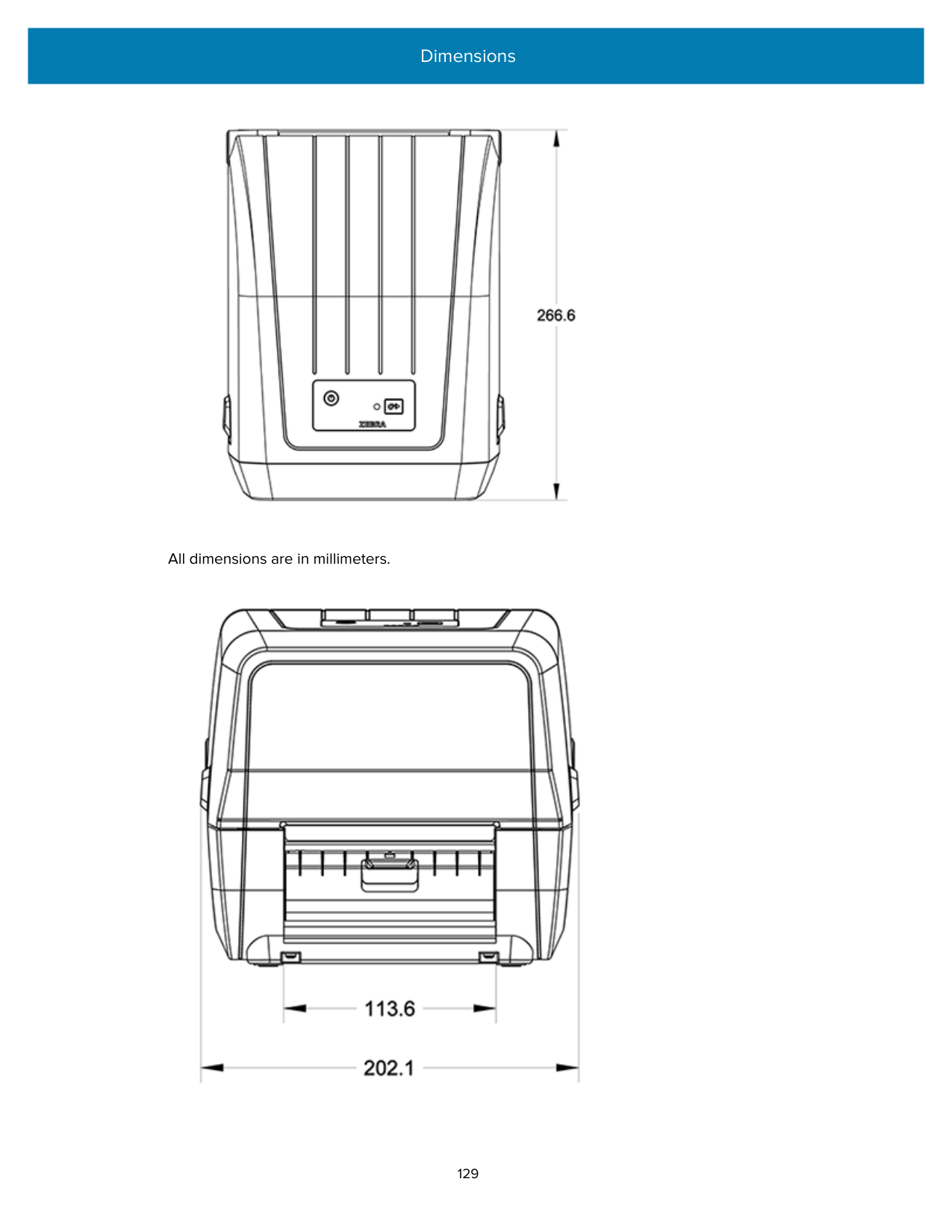
ZPL stores all parameters when you issue the ^JUS command. The legacy EPL programming language (supported by your ZD Series printer) changes and saves individual commands immediately.
Most printer settings are shared between ZPL and EPL. For example, changing the speed setting with EPL will also change the speed set for ZPL operations. The changed EPL setting will persist even after a power cycle or reset issued using either printer language.
To help manage your printer, you can instruct the printer to print a Configuration Report. The report lists operating parameters, sensor settings, and printer status among other details (see Test Printing with the Configuration Report on page 49). You can also print this and other reports using the Zebra Setup Utility and the ZebraDesigner Windows driver.
##### ZPL Printer Configuration Format
You can manage more than one printer easily by creating a printer configuration programming file to send to all of them. Alternatively, you can use ZebraNet Bridge to clone a printer’s setup.
The basic structure of a ZPL programming configuration file is as follows:
|^XA|Start Format Command|
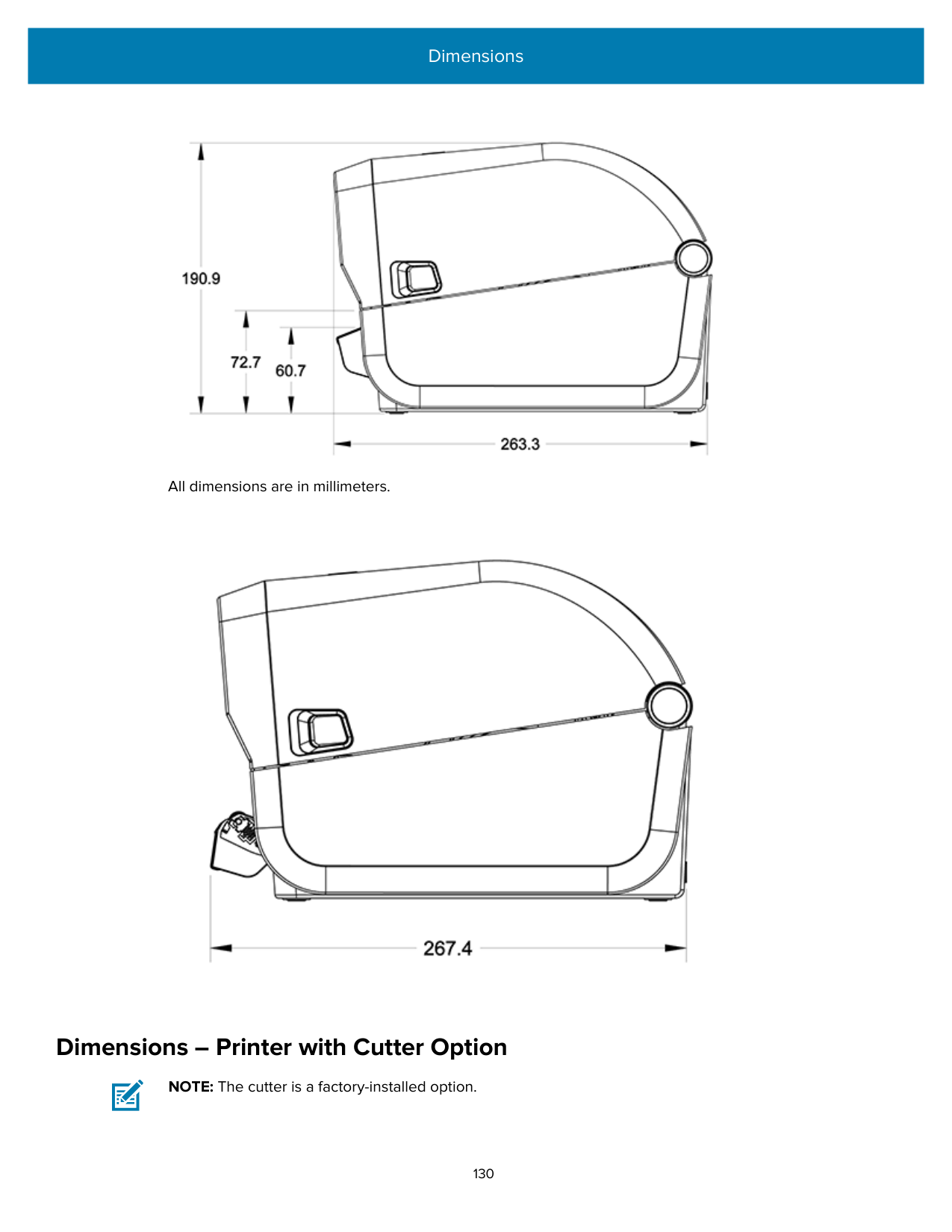
|---|---| | |Format commands are case sensitive.
(a) General print and command settings
(b) Media handling and behaviors Media print size ^JUS command to save
| |^XZ|End Format Command|
See the ZPL Programming Guide and the Configuration Setting to Command Cross-reference to create a programming file using the appropriate commands you need for the task at hand.
Zebra Setup Utilities (ZSU) can be used to send programming files to the printer. Windows Notepad (text editor) can be used to create programing files.
#### Configuration Setting to Command Cross-Reference
The Printer Configuration Report lists a majority of the configurations settings that can be set by sending ZPL commands to the printer. For information on these commands, see the ZPL Programming Guide available from zebra.com.

The sensor settings shown in this image, for example, are used for service purposes.
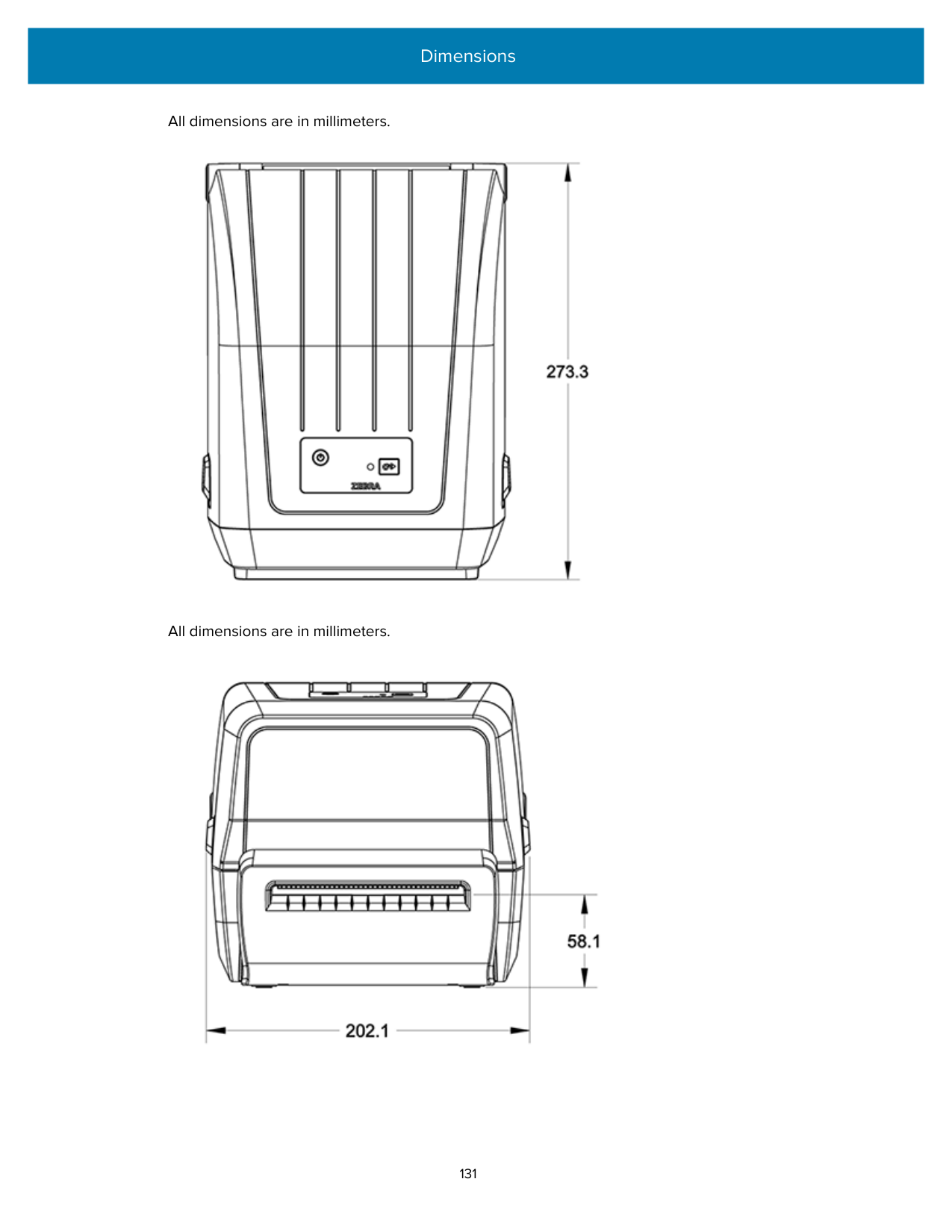
|Command|Listing Name|Default (or description)| |---|---|---| |^SD|DARKNESS|10.0| |^PR|PRINT SPEED|• 102 mm/s / 4 ips
• ZD230 only (maximum): 152 mm/s / 6 ips
| |^TA|TEAR OFF|+000| |^MN|MEDIA TYPE|GAP/NOTCH| | |SENSOR SELECT|AUTO (^MNA - Auto-Detect)| |^MT|PRINT METHOD|THERMAL-TRANS or DIRECT-THERMAL| |^PW|PRINT WIDTH|832 (dots for 203 dpi)| |^LL|LABEL LENGTH|1230 (dots) (dynamically updated while printing)| |^ML|MAXIMUM LENGTH|989 mm (39.0 in.)| |—|USB COMM.|(Connection Status: Connected / Not Connected)| |— SGD —**|COMMUNICATIONS|NORMAL MODE| |^CT / ~CT|CONTROL CHAR|<~> 7EH| |^CC / ~CC|COMMAND CHAR|<^> 5EH| |^CD / ~CD|DELIM./CHAR|<,> 2CH|
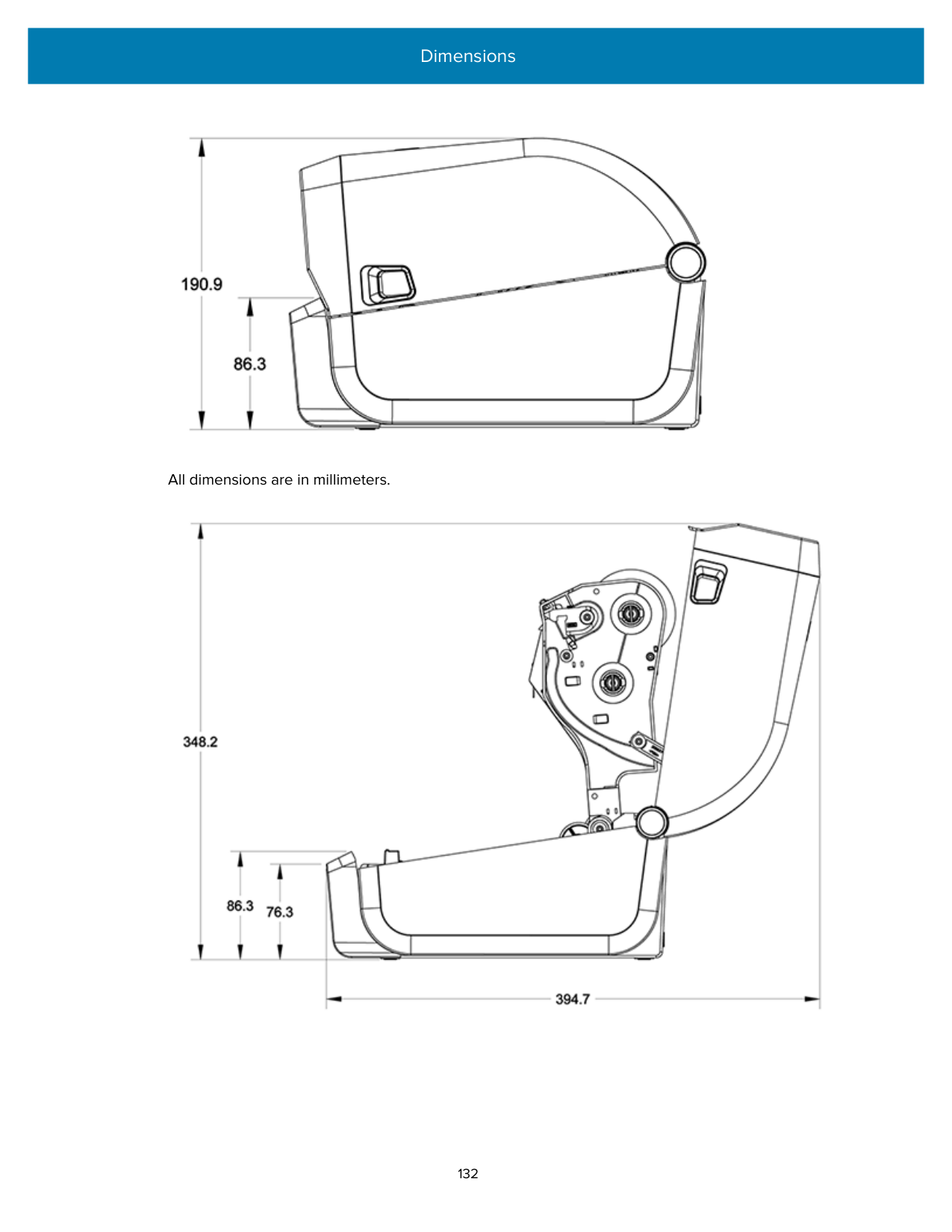
|^SZ|ZPL MODE|ZPL II| |— SGD —|COMMAND OVERRIDE
NOTE: Not supported with a ZPL command. Uses the Set-Get-Do command listed in the ZPL manual. (See device.command_override.xxxxx in the ZPL Programming Guide.)|INACTIVE| |^MFa|MEDIA POWER UP|NO MOTION| |^MF,b|HEAD CLOSE|FEED| |~JS|BACKFEED|DEFAULT| |^LT|LABEL TOP|+000| |^^LS|LEFT POSITION|+0000| | |REPRINT MODE|DISABLED|
From this point in the Configuration Receipt listing, the printout lists sensor settings and values which can be used to troubleshoot sensor and media operations. These are typically used by Zebra Tech Support to diagnose printer problems.
The configuration settings listed here resume after the TAKE LABEL sensor value. This listing includes commands that are:
|Command|Listing Name|Description| |---|---|---| |^MP|MODES ENABLED|Default: DPCSWFXM (See ^MP Command)| |^MP|MODES DISABLED|(No default set)| |^JM|RESOLUTION|Default: 832 8/mm (203 dpi)| |—|FIRMWARE|Lists ZPL Firmware Version| |—|XML SCHEMA|1.3| |—|HARDWARE ID|Lists Firmware Boot-block Version| |—|CONFIGURATION|CUSTOMIZED (after first use)| |—|RAM|8176k........ R:| |—|ONBOARD FLASH|51200k.........E:| |^MU|FORMAT CONVERT|NONE| | |RTC DATE|Date Displayed| | |RTC TIME|Time Displayed| | |NONRESET CNTR0 (1, 2)|X,XXX IN|
| |RESET CNTR1|X,XXX IN| | |RESET CNTR2|X,XXX IN|
The printer can set a command or a group of commands at one (1) time for all receipts or labels that follow. Those settings remain in effect until:
#### Printer Memory Management and Related Status Reports
To help you manage printer resources, your printer supports a variety of format commands. Use these commands to:
These commands are very similar to the old DOS commands such as DIR (directory listing) and DEL (delete file). The most common reports are also part of the Zebra Setup Utility and ZebraDesigner Windows driver.
It is recommended you issue a single command within this type of format (form) for ease of reuse as a maintenance and development tool.
|^XA|Start Format command| |---|---| | |A single format command for ease of reuse.| |^XZ|End Format command|
Many of the commands that transfer objects, and manage/report on memory are control commands (~). They need not be within a format (form). They will be processed immediately after they are received by the printer, whether in a format (form) or not.
##### ZPL Programming for Memory Management
The ZPL programming language has various printer memory locations that are used to run the printer, assemble the print image, and store formats (forms), graphics, fonts, and configuration settings.
• Memory Object Naming supports up to 16 alphanumeric characters followed by a three alphanumeric-character file extension (for example: 123456789ABCDEF.TTF).
Glossary
#### alphanumeric
Indicating letters, numerals, and characters such as punctuation marks.
#### backfeed
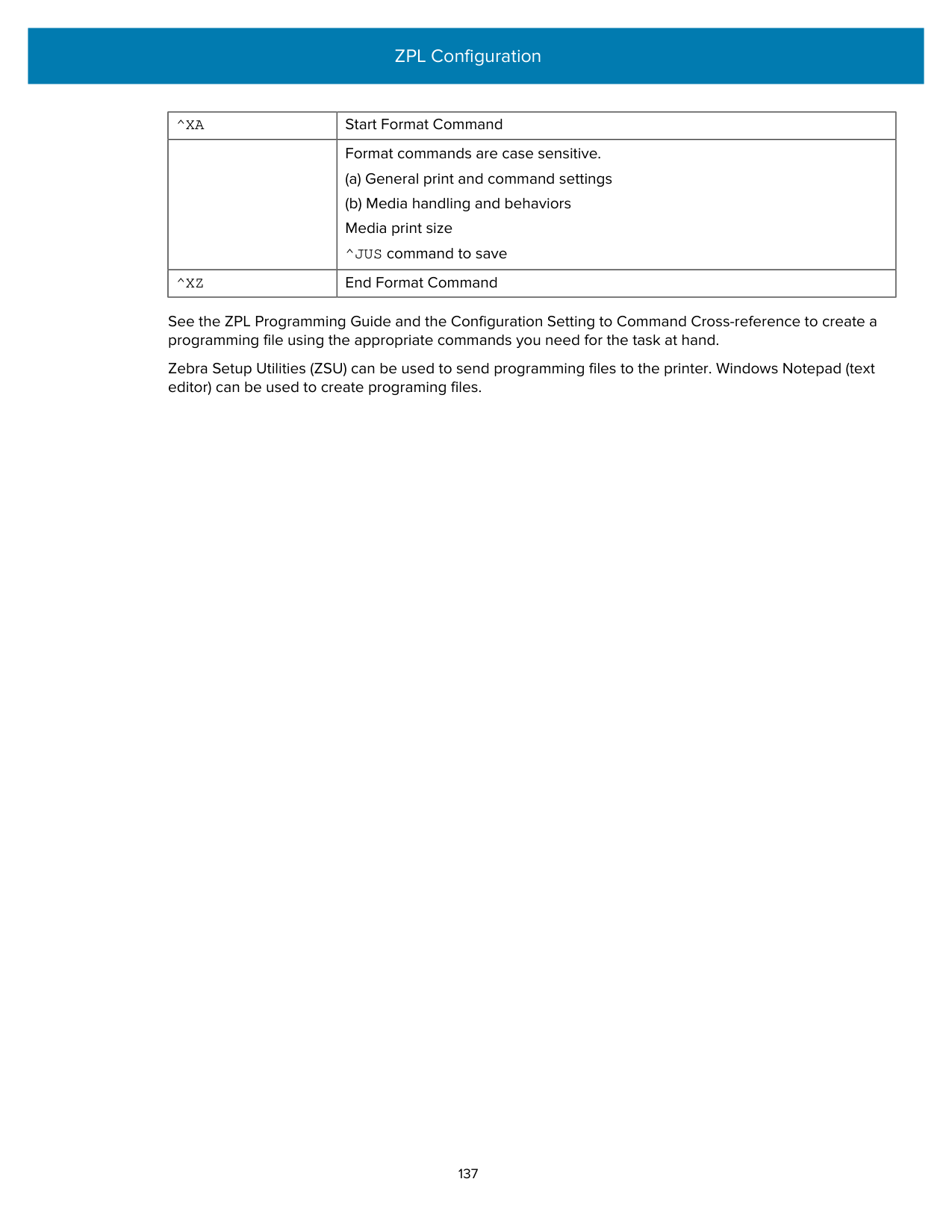
When the printer pulls the media and ribbon (if used) backward into the printer so that the beginning of the label to be printed is properly positioned behind the printhead. Backfeed occurs when operating the printer in Tear-Off and Applicator modes.
#### barcode
A code by which alphanumeric characters can be represented by a series of adjacent stripes of different widths. Many different code schemes exist, such as the universal product code (UPC) or Code 39.
#### black mark media

Media with registration marks found on the underside of the print media that act as start-of-label indications for the printer. The reflective media sensor is the generally-selected option for use with black mark media.
Contrast this with continuous media on page 143 or gap/notch media on page 145.
#### calibration (of a printer)
#### collection method
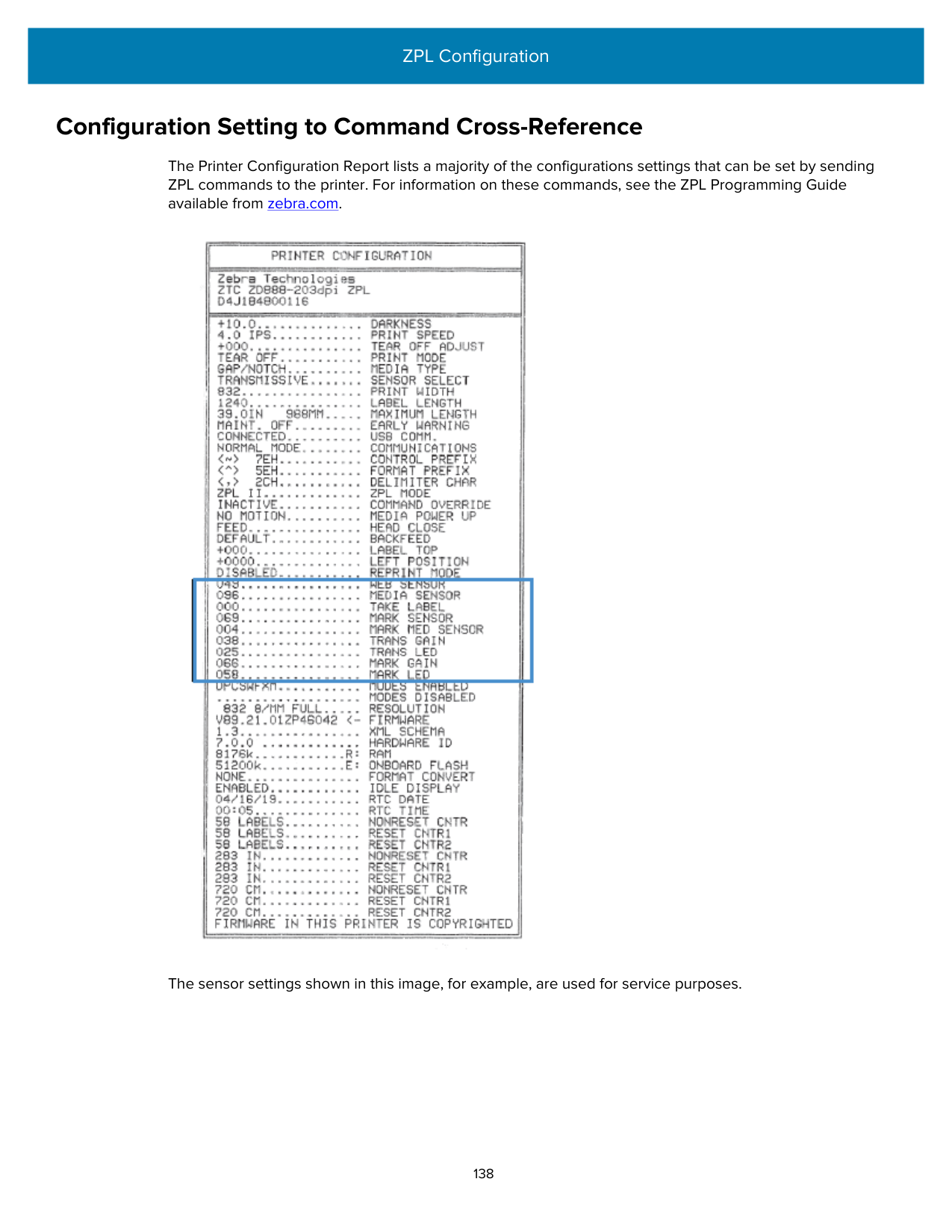
Select a media collection method that is compatible with your printer options. Selections include tear-off, peel-off, cutter, and rewind. The basic media and ribbon loading instructions are the same for all collection methods with some additional steps necessary for using any media collection options.
#### configuration
The printer configuration is a group of operating parameters specific to the printer application. Some parameters are user selectable, while others are dependent on the installed options and mode of operation. Parameters may be switch selectable, control panel programmable, or downloaded as ZPL II commands. A configuration label listing all the current printer parameters may be printed for reference.
#### continuous media

A transmissive (gap) sensor is typically used for the printer to detect when the media runs out. Contrast this with black mark media on page 142 or gap/notch media on page 145.
#### core diameter
The inside diameter of the cardboard core at the center of a roll of media or ribbon.
#### diagnostics
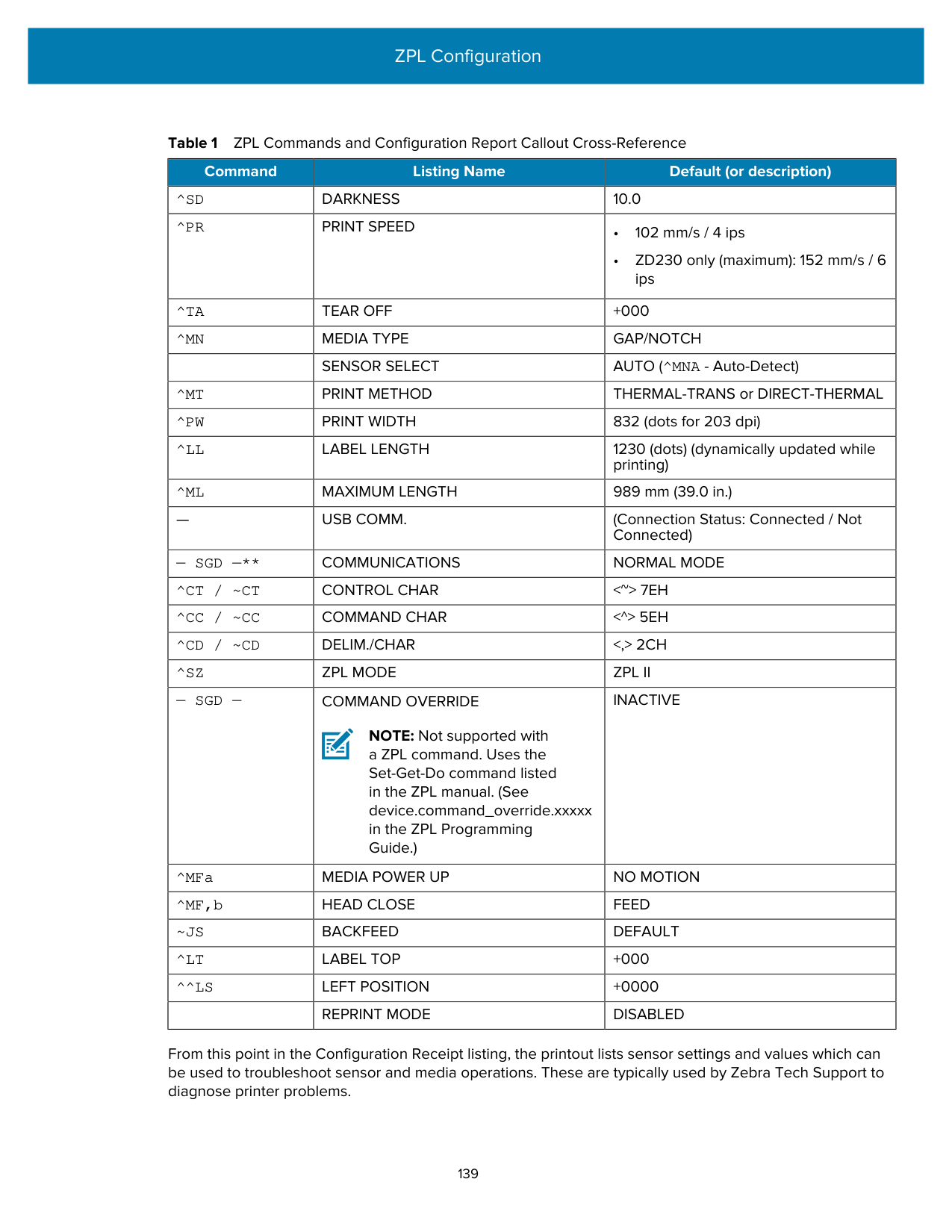
Information about which printer functions are not working that is used for troubleshooting printer problems.
#### die-cut media
A type of label stock that has individual labels stuck to a media liner. The labels may be lined up against each other or separated by a small distance. Typically the material surrounding the labels has been removed. (See non-continuous media on page 147.)
#### direct thermal
A printing method in which the printhead presses directly against the media. Heating the printhead elements causes a discoloration of the heat-sensitive coating on the media. By selectively heating the printhead elements as the media moves past, an image is printed onto the media. No ribbon is used with this printing method.
Contrast this with thermal transfer on page 150.
#### direct thermal media
Media that is coated with a substance that reacts to the application of direct heat from the printhead to produce an image.
#### fanfold media
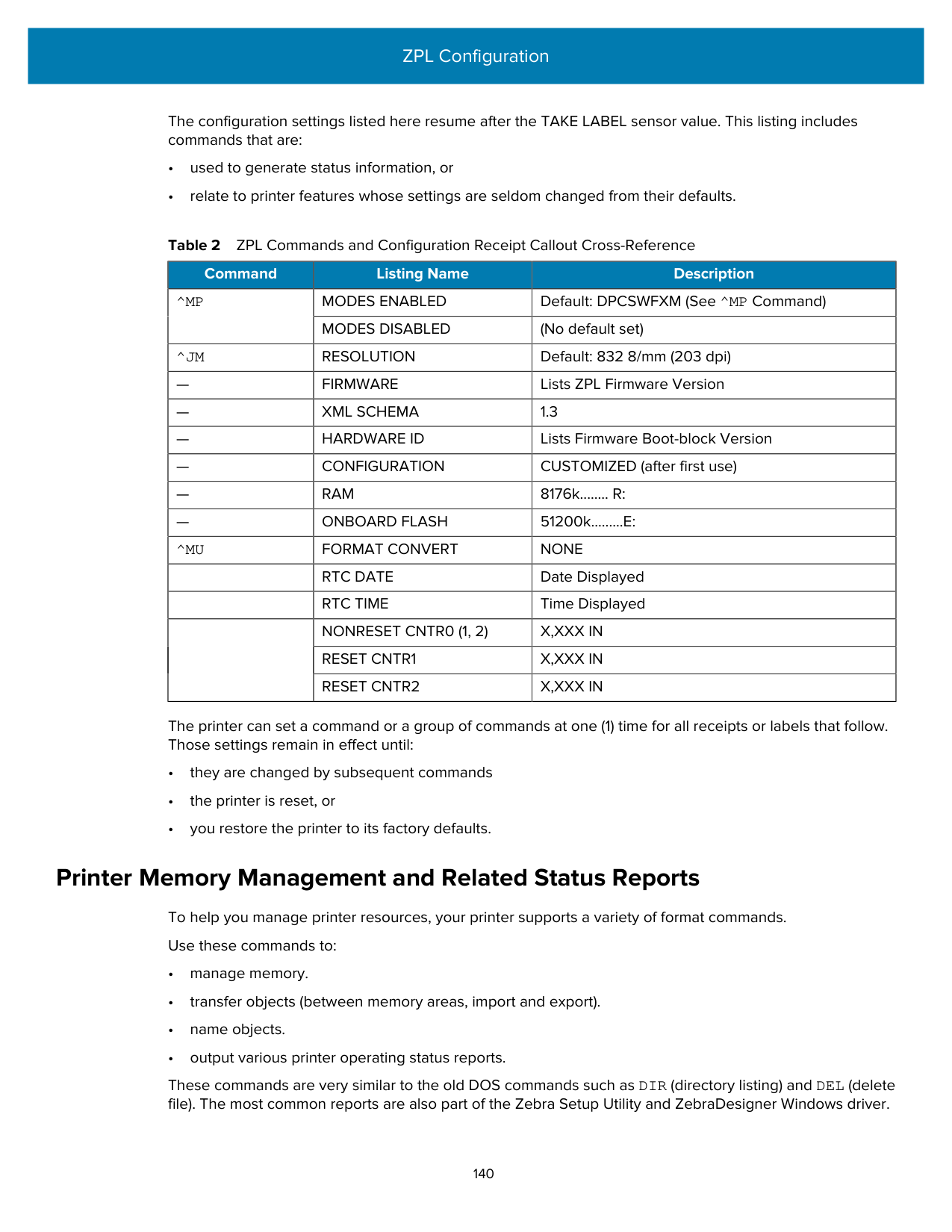

Non-continuous media that comes folded in a rectangular stack and folded in a zigzag pattern. Fanfold media is either gap-notch media or black mark media, meaning it uses black marks or notches to track media format positioning.
Fanfold media can have the same label separations as non-continuous roll media. The separations fall either on or near the folds.
Contrast this with roll media on page 150.
#### firmware
This is the term used to specify the printer's operating program. This program is downloaded to the printer from a host computer and stored in flash memory. Each time the printer power is turned on, this operating program starts. This program controls when to feed the media forward or backward and when to print a dot on the label stock.
#### FLASH memory
Non-volatile memory that maintains the stored information intact when power is off. This memory area is used to store the printer's operating program. Can also be used to store optional printer fonts, graphic formats, and complete label formats.
#### font
A complete set of alphanumeric characters in one style of type. Examples include CG Times™, CG Triumvirate Bold Condensed™.
#### gap/notch media
Media that contains a separation, notch, or hole, indicating where one label/printed format ends and the next begins.

Contrast this with black mark media on page 142 or continuous media on page 143.
#### ips (inches-per-second)
The speed at which the label or tag is printed. Many Zebra printers can print from 1 ips to 14 ips.
#### label
An adhesive-backed piece of paper, plastic, or other material on which information is printed. A noncontinuous label has a defined length, as opposed to a continuous label or a receipt which can have a varying length.
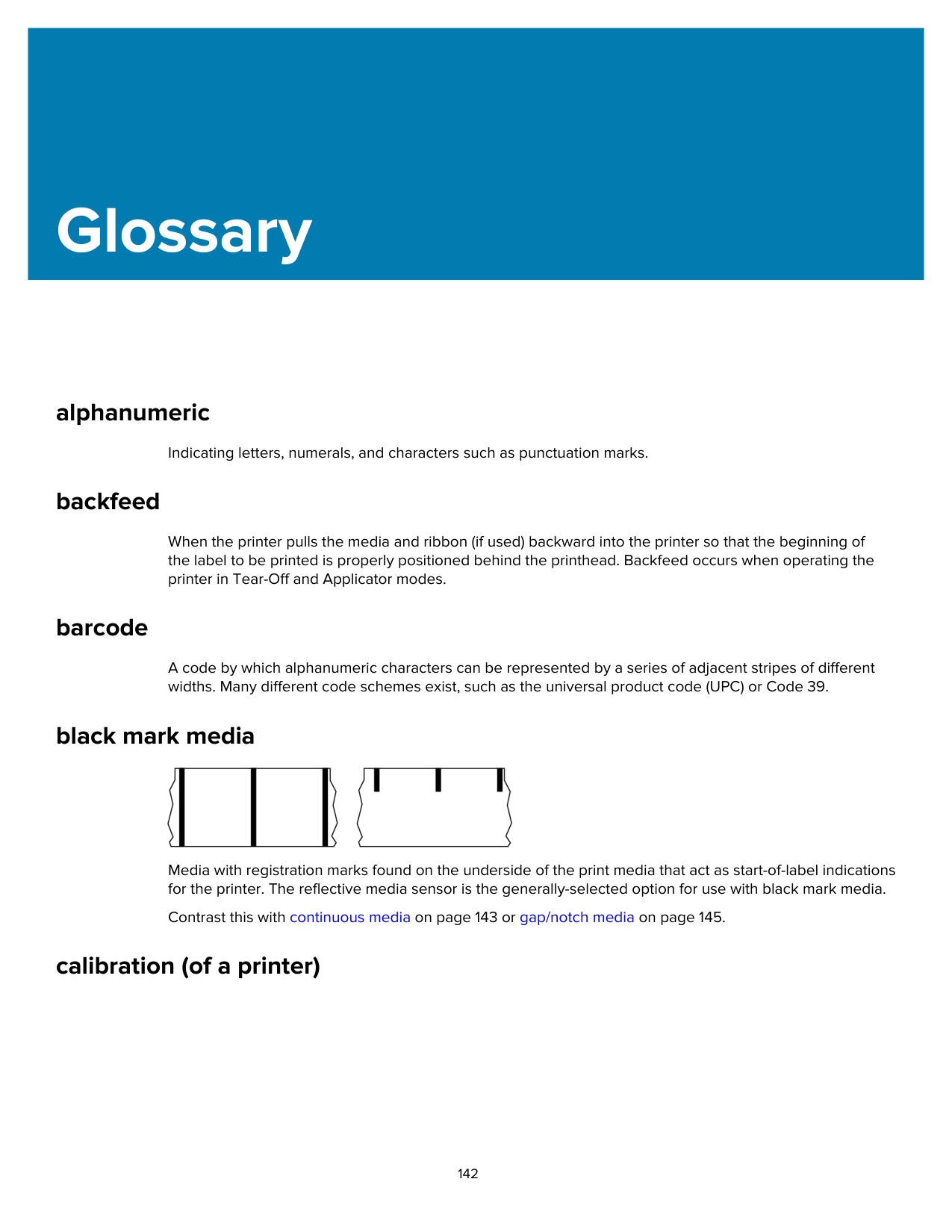
#### label backing (liner)
The material on which labels are affixed during manufacture and which is discarded or recycled.
#### label type
The printer recognizes the following label types. Continuous
Gap/Notch

Mark

#### void
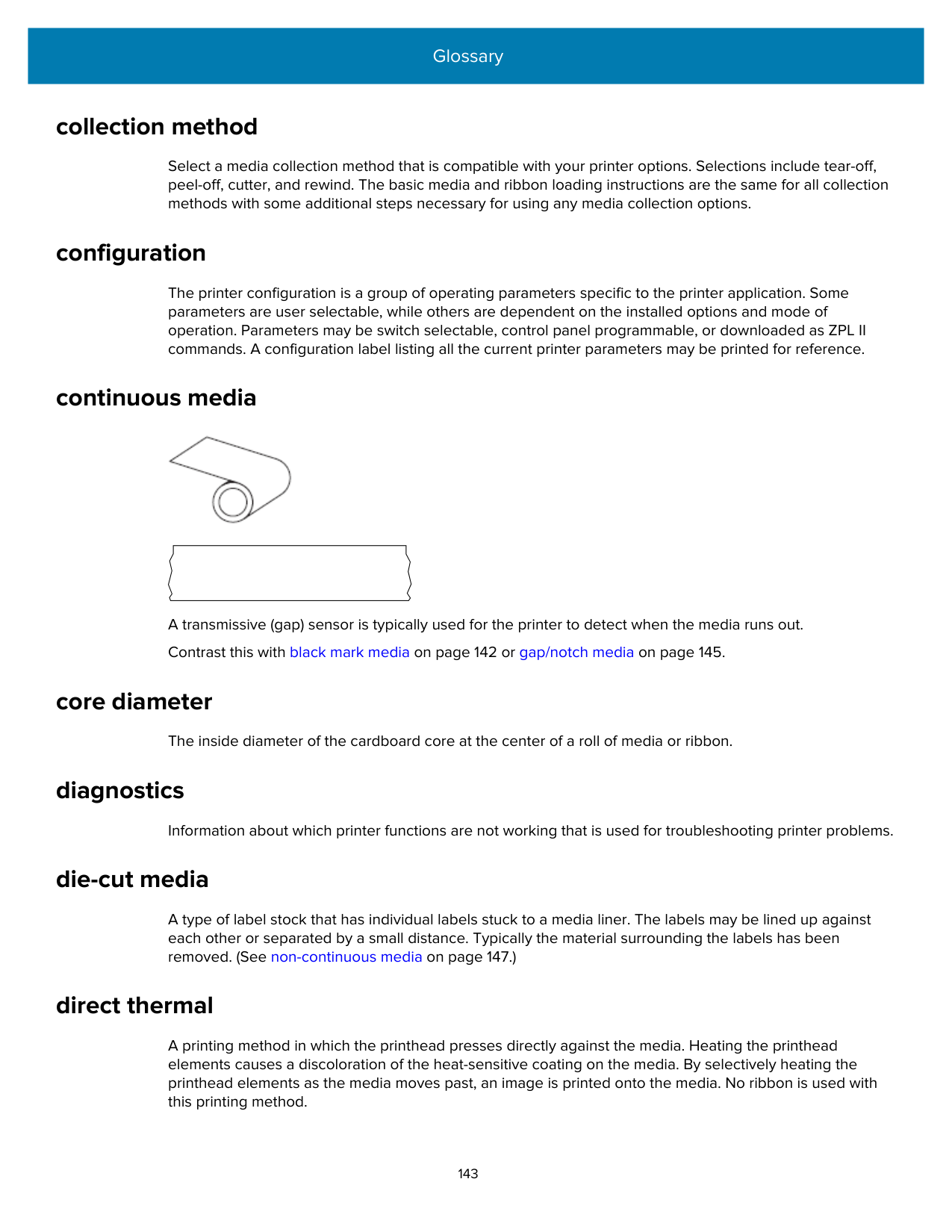
A space on which printing should have occurred, but did not due to an error condition such as wrinkled ribbon or faulty print elements. A void can cause a printed barcode symbol to be read incorrectly or not at all.
#### LCD (liquid crystal display)
A backlit display that provides the user with either operating status during normal operation or option menus when configuring the printer to a specific application.
#### LED (light emitting diode)
Indicators of specific printer status conditions. Each LED is either off, on, or blinking depending on the feature being monitored.
#### linerless media
Linerless media does not use backing to keep the layers of labels on a roll from sticking to one another. It is wound like a roll of tape, with the sticky side of one layer in contact with the non-sticky surface of the one below it.
Depending on the printer, individual labels may be separated by perforations, or they can be cut apart with a linerless cutter. Because there is no liner, more labels can potentially fit on a roll, cutting down the need to change media as often.
Linerless media is considered an environmentally friendly option because no backing is wasted, and the cost per label can be less than that of standard labels.
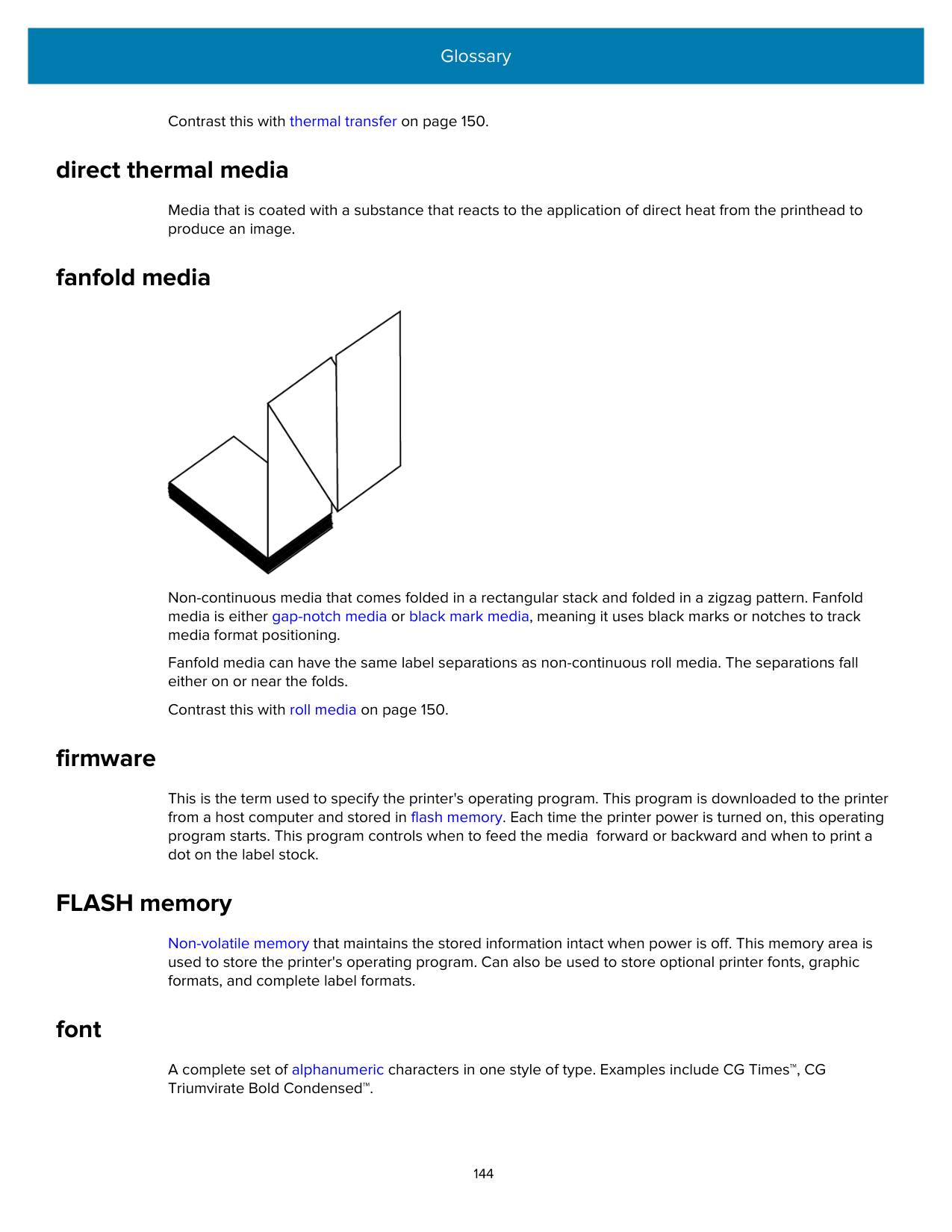
Zebra recommends using Zebra ZeroLiner direct thermal linerless media.
#### mark media
See black mark media on page 142.
#### media
Material onto which data is printed by the printer. Types of media include: tag stock, die-cut labels, continuous labels (with and without media liner), non-continuous media, fanfold media, and roll media.
#### media sensor
This sensor is located behind the printhead to detect the presence of media and, for non-continuous media, the position of the web, hole, or notch used to indicate the start of each label.
#### media supply hangar
The stationary arm that supports the media roll.
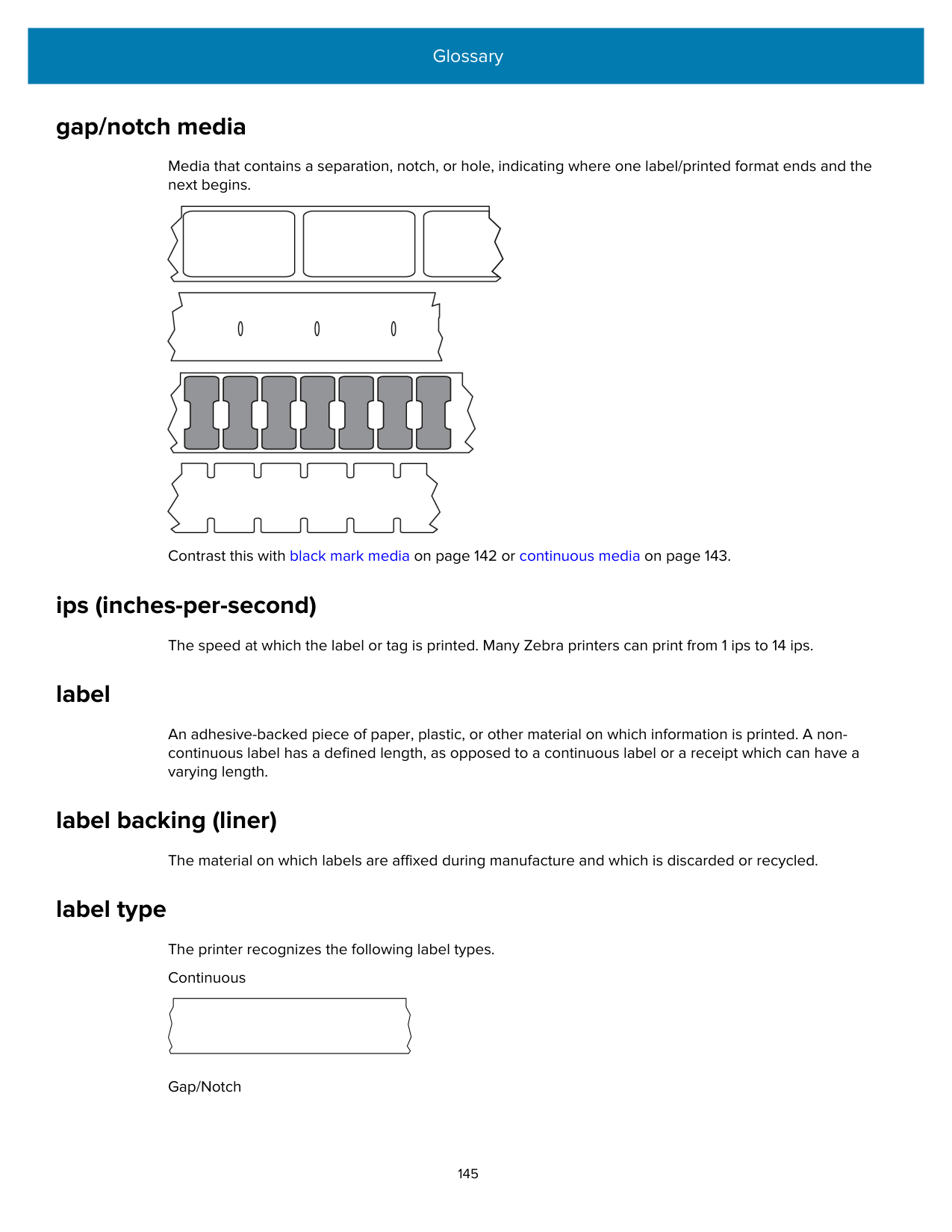
#### non-continuous media
Media that contains an indication of where one label/printed format ends and the next one begins. Types of non-continuous media include gap-notch media and black mark media. (Contrast this with continuous media.)
Non-continuous roll media usually comes in the form of labels with an adhesive backing on a liner. Tags (or tickets) are separated by perforations.
Individual labels or tags are tracked and position-controlled using one of these methods:


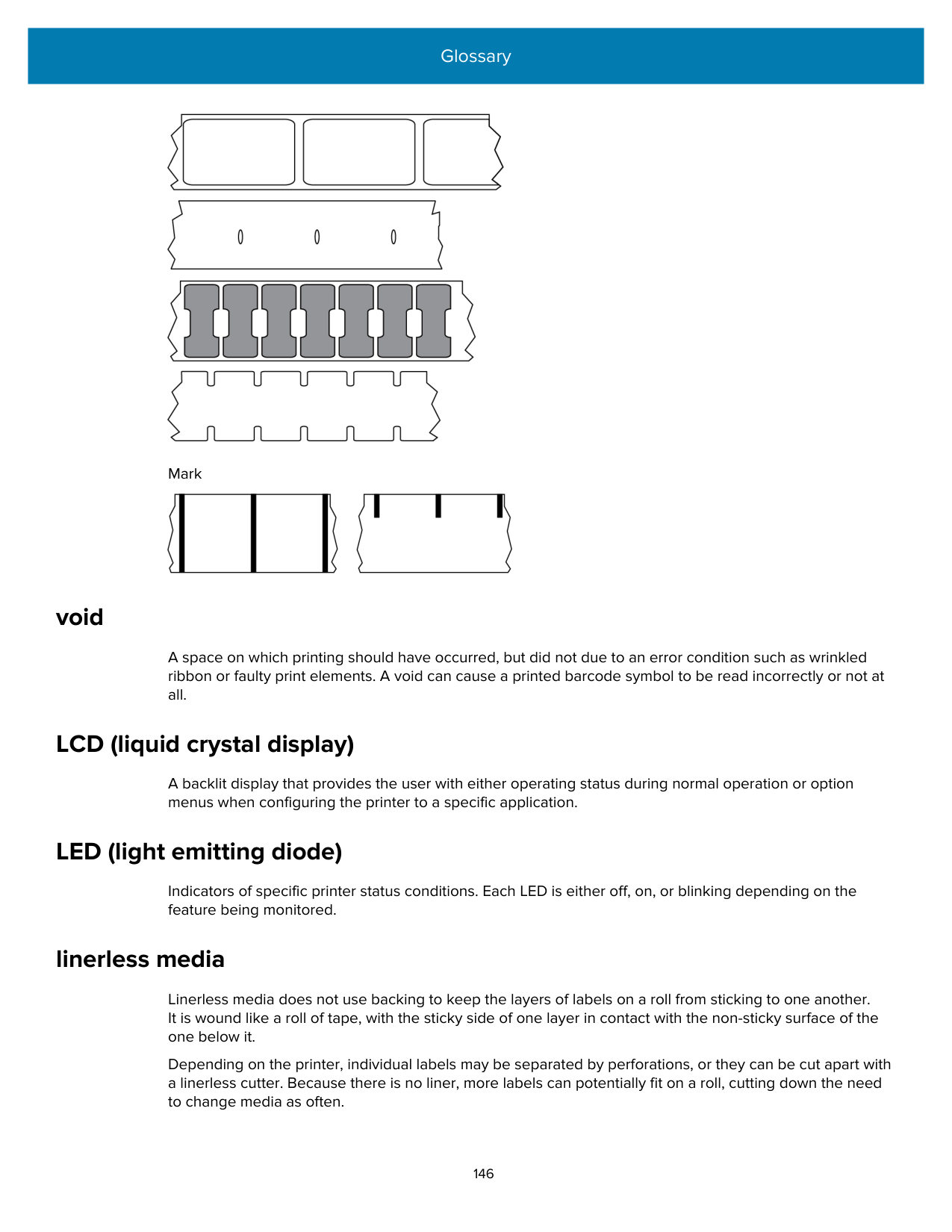

#### non-volatile memory
Electronic memory that retains data even when the power to the printer is turned off.
#### notched media
A type of tag stock containing a cutout area that can be sensed as a start-of-label indicator by the printer. This is typically a heavier, cardboard-like material that is either cut or torn away from the next tag. See gap/ notch media on page 145.
#### peel-off mode
A mode of operation in which the printer peels a printed label away from the backing and allows the user to remove it before another label is printed. Printing pauses until the label is removed.
#### perforated media
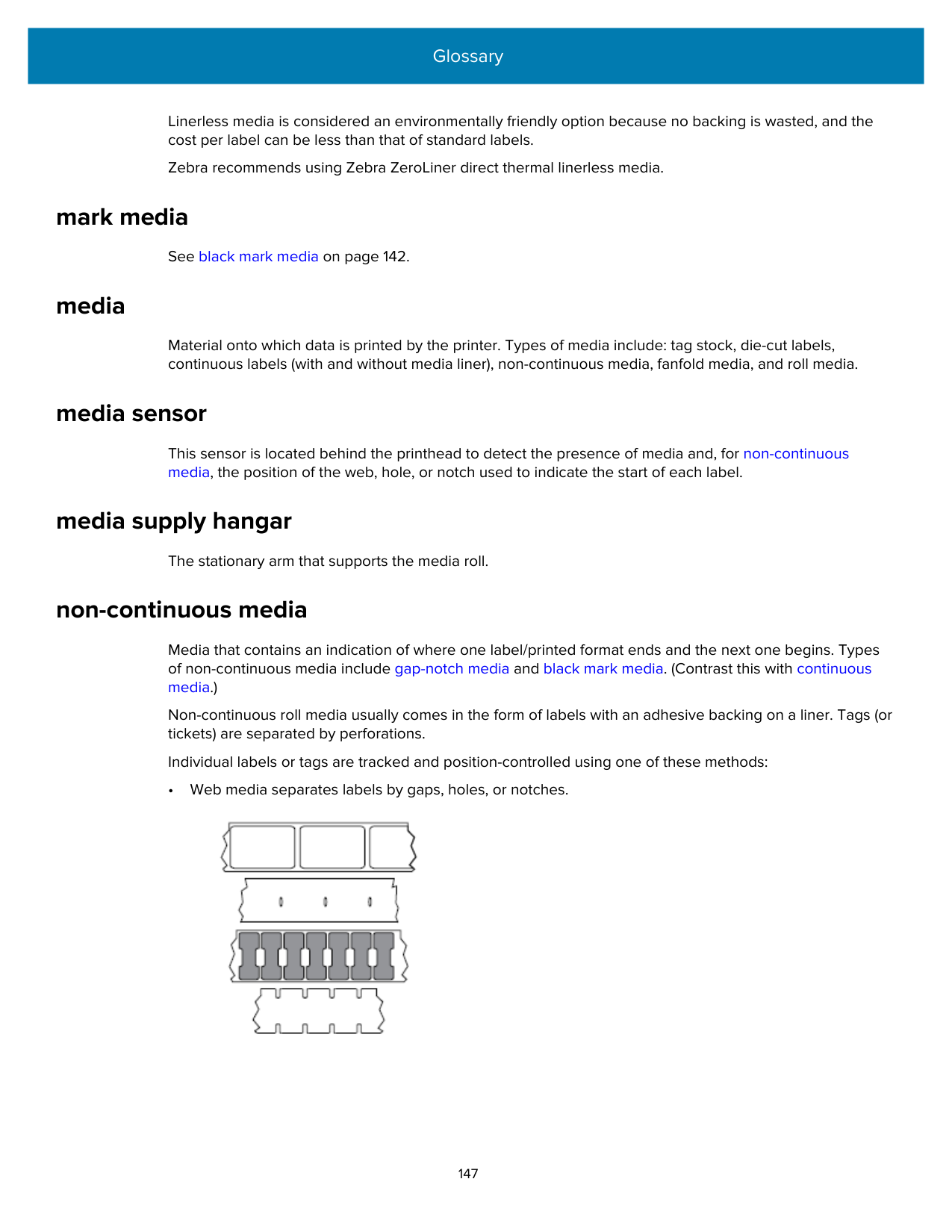

Media with perforations that allow the labels or tags to be separated from each other easily. The media may also have black marks or other separations between labels or tags.
#### print speed
The speed at which printing occurs. For thermal transfer printers, this speed is expressed in terms of inches per second (ips).
#### print type
The print type specifies whether the type of media being used requires ribbon to print. Thermal transfer media requires ribbon while direct thermal media does not.
#### printhead wear
#### Radio frequency identification (RFID) "smart" media
| | | |---|---|
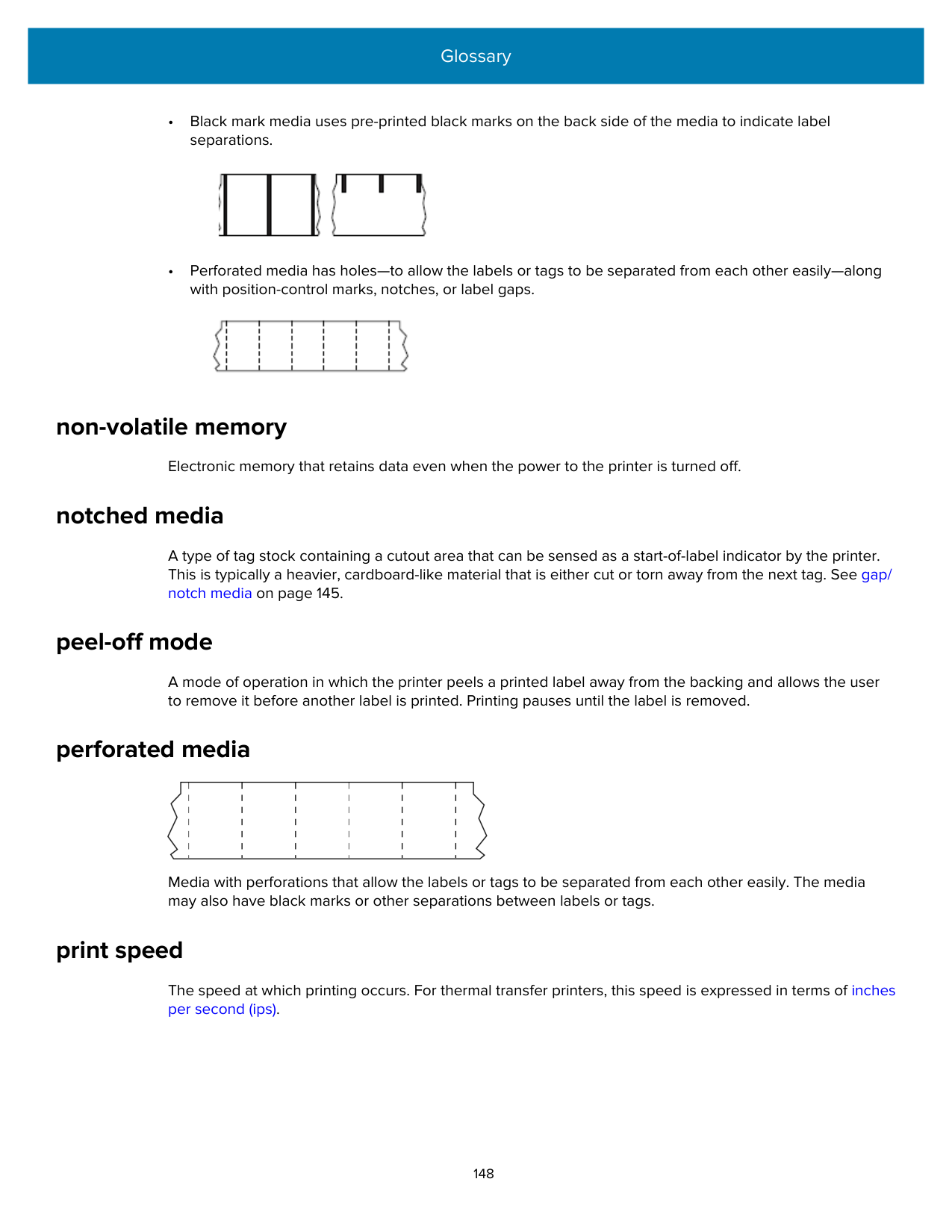
| | | | | | | | | | | | | | | | | |
| | | |---|---| | | | | | | | | | | | | | | | | | |
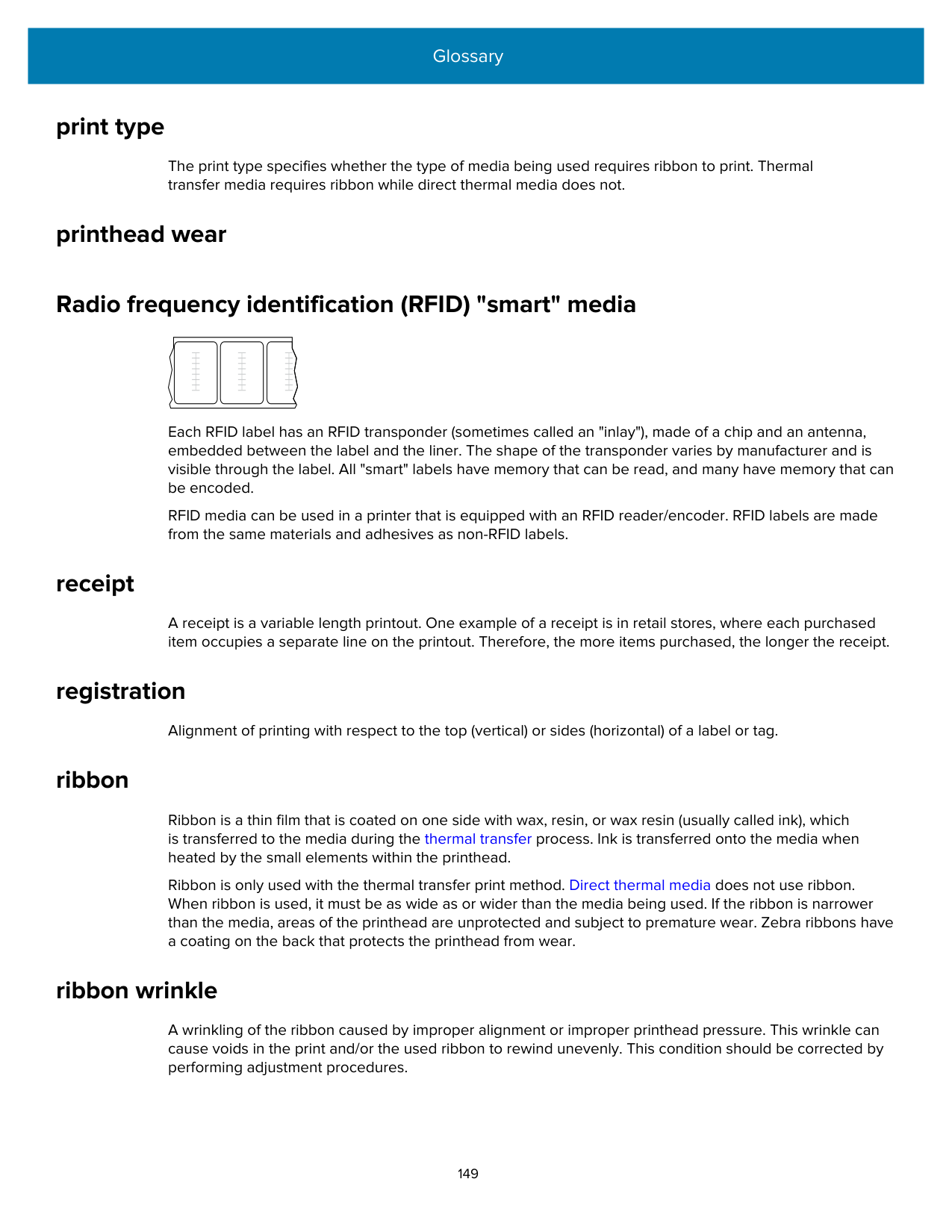
| | | |---|---| | | | | | | | | | | | | | | | | | |
Each RFID label has an RFID transponder (sometimes called an "inlay"), made of a chip and an antenna, embedded between the label and the liner. The shape of the transponder varies by manufacturer and is visible through the label. All "smart" labels have memory that can be read, and many have memory that can be encoded.
RFID media can be used in a printer that is equipped with an RFID reader/encoder. RFID labels are made from the same materials and adhesives as non-RFID labels.
#### receipt
A receipt is a variable length printout. One example of a receipt is in retail stores, where each purchased item occupies a separate line on the printout. Therefore, the more items purchased, the longer the receipt.
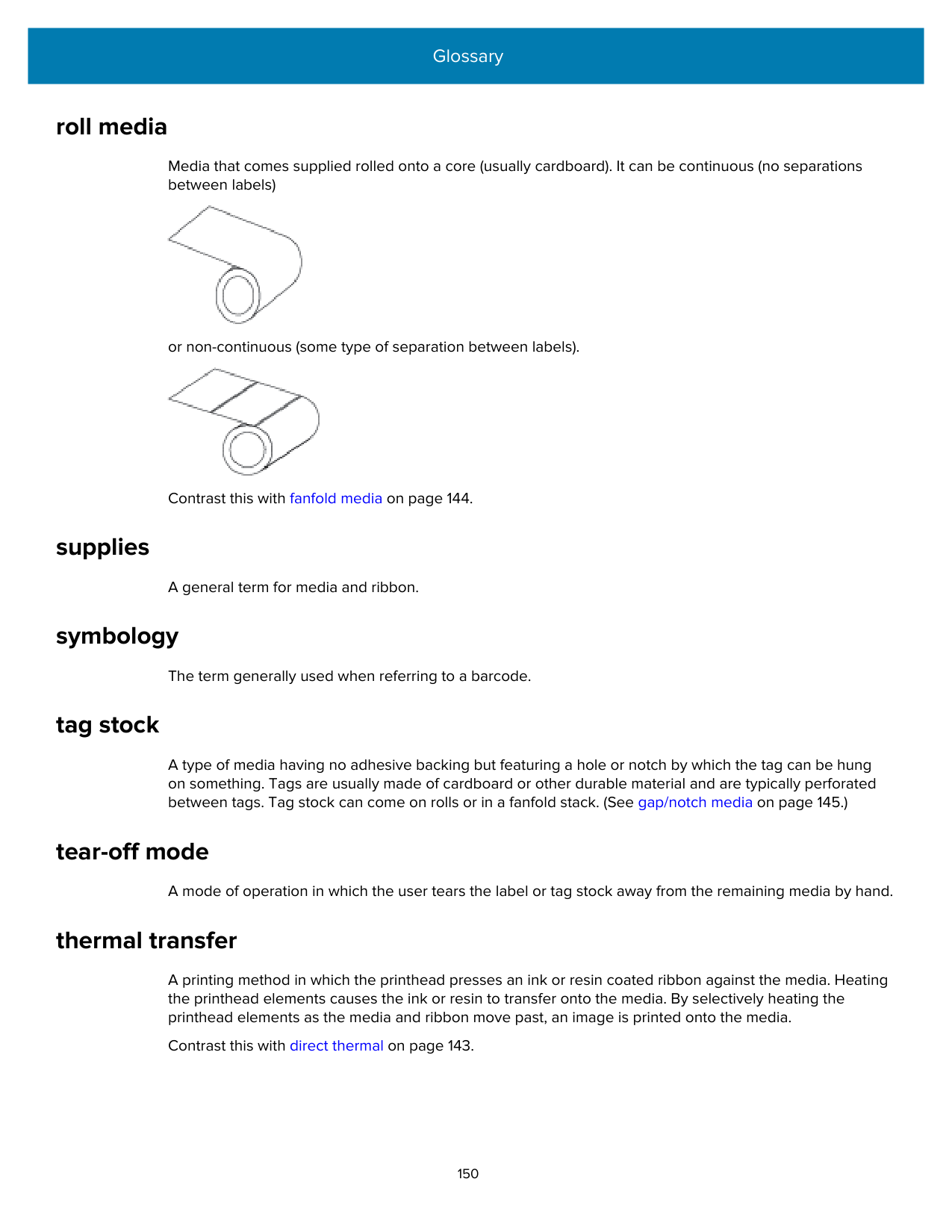
#### registration
Alignment of printing with respect to the top (vertical) or sides (horizontal) of a label or tag.
#### ribbon
Ribbon is a thin film that is coated on one side with wax, resin, or wax resin (usually called ink), which is transferred to the media during the thermal transfer process. Ink is transferred onto the media when heated by the small elements within the printhead.
Ribbon is only used with the thermal transfer print method. Direct thermal media does not use ribbon. When ribbon is used, it must be as wide as or wider than the media being used. If the ribbon is narrower than the media, areas of the printhead are unprotected and subject to premature wear. Zebra ribbons have a coating on the back that protects the printhead from wear.
#### ribbon wrinkle
A wrinkling of the ribbon caused by improper alignment or improper printhead pressure. This wrinkle can cause voids in the print and/or the used ribbon to rewind unevenly. This condition should be corrected by performing adjustment procedures.
#### roll media
Media that comes supplied rolled onto a core (usually cardboard). It can be continuous (no separations between labels)


or non-continuous (some type of separation between labels).

Contrast this with fanfold media on page 144.
#### supplies
A general term for media and ribbon.
#### symbology
The term generally used when referring to a barcode.
#### tag stock
A type of media having no adhesive backing but featuring a hole or notch by which the tag can be hung on something. Tags are usually made of cardboard or other durable material and are typically perforated between tags. Tag stock can come on rolls or in a fanfold stack. (See gap/notch media on page 145.)
#### tear-off mode
A mode of operation in which the user tears the label or tag stock away from the remaining media by hand.
#### thermal transfer
A printing method in which the printhead presses an ink or resin coated ribbon against the media. Heating the printhead elements causes the ink or resin to transfer onto the media. By selectively heating the printhead elements as the media and ribbon move past, an image is printed onto the media.
Contrast this with direct thermal on page 143.
####### www.zebra.com