
Anycast 2bc6vg2 Wireless Display Receiver
Ask AI
— answers from the official manualAnswers from the official manual.
Common questions
Common Questions
9 totalHow do I factory reset the Anycast dongle?
Press and hold the Power button for 10 seconds until the LED flashes red. This clears all settings and returns the device to factory defaults. You will need to re-pair all connected devices after the reset.
What are the power supply options for the Anycast dongle?
You can connect the dongle to power using either a power adaptor with a Micro USB plug or the included USB power adaptor.
How do I pair an iOS device with the Anycast dongle?
Navigate to your device’s Bluetooth menu and look for the dongle’s SSID (e.g., AnyCast-xx). Select the SSID, enter password 12345678 if prompted, then touch icons on your screen to connect, switch between Miracast & DLNA, show media control panel, or access settings.
How do I pair an Android device with the Anycast dongle?
Navigate to your device’s Bluetooth menu and look for the dongle’s SSID (e.g., AnyCastxxxxxx). Select the SSID, enter password 12345678 if prompted. You can then connect your device, switch between Miracast & DLNA, show media control panel, or access settings.
What steps are required to connect the Anycast dongle to a Wi-Fi router?
Visit “http://192.168.49.1” via your device’s internet browser or scan the QR code provided in the manual. Click on the signal icon to link the dongle to your Wi-Fi router.
What are the supported operating systems for screen mirroring with Anycast?
Supported OS include Android 4.0+, iOS® 7.0 +, Windows, Mac®.
Full Manual
6 pages
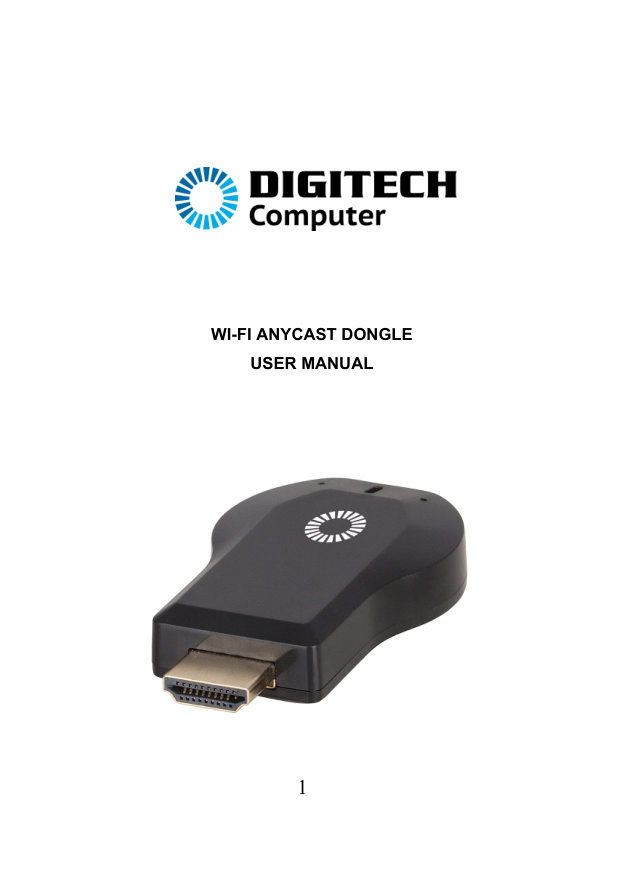

WI-FI ANYCAST DONGLE USER MANUAL

This Anycast dongle allows you to stream content from your smartphone, tablet or PC to your TV. It features a screen mirroring function as well as DLNA and Airplay® for an almost universal ability to stream media from a compatible device. Through the casting functionality, play YouTube, videos, pictures and other streaming services straight onto your TV.
MIRACAST: Mirrors the display of your device on your TV or projector.
DLNA: Streams pictures, videos and music from your device to your TV or projector.
DONGLE INSTALLATION
IOS DEVICES Device Compatibility: iPhone 4 onwards iPad 2 onwards iPod touch 4th generation onwards
System Requirements: iOS 7 and above Minimum of 40MB memory required Resolution iPhone: 480*320~1136*640 iPad: 1024*768~2048*1536
IOS DEVICE PAIRING:
ANDROID DEVICES Device Compatibility: Bluetooth enabled smartphones Bluetooth enabled tablets
System Requirements: Android 4.2 model with 1GB RAM Minimum of 40MB memory required Resolution WVGA~1080p
ANDROID DEVICE PAIRING:
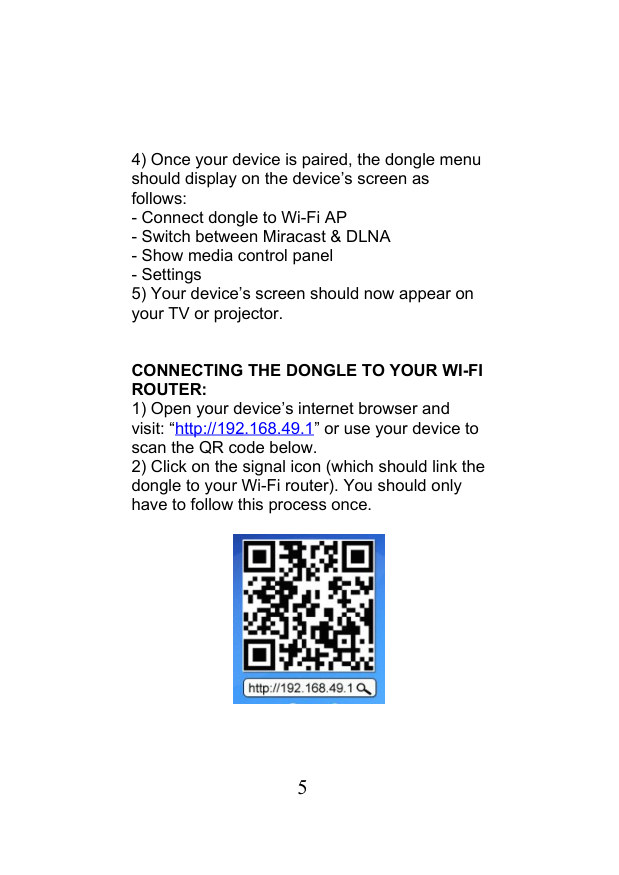
CONNECTING THE DONGLE TO YOUR WI-FI ROUTER:

SPECIFICATIONS Memory: 256MB DDR3 Wi-Fi: 802.11 b/g/n Resolution: 1080p Media Sharing: Miracast, DLNA, Airplay® &
Airmirror™ Supported OS: Android 4.0+, iOS® 7.0 +, Windows, Mac® Dimensions: 58(L) x 39(W) x 13(H)mm
BOX CONTENTS 1 x WiFi Anycast HDMI Dongle 1 x Wi-Fi & Power Receiver 1 x User Manual
DISTRIBUTED BY: TechBrands by Electus Distribution Pty. Ltd. 320 Victoria Rd, Rydalmere NSW 2116 Australia
Ph: 1300 738 555 Int’l: +61 2 8832 3200 Fax: 1300 738 500
www.techbrands.com Made in China