
Baseus Bd1 Bean Shaped Bluetooth Earbuds
Ask AI
— answers from the official manualAnswers from the official manual.
Common questions
Common Questions
10 totalHow do I factory reset the Baseus Bd1 Bean Shaped Bluetooth Earbuds?
To perform a factory reset, press and hold both L and R earbud buttons for approximately 8 seconds. This action resets the earbuds and restores custom settings in the App. Note: To reset pairing mode, place the earbuds in the charging case, open the lid, and hold the case button for 3 seconds until the indicator light flashes white. (Page 2)
How do I identify which side is left or right when wearing Baseus Bd1 Bean Shaped Bluetooth Earbuds?
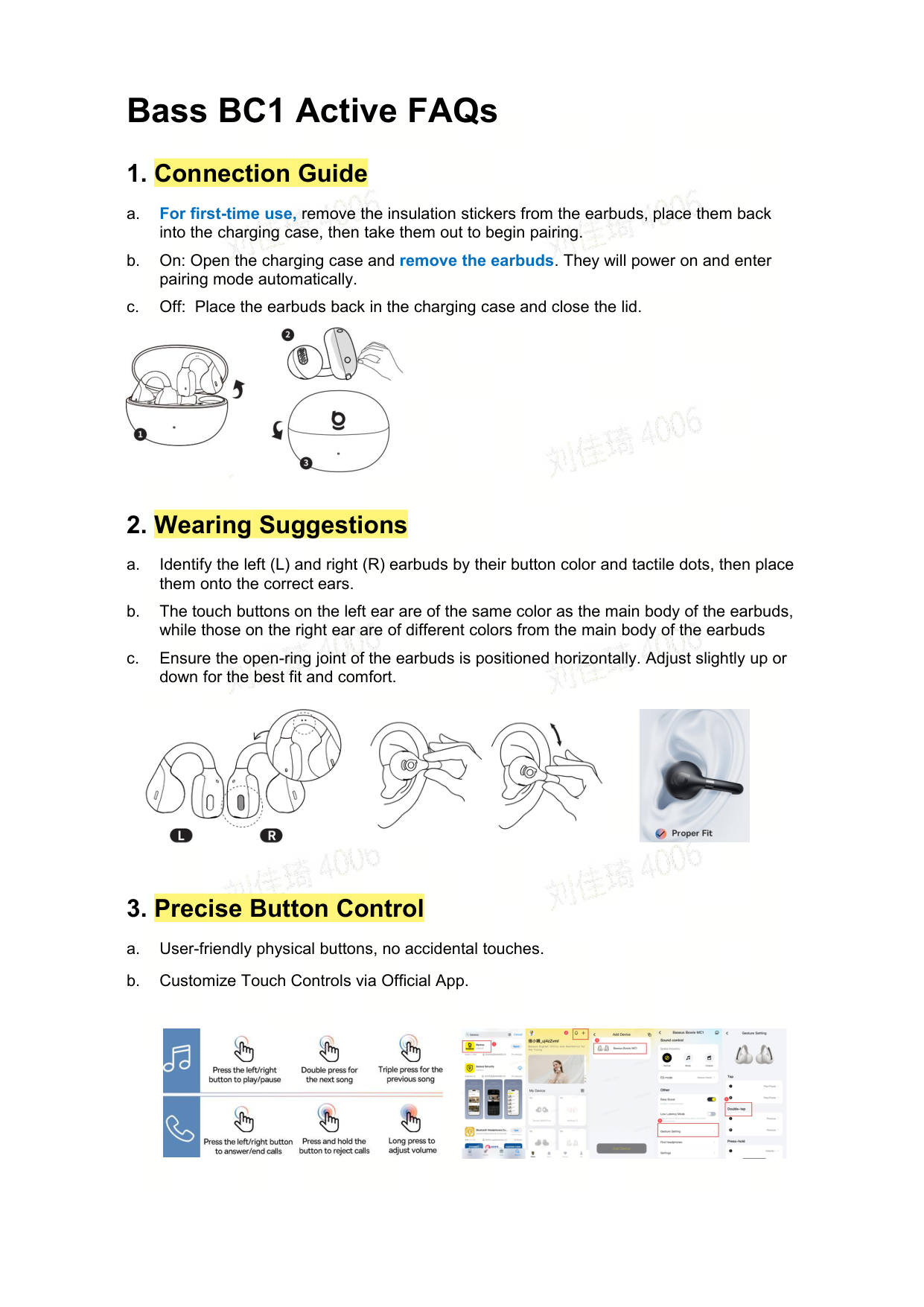
Identify the left (L) and right (R) earbuds by their button color and tactile dots. Place them onto the correct ears to ensure proper fit. The touch buttons on the left ear will be of the same color as the main body of the earbuds, while those on the right are different colors from the main body. (Page 1)
What should I do if there is a low volume issue with my Baseus Bd1 Bean Shaped Bluetooth Earbuds?
For adjusting wearing and fit, align the C-bridge horizontally (parallel to the ground), rotate the earpiece until the speaker directly faces your ear canal, and gently adjust upward/downward to match your ear contour. Check for any foreign objects blocking the earbud outlet and clean it gently with a soft-bristled toothbrush dipped in alcohol if needed. (Page 3)
How can I customize touch controls on my Baseus Bd1 Bean Shaped Bluetooth Earbuds?
Customize touch controls via the official Baseus App after pairing your earbuds with your phone. Once connected, open the app and tap to add device, then select 'EQ Mode' for preferred sound profiles where you can also customize controls. (Page 3)
How do I connect my Baseus Bd1 Bean Shaped Bluetooth Earbuds to multiple devices?
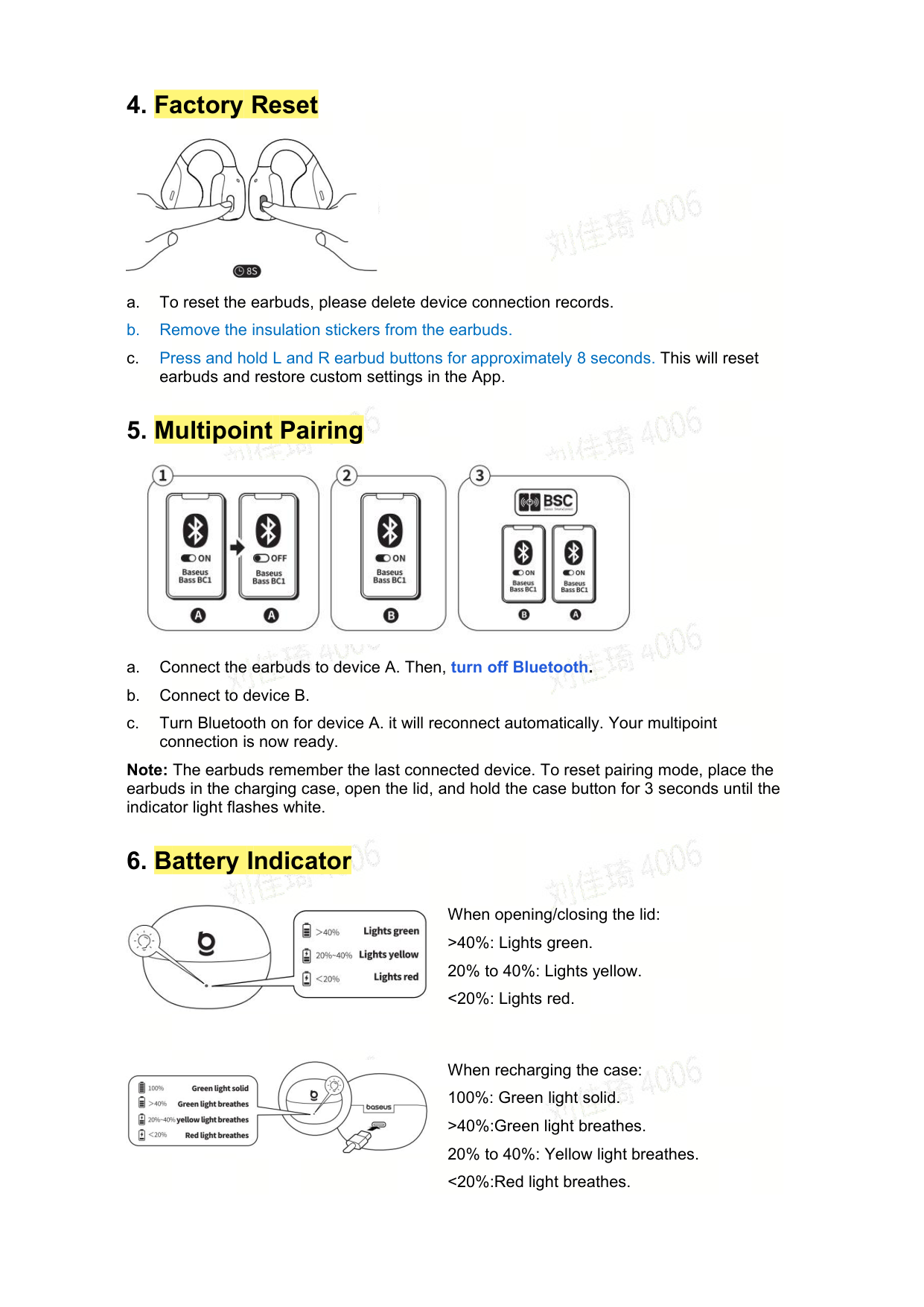
To pair with two devices, connect the earbuds to device A and disable Bluetooth. Connect to device B next. Enable Bluetooth on device A again; the earbuds will automatically reconnect. Your multipoint connection is now ready. Remember that the earbuds remember the last connected device. To reset pairing mode, place them in charging case, open lid, hold button for 3 seconds until light flashes white. (Page 2)
How do I check and interpret battery levels for Baseus Bd1 Bean Shaped Bluetooth Earbuds?
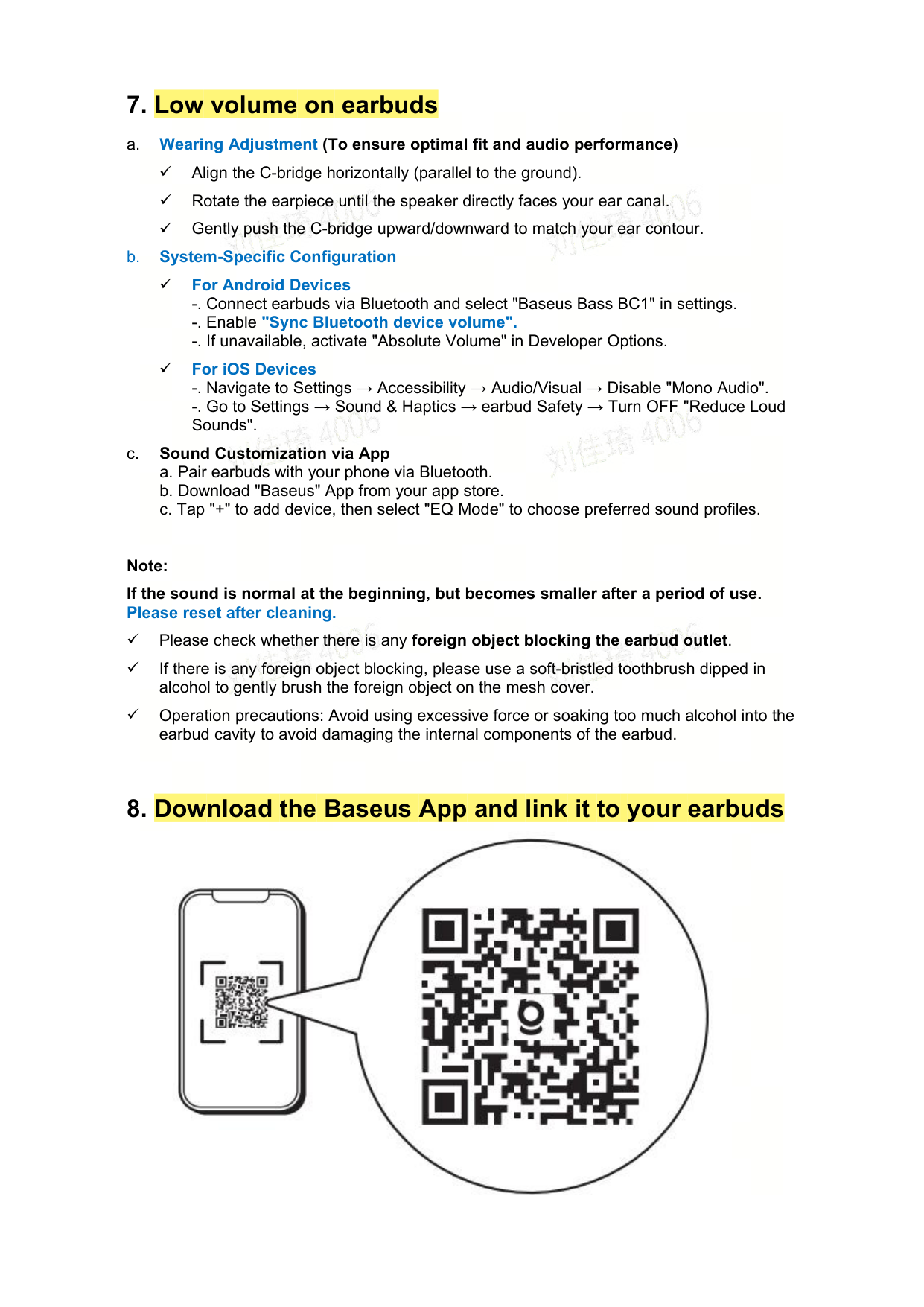
When opening or closing the lid, >40% shows green light; 20-40%, yellow light; <20%, red light. During recharging, 100% is a solid green light; 40%-100%, blinks green; 20-40%, blinks yellow; <20%, blinks red. (Page 3)
Show 4 more questions
How should I care for my Baseus Bd1 Bean Shaped Bluetooth Earbuds to prevent any dirt or debris buildup?
How do I use my Baseus Bd1 Bean Shaped Bluetooth Earbuds if the volume is low even when they are new?
How do I delete connection records for my Baseus Bd1 Bean Shaped Bluetooth Earbuds when troubleshooting?
How do I pair my Baseus Bd1 Bean Shaped Bluetooth Earbuds with a new device?
Full Manual
3 pages
Bass BC1 Active FAQs

1. Connection Guide

2. Wearing Suggestions


3. Precise Button Control


4. Factory Reset


5. Multipoint Pairing

Note: The earbuds remember the last connected device. To reset pairing mode, place the earbuds in the charging case, open the lid, and hold the case button for 3 seconds until the indicator light flashes white.
6. Battery Indicator

When opening/closing the lid: >40%: Lights green. 20% to 40%: Lights yellow. <20%: Lights red.

When recharging the case: 100%: Green light solid. >40%:Green light breathes. 20% to 40%: Yellow light breathes. <20%:Red light breathes.
7. Low volume on earbuds

Align the C-bridge horizontally (parallel to the ground).
Rotate the earpiece until the speaker directly faces your ear canal.
Gently push the C-bridge upward/downward to match your ear contour.
For Android Devices
For iOS Devices
Note: If the sound is normal at the beginning, but becomes smaller after a period of use. Please reset after cleaning.
Please check whether there is any foreign object blocking the earbud outlet.
If there is any foreign object blocking, please use a soft-bristled toothbrush dipped in alcohol to gently brush the foreign object on the mesh cover.
Operation precautions: Avoid using excessive force or soaking too much alcohol into the earbud cavity to avoid damaging the internal components of the earbud.
8. Download the Baseus App and link it to your earbuds
