
Ask AI
— answers from the official manualAnswers from the official manual.
Common questions
Common Questions
20 totalHow do I pair my Bluetooth device to the CBT3348A for the first time?
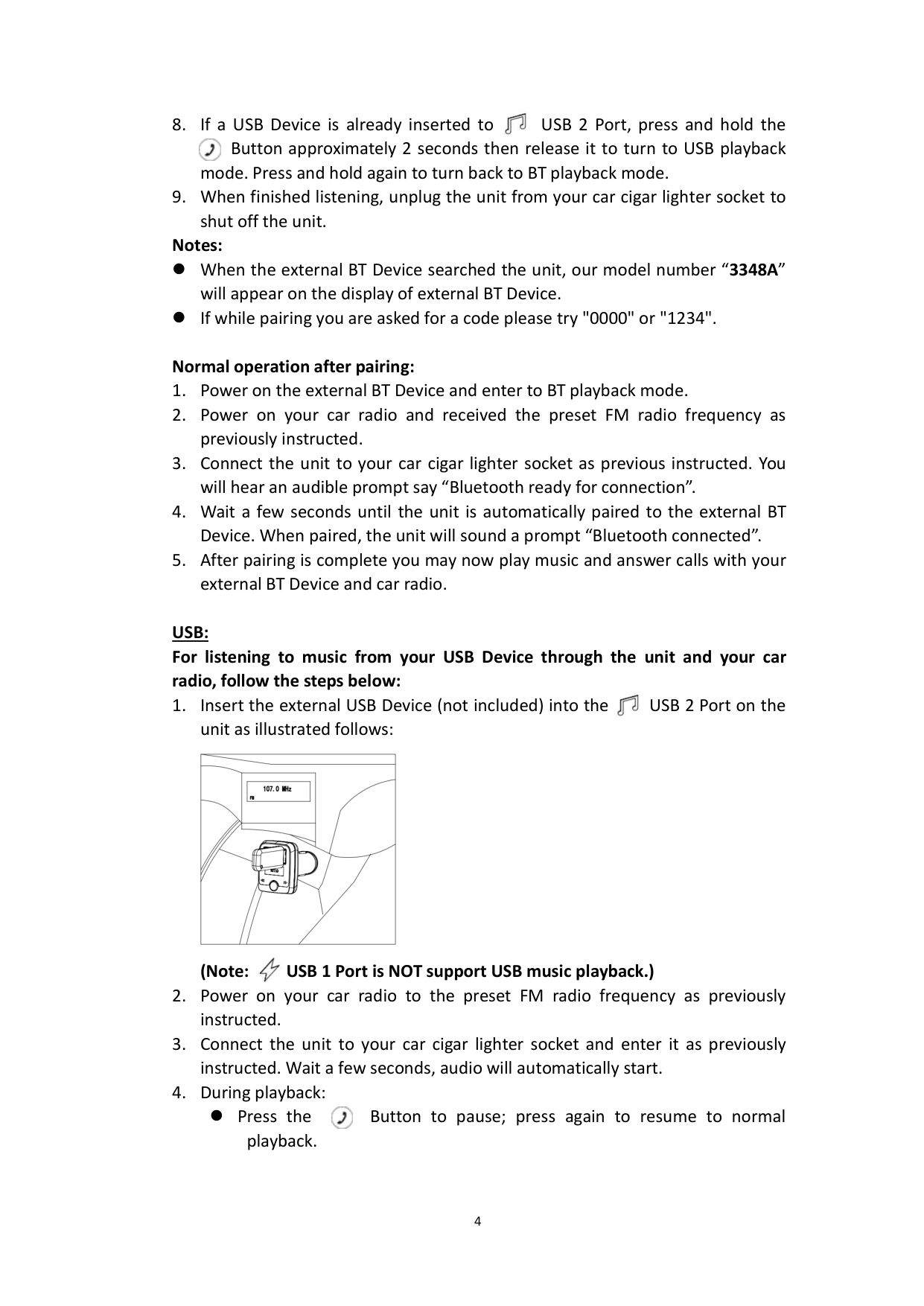
Power on the unit and connect it to your car cigar lighter socket, then wait for the audible prompt 'Bluetooth ready for connection.' Turn on your external BT device, enter BT searching mode, and follow the on-screen pairing instructions. When successfully paired, the unit will sound a prompt 'Bluetooth connected.' The unit will appear as '3348A' on your external BT device's display. (Page 4)
How do I set the FM frequency on the CBT3348A to match my car radio?
Press and hold the button for approximately 5 seconds until the FM radio frequency on the LED Display starts blinking. Then press the forward or back buttons repeatedly to set the frequency to match a blank FM channel on your car radio, such as 107.0 MHz. Both the unit and your car radio must be set to the same frequency. (Page 3)
How do I answer or decline an incoming phone call while playing music?
To answer an incoming call, press the button and speak into the microphone. When the call is complete, press the button again to end the call and resume music playback. To decline the call, press and hold the button for approximately 3 seconds to reject it and resume music playback. (Pages 4-5)
What USB flash drive capacity does the CBT3348A support?
The unit supports a maximum USB device capacity of 32GB via USB flash drive. Music must be downloaded in MP3 format onto the USB device before inserting it into the unit. Only USB Port 2 supports music playback; USB Port 1 does not. (Page 5)
How do I switch between Bluetooth playback mode and USB playback mode?
Press and hold the button for approximately 2 seconds then release it to switch from BT playback mode to USB playback mode. Press and hold again to switch back to BT playback mode. This toggle works in both directions. (Pages 4-5)
What should I do if the built-in USB charger stops working or shuts off?
The unit has a built-in overload and overheat protector that will shut off the charger if the output is overloaded or short-circuited. To reset it, simply unplug the external USB device from the USB port, and the charger will automatically reset. (Page 6)
Show 14 more questions
Why is there no sound or weak sound coming from my car radio when using the CBT3348A?
What are the power and output specifications for the CBT3348A?
What should I do if I am asked for a pairing code during Bluetooth setup?
What precautions are there regarding USB music playback?
How does noise interference get resolved?
What is the warranty period for the CBT3348A and how do I obtain service?
How do I pair the unit to my car radio?
How do I pair my Bluetooth device with the transmitter?
What should I do if there is no sound from my car radio?
How do I handle sound distortion issues?
What should I do if Bluetooth is not functioning correctly?
How can I use the USB ports?
How do I charge external USB devices using the built-in chargers?
How do I change the settings for a new or different phone?
Full Manual
9 pages
Fm Transmitter
with Bluetooth® Wireless TechnologyFm Transmitter
with Bluetooth® Wireless Technology Model: CBT3348APlease Read Before Operating This Equipment.
Owner's Manual Size: 148.5(W) x 210(H)mm (A5)
1
Fcc Information
This equipment has been tested and found to comply with the limits for a class B digital device, pursuant to Part 15 of FCC Rules. These limits are designed to provide reasonable protection against harmful interference in a residential installation. This equipment generates, uses and can radiate radio frequency energy and, if not installed and used in accordance with the instructions, may cause harmful interference to radio communications. However, there is no guarantee that interference will not occur in a particular installation. If this equipment does cause harmful interference to radio or television reception, which can be determined by turning the equipment off and on, the user is encouraged to try to correct the interference by one or more of the following measures: Reorient or relocate the receiving antenna. Increase the separation between the equipment and receiver. Connect the equipment into an outlet on a circuit different from that to which the receiver is connected. Consult the dealer or an experienced radio/TV technician for help.Fcc Warning:
This equipment may generate or use radio frequency energy. Charges or modifications to this equipment may cause harmful interference unless the modifications are expressly approved in the instruction manual. Modifications not authorized by the manufacturer may void user’s authority to operate this device.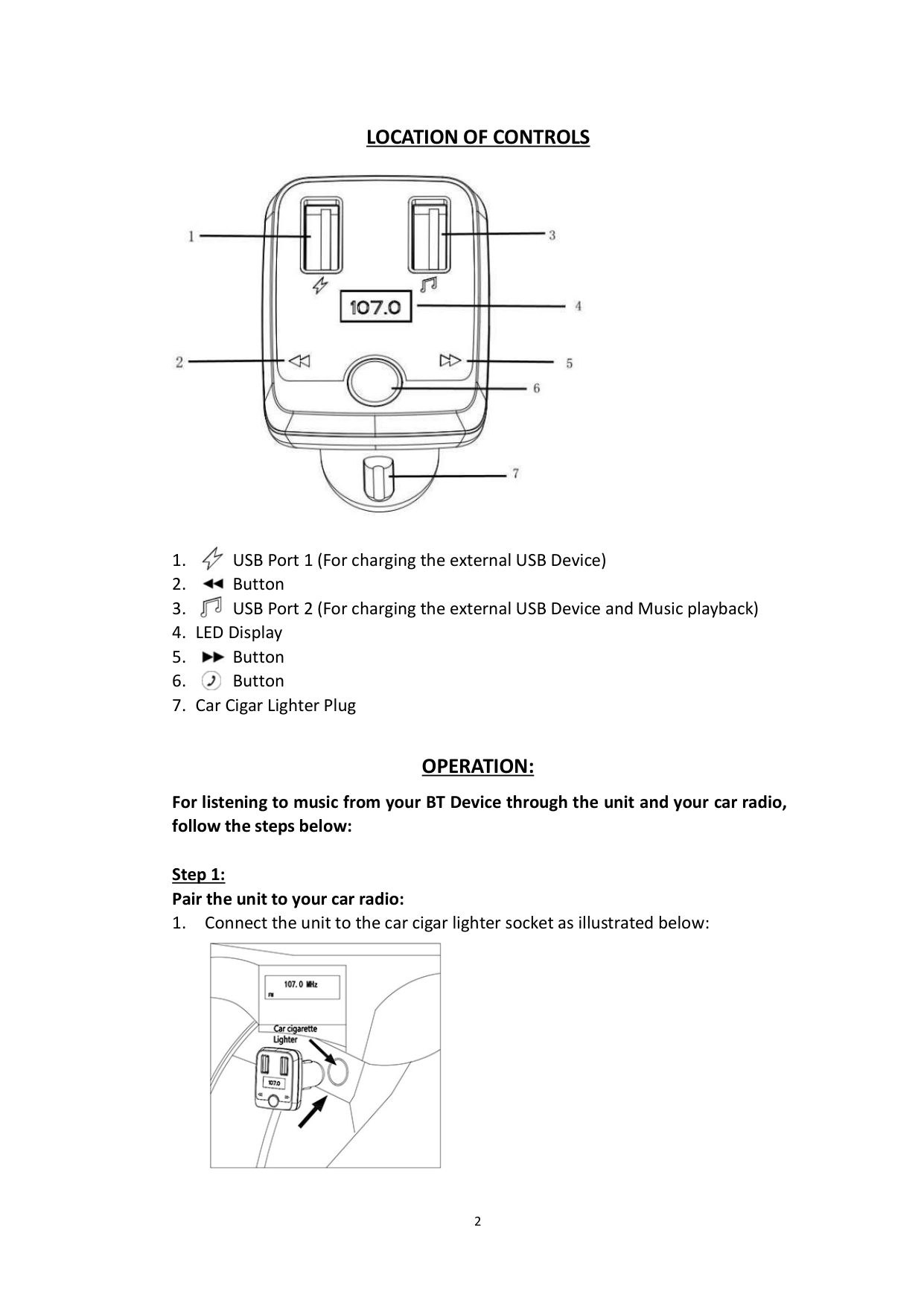
2
Location Of Controls
Operation:
For listening to music from your BT Device through the unit and your car radio, follow the steps below: Step 1: Pair the unit to your car radio: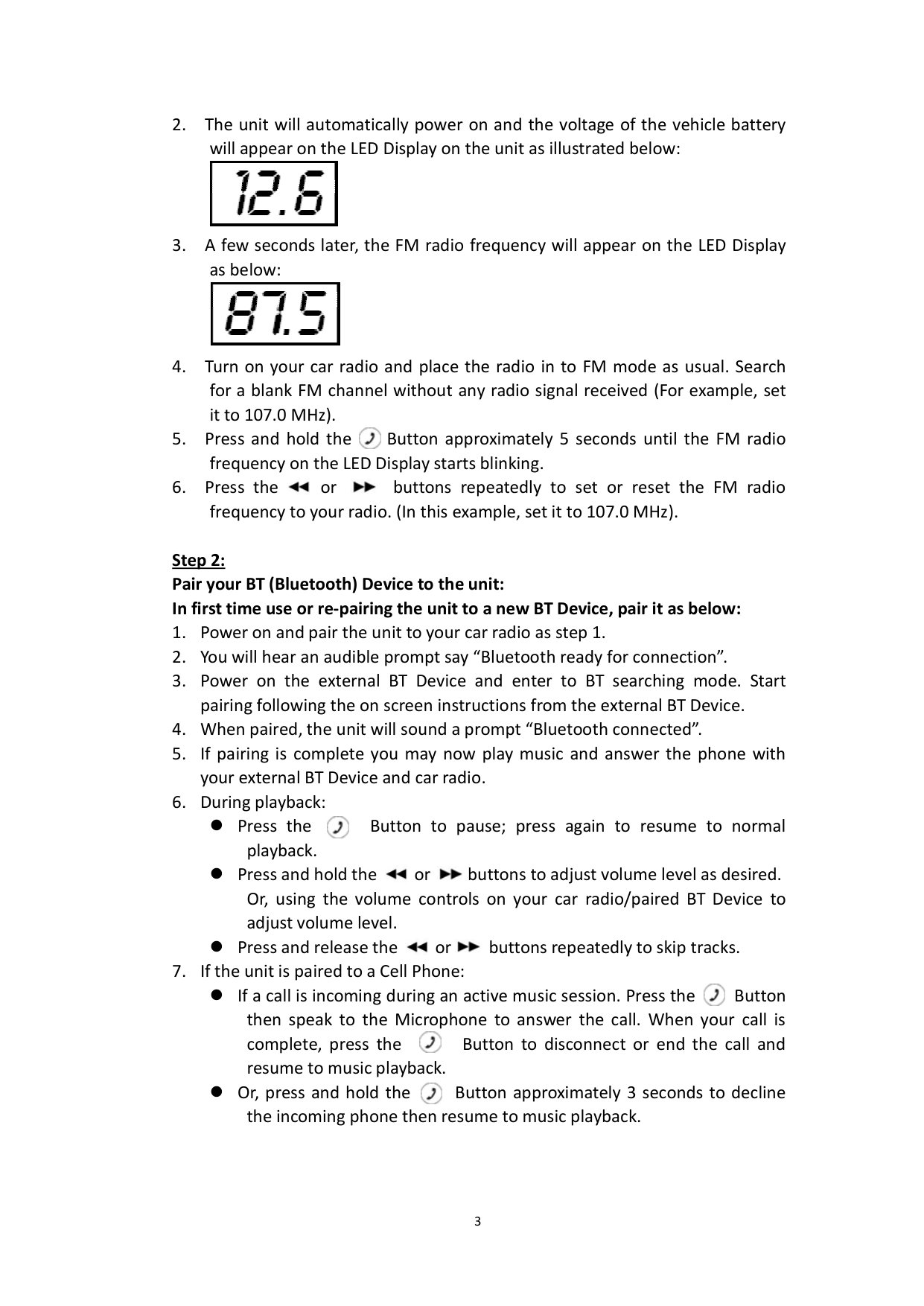
3
4
Usb:
For listening to music from your USB Device through the unit and your car radio, follow the steps below: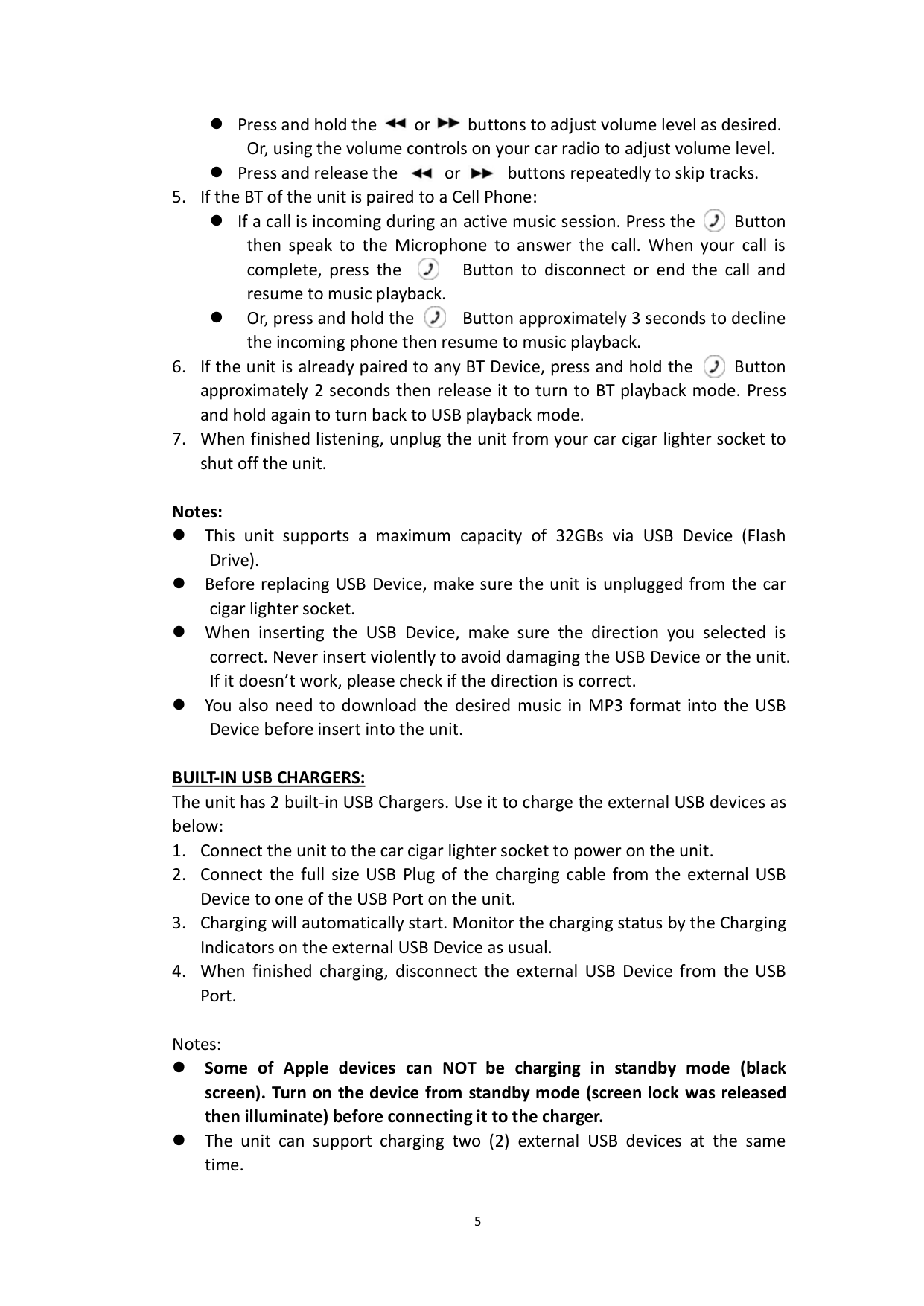
5 Press and hold the or buttons to adjust volume level as desired. Or, using the volume controls on your car radio to adjust volume level. Press and release the or buttons repeatedly to skip tracks.
Built‐In Usb Chargers:
The unit has 2 built-in USB Chargers. Use it to charge the external USB devices as below: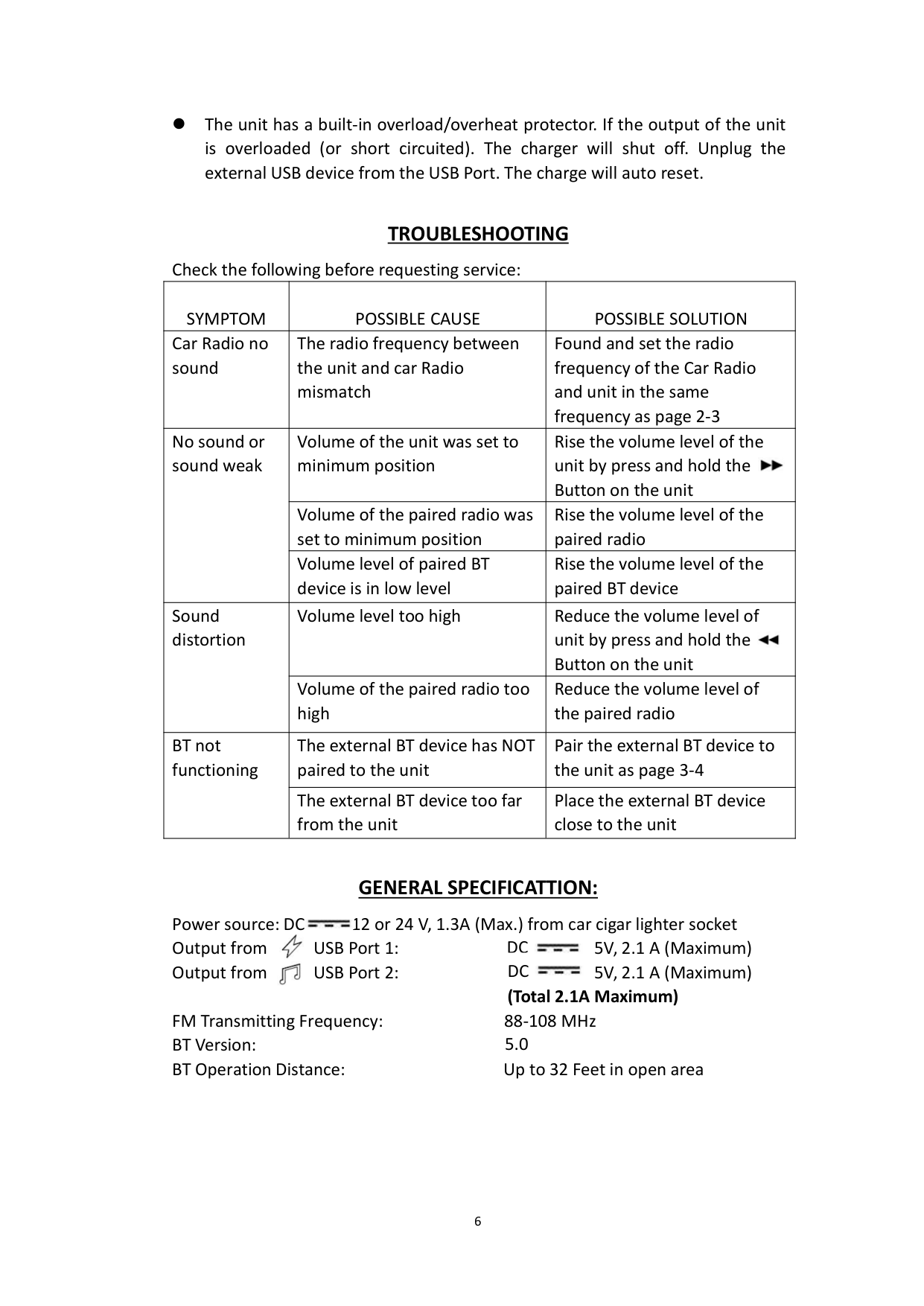
6 5.0
Dc
Dc
The unit has a built-in overload/overheat protector. If the output of the unit is overloaded (or short circuited). The charger will shut off. Unplug the external USB device from the USB Port. The charge will auto reset.Troubleshooting
Check the following before requesting service:Symptom
Possible Cause
Possible Solution
Car Radio no sound The radio frequency between the unit and car Radio mismatch Found and set the radio frequency of the Car Radio and unit in the same frequency as page 2-3 No sound or sound weak Volume of the unit was set to minimum position Rise the volume level of the unit by press and hold the Button on the unit Volume of the paired radio was set to minimum position Rise the volume level of the paired radio Volume level of paired BT device is in low level Rise the volume level of the paired BT device Sound distortion Volume level too high Reduce the volume level of unit by press and hold the Button on the unit Volume of the paired radio too high Reduce the volume level of the paired radio BT not functioning The external BT device has NOT paired to the unit Pair the external BT device to the unit as page 3-4 The external BT device too far from the unit Place the external BT device close to the unitGeneral Specificattion:
Power source: DC 12 or 24 V, 1.3A (Max.) from car cigar lighter socket Output from USB Port 1: 5V, 2.1 A (Maximum) Output from USB Port 2: 5V, 2.1 A (Maximum) (Total 2.1A Maximum) FM Transmitting Frequency: 88-108 MHz BT Version: BT Operation Distance: Up to 32 Feet in open area
7
Package Includes:
1 x Owner’s ManualSpecifications And Accessories Are Subject To Change Without
Notice
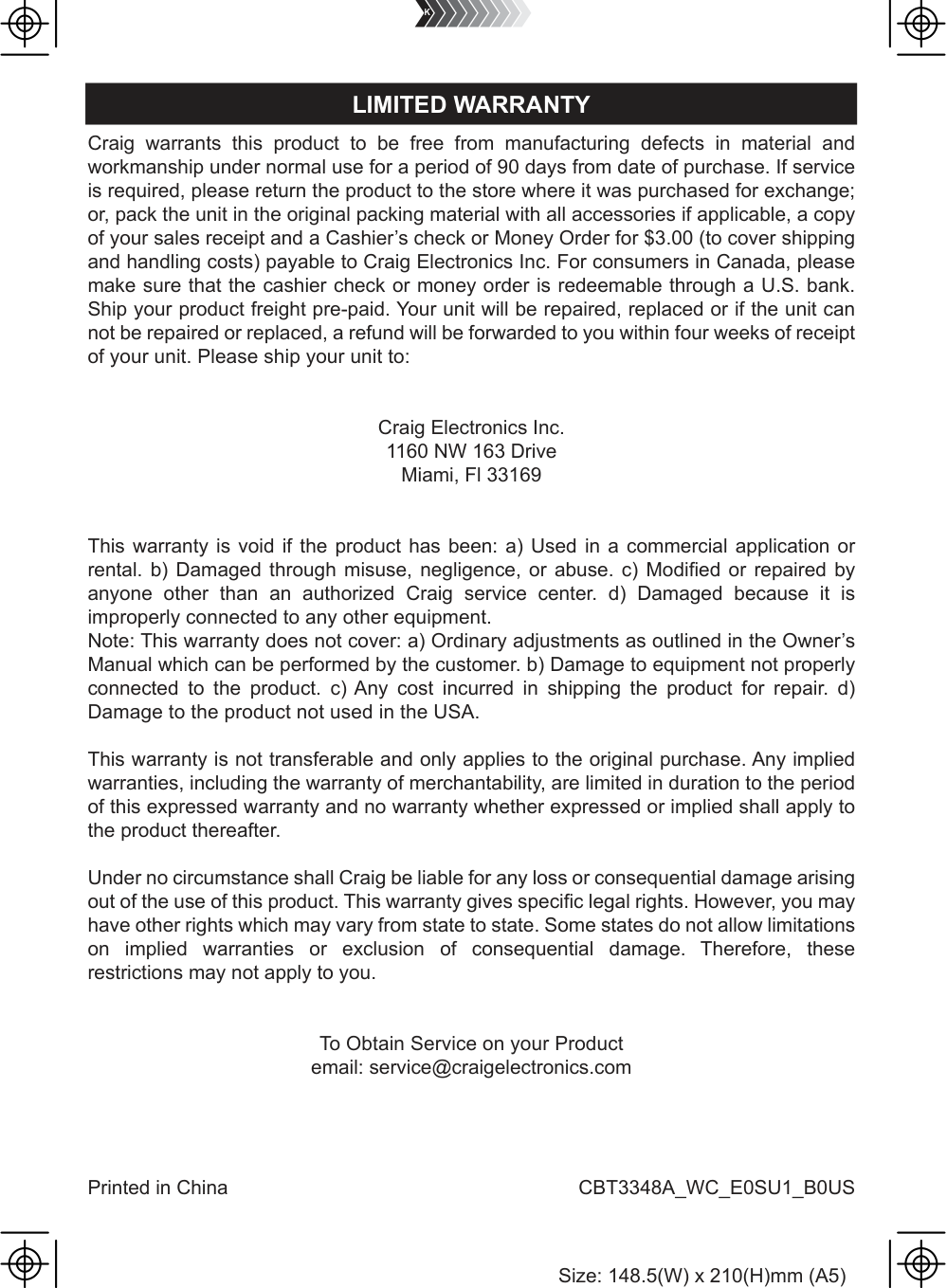
Craig warrants this product to be free from manufacturing defects in material and workmanship under normal use for a period of 90 days from date of purchase. If service is required, please return the product to the store where it was purchased for exchange; or, pack the unit in the original packing material with all accessories if applicable, a copy of your sales receipt and a Cashier’s check or Money Order for $3.00 (to cover shipping and handling costs) payable to Craig Electronics Inc. For consumers in Canada, please make sure that the cashier check or money order is redeemable through a U.S. bank. Ship your product freight pre-paid. Your unit will be repaired, replaced or if the unit can not be repaired or replaced, a refund will be forwarded to you within four weeks of receipt of your unit. Please ship your unit to: Craig Electronics Inc. 1160 NW 163 Drive Miami, Fl 33169 This warranty is void if the product has been: a) Used in a commercial application or rental. b) Damaged through misuse, negligence, or abuse. c) Modified or repaired by anyone other than an authorized Craig service center. d) Damaged because it is improperly connected to any other equipment. Note: This warranty does not cover: a) Ordinary adjustments as outlined in the Owner’s Manual which can be performed by the customer. b) Damage to equipment not properly connected to the product. c) Any cost incurred in shipping the product for repair. d) Damage to the product not used in the USA. This warranty is not transferable and only applies to the original purchase. Any implied warranties, including the warranty of merchantability, are limited in duration to the period of this expressed warranty and no warranty whether expressed or implied shall apply to the product thereafter. Under no circumstance shall Craig be liable for any loss or consequential damage arising out of the use of this product. This warranty gives specific legal rights. However, you may have other rights which may vary from state to state. Some states do not allow limitations on implied warranties or exclusion of consequential damage. Therefore, these restrictions may not apply to you. To Obtain Service on your Product email: service@craigelectronics.com Printed in China