
Fastrack Ft3 Reflex Tunes Truly Wireless Earbuds
Ask AI
— answers from the official manualAnswers from the official manual.
Common questions
Common Questions
10 totalHow do I factory reset the Fastrack Reflex Band?
Tap Reset to factory reset the band from the Settings menu on the band. Note that this will erase all saved data. (Page 24)
How do I control music using my Fastrack Reflex Band?
You can use the band to control music apps running on your phone, but ensure that the band and phone are connected and there is a music app active in the background. (Page 12)
What features does the Reflex Band have?
The Reflex Band includes activity tracking (steps, distance, calories), multi-sports mode for around 10 activities, auto heart rate monitoring, sleep detection, timer and stopwatch, alarm, find your phone, music control, camera control, weather updates, sedentary alert, and all notifications. (Page 2)
How do I set up the Reflex Band for the first time?
To get started with your Fastrack Reflex Band, charge it fully for the first use. Then download and install the Fastrack Reflex App on your phone, sign up, connect to the band via Bluetooth, and personalize by entering your details. (Pages 4-6)
How long does the battery last?
The Reflex Band’s battery lasts up to 10 days on a single charge with typical use. A full charge takes approximately 2 hours. (Page 2)
How do I adjust my sedentary alert settings?
Navigate to Sedentary Alert in the Settings menu, then set a start time and end time for alerts if you have been inactive for an extended period. For example, setting the interval to 180 minutes will notify you after every three hours of inactivity. (Page 27)
Full Manual
33 pages
|1
Fastrack Reflex 3.0 Band User Guide
Contents
Overview .............................................................................................................................................. 2 Features ........................................................................................................................................... 2 Technical Specifications of Reflex .......................................................................................... 2
What’s Inside the Box? .................................................................................................................. 3 Getting Started.................................................................................................................................. 4 Onboarding ....................................................................................................................................... 10
On boarding - Reflex Band ..................................................................................................... 10 Onboarding – Reflex App ........................................................................................................ 14
Dashboard of the Reflex App ............................................................................................. 15 Usage .................................................................................................................................................. 17 Settings .............................................................................................................................................. 23
Band Settings .............................................................................................................................. 23 App Settings ................................................................................................................................. 25
Settings ...................................................................................................................................... 25 Precautions ....................................................................................................................................... 32 FCC Statement ................................................................................................................................ 32 Certifications and Safety Approvals ........................................................................................ 33 Warranty ............................................................................................................................................ 33| |---|
|2
Overview Fastrack Reflex, a premium product of Fastrack, monitors and gives accurate performance metrics for a varied range of activities. You can set a sleeping goal and track your sleeping patterns too with Reflex.
Features
Activity Tracker (Steps, Distance & Calories)
Multi-sports - Around 10 activities
Auto HRM
Sleep Detection
Timer, Stopwatch & Alarm
Find your phone
Music control
Camera control
Weather
Sedentary Alert
All Notifications Technical Specifications of Reflex

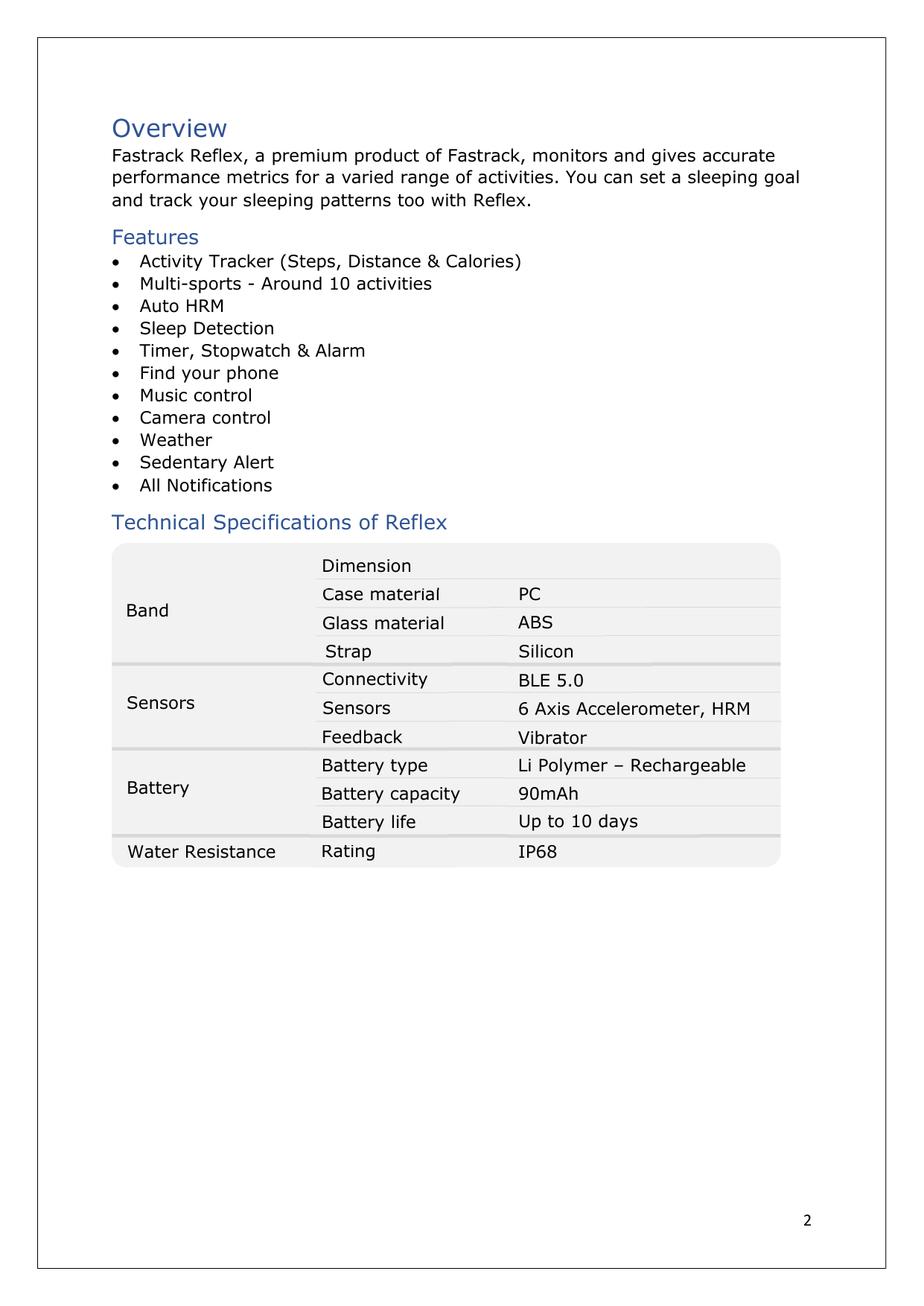
Band

Sensors

Battery

Water Resistance Rating


Case material Glass material Strap Connectivity Sensors Feedback Battery type Battery capacity Battery life


Dimension

PC ABS Silicon BLE 5.0 6 Axis Accelerometer, HRM Vibrator Li Polymer – Rechargeable 90mAh Up to 10 days IP68


| |---|
|3
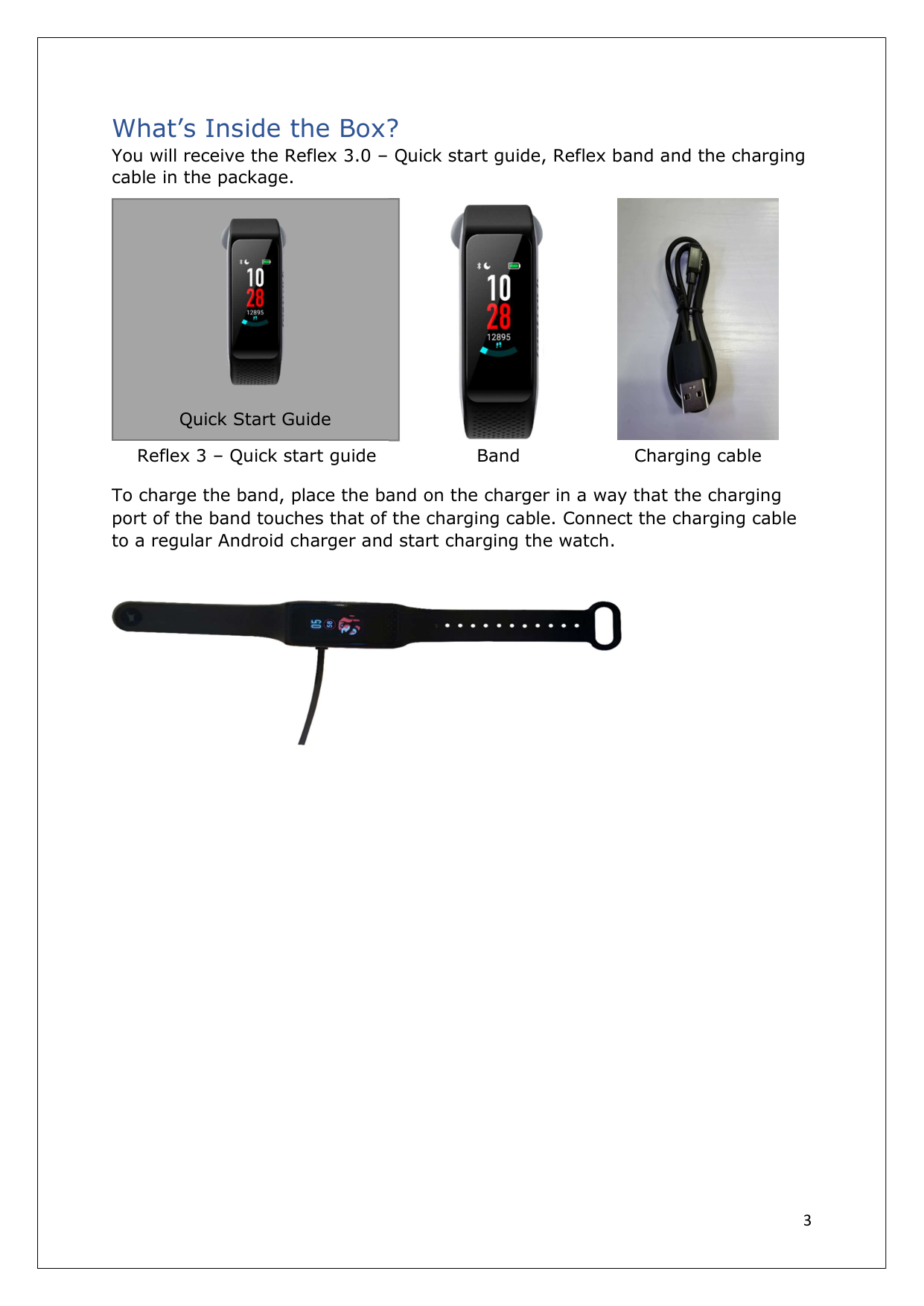
What’s Inside the Box? You will receive the Reflex 3.0 – Quick start guide, Reflex band and the charging cable in the package.
To charge the band, place the band on the charger in a way that the charging port of the band touches that of the charging cable. Connect the charging cable to a regular Android charger and start charging the watch.


Quick Start Guide Reflex 3 – Quick start guide Band Charging cable


| |---|
|4
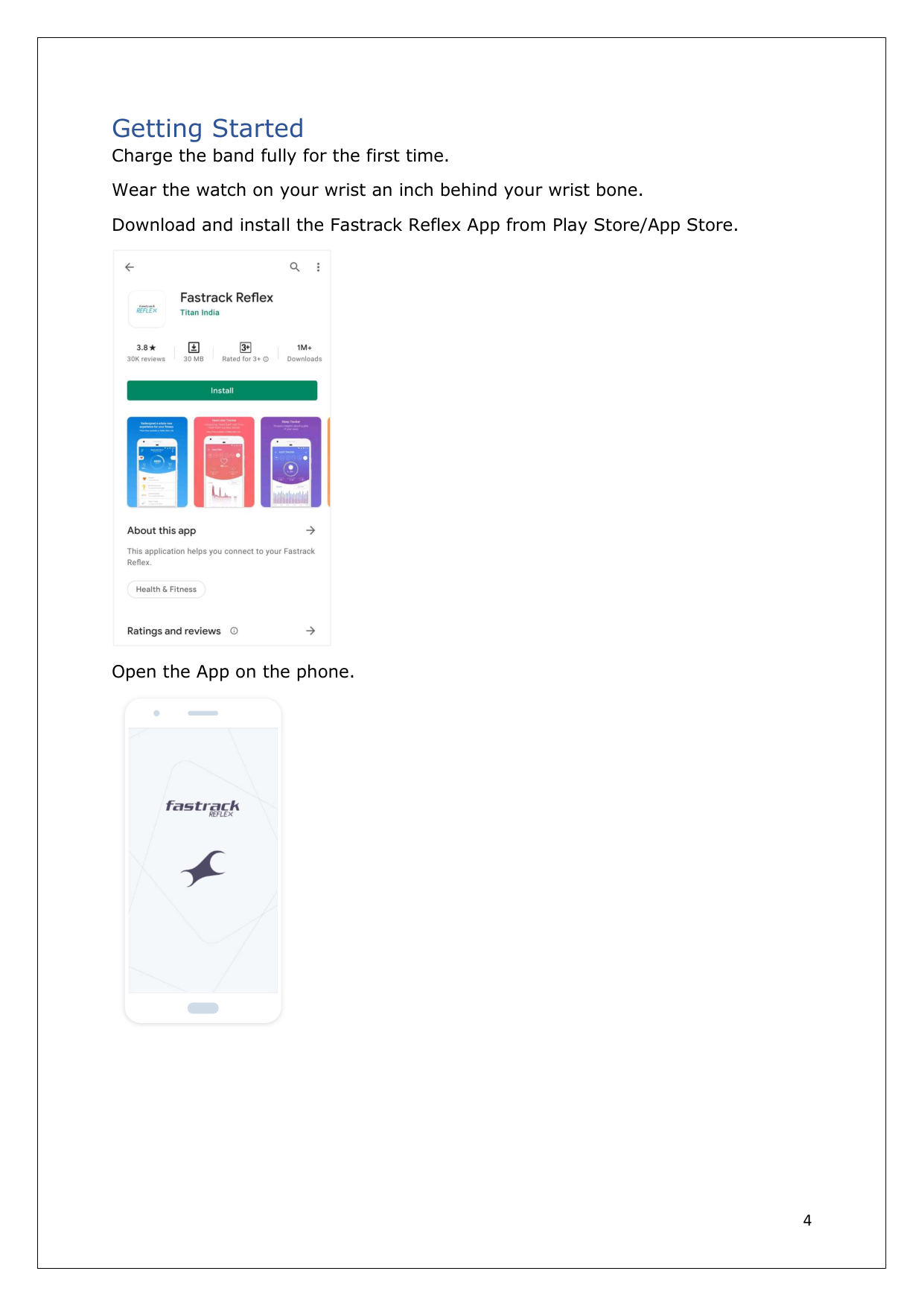
Getting Started Charge the band fully for the first time. Wear the watch on your wrist an inch behind your wrist bone. Download and install the Fastrack Reflex App from Play Store/App Store.
Open the App on the phone.


| |---|
|5
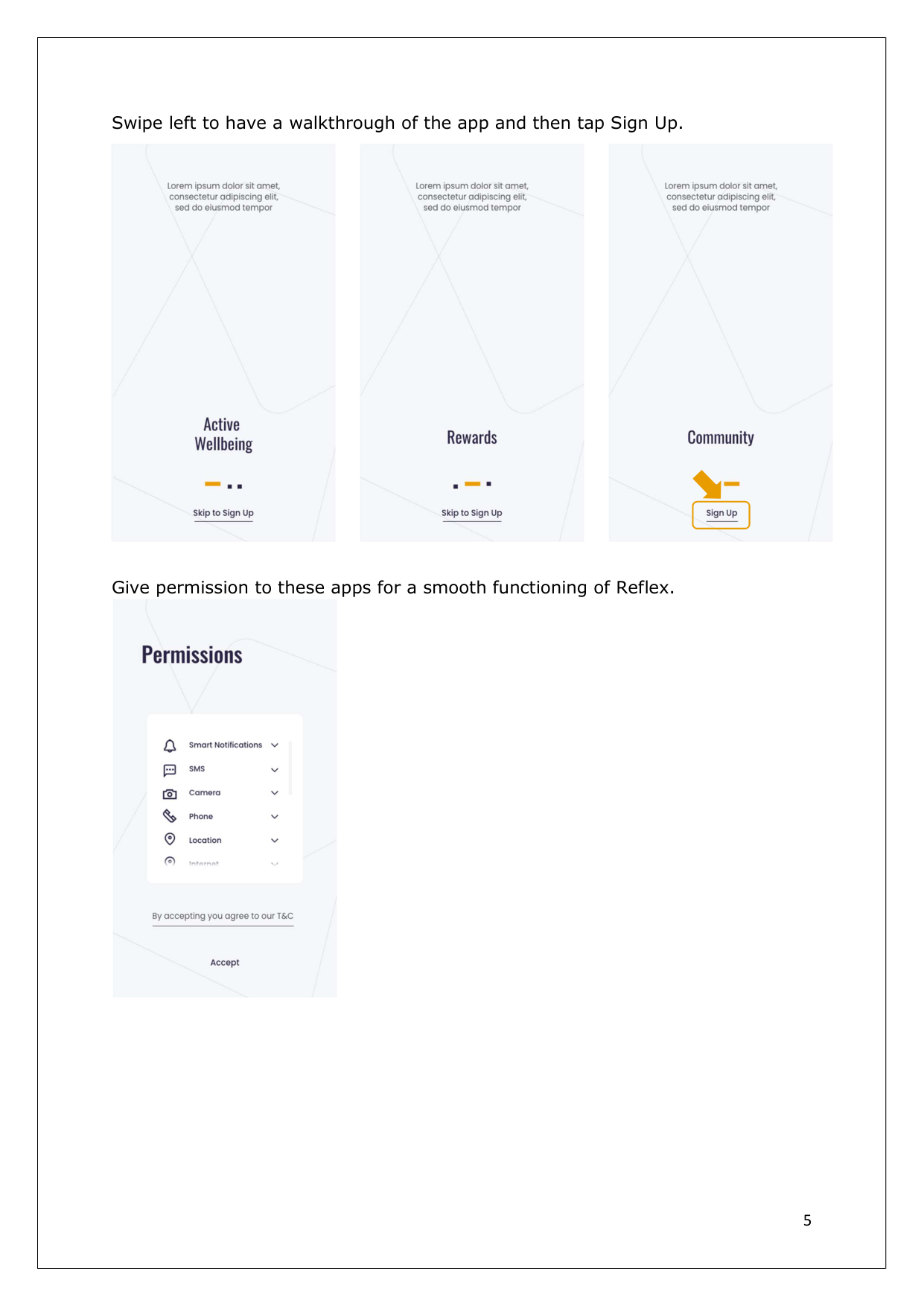
Swipe left to have a walkthrough of the app and then tap Sign Up.
Give permission to these apps for a smooth functioning of Reflex.


| |---|
|6
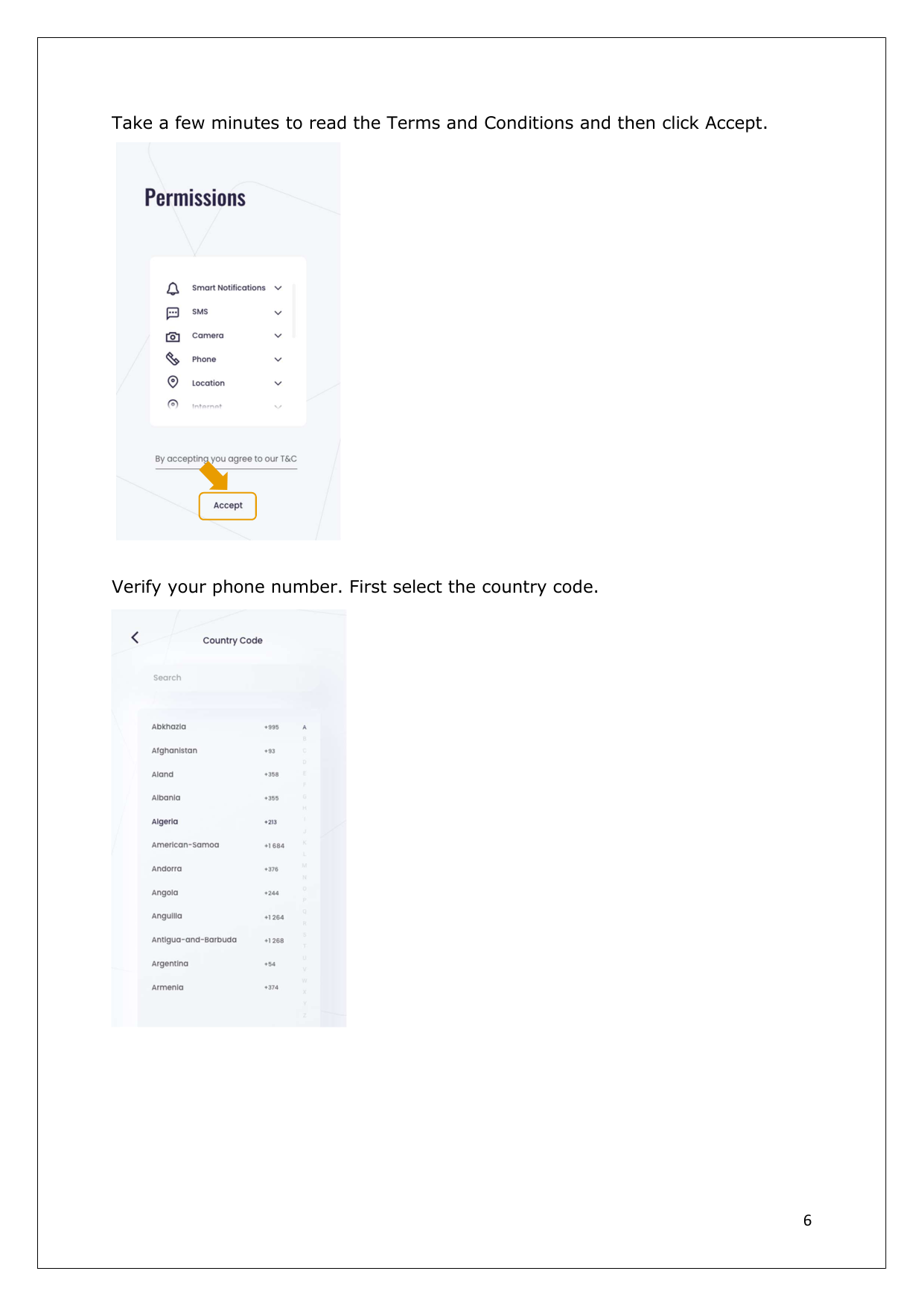
Take a few minutes to read the Terms and Conditions and then click Accept.
Verify your phone number. First select the country code.

| |---|
|7
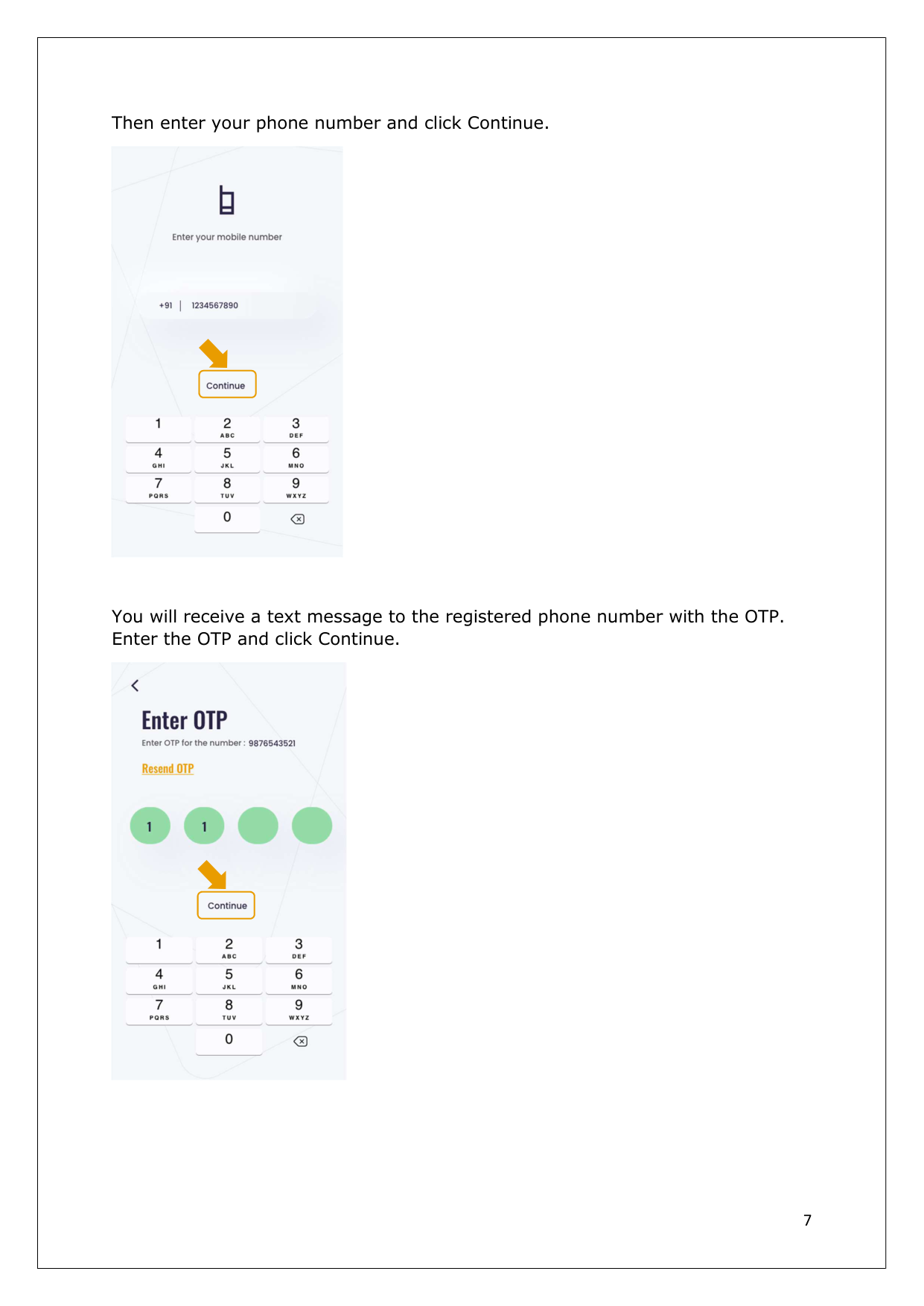
Then enter your phone number and click Continue.
You will receive a text message to the registered phone number with the OTP. Enter the OTP and click Continue.

| |---|
|8
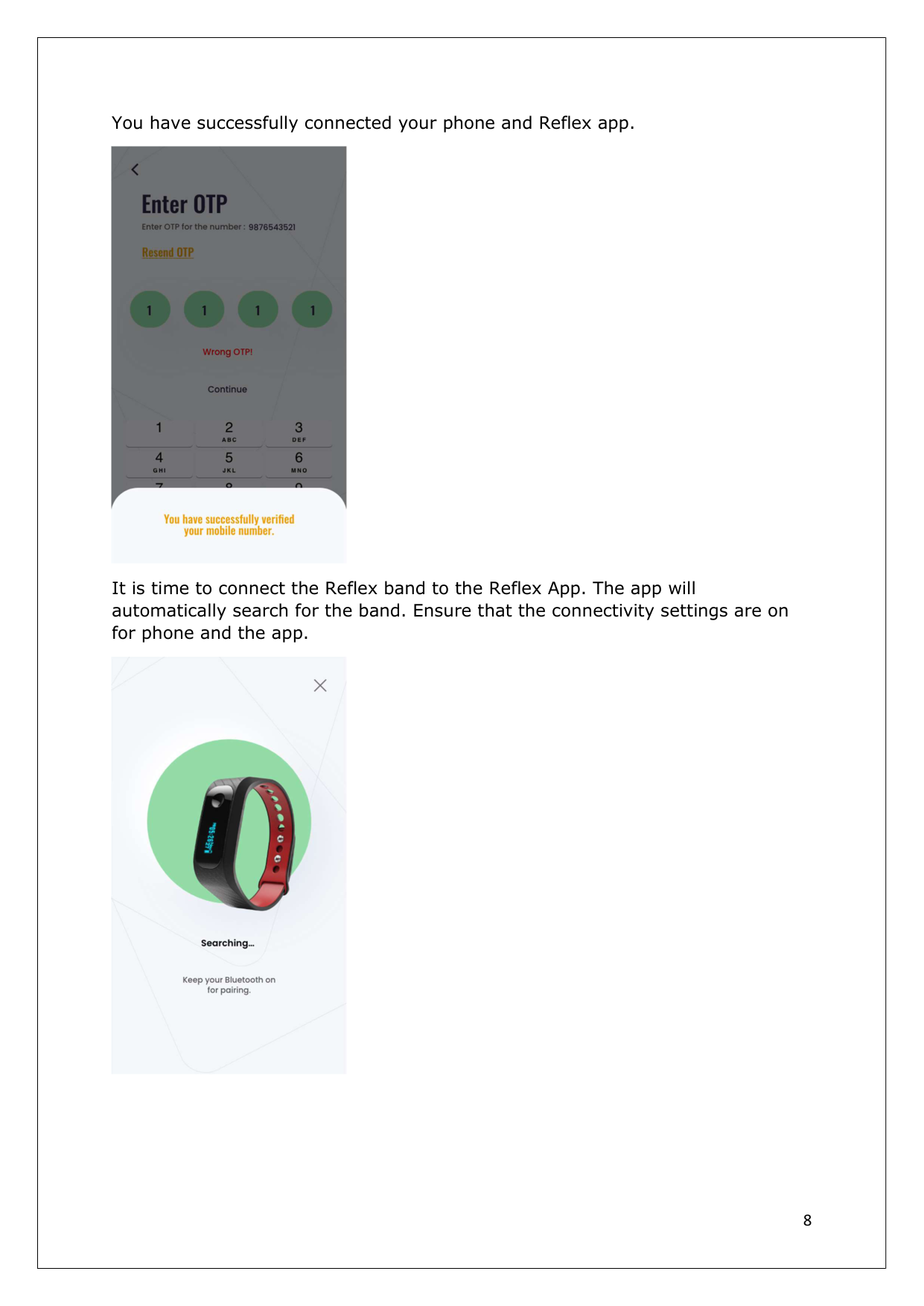
You have successfully connected your phone and Reflex app.
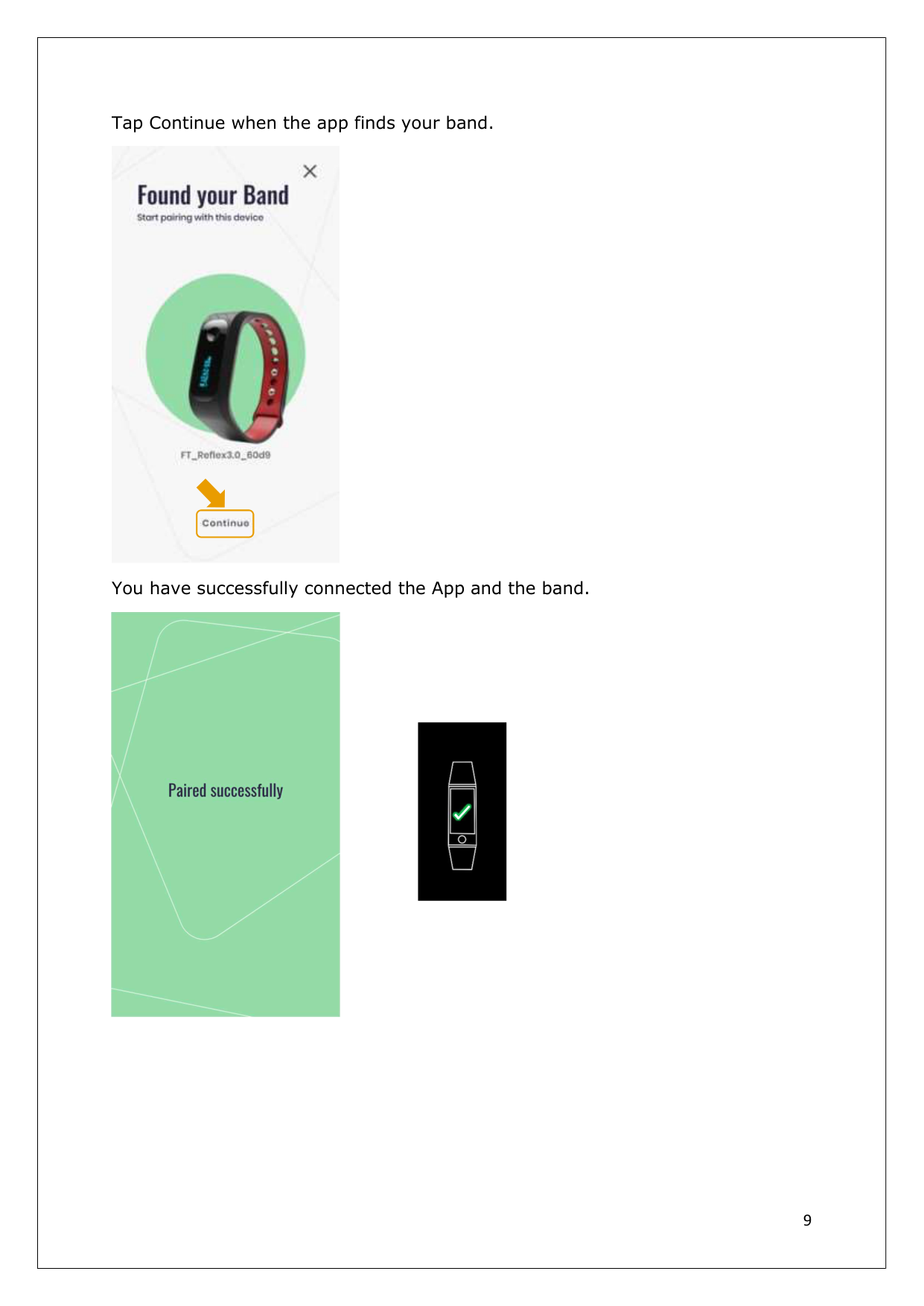
It is time to connect the Reflex band to the Reflex App. The app will automatically search for the band. Ensure that the connectivity settings are on for phone and the app.

| |---|
|9
Tap Continue when the app finds your band.
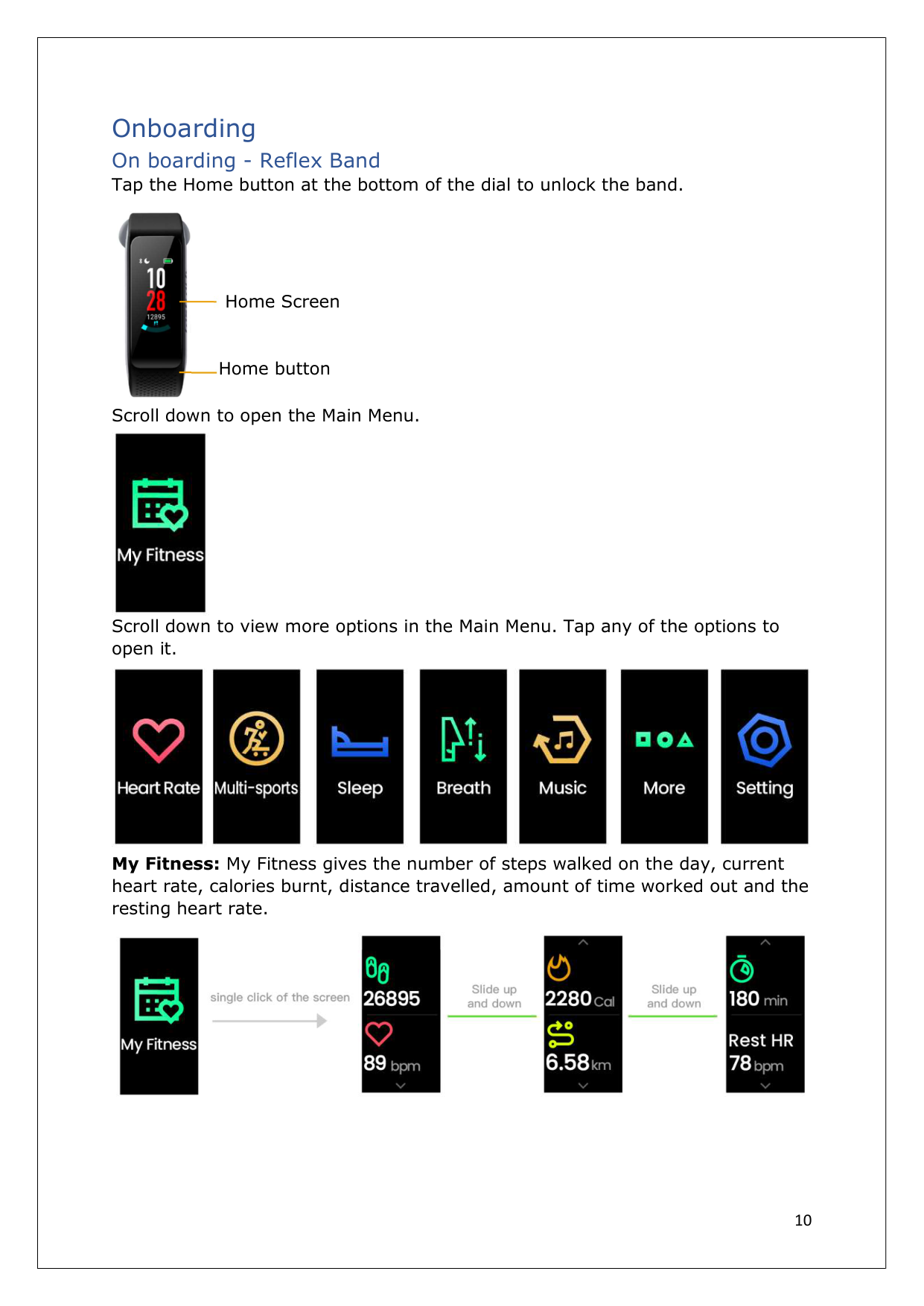
You have successfully connected the App and the band.


| |---|
|10
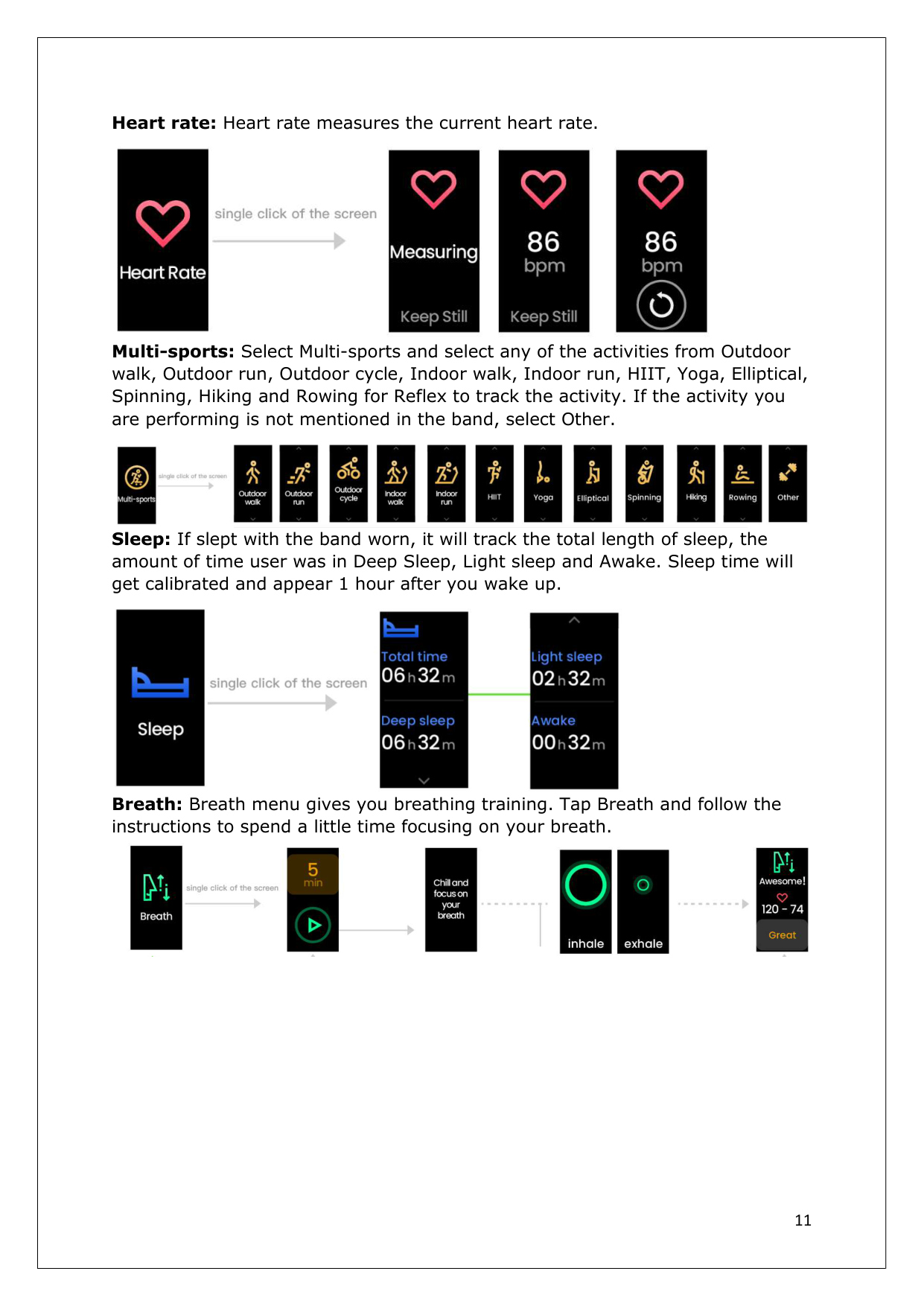
Onboarding On boarding - Reflex Band Tap the Home button at the bottom of the dial to unlock the band.
Scroll down to open the Main Menu.
Scroll down to view more options in the Main Menu. Tap any of the options to open it.
My Fitness: My Fitness gives the number of steps walked on the day, current heart rate, calories burnt, distance travelled, amount of time worked out and the resting heart rate.


Home Screen

Home button| |---|
|11
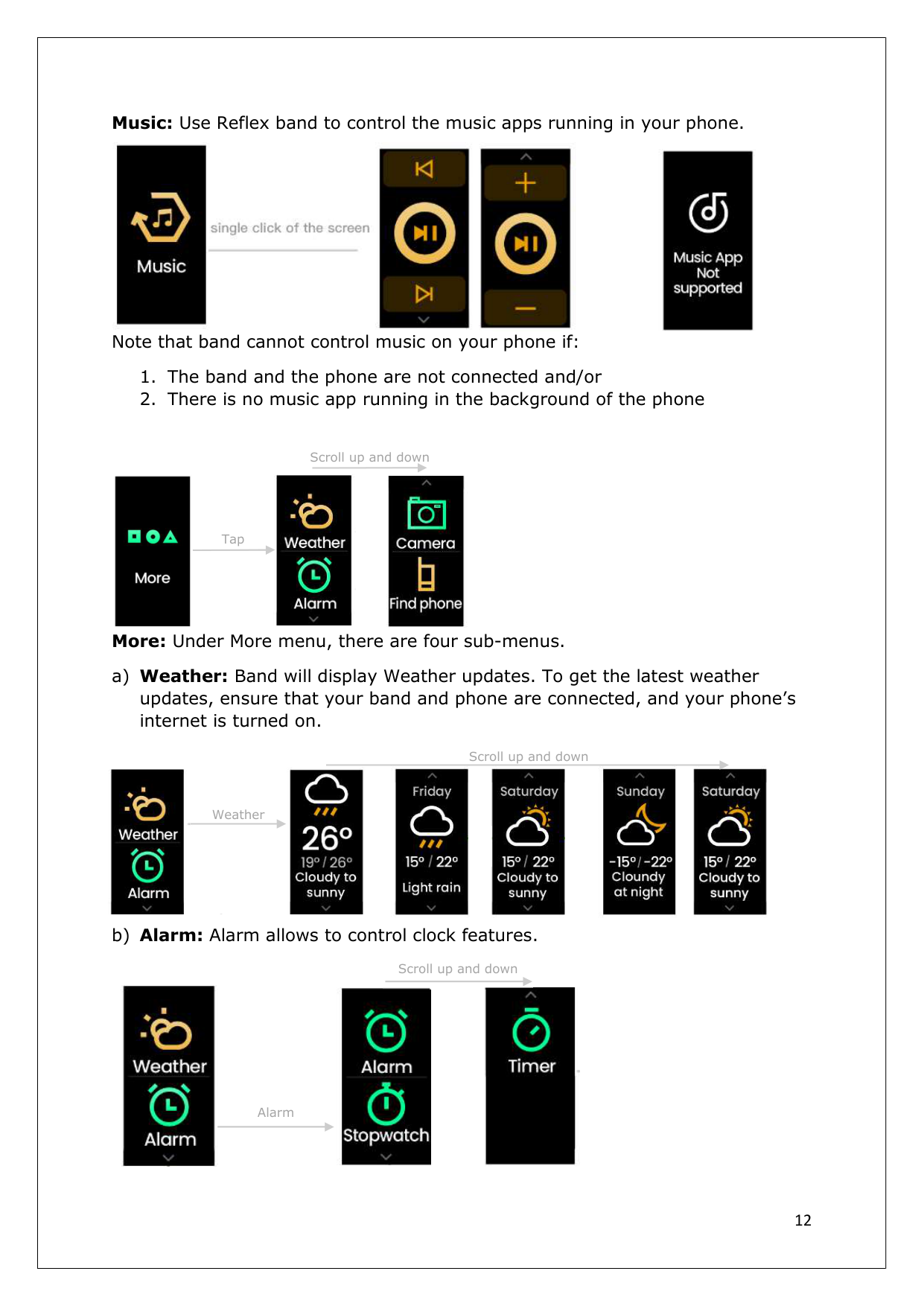
Heart rate: Heart rate measures the current heart rate.
Multi-sports: Select Multi-sports and select any of the activities from Outdoor walk, Outdoor run, Outdoor cycle, Indoor walk, Indoor run, HIIT, Yoga, Elliptical, Spinning, Hiking and Rowing for Reflex to track the activity. If the activity you are performing is not mentioned in the band, select Other.
Sleep: If slept with the band worn, it will track the total length of sleep, the amount of time user was in Deep Sleep, Light sleep and Awake. Sleep time will get calibrated and appear 1 hour after you wake up.
Breath: Breath menu gives you breathing training. Tap Breath and follow the instructions to spend a little time focusing on your breath.


| |---|
|12
Music: Use Reflex band to control the music apps running in your phone.
Note that band cannot control music on your phone if:
1. The band and the phone are not connected and/or
2. There is no music app running in the background of the phone
More: Under More menu, there are four sub-menus.
a) Weather: Band will display Weather updates. To get the latest weather updates, ensure that your band and phone are connected, and your phone’s internet is turned on.
b) Alarm: Alarm allows to control clock features.


Tap


Scroll up and down


Scroll up and down

Weather


Alarm

Scroll up and down| |---|
|13
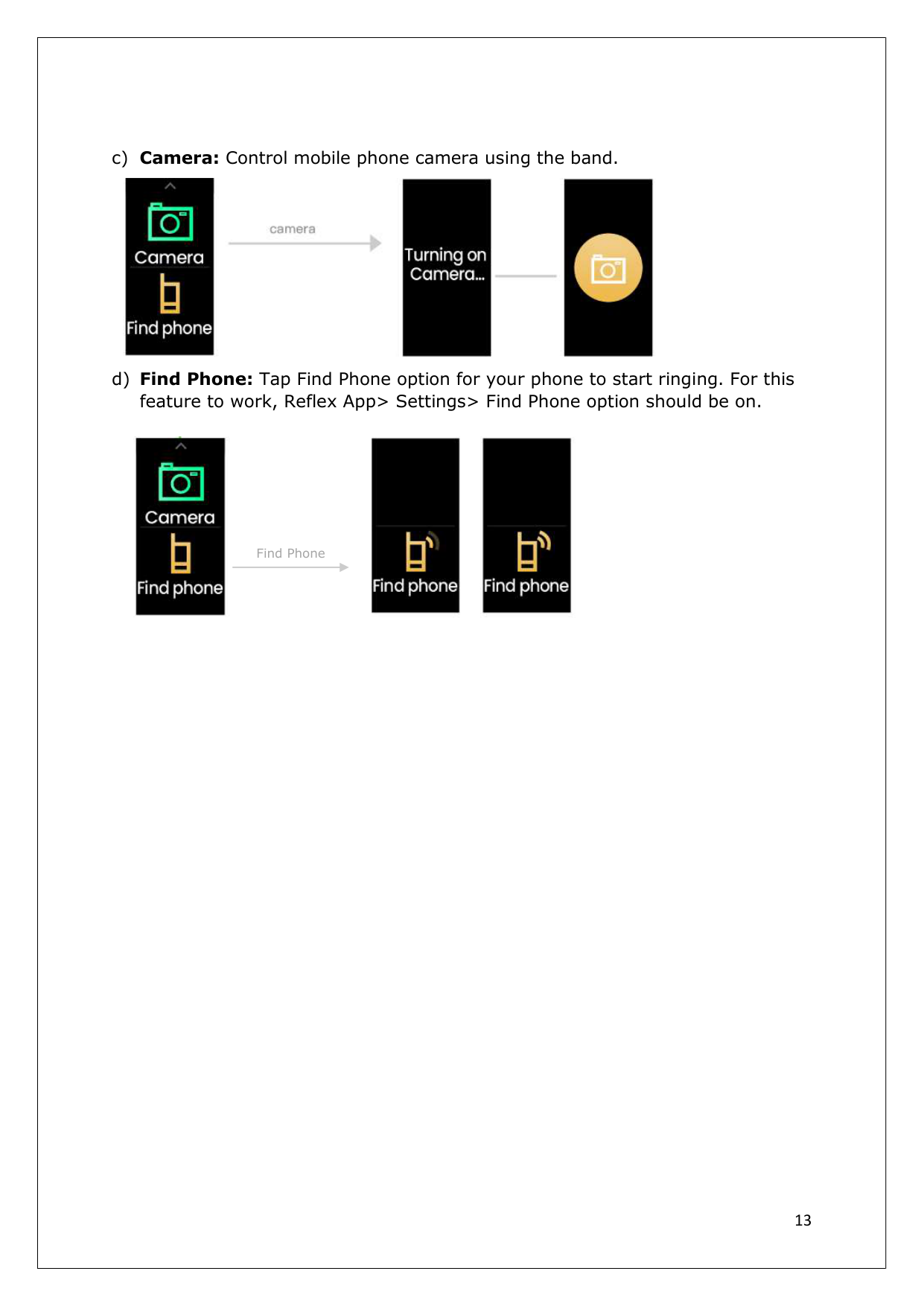
c) Camera: Control mobile phone camera using the band.
d) Find Phone: Tap Find Phone option for your phone to start ringing. For this feature to work, Reflex App> Settings> Find Phone option should be on.


Find Phone| |---|
|14
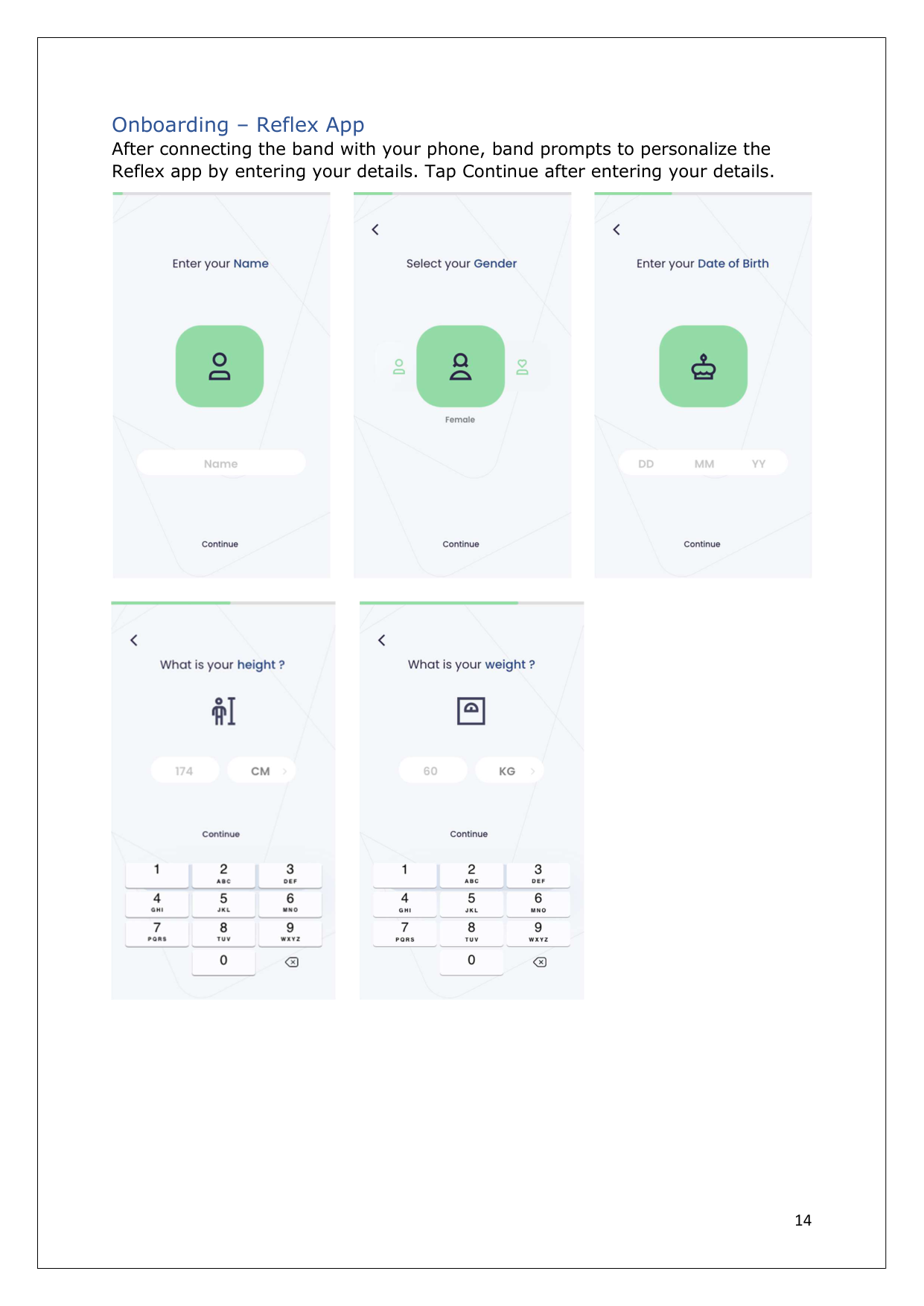
Onboarding – Reflex App After connecting the band with your phone, band prompts to personalize the Reflex app by entering your details. Tap Continue after entering your details.


| |---|
|15
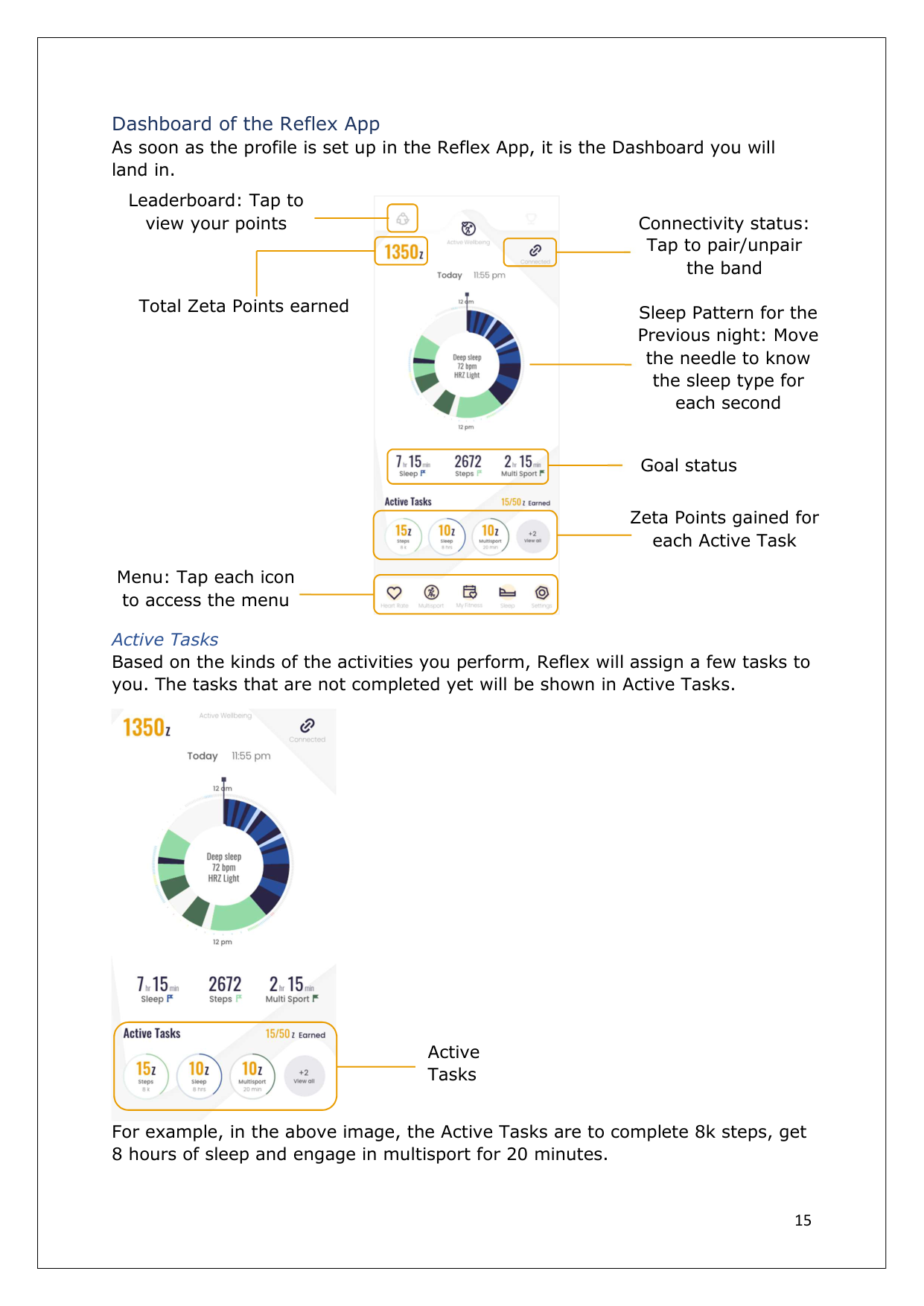
Dashboard of the Reflex App As soon as the profile is set up in the Reflex App, it is the Dashboard you will land in.
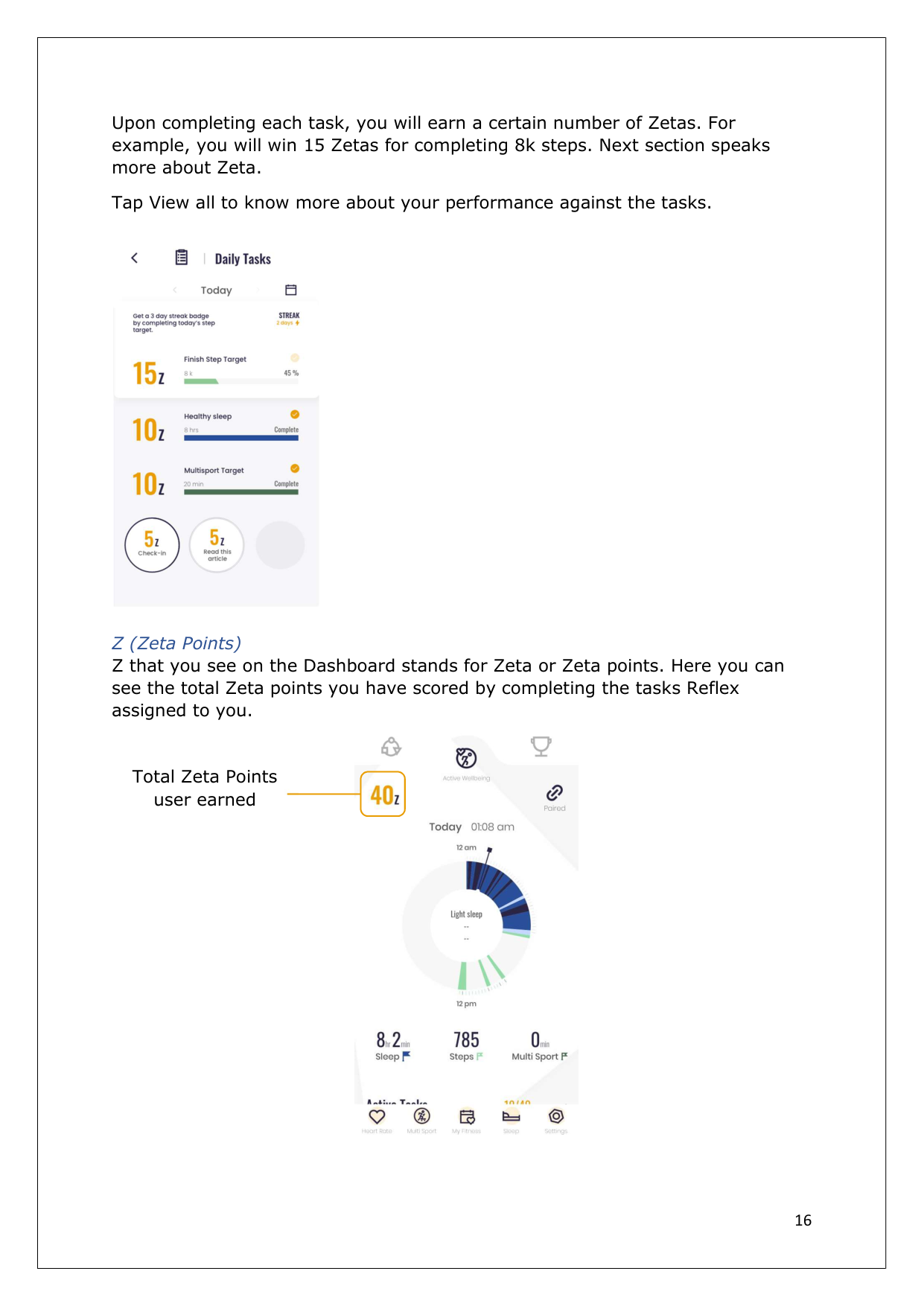
Active Tasks Based on the kinds of the activities you perform, Reflex will assign a few tasks to you. The tasks that are not completed yet will be shown in Active Tasks.
For example, in the above image, the Active Tasks are to complete 8k steps, get 8 hours of sleep and engage in multisport for 20 minutes.

Leaderboard: Tap to view your points


Total Zeta Points earned

Connectivity status: Tap to pair/unpair the band

Goal status

Zeta Points gained for each Active Task Menu: Tap each icon to access the menu


Sleep Pattern for the Previous night: Move the needle to know the sleep type for each second


Active Tasks| |---|
|16
Upon completing each task, you will earn a certain number of Zetas. For example, you will win 15 Zetas for completing 8k steps. Next section speaks more about Zeta.
Tap View all to know more about your performance against the tasks.
Z (Zeta Points) Z that you see on the Dashboard stands for Zeta or Zeta points. Here you can see the total Zeta points you have scored by completing the tasks Reflex assigned to you.


Total Zeta Points user earned| |---|
|17
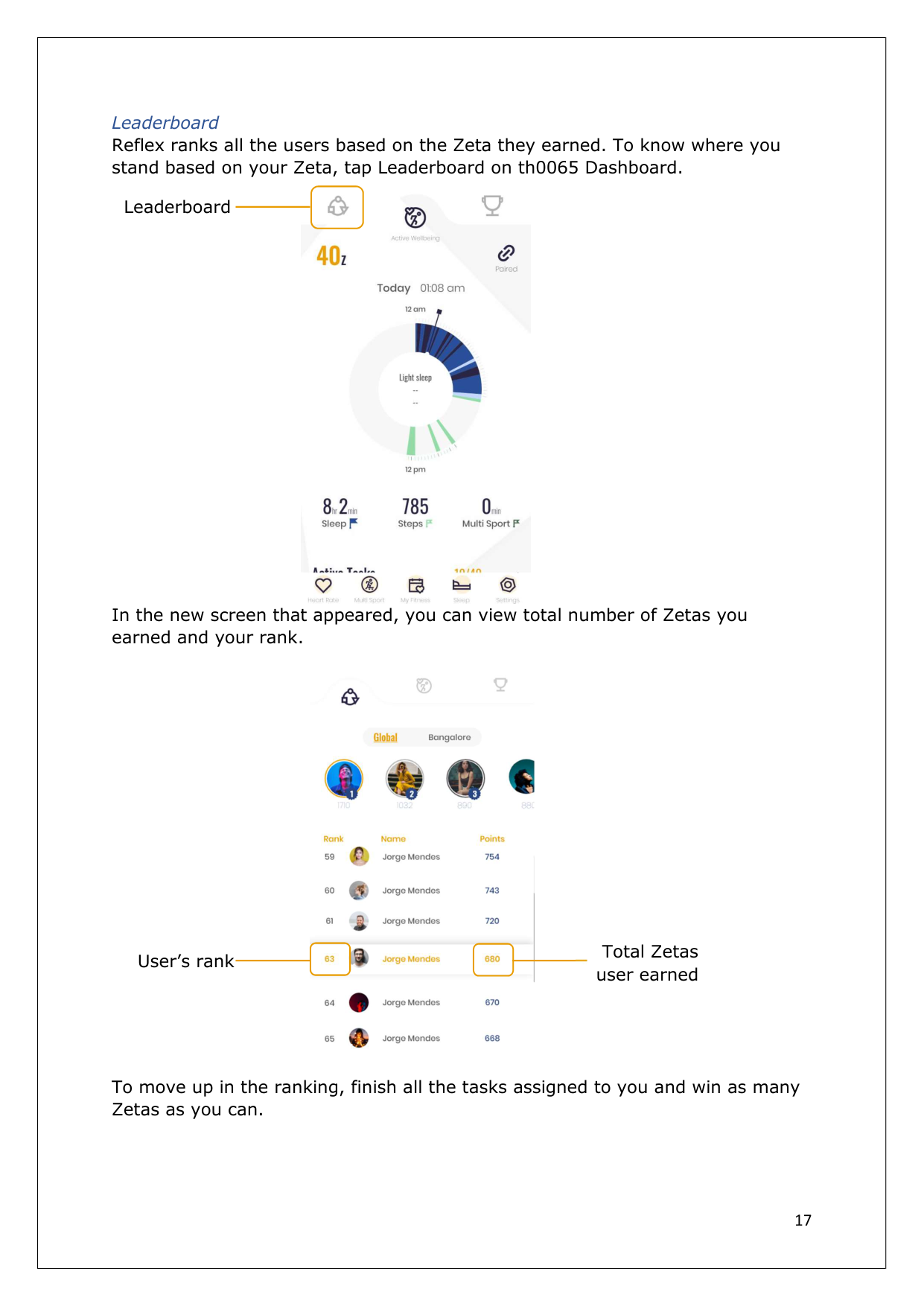
Leaderboard Reflex ranks all the users based on the Zeta they earned. To know where you stand based on your Zeta, tap Leaderboard on th0065 Dashboard.
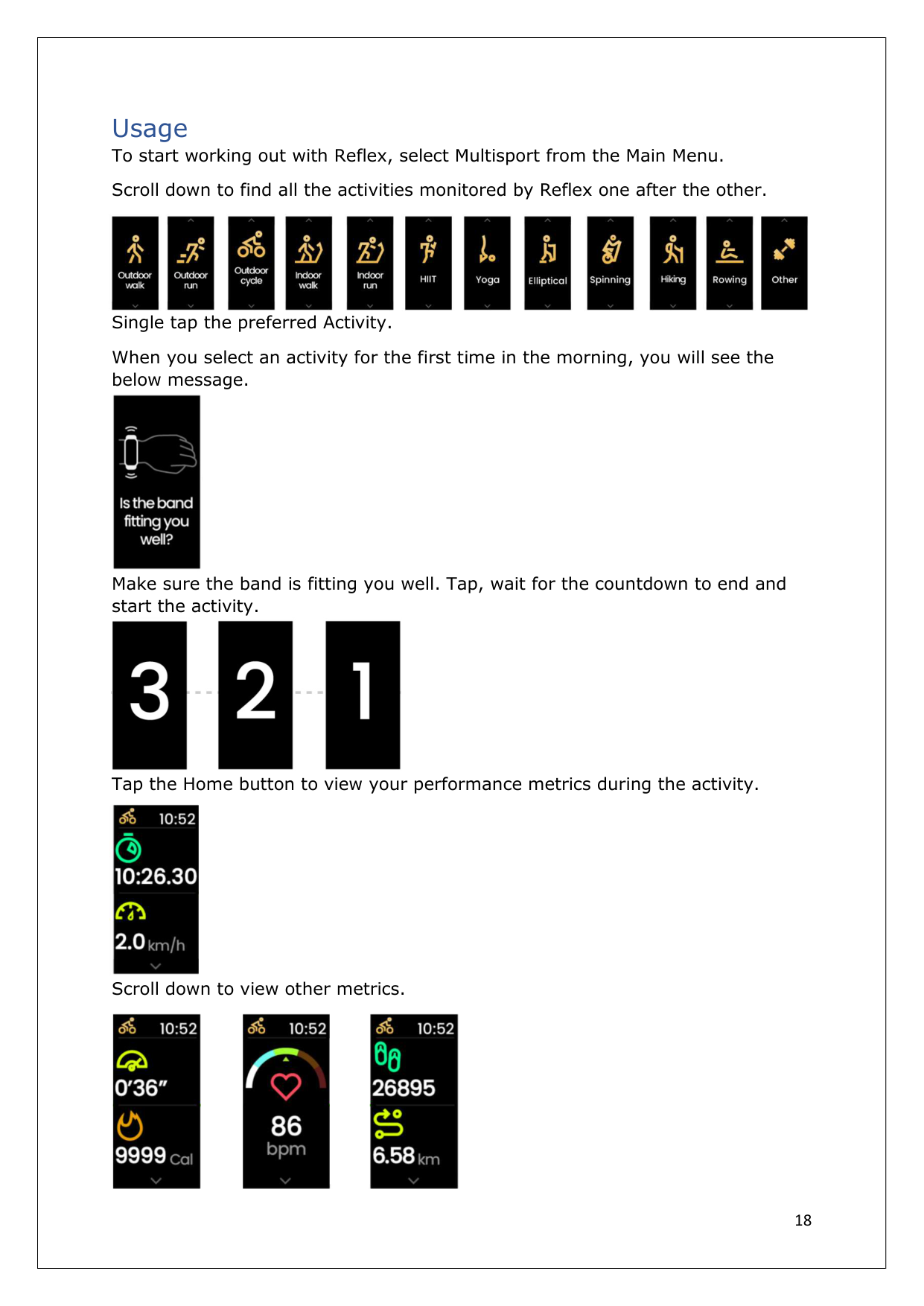
In the new screen that appeared, you can view total number of Zetas you earned and your rank.
To move up in the ranking, finish all the tasks assigned to you and win as many Zetas as you can.

Leaderboard


User’s rank

Total Zetas user earned| |---|
|18
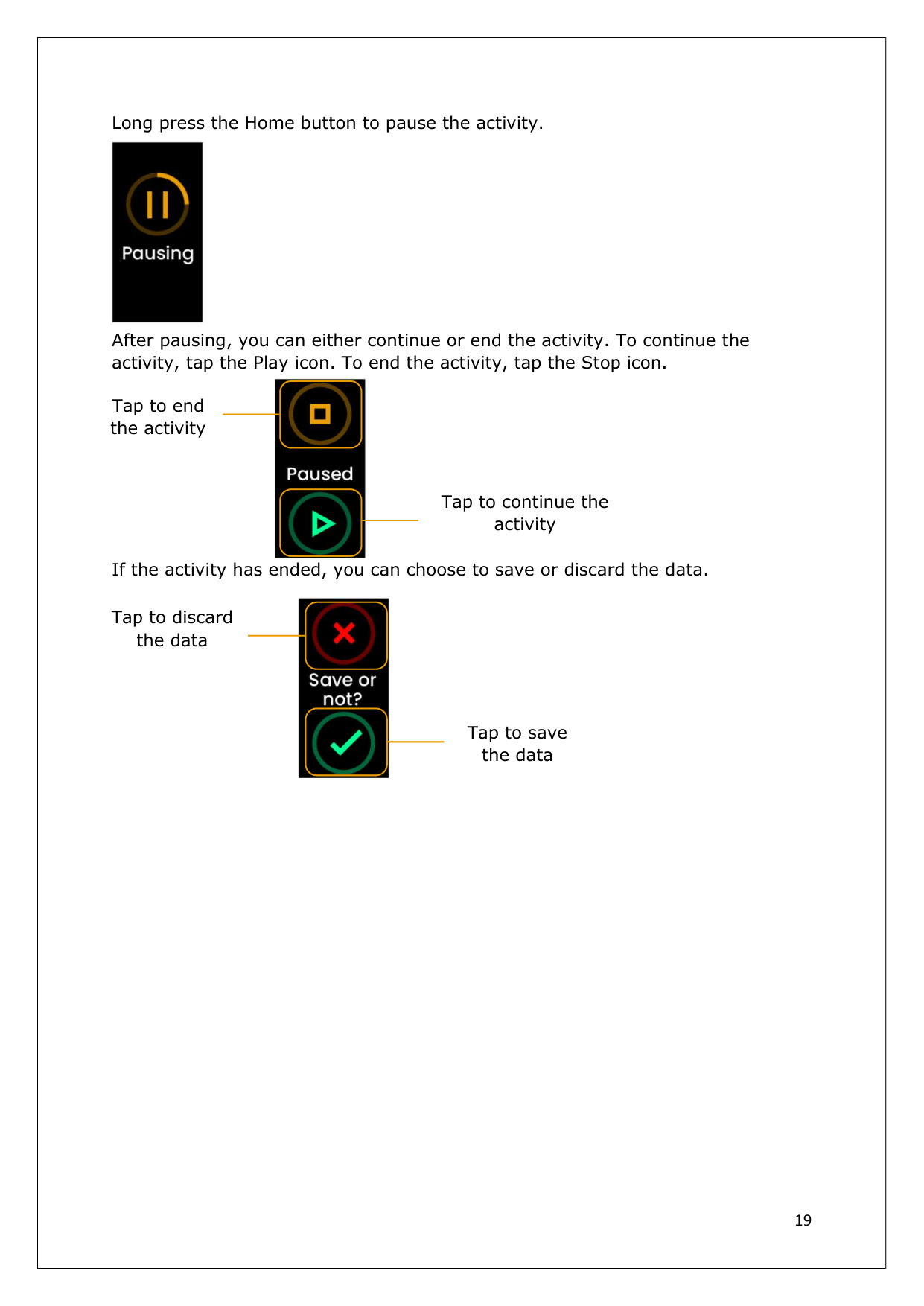
Usage To start working out with Reflex, select Multisport from the Main Menu. Scroll down to find all the activities monitored by Reflex one after the other.
Single tap the preferred Activity. When you select an activity for the first time in the morning, you will see the below message.
Make sure the band is fitting you well. Tap, wait for the countdown to end and start the activity.
Tap the Home button to view your performance metrics during the activity.
Scroll down to view other metrics.


| |---|
|19
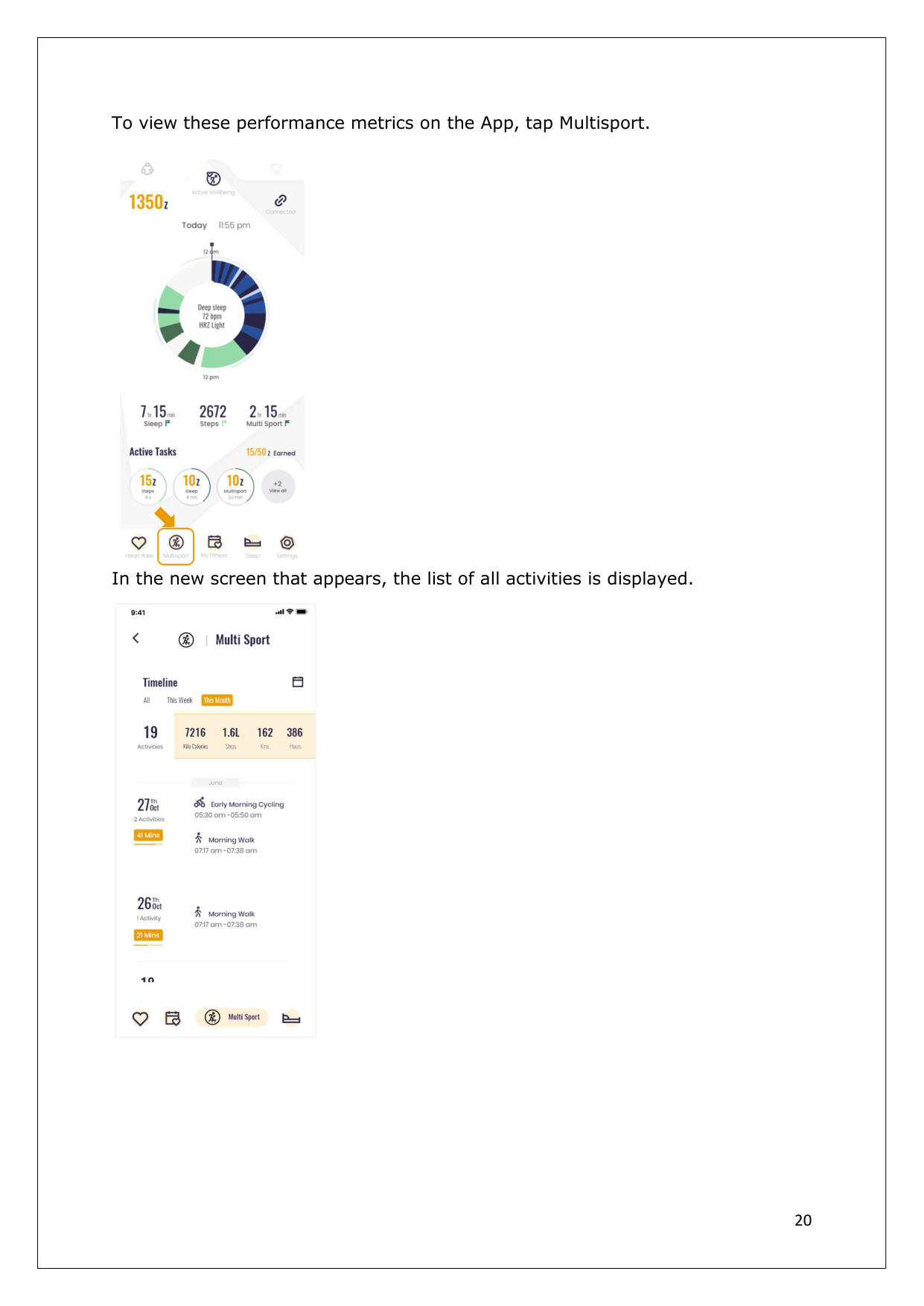
Long press the Home button to pause the activity.
After pausing, you can either continue or end the activity. To continue the activity, tap the Play icon. To end the activity, tap the Stop icon.
If the activity has ended, you can choose to save or discard the data.


Tap to discard the data

Tap to save the data


Tap to end the activity

Tap to continue the activity
| |---|
|20
To view these performance metrics on the App, tap Multisport.
In the new screen that appears, the list of all activities is displayed.

| |---|
|21
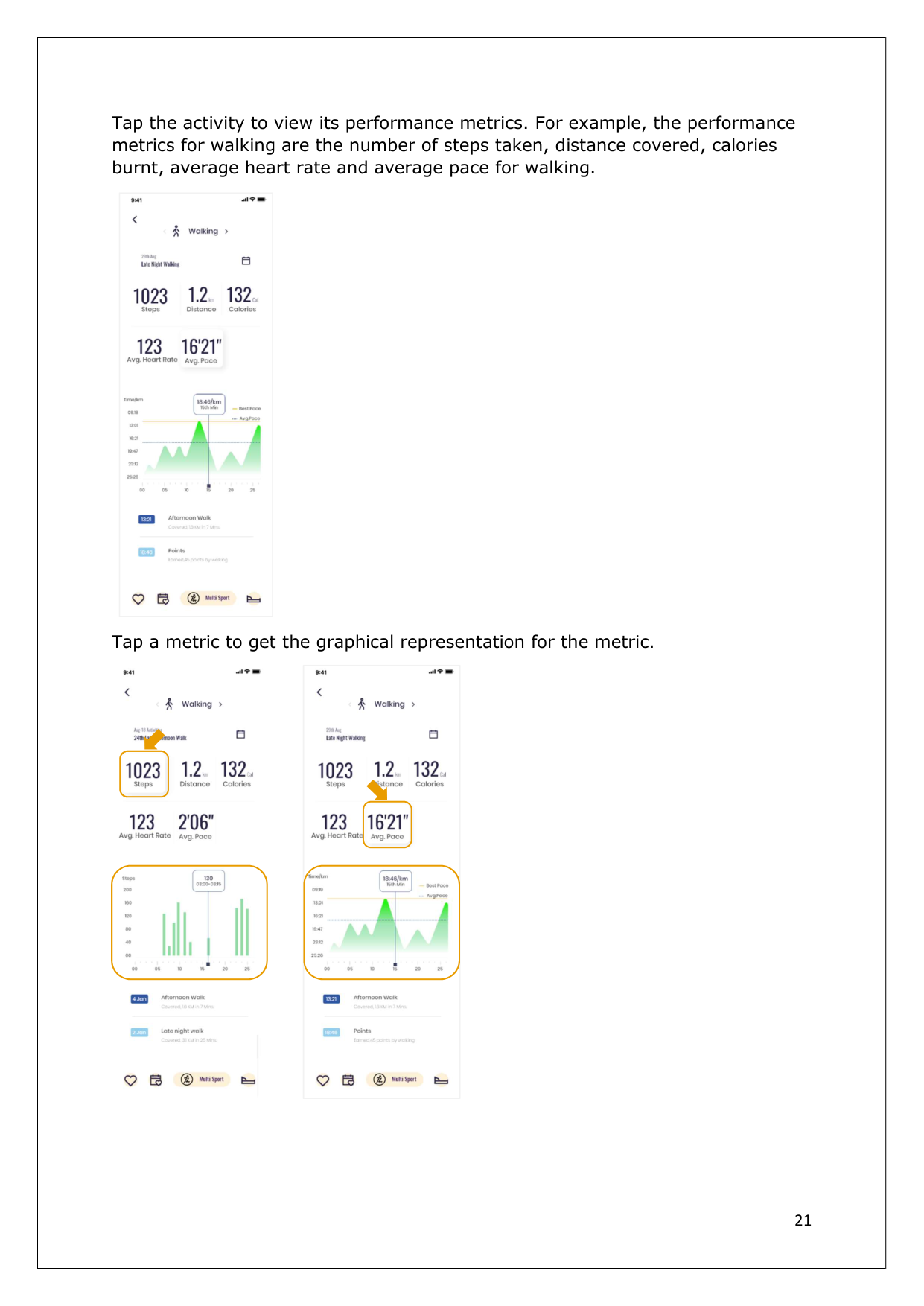
Tap the activity to view its performance metrics. For example, the performance metrics for walking are the number of steps taken, distance covered, calories burnt, average heart rate and average pace for walking.
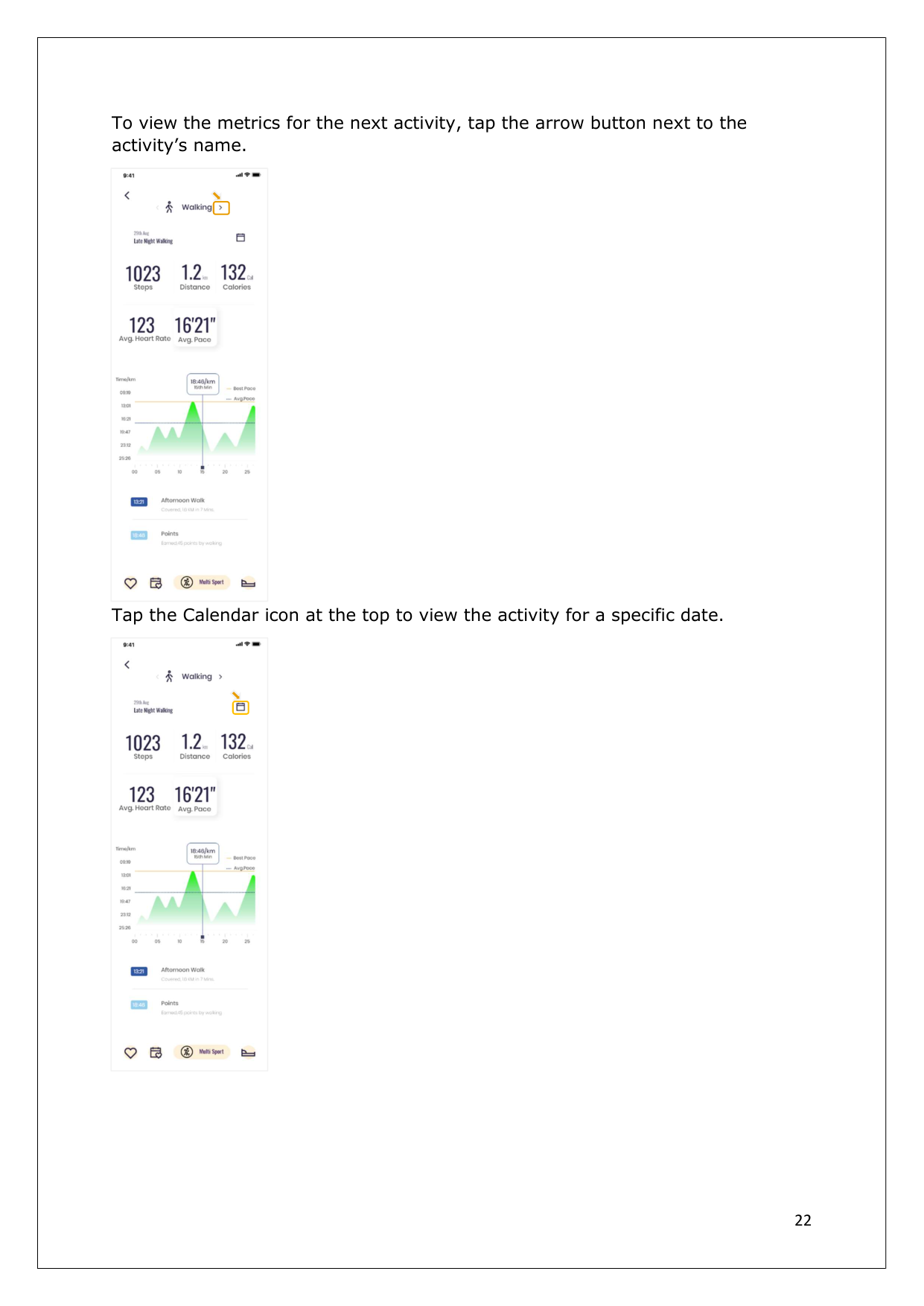
Tap a metric to get the graphical representation for the metric.


| |---|
|22
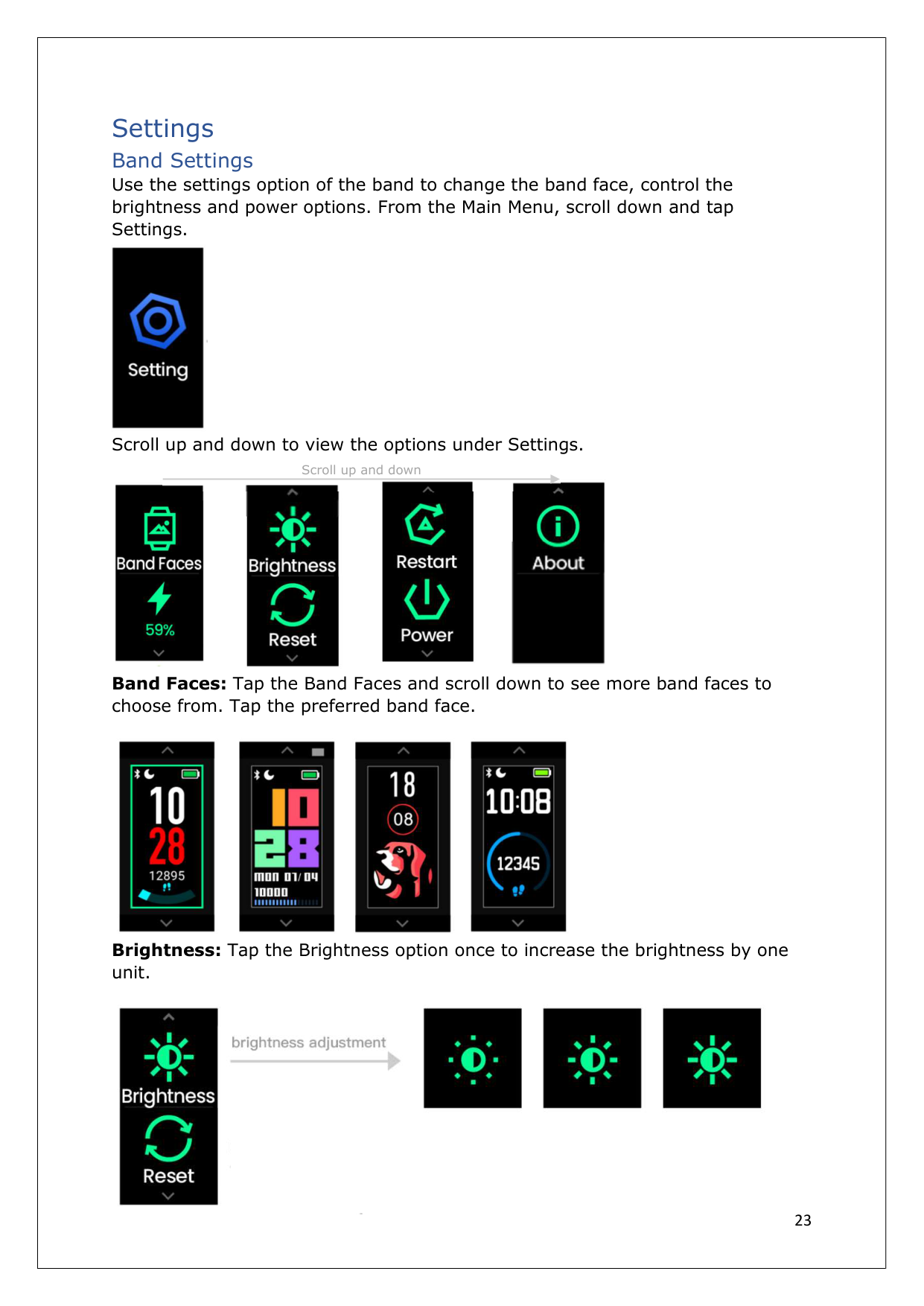
To view the metrics for the next activity, tap the arrow button next to the activity’s name.
Tap the Calendar icon at the top to view the activity for a specific date.

| |---|
|23
Settings Band Settings
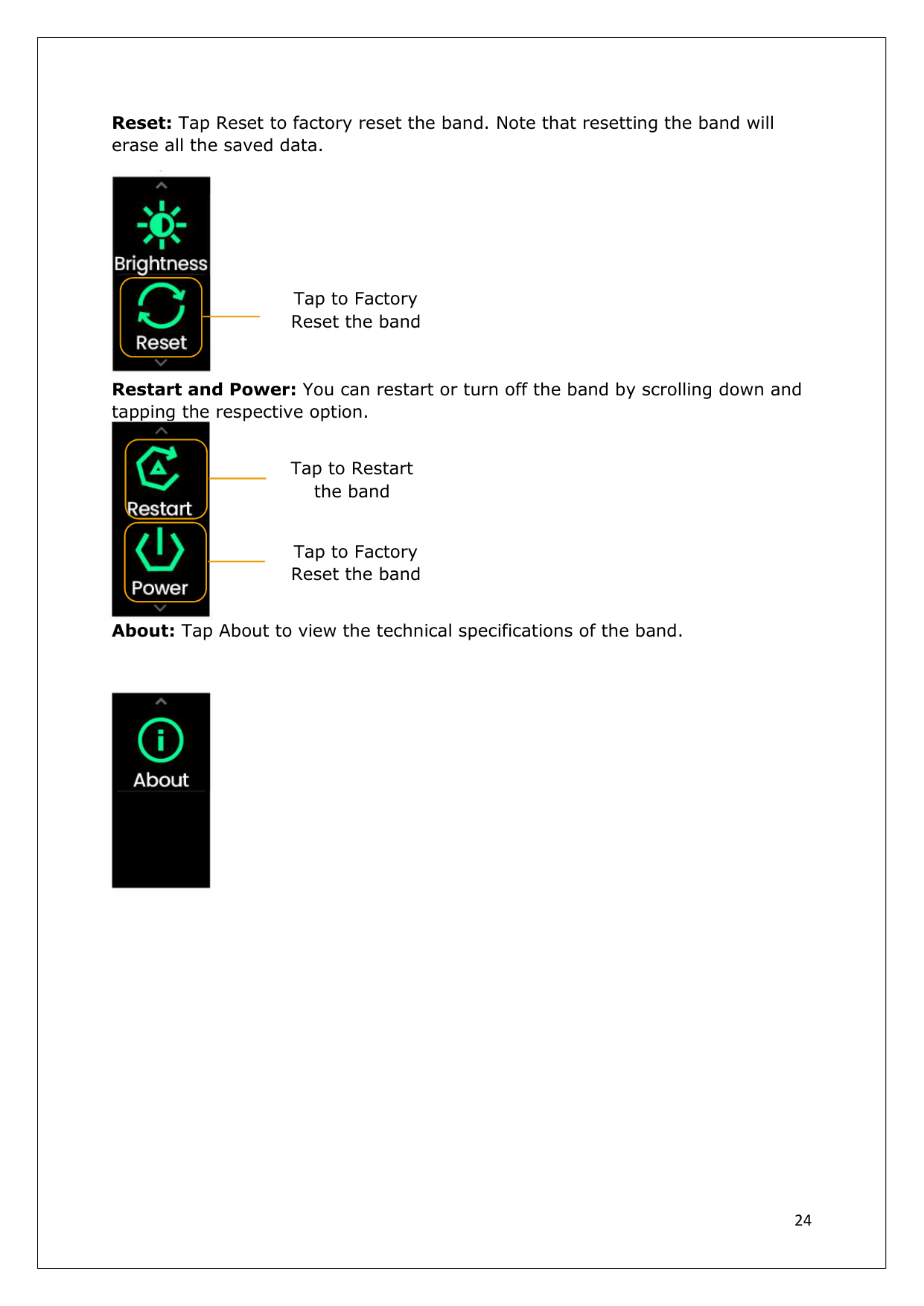
Use the settings option of the band to change the band face, control the brightness and power options. From the Main Menu, scroll down and tap Settings.
Scroll up and down to view the options under Settings.
Band Faces: Tap the Band Faces and scroll down to see more band faces to choose from. Tap the preferred band face.
Brightness: Tap the Brightness option once to increase the brightness by one unit.


Scroll up and down| |---|
|24
Reset: Tap Reset to factory reset the band. Note that resetting the band will erase all the saved data.
Restart and Power: You can restart or turn off the band by scrolling down and tapping the respective option.
About: Tap About to view the technical specifications of the band.


Tap to Factory Reset the band

Tap to Restart the band


Tap to Factory Reset the band| |---|
|25
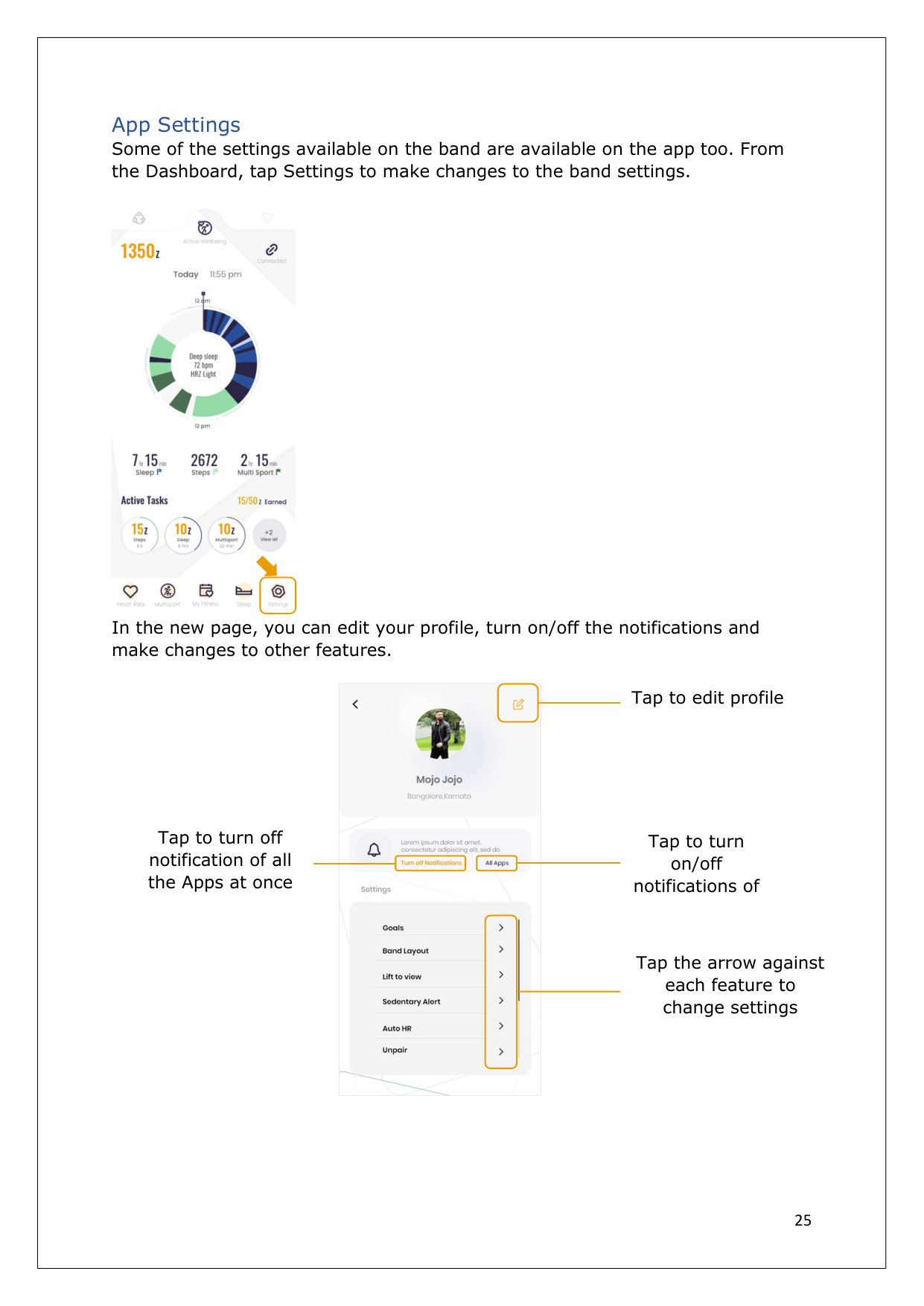
App Settings Some of the settings available on the band are available on the app too. From the Dashboard, tap Settings to make changes to the band settings.
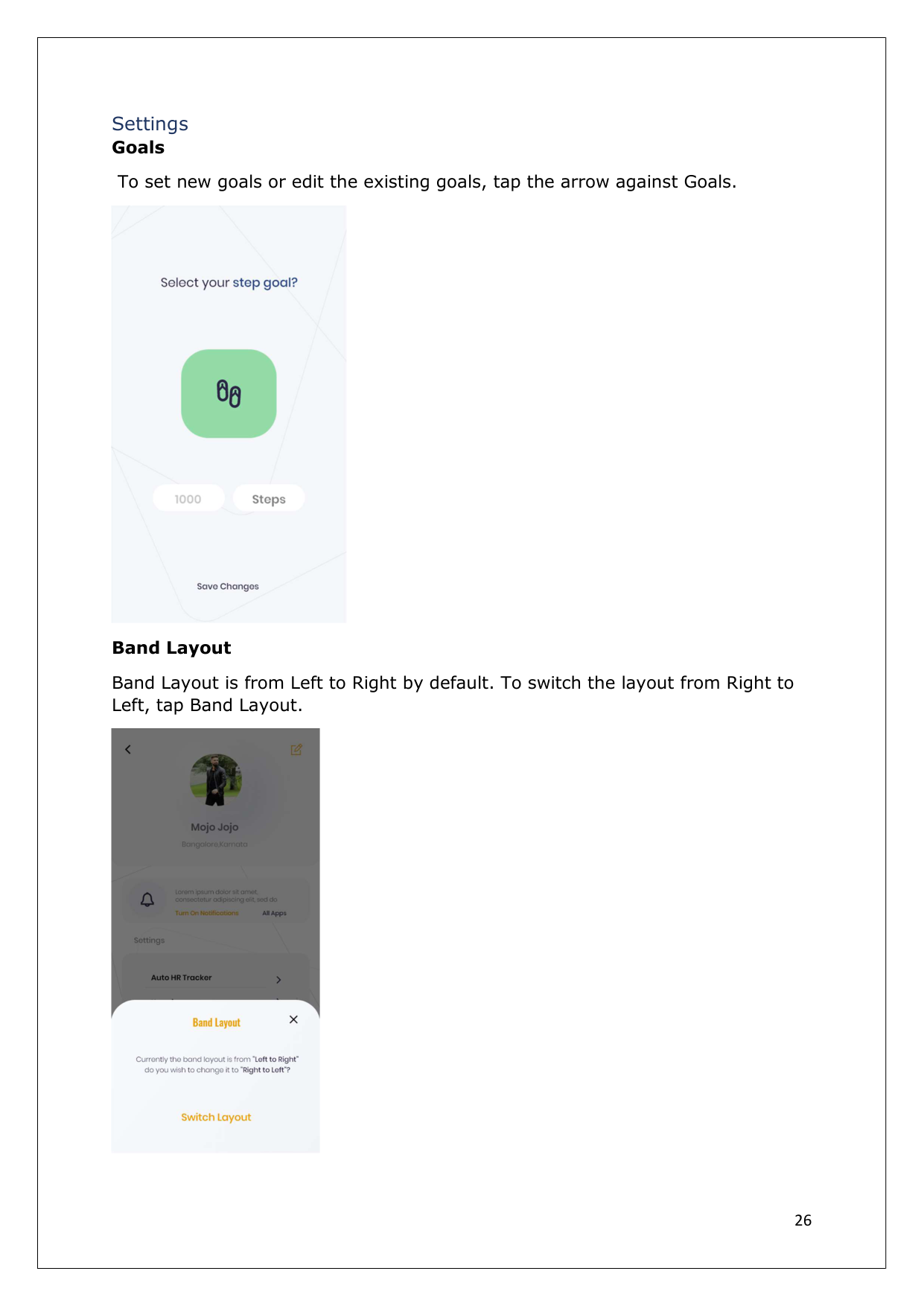
In the new page, you can edit your profile, turn on/off the notifications and make changes to other features.


Tap to edit profile

Tap to turn off notification of all the Apps at once

Tap to turn on/off notifications of

Tap the arrow against each feature to change settings| |---|
|26
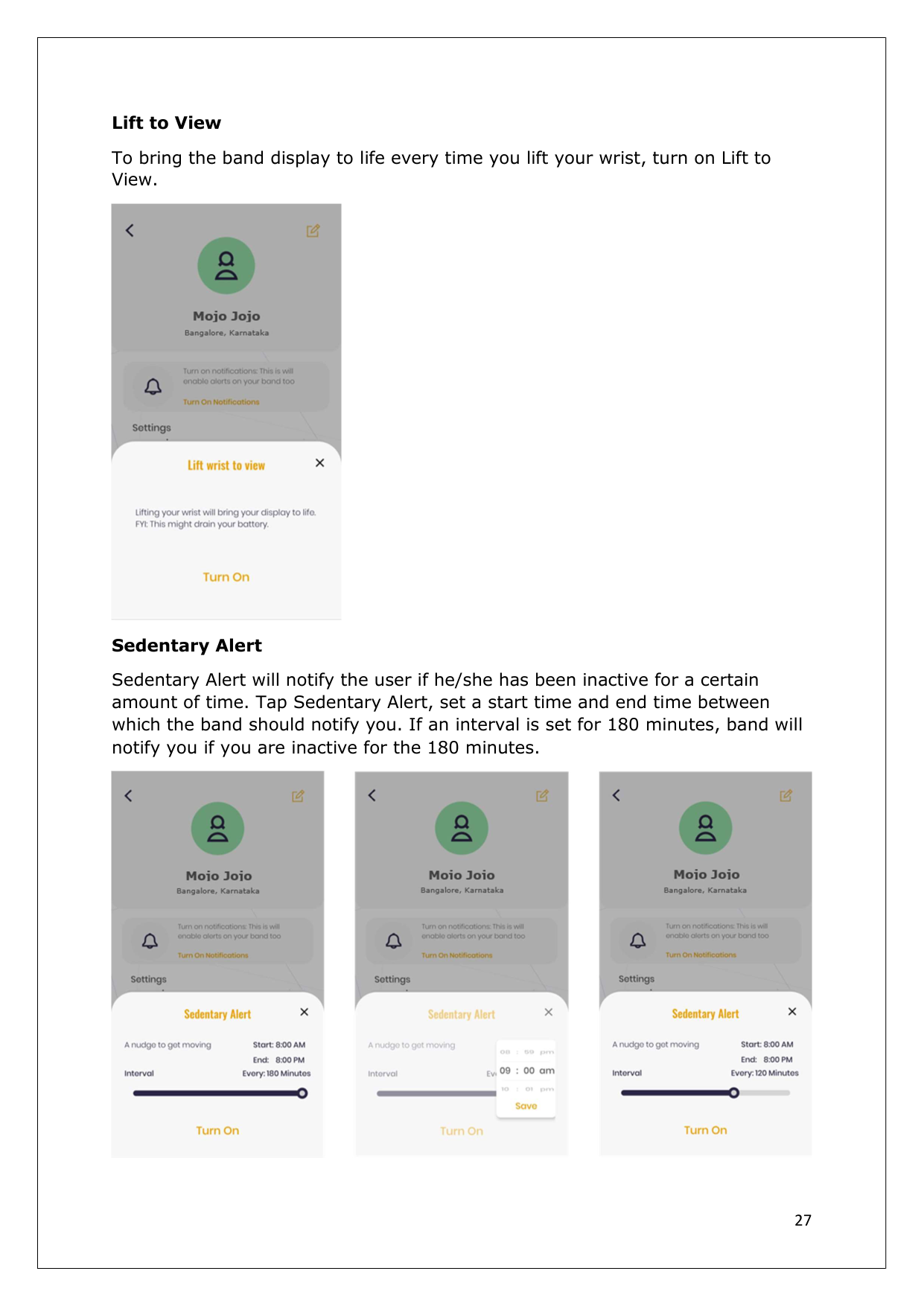
Settings Goals
To set new goals or edit the existing goals, tap the arrow against Goals.
Band Layout
Band Layout is from Left to Right by default. To switch the layout from Right to Left, tap Band Layout.

| |---|
|27
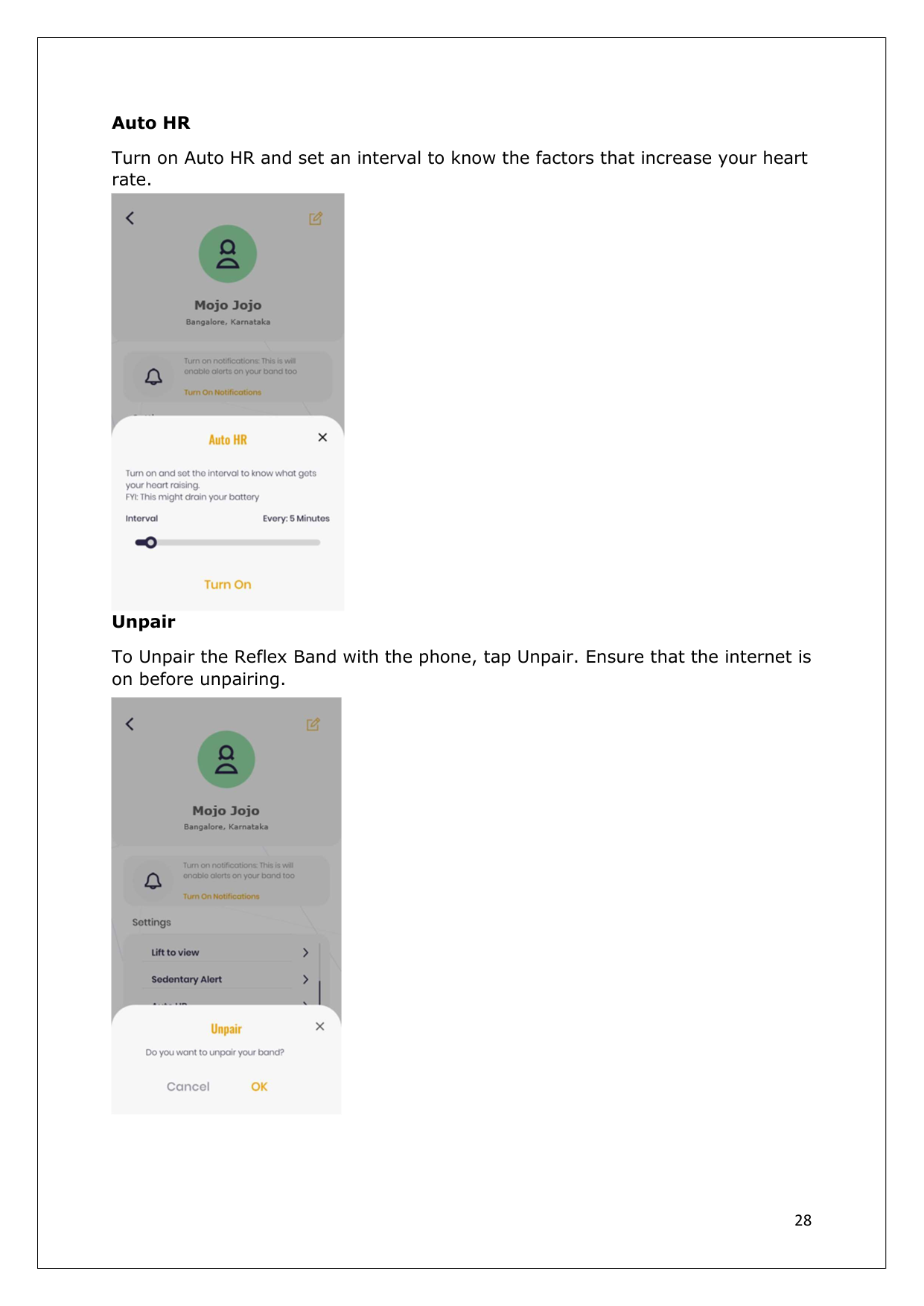
Lift to View
To bring the band display to life every time you lift your wrist, turn on Lift to View.
Sedentary Alert
Sedentary Alert will notify the user if he/she has been inactive for a certain amount of time. Tap Sedentary Alert, set a start time and end time between which the band should notify you. If an interval is set for 180 minutes, band will notify you if you are inactive for the 180 minutes.

| |---|
|28
Auto HR
Turn on Auto HR and set an interval to know the factors that increase your heart rate.
Unpair
To Unpair the Reflex Band with the phone, tap Unpair. Ensure that the internet is on before unpairing.

| |---|
|29
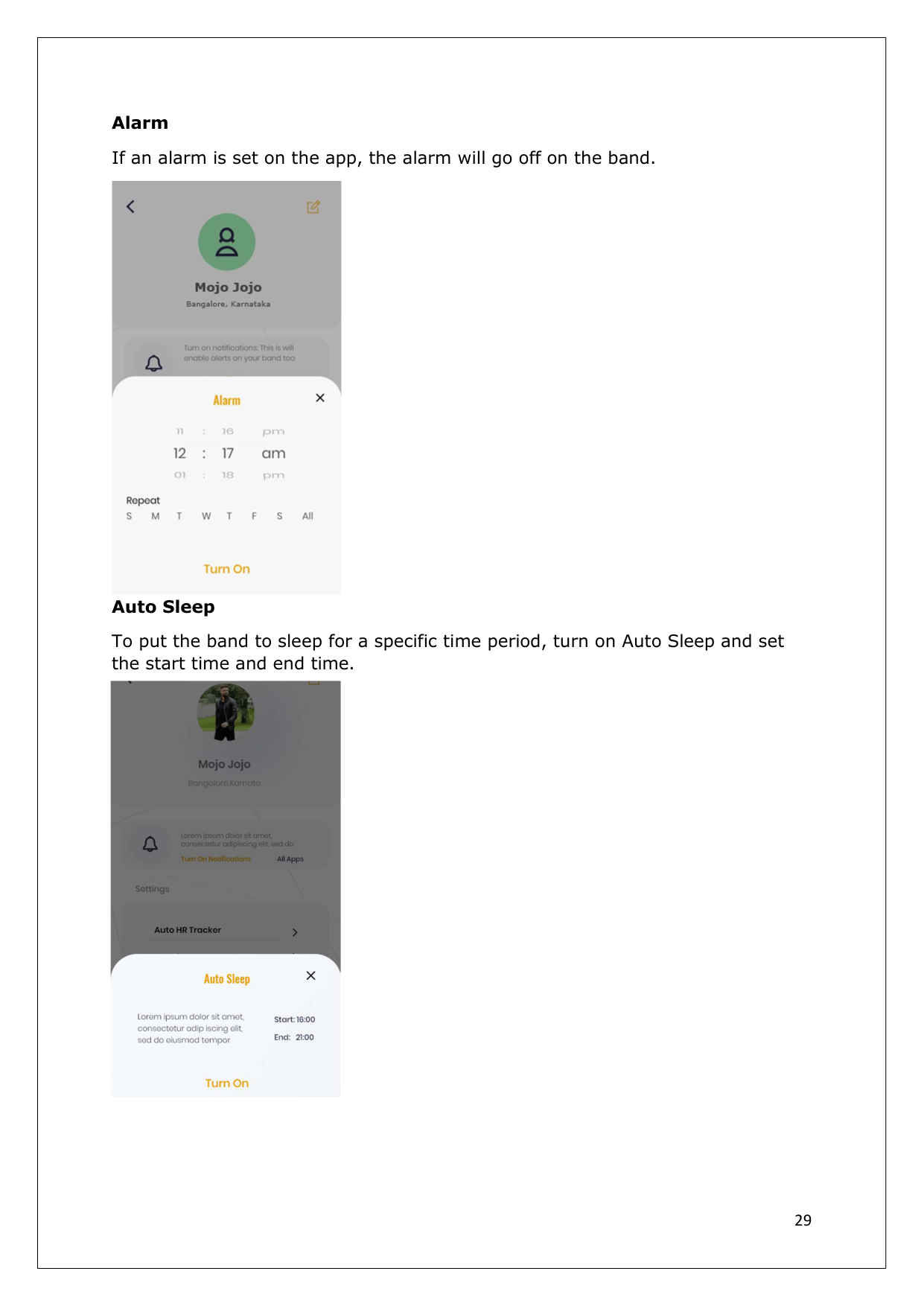
Alarm If an alarm is set on the app, the alarm will go off on the band.
Auto Sleep
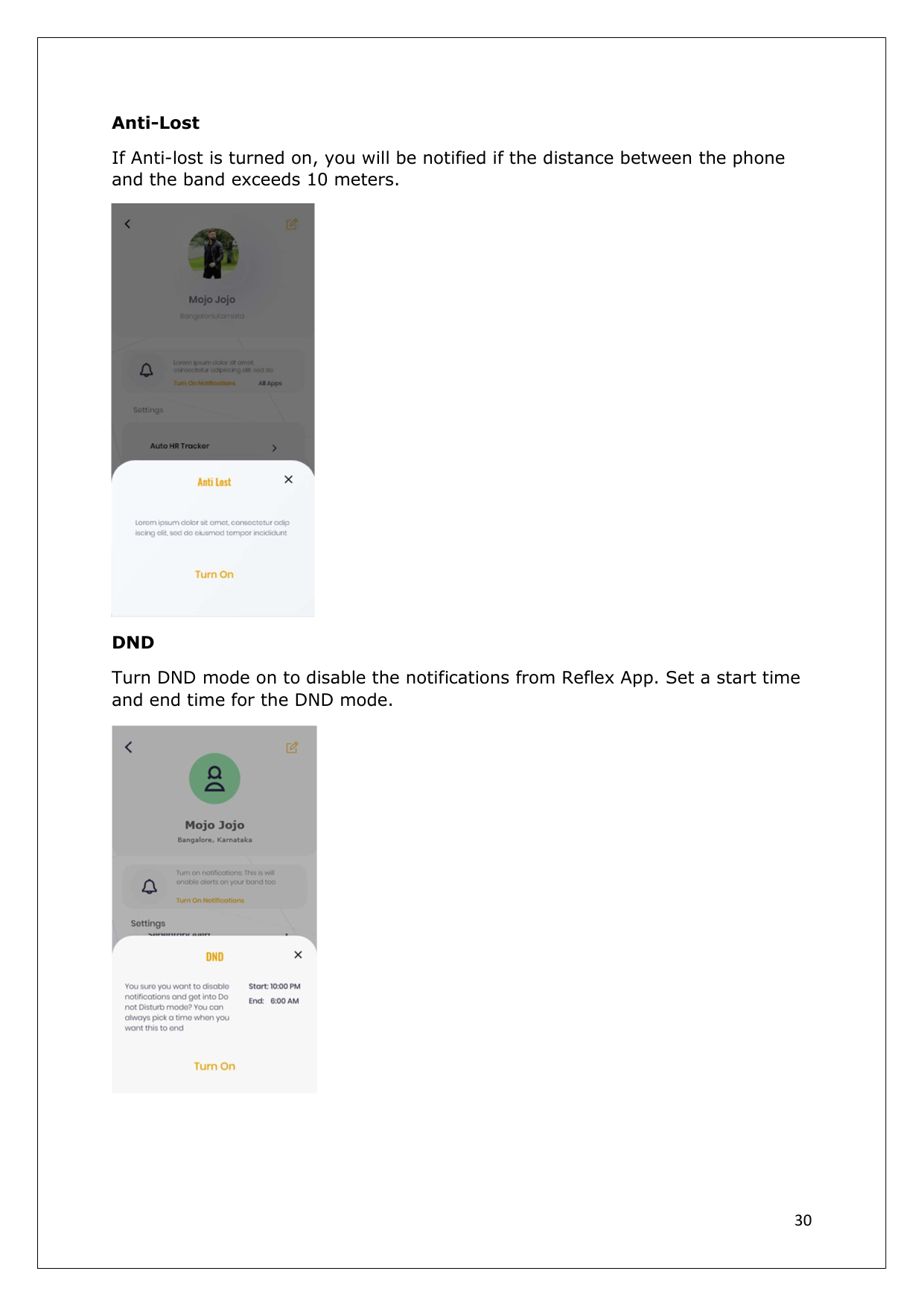
To put the band to sleep for a specific time period, turn on Auto Sleep and set the start time and end time.

| |---|
|30
Anti-Lost
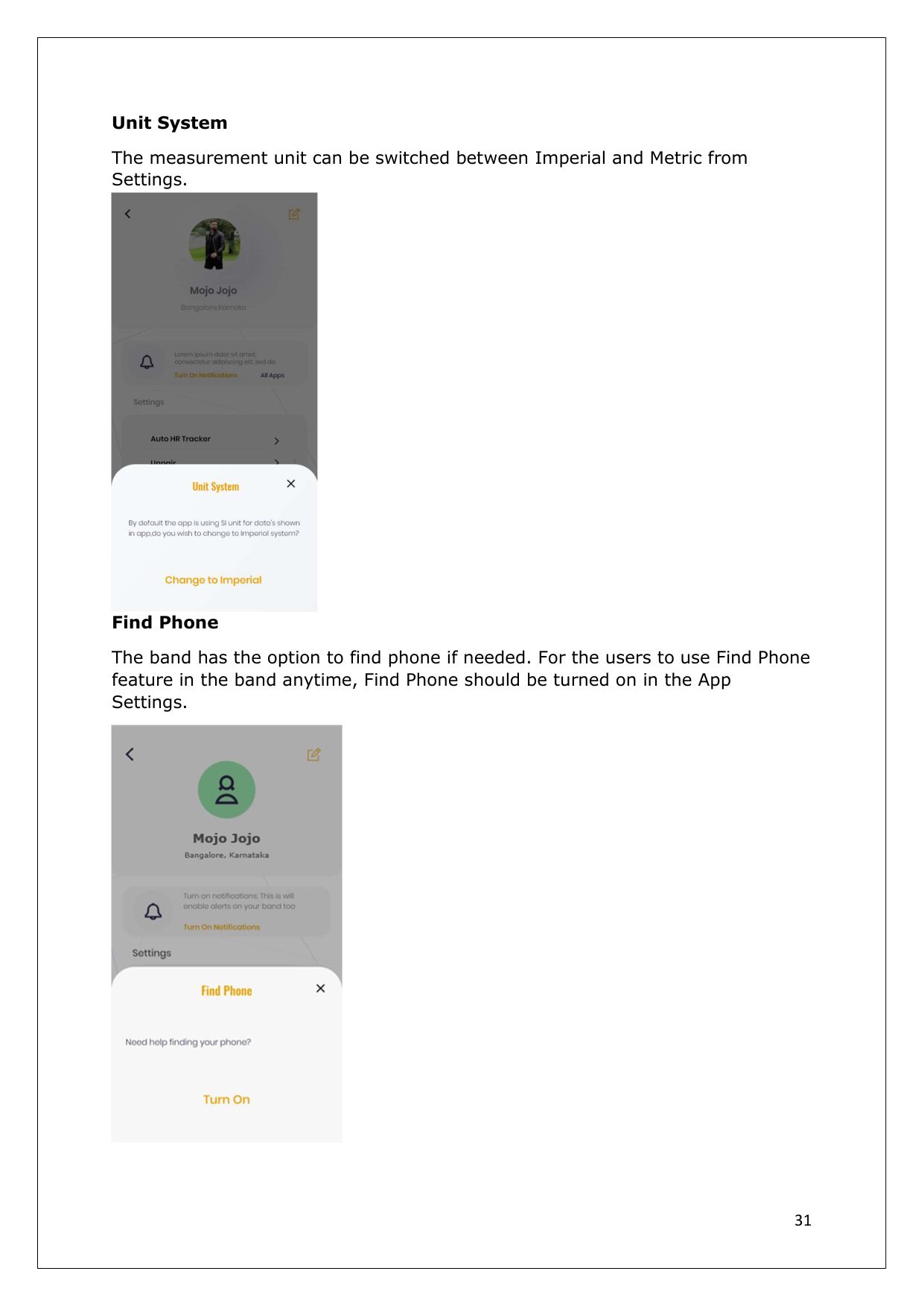
If Anti-lost is turned on, you will be notified if the distance between the phone and the band exceeds 10 meters.
DND
Turn DND mode on to disable the notifications from Reflex App. Set a start time and end time for the DND mode.

| |---|
|31
Unit System
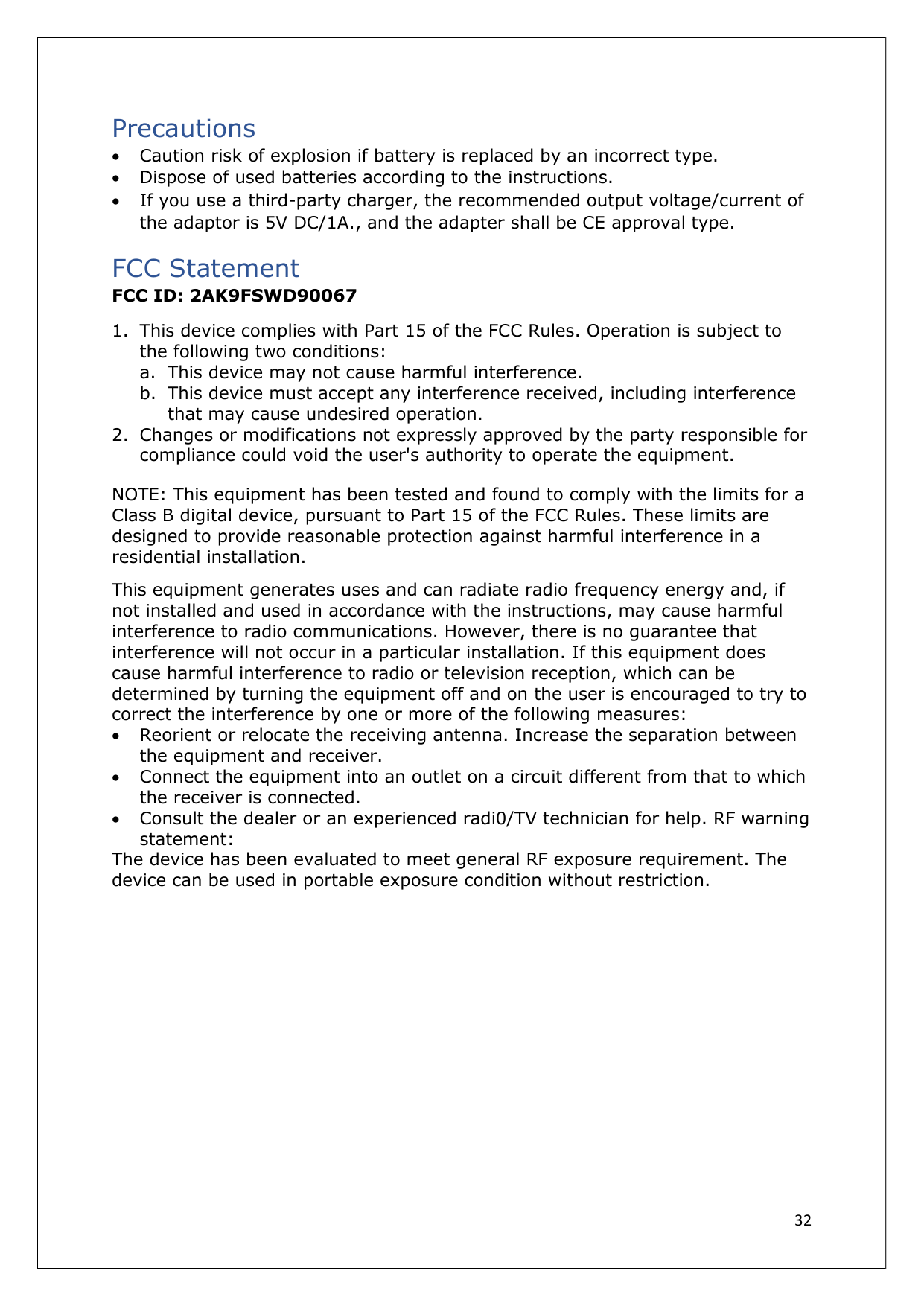
The measurement unit can be switched between Imperial and Metric from Settings.
Find Phone
The band has the option to find phone if needed. For the users to use Find Phone feature in the band anytime, Find Phone should be turned on in the App Settings.

| |---|
|32
Precautions
Caution risk of explosion if battery is replaced by an incorrect type.
Dispose of used batteries according to the instructions.
If you use a third-party charger, the recommended output voltage/current of the adaptor is 5V DC/1A., and the adapter shall be CE approval type.
FCC Statement
FCC ID: 2AK9FSWD90067
1. This device complies with Part 15 of the FCC Rules. Operation is subject to the following two conditions:
a. This device may not cause harmful interference.
b. This device must accept any interference received, including interference that may cause undesired operation.
2. Changes or modifications not expressly approved by the party responsible for compliance could void the user's authority to operate the equipment.
NOTE: This equipment has been tested and found to comply with the limits for a Class B digital device, pursuant to Part 15 of the FCC Rules. These limits are designed to provide reasonable protection against harmful interference in a residential installation.
This equipment generates uses and can radiate radio frequency energy and, if not installed and used in accordance with the instructions, may cause harmful interference to radio communications. However, there is no guarantee that interference will not occur in a particular installation. If this equipment does cause harmful interference to radio or television reception, which can be determined by turning the equipment off and on the user is encouraged to try to correct the interference by one or more of the following measures:
Reorient or relocate the receiving antenna. Increase the separation between the equipment and receiver.
Connect the equipment into an outlet on a circuit different from that to which the receiver is connected.
Consult the dealer or an experienced radi0/TV technician for help. RF warning statement:
The device has been evaluated to meet general RF exposure requirement. The device can be used in portable exposure condition without restriction.| |---|
|33
Certifications and Safety Approvals Hereby, Shenzhen DO Intelligent Technology Co., Ltd. declared that the radio equipment type (Smart Band – SWD90067) is in compliance with Directive 2014/53.EU. The full text of the EU declaration of conformity is available at the following internet address: http://www.i-doo.cn
This product can be used across EU member states. Manufacturer: Shenzhen DO Intelligent Technology Co., Ltd. Address: Floor 11, Building 3, Changyi Industrial Factory, No.1 Lirong Road, Xinshi Community, Dalang Sub-district, Longhua District, Shenzhen City, Guangdong, China Warranty
The warranty on the Fastrack Reflex 3.0 Band smart module lasts for 1 year from the date of purchase. This warranty covers defects in the smart module. The strap of the band is excluded from warranty.| |---|