Ask AI
— answers from the official manualAnswers from the official manual.
Common questions
Common Questions
17 totalHow do I safely open the computer case to access internal components?
First, disconnect the power cord from the power source before opening the computer to prevent system board or component damage. Pull up the access panel handle and then lift the panel off the computer. You must also close any open software applications, exit the operating system, and disconnect all peripheral cables before beginning. (Page 19)
What are the memory specifications required for upgrading RAM in the EliteDesk 800 G2 SFF?
The computer requires industry-standard 288-pin, unbuffered non-ECC PC4-17000 DDR4-2133 MHz-compliant, 1.2 volt DDR4-SDRAM DIMMs. The DIMMs must support CAS latency 15 DDR4 2133 MHz (15-15-15 timing) and contain mandatory JEDEC SPD information. The system board can support up to 64-GB of memory across four DIMM sockets. (Page 22)
How do I prevent electrostatic discharge damage when working inside the computer?
Always ensure you are discharged of static electricity by briefly touching a grounded metal object before handling components. Use wrist straps with a maximum of one-megohm ± 10% resistance connected to a grounding mat, and transport components in static-safe containers such as tubes, bags, or boxes. Keep electrostatic sensitive parts in their containers until they arrive at a static-free workstation. (Page 21)
Which SATA connector should the primary hard drive be connected to on the system board?
The primary Serial ATA (SATA) hard drive must be connected to the dark blue primary SATA connector on the system board labeled SATA0. Connecting the primary hard drive to any other connector may cause hard drive performance problems. Secondary hard drives and optical drives should be connected to the light blue SATA connectors labeled SATA1 and SATA2. (Page 33)
How should I clean the computer case safely?
For light stains or dirt, use plain water with a clean, lint-free cloth or swab. For stronger stains, use a mild dishwashing liquid diluted with water, then rinse by wiping with a cloth dampened with clear water. For stubborn stains, use isopropyl (rubbing) alcohol, which requires no rinsing as it evaporates quickly. Always unplug the computer before cleaning with liquids or damp cloths. (Page 13)
How do I install additional memory DIMMs?
Disassemble the computer properly as outlined, then with access panel removed and latches open on socket, insert modules carefully. Ensure notches align properly before pressing down to ensure proper seating and closed latches.
Show 11 more questions
How do I clean my monitor screen without damaging it?
What to do if the power LED is flashing red on my HP Elitedesk?
What does it mean when the Power On Light is flashing red?
Is it safe to put the computer in Sleep mode when leaving it unattended?
How do I install additional memory modules in the correct order for best performance?
What are the operating guidelines to prevent the computer from overheating?
What is the warning regarding the lithium coin cell battery in this computer?
How do I replace a hard drive in my HP Elitedesk 800 G2 SFF?
What safety precautions should I follow when handling hard drives?
How do I clean the rear panel of my HP Elitedesk?
How do I remove the front bezel to access internal components?
Full Manual
153 pages

Maintenance and Service Guide HP EliteDesk 800 G2 SFF Business PC

© Copyright 2015 HP Development Company,
L.P.
AMD is a trademark of Advanced Micro Devices, Inc. Bluetooth is a trademark owned by its proprietor and used by HP Inc. under license. Intel, Celeron, and Pentium are trademarks of Intel Corporation in the U.S. and other countries. Microsoft and Windows are trademarks of the Microsoft group of companies. The information contained herein is subject to change without notice. The only warranties for HP products and services are set forth in the express warranty statements accompanying such products and services. Nothing herein should be construed as constituting an additional warranty. HP shall not be liable for technical or editorial errors or omissions contained herein. First Edition (October 2015) Document Part Number: 823454-001 Product notice This user guide describes features that are common to most models. Some features may not be available on your computer. Not all features are available in all editions of Windows. This computer may require upgraded and/or separately purchased hardware, drivers and/or software to take full advantage of Windows functionality. Go to http://www.microsoft.com for details. Software terms By installing, copying, downloading, or otherwise using any software product preinstalled on this computer, you agree to be bound by the terms of the HP End User License Agreement (EULA). If you do not accept these license terms, your sole remedy is to return the entire unused product (hardware and software) within 14 days for a full refund subject to the refund policy of your seller. For any further information or to request a full refund of the price of the computer, please contact your seller.
Safety warning notice
Warning!
To reduce the possibility of heat-related injuries or of overheating the device, do not place the device directly on your lap or obstruct the device air vents. Use the device only on a hard, flat surface. Do not allow another hard surface, such as an adjoining optional printer, or a soft surface, such as pillows or rugs or clothing, to block airflow. Also, do not allow the AC adapter to contact the skin or a soft surface, such as pillows or rugs or clothing, during operation. The device and the AC adapter comply with the user-accessible surface temperature limits defined by the International Standard for Safety of Information Technology Equipment (IEC 60950). iii
iv Safety warning notice

Table of contents 1 Product features ........................................................................................................................................... 1 Standard configuration features ........................................................................................................................... 1 Front panel components ........................................................................................................................................ 2 Rear panel components ......................................................................................................................................... 3 Serial number location .......................................................................................................................................... 4 2 Illustrated parts catalog ................................................................................................................................ 5 Small Form Factor (SFF) chassis spare parts ........................................................................................................ 5 Computer major components ............................................................................................................. 5 Misc parts ............................................................................................................................................. 6 Drives ................................................................................................................................................... 8 3 Routine care, SATA drive guidelines, and disassembly preparation .................................................................. 10 Electrostatic discharge information .................................................................................................................... 10 Generating static ............................................................................................................................... 10 Preventing electrostatic damage to equipment ............................................................................... 11 Personal grounding methods and equipment .................................................................................. 11 Grounding the work area ................................................................................................................... 11 Recommended materials and equipment ........................................................................................ 12 Operating guidelines ........................................................................................................................................... 12 Routine care ......................................................................................................................................................... 13 General cleaning safety precautions ................................................................................................ 13 Cleaning the Computer Case ............................................................................................................. 13 Cleaning the keyboard ....................................................................................................................... 13 Cleaning the monitor ......................................................................................................................... 14 Cleaning the mouse ........................................................................................................................... 14 Service considerations ......................................................................................................................................... 14 Power supply fan ............................................................................................................................... 14 Tools and software Requirements .................................................................................................... 14 Screws ............................................................................................................................................... 15 Cables and connectors ...................................................................................................................... 15 Hard Drives ........................................................................................................................................ 15 Lithium coin cell battery .................................................................................................................... 15 SATA hard drives .................................................................................................................................................. 16 SATA hard drive cables ......................................................................................................................................... 16 SATA data cable ................................................................................................................................. 16 v

SMART ATA drives ................................................................................................................................................ 16 Cable management .............................................................................................................................................. 17 4 Removal and replacement procedures – small form factor (SFF) chassis .......................................................... 18 Preparation for disassembly ............................................................................................................................... 18 Access panel ......................................................................................................................................................... 19 Front bezel ........................................................................................................................................................... 19 Front bezel security ............................................................................................................................................. 20 Slim optical drive bezel blank .............................................................................................................................. 21 Memory ................................................................................................................................................................ 22 DIMMs ................................................................................................................................................ 22 DDR4-SDRAM DIMMs ......................................................................................................................... 22 Populating DIMM sockets .................................................................................................................. 22 Installing DIMMs ................................................................................................................................ 23 Expansion card ..................................................................................................................................................... 25 WLAN module ...................................................................................................................................................... 29 Drives ................................................................................................................................................................... 31 System board connections ................................................................................................................ 32 Drive positions ................................................................................................................................... 33 Installing and Removing Drives ........................................................................................................ 33 Removing a 9.5 mm slim optical drive ........................................................................... 35 Installing a 9.5 mm slim optical drive ............................................................................ 36 Removing and replacing a primary 3.5-inch hard drive ................................................. 37 Removing a secondary 3.5-inch hard drive .................................................................... 40 Installing a secondary 3.5-inch hard drive ..................................................................... 41 Removing a 2.5-inch hard drive ...................................................................................... 43 Installing a 2.5-inch hard drive ....................................................................................... 44 Drive power cable ................................................................................................................................................ 47 Small baffle .......................................................................................................................................................... 48 Fan baffle ............................................................................................................................................................. 49 Hood lock ............................................................................................................................................................. 50 Hood sensor ......................................................................................................................................................... 52 Front I/O assembly ............................................................................................................................................... 53 Power switch ........................................................................................................................................................ 55 Card reader ........................................................................................................................................................... 56 Speaker ................................................................................................................................................................ 57 Fan sink ................................................................................................................................................................ 58 Processor ............................................................................................................................................................. 59 Power supply ....................................................................................................................................................... 60 System board ....................................................................................................................................................... 62 System board callouts ....................................................................................................................... 63 vi

Using the Small Form Factor Computer in a Tower Orientation ......................................................................... 64 5 Computer Setup (F10) Utility ........................................................................................................................ 65 Computer Setup (F10) Utilities ............................................................................................................................ 65 Using Computer Setup (F10) Utilities ................................................................................................ 65 Computer Setup–Main ....................................................................................................................... 67 Computer Setup—Security ............................................................................................................... 69 Computer Setup—Advanced ............................................................................................................. 71 Recovering the Configuration Settings ............................................................................................................... 76 6 Troubleshooting without diagnostics ............................................................................................................ 77 Safety and comfort .............................................................................................................................................. 77 Before you call for technical support .................................................................................................................. 77 Helpful hints ........................................................................................................................................................ 78 Solving general problems .................................................................................................................................... 79 Solving power problems ...................................................................................................................................... 83 Solving hard drive problems ................................................................................................................................ 84 Solving media card reader problems ................................................................................................................... 86 Solving display problems .................................................................................................................................... 87 Solving audio problems ....................................................................................................................................... 92 Solving printer problems ..................................................................................................................................... 94 Solving keyboard and mouse problems .............................................................................................................. 95 Solving Hardware Installation Problems ............................................................................................................. 97 Solving Network Problems .................................................................................................................................. 98 Solving memory problems ................................................................................................................................ 101 Solving CD-ROM and DVD problems .................................................................................................................. 102 Solving USB flash drive problems ..................................................................................................................... 105 Solving front panel component problems ........................................................................................................ 106 Solving Internet access problems ..................................................................................................................... 106 Solving software problems ............................................................................................................................... 108 7 POST error messages and diagnostic front panel LEDs and audible codes ....................................................... 109 POST numeric codes and text messages .......................................................................................................... 109 Interpreting system validation diagnostic front panel LEDs and audible codes .............................................. 114 8 Password security and resetting CMOS ........................................................................................................ 116 Resetting the password jumper ........................................................................................................................ 116 Clearing and resetting the BIOS ........................................................................................................................ 118 vii

9 Using HP PC Hardware Diagnostics (UEFI) ..................................................................................................... 119 Downloading HP PC Hardware Diagnostics (UEFI) to a USB device .................................................................. 119 10 System backup and recovery ..................................................................................................................... 121 Backing up, restoring, and recovering in Windows 10 ...................................................................................... 121 Creating recovery media and backups ............................................................................................ 121 Creating HP Recovery media (select products only) .................................................... 121 Using Windows tools ....................................................................................................................... 123 Restore and recovery ...................................................................................................................... 123 Recovering using HP Recovery Manager ...................................................................... 123 What you need to know before you get started ........................................ 123 Using the HP Recovery partition (select products only) ............................ 124 Using HP Recovery media to recover ......................................................... 124 Changing the computer boot order ............................................................ 125 Removing the HP Recovery partition (select products only) ..................... 125 Backing up, restoring, and recovering in Windows 8.1 or Windows 8 .............................................................. 125 Creating recovery media and backups ............................................................................................ 125 Restoring and recovering using Windows tools ............................................................................. 126 Using Reset when the system is not responding ......................................................... 126 Recovery using the Windows recovery USB flash drive ............................................... 127 Recovery using Windows operating system media (purchased separately) ............... 127 Backing up, restoring, and recovering in Windows 7 ........................................................................................ 127 Creating recovery media ................................................................................................................. 128 Creating recovery media using HP Recovery Manager (select models only) ............... 128 Creating recovery discs with HP Recovery Disc Creator (select models only) ............. 129 Creating recovery discs .............................................................................. 130 Backing up your information ........................................................................................ 130 System Restore ............................................................................................................................... 131 System Recovery ............................................................................................................................. 131 System Recovery when Windows is responding .......................................................... 131 System Recovery when Windows is not responding .................................................... 132 System Recovery using recovery media (select models only) ..................................... 132 Using HP Recovery Disc operating system discs (select models only) ........................ 133 Appendix A Battery replacement ................................................................................................................... 135 Appendix B Power Cord Set Requirements ...................................................................................................... 138 General Requirements ....................................................................................................................................... 138 Japanese Power Cord Requirements ................................................................................................................. 138 Country-Specific Requirements ........................................................................................................................ 139 viii

Appendix C Statement of Volatility ................................................................................................................ 140 Appendix D Specifications ............................................................................................................................. 141 SFF Specifications .............................................................................................................................................. 141 Index ........................................................................................................................................................... 142 ix

1 Product features Standard configuration features Features may vary depending on the model. For support assistance and to learn more about the hardware and software installed on your computer model, run the HP Support Assistant utility.
Note:
This computer model can be used in a tower orientation or a desktop orientation.Caution:
Several well-known vulnerabilities exist when a computer is in the Sleep state. To prevent an unauthorized user from accessing data on your computer, even encrypted data, HP recommends that you always initiate Hibernation instead of Sleep anytime the computer will be out of your physical possession. This practice is particularly important when you travel with your computer. Standard configuration features 1
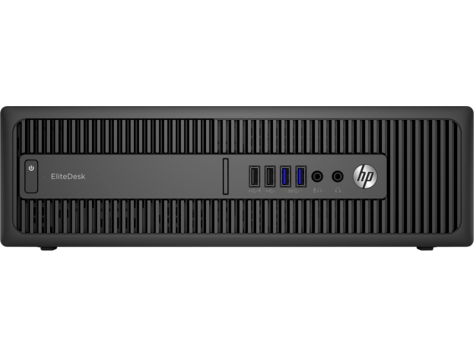
Front panel components Drive configuration may vary by model. Some models have a bezel blank covering the slim optical drive bay. 1 Slim Optical Drive (optional) 6 Headphone Connector 2 USB 2.0 Charging (powered) Port (black) 7 Dual-State Power Button 3 USB 2.0 Port (black) 8 Hard Drive Activity Light 4 USB 3.0 Ports (blue) 9 SD Card Reader (optional) 5 Microphone/Headphone Connector
Note:
When a device is plugged into the Microphone/Headphone Connector, a dialog box will pop up asking if you want to use the connector for a microphone line-In device or a headphone. You can reconfigure the connector at any time by double-clicking the Audio Manager icon in the Windows taskbar.Note:
The USB 2.0 Charging Port also provides current to charge a device such as a Smart Phone. The charging current is available whenever the power cord is plugged into the system, even when the system is off.Note:
The Power On Light is normally white when the power is on. If it is flashing red, there is a problem with the computer and it is displaying a diagnostic code. Refer to the Maintenance and Service Guide to interpret the code. 2 Chapter 1 Product features
Rear panel components 1 PS/2 Mouse Connector (green) 7 PS/2 Keyboard Connector (purple) 2 Serial Connector 8 DisplayPort Monitor Connectors 3 RJ-45 Network Connector 9 VGA Monitor Connector 4 USB 3.0 Ports with Wake from S4/S5 feature (blue) 10 USB 3.0 Ports (blue) 5 Line-In Audio Connector (blue) 11 Line-Out Connector for powered audio devices (green) 6
Power Cord Connector
Note:
An optional second serial port and an optional parallel port are available from HP. If using a USB keyboard, HP recommends connecting the keyboard to one of the USB 3.0 ports with the wake from S4/S5 feature. The wake from S4/S5 feature is also supported on the PS/2 connectors if enabled in BIOS F10 Setup. When a device is plugged into the blue Line-In Audio Connector, a dialog box will pop up asking if you want to use the connector for a line-in device or a microphone. You can reconfigure the connector at any time by double-clicking the Audio Manager icon in the Windows taskbar. When a graphics card is installed in one of the system board slots, the video connectors on the graphics card and the integrated graphics on the system board may be used at the same time. However, for such a configuration, only the display connected to the discrete graphics card will display POST messages. The system board graphics can be disabled by changing settings in Computer Setup. Rear panel components 3
Serial number location Each computer has a unique serial number and a product ID number that are located on the exterior of the computer. Keep these numbers available for use when contacting customer service for assistance. 4 Chapter 1 Product features

2 Illustrated parts catalog Small Form Factor (SFF) chassis spare parts Computer major components Item Description (1) Access panel (2) Front bezel (3) System board (includes replacement thermal material) (4) Power supply
200W, 92% efficient
200W, 85% efficient Small Form Factor (SFF) chassis spare parts 5

Item Description
200W, standard (5) Fan sink (includes replacement thermal material)
16-Gb
8-Gb
4-Gb
Intel Core i7-6700 processor
Intel Core i5-6600 processor
Intel Core i5-6500 processor Misc parts 6 Chapter 2 Illustrated parts catalog

Item Description (1) Fan baffle (2) Rear baffle (3) Solenoid lock (4) Front I/O assembly (5) Speaker (6) Power switch (7) SATA drive power cable (8) SATA data cable, 14 inch, 1 straight end, 1 angled end
Broadcom BCM943228Z 802.11n 2x2 DualBand Combo PCIe x1 Card
Intel 7265 802.11ac 2x2 DualBand Combo PCIe x1 Card
Intel 8260 2x2 Dual Band 802.11ac WLAN/ Bluetooth Combo
Intel 3165 1x1 Dual Band 802.11ac WLAN/ Bluetooth Combo
DisplayPort to HDMI 1.4
DisplayPort to VGA
DisplayPort to DVI
USB-C to USB 3.0
PS2, optical
USB, laser Small Form Factor (SFF) chassis spare parts 7

Item Description
USB, optical
Antimicrobial
Washable
Wireless
Ps/2
PS/2 slim
Usb
HP USB slim
HP USB Conferencing
Wireless keyboard, mouse, and dongle
USB/PS2 Washable
Smart card Drives Description Hard drives 2-TB, 7200-rpm 1-TB, 7200-rpm, 3.5-inch 1-TB, 7200-rpm, 2.5-inch 1-TB, hybrid SSD, 3.5-inch or 2.5-inch 500-GB, 7200-rpm, 2.5-inch, SED 500 GB, 7200 rpm, 3.5-inch or 2.5-inch 500-GB, 7200-rpm, 2.5-inch, OPAL2, self-encrypting drive (SED) 500-GB, 5400-rpm, 2.5-inch, FIPS 500-GB, hybrid SSD, 2.5-inch 500-GB, 5400-rpm, 2.5-inch, 5 mm Solid-state drives 512 GB Solid-state Drive (SSD), 3D, NAND 512-GB Solid-state Drive (SSD), M.2, 2280SS, PCIe 256-GB Solid-state Drive (SSD), self-encrypting (SED) 256-GB Solid-state Drive (SSD) 256-GB Solid-state Drive (SSD), TLC 8 Chapter 2 Illustrated parts catalog

Description 256-GB Solid-state Drive (SSD), M.2, 2280SS, PCIe 256 GB Solid-state Drive (SSD), 3D, NAND 180 GB Solid-state Drive (SSD) 180 GB Solid-state Drive (SSD), OPAL2, MLC 128-GB Solid-state Drive (SSD), self-encrypting drive (SED) 128-GB Solid-state Drive (SSD) 128-GB Solid-state Drive (SSD), 3D, NAND 128-GB Solid-state Drive (SSD), M.2, 2280SS, PCIe 120-GB Solid-state Drive (SSD) 120-GB Solid-state Drive (SSD), OPAL2, MLC Small Form Factor (SFF) chassis spare parts 9

3 Routine care, SATA drive guidelines, and disassembly preparation This chapter provides general service information for the computer. Adherence to the procedures and precautions described in this chapter is essential for proper service.
Caution:
When the computer is plugged into an AC power source, voltage is always applied to the system board. You must disconnect the power cord from the power source before opening the computer to prevent system board or component damage. Electrostatic discharge information A sudden discharge of static electricity from your finger or other conductor can destroy static-sensitive devices or microcircuitry. Often the spark is neither felt nor heard, but damage occurs. An electronic device exposed to electrostatic discharge (ESD) may not appear to be affected at all and can work perfectly throughout a normal cycle. The device may function normally for a while, but it has been degraded in the internal layers, reducing its life expectancy. Networks built into many integrated circuits provide some protection, but in many cases, the discharge contains enough power to alter device parameters or melt silicon junctions. Generating static The following table shows that: ● Different activities generate different amounts of static electricity. ● Static electricity increases as humidity decreases.Relative Humidity Event 55% 40% 10% Walking across carpet Walking across vinyl floor Motions of bench worker Removing DIPs from plastic tube
7,500 V
3,000 V
400 V
400 V
15,000 V
5,000 V
800 V
700 V
35,000 V
12,000 V
6,000 V
2,000 V
Removing DIPs from vinyl tray Removing DIPs from Styrofoam Removing bubble pack from PCB Packing PCBs in foam-lined box2,000 V
3,500 V
7,000 V
5,000 V
4,000 V
5,000 V
20,000 V
11,000 V
11,500 V
14,500 V
26,500 V
21,000 V
These are then multi-packaged inside plastic tubes, trays, or Styrofoam.Note:
700 volts can degrade a product. 10 Chapter 3 Routine care, SATA drive guidelines, and disassembly preparation
Preventing electrostatic damage to equipment Many electronic components are sensitive to ESD. Circuitry design and structure determine the degree of sensitivity. The following packaging and grounding precautions are necessary to prevent damage to electric components and accessories. ● To avoid hand contact, transport products in static-safe containers such as tubes, bags, or boxes. ● Protect all electrostatic parts and assemblies with conductive or approved containers or packaging. ● Keep electrostatic sensitive parts in their containers until they arrive at static-free stations. ● Place items on a grounded surface before removing them from their container. ● Always be properly grounded when touching a sensitive component or assembly. ● Avoid contact with pins, leads, or circuitry. ● Place reusable electrostatic-sensitive parts from assemblies in protective packaging or conductive foam. Personal grounding methods and equipment Use the following equipment to prevent static electricity damage to equipment: ● Wrist straps are flexible straps with a maximum of one-megohm ± 10% resistance in the ground cords. To provide proper ground, a strap must be worn snug against bare skin. The ground cord must be connected and fit snugly into the banana plug connector on the grounding mat or workstation. ● Heel straps/Toe straps/Boot straps can be used at standing workstations and are compatible with most types of shoes or boots. On conductive floors or dissipative floor mats, use them on both feet with a maximum of one-megohm ± 10% resistance between the operator and ground. Static Shielding Protection Levels Method Voltage Antistatic plastic Carbon-loaded plastic Metallized laminate 1,500 7,500 15,000 Grounding the work area To prevent static damage at the work area, use the following precautions: ● Cover the work surface with approved static-dissipative material. Provide a wrist strap connected to the work surface and properly grounded tools and equipment. ● Use static-dissipative mats, foot straps, or air ionizers to give added protection. ● Handle electrostatic sensitive components, parts, and assemblies by the case or PCB laminate. Handle them only at static-free work areas. ● Turn off power and input signals before inserting and removing connectors or test equipment. ● Use fixtures made of static-safe materials when fixtures must directly contact dissipative surfaces. ● Keep work area free of nonconductive materials such as ordinary plastic assembly aids and Styrofoam. ● Use field service tools, such as cutters, screwdrivers, and vacuums, that are conductive. Electrostatic discharge information 11

Recommended materials and equipment Materials and equipment that are recommended for use in preventing static electricity include: ● Antistatic tape ● Antistatic smocks, aprons, or sleeve protectors ● Conductive bins and other assembly or soldering aids ● Conductive foam ● Conductive tabletop workstations with ground cord of one-megohm +/- 10% resistance ● Static-dissipative table or floor mats with hard tie to ground ● Field service kits ● Static awareness labels ● Wrist straps and footwear straps providing one-megohm +/- 10% resistance ● Material handling packages ● Conductive plastic bags ● Conductive plastic tubes ● Conductive tote boxes ● Opaque shielding bags ● Transparent metallized shielding bags ● Transparent shielding tubes Operating guidelines To prevent overheating and to help prolong the life of the computer: ● Keep the computer away from excessive moisture, direct sunlight, and extremes of heat and cold. ● Operate the computer on a sturdy, level surface. Leave a 10.2-cm (4-inch) clearance on all vented sides of the computer and above the monitor to permit the required airflow. ● Never restrict the airflow into the computer by blocking any vents or air intakes. Do not place the keyboard, with the keyboard feet down, directly against the front of the desktop unit as this also restricts airflow. ● Occasionally clean the air vents on all vented sides of the computer. Lint, dust, and other foreign matter can block the vents and limit the airflow. Be sure to unplug the computer before cleaning the air vents. ● Never operate the computer with the cover or side panel removed. ● Do not stack computers on top of each other or place computers so near each other that they are subject to each other’s re-circulated or preheated air. ● If the computer is to be operated within a separate enclosure, intake and exhaust ventilation must be provided on the enclosure, and the same operating guidelines listed above will still apply. ● Keep liquids away from the computer and keyboard. 12 Chapter 3 Routine care, SATA drive guidelines, and disassembly preparation

● Never cover the ventilation slots on the monitor with any type of material. ● Install or enable power management functions of the operating system or other software, including sleep states. Routine care General cleaning safety precautions
Caution:
Use safety glasses equipped with side shields before attempting to clean debris from under the keys. ● Visible debris underneath or between the keys may be removed by vacuuming or shaking. ● Canned, pressurized air may be used to clean debris from under the keys. Caution should be used as too much air pressure can dislodge lubricants applied under the wide keys. Routine care 13
● If you remove a key, use a specially designed key puller to prevent damage to the keys. This tool is available through many electronic supply outlets.
Caution:
Never remove a wide leveled key (like the space bar) from the keyboard. If these keys are improperly removed or installed, the keyboard may not function properly. ● Cleaning under a key may be done with a swab moistened with isopropyl alcohol and squeezed out. Be careful not to wipe away lubricants necessary for proper key functions. Use tweezers to remove any fibers or dirt in confined areas. Allow the parts to air dry before reassembly. Cleaning the monitor ● Wipe the monitor screen with a clean cloth moistened with water or with a towelette designed for cleaning monitors. Do not use sprays or aerosols directly on the screen; the liquid may seep into the housing and damage a component. Never use solvents or flammable liquids on the monitor. ● To clean the monitor body follow the procedures in Cleaning the Computer Case on page 13. Cleaning the mouse Before cleaning the mouse, ensure that the power to the computer is turned off. ● Clean the mouse ball by first removing the retaining plate and the ball from the housing. Pull out any debris from the ball socket and wipe the ball with a clean, dry cloth before reassembly. ● To clean the mouse body, follow the procedures in Cleaning the Computer Case on page 13. Service considerations Listed below are some of the considerations that you should keep in mind during the disassembly and assembly of the computer. Power supply fan The power supply fan is a variable-speed fan based on the temperature in the power supply.Caution:
The cooling fan is always on when the computer is in the “On” mode. The cooling fan is off when the computer is in “Standby,” “Suspend,” or “Off” modes. You must disconnect the power cord from the power source before opening the computer to prevent system board or component damage. Tools and software Requirements To service the computer, you need the following: ● Torx T-15 screwdriver ● Torx T-15 screwdriver with small diameter shank (for certain front bezel removal) ● Flat-bladed screwdriver (may sometimes be used in place of the Torx screwdriver) ● Phillips #2 screwdriver ● Diagnostics software ● Tamper-resistant T-15 wrench 14 Chapter 3 Routine care, SATA drive guidelines, and disassembly preparation
Screws The screws used in the computer are not interchangeable. They may have standard or metric threads and may be of different lengths. If an incorrect screw is used during the reassembly process, it can damage the unit. HP strongly recommends that all screws removed during disassembly be kept with the part that was removed, then returned to their proper locations.
Caution:
Metric screws have a black finish. U.S. screws have a silver finish and are used on hard drives only.Caution:
As each subassembly is removed from the computer, it should be placed away from the work area to prevent damage. Cables and connectors Most cables used throughout the unit are flat, flexible cables. These cables must be handled with care to avoid damage. Apply only the tension required to seat or unseat the cables during insertion or removal from the connector. Handle cables by the connector whenever possible. In all cases, avoid bending or twisting the cables, and ensure that the cables are routed in such a way that they cannot be caught or snagged by parts being removed or replaced.Caution:
When servicing this computer, ensure that cables are placed in their proper location during the reassembly process. Improper cable placement can damage the computer. Hard Drives Handle hard drives as delicate, precision components, avoiding all physical shock and vibration. This applies to failed drives as well as replacement spares. ● If a drive must be mailed, place the drive in a bubble-pack mailer or other suitable protective packaging and label the package “Fragile: Handle With Care.” ● Do not remove hard drives from the shipping package for storage. Keep hard drives in their protective packaging until they are actually mounted in the computer. ● Avoid dropping drives from any height onto any surface. ● If you are inserting or removing a hard drive, turn off the computer. Do not remove a hard drive while the computer is on or in standby mode. ● Before handling a drive, ensure that you are discharged of static electricity. While handling a drive, avoid touching the connector. ● Do not use excessive force when inserting a drive. ● Avoid exposing a hard drive to liquids, temperature extremes, or products that have magnetic fieldssuch as monitors or speakers. Lithium coin cell battery The battery that comes with the computer provides power to the real-time clock and has a minimum lifetime of about three years. See the appropriate removal and replacement chapter for the chassis you are working on in this guide for instructions on the replacement procedures.
Warning!
This computer contains a lithium battery. There is a risk of fire and chemical burn if the battery is handled improperly. Do not disassemble, crush, puncture, short external contacts, dispose in water or fire, or expose it to temperatures higher than 140ºF (60ºC). Do not attempt to recharge the battery. Service considerations 15
Note:
Batteries, battery packs, and accumulators should not be disposed of together with the general household waste. In order to forward them to recycling or proper disposal, please use the public collection system or return them to HP, their authorized partners, or their agents. SATA hard drives Serial ATA Hard Drive CharacteristicsNumber of pins/conductors in data cable 7/7 Number of pins in power cable 15 Maximum data cable length 39.37 in (100 cm) Data interface voltage differential 400-700 mV Drive voltages
3.3 V, 5 V, 12 V
Jumpers for configuring driveN/A
Data transfer rate 6.0 Gb/s SATA hard drive cables SATA data cable Always use an HP approved SATA 6.0 Gb/s cable as it is fully backwards compatible with the SATA 1.5 Gb/s drives. Current HP desktop products ship with SATA 6.0 Gb/s hard drives. SATA data cables are susceptible to damage if overflexed. Never crease a SATA data cable and never bend it tighter than a 30 mm (1.18 in) radius. The SATA data cable is a thin, 7-pin cable designed to transmit data for only a single drive. SMART ATA drives The Self Monitoring Analysis and Recording Technology (SMART) ATA drives for the HP Personal Computers have built-in drive failure prediction that warns the user or network administrator of an impending failure or crash of the hard drive. The SMART drive tracks fault prediction and failure indication parameters such as reallocated sector count, spin retry count, and calibration retry count. If the drive determines that a failure is imminent, it generates a fault alert. 16 Chapter 3 Routine care, SATA drive guidelines, and disassembly preparation
Cable management Always follow good cable management practices when working inside the computer. ● Keep cables away from major heat sources like the heat sink. ● Do not jam cables on top of expansion cards or memory modules. Printed circuit cards like these are not designed to take excessive pressure on them. ● Keep cables clear of sliding or moveable parts to prevent them from being cut or crimped when the parts are moved. ● When folding a flat ribbon cable, never fold to a sharp crease. Sharp creases may damage the wires. ● Some flat ribbon cables come prefolded. Never change the folds on these cables. ● Do not bend any cable sharply. A sharp bend can break the internal wires. ● Never bend a SATA data cable tighter than a 30 mm (1.18 in) radius. ● Never crease a SATA data cable. ● Do not rely on components like the drive cage, power supply, or computer cover to push cables down into the chassis. Always position the cables to lay properly by themselves. Cable management 17

4 Removal and replacement procedures – small form factor (SFF) chassis Adherence to the procedures and precautions described in this chapter is essential for proper service. After completing all necessary removal and replacement procedures, run the Diagnostics utility to verify that all components operate properly.
Note:
Not all features listed in this guide are available on all computers. Preparation for disassembly See Routine care, SATA drive guidelines, and disassembly preparation on page 10 for initial safety procedures.Caution:
Turn off the computer before disconnecting any cables. Regardless of the power-on state, voltage is always present on the system board as long as the system is plugged into an active AC outlet. In some systems the cooling fan is on even when the computer is in the “Standby,” or “Suspend” modes. The power cord should always be disconnected before servicing a unit.Note:
During disassembly, label each cable as you remove it, noting its position and routing. Keep all screws with the units removed.Caution:
The screws used in the computer are of different thread sizes and lengths; using the wrong screw in an application may damage the unit.
Access panel

Front bezel security The front bezel can be locked in place by installing a security screw provided by HP. To install the security screw:

Slim optical drive bezel blank On some models, there is a bezel blank covering the slim optical drive bay. Remove the bezel blank before installing an optical drive. To remove the bezel blank:
Note:
After removing the slim optical drive bezel blank and installing a slim optical drive, you can install an optional bezel trim piece (available from HP) that surrounds the front of the slim optical drive. Slim optical drive bezel blank 21
Memory Description
16-Gb, Pc4-17000
8-Gb, Pc4-17000
4-Gb, Pc4-17000
The computer comes with double data rate 4 synchronous dynamic random access memory (DDR4-SDRAM) dual inline memory modules (DIMMs). DIMMs The memory sockets on the system board can be populated with up to four industry-standard DIMMs. These memory sockets are populated with at least one preinstalled DIMM. To achieve the maximum memory support, you can populate the system board with up to 64-GB of memory configured in a high-performing dual channel mode. DDR4-SDRAM DIMMs For proper system operation, the DIMMs must be: ● industry-standard 288-pin ● unbuffered non-ECC PC4-17000 DDR4-2133 MHz-compliant ● 1.2 volt DDR4-SDRAM DIMMs The DIMMs must also: ● support CAS latency 15 DDR4 2133 MHz (15-15-15 timing) ● contain the mandatory JEDEC SPD information In addition, the computer supports: ● 512-Mbit, 1-Gbit, and 2-Gbit non-ECC memory technologies ● single-sided and double-sided DIMMs ● DIMMs constructed with x8 and x16 DDR devices; DIMMs constructed with x4 SDRAM are not supportedNote:
The system will not operate properly if you install unsupported DIMMs. Populating DIMM sockets There are four DIMM sockets on the system board, with two sockets per channel. The sockets are labeled DIMM1, DIMM2, DIMM3, and DIMM4. Sockets DIMM1 and DIMM2 operate in memory channel B. Sockets DIMM3 and DIMM4 operate in memory channel A. The system will automatically operate in single channel mode, dual channel mode, or flex mode, depending on how the DIMMs are installed.Note:
Single channel and unbalanced dual channel memory configurations will result in inferior graphics performance. 22 Chapter 4 Removal and replacement procedures – small form factor (SFF) chassis
● The system will operate in single channel mode if the DIMM sockets are populated in one channel only. ● The system will operate in a higher-performing dual channel mode if the total memory capacity of the DIMMs in Channel A is equal to the total memory capacity of the DIMMs in Channel B. The technology and device width can vary between the channels. For example, if Channel A is populated with two 1-GB DIMMs and Channel B is populated with one 2-GB DIMM, the system will operate in dual channel mode. ● The system will operate in flex mode if the total memory capacity of the DIMMs in Channel A is not equal to the total memory capacity of the DIMMs in Channel B. In flex mode, the channel populated with the least amount of memory describes the total amount of memory assigned to dual channel and the remainder is assigned to single channel. For optimal speed, the channels should be balanced so that the largest amount of memory is spread between the two channels. If one channel will have more memory than the other, the larger amount should be assigned to Channel A. For example, if you are populating the sockets with one 2-GB DIMM, and three 1-GB DIMMs, Channel A should be populated with the 2-GB DIMM and one 1-GB DIMM, and Channel B should be populated with the other two 1-GB DIMMs. With this configuration, 4-GB will run as dual channel and 1-GB will run as single channel. ● In any mode, the maximum operational speed is determined by the slowest DIMM in the system. Installing DIMMs
Caution:
You must disconnect the power cord and wait approximately 30 seconds for the power to drain before adding or removing memory modules. Regardless of the power-on state, voltage is always supplied to the memory modules as long as the computer is plugged into an active AC outlet. Adding or removing memory modules while voltage is present may cause irreparable damage to the memory modules or system board. The memory module sockets have gold-plated metal contacts. When upgrading the memory, it is important to use memory modules with gold-plated metal contacts to prevent corrosion and/or oxidation resulting from having incompatible metals in contact with each other. Static electricity can damage the electronic components of the computer or optional cards. Before beginning these procedures, ensure that you are discharged of static electricity by briefly touching a grounded metal object. When handling a memory module, be careful not to touch any of the contacts. Doing so may damage the module.
Note:
A memory module can be installed in only one way. Match the notch on the module with the tab on the memory socket. Populate the black DIMM sockets before the white DIMM sockets. For maximum performance, populate the sockets so that the memory capacity is spread as equally as possible between Channel A and Channel B. Refer to Populating DIMM sockets on page 22 for more information.
Expansion card Description nVIDIA GT730 2 GB graphics card (DDR3, PCIex8) USB 3.1 Type Cx1 PCIe x1 card Printer port, PCI card Serial port, PCI card WLAN module caddy card The computer has two PCI Express x1 expansion sockets, one PCI Express x16 expansion socket, and one PCI Express x16 expansion socket that is downshifted to a x4 socket.
Note:
The PCI Express sockets support only low profile cards. You can install a PCI Express x1, x4, x8, or x16 expansion card in the PCI Express x16 socket. For dual graphics card configurations, the first (primary) card must be installed in the PCI Express x16 socket that is NOT downshifted to a x4. To remove, replace, or add an expansion card:Note:
Before removing an installed expansion card, disconnect any cables that may be attached to the expansion card. Expansion card 25
a. If you are installing an expansion card in a vacant socket, remove the appropriate expansion slot cover on the back of the chassis. Pull the slot cover straight up then away from the inside of the chassis. b. If you are removing a PCI Express x1 card, hold the card at each end, and carefully rock it back and forth until the connectors pull free from the socket. Pull the expansion card straight up from the socket (1) then away from the inside of the chassis to release it from the chassis frame (2). Be sure not to scrape the card against the other components. 26 Chapter 4 Removal and replacement procedures – small form factor (SFF) chassis

c. If you are removing a PCI Express x16 card, pull the retention arm on the back of the expansion socket away from the card and carefully rock the card back and forth until the connectors pull free from the socket. Pull the expansion card straight up from the socket then away from the inside of the chassis to release it from the chassis frame. Be sure not to scrape the card against the other components.
Caution:
After removing an expansion card, you must replace it with a new card or expansion slot cover for proper cooling of internal components during operation. Expansion card 27
Note:
When installing an expansion card, press firmly on the card so that the whole connector seats properly in the expansion card socket.
Broadcom BCM943228Z 802.11n 2x2 DualBand Combo PCIe x1 Card
Intel 7265 802.11ac 2x2 DualBand Combo PCIe x1 Card
Intel 8260 2x2 Dual Band 802.11ac WLAN/ Bluetooth Combo
Intel 3165 1x1 Dual Band 802.11ac WLAN/ Bluetooth Combo
To remove the WLAN module:
Note:
The WLAN antenna cable labeled “1” connects to the WLAN module “Main” terminal labeled “1”. The WLAN antenna cable labeled “2” connects to the WLAN module “Aux” terminal labeled “2”.
Note:
WLAN modules are designed with a notch to prevent incorrect insertion. Reverse this procedure to install the WLAN module. 30 Chapter 4 Removal and replacement procedures – small form factor (SFF) chassis
Drives Description Hard drives 2-TB, 7200-rpm 1-TB, 7200-rpm, 3.5-inch 1-TB, 7200-rpm, 2.5-inch 1-TB, hybrid SSD, 3.5-inch or 2.5-inch 500-GB, 7200-rpm, 2.5-inch, SED 500 GB, 7200 rpm, 3.5-inch or 2.5-inch 500-GB, 7200-rpm, 2.5-inch, OPAL2, self-encrypting drive (SED) 500-GB, 5400-rpm, 2.5-inch, FIPS 500-GB, hybrid SSD, 2.5-inch 500-GB, 5400-rpm, 2.5-inch, 5 mm Solid-state drives 512 GB Solid-state Drive (SSD), 3D, NAND 512-GB Solid-state Drive (SSD), M.2, 2280SS, PCIe 256-GB Solid-state Drive (SSD), self-encrypting (SED) 256-GB Solid-state Drive (SSD) 256-GB Solid-state Drive (SSD), TLC 256-GB Solid-state Drive (SSD), M.2, 2280SS, PCIe 256 GB Solid-state Drive (SSD), 3D, NAND 180 GB Solid-state Drive (SSD) 180 GB Solid-state Drive (SSD), OPAL2, MLC 128-GB Solid-state Drive (SSD), self-encrypting drive (SED) 128-GB Solid-state Drive (SSD) 128-GB Solid-state Drive (SSD), 3D, NAND 128-GB Solid-state Drive (SSD), M.2, 2280SS, PCIe 120-GB Solid-state Drive (SSD) 120-GB Solid-state Drive (SSD), OPAL2, MLC Drives 31

System board connections Refer to the following illustration and table to identify the system board connectors for your model. No. System Board Connector System Board Label Color Component 1 PCI Express x16 downshifted to a x4
X4Pciexp
white Expansion Card 2 PCI Express x1X1Pciexp2
black Expansion Card 3 PCI Express x1X1Pciexp1
black Expansion Card 4 PCI Express x16X16Pciexp
black Expansion Card 5 BatteryBat
black Battery 6 Serial PortComb
black Optional Second Serial Port 7 DIMM4 (Channel A)Dimm4
white Memory Module 8 DIMM3 (Channel A)Dimm3
black Memory Module 9 DIMM2 (Channel B)Dimm2
white Memory Module 10 DIMM1 (Channel B)Dimm1
black Memory Module 11Sata 3.0
Sata2
light blue Any SATA Device other than the Primary Hard Drive 12Sata 3.0
Sata1
light blue Any SATA Device other than the Primary Hard Drive 13Sata 3.0
Sata0
dark blue Primary Hard Drive 32 Chapter 4 Removal and replacement procedures – small form factor (SFF) chassis
Drive positions 1 9.5 mm slim optical drive bay 2 3.5-inch primary hard drive bay 3 3.5-inch secondary hard drive bay 4 2.5-inch hard drive bay
Note:
The drive configuration on your computer may be different than the drive configuration shown above. To verify the type and size of the storage devices installed in the computer, run Computer Setup. Installing and Removing Drives When installing drives, follow these guidelines: ● The primary Serial ATA (SATA) hard drive must be connected to the dark blue primary SATA connector on the system board labeled SATA0. ● Connect secondary hard drives and optical drives to one of the light blue SATA connectors on the system board (labeled SATA1 and SATA2). Drives 33
● HP has provided extra 6-32 hard drive mounting screws installed on the top of the hard drive cage (1) for installing a hard drive into the 3.5-inch secondary hard drive bay. If you are replacing a hard drive, remove the mounting screws from the old drive and install them in the new drive.
Note:
You can also use one of the extra mounting screws to secure the front bezel (see Front bezel security on page 20 for more information).Caution:
To prevent loss of work and damage to the computer or drive: If you are inserting or removing a drive, shut down the operating system properly, turn off the computer, and unplug the power cord. Do not remove a drive while the computer is on or in standby mode. Before handling a drive, ensure that you are discharged of static electricity. While handling a drive, avoid touching the connector. For more information about preventing electrostatic damage, refer to Electrostatic discharge information on page 10. Handle a drive carefully; do not drop it. Do not use excessive force when inserting a drive. Avoid exposing a hard drive to liquids, temperature extremes, or products that have magnetic fields such as monitors or speakers. If a drive must be mailed, place the drive in a bubble-pack mailer or other protective packaging and label the package “Fragile: Handle With Care.” 34 Chapter 4 Removal and replacement procedures – small form factor (SFF) chassis
Removing a 9.5 mm slim optical drive
Caution:
All removable media should be taken out of a drive before removing the drive from the computer.Caution:
When removing the cables, pull the tab or connector instead of the cable itself to avoid damaging the cable. Drives 35
Installing a 9.5 mm slim optical drive
Note:
Refer to System board connections on page 32 for an illustration of the system board drive connectors. 36 Chapter 4 Removal and replacement procedures – small form factor (SFF) chassis
Note:
Before you remove the old hard drive, be sure to back up the data from the old hard drive so that you can transfer the data to the new hard drive.

Note:
The data cable for the primary hard drive must be connected to the dark blue connector on the system board labeled SATA0 to avoid any hard drive performance problems.
Removing a secondary 3.5-inch hard drive

Installing a secondary 3.5-inch hard drive
Note:
HP has supplied four extra silver 6-32 mounting screws installed on the chassis next to the primary 3.5-inch hard drive bay. Refer to Installing and Removing Drives on page 33 for an illustration of the location of the extra mounting screws. When replacing a drive, transfer the four mounting screws from the old drive to the new drive.
Note:
If the drive is a secondary hard drive, connect the other end of data cable to one of the light blue SATA connectors on the system board. If the drive is the primary hard drive, connect the other end of the data cable to the dark blue SATA connector on the system board.Caution:
Be careful not to pinch any cables or wires when rotating the drive cage down.
Removing a 2.5-inch hard drive

Note:
M3 metric isolation mounting guide screws can be purchased from HP. When replacing a drive, transfer the four mounting screws from the old drive to the new drive. 44 Chapter 4 Removal and replacement procedures – small form factor (SFF) chassis

Note:
If the 2.5-inch hard drive is the primary drive, connect the other end of the data cable to the dark blue SATA connector on the system board labeled SATA0 . If it is a secondary hard drive, connect the other end of the data cable to one of the light blue SATA connectors on the system board.Caution:
Be careful not to pinch any cables or wires when rotating the drive cage down.
Drive power cable A separate drive power cable connects from the drives directly to the system board.

Small baffle The small baffle sits between the fan sink and the rear of the computer.

Fan baffle The fan baffle sits on top of the fan sink.

Hood lock The hood lock is attached to the rear of the chassis.
Note:
The security screw requires a special security wrench to remove.
Hood lock 51

Hood sensor The hood sensor is attached to the rear of the chassis.

Front I/O assembly The front I/O assembly is attached to the front of the chassis with one screw. Push the assembly into the chassis to remove.

Note:
Be sure to correctly route the cables beneath the drive cage when reinstalling the assembly. Proper cable routing prevents damage to the cables and allows the drive cage to close properly. 54 Chapter 4 Removal and replacement procedures – small form factor (SFF) chassis
Power switch The power switch is attached to the left, front of the chassis. Remove the power switch from the inside of the chassis.

Card reader The card reader is attached to the front of the chassis under the rotating drive cage.

Speaker The speaker is attached to the front of the chassis under the rotating drive cage.

Fan sink
Caution:
The bond between the fan sink and the processor may be very tight. If the computer will power on, before removing the fan sink, turn on the computer until it warms the fan sink. Warming the heat sink lessens the bond between the fan sink and the processor, thereby making separating them easier. Make sure not to pull the processor out of the socket when you lift the fan sink, especially if you cannot warm the fan sink prior to removal. Inadvertently removing the processor can damage the pins. The fan sink is secured atop the processor with four captive Torx screws.Caution:
Fan sink retaining screws should be removed in diagonally opposite pairs (as in an X) to even the downward forces on the processor. This is especially important as the pins on the socket are very fragile and any damage to them may require replacing the system board.Caution:
Fan sink retaining screws should be tightened in diagonally opposite pairs (as in an X) to evenly seat the fan sink on the processor to avoid damage that could require replacing the system board. Failure to install the baffle may cause the computer to overheat. 58 Chapter 4 Removal and replacement procedures – small form factor (SFF) chassis
Processor Description Intel Core i7-6700 processor Intel Core i5-6600 processor Intel Core i5-6500 processor
Caution:
Do NOT handle the pins in the processor socket. These pins are very fragile and handling them could cause irreparable damage. Once pins are damaged it may be necessary to replace the system board. The heat sink must be installed within 24 hours of installing the processor to prevent damage to the processor’s solder connections.Note:
After installing a new processor onto the system board, always update the system ROM to ensure that the latest version of the BIOS is being used on the computer. The latest system BIOS can be found on the Web at: http://www8.hp.com/us/en/support-drivers.html. Processor 59
Power supply Description Power supply, 200W, 92% efficient Power supply, 200W, 85% efficient Power supply, 200W, standard
Warning!
To reduce potential safety issues, only the power supply provided with the computer, a replacement power supply provided by HP, or a power supply purchased as an accessory from HP should be used with the computer.Warning!
Voltage is always present on the system board when the computer is plugged into an active AC outlet. To avoid possible personal injury and damage to the equipment the power cord should be disconnected from the computer and/or the AC outlet before opening the computer.
(1): Pwrcmd
(2): Pwr
(3): Pwrcpu
Caution:
When installing the power supply cables, make sure they are properly positioned so they are not cut by the drive cage and are not pinched by the rotating power supply. Power supply 61
System board
Note:
All system board spare part kits include replacement thermal material.Note:
System board appearance may vary.Note:
When replacing the system board, you must change the chassis serial number in the BIOS. 62 Chapter 4 Removal and replacement procedures – small form factor (SFF) chassis
System board callouts Sys Bd Label Color Component
Sys Bd Label Color Component
Pwrcpu
White 4-pin processor powerSata1
Light blue Any SATA Device other than primary hard driveXu1
Black ProcessorSata2
Light blue Any SATA Device other than primary hard driveCpufan
White Processor fanPswd
Green Clear system passwordsDimm4
Black Memory moduleCmos
Yellow Reset CMOSDimm3
White Memory moduleThunderbolt
Black Thunderbolt connectorDimm2
Black Memory moduleUsb-C
Black USB-C connectorDimm1
White Memory moduleFront Aud
Blue Front I/OPb/Led
Black Front I/O/power switchX4Pciexp
Black Expansion cardPwrcmd
White Power supplyX1Pciexp2
Black Expansion cardSatapwr0
Black DrivesX1Pciexp1
Black Expansion cardPwr
White 6-pin main powerX16Pciexp
White Expansion cardFront Usb3.0
Blue Front I/O/power switchHsense
White Hood sensor System board 63
Spkr
White SpeakerComb
Black Optional second serial portSd Rdr
Black Card readerHlck
Black Hood lockSata0
Dark blue Hard driveBat
Black RTC batteryFront Usb
Yellow Front I/OUsing the Small Form Factor Computer in a Tower Orientation The Small Form Factor computer can be used in a tower orientation. The HP logo plate on the front bezel is adjustable for either desktop or tower orientation.
Note:
To stabilize the computer in a tower orientation, HP recommends the use of the optional tower stand.Note:
Ensure at least 10.2 centimeters (4 inches) of space on all sides of the computer remains clear and free of obstructions.
5 Computer Setup (F10) Utility Computer Setup (F10) Utilities Use Computer Setup (F10) Utility to do the following: ● Change settings from the defaults or restore the settings to default values. ● View the system configuration, including settings for processor, graphics, memory, audio, storage, communications, and input devices. ● Modify the boot order of bootable devices such as hard drives, optical drives, or USB flash media devices. ● (Windows 7 only) Establish an Ownership Tag, the text of which is displayed each time the system is turned on or restarted. ● Enter the Asset Tag or property identification number assigned by the company to this computer. ● Enable the power-on password prompt during system restarts (warm boots) as well as during power-on. ● Establish an administrator password that controls access to the Computer Setup (F10) Utility and the settings described in this section. ● Establish minimum requirements for valid passwords, including length and required types of characters. ● Secure integrated I/O functionality, including the serial, USB, or audio, or embedded NIC, so that they cannot be used until they are unsecured. ● Enable or disable different types of boot sources. ● Configure features such as Secure Boot, power management, virtualization support, and language and keyboard type used in Setup and POST. ● Replicate the system setup by saving system configuration information on a USB device and restoring it on one or more computers. ● Enable or disable DriveLock security or securely erase a hard drive (when supported by drive). Using Computer Setup (F10) Utilities Computer Setup can be accessed only by turning the computer on or restarting the system. To access the Computer Setup Utilities menu, complete the following steps:
Note:
If you do not press F10 at the appropriate time, you must restart the computer and again repeatedly press F10 when the monitor light turns green to access the utility.Note:
Selecting UEFI Drivers restarts the computer into the 3rd party option ROM management application. You can access this application directly by pressing F3 during startup. Computer Setup (F10) Utilities 65
Note:
Settings in the Security menu are not modified by Apply Defaults. Those values are reset by Restore Security Settings to Factory Defaults at the bottom of the Security menu.Note:
Not all settings shown in the following sections are available for all modelsCaution:
Do NOT turn the computer power OFF while the BIOS is saving the Computer Setup (F10) changes because the settings could become corrupted. It is safe to turn off the computer only after exiting the F10 Setup screen. 66 Chapter 5 Computer Setup (F10) Utility
Computer Setup–Main
Note:
Support for specific Computer Setup options may vary depending on the hardware configuration. Table 5-1 Computer Setup—Main Option Description System Information Lists all information in following list if Advanced System Information is selected. Lists smaller subset if Basic System Information is selected. ● Product name ● Installed memory size ● Processor type ● Processor cache size (L1/L2/L3) ● Processor speed ● MicroCode Revision ● Processor Stepping ● DIMM size (for each installed module) ● System BIOS version ● ME Firmware version (Intel only) ● Video BIOS version ● Super I/O Firmware version ● Born On Date ● Serial Number ● SKU number ● UUID (Universally Unique Identifier) ● Asset Tracking Number ● Feature Byte ● Build ID ● Product Family ● System Board ID ● System Board CT ● Integrated MAC Address System Diagnostics If the hard drive has the HP Advanced Diagnostics installed, the application will launch. If HP Advanced Diagnostics is not installed, then a basic version built into the BIOS will provide the capability to perform the following functions: ● Memory Test ● Hard Drive Check ● Language Update System BIOS Lets you update the system BIOS from www.hp.com or another network server, from a removable USB drive, or from a file located on the hard drive. ● ‘Check HP.com for BIOS Updates’ or ‘Check the Network for BIOS Updates’ The string that appears here depends on the setting in ‘BIOS Update Preferences’. Computer Setup (F10) Utilities 67
Table 5-1 Computer Setup—Main (continued) ● Lock BIOS Version If this option is checked, the system is locked to the current BIOS version and updates are not allowed. ● BIOS Update Preferences Allows the administrator to select the source of network updates (www.hp.com or another network server) and allows configuration of a periodic check for updates, including policies for: ■ Check for updates and prompt the user to accept or reject the update at that time ■ Check for updates and install all new versions ■ Check for updates and install only new versions marked important ● Network Configuration Settings ● Update BIOS Using Local Media Lets you access files on either USB storage or the hard drive. The HP BIOS Update and Recovery application included in BIOS Softpaqs at www.hp.com will copy the BIOS file to the correct location on the hard drive or USB device. System IDs Lets you set the following values: ● Asset Tracking Number ● Ownership Tag Replicated Setup Backup current settings to USB device Saves system configuration to a formatted USB flash media device. Restore current settings from USB device Restores system configuration from a USB flash media device. Save Custom Defaults Saves the current system configuration settings as the custom default set. Apply Custom Defaults and Exit Applies the custom default settings to the computer after rebooting. Does not apply to options in the Security menu. Apply Factory Defaults and Exit Restores the factory system configuration settings to the computer after rebooting. Does not apply to options in the Security menu. Ignore Changes and Exit Exits Computer Setup without applying or saving any changes. Save Changes and Exit Saves changes to current system configuration, exits Computer Setup, and reboots. 68 Chapter 5 Computer Setup (F10) Utility

Computer Setup—Security
Note:
Support for specific Computer Setup options may vary depending on the hardware configuration. Table 5-2 Computer Setup—Security Option Description Set up BIOS Administrator Password Lets you set and enable a BIOS administrator password, which includes the following privileges: ● Manage other BIOS users ● Full access to BIOS policy and settings ● Unlock the computer when other BIOS users fail the preboot authentication.Note:
Creating a BIOS user disables the Fast Boot option.Note:
If the password is set, it is required to change Computer Setup options, update the BIOS, and make changes to certain plug and play settings under Windows. Change BIOS Administrator Password (This selection is active only if a BIOS administrator password is set.) Lets you change the BIOS administrator password. You must know the current password to be able to change it. Password Policies Let you set the guidelines for a valid password. Options include: ● Password minimum length ● Requires at least one symbol ● Requires at least one number ● Requires at least one upper case character ● Requires at least one lower case character ● Allow spaces Clear Password Jumper Select ‘Honor’ to allow or ‘Ignore’ to not allow the absence of the password jumper to clear the passwords at boot up. Default is ‘Honor’. Security Configuration TPM Embedded Security ● TPM Device Lets you set the Trusted Platform Module as available or hidden. ● TPM State Select to enable the TPM. ● TPM Clear Select to reset the TPM to an unowned state. After the TPM is cleared, it is also turned off. To temporarily suspend TPM operations, turn the TPM off instead of clearing it.Caution:
Clearing the TPM resets it to factory defaults and turns it off. You will lose all created keys and data protected by those keys. BIOS Sure Start ● Verify Boot Block on every Boot Select to check validity of boot block region each boot. If not selected, boot block region will be validated on power cycles. Computer Setup (F10) Utilities 69
Table 5-2 Computer Setup—Security (continued) ● Data Recovery Policy Select ‘Automatic’ or ‘Manual’ to set data recovery policy. ‘Manual’ lets you select whether or not to execute recovery of a corrupted region if it is detected. Set Up BIOS Power-On Password Lets you set and enable a BIOS power-on password. The power-on password prompt appears after a power cycle or reboot. If the user does not enter the correct power-on password, the unit will not boot. Change BIOS Power-On Password (This selection is active only if a BIOS power-on password is set.) Lets you change the BIOS power-on password. You must know the current password to be able to change it. DriveLock Allows you to assign or modify a master or user password for hard drives. When this feature is enabled, the user is prompted to provide one of the DriveLock passwords during POST. If neither is successfully entered, the hard drive will remain inaccessible until one of the passwords is successfully provided during a subsequent cold-boot sequence.
Note:
This selection will only appear when at least one drive that supports the DriveLock feature is attached to the system.Caution:
Be aware that these settings take place immediately. A save is not necessary.Caution:
Be sure to document the DriveLock password. Losing a DriveLock password will render a drive permanently locked. After you select a drive, the following options are available: Set DriveLock Master Password. Sets the drive’s master password but does not enable DriveLock. Enable DriveLock. Sets the drive’s user password and enables DriveLock. Secure Erase Lets you select a hard drive to completely erase. Once a hard drive has been erased with a program that utilizes Secure Erase firmware commands, no filerecovery program, partition recovery program, or other data recovery method will be able to extract data from the drive. Save/Restore MBR of the system hard drive
Note:
Windows 8.1 and Windows 10 systems are generally not formatted to include an MBR. Instead they use GUID Partition Table (GPT) format, which better supports large hard drives. Enabling this feature will save the Master Boot Record (MBR) of the system hard drive. If the MBR gets changed, the user will be prompted to restore the MBR. Default is disabled. The MBR contains information needed to successfully boot from a disk and to access the data stored on the disk. Master Boot Record Security may prevent unintentional or malicious changes to the MBR, such as those caused by some viruses or by the incorrect use of certain disk utilities. It also allows you to recover the "last known good" MBR, should changes to the MBR be detected when the system is restarted.Note:
Most operating systems control access to the MBR of the current bootable disk; the BIOS cannot prevent changes that may occur while the operating system is running. Restores the backup Master Boot Record to the current bootable disk. Default is disabled. Only appears if all of the following conditions are true: ● MBR security is enabled ● A backup copy of the MBR has been previously saved ● The current bootable disk is the same disk from which the backup copy was savedCaution:
Restoring a previously saved MBR after a disk utility or operating system has modified the MBR, may cause the data on the disk to become inaccessible. Only restore a previously saved MBR if you are confident that the current bootable disk's MBR has been corrupted or infected with a virus. Smart Cover Cover Lock (Lock/Unlock) 70 Chapter 5 Computer Setup (F10) Utility
Table 5-2 Computer Setup—Security (continued) Default is ‘Unlock’. Cover Removal Sensor (Disabled/Notify user/Administrator password) Lets you disable the cover sensor or configure what action is taken if the computer cover was removed. Default is ‘Disabled’.
Note:
Notify user alerts the user with a POST error on the first boot after the sensor detects removal of the cover. If the password is set, Administrator Password requires that the password be entered to boot the computer if the sensor detects that the cover has been removed. System Management Command Allows authorized personnel to reset security settings during a service event. Default is enabled. Restore Security Settings to Default This action resets security devices, clears BIOS passwords (not including DriveLock), and restores settings in the Security menu to factory defaults. Computer Setup—AdvancedNote:
Support for specific Computer Setup options may vary depending on the hardware configuration. Table 5-3 Computer Setup—Advanced (for advanced users) Option Heading Display Language Lets you select the language of the menus in F10 Setup and the keyboard layout. Scheduled Power-On This feature wakes the system up from a powered off state at a specified date and time. Boot Options Select the devices that the computer can boot from, as well as other options, including: ● Startup Menu Delay(sec). Enabling this feature will add a user-specified delay to the POST process. One purpose for the delay is to provide additional time to activate hotkeys such as Esc for the Startup Menu or F10 for Computer Setup. ● Fast Boot. Default is enabled for Windows 8.1 or later, and disabled for Windows 7 systems. ● CD-ROM Boot. Default is enabled. ● Network (PXE) Boot. Default is enabled. ● Prompt on Memory Size Change. Default is enabled. ● Prompt on Fixed Storage Change. Default is disabled. ● After Power Loss. Default is Power Off. ■ Power off—causes the computer to remain powered off when power is restored. ■ Power on—causes the computer to power on automatically as soon as power is restored. ■ Previous state—causes the computer to power on automatically as soon as power is restored, if it was on when power was lost.Note:
If the system is configured to ‘Power On from Keyboard Ports’ (see Power Management Options), then this setting is forced to ‘Power On’. ● Audio Alerts During Boot. Default is enabled. When disabled, most audible beeps from errors, warnings, and password prompts during boot up are suppressed. ● UEFI Boot Order. Default is enabled. Specify the order in which UEFI boot sources (such as a internal hard drive, USB hard drive, USB optical drive, or internal optical drive) are checked for a bootable operating system image. UEFI boot sources always have precedence over legacy boot sources. Computer Setup (F10) Utilities 71
Table 5-3 Computer Setup—Advanced (for advanced users) (continued) ● Legacy Boot Order Specify the order in which legacy boot sources (such as a network interface card, internal hard drive, USB optical drive, or internal optical drive) are checked for a bootable operating system image. Specify the order of attached hard drives. The first hard drive in the order will have priority in the boot sequence and will be recognized as drive C (if any devices are attached).
Note:
To drag a device to a preferred place, press Enter.Note:
MS-DOS drive lettering assignments may not apply after a non-MS-DOS operating system has started. Shortcut to Temporarily Override Boot Order To boot one time from a device other than the default device specified in Boot Order, restart the computer and press Esc (to access the Startup menu) and then F9 (Boot Menu), or only F9 (skipping the Startup menu) when the monitor light turns green. After POST is completed, a list of bootable devices is displayed. Use the arrow keys to select the preferred bootable device and press Enter. The computer then boots from the selected non-default device for this one time. Secure Boot Configuration Configure Legacy Support and Secure Boot Legacy Support – Lets you turn off all legacy support on the computer, including booting to DOS, running legacy graphics cards, booting to legacy devices, and so on. Windows 7 for instance requires legacy support, whereas Windows 8 does not. Secure Boot – Lets you make sure an operating system is legitimate before booting to it, making Windows resistant to malicious modification from preboot to full OS booting, preventing firmware attacks. UEFI and Windows Secure Boot only allow code signed by pre-approved digital certificates to run during the firmware and OS boot process. Default is ‘Legacy Support Enable and Secure Boot Disable’ for Windows 7 and other non-Windows configurations. Default is ‘Legacy Support Disable and Secure Boot Enable’ for Windows 8.1 and later configurations. Secure Boot Key Management Lets you manage the custom key settings. Clear Secure Boot Keys Lets you delete any previously loaded custom boot keys. Clearing keys will disable secure boot. Default is disabled. Reset Secure Boot keys to factory defaults Default is disabled. Enable MS UEFI CA key Disabling this setting alters the Secure Boot key list to further restrict the allowed software components. Set this option to ‘disable’ to support Device Guard. System Options Configure Storage Controller for RAID (enable/disable) Lets you enable onboard RAID. Default is disabled. POST Prompt for RAID Configuration (Intel only) When disabled, the prompt for ‘RAID option ROM’ in legacy mode is suppressed. SVM CPU Virtualization (AMD only) Controls the virtualization features of the processor. Changing this setting requires turning the computer off and then back on. Default is disabled. Virtualization Technology (VTx) (Intel only) Controls the virtualization features of the processor. Changing this setting requires turning the computer off and then back on. Default is disabled. 72 Chapter 5 Computer Setup (F10) Utility
Table 5-3 Computer Setup—Advanced (for advanced users) (continued) Virtualization Technology for Directed I/O (VTd) (Intel only) Controls virtualization DMA remapping features of the chipset. Changing this setting requires turning the computer off and then back on. Default is disabled. PCI Express Slot x (enable/disable) Lets you disable individual expansion slots. Allow PCIe/PCI SERR# Interrupt (enable/disable) Allows PCI devices to report PCI/PCIe System Error signals, such as address parity errors, data parity errors, and critical errors other than parity. Default is enabled. Power Button Override (disable/4 sec/15 sec) Lets you disable or enable and select the number of seconds you have to hold down the power button for it to force the system to power off. Default is ‘4 sec’. Built-In Device Options Embedded LAN Controller Select to show the device in the operating system. Default is enabled. Wake On LAN Lets you either disable the Wake On LAN feature, or configure where the computer boots, including the network or hard drive. Default is Boot to Network. Dust Filter Select to enable the Dust Filter replacement reminder, which can be set for 15, 30, 60, 90, 120, or 180 days. The reminder will show during POST after the reminder timer has expired. Video Memory Size Use this option to manage graphics memory allocation. The value you choose is allocated permanently to graphics and is unavailable to the operating system. Audio Device Select to show the device in the operating system. Default is enabled. Internal Speakers (does not affect external speakers) Clear to disable the chassis speaker or speakers. This function is applicable to normal audio playback in the operating system and does not affect the error or warning beeps during POST. Default is enabled. Integrated Microphone Clear to disable the integrated microphone. This does not affect devices plugged into audio jacks. Default is enabled. Integrated Camera Clear to disable the integrated webcam. Default is enabled. Increase Idle Fan Speed(%) Sets idle fan speed percentage. This setting only changes the minimum fan speed. The fan is still automatically controlled. Fingerprint Device Select to show the device in the operating system. Default is enabled. Touch Panel Clear to disable the display panel touch feature. Default is enabled. Port Options Allows you to hide the following ports from the operating system: ● Serial port A Computer Setup (F10) Utilities 73

Table 5-3 Computer Setup—Advanced (for advanced users) (continued) ● Serial port B ●
Sata0
●Sata1
●Sata2
●Sata3
●Sata5
● Front USB ports ● Rear USB ports ● USB charging port function ● Media card reader Restrict USB Devices Specify the following categories of USB devices to enable: ● Allow all USB devices ● Allow only keyboard and mouse ● Allow all but storage devices and hubs. When some devices are restricted, the system will disable USB ports that do not meet the allowed criteria. This feature is usually combined with similar policies within the operating system since USB devices can be moved to different ports. The ports disabled by the BIOS will remain disabled until the system is restarted. Option ROM Launch Policy These policies control whether Legacy Option ROMs or UEFI drivers are loaded. Default is ‘All legacy’ for Windows 7 and other non-Windows configurations. Default is ‘All UEFI’ for Windows 8.1 or later. Configure Option ROM Launch Policy ● All legacy ● All UEFI ● All UEFI except video Power Management Options Runtime Power Management (enable/disable) Allows certain operating systems to reduce processor voltage and frequency when the current software load does not require the full capabilities of the processor. Default is enabled. Extended Idle Power States (enable/disable) Allows certain operating systems to decrease the processors power consumption when the processor is idle. Default is enabled. S5 Maximum Power Savings (enable/disable) Enabling this feature reduces the power of the system as much as possible in the S5 state. Power is removed from the wake up circuitry, the expansion slots, and any management features while in S5. Default is disabled. SATA Power Management (enable/disable) Enables or disables SATA bus and/or device power management. Default is enabled. PCI Express Power Management (enable/disable) Enabling this option permits the PCI Express links to use Active Power State Management (ASPM) to enter lower power states while not in use. Default is enabled. Unique Sleep State Blink Rates (enable/disable) 74 Chapter 5 Computer Setup (F10) Utility
Table 5-3 Computer Setup—Advanced (for advanced users) (continued) This feature is designed to provide a visual indication of what sleep state the system is in. Each sleep state has a unique blink pattern. Default is disabled.
Note:
A normal shutdown goes to the S4 state for Windows 8 or later. S0 (On) = Solid white LED. S3 (Stand By)= 3 blinks at 1Hz (50% duty cycle) followed by a pause of 2 seconds (white LED) — repeated cycles of 3 blinks and a pause. S4 (Hibernation)= 4 blinks at 1Hz (50% duty cycle) followed by a pause of 2 seconds (white LED) — repeated cycles of 4 blinks and a pause. S5 (Soft Off) = LED is off. Power On from Keyboard Ports (enable/disable) When enabled, this feature allows a key press to power on the system when it is off (S5 state). If using a USB keyboard, it must be plugged into one of the rear ports labeled with the keyboard icon. Default is disabled. Remote Management Options Active Management (AMT) (Intel only) (enable/disable). Default is enabled. Allows you to discover, repair, and protect networked computing devices. USB Key Provisioning Support (enable/disable) Default is disabled. USB Redirection Support (enable/disable). Default is enabled. USB redirection allows USB devices plugged into a client computer to be transparently redirected to the guest operating system. Unconfigure AMT on next boot (Do Not Apply/Apply). Default is ‘Do Not Apply’. SOL Terminal Emulation Mode (ANSI / VT100). Default is ANSI. SOL terminal emulation mode is only activated during remote AMT redirection operations. The emulation options allow administrators to select which mode works best with their console. Show Unconfigure ME Confirmation Prompt (enable/disable). Default is enabled. Verbose Boot Messages (enable/disable). Default is enabled. Verbose boot shows additional logging information during the boot. mainly for debugging if something goes wrong during bootup. Watchdog Timer (enable/disable). Default is enabled. Allows you to set amount of time for a operating system and BIOS watchdog alert to be sent if the timers are not deactivated. BIOS watchdog is deactivated by BIOS and would indicate that a halt occurred during execution if the alert is sent to the management console. An operating system alert is deactivated by the operating system image and would indicate that a hang occurred during its initialization. ● OS Watchdog Timer (min.) – (5/10/15/20/25). Default is 5 min. ● BIOS Watchdog Timer (min.) – (5/10/15/20/25). Default is 5 min. CIRA Timeout (min.) (1/2/3/4/Never) CIRA is Customer Initiated Remote Assistance, an Intel service to help users employing Active Management Technology (AMT). Computer Setup (F10) Utilities 75
Recovering the Configuration Settings This method of recovery requires that you first perform the Save to Removable Media command with the Computer Setup (F10) Utility before Restore is needed. (See Computer Setup–Main on page 67 in the Computer Setup—File table.) The Save to Removable Media option creates a file named HPSETUP.TXT on an inserted USB flash media device. This file can be edited to change the settings on Restore. An asterisk (*) marks the selected option for a setting.
Note:
It is recommended that you save any modified computer configuration settings to a USB flash media device and save the device for possible future use. To restore the configuration, insert the USB flash media device with the saved configuration and perform the Restore from Removable Media command with the Computer Setup (F10) Utility. (See Computer Setup–Main on page 67 in the Computer Setup—File table.) 76 Chapter 5 Computer Setup (F10) Utility
6 Troubleshooting without diagnostics This chapter provides information on how to identify and correct minor problems, such as USB devices, hard drive, optical drive, graphics, audio, memory, and software problems. If you encounter problems with the computer, refer to the tables in this chapter for probable causes and recommended solutions.
Note:
For information on specific error messages that may appear on the screen during Power-On Self-Test (POST) at startup, refer to POST error messages and diagnostic front panel LEDs and audible codes on page 109. Safety and comfortWarning!
Misuse of the computer or failure to establish a safe and comfortable work environment may result in discomfort or serious injury. Refer to the Safety & Comfort Guide at http://www.hp.com/ergo for more information on choosing a workspace and creating a safe and comfortable work environment. For more information, refer to the Safety & Regulatory Information guide. Before you call for technical support If you are having problems with the computer, try the appropriate solutions below to try to isolate the exact problem before calling for technical support. ● Run the HP diagnostic tool. ● Run the hard drive self-test in Computer Setup. Refer to Computer Setup (F10) Utility on page 65 for more information. ● Check the Power LED on the front of the computer to see if it is flashing red. The flashing lights are error codes that will help you diagnose the problem. Refer to POST error messages and diagnostic front panel LEDs and audible codes on page 109 for more information. ● If the screen is blank, plug the monitor into a different video port on the computer if one is available. Or, replace the monitor with a monitor that you know is functioning properly. ● If you are working on a network, plug another computer with a different cable into the network connection. There may be a problem with the network plug or cable. ● If you recently added new hardware, remove the hardware and see if the computer functions properly. ● If you recently installed new software, uninstall the software and see if the computer functions properly. ● Boot the computer to the Safe Mode to see if it will boot without all of the drivers loaded. When booting the operating system, use “Last Known Configuration.” ● Refer to the comprehensive online technical support at http://www.hp.com/support. ● Refer to Helpful hints on page 78 in this guide. To assist you in resolving problems online, HP Instant Support Professional Edition provides you with self- solve diagnostics. If you need to contact HP support, use HP Instant Support Professional Edition's online chat feature. Access HP Instant Support Professional Edition at: http://www.hp.com/go/ispe. Access the Business Support Center (BSC) at http://www.hp.com/go/bizsupport for the latest online support information, software and drivers, proactive notification, and worldwide community of peers and HP experts. Safety and comfort 77
If it becomes necessary to call for technical assistance, be prepared to do the following to ensure that your service call is handled properly: ● Be in front of your computer when you call. ● Write down the computer serial number, product ID number, and monitor serial number before calling. ● Spend time troubleshooting the problem with the service technician. ● Remove any hardware that was recently added to your system. ● Remove any software that was recently installed. ● Restore the system from the Recovery Disc Set that you created or restore the system to its original factory condition in System Software Requirement Disks (SSRD).
Caution:
Restoring the system will erase all data on the hard drive. Be sure to back up all data files before running the restore process.Note:
For sales information and warranty upgrades (Care Packs), call your local authorized service provider or dealer. Helpful hints If you encounter problems with the computer, monitor, or software, see the following list of general suggestions before taking further action: ● Check that the computer and monitor are plugged into a working electrical outlet. ● Check that the voltage select switch (some models) is set to the appropriate voltage for your region (115V or 230V). ● Check that the computer is turned on and the white power light is on. ● Check that the monitor is turned on and the green monitor light is on. ● Check the Power LED on the front of the computer to see if it is flashing red. The flashing lights are error codes that will help you diagnose the problem. Refer to POST error messages and diagnostic front panel LEDs and audible codes on page 109 for more information. ● Turn up the brightness and contrast controls of the monitor if the monitor is dim. ● Press and hold any key. If the system beeps, then the keyboard should be operating correctly. ● Check all cable connections for loose connections or incorrect connections. ● Wake the computer by pressing any key on the keyboard or pressing the power button. If the system remains in suspend mode, shut down the computer by pressing and holding the power button for at least four seconds then press the power button again to restart the computer. If the system will not shut down, unplug the power cord, wait a few seconds, then plug it in again. The computer will restart if it is set to power on automatically as soon as power is restored in Computer Setup. If it does not restart, press the power button to start the computer. ● Reconfigure the computer after installing a non-plug and play expansion board or other option. See Solving Hardware Installation Problems on page 97 for instructions. ● Be sure that all the needed device drivers have been installed. For example, if you are using a printer, you need a driver for that model printer. ● Remove all bootable media (CD/DVD or USB device) from the system before turning it on. 78 Chapter 6 Troubleshooting without diagnostics
● If you have installed an operating system other than the factory-installed operating system, check to be sure that it is supported on the system. ● If the system has multiple video sources (embedded, PCI, or PCI-Express adapters) installed (embedded video on some models only) and a single monitor, the monitor must be plugged into the monitor connector on the source selected as the primary VGA adapter. During boot, the other monitor connectors are disabled and if the monitor is connected into these ports, the monitor will not function. You can select which source will be the default VGA source in Computer Setup.
Caution:
When the computer is plugged into an AC power source, there is always voltage applied to the system board. You must disconnect the power cord from the power source before opening the computer to prevent system board or component damage. Solving general problems You may be able to easily resolve the general problems described in this section. If a problem persists and you are unable to resolve it yourself or if you feel uncomfortable about performing the operation, contact an authorized dealer or reseller.Warning!
When the computer is plugged into an AC power source, voltage is always applied to the system board. To reduce the risk of personal injury from electrical shock and/or hot surfaces, be sure to disconnect the power cord from the wall outlet and allow the internal system components to cool before touching. Cannot access the Computer Setup (F10) Utility when booting the computer. Cause Solution The Computer Setup (F10) Utility is set to “fast boot” causing the F10 access screen to display too briefly when booting the computer. Before turning on the computer, press and hold F10. Turn on the computer and continue to hold F10 until the Computer Setup (F10) Utility is displayed.Caution:
When attempting to resume from Sleep state, do not hold down the power button for more than four seconds. Otherwise, the computer will shut down and you will lose any unsaved data. System has locked up. Restart computer. Solving general problems 79
Computer date and time display is incorrect. Cause Solution RTC (real-time clock) battery may need to be replaced.
Note:
Connecting the computer to a live AC outlet prolongs the life of the RTC battery. Reset the date and time under Control Panel (Computer Setup can also be used to update the RTC date and time). If the problem persists, replace the RTC battery. See the Removal and Replacement section for instructions on installing a new battery, or contact an authorized dealer or reseller for RTC battery replacement. To access Control Panel in Windows 7, select Start, and then select Control Panel. To access Control Panel in Windows 8.1, from the Start screen, type c, and then select Control Panel from the list of applications. To access Control Panel in Windows 10, type control panel in the taskbar search box, and then select Control Panel. There is no sound or sound volume is too low. Cause Solution System volume may be set low or muted.
Poor performance. Cause Solution

Computer powered off automatically and the Power LED flashes red four times and then white two times. Cause Solution Processor thermal protection activated: A fan may be blocked or not turning.
Or
The heat sink is not properly attached to the processor.Or
Press and hold the power button for less than 4 seconds. If the hard drive LED does not turn on white then:
Solving power problems Common causes and solutions for power problems are listed in the following table. Power supply shuts down intermittently. Cause Solution If equipped with a voltage selector, voltage selector switch on rear of computer chassis (some models) not switched to correct line voltage (115V or 230V). Select the proper AC voltage using the selector switch. Power supply will not turn on because of internal power supply fault. Replace the power supply. Computer powered off automatically and the Power LED flashes Red two times, once every second, followed by a two second pause, and the computer beeps two times. (Beeps stop after fifth iteration but LEDs continue flashing.) Computer powered off automatically and the Power LED flashes red four times and then white two times. Cause Solution Processor thermal protection activated: A fan may be blocked or not turning.
Or
The heat sink is not properly attached to the processor.
Solving hard drive problems Hard drive error occurs. Cause Solution Hard disk has bad sectors or has failed.

Drive not found (identified). Cause Solution The device is attached to a SATA port that has been hidden in Computer Setup. Run the Computer Setup utility and ensure Device Available is selected for the device's SATA port in Advanced > Port Options. Drive responds slowly immediately after power-up. Run Computer Setup and increase the POST Delay in Advanced > Boot Options. Nonsystem disk/NTLDR missing message. Cause Solution The system is trying to start from the hard drive but the hard drive may have been damaged. ▲ Perform Drive Protection System (DPS) testing in system
Rom.
System files missing or not properly installed.
Computer seems to be locked up. Cause Solution Program in use has stopped responding to commands.

Do not know how to remove a media card correctly. Cause Solution The computer’s software is used to safely eject the card. In Windows 7, click Start, select Computer, right-click on the corresponding drive icon, and then select Eject. Pull the card out of the slot. In Windows 8.1, on the Start screen, type e, and then click File Explorer from the list of applications. Expand Computer, right- click on the corresponding drive icon, and then select Eject. Pull the card out of the slot. In Windows 10, type file in the taskbar search box, and then select File Explorer from the list of applications. In the left column, expand This PC, right-click on the corresponding drive icon, and then select Eject. Pull the card out of the slot.
Note:
Never remove the card when the green LED is flashing After installing the media card reader and booting to Windows, the reader and the inserted cards are not recognized by the computer. Cause Solution The operating system needs time to recognize the device if the reader was just installed into the computer and you are turning the PC on for the first time. Wait a few seconds so that the operating system can recognize the reader and the available ports, and then recognize the media inserted in the reader. After inserting a media card in the reader, the computer attempts to boot from the media card. Cause Solution The inserted media card has boot capability.
Blank screen (no video). Cause Solution You may have a screen blanking utility installed or energy saver features are enabled. Press any key or click the mouse button and type your password (if set). System ROM is corrupted; system is running in Boot Block Emergency Recovery Mode (indicated by eight beeps). Reflash the system ROM with the latest BIOS image. You are using a fixed-sync monitor and it will not sync at the resolution chosen. Be sure that the monitor can accept the same horizontal scan rate as the resolution chosen. Computer is in Sleep state. Press the power button to resume from Sleep state.
Caution:
When attempting to resume from Sleep state, do not hold down the power button for more than four seconds. Otherwise, the computer will shut down and you will lose any unsaved data. Monitor cable is plugged into the wrong connector. Systems may have a monitor connection on both the motherboard or an add-in card. Try moving the monitor connection to a different connector on the back of the computer Monitor settings in the computer are not compatible with the monitor.
Blank screen and the power LED flashes Red six times, once every second, followed by a two second pause, and the computer beeps six times. (Beeps stop after fifth iteration but LEDs continue flashing.) Cause Solution Pre-video graphics error. For systems with a graphics card:

The picture is broken up, rolls, jitters, or flashes. Cause Solution The monitor connections may be incomplete or the monitor may be incorrectly adjusted.
Caution:
Ensure that the computer power is off while connecting the video cable. “Out of Range” displays on screen. Cause Solution Video resolution and refresh rate are set higher than what the monitor supports. Restart the computer and enter Safe Mode. Change the settings to a supported setting then restart the computer so that the new settings take effect. To enter Safe Mode in Windows 7:
“Out of Range” displays on screen. Cause Solution

Certain typed symbols do not appear correct. Cause Solution In Windows 7, click Start, select All Programs, select Accessories, select System Tools, and then select Character Map. In Windows 8.1, on the Start screen, type ch, and then select Character Map from the list of applications. In Windows 10, type ch in the taskbar search box, and then select Character Map from the list of applications. Solving audio problems If the computer has audio features and you encounter audio problems, see the common causes and solutions listed in the following table. Sound cuts in and out. Cause Solution Processor resources are being used by other open applications. Shut down all open processor-intensive applications. Sound does not come out of the speaker or headphones. Cause Solution Software volume control is turned down or muted. Double-click the Speaker icon on the taskbar, then make sure that Mute is not selected and use the volume slider to adjust the volume.
Note:
In Windows 8.1, the taskbar is available at the bottom of the Desktop screen. Audio is hidden in Computer Setup. Enable the audio in Computer Setup: Advanced > Built-in Device Options. The external speakers are not turned on. Turn on the external speakers. The audio device may be connected to the wrong jack. Ensure that the device is connected to the correct jack on the computer. The rear audio jack output is the green receptacle. The speakers should be plugged into the line-out jack and the headphones should be plugged into the headphone jack. External speakers plugged into the wrong audio jack on a recently installed sound card. See the sound card documentation for proper speaker connection. The rear audio jack output is the green receptacle. Headphones or devices connected to the line-out connector mute the internal speaker. Turn on and use headphones or external speakers, if connected, or disconnect headphones or external speakers. Computer is in Sleep state. Press the power button to resume from Sleep state.Caution:
When attempting to resume from Sleep state, do not hold down the power button for more than four seconds. Otherwise, the computer will shut down and you will lose any unsaved data. Internal speaker is disabled in Computer Setup. Enable the internal speaker in Computer Setup. Select Advanced > Built-in Device Options. 92 Chapter 6 Troubleshooting without diagnostics
Sound does not come out of the speaker or headphones. Cause Solution The application is set to use a different audio device than speakers. Some graphics cards support audio over the DisplayPort connection (if applicable), so multiple audio devices may be listed in Device Manager. Make sure the correct device is being used. To access Device Manager in Windows 7, click Start, select Control Panel, and then select Device Manager. To access Device Manager in Windows 8.1, from the Start screen, type c, select Control Panel from the list of applications, and then select Device Manager. To access Device Manager in Windows 10, type device manager in the taskbar search box, and then select Device Manager from the list of applications. Some applications can select which audio output device is used. Make sure the application has selected the correct audio device. The operating system controls may be set to use a different audio device as the default output device than what is expected. Set the operating system to use the correct audio device. Sound from headphones is not clear or muffled. Cause Solution Headphones are plugged into the rear audio output connector. The rear audio output connector is for powered audio devices and is not designed for headphone use. Plug the headphones into the headphone connector on the front of the computer. Computer appears to be locked up while recording audio. Cause Solution The hard disk may be full. Before recording, make sure there is enough free space on the hard disk. You can also try recording the audio file in a compressed format. Line-in jack is not functioning properly. Cause Solution Jack has been reconfigured in the audio driver or application software. In the audio driver or application software, reconfigure the jack or set the jack to its default value. There is no sound or sound volume is too low. Cause Solution The application is set to use a different audio device than speakers. Some graphics cards support audio over the DisplayPort connection (if applicable), so multiple audio devices may be listed in Device Manager. Make sure the correct device is being used. To access Device Manager in Windows 7, click Start, select Control Panel, and then select Device Manager. Solving audio problems 93

There is no sound or sound volume is too low. Cause Solution To access Device Manager in Windows 8.1, from the Start screen, type c, select Control Panel from the list of applications, and then select Device Manager. To access Device Manager in Windows 10, type device manager in the taskbar search box, and then select Device Manager from the list of applications. Some applications can select which audio output device is used. Make sure the application has selected the correct audio device. The operating system controls may be set to use a different audio device as the default output device than what is expected. Set the operating system to use the correct audio device. Solving printer problems If you encounter printer problems, see the documentation that came with the printer and to the common causes and solutions listed in the following table. Printer will not print. Cause Solution Printer is not turned on and online. Turn the printer on and make sure it is online. The correct printer drivers for the application are not installed.

Printer prints garbled information. Cause Solution The cables may not be connected properly. Reconnect all cables. Printer memory may be overloaded. Reset the printer by turning it off for one minute, then turn it back on. Printer will not print. Cause Solution The printer may be out of paper. Check the paper tray and refill it if it is empty. Solving keyboard and mouse problems If you encounter keyboard or mouse problems, see the documentation that came with the equipment and to the common causes and solutions listed in the following table. A wireless keyboard/mouse is not working correctly. Symptoms include lagging mouse movement, jumpy mouse/keyboard, or no function of mouse/keyboard and external drive. Cause Solution If your computer is equipped with USB 3.0 ports, connected USB 3.0 devices can interfere with the wireless keyboard USB receiver. Connect the wireless keyboard USB receiver to a USB 2.0 port that is separated from ports with USB 3.0 devices. If you still experience interference, you may have to place the connectors farther apart using an external USB hub. Keyboard commands and typing are not recognized by the computer. Cause Solution Keyboard connector is not properly connected. Shut down the computer, reconnect the keyboard to the back of the computer, and then restart the computer. Program in use has stopped responding to commands. Shut down your computer using the mouse and then restart the computer. Keyboard needs repairs. See the Worldwide Limited Warranty for terms and conditions. Computer is in Sleep state. Press the power button to resume from Sleep state.
Caution:
When attempting to resume from Sleep date, do not hold down the power button for more than four seconds. Otherwise, the computer will shut down and you will lose any unsaved data. Mouse does not respond to movement or is too slow. Cause Solution Mouse connector is not properly plugged into the back of the computer. Shut down the computer using the keyboard. Windows 7: Solving keyboard and mouse problems 95
Mouse does not respond to movement or is too slow. Cause Solution
Caution:
When attempting to resume from Sleep state, do not hold down the power button for more than four seconds. Otherwise, the computer will shut down and you will lose any unsaved data. Mouse will only move vertically, horizontally, or movement is jerky. Cause Solution Mouse roller ball or the rotating encoder shafts that make contact with the ball are dirty. Remove roller ball cover from the bottom of the mouse and clean the internal components with a mouse cleaning kit available from most computer stores. 96 Chapter 6 Troubleshooting without diagnostics
Solving Hardware Installation Problems You may need to reconfigure the computer when you add or remove hardware, such as an additional drive or expansion card. If you install a plug and play device, Windows automatically recognizes the device and configures the computer. If you install a non-plug and play device, you must reconfigure the computer after completing installation of the new hardware. In Windows, use the Add Hardware Wizard and follow the instructions that appear on the screen. To open the Add Hardware Wizard, open a Command Prompt and open hdwwiz.exe.
Warning!
When the computer is plugged into an AC power source, voltage is always applied to the system board. To reduce the risk of personal injury from electrical shock and/or hot surfaces, be sure to disconnect the power cord from the wall outlet and allow the internal system components to cool before touching. Table 6-1 Solving Hardware Installation Problems A new device is not recognized as part of the system. Cause Solution Device is not seated or connected properly. Ensure that the device is properly and securely connected and that pins in the connector are not bent down. Cable(s) of new external device are loose or power cables are unplugged. Ensure that all cables are properly and securely connected and that pins in the cable or connector are not bent down. Power switch of new external device is not turned on. Turn off the computer, turn on the external device, then turn on the computer to integrate the device with the computer system. When the system advised you of changes to the configuration,you did not accept them. Reboot the computer and follow the instructions for accepting the changes. A plug and play board may not automatically configure when added if the default configuration conflicts with other devices. Use Windows Device Manager to deselect the automatic settings for the board and choose a basic configuration that does not cause a resource conflict. You can also use Computer Setup to reconfigure or disable devices to resolve the resource conflict. To access Device Manager in Windows 7, click Start, select Control Panel, and then select Device Manager. To access Device Manager in Windows 8.1, from the Start screen, type c, select Control Panel from the list of applications, and then select Device Manager. To access Device Manager in Windows 10, type device manager in the taskbar search box, and then select Device Manager from the list of applications. USB ports on the computer are disabled in Computer Setup. Run the Computer Setup utility and ensure that Device available is selected for appropriate USB ports under Advanced > Port Options. Computer will not start. Cause Solution Wrong memory modules were used in the upgrade or memory modules were installed in the wrong location.

Computer will not start. Cause Solution
Note:
DIMM1 or XMM1 must always be installed. DIMM1 must be installed before DIMM2, and DIMM3 must be installed before DIMM4.problems.
Caution:
To avoid damage to the DIMMs or the system board, you must unplug the computer power cord before attempting to reseat, install, or remove a DIMM module.Note:
DIMM1 or XMM1 must always be installed. DIMM1 must be installed before DIMM2, and DIMM3 must be installed before DIMM4
Table 6-2 Solving Network Problems (continued) Network driver does not detect network controller. Cause Solution To access Device Manager in Windows 10, type device manager in the taskbar search box, and then select Device Manager from the list of applications. Incorrect network driver. Check the network controller documentation for the correct driver or obtain the latest driver from the manufacturer’s Web site. Network status link light never flashes.
Note:
The network status light is supposed to flash when there is network activity. Cause Solution No active network is detected. Check cabling and network equipment for proper connection. Network controller is not set up properly. Check for the device status within Windows, such as Device Manager for driver load and the Network Connections applet within Windows for link status. To access Device Manager in Windows 7, click Start, select Control Panel, and then select Device Manager. To access Device Manager in Windows 8.1, from the Start screen, type c, select Control Panel from the list of applications, and then select Device Manager. To access Device Manager in Windows 10, type device manager in the taskbar search box, and then select Device Manager from the list of applications. Network controller is disabled.
Diagnostics reports a failure. Cause Solution The cable is not securely connected. Ensure that the cable is securely attached to the network connector and that the other end of the cable is securely attached to the correct device. The cable is attached to the incorrect connector. Ensure that the cable is attached to the correct connector. There is a problem with the cable or a device at the other end of the cable. Ensure that the cable and device at the other end are operating correctly. The network controller is defective. Contact an authorized service provider. Diagnostics passes, but the computer does not communicate with the network. Cause Solution Network drivers are not loaded, or driver parameters do not match current configuration. Make sure the network drivers are loaded and that the driver parameters match the configuration of the network controller. Make sure the correct network client and protocol is installed. The network controller is not configured for this computer. Select the Network and Sharing Center icon in the Control Panel and configure the network controller. To access Control Panel in Windows 7, click Start, and then select Control Panel. To access Control Panel in Windows 8.1, from the Start screen, type c, and then select Control Panel. To access Control Panel in Windows 10, type control panel in the taskbar search box, and then select Control Panel from the list of applications. Network controller stopped working when an expansion board was added to the computer. Cause Solution The network controller requires drivers. Verify that the drivers were not accidentally deleted when the drivers for a new expansion board were installed. Network controller stops working without apparent cause. Cause Solution The files containing the network drivers are corrupted. Reinstall the network drivers using the Recovery Disc Set in Windows 7 or Windows recovery tools in Windows 8.1. If necessary, download the softpaq from the web (from a different
computer). The cable is not securely connected. Ensure that the cable is securely attached to the network connector and that the other end of the cable is securely attached to the correct device. The network controller is defective. Contact an authorized service provider. 100 Chapter 6 Troubleshooting without diagnostics

New network card will not boot. Cause Solution New network card may be defective or may not meet industry- standard specifications. Install a working, industry-standard NIC, or change the boot sequence to boot from another source. Cannot connect to network server when attempting Remote System Installation. Cause Solution The network controller is not configured properly. Verify Network Connectivity, that a DHCP Server is present, and that the Remote System Installation Server contains the NIC drivers for your NIC. System setup utility reports unprogrammed EEPROM. Cause Solution Unprogrammed EEPROM. Contact an authorized service provider. Solving memory problems If you encounter memory problems, some common causes and solutions are listed in the following table.
Caution:
Power may still be supplied to the DIMMs when the computer is turned off (depending on the Management Engine (ME) settings). To avoid damage to the DIMMs or the system board, you must unplug the computer power cord before attempting to reseat, install, or remove a memory module. For those systems that support ECC memory, HP does not support mixing ECC and non-ECC memory. Otherwise, the computer will not boot the operating system.Note:
The memory count will be affected by configurations with the Management Engine (ME) enabled. The ME uses 8MB of system memory in single channel mode or 16MB of memory in dual-channel mode to download, decompress, and execute the ME firmware for Out-of-Band (OOB), third-party data storage, and other management functions. System will not boot or does not function properly after installing additional memory modules. Cause Solution A memory module is not installed in the DIMM1 or XMM1 socket. Ensure that a memory module is installed in the DIMM1 or XMM1 socket on the system board. This socket must be populated with a memory module. Memory module is not the correct type or speed grade for the system or the new memory module is not seated properly. Replace module with the correct industry-standard device for the computer. On some models, ECC and non-ECC memory modules cannot be mixed. Solving memory problems 101
Out of memory error. Cause Solution You have run out of memory to run the application. Check the application documentation to determine the memory requirements. Memory count during POST is wrong. Cause Solution The memory modules may not be installed correctly. Check that the memory modules have been installed correctly and that proper modules are used. Integrated graphics may use system memory. No action required. Insufficient memory error during operation. Cause Solution Too many Terminate and Stay Resident programs (TSRs) are installed. Delete any TSRs that you do not need. You have run out of memory for the application. Check the memory requirements for the application or add more memory to the computer. Power LED flashes Red five times, once every second, followed by a two second pause, and the computer beeps five times. (Beeps stop after fifth iteration but LEDs continue flashing.) Cause Solution Memory is installed incorrectly or is bad.

System will not boot from CD-ROM or DVD drive. Cause Solution Non-bootable CD in drive. Try a bootable CD in the drive. Boot order not correct. Run the Computer Setup utility and change boot sequence in Advanced > Boot Options. Drive not found (identified). Cause Solution Cable could be loose. Check cable connections. The system may not have automatically recognized a newly installed device. See reconfiguration directions in the Solving Hardware Installation Problems on page 97 section. If the system still does not recognize the new device, check to see if the device is listed within Computer Setup. If it is listed, the probable cause is a driver problem. If it is not listed, the probable cause is a hardware problem. If this is a newly installed drive, run the Computer Setup utility and try adding a POST delay under Advanced > Power-On Options. The device is attached to a SATA port that has been hidden in Computer Setup. Run the Computer Setup utility and ensure Device Available is selected for the device's SATA port in Advanced > Port Options. Drive responds slowly immediately after power-up. Run Computer Setup and increase the POST Delay in Advanced > Power-On Options. CD-ROM or DVD devices are not detected or driver is not loaded. Cause Solution Drive is not connected properly or not properly configured. See the documentation that came with the optional device. Movie will not play in the DVD drive. Cause Solution Movie may be regionalized for a different country. See the documentation that came with the DVD drive. Decoder software is not installed. Install decoder software. Damaged media. Replace media. Movie rating locked out by parental lock. Use DVD software to remove parental lock. Media installed upside down. Reinstall media. Solving CD-ROM and DVD problems 103

Cannot eject compact disc (tray-load unit). Cause Solution Disc not properly seated in the drive. Turn off the computer and insert a thin metal rod into the emergency eject hole and push firmly. Slowly pull the tray out from the drive until the tray is fully extended, then remove the disc. CD-ROM, CD-RW, DVD-ROM, or DVD-R/RW drive cannot read a disc or takes too long to start. Cause Solution Media is corrupt. Try different media to confirm whether media is valid. Media has been inserted upside down. Re-insert the media with the label facing up. The DVD-ROM drive takes longer to start because it has to determine the type of media played, such as audio or video. Wait at least 30 seconds to let the DVD-ROM drive determine the type of media being played. If the disc still does not start, read the other solutions listed for this topic. CD or DVD disc is dirty. Clean CD or DVD with a CD cleaning kit, available from most computer stores. Windows does not detect the CD-ROM or DVD-ROM drive.

Solving USB flash drive problems If you encounter USB flash drive problems, common causes and solutions are listed in the following table. USB flash drive is not seen as a drive letter in Windows. Cause Solution The drive letter after the last physical drive is not available. Change the default drive letter for the flash drive in Windows. USB flash drive not found (identified). Cause Solution The device is attached to a USB port that has been hidden in Computer Setup. Run the Computer Setup utility and enable USB ports in Advanced > Port Options. The device was not properly seated before power-up. Ensure the device is fully inserted into the USB port before applying power to the system System will not boot from USB flash drive. Cause Solution Boot order is not correct. Run the Computer Setup utility and change boot sequence in Advanced > Boot Options. Removable Media Boot is disabled in the Computer Setup utility. Run the Computer Setup utility and enable booting to removable media in Advanced > Boot Options. Ensure USB is enabled in Storage > Boot Order. The computer boots to DOS after making a bootable flash drive. Cause Solution Flash drive is bootable. Install the flash drive only after the operating system boots. Flash drive is defective. Try a different flash drive. Solving USB flash drive problems 105

Solving front panel component problems If you encounter problems with devices connected to the front panel, refer to the common causes and solutions listed in the following table. A USB device, headphone, or microphone is not recognized by the computer. Cause Solution Device is not properly connected.
information that the Web server can later retrieve.) Windows 7:

Unable to connect to the Internet. Cause Solution

Solving software problems Most software problems occur as a result of the following: ● The application was not installed or configured correctly. ● There is insufficient memory available to run the application. ● There is a conflict between applications. ● Be sure that all the needed device drivers have been installed. ● If you have installed an operating system other than the factory-installed operating system, check to be sure it is supported on the system. If you encounter software problems, see the applicable solutions listed in the following table. Computer will not continue and the HP logo does not display. Cause Solution ROM issue - POST error has occurred. Observe the beeps and LED lights on the front of the computer. See POST error messages and diagnostic front panel LEDs and audible codes on page 109 to determine possible causes. See the Worldwide Limited Warranty for terms and conditions. “Illegal Operation has Occurred” error message is displayed. Cause Solution Software being used is not Microsoft-certified for your version of Windows. Verify that the software is certified by Microsoft for your version of Windows (see program packaging for this information). Configuration files are corrupt. If possible, save all data, close all programs, and restart the computer. 108 Chapter 6 Troubleshooting without diagnostics

7 POST error messages and diagnostic front panel LEDs and audible codes This appendix lists the error codes, error messages, and the various indicator light and audible sequences that you may encounter during Power-On Self-Test (POST) or computer restart, the probable source of the problem, and steps you can take to resolve the error condition. POST Message Disabled suppresses most system messages during POST, such as memory count and non- error text messages. If a POST error occurs, the screen will display the error message. To manually switch to the POST Messages Enabled mode during POST, press any key (except F10, F11, or F12). The default mode is POST Message Disabled. The speed at which the computer loads the operating system and the extent to which it is tested are determined by the POST mode selection. Quick Boot is a fast startup process that does not run all of the system level tests, such as the memory test. Full Boot runs all of the ROM-based system tests and takes longer to complete. Full Boot may also be enabled to run every 1 to 30 days on a regularly scheduled basis. To establish the schedule, reconfigure the computer to the Full Boot Every x Days mode, using Computer Setup.
Note:
For more information on Computer Setup, see Computer Setup (F10) Utility on page 65. POST numeric codes and text messages This section covers those POST errors that have numeric codes associated with them. The section also includes some text messages that may be encountered during POST.Note:
The computer will beep once after a POST text message is displayed on the screen. Control panel message Description Recommended action 002-Option ROM Checksum Error System ROM or expansion board option ROM checksum.
Control panel message Description Recommended action RTC (real-time clock) battery may need to be replaced. problem persists, replace the RTC battery. See the Removal and Replacement section for instructions on installing a new battery. 008–Microcode Patch Error Processor is not supported by the BIOS.

Control panel message Description Recommended action 00E-Inventory Error during MEBx Execution BIOS information passed to the MEBx resulted in a failure.
in the error message is missing critical SPD information, or is incompatible with the chipset.

Control panel message Description Recommended action

Control panel message Description Recommended action
N/A
904-SATA Cabling Error One or more SATA devices are improperly attached. For optimal performance, the SATA 0 and SATA 1 ports should be used for hard drives before other ports. Ensure SATA connectors are used in ascending order. For one device, use SATA 0. For two devices, use SATA 0 and SATA 1. For three devices, use SATA 0, SATA 1, and SATA 2. POST numeric codes and text messages 113
Control panel message Description Recommended action 90B-Fan Failure The system has detected that a cooling fan is not operating correctly.
Note:
Single beep/blink codes are not used. Number of long beeps/blinks Error category 1 Not used 2Bios
3 Hardware 114 Chapter 7 POST error messages and diagnostic front panel LEDs and audible codes
4 Thermal 5 System board Patterns of blink/beep codes are determined by using the following parameters: ● 1 second pause occurs after the last major blink. ● 2 second pause occurs after the last minor blink. ● Beep error code sequences occur for the first 5 iterations of the pattern and then stop. ● Blink error code sequences continue until the computer is unplugged or the power button is pressed.
Note:
Not all diagnostic lights and audible codes are available on all models. The red LED blinks to represent the major error category (long blinks). The white LED blinks to represent the minor error category (short blinks). For example, ‘3.5’ indicates 3 long red blinks and 5 short white blinks to communicate the processor is not detected. Category Major/minor code DescriptionBios
2.2 The main area (DXE) of BIOS has become corrupted and there is no recovery binary image available.2.3 The embedded controller policy requires the user to enter a key sequence.
2.4 The embedded controller is checking or recovering the boot block. Hardware 3.2 The embedded controller has timed out waiting for BIOS to return from memory initialization.
3.3 The embedded controller has timed out waiting for BIOS to return from graphics initialization.
3.4 The system board displays a power failure (crowbar).*
3.5 The processor is not detected.*
3.6 The processor does not support an enabled feature. Thermal 4.2 A processor over temperature condition has been detected.*
4.3 An ambient temperature over temperature condition has been detected.
4.4 An MXM over temperature condition has been detected. System board 5.2 The embedded controller cannot find valid firmware.
5.3 The embedded controller has timed out waiting for the BIOS.
5.4 The embedded controller has timed out waiting for BIOS to return from system board initialization.
5.5 The embedded controller rebooted the system after a possible lockup condition had been detected through the use of a System Health Timer, Automated System Recovery Timer, or other mechanism.

8 Password security and resetting CMOS This computer supports security password features, which can be established through the Computer Setup Utilities menu. This computer supports two security password features that are established through the Computer Setup Utilities menu: administrator password and power-on password. When you establish only an administrator password, any user can access all the information on the computer except Computer Setup. When you establish only a power-on password, the power-on password is required to access Computer Setup and any other information on the computer. When you establish both passwords, only the administrator password will give you access to Computer Setup. When both passwords are set, the administrator password can also be used in place of the power-on password as an override to log in to the computer. This is a useful feature for a network administrator. If you forget one or both passwords, you can clear all passwords by powering off the system, opening the cover, temporarily removing the PSWD jumper, and booting once. This will erase the administrator and power-on passwords. You must restore the jumper to create new passwords.
Caution:
Pushing the CMOS button with power removed will reset the BIOS settings to factory defaults. It may be useful to back up the BIOS settings or save them as custom defaults before resetting them in case they are needed later. Back up can be performed in Computer Setup or using the BiosConfigUtility tool available from www.hp.com. See Computer Setup (F10) Utility on page 65 for information on backing up the BIOS settings. Resetting the password jumperCaution:
Stringent security is a mode where there is no physical bypass of the password function. If enabled, removing the password jumper will be ignored. To enable this mode, change the security setting Clear Password Jumper in Password Policies to Ignore. If you lose or forget the password when in stringent security mode, the system can only be reset by System Management Command. This is a way for HP Service and Support to provide a secure method to access the BIOS and command a password reset for a specifically identified unit under the direction of the owner. This scenario may not be covered under warranty. To prevent needing a customer service event to restore access to the system, record your configuredadministrator and power-on passwords in a safe place away from your computer. To disable the power-on or administrator password features, or to clear the power-on or administrator passwords, complete the following steps: 116 Chapter 8 Password security and resetting CMOS

Warning!
To reduce the risk of personal injury from electrical shock and/or hot surfaces, be sure to disconnect the power cord from the wall outlet, and allow the internal system components to cool before touching.Caution:
When the computer is plugged in, the power supply always has voltage applied to the system board even when the unit is turned off. Failure to disconnect the power cord can result in damage to the system. Static electricity can damage the electronic components of the computer or optional equipment. Before beginning these procedures, ensure that you are discharged of static electricity by briefly touching a grounded metal object. See the Safety & Regulatory Information guide for more information.Note:
The password jumper is green so that it can be easily identified. For assistance locating the password jumper and other system board components, see the system board components image at System board callouts on page 63.
Clearing and resetting the BIOS The CMOS button resets BIOS settings to default, but does not clear the passwords or affect any of the other Security settings. On Intel systems with advanced manageability features, the CMOS button will also partially unprovision AMT.
Warning!
To reduce the risk of personal injury from electrical shock and/or hot surfaces, be sure to disconnect the power cord from the wall outlet, and allow the internal system components to cool before touching.Caution:
When the computer is plugged in, the power supply always has voltage applied to the system board even when the unit is turned off. Failure to disconnect the power cord can result in damage to the system. Static electricity can damage the electronic components of the computer or optional equipment. Before beginning these procedures, ensure that you are discharged of static electricity by briefly touching a grounded metal object. See the Safety & Regulatory Information guide for more information.Caution:
Pushing the CMOS button will reset CMOS values to factory defaults. It is important to back up the computer CMOS settings before resetting them in case they are needed later. Back up is easily done through Computer Setup. See Computer Setup (F10) Utility on page 65 for information on backing up the CMOS settings.Note:
Make sure you have disconnected the AC power cord from the wall outlet. The CMOS button will not clear CMOS if the power cord is connected.Note:
For assistance locating the CMOS button and other system board components, see the system board components image at System board callouts on page 63.Note:
You will receive POST error messages after clearing CMOS and rebooting advising you that configuration changes have occurred. Use Computer Setup to reset any special system setups along with the date and time. For instructions on Computer Setup, see Computer Setup (F10) Utility on page 65. 118 Chapter 8 Password security and resetting CMOS
9 Using HP PC Hardware Diagnostics (UEFI) HP PC Hardware Diagnostics is a Unified Extensible Firmware Interface (UEFI) that allows you to run diagnostic tests to determine whether the computer hardware is functioning properly. The tool runs outside the operating system so that it can isolate hardware failures from issues that are caused by the operating system or other software components. When HP PC Hardware Diagnostics (UEFI) detects a failure that requires hardware replacement, a 24-digit Failure ID is generated. This ID can then be provided to support to help determine how to correct the problem. To start HP PC Hardware Diagnostics (UEFI), follow these steps:
Note:
To download the HP PC Hardware Diagnostics (UEFI) tool to a USB drive, see Downloading HP PC Hardware Diagnostics (UEFI) to a USB device on page 119. b. Hard drive c.Bios
Note:
If you need to stop a diagnostic test, press esc. Downloading HP PC Hardware Diagnostics (UEFI) to a USB deviceNote:
The HP PC Hardware Diagnostics (UEFI) download instructions are provided in English only, and you must use a Windows computer to download and create the HP UEFI support environment because only .exe files are offered. There are two options to download HP PC Hardward Diagnostics to USB device. Download the latest UEFI version

10 System backup and recovery Backing up, restoring, and recovering in Windows 10 This section provides information about the following processes. The information in the section is standard procedure for most products. ● Creating recovery media and backups ● Restoring and recovering your system For additional information, refer to Help and Support. ▲ Type help in the taskbar search box, and then select Help and Support. Creating recovery media and backups The following methods of creating recovery media and backups are available on select products only. Choose the available method according to your computer model. ● Use HP Recovery Manager to create HP Recovery media after you successfully set up the computer. This step creates a backup of the HP Recovery partition on the computer. The backup can be used to reinstall the original operating system in cases where the hard drive is corrupted or has been replaced. For information on creating recovery media, see Creating HP Recovery media (select products only) on page 121. For information on the recovery options that are available using the recovery media, see What you need to know before you get started on page 123. ● Use Windows tools to create system restore points and create backups of personal information. For more information, see Using Windows tools on page 123.
Note:
If storage is 32 GB or less, Microsoft System Restore is disabled by default. Creating HP Recovery media (select products only) If possible, check for the presence of the Recovery partition and the Windows partition. From the Start menu, select File Explorer. ● If your computer does not list the Windows partition and the Recovery partition, you can obtain recovery media for your system from support. See the Worldwide Telephone Numbers booklet included with the computer. You can also find contact information on the HP website. Go to http://www.hp.com/support, select your country or region, and follow the on-screen instructions. You can use Windows tools to create system restore points and create backups of personal information, see Using Windows tools on page 123. ● If your computer does list the Recovery partition and the Windows partition, you can use HP Recovery Manager to create recovery media after you successfully set up the computer. HP Recovery media can be used to perform system recovery if the hard drive becomes corrupted. System recovery reinstalls the original operating system and software programs that were installed at the factory and then configuresthe settings for the programs. HP Recovery media can also be used to customize the system or restore the factory image if you replace the hard drive. Backing up, restoring, and recovering in Windows 10 121

◦ Only one set of recovery media can be created. Handle these recovery tools carefully, and keep them in a safe place. ◦ HP Recovery Manager examines the computer and determines the required storage capacity for the media that will be required. ◦ To create recovery discs, your computer must have an optical drive with DVD writer capability, and you must use only high-quality blank DVD-R, DVD+R, DVD-R DL, or DVD+R DL discs. Do not use rewritable discs such as CD±RW, DVD±RW, double-layer DVD±RW, or BD-RE (rewritable Blu-ray) discs; they are not compatible with HP Recovery Manager software. Or, instead, you can use a high- quality blank USB flash drive. ◦ If your computer does not include an integrated optical drive with DVD writer capability, but you would like to create DVD recovery media, you can use an external optical drive (purchased separately) to create recovery discs. If you use an external optical drive, it must be connected directly to a USB port on the computer; the drive cannot be connected to a USB port on an external device, such as a USB hub. If you cannot create DVD media yourself, you can obtain recovery discs for your computer from HP. See the Worldwide Telephone Numbers booklet included with the computer. You can also find contact information on the HP website. Go to http://www.hp.com/ support, select your country or region, and follow the on-screen instructions. ◦ Be sure that the computer is connected to AC power before you begin creating the recovery media. ◦ The creation process can take an hour or more. Do not interrupt the creation process. ◦ If necessary, you can exit the program before you have finished creating all of the recovery DVDs. HP Recovery Manager will finish burning the current DVD. The next time you start HP Recovery Manager, you will be prompted to continue. To create HP Recovery media:

Using Windows tools You can create recovery media, system restore points, and backups of personal information using Windows tools.
Note:
If storage is 32 GB or less, Microsoft System Restore is disabled by default. For more information and steps, see Help and Support. ▲ Type help in the taskbar search box, and then select Help and Support. Restore and recovery There are several options for recovering your system. Choose the method that best matches your situation and level of expertise:Important:
Not all methods are available on all products. ● Windows offers several options for restoring from backup, refreshing the computer, and resetting the computer to its original state. For more information see Help and Support. ▲ Type help in the taskbar search box, and then select Help and Support. ● If you need to correct a problem with a preinstalled application or driver, use the Reinstall drivers and/ or applications option (select products only) of HP Recovery Manager to reinstall the individual application or driver. ▲ Type recovery in the taskbar search box, select HP Recovery Manager, select Reinstall drivers and/or applications, and then follow the on-screen instructions. ● If you want to recover the Windows partition to original factory content, you can choose the System Recovery option from the HP Recovery partition (select products only) or use the HP Recovery media. For more information, see Recovering using HP Recovery Manager on page 123. If you have not already created recovery media, see Creating HP Recovery media (select products only) on page 121. ● On select products, if you want to recover the computer's original factory partition and content, or if you have replaced the hard drive, you can use the Factory Reset option of HP Recovery media. For more information, see Recovering using HP Recovery Manager on page 123. ● On select products, if you want to remove the recovery partition to reclaim hard drive space, HP Recovery Manager offers the Remove Recovery Partition option. For more information, see Removing the HP Recovery partition (select products only) on page 125. Recovering using HP Recovery Manager HP Recovery Manager software allows you to recover the computer to its original factory state by using the HP Recovery media that you either created or that you obtained from HP, or by using the HP Recovery partition (select products only). If you have not already created recovery media, see Creating HP Recovery media (select products only) on page 121. What you need to know before you get started ● HP Recovery Manager recovers only software that was installed at the factory. For software not provided with this computer, you must either download the software from the manufacturer's website or reinstall the software from the media provided by the manufacturer. Backing up, restoring, and recovering in Windows 10 123
Important:
Recovery through HP Recovery Manager should be used as a final attempt to correct computer issues. ● HP Recovery media must be used if the computer hard drive fails. If you have not already created recovery media, see Creating HP Recovery media (select products only) on page 121. ● To use the Factory Reset option (select products only), you must use HP Recovery media. If you have not already created recovery media, see Creating HP Recovery media (select products only) on page 121. ● If your computer does not allow the creation of HP Recovery media or if the HP Recovery media does not work, you can obtain recovery media for your system from support. See the Worldwide Telephone Numbers booklet included with the computer. You can also find contact information from the HP website. Go to http://www.hp.com/support, select your country or region, and follow the on-screen instructions.Important:
HP Recovery Manager does not automatically provide backups of your personal data. Before beginning recovery, back up any personal data you want to retain. Using HP Recovery media, you can choose from one of the following recovery options:Note:
Only the options available for your computer display when you start the recovery process. ● System Recovery—Reinstalls the original operating system, and then configures the settings for the programs that were installed at the factory. ● Factory Reset—Restores the computer to its original factory state by deleting all information from the hard drive and re-creating the partitions. Then it reinstalls the operating system and the software that was installed at the factory. The HP Recovery partition (select products only) allows System Recovery only. Using the HP Recovery partition (select products only) The HP Recovery partition allows you to perform a system recovery without the need for recovery discs or a recovery USB flash drive. This type of recovery can be used only if the hard drive is still working. To start HP Recovery Manager from the HP Recovery partition:Note:
If the computer does not automatically restart in HP Recovery Manager, change the computer boot order. See Changing the computer boot order on page 125.
Changing the computer boot order If your computer does not restart in HP Recovery Manager, you can change the computer boot order, which is the order of devices listed in BIOS where the computer looks for startup information. You can change the selection to an optical drive or a USB flash drive. To change the boot order:
Important:
After you remove the HP Recovery partition, you will not be able to perform System Recovery or create HP recovery media from the HP Recovery partition. So before you remove the Recovery partition, create HP Recovery media; see Creating HP Recovery media (select products only) on page 121.Note:
The Remove Recovery Partition option is only available on products that support this function. Follow these steps to remove the HP Recovery partition:Note:
This section describes an overview of backing up, restoring, and recovering options. For more details about the tools provided, see Help and Support. From the Start screen, type help, and then select Help and Support. Creating recovery media and backups Recovery after a system failure is only as good as your most recent backup. Backing up, restoring, and recovering in Windows 8.1 or Windows 8 125
Note:
Any information on the USB flash drive will be erased before the recovery media is created. ● To create the Windows 8.1 recovery media, from the Start screen, type recovery drive, then click on Create a recovery drive. Follow the on-screen instructions to continue. ● To create the Windows 8 recovery media, from the Start screen, type recovery drive, and then click on Settings, then click on Create a recovery drive. Follow the on-screen instructions to continue.Note:
You may be prompted by User Account Control for your permission or password when you perform certain tasks. To continue a task, select the appropriate option. For information about User Account Control, see Help and Support. From the Start screen, type help, and then select Help and Support.Important:
Reset does not provide backups of your information. Before using Reset, back up any personal information you wish to retain. If Windows recovery steps are not working and the system is not responding, use these steps to start Reset:Note:
If the HP Recovery partition is not listed, or you cannot check for its presence, you must recover using the recovery media you created; see Recovery using the Windows recovery USB flash drive on page 127. Or you must use the Windows operating system media and the Driver Recovery media (purchased separately); see Recovery using Windows operating system media (purchased separately) on page 127.
Note:
If you did not create a recovery USB flash drive or the one you created does not work, see Recovery using Windows operating system media (purchased separately) on page 127.Caution:
Using Windows operating system media completely erases the hard drive contents and reformats the hard drive. All files that you have created and any software that you have installed on the computer are permanently removed. When reformatting is complete, the recovery process helps you restore the operating system, as well as drivers, software, and utilities. To initiate recovery using Windows operating system media:Note:
This process takes several minutes.
This section provides information about the following processes: ● Creating recovery media and backups ● Restoring and recovering your system
Note:
This section describes an overview of backing up, restoring, and recovering options. For more details about the Windows Backup and Restore tools provided, see Help and Support. To access Help and Support, select Start > Help and Support. Recovery after a system failure is only as good as your most recent backup.system restore points, see Help and Support. To access Help and Support, select Start > Help and Support.
Note:
HP recommends that you print the recovery procedures and save them for later use, in case of system instability. Creating recovery media After you successfully set up the computer, create recovery media. The media can be used to reinstall the original operating system in cases where the hard drive is corrupted or has been replaced. There are two types of recovery media. To determine which steps to follow for your computer:Note:
DVD+R DL, DVD-R DL, or DVD±RW disc are not supported. ● You have the option of creating a recovery USB flash drive instead, using a high-quality USB drive. 128 Chapter 10 System backup and recovery
● If you are creating recovery discs, be sure to use high-quality discs. It is normal for the system to reject defective discs. You will be prompted to insert a new blank disc to try again. ● The number of discs in the recovery-disc set depends on your computer model (typically 3 to 6 DVDs). The Recovery Media Creation program tells you the specific number of blank discs needed to make the set. If you are using a USB flash drive, the program will tell you the size of the drive required to store all the data (minimum of 8 GB).
Note:
The process of creating recovery media is lengthy. You can quit the process at any time. The next time you initiate the process, it resumes where it left off.Note:
Do not use media cards for creating recovery media. The system may not be able to boot up from a media card and you may not be able to run system recovery. To create recovery discs:Note:
You must use a USB flash drive with a capacity of at least 8 GB.Note:
Recovery Media Creation formats the USB flash drive, deleting any files on it.
To create recovery discs, your computer must have a DVD writer. Use any of the following types of discs (purchased separately): DVD+R, DVD+R DL, DVD-R, DVD-R DL, or DVD±RW. The discs you use will depend on the type of optical drive you are using. Creating recovery discs
Note:
The Windows 7 operating system DVD can be created only once. The option to create that media will not be available after you create a Windows DVD. To create the Windows DVD:Note:
For detailed instructions on various backup and restore options, perform a search for these topics in Help and Support. To access Help and Support, select Start > Help and Support.Note:
You may be prompted by User Account Control for your permission or password when you perform certain tasks. To continue a task, select the appropriate option. For information about User Account Control, see Help and Support: Select Start > Help and Support. To create a backup using Windows Backup and Restore:Note:
The backup process may take over an hour, depending on file size and the speed of the computer. 130 Chapter 10 System backup and recovery
Note:
Always use this System Restore procedure before you use the System Recovery feature. To start System Restore:Warning!
This procedure will delete all user information. To prevent loss of information, be sure to back up all user information so you can restore it after recovery. System Recovery completely erases and reformats the hard disk drive, deleting all data files that you have created, and then reinstalls the operating system, programs, and drivers. However, you must reinstall any software that was not installed on the computer at the factory. This includes software that came on media included in the computer accessory box, and any software programs you installed after purchase. Any personal files must be restored from backups you made. If you were not able to create system recovery DVDs or USB flash drive, you can order a recovery disc set from support. Go to http://www.hp.com/support, select your country or region, and follow the on-screen instructions.Note:
Always use the System Restore procedure before you use the System Recovery program. See System Restore on page 131. You must choose one of the following methods to perform a System Recovery: ● Recovery image — Run System Recovery from a recovery image stored on your hard disk drive. The recovery image is a file that contains a copy of the original factory-shipped software. To perform a System Recovery from a recovery image, see System Recovery when Windows is responding on page 131 or System Recovery when Windows is not responding on page 132. ● Recovery media — Run System Recovery from recovery media that you have created from files stored on your hard disk drive or purchased separately. See System Recovery using recovery media (select models only) on page 132. System Recovery when Windows is respondingCaution:
System Recovery deletes all data and programs you created or installed. Before you begin, back up any important data to a CD or DVD or to a USB flash drive.Note:
In some cases, you must use recovery media for this procedure. If you have not already created this media, follow the instructions in Creating recovery media on page 128. If the computer is working and Windows 7 is responding, use these steps to perform a System Recovery: Backing up, restoring, and recovering in Windows 7 131
Caution:
System Recovery deletes all data and programs you created or installed. If Windows is not responding, but the computer is working, follow these steps to perform a System Recovery.Caution:
System Recovery deletes all data and programs you have created or installed. Back up any important data to a CD or DVD or to a USB flash drive. To perform a System Recovery using recovery media: 132 Chapter 10 System backup and recovery
(recommended), and then click Next. Otherwise, select Recover without backing up your files, and then click Next.
Caution:
Using a Windows 7 operating system DVD completely erases the hard drive contents and reformats the hard drive. All files that you have created and any software that you have installed on the computer are permanently removed. When reformatting is complete, the recovery process helps you restore the operating system, as well as drivers, software, and utilities. To initiate recovery using a Windows 7 operating system DVD:Note:
This process takes several minutes. Backing up, restoring, and recovering in Windows 7 133
Note:
If the computer does not boot to the DVD, restart the computer and press Esc as the computer is powering on to see the startup menu. Use the arrow keys to select the boot menu and press Enter. Use the arrow keys to select the location where the recovery DVD is inserted. Press Enter to boot from that device.
A
Battery replacement The battery installed on the computer provides power to the real-time clock. When replacing the battery, use a battery equivalent to the battery originally installed on the computer. The computer has a 3-volt lithium coin cell battery installed.Warning!
The computer contains an internal lithium manganese dioxide battery. There is a risk of fire and burns if the battery is not handled properly. To reduce the risk of personal injury: Do not attempt to recharge the battery. Do not expose to temperatures higher than 60°C (140ºF). Do not disassemble, crush, puncture, short external contacts, or dispose of in fire or water. Replace the battery only with the HP spare designated for this product.Caution:
Before replacing the battery, it is important to back up the computer CMOS settings. When the battery is removed or replaced, the CMOS settings will be cleared. Static electricity can damage the electronic components of the computer or optional equipment. Before beginning these procedures, ensure that you are discharged of static electricity by briefly touching a grounded metal object.Note:
The lifetime of the lithium battery can be extended by plugging the computer into a live AC wall socket. The lithium battery is only used when the computer is NOT connected to AC power. HP encourages customers to recycle used electronic hardware, HP original print cartridges, and rechargeable batteries. For more information about recycling programs, go to http://www.hp.com/recycle.Caution:
Regardless of the power-on state, voltage is always present on the system board as long as the system is plugged into an active AC outlet. You must disconnect the power cord to avoid damage to the internal components of the computer.Note:
On some computer models, it may be necessary to remove an internal component to gain access to the battery.
b. Slide the replacement battery into position, positive side up. The battery holder automatically secures the battery in the proper position. Type 2 a. To release the battery from its holder, squeeze the metal clamp that extends above one edge of the battery. When the battery pops up, lift it out (1). b. To insert the new battery, slide one edge of the replacement battery under the lip of the holder with the positive side up. Push the other edge down until the clamp snaps over the other edge of the battery (2). Type 3 a. Pull back on the clip (1) that is holding the battery in place, and remove the battery (2). 136 Appendix A Battery replacement

b. Insert the new battery and position the clip back into place.
Note:
After the battery has been replaced, use the following steps to complete this procedure.
B
Power Cord Set Requirements The power supplies on some computers have external power switches. The voltage select switch feature on the computer permits it to operate from any line voltage between 100-120 or 220-240 volts AC. Power supplies on those computers that do not have external power switches are equipped with internal switches that sense the incoming voltage and automatically switch to the proper voltage. The power cord set received with the computer meets the requirements for use in the country where you purchased the equipment. Power cord sets for use in other countries must meet the requirements of the country where you use the computer. General Requirements The requirements listed below are applicable to all countries:Warning!
Do not operate this product with a damaged power cord set. If the power cord set is damaged in any manner, replace it immediately. Japanese Power Cord Requirements For use in Japan, use only the power cord received with this product.Caution:
Do not use the power cord received with this product on any other products. 138 Appendix B Power Cord Set Requirements
Country-Specific Requirements Additional requirements specific to a country are shown in parentheses and explained below. Country Accrediting Agency
Country Accrediting Agency Australia (1) Austria (1) Belgium (1) Canada (2)
Eansw
Ove
Cebc
Csa
Italy (1) Japan (3) Norway (1) Sweden (1)
Imq
Meti
Nemko
Semko
Denmark (1) Finland (1) France (1) Germany (1)Demko
Seti
Ute
Vde
Switzerland (1) United Kingdom (1) United States (2)
Sev
Bsi
Ul

C
Statement of Volatility HP confirms that Intel-based business desktop systems contain DDR4 volatile memory (memory amount depends on the customer configuration). In addition, the motherboard in the condition originally shipped without subsequent modification or the addition or installation of any applications, features, or functionality, contain the following nonvolatile memory: Real Time Clock battery backed-up configuration memory (256 Bytes), DIMM Serial Presence Detect (SPD) configuration data (256 Bytes per module, 128 Bytes programmable), Serial Peripheral Interface (SPI) ROM for System BIOS (16M Bytes) and Super I/O’s: masked keyboard ROM (overall 2K Bytes). In addition, these units contain a Trusted Platform Module (TPM) that contains 16K Bytes of non-volatile memory for user data. The volatile memory will not hold any user data once power has been removed for 30 seconds or longer. To restore the Non-Volatile memory:Note:
Although the TPM security keys will be cleared, data in the non-volatile memory indices may not be. Data stored in these indices should not contain security sensitive information. If an application locks down and secures the non-volatile indices, these indices cannot be cleared.
D
Specifications SFF Specifications Table D-1 Specifications Chassis (in the desktop position) Height Width Depth 3.95 in 13.3 in 14.9 in 10.0 mm 338 mm 380 mm Approximate Weight 16.7 lb 7.6 kg Weight Supported (maximum distributed load in desktop position) 77 lb 35 kg Temperature Range Operating Nonoperating 50° to 95°F -22° to 140°F 10° to 35°C -30° to 60°CNote:
Operating temperature is derated 1.0° C per 300 m (1000 ft) to 3000 m (10,000 ft) above sea level; no direct sustained sunlight. Maximum rate of change is 10° C/Hr. The upper limit may be limited by the type and number of options installed. Relative Humidity (noncondensing) Operating Nonoperating (38.7°C max wet bulb) 10-90% 5-95% 10-90% 5-95% Maximum Altitude (unpressurized) Operating Nonoperating 10,000 ft 30,000 ft 3048 m 9144 m Power Supply Operating Voltage Range Rated Voltage Range Rated Line Frequency Operating Line Frequency90-264 Vac
100-240 Vac
50-60 Hz 47-63 Hz Standard Efficiency 200W active PFC 80 PLUS Bronze 200W active PFC; 82/85/82% efficient at 20/50/100% load (115V) 80 PLUS Platinum 200W active PFC; 90/92/89% efficient at 20/50/100% load (115V) 200W active PFC; 91/93/90% efficient at 20/50/100% load (230V) Rated Input Current 3.5A/Max Current Leakage (NFPA 99) < 275 μA SFF Specifications 141
Index
A
access panel locked 80 removal and replacement 19 access panel, SFF illustrated 5 administrator password 116 antennas disconnecting 29 audible codes 114 audio problems 92B
backup and recovery, Windows 7 127 Backup and Restore, Windows 7 130 backups creating Windows 7 128, 130 baffle removal and replacement 48, 49 battery disposal 15 battery replacement 135 beep codes 114Bios
clearing and resetting 118 booting options Full Boot 109 Quick Boot 109C
cable management 17 cable pinouts, SATA data 16 card reader removal and replacement 56 cautions AC power 10 cables 15 cooling fan 14 electrostatic discharge 10 keyboard cleaning 13 keyboard keys 14 CD-ROM or DVD problems 102 cleaning computer 13 mouse 14 safety precautions 13Cmos
backing up 116 computer specifications 141 computer cleaning 13 Computer Setup access problem 79 country power cord set requirements 139 Customer Support 77D
DIMMs. See memory disassembly preparation 18 drive power cable removal and replacement 47 Driver Recovery DVD, creating 129 using for restore 133 Driver Recovery media, Windows 127 Driver Recovery media, Windows 8.1 127 drives cable connections 33 installation 33 locations 33E
electrostatic discharge (ESD) 10 preventing damage 11 error codes 109, 114 messages 109 expansion card installation 25 removal 25F
F10 Setup access problem 79 f11 recovery, Windows 8 126 f11 recovery, Windows 8.1 126 fan baffle illustrated 7 fan sink illustrated 6 fan, power supply 14 flash drive problems 105 flashing LEDs 114 front bezel removal and replacement 19 removing blanks 21 security 20 front bezel, SFF illustrated 5 front I/O assembly illustrated 7 front I/O, power switch assembly removal and replacement 53 front panel components 2 front panel problems 106G
general problems 79 grounding methods 11H
hard drive proper handling 15 SATA characteristics 16 hard drive (2.5-inch) installation 44 removal 43 hard drive (3.5-inch) installation 37, 41 removal 37, 40 hard drive problems 84 hard drive recovery Windows 126 Windows 7 131 Windows 8.1 126 hard drives sizes 8, 31 hardware installation problems 97 142 Index
heat sink removal and replacement 58, 59 Help and Support Windows 7 128 helpful hints 78 hood lock removal and replacement 50 hood sensor removal and replacement 52 HP PC Hardware Diagnostics (UEFI) downloading 119 HP Recovery Disc Creator, using 129
I
installing 2.5-inch hard drive 44 battery 135 drive cables 33 expansion card 25 memory 22 primary 3.5-inch hard drive 37 secondary 3.5-inch hard drive 41 slim optical drive 36 Internet access problems 106K
keyboard cleaning 13 keyboard problems 95L
locks front bezel 20M
media card reader problems 86 memory installation 22 problems 101 socket population 22 specifications 22 memory modules illustrated 6 monitor problems 87 mouse cleaning 14 problems 95N
network problems 98 numeric error codes 109O
operating guidelines 12 operating system media, Windows 8 127 operating system media, Windows 8.1 127 optical drive installation 36 problems 102 removal 35 overheating, prevention 12P
password administrator 116 clearing 116 power-on 116 POST error messages 109 power cord set requirements country specific 139 power problems 83 power supply fan 14 operating voltage range 141 removal and replacement 60 power supply, SFF illustrated 5 power switch illustrated 7 removal and replacement 55 power-on password 116 printer port illustrated 7 printer problems 94 problems audio 92 CD-ROM or DVD 102 Computer Setup 79 F10 Setup 79 flash drive 105 front panel 106 general 79 hard drive 84 hardware installation 97 Internet access 106 keyboard 95 Media Card Reader 86 memory 101 monitor 87 mouse 95 network 98 power 83 printer 94 software 108 processors illustrated 6 product ID location 4R
rear baffle illustrated 7 rear panel components 3 recovery discs, steps for creating Windows 7 129 recovery discs, using for restore 133 recovery media, creating 129 recovery media, creating Windows 7 128 recovery partition, Windows 8 126 recovery partition, Windows 8.1 126 recovery USB flash drive, steps for creating Windows 7 129 recovery using Windows 8 operating system media 127 recovery using Windows 8.1 operating system media 127 removal and replacement baffle 48, 49 card reader 56 drive power cable 47 front bezel 19 front I/O, power switch assembly 53 heat sink 58, 59 hood lock 50 hood sensor 52 power supply 60 power switch 55 speaker 57 system board 62 removing 2.5-inch hard drive 43 battery 135 bezel blanks 21 Index 143
expansion card 25 primary 3.5-inch hard drive 37 secondary 3.5-inch hard drive 40 slim optical drive 35 resetting