HP Envy 5640 E All-in-One Printer manual
Printers · 14 Q&As

HP Envy 5640 E All-in-One Printer

Ask AI

— answers from the official manual

Answers from the official manual.

Common questions

Common Questions

14 total
1

What do the different wireless light behaviors mean on the HP Envy 5640?

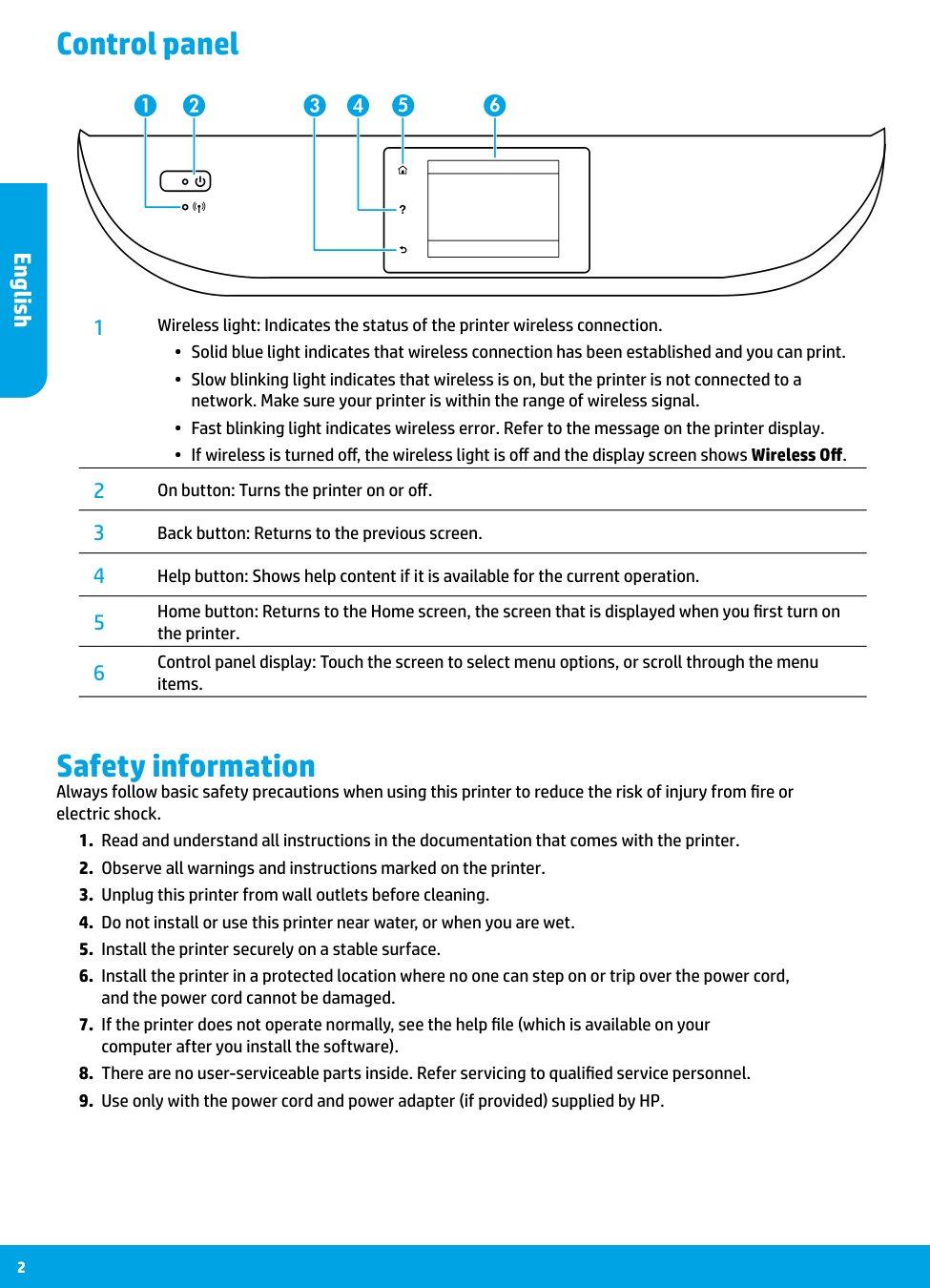
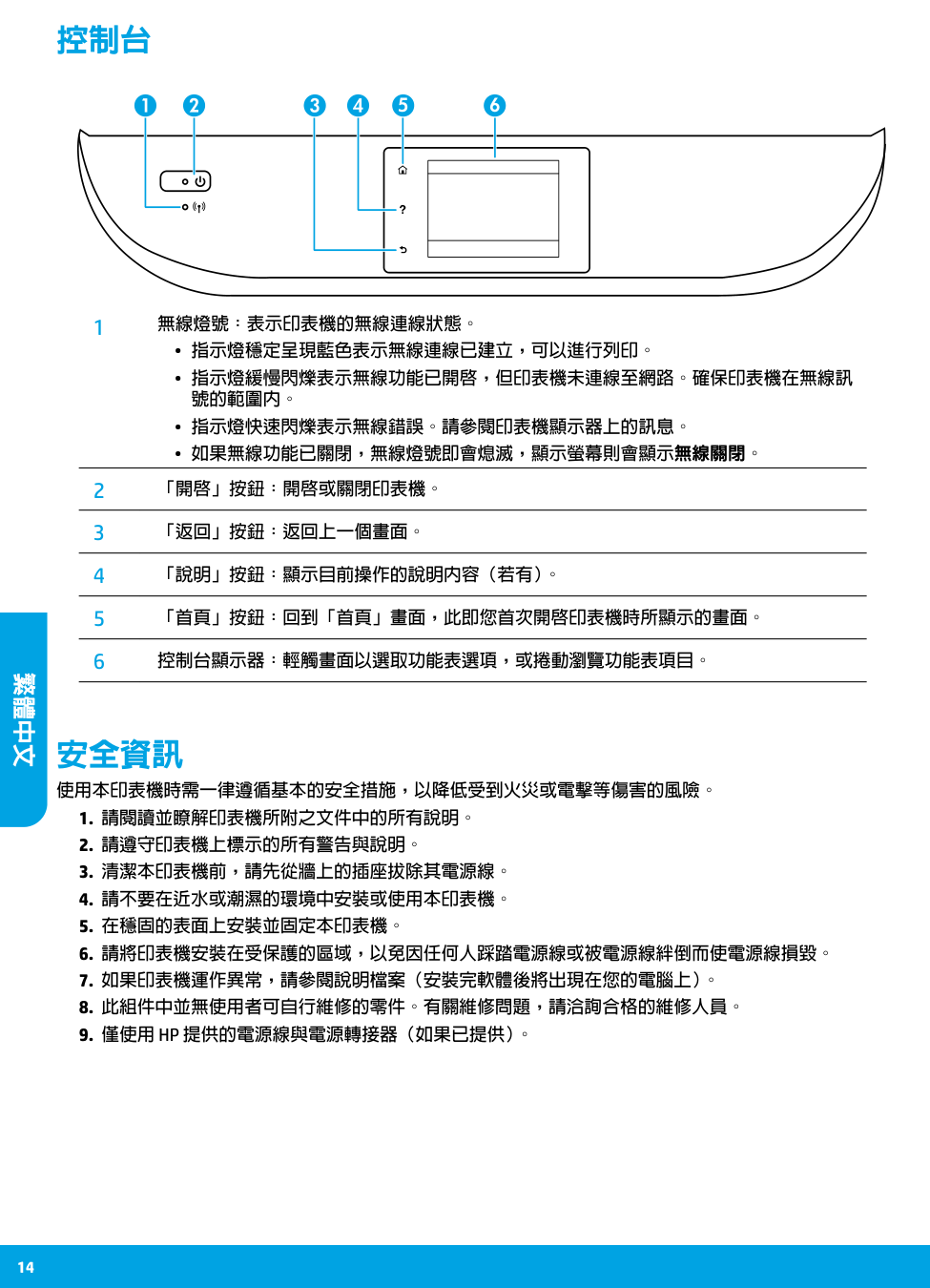
A solid blue light indicates that a wireless connection has been established and you can print. A slow blinking light means wireless is on but the printer is not connected to a network, while a fast blinking light indicates a wireless error — you should refer to the message on the printer display. If wireless is turned off entirely, the wireless light will be off and the display screen will show 'Wireless Off.' (Page 2)

2

How do I install the printer software on my computer?

Go to the URL indicated on the control panel and follow the instructions on the web to install the software. The latest printer software is also available from www.hp.com/support, and an HP printer software CD is also provided. For Windows users, if the installation program does not automatically start when you insert the CD, double-click Setup.exe. (Page 1)

3

How do I reset the printer if it is not working properly?

To reset the printer, turn it off and unplug the power cord, then wait a minute before plugging the power cord back in and turning it on. You should also restart your computer as part of the troubleshooting process. (Page 3)

4

How do I print wirelessly without a router using Wi-Fi Direct?

From the Home screen on the printer display, touch the Wi-Fi Direct icon and ensure Wi-Fi Direct is turned on. Then, on your mobile device, connect to the Wi-Fi Direct network name shown as DIRECT-**-HP ENVY-5640 and enter the Wi-Fi Direct password when prompted. Note that a Wi-Fi Direct connection does not provide Internet access. (Page 5)

5

What should I do if my printer cannot be found on the wireless network?

First, confirm that wireless is enabled on the printer by touching the Wireless icon on the control panel and checking that it is set to On. You should also print a Wireless Test Report by going to Settings > Print Reports > Wireless Test Report to diagnose connection issues. Additionally, temporarily disabling your firewall can help determine if security software is blocking communication between your computer and printer. (Page 4)

6

How do I change from a USB connection to a wireless connection on Windows?

First, ensure the printer software is already installed, then navigate to the HP software via the Start menu (or All Apps on Windows 8), select the printer name, click 'Printer Setup & Software,' and then select 'Convert a USB connected printer to wireless.' Follow the on-screen instructions to complete the process. On a Mac, use HP Utility located in the Applications/Hewlett-Packard folder to change the connection to wireless. (Page 5)

Show 8 more questions

Full Manual

18 pages
Page 1

© 2014 Hewlett-Packard Development Company, L.P.

*B9S56-90156*

*B9S56-90156*

B9S56-90156

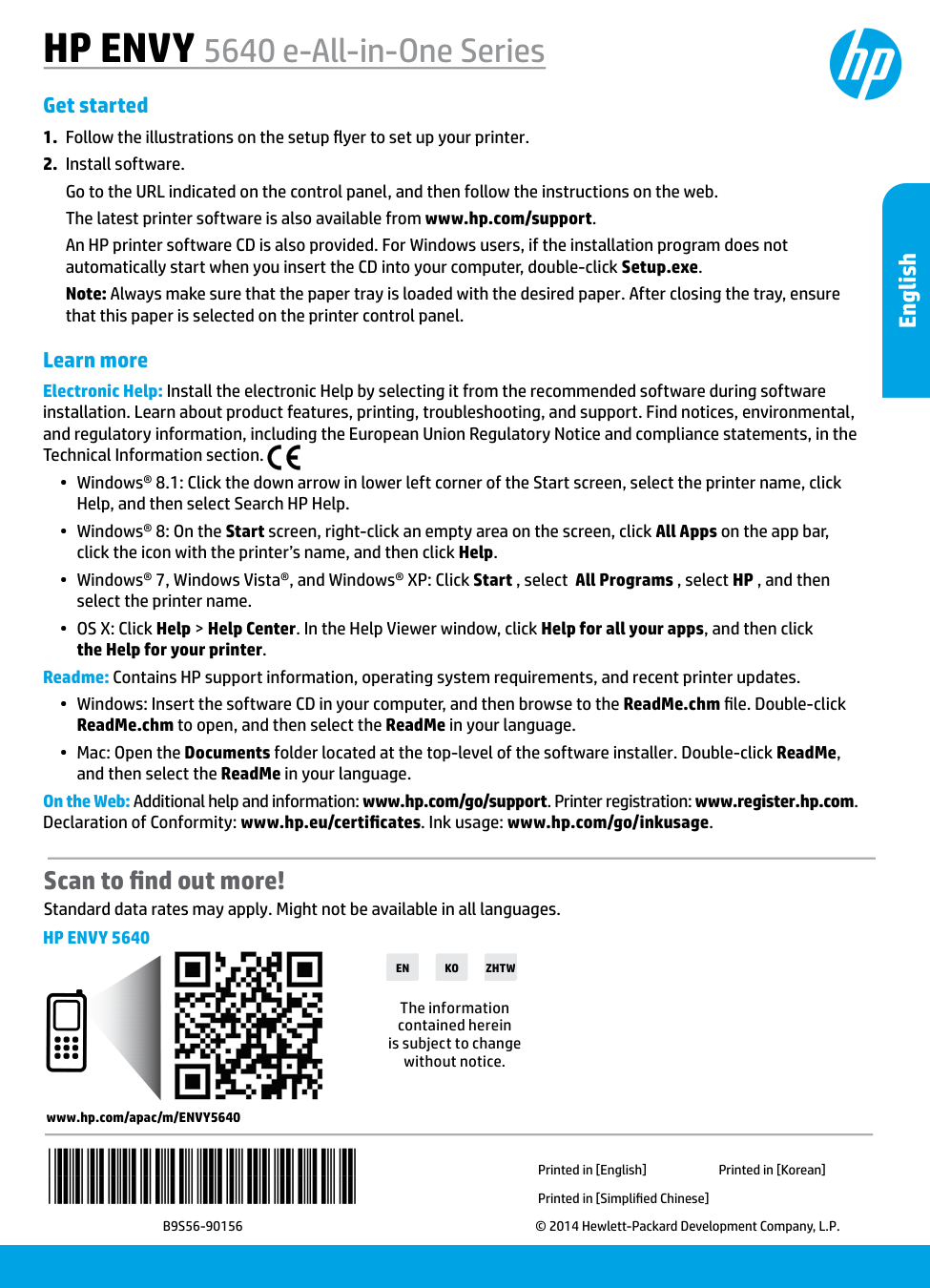
Printed in [English] Printed in [Simplified Chinese] Printed in [Korean] The information contained herein is subject to change without notice. www.hp.com/apac/m/ENVY5640 Scan to find out more! Standard data rates may apply. Might not be available in all languages. Learn more Electronic Help: Install the electronic Help by selecting it from the recommended software during software installation. Learn about product features, printing, troubleshooting, and support. Find notices, environmental, and regulatory information, including the European Union Regulatory Notice and compliance statements, in the Technical Information section. •• Windows® 8.1: Click the down arrow in lower left corner of the Start screen, select the printer name, click Help, and then select Search HP Help. •• Windows® 8: On the Start screen, right-click an empty area on the screen, click All Apps on the app bar, click the icon with the printer’s name, and then click Help. •• Windows® 7, Windows Vista®, and Windows® XP: Click Start , select All Programs , select HP , and then select the printer name. •• OS X: Click Help > Help Center. In the Help Viewer window, click Help for all your apps, and then click the Help for your printer. Readme: Contains HP support information, operating system requirements, and recent printer updates. •• Windows: Insert the software CD in your computer, and then browse to the ReadMe.chm file. Double-click ReadMe.chm to open, and then select the ReadMe in your language. •• Mac: Open the Documents folder located at the top-level of the software installer. Double-click ReadMe, and then select the ReadMe in your language. On the Web: Additional help and information: www.hp.com/go/support. Printer registration: www.register.hp.com. Declaration of Conformity: www.hp.eu/certificates. Ink usage: www.hp.com/go/inkusage. Get started
  • Follow the illustrations on the setup flyer to set up your printer.
  • Install software.
  • Go to the URL indicated on the control panel, and then follow the instructions on the web. The latest printer software is also available from www.hp.com/support. An HP printer software CD is also provided. For Windows users, if the installation program does not automatically start when you insert the CD into your computer, double-click Setup.exe. Note: Always make sure that the paper tray is loaded with the desired paper. After closing the tray, ensure that this paper is selected on the printer control panel. HP ENVY 5640 e-All-in-One Series

    Hp Envy 5640

    English

    Ko

    En

    Zhtw

    Page 2

    2 Safety information Always follow basic safety precautions when using this printer to reduce the risk of injury from fire or electric shock.
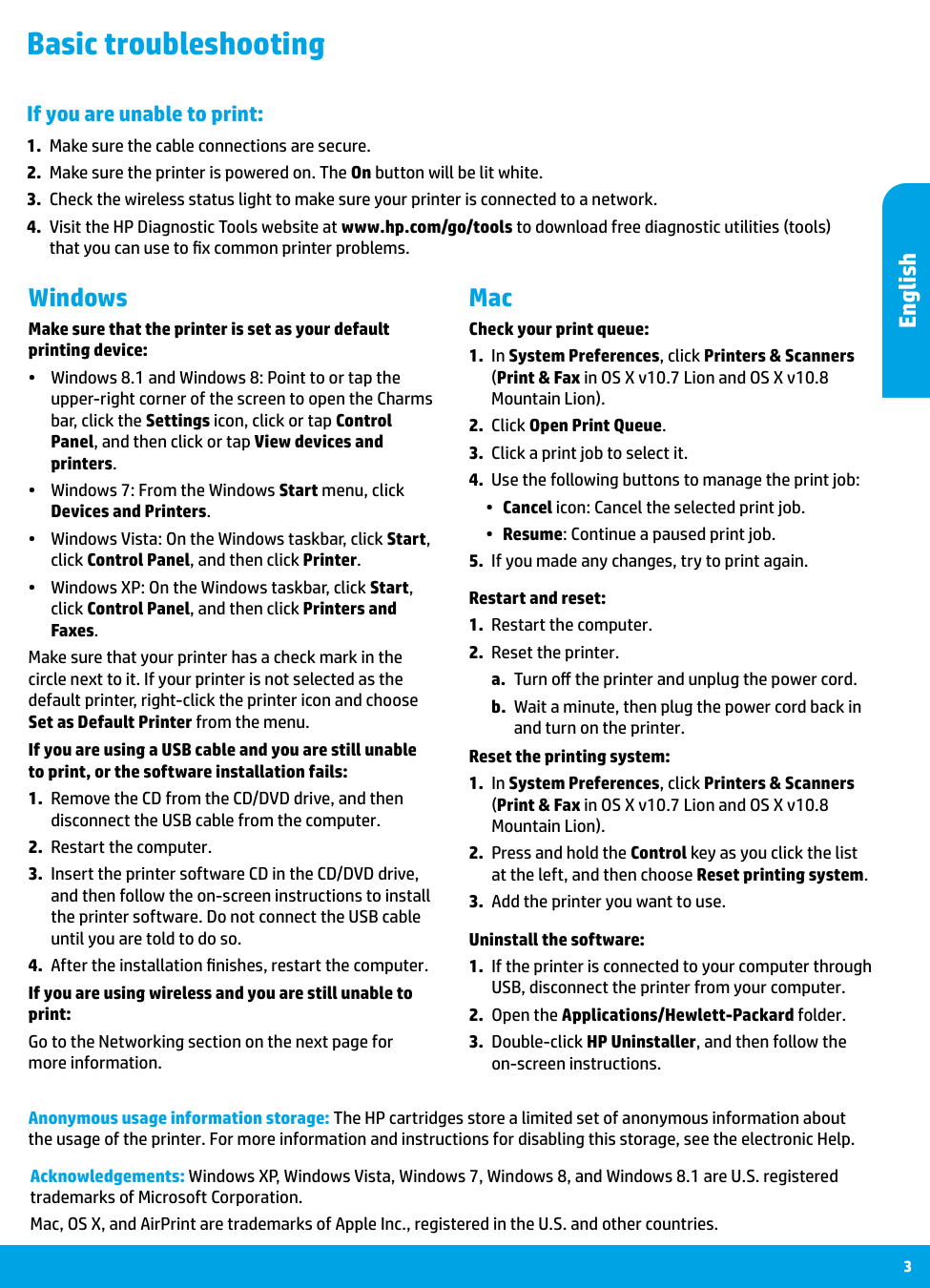
  • Read and understand all instructions in the documentation that comes with the printer.
  • Observe all warnings and instructions marked on the printer.
  • Unplug this printer from wall outlets before cleaning.
  • Do not install or use this printer near water, or when you are wet.
  • Install the printer securely on a stable surface.
  • Install the printer in a protected location where no one can step on or trip over the power cord,
  • and the power cord cannot be damaged.
  • If the printer does not operate normally, see the help file (which is available on your
  • computer after you install the software).
  • There are no user-serviceable parts inside. Refer servicing to qualified service personnel.
  • Use only with the power cord and power adapter (if provided) supplied by HP.
  • 1 Wireless light: Indicates the status of the printer wireless connection. •• Solid blue light indicates that wireless connection has been established and you can print. •• Slow blinking light indicates that wireless is on, but the printer is not connected to a network. Make sure your printer is within the range of wireless signal. •• Fast blinking light indicates wireless error. Refer to the message on the printer display. •• If wireless is turned off, the wireless light is off and the display screen shows Wireless Off. 2 On button: Turns the printer on or off. 3 Back button: Returns to the previous screen. 4 Help button: Shows help content if it is available for the current operation. 5 Home button: Returns to the Home screen, the screen that is displayed when you first turn on the printer. 6 Control panel display: Touch the screen to select menu options, or scroll through the menu items. Control panel English

    Page 3

    3 Mac Windows Basic troubleshooting If you are unable to print:
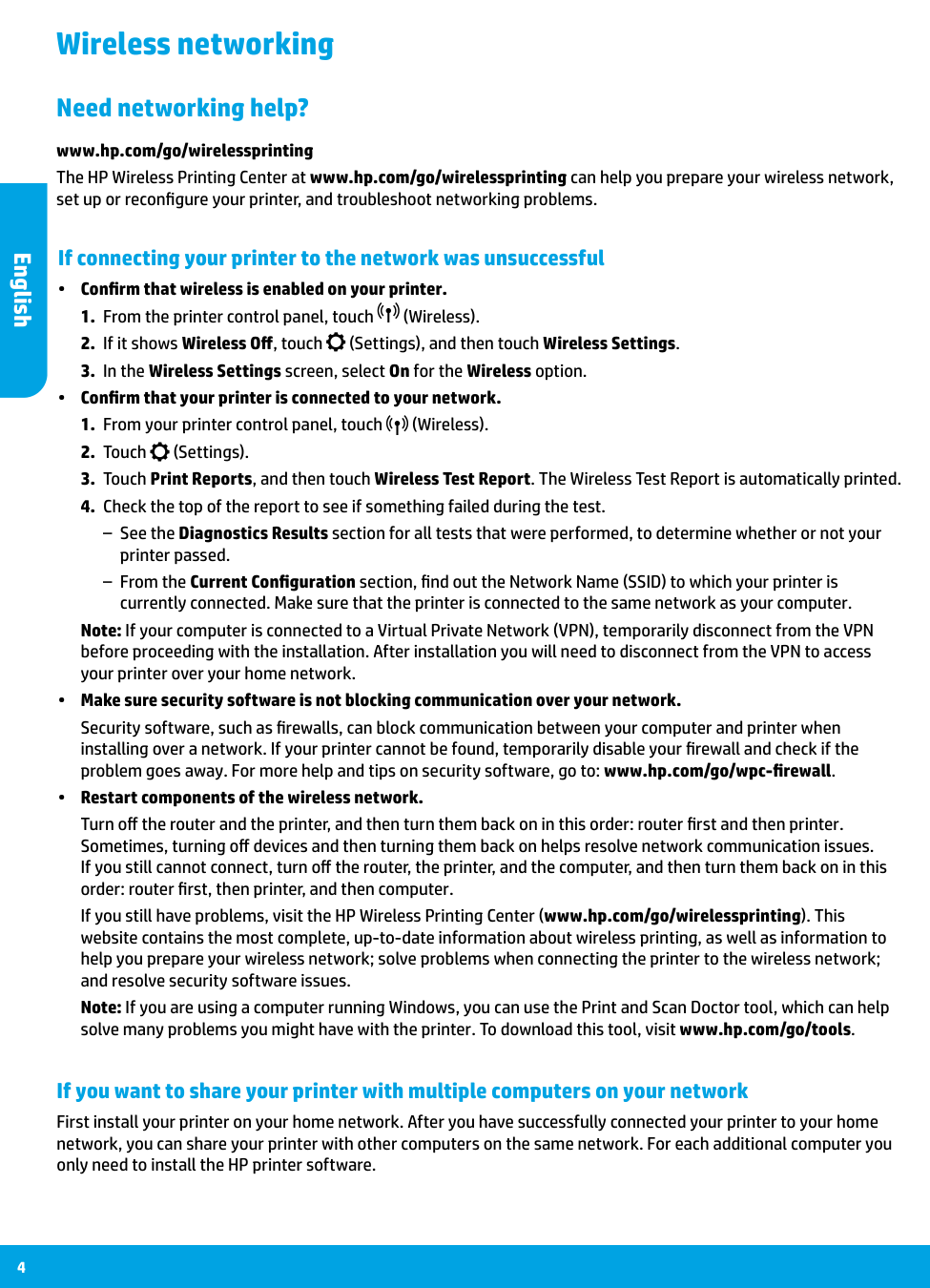
  • Make sure the cable connections are secure.
  • Make sure the printer is powered on. The On button will be lit white.
  • Check the wireless status light to make sure your printer is connected to a network.
  • Visit the HP Diagnostic Tools website at www.hp.com/go/tools to download free diagnostic utilities (tools)
  • that you can use to fix common printer problems. Make sure that the printer is set as your default printing device: •• Windows 8.1 and Windows 8: Point to or tap the upper-right corner of the screen to open the Charms bar, click the Settings icon, click or tap Control Panel, and then click or tap View devices and printers. •• Windows 7: From the Windows Start menu, click Devices and Printers. •• Windows Vista: On the Windows taskbar, click Start, click Control Panel, and then click Printer. •• Windows XP: On the Windows taskbar, click Start, click Control Panel, and then click Printers and Faxes. Make sure that your printer has a check mark in the circle next to it. If your printer is not selected as the default printer, right-click the printer icon and choose Set as Default Printer from the menu. Check your print queue:
  • In System Preferences, click Printers & Scanners
  • (Print & Fax in OS X v10.7 Lion and OS X v10.8 Mountain Lion).
  • Click Open Print Queue.
  • Click a print job to select it.
  • Use the following buttons to manage the print job:
  • •• Cancel icon: Cancel the selected print job. •• Resume: Continue a paused print job.
  • If you made any changes, try to print again.
  • Restart and reset:
  • Restart the computer.
  • Reset the printer.
  • a. Turn off the printer and unplug the power cord. b. Wait a minute, then plug the power cord back in and turn on the printer. Acknowledgements: Windows XP, Windows Vista, Windows 7, Windows 8, and Windows 8.1 are U.S. registered trademarks of Microsoft Corporation. Mac, OS X, and AirPrint are trademarks of Apple Inc., registered in the U.S. and other countries. If you are using a USB cable and you are still unable to print, or the software installation fails:
  • Remove the CD from the CD/DVD drive, and then
  • disconnect the USB cable from the computer.
  • Restart the computer.
  • Insert the printer software CD in the CD/DVD drive,
  • and then follow the on-screen instructions to install the printer software. Do not connect the USB cable until you are told to do so.
  • After the installation finishes, restart the computer.
  • If you are using wireless and you are still unable to print: Go to the Networking section on the next page for more information. Uninstall the software:
  • If the printer is connected to your computer through
  • USB, disconnect the printer from your computer.
  • Open the Applications/Hewlett-Packard folder.
  • Double-click HP Uninstaller, and then follow the
  • on-screen instructions. Reset the printing system:
  • In System Preferences, click Printers & Scanners
  • (Print & Fax in OS X v10.7 Lion and OS X v10.8 Mountain Lion).
  • Press and hold the Control key as you click the list
  • at the left, and then choose Reset printing system.
  • Add the printer you want to use.
  • Anonymous usage information storage: The HP cartridges store a limited set of anonymous information about the usage of the printer. For more information and instructions for disabling this storage, see the electronic Help. English

    Page 4

    4 Wireless networking If connecting your printer to the network was unsuccessful •• Confirm that wireless is enabled on your printer.
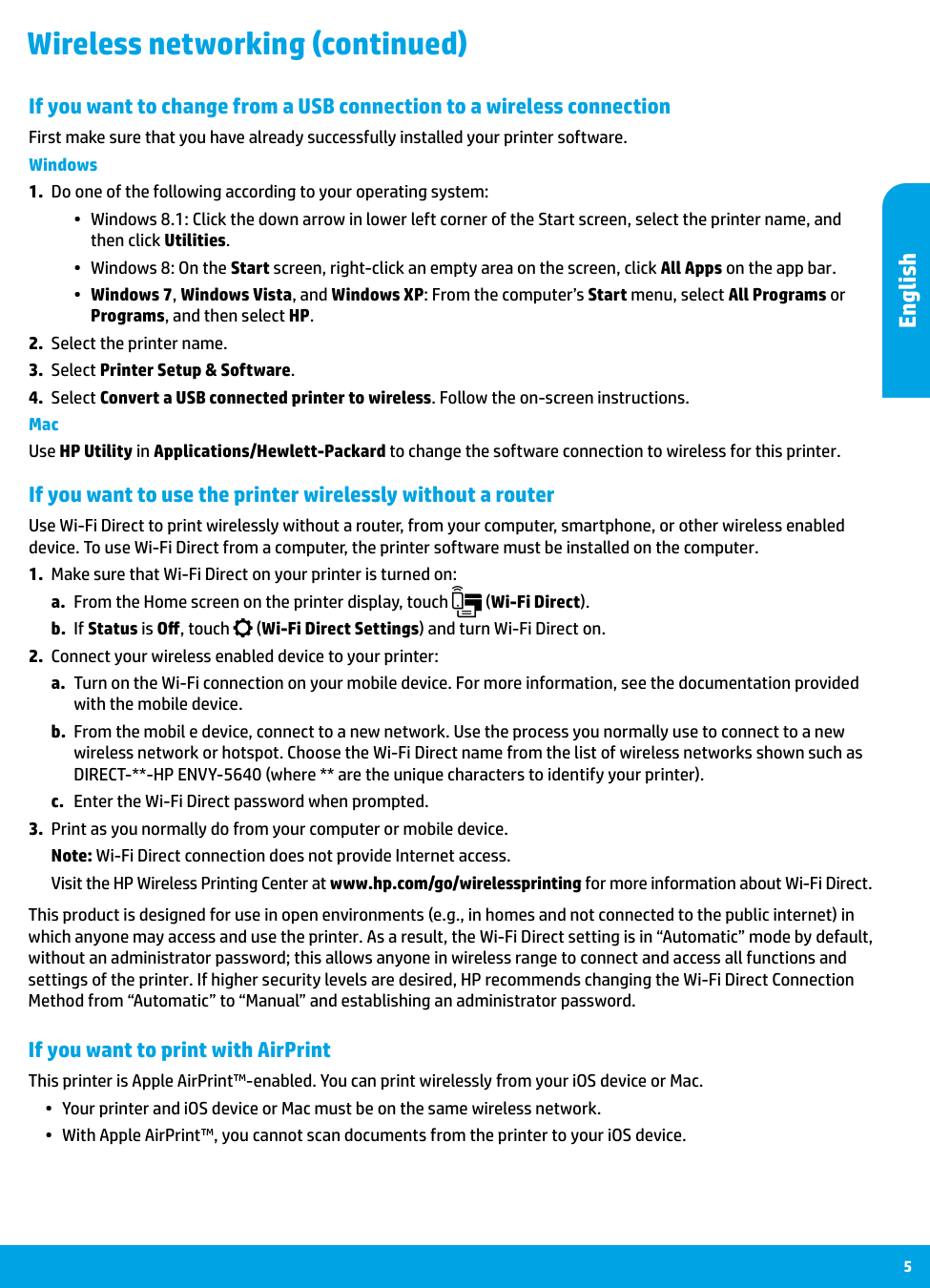
  • From the printer control panel, touch
  • (Wireless).
  • If it shows Wireless Off, touch
  • (Settings), and then touch Wireless Settings.
  • In the Wireless Settings screen, select On for the Wireless option.
  • •• Confirm that your printer is connected to your network.
  • From your printer control panel, touch
  • (Wireless).
  • Touch
  • (Settings).
  • Touch Print Reports, and then touch Wireless Test Report. The Wireless Test Report is automatically printed.
  • Check the top of the report to see if something failed during the test.
  • –– See the Diagnostics Results section for all tests that were performed, to determine whether or not your printer passed. –– From the Current Configuration section, find out the Network Name (SSID) to which your printer is currently connected. Make sure that the printer is connected to the same network as your computer. Note: If your computer is connected to a Virtual Private Network (VPN), temporarily disconnect from the VPN before proceeding with the installation. After installation you will need to disconnect from the VPN to access your printer over your home network. •• Make sure security software is not blocking communication over your network. Security software, such as firewalls, can block communication between your computer and printer when installing over a network. If your printer cannot be found, temporarily disable your firewall and check if the problem goes away. For more help and tips on security software, go to: www.hp.com/go/wpc-firewall. •• Restart components of the wireless network. Turn off the router and the printer, and then turn them back on in this order: router first and then printer. Sometimes, turning off devices and then turning them back on helps resolve network communication issues. If you still cannot connect, turn off the router, the printer, and the computer, and then turn them back on in this order: router first, then printer, and then computer. If you still have problems, visit the HP Wireless Printing Center (www.hp.com/go/wirelessprinting). This website contains the most complete, up-to-date information about wireless printing, as well as information to help you prepare your wireless network; solve problems when connecting the printer to the wireless network; and resolve security software issues. Note: If you are using a computer running Windows, you can use the Print and Scan Doctor tool, which can help solve many problems you might have with the printer. To download this tool, visit www.hp.com/go/tools. If you want to share your printer with multiple computers on your network First install your printer on your home network. After you have successfully connected your printer to your home network, you can share your printer with other computers on the same network. For each additional computer you only need to install the HP printer software. Need networking help? www.hp.com/go/wirelessprinting The HP Wireless Printing Center at www.hp.com/go/wirelessprinting can help you prepare your wireless network, set up or reconfigure your printer, and troubleshoot networking problems. English

    Page 5

    5 If you want to use the printer wirelessly without a router Use Wi-Fi Direct to print wirelessly without a router, from your computer, smartphone, or other wireless enabled device. To use Wi-Fi Direct from a computer, the printer software must be installed on the computer.
  • Make sure that Wi-Fi Direct on your printer is turned on:
  • a. From the Home screen on the printer display, touch (Wi-Fi Direct). b. If Status is Off, touch (Wi-Fi Direct Settings) and turn Wi-Fi Direct on.
  • Connect your wireless enabled device to your printer:
  • a. Turn on the Wi-Fi connection on your mobile device. For more information, see the documentation provided with the mobile device. b. From the mobil e device, connect to a new network. Use the process you normally use to connect to a new wireless network or hotspot. Choose the Wi-Fi Direct name from the list of wireless networks shown such as DIRECT--HP ENVY-5640 (where are the unique characters to identify your printer). c. Enter the Wi-Fi Direct password when prompted.
  • Print as you normally do from your computer or mobile device.
  • Note: Wi-Fi Direct connection does not provide Internet access. Visit the HP Wireless Printing Center at www.hp.com/go/wirelessprinting for more information about Wi-Fi Direct. If you want to change from a USB connection to a wireless connection First make sure that you have already successfully installed your printer software. Windows
  • Do one of the following according to your operating system:
  • •• Windows 8.1: Click the down arrow in lower left corner of the Start screen, select the printer name, and then click Utilities. •• Windows 8: On the Start screen, right-click an empty area on the screen, click All Apps on the app bar. •• Windows 7, Windows Vista, and Windows XP: From the computer’s Start menu, select All Programs or Programs, and then select HP.
  • Select the printer name.
  • Select Printer Setup & Software.
  • Select Convert a USB connected printer to wireless. Follow the on-screen instructions.
  • Mac Use HP Utility in Applications/Hewlett-Packard to change the software connection to wireless for this printer. Wireless networking (continued) If you want to print with AirPrint This printer is Apple AirPrint™-enabled. You can print wirelessly from your iOS device or Mac. •• Your printer and iOS device or Mac must be on the same wireless network. •• With Apple AirPrint™, you cannot scan documents from the printer to your iOS device. This product is designed for use in open environments (e.g., in homes and not connected to the public internet) in which anyone may access and use the printer. As a result, the Wi-Fi Direct setting is in “Automatic” mode by default, without an administrator password; this allows anyone in wireless range to connect and access all functions and settings of the printer. If higher security levels are desired, HP recommends changing the Wi-Fi Direct Connection Method from “Automatic” to “Manual” and establishing an administrator password. English

    Page 6

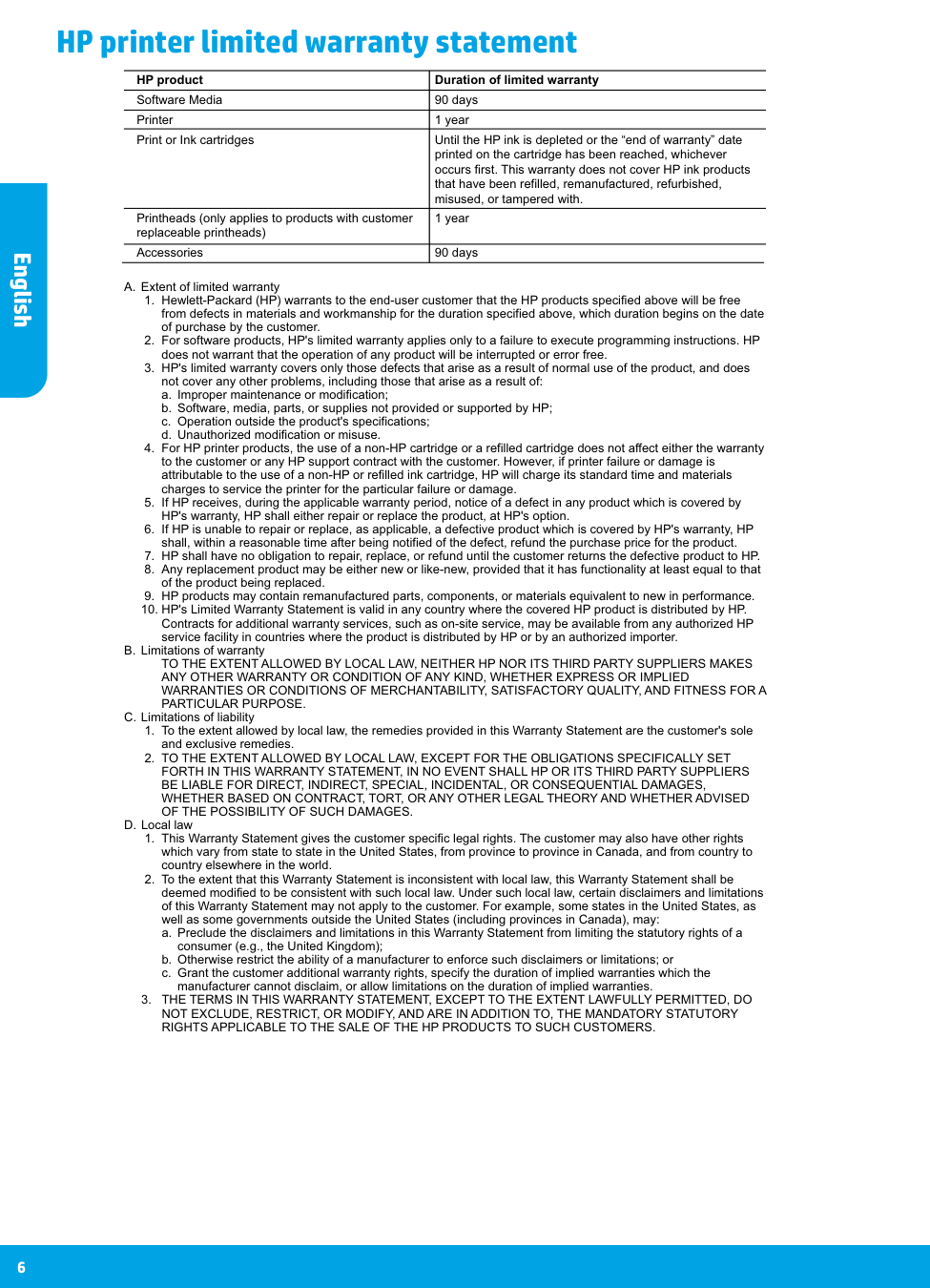
    English 6 HP printer limited warranty statement A. Extent of limited warranty

  • Hewlett-Packard (HP) warrants to the end-user customer that the HP products specified above will be free
  • from defects in materials and workmanship for the duration specified above, which duration begins on the date of purchase by the customer.

  • For software products, HP's limited warranty applies only to a failure to execute programming instructions. HP
  • does not warrant that the operation of any product will be interrupted or error free.

  • HP's limited warranty covers only those defects that arise as a result of normal use of the product, and does
  • not cover any other problems, including those that arise as a result of:

    a. Improper maintenance or modification;

    b. Software, media, parts, or supplies not provided or supported by HP;

    c. Operation outside the product's specifications;

    d. Unauthorized modification or misuse.

  • For HP printer products, the use of a non-HP cartridge or a refilled cartridge does not affect either the warranty
  • to the customer or any HP support contract with the customer. However, if printer failure or damage is attributable to the use of a non-HP or refilled ink cartridge, HP will charge its standard time and materials charges to service the printer for the particular failure or damage.

  • If HP receives, during the applicable warranty period, notice of a defect in any product which is covered by
  • HP's warranty, HP shall either repair or replace the product, at HP's option.

  • If HP is unable to repair or replace, as applicable, a defective product which is covered by HP's warranty, HP
  • shall, within a reasonable time after being notified of the defect, refund the purchase price for the product.

  • HP shall have no obligation to repair, replace, or refund until the customer returns the defective product to HP.
  • Any replacement product may be either new or like-new, provided that it has functionality at least equal to that
  • of the product being replaced.

  • HP products may contain remanufactured parts, components, or materials equivalent to new in performance.
  • HP's Limited Warranty Statement is valid in any country where the covered HP product is distributed by HP.
  • Contracts for additional warranty services, such as on-site service, may be available from any authorized HP service facility in countries where the product is distributed by HP or by an authorized importer. B. Limitations of warranty TO THE EXTENT ALLOWED BY LOCAL LAW, NEITHER HP NOR ITS THIRD PARTY SUPPLIERS MAKES

    Any Other Warranty Or Condition Of Any Kind, Whether Express Or Implied

    WARRANTIES OR CONDITIONS OF MERCHANTABILITY, SATISFACTORY QUALITY, AND FITNESS FOR A

    Particular Purpose.

    C. Limitations of liability

  • To the extent allowed by local law, the remedies provided in this Warranty Statement are the customer's sole
  • and exclusive remedies.

  • TO THE EXTENT ALLOWED BY LOCAL LAW, EXCEPT FOR THE OBLIGATIONS SPECIFICALLY SET
  • FORTH IN THIS WARRANTY STATEMENT, IN NO EVENT SHALL HP OR ITS THIRD PARTY SUPPLIERS

    Be Liable For Direct, Indirect, Special, Incidental, Or Consequential Damages,

    Whether Based On Contract, Tort, Or Any Other Legal Theory And Whether Advised

    Of The Possibility Of Such Damages.

    D. Local law

  • This Warranty Statement gives the customer specific legal rights. The customer may also have other rights
  • which vary from state to state in the United States, from province to province in Canada, and from country to country elsewhere in the world.

  • To the extent that this Warranty Statement is inconsistent with local law, this Warranty Statement shall be
  • deemed modified to be consistent with such local law. Under such local law, certain disclaimers and limitations of this Warranty Statement may not apply to the customer. For example, some states in the United States, as well as some governments outside the United States (including provinces in Canada), may:

    a. Preclude the disclaimers and limitations in this Warranty Statement from limiting the statutory rights of a consumer (e.g., the United Kingdom);

    b. Otherwise restrict the ability of a manufacturer to enforce such disclaimers or limitations; or

    c. Grant the customer additional warranty rights, specify the duration of implied warranties which the manufacturer cannot disclaim, or allow limitations on the duration of implied warranties.

  • THE TERMS IN THIS WARRANTY STATEMENT, EXCEPT TO THE EXTENT LAWFULLY PERMITTED, DO
  • NOT EXCLUDE, RESTRICT, OR MODIFY, AND ARE IN ADDITION TO, THE MANDATORY STATUTORY

    Rights Applicable To The Sale Of The Hp Products To Such Customers.

    HP product Duration of limited warranty Software Media 90 days Printer 1 year Print or Ink cartridges Until the HP ink is depleted or the “end of warranty” date

    printed on the cartridge has been reached, whichever

    occurs first. This warranty does not cover HP ink products

    that have been refilled, remanufactured, refurbished,

    misused, or tampered with. Printheads (only applies to products with customer 1 year replaceable printheads) Accessories 90 days
    Page 7

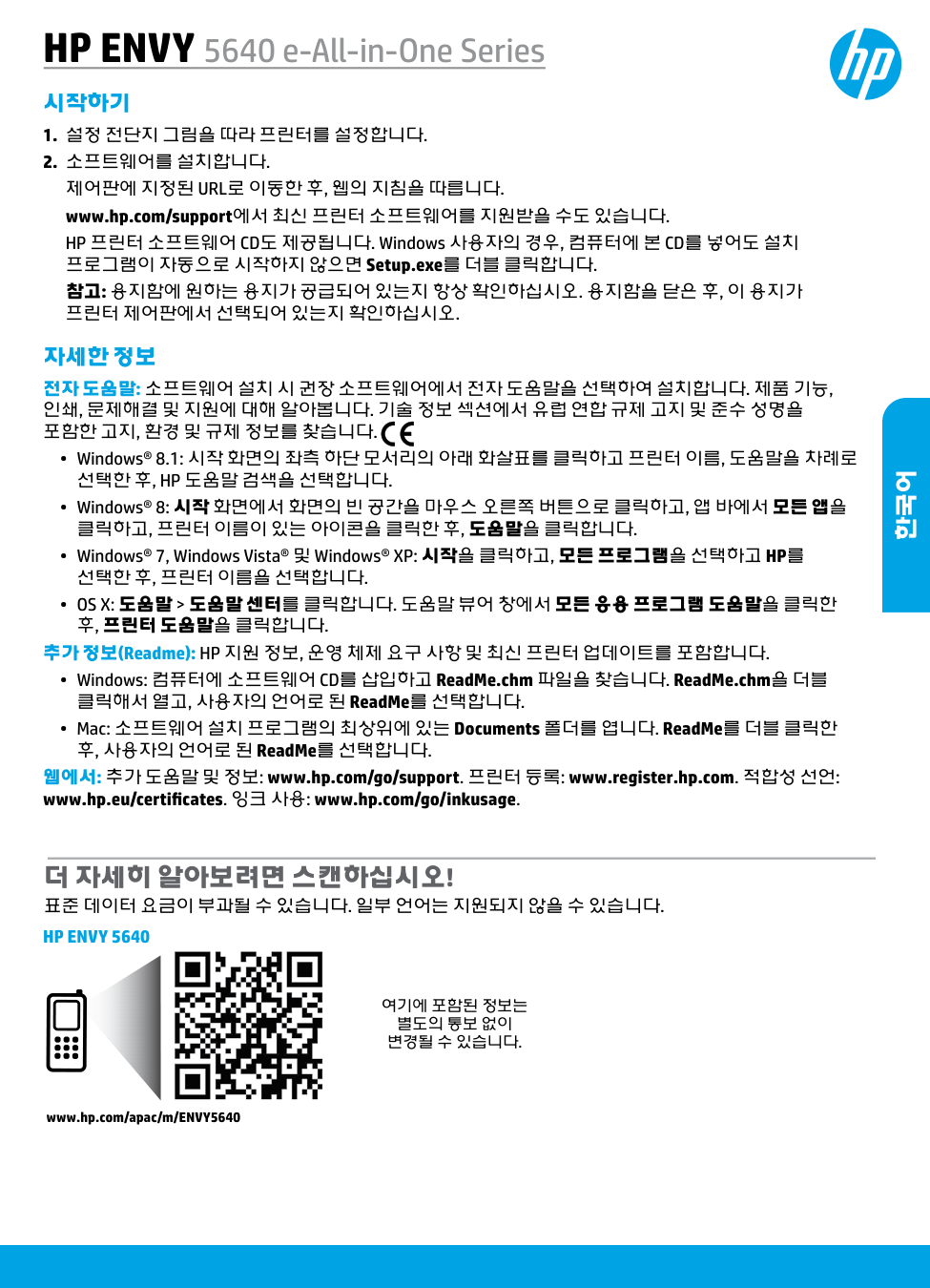
    여기에 포함된 정보는 별도의 통보 없이 변경될 수 있습니다. 더 자세히 알아보려면 스캔하십시오! 표준 데이터 요금이 부과될 수 있습니다. 일부 언어는 지원되지 않을 수 있습니다. 자세한 정보 전자 도움말: 소프트웨어 설치 시 권장 소프트웨어에서 전자 도움말을 선택하여 설치합니다. 제품 기능, 인쇄, 문제해결 및 지원에 대해 알아봅니다. 기술 정보 섹션에서 유럽 연합 규제 고지 및 준수 성명을 포함한 고지, 환경 및 규제 정보를 찾습니다.

  • Windows® 8.1: 시작 화면의 좌측 하단 모서리의 아래 화살표를 클릭하고 프린터 이름, 도움말을 차례로
  • 선택한 후, Hp 도움말 검색을 선택합니다.

  • Windows® 8: 시작 화면에서 화면의 빈 공간을 마우스 오른쪽 버튼으로 클릭하고, 앱 바에서 모든 앱을
  • 클릭하고, 프린터 이름이 있는 아이콘을 클릭한 후, 도움말을 클릭합니다.
  • Windows® 7, Windows Vista® 및 Windows® XP: 시작을 클릭하고, 모든 프로그램을 선택하고 HP를
  • 선택한 후, 프린터 이름을 선택합니다.

    • Os X: 도움말 > 도움말 센터를 클릭합니다. 도움말 뷰어 창에서 모든 응용 프로그램 도움말을 클릭한

    후, 프린터 도움말을 클릭합니다. 추가 정보(Readme): HP 지원 정보, 운영 체제 요구 사항 및 최신 프린터 업데이트를 포함합니다.
  • Windows: 컴퓨터에 소프트웨어 CD를 삽입하고 ReadMe.chm 파일을 찾습니다. ReadMe.chm을 더블
  • 클릭해서 열고, 사용자의 언어로 된 ReadMe를 선택합니다.
  • Mac: 소프트웨어 설치 프로그램의 최상위에 있는 Documents 폴더를 엽니다. ReadMe를 더블 클릭한
  • 후, 사용자의 언어로 된 ReadMe를 선택합니다. 웹에서: 추가 도움말 및 정보: www.hp.com/go/support. 프린터 등록: www.register.hp.com. 적합성 선언: www.hp.eu/certificates. 잉크 사용: www.hp.com/go/inkusage. 시작하기
  • 설정 전단지 그림을 따라 프린터를 설정합니다.
  • 소프트웨어를 설치합니다.
  • 제어판에 지정된 Url로 이동한 후, 웹의 지침을 따릅니다.

    www.hp.com/support에서 최신 프린터 소프트웨어를 지원받을 수도 있습니다. HP 프린터 소프트웨어 CD도 제공됩니다. Windows 사용자의 경우, 컴퓨터에 본 CD를 넣어도 설치 프로그램이 자동으로 시작하지 않으면 Setup.exe를 더블 클릭합니다. 참고: 용지함에 원하는 용지가 공급되어 있는지 항상 확인하십시오. 용지함을 닫은 후, 이 용지가 프린터 제어판에서 선택되어 있는지 확인하십시오. HP ENVY 5640 e-All-in-One Series www.hp.com/apac/m/ENVY5640

    Hp Envy 5640

    한국어

    Page 8

    8 안전 정보 화재나 감전으로 인한 부상의 위험을 줄이기 위해 본 프린터를 사용할 때는 반드시 기본 안전 주의사항에 따르십시오.

  • 본 프린터와 함께 제공되는 설명서의 모든 지침을 읽고 숙지하십시오.
  • 프린터에 표시된 모든 경고 및 지침을 준수하십시오.
  • 청소하기 전에 콘센트에서 프린터의 플러그를 뽑으십시오.
  • 본 프린터를 물 근처에서 설치하거나 사용하지 마시고 몸이 젖은 상태에서 사용하지 마십시오.
  • 바닥이 평평한 장소에 프린터를 설치하십시오.
  • 전원 코드가 밟히거나 발에 걸려 손상될 염려가 없는 안전한 장소에 프린터를 설치하십시오.
  • 프린터가 정상적으로 작동하지 않으면 도움말 파일을 참조하십시오(도움말 파일은 소프트웨어 설치
  • 후에 컴퓨터에서 사용 가능).
  • 프린터 내부에는 사용자가 수리할 수 있는 부품이 없습니다. 전문 서비스 직원의 서비스를 받으십시오.
  • 9. Hp에서 제공하는(제공하는 경우) 전원 코드 및 전원 어댑터만 사용하십시오.

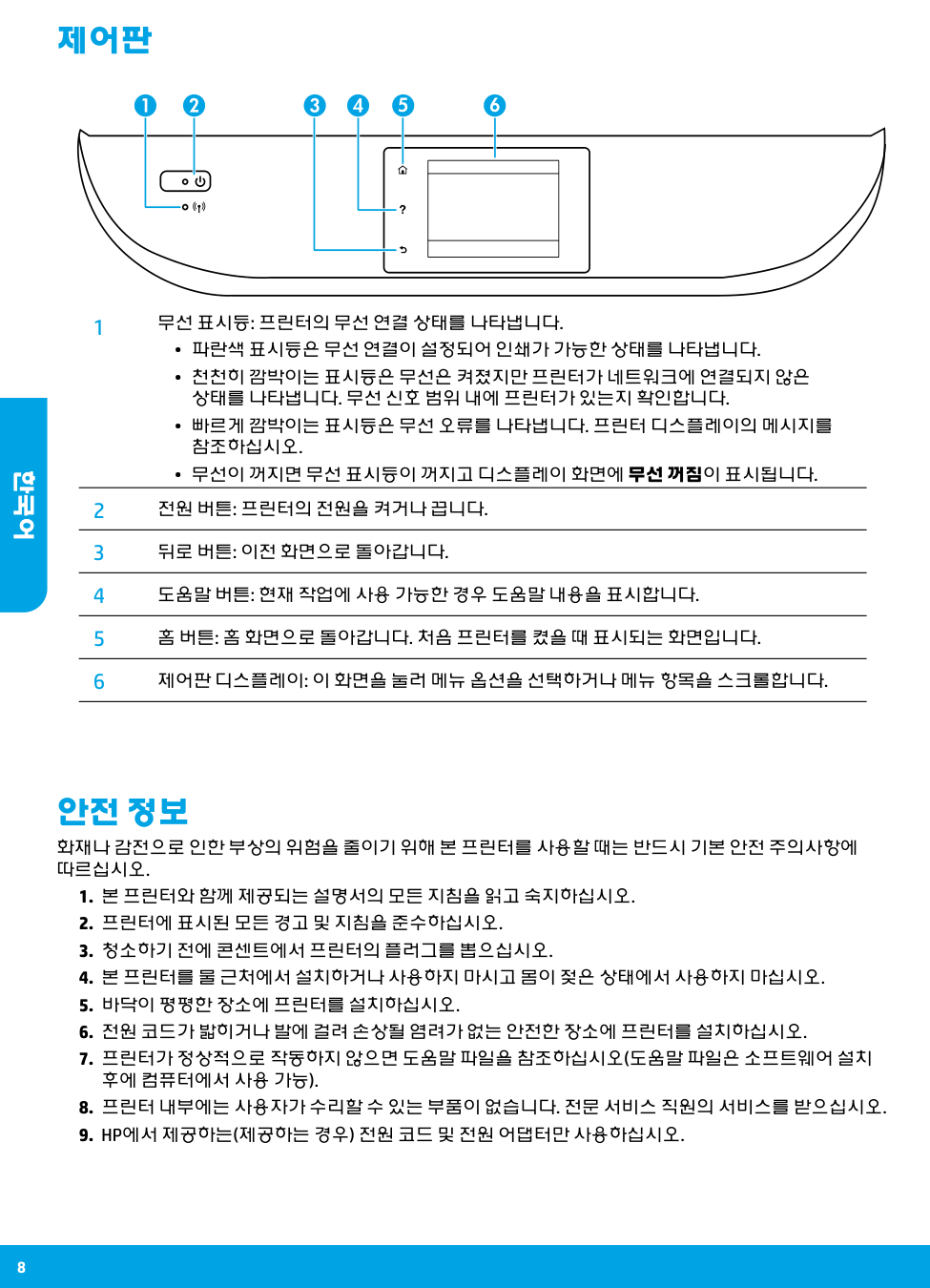
    1 무선 표시등: 프린터의 무선 연결 상태를 나타냅니다.
  • 파란색 표시등은 무선 연결이 설정되어 인쇄가 가능한 상태를 나타냅니다.
  • 천천히 깜박이는 표시등은 무선은 켜졌지만 프린터가 네트워크에 연결되지 않은
  • 상태를 나타냅니다. 무선 신호 범위 내에 프린터가 있는지 확인합니다.
  • 빠르게 깜박이는 표시등은 무선 오류를 나타냅니다. 프린터 디스플레이의 메시지를
  • 참조하십시오.
  • 무선이 꺼지면 무선 표시등이 꺼지고 디스플레이 화면에 무선 꺼짐이 표시됩니다.
  • 2 전원 버튼: 프린터의 전원을 켜거나 끕니다. 3 뒤로 버튼: 이전 화면으로 돌아갑니다. 4 도움말 버튼: 현재 작업에 사용 가능한 경우 도움말 내용을 표시합니다. 5 홈 버튼: 홈 화면으로 돌아갑니다. 처음 프린터를 켰을 때 표시되는 화면입니다. 6 제어판 디스플레이: 이 화면을 눌러 메뉴 옵션을 선택하거나 메뉴 항목을 스크롤합니다. 제어판 한국어

    Page 9

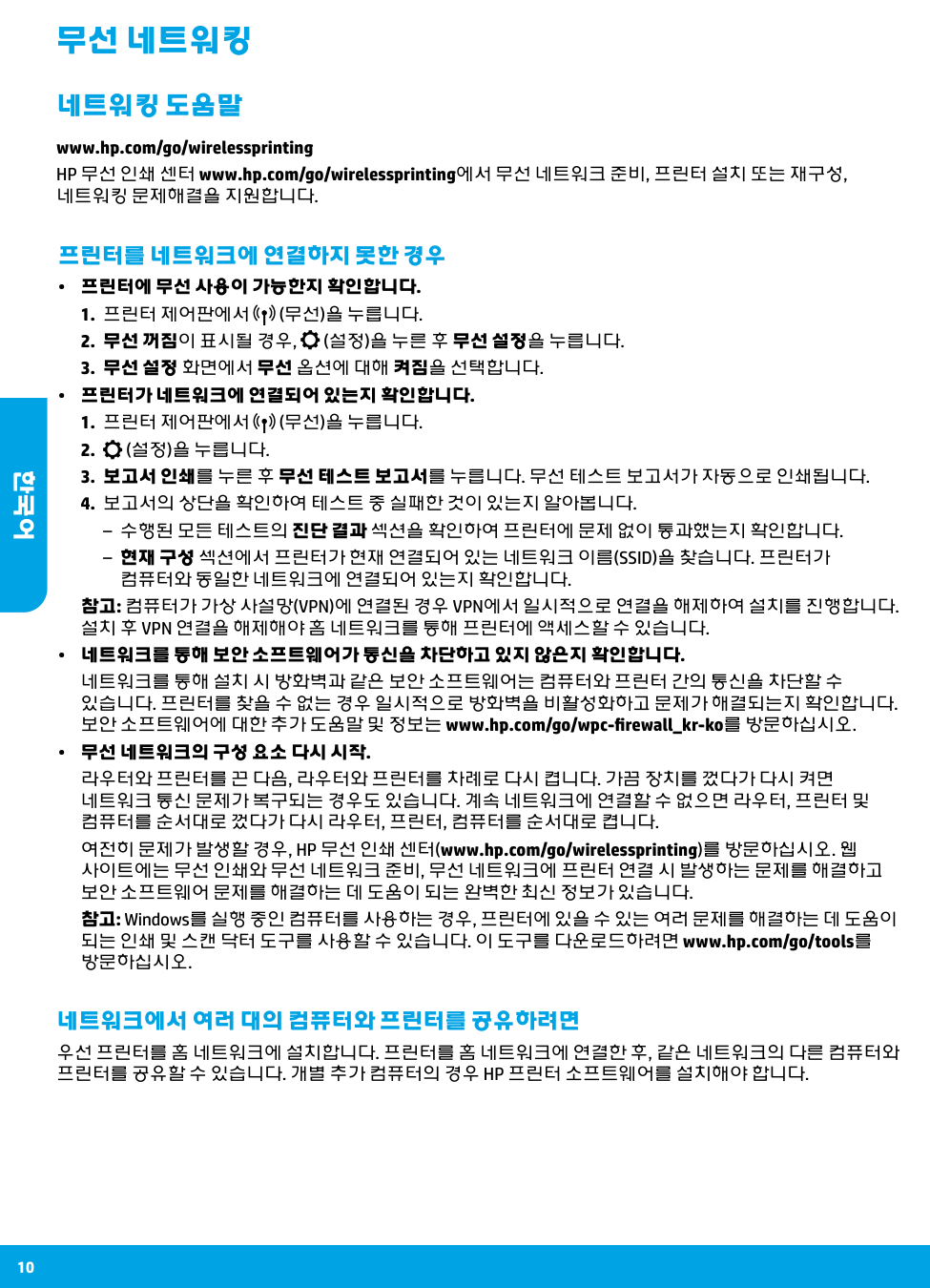
    9 Mac Windows 기본적인 문제 해결 인쇄를 할 수 없는 경우

  • 케이블이 확실히 연결되어 있는지 확인합니다.
  • 프린터 전원이 켜져 있는지 확인합니다. 전원 버튼이 흰색으로 켜집니다.
  • 무선 상태 표시등을 확인하여 프린터가 네트워크에 연결되었는지 확인합니다.
  • HP 진단 도구 웹 사이트(www.hp.com/go/tools)를 방문하면 일반 프린터 문제를 해결하는 데 사용 가능한
  • 진단 유틸리티(도구)를 무료로 다운로드할 수 있습니다. 프린터가 기본 인쇄 장치로 설정되어 있는지 확인합니다: • Windows 8.1 및 Windows 8: 화면의 오른쪽 상단 모서리를 가리키거나 탭하여 참 바를 열고, 설정 아이콘을 클릭하고, 제어판을 클릭하거나 탭한 후, 장치 및 프린터 보기를 클릭하거나 탭합니다. • Windows 7: Windows의 시작 메뉴에서 장치 및 프린터를 클릭합니다. • Windows Vista: Windows 작업 표시줄에서 시작, 제어판, 프린터를 차례로 클릭합니다. • Windows XP: Windows 작업 표시줄에서 시작, 제어판, 프린터 및 팩스를 차례로 클릭합니다. 프린터 옆의 확인란이 선택되었는지 확인합니다. 프린터가 기본 프린터로 선택되어 있지 않다면 프린터 아이콘을 마우스 오른쪽 버튼으로 클릭한 후 메뉴에서 기본 프린터로 설정을 선택합니다. 인쇄 대기열 확인:
  • 시스템 환경설정에서 프린터 및 스캐너
  • (OS X v10.7 Lion 및 OS X v10.8 Mountain Lion의 경우 프린터 및 팩스)를 클릭합니다.
  • 인쇄 대기열 열기를 클릭합니다.
  • 인쇄 작업을 클릭하여 선택합니다.
  • 다음 버튼을 사용하여 인쇄 작업을 관리합니다.
  • 취소 아이콘: 선택한 인쇄 작업을 취소합니다.
  • 다시 시작: 일시 중지된 인쇄 작업을 계속 이어서
  • 진행합니다.
  • 어떠한 내용이든 변경한 후, 다시 인쇄해
  • 보십시오. 재부팅 및 재설정:
  • 컴퓨터를 재부팅합니다.
  • 프린터를 재설정합니다.
  • a. 프린터를 끄고 전원 코드를 뽑습니다. b. 잠시 기다린 후, 전원 코드를 다시 연결하고 프린터의 전원을 켭니다. 승인: Windows XP, Windows Vista, Windows 7, Windows 8 및 Windows 8.1은 Microsoft Corporation의 미국 등록 상표입니다. Mac, OS X 및 AirPrint는 미국 및 기타 국가에 등록된 Apple Inc.의 상표입니다.

    Usb 케이블을 사용해도 인쇄할 수 없다면

    소프트웨어 설치가 잘못된 것입니다:

    1. Cd/Dvd 드라이브에서 Cd를 꺼낸 후 컴퓨터에서

    Usb 케이블을 분리합니다.

  • 컴퓨터를 재부팅합니다.
  • 3. Cd/Dvd 드라이브에 프린터 소프트웨어 Cd를

    삽입한 후 화면 지침에 따라 프린터 소프트웨어를

    설치합니다. Usb 케이블을 연결하라는 메시지가

    나타날 때까지 케이블을 연결해서는 안됩니다.
  • 설치가 끝나면 컴퓨터를 다시 시작합니다.
  • 무선을 사용해서도 인쇄할 수 없다면: 다음 페이지의 네트워킹 섹션에서 자세한 내용을 확인하십시오. 소프트웨어 제거:

    1. 프린터가 Usb로 컴퓨터에 연결된 경우,

    컴퓨터에서 프린터를 분리합니다.
  • Applications/Hewlett-Packard 폴더를 엽니다.
  • 3. Hp 제거 프로그램을 더블 클릭한 후 화면 지침을

    따릅니다. 인쇄 시스템 초기화:
  • 시스템 환경설정에서 프린터 및 스캐너
  • (OS X v10.7 Lion 및 OS X v10.8 Mountain Lion의 경우 프린터 및 팩스)를 클릭합니다.
  • 왼쪽 목록을 클릭하면서 제어 키를 누른 채 인쇄
  • 시스템 초기화를 선택합니다.
  • 사용할 프린터를 추가합니다.
  • 익명의 사용 정보 저장: Hp 카트리지는 프린터 사용에 대한 제한된 익명 정보를 저장합니다. 이 저장소를

    사용하지 않기 위한 자세한 정보와 지침은 전자 도움말을 참조하십시오. 한국어
    Page 10

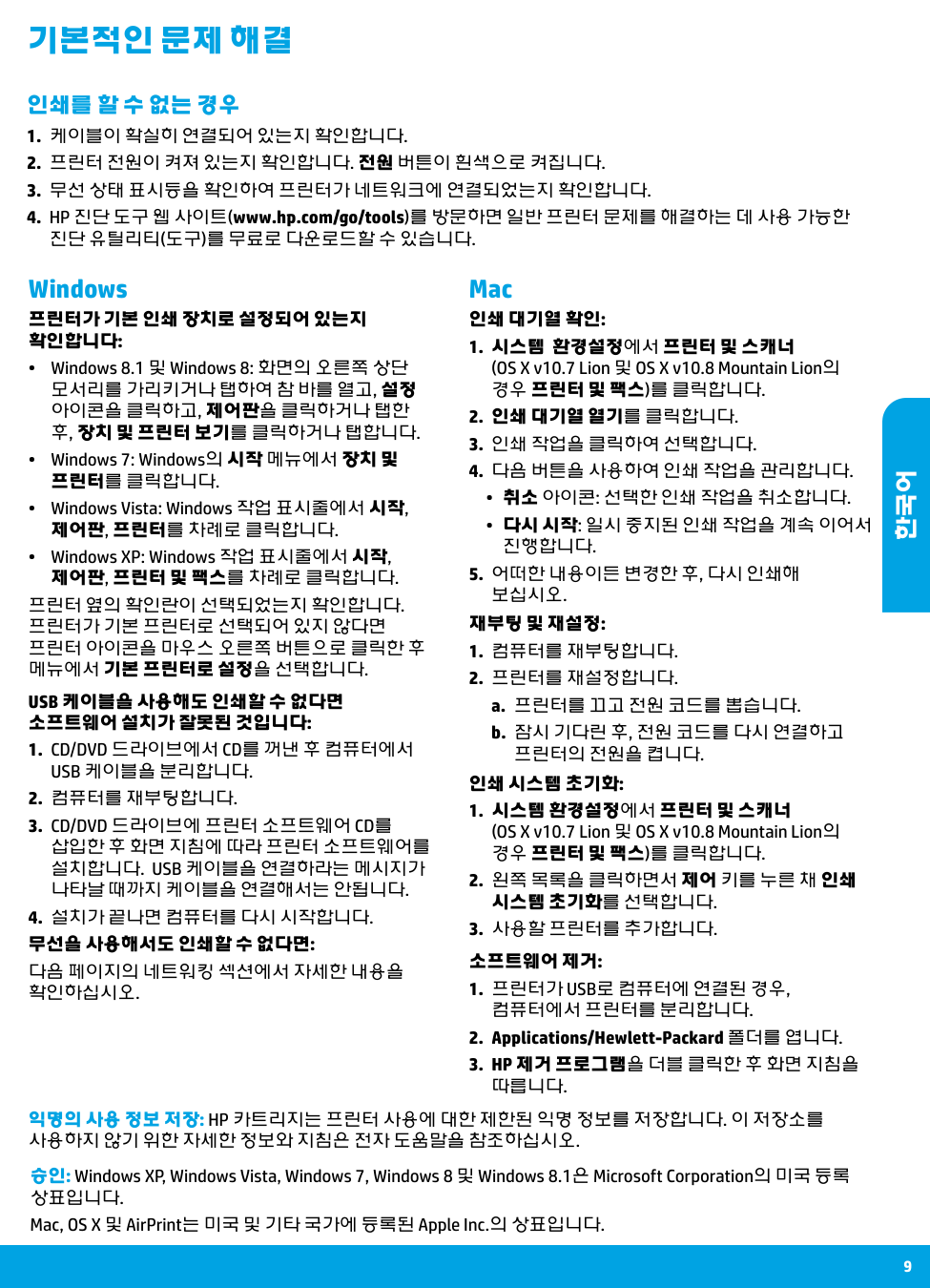
    10 무선 네트워킹 프린터를 네트워크에 연결하지 못한 경우 • 프린터에 무선 사용이 가능한지 확인합니다.

  • 프린터 제어판에서
  • (무선)을 누릅니다.
  • 무선 꺼짐이 표시될 경우,
  • (설정)을 누른 후 무선 설정을 누릅니다.
  • 무선 설정 화면에서 무선 옵션에 대해 켜짐을 선택합니다.
  • • 프린터가 네트워크에 연결되어 있는지 확인합니다.
  • 프린터 제어판에서
  • (무선)을 누릅니다.
  • (설정)을 누릅니다.
  • 보고서 인쇄를 누른 후 무선 테스트 보고서를 누릅니다. 무선 테스트 보고서가 자동으로 인쇄됩니다.
  • 보고서의 상단을 확인하여 테스트 중 실패한 것이 있는지 알아봅니다.
  • –– 수행된 모든 테스트의 진단 결과 섹션을 확인하여 프린터에 문제 없이 통과했는지 확인합니다.

    –– 현재 구성 섹션에서 프린터가 현재 연결되어 있는 네트워크 이름(Ssid)을 찾습니다. 프린터가

    컴퓨터와 동일한 네트워크에 연결되어 있는지 확인합니다.

    참고: 컴퓨터가 가상 사설망(Vpn)에 연결된 경우 Vpn에서 일시적으로 연결을 해제하여 설치를 진행합니다.

    설치 후 Vpn 연결을 해제해야 홈 네트워크를 통해 프린터에 액세스할 수 있습니다.

    • 네트워크를 통해 보안 소프트웨어가 통신을 차단하고 있지 않은지 확인합니다. 네트워크를 통해 설치 시 방화벽과 같은 보안 소프트웨어는 컴퓨터와 프린터 간의 통신을 차단할 수 있습니다. 프린터를 찾을 수 없는 경우 일시적으로 방화벽을 비활성화하고 문제가 해결되는지 확인합니다. 보안 소프트웨어에 대한 추가 도움말 및 정보는 www.hp.com/go/wpc-firewall_kr-ko를 방문하십시오. • 무선 네트워크의 구성 요소 다시 시작. 라우터와 프린터를 끈 다음, 라우터와 프린터를 차례로 다시 켭니다. 가끔 장치를 껐다가 다시 켜면 네트워크 통신 문제가 복구되는 경우도 있습니다. 계속 네트워크에 연결할 수 없으면 라우터, 프린터 및 컴퓨터를 순서대로 껐다가 다시 라우터, 프린터, 컴퓨터를 순서대로 켭니다. 여전히 문제가 발생할 경우, HP 무선 인쇄 센터(www.hp.com/go/wirelessprinting)를 방문하십시오. 웹 사이트에는 무선 인쇄와 무선 네트워크 준비, 무선 네트워크에 프린터 연결 시 발생하는 문제를 해결하고 보안 소프트웨어 문제를 해결하는 데 도움이 되는 완벽한 최신 정보가 있습니다. 참고: Windows를 실행 중인 컴퓨터를 사용하는 경우, 프린터에 있을 수 있는 여러 문제를 해결하는 데 도움이 되는 인쇄 및 스캔 닥터 도구를 사용할 수 있습니다. 이 도구를 다운로드하려면 www.hp.com/go/tools를 방문하십시오. 네트워크에서 여러 대의 컴퓨터와 프린터를 공유하려면 우선 프린터를 홈 네트워크에 설치합니다. 프린터를 홈 네트워크에 연결한 후, 같은 네트워크의 다른 컴퓨터와

    프린터를 공유할 수 있습니다. 개별 추가 컴퓨터의 경우 Hp 프린터 소프트웨어를 설치해야 합니다.

    네트워킹 도움말 www.hp.com/go/wirelessprinting HP 무선 인쇄 센터 www.hp.com/go/wirelessprinting에서 무선 네트워크 준비, 프린터 설치 또는 재구성, 네트워킹 문제해결을 지원합니다. 한국어
    Page 11

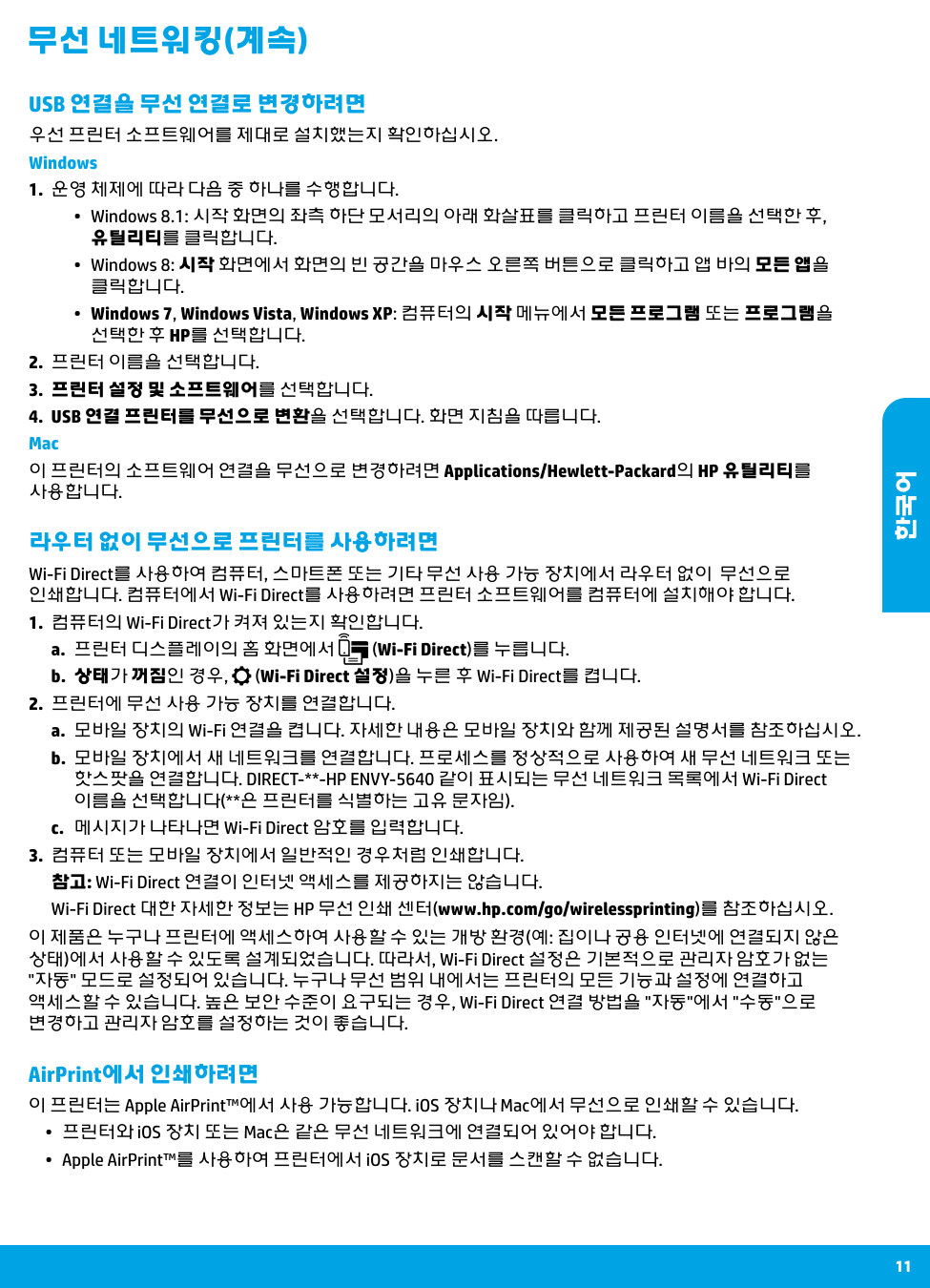
    11 라우터 없이 무선으로 프린터를 사용하려면 Wi-Fi Direct를 사용하여 컴퓨터, 스마트폰 또는 기타 무선 사용 가능 장치에서 라우터 없이 무선으로 인쇄합니다. 컴퓨터에서 Wi-Fi Direct를 사용하려면 프린터 소프트웨어를 컴퓨터에 설치해야 합니다.

  • 컴퓨터의 Wi-Fi Direct가 켜져 있는지 확인합니다.
  • a. 프린터 디스플레이의 홈 화면에서 (Wi-Fi Direct)를 누릅니다. b. 상태가 꺼짐인 경우, (Wi-Fi Direct 설정)을 누른 후 Wi-Fi Direct를 켭니다.
  • 프린터에 무선 사용 가능 장치를 연결합니다.
  • a. 모바일 장치의 Wi-Fi 연결을 켭니다. 자세한 내용은 모바일 장치와 함께 제공된 설명서를 참조하십시오. b. 모바일 장치에서 새 네트워크를 연결합니다. 프로세스를 정상적으로 사용하여 새 무선 네트워크 또는 핫스팟을 연결합니다. DIRECT-**-HP ENVY-5640 같이 표시되는 무선 네트워크 목록에서 Wi-Fi Direct 이름을 선택합니다(**은 프린터를 식별하는 고유 문자임). c. 메시지가 나타나면 Wi-Fi Direct 암호를 입력합니다.
  • 컴퓨터 또는 모바일 장치에서 일반적인 경우처럼 인쇄합니다.
  • 참고: Wi-Fi Direct 연결이 인터넷 액세스를 제공하지는 않습니다. Wi-Fi Direct 대한 자세한 정보는 HP 무선 인쇄 센터(www.hp.com/go/wirelessprinting)를 참조하십시오.

    Usb 연결을 무선 연결로 변경하려면

    우선 프린터 소프트웨어를 제대로 설치했는지 확인하십시오. Windows
  • 운영 체제에 따라 다음 중 하나를 수행합니다.
  • •• Windows 8.1: 시작 화면의 좌측 하단 모서리의 아래 화살표를 클릭하고 프린터 이름을 선택한 후, 유틸리티를 클릭합니다. •• Windows 8: 시작 화면에서 화면의 빈 공간을 마우스 오른쪽 버튼으로 클릭하고 앱 바의 모든 앱을 클릭합니다. •• Windows 7, Windows Vista, Windows XP: 컴퓨터의 시작 메뉴에서 모든 프로그램 또는 프로그램을

    선택한 후 Hp를 선택합니다.

  • 프린터 이름을 선택합니다.
  • 프린터 설정 및 소프트웨어를 선택합니다.
  • 4. Usb 연결 프린터를 무선으로 변환을 선택합니다. 화면 지침을 따릅니다.

    Mac 이 프린터의 소프트웨어 연결을 무선으로 변경하려면 Applications/Hewlett-Packard의 HP 유틸리티를 사용합니다. 무선 네트워킹(계속) AirPrint에서 인쇄하려면 이 프린터는 Apple AirPrint™에서 사용 가능합니다. iOS 장치나 Mac에서 무선으로 인쇄할 수 있습니다.
  • 프린터와 iOS 장치 또는 Mac은 같은 무선 네트워크에 연결되어 있어야 합니다.
  • Apple AirPrint™를 사용하여 프린터에서 iOS 장치로 문서를 스캔할 수 없습니다.
  • 이 제품은 누구나 프린터에 액세스하여 사용할 수 있는 개방 환경(예: 집이나 공용 인터넷에 연결되지 않은 상태)에서 사용할 수 있도록 설계되었습니다. 따라서, Wi-Fi Direct 설정은 기본적으로 관리자 암호가 없는 "자동" 모드로 설정되어 있습니다. 누구나 무선 범위 내에서는 프린터의 모든 기능과 설정에 연결하고 액세스할 수 있습니다. 높은 보안 수준이 요구되는 경우, Wi-Fi Direct 연결 방법을 "자동"에서 "수동"으로 변경하고 관리자 암호를 설정하는 것이 좋습니다. 한국어

    Page 12

    12

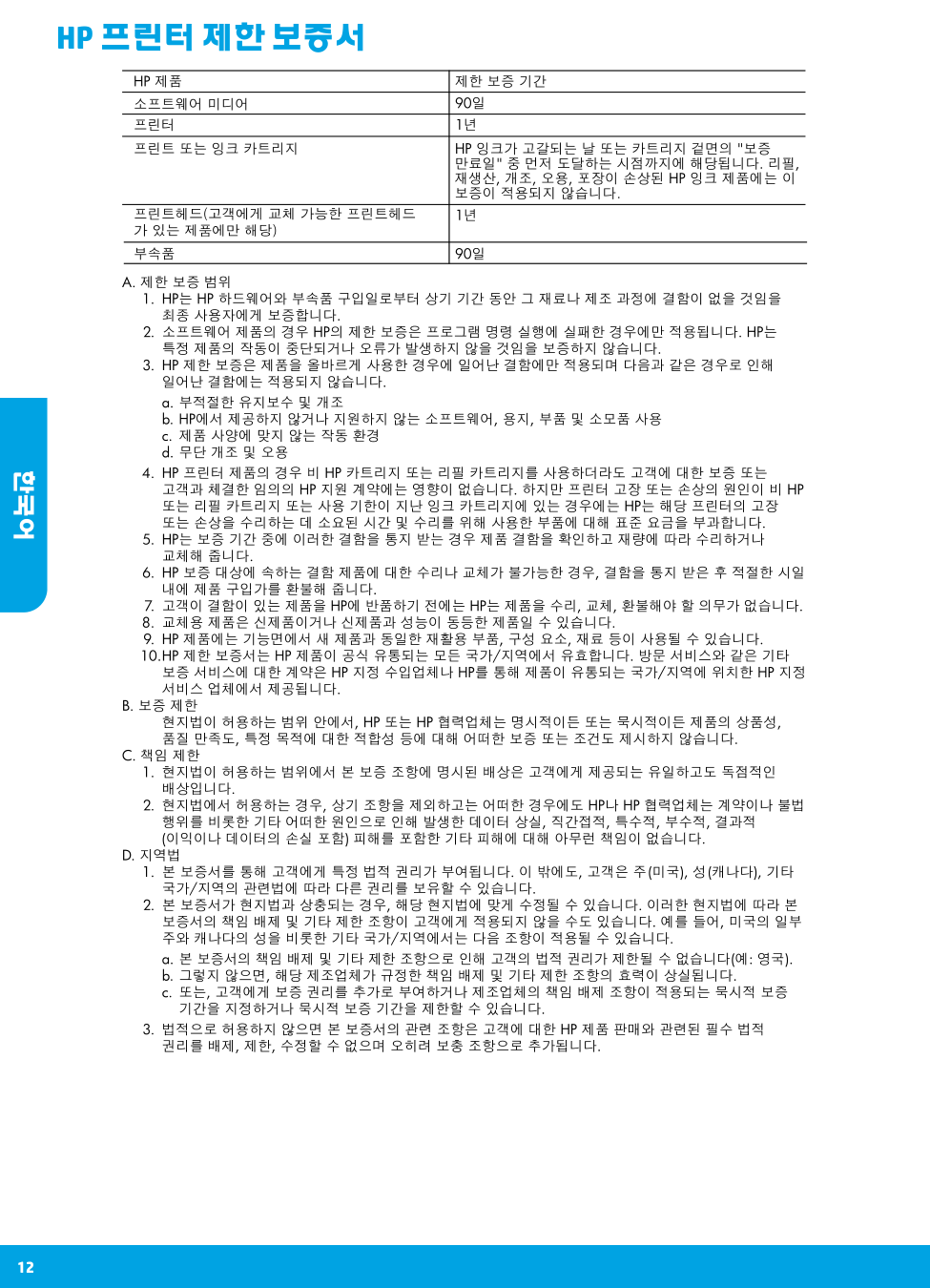
    Hp 프린터 제한 보증서

    한국어

    Page 13

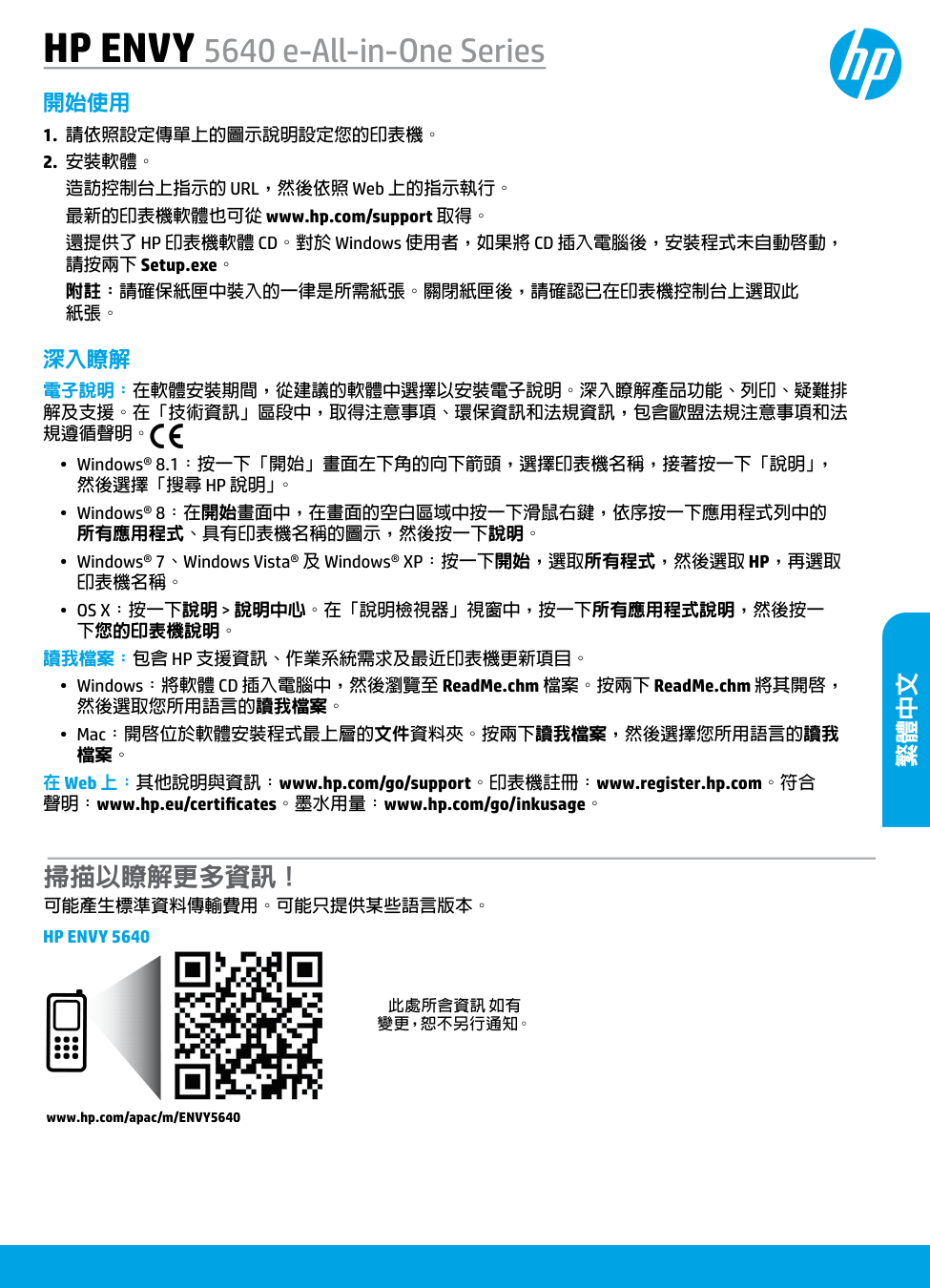
    此處所含資訊 如有 變更,恕不另行通知。 掃描以瞭解更多資訊! 可能產生標準資料傳輸費用。可能只提供某些語言版本。 深入瞭解 電子說明:在軟體安裝期間,從建議的軟體中選擇以安裝電子說明。深入瞭解產品功能、列印、疑難排 解及支援。在「技術資訊」區段中,取得注意事項、環保資訊和法規資訊,包含歐盟法規注意事項和法 規遵循聲明。

  • Windows® 8.1:按一下「開始」畫面左下角的向下箭頭,選擇印表機名稱,接著按一下「說明」,
  • 然後選擇「搜尋 Hp 說明」。

  • Windows® 8:在開始畫面中,在畫面的空白區域中按一下滑鼠右鍵,依序按一下應用程式列中的
  • 所有應用程式、具有印表機名稱的圖示,然後按一下說明。
  • Windows® 7、Windows Vista® 及 Windows® XP:按一下開始,選取所有程式,然後選取 HP,再選取
  • 印表機名稱。

    • Os X:按一下說明 > 說明中心。在「說明檢視器」視窗中,按一下所有應用程式說明,然後按一

    下您的印表機說明。

    讀我檔案:包含 Hp 支援資訊、作業系統需求及最近印表機更新項目。

  • Windows:將軟體 CD 插入電腦中,然後瀏覽至 ReadMe.chm 檔案。按兩下 ReadMe.chm 將其開啟,
  • 然後選取您所用語言的讀我檔案。
  • Mac:開啟位於軟體安裝程式最上層的文件資料夾。按兩下讀我檔案,然後選擇您所用語言的讀我
  • 檔案。 在 Web 上:其他說明與資訊:www.hp.com/go/support。印表機註冊:www.register.hp.com。符合 聲明:www.hp.eu/certificates。墨水用量:www.hp.com/go/inkusage。 開始使用
  • 請依照設定傳單上的圖示說明設定您的印表機。
  • 安裝軟體。
  • 造訪控制台上指示的 URL,然後依照 Web 上的指示執行。 最新的印表機軟體也可從 www.hp.com/support 取得。 還提供了 HP 印表機軟體 CD。對於 Windows 使用者,如果將 CD 插入電腦後,安裝程式未自動啟動, 請按兩下 Setup.exe。 附註:請確保紙匣中裝入的一律是所需紙張。關閉紙匣後,請確認已在印表機控制台上選取此 紙張。 HP ENVY 5640 e-All-in-One Series www.hp.com/apac/m/ENVY5640

    Hp Envy 5640

    繁體中文

    Page 14

    14 安全資訊 使用本印表機時需一律遵循基本的安全措施,以降低受到火災或電擊等傷害的風險。

  • 請閱讀並瞭解印表機所附之文件中的所有說明。
  • 請遵守印表機上標示的所有警告與說明。
  • 清潔本印表機前,請先從牆上的插座拔除其電源線。
  • 請不要在近水或潮濕的環境中安裝或使用本印表機。
  • 在穩固的表面上安裝並固定本印表機。
  • 請將印表機安裝在受保護的區域,以免因任何人踩踏電源線或被電源線絆倒而使電源線損毀。
  • 如果印表機運作異常,請參閱說明檔案(安裝完軟體後將出現在您的電腦上)。
  • 此組件中並無使用者可自行維修的零件。有關維修問題,請洽詢合格的維修人員。
  • 9. 僅使用 Hp 提供的電源線與電源轉接器(如果已提供)。

    1 無線燈號:表示印表機的無線連線狀態。
  • 指示燈穩定呈現藍色表示無線連線已建立,可以進行列印。
  • 指示燈緩慢閃爍表示無線功能已開啟,但印表機未連線至網路。確保印表機在無線訊
  • 號的範圍內。
  • 指示燈快速閃爍表示無線錯誤。請參閱印表機顯示器上的訊息。
  • 如果無線功能已關閉,無線燈號即會熄滅,顯示螢幕則會顯示無線關閉。
  • 2 「開啟」按鈕:開啟或關閉印表機。 3 「返回」按鈕:返回上一個畫面。 4 「說明」按鈕:顯示目前操作的說明內容(若有)。 5 「首頁」按鈕:回到「首頁」畫面,此即您首次開啟印表機時所顯示的畫面。 6 控制台顯示器:輕觸畫面以選取功能表選項,或捲動瀏覽功能表項目。 控制台 繁體中文

    Page 15

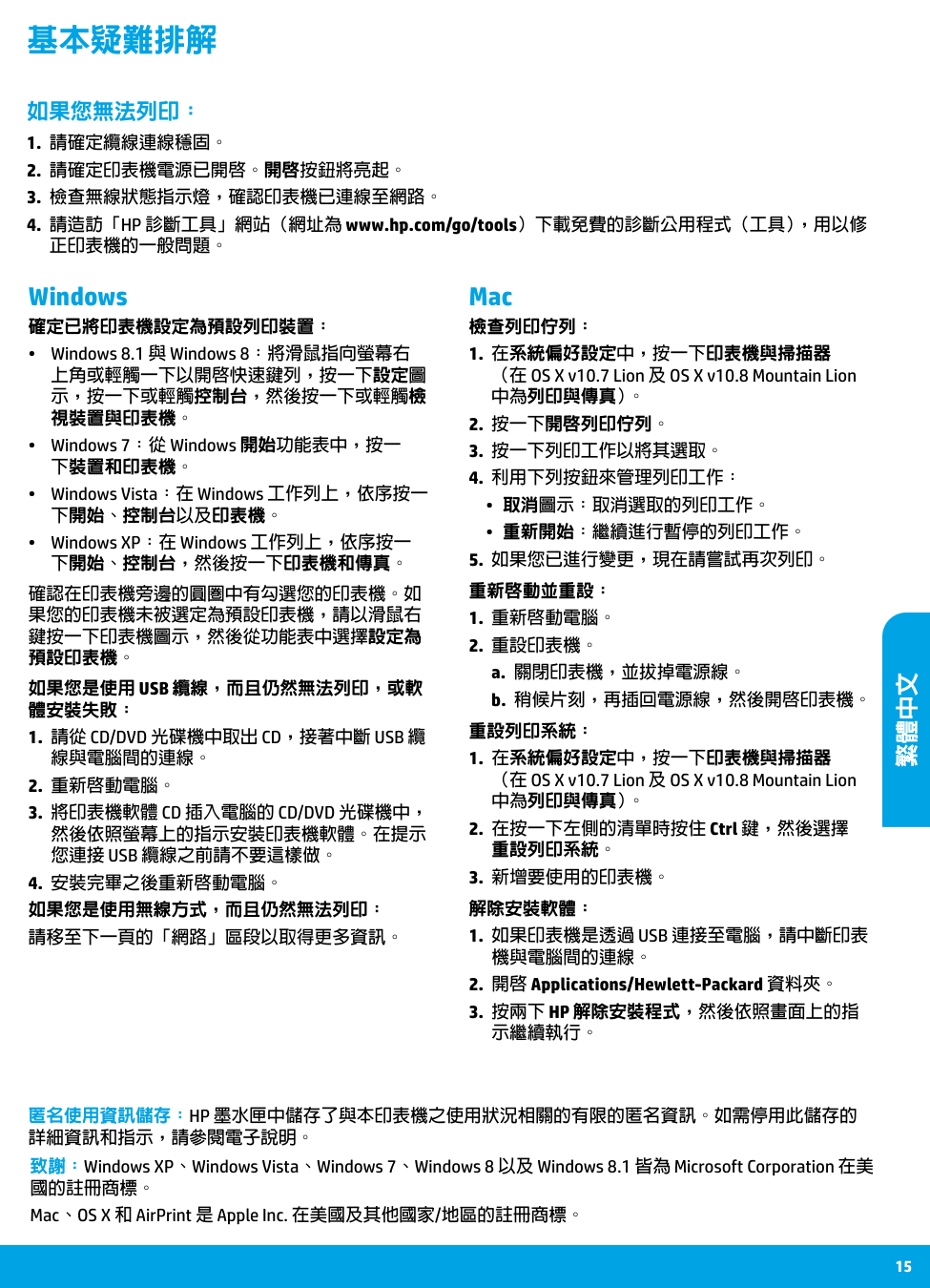
    15 Mac Windows 基本疑難排解 如果您無法列印:

  • 請確定纜線連線穩固。
  • 請確定印表機電源已開啟。開啟按鈕將亮起。
  • 檢查無線狀態指示燈,確認印表機已連線至網路。
  • 請造訪「HP 診斷工具」網站(網址為 www.hp.com/go/tools)下載免費的診斷公用程式(工具),用以修
  • 正印表機的一般問題。 確定已將印表機設定為預設列印裝置: • Windows 8.1 與 Windows 8:將滑鼠指向螢幕右 上角或輕觸一下以開啟快速鍵列,按一下設定圖 示,按一下或輕觸控制台,然後按一下或輕觸檢 視裝置與印表機。 • Windows 7:從 Windows 開始功能表中,按一 下裝置和印表機。 • Windows Vista:在 Windows 工作列上,依序按一 下開始、控制台以及印表機。 • Windows XP:在 Windows 工作列上,依序按一 下開始、控制台,然後按一下印表機和傳真。 確認在印表機旁邊的圓圈中有勾選您的印表機。如 果您的印表機未被選定為預設印表機,請以滑鼠右 鍵按一下印表機圖示,然後從功能表中選擇設定為 預設印表機。 檢查列印佇列:
  • 在系統偏好設定中,按一下印表機與掃描器
  • (在 OS X v10.7 Lion 及 OS X v10.8 Mountain Lion 中為列印與傳真)。
  • 按一下開啟列印佇列。
  • 按一下列印工作以將其選取。
  • 利用下列按鈕來管理列印工作:
  • 取消圖示:取消選取的列印工作。
  • 重新開始:繼續進行暫停的列印工作。
  • 如果您已進行變更,現在請嘗試再次列印。
  • 重新啟動並重設:
  • 重新啟動電腦。
  • 重設印表機。
  • a. 關閉印表機,並拔掉電源線。 b. 稍候片刻,再插回電源線,然後開啟印表機。 致謝:Windows XP、Windows Vista、Windows 7、Windows 8 以及 Windows 8.1 皆為 Microsoft Corporation 在美 國的註冊商標。 Mac、OS X 和 AirPrint 是 Apple Inc. 在美國及其他國家/地區的註冊商標。

    如果您是使用 Usb 纜線,而且仍然無法列印,或軟

    體安裝失敗:

    1. 請從 Cd/Dvd 光碟機中取出 Cd,接著中斷 Usb 纜

    線與電腦間的連線。
  • 重新啟動電腦。
  • 3. 將印表機軟體 Cd 插入電腦的 Cd/Dvd 光碟機中,

    然後依照螢幕上的指示安裝印表機軟體。在提示

    您連接 Usb 纜線之前請不要這樣做。

  • 安裝完畢之後重新啟動電腦。
  • 如果您是使用無線方式,而且仍然無法列印: 請移至下一頁的「網路」區段以取得更多資訊。 解除安裝軟體:

    1. 如果印表機是透過 Usb 連接至電腦,請中斷印表

    機與電腦間的連線。
  • 開啟 Applications/Hewlett-Packard 資料夾。
  • 3. 按兩下 Hp 解除安裝程式,然後依照畫面上的指

    示繼續執行。 重設列印系統:
  • 在系統偏好設定中,按一下印表機與掃描器
  • (在 OS X v10.7 Lion 及 OS X v10.8 Mountain Lion 中為列印與傳真)。
  • 在按一下左側的清單時按住 Ctrl 鍵,然後選擇
  • 重設列印系統。
  • 新增要使用的印表機。
  • 匿名使用資訊儲存:Hp 墨水匣中儲存了與本印表機之使用狀況相關的有限的匿名資訊。如需停用此儲存的

    詳細資訊和指示,請參閱電子說明。 繁體中文
    Page 16

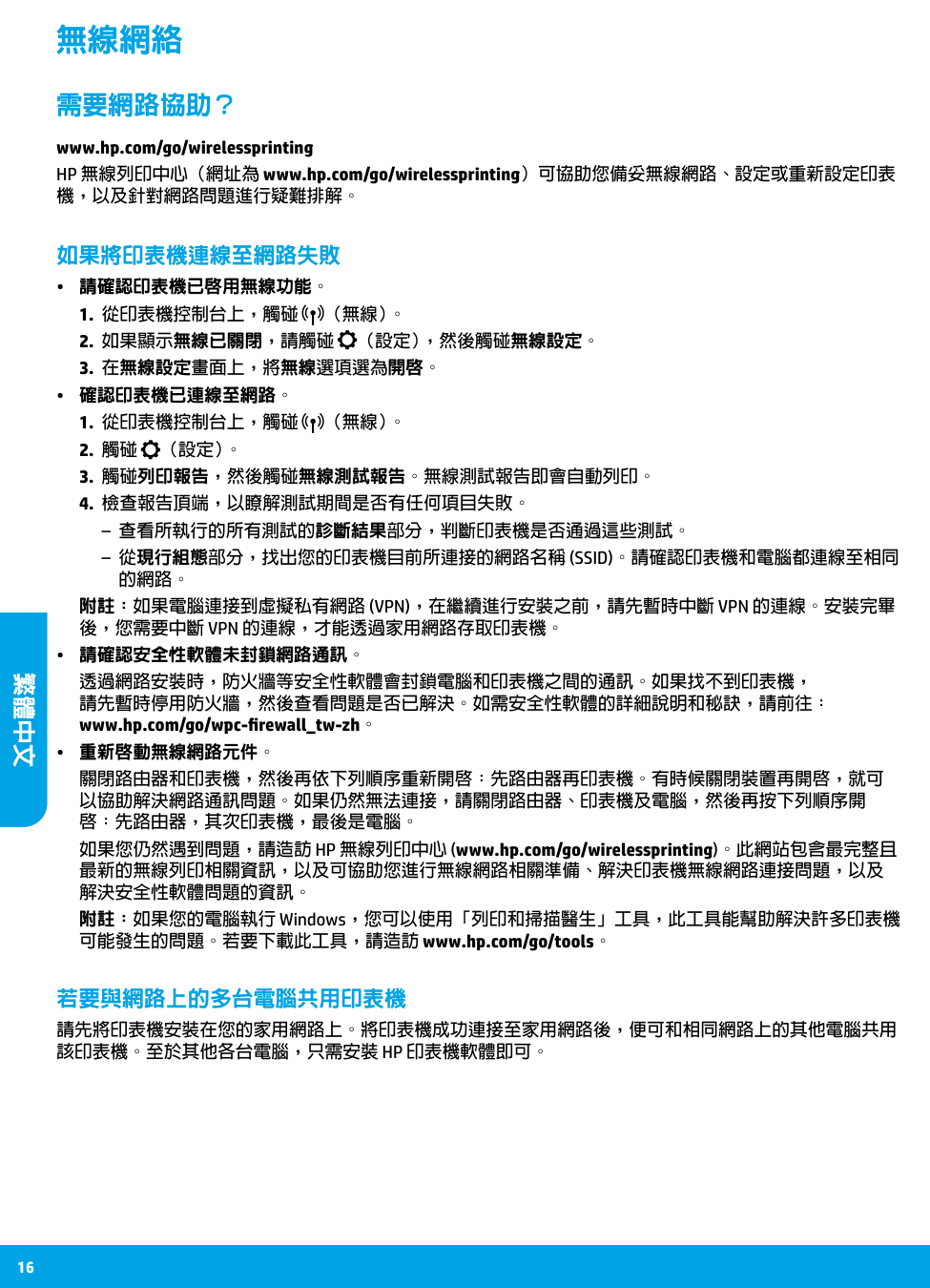
    16 無線網絡 如果將印表機連線至網路失敗 • 請確認印表機已啟用無線功能。

  • 從印表機控制台上,觸碰
  • (無線)。
  • 如果顯示無線已關閉,請觸碰
  • (設定),然後觸碰無線設定。
  • 在無線設定畫面上,將無線選項選為開啟。
  • • 確認印表機已連線至網路。
  • 從印表機控制台上,觸碰
  • (無線)。
  • 觸碰
  • (設定)。
  • 觸碰列印報告,然後觸碰無線測試報告。無線測試報告即會自動列印。
  • 檢查報告頂端,以瞭解測試期間是否有任何項目失敗。
  • –– 查看所執行的所有測試的診斷結果部分,判斷印表機是否通過這些測試。

    –– 從現行組態部分,找出您的印表機目前所連接的網路名稱 (Ssid)。請確認印表機和電腦都連線至相同

    的網路。

    附註:如果電腦連接到虛擬私有網路 (Vpn),在繼續進行安裝之前,請先暫時中斷 Vpn 的連線。安裝完畢

    後,您需要中斷 Vpn 的連線,才能透過家用網路存取印表機。

    • 請確認安全性軟體未封鎖網路通訊。 透過網路安裝時,防火牆等安全性軟體會封鎖電腦和印表機之間的通訊。如果找不到印表機, 請先暫時停用防火牆,然後查看問題是否已解決。如需安全性軟體的詳細說明和秘訣,請前往: www.hp.com/go/wpc-firewall_tw-zh。 • 重新啟動無線網路元件。 關閉路由器和印表機,然後再依下列順序重新開啟:先路由器再印表機。有時候關閉裝置再開啟,就可 以協助解決網路通訊問題。如果仍然無法連接,請關閉路由器、印表機及電腦,然後再按下列順序開 啟:先路由器,其次印表機,最後是電腦。 如果您仍然遇到問題,請造訪 HP 無線列印中心 (www.hp.com/go/wirelessprinting)。此網站包含最完整且 最新的無線列印相關資訊,以及可協助您進行無線網路相關準備、解決印表機無線網路連接問題,以及 解決安全性軟體問題的資訊。 附註:如果您的電腦執行 Windows,您可以使用「列印和掃描醫生」工具,此工具能幫助解決許多印表機 可能發生的問題。若要下載此工具,請造訪 www.hp.com/go/tools。 若要與網路上的多台電腦共用印表機 請先將印表機安裝在您的家用網路上。將印表機成功連接至家用網路後,便可和相同網路上的其他電腦共用

    該印表機。至於其他各台電腦,只需安裝 Hp 印表機軟體即可。

    需要網路協助? www.hp.com/go/wirelessprinting HP 無線列印中心(網址為 www.hp.com/go/wirelessprinting)可協助您備妥無線網路、設定或重新設定印表 機,以及針對網路問題進行疑難排解。 繁體中文
    Page 17

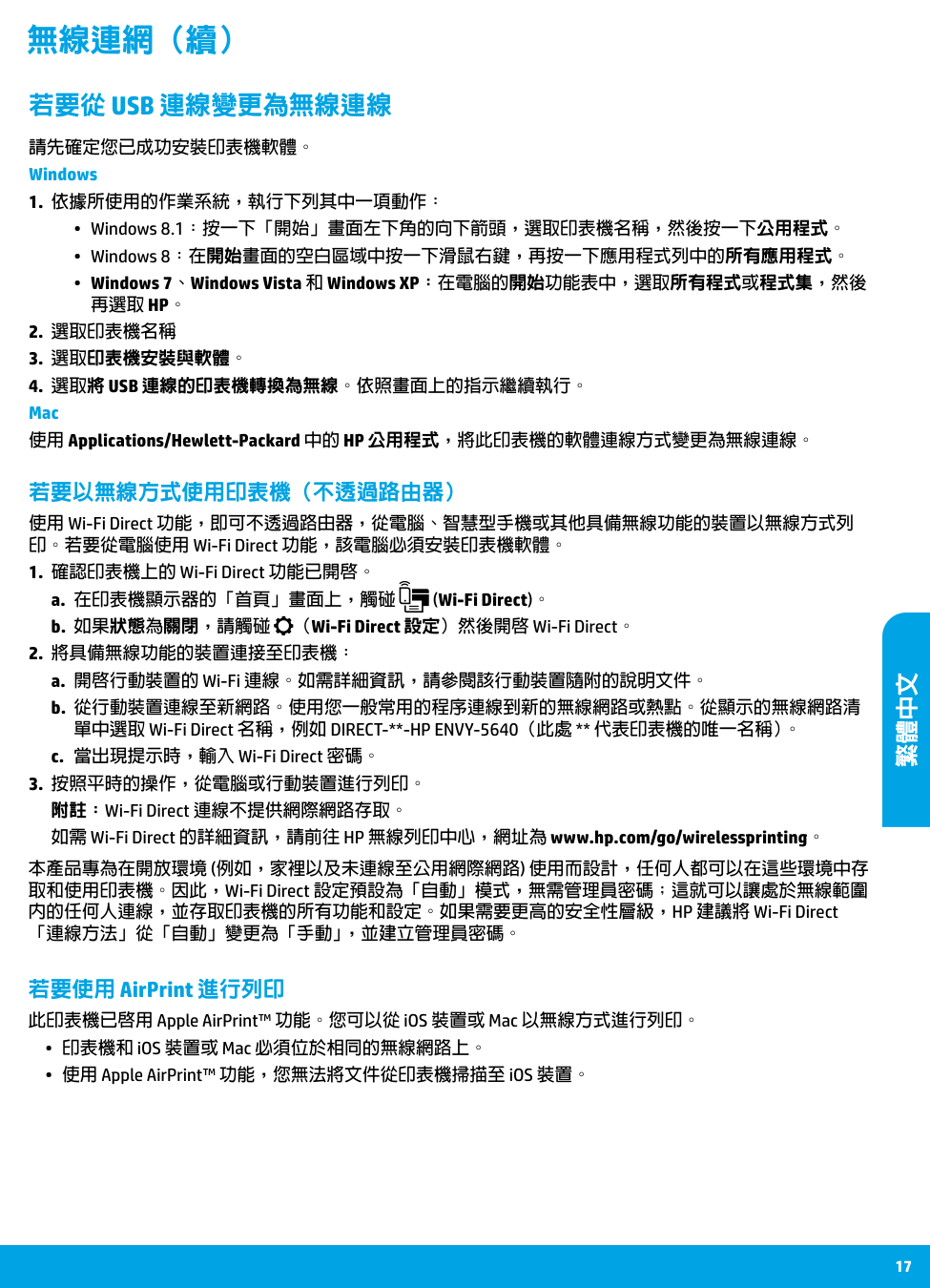
    17 若要以無線方式使用印表機(不透過路由器) 使用 Wi-Fi Direct 功能,即可不透過路由器,從電腦、智慧型手機或其他具備無線功能的裝置以無線方式列 印。若要從電腦使用 Wi-Fi Direct 功能,該電腦必須安裝印表機軟體。

  • 確認印表機上的 Wi-Fi Direct 功能已開啟。
  • a. 在印表機顯示器的「首頁」畫面上,觸碰 (Wi-Fi Direct)。 b. 如果狀態為關閉,請觸碰 (Wi-Fi Direct 設定)然後開啟 Wi-Fi Direct。
  • 將具備無線功能的裝置連接至印表機:
  • a. 開啟行動裝置的 Wi-Fi 連線。如需詳細資訊,請參閱該行動裝置隨附的說明文件。 b. 從行動裝置連線至新網路。使用您一般常用的程序連線到新的無線網路或熱點。從顯示的無線網路清 單中選取 Wi-Fi Direct 名稱,例如 DIRECT--HP ENVY-5640(此處 代表印表機的唯一名稱)。 c. 當出現提示時,輸入 Wi-Fi Direct 密碼。
  • 按照平時的操作,從電腦或行動裝置進行列印。
  • 附註:Wi-Fi Direct 連線不提供網際網路存取。 如需 Wi-Fi Direct 的詳細資訊,請前往 HP 無線列印中心,網址為 www.hp.com/go/wirelessprinting。

    若要從 Usb 連線變更為無線連線

    請先確定您已成功安裝印表機軟體。 Windows
  • 依據所使用的作業系統,執行下列其中一項動作:
  • •• Windows 8.1:按一下「開始」畫面左下角的向下箭頭,選取印表機名稱,然後按一下公用程式。 •• Windows 8:在開始畫面的空白區域中按一下滑鼠右鍵,再按一下應用程式列中的所有應用程式。 •• Windows 7、Windows Vista 和 Windows XP:在電腦的開始功能表中,選取所有程式或程式集,然後

    再選取 Hp。

  • 選取印表機名稱
  • 選取印表機安裝與軟體。
  • 4. 選取將 Usb 連線的印表機轉換為無線。依照畫面上的指示繼續執行。

    Mac 使用 Applications/Hewlett-Packard 中的 HP 公用程式,將此印表機的軟體連線方式變更為無線連線。 無線連網(續) 若要使用 AirPrint 進行列印 此印表機已啟用 Apple AirPrint™ 功能。您可以從 iOS 裝置或 Mac 以無線方式進行列印。
  • 印表機和 iOS 裝置或 Mac 必須位於相同的無線網路上。
  • 使用 Apple AirPrint™ 功能,您無法將文件從印表機掃描至 iOS 裝置。
  • 本產品專為在開放環境 (例如,家裡以及未連線至公用網際網路) 使用而設計,任何人都可以在這些環境中存 取和使用印表機。因此,Wi-Fi Direct 設定預設為「自動」模式,無需管理員密碼;這就可以讓處於無線範圍 內的任何人連線,並存取印表機的所有功能和設定。如果需要更高的安全性層級,HP 建議將 Wi-Fi Direct 「連線方法」從「自動」變更為「手動」,並建立管理員密碼。 繁體中文

    Page 18

    18

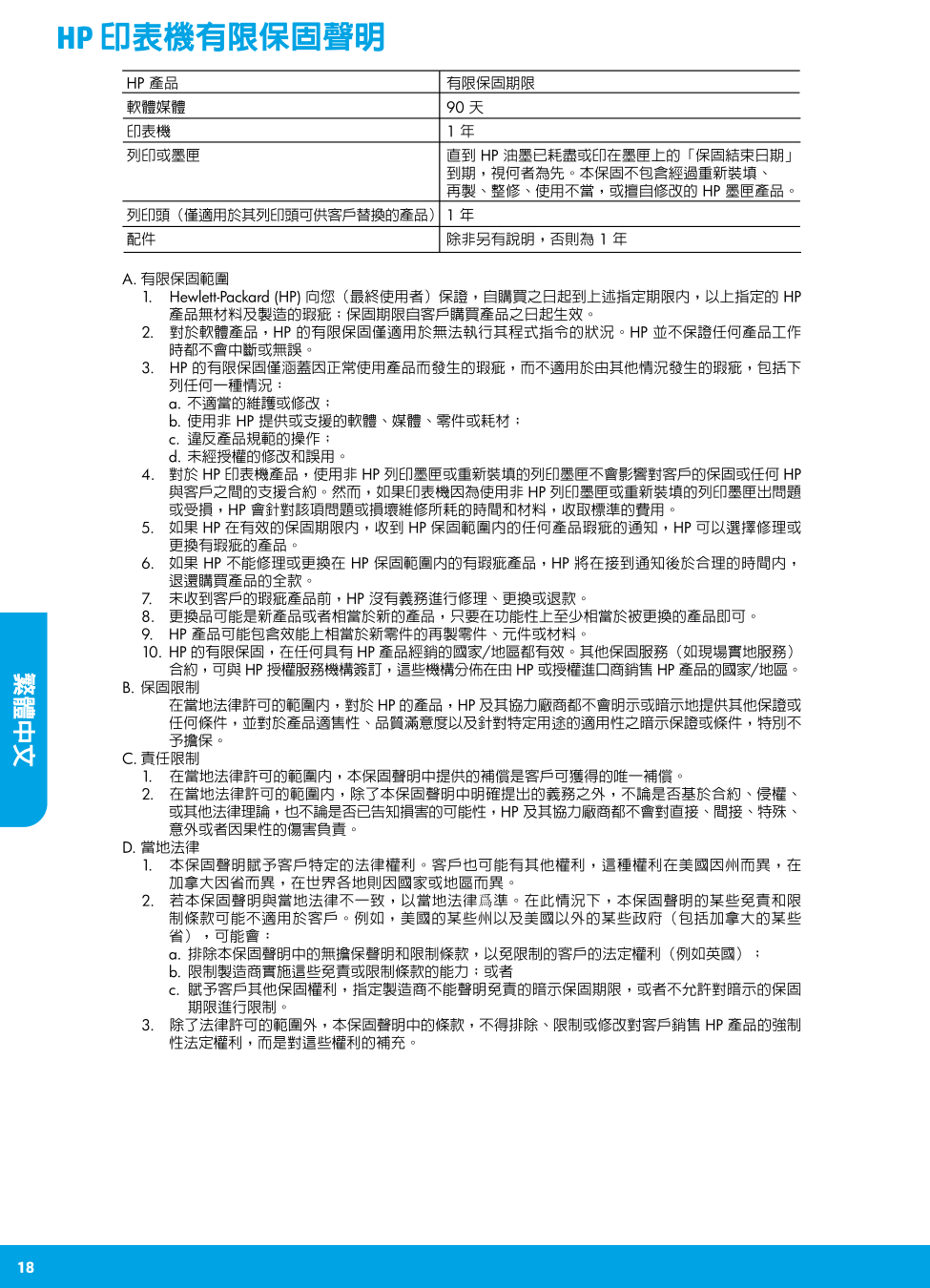
    Hp 印表機有限保固聲明

    繁體中文

    More from HP

    Similar Printers