Ask AI
— answers from the official manualAnswers from the official manual.
Common questions
Common Questions
17 totalCan I set up the printer while connected to a VPN?
No, you must disconnect from any VPN before installing HP Smart software, as you cannot install apps from the Microsoft Store while connected to a VPN. Reconnect to the VPN after finishing the printer setup. Consider your location and the security of the Wi-Fi network before disconnecting. (Page 3)
What do the different light patterns mean on the HP LaserJet M109/M112?
The printer uses different light patterns to indicate its status. A steady light means the printer is ready, while a specific pattern indicates it is processing a job. Other patterns indicate an error, manual feed, manual duplex, cartridge very low, or out of paper, and another pattern signals the printer is initializing, cleaning, or cooling down. For a complete list of light patterns, refer to the user guide at hp.com/support. (Page 2)
What should I do if the software cannot find my printer during setup because my device is too far away?
Move your computer or mobile device closer to the printer, as your device may be out of range of the printer's Wi-Fi signal. Reducing the distance between the device and the printer should allow the software to detect it. (Page 3)
Do I need to turn on Bluetooth on my mobile device to set up the printer?
Yes, if setting up the printer with a mobile device, you should turn on both Bluetooth and location services. This helps the software find your network and printer during setup. The manual notes that your location is not being determined and no location information is sent to HP as part of the setup process. (Page 3)
What physical ports and connections are available on the HP LaserJet M109/M112?
The printer includes a USB port and a power connection. These are located on the printer body alongside the output bin, cartridge access door, and front door with input tray. (Page 2)
What are the main components and features of the HP LaserJet M109/M112 control panel?
The control panel includes a wireless button and light (on wireless models), a Resume/Cancel button, an Attention light, and a Power button. These controls allow you to manage print jobs, monitor printer status, and initiate wireless setup. (Page 2)
Show 11 more questions
My computer is connected via Ethernet — do I need to disconnect it to set up the printer wirelessly?
Where can I find additional troubleshooting help, videos, and the full user guide for the HP LaserJet M109/M112?
如何访问打印机支持网站获取更多相关信息?
当我设置无线打印机时遇到问题怎么办?
在添加无线打印机过程中遇到问题时要检查什么?
如何访问打印机支持网站获取更多相关讯息?
我的设备太远而无法通过Wi-Fi发现无线打印机是什么意思?
如果打印机在蓝牙和位置服务关闭的情况下能被发现吗?
What Wi-Fi frequency does the HP LaserJet M109/M112 wireless model support?
How do I restart the Wi-Fi setup mode if the wireless light is not blinking blue?
打印机出纸槽在哪里?
Full Manual
10 pages
HP LaserJet M109a - M112a M109 - M112 series Reference Guide 2 參考指南 参考指南 참조 설명서
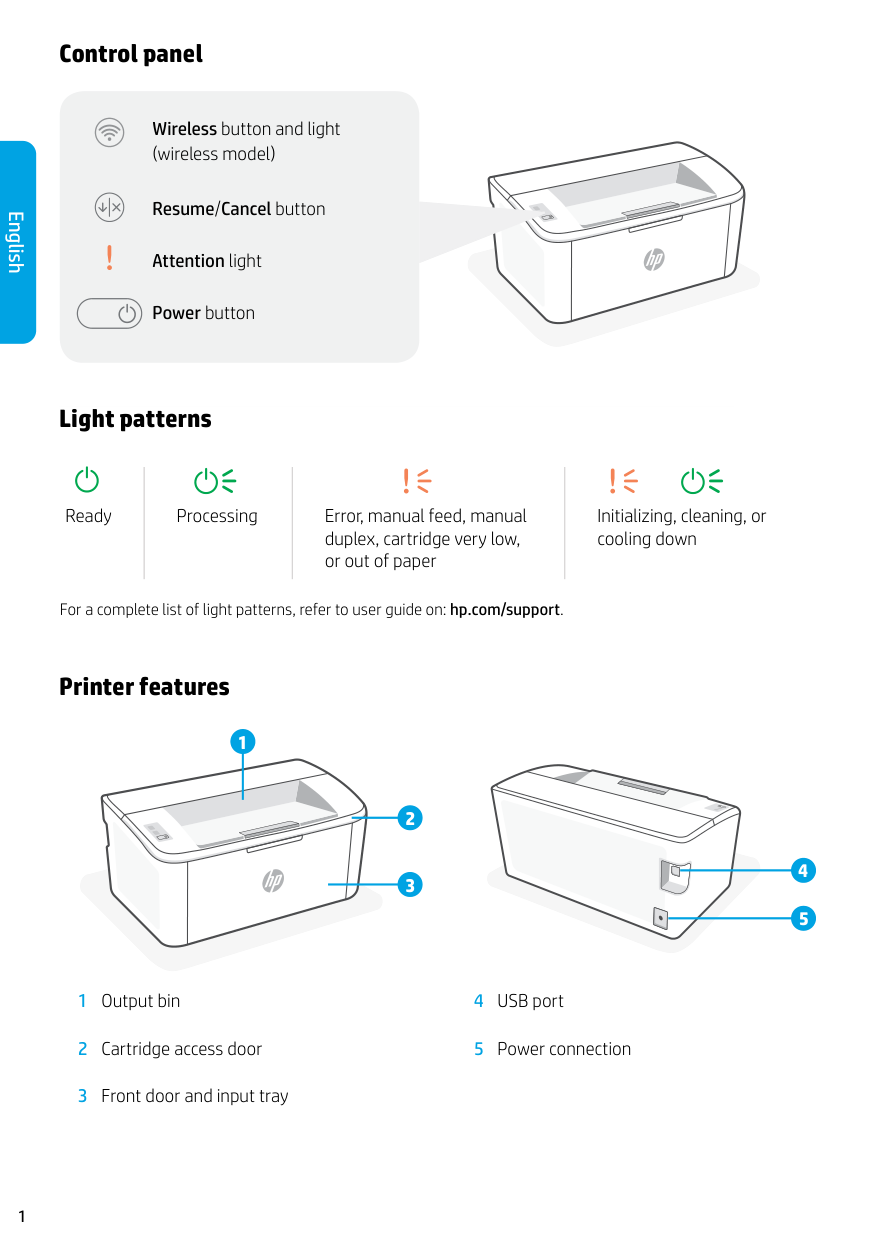
1 Control panel Wireless button and light (wireless model) Resume/Cancel button Attention light Power button 1 Output bin 2 Cartridge access door 3 Front door and input tray 4 USB port 5 Power connection 4 5 3 2 1 Printer features For a complete list of light patterns, refer to user guide on: hp.com/support. Ready Processing Error, manual feed, manual duplex, cartridge very low, or out of paper Initializing, cleaning, or cooling down Light patterns English
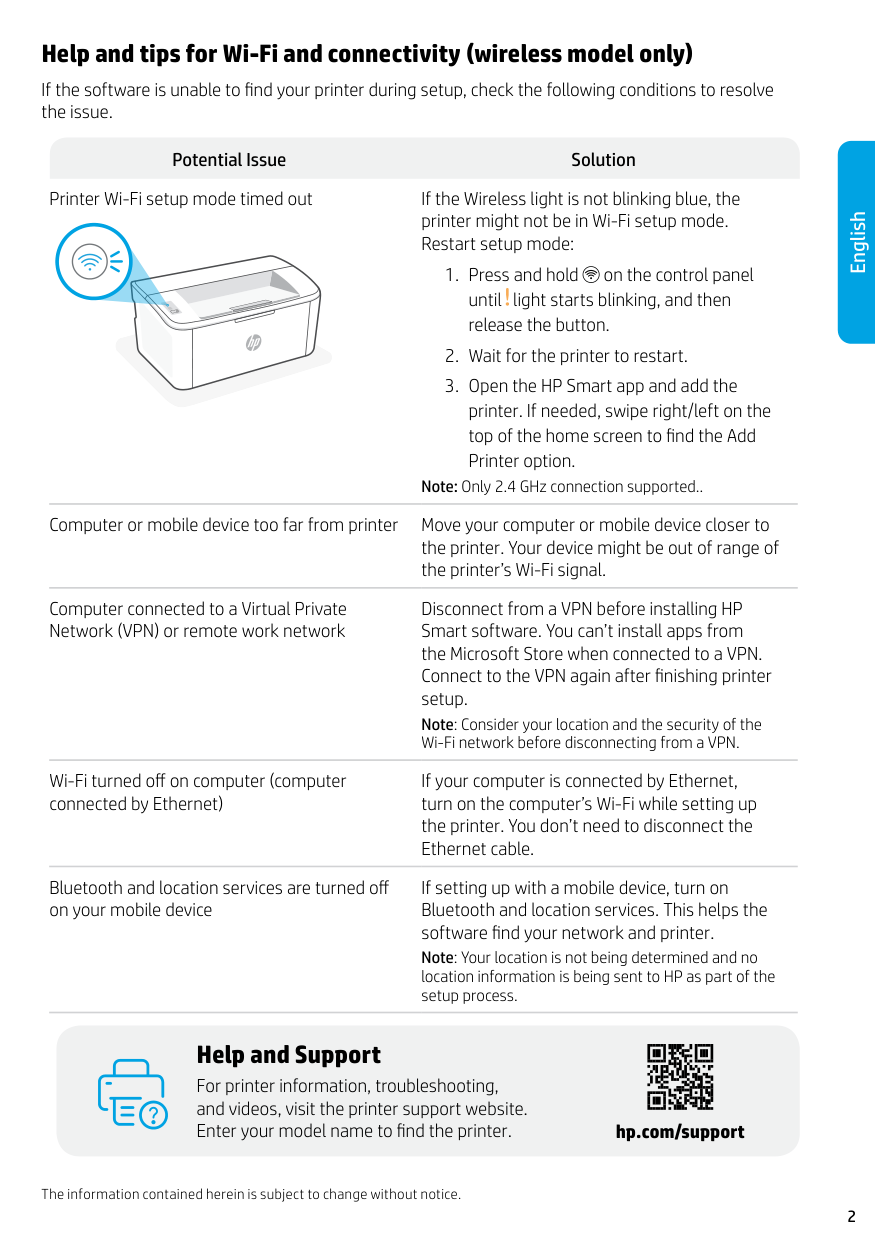
2 English Help and tips for Wi-Fi and connectivity (wireless model only) If the software is unable to find your printer during setup, check the following conditions to resolve the issue. Potential Issue Solution Printer Wi-Fi setup mode timed out If the Wireless light is not blinking blue, the printer might not be in Wi-Fi setup mode. Restart setup mode:
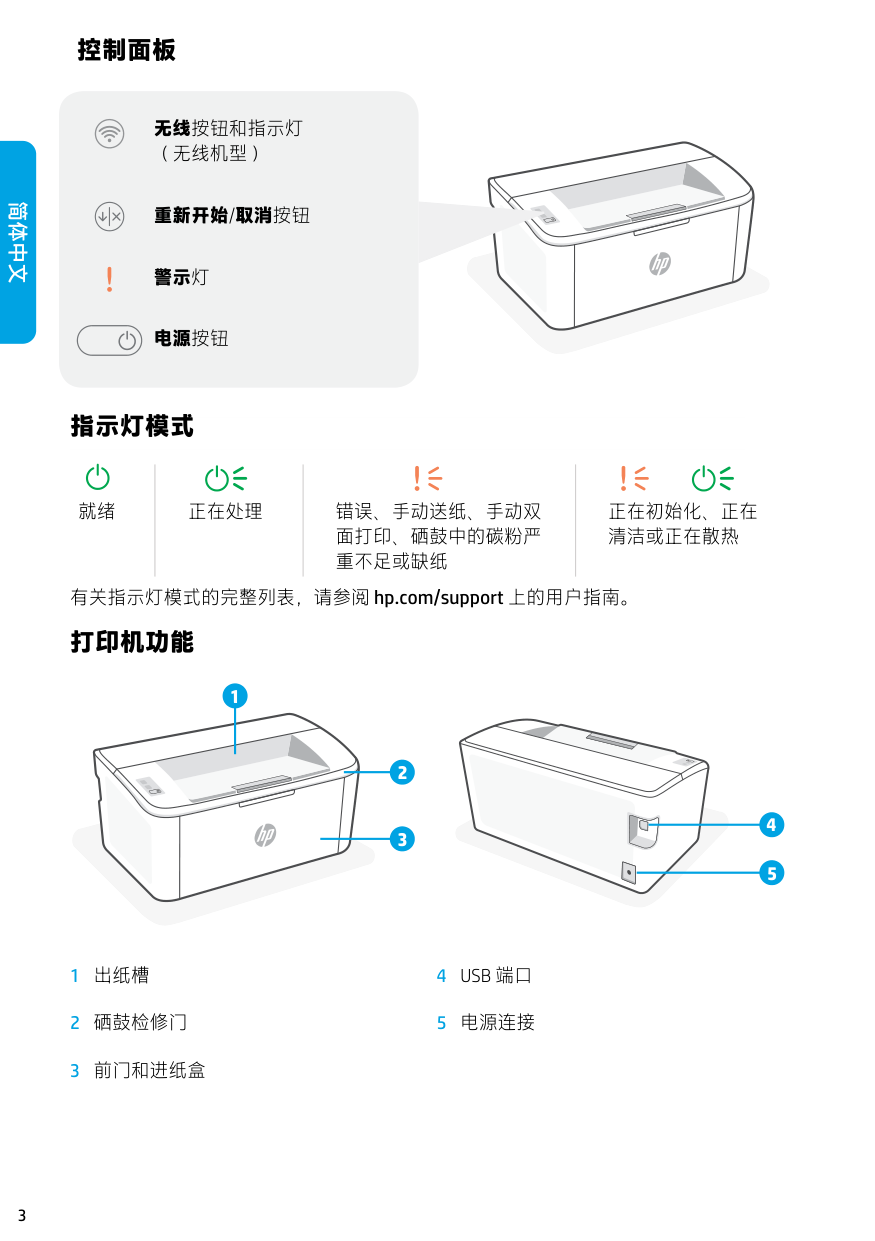
3 打印机功能 1 出纸槽 2 硒鼓检修门 3 前门和进纸盒
4 Usb 端口
5 电源连接 控制面板 无线按钮和指示灯 (无线机型) 重新开始/取消按钮 警示灯 电源按钮 4 5 3 2 1 就绪 正在处理 错误、手动送纸、手动双 面打印、硒鼓中的碳粉严 重不足或缺纸 正在初始化、正在 清洁或正在散热 指示灯模式 有关指示灯模式的完整列表,请参阅 hp.com/support 上的用户指南。 简体中文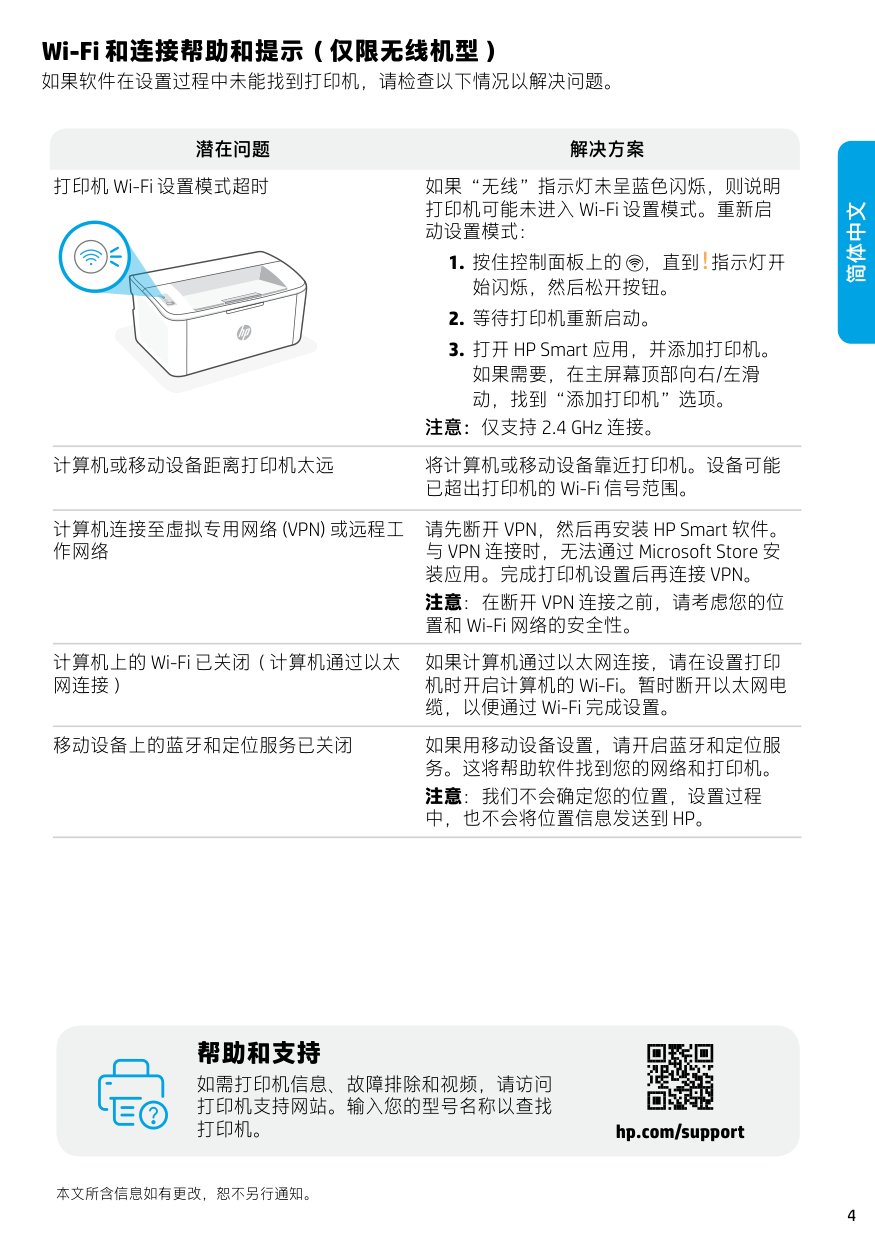
4 如需打印机信息、故障排除和视频,请访问 打印机支持网站。输入您的型号名称以查找 打印机。 帮助和支持 hp.com/support Wi-Fi 和连接帮助和提示(仅限无线机型) 如果软件在设置过程中未能找到打印机,请检查以下情况以解决问题。 潜在问题 解决方案 打印机 Wi-Fi 设置模式超时 如果“无线”指示灯未呈蓝色闪烁,则说明 打印机可能未进入 Wi-Fi 设置模式。重新启 动设置模式:
计算机连接至虚拟专用网络 (Vpn) 或远程工
作网络 请先断开 VPN,然后再安装 HP Smart 软件。 与 VPN 连接时,无法通过 Microsoft Store 安装应用。完成打印机设置后再连接 Vpn。
注意:在断开 Vpn 连接之前,请考虑您的位
置和 Wi-Fi 网络的安全性。 计算机上的 Wi-Fi 已关闭(计算机通过以太 网连接) 如果计算机通过以太网连接,请在设置打印 机时开启计算机的 Wi-Fi。暂时断开以太网电 缆,以便通过 Wi-Fi 完成设置。 移动设备上的蓝牙和定位服务已关闭 如果用移动设备设置,请开启蓝牙和定位服 务。这将帮助软件找到您的网络和打印机。 注意:我们不会确定您的位置,设置过程中,也不会将位置信息发送到 Hp。
本文所含信息如有更改,恕不另行通知。 简体中文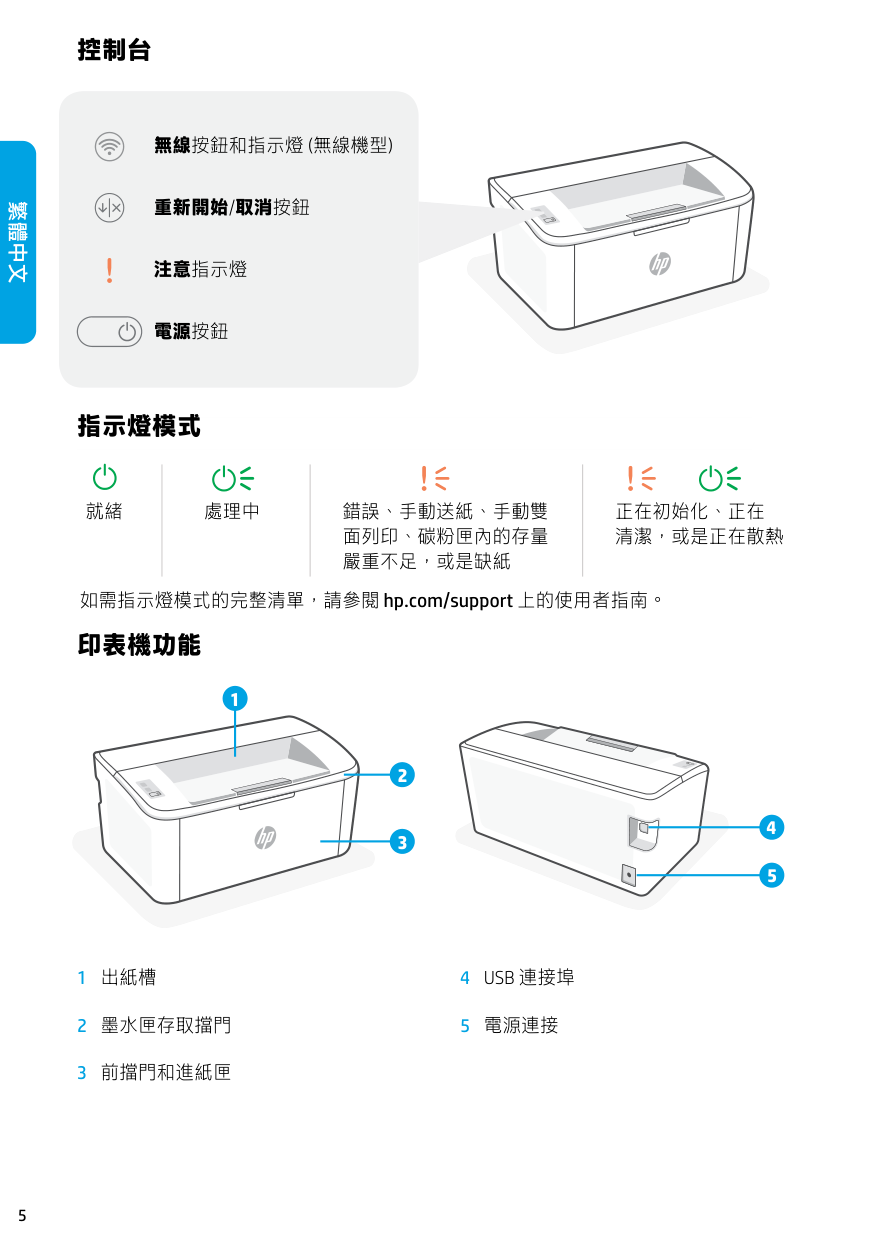
5 控制台 印表機功能 1 出紙槽 2 墨水匣存取擋門 3 前擋門和進紙匣
4 Usb 連接埠
5 電源連接 無線按鈕和指示燈 (無線機型) 重新開始/取消按鈕 注意指示燈 電源按鈕 如需指示燈模式的完整清單,請參閱 hp.com/support 上的使用者指南。 就緒 處理中 錯誤、手動送紙、手動雙 面列印、碳粉匣內的存量 嚴重不足,或是缺紙 正在初始化、正在 清潔,或是正在散熱 指示燈模式 4 5 3 2 1 繁體中文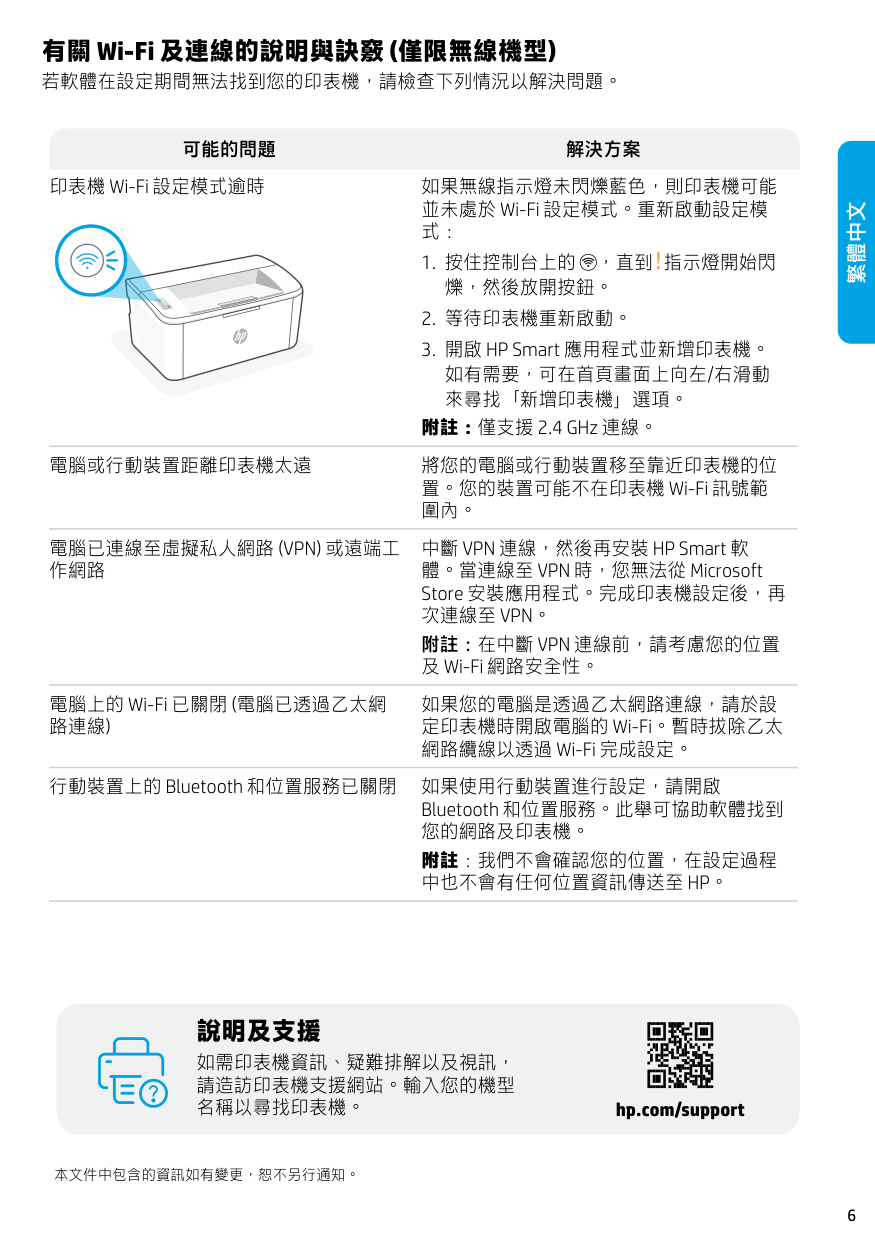
6 本文件中包含的資訊如有變更,恕不另行通知。 如需印表機資訊、疑難排解以及視訊, 請造訪印表機支援網站。輸入您的機型 名稱以尋找印表機。 說明及支援 hp.com/support 有關 Wi-Fi 及連線的說明與訣竅 (僅限無線機型) 若軟體在設定期間無法找到您的印表機,請檢查下列情況以解決問題。 可能的問題 解決方案 印表機 Wi-Fi 設定模式逾時 如果無線指示燈未閃爍藍色,則印表機可能 並未處於 Wi-Fi 設定模式。重新啟動設定模 式:
電腦已連線至虛擬私人網路 (Vpn) 或遠端工
作網路 中斷 VPN 連線,然後再安裝 HP Smart 軟 體。當連線至 VPN 時,您無法從 Microsoft Store 安裝應用程式。完成印表機設定後,再次連線至 Vpn。
附註:在中斷 Vpn 連線前,請考慮您的位置
及 Wi-Fi 網路安全性。 電腦上的 Wi-Fi 已關閉 (電腦已透過乙太網 路連線) 如果您的電腦是透過乙太網路連線,請於設 定印表機時開啟電腦的 Wi-Fi。暫時拔除乙太 網路纜線以透過 Wi-Fi 完成設定。 行動裝置上的 Bluetooth 和位置服務已關閉 如果使用行動裝置進行設定,請開啟 Bluetooth 和位置服務。此舉可協助軟體找到 您的網路及印表機。 附註:我們不會確認您的位置,在設定過程中也不會有任何位置資訊傳送至 Hp。
繁體中文
7 제어판 프린터 기능 1 출력함 2 카트리지 액세스 덮개 3 전면 덮개 및 입력 용지함
4 Usb 포트
5 전원 연결 무선 버튼 및 표시등(무선 모델) 다시 시작/취소 버튼 주의 표시등 전원 버튼 표시등 패턴의 전체 목록을 보려면 hp.com/support 에서 사용자 설명서를 참조하십시오. 대기 상태 처리 중 오류, 수동 급지, 수동 양면 인쇄, 카트리지 매우 부족 또는 용지 없음 초기화 중, 청소 중 또는 냉각 중 표시등 패턴 4 5 3 2 1 한국어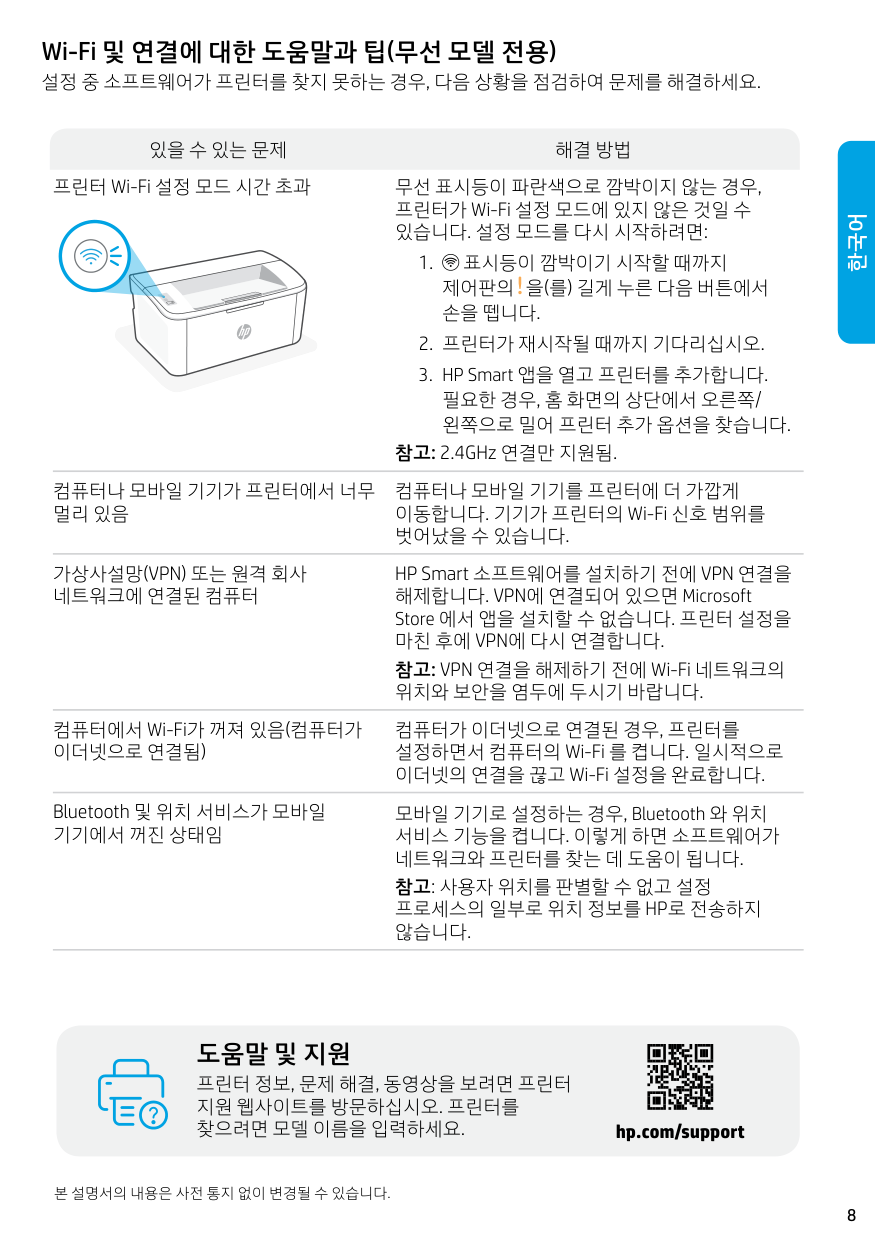
8 본 설명서의 내용은 사전 통지 없이 변경될 수 있습니다. 프린터 정보, 문제 해결, 동영상을 보려면 프린터 지원 웹사이트를 방문하십시오. 프린터를 찾으려면 모델 이름을 입력하세요. 도움말 및 지원 hp.com/support Wi-Fi 및 연결에 대한 도움말과 팁(무선 모델 전용) 설정 중 소프트웨어가 프린터를 찾지 못하는 경우, 다음 상황을 점검하여 문제를 해결하세요. 있을 수 있는 문제 해결 방법 프린터 Wi-Fi 설정 모드 시간 초과 무선 표시등이 파란색으로 깜박이지 않는 경우, 프린터가 Wi-Fi 설정 모드에 있지 않은 것일 수 있습니다. 설정 모드를 다시 시작하려면:
가상사설망(Vpn) 또는 원격 회사
네트워크에 연결된 컴퓨터 HP Smart 소프트웨어를 설치하기 전에 VPN 연결을 해제합니다. VPN에 연결되어 있으면 Microsoft Store 에서 앱을 설치할 수 없습니다. 프린터 설정을마친 후에 Vpn에 다시 연결합니다.
참고: VPN 연결을 해제하기 전에 Wi-Fi 네트워크의 위치와 보안을 염두에 두시기 바랍니다. 컴퓨터에서 Wi-Fi가 꺼져 있음(컴퓨터가 이더넷으로 연결됨) 컴퓨터가 이더넷으로 연결된 경우, 프린터를 설정하면서 컴퓨터의 Wi-Fi 를 켭니다. 일시적으로 이더넷의 연결을 끊고 Wi-Fi 설정을 완료합니다. Bluetooth 및 위치 서비스가 모바일 기기에서 꺼진 상태임 모바일 기기로 설정하는 경우, Bluetooth 와 위치 서비스 기능을 켭니다. 이렇게 하면 소프트웨어가 네트워크와 프린터를 찾는 데 도움이 됩니다. 참고: 사용자 위치를 판별할 수 없고 설정프로세스의 일부로 위치 정보를 Hp로 전송하지
않습니다. 한국어