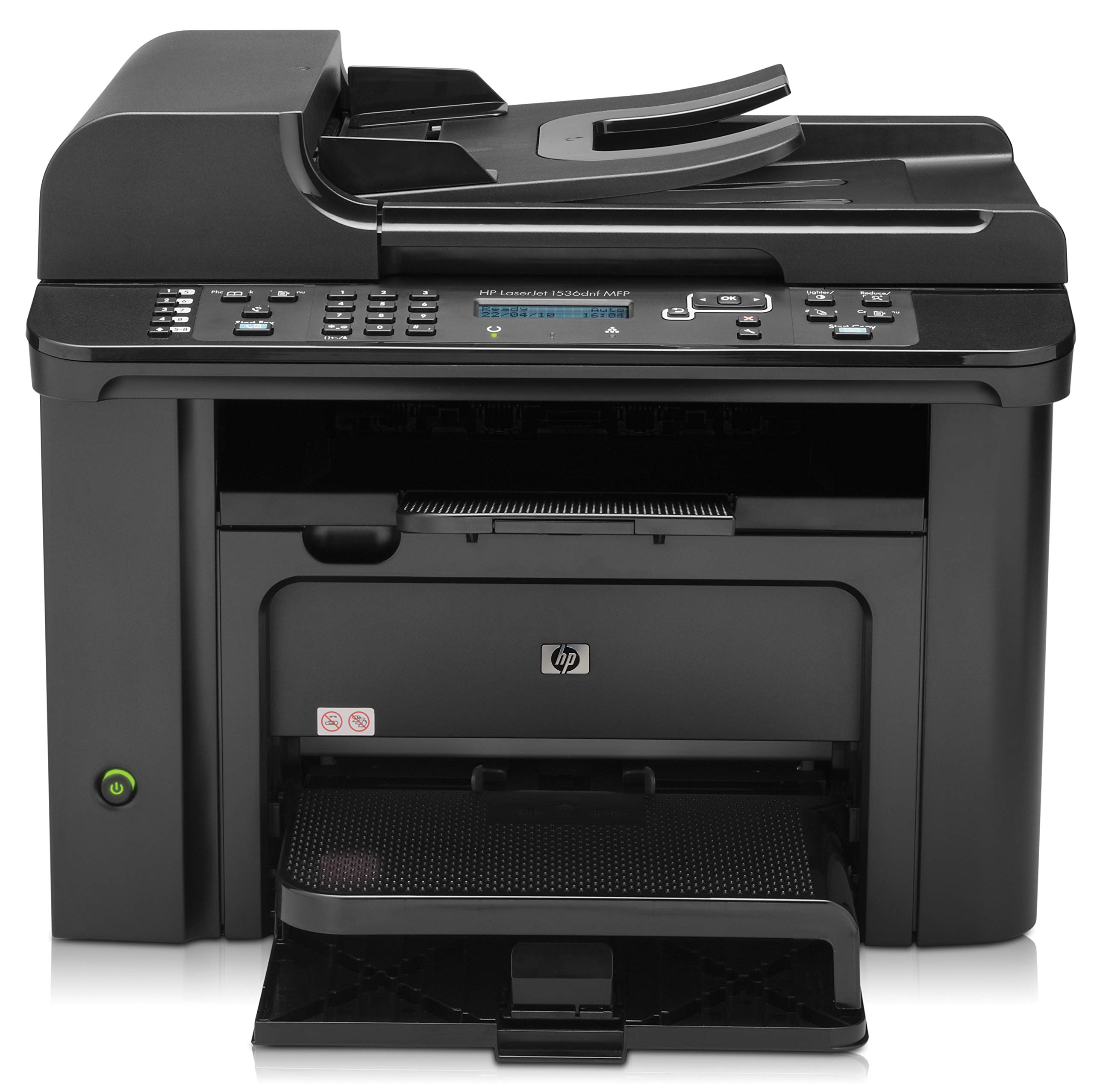
Ask AI
— answers from the official manualAnswers from the official manual.
Common questions
Common Questions
20 totalHow do I print on special paper, labels, or transparencies?
To print on special paper, go to File > Print, select the product, click Properties or Preferences, then click the Paper/Quality tab. From the Paper type drop-down list, click 'More...', expand the Type is options, and select the appropriate paper type. Note that labels and transparencies are found under the 'Other options' category.
How do I automatically print on both sides of the paper in Windows?
Go to File > Print, select the product, and click Properties or Preferences. Click the Finishing tab, then select the 'Print on both sides' check box and click OK to print the job.
What copy quality settings are available and how do I change them?
The available copy quality settings are Auto, Mixed, Picture, Film Photo, and Text. Press the Copy Menu button, use the arrow buttons to select the Optimize menu, press OK, then select the desired copy quality option and press OK. Note that the setting returns to the default value after two minutes.
How do I manually copy a two-sided document?
Press the Copy Menu button, select Multi-Page Copy and set it to On, then load the first page on the flatbed scanner and press Start Copy. After the first side prints, take the output page and place it in Tray 1 with the top edge leading into the product and the printed side facing down, then load the second page on the scanner and press OK to continue.
How do I clean the scanner glass on the M1530?
Turn off the product using the power switch and unplug the power cord, then open the scanner lid and clean the glass and white plastic backing with a soft cloth or sponge moistened with nonabrasive glass cleaner. Do not use abrasives, acetone, benzene, ammonia, ethyl alcohol, or carbon tetrachloride, as these can damage the product. Dry the glass with a chamois or cellulose sponge to prevent spotting before plugging the product back in.
How do I copy both sides of an ID card onto one sheet of paper?
Load the document onto the scanner glass, press the Copy Menu button, and use the arrow buttons to select the ID Copy item, then press OK. When prompted, flip the document, place it on a different portion of the scanner glass, press OK, and then press Start Copy. The product will print both sides of the card on the same page.
Show 14 more questions
How do I scan a document using HP Scan software on Windows?
How do I set up fax speed dials on the M1530?
How do I set the date, time, and fax header on the M1530?
How do I delete faxes stored in the printer's memory?
How do I set up the printer to automatically print on both sides?
What should I do if there is an error message telling me that specks of debris are affecting performance?
How do I set up an ID Copy for small documents?
How can I program speed dials using the control panel?
How do I delete sent faxes from memory?
How do I set the time and date on my HP Laserjet M1530 Multifunction Printer?
How can I automatically scan a document with HP Scan software?
How do I set up my printer for printing special papers?
What is the procedure for copying documents with mixed text and graphics?
How do I set up multi-page copies in manual mode?
Full Manual
19 pages
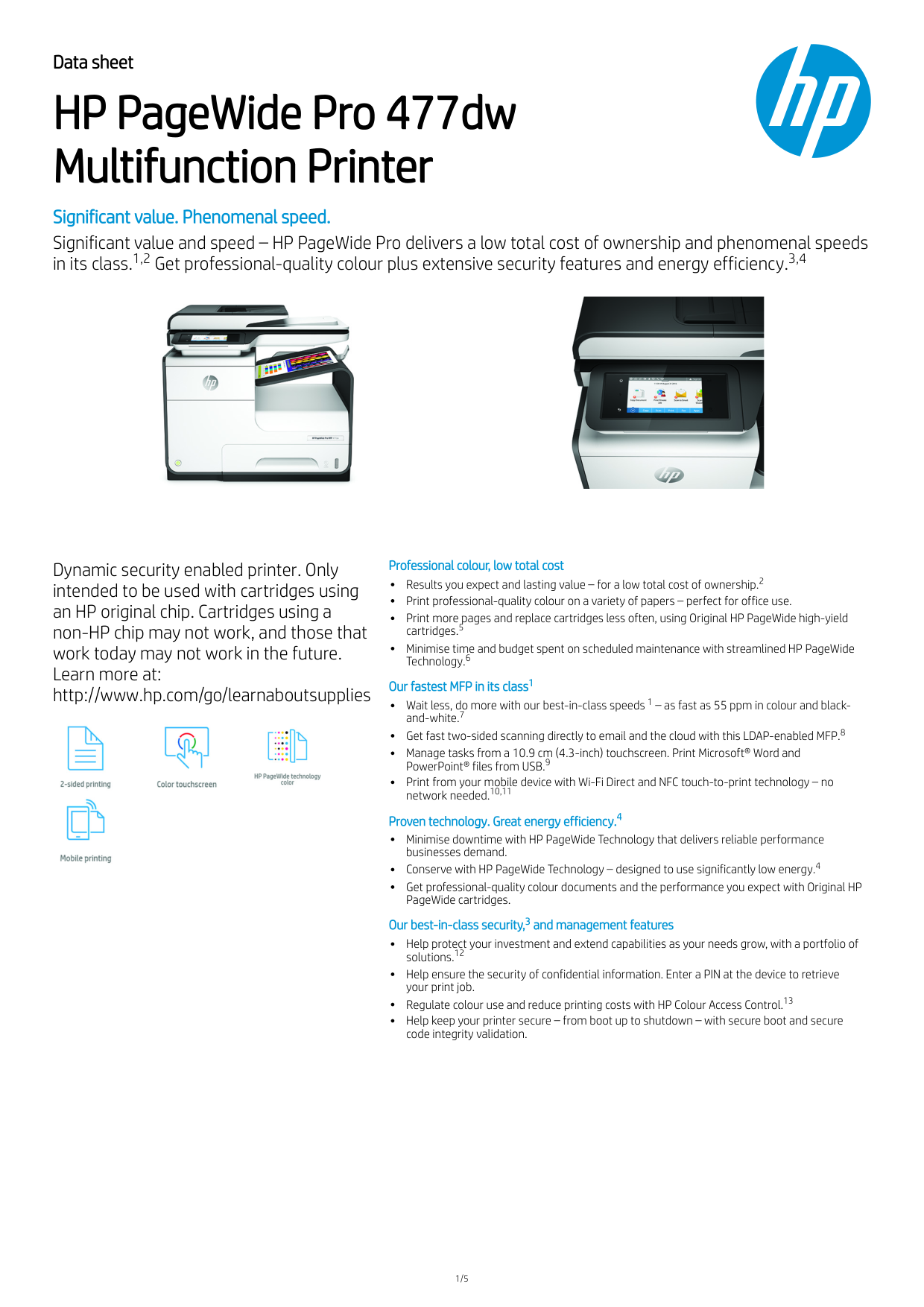
Laserjet Pro M1530
Mfp Series
Quick Reference Guide
Print on special paper, labels, or transparencies
2 Quick Reference Guide
Enww
Enww
Print on special paper, labels, or transparencies 3
Note:
Labels and transparencies are in the list of Other options.4 Quick Reference Guide
Enww
Automatically print on both sides with Windows
Enww
Automatically print on both sides with Windows 5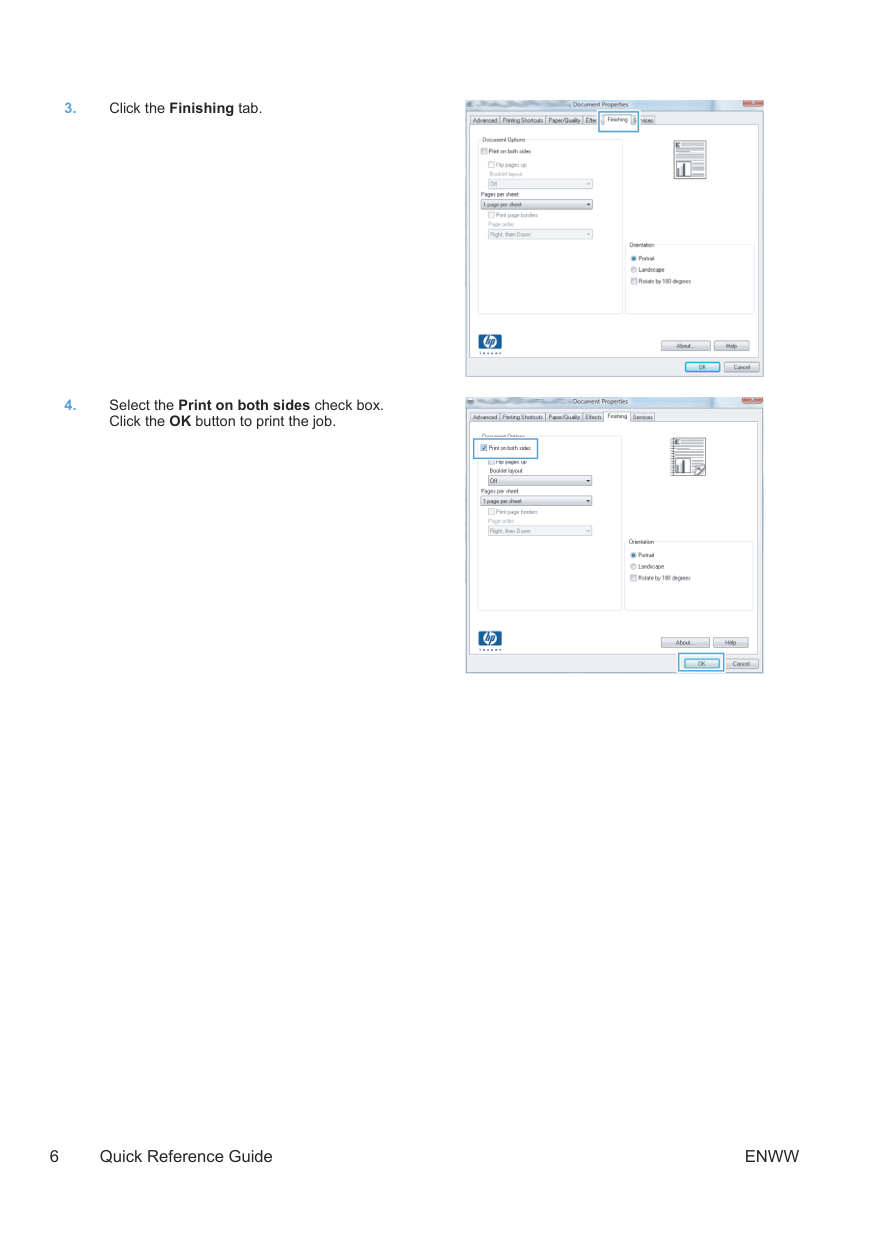
6 Quick Reference Guide
Enww
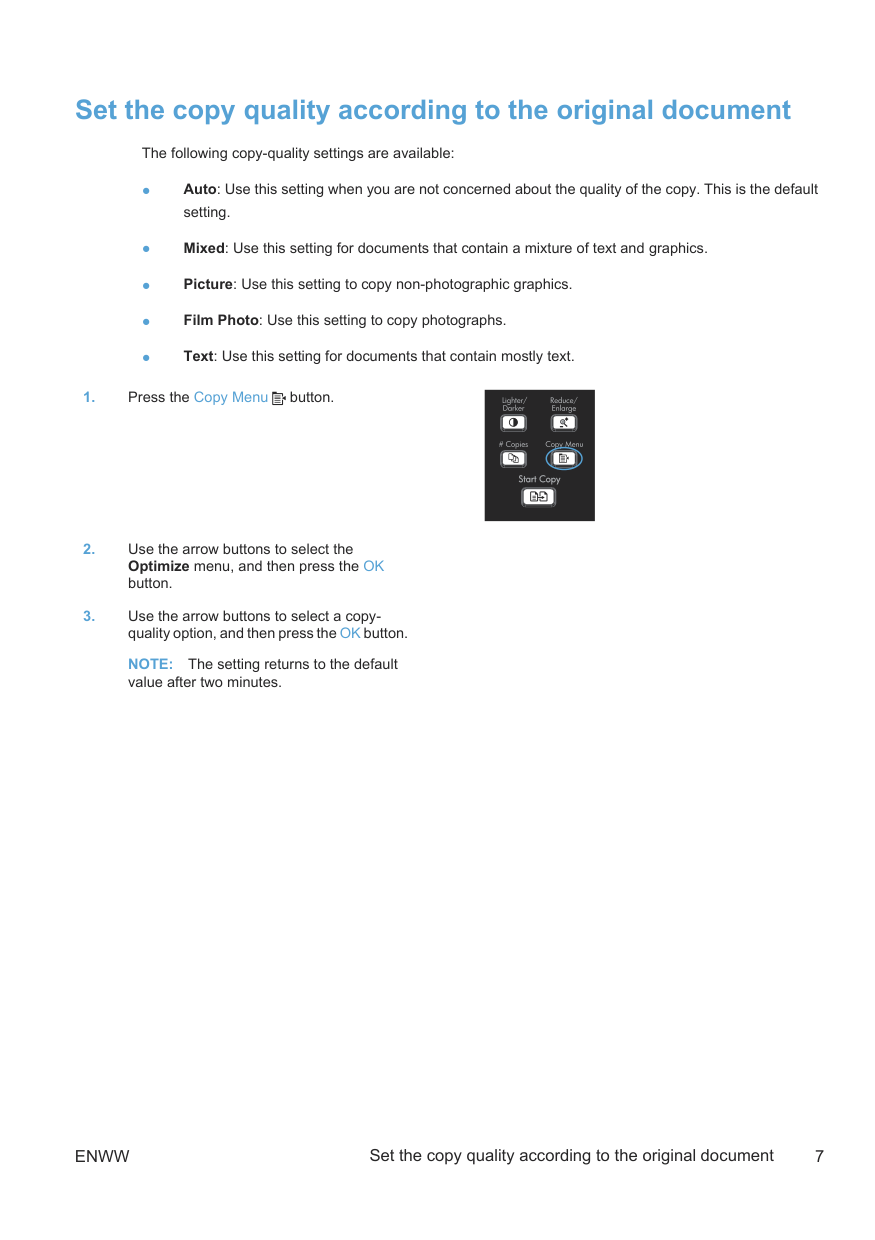
Set the copy quality according to the original document The following copy-quality settings are available: ● Auto: Use this setting when you are not concerned about the quality of the copy. This is the default setting. ● Mixed: Use this setting for documents that contain a mixture of text and graphics. ● Picture: Use this setting to copy non-photographic graphics. ● Film Photo: Use this setting to copy photographs. ● Text: Use this setting for documents that contain mostly text.
Note:
The setting returns to the default value after two minutes.Enww
Set the copy quality according to the original document 7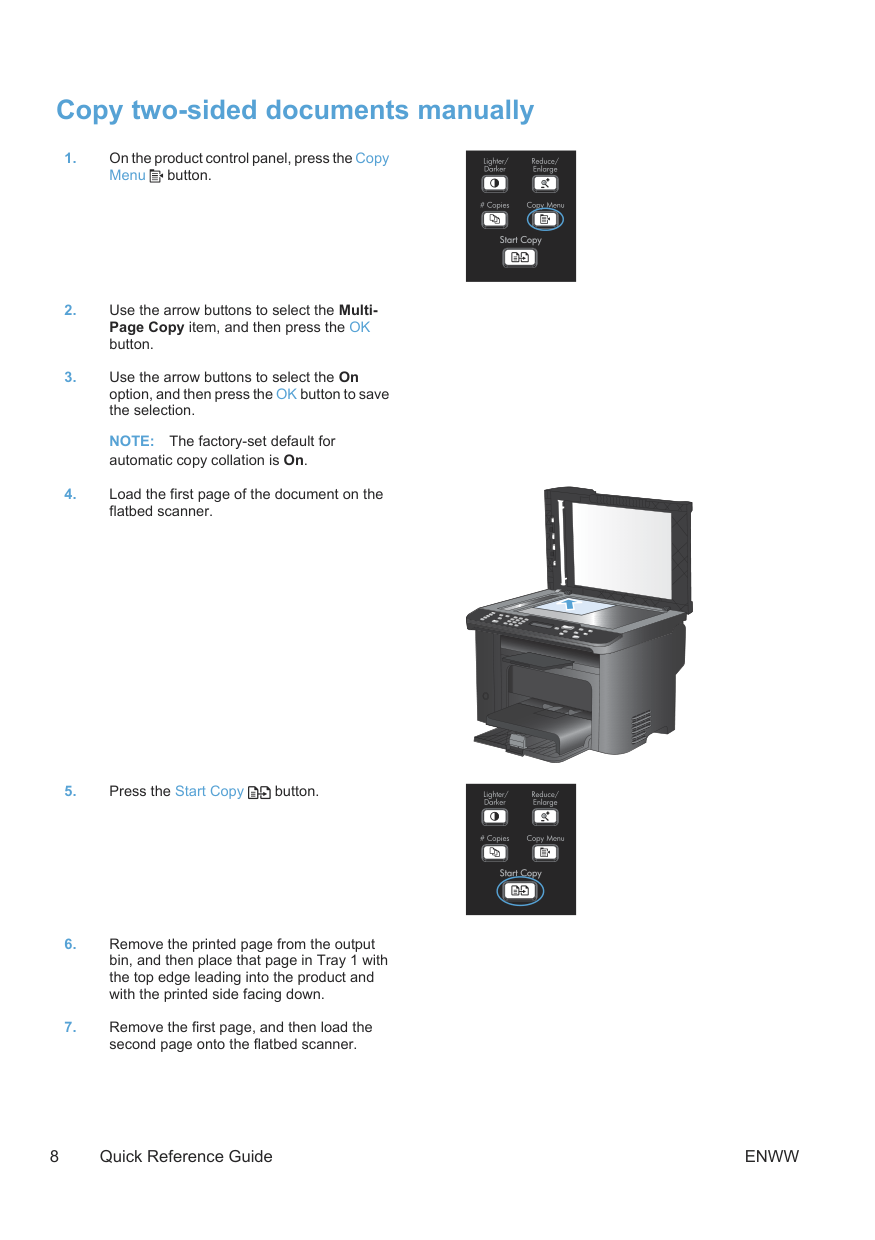
Copy two-sided documents manually
Note:
The factory-set default for automatic copy collation is On.8 Quick Reference Guide
Enww

Enww
Copy two-sided documents manually 9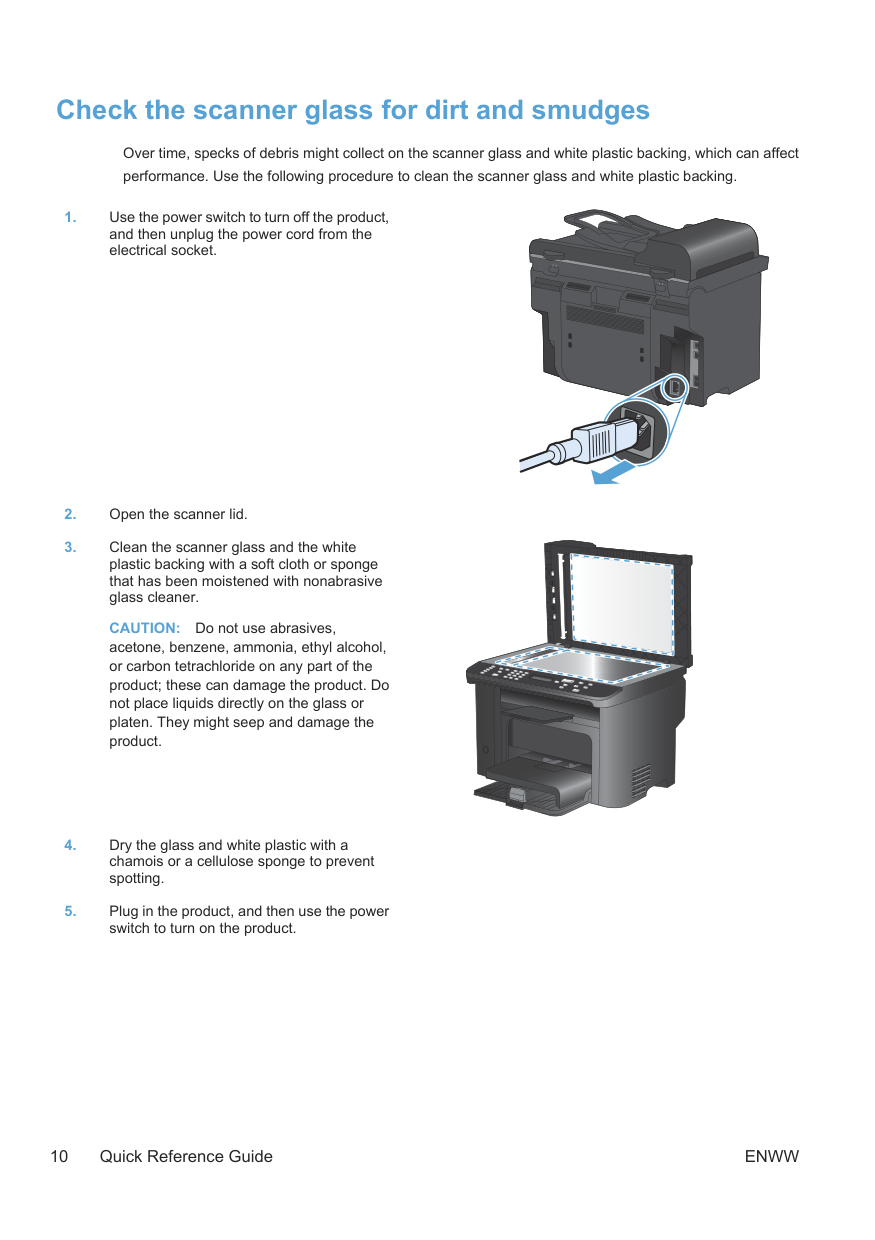
Check the scanner glass for dirt and smudges Over time, specks of debris might collect on the scanner glass and white plastic backing, which can affect performance. Use the following procedure to clean the scanner glass and white plastic backing.
Caution:
Do not use abrasives, acetone, benzene, ammonia, ethyl alcohol, or carbon tetrachloride on any part of the product; these can damage the product. Do not place liquids directly on the glass or platen. They might seep and damage the product.10 Quick Reference Guide
Enww
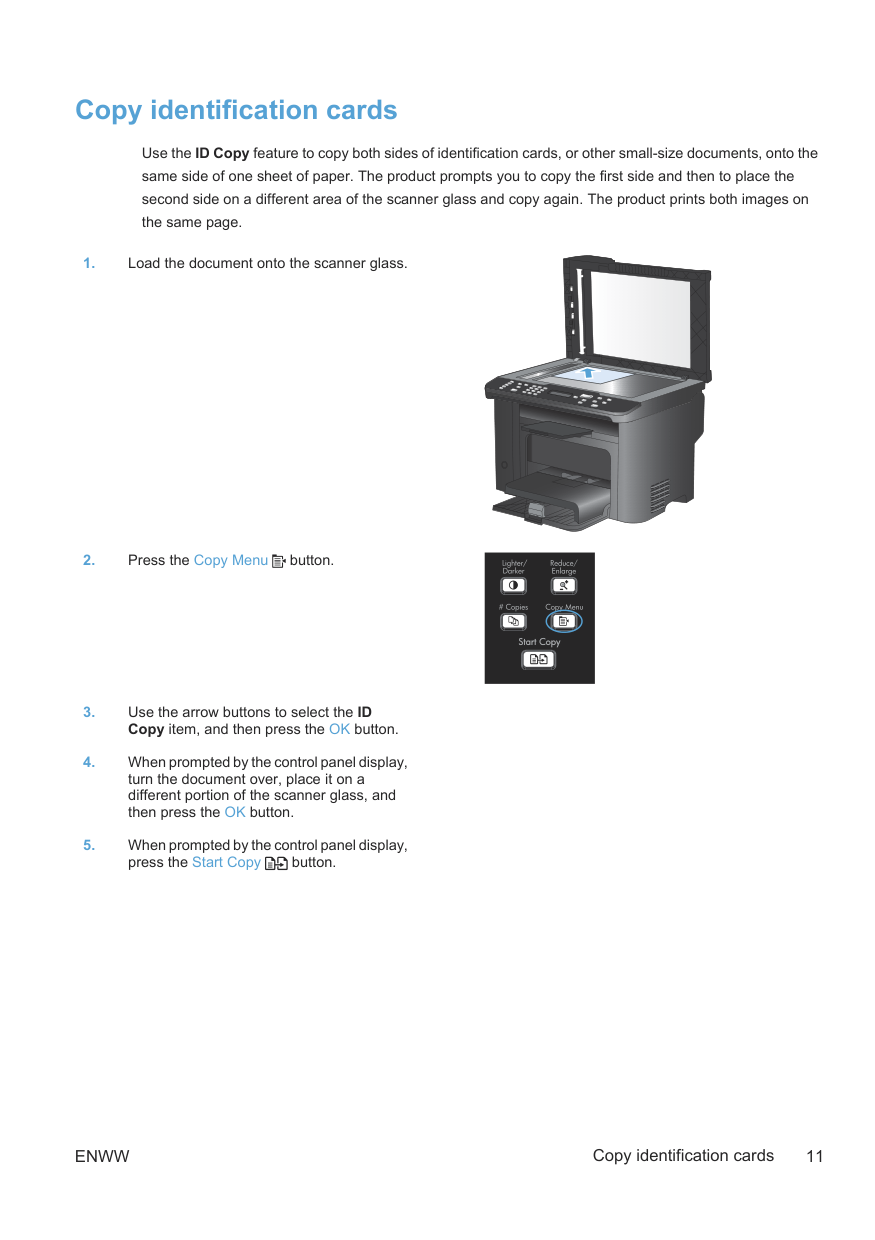
Copy identification cards Use the ID Copy feature to copy both sides of identification cards, or other small-size documents, onto the same side of one sheet of paper. The product prompts you to copy the first side and then to place the second side on a different area of the scanner glass and copy again. The product prints both images on the same page.
Enww
Copy identification cards 11
Scan by using HP Scan software (Windows)
Note:
Click Advanced Settings to gain access to more options. Click Create New Shortcut to create a customized set of settings and save it in the list of shortcuts. 12 Quick Reference GuideEnww
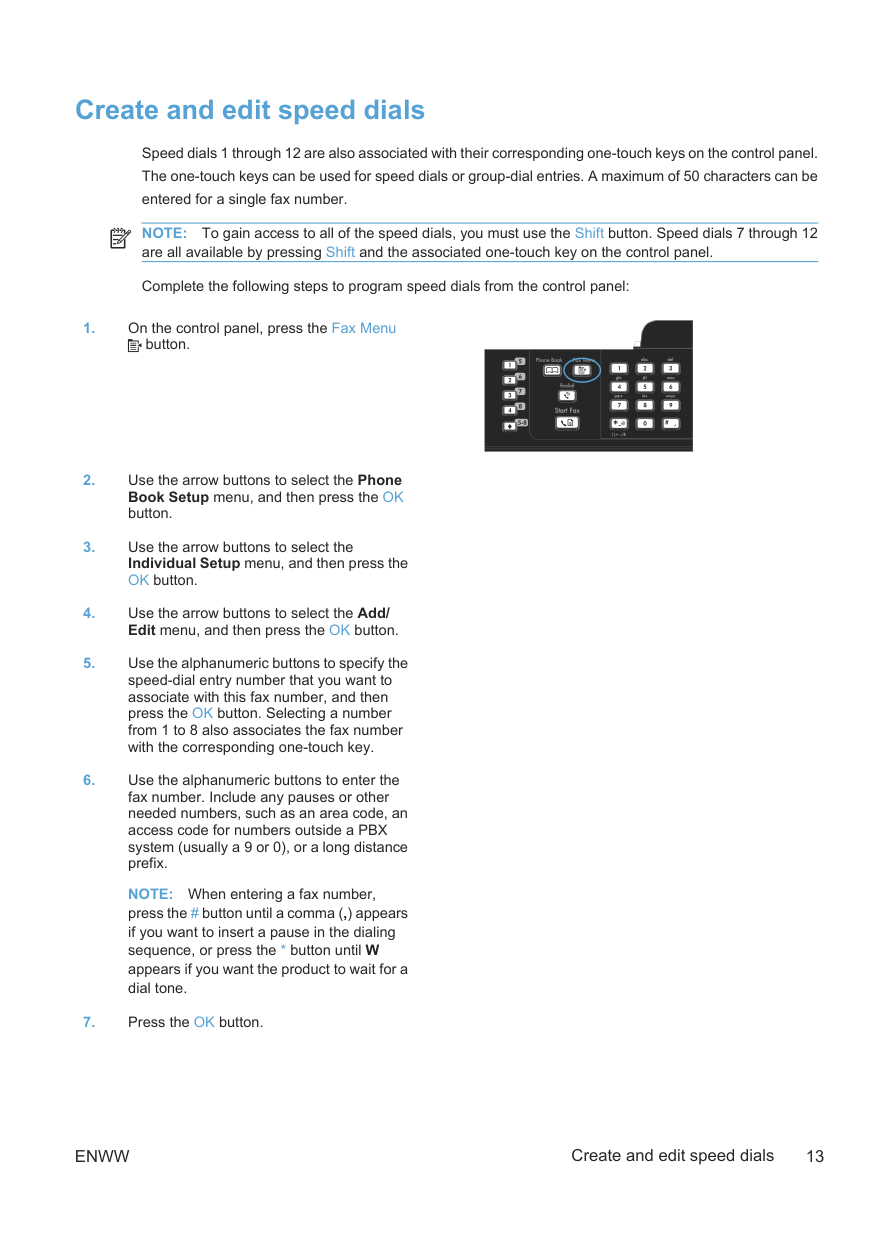
Create and edit speed dials Speed dials 1 through 12 are also associated with their corresponding one-touch keys on the control panel. The one-touch keys can be used for speed dials or group-dial entries. A maximum of 50 characters can be entered for a single fax number.
Note:
To gain access to all of the speed dials, you must use the Shift button. Speed dials 7 through 12 are all available by pressing Shift and the associated one-touch key on the control panel. Complete the following steps to program speed dials from the control panel:Note:
When entering a fax number, press the # button until a comma (,) appears if you want to insert a pause in the dialing sequence, or press the * button until W appears if you want the product to wait for a dial tone.Enww
Create and edit speed dials 13
Note:
To insert punctuation, press the asterisk (*) button repeatedly until the character that you want appears, and then press the up arrow button to go to the next space.14 Quick Reference Guide
Enww
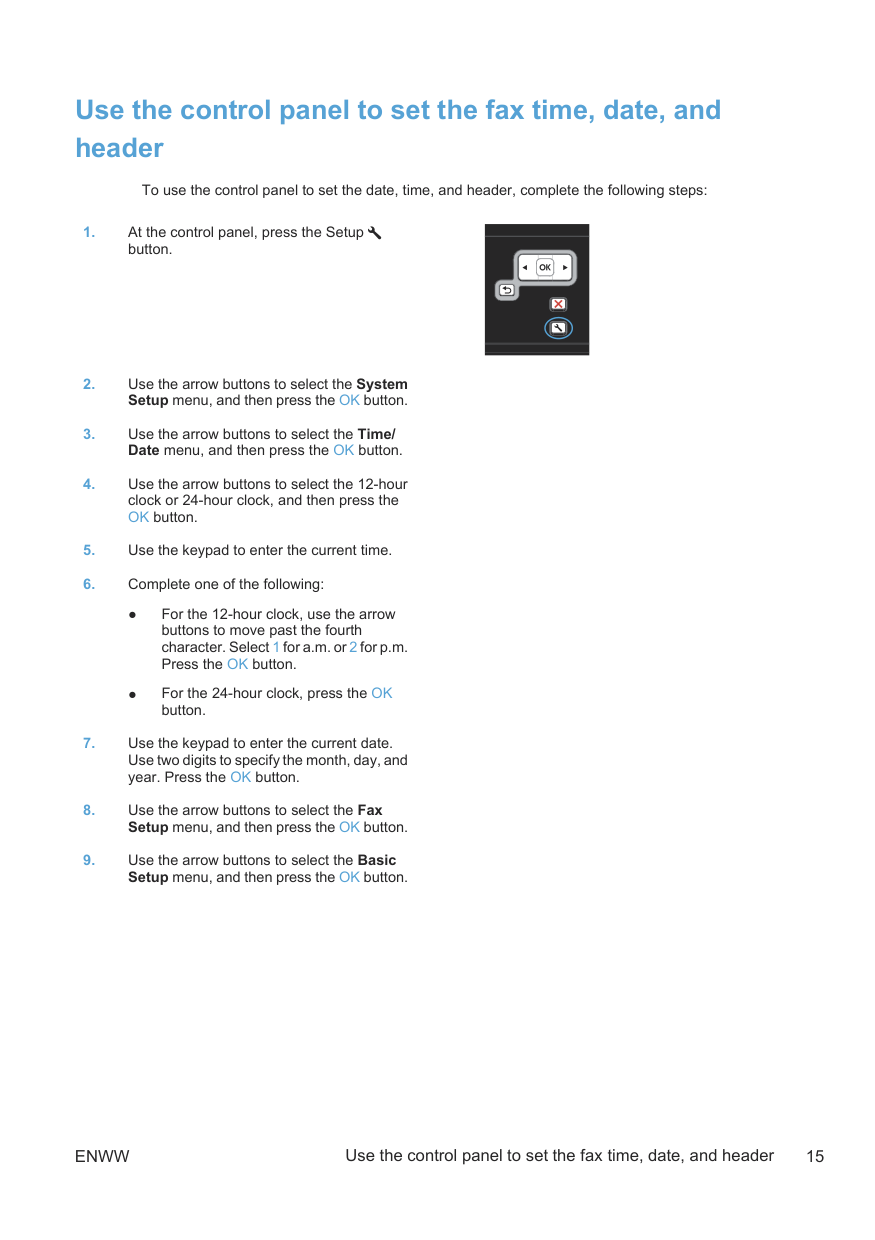
Use the control panel to set the fax time, date, and header To use the control panel to set the date, time, and header, complete the following steps:
Enww
Use the control panel to set the fax time, date, and header 15
Note:
The maximum number of characters for the fax number is 20; use up to 25 characters for the company name.16 Quick Reference Guide
Enww
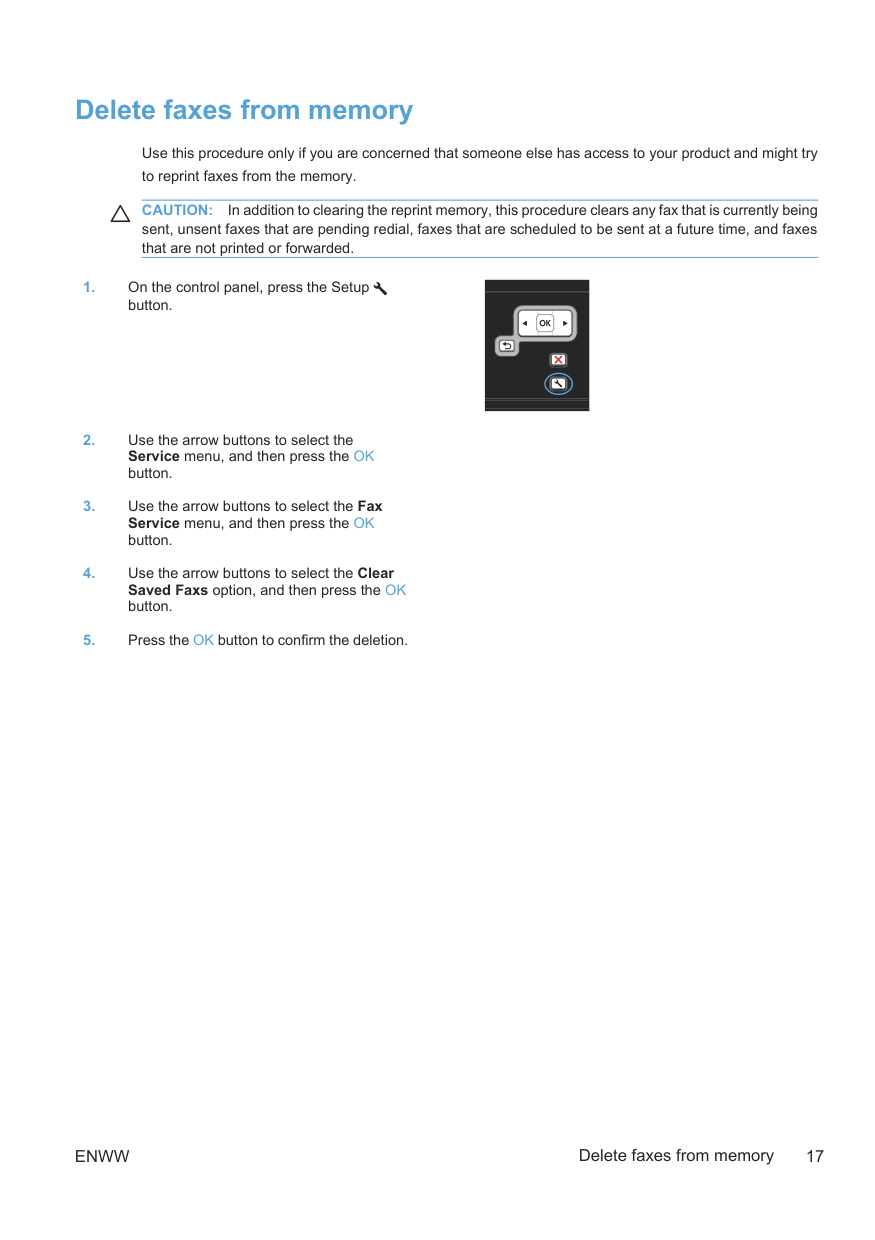
Delete faxes from memory Use this procedure only if you are concerned that someone else has access to your product and might try to reprint faxes from the memory.
Caution:
In addition to clearing the reprint memory, this procedure clears any fax that is currently being sent, unsent faxes that are pending redial, faxes that are scheduled to be sent at a future time, and faxes that are not printed or forwarded.Enww
Delete faxes from memory 17
View or change network settings Use the embedded Web server to view or change IP configuration settings.
Enww
© 2010 Hewlett-Packard Development Company, L.P. www.hp.com Edition 1, 9/2010 Part number: CE538-90943 Windows ® is a U.S. registered trademark of Microsoft Corporation. Reproduction, adaptation or translation without prior written permission is prohibited, except as allowed under the copyright laws. The information contained herein is subject to change without notice. The only warranties for HP products and services are set forth in the express warranty statements accompanying such products and services. Nothing herein should be construed as constituting an additional warranty. HP shall not be liable for technical or editorial errors or omissions contained herein.