
Ask AI
— answers from the official manualAnswers from the official manual.
Common questions
Common Questions
55 totalWhat does it mean when the status light is pulsing green?
A pulsing green status light indicates that the printer is updating or busy. The printer is performing a firmware update or is currently processing a task, and you should wait for it to complete before attempting other actions.
What does the blinking Cartridge light mean on the HP LaserJet M207e-M212e?
The Cartridge light blinks when the cartridge needs attention. You should inspect or replace the cartridge to resolve the issue. (Page 2)
How do I restart Wi-Fi setup mode if it has timed out on the HP LaserJet M207e-M212e?
To restart Wi-Fi setup mode, first press the Power button to exit sleep mode if the control panel is not lit. Then press and hold the Wireless button for 5 seconds and release it so all control panel buttons light up, then press the Wireless button and the Information button at the same time once and release — the Wireless light will blink blue. Wait one minute, then close and reopen HP Smart and try connecting again. (Page 3)
What do the different status light colors mean on the HP LaserJet M207e-M212e?
The status lights indicate different printer states: pulsing purple means the printer is in wireless setup mode (lasts 2 hours after first power-on), pulsing blue means it is connecting to a network, solid light blue means connected and ready for use, solid amber means there is a problem, and pulsing green means the printer is updating or busy. For problems indicated by a solid amber light, check the HP Smart app for troubleshooting information. (Page 2)
What does the Paper light blinking mean on the HP LaserJet M207e-M212e?
The Paper light blinks when the printer is out of paper or when there is a paper jam. You should check the paper tray and clear any jams to resolve this issue. (Page 2)
What does the Cartridge light blinking mean on the HP LaserJet M207e-M212e?
The Cartridge light blinks when the cartridge needs attention. You should inspect the toner cartridge and take appropriate action, such as replacing or reseating it. (Page 2)
Show 49 more questions
Can I set up my HP LaserJet M207e-M212e using a USB cable?
How long does the wireless setup mode last on the HP LaserJet M207e-M212e?
Why can't my computer find the HP LaserJet M207e-M212e printer during setup when connected to a VPN?
What should I do if my computer is connected via Ethernet and I cannot find the printer during Wi-Fi setup?
How do I print a summary of my HP LaserJet M207e-M212e printer settings and status?
How do I troubleshoot when my printer is in 'Wi-Fi setup mode timed out'?
What should I do if my computer's Wi-Fi is turned off during printer setup?
Why should I not use a USB connection for setup of this printer?
Where can I find details on how to handle common error messages?
What are the control panel buttons on HP LaserJet M207e/M212e printers?
How do I deal with a blinking blue wireless light on my printer?
What should I do if the printer's 'problem' amber light is on solid?
How can I obtain complimentary support from HP+?
What are the security precautions I should take when using Wi-Fi during printer setup?
What does the solid amber status light mean on the HP LaserJet M207e-M212e?
Why can't the HP Smart software find my printer during setup when I'm connected to a VPN?
What should I do if my computer is connected via Ethernet and the HP Smart software cannot find my printer during setup?
Why does the HP LaserJet M207e-M212e show a pulsing purple status light?
What does a pulsing green status light indicate on the HP LaserJet M207e-M212e?
Why does the HP Smart software fail to find my printer when setting up from a mobile device?
What does it mean when the wireless light is blinking blue?
How do I restart the Wi-Fi setup mode if it times out?
Why can't I use USB for the initial setup of this printer?
What should I do if my computer is too far from the printer during setup?
What does a solid amber status light indicate?
Why should I disconnect from my VPN before installing HP Smart?
What should I enable on my mobile device to help find the printer during setup?
What does the paper light blinking indicate?
How long does the wireless setup mode last after first turning on the printer?
What does the blinking Paper light mean on the HP LaserJet M207e-M212e?
Why does my mobile device need Bluetooth and location services enabled to set up the HP LaserJet M207e-M212e?
How do I restart Wi-Fi setup mode if the printer's wireless setup mode has timed out?
What should I do if my computer is too far from the printer during setup?
What does the cartridge light indicate?
Why can't I install HP Smart software when connected to a VPN?
If my computer is connected by Ethernet, how should I set up the printer?
What does the paper light indicate?
Why can't I use a USB cable to set up my HP LaserJet M207e printer?
What should I do if the paper light is blinking?
How long does the wireless setup mode last on my new printer?
My computer is connected through Ethernet and won't find the printer during setup. What should I do?
My mobile device can't find the printer during setup. What settings do I need to enable?
My wireless light is not blinking blue during setup. How do I restart Wi-Fi setup mode?
What does it mean when the wireless light is pulsing purple?
I'm using a VPN connection and HP Smart won't install. How can I fix this?
What does the solid amber status light mean?
What should I do if I'm too far from the printer and can't establish a Wi-Fi connection?
Do I need to enable Bluetooth and location services to set up my printer with a mobile device?
Where can I find more information about printer lights and error codes?
Full Manual
8 pages
Reference Guide
Guide de référence Guía de referencia
HP LaserJet
M207e-M212e series
###### English
Status lights
Pulsing purple Wireless setup mode. Lasts for 2 hours after first turning on printer. See “Help and tips for Wi-Fi and connectivity”.
Pulsing blue Connecting to network
Solid light blue Connected/ready for use
Solid amber Problem. Check the HP Smart app for troubleshooting information.
Pulsing green Updating or busy
Control panel
####### Wireless button
Information button/light Press to print a summatry of printer settings and status.
Resume button/light Press when lit to continue a job.
Cancel button/light
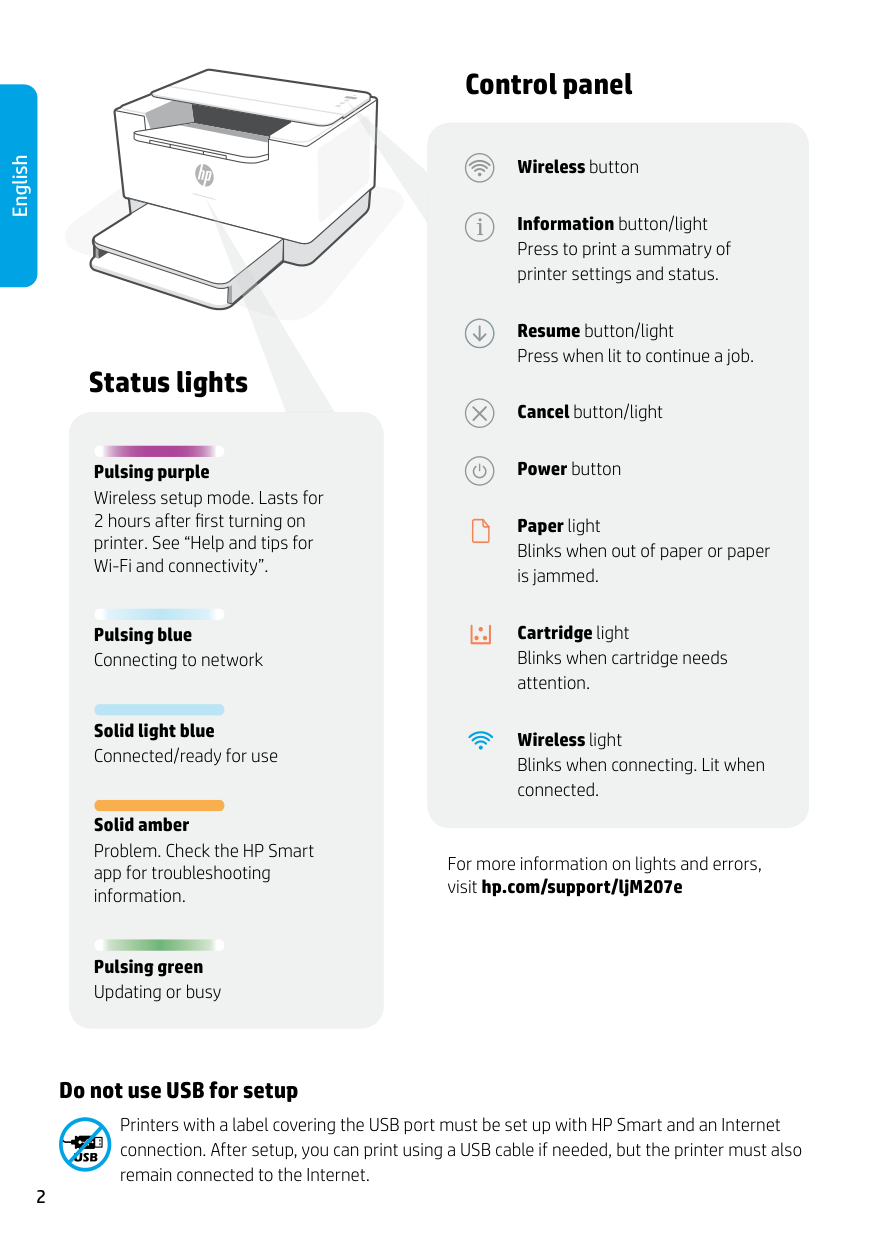
Power button
Paper light Blinks when out of paper or paper is jammed.
Cartridge light Blinks when cartridge needs attention.
Wireless light Blinks when connecting. Lit when connected.
For more information on lights and errors, visit hp.com/support/ljM207e
#### Do not use USB for setup
Printers with a label covering the USB port must be set up with HP Smart and an Internet connection. After setup, you can print using a USB cable if needed, but the printer must also remain connected to the Internet.
Help and tips for Wi-Fi and connectivity If the software is unable to find your printer during setup, check the following conditions to resolve the issue.
###### Potential Issue Solution
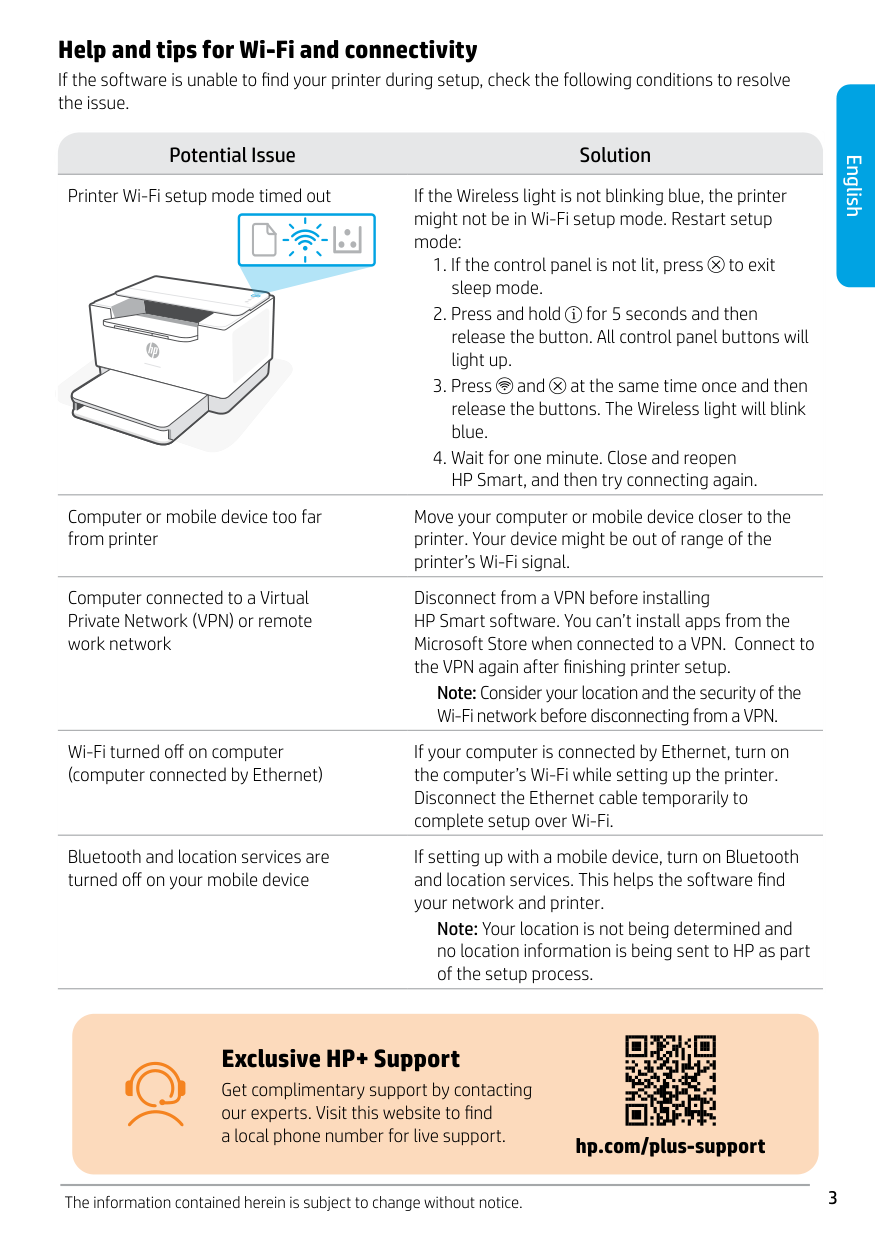
Printer Wi-Fi setup mode timed out If the Wireless light is not blinking blue, the printer might not be in Wi-Fi setup mode. Restart setup mode:
Computer or mobile device too far from printer
Computer connected to a Virtual Private Network (VPN) or remote work network
Move your computer or mobile device closer to the printer. Your device might be out of range of the printer’s Wi-Fi signal.
Disconnect from a VPN before installing HP Smart software. You can’t install apps from the Microsoft Store when connected to a VPN. Connect to the VPN again after finishing printer setup.
Note: Consider your location and the security of the Wi-Fi network before disconnecting from a VPN.
Wi-Fi turned off on computer (computer connected by Ethernet)
Bluetooth and location services are turned off on your mobile device
If your computer is connected by Ethernet, turn on the computer’s Wi-Fi while setting up the printer. Disconnect the Ethernet cable temporarily to complete setup over Wi-Fi.
If setting up with a mobile device, turn on Bluetooth and location services. This helps the software find your network and printer.
Note: Your location is not being determined and no location information is being sent to HP as part of the setup process.
###### English
Exclusive HP+ Support Get complimentary support by contacting our experts. Visit this website to find a local phone number for live support.
##### hp.com/plus-support
The information contained herein is subject to change without notice.
3
###### Français
Panneau de commande
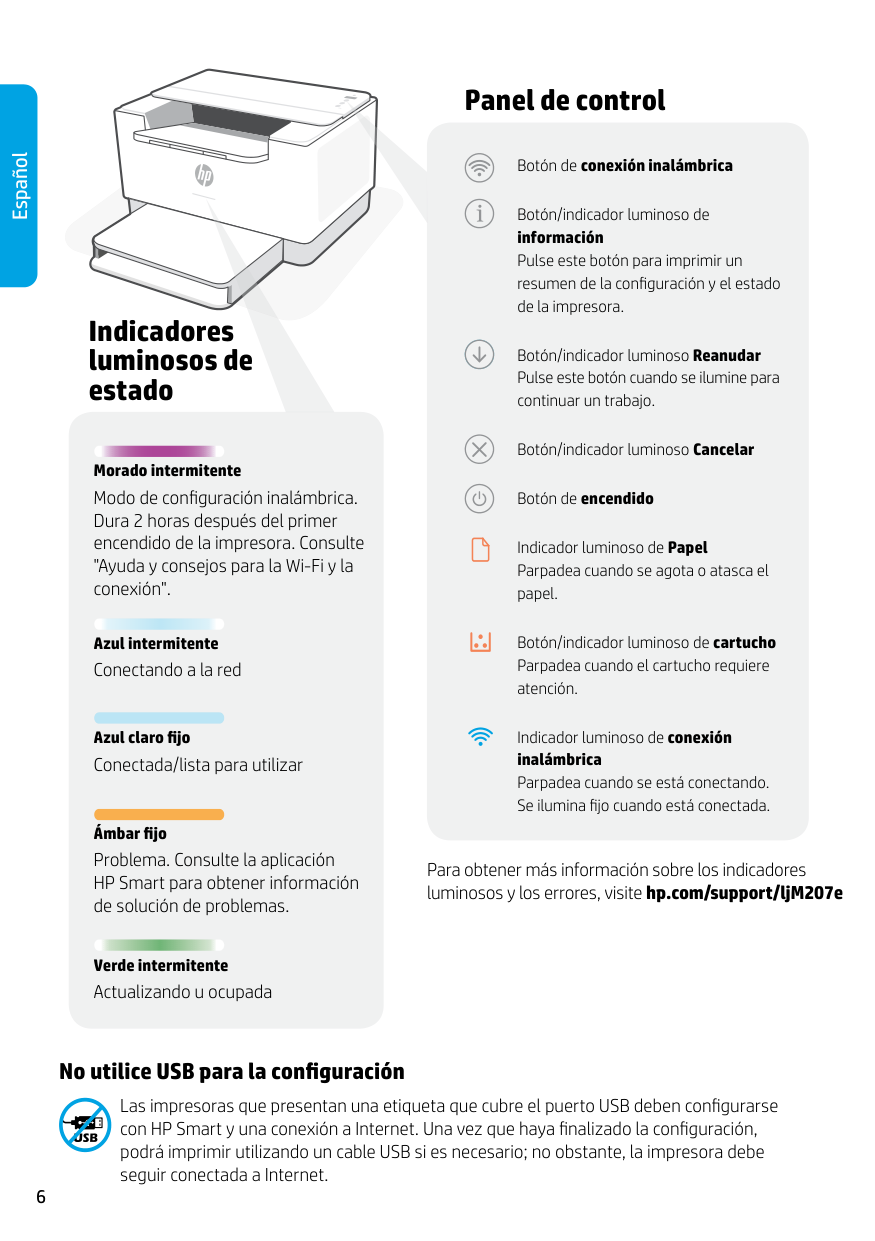
Bouton Sansfil Bouton/Voyant Informations Appuyez sur le bouton pour imprimer un résumé des paramètres et de l'état de l'imprimante. Bouton/Voyant Reprendre Appuyez sur le bouton lorsqu'il est allumé pour poursuivre un travail. Bouton/Voyant Annuler Bouton d'alimentation Voyant Papier Clignote en cas de papier épuisé ou de bourrage papier. Voyant Cartouche Clignote lorsqu'une cartouche nécessite votre attention. Voyant Sans fil Clignote à la connexion. Est allumé en fixe une fois la connexion établie.
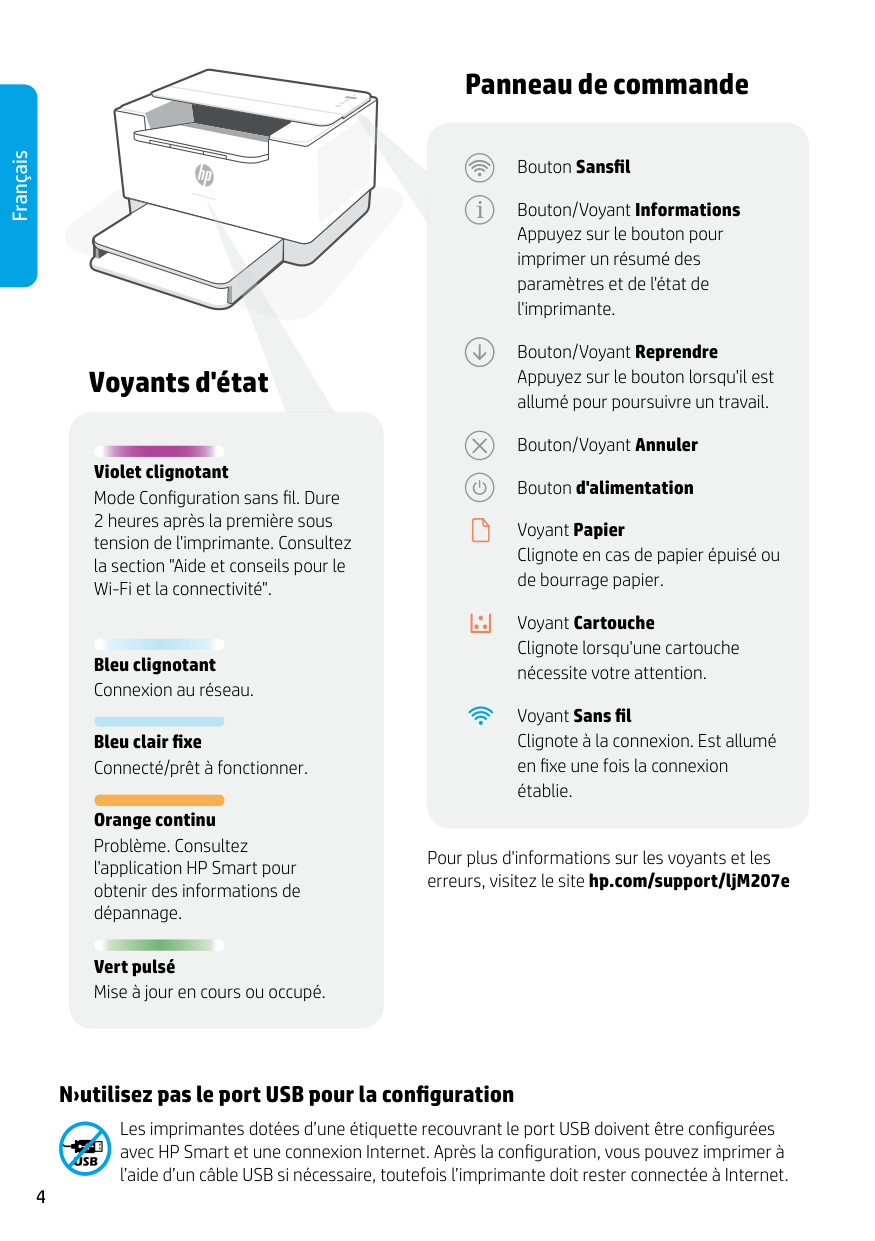
Voyants d'état
Violet clignotant Mode Configuration sans fil. Dure 2 heures après la première sous tension de l'imprimante. Consultez la section "Aide et conseils pour le Wi-Fi et la connectivité".
Bleu clignotant Connexion au réseau.
Bleu clair fixe Connecté/prêt à fonctionner.
Orange continu Problème. Consultez l'application HP Smart pour obtenir des informations de dépannage.
Pour plus d'informations sur les voyants et les erreurs, visitez le site hp.com/support/ljM207e
Vert pulsé Mise à jour en cours ou occupé.
#### N›utilisez pas le port USB pour la configuration
Les imprimantes dotées d’une étiquette recouvrant le port USB doivent être configurées avec HP Smart et une connexion Internet. Après la configuration, vous pouvez imprimer à l’aide d’un câble USB si nécessaire, toutefois l’imprimante doit rester connectée à Internet.
Aide et conseils pour le Wi-Fi et la connectivité Si logiciel ne parvient pas à trouver votre imprimante pendant la configuration, vérifiez les conditions suivantes pour résoudre le problème.
###### Problème potentiel Solution
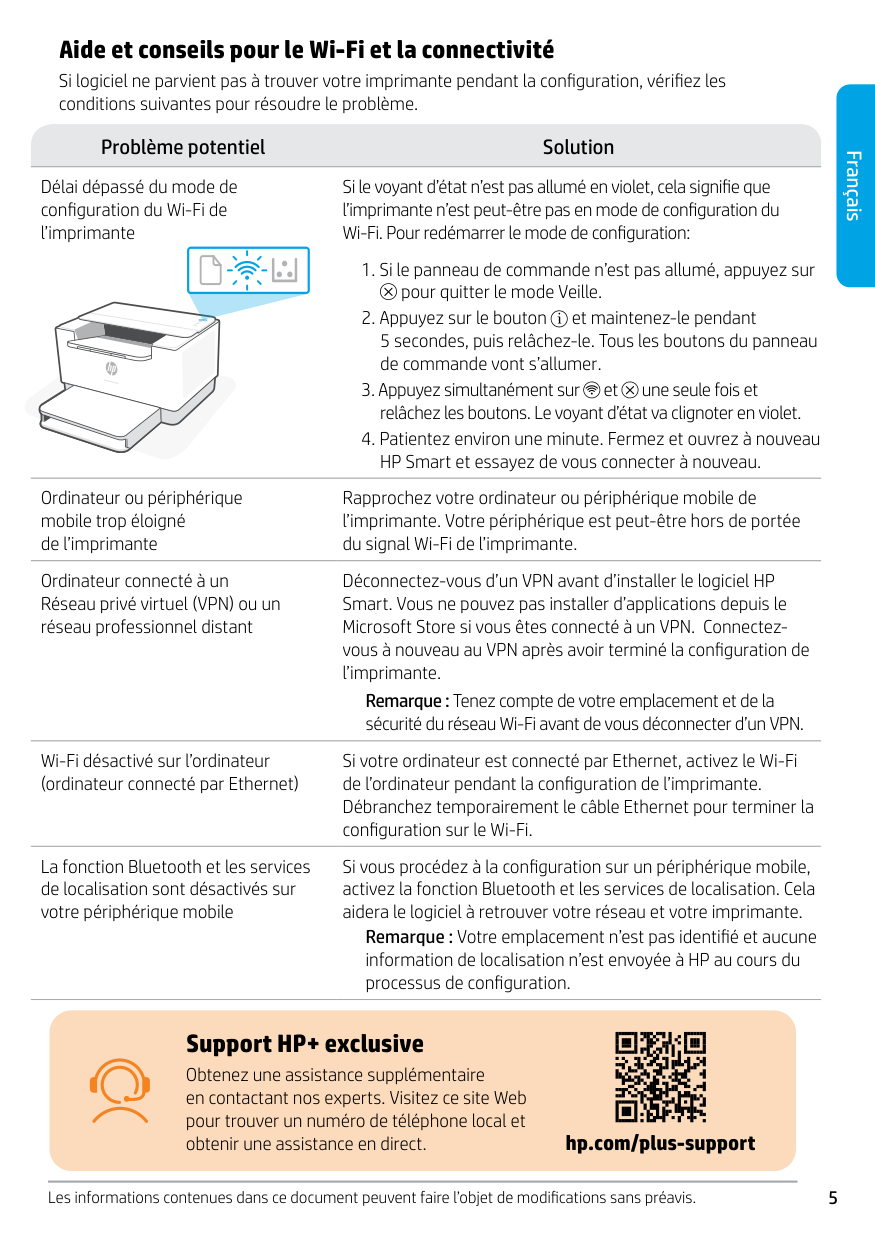
Délai dépassé du mode de configuration du Wi-Fi de l’imprimante
Si le voyant d’état n’est pas allumé en violet, cela signifie que l’imprimante n’est peut-être pas en mode de configuration du Wi-Fi. Pour redémarrer le mode de configuration:
pour quitter le mode Veille.
###### Français
Ordinateur ou périphérique mobile trop éloigné de l’imprimante
Ordinateur connecté à un Réseau privé virtuel (VPN) ou un réseau professionnel distant
Wi-Fi désactivé sur l’ordinateur (ordinateur connecté par Ethernet)
La fonction Bluetooth et les services de localisation sont désactivés sur votre périphérique mobile
Rapprochez votre ordinateur ou périphérique mobile de l’imprimante. Votre périphérique est peut-être hors de portée du signal Wi-Fi de l’imprimante.
Déconnectez-vous d’un VPN avant d’installer le logiciel HP Smart. Vous ne pouvez pas installer d’applications depuis le Microsoft Store si vous êtes connecté à un VPN. Connectezvous à nouveau au VPN après avoir terminé la configuration de l’imprimante.
Remarque : Tenez compte de votre emplacement et de la sécurité du réseau Wi-Fi avant de vous déconnecter d’un VPN.
Si votre ordinateur est connecté par Ethernet, activez le Wi-Fi de l’ordinateur pendant la configuration de l’imprimante. Débranchez temporairement le câble Ethernet pour terminer la configuration sur le Wi-Fi.
Si vous procédez à la configuration sur un périphérique mobile, activez la fonction Bluetooth et les services de localisation. Cela aidera le logiciel à retrouver votre réseau et votre imprimante.
Remarque : Votre emplacement n’est pas identifié et aucune information de localisation n’est envoyée à HP au cours du processus de configuration.
Support HP+ exclusive Obtenez une assistance supplémentaire en contactant nos experts. Visitez ce site Web pour trouver un numéro de téléphone local et obtenir une assistance en direct. hp.com/plus-support
Les informations contenues dans ce document peuvent faire l’objet de modifications sans préavis.
5
###### Español
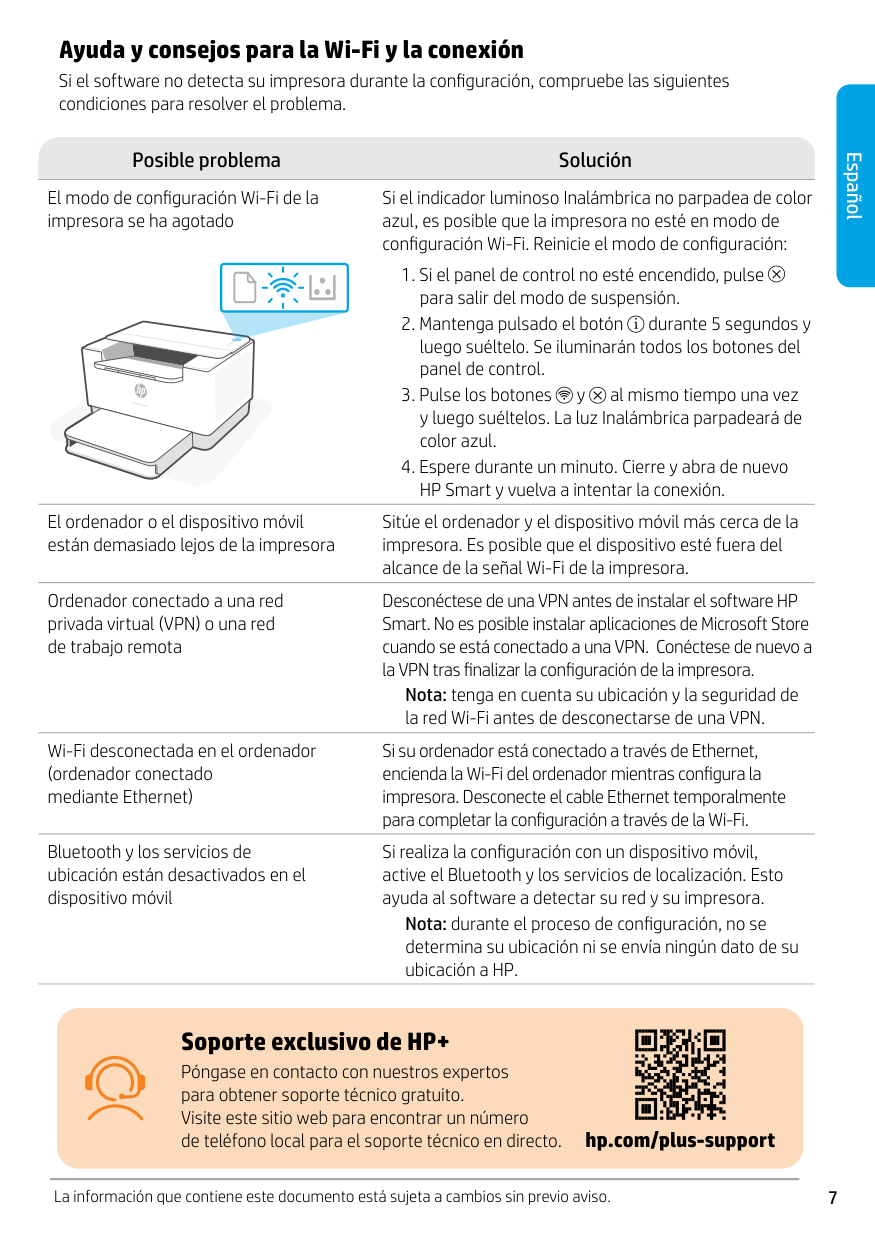
Panel de control
######### Botón de conexión inalámbrica
Botón/indicador luminoso de información Pulse este botón para imprimir un resumen de la configuración y el estado de la impresora.
Indicadores luminosos de estado
Botón/indicador luminoso Reanudar Pulse este botón cuando se ilumine para continuar un trabajo.
Botón/indicador luminoso Cancelar
Morado intermitente Modo de configuración inalámbrica. Dura 2 horas después del primer encendido de la impresora. Consulte "Ayuda y consejos para la Wi-Fi y la conexión".
######### Botón de encendido
Indicador luminoso de Papel Parpadea cuando se agota o atasca el papel.
Botón/indicador luminoso de cartucho Parpadea cuando el cartucho requiere atención.
Azul intermitente Conectando a la red
Indicador luminoso de conexión inalámbrica
Azul claro fijo Conectada/lista para utilizar
Parpadea cuando se está conectando. Se ilumina fijo cuando está conectada.
Ámbar fijo Problema. Consulte la aplicación HP Smart para obtener información de solución de problemas.
Para obtener más información sobre los indicadores luminosos y los errores, visite hp.com/support/ljM207e
Verde intermitente Actualizando u ocupada
#### No utilice USB para la configuración
Las impresoras que presentan una etiqueta que cubre el puerto USB deben configurarse con HP Smart y una conexión a Internet. Una vez que haya finalizado la configuración, podrá imprimir utilizando un cable USB si es necesario; no obstante, la impresora debe seguir conectada a Internet.
Ayuda y consejos para la Wi-Fi y la conexión Si el software no detecta su impresora durante la configuración, compruebe las siguientes condiciones para resolver el problema.
###### Posible problema Solución
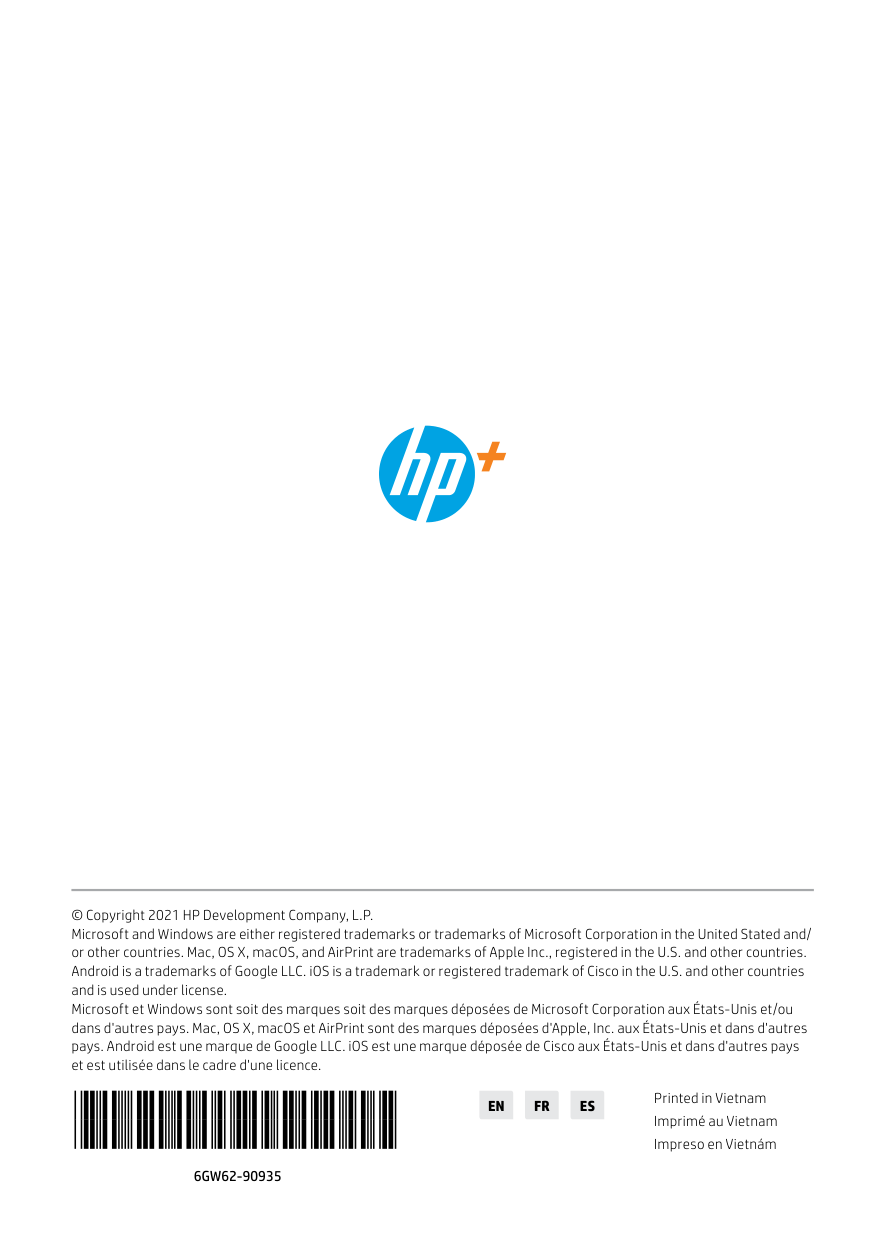
El modo de configuración Wi-Fi de la impresora se ha agotado
El ordenador o el dispositivo móvil están demasiado lejos de la impresora
Ordenador conectado a una red privada virtual (VPN) o una red de trabajo remota
Wi-Fi desconectada en el ordenador (ordenador conectado mediante Ethernet)
Bluetooth y los servicios de ubicación están desactivados en el dispositivo móvil
Si el indicador luminoso Inalámbrica no parpadea de color azul, es posible que la impresora no esté en modo de configuración Wi-Fi. Reinicie el modo de configuración:
Sitúe el ordenador y el dispositivo móvil más cerca de la impresora. Es posible que el dispositivo esté fuera del alcance de la señal Wi-Fi de la impresora.
Desconéctese de una VPN antes de instalar el software HP Smart. No es posible instalar aplicaciones de Microsoft Store cuando se está conectado a una VPN. Conéctese de nuevo a la VPN tras finalizar la configuración de la impresora.
Nota: tenga en cuenta su ubicación y la seguridad de la red Wi-Fi antes de desconectarse de una VPN.
Si su ordenador está conectado a través de Ethernet, encienda la Wi-Fi del ordenador mientras configura la impresora. Desconecte el cable Ethernet temporalmente para completar la configuración a través de la Wi-Fi.
Si realiza la configuración con un dispositivo móvil, active el Bluetooth y los servicios de localización. Esto ayuda al software a detectar su red y su impresora.
Nota: durante el proceso de configuración, no se determina su ubicación ni se envía ningún dato de su ubicación a HP.
###### Español
Soporte exclusivo de HP+ Póngase en contacto con nuestros expertos para obtener soporte técnico gratuito. Visite este sitio web para encontrar un número de teléfono local para el soporte técnico en directo. hp.com/plus-support
La información que contiene este documento está sujeta a cambios sin previo aviso.
7
© Copyright 2021 HP Development Company, L.P. Microsoft and Windows are either registered trademarks or trademarks of Microsoft Corporation in the United Stated and/ or other countries. Mac, OS X, macOS, and AirPrint are trademarks of Apple Inc., registered in the U.S. and other countries. Android is a trademarks of Google LLC. iOS is a trademark or registered trademark of Cisco in the U.S. and other countries and is used under license. Microsoft et Windows sont soit des marques soit des marques déposées de Microsoft Corporation aux États-Unis et/ou dans d'autres pays. Mac, OS X, macOS et AirPrint sont des marques déposées d'Apple, Inc. aux États-Unis et dans d'autres pays. Android est une marque de Google LLC. iOS est une marque déposée de Cisco aux États-Unis et dans d'autres pays et est utilisée dans le cadre d'une licence.
6GW62-90935
########## EN FR ES
Printed in Vietnam
Imprimé au Vietnam
Impreso en Vietnám