HP LaserJet Pro M402 M403 Printer
Printers · 38 Q&As

HP LaserJet Pro M402 M403 Printer

Ask AI

— answers from the official manual

Answers from the official manual.

Common questions

Common Questions

38 total
1

What toner cartridges are compatible with the M402 and M403 models?

M402 models use HP 26A (standard) or 26X (high-yield) cartridges, while M403 models use HP 28A (standard) or 28X (high-yield) cartridges. High-yield cartridges contain more toner than standard cartridges for increased page yield. (Page 28)

2

What is the correct orientation for loading envelopes in Tray 1?

Load envelopes in Tray 1 face up, with the short, postage end leading into the printer. Tray 1 can hold up to 10 envelopes. (Page 24)

3

How do I access the HP Embedded Web Server to manage the printer?

On the printer control panel, press OK and open the Network Setup menu to display the IP address or host name. Then open a Web browser, type the IP address or host name in the address line, and press Enter to access the EWS. (Page 53)

4

What are the system requirements for job storage?

A dedicated USB 2.0 storage device with at least 16 GB free space must be installed in the rear host USB port, and if using an HP Universal Print Driver (UPD), version 5.9.0 or above is required. (Page 42)

5

What are the voltage specifications for my HP LaserJet Pro M402 series printer?

Your printer operates within a range that supports either 110-127 Vac or 220-240 Vac at a frequency of 50/60 Hz. Verify these parameters match your electrical supply before use.

6

What is the maximum paper capacity for each tray?

Tray 1 has a maximum capacity of 100 sheets of 75 g/m² (20 lb) paper, Tray 2 holds up to 250 sheets, and the optional Tray 3 holds up to 550 sheets of the same paper weight. (Page 14, 18, 21)

Show 32 more questions

How do I replace the toner cartridge in the M402/M403?

What should I do to avoid paper jams when loading Tray 1?

What are the recommended operating temperature and humidity ranges?

How do I enable Wi-Fi Direct printing on wireless models?

How do I set up automatic two-sided printing on Windows?

What are the voltage requirements for the HP LaserJet Pro M402 series?

How do I turn on the printer?

What should I do if there is a voltage mismatch between my printer and electrical supply?

What do I need to check before connecting my HP LaserJet Pro M402 series printer to an electrical outlet?

What is the correct procedure to power on the HP LaserJet Pro M402 series printer?

How can I avoid damaging my HP LaserJet Pro M402 series printer?

Why is it important to verify the correct voltage rating when setting up my HP LaserJet Pro M402 series printer?

How do I ensure my HP LaserJet Pro M402 series is properly connected to power?

Can I use any kind of power cord for my HP LaserJet Pro M402 series?

Does this printer support mobile printing?

What are the printer dimensions and power consumption specifications?

What are the different models of HP LaserJet Pro printers covered in this manual?

How do I load paper into Tray 1?

How do I load paper into the different trays on this printer?

What is the operating environmental range for the HP LaserJet Pro M402 and M403?

Where can I order supplies, accessories, and parts for my printer?

Can I print envelopes on the HP LaserJet Pro M402 and M403?

Can this printer print envelopes, and if so, how?

What are the physical dimensions of this printer?

What is the operating environmental range for this printer?

Are there mobile printing solutions available for this printer?

What should I do if I need to replace the toner cartridge?

How do I load paper into Tray 2 and Tray 3?

What operating systems are supported by the HP LaserJet Pro M402/M403?

What are the power consumption and electrical specifications for this printer?

Where can I find support and drivers for my HP LaserJet Pro M402 or M403 printer?

What should I know about the toner cartridge for this printer?

Full Manual

2 pages
Page 1

2.1 2.2

![image 1](c04647402_images/imageFile1.png)

![image 2](c04647402_images/imageFile2.png)

![image 3](c04647402_images/imageFile3.png)

![image 4](c04647402_images/imageFile4.png)

![image 5](c04647402_images/imageFile5.png)

TH

  • 1. 利用電源線將印表機連接到電源插座,然後開啟電源。 確定電源適合本印表機的電壓額定值。 電壓額定值請見印表機標籤。 本印表機使用 110-127 Vac 或 220-240 Vac,50/60 Hz。 注意: 為了避免對印表機造成損害,請僅使用印表機隨附的電源線。
  • 2. 開啟印表機的電源。
  • ZHTW

    VI

    HE

    ![image 6](c04647402_images/imageFile6.png)

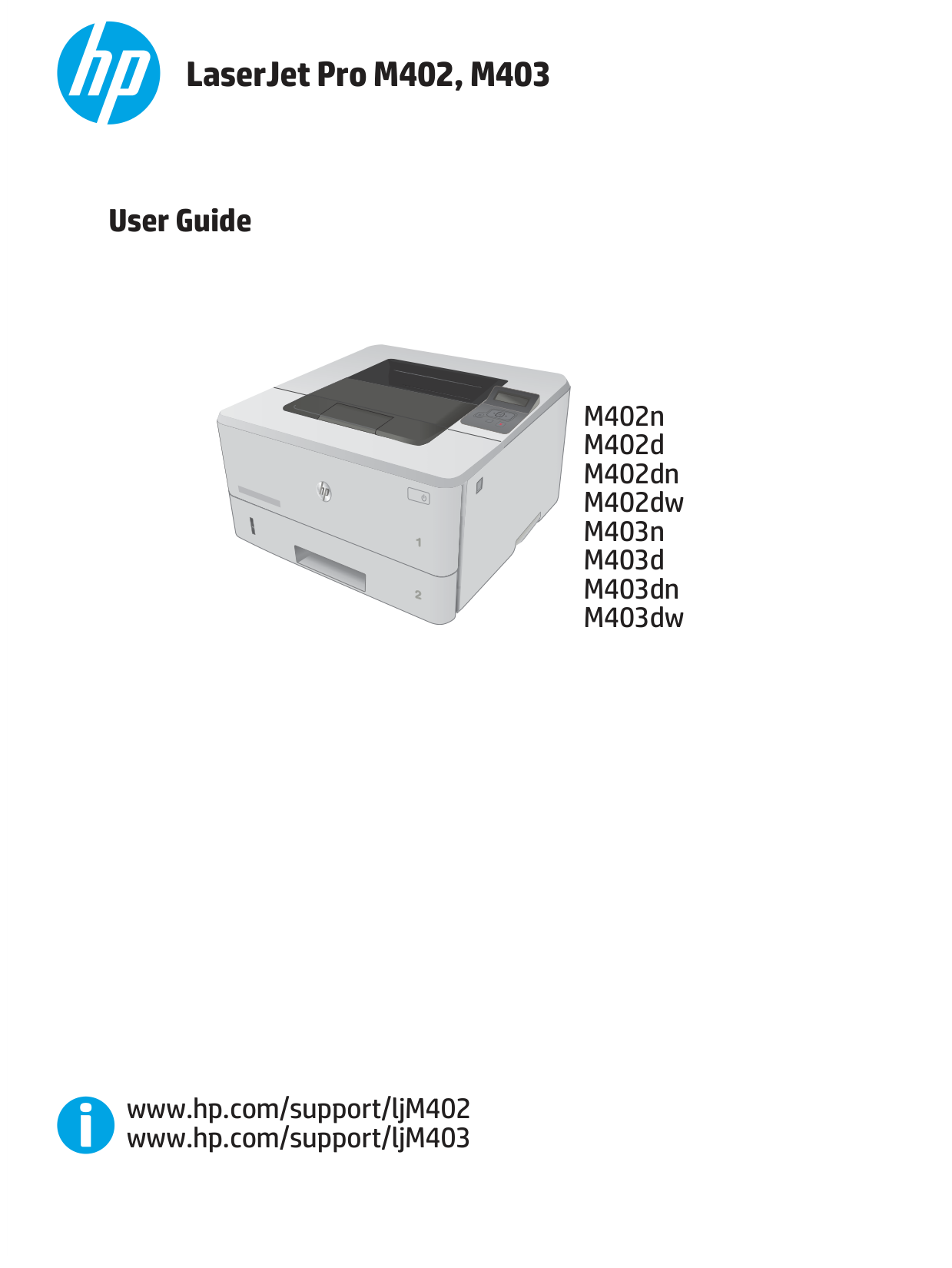
    LaserJet Pro M402, M403 1

    M402n

  • M402d
  • M402dn
  • M402dw
  • M403n

  • M403d
  • M403dn M403dw
  • M402dne

  • www.hp.com/support/ljM402
  • www.hp.com/support/ljM403
  • Lea esto primero

    © 2015 HP Development Company, L.P. www.hp.com

    ![image 7](c04647402_images/imageFile7.png)

    |![image 8](c04647402_images/imageFile8.png)

    |![image 9](c04647402_images/imageFile9.png)| |---| | |---|

    1 1.1 1.2

    1.3 1.4

    1.5

    Page 2

    2 2.1 2.2

    ![image 10](c04647402_images/imageFile10.png)

    ![image 11](c04647402_images/imageFile11.png)

    ![image 12](c04647402_images/imageFile12.png)

    ![image 13](c04647402_images/imageFile13.png)

    ![image 14](c04647402_images/imageFile14.png)

    #### EN

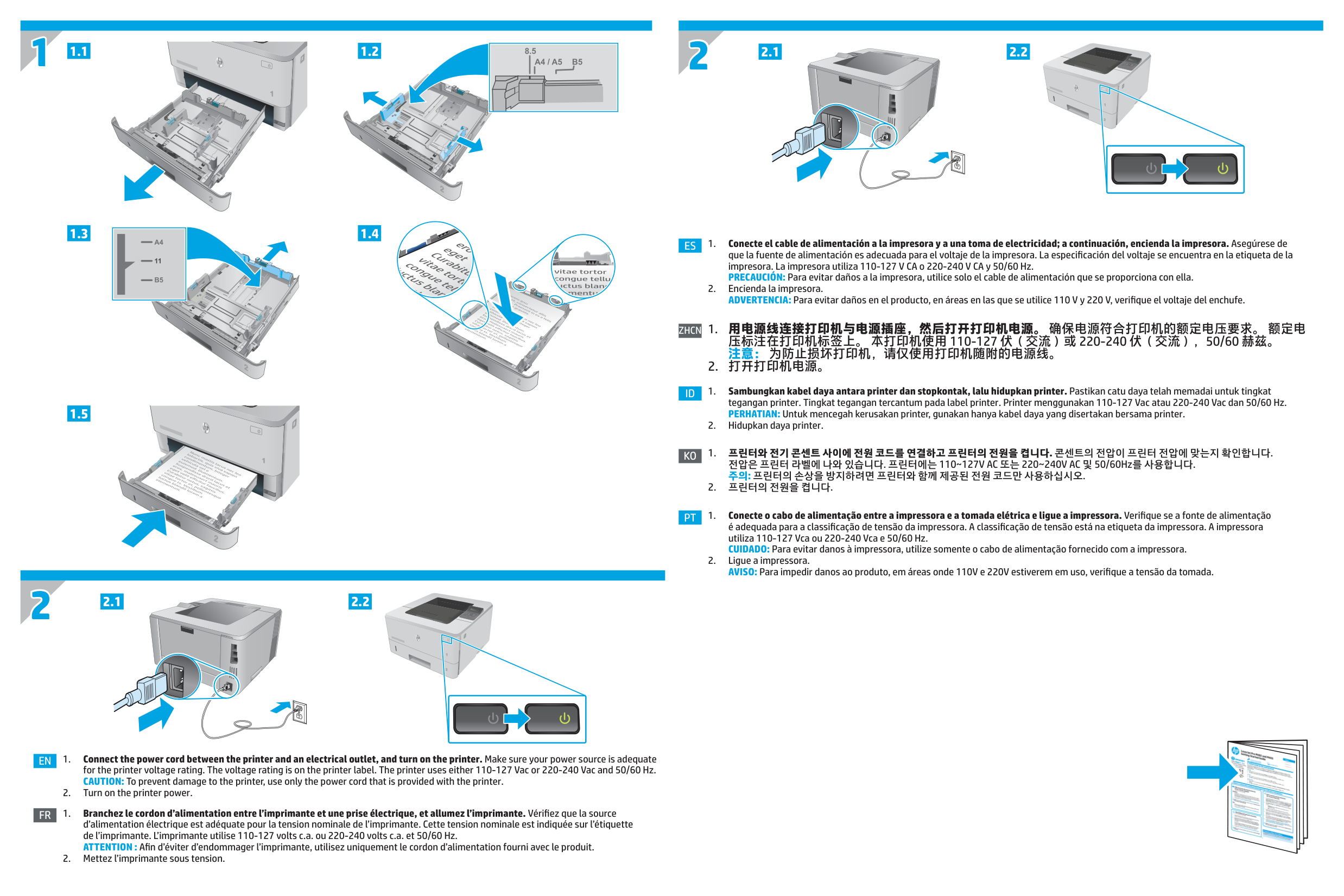
  • 1. Connect the power cord between the printer and an electrical outlet, and turn on the printer. Make sure your power source is adequate for the printer voltage rating. The voltage rating is on the printer label. The printer uses either 110-127 Vac or 220-240 Vac and 50/60 Hz. CAUTION: To prevent damage to the printer, use only the power cord that is provided with the printer.
  • 2. Turn on the printer power.
  • #### FR

  • 1. Branchez le cordon d’alimentation entre l’imprimante et une prise électrique, et allumez l’imprimante. Vérifiez que la source d’alimentation électrique est adéquate pour la tension nominale de l’imprimante. Cette tension nominale est indiquée sur l’étiquette de l’imprimante. L’imprimante utilise 110-127 volts c.a. ou 220-240 volts c.a. et 50/60 Hz. ATTENTION : Afin d’éviter d’endommager l’imprimante, utilisez uniquement le cordon d’alimentation fourni avec le produit.
  • 2. Mettez l’imprimante sous tension.
  • 2 2.1 2.2

    ![image 15](c04647402_images/imageFile15.png)

    ![image 16](c04647402_images/imageFile16.png)

    ![image 17](c04647402_images/imageFile17.png)

    ![image 18](c04647402_images/imageFile18.png)

    ![image 19](c04647402_images/imageFile19.png)

    ES

  • 1. Conecte el cable de alimentación a la impresora y a una toma de electricidad; a continuación, encienda la impresora. Asegúrese de que la fuente de alimentación es adecuada para el voltaje de la impresora. La especificación del voltaje se encuentra en la etiqueta de la impresora. La impresora utiliza 110-127 V CA o 220-240 V CA y 50/60 Hz. PRECAUCIÓN: Para evitar daños a la impresora, utilice solo el cable de alimentación que se proporciona con ella.
  • 2. Encienda la impresora. ADVERTENCIA: Para evitar daños en el producto, en áreas en las que se utilice 110 V y 220 V, verifique el voltaje del enchufe.
  • ZHCN

  • 1. 用电源线连接打印机与电源插座,然后打开打印机电源。 确保电源符合打印机的额定电压要求。 额定电 压标注在打印机标签上。 本打印机使用 110-127 伏(交流)或 220-240 伏(交流),50/60 赫兹。 注意: 为防止损坏打印机,请仅使用打印机随附的电源线。
  • 2. 打开打印机电源。
  • #### ID

  • 1. Sambungkan kabel daya antara printer dan stopkontak, lalu hidupkan printer. Pastikan catu daya telah memadai untuk tingkat tegangan printer. Tingkat tegangan tercantum pada label printer. Printer menggunakan 110-127 Vac atau 220-240 Vac dan 50/60 Hz. PERHATIAN: Untuk mencegah kerusakan printer, gunakan hanya kabel daya yang disertakan bersama printer.
  • 2. Hidupkan daya printer.
  • KO

  • 1. 프린터와 전기 콘센트 사이에 전원 코드를 연결하고 프린터의 전원을 켭니다. 콘센트의 전압이 프린터 전압에 맞는지 확인합니다. 전압은 프린터 라벨에 나와 있습니다. 프린터에는 110~127V AC 또는 220~240V AC 및 50/60Hz를 사용합니다. 주의: 프린터의 손상을 방지하려면 프린터와 함께 제공된 전원 코드만 사용하십시오.
  • 2. 프린터의 전원을 켭니다.
  • PT

  • 1. Conecte o cabo de alimentação entre a impressora e a tomada elétrica e ligue a impressora. Verifique se a fonte de alimentação é adequada para a classificação de tensão da impressora. A classificação de tensão está na etiqueta da impressora. A impressora utiliza 110-127 Vca ou 220-240 Vca e 50/60 Hz. CUIDADO: Para evitar danos à impressora, utilize somente o cabo de alimentação fornecido com a impressora.
  • 2. Ligue a impressora. AVISO: Para impedir danos ao produto, em áreas onde 110V e 220V estiverem em uso, verifique a tensão da tomada.
  • ![image 20](c04647402_images/imageFile20.png)

    More from HP

    Similar Printers