Ask AI
— answers from the official manualAnswers from the official manual.
Common questions
Common Questions
19 totalHow do I set up a wireless connection on the HP OfficeJet 8010?
To set up a wireless connection, touch the Wireless icon then Settings on the Home screen of the printer control panel, then touch Wireless Setup Wizard and follow the onscreen instructions. You can also install the HP printer software or the HP Smart app to help connect the printer to your wireless network. For more information, visit www.hp.com/go/wirelessprinting. (Page 1)
What does it mean when the blue wireless light is blinking on the HP OfficeJet 8010?
A blinking blue light means the printer is not connected to a network. To resolve this, go to the Home screen on the printer control panel, touch Wireless, then Settings, and then launch the Wireless Setup Wizard and follow the onscreen instructions. (Page 1)
What does it mean when the blue wireless light is off on the HP OfficeJet 8010?
A blue wireless light that is off means wireless is turned off on the printer. To turn it on, go to the Home screen on the printer control panel, touch Wireless, then Settings, and then touch the button next to Wireless to enable it. (Page 1)
How do I know when the HP OfficeJet 8010 has successfully connected to my wireless network?
When the wireless light remains lit (solid, not blinking), the printer has successfully connected to your wireless network. If the light is not solid, you should check the available troubleshooting solutions. (Page 1)
Can I connect to the HP OfficeJet 8010 without a Wi-Fi router or existing wireless network?
Yes, you can use Wi-Fi Direct to connect your computer or mobile device, such as a smartphone or tablet, directly to the printer without connecting to an existing wireless network. To use Wi-Fi Direct, you need HP software installed on your computer or mobile device, available at 123.hp.com. For more information about printing with Wi-Fi Direct, visit www.hp.com/go/wifidirectprinting. (Page 2)
How do I convert my HP OfficeJet 8010 from a USB connection to a wireless connection?
You can convert from a USB connection to a wireless connection by following the instructions at www.hp.com/go/usbtowifi. This resource provides step-by-step guidance for switching your connection type. (Page 1)
Show 13 more questions
Do the ink cartridges in the HP OfficeJet 8010 store any information about my usage?
What power cord or adapter should I use with the HP OfficeJet 8010?
What is the warranty period for the HP OfficeJet 8010?
How do I fix problems with a wireless setup?
How do I use my printer with Wi-Fi Direct?
What should I do with ink cartridges during installation?
What is the warranty for this printer?
How can I access help or additional support information for my printer?
How do I disable anonymous data storage on my cartridges?
Which ink cartridges should I use when setting up the HP OfficeJet 8010?
How do I set up the printer to connect wirelessly?
How do I turn off or on the wireless connection?
How do I convert a USB setup into wireless connectivity?
Full Manual
8 pages
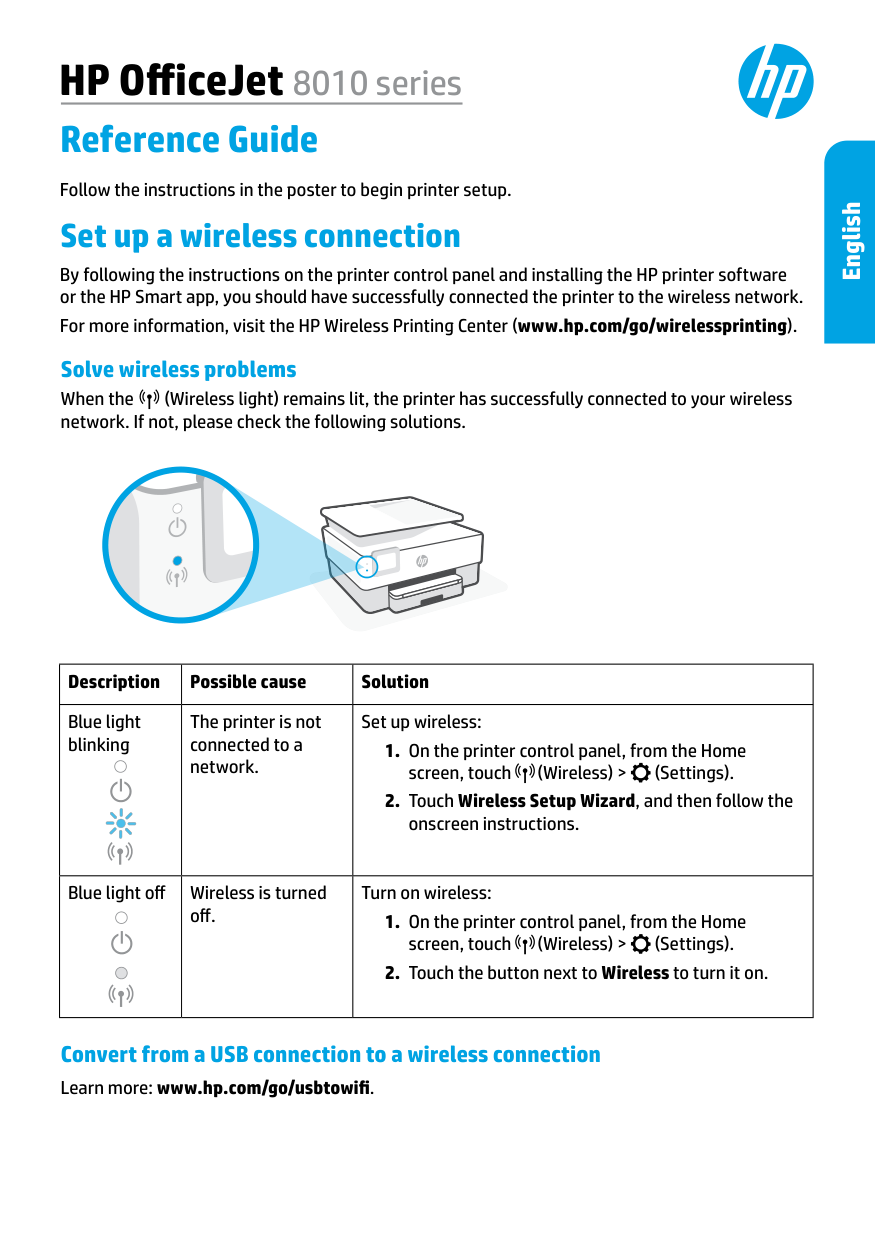
HP OfficeJet 8010 series Reference Guide Set up a wireless connection By following the instructions on the printer control panel and installing the HP printer software or the HP Smart app, you should have successfully connected the printer to the wireless network. For more information, visit the HP Wireless Printing Center (www.hp.com/go/wirelessprinting). Description Possible cause Solution Blue light blinking The printer is not connected to a network. Set up wireless:
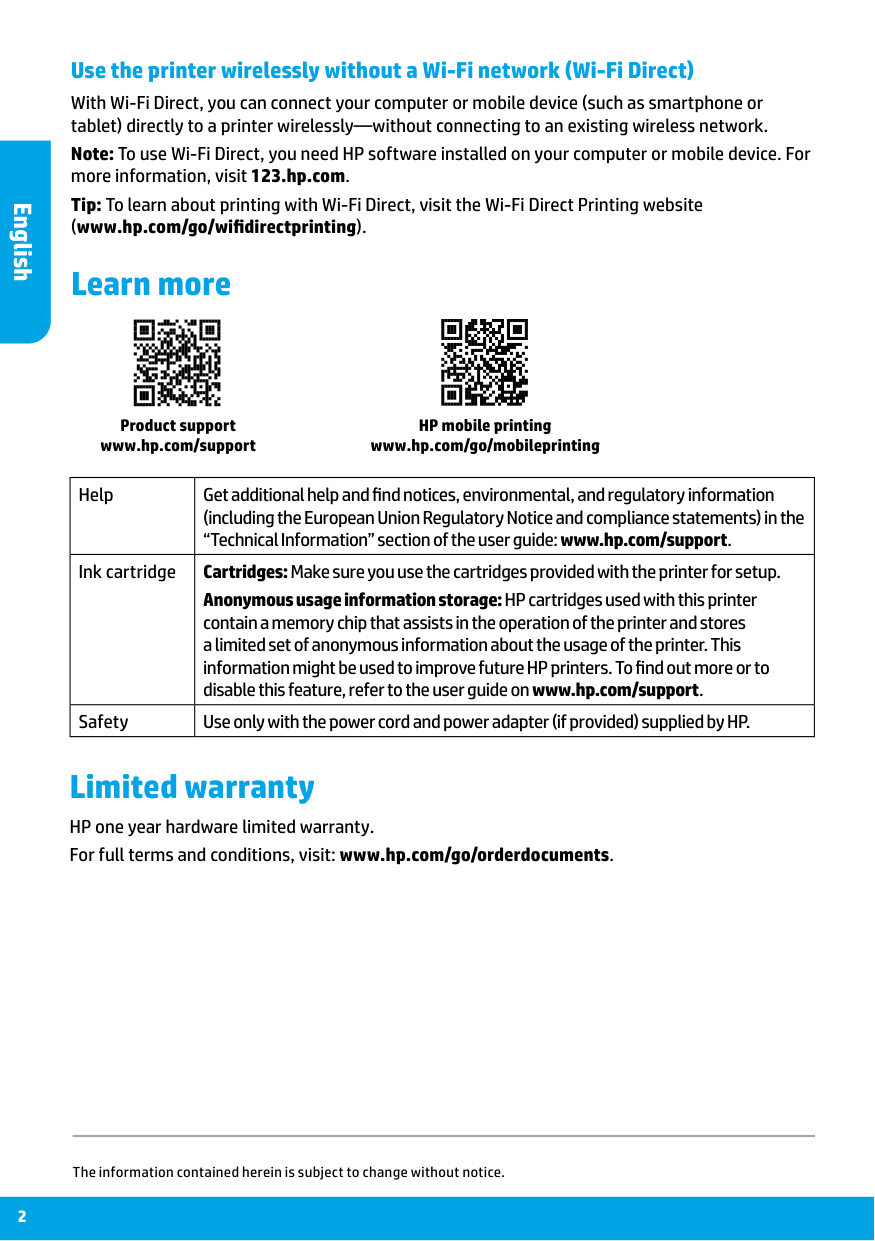
2 Learn more Help Get additional help and find notices, environmental, and regulatory information (including the European Union Regulatory Notice and compliance statements) in the “Technical Information” section of the user guide: www.hp.com/support. Ink cartridge Cartridges: Make sure you use the cartridges provided with the printer for setup. Anonymous usage information storage: HP cartridges used with this printer contain a memory chip that assists in the operation of the printer and stores a limited set of anonymous information about the usage of the printer. This information might be used to improve future HP printers. To find out more or to disable this feature, refer to the user guide on www.hp.com/support. Safety Use only with the power cord and power adapter (if provided) supplied by HP. Limited warranty HP one year hardware limited warranty. For full terms and conditions, visit: www.hp.com/go/orderdocuments. HP mobile printing www.hp.com/go/mobileprinting Product support www.hp.com/support Use the printer wirelessly without a Wi-Fi network (Wi-Fi Direct) With Wi-Fi Direct, you can connect your computer or mobile device (such as smartphone or tablet) directly to a printer wirelessly—without connecting to an existing wireless network. Note: To use Wi-Fi Direct, you need HP software installed on your computer or mobile device. For more information, visit 123.hp.com. Tip: To learn about printing with Wi-Fi Direct, visit the Wi-Fi Direct Printing website (www.hp.com/go/wifidirectprinting). The information contained herein is subject to change without notice. English
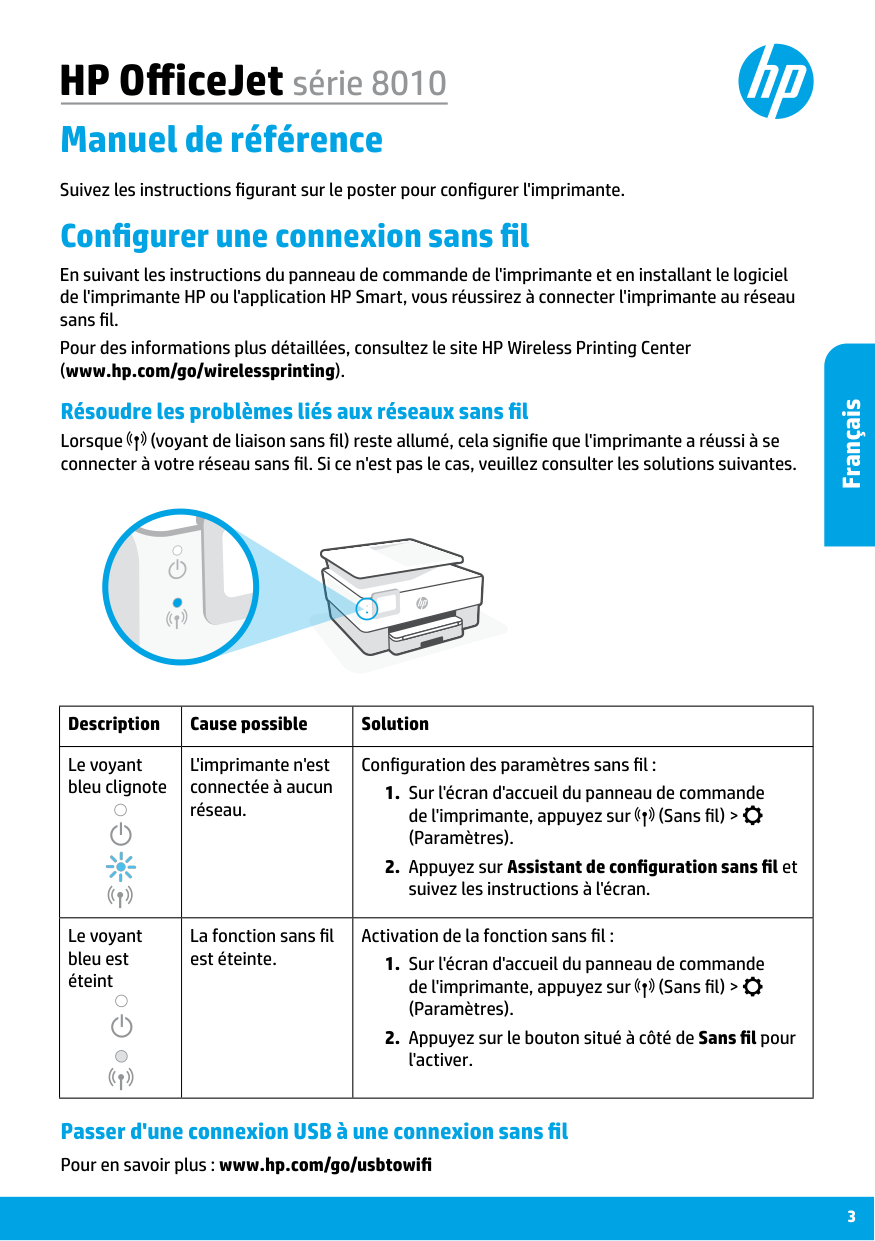
Français HP OfficeJet série 8010 Manuel de référence Configurer une connexion sans fil En suivant les instructions du panneau de commande de l'imprimante et en installant le logiciel de l'imprimante HP ou l'application HP Smart, vous réussirez à connecter l'imprimante au réseau sans fil. Pour des informations plus détaillées, consultez le site HP Wireless Printing Center (www.hp.com/go/wirelessprinting). Description Cause possible Solution Le voyant bleu clignote L'imprimante n'est connectée à aucun réseau. Configuration des paramètres sans fil :
(Paramètres).
(Paramètres).
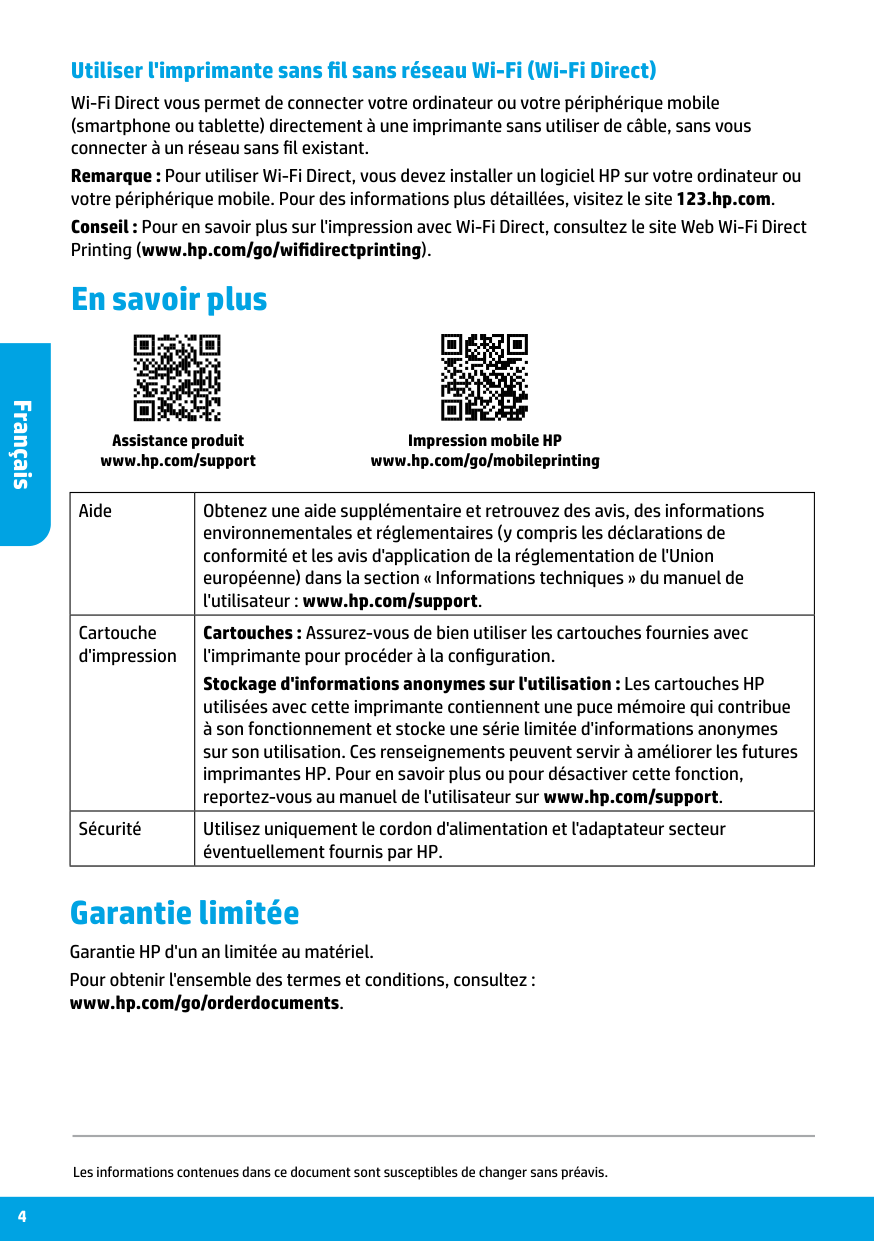
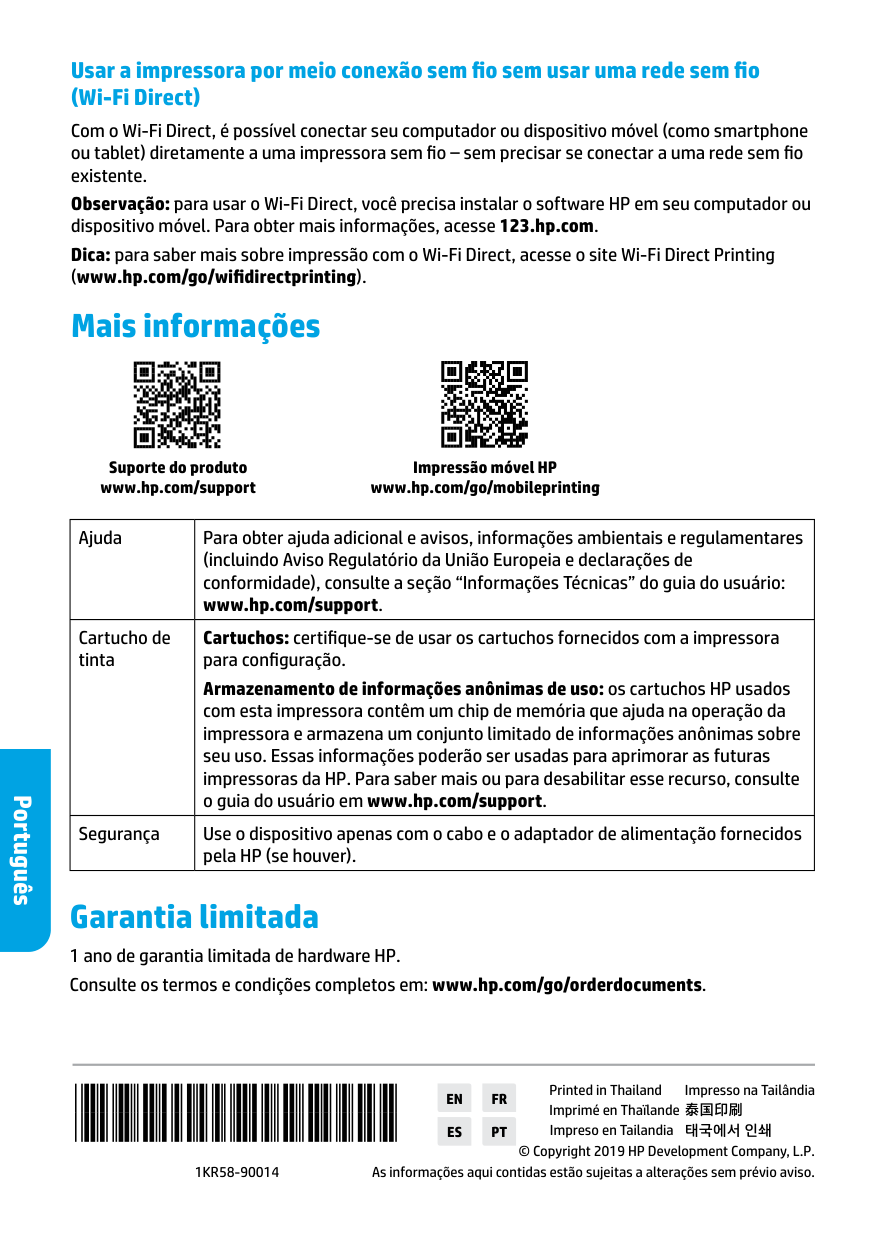
Français 4 En savoir plus Aide Obtenez une aide supplémentaire et retrouvez des avis, des informations environnementales et réglementaires (y compris les déclarations de conformité et les avis d'application de la réglementation de l'Union européenne) dans la section « Informations techniques » du manuel de l'utilisateur : www.hp.com/support. Cartouche d'impression Cartouches : Assurez-vous de bien utiliser les cartouches fournies avec l'imprimante pour procéder à la configuration. Stockage d'informations anonymes sur l'utilisation : Les cartouches HP utilisées avec cette imprimante contiennent une puce mémoire qui contribue à son fonctionnement et stocke une série limitée d'informations anonymes sur son utilisation. Ces renseignements peuvent servir à améliorer les futures imprimantes HP. Pour en savoir plus ou pour désactiver cette fonction, reportez-vous au manuel de l'utilisateur sur www.hp.com/support. Sécurité Utilisez uniquement le cordon d'alimentation et l'adaptateur secteur éventuellement fournis par HP. Garantie limitée Garantie HP d'un an limitée au matériel. Pour obtenir l'ensemble des termes et conditions, consultez : www.hp.com/go/orderdocuments. Impression mobile HP www.hp.com/go/mobileprinting Assistance produit www.hp.com/support Utiliser l'imprimante sans fil sans réseau Wi-Fi (Wi-Fi Direct) Wi-Fi Direct vous permet de connecter votre ordinateur ou votre périphérique mobile (smartphone ou tablette) directement à une imprimante sans utiliser de câble, sans vous connecter à un réseau sans fil existant. Remarque : Pour utiliser Wi-Fi Direct, vous devez installer un logiciel HP sur votre ordinateur ou votre périphérique mobile. Pour des informations plus détaillées, visitez le site 123.hp.com. Conseil : Pour en savoir plus sur l'impression avec Wi-Fi Direct, consultez le site Web Wi-Fi Direct Printing (www.hp.com/go/wifidirectprinting). Les informations contenues dans ce document sont susceptibles de changer sans préavis.
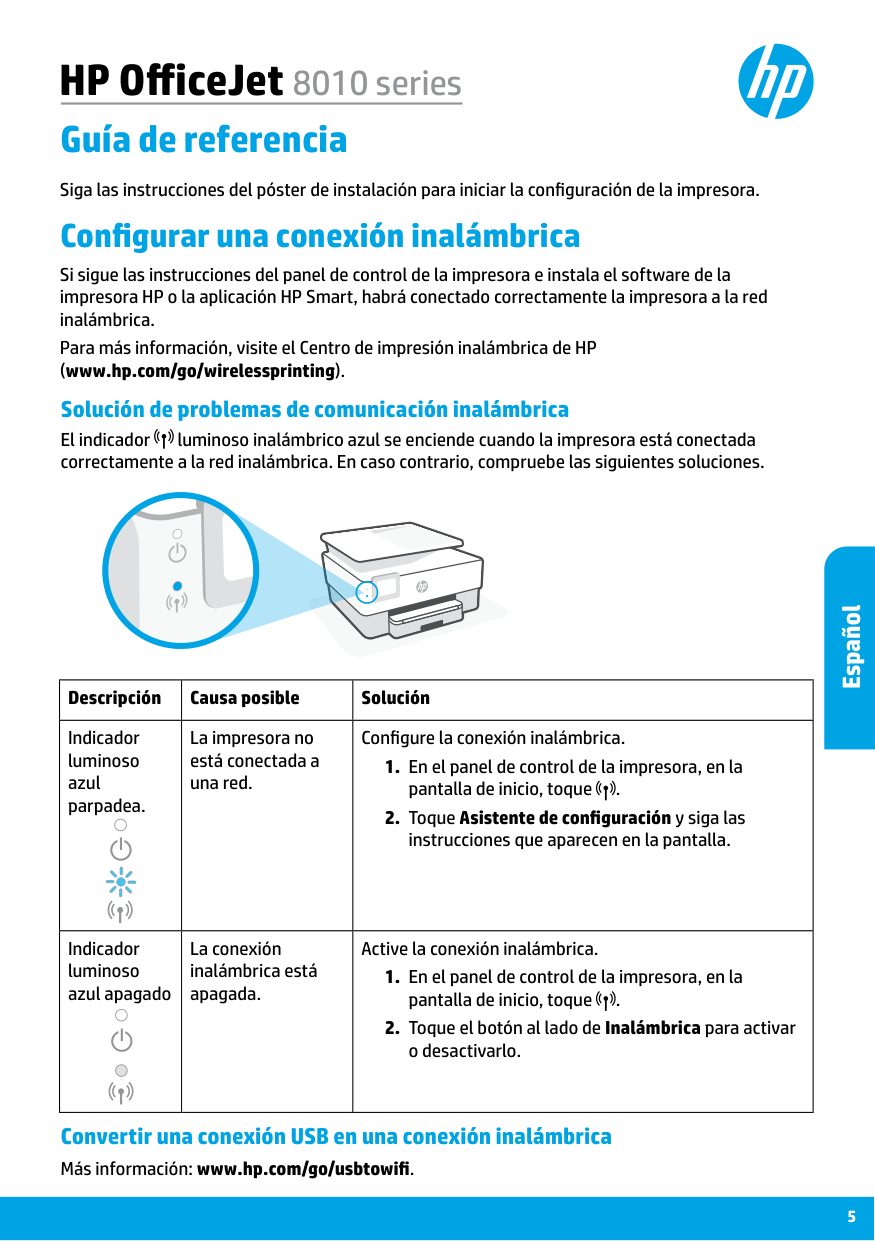
HP OfficeJet 8010 series Guía de referencia Configurar una conexión inalámbrica Si sigue las instrucciones del panel de control de la impresora e instala el software de la impresora HP o la aplicación HP Smart, habrá conectado correctamente la impresora a la red inalámbrica. Para más información, visite el Centro de impresión inalámbrica de HP (www.hp.com/go/wirelessprinting). Descripción Causa posible Solución Indicador luminoso azul parpadea. La impresora no está conectada a una red. Configure la conexión inalámbrica.
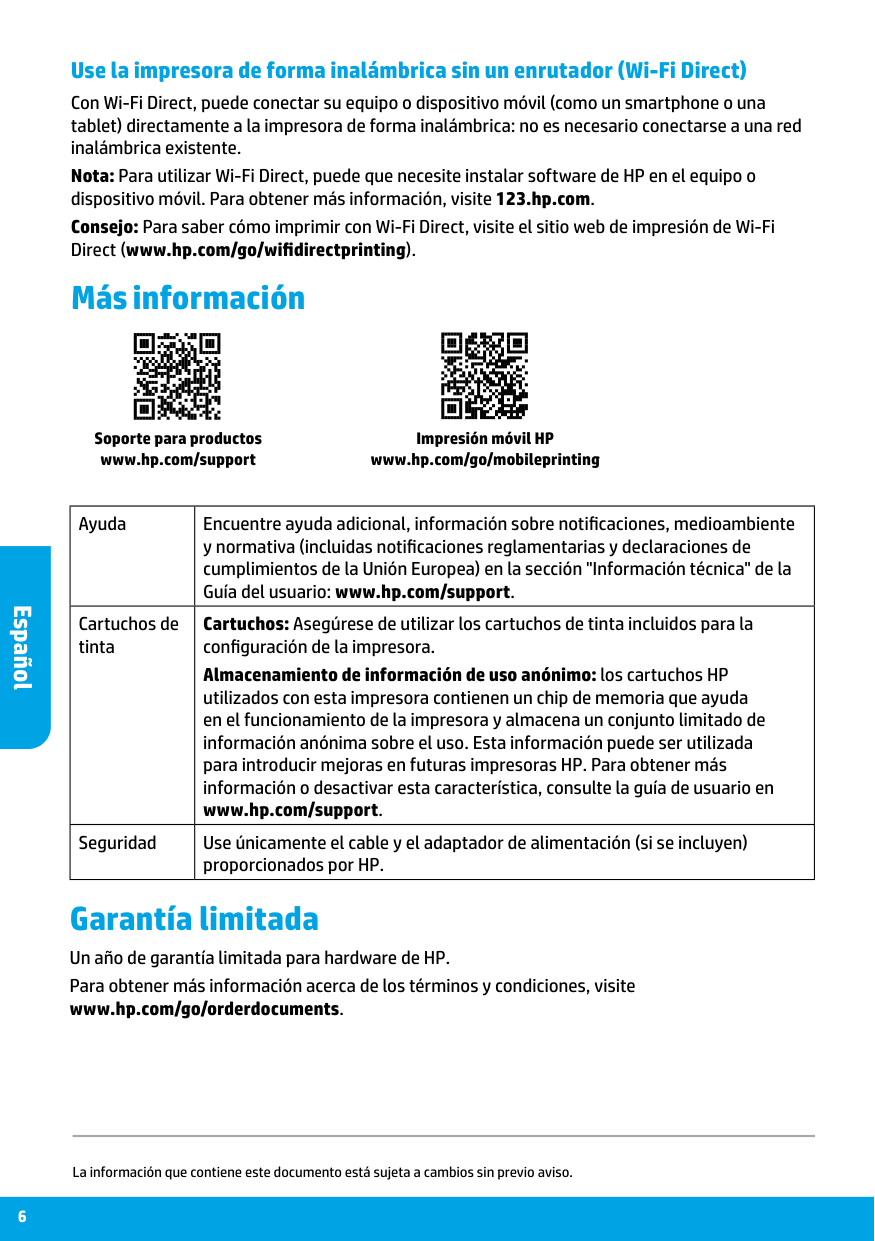
6 Más información Ayuda Encuentre ayuda adicional, información sobre notificaciones, medioambiente y normativa (incluidas notificaciones reglamentarias y declaraciones de cumplimientos de la Unión Europea) en la sección "Información técnica" de la Guía del usuario: www.hp.com/support. Cartuchos de tinta Cartuchos: Asegúrese de utilizar los cartuchos de tinta incluidos para la configuración de la impresora. Almacenamiento de información de uso anónimo: los cartuchos HP utilizados con esta impresora contienen un chip de memoria que ayuda en el funcionamiento de la impresora y almacena un conjunto limitado de información anónima sobre el uso. Esta información puede ser utilizada para introducir mejoras en futuras impresoras HP. Para obtener más información o desactivar esta característica, consulte la guía de usuario en www.hp.com/support. Seguridad Use únicamente el cable y el adaptador de alimentación (si se incluyen) proporcionados por HP. Garantía limitada Un año de garantía limitada para hardware de HP. Para obtener más información acerca de los términos y condiciones, visite www.hp.com/go/orderdocuments. Impresión móvil HP www.hp.com/go/mobileprinting Soporte para productos www.hp.com/support Use la impresora de forma inalámbrica sin un enrutador (Wi-Fi Direct) Con Wi-Fi Direct, puede conectar su equipo o dispositivo móvil (como un smartphone o una tablet) directamente a la impresora de forma inalámbrica: no es necesario conectarse a una red inalámbrica existente. Nota: Para utilizar Wi-Fi Direct, puede que necesite instalar software de HP en el equipo o dispositivo móvil. Para obtener más información, visite 123.hp.com. Consejo: Para saber cómo imprimir con Wi-Fi Direct, visite el sitio web de impresión de Wi-Fi Direct (www.hp.com/go/wifidirectprinting). La información que contiene este documento está sujeta a cambios sin previo aviso. Español
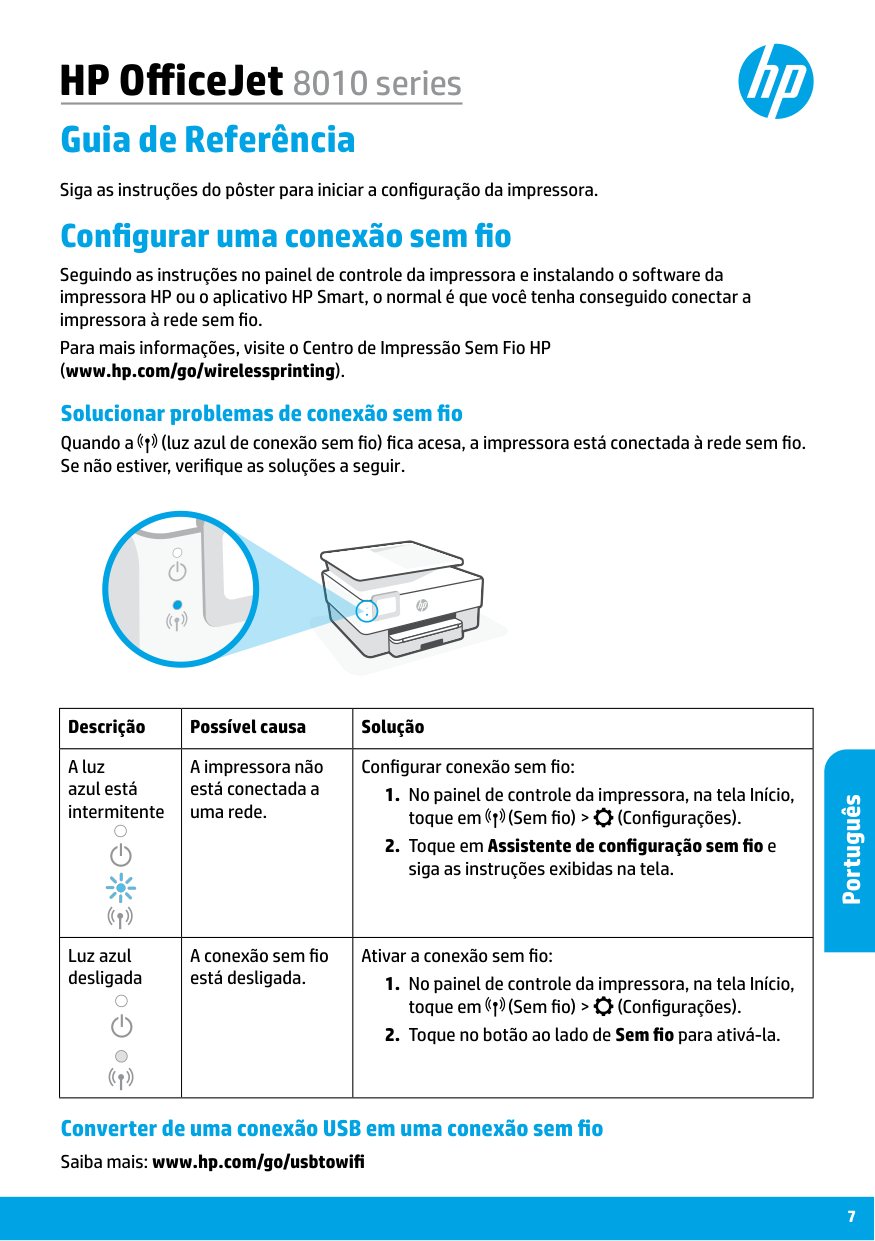
Português HP OfficeJet 8010 series Guia de Referência Configurar uma conexão sem fio Seguindo as instruções no painel de controle da impressora e instalando o software da impressora HP ou o aplicativo HP Smart, o normal é que você tenha conseguido conectar a impressora à rede sem fio. Para mais informações, visite o Centro de Impressão Sem Fio HP (www.hp.com/go/wirelessprinting). Descrição Possível causa Solução A luz azul está intermitente A impressora não está conectada a uma rede. Configurar conexão sem fio: