
Ask AI
— answers from the official manualAnswers from the official manual.
Common questions
Common Questions
19 totalHow long is the hardware warranty on the HP Officejet Pro 6970?
The HP Officejet Pro 6970 All-in-One printer has a 1 year hardware warranty from the date of first detection during initial boot or from the date of purchase or lease, whichever is later. (Page 3)
What happens if I use a non-HP or refilled cartridge?
The use of a non-HP cartridge or a refilled cartridge does not affect either the warranty to the customer or any HP support contract with the customer. However, if printer failure or damage is attributable to the use of a non-HP or refilled cartridge or an expired ink cartridge, HP will charge its standard time and materials charges to service the printer for that particular failure or damage. (Page 3)
What should I do if my printer is connected to an aftermarket continuous ink system?
HP's limited warranty is void in the event the printer is attached to an aftermarket apparatus or system that modifies the printer's functionality such as a continuous ink system. This means the warranty coverage will no longer apply if such a modification is made. (Page 3)
Where can I find additional support and troubleshooting information?
You can visit www.hp.com/support/ojp6970 for additional help, notices, environmental and regulatory information, and the full User Guide. For Windows computers, you can also download and use the HP Print and Scan Doctor tool from www.hp.com/go/tools for troubleshooting. (Page 1-2)
How do I set up the HP OfficeJet Pro 6970 for the first time?
Follow the instructions in the setup flyer to begin setting up the printer, then visit 123.hp.com/setup to download and start the HP setup software or HP Smart app and connect the printer to your network. Windows users can also use the HP printer software CD, which can be ordered from www.support.hp.com if not included. After setup, create an account or register your printer to complete the process. (Page 1)
What do I do if the wireless light on the printer is not lit?
If the blue light on the printer control panel is not lit, wireless may be turned off. To turn it on, swipe down the tab at the top of the screen to open the Dashboard, touch the Wireless icon, touch Settings, touch Wireless Settings, and then touch Wireless to enable it. (Page 1)
Show 13 more questions
What does a blinking blue wireless light mean on the HP OfficeJet Pro 6970?
Can I connect the HP OfficeJet Pro 6970 directly to my phone or tablet without a router?
How do I manually connect the HP OfficeJet Pro 6970 to a network if the setup software fails?
Is it safe to use a non-HP or refilled ink cartridge in the HP OfficeJet Pro 6970?
What is the warranty period for the HP OfficeJet Pro 6970 printer and its ink cartridges?
What safety precautions should I follow regarding the power cord for the HP OfficeJet Pro 6970?
Does the HP OfficeJet Pro 6970 warranty cover damage caused by a continuous ink system?
How do I set up a wireless connection on my HP Officejet Pro 6970?
What should I do if the blue light on my printer is not lit?
What does it mean if the blue wireless light is blinking?
How do I set up fax on the HP OfficeJet Pro 6970?
What is Wi-Fi Direct and how do I use it?
What should I use for initial printer setup?
Full Manual
10 pages
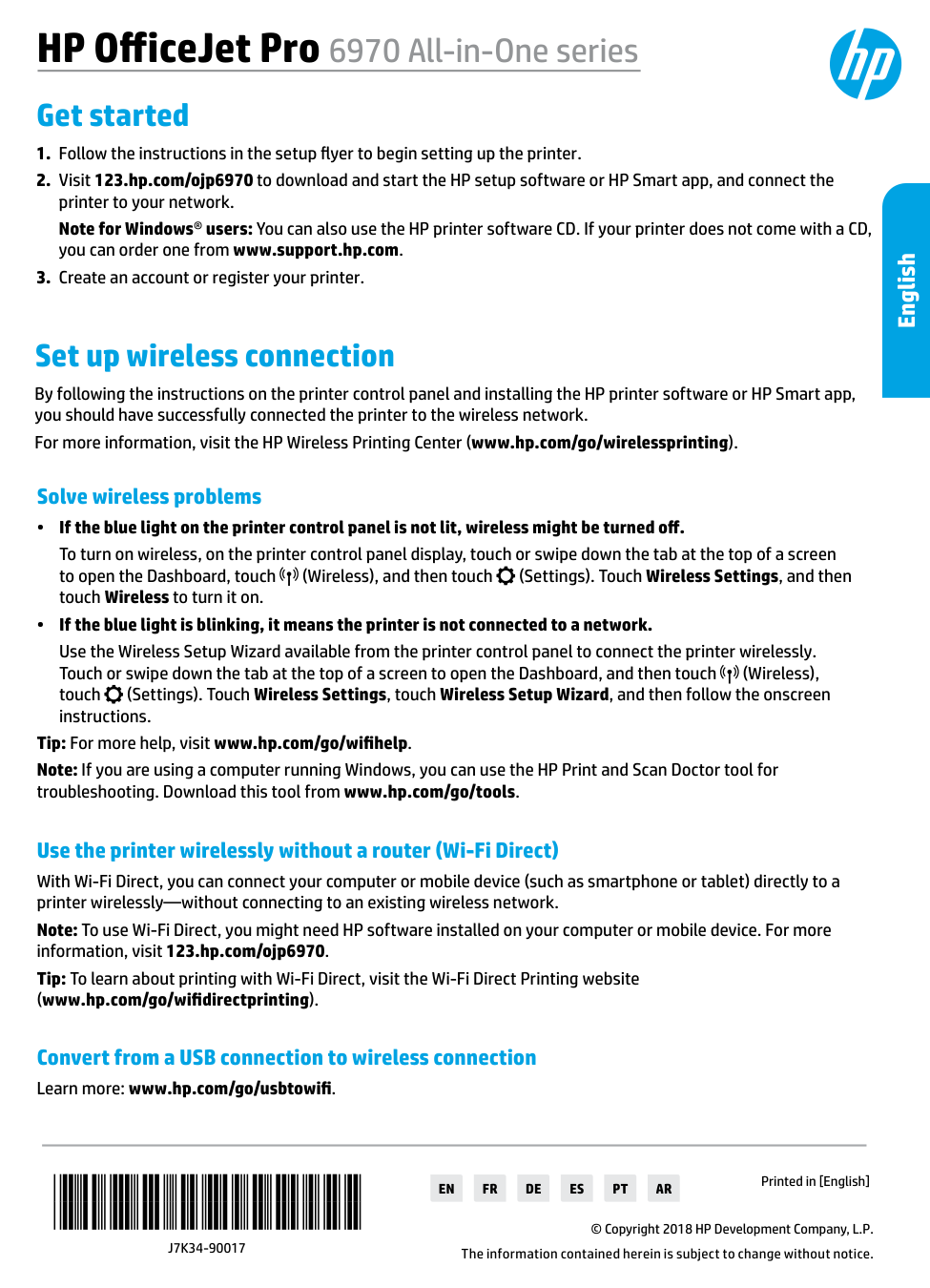
English HP OfficeJet Pro 6970 All-in-One series Get started
*T0F33-90012*
*T0F33-90012*
T0F33-90012
© Copyright 2021 HP Development Company, L.P. Printed in [English] Printed in [French] Printed in [Spanish]En
Fr
Es
The information contained herein is subject to change without notice. Set up wireless connection By following the instructions on the printer control panel and installing the HP printer software or HP Smart app, you should have successfully connected the printer to the wireless network. For more information, visit the HP Wireless Printing Center (www.hp.com/go/wirelessprinting). Solve wireless problems •• If the blue light on the printer control panel is not lit, wireless might be turned off. To turn on wireless, on the printer control panel display, touch or swipe down the tab at the top of a screen to open the Dashboard, touch (Wireless), and then touch (Settings). Touch Wireless Settings, and then touch Wireless to turn it on. •• If the blue light is blinking, it means the printer is not connected to a network. Use the Wireless Setup Wizard available from the printer control panel to connect the printer wirelessly. Touch or swipe down the tab at the top of a screen to open the Dashboard, and then touch (Wireless), touch (Settings). Touch Wireless Settings, touch Wireless Setup Wizard, and then follow the onscreen instructions. Tip: For more help, visit www.hp.com/go/wifihelp. Note: If you are using a computer running Windows, you can use the HP Print and Scan Doctor tool for troubleshooting. Download this tool from www.hp.com/go/tools. Use the printer wirelessly without a router (Wi-Fi Direct) With Wi-Fi Direct, you can connect your computer or mobile device (such as smartphone or tablet) directly to a printer wirelessly—without connecting to an existing wireless network. Note: To use Wi-Fi Direct, you might need HP software installed on your computer or mobile device. For more information, visit 123.hp.com/setup. Tip: To learn about printing with Wi-Fi Direct, visit the Wi-Fi Direct Printing website (www.hp.com/go/wifidirectprinting). Convert from a USB connection to wireless connection Learn more: www.hp.com/go/usbtowifi.
2 Set up fax You can set up fax using the HP printer software (recommended) or the printer control panel. •• Windows: Use the Fax Wizard during software installation. To set up after software installation, open the HP printer software (double-click the icon with the printer name on the desktop), go to the Fax tab, and then select Fax Setup Wizard. •• OS X: After software installation, from the HP Utility, use Basic Fax Settings. •• Control panel: Touch Fax on the Home screen, and then touch Setup. For more information, visit www.hp.com/support/ojp6970. Learn more Microsoft and Windows are either registered trademarks or trademarks of Microsoft Corporation in the United States and/or other countries. Mac and AirPrint are trademarks of Apple Inc., registered in the U.S. and other countries. Help Get additional help and find notices, environmental, and regulatory information (including the European Union Regulatory Notice and compliance statements) in the “Technical Information” section of the User Guide: www.hp.com/support/ojp6970. Ink cartridge information Make sure you use the cartridges provided with the printer for setup. Safety information Use only with the power cord and power adapter (if provided) supplied by HP. Ink usage www.hp.com/go/inkusage Regulatory Model Number For regulatory identification purposes, your product is assigned with a Regulatory Model Number. The Regulatory Model Number should not be confused with the marketing name or product numbers. Printer registration www.register.hp.com Declaration of Conformity www.hp.eu/certificates HP mobile printing www.hp.com/go/mobileprinting Product support www.hp.com/support/ojp6970 English
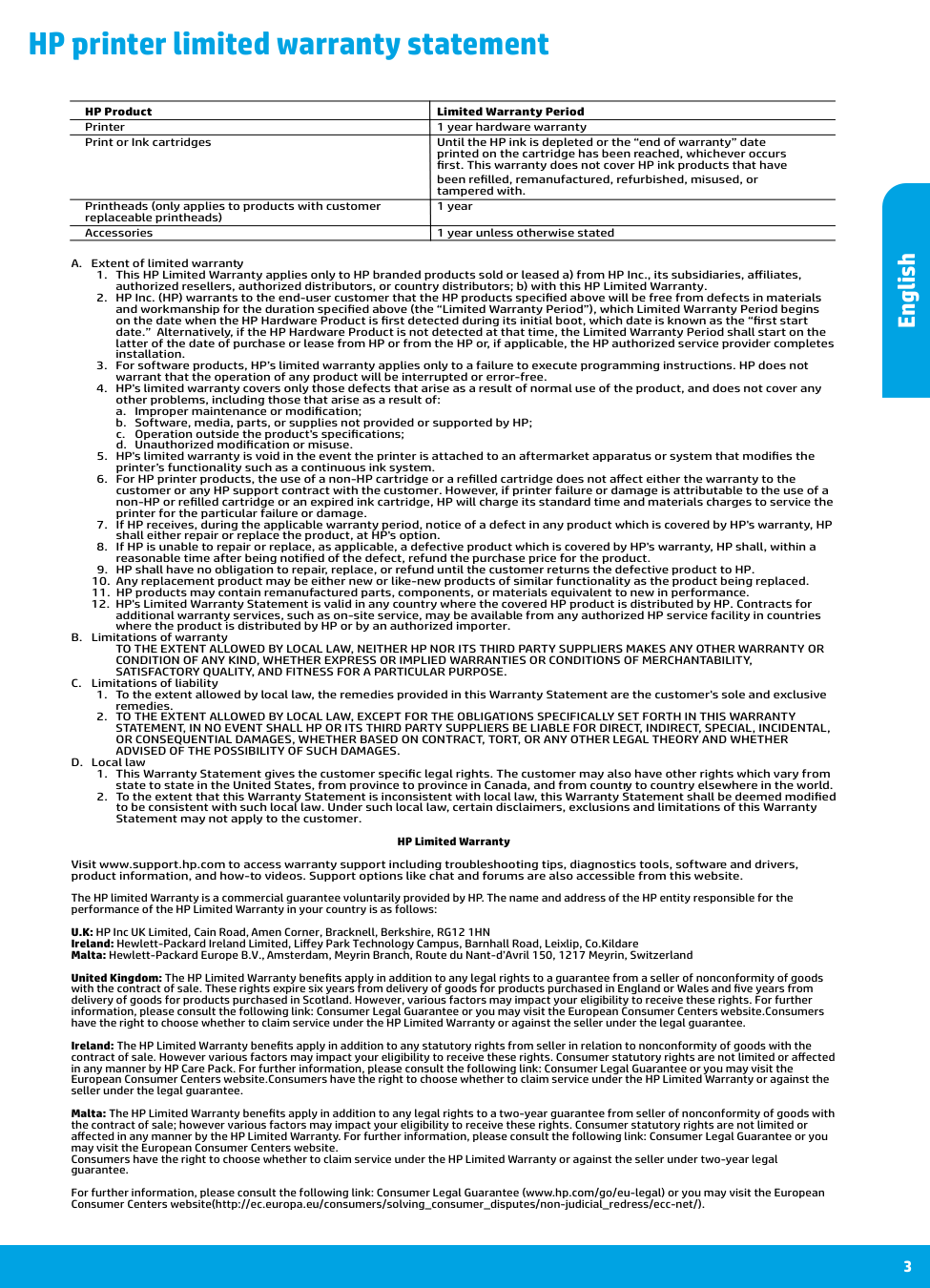
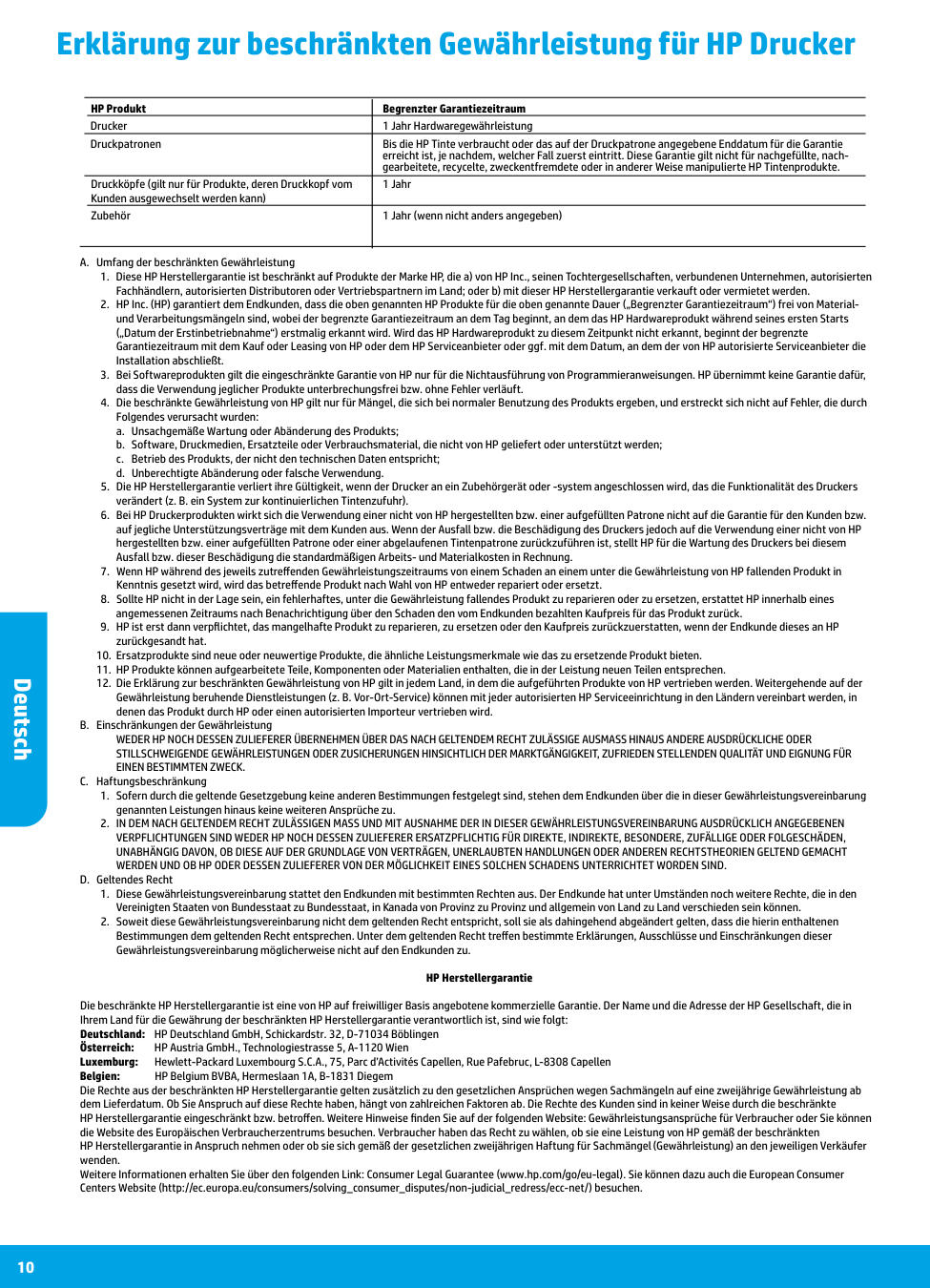
3 HP printer limited warranty statement A. Extent of limited warranty
a. Improper maintenance or modification;
b. Software, media, parts, or supplies not provided or supported by HP;
c. Operation outside the product's specifications;
d. Unauthorized modification or misuse.
Satisfactory Quality, And Fitness For A Particular Purpose.
C. Limitations of liabilityAdvised Of The Possibility Of Such Damages.
D. Local lawprinted on the cartridge has been reached, whichever occurs
first. This warranty does not cover HP ink products that have
been refilled, remanufactured, refurbished, misused, or
tampered with. Printheads (only applies to products with customer 1 year replaceable printheads) Accessories 1 year unless otherwise stated English

HP OfficeJet Pro Série 6970 Tout-en-un Démarrage
(Paramètres). Appuyez sur Paramètres sans fil, puis sur Sans fil pour l'activer. •• Si le voyant bleu clignote, cela signifie que l'imprimante n'est connectée à aucun réseau. Utilisez l'Assistant de configuration sans fil depuis le panneau de commande de l'imprimante pour établir une connexion sans fil avec l'imprimante. Appuyez ou faites glisser votre doigt en haut de l'écran pour afficher le Tableau de bord, puis appuyez sur (Sans fil), puis sur (Paramètres). Appuyez sur Paramètres sans fil, puis sur Assistant de configuration sans fil, et suivez les instructions à l'écran. Conseil : Pour obtenir de l'aide, rendez-vous sur www.hp.com/go/wifihelp. Remarque : Si vous utilisez un ordinateur exécutant Windows, vous pouvez utiliser l'outil HP Print and Scan Doctor pour procéder au dépannage. Vous pouvez télécharger cet outil sur le site www.hp.com/go/tools. Utiliser l'imprimante sans fil sans routeur (Wi-Fi Direct) Wi-Fi Direct vous permet de connecter votre ordinateur ou votre périphérique mobile (smartphone ou tablette) à une imprimante sans utiliser de câble, sans vous connecter à un réseau sans fil existant. Remarque : Pour utiliser Wi-Fi Direct, il se peut que vous deviez installer un logiciel HP sur votre ordinateur ou votre périphérique mobile. Pour plus d'informations, visitez le site 123.hp.com/setup. Conseil : Pour en savoir plus sur l'impression avec Wi-Fi Direct, consultez le site Web Wi-Fi Direct Printing (www.hp.com/go/wifidirectprinting). Passer d'une connexion USB à une connexion sans fil Pour en savoir plus, rendez-vous sur : www.hp.com/go/usbtowifi. Les informations contenues dans ce document sont susceptibles de changer sans préavis. Français

5 Configuration du télécopieur Vous pouvez configurer le télécopieur avec le logiciel de l'imprimante HP (recommandé) ou à l'aide du panneau de commande de l'imprimante. •• Windows : Utilisez l'Assistant de configuration du télécopieur pendant l'installation du logiciel. Pour procéder à la configuration après installation du logiciel, ouvrez le logiciel de l'imprimante HP (faites un double clic sur l'icône portant le nom de l'imprimante sur le bureau), rendez-vous sur l'onglet Télécopieur puis sélectionnez Assistant de configuration du télécopieur. •• OS X : Après avoir installé le logiciel, rendez-vous sur HP Utility, et utilisez les Paramètres de télécopie de base. •• Panneau de commande : Appuyez sur Télécopieur sur l'écran d'accueil, puis appuyez sur Configuration. Pour plus d'informations, consultez le site www.hp.com/support/ojp6970. En savoir plus Microsoft et Windows sont soit des marques soit des marques déposées de Microsoft Corporation aux États-Unis et/ou dans d'autres pays. Mac et AirPrint sont des marques déposées d'Apple, Inc. aux États-Unis et dans d'autres pays. Aide Obtenez une aide supplémentaire et retrouvez des avis, des informations environnementales et réglementaires (y compris les déclarations de conformité et les avis d'application de la réglementation de l'Union européenne) dans la section « Informations techniques » du manuel de l'utilisateur : www.hp.com/support/ojp6970. Informations relatives aux cartouches d'encre Assurez-vous de bien utiliser les cartouches fournies avec l'imprimante pour procéder à la configuration. Informations de sécurité Utilisez uniquement le cordon d'alimentation et l'adaptateur secteur éventuellement fournis par HP. Utilisation de l'encre www.hp.com/go/inkusage Numéro de modèle réglementaire Pour des motifs réglementaires d'identification, un numéro de modèle réglementaire a été affecté à votre produit. Ne confondez pas le numéro de modèle réglementaire et le nom marketing ou les références du produit. Enregistrement de l'imprimante www.register.hp.com Déclaration de conformité www.hp.eu/certificates Impression mobile HP www.hp.com/go/mobileprinting Assistance produit www.hp.com/support/ojp6970 Français

6 Déclaration de garantie limitée de l'imprimante HP A. Extension de garantie limitée
a. d'une mauvaise maintenance ou d'une modification ;
b. de logiciels, de supports, de pièces ou de consommables non fournis ou non pris en charge par HP ;
c. du fonctionnement du produit hors de ses caractéristiques ; ou
d. d'une modification non autorisée ou d'une mauvaise utilisation.
7 Garantie du fabricant HP La garantie limitée HP est une garantie commerciale fournie volontairement par HP. Voici les coordonnées de l’entité HP responsable de l’exécution de la garantie limitée HP dans votre pays : France: HP France SAS, société par actions simplifiée identifiée sous le numéro 448 694 133 RCS Evry, 1 Avenue du Canada, 91947, Les Ulis G.D. Luxembourg: Hewlett-Packard Luxembourg S.C.A., 75, Parc d’Activités Capellen, Rue Pafebruc, L-8308 Capellen Belgique: HP Belgium BVBA, Hermeslaan 1A, B-1831 Diegem France Les avantages de la garantie limitée HP s’appliquent en complément des droits dont vous disposez au titre des garanties légales applicables dont le bénéfice est soumis à des conditions spécifiques. Vos droits en tant que consommateur au titre de la garantie légale de conformité mentionnée aux articles L. 211-4 à L. 211-13 du Code de la Consommation et de celle relative aux défauts du bien vendu, dans les conditions prévues aux articles 1641 à 1648 et 2232 du Code de Commerce ne sont en aucune façon limités ou affectés par la garantie limitée HP. Pour de plus amples informations, veuillez consulter le lien suivant : Garanties légales accordées au consommateur. Vous pouvez également consulter le site Web des Centres européens des consommateurs. Les consommateurs ont le droit de choisir d’exercer leurs droits au titre de la garantie limitée HP, ou auprès du vendeur au titre des garanties légales applicables mentionnées ci-dessus.
Pour Rappel :
Garantie Légale de Conformité Article L211-4 du Code de la Consommation : « Le vendeur est tenu de livrer un bien conforme au contrat et répond des défauts de conformité existant lors de la délivrance. Il répond également des défauts de conformité résultant de l’emballage, des instructions de montage ou de l’installation lorsque celle-ci a été mise à sa charge par le contrat ou a été réalisée sous sa responsabilité ». Article L211-5 du Code de la Consommation : « Pour être conforme au contrat, le bien doit : 1° Etre propre à l’usage habituellement attendu d’un bien semblable et, le cas échéant :
Primeros pasos

9 Configuración del fax Puede configurar el fax utilizando el software de la impresora HP (recomendado) o el panel de control de la impresora. •• Windows: Utilice el asistente de configuración de fax durante la instalación de software. Para configurar después de la instalación del software, abra el software de la impresora HP (haga doble clic en el icono con el nombre de la impresora del escritorio), vaya a la pestaña Fax y, a continuación, seleccione Asistente de configuración de fax. •• OS X: Tras la instalación del software, en HP Utility, utilice Configuración de fax básica. •• Panel de control: Toque Fax en la pantalla inicial y a continuación toque Configuración. Para obtener más información, visite www.hp.com/support/ojp6970. Más información Microsoft y Windows son marcas comerciales registradas o marcas comerciales de Microsoft Corporation en EE. UU. y otros países. Mac y AirPrint son marcas comerciales de Apple Inc., registradas en EE. UU. y otros países. Ayuda Obtenga ayuda adicional, información sobre notificaciones, medioambiente y normativas, incluyendo notificaciones reglamentarias y declaraciones de cumplimientos de la Unión Europea en la sección «Información técnica» de la Guía del usuario: www.hp.com/support/ojp6970. Información sobre cartuchos de tinta Asegúrese de utilizar los cartuchos de tinta incluidos para la configuración de la impresora. Información de seguridad Use únicamente el cable y el adaptador de alimentación (si se incluyen) proporcionados por HP. Uso de la tinta www.hp.com/go/inkusage Número de modelo reglamentario A los efectos de la identificación reglamentaria, al producto se le ha asignado un número de modelo reglamentario. No debe confundirse este número con el nombre comercial o los números de producto. Registro de la impresora www.register.hp.com Declaración de conformidad www.hp.eu/certificates Impresión móvil de HP www.hp.com/go/mobileprinting Soporte para productos www.hp.com/support/ojp6970 Español
10 Declaración de garantía limitada de la impresora HP A. Alcance de la garantía limitada
a. Mantenimiento o modificación indebidos;
b. Software, soportes de impresión, piezas o consumibles que HP no proporcione o no admita;
c. Uso que no se ajuste a las especificaciones del producto;
d. Modificación o uso incorrecto no autorizados.