Ask AI
— answers from the official manualAnswers from the official manual.
Common questions
Common Questions
29 totalWhat do I do if my HP Z840 won't boot up?
Press and hold the power button until the workstation turns off, then press it again to restart. If this doesn’t work, insert a recovery USB flash drive (if available) and use F9 in BIOS startup menu to select the USB device as the boot source.
How do I install additional graphics cards on an HP Z840 workstation?
Before installing, ensure compatibility with your model by checking QuickSpecs (http://www.hp.com/go/qs/) or consult maintenance guide. Insert the card into a PCIe slot and secure it, then connect necessary cables to monitor(s). Update drivers through Support Center or download from HP website.
How do I connect monitors to my HP Z840 using DisplayPort?
Use a DP cable directly for single displays. For multiple monitors, you may require adapters (like DP to DVI or DP to HDMI) based on the interface of your monitor, ensuring proper adapter connectivity as per supported connectors.
What are the steps to set up the HP Z840 Workstation for the first time?
Connect the mouse, keyboard, and power cord to the workstation, then connect the monitor. Next, connect other peripheral components such as a printer according to the instructions included with the device, connect a network cable to a router or LAN device, and plug both the workstation and monitor power cords into an AC outlet. Note that the HP Z840 with a 1125W power supply might require more power than a typical office environment can supply.
How much clearance space does the Z840 Workstation require for proper ventilation?
The workstation requires at least 15.24 cm (6.00 in) of clearance at the front and back of the workstation. You should also ensure that the ambient air temperature falls within the specified environmental specifications and never restrict incoming or outgoing airflow by blocking any vents or air intakes.
What are the operating temperature and humidity specifications for the HP Z840 Workstation?
The operating temperature range is 5°C to 35°C (40°F to 95°F), with a non-operating range of -40°C to 60°C (-40°F to 140°F). Operating humidity is 8% to 85% relative humidity, non-condensing, and the operating altitude limit is 0 to 3,048 m (10,000 ft). Note that temperature should be derated by 1°C for every 305 m of altitude over 1,524 m.
Show 23 more questions
How do I check the current BIOS version on my HP Z840 Workstation?
How do I upgrade the BIOS on my HP Z840 Workstation?
How do I perform a System Recovery from the recovery partition on a Windows 7 Z840 Workstation?
How do I ensure my HP Z840 has adequate ventilation?
How do I back up my Windows 8 files in case of system failure?
What do error code B9 on POST LED mean?
How do I set up Windows File History on my HP Z840?
How do I add a hard drive or SSD for additional storage?
How do I access recovery tools if I can't boot my Windows 8 workstation?
How do I perform a system reset on my HP Z840 Workstation running Windows 8?
What are the dimensions of an HP Z840 Workstation?
How do I add additional monitors to an HP Z840 Workstation?
Where can I find the Maintenance and Service Guide for my HP Z840 Workstation?
How do I initiate a full system recovery using the HP Recovery partition on my Windows 8 workstation?
How do I ensure proper ventilation for my HP Z840 Workstation?
How do I set up additional PCIe cards for my HP Z840 Workstation?
What is the weight of the HP Z840 Workstation in a standard configuration?
What safety precautions should I follow when plugging in the HP Z840 Workstation?
How do I create recovery media on a Windows 8 HP Z840 Workstation?
What rear panel components and ports are available on the HP Z840 Workstation?
What is the recommended procedure for backing up my personal files on an HP Z840 Workstation?
How do I install device drivers for my HP Z840 Workstation?
Can you provide information on the environmental specifications for my HP Z840 Workstation?
Full Manual
70 pages

HP Z440, Z640, and Z840 Workstation Series
User Guide
######## Copyright Information
© Copyright 2014, 2016 HP Development Company, L.P.
Fourth Edition: November 2016 First Edition: October 2014 Part Number: 748722-004
######## Warranty
The information contained herein is subject to change without notice. The only warranties for HP products and services are set forth in the express warranty statements accompanying such products and services. Nothing herein should be construed as constituting an additional warranty. HP shall not be liable for technical or editorial errors or omissions contained herein.
Not all features are available in all editions of Windows. This computer may require upgraded and/or separately purchased hardware, drivers, and/or software to take full advantage of Windows functionality. See http://www.microsoft.com for details.
######## Trademark Credits
Linux® is the registered trademark of Linus Torvalds in the U.S. and other countries. Microsoft and Windows are either registered trademarks or trademarks of Microsoft Corporation in the United States and/or other countries. NVIDIA is a trademark and/or registered trademark of NVIDIA Corporation in the U.S. and other countries. Red Hat® is a registered trademark of Red Hat, Inc. in the United States and other countries.
#### About this guide
####### This guide provides setup and troubleshooting information for the HP Z Workstation series. It includes these topics:
Guide topics Locating HP resources on page 1 Workstation features on page 5 Setting up the workstation on page 12
Setting up, backing up, restoring, and recovering Windows 10 on page 33

Setting up and restoring Linux on page 42 Diagnostics and minor troubleshooting on page 53 Routine care on page 58
TIP: If you do not find what you are looking for in this guide:
— Find technical details in the Maintenance and Service Guide for your workstation at http://www.hp.com/ support/workstation_manuals.
— View component installation videos at http://www.hp.com/go/sml.
— See additional information on your workstation at http://www.hp.com/go/workstations.
iii
####### iv About this guide
Table of contents
HP Z440 Workstation front panel components .................................................................................. 5 HP Z440 Workstation rear panel components .................................................................................... 6
HP Z640 Workstation components ....................................................................................................................... 7 HP Z640 Workstation front panel components .................................................................................. 7 HP Z640 Workstation rear panel components .................................................................................... 8
HP Z840 Workstation components ....................................................................................................................... 9 HP Z840 Workstation front panel components .................................................................................. 9 HP Z840 Workstation rear panel components ................................................................................. 10
Product specifications ......................................................................................................................................... 11 Workstation weights and dimensions .............................................................................................. 11 Environmental specifications ............................................................................................................ 11
Planning for additional monitors ...................................................................................................... 14 Finding supported graphics cards ..................................................................................................... 15 Matching graphics cards to monitor connectors .............................................................................. 16 Identifying monitor connection requirements ................................................................................. 16 Connecting and configuring monitors .............................................................................................. 17 Using a third-party graphics configuration utility ............................................................................ 18 Customizing the monitor display (Windows) .................................................................................... 18
Installing optional components .......................................................................................................................... 18 Security ................................................................................................................................................................ 18 Product recycling ................................................................................................................................................. 19
v
###### 4 Setting up, backing up, restoring, and recovering Windows 7 .......................................................................... 20Setting up the Windows 7 operating system ...................................................................................................... 20
Installing or upgrading device drivers .............................................................................................. 20 Transferring files and settings .......................................................................................................... 21
Backing up, restoring, and recovering Windows 7 .............................................................................................. 21 Backing up your information ............................................................................................................. 22 System Restore ................................................................................................................................. 22 System Recovery ............................................................................................................................... 23
System Recovery from a recovery partition image ........................................................ 23 Using HP Recovery Disc operating system discs ............................................................ 23
####### 5 Setting up, backing up, restoring, and recovering Windows 8 .......................................................................... 25Supplementary information ................................................................................................................................ 25Setting up the Windows 8 operating system ...................................................................................................... 25Downloading Windows 8 updates ....................................................................................................................... 26Backing up, restoring, and recovering Windows 8 .............................................................................................. 26
Backing up your information ............................................................................................................. 26 Creating recovery media and backups .............................................................................................. 28 Restoring and recovering using Windows 8 tools ............................................................................. 28
Using Windows 8 Refresh ............................................................................................... 29 Using Windows 8 Reset ................................................................................................... 30 Recovery using the Windows 8 recovery USB flash drive .............................................. 31 Recovery using Windows 8 restore media ...................................................................... 32
###### 6 Setting up, backing up, restoring, and recovering Windows 10 ........................................................................ 33Activating and customizing the software ........................................................................................................... 33
Initial Windows operating system setup .......................................................................................... 33 Customizing the monitor display ...................................................................................................... 33
Turning off the workstation ................................................................................................................................. 33 Finding more information .................................................................................................................................... 34 If you encounter issues ........................................................................................................................................ 34
Performing basic troubleshooting .................................................................................................... 34 Visual inspection: No boot, no power, no video ............................................................. 34 Blink or beep codes: Interpreting POST diagnostic front panel LEDs and audible codes .................................................................................................................. 35 Before you call for technical support ............................................................................. 35 Backing up, restoring, and recovering in Windows 10 ................................................... 36
Creating recovery media and backups ......................................................... 37 Using Windows tools .................................................................................... 39 Restore and recovery .................................................................................... 39
vi
HPIKL driver disc ................................................................................................................................ 44 Installing with the HP Red Hat Linux driver disc ............................................................................... 44
Setting up SUSE Linux Enterprise Desktop (SLED) .............................................................................................. 45 Setting up preloaded SLED ................................................................................................................ 45 Installing SLED with the DVD Installer Kit ......................................................................................... 45 Restoring SLED (preloaded systems only) ........................................................................................ 46

Setting up Ubuntu ................................................................................................................................................ 46 Setting up preloaded Ubuntu ............................................................................................................ 46 Using the HP Installer Kit Driver Disk ................................................................................................ 46 Restoring Ubuntu (preloaded systems only) .................................................................................... 47
Create a restore disk or drive key ................................................................................... 47 Use the F11 function key during system boot ............................................................... 47 Intercept the boot loader and choose the restore option .............................................. 47
Proprietary graphics drivers ................................................................................................................................ 47
Determining the current BIOS version .............................................................................................. 49 Upgrading BIOS .................................................................................................................................. 50
Upgrading device drivers ..................................................................................................................................... 50
Customizing Remote HP PC Hardware Diagnostics (UEFI) settings ................................................. 52
Online support ................................................................................................................................... 54 HP Support Center .......................................................................................................... 55 HP Chat Support .............................................................................................................. 55 Customer Advisories, Customer and Security Bulletins, and Customer Notices ........... 55
Product Change Notifications ....................................................................... 55
vii
Helpful hints ...................................................................................................................................... 56 At startup ........................................................................................................................ 56 During operation ............................................................................................................. 56 Customer Self Repair ...................................................................................................... 57 More troubleshooting options ........................................................................................ 57
###### Index ............................................................................................................................................................. 62
viii
1 Locating HP resources
This section provides information on the following resources for your HP workstation:
Product information
######## Topic Location
Technical specifications To find the QuickSpecs for your product, go to http://www.hp.com/go/quickspecs. Click the link for the HP Inc. QuickSpecs experience. Click Search all QuickSpecs, type your model name in the search field, and then click Go.
Regulatory, safety, and environmental notices
See the Regulatory, Safety and Environmental Notices for product regulatory information. You can also refer to the regulatory label on the workstation chassis.
Accessories For complete and current information on supported accessories and components, go to http://www.hp.com/go/workstations.
System board A diagram of the system board is located on the inside of the chassis. Additional information is located in the workstation Maintenance and Service Guide on the Web at http://www.hp.com/support/workstation_manuals/.
Serial number, Agency/ Environmental, and operating system labels
The serial number, Agency/Environmental, and operating system labels are on the rear panel of the workstation.
Product information 1
Product support
######## Topic Location
Product support For U.S. support, go to http://www.hp.com/go/contactHP. For worldwide support, go to http://welcome.hp.com/country/us/en/wwcontact_us.html. Here you can access the following types of support:
Warranty information
To locate warranty information, go to http://www.hp.com/support/warranty-lookuptool. To locate an existing Care Pack, go to http://www.hp.com/go/lookuptool. To extend a standard product warranty, go to http://h20565.www2.hp.com/hpsc/wc/public/home and make your selection from the Related Links. HP Care Pack Services offer upgraded service levels to extend and expand a standard product warranty. You can find your HP Limited Warranty located with the user guides on your product and/or on the CD or DVD provided in the box. In some countries or regions, HP may provide a printed warranty in the box. For countries or regions where the warranty is not provided in printed format, you can request a copy from http://www.hp.com/go/orderdocuments. For products purchased in Asia Pacific, you can write to HP at POD, P.O. Box 161 Kitchener Road Post Office, Singapore 912006 Include your product name, and your name, phone number, and postal address.
Product documentation
######## Topic Location
HP user documentation, white papers, and third-party documentation
User documentation is located on your hard drive. On Windows 7, select Start, select HP, and then select HP Documentation. On Windows 8, from the Start screen, select the HP Documentation app. On Windows 10, select Start, select All Apps, select HP, and then select HP Documentation. For the latest online documentation, go to http://www.hp.com/ support/workstation_manuals. The documentation includes this user guide and the Maintenance and Service Guide.
Removal and replacement videos To learn how to remove and replace workstation components, go to http://www.hp.com/go/sml.
Product notifications Subscriber's Choice is an HP program that allows you to sign up to receive driver and software alerts, proactive change notifications (PCNs), the HP newsletter, customer advisories, and more. Sign up at http://www.hp.com/go/subscriberschoice.
Technical specifications QuickSpecs for HP Workstations include information about the operating system, power supply, memory, CPU, and many other system components. To access the QuickSpecs, go to http://www.hp.com/go/qs/.
Customer Advisories, Security Bulletins, and Notices
To find advisories, bulletins, and notices:
Product diagnostics
######## Topic Location
Windows diagnostics tools The UEFI Diagnostics utility is preinstalled on select Windows workstations.
For additional information, see the workstation Maintenance and Service Guide at http://www.hp.com/support/workstation_manuals.
Definitions for audible (beep) and light codes
See the workstation Maintenance and Service Guide at http://www.hp.com/support/ workstation_manuals.
POST error codes See the workstation Maintenance and Service Guide at http://www.hp.com/support/ workstation_manuals.
Product documentation 3
Product updates
######## Topic Location
Driver and BIOS updates Go to http://www.hp.com/go/workstationsupport to find the latest drivers for the workstation. To determine the current workstation BIOS version on your workstation, follow these steps during system startup:
Operating systems For information, go to the following locations:
2 Workstation features
For complete and current information on supported accessories and components for your workstation, go to http://partsurfer.hp.com.
HP Z440 Workstation components
#### HP Z440 Workstation front panel components




Audio-out (headphone)/Audio-in (microphone) combo jack


HP Z440 Workstation components 5
#### HP Z440 Workstation rear panel components




Power supply Built-In Self-Test (BIST) LED
8 Audio line-in jack (blue)




AMT-enabled RJ-45 (network) jack (orange)
13 Security slot

HP Z640 Workstation components
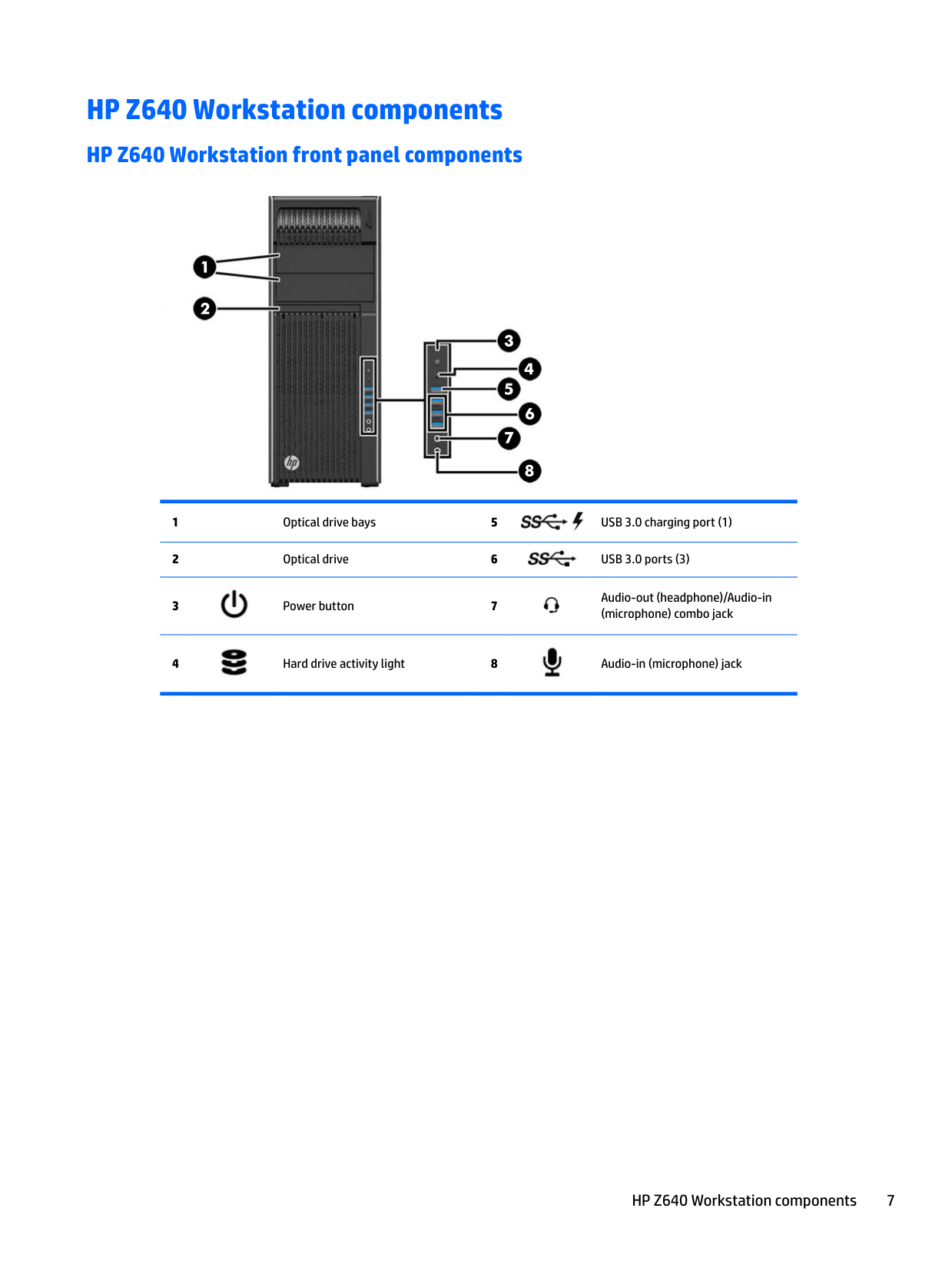
#### HP Z640 Workstation front panel components




Audio-out (headphone)/Audio-in (microphone) combo jack


HP Z640 Workstation components 7
#### HP Z640 Workstation rear panel components


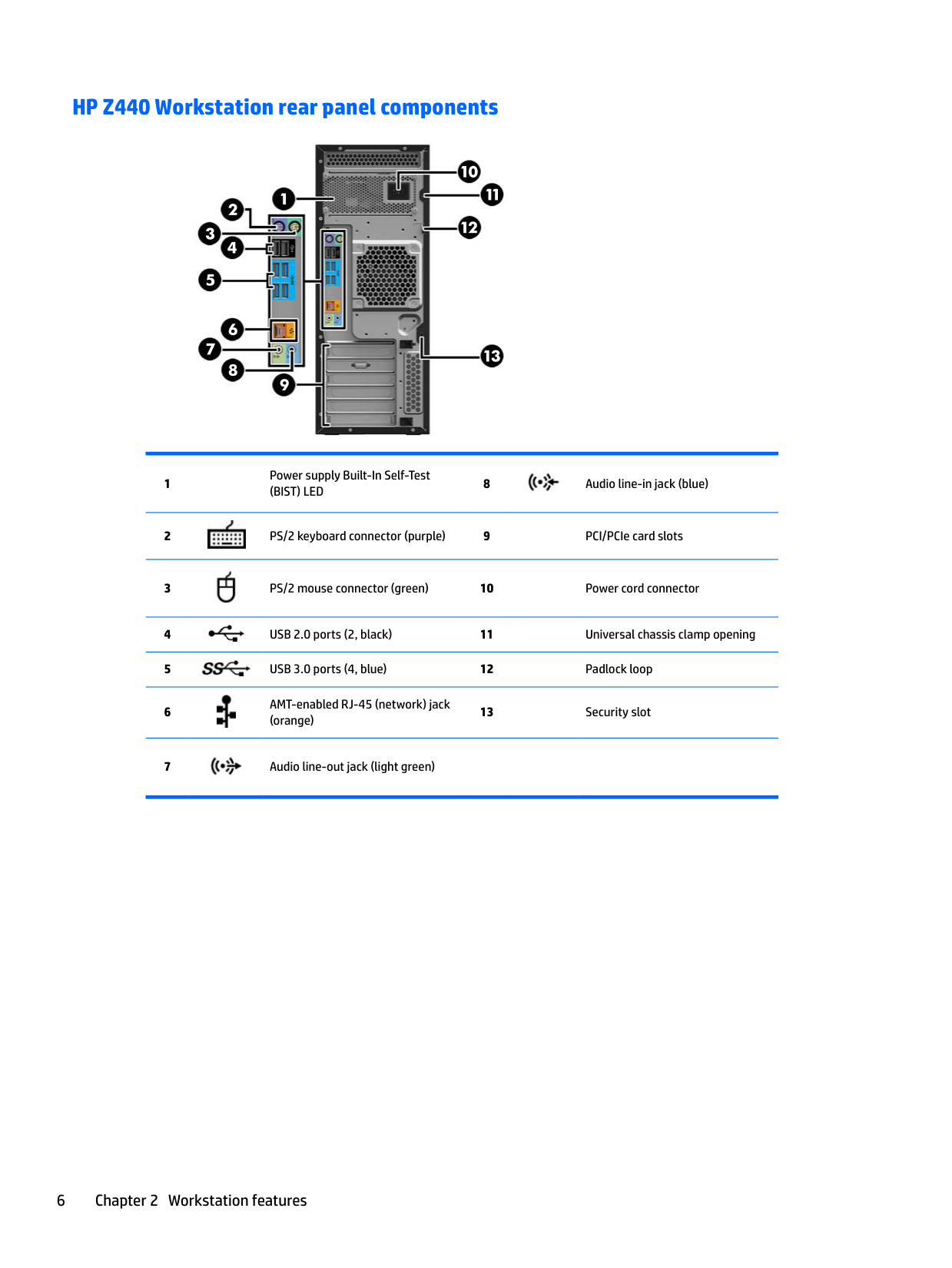


Power supply Built-In Self-Test (BIST) LED
7 AMT-enabled network jack (orange)




HP Z840 Workstation components
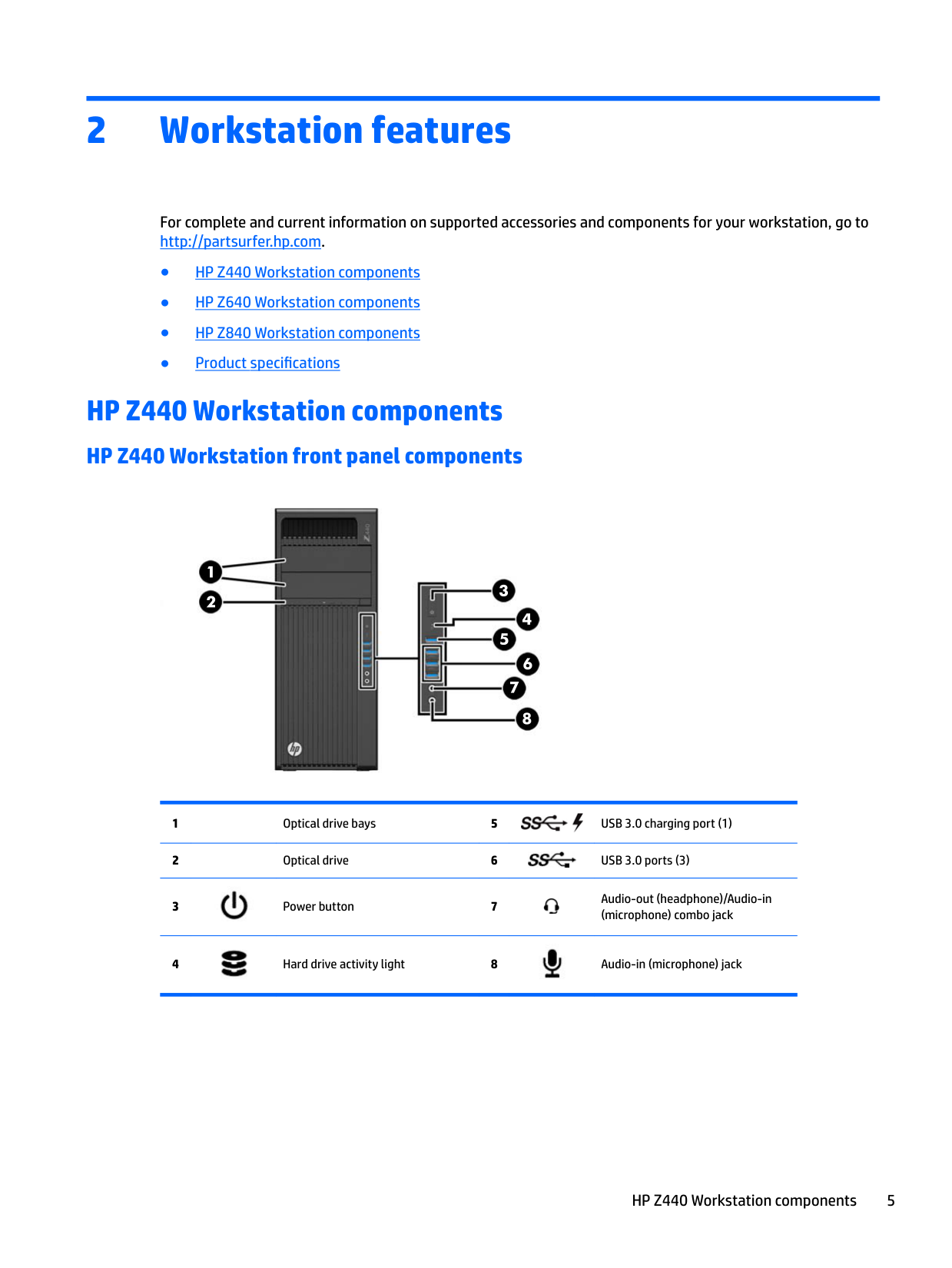
#### HP Z840 Workstation front panel components


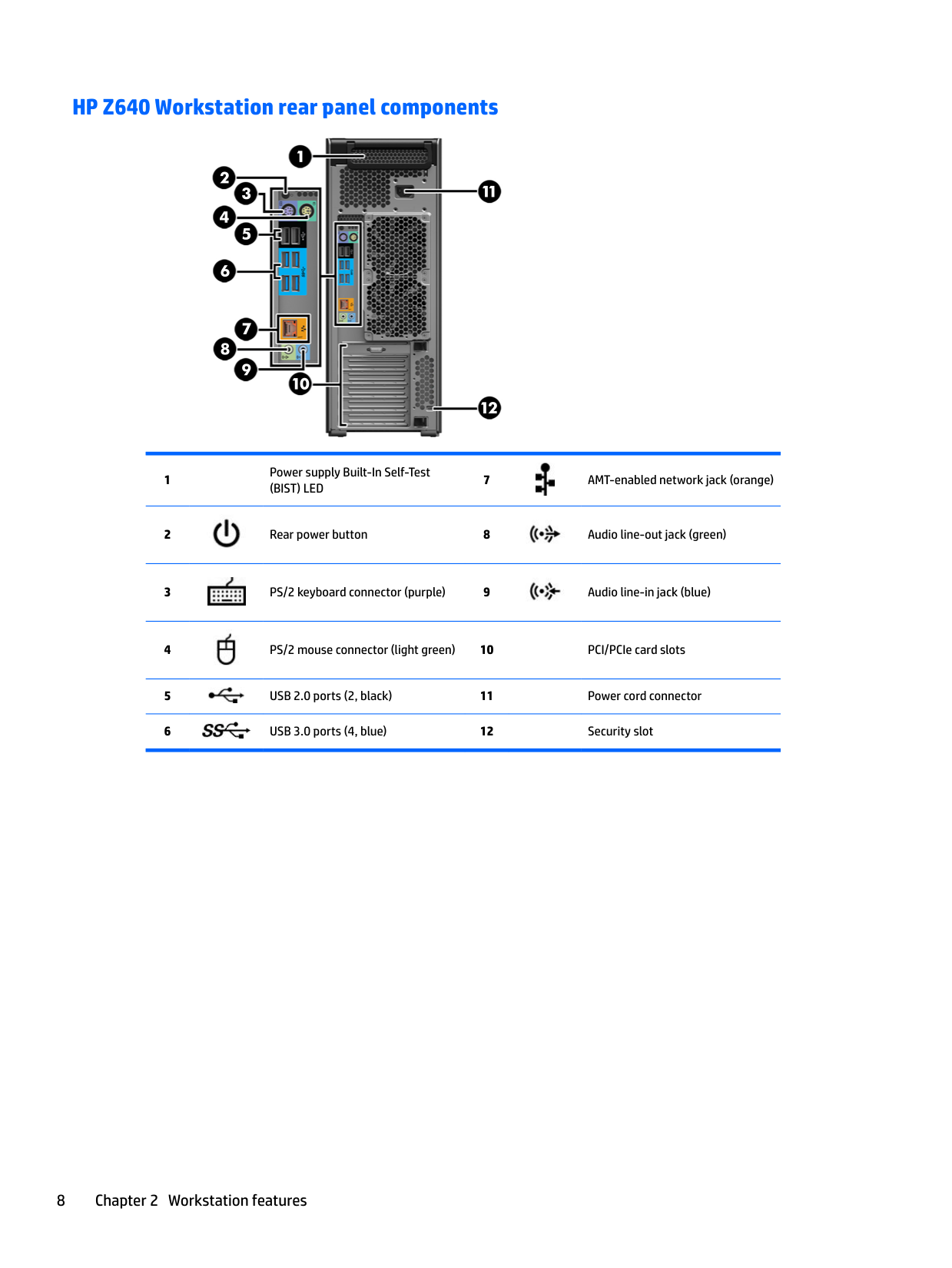


Audio-out (headphone)/Audio-in (microphone) combo jack


4 Hard drive activity light 8 Audio-in (microphone) jack
HP Z840 Workstation components 9
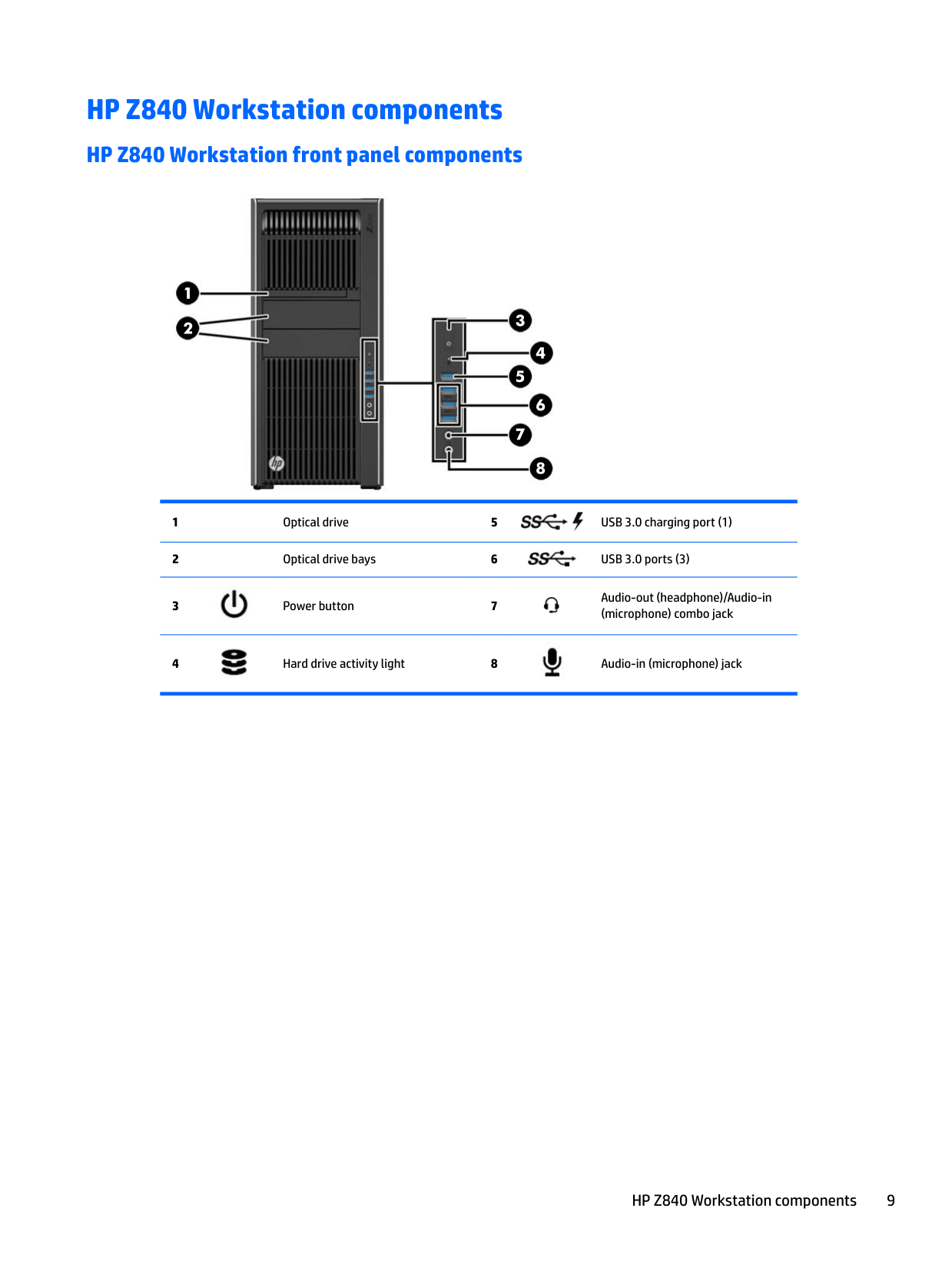
#### HP Z840 Workstation rear panel components


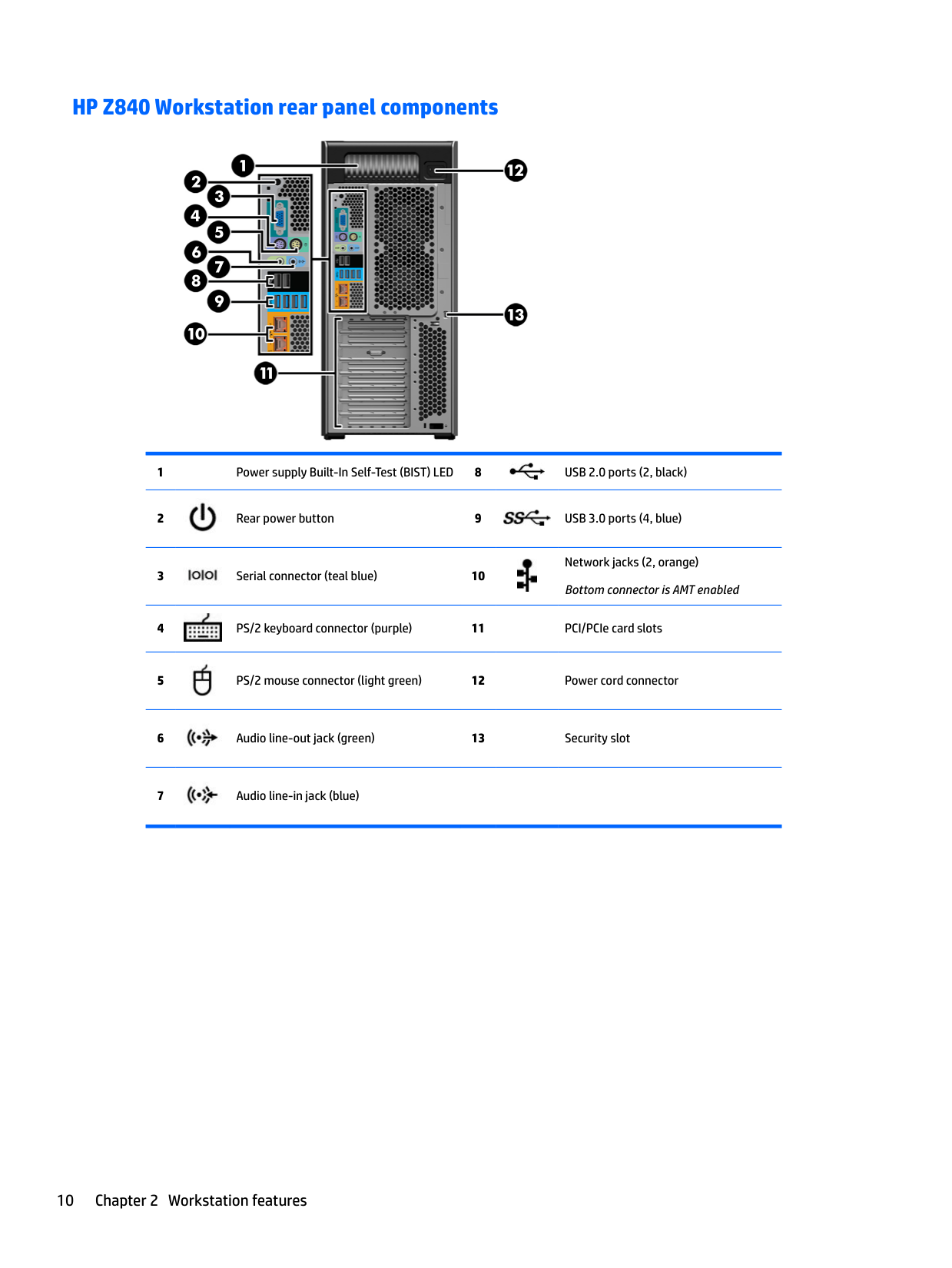


Network jacks (2, orange) Bottom connector is AMT enabled


Product specifications
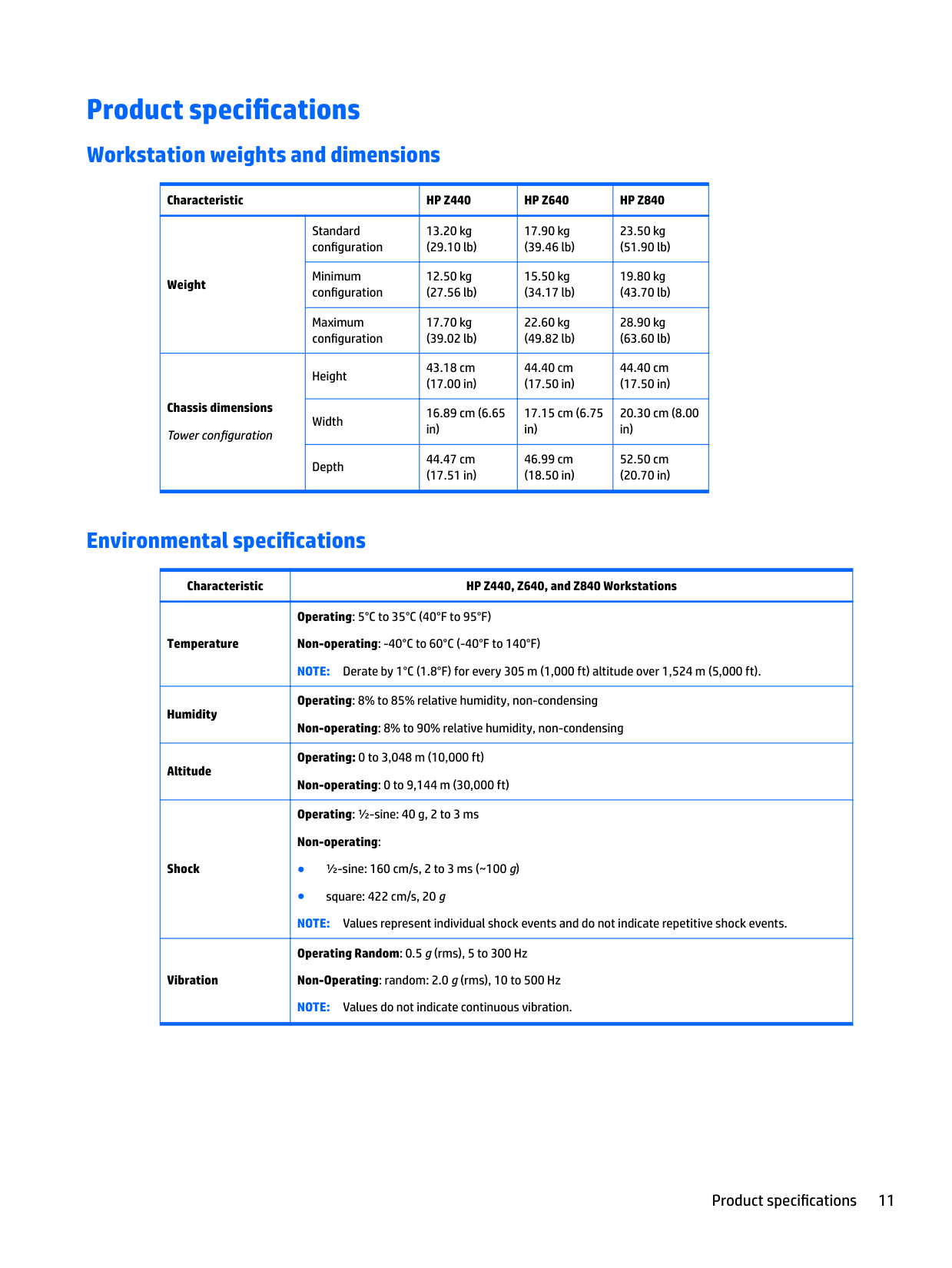
Workstation weights and dimensions
|Characteristic|Characteristic|HP Z440|HP Z640|HP Z840| |---|---|---|---|---| |Weight|Standard configuration|13.20 kg (29.10 lb)|17.90 kg (39.46 lb)|23.50 kg (51.90 lb)| |Weight|Minimum configuration|12.50 kg (27.56 lb)|15.50 kg (34.17 lb)|19.80 kg (43.70 lb)| |Weight|Maximum configuration|17.70 kg (39.02 lb)|22.60 kg (49.82 lb)|28.90 kg (63.60 lb)| |Chassis dimensions Tower configuration|Height|43.18 cm (17.00 in)|44.40 cm (17.50 in)|44.40 cm (17.50 in)| |Chassis dimensions Tower configuration|Width|16.89 cm (6.65 in)|17.15 cm (6.75 in)|20.30 cm (8.00 in)| |Chassis dimensions Tower configuration|Depth|44.47 cm (17.51 in)|46.99 cm (18.50 in)|52.50 cm (20.70 in)|
Environmental specifications
|Characteristic|HP Z440, Z640, and Z840 Workstations| |---|---| |Temperature|Operating: 5°C to 35°C (40°F to 95°F) Non-operating: -40°C to 60°C (-40°F to 140°F) NOTE: Derate by 1°C (1.8°F) for every 305 m (1,000 ft) altitude over 1,524 m (5,000 ft).| |Humidity|Operating: 8% to 85% relative humidity, non-condensing Non-operating: 8% to 90% relative humidity, non-condensing| |Altitude|Operating: 0 to 3,048 m (10,000 ft) Non-operating: 0 to 9,144 m (30,000 ft)| |Shock|Operating: ½-sine: 40 g, 2 to 3 ms Non-operating:
● ½-sine: 160 cm/s, 2 to 3 ms (~100 g)
● square: 422 cm/s, 20 g NOTE: Values represent individual shock events and do not indicate repetitive shock events.
| |Vibration|Operating Random: 0.5 g (rms), 5 to 300 Hz Non-Operating: random: 2.0 g (rms), 10 to 500 Hz NOTE: Values do not indicate continuous vibration.|
Product specifications 11
3 Setting up the workstation
This chapter describes how to set up your workstation.
Ensuring proper ventilation
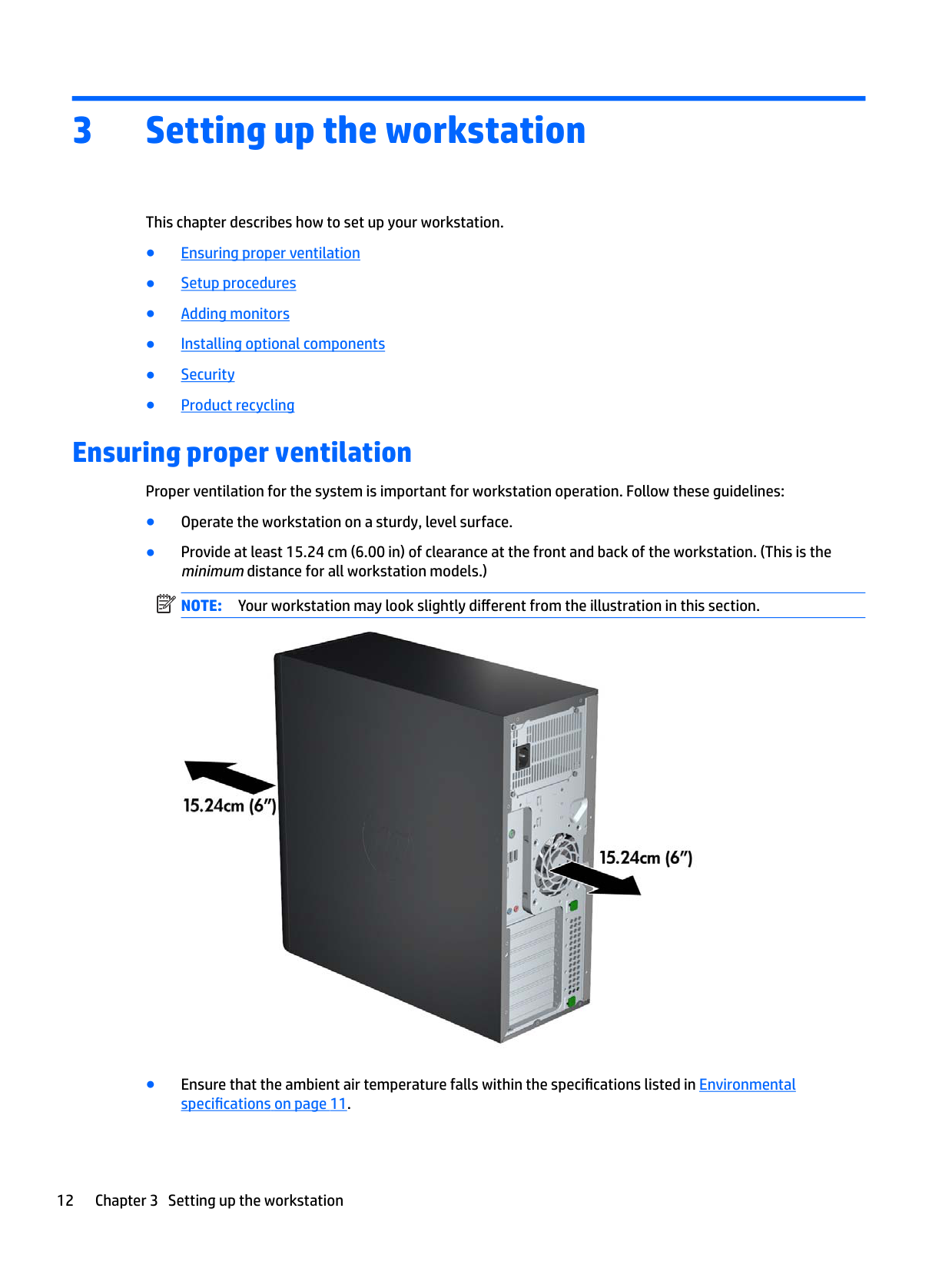
Proper ventilation for the system is important for workstation operation. Follow these guidelines:

| | |---|

Setup procedures
WARNING! To reduce the risk of electric shock or damage to your equipment, observe these practices:
| | |---|
NOTE: An HP Z840 Workstation with a 1125 W power supply might require more power than the typical office environment can supply. For details, see the Site Preparation Guide for the workstation at http://www.hp.com/support/workstation_manuals.
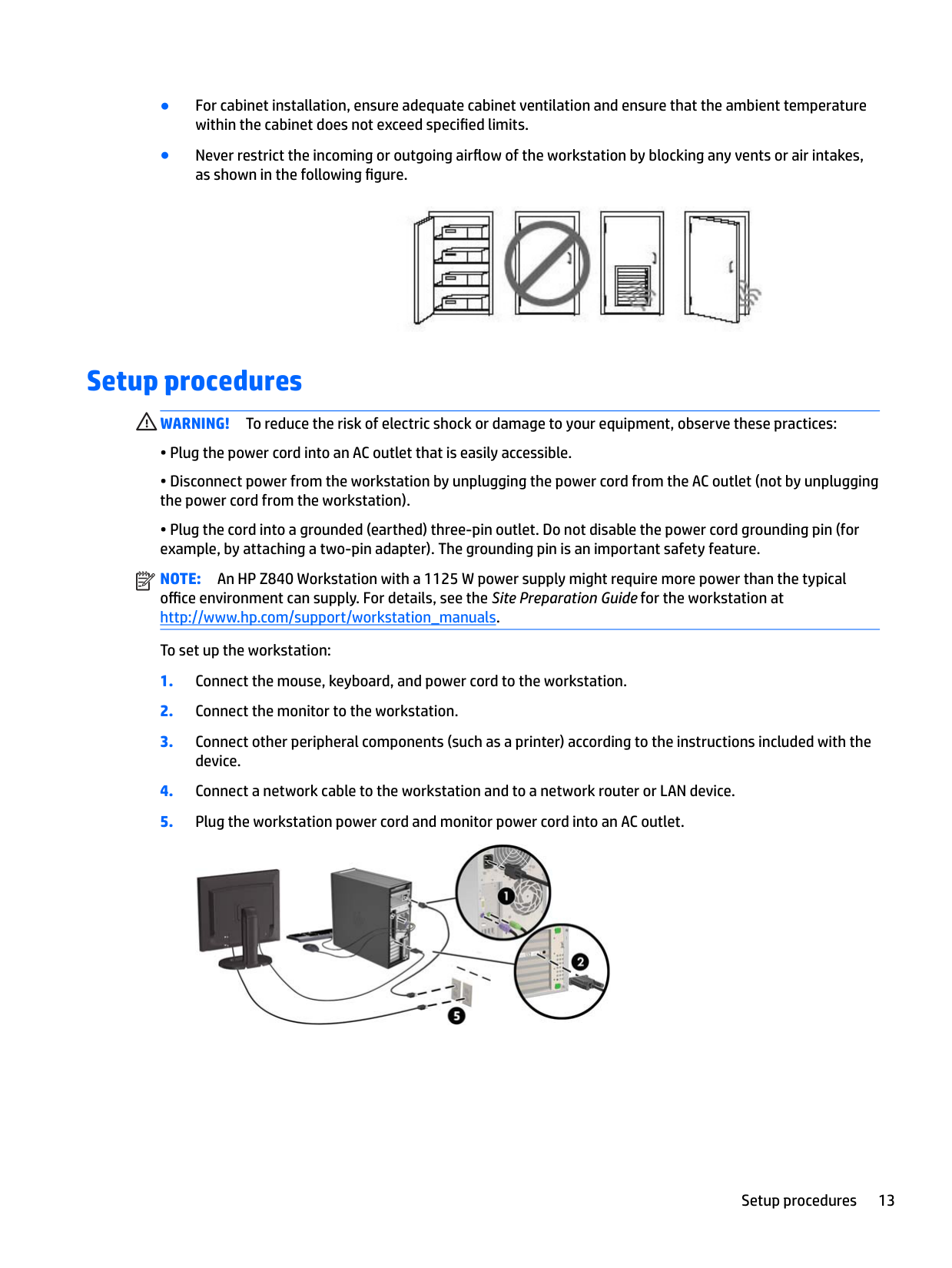
To set up the workstation:

Setup procedures 13
Adding monitors
#### Planning for additional monitors
All graphics cards provided with HP Z series Workstations support two simultaneous-display monitors (see
Connecting and configuring monitors on page 17). Cards that support more than two monitors are available. The process for adding monitors depends on your graphics card(s) and the type and number of monitors you add.
Use this process to plan for adding more monitors.
TIP: Some adapters for older legacy hardware may cost more than others. You may want to compare the cost of acquiring adapters with the cost of getting a newer monitor that doesn't need adapters.
| | |---|
NOTE: Monitors with resolutions above 1920 x 1200 pixels at 60 Hz require a graphics card with either Dual Link DVI (DL-DVI) or DisplayPort output. To get native resolution with DVI, you must use a DL-DVI cable, not standard DVI-I or DVI-D cables.
HP workstations do not support all graphics cards. Be sure that a new graphics card is supported before purchasing it. See Finding supported graphics cards on page 15.
Many graphics cards provide more than two monitor outputs but limit you to using only two at a time. Consult the graphics card documentation or look up information on the card according to the procedure in Finding supported graphics cards on page 15.
Some graphics cards support multiple monitors by multiplexing the monitor signal across multiple outputs. This might reduce graphics performance. Consult the graphics card documentation or look up information on the card according to the procedure in Finding supported graphics cards on page 15.
Make sure the card outputs match the input required by the monitors. (See Identifying monitor connection requirements on page 16.)
The different models of HP Z series Workstations have different limits on the mechanical size, data speed, and power available for additional graphics cards. Note that the usual practical limit for graphics cards is two per workstation. See the Maintenance and Service Guide for expansion card slot identification to make sure a new graphics card will work for your workstation.
For monitor setup in Linux, you can often use the settings tool for the graphics cards (e.g., NVIDIA nvidia-settings or AMD Catalyst Control Center). In some recent Linux releases, the window manager system (e.g., Gnome 3) preferences must also be modified.
TIP: To simplify troubleshooting of possible problems, enable the monitors one at a time: enable the first monitor and make sure it works properly before enabling the next monitor.
#### Finding supported graphics cards
To find information about graphics cards supported for your workstation:
| | |---|
NOTE: Not all graphics cards are compatible with all video transceivers and adapters. See the graphics card documentation for specific details.
#### Matching graphics cards to monitor connectors
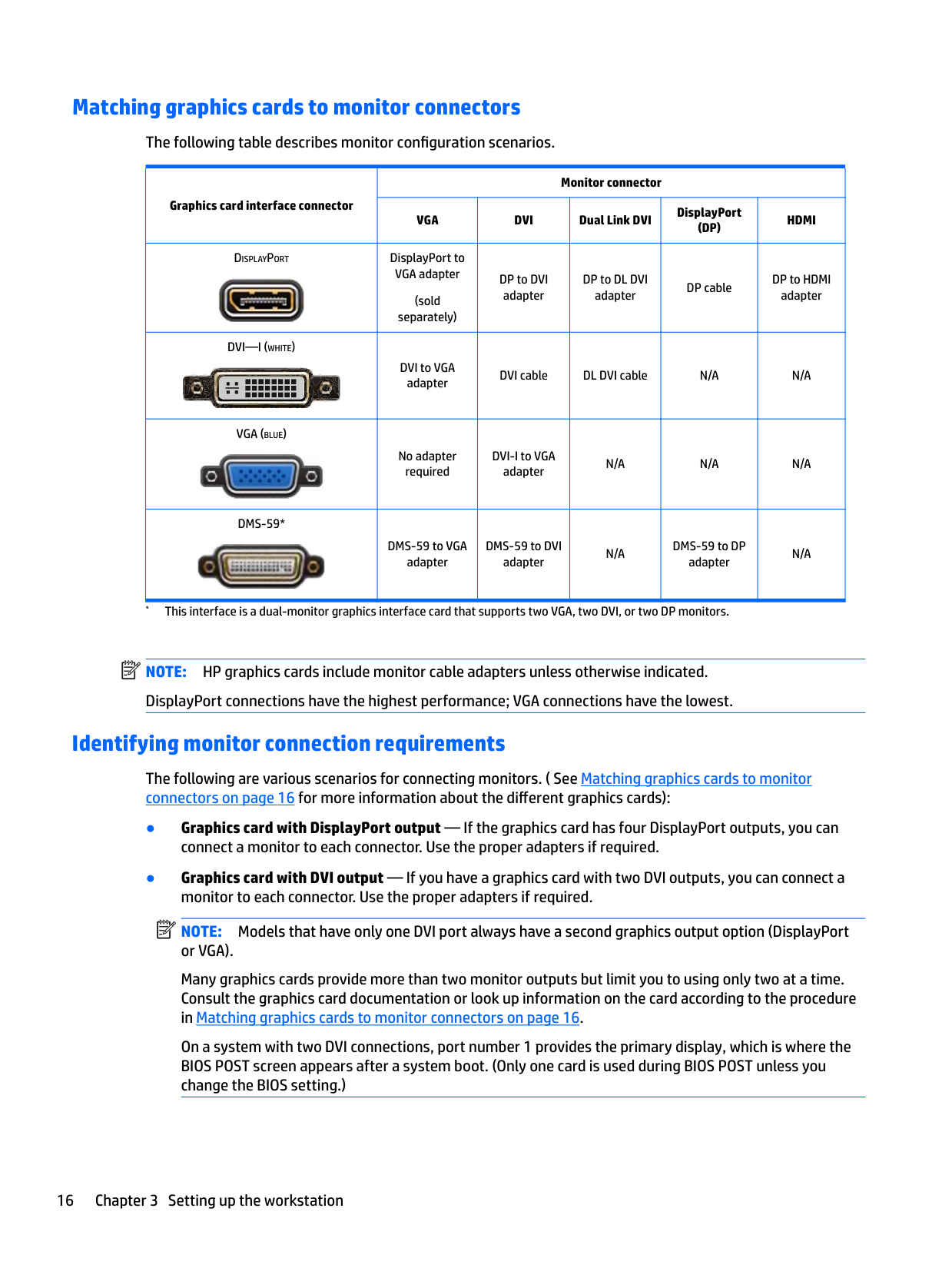
The following table describes monitor configuration scenarios.
|Graphics card interface connector|Monitor connector|Monitor connector|Monitor connector|Monitor connector|Monitor connector| |---|---|---|---|---|---| |Graphics card interface connector|VGA|DVI|Dual Link DVI|DisplayPort (DP)|HDMI| |DISPLAYPORT
|DisplayPort to VGA adapter
(sold separately)|DP to DVI adapter|DP to DL DVI adapter|DP cable|DP to HDMI adapter| |DVI—I (WHITE)
|DVI to VGA adapter|DVI cable|DL DVI cable|N/A|N/A| |VGA (BLUE)
|No adapter required|DVI-I to VGA adapter|N/A|N/A|N/A| |DMS-59*
|DMS-59 to VGA adapter|DMS-59 to DVI adapter|N/A|DMS-59 to DP adapter|N/A|
| | |---|
NOTE: HP graphics cards include monitor cable adapters unless otherwise indicated. DisplayPort connections have the highest performance; VGA connections have the lowest.
#### Identifying monitor connection requirements
The following are various scenarios for connecting monitors. ( See Matching graphics cards to monitor connectors on page 16 for more information about the different graphics cards):
| | |---|
NOTE: Models that have only one DVI port always have a second graphics output option (DisplayPort or VGA). Many graphics cards provide more than two monitor outputs but limit you to using only two at a time. Consult the graphics card documentation or look up information on the card according to the procedure in Matching graphics cards to monitor connectors on page 16. On a system with two DVI connections, port number 1 provides the primary display, which is where the BIOS POST screen appears after a system boot. (Only one card is used during BIOS POST unless you change the BIOS setting.)
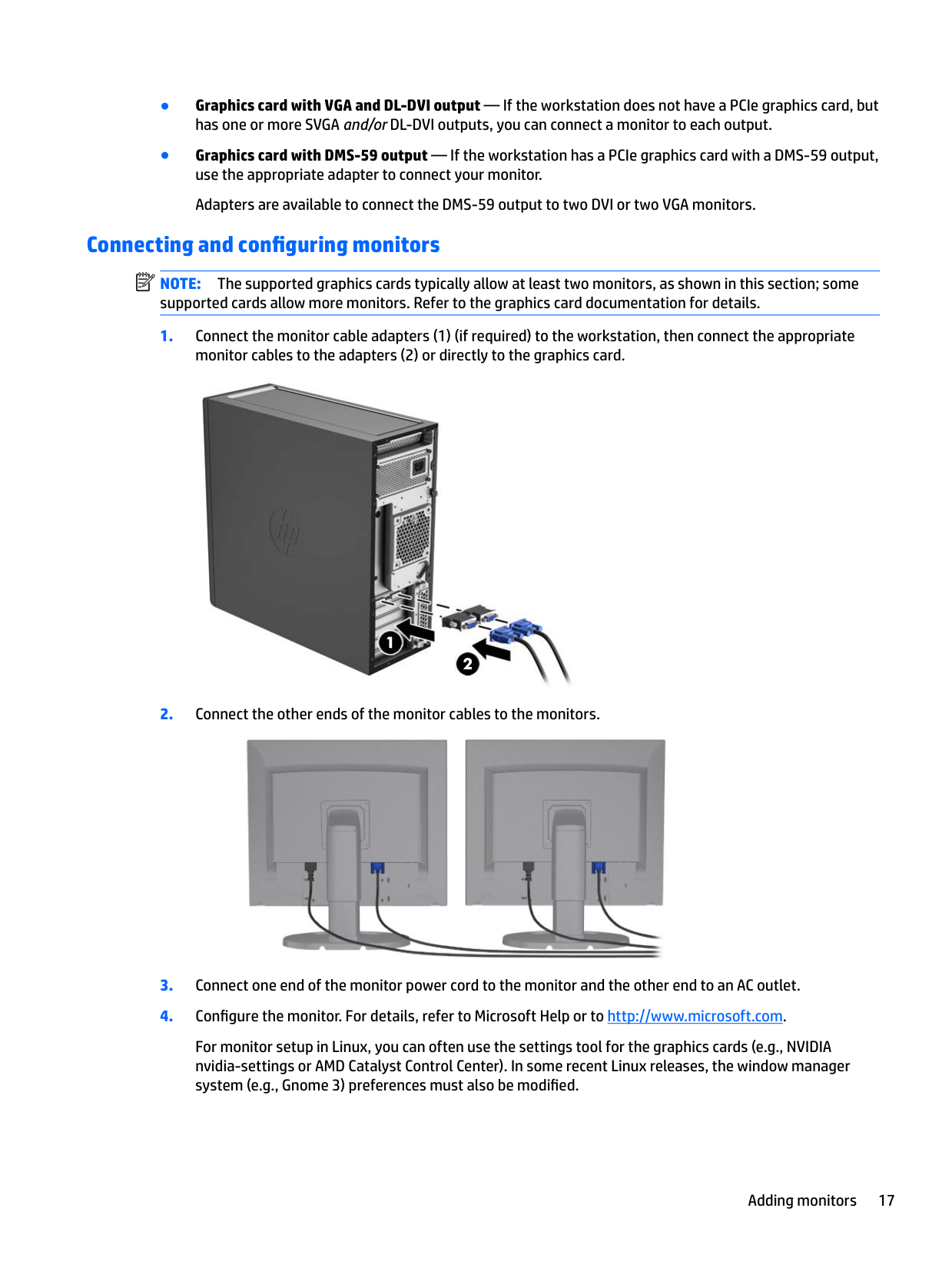
#### Connecting and configuring monitors
| | |---|
NOTE: The supported graphics cards typically allow at least two monitors, as shown in this section; some supported cards allow more monitors. Refer to the graphics card documentation for details.


For monitor setup in Linux, you can often use the settings tool for the graphics cards (e.g., NVIDIA nvidia-settings or AMD Catalyst Control Center). In some recent Linux releases, the window manager system (e.g., Gnome 3) preferences must also be modified.
#### Using a third-party graphics configuration utility
Third-party graphics cards may include a monitor configuration utility. Upon installation, this utility is integrated into Windows. You can select the utility and use it to configure multiple monitors with your workstation.
Refer to your graphics card documentation for details.
| | |---|
NOTE: Some third-party configuration utilities require that you enable the monitors in Windows before using the configuration tool. Refer to your graphics card documentation for more information.
| | |---|
NOTE: Monitor configuration utilities are also often available on the HP support website.
#### Customizing the monitor display (Windows)
You can manually select or change the monitor model, refresh rates, screen resolution, color settings, font sizes, and power management settings.
Installing optional components
Depending on the workstation model, additional components (such as memory, hard drives, optical drives, PCIe cards, or a second processor) can be installed on your workstation.

Security
Some HP workstations have a lock on the side access panel. The key for this lock is shipped attached to the back panel of the workstation chassis.
Additional security features reduce the risk of theft and alert when there has been a chassis intrusion. See the Maintenance and Service Guide for your workstation at http://www.hp.com/support/workstation_manuals for information about additional hardware and software security features available for your system.
Product recycling
HP encourages customers to recycle used electronic hardware, HP original print cartridges, and rechargeable batteries.
For information about recycling HP components or products, go to http://www.hp.com/go/recycle.
Product recycling 19
4 Setting up, backing up, restoring, andrecovering Windows 7
This chapter provides setup and update information for the Windows 7 operating system. It includes these topics:
CAUTION: Do not add optional hardware or third-party devices to the HP workstation until the operating system is successfully installed. Adding hardware might cause errors and prevent the operating system from installing correctly.
| | |---|
NOTE: After you set up the operating system, be sure that the latest BIOS, drivers, and software updates are installed on the workstation. See Updating the workstation on page 49.
Setting up the Windows 7 operating system CAUTION: After installation has started, do not turn off the workstation until the process is complete. Turning off the workstation during installation can damage the installation and operation of the software. For complete installation and configuration instructions, go to http://windows.microsoft.com/en-US/ windows7/help. Additional information is available in the Windows 7 online Help after you successfully install the operating system.
#### Installing or upgrading device drivers
You must install the appropriate device drivers before you install hardware devices. Follow the installation instructions that came with each device. For optimum performance, your operating system must have the most recent updates, patches, and service packs. See http://www.hp.com for HP-qualified drivers. For additional driver and software update information, see Updating the workstation on page 49.
#### Transferring files and settings
The Windows operating system offers data migration tools that help you select and transfer files and data from one Windows-based workstation to another.
For information about these tools, go to http://www.microsoft.com.
Backing up, restoring, and recovering Windows 7
Your workstation includes tools provided by HP and Windows to help you safeguard your information and retrieve it if you ever need to. These tools will help you return your workstation to a proper working state or even back to the original factory state, all with simple steps.
This section provides information about the following processes:
| | |---|
NOTE: For more details about the Windows Backup and Restore tools provided, see Help and Support. To access Help and Support: select Start, and then select Help and Support. Recovery after a system failure is only as good as your most recent backup.
| | |---|
NOTE: HP recommends that you print the recovery procedures and save them for later use, in case of system instability.
#### Backing up your information
| | |---|
NOTE: Windows includes the User Account Control feature to improve the security of your workstation. You may be prompted by User Account Control for your permission or password when you perform certain tasks. To continue a task, select the appropriate option. For information about User Account Control, see Help and Support: select Start and then select Help and Support.
You should create your initial backup immediately after initial system setup. As you add new software and data files, you should continue to back up your system on a regular basis to maintain a reasonably current backup. Your initial and subsequent backups allow you to restore your data and settings if a failure occurs.
| | |---|
NOTE: For detailed instructions on various backup and restore options, perform a search for these topics in
Help and Support. To access Help and Support: select Start and then select Help and Support. You can back up your information to an optional external hard drive, a network drive, or discs. Note the following when backing up your information:
| | |---|
#### System Restore
If you have a problem that might be due to software that you installed on your workstation, use System Restore to return the workstation to a previous restore point. You can also set restore points manually.
| | |---|
NOTE: Always use this System Restore procedure before you use the System Recovery feature. To start System Restore:
System Recovery CAUTION: This procedure will delete all user information. To prevent loss of information, be sure to back up all user information so you can restore it after recovery. Always use the System Restore procedure before you use the System Recovery program. See System Restore on page 22.
System Recovery completely erases and reformats the hard disk drive, deleting all data files that you have created, and then reinstalls the operating system, programs, and drivers. However, you must reinstall any software that was not installed on the workstation at the factory. This includes software that came on media included in the workstation accessory box, and any software programs that you have installed.
You can order a recovery media set from support. For U.S. support, go to http://www.hp.com/support. For worldwide support, go to http://www8.hp.com/us/en/contact-hp/ww-contact-us.html. You can also order the recovery media set by calling support.
| | |---|
NOTE: Some features might not be available on systems that are shipped without a Windows operating system. You must choose one of the following methods to perform a System Recovery:
##### System Recovery from a recovery partition image
CAUTION: System Recovery deletes all data and programs that you have created or installed.
A Windows system from the HP factory ships with a recovery partition. You can use the recovery partition to recover the factory operating system.
##### Using HP Recovery Disc operating system discs
CAUTION: Using a Windows 7 operating system DVD completely erases hard drive contents and reformats the hard drive. All files that you have created and any software that you have installed on the workstation are permanently removed. When reformatting is complete, the recovery process helps you restore the operating system, as well as the original drivers. Software that came with the system can be downloaded at http://www.hp.com.
Use the steps provided in this section if you ordered a Windows 7 operating system DVD and Driver DVD.
To order a Windows 7 operating system DVD and Driver DVD, go to the HP website. For U.S. support, go to http://www.hp.com/cgi-bin/hpsupport/index.pl. For worldwide support, go to http://www8.hp.com/us/en/ contact-hp/ww-contact-us.html. You can also order the DVDs by calling support.
| | |---|
To initiate recovery using a Windows 7 operating system DVD: NOTE: This recovery process takes several minutes.
NOTE: If the workstation does not boot to the DVD, restart the workstation and press Esc as the workstation is powering on to see the startup menu. Use the arrow keys to select the boot menu and press enter. Use the arrow keys to select the location where the recovery DVD is inserted to boot from that device. Booting the DVD from UEFI Boot sources will result in a GPT boot partition. Booting from Legacy Boot sources will result in an MBR boot partition.
| | |---|
| | |---|
5 Setting up, backing up, restoring, and recovering Windows 8
This chapter provides setup and update information for the Windows 8 operating system. It includes these topics:
| | |---|
Supplementary information
Additional information is available in Help and Support after you customize the operating system.
Setting up the Windows 8 operating system
The first time you turn on the workstation you can customize the operating system. When you are connected to the Internet, Microsoft activates your operating system. This process takes about 15 to 30 minutes. Carefully read and follow the instructions on the screen.
We recommend that you register your workstation with HP, so you can receive important software updates, request support, and sign up for special offers.
CAUTION: After the initial setup process has begun, DO NOT TURN OFF THE WORKSTATION UNTIL THE PROCESS IS COMPLETE. Turning off the workstation during this process may damage the software that runs the workstation or prevent its proper installation.
| | |---|
NOTE: Windows includes the User Account Control feature to improve the security of your workstation. You may be prompted by User Account Control for your permission or password when you perform certain tasks. To continue a task, select the appropriate option. For information about User Account Control, see Help and Support: from the Start screen type help and then select Help and Support.
Supplementary information 25
Downloading Windows 8 updates
Microsoft may release updates to the operating system. To help keep the workstation running optimally, HP recommends checking for the latest updates during the initial installation and periodically throughout the life of the workstation.
Run Windows Update as soon as possible after you set up your workstation.
Backing up, restoring, and recovering Windows 8
Your workstation includes tools provided by HP and Windows to help you safeguard your information and retrieve it if you ever need to. These tools will help you return your workstation to a proper working state or even back to the original factory state, all with simple steps.
This section provides information about the following processes:
| | |---|
NOTE: For more details about the tools provided, see Help and Support. From the Start screen, type help, and then select Help and Support. HP recommends that you print the recovery procedures and save them for later use, in case of system instability.
#### Backing up your information
| | |---|
NOTE: Windows includes the User Account Control feature to improve the security of your workstation. You
may be prompted by User Account Control for your permission or password when you perform certain tasks. To continue a task, select the appropriate option. For information about User Account Control, from the Start screen type help and then select Help and Support.
Recovery after a system failure is as good as your most recent backup. You should create system repair media and your initial backup immediately after initial system setup. As you add new software and data files, you should continue to back up your system on a regular basis to maintain a reasonably current backup. The system repair media is used to start up (boot) the workstation and repair the operating system in case of system instability or failure. Your initial and subsequent backups allow you to restore your data and settings if a failure occurs.
| | |---|
NOTE: For detailed instructions on various backup and restore options, perform a search for these topics in Help and Support. To access Help and Support: from the Start screen, type help and then select Help and Support.
From the Start screen, type backup, and then select Save backup copies of your files with File History. You can back up your information to an optional external hard drive or a network drive. Note the following when you perform a backup:
| | |---|
To create a backup using Windows Backup and Restore: NOTE: The backup process may take more than an hour, depending on file size and the speed of the workstation.
Creating recovery media and backups Recovery after a system failure is only as good as your most recent backup. CAUTION: Use a flash drive with a capacity of at least 8 GB. Any information on the USB flash drive will be erased before the recovery media is created.
You will use a USB flash drive to create a bootable recovery drive that can be used to troubleshoot a Windows 8 workstation that is unable to start. The USB flash drive can be used to reinstall the original operating system and the programs that were installed at the factory.
CAUTION: If you select Copy contents from the recovery partition to the recovery drive, you will have the option to delete the recovery partition when the Recovery Media creation is finished. On most systems, this partition is 10 GB in size. HP recommends that you not delete this recovery partition. If the partition is deleted, you will be unable to restore the Windows 8 factory recovery partition to the hard drive using the recovery USB drive. You can free up drive space by deleting the recovery partition, but you won't be able to refresh or reset the PC again.
To create the recovery media, from the Start screen, type create a recovery drive, and then select Create a recovery drive. Follow the on-screen instructions to continue.
| | |---|
For more information and steps for enabling Windows File History, see Windows Help and Support. From the Start screen, type help, and then select Help and Support.
#### Restoring and recovering using Windows 8 tools
Windows recovery tools provide access to several options for recovering your system. Choose the method that best matches your situation and level of expertise:
##### Using Windows 8 Refresh
| | |---|
IMPORTANT: Refresh removes any traditional applications that were not originally installed on the system at the factory.
| | |---|
NOTE: You may be prompted by User Account Control for your permission or password when you perform certain tasks. To continue a task, select the appropriate option. For information about User Account Control, see Help and Support: from the Start screen type help, and then select Help and Support.
| | |---|
If Windows is responding, use these steps to start Refresh: NOTE: During Refresh, a list of removed traditional applications will be saved so that you have a quick way to see what you might need to reinstall. See Help and Support for instructions on reinstalling traditional applications. From the Start screen, type help, and then select Help and Support.
If Windows is not responding, use these steps to start Refresh:
NOTE: If the HP Recovery partition is not listed, or you cannot check for its presence, you must recover
using the recovery media that you created. See Recovery using the Windows 8 recovery USB flash drive on page 31. If you did not create recovery media, you must use the Windows 8 restore media (available separately). See Recovery using Windows 8 restore media on page 32.
| | |---|
Using Windows 8 Reset IMPORTANT: Reset does not provide backups of your information. Before using Reset, back up any personal information you want to retain. If Windows is responding, use these steps to start Reset: NOTE: You may be prompted by User Account Control for your permission or password when you perform certain tasks. To continue a task, select the appropriate option. For information about User Account Control, see Help and Support: from the Start screen type help, and then select Help and Support.
| | |---|
| | |---|
If Windows is not responding, use these steps to start Reset:
NOTE: If the HP Recovery partition is not listed, or you cannot check for its presence, you must recover
using the recovery media that you created. See Recovery using the Windows 8 recovery USB flash drive on page 31. If you did not create recovery media, you must use the Windows 8 restore media (available separately). See Recovery using Windows 8 restore media on page 32.
| | |---|
##### Recovery using the Windows 8 recovery USB flash drive
CAUTION: Using F11 completely erases hard drive contents and reformats the hard drive. All files that you have created and any software that you have installed on the workstation are permanently removed. The F11 recovery tool reinstalls the operating system and the HP programs and drivers that were installed at the factory. You must reinstall all other software.
| | |---|
To recover your system using the recovery USB flash drive you previously created: NOTE: If you did not create a recovery USB flash drive or the one you created does not work, see Recovery using Windows 8 restore media on page 32.
##### Recovery using Windows 8 restore media
This recovery process requires Windows 8 restore discs, which can be ordered from the support website. The Windows 8 restore media consists of a Windows 8 operating system disc and a Windows 8 driver disc.
For U.S. support, go to http://www.hp.com/support. For worldwide support, go to http://www8.hp.com/us/en/contact-hp/ww-contact-us.html. You can also order the media by calling support. CAUTION: Using the Windows 8 operating system disc completely erases hard drive contents and reformats the hard drive. All files that you have created and any software that you have installed on the workstation are permanently removed. When reformatting is complete, the recovery process helps you restore the operating system, as well as drivers. Begin recovery using the Windows 8 operating system disc: NOTE: It can take several minutes to load the operating system disc.
| | |---|
NOTE: If the workstation does not boot to the DVD, restart the workstation and press Esc as the workstation is starting to see the Startup menu. Use the arrow keys to select the boot menu, and then press enter. Use the arrow keys to select the location where the recovery DVD is inserted to boot from that device. Booting the DVD from UEFI Boot sources will result in a GPT boot partition. Booting from Legacy Boot sources will result in an MBR boot partition. It is recommended that you boot Windows 8 from UEFI Boot sources to take full advantage of the features available in Windows 8.
| | |---|
| | |---|
NOTE: The driver disc will load prerequisite software, and then allow you to load drivers. 2. Install the Hardware Enabling Drivers first. HP recommends installing all available drivers.
6 Setting up, backing up, restoring, andrecovering Windows 10
This chapter provides setup and update information for the Windows 10 operating system. It includes these topics:
Activating and customizing the software Additional information is available in online help after you activate the operating system. NOTE: Be sure there is a 10.2 cm (4 inch) clearance at the back of the unit and above the monitor to permit the required airflow.
| | |---|
#### Initial Windows operating system setup
The first time you turn on the workstation, the operating system is set up and activated automatically. This process takes about 5 to 10 minutes. Carefully read and follow the instructions on the screen to complete the initial Windows setup.
We recommend that you register your workstation with HP during operating system set up so you can receive important software updates, facilitate support questions, and sign up for special offers.
CAUTION: After the setup process has begun, DO NOT TURN OFF THE WORKSTATION UNTIL THE PROCESS IS COMPLETE. Turning off the workstation during the setup process may damage the software that runs the workstation or prevent its proper installation.
#### Customizing the monitor display
If you wish, you can select or change the monitor refresh rates, screen resolution, color settings, font sizes, and power management settings.
For more information, see the online documentation provided with the graphics controller utility or the documentation that came with your monitor.
▲ Right-click on the Windows desktop, then click Personalize or Screen resolution to change display
settings.
– or – Click the Start icon, click Settings, and the click Personalization.
Turning off the workstation
To properly turn off the workstation, shut down the operating system software.
Activating and customizing the software 33
▲ Click the Start icon, click the Power icon, and then select Shut down.
– or – From the taskbar, type settings, select Settings, type shut, and then click Turn off your PC.
Finding more information
| | |---|
NOTE: Some or all of the following documents are available on the workstation hard drive.
If you encounter issues
There are several means to diagnose and resolve potential issues. HP provides several proprietary diagnostics tools but recommends a sequential troubleshooting approach that addresses the most basic root cause to the more complex. Steps include:
#### Performing basic troubleshooting
You can find troubleshooting information in the comprehensive Maintenance and Service Guide (English only) available under the reference library at http://www.hp.com/support. Select Get software and drivers, enter the model number of the workstation, and click Find my product.
##### Visual inspection: No boot, no power, no video
If you encounter problems with the workstation, monitor, or software, see the following list of general suggestions before taking further action:
CAUTION: When the workstation is plugged into an AC power source, there is always voltage applied to the system board. To reduce the risk of system board or component damage, always disconnect the power cord from the power source before opening the workstation.
##### Blink or beep codes: Interpreting POST diagnostic front panel LEDs and audible codes
If you see flashing LEDs on the front of the workstation or if you hear beeps, see the Maintenance and Service Guide (English only) for interpretation and recommended action.
##### Before you call for technical support
WARNING! When the workstation is plugged into an AC power source, voltage is always applied to the system board. To reduce the risk of personal injury from electrical shock and/or hot surfaces, be sure to disconnect the power cord from the wall outlet and allow the internal system components to cool before you touch them.
If you are having problems with the workstation, try the appropriate solutions as described in the previous sections and summarized below to try to isolate the exact problem before calling for technical support.
— Use a different network cable to connect your workstation to the network.
— Connect a different workstation with a different cable to the network.
If your problem is not resolved, the network jack on your workstation or the network wall jack might be faulty.
— If you have HP Support Assistant, you may access it from the Start screen by clicking the HP
###### Support Assistant app, clicking My computer, and then clicking Diagnostics.
— If you do not have HP Support Assistant installed, you may access HP Instant Support Professional Edition at http://www.hp.com/go/ispe.
You may also access the Business Support Center (BSC) at http://www.hp.com/go/bizsupport for the latest online support information, software and drivers, for proactive notification, and access to a worldwide community of peers and HP experts.
Comprehensive online technical support is also available at http://www.hp.com/support. If it becomes necessary to call for technical assistance, be prepared to do the following to ensure that your service call is handled properly:
| | |---|
NOTE: For sales information and warranty upgrades (HP Care Packs), call your local authorized service provider or dealer.
##### Backing up, restoring, and recovering in Windows 10
This section provides information about the following processes. The information in the section is standard procedure for most products.
▲ Type help in the taskbar search box, and then select Help and Support.
###### Creating recovery media and backups
The following methods of creating recovery media and backups are available on select products only. Choose the available method according to your workstation model.
| | |---|
NOTE: If storage is 32 GB or less, Microsoft System Restore is disabled by default. Creating HP Recovery media (select products only)
If possible, check for the presence of the Recovery partition and the Windows partition. From the Start menu, select File Explorer.
You can use Windows tools to create system restore points and create backups of personal information, see Using Windows tools on page 39.
To create HP Recovery media:
###### Using Windows tools
You can create recovery media, system restore points, and backups of personal information using Windows tools.
| | |---|
NOTE: If storage is 32 GB or less, Microsoft System Restore is disabled by default. For more information and steps, see Help and Support.
▲ Type help in the taskbar search box, and then select Help and Support. Restore and recovery
There are several options for recovering your system. Choose the method that best matches your situation and level of expertise:
| | |---|
IMPORTANT: Not all methods are available on all products.
▲ Type help in the taskbar search box, and then select Help and Support.
▲ Type recovery in the taskbar search box, select HP Recovery Manager, select Reinstall drivers and/or applications, and then follow the on-screen instructions.
###### Recovering using HP Recovery Manager
HP Recovery Manager software allows you to recover the workstation to its original factory state by using the HP Recovery media that you either created or that you obtained from HP, or by using the HP Recovery partition (select products only). If you have not already created recovery media, see Creating HP Recovery media (select products only) on page 37.
###### What you need to know before you get started
| | |---|
IMPORTANT: Recovery through HP Recovery Manager should be used as a final attempt to correct workstation issues.
| | |---|
| | |---|
IMPORTANT: HP Recovery Manager does not automatically provide backups of your personal data. Before beginning recovery, back up any personal data you want to retain. Using HP Recovery media, you can choose from one of the following recovery options: NOTE: Only the options available for your workstation display when you start the recovery process.
The HP Recovery partition (select products only) allows System Recovery only. Using the HP Recovery partition (select products only)
The HP Recovery partition allows you to perform a system recovery without the need for recovery discs or a recovery USB flash drive. This type of recovery can be used only if the hard drive is still working.
To start HP Recovery Manager from the HP Recovery partition:
###### Using HP Recovery media to recover
You can use HP Recovery media to recover the original system. This method can be used if your system does not have an HP Recovery partition or if the hard drive is not working properly.
NOTE: If the workstation does not automatically restart in HP Recovery Manager, change the workstation boot order. See Changing the workstation boot order on page 41.
| | |---|
###### Changing the workstation boot order
If your workstation does not restart in HP Recovery Manager, you can change the workstation boot order, which is the order of devices listed in BIOS where the workstation looks for startup information. You can change the selection to an optical drive or a USB flash drive.
To change the boot order:
Removing the HP Recovery partition (select products only) HP Recovery Manager software allows you to remove the HP Recovery partition to free up hard drive space. IMPORTANT: After you remove the HP Recovery partition, you will not be able to perform System Recovery or create HP recovery media from the HP Recovery partition. So before you remove the Recovery partition, create HP Recovery media; see Creating HP Recovery media (select products only) on page 37. NOTE: The Remove Recovery Partition option is only available on products that support this function. Follow these steps to remove the HP Recovery partition:
| | |---|
| | |---|
7 Setting up and restoring Linux
HP offers a variety of Linux solutions for HP workstation customers:
| | |---|
NOTE: After you set up the operating system, be sure that the latest BIOS, drivers, and software updates are installed. See Updating the workstation on page 49.
CAUTION: Do not add optional hardware or third-party devices to the workstation until the operating system is successfully installed. Adding hardware might cause errors and prevent the operating system from installing correctly.
HP Installer Kit for Linux (HPIKL)
The HP Installer Kit for Linux helps users install certified versions of RHEL, SLED, or Ubuntu on HP workstations. It is available as an operating system option on all HP workstations.
The HPIKL option may include a FreeDOS preload. This operating system option accommodates those who have a customized Linux distribution or who have a licensed version of RHEL, SLED, or Ubuntu and would like to install the HP-recommended driver additions.
The kit also can be downloaded using the following steps:
Setting up Red Hat Enterprise Linux
HP Z series Workstations are certified and supported on RHEL streams appropriate to the hardware technology.
HP Installer Kit for Linux (HPIKL) 43
#### HPIKL driver disc
Recent versions of Red Hat Linux typically require only driver updates with minor fixes to support HP workstations. These releases can usually be supported with the HPIKL driver disc, which can be used as a post-installation utility for the standard Red Hat Linux install.
After you complete the standard Red Hat install and restart the system, a Red Hat first-boot utility runs. After you specify a number of settings (such as the security level, time and date, ‘root’ password, and user accounts), the utility lets you load an additional disc.
The driver disc is used during this phase. All content added by HP is in the /HP directory on the disc. You can use it to build your own image or to browse the HP content.
| | |---|
Please see /HP directory on the disk for any last-minute README pointers for elements on the disk. NOTE: Some installations may encounter problems if they are performed with a DisplayPort connection to the monitor. This is because the default drivers that the OS installers use do not support DisplayPort functionality. If you experience problems, try overriding the monitor choice for DisplayPort during the start of the install and using the VESA driver instead. You can then set up the DisplayPort monitor later.
#### Installing with the HP Red Hat Linux driver disc
● RHEL 6 or RHEL 7: Insert your HP driver disc. The HPIKL installation software automatically starts. Follow the on-screen instructions to install the contents.
Setting up SUSE Linux Enterprise Desktop (SLED)
HP offers a 64-bit SLED 11 preload on some Z series Workstations and supports 64-bit SLED 11 on other workstations.
Various versions of SLED are certified and supported by SUSE on HP workstations. For more information, go to the SUSE certification bulletin search page at https://www.suse.com/yessearch/Search.jsp.
#### Setting up preloaded SLED
To set up SLED on systems preloaded with the operating system:
| | |---|
NOTE: You can activate your SUSE subscription from the SUSE Customer Center Configuration screen. To view the full SUSE Customer Center documentation, go to http://www.suse.com/documentation, and select your operating system.
#### Installing SLED with the DVD Installer Kit
Setting up SUSE Linux Enterprise Desktop (SLED) 45
#### Restoring SLED (preloaded systems only)
To restore SLED, you must use the SLED restore media. To create restore media:
CAUTION: Restoring the operating system does not restore data. Back up your data using the method and media of your choice.
Setting up Ubuntu
HP offers a 64-bit Ubuntu 14.04 LTS preload on some Z series Workstations and supports 64-bit Ubuntu 14.04 on other workstations.
Various versions of Ubuntu are certified and supported by Canonical on HP workstations. For more information, go to the Ubuntu Desktop certified hardware search page at http://www.ubuntu.com/ certification/desktop/make/HP/?category=Desktop and filter the list using the word “Workstation”.
#### Setting up preloaded Ubuntu
To set up Ubuntu on systems preloaded with the operating system:
The system then reboots and plays a short video. After the video, an initial set of settings dialogs are presented.
NOTE: This initial user has privileges to become system administrator using the sudo command. There is no user root in the typical Ubuntu installation. After completion of the setup, the login screen appears.
| | |---|
#### Using the HP Installer Kit Driver Disk
Ubuntu does not require registration to obtain software package updates. Updates can be obtained from various “repositories” on the web using a variety of tools built into the OS. An internet connection and proxy are all that may be required.
The HP Installer Kit for Linux driver disk for Ubuntu relies on the same mechanisms in order to satisfy dependencies during installation. So the same internet access is needed, as well as capability to elevate from the current user session to administrator privileges.
In some cases, HP-tested proprietary graphics drivers may be the only “payload” delivered by the driver disk.
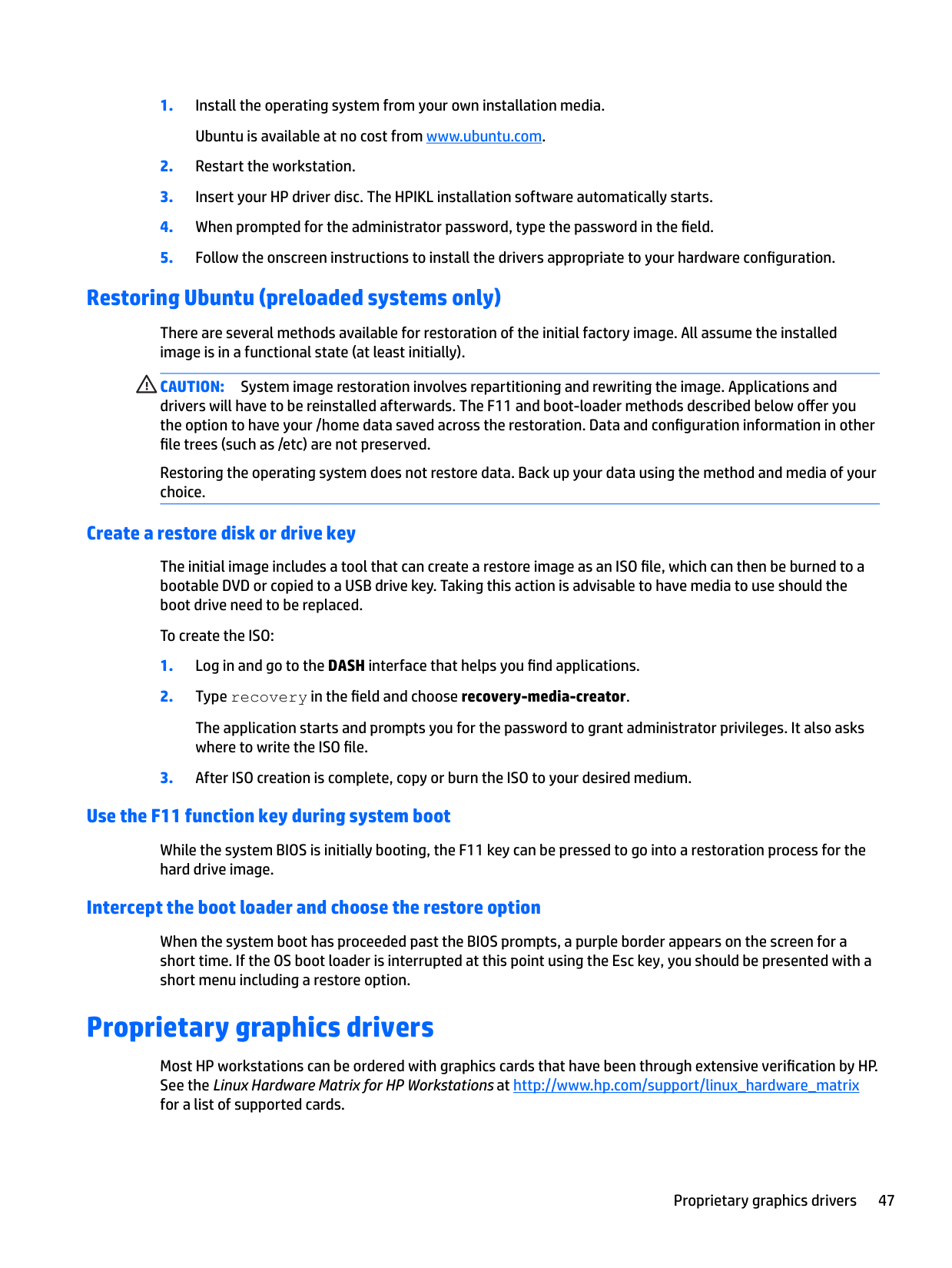
#### Restoring Ubuntu (preloaded systems only)
There are several methods available for restoration of the initial factory image. All assume the installed image is in a functional state (at least initially).
CAUTION: System image restoration involves repartitioning and rewriting the image. Applications and drivers will have to be reinstalled afterwards. The F11 and boot-loader methods described below offer you the option to have your /home data saved across the restoration. Data and configuration information in other file trees (such as /etc) are not preserved.
Restoring the operating system does not restore data. Back up your data using the method and media of your choice.
##### Create a restore disk or drive key
The initial image includes a tool that can create a restore image as an ISO file, which can then be burned to a bootable DVD or copied to a USB drive key. Taking this action is advisable to have media to use should the boot drive need to be replaced.
To create the ISO:
The application starts and prompts you for the password to grant administrator privileges. It also asks where to write the ISO file.
##### Use the F11 function key during system boot
While the system BIOS is initially booting, the F11 key can be pressed to go into a restoration process for the hard drive image.

##### Intercept the boot loader and choose the restore option
When the system boot has proceeded past the BIOS prompts, a purple border appears on the screen for a short time. If the OS boot loader is interrupted at this point using the Esc key, you should be presented with a short menu including a restore option.
Proprietary graphics drivers
Most HP workstations can be ordered with graphics cards that have been through extensive verification by HP. See the Linux Hardware Matrix for HP Workstations at http://www.hp.com/support/linux_hardware_matrix for a list of supported cards.
Proprietary graphics drivers 47
| | |---|
NOTE: Not all graphics cards are available on every workstation. Limitations generally occur for cards that consume large amounts of power in lower-power workstations. Third-party proprietary graphics drivers supported by HP and the graphics vendors are available with the HP Installer Kit for Linux, with the SLED 11 and Ubuntu preloads on Z series Workstations, and from HP Workstation Support at http://www.hp.com/go/workstationsupport. These proprietary drivers are not a standard part of the RHEL, SLED, or Ubuntu distributions because they are not open source. Driver revisions more recent than those at the HP support website are supported directly by the vendor.
8 Updating the workstation
HP is constantly working on improving your total workstation experience. To ensure that the workstation leverages the latest enhancements, HP recommends that you install the latest BIOS, driver, and software updates on a regular basis.
Updating the workstation after first boot
After successfully booting the workstation for the first time, follow these guidelines to be sure that the workstation is up-to-date:
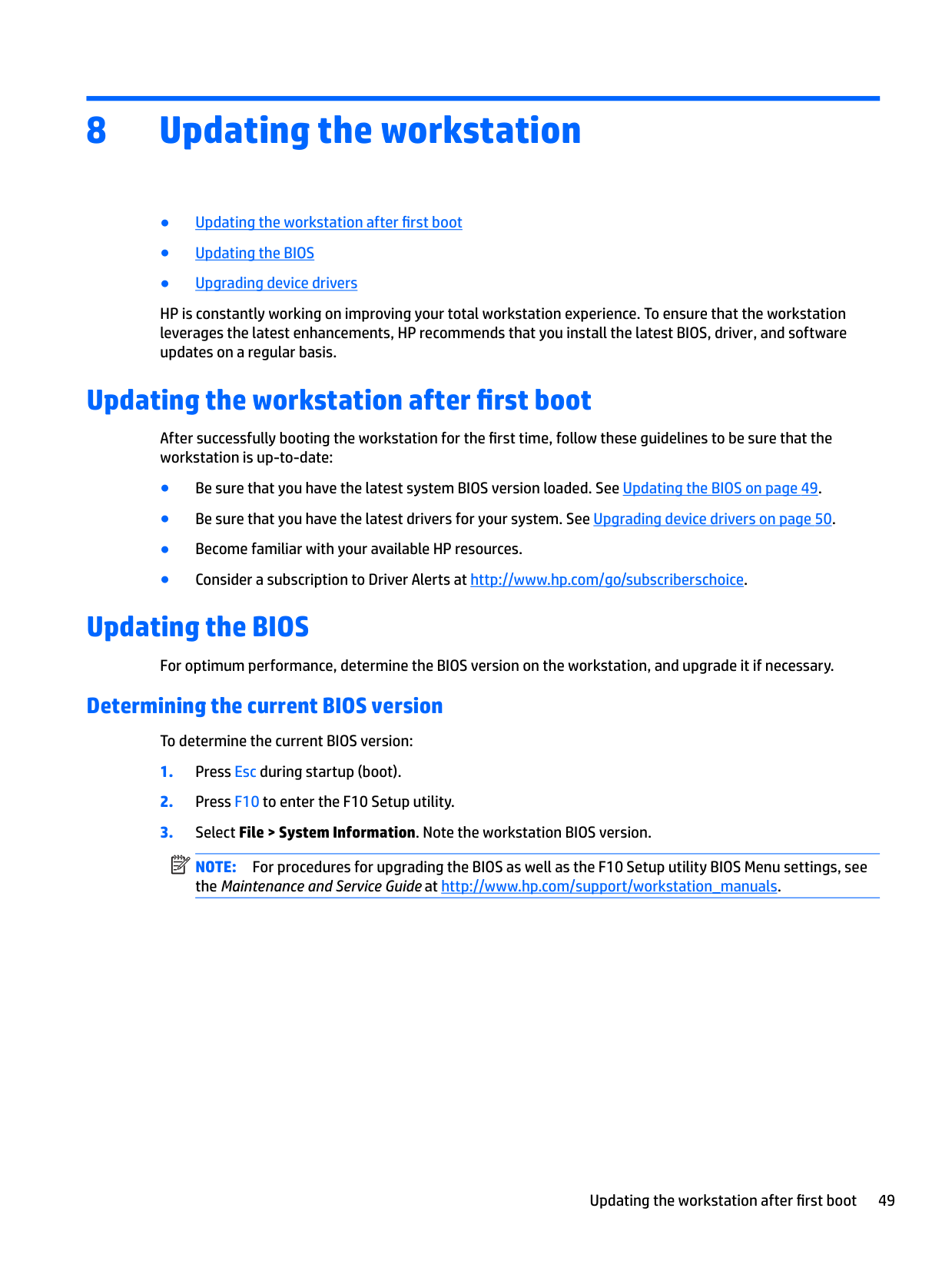
Updating the BIOS
For optimum performance, determine the BIOS version on the workstation, and upgrade it if necessary.
#### Determining the current BIOS version
To determine the current BIOS version:
| | |---|
NOTE: For procedures for upgrading the BIOS as well as the F10 Setup utility BIOS Menu settings, see the Maintenance and Service Guide at http://www.hp.com/support/workstation_manuals.
Updating the workstation after first boot 49
#### Upgrading BIOS
To find and download the latest available BIOS version, which includes the latest enhancements:
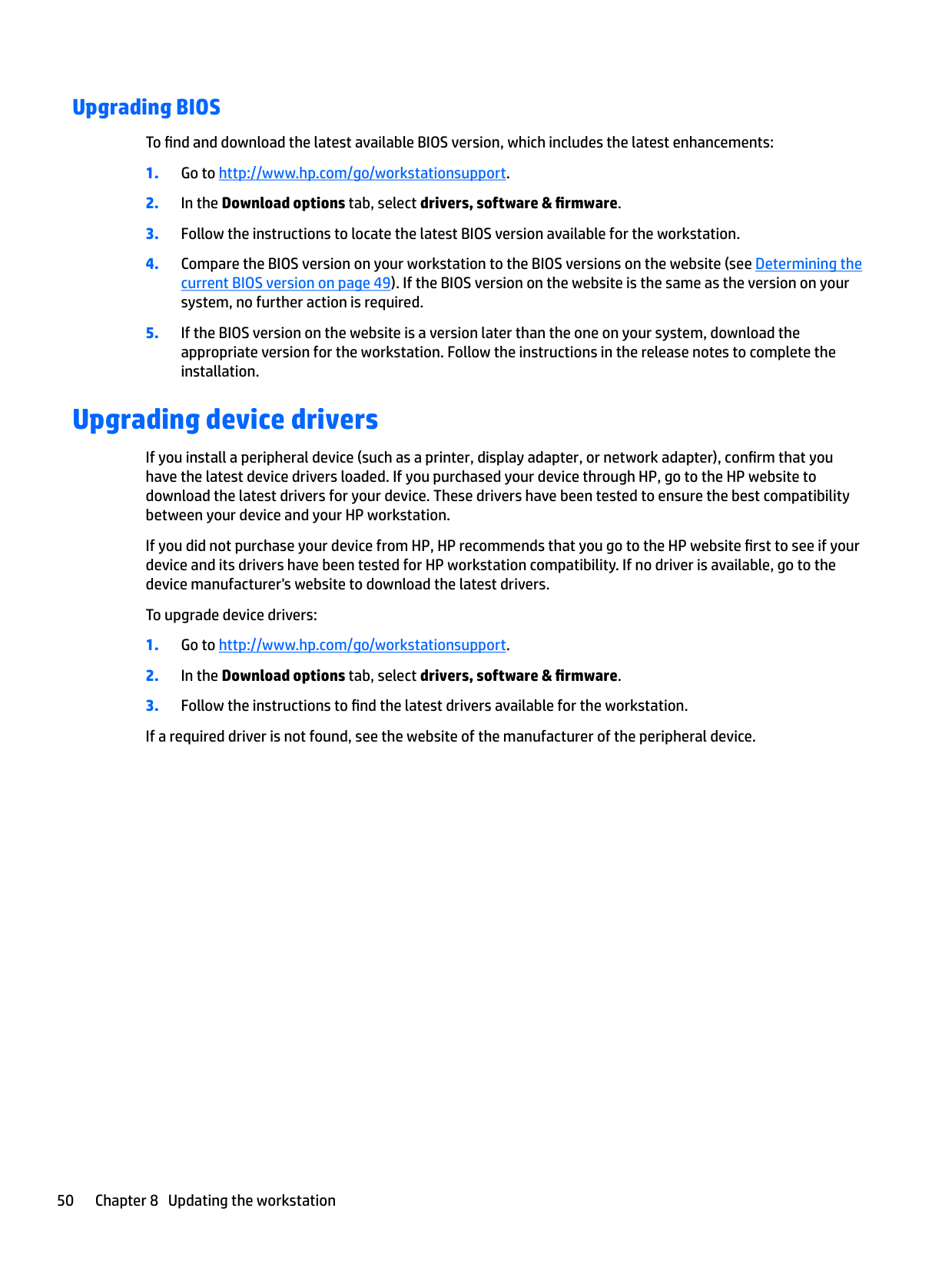
Upgrading device drivers
If you install a peripheral device (such as a printer, display adapter, or network adapter), confirm that you have the latest device drivers loaded. If you purchased your device through HP, go to the HP website to download the latest drivers for your device. These drivers have been tested to ensure the best compatibility between your device and your HP workstation.
If you did not purchase your device from HP, HP recommends that you go to the HP website first to see if your device and its drivers have been tested for HP workstation compatibility. If no driver is available, go to the device manufacturer's website to download the latest drivers.
To upgrade device drivers:
50 Chapter 8 Updating the workstation
9 Using HP PC Hardware Diagnostics (UEFI)
HP PC Hardware Diagnostics is a Unified Extensible Firmware Interface (UEFI) that allows you to run diagnostic tests to determine whether the computer hardware is functioning properly. The tool runs outside the operating system so that it can isolate hardware failures from issues that are caused by the operating system or other software components.
When HP PC Hardware Diagnostics (UEFI) detects a failure that requires hardware replacement, a 24-digit Failure ID code is generated. This ID code can then be provided to support to help determine how to correct the problem.
| | |---|
NOTE: To start diagnostics on a convertible computer, your computer must be in notebook mode and you must use the keyboard attached. To start HP PC Hardware Diagnostics (UEFI), follow these steps:
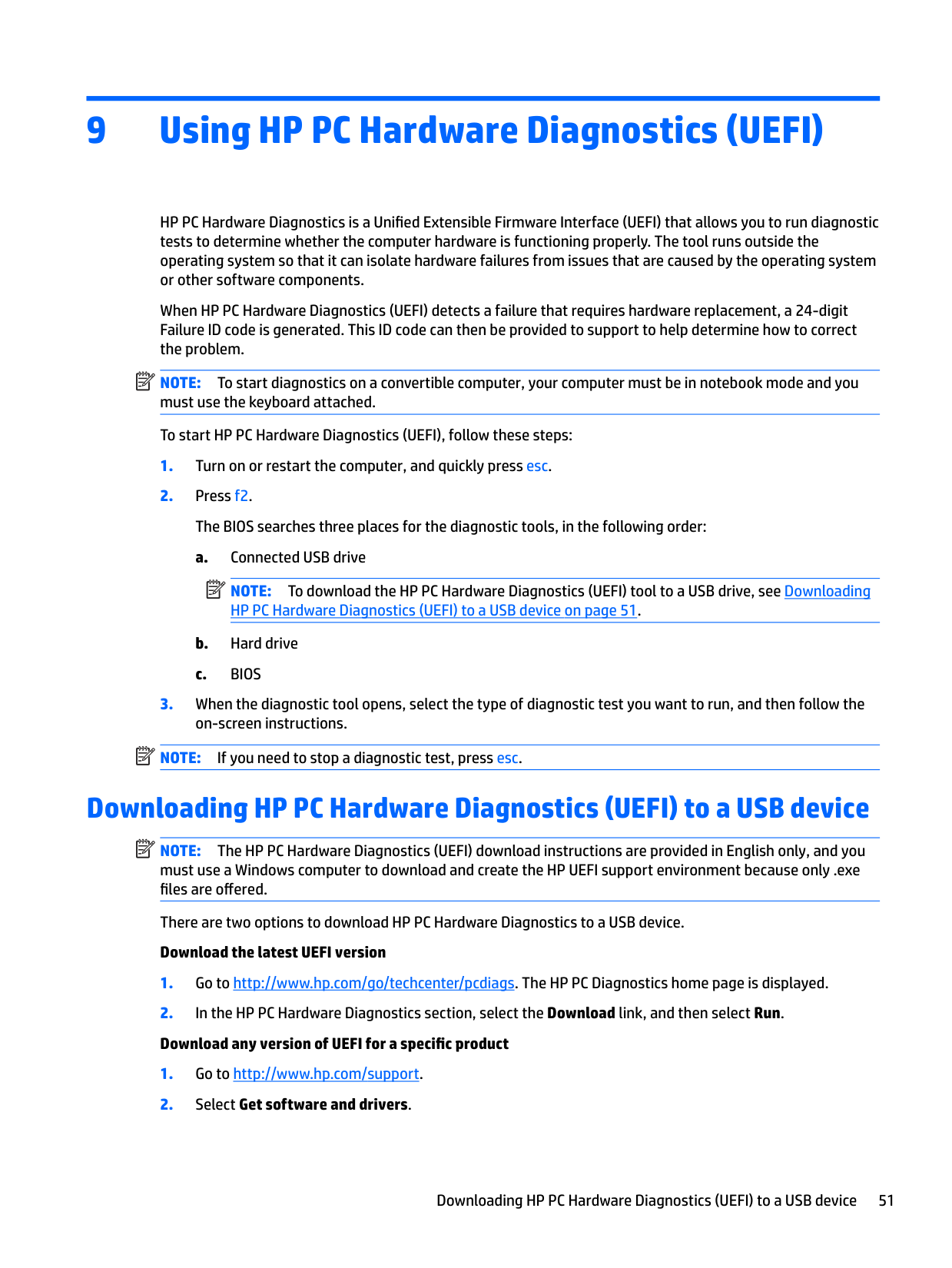
| | |---|
| | |---|
NOTE: If you need to stop a diagnostic test, press esc.
Downloading HP PC Hardware Diagnostics (UEFI) to a USB device
| | |---|
NOTE: The HP PC Hardware Diagnostics (UEFI) download instructions are provided in English only, and you must use a Windows computer to download and create the HP UEFI support environment because only .exe files are offered.
There are two options to download HP PC Hardware Diagnostics to a USB device. Download the latest UEFI version
Downloading HP PC Hardware Diagnostics (UEFI) to a USB device 51
– or – Select Identify now to let HP automatically detect your product.
Using Remote HP PC Hardware Diagnostics (UEFI) settings
Your computer supports Remote HP PC Hardware Diagnostics (UEFI). This is a firmware (BIOS) feature that downloads HP PC Hardware Diagnostics UEFI to your computer.
It executes the diagnostics on your computer, and then uploads results to a preconfigured server. Using the Remote HP PC Hardware Diagnostics setting in Computer Setup (BIOS), you can perform the following customizations:
#### Customizing Remote HP PC Hardware Diagnostics (UEFI) settings
To access documentation on using Remote HP PC Hardware Diagnostics (UEFI) to configure a server for remote diagnostics or to customize which diagnostic test are run, go to http://www.hp.com/support. Select Find your product, and then follow the on-screen instructions.
52 Chapter 9 Using HP PC Hardware Diagnostics (UEFI)
10 Diagnostics and minor troubleshooting
Calling support
At times you might encounter an issue that requires support. Before you call support, do the following:
| | |---|
NOTE: When calling in for service or support, you might be asked for the product number (example: PS988AV) of the workstation. If the workstation has a product number, it is generally located next to the 10or 12-digit serial number of the workstation.
| | |---|
NOTE: On most models, the serial number and product number labels can be found on the top or side panel and at the rear of the workstation (tower and desktop configurations) or on a pull-out card on the side of the display (all-in-one configurations).
For a listing of all worldwide support phone numbers, go to http://www.hp.com/support, select your region, and click Connect with HP in the upper-right corner.
Calling support 53
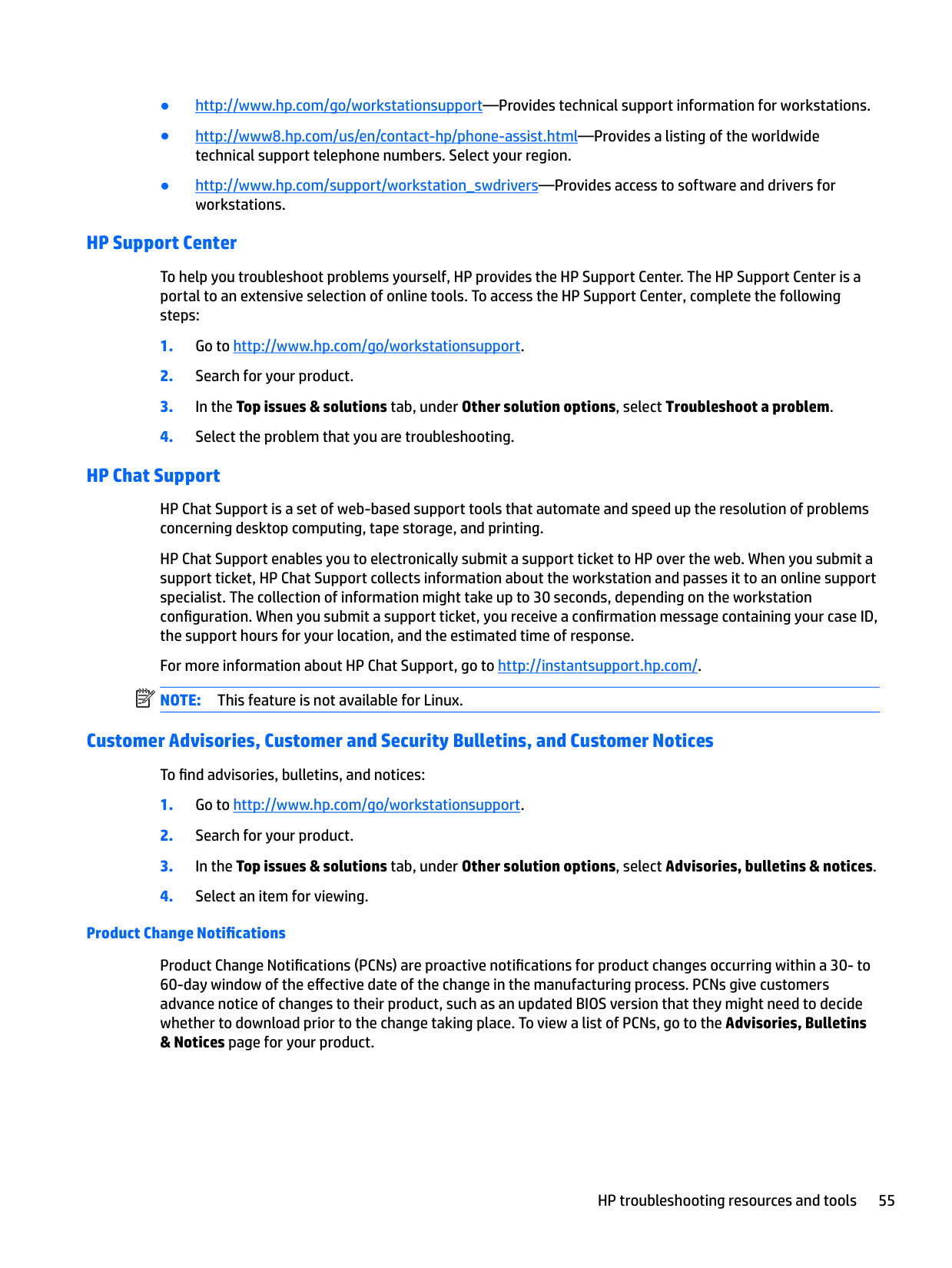
Locating ID labels
To assist in troubleshooting, identification labels are available on each workstation.
| | |---|
NOTE: Your workstation may look slightly different from the illustration in this section.

Locating warranty information To locate warranty information, go to http://www.hp.com/support/warranty-lookuptool. To locate an existing Care Pack, go to http://www.hp.com/go/lookuptool. To extend a standard product warranty, go to http://www.hp.com/hps/carepack. HP Care Pack Services offer upgraded service levels to extend and expand a standard product warranty.
HP troubleshooting resources and tools
This section provides information to guide you in troubleshooting your system.
#### Online support
Online support resources include web-based troubleshooting tools, technical knowledge databases, driver and patch downloads, online communities, and product change notification services.
The following websites are also available to you:
##### HP Support Center
To help you troubleshoot problems yourself, HP provides the HP Support Center. The HP Support Center is a portal to an extensive selection of online tools. To access the HP Support Center, complete the following steps:
##### HP Chat Support
HP Chat Support is a set of web-based support tools that automate and speed up the resolution of problems concerning desktop computing, tape storage, and printing.
HP Chat Support enables you to electronically submit a support ticket to HP over the web. When you submit a support ticket, HP Chat Support collects information about the workstation and passes it to an online support specialist. The collection of information might take up to 30 seconds, depending on the workstation configuration. When you submit a support ticket, you receive a confirmation message containing your case ID, the support hours for your location, and the estimated time of response.
| | |---|
For more information about HP Chat Support, go to http://instantsupport.hp.com/. NOTE: This feature is not available for Linux.
##### Customer Advisories, Customer and Security Bulletins, and Customer Notices
To find advisories, bulletins, and notices:
###### Product Change Notifications
Product Change Notifications (PCNs) are proactive notifications for product changes occurring within a 30- to 60-day window of the effective date of the change in the manufacturing process. PCNs give customers advance notice of changes to their product, such as an updated BIOS version that they might need to decide whether to download prior to the change taking place. To view a list of PCNs, go to the Advisories, Bulletins & Notices page for your product.
#### Helpful hints
If you encounter a problem with the workstation, monitor, or software, the following general suggestions might help you isolate and focus on the problem before taking further action.
##### At startup
— Verify that the monitor is plugged into a functional AC outlet.
— Verify that the monitor is on and the green monitor light is on.
— If the monitor is dim, turn up the brightness and contrast controls. During operation
If the system does not shut down, unplug the power cord, wait a few seconds, and then plug it in again. If the system does not restart, press the power button.
##### Customer Self Repair
Under the Customer Self Repair programs, you can order a replacement part and install the part without onsite HP technical assistance. Customer Self Repair might be required for some components. For more information, go to http://www.hp.com/go/selfrepair and select your product.
| | |---|
NOTE: Some components are not eligible for Customer Self Repair and must be returned to HP for service. Call support for further instructions before attempting to remove or repair these components.
##### More troubleshooting options
The following additional information about troubleshooting techniques and tools is provided in the Maintenance and Service Guide at http://www.hp.com/support/workstation_manuals:
11 Routine care
General cleaning safety precautions
Recommended cleaning products
Use the following products to safely clean your workstation:
CAUTION: Avoid strong cleaning solvents that can permanently damage your workstation. If you are
not sure if a cleaning product is safe for your workstation, check the product contents to be sure that ingredients such as alcohol, acetone, ammonium chloride, methylene chloride, and hydrocarbons are not included.
Cleaning the chassis
Cleaning the keyboard
CAUTION: Never remove a wide key (like the space bar key) from the keyboard. If these keys are improperly removed or installed, the keyboard might not function properly.
Cleaning the monitor
CAUTION: Do not use sprays or aerosols directly on the screen—the liquid might seep into the housing and damage a component. Never use solvents or flammable liquids on the monitor because display or housing damage may result.
Cleaning the chassis 59
Cleaning the mouse
12 Accessibility
HP designs, produces, and markets products and services that can be used by everyone, including people with disabilities, either on a stand-alone basis or with appropriate assistive devices.
Supported assistive technologies
HP products support a wide variety of operating system assistive technologies and can be configured to work with additional assistive technologies. Use the Search feature on your device to locate more information about assistive features.
| | |---|
NOTE: For additional information about a particular assistive technology product, contact customer support for that product.
Contacting support
We are constantly refining the accessibility of our products and services and welcome feedback from users. If you have an issue with a product or would like to tell us about accessibility features that have helped you, please contact us at (888) 259-5707, Monday through Friday, 6 a.m. to 9 p.m. Mountain Time. If you are deaf or hard-of-hearing and use TRS/VRS/WebCapTel, contact us if you require technical support or have accessibility questions by calling (877) 656-7058, Monday through Friday, 6 a.m. to 9 p.m. Mountain Time.
Supported assistive technologies 61
Index
assistive technologies 61 contacting support 61
Determining version 49 Updating 50
D Diagnostics and troubleshooting
Locating ID labels 54 Locating warranty info 54
drivers
installing 20 Updating 50 updating 20
Types 16
using 51 HP resources 1
L Linux
setup 42
M Monitors
Adjusting display 18 Connecting 17 Graphics cards 16
P product diagnostics 3 product documentation 3 Product features
Physical characteristics 11 product information 1
product updates 4
setup 43 restore media 32
restoring 46 setup 45
support 1, 2 accessibility 61
U Updating the workstation 49
First boot update 49 Updating drivers 50 Updating the BIOS 50
W Windows 10
backup and restore 36
Workstation components HP Z440 Workstation 5 HP Z440 Workstation front
panel 5 HP Z440 Workstation rear panel
6 HP Z640 Workstation 7 HP Z640 Workstation front
panel 7 HP Z640 Workstation rear panel 8 HP Z840 Workstation 9
HP Z840 Workstation front panel 9 HP Z840 Workstation rear panel
10 Workstation features 5 Workstation setup 12
Connecting monitors 14 Customizing the display 18 Ensuring proper ventilation 12 Security 18 Setup procedures 13
62 Index