
Ask AI
— answers from the official manualAnswers from the official manual.
Common questions
Common Questions
17 totalWhat operating systems are compatible with Lenovo Dock Manager?
Dock Manager is compatible with Windows 10 and above. It is designed to work with any PC make or model running Windows 10 or higher, making compatibility a non-issue for most users. (Page 2)
Which Lenovo docks are supported by Dock Manager?
Dock Manager supports a wide range of Lenovo docks including ThinkPad USB-C Dock Gen 1 and Gen 2, ThinkPad Thunderbolt 3 Dock Gen 1 and Gen 2, ThinkPad Thunderbolt 3 Workstation Dock Gen 2, ThinkPad Hybrid USB-C With USB-A Dock, Lenovo Thunderbolt 3 Essential Dock, ThinkPad Universal USB-C Dock, ThinkPad Universal Thunderbolt 4 Dock, and ThinkPad Thunderbolt 4 Workstation Dock. It was designed for easy integration with past and future Lenovo docking solutions. (Page 2)
How does Dock Manager handle firmware updates automatically?
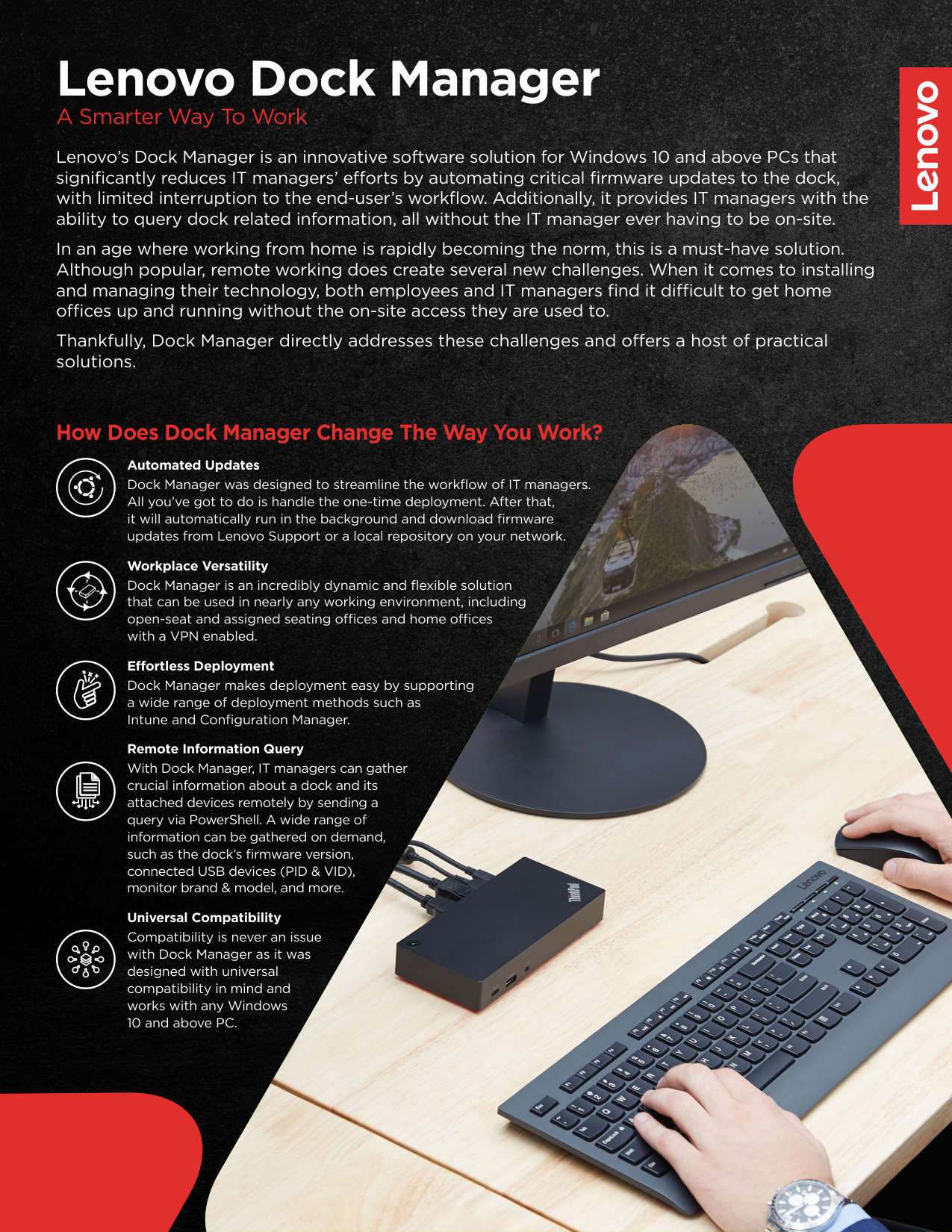
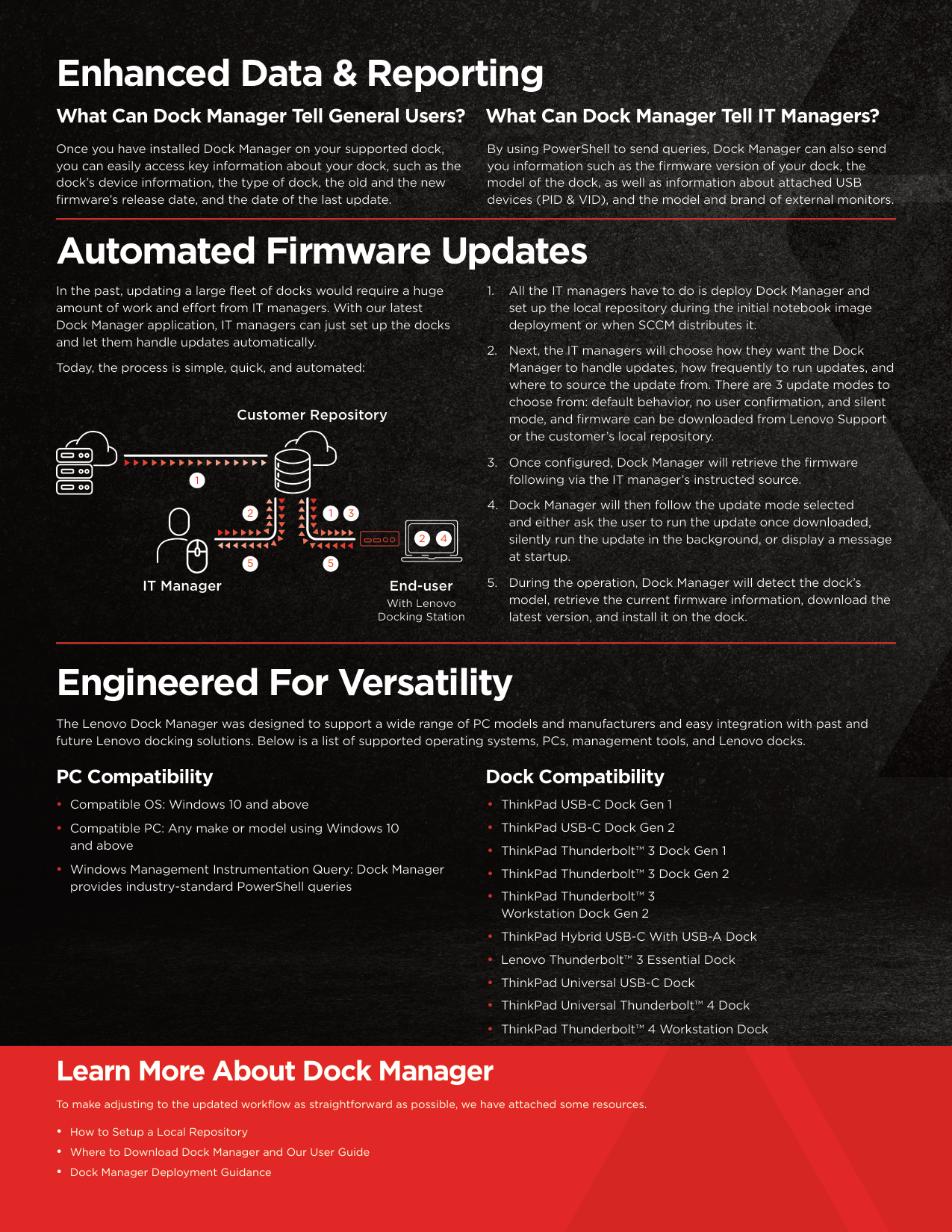
Once deployed and configured, Dock Manager automatically runs in the background, downloads firmware updates from Lenovo Support or a local repository, and installs them on the dock. During the operation, it detects the dock's model, retrieves the current firmware information, downloads the latest version, and installs it. (Page 2)
What are the different update modes available in Dock Manager?
There are 3 update modes to choose from: default behavior, no user confirmation, and silent mode. IT managers can select whichever mode best suits their workflow, and firmware can be sourced from either Lenovo Support or a customer's local repository. (Page 2)
Can Dock Manager be used in a work-from-home or VPN environment?
Yes, Dock Manager is designed to work in nearly any working environment, including home offices with a VPN enabled. It is described as an incredibly dynamic and flexible solution suitable for open-seat offices, assigned seating offices, and remote home setups. (Page 1)
What deployment methods does Dock Manager support?
Dock Manager supports a wide range of deployment methods including Intune and Configuration Manager. IT managers can also deploy it during the initial notebook image deployment or when SCCM distributes it. (Pages 1–2)
Show 11 more questions
What information can IT managers query remotely using Dock Manager?
What dock information is available to general end-users through Dock Manager?
What does an IT manager need to do initially to set up Dock Manager?
Does Dock Manager require the IT manager to be physically on-site to manage dock updates?
How often should I update my Lenovo dock using Dock Manager?
Can I use PowerShell to query dock information?
Which operating systems are supported by Lenovo Dock Manager?
What firmware update options does Dock Manager offer?
How can I ensure smooth integration with existing Lenovo docks?
Can I monitor the status of firmware updates?
Where can I find deployment guidance for Lenovo Dock Manager?
Full Manual
29 pages
LENOVO DOCK MANAGER APPLICATION
| | |---|
<Table of Contents>



PowerShell Query.................................................................................................................................................................6 DOCKDEVICEUSB CLASS .............................................................................................................................................................. 7 PowerShell Query................................................................................................................................................................. 7 DOCKDEVICEDISPLAYPORTCLASS.................................................................................................................................................. 7 PowerShell Query................................................................................................................................................................. 7


DOCKMANAGER CLASS.................................................................................................................................................................8 PowerShell Query All Update History ..................................................................................................................................8 PowerShell Query Specific Dock’s Update History...............................................................................................................8


DOCKINFO CLASS.........................................................................................................................................................................9 PowerShell Query (Truncated DockInfo List).......................................................................................................................9 PowerShell Query.................................................................................................................................................................9


Changing the Group Policies ...............................................................................................................................................13

CONFIGURING THE FIRMWARE DOWNLOAD ANDUPDATEBEHAVIOR ................................................................................................ 14 Enable No User Confirmation..............................................................................................................................................14 Enable Silent Mode..............................................................................................................................................................14



CONFIGURE LOG SETTINGS ...........................................................................................................................................................15 Change Number of Days Before Log Files are Deleted ........................................................................................................15 Configure Log File Max Size Before Creating a New Log File...............................................................................................15


CONFIGURE REPOSITORY LOCATION ............................................................................................................................................. 16 CONFIGURE TASK SCHEDULER ......................................................................................................................................................17


DAILY.................................................................................................................................................................................. 18 WEEKLY ...............................................................................................................................................................................19 MONTHLY (By RunDay) ...................................................................................................................................................... 20 MONTHLY (By RunMonthlyOn) .......................................................................................................................................... 22




CONFIGURE PROXY..................................................................................................................................................................... 23 UPDATE SOFTWARE....................................................................................................................................................................24


APPLICATION GROUPPOLICY SETTINGSREGISTRY.......................................................................................................................... 27 Values under General group............................................................................................................................................... 27 Values under Scheduler group ........................................................................................................................................... 28
1 Introduction
Dock Manager is designed for Lenovo Enterprise customers who are using Lenovo Dock Devices to: aid with updating the firmware of their Lenovo Dock Devices, run automatic firmware check and download, and provide user friendly prompts for update execution upon firmware download completion. This document demonstrates the transitions within screens along with the actions on how to interact with the application.
2 Screen Definitions
In the proceeding sections, different screens are stated along with their respective functionalities. The Dock Manager App currently has 2 existing screens: Dock Device Information Screen and Update History Screen; it also supports system tray behavior and a help button on the title bar for accessibility.

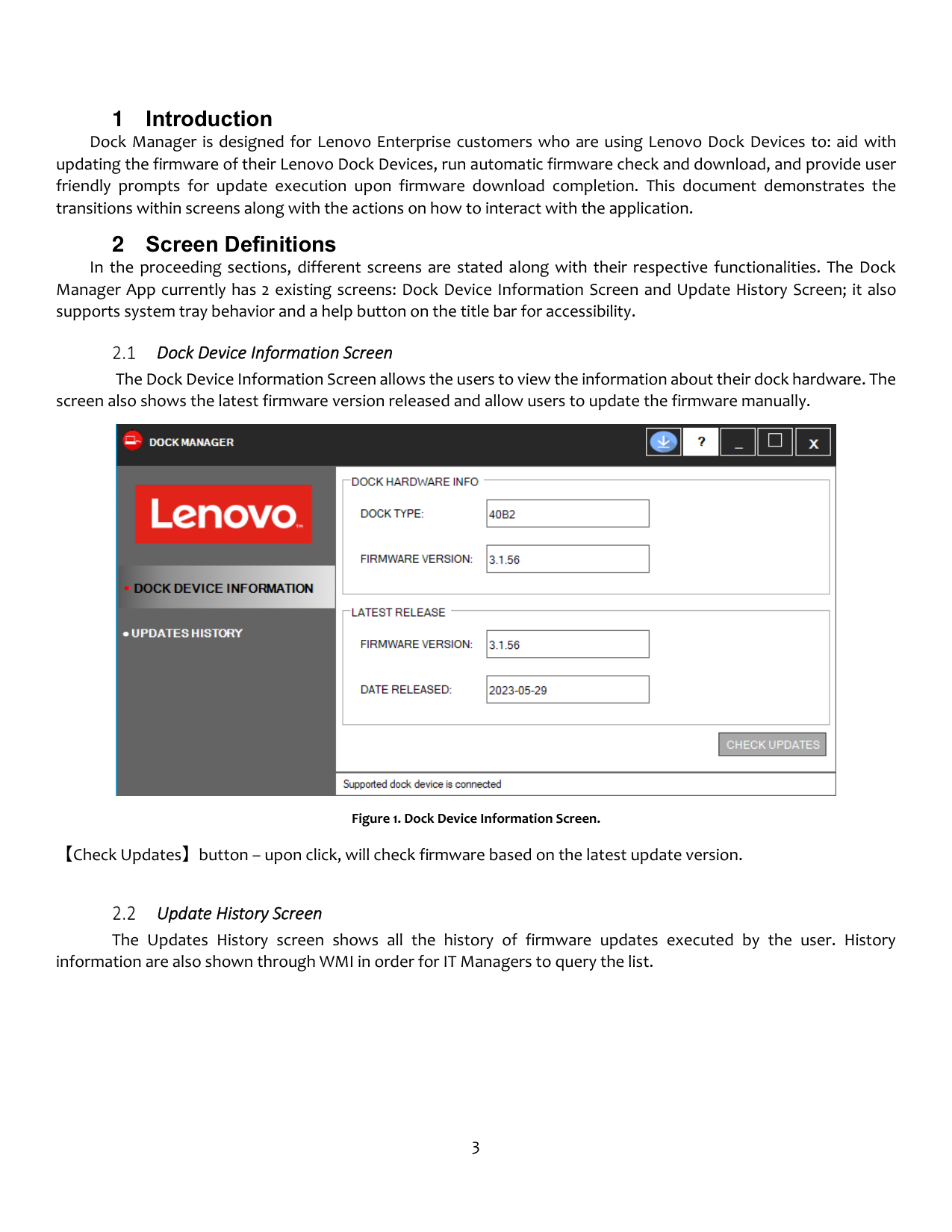
Dock Device Information Screen
The Dock Device Information Screen allows the users to view the information about their dock hardware. The screen also shows the latest firmware version released and allow users to update the firmware manually.

Figure 1. Dock Device Information Screen.
【Check Updates】button – upon click, will check firmware based on the latest update version.

Update History Screen
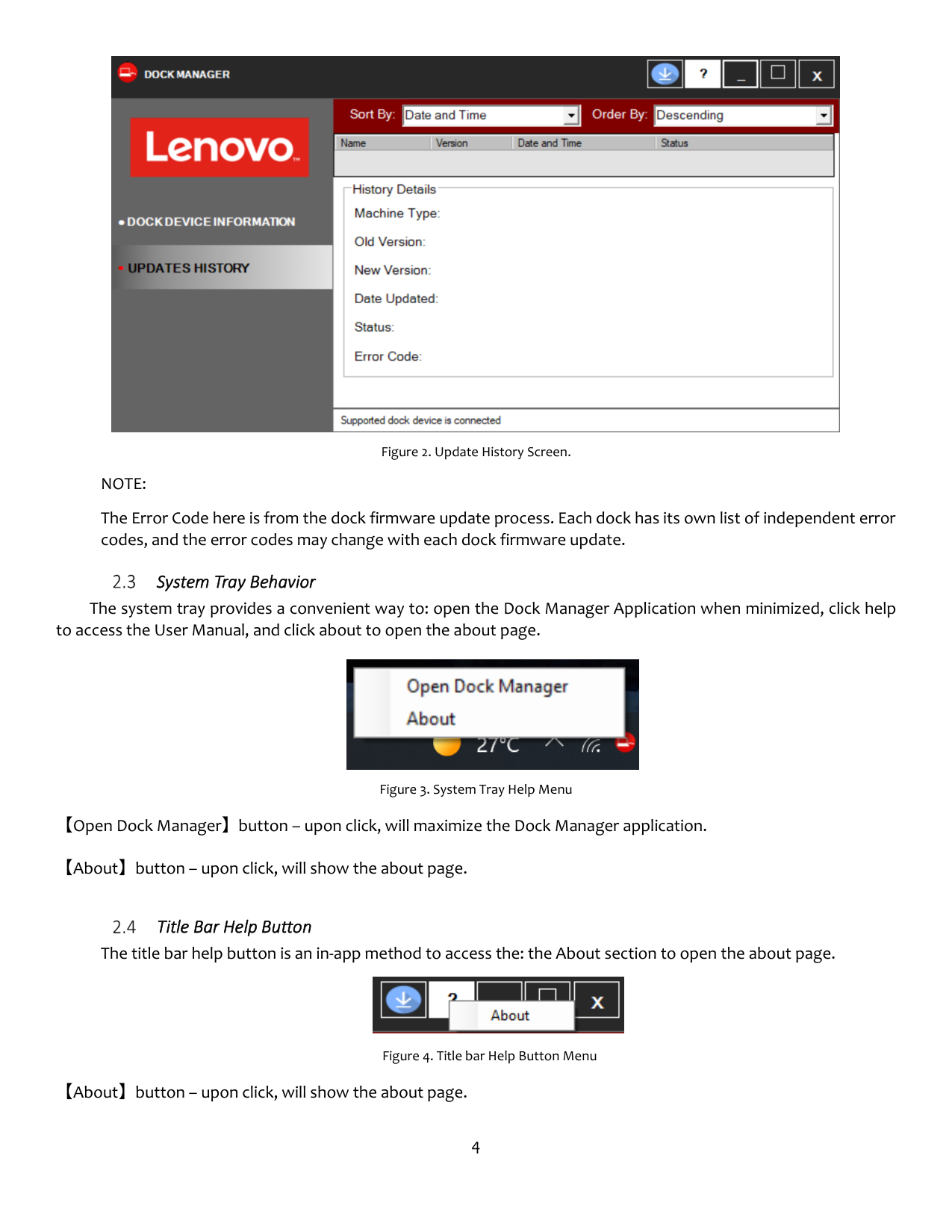
The Updates History screen shows all the history of firmware updates executed by the user. History information are also shown through WMI in order for IT Managers to query the list.

Figure 2. Update History Screen.
NOTE: The Error Code here is from the dock firmware update process. Each dock has its own list of independent error codes, and the error codes may change with each dock firmware update.

System Tray Behavior
The system tray provides a convenient way to: open the Dock Manager Application when minimized, click help to access the User Manual, and click about to open the about page.

Figure 3. System Tray Help Menu
【Open Dock Manager】button – upon click, will maximize the Dock Manager application.
【About】button – upon click, will show the about page.

Title Bar Help Button
The title bar help button is an in-app method to access the: the About section to open the about page.

Figure 4. Title bar Help Button Menu 【About】button – upon click, will show the about page.

Title Bar Download Button
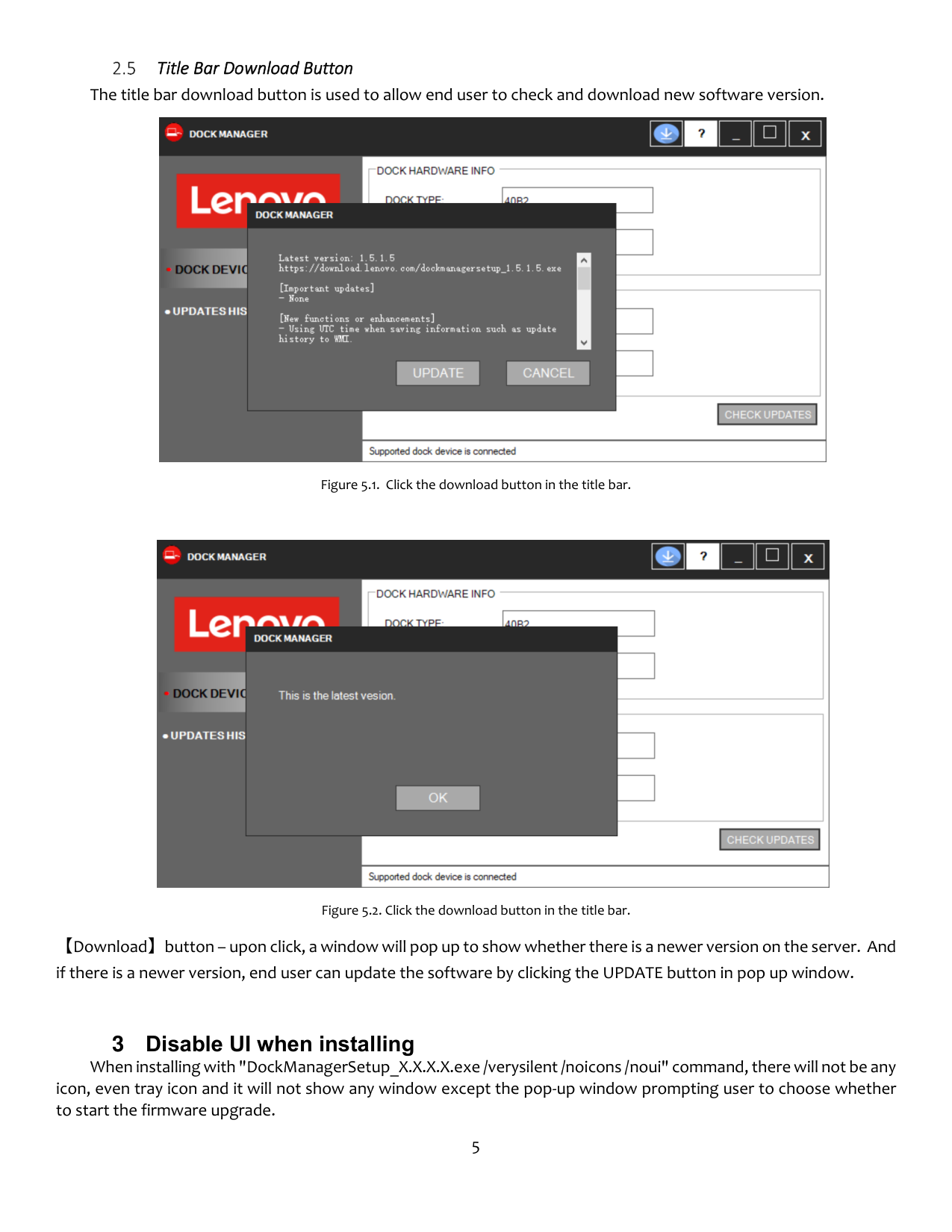
The title bar download button is used to allow end user to check and download new software version.


【Download】button – upon click, a window will pop up to show whether there is a newer version on the server. And if there is a newer version, end user can update the software by clicking the UPDATE button in pop up window.
3 Disable UI when installing
When installing with "DockManagerSetup_X.X.X.X.exe /verysilent /noicons /noui" command, there will not be any icon, even tray icon and it will not show any window except the pop-up window prompting user to choose whether to start the firmware upgrade.
4 WMI Queries
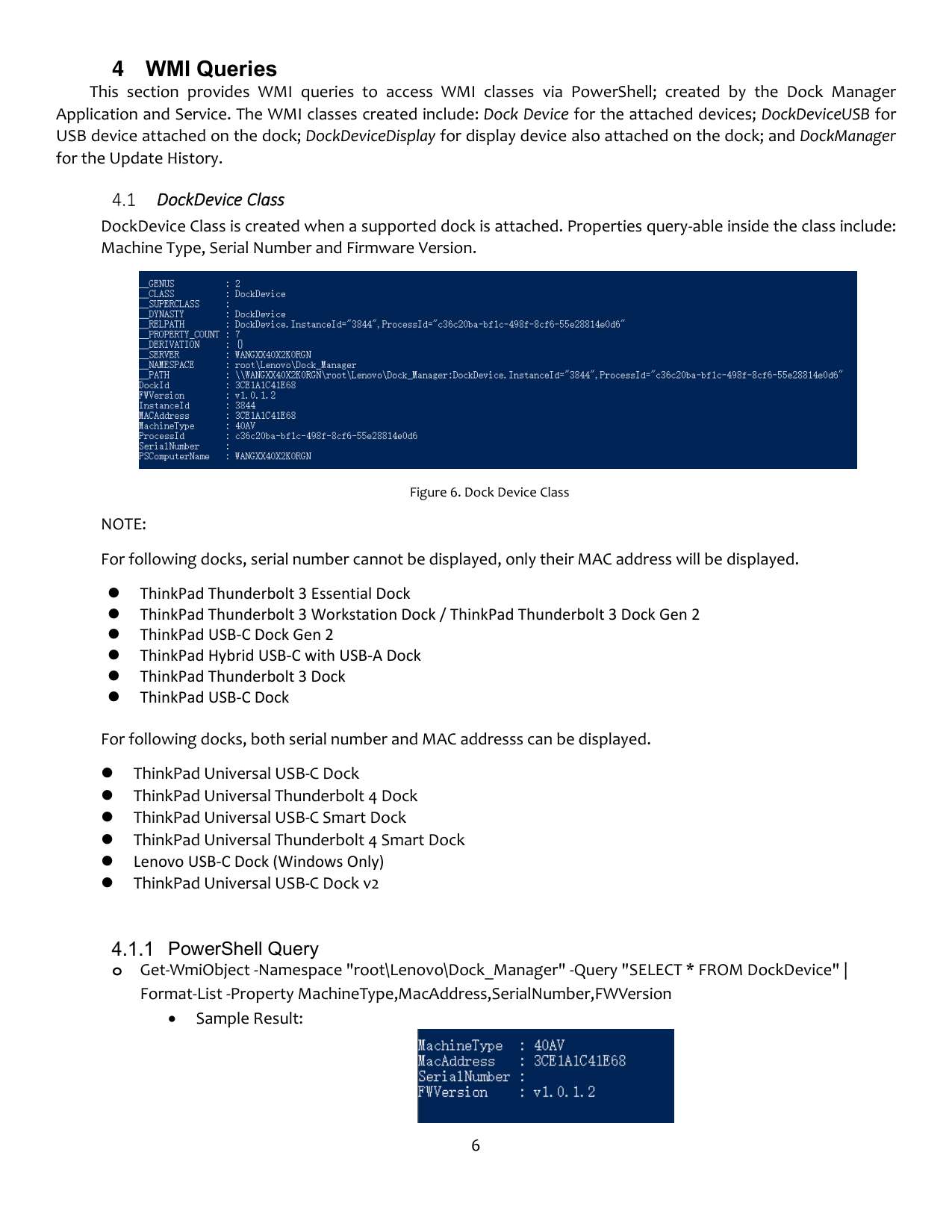
This section provides WMI queries to access WMI classes via PowerShell; created by the Dock Manager Application and Service. The WMI classes created include: Dock Device for the attached devices; DockDeviceUSB for USB device attached on the dock; DockDeviceDisplay for display device also attached on the dock; and DockManager for the Update History.
DockDevice Class DockDevice Class is created when a supported dock is attached. Properties query-able inside the class include: Machine Type, Serial Number and Firmware Version.
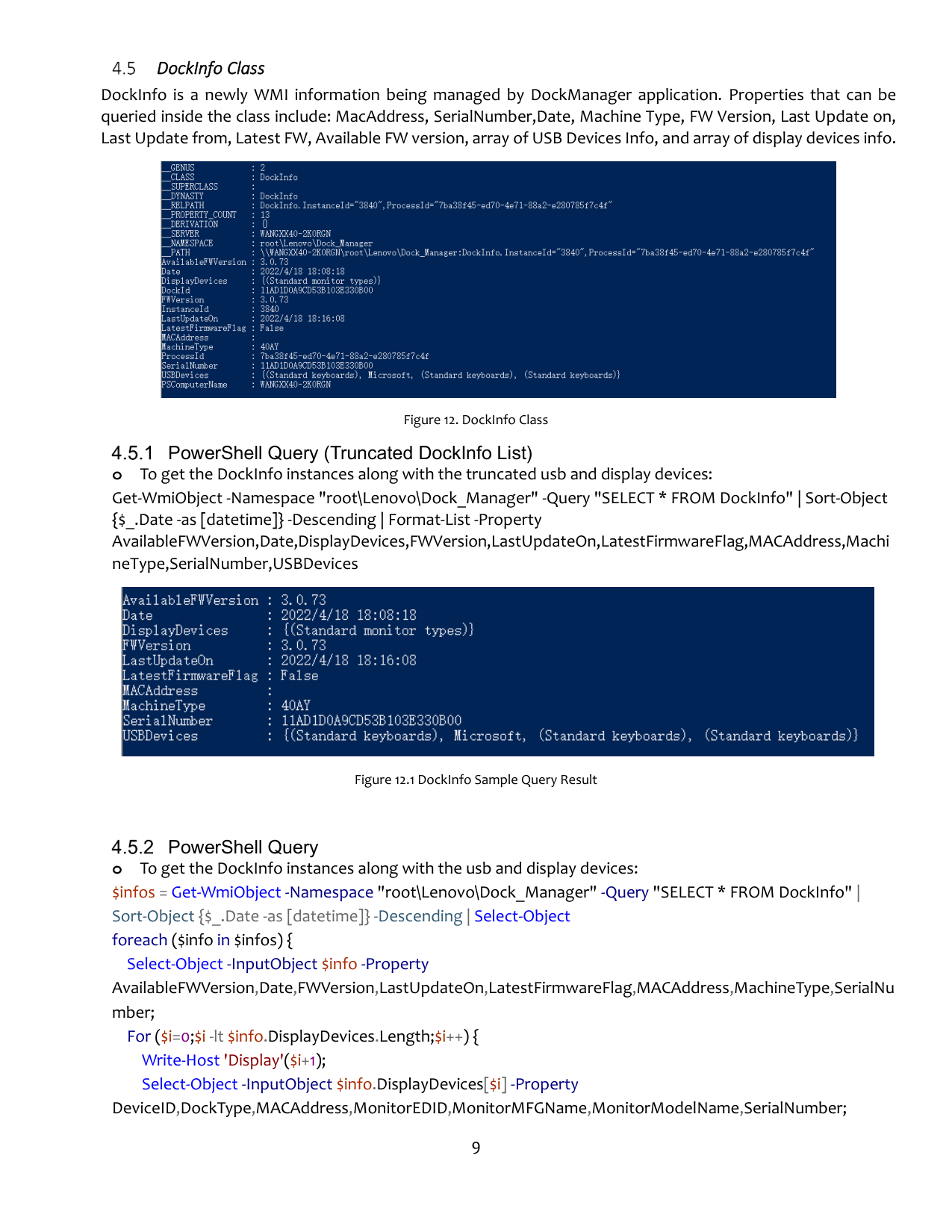


Figure 6. Dock Device Class
NOTE: For following docks, serial number cannot be displayed, only their MAC address will be displayed.
⚫ ThinkPad Thunderbolt 3 Essential Dock
⚫ ThinkPad Thunderbolt 3 Workstation Dock / ThinkPad Thunderbolt 3 Dock Gen 2
⚫ ThinkPad USB-C Dock Gen 2
⚫ ThinkPad Hybrid USB-C with USB-A Dock
⚫ ThinkPad Thunderbolt 3 Dock
⚫ ThinkPad USB-C Dock For following docks, both serial number and MAC addresss can be displayed.
⚫ ThinkPad Universal USB-C Dock
⚫ ThinkPad Universal Thunderbolt 4 Dock
⚫ ThinkPad Universal USB-C Smart Dock
⚫ ThinkPad Universal Thunderbolt 4 Smart Dock
⚫ Lenovo USB-C Dock (Windows Only)
⚫ ThinkPad Universal USB-C Dock v2
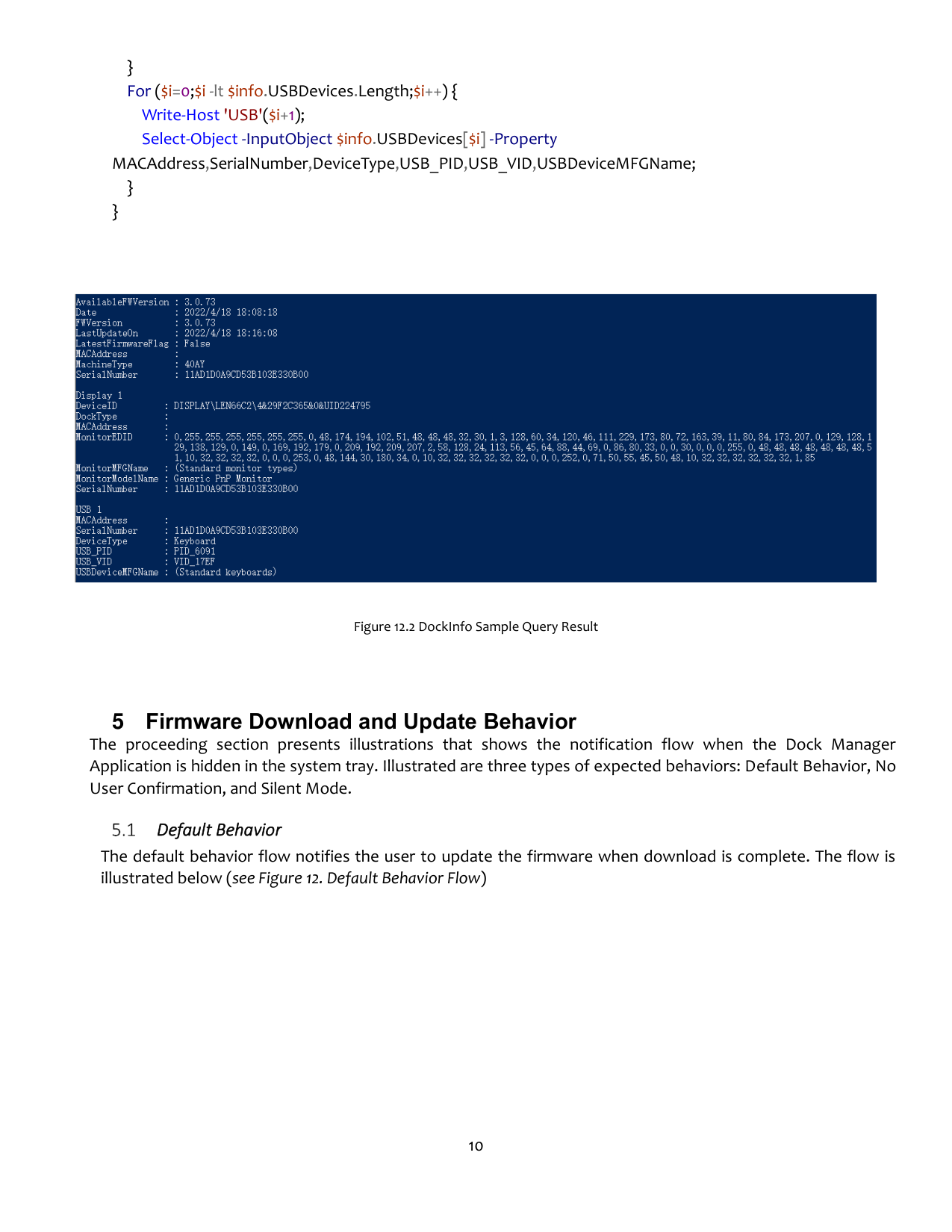
PowerShell Query

o Get-WmiObject -Namespace "root\Lenovo\Dock_Manager" -Query "SELECT * FROM DockDevice" |
Format-List -Property MachineType,MacAddress,SerialNumber,FWVersion
• Sample Result:

Figure 7. DockDevice Sample Query Result
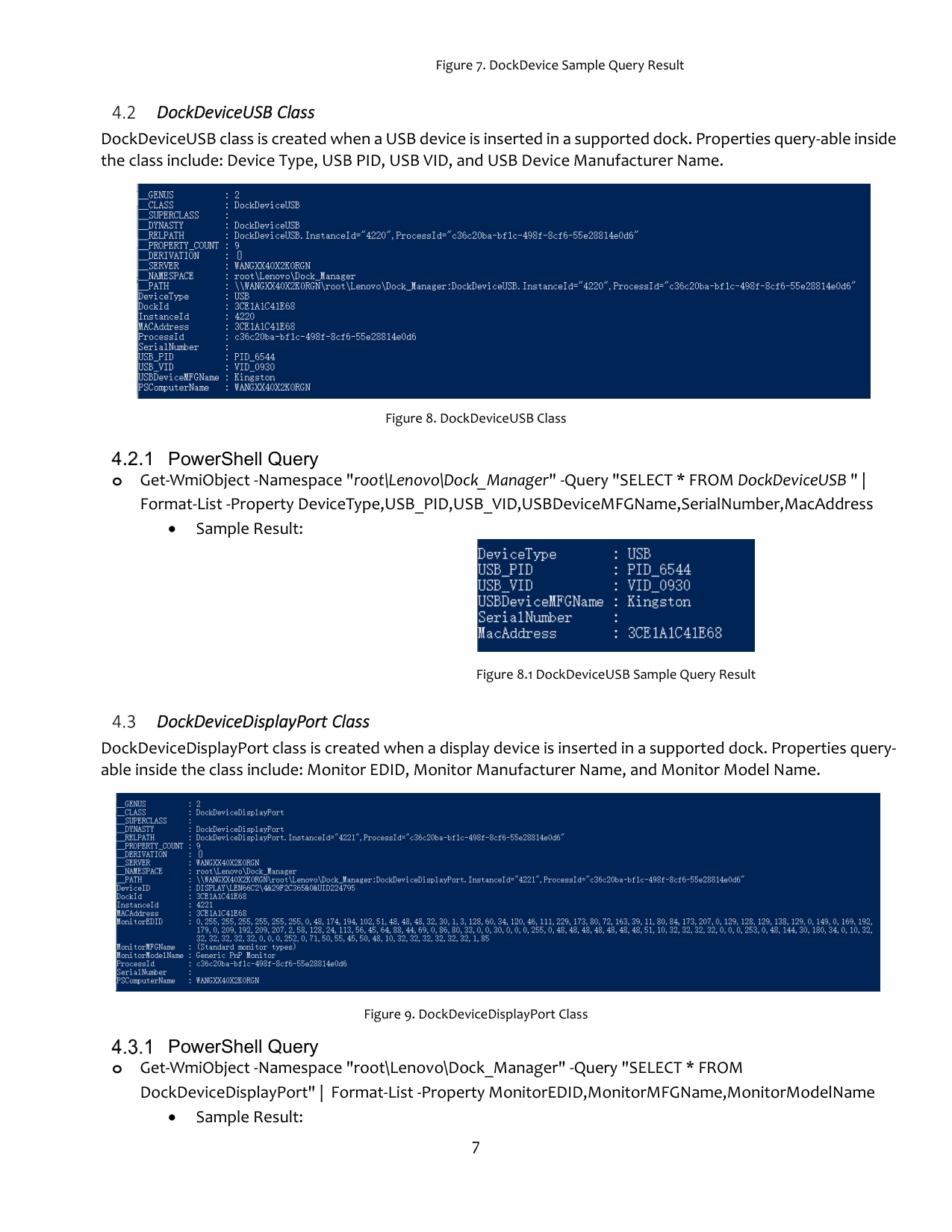
DockDeviceUSB Class DockDeviceUSB class is created when a USB device is inserted in a supported dock. Properties query-able inside the class include: Device Type, USB PID, USB VID, and USB Device Manufacturer Name.

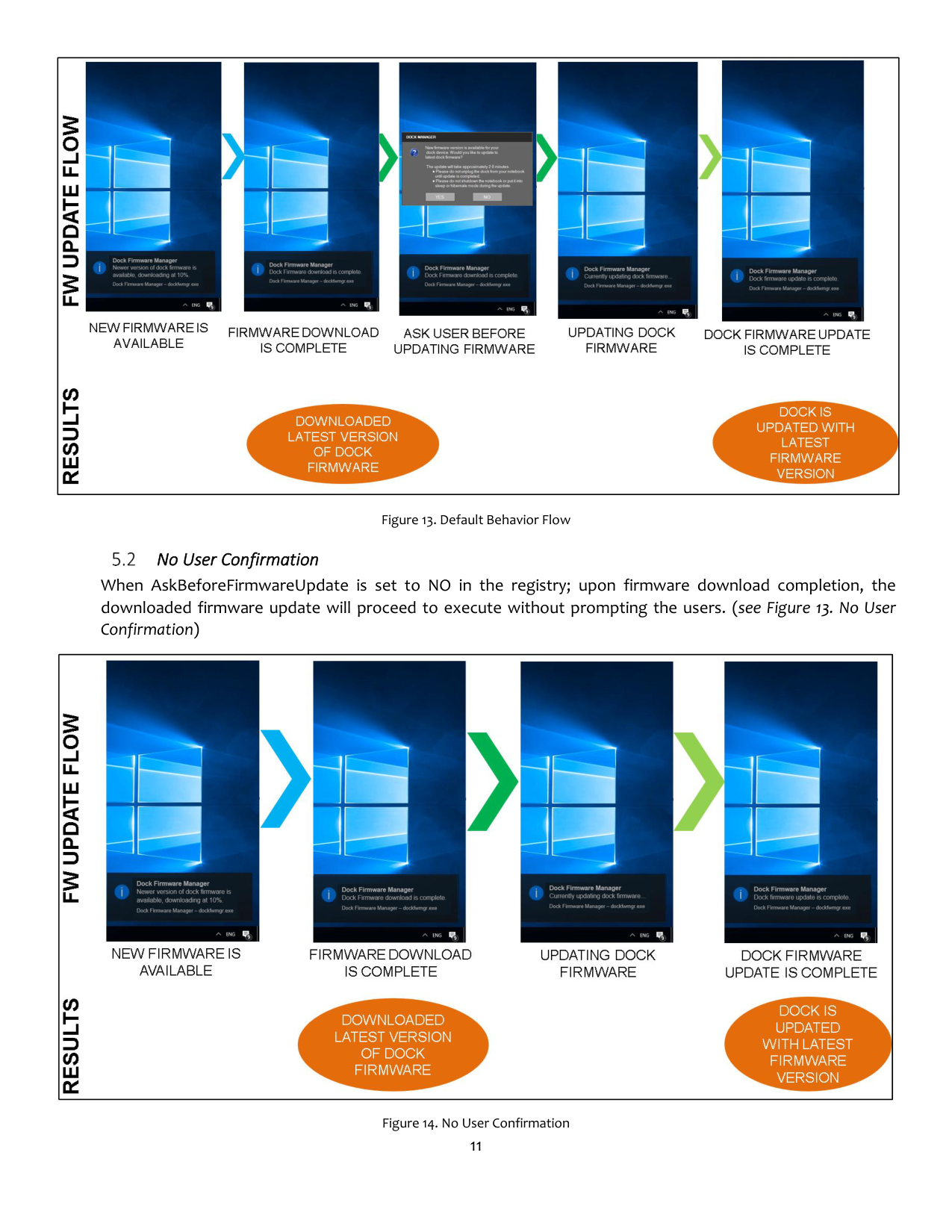

Figure 8. DockDeviceUSB Class PowerShell Query

o Get-WmiObject -Namespace "root\Lenovo\Dock_Manager" -Query "SELECT * FROM DockDeviceUSB " |
Format-List -Property DeviceType,USB_PID,USB_VID,USBDeviceMFGName,SerialNumber,MacAddress
• Sample Result:

Figure 8.1 DockDeviceUSB Sample Query Result
DockDeviceDisplayPort Class DockDeviceDisplayPort class is created when a display device is inserted in a supported dock. Properties queryable inside the class include: Monitor EDID, Monitor Manufacturer Name, and Monitor Model Name.


Figure 9. DockDeviceDisplayPort Class PowerShell Query

o Get-WmiObject -Namespace "root\Lenovo\Dock_Manager" -Query "SELECT * FROM
DockDeviceDisplayPort" | Format-List -Property MonitorEDID,MonitorMFGName,MonitorModelName
• Sample Result:


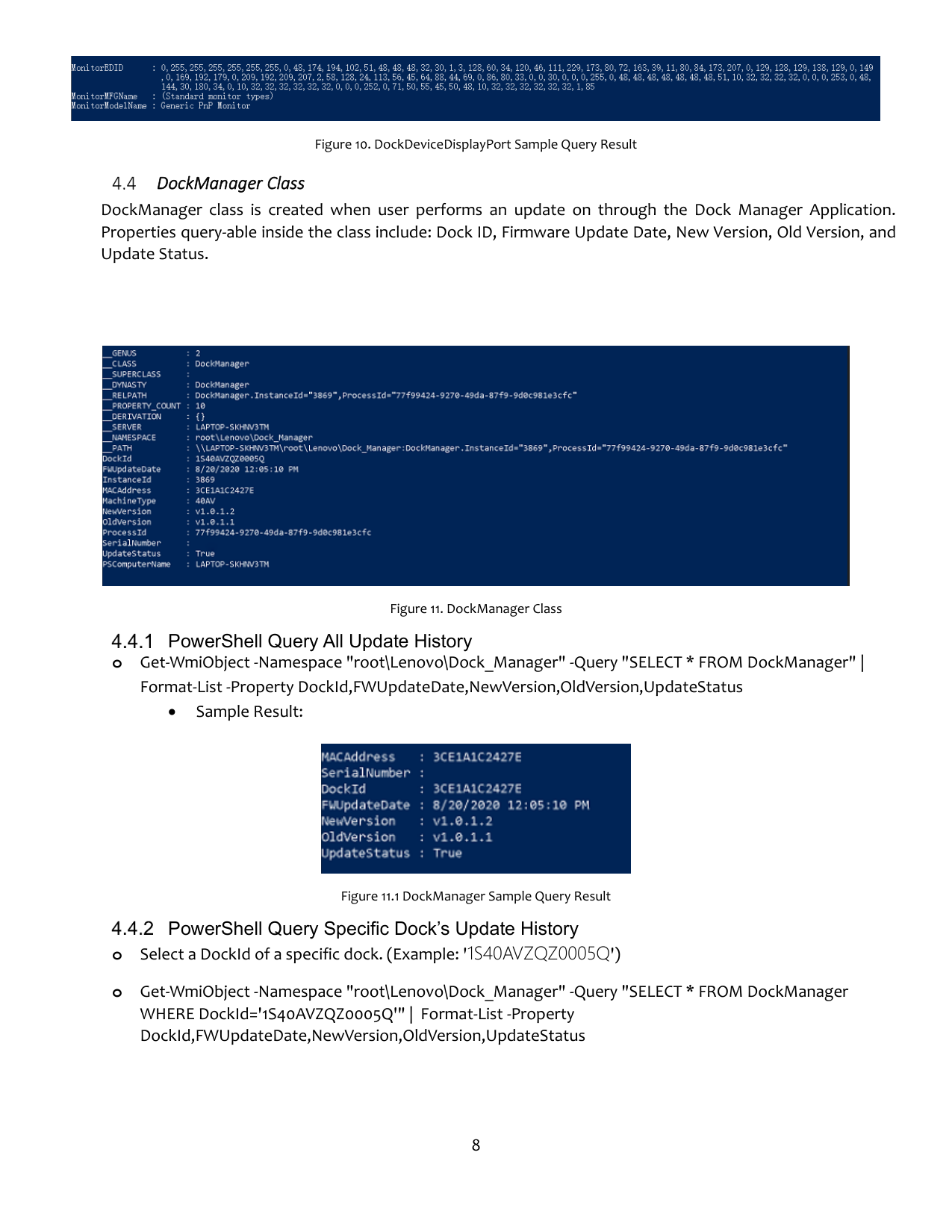
Figure 10. DockDeviceDisplayPort Sample Query Result DockManager Class
DockManager class is created when user performs an update on through the Dock Manager Application. Properties query-able inside the class include: Dock ID, Firmware Update Date, New Version, Old Version, and Update Status.

Figure 11. DockManager Class PowerShell Query All Update History

• Sample Result:
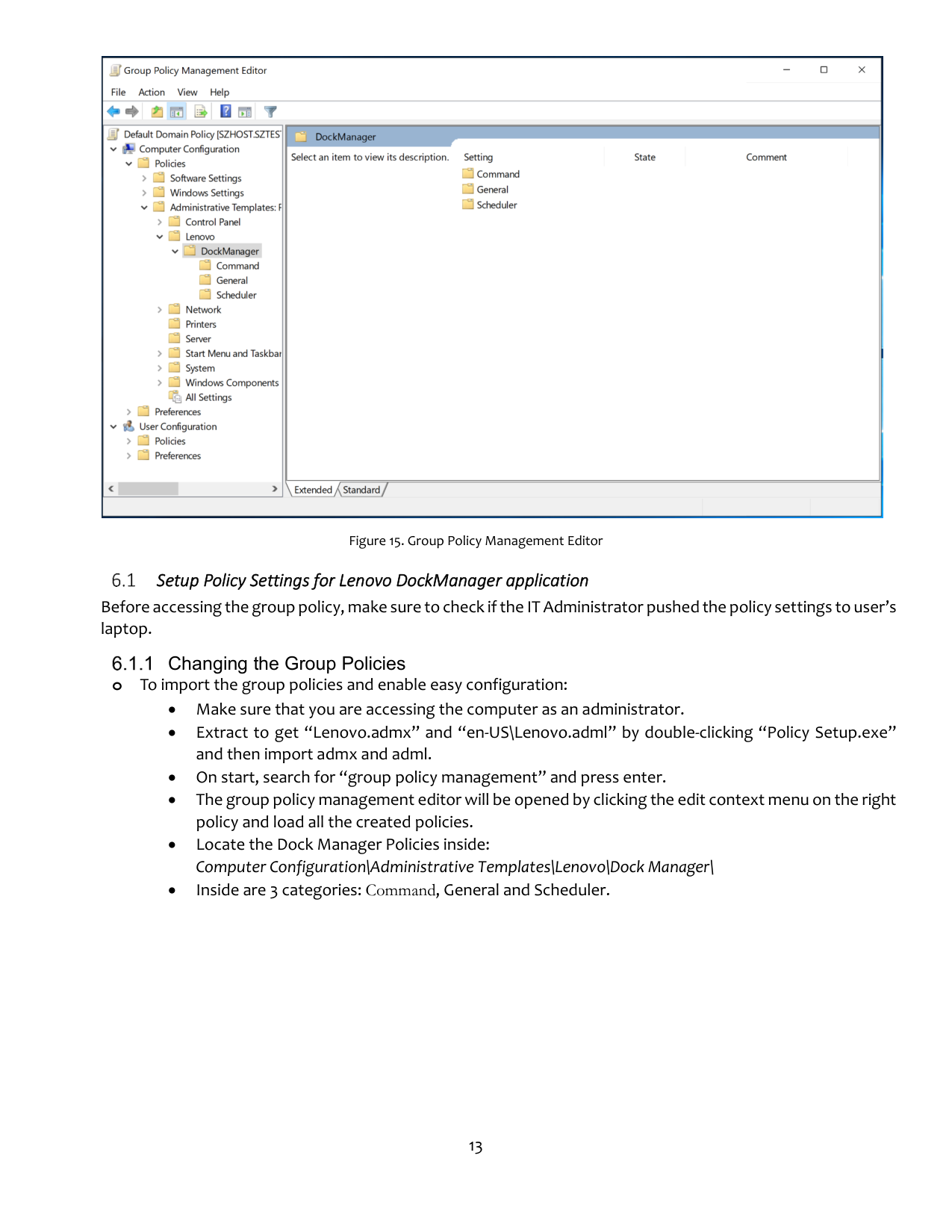
Figure 11.1 DockManager Sample Query Result PowerShell Query Specific Dock’s Update History


DockInfo Class
DockInfo is a newly WMI information being managed by DockManager application. Properties that can be queried inside the class include: MacAddress, SerialNumber,Date, Machine Type, FW Version, Last Update on, Last Update from, Latest FW, Available FW version, array of USB Devices Info, and array of display devices info.

Figure 12. DockInfo Class PowerShell Query (Truncated DockInfo List)

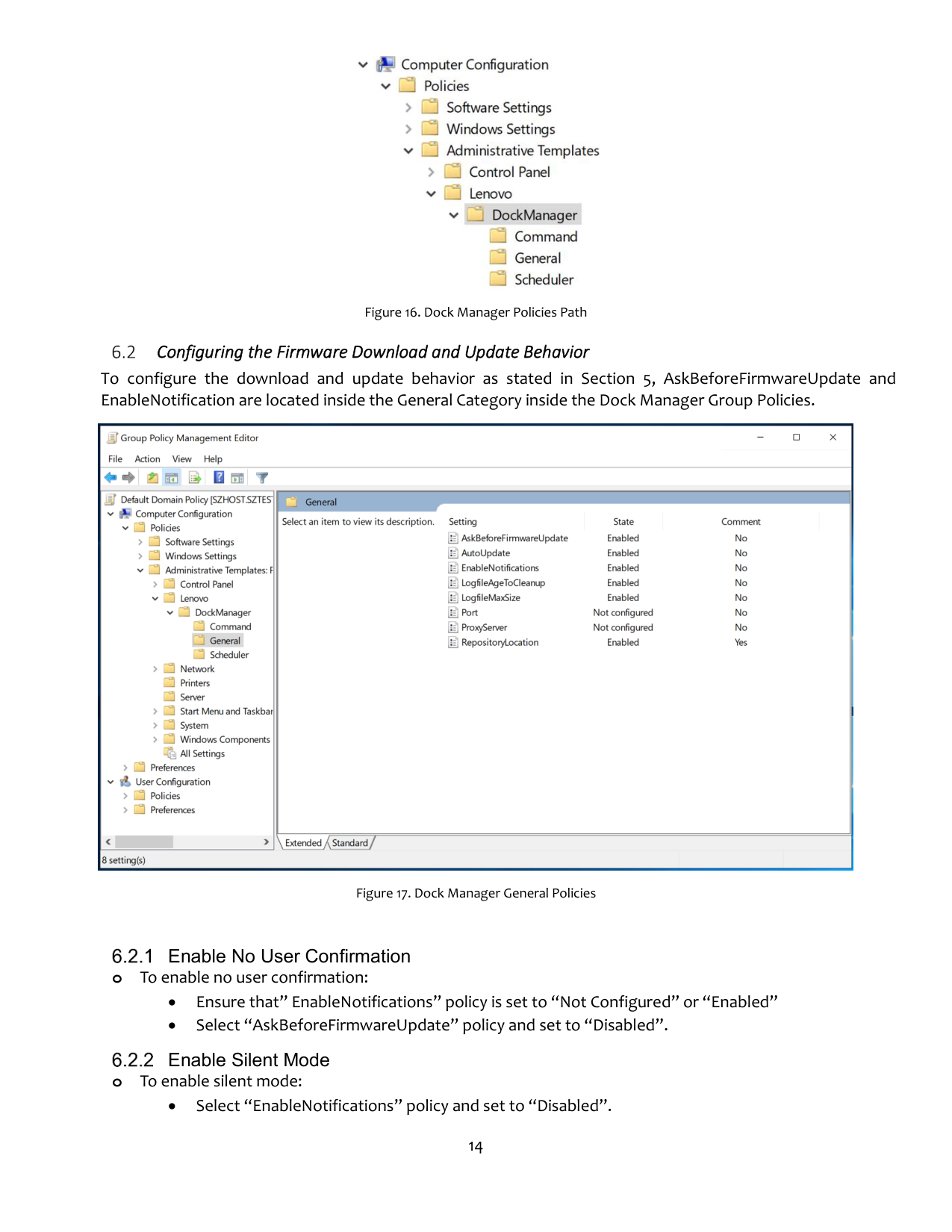
Figure 12.1 DockInfo Sample Query Result

PowerShell Query

Select-Object -InputObject $info -Property AvailableFWVersion,Date,FWVersion,LastUpdateOn,LatestFirmwareFlag,MACAddress,MachineType,SerialNu mber;
For ($i=0;$i -lt $info.DisplayDevices.Length;$i++) { Write-Host 'Display'($i+1); Select-Object -InputObject $info.DisplayDevices[$i] -Property
DeviceID,DockType,MACAddress,MonitorEDID,MonitorMFGName,MonitorModelName,SerialNumber;
} For ($i=0;$i -lt $info.USBDevices.Length;$i++) {
Write-Host 'USB'($i+1); Select-Object -InputObject $info.USBDevices[$i] -Property
MACAddress,SerialNumber,DeviceType,USB_PID,USB_VID,USBDeviceMFGName;
} }
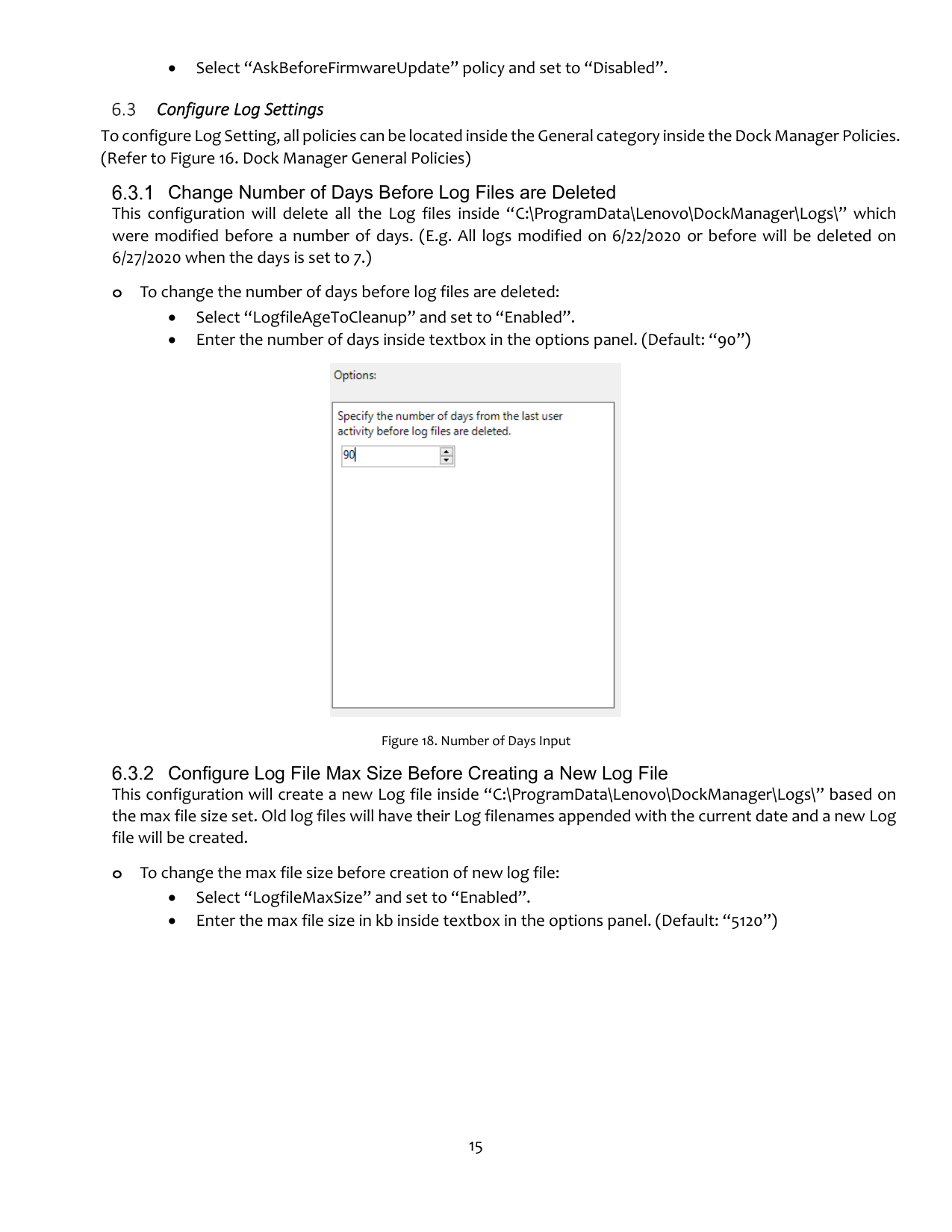

Figure 12.2 DockInfo Sample Query Result
5 Firmware Download and Update Behavior
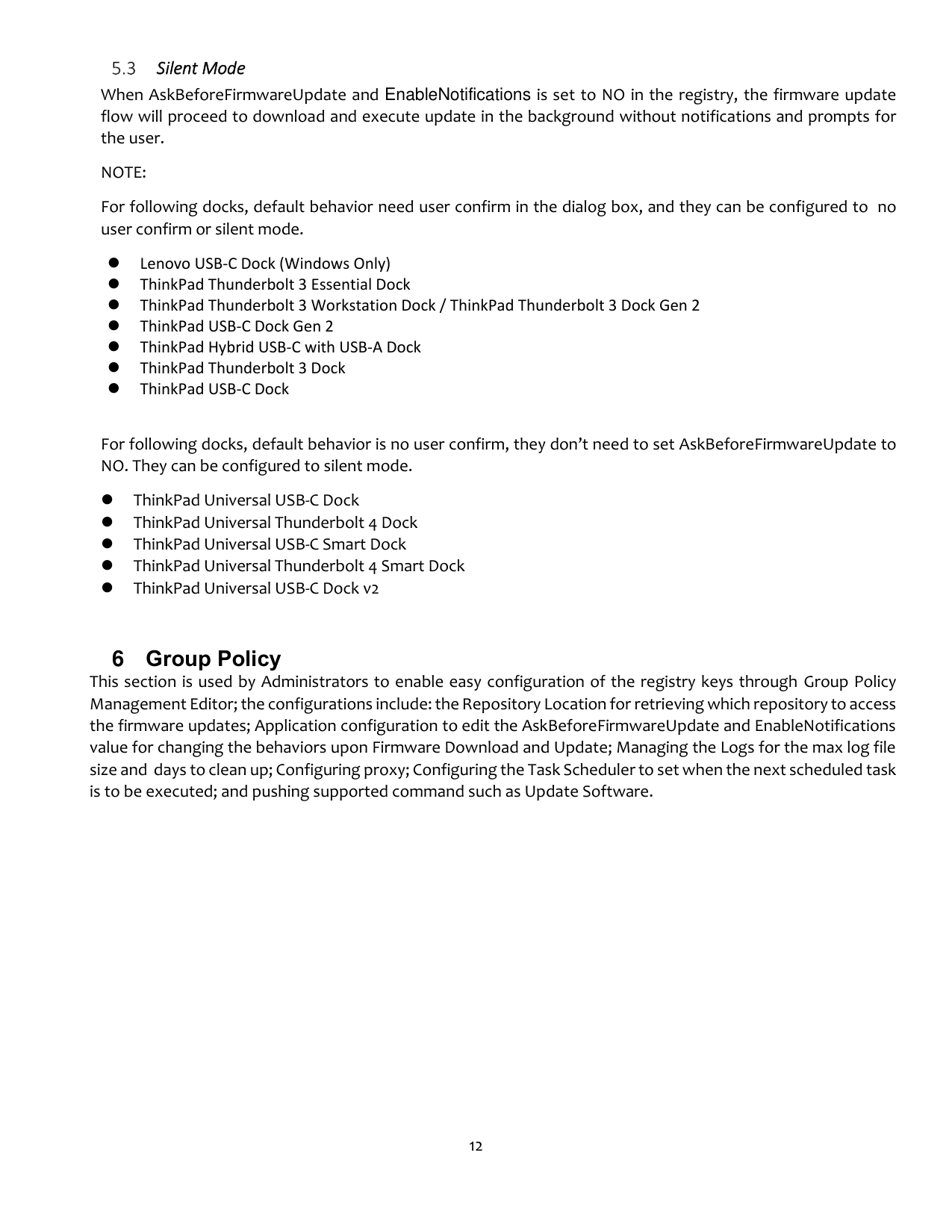
The proceeding section presents illustrations that shows the notification flow when the Dock Manager Application is hidden in the system tray. Illustrated are three types of expected behaviors: Default Behavior, No User Confirmation, and Silent Mode.
Default Behavior The default behavior flow notifies the user to update the firmware when download is complete. The flow is illustrated below (see Figure 12. Default Behavior Flow)

|| |---|

Figure 13. Default Behavior Flow No User Confirmation
When AskBeforeFirmwareUpdate is set to NO in the registry; upon firmware download completion, the downloaded firmware update will proceed to execute without prompting the users. (see Figure 13. No User Confirmation)
|| |---|
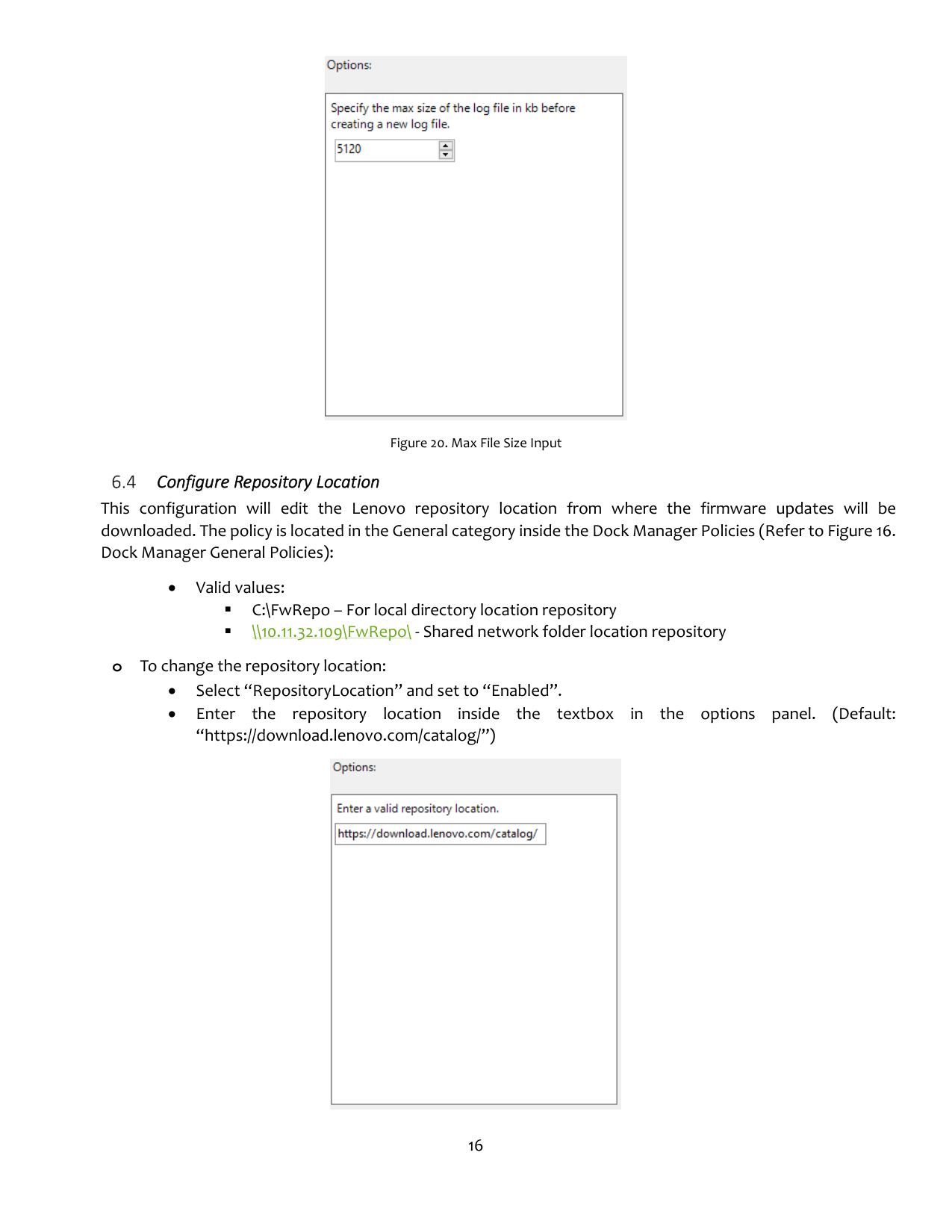
Figure 14. No User Confirmation

Silent Mode
When AskBeforeFirmwareUpdate and EnableNotifications is set to NO in the registry, the firmware update flow will proceed to download and execute update in the background without notifications and prompts for the user.
NOTE: For following docks, default behavior need user confirm in the dialog box, and they can be configured to no user confirm or silent mode.
⚫ Lenovo USB-C Dock (Windows Only)
⚫ ThinkPad Thunderbolt 3 Essential Dock
⚫ ThinkPad Thunderbolt 3 Workstation Dock / ThinkPad Thunderbolt 3 Dock Gen 2
⚫ ThinkPad USB-C Dock Gen 2
⚫ ThinkPad Hybrid USB-C with USB-A Dock
⚫ ThinkPad Thunderbolt 3 Dock
⚫ ThinkPad USB-C Dock
For following docks, default behavior is no user confirm, they don’t need to set AskBeforeFirmwareUpdate to NO. They can be configured to silent mode.
⚫ ThinkPad Universal USB-C Dock
⚫ ThinkPad Universal Thunderbolt 4 Dock
⚫ ThinkPad Universal USB-C Smart Dock
⚫ ThinkPad Universal Thunderbolt 4 Smart Dock
⚫ ThinkPad Universal USB-C Dock v2
6 Group Policy
This section is used by Administrators to enable easy configuration of the registry keys through Group Policy Management Editor; the configurations include: the Repository Location for retrieving which repository to access the firmware updates; Application configuration to edit the AskBeforeFirmwareUpdate and EnableNotifications value for changing the behaviors upon Firmware Download and Update; Managing the Logs for the max log file size and days to clean up; Configuring proxy; Configuring the Task Scheduler to set when the next scheduled task is to be executed; and pushing supported command such as Update Software.

Figure 15. Group Policy Management Editor
Setup Policy Settings for Lenovo DockManager application Before accessing the group policy, make sure to check if the IT Administrator pushed the policy settings to user’s laptop.

Changing the Group Policies

o To import the group policies and enable easy configuration:

Figure 16. Dock Manager Policies Path
Configuring the Firmware Download and Update Behavior To configure the download and update behavior as stated in Section 5, AskBeforeFirmwareUpdate and EnableNotification are located inside the General Category inside the Dock Manager Group Policies.


Figure 17. Dock Manager General Policies
Enable No User Confirmation


Enable Silent Mode
Configure Log Settings To configure Log Setting, all policies can be located inside the General category inside the Dock Manager Policies. (Refer to Figure 16. Dock Manager General Policies)

Change Number of Days Before Log Files are Deleted

This configuration will delete all the Log files inside “C:\ProgramData\Lenovo\DockManager\Logs\” which were modified before a number of days. (E.g. All logs modified on 6/22/2020 or before will be deleted on 6/27/2020 when the days is set to 7.)
o To change the number of days before log files are deleted:

Figure 18. Number of Days Input
Configure Log File Max Size Before Creating a New Log File

This configuration will create a new Log file inside “C:\ProgramData\Lenovo\DockManager\Logs\” based on the max file size set. Old log files will have their Log filenames appended with the current date and a new Log file will be created.
o To change the max file size before creation of new log file:
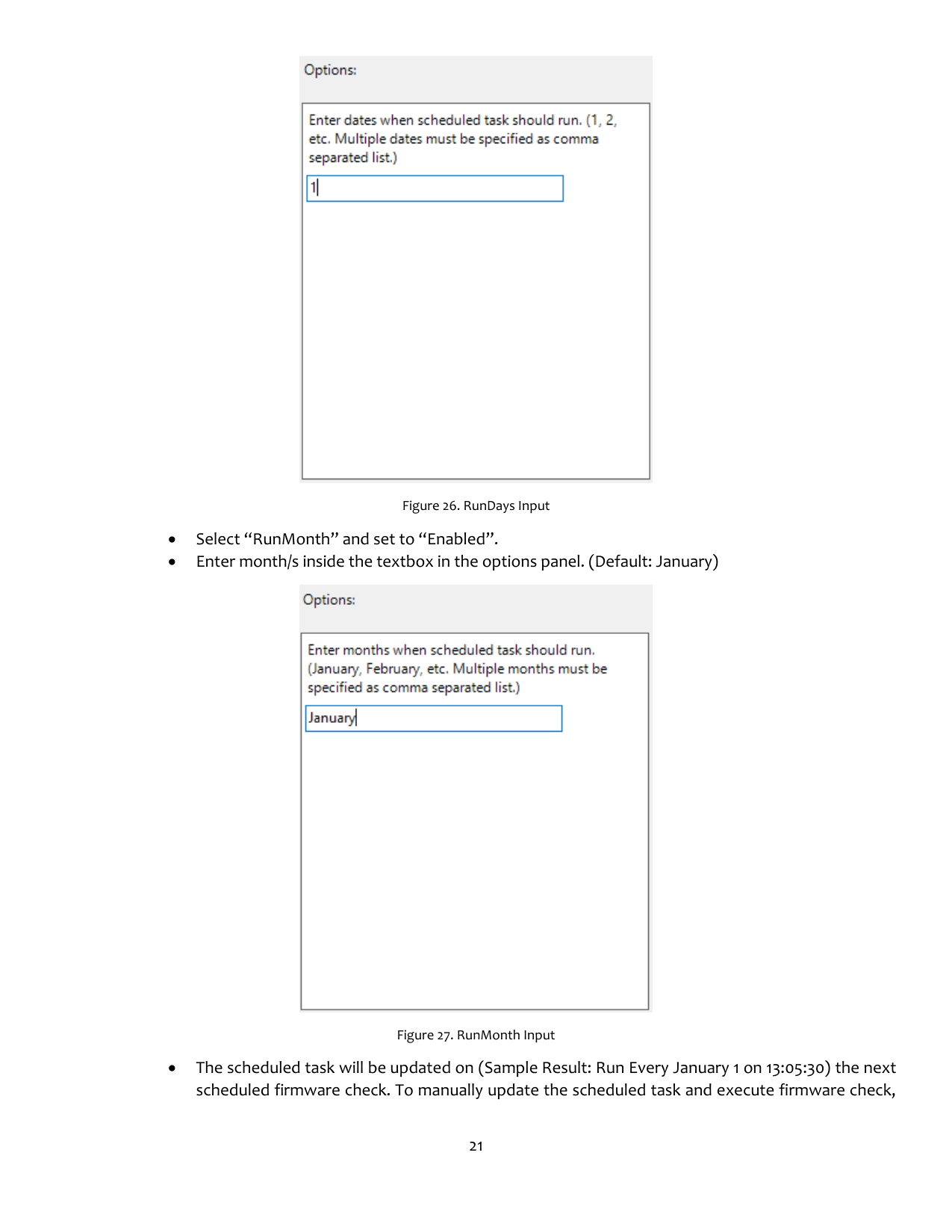


Figure 20. Max File Size Input Configure Repository Location
This configuration will edit the Lenovo repository location from where the firmware updates will be downloaded. The policy is located in the General category inside the Dock Manager Policies (Refer to Figure 16. Dock Manager General Policies):
• Valid values:
o To change the repository location:
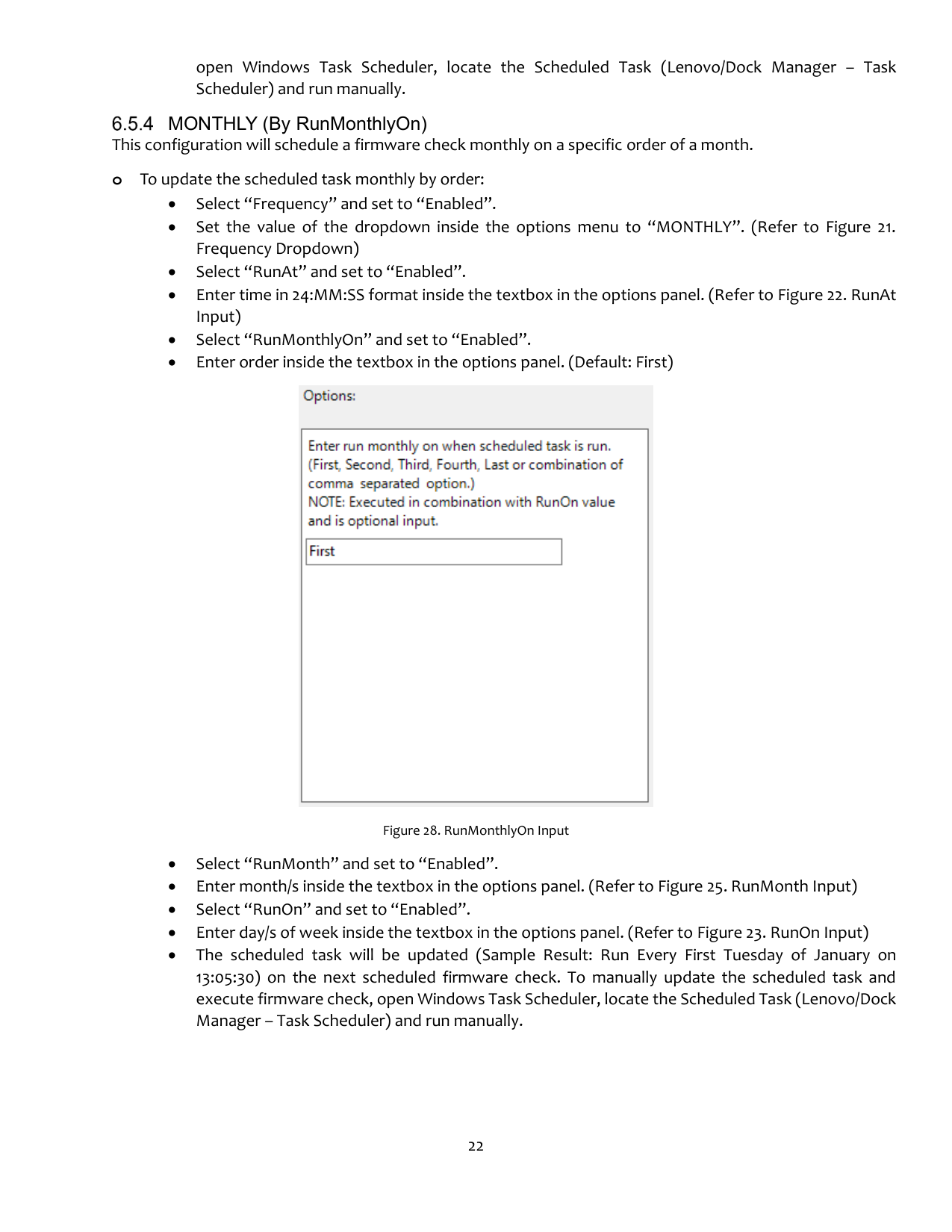

Figure 21. Repository Location Input
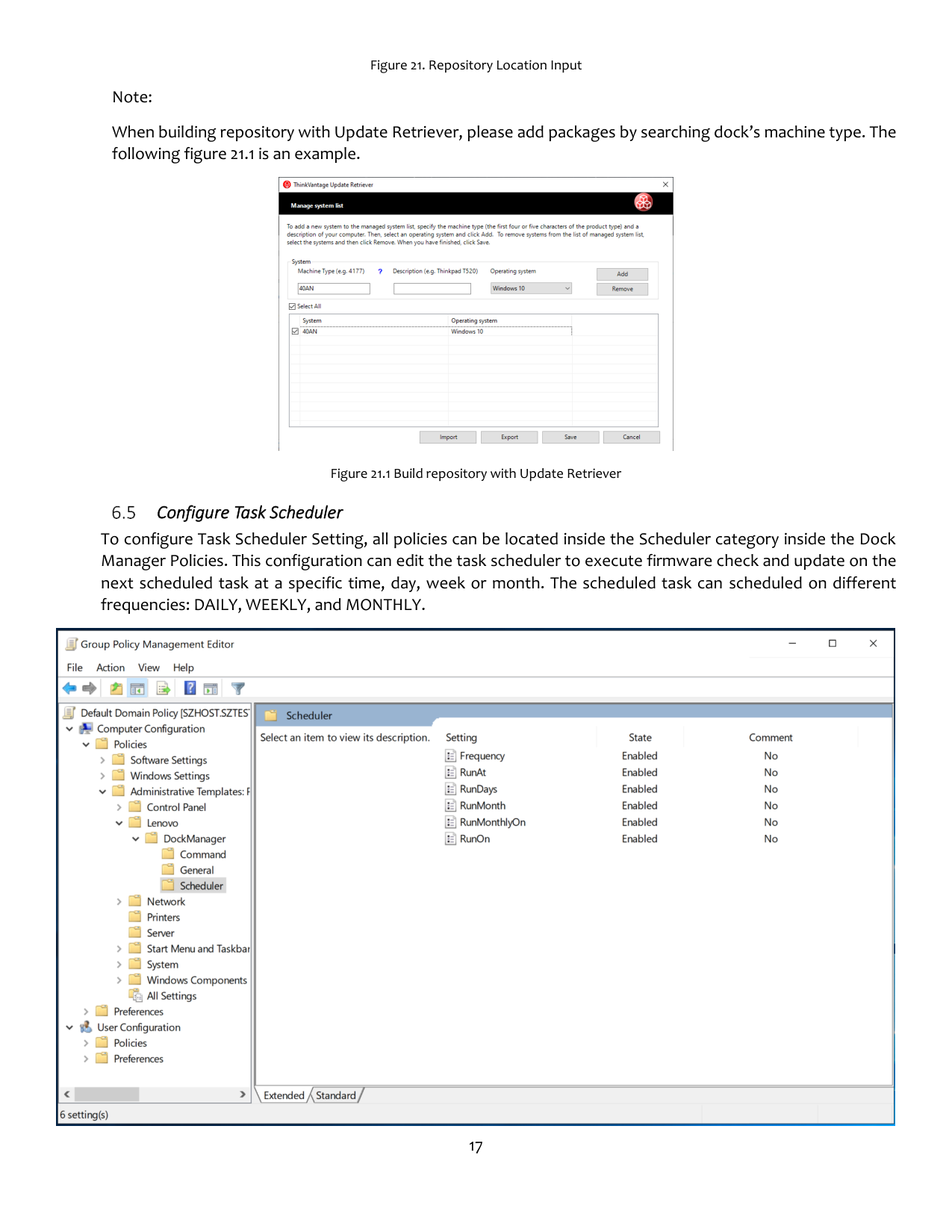
Note: When building repository with Update Retriever, please add packages by searching dock’s machine type. The following figure 21.1 is an example.


Figure 21.1 Build repository with Update Retriever Configure Task Scheduler
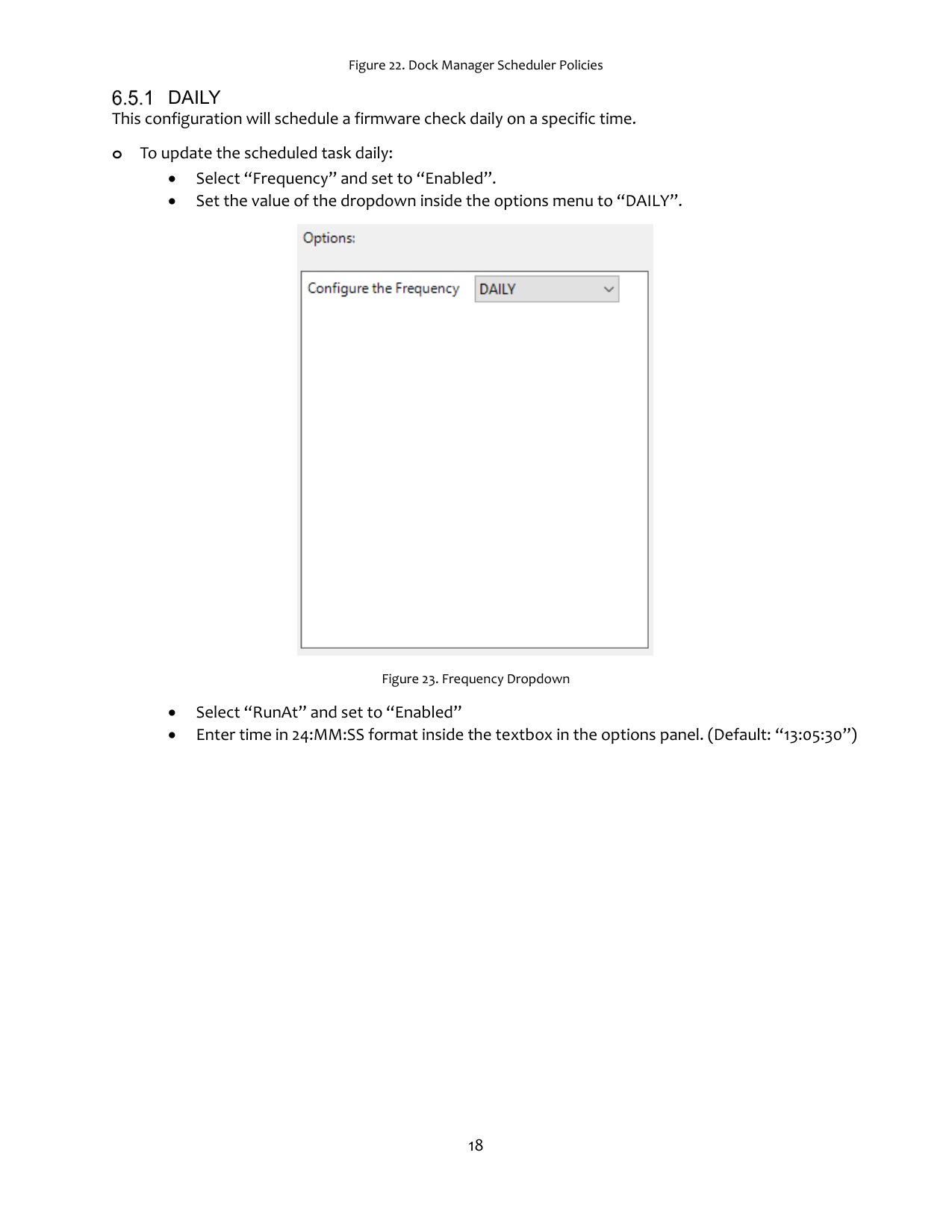
To configure Task Scheduler Setting, all policies can be located inside the Scheduler category inside the Dock Manager Policies. This configuration can edit the task scheduler to execute firmware check and update on the next scheduled task at a specific time, day, week or month. The scheduled task can scheduled on different frequencies: DAILY, WEEKLY, and MONTHLY.

Figure 22. Dock Manager Scheduler Policies
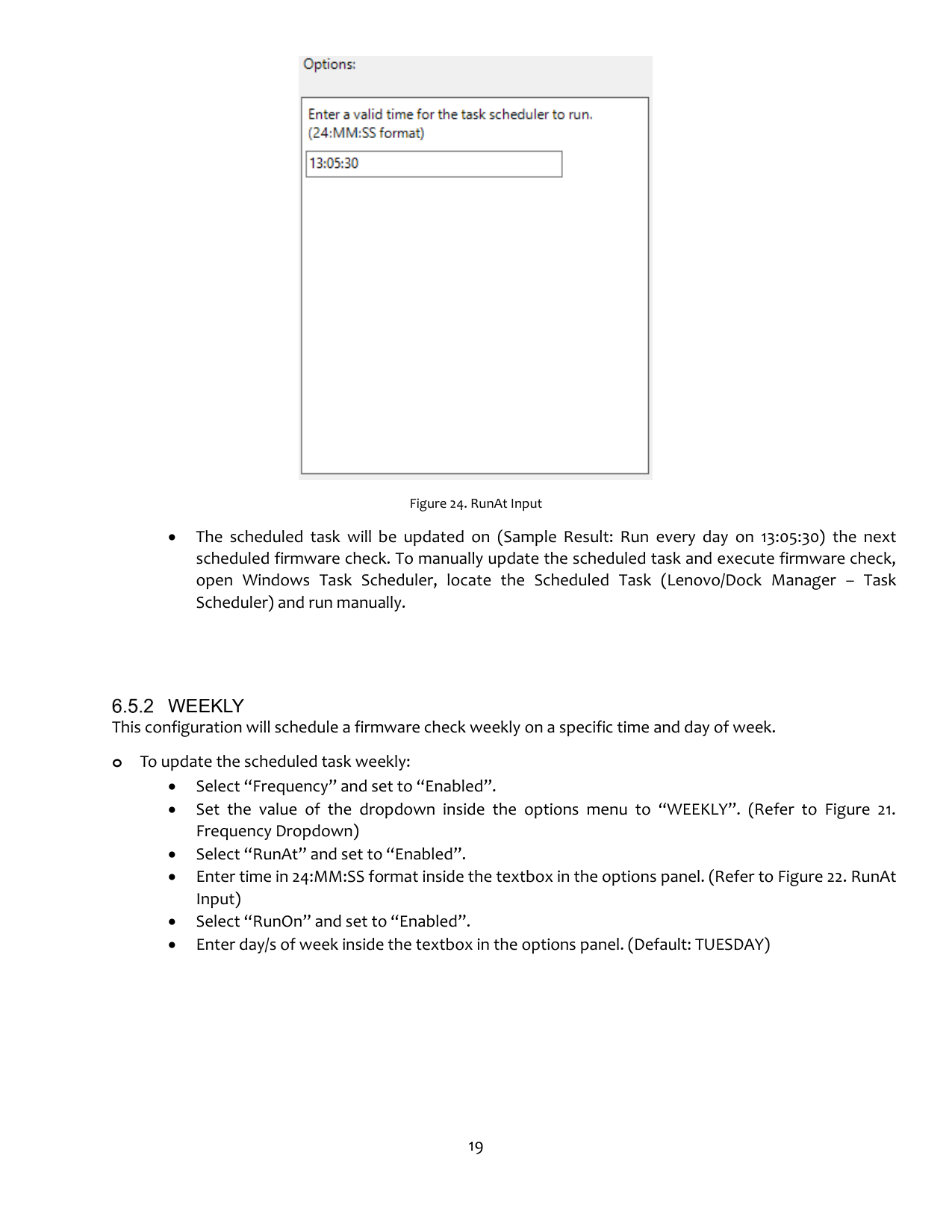
DAILY This configuration will schedule a firmware check daily on a specific time. o To update the scheduled task daily:

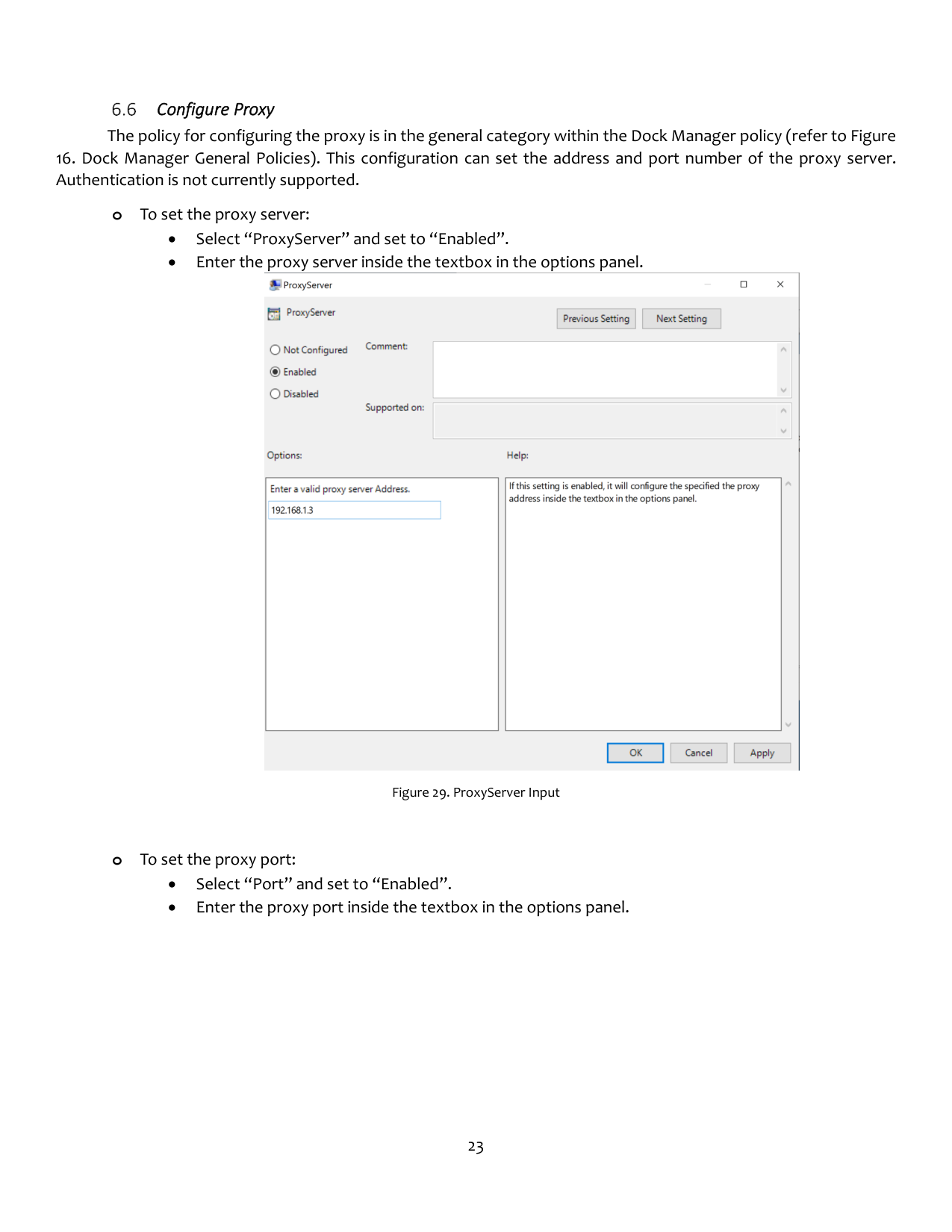
Figure 23. Frequency Dropdown


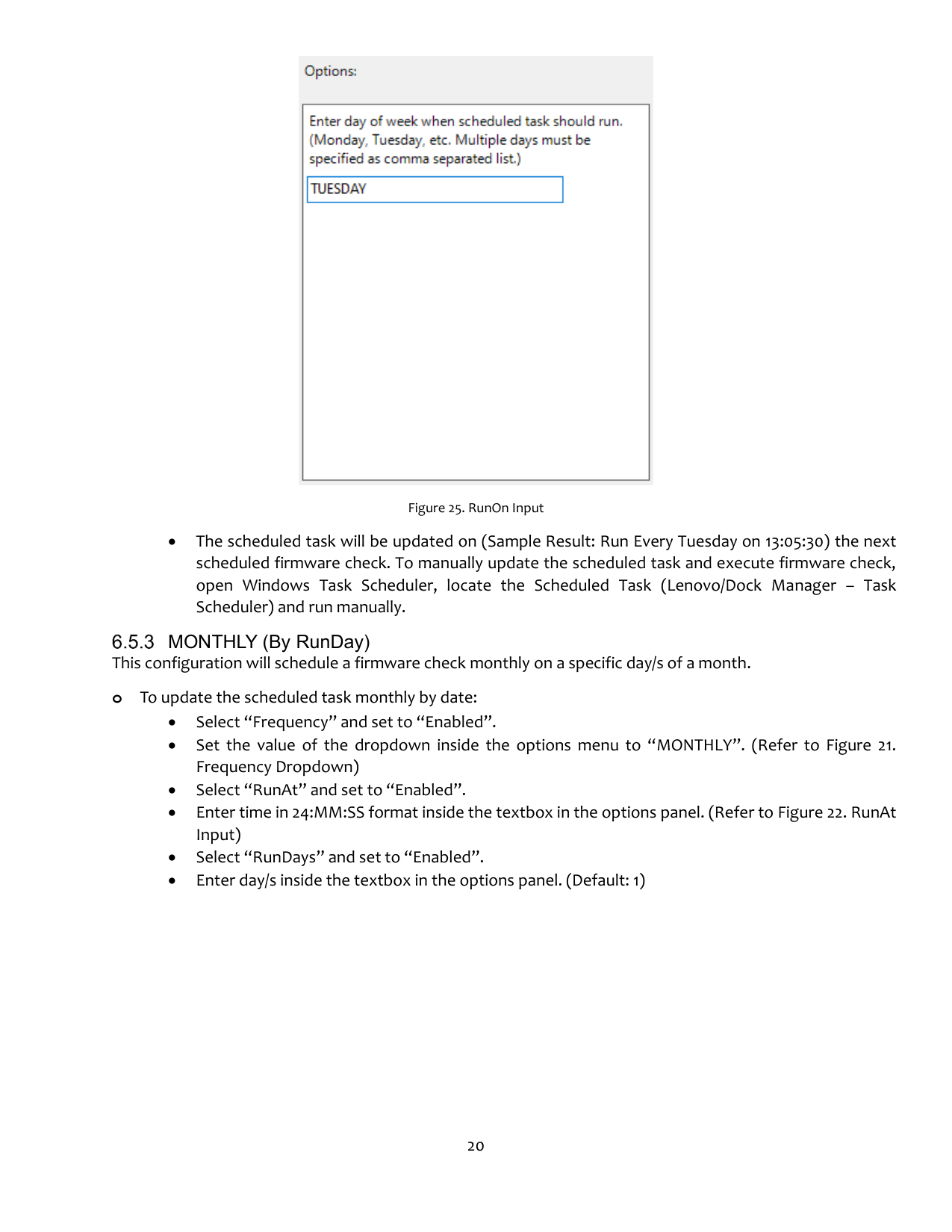
Figure 24. RunAt Input
WEEKLY This configuration will schedule a firmware check weekly on a specific time and day of week. o To update the scheduled task weekly:

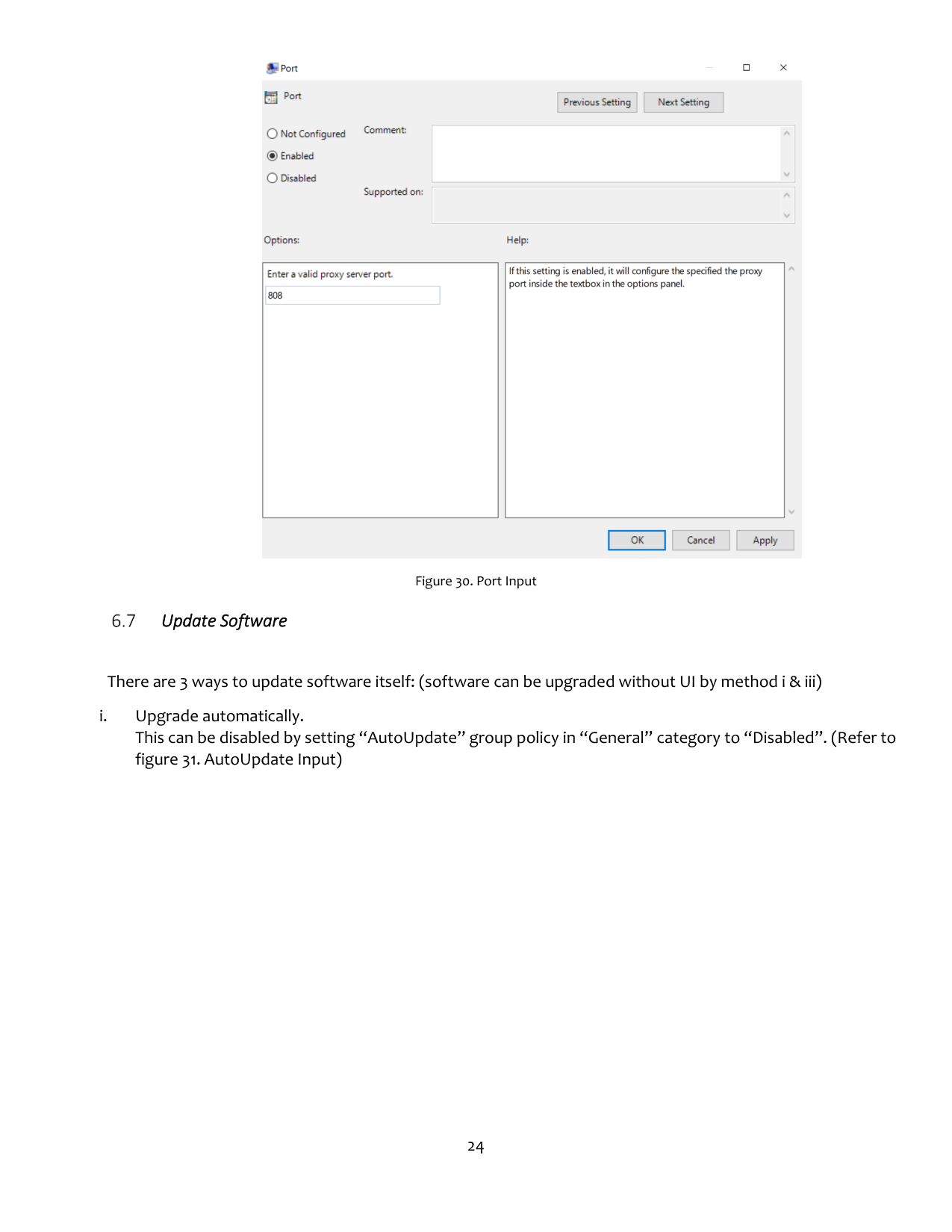

Figure 25. RunOn Input
MONTHLY (By RunDay) This configuration will schedule a firmware check monthly on a specific day/s of a month. o To update the scheduled task monthly by date:



#### • The scheduled task will be updated on (Sample Result: Run Every January 1 on 13:05:30) the nextscheduled firmware check. To manually update the scheduled task and execute firmware check,
open Windows Task Scheduler, locate the Scheduled Task (Lenovo/Dock Manager – Task Scheduler) and run manually.
MONTHLY (By RunMonthlyOn) This configuration will schedule a firmware check monthly on a specific order of a month. o To update the scheduled task monthly by order:

Figure 28. RunMonthlyOn Input


Configure Proxy
The policy for configuring the proxy is in the general category within the Dock Manager policy (refer to Figure
Figure 29. ProxyServer Input
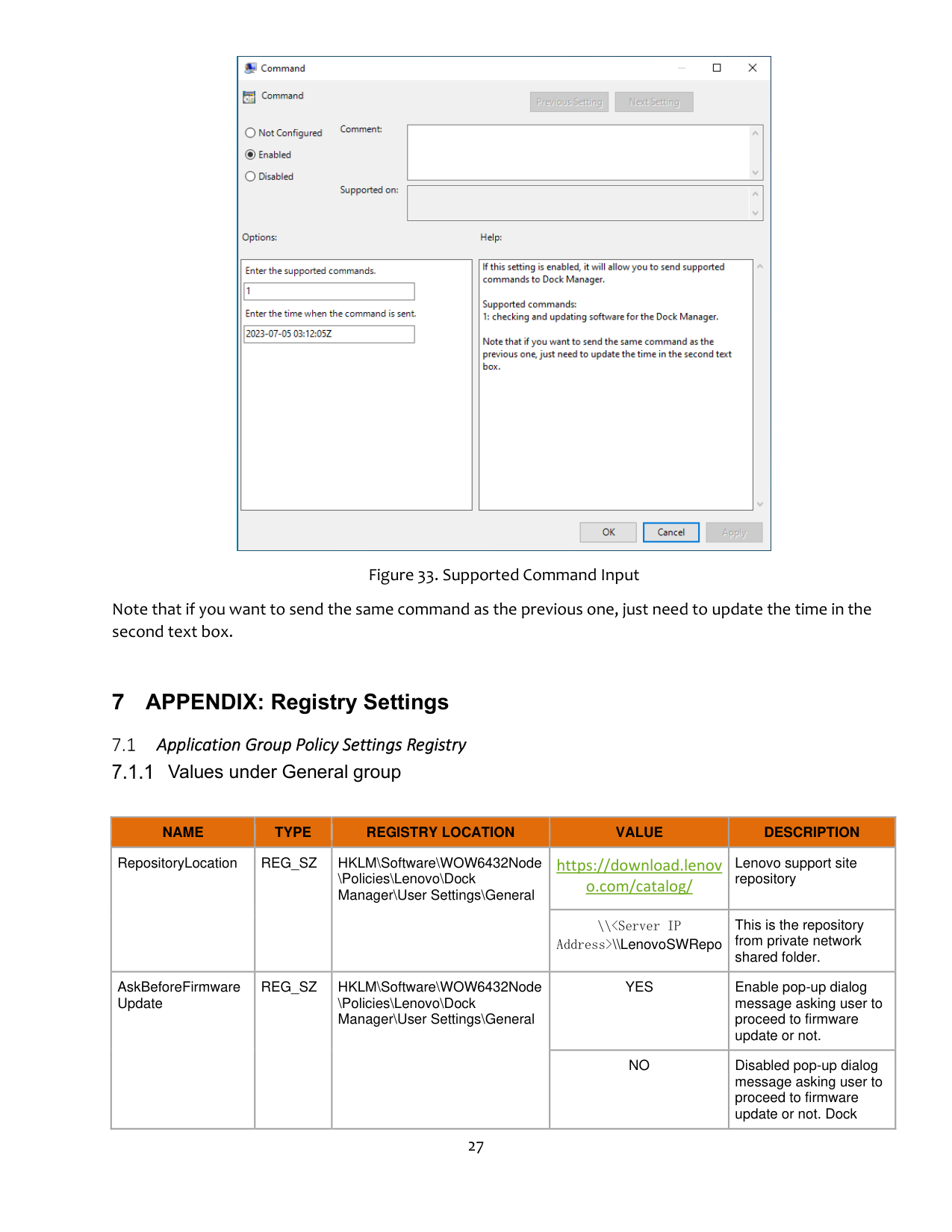


Figure 30. Port Input Update Software
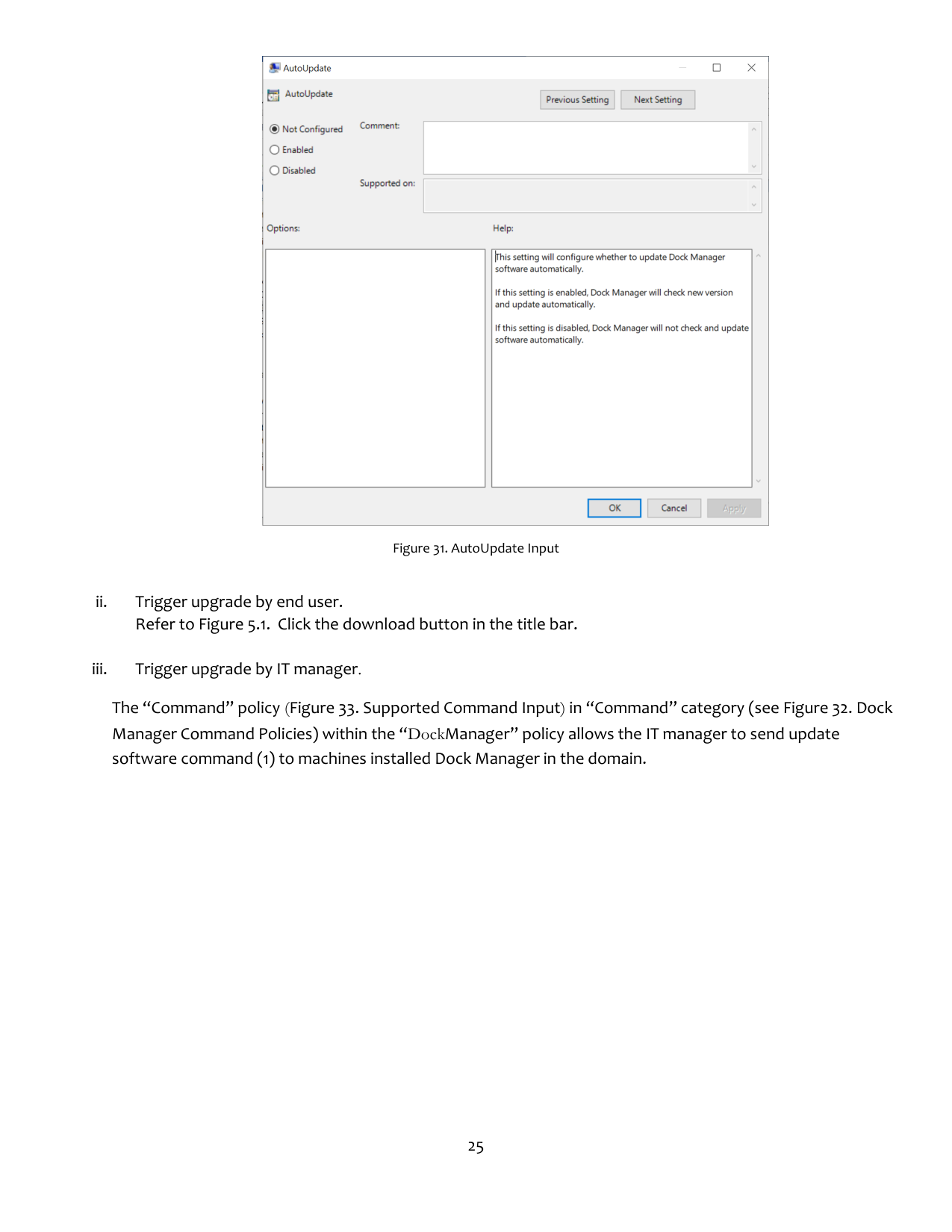
There are 3 ways to update software itself: (software can be upgraded without UI by method i & iii)

Figure 31. AutoUpdate Input
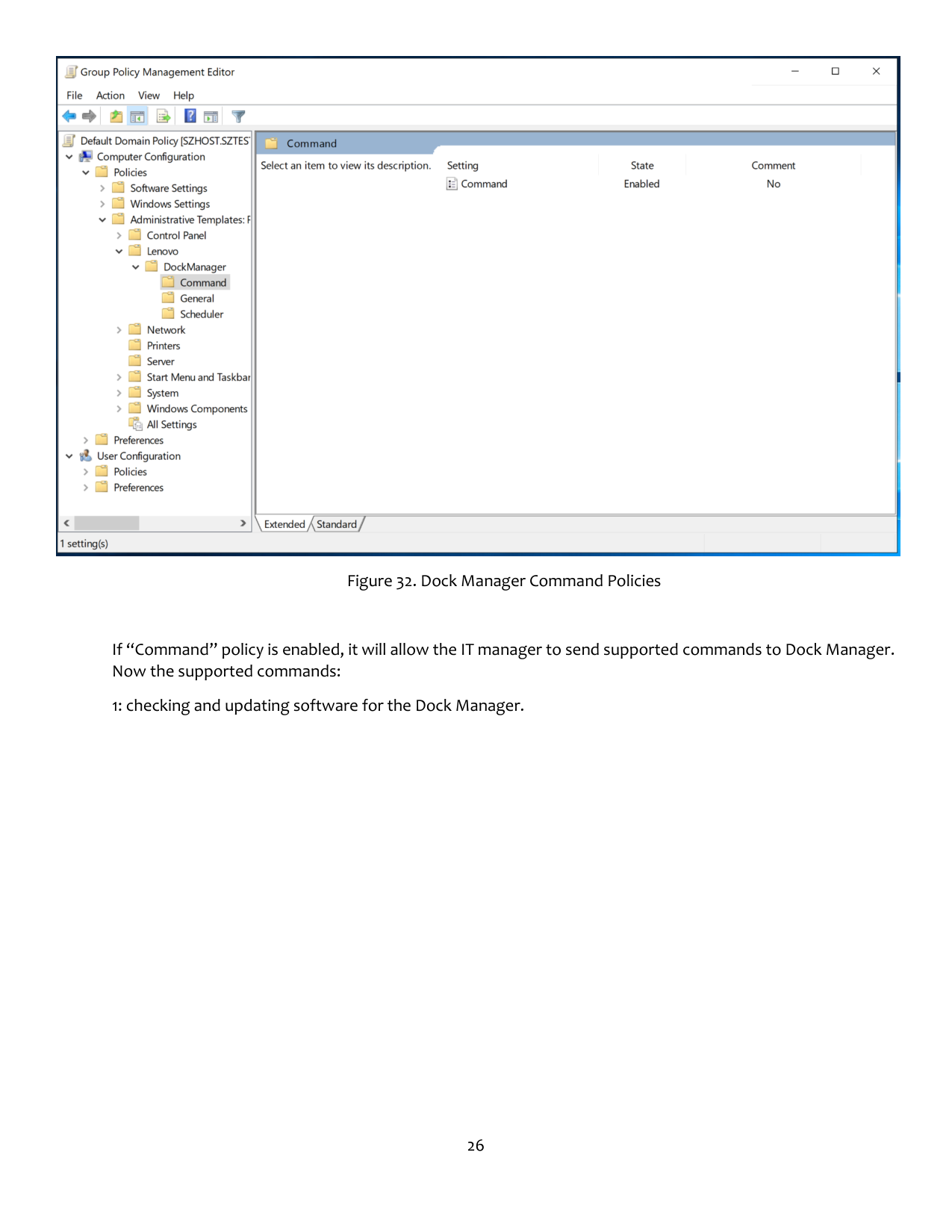
The “Command” policy (Figure 33. Supported Command Input) in “Command” category (see Figure 32. Dock Manager Command Policies) within the “DockManager” policy allows the IT manager to send update software command (1) to machines installed Dock Manager in the domain.

Figure 32. Dock Manager Command Policies
If “Command” policy is enabled, it will allow the IT manager to send supported commands to Dock Manager. Now the supported commands:
1: checking and updating software for the Dock Manager.

Figure 33. Supported Command Input
Note that if you want to send the same command as the previous one, just need to update the time in the second text box.
7 APPENDIX: Registry Settings
Application Group Policy Settings Registry Values under General group



|NAME|TYPE|REGISTRY LOCATION|VALUE|DESCRIPTION| |---|---|---|---|---| |RepositoryLocation|REG_SZ|HKLM\Software\WOW6432Node \Policies\Lenovo\Dock Manager\User Settings\General
|https://download.lenov o.com/catalog/
|Lenovo support site repository| |RepositoryLocation|REG_SZ|HKLM\Software\WOW6432Node \Policies\Lenovo\Dock Manager\User Settings\General
|\\
|HKLM\Software\WOW6432Node \Policies\Lenovo\Dock Manager\User Settings\General|YES|Enable pop-up dialog message asking user to proceed to firmware update or not.| |AskBeforeFirmware Update|REG_SZ
|HKLM\Software\WOW6432Node \Policies\Lenovo\Dock Manager\User Settings\General|NO|Disabled pop-up dialog message asking user to proceed to firmware update or not. Dock|
| | | | |Manager will automatically proceed to firmware update after downloading firmware package without user confirmation.| |---|---|---|---|---| |EnableNotifications|REG_SZ|HKLM\Software\WOW6432Node \Policies\Lenovo\Dock Manager\User Settings\General
|YES|This means tray message should display desktop notification during firmware download and update| |EnableNotifications|REG_SZ|HKLM\Software\WOW6432Node \Policies\Lenovo\Dock Manager\User Settings\General
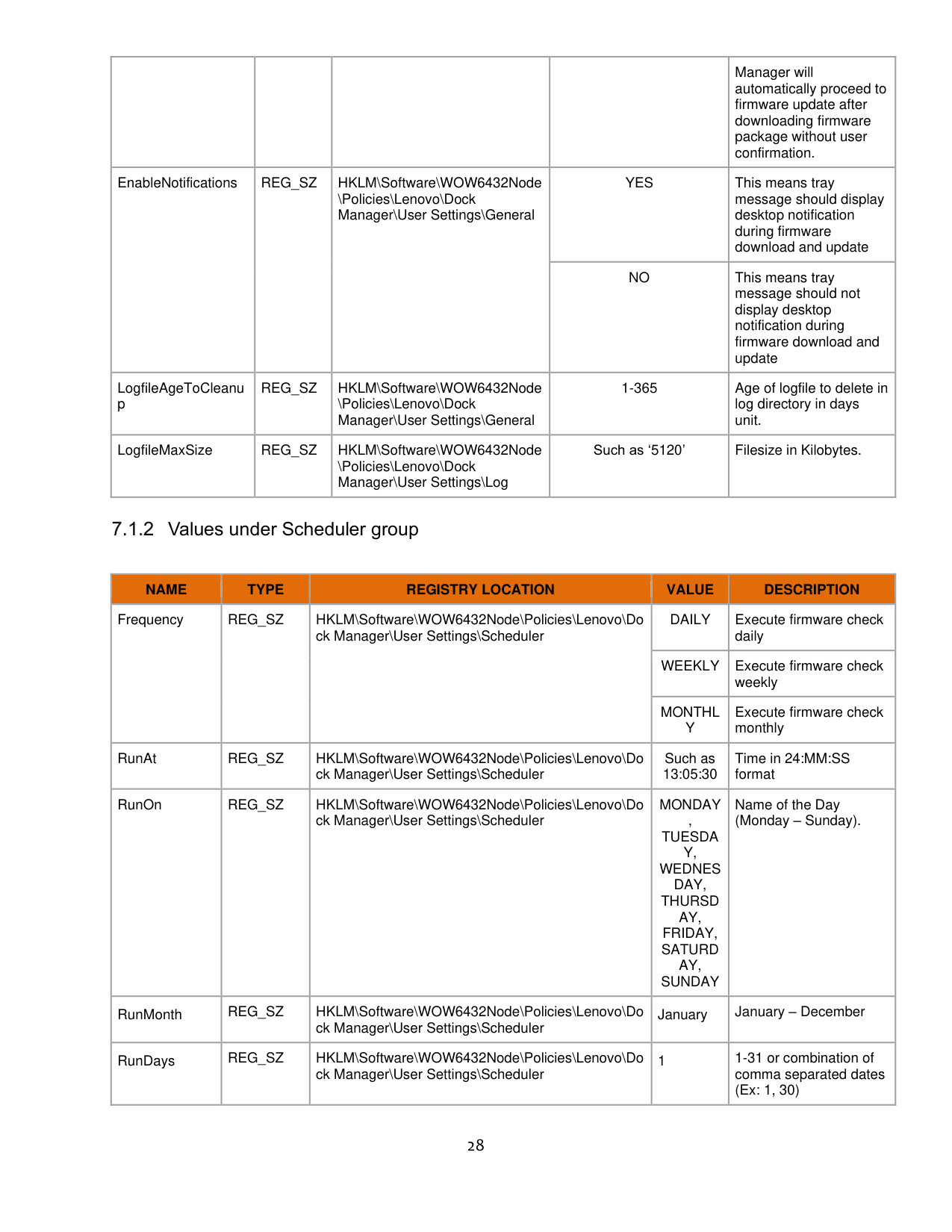
|NO|This means tray message should not display desktop notification during firmware download and update| |LogfileAgeToCleanu p|REG_SZ|HKLM\Software\WOW6432Node \Policies\Lenovo\Dock Manager\User Settings\General|1-365|Age of logfile to delete in log directory in days unit.| |LogfileMaxSize|REG_SZ|HKLM\Software\WOW6432Node \Policies\Lenovo\Dock Manager\User Settings\Log|Such as ‘5120’|Filesize in Kilobytes.|

Values under Scheduler group
|NAME|TYPE|REGISTRY LOCATION|VALUE|DESCRIPTION| |---|---|---|---|---| |Frequency|REG_SZ
|HKLM\Software\WOW6432Node\Policies\Lenovo\Do ck Manager\User Settings\Scheduler|DAILY|Execute firmware check daily| |Frequency|REG_SZ
|HKLM\Software\WOW6432Node\Policies\Lenovo\Do ck Manager\User Settings\Scheduler|WEEKLY|Execute firmware check weekly| |Frequency|REG_SZ
|HKLM\Software\WOW6432Node\Policies\Lenovo\Do ck Manager\User Settings\Scheduler|MONTHL Y|Execute firmware check monthly| |RunAt|REG_SZ|HKLM\Software\WOW6432Node\Policies\Lenovo\Do ck Manager\User Settings\Scheduler|Such as 13:05:30|Time in 24:MM:SS format| |RunOn|REG_SZ|HKLM\Software\WOW6432Node\Policies\Lenovo\Do ck Manager\User Settings\Scheduler|MONDAY , TUESDA Y, WEDNES DAY, THURSD AY, FRIDAY, SATURD AY, SUNDAY|Name of the Day (Monday – Sunday).| |RunMonth|REG_SZ|HKLM\Software\WOW6432Node\Policies\Lenovo\Do ck Manager\User Settings\Scheduler|January|January – December| |RunDays|REG_SZ|HKLM\Software\WOW6432Node\Policies\Lenovo\Do ck Manager\User Settings\Scheduler|1|1-31 or combination of comma separated dates (Ex: 1, 30)|
|RunMonthlyOn|REG_SZ|HKLM\Software\WOW6432Node\Policies\Lenovo\Do ck Manager\User Settings\Scheduler|First|First, Second, Third, Fourth, Last Note: Executed in combination with RunOn value and is optional input.| |---|---|---|---|---|