
Ask AI
— answers from the official manualAnswers from the official manual.
Common questions
Common Questions
19 totalHow do I connect my Lenovo Ideacentre AIO to a wireless network?
Click the network icon on the bottom right of your display to connect to an available network and provide required information if needed. Note that the wireless LAN module may support different standards, and for some countries or regions, use of 802.11ax may be disabled according to local regulations.
What are the operating temperature requirements for the Ideacentre AIO?
The operating temperature range is from 5°C (41°F) to 35°C (95°F). Storage temperature for all-in-one desktop computers is from -20°C (-4°F) to 60°C (140°F).
How do I enable three- and four-finger touch gestures on the touch screen?
Type 'touch gesture' in the Windows search box and press Enter, then turn on the 'Three- and four-finger touch gestures' switch. These gestures allow you to show all open windows, show the desktop, switch apps, and switch desktops.
What should I do if the touch screen is not responding properly?
First, turn off the computer and use a dry, soft, lint-free cloth to remove fingerprints or dust from the touch screen without applying solvents. Restart the computer and check if it works normally. If still unresponsive, run Windows Update by typing 'Windows Update' in the search box and following the on-screen instructions. If the problem persists, contact Lenovo Customer Support as the touch screen may be damaged.
How do I set up a Bluetooth device connection on my Ideacentre AIO?
Type 'Bluetooth' in the Windows search box and press Enter. Turn on both the Bluetooth on your computer and the Bluetooth device, ensuring the device is discoverable. Select the device from the 'Add a device' list and follow the on-screen instructions. Place Bluetooth devices at most 10 meters (33 feet) from the computer for successful connection.
What is the default power plan behavior for ENERGY STAR compliant Ideacentre AIO computers?
The display will turn off after 10 minutes of idle time, and the computer will enter sleep mode after 10 minutes. To awaken the computer from Sleep mode, press any key on your keyboard.
Show 13 more questions
How do I run a hardware scan to diagnose hardware problems?
What information should I have ready before contacting Lenovo support?
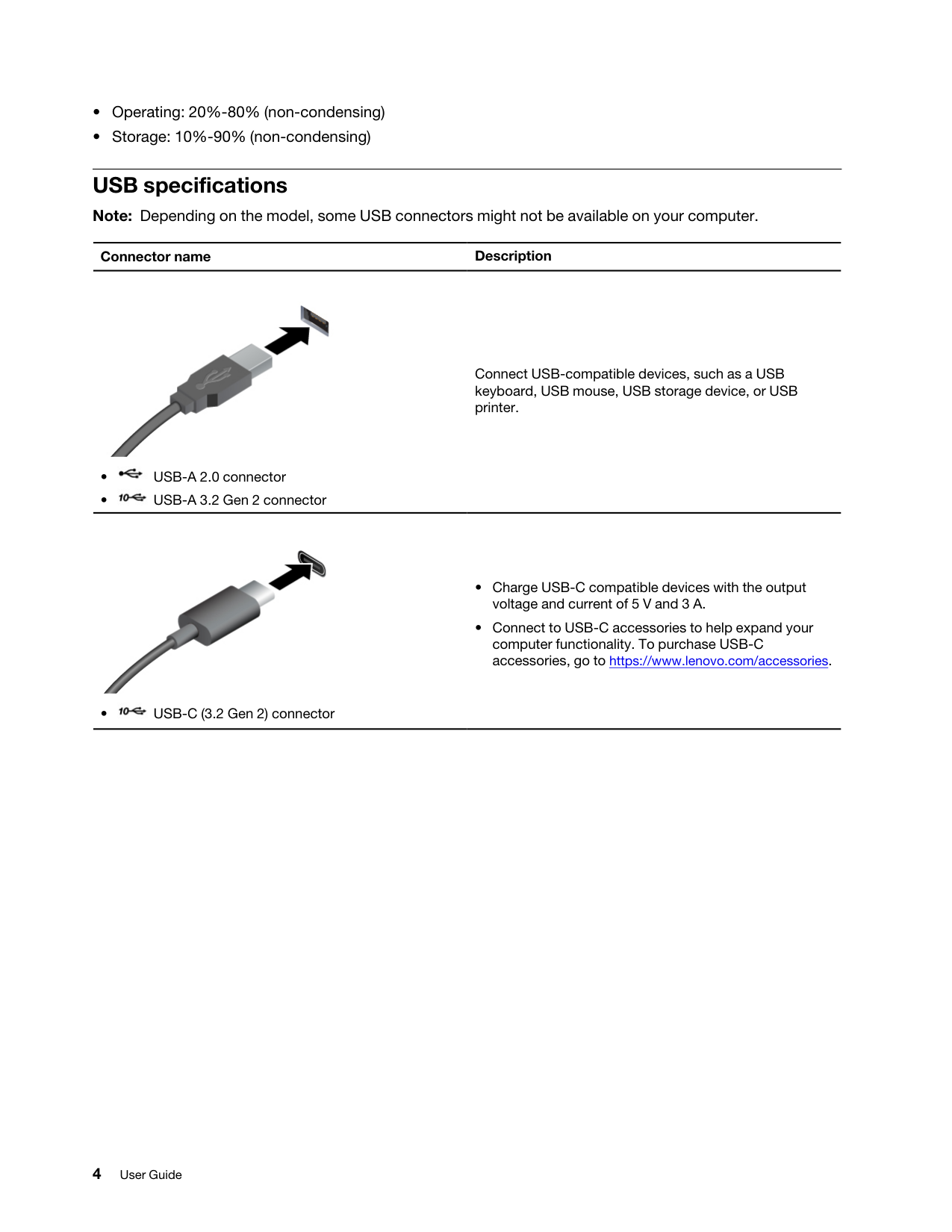
What USB connectors are available on the Ideacentre AIO and what can they be used for?
How do I enable three- or four-finger touch gestures on my Lenovo IdeaCentre AIO?
How do I set up Windows Update to maintain system security on my Lenovo IdeaCentre AIO?
How do I disable Fast Startup to meet ErP/KES compliance requirements?
What is the power supply specification for the Lenovo IdeaCentre AIO?
How do I change the display settings on a Lenovo IdeaCentre AIO?
How do I set up face authentication on my Lenovo IdeaCentre AIO?
How do I connect my Lenovo IdeaCentre AIO to Wi-Fi?
What are the USB specifications for my Lenovo IdeaCentre AIO?
How do I connect an external display using the Lenovo IdeaCentre AIO?
How do I pair my Bluetooth device with a Lenovo IdeaCentre AIO?
Full Manual
24 pages
User Guide IdeaCentre AIO
Read this first Before using this documentation and the product it supports, ensure that you read and understand the following:
35F-05925.
Contents About this documentation . . . . . . . . iii Chapter 1. Meet your computer. . . . . 1 Overview . . . . . . . . . . . . . . . . . . 1 Rear . . . . . . . . . . . . . . . . . . . . 2 Specifications . . . . . . . . . . . . . . . . 3 USB specifications . . . . . . . . . . . . . . 4 Chapter 2. Get started with your computer. . . . . . . . . . . . . . . . . 5 Access networks . . . . . . . . . . . . . . . 5 Adjust the computer stand . . . . . . . . . . . 5 Connect an external display . . . . . . . . . . . 6 Use the touch screen (for selected models) . . . . . 6 Face authentication (for selected models). . . . . . 8 The Vantage app . . . . . . . . . . . . . . . 8 Connect to a Bluetooth device . . . . . . . . . . 9 Conventional pair . . . . . . . . . . . . . 9 Swift pair . . . . . . . . . . . . . . . . 9 Set the power plan . . . . . . . . . . . . . 10 Off mode . . . . . . . . . . . . . . . 10 Use software security solutions. . . . . . . . . 10 Chapter 3. CRU replacement . . . . . 11 CRU list . . . . . . . . . . . . . . . . . . 11 Remove or replace a CRU. . . . . . . . . . . 11 Power cord and ac power adapter. . . . . . 11 Chapter 4. Help and support . . . . . 13 Find your serial number. . . . . . . . . . . . 13 Diagnose and troubleshoot your computer . . . . 13 Troubleshoot and diagnose at Lenovo Support Web site . . . . . . . . . . . . 13 Hardware scan . . . . . . . . . . . . . 14 Recovery . . . . . . . . . . . . . . . . . 14 Call Lenovo . . . . . . . . . . . . . . . . 15 Before you contact Lenovo . . . . . . . . 15 Self-help resources . . . . . . . . . . . . . 15 Purchase accessories . . . . . . . . . . . . 15 Purchase additional services. . . . . . . . . . 15 Accessibility features. . . . . . . . . . . . . 16 Appendix A. Notices and trademarks. . . . . . . . . . . . . . . 17 © Copyright Lenovo 2024, 2025 i
ii User Guide
About this documentation
F0Hr
IdeaCentre AIO 27ARR9F0Hq
IdeaCentre AIO 24IRH9F0Hn
IdeaCentre AIO 27IRH9F0Hm

iv User Guide
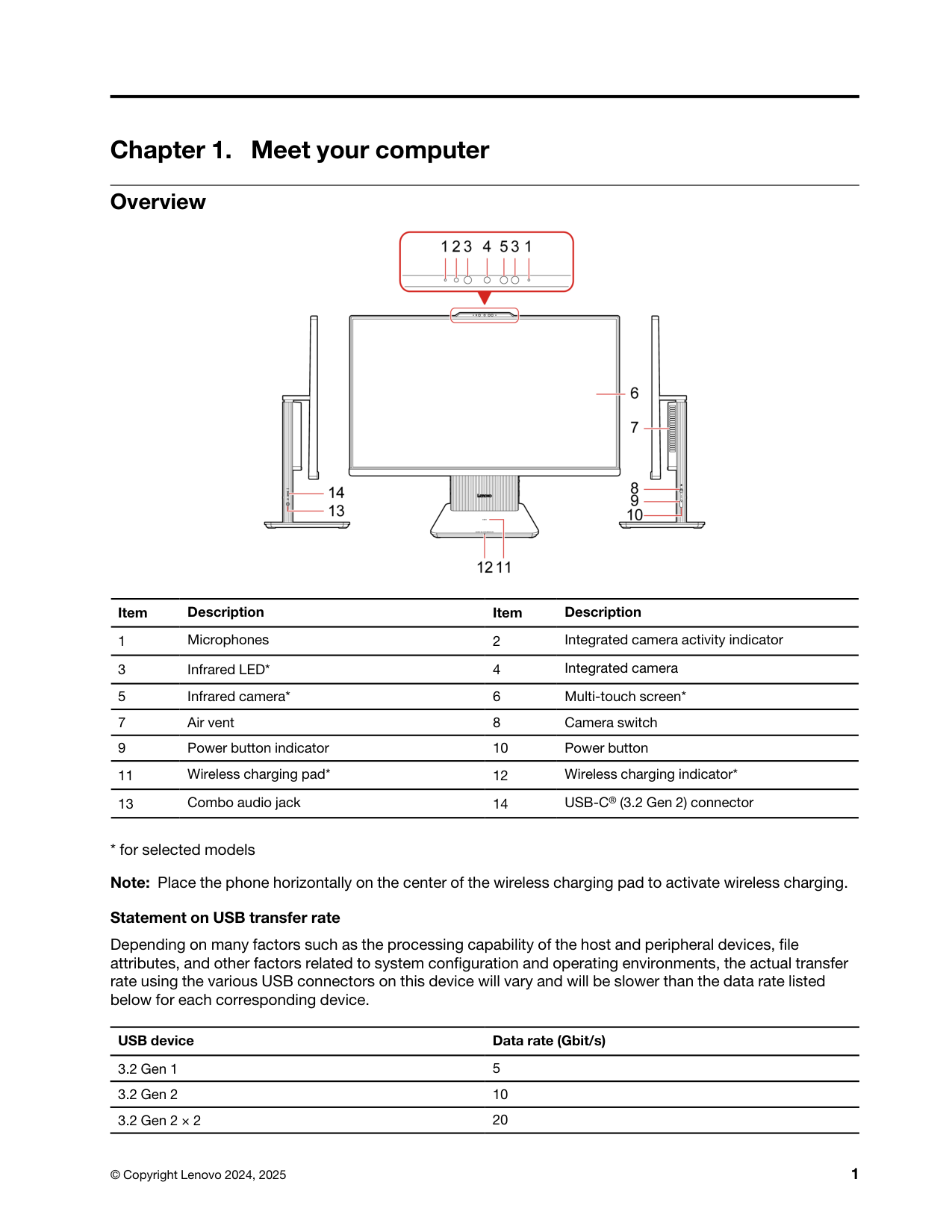
Chapter 1. Meet your computer Overview Item Description Item Description 1 Microphones 2 Integrated camera activity indicator 3 Infrared LED* 4 Integrated camera 5 Infrared camera* 6 Multi-touch screen* 7 Air vent 8 Camera switch 9 Power button indicator 10 Power button 11 Wireless charging pad* 12 Wireless charging indicator* 13 Combo audio jack 14 USB-C® (3.2 Gen 2) connector
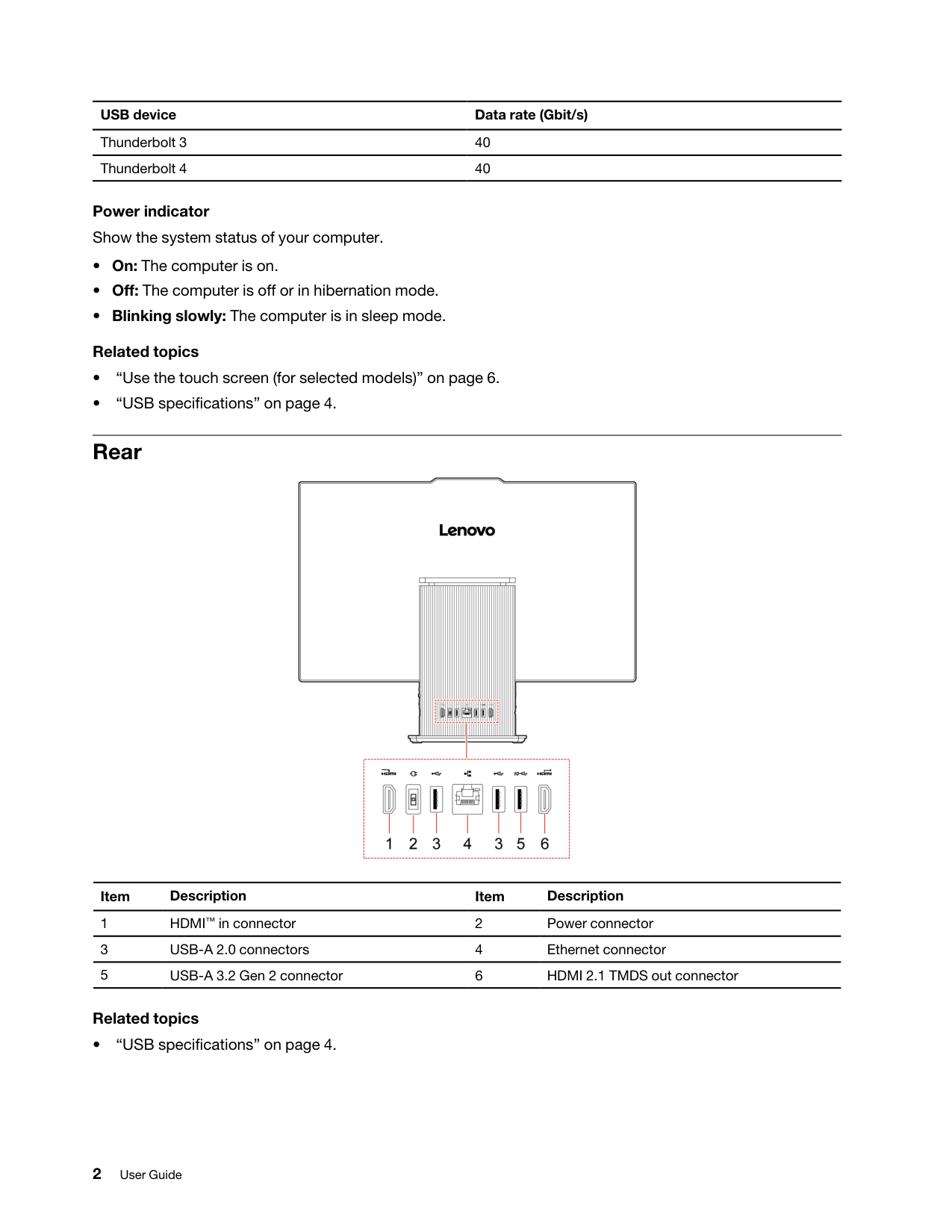
USB device Data rate (Gbit/s) Thunderbolt 3 40 Thunderbolt 4 40 Power indicator Show the system status of your computer.
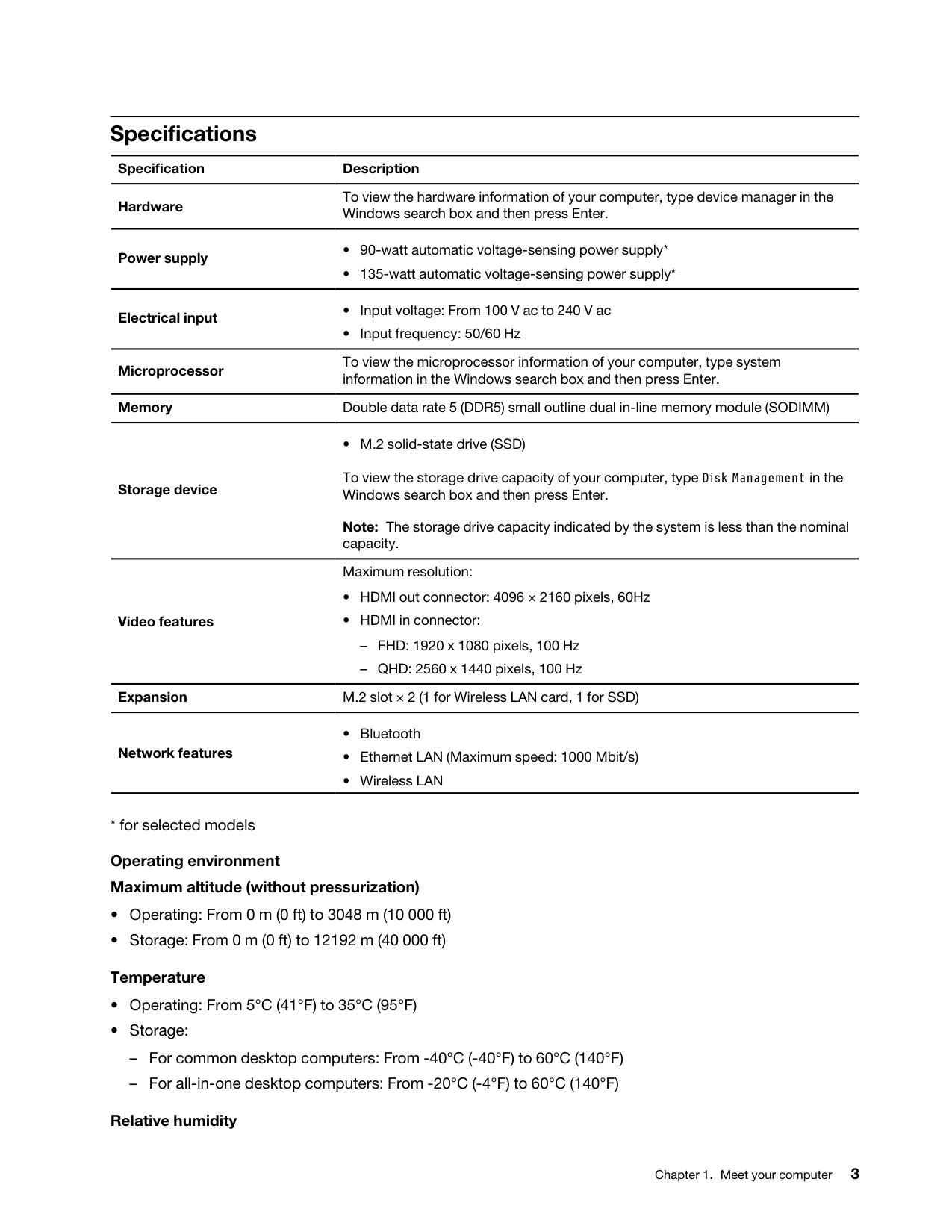
Specifications Specification Description Hardware To view the hardware information of your computer, type device manager in the Windows search box and then press Enter. Power supply
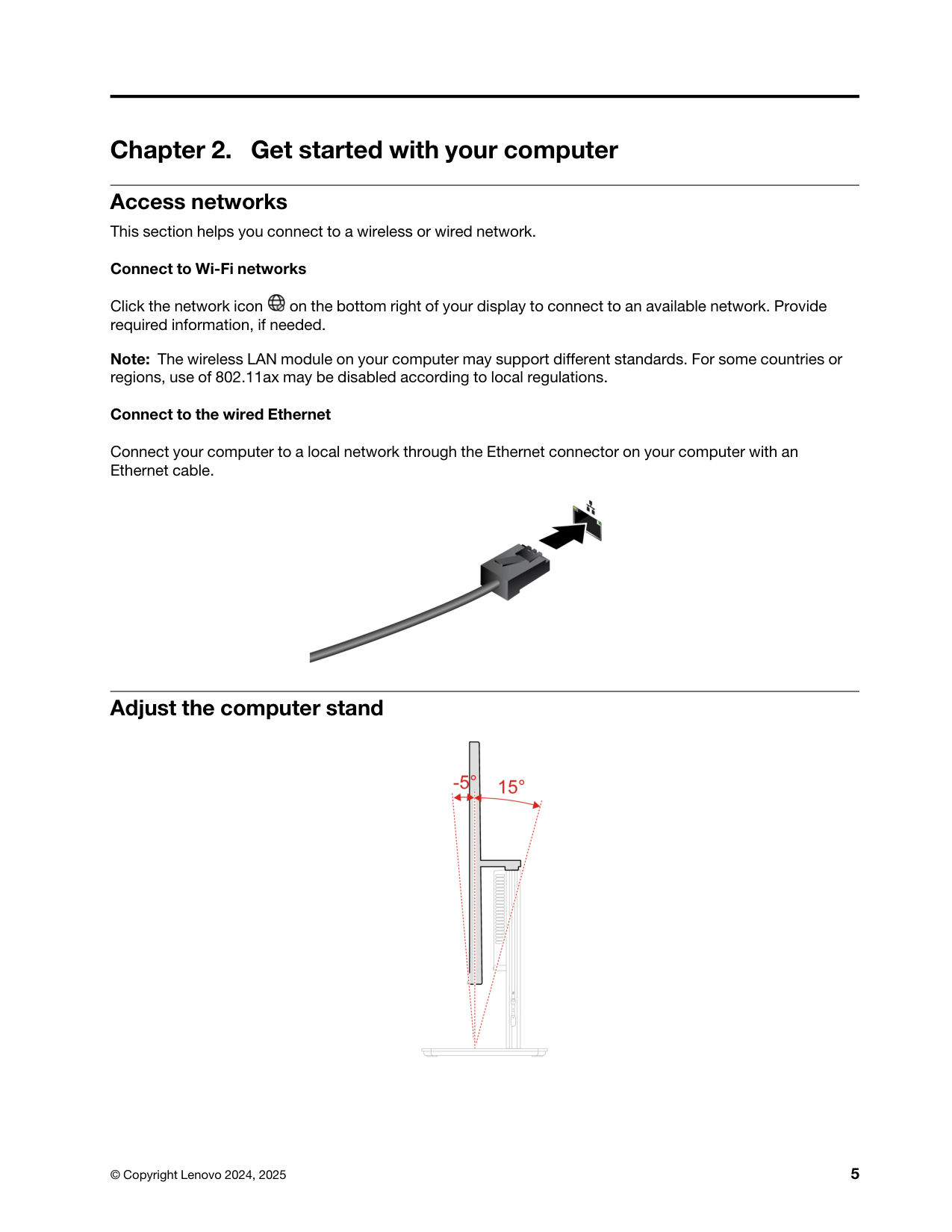
Chapter 2. Get started with your computer Access networks This section helps you connect to a wireless or wired network. Connect to Wi-Fi networks Click the network icon on the bottom right of your display to connect to an available network. Provide required information, if needed. Note: The wireless LAN module on your computer may support different standards. For some countries or regions, use of 802.11ax may be disabled according to local regulations. Connect to the wired Ethernet Connect your computer to a local network through the Ethernet connector on your computer with an Ethernet cable. Adjust the computer stand © Copyright Lenovo 2024, 2025 5
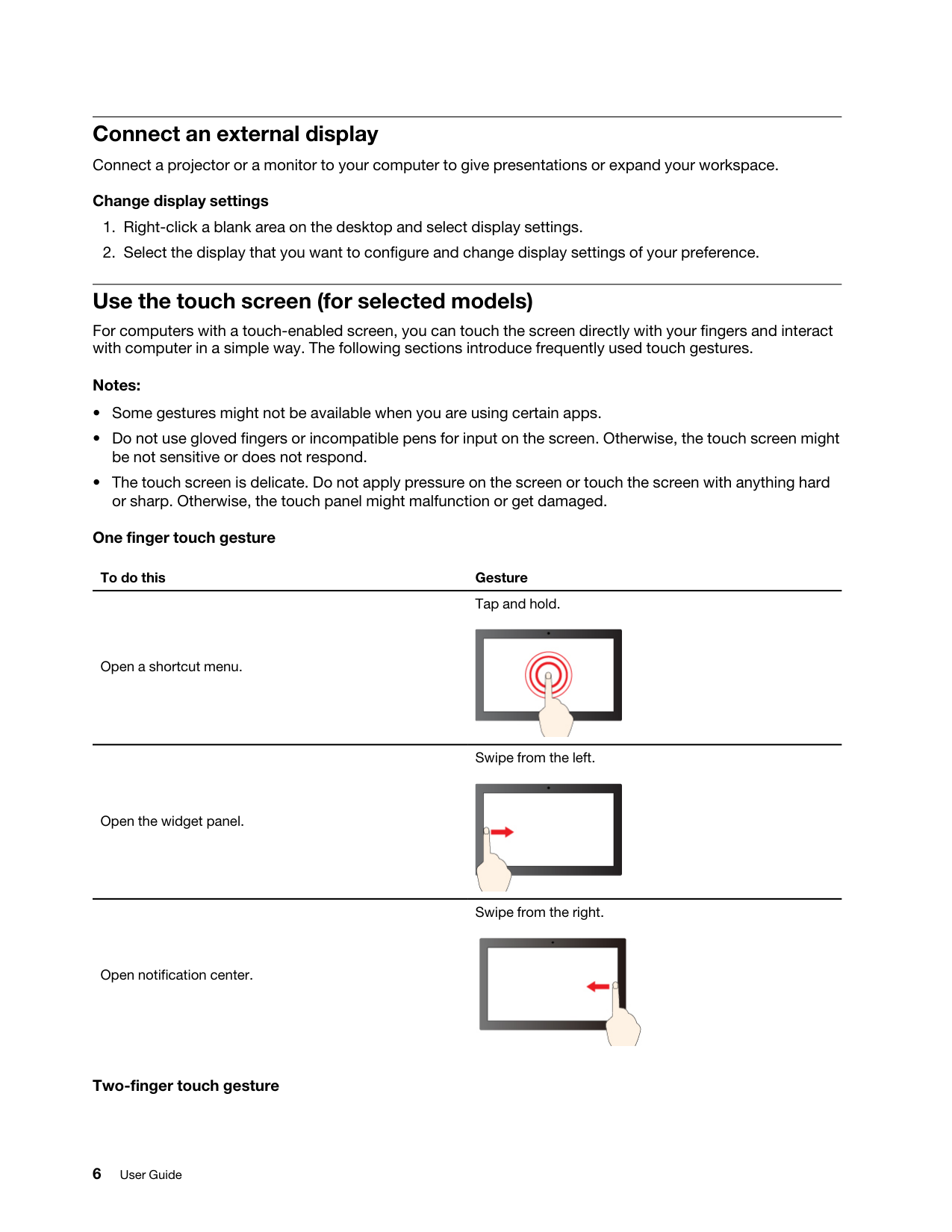
Connect an external display Connect a projector or a monitor to your computer to give presentations or expand your workspace. Change display settings
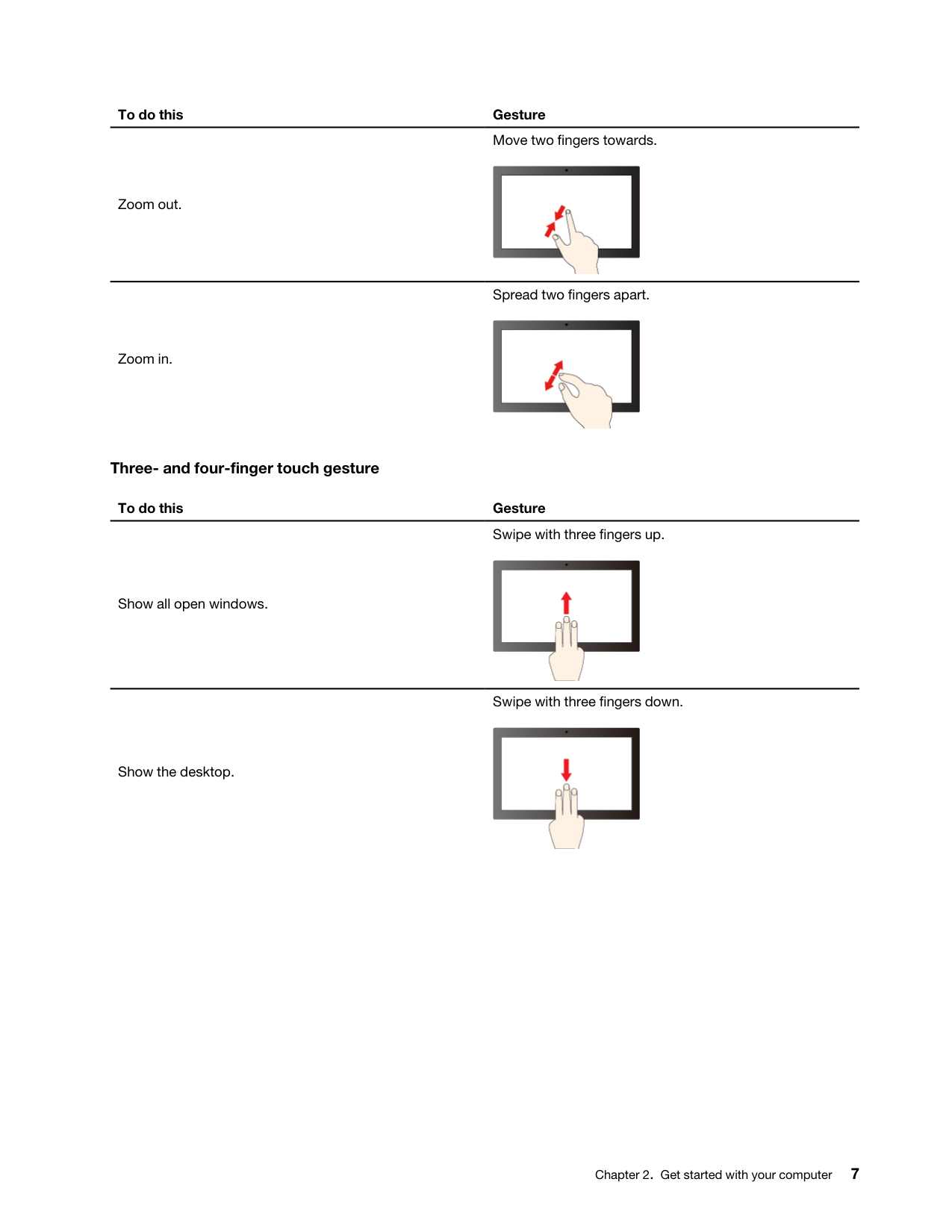
To do this Gesture Zoom out. Move two fingers towards. Zoom in. Spread two fingers apart. Three- and four-finger touch gesture To do this Gesture Show all open windows. Swipe with three fingers up. Show the desktop. Swipe with three fingers down. Chapter 2. Get started with your computer 7
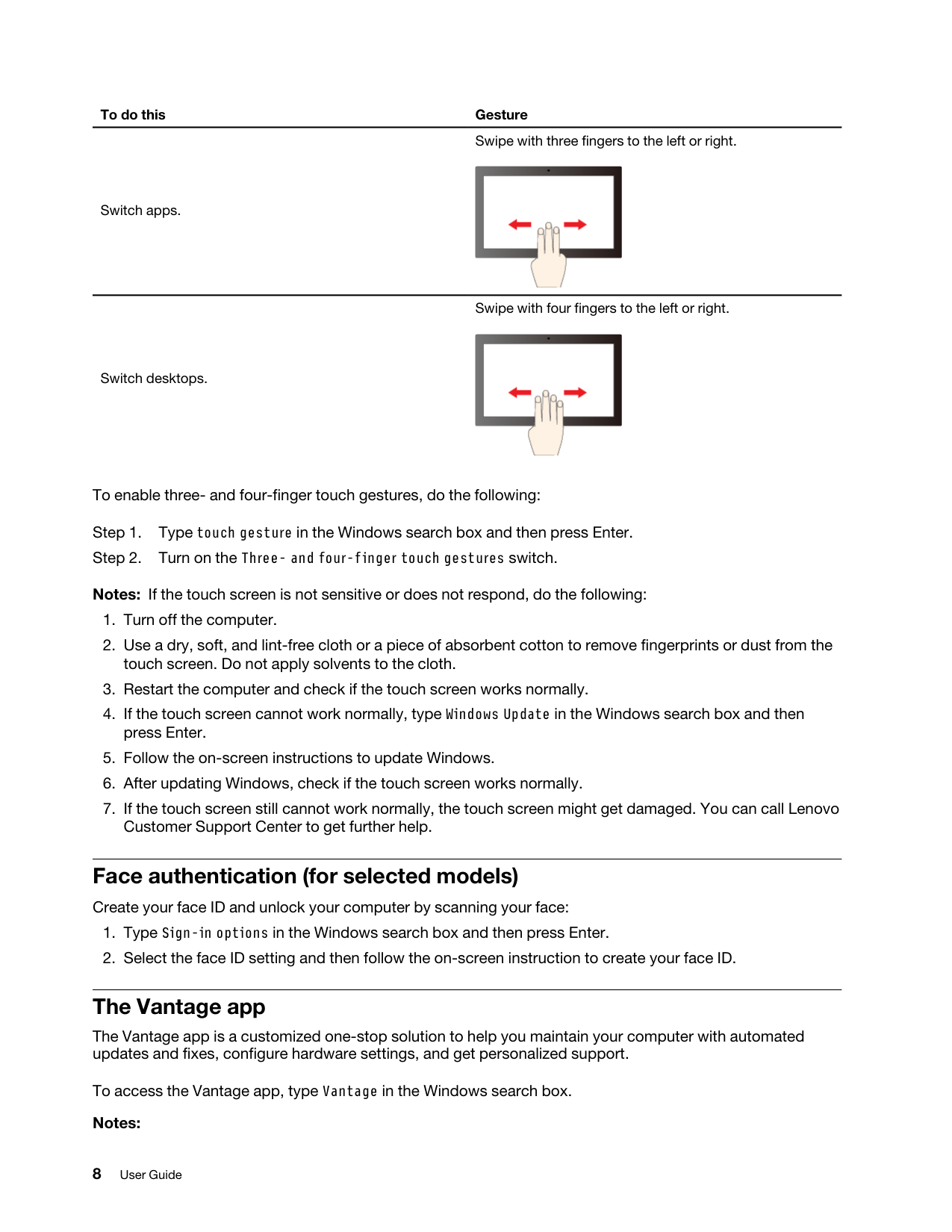
To do this Gesture Switch apps. Swipe with three fingers to the left or right. Switch desktops. Swipe with four fingers to the left or right. To enable three- and four-finger touch gestures, do the following: Step 1. Type touch gesture in the Windows search box and then press Enter. Step 2. Turn on the Three- and four-finger touch gestures switch. Notes: If the touch screen is not sensitive or does not respond, do the following:
Set the power plan For ENERGY STAR® compliant computers, the following power plan takes effect when your computers have been idle for a specified duration:
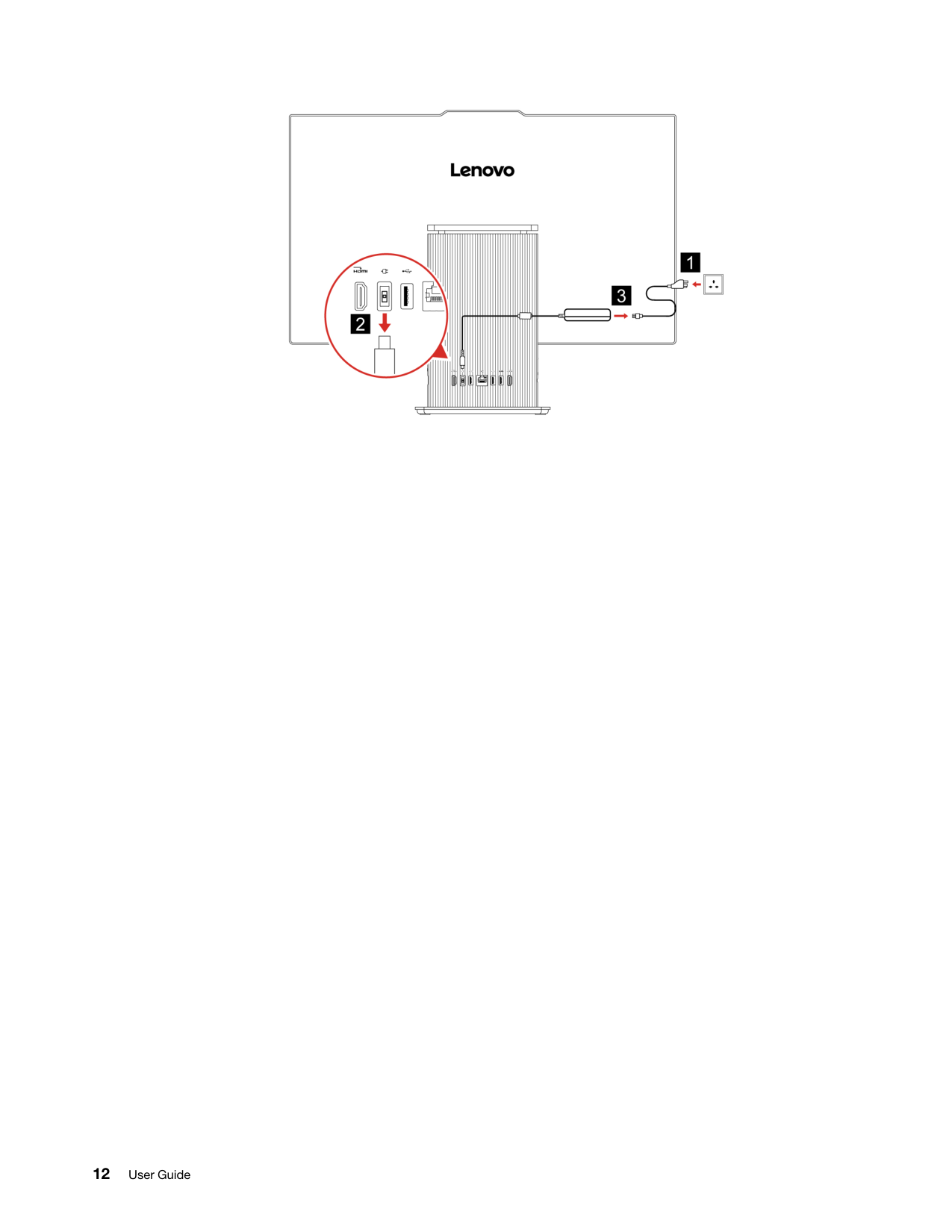
Chapter 3. CRU replacement Customer Replaceable Units (CRUs) are parts that can be replaced by the customer. Lenovo computers contain the following types of CRUs:
12 User Guide
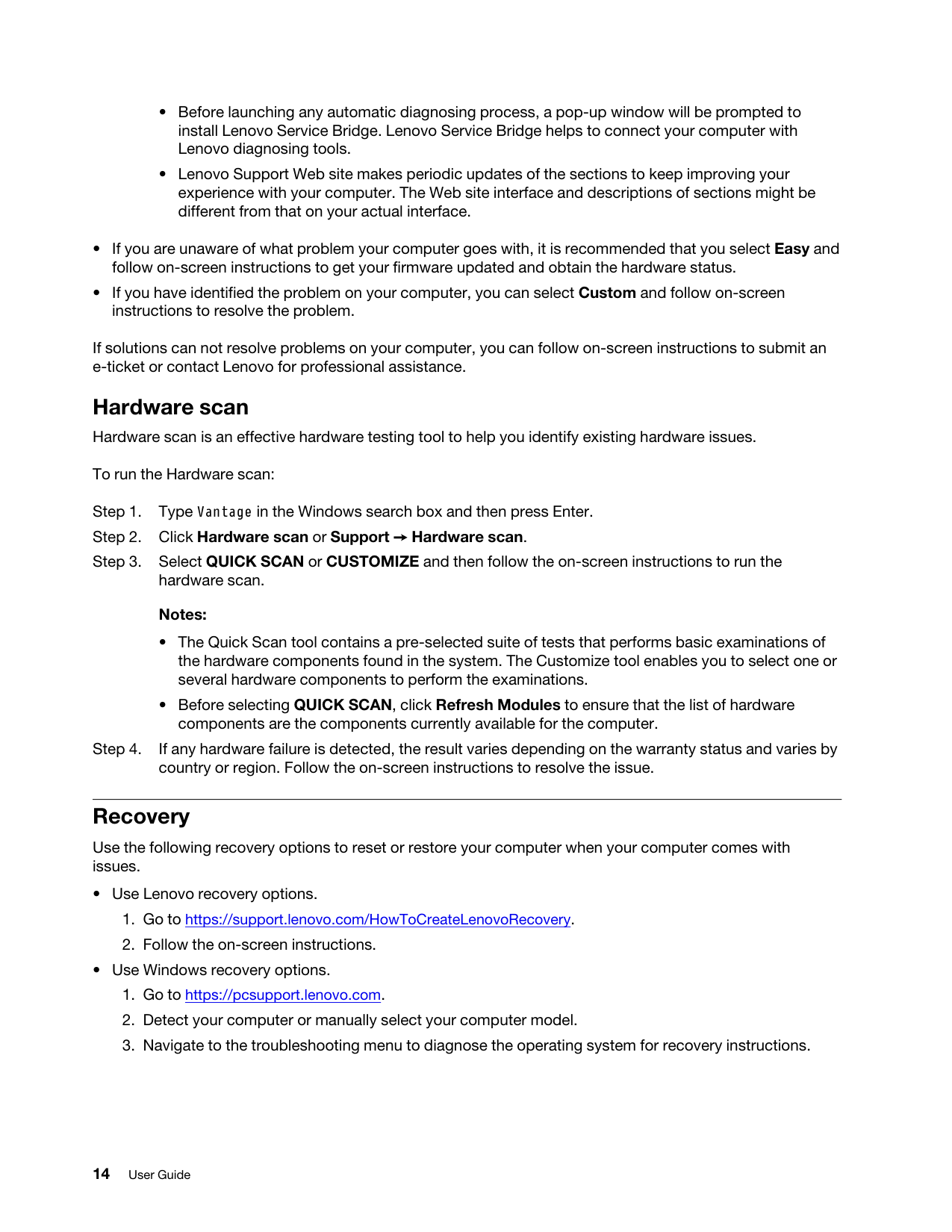
Chapter 4. Help and support Find your serial number This topic helps you find computer serial number. You can find your serial number via:
Call Lenovo If you have tried to correct the problem yourself and still need help, you can call Lenovo Customer Support Center. Before you contact Lenovo Prepare the needed information before you contact Lenovo.
Service availability and service name might vary by country or region. Accessibility features Lenovo is committed to making information technology accessible to everyone, including individuals with hearing, vision, mobility, cognitive, or speech disabilities. To get the most up-to-date and detailed accessibility features information for the product, go to https://support.lenovo.com/docs/product_accessibility_ features. 16 User Guide
Appendix A. Notices and trademarks Notices Lenovo may not offer the products, services, or features discussed in this document in all countries. Consult your local Lenovo representative for information on the products and services currently available in your area. Any reference to a Lenovo product, program, or service is not intended to state or imply that only that Lenovo product, program, or service may be used. Any functionally equivalent product, program, or service that does not infringe any Lenovo intellectual property right may be used instead. However, it is the user's responsibility to evaluate and verify the operation of any other product, program, or service. Lenovo may have patents or pending patent programs covering subject matter described in this document. The furnishing of this document does not give you any license to these patents. You can send license inquiries, in writing, to: Lenovo (United States), Inc. 8001 Development Drive Morrisville, NC 27560
U.S.A.
Attention: Lenovo Director of Licensing LENOVO PROVIDES THIS PUBLICATION "AS IS" WITHOUT WARRANTY OF ANY KIND, EITHER EXPRESS OR IMPLIED, INCLUDING, BUT NOT LIMITED TO, THE IMPLIED WARRANTIES OF NON-INFRINGEMENT, MERCHANTABILITY OR FITNESS FOR A PARTICULAR PURPOSE. Some jurisdictions do not allow disclaimer of express or implied warranties in certain transactions, therefore, this statement may not apply to you. Changes are made periodically to the information herein; these changes will be incorporated in new editions of the publication. To provide better service, Lenovo reserves the right to improve and/or modify the products and software programs described in the manuals included with your computer, and the content of the manual, at any time without additional notice. The software interface and function and hardware configuration described in the manuals included with your computer might not match exactly the actual configuration of the computer that you purchase. For the configuration of the product, refer to the related contract (if any) or product packing list, or consult the distributor for the product sales. Lenovo may use or distribute any of the information you supply in any way it believes appropriate without incurring any obligation to you. The products described in this document are not intended for use in implantation or other life support applications where malfunction may result in injury or death to persons. The information contained in this document does not affect or change Lenovo product specifications or warranties. Nothing in this document shall operate as an express or implied license or indemnity under the intellectual property rights of Lenovo or third parties. All information contained in this document was obtained in specific environments and is presented as an illustration. The result obtained in other operating environments may vary. Lenovo may use or distribute any of the information you supply in any way it believes appropriate without incurring any obligation to you. Any references in this publication to non-Lenovo Web sites are provided for convenience only and do not in any manner serve as an endorsement of those Web sites. The materials at those Web sites are not part of the materials for this Lenovo product, and use of those Web sites is at your own risk. © Copyright Lenovo 2024, 2025 17
Any performance data contained herein was determined in a controlled environment. Therefore, the result obtained in other operating environments may vary significantly. Some measurements may have been made on development-level systems and there is no guarantee that these measurements will be the same on generally available systems. Furthermore, some measurements may have been estimated through extrapolation. Actual results may vary. Users of this document should verify the applicable data for their specific environment. This document is copyrighted by Lenovo and is not covered by any open source license, including any Linux agreement(s) which may accompany software included with this product. Lenovo may update this document at any time without notice. For the latest information or any questions or comments, contact or visit the Lenovo Web site: https://pcsupport.lenovo.com Trademarks Lenovo, Lenovo logo, IdeaCentre, and IdeaCentre logo are trademarks of Lenovo. Thunderbolt is a trademark of Intel Corporation or its subsidiaries in the U.S. and/or other countries. Microsoft, Windows, and Cortana are trademarks of the Microsoft group of companies. The terms HDMI and HDMI High-Definition Multimedia Interface are trademarks or registered trademarks of HDMI Licensing LLC in the United States and other countries. Wi-Fi, Wi-Fi Alliance, and Miracast are registered trademarks of Wi-Fi Alliance. USB-C is a trademark of USB Implementers Forum. All other trademarks are the property of their respective owners. 18 User Guide