
Ask AI
— answers from the official manualAnswers from the official manual.
Common questions
Common Questions
10 totalHow can I perform a factory reset on the Lenovo Tab P12?
To perform a factory reset, go to Settings > General settings > Reset options > Erase all data (factory reset). Tap Erase all data to restore your device to its original manufacturer's default settings. (Page 14)
How do I manually update the system on my Lenovo Tab P12?
Go to Settings > About tablet > System Update, and tap Check for updates. From there you can proceed through any manual steps to download and install new system versions as needed. (Page 15)
What is the process to disable Entertainment Space on my Lenovo Tab P12?
To disable Entertainment Space, access Home settings through your home screen or settings menu and switch off Swipe to access Entertainment Space. (Page 9)
How do I pair my tablet with a Lenovo Pen Plus accessory?
Press the pen button for 8 seconds until you see 'Ready to pair' displayed on your screen, then go to Settings > Bluetooth, enable it if not already and tap Connect when prompted. Follow additional onscreen instructions as required during first use setup. (Page 27)
How can I customize my home screen layout?
Press anywhere on your home screen except the icons, then select Home settings to adjust various options such as desktop style and widget placement according to personal preferences. (Page 6)
How do I configure Bluetooth connections with my Lenovo Tab P12?
Navigate to Settings > Bluetooth, then enable Bluetooth by toggling the switch. Select a device you wish to connect and follow onscreen prompts to establish or confirm pairing if necessary. (Page 14)
Full Manual
46 pages
Lenovo Tab P12
User Guide
TB370FU
Contents
##### Welcome ............................................................................... 1 Basics ..................................................................................... 2
Set up and get started ....................................................................................2 Prepare for setup .........................................................................................2 Initial setup .....................................................................................................2
Learn about gestures ......................................................................................4 Basic gestures ...............................................................................................4 More gestures................................................................................................5
Customize your home screen .......................................................................6 Home settings ...............................................................................................6 Widgets ...........................................................................................................7 Wallpaper ........................................................................................................7
Use your apps .....................................................................................................8 Search for an app ........................................................................................8 Move an app to another screen .............................................................8 Manage the open apps ..............................................................................8 Uninstall an app ............................................................................................8
Entertainment Space .......................................................................................9 Open the Entertainment Space .............................................................9 Disable the Entertainment Space ..........................................................9
Notifications and Quick settings .................................................................9 Control center style ....................................................................................9 Notifications panel ......................................................................................9 Quick settings panel ..................................................................................10
Factory reset, update and force shutdown ...........................................10 Factory reset ................................................................................................10 System update .............................................................................................10
i
Force shutdown............................................................................................11
##### Settings ................................................................................. 12
WLAN ................................................................................................................... 12 VPN ........................................................................................................................ 12 Bluetooth ............................................................................................................. 12 Display .................................................................................................................. 13
Brightness ...................................................................................................... 13 Reading mode .............................................................................................. 13 Eye protection and safety information .............................................. 13
Biometrics and Passwords ...........................................................................14 One Vision ...........................................................................................................14
Floating Window ........................................................................................14 Split Screen ...................................................................................................14
Digital Wellbeing & parental controls ......................................................16 Digital Wellbeing .........................................................................................16 Parental controls ......................................................................................... 17
Keyboard ............................................................................................................. 17 Battery .................................................................................................................. 17
Battery Saver ................................................................................................18 Charge optimization ..................................................................................18 Show battery power meter .....................................................................18 Detect battery drain ..................................................................................18
Permission management ...............................................................................18 Language ............................................................................................................19
##### Apps ....................................................................................... 20
Camera .................................................................................................................20 Open Camera ...............................................................................................20 Camera settings ..........................................................................................20 Switch camera modes............................................................................... 21 View photos and videos ........................................................................... 21
ii
Files ....................................................................................................................... 21 Browse files ...................................................................................................22 Clean files ......................................................................................................22 Share files ......................................................................................................22
Google apps .......................................................................................................22
##### Advanced features ............................................................ 23
Lenovo Freestyle ..............................................................................................23 Prepare for setup ........................................................................................23 Enable Lenovo Freestyle .........................................................................23 Tablet projection to computer ...............................................................23 Computer projection to tablet ..............................................................24 File share ........................................................................................................24
Multiple users .....................................................................................................24 Multi-User Preferences .............................................................................24 Creating new user accounts ...................................................................24 Switching between user accounts .......................................................25 Deleting a user account ...........................................................................25
Global video beauty ........................................................................................25 Video portrait ....................................................................................................25 Key Mapping ......................................................................................................26 Lenovo Tab Pen Plus (optional) .................................................................26
Overview ........................................................................................................26 Pair with a tablet .........................................................................................27 Pen settings ..................................................................................................27
Notepad ...............................................................................................................28 Create a note ................................................................................................28 Manage a note .............................................................................................28 Edit a note .....................................................................................................28 Use the pen ...................................................................................................29 Delete a note ................................................................................................30
iii
Appendix .............................................................................. 31 Important safety and handling information .......................................... 31 Electronic emission notices .........................................................................35 Environmental, recycling, and disposal information ..........................37 ENERGY STAR model information ............................................................39 Export classification notice ......................................................................... 40 Dolby certification ...........................................................................................41 HEVC Standard .................................................................................................41
iv
Welcome
Before using your device, be sure to read the following:

All pictures and illustrations in this guide are for your reference only. The actual product may vary.
##### Icons


Instruction, reminder, or suggestion. Attention or caution. Danger or warning.
Basics
Set up and get started
#### Prepare for setup
To make setup as smooth as possible, please prepare the following:
#### Initial setup
This device has an easy setup process to help you get going when you first turn on your device. You can follow the onscreen setup instructions manually.

After the initial setup, additional changes can be made in Settings.

If you set up offline, you need to manually set the time and date in the next step.
You can transfer many of your apps, settings, and content from your previous device directly to your new device.
Bring the two devices close together, then follow the onscreen instructions.

Before enabling face-recognition, you need to create a pattern, PIN, or password. You can also tap Skip to set up later in Settings > Biometrics and Passwords.
Operate your device by gestures. Refer to “Learn about gestures” for details.
Three buttons will appear on the navigation bar at the bottom of the screen.
|Button|Description| |---|---| ||• Go back Returning to the previous menu or exiting an app.| ||• Home Returning to the home screen.| ||• Switch apps Viewing the open apps.|
Learn about gestures
Your device supports Gesture navigation and Virtual key navigation.
#### Basic gestures
||Tap
• Selecting or opening an item.| |---|---| ||Press and hold
• Accessing frequently used functions of the app.
• Customizing your home screen.
| ||Swipe
• Swiping up to open the list of all apps.
• Swiping down to open the Notifications panel.
• Swiping down twice to open the Quick settings panel.
| ||Hold and drag
• Moving an app to where you want to
place it.| ||Spread and pinch
• Zooming in and out on websites,
photos, maps, or other items.|
#### More gestures
The following gestures are only available for the Gesture navigation style. To change the navigation style, go to Settings > General settings > System navigation.
||Swipe up from the bottom edge.
• Returning to the home screen.| |---|---| ||Swipe from the left or right edge.
• Switching to the previous page.| ||Swipe up from the bottom edge and hold.
• Viewing the open apps.| ||Swipe left or right at the bottom edge.
• Switching between open apps.|
Customize your home screen
The home screen is the starting point for using your device. For your convenience, the home screen is already set up with some useful apps and widgets.
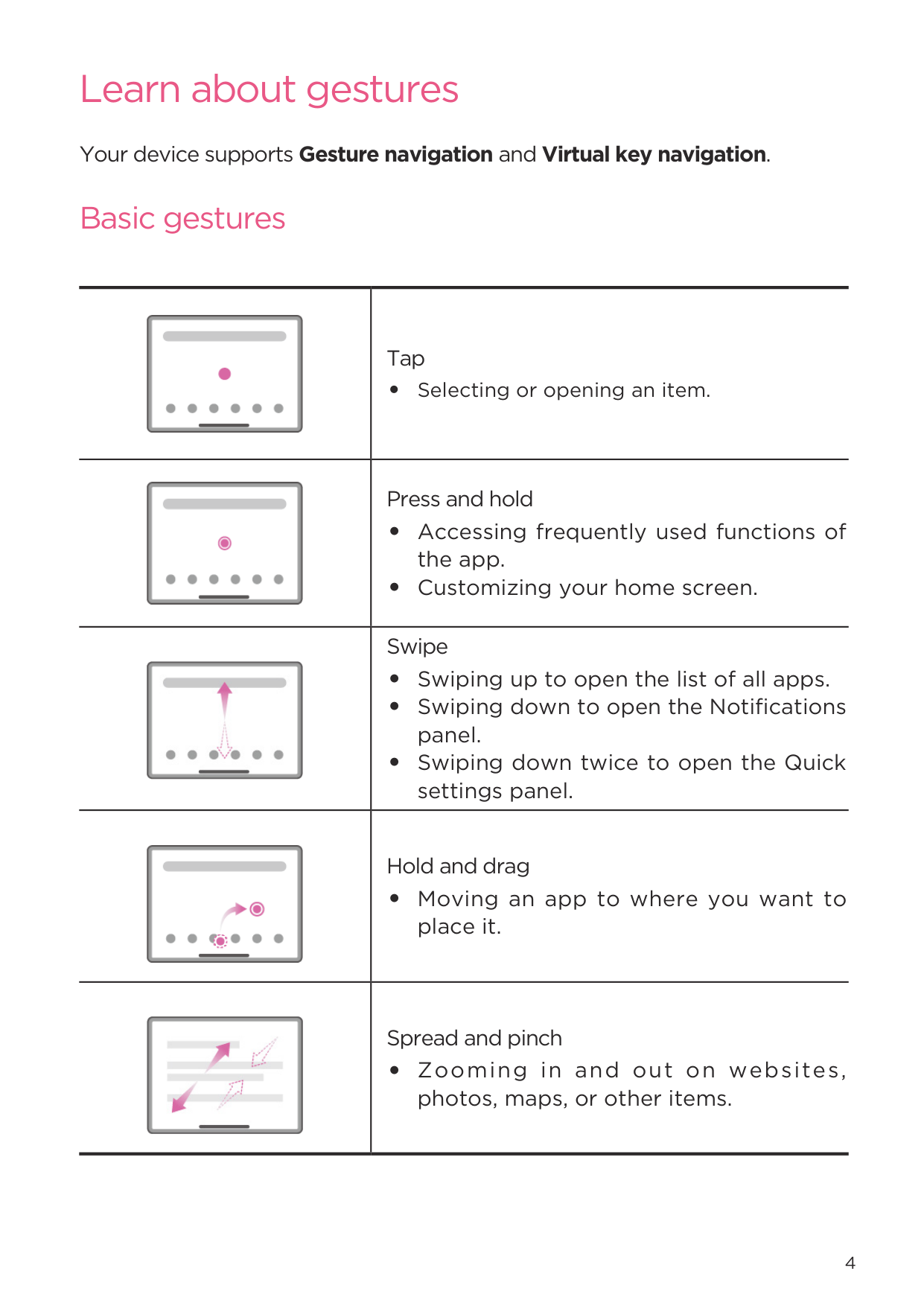
2
1
|No.|Function|Description| |---|---|---| |1|Taskbar|Add apps to the taskbar.| |2|All applications|• : Swipe up to view all apps.

• : Tap to view all apps.
| |3|Most recently used applications|Display apps that have been used recently.|
You can customize your home screen in the following ways.
#### Home settings
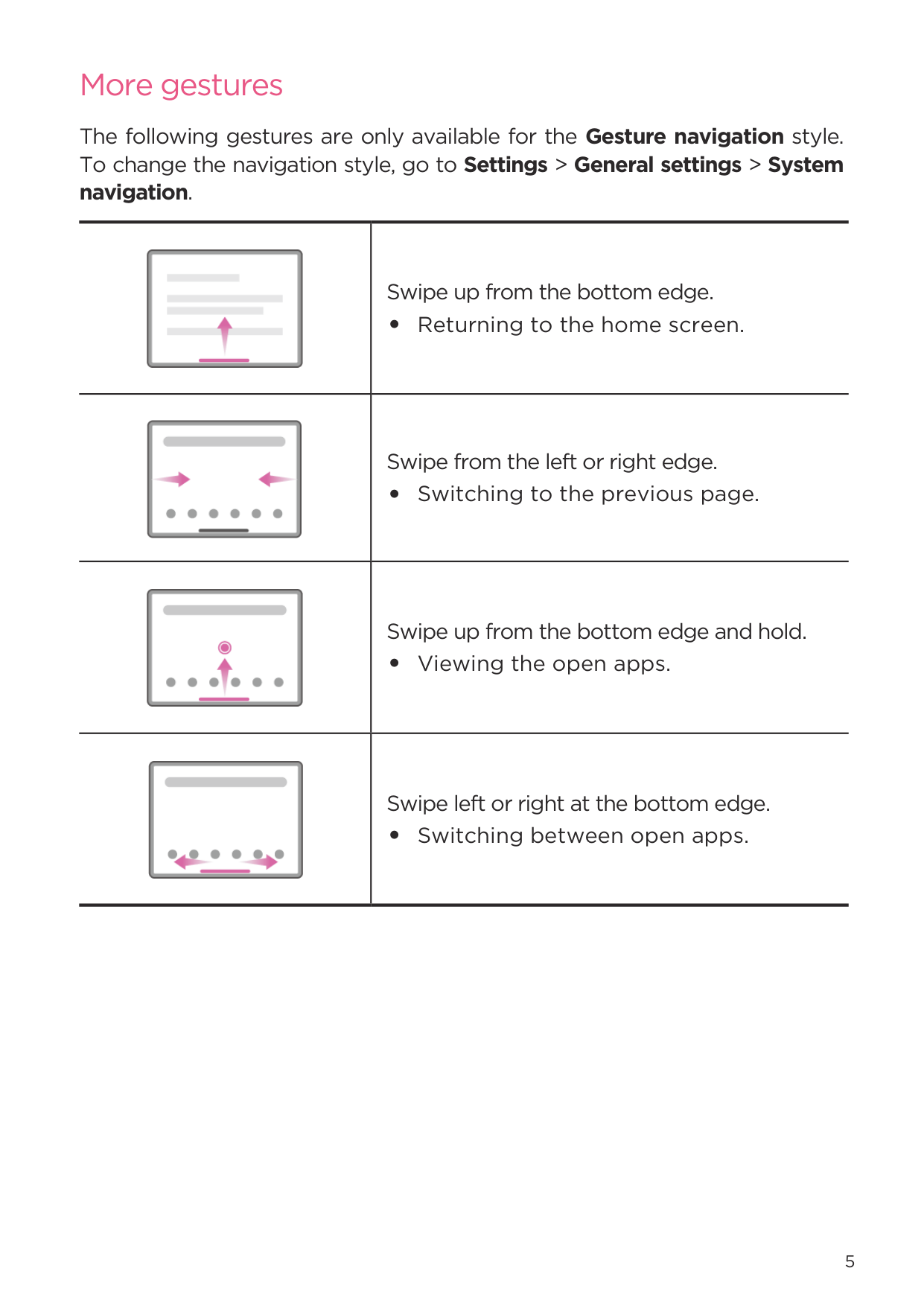
Press and hold anywhere on the home screen except the icons, and tap Home settings to customize your device in the following ways.
#### Widgets
You can add a widget on your home screen. Widgets provide you with quick-views of the calendar events information, mails, maps, and more.
#### Wallpaper
To set your wallpaper, do the following:
Set a Battery wallpaper on the lock screen displaying the power status: Full, Average, Low, or Charging.
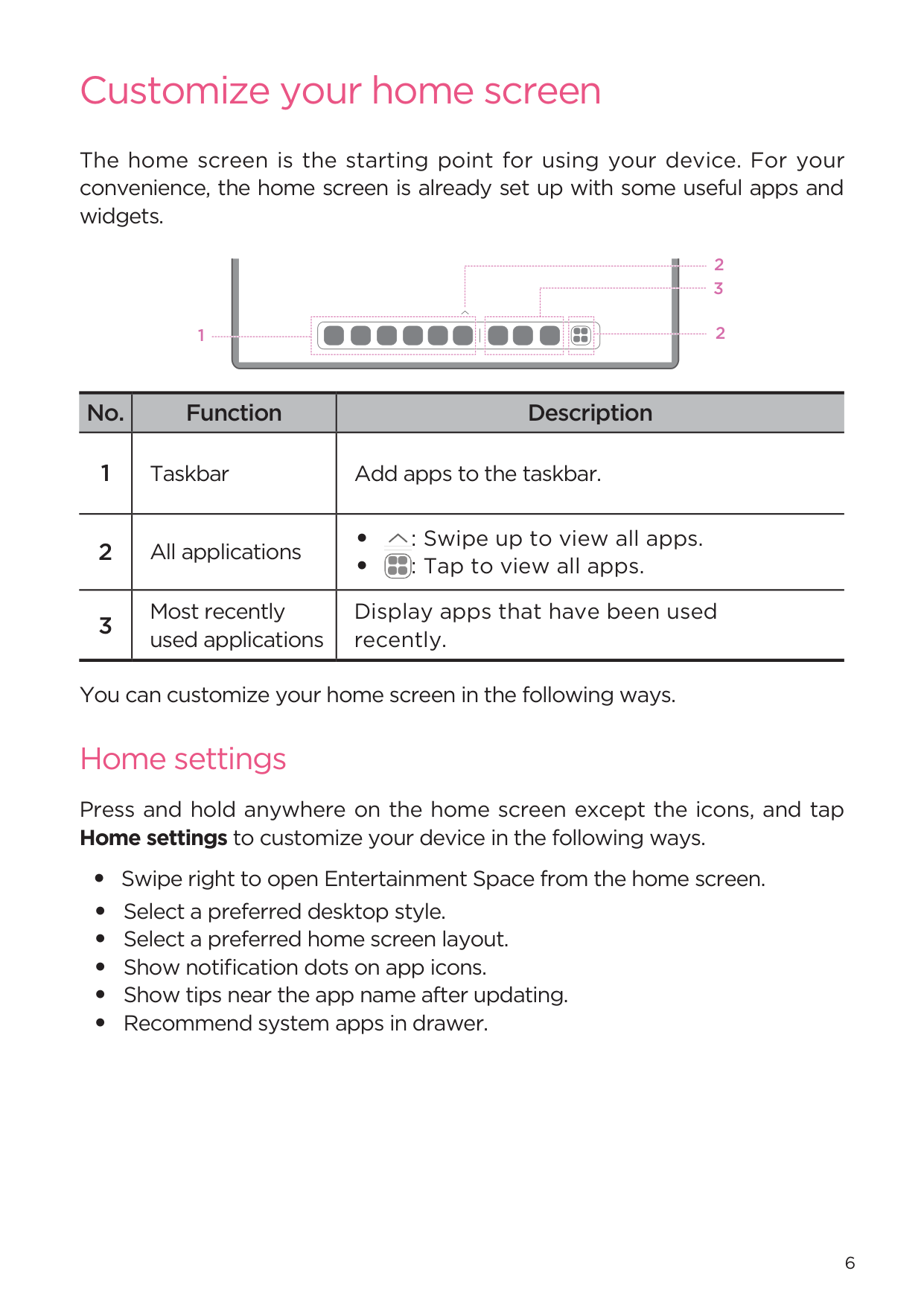
Select an available high quality wallpaper for the screen and/or desktop.

You can also go to Settings > Personal customization > Wallpaper to set your wallpaper.
Use your apps
#### Search for an app
#### Move an app to another screen
Press and hold the app that you want to move, drag it to where you want to place it, and then release it.
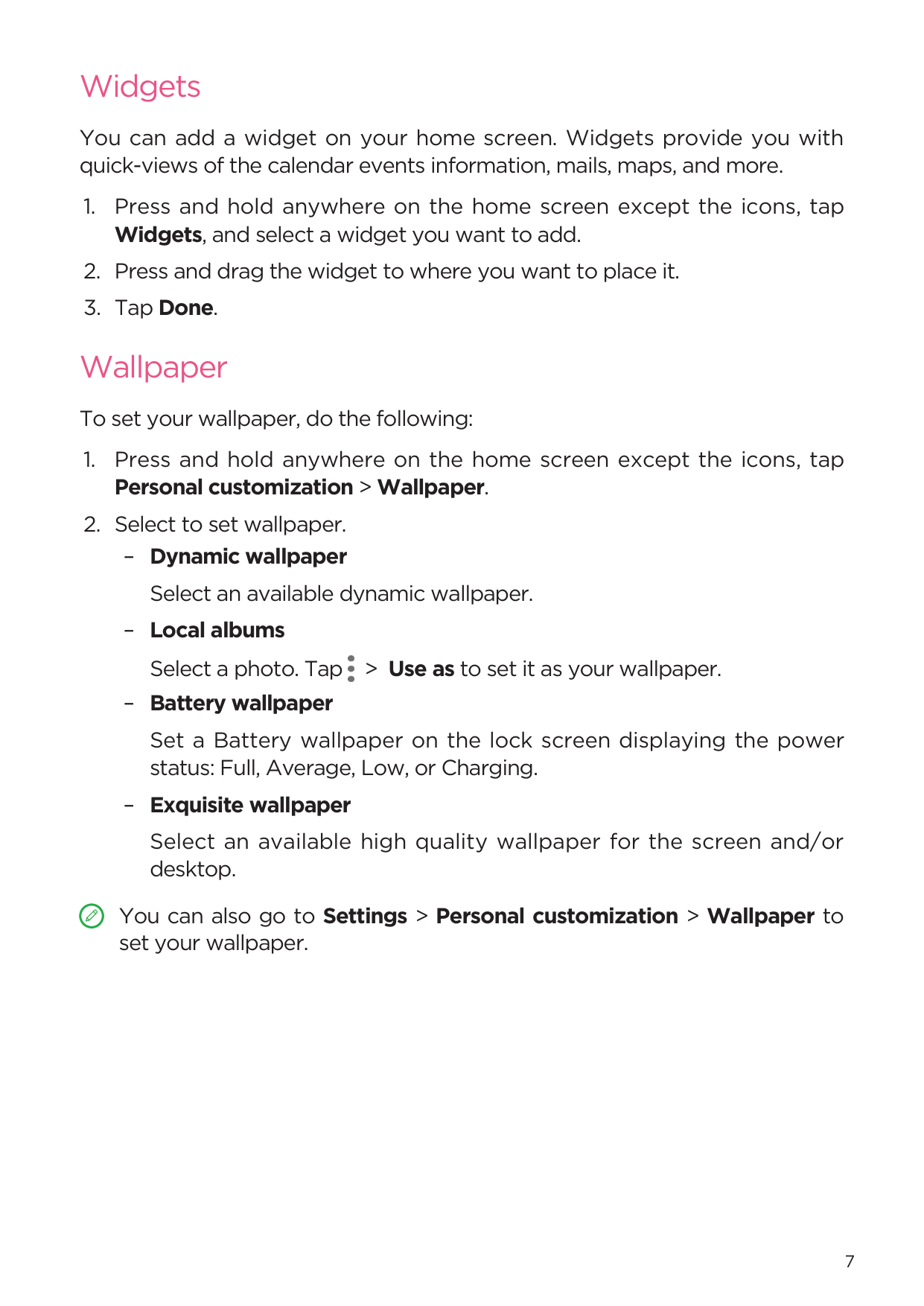
#### Manage the open apps
#### Uninstall an app

Entertainment Space
Entertainment Space is a one-stop, personalized screen for all your favorite movies, shows, videos, games, and books.
#### Open the Entertainment Space
Swipe right from the home screen or tap on the left side of the home screen.

Internet connection and Google account sign-in are necessary for using the Entertainment Space.
#### Disable the Entertainment Space
Entertainment Space is enabled by default. Go to Home settings and disable Swipe to access Entertainment Space.
Notifications and Quick settings
#### Control center style
Go to Settings > Notification and control center > Control Center style, to set the style of the Notifications and Quick settings panels.
#### Notifications panel
The Notifications panel informs you of new messages, USB connections, activities in progress such as file downloading, and more.
#### Quick settings panel
The Quick settings panel provides quick access to device functions. Icons change colors when corresponding functions are enabled and disabled.
Factory reset, update and force shutdown
#### Factory reset
Factory reset will erase all data from your device’s internal storage. Please back up important data on the device before resetting your device.
#### System update
Your device will prompt you to download and install updates when a new system version is available. You can also manually check for updates and set update methods.


Download and install system updates from official sources only.
#### Force shutdown
Press and hold the Power and Volume down buttons for about 8 seconds until the device turns off.
Settings
WLAN
Connecting to the internet over a WLAN network is an effective method to save your mobile data.

After the device is connected to a WLAN network, will be displayed at the top of the screen.
VPN
VPNs are used within organizations to allow you to communicate private information securely over a non-private network. You may need to configure a VPN, for example, to access your work email. Ask the network administrator for the settings necessary to configure a VPN for your network.
Bluetooth
You can pair your device to other Bluetooth-enabled devices, like Bluetooth headphones.
###### 1. Go to Settings > Bluetooth, and enable Bluetooth.
After the device is connected to a Bluetooth device, will be displayed at the top of the screen.
Display
Brightness
Go to Settings > Display, and move the Brightness slider to adjust the screen brightness manually.
Go to Settings > Display, and enable Adaptive brightness to allow the screen to change brightness as lighting changes automatically.
Reading mode
#### Eye protection and safety information
When Night Light is enabled, the screen will have an amber tint, which reduces blue light. This allows you to read or view the screen more comfortably in dimly lit environments.
Please use the device in a well-lit area, and when using the device, keep it at a suitable distance from your eyes. To avoid eyestrain, take a break from looking at the screen after a period of time.
While concentrating on the performance capabilities of its screens, Lenovo also places importance on users’ eye health. This product has received TÜV Rheinland’s “Low Blue Light” certification and can be used with confidence. For further information, please visit https://support.lenovo.com.
Biometrics and Passwords
Setting a lock screen is an effective way to increase device security.
Place your finger on the sensor on the power button to set Fingerprint.
Face-recognition is set in combination with the pattern, PIN, or password as an alternate screen unlock method.
One Vision
#### Floating Window
The Floating window feature is used for handling temporary tasks without having to switch between apps.
To open Floating Window, do one of the following:


Go to Settings > One Vision > Floating Window to view more gestures to operate floating window.
#### Split Screen
Split screen mode enables you to open apps in a split screen and use them at the same time.
Enable split screen mode To open split screen, do one of the following:
###### - Method one:
####### - Method two:In full-screen mode of the app, tap > .

###### - Method three:

Enable three or four split screens
Press and drag the app to the edge of the screen until the screen color turns grey.

Exit split screen mode

Digital Wellbeing & parental controls
With Digital Wellbeing & parental controls, you can access real-time reports showing how much time you spend on your device. You can also set limits for what you want to manage.
Go to Settings > Digital Wellbeing & parental controls, and then set the related functions.
Digital Wellbeing
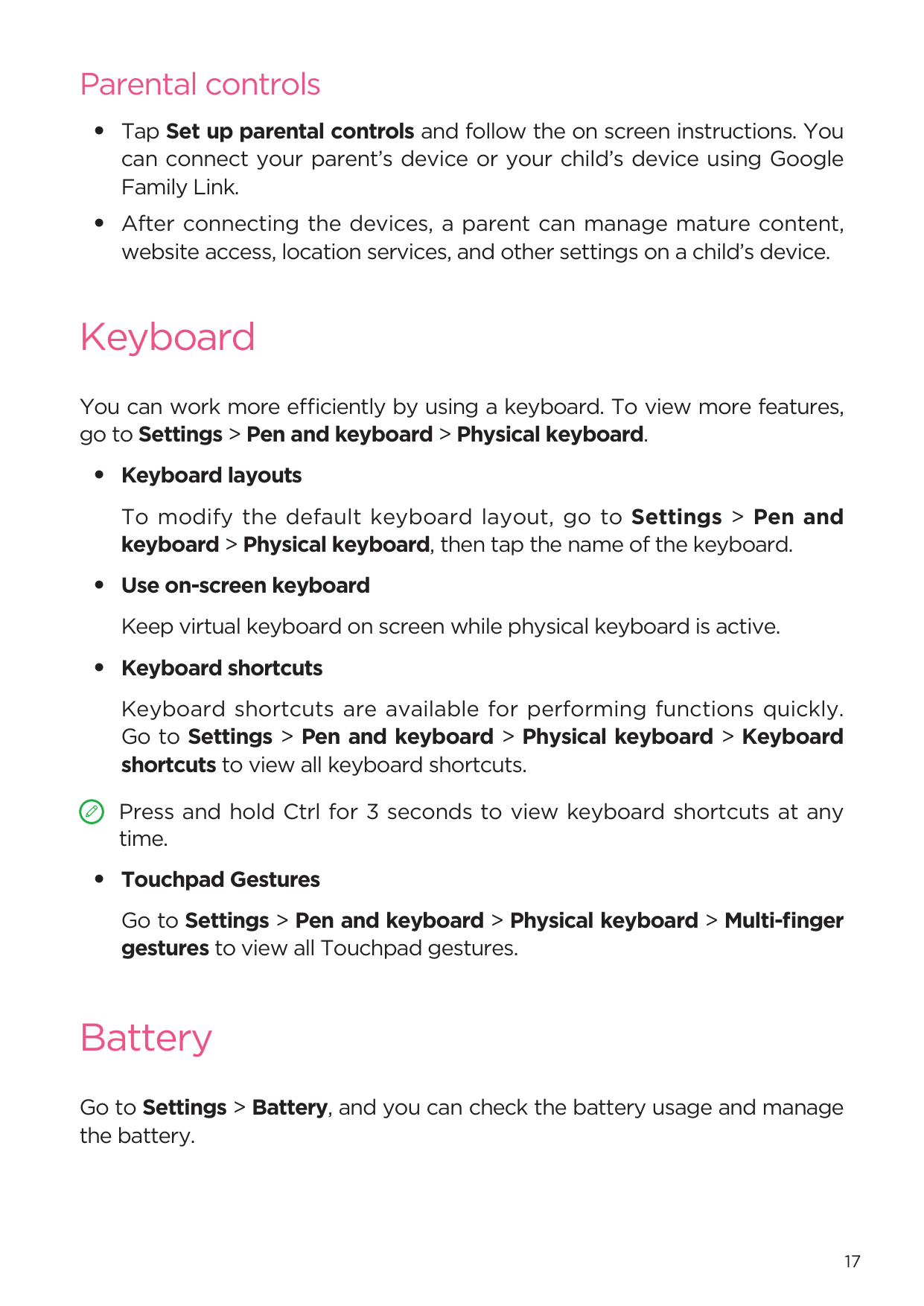
Select distracting apps, then tap TURN ON NOW to pause distracting apps and hide their notifications.
#### Parental controls
Keyboard
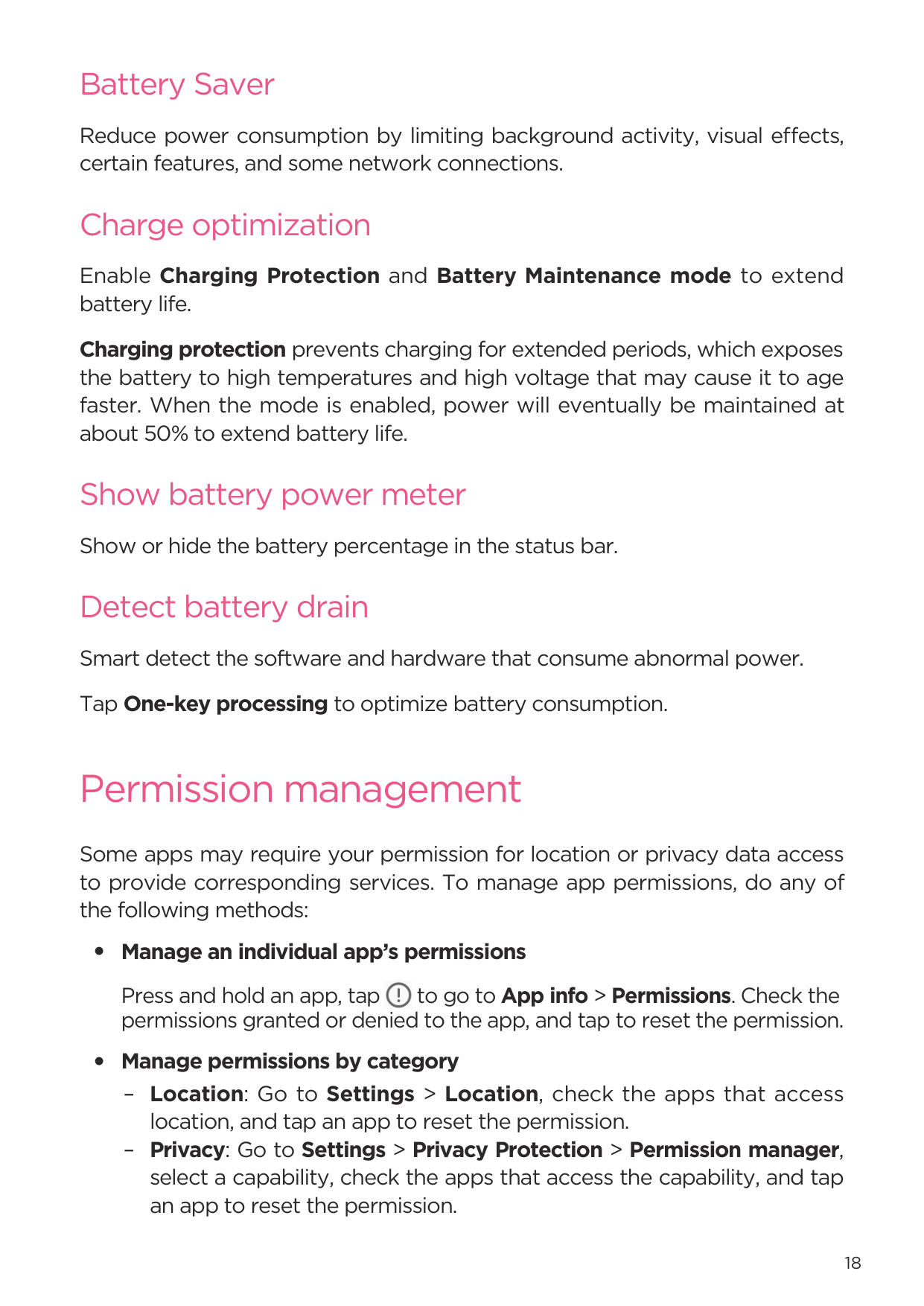
You can work more efficiently by using a keyboard. To view more features, go to Settings > Pen and keyboard > Physical keyboard.
To modify the default keyboard layout, go to Settings > Pen and keyboard > Physical keyboard, then tap the name of the keyboard.
Keyboard shortcuts are available for performing functions quickly. Go to Settings > Pen and keyboard > Physical keyboard > Keyboard shortcuts to view all keyboard shortcuts.

Press and hold Ctrl for 3 seconds to view keyboard shortcuts at any time.
Go to Settings > Pen and keyboard > Physical keyboard > Multi-finger gestures to view all Touchpad gestures.
Battery
Go to Settings > Battery, and you can check the battery usage and manage the battery.
#### Battery Saver
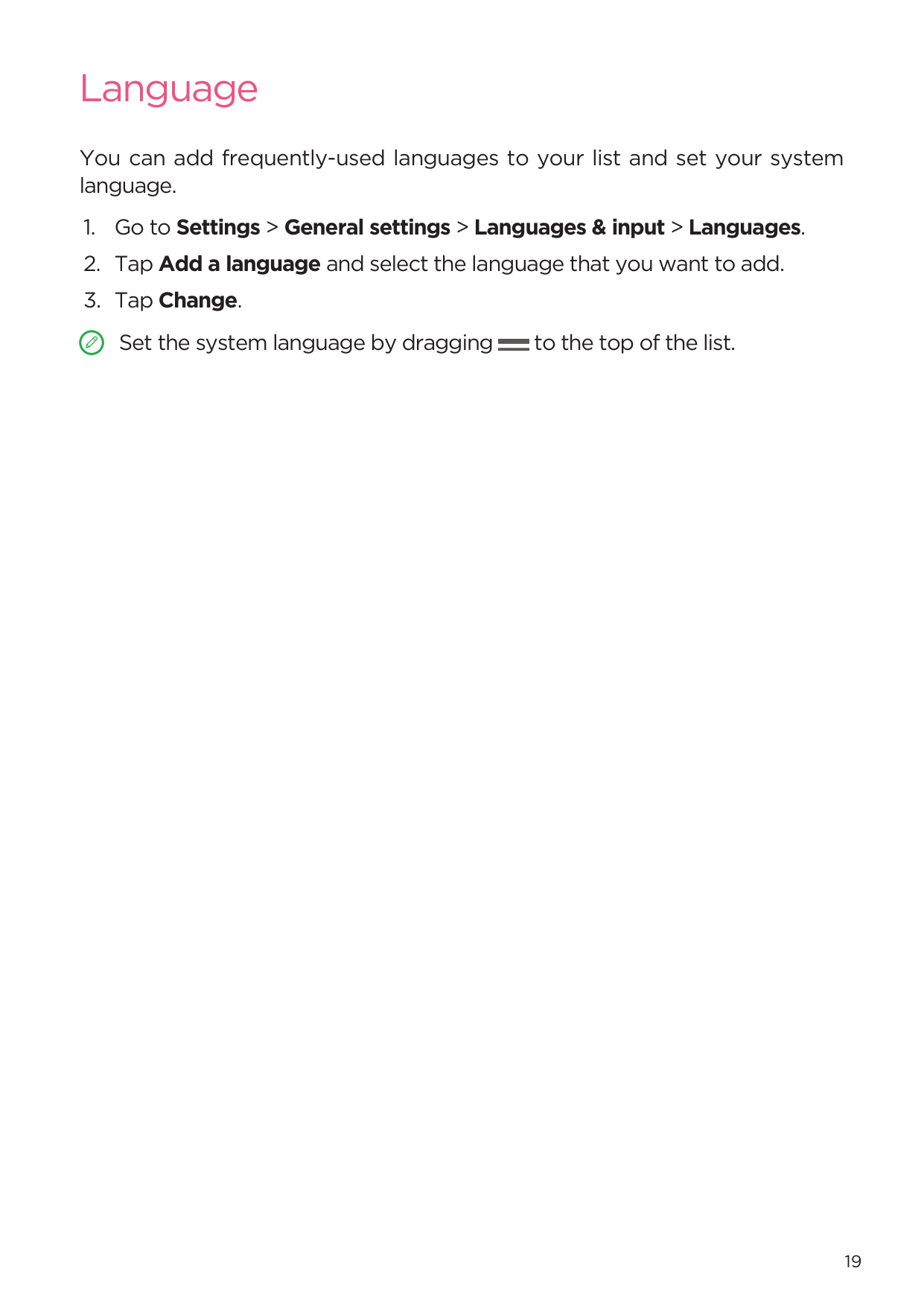
Reduce power consumption by limiting background activity, visual effects, certain features, and some network connections.
Charge optimization
Enable Charging Protection and Battery Maintenance mode to extend battery life.
Charging protection prevents charging for extended periods, which exposes the battery to high temperatures and high voltage that may cause it to age faster. When the mode is enabled, power will eventually be maintained at about 50% to extend battery life.
#### Show battery power meter
Show or hide the battery percentage in the status bar.
Detect battery drain Smart detect the software and hardware that consume abnormal power. Tap One-key processing to optimize battery consumption.
Permission management
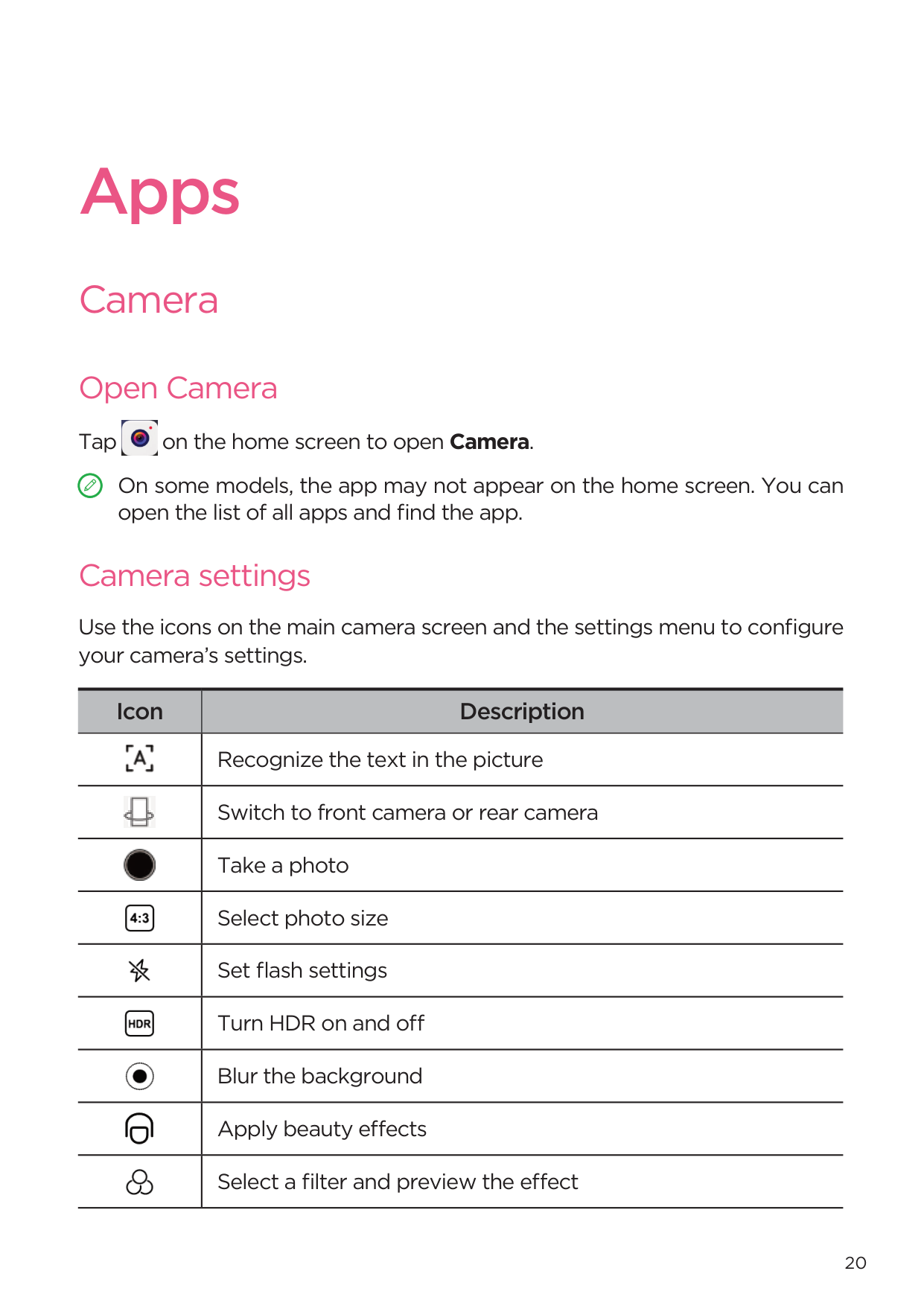
Some apps may require your permission for location or privacy data access to provide corresponding services. To manage app permissions, do any of the following methods:
Press and hold an app, tap to go to App info > Permissions. Check the permissions granted or denied to the app, and tap to reset the permission.
Language
You can add frequently-used languages to your list and set your system language.


Apps
Camera
#### Open Camera
Tap on the home screen to open Camera.

On some models, the app may not appear on the home screen. You can open the list of all apps and find the app.
#### Camera settings
Use the icons on the main camera screen and the settings menu to configure your camera’s settings.
|Icon|Description| |---|---| ||Recognize the text in the picture| ||Switch to front camera or rear camera| ||Take a photo| ||Select photo size| ||Set flash settings| ||Turn HDR on and off| ||Blur the background| ||Apply beauty effects| ||Select a filter and preview the effect|
|Icon|Description| |---|---| ||Turn AI photo assistant on and off| ||Configure other camera settings| ||Record a video Tap Video to switch to the video mode before you can see this icon.|
#### Switch camera modes
Position the document in view of the camera and tap . The scanned document can be saved as PDF or JPG.
#### View photos and videos
Photos and videos are stored in your device’s internal storage. You can view your photos and videos by using the following methods.
Files
Open the list of all apps. Tap to open Files. You can view and manage files stored on your device, including images, videos, audio, and more.
#### Browse files
Go to Files > Browse, and you can do the following:

#### Clean files
Go to Files > Clean, check the internal storage space and clean junk files.
#### Share files
Go to Files > Nearby Share, and follow the onscreen prompts to quickly send or receive files.
Google apps
Google apps are preinstalled on your device. You can visit support.google. com to learn more about Google apps. The apps can be also obtained from Google Play Store.
Advanced features
Lenovo Freestyle
Lenovo Freestyle is used for collaboration between tablet and computer.
#### Prepare for setup
To make setup as smooth as possible, please prepare the following:
#### Enable Lenovo Freestyle
#### Tablet projection to computer
To project the tablet apps to your computer, drag and drop the tablet app icon onto the computer name. You can then control apps on your tablet with your computer.

Some apps may not be projected on Windows due to compatibility issues.
#### Computer projection to tablet
You can mirror your computer screen on your tablet or turn your tablet into a second screen for your computer.
File share
Select the file you want to send to your tablet on your computer, then follow the onscreen instructions.
Select the file you want to share in Files on the tablet and choose Lenovo Freestyle for sharing.


For more information about File share, refer to “Files”.
Multiple users
#### Multi-User Preferences
There are three user types:
• Owner: An owner has full control over all user permissions and manages
all user accounts.
• Guest: There is only one guest account. A guest has restricted access to
the device.
• New User: There can be multiple standard user accounts.
#### Creating new user accounts
Swipe down from the top right corner of the screen.
Or go to Settings > General settings > Multiple users.
account.
#### Switching between user accounts
#### Deleting a user account
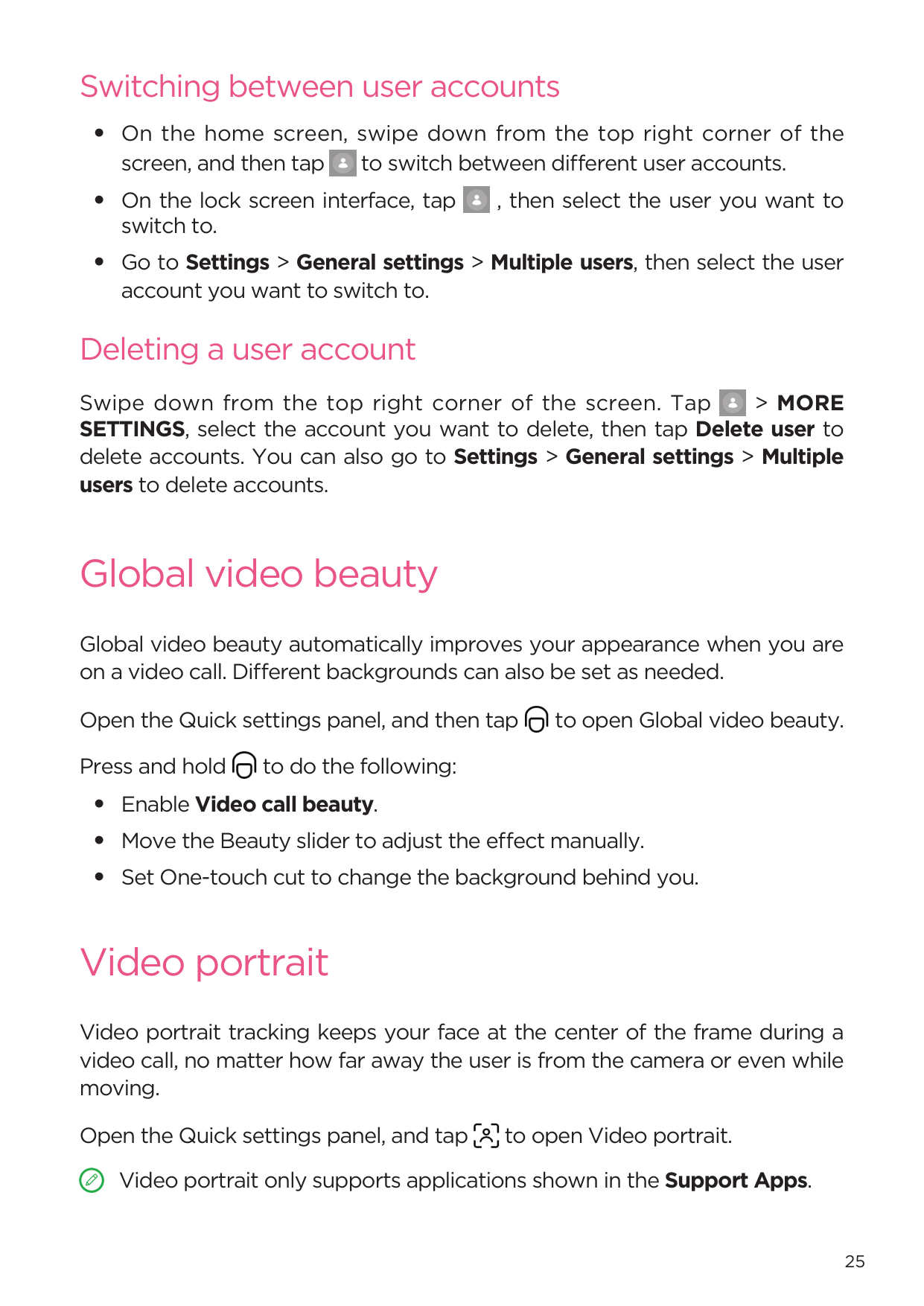
Swipe down from the top right corner of the screen. Tap > MORE SETTINGS, select the account you want to delete, then tap Delete user to delete accounts. You can also go to Settings > General settings > Multiple users to delete accounts.
Global video beauty
Global video beauty automatically improves your appearance when you are on a video call. Different backgrounds can also be set as needed.
Open the Quick settings panel, and then tap to open Global video beauty. Press and hold to do the following:
Video portrait
Video portrait tracking keeps your face at the center of the frame during a video call, no matter how far away the user is from the camera or even while moving.
Open the Quick settings panel, and tap to open Video portrait. Video portrait only supports applications shown in the Support Apps.

Key Mapping
Key Mapping allows you to operate applications by using multiple peripherals such as a keyboard, mouse, and controller.
Go to Settings > Advanced features > Key Mapping and enable Key Mapping. You can use Bluetooth to connect to your mouse, keyboard or controller.
Lenovo Tab Pen Plus (optional)
The Lenovo Tab Pen Plus provides a better experience for writing or drawing on the screen.
#### Overview
2
3
1
4
|1|Button| |---|---| |2|LED indicator| |3|USB-C connector| |4|Tip|
#### Pair with a tablet

#### Pen settings
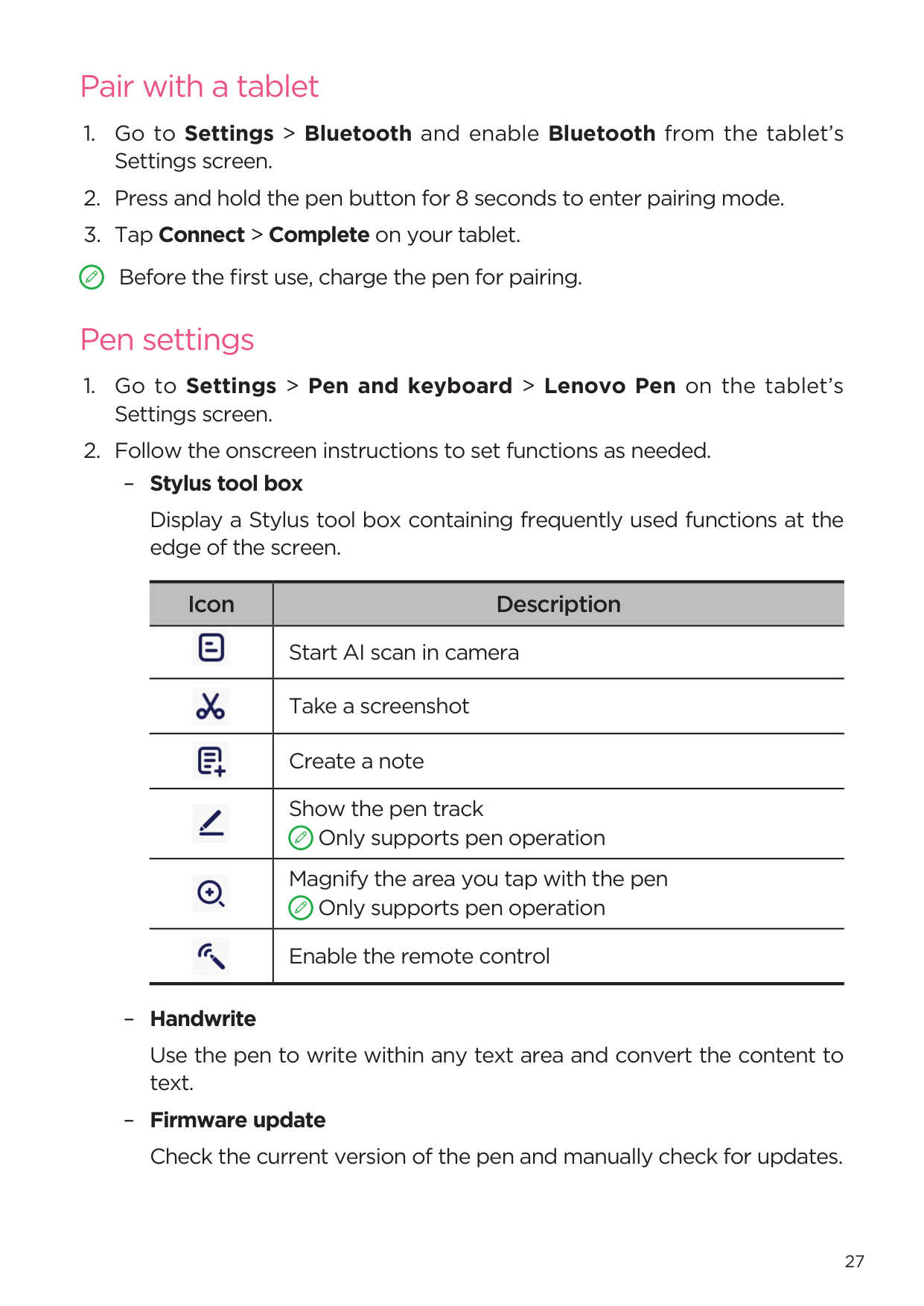
Display a Stylus tool box containing frequently used functions at the edge of the screen.
|Icon|Description| |---|---| ||Start AI scan in camera| ||Take a screenshot| ||Create a note| ||Show the pen track Only supports pen operation
| ||Magnify the area you tap with the pen Only supports pen operation
| ||Enable the remote control|
Use the pen to write within any text area and convert the content to text.
Notepad
Use text, image, and voice recording features to quickly record your inspiration and ideas, boosting efficiency and making it easy to handle tasks.
#### Create a note
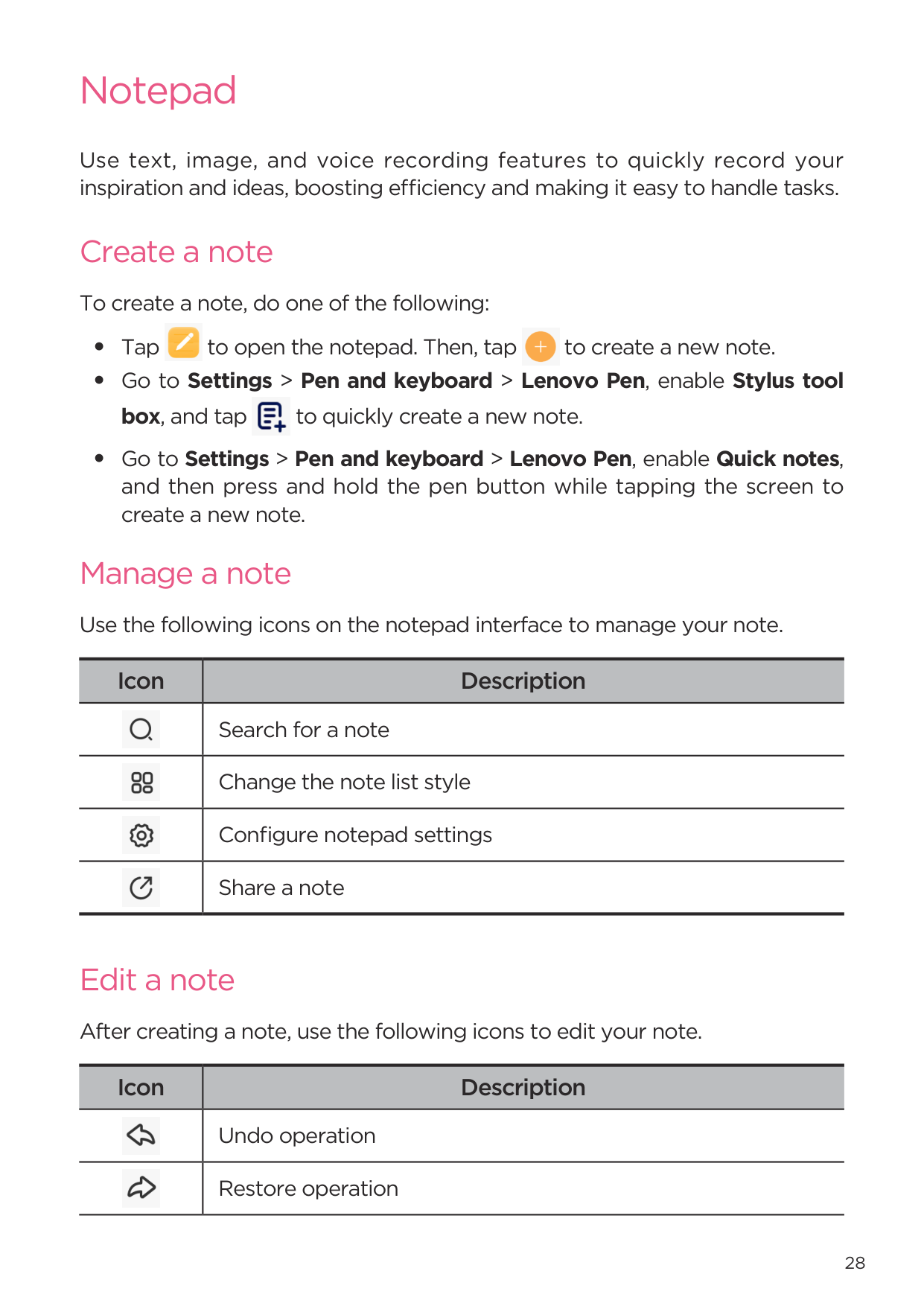
To create a note, do one of the following:


#### Manage a note
Use the following icons on the notepad interface to manage your note.
|Icon|Description| |---|---| ||Search for a note| ||Change the note list style|
||Configure notepad settings| ||Share a note|
#### Edit a note
After creating a note, use the following icons to edit your note.
|Icon|Description| |---|---| ||Undo operation| ||Restore operation|
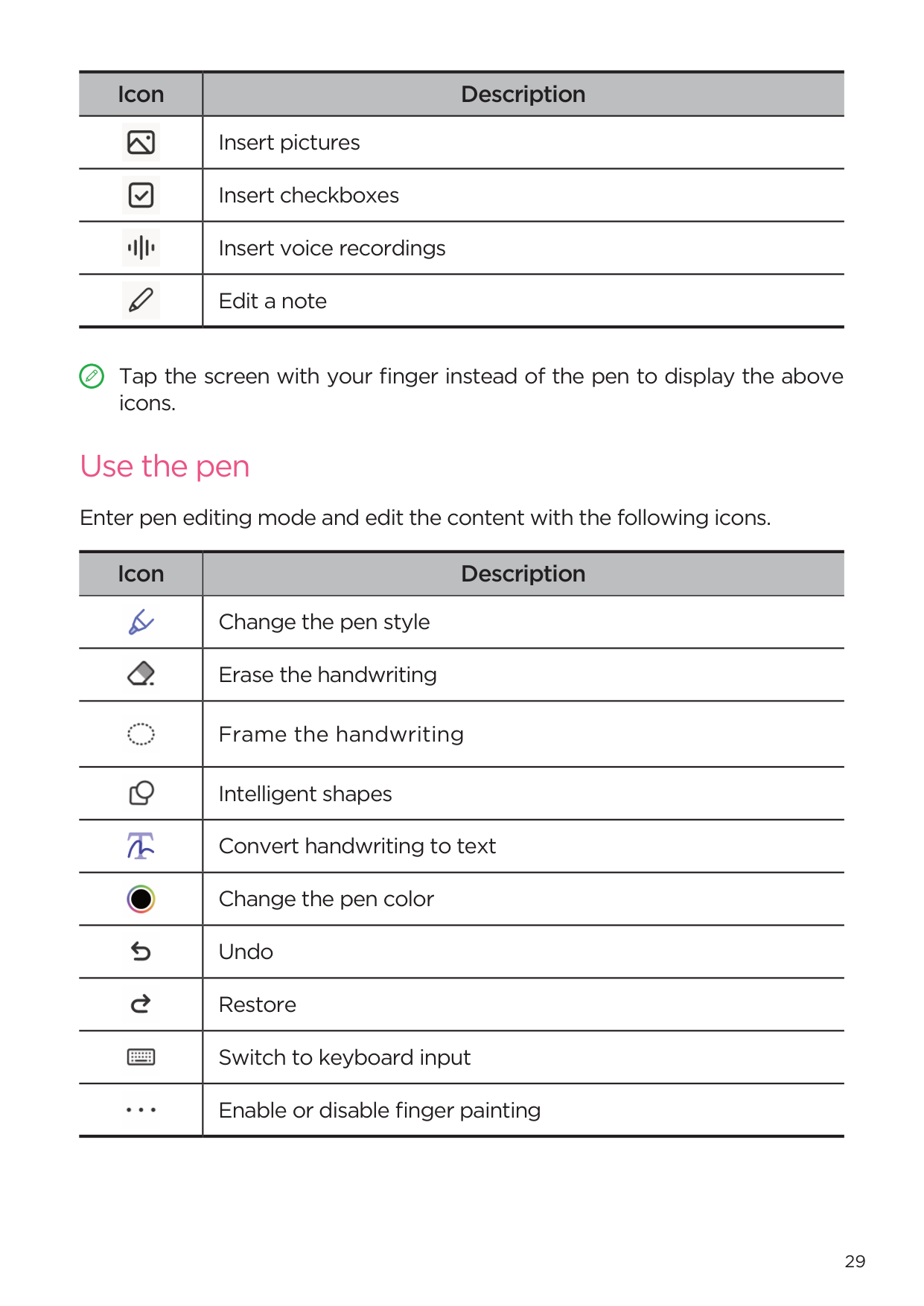
|Icon|Description| |---|---| ||Insert pictures| ||Insert checkboxes| ||Insert voice recordings| ||Edit a note|

Tap the screen with your finger instead of the pen to display the above icons.
#### Use the pen
Enter pen editing mode and edit the content with the following icons.
|Icon|Description| |---|---| ||Change the pen style| ||Erase the handwriting| ||Frame the handwriting| ||Intelligent shapes| ||Convert handwriting to text| ||Change the pen color| ||Undo| ||Restore| ||Switch to keyboard input| ||Enable or disable finger painting|
#### Delete a note
To delete a note, do one of the following:
• Press and hold on your note list, select the note you want to delete and
tap Delete.
• Slide the selected note to the left and tap .
Appendix
Important safety and handling information
To avoid personal injury, property damage, or accidental damage to the product, read all of the information in this section before using the product. For additional tips to help you operate your device safely, go to http://www. lenovo.com/safety.
#### Handle your device with care
Do not drop, bend, or puncture your device; do not insert foreign objects into or place heavy objects on your device. Sensitive components inside might become damaged.
Your device screen is made of glass. The glass might break if the device is dropped on a hard surface, is subjected to a high impact, or is crushed by a heavy object. If the glass chips or cracks, do not touch the broken glass or attempt to remove it from the device. Stop using the device immediately and contact Lenovo technical support for repair, replacement, or disposal information.
When using your device, keep it away from hot or high-voltage environments, such as electrical appliances, electrical heating equipment, or electrical cooking equipment. Use your device only in the temperature range of 0°C (32°F) to 40°C (104°F) (storage -20°C (-4°F) to 60°C (140°F)) to avoid damage.
Don’t expose your device to water, rain, extreme humidity, sweat or other liquids.
#### Do not disassemble or modify your device
Your device is a sealed unit. There are no end-user serviceable parts inside. All internal repairs must be done by a Lenovo-authorized repair facility or a Lenovo-authorized technician. Attempting to open or modify your device will void the warranty.
#### Built-in rechargeable battery notice
Do not attempt to replace the internal rechargeable lithium ion battery. There is a risk of explosion if the battery is replaced with an incorrect type. Contact Lenovo Support for replacement.
Plastic bag notice

###### DANGER
Plastic bags can be dangerous. Keep plastic bags away from babies and children to avoid danger of suffocation.
#### Adapter information
Do not immerse your device in water or leave your device in a location where it can come into contact with water or other liquids.

Please only use standard Lenovo power adapters. The use of third-party power adapters will affect the charging speed, resulting in abnormal charging and potential damage to the equipment.
Charging devices might become warm during normal use. Ensure that you have adequate ventilation around the charging device. Unplug the charging device if any of the following occurs:

Lenovo is not responsible for the performance or safety of products not manufactured or approved by Lenovo. Use only approved Lenovo ac adapters and batteries.
EU ErP (EcoDesign) Directive (2009/125/EC) external power adapters (Regulation (EU) 2019/1782)
Ecodesign for Energy-Related Products Regulations 2010 - UK SI 2010 No. 2617 (Ext PSU), SI 2020 No. 485 (Ntwk Standby), SI 2014 No. 1290 as amended
Lenovo products are in compliance with the EU EcoDesign (ErP) Directive & UK EcoDesign for Energy-related Products Regulations. Refer to the following for details:
For EU, refer to the system declaration https://www.lenovo.com/us/en/ compliance/eu-doc, and for UK refer to the system declaration https://www. lenovo.com/us/en/compliance/uk-doc.
Caution about high volume usage

###### WARNING
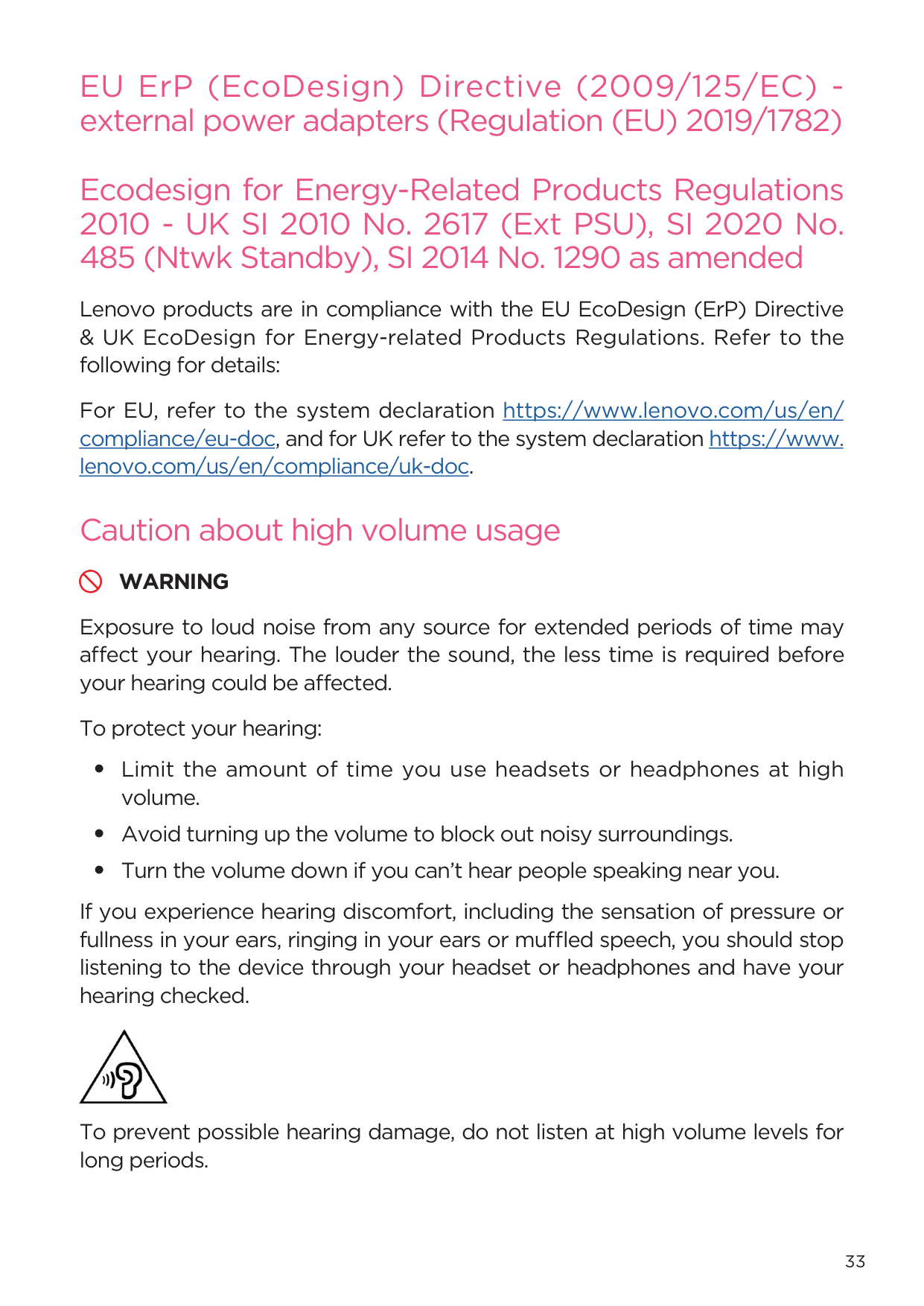
Exposure to loud noise from any source for extended periods of time may affect your hearing. The louder the sound, the less time is required before your hearing could be affected.
To protect your hearing:
If you experience hearing discomfort, including the sensation of pressure or fullness in your ears, ringing in your ears or muffled speech, you should stop listening to the device through your headset or headphones and have your hearing checked.

To prevent possible hearing damage, do not listen at high volume levels for long periods.
#### Take care when using your device in a motor vehicle or on a bicycle
Always prioritize your safety and the safety of others. Follow the law. Local laws and regulations might govern how you can use mobile electronic devices, such as your device, while you drive a motor vehicle or ride a bicycle.
#### Dispose according to local laws and regulations
When your device reaches the end of its useful life, do not crush, incinerate, immerse in water, or dispose of your device in any manner contrary to local laws and regulations. Some internal parts contain substances that can explode, leak, or have adverse environmental effects if disposed of incorrectly.
See “Environmental, recycling, and disposal information” for additional information.
#### Keep your device and accessories away from small children
Your device contains small parts that can be a choking hazard to small children. Additionally, the glass screen can break or crack if dropped on or thrown against a hard surface.
#### Protect your data and software
Do not delete unknown files or change the name of files or directories that were not created by you. Otherwise, your device software might fail to work.
Be aware that accessing network resources can leave your device vulnerable to computer viruses, hackers, spyware, and other malicious activities that might damage your device, software, or data. It is your responsibility to ensure that you have adequate protection in the form of firewalls, antivirus software, and anti-spyware software and keep such software up to date.
Keep electrical appliances away from your device. These include electric fans, radios, high-powered speakers, air-conditioners, and microwave ovens. The strong magnetic fields generated by electrical appliances can damage the screen and the data on the device.
#### Be aware of heat generated by your device
When your device is turned on or the battery is charging, some parts might become hot. The temperature that they reach depends on the amount of system activity and the battery charge level. Extended contact with your body, even through clothing, could cause discomfort or even a skin burn. Avoid keeping your hands, your lap, or any other part of your body in contact with a hot section of the device for any extended time.
Electronic emission notices
#### FCC Compliance Statement
This equipment has been tested and found to comply with the limits for a Class B digital device, pursuant to Part 15 of the FCC Rules. These limits are designed to provide reasonable protection against harmful interference in a residential installation. This equipment generates, uses, and can radiate radio frequency energy and, if not installed and used in accordance with the instructions, may cause harmful interference to radio communications. However, there is no guarantee that interference will not occur in a particular installation. If this equipment does cause harmful interference to radio or television reception, which can be determined by turning the equipment off and on, the user is encouraged to try to correct the interference by one or more of the following measures:
Lenovo is not responsible for any radio or television interference caused by unauthorized changes or modifications to this equipment. Unauthorized changes or modifications could void the user’s authority to operate the equipment.
This device complies with Part 15 of the FCC Rules. Operation is subject to the following two conditions: (1) this device may not cause harmful interference, and (2) this device must accept any interference received, including interference that may cause undesired operation.
Responsible Party: Lenovo (United States) Incorporated 1009 Think Place - Building One Morrisville, NC 27560 Telephone: 1-919-294-5900
#### ISED Caution
This device complies with Innovation, Science and Economic Development Canada license-exempt RSS standard(s). Operation is subject to the following two conditions:
(1) This device may not cause interference, and (2) this device must accept any interference, including interference that may cause undesired operation of the device.
Le présent appareil est conforme aux CNR d’Industrie Canada applicables aux appareils radio exempts de licence. L’exploitation est autorisée aux deux conditions suivantes:
#### Japanese VCCI Class B statement
この装置は、クラス B 情報技術装置です。この装置は、家庭環境で使用すること を目的としていますが、この装置がラジオやテレビジョン受信機に近接して使用 されると、受信障害を引き起こすことがあります。取扱説明書に従って正しい取 り扱いをして下さい。VCCI-B
#### Japan compliance statement for products that connect to power mains rated at less than or equal to 20A per phase
日本の定格電流が 20A/ 相以下の機器に対する高調波電流規制 高調波電流規格 JIS C 61000-3-2 適合品
Environmental, recycling, and disposal information
#### General recycling statement
Lenovo encourages owners of information technology (IT) equipment to responsibly recycle their equipment when it is no longer needed. Lenovo offers a variety of programs and services to assist equipment owners in recycling their IT products. For information on recycling Lenovo products, go to http://www.lenovo.com/recycling.
#### Important battery and WEEE information
Take back and recycling information for WEEE and batteries/accumulators in the European Union and the United Kingdom

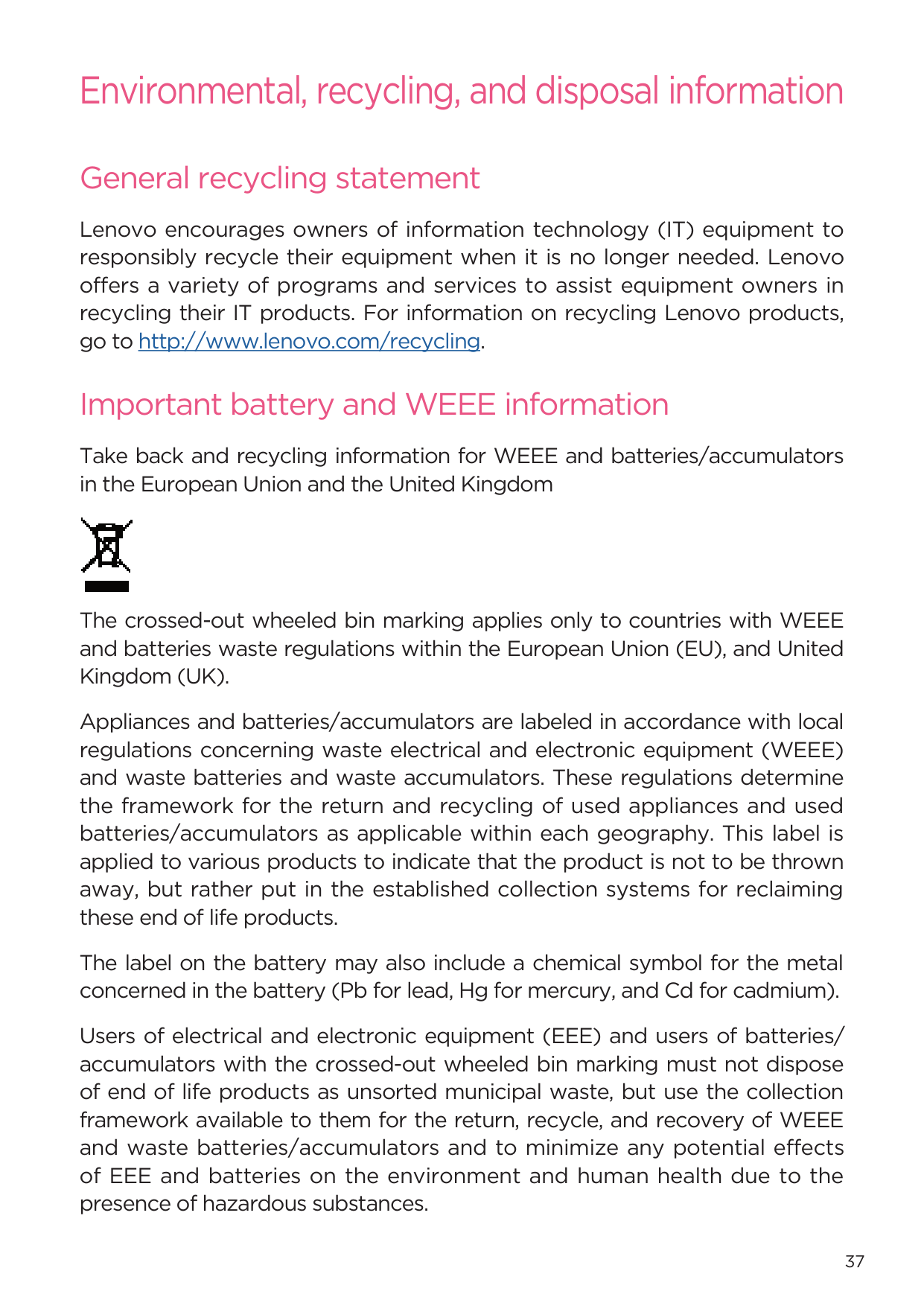
The crossed-out wheeled bin marking applies only to countries with WEEE and batteries waste regulations within the European Union (EU), and United Kingdom (UK).
Appliances and batteries/accumulators are labeled in accordance with local regulations concerning waste electrical and electronic equipment (WEEE) and waste batteries and waste accumulators. These regulations determine the framework for the return and recycling of used appliances and used batteries/accumulators as applicable within each geography. This label is applied to various products to indicate that the product is not to be thrown away, but rather put in the established collection systems for reclaiming these end of life products.
The label on the battery may also include a chemical symbol for the metal concerned in the battery (Pb for lead, Hg for mercury, and Cd for cadmium).
Users of electrical and electronic equipment (EEE) and users of batteries/ accumulators with the crossed-out wheeled bin marking must not dispose of end of life products as unsorted municipal waste, but use the collection framework available to them for the return, recycle, and recovery of WEEE and waste batteries/accumulators and to minimize any potential effects of EEE and batteries on the environment and human health due to the presence of hazardous substances.
Lenovo electrical and electronic equipment (EEE) may contain parts and components, which at end-of-life might qualify as hazardous waste.
EEE and waste electrical and electronic equipment (WEEE) can be delivered free of charge to the place of sale or any distributor that sells electrical and electronic equipment of the same nature and function as the used EEE or WEEE.
Before placing electrical and electronic equipment (EEE) in the waste collection stream or in waste collection facilities, the end user of equipment containing batteries and/or accumulators must remove those batteries and accumulators for separate collection.
Dispose of lithium batteries and battery packs from Lenovo products:
A coin-cell type lithium battery might be installed inside your Lenovo product. You can find details about the battery in the product documentation. If the battery needs to be replaced, contact your place of purchase or contact Lenovo for service. If you need to dispose of a lithium battery, insulate it with vinyl tape, contact your place of purchase or a waste-disposal operator, and follow their instructions.
Your Lenovo device might contain a lithium-ion battery pack or a nickel metal hydride battery pack. You can find details on the battery pack in the product documentation. If you need to dispose of a battery pack, insulate it with vinyl tape, contact Lenovo sales, service, or your place of purchase, or a waste-disposal operator, and follow their instructions. You also can refer to the instructions provided in the user guide for your product.
For proper collection and treatment, go to: https://www.lenovo.com/ environment.
For additional WEEE information, go to: https://www.lenovo.com/recycling.
#### Battery recycling information for Brazil
###### Declarações de Reciclagem no Brasil
Descarte de um Produto Lenovo Fora de Uso Equipamentos elétricos e eletrônicos não devem ser descartados em lixo comum, mas enviados à pontos de coleta, autorizados pelo fabricante do produto para que sejam encaminhados e processados por empresas especializadas no manuseio de resíduos industriais, devidamente certificadas pelos orgãos ambientais, de acordo com a legislação local. A Lenovo possui um canal específico
para auxiliá-lo no descarte desses produtos. Caso você possua um produto Lenovo em situação de descarte, ligue para o nosso SAC ou encaminhe um e-mail para: reciclar@lenovo.com, informando o modelo, número de série e cidade, a fim de enviarmos as instruções para o correto descarte do seu produto Lenovo.
Recycling information for Japan Recycling and disposal information for Japan is available at http://www.lenovo.com/recycling/japan.
#### Recycling information for India
Recycling and disposal information for India is available at
https://www.lenovo.com/in/en/social_responsibility/sustainability/ptb_ india.html.
#### Battery recycling marks


ENERGY STAR model information

ENERGY STAR® is a joint program of the U.S. Environmental Protection Agency and the U.S. Department of Energy aimed at saving money and protecting the environment through energy efficient products and practices.
Lenovo is proud to offer our customers products with the ENERGY STAR qualified designation. You might find an ENERGY STAR mark affixed on the computer or displayed on the power settings interface. Lenovo tablets of the following model name, if carry an ENERGY STAR mark, have been designed and tested to conform to the ENERGY STAR program requirements for tablets.
TB370FU
By using ENERGY STAR qualified products and taking advantage of the power-management features of the tablet, you can help reduce the consumption of electricity. Reduced electrical consumption can contribute to potential financial savings, a cleaner environment, and the reduction of greenhouse gas emissions.
For more information about ENERGY STAR, go to http://www.energystar. gov.
Lenovo encourages you to make efficient use of energy an integral part of your day-to-day operations. To help in this endeavor, Lenovo has preset the following power-management features to take effect when the computer has been inactive for a specified length of time:
Power plan: Default Turn off the display: After 30 seconds. Press the power button to turn on the display. The Wake on LAN function: NA
Export classification notice
This product is subject to the United States Export Administration Regulations (EAR) and has an Export Classification Control Number (ECCN) of 5A992.c. It can be re-exported except to any of the embargoed countries in the EAR E1 country list.
Dolby certification
Dolby, Dolby Atmos, and the double-D symbol are registered trademarks of Dolby Laboratories Licensing Corporation. Manufactured under license from Dolby Laboratories. Confidential unpublished works. Copyright © 2012-2023 Dolby Laboratories. All rights reserved.
HEVC Standard
This product supports digital video coding under certain versions of HEVC standard and is covered by patents at patentlist.accessadvance.com.
