
Logitech M350 Slim Bluetooth Wireless Mouse
Ask AI
— answers from the official manualAnswers from the official manual.
Common questions
Common Questions
10 totalWhere is the power button on the Logitech M350 mouse located?
The power button is located on the bottom of the mouse. To turn it on, slide the power button up.
How do I connect the Logitech M350 mouse using a USB receiver?
Remove the top part of the mouse to extract the USB receiver from inside. Insert the receiver into your device’s USB port and then turn on the mouse.
What are the system requirements for connecting the M350 mouse using Bluetooth?
The system requirements for Bluetooth connection include Windows 8, 10, or 11; Mac OS 10.15 or later; iPadOS 14 or later; Chrome OS; and Android 8 or later.
How do I pair the M350 mouse with a device via Bluetooth?
Press and hold (for three seconds) the Bluetooth power button on the bottom of the mouse. Then, go to your device’s settings, select Connected Devices, choose Pair New Devices, and pick Logitech Pebble M350 from the available devices.
How do I check if the M350 mouse is connected via Bluetooth?
Navigate to your device’s settings under Connected Devices. In Currently Connected, look for 'Logitech Pebble M350' as a listed item.
How do I disconnect the M350 mouse from a Bluetooth connection?
Press and hold (for one second) the Bluetooth power button on the bottom of the mouse to disconnect it from the current device.
Full Manual
6 pages
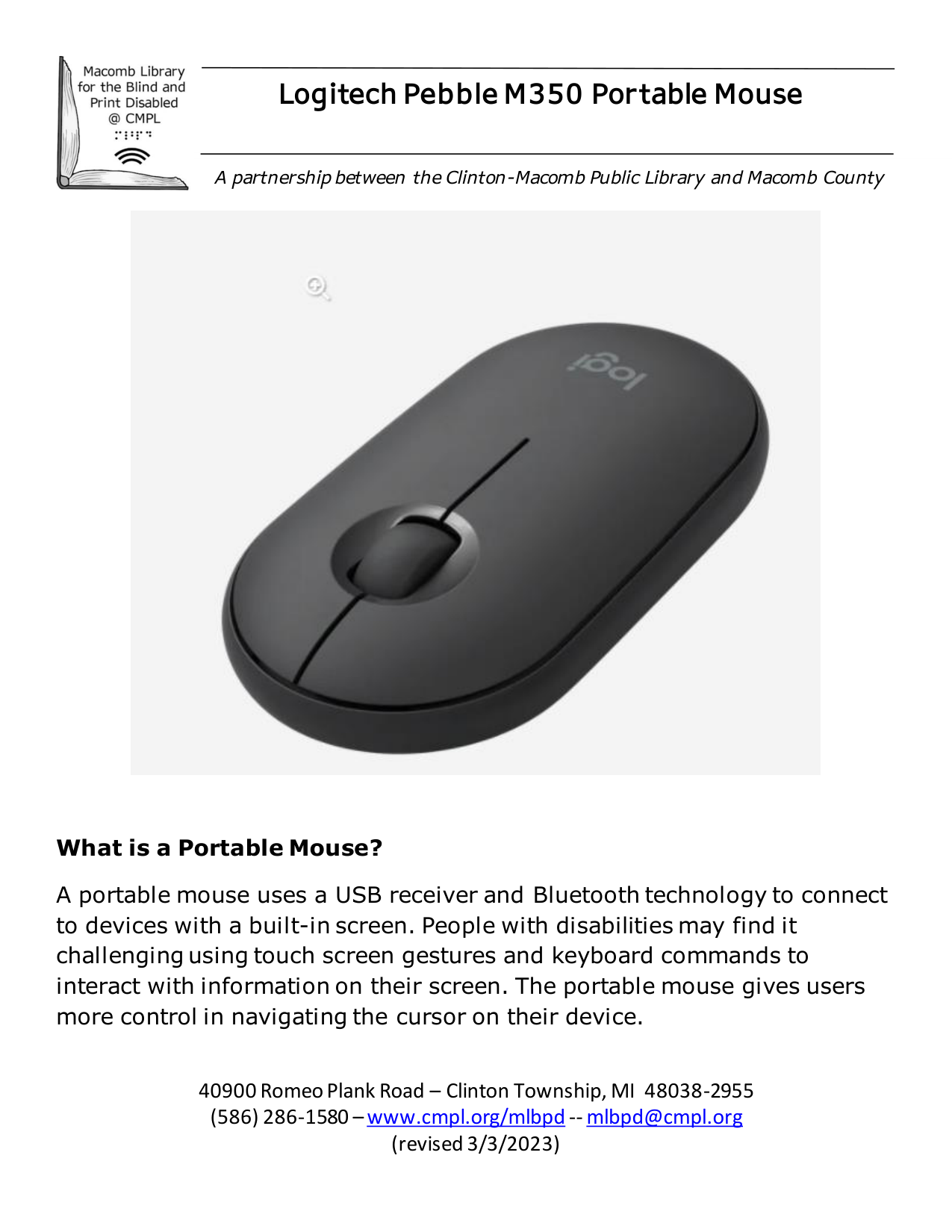

Logitech Pebble M350 Portable Mouse
A partnership between the Clinton-Macomb Public Library and Macomb County

What is a Portable Mouse?
A portable mouse uses a USB receiver and Bluetooth technology to connect to devices with a built-in screen. People with disabilities may find it challenging using touch screen gestures and keyboard commands to interact with information on their screen. The portable mouse gives users more control in navigating the cursor on their device.
Portable Mouse: Getting Started
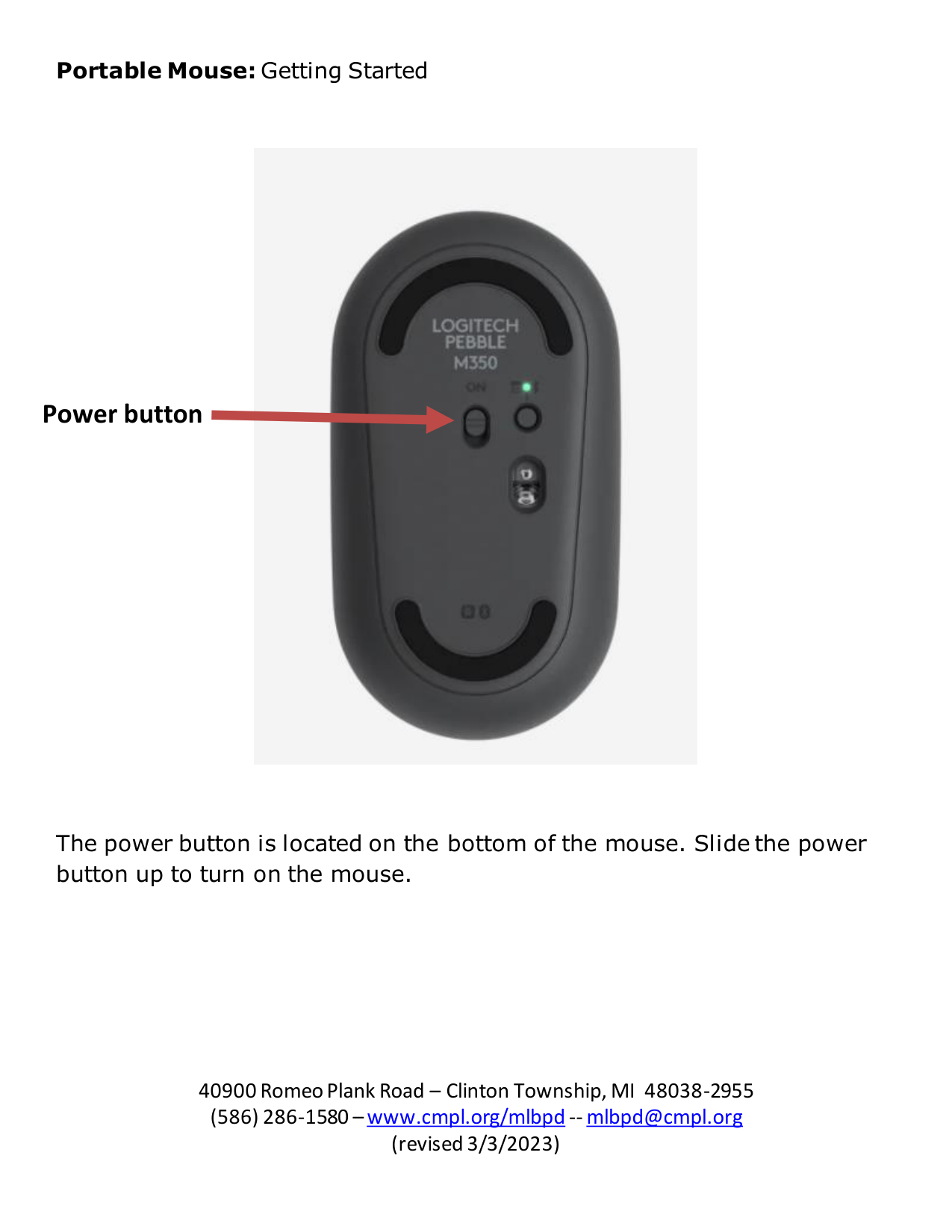
Power button

The power button is located on the bottom of the mouse. Slide the power button up to turn on the mouse.
Portable Mouse: USB Receiver There are two ways to connect the mouse to your device, USB Receiver or Bluetooth. USB Receiver System Requirement
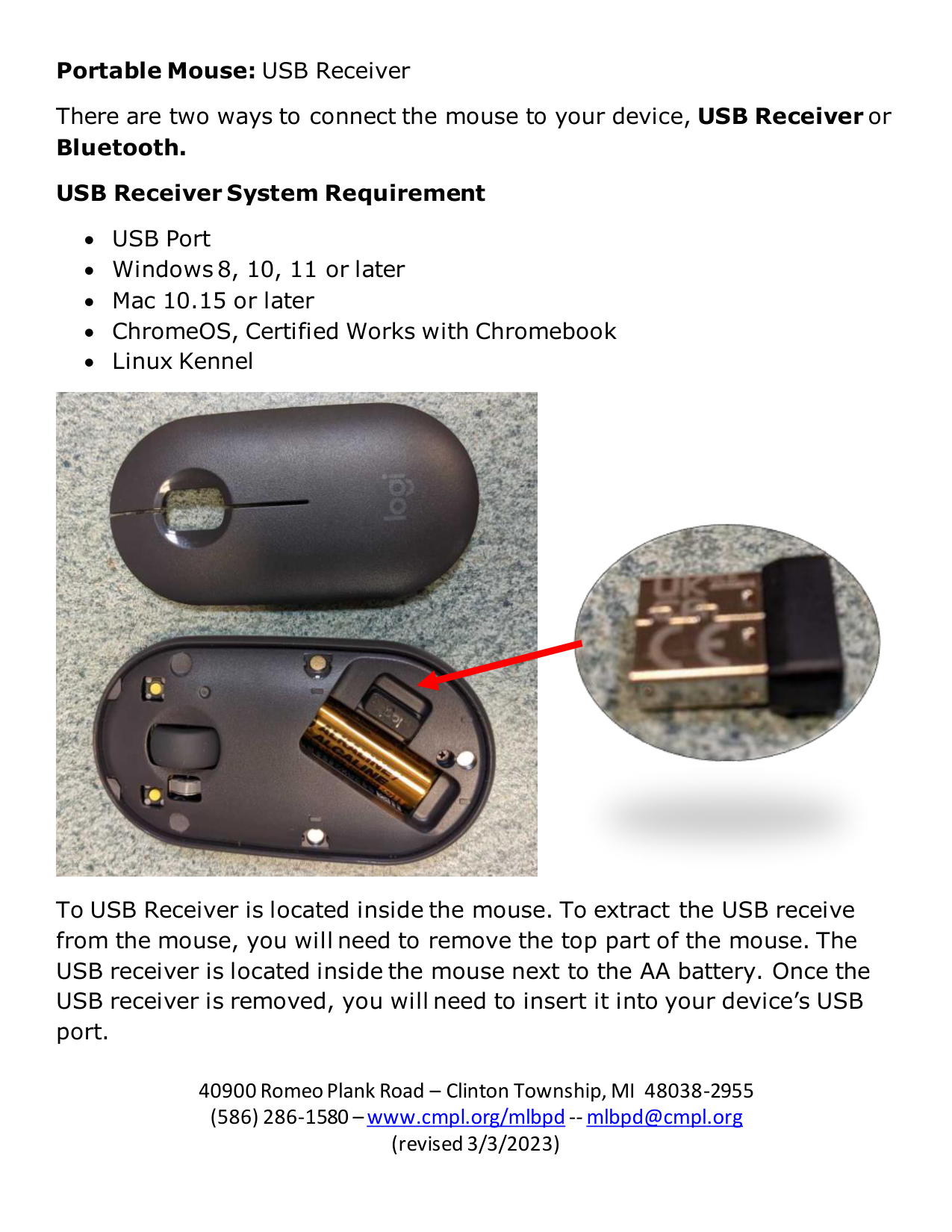


To USB Receiver is located inside the mouse. To extract the USB receive from the mouse, you will need to remove the top part of the mouse. The USB receiver is located inside the mouse next to the AA battery. Once the USB receiver is removed, you will need to insert it into your device’s USB port.
Portable Mouse: Bluetooth Bluetooth System Requirement
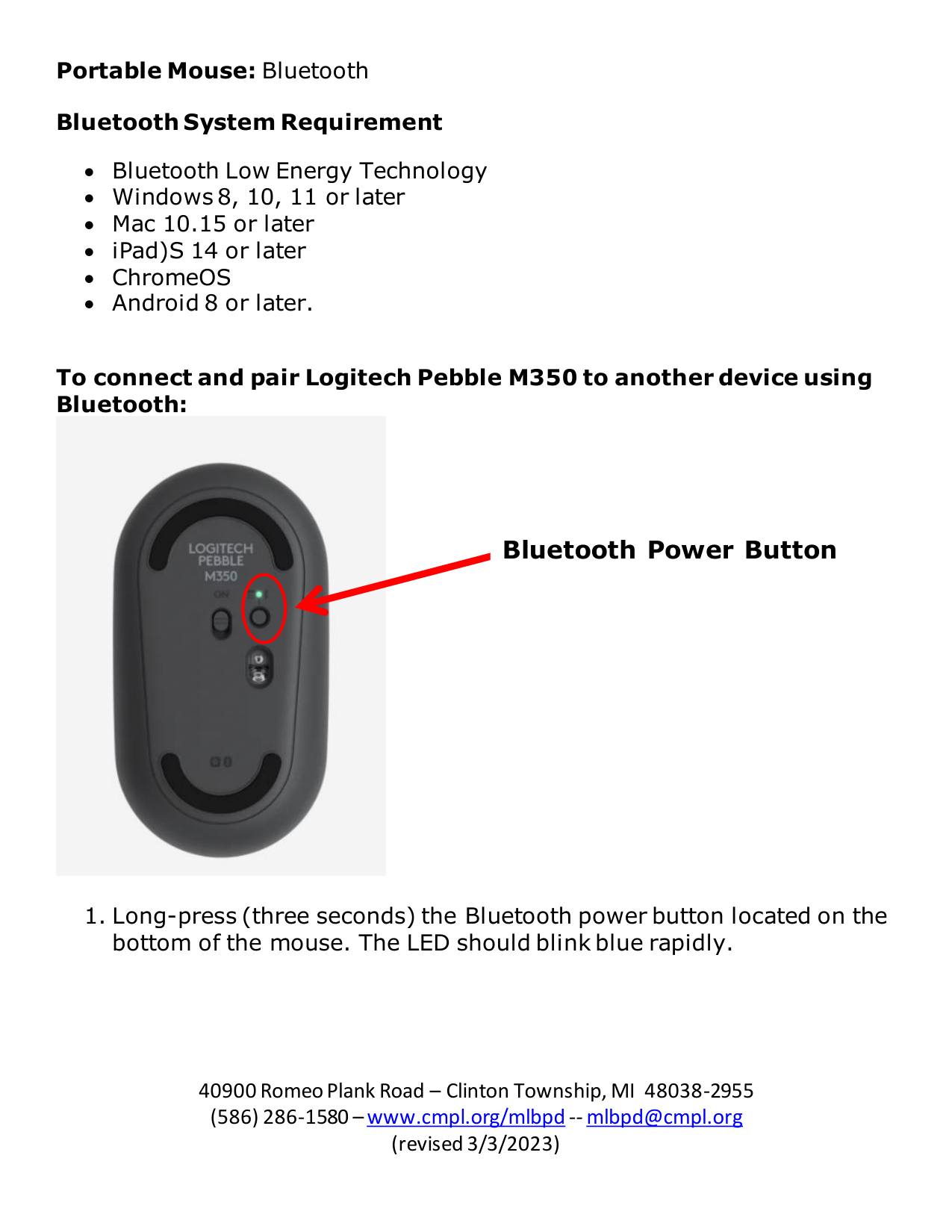
To connect and pair Logitech Pebble M350 to another device using Bluetooth:

Bluetooth Power Button
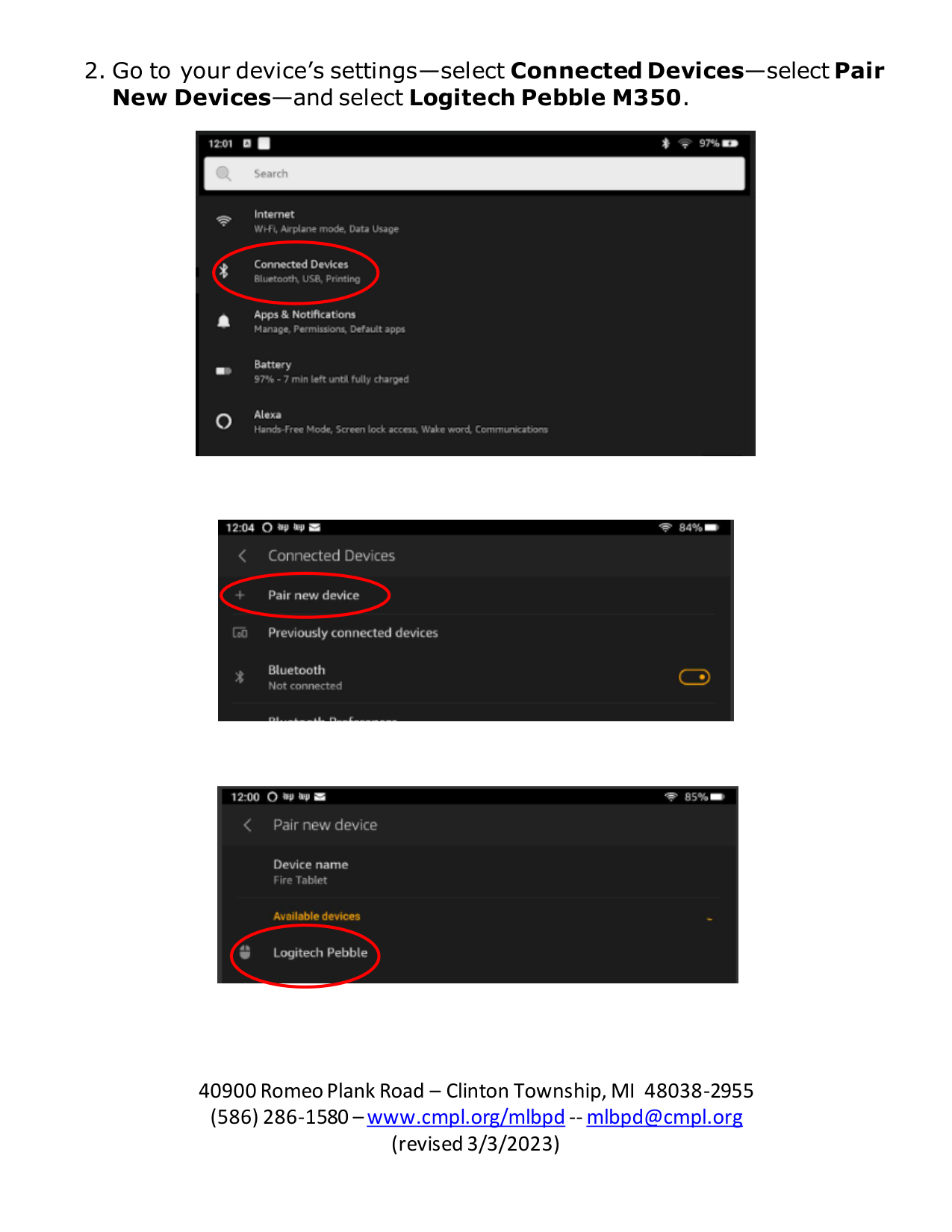
2. Go to your device’s settings—select Connected Devices—select PairNew Devices—and select Logitech Pebble M350.


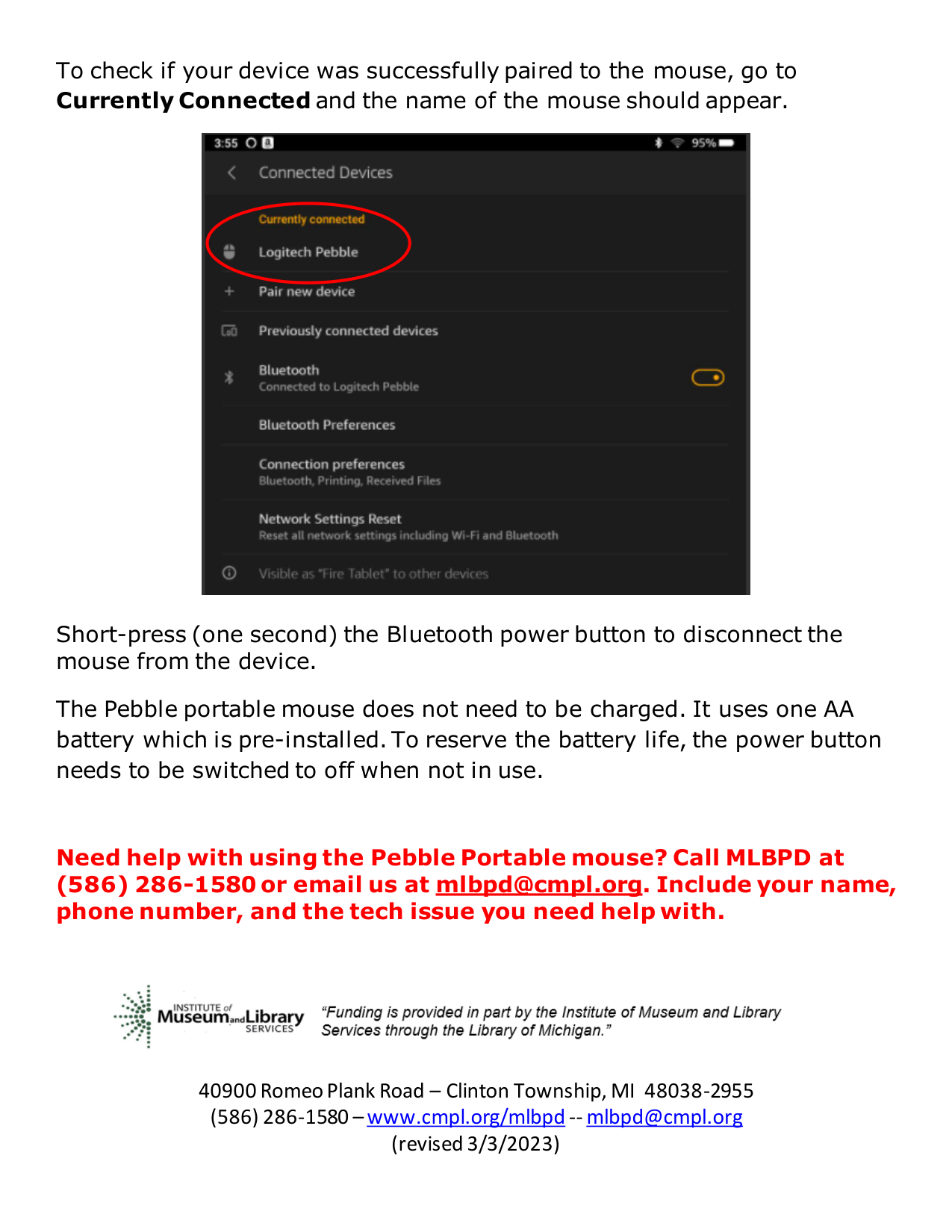

To check if your device was successfully paired to the mouse, go to Currently Connected and the name of the mouse should appear.

Short-press (one second) the Bluetooth power button to disconnect the mouse from the device.
The Pebble portable mouse does not need to be charged. It uses one AA battery which is pre-installed. To reserve the battery life, the power button needs to be switched to off when not in use.
Need help with using the Pebble Portable mouse? Call MLBPD at
(586) 286-1580 or email us at mlbpd@cmpl.org. Include your name, phone number, and the tech issue you need help with.
