
Ask AI
— answers from the official manualAnswers from the official manual.
Common questions
Common Questions
17 totalHow do I perform a factory reset on the Efix FC2 Controller?
To factory reset the FC2, go to [Settings] – [System] – [Reset options] – [Erase all data], then press [Erase all data] – [RESET PHONE]. The controller will automatically shut down and restart. Note that all memory data on the controller will be cleared after choosing RESET PHONE. (Page 17)
How do I install a SIM card in the FC2 Controller?
The FC2 does not support hot swap, so you must shut down the controller and disconnect the charger before installing the SIM card. Use a special screwdriver to unscrew the battery cover screw, pry off the cover, remove the battery if applicable, and then install the SIM card in the designated location. (Page 7-8)
What should I do if the FC2 Controller cannot power on?
If the controller cannot power on, check the batteries. This is the recommended first troubleshooting step for this fault. (Page 19)
What is the battery capacity and expected lifespan of the FC2's battery?
The FC2 uses a Li-ion battery with a capacity of 6500mAh. The lifespan of a lithium-ion battery is generally two to three years, with a cycle charge of 300 to 500 times. A full charge cycle means a full charge, a full discharge, and a full charge. (Pages 6, 20)
What is the safest temperature range for charging and storing the FC2 battery?
Charging the device below 0°C may cause unexpected damage to the battery. Battery storage temperature should be between 5°C and 20°C (41°F to 68°F). The operating temperature range for the controller is -20°C to 50°C, and storage temperature is -40°C to 65°C. (Pages 3, 6, 20-21)
How do I connect the FC2 Controller to a 4G mobile network?
After inserting your SIM card, go to [Settings] – [Network & Internet] – [Mobile Networks] – [Preferred network type] and select the network type corresponding to your SIM card. Then turn on [Network & Internet] and click [Data usage] to check data usage. (Page 15)
Show 11 more questions
How do I upgrade the operating system on the FC2 Controller?
What are the key hardware specifications of the Efix FC2 Controller?
What is the dust and water resistance rating of the FC2 Controller, and can it survive drops?
How do I factory reset the device?
What is the process for connecting to WiFi?
How do I update my SIM card or check its signal strength?
How can I manage my battery better?
What is the IMEI of my device?
How do I set the date and time manually?
How do I enable flight mode?
What should I do if the FC2 Controller shows a SIM card error?
Full Manual
24 pages
By surveyors , for surveyors
EFIX® FC2 Controller User Guide
Revision 1.0 Feb 22nd, 2022
Efix Fc2 User Guide | 2022-02
2
Table of Content Table of Content.................................................................................................... 2 Preface ................................................................................................................. 3 Copyright ................................................................................................................ 3 Safety Warnings ..................................................................................................... 3 Warning and Cautions ............................................................................................ 3 Use and Care .......................................................................................................... 4 FCC Interference Statement ................................................................................... 4 CE Interference Statement ..................................................................................... 4 Technical Assistance ............................................................................................... 5 Your Comments ...................................................................................................... 5 1 Introduction ................................................................................................... 6 1.1 Battery Considerations ................................................................................... 6 2 Installation Guide ........................................................................................... 7 2.1 Exterior ........................................................................................................... 7 2.2 Micro SD, SIM card installation ...................................................................... 7 2.3 Charging ......................................................................................................... 8 2.4 Keypad and instruction .................................................................................. 8 3 Quick tour ..................................................................................................... 10 3.1 Screen on and off ......................................................................................... 10 3.2 Lock and unlock ............................................................................................ 10 3.3 Notification bar ............................................................................................ 10 3.4 Application menu ......................................................................................... 10 3.5 Backup and restore ...................................................................................... 11 3.6 Email ............................................................................................................. 11 3.7 Settings ......................................................................................................... 11 4 Basic operations ............................................................................................ 13 4.1 Language & input ......................................................................................... 13 4.2 Set Date & Time ........................................................................................... 14 4.3 Log in 4G ...................................................................................................... 15 4.4 Check the IMEI Number of the Controller ................................................... 16 4.5 Restore Factory Setting ................................................................................ 17 4.6 Upgrading the Operation System ................................................................. 18 5 Faults and solutions ....................................................................................... 19 6 Specifications ................................................................................................ 20
Efix Fc2 User Guide | 2022-02
P a g e | 3Preface Copyright Copyright 2020-2022 EFIX Geomatcis Co., Ltd. All rights reserved. All other trademarks are the property of their respective owners. Trademarks All product and brand names mentioned in this publication are trademarks of their respective holders.
Safety Warnings The Global Positioning System (GPS) is operated by the U.S. Government, which is solely responsible for the accuracy and maintenance of the GPS network. Accuracy can also be affected by poor satellite geometry and obstructions, like buildings and heavy canopy.
Warning and Cautions WARNING: Charging this device below 0°c may cause unexpected damage to the battery. A Warning or Caution information is intended to minimize the risk of personal injury and/or damage to the equipment. WARNING - A Warning alerts you to a potential misused or wrong setting of the equipment. CAUTION - A Caution alerts you to a possible risk of serious injury to your person and/or damage to the equipment.
Efix Fc2 User Guide | 2022-02
P a g e | 4Use and Care The FC2 is a high-performance smart handheld terminal developed by EFIX. Therefore, the FC2 should be treated with reasonable care.
FCC Interference Statement This equipment has been designed to comply with the limits for a Class B digital device, pursuant to part 15 of the FCC Rules in the Portable Mode. These limits are designed to provide reasonable protection against harmful interference in a residential installation. Operation is subject to the following two conditions: (1) this device may not cause harmful interference and (2) this device must accept any interference received, including interference that may cause undesired operation. An absence of specific alerts does not mean that there are no safety risks involved. CE Interference Statement Declaration of Conformity: Hereby, EFIX Geomatcis Co., Ltd. declares that this FC2 is in compliance with the essential requirements and other relevant provisions of Directive 2014/53/EU. A copy of the Declaration of conformity can be found at EFIX Geomatcis Co., Ltd.
Efix Fc2 User Guide | 2022-02
P a g e | 5Technical Assistance If you have a problem and cannot find the information you need in the product documentation, contact your local dealer from which you purchased the FC2. Alternatively, please request technical support using EFIX technical support email (support@efix-geo.com).
Your Comments Your feedback about this Getting Started Guide will help us to improve it in a future revision. Please e-mail your comments to support@efix-geo.com.
Efix Fc2 User Guide | 2022-02
1 Introduction FC2 is a high-performance smart data controller developed by EFIX. FC2 integrates powerful navigation functions with better sensitivity, helping to achieve more accurate and faster positioning services. This user Guide will provide useful information about your controller. It will also guide you through your first steps of using FC2 in the field. 1.1 Battery Considerations ⚫ Do not leave batteries idle for extended periods of time, either in production facilities or in warehouses. If the battery has been used for 6 months, check the state of charge or dispose of the battery properly. ⚫ The life of lithium-ion battery is generally two to three years, and the cycle charge is 300 to 500 times. A full charge cycle means a full charge, a full discharge, and a full charge. ⚫ Rechargeable Li-ion batteries have a limited lifespan and gradually lose their ability to hold a charge. This amount of loss (aging) is immutable. When the battery loses its capacity, the useful life (run time) is reduced. ⚫ The Li-Ion battery will discharge slowly (automatically) when it is not in using or idle. Please check the state of charge of the battery in daily work, also refer to the instruction manual for instructions on how to charge the battery. ⚫ Observe and record an unused and fully charged battery. Based on new battery runtime compared to older battery. Battery runtime will vary by product configuration and application. ⚫ Regularly check the battery charge status. ⚫ The battery charging time increases significantly when the battery runtime drops to about 80% below the original runtime. ⚫ If the battery has been idle or not used for a long time, check whether the battery still has power, whether there is any remaining power in the battery, and do not try to charge it or use it. A new battery should be replaced. Remove the battery and leave it alone. ⚫ Battery storage temperature is between 5°C~20°C (41°F~68°F) ⚫ Note: There is a danger of explosion if the battery is replaced with the wrong type. Be sure to dispose of the used battery according to the instructions.
Efix Fc2 User Guide | 2022-02
2 Installation Guide 2.1 Exterior
2.2 Micro SD, SIM card installation Install SIM card: This controller does not support hot swap function, you need to shut down the controller and disconnect the charger to install and take out the SIM card and TF card. These are the steps:
Efix Fc2 User Guide | 2022-02
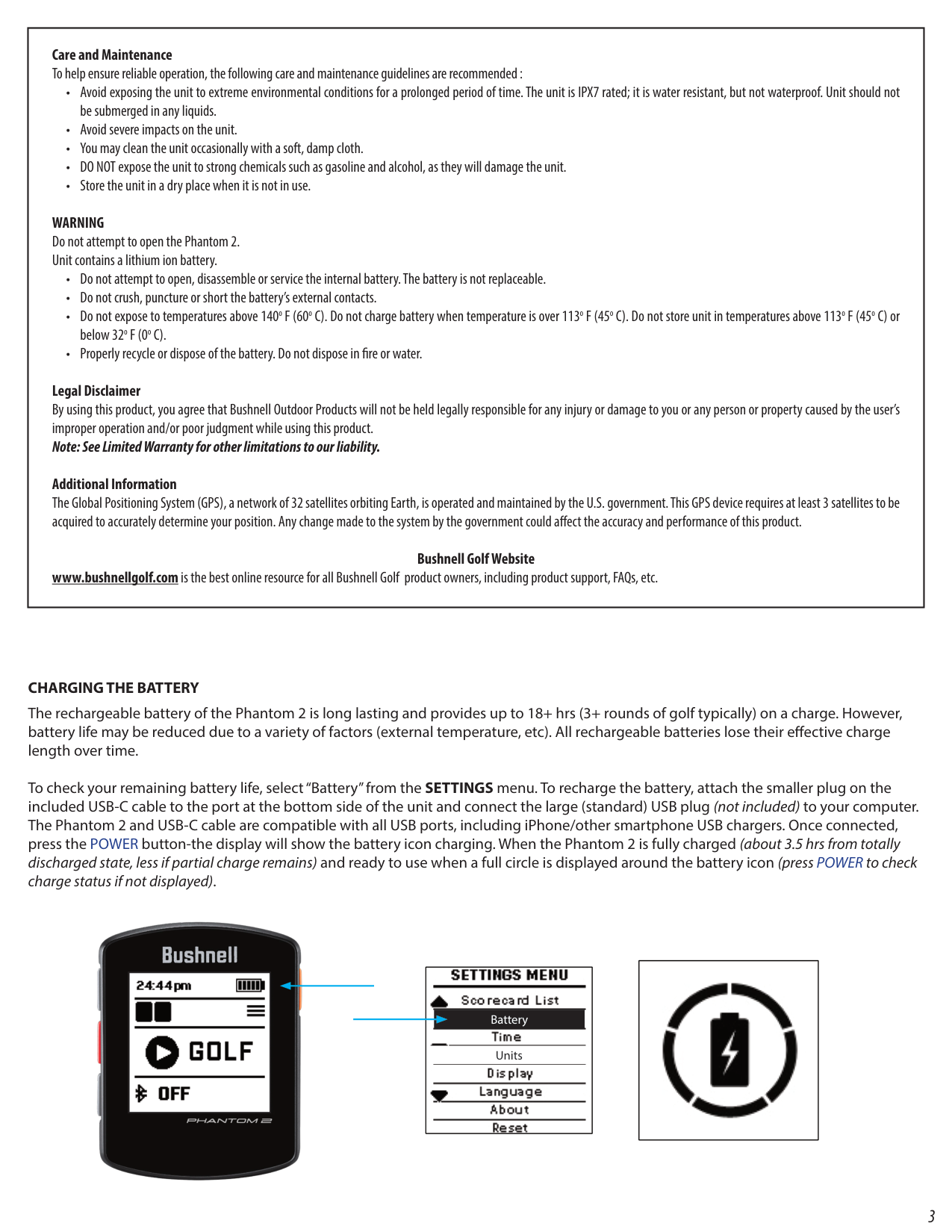
2.3 Charging Please using the adapter we suggested to charge the battery, do not use other brand adapters to charge the controller.
2.4 Keypad and instruction
Efix Fc2 User Guide | 2022-02
Side button
Main Keyboard
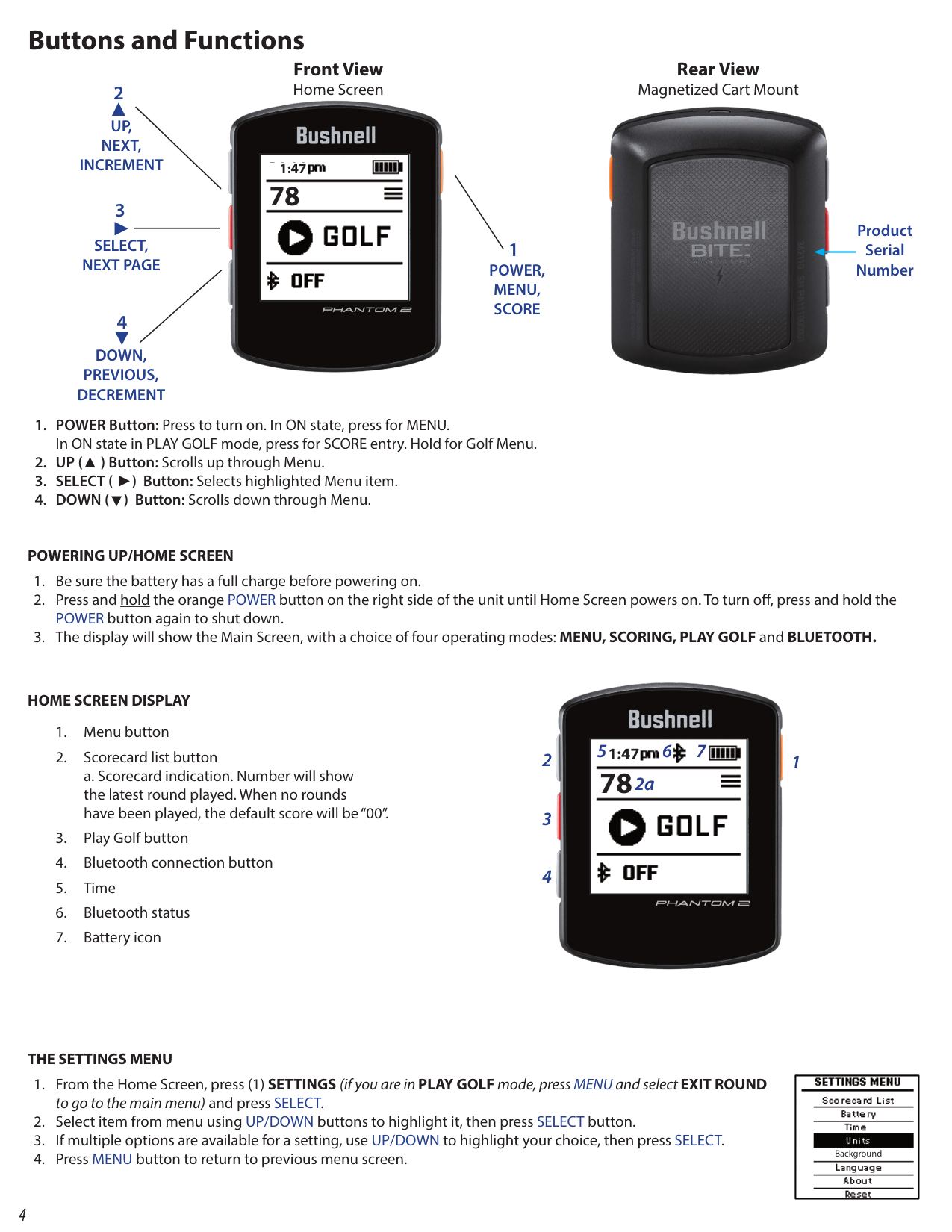
Power button Keypad Instruction Side button 1.Survey button On right side of controller, used for efield survey Hotkey. Main keypad 2.Power button Turn on/off controller 3.Main keypad Standard function keypads 4.APP button Quickly open customized app
Efix Fc2 User Guide | 2022-02
3 Quick tour 3.1 Screen on and off Turn off the screen You can press the [Power key] to turn off the screen to save power and prevent accidental pressing. Turn on the screen You can press the [Power key] or the side button to light up the screen. 3.2 Lock and unlock To prevent accidental operation, you can lock the controller and screen. Lock the controller Short press the [Power key] to lock the screen. Please note that if you do not perform any operation on the controller within the system default or set screen lock time, the controller will be automatically locked. Unlock the controller When the screen is locked, short press the [Power key] to light up the screen, and then tap the unlock icon and slide it in any direction to unlock it. 3.3 Notification bar If there is a new notification, a prompt message will be displayed on the event notification bar at the top of the display. Swipe down from the event notification bar with your finger, and all prompt messages will be displayed. Tap each prompt message to view the details. 3.4 Application menu
Efix Fc2 User Guide | 2022-02
Wlan
WiFi settings: Turn WiFi function on or off. Network notifications: Set the controller to notify when open WIFI are available. Add Wi-Fi Network: Manually add a WiFi access point. Bluetooth
Efix Fc2 User Guide | 2022-02
You can wirelessly connect with electronic controllers within a 10-meter range via Bluetooth. Bluetooth can be used to send data such as pictures, videos, e-books, etc. Mobile data usage Mobile data usage: Set the usage period of SIM card data, and display the usage generated by the application. More Airplane Mode: Disables all wireless features of the controller. NFC: It allows the controller to exchange data when it contacts other controllers. Network sharing and portable hotspot: WIFI hotspot/USB shared network/Bluetooth shared network can be turned on Mobile Network: Select using Card 1 or Card 2 mobile network. USB Internet: Share Windows PC network via USB cable. Display You can use this interface to set related screen display, such as brightness, wallpaper, font size, automatic screen rotation, sleep settings and other operations. Storage You can check the remaining memory of the TF card and controller. Battery Display the controller battery elapsed time and the specific power consumption of the battery. Application You can manage your applications, uninstall native applications, and move storage locations. Location information access You can manage the permission to access to your location. Safety You can set security setting through this interface, such as screen lock, SIM card lock, owner information, and password settings.
Efix Fc2 User Guide | 2022-02
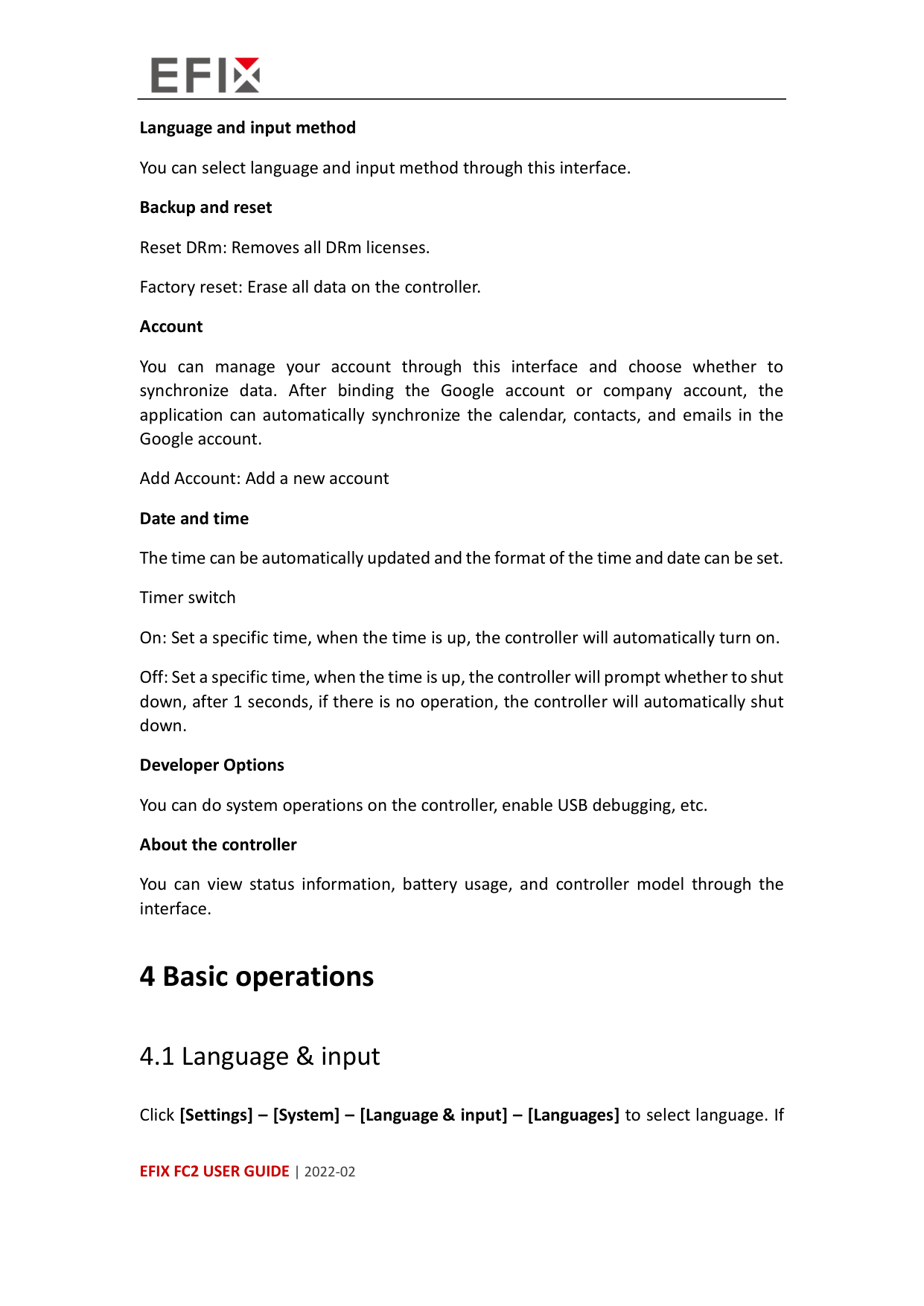
Language and input method You can select language and input method through this interface. Backup and reset Reset DRm: Removes all DRm licenses. Factory reset: Erase all data on the controller. Account You can manage your account through this interface and choose whether to synchronize data. After binding the Google account or company account, the application can automatically synchronize the calendar, contacts, and emails in the Google account. Add Account: Add a new account Date and time The time can be automatically updated and the format of the time and date can be set. Timer switch On: Set a specific time, when the time is up, the controller will automatically turn on. Off: Set a specific time, when the time is up, the controller will prompt whether to shut down, after 1 seconds, if there is no operation, the controller will automatically shut down. Developer Options You can do system operations on the controller, enable USB debugging, etc. About the controller You can view status information, battery usage, and controller model through the interface. 4 Basic operations 4.1 Language & input Click [Settings] – [System] – [Language & input] – [Languages] to select language. If
Efix Fc2 User Guide | 2022-02
you have not found the lauguage you want to choose, click [Add a lauguage] to find the target lauguage.
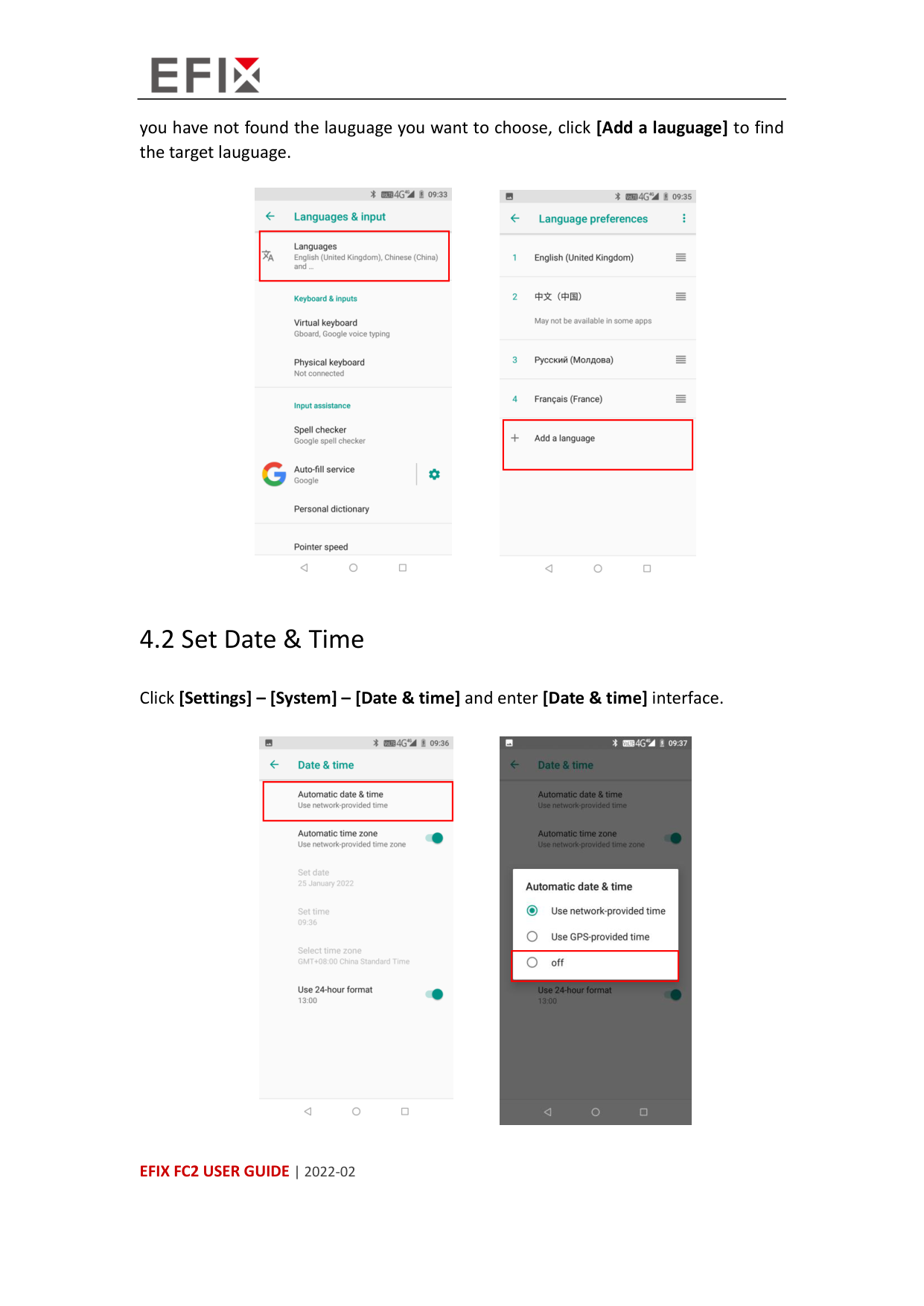
4.2 Set Date & Time Click [Settings] – [System] – [Date & time] and enter [Date & time] interface.
Efix Fc2 User Guide | 2022-02
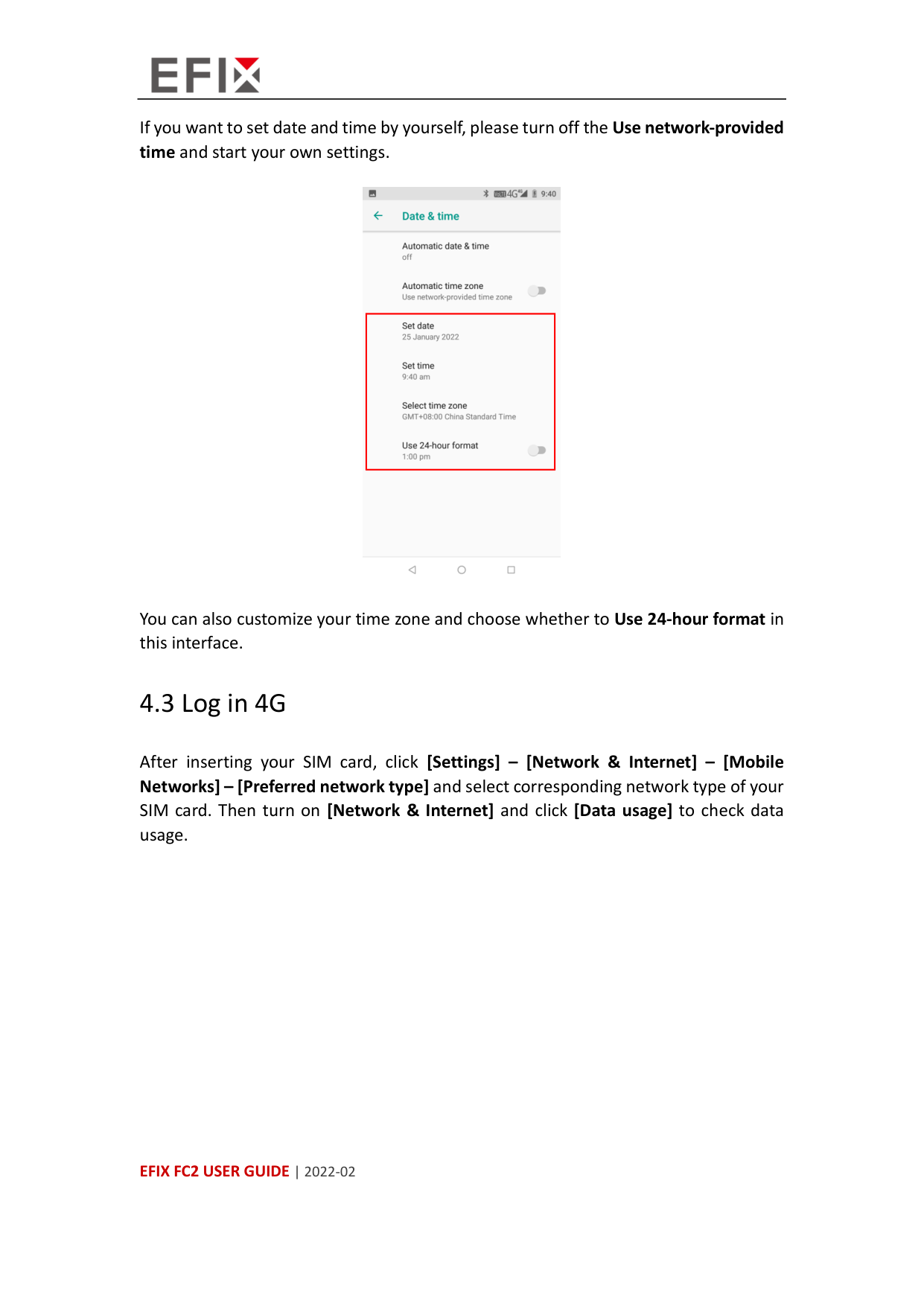
If you want to set date and time by yourself, please turn off the Use network-provided time and start your own settings.
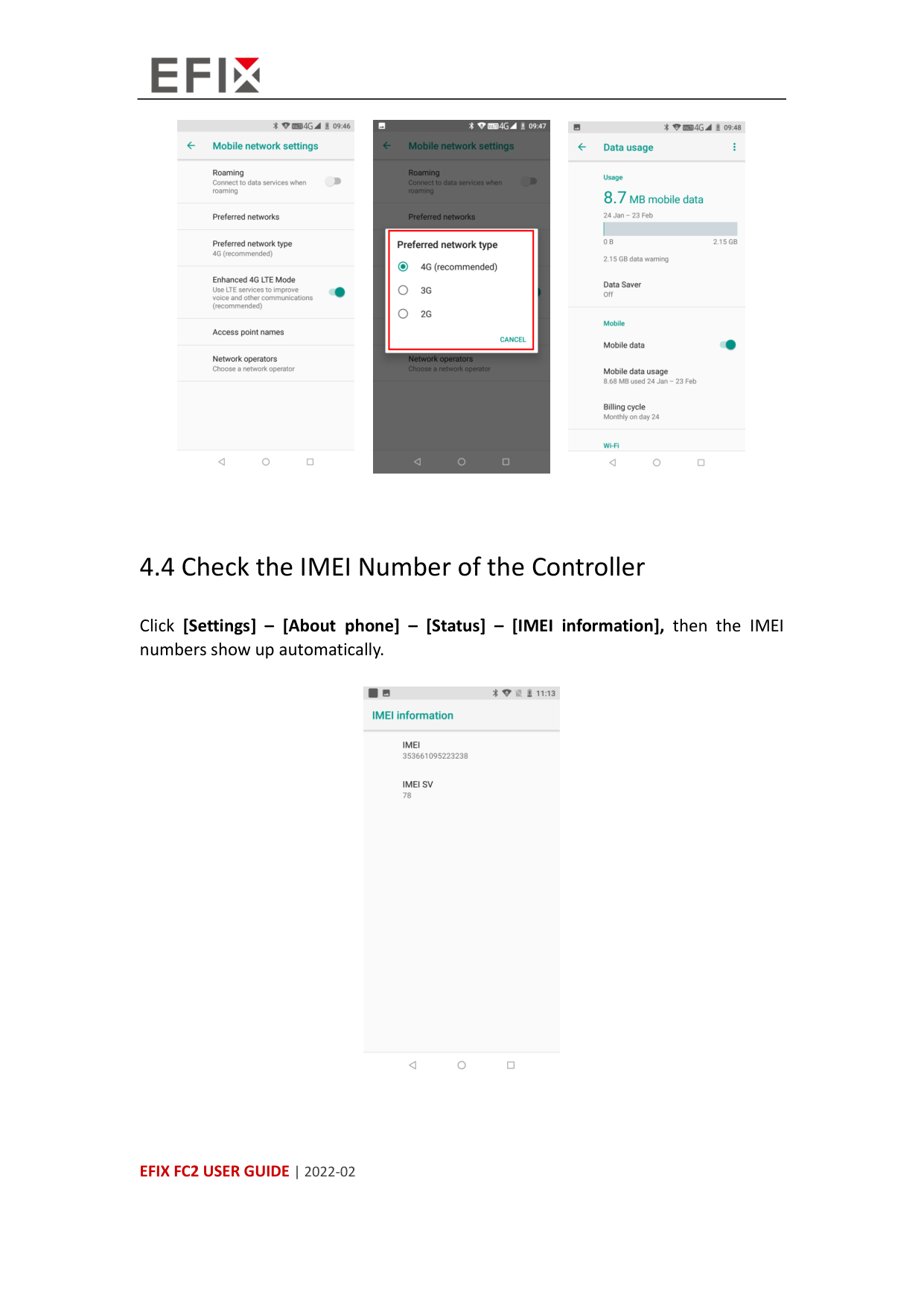
You can also customize your time zone and choose whether to Use 24-hour format in this interface. 4.3 Log in 4G After inserting your SIM card, click [Settings] – [Network & Internet] – [Mobile Networks] – [Preferred network type] and select corresponding network type of your SIM card. Then turn on [Network & Internet] and click [Data usage] to check data usage.
Efix Fc2 User Guide | 2022-02
4.4 Check the IMEI Number of the Controller Click [Settings] – [About phone] – [Status] – [IMEI information], then the IMEI numbers show up automatically.
Efix Fc2 User Guide | 2022-02
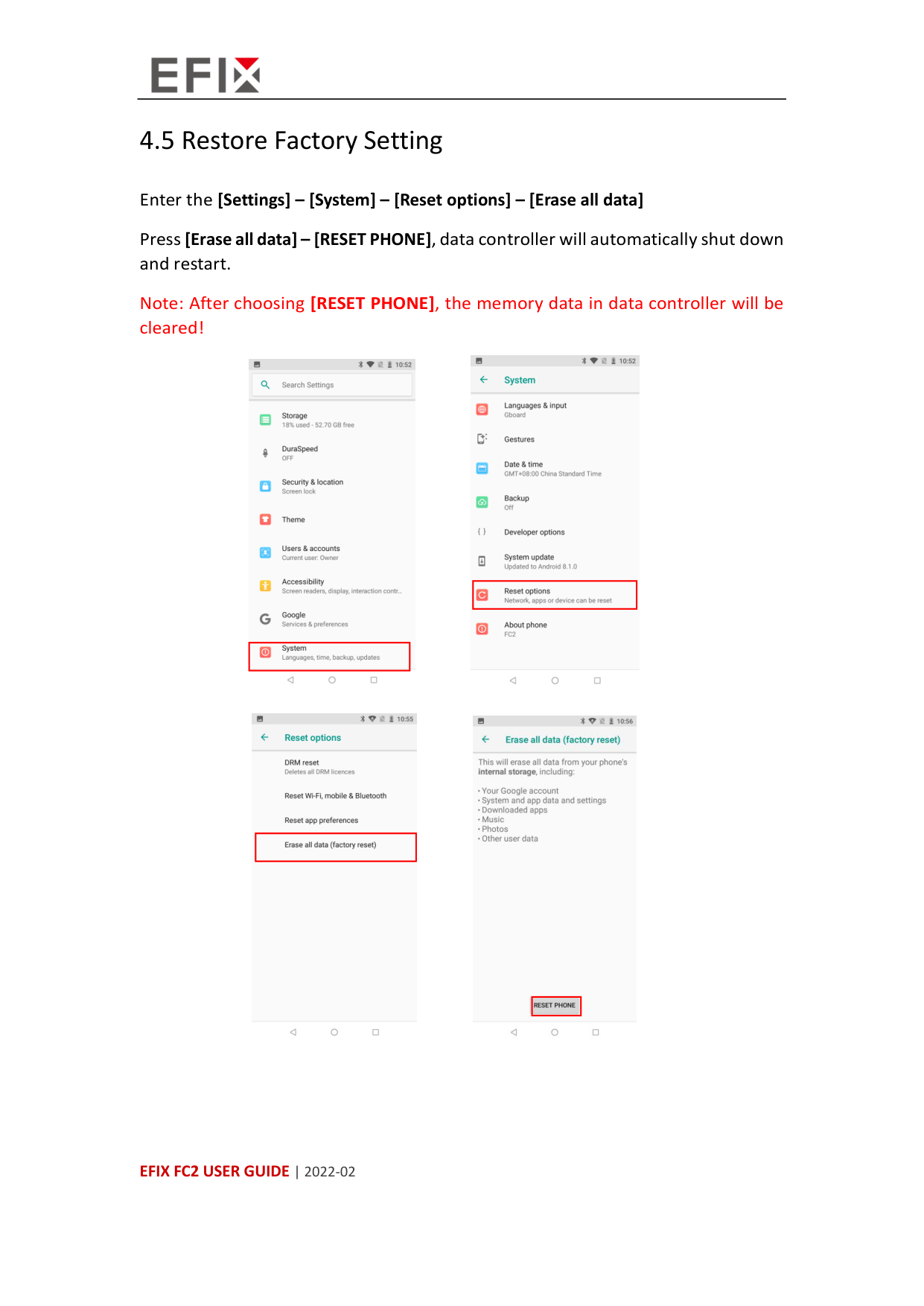
4.5 Restore Factory Setting Enter the [Settings] – [System] – [Reset options] – [Erase all data] Press [Erase all data] – [RESET PHONE], data controller will automatically shut down and restart. Note: After choosing [RESET PHONE], the memory data in data controller will be cleared!
Efix Fc2 User Guide | 2022-02
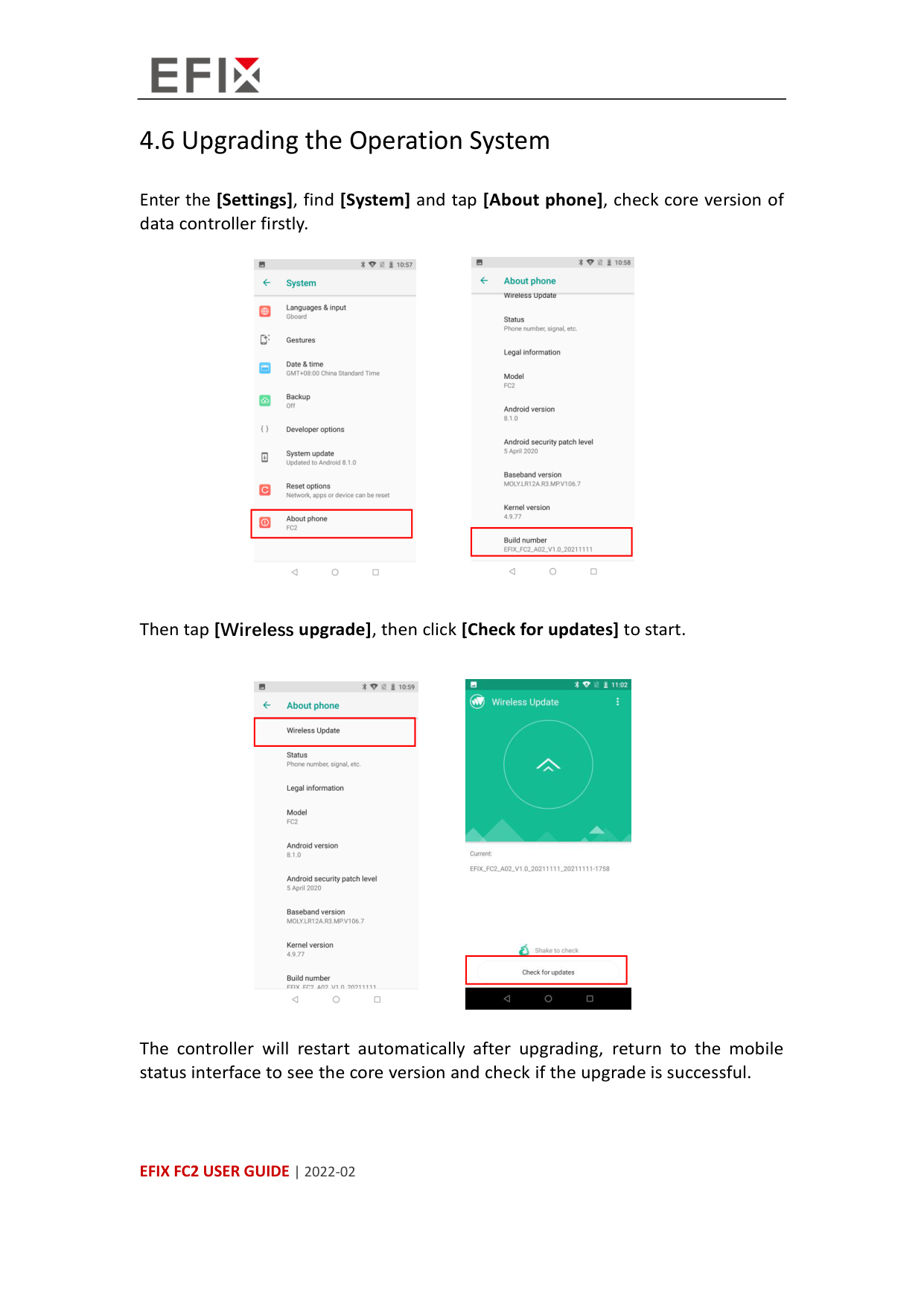
4.6 Upgrading the Operation System Enter the [Settings], find [System] and tap [About phone], check core version of data controller firstly.
Then tap [Wireless upgrade], then click [Check for updates] to start.
The controller will restart automatically after upgrading, return to the mobile status interface to see the core version and check if the upgrade is successful.
Efix Fc2 User Guide | 2022-02
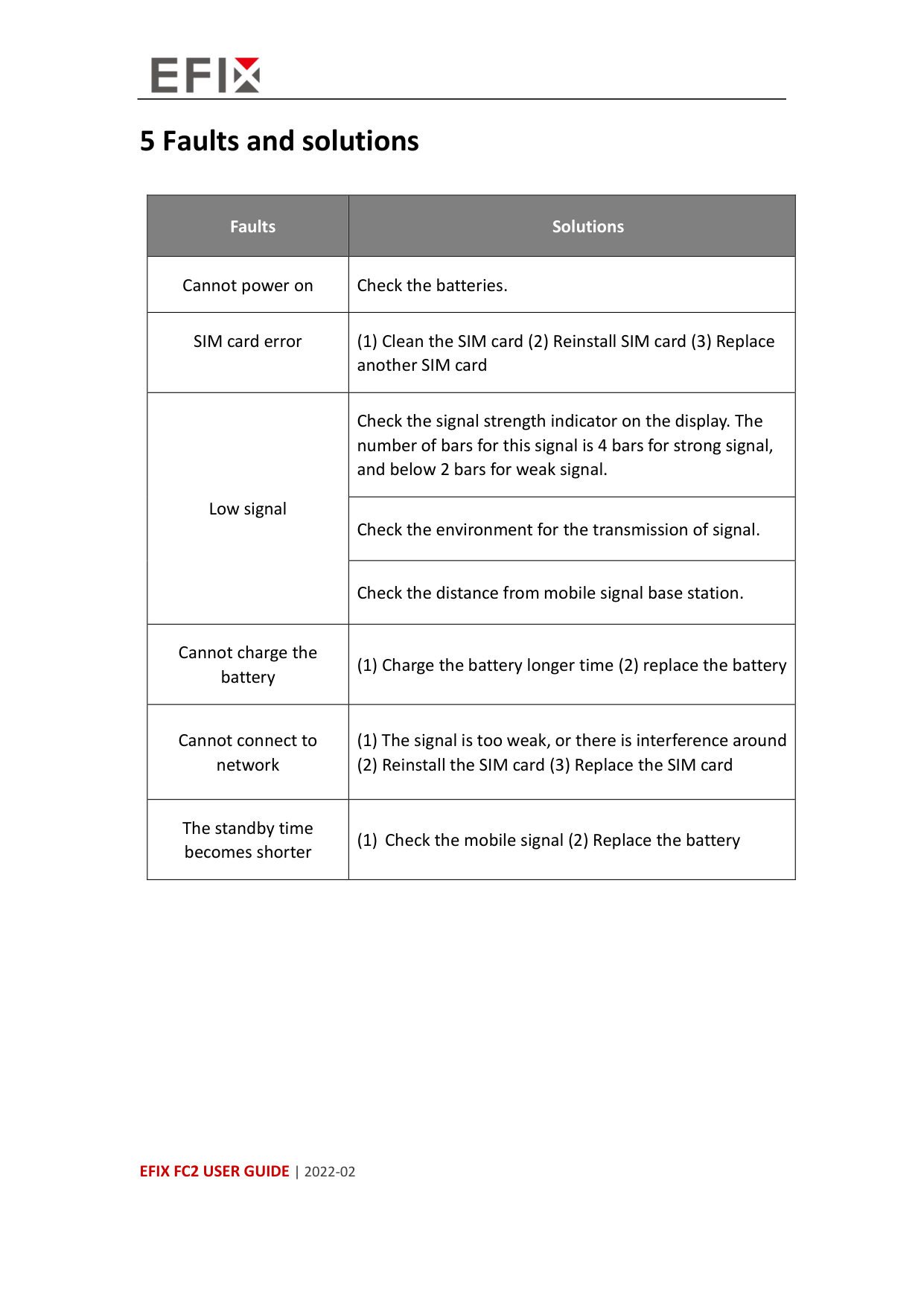
5 Faults and solutions Faults Solutions Cannot power on Check the batteries. SIM card error (1) Clean the SIM card (2) Reinstall SIM card (3) Replace another SIM card Low signal Check the signal strength indicator on the display. The number of bars for this signal is 4 bars for strong signal, and below 2 bars for weak signal. Check the environment for the transmission of signal. Check the distance from mobile signal base station. Cannot charge the battery (1) Charge the battery longer time (2) replace the battery Cannot connect to network (1) The signal is too weak, or there is interference around (2) Reinstall the SIM card (3) Replace the SIM card The standby time becomes shorter (1) Check the mobile signal (2) Replace the battery
Efix Fc2 User Guide | 2022-02
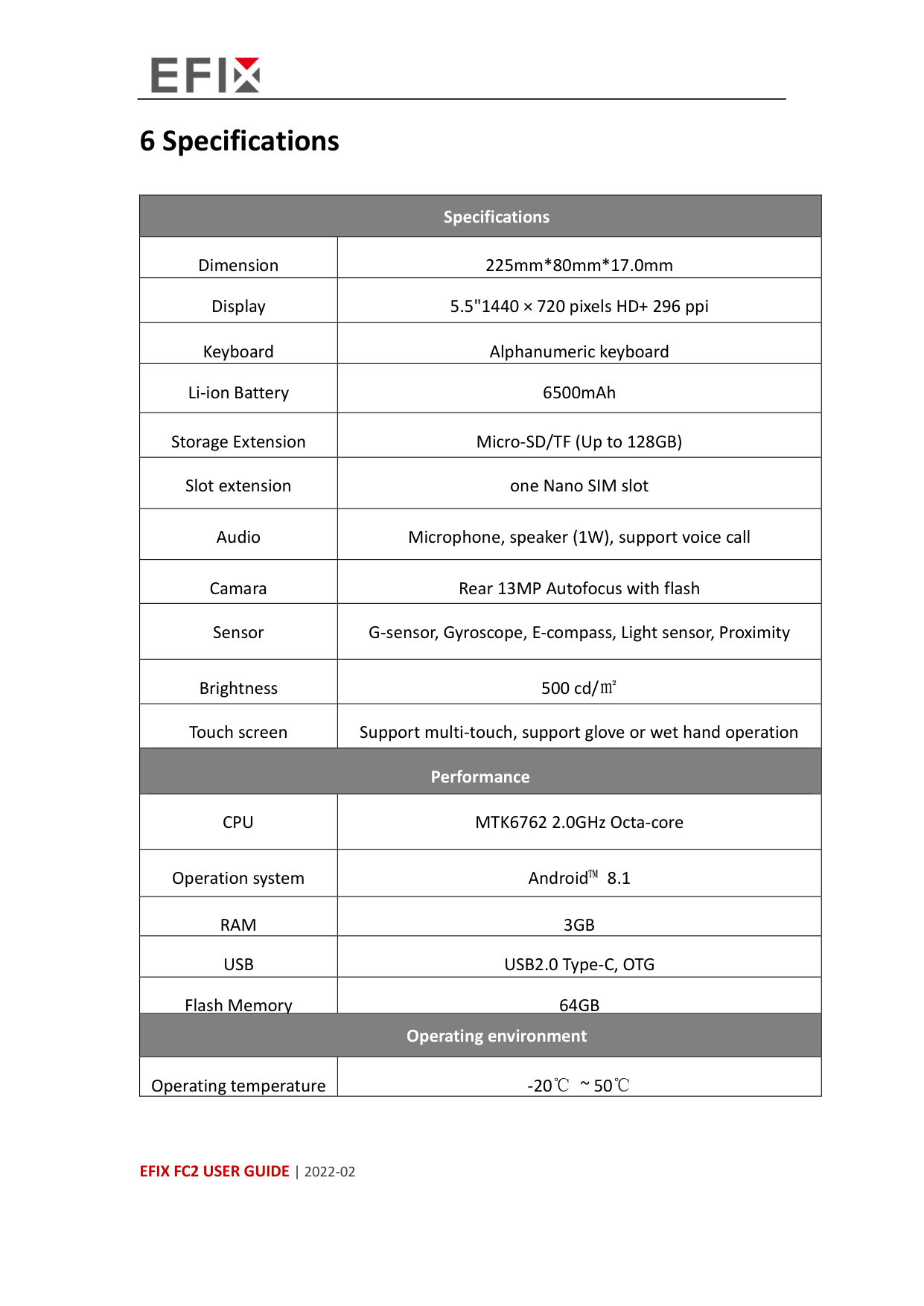
6 Specifications Specifications Dimension 225mm*80mm*17.0mm Display 5.5"1440 × 720 pixels HD+ 296 ppi Keyboard Alphanumeric keyboard Li-ion Battery 6500mAh Storage Extension Micro-SD/TF (Up to 128GB) Slot extension one Nano SIM slot Audio Microphone, speaker (1W), support voice call Camara Rear 13MP Autofocus with flash Sensor G-sensor, Gyroscope, E-compass, Light sensor, Proximity Brightness 500 cd/㎡ Touch screen Support multi-touch, support glove or wet hand operation Performance
Cpu
MTK6762 2.0GHz Octa-core Operation system Android™ 8.1Ram
3Gb
Usb
USB2.0 Type-C, OTG Flash Memory64Gb
Operating environment Operating temperature -20℃ ~ 50℃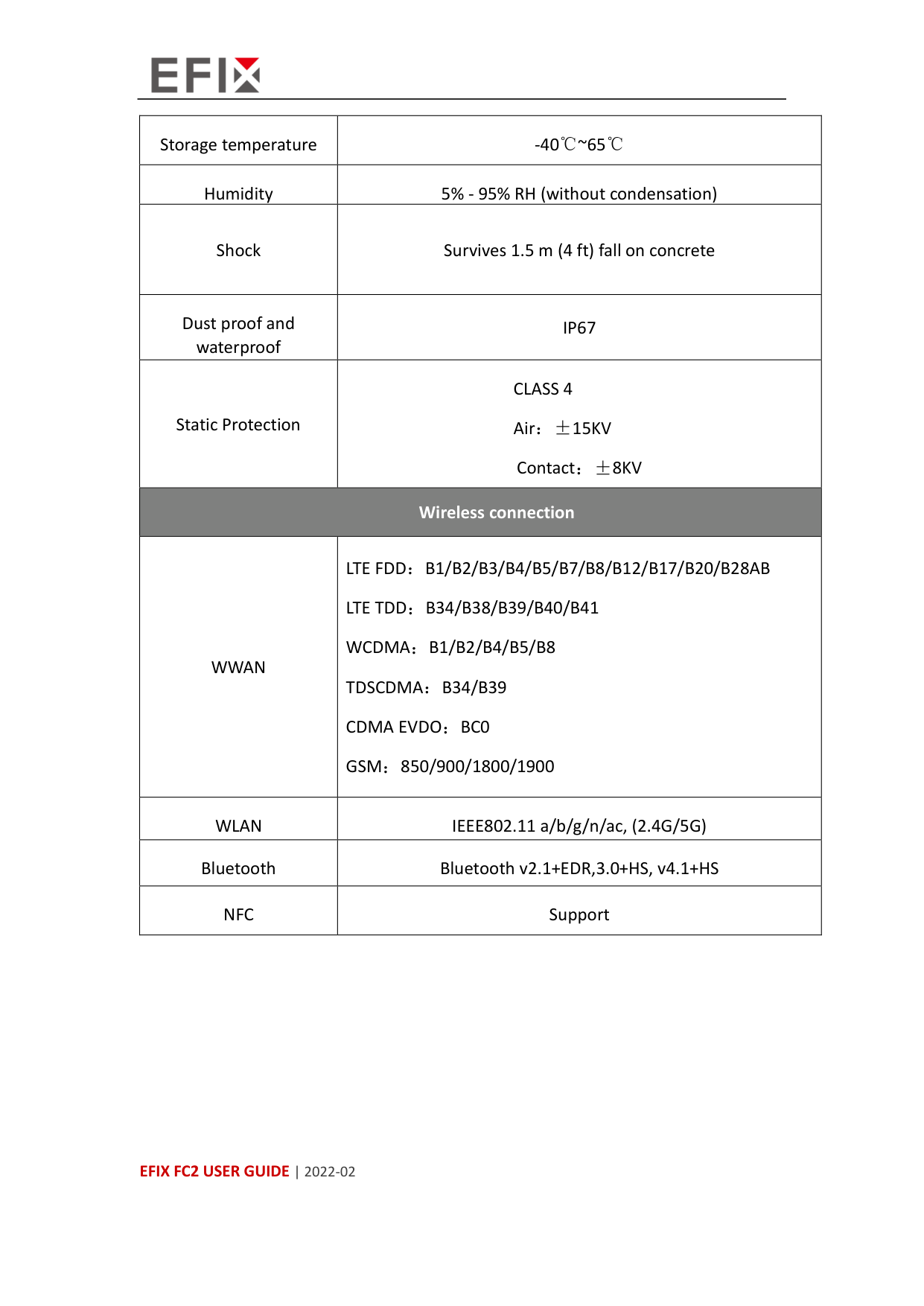
Efix Fc2 User Guide | 2022-02
Storage temperature -40℃~65℃ Humidity 5% - 95% RH (without condensation) Shock Survives 1.5 m (4 ft) fall on concrete Dust proof and waterproof
Ip67
Static ProtectionClass 4
Air:±15KV Contact:±8KV Wireless connectionWwan
Lte Fdd:B1/B2/B3/B4/B5/B7/B8/B12/B17/B20/B28Ab
Lte Tdd:B34/B38/B39/B40/B41
Wcdma:B1/B2/B4/B5/B8
Tdscdma:B34/B39
Cdma Evdo:Bc0
Gsm:850/900/1800/1900
Wlan
IEEE802.11 a/b/g/n/ac, (2.4G/5G) Bluetooth Bluetooth v2.1+EDR,3.0+HS, v4.1+HSNfc
Support
Efix Fc2 User Guide | 2022-02
EFIX Geomatics 1st Floor, No. 258 Pingyang Rd., Minhang District, Shanghai, 201102, CHINA
Tel: +86 15021007664 Email: sales@ efix-geo.com |support@ efix-geo.com Skype: support@efix-geo.com Website: www.efix-geo.com
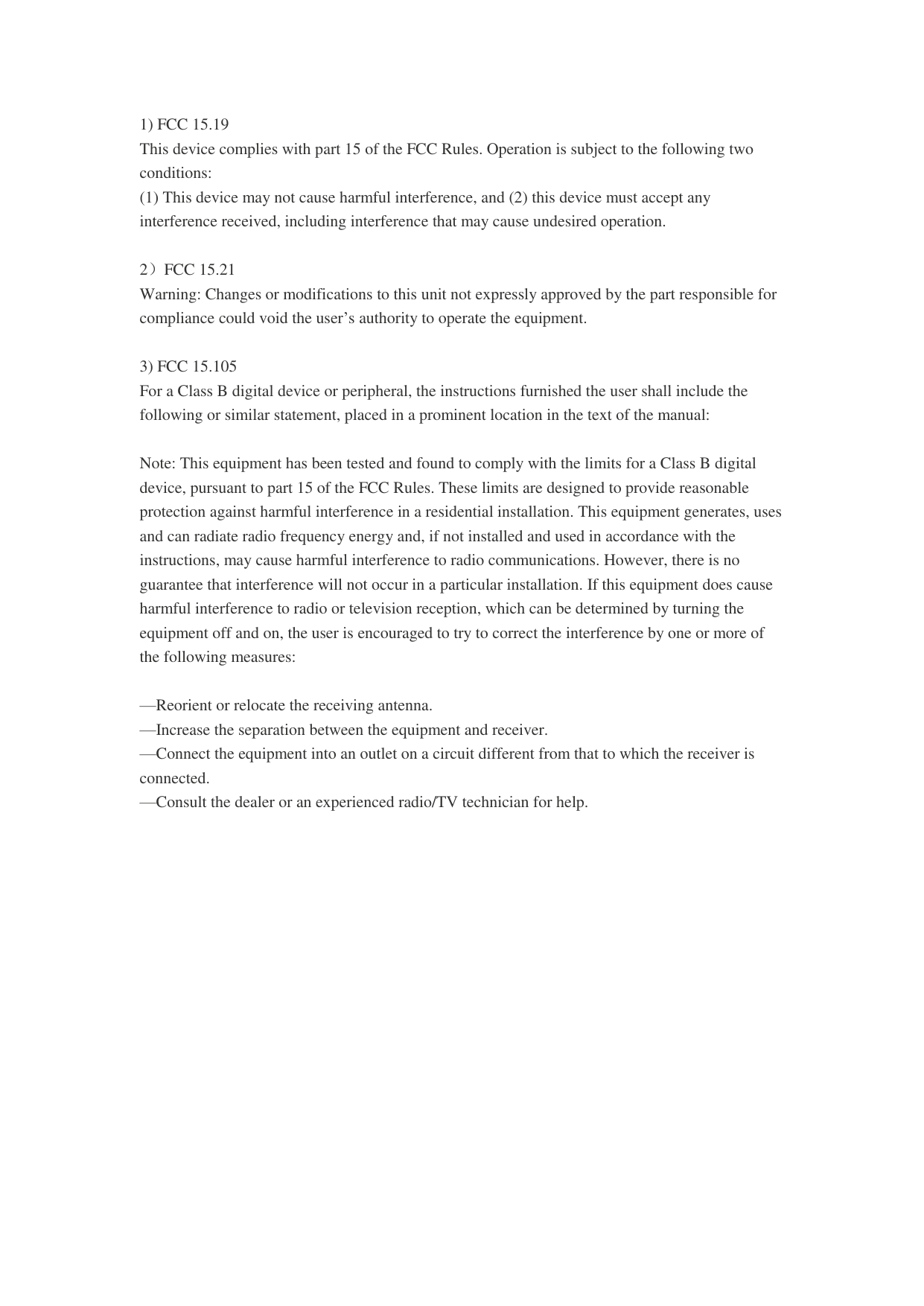
1) Fcc 15.19
This device complies with part 15 of the FCC Rules. Operation is subject to the following two conditions: (1) This device may not cause harmful interference, and (2) this device must accept any interference received, including interference that may cause undesired operation.2)Fcc 15.21
Warning: Changes or modifications to this unit not expressly approved by the part responsible for compliance could void the user’s authority to operate the equipment.3) Fcc 15.105
For a Class B digital device or peripheral, the instructions furnished the user shall include the following or similar statement, placed in a prominent location in the text of the manual:Note: This equipment has been tested and found to comply with the limits for a Class B digital device, pursuant to part 15 of the FCC Rules. These limits are designed to provide reasonable protection against harmful interference in a residential installation. This equipment generates, uses and can radiate radio frequency energy and, if not installed and used in accordance with the instructions, may cause harmful interference to radio communications. However, there is no guarantee that interference will not occur in a particular installation. If this equipment does cause harmful interference to radio or television reception, which can be determined by turning the equipment off and on, the user is encouraged to try to correct the interference by one or more of the following measures:
—Reorient or relocate the receiving antenna. —Increase the separation between the equipment and receiver. —Connect the equipment into an outlet on a circuit different from that to which the receiver is connected. —Consult the dealer or an experienced radio/TV technician for help.
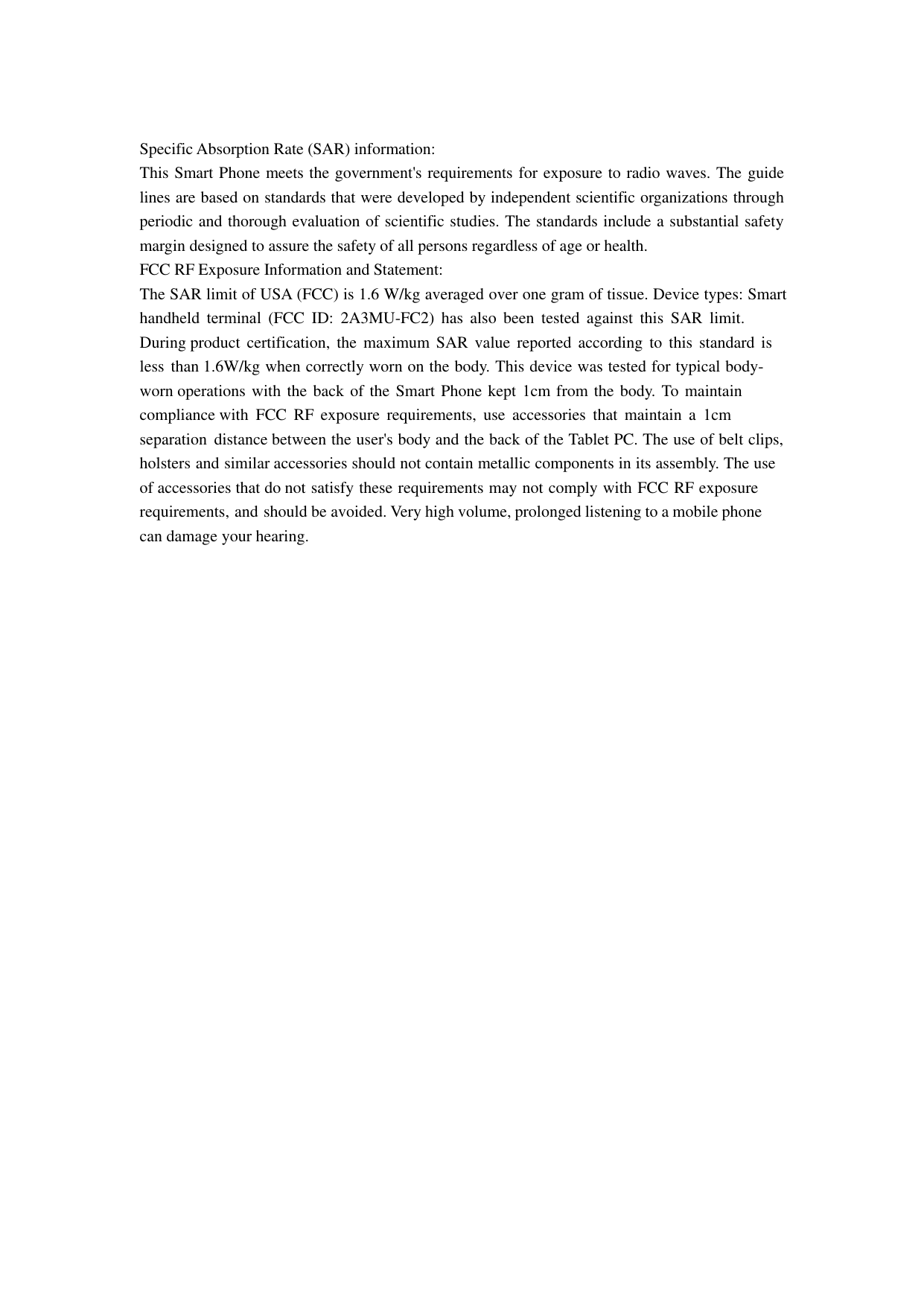
Specific Absorption Rate (SAR) information: This Smart Phone meets the government's requirements for exposure to radio waves. The guide lines are based on standards that were developed by independent scientific organizations through periodic and thorough evaluation of scientific studies. The standards include a substantial safety margin designed to assure the safety of all persons regardless of age or health. FCC RF Exposure Information and Statement: The SAR limit of USA (FCC) is 1.6 W/kg averaged over one gram of tissue. Device types: Smart handheld terminal (FCC ID: 2A3MU-FC2) has also been tested against this SAR limit. During product certification, the maximum SAR value reported according to this standard is less than 1.6W/kg when correctly worn on the body. This device was tested for typical body- worn operations with the back of the Smart Phone kept 1cm from the body. To maintain compliance with FCC RF exposure requirements, use accessories that maintain a 1cm separation distance between the user's body and the back of the Tablet PC. The use of belt clips, holsters and similar accessories should not contain metallic components in its assembly. The use of accessories that do not satisfy these requirements may not comply with FCC RF exposure requirements, and should be avoided. Very high volume, prolonged listening to a mobile phone can damage your hearing.