
Ask AI
— answers from the official manualAnswers from the official manual.
Common questions
Common Questions
10 totalHow do I change the master volume on my Gamesir G7 SE?
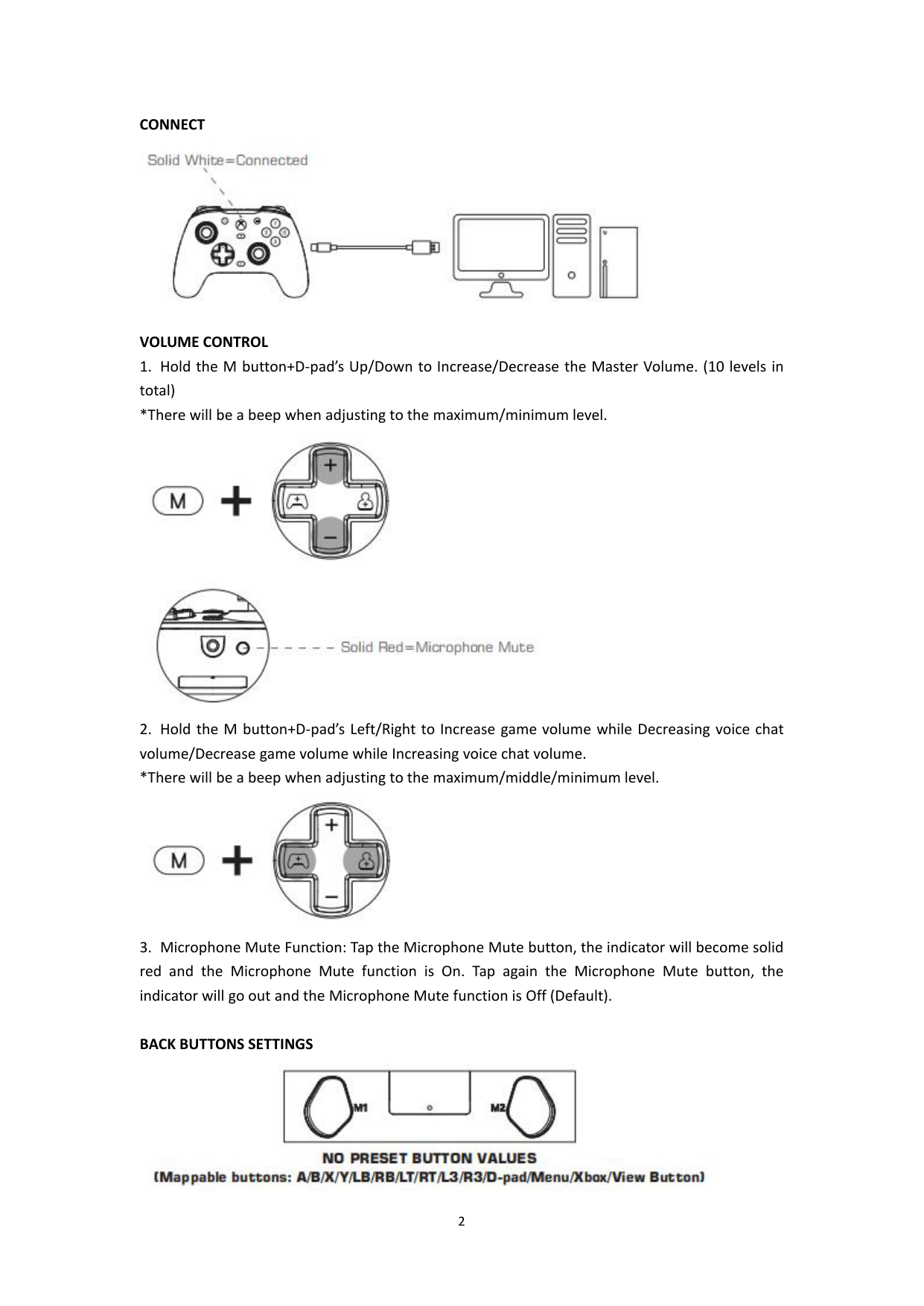
Press and hold the M button while pressing up to increase or down to decrease the master volume. There will be a beep when you reach maximum or minimum levels.
How do I adjust game and voice chat volumes independently?
Press and hold the M button while pressing left to increase game volume and decrease voice chat volume, and right to decrease game volume and increase voice chat volume. There will be a beep when reaching maximum, middle, or minimum levels.
How do I mute my microphone on the Gamesir G7 SE?
Tap the Microphone Mute button; an indicator will become solid red to show muted and turn off when unmuted. (Default is unmuted).
How can I set custom values for M1/M2 on my Gamesir G7 SE?
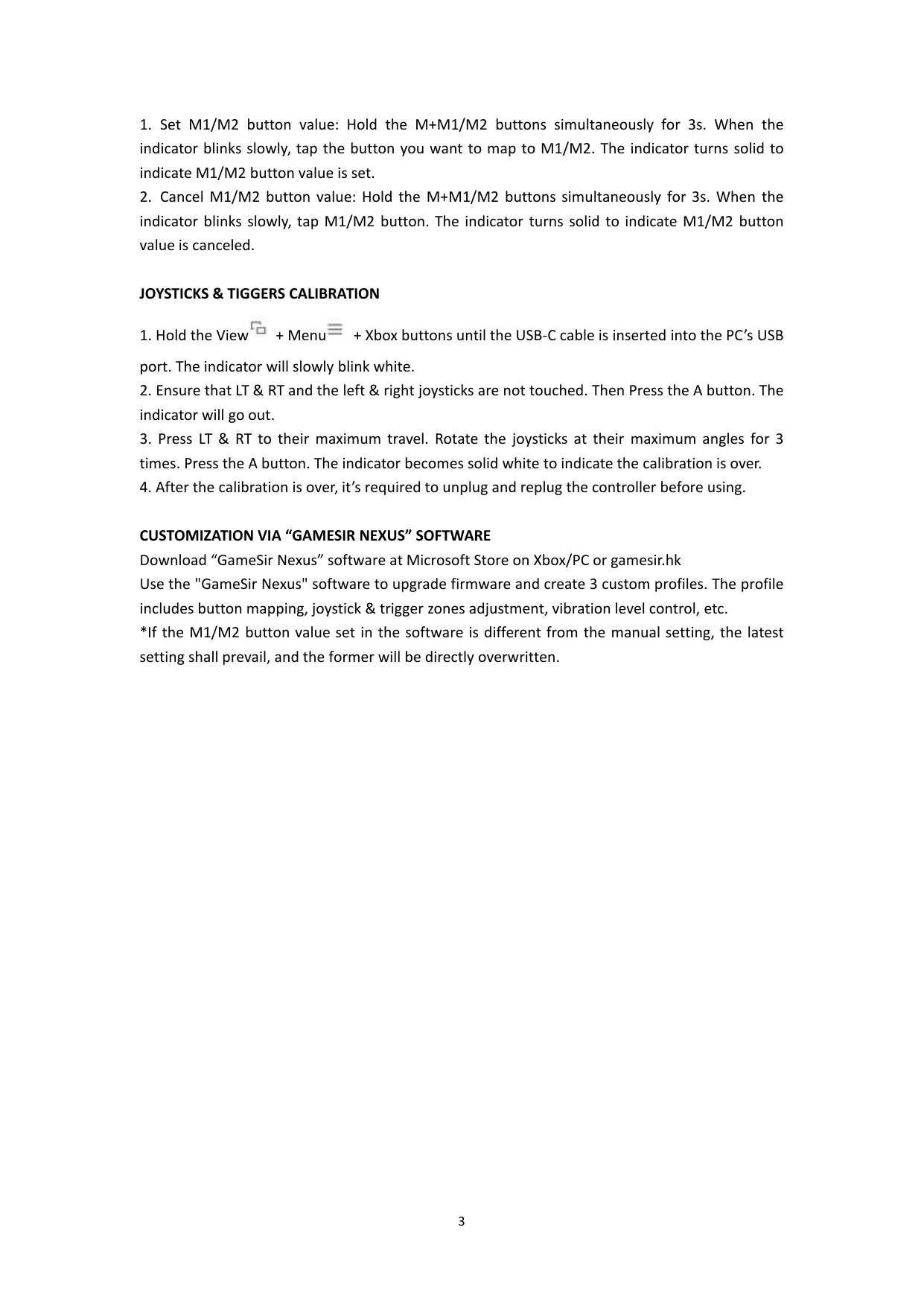
Hold the M button plus the desired M1 or M2 button simultaneously for three seconds, then tap the intended button to map. The indicator turns solid once a value is set.
How do I calibrate joystick and triggers on my Gamesir G7 SE?
Hold View + Menu + Xbox buttons while inserting it into the PC's USB port. Ensure LT & RT and both joysticks are untouched, press A to start calibration, then move LT & RT fully six times and rotate joysticks at max angles for three rounds before pressing A again.
What is the process to cancel custom values for M1/M2 on my Gamesir G7 SE?
Hold the M button plus desired M1 or M2 button simultaneously for three seconds, then tap the corresponding button again. The indicator turns solid once canceled.
Full Manual
4 pages

GameSir-G7 User Manual

PACKAGE CONTENTS GameSir-G7 *1 Swappable White Faceplate *1 3m USB-C Cable *1 User Manual *1 Thank You & After-sale Service Card *1 GameSir Sticker *1 Certification *1
REQUIREMENTS
Xbox One / Xbox Series X|S / PC (Win 10 or above) with USB port
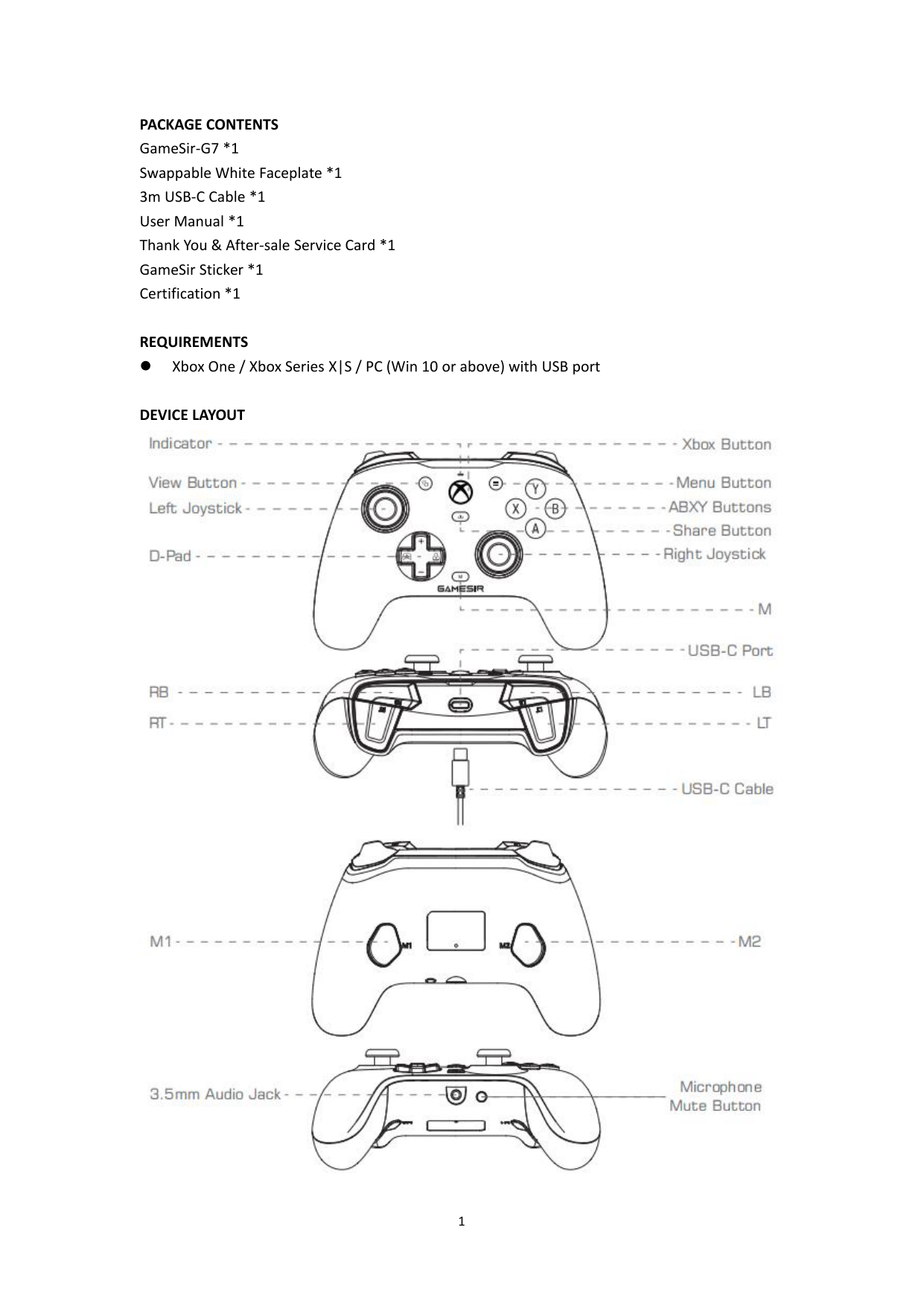
DEVICE LAYOUT


CONNECT

VOLUME CONTROL
*There will be a beep when adjusting to the maximum/minimum level.


*There will be a beep when adjusting to the maximum/middle/minimum level.

BACK BUTTONS SETTINGS

JOYSTICKS & TIGGERS CALIBRATION


CUSTOMIZATION VIA “GAMESIR NEXUS” SOFTWARE Download “GameSir Nexus” software at Microsoft Store on Xbox/PC or gamesir.hk Use the "GameSir Nexus" software to upgrade firmware and create 3 custom profiles. The profile includes button mapping, joystick & trigger zones adjustment, vibration level control, etc.
*If the M1/M2 button value set in the software is different from the manual setting, the latest setting shall prevail, and the former will be directly overwritten.