Upgraded 30A Solar Charge Controller
Ask AI
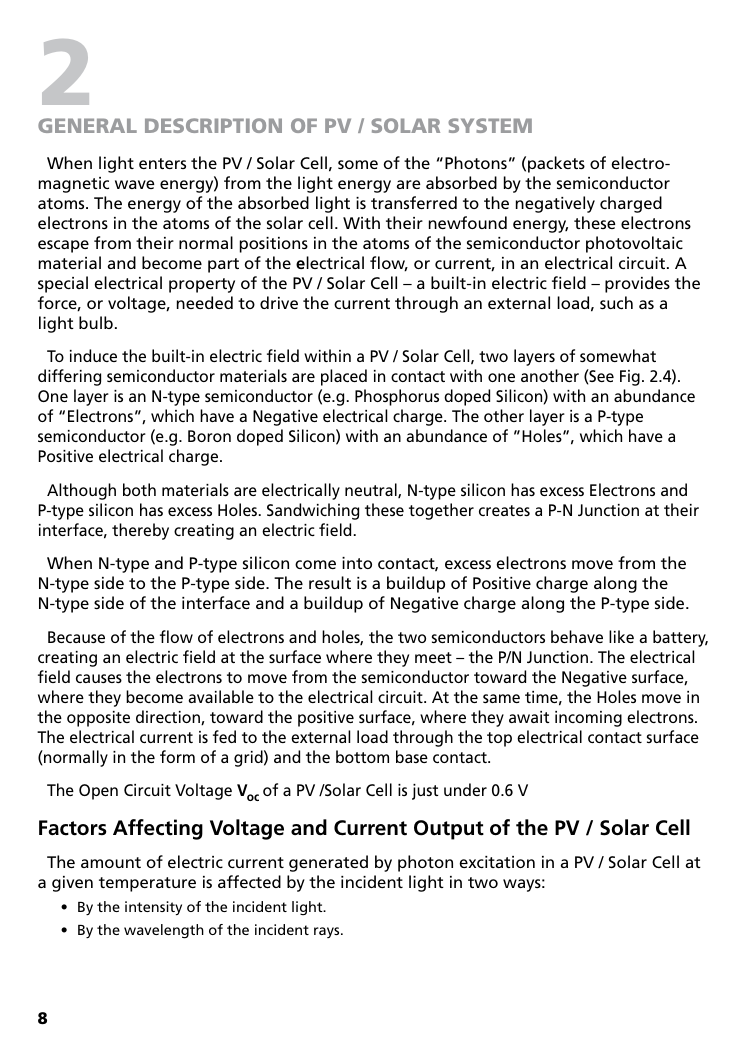
— answers from the official manualAnswers from the official manual.
Common questions
Common Questions
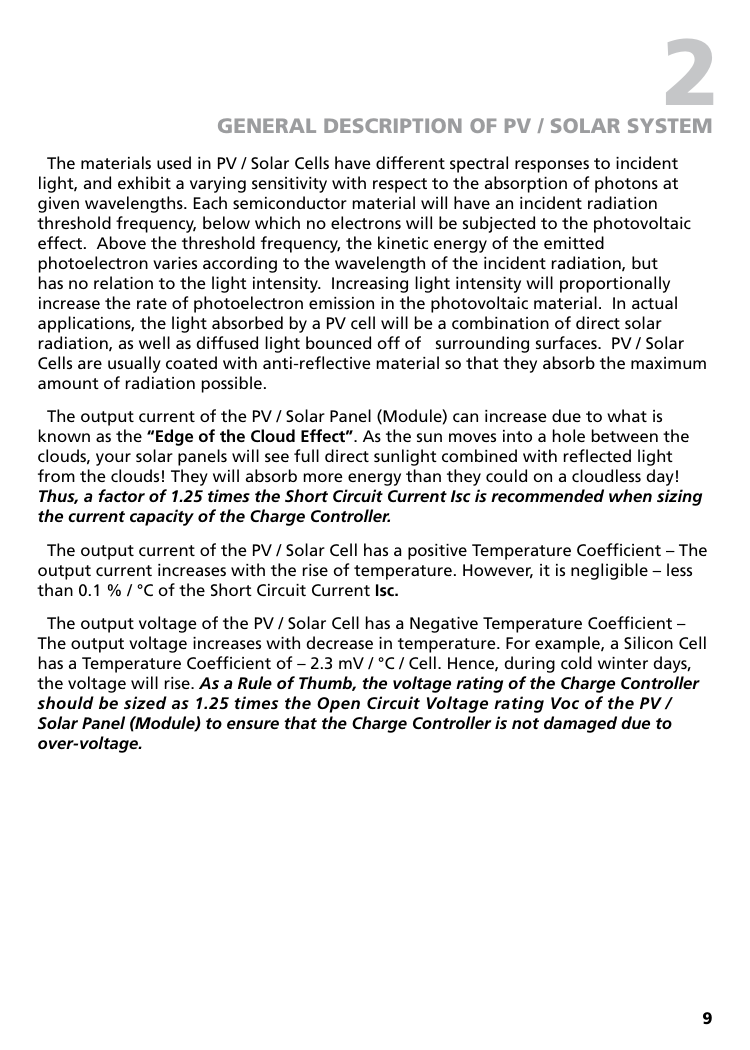
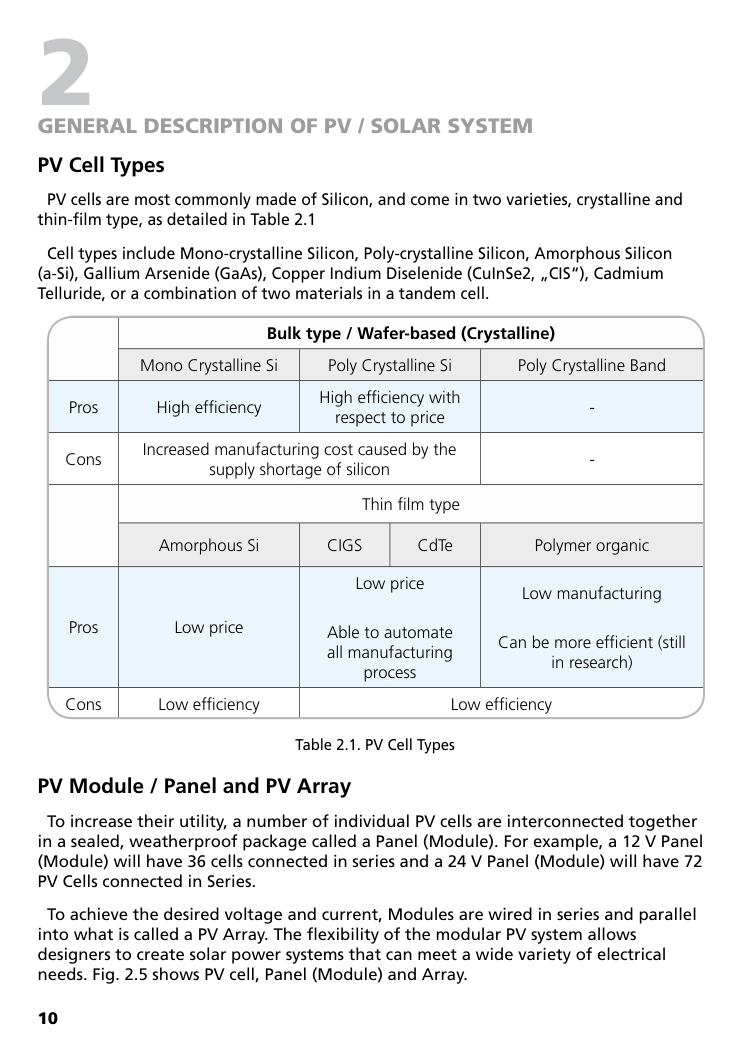
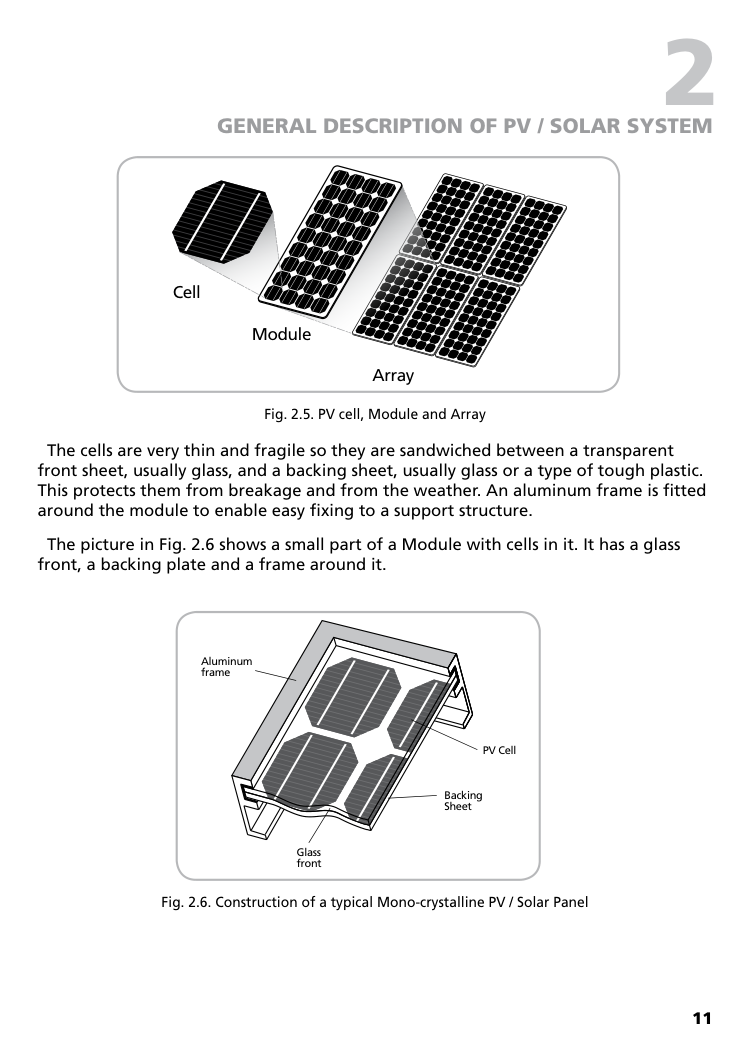
20 totalHow do I change the battery type setting on my controller?
To change the battery type setting, press and hold the 'Menu' button for 3 seconds to enter Unit Setting Mode. Use the up or down buttons to select the desired battery type (e.g., AGM, Gel, Flooded, Lithium, Program). Press 'Enter' to confirm your selection.
How do I factory reset the controller?
To factory reset the unit, disconnect the battery positive terminal for a few seconds until the display goes blank. Then reconnect the battery positive terminal.
What does E04 error code mean and how can I fix it?
E04 refers to an over-temperature shutdown of the unit. Allow the controller to cool down in a well-ventilated area. Once cooled, normal operation should resume automatically.
What is the correct procedure for installing the solar charge controller?
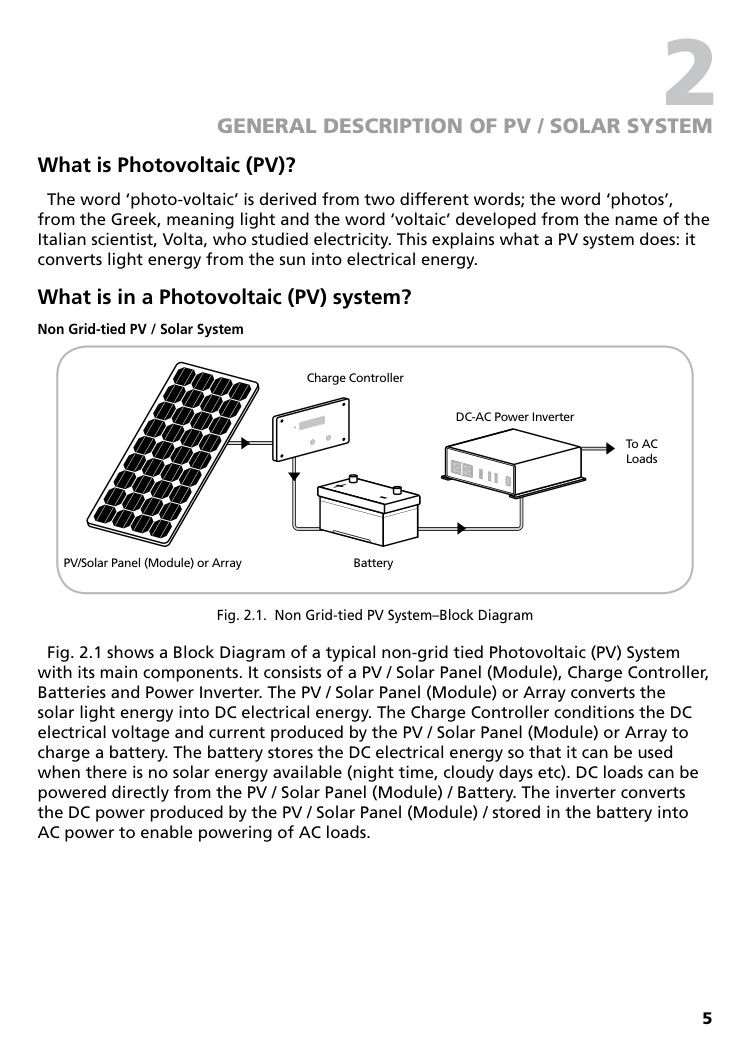
Before installation, ensure that the voltage rating of your solar panel and battery type match the specifications. Connect positive and negative terminals accordingly to PV input (terminals 1-2), Battery terminals (3-4), and DC loads if applicable (5-6). Mount the controller indoors in a dry location away from heat sources.
How do I set up timers for my DC load output?
Press and hold 'Menu' button to enter Unit Setting Mode, select timer setting (C01), use the Up/Down buttons to adjust times. Press 'Enter' after setting each time slot.
How often should I perform maintenance on my solar charge controller?
Periodically verify battery state of charge, check for corrosion around terminals and wires, confirm proper panel mounting without shadows or dust accumulation. Ensure indoor installation in a dry location with no heat sources.
Show 14 more questions
What are the standard voltage settings for various battery types?
How do I check for a loose or damaged connection at the DC load port?
How do I change the display from battery voltage to charging current?
What is the procedure if my unit freezes (not responding) during use?
What is the maximum input voltage I can safely apply to the 30A Solar Charge Controller?
Do I need an external blocking diode to prevent battery discharge at night?
What battery types can I charge with this controller?
What is the correct order for connecting and disconnecting the battery?
What do the different LED color indicators mean during charging?
Can I equalize sealed AGM or Gel Cell batteries?
What wire gauge and insulation rating should I use for connections?
What does the 'Alarm: OC' error message mean and how do I fix it?
How can I monitor the temperature of my battery during charging?
What minimum battery voltage is required to properly start the microcontroller?
Full Manual
21 pages

30 AMP Solar Charge Controller User Manual

30 AMP 12/24V Solar Charger Controller User Manual
|| |---|
60032
#14403

| | |---|
#### 1. Important Safety Instructions
This section contains important safety information. Before installing or using the unit, READ ALL instructions, and the provided cautionary markings. The unit contains no user-serviceable parts. See Warranty section for how to handle product issues.
Warning: Fire and/or Chemical Burn Hazard Do not cover or obstruct any air vent openings and/or install in a zero-clearance
compartment.
############## Warning: Failure to follow these instructions can result in death or serious injury
############## Warning: Explosion hazard!
Try to install the unit as close to the battery bank as possible. The battery acts as a low pass filter reducing the chance for electrical noise, ripple, and interferences that may get into the unit. We suggest battery wires no longer than 6 feet each one (+ and -) when possible.
######## 2. Introduction
Thank you for purchasing the Nature Power 30A Digital Solar Charge Controller. With our state of the art, easy to use design, this product will offer you a reliable service to convert your solar energy to charge your low voltage battery system in an effective and efficient way. It also protects your battery from being overcharged by the solar panel, or over-discharged through the DC loads connected to terminals 5-6 (if any). The unit uses PWM (Pulse Width Modulation) current control techniques to regulate the charging current (and so the voltage) being supplied to the battery by the solar panel (or panels). The display is a comprehensive one, with 3-1/2 digits and symbols, allowing you to check visually the operating status of the unit. It can show the digits and the corresponding symbols on the display, such as arrows, battery, light bulb, and sun. The current in Amps represents the net one flowing to and from the battery. Additionally, the unit allows you the setting of different battery type-dependent parameters, such as:
SeaChoice
The unit protects itself and provides the corresponding error alarms against the following conditions:
######### 3. Understanding the unitCaution: This unit is designed for use with 12V or 24V nominal Battery Systems only


1 2 3 4 5 6
Solar Panel Battery DC Load Chassis Ground
Notes :
Caution: Connecting DC loads on the terminals 5-6 that can draw either peak or continuous currents that exceed the maximum rating of 30A, could damage the unit permanently, and that would not be covered by the warranty. Heavy-duty DC loads, (such as inverters), have to be connected directly to the battery terminals.
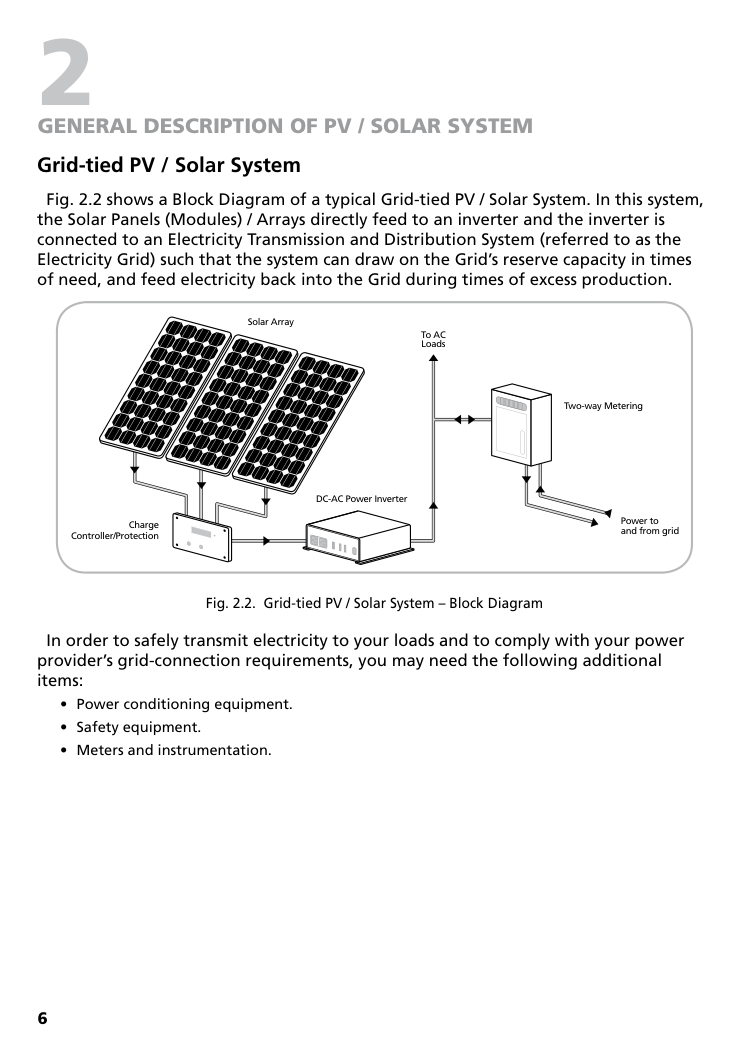
Operating Modes: The unit has the following three operating modes:


|Push Buttons Functions: (‘Menu’, ‘Enter’, Up ‘’, and Down ‘’).
|Push Buttons Functions: (‘Menu’, ‘Enter’, Up ‘’, and Down ‘’).
| |---|---| ||In Normal Operating Mode: Press once to enter the Setting Display Mode to read the unit settings without the risk to change them accidentally. Once in the Setting Display mode, press the Up/Down buttons to scroll circularly through the parameters settings (Real Time Clock, Battery Type, Lithium/Program Bulk Voltage, DC-Load Voltage Disconnect and Reconnect on terminals 5-6, and the start and duration of the timers). In Setting Display Mode: Press once to exit the Setting Display Mode and return to Normal Operating Mode; (the same occurs automatically without pressing any pushbutton for 10 sec.) In either Normal Operating Mode or Setting Display Mode: Press and hold for more than 3 seconds to enter the Unit Setting Mode. Once in the Unit Setting Mode, you need to wait 10 sec without pressing any pushbutton to return to Normal Operating Mode In Unit Setting Mode: Press once to skip to the next parameter setting if no change is required in the one being displayed| ||In Normal Operating Mode: Press and hold for more than 3 sec to turn manually the DC-Load port ON or OFF
In Unit Setting Mode: Press once to confirm or save the setting and proceed to the next parameter setting (see more details in section 9 ‘Understanding the Unit Setting Mode’). In Setting Display Mode:
Nothing happens. It does not have any effect.| |
|In Normal Operating Mode:
Press either the Up or Down button to change the display in between battery voltage and charging current measurements
Press and hold both buttons for 3 seconds to read the software revision number (e.g. “r1.7”)
In Unit Setting Mode: Press the Up or Down button to edit the parameters settings. In Setting Display Mode: Press the Up or Down button to scroll up or down through the settings reading|
############ 4. Three-stage charging algorithm:
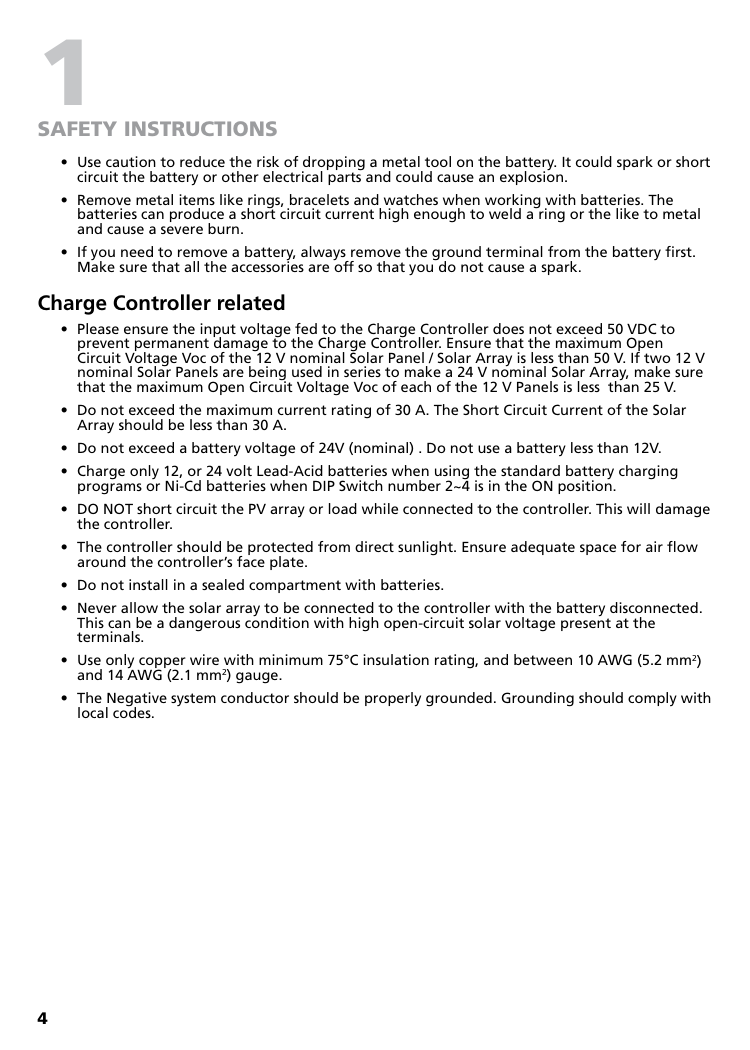
The unit provides a 3-stage charging algorithm having a Bulk, then Absorption and then Float stage sequence. During the Bulk stage, the battery accepts all the possible current from the solar panel (if available) in an effort to charge the battery and so raising its voltage. Once the battery voltage
reaches the maximum one (depending on the setting), the unit passes from Bulk to Absorption stage, keeping that maximum voltage by reducing the charging current if necessary under a PWM regulation approach. When entering the Absorption stage, a two-hour timer starts running. During
that period, if the battery voltage drops 0.3V below the Absorption voltage , the timer will restart. When the Absorption timeout occurs, the unit pass to the Float stage supplying a lower voltage to maintain the battery in a fully charged state. The controller will automatically restart the full charging cycle if it senses the battery bank is discharged to less than 12.5V/25V in 12V/24V battery systems respectively. Note : The maximum voltage in Bulk stage corresponds to the Absorption one, being the
threshold to pass from Bulk to Absorption stage. Wherever its setting is allowable to the user, the display will show the “Bulk” symbol other than the “ABS” one (see the section 9 for more details).
############ 5. Installation Instructions:
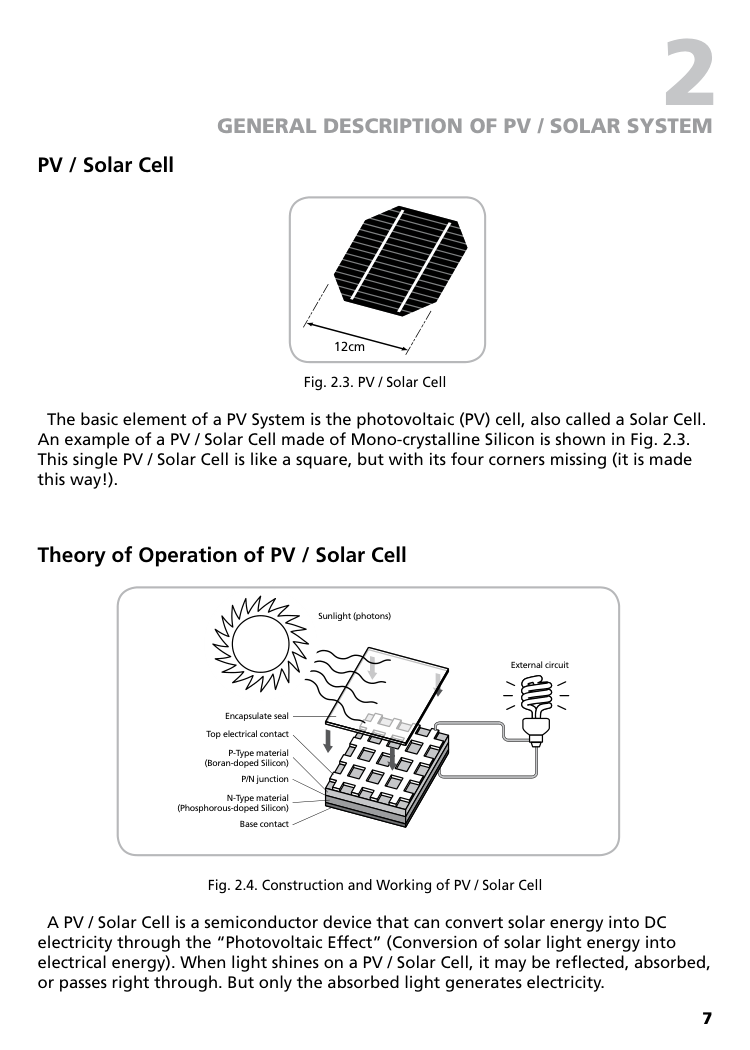
################## Caution: Before installing the unit, please verify the rating of the solar panel, the battery type and its nominal voltage, and the total power consumption of the DC loads.
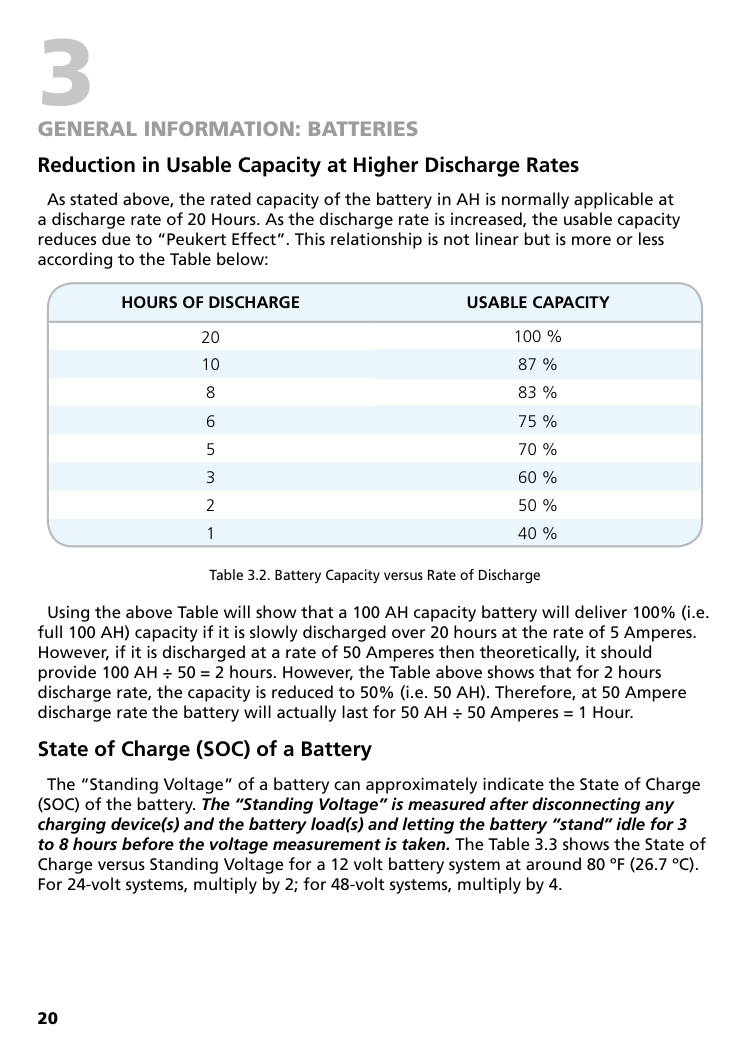
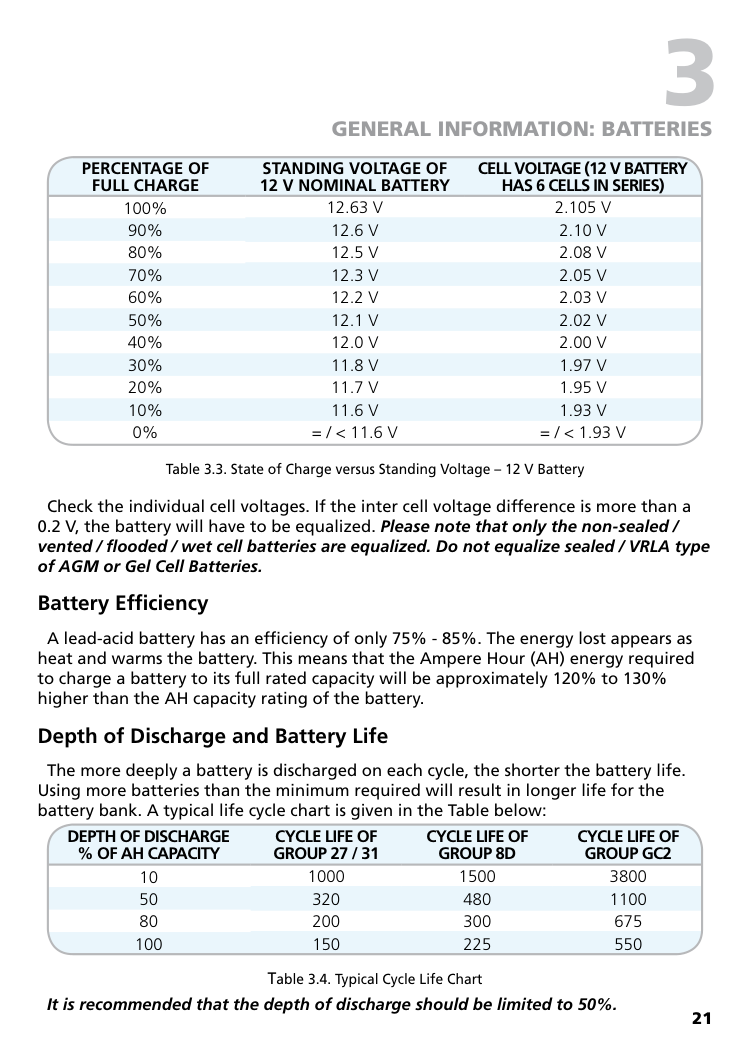
|Max. Current|Battery Voltage|Battery Type|Maximum Solar Panel Rating|Allowable Direct/Min. wire Gauge respectively| |---|---|---|---|---| |30A|12V or 24V (Self detection)|Gel, AGM, Flooded, Lithium Programmable|480W-12V (12V system) 960W-24V (24V system)|#6 / #10 AWG|
Note : As per the physical connector of the unit, and/or the crimping terminals being used. However, thicker wires can be used for the solar panel array to compensate excessive power losses (resistance) on long runs, by reducing their thickness on the last edge inches (e.g. by splicing two 4” long thinner wires). That bottleneck would not affect the power losses, being insignificant in 4” long thinner wires and always thick enough for the unit maximum current rating.
Unit Mounting: Select an appropriate mounting Indoor location not susceptible to extreme heat, humidity, and dirty conditions. The unit can be oriented in any direction. Allow free space around the unit for heat dissipation purposes. Install the controller as close as possible to the battery (the battery acts like a low pass filter, helping the reduction of electrical noises and interferences on the DC wiring). Hold the controller against the mounting surface and mark the positions of its mounting holes on its flanges. Then, make the pilot holes with a drill.
Before installing the unit, please verify the rating of the solar panel, the battery type and

|These Symbols show the charging and discharging status in the Normal Operating Mode only| |---|
|Symbols shown in all the modes and according to the specific conditions at the moment| |---|
|Pushbuttons with multiple functions, according to the specific operating mode at the moment| |---|
|Meanings of the basic display symbols:| |---| |
Solid: The solar panel is detected (--> its voltage, on the terminals 1-2, is higher than 6.2V or
11.2V*). It could take up to 10 sec to be updated to a new Off condition (since the moment its voltage drops below 4.2V or 9V*respectively). *Note: according to the version of the unit.| |
Flashing: The Battery is detected. Its voltage has to be higher than about 6.2 – 6.4V for the controller to operate. It should be flashing permanently in all the operating modes. Otherwise, the controller must be reset as indicated in the troubleshooting table section 14 (point ). Purpose: To indicate that the unit is alive and running OK| |
Solid: The DC-Load port (on terminals 5-6) is On| |
Flashing: The DC-Load port should be ON but it is forced to be OFF due to one or more of the following alarm conditions: a) E05: DC-Load Under Voltage Shutdown; b) E03: DC-Load Overload; c) E04: Unit Over Temperature Shutdown. Otherwise, the DC-Load port would be already ON. Since the DC-Load port is disconnected, the corresponding flashing current flow arrow consequently goes off (if it was on). PURPOSE: This is to alert the user that the DC Loads (connected to terminals 5 and 6) could start running at any time, once those error conditions disappear.| |Flashing: Flow of current in between the symbols above. It should remain flashing (not solid). It takes up to 10 /30 sec to be updated to a new flashing/off condition respectively.
|
|Meanings of the basic display symbols combined:|Meanings of the basic display symbols combined:| |---|---| |Symbol|Description (with the battery/bulb symbols always flashing/solid respectively)| ||Solar power is being supplied to the battery. The DC-Load port is ON and the load is drawing current from the battery| ||Solar power is being supplied to the battery. The DC-Load port is ON and there is no load, or it is very low to be detected| ||Solar power is being supplied to the battery. The DC-Load port is OFF| ||The solar panel is detected but does not have enough voltage to charge the battery. The DC-Load port is ON and the load is drawing current from the battery|
||The solar panel is detected but does not have enough voltage to charge the battery. The DC-Load is ON and there is no load, or it is very low to be detected| |---|---| ||The solar panel is unavailable (e.g. at night or disconnected). The DC-Load port is ON and the load is drawing current from the battery| ||The solar panel is unavailable (e.g. at night or disconnected). The DC-Load is ON and there is no load, or it is very low to be detected| ||The solar panel is unavailable (e.g. at night or disconnected). The battery is connected. The DC-Load port is OFF|
|Display Symbols during ‘Setting Display’, ‘Unit Setting’, or ‘Normal Operating’ modes|Display Symbols during ‘Setting Display’, ‘Unit Setting’, or ‘Normal Operating’ modes| |---|---| ||These symbols indicate the battery type. Note: Some units may have symbols showing ‘Flo’ / ’Li’ / ’Pro‘ instead of ‘Flooded’ / ‘Lithium’ / ’Program’ respectively| ||The related symbol shows the charging stage at the moment (Bulk, Absorption, or Floating). They are mutually exclusive (only one at a time). They may take up to 10 sec to be updated to a new different stage. In both Unit Setting and Setting Display modes having either Lithium or Program selected, the “Bulk” symbol goes on to indicate the Absorption voltage setting (see note )|
|
(mutually exclusive)
|In “Unit Setting” and “Setting Display” Modes with “C01” (timers enabled): The display is showing 1 of the 3 DC-Load ON or OFF timers values, as per the symbol being shown, which flashes periodically with 1, 2, or 3 pulses pattern to indicate that the value corresponds to the timer 1, 2, or 3 respectively In “Unit Setting” and “Setting Display” Modes with “C00” (timers disabled): These alarm clock symbols are not showed when they are disabled. Note : these symbols never appear in Normal Operating Mode.
| |---|---| ||In any condition, the ‘24V’ symbol indicates that a 24V battery system has been detected and is in use. Otherwise, It remains OFF indicating a 12V battery system| ||In Normal Operating Mode: The display is showing the net battery discharging current in Amps. In other words, the charging current from the solar panel is less than the discharging current by the DC loads on terminals 5-6, so the battery is discharging supplying the difference of current and showing it on the display. In “Unit Setting” and “Setting Display” Modes: Solid/Flashing means that the display is showing the DC-Load port Disconnect /Reconnect Voltage respectively| ||The display shows time/Net battery charging or discharging current/Battery voltage/Timer setting/Error code, e.g. 12:04/21.2/12.3/C01 or C00/E02 respectively| ||This symbol indicates the afternoon time (‘Post Meridiem’)| ||The display is showing the net battery charging/discharging current in Amps| ||The display is showing the battery voltage in Volts| ||Error is detected and the display is showing its code in the E01-E05 range|
################### 8. About the net battery charging and discharging conditions shown on the display:
As already mentioned in the previous table, the current in Amps shown on the display is the net one, being the result of the one provided by the solar panel minus the one being drawn by the DC loads connected to the terminals 5-6 of the unit (if any).

Note : The net current shown on the display (so the charging and discharging condition) relates to the solar panels and DC Loads (if any) connected to the corresponding ports on the controller. Whatever current being supplied/drawn to/from the battery by other external sources/loads respectively that are connected directly to the battery terminals, are out of the controller monitoring range. If that were the case, the displayed net current could be meaningless or incomplete.
Some examples in Normal Operating Mode: The following table shows several conditions for illustration purposes. It is based on a 12V AGM type battery with a 5.7A DC load. All the possible combinations are not shown.
|Display/Case #|Current flows|Description| |---|---|---| |Case #1: Display showing no solar panel power available and the DC-Load port is OFF
|Case #1: Display showing no solar panel power available and the DC-Load port is OFF
|Case #1: Display showing no solar panel power available and the DC-Load port is OFF
| |
| |


->Flashing as should be always to indicate unit is running
->Off, to indicate no current is flowing from the solar panel, at least not a perceptible one. It is either disconnected or at night condition, so its arrow is not shown
->Off, to indicate DC-Load port is OFF, so no current from the battery to the DC-Load terminals -->No arrow is shown
AGM -->Battery type setting is shown, being, in this case, AGM
See the net current in Amps by pushing the or buttons
Neither charging nor discharging.
| |Case #2-1: Display showing no solar panel power available and the DC-Load port is ON|Case #2-1: Display showing no solar panel power available and the DC-Load port is ON|Case #2-1: Display showing no solar panel power available and the DC-Load port is ON| |
||


->Flashing as should be always to indicate unit running.
->Off to indicate that no current is flowing from the solar panel, at least not a perceptible one. It is either disconnected or at night condition, so its arrow is not shown
->On, to indicate DC-Load port is ON, so there is a current from the battery to the DC-Load terminals -->arrow is flashing
AGM -->Battery type setting is shown, being, in this case, AGM
See the net current in Amps by pushing the or buttons
Net battery current = -5.7A (discharging)
->Solid ON, indicating discharging (negative) current
|
|Case #2-2: Display showing solar panel power available and the DC-Load port is OFF|Case #2-2: Display showing solar panel power available and the DC-Load port is OFF|Case #2-2: Display showing solar panel power available and the DC-Load port is OFF| |---|---|---| |
||


->Flashing as should be always to indicate unit running.
-->On to indicate current is flowing from the solar panel to the battery, so the corresponding flow arrow is flashing
->Off, to indicate DC-Load port is OFF, so no current from the battery to the DC-Load terminals -->No arrow is shown
AGM -->Battery type setting is shown, being, in this case, AGM
See the net current in Amps by pushing the or buttons
Net battery current = 23.9A (charging)
Bulk -->On, as the charging stage at the moment
| |Case #2-3: Display showing solar panel power available and the DC-Load port is ON|Case #2-3: Display showing solar panel power available and the DC-Load port is ON|Case #2-3: Display showing solar panel power available and the DC-Load port is ON| |
||


->Flashing as should be always to indicate unit running.
-->On to indicate current is flowing from the solar panel to the battery, so the corresponding flow arrow is flashing
->On, to indicate DC-Load port is ON, so there is a current from the battery to the DC-Load terminals -->arrow is flashing
AGM -->Battery type setting is shown, being, in this case, AGM
See the net current in Amps by pushing the or buttons
Net battery current = 23.9A – 5.7A = 18.2A (charging)
Bulk -->On, as the charging stage at the moment
| |Case #2-4: Display showing a lower solar panel power available and the DC-Load port is ON|Case #2-4: Display showing a lower solar panel power available and the DC-Load port is ON|Case #2-4: Display showing a lower solar panel power available and the DC-Load port is ON| |
||


->Flashing as should be always to indicate unit running.
-->On to indicate current is flowing from the solar panel to the battery, so the corresponding flow arrow is flashing
->On, to indicate DC-Load port is ON, so there is a current from the battery to the DC-Load terminals -->arrow is flashing
AGM -->Battery type setting is shown, being, in this case, AGM
See the net current in Amps by pushing the or buttons
Net battery current = 2.5A – 5.7A = -3.2A (discharging)
-> Solid ON, indicating discharging (negative) current
Bulk -->On, as the charging stage at the moment
|
##################### 1 21
|Case #2-5: Display showing solar panel power available and almost equal to the DC-Load one|Case #2-5: Display showing solar panel power available and almost equal to the DC-Load one|Case #2-5: Display showing solar panel power available and almost equal to the DC-Load one| |---|---|---| |
||


->Flashing as should be always to indicate unit running.
-->On to indicate current is flowing from the solar panel to the battery, so the corresponding flow arrow is flashing
->On, to indicate DC-Load port is ON, so there is a current from the battery to the terminals -->arrow is flashing
AGM -->Battery type setting is shown, being, in this case, AGM
See the net current in Amps by pushing the or buttons
Net battery current = 5.7A – 5.7A = .0A (neither charging nor discharging).
ABS -->On, as the charging stage at the moment (after Bulk)
| |Case #3: An’ Low Voltage Disconnect’ occurred in the DC-Load port when it was on|Case #3: An’ Low Voltage Disconnect’ occurred in the DC-Load port when it was on|Case #3: An’ Low Voltage Disconnect’ occurred in the DC-Load port when it was on| |
As per the “X” condition. The current in Amps cannot be visualized on the display by using the and buttons.||


->Flashing as should be always to indicate unit running.
-->either On or Off according to the specific “X” condition. Same for its current flow arrow, but flashing instead of On.
->Flashing, to indicate that the DC-Load port (that was On and now is Off) should continue being ON if the DC-Load Disconnect “E05” would not have occurred
No action occurs after pushing either the or buttons, the display remains the same, showing the “E05”.
->On to indicate that an “Exx” type alarm/error occurred
Battery chemistry (AGM in these examples) is not shown.
Once the battery voltage rises enough so the E05 error condition disappears, the DC-Load restarts again if it was not turned Off either manually or through the timers settings.
|
IMPORTANT: See note for more details about the charging and discharging conditions.
########## 9. Understanding the Unit Setting Mode:
Even though the unit comes already with factory default settings (see section 15 ‘Specifications’), some of them require being done by yourself. For example, since the DC-Load output port (terminals 5-6) could be turned ON and OFF automatically (in addition to manually), may require the setting of up to three different programmable timers. If so, the real-time clock (that runs even when there is not any power source present) would require being set as well to your local time. All the settings are saved in flash memory, so remaining at power off even if the unit is stored for a long period without use.

To enter the Unit Setting Mode, press and hold the ‘Menu’ button for 3 seconds. Once within that mode, the unit automatically terminates it and returns to Normal Operating Mode after reaching a 10 seconds timeout with no buttons being pressed.
The sequence of the parameters in the Unit Setting Mode is as follow. In the Setting Display Mode, the parameters are shown in the same order but having different

functions for the Up and Down arrow pushbuttons.
|Step 1: Real Time Clock Setting|Step 1: Real Time Clock Setting| |---|---| ||The Real Time Clock is shown on the display, with the hour number e.g. ‘12’ flashing to indicate that the hour setting is in place
Press the ‘Menu’ pushbutton if an adjustment of the Real Time Clock is not required, so this menu will jump to Step 2
pushbuttonsIf an adjustment of the Real Time Clock is required, use the to adjust the hour time
The ‘PM’ symbol indicates afternoon (“Post Meridiem”) time pushbutton once to set/save the hour time
Then, the minute number e.g. ‘08’ flashes to indicate that its setting is in place pushbuttons to adjust the minutes time
Press the ‘Enter’
Use the
Press ‘Enter’ pushbutton once to set/confirm the minute time
The Real Time Clock setting finished, so this menu will jump to Step 2


| |Step 2: Battery Type Setting|Step 2: Battery Type Setting| ||The battery type is displayed with the one of the present setting flashings
Press the ‘Menu’ pushbutton if the battery type does not require any changes, so this menu will jump to Step 5
pushbuttons to change to different battery type
The selected battery type will be flashing
Use the
Press the ‘Enter’ pushbutton once to set/confirm the new battery type
If the Lithium battery type is selected, this menu will jump to Step 3
If the Program battery type is selected, this menu will jump to Step 4
If another different battery type is selected, this menu will jump to Step 5*


|
|Step 3: Lithium Battery Voltage Setting (if Lithium battery is selected)|Step 3: Lithium Battery Voltage Setting (if Lithium battery is selected)| |---|---| |
| The ‘Lithium’ and ‘Bulk’ symbol is flashing
Press the ‘Menu’ pushbutton if the Lithium voltage settings do not require any changes, so this menu will jump to Step 5
Use the pushbuttons to adjust the max. Bulk voltage setting for the Lithium battery. Check the range for this value in the section 15 (‘Specifications’)
pushbutton once to set/confirm the max. Bulk voltagePress the ‘Enter’
Use the pushbuttons to adjust the Float voltage setting for the Lithium battery. Check the range for this value in the section 15 (‘Specifications’)
Press the ‘Enter’ pushbutton once to set/confirm the Float voltage setting, and this menu will jump to Step 5
Note: The Float voltage has to be set to at least 0.2V below the Bulk Voltage setting. The unit blocks/changes invalid ones (see section 15 ‘Specifications’)


|
|Step 4: ‘Program’ Battery Voltage Setting|Step 4: ‘Program’ Battery Voltage Setting| |---|---| |
|The ‘Program’ symbol is flashing
Press the ‘Menu’ pushbutton if the voltage setting on the ‘Program’ battery does not require any changes, so this menu will jump to Step 5
Use the pushbuttons to adjust the Bulk voltage setting for the ‘Program’ battery. Check the range for this value in the section 15 (‘Specifications’)
pushbutton once to set/confirm the max. Bulk voltagePress the ‘Enter’
Use the pushbuttons to adjust the Float voltage setting for the ‘Program’ battery. Check the range for this value in the section 15 (‘Specifications’)
Press the ‘Enter’ pushbutton once to set/confirm the Float voltage setting, and this menu will jump to Step 5
Note: The Float voltage has to be set to at least 0.2V below the Bulk Voltage setting. The unit blocks/changes invalid ones (see notes in section 15 ‘Specifications’)


|
|Step 5: DC-Load (terminals 5-6) Disconnect and Reconnect Voltage Settings|Step 5: DC-Load (terminals 5-6) Disconnect and Reconnect Voltage Settings| |---|---|
|
|The Disconnect Voltage Setting and the symbol are shown on the display
Press the ‘Menu’ pushbutton if the Disconnect setting does not require any changes, so this menu will jump to Step 6
Use the buttons to adjust the Disconnect Voltage setting. Check the range for this value in the section 15 (‘Specifications’)
Press the ‘Enter’ pushbutton once to set/confirm the Disconnect Voltage setting, and this menu will jump to the Reconnect Voltage setting with the symbol
flashing.
Use the buttons to adjust the Reconnect Voltage setting. Check the range for this value in the section 15 (‘Specifications’)
Press the ‘Enter’ pushbutton once to set/confirm the Disconnect Voltage setting, and this menu will jump to Step 6
Note: The Reconnect Voltage has to be set to at least 0.5V above the Bulk Voltage setting. The unit blocks/changes invalid ones (see notes in section 15 ‘Specifications’)


|
|Step 6: DC-Load (terminals 5-6) ON/OFF Timers Enabling / Disabling|Step 6: DC-Load (terminals 5-6) ON/OFF Timers Enabling / Disabling| |---|---| |OR


|The ‘C00’ or ‘C01’ setting will be shown on the display to indicate that the three DCLoad port timers are disabled or enabled respectively
Press the ‘Menu’ pushbutton if this setting does not require any changes, so this menu will jump back to Step 1
Use the buttons to swap the setting between ‘C00’ (Manual-only ON/OFF) and ‘C01’ (Automatic ON/OFF by the timers).
Press the ‘Enter’ pushbutton once to set/confirm the setting
With the ‘C00’ Manual-only ON/OFF setting, this menu will jump back to step 1 and all the three clock timers will be turned OFF and disabled but keeping their settings.
With ‘C01’ Automatic ON/OFF with the timers setting, this menu will start showing the first timer ON time with the symbol flashing periodically with a one-pulse pattern to indicate that the display is showing the corresponding value for timer 1.
Use the same procedure as setting the Real Time Clock in step 1, by using the
and the “Enter’ timer 1 when the
pushbuttons, and follow with the OFF time of the symbol is shown.
Then Press the ‘Enter’ pushbutton once to set/confirm the setting of the ON and OFF time for timer 1, and this menu will repeat the process for timer 2, and then for timer 3, with their corresponding and symbols flashing periodically with a 2 and 3 pulses pattern respectively
After setting all the three timers, this menu will jump back to Step 1. Notes: a) The periodic pulse patterns of the ON and OFF alarm-clock-type symbols are very useful to indicate what timer the time value being shown and edited on the display belongs to. b) To disable whatever one or two of the three clock timers, just set the ON time to be the same as the OFF time (with whatever value) in the corresponding timer or timers. c) To disable all the three timers together without changing their corresponding ON/OFF settings, changes to the ‘C00’ (manual) setting. See more details in the section 11 “Understanding How the DC-Load port Timers Work”


|
####### 10.Operation and Maintenance:
The following periodic inspections and maintenance tasks are highly recommended for best performance.
################# 11.Understanding How the DC-Load port Timers Work:Following are two ways for turning the DC-Load port on and off.
Cancelling the timers: You can cancel all the timers by selecting the ‘C00’ setting explained above, or just one or more of the three timers, by selecting both ON and OFF time settings of the specific timer (or timers) to exactly the same whatever value (including their “PM” condition).
Timers setting examples: Following are five cases showing how the DC-Load port (terminals 5-6) is turned ON/OFF based on the corresponding timers settings and the ‘Enter’ pushbutton. In all the cases, the result is ON when at least one of the timers is ON. In other words, to be OFF, all the timers have to be OFF. This is called an “OR” function in digital logic.
Note: In all the cases, you can toggle (reverse) the ON/OFF condition (whatever it is) at any time, by doing a manual ON/OFF with the “Enter” pushbutton as explained above.
Case1: The three timers are set up to be ON at different times and without overlapping each other. As a result, the DC-Load port turns ON and OFF three times a day


########### 12.Checking the controller (fast test) after installed for the first time



###### 13.Understanding the Unit Error Code or Timer Code:
|Code|Description| |---|---| |E01|Battery is connected with the polarity reversed. Connect it properly. See section 3.| |E02|Solar panel input current is higher than 30A. Disconnect the panel to reset the error.| |E03|DC-Load port is drawing more than 30A of current. Reduce the DC load power. The DC Load output will resume automatically after few seconds. It is checked every few sec.| |E04|Unit has Over Temperature Shutdown. The unit will resume operation automatically after cools down| |E05|A DC-Load Disconnect occurred because the battery voltage dropped to the corresponding setting. The DC-Load port output will resume automatically when the battery voltage rises up to the corresponding DC-Load Reconnect voltage setting.| |C00|DC-Load port timers for automatic On/Off are disabled. It can operate only manually| |C01|DC-Load port timers for automatic On/Off are enabled. It can operate manually as well|
##### 14.Troubleshooting
|Problem|Possible Cause/Condition|Solution| |---|---|---| |
The unit is frozen (not responding) and the battery symbol is not flashing
|The microcontroller is in halt status, due to a slow dropping of the battery voltage below 6.2V. This is an extreme condition that could happen when having DC loads connected directly to the battery terminals without any ‘Low Voltage Disconnect’ mechanism available, or after keeping the battery without any net charging current source for a long time| RESET PROCEDURE: Allow* or help the battery raising its voltage over 6.4-6.5V*. Then reset the controller by disconnecting the battery positive on terminal 3 and wait until the display goes blank. Then reconnect the battery positive. Notes: * Disconnect all possible loads connected directly to the battery and to the controller.
Charge the battery by other means, and/or bypass the controller by connecting the solar panel directly to the battery for a while until it reaches more than 6.4 -6.5V| |DC-Load port Off and the symbol is Off

|It was not turned On either automatically or manually|For automatic clock operation, enable the timers with the “C01” setting, set their On and Off times, and wait. For manual On/Off operation, press and hold the ‘Enter’ pushbutton longer than 3 sec.| |DC-Load port Off and the symbol is Off

|It was turned Off either automatically or manually|For automatic clock operation, enable the timers with the “C01” setting, set their On and Off times, and wait. For manual On/Off operation, press and hold the ‘Enter’ pushbutton longer than 3 sec.| |DC-Load port Off and the symbol is Flashing
|An error condition appears (e.g. E05) forcing the DC-Load port, that was On, to be Off|Check the reason of the error in section 13 to fix it, or wait for its recovery.| |DC-Load port Off and the symbol is Solid On
|Loose connection on terminals 5-6|Check DC-Load terminals 5-6 for loose connections, corrosion, etc.| |DC-Load port Off and the symbol is Solid On
|Internal damage|Contact Nature Power Customer service| |The DC-Load port On/Off condition does not follow the timers settings
|Wrong setting for disabling particular timers (i.e. not having the same whatever On and Off times in their settings), and/or all the timers are disabled (i.e. having “C00” setting), and/or wrong On and Off times in one or more timers.|Check the section 11 for more details about the timers settings. Make sure to avoid non-desired overlapping timers when setting one or more of them. Pay attention to the ‘PM’ (‘Post Meridiem’) condition when setting the timers.| |The DC-Load port On/Off condition does not follow the timers settings
|Real Time Clock not matching the local time|Set the Real Time Clock correctly with the proper ‘PM’ condition|
|Wrong behavior of the display for few seconds before a complete shutdown|Battery was disconnected when the solar panel was providing power. It could be due to a change in the position of a battery selector/switch that feeds the controller.|If the disconnection was done on purpose, just wait for few seconds until the unit shuts down. Otherwise, check for loose contacts on all the terminals related to the battery, and for Potential open conditions on battery fuses and switches.| |---|---|---| |Solar panel voltage is above the battery voltage|The PWM voltage regulation is taking place, having enough sunlight and the battery fully charged or close to it.|This is normal (not a problem).| |
Battery is not charging and the symbol is Off|There is not enough voltage coming from the solar panel, so it is not being detected.|Wait for a better sunlight condition, and/or readjust the solar panel positon for better alignment with the sun. These conditions are normal when out or almost out of the daytime hours.| |
Battery is not charging having the symbols on the display|The solar panel was detected but its voltage is not enough to start supplying charging current yet, so the corresponding flow current arrow is not shown.|Wait for a better sunlight condition, and/or readjust the solar panel positon for better alignment with the sun. These conditions are normal when out or almost out of the daytime hours.| |
Battery is not charging (its voltage drops continuously) having on the display|The solar panel is providing charging current, but it seems to be lower than the total discharging current from the battery, so its voltage is dropping|Make sure this condition does not persist indefinitely to avoid discharging the battery. Reduce the DC loads connected to the controller’s DC-Load port and/or directly to the battery (if any)|
############# 15.Specifications
|Battery Voltage System (nominal)|12V/24V (Autosensed)| |---|---| |Minimum Operating Battery Voltage|6.2V ± 0.1V (for 12V and 24V)| |Minimum Operating Battery Voltage Recovery| 0.2V over the above value| |Solar Panel Open Circuit Voltage (max.)|26VDC*| |Charging Current (max.)|30A| |Load Current (max.)|30A| |Operating Self Consumption Current|< 40mA| |Charge Controller Regulation Type|PWM (Pulse Width Modulation)| |Charge Controller Grounding Type|Negative Grounding| |Battery Type Factory Default|AGM|
|Regulated Voltage:| | |---|---| |Flooded Battery (fixed)|Bulk:14.4V, Float:13.5V*| |GEL (fixed)|Bulk:14.2V, Float:13.8V*| |AGM (fixed)|Bulk:14.3V, Float:13.4V*| |Lithium (adjustable @ 0.1V steps)|Bulk:13.9-14.6V, Float:13.0-14.4V*| |Lithium Factory Default:|Bulk:14.2V, Float:13.8V*|
|Program (adjustable @ 0.1V steps)|Bulk:13.9-15.0V, Float:13.0-14.0V*| |Program Factory Default:|Bulk:14.4V, Float:13.5V*| |Max. Float voltage in Lithium & Program |0.2V below the Bulk setting*| |DC-Load (terminals 5-6) Disconnect /Reconnect:| | |Disconnect Voltage (adjustable @ 0.1V steps)|10-13V*| |Disconnect Voltage Factory Default|10.5V*| |Reconnect Voltage (adjustable @ 0.1V steps)|10.5 – 13.5V*| |Reconnect Voltage Factory Default|12V*| |Minimum Reconnect Voltage|0.5V above the Disconnect setting*| |Factory Default Status of the three On/Off Timers|C00 (disabled)| |Factory Default On/Off time for the three timers|12:00 (AM) -->disabled if C01 selected| |Allowable Direct Wires Size (as per the physical connector & terminals used)|# 6 AWG max.| |Minimum Required Wires Size|# 10 AWG| |Protections:| | |Battery Reverse Polarity|Yes (E01 error)| |Solar Panel Reverse Polarity|Yes| |DC-Load port Current Overload|Yes (E03 error)| |Solar Panel Current Overload|Yes (E02 error)| |Over Temperature|Yes (E04 error)| |Operating Temperature|- 40 to 60 °C (-40 to 140 °F)| |Dimensions (L x W x H)|6.7x4.7x1.7 inches (170x120x43 mm)|
|Weight|1.20lb (545g)|
################ Notes:
Below that voltage, the symbol may stop flashing on the display to indicate that the unit is not running and requires to be reset as explained in point in the troubleshooting table on section 14.

The floating voltage must be at least 0.2V below the Bulk one. The unit enforces that if necessary by either restricting or changing the non-valid values to meet that requirement, and according to the Bulk setting
The DC-Load port Reconnect Voltage must be at least 0.5V above the Disconnect one. The unit enforces that if necessary by either restricting or changing the non-valid values to meet that requirement, and according to the Disconnect setting voltage.
20 of 21

#################### Please contact SeaChoice Products to acquire more information: Seachoice Products Pompano Beach, FL 33064
1-800-588-0590