
Ask AI
— answers from the official manualAnswers from the official manual.
Common questions
Common Questions
24 totalWhere can I find the MAC ID and MAC CRC codes needed to register my thermostat?
The MAC ID and MAC CRC will show in the message center of the thermostat. The numbers are also included on the Thermostat ID Card packed with the thermostat, or on the back of the thermostat when it is removed from the wallplate. Each thermostat has a unique MAC ID and MAC CRC. (Page 60)
What does the 'Wait' message on the screen mean?
The 'Wait' message means the compressor protection feature is engaged. You must wait approximately 5 minutes for the system to restart safely without damage to the compressor. This is a normal protective function and does not indicate a malfunction. (Page 65)
What systems is this thermostat compatible with, and what systems will it NOT work with?
This thermostat works with common 24-volt systems such as forced air, hydronic, heat pump, oil, gas, and electric. It will NOT work with millivolt systems such as a gas fireplace, or with 120/240 volt systems such as baseboard electric heat. (Page 4)
How do I set up a vacation hold on the thermostat?
Press the up or down arrow to set the desired temperature, then press HOLD twice so that 'Hold Until' appears, and press the arrows to select the number of days. The selected temperature will be maintained 24 hours a day for the number of days chosen, after which the previously programmed schedule will resume at the time you set. You can press CANCEL or SCHED at any time to resume the normal schedule. (Page 42)
How do I clean the thermostat screen without accidentally changing settings?
Press SCREEN to lock the display for cleaning; the screen will remain locked for 30 seconds so you can clean it without changing any settings. After 30 seconds, press DONE to resume normal operation, or press SCREEN again if you need more time. Do not spray any liquid directly on the thermostat — spray liquid onto a cloth first, then use the damp cloth with water or household glass cleaner, avoiding abrasive cleansers. (Page 44)
How do I connect the thermostat to my home Wi-Fi network?
On your wireless device, find and connect to the network named 'NewThermostat_123456' (the number will vary), then open your web browser which should automatically direct you to the Thermostat Wi-Fi Setup page at http://192.168.1.1. From there, select your home network, enter your password, and click Connect. The thermostat message center will display 'CONNECTING...' for up to 30 seconds and then confirm a successful connection. (Pages 27-30)
Show 18 more questions
Why is my thermostat display completely blank?
Why does my heat pump blow cool air in heat mode or warm air in cool mode?
Where can I find my MAC ID and MAC CRC codes needed for registration?
How do I set up the filter change reminder on my thermostat?
What does the red light on my thermostat mean?
Can I run my air conditioner when it is cold outside?
How do I temporarily override my thermostat's program schedule?
Can my thermostat work without a Wi-Fi connection?
How do I clean the thermostat screen?
What should I do if my thermostat display is completely blank?
How do I factory reset the thermostat and restore original settings?
What is the C wire and why is it required for the RET97B5D thermostat?
How do I set my thermostat's system type?
What does the 'Wait' message on my thermostat screen mean?
What should I do if my thermostat display is blank?
How do I enable or disable the filter reminder feature?
What are the default preset energy-saving schedule temperatures?
How do I find my thermostat's MAC ID and MAC CRC for online registration?
Full Manual
148 pages
User Guide Wi-Fi Touchscreen Programmable Thermostat RET97B5D Wi-Fi Series
69-2805Es—03
ii In the box you will find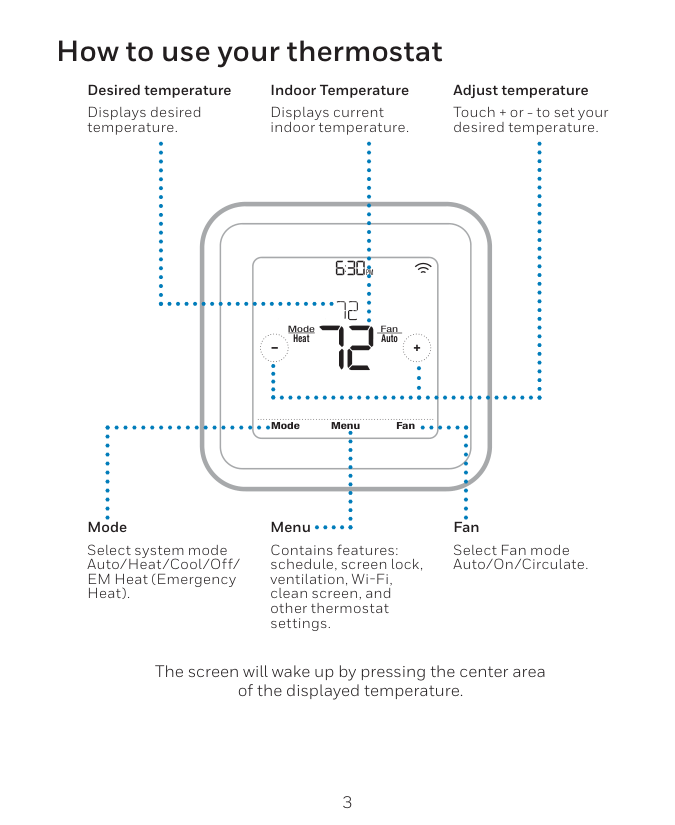
Welcome Congratulations on your purchase of a Honeywell Wi-Fi touchscreen programmable thermostat. When registered to Honeywell’s Total Connect Comfort Solutions, you can remotely monitor and control the heating and cooling system in your home or business— you can stay connected to your comfort system wherever you go. Honeywell’s Total Connect Comfort is the perfect solution if you travel frequently, own a vacation home, a business or manage an Investment property or if you are simply looking for peace of mind.
69-2805Es—03
2 This thermostat works with common 24 volt systems such as forced air, hydronic, heat pump, oil, gas, and electric. It will not work with millivolt systems, such as a gas fireplace, or with 120/240 volt systems such as baseboard electric heat. This thermostat contains a Lithium battery which may contain Perchlorate material. Perchlorate Material—special handling may apply. See www.dtsc.ca.gov/hazardouswaste/perchlorate MERCURY NOTICE: Do not place your old thermostat in the trash if it contains mercury in a sealed tube. Contact the Thermostat Recycling Corporation at www. thermostat-recycle.org or 1-800-238-8192 for information on how and where to properly and safely dispose of your old thermostat. NOTICE: To avoid possible compressor damage, do not run air conditioner if the outside temperature drops below 50°F (10°C). Need help? Visit wifithermostat.com or call 1-855-733-5465 for assistance before returning the thermostat to the store.
69-2805Es—03
3 About your new thermostat Home screen quick reference......................5 Preset energy-saving schedules..................6 Installation Installing your thermostat.............................8 Connecting to your Wi-Fi network..............26 Registering your thermostat online............31 Operation Setting the clock.........................................36 Setting the fan............................................37 Selecting system mode..............................38 Adjusting program schedules.....................39 Overriding schedules temporarily..............40 Overriding schedules permanently............41 Setting vacation hold..................................42 Setting filter reminder intervals..................43 Cleaning the screen...................................44 Unregistering thermostat...........................45 Disconnecting Wi-Fi...................................46 Special features.........................................48 Setting functions and options.....................51 Appendices Frequently asked questions.......................59 Message center messages........................62 Troubleshooting..........................................65 Limited warranty.........................................71 Table of contents
69-2805Es—03
4 Features of your Wi-Fi thermostat With your new thermostat, you can:
5
69-2805Es—03
Home screen quick reference Once your Wi-Fi thermostat is installed, it will display the home screen. Portions of this display will change depending on how you are viewing it. To change settings, simply press the appropriate area lightly with your finger. Unless you change the lighting function, the screen is always lit at low intensity. When you touch the screen, the screen brightens. Set clock Message center Select fan mode Select system mode Program schedules Override schedule Wi-Fi status Schedule is on (does not display when off) Additional settings Lock screen for cleaningM31565
More
Inside
69-2805Es—03
6 Preset energy-saving schedules This thermostat is pre-set with energy-saving program settings for four time periods. Using the default settings can reduce your heating/cooling expenses. Savings may vary depending on geographic region and usage. Default Heat Settings Default Cool SettingsWake
6:00 am 70 ° 78 °Leave
8:00 am 62 ° 85 °Return
6:00 pm 70 ° 78 °Sleep
10:00 pm 62 ° 82 ° To change the settings, see pages 39–42.
7
69-2805Es—03
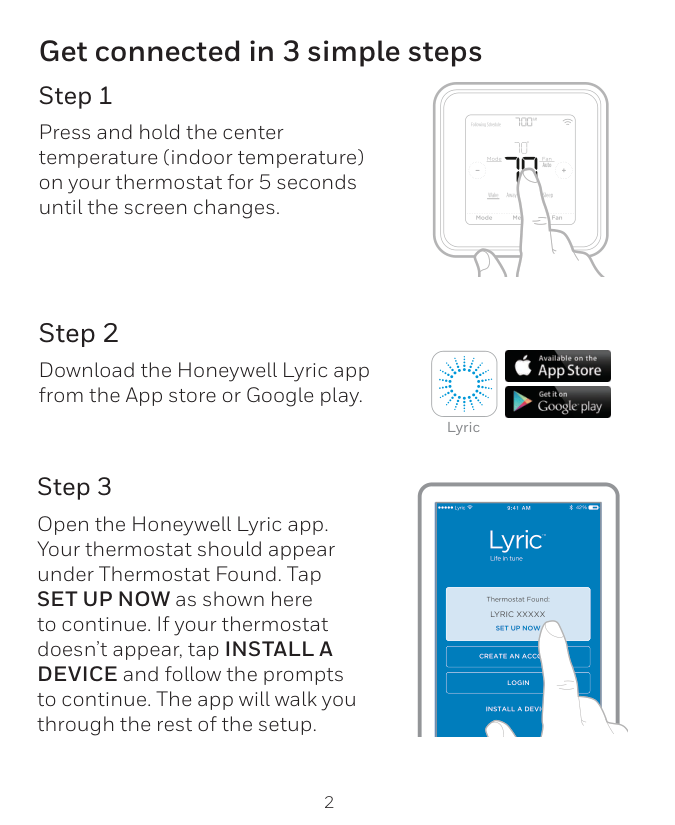
Setting up your thermostat Setting up your Wi-Fi programmable touchscreen thermostat is easy. It is preprogrammed and ready to go as soon as it is installed and registered. Install your thermostat. Connect it to your home wireless network. Register online for remote access. Before you begin, you may want to watch a brief installation video. Use the QR Code ® at the front of this guide, or go to wifithermostat.com/support 2 3 1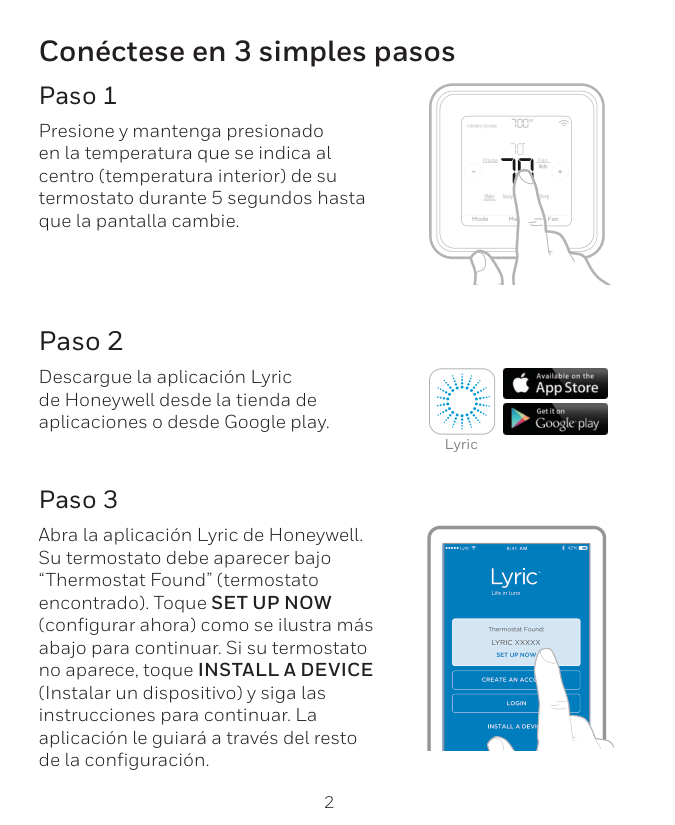
69-2805Es—03
8 Installing your thermostat You might need the following tools to install this thermostat: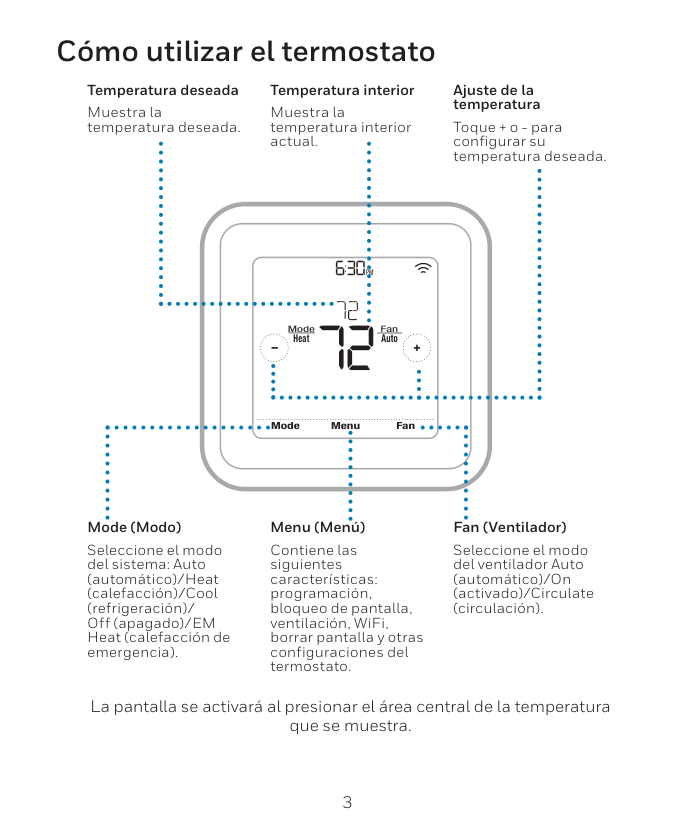
9
69-2805Es—03
C
C
If you have an older thermostat with a sealed mercury tube, turn to page 2 for proper disposal instructions. Terminal designation Installing your thermostat 2 Remove old thermostat faceplate and leave wires connected. 2a Take a picture of the wire connections for later reference. 2b If no wire is connected to a terminal labeled C or no C terminal exists on the old thermostat, view the Alternate Wiring videos at wifithermostat.com/videos Important! C wire is required and is the primary power source for your thermostat. Without a C wire, your thermostat will not power up.
69-2805Es—03
10 Installing your thermostat 3 Label wires. Do not label by wire color. Use the supplied sticky tags to label each wire as you disconnect it. Label wires according to the old thermostat terminal designations, not by wire color. Note: If no tag matches a terminal designation, write the appropriate letter on a blank sticky tag. 4 Remove wallplate. Remove the old wallplate from the wall after all wires have been labeled and disconnected. Blank tags Terminal designationC
C
Sticky tag
11
69-2805Es—03
Installing your thermostat 5 Separate Wi-Fi thermostat and its wallplate. On your new thermostat, grasp the finger holds on the top and bottom of the wallplate with one hand and the thermostat (front) with the other hand. Pull pieces apart. Thermostat Wallplate (back view) Finger holds
69-2805Es—03
12 Installing your thermostat 6 Mount wallplate for Wi-Fi thermostat. Mount your new wallplate using screws and anchors included with the thermostat. If necessary: Drill 3/16-in holes for drywall. Drill 7/32-in holes for plaster. Note: You may be able to use your existing wall anchors. Hold the wallplate up to the existing anchors to check for alignment.M31543
Y2
W2
K
Rc
R
W
Y
G
C
Rc
R
O/B
Y
G
C
Heat Pump
Conventional
L
E/Aux
K
R
Y
C
W
G
Wallplate
13
69-2805Es—03
Important! The Wi-Fi thermostat requires a C wire to operate. The C, or common, wire brings 24 VAC power to the thermostat. Many older mechanical or battery operated thermostats do not require a C wire. If you don’t have a C wire, try:
69-2805Es—03
14 Installing your thermostat Wiring (conventional system) 7A Wire the Wi-Fi thermostat to your conventional system. a Starting with the C Wire, match the sticky tag on the wire to the terminal labels. You must have a C wire. See page 13. b Loosen screw, insert wire on inside edge of terminal, then tighten screw. c Verify wire is firmly secured by gently pulling on wire. d Repeat steps a–c for all other wires. e Push any excess wire back into the wall opening after all wires are installed. d Continue to page 20. Labels don’t match? See alternate wiring key on pages 16–17. Note: The wiring for your application might be different than the wiring from above.Y2
W2
K
Rc
R
W
Y
G
C
Rc
R
O/B
Y
G
C
R
W
G
C
Y
Heat Pump
Conventional
L
E/Aux
K
Remove metal jumper only if you have both R and RC wires
15
69-2805Es—03
Installing your thermostat Wiring (heat pump system only) 7B Wire Wi-Fi thermostat to your heat pump. a Starting with the C Wire, match the sticky tag on the wire to the terminal labels. You must have a C wire. See page 13. b Loosen screw, insert wire on inside edge of terminal, then tighten screw. c Verify wire is firmly secured by gently pulling on wire. d Repeat steps a–c for all other wires. e Push any excess wire back into the wall opening after all wires are installed. f Continue to page 20. Note: If old thermostat has separate wires on AUX and E, place both wires into the E/AUX terminal. If old thermostat has wire on AUX with a jumper to E, place wire on E/AUX terminal. No jumper is required. Labels don’t match? See alternate wiring key on pages 18–19.Mcr33529
Rc
R
O/B
Y
G
C
Heat Pump
L
E/Aux
K
R
O
G
Y
C
Aux
Note: The wiring for your application might be different than the wiring from above.
69-2805Es—03
16 Installing your thermostatY2
W2
K
Y2
W2
Rc
R
W
Y
G
C
Rc
R
W
Y
G
C
1 2 3Conventional
Metal Jumper Alternate wiring (conventional system) Use this if your wire labels don’t match the terminal labels. Note: You must have a C wire or equivalent. See page 13. See key to 1 – 3 on page 17.
17
69-2805Es—03
Installing your thermostat Remove metal jumper connecting R and RC only if you must connect both R and RC. If your old thermostat had both R and RH wires, remove metal jumper. Connect the R wire to the RC terminal, and the RH wire to the R terminal. Do not use K terminal. For future use. Alternate wiring key (conventional system) 2 3 1
69-2805Es—03
18 Installing your thermostat Alternate wiring (heat pump system only) Use this if your wire labels don’t match the terminal labels. Note: You must have a C wire or equivalent. See page 13.Rc
R
O/B
Y
G
C
L
E/Aux
K
Mcr33530A
Y2
Rc
R
O
Y
G
C
1 2 3 3 4 7 6 5Heat Pump
Metal JumperAux
See key to 1 – 7 on page 19.
19
69-2805Es—03
Installing your thermostat Alternate wiring key (heat pump system only) Leave metal jumper between R and RC terminals in place. If your old thermostat had both V and VR wires, check wifithermostat.com for help. If your old thermostat had separate O and B wires, attach the B wire to the C terminal. If another wire is attached to the C terminal, check wifithermostat.com for help. Attach the O wire to the O/B terminal. Set System Function 0190 to 0 (see page 55). If your old thermostat had an O wire and not a B wire, attach the O wire to the O/B terminal. If your old thermostat had separate Y1, W1 and W2 wires, check wifithermostat.com for help. This is the system monitor. If the monitor finds a problem, you will see a red light in the upper right corner of the thermostat (shines through the cover). If old thermostat has separate wires on AUX and E, place both wires into the E/AUX terminal. If old thermostat has wire on AUX with a jumper to E, place wire on E/AUX terminal. No jumper is required. Do not use K terminal. For future use. 2 3 1 4 5 6 7
69-2805Es—03
20 Installing your thermostat 8 Install battery. Insert the coin cell battery (included), observing the correct polarity. Note: A correctly inserted battery will extend about halfway out of the battery slot on the thermostat, allowing for easier removal. This battery maintains time and date during power outages. It does not power the thermostat (C wire required). Thermostat interior
21
69-2805Es—03
Installing your thermostat 9 Attach thermostat to wallplate. Align the thermostat to the wallplate and then snap into place. Thermostat WallplateM31543
Y2
W2
K
Rc
R
W
Y
G
C
Rc
R
O/B
Y
G
C
Heat Pump
Conventional
L
Aux
/E
K

69-2805Es—03
22 Installing your thermostat 10 Switch heating/cooling system ON. Important! 10a Verify that the C wire is connected at the thermostat and at the heating/cooling system. 10b Make sure the heating/ cooling system door is firmly secured. 10c Switch power back ON for your heating/cooling system at the breaker box or its power switch. or
23
69-2805Es—03
Installing your thermostat 11 Set date and time. Touch s or t buttons to change displayed time and date. Press and hold a button to quickly change a setting. Note: This thermostat will automatically update for daylight saving time (if observed in your area) and all date/time information is stored. If the thermostat is connected to Wi-Fi and registered to Total Connect Comfort, the current time is updated from the internet. Day Time Month Year

69-2805Es—03
24 Installing your thermostat 12 Determine your heating/cooling system type. Important! Heating/cooling system type must be set so that your thermostat operates properly and does not damage your system. 12a If you have a traditional system (natural gas forced air with A/C), your hermostat is set up by default to control this system. 12b If your system is: • Conventional multistage heat and cool • Any type of heat pump • Hydronic • Other You MUST change the system type by setting system function 0170. See page 54 to match your thermostat to your system type. If you are not sure of your heating/cooling system type or have other questions, go to wifithermostat.com
25
69-2805Es—03
Installing your thermostatMore
InsideMcr31580
Heating/cooling system not turning on? Refer to page 67 or FAQ at wifithermostat.com/support Congratulations! Your thermostat is operational. 13 Test your thermostat. 13a Press the SYSTEM button to change to heating or cooling and begin operation. 13b For remote access to your thermostat, continue to “Connecting to your Wi-Fi network” on page 26.
69-2805Es—03
26 Connecting to your Wi-Fi network To complete this process, you must have a wireless device connected to your home wireless network. Any of these device types will work:
27
69-2805Es—03
1 Connect to your thermostat. 1a Make sure the thermostat message center displays Wi-Fi SETUP. 1b On the wireless device (laptop, tablet, smartphone), view the list of available Wi-Fi networks 1c Connect to the network called NewThermostat_123456 (the number will vary). Note: If you are asked to specify a home, public, or office network, select Home Network.M31566
More
Inside Connecting to your Wi-Fi network
69-2805Es—03
28 Connecting to your Wi-Fi network 2 Join your home network. 2a Open your web browser to access the Thermostat Wi-Fi Setup page. The browser should automatically direct you to the correct page; if it does not, go to http://192.168.1.1 2b Find the name of your home network on this page and select it. Note: Some routers have enhanced features such as guest networks; use your home network 2c Complete the instructions for joining your Wi-Fi network and click on the Connect button. (Depending on your network setup, you may see an instruction such as Enter Password for your home network.) Note: If you did not correctly connect to the thermostat, you may see your home router page. If so, return to Step 1.M31567

29
69-2805Es—03
Connecting to your Wi-Fi network Note: If your Wi-Fi network does not appear in the list on the Thermostat Wi-Fi Setup page:
69-2805Es—03
30 Connecting to your Wi-Fi network 3 Make sure your thermostat is connected. The message center on your thermostat will now display CONNECTING… for up to 30 seconds. Look at the thermostat display. Verify that the message center displays one of the following:Connection Successful
Joined: [Wi-Fi Network Name]
You Are Almost Done
Register At Total Connect
If you see one of these messages, continue on page 31. Note: If you see CONNECTION FAILURE or Wi-Fi SETUP in the message center, confirm you correctly entered your home network password in step 2c. If correct, refer to the FAQ at wifithermostat.com/supportM31568
More
Inside
31
69-2805Es—03
Registering your thermostat onlineM31570
To view and set your Wi-Fi thermostat remotely, you must have a Total Connect Comfort account. Use the following steps. 1 Open the Total Connect Comfort web site. Go to mytotalconnectcomfort.com View the Wi-Fi Thermostat Registration video at wifithermostat.com/videos
69-2805Es—03
32 Registering your thermostat online 2 Login or create an account. If you have an account, click Login – or – click Create An Account 2a Follow the instructions on the screen. 2b Check your email for an activation message from My Total Connect Comfort. This may take several minutes. Note: If you do not receive a response, check your junk mailbox or use an alternate e-mail address. 2c Follow activation instructions in the email. 2d Log in.M31571

33
69-2805Es—03
Registering your thermostat online 3 Register your Wi-Fi thermostat. After you are logged in to your Total Connect Comfort account, register your thermostat. 3a Follow the instructions on the screen. After adding your thermostat location, you must enter the thermostat’s unique identifiers: •Mac Id
•Mac Crc
Note: These IDs are listed on the Thermostat ID Card included in the thermostat package. The IDs are not case sensitive. ® U.S. Registered Trademark. © 2012 Honeywell International Inc.69-2723Efs—01 M.S. 04-12
Printed in U.S.A.Honeywell Model:
Mac Id:
Mac Crc:
69-2723Efs-01
Thermostat ID Card Use the MAC ID and CRC ID to register this product at mytotalconnectcomfort.com Carte d’identification de thermostat Utilisez l’identification MAC et l’identification CRC pour enregistrer ce produit à mytotalconnectcomfort.com Tarjeta de identificación del termostato Utilice la identificación MAC y la identificación CRC para inscribir este producto en mytotalconnectcomfort.comMac Id
Mac Crc

69-2805Es—03
34 Registering your thermostat online 3b When the thermostat is successfully registered, the Total Connect Comfort registration screen will display a SUCCESS message. In the thermostat message center you will see:Congratulations
Setup Complete!

35
69-2805Es—03
Registering your thermostat online 3c Also notice that your thermostat will now display its signal strength. Congratulations! You’re done. You can now control your thermostat from anywhere through your tablet, laptop, or smartphone. Total Connect Comfort free app is available for Apple ® iPhone ®, iPad ® and iPod touch ® devices at iTunes ® or at Google Play ® for all Android™ devices.Get It On
Download on iTunes
69-2805Es—03
36 1 Press CLOCK to display setting arrows. 2 Press s or t to adjust the time. (You can advance the time more quickly by holding the s or t buttons.) 3 Press DONE to save and exit (or press CANCEL to exit without changing the time). Note: This thermostat will automatically update for daylight saving time (if observed in your area) and all date/time information is stored. If the thermostat is connected to Wi-Fi and registered to Total Connect Comfort, the current time is updated from the internet. Note: To change the current week day format, see “Schedule Options” on page 53. Setting the clockMcr31552
More

37
69-2805Es—03
1 Press FAN to select fan operation. 2 Press FAN again to select ON or AUTO (toggle to re-select). The selected option blinks. 3 Press DONE to save setting. Your selection appears under FAN. ON: Fan is always on. AUTO: Fan runs only when the heating or cooling system is on.More
InsideMcr31553
Setting the fan
69-2805Es—03
38 Selecting system mode Note: The AUTO and EM HEAT system settings may not appear, depending on how your thermostat was installed. 1 Press SYSTEM to display options. 2 Press SYSTEM again to select an option. You may need to press two or three times to make a selection—the selected option blinks. 3 Press DONE to save setting. Possible system modes: HEAT: Controls only the heating system. COOL: Controls only the cooling system. OFF: Heating/cooling systems are off. AUTO: Selects heating or cooling depending on the indoor temperature. EM HEAT (heat pumps with aux. heat): Controls auxiliary/emergency heat. Compressor is locked out.More
InsideMcr31554

39
69-2805Es—03
More
Sleep
Sleep
Mcr31555
Adjusting program schedules 1 Press SCHED, then EDIT. Screen displays day buttons at top. 2 Press day buttons (MON–SUN) to select days. 3 Press s or t to set Wake time for selected day(s). 4 Press s or t to set Heat and Cool temperature for this time period. 5 Press another period (LEAVE, RETURN, SLEEP) and set time and temperatures for each. 6 Press DONE to save and exit (or press CANCEL to exit without saving changes). Note: You can press CANCEL PERIOD to eliminate any unwanted time period.
69-2805Es—03
40 Overriding schedules temporarily 1 On the home screen, press s or t to immediately adjust the temperature. 2 Adjust the time to when you want the hold to end (the default is the end of the current period). The new setting will be maintained until the time shown under Hold Until. When the timer expires, the schedule will resume, and the temperature will return to the setting for the current time period. To cancel the temporary setting at any time, press CANCEL (or SCHED). The program schedule will resume.More
Temporary Hold Hold Until InsideMcr31556

41
69-2805Es—03
Overriding schedules permanently 1 Press HOLD to permanently adjust the temperature. This will turn off the program schedule. 2 Whatever temperature you set will be maintained 24 hours a day until you manually change it or press CANCEL (or SCHED) to cancel “Hold” and resume the program schedule.More
Permanent Hold InsideMcr31557

69-2805Es—03
42 Setting vacation hold Use this function to suspend the program schedule while you are away for an extended period. 1 Press s or t to set the temperature. 2 Press s or t to set the time of day you want the schedule to resume on the day you return. 3 Press HOLD twice. Hold Until appears. 4 Press s or t to select the number of days. The selected temperature will be maintained 24 hours a day for the number of days you select. After the selected number of days has elapsed, the previously programmed schedule will resume at the time you set. Note: You can press CANCEL (or SCHED) to resume normal schedule.More
Hold Until InsideMore
Hold UntilDays
Mcr31558

43
69-2805Es—03
Setting filter reminder intervalsMcr31559
Sleep
Filter
Days
Change Filter
InsideReset
More
If activated during installation, the filter reminder alerts you with a message above the time when it is time to replace your filter. Press RESET after changing the filter, to restart the timer. To change the reminder interval: 1 Press MORE, then EDIT. 2 Press s or t to select the desired interval (in days), then press DONE. 3 Press RESET. 4 Press DONE to save and exit. Note: System setting function 0500 governs the filter interval. See “Filter Change Reminder” on page 57.
69-2805Es—03
44 Cleaning the screenMore
Mcr31560
1 Press SCREEN to lock the screen for cleaning. The screen will remain locked for 30 seconds so you can clean the screen without changing any settings. 2 After 30 seconds, press DONE to resume normal operation, or press SCREEN again if you require more time for cleaning. Note: Do not spray any liquid directly on the thermostat. Spray liquid onto a cloth, then use the damp cloth to clean the screen. Use water or household glass cleaner. Avoid abrasive cleansers.
45
69-2805Es—03
Unregistering thermostat If you remove the thermostat from your Total Connect Comfort website account (for example, you’re moving and leaving the thermostat behind), the message center will scroll UNREGISTERED FROM TOTAL CONNECT for 3 minutes. After that, it will alternate displaying REGISTER AT TOTAL CONNECT, the MAC ID and the MAC CRC.M31572
More
Inside
69-2805Es—03
46 Disconnecting Wi-Fi Replacing your router If you disconnect the thermostat from your Wi-Fi network: 1 Enter system setup (see page 51). 2 Change setting 900 to 0 (see page 58). The Message Center will display Wi-Fi DISCONNECTED for 1 minute. After that it will display Wi-Fi SETUP. Re-connect to a Wi-Fi network by following the steps on page 26. Turning Wi-Fi off If you do not plan to control the thermostat remotely, you can remove the Wi-Fi SETUP message from the screen: 1 Enter system setup (see page 51). 2 Change setting 890 to 0 (see page 58). Wi-Fi SETUP will be removed from the screen. If you want to connect to the Wi-Fi network later, change setting 890 back to 1.M31573
More
Inside
47
69-2805Es—03
Software updates Honeywell periodically issues updates to the software for this thermostat. The updates occur automatically through your Wi-Fi connection. All your settings are saved, so you will not need to make any changes after the update occurs. While the update is taking place, your thermostat screen goes blank and the message center shows UPDATING and the percentage of the update that has occurred. When the update is complete, your home screen will appear as usual. Note: If you are not connected to Wi-Fi or registered at Total Connect Comfort, you will not get automatic updates.M34184

69-2805Es—03
48 Smart Response Technology This feature allows the thermostat to “learn” how long the heating/cooling system takes to reach programmed temperature settings, so the temperature is reached at the time you set. For example: Set the Wake time to 6:00 am, and the temperature to 70°. The heat will come on before 6:00 am, so the temperature is 70° by 6:00 am. Note: System setting function 0530 controls Smart Response Technology. See “Smart Response Technology” on page 57. The message “Recovery” is displayed when the system is activated before a scheduled time period.
49
69-2805Es—03
Compressor protection This feature forces the compressor to wait a few minutes before restarting, to prevent equipment damage. During the wait time, the message “Wait” is displayed on screen.
69-2805Es—03
50 Auto changeover This feature is used in climates where both air conditioning and heating are used on the same day. When the system is set to AUTO, the thermostat automatically selects heating or cooling depending on the indoor temperature. Heat and cool settings must be at least 3 degrees apart. The thermostat will automatically adjust settings to maintain this 3-degree separation. Note: System setting function 0300 controls Auto changeover. See “Manual/Auto Changeover” on page 56.
51
69-2805Es—03
Setting functions and options You can change options for a number of system functions. Available functions depend on the type of system you have. The functions, designated with four-digit numbers, along with available options are described on pages 52–58. This thermostat is pre-set for a single-stage heating/cooling system. Setting function 0170 for a heat pump will adjust the default settings.Done
Cancel
Pm
6:30System
Heat
Mcr31562
Done
0120 20Mcr31563
1 Press SYSTEM. You’ll see several blank buttons on the bottom of the display. 2 Press and hold the center blank button until the screen changes (approximately 5 seconds). 3 Cycle through the functions, press st next to the four digit number on the left. 4 As needed, change options for any function by pressing st next to the number on the right. 5 When you have made all changes, press DONE to save and exit.
69-2805Es—03
52 System setup How do I set my thermostat name? (See page 51 for instructions.) Function Settings & Options 0112 Device Name This name will identify the thermostat when you view it remotely. If you register multiple thermostats, give each one a different name. 52 = Thermostat 1 Basement 16 Exercise Room 30 Library 44 Porch 2 Bathroom 17 Family Room 31 Living Room 45 Rec Room 3 Bathroom 1 18 Fireplace 32 Lower Level 46 Sewing Room 4 Bathroom 2 19 Foyer 33 Master Bath 47 Spa 5 Bathroom 3 20 Game Room 34 Master Bed 48 Storage Room 6 Bedroom 21 Garage 35 Media Room 49 Studio 7 Bedroom 1 22 Great Room 36 Music Room 50 Sun Room 8 Bedroom 2 23 Guest Room 37 Nursery 51 Theater 9 Bedroom 3 24 Gym 38 Office 52 Thermostat 10 Bedroom 4 25 Kid's Room 39 Office 1 53 Upper Level 11 Boat House 26 Kitchen 40 Office 2 54 Utility Room 12 Bonus Room 27 Kitchen 1 41 Pantry 55 Walk In Closet 13 Computer Room 28 Kitchen 2 42 Play Room 56 Wine Cellar 14 Den 29 Laundry Room 43 Pool Room 57 Workshop 15 Dining Room
53
69-2805Es—03
How do I change time and date settings? (See page 51 for instructions.) System setup Function Settings & Options 0120 Year Setting (first two digits) 20 = Year 20xx 21 = Year 21xx 0130 Year Setting (last two digits) 01–99 (i.e., 2001–2099) 0140 Month Setting 01–12 (i.e., January–December) 0150 Date Setting 01–31 0160 Schedule Options 4 Program schedule is on (7-day programmable). 0 Program schedule is off. Thermostat can not be programmed. 0165 Restore Schedule Defaults 0 Continue using programmed schedule. 1 Restore thermostat program to energy saving settings Note: If thermostat is connected to Wi-Fi and registered to Total Connect Comfort, the current time and date is updated from the internet. If you live in an area that observes daylight saving time, the time is also automatically updated.
69-2805Es—03
54 System setup Function Settings & Options 0170 Select System Type If you are not sure of your heating/cooling system type or have other questions, go to wifithermostat.com 1 Heat/cool: Gas, oil or electric heating with central air conditioning. 2 Heat pump: Heat pump without backup or auxiliary heat. 4 Heat only with fan: Gas, oil or electric heat without central air conditioning. 5 Heat only (no fan): Gas, oil or hot water heat without central air conditioning. 6 Cool only: Central air conditioning only. 7 Heat pump: Heat pump with backup or auxiliary heating. 8 Heat/Cool Multiple stages: 2 heat stages (wires on W and W2), 2 cooling stages (wires on Y and Y2). 9 Heat/Cool Multiple stages: 2 heat stages (wires on W and W2), 1 cooling stage (wire on Y). 10 Heat/Cool Multiple stages: 1 heat stage (wire on W), 2 cooling stages (wires on Y and Y2). How do I set my heating/cooling system type? (See page 51 for instructions.)
55
69-2805Es—03
System setup Function Settings & Options Note: Depending on system settings, functions on this page might not appear. 0180 Heating Fan Control 0 Gas or oil heat: Use this setting if you have a gas or oil heating system (system controls fan operation). 1 Electric heat: Use this setting if you have an electric heating system (thermostat controls fan operation). 0190 Heat Pump Changeover Valve (for heat pumps only) 0 Cooling changeover valve: Use this setting if you connected a wire labeled “O” to the O/B terminal. 1 Heating changeover valve: Use this setting if you connected a wire labeled “B” to the O/B terminal. 0240 Heating Cycle Rate 5 Gas or oil furnace: Standard gas/oil furnace (less than 90% efficiency). 9 Electric furnace: Electric heating systems. 3 Hot water or high-efficiency furnace: Hot water system or gas furnace (more than 90% efficiency). 1 Gas/oil steam or gravity system: Steam or gravity heat systems. 0250 Heating Cycle Rate Stage 2 How do I customize my heating/cooling system? (See page 51 for instructions.)
69-2805Es—03
56 System setup Function Settings & Options 0280 Backlight 0 Backlight off, then on for approximately 8 seconds after keypress. 1 Backlight always on low intensity, full bright after keypress. 0300 Manual/Auto Changeover See page 50 for more information. 0 Manual changeover (Heat/Cool/Off). 1 Automatic changeover (Heat/Cool/Auto/Off). Automatically turns on Heat or Cool based on room temperature. Note: System maintains minimum 3°F difference between heat and cool settings. 0320 Temperature Format (°F/°C) 0 Fahrenheit 1 Celsius 0330 Automatic Daylight Saving Time Adjustment 0 Off 1 On What other functions can I change? (See page 51 for instructions.)
57
69-2805Es—03
System setup Function Settings & Options 0500 Filter Change Reminder The reminder appears after selected number of days run time not actual time. 0 Off (no reminder) 1 Reminder after 10-day run time (about 1 calendar month) 2 Reminder after 30-day run time (about 3 calendar months) 3 Reminder after 60-day run time (about 6 calendar months) 4 Reminder after 90-day run time (about 9 calendar months) 5 Reminder after 120-day run time (about 1 calendar year) 6 Reminder after 180-day run time (about 18 calendar months) 7 Reminder after 270-day run time (about 2 calendar years) 8 Reminder after 365-day run time (about 3 calendar years) 0530 Smart Response Technology See page 48 for more information. 1 On 0 Off 0640 Clock Format 12 12-hour clock (i.e., “3:30 pm”) 24 24-hour clock (i.e., “15:30”) What other functions can I change? (See page 51 for instructions.)
69-2805Es—03
58 System setup Function Settings & Options 0710 Restore Original Settings 0 No 1 Disconnects thermostat from Wi-Fi and restores original settings (erases customizations). 0890 Wi-Fi On/Off 1 Wi-Fi is on and can be connected to a Wi-Fi network. 0 Wi-Fi is off. Thermostat cannot be connected to a Wi-Fi network. If you are not connecting the thermostat to a Wi-Fi network this will remove the text “Wi-Fi Setup” from the messaging center. 0900 Wi-Fi Connection 1 Connected to Wi-Fi network. This is set automatically when the thermostat is connected to the Wi-Fi network. 0 Set to 0 to disconnect from the Wi-Fi network. How do I change my Wi-Fi settings? (See page 51 for instructions.)
59
69-2805Es—03
Frequently asked questionsQ:
Q Will my thermostat still work if I lose my Wi-Fi connection?A:
A Yes, the thermostat will operate your heating and/or cooling system with or without Wi-Fi.Q:
Q How do I find the password to my router?A:
A Contact the manufacturer of the router or check the router documentation.Q:
Q Why am I not seeing my Wi-Fi setup page?A:
A You are probably connected only to your router, not to your thermostat. Try connecting to the thermostat again.Q:
Q Why isn’t my thermostat connecting to my Wi-Fi router even though it is very close to the thermostat?A:
A Verify that the password entered for the Wi-Fi router is correct.
69-2805Es—03
60Q:
Q Where can I find my MAC ID and MAC CRC codes?A:
A The MAC ID and MAC CRC will show in the message center of the thermostat. The numbers are also included on a card packed with the thermostat or on the back of the thermostat (visible when removed from wallplate). Each thermostat has a unique MAC ID and MAC CRC.Q:
Q My thermostat is unable to register to the Total Connect Comfort website.A:
A Verify that the thermostat is correctly enrolled on your homeWi-Fi network. The message center will display “CONNECTION SUCCESSFUL” or “REGISTER AT TOTAL CONNECT.” You might also see the Wi-Fi Signal strength icon. Verify that the Wi-Fi router has a good internet connection. On your computer, verify that you can open the site at mytotalconnectcomfort.com If you cannot open the site, switch off the internet modem for a few seconds, then power it back on. Frequently asked questions
61
69-2805Es—03
Frequently asked questionsQ:
Q I registered on the Total Connect Comfort website but was unable to login using my new account.A:
A Check your email and ensure that you received an activation email. Follow the instructions to activate your account and then login to the website.Q:
Q I have signed up on Total Connect Comfort website and have not received a confirmation email.A:
A Check for the email in your Junk or Deleted folder.Q:
Q Is there a way to extend the signal strength?A:
A Most standard routers can be set up to be a repeater. You can also purchase and install a Wi-Fi repeater. For more FAQs, see wifithermostat.com
69-2805Es—03
62 Message center messages The Message Center at the top of the screen communicates Wi-Fi connection and registration status. It also displays the MAC ID and MAC CRC for registering the thermostat at mytotalconnectcomfort.com Displayed before you begin Wi-Fi setup. Displayed while connecting to the Wi-Fi network. Displayed after connecting to the Wi-Fi network. [Wi-Fi network name] Displayed when connected to the Wi-Fi network. Displayed when Wi-Fi connection is complete. Displayed when the thermostat fails to establish a connection to the Wi-Fi network. Displayed when the thermostat is connected to the Wi-Fi network but not registered at mytotalconnectcomfort.com Displays the thermostat’s MAC ID and MAC CRC for registering at mytotalconnectcomfort.com [Found on your ID card] [Found on your ID card]
63
69-2805Es—03
Message center messages Displayed when the thermostat is registered at mytotalconnectcomfort.com Displayed when the thermostat is removed from your Total Connect Comfort account. Wi-Fi signal strength. Displayed when the thermostat is connected to the Wi-Fi network and registered at mytotalconnectcomfort.com Displayed if there is no Wi-Fi signal.
69-2805Es—03
64 Message center messages Displayed if the home Wi-Fi password is entered incorrectly.
65
69-2805Es—03
If you have difficulty with your thermostat, please try the following suggestions. Most problems can be corrected quickly and easily. Display is blank
69-2805Es—03
66 Troubleshooting Heat pump issues cool air in heat mode, or warm air in cool mode
67
69-2805Es—03
Troubleshooting Heating or cooling system does not respond
69-2805Es—03
68 Glossary C wire The “C” or common wire brings 24 VAC power to the thermostat from the heating/cooling system. Some older mechanical or battery operated thermostats may not have this wire connection. It is necessary for establishing a Wi-Fi connection to your home network. Heat Pump heating/cooling system Heat pumps are used to heat and cool a home. If your old thermostat has a setting for auxiliary or emergency heat, you likely have a heat pump. Conventional heating/cooling system Non–heat pump type systems; these include air handlers, furnaces or boilers that run on natural gas, oil or electricity. They may or may not include an air conditioner. Jumper A small piece of wire that connects two terminals together.Mac Id, Mac Crc
Alphanumeric codes that uniquely identify your thermostat. QR Code ® Quick response code. A two-dimensional,machine-readable image. Your wireless device can read the black and white pattern in the square and link its browser directly to a web site. QR Code is a registered trademark of DENSO WAVE INCORPORATED.
69
69-2805Es—03
Regulatory information FCC Compliance Statement (Part 15.19) (USA only) This device complies with Part 15 of the FCC Rules. Operation is subject to the following two conditions: 1 This device may not cause harmful interference, and 2 This device must accept any interference received, including interference that may cause undesired operation. FCC Warning (Part 15.21) (USA only) Changes or modifications not expressly approved by the party responsible for compliance could void the user’s authority to operate the equipment. FCC Interference Statement (Part 15.105 (b)) (USA only) This equipment has been tested and found to comply with the limits for a Class B digital device, pursuant to Part 15 of the FCC Rules. These limits are designed to provide reasonable protection against harmful interference in a residential installation. This equipment generates uses and can radiate radio frequency energy and, if not installed and used in accordance with the instructions, may cause harmful interference to radio communications. However, there is no guarantee that interference will not occur in a particular installation. If this equipment does cause harmful interference to radio or television reception, which can be determined by turning the equipment off and on, the user is encouraged to try to correct the interference by one of the following measures:
69-2805Es—03
70 Regulatory information Thermostats To comply with FCC and Industry Canada RF exposure limits for general population/ uncontrolled exposure, the antenna(s) used for these transmitters must be installed to provide a separation distance of at least 20 cm from all persons and must not be co-located or operating in conjunction with any other antenna or transmitter. Section 7.1.2 of RSS-GEN Under Industry Canada regulations, this radio transmitter may only operate using an antenna of type and maximum (or lesser) gain approved for the transmitter by Industry Canada. To reduce potential radio interference to other users, the antenna type and its gain should be so chosen that the equivalent isotropically radiated power (e.i.r.p.) is not more than that necessary for successful communication. Section 7.1.3 of RSS-GEN Operation is subject to the following two conditions: 1 this device may not cause interference, and 2 this device must accept any interference, including interference that may cause undesired operation of the device.
71
69-2805Es—03
1-year limited warranty Honeywell warrants this product, excluding battery, to be free from defects in the workmanship or materials, under normal use and service, for a period of one (1) year from the date of purchase by the consumer. If at any time during the warranty period the product is determined to be defective or malfunctions, Honeywell shall repair or replace it (at Honeywell’s option). If the product is defective, (i) return it, with a bill of sale or other dated proof of purchase, to the place from which you purchased it; or (ii) call Honeywell Customer Care at 1-855-733-5465. Customer Care will make the determination whether the product should be returned to the following address: Honeywell Return Goods, Dock 4 MN10-3860, 1885 Douglas Dr. N., Golden Valley, MN 55422, or whether a replacement product can be sent to you. This warranty does not cover removal or reinstallation costs. This warranty shall not apply if it is shown by Honeywell that the defect or malfunction was caused by damage which occurred while the product was in the possession of a consumer. Honeywell’s sole responsibility shall be to repair or replace the product within the terms stated above. HONEYWELL SHALL NOT BE LIABLE FOR ANY LOSS OR DAMAGE OF ANY KIND, INCLUDING ANY INCIDENTAL OR CONSEQUENTIAL DAMAGES RESULTING, DIRECTLY OR INDIRECTLY, FROM ANY BREACH OF ANY WARRANTY, EXPRESS OR IMPLIED, OR ANY OTHER FAILURE OF THIS PRODUCT. Some states do not allow the exclusion or limitation of incidental or consequential damages, so this limitation may not apply to you. THIS WARRANTY IS THE ONLY EXPRESS WARRANTY HONEYWELL MAKES ON THIS PRODUCT. THE DURATION OF ANY IMPLIED WARRANTIES, INCLUDING THE WARRANTIES OF MERCHANTABILITY AND FITNESS FOR A PARTICULAR PURPOSE, IS HEREBY LIMITED TO THE ONE-YEAR DURATION OF THIS WARRANTY. Some states do not allow limitations on how long an implied warranty lasts, so the above limitation may not apply to you. This warranty gives you specific legal rights, and you may have other rights which vary from state to state. If you have any questions concerning this warranty, please write Honeywell Customer Relations, 1985 Douglas Dr, Golden Valley, MN 55422 or call 1-855-733-5465. In Canada, write Retail Products ON15-02H, Honeywell Limited/Honeywell Limitée, 35 Dynamic Drive, Toronto, Ontario M1V4Z9.
Automation and Control Systems Honeywell International Inc. 1985 Douglas Drive North Golden Valley, MN 55422 wifithermostat.com ® U.S. Registered Trademark. Apple, iPhone, iPad, iPod touch and iTunes are trademarks of Apple Inc. All other trademarks are the property of their respective owners. © 2013 Honeywell International Inc. 69-2805ES—03 M.S. Rev. 11-13 Printed in U.S.A.
69-2805Es-03

Guía del usuario Termostato con pantalla táctil programable con conexión WiFi Serie Red inalámbrica (Wi-Fi)
Ret97B5D

69-2805Es—03
ii En la caja, encontrará lo siguiente:
Bienvenido Felicitaciones por la compra del termostato con pantalla táctil programable con conexión WiFi de Honeywell. Cuando se registre en Total Connect Comfort Solutions de Honeywell, puede supervisar y controlar de manera remota el sistema de calefacción y refrigeración de su hogar o empresa; puede permanecer conectado a su sistema de confort dondequiera que vaya. Total Connect Comfort de Honeywell es la solución perfecta si usted viaja frecuentemente, si posee un hogar de vacaciones o una empresa, o si administra una propiedad de inversión o, simplemente, busca tranquilidad.

69-2805Es—03
2 Este termostato funciona con sistemas comunes de 24 voltios, como aplicaciones de aire forzado, hidrónicas, de una bomba de calor, de aceite, de gas y eléctricas. No funciona con sistemas de milivoltios, como una chimenea a gas, ni con sistemas de 120/240 voltios, como la calefacción de zócalo eléctrica. Este termostato tiene una batería de litio que puede contener material con perclorato. Material con perclorato: es posible que deba aplicarse un tratamiento especial. Visite www.dtsc.ca.gov/hazardouswaste/perchlorate AVISO SOBRE MERCURIO: No coloque el termostato existente en la basura si este contiene mercurio en un tubo sellado. Comuníquese con Thermostat Recycling. Corporation en www.thermostat-recycle.org o al 1-800-238-8192 para obtener información sobre cómo y dónde desechar el termostato de manera adecuada y segura. AVISO: Para evitar posibles daños al compresor, no utilice el aire acondicionado si la temperatura externa es inferior a 50 °F (10 °C). ¿Necesita ayuda? Visite wifithermostat.com o llame al 1-855-733-5465 para obtener asistencia antes de devolver el termostato a la tienda.
69-2805Es—03
3 Acerca de su nuevo termostato Referencia rápida de la pantalla de inicio........................................................5 Cronogramas de ahorro de energía predeterminados.............................6 Instalación Instalación del termostato............................8 Conexión a la red WiFi...............................26 Registro del termostato en línea................31 Funcionamiento Configuración del reloj...............................36 Configuración del ventilador......................37 Selección de la modalidad del sistema.....38 Ajuste de los cronogramas del programa..............................................39 Anulación temporal de los cronogramas...40 Anulación permanente de los cronogramas...................................41 Configuración del mantenimiento de la temperatura en vacaciones...............42 Configuración de los intervalos del recordatorio del filtro............................43 Limpieza de la pantalla..............................44 Baja del termostato....................................45 Desconexión de la red WiFi.......................46 Características especiales.........................48 Opciones y funciones de configuración.....51 Apéndices Preguntas frecuentes.................................59 Mensajes del Centro de mensajes............62 Localización y solución de problemas.......65 Garantía limitada........................................71 Índice
69-2805Es—03
4 Características del termostato con conexión WiFi Con el nuevo termostato, podrá realizar lo siguiente:
5
69-2805Es—03
Referencia rápida de la pantalla de inicio Una vez que el termostato con conexión WiFi esté instalado, podrá visualizar la pantalla de inicio. Partes de esta pantalla cambiarán según cómo la vea. Para cambiar las configuraciones, solo presione suavemente el área correspondiente con el dedo. A menos que cambie la función de iluminación, la pantalla siempre se mantiene encendida a baja intensidad. Cuando usted toca la pantalla, esta se ilumina. Configuración del reloj Centro de mensajes Seleccione una modalidad para el ventilador Selección de la modalidad del sistema Cronogramas del programa Anulación del cronograma Estado de la conexión WiFi Cronograma activado (no se visualiza cuando está desactivado) Configuraciones adicionales Bloqueo de la pantalla para realizar la limpiezaM31565
More
Inside
69-2805Es—03
6 Cronogramas de ahorro de energía predeterminados Este termostato cuenta con configuraciones del programa de ahorro de energía predeterminadas durante cuatro períodos. Si utiliza las configuraciones predeterminadas, puede reducir los gastos de calefacción/refrigeración. Los ahorros pueden varias según la región geográfica y el uso. Configuraciones predeterminadas de calor Configuraciones predeterminadas de frío WAKE (Despertar) 6:00 am 70 ° 78 ° LEAVE (Salir) 8:00 am 62 ° 85 ° RETURN (Regresar) 6:00 pm 70 ° 78 ° SLEEP (Dormir) 10:00 pm 62 ° 82 ° Para cambiar las configuraciones, consulte las páginas 39–42.
7
69-2805Es—03
Configuración del termostato Configurar el termostato con pantalla táctil programable es fácil. Está preprogramado y listo para funcionar tan pronto como se instale y se registre. Instale su termostato. Conéctelo a su red inalámbrica doméstica. Regístrelo a través de Internet para obtener acceso remoto. Antes de comenzar, le recomendamos que mire un breve video de instalación. Utilice el QR Code ® en la parte delantera de esta guía o visite wifithermostat.com/support 2 3 1
69-2805Es—03
8 Instalación del termostato Es posible que necesite las siguientes herramientas para instalar el termostato:
9
69-2805Es—03
Instalación del termostatoC
C
Si el termostato existente tiene un tubo de mercurio sellado, vaya a la página 2 para obtener instrucciones sobre cómo desecharlo adecuadamente. Designación de los terminales 2 Retire el termostato existente. 2a Tome una fotografía de las conexiones de los cables para usar de referencia más adelante. 2b Si ningún cable está conectado al terminal con la marca C o no existe un terminal C en el termostato existente, mire el video Alternate Wiring (Cableado alternativo) en wifithermostat.com/videos ¡Importante! El cable C es necesario y es la principal fuente de energía para su termostato. Sin un cable C, su termostato no encenderá.
69-2805Es—03
10 Instalación del termostato 3 Etiquete los cables. No etiquete por color del cable. Utilice las etiquetas adhesivas suministradas para identificar cada cable a medida que los desconecta. Etiquete los cables conforme a las designaciones de los terminales del termostato existente, no según el color de los cables. Nota: Si ninguna etiqueta coincide con una designación de terminal, escriba la letra correspondiente en una etiqueta autoadhesiva en blanco. 4 Quite la placa de pared. Quite la placa de pared existente de la pared después de que haya etiquetado y desconectado todos los cables. Etiquetas en blanco Etiqueta autoadhesiva Designación de los terminalesC
C

11
69-2805Es—03
Instalación del termostato 5 Separe el termostato con conexión WiFi y la placa de pared. En el nuevo termostato, sostenga, con una mano, la placa de pared desde los orificios de sujeción en la parte superior e inferior y, con la otra, el termostato (frente). Separe las piezas. Termostato Placa de pared (vista posterior) Orificios de sujeción
69-2805Es—03
12 Instalación del termostato 6 Monte la placa de pared para termostato con conexión WiFi. Monte la nueva placa de pared con los tornillos y anclajes incluidos con el termostato. Si fuese necesario: Taladre agujeros de 3/16 in (4.8 mm) en paneles de yeso. Taladre agujeros de 7/32 in (5.6 mm) en yeso. Note: puede usar los tarugos de pared existentes. Sostenga la placa de pared con los tarugos existentes para controlar la alineación.M31543
Y2
W2
K
Rc
R
W
Y
G
C
Rc
R
O/B
Y
G
C
Heat Pump
Conventional
L
E/Aux
K
R
Y
C
W
G
Placa de pared
13
69-2805Es—03
Instalación del termostato ¡Importante! el termostato con conexión WiFi requiere de un cable C para que funcione. El cable C, o común, le transmite 24 V CA al termostato. Muchos termostatos mecánicos o con batería más antiguos no requieren de un cable C. Si no tiene un cable C, intente hacer lo siguiente:
69-2805Es—03
14 Instalación del termostato Cableado (sistema convencional) 7A Coloque el cableado del termostato con conexión WiFi en su sistema convencional. a Comience con el cable C y coloque la etiqueta autoadhesiva en el cable con las etiquetas del terminal. Debe tener un cable C. Refiérase a la página 13. b Afloje el tornillo, inserte el cable en el borde interior del terminal, luego, ajuste el tornillo. c Verifique que el cable esté bien ajustado jalando, suavemente, del cable. d Repita los pasos a-c para todos los cables restantes. e Una vez que estén instalados todos los cables, introduzca el excedente de cable en la abertura de la pared. f Continúe con la página 20. ¿Las etiquetas no coinciden? Consulte la clave para la instalación de cableado alternativo en las páginas 16 y 17. Nota: el cableado de su aplicación puede diferir del cableado que se muestra arriba.Y2
W2
K
Rc
R
W
Y
G
C
Rc
R
O/B
Y
G
C
R
W
G
C
Y
Heat Pump
Conventional
L
E/Aux
K
Extraiga el puente de metal solo si tiene cables R y RC.
15
69-2805Es—03
Instalación del termostato Cableado (sistema de bomba de calor únicamente) 7B Coloque los cables del termostato con conexión WiFi a su bomba de calor. a Comience con el cable C y coloque la etiqueta autoadhesiva en el cable con las etiquetas del terminal. Debe tener un cable C. Refiérase a la página 13. b Afloje el tornillo, inserte el cable en el borde interior del terminal, luego, ajuste el tornillo. c Verifique que el cable esté bien ajustado jalando, suavemente, del cable. d Repita los pasos a-c para todos los cables restantes. e Una vez que estén instalados todos los cables, introduzca el excedente de cable en la abertura de la pared. f Continúe con la página 20. Nota: Si el termostato existente tiene cables separados en AUX y E, coloque los dos cables en el terminal E/AUX. Si el termostato existente tiene un cable en AUX con un puente conectado a E, coloque el cable en el terminal E/AUX. No necesita un puente.Mcr33529
Rc
R
O/B
Y
G
C
Heat Pump
L
E/Aux
K
R
O
G
Y
C
Aux
¿Las etiquetas no coinciden? Consulte la clave para la instalación de cableado alternativo en las páginas 18–19. Nota: el cableado de su aplicación puede diferir del cableado que se muestra arriba.
69-2805Es—03
16 Instalación del termostatoMscr33528
Y2
W2
K
Y2
W2
Rc
R
W
Y
G
C
Rc
R
W
Y
G
C
1 2 3Convencional
Puente de metal Cableado alternativo (sistema convencional) Utilícelo si las etiquetas de los cables no coinciden con las etiquetas de los terminales. Nota: debe tener un cable C o equivalente. Refiérase a la página 13. Consulte las claves de 1 a 3 en la página 17.
17
69-2805Es—03
Instalación del termostato Retire el puente de metal que conecta los terminales R y RC solo si debe conectar los dos, R y RC. Si su termostato existente tenía cables R y RH, extraiga el puente de metal. Conecte el cable R al terminal RC, y el cable RH al terminal R. No utilice el terminal K. Para uso futuro. Clave para cableado alternativo (sistema convencional) 2 3 1
69-2805Es—03
18 Instalación del termostato Cableado alternativo (sistema de bomba de calor únicamente) Utilícelo si las etiquetas de los cables no coinciden con las etiquetas de los terminales. Nota: debe tener un cable C o equivalente. Refiérase a la página 13.Rc
R
O/B
Y
G
C
L
E/Aux
K
Mscr33530A
Y2
Rc
R
O
Y
G
C
1 2 3 3 4 7 6 5Bomba De Calor
Puente de metalAux
Consulte las claves de 1 – 7 en la página 19.
19
69-2805Es—03
Instalación del termostato Clave para cableado alternativo (sistema de bomba de calor únicamente) Deje el puente de metal que se encuentra entre los terminales R y RC en el lugar. Si su termostato existente tenía cables V y VR, visite wifithermostat.com para obtener ayuda. Si su termostato existente tenía cables O y B separados, conecte el cable B al terminal C. Si se conecta otro cable al terminal C, visite wifithermostat.com para obtener ayuda. Conecte el cable O al terminal O/B. Configure la función del sistema 0190 a 0 (consulte la página 55). Si su termostato existente tenía un cable O en lugar de un cable B, conecte el cable O al terminal O/B. Si el termostato existe tenía cables Y1, W1 y W2 separados, visite wifithermostat.com para obtener ayuda. Este es el monitor del sistema. Si el monitor detecta un problema, usted verá una luz roja en la esquina superior derecha del termostato (se ilumina a través de la cubierta). Si el termostato existente tiene cables separados en AUX y E, coloque los dos cables en el terminal E/AUX. Si el termostato existente tiene un cable en AUX con un puente conectado a E, coloque el cable en el terminal E/AUX. No necesita un puente. No utilice el terminal K. Para uso futuro. 2 3 1 4 5 6 7
69-2805Es—03
20 Instalación del termostato 8 Instale la batería. Inserte la batería tipo botón (incluida) observando la polaridad correcta. Nota: si la batería está correctamente colocada, sobresaldrá, de la ranura para baterías, aproximadamente, la mitad en el termostato, para poder extraerla con facilidad. Esta batería mantiene la hora y la fecha durante los cortes de energía. No alimenta el termostato (se necesita el cable C). Interior del termostato
21
69-2805Es—03
Instalación del termostato 9 Conecte el termostato a la placa de pared. Alinee el termostato con la placa de pared y presiónelo para que calce en su lugar. Termostato Placa de paredM31543
Y2
W2
K
Rc
R
W
Y
G
C
Rc
R
O/B
Y
G
C
Heat Pump
Conventional
L
Aux
/E
K

69-2805Es—03
22 Instalación del termostato 10 Encienda el sistema de calefacción/ refrigeración. ¡Importante! 10a Verifique que el cable C esté conectado al termostato y al sistema de calefacción/ refrigeración. 10b Verifique que la puerta del sistemas de calefacción/ refrigeración esté bien cerrada. 10c Vuelva a ENCENDER su sistema de calefacción/ refrigeración en la caja de interruptores de circuito o su interruptor de energía. o Caja de interruptores de circuito Interruptor de energía del sistema de calefacción/ refrigeración
23
69-2805Es—03
Instalación del termostato11 Configure la fecha y la hora. Toque los botones s o t para cambiar la fecha y la hora que se visualizan. Presione y sostenga un botón para cambiar una configuración rápidamente. Nota: Este termostato se actualizará automáticamente para el horario de verano (si se observa en su área) y almacena toda la información de fecha/hora. Si el termostato está conectado a Wi-Fi y registrado a Total Connect Comfort, la hora actual se actualiza desde el Internet. Día Hora Mes Año

69-2805Es—03
24 Instalación del termostato 12 Determine el tipo de sistema de calefacción/refrigeración. ¡Importante! El tipo del sistema de calefacción/refrigeración debe estar configurado para que el termostato funcione correctamente y no dañe el sistema. 12a Si tiene un sistema tradicional (de aire forzado de gas natural con CA), el termostato se configura de forma predeterminada para controlar este sistema. 12b Si su sistema es: • Equipo multietapa • Cualquier tipo de bomba de calor • Hidrónico • Otro DEBE cambiar el tipo de sistema configurando la función del sistema 0170. Consulte la página 54 para comparar el termostato con su tipo de sistema. Si no está seguro de qué tipo de sistema de calefacción/ refrigeración tiene o si tiene alguna otra pregunta, visite wifithermostat.com
25
69-2805Es—03
Instalación del termostatoMore
InsideMcr31580
El sistema de calefacción/ refrigeración, ¿no enciende? Consulte la página 67 o las Preguntas frecuentes en wifithermostat.com/support ¡Felicitaciones! Su termostato ya funciona. 13 Pruebe el termostato. 13a Presione el botón SYSTEM (SISTEMA) para cambiar a calefacción o refrigeración, e iniciar el funcionamiento. 13b Para acceder de manera remota al termostato, continúe con el “Conexión a la red WiFi” en la página“Conexión a la red WiFi” on page 26.
69-2805Es—03
26 Conexión a la red WiFi Para completar este paso, debe tener un dispositivo inalámbrico conectado a su red inalámbrica doméstica. Cualquiera de estos tipos de dispositivos funcionará:
27
69-2805Es—03
Conexión a la red WiFi 1 Conecte el termostato. 1a Asegúrese de que el centro de mensajes del termostato muestre Wi-Fi SETUP (Configuración de la red WiFi). 1b Consulte la lista de todas las redes WiFi disponibles en el dispositivo inalámbrico (computadora portátil, computadora tipo tablet o teléfono inteligente). 1c Conéctese a la red denominada NewThermostat_123456 (el número variará). Nota: si se le pide que especifique una red doméstica, pública o de oficina, seleccione Red doméstica.M31566
More
Inside
69-2805Es—03
28 Conexión a la red WiFi 2 Conecte su red doméstica. 2a Abra el explorador de Internet para acceder a la página de configuración WiFi del termostato. El navegador debería dirigirlo, automáticamente, a la página correspondiente; si no lo hace, vaya a http://192.168.1.1 2b Busque el nombre de su red doméstica en esta página y selecciónela. Nota: algunos enrutadores cuentan con funciones mejoradas, como redes huésped; utilice su red doméstica. 2c Complete las instrucciones para registrar su red WiFi y haga clic en el botón Connect (Conectar). (Según la configuración de red, puede ver una instrucción, como Ingresar clave para su red doméstica). Nota: si no conectó correctamente el termostato, es posible que vea la página de su enrutador doméstico. De ser así, regrese al paso 1.M31567

29
69-2805Es—03
Conexión a la red WiFi Nota: si su red WiFi no aparece en la lista de la página de configuración del termostato WiFi:
69-2805Es—03
30 Conexión a la red WiFi 3 Asegúrese de que su termostato esté conectado. El centro de mensajes en su termostato mostrará CONNECTING... (Conectando...) durante 30 segundos. Mire la pantalla del termostato. Verifique que el centro de mensajes muestre uno de los siguientes mensajes: CONNECTION SUCCESSFUL (Conexión exitosa) JOINED (Conectado): [NOMBRE DE LA RED WIFI] YOU ARE ALMOST DONE (Felicitaciones. Ya casi termina) REGISTER AT TOTAL CONNECT (Regístrese en Total Connect) Si ve uno de esos mensajes, continúe a la página 31. Nota: si ve CONNECTION FAILURE (Error de conexión) o Wi-Fi SETUP (Configuración de la red WiFi) en el centro de mensajes, confirme que haya ingresado correctamente la clave de su red doméstica en el paso 2c. Si es correcta, consulte las Preguntas frecuentes enwifithermostat.com/supportM31568
More
Inside
31
69-2805Es—03
Registro del termostato en líneaM31570
Para ver y configurar el termostato con conexión WiFi de manera remota, debe tener una cuenta en Total Connect Comfort. Siga los siguientes pasos. 1 Abra el sitio web Total Connect Comfort. Vaya a www.mytotalconnectcomfort.com Mire el video Wi-Fi Thermostat Registration (Registro del termostato WiFi) en wifithermostat.com/videos
69-2805Es—03
32 Registro del termostato en línea 2 Inicie sesión o cree una cuenta. Si tiene una cuenta, haga clic en Login (Iniciar sesión) – O bien – haga clic en Create An Account (Crear una cuenta) 2a Siga las instrucciones en la pantalla. 2b Revise su correo electrónico para verificar si tiene un mensaje de activación de My Total Connect Comfort. Esto puede llevar varios minutos. Nota: si no recibe una respuesta, busque en el buzón de correo no deseado o utilice una dirección de correo electrónico alternativa. 2c Siga las instrucciones de activación que se encuentran en el correo electrónico. 2d Inicie sesión.M31571

33
69-2805Es—03
Registro del termostato en línea 3 Registre su termostato con conexión WiFi. Después de que haya iniciado sesión en su cuenta My Total Connect Comfort, registre el termostato. 3a Siga las instrucciones en la pantalla. Después de añadir la ubicación del termostato, debe ingresar las identificaciones únicas de su termostato: • MAC ID (Número de identificación personal MAC) • MAC CRC (Número de identificación personal CRC) Nota: Estas identificaciones se encuentran en la tarjeta de identificación del termostato (incluida en el paquete del termostato). Las identificaciones no distinguen mayúsculas de minúsculas. ® U.S. Registered Trademark. © 2012 Honeywell International Inc.69-2723Efs—01 M.S. 04-12
Printed in U.S.A.Honeywell Model:
Mac Id:
Mac Crc:
69-2723Efs-01
Thermostat ID Card Use the MAC ID and CRC ID to register this product at mytotalconnectcomfort.com Carte d’identification de thermostat Utilisez l’identification MAC et l’identification CRC pour enregistrer ce produit à mytotalconnectcomfort.com Tarjeta de identificación del termostato Utilice la identificación MAC y la identificación CRC para inscribir este producto en mytotalconnectcomfort.comMac Id
Mac Crc

69-2805Es—03
34 Registro del termostato en línea 3b Cuando el termostato se haya registrado correctamente, la pantalla de registro de Total Connect Comfort le mostrará el mensaje SUCCESS (registro exitoso). En el Centro de mensajes del termostato, verá el mensaje:Congratulations! Set Up
COMPLETE. (Felicitaciones. Se ha completado la configuración).
35
69-2805Es—03
Registro del termostato en línea 3c También debe observar que su termostatomostrará la potencia de la señal. Felicitaciones! ¡Ya terminó! Ahora, puede controlar su termostato desde cualquier lugar a través de su computadora portátil, computadora tipo tablet o teléfono inteligente. Existen aplicación gratuitas disponibles para dispositivos Apple ® iPhone ®, iPad ® y iPod touch ® en iTunes ® o en Google Play ®, para todos los dispositivos Android™.Get It On
Download on iTunes
69-2805Es—03
36 Configuración del reloj 1 Presione CLOCK (Reloj) para visualizar las flechas de configuración. 2 Presione s o t para ajustar la hora. (Puede adelantar la hora más rápidamente si mantiene presionados los botones s o t). 3 Presione DONE (Terminado) para guardar y salir, o bien presione CANCEL (Cancelar) para salir sin cambiar la hora. Nota: Este termostato se actualizará automáticamente para el horario de verano (si se observa en su área) y almacena toda la información de fecha/hora. Si el termostato está conectado a Wi-Fi y registrado a Total Connect Comfort, la hora actual se actualiza desde el Internet. Nota: para cambiar el formato de día de la semana actual, consulte “Opciones de cronograma” en la página 53.Mcr31552
More

37
69-2805Es—03
Configuración del ventilador 1 Presione la opción FAN (Ventilador) para seleccionar el funcionamiento del ventilador. 2 Presione FAN (Ventilador) nuevamente para seleccionar la opción ON (Encendido) o AUTO (alterne para volver a seleccionar la opción). La opción seleccionada destella. 3 Presione DONE (Terminado) para guardar la configuración. Su selección aparece debajo de FAN (Ventilador). ON: el ventilador está siempre encendido. AUTO: el ventilador funciona solo cuando el sistema de calefacción o refrigeración está encendido.More
InsideMcr31553

69-2805Es—03
38 Selección de la modalidad del sistema Nota: es posible que las configuraciones del sistema AUTO (Automático) y EM HEAT (Calefacción de emergencia) no aparezcan. Esto depende de cómo se instaló el termostato 1 Presione SYSTEM (Sistema) para visualizar las opciones. 2 Presione SYSTEM nuevamente para seleccionar una opción. Es posible que deba presionar dos o tres veces para realizar la selección; la opción seleccionada destella. 3 Presione DONE (Terminado) para guardar la configuración. Posibles modalidades del sistema: HEAT: controla solo el sistema de calefacción. COOL: controla solo el sistema de refrigeración. OFF: se apagan los sistemas de calefacción/refrigeración. AUTO: selecciona la calefacción o la refrigeración según la temperatura interior. EM HEAT (bombas de calor con calefacción auxiliar): controla la calefacción auxiliar/de emergencia. El compresor se bloquea.More
InsideMcr31554

39
69-2805Es—03
Ajuste de los cronogramas del programa 1 Presione SCHED (Cronograma) y, luego, EDIT (Editar). La pantalla muestra los botones de los días en la parte superior. 2 Presione los botones de los días (MON-SUN [Lun./Dom.]) para seleccionar los días. 3 Presione s o t para configurar la hora de despertarse correspondiente a los días seleccionados. 4 Presione s o t para configurar la temperatura de calefacción y refrigeración de este período. 5 Presione otro período (LEAVE [Salir], RETURN [Regresar], SLEEP [Dormir]) y configure la hora y la temperatura para cada uno de ellos. 6 Presione DONE (Terminado) para guardar y salir, o bien presione CANCEL (Cancelar) para salir sin guardar los cambios. Nota: puede presionar CANCEL PERIOD (Cancelar período) para eliminar los períodos no deseados.More
Sleep
Sleep
Mcr31555

69-2805Es—03
40 Anulación temporal de los cronogramas 1 En la pantalla de inicio, presione s o t para ajustar inmediatamente la temperatura. 2 Ajuste la hora a la que quiere que finalice el reposo (la hora predeterminada es el final de período actual). La nueva configuración de mantendrá hasta la hora indicada en Hold Until (Mantener hasta). Cuando el temporizador finalice, el cronograma se reanudará y la temperatura volverá a la configuración correspondiente al período actual. Para cancelar la configuración temporal en cualquier momento, presione CANCEL (Cancelar) o SCHED (Cronograma). El cronograma del programa se reanudará.More
Temporary Hold Hold Until InsideMcr31556

41
69-2805Es—03
Anulación permanente de los cronogramas 1 Presione HOLD (Mantener) para ajustar permanentemente la temperatura. Esto desactivará el cronograma del programa. 2 Independientemente de la temperatura que configure, esta se mantendrá durante las 24 horas hasta que usted la modifique manualmente o presione CANCEL (Cancelar) (o SCHED [Cronograma]) para cancelar el “reposo” y reanudar el cronograma del programa.More
Permanent Hold InsideMcr31557

69-2805Es—03
42 Configuración del mantenimiento de la temperatura en vacaciones Utilice esta función para suspender el cronograma del programa mientras usted se encuentre fuera de su hogar durante un período prolongado. 1 Presione s o t para configurar la temperatura. 2 Presione s o t para configurar la hora del día en la que quiere que el cronograma se reanude cuando usted regrese. 3 Presione HOLD dos veces. Aparecerá la opción Hold Until (Mantener hasta). 4 Presione s o t para seleccionar la cantidad de días. La temperatura seleccionada se mantendrá durante las 24 horas durante la cantidad de días que seleccione. Después de que hayan transcurrido los días seleccionados, el cronograma programado anteriormente se reanudará a la hora que usted configuró. Nota: puede presionar CANCEL o SCHED para reanudar el cronograma normal.More
Hold Until InsideMore
Hold UntilDays
Mcr31558

43
69-2805Es—03
Configuración de los intervalos del recordatorio del filtro Si se activa durante la instalación, el recordatorio del filtro le envía un mensaje que figura sobre la hora que le indica que es momento de cambiar su filtro. Presione RESET (Reiniciar) después de cambiar el filtro para reiniciar el temporizador. Para cambiar el intervalo del recordatorio: 1 Presione MORE (Más) y, luego, EDIT (Editar). 2 Presione s o t para seleccionar el intervalo deseado (en días) y, luego, presione DONE (Terminado). 3 Presione RESET (Reiniciar). 4 Presione DONE para guardar y salir. Nota: la función de configuración del sistema 0500 controla el intervalo del filtro. Consulte el “Recordatorio de cambio de filtro” en la página 57.Mcr31559
Sleep
Filter
Days
Change Filter
InsideReset
More

69-2805Es—03
44 Limpieza de la pantallaMore
Mcr31560
1 Presione SCREEN (Pantalla) para bloquear la pantalla para realizar la limpieza. La pantalla permanecerá bloqueada durante 30 segundos para que pueda limpiarla sin modificar ninguna configuración. 2 A los 30 segundos, presione DONE (Terminado) para retomar el funcionamiento normal, o bien presione SCREEN nuevamente si necesita más tiempo para realizar la limpieza. Nota: NO rocíe ningún líquido directamente sobre el termostato. Rocíe el líquido sobre un paño, después utilice el paño húmedo para limpiar la pantalla. Utilice agua o el limpiador para vidrios que utiliza en casa. Evite utilizar limpiadores abrasivos.
45
69-2805Es—03
Baja del termostato Si usted retira el termostato de su cuenta en el sitio web Total Connect Comfort (por ejemplo, si se muda y deja el termostato), el Centro de mensajes mostrará el mensajeUnregistered From Total Connect
(Dado de baja de Total Connect) durante 3 minutos. Después de eso, alternará al mostrar el mensaje REGISTER AT TOTAL CONNECT (Inscribirse en Total Connect), el MAC ID y elMac Crc.
M31572
More
Inside
69-2805Es—03
46 Desconexión de la red WiFi Cambio de su enrutador Si usted desconecta el termostato de su red WiFi: 1 Ingrese a la configuración del sistema (consulte la página 51). 2 Cambie la configuración de 900 a 0 (consulte la página 58). El Centro de mensajes mostrará el mensaje Wi-Fi DISCONNECTED (WiFi desconectada) durante un minuto. Después, le mostrará el mensaje Wi-Fi SETUP (Configuración de la red WiFi). Para volver a conectarse a una red WiFi, siga los pasos en la página 26. Cómo apagar WiFi Si no planea controlar el termostato de manera remota, puede retirar el mensaje Wi-Fi SETUP (configuración de WiFi) de la pantalla: 1 Ingrese a la configuración del sistema (consulte la página 51). 2 Cambie la configuración de 890 a 0 (consulte la página 58). El mensaje Wi-Fi SETUP desaparecerá de la pantalla. Si desea conectarse más tarde a la red WiFi, cambie la configuración 890 a 1.M31573
More
Inside
47
69-2805Es—03
Actualizaciones del software Honeywell realiza actualizaciones periódicas del software para este termostato. Las actualizaciones se efectúan automáticamente a través de su conexión WiFi. Todas sus configuraciones permanecen guardadas, de modo que no necesita hacer cambios después de que ocurra la actualización. Mientras ocurre la actualización, la pantalla del termostato queda en blanco y el centro de mensajes muestra UPDATING (actualizando) y el porcentaje de la actualización que ha ocurrido. Cuando se termine la actualización, su pantalla de inicio aparecerá como es habitual. Nota: Si no está conectado a Wi-Fi, ni registrado en Total Connect Comfort, no recibirá actualizaciones automáticas.M34184

69-2805Es—03
48 Tecnología Smart Response Esta característica permite que el termostato “sepa” cuánto demora el sistema de calefacción/refrigeración en alcanzar las configuraciones de temperatura programadas, de manera que se alcance esa temperatura a la hora que usted configuró. Por ejemplo: Configure la hora de despertarse a las 6:00 a.m. y la temperatura en 70 °F. La calefacción se encenderá antes de las 6:00 a.m., para que la temperatura esté en 70 °F a las 6:00 a.m. Nota: la función de configuración del sistema 0530 controla la tecnología Smart Response. Refiérase a “Tecnología Smart Response” en la página 57. Se mostrará el mensaje “Recovery” (Recuperación) cuando el sistema esté activado antes de un período programado.
49
69-2805Es—03
Protección del compresor Esta característica hace que el compresor demore unos minutos antes de volver a iniciarse, para evitar daños al equipo. Durante el tiempo de espera, el mensaje “Wait” (Esperar) se muestra en la pantalla.
69-2805Es—03
50 Conversión automática Esta función se usa en climas en donde el acondicionador de aire y la calefacción se utilizan durante el mismo día. Cuando el sistema está configurado en AUTO (Automático), el termostato elige automáticamente cuándo calentar o refrigerar, según la temperatura interior. El termostato ajustará automáticamente las configuraciones para mantener esta diferencia de 3 grados. Nota: la función de configuración del sistema 0300 controla la conversión automática. Refiérase al “Conversión manual/automática” en la página 56.
51
69-2805Es—03
Opciones y funciones de configuración Puede cambiar las opciones en diversas funciones del sistema. Las funciones disponibles dependen del tipo de sistema que usted tenga. Las funciones, designadas con números de cuatro dígitos, junto con las opciones disponibles se describen en las páginas 52–58. Este termostato está preconfigurado para un sistema de calefacción/refrigeración de una sola etapa. La función de configuración 0170 para la bomba de calor ajustará las configuraciones predeterminadas. 1 Presione SYSTEM (Sistema). Verá varios botones en blanco en la parte inferior de la pantalla. 2 Presione y sostenga el botón en blanco central hasta que la pantalla cambie (aproximadamente, 5 segundos). 3 Alterne a través de las funciones, presione st junto al número de cuatro dígitos que se encuentra a la izquierda. 4 Según sea necesario, cambie las opciones de cualquier función presionando st junto al número que se encuentra a la derecha. 5 Cuando haya realizado todas las modificaciones, presione DONE (Terminado) para guardar y salir.Done
Cancel
Pm
6:30System
Heat
Mcr31562
Done
0120 20Mcr31563

69-2805Es—03
52 Configuración del sistema ¿Cómo configuro el nombre de mi termostato? (Consulte la página 51 para obtener instrucciones.) Función Configuraciones y opciones 0112 Nombre del dispositivo Este nombre identificará el termostato cuando usted lo observe de manera remota. Si registra múltiples termostatos, debe darle a cada uno un nombre diferente. 52 = Thermostat 1 Basement 16 Exercise Room 30 Library 44 Porch 2 Bathroom 17 Family Room 31 Living Room 45 Rec Room 3 Bathroom 1 18 Fireplace 32 Lower Level 46 Sewing Room 4 Bathroom 2 19 Foyer 33 Master Bath 47 Spa 5 Bathroom 3 20 Game Room 34 Master Bed 48 Storage Room 6 Bedroom 21 Garage 35 Media Room 49 Studio 7 Bedroom 1 22 Great Room 36 Music Room 50 Sun Room 8 Bedroom 2 23 Guest Room 37 Nursery 51 Theater 9 Bedroom 3 24 Gym 38 Office 52 Thermostat 10 Bedroom 4 25 Kid's Room 39 Office 1 53 Upper Level 11 Boat House 26 Kitchen 40 Office 2 54 Utility Room 12 Bonus Room 27 Kitchen 1 41 Pantry 55 Walk In Closet 13 Computer Room 28 Kitchen 2 42 Play Room 56 Wine Cellar 14 Den 29 Laundry Room 43 Pool Room 57 Workshop 15 Dining Room
53
69-2805Es—03
Configuración del sistema ¿Cómo cambio las configuraciones de fecha y hora? (Consulte la página 51 para obtener instrucciones.) Función Configuraciones y opciones 0120 Configuración del año (primeros dos dígitos) 20 = Año 20xx 21 = Año 21xx 0130 Configuración del año (últimos dos dígitos) 01–99 (por ej., 2001 a 2099) 0140 Configuración del mes 01–12 (por ej., enero a diciembre) 0150 Configuración de la fecha 01–31 0160 Opciones de cronograma 4 El cronograma del programa está activado (programable para 7 días). 0 El cronograma del programa está desactivado. No se puede programar el termostato. Nota: Si el termostato está conectado a Wi-Fi y registrado en Total connect Comfort, la hora y fecha actuales se actualizan desde el Internet. Si vive en un área que observa el horario de verano, la hora también se actualiza automáticamente.
69-2805Es—03
54 Configuración del sistema Función Configuraciones y opciones 0165 Recuperar configuraciones predeterminadas 0 Continúe utilizando el cronograma programado. 1 Restablezca la programación del termostato a la configuración de ahorro de energía. 0170 Seleccionar el tipo de sistema Si no está seguro sobre el tipo de sistema de calefacción/ refrigeración que tiene o si tiene alguna otra pregunta, visite wifithermostat.com 1 Calor/frío: Calefacción a gas, aceite o eléctrica con aire acondicionado central. 2 Bomba de calor: Bomba de calor sin calor de reserva ni calor auxiliar. 4 Calefacción únicamente con ventilador: Calefacción a gas, aceite o eléctrica sin aire acondicionado central. 5 Calefacción únicamente (sin ventilador): Calefacción a gas, aceite o agua caliente sin aire acondicionado central. 6 Refrigeración únicamente: Aire acondicionado central únicamente. 7 Bomba de calor: Bomba de calor con calor de reserva o auxiliar. 8 Etapas múltiples de calefacción/refrigeración: 2 etapas de calefacción (cables en W y W2); 2 etapas de refrigeración (cables en Y e Y2). 9 Etapas múltiples de calefacción/refrigeración: 2 etapas de calefacción (cables en W y W2); 1 etapa de refrigeración (cable en Y). 10 Etapas múltiples de calefacción/refrigeración: 1 etapa de calefacción (cable en W); 2 etapas de refrigeración (cables en Y e Y2). ¿Cómo configuro el tipo de sistema de calefacción/refrigeración? (Consulte la página 51 para obtener instrucciones.)
55
69-2805Es—03
Configuración del sistema Función Configuraciones y opciones Nota: según las configuraciones del sistema, es posible que las funciones de esta página no aparezcan. 0180 Control del ventilador de calefacción 0 Calefacción a gas o aceite: Utilice esta configuración si tiene un sistema de calefacción a gas o aceite (el sistema controla el funcionamiento del ventilador). 1 Calor eléctrico: Utilice esta configuración si tiene un sistema de calefacción eléctrico (el termostato controla el funcionamiento del ventilador). 0190 Válvula de cambio para bombas de calor (bombas de calor únicamente) 0 Válvula de cambio de refrigeración: Utilice esta configuración si conectó un cable con la etiqueta “O” al terminal O/B. 1 Válvula de cambio de calefacción: Utilice esta configuración si conectó un cable con la etiqueta “B” al terminal O/B. 0240 Frecuencia del ciclo de calefacción 5 Equipo de calefacción a gas o aceite: Equipo de calefacción estándar a gas o aceite (menos del 90% de eficacia). 9 Equipo de calefacción eléctrica: Sistemas de calefacción eléctrica. 3 Equipo de calefacción con agua caliente o de gran eficiencia: Equipo de calefacción con agua caliente o a gas (más del 90% de eficacia). 1 Sistema de vapor o gravedad a gas/aceite: Sistemas de calefacción por vapor o gravedad. 0250 Frecuencia del ciclo de calefacción, etapa 2 ¿Cómo personalizo el tipo de sistema de calefacción/refrigeración? (Consulte la página 51 para obtener instrucciones.)
69-2805Es—03
56 Configuración del sistema Función Configuraciones y opciones 0280 Iluminación de fondo 0 La luz de fondo se apaga y, luego, se enciende durante, aproximadamente, 8 segundos después de presionar la tecla. 1 La luz de fondo siempre se mantiene encendida a baja intensidad y brillo total después de presionar la tecla. 0300 Cambio manual/ automático Consulte la página 50 para obtener más información. 0 Cambio manual (Heat/Cool/Off [Calor/Frío/Apagado]). 1 Cambio automático (Heat/Cool/Off [Calor/Frío/Apagado]). Activa, automáticamente, la calefacción o la refrigeración conforme a la temperatura ambiente. Nota: el sistema mantiene una diferencia mínima de 3 °F entre las configuraciones de calefacción y refrigeración. 0320 Formato de la temperatura (°F/°C) 0 Fahrenheit 1 Centígrados 0330 Ajuste de horario de verano automático 0 Apagado 1 Encendido ¿Qué otras funciones puedo modificar? (Consulte la página 51 para obtener instrucciones.)
57
69-2805Es—03
Configuración del sistema Función Configuraciones y opciones 0500 Recordatorio de cambio del filtro El recordatorio aparece después de la cantidad de días seleccionados de tiempo de funcionamiento, no del tiempo real. 0 Apagado (sin recordatorio) Recordatorio después de: 1 10 días de tiempo de funcionamiento (aprox., 1 mes calendario) 2 30 días de tiempo de funcionamiento (aprox., 3 meses calendario) 3 60 días de tiempo de funcionamiento (aprox., 6 meses calendario) 4 90 días de tiempo de funcionamiento (aprox., 9 meses calendario) 5 120 días de tiempo de funcionamiento (aprox., 1 año calendario) 6 180 días de tiempo de funcionamiento (aprox., 18 meses calendario) 7 270 días de tiempo de funcionamiento (aprox., 2 años calendario) 8 365 días de tiempo de funcionamiento (aprox., 3 años calendario) 0530 Tecnología Smart Response Consulte la página 48 para obtener más información 1 Encendido 0 Apagado 0640 Formato del reloj 12 Reloj de 12 horas (por ej., “3:30 p.m.”) 24 Reloj de 24 horas (por ej., “15:30”) ¿Qué otras funciones puedo modificar? (Consulte la página 51 para obtener instrucciones.)
69-2805Es—03
58 Configuración del sistema Función Configuraciones y opciones 0710 Restaurar configuraciones originales 0 No 1 Desconecta el termostato de la red WiFi y restaura las configuraciones originales (borra las personalizaciones) 0890 WiFi encendida/ apagada 1 La red WiFi está encendida y puede conectarse a una red WiFi. 0 La red WiFi está apagada. No se puede conectar el termostato a una red WiFi. Si no va a conectar el termostato a una red WiFi, el texto “Wi- Fi Setup” (Configuración de la red WiFi) desaparecerá del Centro de mensajes. 0900 Conexión a la red WiFi 1 Está conectado a una red WiFi. Se configura automáticamente cuando el termostato está conectado a la red WiFi. 0 Configure a 0 para desconectarse de la red WiFi. ¿Cómo cambio las configuraciones de la red WiFi? (Consulte la página 51 para obtener instrucciones.)
59
69-2805Es—03
Preguntas frecuentesP:
P ¿Mi termostato seguirá funcionando si pierdo la conexión a la red WiFi?R:
R Sí, el termostato pondrá en funcionamiento el sistema de calefacción o refrigeración con o sin la conexión a la red WiFi.P:
P ¿Cómo encuentro la contraseña de mi enrutador?R:
R Comuníquese con el fabricante del enrutador o revise la documentación del enrutador.P:
P ¿Por qué no puedo ver la página de configuración de la red WiFi?R:
R Probablemente, esté conectado solo a su enrutador, y no al termostato. Intente conectarse al termostato nuevamente.P:
P ¿Por qué el termostato no se conecta al enrutador WiFi aunque se encuentren muy cerca?R:
R Verifique que la contraseña ingresada en el enrutador WiFi sea correcta.
69-2805Es—03
60 Preguntas frecuentesP:
P ¿Dónde puede encontrar mis códigos MAC ID y MAC CRC?R:
R Los códigos MAC ID y MAC CRC aparecerán en el Centro de mensajes del termostato. Los números también se incluyen en una tarjeta que se ofrece con el termostato o que se encuentra en la parte posterior del termostato (visible cuando se extrae de la placa de pared). Cada termostato tiene un MAC ID y un MAC CRC únicos.P:
P No puedo registrar mi termostato en el sitio web Total Connect Comfort.R:
R Verifique que el termostato esté inscrito correctamente en su red doméstica WiFi. El Centro de mensajes mostrará “CONNECTION SUCCESSFUL” (Conexión exitosa) o “REGISTER AT TOTAL CONNECT” (Inscribirse en Total Connect). También puede ver el icono de potencia de la señal de la red WiFi. Verifique que el enrutador WiFi tenga una buena conexión a Internet. En su computadora, verifique que pueda abrir el sitio mytotalconnectcomfort.com Si no puede abrir el sitio, apague el módem de Internet durante algunos segundos y vuelva a encenderlo.
61
69-2805Es—03
Preguntas frecuentesP:
P Me registré en el sitio web Total Connect Comfort, pero no pude iniciar sesión con mi nueva cuenta.R:
R Revise su correo electrónico y asegúrese de haber recibido un mensaje de activación. Siga las instrucciones para activar su cuenta y, luego, inicie sesión en el sitio web.P:
P Me he registrado en el sitio web Total Connect Comfort y no he recibido un correo electrónico de confirmación.R:
R Revise que el correo electrónico no esté en la carpeta Correo no deseado o Eliminados.P:
P ¿Hay alguna forma de ampliar la potencia de la señal?R:
R La mayoría de los enrutadores estándares pueden configurarse para que actúen como repetidores. También puede comprar e instalar un repetidor WiFi. Para consultar más preguntas frecuentes, visite wifithermostat.com
69-2805Es—03
62 Mensajes del Centro de mensajes El Centro de mensajes, que se encuentra la parte superior de la pantalla, informa el estado de la conexión WiFi y de registro. También muestra el MAC ID (Número de identificación personal MAC) y el MAC CRC (Número de identificación personal CRC) para registrar el termostato en mytotalconnectcomfort.com Se muestra antes de iniciar la configuración de la conexión WiFi. Se muestra mientras se está conectando a la red WiFi. Se muestra después de que se haya conectado a la red WiFi. [Nombre de la red WiFi] Se muestra cuando está conectado a la red WiFi. Se muestra cuando se completa la conexión a la red WiFi. Se muestra cuando el termostato no puede establecer una conexión con la red WiFi. Se muestra cuando el termostato está conectado a la red WiFi, pero no está registrado en mytotalconnectcomfort.com Muestra el MAC ID (Número de identificación personal MAC) y el CRC ID (Número de identificación personal CRC) del termostato para registrarlo en mytotalconnectcomfort.com [Found on your ID card] [Found on your ID card]
63
69-2805Es—03
Mensajes del Centro de mensajes Se muestra cuando el termostato está registrado en mytotalconnectcomfort.com Se muestra cuando se retira el termostato de su cuenta en Total Connect Comfort. Potencia de la señal WiFi. Se muestra cuando el termostato está conectado a la red WiFi y está registrado en mytotalconnectcomfort.com Se muestra si no hay señal Wi-Fi.
69-2805Es—03
64 Mensajes del Centro de mensajes Se muestra si la contraseña doméstica de Wi-Fi se ingresa incorrectamente.
65
69-2805Es—03
Localización y solución de problemas Si tiene dificultades con el termostato, intente seguir las sugerencias que se indican a continuación. La mayoría de los problemas pueden solucionarse de manera fácil y rápida. La pantalla está en blanco
69-2805Es—03
66 Localización y solución de problemas Los problemas con la bomba de calor hacen que se enfríe el aire en la modalidad de calefacción, o que se caliente el aire en la modalidad de refrigeración
67
69-2805Es—03
Localización y solución de problemas El sistema de calefacción o refrigeración no responde
69-2805Es—03
68 Glosario Cable C El cable “C”, o común, le transmite 24 V CA al termostato desde el sistema de calefacción/refrigeración. Es posible que algunos termostatos mecánicos o con batería más antiguos no tengan esta conexión de cables. Es necesario para establecer una conexión de la red WiFi a su red doméstica. Sistema de refrigeración/calefacción de bomba de calor Las bombas de calor se utilizan para calentar y refrigerar una casa. Si su termostato existente tiene una configuración de calefacción auxiliar o de emergencia, es probable que tenga una bomba de calor. Sistema de calefacción/refrigeración convencional Estos sistemas no cuentan con una bomba de calor. Incluyen controladores de aire, equipos de calefacción o calderas que funcionan con gas natural, aceite o electricidad. Pueden o no incluir un aire acondicionado. Puente Una pequeña pieza de cable que une dos terminales.Mac Id, Mac Crc
Códigos alfanuméricos que identifican de forma exclusiva al termostato. QR Code ® Código de respuesta rápida. Una imagen bidimensional legible en máquina. Su dispositivo inalámbrico puede leer el patrón en blanco y negro que se encuentra en el cuadrado y vincular su navegador, directamente, a un sitio web. QR Code es una marca registrada de DENSO WAVE INCORPORATED.
69
69-2805Es—03
Información sobre normativas Declaración de conformidad con las regulaciones FCC (Sección 15.19) (solo en los EE. UU.) Este dispositivo cumple con la Sección 15 de las regulaciones FCC. El funcionamiento está sujeto a las dos condiciones siguientes: 1 Este dispositivo no debe causar interferencia perjudicial, y 2 Este dispositivo deberá aceptar cualquier interferencia que se reciba, incluso la interferencia que pudiese causar el funcionamiento no deseado. Advertencia de la FCC (Sección 15.21) (solo en losEe. Uu.)
Los cambios o las modificaciones que no hayan sido expresamente aprobados por la parte responsable del cumplimiento de las regulaciones podrían anular la autoridad del usuario para hacer funcionar el equipo. Declaración de la FCC sobre interferencias (Sección 15.105 (b)) (solo en los EE. UU.) Este equipo fue probado y cumple con los límites de los dispositivos digitales clase B, conforme a la Sección 15 de las regulaciones FCC. Estos límites están diseñados para ofrecer una protección razonable contra la interferencia perjudicial en una instalación residencial. Este equipo genera, usa y puede irradiar energía de frecuencia de radio y, si no se instala y se utiliza según las instrucciones, puede producir una interferencia perjudicial en la comunicación radial. Sin embargo, no se garantiza que no habrá interferencia en una instalación particular. Si este equipo produce una interferencia perjudicial en la recepción televisiva o radial, lo cual puede determinarse al apagar y encender el equipo, se recomienda que el usuario intente corregir la interferencia con una o más de las siguientes medidas:
69-2805Es—03
70 Información sobre normativas Termostatos Para cumplir con los límites de exposición RF que establece la FCC y el Industry Canada para la población en general/exposición no controlada, la o las antenas usadas para estos transmisores deben instalarse a una distancia de, al menos, 20 cm de todas las personas, y no deben ubicarse ni utilizarse junto con otra antena o transmisor. Sección 7.1.2 de RSS-GEN De acuerdo con las regulaciones de la industria de Canadá, este transmisor de radio puede funcionar únicamente utilizando un tipo de antena y una ganancia máxima (o inferior) aprobada para el transmisor por la industria de Canadá. Para disminuir la interferencia potencial del radio con otros usuarios, el tipo de antena y su ganancia deben ser elegidas de tal forma que la potencia isotrópa radiada equivalente (e.i.r.p.) no sea mayor de lo necesario para una comunicación eficaz. Sección 7.1.3 de RSS-GEN El funcionamiento está sujeto a las dos condiciones siguientes: 1 Este dispositivo no debe causar interferencia, y 2 Este dispositivo deberá aceptar cualquier interferencia, incluso la interferencia que pudiese causar el funcionamiento no deseado del dispositivo.
71
69-2805Es—03
Garantía limitada de 1 año Honeywell garantiza este producto, a excepción de la batería, por el término de un (1) año contra cualquier defecto de fabricación o de los materiales, a partir de la fecha de compra por parte del consumidor. Si en cualquier momento durante el período de garantía se verifica que el producto tiene un defecto o que funciona mal, Honeywell lo reparará o reemplazará (a elección de Honeywell). Si el producto tiene defectos, (i) devuélvalo, con la factura de venta u otra prueba de compra fechada, al lugar donde lo compró; o (ii) comuníquese con el Centro de atención al cliente de Honeywell al 1-855-733-5465. Atención al cliente decidirá si se debe devolver el producto a la siguiente dirección: Devolución de mercaderías de Honeywell, Dock 4 MN10-3860, 1885 Douglas Dr. N., Golden Valley, MN 55422, o si se le puede enviar un producto en reemplazo. Esta garantía no cubre los costos de extracción o reinstalación. Esta garantía no se aplicará si Honeywell demuestra que el defecto o mal funcionamiento fue causado por daños ocurridos mientras el producto estaba en posesión de un consumidor. La única responsabilidad de Honeywell será reparar o reemplazar el producto dentro de los plazos establecidos anteriormente. HONEYWELL NO RESPONDERÁ POR LA PÉRDIDA O DAÑO DE NINGÚN TIPO, INCLUIDO EL DAÑO INCIDENTAL O INDIRECTO DERIVADO, DIRECTA O INDIRECTAMENTE, DEL INCUMPLIMIENTO DE LAS GARANTÍAS, EXPRESAS O IMPLICÍTAS, O DE OTRAS FALLAS DE ESTE PRODUCTO. Algunos estados no permiten la exclusión o limitación del daño incidental o indirecto, entonces, esta limitación puede no resultar aplicable a su caso. LA PRESENTE GARANTÍA ES LA ÚNICA GARANTÍA EXPRESA QUE HONEYWELL PROPORCIONA RESPECTO DE ESTE PRODUCTO. LA DURACIÓN DE LAS GARANTÍAS IMPLÍCITAS, INCLUÍDAS LAS GARANTÍAS DE COMERCIABILIDAD Y APTITUD PARA UN OBJETIVO PARTICULAR, ESTÁ LIMITADA A LA DURACIÓN DE UN AÑO DE LA PRESENTE GARANTÍA. Algunos estados no permiten las limitaciones sobre la duración del período de una garantía implícita, entonces la limitación anterior puede no resultar aplicable a su caso. Esta garantía le brinda derechos legales específicos, y usted podrá tener otros derechos que varían según el estado. Si tiene preguntas sobre la presente garantía, sírvase escribir a Honeywell Customer Relations, 1985 Douglas Dr, Golden Valley, MN 55422 o llamar al 1-855-733-5465. En Canadá, escriba a Retail Products ON15-02H, Honeywell Limited/Honeywell Limitée, 35 Dynamic Drive, Toronto, Ontario M1V4Z9.