
Ask AI
— answers from the official manualAnswers from the official manual.
Common questions
Common Questions
20 totalHow do I run hardware diagnostics on the HP EliteBook 745 G6?
The HP EliteBook 745 G6 supports the HP PC Hardware Diagnostics UEFI application, which provides advanced testing of notebook components. You can access it through the System Diagnostics option in the Main BIOS menu, and more information is available at www.hp.com/go/techcenter/PCDiags. (Page 8)
How do I restore factory default settings on the HP EliteBook 745 G6?
You can restore factory defaults by selecting 'Apply Factory Defaults and Exit' from the Main BIOS menu. There is also a separate option under the Security menu called 'Restore Security Settings to Factory Defaults' specifically for security-related settings. (Pages 3-4)
How do I set or create a BIOS Administrator Password on the HP EliteBook 745 G6?
You can create a BIOS Administrator Password through the Security menu under the Administrator Tools section. There is also an option to create a POST Power-On Password from the same Security menu. (Page 4)
What is the current BIOS version on the HP EliteBook 745 G6?
The system BIOS version shown in the System Information menu is Q78 Ver.80.31.00, dated 10/16/2017. This information can be found by navigating to System Information within the Main BIOS menu. (Page 7)
How do I access third-party option ROM management on the HP EliteBook 745 G6?
Third-party Option ROM Management can be accessed through the UEFI Drivers menu, which will restart the system into the 3rd Party Option ROM Management application. Alternatively, you can access this application by pressing F3 during startup. (Page 6)
What security features are available on the HP EliteBook 745 G6?
The HP EliteBook 745 G6 includes several security features accessible through the Security menu, including TPM Embedded Security, BIOS SureStart, HP Secure Platform Management (SPM), Intel Software Guard Extensions (SGX), Trusted Execution Technology (TXT), and Absolute Persistence Module. Hard Drive Utilities and a Physical Presence Interface are also available under the Security menu. (Page 4)
Show 14 more questions
How do I update the BIOS on the HP EliteBook 745 G6?
What power management and boot options are available in the BIOS on the HP EliteBook 745 G6?
How do I reset my HP Elitebook 745 G6 Notebook PC to factory defaults?
Where can I find system diagnostics for my HP Elitebook 745 G6 Notebook PC?
How do I change the date and time settings on my Elitebook 745 G6 Notebook PC?
What are the security options available in my HP Elitebook 745 G6 Notebook PC’s BIOS?
How can I check system information on my Elitebook 745 G6 Notebook?
How do I update my notebook's UEFI Drivers?
What is Absolute® Persistance Module State and how do I change it?
How can I configure secure boot settings on my Elitebook?
How do I manage power management options on my Elitebook?
How do I create a POST Power-On Password for my Elitebook?
How do I access the BIOS utility menus on the HP EliteBook 745 G6?
What processor does the HP EliteBook 745 G6 come with?
Full Manual
8 pages
Interactive BIOS simulator Welcome to the interactive BIOS simulator for the HP EliteBook 735/745 G6 Notebook PCs Here’s how to use it… BIOS Utility Menus: (Click the link to navigate to the individual menus) On this page you will find thumbnail images of each of the product’s BIOS utility menus. To view a specific menu in greater detail, simply click that thumbnail. Just as in the live BIOS, on each menu, you can select the tab of each of the other utility menus to navigate directly to that menu. Menu options: While the menu options cannot be toggled, many of them offer item specific information about that option. To view this information, use the cursor to rollover the option and the information will present in a pane on the right of the BIOS screen. That’s it! On every page there is a link that brings you back to either this Welcome page or the BIOS Utility Menus page enabling you to navigate to whatever BIOS option you wish to review. HP EliteBook 700 G6 Notebook PC Series
BIOS Utility Menus Back to Welcome Page Main Security Advanced UEFI Drivers
Main Menu Back to BIOS Utility Menus Back to Welcome Page Item Specific Help Main Security Advanced UEFI Drivers HP computer setup Bookmark2 System Information System Diagnostics Update System BIOS Change Date And Time Set Machine Unique Data System IDs Replicated Setup Save Custom Defaults Apply Custom Defaults and Exit Apply Factory Defaults and Exit Ignore Changes and Exit Save Changes and Exit Suppress POST Errors
Security Menu Back to BIOS Utility Menus Back to Welcome Page Item Specific Help Main Security Advanced UEFI Drivers HP computer setup Administrator Tools Security Configuration Utilities Activation Status: Inactive Absolute ® Persistance Module Permanent Disable: No Create BIOS Administrator Password Create POST Power-On Password Password Policy TPM Embedded Security BIOS SureSart Hard Drive Utilities System Management Command ü Physical Presence Interface HP Secure Platform Management (SPM) Intel Software Guard Extentions (SGX) Restore Security Settings to Factory Defaults Trusted Execution technology (TXT) Absolute ® Persistance Module Current State Disable
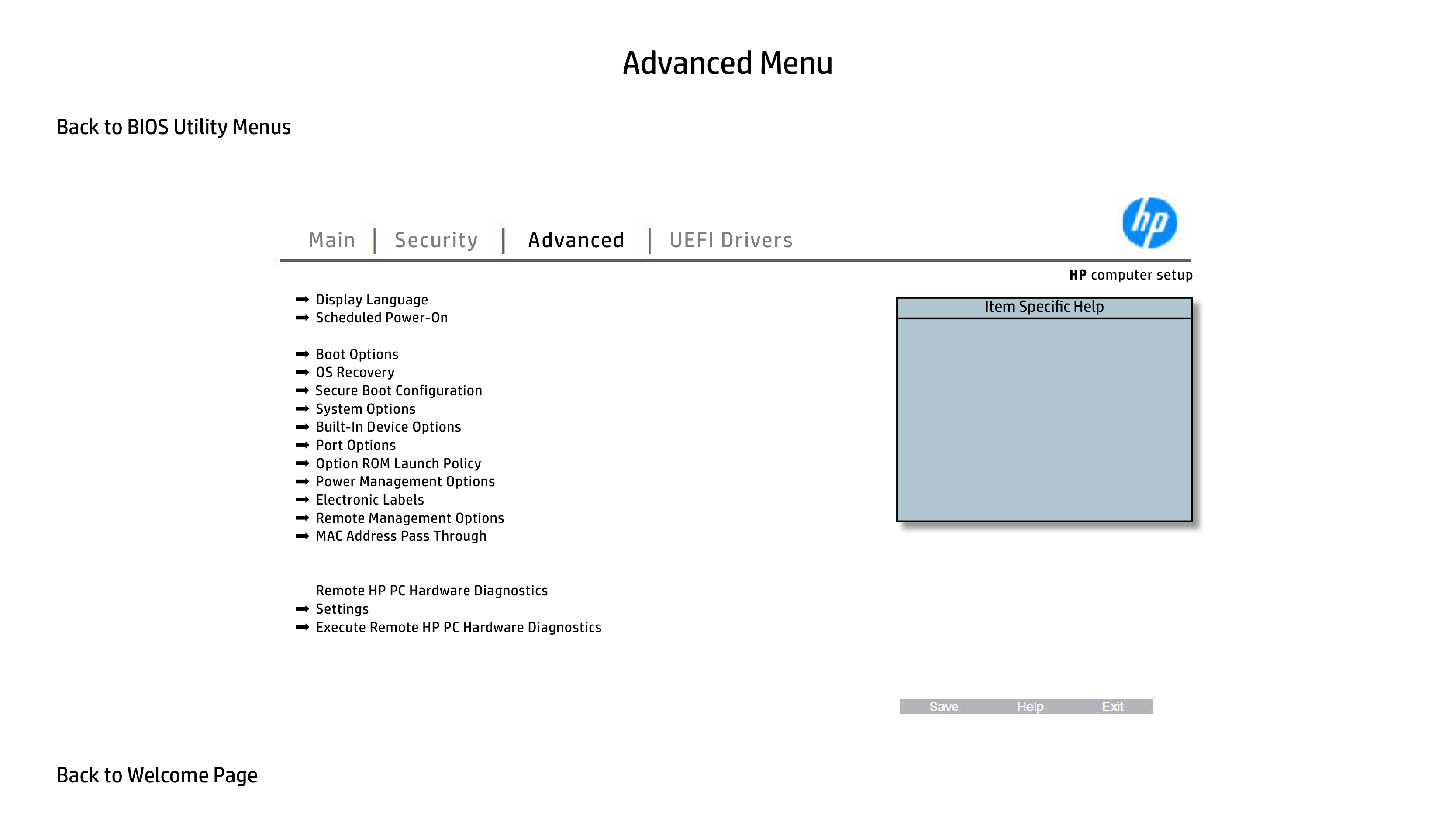
Advanced Menu Back to BIOS Utility Menus Back to Welcome Page Item Specific Help Main Security Advanced UEFI Drivers HP computer setup Remote HP PC Hardware Diagnostics Display Language Scheduled Power-On Boot Options Secure Boot Configuration System Options Port Options Option ROM Launch Policy Power Management Options Electronic Labels MAC Address Pass Through Remote Management Options Settings Built-In Device Options Execute Remote HP PC Hardware Diagnostics OS Recovery
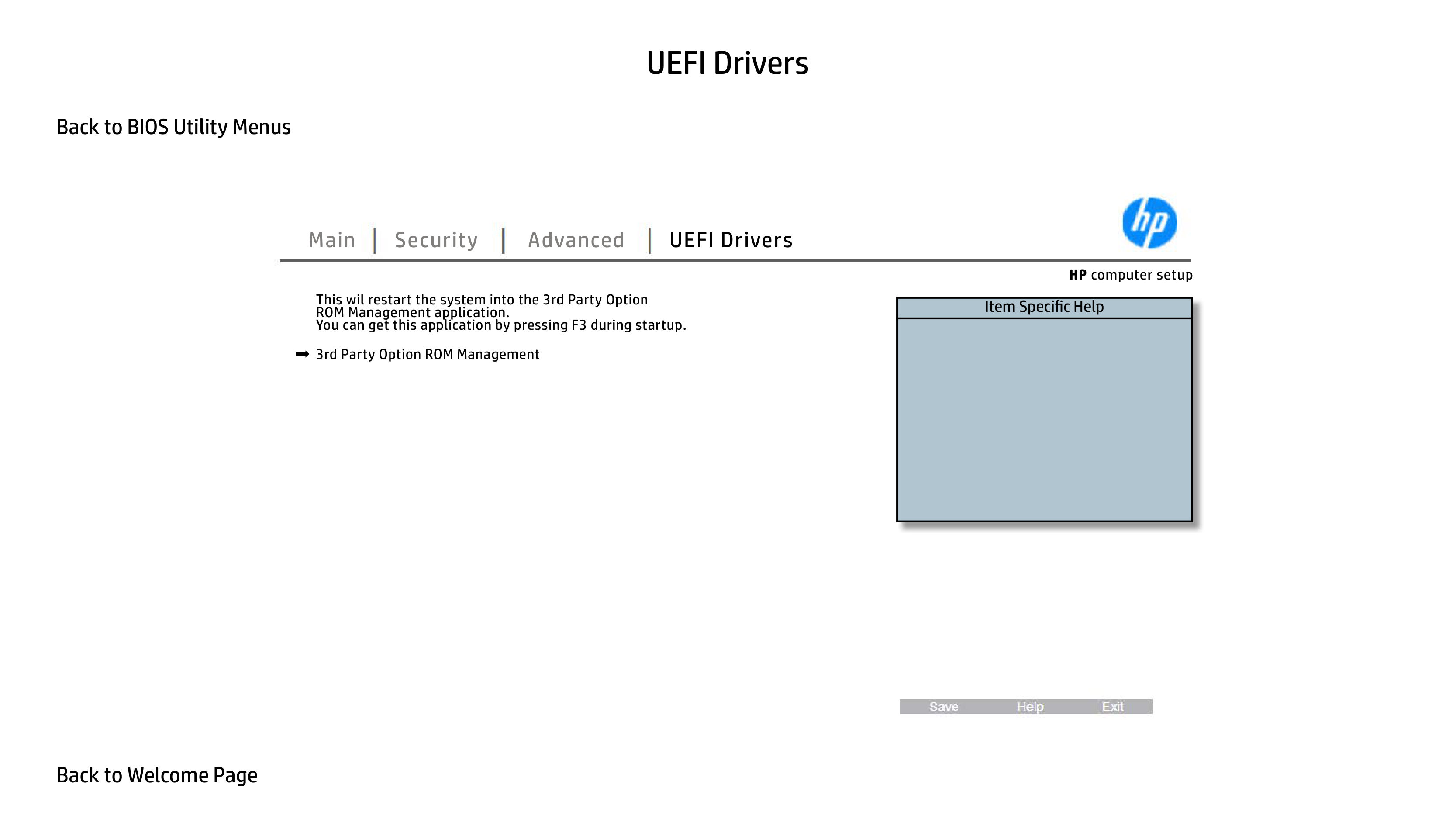
UEFI Drivers Back to BIOS Utility Menus Back to Welcome Page Item Specific Help Main Security Advanced UEFI Drivers HP computer setup This wil restart the system into the 3rd Party Option ROM Management application. You can get this application by pressing F3 during startup. 3rd Party Option ROM Management
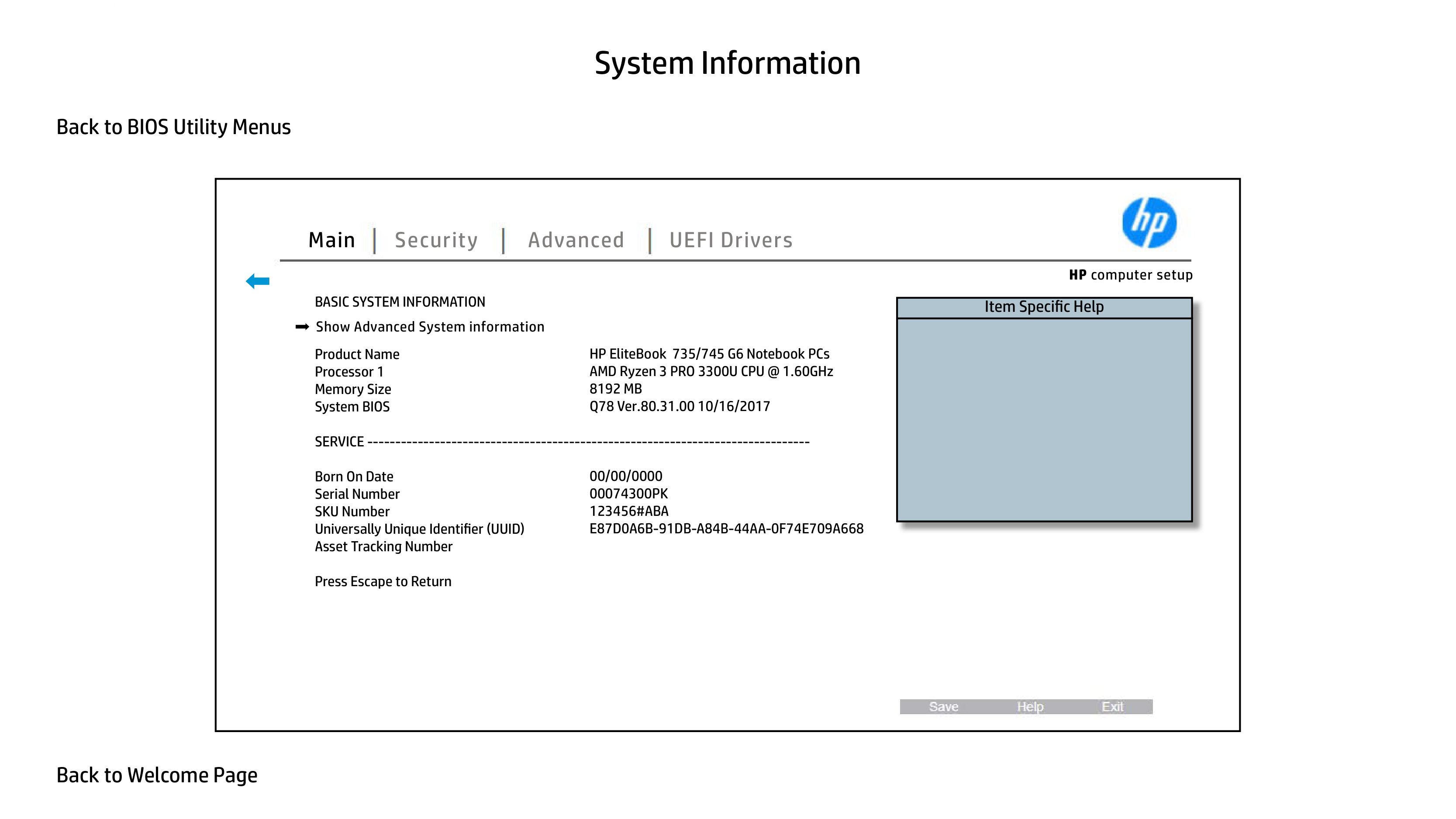
System Information Back to BIOS Utility Menus Back to Welcome Page
Basic System Information
Product Name Processor 1 Memory Size System BIOS SERVICE ------------------------------------------------------------------------------- Born On Date Serial Number SKU Number Universally Unique Identifier (UUID) Asset Tracking Number Press Escape to Return HP EliteBook 735/745 G6 Notebook PCs AMD Ryzen 3 PRO 3300U CPU @ 1.60GHz8192 Mb
Q78 Ver.80.31.00 10/16/2017 00/00/000000074300Pk
123456#Aba
E87D0A6B-91Db-A84B-44Aa-0F74E709A668
Item Specific Help Main Security Advanced UEFI Drivers HP computer setup Bookmark 1 Show Advanced System information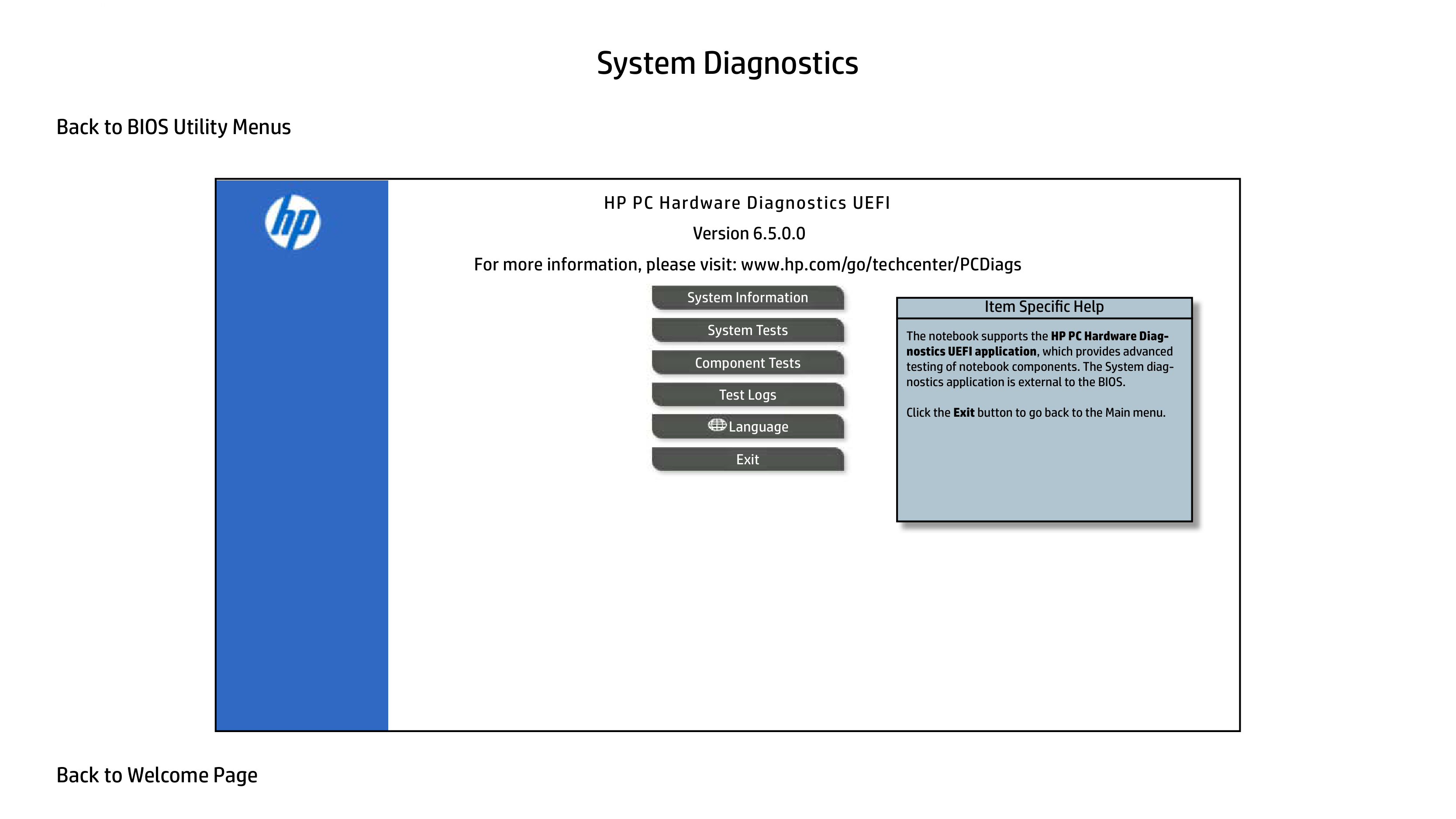
System Diagnostics Back to BIOS Utility Menus Back to Welcome Page Version 6.5.0.0 HP PC Hardware Diagnostics UEFI For more information, please visit: www.hp.com/go/techcenter/PCDiags System Information System Tests Component Tests Test Logs Language Item Specific Help Bookmark 1 The notebook supports the HP PC Hardware Diag- nostics UEFI application, which provides advanced testing of notebook components. The System diag- nostics application is external to the BIOS. Click the Exit button to go back to the Main menu. Exit