Ask AI
— answers from the official manualAnswers from the official manual.
Common questions
Common Questions
10 totalHow do I access the UEFI Drivers menu?
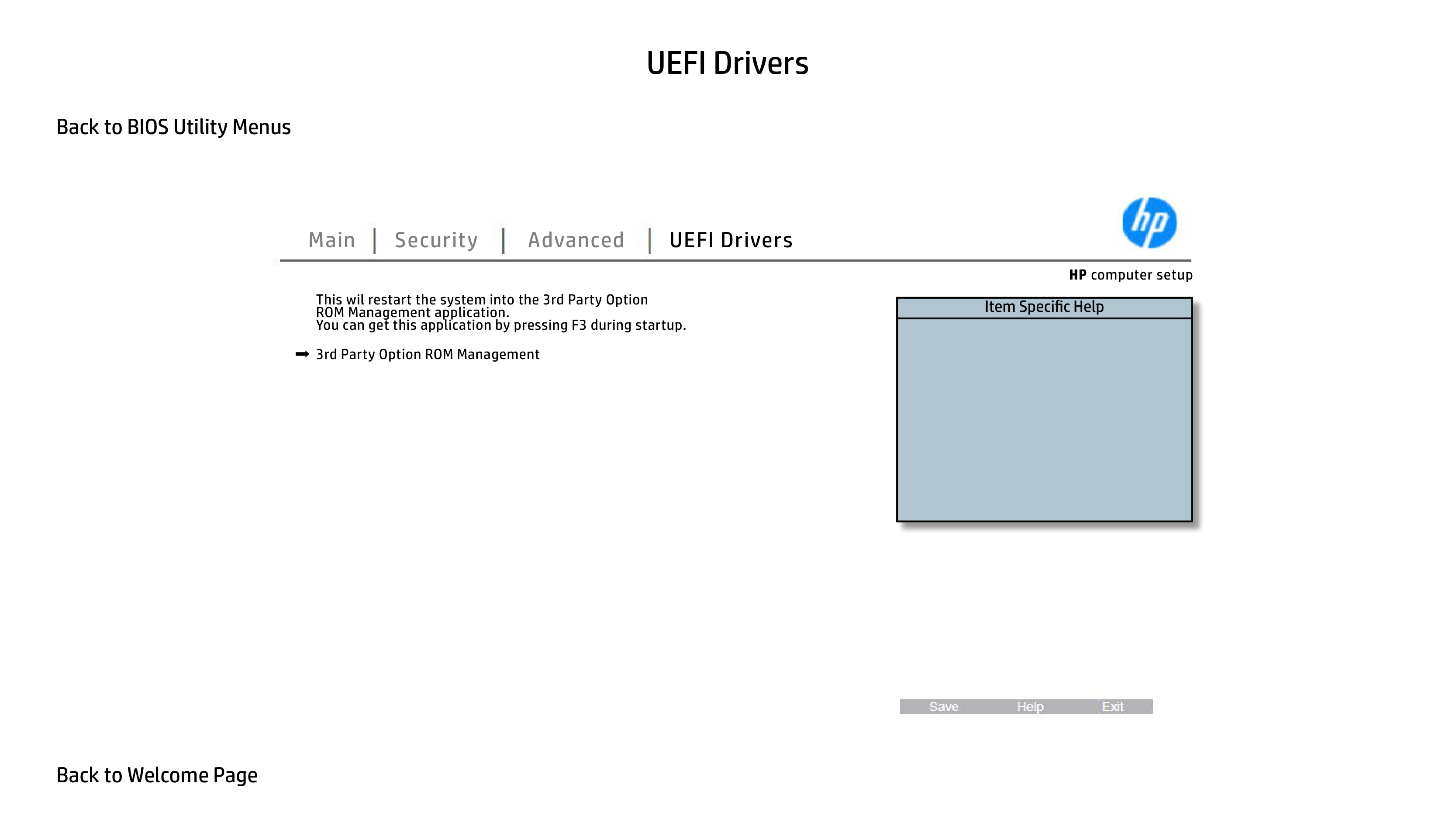
From the BIOS Utility Menus, navigate to the UEFI Drivers section to view and manage UEFI drivers for the system (Page 6)
Where can I find information about third-party option ROMs?
Restart your system into the Third Party Option ROM Management application by selecting it in Main Security Advanced UEFI Drivers; access this during startup with F3 (Page 7).
How can I run HP PC Hardware Diagnostics?
To run HP PC Hardware Diagnostics, start the system and press 'F10' to enter the UEFI menu or use the provided link on relevant BIOS screens (Page 8).
What information is included in System Information?
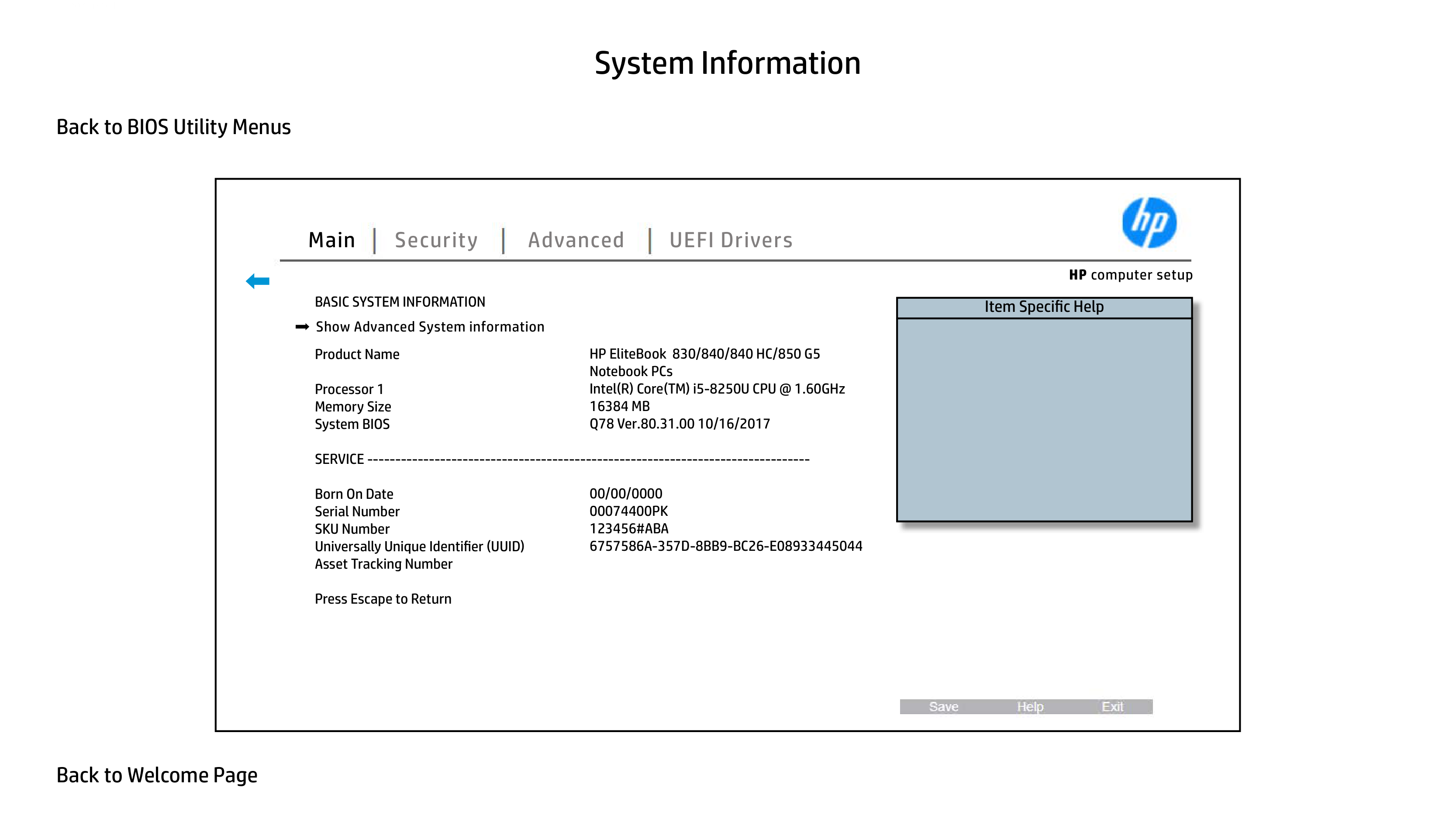
System Information includes details like Product Name, Processor Type, Memory Size, BIOS Version, Activation Date, Serial Number, SKU Number, UUID, and Asset Tracking Number (Page 8).
What is the function of the Security Configuration menu?
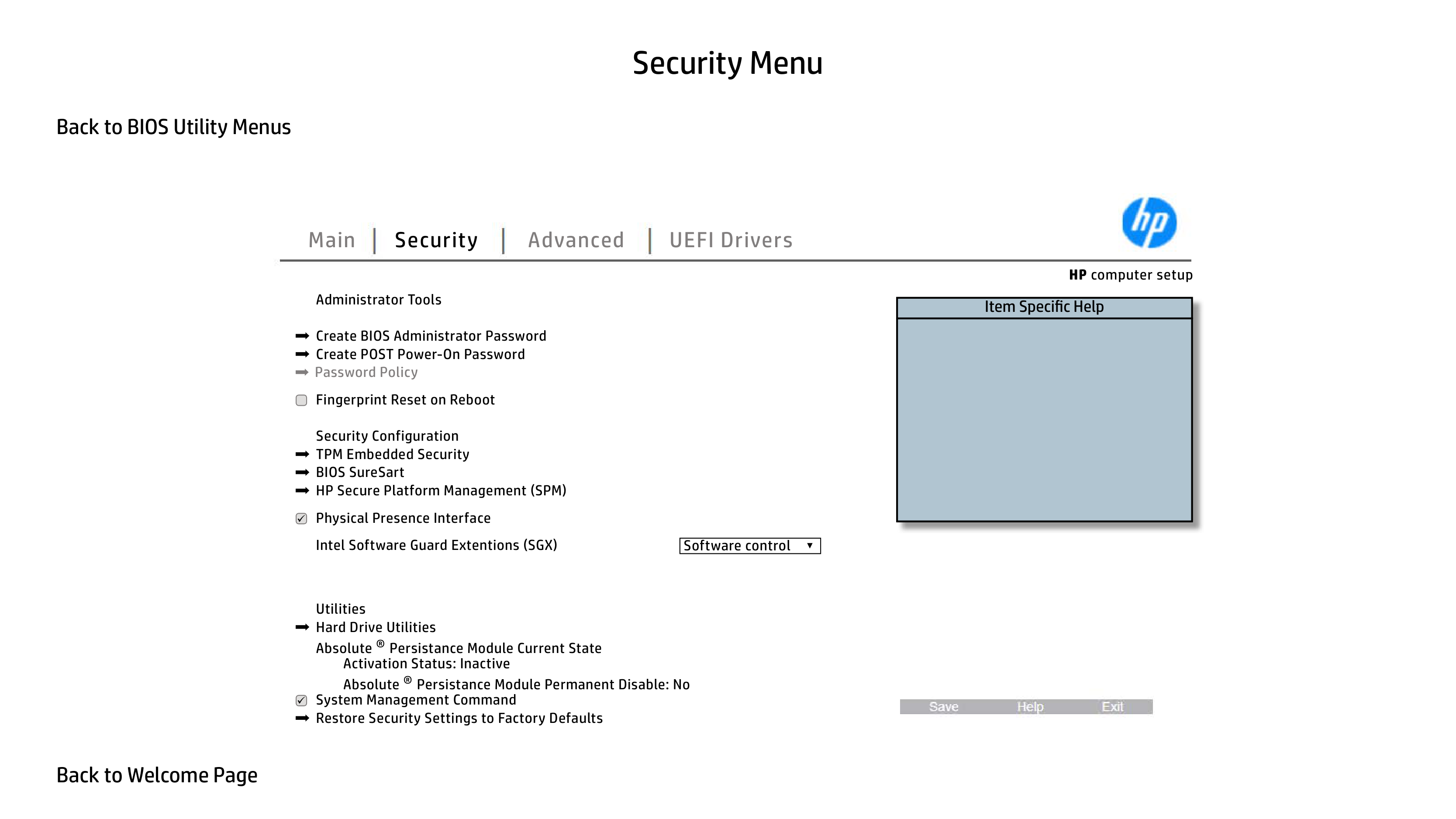
The Security Configuration menu allows you to check and modify security settings such as Absolute® Persistance Module Permanent Disable status. Activation Status is shown as Inactive by default (Page 5).
How do I perform system diagnostics tests?
Navigate through System Diagnostics in the BIOS menu for various diagnostic tools including system information, system tests, component tests, and test logs (Page 8).
Full Manual
8 pages
Interactive BIOS simulator
HP EliteBook 800 G5 Notebook PC Series
Welcome to the interactive BIOS simulator for the HP EliteBook 830/840/840 HC/850 G5 Notebook PCs
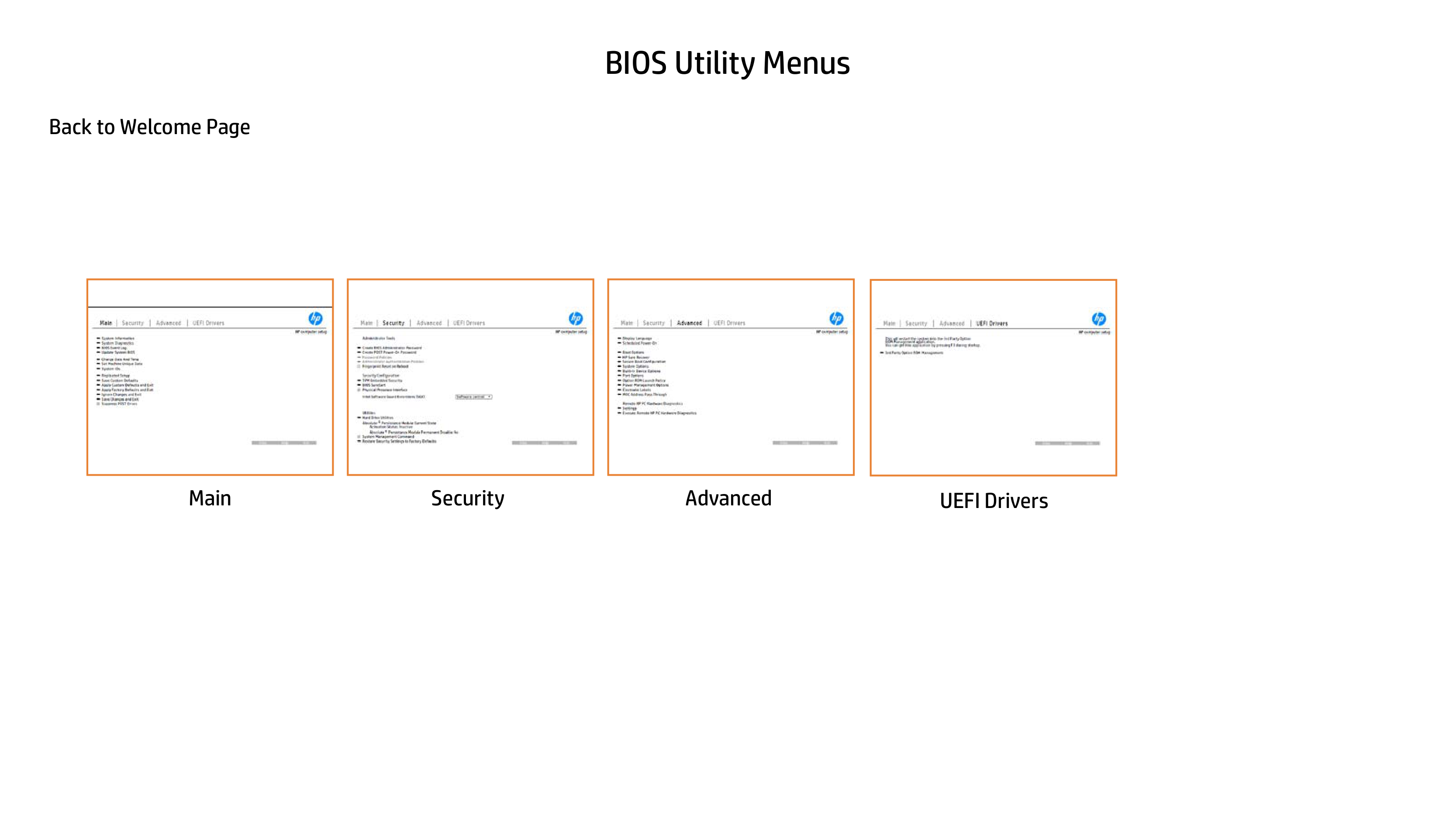
Here’s how to use it… BIOS Utility Menus: (Click the link to navigate to the individual menus) On this page you will find thumbnail images of each of the product’s BIOS utility menus. To view a specific menu in greater detail, simply click that thumbnail. Just as in the live BIOS, on each menu, you can select the tab of each of the other utility menus to navigate directly to that menu.
Menu options: While the menu options cannot be toggled, many of them offer item specific information about that option. To view this information, use the cursor to rollover the option and the information will present in a pane on the right of the BIOS screen.
That’s it! On every page there is a link that brings you back to either this Welcome page or the BIOS Utility Menus page enabling you to navigate to whatever BIOS option you wish to review.
Back to Welcome Page
BIOS Utility Menus
|| |---|
|| |---|
|| |---|
|| |---|
Main Security Advanced UEFI Drivers
Back to BIOS Utility Menus
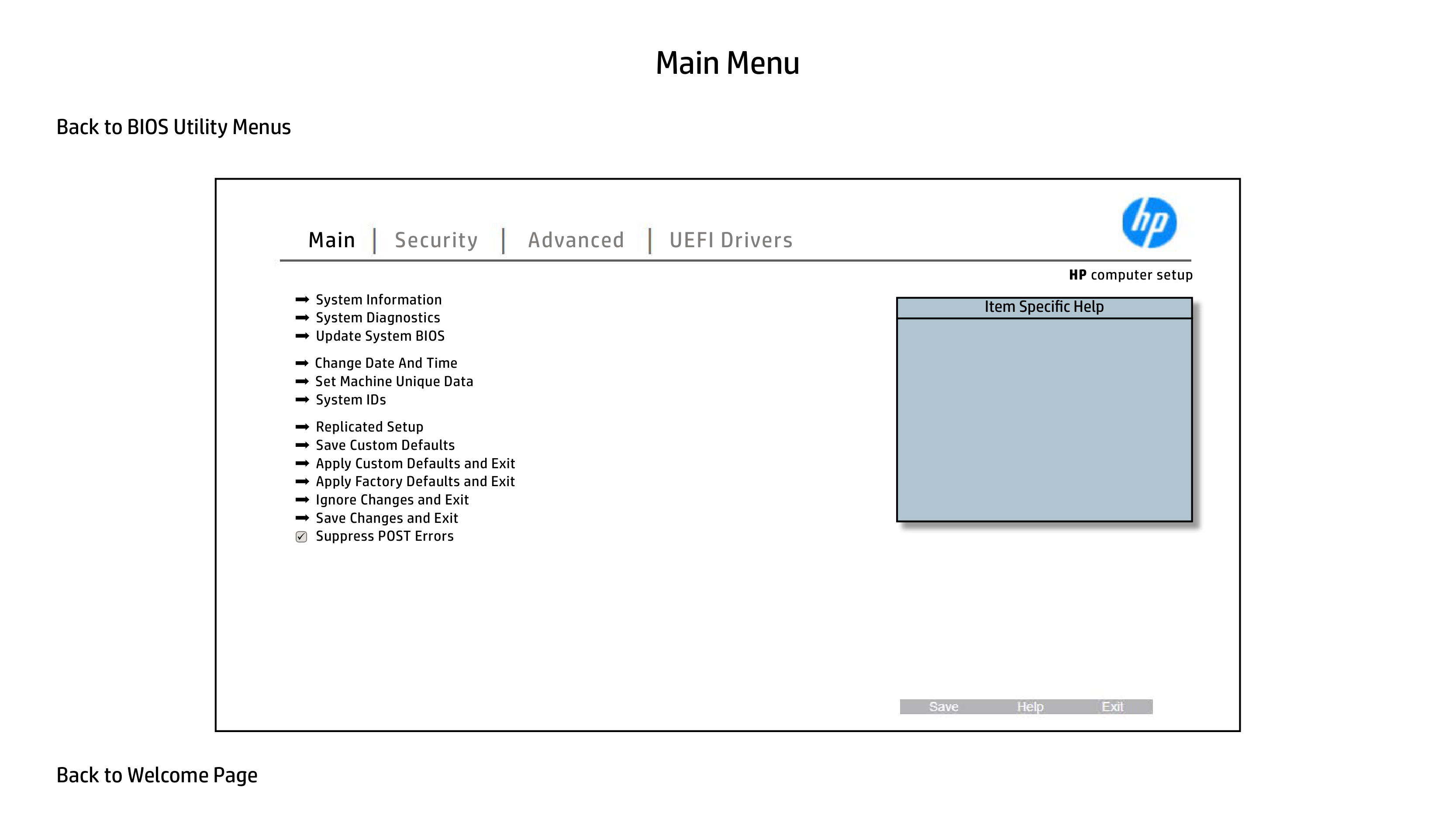
Main Menu
|
|Item Specific Help| |---| | |
Main Security Advanced UEFI Drivers
HP computer setup| |---|
Back to BIOS Utility Menus
Security Menu

Main Security Advanced UEFI Drivers
HP computer setup Administrator Tools
|Item Specific Help| |---| | |
Security Configuration
Utilities
Activation Status: Inactive
Absolute ® Persistance Module Permanent Disable: No
Back to BIOS Utility Menus
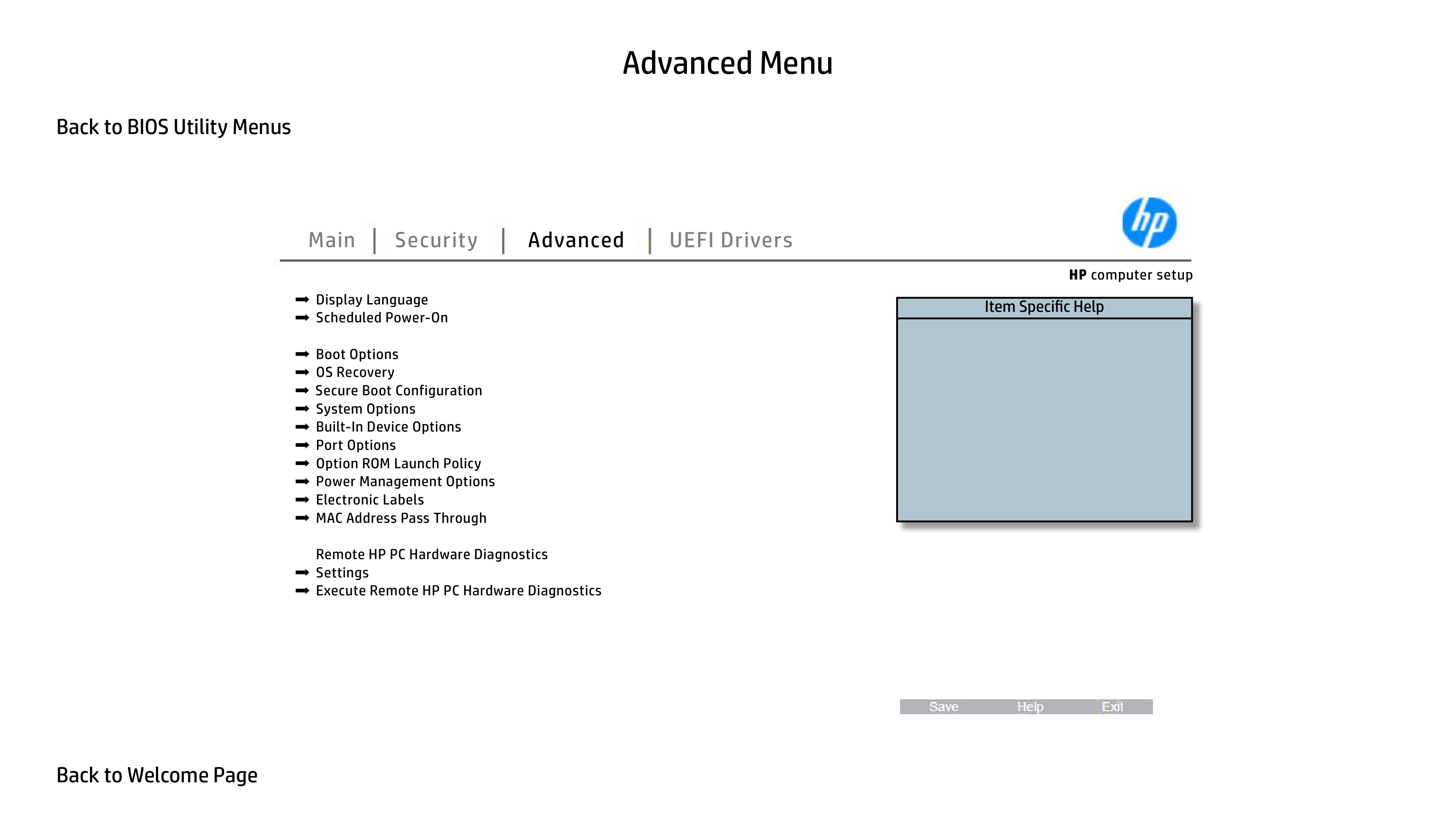
Advanced Menu

Main Security Advanced UEFI Drivers
HP computer setup
|Item Specific Help| |---| | |
Remote HP PC Hardware Diagnostics
Back to BIOS Utility Menus
UEFI Drivers

Main Security Advanced UEFI Drivers
HP computer setup
This wil restart the system into the 3rd Party Option ROM Management application. You can get this application by pressing F3 during startup.
|Item Specific Help| |---| | |
Back to BIOS Utility Menus
System Information
|
BASIC SYSTEM INFORMATION
Product Name Processor 1 Memory Size System BIOS SERVICE ------------------------------------------------------------------------------Born On Date Serial Number SKU Number Universally Unique Identifier (UUID) Asset Tracking Number Press Escape to Return
HP EliteBook 830/840/840 HC/850 G5 Notebook PCs Intel(R) Core(TM) i5-8250U CPU @ 1.60GHz 16384 MB Q78 Ver.80.31.00 10/16/2017
00/00/0000 00074400PK 123456#ABA 6757586A-357D-8BB9-BC26-E08933445044
|Item Specific Help| |---| | |
Main Security Advanced UEFI Drivers
HP computer setup| |---|
Back to BIOS Utility Menus
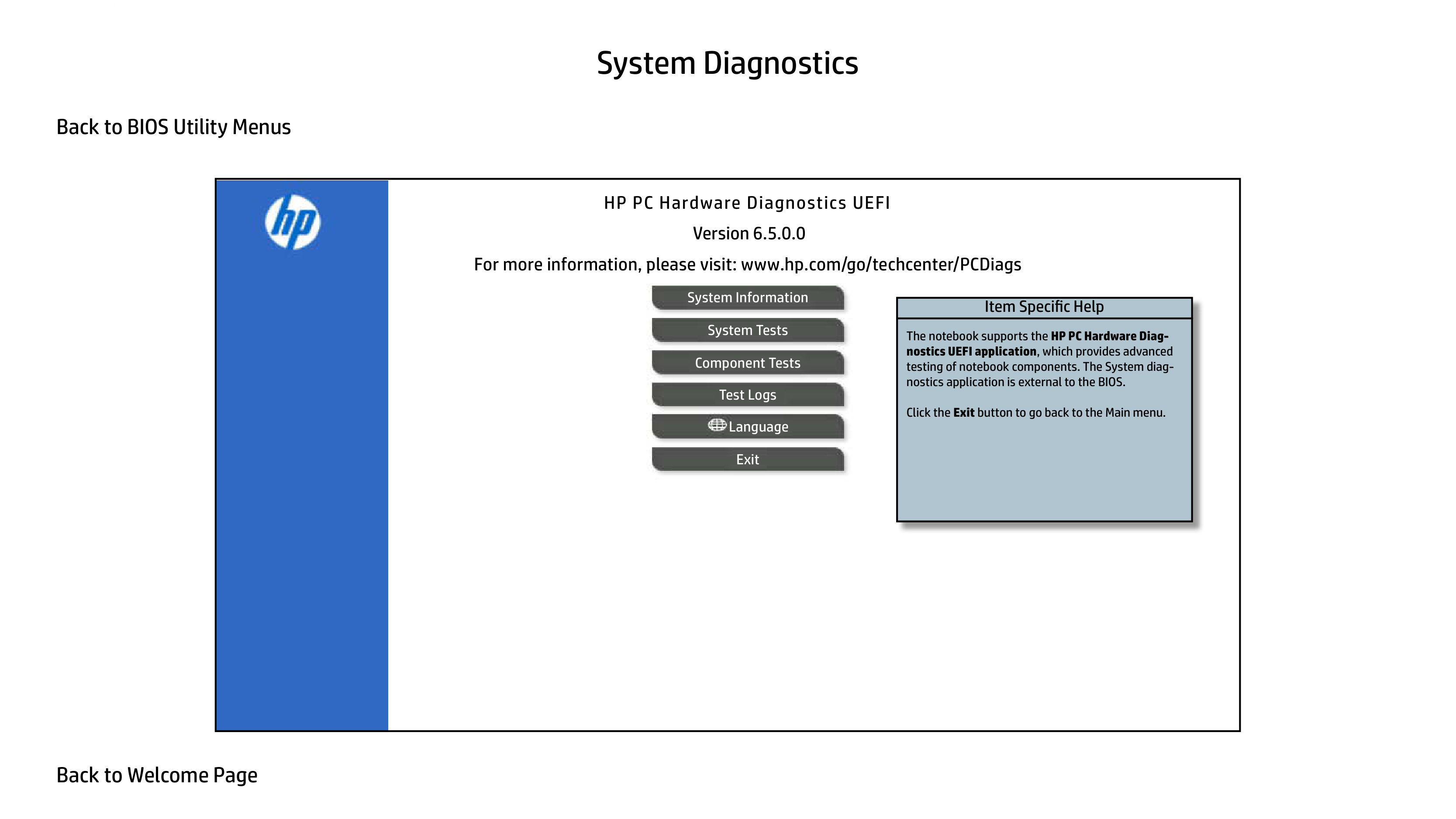
System Diagnostics
|
Version 6.5.0.0
HP PC Hardware Diagnostics UEFI
For more information, please visit: www.hp.com/go/techcenter/PCDiags
System Information System Tests Component Tests Test Logs
Language
|Item Specific Help| |---| | | | |---|