Ask AI
— answers from the official manualAnswers from the official manual.
Common questions
Common Questions
20 totalWhat is the LED Diagnostic tool for the HP ProBook 440 G8 Notebook PC?
The LED Diagnostic tool is an interactive viewer that allows users to identify and understand the diagnostic behavior of the laptop's external LEDs. Users can click on different external views (Top View, Right Edge, Display View, Left Edge) and hover over information icons to learn more about each LED's diagnostic state. (Page 1)
How do I navigate back to the Welcome page in the LED Diagnostic viewer?
Every page in the LED Diagnostic viewer contains a 'Back to Welcome page' link that allows you to return to the main Welcome page at any time. This makes it easy to switch between different views without getting lost in the tool. (Pages 2-5)
What external views are available in the LED Diagnostic viewer for the HP ProBook 440 G8?
The LED Diagnostic viewer includes four external views: Top View, Right Edge, Display View, and Left Edge. Users can click on any of these views to identify the location of LEDs on that particular side of the laptop. (Page 2)
How do I find information about a specific LED on the HP ProBook 440 G8?
To learn about a specific LED, hover your mouse over the information icon (i) above the LED in the interactive viewer. The diagnostic behavior and details for that LED will then appear in the right-hand pane of the viewer. (Page 1)
Where are the information icons located in the HP ProBook 440 G8 LED Diagnostic viewer?
Information icons, represented by the letter 'i', are located above each LED indicator in the interactive image viewer. Hovering over these icons reveals diagnostic information about each individual LED in the right-hand pane. (Pages 2-5)
What is the purpose of the image viewer in the HP ProBook 440 G8 LED Diagnostic tool?
The image viewer displays a menu of the product's external views and allows users to visually identify the location of each LED on the laptop. By clicking on a specific view, users can see exactly where each LED is positioned on that side of the device. (Page 1)
Show 14 more questions
What does a blinking red LED indicate on my HP ProBook 440 G8?
How do I access the diagnostic information about my HP ProBook 440 G8?
What are the different views available for the LED diagnostics?
What happens if I hold the Power button for a long duration?
How can I use the diagnostic viewer for maintenance?
What do I do if an orange LED is lit continuously?
How do I perform system maintenance on my HP ProBook 440 G8?
Does the HP ProBook 440 G8 LED Diagnostic tool cover all sides of the laptop?
How do I use the LED Diagnostic viewer for the HP ProBook 440 G8?
Where can I find the Left Edge LED information for the HP ProBook 440 G8?
Where can I access the LED Diagnostic tool for the HP ProBook 440 G8 Notebook PC?
What are common troubleshooting steps if an LED is blinking unusually?
Can I change any settings with the LEDs?
How do I interpret the LED states for maintenance?
Full Manual
5 pages
Interactive LED Diagnostic Welcome to the interactive LED diagnostic viewer for the HP ProBook 440 G8 Notebook PC Here’s how to use it… LED Diagnostic (Click the link to navigate this platform’s LED diagnostic states) On this page you will find an image viewer with a menu of this product’s external views. To identify the location of the LEDs for each view, simply click that view. To learn more about the diagnostic behavior of each LED, hover over the information icon ( ) above the LED and review the information that presents in the right-hand pane. That’s it! On every page there is a link that brings you back to the Welcome page. HP ProBook 440 G8 Notebook PC i
Top View Right Edge Display View Top View Hover your mouse over the information icons to learn more about the item. Back to Welcome page Left Edge i i i i i i
Right Edge Right Edge Display View Top View Hover your mouse over the information icons to learn more about the item. Back to Welcome page Left Edge i
Display View Right Edge Display View Top View Hover your mouse over the information icons to learn more about the item. Back to Welcome page Left Edge i
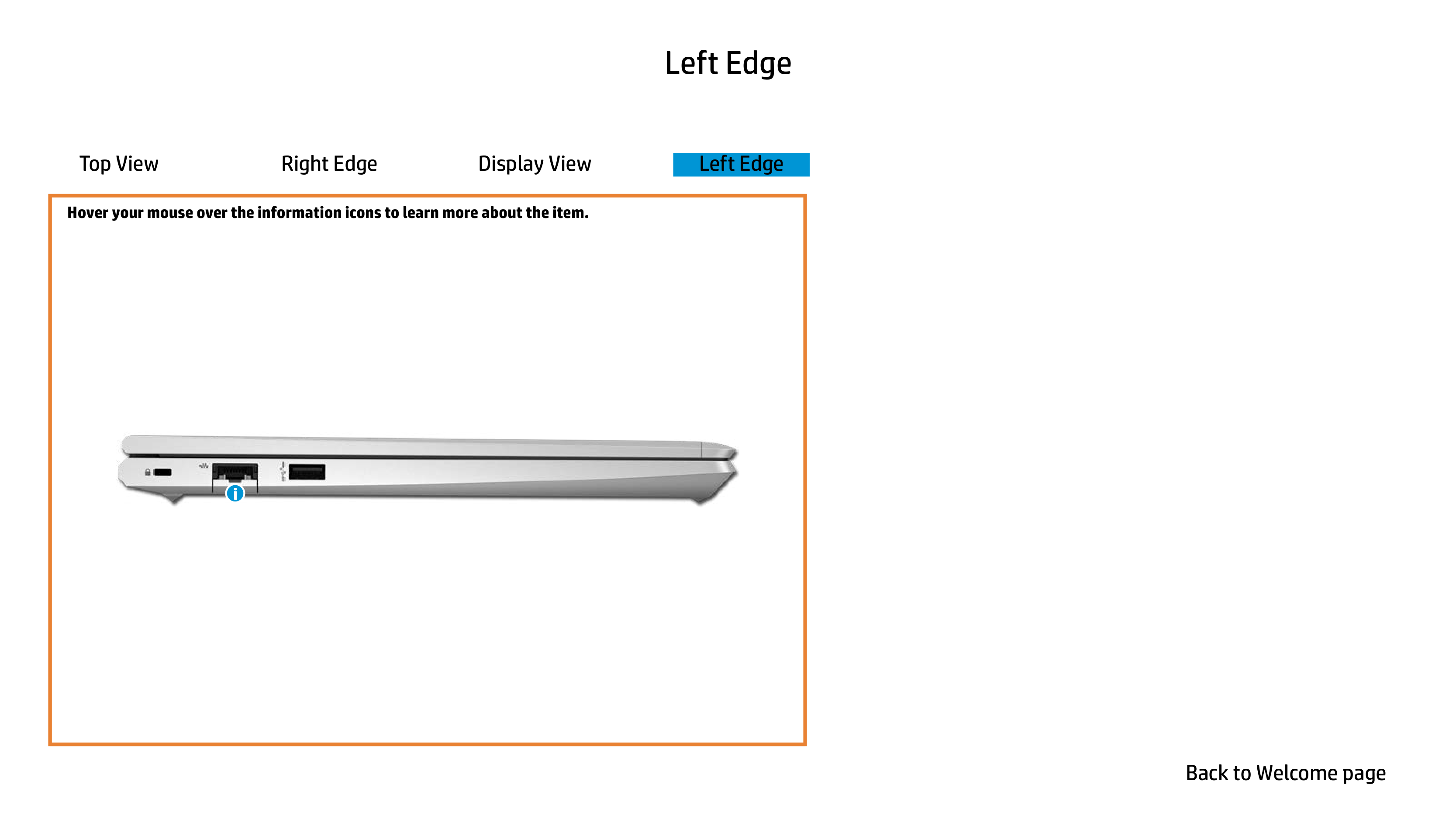
Left Edge Right Edge Display View Top View Hover your mouse over the information icons to learn more about the item. Back to Welcome page Left Edge i