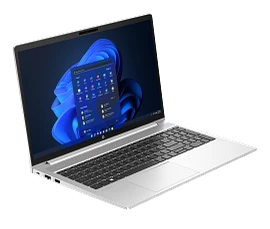
Ask AI
— answers from the official manualAnswers from the official manual.
Common questions
Common Questions
20 totalWhat is the LED Diagnostic feature on the HP ProBook 450 G8?
The LED Diagnostic feature is an interactive tool that allows users to identify the location and behavior of LEDs on the HP ProBook 450 G8. Users can click on different views (Top View, Left Edge, Right Edge, Display View) to locate LEDs, and hover over information icons to learn about each LED's diagnostic behavior. (Page 1)
How do I use the interactive LED diagnostic viewer for the HP ProBook 450 G8?
To use the interactive LED diagnostic viewer, click on the desired external view (such as Top View, Left Edge, Right Edge, or Display View) to identify LED locations. Then hover over the information icon above each LED to review diagnostic information displayed in the right-hand pane. (Page 1)
What external views are available in the LED diagnostic viewer for the HP ProBook 450 G8?
The LED diagnostic viewer includes multiple external views: Top View, Left Edge, Right Edge, and Display View. Each view can be clicked to identify the location of LEDs specific to that side or angle of the notebook. (Page 2)
Where can I find information about a specific LED's behavior on the HP ProBook 450 G8?
To find information about a specific LED's behavior, hover your mouse over the information icon (i) located above the LED in the interactive diagnostic viewer. The diagnostic behavior details will then appear in the right-hand pane of the viewer. (Page 2)
How do I navigate back to the Welcome page in the LED diagnostic viewer?
On every page of the interactive LED diagnostic viewer, there is a 'Back to Welcome page' link that returns you to the main Welcome page. This link is consistently available regardless of which view you are currently on. (Page 2)
Does the HP ProBook 450 G8 LED diagnostic viewer cover the left edge of the notebook?
Yes, the LED diagnostic viewer includes a Left Edge view for the HP ProBook 450 G8. Users can click on this view to identify LED locations along the left edge and hover over information icons to learn about their diagnostic behavior. (Page 4)
Show 14 more questions
What does the LED diagnostic viewer do?
How do I access the information about LEDs?
What does the top view include?
How can I learn about the left edge features?
What is included in the Right Edge view?
How do I troubleshoot LED errors?
Can I jump back to the start page?
Does the HP ProBook 450 G8 LED diagnostic viewer cover the right edge of the notebook?
Is the Display View included in the HP ProBook 450 G8 LED diagnostic tool?
How many external views are shown in the HP ProBook 450 G8 interactive LED diagnostic viewer?
What product is the interactive LED diagnostic viewer designed for?
What additional features are shown in the Display View?
How do I navigate between different diagnostic views?
What specific information can I find about the components?
Full Manual
5 pages
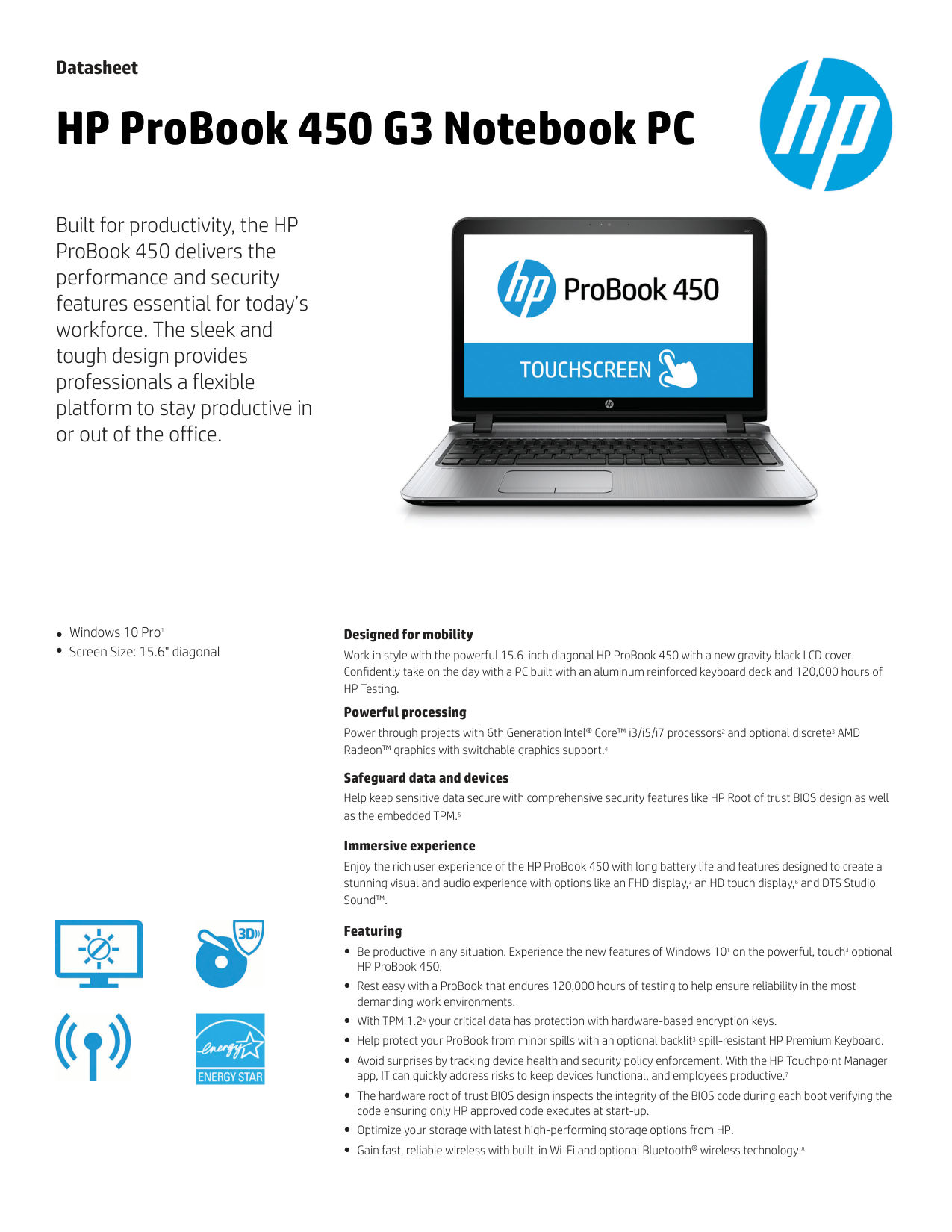
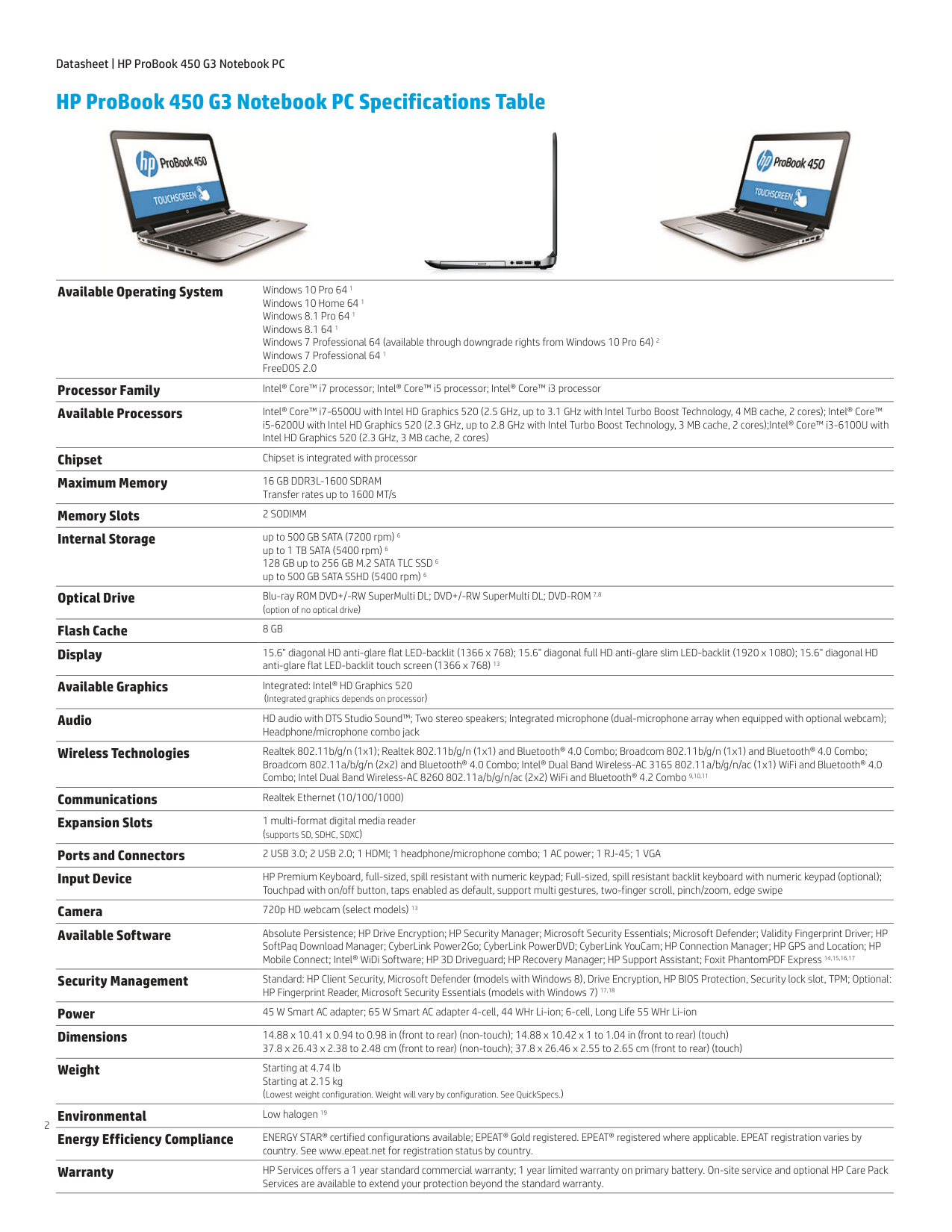
Interactive LED Diagnostic Welcome to the interactive LED diagnostic viewer for the HP ProBook 450 G8 Notebook PC Here’s how to use it… LED Diagnostic (Click the link to navigate this platform’s LED diagnostic states) On this page you will find an image viewer with a menu of this product’s external views. To identify the location of the LEDs for each view, simply click that view. To learn more about the diagnostic behavior of each LED, hover over the information icon ( ) above the LED and review the information that presents in the right-hand pane. That’s it! On every page there is a link that brings you back to the Welcome page. HP ProBook 450 G8 Notebook PC i
Top View Left Edge Top View Hover your mouse over the information icons to learn more about the item. Back to Welcome page Right Edge Display View i i i i i i
Right Edge Right Edge Left Edge Top View Hover your mouse over the information icons to learn more about the item. Back to Welcome page Display View i
Left Edge Right Edge Left Edge Top View Hover your mouse over the information icons to learn more about the item. Back to Welcome page Display View i
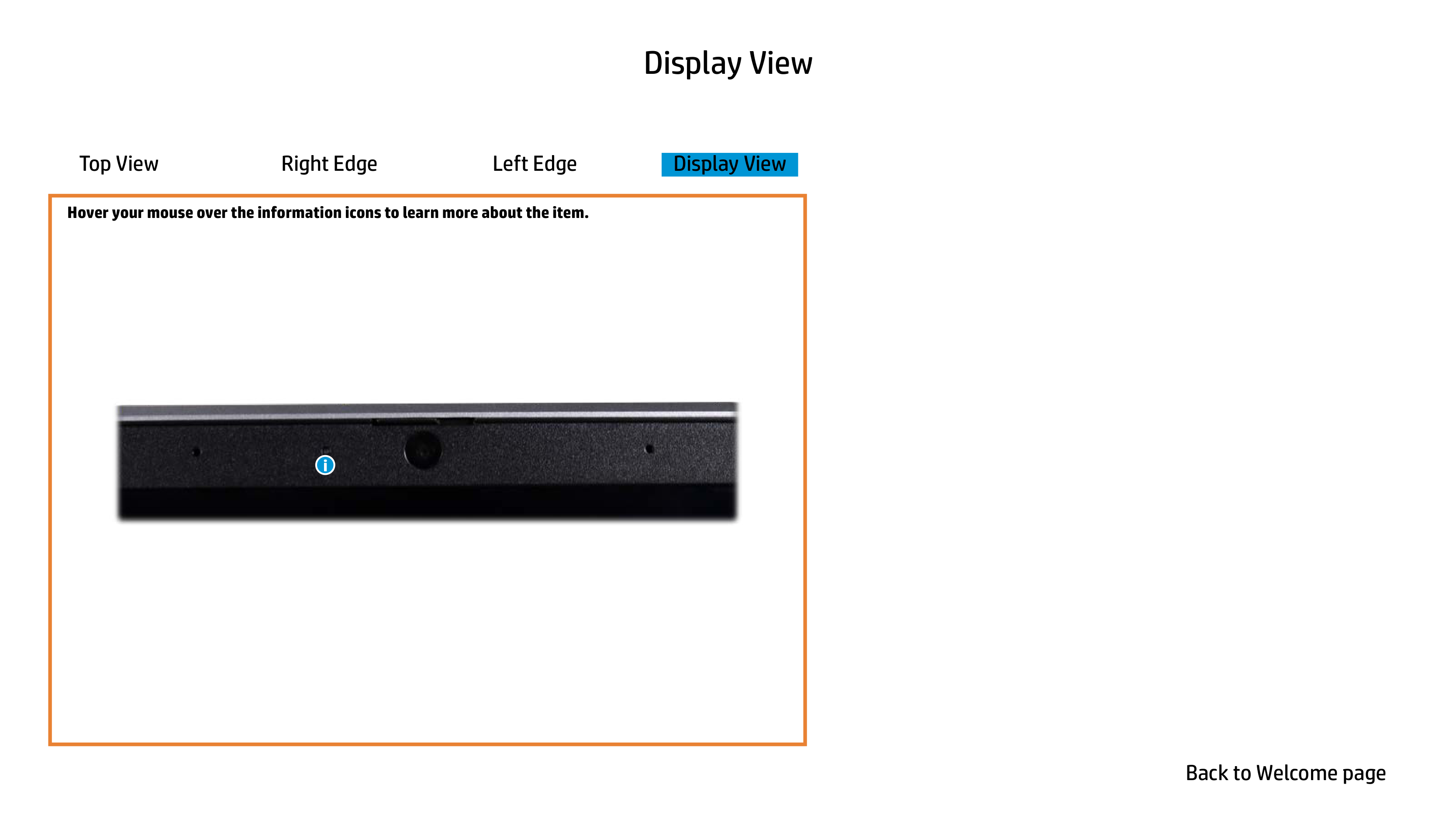
Display View Right Edge Left Edge Top View Hover your mouse over the information icons to learn more about the item. Back to Welcome page Display View i