
Ask AI
— answers from the official manualAnswers from the official manual.
Common questions
Common Questions
8 totalHow do I clean my monitor screen?
Unplug the monitor, use a soft antistatic cloth for basic dusting; for tough stains, spray the cleaner onto a cloth and gently wipe. Do not apply any volatile substances or petroleum-based materials directly on it.
Where can I find the product number and serial number for my monitor?
The serial number and product number are located on labels under the monitor bezel. You may need these numbers when contacting HP about your monitor model.
What should I do if the screen is blank or showing a video that’s flashing?
Ensure that the power cord is connected, check if the monitor is turned on by pressing the back bezel power button. If pressing the power button has no effect, press and hold it for 10 seconds to disable Power Button Lockout. Verify correct cable connections; refer to ‘Connecting the cables’ section (Page 4) for guidance.
What should I do if my monitor enters sleep mode?
'Auto-Sleep Mode' allows the monitor to enter a low power state when no signal is detected; pressing any key on your keyboard or moving the mouse will activate it.
How do I assign function buttons to new settings?
Press one of the four rear bezel buttons, press the Menu button to open OSD. In the menu control select Assign Buttons and choose your preferred option for the desired Function button.
What power adapter rating does this monitor use?
The power adapter used is Delta ADP-40LD B with a supply rating of 19 V DC/2.1A.
Full Manual
30 pages


User Guide VH240a
© Copyright 2017 HP Development Company, L.P. Windows is either a registered trademark or trademark of Microsoft Corporation in the United States and/or other countries. The information contained herein is subject to change without notice. The only warranties for HP products and services are set forth in the express warranty statements accompanying such products and services. Nothing herein should be construed as constituting an additional warranty. HP shall not be liable for technical or editorial errors or omissions contained herein.
########### Product notice
This guide describes features that are common to most models. Some features may not be available on your product. To access the latest user guide, go to http://www.hp.com/support. and select your country. Select Find your product. and then follow the onscreen instructions.
First Edition: July 2017 Document Part Number: 933425-001
###### About This Guide
This guide provides information on monitor features, setting up the monitor, and technical specifications.
WARNING! Indicates a hazardous situation that, if not avoided, could result in death or serious injury.
CAUTION: Indicates a hazardous situation that, if not avoided, could result in minor or moderate injury. NOTE: Contains additional information to emphasize or supplement important points of the main text.
TIP: Provides helpful hints for completing a task.

iii
########## iv About This Guide
Table of contents
Features ..................................................................................................................................................2 Rear components ...................................................................................................................................3
Setting up the monitor ............................................................................................................................................ 4 Installing the monitor stand ..................................................................................................................4 Connecting the cables ............................................................................................................................4 Connecting the Audio cables .................................................................................................................6 Adjusting the monitor ............................................................................................................................8 Turning on the monitor ..........................................................................................................................8 HP watermark and image retention policy ...........................................................................................9 Removing the monitor stand .................................................................................................................9 Mounting the monitor ............................................................................................................................9 Installing a security cable ....................................................................................................................11
The Information file .............................................................................................................................12 The Image Color Matching file .............................................................................................................12
Installing the INF and ICM files ............................................................................................................................. 12 Installing from the optical disc (available in select regions) .............................................................12 Downloading from the Web .................................................................................................................12
Using the on-screen display (OSD) menu ............................................................................................................. 13 Assigning the Function buttons ........................................................................................................................... 13 Using Auto-Sleep Mode ......................................................................................................................................... 14 Adjusting Low Blue Light Mode ............................................................................................................................ 14
v
Locating the serial number and product number ................................................................................................ 19
4 Maintaining the monitor ............................................................................................................................ 20 Maintenance guidelines ........................................................................................................................................ 20 Cleaning the monitor ............................................................................................................................................ 20 Shipping the monitor ............................................................................................................................................ 20
vi
1 Getting started
Important safety information
An AC power cord is included with the monitor. If another cord is used, use only a power source and connection appropriate for this monitor. For information on the correct power cord set to use with the monitor, refer to the Product Notices provided on the optical disc or in your documentation kit.
WARNING! To reduce the risk of electric shock or damage to the equipment:
For your safety, do not place anything on power cords or cables. Arrange them so that no one may accidentally step on or trip over them.
To reduce the risk of serious injury, read the Safety & Comfort Guide. It describes proper workstation setup, and proper posture, health, and work habits for computer users. The Safety & Comfort Guide also provides important electrical and mechanical safety information. The Safety & Comfort Guide is located on the Web at http://www.hp.com/ergo.

CAUTION: For the protection of the monitor, as well as the computer, connect all power cords for the computer and its peripheral devices (such as a monitor, printer, scanner) to some form of surge protection device such as a power strip or Uninterruptible Power Supply (UPS). Not all power strips provide surge protection; the power strips must be specifically labeled as having this ability. Use a power strip whose manufacturer offers a Damage Replacement Policy so you can replace the equipment, if surge protection fails.
Use the appropriate and correctly sized furniture designed to properly support your HP LCD monitor.
WARNING! LCD monitors that are inappropriately situated on dressers, bookcases, shelves, desks, speakers, chests, or carts may fall over and cause personal injury. Care should be taken to route all cords and cables connected to the LCD monitor so that they cannot be pulled, grabbed, or tripped over.
Be sure that the total ampere rating of the products connected to the AC outlet does not exceed the current rating of the outlet, and that the total ampere rating of the products connected to the cord does not exceed the rating of the cord. Look on the power label to determine the ampere rating (AMPS or A) for each device.
Install the monitor near an AC outlet that you can easily reach. Disconnect the monitor by grasping the plug firmly and pulling it from the AC outlet. Never disconnect the monitor by pulling the cord.
Do not drop the monitor or place it on an unstable surface. NOTE: This product is suitable for entertainment purposes. Consider placing the monitor in a controlled luminous environment to avoid interference from surrounding light and bright surfaces that may cause disturbing reflections from the screen.
| | |---|
Important safety information 1
Product features and components
###### Features
The monitor which is made in China include the following features:
| | |---|
NOTE: For safety and regulatory information, refer to the Product Notices provided on your optical disc or in your documentation kit. To locate updates to the user guide for your product, go to http://www.hp.com/ support and select your country. Select Find your product, and then follow the on-screen instructions.
###### Rear components
| | | | | |---|---|---|---| | | | | |
| | | | |---|---|---| | | | |
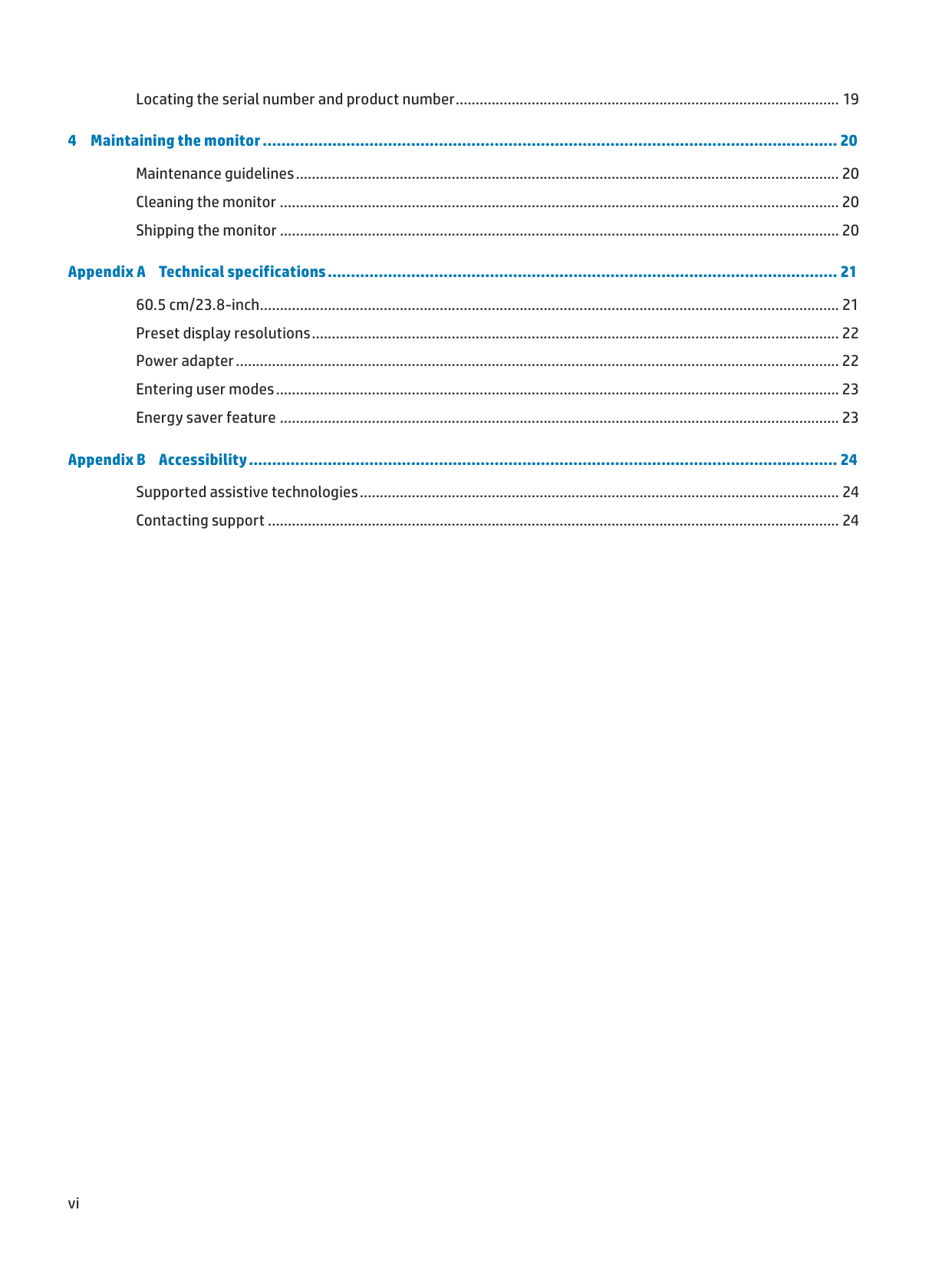
1 2 3 4 5 6 7 9 10
8
######### Component Function
If the OSD menu is closed, press to switch to the next video input port. *
If the OSD menu is open, press to navigate forward through the OSD menu and increase adjustment levels.
If the OSD menu is closed, press to open the Viewing Modes menu. *
If the OSD menu is open, press to navigate forward through the OSD menu and decrease adjustment levels.
If the OSD menu is close,Press to open the information menu at HDMI and DO auto adjust at VGA.
If the OSD menu is closed, press to open the OSD menu.
| | |---|
| | |---|
NOTE: * Buttons 2-4 are function buttons that can be changed from their default settings in the OSD menu to a different menu selection that you most commonly use and want to quickly access. See Assigning the Function buttons on page 12 for more information.
NOTE: To view an OSD simulator, visit the HP Customer Self Repair Services Media Library at http://www. hp.com/go/sml.
Product features and components 3
Setting up the monitor
###### Installing the monitor stand
CAUTION: Do not touch the surface of the LCD panel. Pressure on the panel may cause nonuniformity of color or disorientation of the liquid crystals. If this occurs, the screen will not recover to its normal condition.
###### Connecting the cables
| | |---|
NOTE: The monitor ships with select cables. Not all cables shown in this section are included with the monitor.
| | |---|
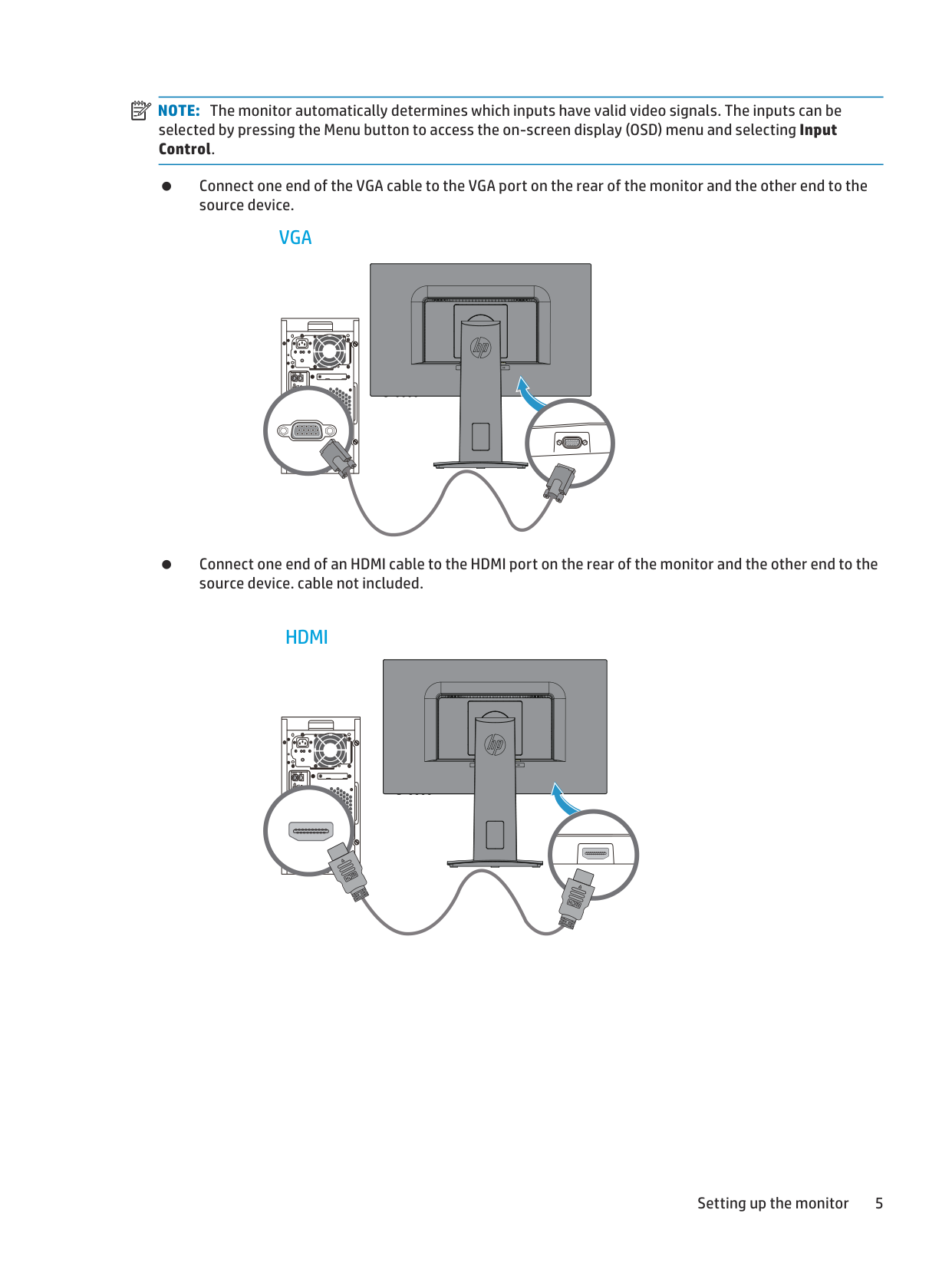
NOTE: The monitor automatically determines which inputs have valid video signals. The inputs can be selected by pressing the Menu button to access the on-screen display (OSD) menu and selecting Input Control.
Connect one end of the VGA cable to the VGA port on the rear of the monitor and the other end to the source device.
######## VGA
| | | |---|---| | | | | | |
Connect one end of an HDMI cable to the HDMI port on the rear of the monitor and the other end to the source device. cable not included.
####### HDMI
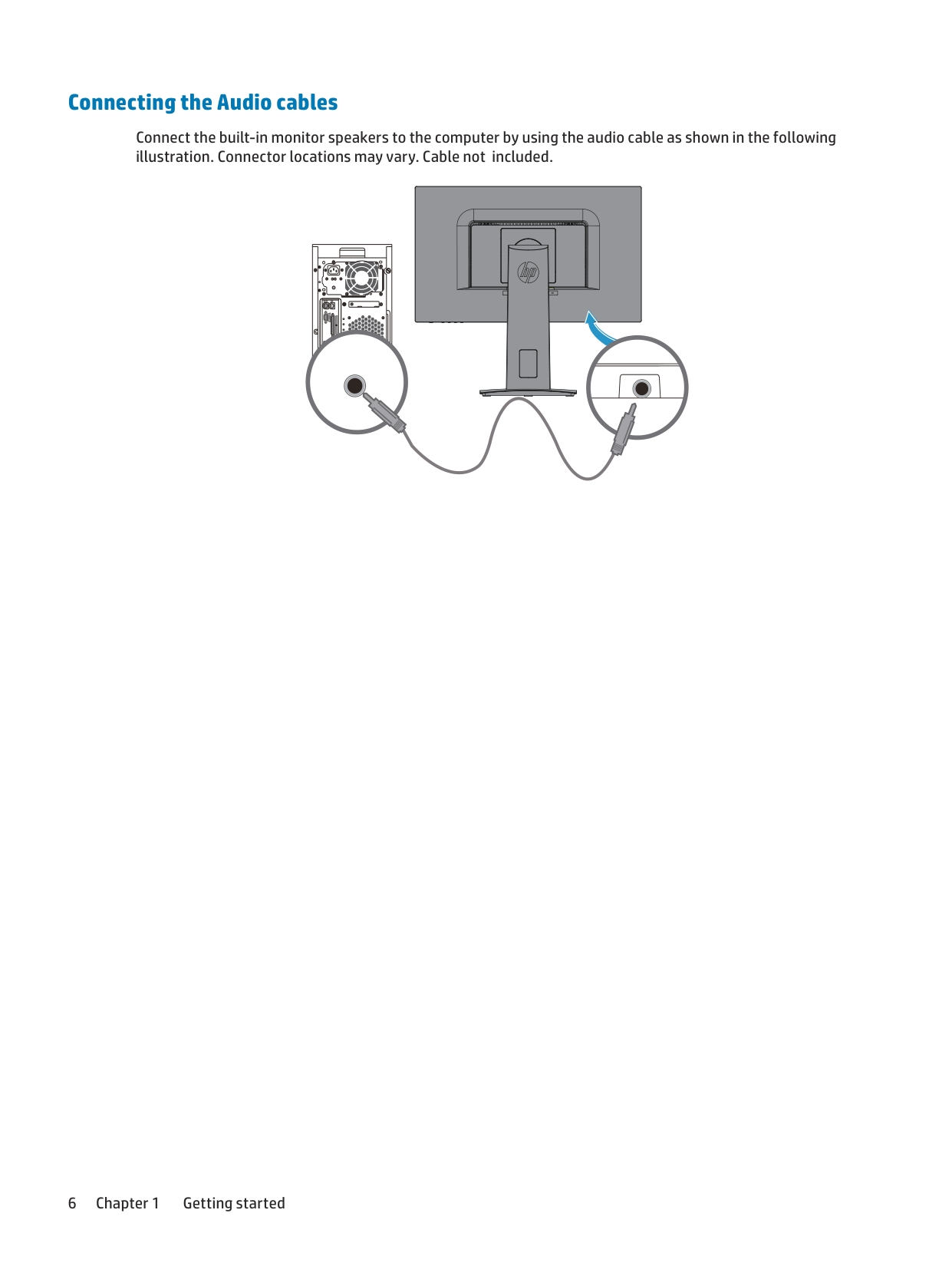
###### Connecting the Audio cables
Connect the built-in monitor speakers to the computer by using the audio cable as shown in the following illustration. Connector locations may vary. Cable not included.
| | | |---|---| | | | | | |
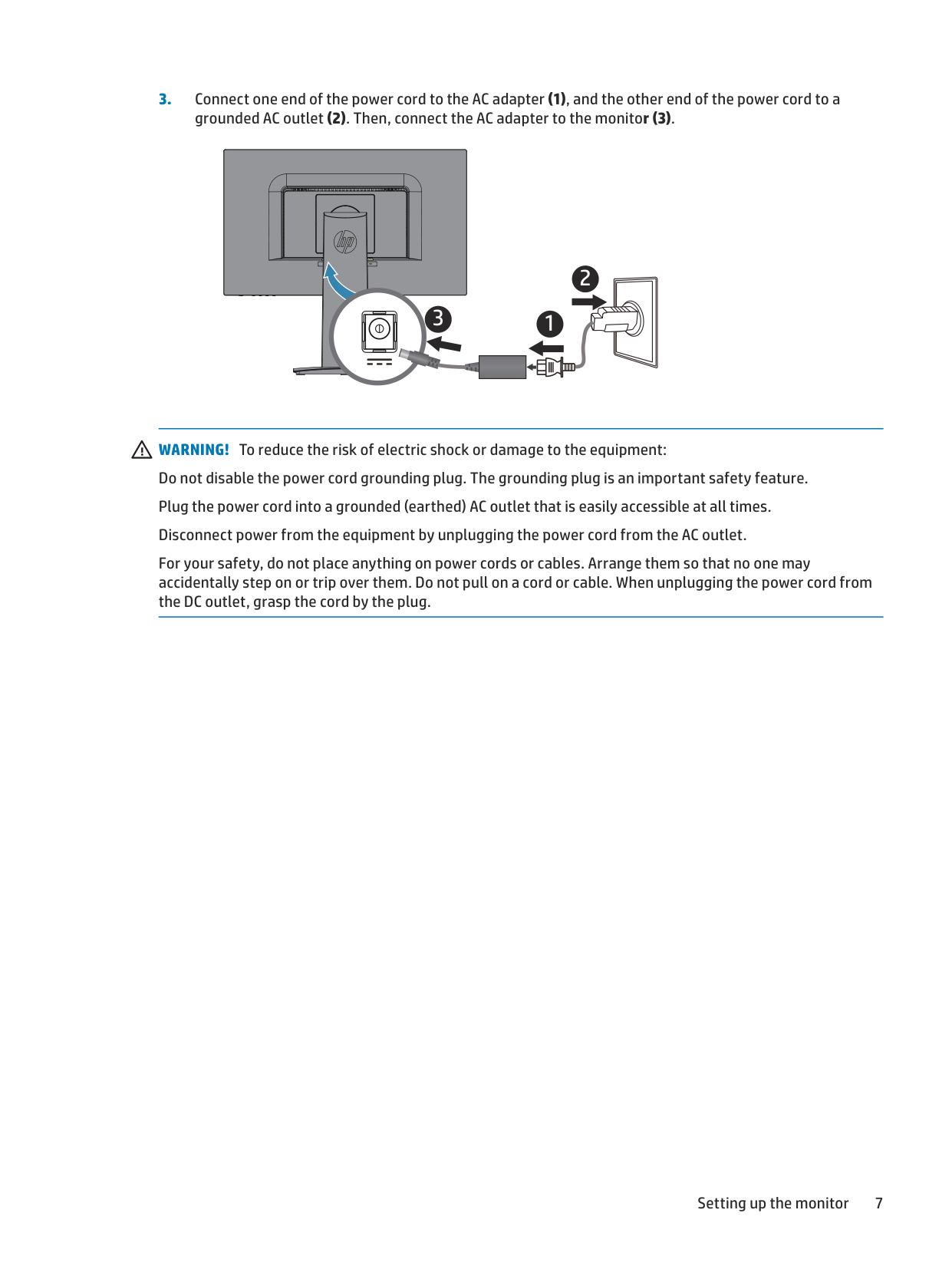
grounded AC outlet (2). Then, connect the AC adapter to the monitor (3).
##### 2 13
WARNING! To reduce the risk of electric shock or damage to the equipment: Do not disable the power cord grounding plug. The grounding plug is an important safety feature. Plug the power cord into a grounded (earthed) AC outlet that is easily accessible at all times. Disconnect power from the equipment by unplugging the power cord from the AC outlet. For your safety, do not place anything on power cords or cables. Arrange them so that no one may accidentally step on or trip over them. Do not pull on a cord or cable. When unplugging the power cord from the DC outlet, grasp the cord by the plug.
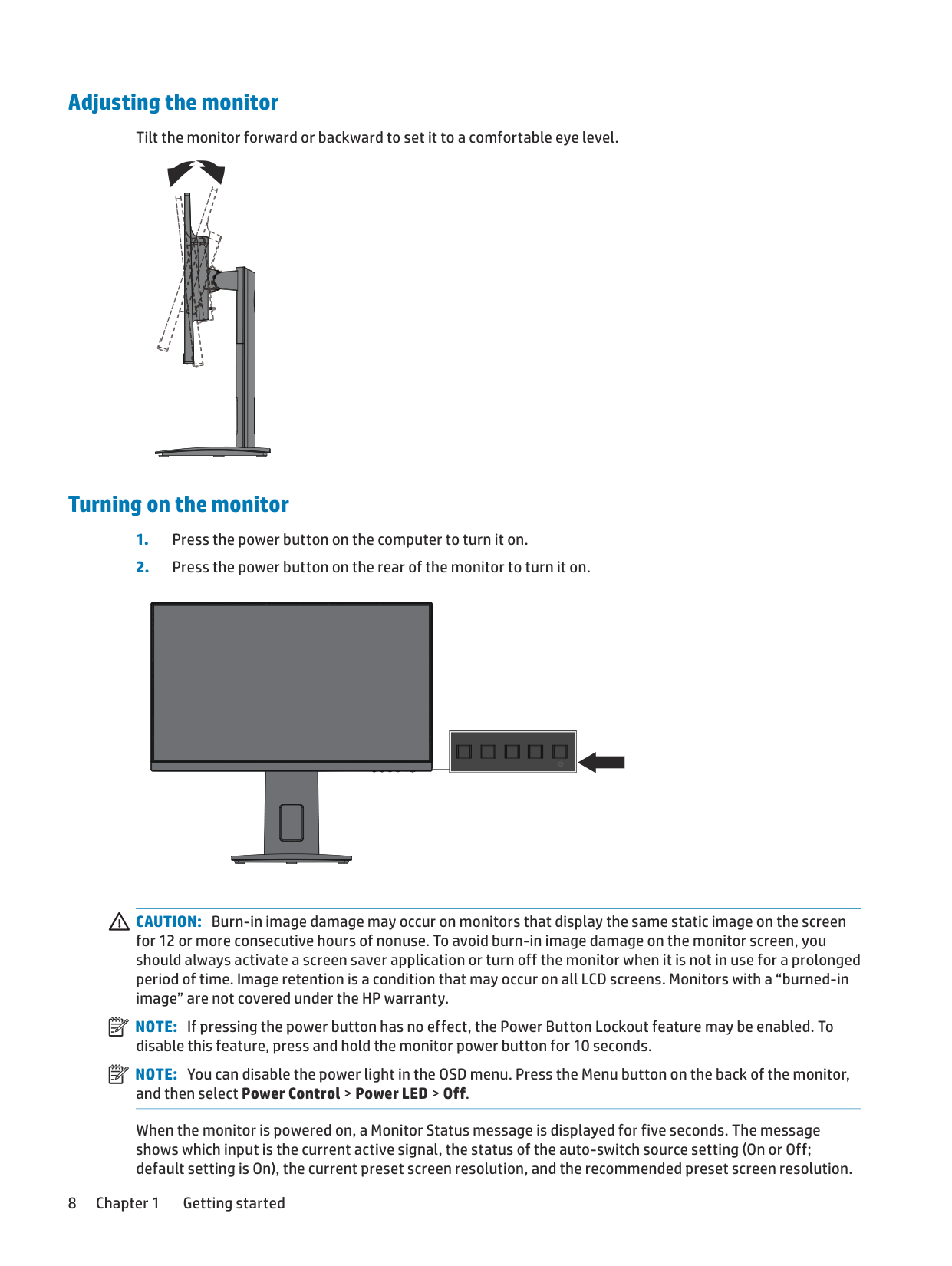
###### Adjusting the monitor
Tilt the monitor forward or backward to set it to a comfortable eye level.



###### Turning on the monitor
| | | |---|---| | | |
CAUTION: Burn-in image damage may occur on monitors that display the same static image on the screen for 12 or more consecutive hours of nonuse. To avoid burn-in image damage on the monitor screen, you should always activate a screen saver application or turn off the monitor when it is not in use for a prolonged period of time. Image retention is a condition that may occur on all LCD screens. Monitors with a “burned-in image” are not covered under the HP warranty.
NOTE: If pressing the power button has no effect, the Power Button Lockout feature may be enabled. To disable this feature, press and hold the monitor power button for 10 seconds.
| | |---|
NOTE: You can disable the power light in the OSD menu. Press the Menu button on the back of the monitor, and then select Power Control > Power LED > Off. When the monitor is powered on, a Monitor Status message is displayed for five seconds. The message shows which input is the current active signal, the status of the auto-switch source setting (On or Off; default setting is On), the current preset screen resolution, and the recommended preset screen resolution.
| | |---|
The monitor automatically scans the signal inputs for an active input and uses that input for the screen.
###### HP watermark and image retention policy
The IPS monitor models are designed with IPS (In-Plane Switching) display technology which provides ultrawide viewing angles and advanced image quality. IPS monitors are suitable for a wide variety of advanced image quality applications. This panel technology, however, is not suitable for applications that exhibit static, stationary, or fixed images for long periods of time without the use of screen savers. These types of applications may include camera surveillance, video games, marketing logos, and templates that are displayed on the screen for a prolonged period of time. Static images may cause image retention damage that could look like stains or watermarks on the monitor’s screen.
###### Removing the monitor stand
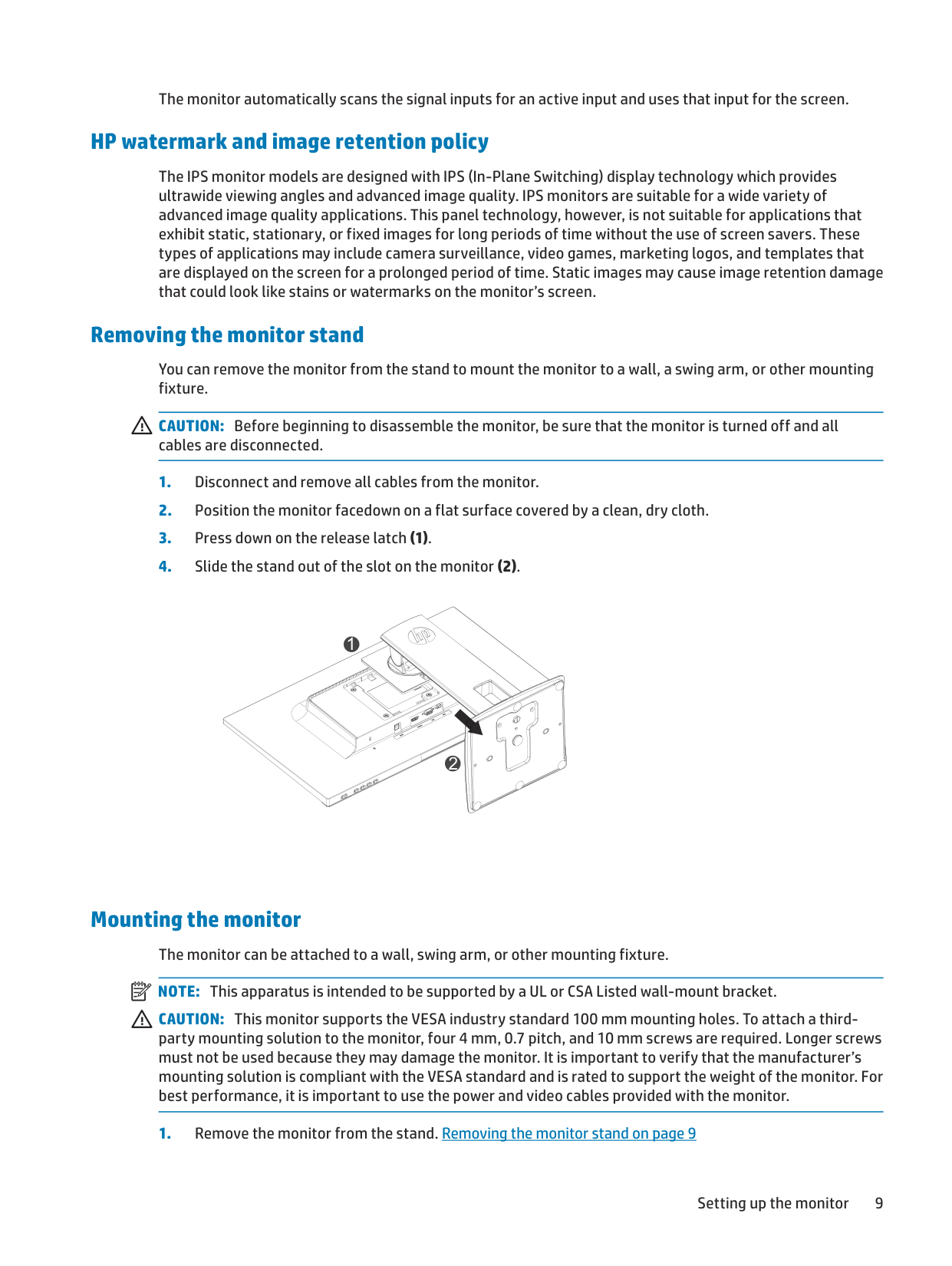
You can remove the monitor from the stand to mount the monitor to a wall, a swing arm, or other mounting fixture.
CAUTION: Before beginning to disassemble the monitor, be sure that the monitor is turned off and all cables are disconnected.
1
2
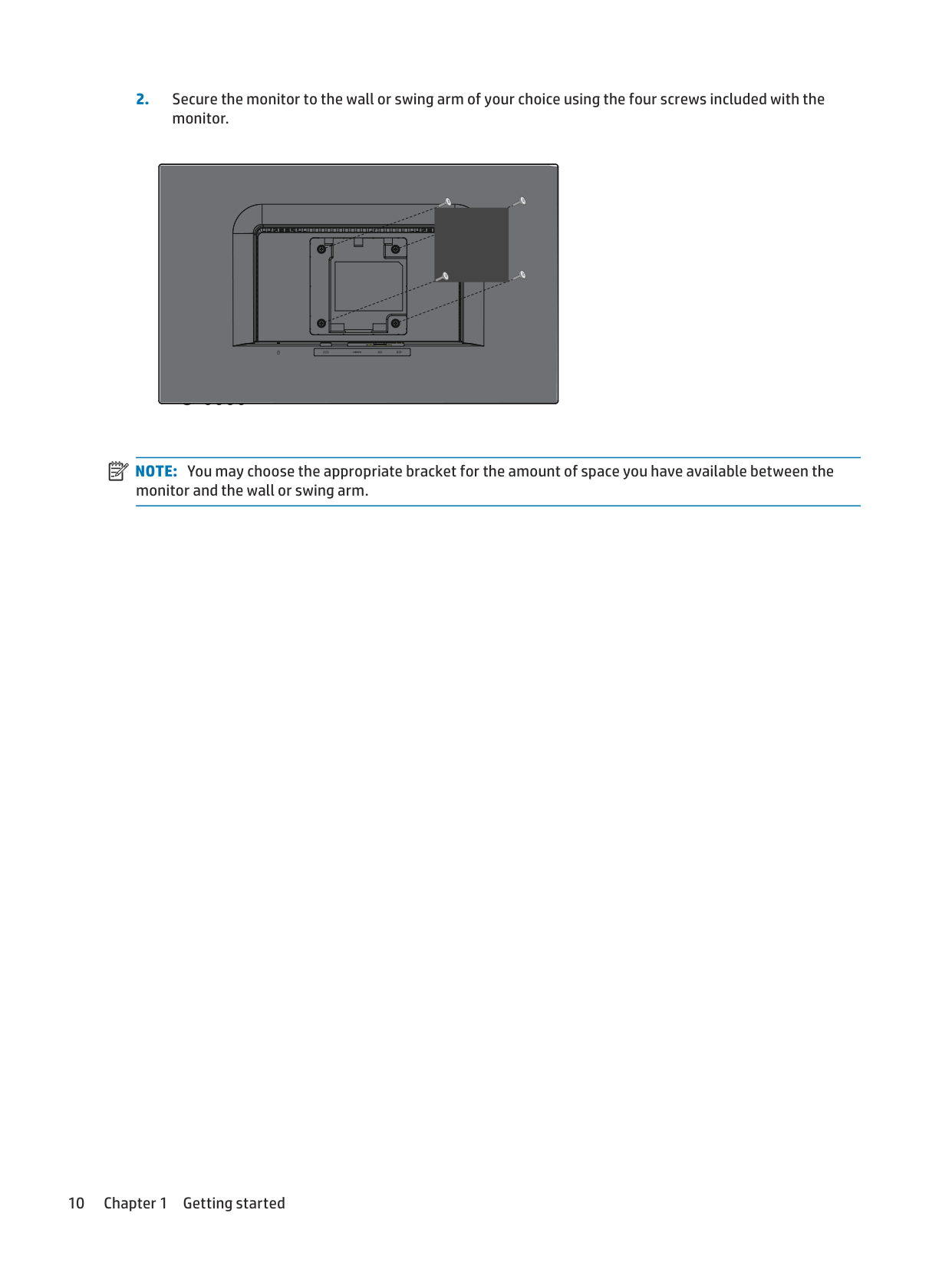
Mounting the monitor The monitor can be attached to a wall, swing arm, or other mounting fixture. NOTE: This apparatus is intended to be supported by a UL or CSA Listed wall-mount bracket.
| | |---|
CAUTION: This monitor supports the VESA industry standard 100 mm mounting holes. To attach a thirdparty mounting solution to the monitor, four 4 mm, 0.7 pitch, and 10 mm screws are required. Longer screws must not be used because they may damage the monitor. It is important to verify that the manufacturer’s mounting solution is compliant with the VESA standard and is rated to support the weight of the monitor. For best performance, it is important to use the power and video cables provided with the monitor.
monitor.
| | |---|
NOTE: You may choose the appropriate bracket for the amount of space you have available between the monitor and the wall or swing arm.
###### Installing a security cable
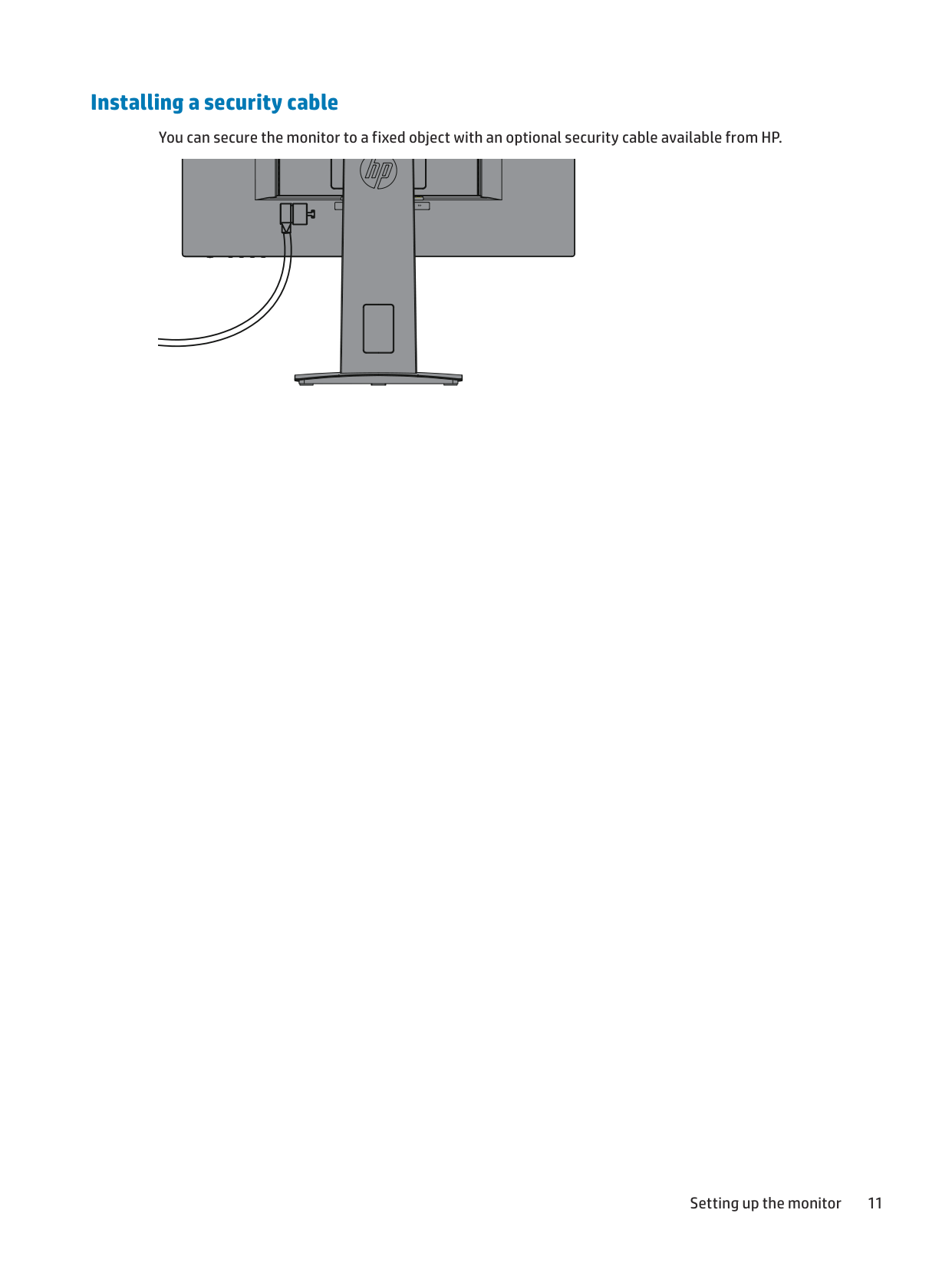
You can secure the monitor to a fixed object with an optional security cable available from HP.
| | | |---|---| | | | | | |
2 Using the monitor
Software and utilities
The optical disc, if one is included with the monitor, contains the following files you can install on the computer. If you do not have an optical drive, you can download the files from http://www.hp.com/support.
###### The Information file
The INF file defines monitor resources used by Windows® operating systems to ensure monitor compatibility with the computer’s graphics adapter.
This monitor is Windows Plug and Play-compatible and the monitor will work correctly without installing the INF file. Monitor Plug and Play compatibility requires that the computer’s graphic card is VESA DDC2compliant and that the monitor connects directly to the graphics card. Plug and Play does not work through separate BNC-type connectors or through distribution buffers/boxes.
###### The Image Color Matching file
The ICM files are data files that are used in conjunction with graphics programs to provide consistent color matching from monitor screen to printer, or from scanner to monitor screen. This file is activated from within graphics programs that support this feature.
| | |---|
NOTE: The ICM color profile is written in accordance with the International Color Consortium (ICC) Profile Format specification.
Installing the INF and ICM files
After you determine that you need to update, use one of the following methods to install the files.
###### Installing from the optical disc (available in select regions)
| | |---|
NOTE: If you receive an installation error, try to install the files manually. Refer to the HP Monitor Software Information file on the optical disc.
###### Downloading from the Web
If you do not have a computer or a source device with an optical drive, you can download the latest version of INF and ICM files from the HP monitors support website.
Using the on-screen display (OSD) menu
Use the on-screen display (OSD) menu to adjust the monitor screen image based on your preferences. You can access and make adjustments in the OSD menu using the buttons on the monitor’s bezel.
To access the OSD menu and make adjustments, do the following:
The following table lists the menu selections in the OSD menu.
Main Menu Description Brightness Adjusts the brightness level of the screen. Contrast Adjusts the screen contrast. Color Control Selects and adjusts the screen color. Input Control Selects the video input signal. Image Control Adjusts the screen image. Audio Control Adjusts the audio settings. Power Control Adjusts the power settings. Menu Control Opens and closes the OSD menu. Management Enables/disables DDC/CI support and returns all OSD menu settings to the
factory default settings. Information Displays important information about the monitor. Exit Exits the OSD menu screen.
Assigning the Function buttons
Pressing one of the four Function buttons activates the buttons and displays the icons on the screen. The factory default button functions are shown below.
######### Button Function
Opens the Viewing Modes menu. (Function 3 button assignable.)
Open the information at HDMI and Do auto adjust at VGA(Function4 button assignable.)
Using the on-screen display (OSD) menu 13
You can change the Function buttons from their default values so that when the buttons are activated you can quickly access commonly used menu items.
To assign the Function buttons:
NOTE: You can only assign the three Function buttons. You can not reassign the Menu button or the Power button.
| | |---|
Using Auto-Sleep Mode
The monitor supports an OSD (on-screen display) menu option called Auto-Sleep Mode that allows you to enable or disable a reduced power state for the monitor. When Auto-Sleep Mode is enabled (enabled by default), the monitor will enter a reduced power state when the host PC signals low power mode (absence of either horizontal or vertical sync signal).
Upon entering this reduced power state (sleep mode), the monitor screen is blanked, the backlight is turned off and the power light indicator turns amber. The monitor draws less than 0.5 W of power when in this reduced power state. The monitor will wake from the sleep mode when the host PC sends an active signal to the monitor (for example, if you activate the mouse or keyboard).
You can disable Auto-Sleep Mode in the OSD. Press one of the four bezel buttons to activate the buttons, and then press the Menu button to open the OSD. In the OSD menu select Power Control > Auto-Sleep Mode > Off.
Adjusting Low Blue Light Mode
Decreasing the blue light emitted from the display reduces the blue light exposure to your eyes. HP monitors provide a setting to reduce blue light output and create a more relaxing and less stimulating image while you read content on the screen. To adjust your monitor to a comfortable viewing light, follow the steps below.
To adjust the blue light output from the display:.
WARNING! To reduce the risk of serious injury, read the Safety & Comfort Guide. It describes proper workstation setup, and proper posture, health, and work habits for computer users. The Safety & Comfort Guide also provides important electrical and mechanical safety information. The Safety & Comfort Guide is located on the Web at http://www.hp.com/ergo.
3 Support and troubleshooting
Solving common problems
The following table lists possible problems, the possible cause of each problem, and the recommended solutions.
######### Problem Possible Cause Solution
Screen is blank or video is flashing.
Power cord is disconnected. Connect the power cord.
Monitor is off. Press the back bezel power button.
NOTE: If pressing the power button has no effect, press and hold the Power button for 10 seconds to disable the Power Button Lockout feature.
Video cable is improperly connected.
Connect the video cable properly. See Connecting the cables on page 4 for more information.
System is in sleep mode. Press any key on the keyboard or move the mouse to exit sleep mode.
Video card is incompatible. Open the OSD menu and select the Input Control menu. Set Auto-Switch Input to Off and manually select the input.
Image appears blurred, indistinct, or too dark.
Brightness is too low. Open the OSD menu and select Brightness to adjust the brightness scale as needed.
Input Signal Not Found is displayed on screen.
Monitor video cable is disconnected.
Connect the appropriate video cable between the computer and monitor. Be sure that the computer power is off while you connect the video cable.
Input Signal Out of Range is displayed on screen.
Video resolution and/or refresh rate are set higher than what the monitor supports.
Change the settings to a supported setting. See Preset display resolutions on page 21 for more information.
The monitor is off but it did not seem to enter into sleep mode.
The monitor’s power saving control is disabled.
Open the OSD menu and select Power Control > Auto-Sleep Mode and set auto-sleep to On.
OSD Lockout is displayed.
The monitor’s OSD Lockout function is enabled.
Press and hold the Menu button on the monitor for 10 seconds to disable the OSD Lockout function.
Power Button Lockout is displayed.
The monitor’s Power Button Lockout feature is enabled.
Press and hold the power button for 10 seconds to disable the Power Button Lockout feature.
Solving common problems 15
Using the auto-adjustment function (analog input)
| | |---|
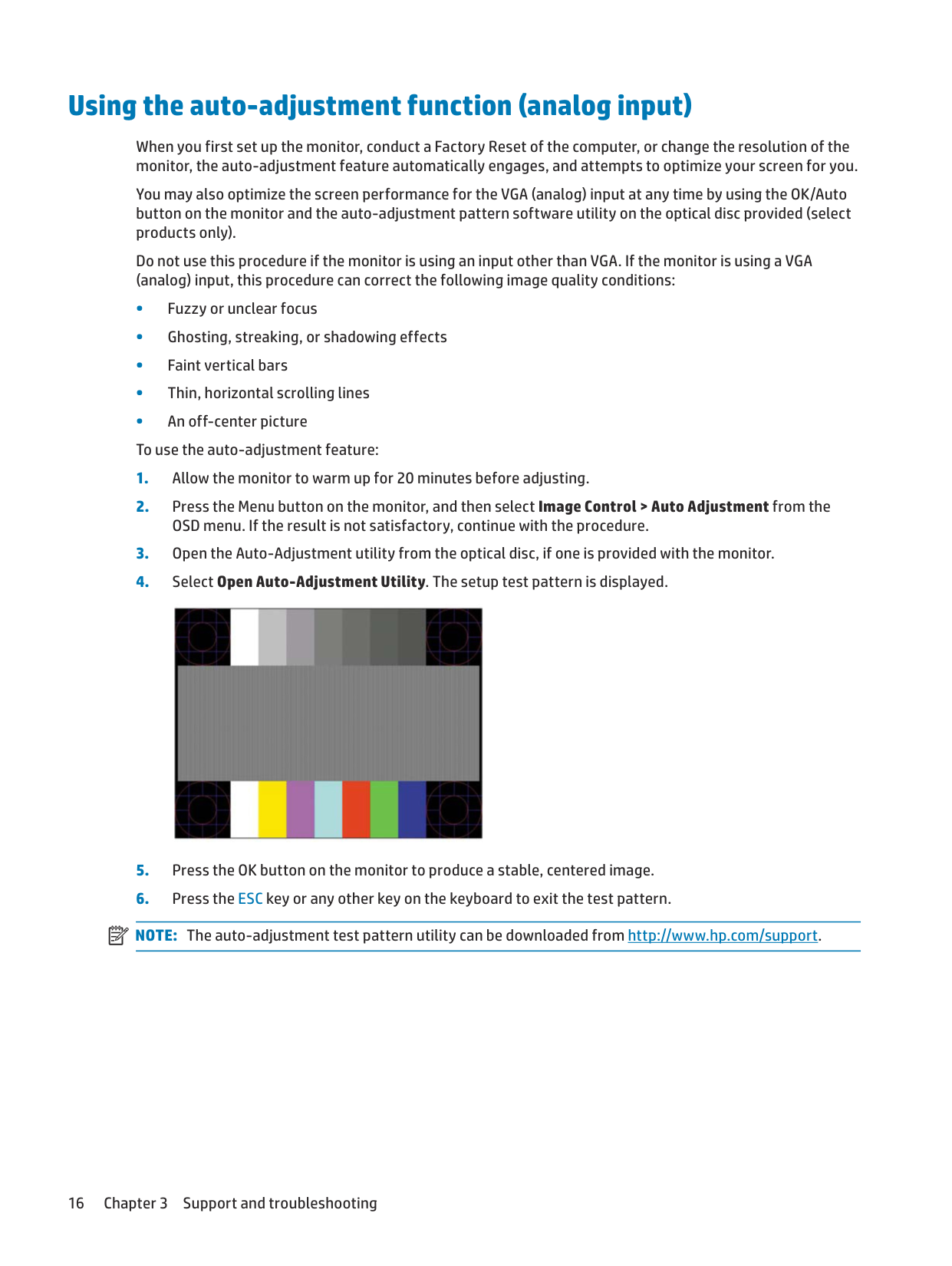
When you first set up the monitor, conduct a Factory Reset of the computer, or change the resolution of the monitor, the auto-adjustment feature automatically engages, and attempts to optimize your screen for you.
You may also optimize the screen performance for the VGA (analog) input at any time by using the OK/Auto button on the monitor and the auto-adjustment pattern software utility on the optical disc provided (select products only).
Do not use this procedure if the monitor is using an input other than VGA. If the monitor is using a VGA (analog) input, this procedure can correct the following image quality conditions:

Optimizing image performance (analog input)
Two controls in the on-screen display can be adjusted to improve image performance: Clock and Phase (available in the OSD menu).
| | |---|
NOTE: The Clock and Phase controls are adjustable only when using an analog (VGA) input. These controls are not adjustable for digital inputs. The Clock must first be set correctly since the Phase settings are dependent on the main Clock setting. Use these controls only when the auto-adjustment function does not provide a satisfactory image.
| | |---|
NOTE: When using the controls, you will obtain the best results by using the auto-adjustment pattern software utility provided on the optical disc. When adjusting the Clock and Phase values, if the monitor images become distorted, continue adjusting the values until the distortion disappears. To restore the factory settings, select Yes from the Factory Reset menu in the on-screen display.
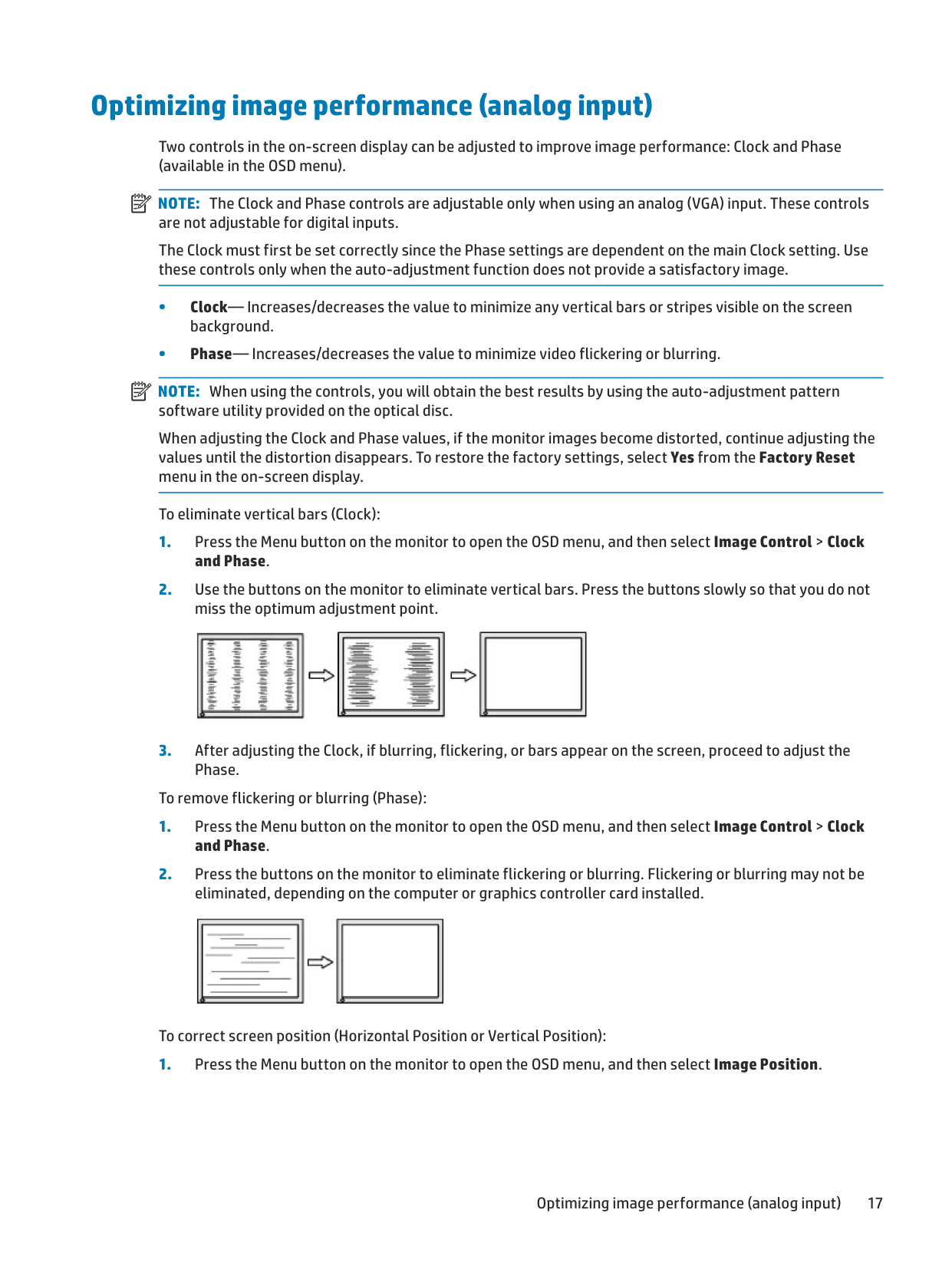
To eliminate vertical bars (Clock):
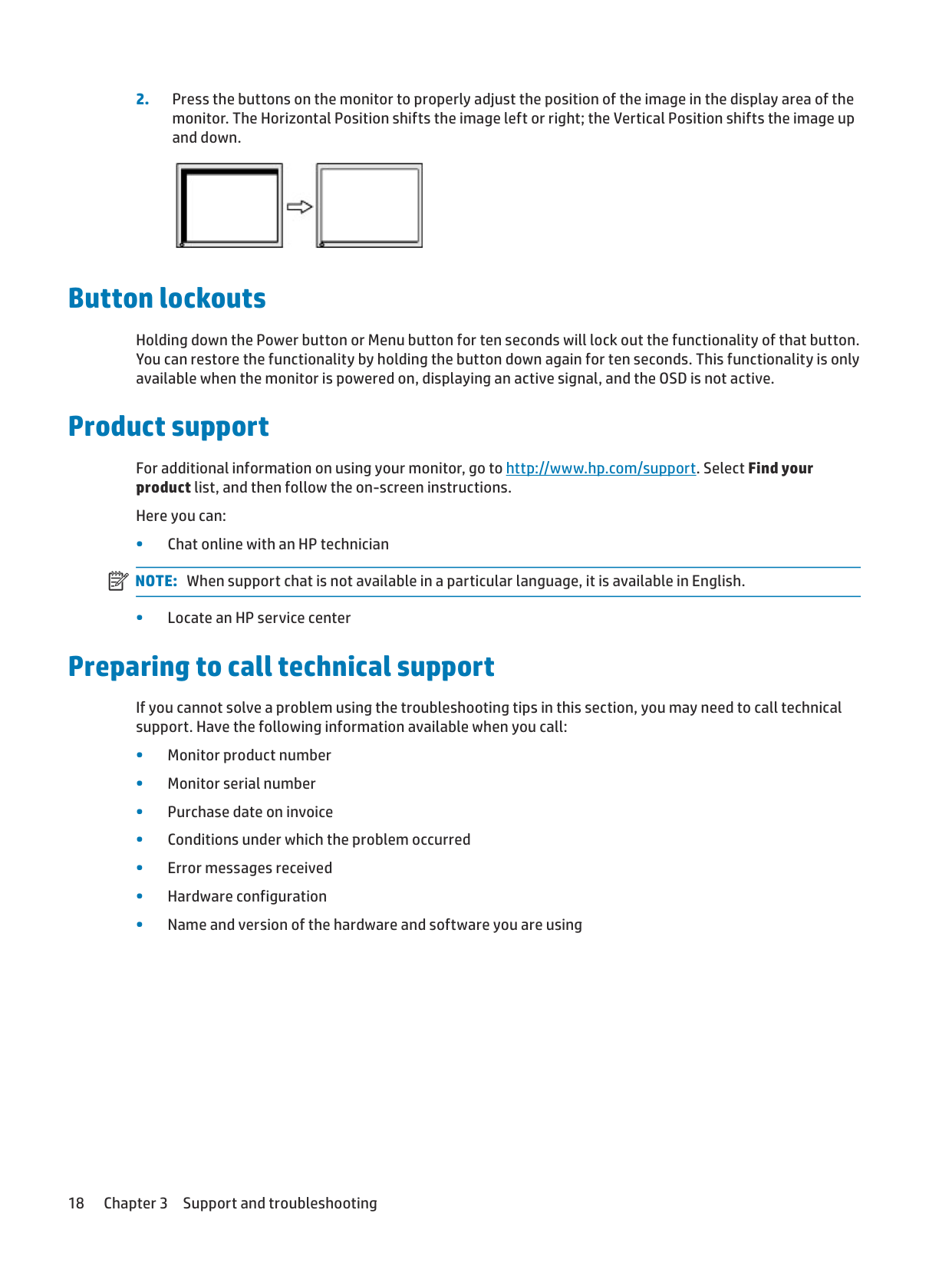

To remove flickering or blurring (Phase):

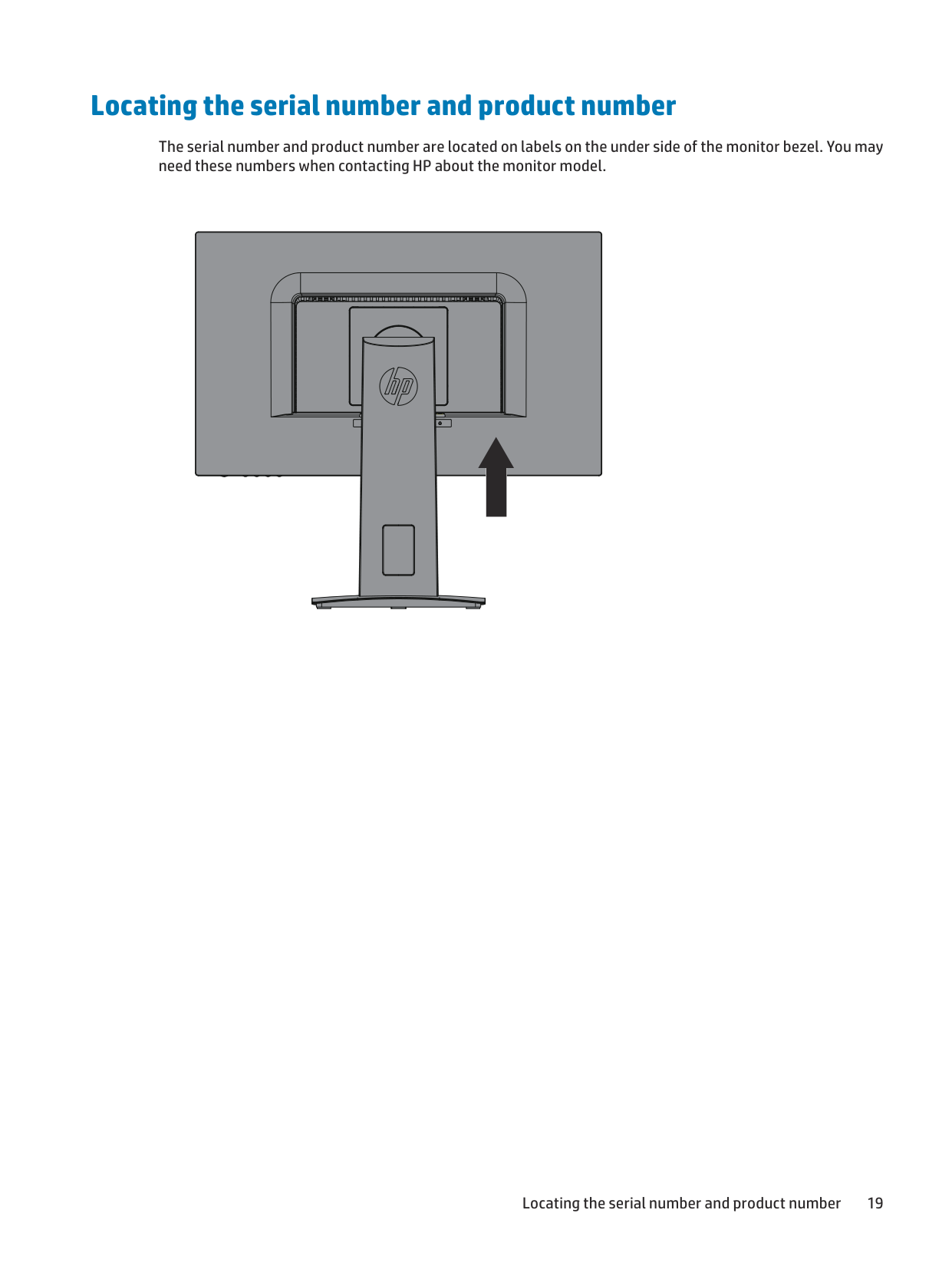
To correct screen position (Horizontal Position or Vertical Position):
Optimizing image performance (analog input) 17

Button lockouts
Holding down the Power button or Menu button for ten seconds will lock out the functionality of that button. You can restore the functionality by holding the button down again for ten seconds. This functionality is only available when the monitor is powered on, displaying an active signal, and the OSD is not active.
Product support
For additional information on using your monitor, go to http://www.hp.com/support. Select Find your product list, and then follow the on-screen instructions.
Here you can:
| | |---|
Preparing to call technical support
If you cannot solve a problem using the troubleshooting tips in this section, you may need to call technical support. Have the following information available when you call:
Locating the serial number and product number
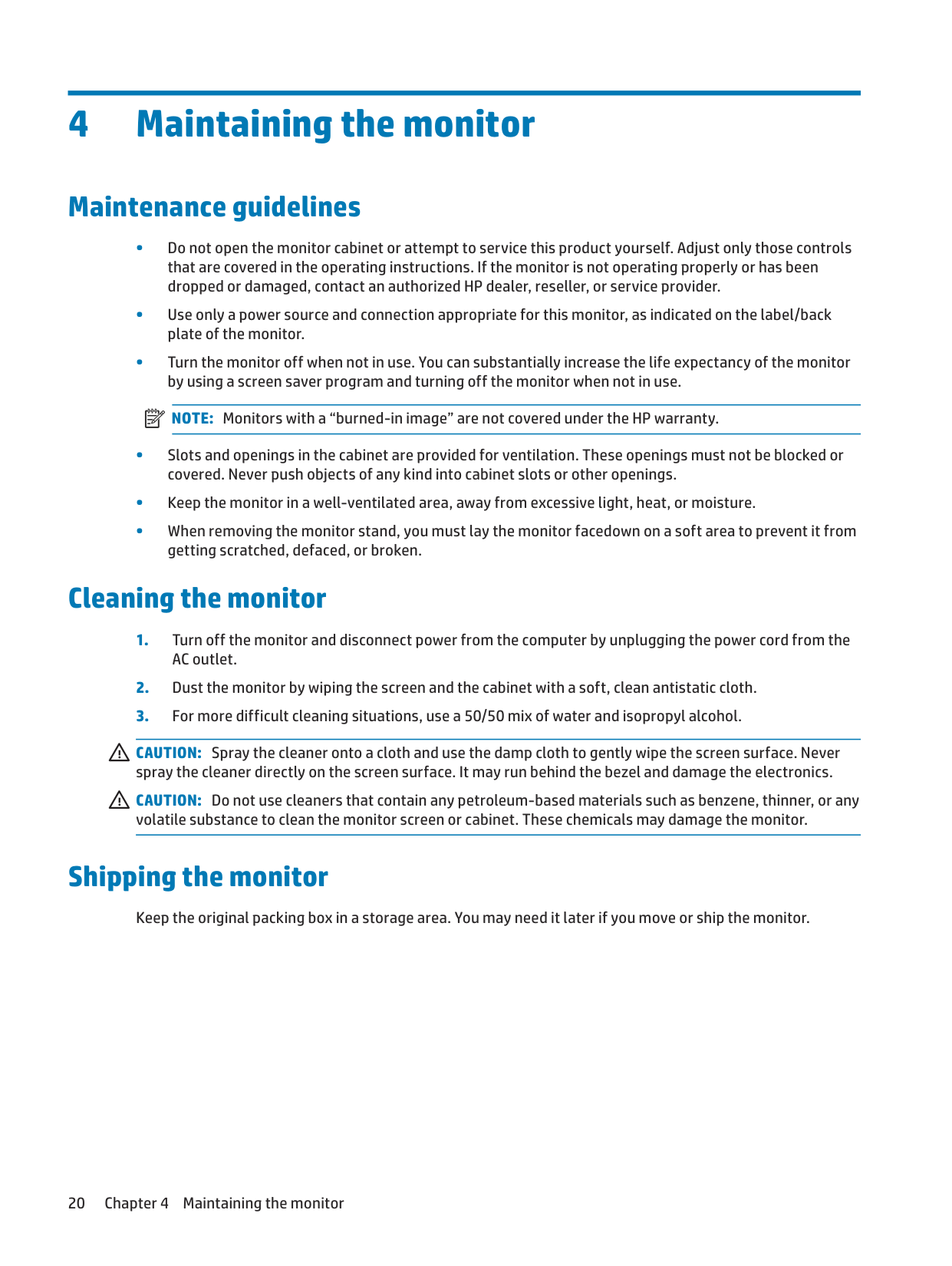
The serial number and product number are located on labels on the under side of the monitor bezel. You may need these numbers when contacting HP about the monitor model.
Locating the serial number and product number 19
4 Maintaining the monitor
Maintenance guidelines
| | |---|
NOTE: Monitors with a “burned-in image” are not covered under the HP warranty.
Cleaning the monitor
CAUTION: Spray the cleaner onto a cloth and use the damp cloth to gently wipe the screen surface. Never spray the cleaner directly on the screen surface. It may run behind the bezel and damage the electronics.
CAUTION: Do not use cleaners that contain any petroleum-based materials such as benzene, thinner, or any volatile substance to clean the monitor screen or cabinet. These chemicals may damage the monitor.
Shipping the monitor
Keep the original packing box in a storage area. You may need it later if you move or ship the monitor.
20 Chapter 4 Maintaining the monitor
A Technical specifications
| |
|---|
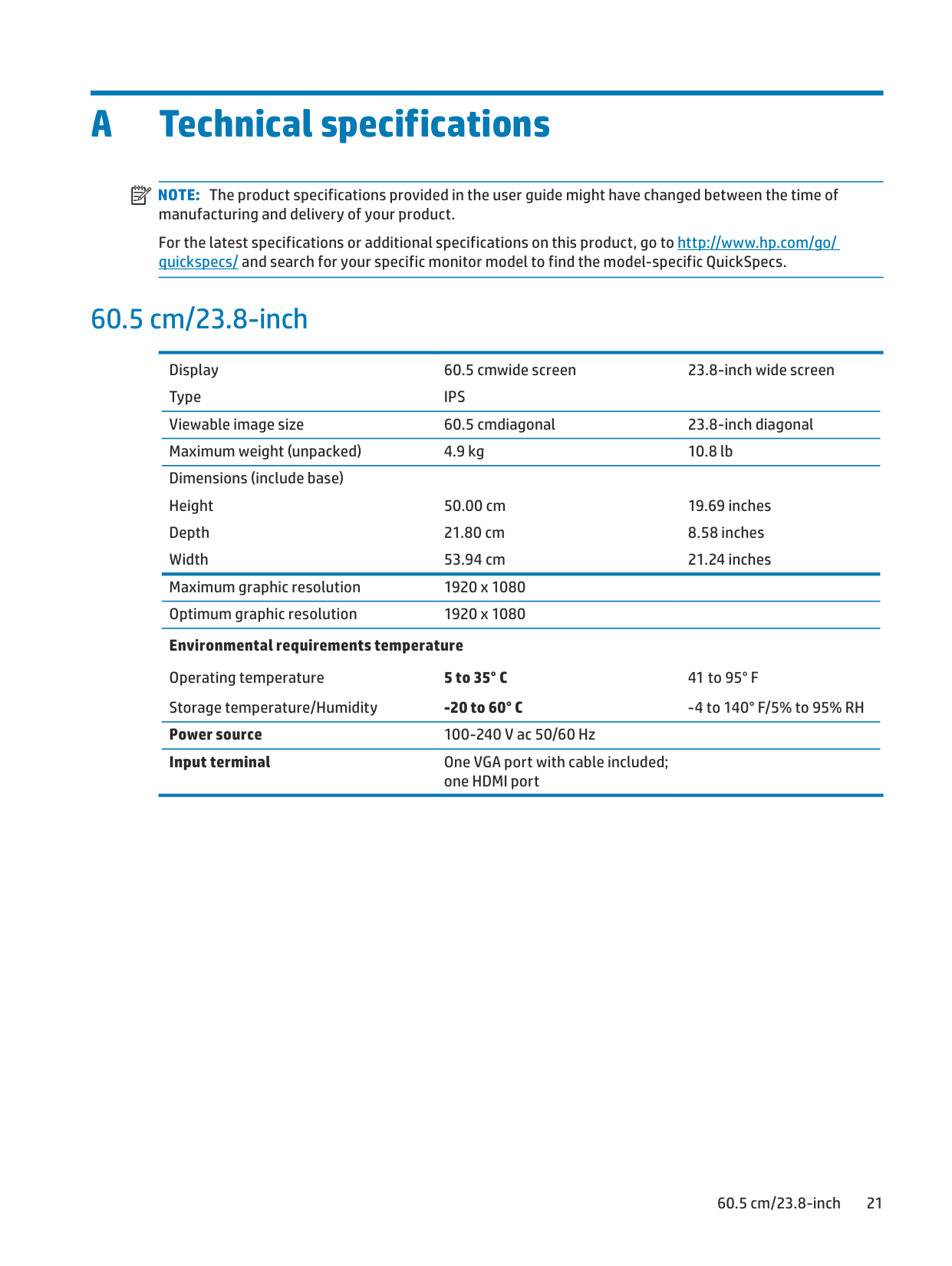
NOTE: The product specifications provided in the user guide might have changed between the time of manufacturing and delivery of your product. For the latest specifications or additional specifications on this product, go to http://www.hp.com/go/ quickspecs/ and search for your specific monitor model to find the model-specific QuickSpecs.
#### 60.5 cm/23.8-inch
Display 60.5 cmwide screen 23.8-inch wide screen Type IPS Viewable image size 60.5 cmdiagonal 23.8-inch diagonal Maximum weight (unpacked) 4.9 kg 10.8 lb Dimensions (include base) Height 50.00 cm 19.69 inches Depth 21.80 cm 8.58 inches Width 53.94 cm 21.24 inches Maximum graphic resolution 1920 x 1080 Optimum graphic resolution 1920 x 1080 Environmental requirements temperature Operating temperature 5 to 35° C 41 to 95° F Storage temperature/Humidity -20 to 60° C -4 to 140° F/5% to 95% RH Power source 100-240 V ac 50/60 Hz Input terminal One VGA port with cable included;
one HDMI port
60.5 cm/23.8-inch 21
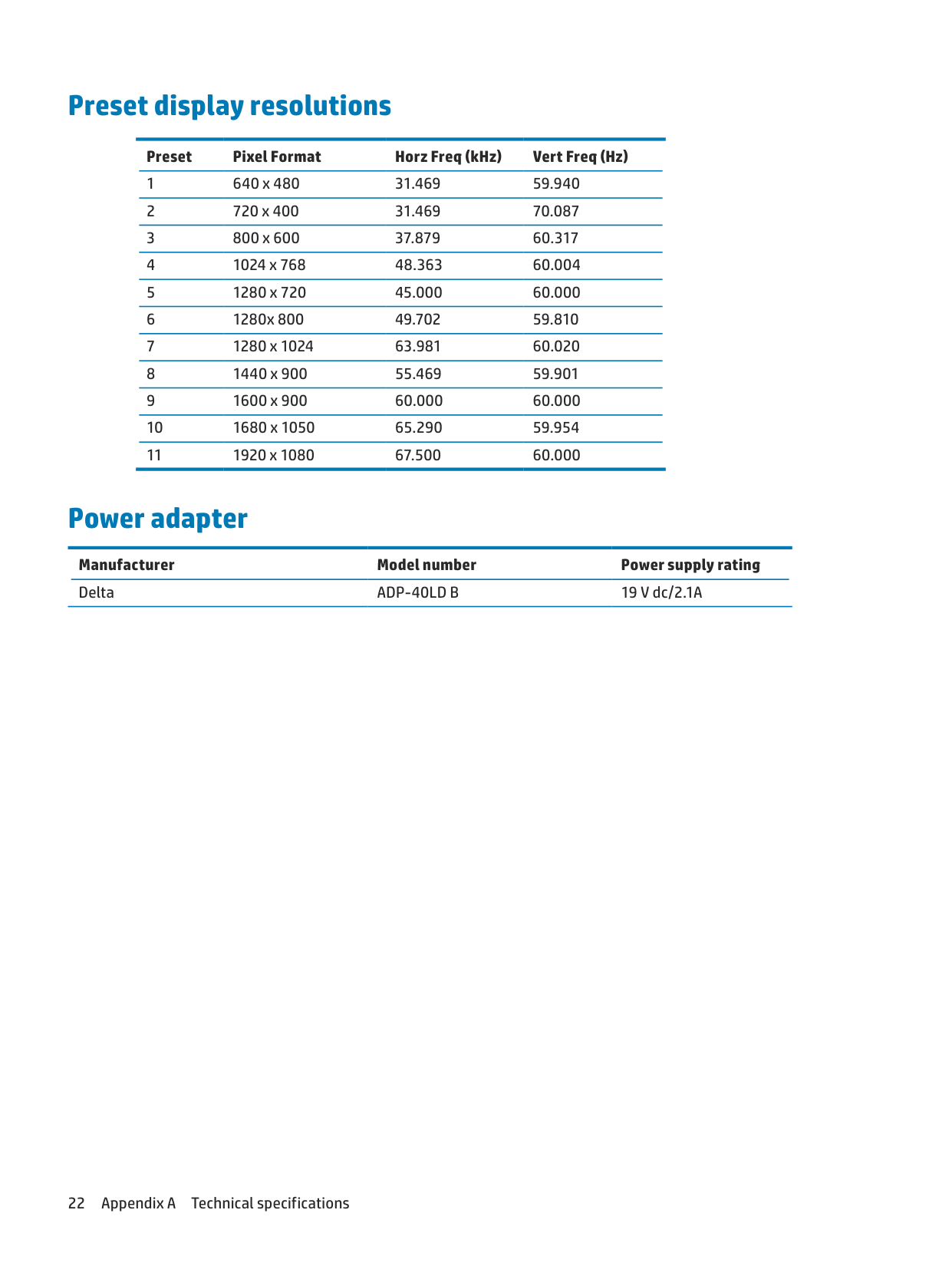
Preset display resolutions
######### Preset Pixel Format Horz Freq (kHz) Vert Freq (Hz)
Power adapter
Manufacturer Model number Power supply rating Delta ADP-40LD B 19 V dc/2.1A
22 Appendix A Technical specifications
Entering user modes
Under the following conditions, the video controller signal may occasionally call for a mode that is not preset:
It this occurs, you may need to readjust the parameters of the monitor screen by using the on-screen display. Your changes can be made to any or all of these modes and saved in memory. The monitor automatically stores the new setting and then recognizes the new mode just as it does a preset mode. In addition to the factory preset modes, there are at least 10 user modes that can be entered and stored.
Energy saver feature
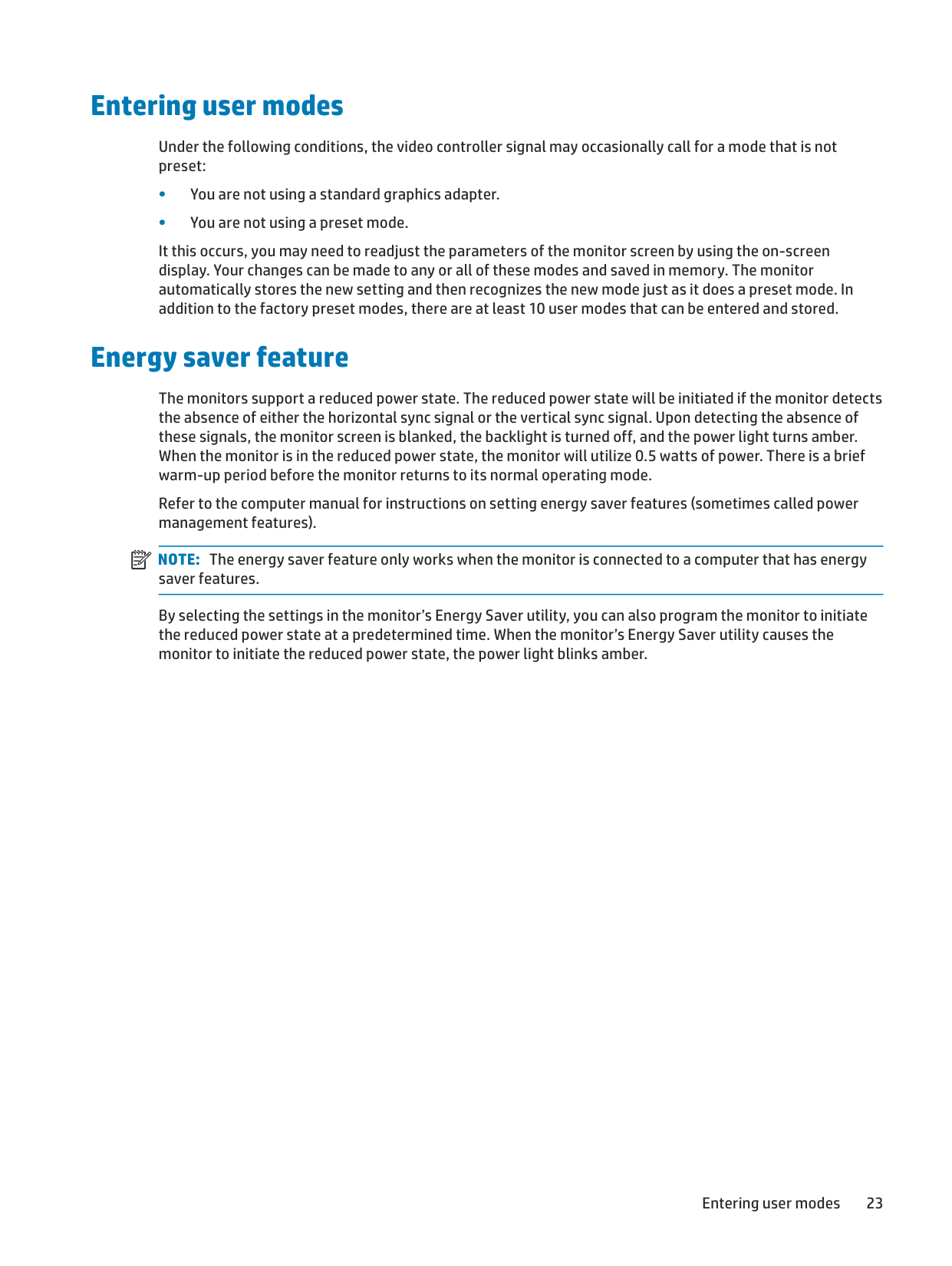
The monitors support a reduced power state. The reduced power state will be initiated if the monitor detects the absence of either the horizontal sync signal or the vertical sync signal. Upon detecting the absence of these signals, the monitor screen is blanked, the backlight is turned off, and the power light turns amber. When the monitor is in the reduced power state, the monitor will utilize 0.5 watts of power. There is a brief warm-up period before the monitor returns to its normal operating mode.
Refer to the computer manual for instructions on setting energy saver features (sometimes called power management features).
| | |---|
NOTE: The energy saver feature only works when the monitor is connected to a computer that has energy saver features. By selecting the settings in the monitor’s Energy Saver utility, you can also program the monitor to initiate the reduced power state at a predetermined time. When the monitor’s Energy Saver utility causes the monitor to initiate the reduced power state, the power light blinks amber.
Entering user modes 23
B Accessibility
HP designs, produces, and markets products and services that can be used by everyone, including people with disabilities, either on a stand-alone basis or with appropriate assistive devices.
Supported assistive technologies
HP products support a wide variety of operating system assistive technologies and can be configured to work with additional assistive technologies. Use the Search feature on your source device that is connected to the monitor to locate more information about assistive features.
| | |---|
NOTE: For additional information about a particular assistive technology product, contact customer support for that product.
Contacting support
We are constantly refining the accessibility of our products and services and welcome feedback from users. If you have an issue with a product or would like to tell us about accessibility features that have helped you, please contact us at (888) 259-5707, Monday through Friday, 6 a.m. to 9 p.m. Mountain Time. If you are deaf or hard-of-hearing and use TRS/VRS/WebCapTel, contact us if you require technical support or have accessibility questions by calling (877) 656-7058, Monday through Friday, 6 a.m. to 9 p.m. Mountain Time.
24 Appendix B Accessibility