
Ask AI
— answers from the official manualAnswers from the official manual.
Common questions
Common Questions
10 totalWhat batteries does the Insignia Universal Remote require and how do I install them?
The remote requires two AA batteries (not included). Remove the battery compartment cover from the back, insert the batteries ensuring the + and – symbols match the markings inside the compartment, and replace the cover. If the remote won't be used for a long time, remove the batteries to avoid damage from leakage and corrosion.
What is the maximum range of the Insignia Universal Remote?
The remote has a maximum range of 30 feet (9.1 meters), which helps you minimize remote switching and control devices from across the room.
How do I set up my remote using the SimpleSet method?
Turn on your device and point the remote at it. Press the device button you want to set up, then press and hold SETUP until the LED blinks twice. Press and hold the number button corresponding to your device brand from the SimpleSet tables. Release the button when your device turns off, and the LED will blink twice to confirm setup.
What should I do if the LED shows one long blink after trying to learn a function?
A single long blink indicates the function was not learned correctly. You should try again, beginning at step 5 of the function learning process. If the issue persists, try holding down the button on the original remote instead of pressing and releasing it.
How do I delete a learned function from the remote?
Press the button for the device containing the function you want to delete. Press and hold SETUP until the LED blinks twice, then enter 976. Press the button you want to reset twice, and the LED will blink twice to confirm the learned function has been deleted.
How can I lock the volume control to one specific device?
Press and hold SETUP until the LED blinks twice, then enter 993. Press the device button you want to always control the volume (such as TV), and the LED will blink twice. Now the VOL +, VOL -, and MUTE buttons will only control that device regardless of what other device you're controlling.
Full Manual
23 pages
☰ Home » Insignia » Insignia NS-RMT8D21 Eight-device Universal Remote User Guide Contents [ hide ] 1 Insignia NS-RMT8D21 Eight-device Universal Remote 2 Introduction
3 Important Safeguards
4 Features 5 Package contents 6 Remote control buttons 7 Setting up your universal remote control 7.1 Installing the batteries 7.2 Programming and using your remote control 8 Setup method 1 – SimpleSet8.1 Tv + Aux
8.2 Stream
8.3 STB (set top box)8.4 Audio + Sound
8.5 BLURAY and DVD 9 Setup method 2 – device codes 10 Setup method 3 – function learning 10.1 Deleting a learned function 10.2 Locking the volume control 10.3 Unlocking the volume control 10.4 Using channel shortcut macros 10.5 Adding channel shortcut macros 10.6 Canceling channel shortcut macros 10.7 Using app shortcut macros 10.8 Adding app shortcut macros 10.9 Understanding and using Activities 10.10 Watch TV Activity Manuals+
y 10.11 Listen to Music Activity 10.12 Watch Movie Activity 10.13 Setting up by Activity 10.14 Using the AV shift 10.15 Using the power macro 11 Troubleshooting 12 Specifications 13 Documents / Resources 13.1 References 14 Related Posts Insignia NS-RMT8D21 Eight-device Universal Remote Introduction Thank you for purchasing the Insignia Eight-device Universal Remote Control. This remote can be used to control a TV, a streaming device, a set top box, a Blu-ray or DVD Insignia-logo
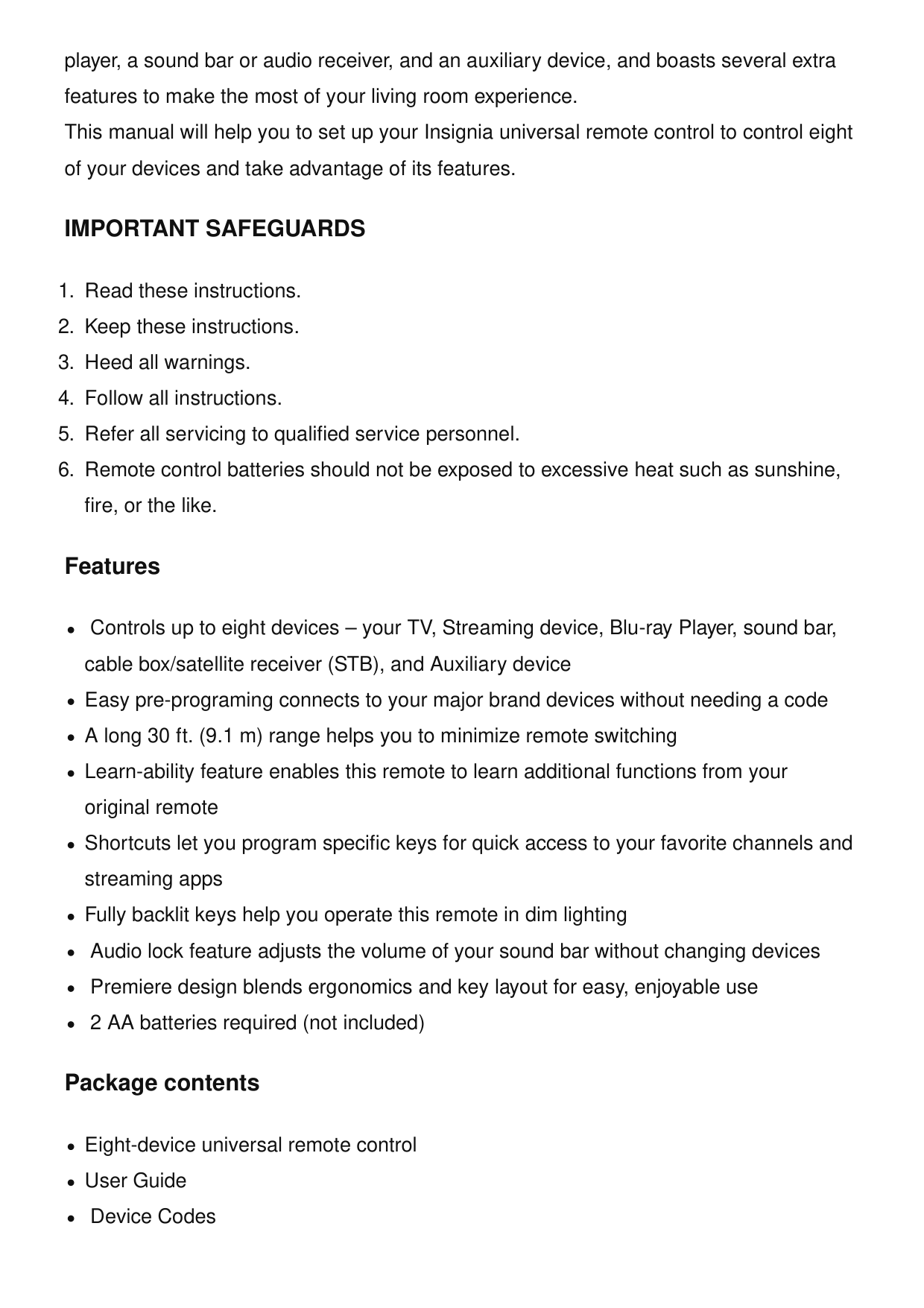
player, a sound bar or audio receiver, and an auxiliary device, and boasts several extra features to make the most of your living room experience. This manual will help you to set up your Insignia universal remote control to control eight of your devices and take advantage of its features.
Important Safeguards
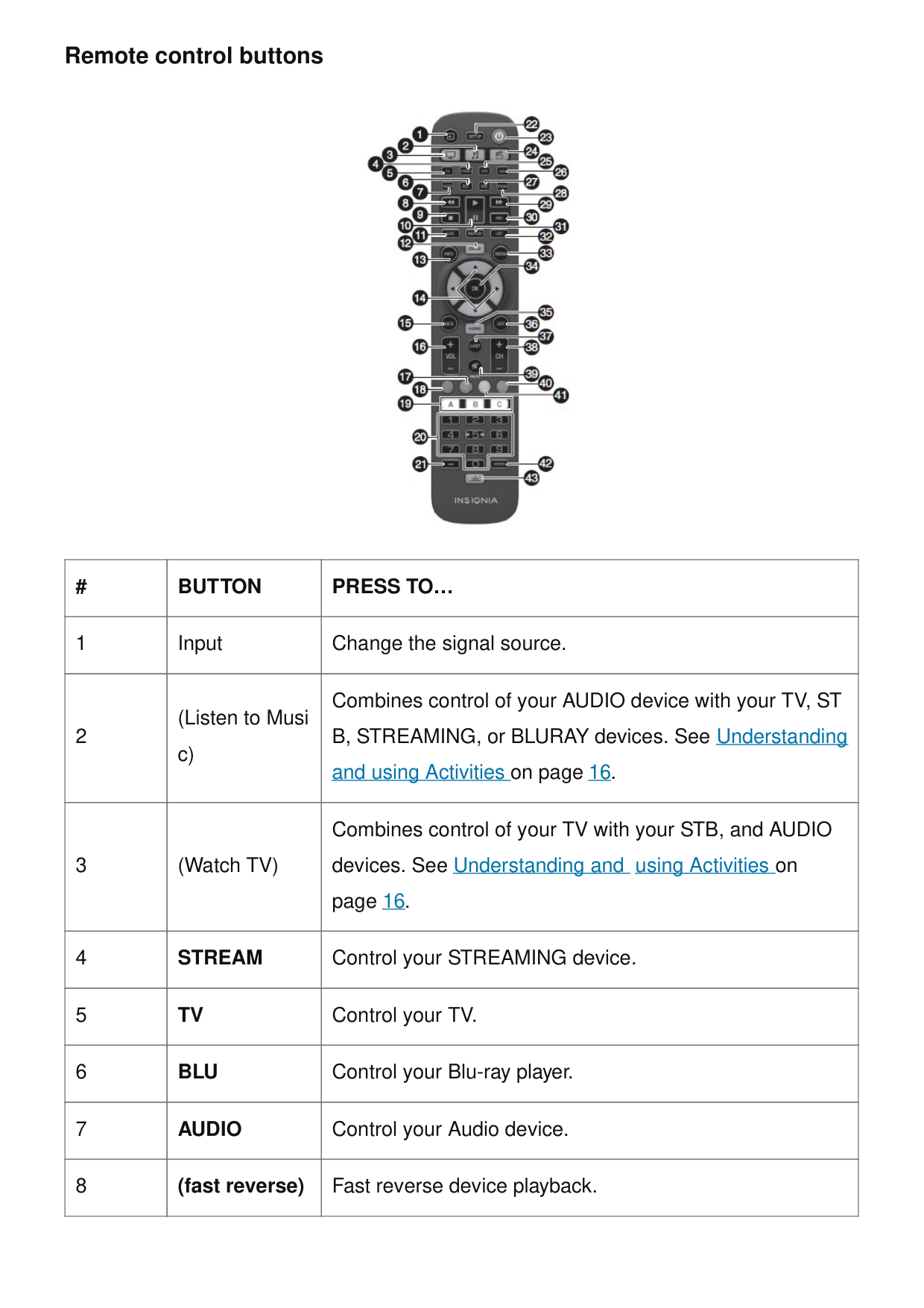
Remote control buttons #
Button
Press To…
1 Input Change the signal source. 2 (Listen to Musi c) Combines control of your AUDIO device with your TV, ST B, STREAMING, or BLURAY devices. See Understanding and using Activities on page 16. 3 (Watch TV) Combines control of your TV with your STB, and AUDIO devices. See Understanding and using Activities on page 16. 4Stream
Control your STREAMING device. 5Tv
Control your TV. 6Blu
Control your Blu-ray player. 7Audio
Control your Audio device. 8 (fast reverse) Fast reverse device playback.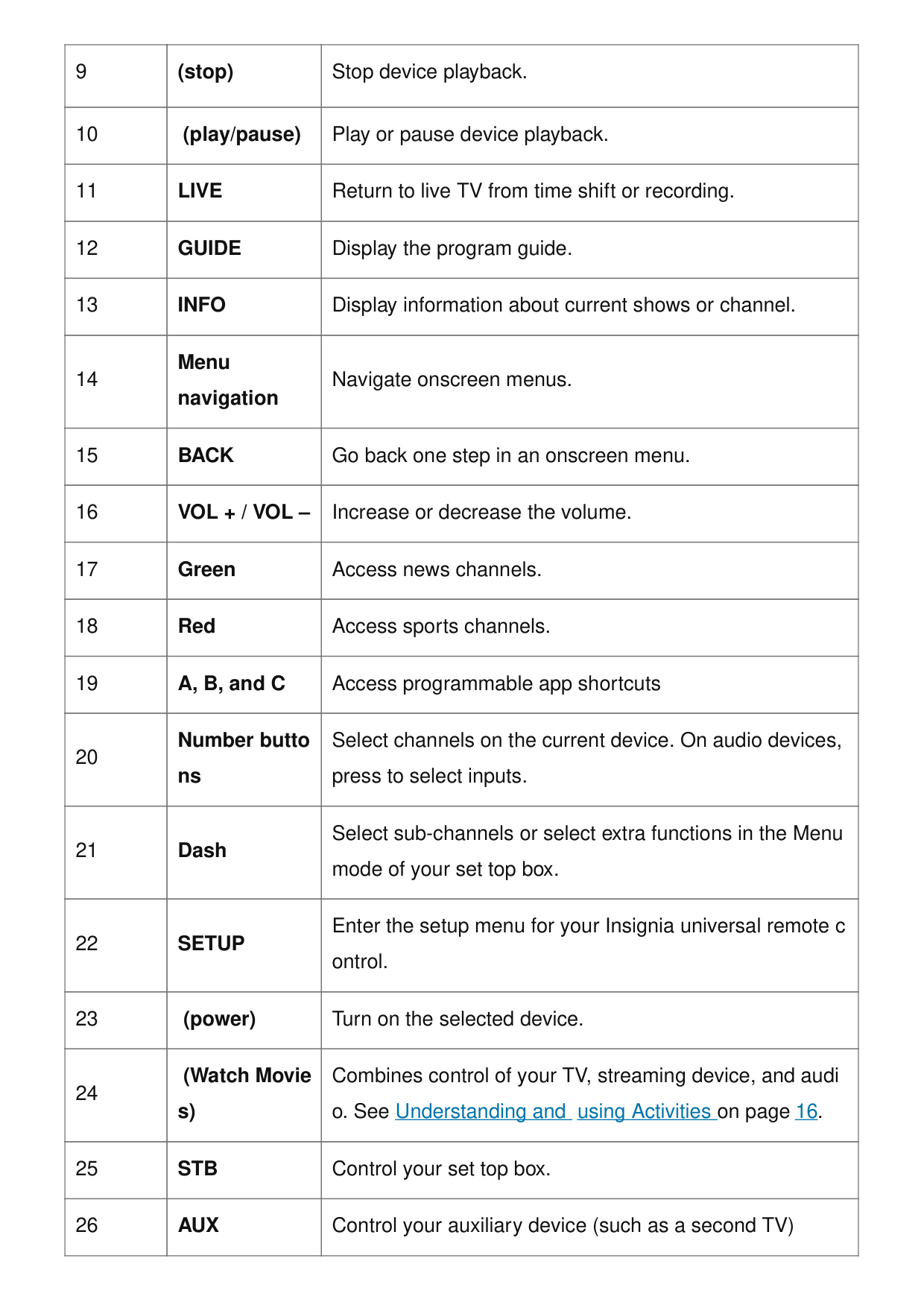
9 (stop) Stop device playback. 10 (play/pause) Play or pause device playback. 11
Live
Return to live TV from time shift or recording. 12Guide
Display the program guide. 13Info
Display information about current shows or channel. 14 Menu navigation Navigate onscreen menus. 15Back
Go back one step in an onscreen menu. 16Vol + / Vol –
Increase or decrease the volume. 17 Green Access news channels. 18 Red Access sports channels. 19 A, B, and C Access programmable app shortcuts 20 Number butto ns Select channels on the current device. On audio devices, press to select inputs. 21 Dash Select sub-channels or select extra functions in the Menu mode of your set top box. 22Setup
Enter the setup menu for your Insignia universal remote c ontrol. 23 (power) Turn on the selected device. 24 (Watch Movie s) Combines control of your TV, streaming device, and audi o. See Understanding and using Activities on page 16. 25Stb
Control your set top box. 26Aux
Control your auxiliary device (such as a second TV)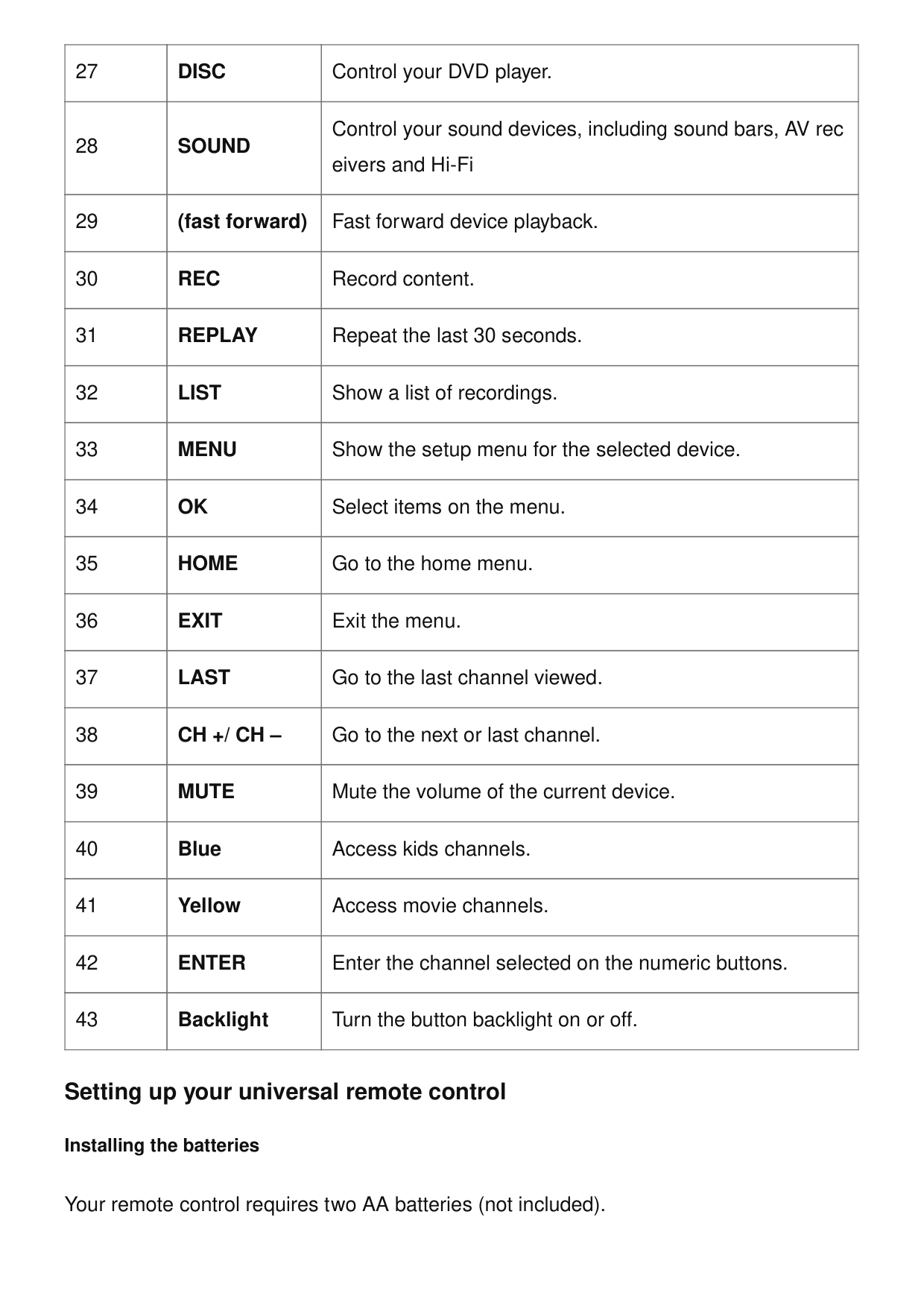
27
Disc
Control your DVD player. 28Sound
Control your sound devices, including sound bars, AV rec eivers and Hi-Fi 29 (fast forward) Fast forward device playback. 30Rec
Record content. 31Replay
Repeat the last 30 seconds. 32List
Show a list of recordings. 33Menu
Show the setup menu for the selected device. 34Ok
Select items on the menu. 35Home
Go to the home menu. 36Exit
Exit the menu. 37Last
Go to the last channel viewed. 38Ch +/ Ch –
Go to the next or last channel. 39Mute
Mute the volume of the current device. 40 Blue Access kids channels. 41 Yellow Access movie channels. 42Enter
Enter the channel selected on the numeric buttons. 43 Backlight Turn the button backlight on or off. Setting up your universal remote control Installing the batteries Your remote control requires two AA batteries (not included).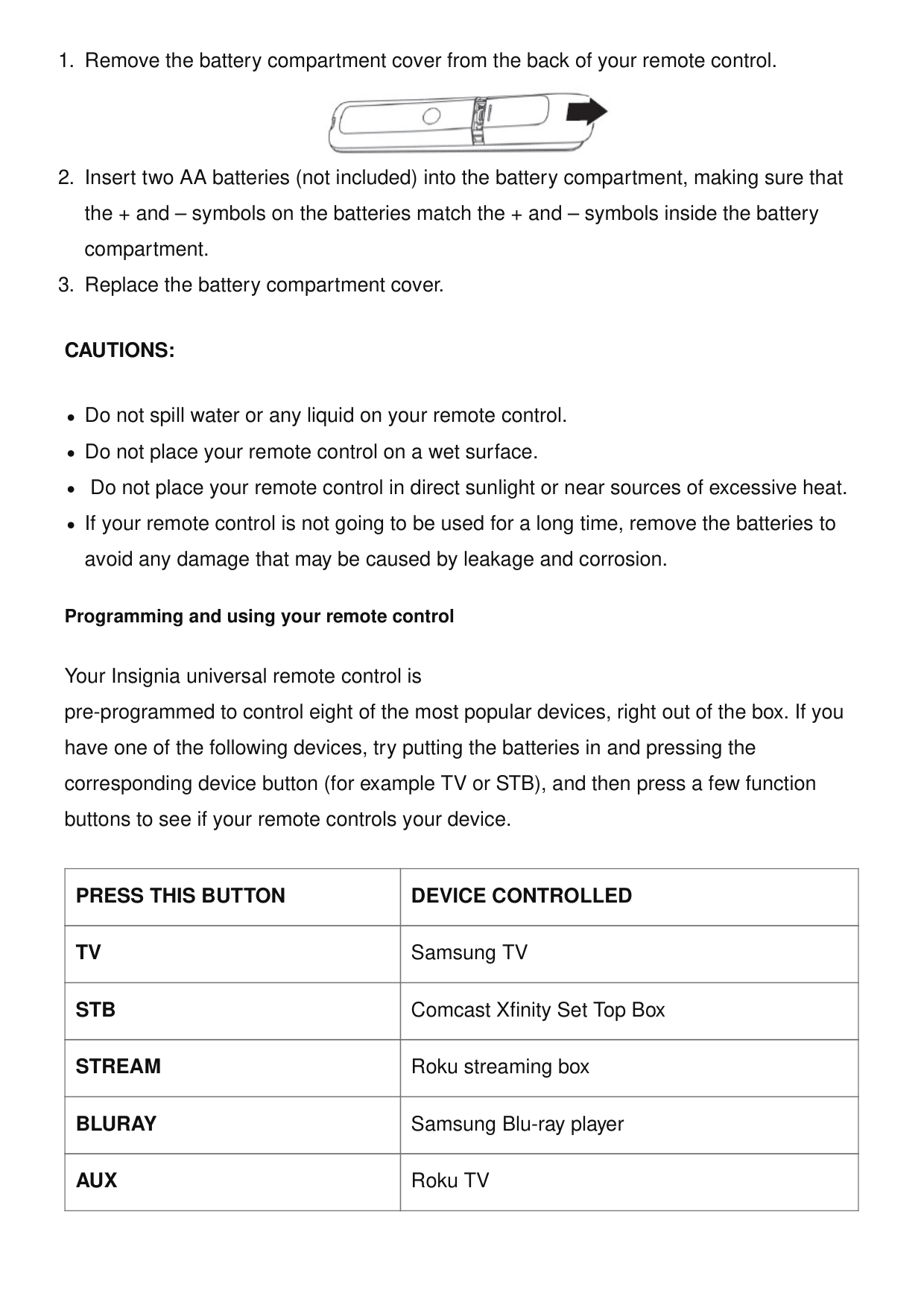
Cautions:
Do not spill water or any liquid on your remote control. Do not place your remote control on a wet surface. Do not place your remote control in direct sunlight or near sources of excessive heat. If your remote control is not going to be used for a long time, remove the batteries to avoid any damage that may be caused by leakage and corrosion. Programming and using your remote control Your Insignia universal remote control is pre-programmed to control eight of the most popular devices, right out of the box. If you have one of the following devices, try putting the batteries in and pressing the corresponding device button (for example TV or STB), and then press a few function buttons to see if your remote controls your device.Press This Button
Device Controlled
Tv
Samsung TVStb
Comcast Xfinity Set Top BoxStream
Roku streaming boxBluray
Samsung Blu-ray playerAux
Roku TV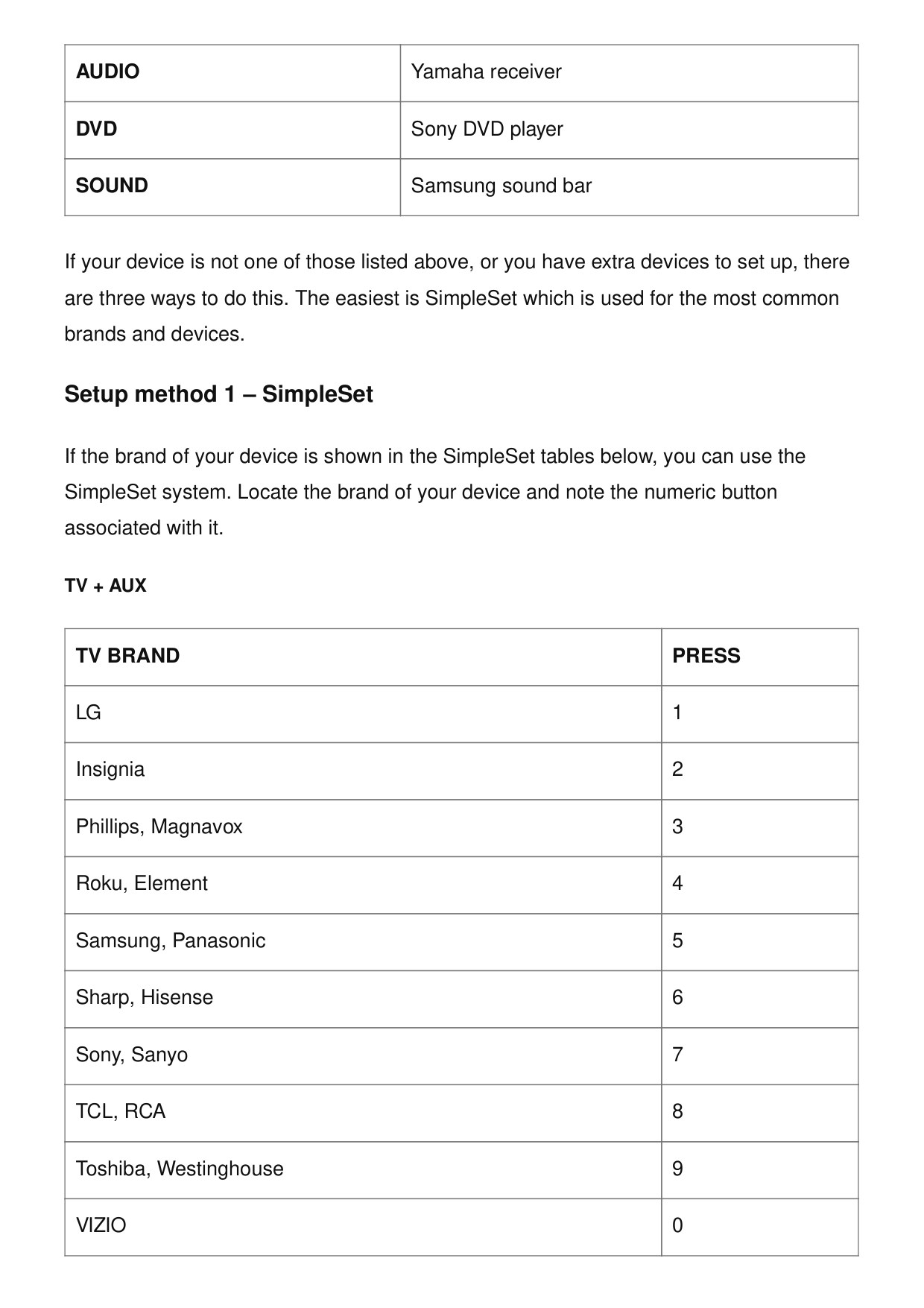
Audio
Yamaha receiverDvd
Sony DVD playerSound
Samsung sound bar If your device is not one of those listed above, or you have extra devices to set up, there are three ways to do this. The easiest is SimpleSet which is used for the most common brands and devices. Setup method 1 – SimpleSet If the brand of your device is shown in the SimpleSet tables below, you can use the SimpleSet system. Locate the brand of your device and note the numeric button associated with it.Tv + Aux
Tv Brand
Press
Lg
1 Insignia 2 Phillips, Magnavox 3 Roku, Element 4 Samsung, Panasonic 5 Sharp, Hisense 6 Sony, Sanyo 7Tcl, Rca
8 Toshiba, Westinghouse 9Vizio
0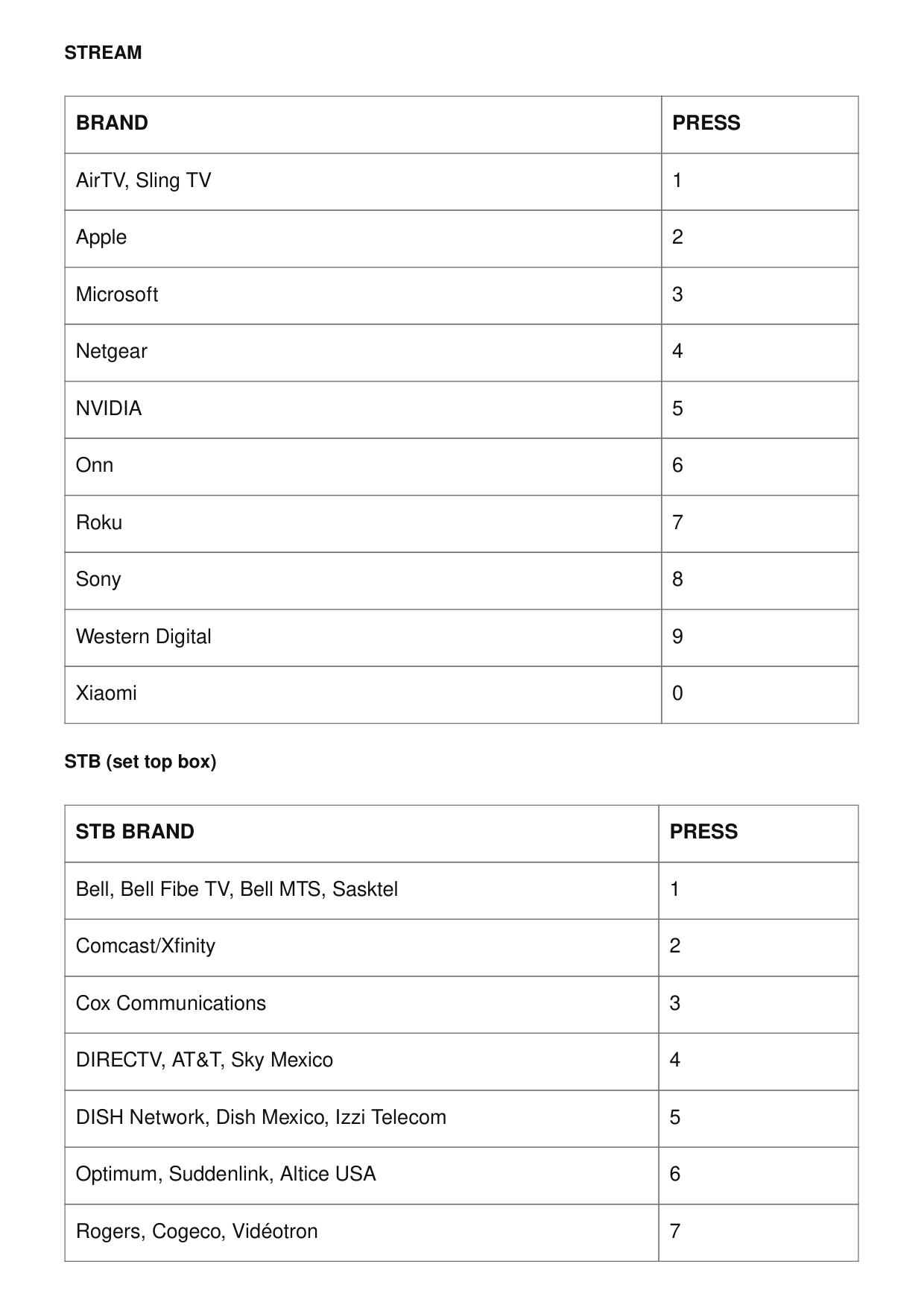
Stream
Brand
Press
AirTV, Sling TV 1 Apple 2 Microsoft 3 Netgear 4Nvidia
5 Onn 6 Roku 7 Sony 8 Western Digital 9 Xiaomi 0 STB (set top box)Stb Brand
Press
Bell, Bell Fibe TV, Bell MTS, Sasktel 1 Comcast/Xfinity 2 Cox Communications 3 DIRECTV, AT&T, Sky Mexico 4 DISH Network, Dish Mexico, Izzi Telecom 5 Optimum, Suddenlink, Altice USA 6 Rogers, Cogeco, Vidéotron 7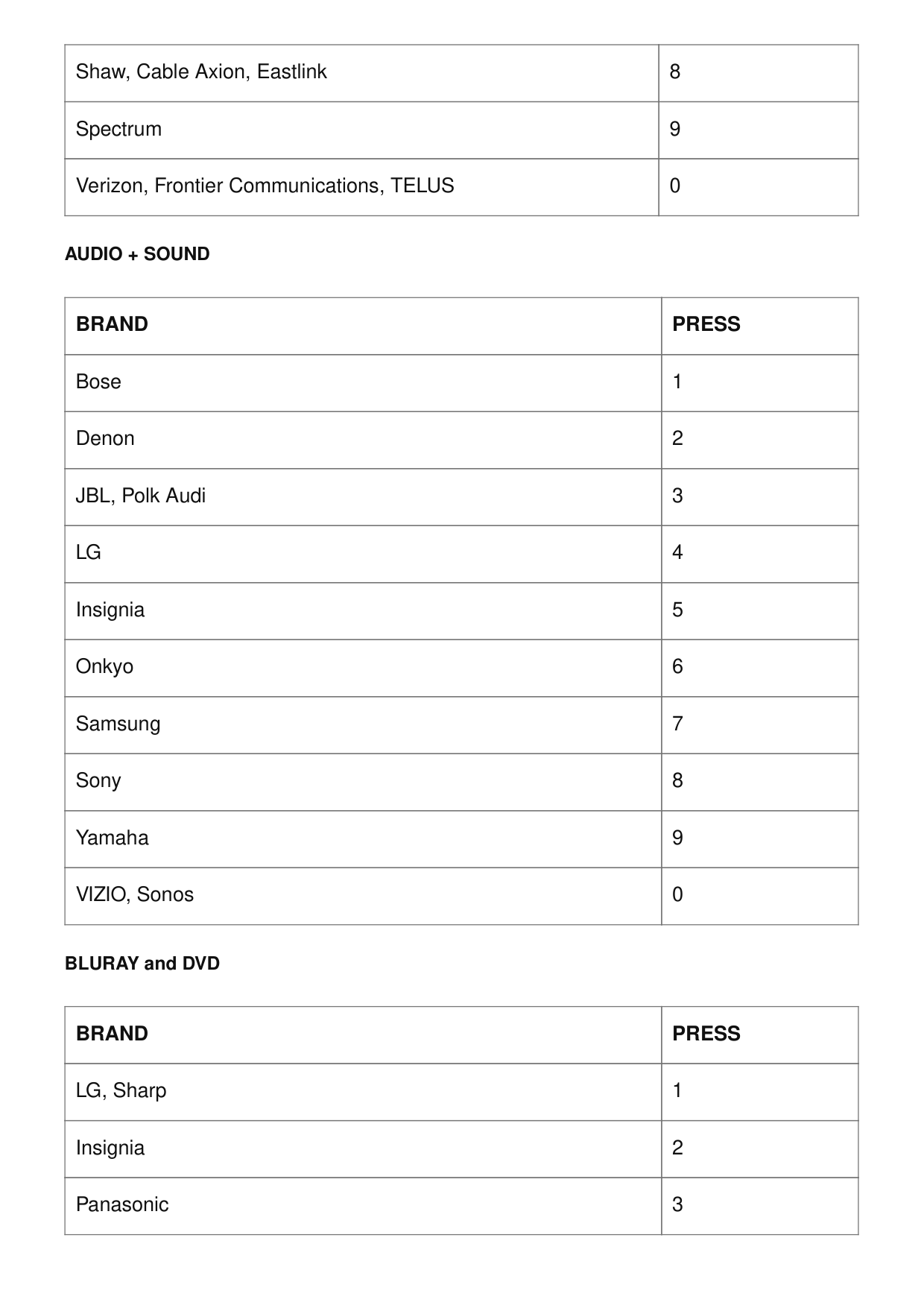
Shaw, Cable Axion, Eastlink 8 Spectrum 9 Verizon, Frontier Communications, TELUS 0
Audio + Sound
Brand
Press
Bose 1 Denon 2 JBL, Polk Audi 3Lg
4 Insignia 5 Onkyo 6 Samsung 7 Sony 8 Yamaha 9 VIZIO, Sonos 0 BLURAY and DVDBrand
Press
LG, Sharp 1 Insignia 2 Panasonic 3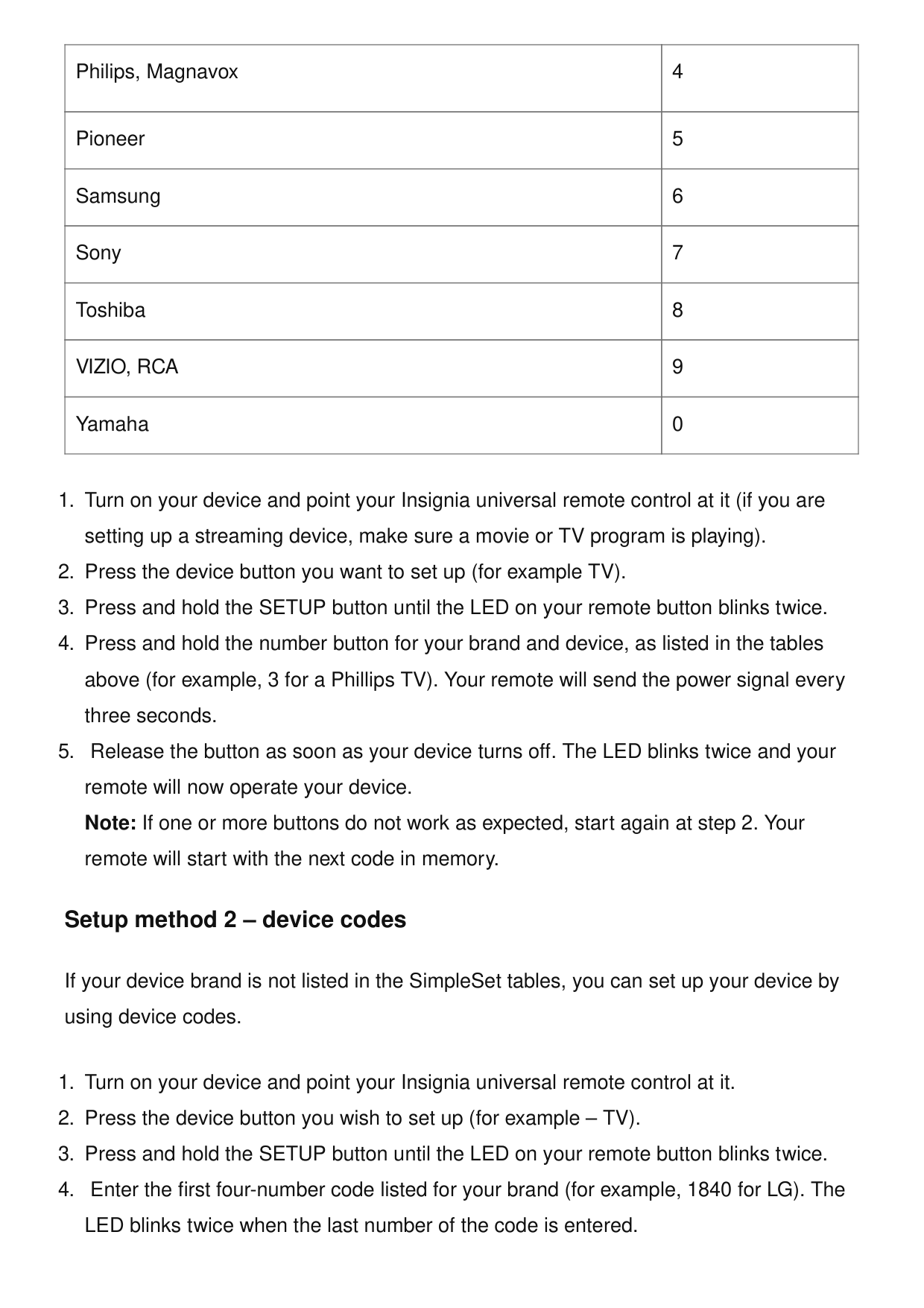
Philips, Magnavox 4 Pioneer 5 Samsung 6 Sony 7 Toshiba 8
Vizio, Rca
9 Yamaha 0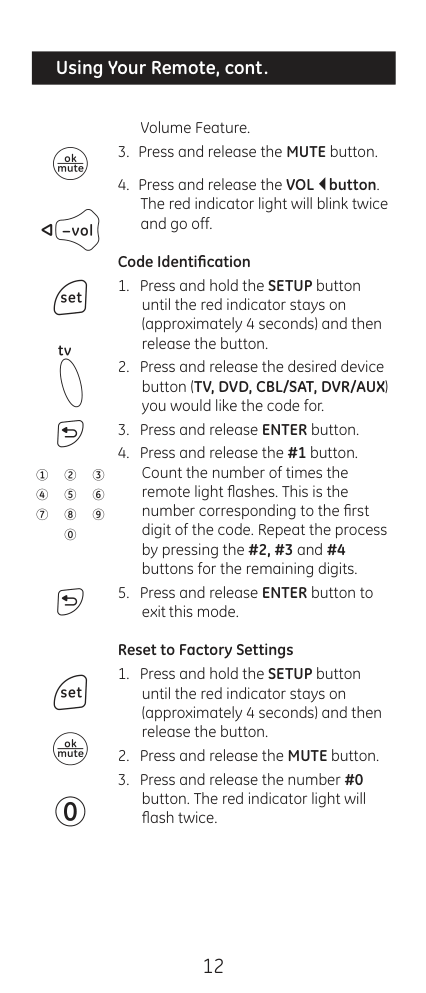
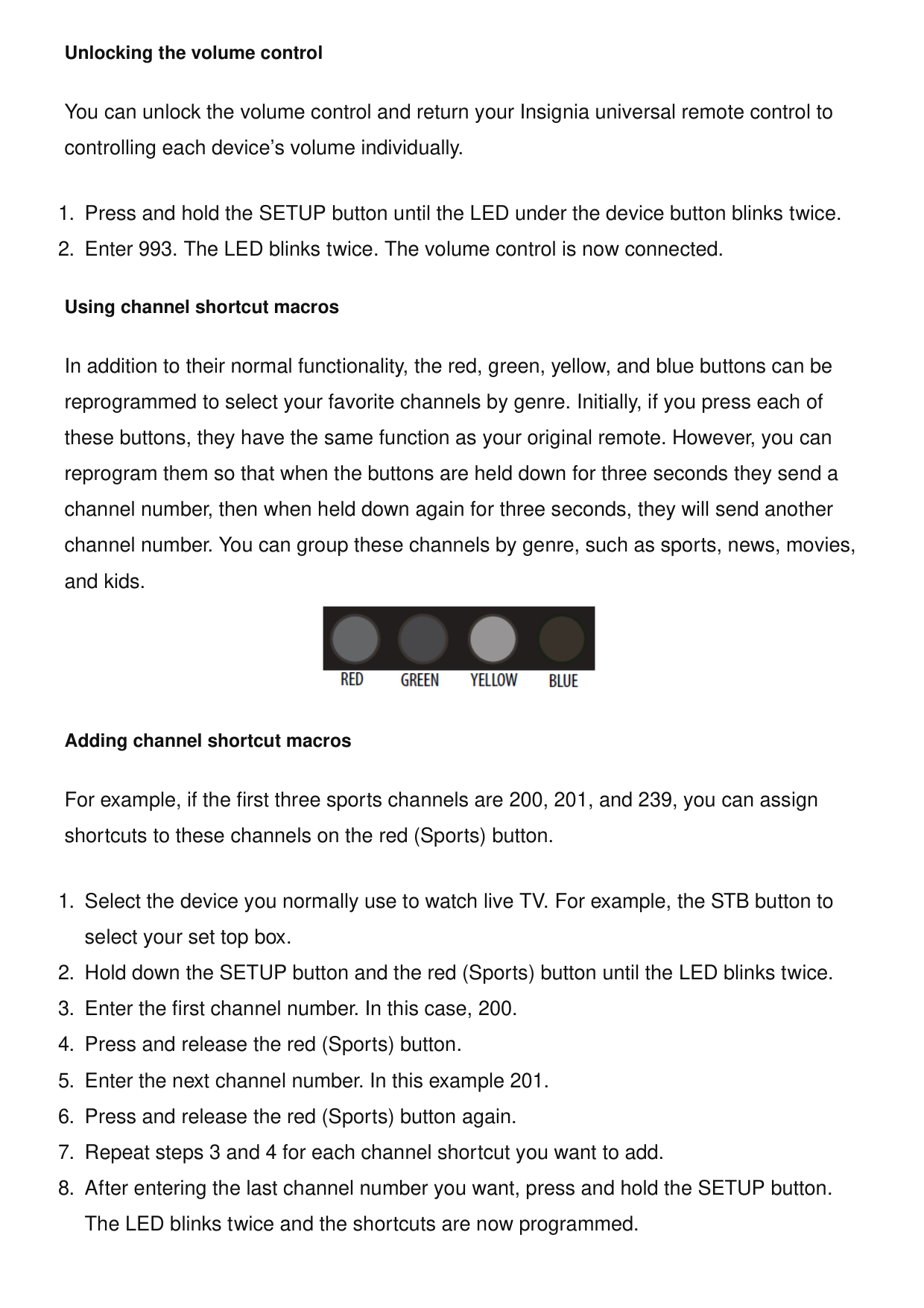
Unlocking the volume control You can unlock the volume control and return your Insignia universal remote control to controlling each device’s volume individually.
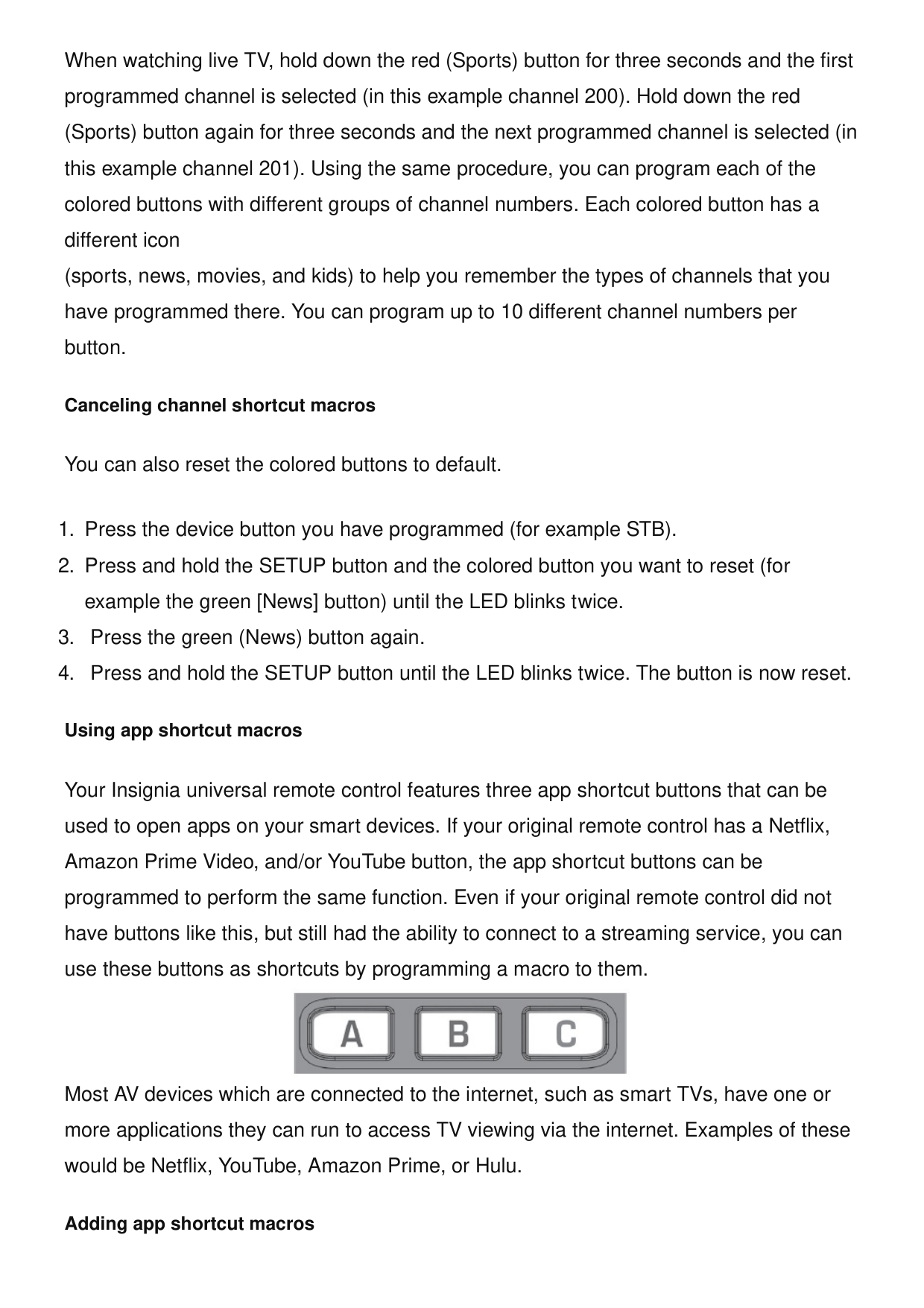
When watching live TV, hold down the red (Sports) button for three seconds and the first programmed channel is selected (in this example channel 200). Hold down the red (Sports) button again for three seconds and the next programmed channel is selected (in this example channel 201). Using the same procedure, you can program each of the colored buttons with different groups of channel numbers. Each colored button has a different icon (sports, news, movies, and kids) to help you remember the types of channels that you have programmed there. You can program up to 10 different channel numbers per button. Canceling channel shortcut macros You can also reset the colored buttons to default.
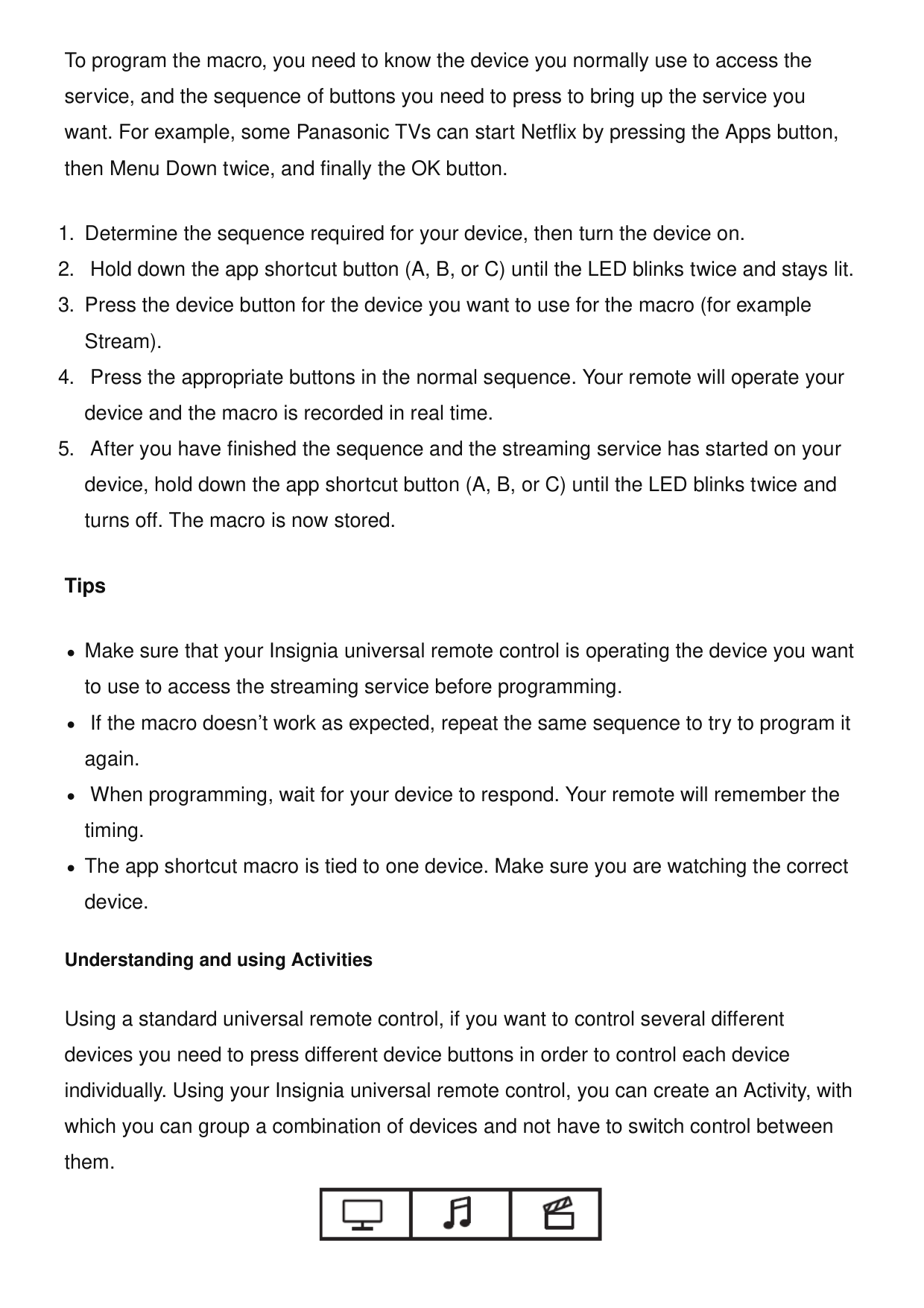
To program the macro, you need to know the device you normally use to access the service, and the sequence of buttons you need to press to bring up the service you want. For example, some Panasonic TVs can start Netflix by pressing the Apps button, then Menu Down twice, and finally the OK button.
For example, if want to control the input of your TV, the channels and guide of your DirecTV STB, and the volume of your sound bar, you would need to swap between these devices by pressing the TV and STB buttons. On your Insignia universal remote control, these devices can be grouped into a single Activity. So by pressing the button for the Watch TV Activity ( ), the input button will control the TV, the VOL +, VOL -, and MUTE buttons will control the sound bar, and all of the other buttons will control the set top box. Your Insignia universal remote control has three Activity modes, specifically Watch TV ( ), Listen to Music , and Watch Movie ( ). Each of these modes has several devices you can combine. Watch TV Activity Combination 1 – TV + STB + AUDIO (default) Combination 2 – TV + STB Combination 3 – TV + AUDIO Combination 4 – TV + SOUND Combination 5 – TV + STB + SOUND Listen to Music Activity Combination 1 – TV + BLU + AUDIO (default) Combination 2 – TV + BLU + SOUND Combination 3 – TV + STREAM + AUDIO Combination 4 – TV + STREAM + SOUND Combination 5 – AUDIO only Watch Movie Activity Combination 1 – TV + STREAM + AUDIO (default) Combination 2 – TV + STREAM Combination 3 – TV + BLURAY Combination 4 – TV + BLURAY + AUDIO Combination 5 – TV + STREAM + SOUND Combination 6 – TV + BLU + SOUND
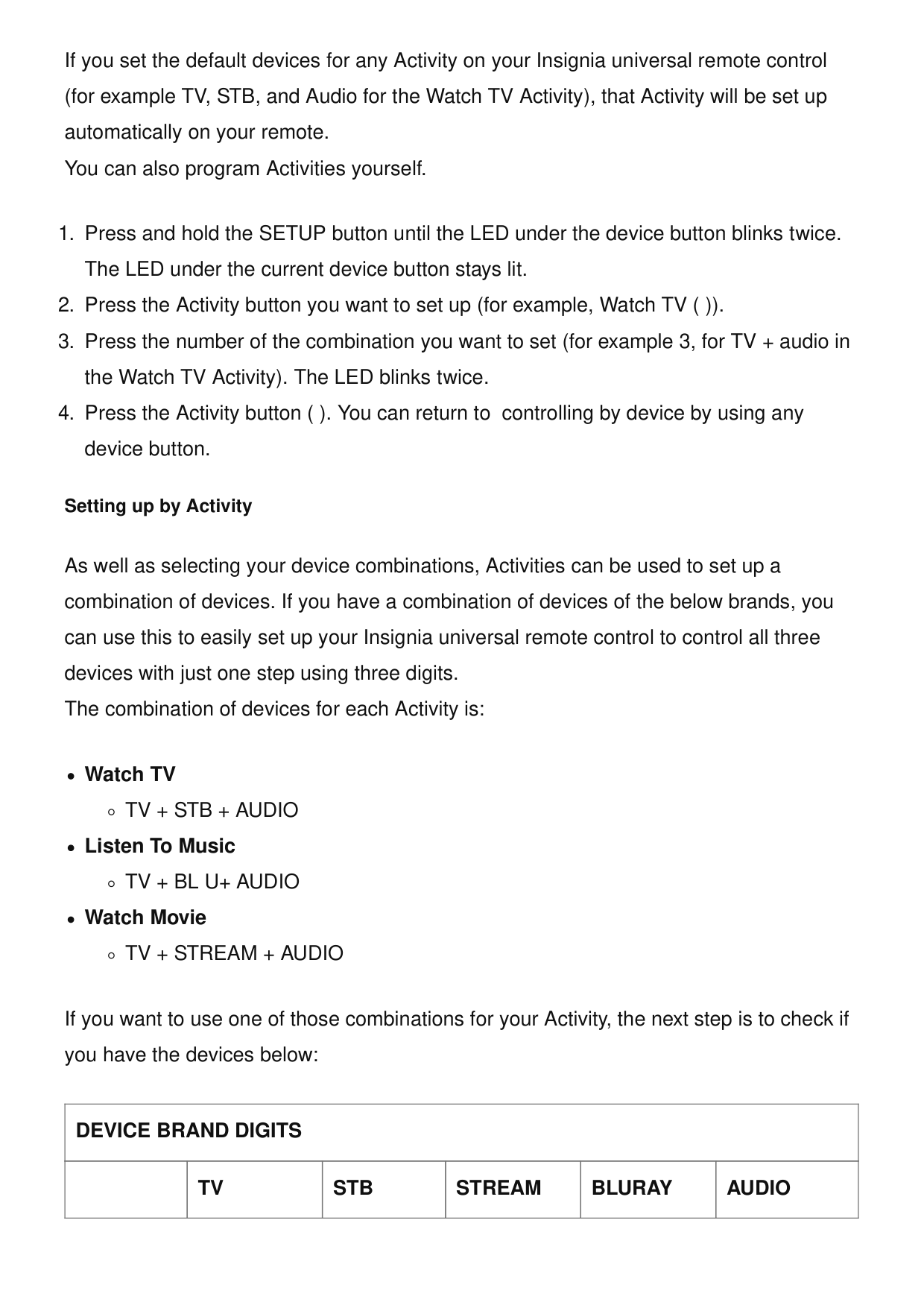
If you set the default devices for any Activity on your Insignia universal remote control (for example TV, STB, and Audio for the Watch TV Activity), that Activity will be set up automatically on your remote. You can also program Activities yourself.
Tv + Stb + Audio
Listen To MusicTv + Bl U+ Audio
Watch MovieTv + Stream + Audio
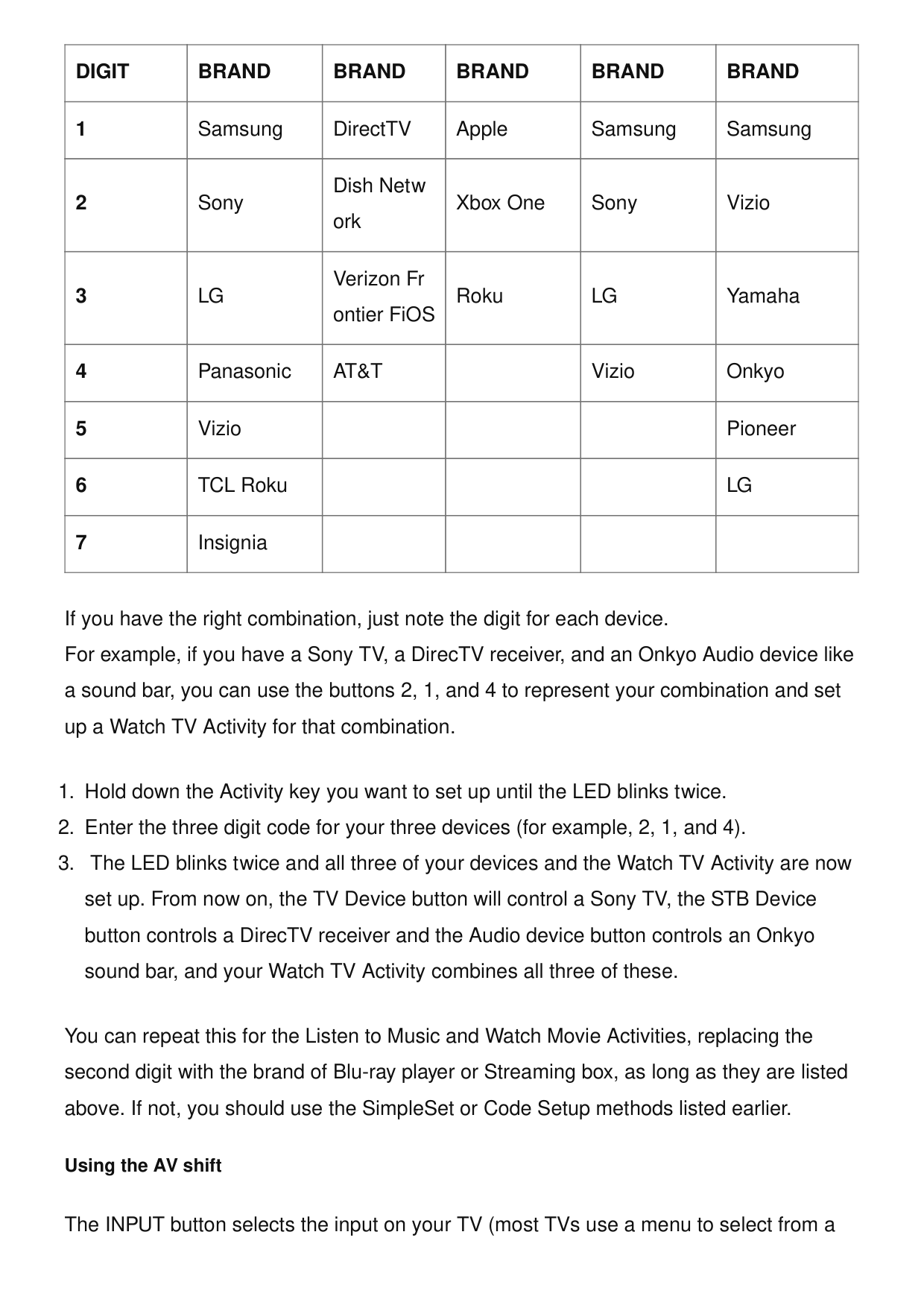
If you want to use one of those combinations for your Activity, the next step is to check if you have the devices below:Device Brand Digits
Tv
Stb
Stream
Bluray
Audio
Digit
Brand
Brand
Brand
Brand
Brand
1 Samsung DirectTV Apple Samsung Samsung 2 Sony Dish Netw ork Xbox One Sony Vizio 3Lg
Verizon Fr ontier FiOS RokuLg
Yamaha 4 PanasonicAt&T
Vizio Onkyo 5 Vizio Pioneer 6 TCL RokuLg
7 Insignia If you have the right combination, just note the digit for each device. For example, if you have a Sony TV, a DirecTV receiver, and an Onkyo Audio device like a sound bar, you can use the buttons 2, 1, and 4 to represent your combination and set up a Watch TV Activity for that combination.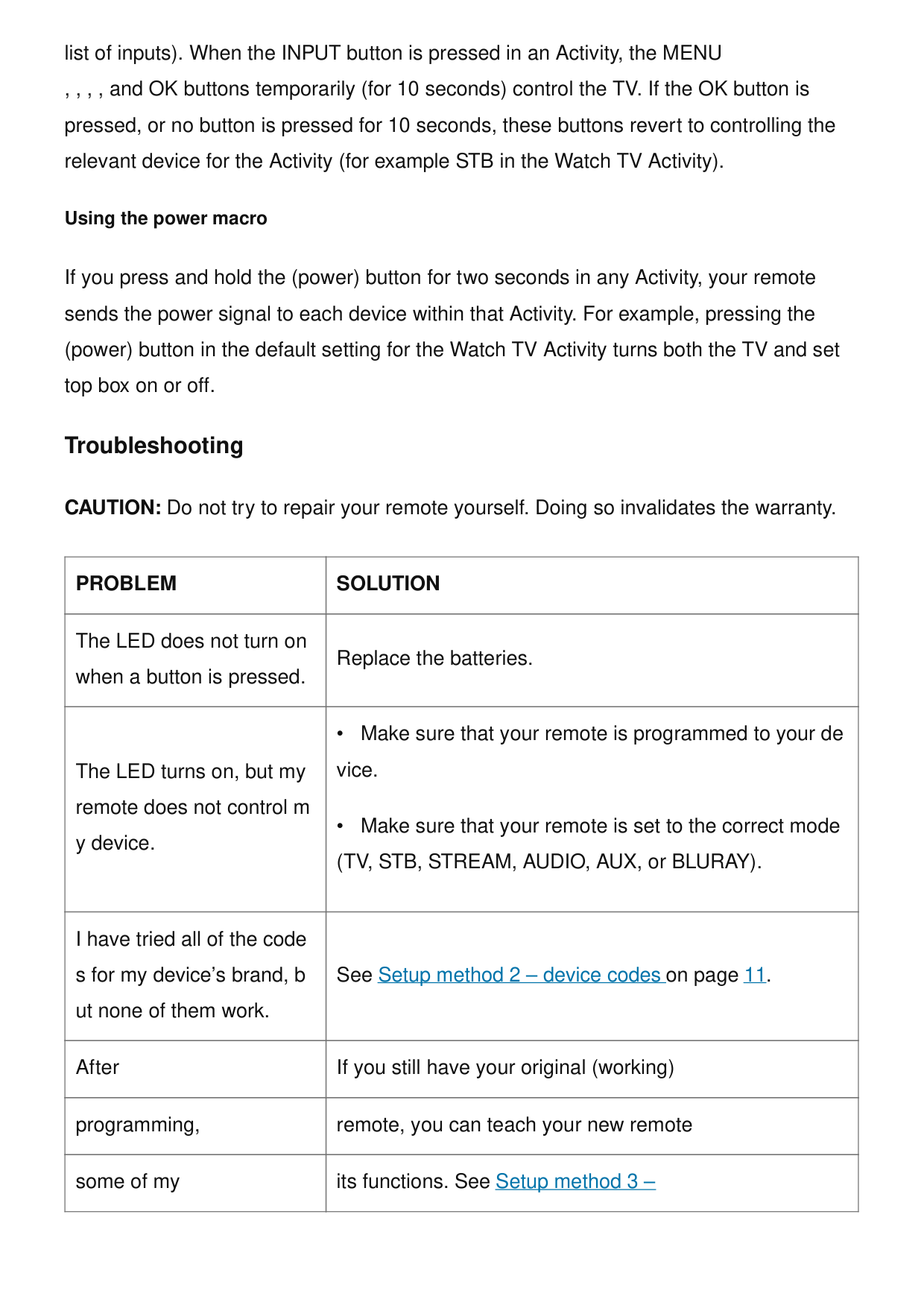
list of inputs). When the INPUT button is pressed in an Activity, the MENU , , , , and OK buttons temporarily (for 10 seconds) control the TV. If the OK button is pressed, or no button is pressed for 10 seconds, these buttons revert to controlling the relevant device for the Activity (for example STB in the Watch TV Activity). Using the power macro If you press and hold the (power) button for two seconds in any Activity, your remote sends the power signal to each device within that Activity. For example, pressing the (power) button in the default setting for the Watch TV Activity turns both the TV and set top box on or off. Troubleshooting CAUTION: Do not try to repair your remote yourself. Doing so invalidates the warranty.
Problem
Solution
The LED does not turn on when a button is pressed. Replace the batteries. The LED turns on, but my remote does not control m y device.
INSIGNIA NS-RMT2D18 2-Device Universal Remote User Guide INSIGNIA NS-RMT2D18 2-Device Universal Remote User Guide - Download [optimized] INSIGNIA NS- RMT2D18 2-Device Universal Remote User Guide -… remote’s functions don’t w ork function learning on page 11. Specifications Dimensions (HxWx
D)
1.8 x .8 x 8 in. (45.7 x 20.3 x 203.2 mm) Range 30 ft. (9.1 m) Control Eight devices Power requirements Two AA batteries (not provided) Documents / Resources Insignia NS-RMT8D21 Eight-device Universal Remote [pdf] User Guide NS-RMT8D21, Eight-device Universal Remote, Universal Remote, Remot e References User Manual Related Posts
INSIGNIA NS-RMT3D18 3-Device Universal Remote
User Guide
INSIGNIA NS-RMT3D18 3-Device Universal Remote USER GUIDE - Download [optimized] INSIGNIA NS-RMT3D18 3-Device Universal Remote USER GUIDE -… Atlas DVD/PVR 5-Device Universal Remote Control User Manual Atlas DVD/PVR 5-Device Universal Remote Control User Manual - Optimized PDF Atlas DVD/PVR 5-Device Universal Remote Control User… Cox Universal Remote Control Codes Cox Universal Remote Control Codes - Optimized PDF Cox Universal Remote Control Codes - Original PDF Insignia Eight-device Universal Remote, Insignia, NS-RMT8D21, remote, universal remote Leave a comment Your email address will not be published. Required fields are marked * Comment * Name Email
Search: e.g. whirlpool wrf535swhz
Search This website is an independent publication and is neither affiliated with nor endorsed by any of the trademark owners. The "Bluetooth®" word mark and logos are registered trademarks owned by Bluetooth SIG, Inc. The "Wi-Fi®" word mark and logos are registered trademarks owned by the Wi-Fi Alliance. Any use of these marks on this website does not imply any affiliation with or endorsement. Website Save my name, email, and website in this browser for the next time I comment. Post Comment