
Ask AI
— answers from the official manualAnswers from the official manual.
Common questions
Common Questions
10 totalWhat should I do if I forgot my login password for the EX6120?
You can recover your password by clicking the 'Username & Password Help' link on the login page and answering the security questions you set up during initial setup. If you forgot the answers to your security questions, you can restore the extender's factory settings by pressing the Factory Reset button for seven seconds, then set up your login credentials again.
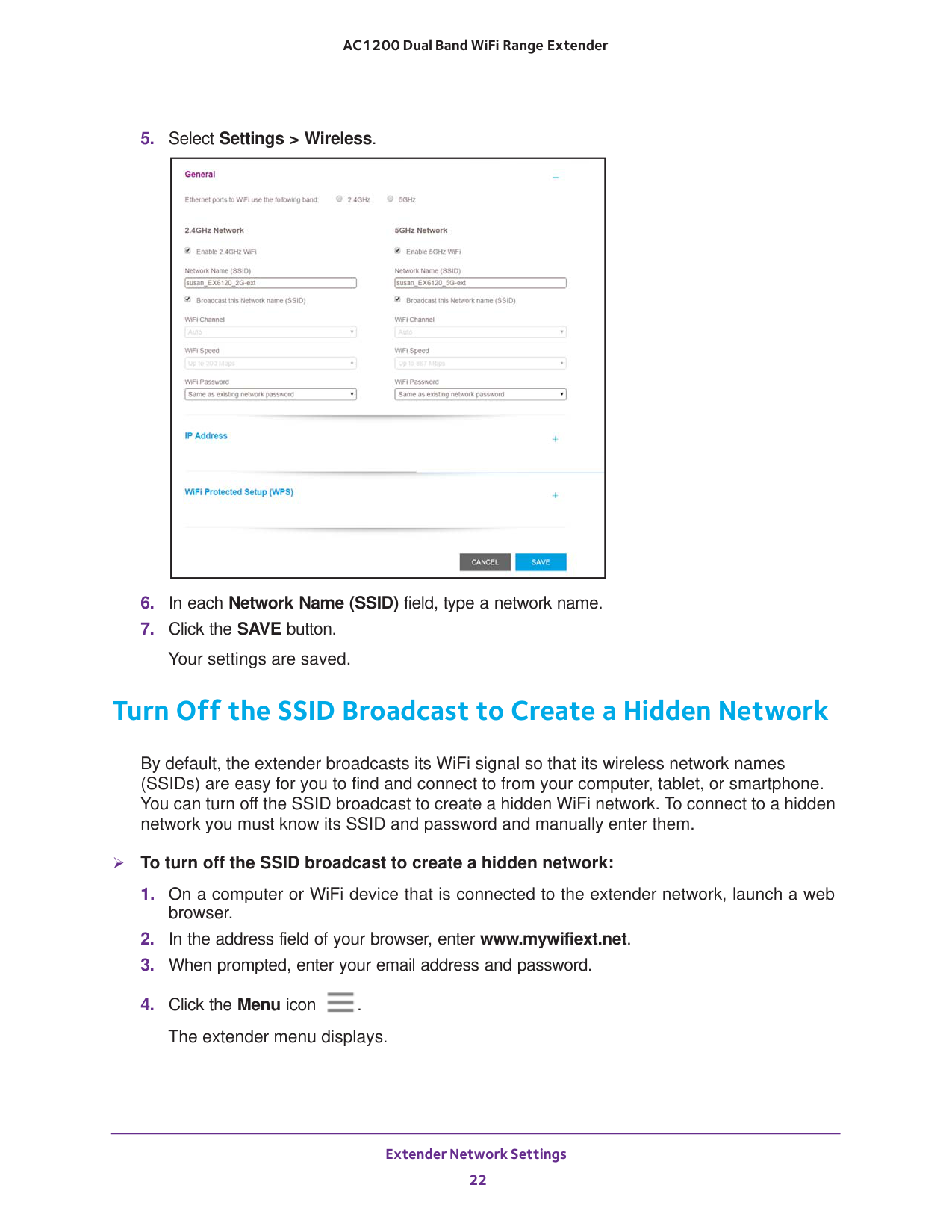
How do I change the WiFi network name (SSID) on the EX6120?
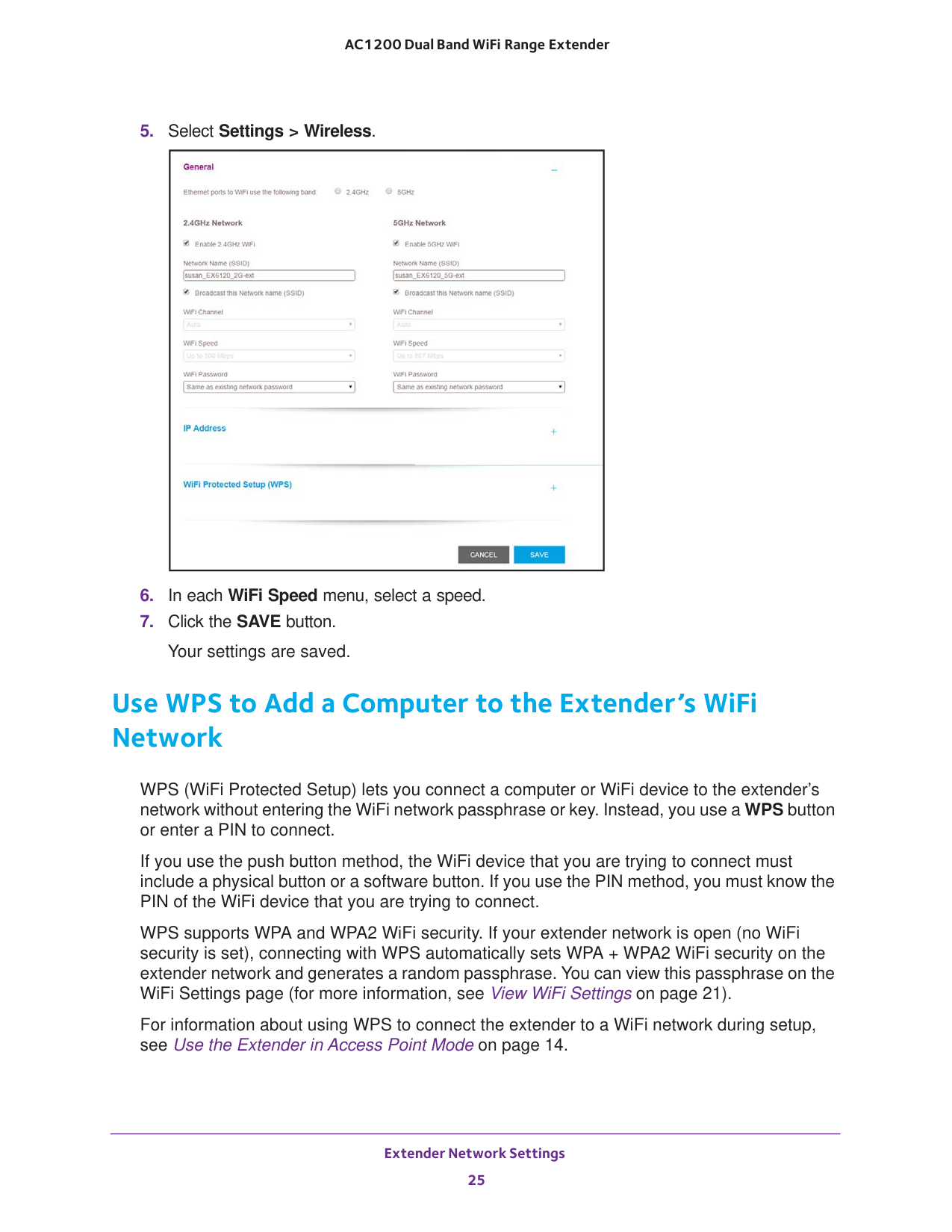
To change the network name, log in to www.mywifiext.net, go to Settings > Wireless, enter a new name in each Network Name (SSID) field (one for 2.4 GHz and one for 5 GHz bands), and click the SAVE button. Your new settings will be saved and you can then connect devices to the extender using the new network name.
How do I set up the Netgear EX6120 range extender for the first time?
To set up the EX6120, first place it in the same room as your WiFi router and plug it into an electrical outlet. Wait for the Power LED to turn green. Then connect to your existing WiFi network using either WPS (by pressing the WPS button on both the extender and router within two minutes) or web browser setup by visiting www.mywifiext.net. Follow the on-screen prompts to complete the setup process.
What does each LED light on the EX6120 indicate?
The Router Link LED (amber, green, or red) shows the connection quality between the extender and router. The Device Link LED shows the connection between the extender and your computer/WiFi device using the same color scheme (green = best, amber = good, red = poor, off = no connection). The Power LED shows amber while booting, solid green when powered on, and is off when powered off. The WPS LED shows solid green when WPS is enabled or blinks green during a WPS connection attempt.
How do I reset the EX6120 to factory default settings?
You can reset the extender using the Factory Reset button on the side panel by inserting a straightened paper clip into the button hole and holding it for about seven seconds until the Power LED lights amber, then releasing it. Alternatively, you can log in to www.mywifiext.net, go to Settings > Other Settings, and click the RESET button. Both methods will erase all configured settings and take about one minute to complete.
How do I find the best location for placing the EX6120?
Place the extender in the same room as your router initially for setup. Once configured, move it closer to the area with poor WiFi signal while staying within range of your existing router. Use the Router Link LED and Device Link LED to optimize placement: if Router Link LED is amber or red, move closer to the router; if Device Link LED is amber or red, move closer to your devices. A clear line of sight with no physical obstacles between the extender and router provides the best connection.
Full Manual
48 pages
350 East Plumeria Drive San Jose, CA 95134
Usa
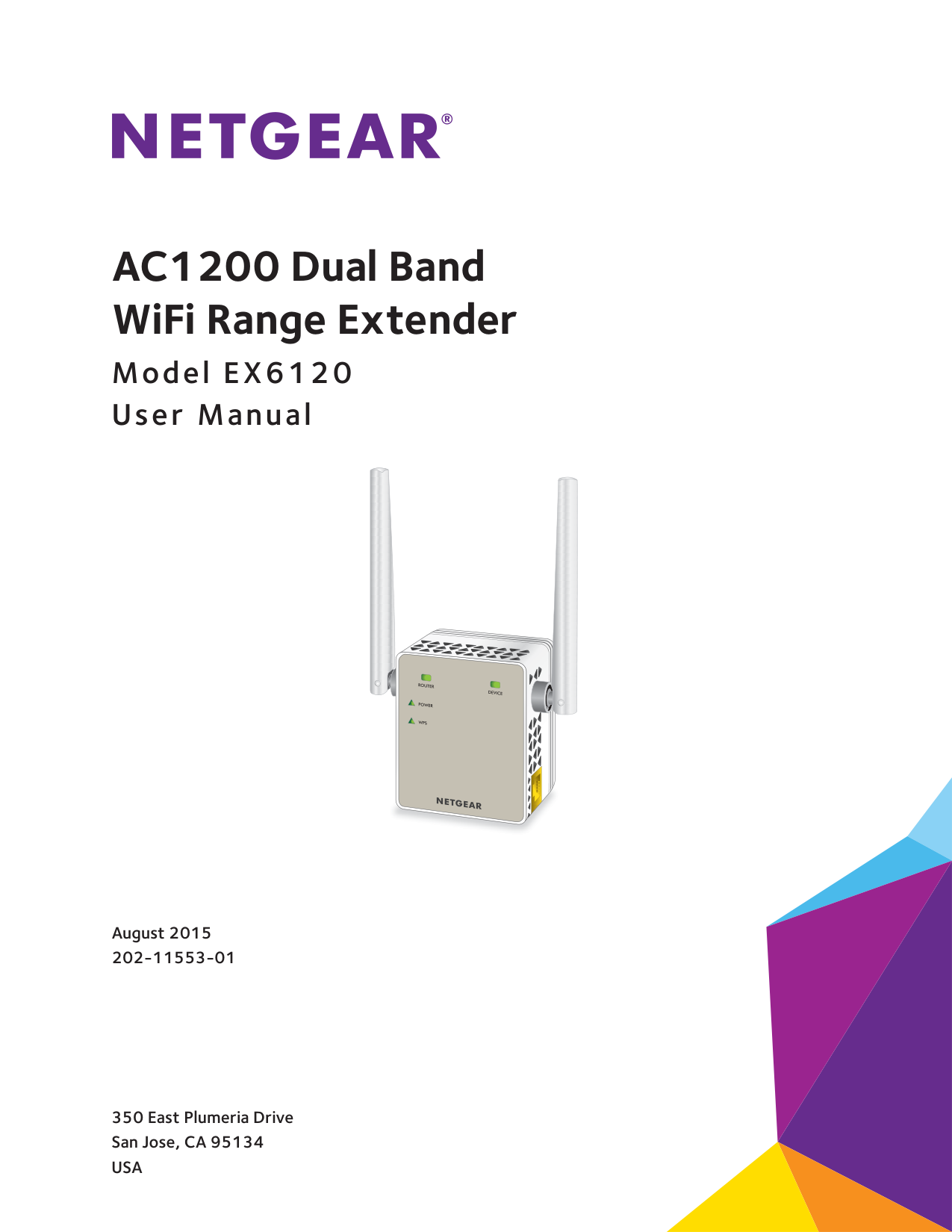
August 2015 202-11553-01 AC1200 Dual Band WiFi RangeExtender Model EX6120 User Manual
2 AC1200 Dual Band WiFi Range
Extender Support Thank you for selecting NETGEAR products. After installing your device, locate the serial number on the label of your product and use it to register your product at https://my.netgear.com. You must register your product before you can use NETGEAR telephone support. NETGEAR recommends registering your product through the NETGEAR website. For product updates and web support, visit http://support.netgear.com. Phone (US & Canada only): 1-888-NETGEAR. Phone (Other Countries): Check the list of phone numbers at http://support.netgear.com/general/contact/default.aspx. Compliance For regulatory compliance information, visit http://www.netgear.com/about/regulatory. See the regulatory compliance document before connecting the power supply. Trademarks © NETGEAR, Inc., NETGEAR and the NETGEAR Logo are trademarks of NETGEAR, Inc. Any non-NETGEAR trademarks are used for reference purposes only.
3 Table of Contents Chapter 1
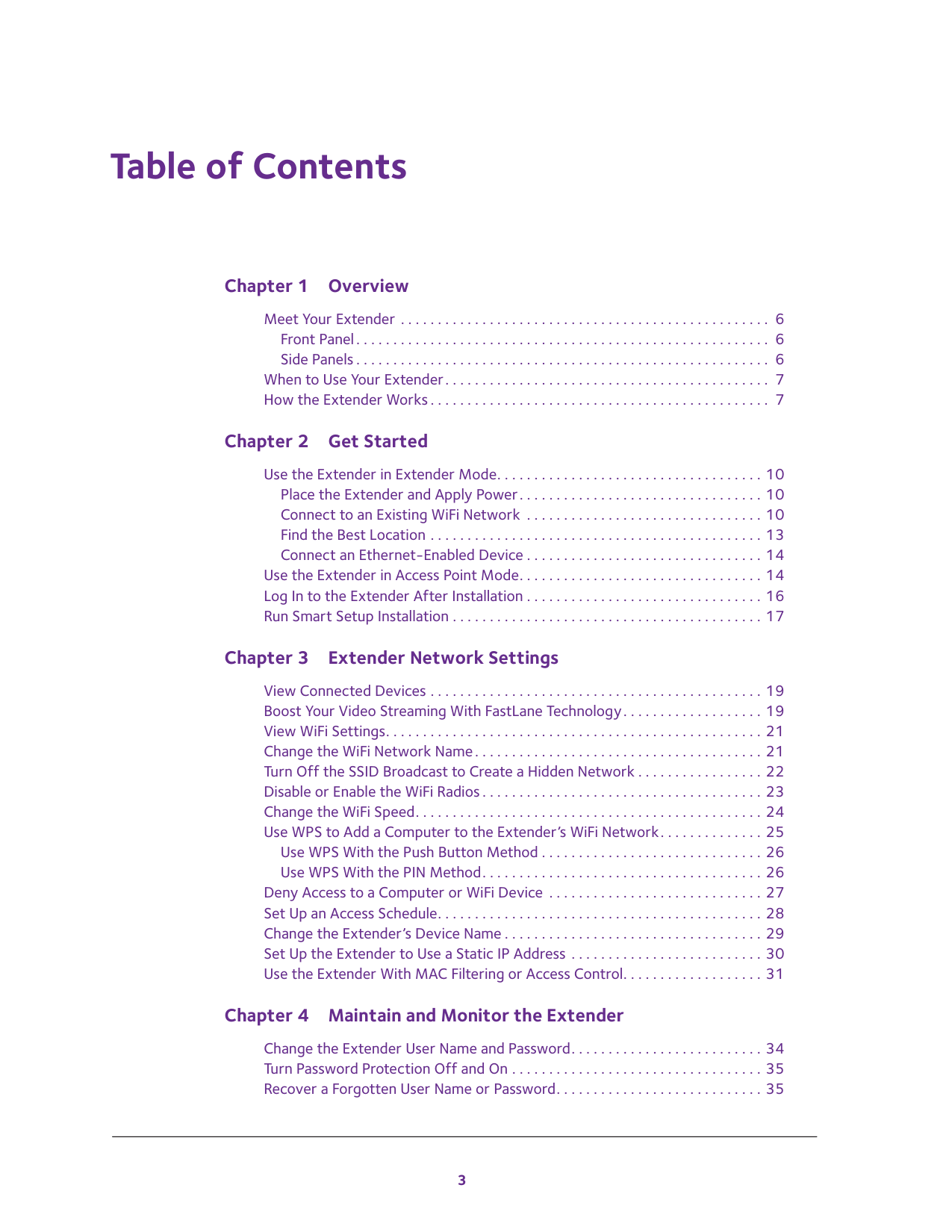
Overview Meet Your Extender . . . . . . . . . . . . . . . . . . . . . . . . . . . . . . . . . . . . . . . . . . . . . . . . . . 6 Front Panel. . . . . . . . . . . . . . . . . . . . . . . . . . . . . . . . . . . . . . . . . . . . . . . . . . . . . . . . 6 Side Panels . . . . . . . . . . . . . . . . . . . . . . . . . . . . . . . . . . . . . . . . . . . . . . . . . . . . . . . . 6 When to Use Your Extender. . . . . . . . . . . . . . . . . . . . . . . . . . . . . . . . . . . . . . . . . . . . 7 How the Extender Works . . . . . . . . . . . . . . . . . . . . . . . . . . . . . . . . . . . . . . . . . . . . . . 7 Chapter 2
Get Started Use the Extender in Extender Mode. . . . . . . . . . . . . . . . . . . . . . . . . . . . . . . . . . . . 10 Place the Extender and Apply Power. . . . . . . . . . . . . . . . . . . . . . . . . . . . . . . . . 10 Connect to an Existing WiFi Network . . . . . . . . . . . . . . . . . . . . . . . . . . . . . . . . 10 Find the Best Location . . . . . . . . . . . . . . . . . . . . . . . . . . . . . . . . . . . . . . . . . . . . . 13 Connect an Ethernet-Enabled Device . . . . . . . . . . . . . . . . . . . . . . . . . . . . . . . . 14 Use the Extender in Access Point Mode. . . . . . . . . . . . . . . . . . . . . . . . . . . . . . . . . 14 Log In to the Extender After Installation . . . . . . . . . . . . . . . . . . . . . . . . . . . . . . . . 16 Run Smart Setup Installation . . . . . . . . . . . . . . . . . . . . . . . . . . . . . . . . . . . . . . . . . . 17 Chapter 3
Extender Network Settings View Connected Devices . . . . . . . . . . . . . . . . . . . . . . . . . . . . . . . . . . . . . . . . . . . . . 19 Boost Your Video Streaming With FastLane Technology. . . . . . . . . . . . . . . . . . . 19 View WiFi Settings. . . . . . . . . . . . . . . . . . . . . . . . . . . . . . . . . . . . . . . . . . . . . . . . . . . 21 Change the WiFi Network Name. . . . . . . . . . . . . . . . . . . . . . . . . . . . . . . . . . . . . . . 21 Turn Off the SSID Broadcast to Create a Hidden Network . . . . . . . . . . . . . . . . . 22 Disable or Enable the WiFi Radios . . . . . . . . . . . . . . . . . . . . . . . . . . . . . . . . . . . . . . 23 Change the WiFi Speed. . . . . . . . . . . . . . . . . . . . . . . . . . . . . . . . . . . . . . . . . . . . . . . 24 Use WPS to Add a Computer to the Extender’s WiFi Network. . . . . . . . . . . . . . 25 Use WPS With the Push Button Method . . . . . . . . . . . . . . . . . . . . . . . . . . . . . . 26 Use WPS With the PIN Method. . . . . . . . . . . . . . . . . . . . . . . . . . . . . . . . . . . . . . 26 Deny Access to a Computer or WiFi Device . . . . . . . . . . . . . . . . . . . . . . . . . . . . . 27 Set Up an Access Schedule. . . . . . . . . . . . . . . . . . . . . . . . . . . . . . . . . . . . . . . . . . . . 28 Change the Extender’s Device Name . . . . . . . . . . . . . . . . . . . . . . . . . . . . . . . . . . . 29 Set Up the Extender to Use a Static IP Address . . . . . . . . . . . . . . . . . . . . . . . . . . 30 Use the Extender With MAC Filtering or Access Control. . . . . . . . . . . . . . . . . . . 31 Chapter 4
Maintain and Monitor the Extender Change the Extender User Name and Password. . . . . . . . . . . . . . . . . . . . . . . . . . 34 Turn Password Protection Off and On . . . . . . . . . . . . . . . . . . . . . . . . . . . . . . . . . . 35 Recover a Forgotten User Name or Password. . . . . . . . . . . . . . . . . . . . . . . . . . . . 35
4 AC1200 Dual Band WiFi Range
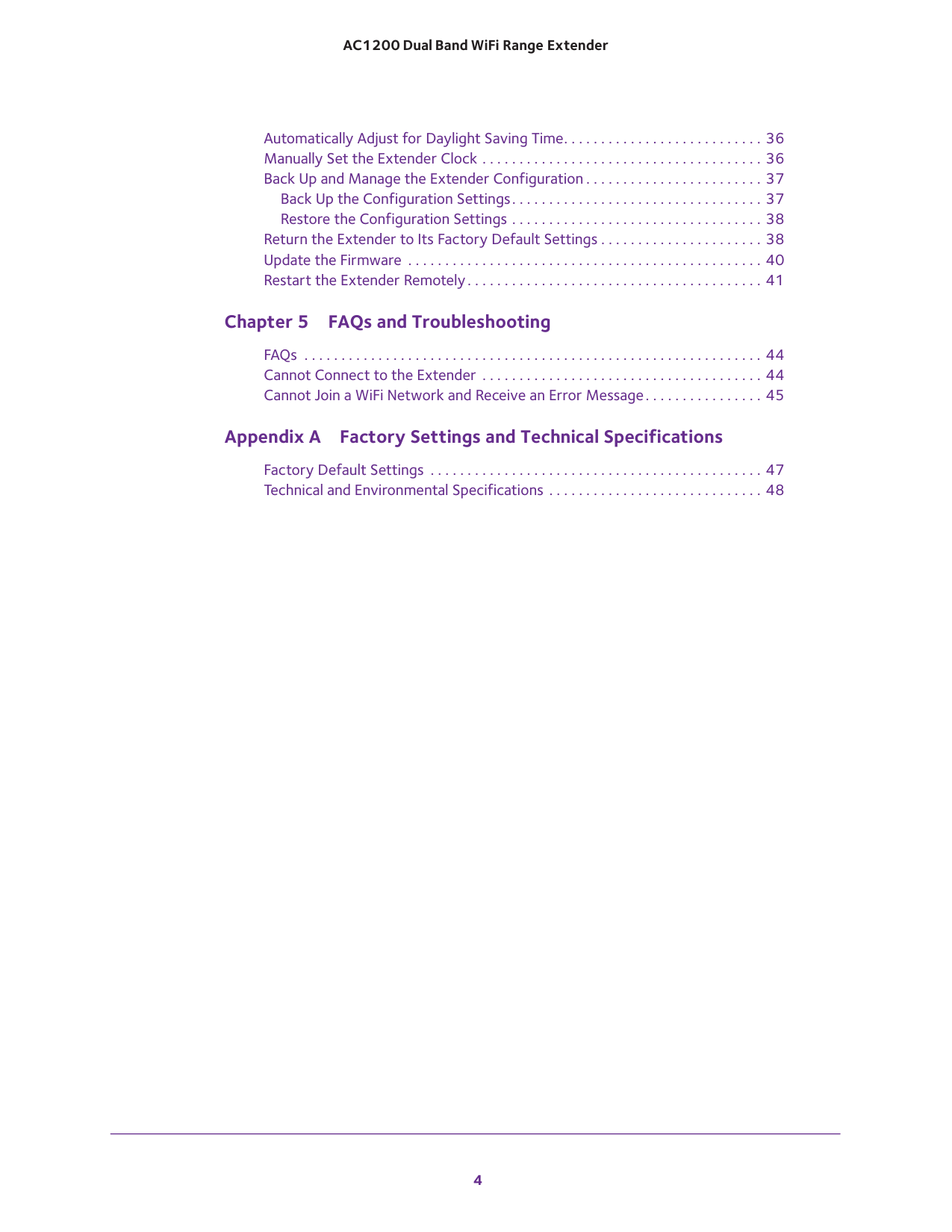
Extender Automatically Adjust for Daylight Saving Time. . . . . . . . . . . . . . . . . . . . . . . . . . . 36 Manually Set the Extender Clock . . . . . . . . . . . . . . . . . . . . . . . . . . . . . . . . . . . . . . 36 Back Up and Manage the Extender Configuration . . . . . . . . . . . . . . . . . . . . . . . . 37 Back Up the Configuration Settings. . . . . . . . . . . . . . . . . . . . . . . . . . . . . . . . . . 37 Restore the Configuration Settings . . . . . . . . . . . . . . . . . . . . . . . . . . . . . . . . . . 38 Return the Extender to Its Factory Default Settings . . . . . . . . . . . . . . . . . . . . . . 38 Update the Firmware . . . . . . . . . . . . . . . . . . . . . . . . . . . . . . . . . . . . . . . . . . . . . . . . 40 Restart the Extender Remotely. . . . . . . . . . . . . . . . . . . . . . . . . . . . . . . . . . . . . . . . 41 Chapter 5
FAQs and Troubleshooting FAQs . . . . . . . . . . . . . . . . . . . . . . . . . . . . . . . . . . . . . . . . . . . . . . . . . . . . . . . . . . . . . . 44 Cannot Connect to the Extender . . . . . . . . . . . . . . . . . . . . . . . . . . . . . . . . . . . . . . 44 Cannot Join a WiFi Network and Receive an Error Message. . . . . . . . . . . . . . . . 45 Appendix A
Factory Settings and Technical Specifications Factory Default Settings . . . . . . . . . . . . . . . . . . . . . . . . . . . . . . . . . . . . . . . . . . . . . 47 Technical and Environmental Specifications . . . . . . . . . . . . . . . . . . . . . . . . . . . . . 48
5 1
Range
Extender boosts your existing network range and speed, delivering dual-band WiFi. You can also use the extender in access point mode as a WiFi access point and create a new WiFi hotspot by using a wired Ethernet connection. This chapter covers the following topics: • Meet Your Extender • When to Use Your Extender • How the Extender Works Note: For more information about the topics covered in this manual, visit the support website at support.netgear.com. Note: Firmware updates with new features and bug fixes are made available from time to time at downloadcenter.netgear.com. Some products can regularly check the site and download new firmware, or you can check for and download new firmware manually.
Overview 6 AC1200 Dual Band WiFi Range
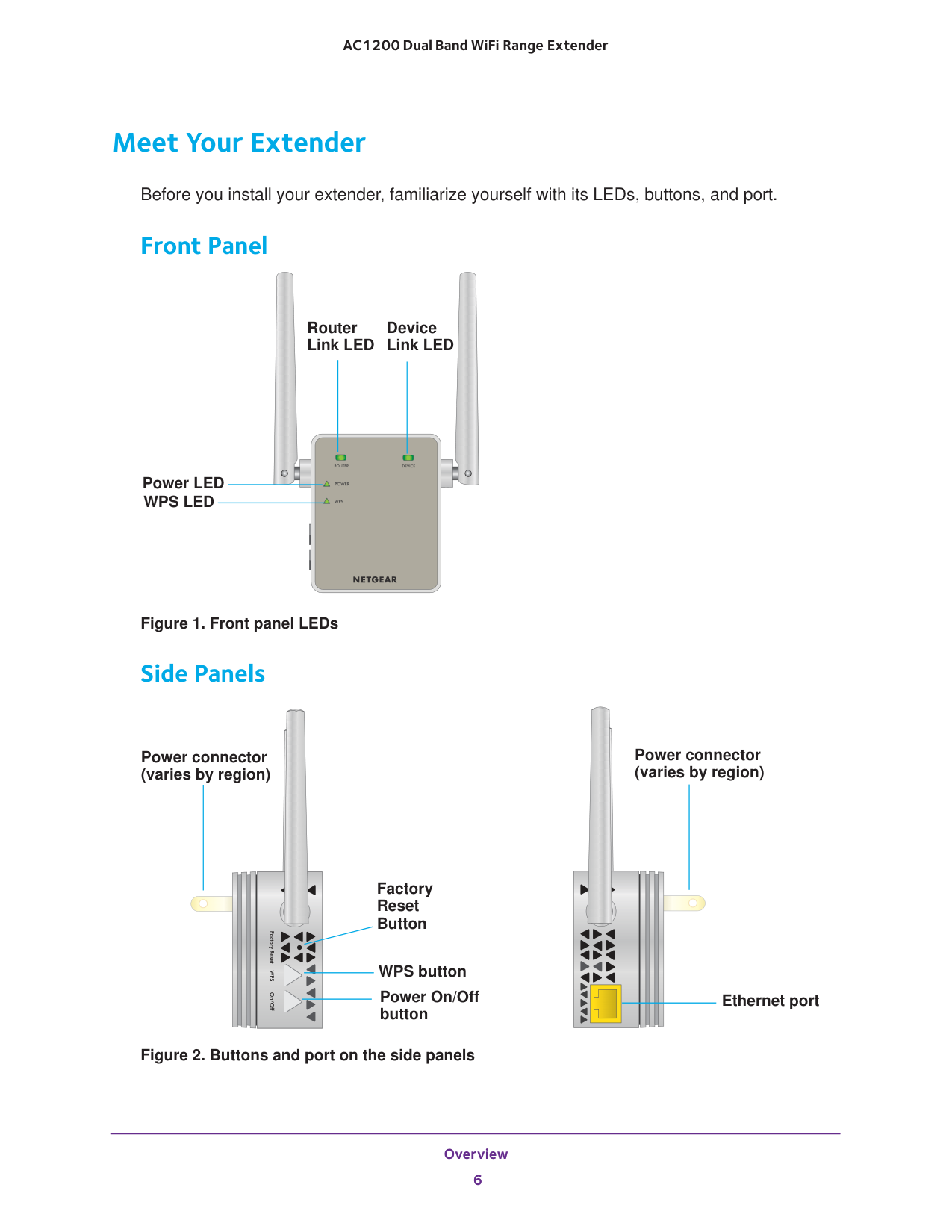
Extender Meet Your Extender Before you install your extender, familiarize yourself with its LEDs, buttons, and port. Front Panel Power LED
Wps Led
Router Link LED Device Link LED Figure 1. Front panel LEDs Side Panels Factory Reset Button WPS button Power On/Off Power connector (varies by region) Ethernet port Power connector (varies by region) button Figure 2. Buttons and port on the side panels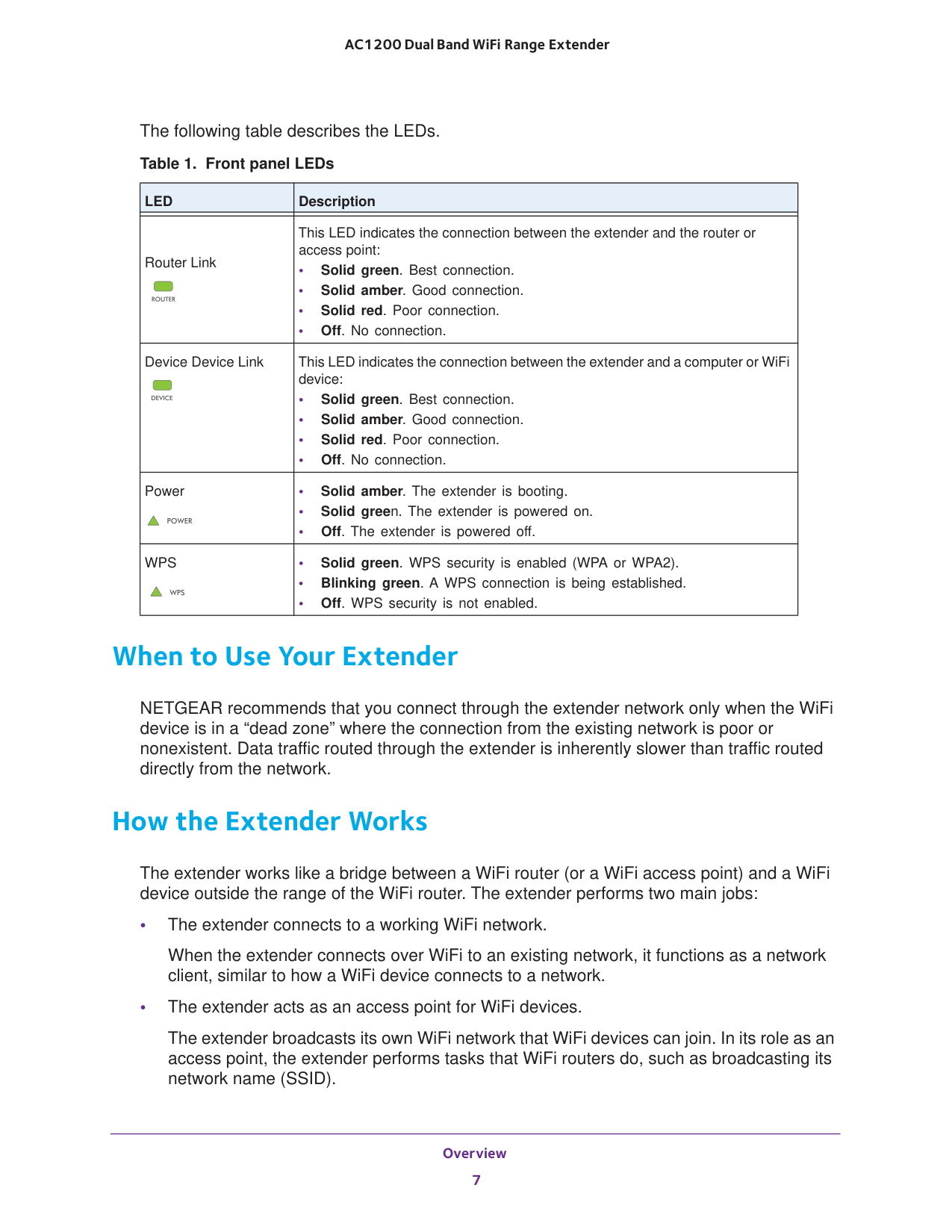
Overview 7 AC1200 Dual Band WiFi Range
Extender The following table describes the LEDs. Table 1. Front panel LEDs
Led
Description This LED indicates the connection between the extender and the router or access point: • Solid green. Best connection. • Solid amber. Good connection. • Solid red. Poor connection. • Off. No connection. Device Device Link This LED indicates the connection between the extender and a computer or WiFi device: • Solid green. Best connection. • Solid amber. Good connection. • Solid red. Poor connection. • Off. No connection. Power • Solid amber. The extender is booting. • Solid green. The extender is powered on. • Off. The extender is powered off.Wps
• Solid green. WPS security is enabled (WPA or WPA2). • Blinking green. A WPS connection is being established. • Off. WPS security is not enabled. When to Use Your Extender NETGEAR recommends that you connect through the extender network only when the WiFi device is in a “dead zone” where the connection from the existing network is poor or nonexistent. Data traffic routed through the extender is inherently slower than traffic routed directly from the network. How the Extender Works The extender works like a bridge between a WiFi router (or a WiFi access point) and a WiFi device outside the range of the WiFi router. The extender performs two main jobs: • The extender connects to a working WiFi network. When the extender connects over WiFi to an existing network, it functions as a network client, similar to how a WiFi device connects to a network. • The extender acts as an access point for WiFi devices. The extender broadcasts its own WiFi network that WiFi devices can join. In its role as an access point, the extender performs tasks that WiFi routers do, such as broadcasting its network name (SSID). Router Link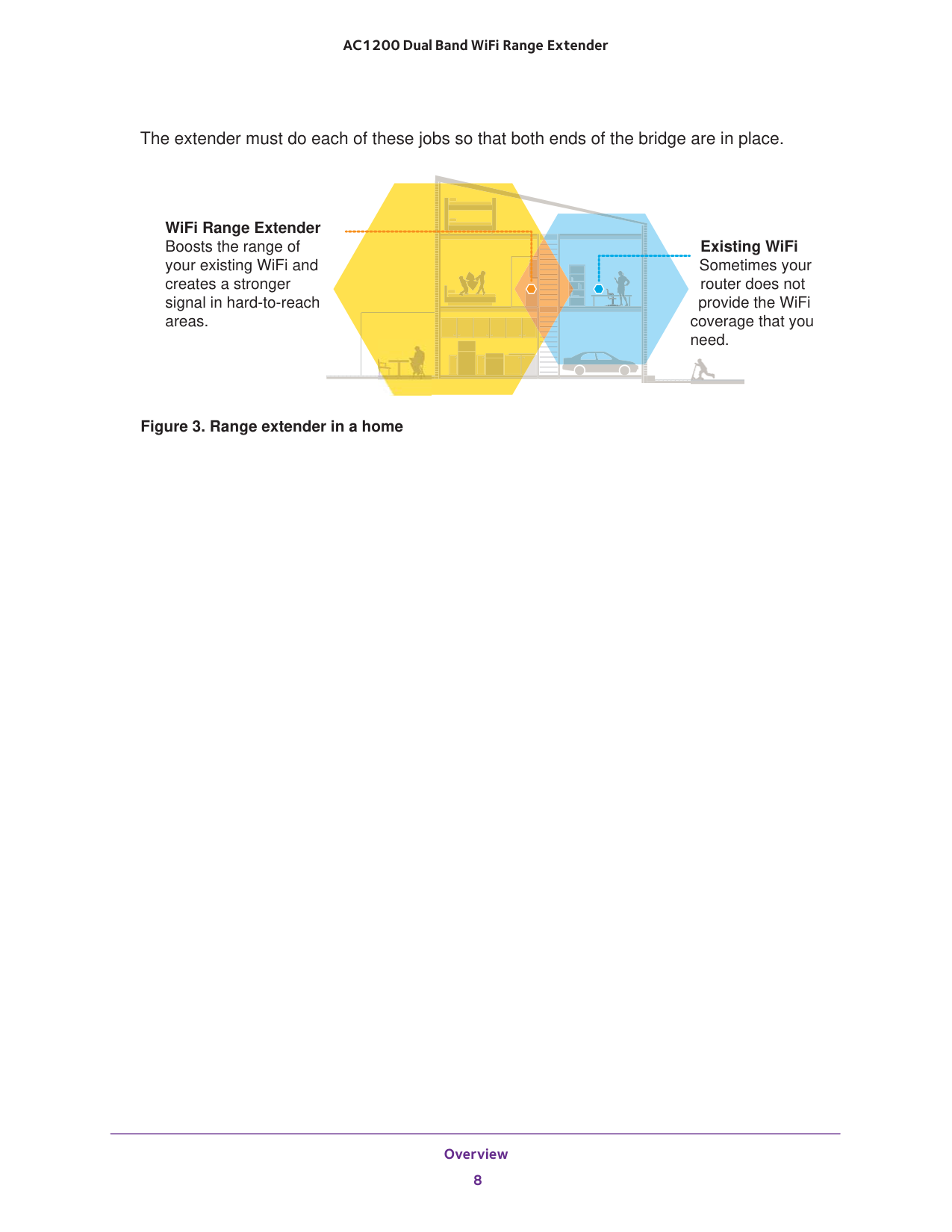
Overview 8 AC1200 Dual Band WiFi Range
Extender The extender must do each of these jobs so that both ends of the bridge are in place. Existing WiFi Sometimes your router does not provide the WiFi coverage that you need. WiFi Range Extender Boosts the range of your existing WiFi and creates a stronger signal in hard-to-reach areas. Figure 3. Range extender in a home
9 2
Get Started 10 AC1200 Dual Band WiFi Range
Extender Use the Extender in Extender Mode Place the extender, apply power, and connect the extender to your WiFi network. Note: You can also use the extender as a WiFi access point and create a new WiFi hotspot by using a wired Ethernet connection. See Use the Extender in Access Point Mode on page
Get Started 11 AC1200 Dual Band WiFi Range
Extender
Get Started 12 AC1200 Dual Band WiFi Range
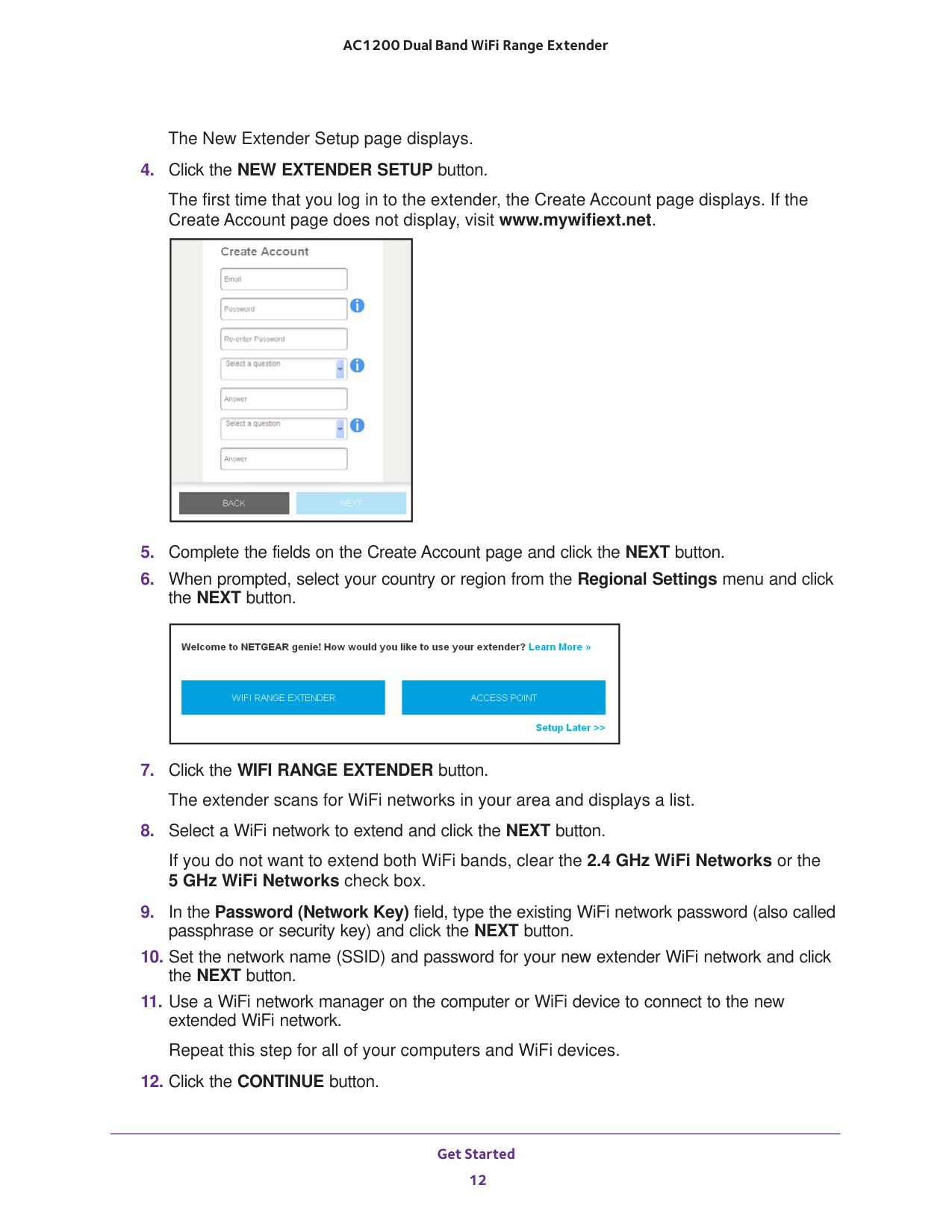
Extender The New Extender Setup page displays.
Get Started 13 AC1200 Dual Band WiFi Range
Extender A message displays confirming that the extender is connected to the new extended WiFi network.
Get Started 14 AC1200 Dual Band WiFi Range
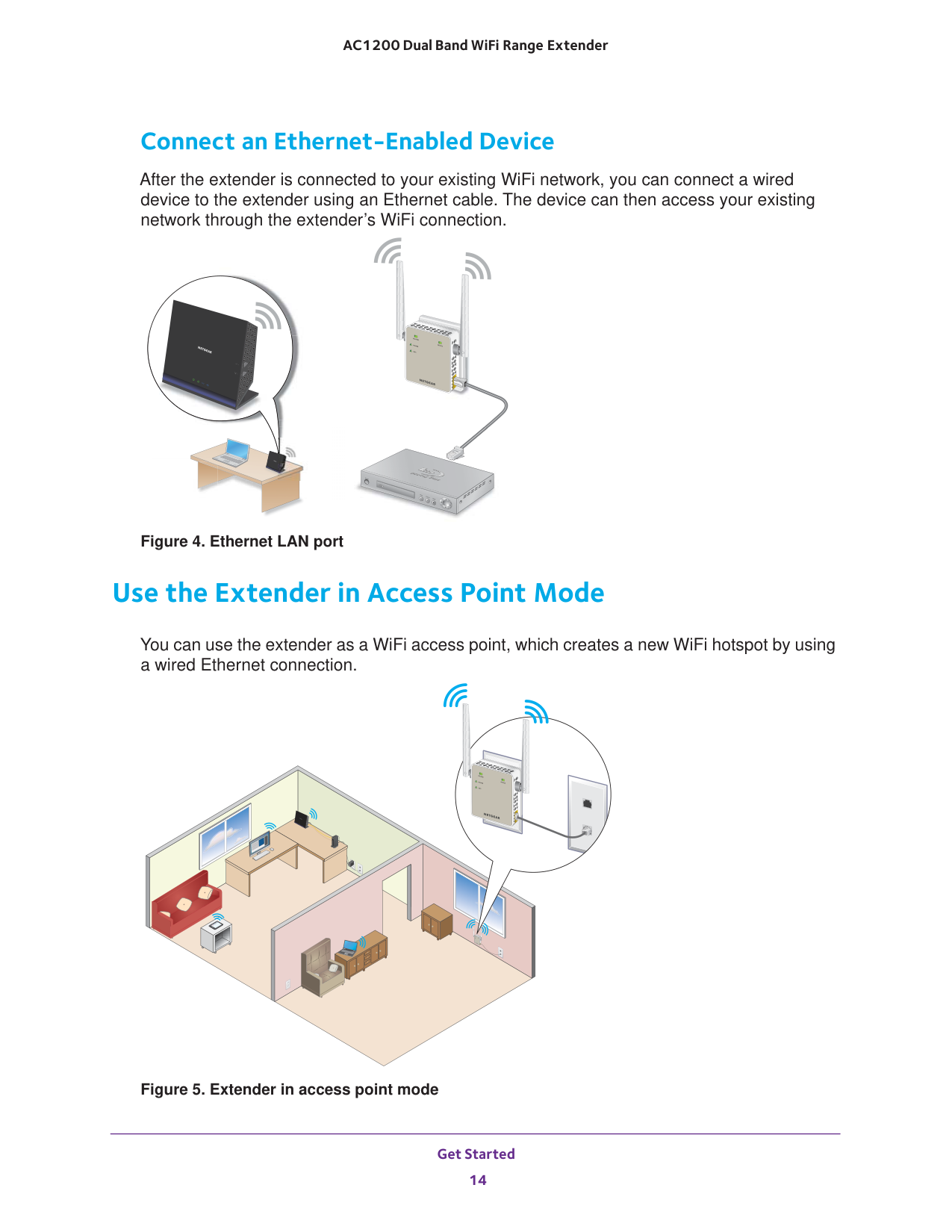
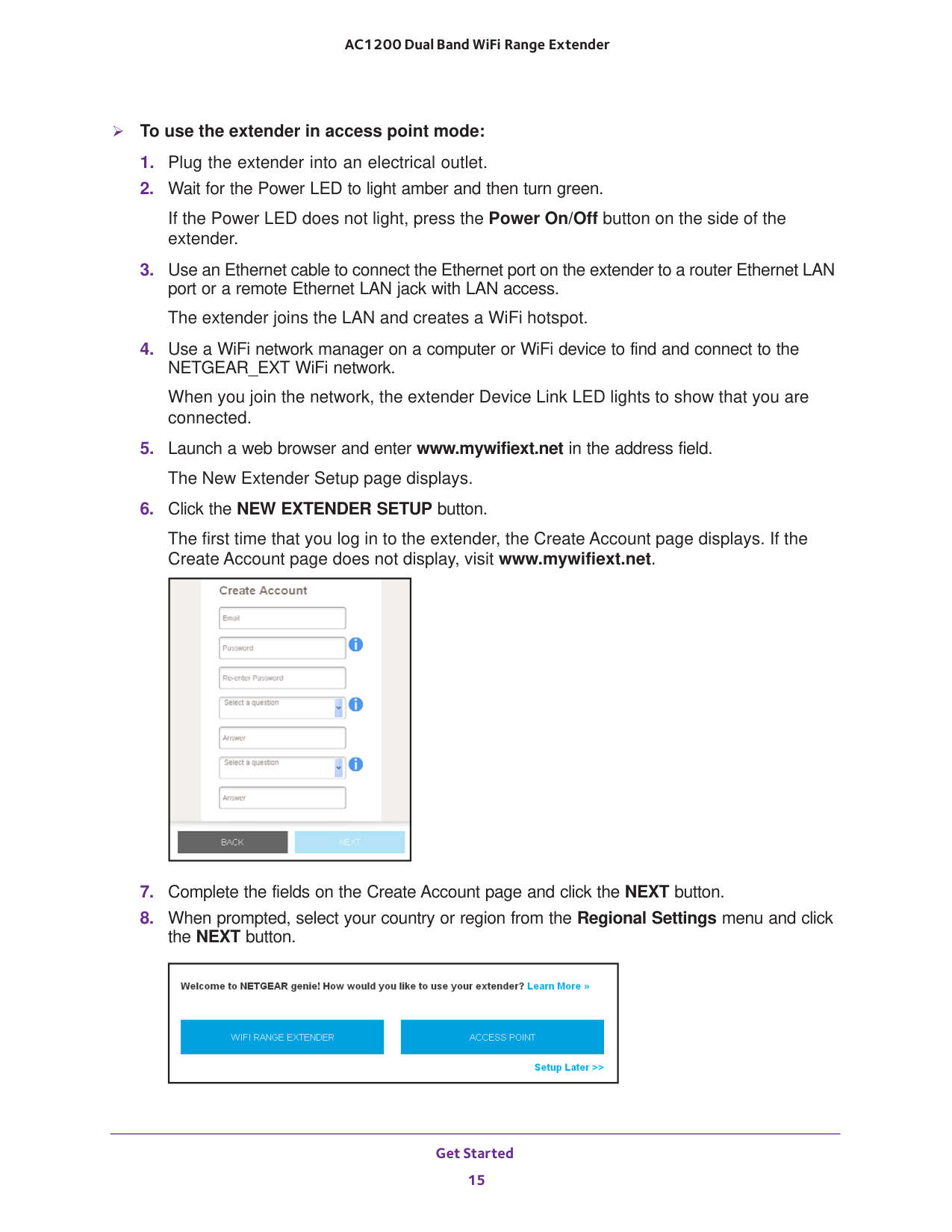
Extender Connect an Ethernet-Enabled Device After the extender is connected to your existing WiFi network, you can connect a wired device to the extender using an Ethernet cable. The device can then access your existing network through the extender’s WiFi connection. Figure 4. Ethernet LAN port Use the Extender in Access Point Mode You can use the extender as a WiFi access point, which creates a new WiFi hotspot by using a wired Ethernet connection. Figure 5. Extender in access point mode
Get Started 15 AC1200 Dual Band WiFi Range
Extender To use the extender in access point mode:
Get Started 16 AC1200 Dual Band WiFi Range
Extender
Get Started 17 AC1200 Dual Band WiFi Range
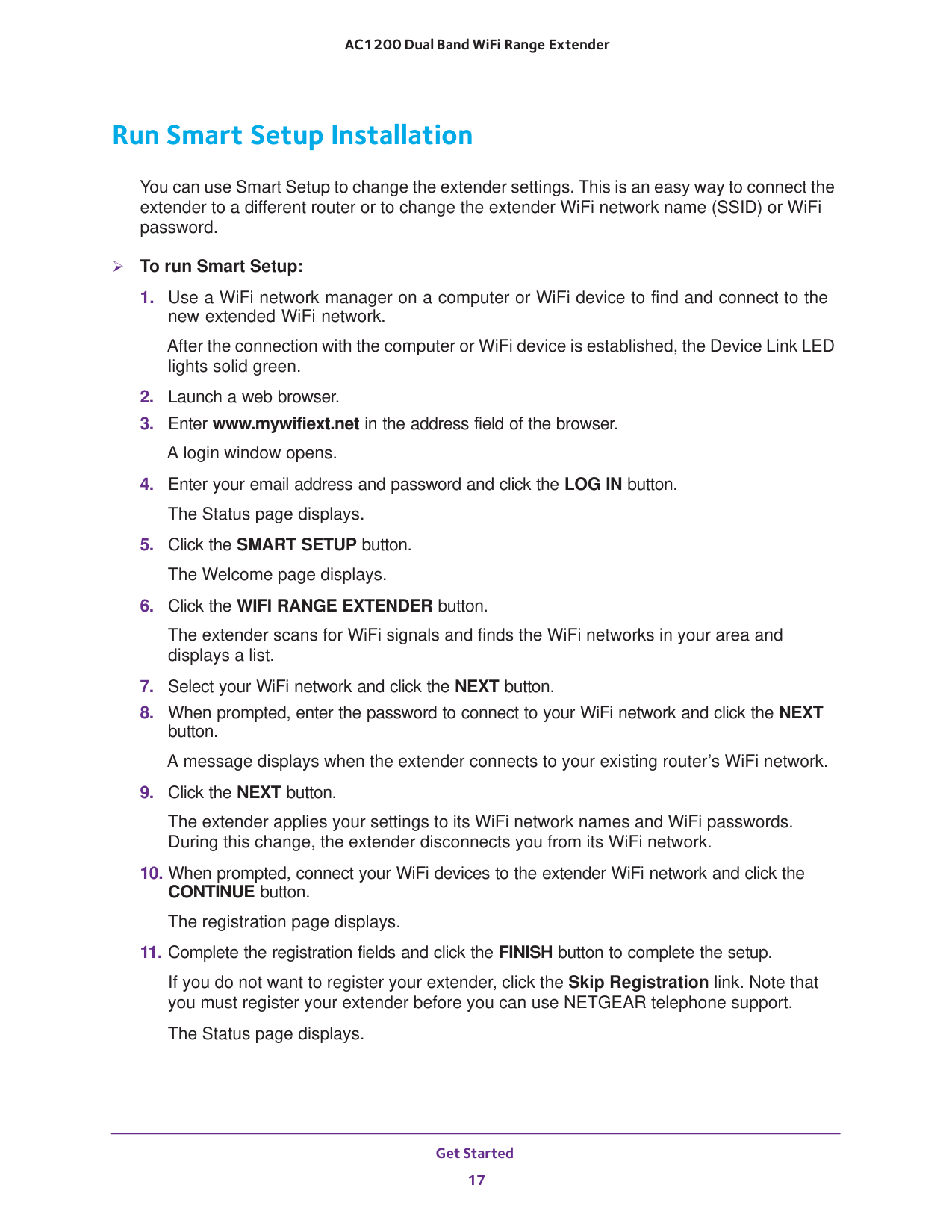
Extender Run Smart Setup Installation You can use Smart Setup to change the extender settings. This is an easy way to connect the extender to a different router or to change the extender WiFi network name (SSID) or WiFi password. To run Smart Setup:
18 3
Extender Network Settings 19 AC1200 Dual Band WiFi Range
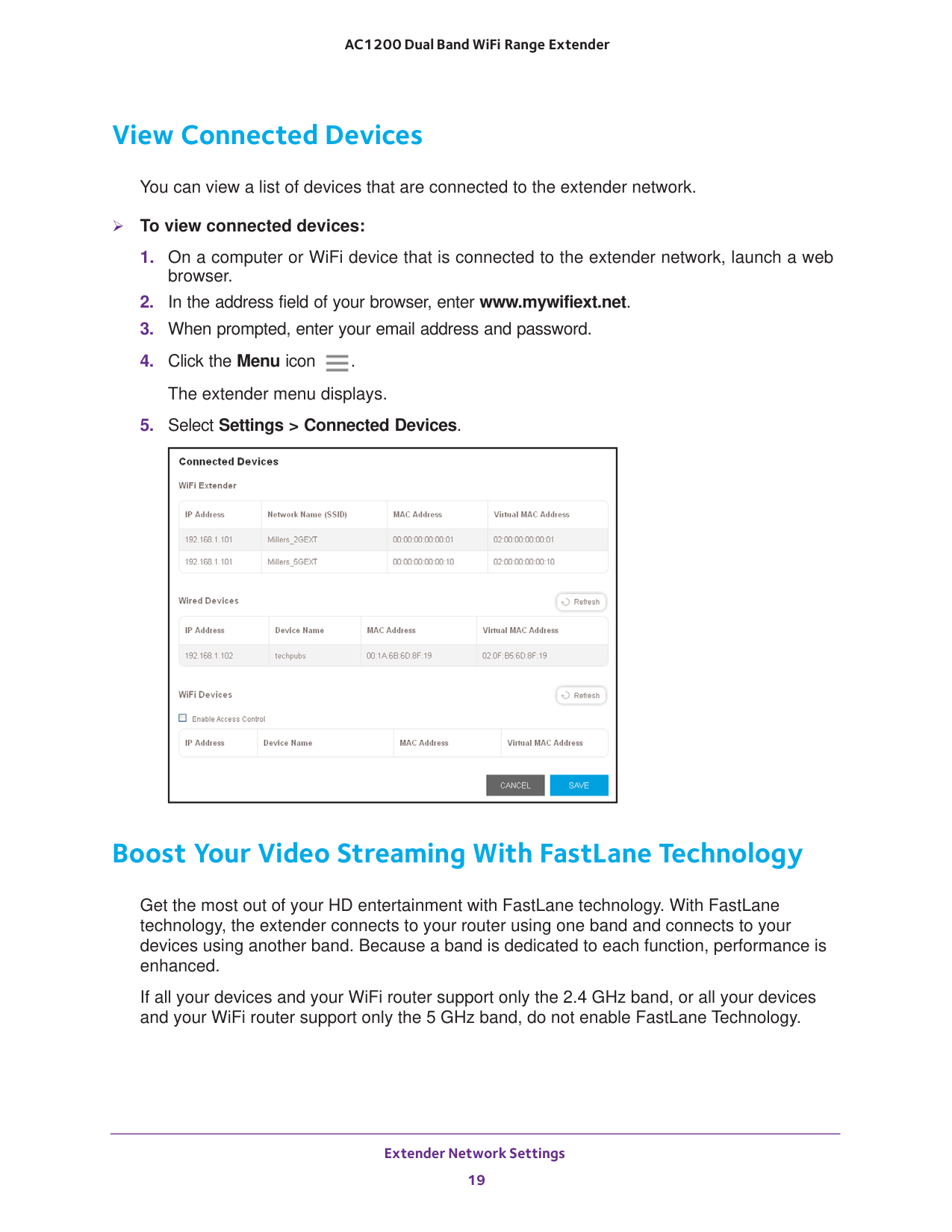
Extender View Connected Devices You can view a list of devices that are connected to the extender network. To view connected devices:
Extender Network Settings 20 AC1200 Dual Band WiFi Range
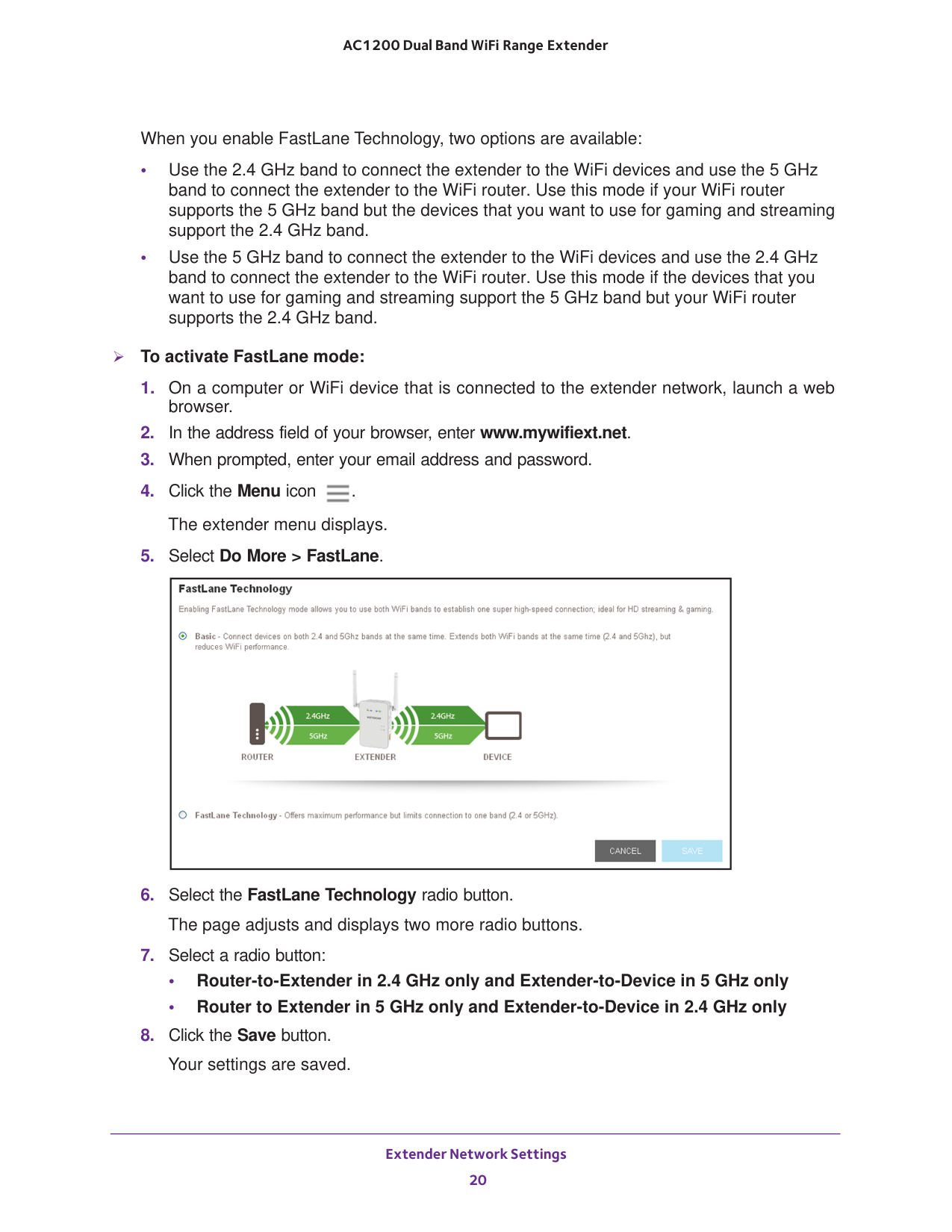
Extender When you enable FastLane Technology, two options are available: • Use the 2.4 GHz band to connect the extender to the WiFi devices and use the 5 GHz band to connect the extender to the WiFi router. Use this mode if your WiFi router supports the 5
GHz
band but the devices that you want to use for gaming and streaming support the 2.4 GHz band. • Use the 5 GHz band to connect the extender to the WiFi devices and use the 2.4 GHz band to connect the extender to the WiFi router. Use this mode if the devices that you want to use for gaming and streaming support the 5 GHz band but your WiFi router supports the 2.4
GHz
band. To activate FastLane mode:
Extender Network Settings 21 AC1200 Dual Band WiFi Range
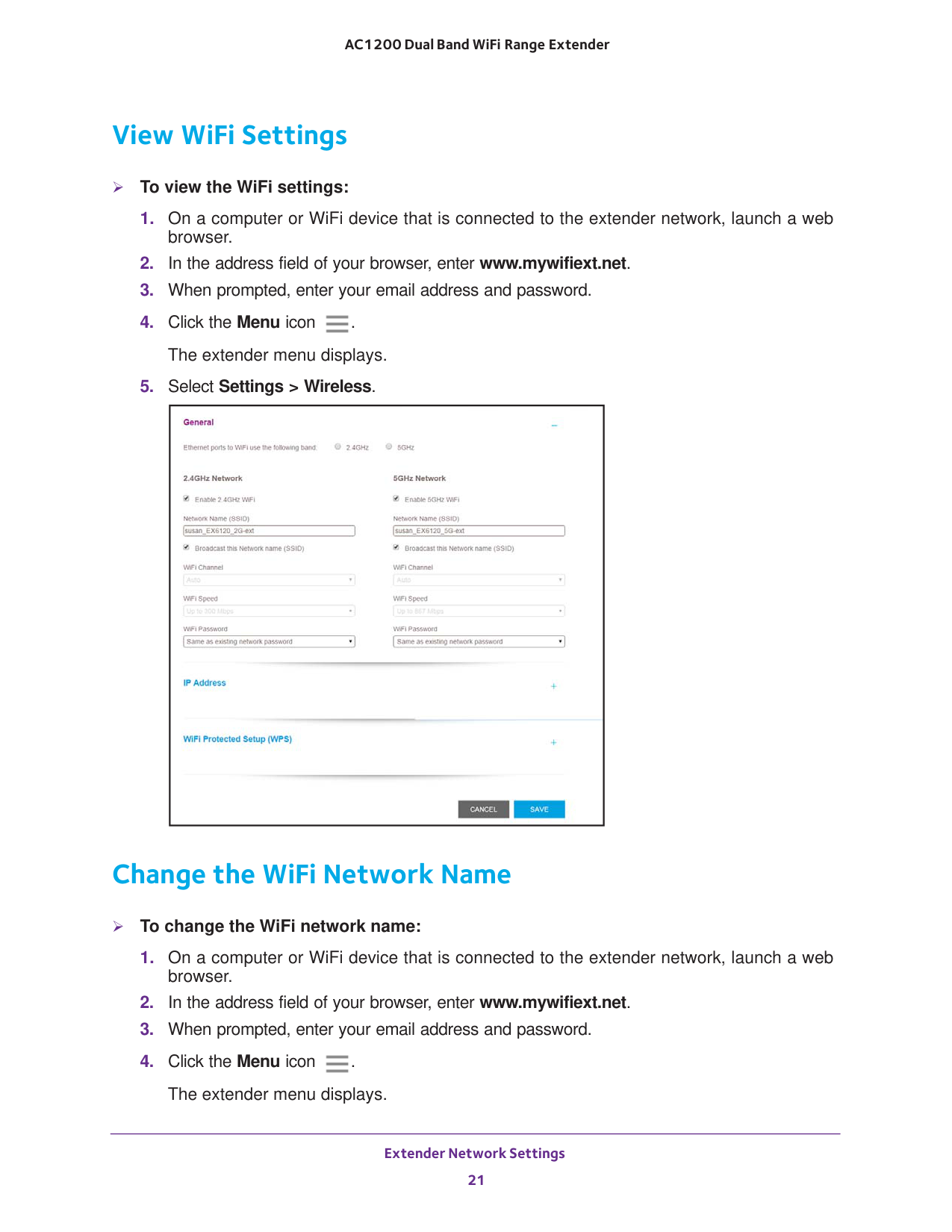
Extender View WiFi Settings To view the WiFi settings:
Extender Network Settings 22 AC1200 Dual Band WiFi Range
Extender
Extender Network Settings 23 AC1200 Dual Band WiFi Range
Extender
Extender Network Settings 24 AC1200 Dual Band WiFi Range
Extender
Extender Network Settings 25 AC1200 Dual Band WiFi Range
Extender
21). For information about using WPS to connect the extender to a WiFi network during setup, see Use the Extender in Access Point Mode on page
14.
Extender Network Settings 26 AC1200 Dual Band WiFi Range
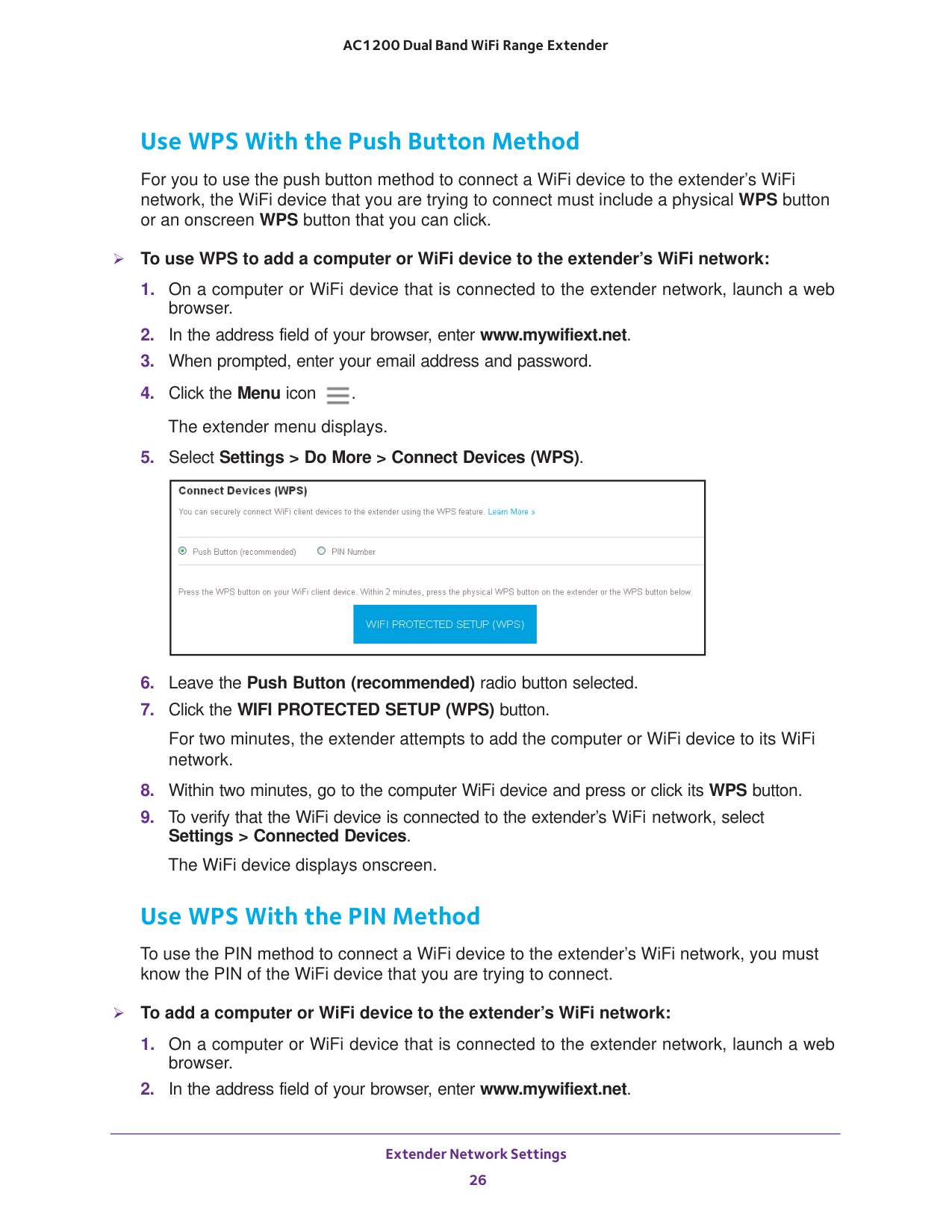
Extender Use WPS With the Push Button Method For you to use the push button method to connect a WiFi device to the extender’s WiFi network, the WiFi device that you are trying to connect must include a physical WPS button or an onscreen WPS button that you can click. To use WPS to add a computer or WiFi device to the extender’s WiFi network:
Extender Network Settings 27 AC1200 Dual Band WiFi Range
Extender
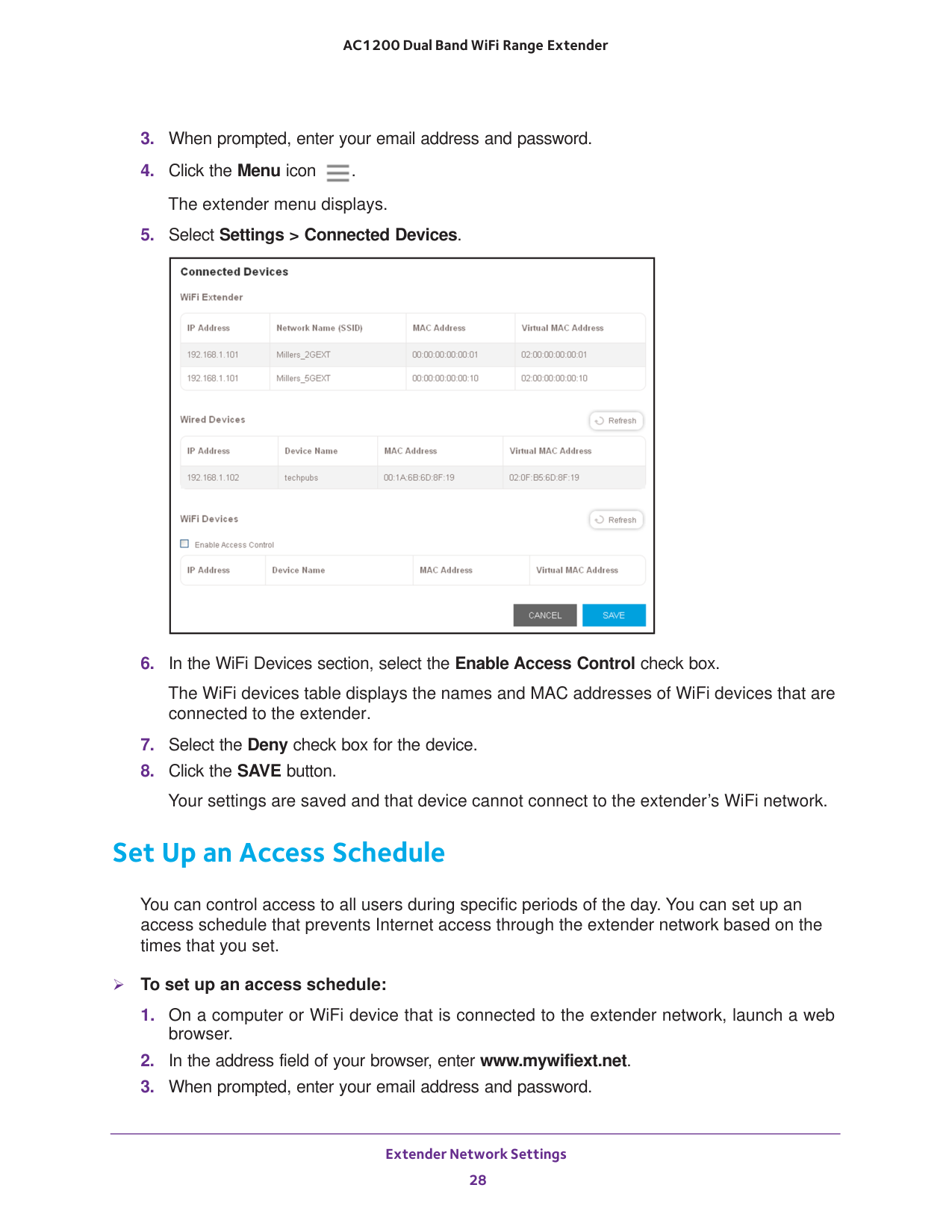
19). To use WiFi access control to deny access:
Extender Network Settings 28 AC1200 Dual Band WiFi Range
Extender
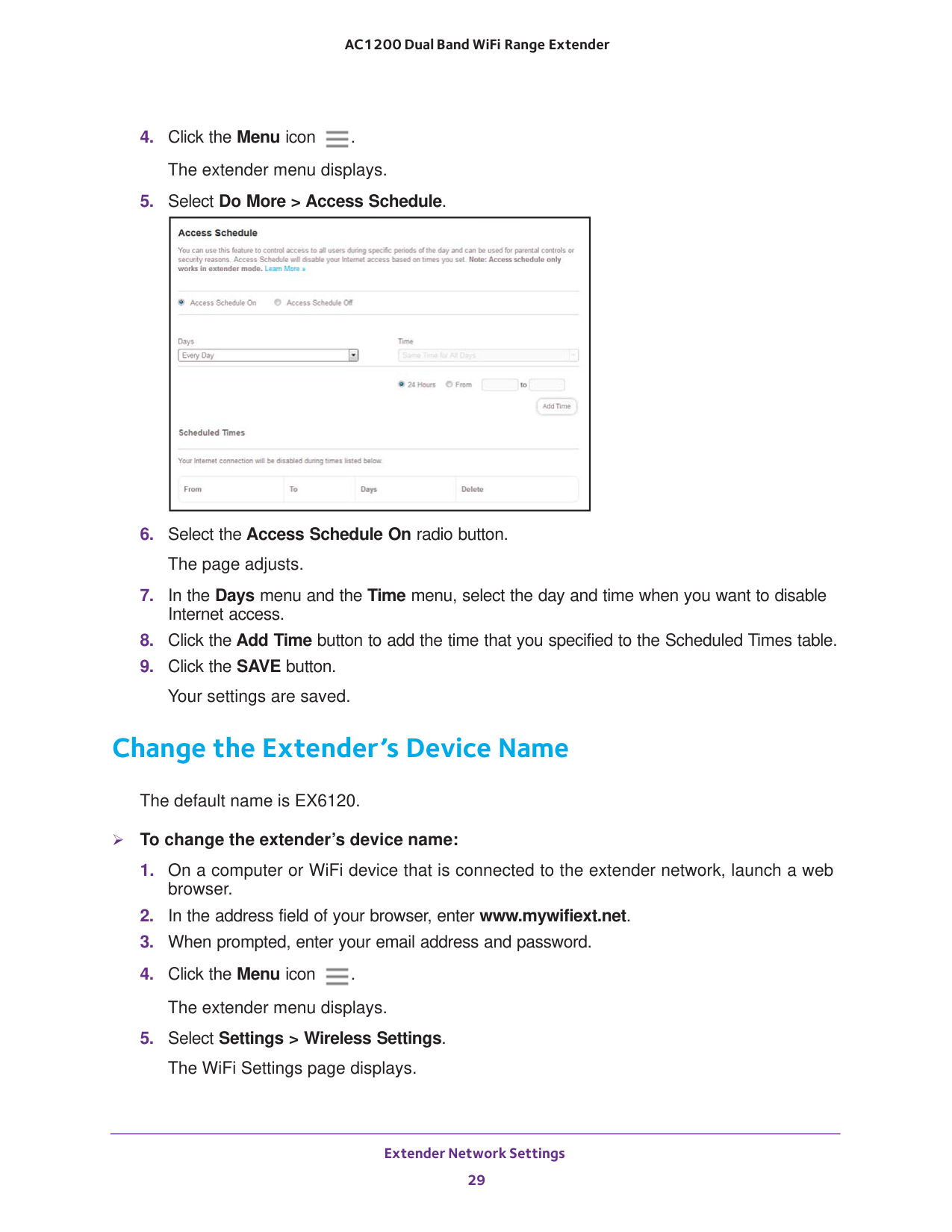
Extender Network Settings 29 AC1200 Dual Band WiFi Range
Extender
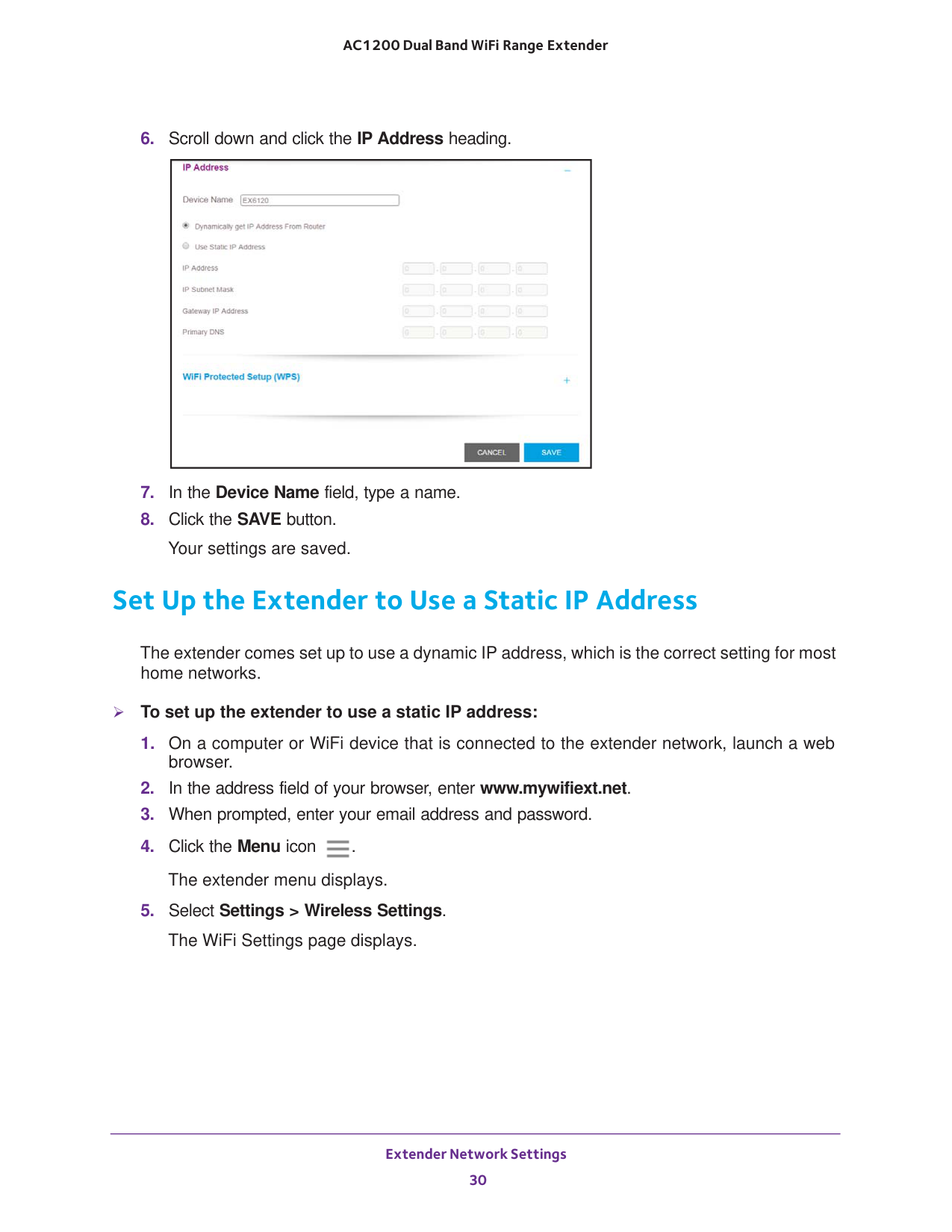
Extender Network Settings 30 AC1200 Dual Band WiFi Range
Extender
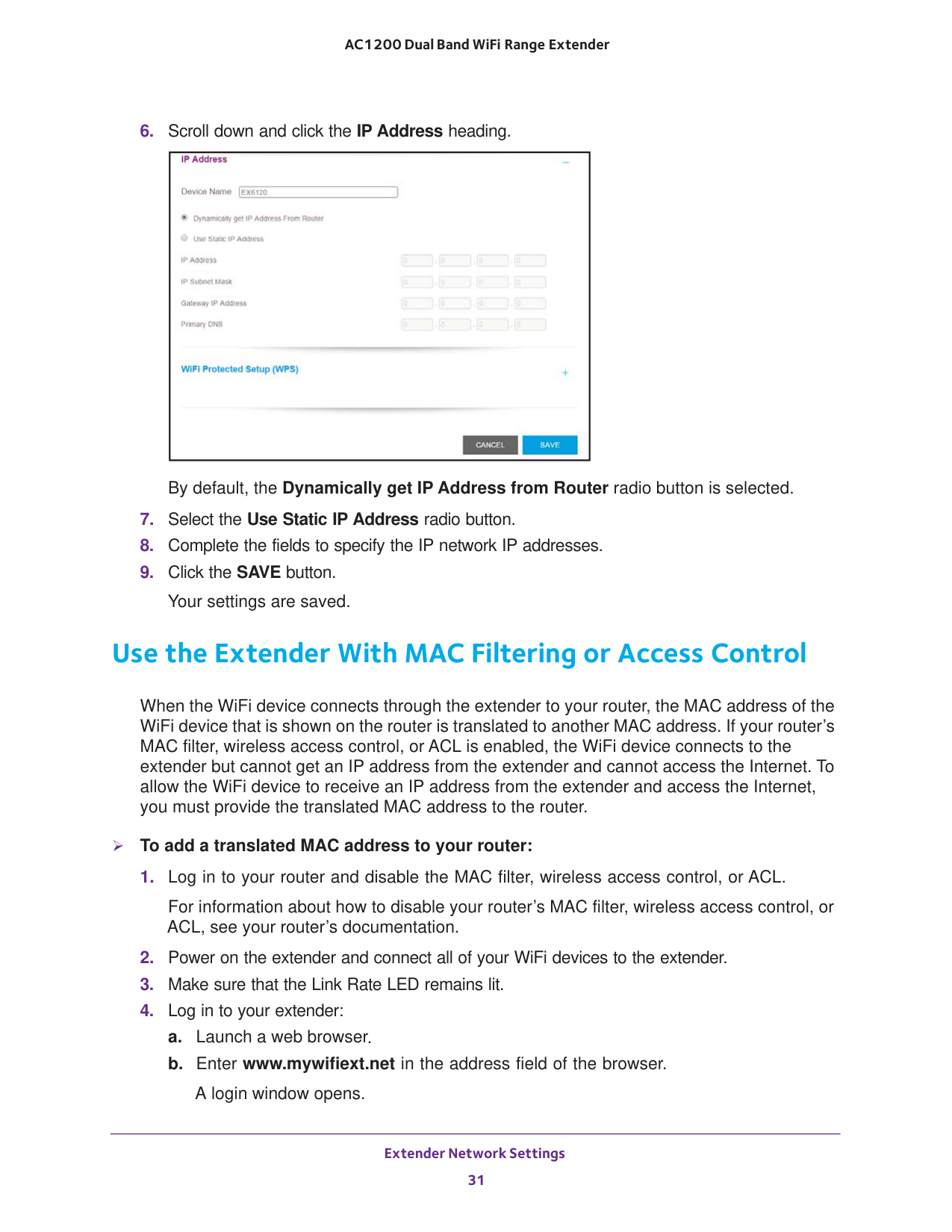
Extender Network Settings 31 AC1200 Dual Band WiFi Range
Extender
Extender Network Settings 32 AC1200 Dual Band WiFi Range
Extender c. Enter your email address and password and click the LOG IN button.
33 4
Maintain and Monitor the Extender 34 AC1200 Dual Band WiFi Range
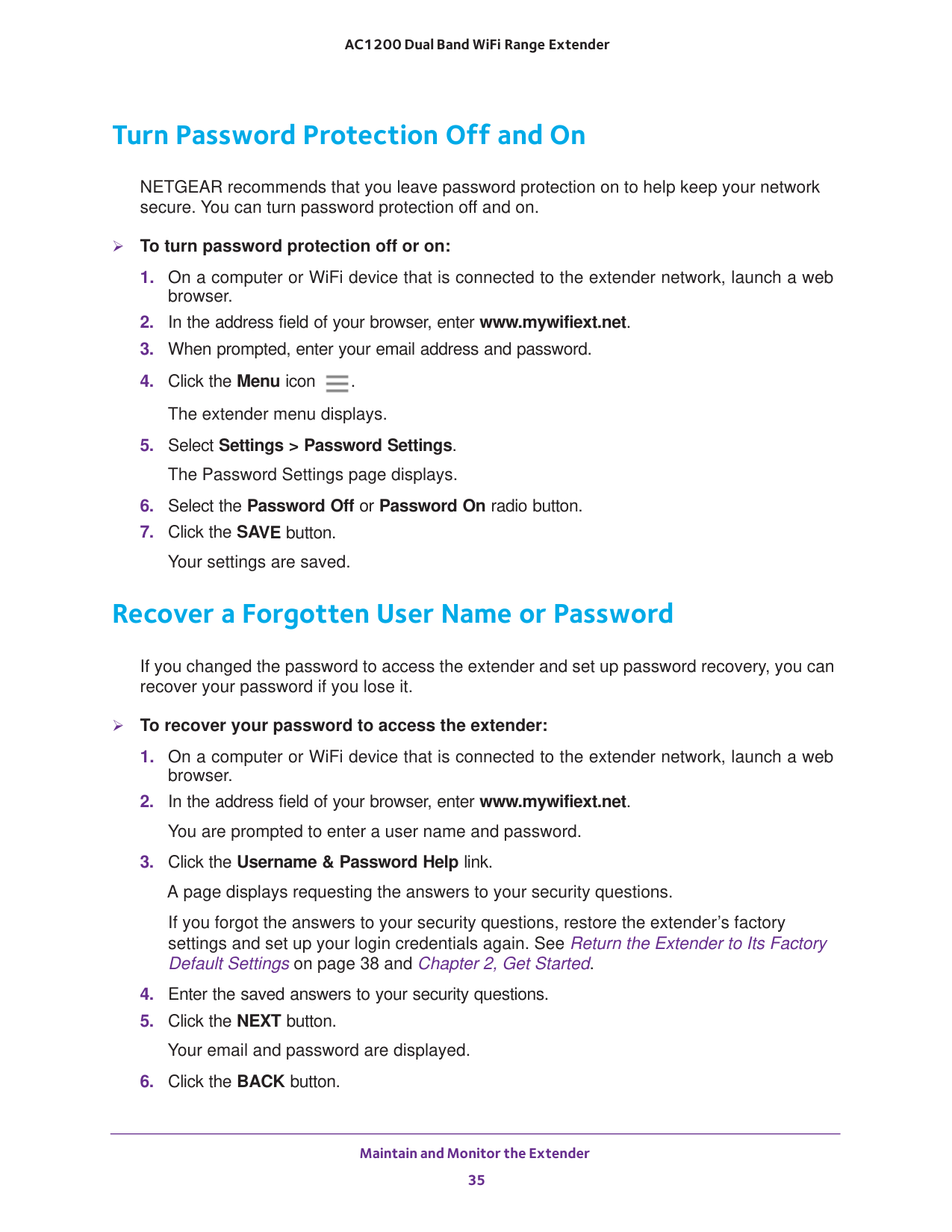
Extender Change the Extender User Name and Password You can change the user name and password to log in to the extender. To add an extender user:
Maintain and Monitor the Extender 35 AC1200 Dual Band WiFi Range
Extender Turn Password Protection Off and On NETGEAR recommends that you leave password protection on to help keep your network secure. You can turn password protection off and on. To turn password protection off or on:
38 and Chapter 2, Get Started.
Maintain and Monitor the Extender 36 AC1200 Dual Band WiFi Range
Extender A login window opens.
Maintain and Monitor the Extender 37 AC1200 Dual Band WiFi Range
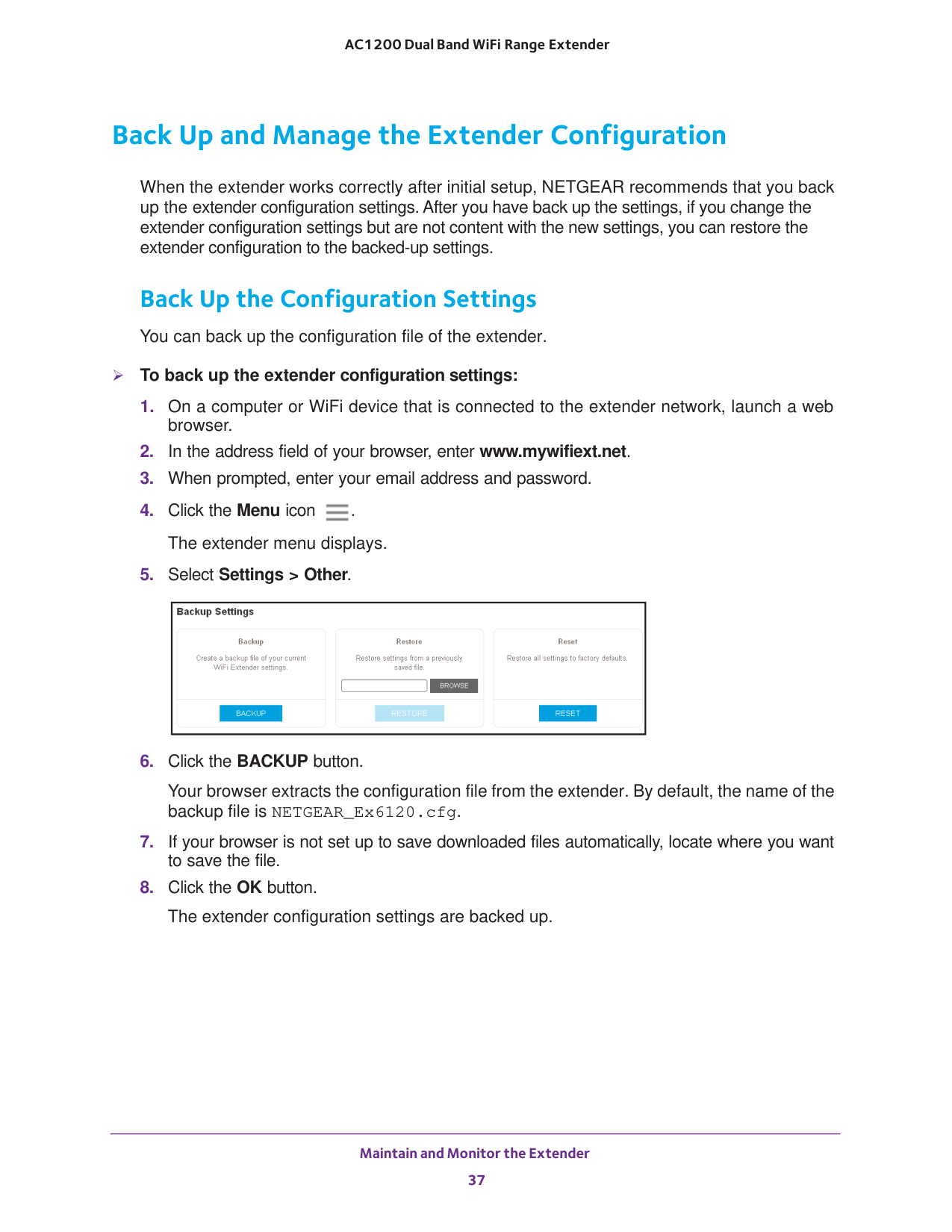
Extender Back Up and Manage the Extender Configuration When the extender works correctly after initial setup, NETGEAR recommends that you back up the extender configuration settings. After you have back up the settings, if you change the extender configuration settings but are not content with the new settings, you can restore the extender configuration to the backed-up settings. Back Up the Configuration Settings You can back up the configuration file of the extender. To back up the extender configuration settings:
Maintain and Monitor the Extender 38 AC1200 Dual Band WiFi Range
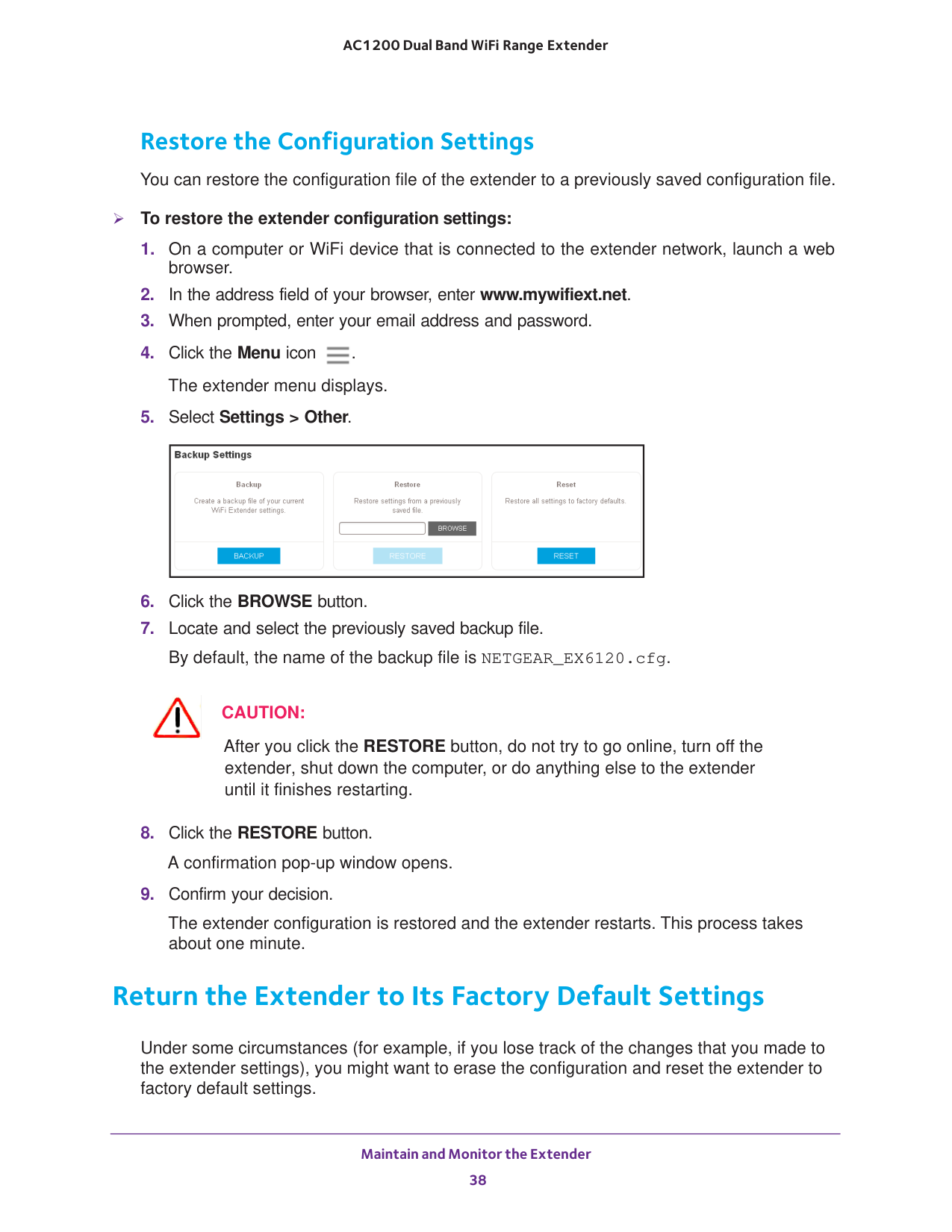
Extender Restore the Configuration Settings You can restore the configuration file of the extender to a previously saved configuration file. To restore the extender configuration settings:
Caution:
After you click the RESTORE button, do not try to go online, turn off the extender, shut down the computer, or do anything else to the extender until it finishes restarting.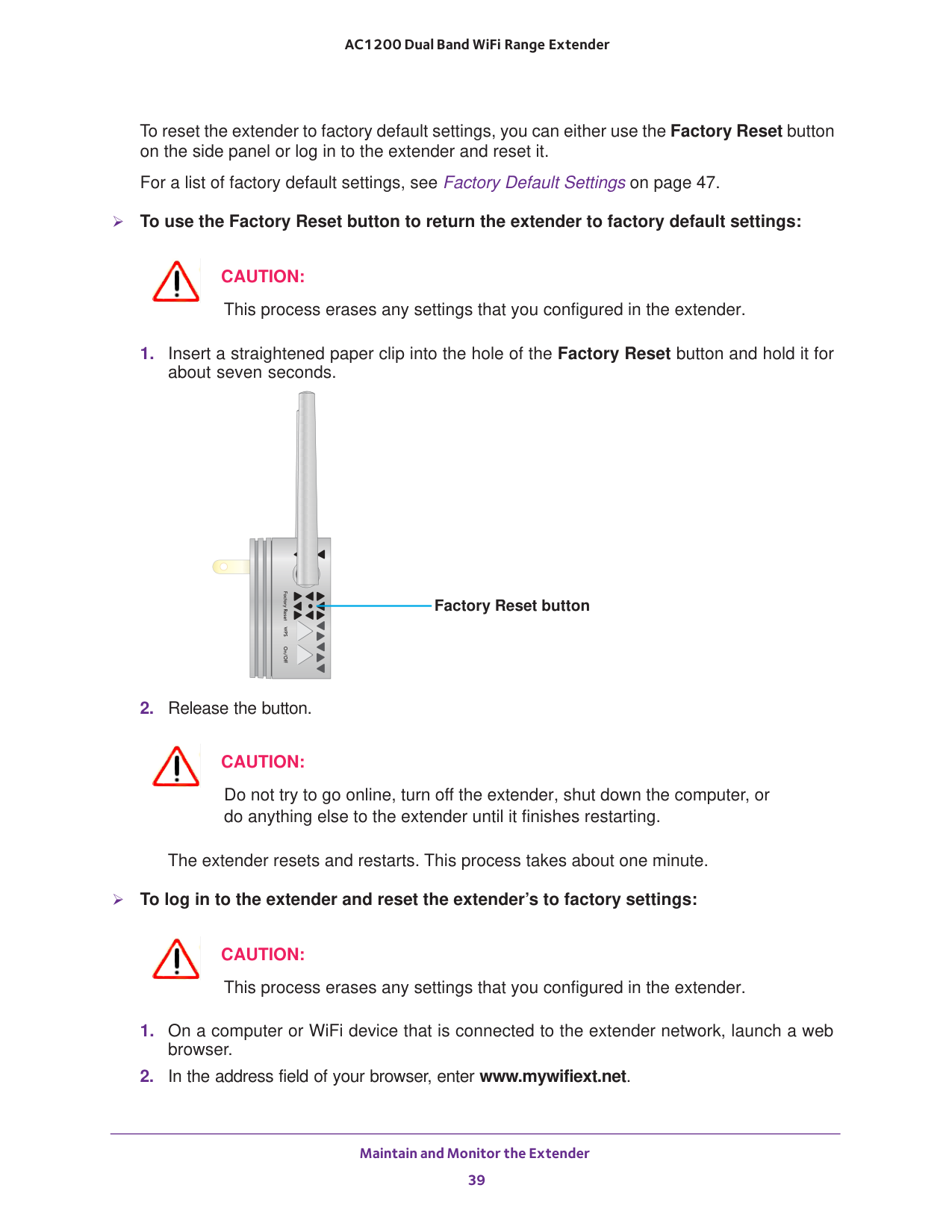
Maintain and Monitor the Extender 39 AC1200 Dual Band WiFi Range
Extender To reset the extender to factory default settings, you can either use the Factory Reset button on the side panel or log in to the extender and reset it. For a list of factory default settings, see Factory Default Settings on page
Caution:
This process erases any settings that you configured in the extender.Caution:
Do not try to go online, turn off the extender, shut down the computer, or do anything else to the extender until it finishes restarting. The extender resets and restarts. This process takes about one minute. To log in to the extender and reset the extender’s to factory settings:Caution:
This process erases any settings that you configured in the extender.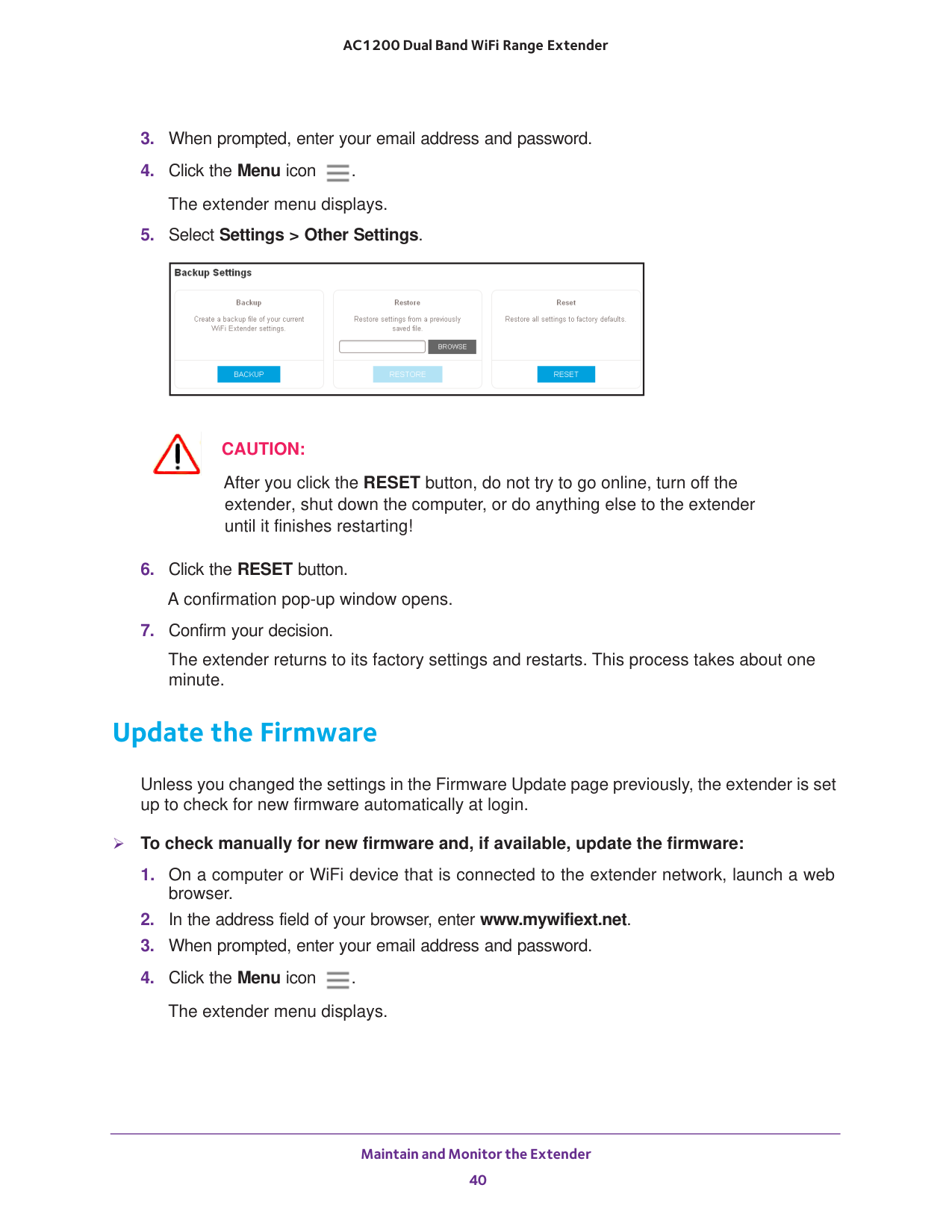
Maintain and Monitor the Extender 40 AC1200 Dual Band WiFi Range
Extender
Caution:
After you click the RESET button, do not try to go online, turn off the extender, shut down the computer, or do anything else to the extender until it finishes restarting!
Maintain and Monitor the Extender 41 AC1200 Dual Band WiFi Range
Extender
Caution:
After you click the UPLOAD button, do not try to go online, turn off the extender, shut down the computer, or do anything else to the extender until it finishes restarting.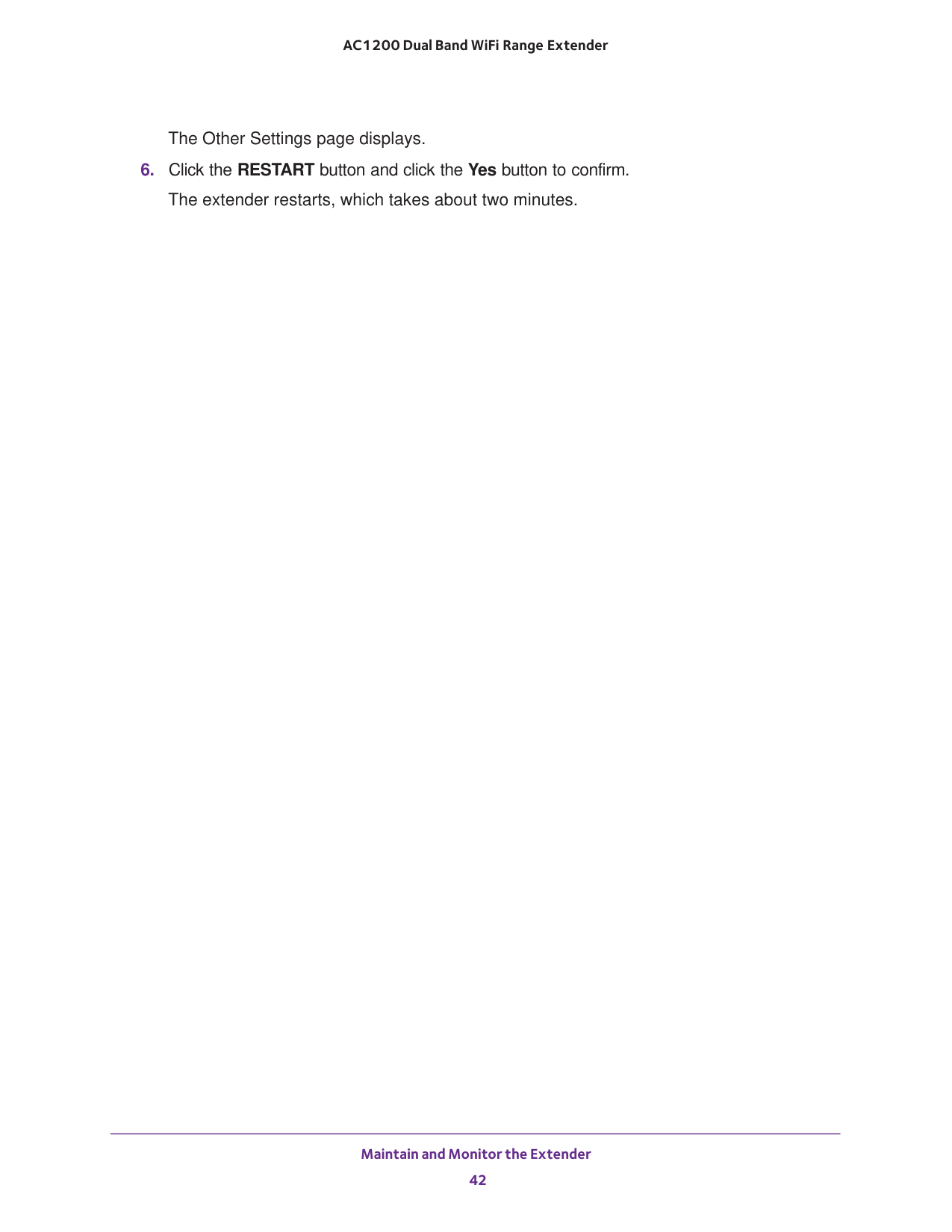
Maintain and Monitor the Extender 42 AC1200 Dual Band WiFi Range
Extender The Other Settings page displays.
43 5
FAQs and Troubleshooting 44 AC1200 Dual Band WiFi Range
Extender FAQs This section provides answers for difficulties you might experience with the extender. The web browser setup keeps asking me for my network password (passphrase) or security key, and I am sure that I entered the correct password. What can I do? The extender is probably placed at the borderline of the range covered by the router or access point. For more information about where to place the extender, see Find the Best Location on page
FAQs and Troubleshooting 45 AC1200 Dual Band WiFi Range
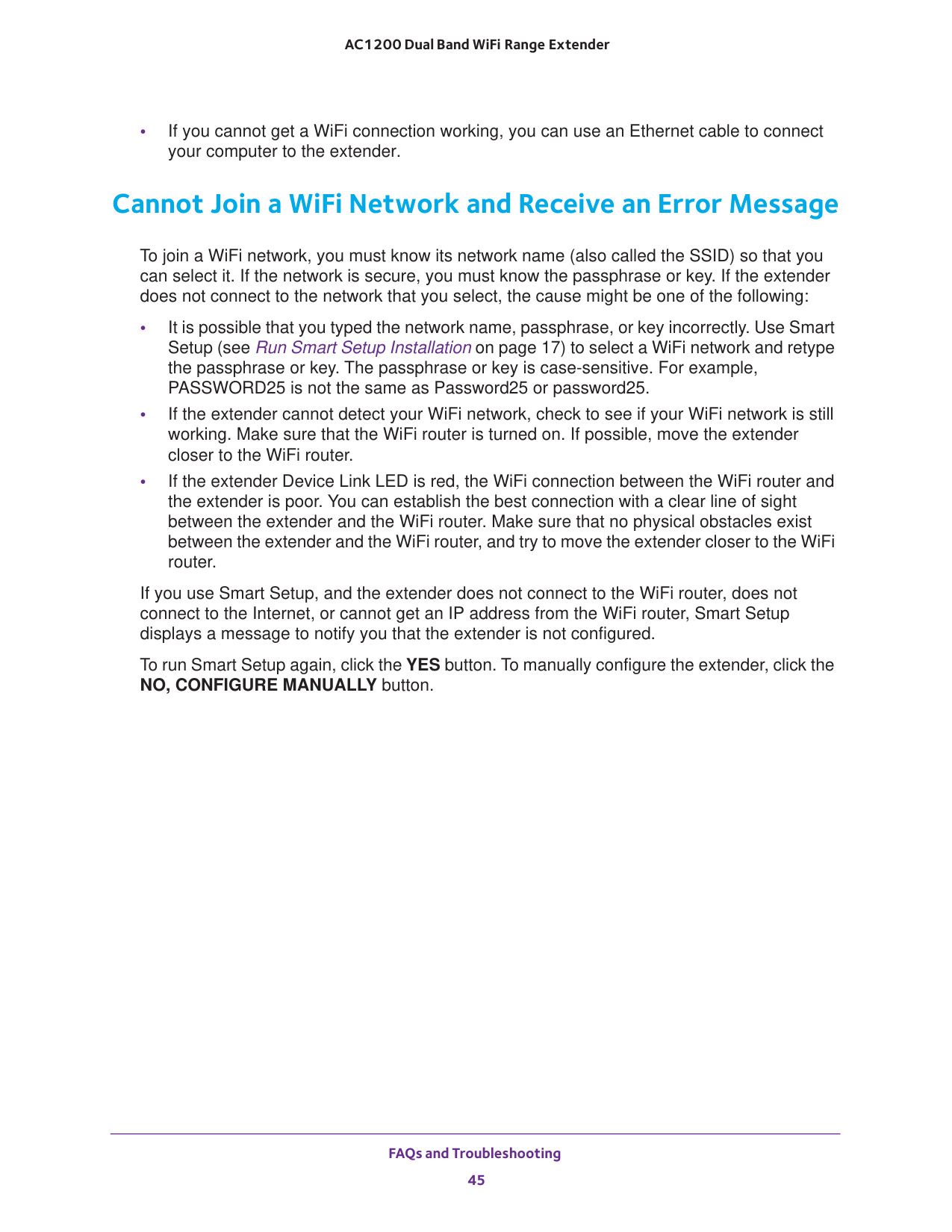
Extender • If you cannot get a WiFi connection working, you can use an Ethernet cable to connect your computer to the extender. Cannot Join a WiFi Network and Receive an Error Message To join a WiFi network, you must know its network name (also called the SSID) so that you can select it. If the network is secure, you must know the passphrase or key. If the extender does not connect to the network that you select, the cause might be one of the following: • It is possible that you typed the network name, passphrase, or key incorrectly. Use Smart Setup (see Run Smart Setup Installation on page
17) to select a WiFi network and retype the passphrase or key. The passphrase or key is case-sensitive. For example, PASSWORD25 is not the same as Password25 or password25. • If the extender cannot detect your WiFi network, check to see if your WiFi network is still working. Make sure that the WiFi router is turned on. If possible, move the extender closer to the WiFi router. • If the extender Device Link LED is red, the WiFi connection between the WiFi router and the extender is poor. You can establish the best connection with a clear line of sight between the extender and the WiFi router. Make sure that no physical obstacles exist between the extender and the WiFi router, and try to move the extender closer to the WiFi router. If you use Smart Setup, and the extender does not connect to the WiFi router, does not connect to the Internet, or cannot get an IP address from the WiFi router, Smart Setup displays a message to notify you that the extender is not configured. To run Smart Setup again, click the YES button. To manually configure the extender, click the NO, CONFIGURE MANUALLY button.
46
A
A. Factory Settings and Technical Specifications This appendix covers the following topics: • Factory Default Settings • Technical and Environmental Specifications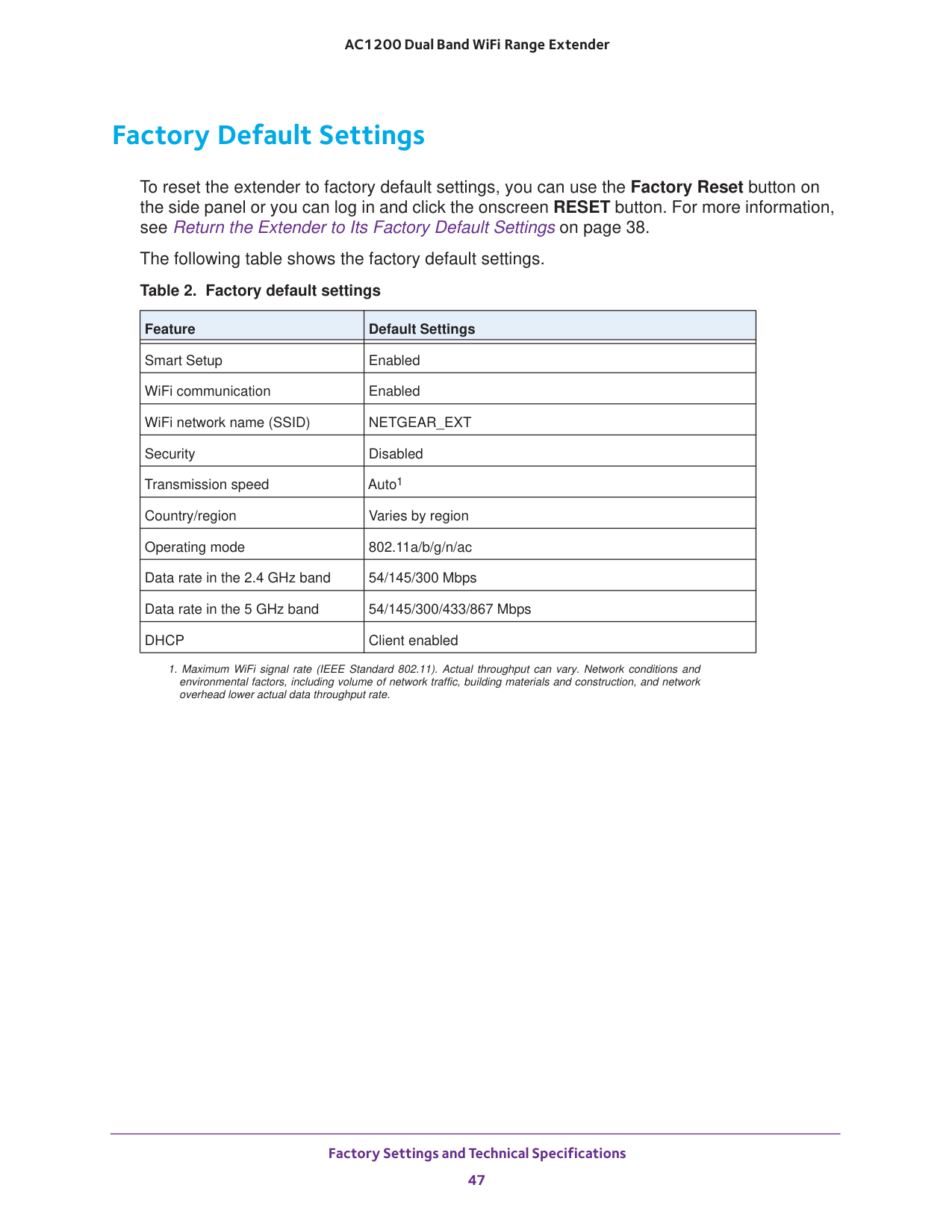
Factory Settings and Technical Specifications 47 AC1200 Dual Band WiFi Range
Extender Factory Default Settings To reset the extender to factory default settings, you can use the Factory Reset button on the side panel or you can log in and click the onscreen RESET button. For more information, see Return the Extender to Its Factory Default Settings on page
Feature Default Settings Smart Setup Enabled WiFi communication Enabled WiFi network name (SSID)
Netgear_Ext
Security Disabled Transmission speed Auto1Dhcp
Client enabled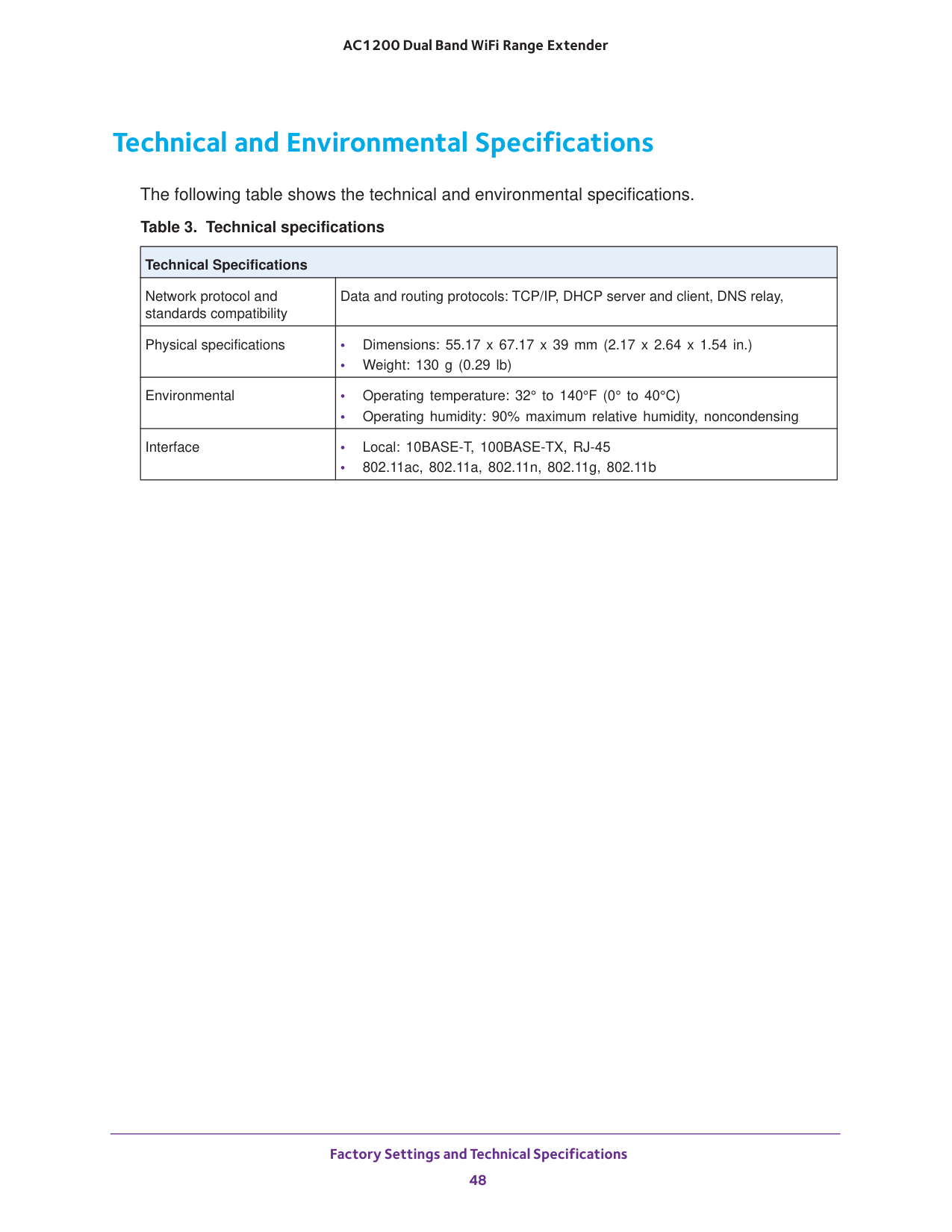
Factory Settings and Technical Specifications 48 AC1200 Dual Band WiFi Range
Extender Technical and Environmental Specifications The following table shows the technical and environmental specifications. Table 3. Technical specifications
Technical Specifications
Network protocol and standards compatibility Data and routing protocols: TCP/IP, DHCP server and client, DNS relay, Physical specifications • Dimensions: 55.17 x 67.17 x 39 mm (2.17 x 2.64 x 1.54 in.) • Weight: 130 g (0.29 lb) Environmental • Operating temperature: 32° to 140°F (0° to 40°C) • Operating humidity: 90% maximum relative humidity, noncondensing Interface • Local: 10BASE-T, 100BASE-TX, RJ-45 • 802.11ac, 802.11a, 802.11n, 802.11g, 802.11b