
Schimmel Dry Sdry M2 Wall Dehumidifier Mould Remover
Ask AI
— answers from the official manualAnswers from the official manual.
Common questions
Common Questions
10 totalHow do I set up a permanent drainage system for my dehumidifier?
Attach a pipe with an internal diameter of 10 mm to the back drain outlet on the unit. Ensure the connection is tight and does not leak. Direct the pipe downward to allow water flow smoothly into a suitable drainage point without bending or kinking it.
What should I do if the dehumidifier stops unexpectedly?
Check that the plug is properly inserted and the socket is switched on. If the unit has a Tank FULL indicator lit, it means the water tank is full or not correctly installed.
How do I reset my dehumidifier to factory settings?
Press and hold the Power button for 10 seconds until the LED flashes red. This clears all settings; you’ll need to re-pair any connected devices afterward.
Why does hot or cold air come out of my dehumidifier?
This is normal operation: during the freezing process for dehumidification, expect cold air from the unit; in defrost cycle, it emits warmer dry air.
What should I do if my water tank keeps filling up quickly?
Check whether the humidity setting is lower than the room’s current humidity. Increase the temperature and ensure there are no blockages around the intake or exhaust grilles.
How do I position my dehumidifier for best results?
Place it in an enclosed space, close all doors and windows to create effective operating conditions. Allow at least a 20 cm clearance around the unit for proper airflow.
Full Manual
27 pages
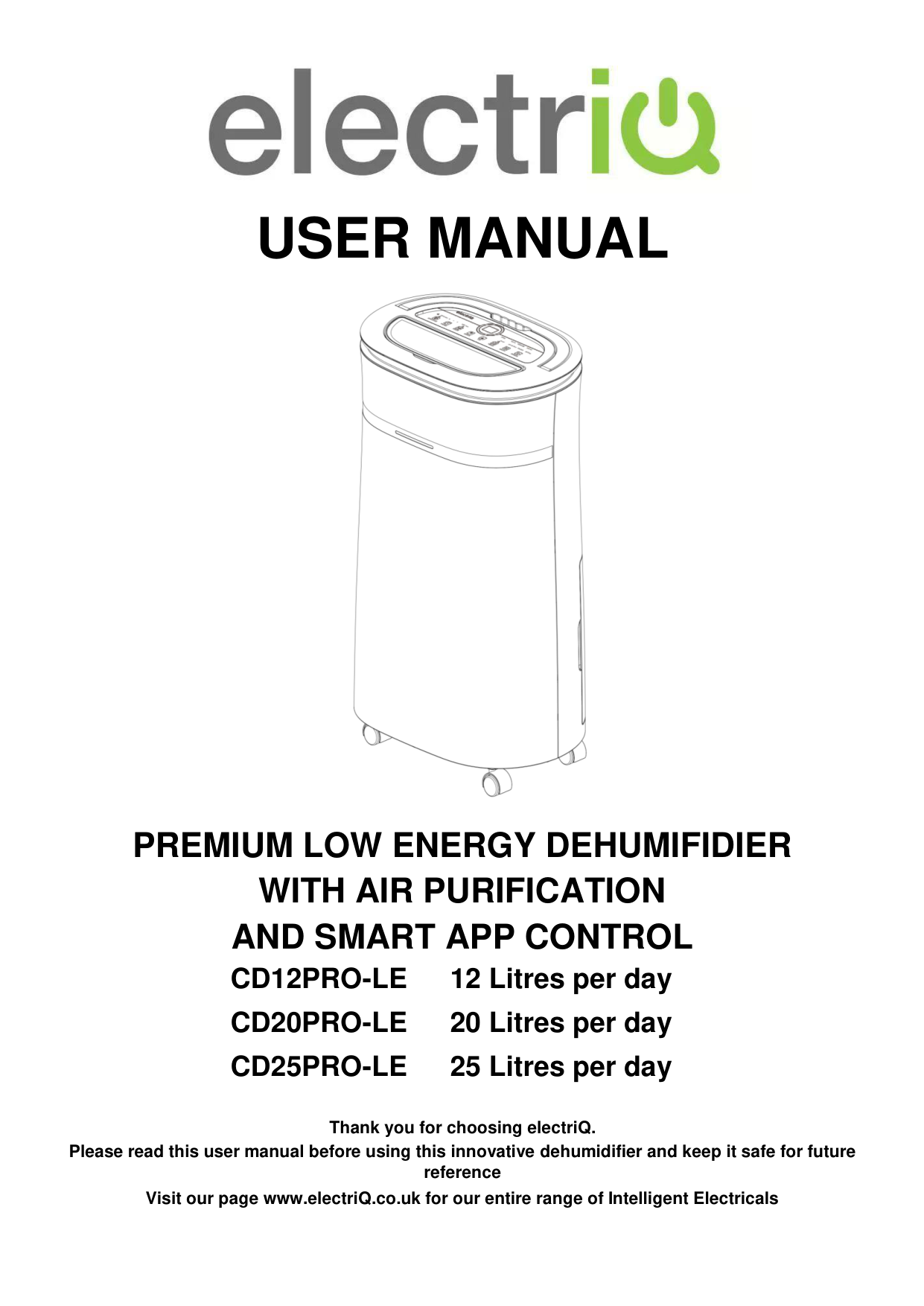

USER MANUAL

PREMIUM LOW ENERGY DEHUMIFIDIER WITH AIR PURIFICATION AND SMART APP CONTROL
CD12PRO-LE 12 Litres per day CD20PRO-LE 20 Litres per day CD25PRO-LE 25 Litres per day
Thank you for choosing electriQ. Please read this user manual before using this innovative dehumidifier and keep it safe for future reference Visit our page www.electriQ.co.uk for our entire range of Intelligent Electricals
#### CONTENTS
SAFETY INSTRUCTIONS 2 VISUAL SAFETY GUIDE 4 INFORMATION ON INDOOR POLLUTANTS 4 APPLIANCE DIAGRAM 5 FEATURES 6 INSTALLATION 6 FITTING THE OPTIONAL FILTERS 6 CONTROL PANEL 7 OTHER FEATURES AND INDICATORS 9 QUICK REFERENCE GUIDE 10 POSITIONING THE DEHUMIDIFIER 11 WATER DRAINAGE 12 SETTING UP THE WIFI APP 13 CONNECTING USING QUICK CONNECTION 16 CONNECTING USING AP MODE 17 CONTROLLING YOUR DEVICE THROUGH THE APP 18 SMART SCENES 20 AUTOMATION 21 CONNECTION TROUBLESHOOTING 22 CARE AND MAINTENANCE 23 TROUBLESHOOTING 24 TECHNICAL DATA 25 SUPPORT 26
#### SAFETY INSTRUCTIONS
should not be used to support the full weight of the dehumidifier. When carrying the unit, it should be kept upright and suifficiently supported from its base.
###### ENERGY SAVING AND UNIT SAFETY PROTECTION TIPS
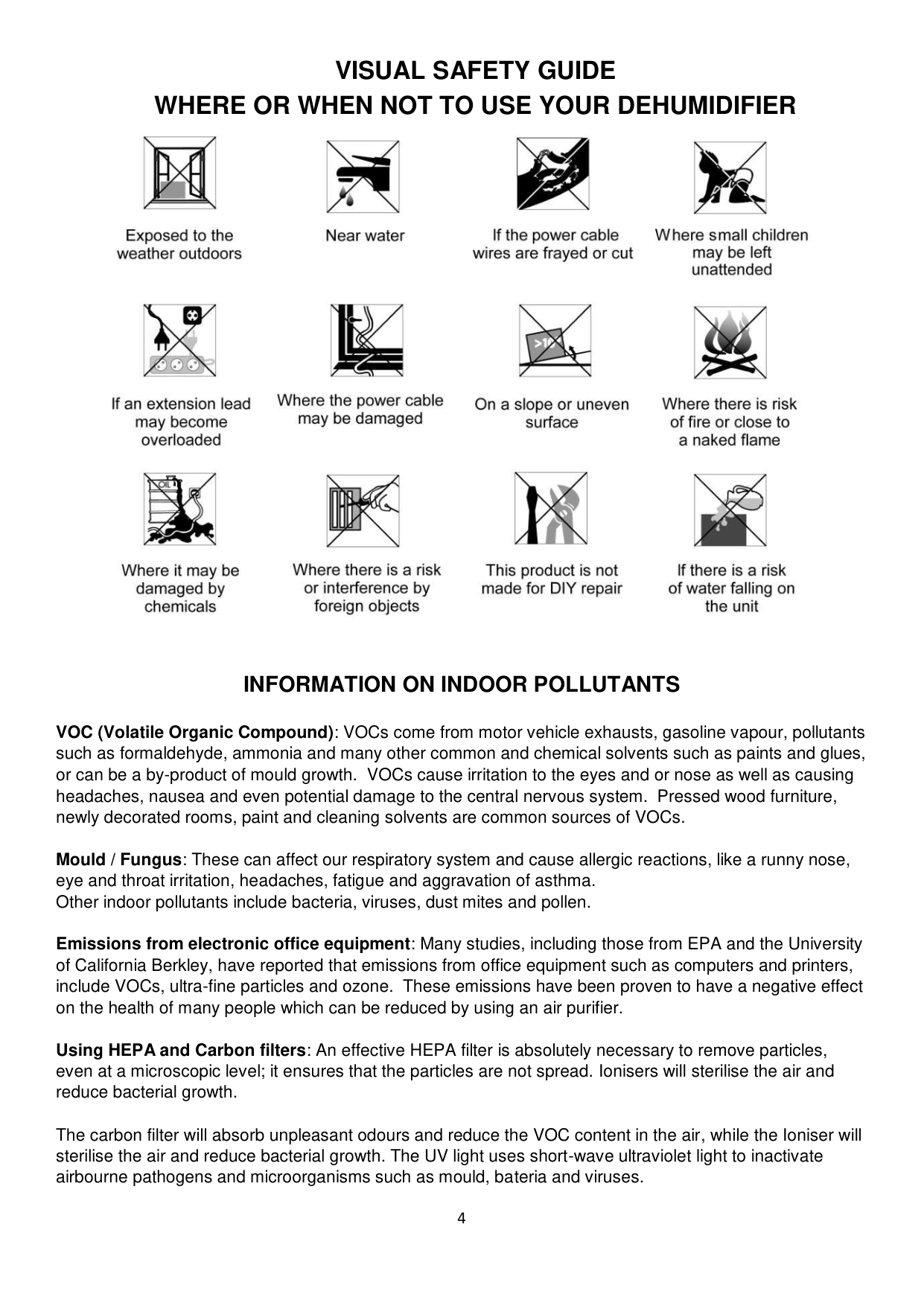
#### VISUAL SAFETY GUIDE WHERE OR WHEN NOT TO USE YOUR DEHUMIDIFIER

##### INFORMATION ON INDOOR POLLUTANTS
VOC (Volatile Organic Compound): VOCs come from motor vehicle exhausts, gasoline vapour, pollutants such as formaldehyde, ammonia and many other common and chemical solvents such as paints and glues, or can be a by-product of mould growth. VOCs cause irritation to the eyes and or nose as well as causing headaches, nausea and even potential damage to the central nervous system. Pressed wood furniture, newly decorated rooms, paint and cleaning solvents are common sources of VOCs.
Mould / Fungus: These can affect our respiratory system and cause allergic reactions, like a runny nose, eye and throat irritation, headaches, fatigue and aggravation of asthma. Other indoor pollutants include bacteria, viruses, dust mites and pollen.
Emissions from electronic office equipment: Many studies, including those from EPA and the University of California Berkley, have reported that emissions from office equipment such as computers and printers, include VOCs, ultra-fine particles and ozone. These emissions have been proven to have a negative effect on the health of many people which can be reduced by using an air purifier.
Using HEPA and Carbon filters: An effective HEPA filter is absolutely necessary to remove particles, even at a microscopic level; it ensures that the particles are not spread. Ionisers will sterilise the air and reduce bacterial growth.
The carbon filter will absorb unpleasant odours and reduce the VOC content in the air, while the Ioniser will sterilise the air and reduce bacterial growth. The UV light uses short-wave ultraviolet light to inactivate airbourne pathogens and microorganisms such as mould, bateria and viruses.
#### APPLIANCE DIAGRAM

#### OPTIONAL FILTERS

######## CARBON FILTER
Replacement filters are available from the retailer under code: ACFIL-CDLEX
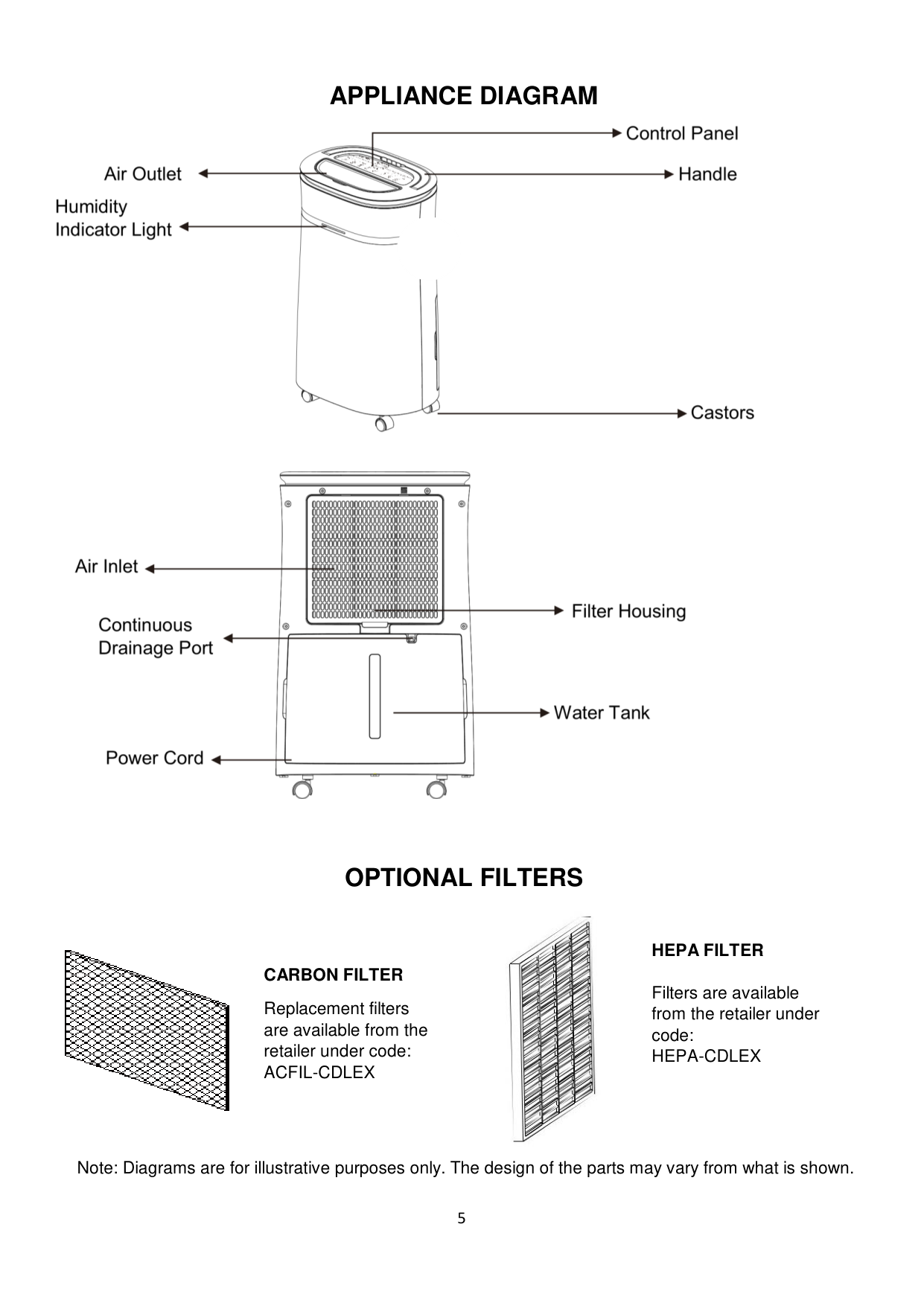

######## HEPA FILTER
Filters are available from the retailer under code: HEPA-CDLEX
Note: Diagrams are for illustrative purposes only. The design of the parts may vary from what is shown.
#### FEATURES
Your dehumidifier belongs to the electriQ dehumidifier range featuring power saving logic.
These dehumidifiers use compressor technology to extract water from the environment. Compressor dehumidifiers are ideal for normal domestic or office environments which are heated during the winter months and maintain a temperature above 12-15⁰C.
This dehumidifier is easy to move around on castors and is designed to extract unwanted humidity while saving money due to it’s power saving logic. It features an intelligent humidistat where the desired relative humidity can be adjusted in increments of 5% between 35 and 80% ensuring the air in your room is not too dry and that power is not wasted.
INSTALLATION Remove any water from within the water tank before starting the unit. In order to save energy do not open windows or doors while the unit is running. Place the unit on a hard / flat surface. On first use run the unit continuously for 24 hrs.
TO REDUCE NOISE LEVELS: Place a piece of carpet or a rubber mat under the unit to reduce any vibrations while the unit is running.
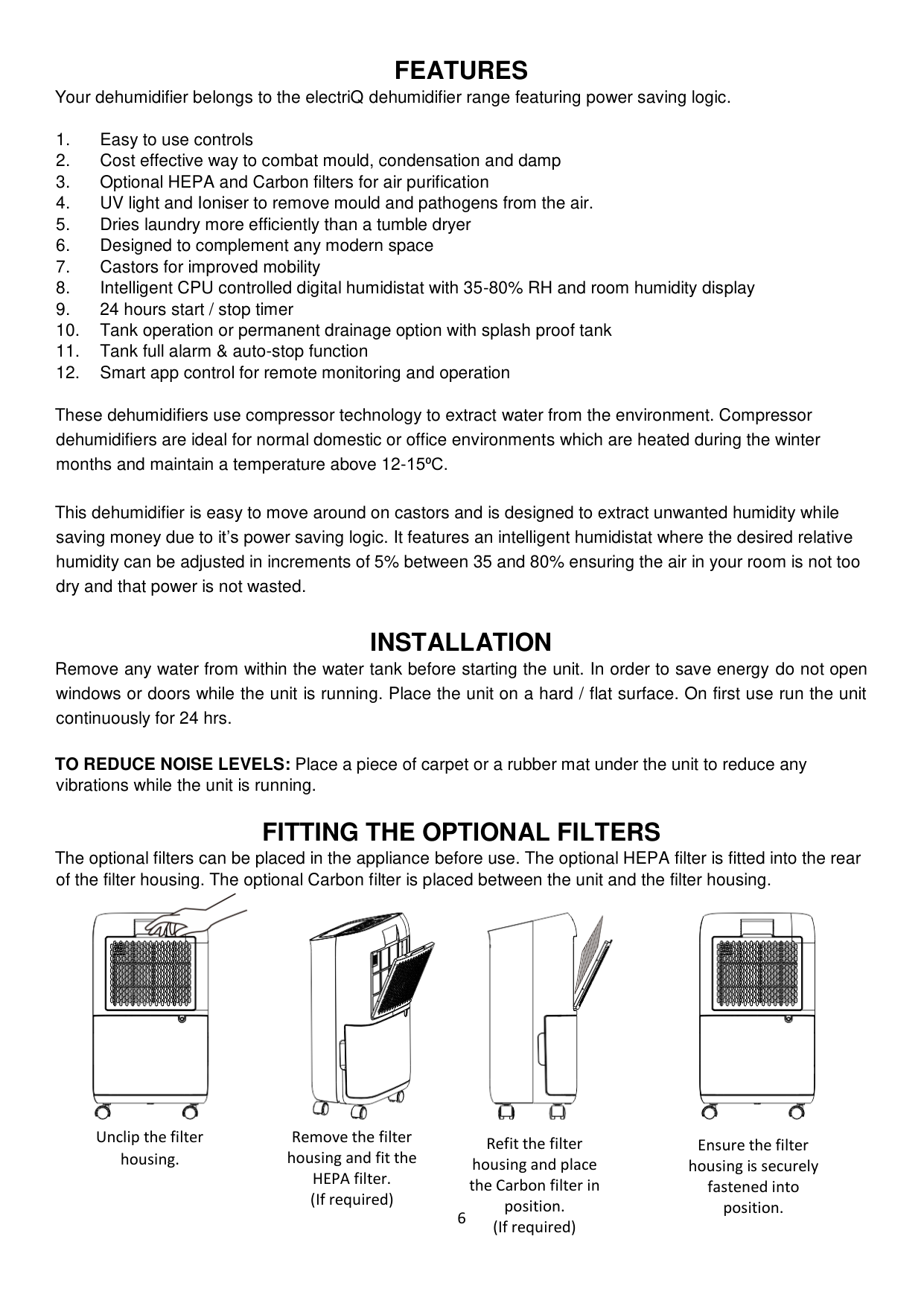
FITTING THE OPTIONAL FILTERS The optional filters can be placed in the appliance before use. The optional HEPA filter is fitted into the rear of the filter housing. The optional Carbon filter is placed between the unit and the filter housing.

Unclip the filter housing.
Remove the filter housing and fit the HEPA filter. (If required)
Refit the filter housing and place the Carbon filter in position. (If required)
Ensure the filter housing is securely fastened into position.
6
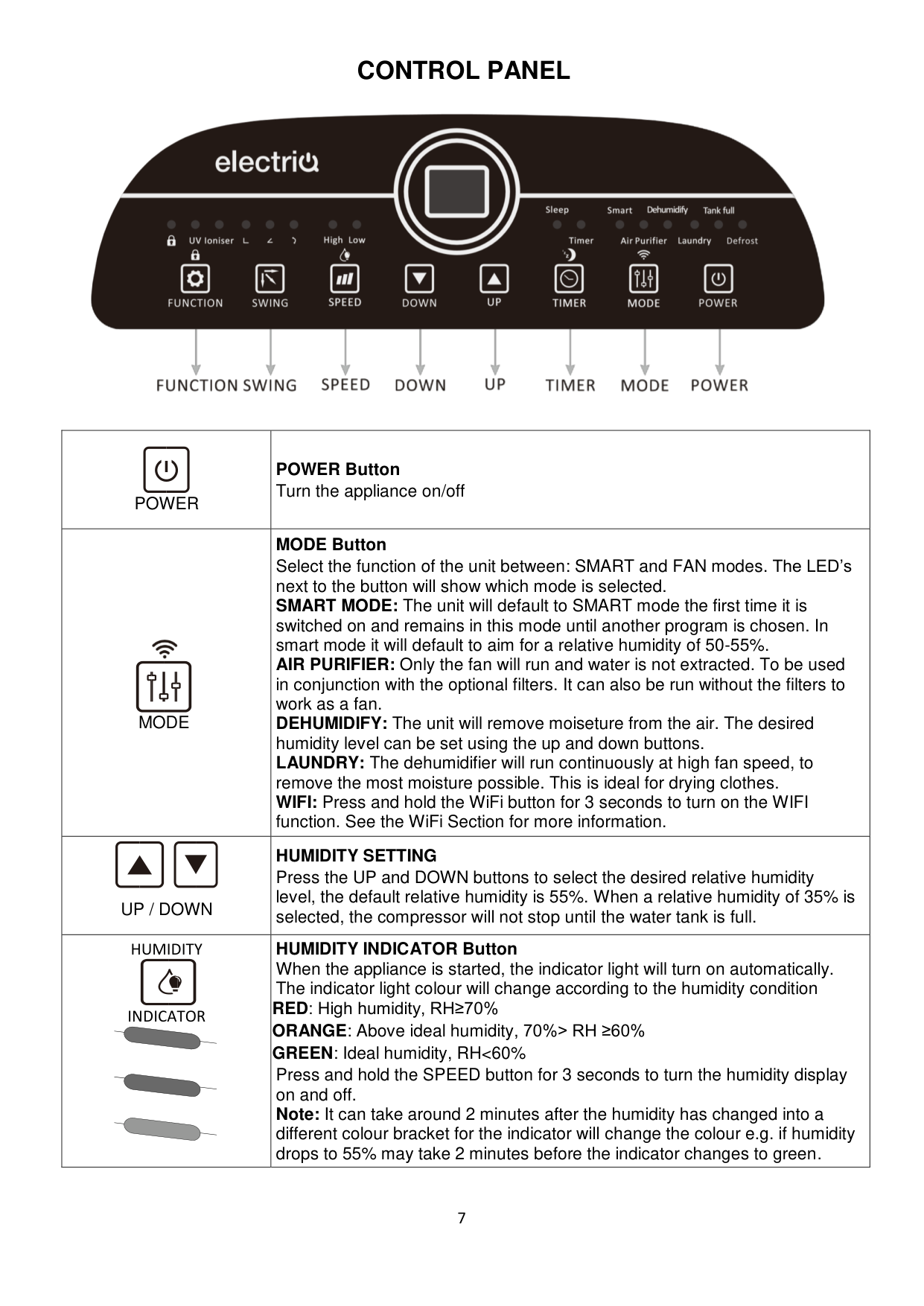
#### CONTROL PANEL

|POWER
|POWER Button Turn the appliance on/off| |---|---| |MODE

|MODE Button Select the function of the unit between: SMART and FAN modes. The LED’s next to the button will show which mode is selected. SMART MODE: The unit will default to SMART mode the first time it is switched on and remains in this mode until another program is chosen. In smart mode it will default to aim for a relative humidity of 50-55%.
AIR PURIFIER: Only the fan will run and water is not extracted. To be used in conjunction with the optional filters. It can also be run without the filters to work as a fan.
DEHUMIDIFY: The unit will remove moiseture from the air. The desired humidity level can be set using the up and down buttons. LAUNDRY: The dehumidifier will run continuously at high fan speed, to remove the most moisture possible. This is ideal for drying clothes. WIFI: Press and hold the WiFi button for 3 seconds to turn on the WIFI function. See the WiFi Section for more information.| |UP / DOWN
|HUMIDITY SETTING Press the UP and DOWN buttons to select the desired relative humidity level, the default relative humidity is 55%. When a relative humidity of 35% is selected, the compressor will not stop until the water tank is full.| |HUMIDITY
INDICATOR
|HUMIDITY INDICATOR Button When the appliance is started, the indicator light will turn on automatically. The indicator light colour will change according to the humidity condition
RED: High humidity, RH≥70% ORANGE: Above ideal humidity, 70%> RH ≥60% GREEN: Ideal humidity, RH<60%
Press and hold the SPEED button for 3 seconds to turn the humidity display on and off. Note: It can take around 2 minutes after the humidity has changed into a different colour bracket for the indicator will change the colour e.g. if humidity drops to 55% may take 2 minutes before the indicator changes to green.|
|TIMER

SLEEP|TIMER Button Press the TIMER button to program the timer. When the timer is activated the "TIMER" light will be illuminated. Before programming the timer, ensure the timer function has not been activated (the light must be off). The following timer programs are available.
DELAYED POWER-ON FUNCTION: With the appliance in stand-by, press the TIMER button, then use the UP and DOWN buttons to set in how many hours time you require the unit to start (0~24 hours).
DELAYED POWER-OFF FUNCTION: While the appliance is running with the desired settings, press the TIMER button, then use the UP and DOWN buttons to set in how many hours time you require the unit to stop (0~24 hours). SLEEP: Press and hold the TIMER button for 3 seconds to enter sleep
model. The Sleep indicator will illuminate, and all other lights will turn off. The unit will run at low fan speed. To exit Sleep mode, press and hold the TIMER button for 3 seconds.| |---|---| |SPEED
|SPEED Button Press the SPEED button to change the fan speed between HIGH and LOW. The LED’s above the button will illuminate to indicate the currently selected fan speed.| |FUNCTION


LOCK|FUNCTION Button Press the FUNCTION button to activate the UV and Ioniser purification options to improve indoor air quality. The relevant LEDs above the button will illuminate to show which function is currently activated. LOCK: Press and hold the FUNCTION button for 3 seconds to activate the child lock. While activated the lock LED will illuminate, and the buttons on the control panel are deactivated. To turn off the lock, press and hold the FUNCTION button for 3 seconds.| |SWING
|SWING Button Press to select the position of the louvre on the top of the unit. This can either be set at a 45 or 90 degree angle. Alternatively the swing function can be activated which changes the position of the louvre toalter the direction of the airflow.| |DEFROST
|INTELLIGENT DEFROST The appliance will defrost automatically when the coil sensor detects that the internal temperature is too low. During defrosting the indicator will light up. Once the defrost cycle has finished, the appliance will return to the mode that was previously operating.| |TANK FULL
|TANK-FULL When the water tank is full, the TANK FULL indicator light will flash, and the unit will stop operating. Once emptied and replaced, the appliance will resume operation.|
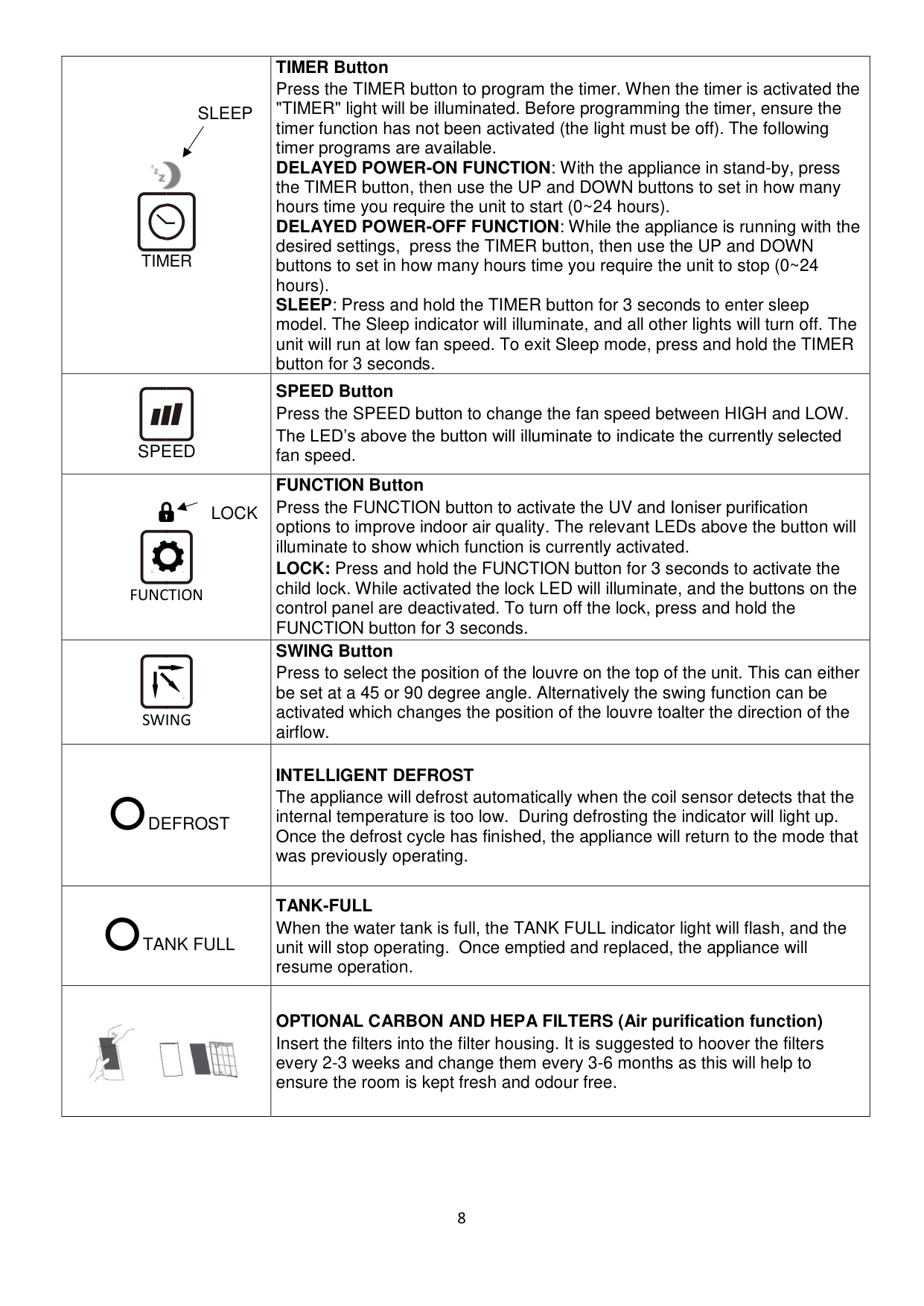
||OPTIONAL CARBON AND HEPA FILTERS (Air purification function) Insert the filters into the filter housing. It is suggested to hoover the filters every 2-3 weeks and change them every 3-6 months as this will help to ensure the room is kept fresh and odour free.|
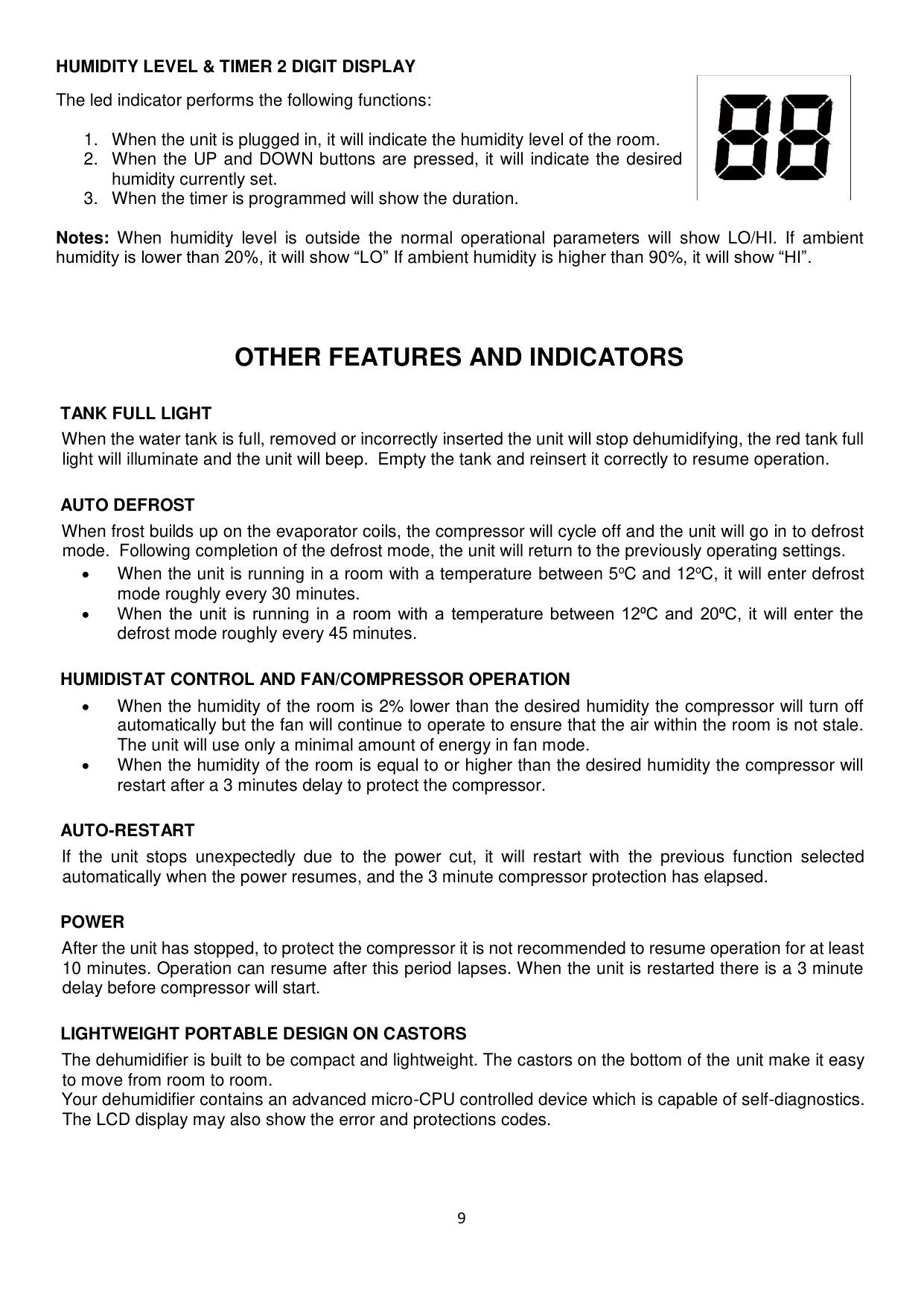
HUMIDITY LEVEL & TIMER 2 DIGIT DISPLAY The led indicator performs the following functions:

Notes: When humidity level is outside the normal operational parameters will show LO/HI. If ambient humidity is lower than 20%, it will show “LO” If ambient humidity is higher than 90%, it will show “HI”.
#### OTHER FEATURES AND INDICATORS
TANK FULL LIGHT When the water tank is full, removed or incorrectly inserted the unit will stop dehumidifying, the red tank full light will illuminate and the unit will beep. Empty the tank and reinsert it correctly to resume operation.
AUTO DEFROST When frost builds up on the evaporator coils, the compressor will cycle off and the unit will go in to defrost mode. Following completion of the defrost mode, the unit will return to the previously operating settings.
######## HUMIDISTAT CONTROL AND FAN/COMPRESSOR OPERATION
######## AUTO-RESTART
If the unit stops unexpectedly due to the power cut, it will restart with the previous function selected automatically when the power resumes, and the 3 minute compressor protection has elapsed.
######## POWER
After the unit has stopped, to protect the compressor it is not recommended to resume operation for at least 10 minutes. Operation can resume after this period lapses. When the unit is restarted there is a 3 minute delay before compressor will start.
LIGHTWEIGHT PORTABLE DESIGN ON CASTORS The dehumidifier is built to be compact and lightweight. The castors on the bottom of the unit make it easy to move from room to room. Your dehumidifier contains an advanced micro-CPU controlled device which is capable of self-diagnostics. The LCD display may also show the error and protections codes.

#### QUICK REFERENCE GUIDE
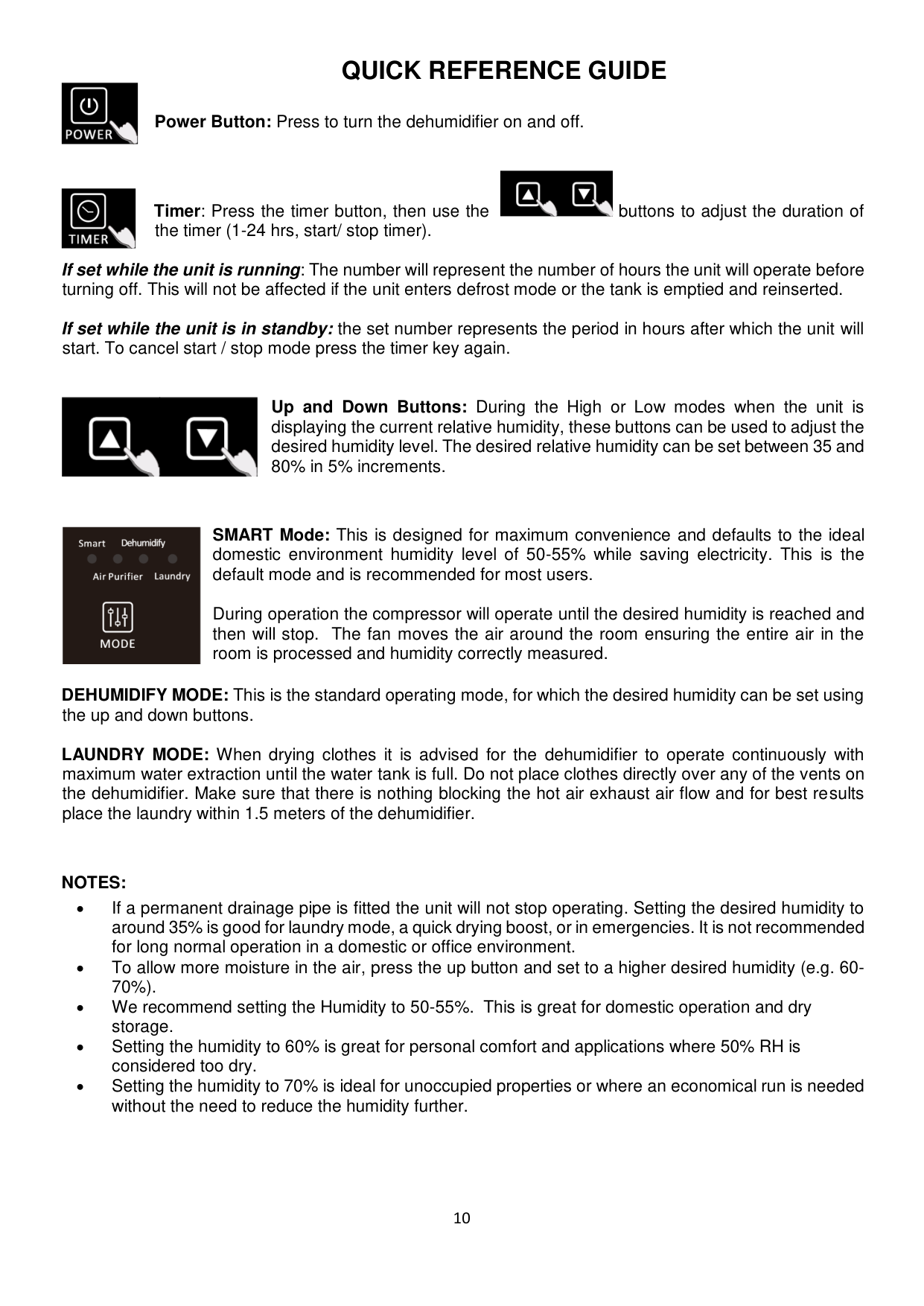
Power Button: Press to turn the dehumidifier on and off.


Timer: Press the timer button, then use the buttons to adjust the duration of the timer (1-24 hrs, start/ stop timer).
If set while the unit is running: The number will represent the number of hours the unit will operate before turning off. This will not be affected if the unit enters defrost mode or the tank is emptied and reinserted.
If set while the unit is in standby: the set number represents the period in hours after which the unit will start. To cancel start / stop mode press the timer key again.

Up and Down Buttons: During the High or Low modes when the unit is displaying the current relative humidity, these buttons can be used to adjust the desired humidity level. The desired relative humidity can be set between 35 and 80% in 5% increments.

SMART Mode: This is designed for maximum convenience and defaults to the ideal domestic environment humidity level of 50-55% while saving electricity. This is the default mode and is recommended for most users.
During operation the compressor will operate until the desired humidity is reached and then will stop. The fan moves the air around the room ensuring the entire air in the room is processed and humidity correctly measured.
DEHUMIDIFY MODE: This is the standard operating mode, for which the desired humidity can be set using the up and down buttons.
LAUNDRY MODE: When drying clothes it is advised for the dehumidifier to operate continuously with maximum water extraction until the water tank is full. Do not place clothes directly over any of the vents on the dehumidifier. Make sure that there is nothing blocking the hot air exhaust air flow and for best results place the laundry within 1.5 meters of the dehumidifier.
######## NOTES:
#### POSITIONING THE DEHUMIDIFIER
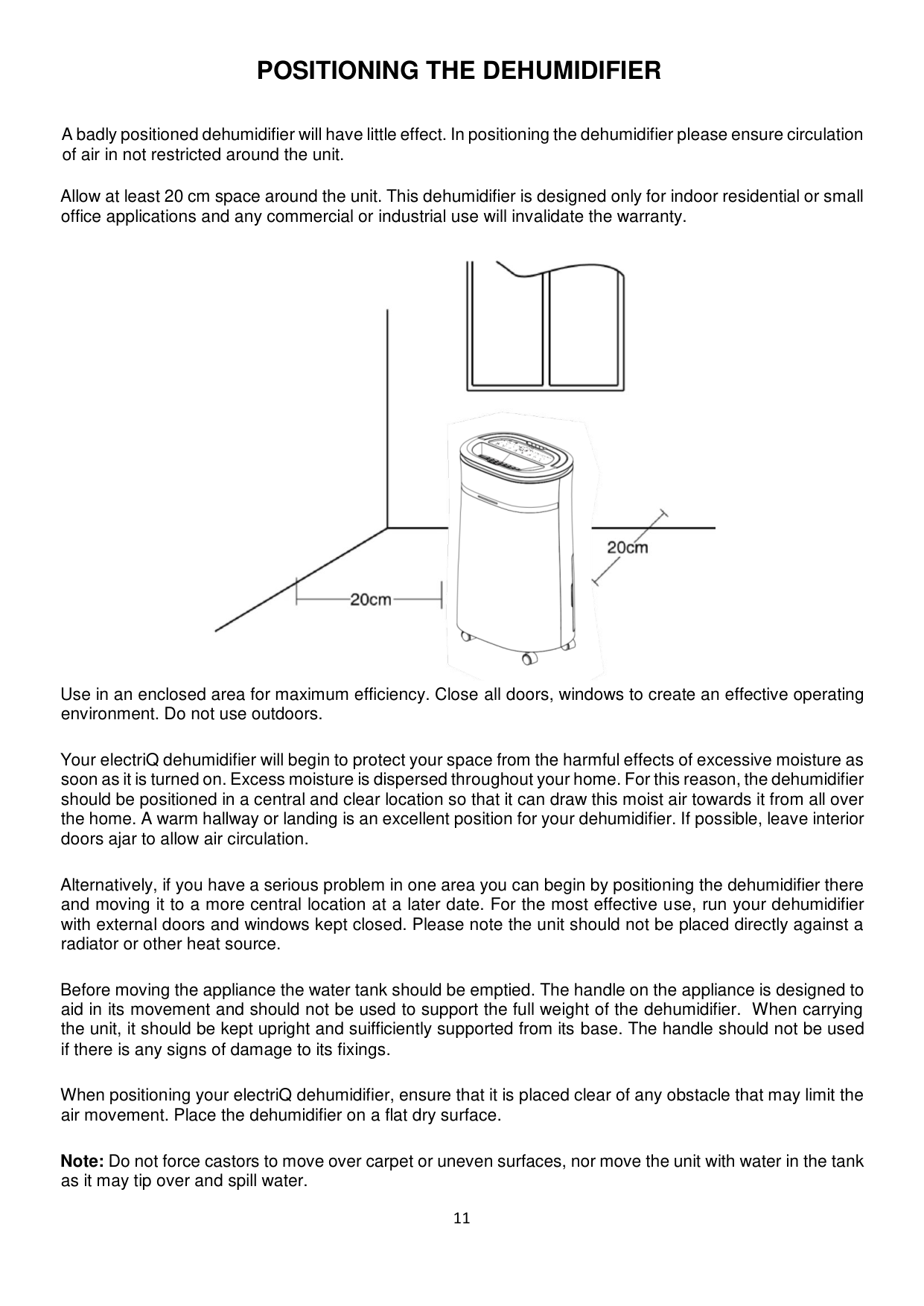
A badly positioned dehumidifier will have little effect. In positioning the dehumidifier please ensure circulation of air in not restricted around the unit.
Allow at least 20 cm space around the unit. This dehumidifier is designed only for indoor residential or small office applications and any commercial or industrial use will invalidate the warranty.

Use in an enclosed area for maximum efficiency. Close all doors, windows to create an effective operating environment. Do not use outdoors.
Your electriQ dehumidifier will begin to protect your space from the harmful effects of excessive moisture as soon as it is turned on. Excess moisture is dispersed throughout your home. For this reason, the dehumidifier should be positioned in a central and clear location so that it can draw this moist air towards it from all over the home. A warm hallway or landing is an excellent position for your dehumidifier. If possible, leave interior doors ajar to allow air circulation.
Alternatively, if you have a serious problem in one area you can begin by positioning the dehumidifier there and moving it to a more central location at a later date. For the most effective use, run your dehumidifier with external doors and windows kept closed. Please note the unit should not be placed directly against a radiator or other heat source.
Before moving the appliance the water tank should be emptied. The handle on the appliance is designed to aid in its movement and should not be used to support the full weight of the dehumidifier. When carrying the unit, it should be kept upright and suifficiently supported from its base. The handle should not be used if there is any signs of damage to its fixings.
When positioning your electriQ dehumidifier, ensure that it is placed clear of any obstacle that may limit the air movement. Place the dehumidifier on a flat dry surface.
Note: Do not force castors to move over carpet or uneven surfaces, nor move the unit with water in the tank as it may tip over and spill water.
#### WATER DRAINAGE
When the water tank is full, the unit will stop automatically. When this happens the TANK FULL light will illuminate on the control panel.
NOTE: Only empty the water tank when it is full or before moving or storing the unit. There are two ways to dispense collected water.
######## 1. USE THE TANK
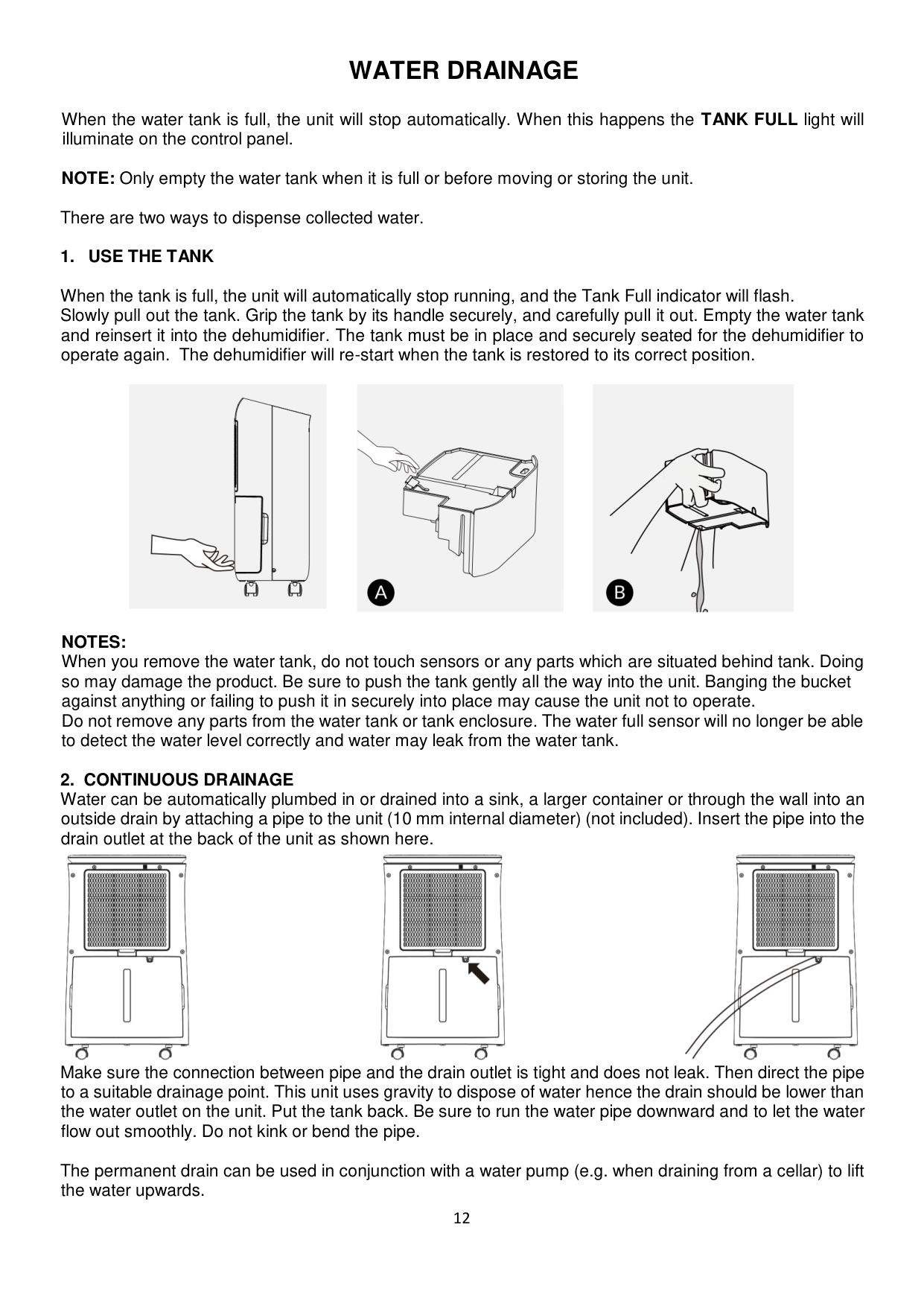
When the tank is full, the unit will automatically stop running, and the Tank Full indicator will flash. Slowly pull out the tank. Grip the tank by its handle securely, and carefully pull it out. Empty the water tank and reinsert it into the dehumidifier. The tank must be in place and securely seated for the dehumidifier to operate again. The dehumidifier will re-start when the tank is restored to its correct position.

NOTES: When you remove the water tank, do not touch sensors or any parts which are situated behind tank. Doing so may damage the product. Be sure to push the tank gently all the way into the unit. Banging the bucket against anything or failing to push it in securely into place may cause the unit not to operate. Do not remove any parts from the water tank or tank enclosure. The water full sensor will no longer be able to detect the water level correctly and water may leak from the water tank.
######### 2. CONTINUOUS DRAINAGEWater can be automatically plumbed in or drained into a sink, a larger container or through the wall into anoutside drain by attaching a pipe to the unit (10 mm internal diameter) (not included). Insert the pipe into thedrain outlet at the back of the unit as shown here.

Make sure the connection between pipe and the drain outlet is tight and does not leak. Then direct the pipe to a suitable drainage point. This unit uses gravity to dispose of water hence the drain should be lower than the water outlet on the unit. Put the tank back. Be sure to run the water pipe downward and to let the water flow out smoothly. Do not kink or bend the pipe.
The permanent drain can be used in conjunction with a water pump (e.g. when draining from a cellar) to lift the water upwards.
#### SETTING UP THE WIFI APP
This is designed as a general guide to the setup. There may be differences in the interface and features available due to product development and features of the model.
##### BEFORE YOU START
##### DOWNLOAD THE APP TO YOUR PHONE
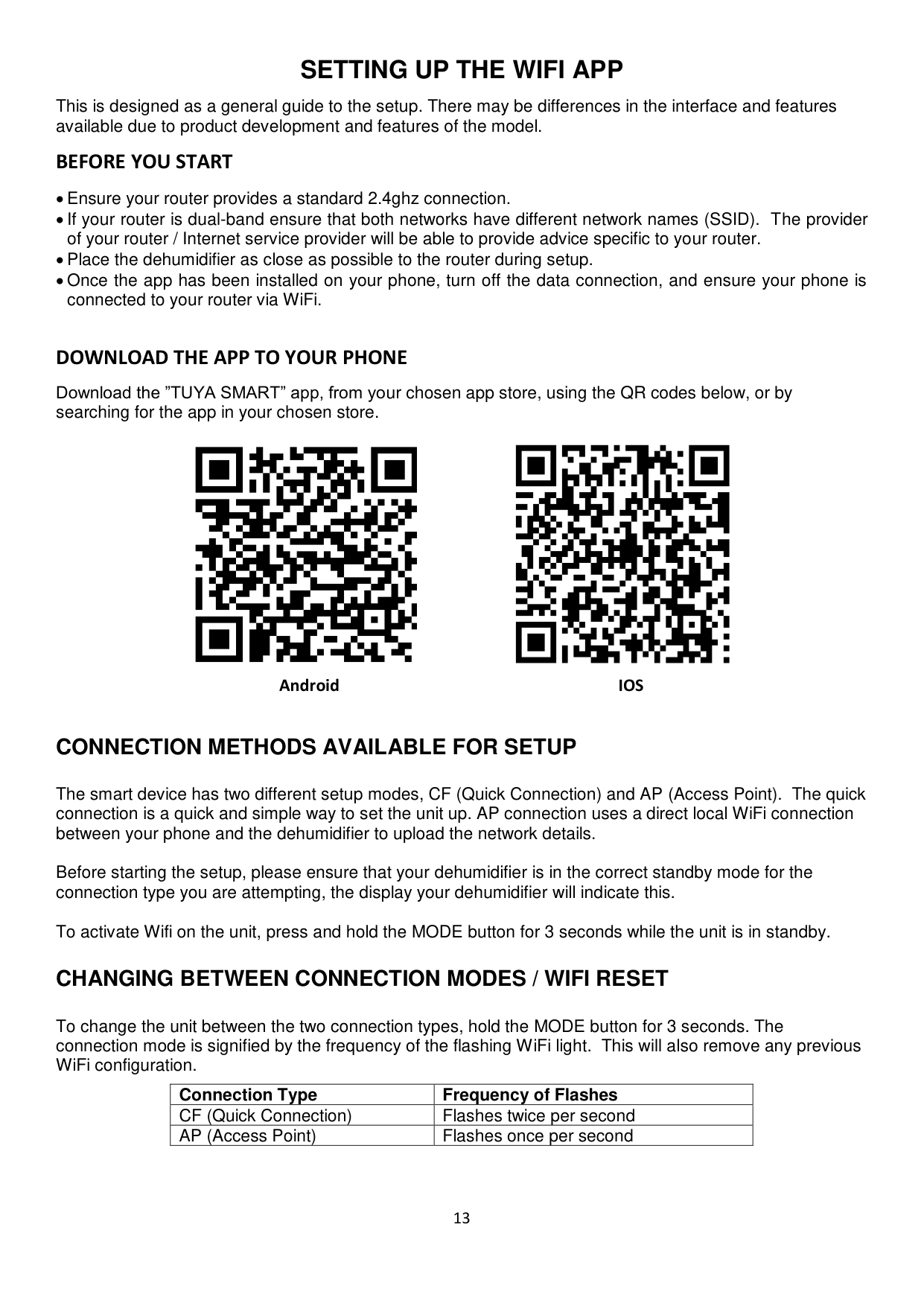
Download the ”TUYA SMART” app, from your chosen app store, using the QR codes below, or by searching for the app in your chosen store.


Android IOS
##### CONNECTION METHODS AVAILABLE FOR SETUP
The smart device has two different setup modes, CF (Quick Connection) and AP (Access Point). The quick connection is a quick and simple way to set the unit up. AP connection uses a direct local WiFi connection between your phone and the dehumidifier to upload the network details.
Before starting the setup, please ensure that your dehumidifier is in the correct standby mode for the connection type you are attempting, the display your dehumidifier will indicate this.
To activate Wifi on the unit, press and hold the MODE button for 3 seconds while the unit is in standby. CHANGING BETWEEN CONNECTION MODES / WIFI RESET
To change the unit between the two connection types, hold the MODE button for 3 seconds. The connection mode is signified by the frequency of the flashing WiFi light. This will also remove any previous WiFi configuration.
|Connection Type|Frequency of Flashes|
|---|---| |CF (Quick Connection)|Flashes twice per second| |AP (Access Point)|Flashes once per second|
#### REGISTER THE APP
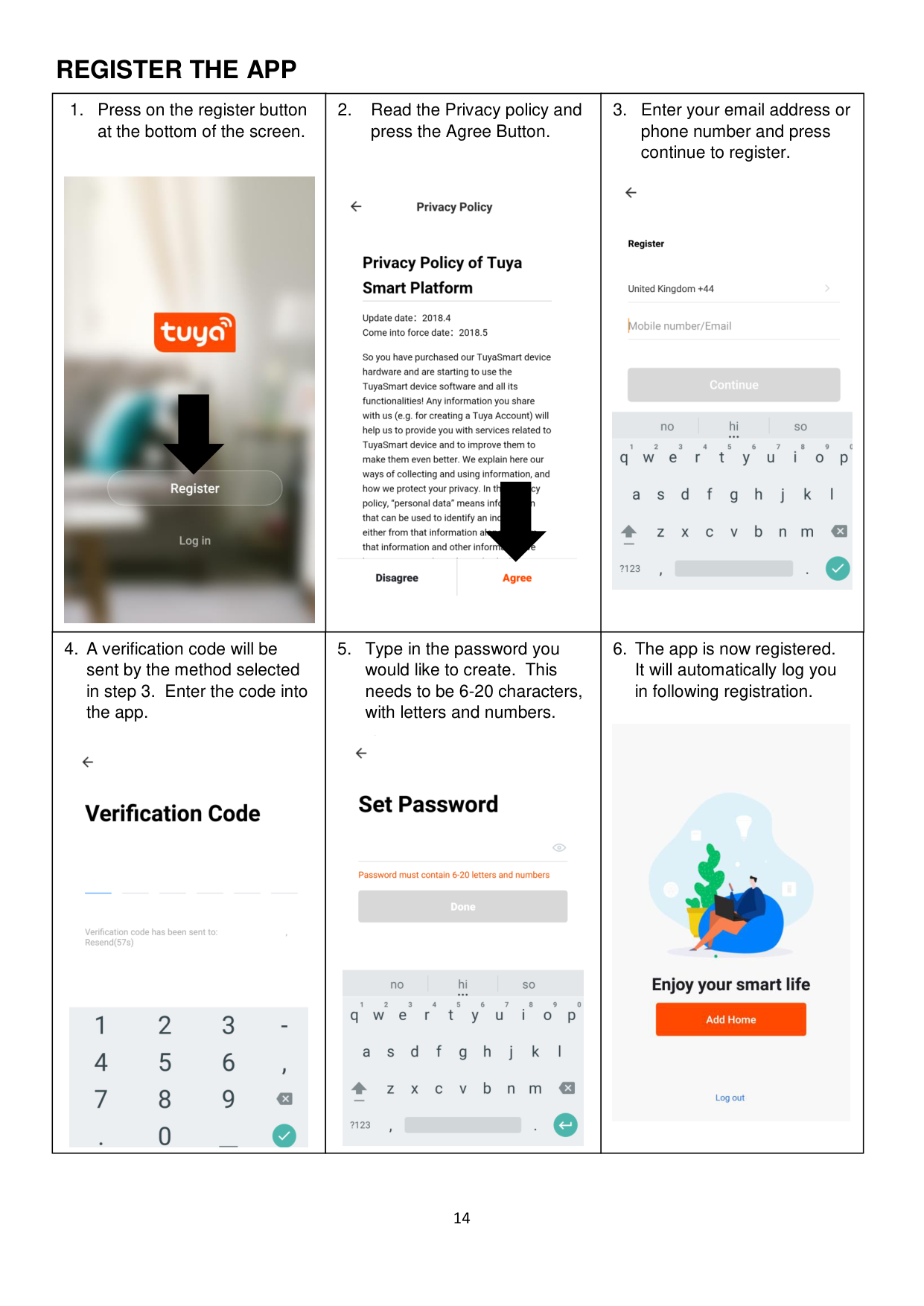
|1. Press on the register button at the bottom of the screen.

|2. Read the Privacy policy and press the Agree Button.

|3. Enter your email address or phone number and press continue to register.
| |---|---|---| |4. A verification code will be sent by the method selected in step 3. Enter the code into the app.
|5. Type in the password you would like to create. This needs to be 6-20 characters, with letters and numbers.
|6. The app is now registered. It will automatically log you in following registration.
|
##### SETTING UP YOUR HOME WITHIN THE APP
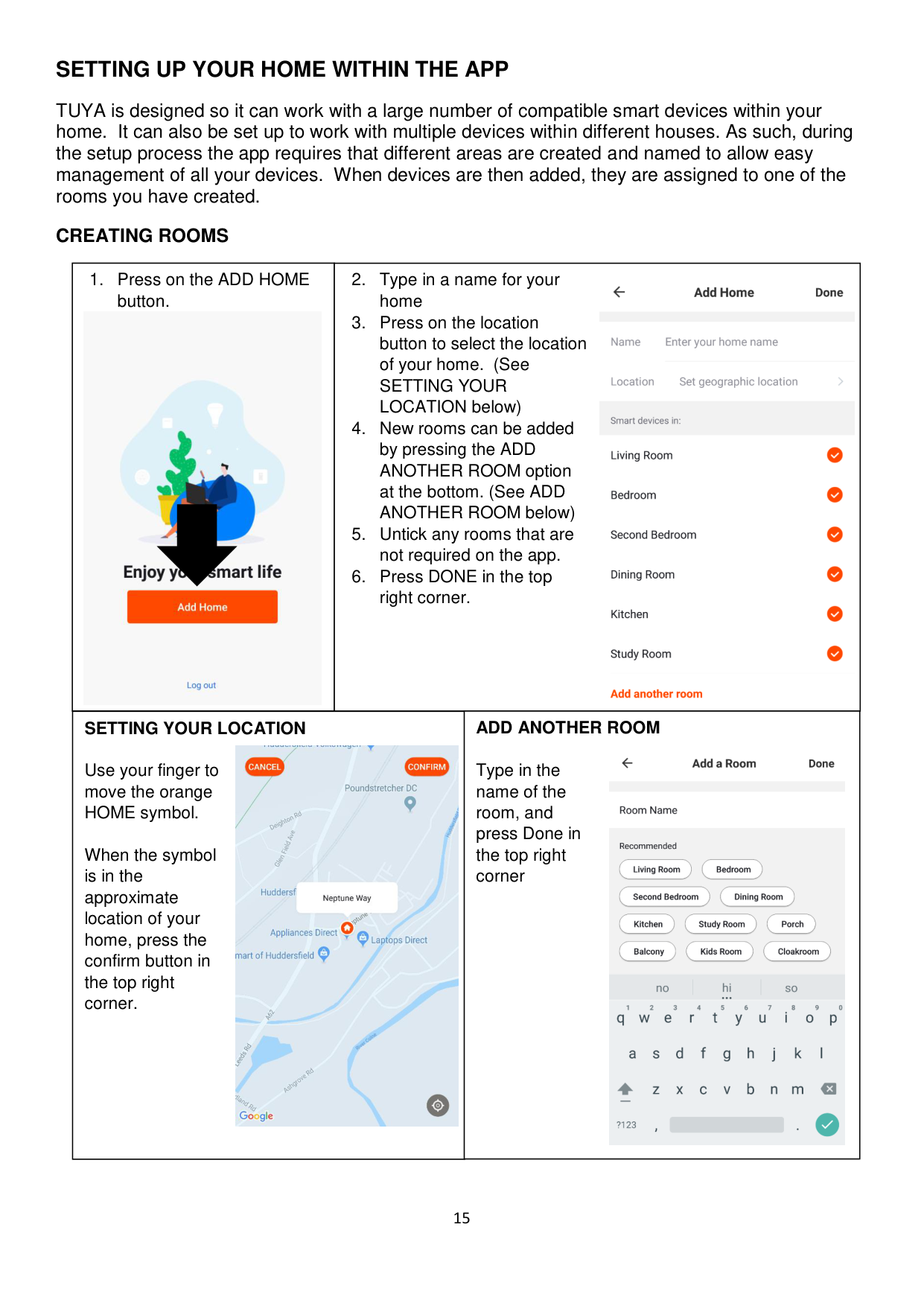
TUYA is designed so it can work with a large number of compatible smart devices within your home. It can also be set up to work with multiple devices within different houses. As such, during the setup process the app requires that different areas are created and named to allow easy management of all your devices. When devices are then added, they are assigned to one of the rooms you have created.
####### CREATING ROOMS
|1. Press on the ADD HOME button.

|2. Type in a name for your home
3. Press on the location button to select the location of your home. (See SETTING YOUR LOCATION below)
4. New rooms can be added by pressing the ADD ANOTHER ROOM option at the bottom. (See ADD ANOTHER ROOM below)
5. Untick any rooms that are not required on the app.
6. Press DONE in the top right corner.
|2. Type in a name for your home
3. Press on the location button to select the location of your home. (See SETTING YOUR LOCATION below)
4. New rooms can be added by pressing the ADD ANOTHER ROOM option at the bottom. (See ADD ANOTHER ROOM below)
5. Untick any rooms that are not required on the app.
6. Press DONE in the top right corner.
| |---|---|---| |SETTING YOUR LOCATION
Use your finger to move the orange HOME symbol.
When the symbol is in the approximate location of your home, press the confirm button in the top right corner.
|SETTING YOUR LOCATION
Use your finger to move the orange HOME symbol.
When the symbol is in the approximate location of your home, press the confirm button in the top right corner.
|ADD ANOTHER ROOM
Type in the name of the room, and press Done in the top right corner
|
##### CONNECTING USING QUICK CONNECTION
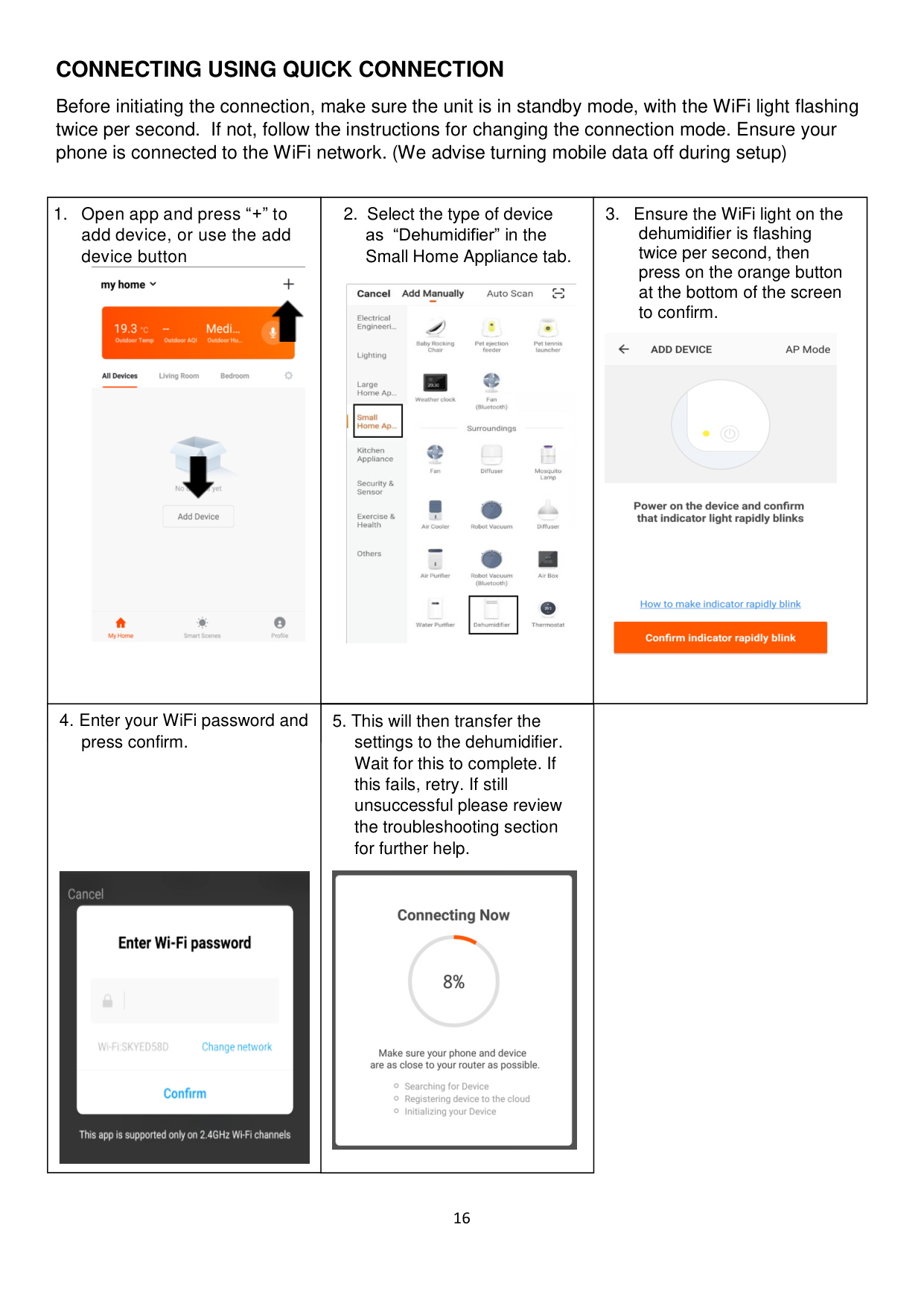
Before initiating the connection, make sure the unit is in standby mode, with the WiFi light flashing twice per second. If not, follow the instructions for changing the connection mode. Ensure your phone is connected to the WiFi network. (We advise turning mobile data off during setup)
|1. Open app and press “+” to add device, or use the add device button


|2. Select the type of device as “Dehumidifier” in the Small Home Appliance tab.

| | |---|
| | |---| |3. Ensure the WiFi light on the dehumidifier is flashing twice per second, then press on the orange button at the bottom of the screen to confirm.
| |---|---|---| |4. Enter your WiFi password and press confirm.|5. This will then transfer the settings to the dehumidifier. Wait for this to complete. If this fails, retry. If still unsuccessful please review the troubleshooting section for further help.
| | ||5. This will then transfer the settings to the dehumidifier. Wait for this to complete. If this fails, retry. If still unsuccessful please review the troubleshooting section for further help.
| |
##### CONNECTING USING AP MODE (ALTERNATIVE METHOD)
Before initiating the connection, make sure the unit is in standby mode, with the WiFi light flashing once per second. If not, follow the instructions for changing the connection type. Ensure your phone is connected to the WiFi network. (We advise turning mobile data off during setup)
|1. Open app and press “+” to add device, or use the add device button

|2. Select the type of device as “Dehumidifier”
|3. Press on the AP mode button in the top right of the screen.

| |---|---|---| |4. Ensure the WiFi light on the dehumidifier is slowly flashing (once per second), then press on the orange button at the bottom of the screen to confirm
|5. Enter your WiFi password and press confirm.
|6. Go to network settings in your phone and connect to the “SmartLife xxx” connection. There is no password to enter. Then return back to the app to complete setup.

| |
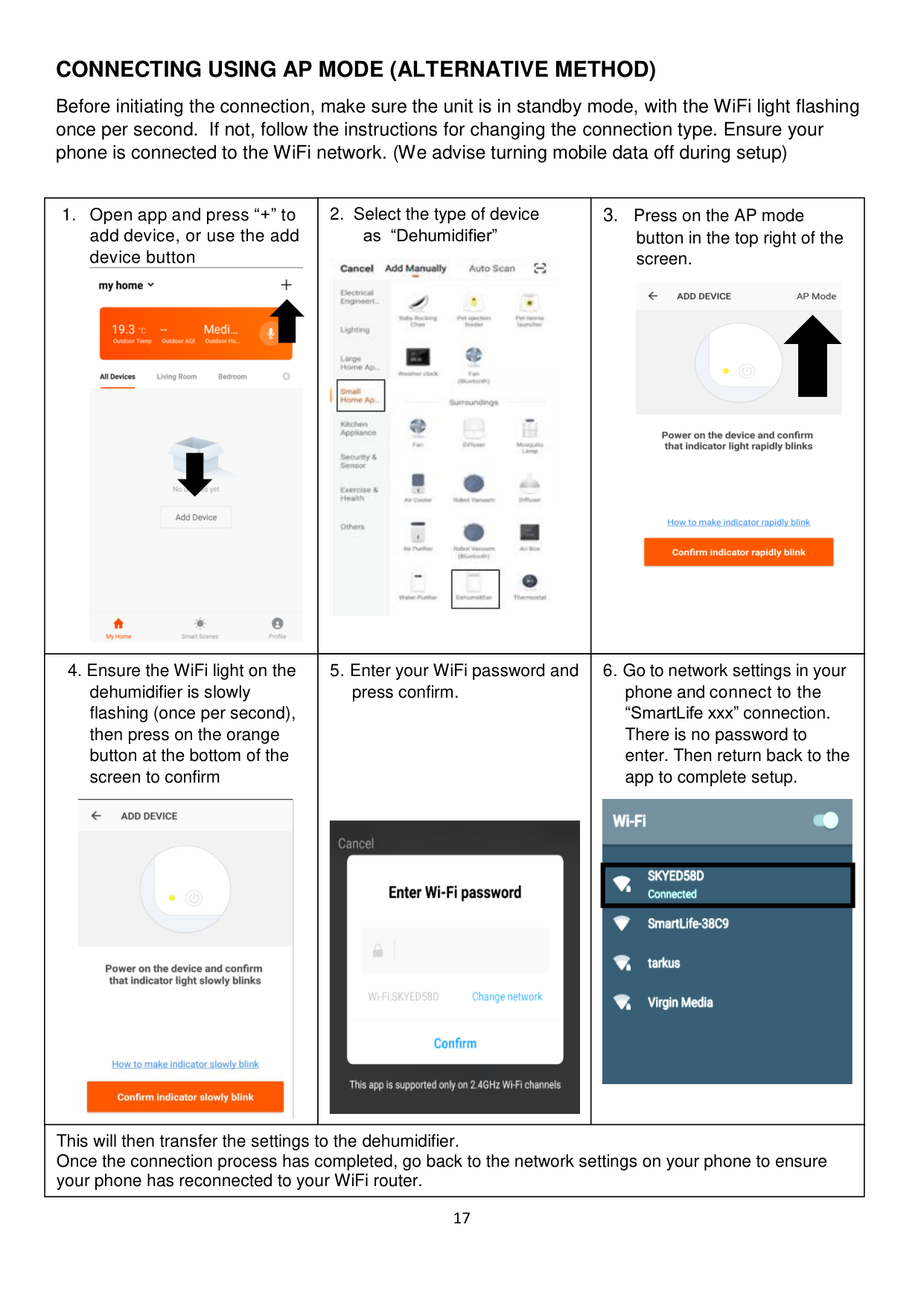
|---| | |This will then transfer the settings to the dehumidifier. Once the connection process has completed, go back to the network settings on your phone to ensure your phone has reconnected to your WiFi router.|This will then transfer the settings to the dehumidifier. Once the connection process has completed, go back to the network settings on your phone to ensure your phone has reconnected to your WiFi router.|This will then transfer the settings to the dehumidifier. Once the connection process has completed, go back to the network settings on your phone to ensure your phone has reconnected to your WiFi router.|
##### CONTROLLING YOUR DEVICE THROUGH THE APP
####### THE HOME SCREEN
Add a device

Choose the device to control
User Profile
Smart Scenes / Automation
##### DEVICE SCREEN
The device screen is the main control screen for the dehumidifier, providing access to the controls to amend the functions of the dehumidifier
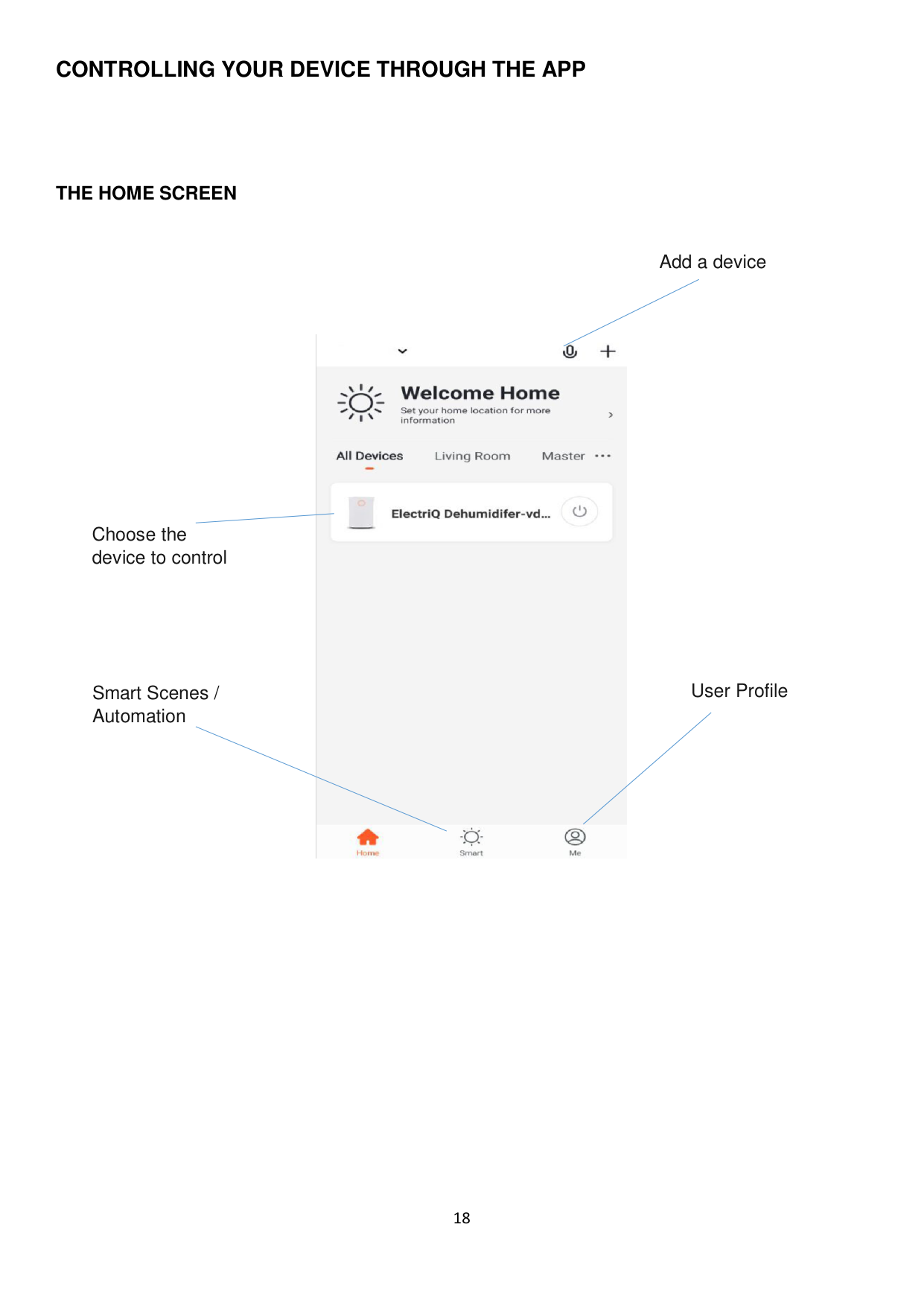
Profile: Use to change the name of the dehumidifier and amend user settings.
Back: Return to the Home Screen

On / Off Button: Use to turn the dehumidifier On and Off.
On / Off Slider: Shows if the unit is turned On or Off.
Desired Humidity: Change the desired humidity between 35°C and 80°C
Mode: Change the operating mode between Smart, dehumidify, Air purify and laundry.
Speed: Set the fan speed of the appliance.
Ioniser: Allows the Ioniser to be turned on and off
Oscillation: Set the position of the louvres
Sleep: Turn the sleep mode On and Off.
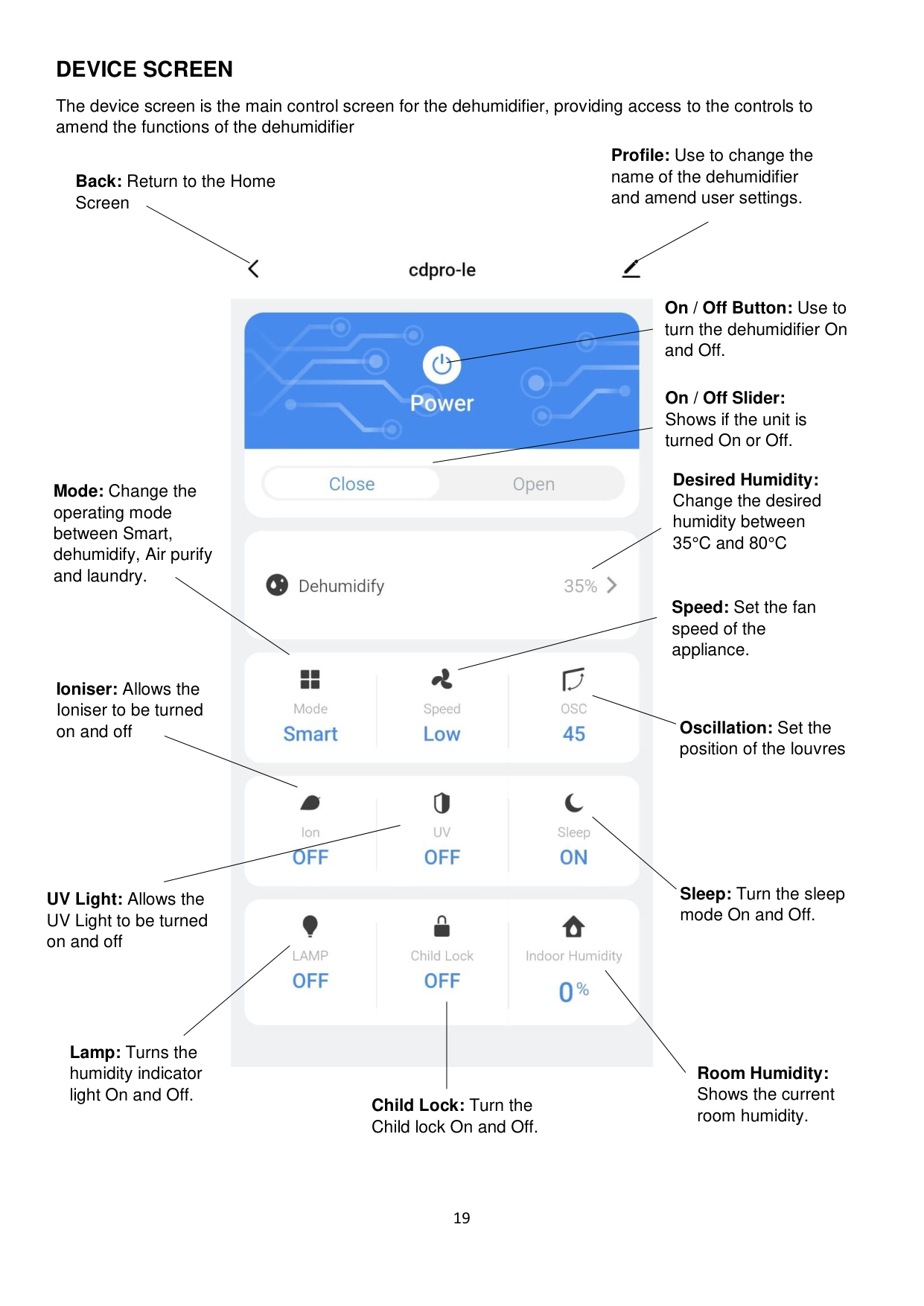
UV Light: Allows the UV Light to be turned on and off
Lamp: Turns the humidity indicator light On and Off.
Room Humidity: Shows the current room humidity.
Child Lock: Turn the Child lock On and Off.
####### SMART SCENES
Smart Scenes is a powerful tool providing the option to customise the operation of the dehumidifier based both on conditions within the room and outside influences. This gives the user the option of specifying much more intelligent actions. These are split into two categories Scene and Automation.
######## SCENE
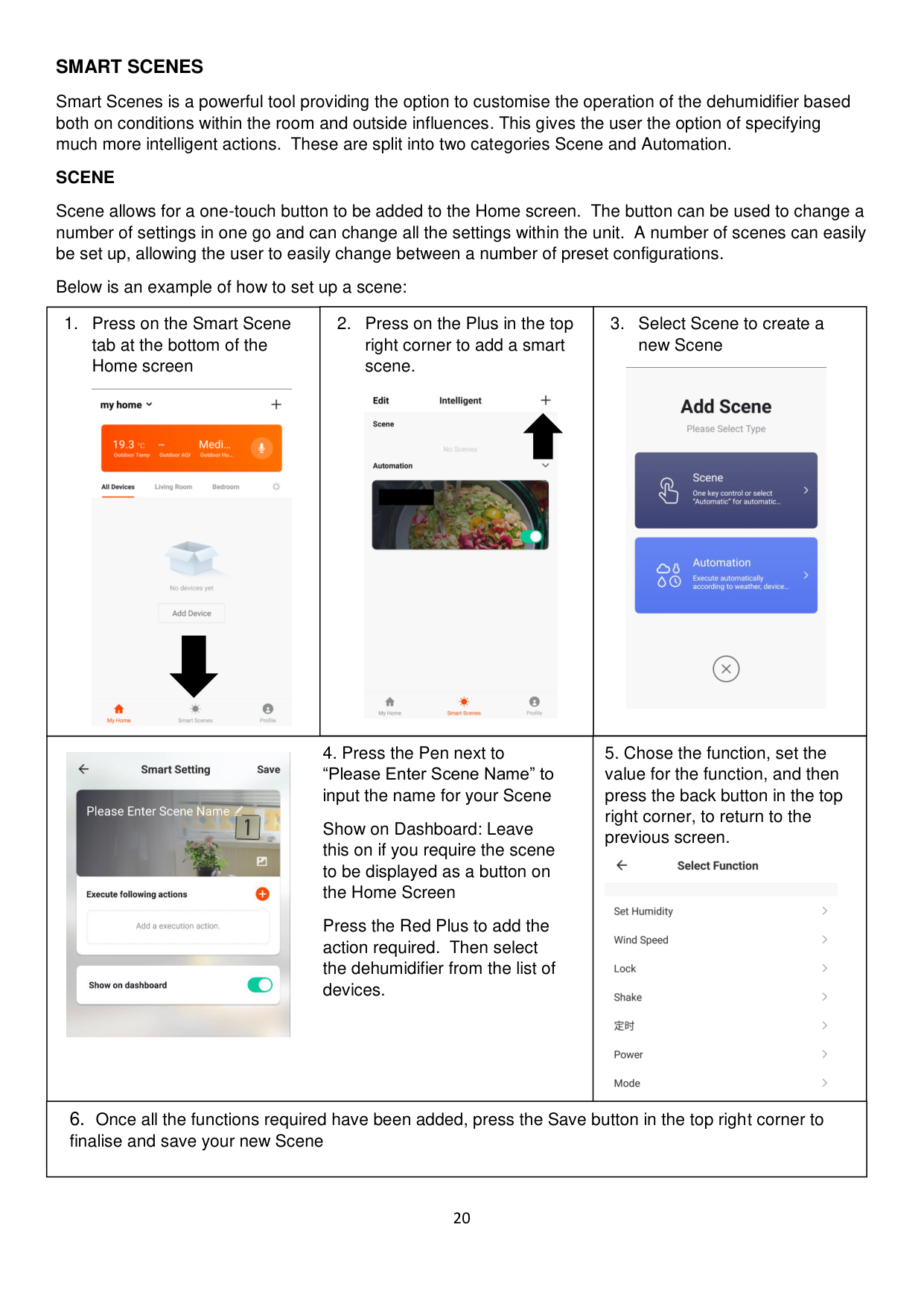
Scene allows for a one-touch button to be added to the Home screen. The button can be used to change a number of settings in one go and can change all the settings within the unit. A number of scenes can easily be set up, allowing the user to easily change between a number of preset configurations.
Below is an example of how to set up a scene:
|1. Press on the Smart Scene tab at the bottom of the Home screen

|2. Press on the Plus in the top right corner to add a smart scene.

|3. Select Scene to create a new Scene
| |---|---|---| |4. Press the Pen next to “Please Enter Scene Name” to input the name for your Scene
Show on Dashboard: Leave this on if you require the scene to be displayed as a button on the Home Screen
Press the Red Plus to add the action required. Then select the dehumidifier from the list of devices.
|4. Press the Pen next to “Please Enter Scene Name” to input the name for your Scene
Show on Dashboard: Leave this on if you require the scene to be displayed as a button on the Home Screen
Press the Red Plus to add the action required. Then select the dehumidifier from the list of devices.
|5. Chose the function, set the value for the function, and then press the back button in the top right corner, to return to the previous screen.
|
| | | | |6. Once all the functions required have been added, press the Save button in the top right corner to finalise and save your new Scene|6. Once all the functions required have been added, press the Save button in the top right corner to finalise and save your new Scene|6. Once all the functions required have been added, press the Save button in the top right corner to finalise and save your new Scene|
######## AUTOMATION
Automation allows an automatic action to be set up for the device. This can be triggered by the Time, indoor temperature, humidity of the room, weather conditions, and a range of other influences.
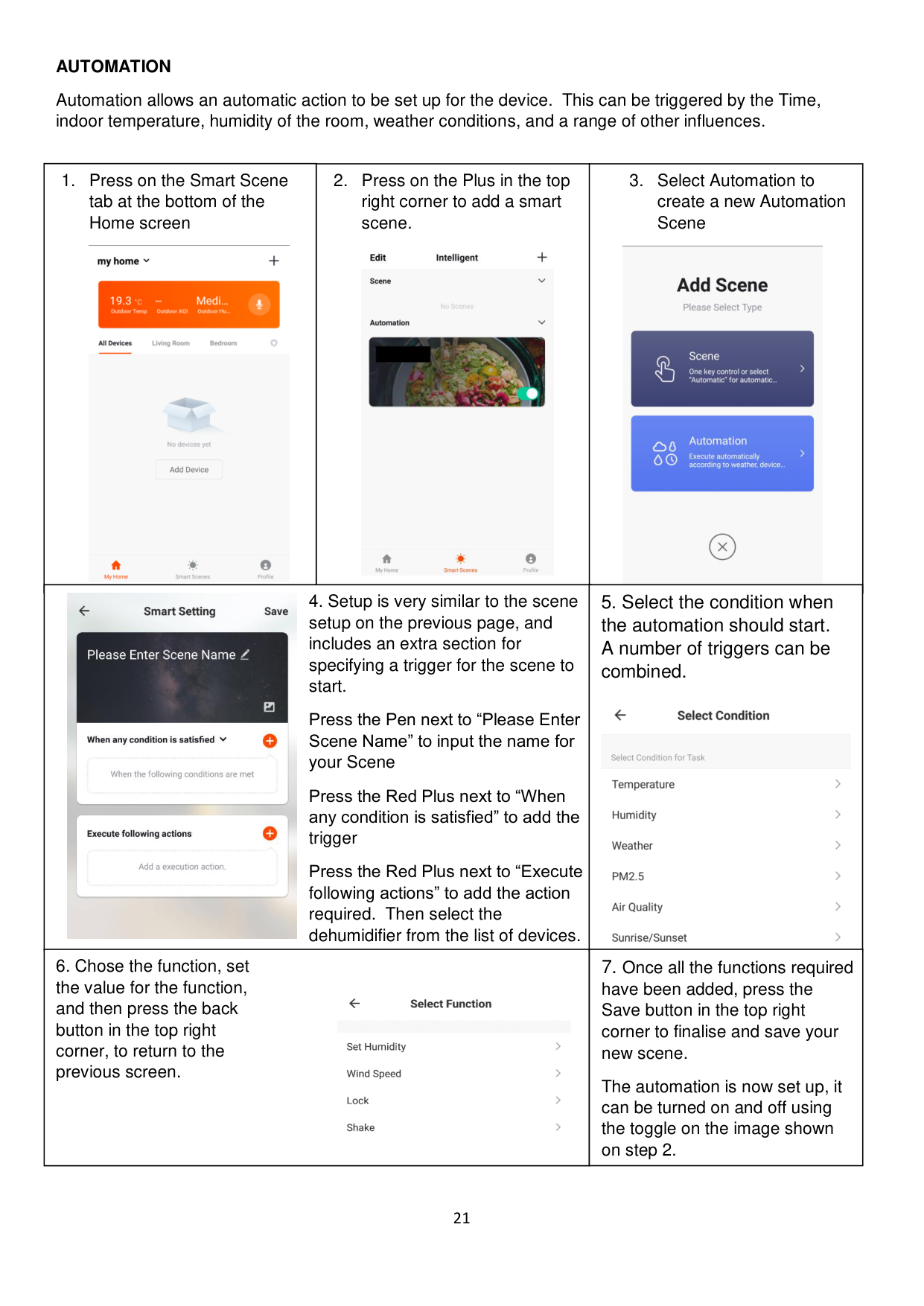
|1. Press on the Smart Scene tab at the bottom of the Home screen
|2. Press on the Plus in the top right corner to add a smart scene.
|3. Select Automation to create a new Automation Scene
| |---|---|---| | | | | |4. Setup is very similar to the scene setup on the previous page, and includes an extra section for specifying a trigger for the scene to start.
Press the Pen next to “Please Enter Scene Name” to input the name for your Scene
Press the Red Plus next to “When any condition is satisfied” to add the trigger
Press the Red Plus next to “Execute following actions” to add the action required. Then select the dehumidifier from the list of devices.
|4. Setup is very similar to the scene setup on the previous page, and includes an extra section for specifying a trigger for the scene to start.
Press the Pen next to “Please Enter Scene Name” to input the name for your Scene
Press the Red Plus next to “When any condition is satisfied” to add the trigger
Press the Red Plus next to “Execute following actions” to add the action required. Then select the dehumidifier from the list of devices.
|5. Select the condition when the automation should start. A number of triggers can be combined.
| |6. Chose the function, set the value for the function, and then press the back button in the top right corner, to return to the previous screen.
|6. Chose the function, set the value for the function, and then press the back button in the top right corner, to return to the previous screen.
|7. Once all the functions required have been added, press the Save button in the top right corner to finalise and save your new scene.
The automation is now set up, it can be turned on and off using the toggle on the image shown on step 2.|
####### DEVICE DETAILS SCREEN

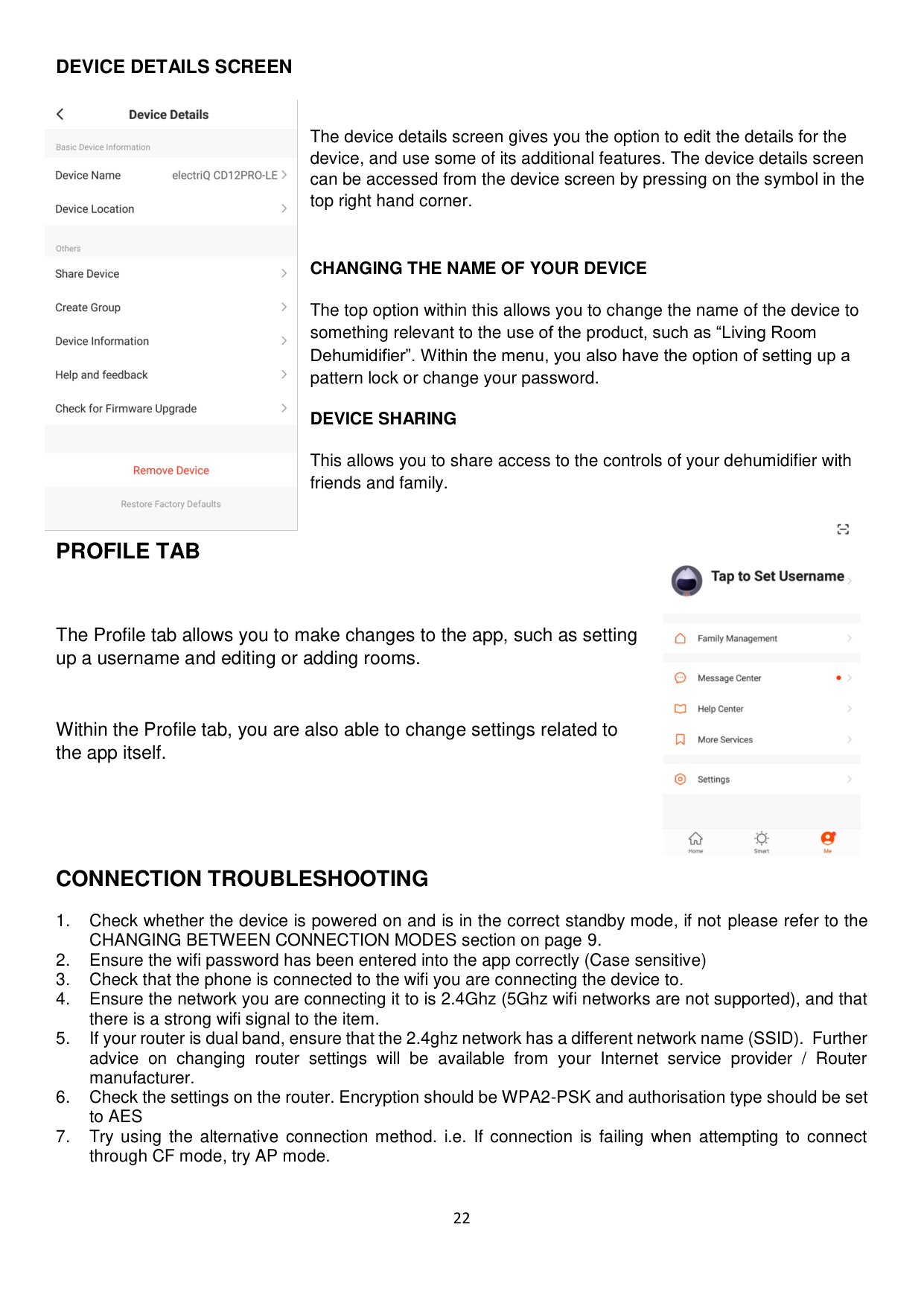
The device details screen gives you the option to edit the details for the device, and use some of its additional features. The device details screen can be accessed from the device screen by pressing on the symbol in the top right hand corner.
######## CHANGING THE NAME OF YOUR DEVICE
The top option within this allows you to change the name of the device to something relevant to the use of the product, such as “Living Room Dehumidifier”. Within the menu, you also have the option of setting up a pattern lock or change your password.
######## DEVICE SHARING
This allows you to share access to the controls of your dehumidifier with friends and family.

##### PROFILE TAB
The Profile tab allows you to make changes to the app, such as setting up a username and editing or adding rooms.
Within the Profile tab, you are also able to change settings related to the app itself.
##### CONNECTION TROUBLESHOOTING
#### CARE AND MAINTENANCE
Always shut off the unit and unplug from the mains before cleaning or performing any maintenance. When it is not in use for long periods it is advisable to remove the plug from the power socket. Do not use chemical solvents (such as benzene, alcohol or gasoline) as they may cause irreversible damage to the unit.

######## 1. CLEAN THE GRILLE AND CASE
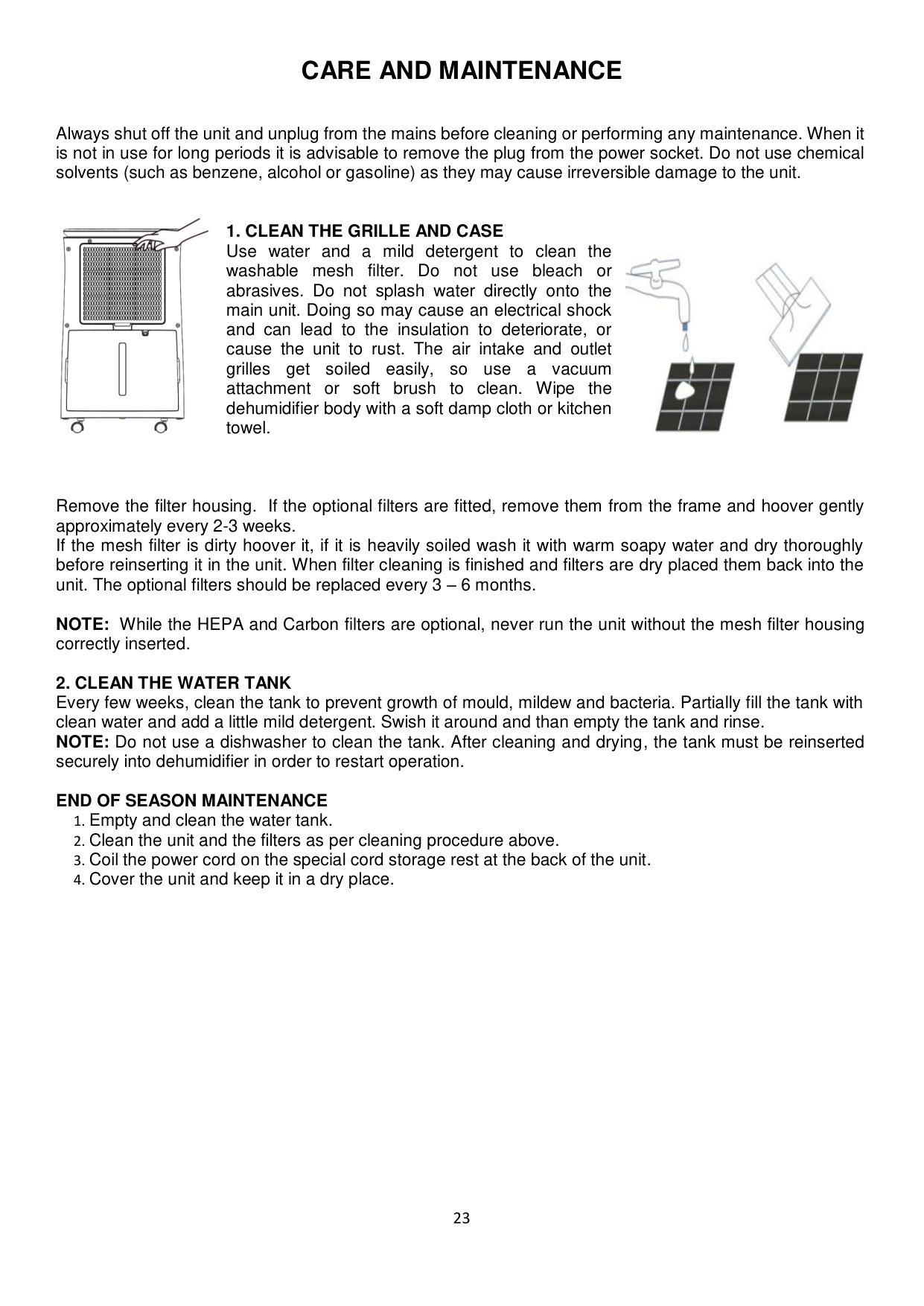
Use water and a mild detergent to clean the washable mesh filter. Do not use bleach or abrasives. Do not splash water directly onto the main unit. Doing so may cause an electrical shock and can lead to the insulation to deteriorate, or cause the unit to rust. The air intake and outlet grilles get soiled easily, so use a vacuum attachment or soft brush to clean. Wipe the dehumidifier body with a soft damp cloth or kitchen towel.

Remove the filter housing. If the optional filters are fitted, remove them from the frame and hoover gently approximately every 2-3 weeks. If the mesh filter is dirty hoover it, if it is heavily soiled wash it with warm soapy water and dry thoroughly before reinserting it in the unit. When filter cleaning is finished and filters are dry placed them back into the unit. The optional filters should be replaced every 3 – 6 months.
NOTE: While the HEPA and Carbon filters are optional, never run the unit without the mesh filter housing correctly inserted.
######## END OF SEASON MAINTENANCE
#### TROUBLESHOOTING
|Issue|Cause|Solution| |---|---|---| |Hot or cold air being produced|Normal Operation|When the unit is in dehumidifying mode it absorbs humid air from room and freezes it to reduce the humidity. During the cold cycle there should be cold air coming out of the unit During the defrost cycle hot dry air should be coming out of the outlet grill.| |Unit does not operate|Is the plug properly inserted in the socket?|Insert the plug into the socket and ensure the socket is switched on.| |Unit does not operate|Does the tank full indicator is red?|Tank full, float displaced or tank not properly inserted. Empty tank, check float and make sure tank is properly inserted in unit.| |Front louvres do not open|Louvre motor is blocked|Check if anything is blocking the louvre Try to move the louvres gently up and down while the unit is off. If the above fails return the unit to service centre| |Dehumidifier does not extract water
|Is the unit set to a humidity level lower than the humidity of the room?|Set the humidity level on the humidistat below the current humidity reading.| |Dehumidifier does not extract water
|Is the temperature too low for water extraction to be efficient?|Increase temperature in the room or reposition the unit.| |Dehumidifier does not extract water
|Is any intake grill or outlet blocked? Is the unit too close to walls.|Remove obstructions and restart the unit. Ensure a distance of at least 20 cm between the unit & walls| |Airflow seems weak|Are the filters dirty or clogged?|Please service the filters regularly as per the user manual.| |Unit is noisy during operation|Is the unit on an uneven surface?|Please place on flat horizontal surface. Where possible this should be soft such as rubber or carpet to prevent vibrations.| |Unit is noisy during operation|Is filter clogged?|Please service the filters regularly as per user manual.|
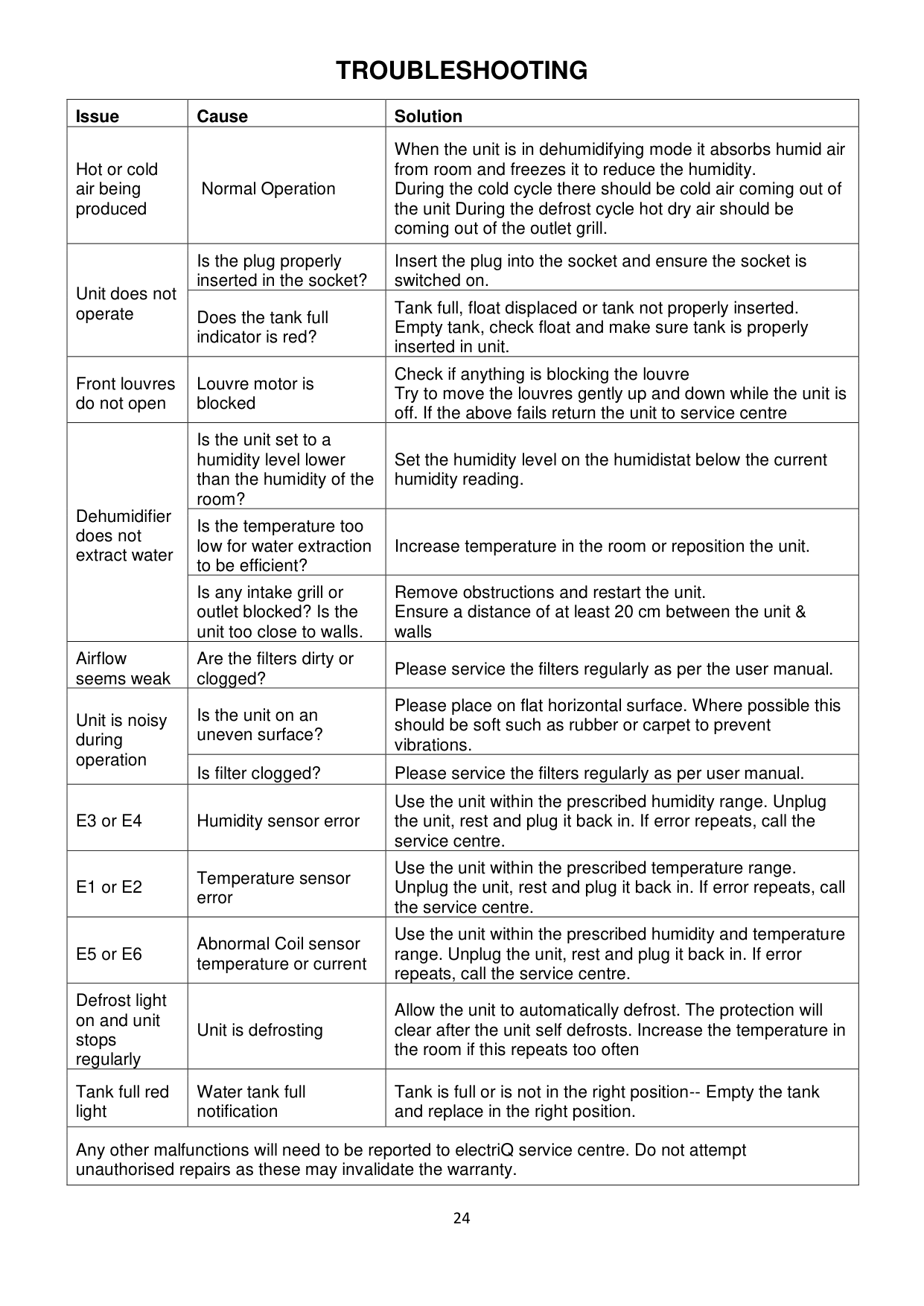
|E3 or E4|Humidity sensor error|Use the unit within the prescribed humidity range. Unplug the unit, rest and plug it back in. If error repeats, call the service centre.| |E1 or E2|Temperature sensor error|Use the unit within the prescribed temperature range. Unplug the unit, rest and plug it back in. If error repeats, call the service centre.| |E5 or E6|Abnormal Coil sensor temperature or current|Use the unit within the prescribed humidity and temperature range. Unplug the unit, rest and plug it back in. If error repeats, call the service centre.| |Defrost light on and unit stops regularly|Unit is defrosting|Allow the unit to automatically defrost. The protection will clear after the unit self defrosts. Increase the temperature in the room if this repeats too often| |Tank full red light|Water tank full notification|Tank is full or is not in the right position-- Empty the tank and replace in the right position.| |Any other malfunctions will need to be reported to electriQ service centre. Do not attempt unauthorised repairs as these may invalidate the warranty.|Any other malfunctions will need to be reported to electriQ service centre. Do not attempt unauthorised repairs as these may invalidate the warranty.|Any other malfunctions will need to be reported to electriQ service centre. Do not attempt unauthorised repairs as these may invalidate the warranty.|
#### FREQUENTLY ASKED QUESTIONS
Why doesn’t the dehumidifier seem to extract much water if the temperature is low? This is a compressor dehumidifier which works best in temperatures above 15⁰C. If the temperature is low and the air is dryer than the setting on the humidistat the unit will not extract water. If you want to use a dehumidifier for outside buildings, unheated properties, boats or garages please check our desiccant range.
Why doesn’t the unit work /or stops suddenly? The water tank may be full or displaced. To rectify: empty the tank and carefully place the tank back in the unit. Also the unit may be running in dehumidifying mode with a low room temperature. Please check if the room temperature is lower than 5⁰C. If so, the unit will stop working while in dehumidifying mode. (unit may be defrosting). The ambient operating range is between 5⁰C and 35⁰C with a relative humidity ranging from 30% to 80%. For maximum efficiency use the unit between 15⁰C and 32⁰C.
Sometimes cold and/or hot air comes out from the air outlet grill, why? When the unit is in dehumidifying mode it absorbs humid air from room and freezes it to reduce the humidity. During the cold cycle there should be cold air coming out of the unit. During the hot cycle hot dry air should be coming out of the outlet grill.
#### TECHNICAL DATA
|Model|CD12PRO-LE-V3|CD20PRO-LE-V3|CD25PRO-LE-V3| |---|---|---|---| |Voltage|220-240V~50Hz|220-240V~50Hz|220-240V~50Hz| |Dehumidifying capacity|12 L / day (at 30⁰ C / 80%RH)|20 L / day (at 30⁰ C / 80%RH)|25 L / day (at 30⁰ C / 80%RH)|
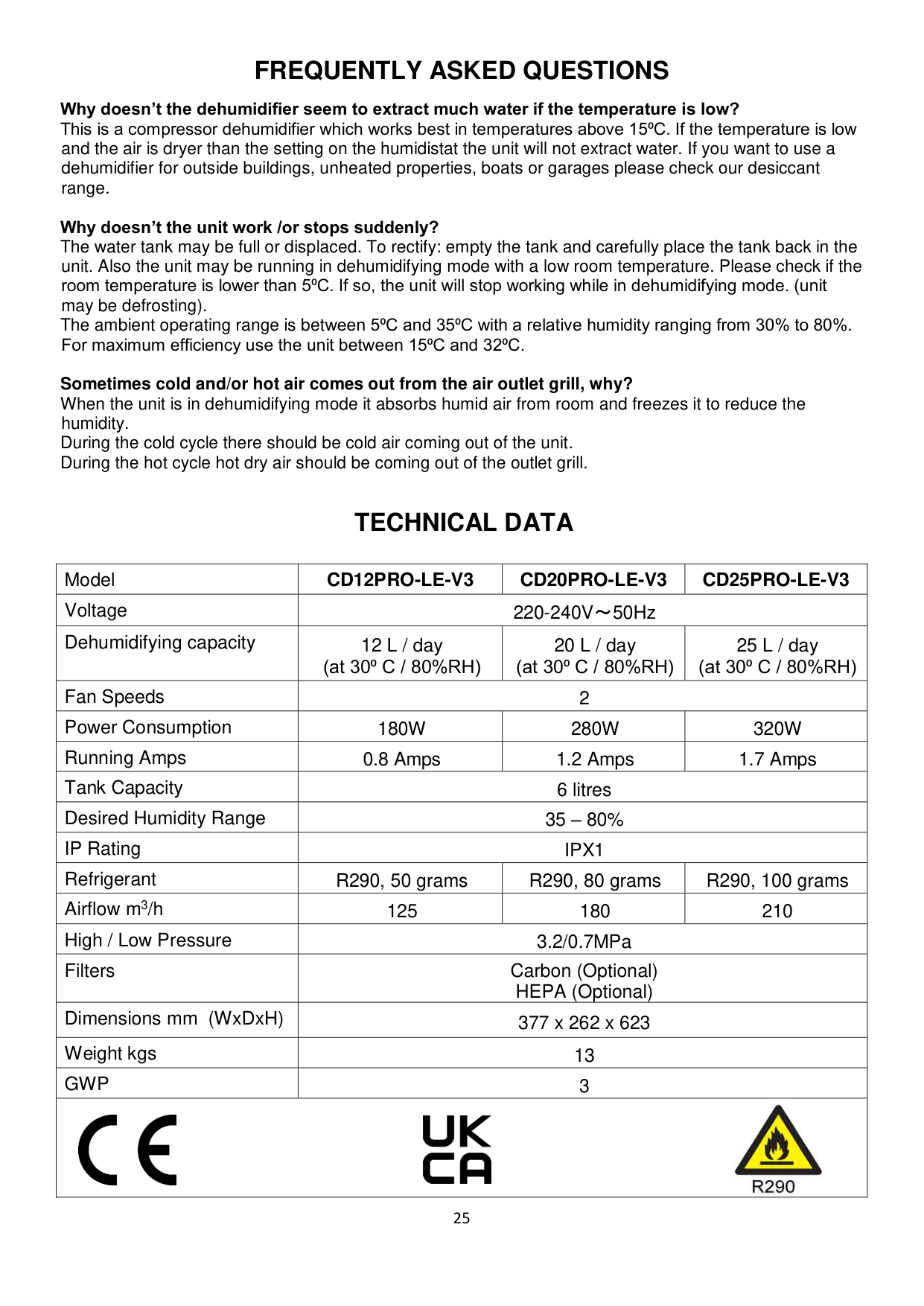
|Fan Speeds|2|2|2| |Power Consumption|180W|280W|320W| |Running Amps|0.8 Amps|1.2 Amps|1.7 Amps| |Tank Capacity|6 litres|6 litres|6 litres| |Desired Humidity Range|35 – 80%|35 – 80%|35 – 80%| |IP Rating|IPX1|IPX1|IPX1| |Refrigerant|R290, 50 grams|R290, 80 grams|R290, 100 grams| |Airflow m3/h|125|180|210| |High / Low Pressure|3.2/0.7MPa|3.2/0.7MPa|3.2/0.7MPa| |Filters|Carbon (Optional) HEPA (Optional)|Carbon (Optional) HEPA (Optional)|Carbon (Optional) HEPA (Optional)| |Dimensions mm (WxDxH)|377 x 262 x 623|377 x 262 x 623|377 x 262 x 623| |Weight kgs|13|13|13| |GWP|3|3|3| |

|

|

|

|
#### electriQ UK SUPPORT
www.electriQ.co.uk/support
Please, for your own convenience, make these simple checks before calling the service line.
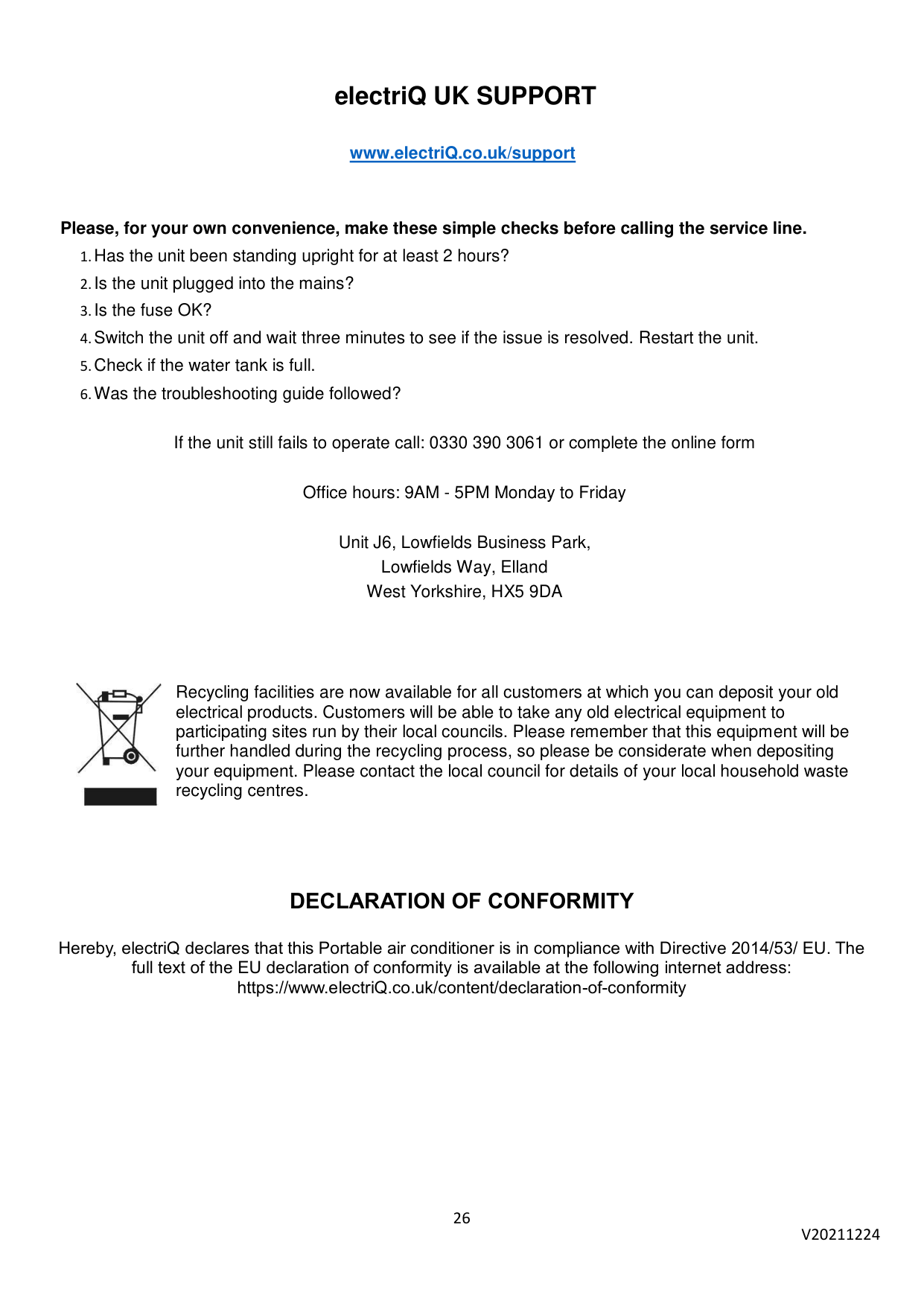
If the unit still fails to operate call: 0330 390 3061 or complete the online form
Office hours: 9AM - 5PM Monday to Friday
Unit J6, Lowfields Business Park, Lowfields Way, Elland West Yorkshire, HX5 9DA

Recycling facilities are now available for all customers at which you can deposit your old electrical products. Customers will be able to take any old electrical equipment to participating sites run by their local councils. Please remember that this equipment will be further handled during the recycling process, so please be considerate when depositing your equipment. Please contact the local council for details of your local household waste recycling centres.
##### DECLARATION OF CONFORMITY
Hereby, electriQ declares that this Portable air conditioner is in compliance with Directive 2014/53/ EU. The full text of the EU declaration of conformity is available at the following internet address: https://www.electriQ.co.uk/content/declaration-of-conformity
26
V20211224