
Ask AI
— answers from the official manualAnswers from the official manual.
Common questions
Common Questions
7 totalHow do I reset my Tapo C200 camera?
Press and hold the RESET button for at least 5 seconds until the LED blinks red to reset your camera.
How can I set up motion detection with the TP-Link Tapo app?
From Camera Settings, enable Motion Detection and customize settings including Alert Type, Activity Zones, and Sensitivity. Also ensure you have a microSD card inserted for recording clips when motion is detected.
How do I turn on Privacy Mode in my Tapo Camera C200 app?
On the Live View page, tap to enable the Privacy Mode. This mode will temporarily shut down streaming and recording functions to maintain privacy.
How do I mount TP-Link Tapo C200 camera on a wall?
Place the mounting template where you want to mount it. For wall mounting, drill two holes through two circles and insert screws into the holes to fix the base.
How do I set up local recordings for the Tapo C200 camera?
First initialize a microSD card in the Camera Settings page, then configure recording schedules for Continuous Recording (24-hour recordings) as needed.
What is the vertical range of motion for TP-Link Tapo C200?
The camera has a 360° horizontal and an 114° vertical range, allowing it to pan freely within its designed area.
Show 1 more questions
Full Manual
25 pages
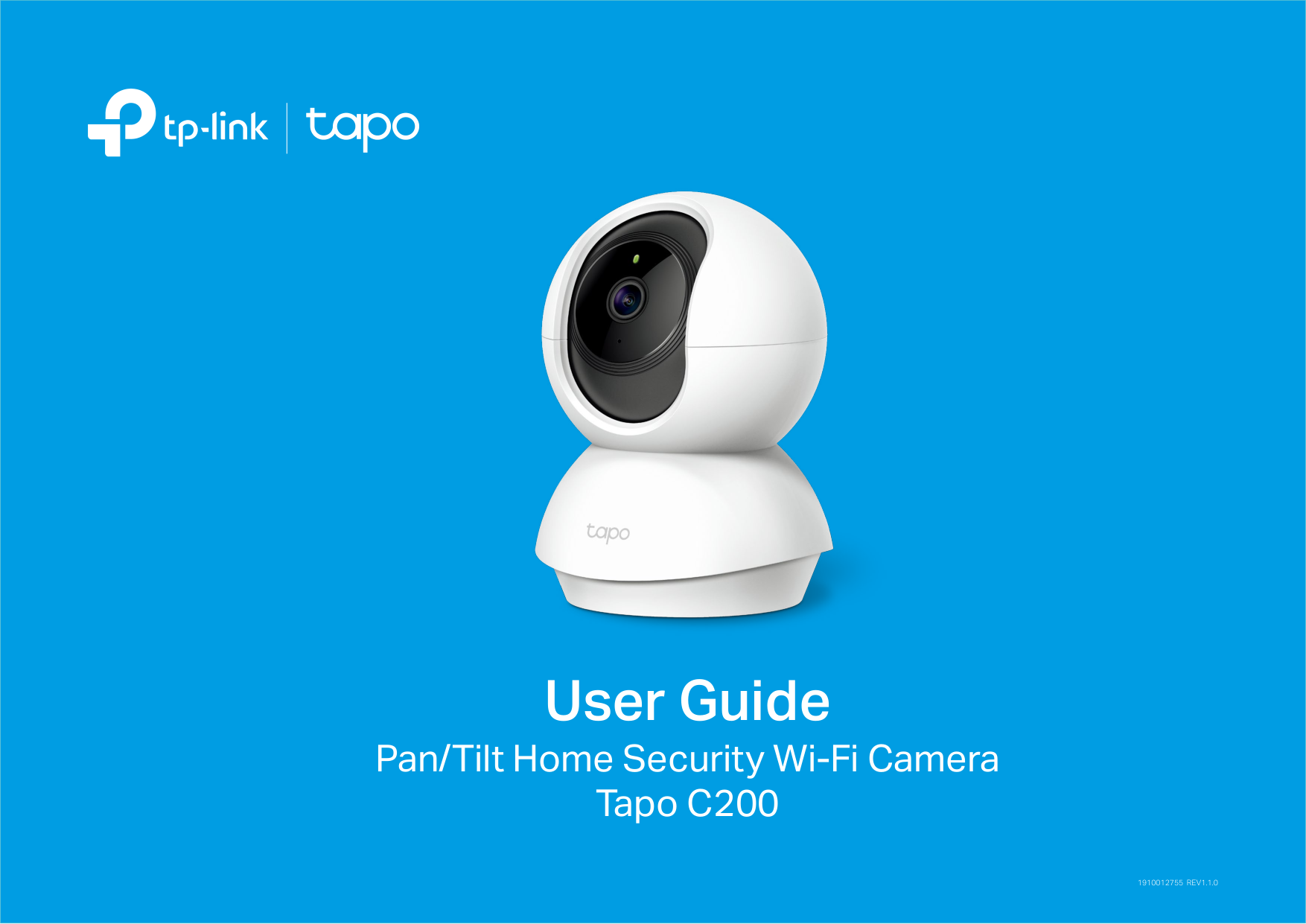
|User Guide
Pan/Tilt Home Security Wi-Fi Camera Tapo C200

1910012755 REV1.1.0
| |---|
Contents
About This Guide ···················································· 1 Introduction ······························································· 2 Appearance ······························································· 3 Set Up Your Camera ·············································· 4 Main Camera Controls ········································· 6 Pan & Tilt Control ···················································· 8 Motion Detection ···················································· 9 24-hour Recordings ············································13 Privacy Mode ··························································15 Authentication ·······················································16
About This Guide
This guide provides a brief introduction to the Pan/Tilt Home Security Wi-Fi Camera and the Tapo app, as well as regulatory information. Please note that features available in Tapo may vary by model and software version. Tapo availability may also vary by region or ISP. All images, steps, and descriptions in this guide are only examples and may not reflect your actual Tapo camera experience.
Conventions In this guide, the following convention is used:
|Convention|Description| |---|---| |Blue|Key information appears in teal, including management page text such as menus, items, buttons and so on.|
|Underline|Hyperlinks are in teal and underlined. You can click to redirect to a website.| |Note:|Ignoring this type of note might result in a malfunction or damage to the device.|
##### More Info
Introduction
When you are away home, there are always something you care about. This is where the smart camera functions. No matter your child is climbing the kitchen cabinet, or the pet is stealing snacks, Tapo C200 helps you stay with them anytime, anywhere. Receive a notification whenever your camera detects motion and see a video clip of this motion to check everything.
Appearance
The Pan/Tilt Home Security Wi-Fi Camera has a system LED that changes color according to its status, a lens, microphone, speaker, DC power port, RESET button and a Micro SD card slot. Refer below for details.


######## Lens
######## System LED
Micro SD RESET
######## DC Power Port
######## Microphone
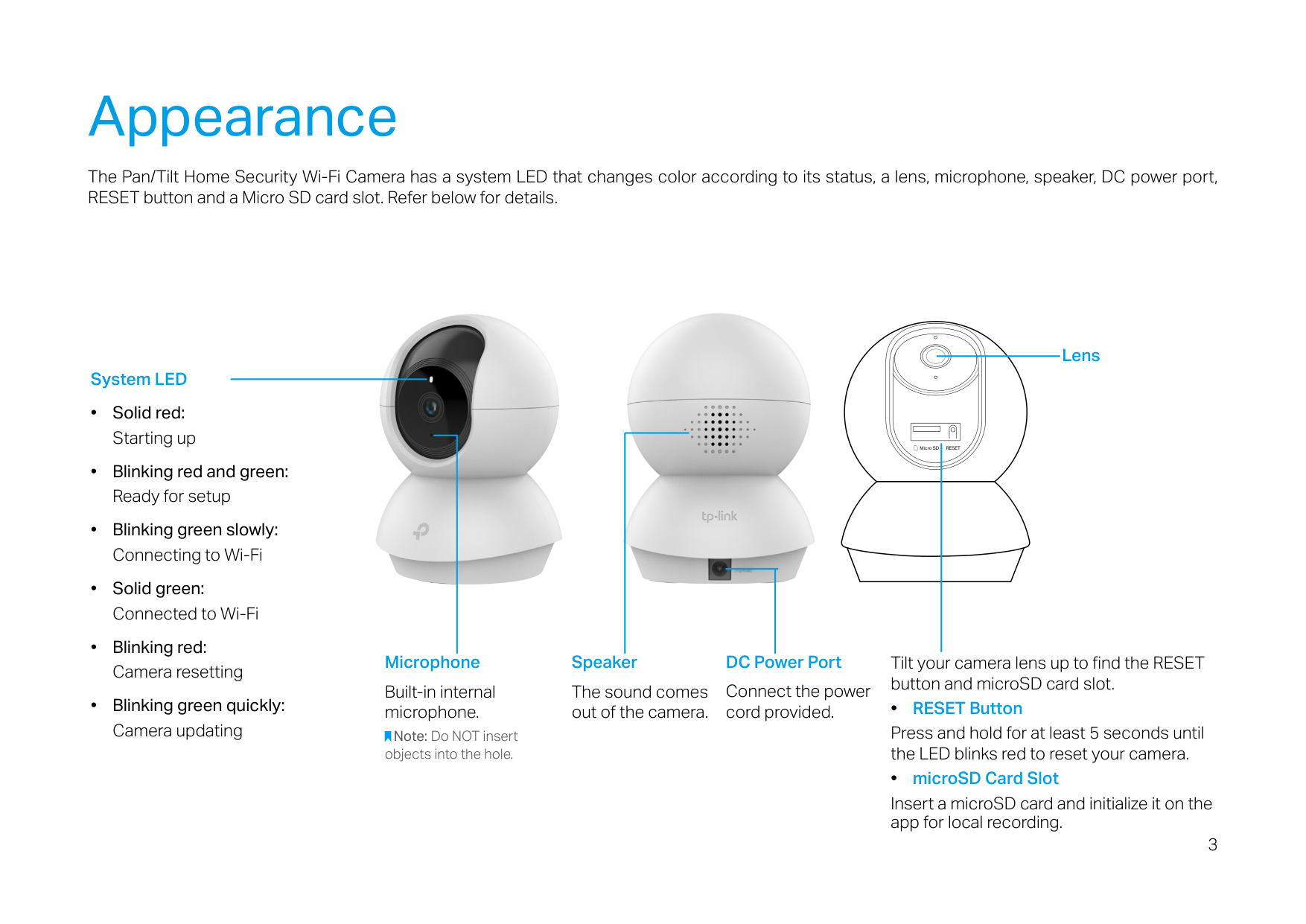
######## Speaker
Tilt your camera lens up to find the RESET button and microSD card slot.
Connect the power cord provided.
Built-in internal microphone.
The sound comes out of the camera.
######## • RESET Button
Press and hold for at least 5 seconds until the LED blinks red to reset your camera.
Note: Do NOT insert objects into the hole.
######## • microSD Card Slot
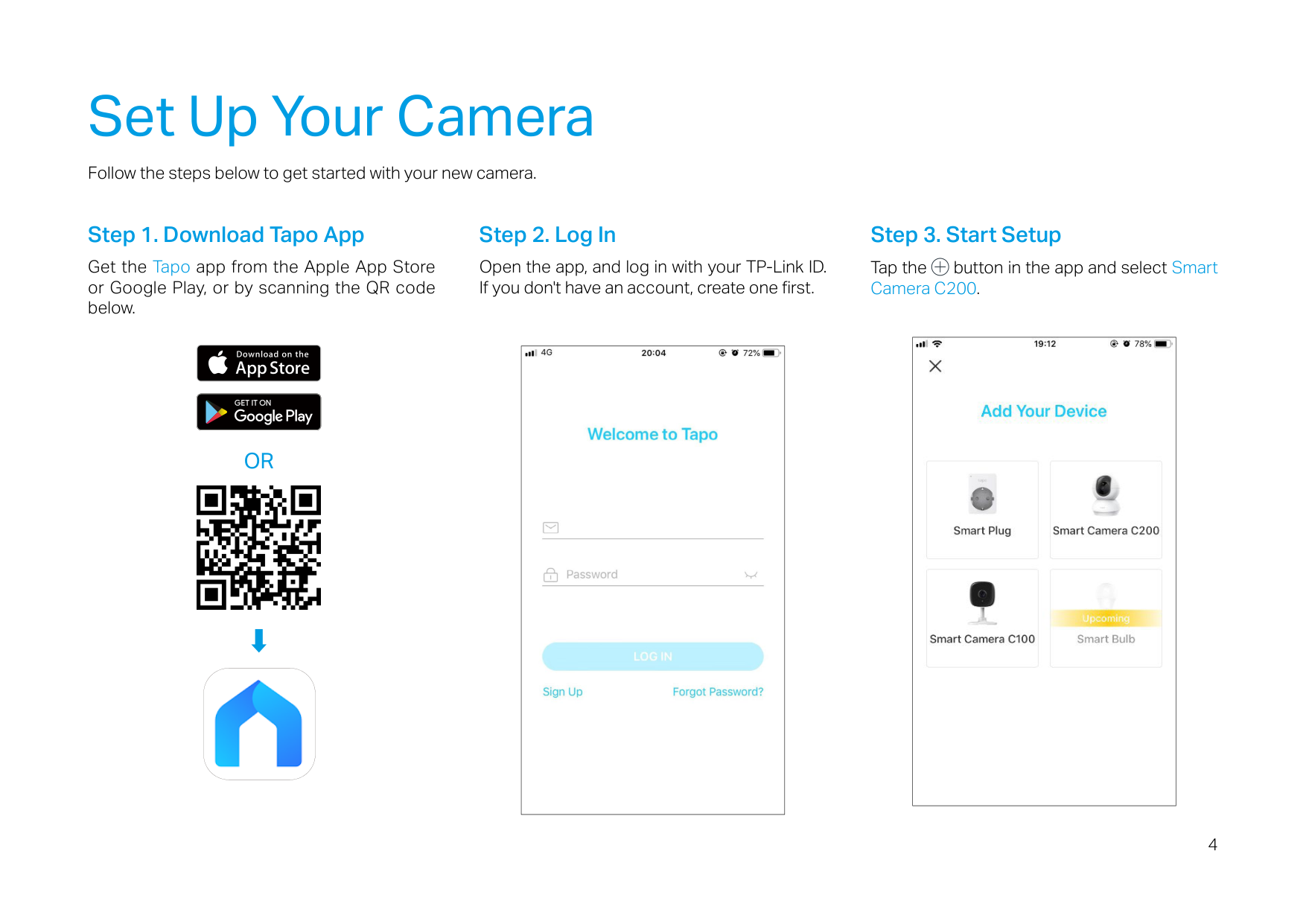
Insert a microSD card and initialize it on the app for local recording.
Set Up Your Camera
Follow the steps below to get started with your new camera.
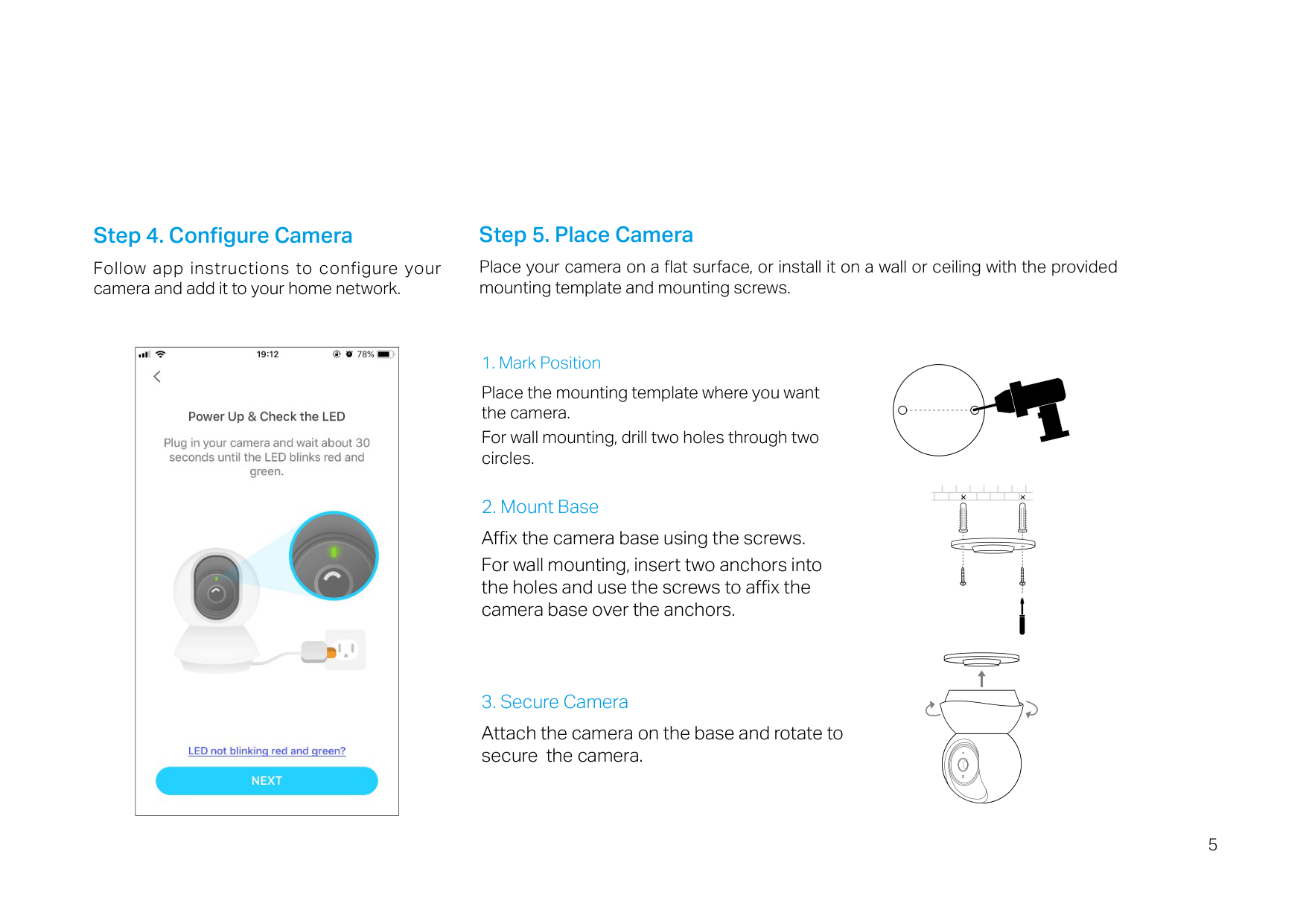
#### Step 1. Download Tapo App
Get the Tapo app from the Apple App Store or Google Play, or by scanning the QR code below.
OR


#### Step 2. Log In
Open the app, and log in with your TP-Link ID. If you don't have an account, create one first.
|| |---|
Step 3. Start Setup Tap the button in the app and select Smart Camera C200.
|| |---|
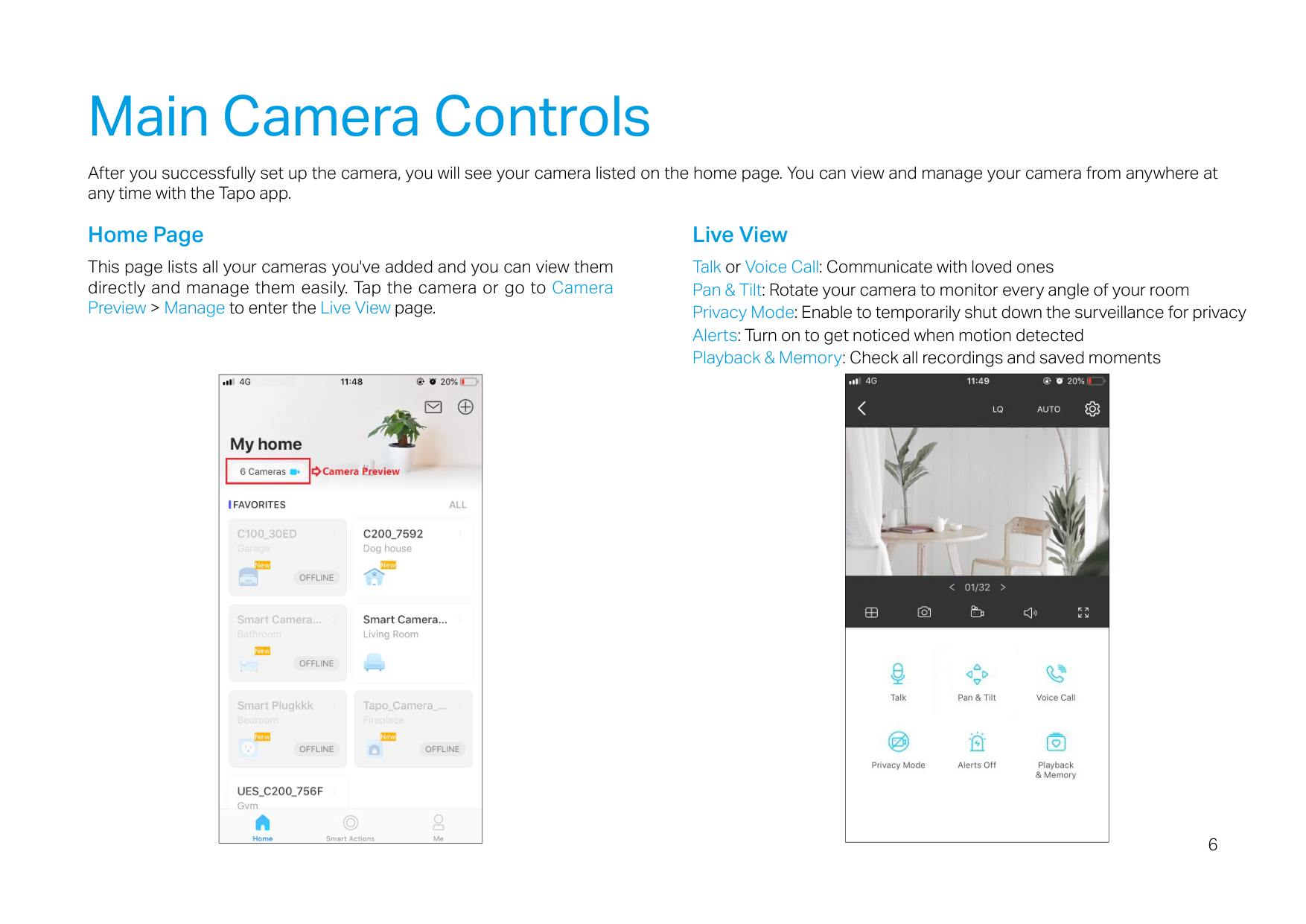
#### Step 4. Configure Camera
Follow app instructions to configure your camera and add it to your home network.
#### Step 5. Place Camera
Place your camera on a flat surface, or install it on a wall or ceiling with the provided mounting template and mounting screws.
|| |---|
Place the mounting template where you want the camera. For wall mounting, drill two holes through two circles.
| | | | | | | | | | | | | | | |---|---|---|---|---|---|---|---|---|---|---|---|---|---|
| | | | | | | | | | | | | | |
####### Attach the camera on the base and rotate to secure the camera.
Main Camera Controls
After you successfully set up the camera, you will see your camera listed on the home page. You can view and manage your camera from anywhere at any time with the Tapo app.
#### Home Page
This page lists all your cameras you've added and you can view them directly and manage them easily. Tap the camera or go to Camera Preview > Manage to enter the Live View page.
||
|---|
#### Live View
Talk or Voice Call: Communicate with loved ones Pan & Tilt: Rotate your camera to monitor every angle of your room Privacy Mode: Enable to temporarily shut down the surveillance for privacy Alerts: Turn on to get noticed when motion detected Playback & Memory: Check all recordings and saved moments
|| |---|
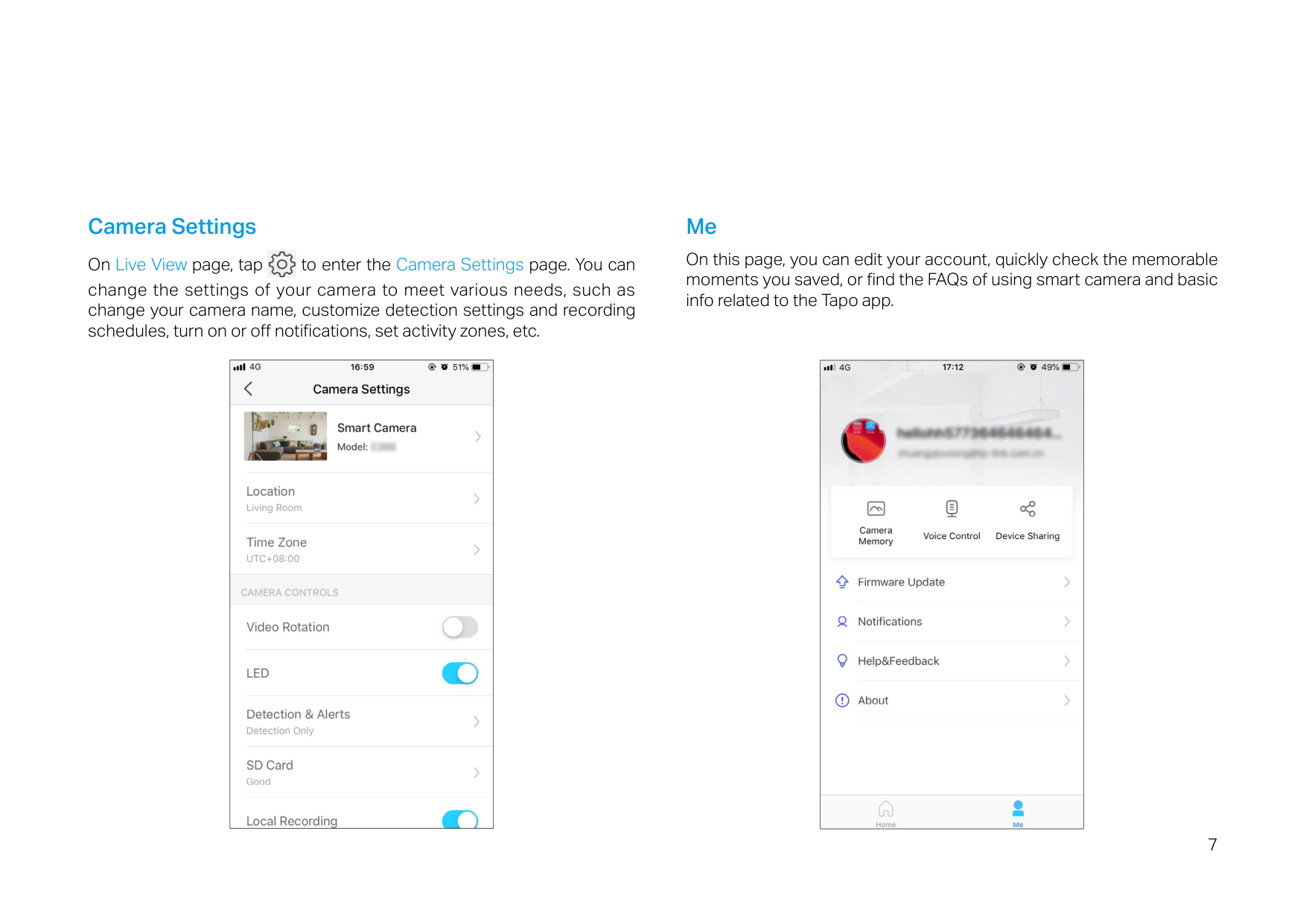
#### Camera Settings

On Live View page, tap to enter the Camera Settings page. You can change the settings of your camera to meet various needs, such as change your camera name, customize detection settings and recording schedules, turn on or off notifications, set activity zones, etc.
|| |---|
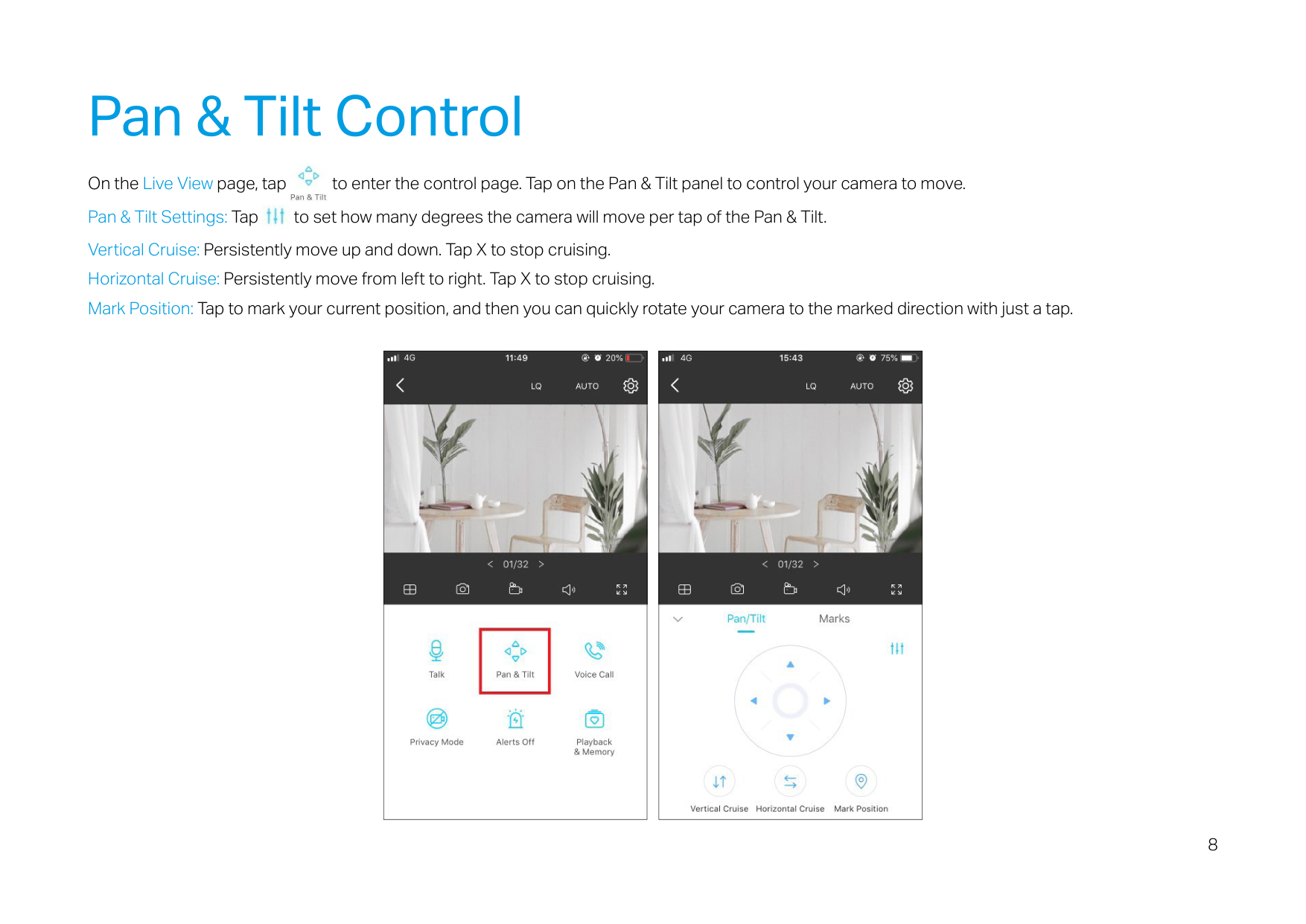
#### Me
On this page, you can edit your account, quickly check the memorable moments you saved, or find the FAQs of using smart camera and basic info related to the Tapo app.
|| |---|
Pan & Tilt Control

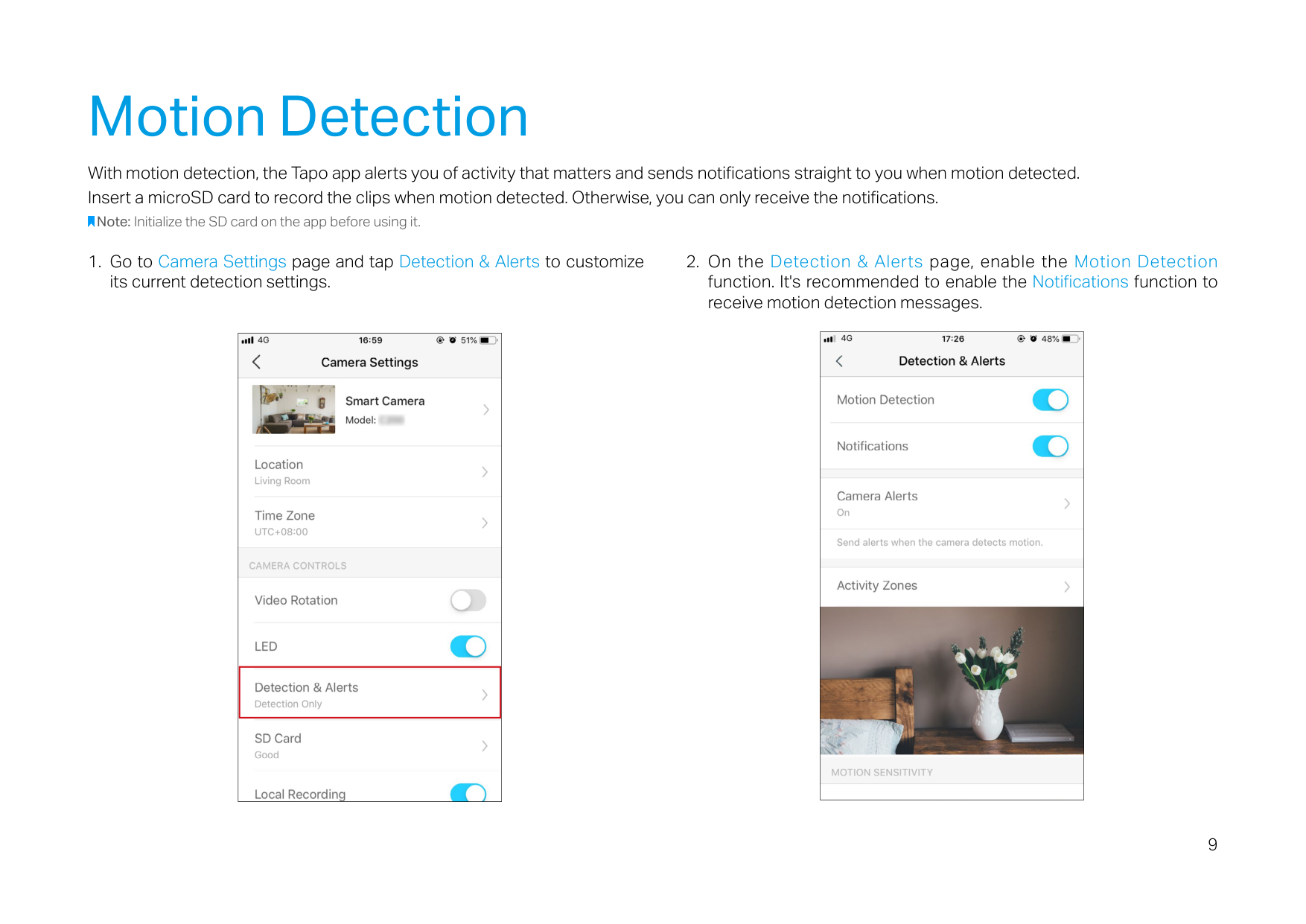
On the Live View page, tap to enter the control page. Tap on the Pan & Tilt panel to control your camera to move. Pan & Tilt Settings: Tap to set how many degrees the camera will move per tap of the Pan & Tilt. Vertical Cruise: Persistently move up and down. Tap X to stop cruising. Horizontal Cruise: Persistently move from left to right. Tap X to stop cruising. Mark Position: Tap to mark your current position, and then you can quickly rotate your camera to the marked direction with just a tap.
|| |---|
|| |---|
Motion Detection
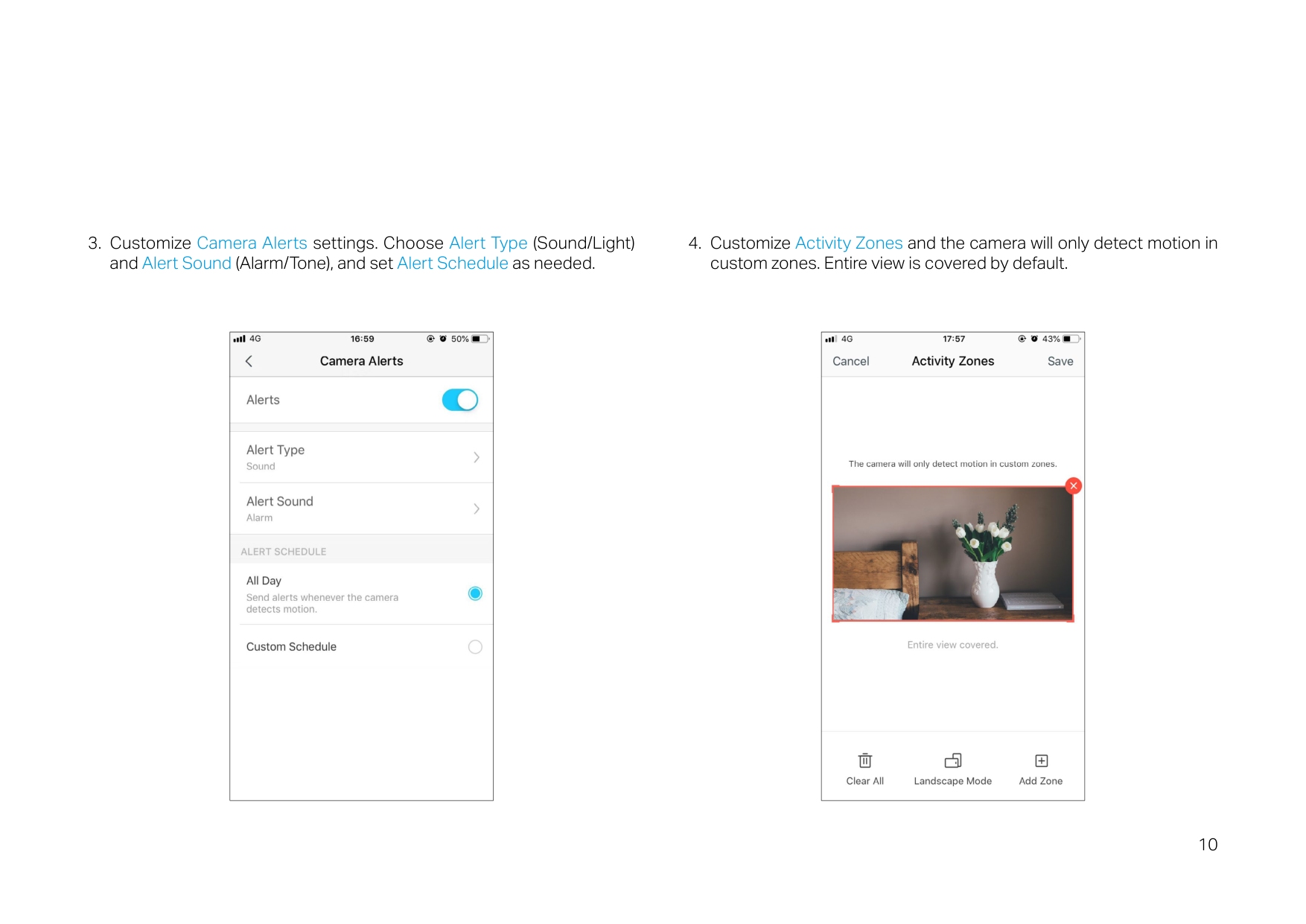
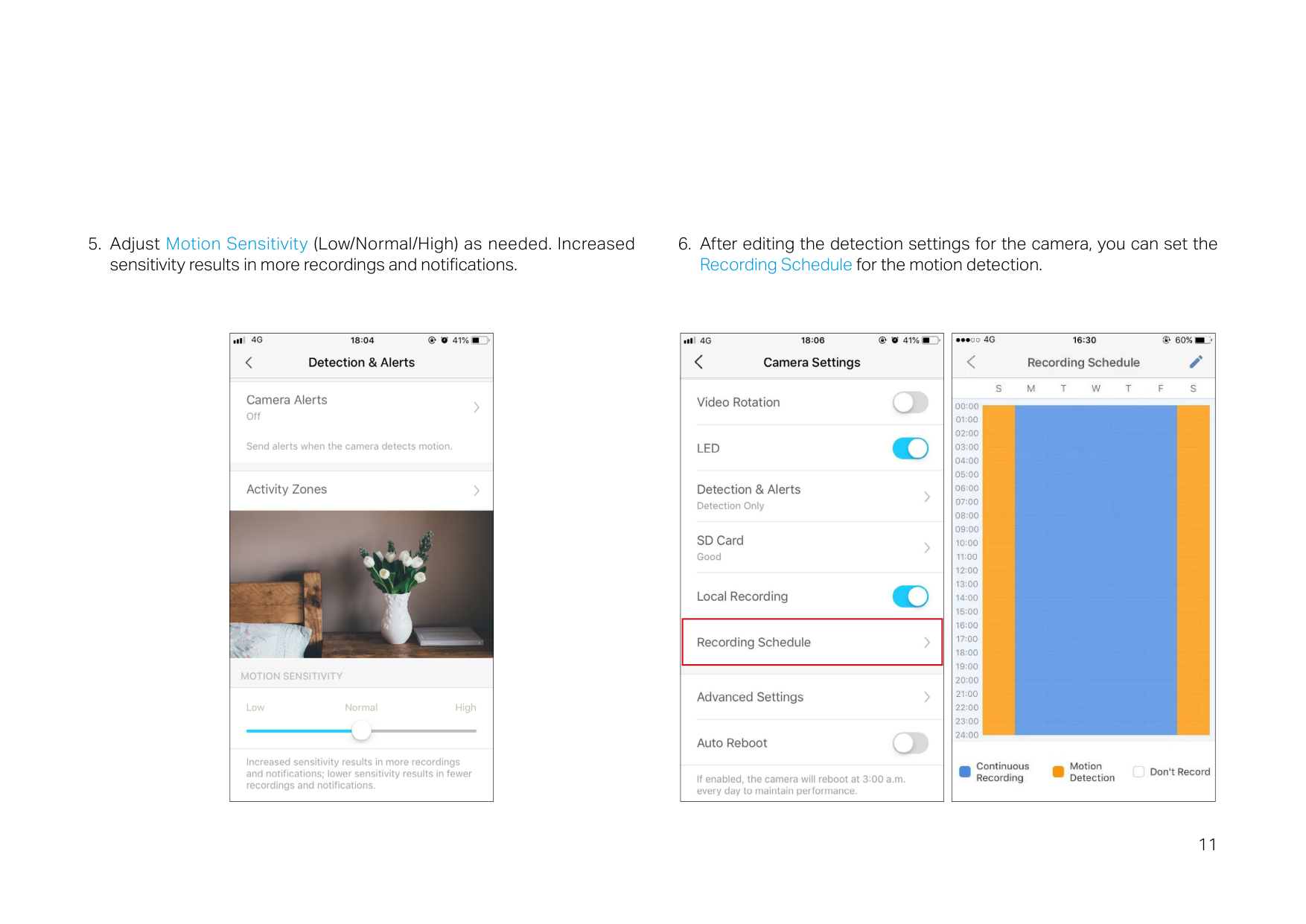
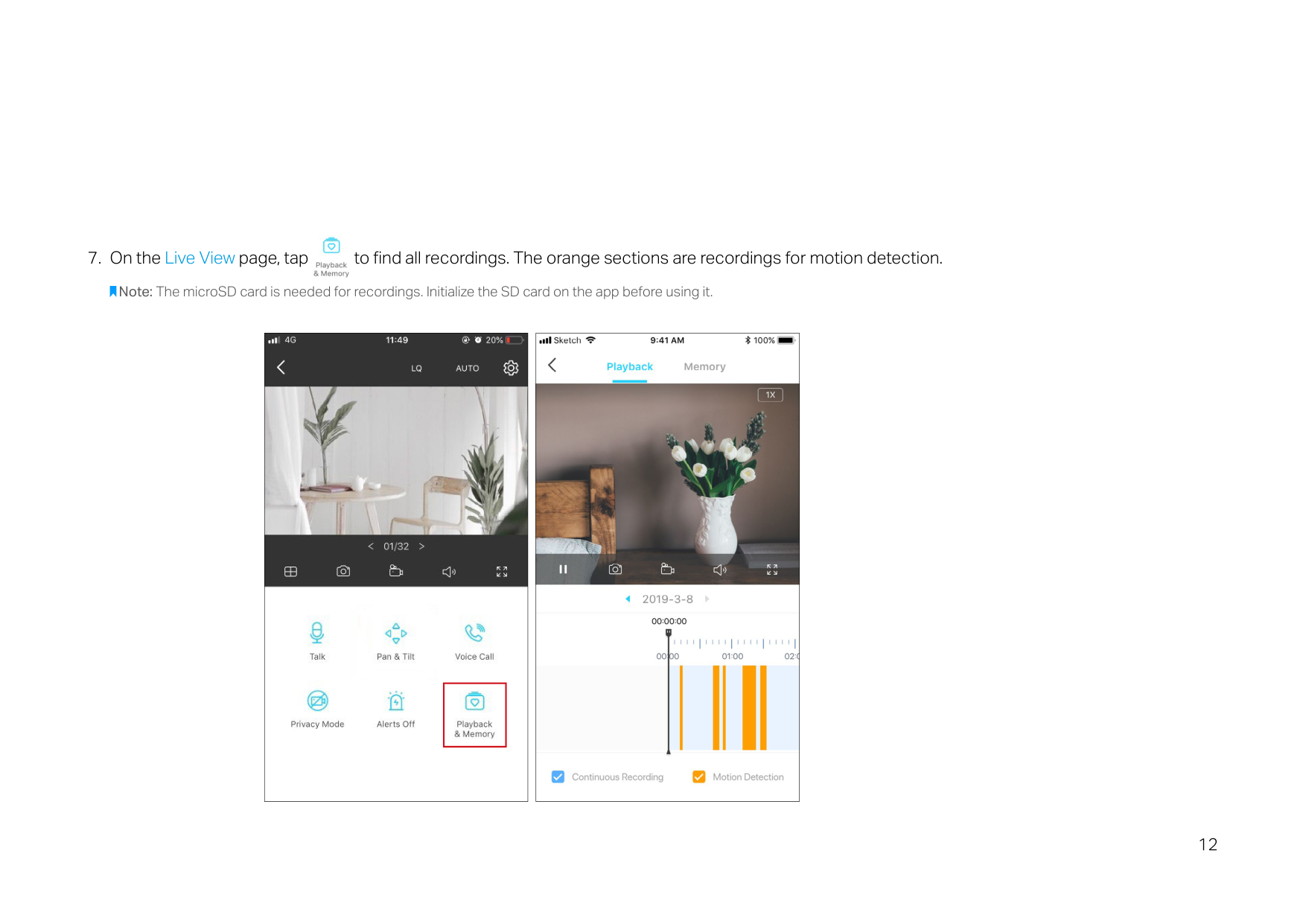
With motion detection, the Tapo app alerts you of activity that matters and sends notifications straight to you when motion detected. Insert a microSD card to record the clips when motion detected. Otherwise, you can only receive the notifications.
Note: Initialize the SD card on the app before using it.
|
| | |---| | |---|
|| |---|
||
|---|
|| |---|
|| |---|
|| |---|
|| |---|

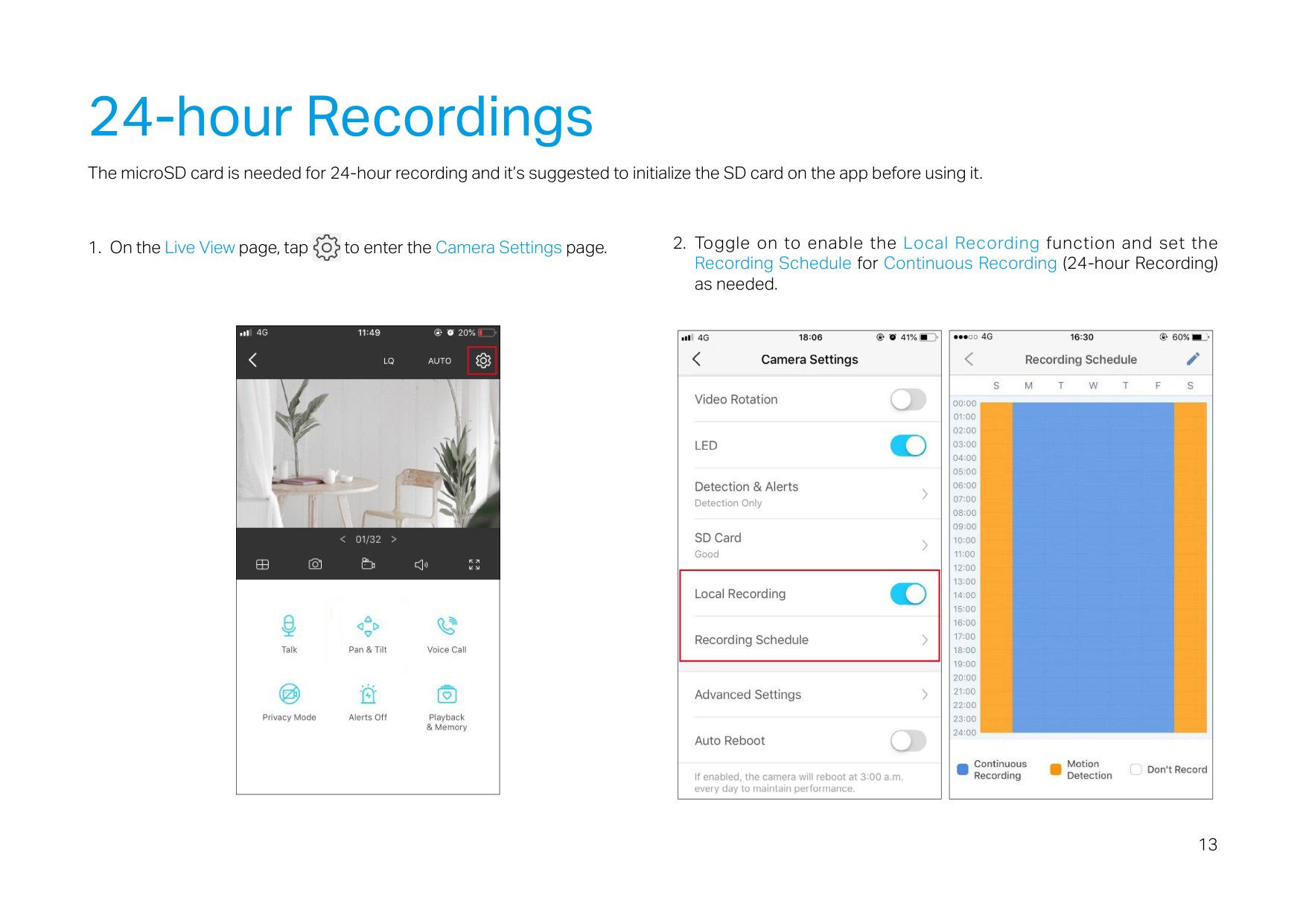
######### 7. On the Live View page, tap to find all recordings. The orange sections are recordings for motion detection.
Note: The microSD card is needed for recordings. Initialize the SD card on the app before using it.
|| |---|
||
|---|
24-hour Recordings
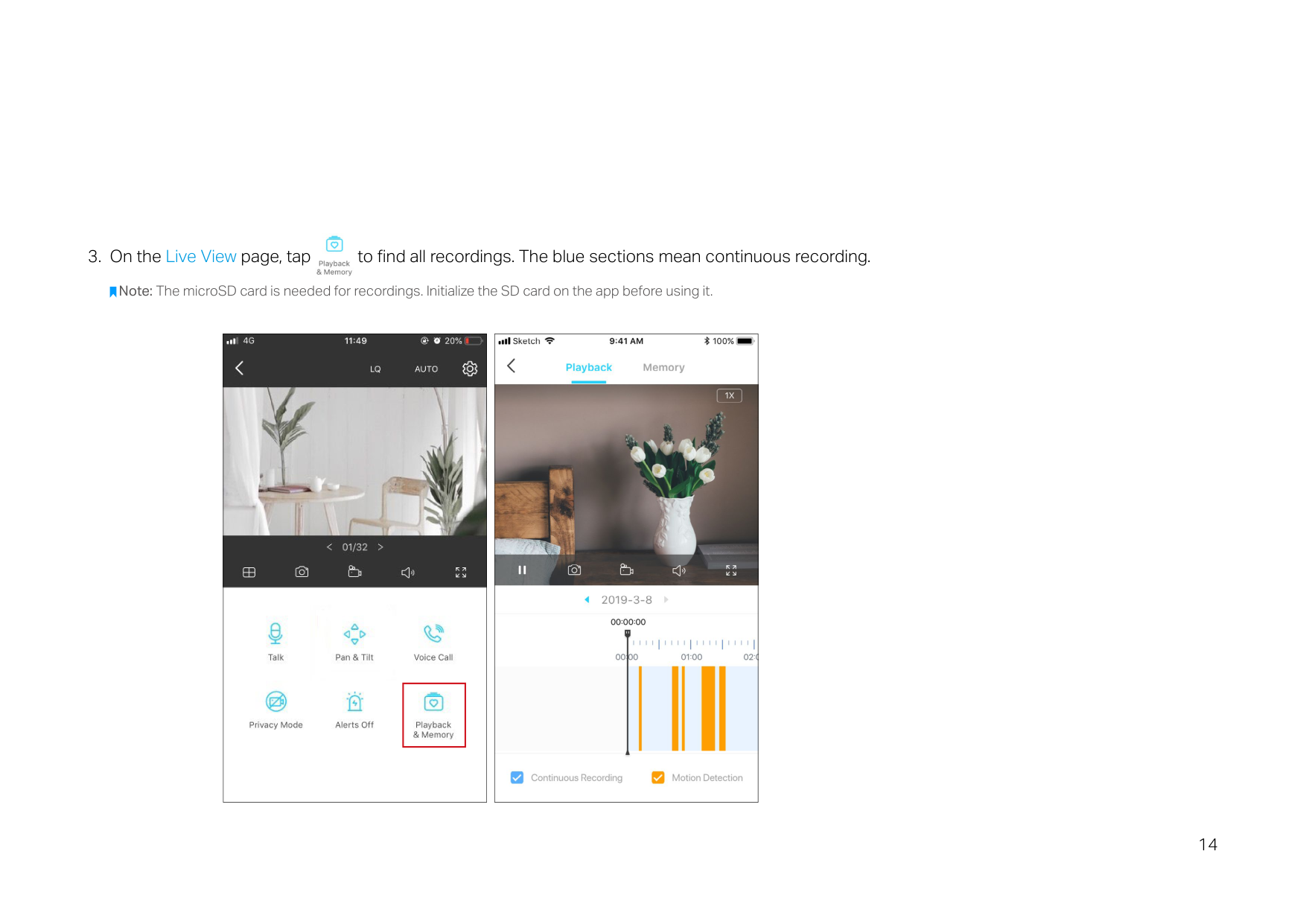
The microSD card is needed for 24-hour recording and it’s suggested to initialize the SD card on the app before using it.

|| |---|
|| |---|
|| |---|

######### 3. On the Live View page, tap to find all recordings. The blue sections mean continuous recording.
Note: The microSD card is needed for recordings. Initialize the SD card on the app before using it.
|| |---|
|| |---|
Privacy Mode

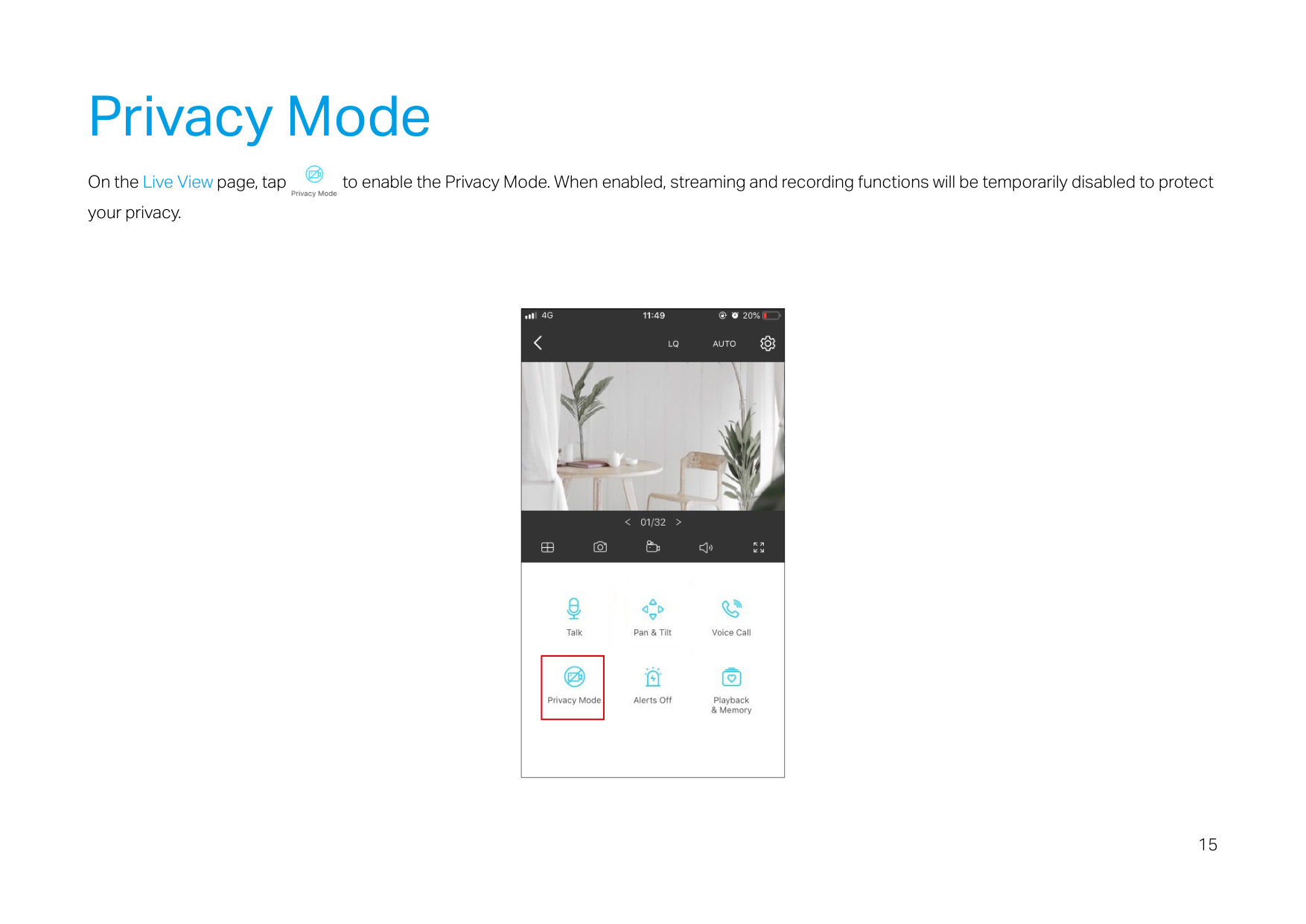
On the Live View page, tap to enable the Privacy Mode. When enabled, streaming and recording functions will be temporarily disabled to protect your privacy.
|
| | |---| | |---|
Authentication
COPYRIGHT & TRADEMARKS Specifications are subject to change without notice. is a registered trademark of TP-Link Technologies Co., Ltd. Other brands and product names are trademarks or registered trademarks of their respective holders. No part of the specifications may be reproduced in any form or by any means or used to make any derivative such as translation, transformation, or adaptation without permission from TP-Link Technologies Co., Ltd. Copyright © 2020 TP-Link Technologies Co., Ltd. All rights reserved.
FCC compliance information statement
Product Name: Pan/Tilt Home Security Wi-Fi Camera Model Number: Tapo C200
|Component Name|Model| |---|---| |AC ADAPTER|T090060-2B1|
Responsible Party: TP-Link USA Corporation, d/b/a TP-Link North America, Inc. Address: 145 South State College Blvd. Suite 400, Brea, CA 92821 Website: http://www.tp-link.com/us/ Tel: +1 626 333 0234 Fax: +1 909 527 6803 E-mail: sales.usa@tp-link.com
This equipment has been tested and found to comply with the limits for a Class B digital device, pursuant to part 15 of the FCC Rules. These limits are designed to provide reasonable protection against harmful interference in a residential installation. This equipment generates, uses and can radiate radio frequency energy and, if not installed and used in accordance with the instructions, may cause harmful interference to radio communications. However, there is no guarantee that interference will not occur in a particular installation. If this equipment does cause harmful interference to radio or television reception, which can be determined by turning the equipment off and on, the user is encouraged to try to correct the interference by one or more of the following measures:
Note: The manufacturer is not responsible for any radio or TV interference caused by unauthorized modifications to this equipment. Such modifications could void the user’s authority to operate the equipment.
FCC RF Radiation Exposure Statement This equipment complies with FCC RF radiation exposure limits set forth for an uncontrolled environment. This device and its antenna must not be co-located or operating in conjunction with any other antenna or transmitter.
“To comply with FCC RF exposure compliance requirements, this grant is applicable to only Mobile Configurations. The antennas used for this transmitter must be installed to provide a separation distance of at least 20 cm from all persons and must not be co-located or operating in conjunction with any other antenna or transmitter.”
We, TP-Link USA Corporation, has determined that the equipment shown as above has been shown to comply with the applicable technical standards, FCC part 15. There is no unauthorized change is made in the equipment and the equipment is properly maintained and operated.
FCC compliance information statement Product Name: AC ADAPTER Model Number: T090060-2B1 Responsible Party: TP-Link USA Corporation, d/b/a TP-Link North America, Inc. Address: 145 South State College Blvd. Suite 400, Brea, CA 92821 Website: http://www.tp-link.com/us/ Tel: +1 626 333 0234 Fax: +1 909 527 6803 E-mail: sales.usa@tp-link.com
Issue Date: 2020-01-16
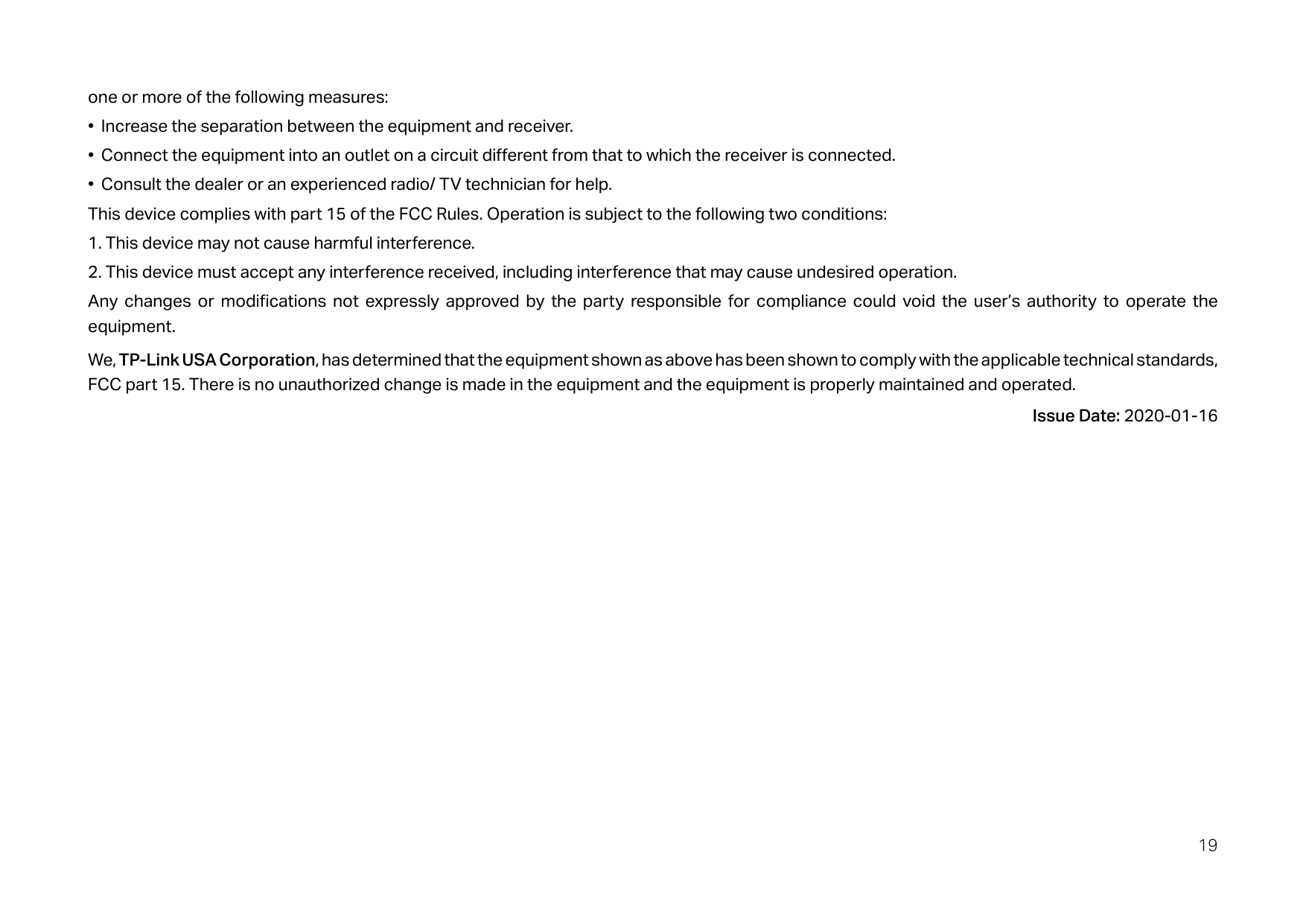
This equipment has been tested and found to comply with the limits for a Class B digital device, pursuant to part 15 of the FCC Rules. These limits are designed to provide reasonable protection against harmful interference in a residential installation. This equipment generates, uses and can radiate radio frequency energy and, if not installed and used in accordance with the instructions, may cause harmful interference to radio communications. However, there is no guarantee that interference will not occur in a particular installation. If this equipment does cause harmful interference to radio or television reception, which can be determined by turning the equipment off and on, the user is encouraged to try to correct the interference by
one or more of the following measures:
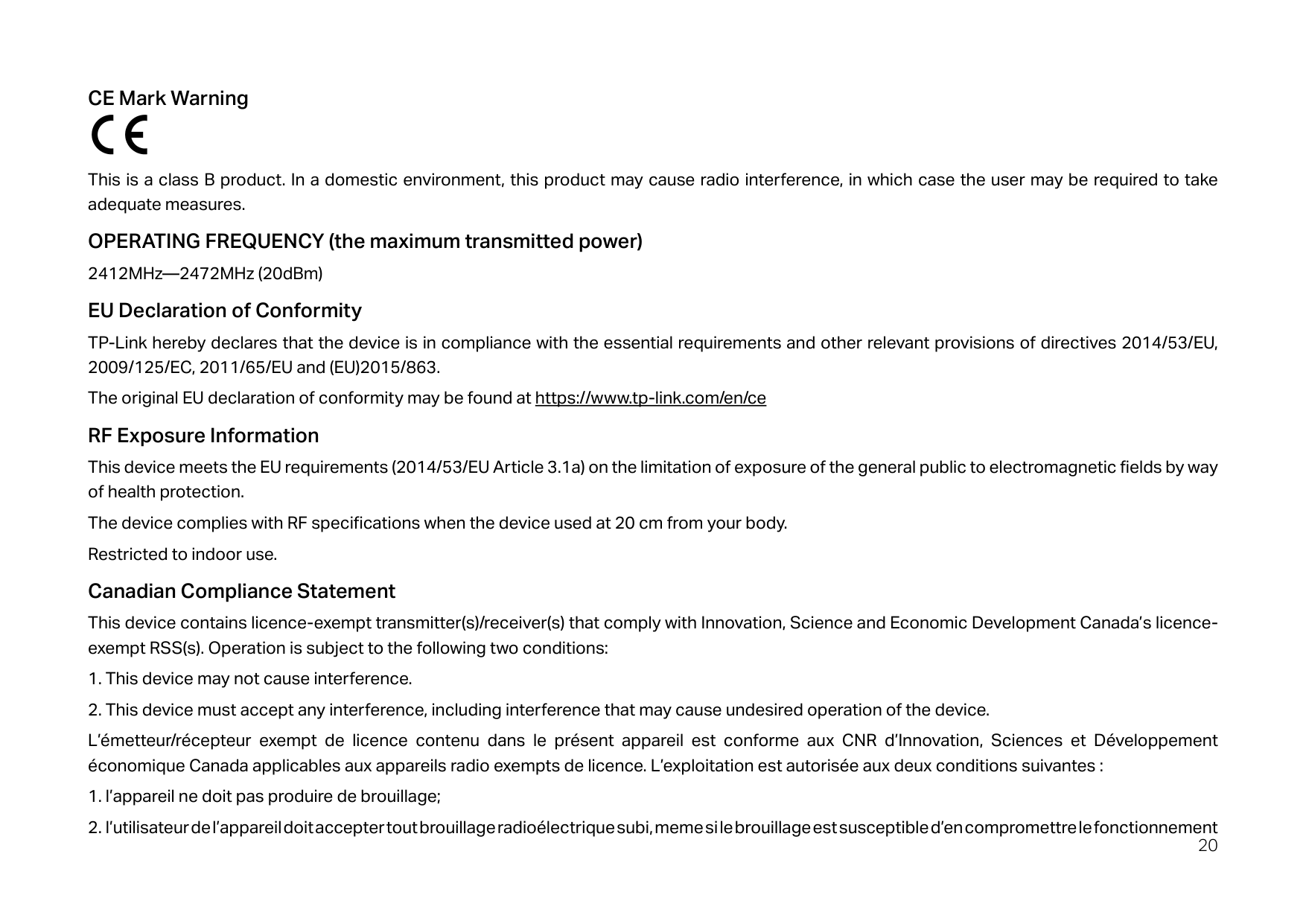
We, TP-Link USA Corporation, has determined that the equipment shown as above has been shown to comply with the applicable technical standards, FCC part 15. There is no unauthorized change is made in the equipment and the equipment is properly maintained and operated.
Issue Date: 2020-01-16
###### CE Mark Warning
This is a class B product. In a domestic environment, this product may cause radio interference, in which case the user may be required to take adequate measures.
OPERATING FREQUENCY (the maximum transmitted power) 2412MHz—2472MHz (20dBm) EU Declaration of Conformity TP-Link hereby declares that the device is in compliance with the essential requirements and other relevant provisions of directives 2014/53/EU, 2009/125/EC, 2011/65/EU and (EU)2015/863. The original EU declaration of conformity may be found at https://www.tp-link.com/en/ce RF Exposure Information This device meets the EU requirements (2014/53/EU Article 3.1a) on the limitation of exposure of the general public to electromagnetic fields by way of health protection. The device complies with RF specifications when the device used at 20 cm from your body. Restricted to indoor use. Canadian Compliance Statement
This device contains licence-exempt transmitter(s)/receiver(s) that comply with Innovation, Science and Economic Development Canada’s licenceexempt RSS(s). Operation is subject to the following two conditions:
L’émetteur/récepteur exempt de licence contenu dans le présent appareil est conforme aux CNR d’Innovation, Sciences et Développement économique Canada applicables aux appareils radio exempts de licence. L’exploitation est autorisée aux deux conditions suivantes :
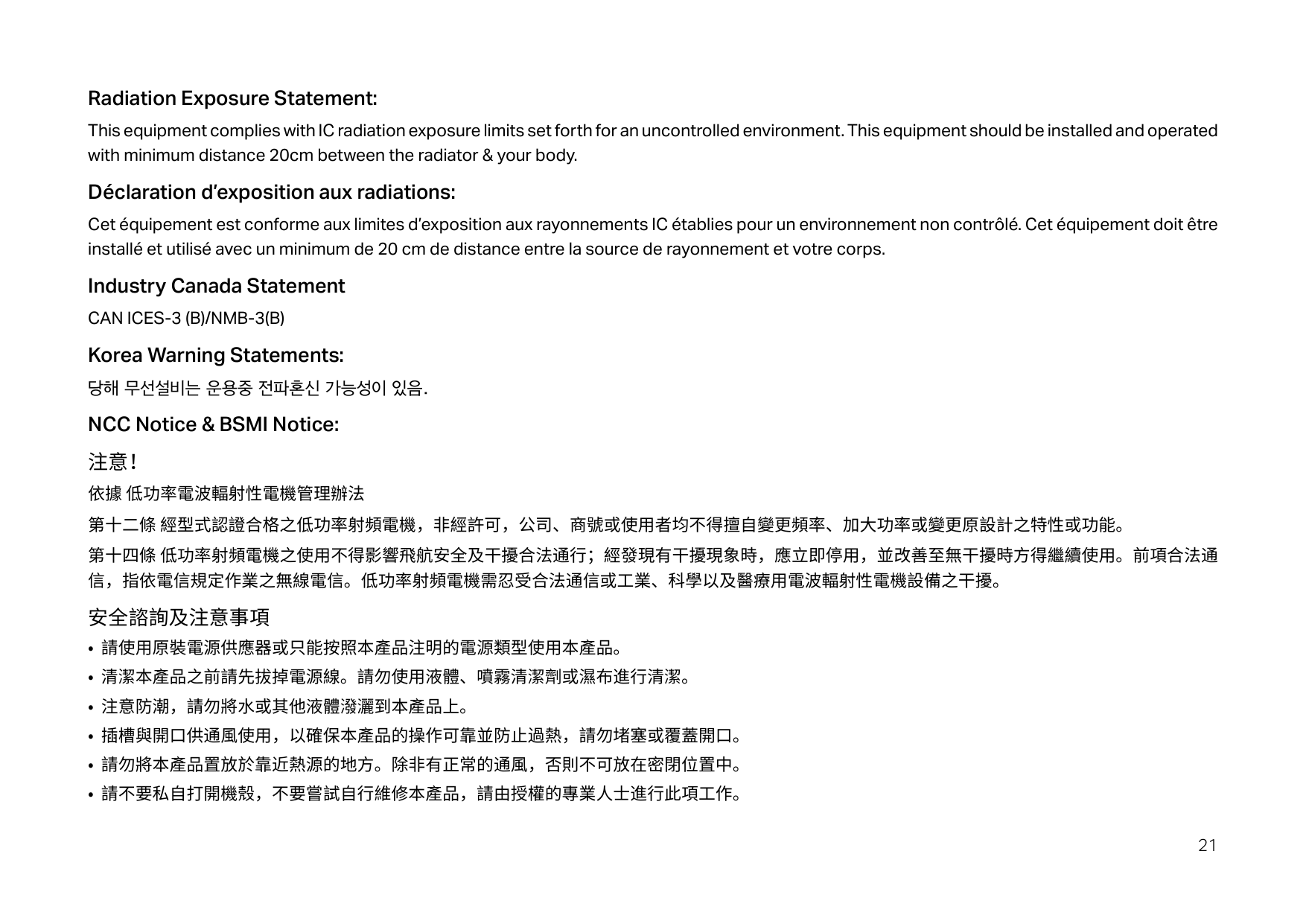
Radiation Exposure Statement: This equipment complies with IC radiation exposure limits set forth for an uncontrolled environment. This equipment should be installed and operated with minimum distance 20cm between the radiator & your body. Déclaration d’exposition aux radiations:
Cet équipement est conforme aux limites d’exposition aux rayonnements IC établies pour un environnement non contrôlé. Cet équipement doit être installé et utilisé avec un minimum de 20 cm de distance entre la source de rayonnement et votre corps.
Industry Canada Statement CAN ICES-3 (B)/NMB-3(B) Korea Warning Statements: 당해 무선설비는 운용중 전파혼신 가능성이 있음. NCC Notice & BSMI Notice: 注意! 依據 低功率電波輻射性電機管理辦法 第十二條 經型式認證合格之低功率射頻電機,非經許可,公司、商號或使用者均不得擅自變更頻率、加大功率或變更原設計之特性或功能。 第十四條 低功率射頻電機之使用不得影響飛航安全及干擾合法通行;經發現有干擾現象時,應立即停用,並改善至無干擾時方得繼續使用。前項合法通 信,指依電信規定作業之無線電信。低功率射頻電機需忍受合法通信或工業、科學以及醫療用電波輻射性電機設備之干擾。 安全諮詢及注意事項
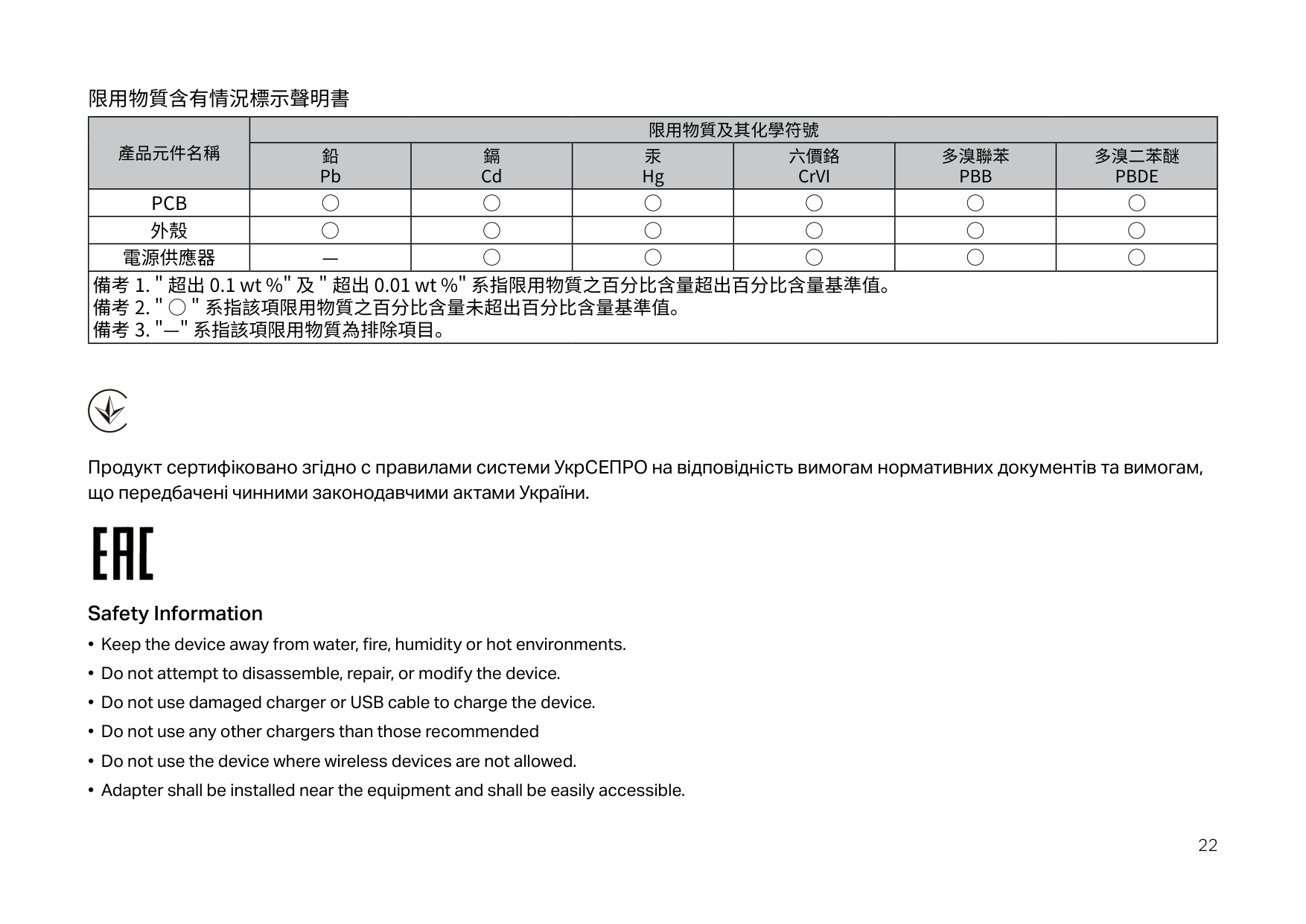
限用物質含有情況標示聲明書
|產品元件名稱|限用物質及其化學符號 鉛 鎘 汞 六價鉻 多溴聯苯 多溴二苯醚|限用物質及其化學符號 鉛 鎘 汞 六價鉻 多溴聯苯 多溴二苯醚|限用物質及其化學符號 鉛 鎘 汞 六價鉻 多溴聯苯 多溴二苯醚|限用物質及其化學符號 鉛 鎘 汞 六價鉻 多溴聯苯 多溴二苯醚|限用物質及其化學符號 鉛 鎘 汞 六價鉻 多溴聯苯 多溴二苯醚|限用物質及其化學符號 鉛 鎘 汞 六價鉻 多溴聯苯 多溴二苯醚| |---|---|---|---|---|---|---| |產品元件名稱|Pb|Cd|Hg|CrVI|PBB|PBDE| |PCB|○|○|○|○|○|○| |外殼|○|○|○|○|○|○| |電源供應器|—|○|○|○|○|○| |備考 1. " 超出 0.1 wt %" 及 " 超出 0.01 wt %" 系指限用物質之百分比含量超出百分比含量基準值。
備考 2. " ○ " 系指該項限用物質之百分比含量未超出百分比含量基準值。
備考 3. "—" 系指該項限用物質為排除項目。
|備考 1. " 超出 0.1 wt %" 及 " 超出 0.01 wt %" 系指限用物質之百分比含量超出百分比含量基準值。
備考 2. " ○ " 系指該項限用物質之百分比含量未超出百分比含量基準值。
備考 3. "—" 系指該項限用物質為排除項目。
|備考 1. " 超出 0.1 wt %" 及 " 超出 0.01 wt %" 系指限用物質之百分比含量超出百分比含量基準值。
備考 2. " ○ " 系指該項限用物質之百分比含量未超出百分比含量基準值。
備考 3. "—" 系指該項限用物質為排除項目。
|備考 1. " 超出 0.1 wt %" 及 " 超出 0.01 wt %" 系指限用物質之百分比含量超出百分比含量基準值。
備考 2. " ○ " 系指該項限用物質之百分比含量未超出百分比含量基準值。
備考 3. "—" 系指該項限用物質為排除項目。
|備考 1. " 超出 0.1 wt %" 及 " 超出 0.01 wt %" 系指限用物質之百分比含量超出百分比含量基準值。
備考 2. " ○ " 系指該項限用物質之百分比含量未超出百分比含量基準值。
備考 3. "—" 系指該項限用物質為排除項目。
|備考 1. " 超出 0.1 wt %" 及 " 超出 0.01 wt %" 系指限用物質之百分比含量超出百分比含量基準值。
備考 2. " ○ " 系指該項限用物質之百分比含量未超出百分比含量基準值。
備考 3. "—" 系指該項限用物質為排除項目。
|備考 1. " 超出 0.1 wt %" 及 " 超出 0.01 wt %" 系指限用物質之百分比含量超出百分比含量基準值。
備考 2. " ○ " 系指該項限用物質之百分比含量未超出百分比含量基準值。
備考 3. "—" 系指該項限用物質為排除項目。
|
Продукт сертифіковано згідно с правилами системи УкрСЕПРО на відповідність вимогам нормативних документів та вимогам, що передбачені чинними законодавчими актами України.

###### Safety Information

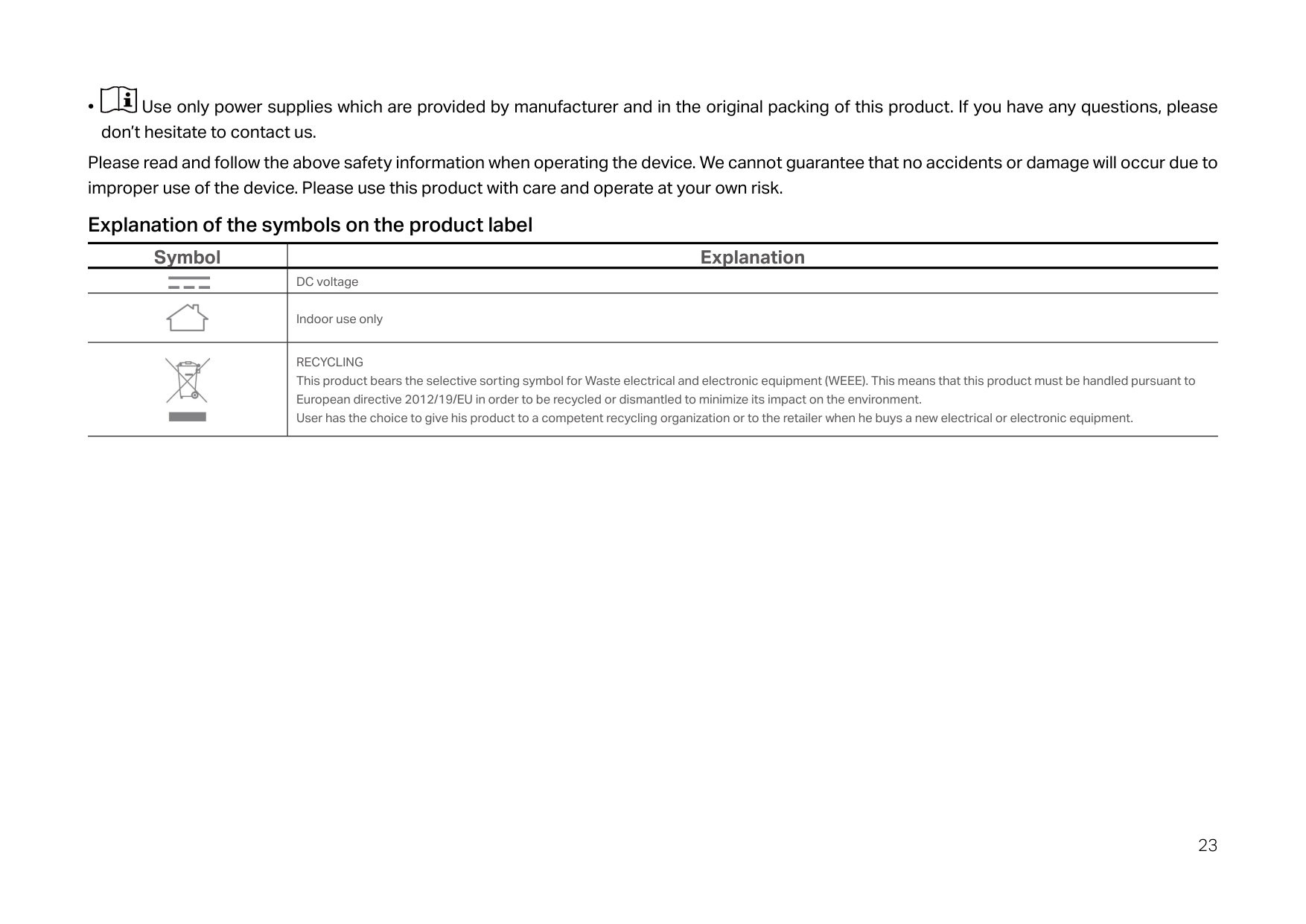
Please read and follow the above safety information when operating the device. We cannot guarantee that no accidents or damage will occur due to improper use of the device. Please use this product with care and operate at your own risk.
###### Explanation of the symbols on the product label
|Symbol|Explanation| |---|---| ||DC voltage| ||Indoor use only| ||RECYCLING This product bears the selective sorting symbol for Waste electrical and electronic equipment (WEEE). This means that this product must be handled pursuant to European directive 2012/19/EU in order to be recycled or dismantled to minimize its impact on the environment. User has the choice to give his product to a competent recycling organization or to the retailer when he buys a new electrical or electronic equipment.|