
TP Link TL Wa850re 300mbps Wifi Range Extender
Ask AI
— answers from the official manualAnswers from the official manual.
Common questions
Common Questions
29 totalHow do I reset the TL-WA850RE to its factory default settings?
With the extender powered on, use a pin to press the RESET button until all the LEDs turn on momentarily, then release the button. Alternatively, you can log into the web management page, go to Settings > System Tools > Restore & Backup, and click Factory Restore. Note that you will need to reconfigure the extender to access the Internet after a reset.
How do I set up the extender using the WPS button?
Press the WPS button on your host router, then press the WPS button on the extender within 2 minutes. Wait until the RE LED changes from blinking to solid on, which indicates a successful WPS connection. If the RE LED does not become solid, you should instead set up the extender via a web browser.
Where is the best place to position my extender for optimal performance?
Plug the extender into an electrical outlet between your host router and the Wi-Fi dead zone, within range of your existing host network. Make sure the extender is positioned where 3 or more signal strength LEDs are lit; if fewer are lit, move it closer to the router. Also keep the extender away from Bluetooth devices, cordless phones, microwave ovens, and baby monitors to minimize signal interference.
What do the LED lights on the extender mean?
The RE LED indicates whether the extender is connected to the router, and blinks during WPS connection. The Wireless LED shows whether the extender's wireless function is on or off, and the Power LED indicates whether the extender is on or off. The Signal Strength LEDs indicate the quality of the Wi-Fi connection between the extender and the router, with more lit LEDs indicating a stronger signal.
What should I do if I forgot my login password for the web management page?
If you forget your login password, you will need to reset the extender to factory defaults using the RESET button. After resetting, use the default username and password 'admin' (all lowercase) for both fields to log back in. You will then need to reconfigure the extender to reconnect to the Internet.
How do I upgrade the firmware on the TL-WA850RE?
Download the latest firmware file from www.tp-link.com, then log into the web management page at http://tplinkrepeater.net and go to Settings > System Tools > Firmware Upgrade. Click Browse to locate the downloaded firmware file, click Upgrade, and wait a few minutes for the upgrade and reboot to complete. Do NOT power off the extender during the firmware upgrade process, and ensure the firmware version matches your hardware version.
Show 23 more questions
How can I prevent specific devices from accessing the Internet through the extender?
How do I access the extender's web management page?
How do I set up the extender to work as an Access Point?
How do I reset my TP-Link TL-WA850RE extender to factory defaults?
How do I disable the LED lights at night?
What is the default IP address of TP-Link TL-WA850RE?
How do I set up power scheduling?
How do I upgrade the firmware?
How do I backup or restore configuration settings?
How do I change the system time of my TP-Link TL-WA850RE?
What should I do if my router has MAC filtering or access control enabled and my devices can't connect through the extender?
What should I do if my wireless signal is poor between host network and range extender?
How do I change my admin account password?
How do I backup my extender's config?
How can I disable LED light in my extender?
What does each Status LED on my range extender mean?
How do I change the wireless SSID of my extender?
What do the LED lights indicate?
How do I reset my extender to factory defaults?
What should I do if I forget my login password for the extender?
How do I determine my range extender's IP address?
How do I enable WPS to connect devices?
How can I check connectivity status?
Full Manual
39 pages
TL-WA850RE
User Guide
300Mbps Universal Wi-Fi Range Extender
REV2.2.0 1910011533
Contents
#### About This Guide ...............................................................................................1
#### Chapter 1. Get to Know About Your Extender. . . . . . . . . . . . . . . . . . . . . . . 2
Chapter 2. Set Up Internet Connection . . . . . . . . . . . . . . . . . . . . . . . . . . . . . 5
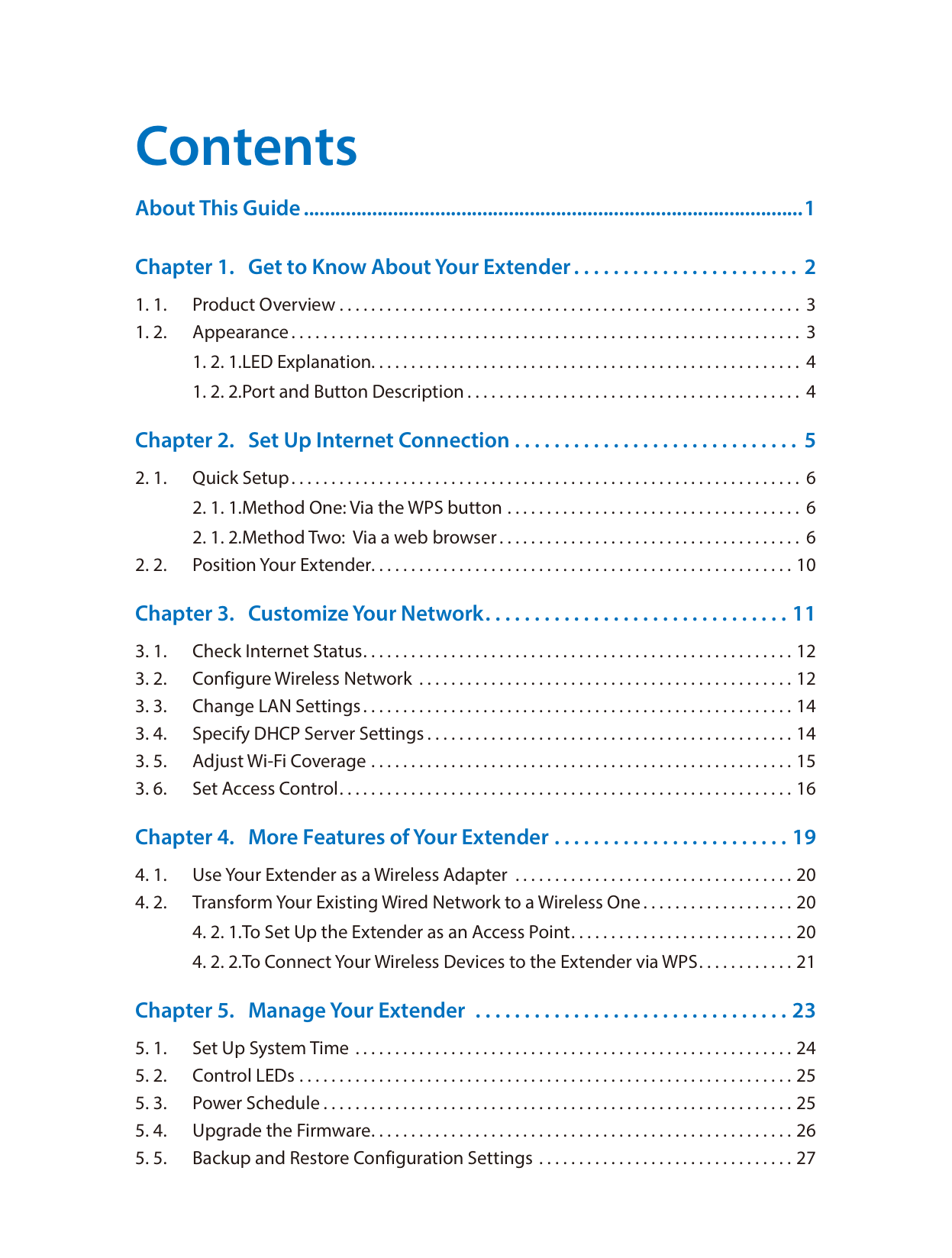
Chapter 3. Customize Your Network. . . . . . . . . . . . . . . . . . . . . . . . . . . . . . . 11
Chapter 4. More Features of Your Extender . . . . . . . . . . . . . . . . . . . . . . . . 19 4. 1. Use Your Extender as a Wireless Adapter . . . . . . . . . . . . . . . . . . . . . . . . . . . . . . . . . . . 20

Chapter 5. Manage Your Extender . . . . . . . . . . . . . . . . . . . . . . . . . . . . . . . . 23
About This Guide
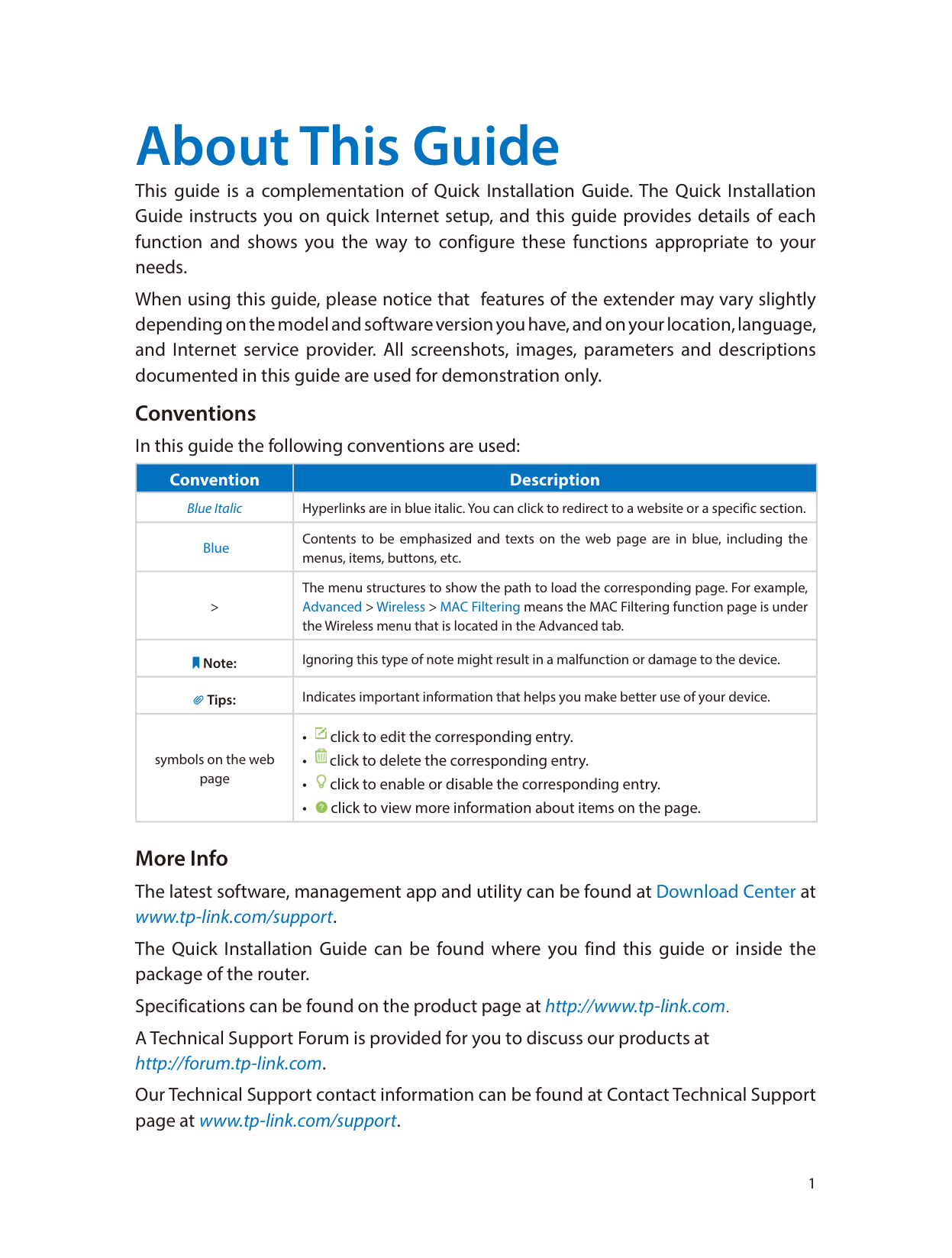
This guide is a complementation of Quick Installation Guide. The Quick Installation Guide instructs you on quick Internet setup, and this guide provides details of each function and shows you the way to configure these functions appropriate to your needs.
When using this guide, please notice that features of the extender may vary slightly depending on the model and software version you have, and on your location, language, and Internet service provider. All screenshots, images, parameters and descriptions documented in this guide are used for demonstration only.
Conventions In this guide the following conventions are used:
|Convention|Description| |---|---| |Blue Italic|Hyperlinks are in blue italic. You can click to redirect to a website or a specific section.| |Blue|Contents to be emphasized and texts on the web page are in blue, including the menus, items, buttons, etc.| |>|The menu structures to show the path to load the corresponding page. For example, Advanced > Wireless > MAC Filtering means the MAC Filtering function page is under the Wireless menu that is located in the Advanced tab.| |Note:|Ignoring this type of note might result in a malfunction or damage to the device.| |Tips:|Indicates important information that helps you make better use of your device.| |symbols on the web page|• click to edit the corresponding entry.

• click to delete the corresponding entry.

• click to enable or disable the corresponding entry.

• click to view more information about items on the page.
|
More Info The latest software, management app and utility can be found at Download Center at www.tp-link.com/support. The Quick Installation Guide can be found where you find this guide or inside the package of the router. Specifications can be found on the product page at http://www.tp-link.com. A Technical Support Forum is provided for you to discuss our products at http://forum.tp-link.com.
Our Technical Support contact information can be found at Contact Technical Support page at www.tp-link.com/support.
Chapter 1
Get to Know About Your Extender
This chapter introduces what the extender can do and its appearance. This chapter contains the following sections:
1. 1. Product Overview
Bring Dead Zones Back to Life
Tired of Wi-Fi “dead zones”? The TP-LINK extender is connected to your router wirelessly, strengthening and expanding its signal into areas it can’t reach on its own. The device also reduces signal interference to ensure reliable Wi-Fi coverage throughout your home or office.
Easy Installation & Quick Position
The extender works with any standard wireless router. Instantly connect the extender to a router by pressing the router’s WPS button (if available) followed by the extender’s WPS button, or by following the step-by-step Quick Setup instructions of the extender’s web management page.
Once the extender is connected to an existing router, you can take it to an ideal place, no more further configurations. The intelligent signal light can help to find the best location.
Easy Management with the Tether APP TP-LINK Tether provides a simple, intuitive way to access and manage your extender with your smart devices.
1. 2. Appearance
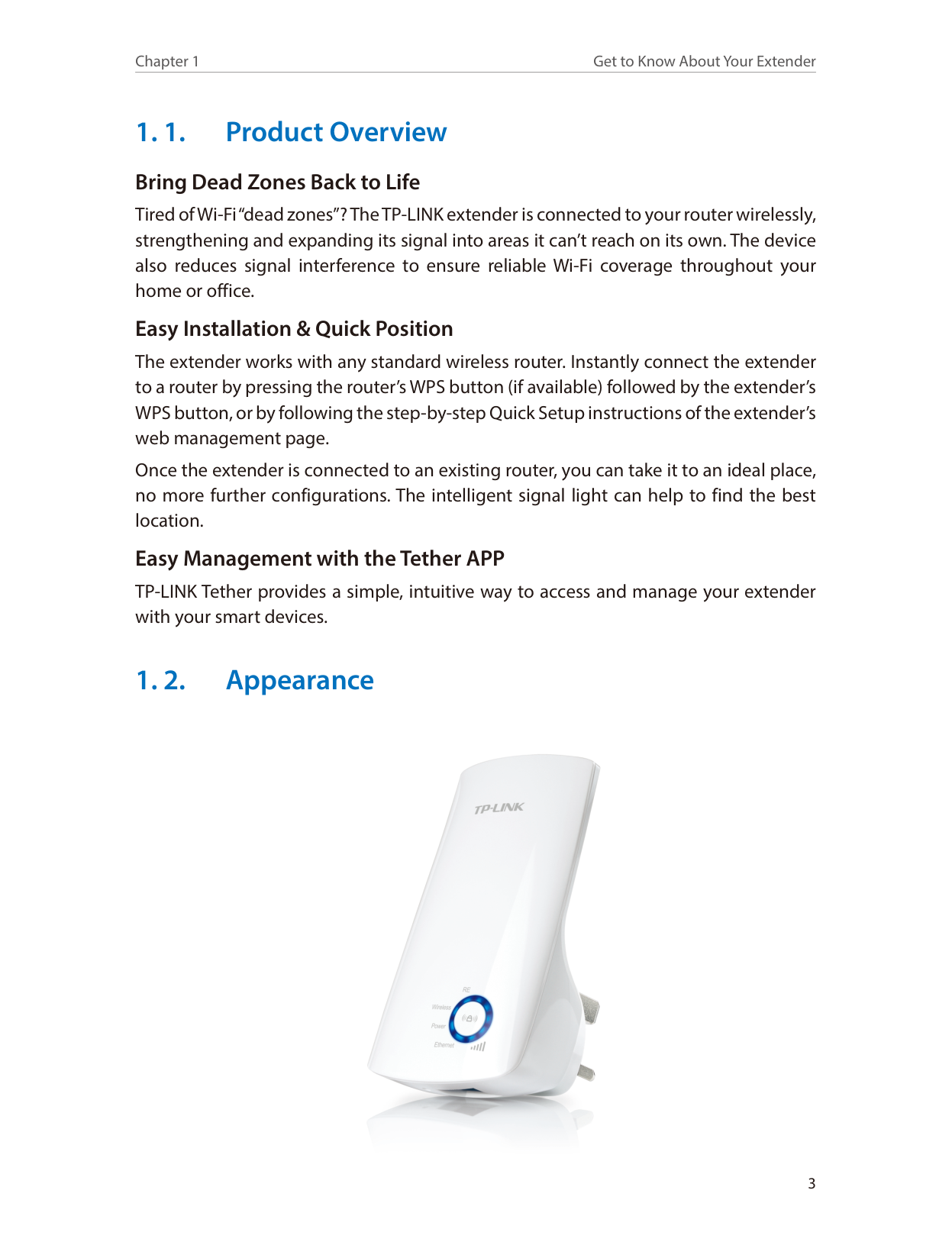

##### 1. 2. 1. LED ExplanationYou can check the extender’s working status by following the LED Explanation table.
|Name|Status|Indication| |---|---|---| |RE|On/Off|The extender is connected or not connected to the router.| |RE|Blinking|WPS connection is in process.| |Wireless|On|The extender’s wireless function is on.| |Wireless|Off|The extender’s wireless function is off.| |Power|On|The extender is on.| |Power|Off|The extender is off.| |(Signal Strength)|On|Indicates the Wi-Fi connection between the extender and the router. More lit LEDs indicate a better signal strength.| |Ethernet|On|A device is connected to the Ethernet port| |Ethernet|Off|No device is connected to the Ethernet port.|
#### 1. 2. 2. Port and Button Description
|Ports or Buttons|Description| |---|---| |(RANGE EXTENDER)|Press the WPS button on your host router, and immediately press the button on the extender. The RE LED of the extender should change from blinking to solid on, indicating successful WPS connection.
|
|RESET Button|With the extender powered on, use a pin to press the RESET button until all the LEDs turn on momentarily. Then release the button.| |ETHERNET Port|Connect your Ethernet-only device to the Ethernet port of the extender to join the Wi-Fi network.|
Chapter 2
Set Up Internet Connection
This chapter introduces how to boost your host wireless coverage. Please follow the step-by-step instructions to set up the Internet connection. This chapter contains the following sections:
2. 1. Quick Setup
Power on Plug the extender into an electrical outlet near your host router, and then wait until the Power LED changes to solid on. Connect to the host network
There are two ways to connect to the host network: via the WPS button or via a web browser. Using the WPS button is an easier way to extend your host network. We recommend you to use this way if your router has a WPS button. The button might look like one of these: | | .
WPS
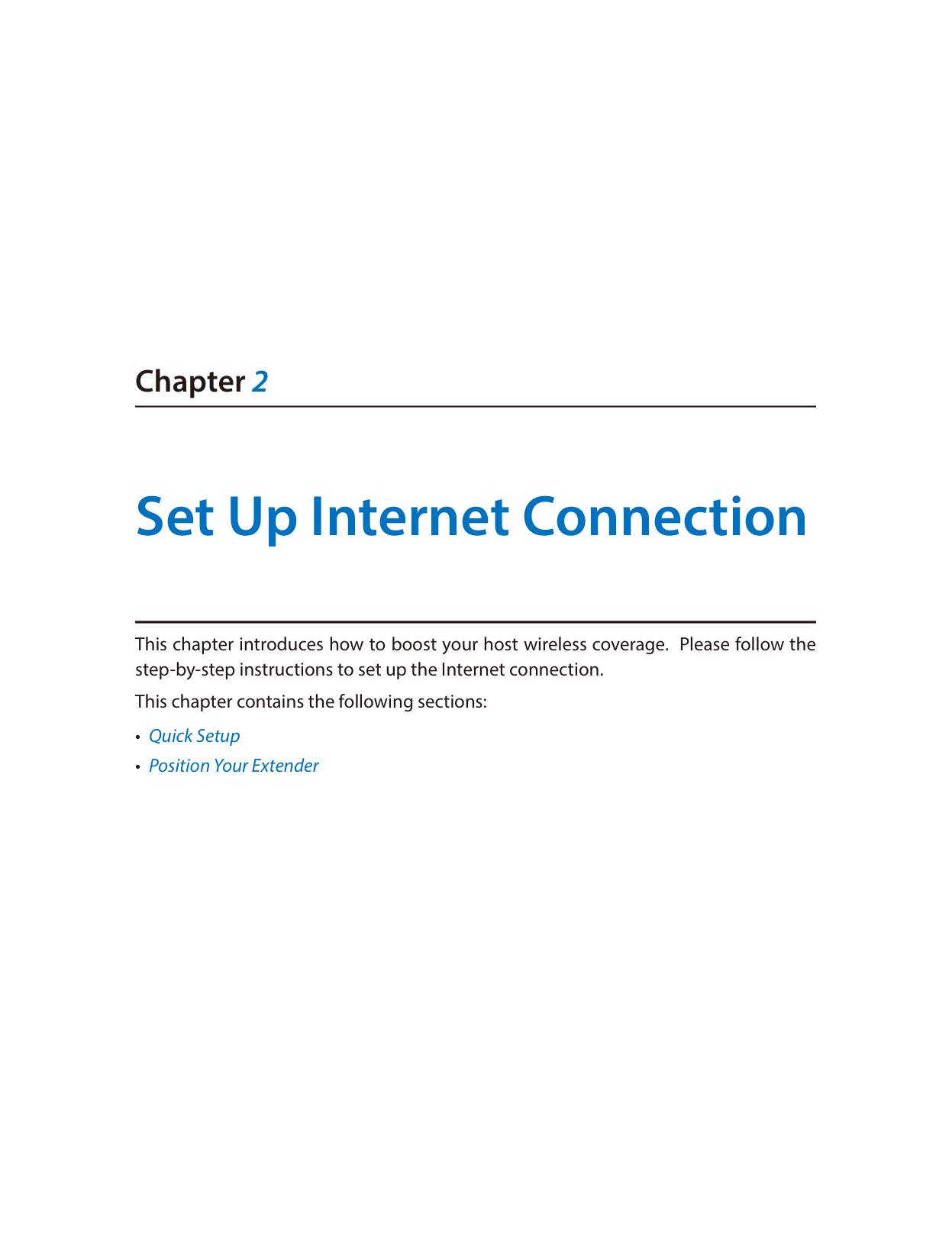
#### 2. 1. 1. Method One: Via the WPS button
Tips:
Tips:
Since the performance of the extended network will be affected by the distance between the extender and host router, we highly recommend you to relocate your extender referring to Position Your Extender.
#### 2. 1. 2. Method Two: Via a web browser
######### Tips:
Before connecting, please find the SSID (network name) on the label of the extender.
• For Windows Users
Not connected
Connection are available
Wireless Network Connection
TP-LINK_Extender_XXXXXX
Connect automatically Connect
√
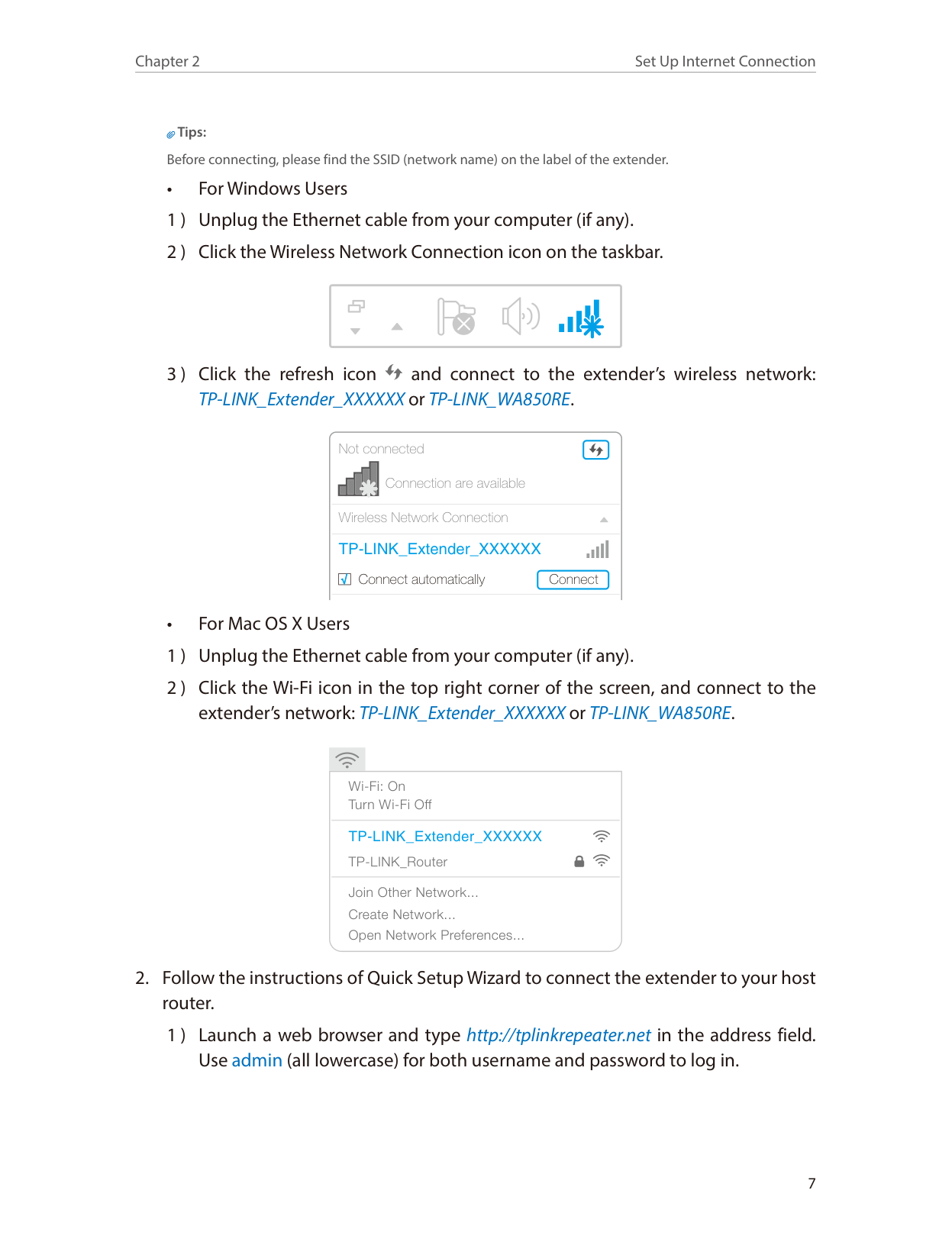
• For Mac OS X Users 1 ) Unplug the Ethernet cable from your computer (if any). 2 ) Click the Wi-Fi icon in the top right corner of the screen, and connect to the
extender’s network: TP-LINK_Extender_XXXXXX or TP-LINK_WA850RE.
Wi-Fi: On Turn Wi-Fi Off
TP-LINK_Extender_XXXXXX
TP-LINK_Router Join Other Network... Create Network... Open Network Preferences...
######### Tips:
|| |---|
If the login window does not pop up, please refer to the FAQ.
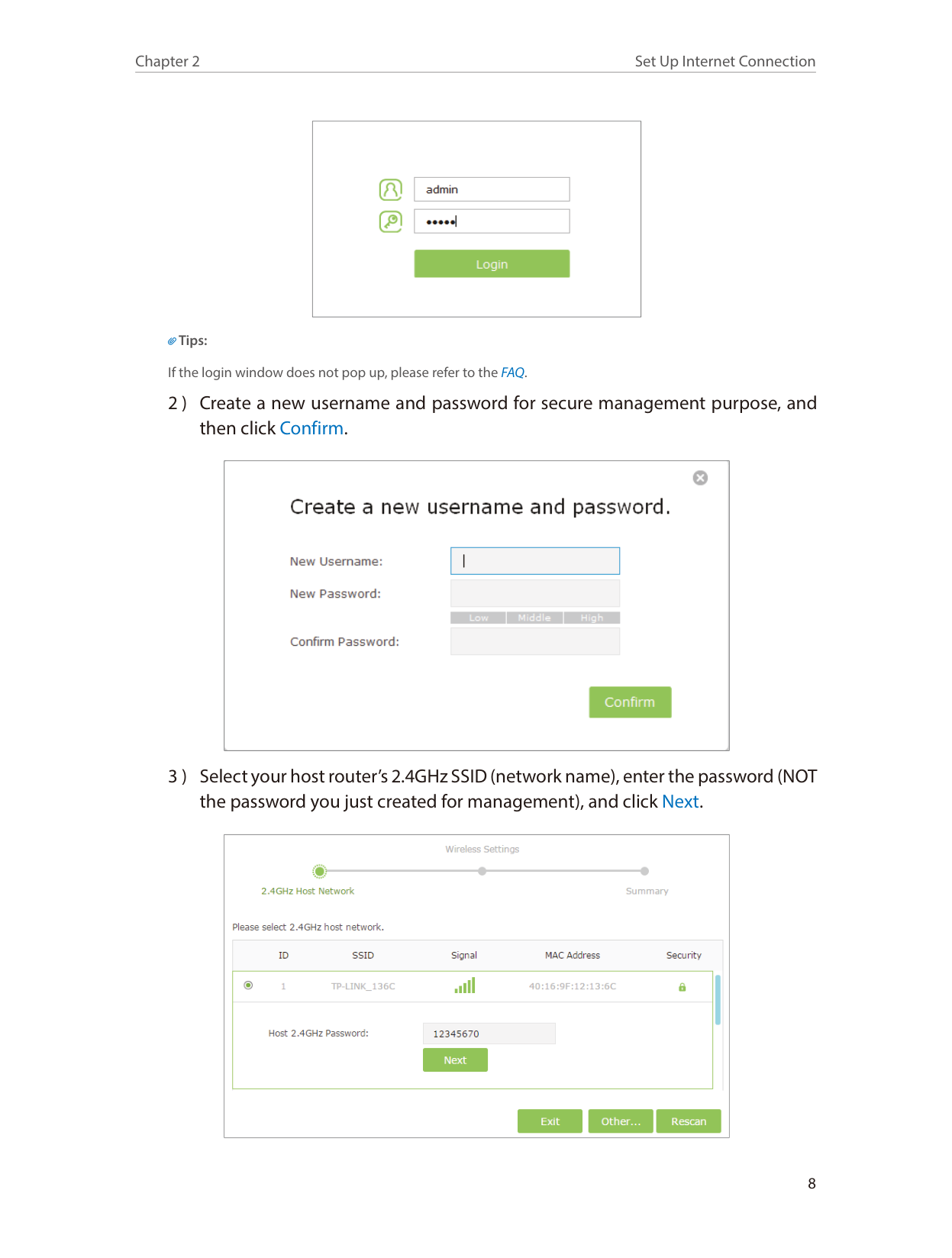
|| |---|
|| |---|
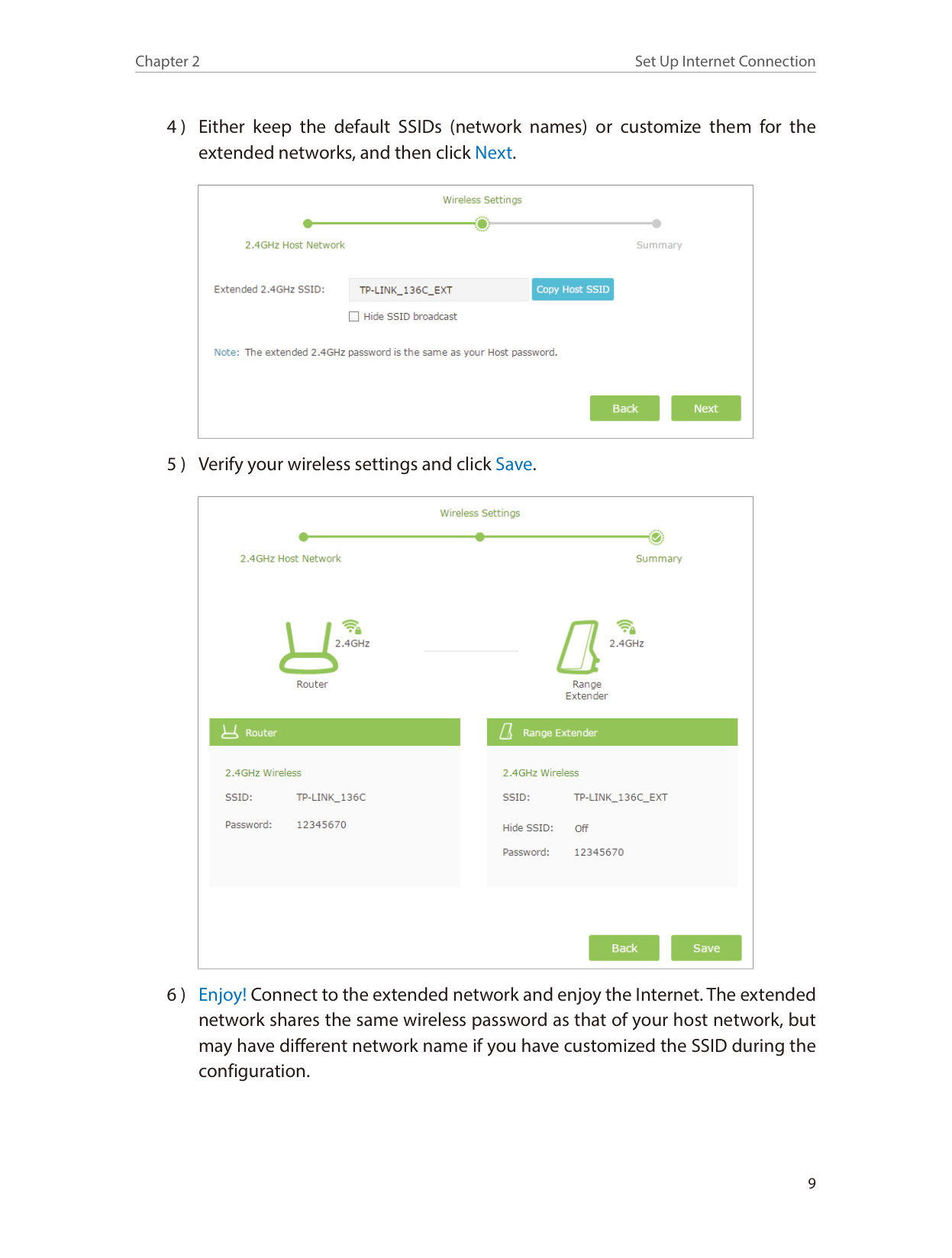
####### 4 ) Either keep the default SSIDs (network names) or customize them for theextended networks, and then click Next.
|| |---|
####### 5 ) Verify your wireless settings and click Save.
||
|---|
####### 6 ) Enjoy! Connect to the extended network and enjoy the Internet. The extendednetwork shares the same wireless password as that of your host network, butmay have different network name if you have customized the SSID during theconfiguration.
|| |---|
######### Tips:
Since the performance of the extended network will be affected by the distance between extender and host router, we highly recommend you to relocate your extender referring to Position Your Extender.
2. 2. Position Your Extender
Please follow the instructions below to achieve optimal performance of the extender.
Best
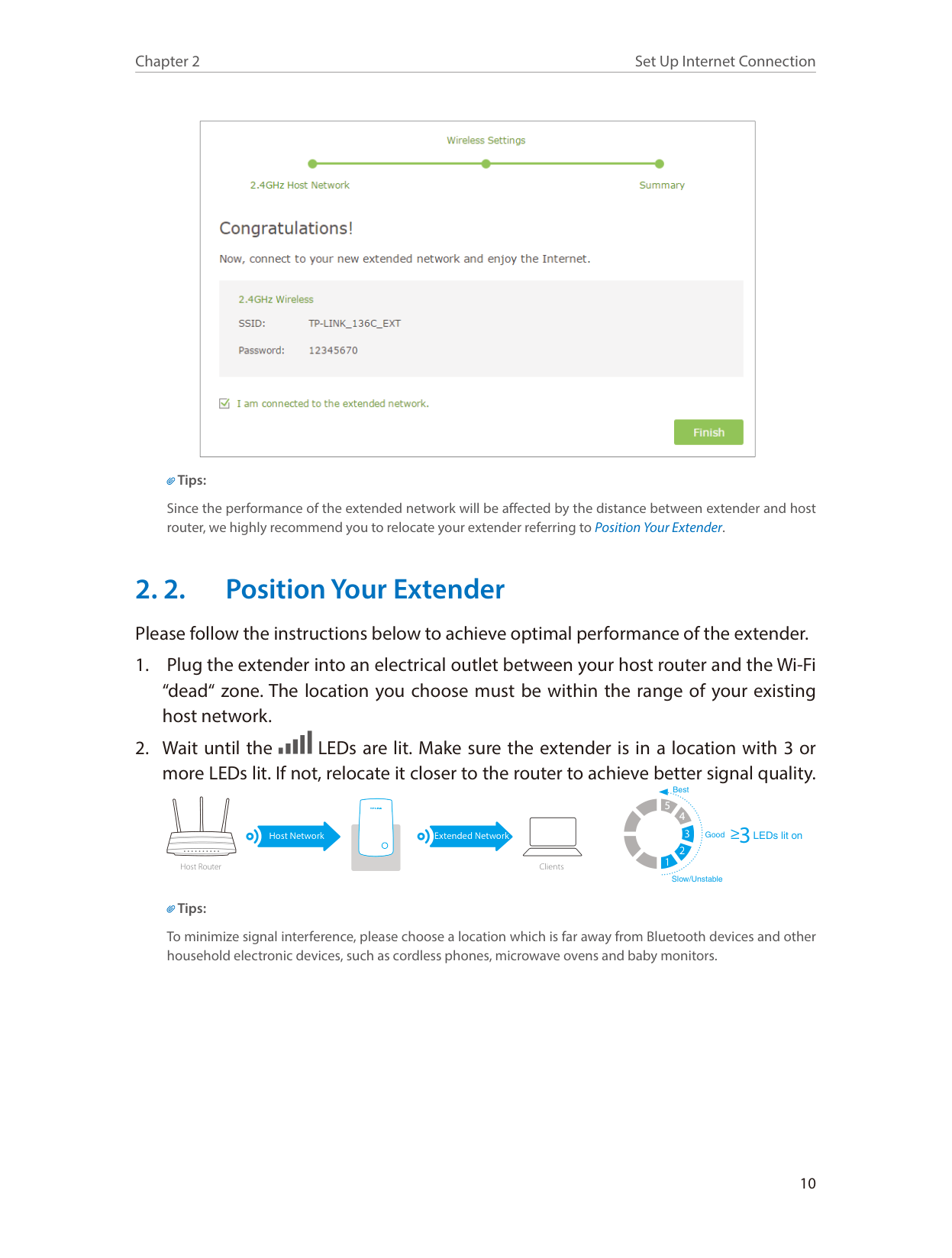
5
≥3LEDs lit on
Good
Host Network
Extended Network
1
Host Router Clients
Slow/Unstable
######### Tips:
To minimize signal interference, please choose a location which is far away from Bluetooth devices and other household electronic devices, such as cordless phones, microwave ovens and baby monitors.
Chapter 3
Customize Your Network
This chapter guides you on how to configure network settings that are available for this extender. This chapter contains the following sections:
3. 1. Check Internet Status
You can view the Internet status of your extender to check whether you have successfully set up the extended network(s).
|| |---|
The extender fails to connect to the host networks. Please run the Quick Setup again.
|| |---|
The extender is connected to the host networks, but there are no transmitting data. Please check the Internet connection of your router.
|| |---|
The extender is connected to the router abnormally. Maybe the gateway is set incorrectly in the Static IP. Please set your computer to obtain an IP address automatically.
|| |---|
Click the icon of the Internet/Router/Range Extender/Clients to view corresponding information.
If you want to extend another host network after Quick Setup, you can refer to this section. Moreover, you can change the wireless settings for your extended networks. Visit http://tplinkwifi.net, and log in with the username and password you set for the extender.
###### ¾ To extend another host network
|| |---|
Note: If the network you want to extend is on but not listed, please try the following steps. · Move the extender closer to your router, and click Rescan on the top-right corner of the list. · You can manually enter the parameters of the network you want to extend, and click Save.
Note: If you change the wireless settings via a wireless device, you will be disconnected after the settings are applied. Please write down the new SSID for future use.
###### ¾ To hide the SSID of the extended network:
3. 3. Change LAN Settings
The extender is preset with a default LAN IP 192.168.0.254, with which you can log in to the web management page. The LAN IP address, together with the Subnet Mask, also defines the subnet that the connected devices are on. If the IP address conflicts with another device on your local network or your network requires a specific IP subnet, you can change it.
|| |---|
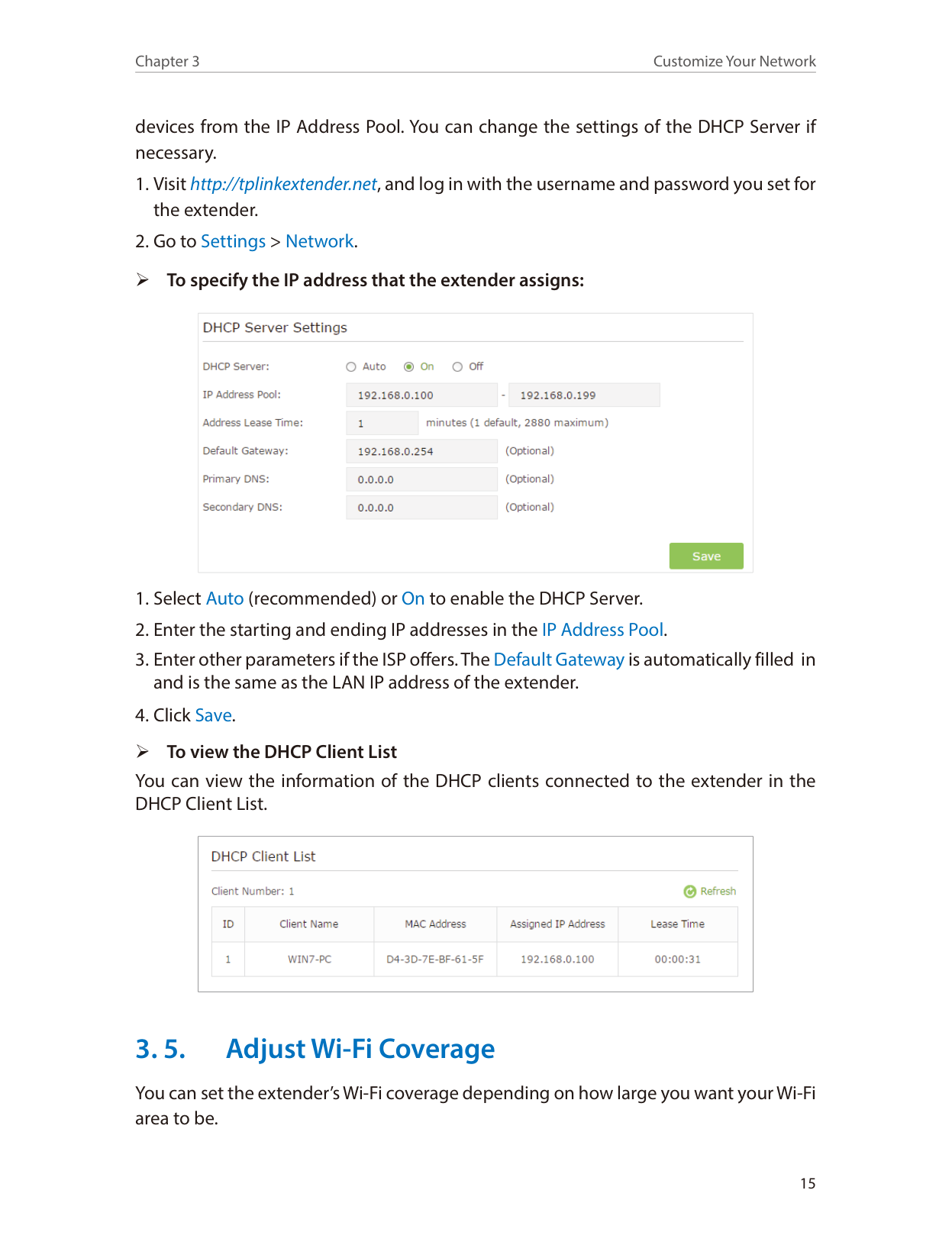
3. 4. Specify DHCP Server Settings
By default, the DHCP (Dynamic Host Configuration Protocol) Server is enabled and the extender acts as a DHCP server; it dynamically assigns TCP/IP parameters to client
devices from the IP Address Pool. You can change the settings of the DHCP Server if necessary.
|| |---|
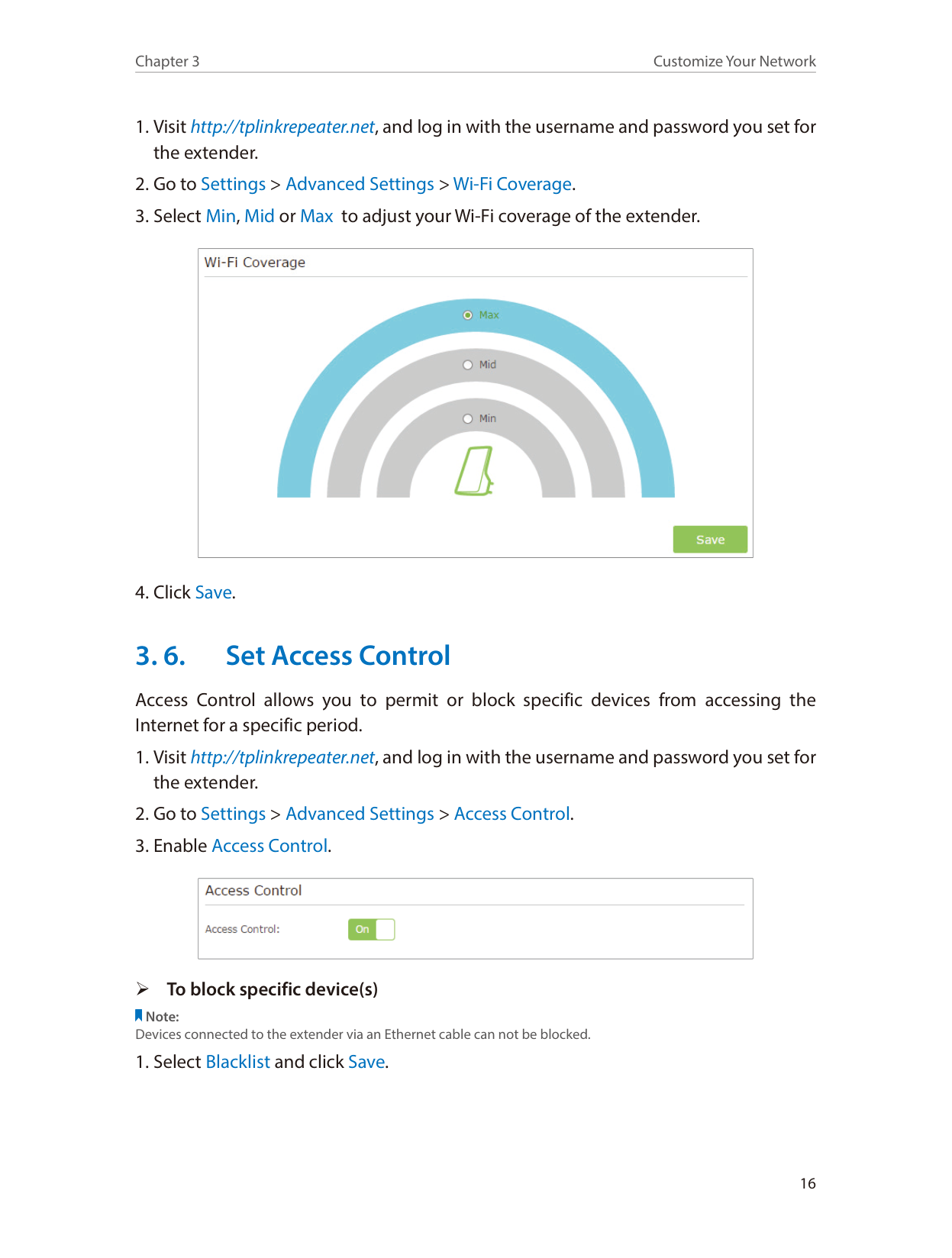
¾ To view the DHCP Client List You can view the information of the DHCP clients connected to the extender in the DHCP Client List.
|| |---|
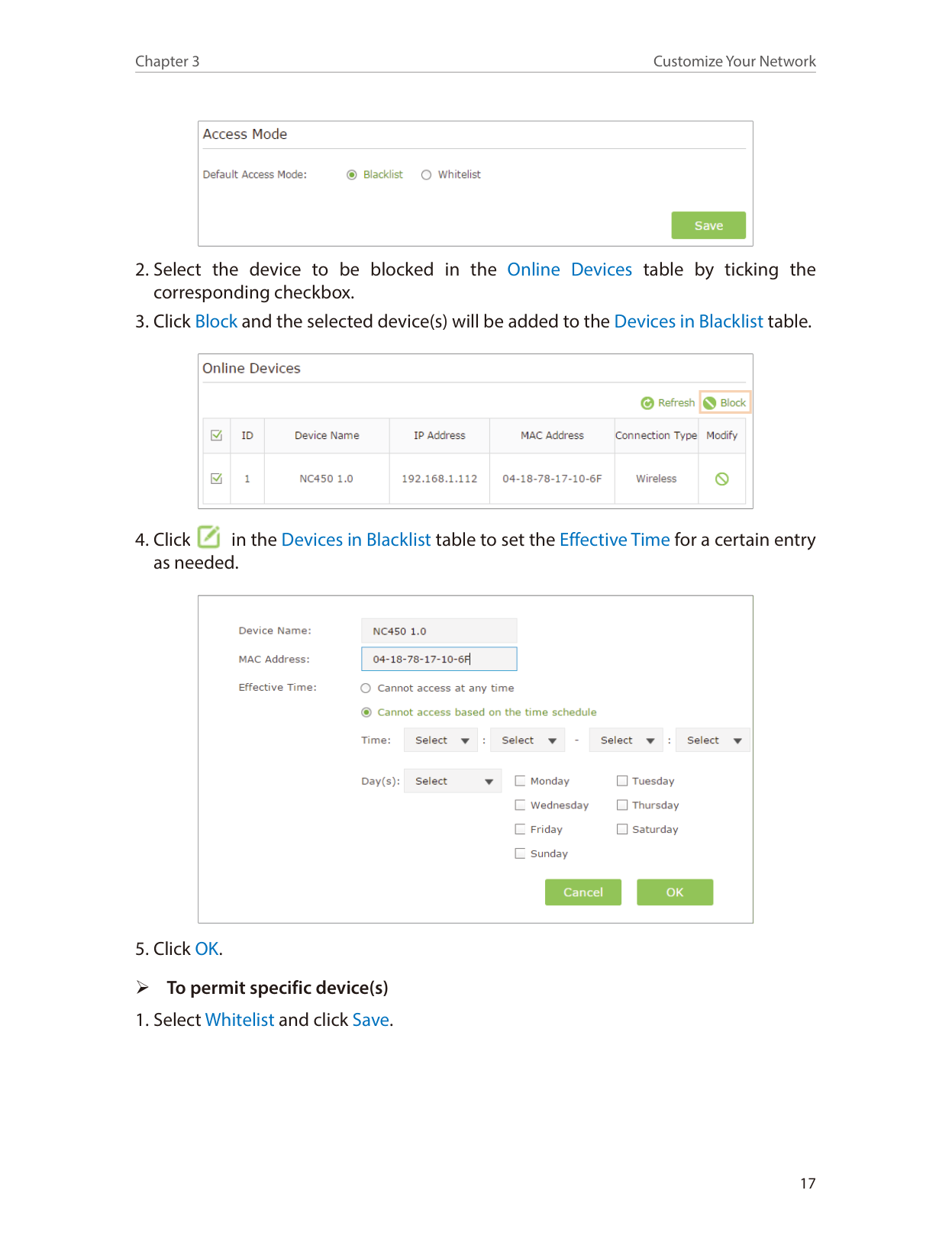
You can set the extender’s Wi-Fi coverage depending on how large you want your Wi-Fi area to be.
|| |---|
3. 6. Set Access Control
Access Control allows you to permit or block specific devices from accessing the Internet for a specific period.
|| |---|
###### ¾ To block specific device(s)
######### Note:
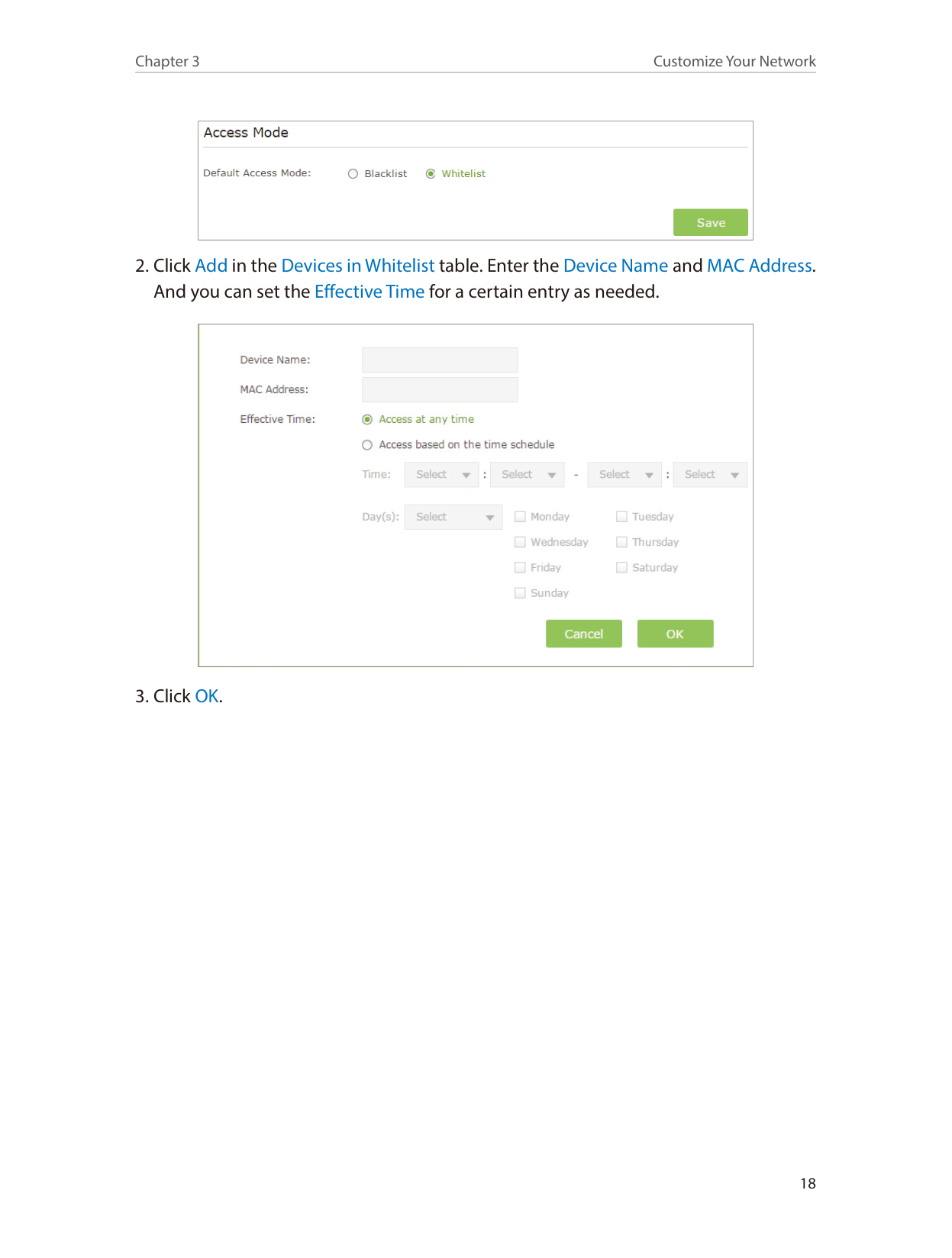
Devices connected to the extender via an Ethernet cable can not be blocked.
|| |---|
|| |---|

|| |---|
|| |---|
####### 2. Click Add in the Devices in Whitelist table. Enter the Device Name and MAC Address.And you can set the Effective Time for a certain entry as needed.
|| |---|
####### 3. Click OK.
Chapter 4
More Features of Your Extender
This chapter presents how to use the extender as a wireless adapter and as an access point. This chapter contains the following sections:
4. 1. Use Your Extender as a Wireless Adapter
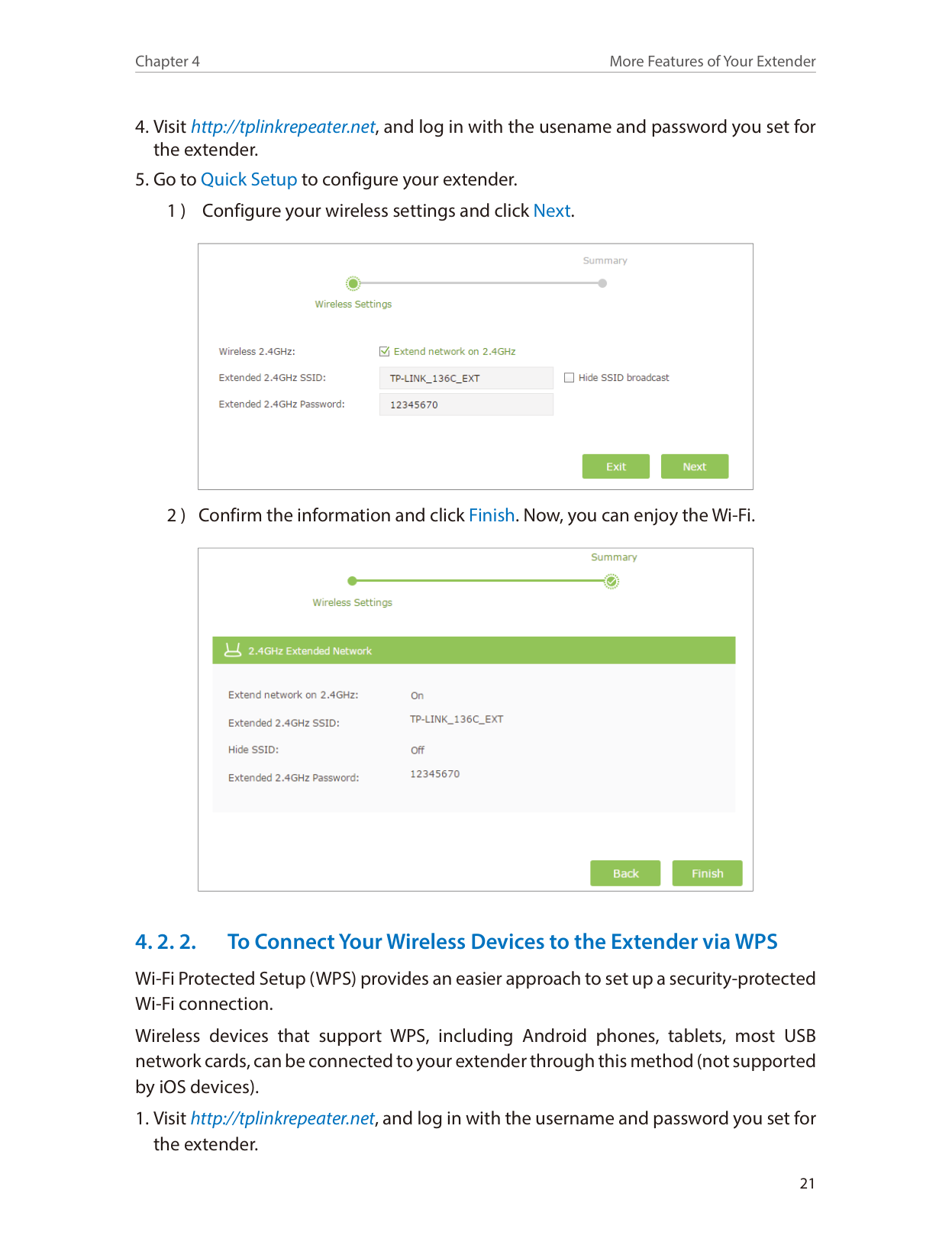
The extender can be used as a wireless adapter to connect any wired-only device, such as a Blu-ray player, game console, DVR, or smart TV, to your wireless network. After configuration, you can connect an Ethernet-enabled device to the extender via an Ethernet cable.
Note:
Extenders that have no Ethernet port do not support this feature.
Ethernet Connection
| | |---|
Smart TV Game Console Desktop
Router
4. 2. Transform Your Existing Wired Network to aWireless One
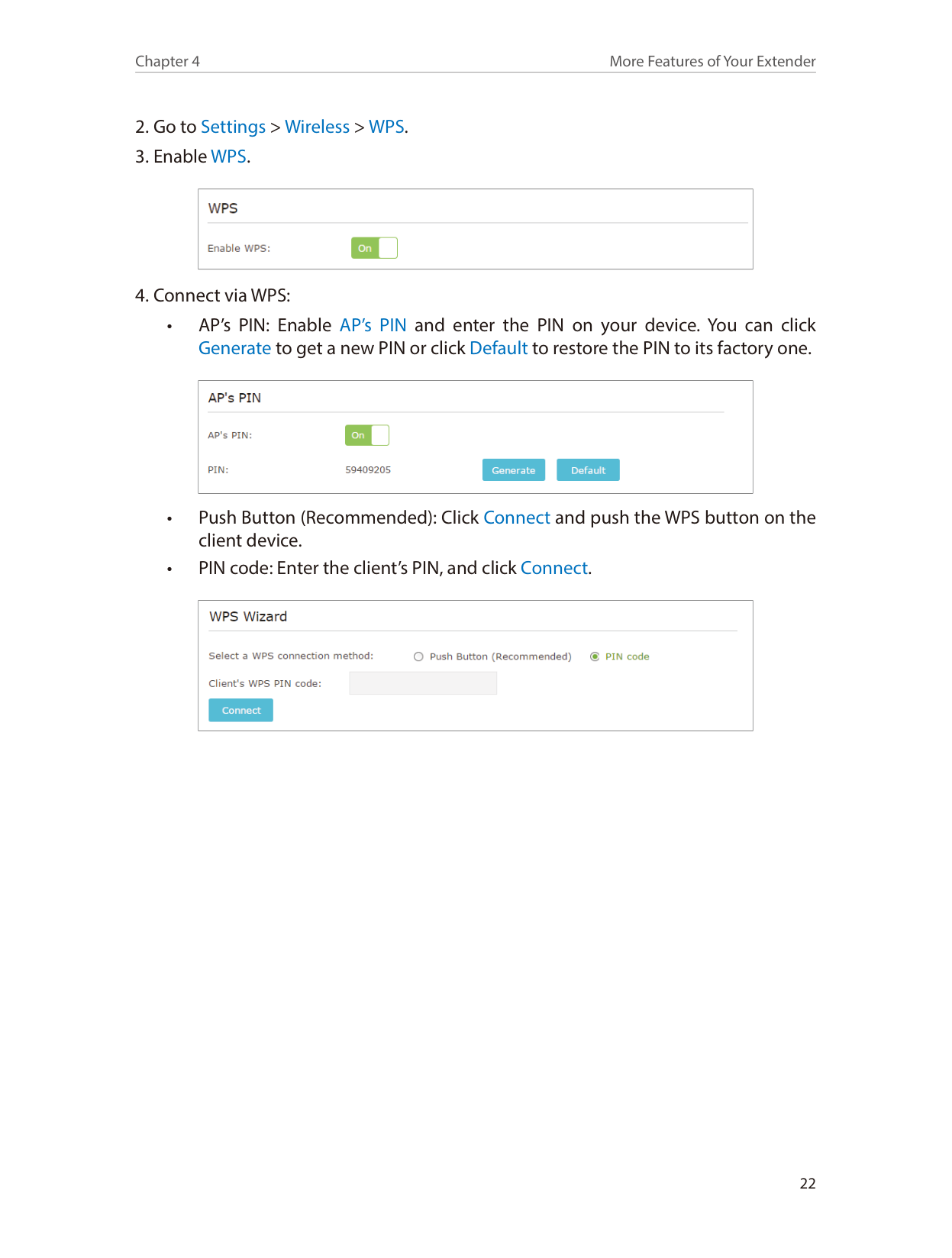
The extender can work as an access point, transforming your existing wired network to a wireless one.
#### 4. 2. 1. To Set Up the Extender as an Access Point
|| |---|
|| |---|
|| |---|
#### 4. 2. 2. To Connect Your Wireless Devices to the Extender via WPS
Wi-Fi Protected Setup (WPS) provides an easier approach to set up a security-protected Wi-Fi connection.
Wireless devices that support WPS, including Android phones, tablets, most USB network cards, can be connected to your extender through this method (not supported by iOS devices).
|| |---|
|| |---|
|| |---|
Chapter 5
Manage Your Extender
This chapter presents how to manage and maintain your extender. This chapter includes the following sections:
5. 1. Set Up System Time
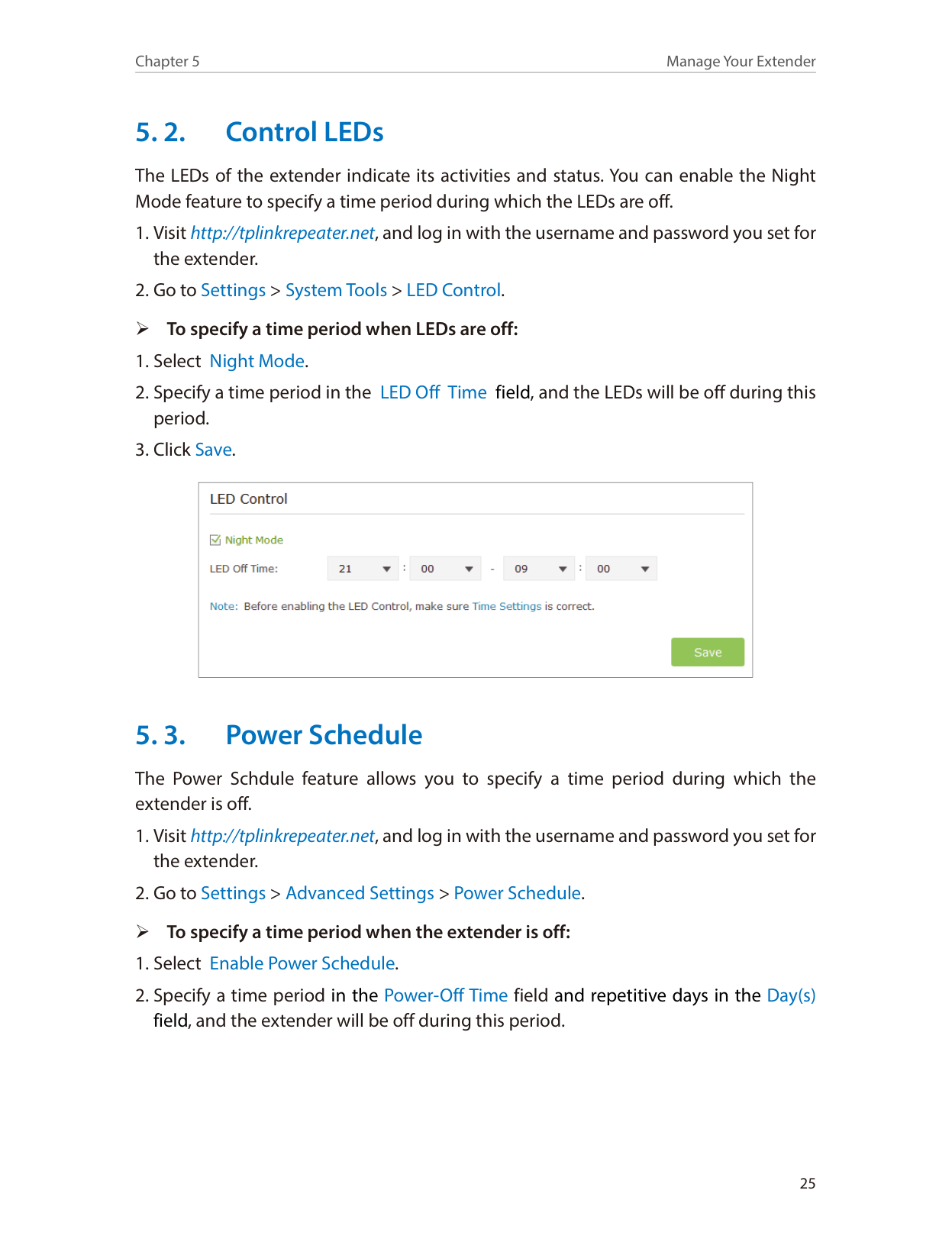
System time is the time displayed when the extender is running. The system time you configure here will be used for time-based functions like Power Schedule. If you have enabled the Daylight Saving Time feature, the system time will be sychronized with the daylight saving time you configure.
|| |---|
|| |---|
5. 2. Control LEDs
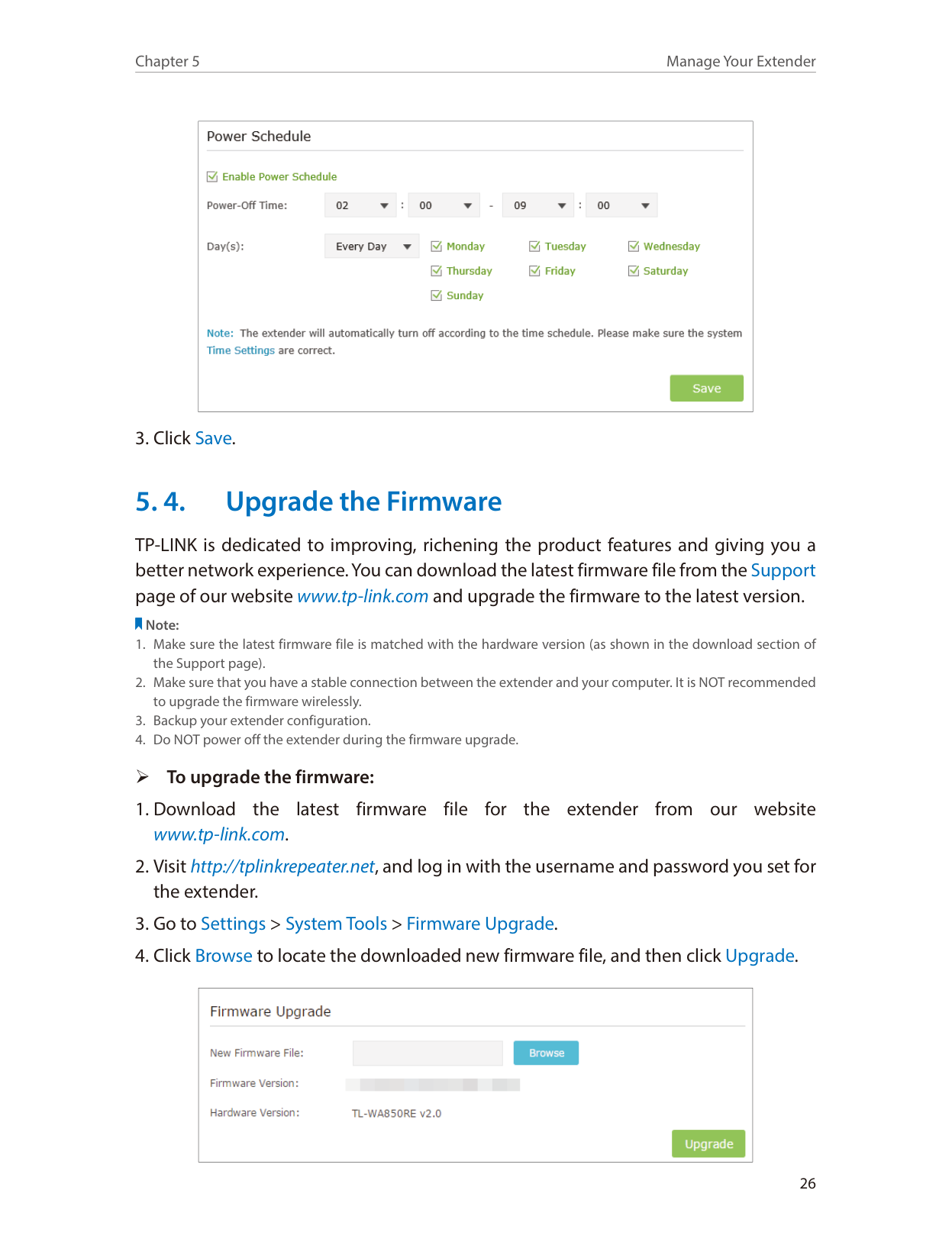
The LEDs of the extender indicate its activities and status. You can enable the Night Mode feature to specify a time period during which the LEDs are off.
|| |---|
5. 3. Power Schedule
The Power Schdule feature allows you to specify a time period during which the extender is off.
|| |---|
5. 4. Upgrade the Firmware
TP-LINK is dedicated to improving, richening the product features and giving you a better network experience. You can download the latest firmware file from the Support page of our website www.tp-link.com and upgrade the firmware to the latest version.
######### Note:
|| |---|
5. 5. Backup and Restore Configuration Settings
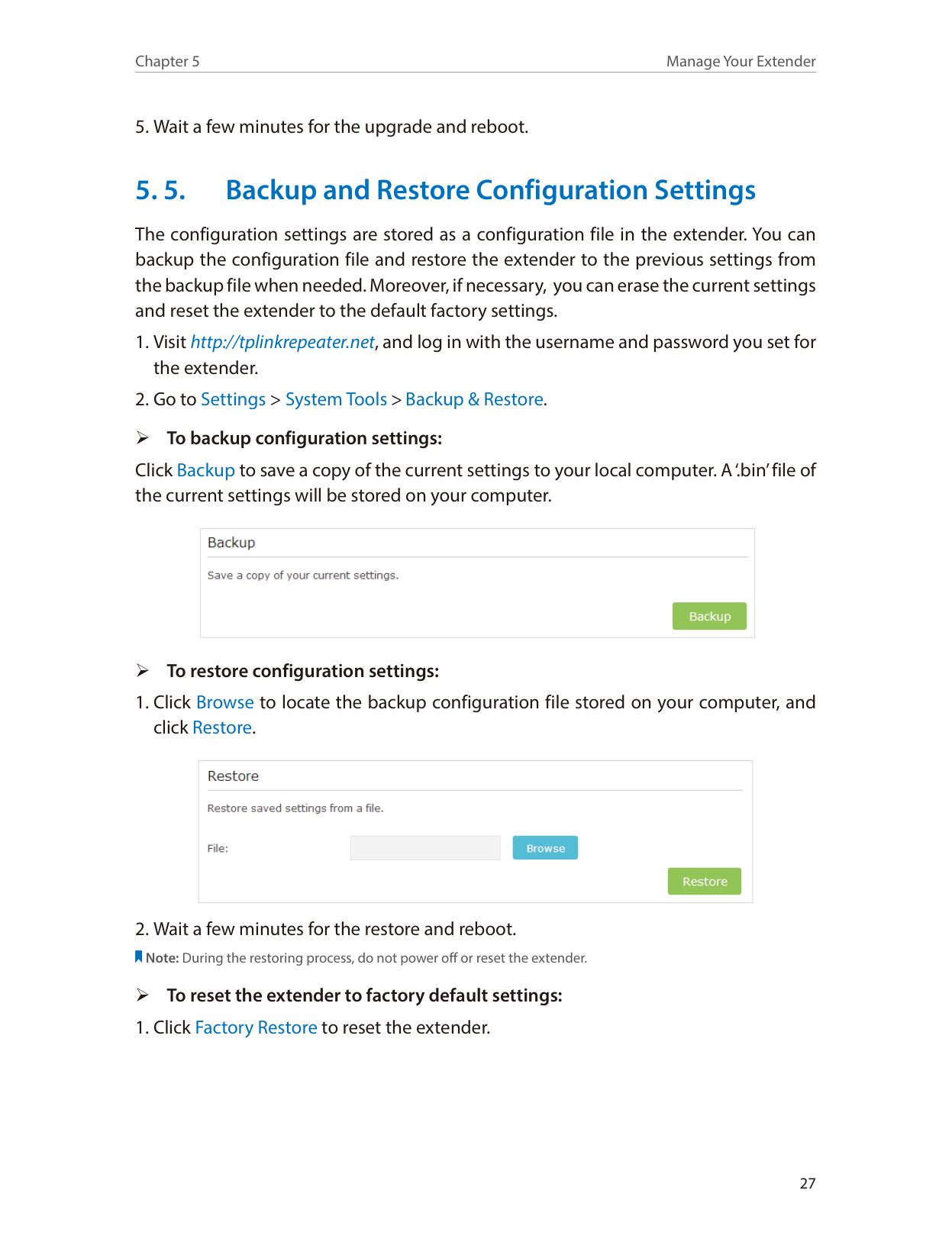
The configuration settings are stored as a configuration file in the extender. You can backup the configuration file and restore the extender to the previous settings from the backup file when needed. Moreover, if necessary, you can erase the current settings and reset the extender to the default factory settings.
¾ To backup configuration settings: Click Backup to save a copy of the current settings to your local computer. A ‘.bin’ file of the current settings will be stored on your computer.
|| |---|
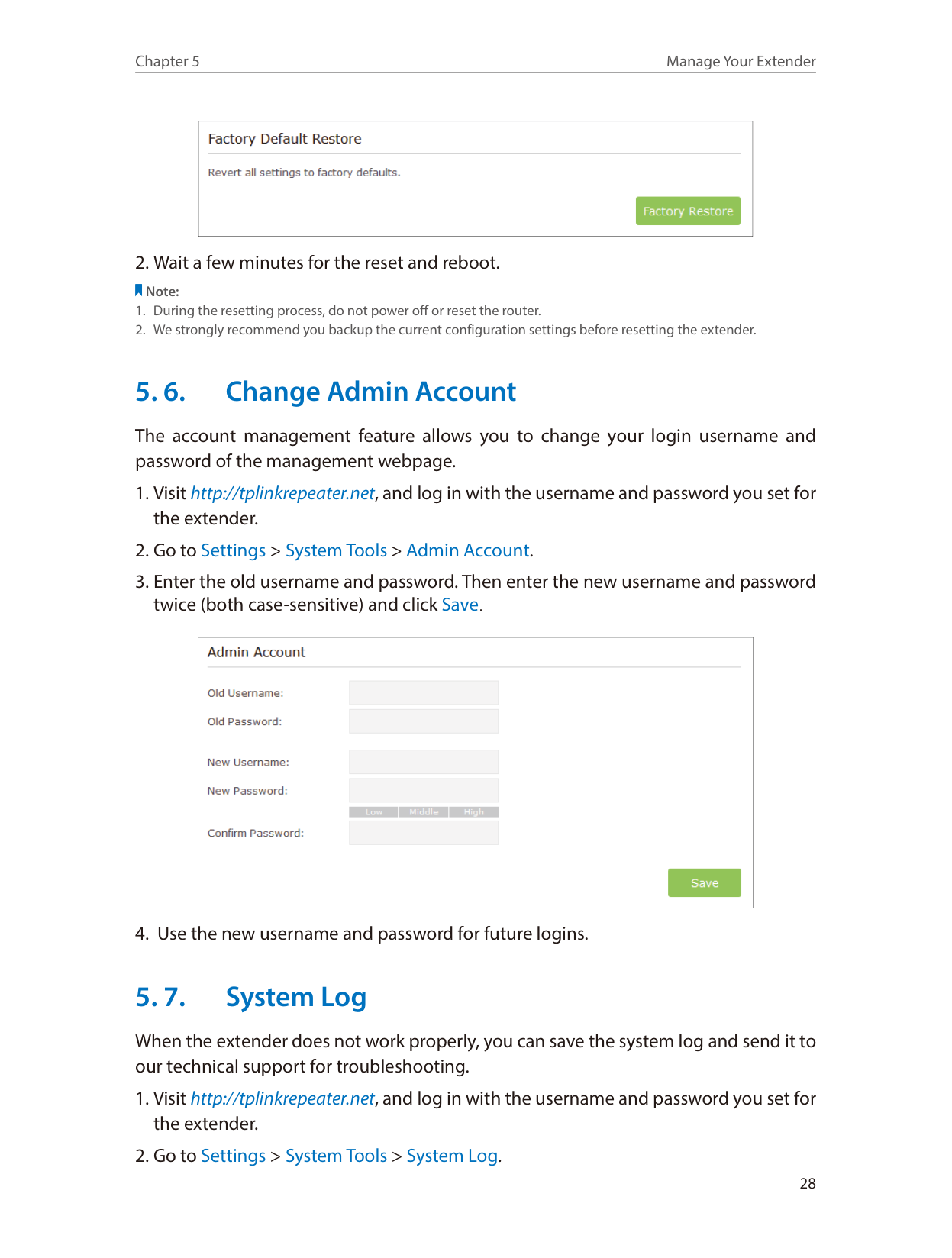
###### ¾ To restore configuration settings:
|| |---|
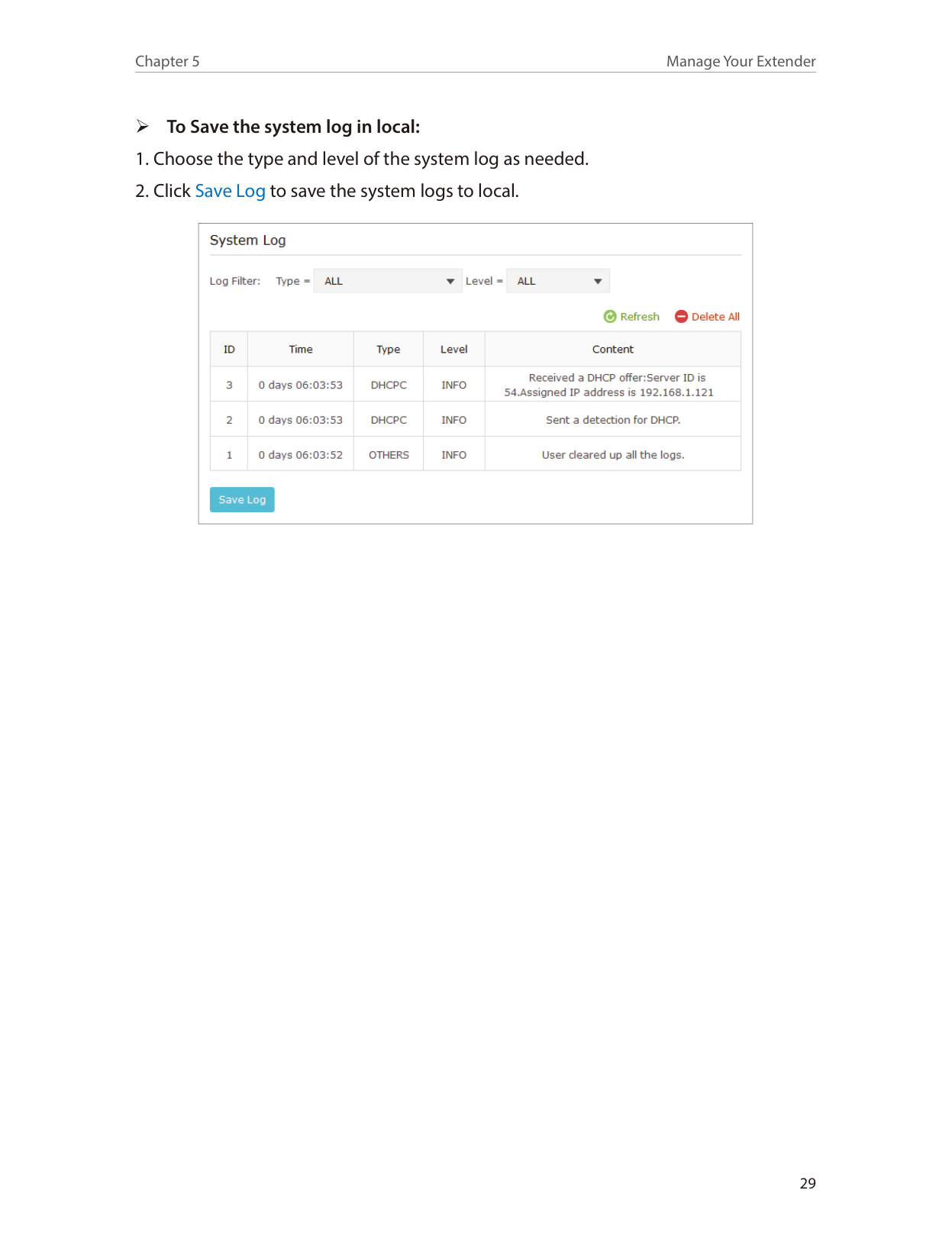
###### Note: During the restoring process, do not power off or reset the extender. ¾ To reset the extender to factory default settings:
|| |---|
######### Note:
5. 6. Change Admin Account
The account management feature allows you to change your login username and password of the management webpage.
|| |---|
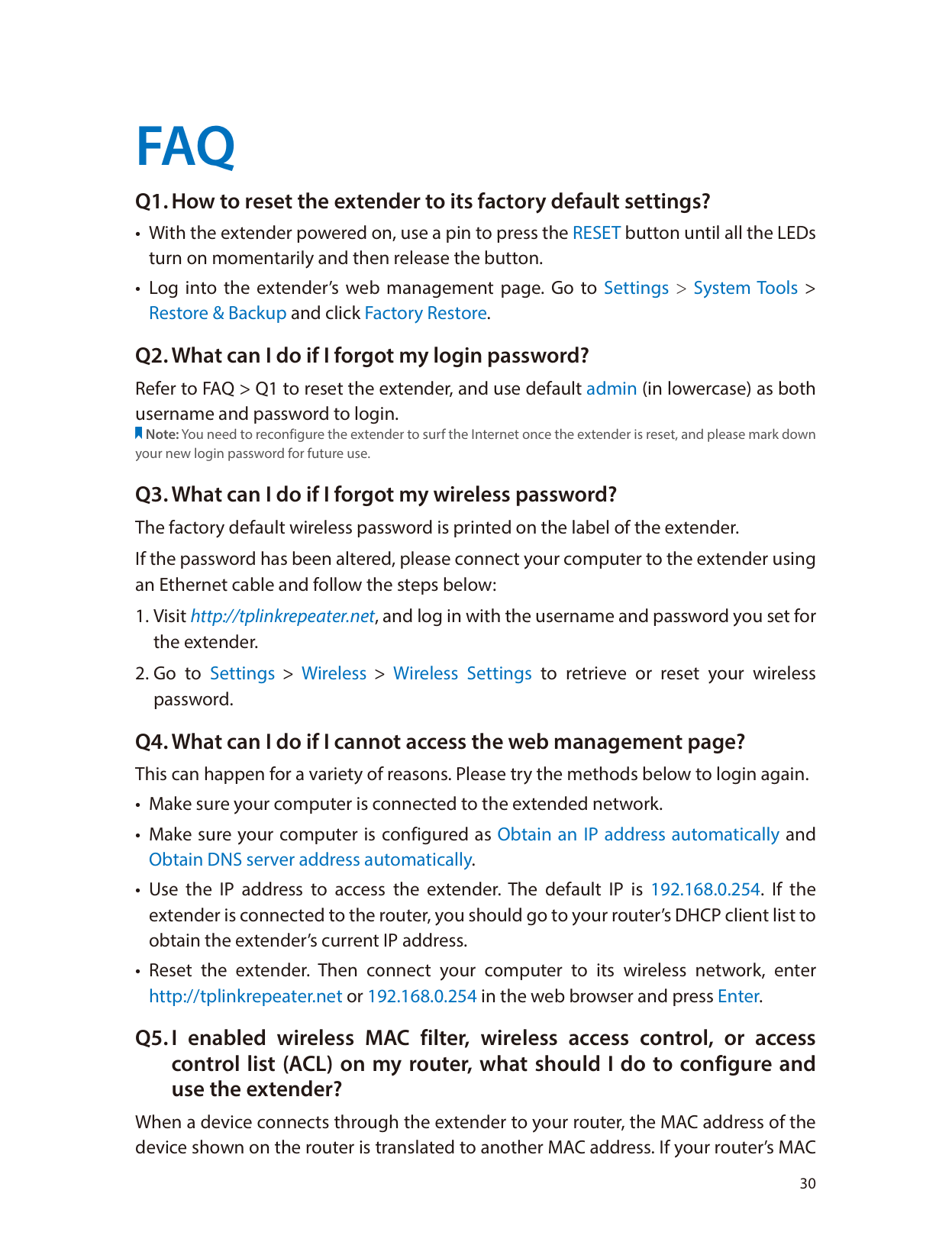
When the extender does not work properly, you can save the system log and send it to our technical support for troubleshooting.
###### ¾ To Save the system log in local:
|| |---|
FAQ
#### Q1. How to reset the extender to its factory default settings?
#### Q2. What can I do if I forgot my login password?
Refer to FAQ > Q1 to reset the extender, and use default admin (in lowercase) as both username and password to login.
Note: You need to reconfigure the extender to surf the Internet once the extender is reset, and please mark down your new login password for future use.
##### Q3. What can I do if I forgot my wireless password?The factory default wireless password is printed on the label of the extender.
If the password has been altered, please connect your computer to the extender using an Ethernet cable and follow the steps below:
##### Q4. What can I do if I cannot access the web management page?This can happen for a variety of reasons. Please try the methods below to login again.
#### Q5. I enabled wireless MAC filter, wireless access control, or accesscontrol list (ACL) on my router, what should I do to configure anduse the extender?
When a device connects through the extender to your router, the MAC address of the device shown on the router is translated to another MAC address. If your router’s MAC
filter, wireless access control, or ACL is enabled, the devices connected to the extender cannot get an IP address from the extender and cannot access the Internet. To solve this problem, please follow the steps below:
Note: For more information about how to disable your router’s MAC filter, wireless access control or ACL, please refer to your router’s user guide.
#### COPYRIGHT & TRADEMARKS
Specifications are subject to change without notice. is a registered trademark of TP-LINK TECHNOLOGIES CO., LTD. Other brands and product names are trademarks or registered trademarks of their respective holders.
No part of the specifications may be reproduced in any form or by any means or used to make any derivative such as translation, transformation, or adaptation without permission from TP-LINK TECHNOLOGIES CO., LTD. Copyright © 2016 TP-LINK TECHNOLOGIES CO., LTD. All rights reserved.
#### FCC STATEMENT
This equipment has been tested and found to comply with the limits for a Class B digital device, pursuant to part 15 of the FCC Rules. These limits are designed to provide reasonable protection against harmful interference in a residential installation. This equipment generates, uses and can radiate radio frequency energy and, if not installed and used in accordance with the instructions, may cause harmful interference to radio communications. However, there is no guarantee that interference will not occur in a particular installation. If this equipment does cause harmful interference to radio or television reception, which can be determined by turning the equipment off and on, the user is encouraged to try to correct the interference by one or more of the following measures:
This device complies with part 15 of the FCC Rules. Operation is subject to the following two conditions:
Any changes or modifications not expressly approved by the party responsible for compliance could void the user’s authority to operate the equipment.
Note: The manufacturer is not responsible for any radio or TV interference caused by unauthorized modifications to this equipment. Such modifications could void the user’s authority to operate the equipment.
#### FCC RF Radiation Exposure Statement:
This equipment complies with FCC RF radiation exposure limits set forth for an uncontrolled environment. This device and its antenna must not be co-located or operating in conjunction with any other antenna or transmitter.
“To comply with FCC RF exposure compliance requirements, this grant is applicable to only Mobile Configurations. The antennas used for this transmitter must be installed to provide a separation distance of at least 20 cm from all persons and must not be colocated or operating in conjunction with any other antenna or transmitter.”
#### CE Mark Warning

This is a class B product. In a domestic environment, this product may cause radio interference, in which case the user may be required to take adequate measures.
RF Exposure Information This device meets the EU requirements (1999/5/EC Article 3.1a) on the limitation of exposure of the general public to electromagnetic fields by way of health protection. The device complies with RF specifications when the device used at 20 cm from your body. Canadian Compliance Statement
This device complies with Industry Canada license-exempt RSSs. Operation is subject to the following two conditions:
Le présent appareil est conforme aux CNR d’Industrie Canada applicables aux appareils radio exempts de licence. L’exploitation est autorisée aux deux conditions suivantes :
#### Radiation Exposure Statement:
This equipment complies with IC radiation exposure limits set forth for an uncontrolled environment. This equipment should be installed and operated with minimum distance 20cm between the radiator & your body.
#### Déclaration d’exposition aux radiations:
Cet équipement est conforme aux limites d’exposition aux rayonnements IC établies pour un environnement non contrôlé. Cet équipement doit être installé et utilisé avec un minimum de 20 cm de distance entre la source de rayonnement et votre corps.
Industry Canada Statement CAN ICES-3 (B)/NMB-3(B) Korea Warning Statements 당해 무선설비는 운용중 전파혼신 가능성이 있음.
NCC Notice & BSMI Notice 注意! 依據 低功率電波輻射性電機管理辦法 第十二條 經型式認證合格之低功率射頻電機,非經許可,公司、商號或使用者均 不得擅自變更頻率、加大功率或變更原設計之特性或功能。
第十四條 低功率射頻電機之使用不得影響飛航安全及干擾合法通行;經發現有干 擾現象時,應立即停用,並改善至無干擾時方得繼續使用。前項合法通信,指依 電信規定作業之無線電信。低功率射頻電機需忍受合法通信或工業、科學以及醫 療用電波輻射性電機設備之干擾。
##### 安全諮詢及注意事項
Продукт сертифіковано згідно с правилами системи УкрСЕПРО на відповідність вимогам нормативних документів та вимогам, що передбачені чинними законодавчими актами України.
#### Safety Information
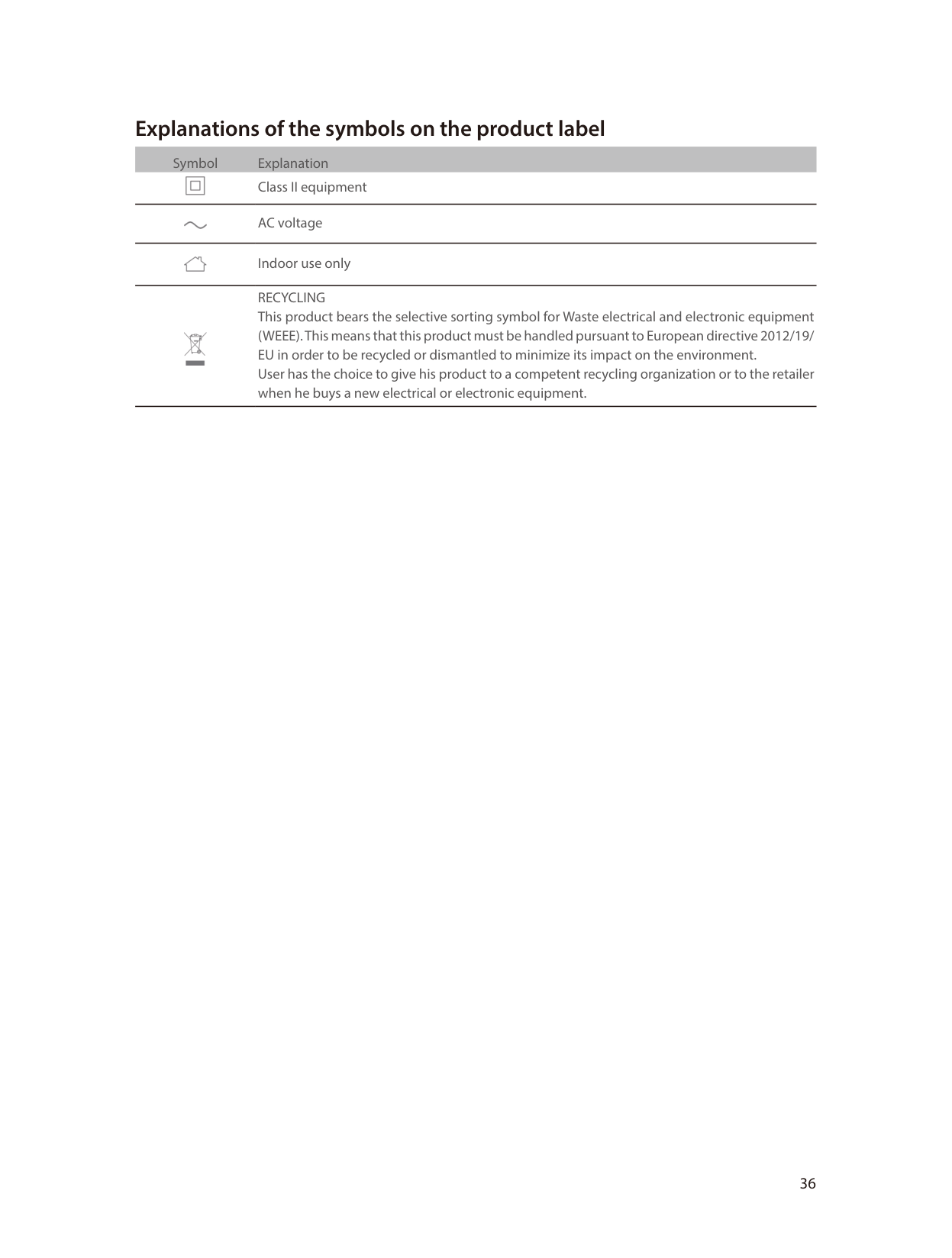
#### Explanations of the symbols on the product label
Symbol Explanation

Class II equipment AC voltage Indoor use only RECYCLING This product bears the selective sorting symbol for Waste electrical and electronic equipment (WEEE). This means that this product must be handled pursuant to European directive 2012/19/ EU in order to be recycled or dismantled to minimize its impact on the environment. User has the choice to give his product to a competent recycling organization or to the retailer when he buys a new electrical or electronic equipment.


